
ADOBE INDESIGN CS3 SCRIPTING TUTORIAL
|
|
|
- Penelope Brittney King
- 9 years ago
- Views:
Transcription
1 ADOBE INDESIGN CS3 SCRIPTING TUTORIAL

2 Adobe InDesign CS3 Scripting Tutorial 2007 Adobe Systems Incorporated. All rights reserved. Adobe, the Adobe logo, Creative Suite, InDesign, Illustrator, and Photoshop are either registered trademarks or trademarks of Adobe Systems Incorporated in the United States and/or other countries. Microsoft and Windows are either registered trademarks or trademarks of Microsoft Corporation in the United States and/or other countries. Apple and Mac OS are trademarks of Apple Computer, Inc., registered in the United States and other countries. All other trademarks are the property of their respective owners. The information in this document is furnished for informational use only, is subject to change without notice, and should not be construed as a commitment by Adobe Systems Incorporated. Adobe Systems Incorporated assumes no responsibility or liability for any errors or inaccuracies that may appear in this document. The software described in this document is furnished under license and may only be used or copied in accordance with the terms of such license. Adobe Systems Incorporated, 345 Park Avenue, San Jose, California 95110, USA.

3 Introduction Adobe InDesign CS3 Scripting Tutorial Scripting is the most powerful feature in Adobe InDesign CS3. No other feature can save you as much time, trouble, and money as scripting. This document is for every InDesign user. If you never created a script before, we show you how to get started. If you wrote scripts for other applications, we show you how to apply your knowledge to InDesign scripting. The document also covers how to install and run an InDesign script and describes what InDesign scripting can and cannot do. We discuss the software you need to start writing your own scripts. After you learn the basics of InDesign scripting in this tutorial, you can move on to Adobe InDesign CS3 Scripting Guide, which explores scripting in more depth. Adobe InDesign CS3 Scripting Guide contains hundreds of tutorial scripts covering topics like text formatting, finding and changing text, associating scripts with menu items, drawing objects on a page, and exporting documents. Getting Started Almost anything you can do with the user interface; you can do with a script. You can draw frames, enter and format text, place graphics, and print or export the pages of the document. Any action that can change a document or its contents can be scripted. There even are a few things you can do in scripting that you cannot do using the user interface. Scripts can create menus, add menu items, create and display dialog boxes and panels, and respond to user-interface selections. Scripts can read and write text files, parse XML data, and communicate with other applications. Scripts can do everything from very small tasks (like setting a tab stop at the location of the text cursor) to providing complete features (InDesign s XHTML export feature is provided by a script). You can start with simple scripts that do only one thing and move on to scripts that automate your entire publishing workflow. Most of the things scripting cannot do like setting up a workspace or defining a set of keyboard shortcuts are things that have to do with the user interface. In addition, scripts cannot add new types of objects to an InDesign document or add new, fundamental capabilities to the program, like a new text-composition engine. For that type of extensibility, you must use the InDesign Software Development Kit (SDK), which shows you to write compiled plug-ins using C++. We tend to think of scripting in terms of long, repetitive tasks, like laying out a phone book. It also is good for things like the following: Automating the myriad, small, annoying tasks you face every day. Customizing InDesign to match your work habits and layouts. Achieving creative effects that would be difficult or impossible to attain by other means. 3

4 Adobe InDesign CS3 Scripting Tutorial Getting Started 4 Installing Scripts Installing an InDesign script is easy: put the script file in the Scripts Panel folder inside the Scripts folder in your InDesign application folder. (Create the Scripts folder if it does not already exist.) Alternately, put the script inside the Scripts Panel folder in your user-preferences folder. Your user-preferences folder is at Mac OS: Windows XP: ~/Library/Preferences/Adobe InDesign/Version 5.0/Scripts ~\Documents and Settings\user_name\Application Data\Adobe \InDesign\Version 5.0\Scripts where ~ is your system volume and user_name is your user name. Once the script is in the folder, it appears on the Scripts panel inside InDesign. To display the panel, choose Window > Automation > Scripts. You also can put aliases/shortcuts to scripts (or to folders containing scripts) in the Scripts Panel folder, and they will appear in the Scripts panel. To run a specific script when InDesign starts, put the script inside a folder named Startup Scripts inside the Scripts folder (create this folder if it does not already exist). Running a Script To run a script, display the Scripts panel (choose Window > Automation > Scripts), then double-click the script name in the Scripts panel. Many scripts display user-interface items (like dialog boxes or panels) and display alerts if necessary. Using the Scripts Panel The InDesign Scripts panel is the easiest and best way to run most InDesign scripts. If the panel is not already visible, you can display it by choosing Window > Automation > Scripts. Scripts run from the Scripts panel run faster than scripts run from the Finder (Mac OS ) or Explorer (Windows ). To view the script actions as they execute, choose Enable Redraw from the Scripts panel menu. The Scripts panel can run compiled or uncompiled AppleScripts (files with the file extension.spt,.as, or.applescript), JavaScripts (files with the file extension.js or.jsx), VBScripts (files with the extension.vbs), or executable programs from the Scripts panel. To edit a script shown in the Scripts panel, hold down Option (Mac OS) or Alt (Windows) key and double-click the script s name. This opens the script in the editor you defined for the script file type. To open the folder containing a script shown in the Scripts panel, hold down the Command (Mac OS) or Ctrl-Shift (Windows) keys and double-click the script s name. Alternately, choose Reveal in Finder (Mac OS) or Reveal in Explorer (Windows) from the Scripts panel menu. The folder containing the script opens in the Finder (Mac OS) or Explorer (Windows). Scripts run as a series of actions, which means you can undo the changes the script made to a document by choosing Undo from the Edit menu. This can help you troubleshoot a script, as you can step backward through each change.

5 Adobe InDesign CS3 Scripting Tutorial Getting Started 5 To add a keyboard shortcut for a script, choose Edit > Keyboard Shortcuts, select an editable shortcut set from the Set menu, then choose Product Area > Scripts. A list of the scripts in your Scripts panel appears. Select a script and assign a keyboard shortcut as you would for any other InDesign feature. About Scripting Languages The language you use to write scripts depends on the scripting system of your platform: AppleScript for Mac OS, VBScript for Windows, or JavaScript for either platform. Although the scripting languages differ, the ways they work with InDesign are very similar. Each sample script in this document is shown in all three scripting languages. Translating a script from one language to another is fairly easy. JavaScript InDesign supports JavaScript for cross-platform scripting in both Mac OS and Windows. InDesign s JavaScript support is based on an Adobe implementation of JavaScript known as ExtendScript. The ExtendScript interpreter conforms to the current, ECMA 262 standard for JavaScript. All language features of JavaScript 1.5 are supported. Adobe Illustrator, Adobe Photoshop, and other Adobe Creative Suite products also use the ExtendScript JavaScript interpreter. While you can write scripts using other versions of JavaScript, like Microsoft JScript (in Windows) or Late Night Software s OSA JavaScript (on the Mac OS), the terms you use in those languages are not the same as the terms you use in ExtendScript. ExtendScript examples do not work in other JavaScript versions. Note: Because ExtendScript tools and features are used in several Adobe products, we consolidated all ExtendScript documentation. To learn more about JavaScript utilities like the ScriptUI user-interface module and the ExtendScript Toolkit (a JavaScript development environment and object-model inspector), see Creative Suite 3 JavaScript Tools Guide. Mac OS To use InDesign scripting on Mac OS, you can use either JavaScript or AppleScript. To write AppleScripts, you must have AppleScript version 1.6 or higher and an AppleScript script editor. AppleScript comes with all Apple systems, and it can be downloaded free from the Apple Web site. The Apple Script Editor is included with the Mac OS; third-party script editors, like Script Debugger (from Late Night Software, also are available. Windows To use InDesign scripting in Windows, you can use either JavaScript or some version of Microsoft Visual Basic, like VBScript. The Visual Basic tutorial scripts are written in VBScript. We chose VBScript because no added software is required to run or edit VBScripts; you can edit them with any text editor (like Notepad) and run them using the InDesign Scripts panel. Other versions of Visual Basic include Visual Basic 5 Control Creation Edition (CCE), Visual Basic 6, Visual Basic.NET, and Visual Basic 2005 Express Edition. Versions of Visual Basic prior to Visual Basic.NET work well with InDesign scripting. Visual Basic.NET and newer versions work less well, because they lack the Variant data type, which is used extensively in InDesign scripting.

6 Adobe InDesign CS3 Scripting Tutorial Getting Started 6 Many applications contain Visual Basic for Applications (VBA), like Microsoft Word, Microsoft Excel, Microsoft Visio, or AutoCAD. Although you can use VBA to create InDesign scripts, InDesign does not include VBA. To use VBScript or Visual Basic for InDesign scripting in Windows XP, you must install InDesign from a user account that has Administrator privileges. After you complete the installation, any user can run InDesign scripts, and any user can add scripts to the InDesign Scripts panel. Which Scripting Language should you use? If you have written scripts before, use whatever language you know. If you have never written scripts before or if you need to make your scripts work on both the Mac OS and Windows versions of InDesign, use JavaScript. If you need to communicate with other, non-adobe applications on your system, use the appropriate, platform standard language (AppleScript on Mac OS or VBScript in Windows). We cannot fully document the language features of AppleScript, JavaScript, or VBScript, so you may need documentation for any or all those scripting languages. Note: You also can use almost any other programming language (like Python or C#) that can connect to the platform standard automation system; that is beyond the scope of this document. How to use the Scripts in this Document To use any script from this document, either open the tutorial script file (the filename is given before each script) or follow these steps: 1. Copy the script from this Adobe PDF document and paste it into your script editor, such as the ExtendScript Toolkit (for JavaScript examples), the Apple Script Editor (for AppleScript examples), or a text editor like Notepad (for VBScript examples). 2. Save the script as a plain text file in the Scripts Panel folder (see Installing Scripts on page 4), using the appropriate file extension: AppleScript:.applescript JavaScript:.jsx VBScript:.vbs 3. Choose Windows > Automation > Scripts, to display the Scripts panel. 4. Double-click the script name in the Scripts panel, to run the script. Note: If you are entering the JavaScript examples, it is very important to use the same capitalization shown in the example. JavaScript is case-sensitive, and the scripts will fail if they do not use the capitalization shown. The AppleScript and VBScript examples are not case-sensitive. Note: If you are copying and pasting scripts from this document, be aware that line breaks caused by the layout of the document can cause errors in your script. As it can be very difficult to find such errors, we recommend hat you use the scripts in the zip archive.

7 Adobe InDesign CS3 Scripting Tutorial Getting Started 7 Your First InDesign Script Next, we will create an InDesign script that creates a new document, adds a text frame, and enters text in the text frame. This demonstrates how to do the following: Establish communication with InDesign. Create a new document. Create a text frame on a specific page. Add text to a text frame. AppleScript Start the Script Editor application (you can find it in your Applications folder, inside the AppleScript folder). Enter the following script (or open the HelloWorld.applescript tutorial script): tell application "Adobe InDesign CS3" set mydocument to make document tell page 1 of mydocument set mytextframe to make text frame set geometric bounds of mytextframe to {"6p", "6p", "24p", "24p"} set contents of mytextframe to "Hello World!" end tell end tell Save the script as text with the file extension.applescript to the Scripts Panel folder (see Installing Scripts on page 4). To run the script, double-click the script name in the Scripts panel or click the Run button in the Script Editor window. JavaScript Start the ExtendScript Toolkit (or a text editor). Enter the following script (or open the HelloWorld.jsx tutorial script): var mydocument = app.documents.add(); var mytextframe = mydocument.pages.item(0).textframes.add(); mytextframe.geometricbounds = ["6p", "6p", "24p", "24p"]; mytextframe.contents = "Hello World!"; Save the script as a plain-text file with the.jsx file extension to the Scripts Panel folder (see Installing Scripts on page 4). To run the script, double-click the script name in the Scripts panel, or select InDesign from the application target pop-up menu in the ExtendScript Toolkit and then click the Run button). VBScript Start a text editor (e.g., Notepad) and enter the following script (or open the HelloWorld.vbs tutorial script): Set myindesign = CreateObject("InDesign.Application.CS3") Set mydocument = myindesign.documents.add Set mytextframe = mydocument.pages.item(1).textframes.add mytextframe.geometricbounds = Array("6p", "6p", "24p", "24p") mytextframe.contents = "Hello World!" Save the script as a text file with the.vbs file extension to the Scripts Panel folder (see Installing Scripts on page 4). To run the script, double-click the script name in the Scripts panel.

8 Adobe InDesign CS3 Scripting Tutorial Scripting and the InDesign Object Model 8 Walking through the Script Examining the script presented above, here is a step-by-step analysis of what the script does (in each scripting language): 1. Establish communication with the InDesign application object: AppleScript: tell application "Adobe InDesign CS3" JavaScript: Refer to the application as app. VBScript: Set myindesign = CreateObject("InDesign.Application.CS3") 2. Create a new document and a reference to the document: AppleScript: Set mydocument to make document JavaScript: Var mydocument = app.documents.add(); VBScript: Set mydocument = myindesign.documents.add 3. Create a new text frame on the first page and a create a reference to the text frame.: AppleScript: tell page 1 of mydocument set mytextframe to make text frame JavaScript: var mytextframe = mydocument.pages.item(0).textframes.add(); VBScript: Set mytextframe = mydocument.pages.item(1).textframes.add 4. Set the geometric bounds (the location of the top, left, bottom, and right edges) of the text frame. In this step, the script uses measurement overrides ( p for picas) to ensure the text frame is the correct size, regardless of your default measurement units. The locations are provided as a list, or array, of values; each scripting language has a slightly different way of creating an array. For more on array variables, see Array Variables on page 11. AppleScript: set geometric bounds of mytextframe to {"6p", "6p", "24p", "24p"} JavaScript: mytextframe.geometricbounds = ["6p", "6p", "24p", "24p"]; VBScript: mytextframe.geometricbounds = Array("6p", "6p", "24p", "24p") 5. Add text to the text frame by setting the contents property to a string.: AppleScript: set contents of mytextframe to "Hello World!" JavaScript: mytextframe.contents = "Hello World!"; VBScript: mytextframe.contents = "Hello World!" Scripting and the InDesign Object Model This section discusses the terminology of scripting languages in general and InDesign scripting in particular. Scripting Terminology This section discusses common scripting terms and concepts.

9 Adobe InDesign CS3 Scripting Tutorial Scripting and the InDesign Object Model 9 Comments Comments give you a way to add descriptive text to a script. The scripting system ignores comments as the script executes; this prevents comments from producing errors when you run your script. Comments are useful to document the operation of a script (for yourself or someone else). In this document, we use comments in the tutorial scripts. To include a comment in an AppleScript, type -- to the left of your comment or surround the comment with (* and *). In VBScript, type Rem (for remark ) or ' (a single straight quote) to the left of the comment. Type the comment marker at the beginning of a line, to make the entire line a comment. In JavaScript, type // to the left of the comment, or surround the comment with /* and */. For example: Values AppleScript: JavaScript: VBScript: --this is a comment * and so is this *) // this is a comment /* and so is this */ Rem this is a comment ' and so is this The point size of a character of text, the location of a text frame on a page, and the color of stroke of a rectangle are examples of values used in InDesign scripting. Values are the data your scripts use to do their work. The type of a value defines what sort of data the value contains. For example, the value type of the contents of a word is a text string, and the value type of the leading of a paragraph is a number. Usually, the values used in scripts are numbers or text. The following table explains the value types most commonly used in InDesign scripting: Value Type What it is Example Boolean Logical True or False. True Integer Double (VBScript), fixed or real (AppleScript), floating point (JavaScript) String Whole numbers (no decimal points). Integers can be positive or negative. In VBScript, you can use the long data type for integers. In AppleScript, you also can use the fixed or long data types for both integers and real numbers. A high-precision number that can contain a decimal point. A series of text characters. Strings appear inside (straight) quotation marks "I am a string"

10 Adobe InDesign CS3 Scripting Tutorial Scripting and the InDesign Object Model 10 Value Type What it is Example Array (VBScript, JavaScript) or list (AppleScript) A list of values (the values can be any type). AppleScript: {"0p0", "0p0", "16p4", "20p6"} VBScript: Array("0p0", "0p0", "16p4", "20p6") JavaScript: ["0p0", "0p0", "16p4", "20p6"] Converting Values from one Type to Another All scripting languages supported by InDesign provide ways to convert variable values from one type to another. The most common conversions involve converting numbers to strings (so you can enter them in text or display them in dialog boxes) or converting strings to numbers (so you can use them to set a point size or page location). See the examples below. AppleScript: --To convert from a number to a string: set mynumber to 2 set mystring to (mynumber as string) --To convert from a string to a number: set mystring to "2" set mynumber to (mystring as integer) --if your string contains a decimal value, use "as real" rather than "as integer" JavaScript: //To convert from a number to a string: mynumber = 2; mystring = mynumber + ""; //To convert from a string to an integer: mystring = "2"; mynumber = parseint(mystring); //If your string contains a decimal value, use "parsefloat" rather than "parseint": mynumber = parsefloat(mystring); //You can also convert strings to numbers using the following: mynumber = +mystring; VBScript: Rem To convert from a number to a string: mynumber = 2 mystring = cstr(mynumber) Rem To convert from a string to an integer: mystring = "2" mynumber = cint(mystring) Rem If your string contains a decimal value, use "cdbl" rather than "cint": mynumber = cdbl(mystring)
![AppleScript: {"0p0", "0p0", "16p4", "20p6"} VBScript: Array("0p0", "0p0", "16p4", "20p6") JavaScript: ["0p0", "0p0", "16p4", "20p6"] Converting Values from one Type to Another All scripting languages](/docs-images/48/18384841/images/page_10.jpg "supported by InDesign provide ways to convert variable values from one type to another.")
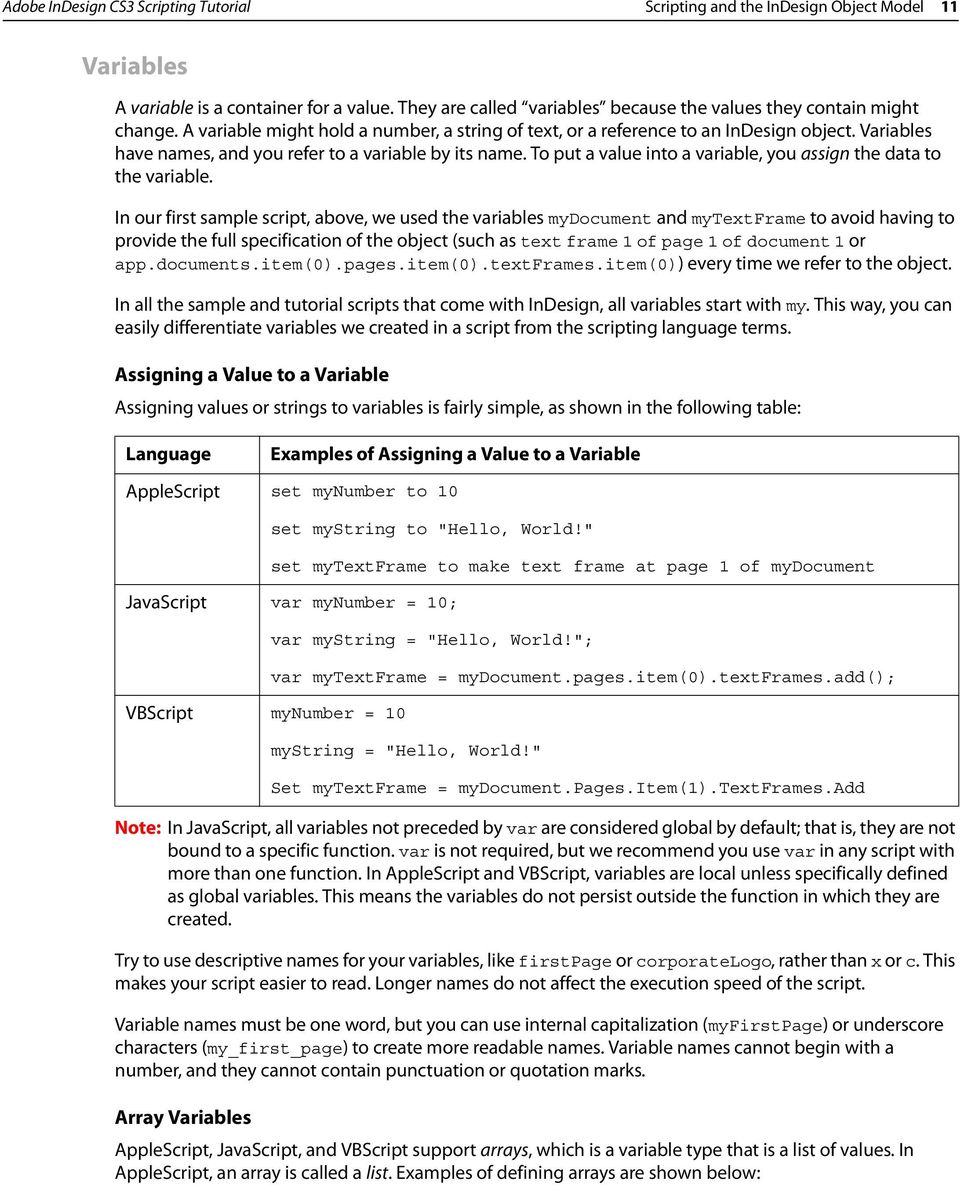
11 Adobe InDesign CS3 Scripting Tutorial Scripting and the InDesign Object Model 11 Variables A variable is a container for a value. They are called variables because the values they contain might change. A variable might hold a number, a string of text, or a reference to an InDesign object. Variables have names, and you refer to a variable by its name. To put a value into a variable, you assign the data to the variable. In our first sample script, above, we used the variables mydocument and mytextframe to avoid having to provide the full specification of the object (such as text frame 1 of page 1 of document 1 or app.documents.item(0).pages.item(0).textframes.item(0)) every time we refer to the object. In all the sample and tutorial scripts that come with InDesign, all variables start with my. This way, you can easily differentiate variables we created in a script from the scripting language terms. Assigning a Value to a Variable Assigning values or strings to variables is fairly simple, as shown in the following table: Language Examples of Assigning a Value to a Variable AppleScript set mynumber to 10 set mystring to "Hello, World!" set mytextframe to make text frame at page 1 of mydocument JavaScript var mynumber = 10; VBScript mynumber = 10 var mystring = "Hello, World!"; var mytextframe = mydocument.pages.item(0).textframes.add(); mystring = "Hello, World!" Set mytextframe = mydocument.pages.item(1).textframes.add Note: In JavaScript, all variables not preceded by var are considered global by default; that is, they are not bound to a specific function. var is not required, but we recommend you use var in any script with more than one function. In AppleScript and VBScript, variables are local unless specifically defined as global variables. This means the variables do not persist outside the function in which they are created. Try to use descriptive names for your variables, like firstpage or corporatelogo, rather than x or c. This makes your script easier to read. Longer names do not affect the execution speed of the script. Variable names must be one word, but you can use internal capitalization (myfirstpage) or underscore characters (my_first_page) to create more readable names. Variable names cannot begin with a number, and they cannot contain punctuation or quotation marks. Array Variables AppleScript, JavaScript, and VBScript support arrays, which is a variable type that is a list of values. In AppleScript, an array is called a list. Examples of defining arrays are shown below:
12 Adobe InDesign CS3 Scripting Tutorial Scripting and the InDesign Object Model 12 Language Examples of Defining Arrays AppleScript set myarray to {1, 2, 3, 4} JavaScript myarray = [1, 2, 3, 4]; VBScript myarray = Array(1, 2, 3, 4) Rem In Visual Basic.NET: myarray = New Double (1, 2, 3, 4) To refer to an item in an array, refer to the item by its index in the array. The first item in an array in VBScript and JavaScript is item 0; in AppleScript, item 1. Examples of referring to items in an array are shown below: Language AppleScript JavaScript VBScript Examples of Referring to an Item in an Array set myfirstarrayitem to item 1 of myarray var myfirstarrayitem = myarray[0]; myfirstarrayitem = myarray(0) Note: The Visual Basic OptionBase statement can be used to set the first item of an array to item 1. In the examples in this document, the first item in an array is item 0, not item 1, because that is the default. If you set OptionBase to 1, you must adjust all array references in the sample scripts accordingly. Arrays can include other arrays, as shown in the following table: Language Examples AppleScript set myarray to {{0, 0}, {72, 72}} VBScript myarray = Array(Array(0,0), Array(72, 72)) Finding the Value Type of a Variable Sometimes, your scripts must make decisions based on the value type of an object. For example, if you are working on a script that operates on a text selection, you might want that script to stop if the type of the selection is a page item. All the scripting languages allow you to determine the type of a variable. AppleScript: -- Given a variable of unknown type, "mymysteryvariable"... set mytype to class of mymysteryvariable --mytype will be an AppleScript type (e.g., rectangle) JavaScript: Rem In Visual Basic.NET: myarray = New Array(New Double(0,0), NewDouble (0,0)) JavaScript var myarray = [[0,0], [72,72]]; //Given a variable of unknown type, "mymysteryvariable"... mytype = mymysteryvariable.constructor.name; //mytype will be a string corresponding to the JavaScript type (e.g., "Rectangle")

13 Adobe InDesign CS3 Scripting Tutorial Scripting and the InDesign Object Model 13 VBScript: Operators Rem Given a variable of unknown type, "mymysteryvariable"... mytype = TypeName(myMysteryVariable) Rem mytype will be a string corresponding to the variable type (e.g., "Rectangle") Operators use variables or values to perform calculations (addition, subtraction, multiplication, and division) and return a value. For example: MyWidth/2 This returns a value equal to half of the content of the variable mywidth. You also can use operators to perform comparisons: equal to (=), not equal to(<>), greater than(>), or less than(<). For example: MyWidth > myheight This returns true (or 1) if mywidth is greater than myheight; otherwise, false (0). All the scripting languages provide additional utility operators. In AppleScript and VBScript, the ampersand (&) concatenates (or joins) two strings: "Pride " & "and Prejudice" This returns the following string: "Pride and Prejudice" In JavaScript, use the plus sign (+) to join the two strings: "Pride " + "and Prejudice" //returns the string: "Pride and Prejudice" Conditional Statements If the selected object is a rectangle, set its stroke weight to 12 points. This is an example of a conditional statement. Conditional statements make decisions; they give your scripts a way to evaluate something (like the color of the selected object, the number of pages in the publication, or the date) and act based on the result. Conditional statements almost always start with if. Note: Conditional statements often make logical comparisons. In AppleScript and VBScript, use the equals sign (=) to compare objects. In JavaScript, the equals sign assigns a value to a variable; to compare objects, use a double equals sign (==). Control Structures If you could talk to InDesign, you might say, Repeat the following procedure 20 times. In scripting terms, this is a control structure. Control structures provide repetitive processes, or loops. The idea of a loop is to repeat an action over and over, with or without changes between instances (or iterations) of the loop, until a specific condition is met. Control structures usually start with repeat (in AppleScript) or for (in JavaScript and VBScript).

14 Adobe InDesign CS3 Scripting Tutorial Scripting and the InDesign Object Model 14 Functions and Handlers Functions (in VBScript or JavaScript) or handlers (in AppleScript) are scripting modules you can refer to within your script. Typically, you send a value or series of values to a function (or handler) and get back some other value or values. The code used in functions and handlers is simply a convenience to avoid having to type the same lines of code repeatedly in your script. In AppleScript, handlers start with on. In JavaScript and VBScript, functions start with function. Understanding the InDesign Object Model When you think about InDesign and InDesign documents, you probably organize the program and its components in your mind. You know paragraphs are contained by text frames which, in turn, appear on a page. A page is a part of a spread, and one or more spreads make up a document. Documents contain colors, styles, layers, and master spreads. As you think about the layouts you create, you intuitively understand there is an order to them. InDesign thinks about the contents of a document in the same way. A document contains pages, which contain page items (text frames, rectangles, ellipses, and so on). Text frames contain characters, words, paragraphs, and anchored frames; graphics frames contain images, EPS files, or PDF files; and groups contain other page items. The things we mention here are the objects that make up an InDesign publication, and they are what we work with when we write InDesign scripts. Objects in your publication are arranged in a specific order: frames are on pages, which are inside a document, which is inside the InDesign application object. When we speak of an object model or a hierarchy, we are talking about this structure. Understanding the object model is the key to finding the object you want to work with, and your best guide to InDesign scripting is your knowledge of InDesign itself. Objects have properties (attributes). For example, the properties of a text object include the font used to format the text, the point size, and the leading applied to the text. Properties have values; for example, the point size of text can be either a number (in points) or the string Auto for auto leading. The fill color property of text can be set to a color, a gradient, a mixed ink, or a swatch. Properties also can be read/write or read only. Read/write properties can be set to other values; read only properties cannot. Objects also have methods the verbs of the scripting world, or the actions an object can perform. For example, the document object has print, export, and save methods. Methods have parameters, or values that define the effect of the method. For example, the place method of a document has a parameter that defines the file you want to place. Parameters can be required or optional, depending on the method. The following figure is an overview of the InDesign object model. The diagram is not a comprehensive list of the objects available to InDesign scripting; instead, it i s a conceptual framework for understanding the relationships between the types of objects.

15 Adobe InDesign CS3 Scripting Tutorial Scripting and the InDesign Object Model 15 application documents a document libraries books application preferences application defaults application events application menus application properties document preferences document defaults document events document properties document methods document elements pages or spreads application methods page stories page items text objects The objects in the diagram are explained in the following table: Term Application Application defaults Application events Application menus Application methods Application preferences Application properties Books Document Document defaults What it Represents InDesign. Application default settings, like colors, paragraph styles, and object styles. Application defaults affect all new documents. The things that happen as a user or script works with the application. Events are generated by opening, closing, or saving a document or choosing a menu item. Scripts can be triggered by events. The menus, submenus, and context menus displayed in the InDesign user interface. Scripts can be attached to menu choices and can execute menu actions. The actions the application can take; for example, finding and changing text, copying the selection, creating new documents, and opening libraries. For example, text preferences, PDF export preferences, and document preferences. Many of the preferences objects also exist at the document level. Just as in the user interface, application preferences are applied to new documents. Document preferences change the settings of a specific document. The properties of the application; for example, the full path to the application, the locale of the application, and the user name. A collection of open books. An InDesign document. Document default settings, like colors, paragraph styles, and text formatting defaults.

16 Adobe InDesign CS3 Scripting Tutorial Scripting and the InDesign Object Model 16 Term Document elements Document events Document methods Document preferences Document properties Documents Libraries Page Page items Pages or spreads Stories Text objects What it Represents For example, the stories, imported graphics, and pages of a document. The figure that precedes this table shows pages and stories, because those objects are very important containers for other objects, but document elements also include rectangles, ovals, groups, XML elements, and any other type of object you can import or create. Events that occur at the document level, like importing text. See application events in this table. The actions the document can take; for example, closing a document, printing a document, and exporting a document. The preferences of a document, like guide preferences, view preferences, and document preferences. For example, the document filename, number of pages, and zero point location. A collection of open documents. A collection of open libraries. A single page in an InDesign document. Any object you can create or place on a page. There are many types of page items, such as text frames, rectangles, graphic lines, or groups. The pages or spreads in an InDesign document. The text in an InDesign document. Characters, words, lines, paragraphs, and text columns are examples of text objects in an InDesign story. Looking at the InDesign Object Model You can view the InDesign object model from inside your script-editing application. All reference information on objects and their properties and methods is stored in the model and can be viewed AppleScript To view the InDesign AppleScript dictionary:, follow these steps: 1. Start InDesign. 2. Start the Apple Script Editor. 3. In the Script Editor, choose File > Open Dictionary. The Script Editor displays a list of scriptable applications:


17 Adobe InDesign CS3 Scripting Tutorial Scripting and the InDesign Object Model Select your copy of InDesign, and click OK. The Script Editor displays a list of InDesign s suites (collections of related objects): 5. Select a suite, to see the objects and methods (commands) it contains. Select an object, to see the properties associated with it. JavaScript To view the InDesign object model in the ExtendScript Toolkit, follow these steps: 1. Start the ExtendScript Toolkit. 2. Choose Help > InDesign CS3 Main Dictionary. The ExtendScript Toolkit loads the InDesign dictionary and displays it in a separate window. 3. From the Classes list, select the object you want to view, then click the property or method you want to view in more detail in the Properties and Methods list. The ExtendScript toolkit displays more information on the property or method you selected:
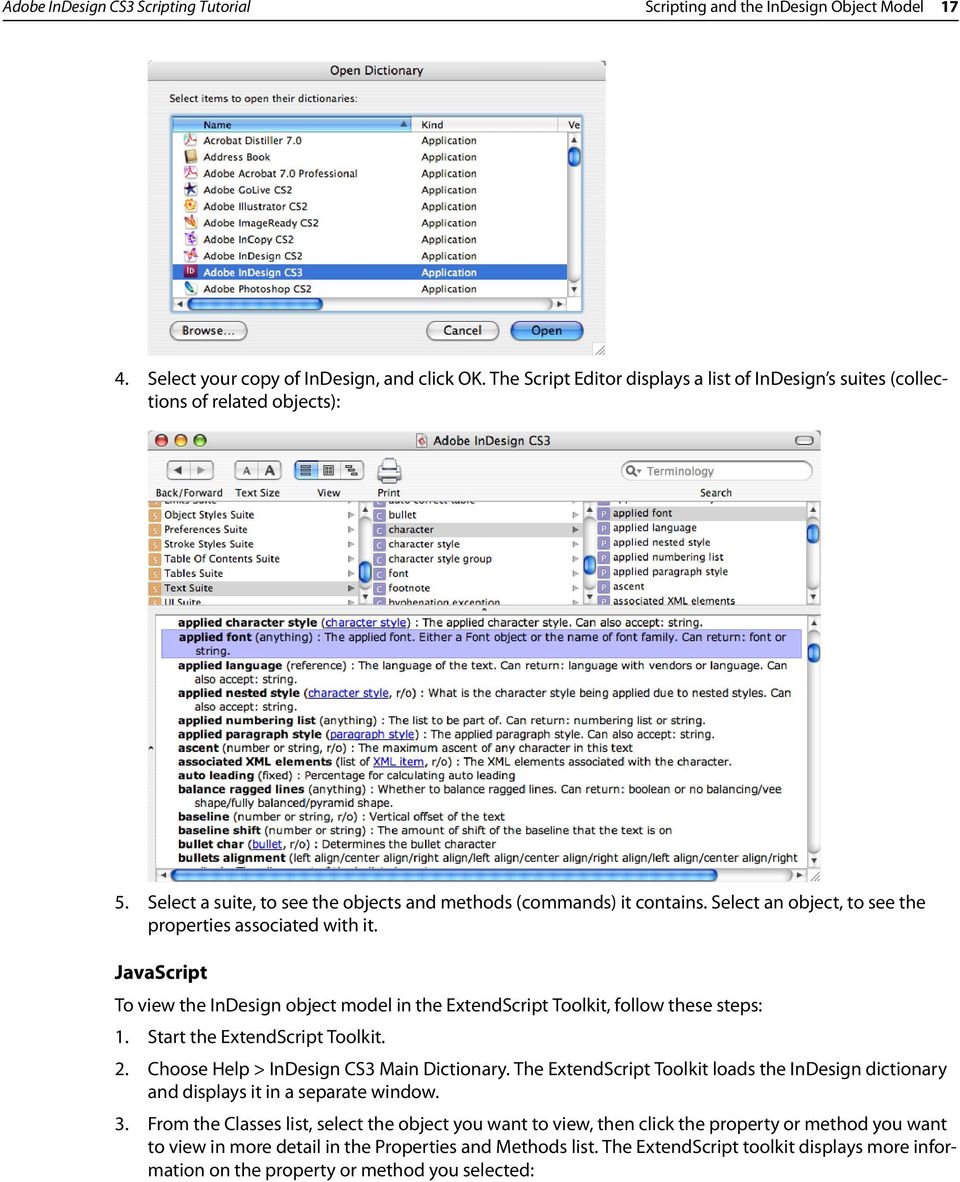

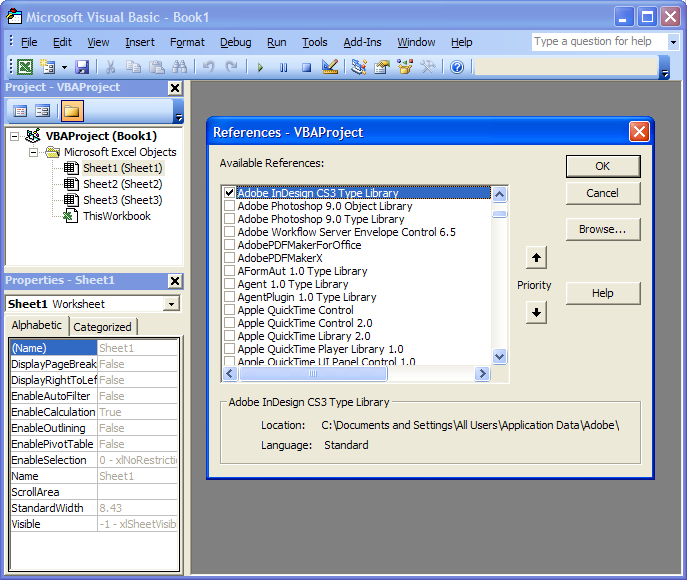
18 Adobe InDesign CS3 Scripting Tutorial Scripting and the InDesign Object Model 18 Note: For more on using the ExtendScript Toolkit object-model viewer, see Creative Suite 3 JavaScript Tools Guide. VBScript To view the InDesign object model, you need a VBScript editor/debugger or some version of Visual Basic, or an application that incorporates Visual Basic for Applications. Visual Basic 6 To view the object model using Visual Basic 6, follow these steps: 1. Create a new Visual Basic project, then choose Project > References. Visual Basic displays the References dialog box: 2. From the list of available references, select Adobe InDesign CS3 Type Library, and click OK. If the library does not appear in the list of available references, click Browse and locate and select the file Resources for Visual Basic.tlb, which is usually inside ~:\Documents and Settings\user_name\Application Data\Adobe\InDesign\Version 5.0\Scripting Support\ (where user_name is your user name). If necessary, search for the file. Once you locate the file, click Open to add the reference to your project. 3. Choose View > Object Browser. Visual Basic displays the Object Browser dialog box. 4. From the list of open libraries shown in the Project/Library menu, choose InDesign. Visual Basic displays the objects that make up the InDesign object model.


19 Adobe InDesign CS3 Scripting Tutorial Scripting and the InDesign Object Model Click an object class. Visual Basic displays the properties and methods of the object. For more information on a property or method, select the item; Visual Basic displays the definition of the item at the bottom of the Object Browser window: Visual Basic.NET To view the object model using Visual Basic.NET, follow these steps: 1. Create a new Visual Basic project, then choose Project > Add Reference. Visual Basic displays the Add Reference dialog box. 2. Select the COM tab. 3. From the list of available references, select Adobe InDesign CS3 Type Library, and click Select. Visual Basic.NET adds the reference to the Selected Components list. If the library does not appear in the list of available references, click Browse and locate and select the Resources for Visual.tlb file, which usually is in ~:\Documents and Settings\user_name\Application Data\Adobe\InDesign\Version 5.0\Scripting Support\ (where user_name is your user name). Once you find the file, click Open to add the reference to your project: 4. Click OK. 5. Choose View > Object Browser. Visual Basic displays the Object Browser tab.

20 Adobe InDesign CS3 Scripting Tutorial Scripting and the InDesign Object Model From the list of open libraries in the Objects window, choose interop.indesign. Visual Basic.NET displays the objects that make up the InDesign object model. 7. Click an object class. Visual Basic.NET displays the properties and methods of the object. For more information on a property or method, select the item; Visual Basic.NET displays the definition of the item at the bottom of the Object Browser window: Visual Basic for Applications To view the object model using Visual Basic for Applications from Microsoft Excel, follow these steps: 1. Start Excel. 2. Choose Tools > Macros > Visual Basic Editor. Excel displays the Visual Basic Editor window. 3. Choose Tools > References. The Visual Basic Editor displays the Add References dialog box: 4. From the list of available references, select Adobe InDesign CS3 Type Library option, and click Select. Visual Basic adds the reference to the Selected Components list. If the library does not appear in the list of available references, click Browse and locate and select the Resources for Visual Basic.tlb file, which usually is in ~:\Documents and Settings\user_name\Application Data\Adobe\InDesign\Version 5.0\Scripting Support\ (where user_name is your user name). Once you find the file, click OK to add the reference to your project. 5. Choose View > Object Browser. The Visual Basic editor display the Object Browser window.


21 Adobe InDesign CS3 Scripting Tutorial Scripting and the InDesign Object Model From the Libraries pop-up menu, choose InDesign. The Visual Basic editor displays a list of the objects in the InDesign object library. 7. Click an object name. The Visual Basic Editor displays the properties and methods of the object. For more information on a property or method, select the item; Visual Basic displays the definition of the item at the bottom of the Object Browser window: Measurements and Positioning All items and objects in InDesign are positioned on the page according to measurements you choose. It is useful to know how the InDesign coordinate system works and what measurement units it uses. Coordinates InDesign, like every other page-layout and drawing program, uses simple, two-dimensional geometry to set the position of objects on a page or spread. The horizontal component of a coordinate pair is referred to as x; the vertical component, y. You can see these coordinates in the Transform panel or Control when you select an object using the Selection tool. As in the InDesign user interface, coordinates are measured relative to the current location of the ruler s zero point. There is one difference between the coordinates used in InDesign and the coordinate system used in a Geometry textbook: on InDesign s vertical (or y) axis, coordinates below the zero point are positive numbers; coordinates above the zero point are negative numbers. Note: When you ask InDesign for the location of a path point, the coordinates are returned in x, y order. When you set the location of a path point, InDesign expects you to provide the coordinates in the same order. InDesign returns some coordinates in a different order, however, and it expects you to supply them in that order. Geometric bounds and visible bounds are arrays containing four coordinates, which define (in order) the top, left, bottom, and right edges of the object s bounding box (or y1, x1, y2, x2). Working with Measurement Units When you send measurement values to InDesign, you can send numbers (for example, 14.65) or measurement strings (for example, 1p7.1 ). If you send numbers, InDesign uses the publication s current units of measurement. If you send measurement strings (see the table below), InDesign uses the units of measurement specified in the string.
22 Adobe InDesign CS3 Scripting Tutorial Adding Features to Hello World 22 InDesign returns coordinates and other measurement values using the publication s current measurement units. In some cases, these units do not resemble the measurement values shown in the InDesign Transform panel. For example, if the current measurement system is picas, InDesign returns fractional values as decimals, rather than using the picas-and-points notation used by the Transform panel. 1p6, for example, is returned as 1.5. InDesign does this because your scripting system would have trouble trying to perform arithmetic operations using measurement strings; for instance, trying to add 0p3.5 to 13p4 produces a script error, while adding.2916 to (the converted pica measurements) does not. If your script depends on adding, subtracting, multiplying, or dividing specific measurement values, you might want to set the corresponding measurement units at the beginning of the script. At the end of the script, you can set the measurement units back to whatever they were before you ran the script. Alternately, you can use measurement overrides, like many of the sample scripts. A measurement override is a string containing a special character, as shown in the following table: Override Meaning Example c Ciceros (add didots after the c, if necessary) 1.4c cm Centimeters.635cm i (or in) Inches.25i mm Millimeters 6.35mm p Picas (add points after the p, if necessary) 1p6 pt Points 18pt Adding Features to Hello World Next, we will create a new script that makes changes to the Hello World publication that we created with our first script. Our second script demonstrates how to do the following: Get the active document. Use a function (or handler in AppleScript). Get the page dimensions and page margins of the active document. Resize a text frame. Change the formatting of the text in the text frame. AppleScript Either open the ImprovedHelloWorld.applescript tutorial script, or perform the following steps to create the script: 1. Make sure you have the Hello World document open. If you closed the document without saving it, simply run the HelloWorld.applescript script again to make a new Hello World document. 2. In the Script Editor, choose File > New to create a new script.
23 Adobe InDesign CS3 Scripting Tutorial Adding Features to Hello World Enter the following code: --Improved "Hello World" tell application "Adobe InDesign CS3" --Get a reference to a font. try --Enter the name of a font on your system, if necessary. set myfont to font "Helvetica" end try --Get the active document and assign --the result to the variable "mydocument." set mydocument to document 1 tell mydocument --Use the handler "mygetbounds" to get the bounds of the --"live area" inside the margins of page 1. set mybounds to my mygetbounds(mydocument, page 1) tell text frame 1 of page 1 --Resize the text frame to match the page margins. set geometric bounds to mybounds tell paragraph 1 --Change the font, size, and paragraph alignment. try set applied font to myfont end try set point size to 72 set justification to center align end tell end tell end tell end tell --mygetbounds is a handler that returns the bounds --of the "live area" of a page. on mygetbounds(mydocument, mypage) tell application "Adobe InDesign CS2" set mypageheight to page height of document preferences of mydocument set mypagewidth to page width of document preferences of mydocument set myleft to left of margin preferences of mypage set mytop to top of margin preferences of mypage set myright to right of margin preferences of mypage set mybottom to bottom of margin preferences of mypage end tell set myright to mypagewidth - myleft set mybottom to mypageheight - mybottom return {mytop, myleft, mybottom, myright} end mygetbounds 4. Save the script. 5. Run the new script.
24 Adobe InDesign CS3 Scripting Tutorial Adding Features to Hello World 24 JavaScript VBScript Either open the ImprovedHelloWorld.jsx tutorial script, or perform the following steps to create the script: 1. Make sure you have the Hello World document open. If you closed the document without saving it, simply run the HelloWorld.jsx script again to make a new Hello World document. 2. Enter the following JavaScript in a new text file: //Improved Hello World! //Enter the name of a font on your system, if necessary. myfont = app.fonts.item("arial"); var mydocument = app.documents.item(0); with(mydocument){ var mypage = pages.item(0); var mybounds = mygetbounds(mypage,mydocument); with(mydocument.pages.item(0)){ //Get a reference to the text frame. var mytextframe = textframes.item(0); //Change the size of the text frame. mytextframe.geometricbounds = mybounds; var myparagraph = mytextframe.paragraphs.item(0); myparagraph.appliedfont = myfont; myparagraph.justification = Justification.centerAlign; myparagraph.pointsize = 48; } } //mygetbounds calculates and return the bounds of the "live area" of the page. function mygetbounds(mydocument, mypage){ var mywidth = mydocument.documentpreferences.pagewidth; var myheight = mydocument.documentpreferences.pageheight; var myx1 = mypage.marginpreferences.left; var myy1 = mypage.marginpreferences.top; var myx2 = mywidth - mypage.marginpreferences.right; var myy2 = myheight - mypage.marginpreferences.bottom; return [myy1, myx1, myy2, myx2]; } 3. Save the text as a plain text file with the file extension.jsx in the Scripts Panel folder (see Installing Scripts on page 4). 4. Run the new script, by double-clicking the script name in the InDesign Scripts panel. Either open the ImprovedHelloWorld.vbs tutorial script, or perform the following steps to create the script: 1. Start any text editor (for example, Notepad). 2. Make sure you have the Hello World document open. If you closed the document without saving it, simply run the HelloWorld.vbs script again to make a new Hello World document.
25 Adobe InDesign CS3 Scripting Tutorial Constructing a Document Enter the following code: Set myindesign = CreateObject("InDesign.Application.CS3") Rem Enter the name of a font on your system, if necessary. Set myfont = myindesign.fonts.item("arial") Set mydocument = myindesign.activedocument Set mypage = mydocument.pages.item(1) Rem Get page width and page height using the function "mygetbounds". mybounds = mygetbounds(mydocument, mypage) Set mytextframe = mypage.textframes.item(1) Rem Resize the text frame to match the publication margins. mytextframe.geometricbounds = mybounds Set myparagraph = mytextframe.paragraphs.item(1) Rem Change the font, size, and alignment. If TypeName(myFont) <> "Nothing" Then myparagraph.appliedfont = myfont End If myparagraph.pointsize = 48 myparagraph.justification = idjustification.idcenteralign Function mygetbounds(mydocument, mypage) mypageheight = mydocument.documentpreferences.pageheight mypagewidth = mydocument.documentpreferences.pagewidth mytop = mypage.marginpreferences.top myleft = mypage.marginpreferences.left myright = mypage.marginpreferences.right mybottom = mypage.marginpreferences.bottom myright = mypagewidth - myright mybottom = mypageheight - mybottom mygetbounds = Array(myTop, myleft, mybottom, myright) End Function 4. Save the text as a plain text file with the file extension.vbs in the Scripts folder (see Installing Scripts on page 4). 5. Run the new script, by double-clicking the script name in the InDesign Scripts panel. Constructing a Document Obviously, our Hello World! script is not very useful in your daily work. While you can use an InDesign script at any point in your production process, we will start by creating scripts that start at the same point you do creating new documents, setting page margins, and creating and applying master pages. The following figure shows the objects with which we will work.
26 . Adobe InDesign CS3 Scripting Tutorial Constructing a Document 26 document viewpreferences horizontalmeasurementunits verticalmeasurementunits rulerorigin masterspreads.item(0) pages.item(0) marginpreferences In this section, we create one long script by adding short blocks of scripting code. Each block demonstrates a specific area or task in InDesign scripting. As you enter each block, you can run the script to see what happens. If you are using AppleScript, you will need to add the text end tell to the end of the script before you run it, then remove the text before continuing. Note: The figure above uses the JavaScript version of the scripting terms. For AppleScript, you would add spaces between words (view preferences, rather than viewpreferences); for VBScript, you would use an item index starting at 1, rather than 0 (masterspreads.item(1), rather than masterspreads.item(0)). The objects in the object model generally correspond to the names of controls in the user interface, as shown in the following diagram (which, again, uses the JavaScript form of the scripting terms): top left bottom right columncount columngutter
27 Adobe InDesign CS3 Scripting Tutorial Constructing a Document 27 app.gridpreferences or document.gridpreferences baselinecolor baselinestart baselinegridrelativeoption baselinedivision baselineviewthreshold gridcolor verticalgridlinedivision verticalgridsubdivision horizontalgridlinedivision horizontalgridsubdivision gridsinback baselinegridshown documentgridshown documentgridsnapto Setting up Measurement Units and Master Spread Margins The following script shows how to create a new document and set the margins of the first master spread. In this section, we show how to build a complex script using simple building blocks of scripting code. Start your script editor and enter the following lines in the scripting language of your choice. After you enter each block of code, save the script in your Scripts Panel folder (see Installing Scripts on page 4).
28 Adobe InDesign CS3 Scripting Tutorial Constructing a Document 28 AppleScript Either enter the following code in the Script Editor or open the DocumentConstruction.applescript tutorial script: tell application "Adobe InDesign CS3" --Create a new document. set mydocument to make document --Set the measurement units and ruler origin. set horizontal measurement units of view preferences to points set vertical measurement units of view preferences to points set ruler origin of view preferences to page origin --Get a reference to the first master spread. set mymasterspread to master spread 1 of mydocument --Get a reference to the margin preferences of --the first page in the master spread. set mymarginpreferences to margin preferences of page 1 of mymasterspread --Now set up the page margins and columns. set left of mymarginpreferences to 84 set top of mymarginpreferences to 70 set right of mymarginpreferences to 70 set bottom of mymarginpreferences to 78 set column count of mymarginpreferences to 3 set column gutter of mymarginpreferences to 14 --Page margins and columns for the right-hand page. set mymarginpreferences to margin preferences of page 2 of mymasterspread set left of mymarginpreferences to 84 set top of mymarginpreferences to 70 set right of mymarginpreferences to 70 set bottom of mymarginpreferences to 78 set column count of mymarginpreferences to 3 set column gutter of mymarginpreferences to 14
29 Adobe InDesign CS3 Scripting Tutorial Constructing a Document 29 JavaScript Either enter the following code in the ExtendScript Toolkit or open the DocumentConstruction.jsx tutorial script: //Create a new document. var mydocument = app.documents.add(); //Set the measurement units and ruler origin. mydocument.viewpreferences.horizontalmeasurementunits = MeasurementUnits.points; mydocument.viewpreferences.verticalmeasurementunits = MeasurementUnits.points; mydocument.viewpreferences.rulerorigin = RulerOrigin.pageOrigin; //Get a reference to the first master spread. var mymasterspread = mydocument.masterspreads.item(0); //Get a reference to the margin preferences of the first page in the master spread. var mymarginpreferences = mymasterspread.pages.item(0).marginpreferences; //Now set up the page margins and columns. mymarginpreferences.left = 84; mymarginpreferences.top = 70; mymarginpreferences.right = 70; mymarginpreferences.bottom = 78; mymarginpreferences.columncount = 3; mymarginpreferences.columngutter = 14; //Page margins and columns for the right-hand page. var mymarginpreferences = mymasterspread.pages.item(1).marginpreferences; mymarginpreferences.left = 84; mymarginpreferences.top = 70; mymarginpreferences.right = 70; mymarginpreferences.bottom = 78; mymarginpreferences.columncount = 3; mymarginpreferences.columngutter = 14;
30 : Adobe InDesign CS3 Scripting Tutorial Constructing a Document 30 VBScript Either enter the following code in your script or text editor, or open the DocumentConstruction.vbs tutorial script. Set myindesign = CreateObject("InDesign.Application.CS3") Rem Create a new document. Set mydocument = myindesign.documents.add() Rem Set the measurement units and ruler origin. mydocument.viewpreferences.horizontalmeasurementunits = idmeasurementunits.idpoints mydocument.viewpreferences.verticalmeasurementunits = idmeasurementunits.idpoints mydocument.viewpreferences.rulerorigin = idrulerorigin.idpageorigin Rem Get a reference to the first master spread. Set mymasterspread = mydocument.masterspreads.item(1) Rem Get a reference to the margin preferences of the first page in the master spread. Set mymarginpreferences = mymasterspread.pages.item(1).marginpreferences Rem Now set up the page margins and columns. mymarginpreferences.left = 84 mymarginpreferences.top = 70 mymarginpreferences.right = 70 mymarginpreferences.bottom = 78 mymarginpreferences.columncount = 3 mymarginpreferences.columngutter = 14 Rem Page margins and columns for the right-hand page. Set mymarginpreferences = mymasterspread.pages.item(2).marginpreferences mymarginpreferences.left = 84 mymarginpreferences.top = 70 mymarginpreferences.right = 70 mymarginpreferences.bottom = 78 mymarginpreferences.columncount = 3 mymarginpreferences.columngutter = 14 Adding a Baseline Grid Now that we have a master spread set up, we will add a baseline grid. Add the following script lines (from the appropriate language) to the end of the script you created earlier. Again, here is a diagram (with the scripting terms shown in their JavaScript form): document gridpreferences baselinedivision baselinestart baselinegridshown AppleScript set mygridpreferences to grid preferences set baseline division of mygridpreferences to 14 set baseline start of mygridpreferences to 70 set baseline grid shown of mygridpreferences to true
31 Adobe InDesign CS3 Scripting Tutorial Constructing a Document 31 JavaScript VBScript var mygridpreferences = mydocument.gridpreferences; mygridpreferences.baselinedivision = 14; mygridpreferences.baselinestart = 70; mygridpreferences.baselinegridshown = true; Set mygridpreferences = mydocument.gridpreferences mygridpreferences.baselinedivision = 14 mygridpreferences.baselinestart = 70 mygridpreferences.baselinegridshown = True Adding Master Page Items Next, we add two text frames to the master pages. These frames will contain the auto-page-number special character and will be positioned at the bottom of the page. In the Hello World example, we created a text frame and specified its position and size using the geometric bounds property an array containing the top, left, bottom, and right coordinates for the frame. The coordinates correspond to the corners of the frame, just as they would appear in the Control panel. The geometric bounds are: top = 728, left = 70, bottom = 742, and right = 528, as shown in the following two figures:
32 Adobe InDesign CS3 Scripting Tutorial Constructing a Document 32 AppleScript JavaScript set myleftpage to page 1 of mymasterspread set myrightpage to page 2 of mymasterspread tell myleftpage set myleftfooter to make text frame set geometric bounds of myleftfooter to {728, 70, 742, 528} set first baseline offset of text frame preferences of myleftfooter to leading offset set contents of myleftfooter to auto page number set point size of character 1 of parent story of myleftfooter to 11 set leading of character 1 of myleftfooter to 14 end tell tell myrightpage set myrightfooter to make text frame set geometric bounds of myrightfooter to {728, 84, 742, 542} set first baseline offset of text frame preferences of myrightfooter to leading offset set contents of myrightfooter to auto page number set point size of character 1 of parent story of myrightfooter to 11 set leading of character 1 of myrightfooter to 14 set justification of character 1 of myrightfooter to right align end tell var mymasterspread = mydocument.masterspreads.item(0); var myleftpage = mymasterspread.pages.item(0); var myrightpage = mymasterspread.pages.item(1); var myleftfooter = myleftpage.textframes.add(); myleftfooter.geometricbounds = [728, 70, 742, 528]; myleftfooter.textframepreferences.firstbaselineoffset = FirstBaseline.leadingOffset; myleftfooter.contents = SpecialCharacters.autoPageNumber; myleftfooter.parentstory.characters.item(0).pointsize = 11; myleftfooter.parentstory.characters.item(0).leading = 14; var myrightfooter = myrightpage.textframes.add(); myrightfooter.geometricbounds = [728, 84, 742, 542]; myrightfooter.textframepreferences.firstbaselineoffset = FirstBaseline.leadingOffset; myrightfooter.contents = SpecialCharacters.autoPageNumber; myrightfooter.parentstory.characters.item(0).pointsize = 11; myrightfooter.parentstory.characters.item(0).leading = 14; myrightfooter.parentstory.characters.item(0).justification = Justification.rightAlign;
33 Adobe InDesign CS3 Scripting Tutorial Constructing a Document 33 VBScript Set mymasterspread = mydocument.masterspreads.item(1) Set myleftpage = mymasterspread.pages.item(1) Set myrightpage = mymasterspread.pages.item(2) Set myleftfooter = myleftpage.textframes.add myleftfooter.geometricbounds = Array(728, 70, 742, 528) myleftfooter.textframepreferences.firstbaselineoffset = idfirstbaseline.idleadingoffset myleftfooter.contents = idspecialcharacters.idautopagenumber myleftfooter.parentstory.characters.item(1).pointsize = 11 myleftfooter.parentstory.characters.item(1).leading = 14 Set myrightfooter = myrightpage.textframes.add() myrightfooter.geometricbounds = Array(728, 84, 742, 542) myrightfooter.textframepreferences.firstbaselineoffset = idfirstbaseline.idleadingoffset myrightfooter.contents = idspecialcharacters.idautopagenumber myrightfooter.parentstory.characters.item(1).pointsize = 11 myrightfooter.parentstory.characters.item(1).leading = 14 myrightfooter.parentstory.characters.item(1).justification = idjustification.idrightalign Adding Master Text Frames Next, we add master text frames. The following block diagram shows the objects and properties with which we will work (the diagram uses the JavaScript form of the scripting terms): document masterspreads.item(0) pages.item(0) textframes.item(0) textframepreferences geometricbounds label nexttextframe firstbaselineoffset textcolumncount textcolumngutter
34 Adobe InDesign CS3 Scripting Tutorial Constructing a Document 34 AppleScript tell myleftpage set mylefttextframe to make text frame set geometric bounds of mylefttextframe to {70, 70, 714, 528} set first baseline offset of text frame preferences of mylefttextframe to leading offset set text column count of text frame preferences of mylefttextframe to 3 set text column gutter of text frame preferences of mylefttextframe to 14 --Add a label to make the frame easier to find later on. set label of mylefttextframe to "BodyTextFrame" end tell tell myrightpage set myrighttextframe to make text frame set geometric bounds of myrighttextframe to {70, 84, 714, 542} set first baseline offset of text frame preferences of myrighttextframe to leading offset set text column count of text frame preferences of myrighttextframe to 3 set text column gutter of text frame preferences of myrighttextframe to 14 --Add a label to make the frame easier to find later on. set label of myrighttextframe to "BodyTextFrame" end tell --Link the two frames using the next text frame property. set next text frame of mylefttextframe to myrighttextframe
35 Adobe InDesign CS3 Scripting Tutorial Constructing a Document 35 JavaScript VBScript var myleftpage = mymasterspread.pages.item(0); var myrightpage = mymasterspread.pages.item(1); var mylefttextframe = myleftpage.textframes.add(); mylefttextframe.geometricbounds = [70, 70, 714, 528]; mylefttextframe.textframepreferences.firstbaselineoffset = FirstBaseline.leadingOffset; mylefttextframe.textframepreferences.textcolumncount = 3; mylefttextframe.textframepreferences.textcolumngutter = 14; //Add a label to make the frame easier to find later on. mylefttextframe.label = "BodyTextFrame"; var myrighttextframe = myrightpage.textframes.add(); myrighttextframe.geometricbounds = [70, 84, 714, 542]; myrighttextframe.textframepreferences.firstbaselineoffset = FirstBaseline.leadingOffset; myrighttextframe.textframepreferences.textcolumncount = 3; myrighttextframe.textframepreferences.textcolumngutter = 14; //Add a label to make the frame easier to find later on. myrighttextframe.label = "BodyTextFrame"; //Link the two frames using the nexttextframe property. mylefttextframe.nexttextframe = myrighttextframe; Set mylefttextframe = myleftpage.textframes.add mylefttextframe.geometricbounds = Array(70, 70, 714, 528) mylefttextframe.textframepreferences.firstbaselineoffset = idfirstbaseline.idleadingoffset mylefttextframe.textframepreferences.textcolumncount = 3 mylefttextframe.textframepreferences.textcolumngutter = 14 Rem Add a label to make the frame easier to find later on. mylefttextframe.label = "BodyTextFrame" Set myrighttextframe = myrightpage.textframes.add myrighttextframe.geometricbounds = Array(70, 84, 714, 542) myrighttextframe.textframepreferences.firstbaselineoffset = idfirstbaseline.idleadingoffset myrighttextframe.textframepreferences.textcolumncount = 3 myrighttextframe.textframepreferences.textcolumngutter = 14 Rem Add a label to make the frame easier to find later on. myrighttextframe.label = "BodyTextFrame" Rem Link the two frames using the nexttextframe property. mylefttextframe.nexttextframe = myrighttextframe Overriding Master Page Items and Adding Text Next, we override one of the master text frames we created and add text to it. Again, add this script to the end of the script we have been working on.
36 Adobe InDesign CS3 Scripting Tutorial Constructing a Document 36 AppleScript JavaScript VBScript tell text frame 1 of page 2 of master spread 1 of mydocument set mytextframe to override destination page page 1 of mydocument end tell --Add text by setting the contents of an insertion point to a string. --In AppleScript, "return" is a return character. set contents of insertion point 1 of mytextframe to "Headline!" & return var mytextframe = mydocument.masterspreads.item(0).pages.item(1).textframes.item(0).override(my Document.pages.item(0)); //Add text by setting the contents of an insertion point to a string. //In JavaScript, "\r" is a return character. mytextframe.insertionpoints.item(0).contents = "Headline!\r"; Set mytextframe = mydocument.masterspreads.item(1).pages.item(2).textframes.item(1).override(my Document.Pages.Item(1)) Rem Add text by setting the contents of an insertion point to a string. Rem In VBScript, vbcr is a return character. mytextframe.insertionpoints.item(1).contents = "Headline!" & vbcr Adding and Applying a Paragraph Style Our headline looks plain, so we will format it using a paragraph style. To do that, we must create the paragraph style. The following diagram shows the objects and properties we will work with (again, the text in this diagram uses the JavaScript form of the scripting terms): document paragraphstyles paragraphstyle appliedfont fontstyle pointsize spacebefore spaceafter fillcolor
37 Adobe InDesign CS3 Scripting Tutorial Constructing a Document 37 AppleScript JavaScript --First, check to see if the paragraph style already exists. try set myparagraphstyle to paragraph style "Heading 1" of mydocument on error --The paragraph style did not exist, so create it. tell mydocument set myparagraphstyle to make paragraph style with properties {name:"heading 1"} end tell end try --We'll need to create a color. Check to see if the color already exists. try set mycolor to color "Red" on error --The color did not exist, so create it. set mycolor to make color with properties {name:"red", model:process, color value:{0, 100, 100, 0}} end try --Now set the formatting of the paragraph style. set applied font of myparagraphstyle to "Arial" set font style of myparagraphstyle to "Bold" set point size of myparagraphstyle to 24 set space after of myparagraphstyle to 24 set space before of myparagraphstyle to 24 set fill color of myparagraphstyle to color "Red" of mydocument --Apply the style to the paragraph. tell paragraph 1 of mytextframe to apply paragraph style using myparagraphstyle with clearing overrides --You could also use: --set applied paragraph style of paragraph 1 of mytextframe to myparagraphstyle var myparagraphstyle = mydocument.paragraphstyles.item("heading 1"); try { var myname = myparagraphstyle.name; } catch (myerror){ //The paragraph style did not exist, so create it. myparagraphstyle = mydocument.paragraphstyles.add({name:"heading 1"}); } //We'll need to create a color. Check to see if the color already exists. var mycolor = mydocument.colors.item("red"); try { myname = mycolor.name; } catch (myerror){ //The color did not exist, so create it. mycolor = mydocument.colors.add({name:"red", model:colormodel.process, colorvalue:[0,100,100,0]}); }
38 Adobe InDesign CS3 Scripting Tutorial Constructing a Document 38 VBScript //Now set the formatting of the paragraph style. myparagraphstyle.appliedfont = "Arial"; myparagraphstyle.fontstyle = "Bold"; myparagraphstyle.pointsize = 24; myparagraphstyle.spaceafter = 24; myparagraphstyle.spacebefore = 24; myparagraphstyle.fillcolor = mydocument.colors.item("red"); //Apply the style to the paragraph. mydocument.pages.item(0).textframes.item(0).paragraphs.item(0).applyparagraph Style( myparagraphstyle, true); //You could also use: //mydocument.pages.item(0).textframes.item(0).paragraphs.item(0).appliedparag raphstyle = myparagraphstyle; Rem First, check to see if the paragraph style already exists. Rem to do this, we disable error checking: On Error Resume Next Set myparagraphstyle = mydocument.paragraphstyles.item("heading 1") Rem if an error occurred on the previous line, then the paragraph Rem style did not exist. If Error.Number <> 0 Then Set myparagraphstyle = mydocument.paragraphstyles.add myparagraphstyle.name = "Heading 1" Error.Clear End If Rem We'll need to create a color. Check to see if the color already exists. Set mycolor = mydocument.colors.item("red") If Error.Number <> 0 Then Set mycolor = mydocument.colors.add mycolor.name = "Red" mycolor.model = idcolormodel.idprocess mycolor.colorvalue = Array(0, 100, 100, 0) Error.Clear End If Rem Resume normal error handling. On Error GoTo 0 Rem Now set the formatting of the paragraph style. myparagraphstyle.appliedfont = "Arial" myparagraphstyle.fontstyle = "Bold" myparagraphstyle.pointsize = 24 myparagraphstyle.spaceafter = 24 myparagraphstyle.spacebefore = 24 myparagraphstyle.fillcolor = mydocument.colors.item("red") Rem Apply the style to the paragraph. mydocument.pages.item(1).textframes.item(1).paragraphs.item(1).applyparagraph Style myparagraphstyle, True Rem You could also use: Rem mydocument.pages.item(1).textframes.item(1).paragraphs.item(1).appliedparagra phstyle = myparagraphstyle
39 Adobe InDesign CS3 Scripting Tutorial Constructing a Document 39 Placing a Text File Next, we import a text file. We add the text after the headline in the first text frame on the first page. The script displays a dialog box you can use to select the text file you want to import. Again, add this script to the end of the script we have been working on. AppleScript JavaScript VBScript Placing a Graphic --Display a standard open file dialog box to select a text file. set mytextfile to choose file ("Choose a text file") --If a text file was selected, and if you didn't press Cancel, --place the text file at the first insertion point after the headline. if mytextfile is not "" then tell insertion point -1 of mytextframe to place mytextfile end if //Display a standard open file dialog box to select a text file. var mytextfile = File.openDialog("Choose a text file"); //If a text file was selected, and if you didn't press Cancel, //place the text file at the first insertion point after the headline. if((mytextfile!= "")&&(mytextfile!= null)){ mytextframe.insertionpoints.item(-1).place(mytextfile); } Rem Display a standard open file dialog box to select a text file. Rem VBScript does not have the ability to do this, so we'll use Rem a JavaScript to get a file name. We'll run the JavaScript using Rem InDesign's DoScript feature. Rem Disable normal error handling. On Error Resume Next Rem Create a JavaScript as a string. myjavascriptstring = "var mytextfile = File.openDialog(""Choose a text file"");mytextfile.fsname;" Rem Run the JavaScript using DoScript. myfilename = myindesign.doscript(myjavascriptstring, idscriptlanguage.idjavascript) If Error.Number = 0 Then Rem Place the text file at the end of the text frame. mytextframe.insertionpoints.item(-1).place myfilename Error.Clear End If Rem Restore normal error handling. On Error GoTo 0 Placing a graphic is like importing a text file. Again, the script displays a dialog box you can use to select the graphic you want to place. When we place the graphic, InDesign returns a reference to the graphic itself, rather than to the frame containing the graphic. To get a reference to the frame, use the parent property of the graphic. Once we have that reference, we can apply an object style to the frame. Again, add this script to the end of the script we have been working on.
40 Adobe InDesign CS3 Scripting Tutorial Constructing a Document 40 AppleScript --Display a standard open file dialog box to select a graphic file. set mygraphicfile to choose file "Choose graphic file." --If a graphic file was selected, and if you didn't press Cancel, --place the graphic file on the page. if mygraphicfile is not "" then set mygraphic to place mygraphicfile on page 1 of mydocument --Since you can place multiple graphics at once, the place method --returns an array. To get the graphic you placed, get the first --item in the array. set mygraphic to item 1 of mygraphic --Create an object style to apply to the graphic frame. try set myobjectstyle to object style "GraphicFrame" of mydocument on error --The object style did not exist, so create it. tell mydocument set myobjectstyle to make object style with properties {name:"graphicframe"} end tell end try set enable stroke of myobjectstyle to true set stroke weight of myobjectstyle to 3 set stroke type of myobjectstyle to stroke style "Solid" of mydocument set stroke color of myobjectstyle to color "Red" of mydocument --The frame containing the graphic is the parent of the graphic. set myframe to parent of mygraphic tell myframe to apply object style using myobjectstyle --Resize the frame to a specific size. set geometric bounds of myframe to {0, 0, 144, 144} --Fit the graphic to the frame proportionally. fit myframe given proportionally --Next, fit frame to the resized graphic. fit myframe given frame to content set mybounds to geometric bounds of myframe set mygraphicwidth to (item 4 of mybounds) - (item 2 of mybounds) --Move the graphic frame. set mypagewidth to page width of document preferences of mydocument set mymarginpreferences to margin preferences of page 1 of mydocument set mytopmargin to top of mymarginpreferences move myframe to {mypagewidth - mygraphicwidth, mytopmargin} --Apply a text wrap to the graphic frame. set text wrap type of text wrap preferences of myframe to bounding box text wrap set text wrap offset of text wrap preferences of myframe to {24, 12, 24, 12} end if end tell
41 Adobe InDesign CS3 Scripting Tutorial Constructing a Document 41 JavaScript //Display a standard open file dialog box to select a graphic file. var mygraphicfile = File.openDialog("Choose a graphic file"); //If a graphic file was selected, and if you didn't press Cancel, //place the graphic file on the page. if((mygraphicfile!= "")&&(mygraphicfile!= null)){ var mygraphic = mydocument.pages.item(0).place(mygraphicfile); //Since you can place multiple graphics at once, the place method //returns an array. To get the graphic you placed, get the first //item in the array (JavaScript arrays start with item 0). mygraphic = mygraphic[0]; //Create an object style to apply to the graphic frame. var myobjectstyle = mydocument.objectstyles.item("graphicframe"); try { var myname = myobjectstyle.name; } catch (myerror){ //The object style did not exist, so create it. myobjectstyle = mydocument.objectstyles.add({name:"graphicframe"}); } myobjectstyle.enablestroke = true; myobjectstyle.strokeweight = 3; myobjectstyle.stroketype = mydocument.strokestyles.item("solid"); myobjectstyle.strokecolor = mydocument.colors.item("red"); //The frame containing the graphic is the parent of the graphic. var myframe = mygraphic.parent; myframe.applyobjectstyle(myobjectstyle, true); //Resize the frame to a specific size. myframe.geometricbounds = [0,0,144,144]; //Fit the graphic to the frame proportionally. myframe.fit(fitoptions.proportionally); //Next, fit frame to the resized graphic. myframe.fit(fitoptions.frametocontent); var mybounds = myframe.geometricbounds; var mygraphicwidth = mybounds[3]-mybounds[1]; //Move the graphic frame. var mypagewidth = mydocument.documentpreferences.pagewidth; var mytopmargin = mydocument.pages.item(0).marginpreferences.top; myframe.move([mypagewidth-mygraphicwidth, mytopmargin]); //Apply a text wrap to the graphic frame. myframe.textwrappreferences.textwraptype = TextWrapTypes.boundingBoxTextWrap; myframe.textwrappreferences.textwrapoffset = [24, 12, 24, 12]; }
42 Adobe InDesign CS3 Scripting Tutorial Constructing a Document 42 VBScript Rem create an object style On Error Resume Next Set myobjectstyle = mydocument.objectstyles.item("graphicframe") If Error.Number <> 0 Then Set myobjectstyle = mydocument.objectstyles.add myobjectstyle.name = "GraphicFrame" Error.Clear End If On Error GoTo 0 myobjectstyle.enablestroke = True myobjectstyle.strokeweight = 3 myobjectstyle.stroketype = mydocument.strokestyles.item("solid") myobjectstyle.strokecolor = mydocument.colors.item("red") Rem Again, we'll use a JavaScript to get a file name. Rem Disable normal error handling. On Error Resume Next Rem Create a JavaScript as a string. myjavascriptstring = "var mytextfile = File.openDialog(""Choose a graphic file"");mytextfile.fsname;" Rem Run the JavaScript using DoScript. mygraphicfilename = myindesign.doscript(myjavascriptstring, idscriptlanguage.idjavascript) If Error.Number = 0 Then On Error GoTo 0 Set mygraphic = mydocument.pages.item(1).place(mygraphicfilename) Rem Since you can place multiple graphics at once, the place method Rem returns an object collection. To get the graphic you placed, get the first Rem item in the collection. Set mygraphic = mygraphic.item(1) Rem Create an object style to apply to the graphic frame. Rem The frame containing the graphic is the parent of the graphic. Set myframe = mygraphic.parent myframe.applyobjectstyle myobjectstyle, True Rem Resize the frame to a specific size. myframe.geometricbounds = Array(0, 0, 144, 144) Rem Fit the graphic to the frame proportionally. myframe.fit idfitoptions.idproportionally Rem Next, fit frame to the resized graphic. myframe.fit idfitoptions.idframetocontent mybounds = myframe.geometricbounds mygraphicwidth = mybounds(3) - mybounds(1) Rem Move the graphic frame. mypagewidth = mydocument.documentpreferences.pagewidth mytopmargin = mydocument.pages.item(1).marginpreferences.top myframe.move Array(myPageWidth - mygraphicwidth, mytopmargin) Rem Apply a text wrap to the graphic frame. myframe.textwrappreferences.textwraptype = idtextwraptypes.idboundingboxtextwrap myframe.textwrappreferences.textwrapoffset = Array(24, 12, 24, 12) End If
43 Adobe InDesign CS3 Scripting Tutorial Beyond the Basics 43 Beyond the Basics At this point, you know how to create a document, set up master page items, enter text, import text, create and apply paragraph styles, create and apply object styles, import graphics, fit graphics to frames, and apply a text wrap. While the document we created is not likely to win any design awards, you have learned the basics of InDesign scripting. In each example, we created objects, set object properties, and used object methods. For your next step in learning about InDesign scripting, see the Adobe InDesign CS3 Scripting Guide. It offers more advanced tutorials on constructing documents, formatting text, finding and changing text, building user interfaces, adding menu items, and working with XML and XML rules. For more information on InDesign scripting, you also can visit the InDesign Scripting User to User forum, at In the forum, scripters can ask questions, post answers, and share their newest scripts. The forum contains hundreds of sample scripts. You also can find more information on InDesign scripting at the InDesign scripting home page,
Creating Hyperlinks & Buttons InDesign CS6
 Creating Hyperlinks & Buttons Adobe DPS, InDesign CS6 1 Creating Hyperlinks & Buttons InDesign CS6 Hyperlinks panel overview You can create hyperlinks so that when you export to Adobe PDF or SWF in InDesign,
Adobe Training Services Exam Guide. ACE: Illustrator CS6
 Adobe Training Services Exam Guide ACE: Illustrator CS6 Adobe Training Services provides this exam guide to help prepare partners, customers, and consultants who are actively seeking accreditation as Adobe
How to create pop-up menus
 How to create pop-up menus Pop-up menus are menus that are displayed in a browser when a site visitor moves the pointer over or clicks a trigger image. Items in a pop-up menu can have URL links attached
Adobe Dreamweaver CC 14 Tutorial
 Adobe Dreamweaver CC 14 Tutorial GETTING STARTED This tutorial focuses on the basic steps involved in creating an attractive, functional website. In using this tutorial you will learn to design a site
Create an interactive syllabus for your students
 Step-by-Step Guide Create an interactive syllabus for your students In a world of instant messaging and social media, many instructors find the traditional text and paper approach to publishing a course
MULTI-FIND/CHANGE. Automatication VERSION 1.02
 MULTI-FIND/CHANGE Automatication VERSION 1.02 Automatication 2010 Automatication Limited The information in this document is furnished for informational use only, is subject to change without notice, and
How to create buttons and navigation bars
 How to create buttons and navigation bars Adobe Fireworks CS3 enables you to design the look and functionality of buttons, including links and rollover features. After you export these buttons from Fireworks,
Adobe Acrobat 9 Pro Accessibility Guide: Creating Accessible PDF from Microsoft Word
 Adobe Acrobat 9 Pro Accessibility Guide: Creating Accessible PDF from Microsoft Word Adobe, the Adobe logo, Acrobat, Acrobat Connect, the Adobe PDF logo, Creative Suite, LiveCycle, and Reader are either
Dreamweaver. Introduction to Editing Web Pages
 Dreamweaver Introduction to Editing Web Pages WORKSHOP DESCRIPTION... 1 Overview 1 Prerequisites 1 Objectives 1 INTRODUCTION TO DREAMWEAVER... 1 Document Window 3 Toolbar 3 Insert Panel 4 Properties Panel
ADOBE DRIVE CC USER GUIDE
 ADOBE DRIVE CC USER GUIDE 2 2013 Adobe Systems Incorporated. All rights reserved. Adobe Drive CC User Guide Adobe, the Adobe logo, Creative Cloud, Creative Suite, Illustrator, InCopy, InDesign, and Photoshop
Creating Interactive PDF Forms
 Creating Interactive PDF Forms Using Adobe Acrobat X Pro Information Technology Services Outreach and Distance Learning Technologies Copyright 2012 KSU Department of Information Technology Services This
Scripting Read Me for Adobe InDesign CS3
 Scripting Read Me for Adobe InDesign CS3 This document contains late-breaking information about scripting in Adobe InDesign CS3, including: Important changes in scripting from InDesign CS2 to InDesign
ADOBE MUSE. Building your first website
 ADOBE MUSE Building your first website Contents Chapter 1... 1 Chapter 2... 11 Chapter 3... 20 Chapter 4... 30 Chapter 5... 38 Chapter 6... 48 Chapter 1 Installing the software and setting up the sample
Generating lesson plans with. Adobe Acrobat
 Generating lesson plans with Adobe Acrobat Introduction Being a teacher requires so many non-teaching administrative tasks that sometimes just teaching gets lost in the paper shuffle. You can automate
Designing a poster. Big is important. Poster is seldom linear, more like a MindMap. The subjects belonging together are located close to each other.
 Designing a poster Poster is seldom linear, more like a MindMap The subjects belonging together are located close to each other. Big is important. Warm colours bring closer, cold ones estrange. A human
Basic tutorial for Dreamweaver CS5
 Basic tutorial for Dreamweaver CS5 Creating a New Website: When you first open up Dreamweaver, a welcome screen introduces the user to some basic options to start creating websites. If you re going to
ACE: Illustrator CC Exam Guide
 Adobe Training Services Exam Guide ACE: Illustrator CC Exam Guide Adobe Training Services provides this exam guide to help prepare partners, customers, and consultants who are actively seeking accreditation
Adobe Illustrator CS5 Part 1: Introduction to Illustrator
 CALIFORNIA STATE UNIVERSITY, LOS ANGELES INFORMATION TECHNOLOGY SERVICES Adobe Illustrator CS5 Part 1: Introduction to Illustrator Summer 2011, Version 1.0 Table of Contents Introduction...2 Downloading
InDesign for Beginners Step-By-Step Guide
 InDesign for Beginners Step-By-Step Guide Learning Objectives At the end of the workshop, you will be able to: 1. Adjust text with the Character panel and change alignment with the Paragraph panel or Control
About XML in InDesign
 1 Adobe InDesign 2.0 Extensible Markup Language (XML) is a text file format that lets you reuse content text, table data, and graphics in a variety of applications and media. One advantage of using XML
Dreamweaver and Fireworks MX Integration Brian Hogan
 Dreamweaver and Fireworks MX Integration Brian Hogan This tutorial will take you through the necessary steps to create a template-based web site using Macromedia Dreamweaver and Macromedia Fireworks. The
Step 1: Setting up the Document/Poster
 Step 1: Setting up the Document/Poster Upon starting a new document, you will arrive at this setup screen. Today we want a poster that is 4 feet (48 inches) wide and 3 feet tall. Under width, type 48 in
Joomla! 2.5.x Training Manual
 Joomla! 2.5.x Training Manual Joomla is an online content management system that keeps track of all content on your website including text, images, links, and documents. This manual includes several tutorials
Google Docs Basics Website: http://etc.usf.edu/te/
 Website: http://etc.usf.edu/te/ Google Docs is a free web-based office suite that allows you to store documents online so you can access them from any computer with an internet connection. With Google
Chapter 14: Links. Types of Links. 1 Chapter 14: Links
 1 Unlike a word processor, the pages that you create for a website do not really have any order. You can create as many pages as you like, in any order that you like. The way your website is arranged and
IAS Web Development using Dreamweaver CS4
 IAS Web Development using Dreamweaver CS4 Information Technology Group Institute for Advanced Study Einstein Drive Princeton, NJ 08540 609 734 8044 * [email protected] Information Technology Group [2] Institute
Introduction to Microsoft Word 2008
 1. Launch Microsoft Word icon in Applications > Microsoft Office 2008 (or on the Dock). 2. When the Project Gallery opens, view some of the available Word templates by clicking to expand the Groups, and
KaleidaGraph Quick Start Guide
 KaleidaGraph Quick Start Guide This document is a hands-on guide that walks you through the use of KaleidaGraph. You will probably want to print this guide and then start your exploration of the product.
Adobe InDesign Creative Cloud
 Adobe InDesign Creative Cloud Beginning Layout and Design November, 2013 1 General guidelines InDesign creates links to media rather than copies so -Keep all text and graphics in one folder -Save the InDesign
Notepad++ The COMPSCI 101 Text Editor for Windows. What is a text editor? Install Python 3
 Notepad++ The COMPSCI 101 Text Editor for Windows The text editor that we will be using in the Computer Science labs for creating our Python programs is called Notepad++ and http://notepad-plus-plus.org
bbc Creating a Purchase Order Form Adobe LiveCycle Designer ES2 November 2009 Version 9
 bbc Adobe LiveCycle Designer ES2 November 2009 Version 9 2009 Adobe Systems Incorporated. All rights reserved. Adobe LiveCycle Designer ES2 (9.0) for Microsoft Windows November 2009 This tutorial is licensed
Welcome to CorelDRAW, a comprehensive vector-based drawing and graphic-design program for the graphics professional.
 Working with layout Welcome to CorelDRAW, a comprehensive vector-based drawing and graphic-design program for the graphics professional. In this tutorial, you will create a poster for an imaginary coffee
TUTORIAL. Introduction to Adobe Fireworks CS4
 TUTORIAL October 2008 2008 Adobe Systems Incorporated. All rights reserved. If this tutorial is distributed with software that includes an end user agreement, this guide, as well as the software described
Microsoft Expression Web Quickstart Guide
 Microsoft Expression Web Quickstart Guide Expression Web Quickstart Guide (20-Minute Training) Welcome to Expression Web. When you first launch the program, you ll find a number of task panes, toolbars,
Working with SmartArt
 CHAPTER Working with SmartArt In this chapter by Geetesh Bajaj Understanding SmartArt 206 Adding SmartArt to a Presentation 206 Formatting SmartArt 208 Sample SmartArt Variants 211 Common SmartArt Procedures
Using FileMaker Pro with Microsoft Office
 Hands-on Guide Using FileMaker Pro with Microsoft Office Making FileMaker Pro Your Office Companion page 1 Table of Contents Introduction... 3 Before You Get Started... 4 Sharing Data between FileMaker
Working with Tables. Creating Tables in PDF Forms IN THIS CHAPTER
 Working with Tables T ables are part of many PDF forms. Tables are commonly set up with columns and rows having a header at the top that describes the content for each column and two or more rows of data
Custom Reporting System User Guide
 Citibank Custom Reporting System User Guide April 2012 Version 8.1.1 Transaction Services Citibank Custom Reporting System User Guide Table of Contents Table of Contents User Guide Overview...2 Subscribe
Creating mobile layout designs in Adobe Muse
 Creating mobile layout designs in Adobe Muse Using Adobe Muse, you can create site layouts for web content to be displayed on desktop, smartphones, and tablets. Using the mobile design features, you can
Ohio University Computer Services Center August, 2002 Crystal Reports Introduction Quick Reference Guide
 Open Crystal Reports From the Windows Start menu choose Programs and then Crystal Reports. Creating a Blank Report Ohio University Computer Services Center August, 2002 Crystal Reports Introduction Quick
Software User's Guide
 Software User's Guide Brother QL-series The contents of this guide and the specifications of this product are subject to change without notice. Brother reserves the right to make changes without notice
Dreamweaver CS6 Basics
 Dreamweaver CS6 Basics Learn the basics of building an HTML document using Adobe Dreamweaver by creating a new page and inserting common HTML elements using the WYSIWYG interface. EdShare EdShare is a
ADOBE CREATIVE SUITE 5 JAVASCRIPT TOOLS GUIDE
 ADOBE CREATIVE SUITE 5 JAVASCRIPT TOOLS GUIDE 2010 Adobe Systems Incorporated. All rights reserved. Adobe Creative Suite 5 JavaScript Tools Guide for Windows and Macintosh. NOTICE: All information contained
Creating and Using Links and Bookmarks in PDF Documents
 Creating and Using Links and Bookmarks in PDF Documents After making a document into a PDF, there may be times when you will need to make links or bookmarks within that PDF to aid navigation through the
TIBCO Spotfire Automation Services 6.5. User s Manual
 TIBCO Spotfire Automation Services 6.5 User s Manual Revision date: 17 April 2014 Important Information SOME TIBCO SOFTWARE EMBEDS OR BUNDLES OTHER TIBCO SOFTWARE. USE OF SUCH EMBEDDED OR BUNDLED TIBCO
Excel 2003 Tutorial I
 This tutorial was adapted from a tutorial by see its complete version at http://www.fgcu.edu/support/office2000/excel/index.html Excel 2003 Tutorial I Spreadsheet Basics Screen Layout Title bar Menu bar
Task Force on Technology / EXCEL
 Task Force on Technology EXCEL Basic terminology Spreadsheet A spreadsheet is an electronic document that stores various types of data. There are vertical columns and horizontal rows. A cell is where the
Content Management System
 OIT Training and Documentation Services Content Management System End User Training Guide OIT TRAINING AND DOCUMENTATION [email protected] http://www.uta.edu/oit/cs/training/index.php 2009 CONTENTS 1.
MadCap Software. Import Guide. Flare 11
 MadCap Software Import Guide Flare 11 Copyright 2015 MadCap Software. All rights reserved. Information in this document is subject to change without notice. The software described in this document is furnished
TUTORIAL 4 Building a Navigation Bar with Fireworks
 TUTORIAL 4 Building a Navigation Bar with Fireworks This tutorial shows you how to build a Macromedia Fireworks MX 2004 navigation bar that you can use on multiple pages of your website. A navigation bar
IBM FileNet eforms Designer
 IBM FileNet eforms Designer Version 5.0.2 Advanced Tutorial for Desktop eforms Design GC31-5506-00 IBM FileNet eforms Designer Version 5.0.2 Advanced Tutorial for Desktop eforms Design GC31-5506-00 Note
How to Build a Form in InDesign CS5
 How to Build a Form in InDesign CS5 Subject Descriptors: InDesign CS5, Text Frame, Field, Form, Tabs, Leader, Radio, Buttons, New Layer, Export, PDF, Recognition, Highlight Application (Version): Adobe
SOLO NETWORK (11) 4062-6971 (21) 4062-6971 (31) 4062-6971 (41) 4062-6971 (48) 4062-6971 (51) 4062-6971 (61) 4062-6971. version Adobe PageMaker 7.
 (11) 4062-6971 (21) 4062-6971 (31) 4062-6971 (41) 4062-6971 (48) 4062-6971 (51) 4062-6971 (61) 4062-6971 Macintosh OS /Windows 98/2000/NT/Windows ME version Adobe PageMaker 7.0 Overview T his overview
Code::Blocks Student Manual
 Code::Blocks Student Manual Lawrence Goetz, Network Administrator Yedidyah Langsam, Professor and Theodore Raphan, Distinguished Professor Dept. of Computer and Information Science Brooklyn College of
bbc Parameters for Opening PDF Files Adobe Acrobat SDK June 2008 Version 9.0
 bbc Parameters for Opening PDF Files Adobe Acrobat SDK June 2008 Version 9.0 2008 Adobe Systems Incorporated. All rights reserved. Adobe Acrobat SDK 9.0 Parameters for Opening PDF Files for Microsoft Windows,
So you say you want something printed...
 So you say you want something printed... Well, that s great! You ve come to the right place. Whether you re having us design and edit your work, or you fancy yourself a designer and plan to hand over your
ADOBE DREAMWEAVER CS3 TUTORIAL
 ADOBE DREAMWEAVER CS3 TUTORIAL 1 TABLE OF CONTENTS I. GETTING S TARTED... 2 II. CREATING A WEBPAGE... 2 III. DESIGN AND LAYOUT... 3 IV. INSERTING AND USING TABLES... 4 A. WHY USE TABLES... 4 B. HOW TO
What s New in QuarkXPress 8
 What s New in QuarkXPress 8 LEGAL NOTICES 2008 Quark Inc. as to the content and arrangement of this material. All rights reserved. 1986 2008 Quark Inc. and its licensors as to the technology. All rights
SiteBuilder 2.1 Manual
 SiteBuilder 2.1 Manual Copyright 2004 Yahoo! Inc. All rights reserved. Yahoo! SiteBuilder About This Guide With Yahoo! SiteBuilder, you can build a great web site without even knowing HTML. If you can
Sizmek Formats. Collage. Build Guide
 Formats Collage Build Guide Table Of Contents Overview... 3 Supported Platforms... 3 Specifications... 3 Known Issues... 3 Ad Behavior Screenshots... 4 Template Included Files... 8 Setting up in Workshop...
What s New in Version Cue CS2
 Mac OS X, version 10.3/Microsoft Windows 2000/Windows XP Version Cue CS2 What s New in Version Cue CS2 Version Cue CS2 is a feature of Adobe Creative Suite 2 Overview Creative professionals spend at least
How to build text and objects in the Titler
 How to build text and objects in the Titler You can use the Titler in Adobe Premiere Pro to create text and geometric objects. There are three methods for creating text, each capable of producing either
Overview of the Adobe Flash Professional CS6 workspace
 Overview of the Adobe Flash Professional CS6 workspace In this guide, you learn how to do the following: Identify the elements of the Adobe Flash Professional CS6 workspace Customize the layout of the
paragraph(s). The bottom mark is for all following lines in that paragraph. The rectangle below the marks moves both marks at the same time.
 MS Word, Part 3 & 4 Office 2007 Line Numbering Sometimes it can be helpful to have every line numbered. That way, if someone else is reviewing your document they can tell you exactly which lines they have
Quick Reference Guide
 Simplified Web Interface for Teachers Quick Reference Guide Online Development Center Site Profile 5 These fields will be pre-populated with your information { 1 2 3 4 Key 1) Website Title: Enter the name
Exercise 4 Learning Python language fundamentals
 Exercise 4 Learning Python language fundamentals Work with numbers Python can be used as a powerful calculator. Practicing math calculations in Python will help you not only perform these tasks, but also
SMART Notebook 10 User s Guide. Linux Operating Systems
 SMART Notebook 10 User s Guide Linux Operating Systems Product Registration If you register your SMART product, we ll notify you of new features and software upgrades. Register online at www.smarttech.com/registration.
Module One: Getting Started... 6. Opening Outlook... 6. Setting Up Outlook for the First Time... 7. Understanding the Interface...
 2 CONTENTS Module One: Getting Started... 6 Opening Outlook... 6 Setting Up Outlook for the First Time... 7 Understanding the Interface...12 Using Backstage View...14 Viewing Your Inbox...15 Closing Outlook...17
Microsoft PowerPoint 2010 Templates and Slide Masters (Level 3)
 IT Services Microsoft PowerPoint 2010 Templates and Slide Masters (Level 3) Contents Introduction... 1 Installed Templates and Themes... 2 University of Reading Templates... 3 Further Templates and Presentations...
Create a Poster Using Publisher
 Contents 1. Introduction 1. Starting Publisher 2. Create a Poster Template 5. Aligning your images and text 7. Apply a background 12. Add text to your poster 14. Add pictures to your poster 17. Add graphs
Microsoft Word 2013 Tutorial
 Microsoft Word 2013 Tutorial GETTING STARTED Microsoft Word is one of the most popular word processing programs supported by both Mac and PC platforms. Microsoft Word can be used to create documents, brochures,
Access 2007 Creating Forms Table of Contents
 Access 2007 Creating Forms Table of Contents CREATING FORMS IN ACCESS 2007... 3 UNDERSTAND LAYOUT VIEW AND DESIGN VIEW... 3 LAYOUT VIEW... 3 DESIGN VIEW... 3 UNDERSTAND CONTROLS... 4 BOUND CONTROL... 4
Installing (1.8.7) 9/2/2009. 1 Installing jgrasp
 1 Installing jgrasp Among all of the jgrasp Tutorials, this one is expected to be the least read. Most users will download the jgrasp self-install file for their system, doubleclick the file, follow the
KB COPY CENTRE. RM 2300 JCMB The King s Buildings West Mains Road Edinburgh EH9 3JZ. Telephone: 0131 6505001
 KB COPY CENTRE RM 2300 JCMB The King s Buildings West Mains Road Edinburgh EH9 3JZ Telephone: 0131 6505001 Email: [email protected] [email protected] [email protected] Step 1. Set up page orientation
6. If you want to enter specific formats, click the Format Tab to auto format the information that is entered into the field.
 Adobe Acrobat Professional X Part 3 - Creating Fillable Forms Preparing the Form Create the form in Word, including underlines, images and any other text you would like showing on the form. Convert the
14.1. bs^ir^qfkd=obcib`qflk= Ñçê=emI=rkfuI=~åÇ=léÉåsjp=eçëíë
 14.1 bs^ir^qfkd=obcib`qflk= Ñçê=emI=rkfuI=~åÇ=léÉåsjp=eçëíë bî~äì~íáåö=oéñäéåíáçå=ñçê=emi=rkfui=~åç=lééåsjp=eçëíë This guide walks you quickly through key Reflection features. It covers: Getting Connected
ebooks: Exporting EPUB files from Adobe InDesign
 White Paper ebooks: Exporting EPUB files from Adobe InDesign Table of contents 1 Preparing a publication for export 4 Exporting an EPUB file The electronic publication (EPUB) format is an ebook file format
WebSphere Business Monitor
 WebSphere Business Monitor Monitor models 2010 IBM Corporation This presentation should provide an overview of monitor models in WebSphere Business Monitor. WBPM_Monitor_MonitorModels.ppt Page 1 of 25
Acrobat 9: Forms. 56 Pages. Acrobat 9: Forms v2.0.0. Windows
 Acrobat 9: Forms Windows Acrobat 9: Forms v2.0.0 2009 56 Pages About IT Training & Education The University Information Technology Services (UITS) IT Training & Education program at Indiana University
Adobe Acrobat 9 Deployment on Microsoft Systems Management
 Adobe Acrobat 9 Deployment on Microsoft Systems Management Server white paper TABLE OF CONTENTS 1. Document overview......... 1 2. References............. 1 3. Product overview.......... 1 4. Installing
Automate tasks with Visual Basic macros
 Automate tasks with Visual Basic macros If you're not familiar with macros, don't let the term frighten you. A macro is simply a recorded set of keystrokes and instructions that you can use to automate
Ansur Test Executive. Users Manual
 Ansur Test Executive Users Manual April 2008 2008 Fluke Corporation, All rights reserved. All product names are trademarks of their respective companies Table of Contents 1 Introducing Ansur... 4 1.1 About
Creating Custom Crystal Reports Tutorial
 Creating Custom Crystal Reports Tutorial 020812 2012 Blackbaud, Inc. This publication, or any part thereof, may not be reproduced or transmitted in any form or by any means, electronic, or mechanical,
Participant Guide RP301: Ad Hoc Business Intelligence Reporting
 RP301: Ad Hoc Business Intelligence Reporting State of Kansas As of April 28, 2010 Final TABLE OF CONTENTS Course Overview... 4 Course Objectives... 4 Agenda... 4 Lesson 1: Reviewing the Data Warehouse...
Quickstart Tutorial. Bradford Technologies, Inc. 302 Piercy Road, San Jose, California 95138 800-622-8727 fax 408-360-8529 www.bradfordsoftware.
 Quickstart Tutorial A ClickFORMS Tutorial Page 2 Bradford Technologies. All Rights Reserved. No part of this document may be reproduced in any form or by any means without the written permission of Bradford
Microsoft Access 2010 Part 1: Introduction to Access
 CALIFORNIA STATE UNIVERSITY, LOS ANGELES INFORMATION TECHNOLOGY SERVICES Microsoft Access 2010 Part 1: Introduction to Access Fall 2014, Version 1.2 Table of Contents Introduction...3 Starting Access...3
MobileAsset Users Manual Web Module
 MobileAsset Users Manual Web Module Copyright Wasp Barcode Technologies 2010 No part of this publication may be reproduced or transmitted in any form or by any means without the written permission of Wasp
Intro to Excel spreadsheets
 Intro to Excel spreadsheets What are the objectives of this document? The objectives of document are: 1. Familiarize you with what a spreadsheet is, how it works, and what its capabilities are; 2. Using
ADOBE ACROBAT 7.0 CREATING FORMS
 ADOBE ACROBAT 7.0 CREATING FORMS ADOBE ACROBAT 7.0: CREATING FORMS ADOBE ACROBAT 7.0: CREATING FORMS...2 Getting Started...2 Creating the Adobe Form...3 To insert a Text Field...3 To insert a Check Box/Radio
How To Use Query Console
 Query Console User Guide 1 MarkLogic 8 February, 2015 Last Revised: 8.0-1, February, 2015 Copyright 2015 MarkLogic Corporation. All rights reserved. Table of Contents Table of Contents Query Console User
Using Adobe Dreamweaver CS4 (10.0)
 Getting Started Before you begin create a folder on your desktop called DreamweaverTraining This is where you will save your pages. Inside of the DreamweaverTraining folder, create another folder called
Adobe Dreamweaver Exam Objectives
 Adobe Dreamweaver audience needs for a website. 1.2 Identify webpage content that is relevant to the website purpose and appropriate for the target audience. 1.3 Demonstrate knowledge of standard copyright
Sitecore InDesign Connector 1.1
 Sitecore Adaptive Print Studio Sitecore InDesign Connector 1.1 - User Manual, October 2, 2012 Sitecore InDesign Connector 1.1 User Manual Creating InDesign Documents with Sitecore CMS User Manual Page
Mac OS X 10 Using the Keyboard Viewer and Character Palette
 Mac OS X 10 Using the Keyboard Viewer and Character Palette Use Keyboard Viewer to see the layout of characters on your keyboard for your chosen language. For example, if the U.S. is selected in the Input