
Appointment Book Overview Phase by Harms Software, Inc. All Rights Reserved.
|
|
|
- Reynard Lucas
- 9 years ago
- Views:
Transcription
1 Appointment Book Overview Phase 3

2 Table of Contents Data Adjustments... 3 Appointment Transfer Methodology... 5 Appointment Book... 6 Appointment Editor Finding Appointments Putting Guests on Standby Recording Turn Aways Block Time Schedule Adjustments Standing Appointments Appointment Confirmations... 34

3 Data Adjustments 3 Data Adjustments Before you start learning about how the Millennium Appointment Book works, there are a couple of data adjustments that must be completed. These involve minor changes to records that already exist in the Millennium database. Assign Employees to Each Login ID Every employee must be assigned to a login ID record. This is a requirement for massage therapists so that they only have the ability to view their personal totals (i.e. tips, membership sales, etc.) at the end of each day. Millennium will know what totals to display when they are logged in because of the association of their employee profile to the login ID they are using. How to Assign an Employee to a Login ID 1. Select Management User Logins. The User Login Maintenance window displays. 2. Click the Edit button. 3. In the Employee (if any) field, select the employee profile to assign to the user login. 4. Click the Save button.

4 Data Adjustments 4 5. Click the button to display the next user login. 6. Repeat Steps 2 5 until all user logins are linked to an employee profile. Delete Service Resources The Millennium database contains 16 individual treatment rooms and 2 couples rooms by default. If your retreat does not have this many service resources, the extra resources must be deleted. 1. Select Data Services Service Resources. The Service Resources window displays. 2. Click the button until an extraneous service resource is located. 3. Click the Delete button. The Confirm Delete message displays. 4. Click Yes to confirm the deletion. The Warning message displays. 5. Click Yes to confirm the deletion. 6. Repeat Steps 2 5 until all extraneous service resources are removed from the Millennium database.

5 Appointment Transfer Methodology 5 Appointment Transfer Methodology All appointments in CMS/RMS must be manually transferred into Millennium by November 10 th. Start as FAR out as you have appointments scheduled and STOP once you get to November 10 th. Example: The following example explains how the appointment transfer process should progress. Julie is a Lifestyle Consultant who is going to be responsible for transferring the appointments over. She comes in today (October 22nd) and starts on February 8th (furthest date with an appointment scheduled). She transfers over all appointments on February 8th, February 7th, etc. all the way up to January 10th. She informs the Retreat Director that January 10th is the current cutoff date. If anyone wants to add, edit, or change an appointment on or after January 10th, it s done in Millennium. Otherwise, the appointment request is accommodated in CMS/RMS. Julie comes in the following day (October 23rd) and continues to work backwards starting on January 9th. She informs the Retreat Director that the new cutoff date is December 29th. If anyone now desires to add, edit, or change an appointment on or after December 29th, it done in Millennium. Otherwise, the appointment request is accommodated in CMS/RMS This process continues until all appointments are transferred up until AND on November 10th. This guide is designed to give you a brief introduction to the Millennium Appointment Book and the features used to add, update, and cancel appointments. The step by step guides in this document will provide with you with all of the information that you need to successfully transfer appointments and fully utilize Millenniums appointment management tools.

6 Appointment Book 6 Appointment Book The Appointment Book is the ultimate scheduling tool for your employees and their guests, allowing you to book, update, and close out appointments in seconds. Each employee is given their own column so that you can see their scheduled appointments and the view can be changed to only display specific employees. The Appointment Book is accessed by clicking the button on the Millennium toolbar. Using the Appointment Book is easy and you can book an appointment with a massage therapist by double clicking on an available timeslot. Once an open slot is clicked, the Appointment Editor displays to allow you to enter details about the service(s) being booked. Alternatively, you can right click on an existing appointment and select from a menu that contains a range of options to update the appointment or view further details for the guest holding the appointment. Refer to the topics on the following pages for more information on the features that are available on the Appointment Book.

7 Appointment Book 7 Navigation Tools There are several navigation tools that can be used to customize the information that displays on the Appointment Book. These tools are located at the top of the Appointment Book and are described in further detail below: Date field The Date field controls the appointments the display on the Appointment Book. The appointments for the current day display by default and you can change the date entered to view the scheduled appointments and available openings for another day. To change the date, manually enter a specific date or click the Down Arrow button and select a date on the Calendar window. Daily Navigation buttons The Daily Navigation buttons change the Appointment Book to display the scheduled appointments and available openings for the previous day, today, or the next day. Hours field The Hours field controls the number of time slots that display on the Appointment Book. To display more/less time slots, click one of the Magnifying Glass buttons or click the Down Arrow button and select a zoom percentage. Tip: The recommended zoom percentage is 50%. Employee field The Employees field controls the number of employee columns that display on the Appointment Book. To display more/less employees, click one of the Magnifying Glass buttons or click the Down Arrow button and select a specific number of employees to display. Tip: The recommended number of columns to display is 15.

8 Appointment Book 8 Filter field The Filter field allows you to highlight appointments that meet a certain selection criterion and mask the appointments that are filtered out. Example: This feature allows you to highlight the appointments for new guests or guests that are running late. To use this feature, click the Down Arrow button and select a search filter in the list that displays. Category field The Category field allows you to highlight appointments from a specific category and mask the appointments that are filtered out. Appointment categories are used to indicate the type of guest that has the appointment (Employee, Foundation Member, Frequent Guest, Heightened Member, or Pinnacle Member). To use this feature, click the Down Arrow button and select an appointment category in the list that displays. Refresh button The Refresh button allows you to update the Appointment Book with the latest real time information and clear any search filters that were selected.

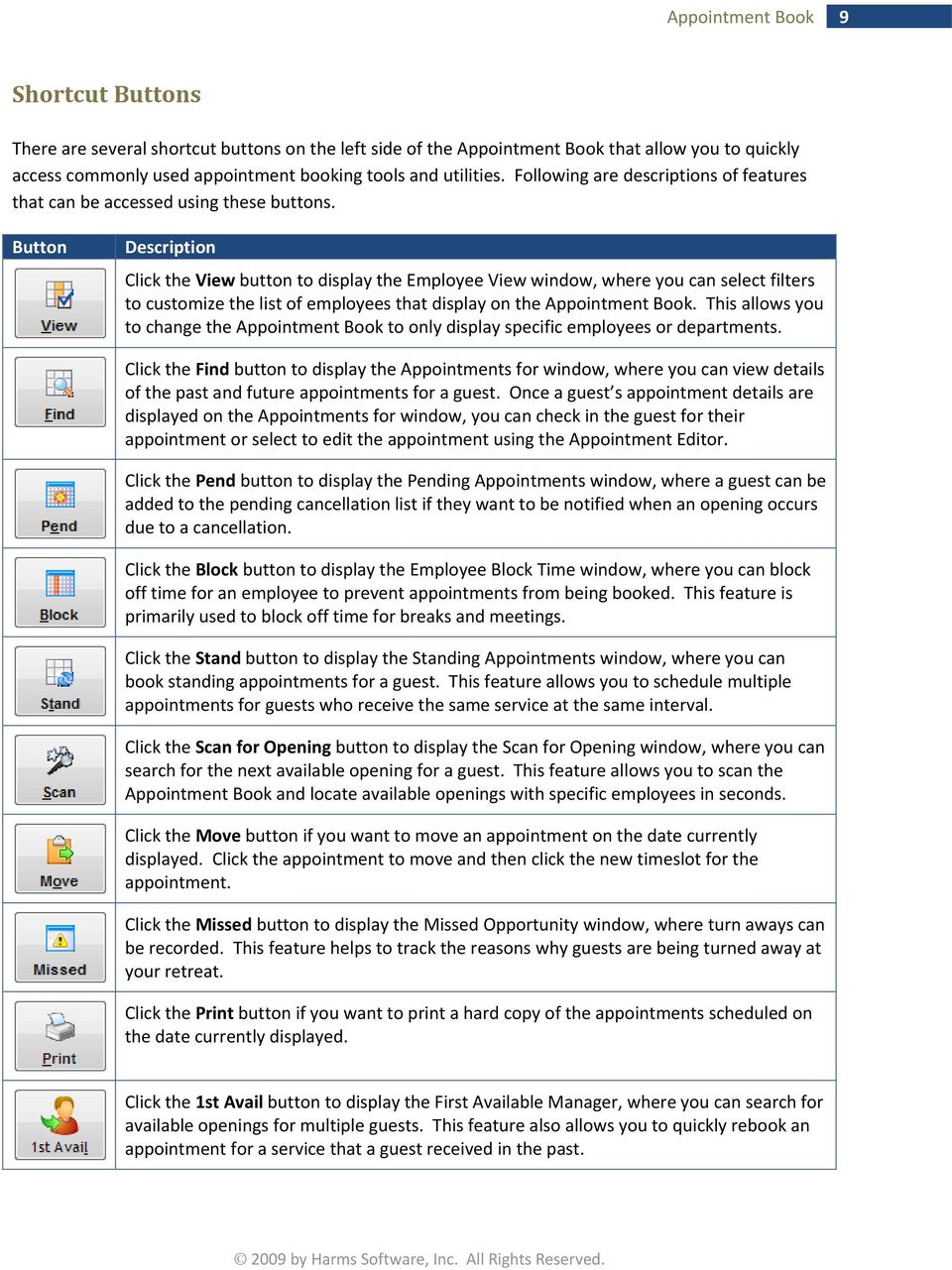
9 Appointment Book 9 Shortcut Buttons There are several shortcut buttons on the left side of the Appointment Book that allow you to quickly access commonly used appointment booking tools and utilities. Following are descriptions of features that can be accessed using these buttons. Button Description Click the View button to display the Employee View window, where you can select filters to customize the list of employees that display on the Appointment Book. This allows you to change the Appointment Book to only display specific employees or departments. Click the Find button to display the Appointments for window, where you can view details of the past and future appointments for a guest. Once a guest s appointment details are displayed on the Appointments for window, you can check in the guest for their appointment or select to edit the appointment using the Appointment Editor. Click the Pend button to display the Pending Appointments window, where a guest can be added to the pending cancellation list if they want to be notified when an opening occurs due to a cancellation. Click the Block button to display the Employee Block Time window, where you can block off time for an employee to prevent appointments from being booked. This feature is primarily used to block off time for breaks and meetings. Click the Stand button to display the Standing Appointments window, where you can book standing appointments for a guest. This feature allows you to schedule multiple appointments for guests who receive the same service at the same interval. Click the Scan for Opening button to display the Scan for Opening window, where you can search for the next available opening for a guest. This feature allows you to scan the Appointment Book and locate available openings with specific employees in seconds. Click the Move button if you want to move an appointment on the date currently displayed. Click the appointment to move and then click the new timeslot for the appointment. Click the Missed button to display the Missed Opportunity window, where turn aways can be recorded. This feature helps to track the reasons why guests are being turned away at your retreat. Click the Print button if you want to print a hard copy of the appointments scheduled on the date currently displayed. Click the 1st Avail button to display the First Available Manager, where you can search for available openings for multiple guests. This feature also allows you to quickly rebook an appointment for a service that a guest received in the past.
10 Appointment Book 10 Employee Column Order The appointments for each employee are displayed in columns on the Appointment Book to make viewing and locating appointments easier. The order in which these columns display can be customized to suit the needs of your retreat using the Appointment Book Employees Re Arrangement window. This window is accessed by selecting Appointments Appointment Column Order Employee. To adjust the order of employees on the Appointment Book, click the button next to an employee and then drag the employee to the desired position in the list. Once you have adjusted the employees into an acceptable order, click the OK button to save the changes.

11 Appointment Book 11 Appointment Book Legend When an appointment is booked, brief details for the appointment display on the Appointment Book. This allows you to view the following details for the appointment: Name of the guest for whom the appointment is booked Service code and brief description of the service booked Guest s gender preference for service providers Appointment category used for the appointment In addition, there are a number of visual indicators that display on the appointment to signify the confirmation method used and the current status of the appointment. Following are descriptions of these indicators: Confirmation Indicators Red bar = Appointment has not been confirmed. Navy bar = Guest does not want to receive confirmations. Dark Green bar = Appointment was confirmed with the guest over the telephone. Yellow bar = Voic message was left for the guest. Light Green bar = Voic message was left and the appointment is confirmed. Teal bar = Confirmation was sent using Auto Confirm. Gray bar = SMS text message confirmation was sent. Orange bar = confirmation was sent. Purple bar = Appointment was confirmed with the guest on their cell phone.

12 Appointment Book 12 Status Indicators Cyan bar = Appointment was prebooked. Pink bar = Appointment was booked online using Millennium.NET. Folder icon = New guest. Gray outline = Non request appointment. Two Blue arrows = Standing appointment. Red Flag icon = Guest has multiple appointments today. Caution icon = Appointment is double booked. Underlined text = Guest is checked in for their appointment. Clock icon = Guest is running late. X icon = Guest did not show up for their appointment. Strikethrough text = Guest is checked out and payment has been received.

13 Appointment Book 13 Appointment Book Right Click Options To make updating and checking out appointments easier, you can right click on an appointment in the Appointment Book and select from a full menu of options. Following are descriptions of the most popular options that are available on the Right click menu: Option Add/Edit Appointment Confirm Arrived Check In Ring Up/Check Out Move Intelli Move No Show Running Late Delete Appointment Cancel with Reason Client Find Future Appts For This Client Service/Prices Employee/Prices Go to Employee Tools Block Time Single Block Editor Go To Date Description Opens the Appointment Editor so that a new appointment can be booked or an existing appointment can be updated. Allows you to select a confirmation status for the appointment. Allows you to mark the guest as arrived for their appointment. Allows you to check in the guest for their appointment. Opens the Register so that a payment can be processed. Allows you to cut and paste the appointment to another day or employee. If the guest has multiple appointments scheduled on one day and wants to rearrange for another day, this allows you to quickly move all of the appointments to an alternative date. Allows you to mark the guest as a no show for their appointment. Allows you to mark the guest as running late for their appointment. Allows you to remove the appointment without having to specify a cancellation reason. Allows you to cancel the appointment and select a cancellation reason. Allows you to select to view the guest s profile, formulas, purchase history, and contact telephone numbers, or send the guest an . Displays a list of the guest s future scheduled appointments. Displays a list of the employee specific prices and times for the service scheduled in the selected appointment. Displays a list of the service prices and times for the employee associated with the selected appointment. Opens the Employee Information window where you can view the profile for the employee associated with the selected appointment. Allows you to access advanced Appointment Book features, such as Find Appointment and Scan for Opening. Opens the Employee Block Time window where block time can be added for the selected employee. Allows you to edit a period of block time. Allows you to change the Appointment Book to display appointments for today, yesterday, tomorrow, or a certain number of weeks from today.

14 Appointment Book 14 Appointment Book Status Bar The Status bar at the bottom of Appointment Book displays real time statistics for the appointments scheduled on the selected date. When viewing the Appointment Book for today, these statistics reveal important information such as the percentage of guests that prebooked or the percentage of guests that booked online. Following are descriptions of these statistics: Statistic Arrived Checked In Late Description Number of guests that have been marked as Arrived. Click this statistic to open the Arrived Status report where you can view details for the guests that are marked as arrived. Number of guests that have been checked in for their appointment. Click this statistic to open the Check In Status report where you can view details for the guests that have checked in. Number of guests that are more than 15 minutes late for their appointment. Click this statistic to open the Clients Running Late report where you can view contact details for the guests that are running late. About to Check In Number of guests with an appointment that is due to start within the next 15 minutes. Click this statistic to open the Clients About to Check In Within 15 Minutes report where you can view details for the guests that are due to arrive. Pending Number of guests that are on the pending cancellation list for the selected date. The pending cancellation list contains a list of guests that are on standby in the event that an appointment is cancelled. Click this statistic to open the Pending Status report where you can view details for the guests on standby. % Booked Percentage of bookable time that is booked. If this percentage is 100%, this means that all scheduled massage therapists are fully booked and there will be nobody available to take on walk in guests. % Internet Percentage of guests that booked their appointment online in Millennium.NET. % Prebook Percentage of guests that prebooked their appointment.

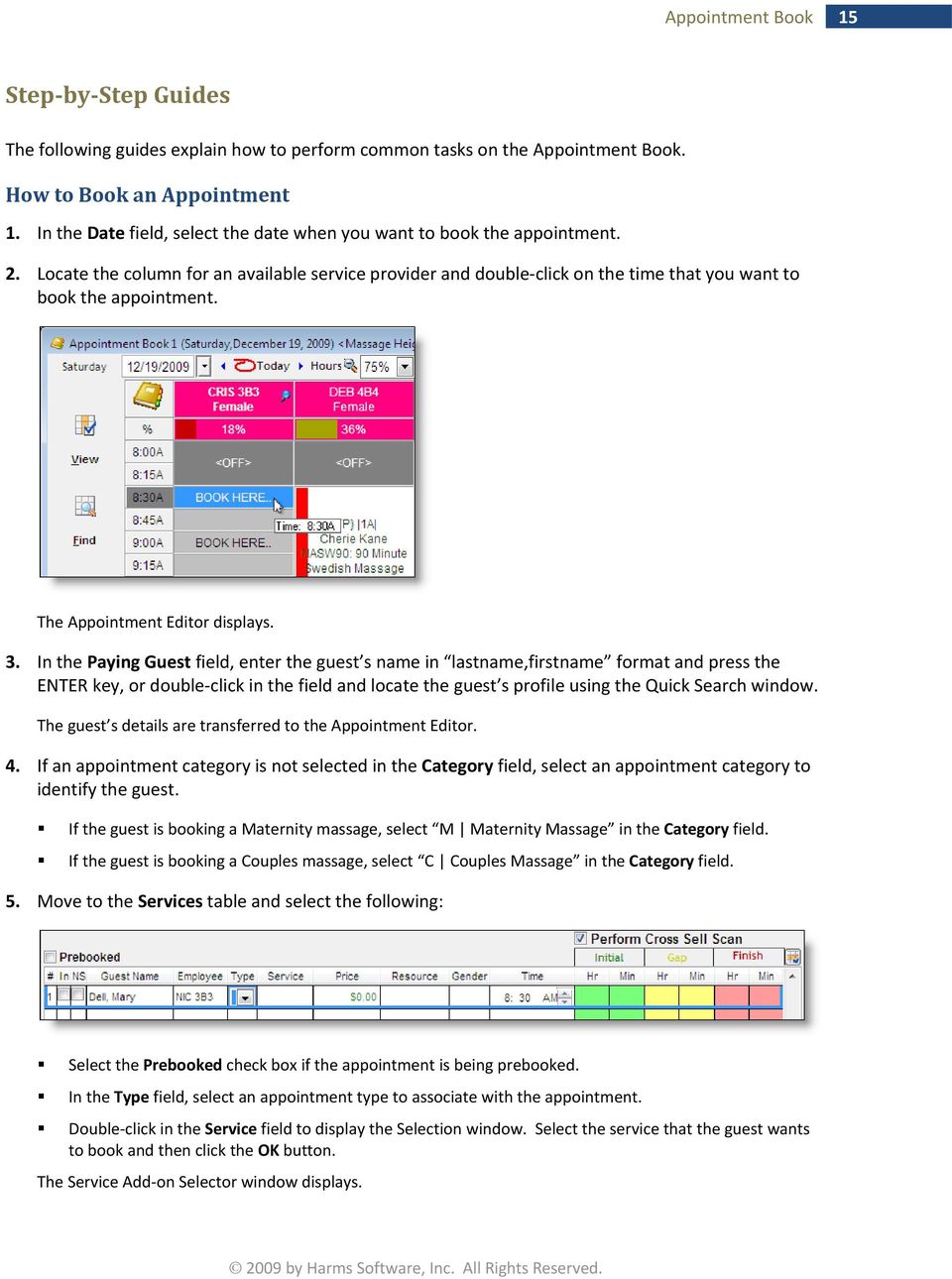
15 Appointment Book 15 Step by Step Guides The following guides explain how to perform common tasks on the Appointment Book. How to Book an Appointment 1. In the Date field, select the date when you want to book the appointment. 2. Locate the column for an available service provider and double click on the time that you want to book the appointment. The Appointment Editor displays. 3. In the Paying Guest field, enter the guest s name in lastname,firstname format and press the ENTER key, or double click in the field and locate the guest s profile using the Quick Search window. The guest s details are transferred to the Appointment Editor. 4. If an appointment category is not selected in the Category field, select an appointment category to identify the guest. If the guest is booking a Maternity massage, select M Maternity Massage in the Category field. If the guest is booking a Couples massage, select C Couples Massage in the Category field. 5. Move to the Services table and select the following: Select the Prebooked check box if the appointment is being prebooked. In the Type field, select an appointment type to associate with the appointment. Double click in the Service field to display the Selection window. Select the service that the guest wants to book and then click the OK button. The Service Add on Selector window displays.
16 Appointment Book Select the Selected? check box next to the elevation(s) that the guest wants to purchase and then click the OK button. OR If the guest does not want to purchase any elevations, click the CANCEL button. The Appointment Editor displays with details for the selected service(s) automatically entered in the Service, Price, Resource, and Time fields. 7. In the Gender field, select the guest s gender preference for service providers. Tip: Once a gender preference is selected when booking the first appointment for a guest, this preference will be automatically entered on the Appointment Editor for all future appointments. 8. Repeat Steps 6 9 until all desired services are entered. 9. In the Confirmation Options section, select the check box next to a confirmation method to specify how the guest would like to receive appointment confirmations. 10. (Optional) In the Notes field, enter notes to indicate special handling instructions for the guest. Select the checking in check box to display the notes when the guest is checked in for the appointment. Select the ringing up check to display the notes when the appointment is rung up on the Register.

17 Appointment Book Click the Save button. The appointment is booked and displays in the specified timeslot on the Appointment Book. How to Edit an Appointment 1. In the Date field, select the date when the appointment is scheduled. 2. Locate the column for the employee with whom the appointment is scheduled. 3. Double click the appointment to open the Appointment Editor. 4. Make changes as necessary and click the Save button. How to Check In a Guest 1. Locate the column for the employee with whom the appointment is scheduled. 2. Right click on the guest s appointment and select Check In. If the Appointment Notes window displays with soap notes for the guest, review the notes carefully and then click the Cancel button. If a notification message displays indicating that the guest has multiple appointments today, select to check in the guest for the first appointment or for all appointments as necessary. The check in is complete and the appearance of the appointment changes to indicate that the guest was checked in. More Info: Refer to page 11 for more information on the indicators used to signify the status of an appointment.

18 Appointment Book 18 How to View a Guest s Purchase History 1. Right click on the guest s appointment and select Client Show History. The Client History window displays. 2. Select one of the following options as necessary. Click the Print button to print a hard copy of the transactions listed. Select a transaction and click the Receipt button to reprint the receipt for the transaction. Click the Appt Listing button to view a list of the guest s future scheduled appointments. 3. Click the Cancel button to return to the Appointment Book. How to Check Out a Guest 1. Locate the column for the employee with whom the guest had the appointment. 2. Right click on the guest s appointment and select Ring Up/Check Out. The Register displays with a ticket that includes the services received by the guest. 3. Add additional items to the ticket as necessary and then click the Sale button. 4. Process the payment as normal.

19 Appointment Book 19 How to Move an Appointment 1. In the Date field, select the date when the appointment is scheduled. 2. Locate the column for the employee with whom the appointment is scheduled. 3. Click the Move button. 4. Select the appointment. 5. Select the date, time, and employee that you want to move the appointment to. If the appointment type is Requested, click the Yes button to confirm the move. If the guest has a gender preference for service providers and you are trying to move the appointment from a male to a female/male to a female, click the Yes button to confirm the move. The appointment is moved to the selected date, time, and employee. How to Cancel an Appointment 1. In the Date field, select the date when the appointment is scheduled. 2. Locate the column for the employee with whom the appointment is scheduled. 3. Right click on the appointment and select Cancel with Reason. The Cancellation Reasons window displays. 4. Select the reason why the guest is cancelling the appointment and then click the Delete button. The appointment is cancelled and removed from the Appointment Book. If you selected a cancellation reason that charges the guest a fee for cancelling, the Register window displays. Process a payment for the cancellation fee as normal. Once the payment is processed, the appointment is removed from the Appointment Book.

20 Appointment Editor 20 Appointment Editor The Appointment Editor is a comprehensive appointment management and scheduling tool that allows you to book new appointments and view details for existing appointments. This feature contains a wealth of features to make booking and updating appointments quicker and easier. There are two main ways to access the Appointment Editor. Booking a new appointment = Open the Appointment Book and double click an empty timeslot on the desired date in an available employee s column. Updating an existing appointment = Open the Appointment Book, select the date when the appointment is scheduled and locate the column for the employee with whom the service is booked, then double click the appointment. The Appointment Editor displays critical information about an appointment including the guest s name, employee s name, appointment type, service, resource, gender preference, time of appointment, and duration of the service selected. You can also view details for the guest s gift certificates or prepaids by double clicking the liability indicators under the Paying Guest field (shown below).

21 Finding Appointments 21 Finding Appointments The Find feature allows you to quickly access a list of past and future appointments for a guest. Once you have located the guest s appointments, you can check in the guest for their next appointment, edit the details for a past appointment, view the guest s purchase history, check gift certificate balances, and print a future appointment listing. How to Use the Find Feature 1. Click the button on the Millennium toolbar (as shown below). The Appointments for window displays. 2. (Optional) Clear the Future Appointments Only check box if you want to view past appointments. 3. In the Guest field, enter the guest s name in lastname,firstname format and press the ENTER key, or double click in the field and locate the guest s profile using the Quick Search window. The guest s appointment history displays. 4. To check in the guest for an appointment, select the appointment and click the Check IN button. OR To edit or view an appointment using the Appointment Editor, select the appointment and click the Save and GO button. OR To print a copy of the appointments listed, click the Print button.
22 Putting Guests on Standby 22 Putting Guests on Standby The Pending Appointments window allows you to add guests that were unable to book an appointment on a desirable date and time to a standby list. This standby list can then be consulted when an appointment is cancelled so that open slots can be filled up with guests on the list. To use this feature, click the Pend button on the left side of the Appointment Book to display the Pending Appointments window. The first step is to enter the guest s details on the Pending Appointments window to add them to the standby list. When an appointment is cancelled on a day that the guest would like to come in, the guest will display on the Pending Status report so that lifestyle consultants can contact the guest and offer them the opening. Refer to the following guides for instructions on how to put a guest on standby and how to fill an opening with a guest on standby.
23 Putting Guests on Standby 23 How to Put a Guest on Standby 1. Click the button on the toolbar. The Appointment Book displays. 2. Click the Pend button. The Pending Appointments window displays. 3. Click the New button. 4. In the Guest field, enter the guest s name in lastname,firstname format and press the ENTER key, or double click in the field and locate the guest s profile using the Quick Search window. 5. Move to the Services table and select the following: In the Employee field, select the guest s preferred service provider. Double click in the Service field to display the Selection window. Select the service that the guest wants to book and then click the OK button. In the Time field, select the guest s preferred appointment time. 6. In the Date/Time Range to Watch For section, select the date range and timeframe when the guest wants to book an appointment. 7. In the Guest Available On section, select the days of the week during the specified date range when the guest is available. 8. In the Notes field, enter any special handling instructions for the guest. 9. Click the Save button.
24 Putting Guests on Standby 24 How to Fill an Opening with a Guest on Standby 1. Click the button on the toolbar. The Appointment Book displays. 2. Click the Pending statistic on the Status bar (shown in red below). The Pending Status Report window displays with a list of guests on standby. Tip: If you want to view the contact telephone numbers for a guest on the list, select the guest and click the Phone button. 3. Select the guest that is going to fill the opening and then click the Check Pending button. The Pending Cancellation window displays with the available opening(s) listed.
25 Putting Guests on Standby In the Openings list, select the Book it check box next to the available opening. 5. Click the Book it button. A notification message displays to confirm that the appointment was booked. 6. Click the OK button. 7. Click the Close button.
26 Recording Turn Aways 26 Recording Turn Aways The Missed Opportunity window allows you to track the amount of business that you had to turn away due to employee unavailability, a lack of resources, or the business being closed. This data should be referenced when defining employee schedules so that you can adjust staffing levels to meet demand. To access the Missed Opportunity window, click the Missed button on the left side of the Appointment Book. How to Record a Turn Away 1. Click the button on the toolbar. The Appointment Book displays. 2. Click the Missed button. The Missed Opportunity window displays. 3. In the Guest field, enter the guest s name in lastname,firstname format and press the ENTER key, or double click in the field and locate the guest s profile using the Quick Search window. 4. If the guest wanted to book on a date in the future, select the date in the Failed Booking Date field. 5. In the Time Range fields, select the timeframe in which the guest wanted to book. 6. In the Desired Employee field, select the service provider that the guest wanted to book with. 7. Double click in the Desired Service field to display the Selection window. Select the service that the guest wanted to book and then click the OK button. 8. In the Reason field, select the reason why the appointment could not be booked. 9. Click the OK button.
27 Block Time 27 Block Time Block time is used to block off a specific period of time in an employee s work day to prevent appointments from being booked. This feature is primarily used to block off time for breaks and meetings and does not get counted in the productivity calculations used on the Monitoring Station and on Millennium reports. Important: Block time should not be used to record employee absences due to vacation or illness. These absences should be recorded using specially created work activities. Block Time is created using the Employee Block Time window, which is accessed by clicking the Block button on the left side of the Appointment Book.
28 Block Time 28 How to Create Block Time 1. Click the button on the toolbar. The Appointment Book displays. 2. Click the Block button. The Employee Block Time window displays. 3. In the Employees list (shown below), select the employee that you want to create block time for and then click the Move > button. 4. In the Guest field, enter the guest s name in lastname,firstname format and press the ENTER key, or double click in the field and locate the guest s profile using the Quick Search window. 5. Select the days when the block time will be used and indicate whether the block time is applicable every week or every other week. 6. In the Start Date and End Date fields, select the date range in which the block time will be used. 7. In the Start Time and End Time fields, select the timeframe for the block time. 8. In the Reason field, enter a brief description to display on the Appointment Book to indicate the reason why the employee is blocked off. Examples: Lunch, Break, or Staff Meeting. 9. (Optional) Select the Do not perform check conflict check box if you do not want to be made aware of potential schedule conflicts when the block time is added. 10. Click the Save button. Tip: if a message displays to indicate that the employee is not scheduled, click Yes to continue.
29 Schedule Adjustments 29 Schedule Adjustments If an employee calls out sick for work or forgets to punch in, you can use the Schedule Editor to correct any discrepancies. How to Adjust a Schedule 1. Click the button on the toolbar. The Employee Schedules window displays. 2. Locate the employee with the schedule that needs to be adjusted and double click on the cell for the day that needs to be changed. The Schedule Editor displays.
30 Schedule Adjustments Click the Edit button. 4. If the employee called out sick, move to the Scheduled section and select Absence Excused or Absence Unexcused in the Activity field. OR If the employee forgot to punch in or punch out, move to the Actual section and enter the correct time in the In or Out field. 5. Click the Save button.
31 Standing Appointments 31 Standing Appointments The Standing Appointments feature allows you to schedule a guest s regular service appointment for an unlimited time in the future. This helps to save time when booking appointments for guests that like to come in at regular intervals. Example: If one of your guests comes in for a massage every second Wednesday at 3:30 pm, you can use the standing appointments feature to book their future appointments at the preferred date and time. To use this feature, click the Stand button on the left side of the Appointment Book to display the Standing Appointments window.
32 Standing Appointments 32 How to Book a Standing Appointment Note: Before scheduling a standing appointment with an employee, you should access the employee s schedule and make sure that they are scheduled to work on the days and times when you intend to book the appointments. This will prevent conflicts when the appointments are booked. 1. Click the button on the toolbar. The Appointment Book displays. 2. Click the Stand button. The Standing Appointments window displays. 3. In the Guest field, enter the guest s name in lastname,firstname format and press the ENTER key, or double click in the field and locate the guest s profile using the Quick Search window. 4. (Optional) Select the Perpetual Standing check box if you want to book an unlimited number of standing appointments. Example: Standing appointments can be booked for a set number of appointments or for an unlimited number of appointments. If you select the Perpetual Standing check box, a new standing appointment will be booked automatically at the specified interval once an existing standing appointment is rung up. 5. Move to the Services table and select the following: In the Employee field, select the guest s preferred service provider. Double click in the Service field to display the Selection window. Select the service that the guest wants to book and then click the OK button. In the Time field, select the guest s preferred appointment time. 6. In the Pattern section, select the guest s preferred appointment interval.
33 Standing Appointments In the Range of Recurrence section, verify that the date for the first standing appointment is correct and change if necessary. Then, select to end the standing appointments after a set number of occurrences or on a specific date. 8. Click the Save button. The standing appointments are scheduled and any conflicts with the employee s schedule display in red text at the bottom of the window. If conflicts display, you need to access the employee s schedule and adjust their work time so that they are available, or edit the standing appointment and select a difference service provider.
34 Appointment Confirmations 34 Appointment Confirmations The Appointment Confirmations window is used to organize and send appointment confirmations to guests. This window also allows you to view important information for each guest, including their confirmation preferences, purchase history, and soap notes. One of the most important features on the Appointment Confirmations window is the ability to quickly send s confirmations out to multiple guests at once. This helps to save time for lifestyle consultants when processing large volumes of appointment confirmations. The Appointment Confirmations window is accessed by selecting Appointments Appointment Confirmations.
35 Appointment Confirmations 35 How to Send Confirmations 1. Select Appointments Appointment Confirmations. The Appointment Confirmations window displays. 2. Select one of the following options to display a list of appointments that require an confirmation to be sent. Select the Use Confirm Days in Advance option if you want to display a list of appointments that require a confirmation to be sent today. Select the Use Appt Date option and then select a date if you want to display a list of guests with an appointment on the selected date. Make a selection in the Employee field if you only want to display the appointments requiring a confirmation that are scheduled with a specific employee. 3. Click the Load Guests button. A list of guests requiring an appointment confirmation displays in the Guests to Confirm section. 4. Click the Millennium.MAIL Confirmations button. The Millennium.MAIL Confirmations window displays with a list of guests that require an confirmation. 5. Select APPOINTMENT CONFIRMATION in the Form Letter to Use field. A preview of the appointment confirmation displays.
36 Appointment Confirmations Click the Send s button. The Subject window displays. 7. (Optional) Change the default title for the confirmation as necessary. 8. Click the OK button. A notification message displays to indicate the number of confirmation s that were sent. 9. Click the OK button. 10. Click the Close button.
Employee Management Overview Phase 2
 Employee Management Overview Phase 2 Table of Contents User Logins... 3 Employee Information Window... 5 Employee Specific Commissions... 15 Employee Schedules... 21 User Logins 3 User Logins The User
Appointments: Calendar Window
 Appointments Appointments: Calendar Window Purpose The Appointment Calendar window is the automated equivalent of a paper appointment book. You can make appointments, confirm appointments, and view appointments
TimeNet (API) portal. 1. Type in user name and password: (note: user name and password is the same as your GHSU email user name and email password)
 TimeNet (API) portal 1. Type in user name and password: (note: user name and password is the same as your GHSU email user name and email password) By checking the Quick badge only, and then clicking on
CareAware Capacity Management - Patient Flow Patient List Gadget
 CareAware Capacity Management - Patient Flow Patient List Gadget When using the Patient List gadget in CareAware Patient Flow, the following tasks can be completed: Launch PowerChart Modify Patient Attributes
An Employee s Guide to Kronos Workforce Timekeeper
 An Employee s Guide to Kronos Workforce Timekeeper A guide for employees that summarizes the most common employee tasks, which include using the Time card, Time Stamp, as well as viewing reports. Kronos
Appointment Scheduler
 EZClaim Appointment Scheduler User Guide Last Update: 11/19/2008 Copyright 2008 EZClaim This page intentionally left blank Contents Contents... iii Getting Started... 5 System Requirements... 5 Installing
User Guide. Logout button: will log you out of the session! The tablet tool automatically logs out after 30 minutes of idle time. www.salonbiz.
 User Guide Log In 1. Open Safari on your tablet. 2. Enter the following url US customers http://central.salonbiz.com European customers http://central.spabiz.co.uk 3. Enter your Username and Password.
Microsoft Outlook 2007 Calendar Features
 Microsoft Outlook 2007 Calendar Features Participant Guide HR Training and Development For technical assistance, please call 257-1300 Copyright 2007 Microsoft Outlook 2007 Calendar Objectives After completing
OWA - Outlook Web App
 OWA - Outlook Web App Olathe Public Schools 0 Page MS Outlook Web App OPS Technology Department Last Revised: May 1, 2011 Table of Contents MS Outlook Web App... 1 How to Access the MS Outlook Web App...
Time & Attendance Manager Basics
 Time & Attendance Manager Basics Handout Manual V03261272136EZ18CMB2 2012 ADP, Inc. ADP s Trademarks The ADP Logo, ADP Workforce Now, and ezlabormanager are registered trademarks of ADP, Inc. In the Business
Managers ADP etime Training Manual. August 2014
 Managers ADP etime Training Manual August 2014 Table of Contents Introduction Page 3 How to Log Into etime Page 4 Approving Exception Time Requests Page 6 How to Review Timecards Page 7 How to Edit Timecard
Changing lives. Making a difference. etime. Duration Hourly and Exempt Staff Training Manual
 Changing lives. Making a difference. etime Duration Hourly and Exempt Staff Training Manual Overview Experience Works is moving to an automated time entry system called etime. etime will: Eliminate paper
Time & Attendance Supervisor Basics for ADP Workforce Now. Automatic Data Processing, LLC ES Canada
 Time & Attendance Supervisor Basics for ADP Workforce Now Automatic Data Processing, LLC ES Canada ADP s Trademarks The ADP Logo, ADP, ADP Workforce Now and IN THE BUSINESS OF YOUR SUCCESS are registered
Online Services Booking. Booking Appointments & Purchasing Gifts
 Online Services Booking Booking Appointments & Purchasing Gifts Logging In for Online Booking New Guest Registration If the client is a first time visitor to your business and would like to book an appointment
Kronos 6 Work Force Time Keeping System. Manager Procedure Manual
 Kronos 6 Work Force Time Keeping System Manager Procedure Manual Table of Contents Kronos Manager Procedure Manual Log In to Kronos https://kronos.rit.edu/wfc/logon... 1 Punches Access an Employee Timecard...
Microsoft Outlook 2013 -And- Outlook Web App (OWA) Using Office 365
 1 C H A P T E R Microsoft Outlook 2013 -And- Outlook Web App (OWA) Using Office 365 1 MICROSOFT OUTLOOK 2013 AND OUTLOOK WEB ACCESS (OWA) Table of Contents Chapter 1: Signing Into the Microsoft Email System...
Time Clock Team Roles and Responsibilities
 Time Clock Team Roles and Responsibilities The following outlines the Time Clock Team Roles and Responsibilities for Go Live Preparation: Agency Point of Contact Facilitate and coordinate agency efforts
Overview. Table of Contents. isupport Incident Management
 Overview The isupport software is a powerful and flexible help desk/desktop support solution used by San José State to manage information technology tickets, or incidents. While isupport has many tools
Using Outlook Web App
 Using Outlook Web App About Outlook Web App Using a web browser and the Internet, Outlook Web App (OWA) provides access to your Exchange mailbox from anywhere in the world at any time. Outlook Web App
Release Notes DAISY 4.0
 2010 Release Notes DAISY 4.0 NEW FEATURES Inactivate/Reactivate accounts and patients Enhanced treatment planning AutoRemind electronic appointment confirmation Copyright 2010. DAISY is a registered trademark
Time & Attendance for ADP Workforce Now. Automatic Data Processing, LLC. ES Canada
 Time & Attendance for ADP Workforce Now Automatic Data Processing, LLC. ES Canada ADP s Trademarks The ADP Logo, ADP, ADP Workforce Now and IN THE BUSINESS OF YOUR SUCCESS are registered trademarks of
TULSA PUBLIC SCHOOLS KRONOS TIME CLOCK MANAGERS MANUAL
 TULSA PUBLIC SCHOOLS KRONOS TIME CLOCK MANAGERS MANUAL July, 2005 Table of Contents page Enrolling Employees 3 Logging into Kronos 3 Scheduling Employees 5 Changing Existing Pattern 10 Time Periods 11
Baylor Secure Messaging. For Non-Baylor Users
 Baylor Secure Messaging For Non-Baylor Users TABLE OF CONTENTS SECTION ONE: GETTING STARTED...4 Receiving a Secure Message for the First Time...4 Password Configuration...5 Logging into Baylor Secure Messaging...7
Titanium Schedule Center Management Software USER MANUAL. Sales and Customer Service Technical Support
 Titanium Schedule Center Management Software USER MANUAL Sales and Customer Service Technical Support Postal Mail Web Site 281-443-3544 (telephone) [email protected] (email) 281-443-3544 (telephone)
To open up the Scheduler Module, double click on the Scheduler shortcut Icon in your AMWIN shortcut folder saved on your desktop.
 How to use the Scheduler Module The new Scheduler Module has been a very exciting development for AM-WIN. We have spent considerable time over the last 18 months developing and enhancing the Scheduler
Banner Web Time Entry. Banner Web Time Entry (WTE) Time Entry User Guide
 Banner Web Time Entry Banner Web Time Entry (WTE) Time Entry User Guide Overview Banner s Web Time Entry module automates the time entry collection, calculation and approval process for job assignments.
Outlook Web App McKinney ISD 5/27/2011
 Outlook Web App McKinney ISD 5/27/2011 Outlook Web App Tutorial Outlook Web Access allows you to gain access to your messages, calendars, contacts, tasks and public folders from any computer with internet
Microsoft. Outlook 2007 Calendar Management Tools For. Jerry Maletsky Dash Designs Consulting Technology Training And Consulting
 Microsoft 1 Outlook 2007 Calendar Management Tools For Jerry Maletsky Dash Designs Consulting Technology Training And Consulting Microsoft Outlook 2007 Calendar Management Tools For The Haas School of
ezlabormanager for Supervisors Handout Manual
 ezlabormanager for Supervisors Handout Manual. V12291072195CANENG_EZ18 2010 ADP, Inc. ADP s Trademarks The ADP Logo and ezlabormanager are registered trademarks of ADP, Inc. Third-Party Trademarks Adobe,
ONTARIO CHIROPRACTIC ASSOCIATION PATIENT MANAGEMENT PROGRAM PUTTING EXPERIENCE INTO PRACTICE. PMP Manual
 ONTARIO CHIROPRACTIC ASSOCIATION PATIENT MANAGEMENT PROGRAM PUTTING EXPERIENCE INTO PRACTICE PMP Manual January 2011 - 2 - Contents Conte Additional Help... 5 Getting Into PMP... 5 Main Appointment Screen
Kronos (Full/Java) for Supervisors: Quick Reference
 Kronos (Full/Java) for Supervisors: Quick Reference What is the Full (Java) Version of Kronos? Kronos is offered in a full (Java) version and a Basic (HTML) version. Both versions provide the basic functionality
Microsoft Outlook 2003 Quick How-to Guide
 Microsoft Outlook 2003 Quick How-to Guide Microsoft Outlook 2003 Quick How-to-Guide This document is designed to be a quick guide for the most common tasks in Outlook. It is separated into different sections
Electronic Timekeeping Supervisors Manual
 Swarthmore College Electronic Timekeeping Supervisors Manual Modified from: National Times Systems, Inc. (2007). Attendance on Demand User Manual, 1.11.07. Cinnaminson, NJ. 1 Original publication: Attendance
Scheduling Guide Revised August 30, 2010
 Scheduling Guide Revised August 30, 2010 Instructions for creating and managing employee schedules ADP s Trademarks The ADP Logo is a registered trademark of ADP of North America, Inc. ADP Workforce Now
With a wide variety of drag and drop widgets, adding and updating information on your website will be a snap!
 The Website Builder Bonzi s Website Builder is an easy to use website management tool that allows anyone, from first time web users to advanced coding gurus, to quickly and efficiently manage the content
Outlook Web Access (OWA) 2010 Email Cheat Sheet
 June 9, 2014 Outlook Web Access (OWA) 2010 Email Cheat Sheet Outlook Web Access 2010 allows you to gain access to your messages, calendars, contacts, tasks and public folders from any computer with internet
CITY OF BURLINGTON PUBLIC SCHOOLS MICROSOFT EXCHANGE 2010 OUTLOOK WEB APP USERS GUIDE
 CITY OF BURLINGTON PUBLIC SCHOOLS MICROSOFT EXCHANGE 2010 OUTLOOK WEB APP USERS GUIDE INTRODUCTION You can access your email account from any workstation at your school using Outlook Web Access (OWA),
Fleet Manager Quick Guide (Non Maintenance Mode)
 Fleet Manager Quick Guide (Non Maintenance Mode) Launch Fleet Manager: Open the Fleet Manager Application by: 1. Double clicking the icon located on the desktop - or 2. Via Start > Programs > MobileView
Renovo Video Scheduler 7.0
 Renovo Video Scheduler 7.0 A quick upgrade guide for users of Renovo Video Scheduler 6.x and earlier versions This guide is intended to help existing users of Renovo Video Scheduler software adjust quickly
Chronicle USER MANUAL
 Chronicle USER MANUAL 1st Edition 2 IN THIS MANUAL Part One The Chronicle Interface The Overview Screen The Bill Detail Screen Part Two Creating, Editing and Viewing Bills Creating Your First Bill Editing
Time and Attendance Solution. Version 2014
 E m p l o y e e T r a i n i n g G u i d e Time and Attendance Solution Version 2014 P a g e 2 TABLE OF CONTENTS Introduction... 3 Objectives... 3 Understanding Compass (AAMC s Time and Attendance Solution)...
Microsoft Outlook 2010
 Microsoft Outlook 2010 Prepared by Computing Services at the Eastman School of Music July 2010 Contents Microsoft Office Interface... 4 File Ribbon Tab... 5 Microsoft Office Quick Access Toolbar... 6 Appearance
Outlook Web Access. PRECEDED by v\
 Outlook Web Access Logging in to OWA (Outlook Web Access) from Home 1. Login page http://mail.vernonct.org/exchange 2. To avoid these steps each time you login, you can add the login page to your favorites.
Virtual Communities Operations Manual
 Virtual Communities Operations Manual The Chapter Virtual Communities (VC) have been developed to improve communication among chapter leaders and members, to facilitate networking and communication among
Virtual Heart User Manual Username Password
 Virtual Heart User Manual Username Password These instructions are meant to help you use the Virtual Heart website. Please write down your username and password and store them in a safe place in case you
The Rehab Documentation Company, Inc. 12/8/11. ReDoc Scheduler. User Guide
 The Rehab Documentation Company, Inc. 12/8/11 ReDoc Scheduler User Guide 12/8/11 Contents CONTENTS CHAPTER 1 INTRODUCTION................................ 1 CHAPTER 2 SETUP........................................
Outlook 2011 Window. [Day], [Work Week], [Full [Home]. Schedule and plan: Click the [New
![Outlook 2011 Window. [Day], [Work Week], [Full [Home]. Schedule and plan: Click the [New](/thumbs/27/11891778.jpg "Outlook 2011 Window. [Day], [Work Week], [Full [Home]. Schedule and plan: Click the [New") MS Outlook 2011 Quick Reference for Macintosh The Ribbon consists a series of tabs giving access to buttons, menus, and dialog boxes in various groups to facilitate locating the tools required for a particular
MS Outlook 2011 Quick Reference for Macintosh The Ribbon consists a series of tabs giving access to buttons, menus, and dialog boxes in various groups to facilitate locating the tools required for a particular
ShoreTel Communicator User Guide Professional
 ShoreTel Communicator User Guide Professional Using Communicator for Basic Call Handling Features and Functions Making Calls Type Name of desired party or enter Extension Number in Quick Dialer When populated
Full Service Scheduler
 Full Service Scheduler Appendix A Appendix A Full Service Scheduler The Service Writing module has a full scheduler you can use to manage your service schedule. You can use it to schedule service appointments,
Mac Outlook Calendar/Scheduler and Tasks
 Introduction Schedule an event and/or meeting. Schedule all-day and recurring events. Assign tasks to another user and use special shortcut keys. Contents Introduction Contents Calendar View Edit an appointment
WEBTIME CLEARING HOUSE Version 7.1.4
 WEBTIME CLEARING HOUSE Version 7.1.4 Computer Arts, Inc. has created a module in Payroll to manage and track daily time to comply with reporting requirements for the Affordable Care Act. The Webtime Clearing
EMS User Manual. EMS Workplace 5.2.1 EMS Campus 2.2.1 EMS Enterprise 5.2.1 EMS Legal 5.2.1. Dean Evans & Associates, Inc.
 EMS User Manual EMS Workplace 5.2.1 EMS Campus 2.2.1 EMS Enterprise 5.2.1 EMS Legal 5.2.1 Dean Evans & Associates, Inc. EMS Workplace 5.2.1/EMS Campus 2.2.1/Enterprise 5.2.1/EMS Legal 5.2.1 User Manual
Scheduling Software User s Guide
 Scheduling Software User s Guide Revision 1.12 Copyright notice VisualTime is a trademark of Visualtime Corporation. Microsoft Outlook, Active Directory, SQL Server and Exchange are trademarks of Microsoft
Table of Contents. 1. Overview... 3. 1.1 Materials Required. 3 1.2 System Requirements. 3 1.3 User Mode 3. 2. Installation Instructions..
 Table of Contents 1. Overview..... 3 1.1 Materials Required. 3 1.2 System Requirements. 3 1.3 User Mode 3 2. Installation Instructions.. 4 2.1 Installing the On Call Diabetes Management Software. 4 2.2
SuccessFactors Learning: Scheduling Management
 SuccessFactors Learning: Scheduling Management Classroom Guide v 6.4 For SuccessFactors Learning v 6.4 Last Modified 08/30/2011 2011 SuccessFactors, Inc. All rights reserved. Execution is the Difference
USING THE UPSTREAM-CONNECT WEBSITE
 USING THE UPSTREAM-CONNECT WEBSITE The UpstreamConnect website is your primary means for viewing imaging device data and reports. This manual covers all aspects of using the UpstreamConnect website. HELPDESK
Microsoft Outlook 2010. Reference Guide for Lotus Notes Users
 Microsoft Outlook 2010 Reference Guide for Lotus Notes Users ContentsWelcome to Office Outlook 2010... 2 Mail... 3 Viewing Messages... 4 Working with Messages... 7 Responding to Messages... 11 Organizing
OUTLOOK 2007 2010 TIPS FOR BEGINNERS
 OUTLOOK 2007 2010 TIPS FOR BEGINNERS GINI COURTER, PARTNER, TRIAD CONSULTING In this session you ll learn how to manage your calendar, email, and tasks (basically, your work life) using Microsoft Outlook.
You ve Got Mail Groupwise 6.5 for OSX
 You ve Got Mail Groupwise 6.5 for OSX The new Groupwise email version is on all OSX computers. It can be used only when you are in school. To access your Groupwise email from home, you will have to use
ITF Portal Loginlabconnect.wustl.edu/Login.aspx. Lab Connect allows your practice to place an order and view results online.
 ITF Portal Loginlabconnect.wustl.edu/Login.aspx What is Lab Connect? Lab Connect allows your practice to place an order and view results online. Order Submission Orders are entered via the web and electronically
STX Beacon User Guide Setup
 STX Beacon User Guide Setup Table of Contents 3 Setup Company 3 Setup Clients 6 Setup Appointments 9 Setup Service 12 Setup Inventory 14 Setup Packages 15 Setup Workers 22 Setup Tickets 23 Setup Emails
Contents INDEX...61 ECRM...1
 ecrm Guide 111011 2011 Blackbaud, Inc. This publication, or any part thereof, may not be reproduced or transmitted in any form or by any means, electronic, or mechanical, including photocopying, recording,
Outlook Web Access 2003 New Features Guide
 Global Information Services Outlook Web Access 2003 New Features Guide Table of Contents After following a link, click on the toolbar to return to the Table of Contents. OWA 2003 2 Log in Screen 2 OWA
Office Outlook web access Reference Guide
 U TO R E XC H A N G E : C a l e n d a r i n g a n d e m a i l u p g r a d e w i t h M i c r o s o f t E xc h a n g e Office Outlook web access Reference Guide To log in, go to owa.utoronto.ca. You will
Appointment List. 70 Royal Little Drive. Providence, RI 02904. Copyright 2002-2013 Optum. All rights reserved. Updated: 3/13
 Appointment List 70 Royal Little Drive Providence, RI 02904 Copyright 2002-2013 Optum. All rights reserved. Updated: 3/13 Table of Contents 1 Appointment List Overview...1 1.1 Appointment List Actions...1
ServiceU Training Guide
 ServiceU Training Guide Welcome to ServiceU Welcome to the ServiceU Advanced Administrator Training class. We are glad you are here, because we know that you will leave with a much greater understanding
User Guide. Customer Appointment Manager. Standard & Pro Versions. Overview. New in this Version
 Customer Appointment Manager User Guide Standard & Pro Versions Thank you for choosing Customer Appointment Manager. Everything you ll need to promptly serve your customers is right at your fingertips
etime Employee User Guide
 Board of Regents of the University System of Georgia etime Employee User Guide for Approvers/Supervisors 1 Contents etime.... 3 Adding Time and Comments or Viewing Your Time Card....4-7 View Your Time
Contact Manager HELP GUIDE
 Contact Manager HELP GUIDE Monday Friday 8 am 7:30 pm, Saturday 9 am 5 pm, Sunday 9 am 1 pm Revised: June 3, 2014 Table of Contents Managing Contacts... 4 Create A New Contact... 4 Contact Name(s)... 4
MASTER SCHEDULES MANUAL
 MASTER SCHEDULES MANUAL Centricity Business 4.3 MSU HealthTeam Training and Education (M-F 8a 5p) Melody Frye 517-432-0898 [email protected] Page 1 of 49 Page 2 of 49 Index Subject Page What Creates
Aesop QuickStart Guide for Substitutes
 Aesop QuickStart Guide for Substitutes This guide will show you how to: Log on to the Aesop system Navigate the Aesop Web site Find and accept jobs online* Manage your schedule Cancel an assignment* Manage
UCSB. Kronos 6.3. Timekeeper Manual
 UCSB Kronos 6.3 Timekeeper Manual TABLE OF CONTENTS i. Introduction 1 I. Non Exempt Employees 3 II. Exempt Employees 13 III. Managers 19 Definition of a Kronos Manager 21 General Navigation 22 Managing
Recruiter s Resource Guide
 Recruiter s Resource Guide First Edition 1.29.2015 Contents Section One Recruiting... 3 Accessing Team Georgia Careers... 4 My Setup Preferences... 5 Creating a Requisition... 6 Approving a Requisition...
Employee Setup: Contact Info
 Employee Setup Employee Setup: Contact Info Purpose You will enter information for each employee on the 7 tabs in Employee Setup. The Contact tab contains the employee contact information. While much of
Top 5 things to know about Kronos
 Using Kronos Tips for Using Kronos (Table of Contents) How to find a specific employee s timecard... 1 How to enter time into a missed punch... 2 How to use Calculate Totals... 2 How to change the type
To download the latest version of TurboTick Pro go to http://www.turnkeybroker.com/download/turbotickpro/publish.html
 TurboTick PRO manual version 1.211 updated 12.7.2011 Getting started in TurboTick Pro TurboTick Pro is an advanced trading platform built for the active trader. With easy-to-use customizable screens, integrated
Getting Started with the Outlook Web App
 In your browser, enter exchange.msstate.edu to access the Mississippi State University Outlook Web App. Login with your NetID and NetPassword. After a successful login, your Outlook account opens. At the
Does the GC have an online document management solution?
 This FAQ contains: Web File Services definition Access web file services Create a WFS folder Upload a document Email a link to a document folder Create WFS subscription Cancel existing subscription Create
Intellect Platform - Tables and Templates Basic Document Management System - A101
 Intellect Platform - Tables and Templates Basic Document Management System - A101 Interneer, Inc. 4/12/2010 Created by Erika Keresztyen 2 Tables and Templates - A101 - Basic Document Management System
Outlook 101. Use and Manage Your Outlook Email Account. 2006 Terence Peak, UIW Dept. of Instructional Technology
 Outlook 101 Use and Manage Your Outlook Email Account What you will learn today Difference Between OWA and Outlook Client Mail Options Contacts Managing Outlook Calendar Options Tasks Outlook Web Access
Introduction... 4. Purpose... 4 Scope... 4 Manitoba ehealth Change Management... 4 Icons... 4. RFC Procedures... 5
 Remedy Change Management Version 3.0 Modified: 10/27/2015 Table of Contents Introduction... 4 Purpose... 4 Scope... 4 Manitoba ehealth Change Management... 4 Icons... 4 RFC Procedures... 5 Process Flow
Sign-up Tool User Manual
 Sign-up Tool User Manual Getting started from the meeting organiser s perspective The Sign-up Tool allows those with appropriate permissions (Subject Coordinators and Project Owners) to create three different
o Text-to-Speech and Text-to-Speech Tracking Enhanced Accessibility Mode) o Toolbar Buttons
 Ohio s State Tests English Language Arts and Mathematics Sample Items Science and Social Studies Practice Tests and Released Items Guidance Document Updated Dec. 28, 2015 This document covers the following
ezlabormanager for Administrators Handout Manual
 ezlabormanager for Administrators Handout Manual V12281072192EZ18CANENG 2010 ADP, Inc. ADP s Trademarks The ADP Logo, ezlabormanager, and pay@work are registered trademarks ADP, Inc. PaySpecialist is a
Outlook Web Access Tutorial
 1 Outlook Web Access Tutorial Outlook Web Access 2010 allows you to gain access to your messages, calendars, contacts, tasks and public folders from any computer with internet access. How to access your
How to Manage Email. Guidance for staff
 How to Manage Email Guidance for staff 1 Executive Summary Aimed at Note Purpose Benefits staff Necessary skills to All staff who use email This guidance does NOT cover basic IT literacy skills. Staff
DreamTeam User Guide. Product Usage and Best Practices Guide. By Adam Buxbaum
 DreamTeam User Guide Product Usage and Best Practices Guide By Adam Buxbaum December 9, 2010 Table of Contents Introduction... 4 Project Manager... 5 Creating Projects... 6 Managing Resources: Addition
Changes to Skillnet Group Emails. Outlook and Outlook Express Users
 Changes to Skillnet Group Emails Skillnet Group emails are moving from the current provider to our own exchange mail server. This will mean that you will have a much improved web-mail system and almost
NYS OCFS CMS Manual CHAPTER 1...1-1 CHAPTER 2...2-1 CHAPTER 3...3-1 CHAPTER 4...4-1. Contract Management System
 NYS OCFS CMS Manual C O N T E N T S CHAPTER 1...1-1 Chapter 1: Introduction to the Contract Management System...1-2 Using the Contract Management System... 1-2 Accessing the Contract Management System...
Microsoft Access 2010 handout
 Microsoft Access 2010 handout Access 2010 is a relational database program you can use to create and manage large quantities of data. You can use Access to manage anything from a home inventory to a giant
Plugin for Microsoft Dynamics CRM 2013-2015 For On Premise and Online Deployments. User Guide v. 2.3 April 2015
 Plugin for Microsoft Dynamics CRM 2013-2015 For On Premise and Online Deployments User Guide v. 2.3 April 2015 Contents 1. Introduction... 3 1.1. What s new in 2.3?... 3 2. Installation and configuration...
OneSourceFax Customer Guide
 OneSourceFax Customer Guide General Information Billing: OneSourceFax Plan Features Monthly Charge OneSourceFax 150 Unlimited Faxes to Numbers in your Local Calling Area $12.95 150 Nationwide Long Distance
Microsoft Outlook 2013 Part 1: Introduction to Outlook
 CALIFORNIA STATE UNIVERSITY, LOS ANGELES INFORMATION TECHNOLOGY SERVICES Microsoft Outlook 2013 Part 1: Introduction to Outlook Fall 2014, Version 1.0 Table of Contents Introduction...3 Starting Outlook...3
Microsoft Outlook 2010 Part 1: Introduction to Outlook
 CALIFORNIA STATE UNIVERSITY, LOS ANGELES INFORMATION TECHNOLOGY SERVICES Microsoft Outlook 2010 Part 1: Introduction to Outlook Spring 2012, Version 1.0 Table of Contents Introduction...3 Starting the
Renovo Video Scheduler 7.0
 Renovo Video Scheduler 7.0 A quick upgrade guide for users of Renovo Video Scheduler 6.x and earlier versions This guide is intended to help existing users of Renovo Video Scheduler software adjust quickly
iview (v2.0) Administrator Guide Version 1.0
 iview (v2.0) Administrator Guide Version 1.0 Updated 5/2/2008 Overview This administrator guide describes the processes and procedures for setting up, configuring, running and administering the iview Operator
Outlook 2007 Email and Calendaring
 Outlook 2007 Email and Calendaring The Outlook Calendar Environment... 2 The Different Calendar Views... 3 Creating Appointments/Events/Meetings in Your Calendar... 4 Creating an Appointment the Speedy
Time and Attendance Instructions for Exempt/Monthly Employees
 Time and Attendance Instructions for Exempt/Monthly Employees Table of Contents Introduction to TimeNet... 3 Description of Icons/Pages... 4 Home Page... 4 Quick Badge Page... 4 Employee Page... 4 Reports