
Understanding SMTP authentication and securing your IBM Lotus Domino 8 server from spam
|
|
|
- Daisy Hart
- 9 years ago
- Views:
Transcription
1 Understanding SMTP authentication and securing your IBM Lotus Domino 8 server from spam Shrikant Jamkhandi IBM Software Group Senior Software Engineer Pune, India September 2009 Copyright International Business Machines Corporation All rights reserved. Summary: Learn how the SMTP protocol and SMTP authentication process works, how to verify whether the IBM Lotus Domino 8 server is open relay, and how to make Lotus Domino obey the SMTP authentication for securing the server from spammers. Table of Contents 1 Introduction Overview of the SMTP process SMTP procedures Overview of SMTP authentication Open relay SMTP Authentication Determining whether Lotus Domino is open relay or closed relay Making Lotus Domino a closed-relay server Setting inbound relay controls Enabling SMTP Authentication on the Domino server Configuring SMTP-AUTH options on a server that does NOT use an Internet Site document Configuring SMTP-AUTH options on servers that use Internet Site documents SMTP authentication between Lotus Domino and the Outlook clients Using the Microsoft Outlook Express client Using the Microsoft Outlook client Avoiding address spoofing when relaying from authenticated users Inbound anti-relay settings and message transfer to external Internet domains Conclusion Appendix A: SMTP Notes.ini variables Resources About the author

2 1 Introduction Simple Mail Transfer Protocol (SMTP) is widely used standard protocol on the Internet and part of the TCP/IP protocol suite. SMTP defines the message format and the message transfer agent (MTA), which stores and forwards the mail. SMTP uses TCP port 25. The primary purpose of SMTP is to transfer between mail servers. However, it is critical for clients as well. In order to send , the client sends the message to an outgoing mail server, which in turn contacts the destination mail server for delivery. For this reason, it is necessary to specify an SMTP server when configuring an client. One important point to make about the SMTP protocol is that by default it does not require authentication. This allows anyone on the Internet to send to anyone else or even to large groups of people. It is this characteristic of SMTP that makes junk or spam possible. 2 Overview of the SMTP process When an SMTP client has a message to transmit, it establishes a two-way transmission channel to an SMTP server. The responsibility of an SMTP client is to transfer mail messages to one or more SMTP servers. Once the transmission channel is established and initial handshaking completed, the SMTP client normally initiates a mail transaction. Such a transaction consists of a series of commands to specify the originator and destination of the mail and the transmission of the message content (including any headers or other structure) itself. The server responds to each command with a reply; replies may indicate that the command was accepted, that additional commands are expected, or that a temporary or permanent error condition exists. Once a given mail message has been transmitted, the client may either request that the connection be shut down or may initiate other mail transactions. Basic commands SMTP defines a small required command set, with several optional commands included for convenience purposes. The minimal set required for an SMTP sending client is: HELO: Greet the mail server. Used once per session, at the beginning of the session. MAIL FROM: <source address>. Announce who the sender is. Used once per mail, before specifying any recipients for each mail, or after a RSET. RCPT TO: < destination address >. This identifies the recipient of the message. Multiple recipients are allowed, and each must have its own RCPT TO: entered immediately after a MAIL FROM: SIZE=numberofbytes. The size command tells the remote send-mail system the size of the attached message in bytes. DATA. Starts mail entry mode. Everything entered on the lines following DATA is treated as the body of the message and is sent to the recipients. The DATA terminates with a. (period) on a 2

3 line by itself. A mail message may be queued or sent immediately when the. is entered; however, it cannot be reset at this stage. RSET. Reset the state of the current transaction. The MAIL FROM: and RCPT TO: for the current transaction are cleared. QUIT. End the session. Commit Message and Close Channel. 2.1 SMTP procedures There are three steps for SMTP mail transactions: 1. The transaction is started with a MAIL command, which gives the sender identification. If accepted, the receiver-smtp returns a 250 OK reply. 2. A series of one or more RCPT commands follows, which give the receiver information. If accepted, the receiver-smtp returns a 250 OK reply and stores the forward-path. If the recipient is unknown, the receiver-smtp returns a 550 Failure reply. 3. Then, a DATA command gives the mail data. If accepted, the receiver-smtp returns a 354 Intermediate reply and considers all succeeding lines to be the message text. Finally, the end-of-mail data indicator confirms the transaction. When the end of text is received and stored, the SMTP-receiver sends a 250 OK reply. Example of the SMTP procedure This SMTP example shows mail sent by Smith at host Alpha.ARPA to Jones, Green, and Brown at host Beta.ARPA. Here we assume that host Alpha contacts host Beta directly. S: MAIL FROM:<[email protected]> R: 250 OK S: RCPT TO:<[email protected]> R: 250 OK S: RCPT TO:<[email protected]> R: 550 No such user here S: RCPT TO:<[email protected]> R: 250 OK S: DATA R: 354 Start mail input; end with <CRLF>.<CRLF> S: Blah blah blah... S:...etc. etc. etc. S: <CRLF>.<CRLF> R: 250 OK The mail has been accepted for Jones and Brown. Green did not have a mailbox at host Beta. 3 Overview of SMTP authentication SMTP is the widely used protocol for sending from a mail client such as Lotus Notes, Domino Web Access, Microsoft Outlook Express, and Microsoft Outlook. The SMTP protocol listens on port 25 or, more precisely, the SMTP server listens for client connections on port 25. 3

4 Originally, SMTP was anonymous as to its origins, with authentication implemented during its evolution. SMTP servers were typically internal to an organization, receiving mail that was destined for the organization from the outside. These servers were also responsible for relaying messages from the organization to the outside. With time SMTP servers evolved to become message submission agents for user agents, some of which were now relaying mail from the outside of an organization; for instance when a company mobile worker wants to send while on a trip, using the corporate SMTP server. This meant that the SMTP protocol had to include specific rules and methods for relaying mail and authenticating users to prevent abuses such as spam relaying. SMTP Authentication is a scheme introduced in 1999 by J. Myers of Netscape Communications. It was finally released as RFC 2554 ("SMTP Service Extension for Authentication"), which is obsolete and currently defined in RFC Most modern SMTP implementations support SMTP Authentication, and most Mail User Agents (MUAs), which includes the SMTP client, make SMTP Authentication available (for example, Outlook, Eudora, Netscape, and Mozilla.) SMTP Authentication is advertised by the SMTP Authentication server and requires a client to authenticate and that both parties mutually accept and support the chosen authentication procedure. With SMTP Authentication, originally invented as a Host-to-Host protocol, users must identify themselves and after successful authentication, reception/transmission of their s is granted. 3.1 Open relay An open mail relay is an SMTP server configured in such a way that it allows anyone on the Internet to send through it, not just mail destined to or originating from known users (see figure 1). Spammers are able to locate accessible open-relay servers by using automated tools that are readily available on the Internet. By relaying mail through several open-relay mail servers at the same time, they are able to quickly flood the Internet with large amounts of junk mail before being detected. Spammers who use third-party mail relays not only damage the reputation of those whose servers they ve hijacked, clog networks with junk mail, and frequently crash servers, they also are guilty of breaking the law because technically they are stealing services. 4

5 Figure 1. Domino server acting as an open relay The figure illustrates what happens when abusers exploit your Domino server as an open relay: Host A is the abuser's system and has no relationship with Host B, your Domino SMTP server, which will be used as a relay. A message arriving to unsecured Host B is relayed out on behalf of the (hit-and-run) abuser directly to the Destination Domains C, abc.com and xyz.com. Understandably, people receiving such unsolicited junk get annoyed and take action against the abuser s and the open-relay servers. In all cases, if your system has the misfortune of being a globally reachable open-relay, then your system resources are in danger of becoming abused. 3.2 SMTP Authentication SMTP Authentication (SMTP-AUTH) is generally a security improvement over unauthenticated SMTP; however, it can also introduce a weakness. If authenticated users are allowed to submit messages from IP addresses, and unauthenticated users are not, then an attacker who manages to get the credentials of one user's account is then able to use the authenticated server as an open mail relay. 5

6 Therefore, every user's password now becomes a key to the mail system's security. A good password policy can effectively prevent such an attack. Having SMTP Authentication in place on your mail server has a number of benefits. It can add another layer of security to sendmail, and it provides mobile users who switch hosts with the ability to use the same mail server without needing to reconfigure their mail client settings each time. The SMTP-AUTH extension provides an access control mechanism. It consists of an authentication step through which the client effectively logs in to the mail server during the process of sending mail. Servers that support SMTP-AUTH can usually be configured to require clients to use this extension, ensuring that the true identity of the sender is known. The SMTP- AUTH extension is defined in RFC SMTP-AUTH can be used to let legitimate users relay mail while denying relay service to unauthorized users, such as spammers. It does not necessarily guarantee the authenticity of either the SMTP envelope sender or the RFC 2822 "From:" header. For example, spoofing, in which a sender masquerades as someone else, is still possible with SMTP-AUTH, unless the server is configured to limit message from-addresses to only addresses for which the AUTH ed user is authorized. The SMTP-AUTH extension also allows one mail server to indicate to another that the sender has been authenticated when relaying mail. Generally this requires the recipient server to trust the sending server, meaning that this aspect of SMTP-AUTH is rarely used on the Internet. The recipient of an message cannot tell whether the sender was authenticated, so use of SMTP-AUTH is at best only a partial solution to the spam problem. Proper use and checking of RFC 4408 Sender Policy Frame (SPF) records helps, as does the use of the RFC 4408 SUBMISSION protocol for mail submission from the user agent (as opposed to mail transport from foreign mail servers). 4 Determining whether Lotus Domino is open relay or closed relay You can use the TELNET utility from the Command Prompt window to determine whether your Domino server is open relay or closed relay. To do this, follow these steps: 1. Open the Command Prompt window on the operating system. 2. Type the command below and press Enter: Telnet Fully qualified hostname/ip address of the domino server SMTP port number (For example, Telnet Domino-704.acme.com 25 OR Telnet ) 3. Telnet windows will open as shown in figures 2 and 3. 6

7 Figure 2. Telnet window for 704.acme.com Figure 3. Telnet window for Now type the commands as indicated below: 220 Server-704.acme.com ESMTP Service (Lotus Domino Release 7.0.4) ready at Sat, 25 Jul :51: helo abc.com -> Press Enter key 250 Server-704.acme.com Hello abc.com ([ ]), pleased to meet you mail -> Press Enter 250 Sender OK rcpt -> Press Enter 250 Recipient OK Recipient OK means your Domino server is open relay, and anyone can relay to the Internet using your Domino SMTP server. 5 Making Lotus Domino a closed-relay server To protect SMTP servers from unauthorized relaying, Lotus Domino provides inbound relay controls used to define the hosts to which and from which a server can relay messages. The Domino SMTP listener denies requests to relay messages to or from unauthorized hosts. 5.1 Setting inbound relay controls To set inbound relay controls, follow these steps: 1. Make sure you already have a Configuration Settings document for the SMTP server to be configured. 7

8 2. From the Domino Administrator, click the Configuration tab and expand the Messaging section. 3. Click Configurations, and select the Configuration Settings document for the mail server(s) you want to administer; click Edit Configuration. 4. Select the Router/SMTP > Restrictions and Controls > SMTP Inbound Controls tabs (see figure 4). Figure 4. SMTP Inbound Controls tab 5. Set the following fields to an asterisk (*): Deny messages to be sent to the following external Internet domains Deny messages from the following Internet hosts to be sent to external Internet domains 6. Click Save and Close to save the changes. 7. Issue the commands below on the server console, for the changes to take effect immediately; otherwise, the routing table will update the changes after 5 minutes. Tell router update config Tell SMTP update config (updates the routing tables) (updates SMTP tables) Deny messages to be sent to the following external Internet domains. This field specifies the Internet domains to which Lotus Domino will not relay messages. An asterisk (*) in this field prevents the Domino server from relaying messages to any external Internet domain. 8

9 Deny messages from the following Internet hosts to be sent to external Internet domains. This field specifies the hosts or domains that the Domino SMTP service does not allow to relay outbound Internet mail. If this field contains valid entries, Lotus Domino denies message relays from servers matching those entries and allows message relays from all other servers. You can specify individual host names or a group name. An asterisk (*) in this field prevents the Domino server from relaying messages from any host subject to the relay controls. So now, if you telnet to your Domino SMTP server and then attempt to relay to the Internet, you ll receive the message 554 Relay rejected for policy reasons : 220 Server-704.acme.com ESMTP Service (Lotus Domino Release 7.0.4) ready at Sat, 25 Jul :51: helo abc.com -> Press Enter key 250 Server-704.acme.com Hello abc.com ([ ]), pleased to meet you mail from:[email protected] -> Press Enter 250 [email protected]... Sender OK rcpt to:[email protected] -> Press Enter 554 Relay rejected for policy reasons. 6 Enabling SMTP Authentication on the Domino server You can use SMTP sender authentication to ensure that the sender of a message is a legitimate user of an SMTP server. SMTP sender authentication requires an account name and password for the destination SMTP server. The account name you use must be an account on the relay host SMTP server to which a specific Domino server routes messages. The purpose of SMTP sender authentication is to authenticate the connection between a Domino router and an SMTP server. Use this feature with SMTP servers that do not allow Anonymous connections, or with SMTP servers that allow both authenticated and nonauthenticated connections. There are two scenarios in configuring the SMTP-AUTH on the Domino server, depending on whether or not it uses an Internet Site document. Let s now examine these two scenarios. 6.1 Configuring SMTP-AUTH options on a server that does NOT use an Internet Site document On Domino servers that do not use Internet Site documents, the SMTP service obtains port authentication settings from the Server document, to honor the SMTP ports access restrictions. Changing the default port number By default, after you enable the SMTP task, it "listens" for client connections on TCP/IP port 25 on the Domino server. The default SMTP SSL port is port 465. In some cases for example, on partitioned servers you might need to specify a port number other than the default, to avoid conflicts. 9

10 You might also need to change the default port to a nonstandard port number, to "hide" it from clients attempting to connect to the default port, or if another application uses the default port on the server. Disabling the SMTP Inbound TCP/IP port or SSL port prevents other servers from accessing the SMTP Listener on that port. NOTE: On servers with multiple TCP/IP ports, by default the SMTP service uses the port listed first in the Note.ini file as the preferred path. You can configure the service to use a different port, if desired. Changing the default SMTP greeting You can modify the default reply that the SMTP service sends in response to a connecting host. By default, the Domino SMTP server reveals its host name and software version to connecting clients. For security reasons, you can change the default greeting so that the server does not disclose essential information. Use the Notes.ini variable SMTPGreeting to customize the SMTP service greeting. To change inbound SMTP TCP/IP port settings: 1. From the Domino Administrator, click the Configuration tab and open the Server document for the server that runs the SMTP service. 2. Select the Ports > Internet Ports > Mail tabs. 3. In the Mail (SMTP Inbound) column, set the Authentication options: Name & password field to Yes (see figure 5). Click Save & Close. Figure 5. SMTP Inbound authentication options 4. Restart the SMTP task on the Domino server, for the changes to take effect, by issuing the command Restart Task SMTP. 5. Again from the Domino Administrator, click the Configuration tab and expand the Messaging section; click Configurations. 6. Select the Configuration Settings document for the SMTP mail server(s) you want to administer and click Edit Configuration. 7. Select the Router/SMTP > Restrictions and Controls > SMTP Inbound Controls tabs. 10

11 8. In the Inbound Relay Enforcement section (see figure 6) make sure the field Exceptions for authenticated users is set to Allow all authenticated users to relay. Figure 6. Exceptions for authenticated users field NOTE: The Perform Anti-relay enforcement for these connecting hosts field has the following three options, so make sure you select the proper one: External hosts (default). The server applies the inbound relay controls only to hosts that connect to it from outside the local Internet domain. Hosts in the local Internet domain are exempt from anti-relay restrictions. The local Internet domain is defined by either a Global Domain document, if one exists, or as the Internet domain of the host server. All connecting hosts. The server applies the inbound relay controls to all hosts attempting to relay mail to external Internet domains. None. The server ignores the settings in the inbound relay controls. All hosts can always relay. If you want to enforce only for external hosts, then leave the default External host setting. If you want to enforce for internal as well as external, then select the All connecting hosts option. Your Domino server should now be enabled with SMTP Inbound authentication, so that only authenticated users can relay through it. To verify this, you can perform the following steps: 1. Open the Command Prompt window on the operating system. 2. Type the command below and press Enter: 11

12 Telnet Fully qualified hostname/ip address of the domino server SMTP port number For example, Telnet Domino-704.acme.com 25 Press Enter Telnet Press Enter 3. The Telnet window opens for your Domino server. 4. Type the command ehlo abc.com; you will see 250-AUTH LOGIN, as shown below: 220 Server-704.acme.com ESMTP Service (Lotus Domino Release 7.0.4) ready at Sat, 25 Jul :55: ehlo abc.com -> Press Enter key 250 Server-704.acme.com Hello abc.com ([ ]), pleased to meet you 250-HELP 250-AUTH LOGIN 250-SIZE 250 PIPELINING 6.2 Configuring SMTP-AUTH options on servers that use Internet Site documents On Domino servers that use Internet Site documents, the SMTP service obtains port authentication settings from the Security tab of the SMTP Inbound Site document, rather than from the Server document. As a result, when Internet Site documents are used, you cannot use the Server document to configure TCP/IP and SSL authentication settings for the SMTP port. Settings in the Server document do, however, provide the port numbers and status for the SMTP TCP/IP and SSL ports, as well as enable the SMTP ports to honor server access restrictions. To determine whether the use of Internet Site documents is enabled for a server, on the Basics tab of the Server document, check the value of the field "Load Internet configurations from Server\Internet Sites documents." If this field is set to "Enabled," the server uses Internet Site documents to configure all of its Internet protocols (SMTP, IMAP, POP3, and so forth). If the server uses Internet Site documents, then you must use Site documents to configure all Internet protocols on the server. If an SMTP Site document is not present in the Domino Directory, or the authentication options in a configured SMTP Site document are set to No, users cannot connect to the SMTP service. In either case, SMTP clients receive the following error when attempting to connect to the SMTP service: This site is not enabled on the server. Creating Inbound SMTP Site documents and enabling SMTP-AUTH To do this: 1. From the Domino Administrator, click the Configuration tab and expand the Web section. 2. Choose Internet Sites. 3. Click Add Internet Site and select the SMTP Inbound option. A new SMTP Inbound document opens. 12
![com -> Press Enter key 250 Server-704.acme.com Hello abc.com ([10.10.1.8]), pleased to meet you 250-HELP 250-AUTH LOGIN 250-SIZE 250 PIPELINING 6.](/docs-images/43/17367819/images/page_12.jpg "2 Configuring SMTP-AUTH options on servers that use Internet Site documents On Domino servers that use Internet Site documents, the SMTP service obtains port authentication settings from the Security")
13 4. Complete the following fields in the Basics tab with your information (see figure 7): Descriptive name for this site: Organization: Host names or addresses mapped to this site: Domino servers that host this site: Figure 7. Basic tab of SMTP Inbound Site document 5. Now, moving to the Security tab, in the TCIP Authentication section, select Yes for the Name & Password field (see figure 8). Figure 8. Name and password field 6. Click Save and Close to save the SMTP Inbound document. 7. Restart the SMTP task on the server by issuing the command Restart Task SMTP, so the new settings take effect. 7 SMTP authentication between Lotus Domino and the Outlook clients When Outlook Express / Microsoft Outlook / Netscape users send and receive mail from a Domino server from their internal networks or from the Internet, SMTP authentication plays a major security role for allowing users to relay the through the Domino server. 13

14 7.1 Using the Microsoft Outlook Express client To enable the SMTP authentication, follow these steps: 1. Go to Tools > Accounts, and select the Mail tab. 2. Select your Mail account and then click the Properties button (see figure 9) Figure 9. Outlook Express Mail tab 3. Select your Intermedia account and click the Properties button. 4. Go to the Servers tab, and enable the "My server requires authentication" option under Outgoing Mail Server (see figure 10). 14

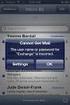
15 Figure 10. Outlook Express Properties >Servers tab 5. Click the Settings button and select "Use same settings as my incoming mail server"; click OK twice, to save the changes, and then click Close, to return to Outlook Express. 6. Finally, restart your Outlook Express client. Now, when users send from the Outlook Express client to the Internet, the client will first authenticate with the Domino server, using the name & password. If the credentials are correct, then it will allow to the to be relayed. If the name and password are not correct, then on the client and the server, you will see an Authentication failed error message. On the client, you will be prompted with the log-on screen shown in figure 11. Figure 11. Name and password prompt 15

16 On the Domino server you see the following message (see figure 12): 07/26/ :41:33 PM SMTP Server: Authentication failed for user John Doe ; connecting host Figure 12. Authentication failed message on the Domino server 7.2 Using the Microsoft Outlook client To enable the SMTP authentication, follow these steps: 1. Go to Tools > Accounts, and select "View or change existing accounts". 2. Click Next, and select your Mail Account; then click Change button followed by More Settings button. 3. Select the Outgoing Server tab, and enable the option "My outgoing server (SMTP) requires authentication (see figure 13). 16

17 Figure 13. Outlook Outgoing Server tab 4. Select "Use same settings as my incoming mail server" and click OK. 5. Click Next and then Finish, completing the settings for authentication and, finally, restarting your Outlook client. Now if users send mail from the Outlook client to the Internet, the client will first authenticate with the Domino server, using the name & password. If the credentials are correct, then it will allow the sender to relay the s. If the name and password are not correct, then on client and on the server you will see the same Authentication failed error as for the Express client and a similar log-on prompt screen (see figure 14). Figure

18 On the Domino server you see the same Authentication failed.. message as in the case of the Express client. When the authentication from the client is successful, you see an Authentication succeeded message on the server console (see figure 15), and the message is relayed successfully to the destination domain: 07/26/ :26:37 PM SMTP Server: Authentication succeeded for user John Doe/Don ; connecting host Figure 15. Authentication succeeded message 8 Avoiding address spoofing when relaying from authenticated users SMTP-AUTH does not necessarily guarantee the authenticity of either the SMTP envelope sender or the RFC 2822 "From:" header. Indeed, spoofing, in which a sender masquerades as someone else, is still possible even with SMTP-AUTH. On the Domino server you can avoid spoofing of the From address by using the Notes.ini parameter SMTPVerifyAuthenticatedSender. This variable lets you determine whether mail sent during an authenticated SMTP session is issued from that user's Internet address. Syntax: SMTPVerifyAuthenticatedSender=value Description: Specifies whether the SMTP server requires mail sent during an authenticated session to be from the Internet address of the authenticated user. 0 - Do not require the sender to use their Internet address 1 - Require the Sender, or From, if Sender header does not exist, to match the Internet address of the authenticated server. Basically, it verifies whether the address of the sender in the Person document matches. For example, suppose the sender is John Doe, whose address is [email protected], but the From address is incorrect, say [email protected] (see figure 16). 18

19 Figure 16. Outlook: Tools > Accounts > Change In that case, the Domino server will not allow to be relayed, and you see this message on the server console (see figure 17): 07/26/ :10:42 PM SMTP Server: Message rejected. Authenticated user John Doe/Acme from host sending mail from failed to match directory address Figure 17. Message rejected due to directory mismatch 19

20 NOTE: This setting does not affect the Router, nor does it affect messages that are not submitted via SMTP. The SMTPVerifyAuthenticatedSender parameter does not work when SMTPTranslateAddresses is configured. Mail is rejected if addresses are translated because the match fails. The feature can only be used with single-address entries in the From or Sender field. 9 Inbound anti-relay settings and message transfer to external Internet domains The process by which Inbound anti-relay settings control message transfer to external Internet domains is as follows: 1. The SMTP listener receives a connection request. 2. The server performs a reverse DNS lookup, querying DNS to find the host name that matches the connecting host's IP address. If the address resolves to a name in one of the local Internet domains, the host is considered internal. IP addresses that resolve to host names outside the local Internet domains or that do not have DNS entries are considered external. 3. The server checks the setting in the field "Perform Anti-Relay enforcement for these connecting hosts" to determine whether anti-relay controls are enabled and, if so, whether they apply to all hosts or external hosts only. If connections from the sending domain are not subject to inbound relay controls, the server allows relays for this session. 4. If the relay controls apply, Lotus Domino next checks whether the host name appears in the field "Exclude these connecting hosts from anti-relay checks. If the host name is found, the server allows relays for this session. 5. If the relay controls still apply and the connecting host successfully authenticated with the server, the server checks the field "Exceptions for authenticated users" to determine whether authenticated users are exempt from the inbound relay checks. If authenticated users are exempt, the server allows relays for this session. NOTE: A connecting host provides authentication credentials only when the Domino server requests them. Because Lotus Domino closes the session if authentication is not successful, there is no case in which Lotus Domino needs to determine whether a host that could not authenticate might be allowed to relay. 6. The SMTP listener receives "RCPT TO" commands from the connecting host. 7. The server examines each recipient address to see if the message would be a relay to an external domain. If so, the server checks the inbound relay controls to determine whether: the connecting host is allowed to relay, or relays are allowed to the target domain 20

21 The server performs matching of domains by looking for the restricted domain name as a trailing substring of the recipient's domain. If you deny the domain spamme.com, you also deny the domain you.spamme.com. Rejected recipients receive a failure status in response to the RCPT commands. Inbound port settings affect how other SMTP hosts connect to Lotus Domino. For inbound connections, you can specify TCP/IP port settings and SSL port settings. For both ports you can define port numbers, port status, and the supported authentication methods. 10 Conclusion Many users do not understand why or how they are receiving spam messages, which is why preventing spam messages from getting in the front door will lessen the amount of time spent managing these unwanted messages. You should now have a good understanding of what SMTP authentication is and how you can configure your Domino server with SMTP-AUTH to secure Lotus Domino from spammers. 11 Appendix A: SMTP Notes.ini variables This section lists some Notes.ini variables that you can use to help prevent spam mail and to configure SMTP and Router restrictions. All the Notes.ini settings listed in this article apply to the Domino server only. (This material is excerpted from the developerworks Lotus article, Controlling spam: Advanced SMTP settings in Lotus Domino, Part 2.) SMTPStrict821AddressSyntax=value. Lets you define whether or not the SMTP task requires addresses appearing in MAIL FROM commands or RCPT TO commands to conform to the 821 standard (must contain <>). Set this to 1 to enforce the 821 standard; the default setting of 0 does not enforce the standard. SMTPGreeting=string. Lets you compose the text message that is sent to SMTP clients when they connect to the SMTP server. You must include the string "%s" within the message. (This string is replaced with the current date/time when the connection is made.) By default, the SMTPGreeting is "host-name ESMTP Service (Lotus Domino build-name) ready at %s". SMTPStrict821LineSyntax=value. If you set this variable to 1, the SMTP task requires all protocol text be terminated by carriage return and line feed (CRLF) as defined by the 821 standard. If you set this variable to 0 (the default setting), the 821 standard is not enforced, and line feed (LF) is accepted as a line terminator. SMTPNonStandardLineTermination=value. The SMTP listener task conforms to RFC 2821, requiring a carriage return and a line feed. You can change this functionality with this variable. If you set the variable to 0, the SMTP listener task requires a carriage return and line feed (CRLF). If you set it to 1, the SMTP listener task requires a carriage return (CR) or a line feed (LF). SMTPNotesPort=portname. Forces SMTP to bind to a specific TCP/IP port, other than the first port listed in the PORTs variable of the server's Notes.ini file, which is the default behavior. You may want to use this variable with a server that has multiple network interface cards. 21
22 SMTP_Config_Update_Interval=value. Lets you define how frequently (in minutes) Lotus Domino checks the Configuration Settings document for updates. The default value is 2. SMTPAllowConnectionsAnonymous=value. Determines how the SMTP task handles connections if authentication is required and populates the hosts in the "Allow connections only from the following SMTP internet hostnames/ip addresses" field. If you specify 0, the SMTP task requires authentication, and hosts in the "Allow connections only from the following SMTP internet hostnames/ip addresses" field are denied. If you specify 1, the SMTP task requires authentication, and hosts in the "Allow connections only from the following SMTP internet hostnames/ip addresses" field are exceptions that are allowed to connect. SMTPTimeoutMultiplier=value. Each SMTP protocol exchange has a timeout wait value. If a client doesn't respond within this period, the connection terminates. You can increase the timeout period by defining a multiplier value with the SMTPTimeoutMultiplier variable. For example, if you set this to 5, all timeout periods are increased by a factor of 5. The default is 1. RouterDSNForNULLReversePath=value. Lets you determine whether the Router returns delivery status notifications (DSNs) for messages received over SMTP with null RFC 821 reverse paths. By default, this is set to 0, which tells the Router not to return a failed DSN. In this case, the Router creates the non-delivery report, but marks it as DEAD. (You can later delete or release these messages.) If you set this variable to 1, the Router creates and sends the delivery status notification; if you set this variable to 2, the Router does not create a delivery status notification. SMTPVerifySendersDomainTimeout=value. Lets you set the default timeout (in seconds) for SMTP Inbound Sender Control in the "Verify Sender's Domain in DNS" field. By default the timeout value is 30 seconds. SMTPErrorLimit=value. Tells SMTP to drop a connection when the error count for that connection exceeds an administrator-defined number of errors. If SMTP sessions are opened by clients that fail to acknowledge a close command, this variable lets the session terminate. The default depends on available resources and the number of SMTP connections. RouterDisableDSNRelayReports=Value. The Router generates SMTP DSN Relay reports when it is unable to forward delivery confirmation requests to the next SMTP hop, including when the current Router has outbound DSN disabled in the Configuration Settings document. To disable SMTP DSN Relay reports, set the variable to 1. The default is 0, letting the Router send a relay report if outbound DSN has been disabled. RouterDisabl ToGroups=value. Determines whether the Router allows or denies mail addressed to a group. The default value of 0 allows the Router to expand groups and forward to group members. To keep the Router from expanding groups, set this variable to 1. The Router returns the message as a failure report to the sender, stating that the message was rejected for policy reasons. SMTPLookupNoDircat=value. Determines whether SMTP uses directory catalog lookups. This prevents users listed in the directory from receiving inbound Internet mail on this server. The default value of 0 enables the Router to use any of the Extended Directory Catalogs referenced 22
23 in its configuration. If you set this variable to 1, the Router cannot use any of the Extended Directory Catalogs referenced in its configuration when doing lookups for inbound Internet mail. SMTPMaxCommandLength=value. Sets the maximum number of characters the SMTP task accepts. The default is 1,200 characters. SMTPMaxForRecipients=value. Determines how many addresses can be added when the SMTP task adds received headers to messages received. The default is based on available resources. SMTPMaxSessions=value. Specifies the number of allowed inbound SMTP connections. After this value has been reached, Domino returns an error 421 message. The default value is based on available resources. SMTPVerifyAuthenticatedSender=value. Lets you determine if mail sent during an authenticated SMTP session is issued from that user's Internet address. The default value of 0 instructs Domino not to check the Internet address of authenticated SMTP sessions. If you set this variable to 1, Domino determines if mail sent during an authenticated SMTP session is issued from that user's Internet address. SMTPSmartHostAllDisableGroupExpansion=value. Disables group expansion when Smarthost is enabled for all recipients in the local Internet domain. If you set it to 0, group expansion occurs when Smarthost is enabled for all local Internet domain recipients. If you set the value to 1, it disables group expansion when Smarthost is enabled for all local Internet domain recipients. The default is 0. SMTPNoVersionInRcvdHdr=value. When set to 1, this variable prevents Domino server product information from being disclosed in the SMTP Received headers. The default is 0. SMTPMaxRecipientCount=value. This variable can control the number of recipients during the SMTP protocol RCPT TO command. After that value has been reached, Domino will issue an error 552 message. The default is based on available resources. SMTPTranslateAddresses=value. When messages are received through SMTP by the SMTP task, no change is made to any of the addresses. Some sites may prefer to have the Internet addresses of the local Notes users converted to Notes addresses (hierarchical). To convert the addresses, set this variable to one of the following values: 0 - (default) No translation; 1 - Translate only the from item; or 2 - Translate all address items. SMTPTranslateLookupFullThenLocal=value. If you have the previous variable SMTPTranslateAddresses set to either 1 or 2, you can use this variable to override the Configuration Setting document for Address lookup. To override the Configuration Setting document, set SMTPTranslateLookupFullThenLocal to 1. When you do, Lotus Domino translates the full name then local part. The default is 0. SMTPTranslateAddressLookup=value. If you have SMTPTranslateAddresses set to either 1 or 2, you can use this variable to perform a lookup, even if the address doesn't appear to be a local address. Set this variable to 1 to enable it to perform an address lookup. The default is 0. SMTPTranslateAddressesPreserve822=value. This variable preserves the original Internet address in Inetxxx items. Lotus Notes/Domino and later maintain Inet items in the RFC821 23
24 form, which is the preferred form for Inet items. Set this variable to 1 to revert to previous behavior and to preserve any RFC822 addresses translated in the Inetxxx items. SMTPRelayHostsandDomain=value. If you set this variable to 1, entries in the Deny fields of the SMTP inbound relay controls take precedence over entries in the Allow fields in the event of a conflict. The default is 0. SMTP_RIGHT_DOT_NEVER_NOTESDOMAIN=value. When set to 1, this variable corrects a problem when addressing messages to [email protected], where hostname notes matches the Notes domain name. It prevents the router from attempting to deliver the message locally. RouterUseFromAsSMTPOriginator=value. Causes the RFC821 reverse path MAIL FROM command to be based on the value in the From field when set to 1. The default is 0. RouterLanguageVisibleNDRStatus=value. If you have language packs installed, you can use this variable to enable translation of non-delivery messages. Set this value to 1 to enable this feature. Lotus Domino will translate certain English messages returned in NDRs by the router. The latest Notes.ini variables to be added were introduced in Lotus Domino 7, as follows: SMTPDenyMailToGroups=value. Requires that you have the option "Verify that local domain recipient exist in the Domino Directory" enabled. If you set this variable to 1, all external hosts receive a permanent error after the RCPT TO command when mail is addressed to a group. If you set this to 2, all connecting hosts receive a permanent error after the RCPT TO command when mail is addressed to a group. The default value is 0. SMTPDenyNotUniqueRCPT=value. Requires that you have the option "Verify that local domain recipient exist in the Domino Directory" enabled. If you set this variable to 1, the SMTP task will not accept any recipient name that is not unique. The default is Resources developerworks Lotus Notes and Domino product page: CMP=LP Lotus Knowledge Base Technote, Using Domino authenticated access for SMTP : Lotus Notes and Domino wiki: Lotus Support Web site: Lotus Notes and Domino forums: MP=LP 24
25 developerworks articles, parts 1 &2, Controlling Spam: Advanced SMTP settings in Lotus Domino : About the author Shrikant Jamkhandi is a Senior Software Engineer for Lotus Software at IBM s Pune, India, facility. He has worked with Lotus Domino since 2005, has more than six years of experience working in the Domino environment, and is a Certified Lotus Professional (CLP). Trademarks developerworks, Domino, IBM, Lotus, and Notes are trademarks or registered trademarks of IBM Corporation in the United States, other countries, or both. Microsoft and Windows are registered trademarks of Microsoft Corporation in the United States, other countries, or both. Java and all Java-based trademarks and logos are trademarks or registered trademarks of Sun Microsystems, Inc. in the United States, other countries, or both. Other company, product, and service names may be trademarks or service marks of others. 25
SMTP Best Practices, Configurations and Troubleshooting on Lotus Domino.
 SMTP Best Practices, Configurations and Troubleshooting on Lotus Domino. 9 th th June 2011 Chandra Shekhar Anumandla - Lotus Technical Support Engineer Presenter Seema Janjirkar Lotus Technical Advisor
Articles Fighting SPAM in Lotus Domino
 Page 1 of 5 Articles Fighting SPAM in Lotus Domino For many e-mail administrators these days, the number one complaint from the users and managers is unsolicited emails flooding the system, commonly called
Implementing MDaemon as an Email Security Gateway to Exchange Server
 Implementing MDaemon as an Email Security Gateway to Exchange Server Introduction MDaemon is widely deployed as a very effective antispam/antivirus gateway to Exchange. For optimum performance, we recommend
CipherMail Gateway Quick Setup Guide
 CIPHERMAIL EMAIL ENCRYPTION CipherMail Gateway Quick Setup Guide October 10, 2015, Rev: 9537 Copyright 2015, ciphermail.com. CONTENTS CONTENTS Contents 1 Introduction 4 2 Typical setups 4 2.1 Direct delivery............................
Troubleshooting IBM Lotus Domino 8 mail routing issues
 Troubleshooting IBM Lotus Domino 8 mail routing issues Seema Janjirkar Software Engineer IBM Software Group Pune, India Ranjit Rai Software Engineer IBM Software Group Pune, India May 2009 Copyright International
Simple Mail Transfer Protocol
 Page 1 of 6 Home : Network Programming Simple Mail Transfer Protocol Contents What is SMTP? Basics of SMTP SMTP Commands Relaying of Messages Time Stamps and Return Path in Message Header Mail Exchangers
Cryoserver Archive Lotus Notes Configuration
 Lotus Notes Configuration Version 1.0 December 2007 Forensic & Compliance Systems Ltd +44 (0)800 280 0525 [email protected] www.cryoserver.com Contents INTRODUCTION... 3 SMTP ROUTING TO CRYOSERVER...
Installation Guide For ChoiceMail Enterprise Edition
 Installation Guide For ChoiceMail Enterprise Edition How to Install ChoiceMail Enterprise On A Server In Front Of Your Company Mail Server August, 2004 Version 2.6x Copyright DigiPortal Software, 2002-2004
RFC 821 SIMPLE MAIL TRANSFER PROTOCOL. Jonathan B. Postel. August 1982
 RFC 821 SIMPLE MAIL TRANSFER PROTOCOL Jonathan B. August 1982 Information Sciences Institute University of Southern California 4676 Admiralty Way Marina del Rey, California 90291 (213) 822-1511 RFC 821
Defining your local domains
 To fully configure the Virtual SMTP server you must first define your local domains and specify the IP address where messages will be delivered. Then you need to test for successful mail deliverability
Deploying ModusGate with Exchange Server. (Version 4.0+)
 Deploying ModusGate with Exchange Server (Version 4.0+) Active Directory and LDAP: Overview... 3 ModusGate/Exchange Server Deployment Strategies... 4 Basic Requirements for ModusGate & Exchange Server
Installing Policy Patrol on a separate machine
 Policy Patrol 3.0 technical documentation July 23, 2004 Installing Policy Patrol on a separate machine If you have Microsoft Exchange Server 2000 or 2003 it is recommended to install Policy Patrol on the
Unifying Information Security. Implementing TLS on the CLEARSWIFT SECURE Email Gateway
 Unifying Information Security Implementing TLS on the CLEARSWIFT SECURE Email Gateway Contents 1 Introduction... 3 2 Understanding TLS... 4 3 Clearswift s Application of TLS... 5 3.1 Opportunistic TLS...
Installing Policy Patrol with Lotus Domino
 Policy Patrol 9 technical documentation May 21, 2013 If you have Lotus Domino R5/6/7/8/9 Mail Server, you must install Policy Patrol on a separate Windows 2003/2008/2012 machine and forward your mails
WEBROOT EMAIL ARCHIVING SERVICE. Getting Started Guide North America. The best security in an unsecured world. TM
 WEBROOT EMAIL ARCHIVING SERVICE Getting Started Guide North America Webroot Software, Inc. World Headquarters 2560 55th Street Boulder CO 80301 USA www.webroot.com 800.870.8102 Table of Contents Create
IBM i. Networking E-mail. Version 7.2
 IBM i Networking E-mail Version 7.2 IBM i Networking E-mail Version 7.2 Note Before using this information and the product it supports, read the information in Notices on page 53. This document may contain
Configuration Guide for Exchange 2003, 2007 and 2010
 Configuration Guide for Exchange 2003, 2007 and 2010 Table of Contents Exchange 2013... 2 Configuring Outbound Smart Host... 2 Configure Access Restriction to Prevent DoS Attacks... 2 Exchange 2007/2010...
Kaseya Server Instal ation User Guide June 6, 2008
 Kaseya Server Installation User Guide June 6, 2008 About Kaseya Kaseya is a global provider of IT automation software for IT Solution Providers and Public and Private Sector IT organizations. Kaseya's
escan SBS 2008 Installation Guide
 escan SBS 2008 Installation Guide Following things are required before starting the installation 1. On SBS 2008 server make sure you deinstall One Care before proceeding with installation of escan. 2.
Using Avaya Aura Messaging
 Using Avaya Aura Messaging Release 6.3.2 Issue 1 December 2014 Contents Chapter 1: Getting Started... 4 Messaging overview... 4 Prerequisites... 4 Accessing your mailbox from any phone... 4 Accessing the
Deployment Guide. For the latest version of this document please go to: http://www.exchangedefender.com/documentation.php
 Deployment Guide For the latest version of this document please go to: http://www.exchangedefender.com/documentation.php ExchangeDefender Introduction The purpose of this guide is to familiarize you with
F-Secure Messaging Security Gateway. Deployment Guide
 F-Secure Messaging Security Gateway Deployment Guide TOC F-Secure Messaging Security Gateway Contents Chapter 1: Deploying F-Secure Messaging Security Gateway...3 1.1 The typical product deployment model...4
OCS Training Workshop LAB14. Email Setup
 OCS Training Workshop LAB14 Email Setup Introduction The objective of this lab is to provide the skills to develop and trouble shoot email messaging. Overview Electronic mail (email) is a method of exchanging
Setup Guide for Exchange Server
 Setup Guide for Exchange Server Table of Contents Overview... 1 A. Exchange Server 2007/2010 Inbound Mail... 2 B. Exchange Server 2007/2010 Outbound Mail (optional)... 8 C. Exchange Server 2003/2000 Inbound
1 Accessing E-mail accounts on the Axxess Mail Server
 1 Accessing E-mail accounts on the Axxess Mail Server The Axxess Mail Server provides users with access to their e-mail folders through POP3, and IMAP protocols, or OpenWebMail browser interface. The server
Internet Security [1] VU 184.216. Engin Kirda [email protected]
![Internet Security [1] VU 184.216. Engin Kirda engin@infosys.tuwien.ac.at](/thumbs/33/15826620.jpg "Internet Security [1] VU 184.216. Engin Kirda engin@infosys.tuwien.ac.at") Internet Security [1] VU 184.216 Engin Kirda [email protected] Christopher Kruegel [email protected] Administration Challenge 2 deadline is tomorrow 177 correct solutions Challenge 4 will
Internet Security [1] VU 184.216 Engin Kirda [email protected] Christopher Kruegel [email protected] Administration Challenge 2 deadline is tomorrow 177 correct solutions Challenge 4 will
Advanced Settings. Help Documentation
 Help Documentation This document was auto-created from web content and is subject to change at any time. Copyright (c) 2016 SmarterTools Inc. Advanced Settings Abuse Detection SmarterMail has several methods
Installing GFI MailSecurity
 Installing GFI MailSecurity Introduction This chapter explains how to install and configure GFI MailSecurity. You can install GFI MailSecurity directly on your mail server or you can choose to install
Installing GFI MailSecurity
 Installing GFI MailSecurity Introduction This chapter explains how to install and configure GFI MailSecurity. You can install GFI MailSecurity directly on your mail server or you can choose to install
Troubleshooting IMAP Clients and ViewMail for Outlook in Cisco Unity Connection 8.x
 CHAPTER 17 Troubleshooting IMAP Clients and ViewMail for Outlook in Cisco Unity Connection 8.x See the following sections for problems that can occur in IMAP clients and in Cisco Unity Connection ViewMail
How To Use Gfi Mailarchiver On A Pc Or Macbook With Gfi Email From A Windows 7.5 (Windows 7) On A Microsoft Mail Server On A Gfi Server On An Ipod Or Gfi.Org (
 GFI MailArchiver for Exchange 4 Manual By GFI Software http://www.gfi.com Email: [email protected] Information in this document is subject to change without notice. Companies, names, and data used in examples
Configuration Information
 Configuration Information Email Security Gateway Version 7.7 This chapter describes some basic Email Security Gateway configuration settings, some of which can be set in the first-time Configuration Wizard.
Email. Daniel Zappala. CS 460 Computer Networking Brigham Young University
 Email Daniel Zappala CS 460 Computer Networking Brigham Young University How Email Works 3/25 Major Components user agents POP, IMAP, or HTTP to exchange mail mail transfer agents (MTAs) mailbox to hold
Getting Started Guide. Review system requirements and follow the easy steps in this guide to successfully deploy and test GFI FaxMaker.
 Getting Started Guide Review system requirements and follow the easy steps in this guide to successfully deploy and test GFI FaxMaker. The information and content in this document is provided for informational
All existing accounts will be listed. 2. Click Add and select Mail to add a new E-mail account (see Figure 2). Figure 1. Figure 2
 Microsoft Outlook Express 5.x, 6.0 This section describes how to configure Outlook Express to access POP E-mail. 1. Click Tools and select Accounts from the pull-down menu (see Figure 1). Figure 1 All
CS 164 Winter 2009 Term Project Writing an SMTP server and an SMTP client (Receiver-SMTP and Sender-SMTP) Due & Demo Date (Friday, March 13th)
 CS 164 Winter 2009 Term Project Writing an SMTP server and an SMTP client (Receiver-SMTP and Sender-SMTP) Due & Demo Date (Friday, March 13th) YOUR ASSIGNMENT Your assignment is to write an SMTP (Simple
SPAMfighter SMTP Anti Spam Server
 SPAMfighter SMTP Anti Spam Server Users Manual Copyright SPAMfighter ApS 2005 Revised 4/27/2006 1 Table of Contents 2 Terminology...3 3 Technology...4 3.1 Tunneling and Interception...4 3.2 Content Classification...5
Setting up Microsoft Office 365
 Integration Guide Revision G McAfee SaaS Email Protection Securing Exchange Online in Microsoft Office 365 Setting up Microsoft Office 365 Use this guide to configure Microsoft Office 365 and Microsoft
The basic groups of components are described below. Fig X- 1 shows the relationship between components on a network.
 Elements of Email Email Components There are a number of software components used to produce, send and transfer email. These components can be broken down as clients or servers, although some components
Installing GFI MailEssentials
 Installing GFI MailEssentials Introduction to installing GFI MailEssentials This chapter explains the procedure on how to install and configure GFI MailEssentials. GFI MailEssentials can be installed in
Introduction... 2. Configuration & Spam Detection... 2. WinWare Webmail... 3. Email Accounts... 3. Email Account Notes... 4. Definitions...
 Page 1 Table of Contents Introduction... 2 Configuration & Spam Detection... 2 WinWare Webmail... 3 Email Accounts... 3 Email Account Notes... 4 Definitions... 5 Sender Policy Framework (SPF)... 5 Email
POP3 Connector for Exchange - Configuration
 Eclarsys PopGrabber POP3 Connector for Exchange - Configuration PopGrabber is an excellent replacement for the POP3 connector included in Windows SBS 2000 and 2003. It also works, of course, with Exchange
Barracuda Spam Firewall Administrator s Guide
 Barracuda Spam Firewall Administrator s Guide 1 Copyright Copyright 2005, Barracuda Networks www.barracudanetworks.com v3.2.22 All rights reserved. Use of this product and this manual is subject to license.
Barracuda Spam Firewall User s Guide
 Barracuda Spam Firewall User s Guide 1 Copyright Copyright 2004, Barracuda Networks www.barracudanetworks.com All rights reserved. Use of this product and this manual is subject to license. Information
How to Secure a Groove Manager Web Site
 How to Secure a Groove Manager Web Site Information in this document, including URL and other Internet Web site references, is subject to change without notice. Unless otherwise noted, the companies, organizations,
Load Balancing Exchange 2007 SP1 Hub Transport Servers using Windows Network Load Balancing Technology
 Load Balancing Exchange 2007 SP1 Hub Transport Servers using Windows Network Load Balancing Technology Introduction Exchange Server 2007 (RTM and SP1) Hub Transport servers are resilient by default. This
Evolution of the WWW. Communication in the WWW. WWW, HTML, URL and HTTP. HTTP Abstract Message Format. The Client/Server model is used:
 Evolution of the WWW Communication in the WWW World Wide Web (WWW) Access to linked documents, which are distributed over several computers in the History of the WWW Origin 1989 in the nuclear research
SMTP Servers. Determine if an email message should be sent to another machine and automatically send it to that machine using SMTP.
 SMTP Servers SMTP: Simple Mail Transfer Protocol (TCP Port 25) The Simple Mail Transfer Protocol (SMTP) is an Internet standard for transferring electronic mail between computers. UNIX systems implement
Mail Avenger. David Mazières New York University
 Mail Avenger David Mazières New York University Early design goals for email Work over weakly connected networks - E.g., early Internet, UUCP, etc. - Move mail closer to recipient whenever you can... -
Installing GFI MailEssentials
 Installing GFI MailEssentials Introduction to installing GFI MailEssentials This chapter shows you how to install and configure GFI MailEssentials. GFI MailEssentials can be installed in two ways: Installation
Cannot send Autosupport e-mail, error message: Unknown User
 Cannot send Autosupport e-mail, error message: Unknown User Symptoms Unable to send Autosupport e-mails and the following error message is reported: asup.smtp.fail http://now.netapp.com/eservice/ems?emsaction=details&eventid=200573&software=ontap&em
eprism Email Security Appliance 6.0 Release Notes What's New in 6.0
 eprism Email Security Appliance 6.0 Release Notes St. Bernard is pleased to announce the release of version 6.0 of the eprism Email Security Appliance. This release adds several new features while considerably
2- Electronic Mail (SMTP), File Transfer (FTP), & Remote Logging (TELNET)
 2- Electronic Mail (SMTP), File Transfer (FTP), & Remote Logging (TELNET) There are three popular applications for exchanging information. Electronic mail exchanges information between people and file
Setting up Microsoft Office 365
 Setup Guide Revision F Using McAfee SaaS Email Protection to Secure Exchange Online in Microsoft Office 365 Setting up Microsoft Office 365 Use this guide to configure Microsoft Office 365 and Microsoft
A D M I N I S T R A T O R V 1. 0
 A D M I N I S T R A T O R F A Q V 1. 0 2011 Fastnet SA, St-Sulpice, Switzerland. All rights reserved. Reproduction in whole or in part in any form of this manual without written permission of Fastnet SA
Spam Marshall SpamWall Step-by-Step Installation Guide for Exchange 5.5
 Spam Marshall SpamWall Step-by-Step Installation Guide for Exchange 5.5 What is this document for? This document is a Step-by-Step Guide that can be used to quickly install Spam Marshall SpamWall on Exchange
How to Configure edgebox as an Email Server
 intelligence at the edge of the network www.critical-links.com edgebox V4.5 Introduction: The Email Server panel allows the simple configuration edgebox as an email (Sendmail) server. edgebox uses Smarthost
Guideline for setting up a functional VPN
 Guideline for setting up a functional VPN Why do I want a VPN? VPN by definition creates a private, trusted network across an untrusted medium. It allows you to connect offices and people from around the
Borderware MXtreme. Secure Email Gateway QuickStart Guide. Copyright 2005 CRYPTOCard Corporation All Rights Reserved
 Borderware MXtreme Secure Email Gateway QuickStart Guide Copyright 2005 CRYPTOCard Corporation All Rights Reserved http://www.cryptocard.com Overview MXtreme is a hardened appliance with a highly robust
MailEnable Quick Start Guide
 MailEnable Quick Start Guide Messaging Services For Microsoft Windows 2003/2008/2012 MailEnable Pty. Ltd. 59 Murrumbeena Road Murrumbeena VIC 3163 Australia t: +61 3 9569 0772 f: +61 3 9568 4270 www.mailenable.com
To install the SMTP service:
 To install the SMTP service: From the Start menu, click Control Panel. 2. Double-click Add or Remove Programs. 3. From the left pane, click Add/Remove Windows Components. 4. From the Components list, click
CHARTER BUSINESS custom hosting faqs 2010 INTERNET. Q. How do I access my email? Q. How do I change or reset a password for an email account?
 Contents Page Q. How do I access my email? Q. How do I change or reset a password for an email account? Q. How do I forward or redirect my messages to a different email address? Q. How do I set up an auto-reply
Customer Tips. Basic E-mail Configuration and Troubleshooting. for the user. Overview. Basic Configuration. Xerox Multifunction Devices.
 Xerox Multifunction Devices Customer Tips November 24, 2003 This document applies to these Xerox products: x WC Pro 32/40 Color x WC Pro 65/75/90 x WC Pro 35/45/55 WC M35/M45/M55 x DC 555/545/535 x DC
Email Setup Guide. network support pc repairs web design graphic design Internet services spam filtering hosting sales programming
 Email Setup Guide 1. Entourage 2008 Page 2 2. ios / iphone Page 5 3. Outlook 2013 Page 10 4. Outlook 2007 Page 17 5. Windows Live Mail a. New Account Setup Page 21 b. Change Existing Account Page 25 Entourage
TNote125 Student Locator Framework Email Notification Diagnostics
 Technical Note 125 September 25, 2006 TNote125 Student Locator Framework Email Notification Diagnostics The Student Locator Agent uses standard Internet email to notify designated administrators when a
Virtual Data Centre. User Guide
 Virtual Data Centre User Guide 2 P age Table of Contents Getting Started with vcloud Director... 8 1. Understanding vcloud Director... 8 2. Log In to the Web Console... 9 3. Using vcloud Director... 10
eprism Enterprise Tech Notes
 eprism Enterprise Tech Notes Utilizing Microsoft Active Directory for eprism s Directory Services Context eprism can integrate with an existing LDAP (Lightweight Directory Access Protocol) directory for
Frequently Asked Questions
 Frequently Asked Questions Table of Contents DNS Settings... 3 MX record... 3 SPF record... 3 Configuring Outbound... 3 Smart host configuration for Exchange 2003... 3 Smart host configuration for Exchange
Chapter 2 Connecting the FVX538 to the Internet
 Chapter 2 Connecting the FVX538 to the Internet Typically, six steps are required to complete the basic connection of your firewall. Setting up VPN tunnels are covered in Chapter 5, Virtual Private Networking.
NeoMail Guide. Neotel (Pty) Ltd
 NeoMail Guide Neotel (Pty) Ltd NeoMail Connect Guide... 1 1. POP and IMAP Client access... 3 2. Outlook Web Access... 4 3. Outlook (IMAP and POP)... 6 4. Outlook 2007... 16 5. Outlook Express... 24 1.
Mail system components. Electronic Mail MRA MUA MSA MAA. David Byers
 Electronic Mail PRINCIPLES DNS ARCHITECTURES SPAM Mail system components () () David Byers MRA [email protected] IDA/ADIT/IISLAB Mail User Agent Reads and writes e-mail Writes e-mail to using (usually)
Security. Help Documentation
 Help Documentation This document was auto-created from web content and is subject to change at any time. Copyright (c) 2016 SmarterTools Inc. Security Antivirus Administration SmarterMail is equipped with
Using LDAP Authentication in a PowerCenter Domain
 Using LDAP Authentication in a PowerCenter Domain 2008 Informatica Corporation Overview LDAP user accounts can access PowerCenter applications. To provide LDAP user accounts access to the PowerCenter applications,
Guardian Digital Secure Mail Suite Quick Start Guide
 Guardian Digital Secure Mail Suite Quick Start Guide Copyright c 2004 Guardian Digital, Inc. Contents 1 Introduction 1 2 Contacting Guardian Digital 2 3 Purpose of This Document 3 3.1 Terminology...............................
Email Electronic Mail
 Email Electronic Mail Electronic mail paradigm Most heavily used application on any network Electronic version of paper-based office memo Quick, low-overhead written communication Dates back to time-sharing
Mail Programs. Manual
 Manual April 2015, Copyright Webland AG 2015 Table of Contents Introduction Basics Server Information SSL POP3 IMAP Instructions Windows Outlook 2000 Outlook 2002/2003/XP Outlook 2007 Outlook 2010 Outlook
Quick Start Guide Sendio Hosted
 Sendio Email System Protection Appliance Quick Start Guide Sendio Hosted Sendio 6.x and 7.x Sendio, Inc. 4911 Birch St, Suite 150 Newport Beach, CA 92660 USA +1.949.274.4375 www.sendio.com QUICK START
SonicWALL Email Security Quick Start Guide. Version 4.6
 SonicWALL Email Security Quick Start Guide Version 4.6 Quick Start Guide - Introduction This document guides you through the most basic steps to set up and administer SonicWALL Email Security. For more
Configuring Security for SMTP Traffic
 4 Configuring Security for SMTP Traffic Securing SMTP traffic Creating a security profile for SMTP traffic Configuring a local traffic SMTP profile Assigning an SMTP security profile to a local traffic
Using WinGate 6 Email. Concepts, Features, and Configurations.
 WinGate Feature Guide Using WinGate 6 Email Concepts, Features, and Configurations. Neil Gooden Qbik New Zealand Limited Rev 1.0 December 2004 2 Introduction...3 Basic Email Concepts... 3 Differences in
Application Notes for Configuring Microsoft Office Communications Server 2007 R2 and Avaya IP Office PSTN Call Routing - Issue 1.0
 Avaya Solution & Interoperability Test Lab Application Notes for Configuring Microsoft Office Communications Server 2007 R2 and Avaya IP Office PSTN Call Routing - Issue 1.0 Abstract These Application
How To Configure Email Using Different Email Clients
 How To Configure Email Using Different Email Clients This document will show step by step instructions for setting up and updating email accounts using different Email Clients. Always remember to verify
If you encounter difficulty or need further assistance the Archdiocesan help desk can be reached at (410) 547-5305, option 1. Email Access Methods:
 ArchMail (www.archbalt.org/archmail) is a centrally hosted email system for the employees of the Archdiocese. To simplify employee access multiple methods for accessing email have been established. This
Standard Guide. Standard Guide. Standard Guide
 Table of Contents 1. Introduction 1 1.1. Introduction 1 1.2. Prerequisites 1.3. How Internet Email Works 2. 3. 2 Overview 3 2.1. Overview 3 2.2. Structure of MailEnable 3-4 2.3. Administration 4-5 2.4.
GFI FAXmaker 14.3 for Exchange/Lotus/SMTP. Manual. By GFI Software Ltd
 GFI FAXmaker 14.3 for Exchange/Lotus/SMTP Manual By GFI Software Ltd http://www.gfi.com Email: [email protected] Information in this document is subject to change without notice. Companies, names, and data
Exchange 2010 Journaling Guide
 Websense Email Security Solutions v7.3 Websense Advanced Email Encryption Copyright 1996-2011 Websense, Inc. All rights reserved. This document contains proprietary and confidential information of Websense,
NODE4 SERVICE DESK SYSTEM
 NODE4 SERVICE DESK SYSTEM KNOWLEDGE BASE ARTICLE INTERNAL USE ONLY NODE4 LIMITED 24/04/2015 ADD A POP, IMAP OR OFFICE 365 ACCOUNT TO OUTLOOK USING CUSTOM SETTINGS If you re setting up Outlook for the first
Sophos for Microsoft SharePoint startup guide
 Sophos for Microsoft SharePoint startup guide Product version: 2.0 Document date: March 2011 Contents 1 About this guide...3 2 About Sophos for Microsoft SharePoint...3 3 System requirements...3 4 Planning
Emacs SMTP Library. An Emacs package for sending mail via SMTP. Simon Josefsson, Alex Schroeder
 Emacs SMTP Library An Emacs package for sending mail via SMTP Simon Josefsson, Alex Schroeder Copyright c 2003, 2004 Free Software Foundation, Inc. Permission is granted to copy, distribute and/or modify
Version 1.7. Inbound Email Integration (POP3 and IMAP) Installation, Configuration and User Guide. Last updated October 2011
 Version 1.7 Inbound Email Integration (POP3 and IMAP) Installation, Configuration and User Guide Last updated October 2011 1 Introduction and Overview... 1 2 The Case for Email monitoring... 2 3 Installation
Archiving with MS Exchange Server
 Archiving with MS Exchange Server Copyright 2011 by REDDOXX GmbH REDDOXX GmbH Neue Weilheimer Str. 14 73230 Kirchheim Fon: +49 (0)7021 92846-0 Fax: +49 (0)7021 92846-99 email: [email protected] Internet:
MailEnable Connector for Microsoft Outlook
 MailEnable Connector for Microsoft Outlook Version 2.23 This guide describes the installation and functionality of the MailEnable Connector for Microsoft Outlook. Features The MailEnable Connector for
XGENPLUS SECURITY FEATURES...
 Security Features Table of Contents TABLE OF CONTENTS... 2 1. INTRODUCTION... 3 2. XGENPLUS SECURITY FEATURES... 3 3. SERVER LEVEL FEATURES... 5 4. DOMAIN LEVEL FEATURES... 8 5. USER LEVEL FEATURES...
CA Performance Center
 CA Performance Center Single Sign-On User Guide 2.4 This Documentation, which includes embedded help systems and electronically distributed materials, (hereinafter referred to as the Documentation ) is
Configuring, Customizing, and Troubleshooting Outlook Express
 3 Configuring, Customizing, and Troubleshooting Outlook Express............................................... Terms you ll need to understand: Outlook Express Newsgroups Address book Email Preview pane
20.12. smtplib SMTP protocol client
 20.12. smtplib SMTP protocol client The smtplib module defines an SMTP client session object that can be used to send mail to any Internet machine with an SMTP or ESMTP listener daemon. For details of
Quick Scan Features Setup Guide
 Xerox WorkCentre 7132 Quick Scan Features Setup Guide 701P45042 This guide includes instructions for: Scan to Email on page 1 Scan to Mailbox Setup (Optional) on page 5 Network Scanning Setup (Optional)
Symantec Mail Security for Domino
 Getting Started Symantec Mail Security for Domino About Symantec Mail Security for Domino Symantec Mail Security for Domino is a complete, customizable, and scalable solution that scans Lotus Notes database