
hp OpenView TeMIP Event Logging User s Guide Edition: for the UNIX Operating System March 2003
|
|
|
- Valerie Tucker
- 9 years ago
- Views:
Transcription
1 hp OpenView TeMIP Event Logging User s Guide Edition: for the UNIX Operating System March 2003 Copyright 2003 Hewlett-Packard Company

2 Legal Notices Warranty Hewlett-Packard makes no warranty of any kind with regard to this manual, including, but not limited to, the implied warranties of merchantability and fitness for a particular purpose. Hewlett-Packard shall not be held liable for errors contained herein or direct, indirect, special, incidental or consequential damages in connection with the furnishing, performance, or use of this material. A copy of the specific warranty terms applicable to your Hewlett-Packard product can be obtained from your local Sales and Service Office. Restricted Rights Legend Use, duplication or disclosure by the U.S. Government is subject to restrictions as set forth in subparagraph (c)(1)(ii) of the Rights in Technical Data and Computer Software clause in DFARS Hewlett-Packard Company United States of America Rights for non-dod U.S. Government Departments and Agencies are as set forth in FAR (c)(1,2). Copyright Notices Copyright Hewlett-Packard Company, all rights reserved. No part of this document may be copied, reproduced, or translated to another language without the prior written consent of Hewlett-Packard Company. The information contained in this material is subject to change without notice. Trademark Notices Adobe and Acrobat are trademarks of Adobe Systems Incorporated. HP-UX Release and later and HP-UX Release and later (in both 32 and 64-bit configurations) on all HP 9000 computers are Open Group UNIX 95 branded products. Java is a U.S. trademark of Sun Microsystems, Inc. Microsoft is a U.S. registered trademark of Microsoft Corporation. Netscape is a U.S. trademark of Netscape Communications Corporation. NMOS is a trademark of RiverSoft Technologies Limited. Oracle is a registered U.S. trademark of Oracle Corporation, Redwood City, California. Oracle7 and Oracle7 Server are trademarks of Oracle Corporation, Redwood City, California. PostScript is a trademark of Adobe Systems Incorporated. Riversoft is a trademark of RiverSoft Technologies Limited. UNIX is a registered trademark of The Open Group. Windows and Windows NT are U.S. registered trademarks of Microsoft Corporation. X/Open is a registered trademark, and the X device is a trademark of X/Open Company Ltd. in the UK and other countries. All other product names are the property of their respective trademark or service mark holders and are hereby acknowledged. 2
3 Contents Preface... 5 Chapter 1 Introduction Event Collection Event Logging Event Record Classes OSI System Object Event Log States Event Record Retrieval Time Modes TeMIP Process Architecture Foreground Process Background Processes Framework Command Line Interface System Considerations Full Entity Name for Alarm Rules Maximum Event Size Low Level Filtering of Events Chapter 2 Defining The Event Logging Environment Event Logging in a Distributed System Distributed Configuration Example How to Configure a Distributed System ASCII Synonym Support Customization Creating ASCII Synonyms ASCII Synonym Display Preconditions Creating and Defining an Event Log on Tru64 UNIX Event Log Arguments Associated Domain Discriminator Construct Scheduling Package Reference Log Name Initial Administrative State Max Log Size Capacity Alarm Threshold Log Full Action Repository Location Event Filtering Event Collection Scheduling Using the Framework Command Line (FCL) Chapter 3 Managing Event Logging Managing the Event Logging Environment Accessing the Event Log
4 3.3 Starting and Stopping Event Logging Displaying the Event Log Attributes Changing the Event Log Attribute Values Self-Monitoring Event Log Panel Window What the Window Shows Viewing Event Records Management Operations From the Window on Tru64 UNIX The Menu Bar The Buttons Chapter 4 Handling Event Records Using The Mouse Desktop Manager Window on Tru64 UNIX Viewing Event Records on Tru64 UNIX Stand-Alone Operation Segmented Retrieval Event Records View Window Menu Bar Event Record Information Displayed The Event Records View Window Buttons Refreshing the Display Using the Search Events Function Selecting Search Criteria Expanding a Search Handling Event Records Displaying Full Information Displaying Other Records Printing Event Record Information Printing Event Record Information to File Deleting Event Records Chapter 5 Online Customizing Options Introduction Changing the Default Printer Changing the Segment Size Value Saving Window Sizes Customizing the Event List Search Scope Dependence Saving the New Values Chapter 6 User Messages TeMIP Framework Exception Messages TeMIP Internal Error Messages User Information Messages Appendix A Operation Context and Log Error Messages A.1 List of Error Messages Index

5 Preface This document explains how to configure and use the TeMIP Fault Management Event Logging function. It contains information related to the TeMIP Event Logging FM and the associated GUI (TeMIP Event Logging PM), accessible from the TeMIP Client. All references to the TeMIP Iconic Map are for Tru64 UNIX only. Supported Software The supported software referred to in this document is as follows: TeMIP HP OpenView TeMIP Alarm Handling and Event Log Server 5.0 UNIX HP Tru64 UNIX Sun Solaris HP-UX The term UNIX is used as a generic reference to the operating system, unless otherwise specified. Typographical Conventions Courier Font: Source code and examples of file contents. Commands that you enter on the screen. Pathnames Keyboard key names Italic Text: Filenames, programs and parameters. The names of other documents referenced in this manual. Bold Text: To introduce new terms and to emphasize important words. Associated Documents The following documents contain useful reference information: OpenView TeMIP Product Family Introduction. OpenView TeMIP Customization Guide. OpenView TeMIP Iconic Map and FCL User s Guide. OpenView TeMIP Director Configuration Management Guide. OpenView TeMIP Fault Management Reference Guide. OpenView TeMIP Alarm Handling User s Guide. 5

6 OpenView TeMIP Classic Alarm Handling Client User s Guide. OpenView TeMIP Event Filtering and Correlation User s Guide. For a full list of TeMIP documents, refer to Appendix A of the OpenView TeMIP Product Family Introduction. Support Please visit our HP OpenView web site at: HP OpenView There you will find contact information as well as details about OpenView products, services and support. The OpenView support area of the OpenView web site includes: Downloadable documentation Troubleshooting information Patches and updates Problem reporting Training information Support program information 6

7 Chapter 1 Introduction This chapter introduces general information about the TeMIP Event Logging function. Topics covered are: Section 1.1 Event Collection Section 1.2 Event Logging Section 1.3 Event Record Classes Section 1.4 OSI System Object Section 1.5 Event Log States Section 1.6 Event Record Retrieval Section 1.7 Time Modes Section 1.8 TeMIP Process Architecture Section 1.9 Framework Command Line Interface Section 1.10 System Considerations Section 1.11 Low Level Filtering of Events 1.1 Event Collection The TeMIP Event Logging function is concerned with the collection and storing of all types of OSI events occurring in the network. Once stored, the event information can later be retrieved and used for analysis or whatever processing is required by the fault management system. Even status changes of Event Logs themselves (and operation contexts) are events that can be logged by the Event Logging function. Instances of the Event Log Multiple instances of Event Logs can be created, each with its own event collection characteristics. This enables the event traffic to be filtered and collected in different ways, to suit the various requirements of your particular fault management scheme. In each Event Log instance that you create, the Discriminator Construct and Scheduling Package provide you with the means for defining the way in which events are filtered and when they are collected. Background Event Collection When event collection has been started for an Event Log (the Administrative State of the Log set to Unlocked), the collection of events continues without user intervention. Events are collected according to how the Discriminator Construct and Scheduling Package are defined, until 7
8 event collection is specifically stopped, through one of the following conditions: The Administrative State is changed to Locked by the user. The Operational State is changed to disabled due to management module or service malfunction. The Event Log becomes full. The scheduled period of logging activity is over. 1.2 Event Logging TeMIP is based on object-oriented technology and makes use of two OSI compliant support objects in the Event Logging process. These are the Log Object and the Log Record Object. The Log Object controls the way in which event collection is carried out, and also provides the repository for the Log Record Objects. The Log Record Object enables the user to handle and manipulate the event information through the user interface. Events that are successfully collected, that is, events that pass through the discriminator filter during a scheduled period of logging activity, are stored by the Event Log in a repository as OSI-compliant Event Records. You define the location of the repository when creating an Event Log by assigning an appropriate UNIX path name. Note In this user guide, the Log Object and Log Record Object are referred to less formally as the Event Log and Event Record respectively. TeMIP logs events according to how you have constructed and configured the Event Logging function. As a user of the Event Logging function you therefore need to know how to: Set up the Event Logging environment - Create and define Event Log instances - Set the event collection characteristics of the Event Log Control the Event Logging activity: - Start or stop the Event Logging activity - Change the Event Logging characteristics Handle the event data: - Retrieve event records from the database - Display, print or delete the event records 1.3 Event Record Classes Different types of events occurring in the network produce event records with differing information formats. The OSI standards define seven possible classes of events, and these are supported by the TeMIP Event Logging function, namely: 8

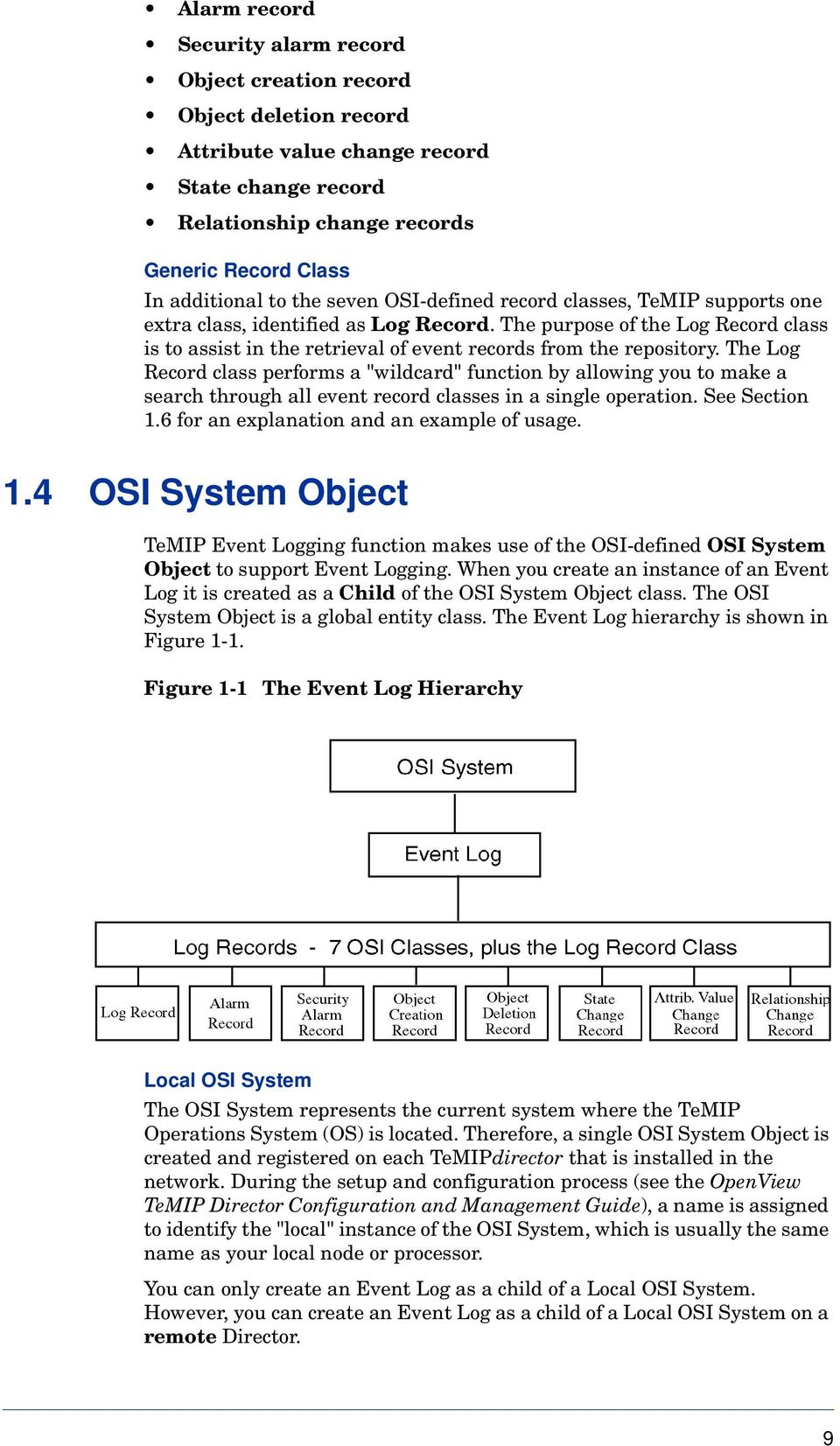
9 Alarm record Security alarm record Object creation record Object deletion record Attribute value change record State change record Relationship change records Generic Record Class In additional to the seven OSI-defined record classes, TeMIP supports one extra class, identified as Log Record. The purpose of the Log Record class is to assist in the retrieval of event records from the repository. The Log Record class performs a "wildcard" function by allowing you to make a search through all event record classes in a single operation. See Section 1.6 for an explanation and an example of usage. 1.4 OSI System Object TeMIP Event Logging function makes use of the OSI-defined OSI System Object to support Event Logging. When you create an instance of an Event Log it is created as a Child of the OSI System Object class. The OSI System Object is a global entity class. The Event Log hierarchy is shown in Figure 1-1. Figure 1-1 The Event Log Hierarchy Local OSI System The OSI System represents the current system where the TeMIP Operations System (OS) is located. Therefore, a single OSI System Object is created and registered on each TeMIPdirector that is installed in the network. During the setup and configuration process (see the OpenView TeMIP Director Configuration and Management Guide), a name is assigned to identify the "local" instance of the OSI System, which is usually the same name as your local node or processor. You can only create an Event Log as a child of a Local OSI System. However, you can create an Event Log as a child of a Local OSI System on a remote Director. 9
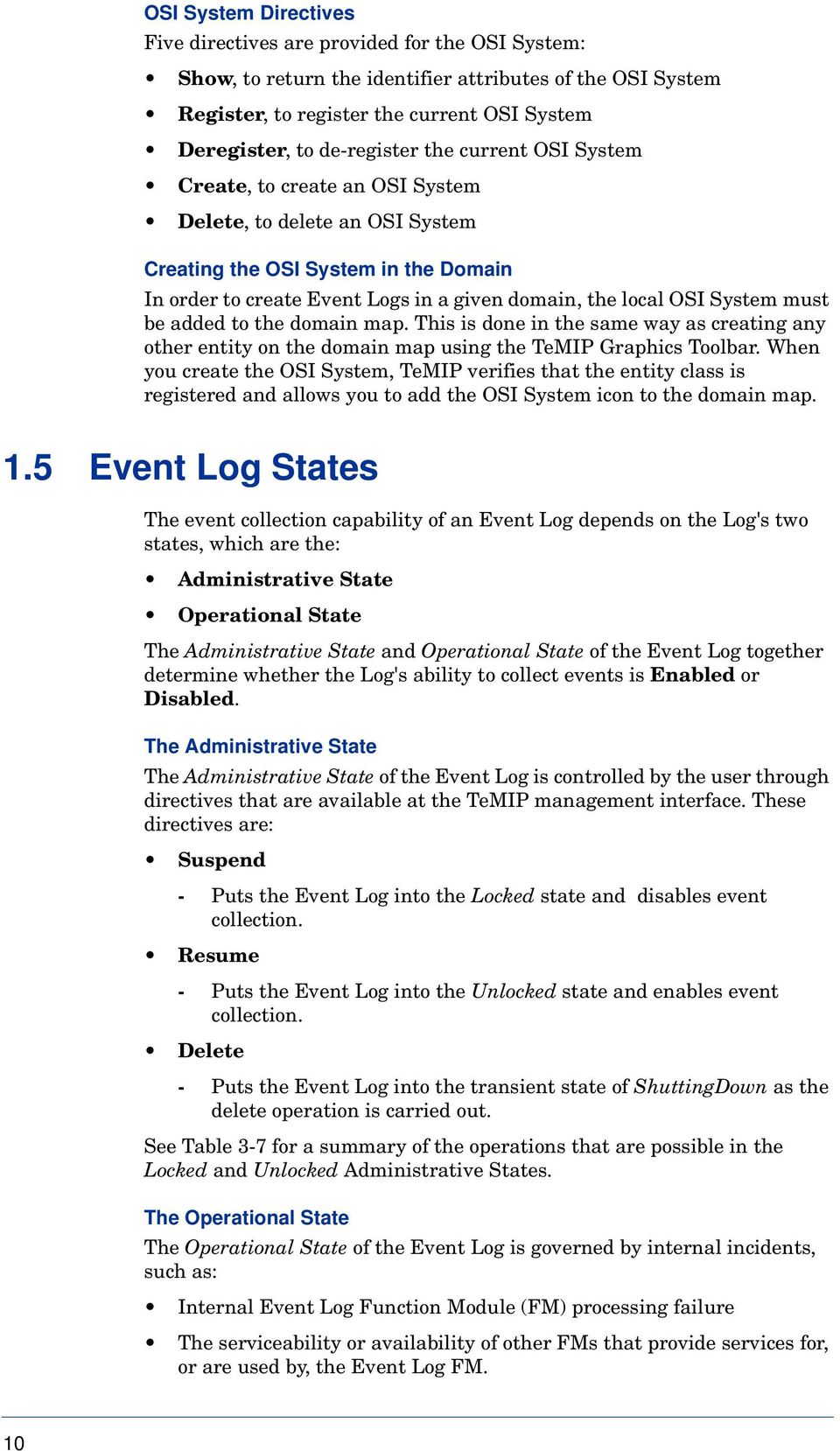
10 OSI System Directives Five directives are provided for the OSI System: Show, to return the identifier attributes of the OSI System Register, to register the current OSI System Deregister, to de-register the current OSI System Create, to create an OSI System Delete, to delete an OSI System Creating the OSI System in the Domain In order to create Event Logs in a given domain, the local OSI System must be added to the domain map. This is done in the same way as creating any other entity on the domain map using the TeMIP Graphics Toolbar. When you create the OSI System, TeMIP verifies that the entity class is registered and allows you to add the OSI System icon to the domain map. 1.5 Event Log States The event collection capability of an Event Log depends on the Log's two states, which are the: Administrative State Operational State The Administrative State and Operational State of the Event Log together determine whether the Log's ability to collect events is Enabled or Disabled. The Administrative State The Administrative State of the Event Log is controlled by the user through directives that are available at the TeMIP management interface. These directives are: Suspend - Puts the Event Log into the Locked state and disables event collection. Resume - Puts the Event Log into the Unlocked state and enables event collection. Delete - Puts the Event Log into the transient state of ShuttingDown as the delete operation is carried out. See Table 3-7 for a summary of the operations that are possible in the Locked and Unlocked Administrative States. The Operational State The Operational State of the Event Log is governed by internal incidents, such as: Internal Event Log Function Module (FM) processing failure The serviceability or availability of other FMs that provide services for, or are used by, the Event Log FM. 10
11 See also Section The Availability Status The Availability Status is an Event Log attribute that provides additional information concerning the Operational State. The Operational State is dependent on the availability of other modules and services. A situation could arise, where a service that is not essential becomes unavailable, and in this case the Operational State could be reduced in effectiveness (degraded), but not disabled. In other words, the Operational State is qualified according to the Availability Status of external support. The Availability Status is indicated in the Event Log Panel window. For Example: If TeMIP detects that: An event has been lost (checked by the event manager and reported by the Notification FM) or A remote director has been stopped during collection of an alarm/event it assumes that a problem has occurred that has reduced the reliability of the event collection mechanism. In this case the Availability Status is set to degraded to indicate a possible collection capability of less than 100%. The Availability Status remains degraded until the problem is cleared using the Cleanup directive, available from the Event Log Panel window Operation menu (LOG Directives... entry). This resets the Availability Status and its associated Error Condition Explanation. Note that a State Change event is generated. See also Section The possible Availability Status indications are given in Table 1-1. Table 1-1 Availability Status Operational State Possible Status Indications Comment Enabled No indication All OK Degraded Off duty A transient problem was detected but collection is still running Scheduling in operation, an inactive interval Disabled Failed A fatal processing error, collection stopped Dependency Log Full Failed, Dependency Failed, Log Full Failed, Dependency, Log Full In Test Power off Non-fatal processing error, but collection stopped The Event Log is full Values as described above Values as described above Values as described above The TeMIP Event Logging function is starting up The collection process has been stopped 11

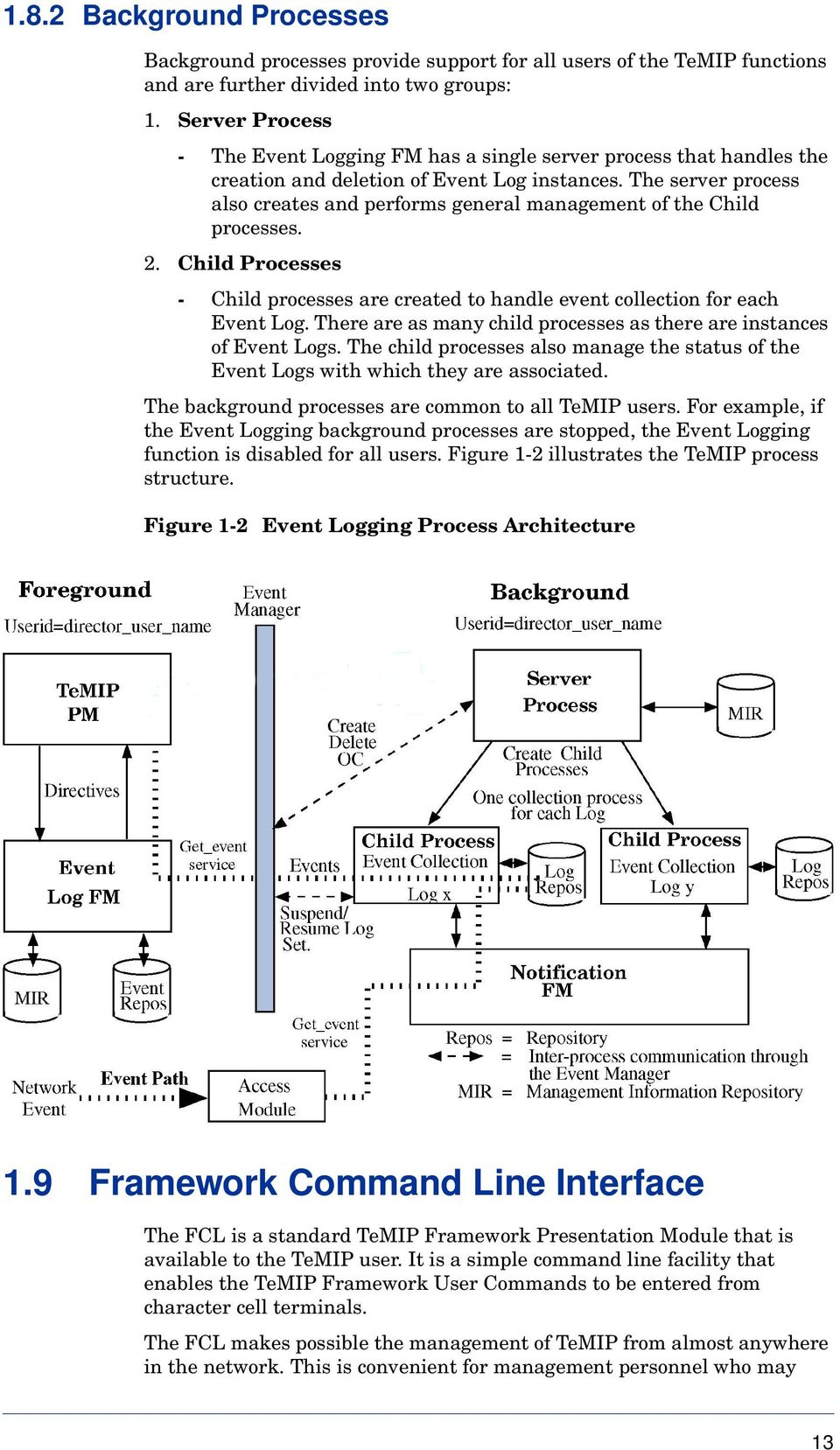
12 1.6 Event Record Retrieval In order to retrieve and view event record data from the repository, it is necessary to specify the class of records to be searched. When you first select the View Event Records option from the TeMIP Client, TeMIP automatically begins to retrieve all event records, by using the Log Record class. You can restrict the scope of the search by specifying the event record class to be searched, within the set of seven defined sub-classes, plus other criteria such as event type and so on. Generic Searches using the Log Record Class In some cases, the need to specify a particular event record class for a search is somewhat restrictive. For example, suppose you needed to retrieve and analyze all events that occurred during a certain period of time. Using the OSI-defined record classes, you would need to carry out separate searches through each of the seven classes. The Log Record class is provided for this type of situation. By specifying Log Record as the class to be searched, the search is actually made through all the event record classes. The Log Record class effectively provides a "wildcard" function for event record searches. 1.7 Time Modes During TeMIP configuration you are asked to specify default input and output time modes. If you want to change this format later, you can do so by changing the time mode variables contained in the configuration file.temip_config, located in the directory /var/opt/temip/conf. Refer to the OpenView TeMIP System Reference Manual for further details. 1.8 TeMIP Process Architecture This section gives a brief explanation of the TeMIP process architecture, to help in the understanding of TeMIPoperation and the use of certain utility programs. There are two categories of TeMIPprocess that need to be considered: Foreground Process - The TeMIP Function Module process that runs under the director_user_name of the individual TeMIP users (Foreground process Userid = director_user_name). Background Processes - Alarm and event collection management processes that run under TeMIP itself (Background process Userid = director_user_name) Foreground Process The foreground process handles the directives that the user requests through a user interface. The foreground process communicates with the background processes by way of the TeMIP Framework Event Manager. 12

13 1.8.2 Background Processes Background processes provide support for all users of the TeMIP functions and are further divided into two groups: 1. Server Process - The Event Logging FM has a single server process that handles the creation and deletion of Event Log instances. The server process also creates and performs general management of the Child processes. 2. Child Processes - Child processes are created to handle event collection for each Event Log. There are as many child processes as there are instances of Event Logs. The child processes also manage the status of the Event Logs with which they are associated. The background processes are common to all TeMIP users. For example, if the Event Logging background processes are stopped, the Event Logging function is disabled for all users. Figure 1-2 illustrates the TeMIP process structure. Figure 1-2 Event Logging Process Architecture 1.9 Framework Command Line Interface The FCL is a standard TeMIP Framework Presentation Module that is available to the TeMIP user. It is a simple command line facility that enables the TeMIP Framework User Commands to be entered from character cell terminals. The FCL makes possible the management of TeMIP from almost anywhere in the network. This is convenient for management personnel who may 13
14 need access while temporarily away from the normal X-Windows workstations with only a character cell terminal available. Starting the FCL At the UNIX prompt, type manage: > manage This will produce the TeMIP Framework prompt: TeMIP Framework (V5.0.0) TeMIP > You can now use any of the FCL commands to manage the Event Logging function System Considerations This section provides a number of practical points to consider in the configuration and usage of TeMIP Full Entity Name for Alarm Rules When defining alarm rules you must use the FullEntityName identifier of the instance. This is because the TeMIP PM uses Target Entity or Managed Object values to work with, but waits for a full name Maximum Event Size The maximum event size that can be handled by the Event Log FM is 64 K- bytes Low Level Filtering of Events In TeMIP, filtering of events takes place at two levels, a low level and a high level. High level filtering takes place at the level of the Log entity, which provides a particular view of network activity. Low level filtering takes place at source and is designed to prevent a flood of events arriving at the user interface in the event of a problem. Several types of low level filter can be defined, to provide you with the flexibility to use filters that suit a particular type of problem or that match your specific network requirements. A detailed description of how to create, use and manage Event Filters is given in the OpenView TeMIP Event Filtering and Correlation User s Guide. 14

15 Defining The Event Logging Environment Chapter 2 This chapter explains how to set up the event logging environment after the installation process is completed. Topics covered are: Section 2.1 Event Logging in a Distributed System Section 2.2 ASCII Synonym Support Section 2.3 Preconditions Section 2.4 Creating and defining an Event Log Section 2.5 Event Log Arguments Section 2.6 Event Filtering Section 2.7 Event Collection Scheduling. 2.1 Event Logging in a Distributed System Distributed event logging enables you to access and monitor Logs located on remote nodes (or Directors). The Log Panel window (launched from the TeMIP Client) opens and displays a list of all the registered Logs known to the system for the selected OSI System, see Section 3.7. You can choose the Logs you want to monitor from this list regardless of whether they are managed by a local Director or a remote Director. If you select more than one OSI System, a Log Panel window is opened for each OSI System. In TeMIP Event Logging, access to remote Logs is based exclusively on Entity Access Distribution. This uses the Managing Director attribute, allocated at OSI System registration time, to locate the Director on which the Log exists. This Director is designated as the Managing Director for the OSI System parent entity and is responsible for all call requests and responses to and from it. Note that the Director holding the OSI System (and its associated Log and Log Record repository), may not be the Director holding the domain associated with the Log. Refer to the following documents for more detailed information on TeMIP distribution: OpenView TeMIP Product Family Introduction OpenView TeMIP Director Configuration and Management Guide. 15

16 2.1.1 Distributed Configuration Example Figure 2-1 shows an example of a simple configuration that has a log_a01 associated with domain_a0. These two entities are located on Director Toledo. A log_b21 associated with domain_b2 is located on Director Madrid; domain_b2 is also a subdomain of domain_a0. In this configuration, the distribution of TeMIP allows you to use a Presentation Module situated on either Director to: Monitor transparently and in real-time, any Event Log situated locally or remotely. Monitor transparently and in real-time, any domain, its subdomains and members situated locally or remotely. Access transparently any entity in the distributed system and perform (allowed) management operations on it. Access transparently the Event Log Record repository information of any datastore in the system. The only condition is that the target OSI Systems must have a Managing Director assigned to them to grant access and handle the calls. Once you have created an entity and assigned a Managing Director, the entity is always accessed through this Director using Entity Access Distribution. 16

17 Figure 2-1 Distributed Event Logs (only on Tru64 UNIX using IMPM) How to Configure a Distributed System You can configure your system in three ways: From the Iconic Map (only on Tru64 UNIX) From the FCL PM. From the TeMIP Map Editor Client. For more details refer to the OpenView TeMIP Client Overview. 17

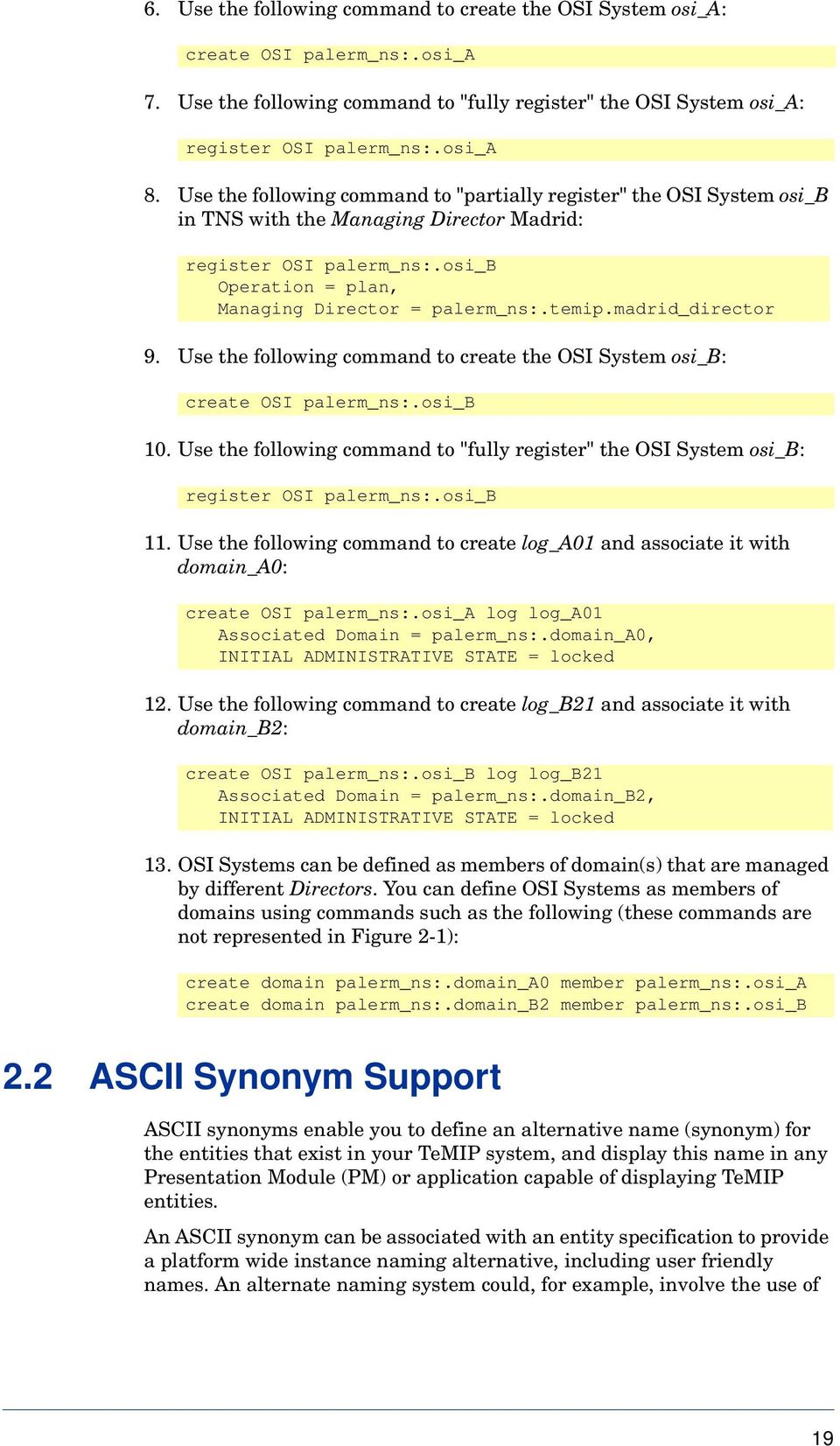
18 Configuring from the Iconic Map on Tru64 UNIX Refer to Section 2.4 for details of how to create Event Logs from the Iconic Map. For details of how to create domains and domain members, refer to the OpenView TeMIP Iconic Map and FCL User s Guide Configuring from the FCL You may want to populate your database from the FCL using a script file. However, you must take care to ensure that the entities are created on the correct Managing Director. Correct configuration requires a "partial registration" to be done before the entity is created; otherwise the Managing Director of the entity you are about to create is not known to TNS. If the Managing Director attribute is not defined, the default value is used, which is the Director from where you issue the command. The following example shows the steps involved to create the configuration shown in Figure Use the following commands to "partially register" domain_a0 and domain_b2 in TNS specifying a Managing Director for each domain: register domain palerm_ns:.domain_a0 Operation = plan, Managing Director = palerm_ns:.temip.toledo_director register domain palerm_ns:.domain_b2 Operation = plan, Managing Director = palerm_ns:.temip.madrid_director 2. Use the following commands to create the domains domain_a0, domain_a1 and domain_b2: create domain palerm_ns:.domain_a0 create domain palerm_ns:.domain_b2 If these commands are entered alone, the domains are created on the local Director. 3. Use the following commands to "fully register" the domains domain_a0, domain_a1 and domain_b2: register domain palerm_ns:.domain_a0 register domain palerm_ns:.domain_b2 4. Use the following commands to create domain_b2 as a subdomain of domain_a0: create domain palerm_ns:.domain_a0 member palerm_ns:.domain_b2 5. Use the following command to "partially register" the OSI System osi_a in TNS with the Managing Director Toledo: register OSI palerm_ns:.osi_a Operation = plan, Managing Director = palerm_ns:.temip.toledo_director 18

19 6. Use the following command to create the OSI System osi_a: create OSI palerm_ns:.osi_a 7. Use the following command to "fully register" the OSI System osi_a: register OSI palerm_ns:.osi_a 8. Use the following command to "partially register" the OSI System osi_b in TNS with the Managing Director Madrid: register OSI palerm_ns:.osi_b Operation = plan, Managing Director = palerm_ns:.temip.madrid_director 9. Use the following command to create the OSI System osi_b: create OSI palerm_ns:.osi_b 10. Use the following command to "fully register" the OSI System osi_b: register OSI palerm_ns:.osi_b 11. Use the following command to create log_a01 and associate it with domain_a0: create OSI palerm_ns:.osi_a log log_a01 Associated Domain = palerm_ns:.domain_a0, INITIAL ADMINISTRATIVE STATE = locked 12. Use the following command to create log_b21 and associate it with domain_b2: create OSI palerm_ns:.osi_b log log_b21 Associated Domain = palerm_ns:.domain_b2, INITIAL ADMINISTRATIVE STATE = locked 13. OSI Systems can be defined as members of domain(s) that are managed by different Directors. You can define OSI Systems as members of domains using commands such as the following (these commands are not represented in Figure 2-1): create domain palerm_ns:.domain_a0 member palerm_ns:.osi_a create domain palerm_ns:.domain_b2 member palerm_ns:.osi_b 2.2 ASCII Synonym Support ASCII synonyms enable you to define an alternative name (synonym) for the entities that exist in your TeMIP system, and display this name in any Presentation Module (PM) or application capable of displaying TeMIP entities. An ASCII synonym can be associated with an entity specification to provide a platform wide instance naming alternative, including user friendly names. An alternate naming system could, for example, involve the use of 19
20 shorter names, which avoids "crowding" of the display, especially in the case of large networks displaying many entities. For example, the entity: NETWORK daz1 NE 28 SHELF 3 SLOT 4 DEVICE 12a could be represented by the synonym: DEVICE ` a` Customization ASCII synonym support can be configured on a director (global) or application (specific) basis using the environment variables: TEMIP_SYNO_ASCII_USE <APPLI_NAME>_SYNO_ASCII_USE You can use these variables to set the display of ASCII synonyms to On or Off. The default value is Off (disabled). For further details of synonyms and the environment variables you can use to customize the ASCII synonym behavior, refer to the OpenView TeMIP Customization Guide Creating ASCII Synonyms ASCII synonyms can be created using the Iconic Map PM Add Entity function or by directly inputting commands at the FCL PM. Refer to the OpenView TeMIP Iconic Map and FCL User s Guide for further details ASCII Synonym Display ASCII synonyms are supported for the following windows: Event Records View window; see Section 4.3. Search Event Records window; see Section 4.4. The following fields support ASCII synonyms in the two windows listed above: Managed Object Target Entity Domain Figure 2-2 shows an example of the Event Records View window with synonyms displayed for the Managed Object and Domain fields. 20

21 Figure 2-2 Synonyms in the Event Records View Window 2.3 Preconditions In Section 2.4 to Section 2.7 the following assumptions have been made: The Local OSI System object has been created and registered; see the OpenView TeMIP Director Configuration and Management Guide. The management domain in which you will be working is defined and populated. 2.4 Creating and Defining an Event Log on Tru64 UNIX The basic steps required to create a new Event Log instance are as follows: 1. Select and display the required domain 2. Double click on the OSI System to display the next lower level - The Children of the OSI System are displayed (LOG) 3. Click on the No Entry icon in the top right-hand corner of the Iconic Map window to unlock and display the Graphics Toolbar and the Add Entity icon at the bottom of the window. 4. Either click on the Add Entity icon or select Add Entity from the Edit pull-down menu - the Add Entity window opens. 5. Double click on OSI_SYSTEM in the left-hand panel to display the child entities and then select LOG - The Event Log Create form is displayed. 21
22 You can also select the icon you want to use for this Event Log in the right-hand panel. 6. Enter the LOG creation arguments. 7. Add the new Event Log to the domain in the map window. 8. Add the new Event Log to the Event Log Panel window. Figure 2-3 shows the Event Log Create Form that enables you to define the Event Log arguments. Figure 2-3 The Event Log Creation Form Note 1. An argument name in bold typeface means that a value must be provided (mandatory field). 2. If you add an entity to a domain with which an Event Log is already associated and collecting events, events from the new entity will not be taken into account until you perform a Suspend, then a Resume on the Event Log. This is a feature of the TeMIP Framework Notification FM. 22
23 2.5 Event Log Arguments The Event Log arguments are described in Section to Section Associated Domain Description: Name of the management domain with which this Event Log is associated, or the top level domain if this is a domain tree. Parameter format: Character string Domain_Name. FullName, 404 characters maximum. Default value: None, this is a mandatory entry Discriminator Construct Description: An event filter to select specified types of event. Parameter format: See Section 2.6. Default value: No discriminator construct filtering, all OSI compliant events accepted Scheduling Package Description: When, and for how long, the event collection mechanism is to be active. Parameter format: See Section 2.7. Default value: No scheduling, event collection continuously active, On 24 hours every day Reference Log Name Description: This argument allows you to specify an existing Log to be used as reference when creating a new Log. All characteristics of the new Log will be inherited from the referenced Log, with the exception of the Associated Domain Name (mandatory argument) and any other arguments that have been specifically defined in the creation process. Format: Character string FullName (TeMIP Framework datatype). Default: None. Example TeMIP> Create Osi_system Local_osi_system Log Europe_backup - TeMIP_> Associated Domain = domain_europe, - TeMIP_> Reference Log Name = Europe, - TeMIP_> Repository Location = /var/kits/temip_backup This command will create the Log Europe_backup, with all its characteristics inherited from Log Europe (for example, Scheduling Package, Discriminator Construct, and so on) except for the Associated Domain name, which will be domain_europe, and the repository location Initial Administrative State Description: The initial state of the Event Log when TeMIP is started. 23
24 Parameter format: Locked or Unlocked Default value: Unlocked Note If the initial Administrative State of the Event Log is set to Locked, you must use the Resume directive to begin event logging Max Log Size Description: The maximum size the Event Log can reach Parameter format: value in Octets Default value: Note If the value zero (0) is entered, this defines the Max Log Size as "system dependent". This means that all available free disk space will be used Capacity Alarm Threshold Description: At what capacity levels an OSI Processing Error alarm should be generated to indicate that the Event Log is filling up. At each level specified, an alarm is generated relative to the percentage of Max Log Size. Parameter format: A set of percentage integer values Default value: {80, 90, 100} Note 1. The input required for this argument is a SET of integers. When entering values you must click MB3 on the label of the field to begin the assignment, not on the text field itself as is usually the case. 2. Severity levels for the Processing Error alarm are hard-coded to produce the following alarms for the given percentage ranges: 00 to 39% = WARNING 40 to 59% = MINOR 60 to 79% = MAJOR 80 to 100% = CRITICAL If Max Log Size is set to null (0), alarms are generated according to disk usage. 24
25 3. When a Log is collecting, a Clearance alarm and/or a Processing Error alarm may be received. The behavior of the Capacity Alarm Threshold is as follows: When the Capacity Alarm Threshold is crossed, a Processing Error alarm is generated. When the storage capacity is returned to a value less than the Capacity Alarm Threshold, a Clearance alarm is generated. After a TeMIP startup, a Clearance alarm is generated to clear any previous Processing Error alarm concerning a storage capacity problem. If a storage capacity problem still exists, a new Processing Error alarm is generated. When any characteristic attribute is Set, a Clearance alarm is generated to clear any previous Processing Error alarm concerning a storage capacity problem. If a storage capacity problem still exists, a new Processing Error alarm is generated. When a Resume operation is performed, a Clearance alarm is generated to clear any previous Processing Error alarm concerning a storage capacity problem. If a storage capacity problem still exists, a new Processing Error alarm is generated Log Full Action Description: Action to be taken when the Event Log is full. In the present release, logging can only be stopped. Parameter format: Halt Default value: Halt Repository Location Description: The directory path name to where the event records file repository for this Event Log is to be located. This attribute is not settable once defined. Parameter format: UNIX directory/path name Default value: /var/opt/temip Note The repository filename is given by the Event Logging FM itself. 2.6 Event Filtering The Discriminator Construct attribute defines how event activity is to be filtered for this Event Log instance. When the Discriminator Construct attribute is selected from the Iconic Map (clicking MB3), a dedicated editor is called that enables you to make the required definitions quickly and easily. Full details on how to use the Discriminator editor are given in the OpenView TeMIP Classic Alarm Handling Client User s Guide. For further details of DC and SC Editor activation from the TeMIP Map Editor Client, please refer to the OpenView TeMIP Client Overview. 25
26 2.7 Event Collection Scheduling The Scheduling Package attribute defines when event collection by this Event Log instance is to be active. When the Scheduling Package attribute is selected from the Iconic Map (clicking MB3), a dedicated editor is called that enables you to make the required definitions quickly and easily. Full details on how to use the Scheduling package editor is given in the OpenView TeMIP Classic Alarm Handling Client User s Guide. For further details of DC and SC Editor activation from the TeMIP Map Editor Client, refer to the OpenView TeMIP Client Overview. 2.8 Using the Framework Command Line (FCL) An Event Log can be created using the FCL interface and all arguments can be entered, including the Discriminator Construct and Scheduling Package; see the OpenView TeMIP Alarm Handling User s Guide. If an Event Log is created using the FCL and the Discriminator Construct and Scheduling Package are not given a value, they are assigned their default values, which are - No filtering, all events accepted and On 24 hours every day respectively. 26
27 Chapter 3 Managing Event Logging This chapter describes the management operations you can perform to monitor and control the Event Logging environment. Topics covered are: Section 3.1 Managing the Event Logging Environment Section 3.2 Accessing the Event Log Section 3.3 Starting and stopping Event Logging Section 3.4 Displaying Event Log Attributes Section 3.5 Changing Event Log Attribute Values Section 3.6 Monitoring of the Event Logging Section 3.7 Event Log Panel Window 3.1 Managing the Event Logging Environment Management of the event logging environment is carried out by means of the Event Log directives (commands). These are described in Table 3-1. By means of the Log directives you can examine the status of the event logging environment and modify the way event collection is carried out by an Event Log. In order to perform a management function on an Event Log, the relevant Event Log must be selected. 3.2 Accessing the Event Log You can access the Event Log directives from three points: From the Iconic Map on Tru64 UNIX From the Event Log Panel window From the TeMIP Map Viewer Client. Refer to the OpenView TeMIP Client Overview. The following procedures apply to any management operation you wish to perform on an Event Log: Accessing from the Iconic Map on Tru64 UNIX 1. Display the required domain map 2. Double click on the OSI System - The next lower level of the hierarchy is displayed (LOG) 3. Double click on LOG - All the Event Log instances are displayed 27
28 4. Click on the required Log to select it 5. Select the operation you wish to perform on the Log from the Operations menu. Accessing from the Event Log Panel 1. Click on the required Event Log in the list to select it 2. Select LOG Directives... from the Operation menu 3. Select the required directive from the displayed pull-down menu. Table 3-1 Event Log Management Directives Directive Create Delete Suspend Resume Set Show Effect Creates a new Event Log instance Deletes an Event Log instance, provided that all event records have been deleted and the Log is in the Locked Administrative State Changes the Administrative State to Locked. Event Logging for this Log instance is stopped Changes the Administrative State to Unlocked. Event Logging for this Log instance is restarted Used to change characteristics of the Event Log that were entered in the Create operation Displays the Event Log status and other attributes. 3.3 Starting and Stopping Event Logging Event Logging is controlled from the user interface by means of the directives: Suspend Resume Suspend The Suspend directive changes the Administrative State of the selected Event Log to Locked. Event collection is stopped. However, the Show, Set and Delete directives are still effective. This directive causes an OSI Status Change event to be generated. To use the Suspend directive from Iconic Map: 1. Select the required Event Log 2. From the Operations menu select Suspend - The Suspend Form is displayed 3. Click on the Start button to initiate the Suspend directive. The result of the operation is displayed in the Suspend Form window. Resume The Resume directive changes the Administrative State of the selected Event Log to Unlocked. Event collection is restarted (or started, if the 28
29 initial Administrative State of the Event Log at create time was set to Locked). This directive causes an OSI Status Change event to be generated. To use the Resume directive from Iconic Map: 1. Select the required Event Log 2. Select Resume from the Operations menu - The Resume Form is displayed 3. Click on the Start button to initiate the Resume directive. The result of the operation is displayed in the Resume Form window. 3.4 Displaying the Event Log Attributes You display the current attribute values of a selected Event Log by means of the Show directive. To use the Show directive from Iconic Map: 1. Select the required Event Log 2. Select Show from the Operations menu 3. From the resulting pop-up menu select the attribute group required: - Identifiers (see Table 3-2) - Characteristics (see Table 3-3) - Status (see Table 3-4) - Counters (see Table 3-5). The Show Attributes Form is displayed showing the values of the attributes requested. The Identifier Attribute The Identifier Attribute is shown in Table 3-2. Table 3-2 Event Log Identifier Attribute Attribute LogId Comment Identity of the Log instance, given by the user at the time of the Create directive. 29
30 The Characteristic Attributes The Characteristic Attributes are shown in Table 3-3; these are the attributes whose values are defined during the Create directive, see Section 2.5. Table 3-3 Event Log Characteristic Attributes Attribute Domain Name Discriminator Construct Scheduling Package Max Log Size Capacity Alarm Threshold Repository Location Log Full Action Comment Monitored domain. All the OSI alarms or OSI events generated by entities within this domain are collected. This is a mandatory entry. Select the Expand option to read the current setting of the discriminator construct Select the Expand option to read the current setting of the scheduling package Maximum number of octets Set of percentage values Directory Pathnames of the repository Halt The Status Attributes The Status Attributes are shown in Table 3-4. Table 3-4 Event Log Status Attributes Attribute Administrative State Operational State Comment Locked or Unlocked Enabled or Disabled Availability Status See Table 1-1 The Counter Attributes The Log Counter Attributes are shown in Table 3-5. Table 3-5 Event Log Counter Attributes Attribute Current Log Size Number of Records Comment The current size of the log, measured in octets Shows the current number of records in the log 3.5 Changing the Event Log Attribute Values You can change the values of certain Event Log attributes by means of the Set directive, and so modify the event collection characteristics. Note that this operation can be performed when the Event Log is in the Locked or Unlocked Administrative State. 30
31 To change attribute values from Iconic Map: 1. Select the required Event Log 2. Select the Set directive from the Operation menu. When Set is selected, the Set Attributes Form is displayed, showing the attributes which you are able to change. Enter your new values as appropriate and Click on the Start button to accept them as the current values. Table 3-6 summarizes the operations that are possible in the two Administrative States of the Event Log. Table 3-6 Log Administrative Stat Options Summary Event Log Administrative State Operation Locked Unlocked Delete Event Records Yes Yes Delete Event Log Yes No Set Attributes Yes Yes Show Attributes Yes Yes Suspend No Yes Resume Yes No This operation can be carried out without loss of events during a Suspend / Resume sequence. 3.6 Self-Monitoring In addition to the monitoring of managed entities in the domain, an Event Log also monitors itself and all other Event Logs in the domain. When operations are performed on an Event log, OSI Events are generated. Table 3-7 summarizes these OSI events. Table 3-7 Summary of Event Log OSI Events OSI Event Operation State Change Attribute Value Change Object Creation Object Deletion Create Event Records - - Yes - Delete Event Log Yes Set - Yes - - Suspend Yes Resume Yes
32 3.7 Event Log Panel Window Entry from: Window Operation Remark Iconic Map (Tru64 UNIX) Iconic Map (Tru64 UNIX) Iconic Map (Tru64 UNIX) Applications menu - TeMIP Event Logging Select an OSI_System, then - Monitor Logs from the Operations menu Select an OSI_System, then - Select Icon from the Applications bar menu Opens the Event Log Panel window for the default OSI_System. This method will not function on a TeMIP PM Client because there is no local OSI_System. Opens the Event Log Panel window for the selected OSI_System. This is the only method that will function from a TeMIP PM Client. Opens the Event Log Panel window for the local OSI_System. This method will not function on a TeMIP PM Client because there is no local OSI_System. The Event Log Panel window allows you to perform the following: Monitor the status of the LOGs - children of the Local OSI_SYSTEM that are included in the Event Logging function View selected event records in the LOG repository. An example of the Event Log Panel window on Tru64 UNIX is shown in Figure 3-1. Note that the LOG Directives... and Open Associated Map Window buttons are not available on the Sun Solaris and HP-UX versions. Figure 3-1 The Event Log Panel Window What the Window Shows The following information is displayed in the Event Log Panel window: Administrative State (Icon, updated in real-time), locked or unlocked Operational State (Icon, updated in real-time), enabled or disabled TeMIP Status (Icon), at startup or event display initialization 32
33 LOG Name (Text) Domain Name (Text) Availability Status (Text) (see below) Error Condition Explanation (Text) (see below) Error Status Text (Text) (see below). Availability Status Values: The Availability Status qualifies the Operational State of the Log (Enable/ Disable). When there is no Availability Status displayed, the Operational State is fully enabled. If the Operational State is degraded in some way by external conditions, the Availability Status indicates the cause. The Availability Status values constitute a set, of which more than one value may be displayed at the same time. The possible values are listed in Table 1-1. The Availability Status is updated in real-time. Error Condition Explanation: This attribute qualifies and refines the Administrative State and the Operational State of the Log by a text describing the current activity being processed. The Error Condition Explanation is updated in real-time. Error Status Text: This attribute qualifies the Error Condition Explanation. When an error is detected in the process, the current (and worst) Status (or CVR) is displayed. Nothing is displayed if no errors are being detected by the process. The Error Status text is updated in real-time. The Status Icons Administrative State is LOCKED Administrative State is UNLOCKED Operational State is ENABLED Operational State is DISABLED Event Log is being deleted TeMIP startup or event display initialization 33
34 3.7.2 Viewing Event Records From the Operation menu of the Event Log Panel window you can open the Event Records View window to begin a retrieval of event records from the repository for the selected Log. Select the menu item: View Event Records,; see Table Management Operations From the Window on Tru64 UNIX The Menu Bar From the Operation menu and the buttons you can access the management directives for the selected Event Log (see Table 3-8). This enables you to directly manage the Event Logging environment from the Event Log Panel window. The menu bar contains the items: File, Operation, Help. Table 3-8 summarizes the menu items, preconditions for using the menu items, and the results of selecting them. Table 3-8 Log Panel Window Menu Menu Menu Item Must Have Selected Result File Quit n/a Closes the window Operation View Event Records One or more Logs Opens the Event Records View window Log Directives... (Tru64 UNIX) One Log Gives access to the directives Show, Set, Suspend, Resume and Cleanup for the selected Log Open Associated Map Window (Tru64 UNIX) One Log Opens a Map window for the Domain with which the Log is associated Help On Version n/a Help on TeMIP On Window n/a Help on Event Log Panel window The Buttons The window contains several buttons that allow you to quickly perform some common functions: View Event Records, to open up the Event Records View window and display event records LOG Directives..., (Tru64 UNIX) to gain access to the directives available for the selected Log. Open Associated Map Window, (Tru64 UNIX) to open a domain in the Iconic Map window with which the selected Log is associated. 34
35 Chapter 4 Handling Event Records This chapter explains how to retrieve and handle event records from the repository. Topics covered are: Section 4.1 Using the Mouse Section 4.2 Desktop Manager Window Section 4.3 Viewing Event Records Section 4.4 Using the Search Events Function Section 4.5 Handling Event Records Note Operations on event data should be carried out only from the TeMIP Fault Managment windows. It is also possible to access Event Logs from the Iconic Map, but this is not recommended since it could cause a failure of the Iconic Map. As an example, if you select an Event Log that has 5000 records, you will see all the event records. If you then select all these records and perform an action on them, the Iconic Map could fail and display the error message Can't Grow Stack. 4.1 Using The Mouse The Event Logging windows contain lists in which actions can be performed with the mouse. The action performed by the mouse depends on which list is being operated on. The windows and lists involved are: View Events window - List of retrieved event records Event Search window - Lists of search criteria. Mouse Operations Table 4-1 summarizes the actions initiated by the mouse, and by the mouse in combination with the keyboard CTRL key. 35
36 Note The term current line used in the table refers to the line that the pointer is on when the mouse button is pressed. Table 4-1 Summary of Mouse Operations Mouse/ Keyboard Window/List Action Click MB1 Both windows/lists Selects the current line. Any other selected line is deselected. CTRL + Click MB1 Hold/Drag MB1 Double-click MB1 Hold MB3 CTRL + Hold MB3 Double-click MB3 CTRL + Doubleclick MB3 Both windows/lists Retrieved events list Search criteria lists Retrieved events list Search criteria lists Retrieved events list Search criteria lists Retrieved events list Search criteria lists Retrieved events list Search criteria lists Retrieved events list Search criteria lists Selects the current line and retains selection of other selected lines. If the current line is already selected, it is deselected. Selects all lines through which the pointer is dragged. No action Full event information is displayed No action Selects the current line and displays a popup menu that stays selected as long as MB3 remains pressed. The command performed from the menu is that being pointed to when MB3 is released. If MB3 is released when the pointer is outside the pop-up menu, the menu closes and no action is taken. No action As above, but for use where multiple selections have been made. No action Selects the current line and displays a popup menu that remains displayed when MB3 is released. An action is performed by clicking MB3 on the appropriate menu item. If MB3 is clicked with the pointer outside the pop-up menu, the menu closes and no action is taken. No action As above, but for use where multiple selections have been made. No action 36
37 4.2 Desktop Manager Window on Tru64 UNIX The Desktop Manager window displays icons that correspond to specific windows and a new icon is added each time you open one of these windows. Using the Desktop Manager window, you can "tidy up" your screen if you have many windows displayed, but without having to stop the corresponding applications. You can re-display the windows when required. The name of the window is displayed to the right of the icon to enable you to quickly identify the window you want to iconize/de-iconize. Icons are displayed for the following Event Logging windows: Event Records View window Event Log Panel window DC Editor window DC/SF Librarian window SP Editor window If you double click Mouse Button 1 (MB1) on an icon in the Desktop Manager window, the corresponding window is iconized. If you double click on the icon again, the window is re-displayed. The icons displayed are the same as those in the Iconic Map applications bar at the top of the window and the multi screen display function is also supported. See the OpenView TeMIP Customization Guide for further details. Figure 4-1 shows an example of the Desktop Manager window. Figure 4-1 Desktop Manager Window on Tru64 UNIX Note 1. If the TeMIP PM does not exit normally, the TeMIP Fault Managment icons in the Desktop Manager window on Tru64 UNIX do not disappear. 2. Some icons may appear on Tru64 UNIX that correspond to TeMIP Framework applications. 3. For details of the Iconic Map, Desktop Manager and Console windows, refer to the manual OpenView TeMIP Iconic Map and FCL User s Guide. 37
38 4.3 Viewing Event Records on Tru64 UNIX You can retrieve and view event record information from the repository, for analysis or any other processing that is needed in your fault management scheme. Entry from: Window Operation Remark Iconic Map (Tru64 UNIX) Event Log Panel Event Log Panel Event Log Panel A stand-alone application Operations menu - Monitor Logs - Then as below Select a LOG, and then - View Event Records from the Operation menu View Event Records button (must have one or more LOGs selected) Double click on a LOG temip_el_pm <OSI_system_name> <log_name> at the UNIX prompt Opens the Event Log Panel window for the selected OSI_System. Opens the Event Records View window for the selected LOG. Opens the Event Records View window for the selected LOG. Opens the Event Records View window for the selected LOG. Opens the Event Records View window for the input LOG name. The Initial Display When you start the view process, TeMIP begins to retrieve event records from the selected Log repository using the default search criteria, which is ALL records. After a certain number of records have been retrieved (as explained in Section 4.3.2), the retrieval operation is suspended. At this point you can either continue the retrieval of all event records, or enter search criteria to narrow the retrieval down to specific types of records Stand-Alone Operation You can open the Event Records View window in stand-alone mode, by entering the following command at the UNIX prompt: temip_el_pm <OSI_system_name> <log_name> If the LOG does not exist, the following exception is returned: No such entity If you do not provide the <OSI_system_name> or <log_name>, the command usage is displayed. An example of the Event Records View window is shown in Figure
39 Figure 4-2 Event Records View Window Segmented Retrieval In the initial retrieval operation, and also in certain selective searches, a large number of event records may be involved. This could result in some delay before the retrieval operation is completed. To avoid this situation the search and retrieval operation is segmented, which means that events are retrieved a certain number at a time. The number of event records in a segment is a configuration variable with a default value of fifty (50), but can be set to any number required by the user. The search is suspended when the first segment is retrieved. To continue the search and retrieve the next segment (if any) you click on the More... button. This procedure can be repeated until all the retrievable events have been obtained. You will need to use the vertical scroll bar to view all the retrieved event records Event Records View Window Menu Bar The menu bar of the Event Records View window contains the items: File, Edit, Search, Operation, Options. Table 4-2 summarizes the menu 39
40 items, preconditions for using the menu items, and the results of selecting them. Table 4-2 Event Records View Window Menu Bar Menu Menu Item Must Have Selected Result File Expand Search to LOG... n/a Opens the Expand window to continue the search through another Event Log within the same OSI System LOG Directives... n/a Gives access to the windowassociated Event Log directives Close Window n/a Exits from the View function and closes the window Edit Select all Records n/a Selects all event records Search Search... n/a Opens the Search Criteria window Redo Last Search n/a Repeats the last search and displays the latest event information Operation Full Information One record Opens the Full Information window and displays details of the event record Print Print... Print to File... Delete One or more records One or more records One or more records One or more records Prints on the default printer Opens a window for you to select a printer Opens the File Name prompt window for you to enter the target filename Deletes the selected event records from the repository Entity Directives... n/a Gives access to the directives of the managed entity that produced the event 40
41 Table 4-2 Event Records View Window Menu Bar (Continued) Menu Menu Item Must Have Selected Result Options General... n/a Opens the TeMIP General Options window, for you to customize the default printer and the segment size value (see Chapter 5) Window... n/a Opens the TeMIP Window Options window, for you to customize the event information list (see Chapter 5) Save n/a Allows you to save customized settings in your user-associated resource file. These will become the default settings for your next TeMIP PM session. See Chapter 5 for important information concerning the Save function. Help On Version n/a Activates online help. On Window n/a Activates online help Event Record Information Displayed A one-line summary of the event record information is displayed for each event record retrieved. Information displayed, starting with the left column, is as follows for each LOG class. LOG_RECORD Class - Event Type - Managed Object (The network entity that produced the record) - Additional Text - Εvent Time (Timestamp of event generation) - Logging Time (Timestamp of event collection) ALARM_RECORD Class - Event Type - Managed Object (The network entity that produced the record) - The Alarm Perceived Severity - The Probable Cause - Additional Text - Event Time (Timestamp of event generation) - Logging Time (Timestamp of event collection) SECURITY_ALARM_RECORD Class - Event Type - Managed Object (The network entity that produced the record) 41
42 - The Security Alarm Severity - The Security Alarm Cause - Additional Text - Event Time (Timestamp of event generation) - Logging Time (Timestamp of event collection) OBJECT_CREATION_RECORD Class - Event Type - Managed Object (The network entity that produced the record) - Additional Text - Event Time (Timestamp of event generation) - Logging Time (Timestamp of event collection) OBJECT_DELETION_RECORD Class - Event Type - Managed Object (The network entity that produced the record) - Additional Text - Event Time (Timestamp of event generation) - Logging Time (Timestamp of event collection) collected) STATE_CHANGE_RECORD Class - Event Type - Managed Object (The network entity that produced the record) - Additional Text - Event Time (Timestamp of event generation) - Logging Time (Timestamp of event collection) ATTRIBUTE_VALUE_CHANGE_RECORD Class - Event Type - Managed Object (The network entity that produced the record) - Additional Text - Event Time (Timestamp of event generation) - Logging Time (Timestamp of event collection) RELATIONSHIP_CHANGE_RECORD Class - Event Type - Managed Object (The network entity that produced the record) - Additional Text - Event Time (Timestamp of event generation) - Logging Time (Timestamp of event collection) The Event Records View Window Buttons The window contains several buttons that allow you to quickly perform some common functions: 42
43 Abort, to stop a retrieval operation before its normal termination Delete, to delete selected event records from the database Full Information, to display full information on a selected event record More, to retrieve the next segment of event records Print, to print the event information Note When you prematurely terminate a retrieval operation using the Abort function, the window shows the number of records retrieved up to the point of termination Refreshing the Display The display of retrieved event records is not updated in real time. The Event Records View window is a static display, effectively a "snapshot" of the database as it exists at the time you first open the window or make a search. While the retrieved event records are being displayed it is possible that the states of certain records may change as other users take some action on them. In order to obtain the latest information, the facility is provided for you to quickly repeat the last search made and so refresh the display. The procedure is as follows, assuming that the Event Records View window is already displayed: 1. Select Search from the menu bar 2. From the resulting pop-up menu select Redo Last Search The search will be repeated using the same criteria that were last defined in the Event Search window. Event records in the repository that currently match the criteria will be displayed. 4.4 Using the Search Events Function To retrieve specific types or classes of event records you must open the Search Criteria window and enter the appropriate search information. You make an event record search as follows: 1. Open the Event Records View window, as explained in the previous section 2. Select the Search item on the menu bar 3. From the resulting pop-up menu select the Search... option The Search Criteria window opens for you to specify the type(s) of events to be retrieved 4. Enter your required search criteria, as explained in Section Click on OK or Apply to initiate the search The retrieved event data (if any) replaces the default event data in the Event Records View window. An example of the Event Search Criteria window is shown in Figure
44 Note If you carry out a search on a selected Managed Object, the information displayed depends not only on the search criteria you select, but also on the setting of the temip.search_scope resource defined in the resource file temip_resource.dat. The default behavior of this resource is to search on the basis of the whole Managed Object sub-tree. Refer to the OpenView TeMIP Customization Guide for details of how to change the default behavior. Figure 4-3 Event Search Criteria Window Selecting Search Criteria In the Event Search Criteria window you may select any number or combination of the available criteria for your event record search. Some items have predefined lists of possible choices, that are automatically displayed in the panel headed Possible Choices when you select that item. The procedure for selecting your search criteria is as follows: 1. Click on the box to the right of the required item to select the search criteria class 2. Where a predefined list is displayed, select the appropriate value - The selected value will be displayed in the search criteria value box 3. For items that do not have a predefined list, type the details in the box 4. To set the time-stamp criteria (From Date/Time, To Date/Time): 44
45 - Select the item required (Day, Month or Year) (Hours, Minutes, Seconds) - Click on the UP or DOWN arrows located to the right of the group. 5. To include selected criteria in the search, toggle the button to the left of the item - Click on the criterion name to turn selection ON (button dark) - Click again to turn the selection OFF (button light). Note, when a criterion value is changed it is automatically selected. 6. When all your selections are complete, click on OK or Apply to carry out the search. The Search Event Records Window Buttons At the base of the Search Event Records window are four buttons that you Click on to quickly perform the following functions: OK, accepts the choices you have made and exits from the window Apply, accepts the choices you have made but retains the window open Reset, clears all entries in the search criteria boxes Cancel, closes the Search Event Records window, but retains the selected values for future use Available Search Criteria The number of search criteria available for you to specify in a search depends on which class of event records is being searched. Table 4-3 lists the criteria available for each event record class. Table 4-3 Search Criteria for an Event Search Log Record Class Log Record Alarm Record Security Alarm Record Object Creation Record Object Deletion Record State Change Record Attribute Value Change Record Relationship Change Record Available Search Criteria Managed Object, Event Type, Additional Text, Notification Identifier, Event Start time, Event End time Managed Object, Alarm Type, Probable Cause, Perceived Severity, Additional Text, Notification Identifier, Event Start time, Event End time Managed Object, Security Alarm Type, Security Alarm Cause, Security Alarm Severity, Additional Text, Notification Identifier, Event Start time, Event End time Managed Object, Additional Text, Notification Identifier, Event Start time, Event End time Managed Object, Additional Text, Notification Identifier, Event Start time, Event End time Managed Object, Additional Text, Notification Identifier, Event Start time, Event End time Managed Object, Additional Text, Notification Identifier, Event Start time, Event End time Managed Object, Additional Text, Notification Identifier, Event Start time, Event End time 45
46 Note 1. Probable Cause, Perceived Severity, Security Alarm Cause and Security Alarm Severity are normally a single value, but can be a set of values if specific FCL commands are entered, for example, Summarize. 2. The criteria: Time From/Time To apply to the Event Creation Time attribute Expanding a Search On some occasions you will find it useful to continue a search made in one Event Log, through the records of a different Event Log. The facility is available for you to quickly do this, using the same search criteria in the expanded search that you used in the initial search. The new Event Log you wish to search must be a child of your Local OSI System. Assuming you have carried out the initial search, the procedure is as follows: 1. Select File from the menu bar 2. From the resulting pull-down menu select the Expand Search to LOG... option 3. A window opens displaying a list of the Log children of your local OSI system 4. Select the appropriate Log from the list 5. Click on the button Create New View 6. A new Event Records View window is opened for the second Event Log, displaying any retrieved event records that matched the previous search criteria. If you decide not to pursue an extended search that has been started, Click on the Cancel button on the window listing the available Event Logs. An example of the Expand Event Search window is shown in Figure 4-4. Figure 4-4 Expand Event Search Window 46
47 4.5 Handling Event Records When the requested event information is displayed, you have several options for handling it, namely: Read the summary information as it is displayed Display the full information (identifiers, characteristics and statuses) Quick-print the alarm information on the default printer Print the alarm information on your selected printer Delete Event Log records that are no longer needed in the database Displaying Full Information There are several ways to open the Log Information window to display the contents of a retrieved event record: Double-click on the required event record. Use the Full Information button with a record selected. Choose Full Information from the Operation menu, with a record selected. An example of the Log Full Information window is shown in Figure 4-5. Figure 4-5 The Log Full Information Window The following notes explain the differences between these methods. 47
48 Using the Button or Double-clicking: When you use the button or double click on an event record, the record information is immediately displayed in the Log Information window. If you already have a window open, the information it contains will be replaced by the new event record information. Using the Operation Menu: When you display event record information from the Operation menu you have a choice: You can overwrite the information you may already have in an open Log Information window You can open a second Log Information window for the new event record and retain the record information in the existing window Displaying Other Records he two buttons Next and Previous allow you to quickly scan forwards or backwards through the list of retrieved event records to read the full information on each record in sequence Printing Event Record Information You can use the Print button or the Print option from the Operation menu to quickly print the event record information on your system's default printer. The default printer for TeMIP is lp0. If this printer is not configured on your system the print will be directed to /dev/null, in which case you are advised to use the Print... function to open the Printer Selection window and select your own printer. An example of the Printer Selection window is shown in Figure 4-6. Figure 4-6 The Printer Selection Window 48
49 4.5.4 Printing Event Record Information to File You can use the Print to File... entry of the Operations menu to write Log Record information to a file. When you select the Print to File... option, the File Name window opens up and prompts you to enter the name of the file. The file name is saved with the suffix you allocate to it, but if you do not provide one, the suffix.txt is automatically added Deleting Event Records You can delete event records that are in the Locked or Unlocked Administrative State. You can delete individual or multiple event records by means of the Delete button, or by using the Delete option of the Operation menu. Multiple (consecutive) selections can be made by holding down MB1 and moving the cursor up or down the list of records. Alternatively, you can quickly delete all the event records in the Log by using the Select all Records option from the Edit menu. 49
50
51 Online Customizing Options Chapter 5 This chapter explains the TeMIP customizing options that can be selected from the Event Logging application. Topics covered are: Section 5.1 Introduction Section 5.2 Changing the Default Printer Section 5.3 Changing the Segmenting Value Section 5.4 Saving the Window Sizes Section 5.5 Customizing the Event List Section 5.6 Search Scope Dependence 5.1 Introduction The TeMIP resource file (temip_resource.dat) contains entries that define the default values of TeMIP public resources. Normally these values are decided and set during the TeMIP installation phase, but you also have the possibility of making a some changes on line, from the Event Logging application. There are two windows provided that give you access to the available customizing options: TeMIP General Options window, that allows you to: - Change the default printer name - Change the default value for segmenting (event searches) - Save the current size of the Event Records View window - Save the current size of the Log Information window TeMIP Window Options window, that allows you to: - Customize the event list in the Event Records View window. You call the customizing function from the Event Records View window, by clicking on Options on the menu bar and making your selection from the resulting pull-down menu. 5.2 Changing the Default Printer Procedure: 1. Select the Options menu 51
52 - A pull-down menu is displayed, with three commands: General, Window, Save 2. Select General - The TeMIP General Options window is displayed (Figure 5-1) 3. Enter the new default printer name 4. Click on the OK button to confirm the change. Figure 5-1 TeMIP General Options Window When the Change Takes Effect: The new default printer name will be effective immediately for the calling application and for any application called in the same session following the change (including TeMIP applications) that uses the Print... command. 5.3 Changing the Segment Size Value You can specify the default size of a segment, to be used when searching for and retrieving event records from the repository. Procedure: 1. Select the Options menu - A pull-down menu is displayed, with three commands: General, Window, Save - Select General - The TeMIP General Options window is displayed (Figure 5-1) 2. Enter the new value 3. Click on the OK button to accept the new value and exit from the window. 52
53 When the Change Takes Effect: If there is a search in progress (and the More button is active), the search is aborted for the calling application. The new value will be taken into account in the next search initiated by the calling application, and by any TeMIP application called following the change, in the same session. 5.4 Saving Window Sizes You can save the window dimensions that you have currently established for the Event Record View window and the Log Information window. The windows will be displayed this size when you open them for your next work session. Procedure: 1. Select the Options menu - A pull-down menu is displayed, with three commands: General, Window, Save - Select General - The TeMIP General Options window is displayed (Figure 5-1) 2. Click on the appropriate window dimension box (or on both) to select 3. Click on the OK button to confirm and exit from the window. 5.5 Customizing the Event List The TeMIP Window Options window allows you to specify which fields of the event record are to be displayed in the Event Records View window. Note The Event Id cannot be set to OFF, it is always displayed as the last field. Procedure: 1. Select the Options menu 2. Select Window from the pull-down menu 3. The TeMIP Window Options window opens, displaying the settable fields in two lists, as follows: - The list on the Left displays the fields that are NOT currently selected for display - The list on the Right displays the fields that ARE currently selected 4. To add a field: - Click MB1 on the required field in the left list. The field will transfer to the right list 5. To remove a field: - Click MB1 on the required field in the right list 6. To modify the order in which fields are displayed: 53
54 - Click and hold MB2 on a field, then drag the field to the required position and release MB2 7. Click on the OK button to accept the new selection(s) and exit from the window. 5.6 Search Scope Dependence The settable fields displayed in the TeMIP Window Options window depend on the Log Record Class that is selected in the Event Records View window (selected by the Search Scope option). When the Search Scope is: Log Record class Object Creation Record class Object Deletion Record class State Change Record class Attribute Value Change Record class Relationship Change Record class The settable fields are: (Figure 5-2) - Event Type - Managed Object - Additional Text - Event Time - Logging Time When the Search Scope is: OSI Alarm Record The settable fields are: (Figure 5-3) - Event Type - Managed Object - Perceived Severity - Probable Cause - Additional Text - Event Time - Logging Time When the Search Scope is: Security Alarm Record The settable fields are: (Figure 5-4) - Event Type - Managed Object - Security Alarm Severity - Security Alarm Cause 54
55 - Additional Text - Event Time - Logging Time Effect: When the new field mask is accepted (click on OK) the current event list is deleted. When the Change is Effective: The new field mask will be taken into account by the calling application in the next search, and by any other applications called in the same session following the change. Figure 5-2 Settable Fields - Log Record Figure 5-3 Settable Fields - OSI Alarm Record 55
56 Figure 5-4 Settable Fields - Security Alarm Record 5.7 Saving the New Values New values that you assign to the customizing options can be permanently saved in the resource file for use in future sessions. Procedure: 1. Select the Options menu 2. Select Save from the pull-down menu 3. The new values are saved in the TeMIP resource file. Warning The fact that a single TeMIP resource file is used for all applications results in certain side-effects when customizing TeMIP public resources. For example: Using the Save function in an application will save the complete set of TeMIP resources (those associated with the calling application PLUS those that may have been set in other applications within the same session). 56
57 Chapter 6 User Messages This chapter describes the messages that may be returned to the TeMIP Management Interface. The messages that may be displayed at the user interface fall into three categories: Section 6.1 TeMIP Framework Exception Messages Section 6.2 TeMIP Internal Error Messages Section 6.3 User Information Messages User Action In the case of TeMIP Framework Exception messages, you should reconsider the operation you are attempting on the basis of the information returned in the message. In the case of TeMIP Internal error messages follow your own procedures for reporting or logging the messages. In the case of User Information messages it may be necessary to repeat a data entry operation if a mistake is indicated. 6.1 TeMIP Framework Exception Messages TeMIP Framework exception messages are negative responses returned to requests for the use of TeMIP Framework services. Figure 6-1 shows the general form of a TeMIP Framework Exception message. Figure 6-1 TeMIP Framework Exception Message 57
58 6.2 TeMIP Internal Error Messages TeMIP Internal error messages may be displayed when an internal problem is detected in the TeMIP Presentation Module (PM). Figure 6-2 shows the general form of a TeMIP Internal message. Figure 6-2 TeMIP Internal Error Message 6.3 User Information Messages User Information messages inform the user of: The result of certain requested operations Possible inconsistencies when entering data Figure 6-3 shows the general form of a User Information message. Figure 6-3 User Information Message 58
59 Appendix A Operation Context and Log Error Messages This appendix lists the error messages that can be reported by Operation Contexts and Logs. Please report the full message, including the identification number, to TeMIP support when dealing with a problem. A.1 List of Error Messages [1] Unable to restart entity activity Explanation: Unable to restart background child process. [2] Clearance: Fatal error Explanation: Fatal error has occurred in the thread in charge of the clearance processing for this entity. [3] Fatal error on counters Explanation: Fatal error has occurred in the counter processing. [4] Collection startup: Fatal error Explanation: Fatal error has occurred during the startup of the alarmevent collection-filtering thread. [5] Off Duty, due to scheduling package Explanation: The entity is Off Duty, due to its scheduling packages values. [6] Collection starting up Explanation: Alarm-event collection-filtering is starting up: setup finished. [7] Collection: Fatal error Explanation: Fatal error occurred in the alarm-event collectionfiltering thread. [8] Event received greater than max size allowed Explanation: The collection-filtering thread received an event greater than the maximum size allowed. [9] Error from Notif FM: ABORTED Explanation: An error was received from an mcc_call to the Notif FM in the collection-filtering thread, the mcc_notification_fm process has aborted. 59
60 [10] TRANSMIT/RECEIVE error from Notif FM Explanation: A TRANSMIT or RECEIVE error was received upon an mcc_call to the Notif FM in the collection-filtering thread. [11] Collection disabled: error from Notif FM Explanation: Collection-filtering thread is disabled: an error was received upon an mcc_call to the Notif FM. [12] Collection active Explanation: Alarm-event collection is active. [13] Collection: Software Logic Error from Notif FM Explanation: Exception Software Logic Error was received from an mcc_call to the Notif FM in the collection-filtering thread. [14] The requested operation can t be completed Explanation: Exception The requested operation can t be completed was received from the Notif FM in the collection-filtering thread. [15] Collection: Domain entity does not exist Explanation: Exception The domain entity does not exist was received from the Notif FM in the collection-filtering thread. [16] Collection: Common exception received from Notif FM Explanation: A common exception was received from the Notif FM in the collection-filtering thread. [17] Collection: Event lost Explanation: Exception An occurrence (event) was lost was received from the Notif FM in the collection-filtering thread. [18] Collection: Unexpected condition returned to Notif FM Explanation: An unexpected condition returned by Notif FM in the collection-filtering thread. [19] Collection: Unable to obtain primary id for some domain members Explanation: Exception Unable to obtain primary id for some domain members received from the Notif FM in the collection-filtering thread. [20] Collection: Unable to continue Notify request: unexpected condition Explanation: Exception Unable to continue Notifiy request unexpected condition received from the Notif FM in the collection-filtering thread. [21] Collection: Required Entity services missing Explanation: Exception ENROLL MISSING: Required services missing for entity received from the Notif FM in the collection-filtering thread. [22] Collection: Error occurred while determining the domain contents Explanation: Exception An error occurred while determining the contents of the domain received from the Notif FM in the collectionfiltering thread. 60
61 [23] Collection: Unable to find entities or rules for notification Explanation: Exception Unable to obtain entities or rules for notification received from the Notif FM in the collection-filtering thread. [24] Collection: Unable to parse entity information Explanation: Exception Unable to parse entity information received from the Notif FM in the collection-filtering thread. [25] Disabled, datastore disk full Explanation: Background process is disabled because the disk used for the datastore is full. [26] Disabled, log repository full Explanation: Background process is disabled because the log repository is full. [27] Disabled, datastore disk & repository full Explanation: Background process is disabled because the disk and the log repository are full. [28] Request: Fatal error Explanation: Fatal error occurred in the process-request thread. [29] Request: Fatal error accessing shared memory Explanation: Fatal error occurred while accessing the shared memory in the process-request thread. [30] Suspend: Fatal error updating the MIR Explanation: Fatal error occurred during an update of the MIR for a Suspend operation. [31] Collection stopped Explanation: Alarm-event collection stopped. [32] Fatal error: datastore repository no longer exists Explanation: Fatal error occurred: the datastore repository no longer exists. [33] Resume: Fatal error updating the MIR Explanation: Fatal error occurred during an update of the MIR for a Resume operation. [34] Resume: Fatal error executing mcc_thread_create Explanation: Fatal error occurred during mcc_thread_create for a Resume operation. [35] Writing: Fatal error during startup Explanation: Fatal error occurred during the startup of the writer thread. [36] Writing: Fatal error accessing shared memory Explanation: Fatal error occurred while attaching the shared memory in the writer thread for the duration of the thread. 61
62 [37] Writing: Datastore fatal error Explanation: Datastore fatal error occurred in the writer thread. [38] Writing: Fatal error accessing shared memory Explanation: Fatal error occurred while accessing the shared memory in the writer thread. [39] Writing: Datastore error Explanation: Datastore error occurred in the writer thread. [40] Writing: Fatal error Explanation: Fatal error occurred in the writer thread. [41] Fatal error, entity no longer active Explanation: Fatal error occurred in the background process, process exited. [42] temip_kill signal received Explanation: The background process received a temip_kill signal, the process exited. [43] Background starting up... Explanation: The background process is starting up. [44] Background recovering... Explanation: The background process exited, trying to recover Background Child process. [45] Not used Explanation: - [46] Unable to restart collection Explanation: Unable to restart the thread in charge of alarm-event collection. [47] Entity deleted Explanation: Child process of the entity exited because the entity has been deleted. [48] Entity created Explanation: Creation of an entity. [49] Collection starting up Explanation: Alarm-event collection for this entity is starting up: all threads for the child have been successfully created. [50] Clearance: max number of objects reached Explanation: The Maximum Number of Alarm Objects that can be contained in the internal clearance tables for this entity has been reached. [51] Status recreated by TeMIP Explanation: Child status recreated by TeMIP server. 62
63 [52] OC Monitoring: No Responsible Operators Explanation: Operation Context Monitoring: No Responsible Operators. [53] OC Monitoring: No Responsible Operator clearance Explanation: Operation Context Monitoring: No Responsible Operator clearance. [54] Retry on-going Explanation: Retry on-going 63
64
65 Index A Abort function...43 Administrative state...10 Alarm capacity threshold...24 Application, stand-alone...38 Arguments see Event Log arguments...23 ASCII Synonyms...19 customization...20 Associated domain...23 Availability status...11 resetting...11 see also Operational state...11 summary table...11 C Capacity alarm threshold...24 Cleanup (directive)...11 Configuring a distributed system from the FCL PM...17 from the Iconic Map...17 Create arguments Event Log associated domain...23 capacity alarm threshold...24 discriminator construct...23 initial administrative state...23 log full action...25 max log size...24 reference log name...23 repository location...25 scheduling package...23 Create log...21 Customizing default printer...51 event list...51, 53 general options...51 options...51 saving values...56 segment size...52 window size...53 D Default printer...48 Defining event logging environment...15 Delete (directive)...10 Desktop manager window...37 Directive cleanup...11 delete...10 resume...10, 28 set...30 show...29 suspend...10 Director...15 Discriminator construct...23 event filtering...25 Distributed system configuration...17 Distribution configuration example...16 of domains...16 of Event Logs...15 of TeMIP...15 Domain remote access...16 remote monitoring of...16 E Entity Access Distribution...15 Error messages log...59 operation context...59 Event collection, background...7 Event Filter purpose...14 Event Log create arguments associated domain...23 capacity alarm threshold...24 discriminator construct...23 initial administrative state...23 log full action...25 max log size...24 reference log name...23 repository location...25 scheduling package...23 remote access...15 remote monitoring of...15 Event log accessing...27 arguments...23 attributes characteristics...30 counters...30 identifier...29 status...30 creating
66 directives (table)...28 displaying attributes...29 hierarchy...9 states...10 administrative...10 operational...10 summary of possible operations...31 Event log panel icons administrative state locked...33 window pushbuttons...34 Event logging defining the environment...15 in a distributed system...15 starting...28 stopping...28 Event record classes...8 deleting...49 displaying full information...47 generic class...9 printing...48 printing to file...49 retrieval...12 viewing...38 Event records view window...39 menu bar...40 pushbuttons...42 Event search...45 see viewing events...43 Events low level filtering of...14 F FCL interface...13 Filtering low level...14 Full information...47 H Handling event records...35 How to configure a distributed system.17 I Initial administrative state...23 L Locked log state...10 Log full action...25 Log information window...47 Log object...8 Log record object...8 Log status, resetting...11 Low level filtering of events...14 M Managing director...15 Max log size...24 Menu bar operation context panel window...34 Messages...57, 58 categories...57 TeMIP Framework exceptions...57 TeMIP internal errors...58 user action...57 user information...58 Mouse using in the event logging window lists.35 N Next record, displaying...48 O Operation, stand-alone...38 Operational state availability status...11 OSI System directives...10 local system...9 system object...9 P Previous record, displaying...48 Printer selection...48 Printing event records...48 event records to file...49 R Reference log name...23 Remote access to domains...16 access to Event Logs...15 monitoring of domains...16 monitoring of Event Logs...15 Repository location...25 Reset, Log status...11 Resume (directive)...10, 28 Retrieving event records...44 all records...38 see also viewing events...44 using search criteria...43 S Scheduling package...23 event collection...26 Search criteria, selecting the...44 Search scope...54 Segmenting see viewing events...39 Set (directive)...30 Show (directive)...29 ShuttingDown log state...10 Stand-alone operation
67 Starting a stand-alone application...38 Event Logging...28 Stopping, Event Logging...28 Support of ASCII synonyms...19 Suspend (directive)...10, 28 Synonyms - TeMIP Event Logging User s Guide - ASCII, in the Event Records View window...20 Synonyms - TeMIP Event Logging User s Guide - ASCII, in the Search Event Records window...20 Synonyms - TeMIP Event Logging User s Guide - ASCII, support of...19 System considerations...14 T TeMIP distribution...15 Threshold alarm capacity...24 Time, setting modes...12 U Unlocked log state...10 V Viewing event records...38 Viewing events displaying full information...47 expanding a search...46 refreshing the display...43 search criteria selecting...44 window...44 search window pushbuttons...45 searching for records...43 segmented retrieval...39 W Windows...51 de-iconizing...37 event log panel...32 event records view...39 iconizing...37 search criteria...44 TeMIP general options...51 TeMIP windows options
68
CA Nimsoft Monitor. Probe Guide for Active Directory Server. ad_server v1.4 series
 CA Nimsoft Monitor Probe Guide for Active Directory Server ad_server v1.4 series Legal Notices Copyright 2013, CA. All rights reserved. Warranty The material contained in this document is provided "as
CA Nimsoft Monitor. Probe Guide for NT Event Log Monitor. ntevl v3.8 series
 CA Nimsoft Monitor Probe Guide for NT Event Log Monitor ntevl v3.8 series Legal Notices Copyright 2013, CA. All rights reserved. Warranty The material contained in this document is provided "as is," and
Nimsoft Monitor. ntevl Guide. v3.6 series
 Nimsoft Monitor ntevl Guide v3.6 series Legal Notices Copyright 2012, CA. All rights reserved. Warranty The material contained in this document is provided "as is," and is subject to being changed, without
HP OpenView AssetCenter
 HP OpenView AssetCenter Software version: 5.0 Integration with software distribution tools Build number: 50 Legal Notices Warranty The only warranties for HP products and services are set forth in the
Using hp OpenView Omniback II GUI Via Slow Remote Connections
 hp OpenView Omniback II technical whitepaper Using hp OpenView Omniback II GUI Via Slow Remote Connections Using Omniback II GUI via slow remote connections Technical Whitepaper Table of Contents 1. Introduction...
HP OpenView Patch Manager Using Radia
 HP OpenView Patch Manager Using Radia for the Windows and Linux operating systems Software Version: 2.0 Migration Guide February 2005 Legal Notices Warranty Hewlett-Packard makes no warranty of any kind
HP OpenView Network Node Manager
 HP OpenView Network Node Manager Syslog Integration White Paper Version: 7.01 HP-UX, Solaris Manufacturing Part Number: None July 2004 Copyright 2004 Hewlett-Packard Development Company, L.P. Legal Notices
CA Nimsoft Monitor. snmptd Guide. v3.0 series
 CA Nimsoft Monitor snmptd Guide v3.0 series Legal Notices Copyright 2013, CA. All rights reserved. Warranty The material contained in this document is provided "as is," and is subject to being changed,
CA Nimsoft Monitor. Probe Guide for CPU, Disk and Memory. cdm v4.7 series
 CA Nimsoft Monitor Probe Guide for CPU, Disk and Memory cdm v4.7 series Legal Notices Copyright 2013, CA. All rights reserved. Warranty The material contained in this document is provided "as is," and
FOR WINDOWS FILE SERVERS
 Quest ChangeAuditor FOR WINDOWS FILE SERVERS 5.1 User Guide Copyright Quest Software, Inc. 2010. All rights reserved. This guide contains proprietary information protected by copyright. The software described
CA Nimsoft Monitor Snap
 CA Nimsoft Monitor Snap Configuration Guide for Email Gateway emailgtw v2.7 series Legal Notices Copyright 2013, CA. All rights reserved. Warranty The material contained in this document is provided "as
Reporting and Data Analysis with HP OpenView Network Node Manager
 Reporting and Data Analysis with HP OpenView Network Node Manager Windows NT, Windows 2000, HP-UX, and Solaris Manufacturing Part Number: J1240-90054 March 2001 Copyright 2001 Hewlett-Packard Company.
CA Nimsoft Monitor. Probe Guide for IIS Server Monitoring. iis v1.5 series
 CA Nimsoft Monitor Probe Guide for IIS Server Monitoring iis v1.5 series Legal Notices Copyright 2013, CA. All rights reserved. Warranty The material contained in this document is provided "as is," and
User Guide. Informatica Smart Plug-in for HP Operations Manager. (Version 8.5.1)
 User Guide Informatica Smart Plug-in for HP Operations Manager (Version 8.5.1) Informatica Smart Plug-in for HP Operations Manager User Guide Version 8.5.1 December 2008 Copyright 2008 Informatica Corporation.
HP Intelligent Management Center v7.1 Virtualization Monitor Administrator Guide
 HP Intelligent Management Center v7.1 Virtualization Monitor Administrator Guide Abstract This guide describes the Virtualization Monitor (vmon), an add-on service module of the HP Intelligent Management
CA Nimsoft Monitor. snmpcollector Release Notes. All versions
 CA Nimsoft Monitor snmpcollector Release Notes All versions Legal Notices Copyright 2013, CA. All rights reserved. Warranty The material contained in this document is provided "as is," and is subject to
Microsoft File and Print Service Failover Using Microsoft Cluster Server
 Microsoft File and Print Service Failover Using Microsoft Cluster Server TechNote First Edition (March 1998) Part Number 309826-001 Compaq Computer Corporation Notice The information in this publication
HP OpenView Network Node Manager
 HP OpenView Network Node Manager Syslog Integration White Paper Version: 7.0 HP-UX, Solaris Manufacturing Part Number: None March 2004 Copyright 2004 Hewlett-Packard Development Company, L.P. Legal Notices
TIBCO Hawk SNMP Adapter Installation
 TIBCO Hawk SNMP Adapter Installation Software Release 4.9.0 November 2012 Two-Second Advantage Important Information SOME TIBCO SOFTWARE EMBEDS OR BUNDLES OTHER TIBCO SOFTWARE. USE OF SUCH EMBEDDED OR
CA Nimsoft Service Desk
 CA Nimsoft Service Desk Configure Outbound Web Services 7.13.7 Legal Notices Copyright 2013, CA. All rights reserved. Warranty The material contained in this document is provided "as is," and is subject
Nimsoft Monitor Compatibility Matrix October 17, 2013
 Nimsoft Monitor Compatibility Matrix October 17, 2013 1 Nimsoft Monitor Compatibility Matrix Legal Notices Copyright 2013, CA. All rights reserved. Warranty The material contained in this document is provided
Nimsoft Monitor. sysloggtw Guide. v1.4 series
 Nimsoft Monitor sysloggtw Guide v1.4 series Legal Notices Copyright 2012, CA. All rights reserved. Warranty The material contained in this document is provided "as is," and is subject to being changed,
DiskPulse DISK CHANGE MONITOR
 DiskPulse DISK CHANGE MONITOR User Manual Version 7.9 Oct 2015 www.diskpulse.com [email protected] 1 1 DiskPulse Overview...3 2 DiskPulse Product Versions...5 3 Using Desktop Product Version...6 3.1 Product
MGC WebCommander Web Server Manager
 MGC WebCommander Web Server Manager Installation and Configuration Guide Version 8.0 Copyright 2006 Polycom, Inc. All Rights Reserved Catalog No. DOC2138B Version 8.0 Proprietary and Confidential The information
Sage 100 ERP. Installation and System Administrator s Guide
 Sage 100 ERP Installation and System Administrator s Guide This is a publication of Sage Software, Inc. Version 2014 Copyright 2013 Sage Software, Inc. All rights reserved. Sage, the Sage logos, and the
IBM Client Security Solutions. Client Security User's Guide
 IBM Client Security Solutions Client Security User's Guide December 1999 1 Before using this information and the product it supports, be sure to read Appendix B - Notices and Trademarks, on page 22. First
TIBCO Fulfillment Provisioning Session Layer for FTP Installation
 TIBCO Fulfillment Provisioning Session Layer for FTP Installation Software Release 3.8.1 August 2015 Important Information SOME TIBCO SOFTWARE EMBEDS OR BUNDLES OTHER TIBCO SOFTWARE. USE OF SUCH EMBEDDED
Virtual CD v10. Network Management Server Manual. H+H Software GmbH
 Virtual CD v10 Network Management Server Manual H+H Software GmbH Table of Contents Table of Contents Introduction 1 Legal Notices... 2 What Virtual CD NMS can do for you... 3 New Features in Virtual
CA Spectrum and CA Service Desk
 CA Spectrum and CA Service Desk Integration Guide CA Spectrum 9.4 / CA Service Desk r12 and later This Documentation, which includes embedded help systems and electronically distributed materials, (hereinafter
HP Service Manager. Collaboration Guide. For the Supported Windows and UNIX operating systems. Software Version: 9.31
 HP Service Manager For the Supported Windows and UNIX operating systems Software Version: 9.31 Collaboration Guide Document Release Date: October 2012 Software Release Date: October 2012 Legal Notices
Business Enterprise Server Help Desk Integration Guide. Version 3.5
 Business Enterprise Server Help Desk Integration Guide Version 3.5 June 30, 2010 Copyright Copyright 2003 2010 Interlink Software Services, Ltd., as an unpublished work. All rights reserved. Interlink
NetBackup Backup, Archive, and Restore Getting Started Guide
 NetBackup Backup, Archive, and Restore Getting Started Guide UNIX, Windows, and Linux Release 6.5 Veritas NetBackup Backup, Archive, and Restore Getting Started Guide Copyright 2007 Symantec Corporation.
Remote Management System
 RMS Copyright and Distribution Notice November 2009 Copyright 2009 ARTROMICK International, Inc. ALL RIGHTS RESERVED. Published 2009. Printed in the United States of America WARNING: ANY UNAUTHORIZED
By the Citrix Publications Department. Citrix Systems, Inc.
 Licensing: The License Management Console By the Citrix Publications Department Citrix Systems, Inc. Notice The information in this publication is subject to change without notice. THIS PUBLICATION IS
CA Clarity Project & Portfolio Manager
 CA Clarity Project & Portfolio Manager Using CA Clarity PPM with Open Workbench and Microsoft Project v12.1.0 This documentation and any related computer software help programs (hereinafter referred to
Silect Software s MP Author
 Silect MP Author for Microsoft System Center Operations Manager Silect Software s MP Author User Guide September 2, 2015 Disclaimer The information in this document is furnished for informational use only,
ComTrade Citrix Smart Plugin for HP Software (SPI for Citrix)
 ComTrade Citrix Smart Plugin for HP Software (SPI for Citrix) (This version, Version 03.60, is for use with HP Operations Manager for Linux and UNIX) User s Guide Contents Notices...................................................
NCD ThinPATH Load Balancing Startup Guide
 NCD ThinPATH Load Balancing Startup Guide Copyright Copyright 1999 by Network Computing Devices, Inc. (NCD).The information contained in this document is subject to change without notice. Network Computing
Nimsoft Monitor. zones Guide. v1.3 series
 Nimsoft Monitor zones Guide v1.3 series Legal Notices Copyright 2012, CA. All rights reserved. Warranty The material contained in this document is provided "as is," and is subject to being changed, without
Embarcadero Performance Center 2.7 Installation Guide
 Embarcadero Performance Center 2.7 Installation Guide Copyright 1994-2009 Embarcadero Technologies, Inc. Embarcadero Technologies, Inc. 100 California Street, 12th Floor San Francisco, CA 94111 U.S.A.
CA Nimsoft Monitor Snap
 CA Nimsoft Monitor Snap Quick Start Guide 7.0 Legal Notices Copyright 2013, CA. All rights reserved. Warranty The material contained in this document is provided "as is," and is subject to being changed,
HP A-IMC Firewall Manager
 HP A-IMC Firewall Manager Configuration Guide Part number: 5998-2267 Document version: 6PW101-20110805 Legal and notice information Copyright 2011 Hewlett-Packard Development Company, L.P. No part of this
HP LeftHand SAN Solutions
 HP LeftHand SAN Solutions Support Document Applications Notes Best Practices for Using SolarWinds' ORION to Monitor SANiQ Performance Legal Notices Warranty The only warranties for HP products and services
Excel Companion. (Profit Embedded PHD) User's Guide
 Excel Companion (Profit Embedded PHD) User's Guide Excel Companion (Profit Embedded PHD) User's Guide Copyright, Notices, and Trademarks Copyright, Notices, and Trademarks Honeywell Inc. 1998 2001. All
Intel Device View. User Guide
 Intel Device View User Guide Year 2000 Capable An Intel product, when used in accordance with its associated documentation, is Year 2000 Capable when, upon installation, it accurately stores, displays,
InfoPrint 4247 Serial Matrix Printers. Remote Printer Management Utility For InfoPrint Serial Matrix Printers
 InfoPrint 4247 Serial Matrix Printers Remote Printer Management Utility For InfoPrint Serial Matrix Printers Note: Before using this information and the product it supports, read the information in Notices
SATA RAID SIL 3112 CONTROLLER USER S MANUAL
 SATA RAID SIL 3112 CONTROLLER USER S MANUAL 120410056E1N Copyright Copyright 2003. All rights reserved. No part of this publication may be reproduced, transmitted, transcribed, stored in a retrieval system
SOS Suite Installation Guide
 SOS Suite Installation Guide rev. 8/31/2010 Contents Overview Upgrading from SOS 2009 and Older Pre-Installation Recommendations Network Installations System Requirements Preparing for Installation Installing
HP OpenView Adapter for SSL Using Radia
 HP OpenView Adapter for SSL Using Radia Radia SSL Adapter Guide Software Version: 2.0 for the UNIX and Windows operating systems Manufacturing Part Number: T3424-90064 August 2004 Copyright 2004 Hewlett-Packard
Microsoft Internet Information Server 3.0 Service Failover Using Microsoft Cluster Server
 Microsoft Internet Information Server 3.0 Service Failover Using Microsoft Cluster Server TechNote First Edition (March 1998) Part Number 309827-001 Compaq Computer Corporation Notice The information in
Job Scheduler User Guide IGSS Version 11.0
 Job Scheduler User Guide IGSS Version 11.0 The information provided in this documentation contains general descriptions and/or technical characteristics of the performance of the products contained therein.
Web Enabled Software for 8614xB-series Optical Spectrum Analyzers. Installation Guide
 for 8614xB-series Optical Spectrum Analyzers Installation Guide Copyright Agilent Technologies Company 2001 All Rights Reserved. Reproduction, adaptation, or translation without prior written permission
Unified Infrastructure Management Compatibility Matrix April 4, 2016
 Unified Infrastructure Management Compatibility Matrix April 4, 2016 1 Unified Infrastructure Management Compatibility Matrix- CA Technologies Legal Notices Copyright 2016, CA. All rights reserved. Warranty
CA Nimsoft Monitor. Probe Guide for E2E Application Response Monitoring. e2e_appmon v2.2 series
 CA Nimsoft Monitor Probe Guide for E2E Application Response Monitoring e2e_appmon v2.2 series Copyright Notice This online help system (the "System") is for your informational purposes only and is subject
NiCE Log File Management Pack. for. System Center Operations Manager 2012. Quick Start Guide
 NiCE Log File Management Pack for System Center Operations Manager 2012 Version 1.30 March 2015 Quick Start Guide Legal Notices NiCE IT Management Solutions GmbH makes no warranty of any kind with regard
HP Storage Essentials Storage Resource Management Report Optimizer Software 6.0. Building Reports Using the Web Intelligence Java Report Panel
 HP Storage Essentials Storage Resource Management Report Optimizer Software 6.0 Building Reports Using the Web Intelligence Java Report Panel First edition: July 2008 Legal and notice information Copyright
Nimsoft Monitor. cmdbgtw Guide. v1.0 series
 Nimsoft Monitor cmdbgtw Guide v1.0 series Legal Notices Copyright 2011, CA. All rights reserved. Warranty The material contained in this document is provided "as is," and is subject to being changed, without
HP Business Availability Center
 HP Business Availability Center for the Windows and Solaris operating systems Software Version: 8.05 Business Process Monitor Administration Document Release Date:September 2010 Software Release Date:
ER/Studio Enterprise Portal 1.0.2 User Guide
 ER/Studio Enterprise Portal 1.0.2 User Guide Copyright 1994-2008 Embarcadero Technologies, Inc. Embarcadero Technologies, Inc. 100 California Street, 12th Floor San Francisco, CA 94111 U.S.A. All rights
Web Remote Access. User Guide
 Web Remote Access User Guide Notice to Users 2005 2Wire, Inc. All rights reserved. This manual in whole or in part, may not be reproduced, translated, or reduced to any machine-readable form without prior
User's Guide - Beta 1 Draft
 IBM Tivoli Composite Application Manager for Microsoft Applications: Microsoft Cluster Server Agent vnext User's Guide - Beta 1 Draft SC27-2316-05 IBM Tivoli Composite Application Manager for Microsoft
Quest ChangeAuditor 5.1 FOR ACTIVE DIRECTORY. User Guide
 Quest ChangeAuditor FOR ACTIVE DIRECTORY 5.1 User Guide Copyright Quest Software, Inc. 2010. All rights reserved. This guide contains proprietary information protected by copyright. The software described
Viewing and Troubleshooting Perfmon Logs
 CHAPTER 7 To view perfmon logs, you can download the logs or view them locally. This chapter contains information on the following topics: Viewing Perfmon Log Files, page 7-1 Working with Troubleshooting
Getting Started with IntelleView POS Administrator Software
 Getting Started with IntelleView POS Administrator Software Administrator s Guide for Software Version 1.2 About this Guide This administrator s guide explains how to start using your IntelleView POS (IntelleView)
User Guidance. CimTrak Integrity & Compliance Suite 2.0.6.19
 CimTrak Integrity & Compliance Suite 2.0.6.19 Master Repository Management Console File System Agent Network Device Agent Command Line Utility Ping Utility Proxy Utility FTP Repository Interface User Guidance
capacity management for StorageWorks NAS servers
 application notes hp OpenView capacity management for StorageWorks NAS servers First Edition (February 2004) Part Number: AA-RV1BA-TE This document describes how to use HP OpenView Storage Area Manager
Avaya Network Configuration Manager User Guide
 Avaya Network Configuration Manager User Guide May 2004 Avaya Network Configuration Manager User Guide Copyright Avaya Inc. 2004 ALL RIGHTS RESERVED The products, specifications, and other technical information
Studio 5.0 User s Guide
 Studio 5.0 User s Guide wls-ug-administrator-20060728-05 Revised 8/8/06 ii Copyright 2006 by Wavelink Corporation All rights reserved. Wavelink Corporation 6985 South Union Park Avenue, Suite 335 Midvale,
Veritas Cluster Server Database Agent for Microsoft SQL Configuration Guide
 Veritas Cluster Server Database Agent for Microsoft SQL Configuration Guide Windows 2000, Windows Server 2003 5.0 11293743 Veritas Cluster Server Database Agent for Microsoft SQL Configuration Guide Copyright
HP OpenView Service Desk Version 3.0
 HP OpenView Service Desk Version 3.0 Configuring Self-Service Pages with Microsoft Internet Information Server IIS 4.0 + Jrun 3.0 on Windows NT 4.0 IIS 5.0 + Jrun 3.0 on Windows 2000 Document version 1.0
NEC Express5800 Series NEC ESMPRO AlertManager User's Guide
 NEC Express5800 Series NEC ESMPRO AlertManager User's Guide 7-2006 ONL-4152aN-COMMON-128-99-0606 PROPRIETARY NOTICE AND LIABILITY DISCLAIMER The information disclosed in this document, including all designs
5-Bay Raid Sub-System Smart Removable 3.5" SATA Multiple Bay Data Storage Device User's Manual
 5-Bay Raid Sub-System Smart Removable 3.5" SATA Multiple Bay Data Storage Device User's Manual www.vipower.com Table of Contents 1. How the SteelVine (VPMP-75511R/VPMA-75511R) Operates... 1 1-1 SteelVine
CA Nimsoft Unified Management Portal
 CA Nimsoft Unified Management Portal Multiple Server Configuration Guide 6.5 Document Revision History Document Version Date Changes 1.0 April 2013 Initial version for UMP 6.5. Legal Notices Copyright
VMware/Hyper-V Backup Plug-in User Guide
 VMware/Hyper-V Backup Plug-in User Guide COPYRIGHT No part of this publication may be reproduced, stored in a retrieval system, or transmitted in any form or by any means, electronic, mechanical, photocopying,
CA XOsoft Replication for Windows
 CA XOsoft Replication for Windows Microsoft SQL Server Operation Guide r12.5 This documentation and any related computer software help programs (hereinafter referred to as the Documentation ) is for the
User's Guide - Beta 1 Draft
 IBM Tivoli Composite Application Manager for Microsoft Applications: Microsoft Hyper-V Server Agent vnext User's Guide - Beta 1 Draft SC27-2319-05 IBM Tivoli Composite Application Manager for Microsoft
Administrator s Guide
 Administrator s Guide Citrix Network Manager for MetaFrame XPe Version 1.0 Citrix Systems, Inc. Information in this document is subject to change without notice. Companies, names, and data used in examples
HP IMC User Behavior Auditor
 HP IMC User Behavior Auditor Administrator Guide Abstract This guide describes the User Behavior Auditor (UBA), an add-on service module of the HP Intelligent Management Center. UBA is designed for IMC
13 Managing Devices. Your computer is an assembly of many components from different manufacturers. LESSON OBJECTIVES
 LESSON 13 Managing Devices OBJECTIVES After completing this lesson, you will be able to: 1. Open System Properties. 2. Use Device Manager. 3. Understand hardware profiles. 4. Set performance options. Estimated
Microsoft Dynamics GP. Engineering Data Management Integration Administrator s Guide
 Microsoft Dynamics GP Engineering Data Management Integration Administrator s Guide Copyright Copyright 2007 Microsoft Corporation. All rights reserved. Complying with all applicable copyright laws is
FileMaker Server 11. FileMaker Server Help
 FileMaker Server 11 FileMaker Server Help 2010 FileMaker, Inc. All Rights Reserved. FileMaker, Inc. 5201 Patrick Henry Drive Santa Clara, California 95054 FileMaker is a trademark of FileMaker, Inc. registered
EMC RepliStor for Microsoft Windows ERROR MESSAGE AND CODE GUIDE P/N 300-002-826 REV A02
 EMC RepliStor for Microsoft Windows ERROR MESSAGE AND CODE GUIDE P/N 300-002-826 REV A02 EMC Corporation Corporate Headquarters: Hopkinton, MA 01748-9103 1-508-435-1000 www.emc.com Copyright 2003-2005
Installation Guide Supplement
 Installation Guide Supplement for use with Microsoft ISA Server and Forefront TMG Websense Web Security Websense Web Filter v7.5 1996 2010, Websense Inc. All rights reserved. 10240 Sorrento Valley Rd.,
BBI Quick Guide HP GbE2c L2/L3 Ethernet Blade Switch Version 5.1
 BLADE OS BBI Quick Guide HP GbE2c L2/L3 Ethernet Blade Switch Version 5.1 Part Number: BMD00116, August 2009 2350 Mission College Blvd. Suite 600 Santa Clara, CA 95054 www.bladenetwork.net Copyright 2009
Contents Notice to Users
 Web Remote Access Contents Web Remote Access Overview... 1 Setting Up Web Remote Access... 2 Editing Web Remote Access Settings... 5 Web Remote Access Log... 7 Accessing Your Home Network Using Web Remote
etrust Audit Using the Recorder for Check Point FireWall-1 1.5
 etrust Audit Using the Recorder for Check Point FireWall-1 1.5 This documentation and related computer software program (hereinafter referred to as the Documentation ) is for the end user s informational
CA Nimsoft Monitor. Probe Guide for Active Directory Response. ad_response v1.6 series
 CA Nimsoft Monitor Probe Guide for Active Directory Response ad_response v1.6 series Legal Notices This online help system (the "System") is for your informational purposes only and is subject to change
How To Back Up Your Pplsk Data On A Pc Or Mac Or Mac With A Backup Utility (For A Premium) On A Computer Or Mac (For Free) On Your Pc Or Ipad Or Mac On A Mac Or Pc Or
 Parallels Plesk Control Panel Copyright Notice ISBN: N/A Parallels 660 SW 39 th Street Suite 205 Renton, Washington 98057 USA Phone: +1 (425) 282 6400 Fax: +1 (425) 282 6444 Copyright 1999-2008, Parallels,
Installing Management Applications on VNX for File
 EMC VNX Series Release 8.1 Installing Management Applications on VNX for File P/N 300-015-111 Rev 01 EMC Corporation Corporate Headquarters: Hopkinton, MA 01748-9103 1-508-435-1000 www.emc.com Copyright
HP SiteScope. HP Vertica Solution Template Best Practices. For the Windows, Solaris, and Linux operating systems. Software Version: 11.
 HP SiteScope For the Windows, Solaris, and Linux operating systems Software Version: 11.23 HP Vertica Solution Template Best Practices Document Release Date: December 2013 Software Release Date: December
For Active Directory Installation Guide
 For Active Directory Installation Guide Version 2.5.2 April 2010 Copyright 2010 Legal Notices makes no representations or warranties with respect to the contents or use of this documentation, and specifically
EView/400i Management Pack for Systems Center Operations Manager (SCOM)
 EView/400i Management Pack for Systems Center Operations Manager (SCOM) Concepts Guide Version 6.3 November 2012 Legal Notices Warranty EView Technology makes no warranty of any kind with regard to this
2-Bay Raid Sub-System Smart Removable 3.5" SATA Multiple Bay Data Storage Device User's Manual
 2-Bay Raid Sub-System Smart Removable 3.5" SATA Multiple Bay Data Storage Device User's Manual www.vipower.com Table of Contents 1. How the SteelVine (VPMP-75211R/VPMA-75211R) Operates... 1 1-1 SteelVine
HP TippingPoint Security Management System User Guide
 HP TippingPoint Security Management System User Guide Version 4.0 Abstract This information describes the HP TippingPoint Security Management System (SMS) client user interface, and includes configuration
VERITAS NetBackup 6.0
 VERITAS NetBackup 6.0 Backup, Archive, and Restore Getting Started Guide for UNIX, Windows, and Linux N15278C September 2005 Disclaimer The information contained in this publication is subject to change
Trend Micro Incorporated reserves the right to make changes to this document and to the products described herein without notice.
 Trend Micro Incorporated reserves the right to make changes to this document and to the products described herein without notice. Before installing and using the software, please review the readme files,
Citrix EdgeSight for Load Testing User s Guide. Citrix EdgeSight for Load Testing 3.8
 Citrix EdgeSight for Load Testing User s Guide Citrix EdgeSight for Load Testing 3.8 Copyright Use of the product documented in this guide is subject to your prior acceptance of the End User License Agreement.
Staff User s Guide Task Manager. Version 20
 Staff User s Guide Task Manager Version 20 CONFIDENTIAL INFORMATION The information herein is the property of Ex Libris Ltd. or its affiliates and any misuse or abuse will result in economic loss. DO NOT