
EBook-EB720 USER MANUAL
|
|
|
- Britton Chase
- 9 years ago
- Views:
Transcription
1 EBook-EB720 USER MANUAL Please read carefully before use

2 TABLE OF CONTENTS Important Safety Instructions and Precautions... 4 What s in the Box... 5 Product Connections and Use... 5 GETTING TO KNOW YOUR PRODUCT... 6 Power On/Power Off... 6 Connecting to a Computer... 6 Initial Charge and Subsequent Charges... 6 Recharging the Battery... 6 Default folders... 6 Using the Micro-SD Card (Not Included)... 7 MAIN MENU... 7 Browser History... 8 e-book... 9 Viewing ebooks Music Player Media Library options Music Playback Screen Music Playback Options Video Video Playback Options Radio FM Record Record Photo Explorer Settings Setting the time and date File Management Connecting e-book with The PC
3 Manage files File Support How to download DRM ebooks Purchase ebooks from Borders Hints and tips for using Adobe Charging EBook-EB Trouble-shooting Technical Specifications Supported file types Available accessories Contact information
4 IMPORTANT SAFETY INSTRUCTIONS AND PRECAUTIONS Read all instructions carefully before use. Retain manual for future reference. Use this product only in the manner described. Only use a water-dampened soft-cloth to clean the surface of this product. Use electronic devices in well ventilated areas & not exposed to excess vibration. The following will damage this product: any liquid such as water or moisture, Extreme heat and cold, humidity, dusty or sandy environments. Only place this device on stable surfaces and ensure that any attached cables are secure and will not cause the device to fall. If charging is required, it is recommended to thoroughly charge electronic devices for the first time overnight. Subsequent charges can be as needed. During charging, or extended use, the product may become warm. There are no user serviceable parts in this product. Un-authorized attempts to dismantle or repair this product will void product warranty and may result in dangerous electric shock. Do not use this product if you are in control of dangerous machinery such as a motor vehicle. Remove any power or data cords by pulling them from the plug and not the cord. Using this device near other electronic devices may cause interference. 4.
5 WHAT S IN THE BOX: 1 x Laser EBook-720 ebook READER 1 x Earphones 1 x USB cable 1 x User Manual (this document) PRODUCT CONNECTIONS AND USE 5.

6 Button Name Description 1 Enter Confirm a selection 2 Power(On/Off), Escape Turns on & off (hold to 3 seconds). Return to previous screen 3 Down Directional down 4 Up Directional up 5 DC Charger Charging by AC charger 6 Main Switch Hard On/Off Switch, turn off to save battery life 7 Micro SD Card Slot Expand storage by inserting Micro SD card 8 USB Port Connect to PC or charging by USB port 9 Earphone Jack Swipe Finger on Screen Connect to earphone or other audio devices Turn pages, up/down, left/right GETTING TO KNOW YOUR EBOOK READER Power On/Power Off Slide the Main ON/OFF Switch to the On position When the device is off, press and hold the Power/ESC (button number 2) for 3 seconds to turn it on When the device is powered on, press and hold the Power/ESC button for 3 seconds to turn it off Slide the Main ON/OFF Switch to the Off position to save battery life Connecting to a Computer Turn the EB720 on, and then connect it to the PC with the USB cable. The PC will detect the ebook reader as a standard USB mass storage device when connected. The Micro SD card slot might only be displayed if a card is inserted. EBook functions are not accessible by EB720 itself when connected to a PC. Try a different USB port or a different USB cable if EB720 is not detected by PC. 6.

7 Initial Charge and Subsequent Charges We recommend that your first three charges are up to 12 hours each. This will help optimize battery life as well as provide a longer usage time. Subsequent charges only need up to 5 hours. Recharging the Battery EB720 is powered by a special Li-ion polymer rechargeable battery and can operate continuously for over 5-8 hours when reading an e-book (depends on brightness setting). When the battery becomes weak, charge it by connect to PC USB port or AC charger. It normally takes about 4-5 hours for a full recharge. Default folders The only default folder on the EBook-EB720 is Digital-Editions. This folder is required to store all purchased and borrowed ebooks. Other folder for storing PHOTO, MUSIC, VIDEO or other files can be created as needed through the computer when the reader is connected to the computer, in the same manner as they are created on any other drive on the computer. Using the Micro-SD Card (Not Included) EB720 supports micro-sd memory cards up to 16GB capacity for storing thousands of books, music and pictures. To begin operation, slide the micro-sd card into the slot. The contacts of the card should face up when inserting. Push the card gently until it clicks into place. To eject the card, just push it in slightly and it will spring back out. Notes : Default folders are created on the e-book and also on the micro-sd card. In this event it is possible to see two folders with the same name during navigation. 7.

8 MAIN MENU The Main Menu consists of the following sections: 1) Browser History 2) Books 3) My Favorites 4) Music 5) Video 6) Photo 7) Radio 8) Record 9) Browser (Explorer) 10) Other function 11) Settings 8.

9 Browser History Browser History will display your recently viewed ebook files. Press on the screen to select opening the book you want to read Or press X on the right hand side of document to delete the file in browser history Historical records are only deleted in this menu. Press Esc button to return to the Main Menu (previous menu) Books Press on the screen to select e-book section 9.

10 Choose one option for displaying the ebook order are shown. 1. By Dir Displays all the ebooks stored in built-in memory (& Micro SD card if inserted) by directories (folders ) 2. By Title Displays all the ebooks stored in built-in memory (& Micro SD card if inserted) by book s titles 3. By Author Displays all the ebooks stored on your reader in by Author. Note: This selection requires the Authors details to be added in the files properties. Not all file types support this option. Swipe finger on the screen up and down to see more books on the list Press the desired file on the screen to open the book to read Press X on the right hand side of the book to delete the file, press + to add the book to My Favorites 10.

11 Viewing ebooks Note: High resolution and graphic rich files may take a moment to resize after option is selected. Different files types may produce variations in available Options After open the ebook file Turn to next or previous pages, just swipe the finger on screen from right to left ( or from left to right ) Tag in the middle of screen, there are some options on the top and button of page : 11.

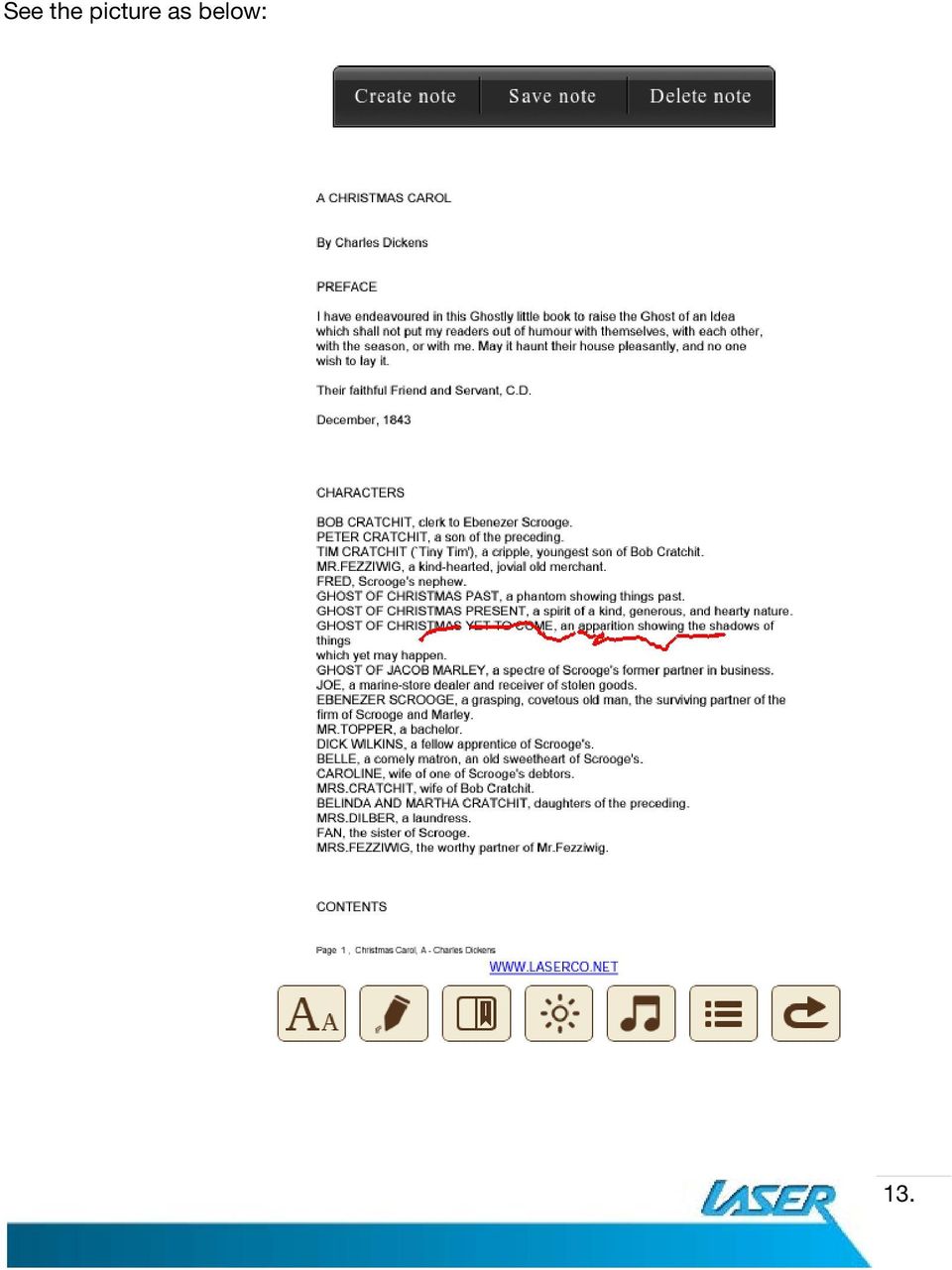
12 Press icon, to change text size, then turn the Re-alignment On and Off to set to fit the page to screen Note : some books especially books in pdf format, cannot change setting, as the format was graphic base or already set by author Press,at the top of the display it shows "Create Note/ Save Note/ Delete note" functions, press Create Note to make notes on this page. Notes will be displayed in red color, 12.
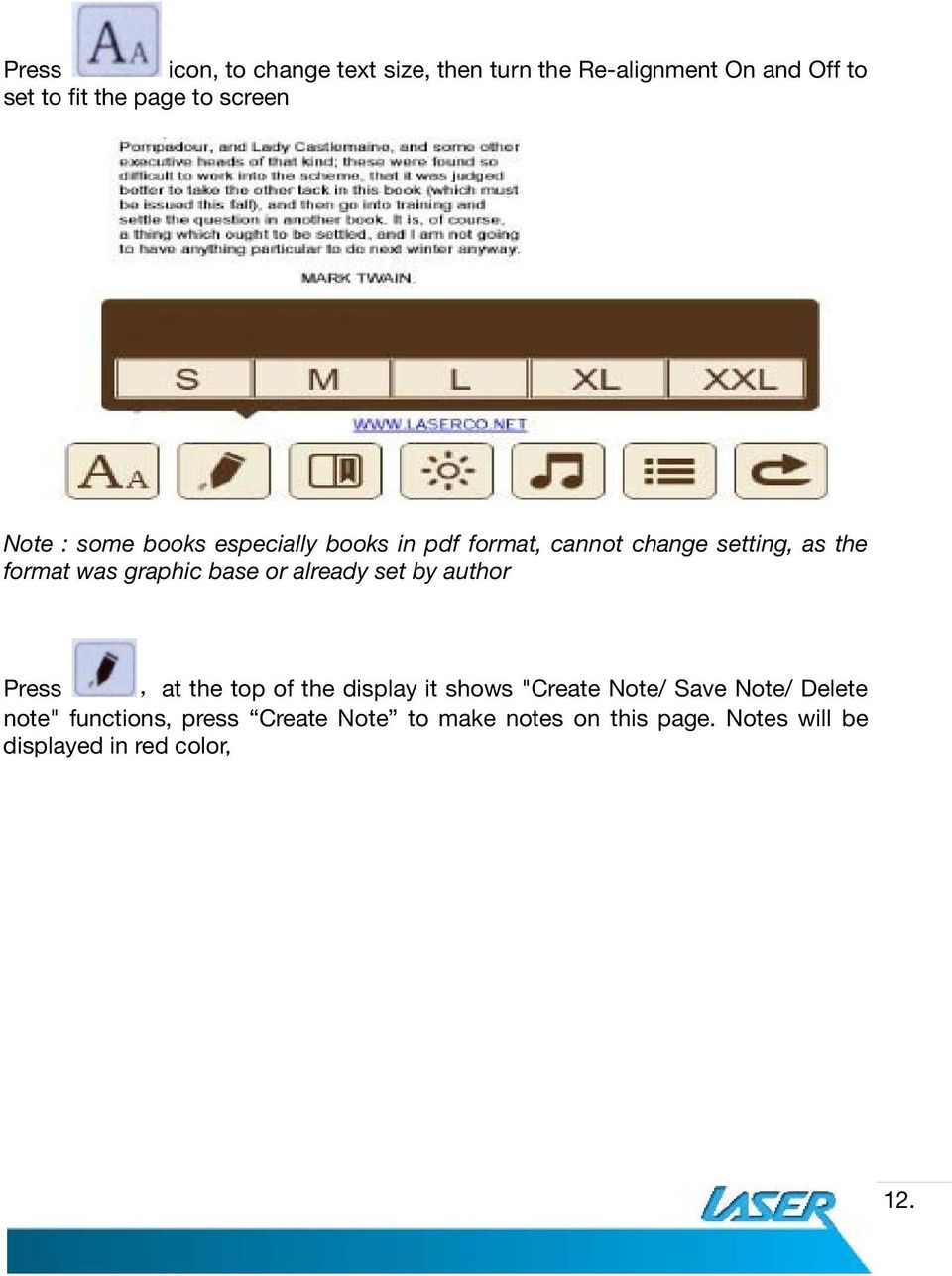
13 See the picture as below: 13.
14 Press to enter bookmark: Save Mark, Load Mark, Del Mark Press to adjust the display's brightness. Press reading. icon to play music, you can enjoy the previous played music when Press icon to show this books information like content, writer and date etc. Press icon, to get back to books list. Note: Marks are saved for each book. Up to 5 marks can be saved for each book. When the limit is reached, the oldest mark will be deleted in favor of the new Mark. 14.

15 Music Player Tag the Music icon in the main menu. Swipe the screen up and down to scroll the music list Tag the song (in MP3 and WMA format) to confirm the selection. Note: If Intro icon has been tagged, it will played first 5-10 seconds of the song, then jump to next song Copy protected files will be displayed but will report Play Error when playback is attempted. DRM protected music files cannot be played on Ebook-720 When playing, tag to change music playing options 15.

16 Video Tag the Video icon in the main menu. Choose the folder the video file stored in Swipe the screen up and down to scroll the file list Tag the file to confirm playing Note: For best and smooth results, please conver the movie to lower resolution 16.

17 Radio Tag the Radio icon in the Main Menu Make sure the earphone is plugged in ( it works as antenna ) Note: to playback the radio recording files, go to Main Menu > Browser > RECORD folder, tag the file with FMRCXXX.WAV file to play 17.

18 Record Tag the Record icon in the Main Menu Tag the icon to start recoding, stop when finish, save the file Note: to playback the radio recording files, go to Main Menu > Browser > RECORD folder, tag the file with VRECXXX.WAV file to play 18.

19 Photo Tag the Photo icon in the Main Menu Choose the folder of photo location, swipe on the screen up and down to see the photo list Tag the photo to confirm 19.

20 Browser Tag the Browser icon in the Main Menu Choose the folder of folder of the file you want to access Swipe on the screen up and down to see the file list Tag on the file to confirm the selection Tag - to delete the folder or file Press Esc button to go back previous screen Note: Files deleted from the ebook reader cannot be recovered, please delete files with care 20.

21 Browser Tag the Settings icon in the Main Menu 21.
22 Setting Options Display Settings System Settings Back Light Time Brightness Restore to Defaults Key Lock time Calibration Description Set the time for the backlight to turn off after last button press. Options are 10, 15, 20 & 30 seconds or Always on Set the backlight brightness level Restores the ebook reader to original setting Set the time from last button press that the screen is locked to prevent accidental operation, swipe the screen from up to down to unlock Calibrate the touch screen for better accuracy System Information Language Invalid Activation Info Erase activation record Displays activation information Support multi- languages AutoShut Time Sets the auto shut off time in 3, 5, 10 minutes Time Sets time in this ebook reader Date Sets date in this ebook reader 22.
23 File Management Connecting Ebook-720 with PC Connect the USB cable provided to a spare USB port on your computer and then the other end to the USB port on the e-book. The PC will automatically load the drivers and connect with the reader. The Reader will display a USB icon on its screen when connected. The reader will be displayed as 2 removable disks. The first will be the onboard storage. The second will be the Micro SD card slot on the reader. The second will only be accessible when there is a card in the slot. If the e-book reader does not connect to the PC, please try to reset the ebook (turn the hard switch Off and On ), then and reconnecting to PC. Manage files When the reader is connected and correctly identified by the PC, you will see it in "My computer" You can move, copy or delete files or folders through computer. The e-book id locked during this operation. After you disconnect the equipment from PC safely, the e-book will be unlocked automatically. File Support EB-720 supports the following file types: ebook: TXT, HTML, EPUB, PDF, PDB, RTF. Video: RM, RMVB, 3GP, FLV, AVI, MP4, VOB, MPEG, ASF. Music: MP3, WMA, OGG, FLAC, APE. Images: JPEG (jpg), BMP NOTE: RTF formats must be under 500KB in size. Video file resolution and bit rates should be kept as low as possible to ensure smooth playback and reduce any sound sync issues. Video resolutions should be kept to approximately the screen resolution. Some trial and error may be necessary to find the best balance between files size and quality. 23.
24 HOW TO DOWNLOAD DRM EBOOKS Before transferring any digital books ( purchased or borrowed) to the e-book reader please ensurethat the time and date on the Ebook-720 has been set correctly. Miss matched time/date between PC and the e-book reader may cause problems with DRM enabled files. 1. Using your computer, log on to and use the search field to find the software download Adobe Digital Editions and complete the instillation process as described. 2. After the installation, register for an account. You can then use this account to download a test files and check you installation if required. Further ebooks are available at 3. When downloading DRM ebooks from the above link, a progress bar will appear. Once completed the finished ebook can then be transferred to your EBook-720 ebook reader 4. Turn your Ebook-720 ebook reader on and connect the ebook reader to the PC using the supplied USB cable and begin the removable disc (U-Disk) function. 5. RK BOOK will now be shown in the Bookshelves of Adobe Digital Editions. You can now drag and drop the downloaded books to transfer them to Ebook-720 ebook reader. 6. The transferred ebook can now be found in the Digital editions folder for viewing. Hints and tips for using Adobe 1. Once the software has been downloaded and activated it is then registered to that computer s user name. Other user names will not be able to access the account. 2. Each account can activate six (6) ebook devices only. Subsequent activations will disable the account. 3. Once an ebook device is activated with a specific account, it can-not be activated with other accounts. 24.
25 PURCHASE EBOOKS FROM BORDERS 1. Download and installs Adobe Digital Editions as described earlier. 2. Visit Borders online and create an account to purchase you ebooks here 3. Search through the ebooks section, choose and purchase an ebook. 4. Open the My elibrary page on the Borders website to confirm your purchase. 5. Click the Download file. (Adobe Digital Edition users) link under the open book button. 6. Save the file to your computer. 7. Double click on the downloaded file and select Adobe Digital Editions from the open with window. 8. Adobe Digital Editions should now launch and download the purchased book. When the download is complete the book is displayed in the Purchased Bookshelf. 9. Connect the Ebook-720 to the PC and transfer the ebook as described earlier. 25.
26 CHARGING EB720 The Ebook-720 will charge when connected to a powered (live) USB port on your computer or to an AC to USB charger (not supplied). When connected to a PC for file transfer it will not be possible to see the battery status icon on the main menu screen. Once you have completed file transfers please use the USB safe removal tool to stop the connection but do not unplug the Ebook-720 from the PC. Charging the EBook-720 should take approximately 4 to 5 hours to complete. Frequently Asked Questions (FAQ) Questions Answers What kind of touch screen EB720 use, what is best way to use it The ebook will turn itself off after a few seconds No volume is heard when playing music Video playback is not smooth Screen is hard to see in bright light. The ebook reader will not turn off while charging Capacitive touch screen, for best to use stylus or finger nail for accuracy Check that the battery is charged Adjust the volume level Resolution of video file may be too high. Reduce resolution and video bitrates of file Adjust the screen brightness in the system menu. Avoid using the reader in direct sunlight If the EBOOK EB720 is turned off while connected to a power supply it will restart after approximately 30 seconds. This is normal. 26.
27 Large files take a long time to load. The EBOOK-720 will not connect to the computer correctly Cannot read the book borrowed from elibray Some of book in PDF format, after enlarge the font, cannot turn the REalignment on Large, graphics rich PDF documents can take several seconds to load and to display the next page. If possible locate a lower resolution file Please turn the switch off and on. The reader should now reset and connect to the PC. In some case it takes a while to get PC detect the reader Please check the setting, make sure the time and date is correct This is because of the original book set by author, cannot change TECHNICAL SPECIFICATIONS* Dimensions 191 X 121 X 7 mm Battery Type Lithium-Polymer Weight 250 grams Battery capacity 3.7 v 2000mAh Display Internal 7 Colour TFT Touch LCD 4Gb Charge time 4 hours Music: up to 15 hours Expansion Up to 16GB Micro SDHC Battery duration* Video: up to 15 hours CPU Type RK2738 ebook viewing: up to 7 hours CPU Speed 560MHz 27.
28 Supported file types ebook: TXT, HTML, EPUB, PDF, PDB, RTF. Video: RM, RMVB, 3GP, FLV, AVI, MP4, VOB, MPEG, ASF. Music: MP3, WMA, OGG, FLAC, APE. Images: JPEG (jpg), BMP. Note: RTF formats must be smaller than 500KB in size. High resolution PDF, large and graphics rich documents may take a few moments to process. Please be patient with these files. Vid e o file re s olution and b it rate s s hould b e ke p t as low as p os s ib le to ensure smooth playback and reduce any sound sync issues. Video resolutions should be kept to approximately the screen resolution. Some trial and error may be necessary to find the best balance between files size and quality. 28.
29 AVAILABLE ACCESSORIES Speakers and earphones Chargers For other accessories and products CONTACT INFORMATION For more information and FAQ on this product and technical support please visit: Website : [email protected] 29.
Table of Contents. System Requirement of MP3 Player:... 4. Connection and Downloading... 7. Downloading DRM10 Files... 8.
 Table of Contents Instructions... 1 Precautions... 2 System requirements... 4 System Requirement of MP3 Player:... 4 Introduction... 5 Features... 5 Charging the Battery... 6 Connection and Downloading...
AV-E702T e-book Reader with Touch Screen User s Manual V1.1.15
 AV-E702T e-book Reader with Touch Screen User s Manual V1.1.15 Introduction Thank you for purchasing this EBook Reader. This manual contains important safety information and operation instructions, so
Fit Clip Plus Portable Media Player
 Fit Clip Plus Portable Media Player User Guide BL 8GB Thank you for purchasing a Fit Clip Plus Portable Media Player! To get the most out of your Fit Clip Plus, please read this entire user guide carefully.
User Manual for 4.4 Kit Kat Android
 User Manual for 4.4 Kit Kat Android Thank you for your purchase of the Time2 4.4 Android tablet device. This manual will introduce you to the functions available on your device and make you aware of anything
V-TOUCH PRO MANUAL. 905L Series
 V-TOUCH PRO MANUAL 905L Series TABLE OF CONTENTS Table Of Contents Buttons Basic Features Caution Turning On/Off the Player Charging the Player Inserting the MicroSD Card Removing the McroSD Card Connecting
Magic Wand Portable Scanner
 Magic Wand Portable Scanner PDS-ST470-VP User Manual Table of Contents 1. Key Features... 3 2. Functional Parts... 3 3. Explanation of the Status Icons... 5 4. Using the Scanner... 5 4.1. Charging up the
AV-E701/AV-E701L e-book Reader User s Manual v01
 AV-E701/AV-E701L e-book Reader User s Manual v01 Introduction Thank you for purchasing this EBook Reader. This manual contains important safety information and operation instructions, so please read all
Specifications. What s Inside The box
 Tablet of Contents Specifications.1 What s inside the box Tablet Parts Getting started... Connection to Internet..6 Task Bar..8 Install and Uninstall 9 Camera.10 HDMI.11 Trouble Shooting 11 Specifications
30 Lumens LED mini Projector with Windows CE Support WIFI WORD EXCEL PPT PDF File View
 30 Lumens LED mini Projector with Windows CE Support WIFI WORD EXCEL PPT PDF File View User Manual - 1 - Contents Intended Use Statement......3 Safety Information...3 Introduction...3 Package Contents...3
QUICK START GUIDE QUAD CORE 8 INCH MODEL NO: PTBPTW81QC8
 QUICK START GUIDE QUAD CORE 8 INCH MODEL NO: PTBPTW81QC8 Table of Contents 1. What s in the Box.1 2.Tablet Parts.. 1 3.Getting Started 2 4. The Start Screen 3 5. Getting Around.4 6. Apps..5 7. Charm Menu.6
MVS - Mini Video Speaker
 MVS - Mini Video Speaker Mini Clock Radio Night Vision Hidden Camera User Manual Spy Tec www.spytecinc.com GETTING STARTED Components Features Powering Up the Device Micro SD Memory Card for Data Storage
ICARUS 8 8" e-reader User Manual
 ICARUS 8 8" e-reader User Manual ICARUS 8 User Manual Safety Precautions On Battery Charge the battery only in temperature that ranges from 0 to 35 degree Celsius. Do not charge the e-reader if the battery
ebook Reader Instructional Manual AEBK07FS
 ebook Reader Instructional Manual AEBK07FS mnl M10191 Copyright 2010 Aluratek, Inc. All Rights Reserved. aluratek.com Package Content 1. AEBK07FS Ebook Reader 2. USB cable 3. Power adapter 4. Carrying
WISEreader N526. E-Book Reader. User Manual
 WISEreader N526 E-Book Reader User Manual Content QUICK GUIDE... 3 DEVICE BUTTONS...4 USING SKILL...7 BASIC OPERATION... 9 MAIN MENU...9 READING INTERFACE...9 RECENT READING...10 BOOK CASE...11 PICTURE
7 Mini Tablet User Guide
 7 Mini Tablet User Guide MODEL NUMBER: Powered by SYTABBL7 Wireless Mobile Internet Tablet Getting to Know Your New Tablet: Front View: Back View: Side Angle View: MENU MENU Power Key ON/OFF, Back Button
User Manual I1010Q16DCZ
 User Manual I1010Q16DCZ Explanation, Note and Warning *Explanation: important information, which can help you better use your tablet PC. *Note: indicates that not observing the content may result in hardware
Using GIGABYTE Notebook for the First Time
 Congratulations on your purchase of the GIGABYTE Notebook. This manual will help you to get started with setting up your notebook. The final product configuration depends on the model at the point of your
Tablet PC User Manual
 Tablet PC User Manual Please read all instructions carefully before use to get the most out of your Time2Touch Tablet PC. The design and features are subject to change without notice. Contents Important
10 Magni Tablet User Guide
 10 Magni Tablet User Guide MODEL NUMBER: Wireless Mobile Internet Tablet Powered by SYTAB10ST Top View Front View Bottom View Side View SYTAB10ST Getting to Know Your New Tablet: MINI Micro SD Micro SD
Capacities Overview: 9.7 MultiTouch Screen with IPS technology Access to AndroidTM apps HD Multimedia playback
 Arnova introduces a new HD multimedia tablet: The ARNOVA 9 G2 Equipped with a sharp, bright 9.7 (1024x768) LCD touchscreen, it delivers amazing display quality. The combination between Android TM 2.3 Gingerbread
USER GUIDE ixpand Flash Drive
 USER GUIDE ixpand Flash Drive 951 SanDisk Drive, Milpitas, CA 95035 2013 SanDisk Corporation. All rights reserved Introduction Getting Started Connecting to iphone/ipad Charging Understanding the LED indicator
Instructions for A-5 Digital Game Camera
 I CAMERA OVERVIEW Instructions for A-5 Digital Game Camera THANK YOU for your purchase of. Please read this booklet before using unit. If you should have any questions about this product or any or Moultrie
TrekStor ebook Player 5 / 5M User manual Table of Contents Disclaimer... 3 Introduction... 3 Package Content... 3 Getting Started...
 TrekStor ebook Player 5 / 5M User manual Table of Contents Disclaimer...... 3 Introduction...... 3 Package Content....... 3 Getting Started....... 4 Parts and Controls....... 4 Power on Reader.... 5 Charging....
Quick Start Turning on the Tablet PC for the First Time
 User s Manual DL46 Getting Started Congratulations on your purchase of a Tablet PC. The Tablet PC is a fully functional PC with built-in LAN, and wireless connectivity. With your Tablet PC you will be
Point of view HDMI Smart TV dongle Mini RF Keyboard
 Point of view HDMI Smart TV dongle Mini RF Keyboard English Contents Contents... 1 General notices for use... 2 Disclaimer... 2 Box Contents... 2 1. HDMI TV dongle... 3 1.1. Product display... 3 1.2. Instructions
Content Get Started... 3 Insert SIM card and Memory Card...3 Charging the Battery or Connect to a Computer...4 PAD Overview...
 Content Get Started... 3 Insert SIM card and Memory Card...3 Charging the Battery or Connect to a Computer...4 PAD Overview... 5 Locking and Unlocking the Screen...6 Basic Operation... 7 Switch on/off...
Your Phone This section introduces you to the hardware of the device.
 Your Phone This section introduces you to the hardware of the device. No. Items Functions 1 Earphone jack 2 Strap hole 3 LED / Speaker Use a headset for hands-free conversation or listening to music. It
User Manual 9.7 Tablet Android 4.0
 User Manual 9.7 Tablet Android 4.0 1 Welcome...3 Important Notices...3 Keys and Functions...4 I. Getting Started...5 1.1 Turn on/off...5 1.1.1 Turn on...5 1.1.2 Turn off...5 1.2 Lock/unlock the screen
Mini Video Speaker. Model: MVS01. User s Manual
 Mini Video Speaker Model: MVS01 User s Manual Thank you for purchasing our MVS series mini video speakers! This product with vogue small appearance and simple operation has so many multi-practical functions,
ATAB701 Manual. o o. o o. o o o. o o. o o o o
 ATAB701 Manual o o o o o o o o o o o o o o Index 1. Intended use 2. Safety 2.1. Labels in this manual 2.2. General safety instructions 3. Preparations for use 3.1. Unpacking 3.2. Package contents 4. For
Kanguru Micro MP3 PRO USB2.0 User s Manual
 Kanguru Micro MP3 PRO USB2.0 User s Manual MP3/WMA Player + Digital Voice Recorder FM Tuner + USB Flash Drive Copyright 2005, All Rights Reserved. This manual applies to 1.1 or later versions of the Kanguru
MP3/WMA Player + Digital Voice Recorder + USB Flash Drive
 Kanguru Micro MP3 PRO USB2.0 User s Manual MP3/WMA Player + Digital Voice Recorder + USB Flash Drive Copyright 2004, All Rights Reserved. This manual applies to 1.1 or later versions of the Kanguru Micro
Eclipse 180 User s Manual
 Eclipse 180 User s Manual Congratulations on purchasing your Eclipse Personal Media Player! To get the most out of your purchase, please take the time to carefully read through this manual. Foreword If
Using GIGABYTE Notebook for the First Time
 Congratulations on your purchase of the GIGABYTE Notebook. This manual will help you to get started with setting up your notebook. The final product configuration depends on the model at the point of your
BOSS Electronics 7 PC TABLET User Guide
 1 Table of Contents Table of Contents...1 1. Introducing Your Boss Touch Screen Tablet ComputerError! Bookmark not defined. 2. Getting Started...4 2.1 Battery Charging...5 2.2 Screen Calibration 2.2 How
User Manual. Product Model: MiTraveler 10C3. OS: Android 4.0
 User Manual Product Model: MiTraveler 10C3 OS: Android 4.0 Tablet of Contents Specifications.1 What s inside the box 2 Tablet Parts 2 Getting started...2 Connection to Internet..6 Task Bar..8 Install and
USER S MANUAL Xemio-767 BT MP3 / MP4 player with Bluetooth
 USER S MANUAL Xemio-767 BT MP3 / MP4 player with Bluetooth For more information: www.lenco.com 1 Cautions Do not place naked flames, such as lighted candles on or near the product. Do not place objects
User Manual AUDIO OUT OFF 9V DC USB POWER. Digital On-Hold Audio System with analog line capability
 MP On-Hold Audio System User Manual memory card IMPEDANCE PHONE LINES on speaker off ON OFF 9V DC USB AUDIO OUT 8Ω 6Ω // /4 POWER Digital On-Hold Audio System with analog line capability al /06 Before
About your Kobo ereader...5
 Kobo Touch User Guide Table of Contents About your Kobo ereader...5 Anatomy of your Kobo ereader...5 Charging your Kobo ereader...7 Charging your Kobo ereader with a wall adapter...8 Turning your Kobo
EB-900 ebook Reader User Manual
 EB-900 ebook Reader User Manual For information and support, www.lenco.eu Table of Contents Disclaimer...... 1 Introduction...... 1 Package Content..... 1 Getting Started....... 2 Parts and Controls.......
M3 User Manual Tablet Android 4.1
 M3 User Manual Tablet Android 4.1 Welcome... 2 Important Notices... 3 Keys and Functions... 4 I. Getting Started... 5 1.1 Turn on/off...5 1.1.1 Turn on... 5 1.1.2 Turn off... 5 1.2 Lock/unlock the screen
MA715 MP3/MP4 Digital Audio/Video Player Instruction Manual
 MA715 MP3/MP4 Digital Audio/Video Player Instruction Manual 1. WELCOME Thank you for purchasing our Digital Media Player. This uniquely designed device combines an MP3 Player, Video Player and removable
7. Computer System Minimum Requirement. 31 8. Troubleshooting. 32. PortableCapture Pro Software Introductions...33
 Table of Contents EN 1. Precaution. 3 2. Preparation..6 Standard Accessories 6 Part Names & Functions..7 3. key features..... 8 4. Use the Microscope.....9 Install Battery... 9 Insert a MicroSD Card...
HUAWEI MediaPad T1 8.0 FAQ HUAWEI TECHNOLOGIES CO., LTD. Issue 01. Date 06/30
 HUAWEI MediaPad T1 8.0 FAQ Issue 01 Date 06/30 HUAWEI TECHNOLOGIES CO., LTD. 1 System and update... 1-1 1.1 Why does my HUAWEI MediaPad T1 8.0 constantly crash?... 1-1 1.2 Will data be erased if I update
Lenovo Miix 2 8. User Guide. Read the safety notices and important tips in the included manuals before using your computer.
 Lenovo Miix 2 8 User Guide Read the safety notices and important tips in the included manuals before using your computer. Notes Before using the product, be sure to read Lenovo Safety and General Information
Point of View ProTab 3XXL IPS - Android 4.0 Tablet PC. Contents... 1 General notices for use... 2 Disclaimer... 2 Box Contents...
 Point of View ProTab 3XXL IPS - Android 4.0 Tablet PC English Contents Contents... 1 General notices for use... 2 Disclaimer... 2 Box Contents... 2 1.0 Product basics... 3 1.1 Buttons and connections...
Using GIGABYTE Notebook for the First Time
 P55 V3.0 Congratulations on your purchase of the GIGABYTE Notebook. This manual will help you to get started with setting up your notebook. The final product configuration depends on the model at the point
Mobile Eyewear Recorder
 Mobile Eyewear Recorder 1 2 1. Quality Polaroid Lens from brand makers. 2. User friendly operation button for easy control. 3. With extended memory slot for TF/Micro SD card. 4. Easy connection with PC/Laptops,no
HANNspree. HANNSpad SN1AT76(HSG1316) User s Manual
 HANNspree HANNSpad SN1AT76(HSG1316) User s Manual English Contents 1. Precautions... 4 2. Declaration... 5 3. Product Overview... 7 Front View...7 Back View...8 4. Initial Operation... 9 Managing and
Using GIGABYTE Notebook for the First Time
 Congratulations on your purchase of the GIGABYTE Notebook. This manual will help you to get started with setting up your notebook. The final product configuration depends on the model at the point of your
Getting Started. Table of Contents. Quick User Guide - English
 Getting Started This Quick User Guide helps you get started with the IRIScan TM Anywhere Wifi. Please read this guide before operating this scanner and its software. All information is subject to change
Movie Cube N150H. User s Manual
 Movie Cube N150H User s Manual (v1.0) TABLE OF CONTENTS 1. Main Features... 4 1.1 Front panel... 4 1.2 Back panel... 4 2. Remote Control... 5 3. Welcome Page... 6 4. Installation Guide... 6 5. Program...
Honor T1 8.0 FAQ. Issue 01. Date 06/30
 Honor T1 8.0 FAQ Issue 01 Date 06/30 1 System and update... 1-1 1.1 Why does my Honor T1 8.0 constantly crash?... 1-1 1.2 Will data be erased if I update my Honor T1 8.0?... 1-1 1.3 Why can't I power
Using GIGABYTE Notebook for the First Time
 Congratulations on your purchase of the GIGABYTE Notebook P7! This Manual will help you to get started with setting up your notebook. For more detailed information, please visit our website at http://www.gigabyte.com.
ebook Reader PRO Instructional Manual AEBK01F / AEBK01WF
 ebook Reader PRO Instructional Manual AEBK01F / AEBK01WF mnl M10138 / M10119 Copyright 2009 Aluratek, Inc. All Rights Reserved. aluratek.com Table of Contents Chapter 1: Introduction 1.1 Overview 1.2 Features
How To Use An Easypad On A Pc Or Macbook Or Ipad (For Pc)
 User Guide Congratulations on your new EasyPad 1000. Please follow the instructions in this manual carefully. Statement: If the final version of this product has any differences from the description of
KOBO EREADER USER GUIDE, JUNE 2011
 KOBO EREADER USER GUIDE, JUNE 2011 TABLE OF CONTENTS Section 1 - Getting Started ereader basics... 3 Reading a book... 7 Adding books from the Kobo Store... 10 Using Kobo Desktop with your ereader... 12
Using GIGABYTE Notebook for the First Time
 P34 V6.0 Congratulations on your purchase of the GIGABYTE Notebook. This manual will help you to get started with setting up your notebook. The final product configuration depends on the model at the point
Using GIGABYTE Notebook for the First Time
 Congratulations on your purchase of the GIGABYTE Notebook. This manual will help you to get started with setting up your notebook. The final product configuration depends on the model at the point of your
User Manual. Product Model: MiTraveler 7D-4A. OS: Android 4.0
 User Manual Product Model: MiTraveler 7D-4A OS: Android 4.0 Tablet of Contents Specifications.1 What s inside the box 2 Tablet Parts 2 Getting started...2 Connection to Internet..6 Task Bar..8 Install
Bank. Wireless Portable Hard Drive. User s Manual
 Bank Wireless Portable Hard Drive User s Manual REGULATORY AND SAFETY INFORMATION FCC Compliance and Advisory Statement This device complies with Part 15 of the FCC rules. Operation is subject to the following
The power adaptor is a CLASS II apparatus with double insulation, and no external ground is provided. Safety symbol explanation:
 Safety Precautions Do not subject the device to severe impact or drop it from heights. Do not use the device in extreme hot or cold, dusty or damp conditions. Do not expose it to direct sunlight. Avoid
Lenovo IdeaPad Yoga11
 Lenovo IdeaPad Yoga11 User Guide V1.0 Read the safety notices and important tips in the included manuals before using your computer. Notes Before using the product, be sure to read Lenovo Safety and General
Device Information This section introduces you to the hardware of the device.
 Device Information This section introduces you to the hardware of the device. No. Items Functions 1 Touch Screen Display screen. Use stylus to select items on screen. 2 3 Windows Flag Key Phone Settings
1. Open the battery compartment as shown in the image.
 This Quick User Guide helps you get started with the IRIScan Book 3 scanner. This scanner is supplied with the software applications Readiris Pro 12, IRIScan Direct and IRISCompressor. Corresponding Quick
Table Of Contents. Thank You...3 Package Contents...3 Features...4
 Â Table of Contents Thank You...3 Package Contents...3 Features...4 GeTTinG To know The internet TableT...5 About the Touchscreen...8 Protective Film...8 Touchscreen Actions...8 About the Orientation Sensor...9
 Table of Contents Thank You...3 Package Contents...3 Features...4 GeTTinG To know The internet TableT...5 About the Touchscreen...8 Protective Film...8 Touchscreen Actions...8 About the Orientation Sensor...9
MP3 Digital On-Hold Audio Systems
 TELEPHONE MAN OF AMERICA Earning Your Business Every Step of the Way! Specializing in Telecom Equipment of all Brands, Carrier Services, Technician Services, Maintenance Agreements & Purchasing Excess
About your Kobo ereader...5
 User Guide Kobo Aura H2O User Guide Table of Contents About your Kobo ereader...5 Anatomy of your Kobo ereader...5 Waterproofing your Kobo ereader...7 Using your Kobo ereader around water...9 Charging
MP1401EBB MP1402ES. MP3 Player
 MP1401EBB MP1402ES MP3 Player IMPORTANT SAFETY AND OPERATING INFORMATION Please read these instructions and follow all the guidelines to safely operate your player. Keep these instructions. If you transfer
FIT CLIP PLUS MP3 + VIDEO PLAYER USER MANUAL
 Need Help? Visit us at: jlabaudio.com/ mp3support/ FIT CLIP PLUS MP3 + VIDEO PLAYER USER MANUAL CONTENTS WELCOME 2 CONTACT US 2 NOTES 3 SAFETY & USAGE 4 FEATURES 5 APPEARANCE 6 KEY FUNCTION 7 BASIC OPERATION
ONE Product Introduction... 2 Package contents...2 Features. 2 Product specifications... 3 Remote control guide..4 Connection ports...
 ONE Product Introduction..... 2 Package contents......2 Features. 2 Product specifications.... 3 Remote control guide..4 Connection ports... 5 TWO Activating media player....6 Setting...6 Video Output
Action Camcorder Rollei Youngstar USER MANUAL
 Action Camcorder Rollei Youngstar USER MANUAL Mounting Accessories 1 Functions This user's manual has referred to the latest information we had when this user s manual was made. The screen display and
1.5 Video MP3 Player / FM Radio and micro SD Card Slot
 FM SCAN RADIO V10M10_IM_EN_12272006 1.5 Video MP3 Player / FM Radio and micro SD Card Slot Instruction Manual JX-MP222 / 224 Please read this manual carefully before operating and save it for future reference.
Digital Video Camera User Manual
 Digital Video Camera User Manual Content Section 1 Getting to Know Your Camera... 2 Section 2 Getting Up and Running... 5 Section 3 Record Mode... 7 Section 4 Playback Mode... 34 Section 5 Listening to
Ultra Dashcam. with Smartphone app control INSTRUCTION MANUAL
 Ultra Dashcam with Smartphone app control EN INSTRUCTION MANUAL 1 Getting to know the Dashcam GPS Receiver Slot 1 Camera Lens Micro HDMI Port 2 Speaker 1 For future application 2 Requires Micro HDMI to
Lenovo Yoga 2 13. User Guide. Read the safety notices and important tips in the included manuals before using your computer.
 Lenovo Yoga 2 13 User Guide Read the safety notices and important tips in the included manuals before using your computer. Notes Before using the product, be sure to read Lenovo Safety and General Information
Using AORUS Notebook for the First Time
 V2.0 Congratulations on your purchase of the AORUS Notebook! This Manual will help you to get started with setting up your notebook. For more detailed information, please visit our website at http://www.aorus.com.
Archives About ARCHOS TV+
 About ARCHOS TV+ General Questions I have installed a firmware/plug-in/game file on my Archos TV+ but it is not recognized by the device. You may have not correctly copied your file on the device. If it
125 8880 telstra.com/ppmbb visit a telstra store or partner GETTING TO KNOW YOUR
 FOR MORE INFORMATIoN: 125 8880 telstra.com/ppmbb visit a telstra store or partner GETTING TO KNOW YOUR Telstra PRE-paid 4G wi-fi LET S GET THIS SHOW ON THE ROad WHAT S INSIDE Your Telstra Pre-Paid 4G Wi-Fi
M707Z M808Z M1010Z Digital Photo Frame Owner s Manual
 M707Z M808Z M1010Z Digital Photo Frame Owner s Manual Thank you for purchasing a Micca product. Should you need any assistance, please contact our technical support before returning the product to the
About your Kobo ereader...5
 Kobo Mini User Guide Table of Contents About your Kobo ereader...5 Anatomy of your Kobo ereader...5 Charging your Kobo ereader...7 Charging your Kobo ereader with a wall adapter...8 Turning your Kobo ereader
Point of View Mobii 925 - Android 4.2 Tablet PC. General notices for use... 2 Disclaimer... 2 Box Contents... 2
 Table of Contents General notices for use... 2 Disclaimer... 2 Box Contents... 2 1.0 Product basics... 3 1.1 Buttons and connections... 3 1.2 Start up and shut down... 3 2.0 Introduction to Google Android
1. Check the Accessories
 This Quick User Guide helps you get started with the IRIScan Book Executive 3 scanner. This scanner is supplied with the software applications Readiris Pro 14 (Windows and Mac ), IRIScan Direct and IRISCompressor
Table of Contents. 16 Technical Support System Requirements. Included in the Box General Controls Playback Features Care Charging
 Instruction Manual Table of Contents 01 02 02 03 04 Included in the Box General Controls Playback Features Care Charging 05 06 07 08 09 10 10 10 Uploading Songs Supported Audio Files Manual Drag and Drop
ebook Reader Instructional Manual
 ebook Reader Instructional Manual aluratek.com mnl M10138 AEBK01F Copyright 2011 Aluratek, Inc. All Rights Reserved. Table of Contents Chapter 1: Introduction 1.1 Overview 1.2 Features 1.3 Package Contents
USB POWER PRO BANK HIDDEN CAMERA
 USB POWER PRO BANK HIDDEN CAMERA SKU: HCPOWERBANKPRO THANK YOU FOR PURCHASING THE USB POWER PRO BANK HIDDEN CAMERA Please read this manual before operating the USB power pro bank hidden camera and keep
Getting to Know the New Lenovo Safety and General Information Guide
 Lenovo IdeaPad Yoga 13 User Guide V1.0 Read the safety notices and important tips in the included manuals before using your computer. Note Before using the product, be sure to read Lenovo Safety and General
Windows 10.1 Tablet (UB-15MS10 and UB-15MS10SA) FAQ December 2014
 Windows 10.1 Tablet (UB-15MS10 and UB-15MS10SA) FAQ December 2014 Navigation... 2 Question 1: What are charms used for?... 2 Question 2: How do I navigate while using a mouse or trackpad?... 3 Question
2006 Sony Corporation Printed in Malaysia 2-678-175-13 (1) Quick Start Guide NW-E002F / E003F / E005F / E002 / E003 / E005
 2006 Sony Corporation Printed in Malaysia 2-678-175-13 (1) Quick Start Guide NW-E002F / E003F / E005F / E002 / E003 / E005 Table of Contents Owner s Record The model and serial numbers are located on the
User Manual. DXS-1000 Player
 User Manual DXS-1000 Player Table of contents 1. Safety instructions... 3 1.1. FOR SAFE AND EFFICIENT OPERATION... 3 2. Operation... 4 3. Software Display... 8 2 / 9 1. Safety instructions This device
Lenovo Flex 3. User Guide. Flex 3-1120/Flex 3-1130. Read the safety notices and important tips in the included manuals before using your computer.
 Lenovo Flex 3 Flex 3-1120/Flex 3-1130 User Guide Read the safety notices and important tips in the included manuals before using your computer. Notes Before using the product, be sure to read Lenovo Safety
Reminder: Thank you for selecting our product. In order to ensure correct operation, please read this manual carefully.
 Reminder: Thank you for selecting our product. In order to ensure correct operation, please read this manual carefully. 1. Instruction (1) We try to ensure the correctness and completeness of this manual,
FMT600BT Transmitter
 Technaxx FMT600BT Transmitter User Manual Transfer of music and calls directly from your Bluetooth device to your car radio This device complies with the requirements of the standards referred to the Directive
2GB MP3 Player USER GUIDE
 DO NOT FORMAT UNIT under FAT. 2GB MP3 Player USER GUIDE Jazwares, Inc. 2010 CONTENTS Please read the instructions along with the MP3 Player carefully before you use it, so that you can operate it conveniently.
Foreword. Thank you for purchasing our products. This built-in manual provides details including product
 Foreword Thank you for purchasing our products. This built-in manual provides details including product information and product usage, helping you understand and easily operate the product. Read all materials
1.1 Package Contents... 1 1.2 Overview... 1 1.3 Physical Details... 2 1.4 SD Card Installation... 4 1.5 Charging the Battery... 6
 Preface TABLE OF CONTENTS CHAPTER 1: INTRODUCTION... 1 1.1 Package Contents... 1 1.2 Overview... 1 1.3 Physical Details... 2 1.4 SD Card Installation... 4 1.5 Charging the Battery... 6 CHAPTER 2: CONTENT...
USER GUIDE. ixpand Flash Drive. Western Digital Technologies, Inc. is the seller of record and licensee in the Americas of SanDisk products.
 USER GUIDE ixpand Flash Drive Western Digital Technologies, Inc. 951 SanDisk Drive, Milpitas, CA 95035 Western Digital Technologies, Inc. is the seller of record and licensee in the Americas of SanDisk
Contents V1.0. ONE Introduction...02. TWO Installation and Instructions...06 THREE FAQ...12
 Contents V1.0 ONE Introduction...02 1.1 Features...02 1.2 Specification...03 1.3 Package Contents...03 1.4 Remote Control Guide...04 1.5 Connection Chart...05 TWO Installation and Instructions...06 2.1
Lenovo IdeaPad U510. User Guide V1.0. Read the safety notices and important tips in the included manuals before using your computer.
 Lenovo IdeaPad U510 User Guide V1.0 Read the safety notices and important tips in the included manuals before using your computer. Note Before using the product, be sure to read Lenovo Safety and General