
Bloomberg Station. Reference Guide
|
|
|
- Andra Turner
- 10 years ago
- Views:
Transcription
1 Reference Guide The Bloomberg Professional Service seamlessly integrates real-time and historical information on about 5 million bonds, equities, commodities, currencies and funds. Bloomberg s electronic library also comprises data on almost every publicly traded company and biographies of more than 1 million people. Data Content Exchange feeds from the world's exchanges, currency feeds from top interbank trading floors, over a dozen different newswires, research and financial statistics on over 52,000 companies worldwide. Complete descriptive information, volume and output from Bloomberg analytics such as beta, moving averages, money flows, volatilities, etc. Fundamental data containing earnings, balance sheets, cash flow and debt/equity analysis, rations and public filings. Excel Add-in tool that delivers market data, historical, reference data and analytics into an Excel spreadsheet. Access & Limitations The Bloomberg Stations can only be accessed from the Chicago Booth computing labs. Two machines are available at the Gleacher Center Computing Lab (GL 110, one machine in the Gleacher Center CRC (GC440), two machines are available at the Harper Center MBA Computing Lab (HC C50) and one machine in the Harper Center CRC (HC 212). Access is restricted to Booth students, Faculty and Staff. Booth users are allowed to download data into Excel. However, each machine has limited number of monthly downloads. Once the limit has been reached, Bloomberg does not allow any more downloads until the beginning of the next month. The monthly limits are based on number of companies, data fields and number of observations. Bloomberg Interactive Assistance Press the help key twice to open 24-hour live help chat. Someone from Bloomberg will assist you with your queries immediately. Excel Add-In The new Bloomberg Excel Add-in is a powerful tool bundled with the Bloomberg Professional service that delivers market data, historical data, reference data and analytics into an Excel spreadsheet on the user s desktop. 1


2 The Bloomberg Keyboard The Bloomberg Stations have their own unique keyboard. The layout of the Bloomberg keyboard roughly matches that of a standard PC with additional functionality added through special color-coded buttons: red buttons are generally used to stop actions, yellow buttons are sector keys and green buttons are generally used for actions and navigating around the Bloomberg Station. The <ESCAPE/CANCEL> Key The red <ESCAPE/CANCEL> key is located to the left of the yellow keys near the top of the keyboard and is used to return to the Bloomberg home screen at any time. 2

3 The <CONN/DEFAULT> Key The red <CONN/DEFAULT> key is located to the right of the yellow keys and is used to log on and off the Bloomberg Station. The Menu keys The yellow Menu keys are located where the F1 through F12 keys would be located on a normal PC keyboard. Pressing a Menu key followed by the <GO> key will take you to the main menu for currencies, personal profiles, portfolio applications or for a specific market sector. If you type in a ticker or other identifier into the Bloomberg Station and then press the Menu key for the appropriate market sector, you will be brought instantly to a menu for that identifier. The <HELP> Key The green <HELP> key is a green key located at the top-left of the keyboard. Pressing the <HELP> key once will bring up context-sensitive help for the current mnemonic that you are currently viewing in Bloomberg. Pressing the <HELP> key after entering a command will bring up help on that command. Pressing the <HELP> key twice (<HELP> <HELP>) in a row on any screen will open a chat window to live 24-hour Bloomberg support. The <MENU> Key The green <MENU>key is located just above the arrow keys on the keypad. Press this key to go back to the parent menu of the current menu or mnemonic. The <SEARCH> Key The green <SEARCH> key is located at the top-left of the keyboard, to the right of <HELP>. Pressing the <SEARCH> key will bring up Bloomberg s powerful search function, which will allow you to search for a particular keyword across the entire Bloomberg Station. The <GO> Key The green <GO> key is the Enter key for the Bloomberg terminal. Press this key to activate any command that you type into the Bloomberg Station. The <MESSAGE> Key The green <MESSAGE> key is located at the top-left of the keypad and is used to check messages that have been sent to the Bloomberg Station. Bloomberg technical support will send messages here and news alerts that you have requested will also end up here. 3

4 The <LPAD> Key The white <LPAD> key is located next to the Number Lock key on the keypad. This key brings up the Bloomberg Launchpad, which is a set of customizable news and real-time data windows that appear on top of your Bloomberg Session. Press the <LPAD> key to show or hide the Launchpad windows. For more information, type LPAD and then press the <GO> key. You should create your own personal login if you wish to customize the Bloomberg Launchpad. To create your own personal login, type UREG, then press the <GO> key and follow the on-screen instructions. The <PANEL> Key The gray <PANEL> key is located to the right of the spacebar. It allows you to switch between all the active windows currently displayed on the Bloomberg Station. The <PRINT> Key The green <PRINT> key is located in the top row of the keyboard, right next to <CONN/DEAFULT>. Pressing this key will print the currently active Bloomberg window. The <Pg Up/BACK> and <Pg Dn/FWD> Keys The green <Pg Up/BACK> and <Pg DN/FWD> keys are located on the keypad, just below the <LPAD> key. When a screen contains multiple pages of information, use these keys to switch between the pages. The Volume and Microphone Keys The black volume and microphone keys are located at the far right of the keypad. Use this to adjust the volume of the built-in speakers on the Bloomberg keyboard and to mute or un-mute the microphone. The Bloomberg Screens The Bloomberg Stations start up with two to four windows that you can use independently to search for information. You can cycle between all open windows by pressing the <PANEL> key. The smaller, specialized windows from Bloomberg Launchpad are separate from the main Bloomberg windows and are not affected by the <PANEL> key. To show or hide the Launchpad windows, press the <LPAD> key. Each Bloomberg window is used to display a color-coded menu screen for a specific function, also known as a Mnemonic. The various colors are used to indicate areas of interest on the screen: 4

5 Command Line The long rectangular box at the top of the window is the Command Line. If you know the command for a desired mnemonic, you can type it here. Command hints for the current screen will also be displayed in the Command Line. Sub-Menu Headings (white) The titles listed next to numbers are the sub-menus for the current mnemonic. To navigate to a sub-menu, type the number next to the sub-menu heading and press the <GO> key. You can also click on the sub-menu title with the mouse. Command Shortcuts (gray) The letter codes listed next to sub-menu titles are command shortcuts for that particular mnemonic. You can access these mnemonics directly by typing the command shortcut into the Command Line and pressing the <GO> key. Not all command shortcuts will work everywhere. Some commands will only work with a particular mnemonic or when a particular type of security is selected. To find out how to use a particular command shortcut, type HELP (shortcut name) and press the <GO> key. 5

6 Clickable Items (white or amber) Clickable items are often displayed in white. Click on these to bring up relevant commands or mnemonics. Fields (amber) Interactive fields are typically displayed in amber. These amber fields are usually dropdown menus or text boxes that you can use to enter data. Dropdown Menus (gray or red) Screen-specific dropdown menus are typically displayed in red or grey near the top of the screen. Click on these to access various commands or mnemonics related to the current screen. Using Bloomberg Using the Shared Login There is one shared login for each individual Bloomberg Station at Chicago Booth for the Bloomberg Station. To use the shared login, do the following. 1. From any Bloomberg screen, press the red <CONN/DEFAULT> key. If you see the Windows desktop instead of the Bloomberg screens, click on the Bloomberg icon on the desktop or in the Start menu to launch Bloomberg. Once the Bloomberg windows appear, press the red <CONN/DEFAULT> key. 2. Enter the username and password that are listed next to the Bloomberg Station. 3. Press the green <GO> key. When using the shared login, all messages, Launchpad windows and settings that you modify will be visible to other users. Please be careful and considerate when altering settings or saving personal information to the Bloomberg Station. Obtaining a Personal Login With a personal login, you will have your own private messages and Instant Bloomberg chat, your own customizable Launchpad and the ability to change settings within the Bloomberg Station. Your personal login can be used on any Bloomberg Terminal at Chicago Booth to retrieve your personal data and settings. In addition to messages and personal settings, you will also need your own personal login if wish to take exams as part of the Bloomberg Essentials On Line Training Program (see Additional Training section below for more info). To create a personal login: 6

7 1. If you are already logged into the Bloomberg Station, press the <CONN/DEFAULT> key to log out. 2. At the login screen, leave the Login Name and Password fields blank and press the <GO> key. 3. Follow the login creation steps to create your own personal login. You will need access to a phone in order to complete the login creation process. In addition, the phone number used will be permanently visible on your Bloomberg profile. If you wish to change the phone number on your profile later, you will have to request the change through Bloomberg support by pressing <HELP> <HELP>. 4. When finished, you can log back into Bloomberg using your new personal login username and password. Personal login accounts are usable only on the Bloomberg Stations located at Chicago Booth, all personal accounts will expire after 45 days of inactivity. However, it is possible to renew an account after it has expired. You can contact Bloomberg support for account help by pressing <HELP> <HELP>. Navigating the Bloomberg Station The Bloomberg Station is predominantly text and menu driven. To find data on the Bloomberg Station, there are two main methods of navigation: Menu Navigation You can navigate through the Bloomberg Station by starting at one of the market sector menus (accessible through the yellow keys at the top of the keyboard) and navigating through successive mnemonics that narrow and refine your search until you finally arrive at the data that you are looking for. For example, to find a chart of daily stock prices for Google: 1. Press the yellow <EQUITY> key on the keyboard (the F8 key), then press the <GO> key. 2. On the main Equity menu, click on the Finding Equities link. 3. Click on the Ticker Symbol By Industry link. 4. You are now on the screen for the Equity TKI mnemonic (TKI is also the command shortcut for this particular screen). 5. On the Industry Sector sub-menu on the left, double-click on the Communications link. 6. Click on the Internet link. 7

8 7. Click on the Web Portals/ISP link (you may have to scroll down the list to find it). 8. On the right side of the screen, scroll down until you see GOOG in the ticker list (the list is in alphabetical order by ticker). 9. Left-click on the GOOG link and hold down the mouse button until you see a gold menu pop up. While holding down the left mouse button, highlight DES in the pop-up menu and then release the left mouse button. 10. A description of Google will appear. When viewing a list of securities, you can often left-click and hold on a security name to find a sub-menu with more detailed information about that security. 11. Click on the 1) GPO link to see a graph of Google s price. Command Navigation If you know which commands to type, you can use the Command Line to quickly navigate to the data that you are looking for. Some sample commands are listed at the end of this document. Typing the first few letters of a command or security into the Command Line will bring up a list of commands and securities that start with those letters. For example, to see a chart of daily stock prices for Google, do any of the following: Option 1: 1. Type GOOG, press the <EQUITY> key and then press the <GO> key. 2. On the next screen, type 5 (for Charts & Tables) and press the <GO> key. 3. GPO is listed next to the Price Bar Graph with Moving Averages sub-menu link, so type GPO and press the <GO> key. Option 2: 1. Press the <SEARCH> key. 2. Type Google and then press the <GO> key. 3. Press <EQUITY>, type GPO and then press the <GO> key. Option 3: 1. Type GOOG, press <EQUITY>, type GPO and press the <GO> key. 8

9 Downloading Data from Bloomberg How to Download Data From Within a Bloomberg Session: Depending on which mnemonic you are viewing, you may have a few options available for downloading data: When Viewing Charts On most charts, you will see a grey menu bar at the top of the chart. You can use this menu to export the chart data from Bloomberg. To copy data from a chart in Bloomberg: 1. On the grey chart menu, click on the grey Copy dropdown menu. 2. Select the Copy Image to Clipboard link if you want an image of the chart or the Copy Data to Clipboard link if you want the data that was used to create the chart. 3. In Word or Excel, click on the Paste button to paste the chart data from Bloomberg. When Viewing Tables On some mnemonics, you will see a red menu bar at the top of a table. Whenever you see the Output to Excel option in that menu, you can export the data from that table into Excel. To copy data from a table in Bloomberg: 1. Click on the Output to Excel button on the red the menu bar (when available). The name of the Excel exporting command varies slightly between mnemonics and in some cases the command may be hidden inside a dropdown menu. 9

10 2. Bloomberg will begin the process of creating an Excel spreadsheet that contains your data. When this process is complete, the new spreadsheet will automatically open in Excel. 3. Switch to Excel to view your data. 4. Answer Yes to any security warnings that may pop-up in Excel. 5. If you clicked on an Excel Via API Links button, then the data exported to the Excel spreadsheet will be updated in real time as long as the spreadsheet remains on the Bloomberg Station. In many cases, the data exported into Excel from Bloomberg is static. This means that the data in Excel will not update, even if the source data gets updated on the Bloomberg Station. Excel API Links are the exception. Data from API Links will be updated in real time so long as the spreadsheet remains on the Bloomberg Station. How to Download Data Using the Bloomberg Excel Add-in On each Bloomberg Terminal, you will find an array of tools you can use to download Bloomberg data directly into Excel. The amount of data that can be downloaded by the Bloomberg Excel add-in is limited. Extremely large data downloads will fail. If you see a Limit error while using the Excel add-in, please contact the Help Desk. Bloomberg Excel Add-in The lab Bloomberg machines have the Excel Add-in installed to retrieve data from Bloomberg via Excel. Bloomberg Data Wizard 1. Select the desired securities. 10


11 Enter security names one-at-a-time or you can select multiple securities at once from a preexisting list (such as an index, spreadsheet or portfolio in Bloomberg). When entering security names, select the correct Market Sector and Identifier before typing in the security name. As you begin to type a security name into the Security identifier: box, Bloomberg will attempt to complete the name for you. Whenever you see the pushpin cursor ( ) or the data copy icon ( ) in a Bloomberg window, you can drag and drop those listed securities directly from the Bloomberg into the Selected securities: box. 11


12 2. If prompted, select the desired data fields. You can enter the name of a data field into the Search text: box and Bloomberg will attempt to complete the name for you. You can also click through the Categories list until you find the desired security. Additional information about the security will be listed in the field details box at the bottom-left. After searching for a security in Bloomberg, you can type FLDS and press the <GO> key to get a listing of data fields that are available for that security. 3. If prompted, select the desired Periodicity and Time Frame for the analysis. 4. If prompted for DPDF settings, select Yes unless your analysis requires a pricing adjustment. 5. When prompted, select where your data should be placed in Excel. 6. For clarity, check the Security and Field checkboxes in the Show labels section. 7. Click on the Finish button. The data you requested will be imported into Excel. The Function Builder Use the function builder to quickly create custom Bloomberg queries directly in Excel. 12


13 1. On the Ribbon in Excel, click on the Bloomberg tab. 2. Click on the Insert Function button, the Insert Function window appears. 3. From the Or select a category: dropdown, select Bloomberg. 4. To find out how to use a specific Bloomberg query function, click Help on this function in the bottom-left corner of the window. 13

14 For more information on the Bloomberg Excel Add-in, type DAPI into Bloomberg and press the <GO> key. Additional Training Chicago Booth Training Video You can watch an exclusive hour-long training video on the Bloomberg Station on the Portal: 1. Log into the Chicago Booth Portal. 2. Click on the View Recorded Presentations link on the right-hand side of the Portal. 3. Click on the Information Technology folder on the left-hand side. You will see a list of our currently available Mediasite presentations. 4. Click on the Bloomberg presentation to begin the recording. Bloomberg University Bloomberg University offers free online training videos, interactive manuals, cheat sheets and news on Bloomberg seminars and events. To access Bloomberg University, type BU at the Command Line and then press the <GO> key. Bloomberg Essentials On Line Training Program The Bloomberg Essentials On Line Training Program is a structured program for teaching new users the basics of the Bloomberg Terminal. Bloomberg Essentials contains regularly-updated training videos on the basic functionality of the Bloomberg Terminal, along with supplemental videos on the major market sectors available through the terminal. Users can also earn an Acknowledgement of Completion by taking competency exams on each of the topics covered in the training videos. To access the Bloomberg Essentials On Line Training Program, type BESS at the Command line and then press the <GO> key. The Bloomberg Product Certification Program (CERT) has now been replaced by the Bloomberg Essentials (BESS). You can no longer receive certification on Bloomberg through the CERT program. You must have your own personal login to Bloomberg in order to take the exams. To create an account, follow the directions listed in the Getting Your own Personal Login section above. 14

15 Completion Requirements An Acknowledgement of Completions is available for each of the market sectors covered by BESS. The currently available market sectors are: Equity Essentials Fixed Income Essentials Foreign Exchange (FX) Essentials Commodity Essentials To obtain an Acknowledgement of Completion, users must take the Core Exam (after watching the 4 Core Videos) and one Market Sector exam of their choice (after watching the corresponding Market Sector video). Users must pass each exam with a 75% or higher in order to receive the Acknowledgement of Completion. Users must pass all exams the first time they are taken. There are no retakes offered for the BESS exams. If you do not score a 75% or higher on both exams, you will not receive your acknowledgement of completion. You can complete all 5 exams (the Core Exam and the 4 Market Sector exams) if you would like to receive acknowledgements from Bloomberg for all 4 sectors in Bloomberg Essentials. Getting Started With Bloomberg Essentials 1. Obtain a Personal Login to Bloomberg, if you have not done so already. (Follow the directions listed in the Obtain a Personal Login section above.) 2. Watch all four of the Core Videos: a. At the Command Line, type BESS and then press the <GO> key. b. Select the link for the Core Video that you want to watch. c. At the end of the video press the <MENU> key to return to Bloomberg Essentials. 3. After you are finished watching all four the Core Videos, contact Bloomberg and request to take the Core Exam corresponding to the videos you watched: a. From the Bloomberg Essentials menu, select the Exams Enablement link. b. When the Help Chat window opens, type in your request to take the Core Exam for Bloomberg Essentials. c. Click on the Submit button. d. Use the chat window to communicate with Bloomberg Support and request to be enabled for the Core Exam. e. When you have finished contacting Bloomberg Support, select the Exams & Exam Summary link from the Bloomberg Essentials menu to access your exam. 15

16 f. When you have completed your exam, you can select the Exams & Exam Summary link again to view your score. 4. Watch one of the four Market Sector videos of your choice: a. From the Bloomberg Essentials menu, select the link for the Market Sector Video that you want to watch. b. At the end of the video press the <MENU> key to return to Bloomberg Essentials. 5. When you have completed watching the Market Sector video, take the matching Market Sector exam: a. From the Bloomberg Essentials menu, select the Exams Enablement link. b. When the Help Chat window opens, type in your request to take the desired Market Sector exam. c. Click on the Submit button. d. Use the chat window to communicate with Bloomberg Support and request to be enabled for the desired Market Sector Exam. e. When you have finished contacting Bloomberg Support, select the Exams & Exam Summary link from the Bloomberg Essentials menu to access your exam. f. When you have completed your exam, you can select the Exams & Exam Summary link again to view your score. 6. When you have completed both the Core Exam and a Market Sector exam, you can request your Acknowledgement Document from Bloomberg: a. At the Command Line, type BESS and then press the <GO> key. b. Select the Exams Enablement link and the Help Chat window will open. c. Type in your request to obtain your Acknowledgement Document. d. Click on the Submit button. e. Use the chat window to provide Bloomberg Support with the following information: The name of the Market Sector that you completed for the Acknowledgement Document. How you want your name displayed on the Acknowledgement Document The address you want the document ed to. 7. Your Acknowledgement Document will be ed to you in 2 weeks. Bloomberg does not send paper versions of the Acknowledgement Document. 16

17 Appendix A - Sample Bloomberg Commands The Bloomberg Station has over 20,000 commands, of which only a small sample are listed below. You can type the following commands at the Command Line for instant access to the listed sub-menu: Not all command shortcuts will work everywhere. Some commands will only work with particular mnemonics or when a particular security is selected. To find out how to use a particular command shortcut, type HELP, followed by the command and press the <GO> key. General HELP (command name) <GO> Help pages for any Bloomberg command EASY <GO> Tips and shortcuts for Bloomberg CHEAT <GO> Bloomberg cheat sheets (tip sheets) BU <GO> Bloomberg University (training videos) BESS <GO> Bloomberg Essentials On Line Training Program <HELP><HELP> HDSK <GO> MSG <GO> PFM <GO> MSGM <GO> GRAB <GO> RPT <GO> UREG <GO> PDF <GO> (Personal Logins Only) TDEF <GO> Logins Only) XDF <GO> (Personal Logins Only) FAVE <GO> NRC <GO> Only) PLB <GO> LAST <GO> CU <GO> MAIN <GO> SITE <GO> Connect to Live Help chat (24-hour) View outgoing help messages (sent using <HELP> <HELP> Manage all messages Personal file manager List of all message commands Take a screenshot of current screen and send it as a message attachment Retrieve and monitor reports Create your personal login for Bloomberg General settings for the Bloomberg Station Chart settings for the Bloomberg Station (Personal Currency settings for the Bloomberg Station Edit favorites menu (Personal Logins Only) Set news/research preferences (Personal Logins Bloomberg Launchpad Show last 8 commands used Call up the last security viewed Bloomberg main menu Site map for the entire Bloomberg Station 17

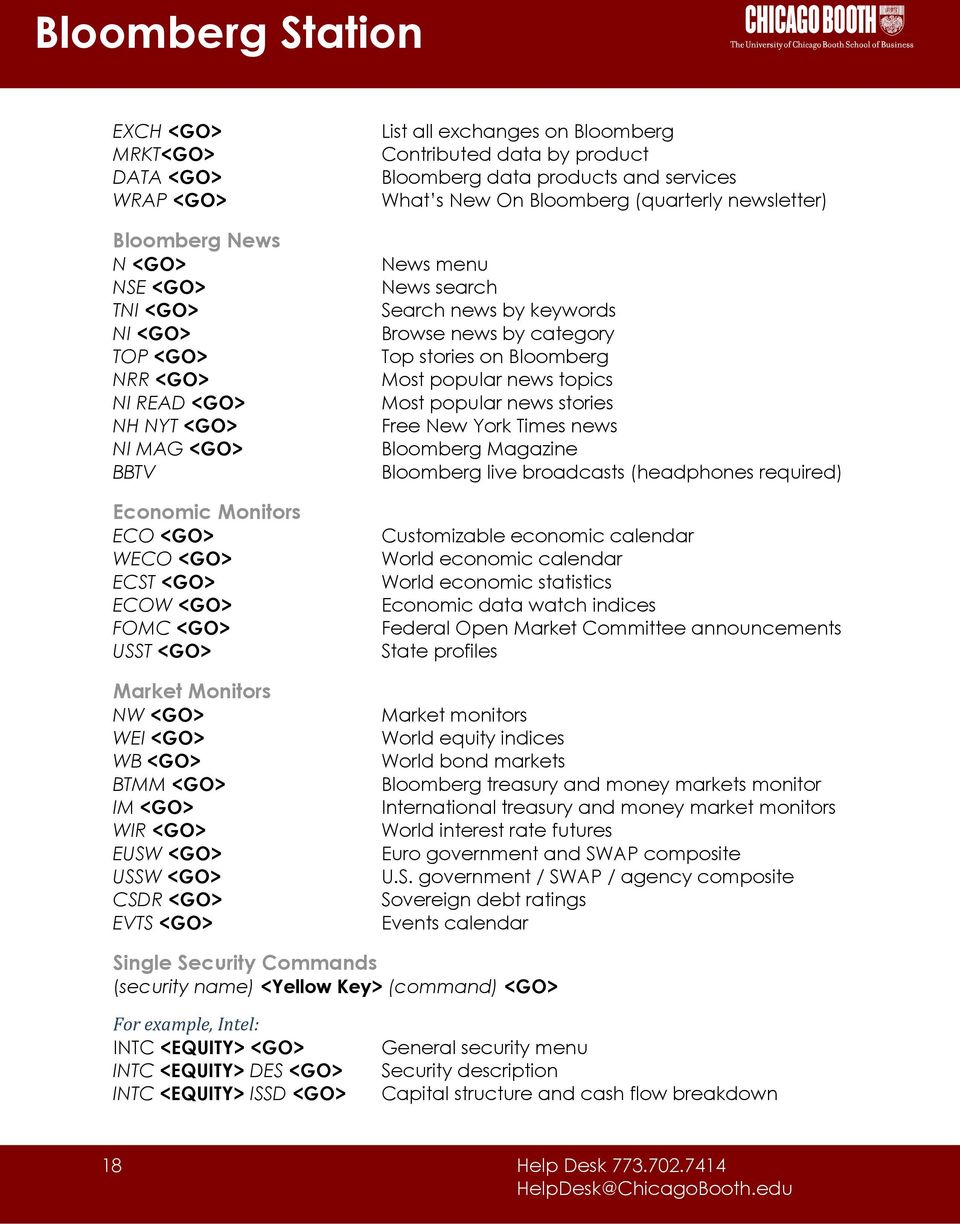
18 EXCH <GO> MRKT<GO> DATA <GO> WRAP <GO> Bloomberg News N <GO> NSE <GO> TNI <GO> NI <GO> TOP <GO> NRR <GO> NI READ <GO> NH NYT <GO> NI MAG <GO> BBTV Economic Monitors ECO <GO> WECO <GO> ECST <GO> ECOW <GO> FOMC <GO> USST <GO> Market Monitors NW <GO> WEI <GO> WB <GO> BTMM <GO> IM <GO> WIR <GO> EUSW <GO> USSW <GO> CSDR <GO> EVTS <GO> List all exchanges on Bloomberg Contributed data by product Bloomberg data products and services What s New On Bloomberg (quarterly newsletter) News menu News search Search news by keywords Browse news by category Top stories on Bloomberg Most popular news topics Most popular news stories Free New York Times news Bloomberg Magazine Bloomberg live broadcasts (headphones required) Customizable economic calendar World economic calendar World economic statistics Economic data watch indices Federal Open Market Committee announcements State profiles Market monitors World equity indices World bond markets Bloomberg treasury and money markets monitor International treasury and money market monitors World interest rate futures Euro government and SWAP composite U.S. government / SWAP / agency composite Sovereign debt ratings Events calendar Single Security Commands (security name) <Yellow Key> (command) <GO> For example, Intel: INTC <EQUITY> <GO> INTC <EQUITY> DES <GO> INTC <EQUITY> ISSD <GO> General security menu Security description Capital structure and cash flow breakdown 18
19 INTC <EQUITY> CRPR <GO> Credit profile and debt rating INTC <EQUITY> RELS <GO> Related securities INTC <EQUITY> RATC <GO> Company credit rating changes INTC <EQUITY> CF <GO> Company Filings INTC <EQUITY> HP <GO> Historical Prices INTC <EQUITY> COMP <GO> Comparison to benchmark INTC <EQUITY> DVD <GO> Dividend / split summary INTC <EQUITY> YA <GO> Yield analysis INTC <EQUITY> HVG <GO> Historical price volatility INTC <EQUITY> RV <GO> Relative value INTC <EQUITY> GP <GO> Price graph INTC <EQUITY> PC <GO> Peer correlation INTC <EQUITY> EE <GO> Earnings projections INTC <EQUITY> TRA <GO> Total return analysis INTC <EQUITY> CN <GO> Company News HS <GO> Historical spread graph (2 securities required to run) INTC 2.95 <CORP> YAS <GO> Yield and spread analysis Equities <EQUITY> <GO> WEI <GO> FMAP <GO> IMAP <GO> HALT <GO> CACT <GO> CBQ <GO> IBQ <GO> EQS <GO> Emerging Markets EMKT <GO> Bonds & Interest Rates WB <GO> BF <GO> WIR <GO> IM <GO> HYM <GO> IRSM <GO> IYC <GO> CURV <GO> FWCV <GO> MCA <GO> Equity menu World equity indices Clickable fund map Intraday market map List of suspended / halted stocks on an exchange Calendar of corporate actions Country quotes Bloomberg industry analysis Equity screening / search Emerging markets menu World government bond markets World bond futures World interest rate futures International treasury and money market monitors High yield bond menu Interest rate swaps and derivatives menu International yield curve menu Fair market curve analysis Forward curves analysis menu Multi-curve analysis 19

20 Currencies <CRNCY> <GO> FXIP <GO> IPSR <GO> FXC <GO> Commodities <CMDTY> <GO> GLCO <GO> METL <GO> CRPM <GO> MFP <GO> BIOF <GO> Convertibles CBMU <GO> Mergers and Acquisitions MA <GO> Currency menu Foreign exchange information platform Spot exchange rates menu Cross currency rates Commodity menu Global commodity prices and data Metal markets Crops monitor New York Mercantile Exchange monitor Biofuels markets Convertible bonds analysis menu Bloomberg mergers and acquisitions analysis Bloomberg Excel Add-in (security) <Yellow Key> FLDS <GO> Metadata for the Excel fields for a given security DAPI <GO> Detailed information on the Bloomberg Excel addin Miscellaneous Commands BMAP <GO> Bloomberg mapping IPAN <GO> View all current Bloomberg banners. WEAT <GO> Bloomberg weather center FLY <GO> Flight schedules DINE <GO> Local restaurants CHIC <GO> Chicago local menu CLMZ <GO> Classical music guide Questions or Comments? Please contact the Chicago Booth Information Technology HelpDesk at. 20

TRICKS, TIPS & SHORTCUTS
 TRICKS, TIPS & SHORTCUTS Personal Defaults News Settings Customization: Toolbar & Macro Buttons Bloomberg menus (Security specific functions) Keyboard Tricks Personal Monitors: Launchpad: The ultimate
GETTING STARTED. Help x2. bloomberg.com. Frankfurt +49 69 9204 1210 Hong Kong +852 2977 6000 London +44 20 7330 7500
 Help x2 Press the key twice for instant live assistance. bloomberg.com Frankfurt +49 69 9204 1210 Hong Kong +852 2977 6000 London +44 20 7330 7500 New York +1 212 318 2000 San Francisco +1 415 912
INTRODUCTION TO BLOOMBERG
 INTRODUCTION TO BLOOMBERG ONLINE GUIDE http://mannlib.cornell.edu/instruction/tutorials/bloomberg/index.cfm Library Gateway for all Library Services http://library.cornell.edu Mann Library website http://mannlib.cornell.edu
GUIDE TO BLOOMBERG S INFORMATION PROGRAMS
 GUIDE TO BLOOMBERG S INFORMATION PROGRAMS THE BLOOMBERG SYSTEM Bloomberg is a computer information and retrieval system providing access to financial and economic data, news, and analytics. Bloomberg terminals
CAMRI Guide to Bloomberg Version 1.0
 CAMRI Guide to Bloomberg Version 1.0 Centre for Asset Management Research & Investments (CAMRI) NUS Business School The Terminal is a 24-hour, global financial services system that provides transparent
BLOOMBERG LAUNCHPAD GETTING STARTED
 Help x2 Press the HELP key twice for instant live assistance. Frankfurt +49 69 92041 0 Hong Kong +852 2977 6000 London +44 20 7330 7500 bloomberg.co New York +1 212 318 2000 San Francisco +1 415 912 2960
BLOOMBERG GUIDE BY TOPICS
 GETTING STARTED ON BLOOMBERG BLOOMBERG KEYBOARD Green Action Keys Yellow Functional Buttons BLOOMBERG GUIDE BY TOPICS FUNCTIONS TO GET STARTED BU Bloomberg Training Resources EASY Display of Tips EXCH
Qualtrics Survey Tool
 Qualtrics Survey Tool This page left blank intentionally. Table of Contents Overview... 5 Uses for Qualtrics Surveys:... 5 Accessing Qualtrics... 5 My Surveys Tab... 5 Survey Controls... 5 Creating New
CFD-FX Trading platform Software User Guide. May 2006
 CFD-FX Trading platform Software User Guide May 2006 CONTENTS Introduction........................................................1 Installing the trading platform........................................1
Value Line Investment Survey Online
 Value Line Investment Survey Online User s Guide Welcome to Value Line Investment Survey Online. This user guide will show you everything you need to know to access and utilize the wealth of information
GETTING STARTED ON BLOOMBERG LAUNCHPAD
 USER GUIDE A Bloomberg Professional Service Offering GETTING STARTED ON BLOOMBERG LAUNCHPAD Start your day with the most powerful and flexible desktop workspace available for financial professionals. CONTENTS
USING THOMSON REUTERS EIKON EXCEL
 THOMSON REUTERS EIKON EXCEL USING THOMSON REUTERS EIKON EXCEL Thomson Reuters Training Fast and reliable pricing and valuation capabilities are central to a trader s daily business. Thomson Reuters Eikon
How To Use Senior Systems Cloud Services
 Senior Systems Cloud Services In this guide... Senior Systems Cloud Services 1 Cloud Services User Guide 2 Working In Your Cloud Environment 3 Cloud Profile Management Tool 6 How To Save Files 8 How To
Make Voice Calls and Share Documents using Skype*
 Make Voice Calls and Share Documents using Skype* Intel Easy Steps 1 2012 Intel Corporation Using Skype for making Voice Calls and Sharing Documents In the previous activity Using Skype to Communicate
Introduction to MS WINDOWS XP
 Introduction to MS WINDOWS XP Mouse Desktop Windows Applications File handling Introduction to MS Windows XP 2 Table of Contents What is Windows XP?... 3 Windows within Windows... 3 The Desktop... 3 The
Virtual Communities Operations Manual
 Virtual Communities Operations Manual The Chapter Virtual Communities (VC) have been developed to improve communication among chapter leaders and members, to facilitate networking and communication among
Outlook Web App User Guide
 Outlook Web App Table of Contents QUICK REFERENCE... 2 OUTLOOK WEB APP URL... 2 Imagine! Help Desk...... 2 OUTLOOK WEB APP MAIN WINDOW... 2 KEY NEW FEATURES... 3 GETTING STARTED WITH OUTLOOK... 4 LOGGING
Blackboard IM for Virtual Office Hours and Collaborative Group Work
 Blackboard IM for Virtual Office Hours and Collaborative Group Work Blackboard IM is an instant collaboration solution designed to promote learning through group work and academic and administrative help.
Converting to Advisor Workstation from Principia: The Research Module
 Converting to Advisor Workstation from Principia: The Research Module Overview - - - - - - - - - - - - - - - - - - - - - - - - - - - - - - - - - - - - - -1 Overview of the Research Module in Advisor Workstation
GETTING STARTED GUIDE
 ================================================= BLOOMBERG FOR EDUCATION A Bloomberg Professional Service Offering GETTING STARTED GUIDE FOR STUDENTS // 2014 CONTENTS 02 INTRODUCTION 03 BLOOMBERG TERMINAL
Lync 2010. Basics. CITES Training Services University of Illinois. Microsoft
 Microsoft Lync 2010 Basics CITES Training Services University of Illinois 2 Table of Contents Getting Started... 5 Starting Lync 2010... 6 Understanding the Lync 2010 Program Screen... 7 Using Help...
State of Ohio DMS Solution for Personnel Records Training
 State of Ohio DMS Solution for Personnel Records Training 1 Contents LOGGING IN AND THE BASICS... 3 LOGGING INTO THE DMS... 3 NAVIGATING THE UNITY CLIENT... 4 CREATING PERSONAL PAGES... 6 ADDING WEB LINKS
Stock Investment Guide Software Manual. By Churr Software. The Stock Investment Guide (manual version 0.8) ------ 1
 Stock Investment Guide Software Manual By Churr Software The Stock Investment Guide (manual version 0.8) ------ 1 This manual may not be duplicated either in whole or in part by any means without the expressed
How to Add Users 1. 2.
 Administrator Guide Contents How to Add Users... 2 How to Delete a User... 9 How to Create Sub-groups... 12 How to Edit the Email Sent Out to New Users... 14 How to Edit and Add a Logo to Your Group's
To download the latest version of TurboTick Pro go to http://www.turnkeybroker.com/download/turbotickpro/publish.html
 TurboTick PRO manual version 1.211 updated 12.7.2011 Getting started in TurboTick Pro TurboTick Pro is an advanced trading platform built for the active trader. With easy-to-use customizable screens, integrated
Excel Add-ins Quick Start Guide
 Excel Add-ins Quick Start Guide Contents Bloomberg - Excel Add-In... 2 Datastream - Excel Add-in... 9 FactSet - Excel Add-in... 13 Thomson Reuters Eikon - Excel Add-in... 19 Bloomberg - Excel Add-In Bloomberg
MetaTrader 4 and MetaEditor
 MetaTrader 4 and MetaEditor User Manual Version 1. 2 2012 Global Futures and Forex, Ltd. All rights reserved. Table of Contents Welcome to the MetaTrader and MetaEditor User Manual... 4 Section 1: Opening
Version 9.6. User Guide
 Version 9.6 Active Trader Pro User Guide Table of Contents Chapter 1 Introduction... 1 PROGRAM OVERVIEW...1 Account Management... 1 Portfolio Management... 1 Investment Decision Support Tools...... 1 Trading
FOR STUDENTS // February 2012
 ================================================== BLOOMBERG FOR EDUCATION A Bloomberg Professional Service Offering Getting Started Guide FOR STUDENTS // February 2012 CONTENTS>>>>>>>>>> 02 Bloomberg
WEB TRADER USER MANUAL
 WEB TRADER USER MANUAL Web Trader... 2 Getting Started... 4 Logging In... 5 The Workspace... 6 Main menu... 7 File... 7 Instruments... 8 View... 8 Quotes View... 9 Advanced View...11 Accounts View...11
University Systems Client Technologies. Skype User Guide for Windows XP and Windows Vista
 University Systems Client Technologies Skype User Guide for Windows XP and Windows Vista Created By: Scott Thorpe Created On: April 2nd, 2008 Last Modified By: Scott Thorpe Last Modified On: August 7th,
Department of Information Technology. Microsoft Outlook 2013. Outlook 101 Basic Functions
 Department of Information Technology Microsoft Outlook 2013 Outlook 101 Basic Functions August 2013 Outlook 101_Basic Functions070713.doc Outlook 101: Basic Functions Page 2 Table of Contents Table of
Bloomberg Functions for the FIN 300 Bond Project. Prof. Carissa Phillips Spring 2012
 Bloomberg Functions for the FIN 300 Bond Project Prof. Carissa Phillips Spring 2012 Features to note on the Bloomberg keyboard HELP to search the system or chat with BB F3 for general info on Corporate
Internet Explorer 7. Getting Started The Internet Explorer Window. Tabs NEW! Working with the Tab Row. Microsoft QUICK Source
 Microsoft QUICK Source Internet Explorer 7 Getting Started The Internet Explorer Window u v w x y { Using the Command Bar The Command Bar contains shortcut buttons for Internet Explorer tools. To expand
Lync 2011. Basics. CITES Training Services University of Illinois. Microsoft
 Microsoft Lync 2011 Basics CITES Training Services University of Illinois 2 Table of Contents Getting Started... 2 Starting Lync 2011... 3 Understanding the Lync 2011 Program Screen... 4 Using Help...
UniCom & Skype for Business Windows User Guide
 UniCom & Skype for Business Windows User Guide Downloading Skype Required equipment and how to test it Initiating a call Answering a call Disconnecting a call Placing and removing a call from Hold Transfer
Appendix A How to create a data-sharing lab
 Appendix A How to create a data-sharing lab Creating a lab involves completing five major steps: creating lists, then graphs, then the page for lab instructions, then adding forms to the lab instructions,
Central Management Software CV3-M1024
 Table of Contents Chapter 1. User Interface Overview...5 Chapter 2. Installation...6 2.1 Beginning Installation...6 2.2 Starting the CMS software...10 2.3 Starting it from the Start menu...10 2.4 Starting
Web Manual: Go To Meeting April 2015
 Web Manual: Go To Meeting Table of Contents Getting Started... 3 What is GoToMeeting?... 3 Activating Your Account... 3 What You Need for Set-up... 3 Changing Account Details (Name, Email, Time Zone, Password)...
DealBook 360. User Manual. Version 1.0. gftforex.com/ 800-465-4373 / 616-956-9273 LIVE CHAT 24/7 TOLL FREE INTERNATIONAL
 DealBook 360 User Manual Version 1.0 gftforex.com/ 800-465-4373 / 616-956-9273 LIVE CHAT 24/7 TOLL FREE INTERNATIONAL Table of Contents Welcome to the DealBook 360 User Manual... 6 Before You Use DealBook
Getting Started with Barchart Professional
 Getting Started with Barchart Professional Last Updated: 12/20/2010 Welcome to Barchart Professional! Professional a full-featured quote, chart and analysis software application that you download to your
Skype for Business. User Guide. Contents
 Skype for Business User Guide Contents What is Skype for Business... 2 Accessing Skype for Business... 2 Starting Skype for Business for the first time... 2 Subsequent access to Skype for Business... 3
Password Memory 6 User s Guide
 C O D E : A E R O T E C H N O L O G I E S Password Memory 6 User s Guide 2007-2015 by code:aero technologies Phone: +1 (321) 285.7447 E-mail: [email protected] Table of Contents Password Memory 6... 1
Unified Communications Using Microsoft Office Live Meeting 2007
 Unified Communications Using Microsoft Office Live Meeting 2007 Text version of online course. Contents Unified Communications... 1 About Microsoft Office Live Meeting 2007... 3 Copyright Information...
Creating and Using Forms in SharePoint
 Creating and Using Forms in SharePoint Getting started with custom lists... 1 Creating a custom list... 1 Creating a user-friendly list name... 1 Other options for creating custom lists... 2 Building a
PROPHIX Reporting What is PROPHIX?
 ALA Financial System PROPHIX Reporting What is PROPHIX? ALA s Financial System upgrade is comprised of three new software solutions: 1. Bill Payment Process (BPP), a Microsoft SharePoint web-based platform
OfficeSuite HD Meeting User Manual
 OfficeSuite HD Meeting User Manual Welcome to Broadview Networks OfficeSuite HD Meeting. Our service unifies cloud video conferencing, simple online meeting and mobile collaboration into one easy-to-use
Bloomberg 1 Database Extension for EViews
 Bloomberg 1 Database Extension for EViews Overview The Bloomberg Database Extension is a new feature for EViews 8.1 that adds easy access to Bloomberg s extensive collection of market and economic data
Wimba Pronto. Version 3.1. User Guide
 Wimba Pronto Version 3.1 User Guide Wimba Pronto 3.1 User Guide Welcome to Wimba Pronto 1 Top Wimba Pronto Features 1 What's New in Wimba Pronto? 3 Getting Started 4 Wimba Pronto System Requirements 4
WEBTrader. User Guide
 WEBTrader User Guide Table of Contents Creating a Demo account How to log in Main Areas of the WebTrader Market Watch Favorites Adding Favorites Spot Panes Charts Adding New Chart Using Charts Chart Options
Installing Lync. Configuring and Signing into Lync
 Microsoft Lync 2013 Contents Installing Lync... 1 Configuring and Signing into Lync... 1 Changing your Picture... 2 Adding and Managing Contacts... 2 Create and Manage Contact Groups... 3 Start an Instant
Excel Add-in Desktop Guide- i
 Excel Add-in Desktop Guide- i Importing Data...1 Import Data Wizard...1 Fundamentals Analysis Wizard...9 Data Transparency... 15 Searching for Fields...17 Field Search Tool...17 Bloomberg Formula Syntax...
Customer Support : System Requirements : Logging In : Homepage :
 We have developed the Quick Start Guide to ensure your quick access to the GCC stock markets data and other important information. In addition it will assist you to achieve the maximum benefits of using
Financial Databases An Overview. Pardee Management Library October 2010
 Financial Databases An Overview Pardee Management Library October 2010 Databases Bloomberg Lexis Nexis Academic Factiva Mergent Edgar @ www.sec.gov Wharton Research Data Services (WRDS) Datastream 12/15/2010
Q. The Phone Manager call banner disappears after being displayed for a couple of seconds...5 Q. The Phone Manager icon in the taskbar is blue and
 Phone Manager FAQ s Q. The Phone Manager call banner disappears after being displayed for a couple of seconds...5 Q. The Phone Manager icon in the taskbar is blue and has a cross on it. 5 Q. Some options
Outlook Managing Your Items
 Course Description Managing your items is essential if you want Outlook to run as efficiently and effectively as possible. As with any filing system the longer you put off doing anything the larger the
WHAT S NEW IN OUTLOOK 2010 & HOW TO CUSTOMIZE IT
 WHAT S NEW IN OUTLOOK 2010 & HOW TO CUSTOMIZE IT THE RIBBON... 2 CONTEXTUAL TABS... 4 THE FILE TAB... 4 DIALOG BOXES... 5 MINIMIZING THE RIBBON... 5 CUSTOMIZING THE RIBBON... 6 CUSTOMIZING THE QUICK ACCESS
Decision Support AITS University Administration. Web Intelligence Rich Client 4.1 User Guide
 Decision Support AITS University Administration Web Intelligence Rich Client 4.1 User Guide 2 P age Web Intelligence 4.1 User Guide Web Intelligence 4.1 User Guide Contents Getting Started in Web Intelligence
SQ TRADING STATION User Guide & Installation
 SQ TRADING STATION User Guide & Installation Table of content 1. Downloading the SQ Trading Station 2 2. Launching the SQ Trading Station 3 3. The SQ Trading Station User Interface 4 4. How to place a
Online International Business Certificate Programs
 Online International Business Certificate Programs User s Guide for Students Copyright 2007, Bisk Education, Inc., and Thunderbird School of Global Management. All rights reserved. i Table of Contents
MyCaseInfo Attorney Administration Users Guide. A Best Case Bankruptcy Add-on Tool
 MyCaseInfo Attorney Administration Users Guide A Best Case Bankruptcy Add-on Tool 2 Table of Contents I. ATTORNEY ADMINISTRATION OVERVIEW... 4 II. HELP CENTER... 5 Documents Web Tutorials Online Seminar
Harrisburg University Skype for Business User Guide
 Harrisburg University Skype for Business User Guide Contents 2 Accessing Skype for Business... 2 Starting Skype for Business on your desktop... 3 Subsequent access to Skype for Business... 3 Changing Skype
For Windows. 2012 Microsoft Corporation. All rights reserved.
 For Windows 1 About Microsoft Lync... 4 Lync Window... 5 Audio... 6 Set up your audio device... 6 Make a call... 6 Answer a call... 7 Use audio call controls... 7 Check voicemail... 7 Invite more people
EXPRESSPATH PROVIDER PORTAL USER GUIDE AUGUST 2013
 EXPRESSPATH PROVIDER PORTAL USER GUIDE AUGUST 2013 2013-2020 Express Scripts, Inc. All rights reserved. No part of this publication may be reproduced or transmitted in any form or by any means, electronic
Personal Portfolios on Blackboard
 Personal Portfolios on Blackboard This handout has four parts: 1. Creating Personal Portfolios p. 2-11 2. Creating Personal Artifacts p. 12-17 3. Sharing Personal Portfolios p. 18-22 4. Downloading Personal
CISCO WebEx Guide for Host/Meeting Organiser. Unified Communications
 Unified Communications CISCO WebEx Guide for Host/Meeting Organiser Version: November 2014 TABLE OF CONTENTS Introducing WebEx... 2 How to create a WebEx account... 3 The first time you log into WebEx...
VALUE LINE INVESTMENT SURVEY ONLINE USER S GUIDE VALUE LINE INVESTMENT SURVEY ONLINE. User s Guide
 VALUE LINE INVESTMENT SURVEY ONLINE User s Guide Welcome to Value Line Investment Survey Online. This user guide will show you everything you need to know to access and utilize the wealth of information
Standard & Poor s Research Insight Getting Started (Global) By Standard & Poor s
 Standard & Poor s Research Insight Getting Started (Global) By Standard & Poor s The product described in this document is furnished under a license agreement. The information contained in this document
VoIPOffice Communicator User Guide Version 3.1.5, January 2013
 VoIPOffice Communicator User Guide Version 3.1.5, January 2013 Introduction VoIPOffice Communicator is a computer application that turns your PC into a powerful unified communications tool. It provides
Mergent Online. A User s Guide
 Mergent Online A User s Guide Welcome to Mergent Online. This user guide will show you everything you need to know to access and utilize the wealth of information available from Mergent Online. This program
Introduction to Mac Operating System: Snow Leopard
 Introduction to Mac Operating System: Snow Leopard Switching the Computer On 1. Press the round button on the back of the computer to turn the computer on. If the screen is black, but the lights are lit
UniCom with Office Communicator and Live Meeting. Quick Start Guide
 UniCom with Office Communicator and Live Meeting Quick Start Guide Table of Contents Understanding UniCom and Office Communicator... 1 What is UniCom?... 1 What Is Office Communicator?... 1 Who Can Use
UniCom Enterprise Phone (Polycom CX600) User Guide
 UniCom Enterprise Phone (Polycom CX600) User Guide 1 6 What is UniCom Enterprise?...1 Frequently Used Make a Call...6 What is Microsoft Lync?...1 Call Functions Use Call Controls...7 Who can use UniCom
Skype for Business: Get Started... 3. Set-up Audio... 3. Set-up Video... 3. Conversation Window... 4. Shut Your Virtual Office Door...
 Desktop/Laptop Contents : Get Started... 3 Set-up Audio... 3 Set-up Video... 3 Conversation Window... 4 Shut Your Virtual Office Door... 4 Personalise... 5 Customise What s Happening Today... 5 Profile
BVR. Free Download. PitchBook Plugin for Excel USER GUIDE. What It s Worth
 BVR What It s Worth Free Download PitchBook Plugin for Excel USER GUIDE Thank you for visiting Business Valuation Resources, the leading provider of quality acquisition data and analysis. For more information
Web Mail Guide... Error! Bookmark not defined. 1 Introduction to Web Mail... 4. 2 Your Web Mail Home Page... 5. 3 Using the Inbox...
 Powered by Table of Contents Web Mail Guide... Error! Bookmark not defined. 1 Introduction to Web Mail... 4 1.1 Requirements... 4 1.2 Recommendations for using Web Mail... 4 1.3 Accessing your Web Mail...
Infoview XIR3. User Guide. 1 of 20
 Infoview XIR3 User Guide 1 of 20 1. WHAT IS INFOVIEW?...3 2. LOGGING IN TO INFOVIEW...4 3. NAVIGATING THE INFOVIEW ENVIRONMENT...5 3.1. Home Page... 5 3.2. The Header Panel... 5 3.3. Workspace Panel...
STEPfwd Quick Start Guide
 CERT/Software Engineering Institute June 2016 http://www.sei.cmu.edu Table of Contents Welcome to STEPfwd! 3 Becoming a Registered User of STEPfwd 4 Learning the Home Page Layout 5 Understanding My View
Adobe Connect Quick Guide
 Leicester Learning Institute Adobe Connect Quick Guide Request an account If you want to publish materials to Adobe Connect or run online meetings or teaching sessions, contact the IT Service Desk on 0116
Introduction To Microsoft Office PowerPoint 2007. Bob Booth July 2008 AP-PPT5
 Introduction To Microsoft Office PowerPoint 2007. Bob Booth July 2008 AP-PPT5 University of Sheffield Contents 1. INTRODUCTION... 3 2. GETTING STARTED... 4 2.1 STARTING POWERPOINT... 4 3. THE USER INTERFACE...
Thomson Reuters Eikon Quick Start Guide
 Thomson Reuters Eikon Quick Start Guide Thomson Reuters Eikon is a great tool to retrieve market data, news, and economic information pertaining to a wealth of countries and nations. The software is very
Lync 2013 Quick Reference Lync Meetings. Join a Lync Meeting. Schedule a Lync Meeting. Do I need a PIN, work number or extension? Set meeting options
 Join a Lync Meeting 1. In the meeting request, click Join Lync Meeting or click Join Online in the meeting reminder. 2. On the Join Meeting Audio window, select one of the options: Use Lync (full audio
USER GUIDE. Unit 2: Synergy. Chapter 2: Using Schoolwires Synergy
 USER GUIDE Unit 2: Synergy Chapter 2: Using Schoolwires Synergy Schoolwires Synergy & Assist Version 2.0 TABLE OF CONTENTS Introductions... 1 Audience... 1 Objectives... 1 Before You Begin... 1 Getting
Colligo Email Manager 6.0. Offline Mode - User Guide
 6.0 Offline Mode - User Guide Contents Colligo Email Manager 1 Key Features 1 Benefits 1 Installing and Activating Colligo Email Manager 2 Checking for Updates 3 Updating Your License Key 3 Managing SharePoint
Microsoft Lync for MAC The Essentials
 Microsoft Lync for MAC The Essentials Training User Guide Sue Pejic Training Coordinator Information Technology Services Email : [email protected] Mobile : 0419 891 113 Table of Contents What is Lync
Title bar Help Ribbon Display (appear only when needed)
 Microsoft Office 2013 Quick Reference Card Office 2013 is very much like Office 2010 in its basic functionality. It uses a tabbed Ribbon across the top and employs dialog boxes and a Quick Access Toolbar.
Online Master of Science in Information Technology Degree Program User s Guide for Students
 Online Master of Science in Information Technology Degree Program User s Guide for Students Copyright 2006, Bisk Education, Inc., and Florida Tech. All rights reserved. i Online User s Guide for Students
How To Create A Powerpoint Intelligence Report In A Pivot Table In A Powerpoints.Com
 Sage 500 ERP Intelligence Reporting Getting Started Guide 27.11.2012 Table of Contents 1.0 Getting started 3 2.0 Managing your reports 10 3.0 Defining report properties 18 4.0 Creating a simple PivotTable
Unified Communicator Advanced Training Handout
 Unified Communicator Advanced Training Handout About Unified Communicator Advanced (UCA) Video Summary (must have access to the internet for this to launch) http://www.mitel.tv/videos/mitel_unified_communicator_advanced_na
Classroom Management, part of Intel Education User Manual
 Classroom Management, part of Intel Education User Manual Disclaimer INFORMATION IN THIS DOCUMENT IS PROVIDED IN CONNECTION WITH INTEL PRODUCTS. EXCEPT AS PROVIDED IN INTEL'S TERMS AND CONDITIONS OF SALE
MetaTrader 4 for iphone Guide
 MetaTrader 4 for iphone Guide Logging in When you have first downloaded and installed the app from the App Store, you will see the Metatrader 4 icon appear on your screen. Please select this icon by tapping
Using Avaya Flare Experience for Windows
 Using Avaya Flare Experience for Windows Release 9.0 Issue 02.01 September 2013 Contents Chapter 1: About Flare Experience... 5 About Flare Experience... 5 Main window... 6 Button descriptions... 10 Chapter
Appspace 5.X Reference Guide (Digital Signage) Updated on February 9, 2015
 Appspace 5.X Reference Guide (Digital Signage) Updated on February 9, 2015 1 TABLE OF CONTENTS 2 What is Appspace For Digital Signage... 4 3 Access Appspace... 4 4 Best Practices and Notes... 4 5 Appspace
GETTING STARTED WITH COVALENT BROWSER
 GETTING STARTED WITH COVALENT BROWSER Contents Getting Started with Covalent Browser... 1 What is the Browser Version?... 4 Logging in... 5 The URL address... 5 Home page... 5 Menu bar... 5 Go To button...
For further support information, refer to the Help Resources appendix. To comment on the documentation, send an email to [email protected].
 Technical Support and Product Information tk20.com Tk20 Corporate Headquarters 10801 MoPac Expressway, Suite 740, Austin, Texas 78759 USA Tel: 512-401-2000 For further support information, refer to the
Mikogo User Guide Linux Version
 Mikogo User Guide Linux Version Table of Contents Registration 3 Downloading & Running the Application 4 Start a Session 5 Join a Session 6 Features 7 Participant List 7 Switch Presenter 8 Remote Control
Book Builder Training Materials Using Book Builder September 2014
 Book Builder Training Materials Using Book Builder September 2014 Prepared by WDI, Inc. Table of Contents Introduction --------------------------------------------------------------------------------------------------------------------