
Sony Ericsson W595. Contents. Transferring and handling content Getting started Walkman Calling... 31
|
|
|
- Delphia Mosley
- 10 years ago
- Views:
Transcription
1 Contents Getting started... 6 Assembly... 6 Turning on the phone... 8 Help... 9 Charging the battery... 9 Phone overview Menu overview Navigation Memory Phone language Entering text Walkman Stereo portable handsfree Walkman player TrackID Online music and video clips Video player Radio MusicDJ Record sound Sony Ericsson W595 Transferring and handling content Handling content within the phone Sending content to another phone 26 Transferring content to and from a computer Using the USB cable Phone name Using Bluetooth wireless technology Backing up and restoring Calling Making and receiving calls Contacts Call list Speed dial Voic Voice control More than one call Restricted dialling Call time and cost Showing or hiding your phone number 41 Contents 1

2 Messaging Receiving and saving text messages 42 Text messages Picture messages Message options Templates Postcard Voice messages Messenger Area and cell information Imaging Viewfinder and camera keys Using the camera More camera features Viewing and tagging pictures live! Studio Blogging Printing photos Internet Vodafone live! To connect to Vodafone live! Vodafone live! services Web feeds Synchronising Synchronising using a computer.. 58 Synchronising using an Internet service More features Flight mode Update service Location services My Files Alarms Calendar Notes Tasks Profiles Time and date Theme Main menu layout Ringtones Screen orientation Games Applications Walk Mate Locks Troubleshooting Common questions Error messages Sony Ericsson W595 2

3 Important information Index Sony Ericsson W595 3

4 Sony Ericsson W595 UMTS HSDPA 2100 GSM EDGE 850/900/1800/ 1900 This User guide is published by Sony Ericsson Mobile Communications AB or its local affiliated company, without any warranty. Improvements and changes to this User guide necessitated by typographical errors, inaccuracies of current information, or improvements to programs and/or equipment, may be made by Sony Ericsson Mobile Communications AB at any time and without notice. Such changes will, however, be incorporated into new editions of this User guide. All rights reserved. Sony Ericsson Mobile Communications AB, 2008 Publication number: P1C Please note: Some of the services in this User guide are not supported by all networks. This also applies to the GSM International Emergency Number 112. Please contact your network operator or service provider if you are in doubt whether you can use a particular service or not. Please read the Important information chapters before you use your mobile phone. Your mobile phone has the capability to download, store and forward additional content, e.g. ringtones. The use of such content may be restricted or prohibited by rights of third parties, including but not limited to restriction under applicable copyright laws. You, and not Sony Ericsson, are entirely responsible for additional content that you download to or forward from your mobile phone. Prior to your use of any additional content, please verify that your intended use is properly licensed or is otherwise authorized. Sony Ericsson does not guarantee the accuracy, integrity or quality of any additional content or any other third party content. Under no circumstances will Sony Ericsson be liable in any way for your improper use of additional content or other third party content. Smart-Fit Rendering is a trademark or a registered trademark of ACCESS Co., Ltd. Bluetooth is a trademark or a registered trademark of Bluetooth SIG Inc. and any use of such mark by Sony Ericsson is under license. The Liquid Identity logo, SensMe, MusicDJ, PhotoDJ, TrackID and VideoDJ are trademarks or registered trademarks of Sony Ericsson Mobile Communications AB. TrackID is powered by Gracenote Mobile MusicID. Gracenote and Gracenote Mobile MusicID are trademarks or registered trademarks of Gracenote, Inc. WALKMAN is a trademark or a registered trademark of Sony Corporation. Lotus Notes is a trademark or a registered trademark of International Business Machines Corporation. Sony, Memory Stick Micro and M2 are trademarks or registered trademarks of Sony Corporation. Google and Google Maps are trademarks or registered trademarks of Google, Inc. SyncML is a trademark or registered trademark of Open Mobile Alliance LTD. Ericsson is a trademark or registered trademark of Telefonaktiebolaget LM Ericsson. Adobe Photoshop Album Starter Edition is a trademark or registered trademark of Adobe Systems Incorporated in the United States and/or other countries. Microsoft, ActiveSync, Windows, Outlook, and Vista are registered trademarks or trademarks of Microsoft Corporation in the United States and/or other countries. T9 Text Input is a trademark or a registered trademark of Tegic Communications. T9 Text Input is licensed under one or more of the 4

5 following: U.S. Pat. Nos. 5,818,437, 5,953,541, 5,187,480, 5,945,928, and 6,011,554; Canadian Pat. No. 1,331,057, United Kingdom Pat. No B; Hong Kong Standard Pat. No. HK ; Republic of Singapore Pat. No ; Euro.Pat. No ( ) DE/DK, FI, FR, IT, NL, PT, ES, SE, GB; and additional patents are pending worldwide. This product is protected by certain intellectual property rights of Microsoft. Use or distribution of such technology outside of this product is prohibited without a license from Microsoft. Content owners use Windows Media digital rights management technology (WMDRM) to protect their intellectual property, including copyrights. This device uses WMDRM software to access WMDRMprotected content. If the WMDRM software fails to protect the content, content owners may ask Microsoft to revoke the software's ability to use WMDRM to play or copy protected content. Revocation does not affect unprotected content. When you download licenses for protected content, you agree that Microsoft may include a revocation list with the licenses. Content owners may require you to upgrade WMDRM to access their content. If you decline an upgrade, you will not be able to access content that requires the upgrade. Java, JavaScript and Java-based trademarks and logos are trademarks or registered trademarks of Sun Microsystems, Inc., in the U.S. and other countries. End-user license agreement for Sun Java Platform, Micro Edition. 1. Restrictions: Software is confidential copyrighted information of Sun and title to all copies is retained by Sun and/or its licensors. Customer shall not modify, decompile, disassemble, decrypt, extract, or otherwise reverse engineer Software. Software may not be leased, assigned, or sublicensed, in whole or in part. 2. Export Regulations: Software including technical data, is subject to U.S. export control laws, including the U.S. Export Administration Act and its associated regulations, and may be subject to export or import regulations in other countries. Customer agrees to comply strictly with all such regulations and acknowledges that it has the responsibility to obtain licenses to export, reexport, or import Software. Software may not be downloaded, or otherwise exported or re-exported (i) into, or to a national or resident of, Cuba, Iraq, Iran, North Korea, Libya, Sudan, Syria (as such listing may be revised from time to time) or any country to which the U.S. has embargoed goods; or (ii) to anyone on the U.S. Treasury Department's list of Specially Designated Nations or the U.S. Commerce Department's Table of Denial Orders. 3. Restricted Rights: Use, duplication or disclosure by the United States government is subject to the restrictions as set forth in the Rights in Technical Data and Computer Software Clauses in DFARS (c) (1) and FAR (c) (2) as applicable. Other product and company names mentioned herein may be the trademarks of their respective owners. Any rights not expressly granted herein are reserved. All illustrations are for illustration only and may not accurately depict the actual phone. Instruction symbols These symbols may appear in the User guide. Note Tip Warning 5

6 A service or function is networkor subscription-dependent. Contact your network operator or go to for details. > Use a selection or navigation key to scroll and select. See Navigation on page 15. Getting started Assembly Before you start using your phone, you need to insert a SIM card and the battery. 6 Getting started

7 To insert the SIM card To insert the battery 1 Remove the battery cover. 2 Slide the SIM card into its holder with the gold-coloured contacts facing down. 1 Insert the battery with the label side up and the connectors facing each other. 2 Slide the battery cover into place. Getting started 7

8 Turning on the phone To turn on the phone operator, contains information about your subscription. Always turn off your phone and detach the charger before you insert or remove the SIM card. You can save contacts on the SIM card before you remove it from your phone. See To copy names and numbers to the SIM card on page Press and hold down. 2 Enter your SIM card PIN, if requested and select OK. 3 Select a language. 4 Select Cont. to use the setup wizard while Internet and picture message settings are downloaded. To correct a mistake when you enter your PIN, press. Before turning the phone off, you must return to standby. SIM card The SIM (Subscriber Identity Module) card, which you get from your network PIN You may need a PIN (Personal Identification Number) to activate the services and functions in your phone. Your PIN is supplied by your network operator. Each PIN digit appears as *, unless it starts with emergency number digits, for example, 112 or 911. You can see and call an emergency number without entering a PIN. If you enter the wrong PIN three times in a row, the SIM card is blocked. See SIM card lock on page 69. You may be asked to register your phone at Sony Ericsson. If you accept to register your phone, no personal data such as your phone number will be transferred to or processed by Sony Ericsson. 8 Getting started

9 Standby After you have turned on your phone and entered your PIN, the name of the network operator appears. This view is called standby. Your phone is now ready for use. Help In addition to this User guide, Getting started guides and more information are available at Help and information are also available in your phone. To view tips and tricks 1 From standby select Menu > Settings > the General tab > Setup wizard. 2 Select Tips and tricks. To view information about functions Scroll to a function and select Info, if available. In some cases, Info appears under Options. To view the phone demonstration From standby select Menu > Entertainment > Demo tour. To view the phone status From standby press the volume key up. Phone, memory and battery information is shown. Charging the battery The phone battery is partly charged when you buy it. To charge the battery 1 Connect the charger to the phone. It takes approximately 2.5 hours to fully charge the battery. Press a key to view the screen. Getting started 9

10 2 Remove the charger by tilting the plug upwards. You can use your phone while it is charging. You can charge the battery at any time and for more or less than 2.5 hours. You can interrupt the charging without damaging the battery. 10 Getting started

11 Phone overview 1 Ear speaker 2 Screen 3 Selection keys 4 Call key 5 Toolbar key 6 Selection key, Walkman player control 7 Volume key 8 Walkman key 9 End key, On/off key 10 C key (Clear) 11 Navigation key, Walkman player control 12 Silent key Getting started 11

12 13 Camera lens 14 Speaker 15 Connector for charger, handsfree and USB cable 16 Strap holder Getting started

13 Menu overview Web* * Applications Create new Inbox Drafts Outbox Sent Saved Settings Accounts Manage Camera Messaging Media Create new Inbox live! Studio*** Drafts Outbox Sent messages Saved messages Messenger*** Call voic Templates Manage messages Settings Photo Music Video Web feeds Settings Alarms/Mobile TV/Search Contacts WALKMAN Getting started 13

14 Entertainment** Radio TrackID *** Mobile TV*** Location services*** Games VideoDJ PhotoDJ MusicDJ Remote control Record sound Online services* My Files* Calls** Alarms Video call Calendar Tasks Notes Synchronisation Timer Stopwatch Calculator Code memo Organiser & Tools Settings** General Profiles Time & date Language Update service Voice control Toolbar Shortcuts Flight mode Security Setup wizard* Phone status Master reset Sounds & alerts Ring volume Ringtone Silent mode Increasing ring Vibrating alert Message alert Key response Display Wallpaper Main menu layout Theme Startup screen Screen saver Clock size Brightness Calls Speed dial Smart search Divert calls* Manage calls Time & cost* Show/hide my no. Handsfree Open to answer Close to end call Connectivity Bluetooth USB Phone name Network sharing Synchronisation Device management Mobile networks Data communication* Internet settings Streaming settings Message settings* SIP settings Accessories * Some menus are operator-, network- and subscription-dependent. ** You can use the navigation key to scroll between tabs in submenus. For more information, see Navigation on page 15. ***This service is not available in all countries or the name may differ. 14 Getting started

15 Navigation To navigate the phone menus To navigate your media 1 From standby select Menu > Media. 2 Scroll to a menu item and press the navigation key right. 3 To go back, press the navigation key left. To delete items Press to delete items such as numbers, letters, pictures and sounds. Tabs Tabs may be available. For example, Settings have tabs. 1 From standby select Menu. 2 Use the navigation key to move through the menus. To select actions on the screen Press the left, centre or right selection key. To view options for an item Select Options to, for example, edit. To end a function Press. To return to standby Press. To scroll between tabs Press the navigation key left or right. Shortcuts You can use keypad shortcuts to go directly to functions. To use navigation key shortcuts From standby press,, or to go directly to a function. To edit a navigation key shortcut 1 From standby select Menu > Settings > the General tab > Shortcuts. Getting started 15

16 2 Scroll to an option and select Edit. 3 Scroll to a menu option and select Shortc.. Main menu shortcuts Menu numbering starts from the top left icon and moves across and then down row by row. To go directly to a main menu From standby select Menu and press,, or. The Main menu layout must be set to Grid. See To change the main menu layout on page 67. Toolbar The toolbar gives you quick access to: New events missed calls and new messages. Running apps applications that are running in the background. My shortcuts add your favourite functions to access them quickly. Internet quick access to the Internet. To open the toolbar Press. Memory You can save content on the memory card, in the phone memory and on the SIM card. Pictures and music are saved on the memory card if a memory card is inserted. If not, or if the memory card is full, they are saved in the phone memory. Messages and contacts are saved in the phone memory, but you can choose to save them on the SIM card. Memory card Your phone supports Memory Stick Micro (M2 ) memory card adding more storage space to your phone. It can also be used as a portable memory card with other compatible devices. You can move content between the memory card and the phone memory. See Handling content within the phone on page 25. You may have to purchase a memory card separately. 16 Getting started

17 To insert a memory card Open the cover and insert the memory card with the gold-coloured contacts facing down. To remove a memory card Open the cover and remove the memory card. To view memory card options 1 From standby select Menu > Organiser & Tools > My Files > the On memory card tab. 2 Select Options. Phone language You can select a language to use in your phone. Getting started 17

18 To change the phone language 1 From standby select Menu > Settings > the General tab > Language > Phone language. 2 Select an option. Entering text You can use multitap text input or T9 Text Input to enter text. The T9 Text Input method uses a built-in dictionary. To change text input method When you enter text, press and hold down. To shift between capitals and lowercase letters When you enter text, press. To enter numbers When you enter text, press and hold down. To enter full stops and commas When you enter text, press. To enter a symbol 1 When you enter text, select Options > Add symbol. 2 Scroll to a symbol and select Insert. To enter text using T9 Text Input 1 From standby select, for example, Menu > Messaging > Create new > Message. 2 If is not displayed, press and hold down to change to T9 Text Input. 3 Press each key only once, even if the letter you want is not the first letter on the key. For example, to write the word Jane, press,,,. Write the whole word before looking at the suggestions. 4 Use or to view suggestions. 5 Press to accept a suggestion. To enter text using multitap 1 From standby select, for example, Menu > Messaging > Create new > Message. 2 If is displayed, press and hold down to change to multitap text input. 3 Press repeatedly until the desired letter appears. 4 When a word is written, press to add a space. To add words to the built-in dictionary 1 When you enter text using T9 Text Input, select Options > Spell word. 18 Getting started

19 2 Write the word using multitap input and select Insert. Walkman You can listen to music, audio books and podcasts. Use Sony Ericsson Media Manager to transfer content to and from your phone. See Transferring content to and from a computer on page 26 for more information. Stereo portable handsfree To use the handsfree Connect the portable handsfree. Music stops when you receive a call and resumes when the call has ended. Walkman 19

20 Walkman player To play music 1 From standby select Menu > Media > Music. 2 Browse by category using the navigation key. 3 Scroll to a track and select Play. To stop playing music Press the centre navigation key. To fast forward and rewind Press and hold down or. To move between tracks Press or. To minimize the player When music is playing, press. To return to the player Press. Shake control To switch track When music is playing, press and hold down and move the phone to the right with a flick of your wrist to go to the next track. To go to the previous track, use the same action to the left. 20 Walkman

21 To shuffle tracks To change the volume When music is playing, press and hold down and shake your phone. 1 When music is playing, hold the phone out in front of you facing upwards. 2 Press and hold down and bend your arm upwards towards you to increase the volume. To decrease the volume, repeat the action in the opposite direction. Playlists You can create playlists to organise your music. Tracks can be added to more than one playlist. Deleting a playlist, or a track from a playlist, does not delete the track from the memory, just the reference to the track. It may take a few minutes for the phone to create a playlist. Walkman 21
22 To create a playlist 1 From standby select Menu > Media > Music > Playlists. 2 Scroll to New playlist and select Add. 3 Enter a name and select OK. 4 For each track you want to add, scroll to the track and select Mark. 5 Select Add to add the tracks to the playlist. You can add folders to a playlist. All tracks in a folder are added to the playlist. To add tracks to a playlist 1 From standby select Menu > Media > Music > Playlists. 2 Select a playlist. 3 Scroll to Add music and select Add. 4 For each track you want to add, scroll to the track and select Mark. 5 Select Add to add the tracks to the playlist. To remove tracks from a playlist 1 From standby select Menu > Media > Music > Playlists. 2 Select a playlist. 3 Scroll to the track and press. SensMe With SensMe you can create playlists by mood. By using Sony Ericsson Media Manager to analyze and transfer music to your phone, information such as mood, tempo and chords is added to your tracks. The tracks are displayed as dots on a map with two axes. You can create a playlist by selecting an area of tracks. For information on how to analyze your music, see Sony Ericsson Media Manager Online Help. To create a playlist by mood 1 From standby select Menu > Media > Music. 2 Scroll to SensMe and select Open. 22 Walkman
23 3 Press,, or to preview different tracks. 4 Select Add and press or to choose an area of tracks. 5 Select Create to play the playlist in the Walkman player. 6 Select Options > Save playlist and enter a name and select OK. Audio books You can listen to audio books that you have transferred to your phone from a computer using Sony Ericsson Media Manager. It may take a few minutes before a transferred audio book appears in the list of available audio books. To access audio books From standby select Menu > Media > Music > Audio books. You can find audio books in formats other than M4B and those that do not have ID3v2 chapter tags in the Tracks folder. TrackID TrackID is a music recognition service. You can search for title, artist and album name for a track you hear playing through a loudspeaker or on the radio. If you cannot use TrackID, see Troubleshooting on page 71. For cost information contact your service provider. To search for track information When you hear a track through a loudspeaker, from standby select Menu > Entertainment > TrackID > Start. When the radio is playing select Options > TrackID. For best results, use TrackID in a quiet area. Online music and video clips You can view video clips and listen to music by streaming them to your phone from the Internet. If you cannot use the Internet, see Troubleshooting on page 71. To select a data account for streaming 1 From standby select Menu > Settings > the Connectivity tab > Streaming settings > Connect using:. 2 Select the data account to use. 3 Select Save. Walkman 23
24 To stream music and video clips 1 From standby select Menu > Web. 2 Select Options > Go to > Bookmarks. 3 Select a link to stream from. Video player To play videos 1 From standby select Menu > Media > Video > Videos. 2 Scroll to a title and select Play. To stop playing videos Press the centre selection key. Radio To listen to the radio 1 Connect the handsfree to the phone. 2 From standby select Menu > Entertainment > Radio. To search for channels automatically Select Search. To search for channels manually Press or. To change the volume Press the volume keys up or down. To minimize the radio When the radio is playing, select Options > Minimize. To return to the radio From standby select Menu > Entertainment > Radio. Saving channels You can save up to 20 preset channels. To save channels 1 When you have found a radio channel select Options > Save. 2 Scroll to a position and select Insert. To select saved channels 1 Select Options > Channels. 2 Select a radio channel. To switch between saved channels Press or. MusicDJ You can compose and edit your own melodies to use as ringtones. Prearranged sounds with different characteristics are available. To compose a melody 1 From standby select Menu > Entertainment > MusicDJ. 2 Select to Insert, Copy or Paste sounds. 3 Use,, or to scroll between the sounds. 4 Select Options > Save melody. 24 Walkman
25 Record sound You can record a voice memo or a call. Recorded sounds can also be set as ringtones. In some countries or states it is required by law that you inform the other person before recording the call. To record a sound From standby select Menu > Entertainment > Record sound > Record. To record a call 1 During an ongoing call, select Options > Record. 2 Select Save to save the recording. To listen to a recording 1 From standby select Menu > Organiser & Tools > My Files. 2 Scroll to Music and select Open. 3 Scroll to a recording and select Play. Transferring and handling content You can transfer and handle content such as pictures and music. You are not allowed to exchange some copyright-protected material. identifies a protected file. Handling content within the phone You can use My Files to handle content saved in the phone memory or on a memory card. Tabs and icons in My Files show where the content is saved. If the memory is full, delete some content to create space. To view memory status 1 From standby select Menu > Organiser & Tools > My Files. 2 Select Options > Memory status. 3 Select Memory card or Phone. To select more than one item in a folder 1 From standby select Menu > Organiser & Tools > My Files. 2 Scroll to a folder and select Open. 3 Select Options > Mark > Mark several. 4 For each item you want to mark, scroll to the item and select Mark. Transferring and handling content 25
26 To move items between the phone memory and the memory card 1 From standby select Menu > Organiser & Tools > My Files. 2 Find an item and select Options > Manage file > Move. 3 Select Memory card or Phone. 4 Scroll to a folder and select Open. 5 Select Paste. To view information about content 1 From standby select Menu > Organiser & Tools > My Files. 2 Find an item and select Options > Information. Sending content to another phone You can send content, for example, in messages or using Bluetooth wireless technology. To send content 1 Scroll to an item and select Options > Send. 2 Select a transfer method. Make sure the receiving device supports the transfer method you select. Transferring content to and from a computer You can use Sony Ericsson Media Manager to transfer content between your phone and a computer. Sony Ericsson Media Manager software is included on the CD that comes with your phone and available for download at When you move or copy content from a computer to your phone unrecognized content is saved in the Other folder in the file manager. Required operating systems You need one of these operating systems to use the software included on the CD: Microsoft Windows Vista 32 bit and 64 bit versions of: Ultimate, Enterprise, Business, Home Premium or Home Basic Microsoft Windows XP (Pro or Home), Service Pack 2 or higher To install Sony Ericsson Media Manager 1 Turn on your computer and insert the CD. The CD starts automatically and the installation window opens. 26 Transferring and handling content
27 2 Select a language and click OK. 3 Click Install Sony Ericsson Media Manager and follow the instructions. To transfer content using Sony Ericsson Media Manager Do not remove the USB cable from your phone or computer during transfer, as this may corrupt the phone memory. 1 Connect the phone to a computer with a USB cable supported by your phone. 2 Computer: Start/Programs/ Sony Ericsson/Media Manager. 3 Phone: Select Media transfer. 4 Computer: Wait until the phone appears in Sony Ericsson Media Manager. 5 Move files between your phone and the computer in Sony Ericsson Media Manager. 6 For safe disconnection of the USB cable, right-click the removable disk icon in Windows Explorer and select Eject. For details on transferring music, refer to Media Manager Help. Click in the top right corner of the Sony Ericsson Media Manager window. You can also go to to read Getting started guides. Using the USB cable You can connect your phone to a computer with the USB cable to synchronise, transfer and back up phone content and use your phone as a modem. For more information, go to to read Getting started guides. Before you use the USB cable See Required operating systems on page 26. Only use a USB cable supported by your phone. Do not remove the USB cable from your phone or computer during transfer as this may corrupt the phone memory. To disconnect the USB cable safely 1 Right-click the removable disk icon in Windows Explorer. Transferring and handling content 27
28 2 Select Eject. 3 Disconnect the USB cable when there is a message saying it is safe to do so in the phone. Do not copy the files immediately if you formatted the phone drive on the PC. In that case, remove the USB cable and restart the phone first. Drag and drop content You can drag and drop content between your phone memory and a computer in Microsoft Windows Explorer. To drag and drop content 1 Connect your phone to a computer using the USB cable. 2 Phone: Select Media transfer. 3 Computer: Wait until the phone memory appear as external disks in Windows Explorer. 4 Drag and drop selected files between the phone and the computer. Phone name You can enter a name for your phone that is shown to other devices when using, for example, Bluetooth wireless technology. To enter a phone name 1 From standby select Menu > Settings > the Connectivity tab > Phone name. 2 Enter the phone name and select OK. Using Bluetooth wireless technology The Bluetooth function makes wireless connection to other Bluetooth devices possible. You can, for example: Connect to handsfree devices. Connect to several devices at the same time. Connect to computers and access the Internet. Exchange items. Play multiplayer games. A range within 10 metres (33 feet), with no solid objects in between, is recommended for Bluetooth communication. Before you use Bluetooth wireless technology You must turn on the Bluetooth function to communicate with other devices. You may also have to pair your phone with other Bluetooth devices. 28 Transferring and handling content
29 To turn the Bluetooth function on From standby select Menu > Settings > the Connectivity tab > Bluetooth > Turn on. Make sure that the device you want to pair your phone with has the Bluetooth function activated and Bluetooth visibility set to on. To pair the phone with a device 1 From standby select Menu > Settings > the Connectivity tab > Bluetooth > My devices. 2 Scroll to New device and select Add to search for available devices. 3 Select a device. 4 Enter a passcode, if required. To allow connection to the phone 1 From standby select Menu > Settings > the Connectivity tab > Bluetooth > My devices. 2 Select a device from the list. 3 Select Options > Allow connection. 4 Select Always ask or Always allow. This is only possible with devices that require access to a secure service. To pair the phone with a Bluetooth handsfree for the first time 1 From standby select Menu > Settings > the Connectivity tab > Bluetooth > Handsfree. 2 Select a device. 3 Enter a passcode, if required. Power saving You can save battery power with the Power save function. In Power save mode you can only connect with a single Bluetooth device. If you want to connect with more than one Bluetooth device at the same time you must turn this function off. To turn powersave on From standby select Menu > Settings > the Connectivity tab > Bluetooth > Powersave > On. Transferring sound to and from a Bluetooth handsfree You can transfer the sound to and from a Bluetooth handsfree using a phone key or the handsfree key. To transfer sound 1 From standby select Menu > Settings > the Connectivity tab > Bluetooth > Handsfree > Incoming call. Transferring and handling content 29
30 2 Select an option. In phone transfers sound to the phone. In handsfree transfers sound to the handsfree. To transfer sound during a call 1 During a call, select Sound. 2 Select from the list. Backing up and restoring You can backup phone content to a computer using the Sony Ericsson PC Suite and the Sony Ericsson Media Manager. With Sony Ericsson PC Suite you can backup and restore contacts, calendar, tasks, notes and bookmarks. With Sony Ericsson Media Manager you can backup and restore content such as music, pictures and video clips. Before backing up and restoring, you need to install the Sony Ericsson PC Suite and the Sony Ericsson Media Manager. Always make a backup before having the phone upgraded, since upgrading can clear the user content. To make a backup using the Sony Ericsson PC Suite 1 Computer: Start the Sony Ericsson PC Suite from Start/Programs/Sony Ericsson/PC Suite. 2 Follow the instructions in the Sony Ericsson PC Suite for how to connect. 3 Phone: Select Phone mode. 4 Computer: Go to the backup and restore section in the Sony Ericsson PC Suite and make a backup. The Sony Ericsson PC Suite will overwrite all the phone content during the restore process. You may damage your phone if you interrupt the process. To restore phone content using the Sony Ericsson PC Suite 1 Computer: Start the Sony Ericsson PC Suite from Start/Programs/Sony Ericsson/PC Suite. 2 Follow the instructions in the Sony Ericsson PC Suite for how to connect. 3 Phone: Select Phone mode. Computer: Go to the backup and restore section in the Sony Ericsson PC Suite and restore your phone. To make a backup using the Sony Ericsson Media Manager 1 Connect your phone to the computer using a USB cable. You can also connect your phone to a computer using Bluetooth. 2 Phone: Select Media transfer mode. 30 Transferring and handling content
31 3 Computer: Start Sony Ericsson Media Manager from Start/Programs/Sony Ericsson/Media Manager. 4 Go to the backup section in the Sony Ericsson Media Manager. 5 Select the files you want to backup and make a back up. The Sony Ericsson Media Manager will compare your phone content with your computer backup and then restore files missing in your phone. You may damage your phone if you interrupt the process. To restore phone content using the Sony Ericsson Media Manager 1 Connect your phone to the computer. 2 Phone: Select Media transfer mode. 3 Computer: Start Sony Ericsson Media Manager from Start/Programs/Sony Ericsson/Media Manager. 4 Go to the backup section in the Sony Ericsson Media Manager. 5 Select the files you want to restore and restore them. For more information on backing up and restoring in Sony Ericsson Media Manager see the Sony Ericsson Media Manager Getting started guide at Calling Making and receiving calls You need to turn on your phone and be within range of a network. To make a call 1 From standby enter a phone number (with international country code and area code, if applicable). 2 Press. You can call numbers from your contacts and call list. See Contacts on page 33, and Call list on page 36. You can also use your voice to make calls. See Voice control on page 37. To end a call Press. To make international calls 1 From standby press and hold down until a + sign appears. 2 Enter the country code, area code (without the first zero) and phone number. 3 Press. Calling 31
32 To re-dial a number When Retry? appears select Yes. Do not hold your phone to your ear when waiting. When the call connects, your phone gives a loud signal. To answer a call Press. To reject a call Press. To change the ear speaker volume during a call Press the volume key up or down. To mute the microphone during a call 1 Press and hold down. 2 Press and hold down again to resume. To turn the loudspeaker on during a call Select SpkrOn. Do not hold your phone to your ear when using the loudspeaker. This could damage your hearing. To view missed calls from standby Press to open the call list. Networks Your phone switches automatically between GSM and 3G (UMTS) networks depending on availability. Some network operators allow you to switch networks manually. To switch networks manually 1 From standby select Menu > Settings > the Connectivity tab > Mobile networks > GSM/3G networks. 2 Select an option. Emergency calls Your phone supports international emergency numbers, for example, 112 and 911. You can normally use these numbers to make emergency calls in any country, with or without the SIM card inserted, if you are in range of a network. In some countries, other emergency numbers may also be promoted. Your network operator may therefore have saved additional local emergency numbers on the SIM card. To make an emergency call From standby enter 112 (the international emergency number) and press. 32 Calling
33 To view your local emergency numbers 1 From standby select Menu > Contacts. 2 Scroll to New contact and select Options > Special numbers > Emergency nos.. Video call You can see a person on the screen during calls. Both parties need a subscription that supports the 3G (UMTS) service, and you need to be within range of a 3G (UMTS) network. 3G (UMTS) service is available when appears. To make a video call 1 From standby enter a phone number (with international country code and area code if applicable). 2 Select Options > Make video call. To use the zoom with an outgoing video call Press or. To view video call options During the call, select Options. Contacts You can save names, phone numbers and personal information in Contacts. Information can be saved in the phone memory or on the SIM card. You can synchronise your contacts using the Sony Ericsson PC Suite. Default contacts You can choose which contact information is shown as default. If Phone contacts is selected as default, your contacts show all the information saved in Contacts. If you select SIM contacts as default, your contacts show names and numbers saved on the SIM card. To select default contacts 1 From standby select Menu > Contacts. 2 Scroll to New contact and select Options > Default contacts. 3 Select an option. Phone contacts Phone contacts can contain names, phone numbers and personal information. They are saved in the phone memory. To add a phone contact 1 From standby select Menu > Contacts. 2 Scroll to New contact and select Add. 3 Enter the name and select OK. 4 Scroll to New number: and select Add. Calling 33
34 5 Enter the number and select OK. 6 Select a number option. 7 Scroll between the tabs and add information to the fields. 8 Select Save. Calling contacts To call a phone contact 1 From standby select Menu > Contacts. 2 Scroll to a contact and press. To go directly to the contacts list From standby press and hold down. To call with Smart search 1 From standby press to enter a sequence of (at least two) digits. All entries which match the sequence of digits or corresponding letters are shown in a list. 2 Scroll to a contact or a phone number and press. To turn Smart search on or off 1 From standby select Menu > Settings > the Calls tab > Smart search. 2 Select an option. Editing contacts To add information to a phone contact 1 From standby select Menu > Contacts. 2 Scroll to a contact and select Options > Edit contact. 3 Scroll between the tabs and select Add or Edit. 4 Select an option and an item to add or edit. 5 Select Save. If your subscription supports Calling Line Identification (CLI) service, you can assign personal ringtones and pictures to contacts. To copy names and numbers to phone contacts 1 From standby select Menu > Contacts. 2 Scroll to New contact and select Options > Advanced > Copy from SIM. 3 Select an option. To copy names and numbers to the SIM card 1 From standby select Menu > Contacts. 2 Scroll to New contact and select Options > Advanced > Copy to SIM. 34 Calling
35 3 Select an option. When you copy all contacts from your phone to the SIM card, all existing SIM card information is replaced. To automatically save names and phone numbers on the SIM card 1 From standby select Menu > Contacts. 2 Scroll to New contact and select Options > Advanced > Auto save on SIM. 3 Select an option. SIM contacts SIM contacts can contain names and numbers only. They are saved on the SIM card. To add a SIM contact 1 From standby select Menu > Contacts. 2 Scroll to New contact and select Add. 3 Enter the name and select OK. 4 Enter the number and select OK. 5 Select a number option and add more information, if available. 6 Select Save. To call a SIM contact 1 From standby select Menu > Contacts. 2 Scroll to a contact and press. Deleting contacts To delete all contacts 1 From standby select Menu > Contacts. 2 Scroll to New contact and select Options > Advanced > Delete all contacts. 3 Select an option. Contact memory status The number of contacts you can save in your phone or on the SIM card depends on available memory. To view contact memory status 1 From standby select Menu > Contacts. 2 Scroll to New contact and select Options > Advanced > Memory status. Myself You can enter information about yourself and, for example, send your business card. To enter Myself information 1 From standby select Menu > Contacts. 2 Scroll to Myself and select Open. 3 Scroll to an option and edit the information. 4 Select Save. Calling 35
36 To add your own business card 1 From standby select Menu > Contacts. 2 Scroll to Myself and select Open. 3 Scroll to My contact info and select Add > Create new. 4 Scroll between the tabs and add information to the fields. 5 Enter the information and select Save. Groups You can create a group of phone numbers and addresses from Phone contacts to send messages to. See Messaging on page 42. You can also use groups (with phone numbers) when you create accepted callers lists. See Accept calls on page 40. To create a group of numbers and addresses 1 From standby select Menu > Contacts. 2 Scroll to New contact and select Options > Groups. 3 Scroll to New group and select Add. 4 Enter a name for the group and select Continue. 5 Scroll to New and select Add. 6 For each contact phone number or address you want to mark, scroll to it and select Mark. 7 Select Continue > Done. Call list You can view information about recent calls. To call a number from the call list 1 From standby press and scroll to a tab. 2 Scroll to a name or a number and press. To add a call list number to contacts 1 From standby press and scroll to a tab. 2 Scroll to the number and select Save. 3 Select New contact to create a new contact or select an existing contact to add the number to. Speed dial Speed dialling lets you select nine contacts you can dial quickly. The contacts can be saved in positions 1-9. To add contacts to speed dial numbers 1 From standby select Menu > Contacts. 2 Scroll to New contact and select Options > Speed dial. 3 Scroll to a position number and select Add. 4 Select a contact. 36 Calling
37 To speed dial From standby enter the position number and press. Voic If your subscription includes an answering service, callers can leave a voic message when you cannot answer a call. To enter your voic number 1 From standby select Menu > Messaging > Settings > Voic number. 2 Enter the number and select OK. To call your voic service From standby press and hold down. Voice control By creating voice commands you can: Voice dial call someone by saying their name Answer and reject calls when you use a handsfree To record a voice command using voice dialling 1 From standby select Menu > Settings > the General tab > Voice control > Voice dialling > Activate. 2 Select Yes > New voice command and select a contact. If the contact has more than one number, select the number to add the voice command to. 3 Record a voice command such as John mobile. 4 Follow the instructions that appear. Wait for the tone and say the command to record. The voice command is played back to you. 5 If the recording sounds OK, select Yes. If not, select No and repeat steps 3 and 4. Voice commands are saved in the phone memory only. They cannot be used in another phone. To voice dial 1 From standby press and hold down a volume key. 2 Wait for the tone and say a recorded name, for example John mobile. The phone plays the name back to you and connects the call. Voice answering When you use a handsfree, you can answer or reject incoming calls with your voice. Calling 37
38 To activate voice answering and record voice answer commands 1 From standby select Menu > Settings > the General tab > Voice control > Voice answer > Activate. 2 Follow the instructions that appear and select Cont.. Wait for the tone and say Answer, or say any other word of your choosing. 3 Select Yes to accept or No for a new recording. 4 Follow the instructions that appear and select Cont.. Wait for the tone and say Busy, or say any other word of your choosing. 5 Select Yes to accept or No for a new recording. 6 Follow the instructions that appear and select Cont.. 7 Select the environments in which you want to activate voice answering. To answer a call using voice commands Say Answer. To reject a call using voice commands Say Busy. Diverting calls You can divert calls, for example, to an answering service. When Restrict calls is used, some divert call options are not available. See Restricted dialling on page 40. To divert calls 1 From standby select Menu > Settings > the Calls tab > Divert calls. 2 Select a call type and a divert option. 3 Select Activate. 4 Enter the number to divert calls to and select OK. More than one call You can handle more than one call at a time. For example, you can put an ongoing call on hold, while you make or answer a second call. You can also switch between the two calls. You cannot answer a third call without ending one of the first two calls. You can also join two calls. Call waiting You will hear a beep if you receive a second call while call waiting is active. 38 Calling
39 To activate call waiting From standby select Menu > Settings > the Calls tab > Manage calls > Call waiting > Activate. To make a second call 1 During the call, select press. This puts the ongoing call on hold. 2 Select Options > Add call. 3 Enter the number to call and press. To answer a second call During the call, press. This puts the ongoing call on hold. To reject a second call During the call, press and continue with the ongoing call. To end an ongoing call and answer a second call During the call, select Replace active call. Handling two voice calls You can have calls ongoing and on hold at the same time. To switch between two calls During the call, press. To join two calls During the call, select Options > Join calls. To connect two calls During the call, select Options > Transfer call. You are disconnected from both calls. To end an ongoing call and return to the call on hold First press and then. Conference calls With a conference call, you can have a joint conversation with up to five people. To add a new participant 1 During the call, press. This puts the joined calls on hold. 2 Select Options > Add call. 3 Enter the number to call and press. 4 Select Options > Join calls to add the new participant. 5 Repeat this task to add more participants. To release a participant 1 Select Options > Release party. 2 Select the participant to release. Calling 39
40 To have a private conversation 1 During the call, select Options > Talk to and select the participant to talk to. 2 To resume the conference call, select Options > Join calls. My numbers You can view, add and edit your own phone numbers. To check your phone numbers 1 From standby select Menu > Contacts. 2 Scroll to New contact and select Options > Special numbers > My numbers. 3 Select an option. Accept calls You can choose to receive calls from certain phone numbers only. To add numbers to the accepted callers list 1 From standby select Menu > Settings > the Calls tab > Manage calls > Accept calls > Only from list. 2 Scroll to New and select Add. 3 Select a contact or Groups. See Groups on page 36. To accept all calls From standby select Menu > Settings > the Calls tab > Manage calls > Accept calls > All callers. Restricted dialling You can restrict outgoing and incoming calls. A password from your service provider is required. If you divert incoming calls, you cannot use some restrict calls options. Restrict calls options Standard options are: All outgoing all outgoing calls. Outgoing intl all outgoing international calls. Outgoing intl roam. all outgoing international calls except to your home country. All incoming all incoming calls. Inc. when roaming all incoming calls when you are abroad. To restrict calls 1 From standby select Menu > Settings > the Calls tab > Manage calls > Restrict calls. 2 Select an option. 3 Select Activate. 4 Enter your password and select OK. 40 Calling
41 Fixed dialling Fixed dialling allows calls to be made only to certain numbers saved on the SIM card. The fixed numbers are protected by your PIN2. Partial numbers can be saved. For example, saving allows calls to be made to all numbers starting with When fixed dialling is used, you cannot view or manage any phone numbers saved on the SIM card, but you can still call the international emergency number, 112. To use fixed dialling 1 From standby select Menu > Contacts. 2 Scroll to New contact and select Options > Special numbers > Fixed dialling > Activate. 3 Enter your PIN2 and select OK. 4 Select OK again to confirm. To save a fixed number 1 From standby select Menu > Contacts. 2 Scroll to New contact and select Options > Special numbers > Fixed dialling > Fixed numbers > New number. 3 Enter the information and select Save. Call time and cost During a call, the phone shows how long you have been talking. You can also check on the duration of your last call, your outgoing calls and the total time of all your calls. To check the call time From standby select Menu > Settings > the Calls tab > Time & cost > Call timers. Showing or hiding your phone number You can decide to show or hide your phone number when you make a call. To hide your phone number 1 From standby select Menu > Settings > the Calls tab > Show/hide my no.. 2 Select Hide number. Calling 41
42 Messaging Your phone supports various messaging services. Please contact your network operator about the services you can use, or for more information, go to or You can create messages with text, and symbols only, to send as text messages (SMS). You can add pictures, video, sounds and more to messages to send as picture messages (MMS). Picture messages can be sent to a mobile phone or address. You can also create and use templates for your messages. Receiving and saving text messages You are notified you receive a message. Messages are automatically saved in the phone memory. When the phone memory is full, you can delete messages or save them on the SIM card. To save a message on the SIM card 1 From standby select Menu > Messaging and select a folder. 2 Scroll to a message and select Options > Save message. To view a message from the inbox 1 From standby select Menu > Messaging > Inbox. 2 Scroll to the message and select View Text messages Before you use text messaging The number to your service centre is already predefined in your phone settings however you can enter the number of your service centre yourself. To enter a service centre number 1 From standby select Menu > Settings > the Connectivity tab > Message settings > SMS. The number is shown if it is saved on the SIM card. 2 If there is no number shown, scroll to New ServiceCentre and select Add. 3 Enter the number, including the international + sign and country code. Select Save. To write and send a text message 1 From standby select Menu > Messaging > Create new > Message. 2 Write the message. 3 Press to use the toolbar options to add items. Press or to scroll to an option. 42 Messaging
43 4 Select Continue > Contacts look-up. 5 Select a recipient and select Send. A message automatically converts from being a text message (SMS) to a picture message (MMS) if you use toolbar options such as adding pictures, sounds or more. If you use text only, the message stays as a text message. If you send a text message to a group, you will be charged for each member. See Groups on page 36. To copy and paste text in a text message 1 When you write the message, select Options > Copy & paste. 2 Select Copy all or Mark & copy. Scroll to and mark text in the message. 3 Select Options > Copy & paste > Paste. To edit an item in a message 1 When you write a message, select the item to edit and select Options. 2 Select an option. To call a number in a text message When you view the message, scroll to the phone number and press. Picture messages Picture messages can contain text, pictures, slides, sound recordings, video clips, signatures and attachments. You can send picture messages to a mobile phone or an address. Before you use picture messaging You must set an MMS profile and the address of your message server. If no MMS profile or message server exists, you can receive all the settings automatically from your network operator or at To select an MMS profile 1 From standby select Menu > Settings > the Connectivity tab > MMS. 2 Select a profile. To set the message server address 1 From standby select Menu > Messaging > Settings > Message. 2 Scroll to MMS profile and select Edit. 3 Select Options > Edit. 4 Scroll to Message server and select Edit. 5 Enter the address and select OK > Save. To create and send a picture message 1 From standby select Menu > Messaging > Create new > Message. Messaging 43
44 2 Enter text. To add items to the message, press, scroll and select an item. 3 Select Continue > Contacts look-up. 4 Select a recipient and select Send. Receiving picture messages You can select how to download your picture messages. Standard options when you download picture messages are: Always automatic download. Ask in roaming ask to download when not in home network. Not in roaming do not download when not in home network. Always ask ask to download. Off new messages appear in the Inbox. To set automatic download 1 From standby select Menu > Messaging > Settings > Auto download. 2 Select an option. Message options You can set standard options for all messages or choose specific settings each time you send a message. To set text message options 1 From standby select Menu > Settings > the Connectivity tab > Message settings > SMS. 2 Scroll to an option and select Edit. To set picture message options 1 From standby select Menu > Settings > the Connectivity tab > MMS. 2 Scroll to an option and select Edit. To set message options for a specific message 1 When the message is ready and a recipient is selected, select Options > Advanced. 2 Scroll to an option and select Edit. Receiving and saving messages You are notified when you receive a message. Messages are automatically saved in the phone memory. When the phone memory is full, you can delete messages or save them on a memory card or on the SIM card. To save a message on a memory card From standby select Menu > Messaging > Settings > the Message settings tab > Save to > Memory card. 44 Messaging
45 To save a message on the SIM card 1 From standby select Menu > Messaging and select a folder. 2 Scroll to a message and select Options > Save message. To view a message from the inbox 1 From standby select Menu > Messaging > Inbox. 2 Scroll to the message and select View. To delete a message 1 From standby select Menu > Messaging and select a folder. 2 Scroll to the message and press K Templates If you often use the same phrases and pictures in a message, you can save the message as a template. To add a message template 1 From standby select Menu > Messaging > Templates > New template 2 Insert text or select Options to add items. Select OK. 3 Enter a title and select OK. 4 Enter text. To add items to the message, press, scroll and select an item. 5 Select Save, enter a title and select OK. To save a message as a template 1 From standby select Menu > Messaging > Inbox. 2 Scroll to the message and select View > Options > Save as template. Postcard As part of Vodafone live! you can have a message with picture and text delivered as a postcard to a street address. To send a postcard 1 From standby select Menu > Messaging > Create new > live! Postcard. 2 Select Take picture to include a new picture. 3 Write the message and select Cont. > Contacts look-up. 4 Scroll to a recipient and select Send > As postcard. The picture and message will be printed on a postcard and sent to the address that you select. Please check with your network operator if you can send Postcards from your phone or go to Messaging 45
46 Voice messages You can send and receive a sound recording as a voice message. The sender and recipient must have a subscription supporting picture messaging. To record and send a voice message 1 From standby select Menu > Messaging > Create new > Voice message. 2 Record the message and select Stop > Send > Contacts look-up. 3 Select a recipient and select Send. You can use standard functions and your computer address in your phone. You can synchronise your using Microsoft Exchange ActiveSync. Before you use You can use the setup wizard to check if settings are available for your account or you can enter them manually. You can also receive settings at To create an account 1 From standby select Menu > > Accounts. 2 Scroll to New account and select Add. If you enter settings manually, you can contact your provider for more information. An provider could be the company that supplied your address. To write and send an message 1 From standby select Menu > > Create new. 2 Select Add > Enter address. Enter the address and select OK. 3 To add more recipients, scroll to To: and select Edit. 4 Scroll to an option and select Add > Enter address. Enter the address and select OK. When you are ready, select Done. 5 Select Edit and enter a subject. Select OK. 6 Select Edit and enter the text. Select OK. 7 Select Add and choose a file to attach. 8 Select Continue > Send. 46 Messaging
47 To receive and read an message 1 From standby select Menu > > Inbox > Options > Check new . 2 Scroll to the message and select View. To save an message 1 From standby select Menu > > Inbox. 2 Scroll to the message and select View > Options > Save message. To reply to an message 1 From standby select Menu > > Inbox. 2 Scroll to the message and select Options > Reply. 3 Write the reply and select OK. 4 Select Continue > Send. To view an attachment in an message When you view the message, select Options > Attachments > Use > View. To save an attachment in an message When you view the message, select Options > Attachments > Use > Save. Active account If you have several accounts, you can change which one is active. To change the active account 1 From standby select Menu > > Accounts. 2 Select an account. Push You can receive notification in your phone from your server that you have new messages. To turn on push notification From standby select Menu > > Settings > Push . Messenger You can connect and log in to the messenger server to communicate online with chat messages. If your subscription supports instant messaging and presence services, you can send and receive messages and see contact status if online. If no settings exist in your phone, you need to enter server settings. Contact your network operator for more information. Before you use Messenger If no settings exist in your phone, you need to enter server settings. Your service provider can provide standard settings information such as: Messaging 47
48 Username Password Server address Internet profile To enter Messenger server settings 1 From standby select Menu > Messaging > Messenger > Configure. 2 Scroll to a setting and select Add. To log in to the Messenger server From standby select Menu > Messaging > Messenger >Log in. To log out of the Messenger server Select Options > Log out. To add a chat contact 1 From standby select Menu > Messaging > Messenger > the Contacts tab. 2 Select Options > Add contact. To send a chat message 1 From standby select Menu > Messaging > Messenger > the Contacts tab. 2 Scroll to a contact and select Chat. 3 Write the message and select Send. Status You can show your status, for example, Happy or Busy, to your contacts only. You can also show your status to all users on the Messenger server. To show my status 1 From standby select Menu > Messaging > Messenger > Options > Settings > Show my status. 2 Select an option. To update your own status 1 From standby select Menu > Messaging > Messenger > the My status tab. 2 Edit the information. 3 Select Options > Save. Chat group A chat group can be started by your service provider, by an individual Messenger user or by yourself. You can save chat groups by saving a chat invitation or by searching for a specific chat group. To create a chat group 1 From standby select Menu > Messaging > Messenger > the Groups tab. 2 Select Options > Add group > New group. 3 Select who to invite from your contacts list and select Continue. 48 Messaging
49 4 Enter a short invitation text and select Cont. > Send. To add a chat group 1 From standby select Menu > Messaging > Messenger > the Groups tab > Options > Add group. 2 Select an option. Conversation history is saved between log out and when you log in again to let you return to chat messages from previous conversations. 2 Scroll to Reception and select Edit > On. To save a conversation 1 From standby select Menu > Messaging > Messenger > the Conversations tab. 2 Enter a conversation. 3 Select Options > Advanced > Save conversation. Area and cell information Area and cell information are messages, for example, local traffic reports, that are sent by your service provider when you are within a certain network area when you choose to receive them. To turn area information on 1 From standby select Menu > Messaging > Settings > Area info. Messaging 49
50 Imaging You can take pictures and record video clips to view, save or send. You find saved pictures and video clips in Media and in My Files. Viewfinder and camera keys 1 2 To take a picture 1 Activate the camera and press the navigation key up or down to scroll to. 2 Press the navigation key to take a picture. 3 The picture is automatically saved. To record a video clip 1 Activate the camera and press the navigation key up or down to scroll to. 2 Press the navigation key to start recording. 3 To stop recording, press the navigation key. The video clip is automatically saved. Do not record with a strong light source in the background. Use a support or the self-timer to avoid a blurred picture. 1 Zoom in or out 2 Take pictures/record video clips Using the camera To activate the camera From standby press. To use zoom Press the volume keys right or left. When taking a picture, zoom is available only in VGA mode. To adjust brightness Press the navigation key left or right. To view pictures 1 Activate the camera and select. 2 Scroll to the item. 50 Imaging
51 More camera features You can improve an underexposed picture with Photo fix. Camera icons and settings Icons on the screen inform what the current setting is. More camera settings are available in Options. To change settings Activate the camera and select. To view information about settings Scroll to a setting and select. Camera shortcuts Key Shortcut Activate the camera Zoom out Zoom in Camera: Shoot mode Video: Video length Self-timer Night mode Camera key guide Viewing and tagging pictures You can view and tag your pictures in Media. To view pictures in a slide show 1 From standby select Menu > Media > Photo > Camera album. 2 Select a month. 3 Scroll to a picture and select View. 4 Select Options > Slide show. 5 Select a mood. Viewing pictures on a map When is shown on the screen, your geographical position is saved with the pictures you take. This is called geo tagging, and it shows the approximate location of where a picture was taken. To view pictures on a map 1 From standby select Menu > Media > Photo > Camera album. 2 Select a month. 3 Scroll to a picture and select View. 4 Select Options > View on map. To change the geo tagging setting 1 Activate the camera and select. 2 Scroll to Settings > Add position. Photo tags You can tag pictures to categorise them in Photo tags. For example, you can create a vacation tag and add it to all your vacation photos. Imaging 51
52 To create a new photo tag 1 From standby select Menu > Media > Photo > Camera album. 2 Select a month. 3 Scroll to a picture and select View. 4 Press and select Options > New tag. 5 Enter a name and select OK. 6 Select an icon. 7 To tag the picture, press the centre selection key. To tag pictures 1 From standby select Menu > Media > Photo > Camera album. 2 Select a month. 3 Scroll to a picture and select View. 4 Press and scroll to a tag. 5 Press the centre selection key. 6 For each picture you want to tag, scroll to the picture and press the centre selection key. Using pictures You can add a picture to a contact, use it during phone startup, as a wallpaper in standby or as a screen saver. To use pictures 1 From standby select Menu > Media > Photo > Camera album. 2 Select a month. 3 Scroll to a picture and select View. 4 Select Options > Use as. 5 Select an option. To set a Java application as a wallpaper 1 From standby select Menu > Settings > the Display tab. 2 Select Wallpaper > Application. 3 Select a Java application. You can only see the Java applications that have support for wallpaper. Working with pictures You can view, enhance and organise your pictures and video clips on your computer by installing the Adobe Photoshop Album Starter Edition. It is included on the CD that comes with your phone and available for download at Use Sony Ericsson Media Manager to transfer content to and from your phone. See Transferring content to and from a computer on page 26 for more information. PhotoDJ and VideoDJ You can edit pictures and video clips. 52 Imaging
53 To edit and save a picture 1 From standby select Menu > Media > Photo > Camera album. 2 Select a month. 3 Scroll to a picture and select View. 4 Select Options > Edit in PhotoDJ. 5 Edit the picture. 6 Select Options > Save picture. To edit and save a video clip 1 From standby select Menu > Organiser & Tools > My Files > Camera album. 2 Scroll to a video clip and select Options > Edit in VideoDJ. 3 Edit the video clip. 4 Select Options > Save. To trim a video clip 1 From standby select Menu > Organiser & Tools > My Files > Camera album. 2 Scroll to a video clip and select Options > Edit in VideoDJ > Edit > Trim. 3 Select Set to set the starting point and select Start. 4 Select Set to set the ending point and select End. 5 Select Trim > Options > Save. live! Studio Go to for details. This service is not available in all countries. With Vodafone live! you can save pictures in a Web-based album. This is useful if you are running out of phone memory, or if you wish to share your pictures with friends in a virtual album that you can access on the Web. To upload a picture from standby 1 From standby select Menu > Organiser & Tools > My Files > the All files tab > Camera album. 2 Scroll to a picture and select Options > Send > live! Studio. To upload a picture from the camera Take a picture and select Send > live! Studio. Blogging A blog is a personal Web page that you can send pictures and video clips to share with others. If your subscription supports this service, you can send pictures or video clips to a blog. Imaging 53
54 If you cannot use picture or video blog, see Troubleshooting on page 71. Web services may require a separate license agreement between you and the service provider. Additional regulations and charges may apply. Contact your service provider or go to To send camera pictures to a blog 1 From standby select Menu > Media > Photo > Camera album. 2 Select a month. 3 Scroll to a picture and select View. 4 Select Options > Send > To blog. 5 Enter a title and text and select OK. 6 Select Publish. You can also send a photo to a blog just after you have taken it by selecting Send > To blog. To send video clips to a blog 1 From standby select Menu > Media > Video. 2 Scroll to a video clip and select Options > Send > To blog. 3 Enter a title and text and select OK. 4 Select Publish. You can also send a video clip to a blog just after you have recorded it by selecting Send > To blog. To go to a blog address from contacts 1 From standby select Menu > Contacts. 2 Scroll to a contact and select a Web address. 3 Select Go to. Printing photos You can print camera pictures using the USB cable connected to a compatible printer. You can also print using a Bluetooth compatible printer that supports the Object Push Profile. To print camera pictures using the USB cable 1 Connect the USB cable to the phone. 2 Connect the USB cable to the printer. 3 Wait for feedback in the phone and select OK. 4 Enter printer settings (if required) and select Print. 5 From standby select Menu > Media > Photo > Camera album. 6 Select a month. 54 Imaging
55 7 Scroll to a picture and select Options > Print. You should disconnect and re-connect the USB cable if there is a printer error. Internet If you cannot use the Internet, see Troubleshooting on page 71. Vodafone live! Vodafone live! has everything you need, full of information, games, music, ringtones and other entertainment. It is easy to use and can be always on, so there is no wait for dialling up. You pay only for data you send or receive, not for how long you are connected. Your phone has already been customised to give access to Vodafone live! Vodafone s mobile Internet portal. You should already be registered, and do not need to change or configure any settings. If you have problems connecting to Vodafone live!, the Internet or using , please contact your network operator or go to Your network customer care can provide you with the correct settings via SMS. Settings are also available at To download settings 1 On your computer, browse to Internet 55
56 2 Select a region and a country. 3 Select the Phone setup tab, and select a phone model. 4 Select which setting to download to your phone. To connect to Vodafone live! From standby select Menu > Web You can also press access Vodafone live! To exit from Vodafone live! Press. Vodafone live! services Download sounds and ringtones, pictures, animations and wallpaper, new game, video and music clips and themes for a new look to menus. You can also stream video and music. Messenger instant messaging on your mobile phone. to News get the latest news reports and weather forecasts. Vodafone live! is growing and kept up to date on a daily basis, so these options may vary. Keep checking it out to see what is new. Questions about Vodafone live! products and services should be directed to Vodafone Customer Services. Some of these services are not available in all countries or the names may differ. To download from the Vodafone live! Portal 1 From standby select Menu > Web and select a link. Browse the Web page, select a file to download and follow the instructions that appear. Web feeds You can subscribe to and download frequently updated content, such as news, podcasts or photos, using Web feeds. To add new feeds for a Web page 1 When you browse a page on the Internet that has Web feeds, indicated by, select Options > Web feeds. 2 For each feed you want to add, scroll to the feed and select Mark. 56 Internet
57 3 Select Options > Continue. To download content via feeds 1 From standby select Menu > Media > Web feeds. 2 Scroll to an updated feed and select View or. 3 Select a heading to expand. 4 Select an icon depending on content, to open a Web page, to download an audio podcast, to download a video podcast or to download a photo. You can also subscribe to and download content to a computer via feeds using Sony Ericsson Media Manager. You can then transfer the content to your phone. See Transferring content to and from a computer on page 26. Updating Web feeds You can manually update your feeds, or schedule updates. When there are updates, appears on the screen. To schedule Web feed updates 1 From standby select Menu > Media > Web feeds. 2 Scroll to a feed and select Options > Schedule update. 3 Select an option. Frequent updates may be costly. To update Web feeds manually 1 From standby select Menu > Media > Web feeds. 2 Scroll to a feed and select Options > Update. 3 Select an option. Web feeds in standby You can show news updates on the standby screen. To show Web feeds in standby 1 From standby select Menu > Media > Web feeds. 2 Scroll to a feed and select Options > Settings > Standby ticker > Show in standby. To access Web feeds from standby 1 From standby select Ticker. 2 To read more about a feed, press or to scroll to a headline and select Go to. Podcasts Podcasts are files, for example, radio programs or video content, you can download and play. You subscribe to Internet 57
58 and download podcasts using Web feeds. To access audio podcasts From standby select Menu > Media > Music > Podcasts. To access video podcasts From standby select Menu > Media > Video > Podcasts. Photo feeds You can subscribe to Photo feeds and download photos. To start using Photo feeds, see Web feeds on page 56. To access photo feeds From standby select Menu > Media > Photo > Photo feeds. Synchronising You can synchronise in two different ways. You can synchronise your phone using a computer program or you can synchronise using an Internet service. Use only one of the synchronisation methods at a time with your phone. For more information on synchronising, go to to read Getting started guides. Synchronising using a computer You can use the USB cable or Bluetooth wireless technology to synchronise phone contacts, appointments, bookmarks, tasks and notes with a computer program such as Microsoft Outlook. Before synchronising, you need to install the Sony Ericsson PC Suite. Sony Ericsson PC Suite software is included on the CD with your phone and available for download at 58 Synchronising
59 See Required operating systems on 26. To install the Sony Ericsson PC Suite 1 Turn on your computer and insert the CD. The CD starts automatically and the installation window opens. 2 Select a language and click OK. 3 Click Install Sony Ericsson PC suite and follow the instructions on the screen. To synchronise using the Sony Ericsson PC Suite 1 Computer: Start PC Suite from Start/ Programs/Sony Ericsson/PC Suite. 2 Follow the instructions in the Sony Ericsson PC Suite for how to connect. 3 Phone: Select Phone mode. 4 Computer: When you are notified that the Sony Ericsson PC Suite has found your phone, you can start synchronising. For usage details, see the Sony Ericsson PC Suite Help section once the software has been installed on your computer. Synchronising using an Internet service You can synchronise with an Internet service using SyncML or a Microsoft Exchange Server using Microsoft Exchange ActiveSync. If you cannot synchronise with an Internet service, see Troubleshooting on page 71. SyncML You can synchronise remote content and personal information using SyncML. Before you synchronise using SyncML You must enter settings for SyncML synchronisation and register a synchronisation account online with a service provider. You will need: Server address server URL Database name database to synchronise with To enter settings for SyncML 1 From standby select Menu > Organiser & Tools > Synchronisation. 2 Scroll to New account and select Add > SyncML. 3 Enter a name for the new account and select Cont.. 4 Select Server address. Enter the required information and select OK. 5 Enter Username and Password, if required. Synchronising 59
60 6 Scroll to the Applications tab and mark applications to synchronise. 7 Scroll to the App. settings tab and select an application. 8 Select Database name and enter the required information. 9 Scroll to the Advanced tab to enter additional settings for synchronising and select Save. To synchronise using SyncML 1 From standby select Menu > Organiser & Tools > Synchronisation. 2 Scroll to an account and select Start. Microsoft Exchange ActiveSync You can access and synchronise information such as , contacts and calendar entries using Microsoft Exchange Server with Microsoft Exchange ActiveSync. For more information on synchronisation settings, contact your IT administrator. Before you synchronise using Microsoft Exchange ActiveSync You must enter settings for Microsoft Exchange ActiveSync to access a Microsoft Exchange Server. You will need: Server address server URL Domain server domain Username account username Password account password Before you synchronise with Exchange ActiveSync, you must enter the correct time zone in your phone. To enter settings for Microsoft Exchange ActiveSync 1 From standby select Menu > Organiser & Tools > Synchronisation. 2 Scroll to New account and select Add > Exchange ActiveSync. 3 Enter a name for the new account and select Cont.. 4 Enter the required settings. 5 Scroll between the tabs to enter additional settings. 6 Select Save. To synchronise using Microsoft Exchange ActiveSync 1 From standby select Menu > Organiser & Tools > Synchronisation. 2 Scroll to an account and select Start. 60 Synchronising
61 More features Flight mode In Flight mode the network and radio transceivers are turned off to prevent disturbance to sensitive equipment. When the flight mode menu is activated you are asked to select a mode the next time you turn on your phone: Normal mode full functionality Flight mode limited functionality To activate the flight mode menu From standby select Menu > Settings > the General tab > Flight mode > Show at startup. To select flight mode 1 When the flight mode menu is activated, turn off your phone. 2 Turn on your phone and select Flight mode. Update service You can update your phone with the latest software using your phone or a PC. To view the current software in the phone 1 From standby select Menu > Settings > the General tab > Update service. 2 Select Software version. Update service using the phone You can update your phone over the air using your phone. You do not lose personal or phone information. Update service using your phone requires data access such as GPRS, 3G or HSDPA. To select update settings From standby select Menu > Settings > the General tab > Update service > Settings > Internet settings. To use Update service using the phone 1 From standby select Menu > Settings > the General tab > Update service. 2 Select Search for update and follow the instructions that appear. More features 61
62 Update service using a PC You can update your phone using the provided USB cable and an Internet connected PC. Make sure all personal data saved on your phone s memory is backed up. All user data and settings will be overwritten during the update using a PC. Data saved on a memory stick will not be affected. To use Update service using a PC Go to support. Location services You can get help to find your way and save your favourite locations. With information from mobile towers near you, you may be able to view your approximate location on a map. You can get more exact information about your location with a GPS accessory supported by your phone. Some features of Location services use the Internet. To use Google Maps for mobile From standby select Menu > Entertainment > Location services > Google Maps. To learn more about Google Maps When you use Google Maps, select Options > Help. To view your approximate location When you use Google Maps, press. To view a saved location 1 From standby select Menu > Entertainment > Location services > My favourites. 2 Scroll to a location and select Go to. When you use Google Maps you can press to access your favourites. My Files You can use My Files to handle files saved in the phone memory or on a memory card. Handling files You can move and copy files between your phone, a computer and a memory card. See Transferring content to and from a computer on page 26. Files are saved on the memory card first and then in the 62 More features
63 phone memory. Unrecognized files are saved in the Other folder. You are not allowed to exchange some copyright-protected material. A protected file has a icon. You can create subfolders to move or copy files to. You can select more than one or all the files in a folder at the same time for all folders except Games and Applications. If the memory is full, delete some content to create space. My Files tabs My Files is divided into three tabs, and icons indicate where the files are saved. To view information about files 1 From standby select Menu > Organiser & Tools > My Files. 2 Find a file and select Options > Information. To move a file in My Files 1 From standby select Menu > Organiser & Tools > My Files. 2 Find a file and select Options > Manage file > Move. 3 Select Memory card or Phone. 4 Open a folder. 5 Select Paste. To select more than one file in a folder 1 From standby select Menu > Organiser & Tools > My Files. 2 Scroll to a folder and select Open. 3 Select Options > Mark > Mark several. For each file you want to mark, scroll to the file and select Mark. Alarms You can set a sound or the radio as an alarm signal. The alarm sounds even if the phone is turned off. When the alarm sounds you can silence it or turn it off. To set the alarm 1 From standby select Menu > Organiser & Tools > Alarms. 2 Scroll to an alarm and select Edit. 3 Scroll to Time: and select Edit. 4 Enter a time and select OK > Save. To set the recurrent alarm 1 From standby select Menu > Organiser & Tools > Alarms. 2 Scroll to an alarm and select Edit. 3 Scroll to Recurrent: and select Edit. 4 Scroll to a day and select Mark. More features 63
64 5 To select another day, scroll to the day and select Mark. 6 Select Done > Save. To set the alarm signal 1 From standby select Menu > Organiser & Tools > Alarms. 2 Scroll to an alarm and select Edit. 3 Scroll to the tab. 4 Scroll to Alarm signal: and select Edit. 5 Find and select an alarm signal. Select Save. To silence the alarm When the alarm sounds, press any key. To repeat the alarm, select Snooze. To turn off the alarm When the alarm sounds, press any key and select TurnOff. To cancel the alarm 1 From standby select Menu > Organiser & Tools > Alarms. 2 Scroll to an alarm and select TurnOff. The alarm in silent mode You can set the alarm not to sound when the phone is in silent mode. To set an alarm to sound or not in silent mode 1 From standby select Menu > Organiser & Tools > Alarms. 2 Scroll to an alarm and select Edit. 3 Scroll to the tab. 4 Scroll to Silent mode: and select Edit. 5 Select an option. To set the snooze duration 1 From standby select Menu > Organiser & Tools > Alarms. 2 Scroll to an alarm and select Edit. 3 Scroll to Snooze duration: and select Edit. 4 Select an option. Calendar The calendar can be synchronised with a computer calendar, with a calendar on the Web or with a Microsoft Exchange Server (Microsoft Outlook ). For more information see Synchronising on page 58. Default view You can choose whether month, week or day view will appear first when you open the calendar. 64 More features
65 To set default view 1 From standby select Menu > Organiser & Tools > Calendar. 2 Select Options > Advanced > Default view. 3 Select an option. Appointments You can add new appointments or reuse existing appointments. To add an appointment 1 From standby select Menu > Organiser & Tools > Calendar. 2 Select a date. 3 Scroll to New appointment and select Add. 4 Enter the information and confirm each entry. 5 Select Save. To view an appointment 1 From standby select Menu > Organiser & Tools > Calendar. 2 Select a date. 3 Scroll to an appointment and select View. To edit an appointment 1 From standby select Menu > Organiser & Tools > Calendar. 2 Select a date. 3 Scroll to an appointment and select View. 4 Select Options > Edit. 5 Edit the appointment and confirm each entry. 6 Select Save. To view a calendar week 1 From standby select Menu > Organiser & Tools > Calendar. 2 Select Options > View week. To set when reminders should sound 1 From standby select Menu > Organiser & Tools > Calendar. 2 Select a date. 3 Select Options > Advanced > Reminders. 4 Select an option. A reminders option set in calendar affects a reminders option set in tasks. Notes You can make notes and save them. You can also show a note in standby. To add a note 1 From standby select Menu > Organiser & Tools > Notes. 2 Scroll to New note and select Add. 3 Write a note and select Save. More features 65
66 To show a note in standby 1 From standby select Menu > Organiser & Tools > Notes. 2 Scroll to a note and select Options > Show in standby. To hide a note from standby 1 From standby select Menu > Organiser & Tools > Notes. 2 Scroll to the note shown in standby. This will be marked with an icon. Select Options > Hide in standby. Tasks You can add new tasks or reuse existing tasks. To add a task 1 From standby select Menu > Organiser & Tools > Tasks. 2 Select New task and select Add. 3 Select an option. 4 Enter details and confirm each entry. To view a task 1 From standby select Menu > Organiser & Tools > Tasks. 2 Scroll to a task and select View. To set when reminders should sound 1 From standby select Menu > Organiser & Tools > Tasks. 2 Scroll to a task and select Options > Reminders. 3 Select an option. A reminders option set in tasks affects a reminders option set in calendar. Profiles You can change settings such as the ring volume and vibrating alert to suit different locations. You can reset all profiles to the phone's original settings. To select a profile 1 From standby select Menu > Settings > the General tab > Profiles. 2 Select a profile. To view and edit a profile 1 From standby select Menu > Settings > the General tab > Profiles. 2 Scroll to a profile and select Options > View and edit. You cannot rename the Normal profile. Time and date To set the time 1 From standby select Menu > Settings > the General tab > Time & date > Time. 66 More features
67 2 Enter the time and select Save. To set the date 1 From standby select Menu > Settings > the General tab > Time & date > Date. 2 Enter the date and select Save. To set the time zone 1 From standby select Menu > Settings > the General tab > Time & date > My time zone. 2 Select the time zone you are in. If you select a city, My time zone also updates the time when daylight saving time changes. Theme You can change the appearance of the screen through items such as colours and wallpaper. You can also create new themes and download them. For more information, go to To set a theme 1 From standby select Menu > Settings > the Display tab > Theme. 2 Scroll to a theme and select Set. Main menu layout You can change the layout of the icons in the main menu. To change the main menu layout 1 From standby select Menu > Options > Main menu layout. 2 Select an option. Ringtones To set a ringtone 1 From standby select Menu > Settings > the Sounds & alerts tab > Ringtone. 2 Find and select a ringtone. To set the ringtone volume 1 From standby select Menu > Settings > the Sounds & alerts tab > Ring volume. 2 Press or to change the volume. 3 Select Save. To turn off the ringtone From standby press and hold down. All signals except the alarm signal are affected. To set the vibrating alert 1 From standby select Menu > Settings > the Sounds & alerts tab > Vibrating alert. 2 Select an option. More features 67
68 Screen orientation You can change between landscape and portrait orientation, or select Auto rotate to have the orientation change when you rotate the phone. To change screen orientation in Media 1 From standby select Menu > Media > Settings > Orientation. 2 Select an option. Games Your phone contains preloaded games. You can also download games. Help texts are available for most games. To start a game 1 From standby select Menu > Media > Games. 2 Select a game. To end a game Press. Applications You can download and run Java applications. You can also view information or set different permissions. Internet profiles for Java applications Some Java applications need to connect to the Internet to receive information. Most Java applications use the same Internet settings as your Web browser. If you cannot use Java applications, see Troubleshooting on page 71. To select a Java application 1 From standby select Menu > Applications. 2 Select an application. To view information about a Java application 1 From standby select Menu > Applications. 2 Scroll to an application and select Options > Information. To set permissions for a Java application 1 From standby select Menu > Applications. 2 Scroll to an application and select Options > Permissions. 3 Set permissions. Java application screen size Some Java applications are designed for a specific screen size. For more 68 More features
69 information, contact the application vendor. To set the screen size for a Java application 1 From standby select Menu > Applications. 2 Scroll to an application and select Options > Screen size. 3 Select an option. Walk Mate Walk Mate is a step counter application. It keeps track of how many steps you have walked and how many steps you have left towards a daily goal. You can put your phone in a pocket when you use Walk Mate. You can also set Walk Mate as wallpaper to view in standby. To set Walk Mate as wallpaper 1 From standby select Menu > Settings > the Display tab. 2 Select Wallpaper > Application. 3 Select Walk Mate. Using Walk Mate in the background To view Walk Mate when you want to, you can open it as an application, minimize it and run it in the background. You cannot minimize Walk Mate and use it as wallpaper at the same time. To minimize Walk Mate, you have to remove it as wallpaper. To open Walk Mate From standby select Menu > Applications > Walk Mate. To minimize Walk Mate 1 From standby select Menu > Applications > Walk Mate. 2 Press and select Minimize. To open Walk Mate when minimized 1 Press. 2 Scroll to the Running apps tab and select Walk Mate. 3 Select Resume. Locks SIM card lock This lock only protects your subscription. Your phone will work with a new SIM card. If the lock is on, you have to enter a PIN (Personal Identity Number). If you enter your PIN incorrectly three times in a row, the SIM card is blocked More features 69
70 and you need to enter your PUK (Personal Unblocking Key). Your PIN and PUK are supplied by your network operator. To unblock the SIM card 1 When PIN blocked appears, enter your PUK and select OK. 2 Enter a new four-to-eight-digit PIN and select OK. 3 Re-enter the new PIN and select OK. To edit the PIN 1 From standby select Menu > Settings > the General tab > Security > Locks > SIM protection > Change PIN. 2 Enter your PIN and select OK. 3 Enter a new four-to-eight-digit PIN and select OK. 4 Re-enter the new PIN and select OK. If Codes do not match appears, you entered the new PIN incorrectly. If Wrong PIN appears, followed by Old PIN:, you entered your old PIN incorrectly. To use the SIM card lock 1 From standby select Menu > Settings > the General tab > Security > Locks > SIM protection > Protection. 2 Select an option. 3 Enter your PIN and select OK. Phone lock You can stop unauthorised use of your phone. Change the phone lock code (0000) to any four-to-eight-digit personal code. It is important that you remember your new code. If you forget it, you have to take your phone to your local Sony Ericsson retailer. To use the phone lock 1 From standby select Menu > Settings > the General tab > Security > Locks > Phone protection > Protection. 2 Select an option. 3 Enter the phone lock code and select OK. To unlock the phone Enter your code and select OK. To change the phone lock code 1 From standby select Menu > Settings > the General tab > Security > Locks > Phone protection > Change code. 2 Enter the old code and select OK. 3 Enter the new code and select OK. 4 Repeat the code and select OK. Keypad lock You can set this lock to avoid accidental dialling. Incoming calls can 70 More features
71 be answered without unlocking the keypad. Calls to the international emergency number 112 can still be made. To use the automatic keylock 1 From standby select Menu > Settings > the General tab > Security > Automatic keylock. 2 Select an option. To unlock the keypad manually From standby press any key and select Unlock > OK. IMEI number Keep a copy of your IMEI (International Mobile Equipment Identity) number in case your phone is stolen. To view your IMEI number From standby press,,,,. Troubleshooting Some problems will require you to call your network operator. For more support go to Common questions I cannot synchronise with an Internet service, use the Internet, TrackID, My friends, Java, picture messaging, , or blogging Your subscription does not include data capability. Settings are missing or incorrect. You can download settings using the setup wizard or by going to To download settings using the Setup wizard 1 From standby select Menu > Settings > the General tab > Setup wizard > Settings download. 2 Follow the instructions that appear. Contact your network operator or service provider for more information. Troubleshooting 71
72 I have problems with memory capacity or the phone is working slowly Restart your phone every day to free memory or do a Master reset. Master reset If you select Reset settings, the changes that you have made to settings will be deleted. If you select Reset all, your settings and content, such as contacts, messages, pictures, sounds and downloaded games, will be deleted. You may also lose content that was in the phone at purchase. To reset the phone 1 From standby select Menu > Settings > the General tab > Master reset. 2 Select an option. 3 Follow the instructions that appear. I cannot charge the phone or battery capacity is low The charger is not properly connected or the battery connection is poor. Remove the battery and clean the connectors. The battery is worn out and needs to be replaced. See Charging the battery on page 9. No battery icon appears when I start charging the phone It may take a few minutes before the battery icon appears on the screen. Some menu options appear in grey A service is not activated. Contact your network operator. I cannot use SMS/text messages on my phone You must have a service centre number. The number is supplied by your service provider and is usually saved on the SIM card. If the number to your service centre is not saved on your SIM card, you must enter the number yourself. To enter a service centre number 1 From standby select Menu > Settings > the Connectivity tab > Message settings > SMS > Service centre. The number is shown if it is saved on the SIM card. 2 If there is no number shown, select Edit. 3 Scroll to New ServiceCentre and select Add. 72 Troubleshooting
73 4 Enter the number, including the international + sign and country code. 5 Select Save. I cannot use picture messages on my phone You must set an MMS profile and the address of your message server. If no MMS profile or message server exists, you may receive the settings from your network operator or at To select an MMS profile 1 From standby select Menu > Messaging > Settings > Picture message > MMS profile. 2 Select a profile. To set the message server address 1 From standby select Menu > Messaging > Settings > Picture message. 2 Scroll to MMS profile and select Edit. 3 Select Options > Edit. 4 Scroll to Message server and select Edit. 5 Enter the address and select OK > Save. The phone does not ring or rings too softly Make sure that Silent mode has not been set to On. See To turn off the ringtone on page 67. Check the ringtone volume. See To set the ringtone volume on page 67. Check the profile. See To select a profile on page 66. Check the divert call options. See To divert calls on page 38. The phone cannot be detected by other devices using Bluetooth wireless technology You have not turned the Bluetooth function on. Make sure the visibility is set to show phone. See To turn the Bluetooth function on on page 29. I cannot synchronise or transfer content between my phone and my computer, when using the USB cable. The cable or software that came with your phone has not been properly installed. Go to to read Getting started guides which contain detailed installation instructions and troubleshooting guides. Troubleshooting 73
74 I have forgotten my code memo passcode If you forget your passcode, you must reset the code memo. This means that all entries in the code memo are deleted. The next time you enter the code memo, you must proceed as if you are opening it for the first time. Where can I find the regulatory information such as my IMEI number if I cannot turn on my phone? To reset code memo 1 From standby select Menu > Organiser & Tools > Code memo. 2 Enter an incorrect password 3 times. 3 Reset code memo? appears. 4 Select Yes. Error messages Insert SIM There is no SIM card in your phone or you may have inserted it incorrectly. See To insert the SIM card on page 9. The SIM card connectors need cleaning. If the card is damaged, contact your network operator. Insert correct SIM card Your phone is set to work only with certain SIM cards. Check if you are using the correct operator SIM card. 74 Troubleshooting
75 Wrong PIN or Wrong PIN2 You have entered your PIN or PIN2 incorrectly. Enter the correct PIN or PIN2 and select Yes. See PIN on page 7. PIN blocked or PIN2 blocked You have entered your PIN or PIN2 code incorrectly three times in a row. To unblock, see SIM card lock on page 69. Codes do not match Codes that you have entered do not match. When you want to change a security code, for example, your PIN, you have to confirm the new code. See SIM card lock on page 69. No netw. coverage Your phone is in flight mode. See Flight mode on page 61. Your phone is not receiving any network signal, or the received signal is too weak. Contact your network operator and make sure that the network has coverage where you are. The SIM card is not working properly. Insert your SIM card in another phone. If this works, it is probably your phone that is causing the problem. Please contact the nearest Sony Ericsson service location. Emerg. calls only You are within range of a network, but you are not allowed to use it. However, in an emergency, some network operators allow you to call the international emergency number 112. See Emergency calls on page 32. PUK blocked. Contact operator. You entered your personal unblocking key code (PUK) incorrectly 10 times in a row. Troubleshooting 75
76 Important information Sony Ericsson Consumer Web site On there is a support section where help and tips are only a few clicks away. Here you will find the latest computer software updates and tips on how to use your product more efficiently. Service and support You have access to a portfolio of exclusive service advantages such as: Global and local Web sites providing support A global network of Call Centres An extensive network of Sony Ericsson service partners A warranty period. Learn more about the warranty conditions in the Important information. At you can find the latest support tools and information. For operatorspecific services and features, please contact your network operator. You can also contact our call centres. If your country/region is not represented in the list below, please contact your local dealer. (Calls are charged according to national rates, including local taxes, unless the phone number is a toll-free number.) If your product needs service, please contact the dealer from whom it was purchased, or one of our service partners. For warranty claims, save proof of purchase. 76 Important information
77 Support Important information 77
78 Guidelines for Safe and Efficient Use Please follow these guidelines. Failure to do so might entail a potentialhealth risk or product malfunction. If in doubt as to its proper function, have the product checked by a certified service partner before charging or using it. Recommendations for care and safe use of our products Handle with care and keep in a clean and dust-free place. Warning! May explode if disposed of in fire. Do not expose to liquid or moisture or excess humidity. For optimum performance, the product should not be operated in temperatures below -10 C (+14 F) or above +45 C (+113 F). Do not expose the battery to temperatures above +60 C (+140 F). Do not expose to flames or lit tobacco products. Do not drop, throw or try to bend the product. Do not paint or attempt to disassemble or modify the product. Only Sony Ericsson authorised personnel should perform service. Consult with authorised medical staff and the instructions of the medical device manufacturer before using the product near 78 Important information
79 pacemakers or other medical devices or equipment. Discontinue use of electronic devices or disable the radio transmitting functionality of the device where required or requested to do so. Do not use where a potentially explosive atmosphere exists. Do not place your product or install wireless equipment in the area above an air bag in a car. Caution: Cracked or broken displays may create sharp edges or splinters that could be harmful upon contact. Do not use the Bluetooth Headset in positions where it is uncomfortable or will be subject to pressure. Children Warning! Keep out of the reach of children. Do not allow children to play with mobile phones or accessories. They could hurt themselves or others. Products may contain small parts that could become detached and create a choking hazard. Power supply (Charger) Connect the charger to power sources as marked on the product. Do not use outdoors or in damp areas. Do not alter or subject the cord to damage or stress. Unplug the unit before cleaning it. Never alter the plug. If it does not fit into the outlet, have a proper outlet installed by an electrician. When a power supply is connected there is a small drain of power. To avoid this small energy waste, disconnect the power supply when the product is fully charged. Use of charging devices that are not Sony Ericsson branded may pose increased safety risks. Battery New or idle batteries can have short-term reduced capacity. Fully charge the battery before initial use. Use for the intended purpose only. Charge the battery in temperatures between +5 C (+41 F) and +45 C (+113 F). Do not put the battery into your mouth. Do not let the battery contacts touch another metal object. Turn off the product before removing the battery. Performance depends on temperatures, signal strength, usage patterns, features selected and voice or data transmissions. Only Sony Ericsson service partners should remove or replace built-in batteries. Use of batteries that are not Sony Ericsson branded may pose increased safety risks. Replace the battery only with another Sony Ericsson battery that has been qualified with the product per the standard IEEE Use of an unqualified battery may present a risk of fire, explosion, leakage or other hazard. Personal medical devices Mobile phones may affect implanted medical equipment. Reduce risk of interference by keeping a minimum distance of 15 cm (6 inches) between the phone and the device. Use the phone at your right ear. Do not carry the phone in your breast pocket. Turn off the phone if you suspect interference. For all medical devices, consult a physician and the manufacturer. Driving Some vehicle manufacturers forbid the use of phones in their vehicles unless a handsfree kit with an external antenna supports the installation. Check with the vehicle manufacturer's representative to be sure that the mobile phone or Bluetooth handsfree will not affect the electronic systems in the vehicle. Full attention should be given to driving at all times and local laws and regulations restricting the use of wireless devices while driving must be observed. Important information 79
80 GPS/Location based functions Some products provide GPS/Location based functions. Location determining functionality is provided "As is" and "With all faults". Sony Ericsson does not make any representation or warranty as to the accuracy of such location information. Use of location-based information by the device may not be uninterrupted or error free and may additionally be dependent on network service availability. Please note that functionality may be reduced or prevented in certain environments such as building interiors or areas adjacent to buildings. Caution: Do not use GPS functionality in a manner which causes distraction from driving. Emergency calls Calls cannot be guaranteed under all conditions. Never rely solely upon mobile phones for essential communication. Calls may not be possible in all areas, on all networks, or when certain network services and/or phone features are used. Antenna Use of antenna devices not marketed by Sony Ericsson could damage the phone, reduce performance, and produce SAR levels above the established limits. Do not cover the antenna with your hand as this affects call quality, power levels and can shorten talk and standby times. Radio frequency (RF) exposure and Specific Absorption Rate (SAR) When the phone or Bluetooth handsfree is turned on, it emits low levels of radio frequency energy. International safety guidelines have been developed through periodic and thorough evaluation of scientific studies. These guidelines establish permitted levels of radio wave exposure. The guidelines include a safety margin designed to assure the safety of all persons and to account for any variations in measurements. Specific Absorption Rate (SAR) is used to measure radio frequency energy absorbed by the body when using a mobile phone. The SAR value is determined at the highest certified power level in laboratory conditions, but because the phone is designed to use the minimum power necessary to access the chosen network, the actual SAR level can be well below this value. There is no proof of difference in safety based on difference in SAR value. Products with radio transmitters sold in the US must be certified by the Federal Communications Commission (FCC). When required, tests are performed when the phone is placed at the ear and when worn on the body. For body-worn operation, the phone has been tested when positioned a minimum of 15 mm from the body without any metal parts in the vicinity of the phone or when properly used with an appropriate Sony Ericsson accessory and worn on the body. For more information about SAR and radio frequency exposure go to: health. Flight mode Bluetooth and WLAN functionality, if available in the device, can be enabled in Flight mode but may be prohibited onboard aircraft or in other areas where radio transmissions are prohibited. In such environments, please seek proper authorisation before enabling Bluetooth or WLAN functionality even in Flight mode. Malware Malware (short for malicious software) is software that can harm the mobile phone or other computers. Malware or harmful applications can include viruses, worms, spyware, and other unwanted programs. While the device does employ security measures to resist such efforts, Sony 80 Important information
81 Ericsson does not warrant or represent that the device will be impervious to introduction of malware. You can however reduce the risk of malware attacks by using care when downloading content or accepting applications, refraining from opening or responding to messages from unknown sources, using trustworthy services to access the Internet, and only downloading content to the mobile phone from known, reliable sources. Accessories Use only Sony Ericsson branded original accessories and certified service partners. Sony Ericsson does not test third-party accessories. Accessories may influence RF exposure, radio performance, loudness, electric safety and other areas. Third-party accessories and parts may pose a risk to your health or safety or decrease performance. Accessible Solutions/Special Needs In the US, compatible Sony Ericsson phones may offer compatibility with TTY terminals (with use of necessary accessory). For more information call the Sony Ericsson Special Needs Center on (TTY) or (voice), or go to Disposal of old electrical and electronic equipment Electronic equipment and batteries should not be included as household waste but should be left at an appropriate collection point for recycling. This helps prevent potential negative consequences for the environment and human health. Check local regulations by contacting your local city office, your household waste disposal service, the shop where you purchased the product or calling a Sony Ericsson call centre. Disposing of the battery Check local regulations or call a Sony Ericsson call centre for information. Never use municipal waste. Memory Card If the product comes complete with a removable memory card, it is generally compatible with the handset purchased but may not be compatible with other devices or the capabilities of their memory cards. Check other devices for compatibility before purchase or use. If the product is equipped with a memory card reader, check memory card compatibility before purchase or use. Memory cards are generally formatted prior to shipping. To reformat the memory card, use a compatible device. Do not use the standard operating system format when formatting the memory card on a PC. For details, refer to the operating instructions of the device or contact customer support. Warning! If the device requires an adapter for insertion into the handset or another device, do not insert the card directly without the required adapter. Precautions on Memory Card Use Do not expose the memory card to moisture. Do not touch terminal connections with your hand or any metal object. Do not strike, bend, or drop the memory card. Do not attempt to disassemble or modify the memory card. Do not use or store the memory card in humid or corrosive locations or in excessive heat such as a closed car in summer, in direct sunlight or near a heater, etc. Do not press or bend the end of the memory card adpter with excessive force. Important information 81
82 Do not let dirt, dust, or foreign objects get into the insert port of any memory card adapter. Check you have inserted the memory card correctly. Insert the memory card as far as it will go into any memory card adapter needed. The memory card may not operate properly unless fully inserted. We recommend that you make a backup copy of important data. We are not responsible for any loss or damage to content you store on the memory card. Recorded data may be damaged or lost when you remove the memory card or memory card adapter, turn off the power while formatting, reading or writing data, or use the memory card in locations subject to static electricity or high electrical field emissions. Protection of personal information Erase personal data before disposing of the perase personal data before disposing of the product. To delete data, perform a master reset. Deleting data from the phone memory does not ensure that it cannot be recovered. Sony Ericsson does not warrant against recovery of information and does not assume responsibility for disclosure of any information even after a master reset. Loudness warning! Avoid volume levels that may be harmful to your hearing. End User License Agreement Software delivered with this device and its media is owned by Sony Ericsson Mobile Communications AB, and/or its affiliated companies and its suppliers and licensors. Sony Ericsson grants you a non-exclusive limited licence to use the Software solely in conjunction with the Device on which it is installed or delivered. Ownership of the Software is not sold, transferred or otherwise conveyed. Do not use any means to discover the source code or any component of the Software, reproduce and distribute the Software, or modify the Software. You are entitled to transfer rights and obligations to the Software to a third party, solely together with the Device with which you received the Software, provided the third party agrees in writing to be bound by the terms of this Licence. This licence exists throughout the useful life of this Device. It can be terminated by transferring your rights to the Device to a third party in writing. Failure to comply with any of these terms and conditions will terminate the licence immediately. Sony Ericsson and its third party suppliers and licensors retain all rights, title and interest in and to the Software. To the extent that the Software contains material or code of a third party, such third parties shall be beneficiaries of these terms. This licence is governed by the laws of Sweden. When applicable, the foregoing applies to statutory consumer rights. In the event Software accompanying or provided in conjunction with your device is provided with additional terms and conditions, such provisions shall also govern your possession and usage of the Software. Limited Warranty Sony Ericsson Mobile Communications AB, Nya Vattentornet, SE Lund, Sweden, (Sony Ericsson) or its local affiliated company, provides this Limited Warranty for your mobile phone, original accessory delivered with your mobile phone, and/or your mobile computing product (hereinafter referred to as "Product"). Should your Product need warranty service, please return it to the dealer from whom it was purchased, or contact your local Sony Ericsson Call Center 82 Important information
83 (national rates may apply) or visit to get further information. Our Warranty Subject to the conditions of this Limited Warranty, Sony Ericsson warrants this Product to be free from defects in design, material and workmanship at the time of its original purchase by a consumer. This Limited Warranty will last for a period of one (1) year as from the original date of purchase of the Product. What we will do If, during the warranty period, this Product fails to operate under normal use and service, due to defects in design, materials or workmanship, Sony Ericsson authorised distributors or service partners, in the country/region* where you purchased the Product, will, at their option, either repair or replace the Product in accordance with the terms and conditions stipulated herein. Sony Ericsson and its service partners reserve the right to charge a handling fee if a returned Product is found not to be under warranty according to the conditions below. Please note that some of your personal settings, downloads and other information may be lost when your Sony Ericsson Product is repaired or replaced. At present, Sony Ericsson may be prevented by applicable law, other regulation or technical restrictions from making a backup copy of certain downloads. Sony Ericsson does not take any responsibility for any lost information of any kind and will not reimburse you for any such loss. You should always make backup copies of all the information stored on your Sony Ericsson Product such as downloads, calendar and contacts before handing in your Sony Ericsson Product for repair or replacement. Conditions 1 This Limited Warranty is valid only if the original proof of purchase for this Product issued by a Sony Ericsson authorised dealer specifying the date of purchase and serial number**, is presented with the Product to be repaired or replaced. Sony Ericsson reserves the right to refuse warranty service if this information has been removed or changed after the original purchase of the Product from the dealer. 2 If Sony Ericsson repairs or replaces the Product, the repair for the defect concerned, or the replaced Product shall be warranted for the remaining time of the original warranty period or for ninety (90) days from the date of repair, whichever is longer. Repair or replacement may involve the use of functionally equivalent reconditioned units. Replaced parts or components will become the property of Sony Ericsson. 3 This warranty does not cover any failure of the Product due to normal wear and tear, or due to misuse, including, but not limited to, use in other than the normal and customary manner, in accordance with the Sony Ericsson instructions for use and maintenance of the Product. Nor does this warranty cover any failure of the Product due to accident, software or hardware modification or adjustment, acts of God or damage resulting from liquid. A rechargeable battery can be charged and discharged more than a hundred times. However, it will eventually wear out - this is not a defect and corresponds to normal wear and tear. When the talk-time or standby time is noticeably shorter, it is time to replace the battery. Sony Ericsson recommends that you use only batteries and chargers approved by Sony Ericsson. Minor variations in display brightness and colour may occur between phones. There may be tiny bright or dark dots on the display. These are called defective pixels and occur when individual dots Important information 83
84 have malfunctioned and can not be adjusted. Two defective pixels are deemed acceptable. Minor variations in camera image appearance may occur between phones. This is nothing uncommon and is not regarded as a defective camera module. 4 Since the cellular system on which the Product is to operate is provided by a carrier independent from Sony Ericsson, Sony Ericsson will not be responsible for the operation, availability, coverage, services or range of that system. 5 This warranty does not cover Product failures caused by installations, modifications, or repair or opening of the Product performed by a non-sony Ericsson authorised person. 6 The warranty does not cover Product failures which have been caused by use of accessories or other peripheral devices which are not Sony Ericsson branded original accessories intended for use with the Product. 7 Tampering with any of the seals on the Product will void the warranty. 8 THERE ARE NO EXPRESS WARRANTIES, WHETHER WRITTEN OR ORAL, OTHER THAN THIS PRINTED LIMITED WARRANTY. ALL IMPLIED WARRANTIES, INCLUDING WITHOUT LIMITATION THE IMPLIED WARRANTIES OF MERCHANTABILITY OR FITNESS FOR A PARTICULAR PURPOSE, ARE LIMITED TO THE DURATION OF THIS LIMITED WARRANTY. IN NO EVENT SHALL SONY ERICSSON OR ITS LICENSORS BE LIABLE FOR INCIDENTAL OR CONSEQUENTIAL DAMAGES OF ANY NATURE WHATSOEVER, INCLUDING BUT NOT LIMITED TO LOST PROFITS OR COMMERCIAL LOSS TO THE FULL EXTENT THOSE DAMAGES CAN BE DISCLAIMED BY LAW. Some countries/states do not allow the exclusion or limitation of incidental or consequential damages, or limitation of the duration of implied warranties, so the preceding limitations or exclusions may not apply to you. The warranty provided does not affect the consumer's statutory rights under applicable legislation in force, nor the consumer's rights against the dealer arising from their sales / purchase contract. *Geographical scope of the warranty If you have purchased your Product in a country member of the European Economic Area (EEA) or in Switzerland or the Republic of Turkey, and such Product was intended for sale in the EEA or in Switzerland or in Turkey, you can have your Product serviced in any EEA country or in Switzerland or in Turkey, under the warranty conditions prevailing in the country in which you require servicing, provided that an identical Product is sold in such country by an authorised Sony Ericsson distributor. To find out if your Product is sold in the country you are in, please call the local Sony Ericsson Call Center. Please observe that certain services may not be available outside the country of original purchase. For example, due to the fact that your Product may have an interior or exterior which is different from equivalent models sold in other countries. Please note in addition that it may sometimes not be possible to repair SIMlocked Products. ** In some countries/regions additional information (such as a valid warranty card) may be requested. FCC Statement This device complies with Part 15 of the FCC rules. Operation is subject to the following two conditions: (1) This device may not cause harmful interference, and (2) This device must accept any interference received, including interference that may cause undesired operation. 84 Important information
85 Any change or modification not expressly approved by Sony Ericsson may void the user's authority to operate the equipment. This equipment has been tested and found to comply with the limits for a Class B digital device, pursuant to Part 15 of the FCC Rules. These limits are designed to provide reasonable protection against harmful interference in a residential installation. This equipment generates, uses and can radiate radio frequency energy and, if not installed and used in accordance with the instructions, may cause harmful interference to radio communications. However, there is no guarantee that interference will not occur in a particular installation. If this equipment does cause harmful interference to radio or television reception, which can be determined by turning the equipment off and on, the user is encouraged to try to correct the interference by one or more of the following measures: -- Reorient or relocate the receiving antenna. -- Increase the separation between the equipment and receiver. -- Connect the equipment into an outlet on a circuit different from that to which the receiver is connected. -- Consult the dealer or an experienced radio/tv technician for help. Cet appareil numérique de la classe B est conforme à la norme NMB-003 du Canada. Industry Canada Statement This device complies with RSS-210 of Industry Canada. Operation is subject to the following two conditions: (1) this device may not cause interference, and (2) this device must accept any interference, including interference that may cause undesired operation of the device. This Class B digital apparatus complies with Canadian ICES-003. Important information 85
86 Declaration of Conformity for W595 We, Sony Ericsson Mobile Communications AB of Nya Vattentornet SE Lund, Sweden declare under our sole responsibility that our product Sony Ericsson type AAD BV and in combination with our accessories, to which this declaration relates is in conformity with the appropriate standards EN :V9.0.2, EN :V1.3.1, EN :V2.2.1, EN :V2.2.1, EN :V1.3.1, EN :V1.7.1, EN :V1.2.1, EN :2006 following the provisions of, Radio Equipment and Telecommunication Terminal Equipment directive 1999/5/EC. Lund, June 2008 Shoji Nemoto, Head of Product Business Group GSM/UMTS We fulfil the requirements of the R&TTE Directive (1999/5/EC). 86 Important information
87 Index A alarms answering service applications appointments assembly... 6 audio book auto rotate B backing up and restoring battery charging... 9 inserting... 7 blog camera video Bluetooth wireless technology business cards C calendar call divert call list call numbers in message call time caller-specific ringtones calls accepting answering and rejecting emergency handling two calls international making and receiving putting on hold recording video camera activating blog printing settings shortcuts using camera keys code memo conference calls contacts... 33, 34 adding phone contacts default contacts groups synchronizing D date declaration of conformity Index 87
88 E emergency numbers entering text F fixed dialling flight mode G games Google Maps groups H handsfree... 19, 29, 37 help... 9 hiding number I imaging camera video recorder IMEI number K keypad lock automatic keys L language...17 location data...51 location services...62 lock keypad...70 phone...70 SIM card...69 M master reset...72 Media Manager...26 media transfer...27, 28 memory card...16 memory status...25, 35 menu overview...13 messages area and cell information picture...43 text...42 voice...46 Messaging...47 messaging...42 Messenger...47 microphone...32 MMS See picture messages MusicDJ...24 My Files...25, Index
89 my numbers N navigating menus notes O online music, listening online video clips, viewing P PC Suite phone mode phone name phone, turning on... 8 photo feeds photo tags PhotoDJ picture messages pictures PIN code, changing playlists podcasts power saving profiles PUK... 69, 70 push R radio recording, listen to restricted dialling ringtones S safety guidelines screen orientation selection keys SensMe settings, Internet settings shortcuts SIM card copying to/from inserting... 7 locking unblocking smart search SMS See text messages SOS See emergency numbers sound recorder speed dialling standby... 9 step counter synchronising T T9 Text Input tasks templates text messages Index 89
90 theme time... 66, 67 time zone toolbar TrackID transferring camera pictures music sound turning on/off Bluetooth function keypad lock phone lock SIM lock protection voice messages...46 voic volume ear speaker...32 ringtone...67 W Walk Mate...69 Walkman player...19, 20 warranty...82 Web feeds...56 Z zoom...50 U Update service USB cable V video blog editing video player video recorder VideoDJ Vodafone live! voice answering voice commands voice control Index
91 Index 91
Instruction symbols. These symbols may appear in the User guide:
 Jalou User guide Thank you for purchasing a Sony Ericsson F100i. For additional phone content, go to www.sonyericsson.com/fun. Register now to get free online storage and special offers at www.sonyericsson.com/myphone.
This is the Internet version of the user's guide. Print only for private use.
 Contents Instruction symbols.............. 4 Getting started.................. 4 Assemble the phone, SmartChip, battery, make a call. Getting to know your phone........ 9 Phone overview, use the menus,
Sony Ericsson K800i. Contents. Connectivity... 61. Getting started... 4. Getting to know the phone... 8. More features... 73. Troubleshooting...
 Contents Getting started... 4 Assembly, SIM card, battery, turning on, help, calls. Getting to know the phone... 8 Phone overview, icons, menus, entering letters, activity menu, file manager, Memory Stick
Contents. Getting started 3 Make and receive the first call.
 Contents Getting started 3 Make and receive the first call. Getting to know your phone 6 Key functions, quick keys, entering letters and characters. Personalizing your phone 15 Choose ring signal, theme
User guide. T250i. This is the Internet version of the User's guide. Print only for private use.
 User guide T250i Congratulations on your purchase of the Sony Ericsson T250i. For additional phone content, go to www.sonyericsson.com/fun. Register now to get free online storage and special offers at
Get started. Issue 1
 Get started Issue 1 2008 Nokia. All rights reserved. Nokia, Nokia Connecting People, Nseries, N85, Navi, and Nokia Care are trademarks or registered trademarks of Nokia Corporation. Other product and company
Back, start, and search key... 3. Lock the keys and screen... 6. Unlock the keys and screen... 7. Set the keys and screen to lock automatically...
 Userguide Nokia Lumia 620 Table of Contents Keys and parts... 3 Back, start, and search key... 3 How to Insert a SIM card... 4 First start-up... 6 Switching Phone ON and OFF... 6 Switch the phone on...
User s Guide 9357246 Issue 5
 Electronic user's guide released subject to "Nokia User's Guides Terms and Conditions, 7th June, 1998" User s Guide 9357246 Issue 5 DECLARATION OF CONFORMITY We, NOKIA CORPORATION declare under our sole
Nokia 603 User Guide. Issue 3.0
 Nokia 603 User Guide Issue 3.0 2 Contents Contents Safety 5 Get started 6 Keys and parts 6 Insert the SIM card 6 Insert a memory card 8 Charge your phone 10 Switch the phone on or off 11 Lock the keys
User Guide. BlackBerry Storm 9530 Smartphone. Version: 4.7
 BlackBerry Storm 9530 Smartphone Version: 4.7 SWD-490426-0909090640-001 Contents Shortcuts... 9 BlackBerry basics shortcuts... 9 Phone shortcuts... 9 Camera shortcuts... 9 Media shortcuts... 9 Typing shortcuts...
User guide. Xperia M 1904/C1905
 User guide Xperia M 1904/C1905 Contents Getting started...6 Android what and why?...6 Overview...6 Assembly...7 Turning the device on and off...9 Locking and unlocking the screen...9 Setup guide...10 Accounts
Nokia 6303 classic User Guide
 Nokia 6303 classic User Guide 9214002 Issue 3 2 Contents Contents Safety 4 Start up 5 Keys and parts 5 Install SIM card and battery 5 Insert and remove the memory card 6 Charge the battery 6 Antenna 7
Nokia N8-00 User Guide
 Nokia N8-00 User Guide Issue 3.2 2 Contents Contents Safety 5 Get started 6 Keys and parts 6 Change the volume of a call, song, or video 8 Lock or unlock the keys and screen 8 Insert or remove the SIM
User Manual. Vogue2.8-D6
 User Manual Vogue2.8-D6 S L E E C Index 1. iball Vogue2.8-D6...1 1.1 Phone Overview...1 1.2 Functions of Keys...2 2. Getting Started...3 2.1 Installing the SIM Cards and the Battery...3 2.2 Installing
GT-B2710. user manual
 GT-B2710 user manual Using this manual Thank you for purchasing this Samsung mobile phone. This phone will provide you with high quality mobile communication and entertainment based on Samsung s exceptional
GT-B7722. user manual
 GT-B7722 user manual Using this manual Thank you for purchasing this Samsung mobile phone. This phone will provide you with high quality mobile communication and entertainment based on Samsung s exceptional
Doro PhoneEasy 612. English
 Doro PhoneEasy 612 English 17 18 19 1. Earpiece 2. Camera shortcut 3. Left selection button 4. Call button 5. Speed dial 6. Voice mail 7. Silent/Input method 8. Microphone 9. SMS shortcut 10. Arrow buttons
TABLE OF CONTENTS YOUR PHONE 3
 TABLE OF CONTENTS 3 Front View Features 3 Bottom View 4 Side by Side View 5 Cool Apps 6 SIM Card 7 Memory Card 11 Battery 13 Power 15 Making a Call 16 Sending a Message 16 Home Screen 18 Ringtone 24 Volume
USER GUIDE. Copyright 2004 Nokia. All rights reserved.
 USER GUIDE 1 The wireless device described in this guide is approved for the use in GSM 850 and GSM 1900 networks. LEGAL INFORMATION Part No. 9310037, Issue No. 1 Nokia, N-Gage, N-Gage QD, Nokia Connecting
How To Use A Bluetooth Phone On A Iphone Or Ipad (Samsung)
 Some of the contents in this manual may differ from your phone depending on the software of the phone or your service provider. www.samsungmobile.com Printed in Korea Code No.:GH68-28298A English (EU).
User guide. Xperia E C1505/C1504
 User guide Xperia E C1505/C1504 Contents Important information...6 Android what and why?...7 Getting started...8 Assembly...8 Turning the phone on and off...10 Setup guide...10 Screen lock...11 Accounts
User s Guide for Nokia 7600
 User s Guide for Nokia 7600 DECLARATION OF CONFORMITY We, NOKIA CORPORATION declare under our sole responsibility that the product NMM-3 is in conformity with the provisions of the following Council Directive:
USER S GUIDE FOR. Nokia PC Suite 6.84
 USER S GUIDE FOR Nokia PC Suite 6.84 Contents 1. Introduction...1 1.1 Nokia PC Suite applications...1 1.2 Must haves...2 1.3 More information...4 2. Installing Nokia PC Suite...5 2.1 Before installation...5
About this Guide. Before you start, familarise yourself with the following instructional icons:
 Serenata Guide 2 About this Guide This Guide has been specially designed to guide you through the functions and features of your phone. Before you start, familarise yourself with the following instructional
Doro PhoneEasy 607. English
 Doro PhoneEasy 607 English 1 13 2 3 4 5 12 11 14 15 16 17 18 19 20 6 10 7 9 8 1. Earpiece 2. Microphone 3. Arrow buttons 4. Left selection button 5. Call button 6. Speed dial 7. Voice mail 8. Silent /
User guide. Xperia E1
 User guide Xperia E1 D2004/D2005 Contents Getting started...6 Overview...6 Assembly...7 Starting your device for the first time...8 Why do I need a Google account?...9 Charging your device...9 Learning
This product includes software licensed from Symbian Software Ltd 1998-2004. Symbian and Symbian OS are trademarks of Symbian Ltd.
 DECLARATION OF CONFORMITY We, NOKIA CORPORATION declare under our sole responsibility that the product RH-51 is in conformity with the provisions of the following Council Directive: 1999/5/EC. A copy of
Doro PhoneEasy 626. English (US)
 Doro PhoneEasy 626 English (US) 1 2 3 4 5 6 7 8 14 13 12 11 10 9 15 20 19 18 17 16 25 24 23 22 21 Note! All illustrations are for illustrative purposes only and may not accurately depict the actual device.
Android Mobile Phone User Manual
 Android Mobile Phone User Manual The manual is applicable for the Grand X mobile phone. Contents Let s get started... 1 Getting to know your phone... 2 Screen control... 2 Open and switch applications...
User s Guide for Nokia 1108
 User s Guide for Nokia 1108 DECLARATION OF CONFORMITY We, NOKIA CORPORATION declare under our sole responsibility that the product Rh-18 is in conformity with the provisions of the following Council Directive:
User guide. Xperia L C2105/C2104
 User guide Xperia L C2105/C2104 Contents Xperia L User guide...6 Getting started...7 About this User guide...7 What is Android?...7 Phone overview...7 Assembly...8 Turning the device on and off...9 Screen
Nokia N90-1 User Guide
 Nokia N90-1 User Guide DECLARATION OF CONFORMITY We, NOKIA CORPORATION declare under our sole responsibility that the product RM-42 is in conformity with the provisions of the following Council Directive:
SGH-S150G. User Manual Please read this manual before operating your phone and keep it for future reference. GH68_37909A Printed in China
 SGH-S150G M O B I L E P H O N E User Manual Please read this manual before operating your phone and keep it for future reference. GH68_37909A Printed in China Intellectual Property All Intellectual Property,
Nokia 8800 Gol d Arte User s Guide
 Nokia 8800 Gol d Arte User s Guide DECLARATION OF CONFORMITY Hereby, NOKIA CORPORATION declares that this RM-233 product is in compliance with the essential requirements and other relevant provisions of
Doro PhoneEasy 612. English
 Doro PhoneEasy 612 English 17 18 19 1. Earpiece 2. Camera shortcut 3. Left selection button 4. Call button 5. Speed dial 6. Voice mail 7. Silent/Input method 8. Microphone 9. SMS shortcut 10. Arrow buttons
User Guide. Welcome to HUAWEI
 User Guide Welcome to HUAWEI Contents Introduction.................................... 1 Installation..................................... 2 Keys and Functions.................................. 2 Installation..........................................
Pocket PC Phone Quick Start Guide. Read this guide before operating your Pocket PC Phone.
 Pocket PC Phone Quick Start Guide Read this guide before operating your Pocket PC Phone. 1 Feature Maps Front Panel Components 4. 5. 2. 3. 6. 7. 1. 12. 11. 9. 8. 10. 1 Volume. Press to adjust the volume
Nokia X3-02 User Guide
 Nokia X3-02 User Guide Issue 3.0 2 Contents Contents Safety 4 Get started 5 Keys and parts 5 Insert the SIM card and battery 6 Insert or remove a memory card 7 Charge the battery 8 Charge the battery over
Nokia N8 00 User Guide
 Nokia N8 00 User Guide Issue 2.1 2 Contents Contents Safety 5 Get started 6 Keys and parts 6 Change the volume of a call, song, or video 8 Lock or unlock the keys and screen 8 Insert or remove the SIM
User s Guide for Nokia 3530
 User s Guide for Nokia 3530 List of menu functions 1. Phone book 1. Search 2. Add name 3. Edit name 4. Delete 5. Copy 6. Add number 7. Settings 1. Memory in use 2. Phone book view 3. Memory status 8. Speed
TABLE OF CONTENTS. Legend:
 user guide Android Ed. 1.1 TABLE OF CONTENTS 1 INTRODUCTION... 4 1.1 Indicators on the top tool bar... 5 1.2 First control bar... 7 1.3 Second control bar... 7 1.4 Description of the icons in the main
Nokia 6700 classic User Guide
 Nokia 6700 classic User Guide Issue 5.2 2 Contents Contents Safety 4 General information 5 About your device 5 Network services 5 Access codes 5 Configuration setting service 6 My Nokia 6 Download content
BlackBerry Bold 9780 Smartphone
 BlackBerry Bold 9780 Smartphone User Guide Version: 6.0 To find the latest user guides, visit www.blackberry.com/docs/smartphones. SWDT643442-941426-0128013204-001 Contents Quick Help... 9 Top 10... 9
WiFi Phone WP589 User Guide
 WiFi Phone WP589 User Guide 001.001.024 2010/06/22 1 n CONTENTS For your safety...5 Getting Started...6 Phone Overview...6 To insert the battery...6 Charging the battery...7 Turn on and turn off the phone...7
User s Guide for Nokia 6131
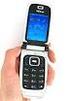 User s Guide for Nokia 6131 DECLARATION OF CONFORMITY We, NOKIA CORPORATION declare under our sole responsibility that the product RM-115 is in conformity with the provisions of the following Council Directive:
SGH-S275. User Manual Please read this manual before operating your phone and keep it for future reference.
 SGH-S275 M O B I L E P H O N E User Manual Please read this manual before operating your phone and keep it for future reference. Intellectual Property All Intellectual Property, as defined below, owned
This is the Internet version of the user s guide. Print only for private use. P900. User Guide
 P900 User Guide Letters Lowercase letters are written below the arrow and uppercase letters in line with the arrow. a b c d e f g h i j k l m 2 1 2 2 1 1 1 2 2 1 n o p q r s t u v w x 1 2 y z Note Start
This guide describes features that are common to most models. Some features may not be available on your tablet.
 User Guide Copyright 2014 Hewlett-Packard Development Company, L.P. Bluetooth is a trademark owned by its proprietor and used by Hewlett-Packard Company under license. SD Logo is a trademark of its proprietor.
Nokia 700 User Guide. Issue 1.1
 Nokia 700 User Guide Issue 1.1 2 Contents Contents Safety 5 Get started 7 Keys and parts 7 Insert the SIM card 7 Insert a memory card 9 Charge the battery 11 Charge the battery over USB 12 Change the volume
Otium Gear S Smart Watch User Guide Please read the manual before use. * For further information, please visit www.otiumobile.com
 Otium Gear S Smart Watch User Guide Please read the manual before use. * For further information, please visit www.otiumobile.com 1 About this manual You can use this Gear S as a companion device to some
 Doro 6030 English 1 2 3 4 5 6 7 8 14 13 12 11 10 9 15 16 17 18 19 20 21 22 The items supplied with your phone might vary depending on the software and accessories available in your region or offered by
User Guide. Lynx A100. www.poshmobile.com
 User Guide Lynx A100 www.poshmobile.com POSH LYNX User Manual A100 Directory Before Using... 2 Phone Unlock... 2 SIM Unlock... 2 Function menu Introduction... 2 Phonebook... 2 Call history... 3 Settings...
User guide. Xperia M4 Aqua Dual E2312/E2333/E2363
 User guide Xperia M4 Aqua Dual E2312/E2333/E2363 Contents Getting started... 6 About this User guide... 6 Overview... 6 Assembly... 7 Starting your device for the first time...8 Why do I need a Google
Z222 Mobile Phone User guide
 Z222 Mobile Phone User guide LEGAL INFORMATION Copyright 2013 ZTE CORPORATION. All rights reserved. No part of this publication may be excerpted, reproduced, translated or utilized in any form or by any
How To Use An Isat Phone On A Cell Phone On Your Ipod Or Ipod
 37 personalising personalised settings user guide The mobile satellite company Congratulations on buying your IsatPhone Pro. It offers the ultimate combination: Global coverage Robust handset Clear voice
OPERATING INSTRUCTIONS SmartPhone Android 2.1
 OPERATING INSTRUCTIONS SmartPhone Android 2.1 Reading Before Proceeding......................... 1 Safety Precautions....................................... 1 Notice and Copyright......................................
GLOBAL. The world s local mobile phone. Quick Start Guide
 GLOBAL The world s local mobile phone Quick Start Guide 1 SAR This mobile phone meets applicable national SAR limits of 2.0 W/Kg. The specific maximum SAR values can be found in the SAR information section
MOTO. Quick Start Guide
 MOTO 9h Quick Start Guide welcome Technology promised to make things easier... but then it gave you more to do phone calls, e-mails, music, photos, videos, the Internet, and more. It s time to take back
Information Technology Services. *** Please visit tlc.dadeschools.net/blackberry for more information on your BlackBerry model.
 *** Please visit tlc.dadeschools.net/blackberry for more information on your BlackBerry model. *** BlackBerry Training Presented by Information Technology Services Before we begin If you have a problem
Optional. The Rugged Phone RUGGED MOBILE PHONE. Language. Type of product
 The Rugged Phone RUGGED MOBILE PHONE Language Type of product WELCOME Thank you for choosing the WORKZONE mobile phone. The phone is shockproof, waterproof and dustproof. Please take some time to read
This product includes software licensed from Symbian Software Ltd 1998-2009. Symbian and Symbian OS are trademarks of Symbian Ltd.
 User Guide Issue 3 2009 Nokia. All rights reserved. DECLARATION OF CONFORMITY Hereby, NOKIA CORPORATION declares that this RM-424 product is in compliance with the essential requirements and other relevant
User guide. Xperia C3 Dual D2502
 User guide Xperia C3 Dual D2502 Contents Getting started... 7 About this User guide... 7 Overview... 7 Assembly... 8 Starting your device for the first time...10 Why do I need a Google account?...10 Charging
X3 02 User Guide. Issue 2.
 X3 02 User Guide Issue 2. 0 2 Contents Contents Safety 4 Get started 5 Keys and parts 5 Insert the SIM card and battery 6 Insert or remove a memory card 7 Charge the battery 8 Charge the battery over USB
Samba W - Table of Contents
 Samba W - Table of Contents 1.Getting Started... 3 1.1 Installing the SIM Card, SD Card and Battery... 3 2. Input Type... 4 3. Menu Guide... 6 1.2 Messaging... 6 1.3 Call History... 6 1.4 Calculator...
Welcome to Huawei. Ascend II User Guide. Model: HUAWEI M865
 Welcome to Huawei Ascend II User Guide Model: HUAWEI M865 Contents 1 Reading Before Proceeding...1 1.1 Safety Precautions... 1 1.2 Personal Information and Data Security... 2 1.3 Legal Notice... 3 2 Getting
KYOCERA Kona. User Guide
 KYOCERA Kona User Guide Table of Contents Phone Basics... 1 Battery... 1 Install the Battery... 1 Charge the Battery... 2 Turn Your Phone On and Off... 2 Turn Your Phone On... 2 Turn Your Phone Off...
Contents. New features. Getting started. Entertainment. Transferring data. Managing your phone. Tools
 User Guide Contents New features 1 Read before use 1 Unlocking with fingerprint 3 Safe 3 All focus mode 4 Taking photos from the timeline album screen 5 Scanning a QR code 6 Protecting your privacy Getting
2011 ZTE CORPORATION.
 LEGAL INFORMATION Copyright 2011 ZTE CORPORATION. All rights reserved. No part of this publication may be quoted, reproduced, translated or used in any form or by any means, electronic or mechanical, including
Doro PhoneEasy 606. English
 Doro PhoneEasy 606 English 1 2 14 15 3 4 5 6 7 12 11 10 9 13 16 17 18 19 8 1. Earpiece 2. Display 3. Arrow buttons 4. Left selection button 5. Call button 6. Speed dial 7. Voice mail 8. Silent / Input
DIGITAL WIRELESS TELEPHONE. Reference Guide
 DIGITAL WIRELESS TELEPHONE Reference Guide Welcome Welcome to the world of Motorola digital wireless communications! Motorola is a global leader in communications technology. We are pleased that you have
Welcome to the GreatCall Family.
 pms2603 pms1235 pms226 pms298 How-To Guide Welcome to the GreatCall Family. Thank you for choosing the Jitterbug. At GreatCall, we ve made it easy for you to stay Orange - pms 143 connected to friends
User guide Xperia M dual C2004/C2005
 User guide Xperia M dual C2004/C2005 Contents Getting started...6 Android what and why?...6 Overview...6 Assembly...7 Turning the device on and off...9 Locking and unlocking the screen...9 Setup guide...10
User Guide. HUAWEI Ascend G 300. Welcome to HUAWEI
 User Guide HUAWEI Ascend G 300 Welcome to HUAWEI Contents 1 Read Before Proceeding...1 1.1 Safety Precautions... 1 1.2 Personal Information and Data Security... 2 1.3 Legal Notice... 3 2 Getting Started...5
User s Guide for Nokia 6510
 User s Guide for Nokia 6510 List of menu functions 1. Messages 1. Write message 2. Inbox 3. Outbox 4. Archive 5. Templates 6. My folders 7. Erase messages 8. Voice messages 9. Info messages 10.Service
User s Guide for Nokia 6310i
 User s Guide for Nokia 6310i List of menu functions 1. Messages 1. Write message 2. Write e-mail 3. Inbox 4. Outbox 5. Archive 6. Templates 7. My folders 8. Erase messages 9. Voice messages 10.Info messages
Getting Started with Microsoft Office Live Meeting. Published October 2007
 Getting Started with Microsoft Office Live Meeting Published October 2007 Information in this document, including URL and other Internet Web site references, is subject to change without notice. Unless
Nokia 300 User Guide. Issue 1.2
 Nokia 300 User Guide Issue 1.2 2 Contents Contents Safety 4 Get started 5 Keys and parts 5 Insert the SIM card and battery 5 Insert a memory card 7 Charge the battery 8 Charge the battery over USB 9 Antenna
BT Synergy 5500 User Guide
 BT Synergy 5500 User Guide Welcome to your BT Synergy 5500 Digital Cordless Telephone Answering Machine Display with blue backlight. 250 Name and number phonebook. Copy phonebook entries between other
User guide. Xperia SP C5302/C5303/C5306
 User guide Xperia SP C5302/C5303/C5306 Contents Xperia SP User guide...6 Getting started...7 About this User guide...7 Android what and why?...7 Device overview...7 Assembly...8 Turning the device on and
INQ CLOUD TOUCH USER GUIDE
 INQ CLOUD TOUCH USER GUIDE OVERVIEW THE BASICS The Basics overview Your phone Remove the back cover Insert SIM, microsd & battery Charge the battery Power on/off First-time setup Lock & unlock your screen
USER GUIDE USER GUIDE
 USER GUIDE USER GUIDE Conventions used in this guide In this user guide, we use the following symbols to indicate useful and important information: This is a note It might give extra information that
Important information...7 Android what and why?...8 Applications...8
 U User guide Contents Important information...7 Android what and why?...8 Applications...8 Getting started...9 Assembly...9 Turning the phone on and off...11 Setup guide...11 Screen lock...11 Accounts
Sprint WeGo User Guide
 Sprint WeGo User Guide [UG template version 14a] [Sprint_OEM_S155_ug_en_140305_d1] i Table of Contents Get Started... 4 Your Phone at a Glance... 4 Set Up Your Phone... 5 Activate Your Phone... 8 Sprint