
Laulima s Discussion and Mail Tools: Messages - Mailtool - Archive Discussion and Private Messages - Forums
|
|
|
- Suzan Dawson
- 10 years ago
- Views:
Transcription
1 Laulima s Discussion and Mail Tools: Messages - Mailtool - Archive Discussion and Private Messages - Forums Interaction can enrich the learning experience for a student. These days, it can occur in or outside a classroom. In the online environment, interaction takes place in a variety of ways using or discussion board tools. While is typically reserved for one-toone communication, discussion board tools facilitate interaction for one-to-many. Contents Mail Tools pg 1 Messages pg 1 Mailtool pg 7 Archive pg 9 Discussion Boards pg 9 Discussion & Private Messages pg 10 Forums pg 17 Mail Tools can be used for student support, feedback and guidance. There are basically two tools in Laulima you can choose to use for contacting individuals or groups of students. Messages tool: With this tool you can send a composed message either directly to the Messages Tool or students addresses (as a group or individually). If the message is sent to an address there is a link in the message, which allows students to reply. This link basically auto logs students into the Messages tool within the course where they can choose to compose a message. 1. To add the Messages tool go to Site Info: Page 1

2 2. Select "Edit Tools" 3. Check the box for Message, scroll down and click Continue. 4. Click "Finish" Page 2
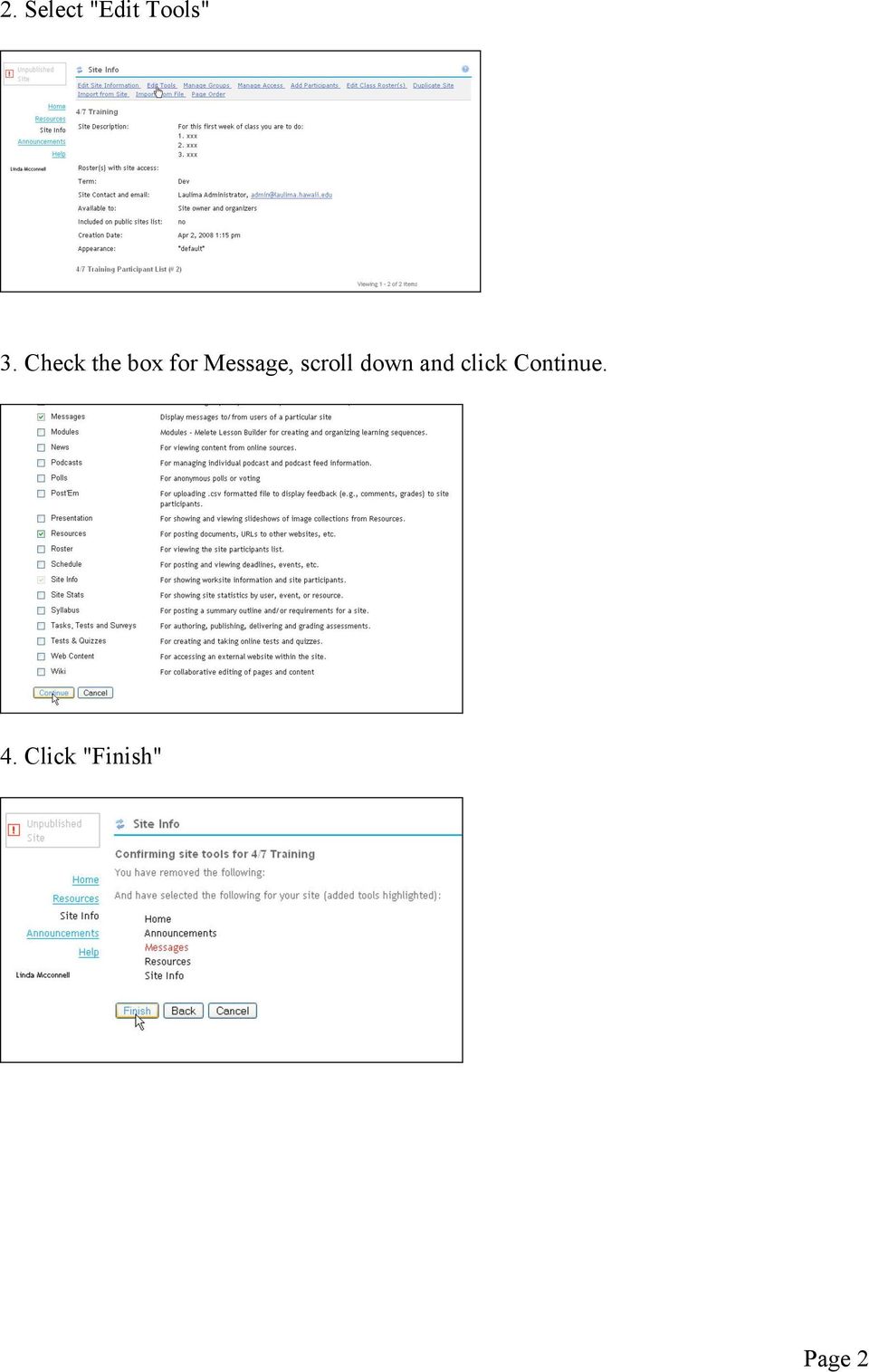
3 5. From the Course Menu, select the link for "Messages" 7. Messages is very similar to a normal tool, with Received, Sent and Deleted folders. 8. Students and Instructors can choose to have messages forwarded to an external address by clicking on "Settings", selecting the radio button for "Yes" and entering an address. Click Save Settings when done (instructors are not able to over ride this option, meaning if they say "No" students still have the ability to forward in their own accounts). Page 3
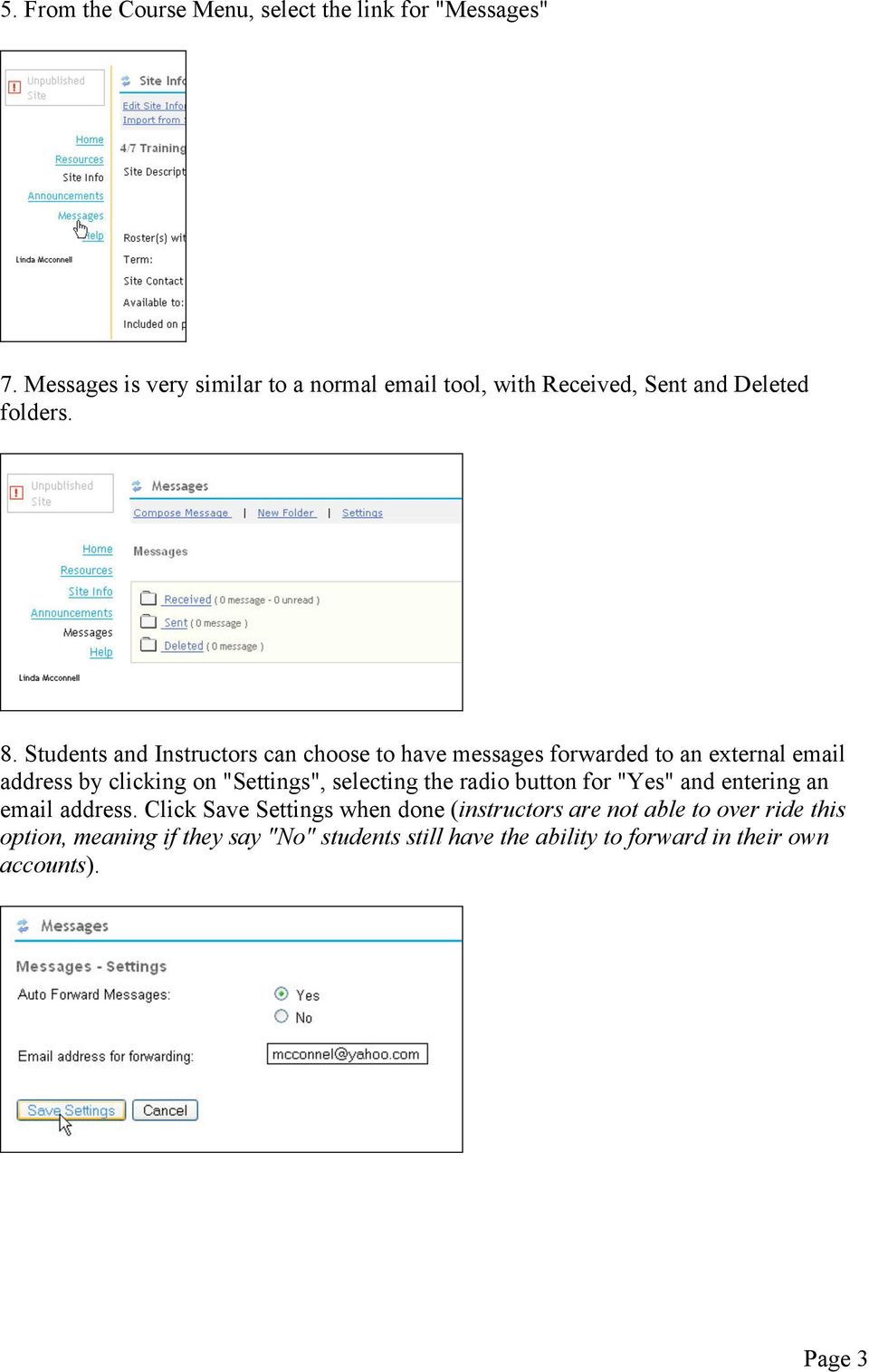
4 9. To compose a message, click on "Compose Message" 10. Either select "All Participants" for a mass or individual students in the "To" window. Select where to send the message: As Message: this option will send your message in the Sent folder of the students Messages area To Recipients' Address(es): this option will send your message to students hawaii.edu address Enter a subject header. Page 4
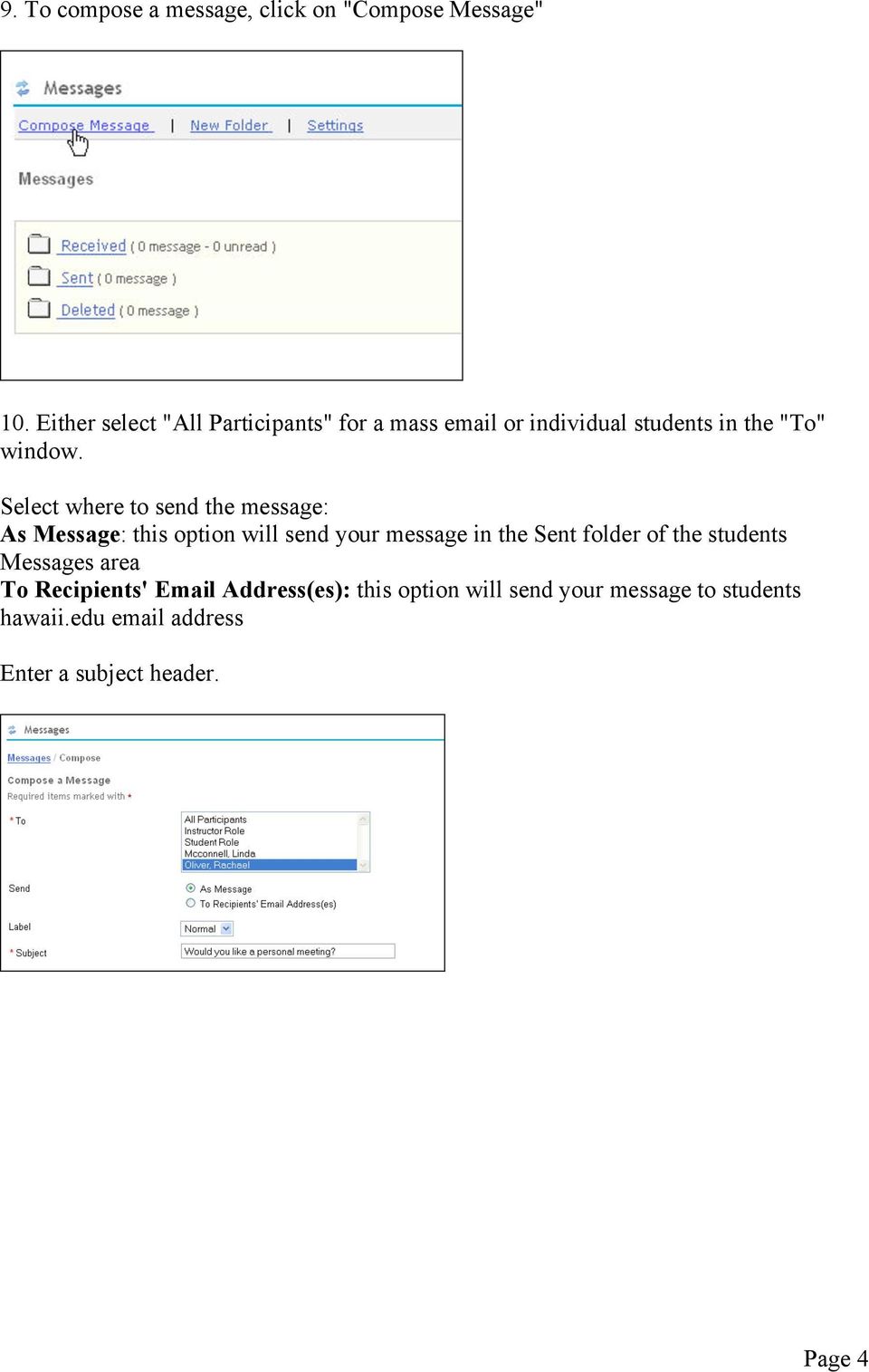
5 11. Using the HTML editor compose your message, and if need use the button for "Add Attachment" if you have any additional documents or files you want to send to students. Click "Send" when done. 12. If the message was sent to the Message Tool, click on the "Sent" folder to open and click on the message title to read. To reply to a written message, click on the "reply" button which is available directly in the If the message was sent to individual addresses, enter your client, and open the as you would any other message. To reply, click on the link at the bottom of the message "To reply to this message click this link to access Message Center for this site: xxxxxxx Page 5

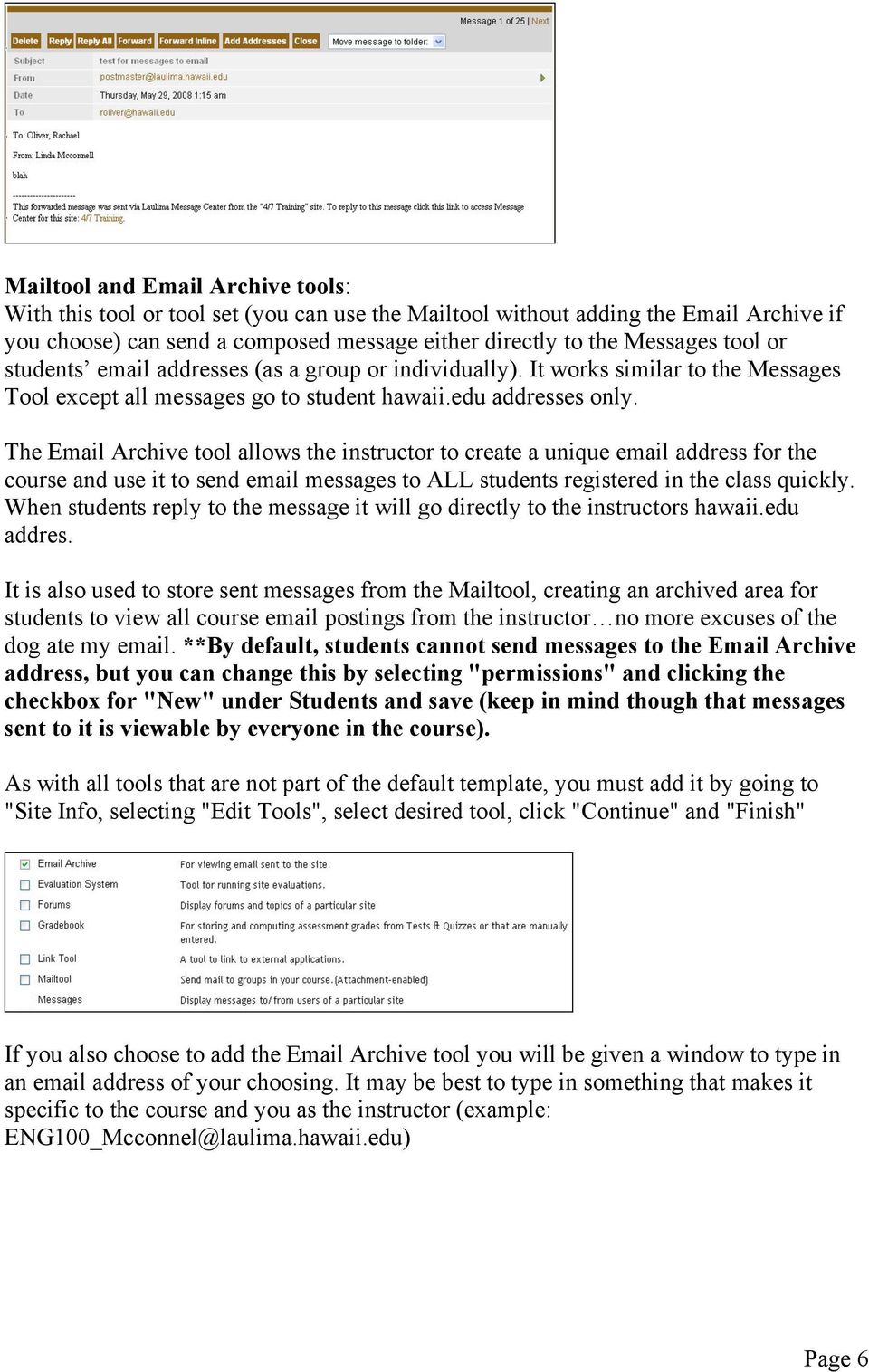
6 Mailtool and Archive tools: With this tool or tool set (you can use the Mailtool without adding the Archive if you choose) can send a composed message either directly to the Messages tool or students addresses (as a group or individually). It works similar to the Messages Tool except all messages go to student hawaii.edu addresses only. The Archive tool allows the instructor to create a unique address for the course and use it to send messages to ALL students registered in the class quickly. When students reply to the message it will go directly to the instructors hawaii.edu addres. It is also used to store sent messages from the Mailtool, creating an archived area for students to view all course postings from the instructor no more excuses of the dog ate my . **By default, students cannot send messages to the Archive address, but you can change this by selecting "permissions" and clicking the checkbox for "New" under Students and save (keep in mind though that messages sent to it is viewable by everyone in the course). As with all tools that are not part of the default template, you must add it by going to "Site Info, selecting "Edit Tools", select desired tool, click "Continue" and "Finish" If you also choose to add the Archive tool you will be given a window to type in an address of your choosing. It may be best to type in something that makes it specific to the course and you as the instructor (example: [email protected]) Page 6
7 The Mailtool: 1. To compose a message with the Mailtool, click on the Mailtool link in the course menu You will first need to select your recipient(s). You will see four options, "Roles" (e.g. Instructors, Students, TAs or Maintain and Access if you have a collaboration site); "Sections" (if your site has sections); "Groups" (if groups are set up in the site); and "Add Other Recipients" (you can type in addresses with this option). Clicking on one of the option links will display a list of recipient groups. Clicking on the group link will display individual recipients. Page 7

8 Enter a subject header. (Without a subject, the message will not be sent.) 2. Use the HTML editor to compose the message, select either or both for "Send me a copy" and "Add to Archive" if the tool has been added (this will store all messages you send out in one location for students to read in the Archive, but also send out to external addresses). Select "Send Mail" to post 3. You should receive a confirmation message after the message has been sent. To reply to a message, students use their normal clients reply feature. The reply will be automatically sent to the instructor s hawaii.edu mail address. Page 8

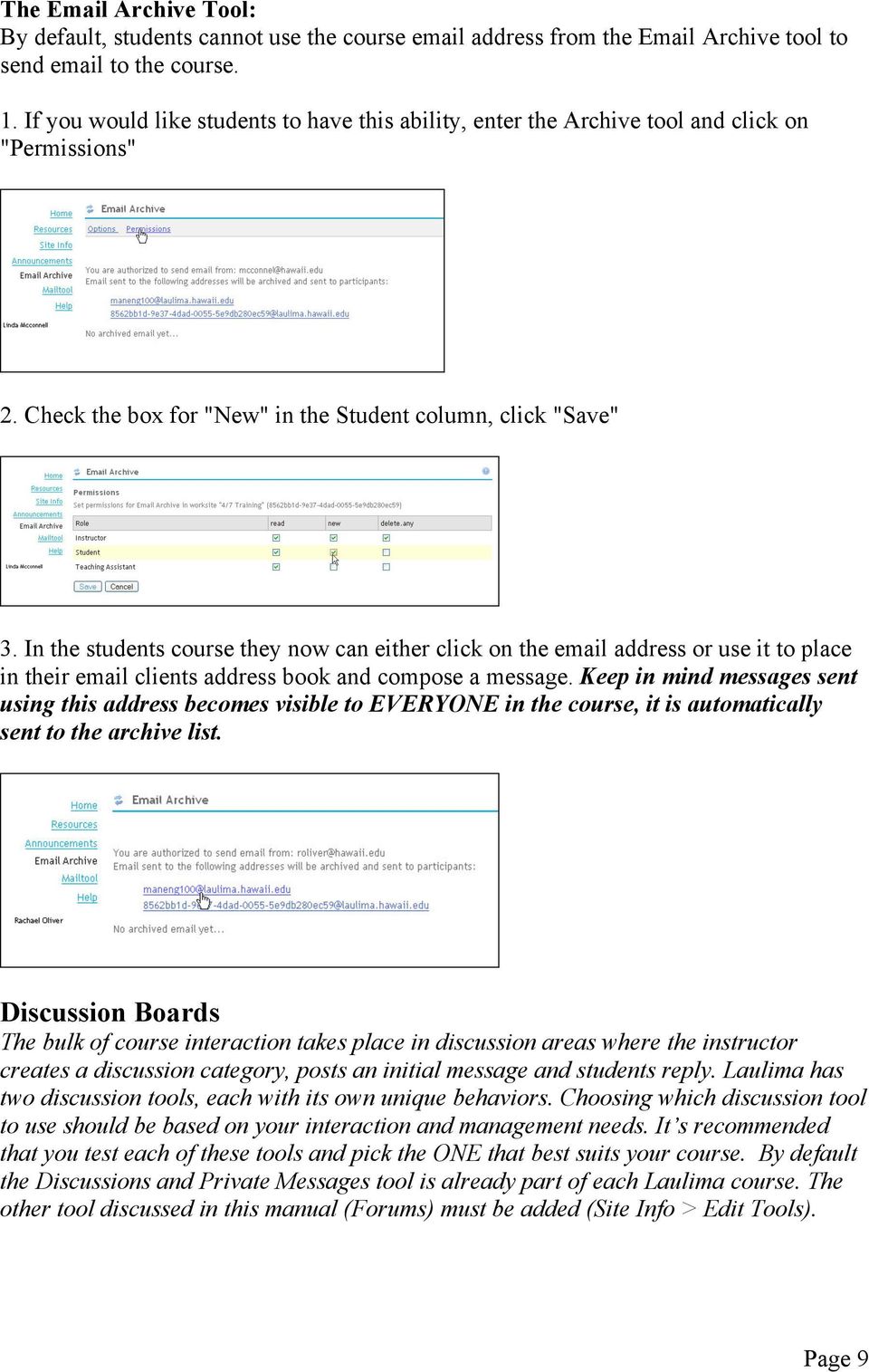
9 The Archive Tool: By default, students cannot use the course address from the Archive tool to send to the course. 1. If you would like students to have this ability, enter the Archive tool and click on "Permissions" 2. Check the box for "New" in the Student column, click "Save" 3. In the students course they now can either click on the address or use it to place in their clients address book and compose a message. Keep in mind messages sent using this address becomes visible to EVERYONE in the course, it is automatically sent to the archive list. Discussion Boards The bulk of course interaction takes place in discussion areas where the instructor creates a discussion category, posts an initial message and students reply. Laulima has two discussion tools, each with its own unique behaviors. Choosing which discussion tool to use should be based on your interaction and management needs. It s recommended that you test each of these tools and pick the ONE that best suits your course. By default the Discussions and Private Messages tool is already part of each Laulima course. The other tool discussed in this manual (Forums) must be added (Site Info > Edit Tools). Page 9
10 Discussion and Private Messages tool: Discussions & Private Messages helps to facilitate one-on-one and group communication. The Private messaging portion of this tool gives all users the ability to communicate oneon-one with either their peers or the instructor. By default this tool is already in each course and has preset categories and forums. To enter Discussions and Private Messages click on the link same named link in the Course Menu. It is your choice to stay with the default categories and forums OR alter it to better fit your course interaction needs. To edit existing category and/or forum click on the text link for "Manage". Click on "Category" to edit and/or add new categories. Page 10

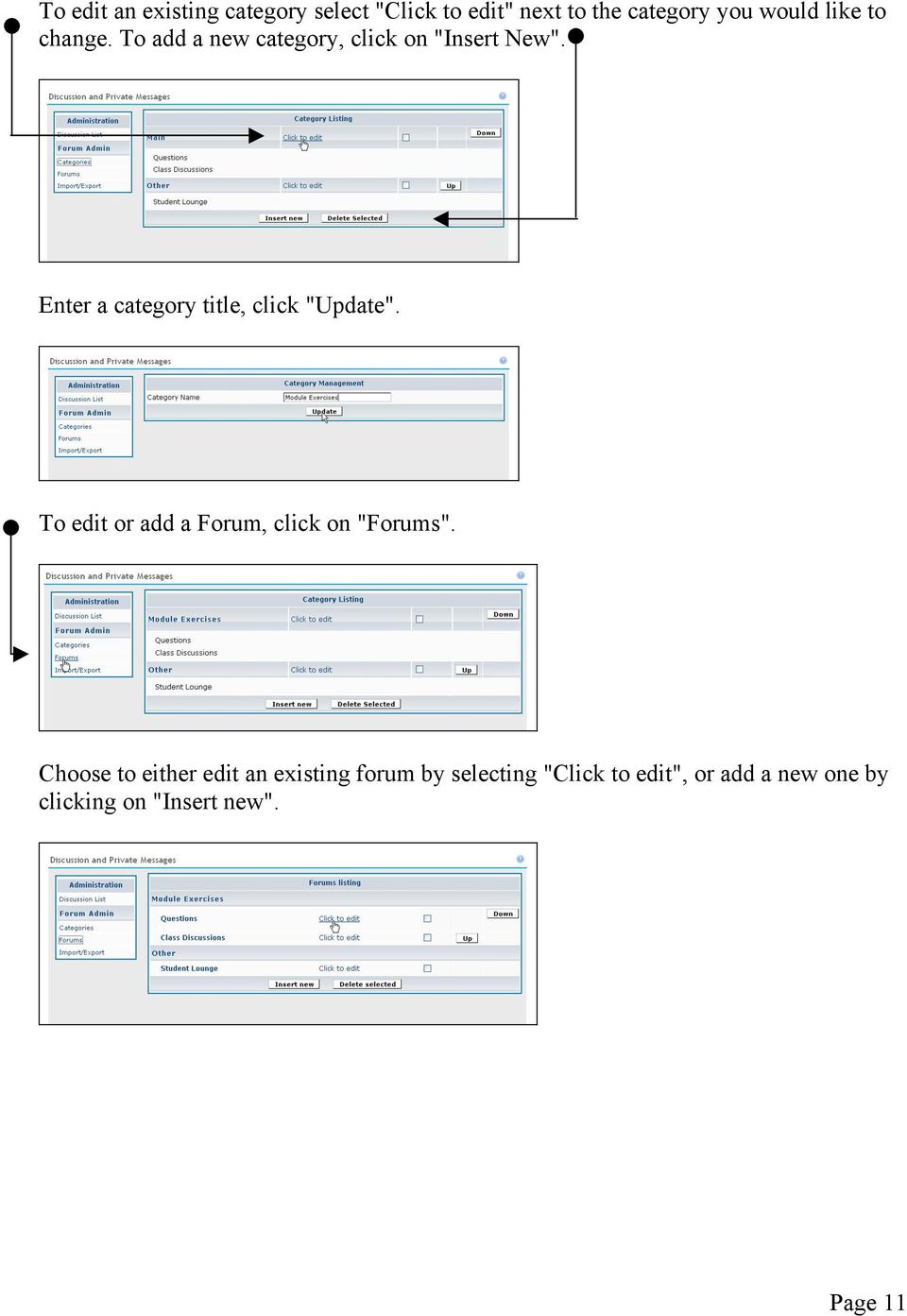
11 To edit an existing category select "Click to edit" next to the category you would like to change. To add a new category, click on "Insert New". Enter a category title, click "Update". To edit or add a Forum, click on "Forums". Choose to either edit an existing forum by selecting "Click to edit", or add a new one by clicking on "Insert new". Page 11
12 Enter a Forum Name, such as Module One, make sure to place it in the correct "existing" category using the pull down menu, enter a short description (optional) of what this forum area is used for, click "Update" when done. Click "Discussion List" to return to the Discussion and Private Messages area. To add an initial message to a forum, click on the forum title. Page 12

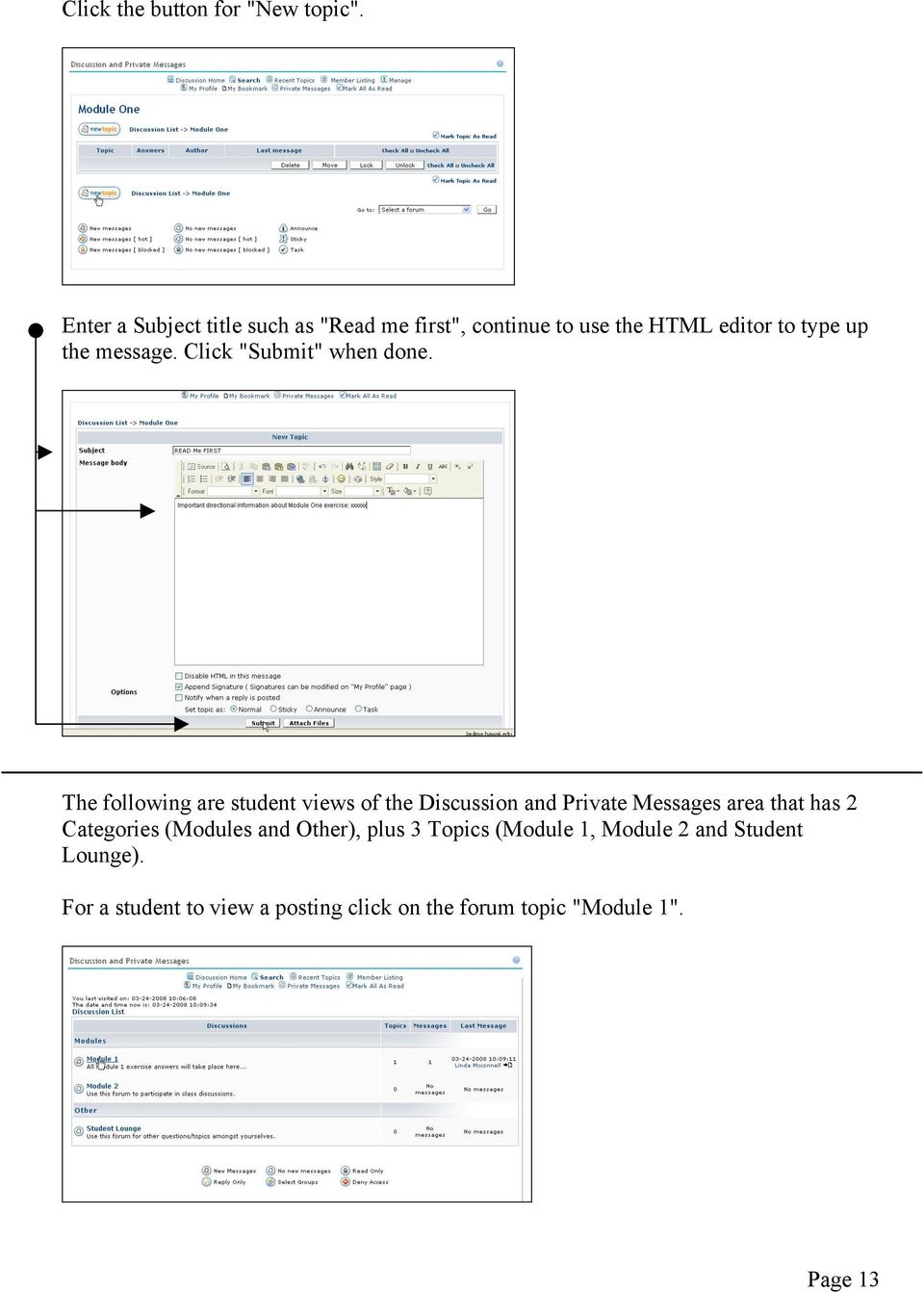
13 Click the button for "New topic". Enter a Subject title such as "Read me first", continue to use the HTML editor to type up the message. Click "Submit" when done. The following are student views of the Discussion and Private Messages area that has 2 Categories (Modules and Other), plus 3 Topics (Module 1, Module 2 and Student Lounge). For a student to view a posting click on the forum topic "Module 1". Page 13
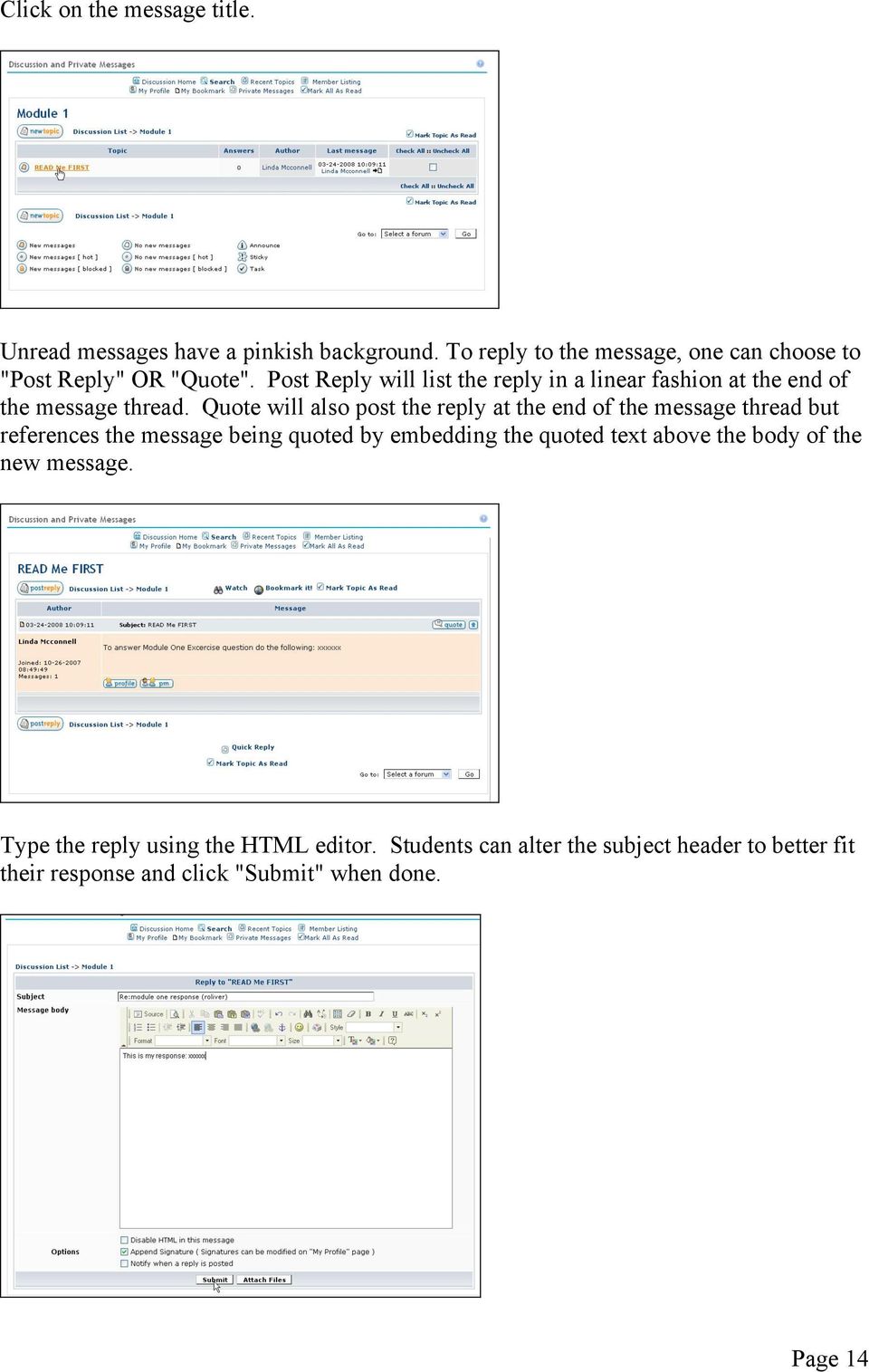
14 Click on the message title. Unread messages have a pinkish background. To reply to the message, one can choose to "Post Reply" OR "Quote". Post Reply will list the reply in a linear fashion at the end of the message thread. Quote will also post the reply at the end of the message thread but references the message being quoted by embedding the quoted text above the body of the new message. Type the reply using the HTML editor. Students can alter the subject header to better fit their response and click "Submit" when done. Page 14
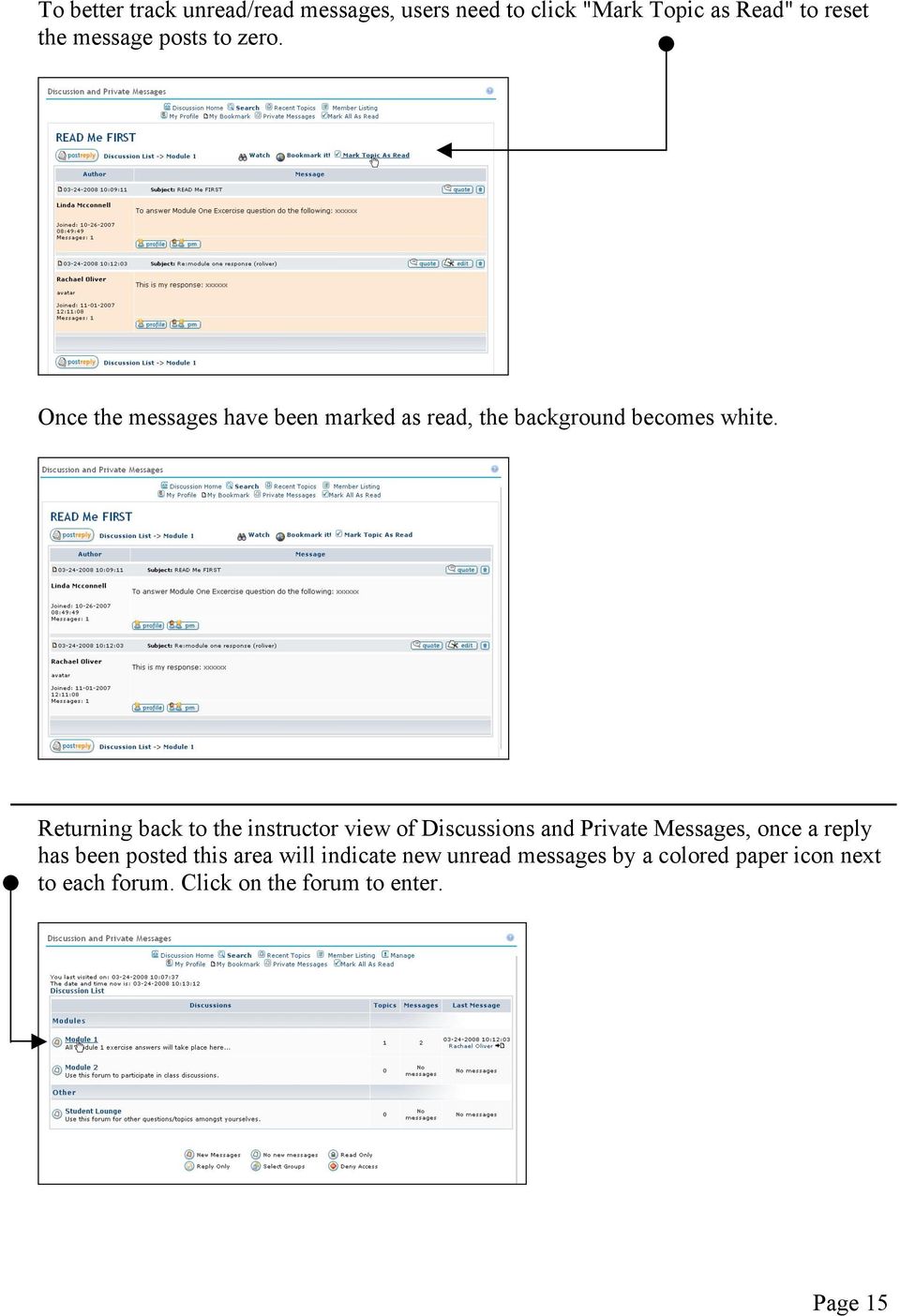
15 To better track unread/read messages, users need to click "Mark Topic as Read" to reset the message posts to zero. Once the messages have been marked as read, the background becomes white. Returning back to the instructor view of Discussions and Private Messages, once a reply has been posted this area will indicate new unread messages by a colored paper icon next to each forum. Click on the forum to enter. Page 15
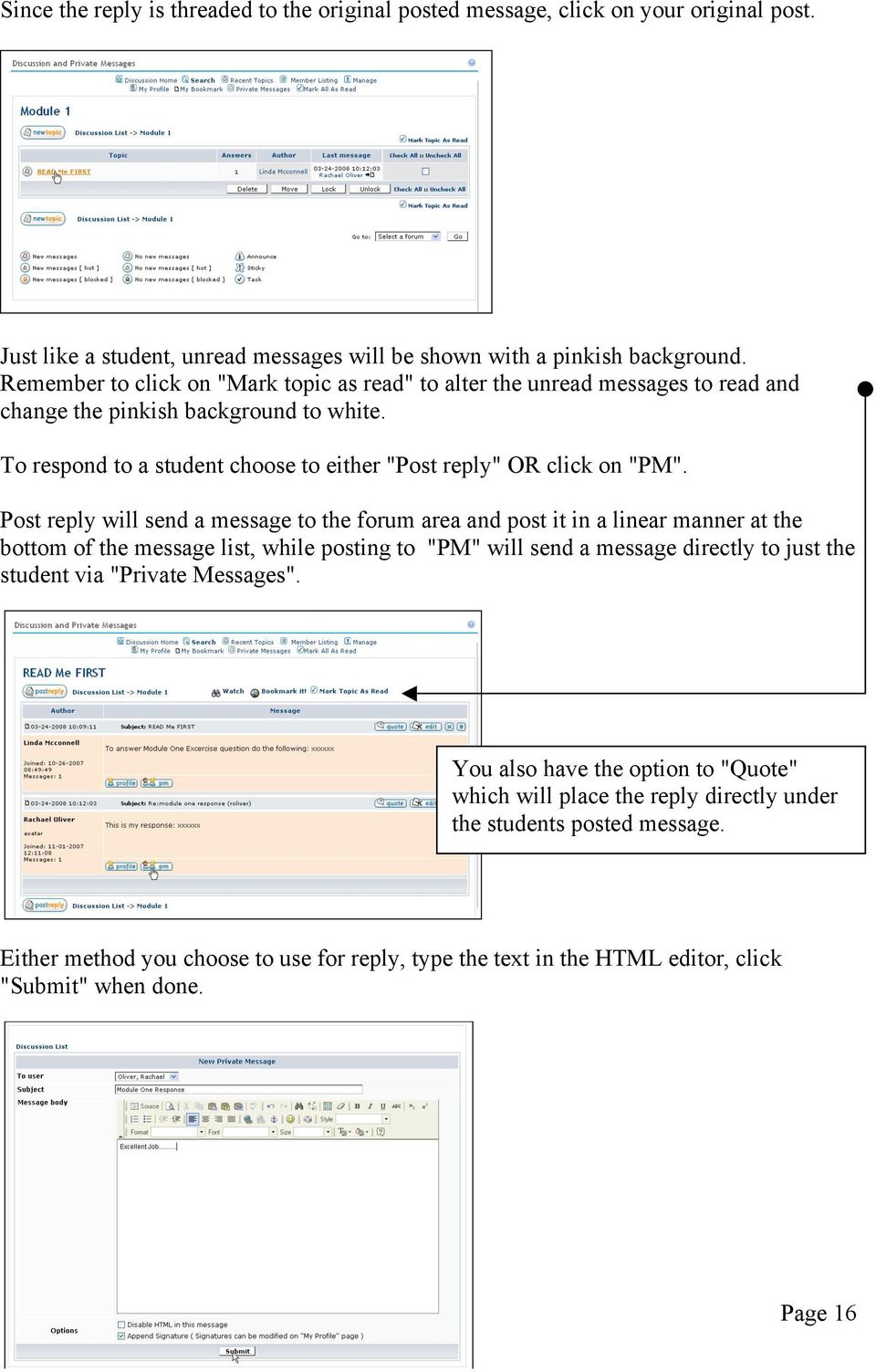
16 Since the reply is threaded to the original posted message, click on your original post. Just like a student, unread messages will be shown with a pinkish background. Remember to click on "Mark topic as read" to alter the unread messages to read and change the pinkish background to white. To respond to a student choose to either "Post reply" OR click on "PM". Post reply will send a message to the forum area and post it in a linear manner at the bottom of the message list, while posting to "PM" will send a message directly to just the student via "Private Messages". You also have the option to "Quote" which will place the reply directly under the students posted message. Either method you choose to use for reply, type the text in the HTML editor, click "Submit" when done. Page 16
17 If need be, to return back to Discussions, click on "Discussion List". To manage discussions and private messages you can click the "Member Listing" link. This area only shows how many messages a student posts. It also is a central location to sent out private messages OR if a student entered "My Profile" info, send an . Forums tool: Forums can be used in place of Discussion and Private Messages. As with Discussion and Private Messages, Forums can also be used to set up discussion sections and post messages based on course content. Once Forums has been added to the course, click on Forums in the Course Menu. Page 17

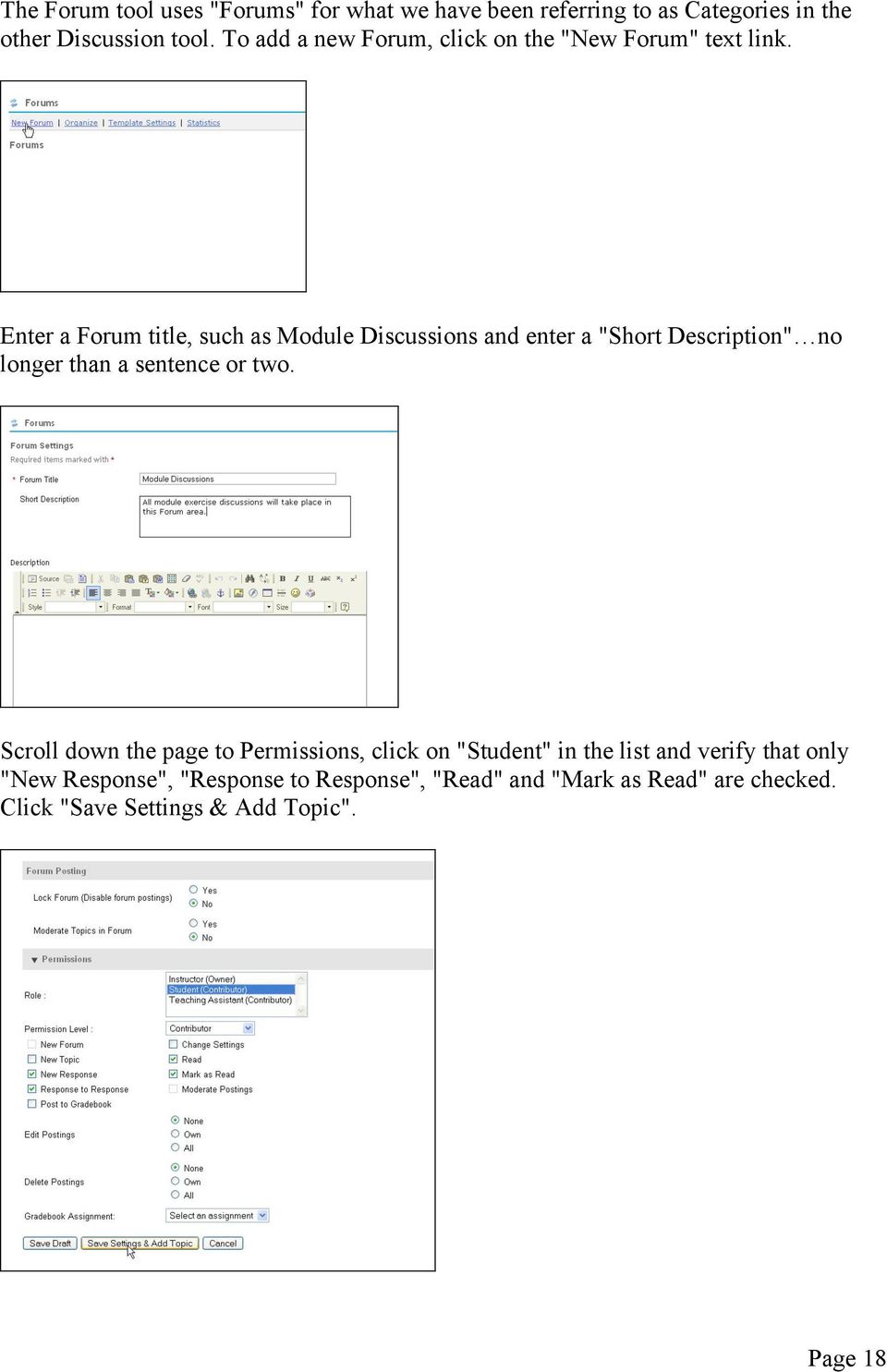
18 The Forum tool uses "Forums" for what we have been referring to as Categories in the other Discussion tool. To add a new Forum, click on the "New Forum" text link. Enter a Forum title, such as Module Discussions and enter a "Short Description" no longer than a sentence or two. Scroll down the page to Permissions, click on "Student" in the list and verify that only "New Response", "Response to Response", "Read" and "Mark as Read" are checked. Click "Save Settings & Add Topic". Page 18
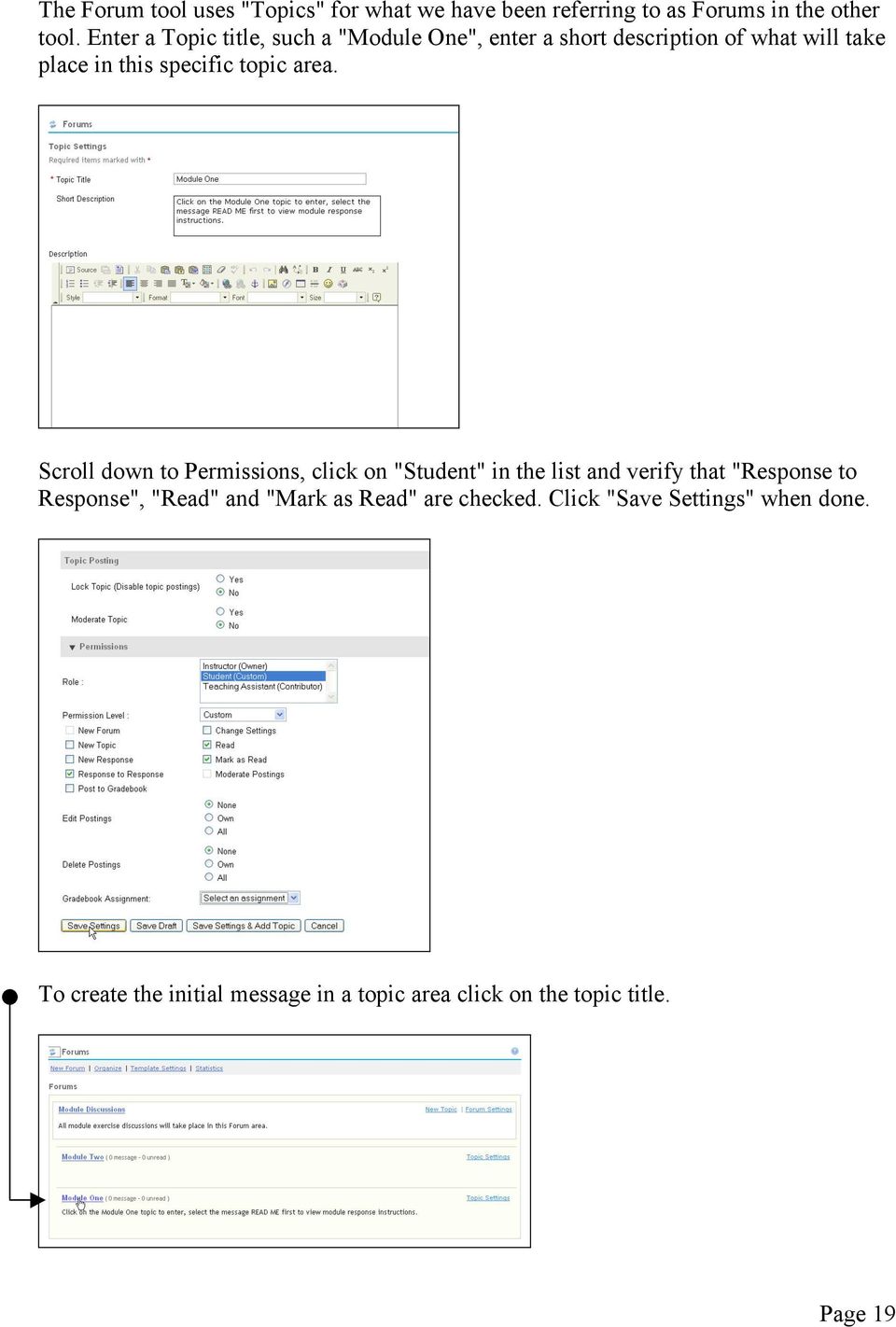
19 The Forum tool uses "Topics" for what we have been referring to as Forums in the other tool. Enter a Topic title, such a "Module One", enter a short description of what will take place in this specific topic area. Scroll down to Permissions, click on "Student" in the list and verify that "Response to Response", "Read" and "Mark as Read" are checked. Click "Save Settings" when done. To create the initial message in a topic area click on the topic title. Page 19
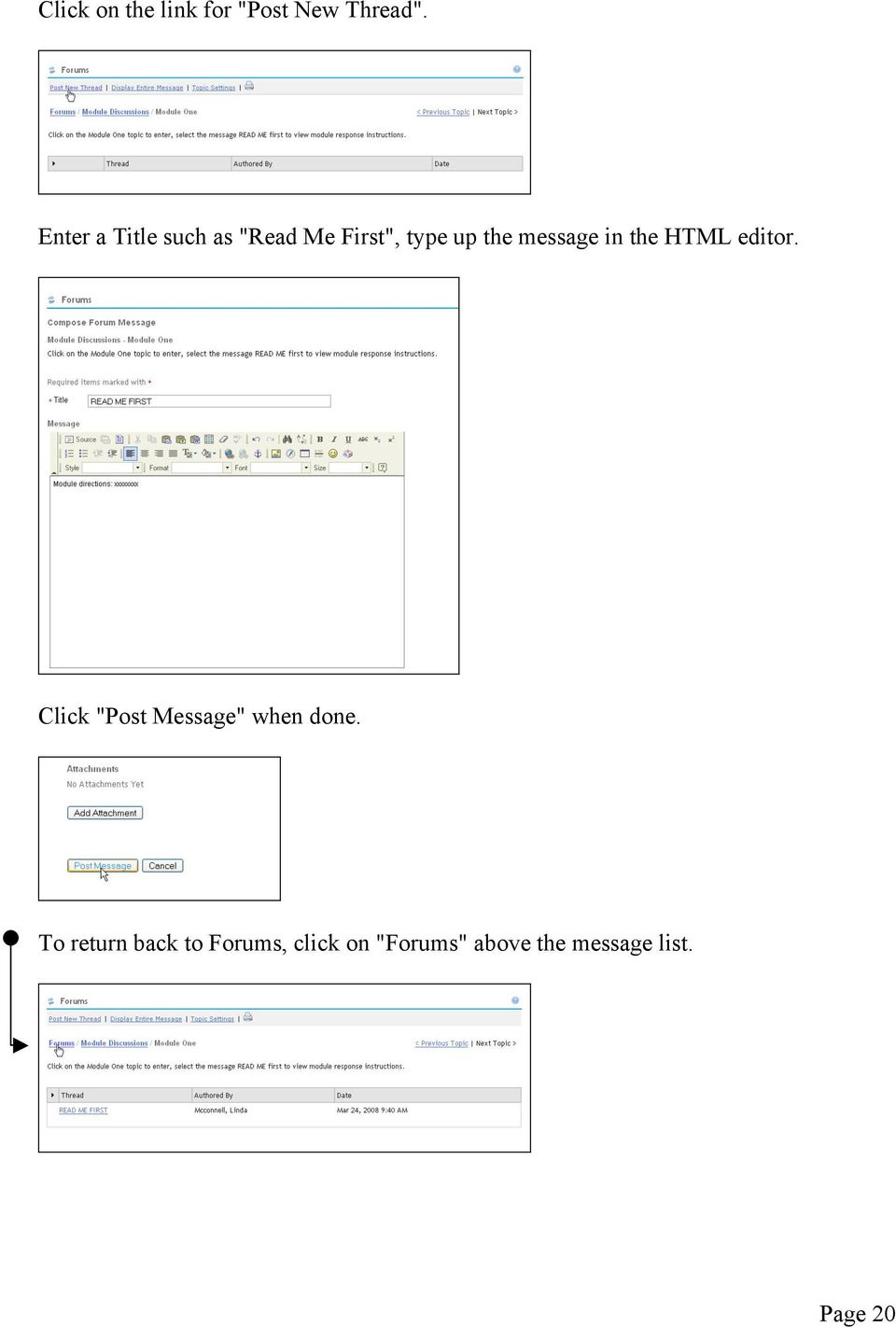
20 Click on the link for "Post New Thread". Enter a Title such as "Read Me First", type up the message in the HTML editor. Click "Post Message" when done. To return back to Forums, click on "Forums" above the message list. Page 20
21 To move Forums/Topics to correct positions click on "Organize". Use pull down menus to choose correct position number, click "Save Settings" when done. The following are student views of the Forums area that has one forum (Modules Discussions), plus two topics (Module One and Module Two). For students to view postings, click on the Topic title. To view the message, click on the message title. Page 21
22 Click on "Reply". Students can alter the Reply Title to better fit their response and type up the message using the HTML editor. Click "Post Message" when done. As with the previous discussion tool, click "Mark All as Read" after reading messages contained in a Topic area. This will zero out the unread indicator. Page 22
23 There are now 0 unread messages. Returning back to the instructor view of Forums, once a reply has been posted this area the unread indicator will show how many unread messages are available. To view the message, click on the Topic title. Use the arrow by the original message to open the message thread. Click on the message title. Page 23
24 To reply to this message click on "Reply to Message" text link or click on Forums to return to the main forum area. To manage student messages, click on the "Statistics" text link. Statistics will show how many a student authored, read and how many they have yet to read. Click on a student name. Review how many replies a student posted to a specific topic. Page 24
25 Page 25
Outlook 2013 ~ e Mail Quick Tips
 The Ribbon: Home tab New Email to send a new mail New Items to send a new mail, a new appointment, a new meeting, a new contact, a new task, a new Lync Meeting Ignore to ignore a request Clean Up to clean
Creating & Managing Discussion Forums
 Creating & Managing Discussion Forums This tutorial will step you through creating and managing discussion forums in Blackboard. The tutorial is segmented by feature and where possible links are provided
emarketing Manual- Creating a New Email
 emarketing Manual- Creating a New Email Create a new email: You can create a new email by clicking the button labeled Create New Email located at the top of the main page. Once you click this button, a
elearning FAQ for Faculty
 elearning FAQ for Faculty How do I log into elearning? Where do I go for help? How do I request space in elearning for my class? How do I add/remove course tools in my elearning class? How do I edit the
Blackboard Version 9.1 - Interactive Tools Contents
 Blackboard Version 9.1 - Interactive Tools Contents Edit mode... 2 Selecting the Interactive Tools... 2 Posting an Announcement... 3 Creating a Blog... 4 Creating Blog Posts... 4 How to Comment on a Blog
Outlook Web Access. PRECEDED by v\
 Outlook Web Access Logging in to OWA (Outlook Web Access) from Home 1. Login page http://mail.vernonct.org/exchange 2. To avoid these steps each time you login, you can add the login page to your favorites.
CONTENTS. Introduction... 3. Outlook at a glance... 3. Configure Outlook 2010 on-campus... 3. Creating Folders... 4. Sorting Emails...
 OFFICE OF INFORMATION TECHNOLOGY Academic Technology Unit Microsoft Outlook 2010 Basics Workbook CONTENTS Introduction... 3 Outlook at a glance... 3 Configure Outlook 2010 on-campus... 3 Creating Folders...
Module One: Getting Started... 6. Opening Outlook... 6. Setting Up Outlook for the First Time... 7. Understanding the Interface...
 2 CONTENTS Module One: Getting Started... 6 Opening Outlook... 6 Setting Up Outlook for the First Time... 7 Understanding the Interface...12 Using Backstage View...14 Viewing Your Inbox...15 Closing Outlook...17
HireTouch Sending Applicant Correspondences (Emails)
 HireTouch Sending Applicant Correspondences (Emails) This document provides instructions for generating emails to applicants to your job posting. There are four correspondence templates currently available
Table of Contents. The Discussion Board... 2 1. Forum... 2. 2 Changing the Displayed Threads... 8 2.1 Within a Thread... 10
 Table of Contents The Discussion Board... 2 1. Forum... 2 1.1 Within a Forum... 5 1.2 List View and Tree View... 6 2 Changing the Displayed Threads... 8 2.1 Within a Thread... 10 3 Posts... 14 3.1 Replying
Kroll Mail Module. Contents
 Kroll Mail Module Contents Accessing the Mail Module... 1 Mail Screen Explained... 2 Creating a Distribution List... 3 Composing a Message... 6 Sending Broadcast Messages from Central Maintenance... 8
Laulima Tool. Reference and Use Guide. of Email Archive
 Laulima Tool Reference and Use Guide of Email Archive Brought to you by Center for Excellence in Learning, Teaching and Technology at Kapi olani Community College March 14, 2008 Table of Contents 1. Description...
Outlook 2013 ~ Advanced
 Mail Using Categories 1. Select the message that for the category. 2. Select the appropriate category. 3. The category color displays next to the message. Renaming Categories 1. Select a message. 2. Select
Center for Faculty Development and Support. Gmail Overview
 Center for Faculty Development and Support Gmail Overview Table of Contents Gmail Overview... 1 Overview... 3 Learning Objectives... 3 Access Gmail Account... 3 Compose Mail... 4 Read and Reply Mail...
Outlook Email. User Guide IS TRAINING CENTER. 833 Chestnut St, Suite 600. Philadelphia, PA 19107 215-503-7500
 Outlook Email User Guide IS TRAINING CENTER 833 Chestnut St, Suite 600 Philadelphia, PA 19107 215-503-7500 This page intentionally left blank. TABLE OF CONTENTS Getting Started... 3 Opening Outlook...
Microsoft Outlook 2007 Calendar Features
 Microsoft Outlook 2007 Calendar Features Participant Guide HR Training and Development For technical assistance, please call 257-1300 Copyright 2007 Microsoft Outlook 2007 Calendar Objectives After completing
Marketing Cloud Email Quick References Guide
 Marketing Cloud Email Quick References Guide Navigating Marketing Cloud Follow these steps navigate to the Email Creation/ Email Send section of Marketing Cloud. 1. Click the Email Icon in the top left
Infinite Campus: Using the Teacher Messenger Functions. Step 1: Log in to Infinite Campus and select the Messenger folder from the menu on the left.
 Infinite Campus: Using the Teacher Messenger Functions Log in to Infinite Campus and select the Messenger folder from the menu on the left. Choosing the Message Type Failing Grades: Allows you to send
ABOUT THIS COURSE... 3 ABOUT THIS MANUAL... 4 LESSON 1: PERSONALIZING YOUR EMAIL... 5
 Table of Contents ABOUT THIS COURSE... 3 ABOUT THIS MANUAL... 4 LESSON 1: PERSONALIZING YOUR EMAIL... 5 TOPIC 1A: APPLY STATIONERY AND THEMES... 6 Apply Stationery and Themes... 6 TOPIC 1B: CREATE A CUSTOM
Gmail: Sending, replying, attachments, and printing
 If you're using an old version of Gmail, your Inbox may look a little different. Gmail: Sending, replying, attachments, and printing Welcome to Gmail. This document will give you a quick overview of how
Blackboard Version 9.1 - Interactive Tools
 Blackboard Version 9.1 - Interactive Tools Contents Edit mode... 2 Selecting the Interactive Tools... 2 Posting an Announcement... 3 Discussion Boards, Blogs, Journals, and Wikis What s the Difference?...
CMS/ Custom Maintenance Software. Operating Manual
 CMS/ Custom Maintenance Software Operating Manual 2 TABLE OF CONTENTS Logging on and Startup... Pg. 3 My CMS Pg. 3 Work Orders Creating Work Orders.. Pg. 5 Assigning Work Orders... Pg. 6 Assigning More
Instructors can edit the group properties, including the availability of collaboration tools and group membership.
 Create Single Group Create Group Set Group Settings Edit Email Delete Create a group of students to allow them to collaborate. can be designated as Self-Enroll, allowing students to add themselves to a
Student Guide to Blackboard
 Table of Contents for Blackboard Username Information & Password... 2 Updating Your Email Address... 2 Browser Test for Blackboard & Related Plug-ins... 2 Navigating Blackboard... 2 Viewing My Grades...
Bulk Email. What s Inside this Guide. Bulk Email and How To Get There 2. Bulk Email Setup 4. Bulk Email Details 7
 Bulk Email What s Inside this Guide Bulk Email and How To Get There 2 Bulk Email Setup 4 Bulk Email Details 7 Bulk Email and How To Get There Bulk Email allows you to send a mass email to the records on
MICROSOFT OUTLOOK 2010 READ, ORGANIZE, SEND AND RESPONSE E-MAILS
 MICROSOFT OUTLOOK 2010 READ, ORGANIZE, SEND AND RESPONSE E-MAILS Last Edited: 2012-07-09 1 Read Emails... 4 Find the inbox... 4 Change new incoming e-mail notification options... 5 Read email... 6 Change
How to use the VCCS Student E-mail System
 Page 1 of 7 How to use the VCCS Student E-mail System How to Access your Email 1. Log onto Blackboard. 2. Click on the Student Connect tab. 3. Click on the View My E-Mail link. 4. Your login name is your
PCRecruiter Internal Email Client
 PCRecruiter Internal Email Client The standard email buttons on contact record screens and lists allow PCRecruiter users to send email out to any contact in the database. However, if you are using PCRecruiter
Don't have Outlook? Download and configure the Microsoft Office Suite (which includes Outlook)!
 UVa Exchange Service Outlook 2013 Quickstart Guide Don't have Outlook? Download and configure the Microsoft Office Suite (which includes Outlook)! In this Quickstart Guide, you will learn to: Send and
The tool also provides an overview of date criteria set against all items within your module.
 Date Management Tool What does it do? This tool allows tutors to view in one screen when items are available and change dates attached to more than one content item within a module at the same time. For
Outlook Web Access (OWA) User Guide
 Outlook Web Access (OWA) User Guide September 2010 TABLE OF CONTENTS TABLE OF CONTENTS... 2 1.0 INTRODUCTION... 4 1.1 OUTLOOK WEB ACCESS SECURITY CONSIDERATIONS... 4 2.0 GETTING STARTED... 5 2.1 LOGGING
Creating New Forums 1. Click the Discussion Board link located in the Course Menu or in the Course Tools area of the
 Blackboard Faculty Tutorial Discussion Boards Blackboard s Discussion Board is asynchronous (all participants do not have to be online at the same time). It is meant to be visited by users from time to
Outlook 2010 Essentials
 Outlook 2010 Essentials Training Manual SD35 Langley Page 1 TABLE OF CONTENTS Module One: Opening and Logging in to Outlook...1 Opening Outlook... 1 Understanding the Interface... 2 Using Backstage View...
Customizing Confirmation Text and Emails for Donation Forms
 Customizing Confirmation Text and Emails for Donation Forms You have complete control over the look & feel and text used in your donation confirmation emails. Each form in Sphere generates its own confirmation
Outlook 2013 Delegate Access Managing Someone Else's Calendar and Inbox
 USC Marshall School of Business Marshall Information Services Outlook 2013 Delegate Access Managing Someone Else's Calendar and Inbox Delegate access is typically used when an assistant will be managing
About DropSend. Sending Files with DropSend
 About DropSend DropSend is a service that allows businesses and individuals to send large files, store files online and collaborate in a quick and easy way. DropSend Business Plan will help your company
How To Manage Inventory On Q Global On A Pcode (Q)
 Pearson Clinical Assessment Q-global User Guide Managing Inventory PEARSON 2 MANAGING INVENTORY Managing Inventory Overview When inventory is purchased, you will need to set up the allocations for the
Note: Your security settings may prohibit you from viewing or modifying the current list of marketing promotions.
 Customer Management Marketing Campaign Management Oasis CRM starts by organizing leads by marketing promotion type. The marketing promotion module can be accessed from the Customer-Management dropdown
Focus On echalk Email. Introduction. In This Guide. Contents:
 Focus On echalk Email Introduction Email can be very useful in a school setting. For instance, instead of writing out a memo and delivering it to everyone s mailbox in the main office, you can simply send
[COGNOS DATA TRAINING FAQS] This is a list of frequently asked questions for a Cognos user
![[COGNOS DATA TRAINING FAQS] This is a list of frequently asked questions for a Cognos user](/thumbs/26/7479572.jpg "[COGNOS DATA TRAINING FAQS] This is a list of frequently asked questions for a Cognos user") 2010 [COGNOS DATA TRAINING FAQS] This is a list of frequently asked questions for a Cognos user Table of Contents 1. How do I run my report in a different format?... 1 2. How do I copy a report to My Folder?...
2010 [COGNOS DATA TRAINING FAQS] This is a list of frequently asked questions for a Cognos user Table of Contents 1. How do I run my report in a different format?... 1 2. How do I copy a report to My Folder?...
Word 2010: Mail Merge to Email with Attachments
 Word 2010: Mail Merge to Email with Attachments Table of Contents TO SEE THE SECTION FOR MACROS, YOU MUST TURN ON THE DEVELOPER TAB:... 2 SET REFERENCE IN VISUAL BASIC:... 2 CREATE THE MACRO TO USE WITHIN
Using the GroupWise Client
 Spring 2006 (Our appreciation to Jennifer Sherouse for her assistance in editing and improving this document) Page 1 of 15 What is the GroupWise Client The GroupWise client is a program that installs on
TIPS AND TRICKS THE DISPATCH MESSAGING SYSTEM HOW THE DISPATCH MESSAGING SYSTEM (DMS) WORKS
 TIPS AND TRICKS THE DISPATCH MESSAGING SYSTEM HOW THE DISPATCH MESSAGING SYSTEM (DMS) WORKS SquirrelMail is the Webmail package used for the DMS. It is off-the-shelf software accessed through the Web and
Reading Wonders Training Resource Guide
 Reading Wonders Training Resource Guide Table of Contents Page Register for Your Teacher Access 2 Redeem Master Codes 4 Enroll Students Teacher / District Import (Single or Multiple Students) 7 Individual
GMass Getting Started Guide
 Powerful Mass Email System for Gmail Created by: Ajay Goel September 2015 GMass Getting Started Guide Table of Contents Section 1: Set Up Google Chrome & GMass... 1 Who Should Use This Guide... 1 Benefits
Email Basics. a. Click the arrow to the right of the Options button, and then click Bcc.
 Email Basics Add CC or BCC You can display the Bcc box in all new messages that you compose. In a new message, do one of the following: 1. If Microsoft Word is your e-mail editor a. Click the arrow to
FRONTPAGE FORMS... ... ...
 tro FRONTPAGE FORMS........................................ CREATE A FORM.................................................................................. 1. Open your web and create a new page. 2. Click
Clean Up Email Rules Quick Steps Search Tools Change Views Export Data Convert email to tasks Contact Groups. Outlook Functions
 Clean Up Email Rules Quick Steps Search Tools Change Views Export Data Convert email to tasks Contact Groups Outlook Functions Clean Up: New ways to manage conversations and remove redundant emails: Email
Contact Manager and Document Tracking. CampusVue Student User Guide
 Contact Manager and Document Tracking CampusVue Student User Guide Campus Management Corporation Web Site http://www.campusmanagement.com/ E-mail Information: Support: E-mail form on Web site [email protected]
Receiving Email: Managing Email Messages. How do I get new email messages?
 Receiving Email: Managing Email Messages Using Zimbra, there are several ways to manage the email messages you receive: How do I get new email messages? How do I see the number of email messages in my
INSTRUCTIONS FOR UPLOADING THE COURSE ORIENTATION MODULE
 INSTRUCTIONS FOR UPLOADING THE COURSE ORIENTATION MODULE The import file for the Blackboard 9.1 Course Orientation may be found on the Blackboard website in the Faculty area by clicking on the Resources
GETTING STARTED CREATE A NEW EMAIL. 1 P age
 How To: Create an Email from a Template (One Time Custom Email & Recurring Custom Email) This documentation is designed to walk through the necessary steps to create a new One Time Custom Email and a Recurring
Microsoft Outlook. KNOW HOW: Outlook. Using. Guide for using E-mail, Contacts, Personal Distribution Lists, Signatures and Archives
 Trust Library Services http://www.mtwlibrary.nhs.uk http://mtwweb/cgt/library/default.htm http://mtwlibrary.blogspot.com KNOW HOW: Outlook Using Microsoft Outlook Guide for using E-mail, Contacts, Personal
Microsoft Outlook 2013 - Email. Sorting, searching and filtering emails. Sorting your messages
 Sorting, searching and filtering emails When handling emails it is often necessary to find a certain message or type of message from your mail. As your inbox fills up, it can become more difficult to pick
introduction to emarketing
 introduction to emarketing emarketing is typically used for promotional campaigns for attendee generation and for attendee communication. It works closely with ereg which also includes email capabilities
D2L: An introduction to CONTENT University of Wisconsin-Parkside
 D2L: An introduction to CONTENT University of Wisconsin-Parkside FOR FACULTY: What is CONTENT? The Content and Course Builder tools both allow you to organize materials in D2L. Content lets you and your
Secure Message Center User Guide
 Secure Message Center User Guide Using the Department of Banking Secure Email Message Center 2 Receiving and Replying to Messages 3 Initiating New Messages 7 Using the Address Book 9 Managing Your Account
Transitioning from TurningPoint 5 to TurningPoint Cloud - LMS 1
 Transitioning from TurningPoint 5 to TurningPoint Cloud - LMS 1 A Turning Account is a unique identifier that is used to tie together all software accounts and response devices. A Turning Account is required
384 PastPerfect Museum Software User s Guide THE CONTACTS SCREEN
 20 CONTACTS In this chapter, we will show you how PastPerfect can help you manage your patrons and memberships. PastPerfect s contact management features automate tracking donors, potential donors, current
How To Use Webmail. Guiding you through the Universities online email
 How To Use Webmail Guiding you through the Universities online email Table of Contents LOGGING ON...2 VIEWING MESSAGES...2 SENDING A MESSAGE...3 Using the University s Address Book...3 To send a message
FrontPage 2003: Forms
 FrontPage 2003: Forms Using the Form Page Wizard Open up your website. Use File>New Page and choose More Page Templates. In Page Templates>General, choose Front Page Wizard. Click OK. It is helpful if
1. Manage your Group. 1. Log on to the CampusGroups platform.
 1 1. Manage your Group 1. Log on to the CampusGroups platform. 2. Upon logging in, select your club from the Groups drop-down (next to the Home icon) and click on the Manage button next to the group of
Messages Tab. Overview: The Messages Tab. Inbox: Viewing and Replying to Messages. Composing New Messages. Archiving Messages
 Messages Tab Overview: The Messages Tab Inbox: Viewing and Replying to Messages Composing New Messages Archiving Messages 1 Overview: The Message Center The Message Center will be the central forum for
How To Create A Team Site In Windows.Com (Windows)
 2004 IAAP International Convention and Education Forum Session: When E-mail Loses Its Charm Date: Tuesday, August 3, 2004, 1:00-3:00 pm Leaders: Annette Marquis and Gini Courter Windows SharePoint Services
Initial Setup of Mozilla Thunderbird with IMAP for OS X Lion
 Initial Setup of Mozilla Thunderbird Concept This document describes the procedures for setting up the Mozilla Thunderbird email client to download messages from Google Mail using Internet Message Access
ZIMBRA LAYOUT. Keyboard Shortcuts Hitting G and the beginning letter of any of the tabs will instantly take you to that tab
 TABS ZIMBRA LAYOUT Overview Pane TABS Mail Inbox, compose new Address Book contacts (university contacts do not show up in book; however, they will show up in search) Calendar appointments (can be shared)
Create Email Signature for the Scott County Family Y
 Create Email Signature for the Scott County Family Y This document details the procedure for creating the Y logo ed email signature for each of the email clients used at the Scott County Family Y Use the
Microsoft Outlook 2003 Quick How-to Guide
 Microsoft Outlook 2003 Quick How-to Guide Microsoft Outlook 2003 Quick How-to-Guide This document is designed to be a quick guide for the most common tasks in Outlook. It is separated into different sections
Student Quick Start Guide
 Student Quick Start Guide Copyright 2012, Blackboard Inc. Student Quick Start Guide 1 Part 1: Requesting Enrollment and Accessing the Course 1.1 1.2 1.3 Accepting a Course Invitation and Accessing the
Stores copies of items you sent to others, by default. Stores items created offline that you want to send the next time you are online
 Outlook Folders: All new messages are stored in Inbox unless rules are created. Stores copies of items you sent to others, by default Stores temporarily deleted items until you permanently delete or retrieve
Getting Started Guide For Students
 Blackboard Learn 9.1 Getting Started Guide For Students Created by the Oregon Tech Online staff Opening Blackboard Web Address: Login to MyOIT or go directly to Blackboard at http://online.oit.edu Username
ANGEL 7.3 Student Quickstart Guide
 ANGEL 7.3 Student Quickstart Guide 6510 Telecom Drive, Suite 400 Indianapolis, IN 46278 www.angellearning.com Copyright 2006 ANGEL Learning, Inc. Table of Contents Introduction... 4 Special Features Used
IT Service Manager Agent Guide
 IT Service Manager Agent Guide Issue Training - Online Tutorials & Guides http://www.it.northwestern.edu/service-manager/ IT Service Manager Login Page https://itsm-fp.northwestern.edu/footprints/ Contents
WHAT S NEW IN OUTLOOK 2010 & HOW TO CUSTOMIZE IT
 WHAT S NEW IN OUTLOOK 2010 & HOW TO CUSTOMIZE IT THE RIBBON... 2 CONTEXTUAL TABS... 4 THE FILE TAB... 4 DIALOG BOXES... 5 MINIMIZING THE RIBBON... 5 CUSTOMIZING THE RIBBON... 6 CUSTOMIZING THE QUICK ACCESS
Overview... 2 How to Add New Documents... 3 Adding a Note / SMS or Phone Message... 3 Adding a New Letter... 4. How to Create Letter Templates...
 THE DOCUMENT MANAGER Chapter 14 THE DOCUMENT MANAGER CONTENTS Overview... 2 How to Add New Documents... 3 Adding a Note / SMS or Phone Message... 3 Adding a New Letter... 4 How to Create Letter Templates...
Connect Now Workgroups and Communication:
 Connect Now Workgroups and Communication: If you click and login to Connect Now, you will see the main Family Suite as seen below: Click on Family Directory then on Family Workgroups Family Workgroups
Canyon Creek Online Scheduler Teacher Instructions
 Canyon Creek Online Scheduler Teacher Instructions Accessing the Online Scheduler and Logging In Click the link to access Canyon Creeks Online Scheduling software. There will also be an Online Scheduler
MailEnable Web Mail End User Manual V 2.x
 MailEnable Web Mail End User Manual V 2.x MailEnable Messaging Services for Microsoft Windows NT/2000/2003 MailEnable Pty. Ltd. 486 Neerim Road Murrumbeena VIC 3163 Australia t: +61 3 9569 0772 f: +61
Virtual Office Module. View Calendar. Add Personal Event. Add Global Event. View All. View Personal
 Virtual Office Module This is for internal use only and does not control a website of any kind. The virtual office allows you enter items such as calendar events, contacts, files, emails, message board,
4-H Online HelpSheet. c. Click Member: Email and click the double arrows 5/10/13
 Broadcast Emails and Adding documents within Emails You can send broadcast emails through 4 H Online. Even better, you can include documents within these emails to help improve communications between the
Outlook XP Email Only
 Outlook XP Email Only Table of Contents OUTLOOK XP EMAIL 5 HOW EMAIL WORKS: 5 POP AND SMTP: 5 TO SET UP THE POP AND SMTP ADDRESSES: 6 TO SET THE DELIVERY PROPERTY: 8 STARTING OUTLOOK: 10 THE OUTLOOK BAR:
Core Essentials. Outlook 2010. Module 1. Diocese of St. Petersburg Office of Training [email protected]
 Core Essentials Outlook 2010 Module 1 Diocese of St. Petersburg Office of Training [email protected] TABLE OF CONTENTS Topic One: Getting Started... 1 Workshop Objectives... 2 Topic Two: Opening and Closing
TriCore Secure Web Email Gateway User Guide 1
 TriCore Secure Web Email Gateway User Guide This document provides information about TriCore Secure Web Email Gateway. This document is for users who are authorized to send and receive encrypted email
WEBMAIL User s Manual
 WEBMAIL User s Manual Overview What it is: What it is not: A convenient method of retrieving and sending mails while you re away from your home computer. A sophisticated mail client meant to be your primary
How to Attach Files in Blackboard Learn Email, Messages, Discussions, and Assignments
 E-Mail 1. Launch the Email by clicking the icon from the Menu frame found on the left side of the screen. 2. From within the Send Email page, click the "Select Users" link. If you click any links above
Discussion Board Guide For Instructors
 Discussion Board Guide For Instructors Developed by Crystal Nielsen, M.A. Northwest Nazarene University E-Learning Services Updated March 2008 Updated March 2009 for CSUStan Blackboard Learning System
Outlook 2011 Window. [Day], [Work Week], [Full [Home]. Schedule and plan: Click the [New
![Outlook 2011 Window. [Day], [Work Week], [Full [Home]. Schedule and plan: Click the [New](/thumbs/27/11891778.jpg "Outlook 2011 Window. [Day], [Work Week], [Full [Home]. Schedule and plan: Click the [New") MS Outlook 2011 Quick Reference for Macintosh The Ribbon consists a series of tabs giving access to buttons, menus, and dialog boxes in various groups to facilitate locating the tools required for a particular
MS Outlook 2011 Quick Reference for Macintosh The Ribbon consists a series of tabs giving access to buttons, menus, and dialog boxes in various groups to facilitate locating the tools required for a particular
U.S. Bank Secure Mail
 U.S. Bank Secure Mail @ Table of Contents Getting Started 3 Logging into Secure Mail 5 Opening Your Messages 7 Replying to a Message 8 Composing a New Message 8 1750-All Introduction: The use of email
7th Update 9/15. 11957 SE Fuller Road, Milwaukie, Oregon 97222 (503)652-7476 [email protected]
 Welcome to your online class experience. This web site will give you access to all the documents you need for your class and allow the class to meet virtually to discuss your work. The following document
Database Forms and Reports Tutorial
 Database Forms and Reports Tutorial Contents Introduction... 1 What you will learn in this tutorial... 2 Lesson 1: Create First Form Using Wizard... 3 Lesson 2: Design the Second Form... 9 Add Components
Document Manager 2.0. Corporate Administrator Guide
 Document Manager 2.0 Corporate Administrator Guide Introduction to the Corporate Administrator Guide Document Manager 2.0 is the Web to Print ordering application for OfficeMax ImPress. Many features and
Microsoft Outlook Tips & Tricks
 Microsoft Outlook Tips & Tricks Columbia College Technology Services Table of Contents Creating an email signature Page 1 Handling attachments Page 1 Sending an attachment Opening an attachment Page 2
Turnitin Blackboard 9.0 Integration Instructor User Manual
 Turnitin Blackboard 9.0 Integration Instructor User Manual Version: 2.1.3 Updated December 16, 2011 Copyright 1998 2011 iparadigms, LLC. All rights reserved. Turnitin Blackboard Learn Integration Manual:
Microsoft Outlook 2003 Module 1
 Microsoft Outlook 200 Module 1 http://pds.hccfl.edu/pds Microsoft Outlook 200: Module 1 October 2006 2006 Hillsborough Community College - Professional Development Services Hillsborough Community College
Google Docs, Sheets, and Slides: Share and collaborate
 Google Docs, Sheets, and Slides: Share and collaborate Once you've created your document, you can share it with others. Collaborators can then edit the same document at the same time you'll always have