
High Availability. Vyatta System
|
|
|
- Willa Smith
- 10 years ago
- Views:
Transcription
1 VYATTA, INC. Vyatta System High Availability REFERENCE GUIDE WAN Load Balancing VRRP Clustering Stateful NAT and Firewall Failover RAID 1 Configuration Synchronization Vyatta Suite Shoreway Road Belmont, CA vyatta.com VYATTA 1 (US and Canada)

2 COPYRIGHT Copyright Vyatta, Inc. All rights reserved. Vyatta reserves the right to make changes to software, hardware, and documentation without notice. For the most recent version of documentation, visit the Vyatta web site at vyatta.com. PROPRIETARY NOTICES Vyatta is a registered trademark of Vyatta, Inc. Hyper V is a registered trademark of Microsoft Corporation. VMware, VMware ESX, and VMware server are trademarks of VMware, Inc. XenServer, and XenCenter are trademarks of Citrix Systems, Inc. All other trademarks are the property of their respective owners. RELEASE DATE: October 2012 DOCUMENT REVISION. 6.5R1 v01 RELEASED WITH: 6.5R1 PART NO. A

3 iii Contents Quick List of Commands ix List of Examples xii Preface xiv Intended Audience xv Organization of This Guide xv Document Conventions xvi Vyatta Publications xvii Chapter 1 WAN Load Balancing WAN Load Balancing Configuration WAN Load Balancing Overview What Load Balancing Is Balancing Algorithm Load Balancing Rules Flow Based vs. Packet Based Balancing Health Checking Implicit NAT Failover Excluding Traffic from WAN Load Balancing Rate Limiting Script Execution on Interface State Changes Considerations for DHCP/Static Route Default Gateway Environments Steps for Configuring WAN Load Balancing Configuration Examples Basic WAN Load Balancing Failover Using Interface Weights Failover Using Rule Order Failover Using Rule Order Priority Traffic Excluding Traffic from Load Balancing WAN Load Balancing Commands restart wan load balance load balancing wan load balancing wan disable source nat load balancing wan enable local traffic load balancing wan flush connections

4 iv load balancing wan hook <script name> load balancing wan interface health <if name> load balancing wan interface health <if name> failure count <num> load balancing wan interface health <if name> nexthop <ipv4> load balancing wan interface health <if name> success count <num> load balancing wan interface health <if name> test <test no> load balancing wan interface health <if name> test <test no> resp time <seconds> load balancing wan interface health <if name> test <test no> target <address> load balancing wan interface health <if name> test <test no> test script <script name> load balancing wan interface health <if name> test <test no> ttl limit <limit> load balancing wan interface health <if name> test <test no> type <type> load balancing wan rule <rule> load balancing wan rule <rule> description <desc> load balancing wan rule <rule> destination load balancing wan rule <rule> exclude load balancing wan rule <rule> failover load balancing wan rule <rule> inbound interface <if name> load balancing wan rule <rule> interface <if name> load balancing wan rule <rule> limit load balancing wan rule <rule> per packet balancing load balancing wan rule <rule> protocol <protocol> load balancing wan rule <rule> source show wan load balance show wan load balance connection show wan load balance status Chapter 2 VRRP VRRP Overview The VRRP Protocol VRRP Groups The Virtual IP Address The VIP Address Owner The Virtual MAC Address The VRRP Interface VRRP Heartbeats Election of the Master Router Preemption VRRP Authentication VRRP Sync Groups State Specific Filtering SNMP Support for VRRP

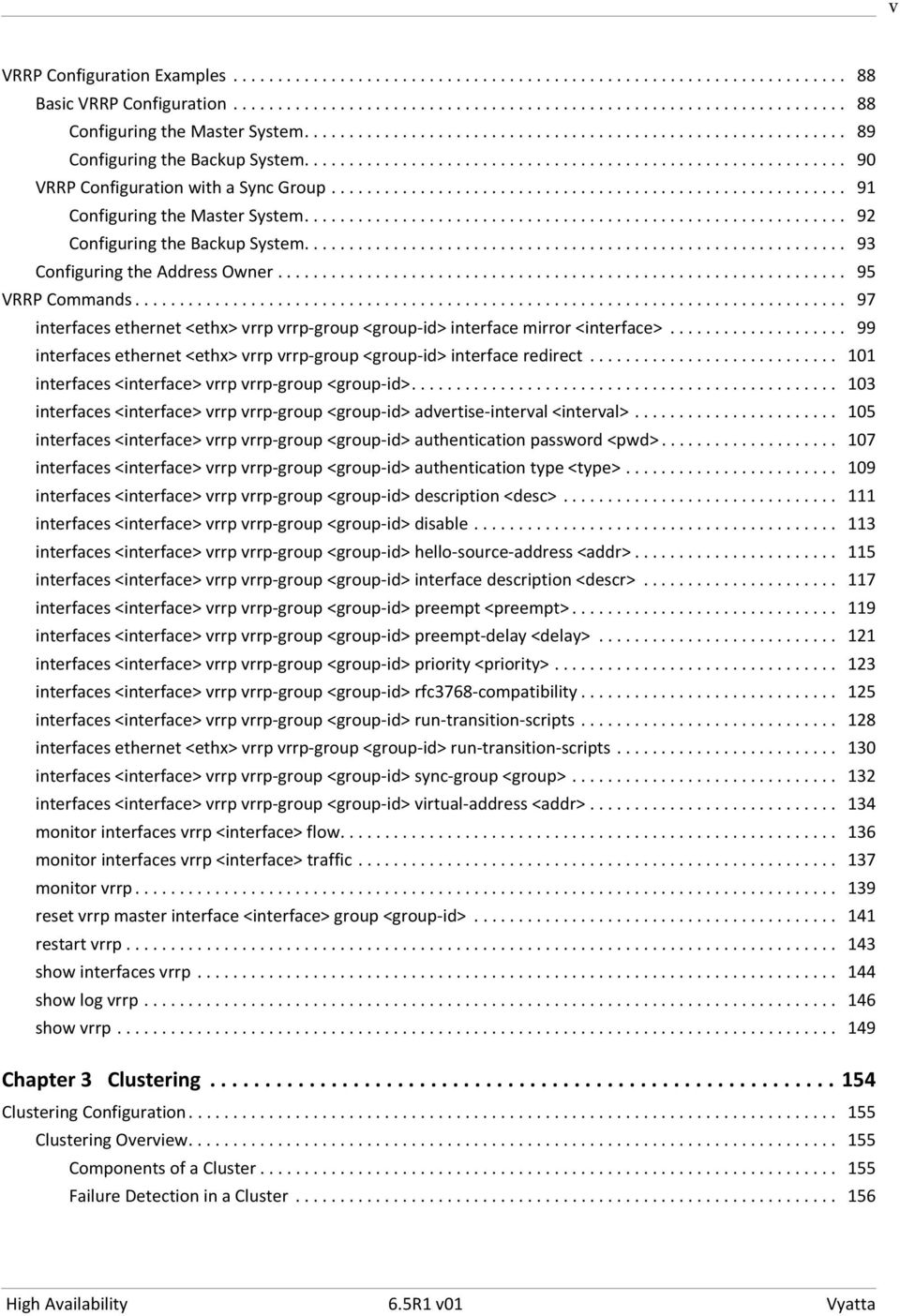
5 v VRRP Configuration Examples Basic VRRP Configuration Configuring the Master System Configuring the Backup System VRRP Configuration with a Sync Group Configuring the Master System Configuring the Backup System Configuring the Address Owner VRRP Commands interfaces ethernet <ethx> vrrp vrrp group <group id> interface mirror <interface> interfaces ethernet <ethx> vrrp vrrp group <group id> interface redirect interfaces <interface> vrrp vrrp group <group id> interfaces <interface> vrrp vrrp group <group id> advertise interval <interval> interfaces <interface> vrrp vrrp group <group id> authentication password <pwd> interfaces <interface> vrrp vrrp group <group id> authentication type <type> interfaces <interface> vrrp vrrp group <group id> description <desc> interfaces <interface> vrrp vrrp group <group id> disable interfaces <interface> vrrp vrrp group <group id> hello source address <addr> interfaces <interface> vrrp vrrp group <group id> interface description <descr> interfaces <interface> vrrp vrrp group <group id> preempt <preempt> interfaces <interface> vrrp vrrp group <group id> preempt delay <delay> interfaces <interface> vrrp vrrp group <group id> priority <priority> interfaces <interface> vrrp vrrp group <group id> rfc3768 compatibility interfaces <interface> vrrp vrrp group <group id> run transition scripts interfaces ethernet <ethx> vrrp vrrp group <group id> run transition scripts interfaces <interface> vrrp vrrp group <group id> sync group <group> interfaces <interface> vrrp vrrp group <group id> virtual address <addr> monitor interfaces vrrp <interface> flow monitor interfaces vrrp <interface> traffic monitor vrrp reset vrrp master interface <interface> group <group id> restart vrrp show interfaces vrrp show log vrrp show vrrp Chapter 3 Clustering Clustering Configuration Clustering Overview Components of a Cluster Failure Detection in a Cluster
6 vi Clustering Heartbeat Mechanism IP Addressing in Clusters Revertive and Non Revertive Failover Clustering Configuration Examples Defining a Site to Site VPN Configuration Defining the Cluster on Router R Defining the Cluster on Router R Clustering Commands cluster cluster dead interval <interval> cluster group <group> cluster group <group> auto failback <mode> cluster group <group> monitor <ipv4> cluster group <group> primary <hostname> cluster group <group> secondary <hostname> cluster group <group> service <service> cluster interface <interface> cluster keepalive interval <interval> cluster mcast group <ipv4> cluster monitor dead interval <interval> cluster pre shared secret <secret> show cluster status Chapter 4 Stateful NAT and Firewall Failover Stateful Failover Configuration Stateful Failover Overview Stateful Failover Configuration Examples Before You Begin Stateful Failover Using Clustering Stateful Failover Using VRRP NAT Considerations for Stateful Failover Stateful Failover Commands reset conntrack sync external cache reset conntrack sync internal cache restart conntrack sync service conntrack sync service conntrack sync accept protocol <protocol> service conntrack sync event listen queue size <mbytes> service conntrack sync expect sync service conntrack sync failover mechanism cluster group <group name> service conntrack sync failover mechanism vrrp sync group <group name>

7 vii service conntrack sync ignore address service conntrack sync interface <interface> service conntrack sync mcast group <ipv4> service conntrack sync sync queue size <mbytes> show conntrack sync external cache show conntrack sync internal cache show conntrack sync statistics show conntrack sync status Chapter 5 RAID RAID 1 Configuration RAID 1 Overview RAID Implementations RAID 1 Set States Booting Installation Implications BIOS Issues RAID 1 Operational Examples Setting Up a Non RAID 1 System Non RAID 1 to RAID RAID 1 to Non RAID RAID 1 to RAID RAID 1 to new RAID Detecting and Replacing a Failed RAID 1 Disk RAID 1 Commands add raid <RAID 1 device> member <disk partition> delete raid <RAID 1 device> member <disk partition> format <disk device1> like <disk device2> show disk <disk device> format show raid <RAID 1 device> Chapter 6 Configuration Synchronization Configuration Synchronization Configuration Configuration Synchronization Overview Master and Standby Systems Out of Sync Systems Configuration Synchronization Examples Basic Configuration Synchronization Configuration Synchronization in a High Availability Scenario Configuration Synchronization Commands system config sync remote router <addr>

8 viii system config sync remote router <addr> password <password> system config sync remote router <addr> sync map <sync map name> system config sync remote router <addr> username <username> system config sync sync map <sync map name> system config sync sync map <sync map name> rule <rule num> system config sync sync map <sync map name> rule <rule num> action <action> system config sync sync map <sync map name> rule <rule num> location <config path> show config sync difference show config sync status update config sync Glossary of Acronyms

9 Quick List of Commands ix Use this list to help you quickly locate commands. add raid <RAID 1 device> member <disk partition> cluster dead interval <interval> cluster group <group> auto failback <mode> cluster group <group> monitor <ipv4> cluster group <group> primary <hostname> cluster group <group> secondary <hostname> cluster group <group> service <service> cluster group <group> cluster interface <interface> cluster keepalive interval <interval> cluster mcast group <ipv4> cluster monitor dead interval <interval> cluster pre shared secret <secret> cluster delete raid <RAID 1 device> member <disk partition> format <disk device1> like <disk device2> interfaces <interface> vrrp vrrp group <group id> advertise interval <interval> interfaces <interface> vrrp vrrp group <group id> authentication password <pwd> interfaces <interface> vrrp vrrp group <group id> authentication type <type> interfaces <interface> vrrp vrrp group <group id> description <desc> interfaces <interface> vrrp vrrp group <group id> disable interfaces <interface> vrrp vrrp group <group id> hello source address <addr> interfaces <interface> vrrp vrrp group <group id> interface description <descr> interfaces <interface> vrrp vrrp group <group id> preempt <preempt> interfaces <interface> vrrp vrrp group <group id> preempt delay <delay> interfaces <interface> vrrp vrrp group <group id> priority <priority> interfaces <interface> vrrp vrrp group <group id> rfc3768 compatibility interfaces <interface> vrrp vrrp group <group id> run transition scripts interfaces <interface> vrrp vrrp group <group id> sync group <group> interfaces <interface> vrrp vrrp group <group id> virtual address <addr> interfaces <interface> vrrp vrrp group <group id> interfaces ethernet <ethx> vrrp vrrp group <group id> interface mirror <interface>

10 x interfaces ethernet <ethx> vrrp vrrp group <group id> interface redirect interfaces ethernet <ethx> vrrp vrrp group <group id> run transition scripts load balancing wan disable source nat load balancing wan enable local traffic load balancing wan flush connections load balancing wan hook <script name> load balancing wan interface health <if name> failure count <num> load balancing wan interface health <if name> nexthop <ipv4> load balancing wan interface health <if name> success count <num> load balancing wan interface health <if name> test <test no> resp time <seconds> load balancing wan interface health <if name> test <test no> target <address> load balancing wan interface health <if name> test <test no> test script <script name> load balancing wan interface health <if name> test <test no> ttl limit <limit> load balancing wan interface health <if name> test <test no> type <type> load balancing wan interface health <if name> test <test no> load balancing wan interface health <if name> load balancing wan rule <rule> description <desc> load balancing wan rule <rule> destination load balancing wan rule <rule> exclude load balancing wan rule <rule> failover load balancing wan rule <rule> inbound interface <if name> load balancing wan rule <rule> interface <if name> load balancing wan rule <rule> limit load balancing wan rule <rule> per packet balancing load balancing wan rule <rule> protocol <protocol> load balancing wan rule <rule> source load balancing wan rule <rule> load balancing wan monitor interfaces vrrp <interface> flow monitor interfaces vrrp <interface> traffic monitor vrrp reset conntrack sync external cache reset conntrack sync internal cache reset vrrp master interface <interface> group <group id> restart conntrack sync restart vrrp

11 xi restart wan load balance service conntrack sync accept protocol <protocol> service conntrack sync event listen queue size <mbytes> service conntrack sync expect sync service conntrack sync failover mechanism cluster group <group name> service conntrack sync failover mechanism vrrp sync group <group name> service conntrack sync ignore address service conntrack sync interface <interface> service conntrack sync mcast group <ipv4> service conntrack sync sync queue size <mbytes> service conntrack sync show cluster status show config sync difference show config sync status show conntrack sync external cache show conntrack sync internal cache show conntrack sync statistics show conntrack sync status show disk <disk device> format show interfaces vrrp show log vrrp show raid <RAID 1 device> show vrrp show wan load balance connection show wan load balance status show wan load balance system config sync remote router <addr> password <password> system config sync remote router <addr> sync map <sync map name> system config sync remote router <addr> username <username> system config sync remote router <addr> system config sync sync map <sync map name> rule <rule num> action <action> system config sync sync map <sync map name> rule <rule num> location <config path> system config sync sync map <sync map name> rule <rule num> system config sync sync map <sync map name> update config sync

12 List of Examples xii Use this list to help you locate examples you d like to look at or try. Example 1 8 Complete WAN load balancing configuration Example 1 9 Displaying load balanced interface information (test status with passed tests) Example 1 10 Displaying load balanced interface information (test status with failed test for eth0) Example 1 11 Displaying load balancing connection information Example 1 12 Displaying load balancing status Example 2 6 Displaying traffic data Example 2 7 Monitoring VRRP in the foreground Example 2 8 Monitoring VRRP in the foreground Example 2 9 Forcing the VRRP master into the backup state Example 2 10 Showing VRRP summary information Example 2 11 VRRP logs: master router Example 2 12 VRRP logs: master router Example 2 13 Showing VRRP information Example 2 14 Showing VRRP detail information Example 2 15 Showing VRRP interface information Example 2 16 Showing VRRP statistics information Example 2 17 Showing VRRP sync group information Example 3 6 show cluster status : Primary node active (primary output) Example 3 7 show cluster status : Primary node output (secondary output) Example 3 8 show cluster status : Failed link on primary (primary output) Example 3 9 show cluster status : Failed link on primary (secondary output) Example 3 10 show cluster status : Failed primary node (secondary output) Example 4 1 Example firewall configuration for stateful failover Example 4 2 Ethernet configuration on R1 for stateful failover Example 4 3 Ethernet configuration on R2 for stateful failover Example 4 4 Clustering configuration for stateful failover Example 4 6 VRRP configuration for stateful failover (R1)
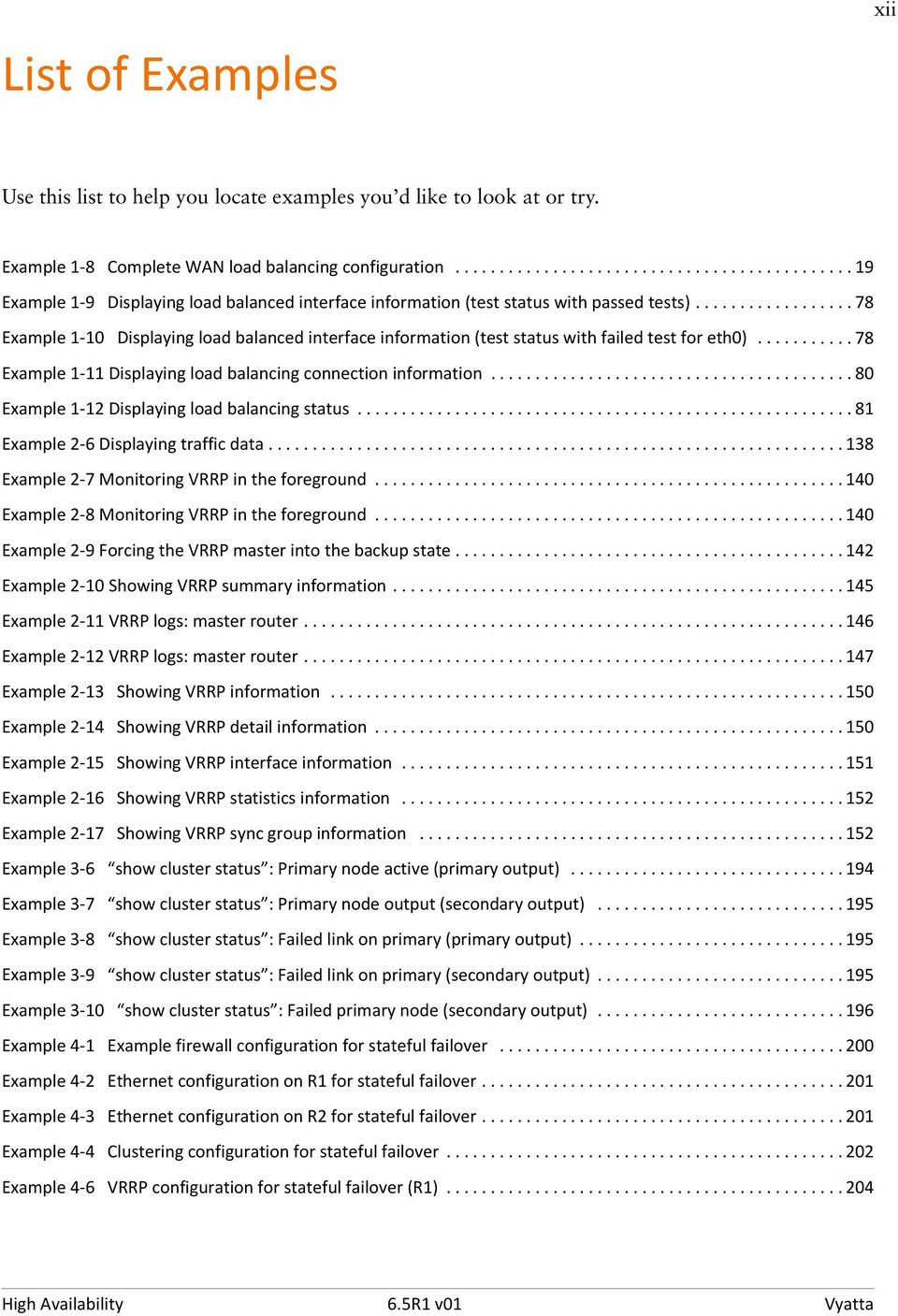
13 xiii Example 4 7 VRRP configuration for stateful failover (R2) Example 4 9 NAT rule configuration for stateful failover Example 4 10 Showing connection tracking entries in the external cache Example 4 11 Showing connection tracking entries in the main table in the external cache Example 4 12 Showing connection tracking entries in the expect table in the external cache Example 4 13 Showing connection tracking entries in the internal cache Example 4 14 Showing connection tracking entries in the main table in the internal cache Example 4 15 Showing connection tracking entries in the expect table in the internal cache Example 4 16 Showing connection tracking synchronization statistics Example 4 17 Showing connection tracking synchronization status Example 4 18 Showing connection tracking synchronization status expectation sync enabled Example 5 1 RAID1 Synchronized state Example 5 2 RAID1 Degraded state Example 5 3 RAID1 Recovering state Example 5 4 RAID1 Resyncing state Example 5 5 show disk sda format : Displaying information about a member of a RAID 1 set Example 5 6 show raid md0 : Displaying information about a RAID 1 set with two members one being resynchronized Example 5 7 show raid md0 : Displaying information about a RAID 1 set with two synchronized members Example 6 2 Configuration for R Example 6 3 Configuration for R Example 6 4 Showing configuration synchronization differences Example 6 5 Showing detailed configuration synchronization differences Example 6 6 Showing configuration synchronization status Example 6 7 Showing detailed configuration synchronization status

14 xiv Preface This document describes the various deployment, installation, and upgrade options for Vyatta software. This preface provides information about using this guide. The following topics are presented: Intended Audience Organization of This Guide Document Conventions Vyatta Publications

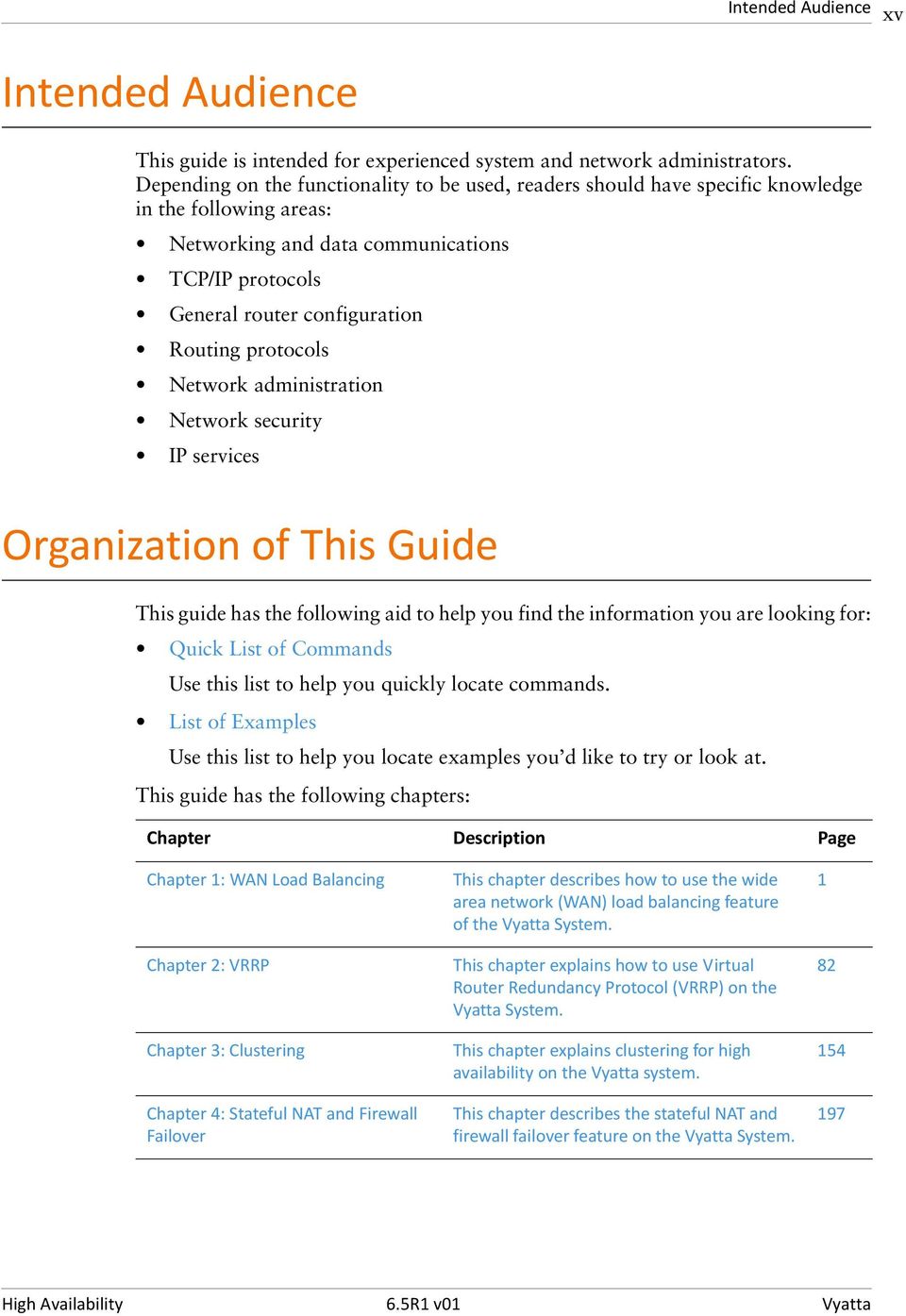
15 Intended Audience xv Intended Audience This guide is intended for experienced system and network administrators. Depending on the functionality to be used, readers should have specific knowledge in the following areas: Networking and data communications TCP/IP protocols General router configuration Routing protocols Network administration Network security IP services Organization of This Guide This guide has the following aid to help you find the information you are looking for: Quick List of Commands Use this list to help you quickly locate commands. List of Examples Use this list to help you locate examples you d like to try or look at. This guide has the following chapters: Chapter Description Page Chapter 1: WAN Load Balancing Chapter 2: VRRP Chapter 3: Clustering Chapter 4: Stateful NAT and Firewall Failover This chapter describes how to use the wide area network (WAN) load balancing feature of the Vyatta System. This chapter explains how to use Virtual Router Redundancy Protocol (VRRP) on the Vyatta System. This chapter explains clustering for high availability on the Vyatta system. This chapter describes the stateful NAT and firewall failover feature on the Vyatta System
16 Document Conventions xvi Chapter 5: RAID 1 Chapter 6: Configuration Synchronization This chapter describes how to set up hard drives in a Redundant Array of Independent Disks (RAID) 1 deployment using the Vyatta system. This chapter explains how to set up the Vyatta system to synchronize portions of the configuration Glossary of Acronyms 292 Document Conventions This guide uses the following advisory paragraphs, as follows. WARNING Warnings alert you to situations that may pose a threat to personal safety. CAUTION Cautions alert you to situations that might cause harm to your system or damage to equipment, or that may affect service. NOTE Notes provide information you might need to avoid problems or configuration errors. This document uses the following typographic conventions. Monospace bold Monospace bold italics <key> Examples, command-line output, and representations of configuration nodes. Your input: something you type at a command line. Commands, keywords, and file names, when mentioned inline. Objects in the user interface, such as tabs, buttons, screens, and panes. An argument or variable where you supply a value. A key on your keyboard, such as <Enter>. Combinations of keys are joined by plus signs ( + ), as in <Ctrl>+c. [ key1 key2] Enumerated options for completing a syntax. An example is [enable disable]. num1 numn A inclusive range of numbers. An example is , which means 1 through 65535, inclusive.

17 Vyatta Publications xvii arg1..argn arg[ arg...] arg[,arg...] A range of enumerated values. An example is eth0..eth3, which means eth0, eth1, eth2, or eth3. A value that can optionally represent a list of elements (a space-separated list and a comma-separated list, respectively). Vyatta Publications Full product documentation is provided in the Vyatta technical library. To see what documentation is available for your release, see the Guide to Vyatta Documentation. This guide is posted with every release of Vyatta software and provides a great starting point for finding the information you need. Additional information is available on and

18 1 Chapter 1: WAN Load Balancing This chapter describes how to use the wide area network (WAN) load balancing feature of the Vyatta System. This chapter presents the following topics: WAN Load Balancing Configuration WAN Load Balancing Commands

19 Chapter 1: WAN Load Balancing WAN Load Balancing Configuration 2 WAN Load Balancing Configuration This section describes how to configure WAN load balancing on the Vyatta System. This section presents the following topics: WAN Load Balancing Overview Configuration Examples WAN Load Balancing Overview This section presents the following topics: What Load Balancing Is Balancing Algorithm Load Balancing Rules Flow-Based vs. Packet-Based Balancing Health Checking Failover Excluding Traffic from WAN Load Balancing Rate Limiting Script Execution on Interface State Changes Considerations for DHCP/Static Route Default Gateway Environments Steps for Configuring WAN Load Balancing What Load Balancing Is The Vyatta system supports automatic load balancing for outbound traffic across two or more outbound interfaces. In addition to balancing traffic loads across interfaces, this feature also provides for path redundancy should a path fail, as traffic will be balanced across the remaining healthy paths. When the failed path recovers it will be added to the list of healthy paths so that the load balancing system can use it again. The system determines path health through periodic health checking to a remote target or targets. Load balancing is supported for outbound traffic only. Load balancing is not performed on packets sourced from the system itself unless it is explicitly configured to do so (using e load-balancing wan enable-local-traffic command). For load balancing to occur, at least two paths need to be available in the routing table, and these paths must egress through the interfaces being load balanced. The WAN load balancing process automatically installs the default routes you configure

20 Chapter 1: WAN Load Balancing WAN Load Balancing Configuration 3 for each path, and balances traffic according to path health and the weights you apply to each interface. You can see which paths are installed in the routing table using the show ip route command. Balancing Algorithm Outbound packets are load balanced using a weighted random distribution load balancing algorithm. If no weights are assigned, each interface has an equal chance of being picked, which, on average, results in each interface receiving approximately the same number of packets. If an interface has a higher weight, it will tend to be picked more often; for example, if interface A has a weight of 2 and interface B has a weight of 1, interface A will tend to be picked 67% of the time. Load Balancing Rules The kind of traffic to be balanced, the set of interfaces, and the relative weight for each interface is specified in a load balancing rule. A load balancing rule contains a set of match criteria and a set of interfaces with weights attached. Outgoing packets are matched against the criteria specified in the rule. If the packet is a match for the rule, the load balancing algorithm determines to which interface in the specified set the packet is sent. Rules are executed in numeric order until a successful match is achieved. If a match is achieved, the packet is sent to one of the interfaces specified by the rule, unless none of the interfaces is active. In this case, the next rule is executed until a matching rule has at least one active interface. If no rules are matched, then the main system routing table is used. Once configured, rule numbers cannot be changed. For this reason, it is good practice to configure rules at intervals (for example, rule 5, rule 10, rule 15, and so on) in case a rule must be inserted later on. Flow Based vs. Packet Based Balancing In general, traffic is load balanced on a per-flow basis, not on a per-packet basis. Any connection-oriented traffic remains appropriately associated with the interface assigned for load balancing. Flows are tracked by means of an entry in the connection tracking table. Flows are identified by a tuple consisting of source address, destination address, and port. If per-packet-balancing is enabled, traffic is load balanced on a per-packet basis and the source address is considered when choosing the egress interface. Also, if the connection tracking table is flushed, previously established flows are balanced on a per-packet basis until a new connection is established on the flow.

21 Chapter 1: WAN Load Balancing WAN Load Balancing Configuration 4 Health Checking A load balanced WAN interface is considered an active member of the interface pool so long as it passes health checks. The health of the interface is monitored by having it send an ICMP Echo Request ( ping ) message at intervals to some remote destination. Successful receipt of the ICMP Echo Reply message from the destination shows that the interface can both transmit to the Internet and receive packets from the Internet. If the interface fails the health check, it is removed from the pool of active interfaces. NOTE A time to live (ttl) test is also available which sends a udp packet with a ttl limit to the target. For each interface to be load balanced, the interface health criteria must be configured, including the number of missed health checks that cause an interface to be declared unhealthy and the successes required to declare its health restored. Configuring more than one target for health check tests means that one does not have to rely on a single target which might be non-responsive for reasons other than path failure. Multi-targets will be tested until a test is successful or the list of tests is exhausted. Health check configuration consists of the following: The remote destination to be tested for accessibility. Use load-balancing wan interface-health <if-name> test <test-no> target <address> command. The nexthop on the path to the target destination. Use load-balancing wan interface-health <if-name> nexthop <ipv4> command The type of test to perform (either ping or ttl). Use load-balancing wan interface-health <if-name> test <test-no> type <type> command The maximum response time to the ping message that can be considered a success. Use load-balancing wan interface-health <if-name> test <test-no> resp-time <seconds> command. Or the ttl limit for ttl tests. Use load-balancing wan interface-health <if-name> test <test-no> ttl-limit <limit> command The number of health check failures that can occur before the interface is considered unavailable. Use load-balancing wan interface-health <if-name> failure-count <num> command. The number of successful health checks that must occur before the interface can be added back into the pool of active interfaces. Use load-balancing wan interface-health <if-name> success-count <num> command. Implicit NAT One potential issue with multiple external interfaces is that return traffic can enter through a different interface than it was sent. This is referred to as asymmetric routing and, in general, it is undesirable for a number of reasons including a potential load imbalance on incoming traffic and difficulties troubleshooting. In order to prevent asymmetric routing, the WAN load balancer, by default, replaces the
22 Chapter 1: WAN Load Balancing WAN Load Balancing Configuration 5 source address of all IP packets egressing through an interface with the address of that interface (that is, it performs masquerade NAT on egressing packets) so that reply traffic will return through the same interface that it was sent on. If this default behavior is not what you intend, you can disable it using the load-balancing wan disable-source-nat command. Failover Normally, all balanced interfaces are utilized to balance traffic. However, the Vyatta system supports a failover mode for WAN load balancing (using load-balancing wan rule <rule> failover command). When in failover mode, one interface is selected by the system as the primary and the remaining interfaces are designated secondary or spare. The primary interface is selected based on its configured weight and the reachability of the target. If connectivity through the primary interface is interrupted, the next secondary interface is selected from the set of secondary interfaces. In addition to weight-based primary interface selection, the primary interface can be selected based on rule order. Because traffic is directed out through the first healthy interface specified in a matching rule, rules can be ordered based on egress interface preference. For example, if eth0 is to be used as the primary interface unless it becomes unhealthy, in which case eth1 is to be used, then eth0 would be included in the first rule and eth1 in the following rule. When a link fails over and a new primary interface is selected, existing sessions do not automatically fail over to the new path. The end user experiences a session timeout. To avoid this delay if there is a link-state change and session failure, the session table can be flushed using load-balancing wan flush-connections command. Excluding Traffic from WAN Load Balancing There are cases where it is not desirable to load balance all traffic sourced from a specified interface. For example, in a scenario where two local LANs each have upstream traffic is to be load balanced, traffic from one LAN to the other will also be routed upstream, which is not the desired behavior. To avoid this, the intra-lan traffic can be excluded from being load balanced. Traffic exclusion is configured using load-balancing wan rule <rule> exclude command. Rate Limiting WAN load balancing rate limiting sets a rate limit at which a rule will be active. For example, you may want to configure the system to send all packets out one interface up to a given limit, but to send all packets in excess of that limit out a second interface. This scenario requires two rules: The first rule, with a rate limit specified, sends packets out interface 1.
23 Chapter 1: WAN Load Balancing WAN Load Balancing Configuration 6 The second rule, with no limits specified, sends packets out interface 2. Rate limiting is configured using load-balancing wan rule <rule> limit command. Script Execution on Interface State Changes To provide flexibility in what actions can be taken on an interface state change, the Vyatta system provides a hook feature. This feature allows a script to be run when an interface state changes from active to failed or from failed to active. Script execution on interface state changes is configured using load-balancing wan hook <script-name> command. Considerations for DHCP/Static Route Default Gateway Environments In environments where WAN load balancing is set up to balance traffic over DHCP client interfaces and static default gateway routes also exist, WAN load balancing will not work properly unless the next-hop distance for the static default routes is changed from 1 to 2. The reason for this is that, by default, static default routes have a distance of 1, while those set by DHCP have a distance of 2 a lower priority. Their higher priority causes the static default gateway routes to be selected in every case. Setting them to same priority as the DHCP client interfaces allows them to be evaluated equally, providing multiple default routes. Steps for Configuring WAN Load Balancing There are three steps for setting up WAN load balancing: 1 Define a target (or targets) for each interface being load balanced that is (are) accessible to the interface. The target is used by the load balancing service to determine the health of the interface. 2 Configure a next-hop address for each target, for each interface to be load balanced. The load balancing service uses this address to access the target. 3 Configure one static host route entry for each target to provide routing for accessing the target through the desired interface. Configuration Examples This section presents the following topics: Basic WAN Load Balancing Failover Using Interface Weights Failover Using Rule Order
24 Chapter 1: WAN Load Balancing WAN Load Balancing Configuration 7 Failover Using Rule Order Priority Traffic Excluding Traffic from Load Balancing Basic WAN Load Balancing In this example, a sample configuration is presented for a basic WAN load balancing scenario. In this configuration: All traffic incoming through interface eth3 is balanced between interfaces eth0 and eth1 on R1. The outgoing interfaces eth0 and eth1 are tested for interface health by pinging remote ping targets via these interfaces. The remote targets in this example are: , , , and Outgoing packets are assigned the primary source address of the assigned interface. Interface eth1 is to be removed from the active pool after four consecutive ping failures and interface eth0 after five consecutive failures. When you are finished, R1 will be configured as shown in Figure 1-1.
25 Chapter 1: WAN Load Balancing WAN Load Balancing Configuration 8 Figure 1 1 WAN load balancing Ping Target Machines Internet ISP 0 ISP eth eth R1 eth3 Local Network This section includes the following examples: Example 1-1 Creating static routes to ping targets Example 1-2 Creating load balancing configuration Example 1-1 creates static routes directed towards the two ISPs that the load will be balanced between: and To create these static routes, perform the following steps in configuration mode. Example 1 1 Creating static routes to ping targets Step Create a static route to a ping target for testing the health of eth0. Create a static route to a second ping target for testing the health of eth0. Command vyatta@r1# set protocols static route /32 next hop vyatta@r1# set protocols static route /32 next hop
26 Chapter 1: WAN Load Balancing WAN Load Balancing Configuration 9 Example 1 1 Creating static routes to ping targets Create a static route to a ping target for testing the health of eth1. Create a static route to a second ping target for testing the health of eth1. Commit the configuration. Display the configuration vyatta@r1# set protocols static route /32 next hop vyatta@r1# set protocols static route /32 next hop vyatta@r1# commit vyatta@r1# show protocols static route /32 { next hop { route /32 { next hop { route /32 { next hop { route /32 { next hop { Example 1-2 sets up a basic WAN load balancing configuration on R1. To create the load balancing configuration, perform the following steps in configuration mode. Example 1 2 Creating load balancing configuration Step Set the failure count for eth0. Set the next hop for eth0. Set the test type for eth0. Set a ping target for eth0. Set a second test and type for eth0. Command vyatta@r1# set load balancing wan interface health eth0 failure count 5 vyatta@r1# set load balancing wan interface health eth0 nexthop vyatta@r1# set load balancing wan interface health eth0 test 10 type ping vyatta@r1# set load balancing wan interface health eth0 test 10 target vyatta@r1# set load balancing wan interface health eth0 test 20 type ping
27 Chapter 1: WAN Load Balancing WAN Load Balancing Configuration 10 Example 1 2 Creating load balancing configuration Set a second ping target for eth0. Set the failure count for eth1. Set the nexthop for eth1. Set the test type for eth1. Set a ping target for eth1. Set a second test and type for eth1. Set a second ping target for eth1. Define eth3 as the inbound interface. Define eth0 as one of the interfaces to be load balanced. Define eth1 as another interface to be load balanced. Commit the configuration. vyatta@r1# set load balancing wan interface health eth0 test 20 target vyatta@r1# set load balancing wan interface health eth1 failure count 4 vyatta@r1# set load balancing wan interface health eth1 nexthop vyatta@r1# set load balancing wan interface health eth1 test 10 type ping vyatta@r1# set load balancing wan interface health eth1 test 10 target vyatta@r1# set load balancing wan interface health eth1 test 20 type ping vyatta@r1# set load balancing wan interface health eth1 test 20 target vyatta@r1# set load balancing wan rule 10 inbound interface eth3 vyatta@r1# set load balancing wan rule 10 interface eth0 vyatta@r1# set load balancing wan rule 10 interface eth1 vyatta@r1# commit
28 Chapter 1: WAN Load Balancing WAN Load Balancing Configuration 11 Example 1 2 Creating load balancing configuration Display the configuration vyatta@r1# show load balancing wan { interface health eth0 { failure count 5 nexthop test 10 { target type ping test 20 { target type ping interface health eth1 { failure count 4 nexthop test 10 { target type ping test 20 { target type ping rule 10 { inbound interface eth3 interface eth0 { interface eth1 { Failover Using Interface Weights In the previous example, the system was configured to balance the traffic load between eth0 and eth1. In the example in this section, instead of balancing the traffic, eth0 is configured as the primary interface and eth1 as a backup interface to be used if eth0 fails. The only change is to Rule 10. In this example: All traffic incoming through interface eth3 is sent out interface eth0.
29 Chapter 1: WAN Load Balancing WAN Load Balancing Configuration 12 If eth0 fails, all traffic incoming through interface eth3 will be sent out eth1. Example 1-3 sets up a failover configuration rule on R1. To modify the previous example to create the failover configuration using interface weights, perform the following steps in configuration mode. Example 1 3 Creating failover configuration using interface weights Step Remove the existing Rule 10 from the previous example. Enable failover mode. Define eth3 as the inbound interface. Define eth0 as the primary interface as it will have the largest weight value. Define eth1 as the secondary interface as it will have the smallest weight value. Commit the configuration. Command vyatta@r1# delete load balancing wan rule 10 vyatta@r1# set load balancing wan rule 10 failover vyatta@r1# set load balancing wan rule 10 inbound interface eth3 vyatta@r1# set load balancing wan rule 10 interface eth0 weight 10 vyatta@r1# set load balancing wan rule 10 interface eth1 weight 1 vyatta@r1# commit
30 Chapter 1: WAN Load Balancing WAN Load Balancing Configuration 13 Example 1 3 Creating failover configuration using interface weights Display the configuration vyatta@r1# show load balancing wan { interface health eth0 { failure count 5 nexthop test 10 { target type ping test 20 { target type ping interface health eth1 { failure count 4 nexthop test 10 { target type ping test 20 { target type ping rule 10 { failover inbound interface eth3 interface eth0 { weight 10 interface eth1 { weight 1 Failover Using Rule Order In the previous example, the system was configured to send all incoming traffic from eth3 out eth0 unless the health check on eth0 failed. If the health check on eth0 failed all incoming traffic from eth3 would be sent out eth1. This was accomplished using the failover command and assigning different weights to the two outbound
31 Chapter 1: WAN Load Balancing WAN Load Balancing Configuration 14 interfaces. In the example in this section, failover is accomplished based on rule order. Again, all traffic from eth3 is sent out eth0 unless its health check fails, at which point the traffic is sent out eth1. This behavior is accomplished using two rules. One rule directs all traffic from eth3 to eth0 and the other directs all traffic from eth3 to eth1. When eth0 is healthy, all traffic from eth3 matches the first rule and is sent out eth0. If eth0 fails, the first rule is bypassed due to path health and the second rule takes effect, directing all traffic from eth3 to eth1. Once eth0 becomes healthy, traffic again matches the first rule and is sent out eth0. Example 1-4 sets up failover configuration rules on R1. To modify the previous example to create the failover configuration using rule order, perform the following steps in configuration mode. Example 1 4 Creating failover configuration using rule order Step Remove the existing Rule 10 from the previous example. Define eth3 as the inbound interface for this rule. Define eth0 as the primary egress interface. Define eth3 as the inbound interface for this rule. Define eth1 as the secondary egress interface. Commit the configuration. Command vyatta@r1# delete load balancing wan rule 10 vyatta@r1# set load balancing wan rule 10 inbound interface eth3 vyatta@r1# set load balancing wan rule 10 interface eth0 vyatta@r1# set load balancing wan rule 20 inbound interface eth3 vyatta@r1# set load balancing wan rule 20 interface eth1 vyatta@r1# commit
32 Chapter 1: WAN Load Balancing WAN Load Balancing Configuration 15 Example 1 4 Creating failover configuration using rule order Display the configuration vyatta@r1# show load balancing wan { interface health eth0 { failure count 5 nexthop test 10 { target type ping test 20 { target type ping interface health eth1 { failure count 4 nexthop test 10 { target type ping test 20 { target type ping rule 10 { inbound interface eth3 interface eth0 { rule 20 { inbound interface eth3 interface eth1 { Failover Using Rule Order Priority Traffic One of the advantages of using rule order for failover configuration is the additional flexibility it provides. For example, in situations where the backup link is a lower-speed link than the primary and is only able to pass priority traffic, a rule order configuration is required.
33 Chapter 1: WAN Load Balancing WAN Load Balancing Configuration 16 In the previous example, the system was configured to send all incoming traffic from eth3 out eth0 unless the health check on eth0 failed. If the health check on eth0 failed all incoming traffic from eth3 was to be sent out eth1. This was accomplished using rule order. In the example in this section, we assume that the backup link has a lower speed and is unable to accommodate all traffic, so we select only high-priority traffic (in this case VoIP traffic) to send out the backup link if eth0 fails the health check. Example 1-5 sets up failover configuration rules on R1. To modify the previous example to create the failover configuration using rule order where only a subset of traffic is sent out the secondary interface when the primary interface fails a health check, perform the following steps in configuration mode. Example 1 5 Creating failover configuration using rule order and a lower speed backup link Step Remove the existing Rule 20 from the previous example. Define eth3 as the inbound interface for this rule. Define eth1 as the secondary egress interface. Identify the traffic to match by port (VoIP traffic is on the sip port)... Command vyatta@r1# delete load balancing wan rule 20 vyatta@r1# set load balancing wan rule 20 inbound interface eth3 vyatta@r1# set load balancing wan rule 20 interface eth1 vyatta@r1# set load balancing wan rule 20 destination port sip... and protocol. vyatta@r1# set load balancing wan rule 20 protocol tcp Allow traffic that falls through the load balancing rules to try to exit via eth0 as the health check failure may be due to issues with the health check target rather than the local link. Commit the configuration. vyatta@r1# set protocols static route /0 next hop vyatta@r1# commit
34 Chapter 1: WAN Load Balancing WAN Load Balancing Configuration 17 Example 1 5 Creating failover configuration using rule order and a lower speed backup link Display the load balancing configuration Display the static route configuration. vyatta@r1# show load balancing wan { interface health eth0 { failure count 5 nexthop test 10 { target type ping test 20 { target type ping interface health eth1 { failure count 4 nexthop test 10 { target type ping test 20 { target type ping rule 10 { inbound interface eth3 interface eth0 { rule 20 { destination { port sip inbound interface eth3 interface eth1 { protocol tcp vyatta@r1# show protocols static route /0 next hop
35 Chapter 1: WAN Load Balancing WAN Load Balancing Configuration 18 Excluding Traffic from Load Balancing This example uses an almost identical configuration to the first example. The only difference is that there are two local LANs rather than one; see Figure 1-2. Figure 1 2 WAN load balancing with two local networks Ping Target Machines Internet ISP 0 ISP eth R1 eth3 eth eth / /24 On first thought, it might appear that simply adding another rule to account for traffic from the second source would suffice. For example, a rule such as rule 20 in Example 1-6 might be added to load balance traffic from eth4:
36 Chapter 1: WAN Load Balancing WAN Load Balancing Configuration 19 Example 1 6 Adding a rule for a second traffic source Step Command Display the configuration vyatta@r1# show load balancing wan rule 20 inbound interface eth4 interface eth0 { interface eth1 { However, this configuration does not account for intra-lan traffic, and traffic that is meant to be routed between LANs will also be sent out either eth0 or eth1. To prevent this misdirection, an additional rule is required to exclude intra-lan traffic from being load balanced. In Example 1-7, rule 5 is added to exclude all traffic that is destined to either of the LANs. Note, in this example, that eth+ is used to refer to all Ethernet interfaces. Note also that this rule also excludes any locally-sourced packets destined for /8. This is required when using services like web caching with WAN load balancing. Example 1 7 Adding a rule to exclude traffic destined for the LANs Step Command Display the configuration vyatta@r1# show load balancing wan rule 5 destination { address /8 exclude inbound interface eth+ When complete, the configuration is as shown in Example 1-8. Example 1 8 Complete WAN load balancing configuration vyatta@r1# show load balancing wan { interface health eth0 { failure count 5 nexthop test 10 { target type ping test 20 {
37 Chapter 1: WAN Load Balancing WAN Load Balancing Configuration 20 target type ping interface health eth1 { failure count 4 nexthop test 10 { target type ping test 20 { target type ping rule 5 { destination { address /8 exclude inbound interface eth+ rule 10 { inbound interface eth3 interface eth0 { interface eth1 { rule 20 { inbound interface eth4 interface eth0 { interface eth1 {
38 Chapter 1: WAN Load Balancing WAN Load Balancing Commands 21 WAN Load Balancing Commands This section presents the following commands. Configuration Commands Processing Directives load balancing wan load balancing wan disable source nat load balancing wan enable local traffic load balancing wan flush connections load balancing wan hook <script name> Enables WAN load balancing on the system. Disables source NAT for balanced traffic. Enables WAN load balancing for locally sourced traffic. Directs the system to flush the connection tracking table when a connection changes state. Specifies a script to be run on interface status changes. Interface Health load balancing wan interface health <if name> load balancing wan interface health <if name> failure count <num> load balancing wan interface health <if name> nexthop <ipv4> load balancing wan interface health <if name> success count <num> load balancing wan interface health <if name> test <test no> load balancing wan interface health <if name> test <test no> resp time <seconds> load balancing wan interface health <if name> test <test no> target <address> load balancing wan interface health <if name> test <test no> test script <script name> load balancing wan interface health <if name> test <test no> ttl limit <limit> load balancing wan interface health <if name> test <test no> type <type> Sets the characteristics for health checking for a load balanced interface. Sets the number of failed ping tests that can occur before an interface is considered unavailable. Sets the next hop address for interface health checks. Sets the number of successful ping tests required for an interface to be considered healthy. Defines an interface health test. Sets the time to wait for a response before declaring a ping test failed. Specifies the address of the health check target. Specifies the name of a user defined script to use to test interface health. Specifies the hop count limit for a UDP TTL test. Specifies the interface health check test type.
39 Chapter 1: WAN Load Balancing WAN Load Balancing Commands 22 Load Balancing Rules load balancing wan rule <rule> load balancing wan rule <rule> description <desc> load balancing wan rule <rule> destination load balancing wan rule <rule> exclude load balancing wan rule <rule> failover load balancing wan rule <rule> inbound interface <if name> load balancing wan rule <rule> interface <if name> load balancing wan rule <rule> limit load balancing wan rule <rule> per packet balancing load balancing wan rule <rule> protocol <protocol> load balancing wan rule <rule> source Defines a WAN load balancing rule. Records a description for a WAN load balancing rule. Specifies a destination as a match criterion for a WAN load balancing rule. Excludes traffic matching a WAN load balancing rule from being load balanced. Puts the load balancing process into failover mode, where one load balancing interface as active and the remaining links are spare. Specifies the interface that traffic to be load balanced will come from. Adds an interface to the set of interfaces to be load balanced in a WAN load balancing rule. Specifies the traffic rate limiting parameters for a WAN load balancing rule. Enables per packet balancing for a WAN load balancing rule. Specifies an IP protocol as a match criterion for a WAN load balancing rule. Specifies a source as a match criterion for a WAN load balancing rule. Operational Commands restart wan load balance show wan load balance show wan load balance connection show wan load balance status Restarts the WAN load balancing process. Displays information about WAN load balanced interfaces. Displays connection data generated by load balanced traffic. Displays information about the status of WAN load balancing.
40 Chapter 1: WAN Load Balancing WAN Load Balancing Commands 23 restart wan load balance Restarts the WAN load balancing process. Syntax restart wan-load-balance Command Mode Operational mode. Parameters None. Default None. Usage Guidelines Use this command to restart the WAN load balancing process.
41 Chapter 1: WAN Load Balancing WAN Load Balancing Commands 24 load balancing wan Enables WAN load balancing on the system. Syntax set load-balancing wan delete load-balancing wan show load-balancing wan Command Mode Configuration mode. Configuration Statement load balancing { wan Parameters None. Default None. Usage Guidelines Use this command to enable wide area networking (WAN) load balancing on the system. Use the set form of this command to create the configuration node for WAN load balancing. Use the delete form of this command to remove the WAN load balancing configuration and disable WAN load balancing on the system. Use the show form of this command to display the configuration node.
42 Chapter 1: WAN Load Balancing WAN Load Balancing Commands 25 load balancing wan disable source nat Disables source NAT for balanced traffic. Syntax set load-balancing wan disable-source-nat delete load-balancing wan disable-source-nat show load-balancing wan Command Mode Configuration mode. Configuration Statement load balancing { wan { disable source nat Parameters None. Default Source NAT rules are automatically generated when the source address is changed. Usage Guidelines Use this command to disable the automatic generation of source network address translation (source NAT or SNAT) rules for load balanced traffic. Normally, the WAN load balanced interface replaces the source IP address of outbound traffic with its own IP address to ensure that reply traffic arrives back on the egressing interface. To do this, the WAN load balancing process automatically generates SNAT rules. These SNAT rules are specific to WAN load balancing; they rewrite the source address only for balanced traffic (that is, traffic matching the WAN load balancing rule).
43 Chapter 1: WAN Load Balancing WAN Load Balancing Commands 26 In some scenarios for example, cases where you are connecting private networks and do not require NAT, or cases where you want to employ other SNAT rules instead of relying on the rules generated by the WAN load balancing process. When the load-balancing wan disable-source-nat command is issued, WAN load balancing SNAT is not performed on balanced traffic. Use the set form of this command to disable SNAT on balanced traffic. Use the delete form of this command to restore the default behavior for SNAT. Use the show form of this command to display WAN load balancing configuration.
44 Chapter 1: WAN Load Balancing WAN Load Balancing Commands 27 load balancing wan enable local traffic Enables WAN load balancing for locally sourced traffic. Syntax set load-balancing wan enable-local-traffic delete load-balancing wan enable-local-traffic show load-balancing wan Command Mode Configuration mode. Configuration Statement load balancing { wan { enable local traffic Parameters None. Default Traffic that originates on the Vyatta system does not participate in WAN load balancing. Usage Guidelines Use this command to enable WAN load balancing for traffic that originates on the Vyatta system itself. Normally, only traffic that passes through the Vyatta system can be WAN load balanced. Setting this parameter allows both through traffic and traffic that originates from the Vyatta system to be WAN load balanced. Use the set form of this command to enable WAN load balancing for locally sourced traffic. Use the delete form of this command to restore the default behavior for locally sourced traffic.
45 Chapter 1: WAN Load Balancing WAN Load Balancing Commands 28 Use the show form of this command to display WAN load balancing configuration.
46 Chapter 1: WAN Load Balancing WAN Load Balancing Commands 29 load balancing wan flush connections Directs the system to flush the connection tracking table when a connection changes state. Syntax set load-balancing wan flush-connections delete load-balancing wan flush-connections show load-balancing wan Command Mode Configuration mode. Configuration Statement load balancing { wan { flush connections Parameters None. Default The connection tracking table is not flushed when connections change state. Usage Guidelines Use this command to direct the system to flush the connection tracking table when any connection changes state. The complete connection tracking table is flushed. The connection tracking table can accumulate stale entries for example, when a DHCP advertisement causes a change of address for a balanced interface or where a balanced link fails. Enabling connection tracking directs the system to flush the table when a connection changes state in this way. Note that enabling this option causes the entire connection tracking table to be flushed when any connection changes state. This removes entries for other flows than the changed flow, including entries for established and active flows. Subsequently, the system does not create a new entry in the connection tracking table until a new
47 Chapter 1: WAN Load Balancing WAN Load Balancing Commands 30 connection is established on the flow (where a flow is a tuple consisting of source address, destination address, IP address, and port). Until then, previously established flows are balanced on a per-packet, rather than a per-flow, basis. NOTE This feature should not be used together with stateful failover, since stateful failover uses the same connection tracking mechanism to maintain and synchronize state with the standby components. Use the set form of this command to enable connection tracking table flushing. Use the delete form of this command to restore the default behavior for the connection tracking table. Use the show form of this command to display WAN load balancing configuration.
48 Chapter 1: WAN Load Balancing WAN Load Balancing Commands 31 load balancing wan hook <script name> Specifies a script to be run on interface status changes. Syntax set load-balancing wan hook script-name delete load-balancing wan hook show load-balancing wan hook Command Mode Configuration mode. Configuration Statement load balancing { wan { hook script name Parameters script-name The name of the script to be executed on an interface state change. Default None. Usage Guidelines Use this command to specify the name of a script that will be run on a per-interface state-change basis. There are two environment variables available to the script: WLB_INTERFACE_NAME=[interfacename] specifies the interface to monitor for state change. WLB_INTERFACE_STATE=[ACTIVE FAILED] specifies the interface state. Script files are assumed to be in /config/scripts unless an absolute path is specified.
49 Chapter 1: WAN Load Balancing WAN Load Balancing Commands 32 NOTE This is a blocking call, so if the script does not return, the WAN load balancing process waits forever, rendering the system unresponsive. Use the set form of this command to specify the name of the script to be run when an interface changes state. Use the delete form of this command to remove the specified script name. Use the show form of this command to display the script name configured.
50 Chapter 1: WAN Load Balancing WAN Load Balancing Commands 33 load balancing wan interface health <if name> Sets the characteristics for health checking for a load-balanced interface. Syntax set load-balancing wan interface-health if-name delete load-balancing wan interface-health if-name show load-balancing wan interface-health if-name Command Mode Configuration mode. Configuration Statement load balancing { wan { interface health if name Parameters if-name Mandatory. Multi-node. The name of a physical or logical interface. This is the load-balanced interface whose health is to be monitored. You can define health checks for all load-balanced interfaces by creating multiple interface-health configuration nodes. Default None. Usage Guidelines Use this command set the health-checking characteristics on a load-balanced outbound interface. Use the set form of this command to enable health checking on an interface. Use the delete form of this command to remove health checking on an interface.
51 Chapter 1: WAN Load Balancing WAN Load Balancing Commands 34 Use the show form of this command to display health checking configuration.
52 Chapter 1: WAN Load Balancing WAN Load Balancing Commands 35 load balancing wan interface health <if name> failure count <num> Sets the number of failed ping tests that can occur before an interface is considered unavailable. Syntax set load-balancing wan interface-health if-name failure-count num delete load-balancing wan interface-health if-name failure-count show load-balancing wan interface-health if-name failure-count Command Mode Configuration mode. Configuration Statement load balancing { wan { interface health if name { failure count num Parameters if-name num Mandatory. The name of a physical or logical interface. The number of consecutive ICMP Echo Request (ping) messages sent without receiving a response before the interface is considered unavailable. The range is 1 to 10. The default is 1. Default If an interface fails to respond to one ICMP Echo Request (ping) message, it is considered unavailable.
53 Chapter 1: WAN Load Balancing WAN Load Balancing Commands 36 Usage Guidelines Use this command to set the failure count for interface health checks. The failure count is the number of consecutive failed pings required to remove an interface from the pool of active load balanced interfaces. Use the set form of this command to specify the failure count. Use the delete form of this command to restore the default failure count. Use the show form of this command to display failure count configuration.
54 Chapter 1: WAN Load Balancing WAN Load Balancing Commands 37 load balancing wan interface health <if name> nexthop <ipv4> Sets the next-hop address for interface health checks. Syntax set load-balancing wan interface-health if-name nexthop ipv4 delete load-balancing wan interface-health if-name nexthop show load-balancing wan interface-health if-name nexthop Command Mode Configuration mode. Configuration Statement load balancing { wan { interface health if-name { nexthop ipv4 Parameters if-name ipv4 Mandatory. The name of a physical or logical interface. The IPv4 address of the next hop for interface health checks, or the keyword dhcp, which directs the system to obtain the IP address from the DHCP server. Default None. Usage Guidelines Use this command to set the IPv4 address of the next hop for interface health checks.
55 Chapter 1: WAN Load Balancing WAN Load Balancing Commands 38 If the next-hop address is specified using the dhcp keyword, the next-hop IP address is obtained from the DHCP advertisement. In this case, the applicable source NAT rule and the routing table are automatically updated when the new DHCP assignment is made. Use the set form of this command to specify the IPv4 address of the next hop. Use the delete form of this command to remove the IPv4 address of the next hop. Use the show form of this command to display the next hop configuration.
56 Chapter 1: WAN Load Balancing WAN Load Balancing Commands 39 load balancing wan interface health <if name> success count <num> Sets the number of successful ping tests required for an interface to be considered healthy. Syntax set load-balancing wan interface-health if-name success-count num delete load-balancing wan interface-health if-name success-count show load-balancing wan interface-health if-name success-count Command Mode Configuration mode. Configuration Statement load balancing { wan { interface health if name { success count num Parameters if-name num Mandatory. The name of a physical or logical interface. The number of consecutive responses received for ICMP Echo Request (ping) messages sent for the interface to be considered healthy. The range is 1 to 10. The default is 1. Default If an interface completes one successful ping test, it is added back to the pool of active load-balanced interfaces.
57 Chapter 1: WAN Load Balancing WAN Load Balancing Commands 40 Usage Guidelines Use this command to set the number of consecutive successful pings required to add an interface back into the pool of active load-balanced interfaces. Use the set form of this command to specify the success count. Use the delete form of this command to restore the default success count. Use the show form of this command to display success count configuration.
58 Chapter 1: WAN Load Balancing WAN Load Balancing Commands 41 load balancing wan interface health <if name> test <test no> Defines an interface health test. Syntax set load-balancing wan interface-health if-name test test-no delete load-balancing wan interface-health if-name test show load-balancing wan interface-health if-name test Command Mode Configuration mode. Configuration Statement load balancing { wan { interface health if name { test test no { Parameters if-name test-no The name of a physical or logical interface. The test identifier. Default None. Usage Guidelines Use this command to define an interface health test. Multiple health test targets provide more than one target for a single interface. Rather than relying on a single target which might be non-responsive for reasons other than path failure, this allows
59 Chapter 1: WAN Load Balancing WAN Load Balancing Commands 42 multiple endpoints to be tested. Multi-targets will test until either the list of tests for that interface are exhausted or until the first successful response is received. Interface health tests are run every 5 seconds. Use the set form of this command to specify the test configuration node. Use the delete form of this command to remove the test. Use the show form of this command to display test configuration.
60 Chapter 1: WAN Load Balancing WAN Load Balancing Commands 43 load balancing wan interface health <if name> test <test no> resp time <seconds> Sets the time to wait for a response before declaring a ping test failed. Syntax set load-balancing wan interface-health if-name test test-no resp-time seconds delete load-balancing wan interface-health if-name test test-no resp-time show load-balancing wan interface-health if-name test test-no resp-time Command Mode Configuration mode. Configuration Statement load balancing { wan { interface health if name { test test no { resp time seconds Parameters if-name test-no seconds The name of a physical or logical interface. The test identifier. The number of seconds to wait for a ping response before declaring the ping to have failed. The range is 1 to 30. The default is 5. Default If an ICMP Echo Reply message is not received within 5 seconds, the ping test is considered to have failed.
61 Chapter 1: WAN Load Balancing WAN Load Balancing Commands 44 Usage Guidelines Use this command to configure the number of seconds to wait for a ping response before considering the health check to have failed. Pings are sent to test interface health when type is set to ping. Use the set form of this command to set the maximum response time. Use the delete form of this command to restore the default response time. Use the show form of this command to display response time configuration.
62 Chapter 1: WAN Load Balancing WAN Load Balancing Commands 45 load balancing wan interface health <if name> test <test no> target <address> Specifies the address of the health check target. Syntax set load-balancing wan interface-health if-name test test-no target address delete load-balancing wan interface-health if-name test test-no target show load-balancing wan interface-health if-name test test-no target Command Mode Configuration mode. Configuration Statement load balancing { wan { interface health if name { test test no { target address Parameters if-name test-no address The name of a physical or logical interface. The test identifier. The IPv4 address or hostname of an interface health check target. Default None.
63 Chapter 1: WAN Load Balancing WAN Load Balancing Commands 46 Usage Guidelines Use this command to configure the destination for interface health checks. The target is used when the test type is set to either ping or ttl. Use the set form of this command to set the destination for interface health checks. Use the delete form of this command to remove the destination for interface health checks. Use the show form of this command to display target configuration.
64 Chapter 1: WAN Load Balancing WAN Load Balancing Commands 47 load balancing wan interface health <if name> test <test no> test script <script name> Specifies the name of a user-defined script to use to test interface health. Syntax set load-balancing wan interface-health if-name test test-no test-script script-name delete load-balancing wan interface-health if-name test test-no test-script show load-balancing wan interface-health if-name test test-no test-script Command Mode Configuration mode. Configuration Statement load balancing { wan { interface health if name { test test no { test script script name Parameters if-name test-no script-name The name of a physical or logical interface. The test identifier. The name of a script to be used to test interface health. Default None.
65 Chapter 1: WAN Load Balancing WAN Load Balancing Commands 48 Usage Guidelines Use this command to specify the name of a script to be used to test interface health (for example, /config/scripts/http_test.pl). A user defined script can be used in situations where the other health test types are insufficient to test the ability to reach a specific destination. For example, the ability to ping a remote webserver will indicate the the server is operational but it will not indicate the state of the webserver application. A script that opens an HTTP connection to the webserver and returns 0 only if it receives a 200 (OK) message from the server provides a more accurate determination of health. Another possible use would be to have the script intentionally failover to a specific interface depending on the time of day. For the script to be used, the test type must be set to user-defined. When run, the script must return 0 to indicate a successful test and non-zero to indicate a failed test. User defined scripts are assumed to be located in /config/scripts unless an absolute path is specified. Use the set form of this command to specify the name and absolute location of a script to be used to test interface health. Use the delete form of this command to remove the test script specification. Use the show form of this command to display the test script configuration.
66 Chapter 1: WAN Load Balancing WAN Load Balancing Commands 49 load balancing wan interface health <if name> test <test no> ttl limit <limit> Specifies the hop count limit for a UDP TTL test. Syntax set load-balancing wan interface-health if-name test test-no ttl-limit limit delete load-balancing wan interface-health if-name test test-no ttl-limit show load-balancing wan interface-health if-name test test-no ttl-limit Command Mode Configuration mode. Configuration Statement load balancing { wan { interface health if name { test test no { ttl limit limit Parameters if-name test-no limit The name of a physical or logical interface. The test identifier. The hop count limit used when the test type is ttl. The default value is 1. Default The limit is one hop.
67 Chapter 1: WAN Load Balancing WAN Load Balancing Commands 50 Usage Guidelines Use this command to configure the hop count limit for use with UDP TTL health check tests. With these tests, the target is sent a UDP packet with a time-to-live (TTL) limit to the target. For the test to be successful the TTL limit must be shorter than the path length to the target as the test requires an ICMP time expired message to be returned for a successful test. Use the set form of this command to specify the hop count limit for use with UDP TTL health check tests. Use the delete form of this command to remove the hop count limit. Use the show form of this command to display ttl-limit configuration.
68 Chapter 1: WAN Load Balancing WAN Load Balancing Commands 51 load balancing wan interface health <if name> test <test no> type <type> Specifies the interface health check test type. Syntax set load-balancing wan interface-health if-name test test-no type [ping ttl user-defined] delete load-balancing wan interface-health if-name test test-no type show load-balancing wan interface-health if-name test test-no type Command Mode Configuration mode. Configuration Statement load balancing { wan { interface health if name { test test no { type type Parameters if-name test-no type The name of a physical or logical interface. The test identifier. The type of test to perform. Supported values are: ping: Runs a ping test to test interface health. ttl: Runs a time-to-live (TTL) test to test interface health. user-defined: Runs a user defined script to test interface health.
69 Chapter 1: WAN Load Balancing WAN Load Balancing Commands 52 Default None. Usage Guidelines Use this command to specify the type of health check test to be performed. Use the set form of this command to specify the type of health check test to be performed. Use the delete form of this command to remove the type configuration. Use the show form of this command to display type configuration.
70 Chapter 1: WAN Load Balancing WAN Load Balancing Commands 53 load balancing wan rule <rule> Defines a WAN load balancing rule. Syntax set load-balancing wan rule rule delete load-balancing wan rule rule show load-balancing wan rule rule Command Mode Configuration mode. Configuration Statement load balancing { wan { rule rule { Parameters rule Mandatory. Multi-node. A unique number identifying the rule. The range is 1 to You can define multiple load balancing rules by creating multiple rule configuration nodes. Default None. Usage Guidelines Use this command to define a WAN load balancing rule. Once configured, rule numbers cannot be changed. For this reason, it is good practice to configure rules at intervals (for example, Rule 5, Rule 10, Rule 15, and so on) in case a rule must be inserted later on.
71 Chapter 1: WAN Load Balancing WAN Load Balancing Commands 54 Use the set form of this command to create the load balancing rule. Note that you cannot use set to change the number of an existing rule. To change a rule s number, delete the rule and re-create it. Use the delete form of this command to remove a load balancing rule. Use the show form of this command to display load balancing rule configuration.
72 Chapter 1: WAN Load Balancing WAN Load Balancing Commands 55 load balancing wan rule <rule> description <desc> Records a description for a WAN load balancing rule. Syntax set load-balancing wan rule rule description desc delete load-balancing wan rule rule description show load-balancing wan rule rule description Command Mode Configuration mode. Configuration Statement load balancing { wan { rule rule { description desc Parameters rule desc Mandatory. The number of the rule being configured. A description for the WAN load balancing rule. Default None. Usage Guidelines Use this command to provide a description for the WAN load balancing rule. Use the set form of this command to specify a description for the WAN load balancing rule. Use the delete form of this command to remove a description for the WAN load balancing rule.
73 Chapter 1: WAN Load Balancing WAN Load Balancing Commands 56 Use the show form of this command to display the WAN load balancing rule description.
74 Chapter 1: WAN Load Balancing WAN Load Balancing Commands 57 load balancing wan rule <rule> destination Specifies a destination as a match criterion for a WAN load balancing rule. Syntax set load-balancing wan rule rule destination {address address port port delete load-balancing wan rule rule destination [address port] show load-balancing wan rule rule destination Command Mode Configuration mode. Configuration Statement load balancing { wan { rule rule { destination { address address port port Parameters rule Mandatory. The number of the rule being configured.
75 Chapter 1: WAN Load Balancing WAN Load Balancing Commands 58 address port The destination address to match. Supported formats are as follows: ip-address: An IPv4 address. ip-address/prefix: A network address, where /0 matches any network. ip-address ip-address: A range of contiguous IP addresses; for example, !ip-address: Matches all IP addresses except the one specified.!ip-address/prefix: Matches all network addresses except the one specified.!ip-address ip-address: Matches all IP addresses except those in the specified range. Exactly one of address or port must be specified. Applicable only when the protocol is TCP or UDP. The destination port to match. Supported formats are as follows: port-name: Matches the name of an IP service; for example, http. You can specify any service name in the file /etc/services. port-num: Matches a port number. The range is 1 to start end: Matches the specified range of ports; for example, You can use a combination of these formats in a comma-separated list. You can also negate the entire list by prepending it with an exclamation mark (! ); for example,!22,telnet,http,123, Exactly one of address or port must be specified. Default If not set, or if the destination configuration node is created with no attributes, the packet matches any destination. Usage Guidelines Use this command to define a match criterion based on destination address for a load balancing rule. You can match packets based on a destination represented by an IP address or port. Use the set form of this command to specify a destination to be matched. Use the delete form of this command to remove destination configuration.
76 Chapter 1: WAN Load Balancing WAN Load Balancing Commands 59 Use the show form of this command to display destination configuration.
77 Chapter 1: WAN Load Balancing WAN Load Balancing Commands 60 load balancing wan rule <rule> exclude Excludes traffic matching a WAN load balancing rule from being load balanced. Syntax set load-balancing wan rule rule exclude delete load-balancing wan rule rule exclude show load-balancing wan rule rule Command Mode Configuration mode. Configuration Statement load balancing { wan { rule rule { exclude Parameters None. Default Traffic matching the characteristics specified in this rule is load balanced. Usage Guidelines Use this command to define an exclusion rule excluding traffic from being load balanced. Traffic matching the characteristics specified in the load balancing rule is not load balanced, but is routed normally. Use the set form of this command to exclude traffic matching this rule from being load balanced. Use the delete form of this command to restore default load balancing behavior.
78 Chapter 1: WAN Load Balancing WAN Load Balancing Commands 61 Use the show form of this command to display WAN load balancing rule configuration.
79 Chapter 1: WAN Load Balancing WAN Load Balancing Commands 62 load balancing wan rule <rule> failover Puts the load balancing process into failover mode, where one load balancing interface as active and the remaining links are spare. Syntax set load-balancing wan rule rule failover delete load-balancing wan rule rule failover show load-balancing wan rule rule Command Mode Configuration mode. Configuration Statement load balancing { wan { rule rule { failover Parameters None. Default All configured load balancing links are used to balance traffic. Usage Guidelines Use this command to direct the system to put the load balancing process into failover mode. In failover mode, one load balancing link is selected by the system as the active link; the remaining load balancing links are reserved as standby or spare links to be used in case the connection to the active link is interrupted. The active link is selected by the system based on its configured weight and the reachability of the target from the interface. Only the active link is used to forward traffic. If the active link becomes inoperable, the interface with the next highest combination of weight and reachability becomes the active link.
80 Chapter 1: WAN Load Balancing WAN Load Balancing Commands 63 Use the set form of this command to enable failover mode. Use the delete form of this command to restore default load balancing behavior. Use the show form of this command to display WAN load balancing rule configuration.
81 Chapter 1: WAN Load Balancing WAN Load Balancing Commands 64 load balancing wan rule <rule> inbound interface <if name> Specifies the interface that traffic to be load-balanced will come from. Syntax set load-balancing wan rule rule inbound-interface if-name delete load-balancing wan rule rule inbound-interface if-name show load-balancing wan rule rule inbound-interface Command Mode Configuration mode. Configuration Statement load balancing { wan { rule rule { inbound interface if name Parameters rule if-name Mandatory. The number of the rule being configured. Mandatory. The interface that traffic to be load-balanced will come from. Default None. Usage Guidelines Use this command to specify the interface that traffic to be load-balanced will come from.
82 Chapter 1: WAN Load Balancing WAN Load Balancing Commands 65 Use the set form of this command to specify the interface that traffic to be load-balanced will come from. Use the delete form of this command to remove the inbound interface from the load balancing rule. Use the show form of this command to display inbound interface configuration in a load balancing rule.
83 Chapter 1: WAN Load Balancing WAN Load Balancing Commands 66 load balancing wan rule <rule> interface <if name> Adds an interface to the set of interfaces to be load-balanced in a WAN load balancing rule. Syntax set load-balancing wan rule rule interface if-name [weight num] delete load-balancing wan rule rule interface if-name [weight] show load-balancing wan rule rule interface if-name [weight] Command Mode Configuration mode. Configuration Statement load balancing { wan { rule rule { interface if name { weight num Parameters rule if-name weight Mandatory. The number of the rule being configured. Mandatory. The name of a physical or logical interface. The weight to be associated with the interface, where weight represents the relative distribution of packets to this interface.the range is 1 to 255. The default is 1. Default Each interface is assigned a weight of 1.
84 Chapter 1: WAN Load Balancing WAN Load Balancing Commands 67 Usage Guidelines Use this command to add an interface to the set of interfaces to be load-balanced in a WAN load balancing rule. When a load balancing rule is matched, the outgoing packet is sent out through one of the interfaces specified in this set, as determined by the load balancing algorithm. Use the set form of this command to add an interface to the load balancing rule or to modify an interface s load balancing weight. Use the delete form of this command to remove the interface from the load balancing rule or to restore the default weight of an interface. Use the show form of this command to display interface configuration in a load balancing rule.
85 Chapter 1: WAN Load Balancing WAN Load Balancing Commands 68 load balancing wan rule <rule> limit Specifies the traffic rate limiting parameters for a WAN load balancing rule. Syntax set load-balancing wan rule rule limit {burst burst period [second minute hour] rate rate threshold [above below] delete load-balancing wan rule rule limit [burst period rate threshold] show load-balancing wan rule rule limit [burst period rate threshold] Command Mode Configuration mode. Configuration Statement load balancing { wan { rule rule { limit { burst burst period [second minute hour] rate rate threshold [above below] Parameters rule burst period The number of the rule being configured. The number of packets over the limit that are allowed within the specified period. The default value is 5. The time window for rate calculation. Supported values are as follows: second: One second minute: One minure hour: One hour The default value is second.
86 Chapter 1: WAN Load Balancing WAN Load Balancing Commands 69 rate threshold The number of packets used for the rate limit. The default value is 5. The threshold behavior for limit. Supported values are as follows: above: The rule applies to packets above the limit below: The rule applies to packets below the limit The default value is below. Default No limits are applied. Usage Guidelines Use this command to set the rate limit at which the rule will be active. It can be interpreted as Apply this rule to traffic below (or above) this rate. Allow bursts of x packets per time period above (or below) this rate as well. Use the set form of this command to specify the traffic rate limiting parameters for a WAN load balancing rule. Use the delete form of this command to remove the traffic rate limiting parameters for a WAN load balancing rule. Use the show form of this command to display the traffic rate limiting parameters for a WAN load balancing rule.
87 Chapter 1: WAN Load Balancing WAN Load Balancing Commands 70 load balancing wan rule <rule> per packet balancing Enables per packet balancing for a WAN load balancing rule. Syntax set load-balancing wan rule rule per-packet-balancing delete load-balancing wan rule rule per-packet-balancing show load-balancing wan rule rule Command Mode Configuration mode. Configuration Statement load balancing { wan { rule rule { per packet balancing Parameters rule Mandatory. The number of the rule being configured. Default None. Usage Guidelines Use this command to enable per packet balancing during load balancing. Normally, the Vyatta system balances traffic flows based on a tuple consisting of source address, destination address, and port. The first packet of the flow initiates the connection and subsequent packets matching the flow tuple are directed to the same interface. Flow-based load balancing helps prevent problems associated with out-of-order packets; for example, in cases where one link in the set is much faster or slower than others in the set. (Out-of-order packets can affect performance because of the processing required to reassemble the flow.)
88 Chapter 1: WAN Load Balancing WAN Load Balancing Commands 71 For some scenarios for example, scenarios where out-of-order packets are not a concern flow-based balancing is not required; packet-based balancing (that is, simple statistically random distribution) is sufficient. Disabling flow-based balancing can afford efficiencies in forwarding packets; in addition, a better balance of packets can be achieved. Use the set form of this command to enable packet-based routing. Use the delete form of this command to disable packet-based routing. Use the show form of this command to display WAN load balancing configuration.
89 Chapter 1: WAN Load Balancing WAN Load Balancing Commands 72 load balancing wan rule <rule> protocol <protocol> Specifies an IP protocol as a match criterion for a WAN load balancing rule. Syntax set load-balancing wan rule rule protocol protocol delete load-balancing wan rule rule protocol protocol show load-balancing wan rule rule protocol protocol Command Mode Configuration mode. Configuration Statement load balancing { wan { rule rule { protocol protocol Parameters rule protocol Mandatory. The number of the rule being configured. The protocol(s) on which to perform load balancing. Any protocol literals or numbers listed in /etc/protocols can be used. The keyword all is also supported. Prefixing the protocol name with the exclamation mark character (! ) matches every protocol except the specified protocol. For example,!tcp matches all protocols except TCP. Default All protocols are matched. Usage Guidelines Use this command to specify the protocol(s) on which to define a match.
90 Chapter 1: WAN Load Balancing WAN Load Balancing Commands 73 Note that you should take care in using more than one exclusion rule (that is, a rule using the negation operation (! ) in combination. Locad balancing rules are evaluated sequentially, and a sequence of exclusion rules could result in unexpected behavior. Use the set form of this command to specify a protocol to be matched. Use the delete form of this command to restore the default protocol match value. Use the show form of this command to display protocol match configuration.
91 Chapter 1: WAN Load Balancing WAN Load Balancing Commands 74 load balancing wan rule <rule> source Specifies a source as a match criterion for a WAN load balancing rule. Syntax set load-balancing wan rule rule source {address address port port delete load-balancing wan rule rule source {address port show load-balancing wan rule rule source Command Mode Configuration mode. Configuration Statement load balancing { wan { rule rule { source { address address port port Parameters rule Mandatory. The number of the rule being configured.
92 Chapter 1: WAN Load Balancing WAN Load Balancing Commands 75 address port The destination address to match. Supported formats are as follows: ip-address: An IPv4 address. ip-address/prefix: A network address, where /0 matches any network. ip-address ip-address: A range of contiguous IP addresses; for example, !ip-address: Matches all IP addresses except the one specified.!ip-address/prefix: Matches all network addresses except the one specified.!ip-address ip-address: Matches all IP addresses except those in the specified range. Exactly one of address or port must be specified. Applicable only when the protocol is TCP or UDP. The destination port to match. Supported formats are as follows: port-name: Matches the name of an IP service; for example, http. You can specify any service name in the file /etc/services. port-num: Matches a port number. The range is 1 to start end: Matches the specified range of ports; for example, You can use a combination of these formats in a comma-separated list. You can also negate the entire list by prepending it with an exclamation mark (! ); for example,!22,telnet,http,123, Exactly one of address or port must be specified. Default If not set, or if the source configuration node is created with no attributes, the packet matches any source. Usage Guidelines Use this command to define a match criterion based on source address for a load balancing rule. You can match packets based on a source represented by an IP address or port. Use the set form of this command to specify a source to be matched. Use the delete form of this command to remove source configuration.
93 Chapter 1: WAN Load Balancing WAN Load Balancing Commands 76 Use the show form of this command to display source configuration.
94 Chapter 1: WAN Load Balancing WAN Load Balancing Commands 77 show wan load balance Displays information about WAN load-balanced interfaces. Syntax show wan-load-balance Command Mode Operational mode. Parameters None. Default None. Usage Guidelines Use this command to see information about WAN load-balanced interfaces. The command displays information for each balanced interface and reports on the current status, including the last time the interface changed state from active to failed or failed to active. The command also shows the test type and the target for the test (in order of configured test number). The character at the beginning of the line represents the state of the test, as follows: + The last test was successful. - The last test failed. (blank) No test has been performed. NOTE All test status refer to the last test cycle.
95 Chapter 1: WAN Load Balancing WAN Load Balancing Commands 78 Testing for a given interface starts at the first target and proceeds until testing to a target is successful. Once a test to a target is successful, testing to that interface stops. If no tests pass, then the # Interface Failure(s): number will be non-zero indicating that none of the targets can be reached from that interface. Examples Example 1-9 shows WAN load balancing information where eth0 and eth3 are balanced and the last tests are successful. Example 1 9 Displaying load balanced interface information (test status with passed tests) vyatta@vyatta>show wan load balance Interface: eth0 Status: active Last Status Change: Tue Mar 6 16:58: Test: ping Target: Test: ping Target: Last Interface Success: 0s Last Interface Failure: n/a # Interface Failure(s): 0 Interface: eth3 Status: active Last Status Change: Tue Mar 6 17:27: Test: ping Target: Test: ping Target: Last Interface Success: 0s Last Interface Failure: 1m20s # Interface Failure(s): 0 Example 1-10 shows WAN load balancing information where eth0 and eth3 are balanced and the last test has failed for eth0. Example 1 10 Displaying load balanced interface information (test status with failed test for eth0) vyatta@vyatta>show wan load balance Interface: eth0 Status: failed Last Status Change: Tue Mar 6 17:28: Test: ping Target: Test: ping Target: Last Interface Success: 16s Last Interface Failure: 0s
96 Chapter 1: WAN Load Balancing WAN Load Balancing Commands 79 # Interface Failure(s): 1 Interface: eth3 Status: active Last Status Change: Tue Mar 6 17:27: Test: ping Target: Test: ping Target: Last Interface Success: 6s Last Interface Failure: 1m36s # Interface Failure(s): 0
97 Chapter 1: WAN Load Balancing WAN Load Balancing Commands 80 show wan load balance connection Displays connection data generated by load balanced traffic. Syntax show wan-load-balance connection Command Mode Operational mode. Parameters None. Default None. Usage Guidelines Use this command to see connection information generated by load balanced traffic. Examples Example 1-11 shows WAN load balancing connection information. Example 1 11 Displaying load balancing connection information vyatta@vyatta>show wan load balance connection Type State Src Dst Packets Bytes tcp estab : : icmp
98 Chapter 1: WAN Load Balancing WAN Load Balancing Commands 81 show wan load balance status Displays information about the status of WAN load balancing. Syntax show wan-load-balance status [with-dns] Command Mode Operational mode. Parameters with-dns Perform DNS resolution. Default None. Usage Guidelines Use this command to see information about status of WAN load balancing. Examples Example 1-12 shows WAN load balancing information where eth0 and eth1 are balanced interfaces. Example 1 12 Displaying load balancing status vyatta@vyatta>show wan load balance status Chain PREROUTING (policy ACCEPT 1415 packets, bytes) pkts bytes target prot opt in out source destination 0 0 ISP_1 tcp any any anywhere anywhere multiport dports 223 state NEW statistic mode random probability ISP_2 tcp any any anywhere anywhere multiport dports 223
99 82 Chapter 2: VRRP This chapter explains how to use Virtual Router Redundancy Protocol (VRRP) on the Vyatta System. This chapter presents the following topics: VRRP Overview VRRP Configuration Examples VRRP Configuration Examples VRRP Commands
100 Chapter 2: VRRP VRRP Overview 83 VRRP Overview This section presents the following topics: The VRRP Protocol VRRP Groups The Virtual IP Address The VIP Address Owner The Virtual MAC Address The VRRP Interface Election of the Master Router Preemption VRRP Authentication VRRP Sync Groups State-Specific Filtering SNMP Support for VRRP The VRRP Protocol VRRP Groups Virtual Router Redundancy Protocol (VRRP) is a protocol for allowing a cluster of routers to act as one virtual router. VRRP, as specified by RFC 2338 and RFC 3768, was designed to provide router failover services in the event of an interface failure. On the Vyatta System, VRRP is supported on physical Ethernet interfaces, vifs (VLAN interfaces), bonding interfaces, and vifs on bonding interfaces. A VRRP group consists of a cluster of interfaces or virtual interfaces providing redundancy for a primary, or master, interface in the group. Each interface in the group is typically on a separate router. Redundancy is managed by the VRRP process on each system. The VRRP group has a unique numeric identifier and can be assigned up to 20 virtual IP addresses. All interfaces in the group must be assigned the same VRRP group identifier and virtual address; otherwise they cannot provide redundancy for one another. Interfaces being mapped to the virtual address should not have the same address as the virtual address. They need not be on the same subnet as the virtual interface, and can even be unnumbered. Multiple VRRP groups are supported on an interface.
101 Chapter 2: VRRP VRRP Overview 84 The Virtual IP Address Routers in a VRRP cluster share a virtual IP, or VIP. This provides alternate paths through the network for hosts without explicitly configuring them, and creates redundancy that eliminates any individual router as a single point of failure in the network. This is particularly important for statically configured default routers, the failure of which could otherwise be a catastrophic event on a network. In VRRP, the IP addresses of interfaces on different real routers are mapped onto a virtual router. The virtual router is an abstract object, managed by the VRRP process, that is defined by its virtual router ID (the group identifier of the set of routers forming the virtual router) plus the VIP presented to the network. Hosts on the network are configured to direct packets to the VIP, rather than to the IP addresses of the real interfaces. The virtual router uses the group identifier to construct a virtual MAC address from a standard MAC prefix (specified in the VRRP standard) plus the group identifier. ARP requests for the VIP are resolved to the virtual MAC address, which floats from real router to real router, depending on which is acting as the master router of the virtual router. If the master router fails, the backup router is brought into service using the virtual MAC address and VIP of the virtual router. In this way, service can continue around a failed gateway transparently to hosts on the LAN. The master router forwards packets for local hosts and responds to ARP requests, ICMP pings, and IP datagrams directed to the VIP. Backup routers remain idle, even if healthy. ARP requests, pings, and datagrams made to the real IP addresses of interfaces are responded to by the interface in the normal way. The VIP Address Owner A router is said to be the VIP address owner if the primary address configured for the interface on which VRRP is running is the VIP. If you want to make an interface the address owner, you must configure it in a specific way: You must not configure an address for the parent interface. The address to be used for the address-owner interface should be the address configured as the VIP for the VRRP group. Note that preemption is automatically enabled in this case. The network mask for the address-owner interface must match the network mask for the VIP. The VRRP interface option must be set. The priority of the interface must be set to 255. Preemption is automatically enabled in virtue of IP address configuration. You must not disable it through configuration. The source for hello packets must not be changed from the default.
102 Chapter 2: VRRP VRRP Overview 85 As per the standard, the priority of the address owner must be 255, and that is the only time a priority of 255 is used. Backup routers are always assigned lower priorities, so that backup routers are not able to take over unless the main router is down. The Virtual MAC Address RFC 3768 defines a specific 48-bit MAC address that is to be associated with each VRRP virtual router. The ARP translation for the virtual router IPv4 address points to this MAC address. The master router uses this well-defined MAC address as the source MAC address of VRRP packets that it sends, in this way teaching switches to send packets for that MAC address to itself. If one master fails and another router takes over as master, it acts in the same way. Using the well-defined MAC address ensures quick failover of traffic for that MAC address. In addition, the ARP translations of the other hosts and routers on the network need not change when a new router takes over as master. This is the recommended configuration. In legacy versions of the Vyatta system, the VIP was directly linked with the real MAC address of the master router, rather than the well-defined MAC address specified by RFC In that implementation, if the master router failed and a new master was elected, the VIP assumed the MAC address of the physical interface of the new master router and the new master notified the network of its MAC address by issuing a gratuitous ARP. This is still the default behavior for VRRP. Configure RFC 3768 compliant MAC address behavior by setting the rfc3768-compatiblity option for the VRRP group, using the interfaces <interface> vrrp vrrp-group <group-id> rfc3768-compatibility when you specify VRRP group information for the interface you are adding to the VRRP group. Note that a Vyatta system in RFC 3768 compliant mode does not interoperate with a Vyatta system in non-compliant mode. The VRRP Interface When the rfc3768-compatibility option is set, the VRRP process creates a special VRRP interface. The system automatically assigns this interface the VRRP virtual MAC address. When a new master is elected, the system uses the procedure described in RFC 3768 to have the new master take over the virtual MAC address. The VRRP interface created by the VRRP process operates in a special pass-through mode. The pass-through mode allows the router to receive packets addressed to the well-known VRRP MAC address for a given VRID on the parent interface. The VRRP interface is only used to send VRRP advertisement packets when its associated VRRP group is acting as the master router for the group.
103 Chapter 2: VRRP VRRP Overview 86 The system automatically generates a name for the VRRP interface. This name is derived from the identifier of the parent interface plus the ID of the VRRP group. The format is as shown in the following table. Table 2 1 Format for VRRP interface names Format Interface Type Example ethnvv Physical Ethernet eth0 and VRRP group 99 eth0v99 bondnvv Bonding bond1 and VRRP group 97 bond1v97 ethn.dvv Vif on Ethernet eth0, VLAN ID 15, and VRRP group 99 eth0.15v99 bondn.dvv Vif on bonding bond1, VLAN ID 15, and VRRP group 97 bond0.15v97 VRRP Heartbeats The VRRP interface remains on the system as long as the rfc-compatibility option is set, and remains on the system independent of the state of the VRRP instance (BACKUP or MASTER). To signal that it is still in service, the master interface or vif sends MAC-level multicast heartbeat packets called advertisements to the LAN segment, using the IP address , which is the IPv4 multicast address assigned to VRRP. These advertisements confirm the health of the master to backup routers and contain other VRRP information, such as the master s priority. If the backup routers do not recieve advertisements from the VRRP master for three advertisement intervals, the master is declared out of service and the VRRP process triggers the failover process. Election of the Master Router VRRP dynamically elects the router that is to be the master. In most cases, the master router is simply the router with the interface that has the highest configured priority. If two interfaces have identical priorities, the router with the interface having the highest IP address is elected master. If the master interface fails, the interface with the next highest priority is elected master and assumes the virtual address of the group. If the system is configured to be RFC 3768 compliant, the network continues to use the well-defined MAC address to locate the device using the VIP. The new master also ensures that all network devices are notified of the change by sending out a gratuitous ARP message.
104 Chapter 2: VRRP VRRP Overview 87 Preemption The priority of the master interface is typically set to 50 greater than the other routers in the set. The backup interface can be left with the default priority; however, if more than one interface is acting as backup, they should be configured with different priorities. If preemption is enabled, a backup router with a higher priority than the current master will preempt the master, and become the master itself. The backup router preempts the master by beginning to send out its own VRRP advertisements. The master router examines these, and discovers that the backup router has a higher priority than itself. The master then stops sending out advertisements, while the backup continues to send, thus making itself the new master. Preemption is useful in situations where a lower-performance backup router becomes master when a higher-performance router fails. In this case, a new higher-performance router can be brought online, and it will automatically preempt the lower-performance backup. VRRP Authentication If a password is set for VRRP authentication, the authentication type must also be defined. If the password is set and authentication type is not defined, the system generates an error when you try to commit the configuration. Similarly, you cannot delete the VRRP password without also deleting the VRRP authentication type. If you do, the system generates an error when you try to commit the configuration. If you delete both the VRRP authentication password and authentication type, VRRP authentication is disabled. VRRP Sync Groups Interfaces in a VRRP synchronization group ( sync group ) are synchronized such that, if one of the interfaces in the group fails over to backup, all interfaces in the group fail over to backup. For example, in many cases, if one interface on a master router fails, the whole router should fail over to a backup router. By assigning all the interfaces in a set of VRRP routers to a sync group, the failure of one interface triggers a failover of all the interfaces in the sync group to the backups configured for each interface in the sync group.
105 Chapter 2: VRRP VRRP Configuration Examples 88 State Specific Filtering The VRRP specification requires that all packets with a destination MAC address of the virtual MAC address be dropped when the VRRP process is in the BACKUP state. The Vyatta implementation of VRRP is compliant with the specification in this regard. SNMP Support for VRRP For remote management of VRRP, the Vyatta system supports the vrrptrapnewmaster object of RFC 2787 VRRP-MIB and supports the KEEPALIVED-MIB, authored by Vincent Bernat. The KEEPALIVED-MIB extends the keepalived daemon to support the Net-SNMP agentx protocol and provides additional information specific to the Vyatta implementation, such as state information, sync group state information, and so on. For a full description of Vyatta support for SNMP, see the SNMP chapter of the Vyatta Remote Management Reference Guide. VRRP Configuration Examples This section presents the following topics: Basic VRRP Configuration VRRP Configuration with a Sync Group Configuring the Address Owner Basic VRRP Configuration This section presents the following topics: Configuring the Master System Configuring the Backup System This sequence sets up a basic VRRP configuration between two Vyatta systems. Remember that in VRRP: The system configured with the highest priority will initially be elected the master router. If more than one system has the highest priority, then the system with the highest IP address is elected the master router. Enabling preemption will allow a higher-priority neighbor to preempt the current master and become master itself. In this section, a sample configuration is presented for VRRP. When you have finished, the system will be configured as shown in Figure 2-1.
106 Chapter 2: VRRP VRRP Configuration Examples 89 Figure 2 1 VRRP Internet R1 R2 Master Priority: 150 eth /24 VRRP Group: 99 Virtual IP Address : eth0.85 Backup Priority: 20 This section includes the following configuration examples: Example 2-1 Configuring the master system for VRRP Example 2-2 Configuring the backup system for VRRP Configuring the Master System Example 2-1 enables VRRP on eth0 of the master system (R1) and assigns it to VRRP group 99. The virtual address is /24. Preemption is enabled, and R1 is assigned a priority of 150. The VRRP interface is defined to enable RFC 3768 compliant MAC address handling. To configure the first system for VRRP, perform the following steps in configuration mode. Example 2 1 Configuring the master system for VRRP Step Create the VRRP configuration node for eth0 on R1. This enables VRRP on that interface. Assign the VRRP group. Specify the virtual address of the VRRP group. Enable RFC 3768 compliant MAC address handling and create the VRRP interface. Command vyatta@r1# set interfaces ethernet eth0 vrrp vrrp group 99 vyatta@r1# set interfaces ethernet eth0 vrrp vrrp group 99 virtual address /24 vyatta@r1# set interfaces ethernet eth0 vrrp vrrp group 99 rfc3768 compatibility
107 Chapter 2: VRRP VRRP Configuration Examples 90 Example 2 1 Configuring the master system for VRRP Enable preemption. vyatta@r1# set interfaces ethernet eth0 vrrp vrrp group 99 preempt true Set the priority of this system to 150. Commit the configuration. Display the configuration. vyatta@r1# set interfaces ethernet eth0 vrrp vrrp group 99 priority 150 vyatta@r1# commit vyatta@r1# show interfaces ethernet eth0 vrrp vrrp group 99 { preempt true priority 150 rfc3768 compatibility virtual address /24 Configuring the Backup System Example 2-2 enables VRRP on eth0 of the backup system (R2), and assigns it to VRRP group 99. The virtual address is the same as that for R1: /24. Preemption is enabled, and R2 is assigned a priority of 20. This is lower than the priority of R1, so R1 will be the master and R2 will be the backup under ordinary circumstances. To configure the backup system for VRRP, perform the following steps in configuration mode. Example 2 2 Configuring the backup system for VRRP Step Create the VRRP configuration node for eth0 of R2. This enables VRRP on that interface. Assign the VRRP group. Specify the virtual address of the VRRP group. Command vyatta@r2# set interfaces ethernet eth0 vrrp vrrp group 99 vyatta@r2# set interfaces ethernet eth0 vrrp vrrp group 99 virtual address /24 Enable preemption. vyatta@r2# set interfaces ethernet eth0 vrrp vrrp group 99 preempt true Enable RFC 3768 compliant MAC address handling and create the VRRP interface. vyatta@r2# set interfaces ethernet eth0 vrrp vrrp group 99 rfc3768 compatibility
108 Chapter 2: VRRP VRRP Configuration Examples 91 Example 2 2 Configuring the backup system for VRRP Set the priority of this system to 20. This is a lower priority than that set for R1, so R1 will become the master. Commit the configuration. Display the configuration. vyatta@r2# set interfaces ethernet eth0 vrrp vrrp group 99 priority 20 vyatta@r2# commit vyatta@r2# show interfaces ethernet eth0 vrrp vrrp group 99 { preempt true priority 20 rfc3768 compatibility virtual address /24 VRRP Configuration with a Sync Group This section presents the following topics: Configuring the Master System Configuring the Backup System This example builds on the previous example by adding an interface to each system, specifying a VRRP group and virtual IP address for these interfaces, and then including all interfaces in a sync group so that if one of the interfaces on the master fails, all interfaces on the master pass control to interfaces on the backup system. When you have finished, the system will be configured as shown in Figure 2-2.
109 Chapter 2: VRRP VRRP Configuration Examples 92 Figure 2 2 VRRP with a sync group Internet R1 R2 Master Priority: 150 eth1.65 eth /24 VRRP Group: 99 Virtual IP Address : Sync Group: ALPHA eth0.85 eth1.85 Backup Priority: /24 VRRP Group: 101 Virtual IP Address : Sync Group: ALPHA This section includes the following configuration examples: Example 2-3 Configuring the master system for VRRP with a sync group Example 2-4 Configuring the backup system for VRRP with a sync group Configuring the Master System Example 2-3 configures the master system for VRRP with a sync group. To configure the system in this way, perform the following steps in configuration mode. Example 2 3 Configuring the master system for VRRP with a sync group Step Add the sync group configuration to the existing configuration for VRRP group 99 on eth0. Command vyatta@r1# set interfaces ethernet eth0 vrrp vrrp group 99 sync group ALPHA
110 Chapter 2: VRRP VRRP Configuration Examples 93 Example 2 3 Configuring the master system for VRRP with a sync group Display the VRRP configuration on eth0. Create the VRRP configuration node for eth1 on R1. This enables VRRP on that interface. Assign the VRRP group. Specify the virtual address of the VRRP group. Enable RFC 3768 compliant MAC address handling and create the VRRP interface. vyatta@r1# show interfaces ethernet eth0 vrrp vrrp group 99 { interface { preempt true priority 150 sync group ALPHA virtual address /24 vyatta@r1# set interfaces ethernet eth1 vrrp vrrp group 101 vyatta@r1# set interfaces ethernet eth1 vrrp vrrp group 101 virtual address /24 vyatta@r1# set interfaces ethernet eth1 vrrp vrrp group 101 rfc3768 compatibility Enable preemption. vyatta@r1# set interfaces ethernet eth1 vrrp vrrp group 101 preempt true Set the priority of this system to 150. Add the VRRP group on eth1 to the sync group. Commit the configuration. Display the configuration. vyatta@r1# set interfaces ethernet eth1 vrrp vrrp group 101 priority 150 vyatta@r1# set interfaces ethernet eth1 vrrp vrrp group 101 sync group ALPHA vyatta@r1# commit vyatta@r1# show interfaces ethernet eth1 vrrp vrrp group 101 { preempt true priority 150 rfc3768 compatibility sync group ALPHA virtual address /24 Configuring the Backup System Example 2-4 configures the backup system for VRRP with a sync group. To configure the system in this way, perform the following steps in configuration mode.
111 Chapter 2: VRRP VRRP Configuration Examples 94 Example 2 4 Configuring the backup system for VRRP with a sync group Step Add the sync group configuration to the existing configuration for VRRP group 99 on eth0. Display the VRRP configuration on eth0. Create the VRRP configuration node for eth1 on R2. This enables VRRP on that interface. Assign the VRRP group. Specify the virtual address of the VRRP group. Enable RFC 3768 compliant MAC address handling and create the VRRP interface. Command vyatta@r2# set interfaces ethernet eth0 vrrp vrrp group 101 sync group ALPHA vyatta@r2# show interfaces ethernet eth0 vrrp vrrp group 99 { interface { preempt true priority 20 sync group ALPHA virtual address /24 vyatta@r2# set interfaces ethernet eth1 vrrp vrrp group 101 vyatta@r2# set interfaces ethernet eth1 vrrp vrrp group 101 virtual address /24 vyatta@r2# set interfaces ethernet eth1 vrrp vrrp group 101 rfc3768 compatibility Enable preemption. vyatta@r2# set interfaces ethernet eth1 vrrp vrrp group 101 preempt true Set the priority of this system to 20. Add the VRRP group on eth1 to the sync group. Commit the configuration. Display the configuration. vyatta@r2# set interfaces ethernet eth1 vrrp vrrp group 101 priority 20 vyatta@r2# set interfaces ethernet eth1 vrrp vrrp group 101 sync group ALPHA vyatta@r2# commit vyatta@r2# show interfaces ethernet eth1 vrrp vrrp group 101 { preempt true priority 20 rfc3768 compatibility sync group ALPHA virtual address /24
112 Chapter 2: VRRP VRRP Configuration Examples 95 Configuring the Address Owner Example 2-5 configures interface eth1 as the VIP address owner. To be the address owner, eth1 must be configured as follows: It is not configured with an IP address. The VIP for the VRRP group is used as the address. The network mask for the address-owner interface matches the network mask for the VIP. Preemption is enabled. The VRRP interface is defined. The priority of the interface is set to 255. In addition, you must make sure that the network mask for the subto configure eth1 as the address owner, perform the following steps in configuration mode. Example 2 5 Configuring an interface as the owner of the VIP address Step Show initial eth1 configuration. Add the interface to VRRP group 10. Command vyatta@r1# show interfaces ethernet eth1 duplex auto hw id 00:aa:00:71:8f:01 smp_affinity auto speed auto vyatta@r1# set interfaces ethernet eth1 vrrp vrrp group 10 Set the advertisement interval. vyatta@r1# set interfaces ethernet eth1 vrrp vrrp group 10 advertisement interval 1 Enable RFC 3768 compliant MAC address handling and create the VRRP interface. vyatta@r1# set interfaces ethernet eth1 vrrp vrrp group 10 rfc3768 compatibility Enable preemption. vyatta@r1# set interfaces ethernet eth1 vrrp vrrp group 10 preempt true Set priority to 255 to make this interface the address owner. Add the interface to VRRP sync group test Set the virtual address. Make sure the network mask for the virtual address matches that for the network connected to the address owner interface. vyatta@r1# set interfaces ethernet eth1 vrrp vrrp group 10 priority 255 vyatta@r1# set interfaces ethernet eth1 vrrp vrrp group 10 sync group test vyatta@r1# set interfaces ethernet eth1 vrrp vrrp group 10 virtual address /24
113 Chapter 2: VRRP VRRP Configuration Examples 96 Example 2 5 Configuring an interface as the owner of the VIP address Commit the configuration. Display the configuration. vyatta@r1# commit vyatta@r1# show interfaces ethernet eth1 duplex auto hw id 00:aa:00:71:8f:01 smp_affinity auto speed auto vrrp { vrrp group 10 { advertise interval 1 preempt true priority 255 rfc3768 compatibility sync group test virtual address /24
114 Chapter 2: VRRP VRRP Commands 97 VRRP Commands Configuration Commands This section presents the following commands. interfaces <interface> vrrp vrrp group <group id> interfaces <interface> vrrp vrrp group <group id> advertise interval <interval> interfaces <interface> vrrp vrrp group <group id> authentication password <pwd> interfaces <interface> vrrp vrrp group <group id> authentication type <type> interfaces <interface> vrrp vrrp group <group id> description <desc> interfaces <interface> vrrp vrrp group <group id> disable interfaces <interface> vrrp vrrp group <group id> hello source address <addr> interfaces <interface> vrrp vrrp group <group id> preempt <preempt> interfaces <interface> vrrp vrrp group <group id> preempt delay <delay> interfaces <interface> vrrp vrrp group <group id> priority <priority> interfaces <interface> vrrp vrrp group <group id> rfc3768 compatibility interfaces <interface> vrrp vrrp group <group id> run transition scripts interfaces <interface> vrrp vrrp group <group id> sync group <group> interfaces <interface> vrrp vrrp group <group id> virtual address <addr> Assigns an interface to a VRRP group. Sets the advertisement interval for a VRRP group on an interface. Sets the VRRP authentication password for a VRRP group on an interface. Specifies the VRRP authentication type for a VRRP group on an interface. Records a brief description for a VRRP group. Disables a VRRP group without discarding configuration. Specifies the source address for VRRP hello packets. Enables or disables preemption for a VRRP group on an interface. Sets the preemption delay for a VRRP group on an interface. Sets the priority of an interface within a VRRP group. Creates a VRRP interface, enabling RFC 3768 compliant MAC address behavior. Specify a script to run on VRRP state transition. Assigns an interface to a VRRP sync group. Sets the virtual IP address or network address for a VRRP group on an interface. Operational Commands monitor interfaces vrrp <interface> flow monitor interfaces vrrp <interface> traffic Displays flow statistics on a VRRP interface. Displays (captures) traffic on a VRRP interface.
115 Chapter 2: VRRP VRRP Commands 98 reset vrrp master interface <interface> group <group id> restart vrrp show interfaces vrrp show log vrrp show vrrp Forces a VRRP state transition to the backup state. Restarts the VRRP process. Displays information about configured VRRP interfaces. Displays the contents of the VRRP log file. Displays information about VRRP.
116 Chapter 2: VRRP VRRP Commands 99 interfaces ethernet <ethx> vrrp vrrp group <group id> interface mirror <interface> Mirrors inbound traffic from an Ethernet VRRP interface to another interface. Syntax set interfaces ethernet ethx vrrp vrrp-group group-id interface mirror interface delete interfaces ethernet ethx vrrp vrrp-group group-id interface mirror interface show interfaces ethernet ethx vrrp vrrp-group group-id interface mirror Command Mode Configuration mode. Configuration Statement interfaces { ethernet ethx { vrrp { vrrp group group id { interface { mirror interface Parameters ethx The identifier of an Ethernet interface. The range is eth0 to eth23. group-id The VRRP group to which the interface belongs. The range is 1 to 255. interface The identifier of the interface to which you are mirroring data; for example, eth2. Default None.
117 Chapter 2: VRRP VRRP Commands 100 Usage Guidelines Use this command to mirror the inbound traffic from a VRRP interface to another interface. This feature is typically used to provide a copy of inbound traffic on one interface to a system running a monitoring or IDS application on another interface. The benefit of mirroring the traffic is that the application is isolated from the source traffic and so application processing does not affect the traffic or the system performance. This feature is only available for VRRP interfaces configured under a physical Ethernet parent interface. It is not available for VRRP interfaces configured under Ethernet link bonding interfaces, Ethernet vifs, or bonding vifs. Use the set form of this command to specify the mirror interface. Use the delete form of this command to remove the mirror configuration. Use the show form of this command to view the mirror configuration.
118 Chapter 2: VRRP VRRP Commands 101 interfaces ethernet <ethx> vrrp vrrp group <group id> interface redirect Redirects inbound traffic from an Ethernet VRRP interface to the redirect interface. Syntax set interfaces ethernet ethx vrrp vrrp-group group-id interface redirect delete interfaces ethernet ethx vrrp vrrp-group group-id interface redirect show interfaces ethernet ethx vrrp vrrp-group group-id interface redirect Command Mode Configuration mode. Configuration Statement interfaces { ethernet ethx { vrrp { vrrp group group id { interface { redirect Parameters ethx The identifier of an Ethernet interface. The range is eth0 to eth23. group-id The VRRP group to which the interface belongs. The range is 1 to 255. Default None.
119 Chapter 2: VRRP VRRP Commands 102 Usage Guidelines Use this command to redirect the inbound traffic from an Ethernet interface to an Input interface. This feature is typically used to redirect traffic from a number of interfaces to an Input interface. (Input interfaces are described in the.) Redirecting traffic from several interfaces to a single interface allows you to apply a single QoS policy to the combined traffic for example, to limit the combined inbound traffic bandwidth. This feature is only available for VRRP interfaces configured under a physical Ethernet parent interface. It is not available for VRRP interfaces configured under Ethernet link bonding interfaces, Ethernet vifs, or bonding vifs. Use the set form of this command to specify the redirect interface. Use the delete form of this command to remove the redirect configuration. Use the show form of this command to view the redirect configuration.
120 Chapter 2: VRRP VRRP Commands 103 interfaces <interface> vrrp vrrp group <group id> Assigns an interface to a VRRP group. Syntax set interfaces interface vrrp vrrp-group group-id delete interfaces interface vrrp vrrp-group group-id show interfaces interface vrrp vrrp-group group-id Command Mode Configuration mode. Configuration Statement interfaces interface { vrrp { vrrp group group id { Parameters interface group-id The type keyword and identifier of the interface. For detailed keywords and arguments that can be specified as interface types, see the table in the Usage Guidelines below. The identifier of the VRRP group to which the interface belongs. The range is 1 to 255. Default None. Usage Guidelines Use this command to assign an interface to a VRRP group. An interface or virtual interface can belong to more than one VRRP group.
121 Chapter 2: VRRP VRRP Commands 104 The following table shows the syntax and parameters for supported interface types. Interface Type Syntax Parameters Bonding bonding bondx bondx The identifier for the bonding interface. Supported values are bond0 through bond99. Bonding Vif bonding bondx vif vlan id bondx The identifier for the bonding interface. Supported values are bond0 through bond99. vlan id The VLAN ID for the vif. The range is 0 to Ethernet ethernet ethx ethx The name of an Ethernet interface. The range is eth0 through eth23, depending on the physical interfaces available on your system. Ethernet Vif ethernet ethx vif vlan id ethx The name of an Ethernet interface. The range is eth0 through eth23, depending on the physical interfaces available on your system. vlan id The VLAN ID for the vif. The range is 0 to Use the set form of the command to assign an interface to a VRRP group. Use the delete form of the command to remove an interface from a VRRP group. Use the show form of the command to view VRRP group configuration settings for an interface.
122 Chapter 2: VRRP VRRP Commands 105 interfaces <interface> vrrp vrrp group <group id> advertise interval <interval> Sets the advertisement interval for a VRRP group on an interface. Syntax set interfaces interface vrrp vrrp-group group-id advertise-interval interval delete interfaces interface vrrp vrrp-group group-id advertise-interval show interfaces interface vrrp vrrp-group group-id advertise-interval Command Mode Configuration mode. Configuration Statement interfaces interface { vrrp { vrrp group group id { advertise interval interval Parameters interface group-id interval The type keyword and identifier of the interface. For detailed keywords and arguments that can be specified as interface types, see the table in the Usage Guidelines below. The identifier of the VRRP group to which the interface is to belongs. The range is 1 to 255. Optional. The interval, in seconds, between VRRP advertisement packets. All interfaces in a given VRRP group must use the same advertisement interval. The range is 1 to 255. The default is 1. Default The master router sends VRRP advertisements at one-second intervals.
123 Chapter 2: VRRP VRRP Commands 106 Usage Guidelines Use this command to set the interval between VRRP advertisements. The following table shows the syntax and parameters for supported interface types. Interface Type Syntax Parameters Bonding bonding bondx bondx The identifier for the bonding interface. Supported values are bond0 through bond99. Bonding Vif bonding bondx vif vlan id bondx The identifier for the bonding interface. Supported values are bond0 through bond99. vlan id The VLAN ID for the vif. The range is 0 to Ethernet ethernet ethx ethx The name of an Ethernet interface. The range is eth0 through eth23, depending on the physical interfaces available on your system. Ethernet Vif ethernet ethx vif vlan id ethx The name of an Ethernet interface. The range is eth0 through eth23, depending on the physical interfaces available on your system. vlan id The VLAN ID for the vif. The range is 0 to Use the set form of the command to set the VRRP advertise interval for a VRRP group on an interface. Use the delete form of the command to restore the default value for VRRP advertise interval for a VRRP group on an interface. Use the show form of the command to view VRRP advertise interval configuration.
124 Chapter 2: VRRP VRRP Commands 107 interfaces <interface> vrrp vrrp group <group id> authentication password <pwd> Sets the VRRP authentication password for a VRRP group on an interface. Syntax set interfaces interface vrrp vrrp-group group-id authentication password pwd delete interfaces interface vrrp vrrp-group group-id authentication password show interfaces interface vrrp vrrp-group group-id authentication password Command Mode Configuration mode. Configuration Statement interfaces interface { vrrp { vrrp group group id { authentication { password pwd Parameters interface group-id pwd The type keyword and identifier of the interface. For detailed keywords and arguments that can be specified as interface types, see the table in the Usage Guidelines below. The identifier of the VRRP group to which the interface is to belongs. The range is 1 to 255. The password the interface will use to authenticate itself as a member of the VRRP group.
125 Chapter 2: VRRP VRRP Commands 108 Default If this option is not set, interfaces are not required to authenticate themselves to the VRRP group. Usage Guidelines Use this command to set a password for VRRP authentication on an interface. If a password is set for VRRP authentication, the authentication type (AH or plaintext-password) must also be defined. If the password is set and authentication type is not defined, the system will generate an error when you try to commit the configuration. The following table shows the syntax and parameters for supported interface types. Interface Type Syntax Parameters Bonding bonding bondx bondx The identifier for the bonding interface. Supported values are bond0 through bond99. Bonding Vif bonding bondx vif vlan id bondx The identifier for the bonding interface. Supported values are bond0 through bond99. vlan id The VLAN ID for the vif. The range is 0 to Ethernet ethernet ethx ethx The name of an Ethernet interface. The range is eth0 through eth23, depending on the physical interfaces available on your system. Ethernet Vif ethernet ethx vif vlan id ethx The name of an Ethernet interface. The range is eth0 through eth23, depending on the physical interfaces available on your system. vlan id The VLAN ID for the vif. The range is 0 to Use the set form of the command to specify a VRRP authentication password for a VRRP group on an interface. Use the delete form of the command to delete the VRRP authentication password. You cannot delete the VRRP password without also deleting the VRRP authentication type. If you attempt to, the system will generate an error when you try to commit the configuration. If you delete both the VRRP authentication password and authentication type, VRRP authentication is disabled on the interface. Use the show form of the command to view the VRRP authentication password for a VRRP group on an interface.
126 Chapter 2: VRRP VRRP Commands 109 interfaces <interface> vrrp vrrp group <group id> authentication type <type> Specifies the VRRP authentication type for a VRRP group on an interface. Syntax set interfaces interface vrrp vrrp-group group-id authentication type type delete interfaces interface vrrp vrrp-group group-id authentication type show interfaces interface vrrp vrrp-group group-id authentication type Command Mode Configuration mode. Configuration Statement interfaces interface { vrrp { vrrp group group id { authentication { type type Parameters interface group-id type The type keyword and identifier of the interface. For detailed keywords and arguments that can be specified as interface types, see the table in the Usage Guidelines below. The identifier of the VRRP group to which the interface is to belongs. The range is 1 to 255. The type of authentication to be used. Supported values are as follows: ah: The IP Authentication Header (AH) protocol is used. plaintext-password: Plain-text password authentication is used.
127 Chapter 2: VRRP VRRP Commands 110 Default Interfaces are not required to authenticate themselves to the VRRP group. Usage Guidelines Use this command to set the authentication type for VRRP authentication on an interface. If the authentication type is set for VRRP authentication, a password must also be specified. If the authentication type is defined and a password is not set, the system will generate an error when you try to commit the configuration. The following table shows the syntax and parameters for supported interface types. Interface Type Syntax Parameters Bonding bonding bondx bondx The identifier for the bonding interface. Supported values are bond0 through bond99. Bonding Vif bonding bondx vif vlan id bondx The identifier for the bonding interface. Supported values are bond0 through bond99. vlan id The VLAN ID for the vif. The range is 0 to Ethernet ethernet ethx ethx The name of an Ethernet interface. The range is eth0 through eth23, depending on the physical interfaces available on your system. Ethernet Vif ethernet ethx vif vlan id ethx The name of an Ethernet interface. The range is eth0 through eth23, depending on the physical interfaces available on your system. vlan id The VLAN ID for the vif. The range is 0 to Use the set form of the command to specify the VRRP authentication type for a VRRP group on an interface. Use the delete form of the command to delete the authentication type. You cannot delete the VRRP authentication type without also deleting the VRRP password. If you do, the system will generate an error when you try to commit the configuration. If you delete both the VRRP authentication password and authentication type, VRRP authentication is disabled on the interface. Use the show form of the command to view the VRRP authentication password for a VRRP group on an interface.
128 Chapter 2: VRRP VRRP Commands 111 interfaces <interface> vrrp vrrp group <group id> description <desc> Records a brief description for a VRRP group. Syntax set interfaces interface vrrp vrrp-group group-id description desc delete interfaces interface vrrp vrrp-group group-id description show interfaces interface vrrp vrrp-group group-id description Command Mode Configuration mode. Configuration Statement interfaces interface { vrrp { vrrp group group id { description desc Parameters interface group-id desc The type keyword and identifier of the interface. For detailed keywords and arguments that can be specified as interface types, see the table in the Usage Guidelines below. The identifier of the VRRP group to which the interface is to belongs. The range is 1 to 255. A description for the VRRP group on a vif. Default None.
129 Chapter 2: VRRP VRRP Commands 112 Usage Guidelines Use this command to provide a description for the VRRP group. The following table shows the syntax and parameters for supported interface types. Interface Type Syntax Parameters Bonding bonding bondx bondx The identifier for the bonding interface. Supported values are bond0 through bond99. Bonding Vif bonding bondx vif vlan id bondx The identifier for the bonding interface. Supported values are bond0 through bond99. vlan id The VLAN ID for the vif. The range is 0 to Ethernet ethernet ethx ethx The name of an Ethernet interface. The range is eth0 through eth23, depending on the physical interfaces available on your system. Ethernet Vif ethernet ethx vif vlan id ethx The name of an Ethernet interface. The range is eth0 through eth23, depending on the physical interfaces available on your system. vlan id The VLAN ID for the vif. The range is 0 to Use the set form of the command to provide a description for a VRRP group. Use the delete form of the command to delete the description for a VRRP group. Use the show form of the command to view VRRP configuration.
130 Chapter 2: VRRP VRRP Commands 113 interfaces <interface> vrrp vrrp group <group id> disable Disables a VRRP group without discarding configuration. Syntax set interfaces interface vrrp vrrp-group group-id disable delete interfaces interface vrrp vrrp-group group-id disable show interfaces interface vrrp vrrp-group group-id Command Mode Configuration mode. Configuration Statement interfaces interface { vrrp { vrrp group group id { disable Parameters interface group-id The type keyword and identifier of the interface. For detailed keywords and arguments that can be specified as interface types, see the table in the Usage Guidelines below. The identifier of the VRRP group to which the interface is to belongs. The range is 1 to 255. Default The VRRP group is enabled. Usage Guidelines Use this command to disable a VRRP group on an Ethernet interface without deleting VRRP configuration for the group. Later, you can reenable the VRRP group by deleting this option.
131 Chapter 2: VRRP VRRP Commands 114 The following table shows the syntax and parameters for supported interface types. Interface Type Syntax Parameters Bonding bonding bondx bondx The identifier for the bonding interface. Supported values are bond0 through bond99. Bonding Vif bonding bondx vif vlan id bondx The identifier for the bonding interface. Supported values are bond0 through bond99. vlan id The VLAN ID for the vif. The range is 0 to Ethernet ethernet ethx ethx The name of an Ethernet interface. The range is eth0 through eth23, depending on the physical interfaces available on your system. Ethernet Vif ethernet ethx vif vlan id ethx The name of an Ethernet interface. The range is eth0 through eth23, depending on the physical interfaces available on your system. vlan id The VLAN ID for the vif. The range is 0 to Use the set form of the command to disable a VRRP group. Use the delete form of the command to reenable a VRRP group. Use the show form of the command to view VRRP group configuration.
132 Chapter 2: VRRP VRRP Commands 115 interfaces <interface> vrrp vrrp group <group id> hello source address <addr> Specifies the source address for VRRP hello packets. Syntax set interfaces interface vrrp vrrp-group group-id hello-source-address addr delete interfaces interface vrrp vrrp-group group-id hello-source-address addr show interfaces interface vrrp vrrp-group group-id hello-source-address Command Mode Configuration mode. Configuration Statement interfaces interface { vrrp { vrrp group group id { hello source address addr Parameters interface group-id addr The type keyword and identifier of the interface. For detailed keywords and arguments that can be specified as interface types, see the table in the Usage Guidelines below. The identifier of the VRRP group to which the interface is to belongs. The range is 1 to 255. Mandatory. The IP address to use as the VRRP source address when sending VRRP hello packets. The format is ipv4-addr. The address must already be defined on an interface. Default The IP address of the interface is used as the source for VRRP hello packets.
133 Chapter 2: VRRP VRRP Commands 116 Usage Guidelines Use this command to specify the source address for VRRP hello packets. This is typically used when an address other than the default address for the interface is required. Note that the address must be defined on an interface already The following table shows the syntax and parameters for supported interface types. Interface Type Syntax Parameters Bonding bonding bondx bondx The identifier for the bonding interface. Supported values are bond0 through bond99. Bonding Vif bonding bondx vif vlan id bondx The identifier for the bonding interface. Supported values are bond0 through bond99. vlan id The VLAN ID for the vif. The range is 0 to Ethernet ethernet ethx ethx The name of an Ethernet interface. The range is eth0 through eth23, depending on the physical interfaces available on your system. Ethernet Vif ethernet ethx vif vlan id ethx The name of an Ethernet interface. The range is eth0 through eth23, depending on the physical interfaces available on your system. vlan id The VLAN ID for the vif. The range is 0 to Use the set form of the command to specify the source address for VRRP hello packets. Use the delete form of the command to restore the default source address. Use the show form of the command to view the configuration.
134 Chapter 2: VRRP VRRP Commands 117 interfaces <interface> vrrp vrrp group <group id> interface description <descr> Specifies a description for a VRRP interface. Syntax set interfaces interface vrrp vrrp-group group-id interface description descr delete interfaces interface vrrp vrrp-group group-id interface description show interfaces interface vrrp vrrp-group group-id interface description Command Mode Configuration mode. Configuration Statement interfaces interface { vrrp { vrrp group group id { interface { description desc Parameters interface The interface type and identifier. For detailed keywords and arguments that can specify interface types, see the table in the Usage Guidelines below. group-id The VRRP group to which the interface belongs. The range is 1 to 255. descr A mnemonic name or description for the VRRP interface. Default None.
135 Chapter 2: VRRP VRRP Commands 118 Usage Guidelines Use this command to set a description for a VRRP interface. The following table shows the syntax and parameters for supported interface types. Interface Type Syntax Parameters Bonding bonding bondx bondx The identifier for the bonding interface. Supported values are bond0 through bond99. Bonding Vif bonding bondx vif vlan id bondx The identifier for the bonding interface. Supported values are bond0 through bond99. vlan id The VLAN ID for the vif. The range is 0 to Ethernet ethernet ethx ethx The name of an Ethernet interface. The range is eth0 through eth23, depending on the physical interfaces available on your system. Ethernet Vif ethernet ethx vif vlan id ethx The name of an Ethernet interface. The range is eth0 through eth23, depending on the physical interfaces available on your system. vlan id The VLAN ID for the vif. The range is 0 to Use the set form of this command to specify the description. Use the delete form of this command to remove the description. Use the show form of this command to view description configuration.
136 Chapter 2: VRRP VRRP Commands 119 interfaces <interface> vrrp vrrp group <group id> preempt <preempt> Enables or disables preemption for a VRRP group on an interface. Syntax set interfaces interface vrrp vrrp-group group-id preempt preempt delete interfaces interface vrrp vrrp-group group-id preempt show interfaces interface vif vrrp vrrp-group group-id preempt Command Mode Configuration mode. Configuration Statement interfaces interface { vrrp { vrrp group group id { preempt preempt Parameters interface The interface type and identifier. For detailed keywords and arguments that can specify interface types, see the table in the Usage Guidelines below. group-id The VRRP group to which the interface belongs. The range is 1 to 255. preempt Allows a higher-priority VRRP backup router to assert itself as master over a lower-priority router. Supported values are as follows: true: Allow the master router to be preempted by a backup router with higher priority. false: Do not allow the master router to be preempted by a backup router with higher priority. The default is true; that is, the master router can be preempted by a backup router with higher priority.
137 Chapter 2: VRRP VRRP Commands 120 Default Preemption is enabled. Usage Guidelines Use this command to enable or disable preemption on an interface. If preemption is enabled, a backup router with a higher priority than the current master will preempt the master, and become the master itself. A backup router preempts the master by beginning to send out its own VRRP advertisements. The master router examines these, and discovers that the backup router has a higher priority than itself. The master then stops sending out advertisements, while the backup continues to send, thus making itself the new master. Preemption is useful in situation where a lower-performance backup router becomes master when a higher-performance router fails. In this case, a new higher-performance router can be brought online, and it will automatically preempt the lower-performance backup. The following table shows the syntax and parameters for supported interface types. Interface Type Syntax Parameters Bonding bonding bondx bondx The identifier for the bonding interface. Supported values are bond0 through bond99. Bonding Vif bonding bondx vif vlan id bondx The identifier for the bonding interface. Supported values are bond0 through bond99. vlan id The VLAN ID for the vif. The range is 0 to Ethernet ethernet ethx ethx The name of an Ethernet interface. The range is eth0 through eth23, depending on the physical interfaces available on your system. Ethernet Vif ethernet ethx vif vlan id ethx The name of an Ethernet interface. The range is eth0 through eth23, depending on the physical interfaces available on your system. vlan id The VLAN ID for the vif. The range is 0 to Use the set form of the command to enable or disable VRRP preemption on an interface. Use the delete form of the command to restore the default value for VRRP preemption on an interface. Use the show form of the command to view VRRP preemption configuration on an interface.
138 Chapter 2: VRRP VRRP Commands 121 interfaces <interface> vrrp vrrp group <group id> preempt delay <delay> Sets the preemption delay for a VRRP group on an interface. Syntax set interfaces interface vrrp vrrp-group group-id preempt-delay delay delete interfaces interface vrrp vrrp-group group-id preempt-delay show interfaces interface vif vrrp vrrp-group group-id preempt-delay Command Mode Configuration mode. Configuration Statement interfaces interface { vrrp { vrrp group group id { preempt delay delay Parameters interface Mandatory. The type of interface. For detailed keywords and arguments that can be specified as interface types, see the table in the Usage Guidelines below. group-id Mandatory. The VRRP group being configured. The range is 1 to 255. delay The amount of time to postpone preemption, in seconds. The range is 0 to 3600 (1 hour), where 0 means no delay. The default is 0. Default A router preempting another router does not wait.
139 Chapter 2: VRRP VRRP Commands 122 Usage Guidelines Use this command to set the preemption delay on an interface. The preemption delay is the amount of time a router must wait before preempting a lower-priority VRRP router and becoming the master. The following table shows the syntax and parameters for supported interface types. Interface Type Syntax Parameters Bonding bonding bondx bondx The identifier for the bonding interface. Supported values are bond0 through bond99. Bonding Vif bonding bondx vif vlan id bondx The identifier for the bonding interface. Supported values are bond0 through bond99. vlan id The VLAN ID for the vif. The range is 0 to Ethernet ethernet ethx ethx The name of an Ethernet interface. The range is eth0 through eth23, depending on the physical interfaces available on your system. Ethernet Vif ethernet ethx vif vlan id ethx The name of an Ethernet interface. The range is eth0 through eth23, depending on the physical interfaces available on your system. vlan id The VLAN ID for the vif. The range is 0 to Use the set form of the command to set the preemption delay. Use the delete form of the command to restore the default value preemption delay Use the show form of the command to view preemption delay configuration on an interface.
140 Chapter 2: VRRP VRRP Commands 123 interfaces <interface> vrrp vrrp group <group id> priority <priority> Sets the priority of an interface within a VRRP group. Syntax set interfaces interface vrrp vrrp-group group-id priority priority delete interfaces interface vrrp vrrp-group group-id priority show interfaces interface vrrp vrrp-group group-id priority Command Mode Configuration mode. Configuration Statement interfaces interface { vrrp { vrrp group group id { priority priority Parameters interface Mandatory. The type of interface. For detailed keywords and arguments that can be specified as interface types, see the table in the Usage Guidelines below. group-id Mandatory. The VRRP group being configured. The range is 1 to 255. priority Mandatory. The priority with which this interface should be considered for election as master within the VRRP group. The higher the configured number, the higher the priority. The range for a VRRP backup router is from 1 to 254. The VRRP master router must have the highest priority, which is typically set to 50 greater than backup routers. The address owner is typically set to 255. The default is 100.
141 Chapter 2: VRRP VRRP Commands 124 Default The default is 100. Usage Guidelines Use this command to set the VRRP priority of a real interface. This determines the likelihood of its being elected the master router in a cluster of VRRP routers. The master interface in the VRRP group is elected master based on its priority, where the higher the configured number, the higher the priority. If the master interface fails, the interface with the next highest priority is elected master and assumes the virtual address of the group. The new master notifies the network of its MAC address by sending out a gratuitous ARP message. The priority of the master interface is typically set to 255. The backup interface can be left with the default priority; however, if more than one interface is acting as backup, they should be configured with different priorities. The following table shows the syntax and parameters for supported interface types. Interface Type Syntax Parameters Bonding bonding bondx bondx The identifier for the bonding interface. Supported values are bond0 through bond99. Bonding Vif bonding bondx vif vlan id bondx The identifier for the bonding interface. Supported values are bond0 through bond99. vlan id The VLAN ID for the vif. The range is 0 to Ethernet ethernet ethx ethx The name of an Ethernet interface. The range is eth0 through eth23, depending on the physical interfaces available on your system. Ethernet Vif ethernet ethx vif vlan id ethx The name of an Ethernet interface. The range is eth0 through eth23, depending on the physical interfaces available on your system. vlan id The VLAN ID for the vif. The range is 0 to Use the set form of the command to specify the VRRP group priority for the interface. Use the delete form of the command to remove the VRRP group priority from the interface. Use the show form of the command to view the VRRP group priority for the interface.
142 Chapter 2: VRRP VRRP Commands 125 interfaces <interface> vrrp vrrp group <group id> rfc3768 compatibility Creates a VRRP interface, enabling RFC 3768 compliant MAC address behavior. Syntax set interfaces interface vrrp vrrp-group group-id rfc3768-compatibility delete interfaces interface vrrp vrrp-group group-id rfc3768-compatibility show interfaces interface vrrp vrrp-group group-id rfc3768-compatibility Command Mode Configuration mode. Configuration Statement interfaces interface { vrrp { vrrp group group id { rfc3768 compatibility Parameters interface group-id The type keyword and identifier of the interface. For detailed keywords and arguments that can be specified as interface types, see the table in the Usage Guidelines below. The identifier of the VRRP group to which the interface is to belongs. The range is 1 to 255. In addition to the parameters shown here, VRRP interfaces can be configured in the same way as the parent interface. Default If this option is not configured, the system uses legacy (non RFC 3768 compliant) MAC address behavior when a new master is elected. For details, see the section The Virtual MAC Address on page 85.
143 Chapter 2: VRRP VRRP Commands 126 Usage Guidelines Use this command to enable RFC 3768 compliant MAC address behavior when a new master is elected. Setting this option defines a VRRP interface for the VRRP group you are configuring. RFC 3768 defines a specific 48-bit MAC address that is to be associated with each VRRP virtual router. The ARP translation for the virtual router IPv4 address points to this MAC address. The master router uses this well-defined MAC address as the source MAC address of VRRP packets that it sends, in this way teaching switches to send packets for that MAC address to itself. If one master fails and another router takes over as master, it acts in the same way. When a VRRP interface is configured for a VRRP group, the system assigns the well-defined MAC address to the VRRP interface as per RFC Using the well-defined MAC address ensures quick failover of traffic for that MAC address. In addition, the ARP translations of the other hosts and routers on the network need not change when a new router takes over as master. This is the recommended configuration. When configured, the system automatically assigns the VRRP interface the VRRP virtual MAC address. When a new master is elected, the system uses the procedure described in RFC 3768 to have the new master take over the virtual MAC address. The VRRP interface remains on the system as long as the configuration does, independent of whether the VRRP instance is in a BACKUP or MASTER state. The following table shows the syntax and parameters for supported interface types. Interface Type Syntax Parameters Bonding bonding bondx bondx The identifier for the bonding interface. Supported values are bond0 through bond99. Bonding Vif bonding bondx vif vlan id bondx The identifier for the bonding interface. Supported values are bond0 through bond99. vlan id The VLAN ID for the vif. The range is 0 to Ethernet ethernet ethx ethx The name of an Ethernet interface. The range is eth0 through eth23, depending on the physical interfaces available on your system. Ethernet Vif ethernet ethx vif vlan id ethx The name of an Ethernet interface. The range is eth0 through eth23, depending on the physical interfaces available on your system. vlan id The VLAN ID for the vif. The range is 0 to 4094.
144 Chapter 2: VRRP VRRP Commands 127 The system automatically generates a name for the VRRP interface. This name is derived from the identifier of the parent interface plus the ID of the VRRP group. The format is as shown in the following table. Table 2 2 Format for VRRP interface names Format Interface Type Example ethnvv Physical Ethernet eth0 and VRRP group 99 eth0v99 bondnvv Bonding bond1 and VRRP group 97 bond1v97 ethn.dvv Vif on Ethernet eth0, VLAN ID 15, and VRRP group 99 eth0.15v99 bondn.dvv Vif on bonding bond1, VLAN ID 15, and VRRP group 97 bond0.15v97 The VRRP interface remains on the system as long as the rfc3768-compatibility option is set, and remains on the system independent of the state of the VRRP instance (BACKUP or MASTER). The VRRP interface created by the VRRP process operates in a special pass-through mode. The pass-through mode allows the router to receive packets addressed to the well known VRRP MAC address for a given VRID on the parent interface. The VRRP interface is only used to send VRRP advertisement packets when its associated VRRP group is acting as the master router for the group. Use the set form of this command to direct the system to use RFC 3768 compliant MAC address handling when a new master is elected and create a VRRP interface. Use the delete form of this command to remove the VRRP interface restore the legacy (non-compliant) VRRP MAC address behavior. Use the show form of the command to view VRRP interface configuration.
145 Chapter 2: VRRP VRRP Commands 128 interfaces <interface> vrrp vrrp group <group id> run transition scripts Specify a script to run on VRRP state transition. Syntax set interfaces interface vrrp vrrp-group group-id run-transition-scripts [backup fault master] script delete interfaces interface vrrp vrrp-group group-id run-transition-scripts [backup fault master] show interfaces interface vrrp vrrp-group group-id run-transition-scripts [backup fault master] Command Mode Configuration mode. Configuration Statement interfaces interface { vrrp { vrrp group group id { run transition scripts { backup script fault script master script Parameters interface The interface type and identifier. For detailed keywords and arguments that can specify interface types, see the table in the Usage Guidelines below. group-id The VRRP group to which the interface belongs. The range is 1 to 255.
146 Chapter 2: VRRP VRRP Commands 129 backup script fault script master script The name of the executable script to run during VRRP state transition to the backup state. The name of the executable script to run during VRRP state transition to the fault state. The name of the executable script to run during VRRP state transition to the master state. Default None. Usage Guidelines Use this command to specify a script to run when the VRRP group on the specified interface changes state. The state is either backup, fault, or master. Script files are assumed to be in /config/scripts unless an absolute path is specified. The following table shows the syntax and parameters for supported interface types. Interface Type Syntax Parameters Bonding bonding bondx bondx The identifier for the bonding interface. Supported values are bond0 through bond99. Bonding Vif bonding bondx vif vlan id bondx The identifier for the bonding interface. Supported values are bond0 through bond99. vlan id The VLAN ID for the vif. The range is 0 to Ethernet ethernet ethx ethx The name of an Ethernet interface. The range is eth0 through eth23, depending on the physical interfaces available on your system. Ethernet Vif ethernet ethx vif vlan id ethx The name of an Ethernet interface. The range is eth0 through eth23, depending on the physical interfaces available on your system. vlan id The VLAN ID for the vif. The range is 0 to Use the set form of the command to specify a script to run when the VRRP group on the specified interface changes state. Use the delete form of the command to stop the script from being run when the specifed state transition occurs. Use the show form of the command to view the configuration.
147 Chapter 2: VRRP VRRP Commands 130 interfaces ethernet <ethx> vrrp vrrp group <group id> run transition scripts Enables or disables preemption for a VRRP group on an interface. Syntax set interfaces ethernet ethx vrrp vrrp-group group-id preempt preempt delete interfaces ethernet ethx vrrp vrrp-group group-id preempt show interfaces ethernet ethx vif vrrp vrrp-group group-id preempt Command Mode Configuration mode. Configuration Statement interfaces { ethernet ethx { vrrp { vrrp group group id { preempt: preempt Parameters ethx Mandatory. The name of a defined Ethernet interface. The range is eth0 to eth23. group-id Mandatory. The VRRP group being configured. The range is 1 to 255.
148 Chapter 2: VRRP VRRP Commands 131 preempt Optional. Allows a higher-priority VRRP backup router to assert itself as master over a lower-priority master router. Supported values are as follows: true: Allow the master router to be preempted by a backup router with higher priority. false: Do not allow the master router to be preempted by a backup router with higher priority. The default is true; that is, the master router can be preempted by a backup router with higher priority. Default Preemption is enabled. Usage Guidelines Use this command to enable or disable preemption on an interface. If preemption is enabled, a backup router with a higher priority than the current master will preempt the master, and become the master itself. A backup router preempts the master by beginning to send out its own VRRP advertisements. The master router examines these, and discovers that the backup router has a higher priority than itself. The master then stops sending out advertisements, while the backup continues to send, thus making itself the new master. Preemption is useful in situation where a lower-performance backup router becomes master when a higher-performance router fails. In this case, a new higher-performance router can be brought online, and it will automatically preempt the lower-performance backup. Use the set form of the command to enable or disable VRRP preemption on an interface. Use the delete form of the command to restore the default value for VRRP preemption on an interface. Use the show form of the command to view VRRP preemption configuration on an interface.
149 Chapter 2: VRRP VRRP Commands 132 interfaces <interface> vrrp vrrp group <group id> sync group <group> Assigns an interface to a VRRP sync group. Syntax set interfaces interface vrrp vrrp-group group-id sync-group group delete interfaces interface vrrp vrrp-group group-id sync-group show interfaces interface vrrp vrrp-group group-id sync-group Command Mode Configuration mode. Configuration Statement interfaces interface { vrrp { vrrp group group id { sync group group Parameters interface The interface type and identifier. For detailed keywords and arguments that can specify interface types, see the table in the Usage Guidelines below. group-id The VRRP group to which the interface belongs. The range is 1 to 255. group A text string defining the name of a sync group. Default None.
150 Chapter 2: VRRP VRRP Commands 133 Usage Guidelines Use this command to define a VRRP sync group for an interface on a router. Interfaces in a sync group are synchronized such that, if one of the interfaces in the group fails over to backup, all interfaces in the group fail over to backup. For example, in many cases, if one interface on a master router fails, the whole router should fail over to a backup router. By assigning all the interfaces on the master to a sync group, the failure of one interface will trigger a failover of all the interfaces in the sync group to the backup configured for the interface. The following table shows the syntax and parameters for supported interface types. Interface Type Syntax Parameters Bonding bonding bondx bondx The identifier for the bonding interface. Supported values are bond0 through bond99. Bonding Vif bonding bondx vif vlan id bondx The identifier for the bonding interface. Supported values are bond0 through bond99. vlan id The VLAN ID for the vif. The range is 0 to Ethernet ethernet ethx ethx The name of an Ethernet interface. The range is eth0 through eth23, depending on the physical interfaces available on your system. Ethernet Vif ethernet ethx vif vlan id ethx The name of an Ethernet interface. The range is eth0 through eth23, depending on the physical interfaces available on your system. vlan id The VLAN ID for the vif. The range is 0 to Use the set form of the command to assign an interface to a sync group. Use the delete form of the command to remove an interface from a sync group. Use the show form of the command to view sync group configuration for an interface.
151 Chapter 2: VRRP VRRP Commands 134 interfaces <interface> vrrp vrrp group <group id> virtual address <addr> Sets the virtual IP address or network address for a VRRP group on an interface. Syntax set interfaces interface vrrp vrrp-group group-id virtual-address addr delete interfaces interface vrrp vrrp-group group-id virtual-address show interfaces interface vrrp vrrp-group group-id virtual-address Command Mode Configuration mode. Configuration Statement interfaces interface { vrrp { vrrp group group id { virtual address addr Parameters interface The interface type and identifier. For detailed keywords and arguments that can specify interface types, see the table in the Usage Guidelines below. group-id The VRRP group to which the interface belongs. The range is 1 to 255. addr Mandatory. The virtual IP address or network address of the VRRP group. The format is either ipv4-addr or ipv4-addr/prefix. Default None.
152 Chapter 2: VRRP VRRP Commands 135 Usage Guidelines Use this command to set the virtual IP address or network address for a VRRP group. Every VRRP group must have a virtual address, and all interfaces and vifs in the VRRP group must be configured with the same virtual address. The virtual address is shared by the VRRP group and is dynamically assigned to the master interface in the group. The master links the virtual address to its own MAC address in the network by issuing a gratuitous ARP to the LAN segment. If the master fails, the group elects a new master, to whom the virtual address is then assigned. The new master notifies the network of the changed MAC address by issuing another gratuitous ARP. In general, a real interface or vif should not be configured with the virtual address of the VRRP group. In practice, if a real interface is configured with the virtual address, the interface is said to own the virtual address. The VRRP standard (RFC 2338) prescribes that a router owning the virtual address should be assigned a priority of 255, which automatically elects the router owning the VIP as master. If you do assign a virtual address to a real interface, set the priority of the interface to 255. The following table shows the syntax and parameters for supported interface types. Interface Type Syntax Parameters Bonding bonding bondx bondx The identifier for the bonding interface. Supported values are bond0 through bond99. Bonding Vif bonding bondx vif vlan id bondx The identifier for the bonding interface. Supported values are bond0 through bond99. vlan id The VLAN ID for the vif. The range is 0 to Ethernet ethernet ethx ethx The name of an Ethernet interface. The range is eth0 through eth23, depending on the physical interfaces available on your system. Ethernet Vif ethernet ethx vif vlan id ethx The name of an Ethernet interface. The range is eth0 through eth23, depending on the physical interfaces available on your system. vlan id The VLAN ID for the vif. The range is 0 to Use the set form of the command to specify the virtual address of a VRRP group for an interface. Use the delete form of the command to remove the virtual address from the interface. However, note that the virtual address is mandatory in VRRP configuration. Use the show form of the command to view the virtual address configured for a VRRP group on an interface.
153 Chapter 2: VRRP VRRP Commands 136 monitor interfaces vrrp <interface> flow Displays flow statistics on a VRRP interface. Syntax monitor interfaces vrrp interface flow Command Mode Operational mode. Parameters interface The identifier of a VRRP interface. For the format of a VRRP interface name, see the Usage Guidelines. Default None. Usage Guidelines Use this command to monitor flow statistics on a specified VRRP interface. Type <Ctrl>+c to stop the output. The system automatically generates a name for the VRRP interface. This name is derived from the identifier of the parent interface plus the ID of the VRRP group. The format is as shown in the following table. Table 2 3 Format for VRRP interface names Format Interface Type Example ethnvv Physical Ethernet eth0 and VRRP group 99 eth0v99 bondnvv Bonding bond1 and VRRP group 97 bond1v97 ethn.dvv Vif on Ethernet eth0, VLAN ID 15, and VRRP group 99 eth0.15v99 bondn.dvv Vif on bonding bond1, VLAN ID 15, and VRRP group 97 bond0.15v97
154 Chapter 2: VRRP VRRP Commands 137 monitor interfaces vrrp <interface> traffic Displays (captures) traffic on a VRRP interface. Syntax monitor interfaces vrrp interface traffic [detail [filter filter-name unlimited [filter filter-name]] filter filter-name save filename unlimited [filter filter-name]]] Command Mode Operational mode. Parameters interface detail unlimited save filename filter filter-name The identifier of a VRRP interface. For the format of a VRRP interface name, see the Usage Guidelines. Provides detailed information about the monitored VRRP traffic. Monitors an unlimited amount of traffic. Saves the monitored traffic to the specified file. Applies the specific PCAP (packet capture) filter to traffic. Default None. Usage Guidelines Use this command to monitor VRRP traffic. Type <Ctrl>+c to stop the output. The system automatically generates a name for the VRRP interface. This name is derived from the identifier of the parent interface plus the ID of the VRRP group. The format is as shown in the following table. Table 2 4 Format for VRRP interface names Format Interface Type Example ethnvv Physical Ethernet eth0 and VRRP group 99 eth0v99
155 Chapter 2: VRRP VRRP Commands 138 Table 2 4 Format for VRRP interface names Format Interface Type Example bondnvv Bonding bond1 and VRRP group 97 bond1v97 ethn.dvv Vif on Ethernet eth0, VLAN ID 15, and VRRP group 99 eth0.15v99 bondn.dvv Vif on bonding bond1, VLAN ID 15, and VRRP group 97 bond0.15v97 Examples Example 2-6 shows captured data on interface eth0v99. Example 2 6 Displaying traffic data vyatta@vyatta:~$ monitor interfaces vrrp eth0v99 traffic Capturing traffic on eth0v fe80::ad08:8661:4d:b925 > ff02::c SSDP M SEARCH * HTTP/ fe80::69ca:5c11:bcf6:29da > ff02::c SSDP M SEARCH * HTTP/ fe80::8941:71ef:b55d:e348 > ff02::1:2 DHCPv6 Solicit fe80::ad08:8661:4d:b925 > ff02::c SSDP M SEARCH * HTTP/ fe80::69ca:5c11:bcf6:29da > ff02::c SSDP M SEARCH * HTTP/ > SSDP NOTIFY * HTTP/ > SSDP NOTIFY * HTTP/1.1...
156 Chapter 2: VRRP VRRP Commands 139 monitor vrrp Generates debug information for the VRRP process. Syntax monitor vrrp [background {start stop] Command Mode Operational mode. Parameters background start stop Monitors VRRP in the background. You can continue to use the system. Starts background monitoring. Stops background monitoring. Default When used with no option, monitoring is performed in the foreground. Usage Guidelines Use this command to monitor VRRP operation. You can monitor VRRP either in the foreground or in the background. If you monitor in the foreground, you cannot perform any other operations until you stop monitoring. Enter <Ctrl>+c to stop the monitoring output. If you monitor in the background the monitoring feature operates silently in the background until a log message is generated, at which time the message is displayed on the console. To stop these logs from showing up on the console you run the stop command for the background. This is common to all the monitor commands. As of now we do not have the option to save the logs to a file using the monitor command.
157 Chapter 2: VRRP VRRP Commands 140 Examples Example 2-7 monitors VRRP in the foreground, stopping the output using <Ctrl>+c. Output is omitted. Example 2 7 Monitoring VRRP in the foreground vyatta@vyatta:~$ monitor vrrp... <Ctrl>+c Example 2-8 starts and stops monitoring VRRP in the background. Output is omitted. Example 2 8 Monitoring VRRP in the foreground vyatta@vyatta:~$ monitor vrrp background start vyatta@vyatta:~$ vyatta@vyatta:~$ monitor vrrp background stop
158 Chapter 2: VRRP VRRP Commands 141 reset vrrp master interface <interface> group <group id> Forces a VRRP state transition to the backup state. Syntax reset vrrp master interface interface group group-id Command Mode Operational mode. Parameters interface group-id The interface to force to backup. Include the type keyword and the interface identifier (for example, ethernet eth1). For detailed keywords and arguments that can be specified as interface types, see the table in the Usage Guidelines below. The VRRP group within the interface to force to the backup state. Default None. Usage Guidelines Use this command to force the current master to transition to the backup state. The following table shows the syntax and parameters for supported interface types. Interface Type Syntax Parameters Bonding bonding bondx bondx The identifier for the bonding interface. Supported values are bond0 through bond99. Bonding Vif bonding bondx vif vlan id bondx The identifier for the bonding interface. Supported values are bond0 through bond99. vlan id The VLAN ID for the vif. The range is 0 to Ethernet ethernet ethx ethx The name of an Ethernet interface. The range is eth0 through eth23, depending on the physical interfaces available on your system.
159 Chapter 2: VRRP VRRP Commands 142 Interface Type Syntax Parameters Ethernet Vif ethernet ethx vif vlan id ethx The name of an Ethernet interface. The range is eth0 through eth23, depending on the physical interfaces available on your system. vlan id The VLAN ID for the vif. The range is 0 to Examples Example 2-9 shows sample output for the reset vrrp master interface <interface> group <group-id> command. Notice that prior to the command running the State is master and afterwards it is backup. Also notice the change in Master router. Example 2 9 Forcing the VRRP master into the backup state vyatta@vyatta:~$ show vrrp interface eth1 Physical interface: eth1.4001, Address Interface state: up, Group 200, State: master Priority: 201, Advertisement interval: 1, Authentication type: none Preempt: false, VIP count: 2, VIP: Master router: Last transition: 51s vyatta@vyatta:~$ reset vrrp master interface eth group 200 Forcing eth to BACKUP... vyatta@vyatta:~$ show vrrp interface eth1 Physical interface: eth1.4001, Address Interface state: up, Group 200, State: backup Priority: 201, Advertisement interval: 1, Authentication type: none Preempt: false, VIP count: 2, VIP: Master router: [00:0C:29:11:B2:75], Master Priority: 200 Last transition: 3s vyatta@vyatta:~$
160 Chapter 2: VRRP VRRP Commands 143 restart vrrp Restarts the VRRP process. Syntax restart vrrp process Command Mode Operational mode. Parameters None. Default None. Usage Guidelines Use this command to restart the VRRP process.
161 Chapter 2: VRRP VRRP Commands 144 show interfaces vrrp Displays information about configured VRRP interfaces. Syntax show interfaces vrrp [vrrpx detail] Command Mode Operational mode. Parameters vrrpx detail Shows information for the specified VRRP interface. For the format of the VRRP interface name, see the Usage Guidelines. Shows detailed information for VRRP interfaces. Default When used with no option, displays information about all VRRP interfaces. Usage Guidelines Use this command to see information about VRRP interfaces configured on the system. The system automatically generates a name for the VRRP interface. This name is derived from the identifier of the parent interface plus the ID of the VRRP group. The format is as shown in the following table. Table 2 5 Format for VRRP interface names Format Interface Type Example ethnvv Physical Ethernet eth0 and VRRP group 99 eth0v99 bondnvv Bonding bond1 and VRRP group 97 bond1v97 ethn.dvv Vif on Ethernet eth0, VLAN ID 15, and VRRP group 99 eth0.15v99 bondn.dvv Vif on bonding bond1, VLAN ID 15, and VRRP group 97 bond0.15v97
162 Chapter 2: VRRP VRRP Commands 145 Examples Example 2-16 shows output for show vrrp summary command. Example 2 10 Showing VRRP summary information vyatta@r1:~$ show interfaces vrrp Codes: S State, L Link, u Up, D Down, A Admin Down Interface IP Address S/L Description eth0v /24 u/u
163 Chapter 2: VRRP VRRP Commands 146 show log vrrp Displays the contents of the VRRP log file. Syntax show log vrrp Command Mode Operational mode. Parameters None. Default None. Usage Guidelines Use this command to see log messages generated by the VRRP process. Examples Example 2-16 shows a sample set of VRRP logs from a master router. Example 2 11 VRRP logs: master router vyatta@r1:~$ show log vrrp Feb 14 21:31:27 vyatta Keepalived_vrrp: < Global definitions > Feb 14 21:31:27 vyatta Keepalived_vrrp: Router ID = dut4 Feb 14 21:31:27 vyatta Keepalived_vrrp: Smtp server connection timeout = 30 Feb 14 21:31:27 vyatta Keepalived_vrrp: notification from = root@dut4 Feb 14 21:31:27 vyatta Keepalived_vrrp: < VRRP Topology > Feb 14 21:31:27 vyatta Keepalived_vrrp: VRRP Instance = vyatta eth1 2 Feb 14 21:31:27 vyatta Keepalived_vrrp: Want State = BACKUP Feb 14 21:31:27 vyatta Keepalived_vrrp: Runing on device = eth1 Feb 14 21:31:27 vyatta Keepalived_vrrp: Virtual Router ID = 2 Feb 14 21:31:27 vyatta Keepalived_vrrp: Priority = 100 Feb 14 21:31:27 vyatta Keepalived_vrrp: Advert interval = 3sec Feb 14 21:31:27 vyatta Keepalived_vrrp: Virtual IP = 1 Feb 14 21:31:27 vyatta Keepalived_vrrp: /32 dev eth1 scope global
164 Chapter 2: VRRP VRRP Commands 147 Feb 14 21:31:27 vyatta Keepalived_vrrp: Backup state transition script = /opt/vyatta/sbin/vyatta vrrp state.pl backup eth1 2 eth1 null Feb 14 21:31:27 vyatta Keepalived_vrrp: Master state transition script = /opt/vyatta/sbin/vyatta vrrp state.pl master eth1 2 eth1 null Feb 14 21:31:27 vyatta Keepalived_vrrp: Fault state transition script = /opt/vyatta/sbin/vyatta vrrp state.pl fault eth1 2 eth1 null Feb 14 21:31:27 vyatta Keepalived_vrrp: Using LinkWatch kernel netlink reflector... Feb 14 21:31:27 vyatta Keepalived_vrrp: VRRP_Instance(vyatta eth1 2) Entering BACKUP STATE Feb 14 21:31:27 vyatta Keepalived_vrrp: VRRP_Instance(vyatta eth1 2) removing protocol VIPs. Feb 14 21:31:27 vyatta Keepalived_vrrp: Opening script file /opt/vyatta/sbin/vyatta vrrp state.pl Example 2-12 shows a sample set of VRRP logs from a backup router. Example 2 12 VRRP logs: master router vyatta@r1:~$ show log vrrp Feb 14 20:05:06 vyatta Keepalived_vrrp: < Global definitions > Feb 14 20:05:06 vyatta Keepalived_vrrp: Router ID = dut2 Feb 14 20:05:06 vyatta Keepalived_vrrp: Smtp server connection timeout = 30 Feb 14 20:05:06 vyatta Keepalived_vrrp: notification from = root@dut2 Feb 14 20:05:06 vyatta Keepalived_vrrp: < VRRP Topology > Feb 14 20:05:06 vyatta Keepalived_vrrp: VRRP Instance = vyatta eth1 2 Feb 14 20:05:06 vyatta Keepalived_vrrp: Want State = MASTER Feb 14 20:05:06 vyatta Keepalived_vrrp: Runing on device = eth1v2 Feb 14 20:05:06 vyatta Keepalived_vrrp: Using mcast src_ip = Feb 14 20:05:06 vyatta Keepalived_vrrp: Virtual Router ID = 2 Feb 14 20:05:06 vyatta Keepalived_vrrp: Priority = 100 Feb 14 20:05:06 vyatta Keepalived_vrrp: Advert interval = 3sec Feb 14 20:05:06 vyatta Keepalived_vrrp: Preempt disabled Feb 14 20:05:06 vyatta Keepalived_vrrp: Virtual IP = 1 Feb 14 20:05:06 vyatta Keepalived_vrrp: /32 dev eth1v2 scope global Feb 14 20:05:06 vyatta Keepalived_vrrp: Backup state transition script = /opt/vyatta/sbin/vyatta vrrp state.pl backup eth1 2 eth1v2 null Feb 14 20:05:06 vyatta Keepalived_vrrp: Master state transition script = /opt/vyatta/sbin/vyatta vrrp state.pl master eth1 2 eth1v2 null Feb 14 20:05:06 vyatta Keepalived_vrrp: Fault state transition script = /opt/vyatta/sbin/vyatta vrrp state.pl fault eth1 2 eth1v2 null Feb 14 20:05:06 vyatta Keepalived_vrrp: Using LinkWatch kernel netlink reflector... Feb 14 20:05:06 vyatta Keepalived_vrrp: VRRP sockpool: [ifindex(6), parent_ifindex(3), proto(112), fd(11,12)] Feb 14 20:05:09 vyatta Keepalived_vrrp: VRRP_Instance(vyatta eth1 2) Transition to MASTER STATE Feb 14 20:14:51 vyatta Keepalived_vrrp: Netlink reflector reports IP removed Feb 14 21:29:02 vyatta Keepalived_vrrp: Netlink reflector reports IP added Feb 14 21:31:37 vyatta Keepalived_vrrp: VRRP_Instance(vyatta eth1 2) Received higher prio
165 Chapter 2: VRRP VRRP Commands 148 advert Feb 14 21:31:37 vyatta Keepalived_vrrp: VRRP_Instance(vyatta eth1 2) Entering BACKUP STATE Feb 14 21:31:37 vyatta Keepalived_vrrp: VRRP_Instance(vyatta eth1 2) removing protocol VIPs. Feb 14 21:31:37 vyatta Keepalived_vrrp: Opening script file /opt/vyatta/sbin/vyatta vrrp state.pl
166 Chapter 2: VRRP VRRP Commands 149 show vrrp Displays information about VRRP. Syntax show vrrp [detail interface interface [group group-name] statistics [interface interface [group group-name]] sync-group [group group-name]] Command Mode Operational mode. Parameters detail interface group-name Shows detailed VRRP information for all VRRP-configured interfaces. Shows VRRP information for the specified interface. Use the identifier for the physical Ethernet interface, bonding interface, or vif. If the VRRP interface is configured, this command also displays the VRRP interface name as well as the name of the physical interface, bonding interface, or vif. The information displayed includes whether the local system is currently running as the owner of the VRRP interface. Note that tab completion used after the interface keyword only provides parent interface names. Shows VRRP information for the specified group. Default When used with no option, displays VRRP state information for all VRRP-configured interfaces. Usage Guidelines Use this command to see information about VRRP groups, including current VRRP elections and statistics. Examples Example 2-13 shows output for the show vrrp command.
167 Chapter 2: VRRP VRRP Commands 150 Example 2 13 Showing VRRP information vyatta@r1~$ show vrrp RFC Addr Last Sync Interface Group State Compliant Owner Transition Group eth0 10 BACKUP yes no 2m18s SYNC eth1 10 BACKUP yes no 2m18s SYNC Example 2-14 shows output for the show vrrp detail command. Example 2 14 Showing VRRP detail information vyatta@r1~$ show vrrp detail Interface: eth0 Group: 10 State: BACKUP Last transition: 2m18s Master router: Master priority: 100 RFC 3768 Compliant Virtual MAC interface: Address Owner: eth0v10 no Source Address: Priority: 100 Advertisement interval: 1 sec Authentication type: none Preempt: disabled Sync group: SYNC VIP count: /24 Interface: eth1 Group: 10
168 Chapter 2: VRRP VRRP Commands 151 State: Last transition: BACKUP 2m18s Master router: Master priority: 100 RFC 3768 Compliant Virtual MAC interface: Address Owner: eth1v10 no Source Address: Priority: 100 Advertisement interval: 1 sec Authentication type: none Preempt: disabled Sync group: SYNC VIP count: /24 Example 2-15 shows output for the show vrrp interface eth0 command. Example 2 15 Showing VRRP interface information vyatta@r1~$ show vrrp interface eth0 Interface: eth0 Group: 10 State: BACKUP Last transition: 2m18s Master router: Master priority: 100 RFC 3768 Compliant Virtual MAC interface: Address Owner: eth0v10 no Source Address: Priority: 100 Advertisement interval: 1 sec Authentication type: none Preempt: disabled
169 Chapter 2: VRRP VRRP Commands 152 Sync group: SYNC VIP count: /24 Example 2-16 shows output for the show vrrp statistics command. Example 2 16 Showing VRRP statistics information vyatta@r1~$ show vrrp statistics Interface: eth0 Group: 10 Advertisements: Received: 290 Sent: 0 Became master: 0 Released master: 0 Packet errors: Length: 0 TTL: 0 Invalid type: 0 Advertisement interval: 0 Address List: 0 Authentication Errors: Invalid type: 0 Type mismatch: 0 Failure: 0 Priority Zero Advertisements: Received 0 Sent 0 Example 2-17 shows output for the show vrrp sync-group command. Example 2 17 Showing VRRP sync group information vyatta@r1~$ show vrrp sync group
170 Chapter 2: VRRP VRRP Commands 153 Group: SYNC State: BACKUP Monitoring: Interface: eth0, Group: 10 Interface: eth1, Group: 10
171 154 Chapter 3: Clustering This chapter explains clustering for high availability on the Vyatta system. This chapter presents the following topics: Clustering Configuration Clustering Commands
172 Chapter 3: Clustering Clustering Configuration 155 Clustering Configuration This section presents the following topics: Clustering Overview Clustering Configuration Examples Clustering Overview This section presents the following topics: Components of a Cluster Failure Detection in a Cluster Clustering Heartbeat Mechanism IP Addressing in Clusters Revertive and Non-Revertive Failover On the Vyatta system, clustering can be used as a failover mechanism to provide high availability (HA) for mission-critical services. The cluster monitors the nodes providing designated services (for example, an IPsec VPN tunnel) at a designated address. If the system detects that the node has failed, or that the link to the node has failed, the system migrates both the services and the IP addresses to a backup node. Failover is currently supported between two nodes: a primary node and a secondary node. Components of a Cluster There are three types of nodes in a cluster: The primary cluster node. This is the active router in the cluster; it is the router initially providing the service. For example, in a scenario with redundant VPN tunnels, this is the router initially operating as the local endpoint of the VPN tunnel. A secondary cluster node. This is the backup router in the cluster. It is the router to which the cluster fails over if the primary cluster node fails. Currently, only one secondary node is supported. Monitor nodes. The primary and secondary nodes monitor their own network connectivity by pinging devices upstream/downstream on the network. These devices are called monitor nodes.
173 Chapter 3: Clustering Clustering Configuration 156 Monitor nodes themselves do not actively participate in the clustering; the only requirement for a monitor node is that it must respond to ICMP Echo Request messages (ping). Communication between monitor nodes and the cluster devices uses the IP addresses applied to the physical interfaces of the cluster devices. This is distinct from the cluster IP addresses, but must be on the same subnet. A cluster provides failover for two types of resources: Cluster IP addresses. These are IP addresses that are shared between the redundant nodes. Initially, these IP addresses are assigned to the primary node. If the primary node fails over, the system migrates the cluster IP addresses to the secondary node. Note that, in the cluster model, cluster IP addresses are considered services. When the system fails over, the IP address services are started up on the secondary node along with other services. In addition to cluster IP addresses, the interfaces used for clustering must be configured with a separate IP address on the same subnet for communicating with monitor nodes. Services. The set of things to be made redundant. Together with the cluster IP addresses, the currently supported service is ipsec, which provides redundancy for IPsec VPN tunnels. These cluster nodes and resources are specified as a resource group. Currently, only one resource group is supported. Failure Detection in a Cluster A cluster can respond to two kinds of failure: Node failure. The primary and the secondary cluster nodes exchange regular heartbeat messages through their network interfaces. If a cluster node does not receive a heartbeat message from its peer within a certain interval, it considers the peer to be dead. If the secondary node determines that the primary peer is dead, the secondary node triggers the failover process and takes over the cluster resources. Connectivity failure. The primary and secondary nodes monitor their own network connectivity by pinging the specified monitor nodes. Failover is triggered when connectivity is lost. For example, if the primary node can no longer reach one of the monitor nodes, it considers itself down and triggers the failover process so that the secondary node can take over the cluster resources.
174 Chapter 3: Clustering Clustering Configuration 157 Clustering Heartbeat Mechanism As soon as configuration is committed on a cluster node, the node begins sending heartbeat messages. By default the heartbeat mechanism waits for 120 seconds for the other cluster node to start up. If heartbeat messages are received from the other node within this interval, the services listed in the cluster resource group are started on the primary node, and the secondary node becomes an active standby. If heartbeat messages are not received from the cluster peer node within this interval, the node with the functioning heartbeat acquires the services specified in the resource group configuration and assumes control. IP Addressing in Clusters In a non-redundant scenario, IP addresses are assigned to network interfaces or vifs, as shown in Figure 3-1. Figure 3 1 Explicitly configured IP addresses eth1 R eth / /24 In a cluster, cluster IP addresses are shared between the two cluster nodes, as shown in Figure 3-2. These are distinct from IP addresses configured for the physical Ethernet interfaces. They must be different from the IP addresses configured for the interface, but must reside within the same subnet.
175 Chapter 3: Clustering Clustering Configuration 158 Figure 3 2 Clustered IP addresses R1 (Primary) eth1 eth0 Cluster IP: Cluster IP: / /24 eth eth R2 (Secondary) Initially, the primary node owns the cluster IP addresses. When the heartbeat mechanism starts the services on the primary cluster node, it creates alias interfaces for the cluster IP addresses. For example, on router R1 the heartbeat mechanism would create an alias interface eth0:0 with IP address and an alias interface eth1:0 with IP address If router R1 fails, the heartbeat mechanism creates the same alias interfaces on the secondary cluster node R2. NOTE Cluster IP addresses are started and stopped automatically and dynamically by the system. This means that those addresses must not be explicitly configured for any interfaces on the cluster nodes. Revertive and Non Revertive Failover Failover can be revertive or non-revertive. If revertive failover (also called auto-failback ) is configured, the system will fail back from the secondary node to the primary if the primary recovers. If non-revertive failover is configured, the secondary node will remain active even if the primary node recovers. By default, auto-failback is disabled (that is, failover is non-revertive). Clustering Configuration Examples This section presents the following topics:
176 Chapter 3: Clustering Clustering Configuration 159 Defining a Site-to-Site VPN Configuration Defining the Cluster on Router R1 Defining the Cluster on Router R2 This section describes a scenario where failover is required for IPsec VPN tunnels between a local site and a remote VPN peer. NOTE The Site to site VPN configuration should be set up prior to setting up the cluster configuration. In the non-redundant setup, the VPN tunnel is terminated at the near end by router R1 on interface and at the far end by the remote VPN peer on interface , as shown in Figure 3-3. Figure 3 3 Non redundant VPN tunnel eth1 R eth0 VPN peer / /24 VPN Tunnel To provide redundancy for router R1, we would define the cluster shown in Figure 3-4.
177 Chapter 3: Clustering Clustering Configuration 160 Figure 3 4 HA cluster for VPN tunnel failover R1 (Primary) eth1 eth0 Cluster IP Cluster IP VPN peer / /24 VPN Tunnel Downstream monitor node Upstream monitor node eth1 eth R2 (Secondary) In this scenario: Routers R1 and R2 are the cluster nodes: R1 is the primary node and R2 is the secondary node. The cluster IP addresses are and As in all clusters, these cluster IP addresses are each considered a service. The IPsec process managing the VPN tunnels on the router is the third service in the cluster. The host at , which is a reliable host in the upstream network, is the upstream monitor node. This host will be used by the cluster nodes to test upstream connectivity. The remote VPN peer is the downstream monitor node. This peer will be used by the cluster to test downstream connectivity. This deployment allows detection of both node failure and network connectivity failure. Under normal operational conditions, all three services (the two cluster IP addresses and the IPsec process) run on the primary node, R1. The VPN tunnel is established and maintained between the cluster IP address and the VPN peer on IP address If the primary node fails, or connectivity is lost between the primary node and either of the monitor nodes, the system detects the failure and migrates the two cluster IP addresses and the IPsec process to R2, minimizing service disruption. After failover, router R2 owns the cluster IP addresses and establishes and maintains the VPN tunnel with the peer
178 Chapter 3: Clustering Clustering Configuration 161 Defining a Site to Site VPN Configuration When a VPN tunnel is created within a high availability cluster the cluster IP address is used as the local IP address for the peer. This is in contrast to a non-clustered tunnel, where the IP address configured for the physical interface is used as the local IP address for the tunnel. Note that, in addition to the cluster IP, an IP address must be configured independently for the physical Ethernet interface, so that the cluster node can ping the monitor nodes. (This configuration is not shown in this example.) Example 3-1 sets up a VPN endpoint for router R1. To configure the VPN endpoint on R1, perform the following steps in configuration mode. Example 3 1 Defining a VPN on router R1 Step Enable VPN on eth0 on R1. Create the configuration node for proposal 1 of IKE group VYATTA. Set the encryption cipher for proposal 1. Set the hash algorithm for proposal 1. Set the lifetime for the whole IKE group. Set IKE keep alive message interval. Non response timeout before action will be taken. Action to take on timeout. Create the configuration node for proposal 1 of ESP group VYATTA. Set the encryption cipher for proposal 1. Set the hash algorithm for proposal 1. Command vyatta@r1# set vpn ipsec ipsec interfaces interface eth0 vyatta@r1# set vpn ipsec ike group VYATTA proposal 1 vyatta@r1# set vpn ipsec ike group VYATTA proposal 1 encryption 3des vyatta@r1# set vpn ipsec ike group VYATTA proposal 1 hash sha1 vyatta@r1# set vpn ipsec ike group VYATTA lifetime vyatta@r1# set vpn ipsec ike group VYATTA dead peer detection interval 30 vyatta@r1# set vpn ipsec ike group VYATTA dead peer detection timeout 90 vyatta@r1# set vpn ipsec ike group VYATTA dead peer detection action clear vyatta@r1# set vpn ipsec esp group VYATTA proposal 1 vyatta@r1# set vpn ipsec esp group VYATTA proposal 1 encryption 3des vyatta@r1# set vpn ipsec esp group VYATTA proposal 1 hash sha1
179 Chapter 3: Clustering Clustering Configuration 162 Example 3 1 Defining a VPN on router R1 Set IPsec connection mode to tunnel. Set the lifetime for the whole ESP group. Enable Perfect Forward Secrecy. Disable compression. Create the site to site node for R1 and set the authentication mode. Navigate to the node for the peer for easier editing. Provide the string that will be used to generate encryption keys. Specify the IKE group. Identify the IP address on this router to be used for this connection. NOTE The local IP address specified is the Cluster IP. Create a tunnel configuration, and provide the local subnet for this tunnel. Provide the remote subnet for the tunnel. Do not allow connection to the private network. Do not allow connections to public networks. Specify the ESP group for this tunnel. Return to the top of the configuration tree. Commit the configuration. vyatta@r1# set vpn ipsec esp group VYATTA mode tunnel vyatta@r1# set vpn ipsec esp group VYATTA lifetime 3600 vyatta@r1# set vpn ipsec esp group VYATTA pfs enable vyatta@r1# set vpn ipsec esp group VYATTA compression disable vyatta@r1# set vpn ipsec site to site peer authentication mode pre shared secret vyatta@r1# edit vpn ipsec site to site peer [edit vpn/ipsec/site to site/peer/ ] vyatta@r1# set authentication pre shared secret vyatta [edit vpn/ipsec/site to site/peer/ ] vyatta@r1# set ike group VYATTA [edit vpn/ipsec/site to site/peer/ ] vyatta@r1# set local ip [edit vpn/ipsec/site to site/peer/ ] vyatta@r1# set tunnel 1 local subnet /24 [edit vpn/ipsec/site to site/peer/ ] vyatta@r1# set tunnel 1 remote subnet /24 [edit vpn/ipsec/site to site/peer/ ] vyatta@r1# set tunnel 1 allow nat networks disable [edit vpn/ipsec/site to site/peer/ ] vyatta@r1# set tunnel 1 allow public networks disable [edit vpn/ipsec/site to site/peer/ ] vyatta@r1# set tunnel 1 esp group VYATTA [edit vpn/ipsec/site to site/peer/ ] vyatta@r1# top vyatta@r1# commit
180 Chapter 3: Clustering Clustering Configuration 163 Example 3 1 Defining a VPN on router R1 View the configuration. vyatta@r1# show all vpn ipsec { ipsec interfaces { interface eth0 ike group VYATTA { proposal 1 { encryption 3des hash sha1 lifetime dead peer detection { interval 30 timeout 90 action clear esp group VYATTA { proposal 1 { encryption 3des hash sha1 mode tunnel lifetime 3600 pfs enable compression disable site to site { peer { authentication { mode pre shared secret pre shared secret "vyatta" ike group VYATTA local ip tunnel 1 { local subnet /24 remote subnet /24 allow nat networks disable allow public networks disable esp group VYATTA
181 Chapter 3: Clustering Clustering Configuration 164 Example 3-2 sets up a VPN endpoint for router R2. To configure the VPN endpoint on R2, perform the following steps in configuration mode. Example 3 2 Defining a VPN on router R2 Step Enable VPN on eth0 on R2. Create the configuration node for proposal 1 of IKE group VYATTA. Set the encryption cipher for proposal 1. Set the hash algorithm for proposal 1. Set the lifetime for the whole IKE group. Set IKE keep alive message interval. Non response timeout before action will be taken. Action to take on timeout. Create the configuration node for proposal 1 of ESP group VYATTA. Set the encryption cipher for proposal 1. Set the hash algorithm for proposal 1. Set IPsec connection mode to tunnel. Set the lifetime for the whole ESP group. Enable Perfect Forward Secrecy. Disable compression. Command vyatta@r2# set vpn ipsec ipsec interfaces interface eth0 vyatta@r2# set vpn ipsec ike group VYATTA proposal 1 vyatta@r2# set vpn ipsec ike group VYATTA proposal 1 encryption 3des vyatta@r2# set vpn ipsec ike group VYATTA proposal 1 hash sha1 vyatta@r2# set vpn ipsec ike group VYATTA lifetime vyatta@r2# set vpn ipsec ike group VYATTA dead peer detection interval 30 vyatta@r2# set vpn ipsec ike group VYATTA dead peer detection timeout 90 vyatta@r2# set vpn ipsec ike group VYATTA dead peer detection action clear vyatta@r2# set vpn ipsec esp group VYATTA proposal 1 vyatta@r2# set vpn ipsec esp group VYATTA proposal 1 encryption 3des vyatta@r2# set vpn ipsec esp group VYATTA proposal 1 hash sha1 vyatta@r2# set vpn ipsec esp group VYATTA mode tunnel vyatta@r2# set vpn ipsec esp group VYATTA lifetime 3600 vyatta@r2# set vpn ipsec esp group VYATTA pfs enable vyatta@r2# set vpn ipsec esp group VYATTA compression disable
182 Chapter 3: Clustering Clustering Configuration 165 Example 3 2 Defining a VPN on router R2 Create the site to site node for R2 and set the authentication mode. Navigate to the node for the peer for easier editing. Provide the string that will be used to generate encryption keys. Specify the IKE group. Identify the IP address on this router to be used for this connection. NOTE The local IP address specified is the Cluster IP. Create a tunnel configuration, and provide the local subnet for this tunnel. Provide the remote subnet for the tunnel. Do not allow connection to the private network. Do not allow connections to public networks. Specify the ESP group for this tunnel. Return to the top of the configuration tree. Commit the configuration. vyatta@r2# set vpn ipsec site to site peer authentication mode pre shared secret vyatta@r2# edit vpn ipsec site to site peer [edit vpn/ipsec/site to site/peer/ ] vyatta@r2# set authentication pre shared secret vyatta [edit vpn/ipsec/site to site/peer/ ] vyatta@r2# set ike group VYATTA [edit vpn/ipsec/site to site/peer/ ] vyatta@r2# set local ip [edit vpn/ipsec/site to site/peer/ ] vyatta@r2# set tunnel 1 local subnet /24 [edit vpn/ipsec/site to site/peer/ ] vyatta@r2# set tunnel 1 remote subnet /24 [edit vpn/ipsec/site to site/peer/ ] vyatta@r2# set tunnel 1 allow nat networks disable [edit vpn/ipsec/site to site/peer/ ] vyatta@r2# set tunnel 1 allow public networks disable [edit vpn/ipsec/site to site/peer/ ] vyatta@r2# set tunnel 1 esp group VYATTA [edit vpn/ipsec/site to site/peer/ ] vyatta@r2# top vyatta@r2# commit
183 Chapter 3: Clustering Clustering Configuration 166 Example 3 2 Defining a VPN on router R2 View the configuration. vyatta@r2# show all vpn ipsec { ipsec interfaces { interface eth0 ike group VYATTA { proposal 1 { encryption 3des hash sha1 lifetime dead peer detection { interval 30 timeout 90 action clear esp group VYATTA { proposal 1 { encryption 3des hash sha1 mode tunnel lifetime 3600 pfs enable compression disable site to site { peer { authentication { mode pre shared secret pre shared secret "vyatta" ike group VYATTA local ip tunnel 1 { local subnet /24 remote subnet /24 allow nat networks disable allow public networks disable esp group VYATTA
184 Chapter 3: Clustering Clustering Configuration 167 Example 3-3 sets up a VPN endpoint on the VPN router VPNPeer. To configure the VPN on VPNPeer, perform the following steps in configuration mode.. Example 3 3 Defining a VPN on router VPNPeer Step Enable VPN on eth1 on VPNPeer. Create the configuration node for proposal 1 of IKE group VYATTA. Set the encryption cipher for proposal 1. Set the hash algorithm for proposal 1. Set the lifetime for the whole IKE group. Set IKE keep alive message interval. Non response timeout before action will be taken. Action to take on timeout. Create the configuration node for proposal 1 of ESP group VYATTA. Set the encryption cipher for proposal 1. Set the hash algorithm for proposal 1. Set IPsec connection mode to tunnel. Set the lifetime for the whole ESP group. Enable Perfect Forward Secrecy. Disable compression. Command vyatta@vpnpeer# set vpn ipsec ipsec interfaces interface eth1 vyatta@vpnpeer# set vpn ipsec ike group VYATTA proposal 1 vyatta@vpnpeer# set vpn ipsec ike group VYATTA proposal 1 encryption 3des vyatta@vpnpeer# set vpn ipsec ike group VYATTA proposal 1 vyatta@vpnpeer# set vpn ipsec ike group VYATTA lifetime vyatta@vpnpeer# set vpn ipsec ike group VYATTA dead peer detection interval 30 vyatta@vpnpeer# set vpn ipsec ike group VYATTA dead peer detection timeout 90 vyatta@vpnpeer# set vpn ipsec ike group VYATTA dead peer detection action clear vyatta@vpnpeer# set vpn ipsec esp group VYATTA proposal 1 vyatta@vpnpeer# set vpn ipsec esp group VYATTA proposal 1 encryption 3des vyatta@vpnpeer# set vpn ipsec esp group VYATTA proposal 1 hash sha1 vyatta@vpnpeer# set vpn ipsec esp group VYATTA mode tunnel vyatta@vpnpeer# set vpn ipsec esp group VYATTA lifetime 3600 vyatta@vpnpeer# set vpn ipsec esp group VYATTA pfs enable vyatta@vpnpeer# set vpn ipsec esp group VYATTA compression disable
185 Chapter 3: Clustering Clustering Configuration 168 Example 3 3 Defining a VPN on router VPNPeer Create the site to site node for VPNPeer and set the authentication mode. NOTE The peer IP address specified is the Cluster IP. Navigate to the node for the peer for easier editing. Provide the string that will be used to generate encryption keys. Specify the IKE group. Identify the IP address on this router to be used for this connection. Create a tunnel configuration, and provide the local subnet for this tunnel. Provide the remote subnet for the tunnel. Do not allow connection to the private network. Do not allow connections to public networks. Specify the ESP group for this tunnel. Return to the top of the configuration tree. Commit the configuration. vyatta@vpnpeer# set vpn ipsec site to site peer authentication mode pre shared secret vyatta@vpnpeer# edit vpn ipsec site to site peer [edit vpn/ipsec/site to site/peer/ ] vyatta@vpnpeer# set authentication pre shared secret vyatta [edit vpn/ipsec/site to site/peer/ ] vyatta@vpnpeer# set ike group VYATTA [edit vpn/ipsec/site to site/peer/ ] vyatta@vpnpeer# set local ip [edit vpn/ipsec/site to site/peer/ ] vyatta@vpnpeer# set tunnel 1 local subnet /24 [edit vpn/ipsec/site to site/peer/ ] vyatta@vpnpeer# set tunnel 1 remote subnet /24 [edit vpn/ipsec/site to site/peer/ ] vyatta@vpnpeer# set tunnel 1 allow nat networks disable [edit vpn/ipsec/site to site/peer/ ] vyatta@vpnpeer# set tunnel 1 allow public networks disable [edit vpn/ipsec/site to site/peer/ ] vyatta@vpnpeer# set tunnel 1 esp group VYATTA [edit vpn/ipsec/site to site/peer/ ] vyatta@vpnpeer# top vyatta@vpnpeer# commit
186 Chapter 3: Clustering Clustering Configuration 169 Example 3 3 Defining a VPN on router VPNPeer View the configuration. vyatta@vpnpeer# show all vpn ipsec { ipsec interfaces { interface eth1 ike group VYATTA { proposal 1 { encryption 3des hash sha1 lifetime dead peer detection { interval 30 timeout 90 action clear esp group VYATTA { proposal 1 { encryption 3des hash sha1 mode tunnel lifetime 3600 pfs enable compression disable
187 Chapter 3: Clustering Clustering Configuration 170 Example 3 3 Defining a VPN on router VPNPeer site to site { peer { authentication { mode pre shared secret pre shared secret "vyatta" ike group VYATTA local ip tunnel 1 { local subnet /24 remote subnet /24 allow nat networks disable allow public networks disable esp group VYATTA Defining the Cluster on Router R1 Example 3-4 sets up clustering on router R1. In this example: Interfaces eth0 and eth1 on R1 are used to exchange heartbeat messages between R1 and R2. The pre-shared key for heartbeat authentication is!secret! The heartbeat interval is 2 seconds (2000 milliseconds). The longest allowable interval between heartbeat messages is 10 seconds (10,000 milliseconds). After that period, the peer cluster node is considered dead. R1 is the primary node. ( R1 is the configured host name for the router. It is the name that would be returned when the show host name command is issued on R1.) R2 is the secondary node. ( R2 is the configured host name for the router. It is the name that would be returned when the show host name command is issued on R2.) The VPN peer at is a monitor node. The reliable host at is a monitor node is a cluster IP address, and therefore a cluster service is a cluster IP address, and therefore a cluster service. The IPsec process ipsec is the cluster service.
188 Chapter 3: Clustering Clustering Configuration 171 Failover is to be non-revertive. This is the default, and need not be explicitly configured. This example assumes that IP addresses have already been configured for the Ethernet interfaces eth0 and eth1 on both R1 and R2. This example focuses on cluster-specific configurations. To configure this cluster on R1, perform the following steps in configuration mode. Example 3 4 Defining a cluster on router R1 Step Specify the interfaces to use for heartbeat messages Provide the pre shared key for heartbeat authentication. Set the interval between heartbeats. Set the length of the interval after which the cluster peer is considered dead. Create the resource group. Specify the primary node in the cluster. Specify the secondary node in the cluster. Specify the downstream monitor node. Specify the upstream monitor node. List both cluster IP addresses as services to fail over in the event of failure. Note that the interface used is also specified. List the ipsec process as a service to fail over in the event of failure. Commit the configuration. Command vyatta@r1# set cluster interface eth0 vyatta@r1# set cluster interface eth1 vyatta@r1# set cluster pre shared secret!secret! vyatta@r1# set cluster keepalive interval 2000 vyatta@r1# set cluster dead interval vyatta@r1# set cluster group cluster1 vyatta@r1# set cluster group cluster1 primary R1 vyatta@r1# set cluster group cluster1 secondary R2 vyatta@r1# set cluster group cluster1 monitor vyatta@r1# set cluster group cluster1 monitor vyatta@r1# set cluster group cluster1 service /24/eth1 vyatta@r1# set cluster group cluster1 service /24/eth0 vyatta@r1# set cluster group cluster1 service ipsec vyatta@r1# commit
189 Chapter 3: Clustering Clustering Configuration 172 Example 3 4 Defining a cluster on router R1 View the configuration. vyatta@r1# show cluster dead interval group cluster1 { primary R1 secondary R2 monitor monitor service /24/eth1 service /24/eth0 service ipsec interface eth0 interface eth1 keepalive interval 2000 pre shared secret "!secret!" vyatta@r1# Defining the Cluster on Router R2 Example 3-5 sets up clustering on router R2. Note that the commands in this example are identical to those used to configure R1. To configure this cluster on R2, perform the following steps in configuration mode. Example 3 5 Defining a cluster on router R2 Step Specify the interfaces to use for heartbeat messages Provide the pre shared key for heartbeat authentication. Set the interval between heartbeats. Set the length of the interval after which the cluster peer is considered dead. Create the resource group. Specify the primary node in the cluster. Specify the secondary node in the cluster. Command vyatta@r2# set cluster interface eth0 vyatta@r2# set cluster interface eth1 vyatta@r2# set cluster pre shared secret!secret! vyatta@r2# set cluster keepalive interval 2000 vyatta@r2# set cluster dead interval vyatta@r2# set cluster group cluster1 vyatta@r2# set cluster group cluster1 primary R1 vyatta@r2# set cluster group cluster1 secondary R2
190 Chapter 3: Clustering Clustering Configuration 173 Example 3 5 Defining a cluster on router R2 Specify the downstream monitor node. Specify the upstream monitor node. List both cluster IP addresses as services to fail over in the event of failure. Note that the interface used is also specified. List the ipsec process as a service to fail over in the event of failure. Commit the configuration. View the configuration. vyatta@r2# set cluster group cluster1 monitor vyatta@r2# set cluster group cluster1 monitor vyatta@r2# set cluster group cluster1 service /24/eth1 vyatta@r2# set cluster group cluster1 service /24/eth0 vyatta@r2# set cluster group cluster1 service ipsec vyatta@r2# commit vyatta@r2# show cluster dead interval group cluster1 { primary R1 secondary R2 monitor monitor service /24/eth1 service /24/eth0 service ipsec interface eth0 interface eth1 keepalive interval 2000 pre shared secret: "!secret!" vyatta@r2#
191 Chapter 3: Clustering Clustering Commands 174 Clustering Commands This section presents the following commands. Configuration Commands Clusters cluster cluster dead interval <interval> cluster interface <interface> cluster keepalive interval <interval> cluster mcast group <ipv4> cluster monitor dead interval <interval> cluster pre shared secret <secret> Enables clustering for high availability. Defines the time after which a cluster peer is considered dead. Defines a interface over which heartbeat messages will be sent. Defines the time interval between heartbeat messages. Defines the multicast group for sending and receiving heartbeat messages. Defines the time after which a monitor node is considered dead. Defines the shared key for heartbeat authentication. Cluster Groups cluster group <group> cluster group <group> auto failback <mode> cluster group <group> monitor <ipv4> cluster group <group> primary <hostname> cluster group <group> secondary <hostname> cluster group <group> service <service> Defines a cluster resource group. Specifies whether or not the system should revert back to the primary node should the primary node become available again. Defines a monitor node for a cluster resource group. Specifies the host name configured for the primary node in the cluster. Specifies the host name configured for the secondary node in the cluster. Specifies the services that will be started on the primary and secondary nodes. Operational Commands show cluster status Displays current clustering status.
192 Chapter 3: Clustering Clustering Commands 175 cluster Enables clustering for high availability. Syntax set cluster delete cluster show cluster Command Mode Configuration mode. Configuration Statement cluster { Parameters None. Default None. Usage Guidelines Use this command to specify a cluster configuration. Use the set form of this command to create the cluster configuration. Use the delete form of this command to remove the cluster configuration. Use the show form of this command to view the cluster configuration.
193 Chapter 3: Clustering Clustering Commands 176 cluster dead interval <interval> Defines the time after which a cluster peer is considered dead. Syntax set cluster dead-interval interval delete cluster dead-interval show cluster dead-interval Command Mode Configuration mode. Configuration Statement cluster { dead interval interval Parameters interval The time, in milliseconds, after which if a heartbeat message is not received from the cluster peer node, the peer is considered dead. This triggers the failover procedure and all services are moved to the secondary node.the default is (20 seconds). Default A peer is considered dead after not sending a heartbeat after 20 seconds. Usage Guidelines Use this command to specify the dead interval in a cluster configuration. Use the set form of this command to specify the dead interval in a cluster configuration. Use the delete form of this command to return the dead interval setting to its default. Use the show form of this command to view the dead interval configuration.
194 Chapter 3: Clustering Clustering Commands 177 cluster group <group> Defines a cluster resource group. Syntax set cluster group group delete cluster group group show cluster group group Command Mode Configuration mode. Configuration Statement cluster { group group { Parameters group The name of the cluster group. Default None. Usage Guidelines Use this command to define the resources and clustering behavior associated with a cluster group. Currently only one group is supported. Use the set form of this command to create the cluster resource group configuration. Use the delete form of this command to remove the cluster resource group configuration. Use the show form of this command to view the cluster resource group configuration.
195 Chapter 3: Clustering Clustering Commands 178 cluster group <group> auto failback <mode> Specifies whether or not the system should revert back to the primary node should the primary node become available again. Syntax set cluster group group auto-failback mode delete cluster group group auto-failback show cluster group group auto-failback Command Mode Configuration mode. Configuration Statement cluster { group group { auto failback mode Parameters group mode The name of the cluster group. Specifies whether the system should revert back to the primary node, should it become available again. Supported values are as follows: true: Failover is revertive. Migrate back to the primary node if it recovers. false: Failover is non-revertive. Do not migrate back to the primary node even if it recovers. Default The default is false.
196 Chapter 3: Clustering Clustering Commands 179 Usage Guidelines Use this command to specify the auto failback mode in a cluster resource group configuration. Use the set form of this command to create the auto failback mode in a cluster resource group configuration. Use the delete form of this command to remove the auto failback mode in a cluster resource group configuration. Use the show form of this command to view the auto failback mode in a cluster resource group configuration.
197 Chapter 3: Clustering Clustering Commands 180 cluster group <group> monitor <ipv4> Defines a monitor node for a cluster resource group. Syntax set cluster group group monitor ipv4 delete cluster group group monitor ipv4 show cluster group group monitor Command Mode Configuration mode. Configuration Statement cluster { group group { monitor ipv4 Parameters group ipv4 The name of the cluster group. Multi-node. The IP address of a monitor node. Monitor nodes are used within the cluster to confirm network connectivity. Note that communication between monitor nodes and the cluster devices takes place using the IP addresses configured for the physical interfaces in the cluster, not the cluster IP addresses. You can define more than one monitor node by creating multiple monitor configuration nodes. Default None.
198 Chapter 3: Clustering Clustering Commands 181 Usage Guidelines Use this command to specify the IP address of a monitor node in a cluster resource group configuration. Use the set form of this command to create the IP address of a monitor node in a cluster resource group configuration. Use the delete form of this command to remove the IP address of a monitor node in a cluster resource group configuration. Use the show form of this command to view the IP address of a monitor node in a cluster resource group configuration.
199 Chapter 3: Clustering Clustering Commands 182 cluster group <group> primary <hostname> Specifies the host name configured for the primary node in the cluster. Syntax set cluster group group primary hostname delete cluster group group primary show cluster group group primary Command Mode Configuration mode. Configuration Statement cluster { group group { primary hostname Parameters group hostname The name of the cluster group. Mandatory. The host name configured for the primary node in the cluster. Enter the host name exactly as configured for the device. You can view this by issuing the show host name command on the primary (active) node. Default None. Usage Guidelines Use this command to specify the host name of the primary node in a cluster resource group configuration.
200 Chapter 3: Clustering Clustering Commands 183 Use the set form of this command to create the host name of the primary node in a cluster resource group configuration. Use the delete form of this command to remove the host name of the primary node in a cluster resource group configuration. Use the show form of this command to view the host name of the primary node in a cluster resource group configuration.
201 Chapter 3: Clustering Clustering Commands 184 cluster group <group> secondary <hostname> Specifies the host name configured for the secondary node in the cluster. Syntax set cluster group group secondary hostname delete cluster group group secondary show cluster group group secondary Command Mode Configuration mode. Configuration Statement cluster { group group { secondary hostname Parameters group hostname The name of the cluster group. Mandatory. The host name configured for the secondary node in the cluster. Enter the host name exactly as configured for the device. You can view this by issuing the show host name command on the secondary (backup) node. Currently, only one secondary node is supported. Default None. Usage Guidelines Use this command to specify the host name of for the secondary node in a cluster resource group configuration.
202 Chapter 3: Clustering Clustering Commands 185 Use the set form of this command to create the host name of for the secondary node in a cluster resource group configuration. Use the delete form of this command to remove the host name of for the secondary node in a cluster resource group configuration. Use the show form of this command to view the host name of for the secondary node in a cluster resource group configuration.
203 Chapter 3: Clustering Clustering Commands 186 cluster group <group> service <service> Specifies the services that will be started on the primary and secondary nodes. Syntax set cluster group group service service delete cluster group group service service show cluster group group service Command Mode Configuration mode. Configuration Statement cluster { group group { service service Parameters group service The name of the cluster group. Mandatory. Multi-node. The services that will be started on the primary node initially and will be restarted on the secondary node when failover occurs. The following formats are supported: ip-address/prefix [if-name [broadcast-address]], where ip-address/prefix is the network address of the cluster, if-name is the interface to which the address is to be added, and broadcast-address is the broadcast address for the cluster. If the if-name is not specified then eth0 is assumed. service, where service is a script in /etc/init.d. script::args, where script is a script in /etc/ha.d/resource.d and args are the arguments for the script. You can define more than one service node by creating multiple service configuration nodes. At least one service must be specified.
204 Chapter 3: Clustering Clustering Commands 187 Default None. Usage Guidelines Use this command to specify the services that will be started on the primary and secondary nodes in a cluster resource group configuration. A service can be: An IP address/network prefix specification. IP addresses supplied as a service are used as cluster IP addresses. The cluster IP address is distinct from the IP address configured for the physical interface. Cluster IP addresses are applied to the cluster interfaces by the clustering mechanism. You do not explicitly apply the cluster IP address to the interface. A script as defined in the file /etc/init.d, in the form script-name. A script as defined in the file /etc/ha.d/resource.d, with arguments, in the form script-name::args. A cluster IP address/prefix length with two optional parameters: the interface to which this address will be added (defaulting to eth0) and the broadcast address. Use the set form of this command to specify the services that will be started on the primary and secondary nodes in a cluster resource group configuration. Use the delete form of this command to remove the services that will be started on the primary and secondary nodes in a cluster resource group configuration. Use the show form of this command to view the services that will be started on the primary and secondary nodes in a cluster resource group configuration.
205 Chapter 3: Clustering Clustering Commands 188 cluster interface <interface> Defines a interface over which heartbeat messages will be sent. Syntax set cluster interface interface delete cluster interface interface show cluster interface Command Mode Configuration mode. Configuration Statement cluster { interface interface Parameters interface Mandatory. Multi-node. The name of the interface over which heartbeat messages will be sent to the peer cluster node. You can assign more than one interface to the cluster by creating multiple interface configuration nodes. Default None. Usage Guidelines Use this command to specify the interface over which heartbeat messages will be sent in a cluster configuration. Use the set form of this command to specify the interface over which heartbeat messages will be sent in a cluster configuration. Use the delete form of this command to remove the interface over which heartbeat messages will be sent in a cluster configuration.
206 Chapter 3: Clustering Clustering Commands 189 Use the show form of this command to view the interface over which heartbeat messages will be sent in a cluster configuration.
207 Chapter 3: Clustering Clustering Commands 190 cluster keepalive interval <interval> Defines the time interval between heartbeat messages. Syntax set cluster keepalive-interval interval delete cluster keepalive-interval show cluster keepalive-interval Command Mode Configuration mode. Configuration Statement cluster { keepalive interval interval Parameters interval The time interval between heartbeat messages, in milliseconds. The default is 5000 (5 seconds). Default The default is Usage Guidelines Use this command to specify the keepalive interval in a cluster configuration. Use the set form of this command to create the keepalive interval in a cluster configuration. Use the delete form of this command to remove the keepalive interval in a cluster configuration. Use the show form of this command to view the keepalive interval in a cluster configuration.
208 Chapter 3: Clustering Clustering Commands 191 cluster mcast group <ipv4> Defines the multicast group for sending and receiving heartbeat messages. Syntax set cluster mcast-group ipv4 delete cluster mcast-group show cluster mcast-group Command Mode Configuration mode. Configuration Statement cluster { mcast group ipv4 Parameters ipv4 The IP address of the multicast group used for sending and receiving heartbeat messages. Default The default is Usage Guidelines Use this command to specify the multicast group for sending and receiving heartbeat messages. Typically it will only be changed if the default group conflicts with your network setup. Use the set form of this command to create the multicast group for sending and receiving heartbeat messages. Use the delete form of this command to remove the multicast group for sending and receiving heartbeat messages. Use the show form of this command to view the multicast group for sending and receiving heartbeat messages
209 Chapter 3: Clustering Clustering Commands 192 cluster monitor dead interval <interval> Defines the time after which a monitor node is considered dead. Syntax set cluster monitor-dead-interval interval delete cluster monitor-dead-interval show cluster monitor-dead-interval Command Mode Configuration mode. Configuration Statement cluster { monitor dead interval interval Parameters interval The time, in milliseconds, after which if a ping response is not received from the monitor node, the monitor node is considered dead. This triggers the failover procedure and all services are moved to the secondary node. The default is (20 seconds). Default A monitor node is considered dead after not replying to a ping for 20 seconds. Usage Guidelines Use this command to specify the time after which a monitor node is considered dead.. Use the set form of this command to specify the monitor dead interval. Use the delete form of this command to return the monitor dead interval to its default setting. Use the show form of this command to view the monitor dead interval configuration.
210 Chapter 3: Clustering Clustering Commands 193 cluster pre shared secret <secret> Defines the shared key for heartbeat authentication. Syntax set cluster pre-shared-secret secret delete cluster pre-shared-secret show cluster pre-shared-secret Command Mode Configuration mode. Configuration Statement cluster { pre shared secret secret Parameters secret Mandatory. A shared key for heartbeat authentication. Default None. Usage Guidelines Use this command to specify the shared key for heartbeat authentication. Use the set form of this command to specify the shared key for heartbeat authentication. Use the delete form of this command to remove the shared key for heartbeat authentication. Use the show form of this command to view the shared key for heartbeat authentication.
211 Chapter 3: Clustering Clustering Commands 194 show cluster status Displays current clustering status. Syntax show cluster status Command Mode Operational mode. Parameters None. Usage Guidelines Use this command to view the operational status of a cluster. Examples Example 3-6 and Example 3-7 show output for show cluster status on the primary node and secondary nodes, respectively, in the case where the primary node is operational and active, and owns the cluster resources. Example 3 6 show cluster status : Primary node active (primary output) vyatta@r1> show cluster status === Status report on primary node R1 === Primary R1 (this node): Active Secondary R2: Active (standby) Monitor : Reachable Monitor : Reachable Resources [ ipsec]: Active on primary R1 (this node)
212 Chapter 3: Clustering Clustering Commands 195 Example 3 7 show cluster status : Primary node output (secondary output) vyatta@r2> show cluster status === Status report on secondary node R2 === Primary R1: Active Secondary R2 (this node): Active (standby) Monitor : Reachable Monitor : Reachable Resources [ ipsec]: Active on primary R1 Example 3-8 and Example 3-9 show output for show cluster status on the primary node and secondary nodes, respectively, in the case where interface eth1 on R1 has failed and is unable to reach the upstream monitor mode ( ). Therefore, the failover mechanism has migrated the cluster resources to the secondary node, R2. Example 3 8 show cluster status : Failed link on primary (primary output) vyatta@r1> show cluster status === Status report on primary node R1 === Primary R1 (this node): Down (at least 1 monitor not reachable) Secondary R2: Active Monitor : Unreachable Monitor : Reachable Resources [ ipsec]: Active on secondary R2 Example 3 9 show cluster status : Failed link on primary (secondary output) vyatta@r2> show cluster status === Status report on secondary node R2 === Primary R1: Down (at least 1 monitor node not reachable)
213 Chapter 3: Clustering Clustering Commands 196 Secondary R2 (this node): Active Monitor : Reachable Monitor : Reachable Resources [ ipsec]: Active on secondary R2 (this node) Example 3-10 shows output for show cluster status on the secondary node R2 in the case where the primary node R1 has failed altogether and the failover mechanism has migrated the resources to R2. Example 3 10 show cluster status : Failed primary node (secondary output) vyatta@r2> show cluster status === Status report on secondary node R2 === Primary R1: Down Secondary R2(this node): Active Monitor : Reachable Monitor : Reachable Resources [ ipsec]: Active on secondary R2 (this node)
214 197 Chapter 4: Stateful NAT and Firewall Failover This chapter describes the stateful NAT and firewall failover feature on the Vyatta System. This chapter presents the following topics: Stateful Failover Configuration Stateful Failover Commands
215 Chapter 4: Stateful NAT and Firewall Failover Stateful Failover Configuration 198 Stateful Failover Configuration This section describes how to configure stateful failover on the Vyatta System. This section presents the following topics: Stateful Failover Overview Stateful Failover Configuration Examples Stateful Failover Overview In high-availability mechanisms such as VRRP and clustering, traffic can be successfully forwarded over a backup system if the primary system fails; however, existing connections are not replicated and the session information is lost. Stateful failover provides a mechanism for replicating information about active connections onto the standby system and keeping connection information synchronized. When the system fails over, all connection state information is available to the standby system and connectivity can be maintained. The following diagram shows the architecture of the stateful failover system. Figure 4 1 Stateful failover architecture Connection Tracking System Connection Tracking System Internal Cache External Cache Internal Cache External Cache Dedicated Link The Connection Tracking System is maintained by the system kernel. Updates to the Connection Tracking System are filtered by the accept-protocol and ignore-address configuration commands and then propagated to the Internal Cache. Changes to the
216 Chapter 4: Stateful NAT and Firewall Failover Stateful Failover Configuration 199 Internal Cache are forwarded to the External Cache of failover peer as they occur. The connection entries in the External Cache of the failover peer can be injected into its Connection Tracking System in the event of a failure of the primary system. Either VRRP or clustering can be used as the failover mechanism, but not both. In either case, a dedicated link between the two systems for connection synchronization is recommended. During failover, the Vyatta system replicates state information for individual IP flows. It can also replicate state information for certain features that require additional security and/or session-based information. For example, failover support for FTP, H.323, NFS, SIP, and SQL*net can be enabled using the service conntrack-sync expect-sync command. Stateful failover is supported only for NAT and IPv4 firewall. Stateful failover is not supported for IPv6. In general, stateful failover is not supported together with WAN load balancing or web proxy features. Specifically, since stateful firewall uses the same mechanisms to track connections as the WAN load balancing feature does, the Vyatta system must not be configured to flush WAN load balancing connections. Stateful Failover Configuration Examples This section presents the following topics: Before You Begin Stateful Failover Using Clustering Stateful Failover Using VRRP NAT Considerations for Stateful Failover In this section, stateful failover examples are presented using clustering and VRRP as failover mechanisms. Both examples use the diagram shown in Figure 4-2. In this scenario, R1 is the primary system and R2 is the backup system.
217 Chapter 4: Stateful NAT and Firewall Failover Stateful Failover Configuration 200 Figure 4 2 Stateful failover R1 (Primary).128 eth0.128 eth2 eth1.128 Internet / / /24 Protected Network eth1.200 eth0.200 eth2.200 R2 (Backup) Before You Begin The stateful failover examples in the sections that follow assume that both systems R1 and R2 have common firewall configurations. These are shown in Example 4-1: Example 4 1 Example firewall configuration for stateful failover vyatta@r1# show firewall name internet_to_protected { default_action drop description Internet to Protected rule 10 { action accept state { established enable rule 20 { action accept destination { address port 80 protocol tcp state { new enable
218 Chapter 4: Stateful NAT and Firewall Failover Stateful Failover Configuration 201 name protected_to_internet { default_action accept description Protected to Internet rule 10 { action drop state { invalid enable The examples also assume that R1 has its Ethernet interfaces configured as shown in Example 4-2 and that R2 has its Ethernet interfaces configured as shown in Example 4-3. Example 4 2 Ethernet configuration on R1 for stateful failover vyatta@r1# show interfaces ethernet eth0 { address /24 firewall { in { name internet_to_protected eth1 { address /24 eth2 { address /24 firewall { in { name protected_to_internet Example 4 3 Ethernet configuration on R2 for stateful failover
219 Chapter 4: Stateful NAT and Firewall Failover Stateful Failover Configuration 202 show interfaces ethernet eth0 { address /24 firewall { in { name internet_to_protected eth1 { address /24 eth2 { address /24 firewall { in { name protected_to_internet Stateful Failover Using Clustering The stateful failover example using Clustering as a failover mechanism assumes that R1 and R2 are configured for Clustering as shown in Example 4-4. For more information about configuring clustering, see Chapter 3: Clustering. Example 4 4 Clustering configuration for stateful failover vyatta@r1# show cluster dead inteval 2000 group TEST { auto fallback true monitor monitor primary R1 secondary R2 service /24/eth0 service /24/eth2 interface eth1 keepalive interval 500 monitor dead interval 2000 pre shared secret testing
220 Chapter 4: Stateful NAT and Firewall Failover Stateful Failover Configuration 203 Test that the system is configured and operating as you expect by taking the following steps: Confirm that R1 is the primary system and R2 is the secondary system by issuing show cluster status command. Bring the system back to the point where R1 is the primary and R2 is the secondary, then begin to retrieve a large file from a host in the protected network by means of a host on the Internet. While the file transfer is taking place, either shut down R1 or disconnect it. the file transfer should stall, even though R2 takes over as primary. The reason for this is that the failover is not yet stateful: R2 is not aware of the existing connection on R1 so it blocks these connections, in accordance with the firewall rules. Stateful failover prevents this from occurring. Use the command show log match conntrack-tools to observe the log messages pertaining to the stateful failover. There should be none at this point. Configure stateful failover on R1 by performing the steps shown in Example 4-5 in configuration mode. When you are finished, repeat the same configuration for R2. Example 4 5 Configuring R1 for stateful failover (repeat for R2) Step Create the connection tracking synchronization service and define clustering as the failover mechanism using cluster group TEST. Set the interface for passing connection synchronization messages. Commit the configuration. Display the configuration Command vyatta@r1# set service conntrack sync failover mechanism cluster group TEST vyatta@r1# set service conntrack sync interface eth1 vyatta@r1# commit vyatta@r1# show service conntrack sync failover mechanism cluster { group TEST interface eth1 Once stateful failover is configured, repeat the file transfer test performed previously. Interrupt the file transfer by taking R1 out of service. R2 should take over as primary, but this time the file transfer should succeed, since at takeover, R2 is aware of the connections existing on R1. Again, use the command show log match conntrack-tools to observe the log messages pertaining to the stateful failover.
221 Chapter 4: Stateful NAT and Firewall Failover Stateful Failover Configuration 204 Stateful Failover Using VRRP The stateful failover example using VRRP as a failover mechanism assumes that R1 is configured for VRRP as shown in Example 4-6 and R2 is configured for VRRP as shown in Example 4-7. For more information about configuring VRRP, see Chapter 2: VRRP. Example 4 6 VRRP configuration for stateful failover (R1) vyatta@r1# show ethernet eth0 vrrp vrrp group 1 { advertise interval 1 priority 200 sync group TESTING virtual address vyatta@r1# show ethernet eth2 vrrp vrrp group 2 { advertise interval 1 priority 200 sync group TESTING virtual address Example 4 7 VRRP configuration for stateful failover (R2) vyatta@r2# show ethernet eth0 vrrp vrrp group 1 { advertise interval 1 priority 100 sync group TESTING virtual address vyatta@r2# show ethernet eth2 vrrp vrrp group 2 { advertise interval 1 priority 100 sync group TESTING virtual address
222 Chapter 4: Stateful NAT and Firewall Failover Stateful Failover Configuration 205 Test that the system is configured and operating as you expect by taking the following steps: Confirm that R1 is the master router and R2 is the backup by issuing show vrrp command. Bring the system back to the point where R1 is the master and R2 is the backup, then begin to retrieve a large file from a host in the protected network by means of a host on the Internet. While the file transfer is taking place, either shut down R1 or disconnect it. the file transfer should stall, even though R2 takes over as primary. The reason for this is that the failover is not yet stateful: R2 is not aware of the existing connection on R1 so it blocks these connections, in accordance with the firewall rules. Stateful failover prevents this from occuring. Use the command show log match conntrack-tools to observe the log messages pertaining to the stateful failover. There should be none at this point. Configure stateful failover on R1 by performing the steps shown in Example 4-8 in configuration mode. When you are finished, repeat the same configuration for R2. Example 4 8 Configuring R1 for stateful failover (repeat for R2) Step Create the connection tracking synchronization service and define VRRP as the failover mechanism using VRRP sync group TESTING. Set the interface for passing connection synchronization messages. Commit the configuration. Display the configuration Command vyatta@r1# set service conntrack sync failover mechanism vrrp sync group TESTING vyatta@r1# set service conntrack sync interface eth1 vyatta@r1# commit vyatta@r1# show service conntrack sync failover mechanism vrrp { sync group TESTING interface eth1 Once stateful failover is configured, repeat the file transfer test performed previously. Interrupt the file transfer by taking R1 out of service. R2 should take over as master, but this time the file transfer should succeed, since at takeover, R2 is aware of the connections existing on R1. Again, use the command show log match conntrack-tools to observe the log messages pertaining to the stateful failover.
223 Chapter 4: Stateful NAT and Firewall Failover Stateful Failover Configuration 206 NAT Considerations for Stateful Failover The configuration examples presented in this chapter have not yet taken NAT into consideration. In general, NAT is needed on systems where one interface faces the Internet and the other faces a private (RFC 1918) network. When configuring NAT rules on systems in a failover setup, it is important to remember that those rules must be based on the virtual IP being shared by the failover peer. Example 4-9 shows two NAT rules that could be configured on R1 and R2 in the previous examples. The first rule is a Source NAT rule that uses the Virtual IP address on the Internet-facing interface to SNAT all traffic initiated from the protected network. The second rule is a Destination NAT rule that uses the Virtual IP address on the Internet-facing interface to DNAT all HTTP traffic to an internal server. These NAT rules should be configured on R1 and the configuration repeated for R2. Example 4 9 NAT rule configuration for stateful failover vyatta@r1# show service nat rule 10 { description SNAT all traffic to Internet from protected network outbound interface eth0 outside address { address source { address /24 type source rule 20 { description DNAT http traffic to a server on the protected network from the Internet destination { address port 80 inbound interface eth0 inside address { address protocol tcp type destination
224 Chapter 4: Stateful NAT and Firewall Failover Stateful Failover Commands 207 Stateful Failover Commands Configuration Commands This section presents the following commands. service conntrack sync service conntrack sync accept protocol <protocol> service conntrack sync event listen queue size <mbytes> service conntrack sync expect sync service conntrack sync failover mechanism cluster group <group name> service conntrack sync failover mechanism vrrp sync group <group name> service conntrack sync ignore address service conntrack sync interface <interface> service conntrack sync mcast group <ipv4> service conntrack sync sync queue size <mbytes> Enables connection tracking synchronization. Sets the protocol types that will be tracked in the internal cache. Sets the event buffer size. Enables expect table synchronization on failover. Sets the cluster group to perform failover synchronization actions for. Sets the vrrp sync group to perform failover synchronization actions for. Ignores connection tracking events for the specified address. Sets the interface used for connection synchronization messages. Sets the multicast address used as the destination in connection synchronization messages. Sets the connection synchronization queue size. Operational Commands reset conntrack sync external cache reset conntrack sync internal cache restart conntrack sync show conntrack sync external cache show conntrack sync internal cache show conntrack sync statistics Flushes the external cache and resynchronizes with replica systems. Flushes the internal cache and resynchronizes internally and with replica systems. Restarts the connection tracking synchronization service. Displays foreign connection entries. Displays local connection entries. Displays connection tracking synchronization statistics.
225 Chapter 4: Stateful NAT and Firewall Failover Stateful Failover Commands 208 show conntrack sync status Displays connection tracking synchronization status.
226 Chapter 4: Stateful NAT and Firewall Failover Stateful Failover Commands 209 reset conntrack sync external cache Flushes the external cache and resynchronizes with replica systems. Syntax reset conntrack-sync external-cache Command Mode Operational mode. Parameters None. Default None. Usage Guidelines Use this command to flush the external cache and request resynchronization with replica systems to refill the external cache.
227 Chapter 4: Stateful NAT and Firewall Failover Stateful Failover Commands 210 reset conntrack sync internal cache Flushes the internal cache and resynchronizes internally and with replica systems. Syntax reset conntrack-sync internal-cache Command Mode Operational mode. Parameters None. Default None. Usage Guidelines Use this command to flush the internal cache, resynchronize with the internal connection tracking table, and send an update of the internal cache to replica systems.
228 Chapter 4: Stateful NAT and Firewall Failover Stateful Failover Commands 211 restart conntrack sync Restarts the connection tracking synchronization service. Syntax restart conntrack-sync Command Mode Operational mode. Parameters None. Default None. Usage Guidelines Use this command to restart the connection tracking synchronization service. Once restarted the service will re-populate the internal cache. In addition it will request a resynchronization with the failover peer and send a replica of its internal cache to the peer to update its external cache.
229 Chapter 4: Stateful NAT and Firewall Failover Stateful Failover Commands 212 service conntrack sync Enables connection tracking synchronization. Syntax set service conntrack-sync delete service conntrack-sync show service conntrack-sync Command Mode Configuration mode. Configuration Statement service { conntrack sync { Parameters None. Default Connection tracking synchronization is disabled. Usage Guidelines Use this command to specify that connection tracking synchronization is to be enabled. Use the set form of the command to enable connection tracking synchronization. Use the delete form of the command to disable connection tracking synchronization. Use the show form of the command to view connection tracking synchronization configuration.
230 Chapter 4: Stateful NAT and Firewall Failover Stateful Failover Commands 213 service conntrack sync accept protocol <protocol> Sets the protocol types that will be tracked in the internal cache. Syntax set service conntrack-sync accept-protocol protocol delete service conntrack-sync accept-protocol show service conntrack-sync accept-protocol Command Mode Configuration mode. Configuration Statement service { conntrack sync { accept protocol protocol Parameters protocol The protocol type to be tracked. Supported values are: tcp, udp, sctp, and icmp. Multiple entries can be specified using commas as separators (e.g., tcp,udp,sctp) Default Connections with all protocol types are tracked in the internal cache. Usage Guidelines Use this command to specify that only connections with certain protocol type be tracked in the internal cache. Use the set form of the command to specify the protocol types to track in the internal cache. Use the delete form of the command to return the configuration to its default behavior.
231 Chapter 4: Stateful NAT and Firewall Failover Stateful Failover Commands 214 Use the show form of the command to view the protocol types to track in the internal cache.
232 Chapter 4: Stateful NAT and Firewall Failover Stateful Failover Commands 215 service conntrack sync event listen queue size <mbytes> Sets the event buffer size. Syntax set service conntrack-sync event-listen-queue-size mbytes delete service conntrack-sync event-listen-queue-size show service conntrack-sync event-listen-queue-size Command Mode Configuration mode. Configuration Statement service { conntrack sync { event listen queue size mbytes Parameters mbytes The size of the event buffer. The default is 8 MB. Default The event buffer size is 8 MB. Usage Guidelines Use this command to specify the event buffer size used for listening to connection tracking events from the kernel. If messages in the log file indicate that the maximum netlink socket buffer size has been reached, then the event buffer size should be increased. Use the set form of the command to specify the event buffer size. Use the delete form of the command to return the event buffer size to its default value. Use the show form of the command to view the event buffer size.
233 Chapter 4: Stateful NAT and Firewall Failover Stateful Failover Commands 216 service conntrack sync expect sync Enables expect table synchronization on failover. Syntax set service conntrack-sync expect-sync protocol delete service conntrack-sync expect-sync protocol show service conntrack-sync expect-sync Command Mode Configuration mode. Configuration Statement service { conntrack sync { expect sync protocol Parameters protocol Multi-node. Enable expect table synchronization for the specified protocol. Supported values are as follows: all: Enable expect table synchronization for all protocols. ftp: Enable expect table synchronization for ftp. h323: Enable expect table synchronization for h323. nfs: Enable expect table synchronization for NFS. sip: Enable expect table synchronization for sip. sqlnet: Enable expect table synchronization for SQL*net. Default Expect table synchronization is disabled.
234 Chapter 4: Stateful NAT and Firewall Failover Stateful Failover Commands 217 Usage Guidelines Use this command to specify whether the expect table is to be synchronized with the replica system when a failover occurs. The protocol specified must also be enabled using the associated system conntrack modules command. Use the set form of the command to enable expect table synchronization. Use the delete form of the command to disable expect table synchronization. Use the show form of the command to view the expect table synchronization configuration.
235 Chapter 4: Stateful NAT and Firewall Failover Stateful Failover Commands 218 service conntrack sync failover mechanism cluster group <group name> Sets the cluster group to perform failover synchronization actions for. Syntax set service conntrack-sync failover-mechanism cluster group group-name delete service conntrack-sync failover-mechanism cluster group show service conntrack-sync failover-mechanism cluster group Command Mode Configuration mode. Configuration Statement service { conntrack sync { failover mechanism { cluster { group group name Parameters group-name The name of the cluster group to perform failover synchronization actions for. Default None. Usage Guidelines Use this command to specify the name of the cluster group to perform failover synchronization actions for.
236 Chapter 4: Stateful NAT and Firewall Failover Stateful Failover Commands 219 NOTE Only one of clustering or VRRP can be used as the failover mechanism. Use the set form of the command to specify the name of the cluster group to perform failover synchronization actions for. Use the delete form of the command to remove the cluster group name. Use the show form of the command to view the cluster group name.
237 Chapter 4: Stateful NAT and Firewall Failover Stateful Failover Commands 220 service conntrack sync failover mechanism vrrp sync group <group name> Sets the vrrp sync group to perform failover synchronization actions for. Syntax set service conntrack-sync failover-mechanism vrrp sync-group group-name delete service conntrack-sync failover-mechanism vrrp sync-group show service conntrack-sync failover-mechanism vrrp sync-group Command Mode Configuration mode. Configuration Statement service { conntrack sync { failover mechanism { vrrp { sync group group name Parameters group-name The name of the vrrp sync group to perform failover synchronization actions for. Default None. Usage Guidelines Use this command to specify the name of the vrrp sync group to perform failover synchronization actions for.
238 Chapter 4: Stateful NAT and Firewall Failover Stateful Failover Commands 221 NOTE Only one of clustering or VRRP can be used as the failover mechanism. Use the set form of the command to specify the name of the vrrp sync group to perform failover synchronization actions for. Use the delete form of the command to remove the vrrp sync group name. Use the show form of the command to view the vrrp sync group name.
239 Chapter 4: Stateful NAT and Firewall Failover Stateful Failover Commands 222 service conntrack sync ignore address Ignores connection tracking events for the specified address. Syntax set service conntrack-sync ignore-address ipv4 {ipv4 ipv4net delete service conntrack-sync ignore-address ipv4 {ipv4 ipv4net show service conntrack-sync ignore-address ipv4 Command Mode Configuration mode. Configuration Statement service { conntrack sync { ignore address ipv4 [ipv4 ipv4net] Parameters ipv4 ipv4net Multinode. An ipv4 address to ignore connection tracking events for. Multinode. An ipv4 network address to ignore connection tracking events for. Default None. Usage Guidelines Use this command to specify an address or network address to ignore connection tracking events for. The connection tracking events can have the address as a source or destination. This command is useful to help reduce the size of the internal cache that is forwarded to the failover peer. Typically, one can ignore connection tracking
240 Chapter 4: Stateful NAT and Firewall Failover Stateful Failover Commands 223 entries for the loopback address ( ), IP addresses that exist on the system itself (as we are generally interested in through traffic), and connections involving multicast address space (for example, /24). You can ignore multiple addresses or subnets by creating multiple ignore-address configuration nodes. Use the set form of the command to specify an address or network address to ignore connection tracking events for. Use the delete form of the command to remove an address or network address from the configuration. Use the show form of the command to view an address or network address to ignore connection tracking events for.
241 Chapter 4: Stateful NAT and Firewall Failover Stateful Failover Commands 224 service conntrack sync interface <interface> Sets the interface used for connection synchronization messages. Syntax set service conntrack-sync interface interface delete service conntrack-sync interface show service conntrack-sync interface Command Mode Configuration mode. Configuration Statement service { conntrack sync { interface interface Parameters interface Mandatory. The interface used for connection synchronization messages. This interface is directly connected to a similar interface on the failover peer. Default None. Usage Guidelines Use this command to specify the interface to be used pass connection synchronization messages between failover peers. Ideally this should be a dedicated link between the failover peers. Use the set form of the command to specify the connection synchronization interface. Use the delete form of the command to remove the connection synchronization interface from the configuration.
242 Chapter 4: Stateful NAT and Firewall Failover Stateful Failover Commands 225 Use the show form of the command to view the connection synchronization interface configuration.
243 Chapter 4: Stateful NAT and Firewall Failover Stateful Failover Commands 226 service conntrack sync mcast group <ipv4> Sets the multicast address used as the destination in connection synchronization messages. Syntax set service conntrack-sync mcast-group ipv4 delete service conntrack-sync mcast-group show service conntrack-sync mcast-group Command Mode Configuration mode. Configuration Statement service { conntrack sync { mcast group ipv4 Parameters ipv4 The multicast address used as the destination in connection synchronization messages. Default The multicast destination address is Usage Guidelines Use this command to specify the multicast address used as a destination in connection synchronization messages. This address does not have to be added to any of your existing interfaces. Use the set form of the command to specify the multicast address used as a destination in connection synchronization messages. Use the delete form of the command to return the multicast address to its default value.
244 Chapter 4: Stateful NAT and Firewall Failover Stateful Failover Commands 227 Use the show form of the command to view the multicast address.
245 Chapter 4: Stateful NAT and Firewall Failover Stateful Failover Commands 228 service conntrack sync sync queue size <mbytes> Sets the connection synchronization queue size. Syntax set service conntrack-sync sync-queue-size mbytes delete service conntrack-sync sync-queue-size show service conntrack-sync sync-queue-size Command Mode Configuration mode. Configuration Statement service { conntrack sync { sync queue size mbytes Parameters mbytes The size of the connection synchronization queue, in MB. The default is 1 MB. Default The connection synchronization queue size is 1 MB. Usage Guidelines Use this command to specify the connection synchronization queue size used for transmitting and receiving connection state information. If the show conntrack-sync statistics command shows Lost msgs, the connection synchronization queue size should be increased. Use the set form of the command to specify the connection synchronization queue size. Use the delete form of the command to return the connection synchronization queue size to its default value.
246 Chapter 4: Stateful NAT and Firewall Failover Stateful Failover Commands 229 Use the show form of the command to view the connection synchronization queue size.
247 Chapter 4: Stateful NAT and Firewall Failover Stateful Failover Commands 230 show conntrack sync external cache Displays foreign connection entries. Syntax show conntrack-sync external-cache [main expect] Command Mode Operational mode. Parameters main expect Display entries in the main connection tracking table in the external cache (the internal cache of the replica system). Display entries in the connection tracking expectation table in the external cache (the internal cache of the replica system). Default Display entries in both the main connection tracking table and the expectation table in the internal cache of the replica system. Usage Guidelines Use this command to see connection entries received from replica systems. Examples Example 4-13 shows output for show conntrack-sync external-cache command. These are connections tracked in the main connection tracking table and the expectation table in the internal cache of the replica system. Example 4 10 Showing connection tracking entries in the external cache vyatta@r1> show conntrack sync external cache Source Destination Protocol Main Table Entries: icmp [1]
248 Chapter 4: Stateful NAT and Firewall Failover Stateful Failover Commands icmp [1] : :123 udp [17] : :21 tcp [6] icmp [1] : :21 tcp [6] : :3780 udp [17] : :694 udp [17] : :22 tcp [6] unknown [2] Expect Table Entries: :any :54249 tcp [6] Example 4-14 shows output for show conntrack-sync external-cache main command. These are connections tracked in the main connection tracking table in the internal cache of the replica system. Example 4 11 Showing connection tracking entries in the main table in the external cache vyatta@r1> show conntrack sync external cache main Source Destination Protocol icmp [1] icmp [1] : :123 udp [17] : :21 tcp [6] icmp [1] : :21 tcp [6] : :3780 udp [17] : :694 udp [17] : :22 tcp [6] unknown [2] Example 4-15 shows output for show conntrack-sync external-cache expect command. These are connections tracked in the expectation table in the internal cache of the replica system. Example 4 12 Showing connection tracking entries in the expect table in the external cache vyatta@r1> show conntrack sync external cache expect Source Destination Protocol :any :54249 tcp [6]
249 Chapter 4: Stateful NAT and Firewall Failover Stateful Failover Commands 232 show conntrack sync internal cache Displays local connection entries. Syntax show conntrack-sync internal-cache [main expect] Command Mode Operational mode. Parameters main expect Display entries in the main connection tracking table in the internal cache. Display entries in the connection tracking expectation table in the internal cache. Default Display entries in both the main connection tracking table and the expectation table in the internal cache. Usage Guidelines Use this command to see local connection entries that are being tracked in the internal cache. Examples Example 4-13 shows output for show conntrack-sync internal-cache command. These are connections tracked in the main connection tracking table and the expectation table in the internal cache of the local system. Example 4 13 Showing connection tracking entries in the internal cache vyatta@r1> show conntrack sync internal cache Source Destination Protocol
250 Chapter 4: Stateful NAT and Firewall Failover Stateful Failover Commands 233 Main Table Entries: icmp [1] icmp [1] : :123 udp [17] : :21 tcp [6] icmp [1] : :21 tcp [6] : :3780 udp [17] : :694 udp [17] : :22 tcp [6] unknown [2] Expect Table Entries: :any :54249 tcp [6] Example 4-14 shows output for show conntrack-sync internal-cache main command. These are connections tracked in the main connection tracking table in the internal cache of the local system. Example 4 14 Showing connection tracking entries in the main table in the internal cache vyatta@r1> show conntrack sync internal cache main Source Destination Protocol icmp [1] icmp [1] : :123 udp [17] : :21 tcp [6] icmp [1] : :21 tcp [6] : :3780 udp [17] : :694 udp [17] : :22 tcp [6] unknown [2] Example 4-15 shows output for show conntrack-sync internal-cache expect command. These are connections tracked in the expectation table in the internal cache of the local system. Example 4 15 Showing connection tracking entries in the expect table in the internal cache vyatta@r1> show conntrack sync internal cache expect
251 Chapter 4: Stateful NAT and Firewall Failover Stateful Failover Commands 234 Source Destination Protocol :any :54249 tcp [6]
252 Chapter 4: Stateful NAT and Firewall Failover Stateful Failover Commands 235 show conntrack sync statistics Displays connection tracking synchronization statistics. Syntax show conntrack-sync statistics [main expect] Command Mode Operational mode. Parameters main expect Display statistics for entries in the main connection tracking table. Display statistics for entries in the connection tracking expectation table. Default Display statistics for entries in the main connection tracking table and the connection tracking expectation table. Usage Guidelines Use this command to see statistics regarding connection tracking synchronization. Expectation table information is only displayed if expect table synchronization is enabled. See service conntrack-sync expect-sync on page 216 for information on enabling expect table synchronization. Examples Example 4-16 shows output for show conntrack-sync statistics command. The output is divided into five sections for both the main and the expect table: 1 statistics for internal cache 2 statistics for external cache 3 traffic processed by destroyed connections reported in the internal cache section 4 statistics for multicast traffic which is used for exchanging connection synchronization messages
253 Chapter 4: Stateful NAT and Firewall Failover Stateful Failover Commands statistics for message tracking which is used for reliable delivery of messages over UDP Example 4 16 Showing connection tracking synchronization statistics vyatta@r1> show conntrack sync statistics Main Table Statistics: cache internal: current active connections: 3 connections created: 3477 failed: 0 connections updated: 12 failed: 0 connections destroyed: 3474 failed: 0 cache external: current active connections: 4 connections created: 11 failed: 0 connections updated: 8 failed: 0 connections destroyed: 7 failed: 0 traffic processed: Bytes Pckts multicast traffic (active device=eth1): Bytes sent Bytes recv 8515 Pckts sent 8137 Pckts recv 0 Error send 0 Error recv message tracking: 0 Malformed msgs 0 Lost msgs Expect Table Statistics: cache internal: current active connections: 1 connections created: 1 failed: 0 connections updated: 0 failed: 0 connections destroyed: 0 failed: 0 cache external: current active connections: 0 connections created: 0 failed: 0 connections updated: 0 failed: 0 connections destroyed: 0 failed: 0 traffic processed: 0 Bytes 0 Pckts
254 Chapter 4: Stateful NAT and Firewall Failover Stateful Failover Commands 237 multicast traffic (active device=eth1): 5204 Bytes sent 0 Bytes recv 149 Pckts sent 0 Pckts recv 0 Error send 0 Error recv message tracking: 0 Malformed msgs 0 Lost msgs
255 Chapter 4: Stateful NAT and Firewall Failover Stateful Failover Commands 238 show conntrack sync status Displays connection tracking synchronization status. Syntax show conntrack-sync status Command Mode Operational mode. Parameters None. Default None. Usage Guidelines Use this command to see the status of connection tracking synchronization. Examples Example 4-17 shows output for show conntrack-sync status command. In this case, expectation table synchronization is disabled. Example 4 17 Showing connection tracking synchronization status vyatta@r1> show conntrack sync status sync interface : eth1 failover mechanism : cluster [group test] last state transition : PRIMARY at Fri Jul 9 23:15:26 GMT 2010 ExpectationSync: Disabled Example 4-18 shows output for show conntrack-sync status command. In this case, expectation table synchronization is enabled for the protocols listed.
256 Chapter 4: Stateful NAT and Firewall Failover Stateful Failover Commands 239 Example 4 18 Showing connection tracking synchronization status expectation sync enabled vyatta@r1> show conntrack sync status sync interface : eth1 failover mechanism : cluster [group test] last state transition : PRIMARY at Fri Jul 9 23:15:26 GMT 2010 ExpectationSync: enabled for FTP, SIP, H.323, NFS, SQL*net
257 240 Chapter 5: RAID 1 This chapter describes how to set up hard drives in a Redundant Array of Independent Disks (RAID) 1 deployment using the Vyatta system. This chapter presents the following topics: RAID 1 Configuration RAID 1 Commands
258 Chapter 5: RAID 1 RAID 1 Configuration 241 RAID 1 Configuration RAID 1 Overview This section describes how to set up RAID 1 on the Vyatta System. This section presents the following topics: RAID 1 Overview RAID 1 Operational Examples This section presents the following topics: RAID Implementations RAID-1 Set States Installation Implications BIOS Issues RAID Implementations A Redundant Array of Independent Disks (RAID) uses two or more hard disk drives to improve disk speed, store more data, and/or provide fault tolerance. There are several storage schemes possible in a RAID array, each offering a different combination of storage, reliability, and/or performance. The Vyatta system supports a RAID 1 deployment. RAID 1 allows two or more disks to mirror one another to provide system fault tolerance. In a RAID 1 solution, every sector of one disk is duplicated onto every sector of all disks in the array. Provided even one disk in the RAID 1 set is operational, the system continues to run, even through disk replacement (provided that the hardware supports in-service replacement of drives). RAID 1 can be implemented using special hardware or it can be implemented in software. The Vyatta system supports software RAID 1 on two disks. The Vyatta implementation of RAID 1 allows the following: Detection and reporting of disk failure The ability to maintain system operation with one failed disk The ability to boot the system with one failed disk The ability to replace a failed disk and initiate re-mirroring The ability to monitor the status of remirroring
259 Chapter 5: RAID 1 RAID 1 Configuration 242 On a Vyatta system, RAID 1 is configured during the installation process. Likewise, breaking a RAID 1 set into two component (non RAID 1) disks also requires reinstallation of the Vyatta software. If two disks of dissimilar size are used together in a RAID 1 set, the system sizes the partitions based on the size of the smaller disk, and there will be unused space on the larger disk. All RAID-1 configuration information is located on the hard disk, not in the Vyatta configuration file. For this reason, there are no configuration mode commands associated with this feature. RAID 1 Set States A RAID 1 set has several states associated with it which reflect the health of the array. Some of these states are completely independent (that is, their value has no bearing on other states), while others interact. States are reported in the State line in the output of the show raid command. Table 5-1 shows the relevant state variables. Table 5 1 RAID 1 state variables State Variable Active Clean Degraded Recovering Resyncing Synchronized Description There is outstanding write I/O. If the system crashes while in the Active state, it is considered an unclean shutdown and the system enters a Resyncing state after the system reboots. Active and Clean states are mutually exclusive, and both are independent of the other states. All write I/O has been completed. Active and Clean states are mutually exclusive, and both are independent of the other states. The RAID 1 set is missing one or more members. Since the Vyatta system supports only two disk RAID 1, this means that the RAID 1 set is operating with only one member. A new member has been added to a RAID 1 set, and the system is in the process of copying the data from another member to the new member. The new member will not be usable until the rebuild is completed. The Recovering state can only occur if the RAID 1 set is in the Degraded state. The system is recovering from an unclean shutdown by copying all of the data from one member to the others. The objective of recovery is simply to make the two members identical, not to recover I/O that was lost at the time of the unclean shutdown. Since, after an unclean shutdown, the system has no way of knowing which of the members is more accurate, it therefore arbitrarily chooses one to be the source of the resync. Since both members hold valid data, this state is not considered unhealthy ; the data on both disks is valid. The Resyncing state never occurs at the same time as Degraded or Recovering. The RAID 1 set is not Degraded, Recovering, or Resyncing.
260 Chapter 5: RAID 1 RAID 1 Configuration 243 The RAID 1 set is considered Synchronized if it is not Degraded, Recovering, or Resyncing that is, both disks are present and healthy, and the only state value displayed is either Clean or Active. This is shown in Example 5-1. Example 5 1 RAID 1 Synchronized state State: clean Number Major Minor RaidDevice State active sync /dev/sda active sync /dev/sdb2 In Example 5-2, one disk has been removed, and the RAID set is running on only one member. The disk display section of the command output clearly shows that only one member of the RAID 1 set is present. Example 5 2 RAID 1 Degraded state State: clean, degraded Number Major Minor RaidDevice State removed /dev/sda active sync /dev/sdb2 In Example 5-3, a second disk has been added and is in the process of rebuilding. The disk display shows which member is being rebuilt. Note that the member is considered spare until the rebuild is completed. Example 5 3 RAID 1 Recovering state State: clean, degraded, recovering Rebuild status: 3% complete Number Major Minor RaidDevice State spare rebuilding /dev/sda active sync /dev/sdb2 In Example 5-4, the RAID 1 set is recovering from an unclean shutdown. As in the Recovering state, the status of the rebuild is displayed; unlike the Recovering state, both drives are considered healthy. Example 5 4 RAID 1 Resyncing state
261 Chapter 5: RAID 1 RAID 1 Configuration 244 State: active, resyncing Rebuild status: 3% complete Number Major Minor RaidDevice State active sync /dev/sda active sync /dev/sdb2 Booting The Vyatta system uses the grub-2 boot package. The install system utility installs a small first-stage boot program from the grub package into the Master Boot Record (MBR), which occupies the first sector of both disk drives. It also installs a small second-stage grub boot program onto both disks at a location between the MBR and the first partition. The Vyatta software will reinstall this boot code when a new member is added to a RAID 1 set. Neither of these sections are covered by the RAID 1 set, but by installing the identical boot code onto both drives, the system can boot from either drive. The purpose of the first-stage boot program is to load the second-stage boot program. The purpose of the second-stage boot program is to load the kernel and initial RAMdisk files residing on the root file system, which is located on the RAID 1 set. The first-stage boot program is unaware of the RAID subsystem; it can only operate correctly if it can locate the second-stage boot program on the same disk drive. The second-stage boot program, on the other hand, is aware of the RAID subsystem; it can operate correctly provide one of the two disk partitions comprising the RAID 1 set is available. When a new member is added to a RAID 1 group, the new member must be rebuilt : the contents of the good member is copied to the new member. The grub boot sections can only be installed after the rebuild is complete. When you issue the add raid <RAID-1-device> member <disk-partition> command to add a new member, the system starts the rebuild. After rebuilding is complete, the system automatically writes the two grub sections on the new disk drive. This means you must wait for the rebuild to complete before rebooting the system; otherwise the new disk will not be bootable. The system will write the boot sections only when the root file system is located on the RAID 1 group; It will not do so when the system is running on LiveCD.
262 Chapter 5: RAID 1 RAID 1 Configuration 245 Installation Implications The Vyatta systems installation utility provides several options for installing to a RAID 1 set. You can: Use the install system to create the RAID 1 set Use the underlying Linux commands to create a RAID 1 set before running the install system command Use a previously-created RAID 1 set. However the RAID 1 set is created, you must be aware of the states of the RAID 1 set, and observe the following rules: It is SAFE to install when: The RAID 1 set is in Synchronized state. This is the normal case. A RAID 1 set is in Resyncing state. Sometimes, the RAID 1 set will go into Resyncing state when install system creates it. It is also safe to reboot after running install system if the system is in Resyncing state as the system will restart the resyncing after rebooting. The RAID 1 set state Degraded BUT NOT Recovering. However, in this case, be aware that the RAID 1 set is missing a member. It is NOT SAFE to install when: The RAID 1 set state is Degraded AND Recovering. This is because the system is in the process of adding a new member to the RAID 1 set, and the grub boot program will not be set up properly on the new member. Instead, the user should wait for the rebuild to complete before starting install system. It is NOT SAFE to add a new member to the RAID 1 set: AFTER running the install system utility BUT BEFORE rebooting. This is because the grub boot program will not be set up properly on the new drive. Instead, you should reboot the system, let the system come up on the RAID 1 set, and only then add the new member. Once the system is running on the RAID 1 set, it will ensure that grub is properly set up whenever a new drive is added. BIOS Issues The first stage of booting takes place when the BIOS reads the master boot record from one of the disks and executes the small boot program it contains. This process is completely outside of the control of the software RAID feature, and different platforms behave differently. The software RAID feature will set up both of the disks that are members of the RAID 1 set to be bootable. Most BIOS implementations provide control over boot order, allowing the user to select one or the other disk to be tried first. Some, but not all, BIOS implementations automatically fail over to the second disk if the first disk in the boot order is missing or failing in some way.
263 Chapter 5: RAID 1 RAID 1 Configuration 246 When a replacement disk drive is added, you may need to navigate the BIOS configuration menu in order to boot the system from the remaining good disk instead of the new disk drive. This procedure is necessarily platform-dependent. RAID 1 Operational Examples This section presents the following topics: Setting Up a Non RAID 1 System Non RAID 1 to RAID 1 RAID 1 to Non RAID 1 RAID 1 to RAID 1 RAID 1 to new RAID 1 Detecting and Replacing a Failed RAID 1 Disk Setting Up a Non RAID 1 System When the Vyatta system is installed, it automatically detects the presence of two disks not currently part of a RAID array. In these cases, the Vyatta installation utility automatically offers you the option of configuring RAID 1 mirroring for the drives, with the following prompt. Would you like to configure RAID 1 mirroring on them? If you do not want to configure RAID 1 mirroring, enter No at the prompt and continue with installation in the normal way. Non RAID 1 to RAID 1 If you reinstall a non-raid Vyatta system on a system with two identical disks that are not currently part of a RAID 1 set, the Vyatta installation utility automatically offers you the option of configuring RAID 1 mirroring for the drives, with the following prompt. Would you like to configure RAID 1 mirroring on them? 1 To create a new RAID 1 array, enter Yes at the prompt. If the system detects a filesystem on the partitions being used for RAID 1 it will prompt you to indicate whether you want to continue creating the RAID 1 array. Continue creating array? 2 To overwrite the old filesystem, enter Yes. 3 The system informs you that all data on both drives will be erased. You are prompted to confirm that you want to continue Are you sure you want to do this?
264 Chapter 5: RAID 1 RAID 1 Configuration Enter Yes at the prompt. The system prompts you to indicate whether you want to save the old configuration data. This represents the current Vyatta configuration. Would you like me to save the data on it before I delete it? 5 Enter Yes at the prompt to retain the current Vyatta configuration once installation is complete. Enter No to delete the current Vyatta configuration. 6 Continue with installation in the normal way. RAID 1 to Non RAID 1 If you reinstall Vyatta software on a system with a RAID 1 set already configured, the installation utility will detect the array and will display the following prompt: Would you like to use this one? 1 To break apart the current RAID 1 set, enter No at the prompt. The installation utility detects that there are two identical disks and offers you the option of configuring RAID 1 mirroring on them, displaying the following prompt: Would you like to configure RAID 1 mirroring on them? 2 To decline to set up a new RAID 1 configuration on the disks, enter No at the prompt. The system prompts you to indicate which partition you would like the system installed on. Which partition should I install the root on? [sda1]: 3 Enter the partition where you would like the system installed. The system then prompts you to indicate whether you want to save the old configuration data. This represents the current Vyatta configuration. Would you like me to save the data on it before I delete it? 4 Enter Yes at the prompt to retain the current Vyatta configuration once installation is complete. Enter No to delete the current Vyatta configuration. 5 Continue with installation in the normal way. RAID 1 to RAID 1 If you reinstall the Vyatta software on a system with a RAID 1 set already configured, the installation utility will detect the array and will display the following prompt: Would you like to use this one? 1 To continue to use the existing RAID 1 array, enter Yes at the prompt. The system prompts you to indicate whether you want to save the old configuration data. This represents the current Vyatta configuration. Would you like me to save the data on it before I delete it?
265 Chapter 5: RAID 1 RAID 1 Configuration Enter Yes at the prompt to retain the current Vyatta configuration once installation is complete. Enter No to delete all current Vyatta configuration. 3 Continue with installation in the normal way. RAID 1 to new RAID 1 You can also recreate the RAID 1 array on disk drives already configured for RAID-1.The installation utility will detect the array and will display the following prompt: Would you like to use this one? 1 To stop using the existing RAID 1 array, enter No at the prompt. The system detects the two disks and prompts you to indicate whether you want to configure RAID 1 mirroring in them. Would you like to configure RAID 1 mirroring on them? 2 To create a new RAID 1 array, enter Yes at the prompt. If the system detects a file system on the partitions being used for RAID 1 it will prompt you to indicate whether you want to continue creating the RAID 1 array. Continue creating array? 3 To overwrite the old filesystem, enter Yes. 4 Continue with installation in the normal way. Detecting and Replacing a Failed RAID 1 Disk The Vyatta system automatically detects a disk failure within a RAID 1 set and reports it to the system console. You can verify the failure by issuing the show raid command. To replace a bad disk within a RAID 1 set, perform the following steps: 1 Remove the failed disk from the RAID 1 set by issuing the following command: delete raid RAID 1 device member disk partition where RAID-1-device is the name of the RAID 1 device (for example, md0) and disk-partition is the name of the failed disk partition (for example, sdb2). 2 Physically remove the failed disk from the system. If the drives are not hot-swappable, then you must shut down the system before removing the disk. 3 Replace the failed drive with a drive of the same size or larger. 4 Format the new disk for RAID 1 by issuing the following command: format disk device1 like disk device2 where disk-device1 is the replacement disk (for example, sdb) and disk-device2 is the existing healthy disk (for example, sda).
266 Chapter 5: RAID 1 RAID 1 Configuration Add the replacement disk to the RAID 1 set by issuing the following command: add RAID 1 device member disk partition where RAID-1-device is the name of the RAID 1 device (for example, md0) and disk-partition is the name of the replacement disk partition (for example, sdb2).
267 Chapter 5: RAID 1 RAID 1 Commands 250 RAID 1 Commands This section presents the following commands. Configuration Commands None Operational Commands add raid <RAID 1 device> member <disk partition> Adds a disk partition to the specified RAID 1 set. delete raid <RAID 1 device> member <disk partition> Removes a member of the specified RAID 1 device. delete raid <RAID 1 device> member <disk partition> show disk <disk device> format show raid <RAID 1 device> Formats the first disk device to be just like the second. Displays the formatting of the specified disk. Displays the status of the specified RAID 1 device.
268 Chapter 5: RAID 1 RAID 1 Commands 251 add raid <RAID 1 device> member <disk partition> Adds a disk partition to the specified RAID 1 set. Syntax add raid RAID-1-device member disk-partition Command Mode Operational mode. Parameters RAID-1-device disk-partition The name of the RAID 1 device. This name will have a form similar to md0; it represents the device name for the RAID 1 set of the same name residing in /dev/. The disk partition to be made a RAID 1 member. The device name will have a form similar to sda1; it represents the block device of the same name residing in /dev/. Default None. Usage Guidelines Use this command to add a member disk partition to the RAID 1 set. Adding a disk partition to a RAID 1 set initiates mirror synchronization, where all data on the existing member partition is copied to the new partition. Before adding a brand new drive to a RAID 1 set, the drive must be formatted using delete raid <RAID-1-device> member <disk-partition> command.
269 Chapter 5: RAID 1 RAID 1 Commands 252 delete raid <RAID 1 device> member <disk partition> Removes a member of the specified RAID 1 device. Syntax delete raid RAID-1-device member disk-partition Command Mode Operational mode. Parameters RAID 1_device disk_partition The name of the RAID 1 device. This name will have a form similar to md0; it represents the device name for the RAID 1 set of the same name residing in /dev/. The RAID 1 member disk partition. The device name will have a form similar to sda1; it represents the block device of the same name residing in /dev/. Default None. Usage Guidelines Use this command to delete a member disk partition from a RAID 1 set. The command will not allow the last member disk to be deleted from the RAID 1 set. To delete the last disk from the set, you must reinstall the Vyatta software and decline the offer to continue using the RAID 1 set. For this procedure, see RAID 1 to Non RAID 1 on page 247.
270 Chapter 5: RAID 1 RAID 1 Commands 253 format <disk device1> like <disk device2> Formats the first disk device to be just like the second. Syntax format disk-device1 like disk-device2 Command Mode Operational mode. Parameters disk-device1 disk-device2 The disk to format. The device name will have a form similar to sda; it represents the block device of the same name residing in /dev/. The disk whose partitioning you wish to emulate. The device name will have a form similar to sdb; it represents the block device of the same name residing in /dev/. Default None. Usage Guidelines Use this command to format a disk to be partitioned exactly like a second disk. The disk to be formatted must be inactive; that is, it must not have any partitions mounted and it must not already be part of an active RAID 1 set. In formatting, no data is copied to the formatted device, but any existing data on the formatted device is lost. This command is typically used to prepare a disk to be added to a preexisting RAID 1 set (of which disk-device2 is already a member). To add the disk to the RAID 1 set. use add raid <RAID-1-device> member <disk-partition> command.
271 Chapter 5: RAID 1 RAID 1 Commands 254 show disk <disk device> format Displays the formatting of the specified disk. Syntax show disk disk-device format Command Mode Operational mode. Parameters disk-device The disk device name. The device name will have a form similar to sda; it represents the block device of the same name residing in /dev/. Default None. Usage Guidelines Use this command to display the formatting of a hard disk. The information shown includes the partitions on the disk, their size, the start and end sectors, and the system ID. Examples Example 5-5 shows output for show disk sda format. Example 5 5 show disk sda format : Displaying information about a member of a RAID 1 set. vyatta@vyatta:~$ show disk sda format Disk /dev/sda: 1073 MB, bytes 85 heads, 9 sectors/track, 2741 cylinders Units = cylinders of 765 * 512 = bytes Disk identifier: 0x000b7179
272 Chapter 5: RAID 1 RAID 1 Commands 255 Device Boot Start End Blocks Id System /dev/sda fd Linux raid autodetect vyatta@vyatta:~$
273 Chapter 5: RAID 1 RAID 1 Commands 256 show raid <RAID 1 device> Displays the status of the specified RAID 1 device. Syntax show raid RAID 1_device Command Mode Operational mode. Parameters RAID-1-device The name of the RAID 1 device. This name will have a form similar to md0; it represents the device name for the RAID 1 set of the same name residing in /dev/. Default None. Usage Guidelines Use this command to display the status of a RAID 1 device. A RAID 1 device is created during system installation. It consists of two identical partitions on two physical disks which mirror one another to provide fault tolerance. These are the members of the RAID 1 set. The information shown includes the devices that are members of the RAID 1 set, whether any of the members are offline, whether the RAID 1 set is currently undergoing mirror resynchronization, and, if so, the percentage of synchronization that is complete. Examples Example 5-6 shows output for show raid md0 as sdb1 is being added to the RAID 1 set and is in the process of being resynchronized. Example 5 6 show raid md0 : Displaying information about a RAID 1 set with two members one being resynchronized. vyatta@vyatta:~$ show raid md0
274 Chapter 5: RAID 1 RAID 1 Commands 257 /dev/md0: Version : Creation Time : Wed Oct 29 09:19: Raid Level : raid1 Array Size : ( MiB MB) Used Dev Size : ( MiB MB) Raid Devices : 2 Total Devices : 2 Preferred Minor : 0 Persistence : Superblock is persistent Update Time : Wed Oct 29 19:34: State : active, degraded, recovering Active Devices : 1 Working Devices : 2 Failed Devices : 0 Spare Devices : 1 Rebuild Status : 17% complete UUID : 981abd77:9f8c8dd8:fdbf4de4:3436c70f Events : Number Major Minor RaidDevice State active sync /dev/sda spare rebuilding /dev/sdb1 vyatta@vyatta:~$ Example 5-7shows output for show raid md0. Example 5 7 show raid md0 : Displaying information about a RAID 1 set with two synchronized members. vyatta@vyatta:~$ show raid md0 /dev/md0: Version : Creation Time : Wed Oct 29 09:19: Raid Level : raid1 Array Size : ( MiB MB) Used Dev Size : ( MiB MB) Raid Devices : 2 Total Devices : 2 Preferred Minor : 0 Persistence : Superblock is persistent Update Time : Wed Oct 29 18:05:
275 Chapter 5: RAID 1 RAID 1 Commands 258 State : clean Active Devices : 2 Working Devices : 2 Failed Devices : 0 Spare Devices : 0 UUID : 981abd77:9f8c8dd8:fdbf4de4:3436c70f Events : 0.6 Number Major Minor RaidDevice State active sync /dev/sda active sync /dev/sdb1 vyatta@vyatta:~$
276 259 Chapter 6: Configuration Synchronization This chapter explains how to set up the Vyatta system to synchronize portions of the configuration. This feature is available only in the Vyatta Subscription Edition. This chapter presents the following topics: Configuration Synchronization Configuration Configuration Synchronization Commands
277 Chapter 6: Configuration Synchronization Configuration Synchronization Configuration 260 Configuration Synchronization Configuration This section describes the configuration synchronization feature and provides examples on setting it up and using it. This section presents the following topics: Configuration Synchronization Overview Master and Standby Systems Out-of-Sync Systems Configuration Synchronization Examples Configuration Synchronization Overview Many high-availability deployments involve the use of hot standby systems. In these scenarios, one priority is reducing configuration differences between the master and standby systems. The ability to synchronize defined portions of configuration minimizes configuration differences at failover while posing the least-possible burden on the master system. By default, all configuration is excluded from synchronization and you must explicitly include a configuration node in order for it to be synchronized. Only a single standby system is currently supported. Every time the master system starts up or a commit, load, or merge is executed on the master system the standby system will be synchronously updated and its configuration will be saved. The system will try to make all parameter values on the standby system within the sync-map identical to the master. Partial commits, in the event of a commit failure, will synchronize only the sections that were successfully committed on the master. NOTE Be sure to save the configuration on the master and be mindful that this operation does not trigger the standby system to save its configuration. NOTE Both the master and standby systems must be running Vyatta SE software, must be properly configured for entitlement, and must be able to access the Vyatta entitlement server. Master and Standby Systems Configuration synchronization allows you to designate a master Vyatta system that can synchronize defined portions of the configuration with a remote standby system. The master system dispatches locally-generated configuration commands (set, delete, commit, and so on) to the remote standby system; the commands are dispatched from the master when the configuration change is commited. The master system uses the Vyatta system s REST API to propagate commands to the remote systems; for this reason, the remote system must have HTTPs enabled in order to participate.
278 Chapter 6: Configuration Synchronization Configuration Synchronization Configuration 261 When setting up the master and standby systems on the network, keep in mind that the Vyatta system does not prevent you from setting up mis-synchronization scenarios that can result in network problems. Take care to avoid scenarios that will cause network problems. For example: Configuration information that is unique to a system should not be synchronized between systems because synchronizing this information can cause problems on the network. Examples of configuration that should be excluded from synchronization include interface, IP addresses, and VRRP priorities. Avoid setting up two masters to synchronize one another. Avoid setting up two masters to both synchronize the same configuration on a third system. Note that some configuration items are not allowed to be synchronized, because synchronizing them would damage your system configuration. The two items that cannot be synchronized are the system config-sync configuration node itself and the service https configuration node. Disallowed configuration items do not appear in the configuration tree when excluded items are listed. Also note that only one sync-map can be defined for the standby system. Finally, avoid direct modification of the configuration on the standby system in areas contained in the sync-map as this may result in conflicts and commit failures during the sync process. Out of Sync Systems The master system logs a warning if configuration elements become out-of-sync, but does not attempt to correct configuration. You can view the warnings in the log file or by issuing the show config-sync status opearational command. If configuration does become out-of-sync, you can reset the configuration on the standby system by issuing the update config-sync operational command. When this command has successfully completed, the systems will be synchronized again. If the systems become out of sync due to a configuration conflict, the conflict must be addressed prior to issuing the update config-sync command. The update config-sync command is also useful if the secondary is booted with an out of sync configuration. Issuing this command on the master will synchronize the configurations without having to commit a configuration change on the master. To set up configuration synchronization on the Vyatta system, you use the following workflow: 1 Identify the master system. 2 Identify the remote standby system. 3 Identify the portion of the configuration tree to be synchronized ( include ).
279 Chapter 6: Configuration Synchronization Configuration Synchronization Configuration 262 Configuration Synchronization Examples This section shows examples of configuring configuration synchronization on the Vyatta System. This section presents the following topics: Basic Configuration Synchronization Configuration Synchronization in a High Availability Scenario Basic Configuration Synchronization This section sets up configuration synchronization using the scenario shown in Figure 6-1. Figure 6 1 Configuration synchronization R1 R /24 In this example: The master system is R1. The standby system is R2. The remote system is to be accessed using the default username and password vyatta. Firewall configuration is to be synchronized. To configure R1 for configuration synchronization in this way, perform the following steps in configuration mode. Example 6 1 Configuring R1 for Configuration Synchronization Step Create the configuration synchronization service and a synchronization map (TEST) with a rule (1) within the synchronization map. Specify the firewall node as a node to take action on. Command vyatta@r1# set system config sync sync map TEST rule 1 location firewall
280 Chapter 6: Configuration Synchronization Configuration Synchronization Configuration 263 Example 6 1 Configuring R1 for Configuration Synchronization Specify the synchronization action action to take on the firewall configuration node during configuration synchronization. The firewall node is to be included in configuration synchronization. Define the remote system to synchronize with and set the username (vyatta) used for connecting to the remote system. Set the password (vyatta) used for connecting to the remote system. Set TEST as the synchronization map to be used for configuration synchronization with the remote system. Commit the configuration. Display the configuration. vyatta@r1# set system config sync sync map TEST rule 1 action include vyatta@r1# set system config sync remote router username vyatta vyatta@r1# set system config sync remote router password vyatta vyatta@r1# set system config sync remote router sync map TEST vyatta@r1# commit vyatta@r1# show system config sync remote router { password vyatta sync map TEST username vyatta sync map TEST { rule 1 { action include location firewall Configuration Synchronization in a High Availability Scenario The example in this section shows the integration of Configuration Synchronization in a Clustering scenario. For further information on Clustering see Chapter 3: Clustering. This section sets up configuration synchronization using the scenario shown in Figure 6-2.
281 Chapter 6: Configuration Synchronization Configuration Synchronization Configuration 264 Figure 6 2 Configuration Synchronization and Clustering R1 (Primary).128 eth0.128 eth2 eth1.128 Internet / / /24 Protected Network eth1.200 eth0.200 eth2.200 R2 (Backup) In this example, R1 and R2 are set up in a clustering configuration. R1 is also set up as a master for configuration synchronization and will synchronize firewall, NAT, and clustering configurations with R2. The configuration for R1 is shown in Example 6-2: Example 6 2 Configuration for R1 vyatta@r1# show cluster { dead inteval 2000 group MAIN { auto fallback true monitor monitor primary R1 secondary R2 service /24/eth0 service /24/eth2 interface eth1 keepalive interval 500 monitor dead interval 2000 pre shared secret testing firewall { name internet_to_protected { default_action drop description Internet to Protected
282 Chapter 6: Configuration Synchronization Configuration Synchronization Configuration 265 rule 10 { action accept state { established enable related enable name protected_to_internet { default_action accept description Protected to Internet rule 10 { action drop state { invalid enable interfaces { eth0 { address /24 firewall { in { name internet_to_protected eth1 { address /24 eth2 { address /24 firewall { in { name protected_to_internet loopback lo { service { https nat { rule 10 { description Masquerade all trffice to Internet from protected network.
283 Chapter 6: Configuration Synchronization Configuration Synchronization Configuration 266 outbound interface eth0 type masquerade system { config sync { remote router { password vyatta sync map FW NAT CLUS username vyatta sync map FW NAT CLUS { rule 10 { action include location firewall rule 20 { action include location interfaces ethernet eth0 firewall rule 30 { action include location interfaces ethernet eth2 firewall rule 40 { action include location service nat rule 50 { action include location cluster host name R1 login { user vyatta { authentication { encrypted password $1$4XHPj9eT$G3ww9B/pYDLSXC8YVvazP0 level admin name server ntp server 0.vyatta.pool.ntp.org package { auto sync 1
284 Chapter 6: Configuration Synchronization Configuration Synchronization Configuration 267 repository supported { components main distribution stable password "" url supported username "" syslog { global { facility all { level notice facility protocols { level debug time zone GMT The configuration for R2 is shown in Example 6-3: Example 6 3 Configuration for R2 vyatta@r2# show cluster { dead inteval 2000 group MAIN { auto fallback true monitor monitor primary R1 secondary R2 service /24/eth0 service /24/eth2 interface eth1 keepalive interval 500 monitor dead interval 2000 pre shared secret testing firewall { name internet_to_protected { default_action drop description Internet to Protected
285 Chapter 6: Configuration Synchronization Configuration Synchronization Configuration 268 rule 10 { action accept state { established enable related enable name protected_to_internet { default_action accept description Protected to Internet rule 10 { action drop state { invalid enable interfaces { eth0 { address /24 firewall { in { name internet_to_protected eth1 { address /24 eth2 { address /24 firewall { in { name protected_to_internet loopback lo { service { https nat { rule 10 { description Masquerade all trffice to Internet from protected network.
286 Chapter 6: Configuration Synchronization Configuration Synchronization Configuration 269 outbound interface eth0 type masquerade system { host name R2 login { user vyatta { authentication { encrypted password $1$4XHPj9eT$G3ww9B/pYDLSXC8YVvazP0 level admin name server ntp server 0.vyatta.pool.ntp.org package { auto sync 1 repository supported { components main distribution stable password "" url supported username "" syslog { global { facility all { level notice facility protocols { level debug time zone GMT
287 Chapter 6: Configuration Synchronization Configuration Synchronization Commands 270 Configuration Synchronization Commands Configuration Commands This section presents the following commands. system config sync remote router <addr> system config sync remote router <addr> password <password> system config sync remote router <addr> sync map <sync map name> system config sync remote router <addr> username <username> system config sync sync map <sync map name> system config sync sync map <sync map name> rule <rule num> system config sync sync map <sync map name> rule <rule num> action <action> system config sync sync map <sync map name> rule <rule num> location <config path> Specifies the address of the standby system. Specifies the password to be used to access the standby system. Specifies the name of the synchronization map used to define the standby system configuration. Specifies the username to be used to access the standby system. Specifies the portions of the configuration to be synchronized with the standby system. Specifies a synchronization map rule. Specifies an action for this rule. Specifies a configuration node to be acted on by this rule. Operational Commands show config sync difference show config sync status update config sync Displays configuration differences between master and standby systems. Provides details of the last commit to the standby system. Synchronizes configuration on the standby system.
288 Chapter 6: Configuration Synchronization Configuration Synchronization Commands 271 system config sync remote router <addr> Specifies the address of the standby system. Syntax set system config-sync remote-router addr delete system config-sync remote-router addr show system config-sync remote-router addr Availability Vyatta Subscription Edition Command Mode Configuration mode. Configuration Statement system { config sync { remote router addr { Parameters addr Multi-node. The IPv4 address of the standby system. Default None. Usage Guidelines Use this command to specify the address of the system whose configuration is to be automatically synchronized with a subset of that defined on the master system by the sync-map. Use the set form of the command to specify the address of the standby system. Use the delete form of the command to remove the address of the standby system.
289 Chapter 6: Configuration Synchronization Configuration Synchronization Commands 272 Use the show form of the command to view the configuration syncronization configuration of the standby system.
290 Chapter 6: Configuration Synchronization Configuration Synchronization Commands 273 system config sync remote router <addr> password <password> Specifies the password to be used to access the standby system. Syntax set system config-sync remote-router addr password password delete system config-sync remote-router addr password show system config-sync remote-router addr password Availability Vyatta Subscription Edition Command Mode Configuration mode. Configuration Statement system { config sync { remote router addr { password password Parameters addr password Multi-node. The IPv4 address of the standby system. The password used (in conjunction with a username) to access the standby system. Default None.
291 Chapter 6: Configuration Synchronization Configuration Synchronization Commands 274 Usage Guidelines Use this command to specify the password to use to access the standby system for automated configuration synchronization. Use the set form of the command to specify the password. Use the delete form of the command to remove the password. Use the show form of the command to view the password
292 Chapter 6: Configuration Synchronization Configuration Synchronization Commands 275 system config sync remote router <addr> sync map <sync map name> Specifies the name of the synchronization map used to define the standby system configuration. Syntax set system config-sync remote-router addr sync-map sync-map-name delete system config-sync remote-router addr sync-map show system config-sync remote-router addr sync-map Availability Vyatta Subscription Edition Command Mode Configuration mode. Configuration Statement system { config sync { remote router addr { sync map sync map name Parameters addr sync-map-name Multi-node. The IPv4 address of the standby system. The name of a synchronization map. Default None.
293 Chapter 6: Configuration Synchronization Configuration Synchronization Commands 276 Usage Guidelines Use this command to specify the name of the synchronization map used to define the subset of the local configuration to be synchronized with the standby system. Only one sync-map can be defined per remote-router. Use the set form of the command to specify the synchronization map name. Use the delete form of the command to remove the synchronization map name. Use the show form of the command to view the synchronization map name.
294 Chapter 6: Configuration Synchronization Configuration Synchronization Commands 277 system config sync remote router <addr> username <username> Specifies the username to be used to access the standby system. Syntax set system config-sync remote-router addr username username delete system config-sync remote-router addr username show system config-sync remote-router addr username Availability Vyatta Subscription Edition Command Mode Configuration mode. Configuration Statement system { config sync { remote router addr { username username Parameters addr username Multi-node. The IPv4 address of the standby system. The username used (in conjunction with a password) to access the standby system. Default None.
295 Chapter 6: Configuration Synchronization Configuration Synchronization Commands 278 Usage Guidelines Use this command to specify the username to use to access the standby system for automated configuration synchronization. The user must have admin rights on the standby system or else synchronization will fail. Synchronization will also fail if an invalid username/password combination is specified. Use the set form of the command to specify the username. Use the delete form of the command to remove the username. Use the show form of the command to view the username
296 Chapter 6: Configuration Synchronization Configuration Synchronization Commands 279 system config sync sync map <sync map name> Specifies the portions of the configuration to be synchronized with the standby system. Syntax set system config-sync sync-map sync-map-name delete system config-sync sync-map sync-map-name show system config-sync sync-map sync-map-name Availability Vyatta Subscription Edition Command Mode Configuration mode. Configuration Statement system { config sync { sync map sync map name { Parameters sync-map-name Multi-node. The name of the synchronization map. Default None. Usage Guidelines Use this command to specify a synchronization map which defines the portions of the configuration to be synchronized with the standby system. Multiple configuration nodes can be specified to identify multiple synchronization maps. Only one sync-map can be assigned to the standby system at one time. Use the set form of the command to specify the synchronization map name.
297 Chapter 6: Configuration Synchronization Configuration Synchronization Commands 280 Use the delete form of the command to remove the synchronization map. Use the show form of the command to view the synchronization map configuration.
298 Chapter 6: Configuration Synchronization Configuration Synchronization Commands 281 system config sync sync map <sync map name> rule <rule num> Specifies a synchronization map rule. Syntax set system config-sync sync-map sync-map-name rule rule-num delete system config-sync sync-map sync-map-name rule rule-num show system config-sync sync-map sync-map-name rule rule-num Command Mode Configuration mode. Availability Vyatta Subscription Edition Configuration Statement system { config sync { sync map sync map name { rule rule num { Parameters sync-map-name rule-num Multi-node. The name of the synchronization map. Multi-node. A numeric identifier for the rule. The range is Default None.
299 Chapter 6: Configuration Synchronization Configuration Synchronization Commands 282 Usage Guidelines Use this command to specify a synchronization map rule which defines the portions of the configuration to be synchronized with the standby system. Multiple configuration nodes can be specified to identify multiple synchronization map rules. The rule number specifies the order of evaluation with respect to other rules. The first match of a configuration element will stop further comparisons. Use the set form of the command to specify the synchronization map rule. Use the delete form of the command to remove the synchronization map rule. Use the show form of the command to view the synchronization map rule configuration.
300 Chapter 6: Configuration Synchronization Configuration Synchronization Commands 283 system config sync sync map <sync map name> rule <rule num> action <action> Specifies an action for this rule. Syntax set system config-sync sync-map sync-map-name rule rule-num action action delete system config-sync sync-map sync-map-name rule rule-num action show system config-sync sync-map sync-map-name rule rule-num action Command Mode Configuration mode. Availability Vyatta Subscription Edition Configuration Statement system { config sync { sync map sync map name { rule rule num { action action Parameters sync-map-name rule-num action include action exclude Multi-node. The name of the synchronization map. Multi-node. A numeric identifier for the rule. The range is Include the configuration node specified by the location parameter in the configuration synchronization. Exclude the configuration node specified by the location parameter from the configuration synchronization.
301 Chapter 6: Configuration Synchronization Configuration Synchronization Commands 284 Default None. Usage Guidelines Use this command to specify the action for this rule. Use the set form of the command to specify the action for this rule. Use the delete form of the command to remove the action configuration. Use the show form of the command to view the action configuration.
302 Chapter 6: Configuration Synchronization Configuration Synchronization Commands 285 system config sync sync map <sync map name> rule <rule num> location <config path> Specifies a configuration node to be acted on by this rule. Syntax set system config-sync sync-map sync-map-name rule rule-num location config-path delete system config-sync sync-map sync-map-name rule rule-num location show system config-sync sync-map sync-map-name rule rule-num location Availability Vyatta Subscription Edition Command Mode Configuration mode. Configuration Statement system { config sync { sync map sync map name { rule rule num { location config path Parameters sync-map-name rule-num config-path Multi-node. The name of the synchronization map. Multi-node. A numeric identifier for the rule. The range is The path to the configuration node. If the configuration node being specified contains more than one string they should be separated by spaces and the entire string enclosed in double quotes (e.g. system login user dave ).
303 Chapter 6: Configuration Synchronization Configuration Synchronization Commands 286 Default None. Usage Guidelines Use this command to specify the configuration node to be acted on by this rule. Use the set form of the command to specify the configuration node to be acted on by this rule. Use the delete form of the command to remove the location configuration. Use the show form of the command to view the location configuration.
304 Chapter 6: Configuration Synchronization Configuration Synchronization Commands 287 show config sync difference Displays configuration differences between master and standby systems. Syntax show config-sync difference [addr [detail]] Availability Vyatta Subscription Edition Command Mode Operational mode. Parameters addr detail The IP address of the standby system. Provide detailed information. Default None. Usage Guidelines Use this command to compare the configuration identified in the sync-map on the standby system with that of the master to find any differences. Examples Example 6-4 shows output for show config-sync difference command. Example 6 4 Showing configuration synchronization differences vyatta@r1> show config sync difference configuration is in sync
305 Chapter 6: Configuration Synchronization Configuration Synchronization Commands 288 Example 6-5 shows output for show config-sync difference <addr> detail command. Example 6 5 Showing detailed configuration synchronization differences vyatta@r1> show config sync difference detail Configuration only on master (compared to ): zone policy zone lan default action drop zone policy zone lan from public firewall name public_to_lan zone policy zone lan interface eth0 zone policy zone public default action drop zone policy zone public from lan firewall name lan_to_public zone policy zone public interface eth configuration is out of sync
306 Chapter 6: Configuration Synchronization Configuration Synchronization Commands 289 show config sync status Provides details of the last commit to the standby system. Syntax show config-sync status [addr [detail]] Availability Vyatta Subscription Edition Command Mode Operational mode. Parameters addr detail The IP address of the standby system. Provide detailed information. Default None. Usage Guidelines Use this command to display the commit status of the standby system. The status includes any errors and where they occurred in the synchronization process, the reason for the errors, and the software version on the local and remote systems. Examples Example 6-6 shows output for show config-sync status command. Example 6 6 Showing configuration synchronization status vyatta@r1> show config sync status remote router: version: 999.larkspurse sync map: MAP1
307 Chapter 6: Configuration Synchronization Configuration Synchronization Commands 290 last sync: good last sync time: Thu Aug 12 18:18: in sync?: yes access status: connected Example 6-7 shows output for show config-sync status <addr> detail command. Example 6 7 Showing detailed configuration synchronization status vyatta@r1> show config sync status detail remote router: version: 999.larkspurse sync map: MAP1 last sync: good last sync time: Thu Aug 12 18:18: in sync?: yes access status: connected remote configuration: cluster { dead inteval 2000 group MAIN { auto fallback true monitor monitor primary R1 secondary R2 service /24/eth0 service /24/eth2 interface eth1 keepalive interval 500 monitor dead interval 2000 pre shared secret testing firewall { name internet_to_protected { default_action drop :
308 Chapter 6: Configuration Synchronization Configuration Synchronization Commands 291 update config sync Synchronizes configuration on the standby system. Syntax update config-sync [addr] Availability Vyatta Subscription Edition Command Mode Operational mode. Parameters addr The IP address of the standby system. Default None. Usage Guidelines Use this command to synchronize the configuration of the standby system with the master based on the configuration nodes specified in the sync-map.
309 292 Glossary of Acronyms ACL ADSL AMI API AS ARP AWS BGP BIOS BPDU CA CCMP CHAP CLI DDNS DHCP access control list Asymmetric Digital Subscriber Line Amazon Machine Image Application Programming Interface autonomous system Address Resolution Protocol Amazon Web Services Border Gateway Protocol Basic Input Output System Bridge Protocol Data Unit certificate authority AES in counter mode with CBC-MAC Challenge Handshake Authentication Protocol command-line interface dynamic DNS Dynamic Host Configuration Protocol DHCPv6 Dynamic Host Configuration Protocol version 6
310 293 DLCI DMI DMZ DN DNS DSCP DSL ebgp EBS EC2 EGP ECMP ESP FIB FTP GRE HDLC I/O ICMP IDS IEEE IGP IPS IKE IP IPOA data-link connection identifier desktop management interface demilitarized zone distinguished name Domain Name System Differentiated Services Code Point Digital Subscriber Line external BGP Amazon Elastic Block Storage Amazon Elastic Compute Cloud Exterior Gateway Protocol equal-cost multipath Encapsulating Security Payload Forwarding Information Base File Transfer Protocol Generic Routing Encapsulation High-Level Data Link Control Input/Ouput Internet Control Message Protocol Intrusion Detection System Institute of Electrical and Electronics Engineers Interior Gateway Protocol Intrusion Protection System Internet Key Exchange Internet Protocol IP over ATM
311 294 IPsec IP security IPv4 IP Version 4 IPv6 IP Version 6 ISP KVM L2TP LACP LAN LDAP LLDP MAC MIB MLPPP MRRU MTU NAT ND NIC NTP OSPF Internet Service Provider Kernel-Based Virtual Machine Layer 2 Tunneling Protocol Link Aggregation Control Protocol local area network Lightweight Directory Access Protocol Link Layer Discovery Protocol medium access control Management Information Base multilink PPP maximum received reconstructed unit maximum transmission unit Network Address Translation Neighbor Discovery network interface card Network Time Protocol Open Shortest Path First OSPFv2 OSPF Version 2 OSPFv3 OSPF Version 3 PAM PAP PAT PCI Pluggable Authentication Module Password Authentication Protocol Port Address Translation peripheral component interconnect
312 295 PKI PPP PPPoA PPPoE PPTP PTMU PVC QoS RADIUS RHEL RIB RIP RIPng Rx S3 SLAAC SNMP SMTP SONET SSH SSID STP TACACS+ TBF TCP TKIP Public Key Infrastructure Point-to-Point Protocol PPP over ATM PPP over Ethernet Point-to-Point Tunneling Protocol Path Maximum Transfer Unit permanent virtual circuit quality of service Remote Authentication Dial-In User Service Red Hat Enterprise Linux Routing Information Base Routing Information Protocol RIP next generation receive Amazon Simple Storage Service Stateless Address Auto-Configuration Simple Network Management Protocol Simple Mail Transfer Protocol Synchronous Optical Network Secure Shell Service Set Identifier Spanning Tree Protocol Terminal Access Controller Access Control System Plus Token Bucket Filter Transmission Control Protocol Temporal Key Integrity Protocol
313 296 ToS TSS Tx UDP VHD vif VLAN VPC VPN VRRP WAN WAP WPA Type of Service TCP Maximum Segment Size transmit User Datagram Protocol virtual hard disk virtual interface virtual LAN Amazon virtual private cloud Virtual Private Network Virtual Router Redundancy Protocol wide area network wireless access point Wired Protected Access
High Availability. Vyatta System
 VYATTA, INC. Vyatta System High Availability REFERENCE GUIDE WAN Load Balancing VRRP Clustering Stateful NAT and Firewall Failover RAID 1 Configuration Synchronization Vyatta Suite 200 1301 Shoreway Road
Services. Vyatta System. REFERENCE GUIDE DHCP DHCPv6 DNS Web Caching LLDP VYATTA, INC.
 VYATTA, INC. Vyatta System Services REFERENCE GUIDE DHCP DHCPv6 DNS Web Caching LLDP Vyatta Suite 200 1301 Shoreway Road Belmont, CA 94002 vyatta.com 650 413 7200 1 888 VYATTA 1 (US and Canada) COPYRIGHT
Firewall. Vyatta System. REFERENCE GUIDE IPv4 Firewall IPv6 Firewall Zone Based Firewall VYATTA, INC.
 VYATTA, INC. Vyatta System Firewall REFERENCE GUIDE IPv4 Firewall IPv6 Firewall Zone Based Firewall Vyatta Suite 200 1301 Shoreway Road Belmont, CA 94002 vyatta.com 650 413 7200 1 888 VYATTA 1 (US and
Firewall. Vyatta System. REFERENCE GUIDE IPv4 Firewall IPv6 Firewall Zone Based Firewall VYATTA, INC.
 VYATTA, INC. Vyatta System Firewall REFERENCE GUIDE IPv4 Firewall IPv6 Firewall Zone Based Firewall Vyatta Suite 200 1301 Shoreway Road Belmont, CA 94002 vyatta.com 650 413 7200 1 888 VYATTA 1 (US and
NAT REFERENCE GUIDE. VYATTA, INC. Vyatta System NAT. Title
 Title VYATTA, INC. Vyatta System NAT REFERENCE GUIDE NAT Vyatta Suite 200 1301 Shoreway Road Belmont, CA 94002 vyatta.com 650 413 7200 1 888 VYATTA 1 (US and Canada) Copyright COPYRIGHT Copyright 2005
Firewall REFERENCE GUIDE. VYATTA, INC. Vyatta System. IPv4 Firewall IPv6 Firewall Zone-Based Firewall. Title
 Title VYATTA, INC. Vyatta System Firewall REFERENCE GUIDE IPv4 Firewall IPv6 Firewall Zone-Based Firewall Vyatta Suite 200 1301 Shoreway Road Belmont, CA 94002 vyatta.com 650 413 7200 1 888 VYATTA 1 (US
Basic System. Vyatta System. REFERENCE GUIDE Using the CLI Working with Configuration System Management User Management Logging VYATTA, INC.
 VYATTA, INC. Vyatta System Basic System REFERENCE GUIDE Using the CLI Working with Configuration System Management User Management Logging Vyatta Suite 200 1301 Shoreway Road Belmont, CA 94002 vyatta.com
Remote Management. Vyatta System. REFERENCE GUIDE SSH Telnet Web GUI Access SNMP VYATTA, INC.
 VYATTA, INC. Vyatta System Remote Management REFERENCE GUIDE SSH Telnet Web GUI Access SNMP Vyatta Suite 200 1301 Shoreway Road Belmont, CA 94002 vyatta.com 650 413 7200 1 888 VYATTA 1 (US and Canada)
Firewall REFERENCE GUIDE. VYATTA, INC. Vyatta System. IPv4 Firewall IPv6 Firewall Zone-Based Firewall. Title
 Title VYATTA, INC. Vyatta System Firewall REFERENCE GUIDE IPv4 Firewall IPv6 Firewall Zone-Based Firewall Vyatta Suite 200 1301 Shoreway Road Belmont, CA 94002 vyatta.com 650 413 7200 1 888 VYATTA 1 (US
Security REFERENCE GUIDE. VYATTA, INC. Vyatta System. Intrusion Protection System Traffic Filtering Web Filtering. Title
 Title VYATTA, INC. Vyatta System Security REFERENCE GUIDE Intrusion Protection System Traffic Filtering Web Filtering Vyatta Suite 200 1301 Shoreway Road Belmont, CA 94002 vyatta.com 650 413 7200 1 888
IP Services REFERENCE GUIDE. VYATTA, INC. Vyatta System SSH. DHCP DNS Web Caching. Title
 Title VYATTA, INC. Vyatta System IP Services REFERENCE GUIDE SSH Telnet DHCP DNS Web Caching Vyatta Suite 200 1301 Shoreway Road Belmont, CA 94002 vyatta.com 650 413 7200 1 888 VYATTA 1 (US and Canada)
OSPF REFERENCE GUIDE. VYATTA, INC. Vyatta System. Title
 Title VYATTA, INC. Vyatta System OSPF REFERENCE GUIDE Vyatta Suite 200 1301 Shoreway Road Belmont, CA 94002 vyatta.com 650 413 7200 1 888 VYATTA 1 (US and Canada) Copyright COPYRIGHT Copyright 2005 2010
Hyper V. Vyatta System INSTALLING AND UPGRADING VYATTA, INC.
 VYATTA, INC. Vyatta System Hyper V INSTALLING AND UPGRADING Vyatta Suite 200 1301 Shoreway Road Belmont, CA 94002 vyatta.com 650 413 7200 1 888 VYATTA 1 (US and Canada) COPYRIGHT Copyright 2005 2012 Vyatta,
GLBP - Gateway Load Balancing Protocol
 GLBP - Gateway Load Balancing Protocol Gateway Load Balancing Protocol (GLBP) protects data traffic from a failed router or circuit, like Hot Standby Router Protocol (HSRP) and Virtual Router Redundancy
Services. REFERENCE GUIDE DHCP DHCPv6 DNS Flow Monitoring LLDP NHRP sflow TWAMP. VYATTA A BROCADE COMPANY Vyatta System
 VYATTA A BROCADE COMPANY Vyatta System Services REFERENCE GUIDE DHCP DHCPv6 DNS Flow Monitoring LLDP NHRP sflow TWAMP Vyatta A Brocade Company 130 Holger Way San Jose, CA 95134 www.brocade.com 408 333
MINIMAL SDWN CORE GETTING STARTED GUIDE. User Experience Architecture Overview Installation Minimal Configuration Verification
 Anyfi Networks Carrier Wi-Fi System MINIMAL SDWN CORE GETTING STARTED GUIDE User Experience Architecture Overview Installation Minimal Configuration Verification Västergatan 31 B 21121 Malmö Sweden [email protected]
Trend Micro Incorporated reserves the right to make changes to this document and to the products described herein without notice.
 Trend Micro Incorporated reserves the right to make changes to this document and to the products described herein without notice. Before installing and using the software, please review the readme files,
Remote Access API 2.0
 VYATTA A BROCADE COMPANY Vyatta System Remote Access API 2.0 REFERENCE GUIDE Vyatta A Brocade Company 130 Holger Way San Jose, CA 95134 www.brocade.com 408 333 8400 COPYRIGHT Copyright 2005 2015 Vyatta,
Quick Note 53. Ethernet to W-WAN failover with logical Ethernet interface.
 Quick Note 53 Ethernet to W-WAN failover with logical Ethernet interface. Digi Support August 2015 1 Contents 1 Introduction... 2 1.1 Introduction... 2 1.2 Assumptions... 3 1.3 Corrections... 3 2 Version...
Migration from Cisco GLBP to industry standard VRRPE
 Migration from Cisco GLBP to industry standard VRRPE Technical white paper Table of contents Overview... 2 Gateway load balancing protocols... 2 Introduction to Cisco GLBP... 2 Introduction to VRRPE...
Barracuda Link Balancer
 Barracuda Networks Technical Documentation Barracuda Link Balancer Administrator s Guide Version 2.2 RECLAIM YOUR NETWORK Copyright Notice Copyright 2004-2011, Barracuda Networks www.barracuda.com v2.2-110503-01-0503
HP Load Balancing Module
 HP Load Balancing Module Load Balancing Configuration Guide Part number: 5998-2685 Document version: 6PW101-20120217 Legal and notice information Copyright 2012 Hewlett-Packard Development Company, L.P.
Cisco Networking Academy CCNP Multilayer Switching
 CCNP3 v5 - Chapter 5 Cisco Networking Academy CCNP Multilayer Switching Implementing High Availability in a Campus Environment Routing issues Hosts rely on a router to find the best path Issues with established
"Charting the Course... ... to Your Success!" MOC 50331 D Windows 7 Enterprise Desktop Support Technician Course Summary
 Description Course Summary This course provides students with the knowledge and skills needed to isolate, document and resolve problems on a Windows 7 desktop or laptop computer. It will also help test
PowerLink Bandwidth Aggregation Redundant WAN Link and VPN Fail-Over Solutions
 Bandwidth Aggregation Redundant WAN Link and VPN Fail-Over Solutions Find your network example: 1. Basic network with and 2 WAN lines - click here 2. Add a web server to the LAN - click here 3. Add a web,
Smart Tips. Enabling WAN Load Balancing. Key Features. Network Diagram. Overview. Featured Products. WAN Failover. Enabling WAN Load Balancing Page 1
 Smart Tips Enabling WAN Load Balancing Overview Many small businesses today use broadband links such as DSL or Cable, favoring them over the traditional link such as T1/E1 or leased lines because of the
ServerIron TrafficWorks Firewall Load Balancing Guide
 ServerIron TrafficWorks Firewall Load Balancing Guide ServerIron 4G Series ServerIronGT C Series ServerIronGT E Series ServerIron 350 & 350-PLUS ServerIron 350 & 350-PLUS ServerIron 450 & 450-PLUS Release
Administrator Guide VMware vcenter Server Heartbeat 6.3 Update 1
 Administrator Guide VMware vcenter Server Heartbeat 6.3 Update 1 This document supports the version of each product listed and supports all subsequent versions until the document is replaced by a new edition.
IP Application Services Commands show vrrp. This command was introduced. If no group is specified, the status for all groups is displayed.
 show vrrp show vrrp To display a brief or detailed status of one or all configured Virtual Router Redundancy Protocol (VRRP) groups on the router, use the show vrrp command in privileged EXEC mode. show
F5 Configuring BIG-IP Local Traffic Manager (LTM) - V11. Description
 F5 Configuring BIG-IP Local Traffic Manager (LTM) - V11 Description This four-day course gives networking professionals a functional understanding of the BIG-IP LTM v11 system as it is commonly used, as
Table of Contents. Introduction
 viii Table of Contents Introduction xvii Chapter 1 All About the Cisco Certified Security Professional 3 How This Book Can Help You Pass the CCSP Cisco Secure VPN Exam 5 Overview of CCSP Certification
Configuring IP Load Sharing in AOS Quick Configuration Guide
 Configuring IP Load Sharing in AOS Quick Configuration Guide ADTRAN Operating System (AOS) includes IP Load Sharing for balancing outbound IP traffic across multiple interfaces. This feature can be used
1:1 NAT in ZeroShell. Requirements. Overview. Network Setup
 1:1 NAT in ZeroShell Requirements The version of ZeroShell used for writing this document is Release 1.0.beta11. This document does not describe installing ZeroShell, it is assumed that the user already
TESTING & INTEGRATION GROUP SOLUTION GUIDE
 TESTING & INTEGRATION GROUP SOLUTION GUIDE AppDirecor optimizing the delivery of VMware View 4.5 Contents INTRODUCTION... 2 RADWARE APPDIRECTOR... 2 VMWARE VIEW... 2 RADWARE APPDIRECTOR AND VMWARE VIEW
How To Configure The Fortigate Cluster Protocol In A Cluster Of Three (Fcfc) On A Microsoft Ipo (For A Powerpoint) On An Ipo 2.5 (For An Ipos 2.2.5)
 FortiGate High Availability Guide FortiGate High Availability Guide Document Version: 5 Publication Date: March 10, 2005 Description: This document describes FortiGate FortiOS v2.80 High Availability.
Link Load Balancing 2015-04-28 08:50:44 UTC. 2015 Citrix Systems, Inc. All rights reserved. Terms of Use Trademarks Privacy Statement
 Link Load Balancing 2015-04-28 08:50:44 UTC 2015 Citrix Systems, Inc. All rights reserved. Terms of Use Trademarks Privacy Statement Contents Link Load Balancing... 3 Link Load Balancing... 4 Configuring
High Availability. FortiOS Handbook v3 for FortiOS 4.0 MR3
 High Availability FortiOS Handbook v3 for FortiOS 4.0 MR3 FortiOS Handbook High Availability v3 2 May 2014 01-431-99686-20140502 Copyright 2014 Fortinet, Inc. All rights reserved. Fortinet, FortiGate,
High Availability Configuration Guide Version 9
 High Availability Configuration Guide Version 9 Document version 9402-1.0-08/11/2006 2 HA Configuration Guide IMPORTANT NOTICE Elitecore has supplied this Information believing it to be accurate and reliable
IBM Security QRadar SIEM Version 7.1.0 MR1. Administration Guide
 IBM Security QRadar SIEM Version 7..0 MR Administration Guide Note: Before using this information and the product that it supports, read the information in Notices and Trademarks on page 07. Copyright
Redundancy and load balancing at L3 in Local Area Networks. Fulvio Risso Politecnico di Torino
 Redundancy and load balancing at L3 in Local Area Networks Fulvio Risso Politecnico di Torino 1 Default gateway redundancy (1) H1 DG: R1 H2 DG: R1 H3 DG: R1 R1 R2 ISP1 ISP2 Internet 3 Default gateway redundancy
Exam : EE0-511. : F5 BIG-IP V9 Local traffic Management. Title. Ver : 12.19.05
 Exam : EE0-511 Title : F5 BIG-IP V9 Local traffic Management Ver : 12.19.05 QUESTION 1 Which three methods can be used for initial access to a BIG-IP system? (Choose three.) A. serial console access B.
7750 SR OS System Management Guide
 7750 SR OS System Management Guide Software Version: 7750 SR OS 10.0 R4 July 2012 Document Part Number: 93-0071-09-02 *93-0071-09-02* This document is protected by copyright. Except as specifically permitted
HP TippingPoint Security Management System User Guide
 HP TippingPoint Security Management System User Guide Version 4.0 Abstract This information describes the HP TippingPoint Security Management System (SMS) client user interface, and includes configuration
Configuring SSL VPN on the Cisco ISA500 Security Appliance
 Application Note Configuring SSL VPN on the Cisco ISA500 Security Appliance This application note describes how to configure SSL VPN on the Cisco ISA500 security appliance. This document includes these
Evaluation guide. Vyatta Quick Evaluation Guide
 VYATTA, INC. Evaluation guide Vyatta Quick Evaluation Guide A simple step-by-step guide to configuring network services with Vyatta Open Source Networking http://www.vyatta.com Overview...1 Booting Up
Step-by-Step Guide to Open-E DSS V7 Active-Active Load Balanced iscsi HA Cluster
 www.open-e.com 1 Step-by-Step Guide to Open-E DSS V7 Active-Active Load Balanced iscsi HA Cluster (without bonding) Software Version: DSS ver. 7.00 up10 Presentation updated: May 2013 www.open-e.com 2
Innominate mguard Version 6
 Innominate mguard Version 6 Configuration Examples mguard smart mguard PCI mguard blade mguard industrial RS EAGLE mguard mguard delta Innominate Security Technologies AG Albert-Einstein-Str. 14 12489
Guideline for setting up a functional VPN
 Guideline for setting up a functional VPN Why do I want a VPN? VPN by definition creates a private, trusted network across an untrusted medium. It allows you to connect offices and people from around the
OSBRiDGE 5XLi. Configuration Manual. Firmware 3.10R
 OSBRiDGE 5XLi Configuration Manual Firmware 3.10R 1. Initial setup and configuration. OSBRiDGE 5XLi devices are configurable via WWW interface. Each device uses following default settings: IP Address:
VERITAS NetBackup TM 6.0
 VERITAS NetBackup TM 6.0 System Administrator s Guide, Volume II for UNIX and Linux N15258B September 2005 Disclaimer The information contained in this publication is subject to change without notice.
Barracuda Link Balancer Administrator s Guide
 Barracuda Link Balancer Administrator s Guide Version 1.0 Barracuda Networks Inc. 3175 S. Winchester Blvd. Campbell, CA 95008 http://www.barracuda.com Copyright Notice Copyright 2008, Barracuda Networks
Panorama High Availability
 Panorama High Availability Palo Alto Networks Panorama Administrator s Guide Version 6.0 Contact Information Corporate Headquarters: Palo Alto Networks 4401 Great America Parkway Santa Clara, CA 95054
Redundancy and load balancing at L3 in Local Area Networks. Fulvio Risso Politecnico di Torino
 Redundancy and load balancing at L3 in Local Area Networks Fulvio Risso Politecnico di Torino 1 Problem: the router is a single point of failure H1 H2 H3 VLAN4 H4 VLAN4 Corporate LAN Corporate LAN R1 R2
Load Balancing Smoothwall Secure Web Gateway
 Load Balancing Smoothwall Secure Web Gateway Deployment Guide rev. 1.1.7 Copyright 2002 2015 Loadbalancer.org, Inc. 1 Table of Contents About this Guide...3 Loadbalancer.org Appliances Supported...3 Loadbalancer.org
Copyright 2012 Trend Micro Incorporated. All rights reserved.
 Trend Micro Incorporated reserves the right to make changes to this document and to the products described herein without notice. Before installing and using the software, please review the readme files,
Configuring the BIG-IP and Check Point VPN-1 /FireWall-1
 Configuring the BIG-IP and Check Point VPN-1 /FireWall-1 Introducing the BIG-IP and Check Point VPN-1/FireWall-1 LB, HALB, VPN, and ELA configurations Configuring the BIG-IP and Check Point FireWall-1
High Availability. Palo Alto Networks. PAN-OS Administrator s Guide Version 6.0. Copyright 2007-2015 Palo Alto Networks
 High Availability Palo Alto Networks PAN-OS Administrator s Guide Version 6.0 Contact Information Corporate Headquarters: Palo Alto Networks 4401 Great America Parkway Santa Clara, CA 95054 www.paloaltonetworks.com/company/contact-us
HA OVERVIEW. FortiGate FortiOS v3.0 MR5. www.fortinet.com
 HA OVERVIEW FortiGate FortiOS v3.0 MR5 www.fortinet.com FortiGate HA Overview FortiOS v3.0 MR5 1 October 2007 01-30005-0351-20071001 Copyright 2007 Fortinet, Inc. All rights reserved. No part of this publication
McAfee Web Gateway 7.4.1
 Release Notes Revision B McAfee Web Gateway 7.4.1 Contents About this release New features and enhancements Resolved issues Installation instructions Known issues Find product documentation About this
Load Balancing Web Proxies Load Balancing Web Filters Load Balancing Web Gateways. Deployment Guide
 Load Balancing Web Proxies Load Balancing Web Filters Load Balancing Web Gateways Deployment Guide rev. 1.4.9 Copyright 2015 Loadbalancer.org, Inc. 1 Table of Contents About this Guide... 3 Appliances
Load Balancing McAfee Web Gateway. Deployment Guide
 Load Balancing McAfee Web Gateway Deployment Guide rev. 1.1.4 Copyright 2015 Loadbalancer.org, Inc. 1 Table of Contents About this Guide... 3 Loadbalancer.org Appliances Supported...3 Loadbalancer.org
Owner of the content within this article is www.isaserver.org Written by Marc Grote www.it-training-grote.de
 Owner of the content within this article is www.isaserver.org Written by Marc Grote www.it-training-grote.de Microsoft Forefront TMG Webserver Load Balancing Abstract In this article I will show you how
Load Balancing Trend Micro InterScan Web Gateway
 Load Balancing Trend Micro InterScan Web Gateway Deployment Guide rev. 1.1.7 Copyright 2002 2015 Loadbalancer.org, Inc. 1 Table of Contents About this Guide... 3 Loadbalancer.org Appliances Supported...
Parallels Plesk Control Panel
 Parallels Plesk Control Panel Copyright Notice ISBN: N/A Parallels 660 SW 39 th Street Suite 205 Renton, Washington 98057 USA Phone: +1 (425) 282 6400 Fax: +1 (425) 282 6444 Copyright 1999-2008, Parallels,
Firewall Load Balancing
 Firewall Load Balancing 2015-04-28 17:50:12 UTC 2015 Citrix Systems, Inc. All rights reserved. Terms of Use Trademarks Privacy Statement Contents Firewall Load Balancing... 3 Firewall Load Balancing...
How To Understand and Configure Your Network for IntraVUE
 How To Understand and Configure Your Network for IntraVUE Summary This document attempts to standardize the methods used to configure Intrauve in situations where there is little or no understanding of
STONEGATE 5.2 I NSTALLATION GUIDE I NTRUSION PREVENTION SYSTEM
 STONEGATE 5.2 I NSTALLATION GUIDE I NTRUSION PREVENTION SYSTEM Legal Information End-User License Agreement The use of the products described in these materials is subject to the then current end-user
IBM Security QRadar SIEM Version 7.2.6. High Availability Guide IBM
 IBM Security QRadar SIEM Version 7.2.6 High Availability Guide IBM Note Before using this information and the product that it supports, read the information in Notices on page 35. Product information This
VRRP Technology White Paper
 Issue 01 Date 2012-08-31 HUAWEI TECHNOLOGIES CO., LTD. 2012. All rights reserved. No part of this document may be reproduced or transmitted in any form or by any means without prior written consent of
Implementing, Managing, and Maintaining a Microsoft Windows Server 2003 Network Infrastructure
 Question Number (ID) : 1 (wmpmsp_mngnwi-121) You are an administrator for an organization that provides Internet connectivity to users from the corporate network. Several users complain that they cannot
Configuring Switch Ports and VLAN Interfaces for the Cisco ASA 5505 Adaptive Security Appliance
 CHAPTER 4 Configuring Switch Ports and VLAN Interfaces for the Cisco ASA 5505 Adaptive Security Appliance This chapter describes how to configure the switch ports and VLAN interfaces of the ASA 5505 adaptive
GlobalSCAPE DMZ Gateway, v1. User Guide
 GlobalSCAPE DMZ Gateway, v1 User Guide GlobalSCAPE, Inc. (GSB) Address: 4500 Lockhill-Selma Road, Suite 150 San Antonio, TX (USA) 78249 Sales: (210) 308-8267 Sales (Toll Free): (800) 290-5054 Technical
TIBCO Administrator User s Guide. Software Release 5.7.1 March 2012
 TIBCO Administrator User s Guide Software Release 5.7.1 March 2012 Important Information SOME TIBCO SOFTWARE EMBEDS OR BUNDLES OTHER TIBCO SOFTWARE. USE OF SUCH EMBEDDED OR BUNDLED TIBCO SOFTWARE IS SOLELY
NetSpective Global Proxy Configuration Guide
 NetSpective Global Proxy Configuration Guide Table of Contents NetSpective Global Proxy Deployment... 3 Configuring NetSpective for Global Proxy... 5 Restrict Admin Access... 5 Networking... 6 Apply a
Cisco AnyConnect Secure Mobility Solution Guide
 Cisco AnyConnect Secure Mobility Solution Guide This document contains the following information: Cisco AnyConnect Secure Mobility Overview, page 1 Understanding How AnyConnect Secure Mobility Works, page
Double-Take AVAILABILITY
 Double-Take AVAILABILITY Version 8.0.0 Double-Take Availability for Linux User's Guide Notices Double-Take Availability for Linux User's Guide Version 8.0, Monday, April 25, 2016 Check your service agreement
CCNP SWITCH: Implementing High Availability and Redundancy in a Campus Network
 CCNP SWITCH: Implementing High Availability and Redundancy in a Campus Network Olga Torstensson SWITCHv6 1 Components of High Availability Redundancy Technology (including hardware and software features)
Step-by-Step Guide. to configure Open-E DSS V7 Active-Active iscsi Failover on Intel Server Systems R2224GZ4GC4. Software Version: DSS ver. 7.
 Step-by-Step Guide to configure on Intel Server Systems R2224GZ4GC4 Software Version: DSS ver. 7.00 up01 Presentation updated: April 2013 www.open-e.com 1 www.open-e.com 2 TECHNICAL SPECIFICATIONS OF THE
Firewall Defaults and Some Basic Rules
 Firewall Defaults and Some Basic Rules ProSecure UTM Quick Start Guide This quick start guide provides the firewall defaults and explains how to configure some basic firewall rules for the ProSecure Unified
ADSL Router Quick Installation Guide Revised, edited and illustrated by Neo
 ADSL Router Quick Installation Guide Revised, edited and illustrated by Neo A typical set up for a router PCs can be connected to the router via USB or Ethernet. If you wish to use a telephone with the
Network Agent Quick Start
 Network Agent Quick Start Topic 50500 Network Agent Quick Start Updated 17-Sep-2013 Applies To: Web Filter, Web Security, Web Security Gateway, and Web Security Gateway Anywhere, v7.7 and 7.8 Websense
BlackBerry Enterprise Service 10. Version: 10.2. Configuration Guide
 BlackBerry Enterprise Service 10 Version: 10.2 Configuration Guide Published: 2015-02-27 SWD-20150227164548686 Contents 1 Introduction...7 About this guide...8 What is BlackBerry Enterprise Service 10?...9
Firewall Defaults, Public Server Rule, and Secondary WAN IP Address
 Firewall Defaults, Public Server Rule, and Secondary WAN IP Address This quick start guide provides the firewall defaults and explains how to configure some basic firewall rules for the ProSafe Wireless-N
Astaro Deployment Guide High Availability Options Clustering and Hot Standby
 Connect With Confidence Astaro Deployment Guide Clustering and Hot Standby Table of Contents Introduction... 2 Active/Passive HA (Hot Standby)... 2 Active/Active HA (Cluster)... 2 Astaro s HA Act as One...
About Firewall Protection
 1. This guide describes how to configure basic firewall rules in the UTM to protect your network. The firewall then can provide secure, encrypted communications between your local network and a remote
MailMarshal SMTP in a Load Balanced Array of Servers Technical White Paper September 29, 2003
 Contents Introduction... 1 Network Load Balancing... 2 Example Environment... 5 Microsoft Network Load Balancing (Configuration)... 6 Validating your NLB configuration... 13 MailMarshal Specific Configuration...
Load Balancing VMware Horizon View. Deployment Guide
 Load Balancing VMware Horizon View Deployment Guide v1.1.0 Copyright 2014 Loadbalancer.org, Inc. 1 Table of Contents About this Guide... 4 Appliances Supported... 4 VMware Horizon View Versions Supported...4
WARP 3.0 Table of Contents
 WARP 3.0 Table of Contents Overview................................................. 1 Chapter 1: Initial Setup Quick Install Instructions......................................4 Chapter 2: Interfaces LAN.....................................................6
Chapter 2 Connecting the FVX538 to the Internet
 Chapter 2 Connecting the FVX538 to the Internet Typically, six steps are required to complete the basic connection of your firewall. Setting up VPN tunnels are covered in Chapter 5, Virtual Private Networking.
Firewall VPN Router. Quick Installation Guide M73-APO09-380
 Firewall VPN Router Quick Installation Guide M73-APO09-380 Firewall VPN Router Overview The Firewall VPN Router provides three 10/100Mbit Ethernet network interface ports which are the Internal/LAN, External/WAN,
Load Balancing Sophos Web Gateway. Deployment Guide
 Load Balancing Sophos Web Gateway Deployment Guide rev. 1.0.9 Copyright 2002 2015 Loadbalancer.org, Inc. 1 Table of Contents About this Guide...3 Loadbalancer.org Appliances Supported...3 Loadbalancer.org
Blue Coat Systems ProxySG Appliance
 Blue Coat Systems ProxySG Appliance Configuration and Management Suite Volume 5: Advanced Networking Version SGOS 5.3.x Volume 5: Advanced Networking Contact Information Blue Coat Systems Inc. 420 North
How To Configure A Vyatta 4.2.0 As A Ds Internet Connection Router/Gateway With A Web Server On A Dspv.Net 4.0.1 (Dspv) On A Network With A D
 Open Informatics a An Information Technology Company Visit us on the web at www.openinformatics.net Tutorial Author: Zlatan Klebic Send Feedback: [email protected] Configuring a Vyatta 4.0 release
VRRPv3: Object Tracking Integration
 Virtual Router Redundancy Protocol (VRRP) enables a group of devices to form a single virtual device to provide redundancy. The LAN clients then can be configured with the virtual device as the default
Broadband Router ESG-103. User s Guide
 Broadband Router ESG-103 User s Guide FCC Warning This equipment has been tested and found to comply with the limits for Class A & Class B digital device, pursuant to Part 15 of the FCC rules. These limits
Configuring WAN Failover & Load-Balancing
 SonicOS Configuring WAN Failover & Load-Balancing Introduction This new feature for SonicOS 2.0 Enhanced gives the user the ability to designate one of the user-assigned interfaces as a Secondary or backup
Load Balancing Bloxx Web Filter. Deployment Guide
 Load Balancing Bloxx Web Filter Deployment Guide rev. 1.1.8 Copyright 2002 2016 Loadbalancer.org, Inc. 1 Table of Contents About this Guide...4 Loadbalancer.org Appliances Supported...4 Loadbalancer.org
Break Internet Bandwidth Limits Higher Speed. Extreme Reliability. Reduced Cost.
 Break Internet Bandwidth Limits Higher Speed. Extreme Reliability. Reduced Cost. Peplink. All Rights Reserved. Unauthorized Reproduction Prohibited Presentation Agenda Peplink Balance Pepwave MAX Features
Blue Coat Systems SG Appliance
 Blue Coat Systems SG Appliance Configuration and Management Guide Volume 6: Advanced Networking Version SGOS 5.1.x Volume 6: Advanced Networking Contact Information Blue Coat Systems Inc. 420 North Mary
EMC Data Domain Management Center
 EMC Data Domain Management Center Version 1.1 Initial Configuration Guide 302-000-071 REV 04 Copyright 2012-2015 EMC Corporation. All rights reserved. Published in USA. Published June, 2015 EMC believes