
ACCELL/SQL: Creating Reports with RPT Report Writer
|
|
|
- Priscilla Fletcher
- 10 years ago
- Views:
Transcription
1 ACCELL/SQL: Creating Reports with RPT Report Writer

2 2
3 3

4 4

5 5
6 6

7 7

8 8

9 This manual, Creating Reports With RPT Report Writer, tells you how to develop an application report using Report Writer and gives complete syntax descriptions and examples of Report Writer statements. This document is written for application developers with intermediate knowledge of their RDBMS SQL and basic programming skills. This manual uses the following syntax conventions to describe ACCELL/SQL statements and functions: boldface italic words ITALIC UPPERCASE Boldface words are command keywords or literal strings that you must type exactly as shown. Italic words indicate words, variables, numbers, or expressions that you must provide. Examples are table names, column names, and constants. UPPERCASE ITALIC words are configuration variables. UPPERCASE words in examples are keywords. Keywords are not case sensitive: you can type either uppercase or lowercase letters. UPPERCASE words also refer to data types, such as DATE and TEXT. ( ) Parentheses enclosing an item in the syntax indicate that several elements make up a single item. If the parentheses are in boldface type, they are part of the syntax and must be included. [ ] Square brackets indicate that the enclosed word or item is optional and may be left out. If the brackets are in boldface type, they are part of the syntax and must be included. 9

10 Vertical bars enclosing a stacked list of options mean that you can choose one of the listed options, but only one of them.... Ellipsis points indicate that you can repeat the immediately preceding item any number of times, as needed. Title variable Chapter and section titles are enclosed by a pair of quotation marks. The name of a developer-defined variable can be enclosed by a pair of quotation marks. Variable names are case sensitive: uppercase and lowercase letters are not equivalent. For example, company_address and Company_Address are two different variables. This manual contains specially marked paragraphs containing noteworthy information: Tip A tip contains a suggested action or other helpful information. Dependencies Intersecting circles indicate a feature or statement that is dependent upon a particular user interface, operating system, or RDBMS.. Warning A warning cautions against an action that could cause data loss or damage to the database. Additional Help Additional Help tells you where to find more information about the described topics. ACCELL/SQL ACCELL/SQL notes provide information about using Report Writer with the ACCELL/SQL application development tool. 10

11 Report Writer Basics 11

12 This chapter gives an overview of the RPT and the basic information that is necessary to develop a script and generate a report. Chapter topics include the following: What is Report Writer? Report writer components How Report Writer processes a report script The Report Writer utilities Configuring a report Dependencies The SQL script examples used in this chapter and other chapters in this manual show only the portable ANSI statements and syntax. The exact SQL statement that you use depends on your RDBMS. When using Report Writer with ACCELL/SQL, see for special Report Writer/RPT information. 12 Report Writer Basics

13 What is Report Writer? is a nonprocedural report processor that uses an English-based language to format and generate application reports. The RPT Report Writer lets you quickly and easily design and create formats for multiple-level, tabular reports. Using a RDBMS or ASCII file and a report script, the Report Writer can easily generate a custom report. Detailed feedback is given by the Report Writer on any syntax errors in the report scripts. lets you define the placement and format of columns, headings, footer information, column titles, and pagination in your database reports even create user-defined functions for manipulating report information. Report Writer is run with one of two utilities, irs (for integrated reports) and RPT (for data formatting only.) ACCELL/SQL The irs utility is not available with ACCELL/SQL for MS Windows. Input for your report can be derived from a number of sources. These sources include host language programs, ACCELL/SQL 4GL, SQL queries, and ASCII files. Report Writer Basics 13
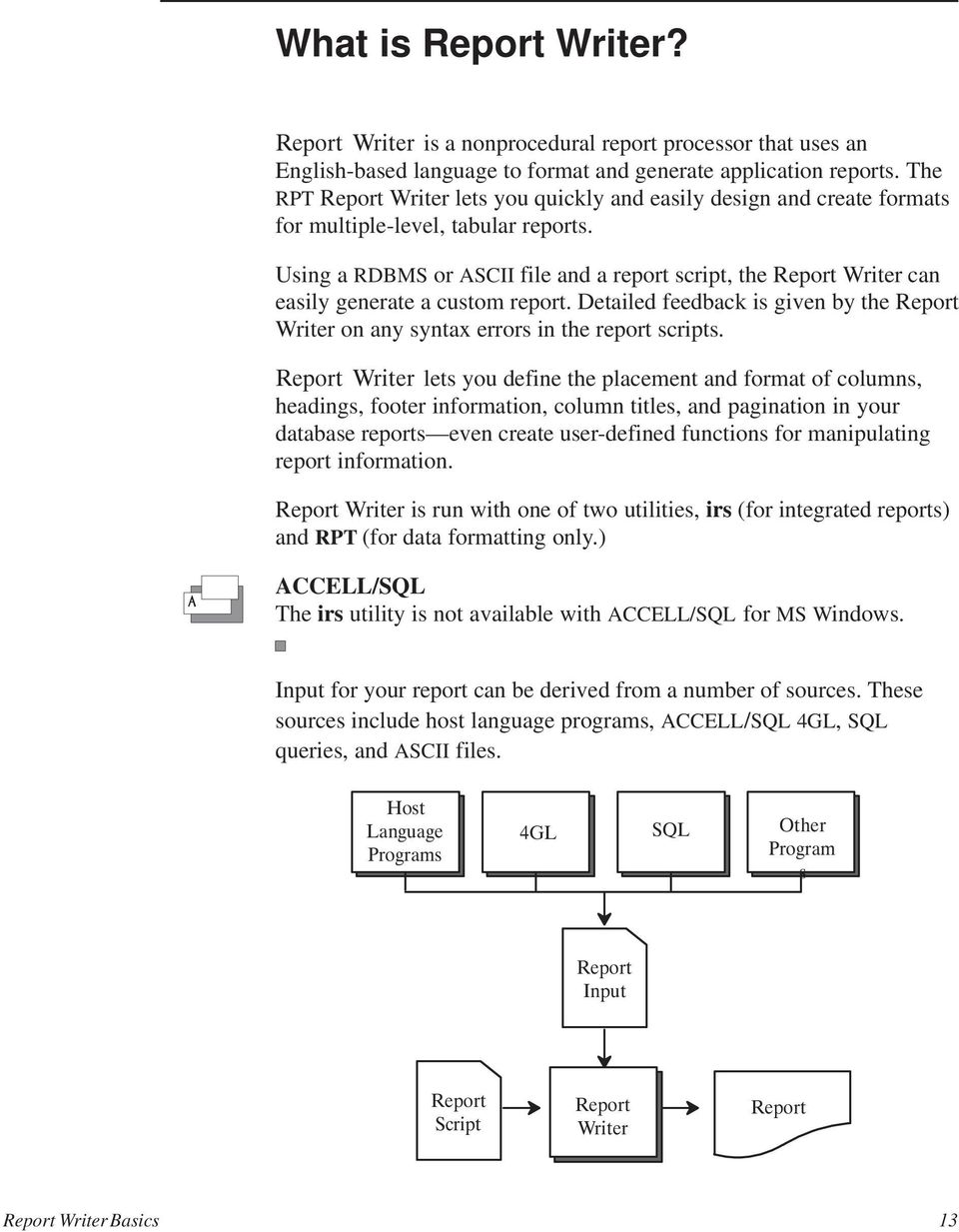
14 Using the full functionality of, you can assemble SQL and report scripts in one integrated report script to generate report input data and format the data. Other features include parameter acceptance, validation, and substitution output direction multiple report formats in a single script 14 Report Writer Basics

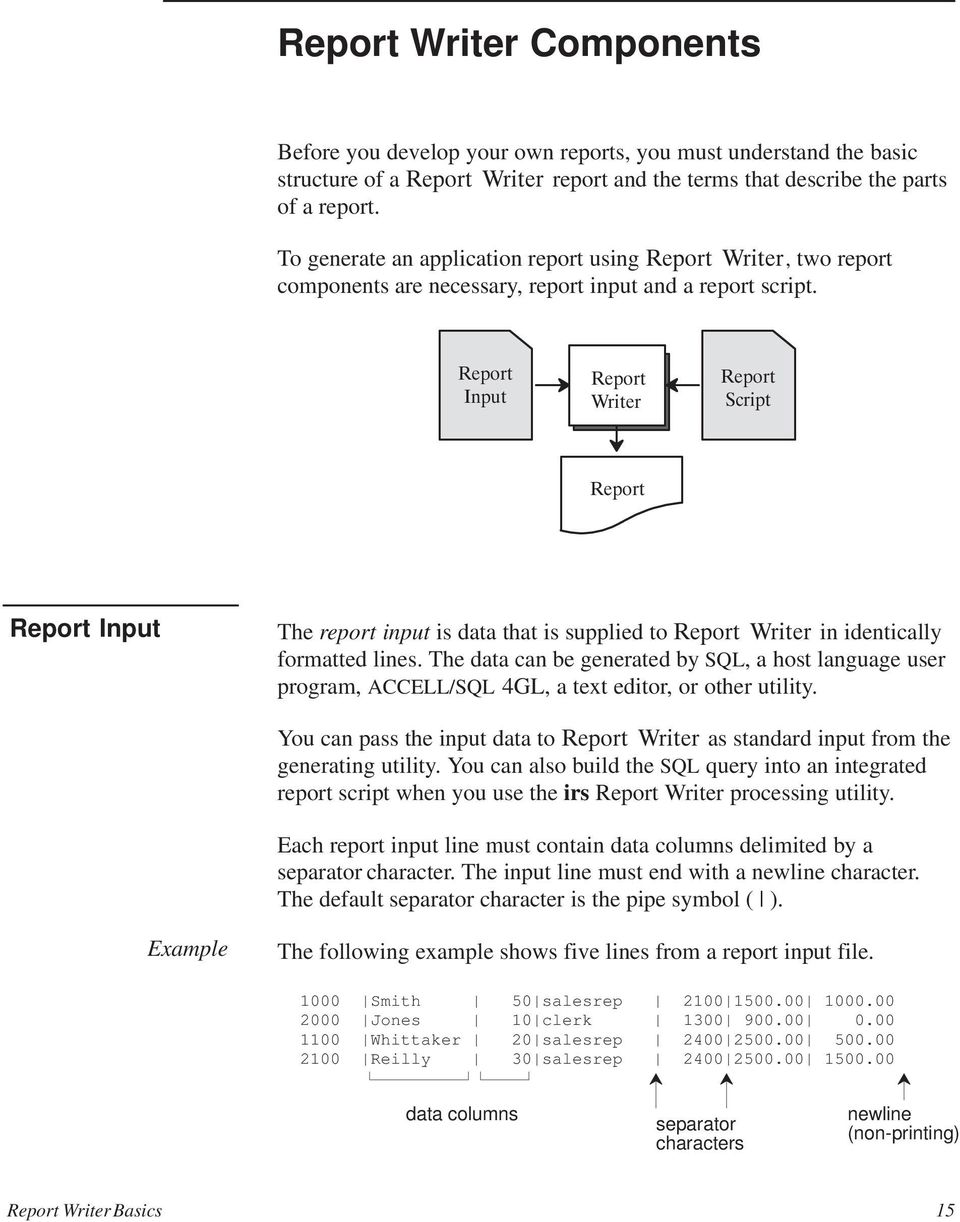
15 Report Writer Components Before you develop your own reports, you must understand the basic structure of a report and the terms that describe the parts of a report. To generate an application report using, two report components are necessary, report input and a report script. Report Input The report input is data that is supplied to in identically formatted lines. The data can be generated by SQL, a host language user program, ACCELL/SQL 4GL, a text editor, or other utility. You can pass the input data to as standard input from the generating utility. You can also build the SQL query into an integrated report script when you use the irs Report Writer processing utility. Each report input line must contain data columns delimited by a separator character. The input line must end with a newline character. The default separator character is the pipe symbol ( ). Example The following example shows five lines from a report input file Smith 50 salesrep Jones 10 clerk Whittaker 20 salesrep Reilly 30 salesrep data columns separator characters newline (non-printing) Report Writer Basics 15
16 Report Script The report script contains the report language statements. The basics of the report script are its components and syntax. In this manual, descriptions of report scripts assume that you are processing your report with the irs utility. The irs utility is described in more detail on page 29. Report Components A report script is comprised four types of script sections: input environment SQL report format optional optional optional required Only one report format section is required in a report script. When you include multiple report format sections in a report script, you provide your end users with a choice of different report formats while using the same input data. An illustration of report script components is supplied on page 17. A complete description of each script section starts on page 45. Report Syntax The following is the only required language in a report script: the script section identifier RPT_SECTION (only required when using the irs utility for processing) the input format section statement an event section the end format section statement The input statement must be the first command in the report format section and the end statement must be last. The remaining statements and event sections in the report format section can be in any order. An illustration of the report script syntax is supplied on page Report Writer Basics

17 INPUT_SECTION PROMPT What is the bottom of the salary range? [NUMERIC] PROMPT What is the top of the salary range? [NUMERIC] script section report Script report format section report format section ENVIRONMENT_SECTION PIPE= tee current_mo lpr SQL_SECTION RPT_SECTION employee report input emp_name [string 10], emp_job [string 10], emp_salary [amount 4], emp_commission [amount 4] before report print Employee Report: Salaries from $1 to $2 detail print emp_name, emp_job, emp_salary end RPT_SECTION Commission report input emp_name [string 10], emp_job [string 10], emp_salary [amount 4], emp_commission [amount 4] sort emp_job before report print Employee Commission Summary centered before emp_job skip 1 print emp_job detail print emp_name column 8, emp_commission column 24 after report skip print Average Commission for all Employees: column 20, avg(emp_commission) end Report Writer Basics 17
![..... RPT_SECTION employee report input emp_name [string 10], emp_job [string 10], emp_salary [amount 4], emp_commission [amount 4] before report print Employee Report: Salaries from $1 to $2 detail](/docs-images/42/7309483/images/page_17.jpg "print emp_name, emp_job, emp_salary end RPT_SECTION Commission report input emp_name [string 10], emp_job [string 10], emp_salary [amount 4], emp_commission [amount 4] sort emp_job before report")
18 18 Report Writer Basics

19 How Report Writer Processes a Report Script This section tells how processes the input data and the report format section statements. Processing control is determined by report events. When a report event occurs, the statements in the corresponding script event section are executed. performs the following tasks when formatting a report. The tasks are done by the two utilities, irs and RPT. The irs utility tasks: Process the environment script section Process the input section to get parameter values Replace all of the parameter placeholders in the script with the corresponding parameter value Use your RDBMS SQL to process the SQL script section query and pass the input data to the RPT utility The RPT utility tasks: Start processing the applicable report format section Make sure input data matches the format and data types, and give a name to the data columns Sorts the input data lines per the sort statement Process the remaining section statements The remainder of this section describes report events and event sections, and how the events sections are processed. Report Writer Basics 19

20 Report Events A report event is the occurrence of a change in the input data or pagination. These are the events that Report Writer uses: The start of each report page The end of each report page The first data line is read in The input value of a sorted column changes An input line is read in The last data line is read in When a report event occurs, RPT process all the format statements that are in the corresponding event section. Using event sections, you can print column labels to introduce a group of data items, do totaling calculations, print report headings, and print a report footer with totals at the end of the report. 20 Report Writer Basics

21 SALES REPORT STATE: CA CITY: Los Angeles CUSTOMERS ORDER # AMOUNT ABC Company, Inc $54, $ $54, Mom s Auto Repair, Inc $98, $23, $55, $177, SALES: Los Angeles $232, CITY: San Jose CUSTOMERS ORDER # AMOUNT Fixit Yourself Company $12, $ $13, SALES: NY $178, TOTAL SALES THIS REPORT: $1,003, AVERAGE CUSTOMER ORDER : $13, ============================================================ There are three primary event types: Report pagination Sorting Data input Report Writer Basics 21
22 Report Pagination Events and Event Sections Report pagination events occur at the start of each report page at the end of each report page The processing that is done when a report pagination event occurs is specified in these event sections: header footer header The header event section can be used to print a running title, date, time, or page number at the top of each report page. The text processing specified by header prints on the first page if before report command is not used. footer The footer event can print information at the bottom of each report page. Sorting Events and Event Sections Each item you sort by is called a sort key. A sort key can be a database column, or a complex expression composed of columns, constants, variables, arithmetic operators, and functions. Sorting serves two functions: To arrange items with different sort keys into ascending or descending sequence Put items into groups by the same sort key, for example, all customers in a specific city When a list of data lines are put into groups by their sort keys, an event occurs each time the sorted column value changes. The processing that is done when a sorting event occurs is specified in these event sections: before sort_key after sort_key 22 Report Writer Basics
23 In the Sales Report example, shown on page 21, the sales input is sorted by state, by city within state, and by customer within city. The expression named state is the highest level sort expression, because state is the first expression in the sort command: sort state, city, customer The expression named customer is the lowest level sort expression, because customer is the last expression name in the sort command. When expressions are sorted hierarchically, the sort expression that changes least is the highest level sort expression. More complex expressions composed of several columns, operators, and functions can be given a name in the sort command. Then the expression can be referred to by this name in the report script. Before and After sort_key Event Sections A sort key event occurs when the specified sorted column value changes. One before sort_key and after sort_key event section can be associated with each sort key in the sort command. As a sort key value changes, the before sort_key and after sort_key sections for that sort key are processed, as well as the sections for sort expressions lower in the sort hierarchy. The after sort_key event section can be used to print a cumulative total of the sort key values in that sort group. A before sort_key event section has access to the data in the first input line of the new sort group about to be processed. Similarly, an after sort_key section has access to the information in the sort group just processed. At an event, before sort_key sections are processed according to the sort hierarchy, starting with the section associated with the highest level sort expression. The after sort_key sections are processed in reverse sequence. Example The data in this example illustrates sorted data and identifies changes in the sort key and sort groups. The input data lines are comprised of the columns state, city, company, o_num, o_amount. The data is sorted with this sort statement: sort state, city, company Report Writer Basics 23
24 sort key value changes CA Los Angeles ABC Company, Inc CA Los Angeles ABC Company, Inc CA Los Angeles Mom s Auto Repair, Inc CA Los Angeles Mom s Auto Repair, Inc CA Los Angeles Mom s Auto Repair, Inc CA San Jose Fixit Yourself Company CA San Jose Fixit Yourself Company GA Atlanta Top Flight Repair, Inc NY Albany Alice s Hardware NY Albany Do Right Supply Company NY Albany Do Right Supply Company state city company CA Los Angeles ABC Company, Inc CA Los Angeles ABC Company, Inc CA Los Angeles Mom s Auto Repair, Inc CA Los Angeles Mom s Auto Repair, Inc CA Los Angeles Mom s Auto Repair, Inc CA San Jose Fixit Yourself Company CA San Jose Fixit Yourself Company GA Atlanta Top Flight Repair, Inc NY Albany Alice s Hardware NY Albany Do Right Supply Company NY Albany Do Right Supply Company Input Data Events and Event Sections In addition to an event that occurs when a sort key value changes in the input data, events also occur as the first data line is read in as each line is read in after the last data line is read in The processing that is done when an input data event occurs is given in these event sections: before report As the first data line is read in detail after report As each line is read in After the last data line is read in 24 Report Writer Basics
25 The before report and after report event sections give commands to control processing at the start and the end of the report. These are the highest level of events. Before Report Event Section The before report section is processed first before other control breaks are processed. Then, existing before sort_key sections are processed before detail information is considered for output. You can use the before report event section to print a descriptive heading identifying the report and initialize variables before the first input line is read. detail Event Section A detail control break occurs each time a new line is read from the input file this is the lowest level break. In the Sales Report example, the detail command is used to print the order number and order amount. After Report Event Sections The after report event section is processed at the end of the report after all input data lines and after sort_key sections are processed. The after report event section can be used to print a report summary or grand total after the last input line is read. Report Writer Basics 25
26 Processing Event Sections RPT processes the report event sections in this sequence: header and footer control breaks are not included, because when they occur depends on the page dimensions. Example This example shows how the event sections in the Sales Report are processed as the input data is read in. before report (or header) before state before city before customer after customer before customer after customer after city before city before customer after customer after city after state before state before city before customer after customer before customer after customer after city after state after report CA Los Angeles ABC Company, Inc CA Los Angeles ABC Company, Inc CA Los Angeles Mom s Auto Repair, Inc CA Los Angeles Mom s Auto Repair, Inc CA Los Angeles Mom s Auto Repair, Inc CA San Jose Fixit Yourself Company CA San Jose Fixit Yourself Company GA Atlanta Top Flight Repair, Inc NY Albany Alice s Hardware NY Albany Do Right Supply Company NY Albany Do Right Supply Company Report Writer Basics
27 Example This second example shows a report and the report format script used to format the data. This example shows how to use event sections to format your report and control data processing: SALES REPORT STATE: CA CITY: Los Angeles CUSTOMERS ORDER # AMOUNT ABC Company, Inc $54, $ $54, Mom s Auto Repair, Inc $98, $23, $55, $177, SALES: Los Angeles $232, CITY: San Jose CUSTOMERS ORDER # AMOUNT Fixit Yourself Company $12, $ $13, SALES: San Jose $13, SALES: CA $245, SALES: NY $178, TOTAL SALES THIS REPORT: $1,003, AVERAGE CUSTOMER ORDER : $13, ============================================================ Report Writer Basics 27
28 input state [string 2], city [string 11], customer [string 14], orderno [numeric], price [amount] sort state, city, customer before report print SALES REPORT centered before state print STATE:, state before city print CITY: in column 6, city before customer need 4 print CUSTOMERS col 10, ORDER # col 38, AMOUNT col 54 print 9[ ] col 36, 11[ ] col 51 print customer in col 10 no newline detail print orderno col 36, price col 52 using $$$,$$&.&& after customer need 3 print 11[ ] in column 51 print total(price) column 51 using $$$$,$$&.&& skip 1 after city need 3 print SALES: in column 6, city, total(price) column 49 using $$,$$$,$$&.&& print 56[ ] column 6 skip 1 after state need 2 print SALES:, state, total(price) column 49 using $$,$$$,$$&.&& print 61[ ] skip 1 after report need 4 print TOTAL SALES THIS REPORT:, total(price) col 49 using $$,$$$,$$&.&& print AVERAGE CUSTOMER ORDER :, avg(price) col 52 using $$$,$$&.&& print 61[ ] print 61[ ] end 28 Report Writer Basics
29 The Report Writer Utilities This section describes the two utilities that are used to process a script, the irs utility and the RPT utility. The most comprehensive method of running a report is with the irs utility. This utility s name stands for integrated report script because the utility lets you integrate parameter prompting, data validation, SQL query, and report formatting in a single script. The RPT utility is used for data formatting only. RPT processes the report format section of a report script. All input data must be supplied by a different method and sent to RPT. It cannot prompt for parameters or define the report environment. The irs Utility The syntax for running the irs utility from the operating system command line is shown below: irs options report_script When you use the irs utility, a prompt displays to verify the processing of the report script. If you have multiple report format sections in the script, you are also prompted for the report format that you want to use. For a complete description of the irs utility, please see the irs reference page in Configuration Variable and Utility Reference. irs Arguments The irs utility uses these arguments: report_script The report script file that contains the report processor statements to do the report formatting. Report Writer Basics 29
30 irs Options You can use the irs options for three purposes: To override specifications in the environment section To supply values for the input section To automatically select the report format script section that will be used to format the report If parameter values are given in the command line, prompts and messages in the input section are skipped. ACCELL/SQL You can assemble and invoke options through an ACCELL/SQL application. The following table is a brief summary of the generic command line options that the irs utility recognizes: Option Description d database_name Use database as the default database S database_object Use database_object as the name of the database object that contains the database tables to use. OPROMPTER=prompter OSELECTOR=selector OSCREEN OFILE=filename OPRINTER OPIPE=command Prompt for and validate parameter values using the executable prompter Use the executable selector to get the report format section to use Send report output to the standard output device Send report output to file filename Send report output to printer Direct report output as specified by the string command. By default, the executables upager and utee are used. upager is like the UNIX more command and utee is equivalent to UNIX tee. 30 Report Writer Basics
31 Option (continued) OBACKGROUND OERROR_FILE=filename ODEBUG_MODE On=parameter_value OREPORT=rpt_sec_name Description Execute the SQL and report format processing in the background. Cannot be used with OSCREEN. Send error messages to file filename Process the report in debug mode Substitute the value parameter_value for all occurrences of the parameter placeholder $n in the report script Use the script in the specified RPT_SECTION section to format the report. Example The first irs example directs runtime error messages to the file /tmp/err.out, sends the report output to the user s screen, and specifies two parameter values. The value 87/01/01 replaces all occurrences of the placeholder $1 in the report script and 87/12/31 replaces placeholder $2. irs OERROR_FILE=/tmp/err.out OSCREEN O1=87/01/01 O2=87/12/31 In the second example, the report output is directed to the UNIX tee command which sends the output to the file /tmp/out and sends it on to the line printer. The string select * from history; replaces all occurrences of $1 in the report script. The report script file format.irs will be used. irs OPIPE= tee /tmp/out lpr O1= select * from history; format.irs Report Writer Basics 31
32 The RPT Utility The report formatting utility is RPT. The RPT utility is called by irs to format the report script s report format section. You can also run RPT independently when the report input, parameter values, and report output direction is managed by a different method. This is the best utility to use when you have one report format section and you are not using parameters. All RPT report messages and output are directed to the screen. The RPT syntax is shown below: RPT options report_script If no input file is specified either by name or using the dash, RPT examines the report script file and prints a Table Usage Report. See page 35 for information about the Table Usage Report. You can also provide input data to a report script by piping the results of an executable to RPT at runtime. Additional Help For complete syntax information about the RPT utility, see Configuration Variable and Utility Reference. RPT Arguments RPT uses these arguments: report_script input file The script file that contains the report processor statements to do the report formatting. The name of an ASCII file that contains the data to be formatted. Input data is supplied from a pipe. Dependencies MS Windows does not support pipes. To pass input data to a report script that is running on MS Windows, you must direct the input data to a file and then use that input file name in the RPT command line. See the example on page 34 for this type of command syntax. 32 Report Writer Basics
33 Dependencies If you are piping SQL output to RPT, you may have to suppress your RDBMS s SQL query result column heading. When using Unify DataServer, you must the SQL statement lines 0 to suppress the column headings: lines 0; select Manufacturer_ID, Name, Address from manf where Manufacturer_ID > 100; When using ORACLE SQL*Plus, you must use the Unify filter orcfltr to prepare the SQL output for RPT: For more information about the orcfltr utility, see. RPT Options RPT recognizes several command line options, including these: Oreport Prints the Table Usage Report in addition to the report output. S db_object Indicates the name of the default database object that owns or contain the application file to be used. r Remove the script file when the report is complete. Report Writer Basics 33
34 Example This example shows a report script, SQL script, and the RPT command to process them when using the Unify DataServer RDBMS: The RPT report script rscript is shown below: input emp_name [string 10], emp_job [string 10], emp_salary [amount 4], emp_commission [amount 4] sort emp_job before report print Employee Commission Summary centered before emp_job skip 1 print emp_job detail print emp_name column 8, emp_commission column 24 after report skip print Average Commission for all Employees: column 20, avg(emp_commission) end The SQL script sscript is shown below:... select Manufacturer_ID, Name, Address from manf where Manufacturer_ID > In UNIX, to process the SQL query sscript and direct the output to the RPT report script rscript for formatting, you use this command line: SQL sscript RPT rscript To process the script separately, you can use these commands: SQL sscript > outputfile RPT rscript outputfile 34 Report Writer Basics
35 Configuring a Report This section gives information about how you can configure a report for custom format, data display, and your computer system. Configuration is done by setting the configuration variables used by. You can display the current value of many configuration variable by generating a Table Usage Report. The Table Usage Report This section gives information about the Table Usage Report, how to run the table report, and how to change the size of a configuration table. There are 14 configuration variables used by to control the maximum number of occurrences of a report element in a report script. The variable s setting determines the size of the table that stores the elements during the report processing. Each configuration table size can be resized for scripts that use more of some elements and less of others. On computer hardware with limited data address space, this feature lets you decrease the table sizes and make an allowance for larger database designs. The only constraint on the size of each table is the limitation of your swap area in memory. Generating a Table Usage Report You can examine the configuration table s maximum and current size and setting for a given report script by using this command: RPT script_name Notice that there is no input file in the RPT syntax. Report Writer Basics 35
36 The Table Usage Report The following is an example of a Table Usage Report. In the Table Usage Report, the terms command and statement are used interchangeably. RPT Report Processor Copyright Unify Corporation No syntax errors were found in the report script. RPT TABLE USAGE INFORMATION Table Name Used Maximum Expression Nodes n 400 Variables n 150 Constant n 250 Commands n 256 Print Statements n 125 Print Items n 256 Sort Items n 15 Input Items n 100 Command Groups n 25 Set Statements n 100 If Statements n 50 Aggregates n 50 Function Calls n 50 Arguments n 100 Table Elements and Associated Configuration Variables The following data table identifies the report script elements that are controlled by a configuration table, the name of the configuration variable that is related to the table, and the default value for the table. A full description of the table configuration variables starts on page 41 of this manual. 36 Report Writer Basics
37 Changing a Table Size To reset a table size, set the configuration variable that corresponds to the table to be changed. After you set the necessary configuration variables, generate the Usage Table report again to examine the settings. Changes made to a configuration table display at the top of the Usage Report. RPT: RPTNCOM set to 300 RPT: RPTNITM set to 40 RPT Report Processor Copyright Unify Corporation No syntax errors were found in the report script. RPT TABLE USAGE INFORMATION Table Name Used Maximum Expression Nodes n 400 Variable n 150 Constant n 250 Commands n 300 Print Statements n 125 Print Items n 256 Sort Items n 15 Input Items n Report Writer Basics 37
38 Configuration Variables uses three classes of configuration variables: general display formatting element table Additional Help About Setting configuration variables A general or display formatting configuration variable See Managing an Application or Managing a Database Configuration Variable and Utility Reference General Configuration Variables Report Writer uses the following configuration variables to format and control the processing of a report: PAGELN PAGER SEPARATOR The page length of the reports, for example, 66 lines. The paging utility to be used when SCREEN is specified as the output destination in the irs ENVIRONMENT_SECTION. Column separator character for the report script input data. The default separator is the pipe symbol ( ). You should avoid using any of the following reserved characters as the separator character: ^! *. ( ) Warning Be careful if you do use a reserved character as the separator character. For example, if you set the separator character to an asterisk (*), you must set the ACCELL/SQL null character configuration variable, NULLCH, to a different character because the default null character is also the asterisk. WIDTH Width of a report page in number of characters. The default value is 80 characters. 38 Report Writer Basics
39 Display Format Configuration Variables ACCELL/SQL The display format described in this section are available when you are using ACCELL/SQL. For additional information about display formats, see Display Formats in. uses these configuration variables to format input data for the report. AMTFMT Default format template to be used to display AMOUNT data. A dollar sign ($) in the AMTFMT variable shows the position of the currency symbol that is given by CURRSYM. When using AMTFMT to position the currency symbol on the right, use only one dollar sign, regardless of the number of characters in the currency symbol. A comma (,) in the AMTFMT variable shows the position of the triad separator that is given by TRIADSEP. A period (.) in the AMTFMT variable shows the position of the radix separator that is given by RADIXSEP. For example, if AMTFMT is set to ###,##&.&&$, and CURRSYM is set to XXX, then the amount displays as 123,456.78XXX. AMTPREC CURRSYM Display precision (number of digits following the radix separator) for AMOUNT data. If AMTPREC is set to zero ( 0 ), neither the radix separator nor the digits following the radix separator are displayed. Currency symbol that is used when displaying AMOUNT data. This configuration variable is used only when a format template is used. A format template can be given in these ways: in a using clause of the print statement in the AMTFMT configuration variable, set either at the operating system command level, in a configuration file, or in the langcap file DATEFMT Default format in which to accept and display dates. Report Writer Basics 39
40 FLTFMT NULLCH NUMFMT RADIXSEP Default format template to be used to display FLOAT data. Default null display character for all data types. You can override this variable by specifying a default display character fore each data type. Default format template to be used to display NUMERIC data. Radix separator character to be used when displaying AMOUNT data. This configuration variable is used only when a format template is used. A format template can be given in these ways: in a using clause of the print statement in the AMTFMT configuration variable, set either at the operating system command level, in a configuration file, or in the langcap file When the AMOUNT data is displayed, the radix separator given by RADIXSEP displays in the position indicated by the period (.) in the format template. TIMEFMT TRIADSEP Default format in which to accept and display TIME values. Triad separator character that is used when displaying AMOUNT data. The TRIADSEP configuration variable is used only when a format template is used. A format template can be specified in these ways: in a using clause of the print statement in the AMTFMT configuration variable, set either at the operating system command level, in a configuration file, or in the langcap file 40 Report Writer Basics
41 Element Table Configuration Variables The following configuration variables are used to set the maximum value for the Report Writer element tables. RPTNODECNT RPTFLDCNT RPTCONCNT RPTNCOM RPTNPRINT RPTNPITM The number of expression nodes permitted in a report script. Each expression in a script uses one expression node. See the Report Writer Expressions chapter for information on expressions. The number of different variables, including input variables that are permitted in a report script. The number of constants permitted in a report script. The constant table includes numeric, float, amount, date, ldate, time, string, and text constants. The number of format section statements permitted in a report script. Format section statements include sort, after, detail, print, and if. The number of print statements permitted in a report script. The number of print items permitted in a report script. Each comma-divided expression in a print statement is one print item. For example, this statement has three print items: print emp_name, emp_job, emp_salary RPTNSITM The number of sort items permitted in a report script. Each comma-divided expression in a sort statement is one sort item. The RPTNSITM configuration variable also shows the number of presorted input columns sent to the report script. This variable must be set when the sorted option is used with the input statement. For example, this statement has three sort items: sort v_number, po_number, Line_Number RPTNITM RPTNCGRP The number of columns permitted in the input section of an script. The number of event sections permitted in a report script. Report Writer Basics 41
42 RPTNSETCL RPTNIF RPTNAG RPTNCALL RPTNARGS RPTPBUFSIZ RPTINBUFSZ The number of set statements permitted in a report script. The number of if statements permitted in a report script. The number of aggregate functions permitted in a report script. Aggregate functions are min, max, avg, count, and total. The number of local function calls permitted in a report script. A local function call in a report script can be one of the built-in functions or one of your own. The total number of function arguments permitted in a report script. You can pass arguments, or parameters, to local functions. The size in bytes of the sort key buffer. This buffer must be large enough to accommodate the total length of all the sort items column lengths. The size of the input buffer. This buffer must be large enough to accommodate the total length of all the input items column lengths. 42 Report Writer Basics
43 Developing a Report Script 43
44 This chapter describes the capabilities and features of RPT Report Writer and how to write a report script. To develop a report script, you will learn about these topics: Report script sections Report format sections How to customize a report script Examples of report scripts are supplied in Appendix B: Report Examples that starts on page 187 of this manual. Dependencies The SQL script examples used in this chapter and other chapters in this manual show only the portable ANSI statements and syntax. The exact SQL statement that you use depends on your RDBMS. When using Report Writer with ACCELL/SQL, see for database dependencies. 44 Developing a Report Script
45 Building the Report Script Sections A report script is made up of four report script sections: input environment SQL report format The input, environment, and SQL sections are only used in an irs report script. The report script sections are shown in the following script: INPUT_SECTION PROMPT What is the bottom of the salary range? [NUMERIC] PROMPT What is the top of the salary range? [NUMERIC] report script section ENVIRONMENT_SECTION PIPE= tee current_mo lpr SQL_SECTION... select Name, Job, Salary, Commission from emp where Salary > $1 and Salary < $2... RPT_SECTION employee report input emp_name [string 10], emp_job [string 10], emp_salary [amount 4], emp_commission [amount 4] before report print Employee Report: Salaries from $1 to $2 detail print emp_name, emp_job, emp_salary end Tip You can add text comments to your script to document the report. Comments embedded in the SQL section must conform to the RDBMS SQL utility s syntax. Comments in the report format section must use the convention /* comment */ and cannot be more than one line. Comments put in other sections of the script are indicated by at the start of the line or delimited by /* comment */. Developing a Report Script 45
46 Input Section The irs input script section contains the user prompts and validation specifications for parameter value retrieval. By default, Report Writer uses scrolling to display the user prompts on the screen sequentially. The input section must start with the INPUT_SECTION script section identifier. INPUT_SECTION PROMPT What is the bottom of the salary range? [NUMERIC] PROMPT What is the top of the salary range? [NUMERIC] SQL_SECTION... select Name, Job, Salary, Commission from emp where Salary > $1 and Salary < $2... RPT_SECTION employee report input emp_name [string 10], emp_job [string 10], emp_salary [amount 4], emp_commission [amount 4] before report print Employee Report: Salaries from $1 to $2 detail print emp_name, emp_job, emp_salary, emp_commission end Valid script section statements for the input section are: PROMPT MESSAGE The PROMPT statement controls the display of the parameter prompt and parameter value validation. PROMPT text can be enclosed by single ( ) or double ( ) quotes. The MESSAGE statement defines a text string to display before its corresponding PROMPT statement. A MESSAGE statement is matched with the PROMPT statement that it precedes. MESSAGE statements after the last PROMPT statement are processed after all parameter values have be entered. Tip If you want to display parameter prompt text in a format that is different from the default and you want to control input validation, you must use your own custom executable. 46 Developing a Report Script
47 Additional Help About The PROMPT and MESSAGE statements Using a custom parameter prompter See The reference pages in the Language and Function Reference chapter that starts on page 115 of this manual Adding a Custom Parameter Prompter that starts on page 66 of this manual Example This sample report script prompts the user for a low and high salary value to use in data selection and the report heading. The output from the input section is shown after the script. Input INPUT_SECTION MESSAGE Please enter values for the following range delimiters: PROMPT What is the bottom of the salary range? [NUMERIC] PROMPT What is the top of the salary range? no newline [NUMERIC] MESSAGE The report is now processing. Please wait. SQL_SECTION... select Name, Job, Salary, Commission from emp where Salary > $1 and Salary < $2... RPT_SECTION employee report input emp_name [string 10], emp_job [string 10], emp_salary [amount 4], emp_commission [amount 4] before report print Employee Report: Salaries from $1 to $2 detail print emp_name, emp_job, emp_salary, emp_commission end Output Please enter values for the following range delimiters: What is the bottom of the salary range? What is the top of the salary range? The report is now processing. Please wait. Developing a Report Script 47
48 Environment Section The irs environment report script section defines the environment in which the report script operates. These environment features include the name of the database and schema, the destination of the report output, and a debugging mode. The environment section must start with the script section identifier ENVIRONMENT_SECTION. If you do not include an environment section, these default procedures occur: the report output is sent to the standard output device the default database and schema is used processing is done in the foreground Tip All environment section specifications can be overridden or set at runtime by using the irs options. 48 Developing a Report Script
49 Additional Help About A script section statement that is valid in the environment section Using a custom parameter prompter Using a custom report format selector Overriding or setting environment section options at runtime See The reference page for the statement in the Language and Function Reference chapter that starts on page 115 of this manual Adding a Custom Parameter Prompter that starts on page 66 of this manual Adding a Custom Report Format Selector that starts on page 68 of this manual The irs Utility on page 29 and the irs reference page in Configuration Variable and Utility Reference Example This environment script section specifies that the report is to be processed as a background process, directs the report output to a file and to the line printer, and uses a custom executable to prompt for the parameter values and validate the data types. ENVIRONMENT_SECTION PIPE= tee current_mo lpr BACKGROUND PROMPTER= /usr/bin/xprompter Developing a Report Script 49
50 SQL Section The irs SQL script section contains SQL statements that are necessary to generate the report input for your report. The SQL section must start with the SQL_SECTION script section identifier. Adding Parameters to a SQL Query You can add flexibility to your SQL queries by using parameters to show that a value will be supplied by the end user at runtime. Parameters are indicated by including a parameter place holder in the SQL script. Place holders have the format: $number. At runtime, you can display a text string that prompts the end user for a parameter value. You can also validate the parameter value s data type. The prompt string text and data type validation are defined in the input section. The place holder $1 gets the value of the first supplied prompt value, place holder $2 gets the value of the second prompt value, and so on. After the end user enters the parameter values at the prompts, Report Writer replaces the parameter value for all corresponding place holders in the report script. Additional Help About Creating an SQL script The SQL_SECTION statement See Your SQL manual The reference page in the Language and Function Reference chapter that starts on page 115 of this manual Example This example shows a SQL query with parameters. SQL_SECTION... select Name, Job, Salary, Commission from emp where Salary > $1 and Salary < $2... parameter place holders 50 Developing a Report Script
51 Report Format Section The report format section contains Report Writer language that formats and organizes your input data for output. Multiple report format sections can be included in a report script when using the irs utility. Multiple formats give the end user a selection of different reports while using the same input data. If you use an input, SQL, or environment script section in your report script, you must start each report format section with the RPT_SECTION identifier. Tip If you only have one format section in your report script and have not included the INPUT_SECTION, SQL_SECTION, RPT_SECTION, or ENVIRONMENT_SECTION statement, you can run your report script by using the RPT utility. Syntax The syntax for the report format script section is shown below: The input statement must be first report format section statement and the end statement must be the last. Otherwise, statements and event sections can be in any order. You must include no less than one event section in each format section. Developing a Report Script 51
52 The following are valid statements in a report format script: Selecting From Multiple Report Formats The RPT_SECTION identifier s reportname argument is used to identify the format script when two or more format sections are in the report script. Report format selection is done at runtime with an irs option or with your own selector executable that you specify either in the environment section or on the irs command line with the OSELECTOR option. When using irs and a report with multiple report format sections, you are prompted for a report format selection by reportname. Adding Parameters to a Format Script When you prompt the end user for report script parameter values, you can put those values into the report format sections. This substitution is done by putting parameter place holders in the report format statements. Example This report format section accepts an input data line with four columns and prints a report line for each. RPT_SECTION employee report input emp_name [string 10], emp_job [string 10], emp_salary [amount 4], emp_commission [amount 4] detail print emp_name, emp_job, emp_salary, emp_commission end 52 Developing a Report Script
53 This second format section example shows how parameter substitution can be used. RPT_SECTION history report input history.name, history.tx_type, history.h_date before report print The reporting date range is $1 to $2 detail print history.name, history.tx_type, history.h_date end Additional Help About Running a report format script by using the RPT utility Any script section statement that is valid in a report format section Report format section commands and how to writing a format script Using a custom report format selector See The RPT Utility on page 32 of this manual and the reference page in Configuration Variable and Utility Reference The reference page in the Language and Function Reference chapter that starts on page 115 of this manual Writing a Report Format Section that starts on page 54 of this manual Adding a Custom Report Format Selector that starts on page 68 of this manual Developing a Report Script 53
54 Writing a Report Format Section This section describes the report format section. When writing a report format section, an understanding of these topics is necessary: report format section syntax the input statement event sections format section statements variables and expressions local functions string variables The report format section contains all the statements necessary to format and organize your input data. Report Format Section Syntax As a review, a report format section has the following syntax: Event sections are groups of format section statements that are to be executed when an event occurs. You can only use an event section one time in the report format section. Format section statements are statements that can only be used in a report format section. 54 Developing a Report Script
55 The following illustration shows the input statement, event sections, and format statements in a report script: event section identifiers RPT_SECTION Commission report input emp_name [string 10], emp_job [string 10], emp_salary [amount 4], emp_commission [amount 4] sort emp_job before report print Employee Commission Summary: Salaries from $1 to $2 centered before emp_job skip 1 print emp_job detail print emp_name column 8, emp_commission column 24 after report skip input statement format section statements print Average Commission for all Employees: column 20, avg(emp_commission) end The recognized events and their corresponding event sections are shown below. The list also shows the hierarchy in which the event section are processed: beginning of the report end of the report top on new page bottom of current page before a change in a sort key value new input line after a change in a sort key value before report after report header footer before sort_key detail after sort_key A report script must contain not less than one event section. Simple reports can be produced using only the detail section. Summary reports are produced using only the after report section. Event sections can appear in any order in the report script. Sections are processed when the specified event occurs, not by the order they appear in the script. An event section is ended by another event section identifier, or the end, bottom margin, input, left margin, length, separator, sort, top margin, or width statements. Developing a Report Script 55
56 An event section does not have to contain any statements. For example, the section identifier header can be in the script as a reminder to add the appropriate format statements later. In event sections other than after report, format section statements can name and use a report expression the first time. The expression can then be used throughout the report by its name. Additional Help About How Report Writer works Report Writer expression See How Report Writer Processes a Report Script that starts on page 19 of this manual The Report Writer Expressions chapter that starts on page 77 The input Statement The input statement assigns a report column name to each column of data in the input file. You use the report data column name to refer to the column throughout the script. The column names in the input section must be in the same order as the columns in an input file row. There are two ways to specify columns in the input section: By using the database column name By giving a name to the column and specifying an optional type specification Specifying Columns Using the Database Name Report Writer lets you refer to database object names in many ways. If a database object is unique to the database, you can refer to it merely by its name. But, if the database contains some objects with the same name, you must qualify the object name until it is unique. When writing a format section, you specify column names by using this syntax: [ [schema_name.]table_name.]column_name 56 Developing a Report Script
57 Column names are case-sensitive. Thus, Number, number, and NUMBER are three different names and do not need their table names to identify them. Dependencies When using the ORACLE RDBMS, you must enclose the database object name in double quotes to enforce case sensitivity. See for complete information. If the table is not in the current schema/database, you must also specify the name of the schema/database containing the table. Using the database column name, RPT can find the data type and display length from the data dictionary. In the input section, the database table name must come before the database column name. You can abbreviate the column name to the database column name in subsequent report script sections if no other columns in the script have the same column name. This database column name convention works best when the database column name is unique throughout the database. If you do not explicitly specify a schema name, the default is your current schema s name. If you do not explicitly specify the table name, the column must have a unique name in the schema. The following table summarizes the general rules for referring to database columns: Use the format: column To specify: a column that is unique to the current schema* schema table table.column schema.table.column a schema that is unique to the database a table that is unique to the current schema a column that is unique to the specified table in the current schema a column that is unique to the specified table in the specified schema *The term schema can refer to a schema, user, or owner, depending on the RDBMS you use with Report Writer. Developing a Report Script 57
58 Specifying Columns Using a Name and Type Specification To specify columns using a name and a type specification, enter a unique name followed by a type specification enclosed in square brackets ([ ]). Report column types, lengths, and scale are the same as the database column types and display lengths. The length and scale specifications are optional. A scale can be specified for currency type columns only. If a scale is not specified, the scale is set to the scale of the corresponding input column on a row-by-row basis. The following are valid Report Writer column types: numeric float amount date ldate time string text bool currency Report Writer does not permit binary report columns. A length is not required for a date, ldate, or time column. A report column name can contain alphabetic characters and the underscore (_), and must be unique throughout the report script. The following are examples of this naming convention: emp_salary emp_commission When you are not sure, use the name/type specification convention. If the column name is unique, use the database column name. You cannot use Report Writer keywords or reserved words as report column names. Using the Sorted Option for Presorted Input You can send RPT presorted input from either SQL or from a custom program using the sorted option. When you have data that is presorted and you include the sorted option in the input section, RPT can process control breaks without having to resort the data. If you use the sorted option, RPT assumes that the columns given in the input section are sorted in the order listed. 58 Developing a Report Script
59 Additional Help About The syntax of the input section Database types A list of Report Writer keywords See The Input Statement that starts on page 56 of this manual Your RDBMS manuals Appendix A: Report Writer Keywords that starts on page 185 of this manual Event Sections Event sections are groups of format section statements that are executed when an event occurs. You can use an event section only one time in the report format section. These are the Report Writer event sections: before report after report header footer before sort_key after sort_key detail You can place one-line comments in the report format section by starting each comment with /* and ending it with */, for example: /* paper size specifications */ before report RPT processes the commands in the before report section before printing a detail lines. This section lets you print report title pages or an initial page header that is different from other report page headers. after report The after report section executes after all lines in the input file are read. header and footer RPT processes the header section at the top of each page. The header section will not print on the first page if a before report section is present. Developing a Report Script 59
60 RPT processes the footer section at the bottom of each page. You can use the built-in variable pageno in the footer section to display the current page number. The built-in variables today and hour supply the current date and time. before sort_key The before sort_key section executes each time the sort key value changes and before the detail section processes the input lines with the new sort key value. The sort_key is either one of the columns in a presorted input file or one of the report columns listed in the sort command. After the before sort_key section processes, the detail section is processed for all input lines with the new sort key value until the next sort key value change. detail The detail section is used to control the processing that occurs for each line in the input tile. The print format statement lets you print character strings, put output explicitly in columns, and print strings of repeating characters. after sort_key The after sort_key section executes each time the sort key value changes and after detail section processes for all input lines with the previous sort key value. The sort_key is either one of the columns in a presorted input file or one of the report columns listed in the sort command. After the after sort_key section processes, RPT processes the before sort_key section for the next input line group, or continues down the report script if there are no more input lines. 60 Developing a Report Script
61 Format Section Statements Format section statements are statements that can only be used in as report format section. Some format section statements execute only one time in a report and cannot be used in an event section. Only the input and end statement is required. These are the Report Writer format section statements: bottom margin if need page print set skip end input left margin length separator sort top margin width The page and need statements are not valid in the header or footer event sections. The print Statement When using the print statement, RPT outputs data column values as they appear in the input file or in a specified format. You can also print an expression value. The print statement s using option lets you control the display of numeric, amount, float, string, and text columns. For numeric and amount columns, you can specify spaces, dollar signs, plus and minus signs, commas, decimal points, asterisks, padded zeros, and parentheses. The skip Statement The skip statement leaves blank lines in the report. The default value for skip is one blank line. To skip a specified number of blank lines, use the following syntax where nnn is the number of lines to skip: skip nnn Developing a Report Script 61
62 The sort Statement The sort statement controls the grouping of input lines. The input lines can be sorted by data column values or by the result of an expression. The sort statement can also specify the order in which to sort the values. RPT sorts columns before processing other report commands. The default sort order is ascending (lowest to highest). You can change the order to descending (highest to lowest) using the desc keyword. To sort by an expression and the refer to that expression throughout the report script, you can use named expressions in the sort list. In the example below, the sort key is dt and the Shipped column is being sorted: sort <dt> not(shipped is null) This sort statement reads as sort the temporary column dt in ascending order where dt is a Shipped value not equal to null. (During data entry, the Shipped column is filled in only when the order is shipped. So, if the Shipped column is null, the order is not shipped.) This expression comparison returns the value 0 (FALSE) if an order is not shipped, or returns 1 (TRUE) if the order is shipped. Thus, all unshipped orders are grouped before all shipped orders. By using this type of named expression to determine the input data sorting, a input data event occurs when the order change from shipped to unshipped. 62 Developing a Report Script
63 The need Statement The need number statement lets you make sure no less than number lines are left on the current page. If fewer than number lines remain, RPT starts a new page. For example, the need 5 statement makes sure that not less than five lines remain on the page. Additional Help About Expressions The using option See Report Writer Expressions that starts on page 77 of this manual The reference page for the print statement in the Language and Function Reference chapter that starts on page 115 of this manual Using Local Functions You can use local functions to do specialized, custom processing. Report Writer has three built-in local functions that let you print the name of the month and weekday for a date. One of these functions extracts the month number from today s date; for example, 1 for January and 2 for February. Then another function translates the number to the appropriate string. The same can be done for the weekday. The local functions mdy and dow extract the month and day of the week numbers, and index translates the numbers to character strings. The following report script shows how to use the built-in local functions to set variables to the week and month: set vdate to today set weekday to <dy> index(dow(vdate), Sunday, Monday, Tuesday, Wednesday, Thursday, Friday, Saturday ) set month to <mnth> index(mdy(vdate,0) 1, January, February, March, April, May, June, July, August, September, October, November, December ) print weekday, month Developing a Report Script 63
64 Additional Help About RPT built-in local functions Creating user local functions See C-Hooks on page 101 of this manual Writing and Using C-Hooks on page 71 of this manual Using String Variables Sometimes in a report you need to print different headers on each page. Rather that use a string constant for the header message you can use a string variable in the header section. Then you reset the variable to different messages, depending on the page that is printed. The following example shows excerpts from a report script that show how a string variable is used in the script that uses the dt sort: sort <dt> not(shipped is null), vendor.number, po.number, Line_Number before report set pg_title to *** Orders not yet shipped *** header print pg_title in column 1 before dt if!(shipped is null) then begin set pg_title to *** Orders already shipped *** page end Direct Concatenation Operator Because RPT prints a default space between columns, you can use the direct concatenation operator (+), to suppress the default space. The direct concatenation operator does not remove trailing blanks from a column. To eliminate the trailing blanks, use the indirect concatenation operator. 64 Developing a Report Script
65 Example If you have report columns for state and Zip codes, the following print statement prints the state code in column 11, leaves two spaces, and then prints the Zip code: print State + + Zip_Code in column 11 If you have a column called City that is a fixed-length column of 25 characters, using the direct concatenation operator to print an address line leaves a 25-character wide column for the city. Statement: print City +, + State + + Zip_Code Output: Sacramento, CA Indirect Concatenation Operator The indirect concatenation operator (/+) works the same as the direct concatenation operator, but this operator removes trailing blanks. Example If you have a column called City that is a fixed-length column of 25 characters, using the direct concatenation operator to print an address line leaves a 25-character wide column for the city. Statement: print City /+, + State + + Zip_Code Output: Sacramento, CA Developing a Report Script 65
66 Customizing the Report Script You can customize your report script by specifying an executables to be used to prompt for and validate parameter values, and to select from multiple report formats. This section describes how to do these tasks: add a custom parameter prompter add a custom report format selector write and use C-hooks Adding a Custom Parameter Prompter If you run your report script with the irs utility, a custom prompting executable can be specified: in the report script s environment section by using the PROMPTER statement on the command line by using the OPROMPTER option Report Writer passes the custom prompter a file descriptor followed by pairs of arguments that describe prompts or messages. A message is identified by a m argument followed by an argument containing the message string. A prompt is identified by a ttype_number argument, where type_number corresponds to the data type defines (UTP_INT, etc.) found in the rhli.h include file. The ttype_number argument is followed by an argument containing the prompt string. The file descriptor is used by the prompter to write the user responses. User responses are written back to the irs utility in ASCII format. Each response must be written to the file descriptor as an integer that specifies the number of bytes in the response and be followed by the characters that make up the response. The order that responses are written must match the order of the prompts on the command line. 66 Developing a Report Script
67 Example The code below is an example of a C program that is used as a prompter: /* Example program of an IRS user supplied prompter. */ #include <stdio.h> main(argc, argv) int argc; char ** argv; { int i; int rfd; int rsz; int type; char rbuf[2048]; if ((argc < 2) (rfd = atoi(argv[1])) == 0) { fprintf(stderr, Invalid arguments\n ); exit(1); } for( i = 2; i < argc; ++i) { if (argv[i][0] == && argv[i][1] == m ) { fprintf(stdout, %s, argv[++i]); continue; } if ( argv[i][0]!= argv[i][1]!= t ) { fprintf( stderr, Error reading type\n ); exit(1); } else { /* Verify the type is nonzero */ type = atoi(&argv[i][2]); if ( type == 0 ) { fprintf( stderr, Error in type\n ); exit(1); } /* Prompt the user */ fprintf( stdout, %s, argv[++i]); /* read the response */ gets(rbuf); /* Calculate size of response */ rsz=strlen(rbuf); /* write the response to the response fd */ write(rfd, (char *)&rsz, sizeof(int)); write(rfd, rbuf, rsz); } } exit (0); } Developing a Report Script 67
68 Adding a Custom Report Format Selector When you use the irs utility, a custom selector executable can be specified in the environment section by using the SELECTOR keyword or on the command line using the OSELECTOR option. The arguments that irs passes to the selector are two file descriptors followed by the names of the report formats. The first file descriptor is used by the selector to write the selection back to irs. The selection is written as an integer in the range 0 to n where n is the number of report formats listed on the command line. A selection number of 0 means no selection exit, a selection number of 1 corresponds to the first report format listed on the command line, and so on. If the selection number is not 0, it must be followed by a bitmap of output options. The bits can be used in the same combinations permitted for output redirection in the environment section. The bitmap is of type UOPTS, which is defined in the rhli.h include file. The bits for the bitmap are defined in the irsslctr.h include file. If IRSDEFAULT is used for output options, then the report will use the default output destination specified in the ENVIRONMENT_SECTION. If IRSFILE is used in the output options, then the output options must be followed by an integer that specifies the number of bytes in the file name, followed by the characters that make up the file name. If IRSPIPE is used in the output options, then the output options must be followed by an integer specifying the number of bytes in the pipe command, followed by the characters that make up the pipe command. The second file descriptor on the command line is read by the selector after each nonzero selection (and corresponding output option information) is written to the first file descriptor. The irs utility writes an integer to the second file descriptor to tell the selector that it is prepared for another selection. The integer is zero (0) if the previous selection was executed, or nonzero if an error was found in the selection. Example This sample program can be used as a custom report format selector when using Unify DataServer RDBMS: /* custom selector program */ #include <stdio.h> #include <rhli.h> #include <irsslctr.h> 68 Developing a Report Script
69 main( argc, argv ) int argc; char * argv[]; { int i; int sfd; int wfd; int snum; UOPTS sopts; char rbuf[2048]; int rsz; if ( argc < 4 (sfd = atoi(argv[1])) == 0 (wfd = atoi(argv[2])) == 0 ) { fprintf(stderr, Invalid arguments\n ); exit(1); } for (;;) { /* give user the report format options */ fprintf(stdout, option 0: exit\n ); for ( i = 3 ; i < argc ; ++i ) { fprintf(stdout, option %d: %s\n, i 2, argv[i]); } fprintf(stdout, Enter selection:\n ); /* read selection response */ gets(rbuf); snum = atoi(rbuf); write(sfd, (char *)&snum, sizeof(int)); if ( snum == 0 ) /* exit selection */ break; sopts = IRSDEFAULT; Developing a Report Script 69
70 /* prompt for background mode */ fprintf(stdout, Run report in background?\n ); gets(rbuf); if ( rbuf[0] == y ) sopts = IRSBCKGRND; else { /* prompt for screen output */ fprintf(stdout, Send output to screen?\n ); gets(rbuf); if ( rbuf[0] == y ) sopts = IRSSCREEN; } /* prompt for printer output */ fprintf(stdout, Send output to printer?\n ); gets(rbuf); if ( rbuf[0] == y ) sopts = IRSPRINTER; /* prompt for file output */ fprintf(stdout, Send output to file?\n ); gets(rbuf); if ( rbuf[0] == y ) sopts = IRSFILE; fprintf(stdout, Enter filename:\n ); gets(rbuf); if (! (sopts & (IRSSCREEN IRSPRINTER IRSFILE)) ) { /* prompt for pipe line */ fprintf(stdout, Send output to pipeline?\n ); gets(rbuf); if ( rbuf[0] == y ) sopts = IRSPIPE; fprintf(stdout, Enter pipeline:\n ); gets(rbuf); } /* write output options to IRS */ write(sfd, (char *)&sopts, sizeof(uopts)); if ( sopts & (IRSFILE IRSPIPE) ) { rsz = strlen(rbuf); write(sfd, (char *)&rsz, sizeof(int)); write(sfd, rbuf, rsz); } /* wait for IRS to process report */ read(wfd, (char *)&snum, sizeof(int)); } exit(0); } 70 Developing a Report Script
71 Writing and Using C-Hooks You can customize Report Writer by writing C language functions that you load with the RPT archives. These functions, referred to as C-hooks, can do specialized formatting, calculations, or database updating from within a report script. This section tells you about these C-hook principles: The C-hook syntax How to use C-hooks How to integrate a C-hook into a report C-hooks accept a variable-length list of arguments and can return values of type char *, short, long, and double. For example, suppose you want to print dates in a format like January 1, 1999 as an alternative to the standard format 1/1/99. You can create a date format using a C-hook that accepts a date variable in database format and returns a pointer to a string in the format you want. As another example, suppose you want to calculate trigonometric functions using data kept in the database. You can use a C-hook to calculate the value and return it to the report. There is only one restriction concerning the use of C-hooks: the input argument(s) required by the C-hook must be available when the function is called. C-hooks can be used anywhere expressions can be used. Tip RPT comes with three built-in C-hooks: dow( ) mdy( ) index( ) Additional Help The built-in C-hooks are described in C-Hooks that starts on page 101 and in the Language and Function Reference chapter that starts on page 115 of this manual. Developing a Report Script 71
72 C Hook Syntax The syntax for calling C-hooks is: function name([argument1, argument2,...]) The number of required arguments varies, according to what the specific function expects. Some C-hooks do not require arguments, but the parentheses must still be used. An argument can be any expression that is valid where the C-hook is used. The only exception is that you cannot use aggregate functions as expression arguments. You can, however, calculate the aggregate function result, assign the result to a variable, then pass the variable to the C-hook. Using C-Hooks You can call user C-hooks from report scripts, passing arguments and getting back values to use in your report. There is no limit to the type of processing that can be done by C-hooks. You tell RPT the name, address, and type of each function you want to use by building a table that has the following format: The structure element fu_funnm is a pointer to the name of the function as you will refer to it in your report scripts. UDBVAL is defined (in rhli.h) as follows: struct { UNIP unip; UOPTS valopts; } UDBVAL; The element fu_type indicates the type of value returned by the function. (The include/rhli.h file lists internal database column types.) By checking fu_type, RPT knows which type of pointer to use from the UDBVAL structure. 72 Developing a Report Script
73 The user C-hook returns a pointer to a structure that describes the result. The structure reference returned should not be an automatic variable. Instead the UDBVAL structure and the value referenced by the UDBVAL structure must be either global definitions or static. Report Writer expects the RPTFUNC table to be named func. (RPT is compiled with an external reference to this name, so it will be undefined if you call your table something else.) The software release comes with a prototype func table defined in the file include/ufunc.c. You must keep the first three func table entries in place if you wish to use the dow( ), index( ), and mdy( ) functions. Add your entries after these functions. If you use the 64-bit data types, you need to adjust your C hook variables accordingly. For example, if you have a type double variable that is used to store a 32-bit numeric value, it will have to to be changed to type long long before it can store a 64-bit numeric value. Warning Do not change the master version of the.c include files. Make a copy and modify the copy. To refer to these C-hook arguments correctly, you must know their type. The argument type is given by the value of ur_type for each argument. The default func table is defined as follows: #include <include/rhli.h> #include <include/rptincl.h> UDBVAL *dow(); UDBVAL *index(); UDBVAL *mdy(); struct RPTFUNC func[] = { dow, dow, U_INT, index,index, U_STR, mdy, mdy, U_INT, 0, 0, 0 }; Note the use of the two include files, rptincl.h and rhli.h. The rptincl.h file contains the definitions of RPT_VAL, RPTFUNC, and UARGS (which is a structure defining the arguments passed to C-hooks). Also note that the list of entries in the func table must be terminated with an entry containing three zeros. Developing a Report Script 73
74 When RPT executes a report script and finds a C-hook used in an expression, RPT examines the func table for the name of the function. RPT then calls the indicated function, passing it a count of arguments and an argument list. When the function completes, RPT picks up the return value and substitutes it into the report output. Integrating the C-Hook ACCELL/SQL The rpt.ld utility is not supported on ACCELL/SQL for MS Windows. To use Report Writer C-hooks with ACCELL/SQL for MS Windows applications, see. After writing your functions, complete these steps to integrate the C hook into RPT: 1. Copy the master ufunc.c file provided with the software release. 2. Modify the func table in ufunc.c to contain references to your functions. 3. Compile all the source files 4. Create an archive. The object file ufunc.o must be the first object file in the archive. 5. Change directory to your application bin directory 6. Load RPT by using the following command: rpt.ld rpt_executable_name [object_files] archive_name The rpt.ld utility has these arguments: rpt_executable_name The name of the RPT executable you are generating. This lets you to name the new executable something other than rpt if you want to avoid overwriting the current rpt executable. object_files archive_name The names of the C object files you are loading with the RPT executable. The path name of your archive file. 74 Developing a Report Script
75 The rpt.ld utility creates a new RPT executable that you can either leave in the local bin directory or move to the standard directory release executable directory. Before using rpt.ld, make sure the appropriate configuration variables are set. Additional Help A complete description of the rpt.ld utility is supplied in Configuration Variables and Utility Reference. Example This example shows a customized C-hook, u_chook: #include <include/rhli.h> #include <include/rptincl.h> UDBVAL *u_chook(count, args) int count; UARGS *args; These are the example s arguments: count args Generated by RPT, this is the number of arguments passed by the report script. The u_chook function should test count to make sure the correct number of arguments was passed. A pointer to a list of arguments that are in the format defined by the structure UARGS. struct { RPT_VAL ur_val; /* actual return value */ UOPTS ur_vopt; /* value opts. (UNORMAL or UNULLVAL */ int ur_type; /* type of argument */ } UARGS; args[0] contains the value of the first argument, args[1] the second, and so on. The value options, ur_vopt, is set to UNULLVAL for null-valued inputs. The value in ur_val is indeterminate if a null value is indicated. The specific name, address, and return type of each user C-hook must be defined in the table func. Developing a Report Script 75
76 To return a value to RPT, the u_chook() must set a static UDBVAL to point to a static variable of the type corresponding to the return value of the function. Returning a value to RPT is a bit different for strings. For strings, you return a pointer instead of a value. You must be sure that the pointer refers to a global data area, not a location on the stack don t use a buffer declared locally in the function. If your pointer does reference a stack location, the results are unpredictable. Example This is the source for the built-in C-hook dow(): #include <include/rhli.h> #include <include/rptincl.h> UDBVAL * dow(count,args) int count; UARGS * args; { static UDBVAL valptr; /* must be static since it is a return value */ static RPT_VAL val; val.intv = 0; valptr.valopts = UNORMAL; valptr.unip.intp = &(val.intv); if ( (count <= 0) (args[0].ur_vopt == UNULLVAL) ) { valptr.valopts = UNULLVAL; return(&valptr); } } if (args[0].ur_type == U_DATE) { val.intv = (args[0].ur_val.intv ) % 7; } return(&valptr); The dow function includes the two standard files, rhli.h and rptincl.h, and returns a pointer to UDBVAL. UDBVAL is declared in rhli.h. If the count is wrong, or if the first argument is null, the function returns the null value. If the first argument is not of type U_DATE, the function returns a value of 0. Otherwise, the return value is calculated, stored in the val static variable and referenced by the static UDBVAL valptr and returned to RPT. 76 Developing a Report Script
77 Report Writer Expressions 77
78 This chapter describes what expressions are and how to use expressions in report development. Descriptions are given for these expression elements: Data columns Constants Variables Functions Named expressions Logical expressions Operators 78 Report Writer Expressions
79 What is an Expression? An expression is a report object that gives Report Writer information about what to sort, compute, or print. An expression can be a report data column, constant, function, variable, or functions used alone or in combination with Report Writer operators and other variables. The following is the syntax for an expression: The expression syntax uses these elements: data column constant variable function A name that refers to a column in the input file. A value that does not change. A constant can be of the type: numeric, date, time, or string. You can assign the result of an expression to a variable using the set statement. This variable can then be used in subsequent commands where its value is needed. Report Writer recognizes two kinds of functions: aggregate and C-hook. Aggregate functions perform such operations as total or avg for a group of data values or expressions. C-hook results generally depend on the arguments passed to the functions. Report Writer Expressions 79
80 [name] expression A uniquely named expression. You can name an expression for use in subsequent expressions. Named expressions appearing in a sort statement can be used for event section processing. substr_specifier The start and end values for the substr operator. For more information see The Substring Operator on page 108. operators Report Writer uses four types of operators: Additional Help Comparison operators are =, ^=, <, >, <=, >=, and is null. These operators yield the logical values TRUE or FALSE. Logical operators are and, or, and not operators are used to form compound logical expressions. Numeric operators are *, /, %, +, and. String operators are +, substr, /+. About Data columns Constants Variables Functions Named expressions Operators See Data Columns on page 84 of this manual Constants on page 87 of this manual Variables on page 95 of this manual Functions on page 98 of this manual Named Expression on page 103 of this manual Operators on page 106 of this manual 80 Report Writer Expressions
81 Using Expressions This section describes how to use expressions in a report script. Topics include how expressions are evaluated how to use null values how to determine whether an expression valid Expression Evaluation Report Writer evaluates expression operators from highest precedence to lowest. Report Writer then evaluates operators at the same level of precedence in the order that they occur in the expression, from left to right. Expressions can include parentheses to change the order of evaluation. Report Writer Expressions 81
82 Null Values A null value is a data value that is unknown or not applicable. Null values are usually found in columns that have not yet been initialized with a usable data value. The presence of a null value is not always evident when you access a column. A null data column displays using the null character defined by the NULLCH configuration variable. The default null character is *. Each column data type also has its own null display configuration variable that you can set to override the NULLCH configuration variable. Tip The null character could be set to blank. Be careful when setting the default character to blank, the difference between a column displaying blanks or null values may not be obvious at first glance. Additional Help About Testing for null values The null character configuration variables See Testing Null Values on page 112 of this manual Configuration Variable and Utility Reference 82 Report Writer Expressions
83 Valid Expressions Expressions are valid in various report format statements, as shown in the table below: Legend: 1 = aggregate functions 2 = C-hooks 3 = expressions 4 = named expressions 5 = constants 6 = variables 7 = columns Report Writer Expressions 83
84 Data Columns A data column is an Report Writer expression element that defines an input value. Data columns are initialized in the input statement. Data columns, or expressions containing a data column, cannot be used in statements appearing in the after report section unless the column appears in an argument to an aggregate function. This is because RPT has already processed all input lines by the end of the report, and columns have undefined values. Tip RPT displays text columns similarly to string columns. The default display length of a text column is the same as the display length specified for the column in the database design. To display the entire text column, you must include a using clause to format the text column display. Data Column Syntax You can specify a data column in either of two ways: [[schema_name].table_name.]dbcolumn_name When using this syntax schema_name is the name of the schema containing the table (table_name) and column (dbcolumn_name). name [ [ data_type [ length [, scale ] ] ] ] When using this syntax name is a unique column name, data_type is the input value s data type, length is the column s length, and scale is a currency s column number of decimal places. If you include the data_type specification, it must be enclosed in brackets. Dependencies When using the ORACLE RDBMS, you must enclose the database object name in double quotes to enforce case sensitivity. See for complete information. 84 Report Writer Expressions
85 To ensure that a column in a Report Writer script has a valid name, follow these guidelines: Begin the name with a letter Use letters, digits, and underscores to create the name Do not use a Report Writer keyword for the name Example The following is an example of defining data columns in the input statement and their use in a sort statement. input v_number [numeric 4], v_name [string 20], customer,... po_number [numeric 9] sort <dt> not(shipped is null), v_number, po_number Additional Help See the input reference page in Language and Function Reference chapter. Valid Data Column Data Types Report Writer supports the following data column data types: Binary data type data columns are not allowed. Report Writer Expressions 85
86 The bool type accepts all valid Boolean values, including all valid float values and values that start with y, Y, n, N, t, T, f, or F. A length specification is not necessary with bool types. The following strings are valid bool type input values for RPT. Invalid input values are output as Nulls (***): Additional Help For information about the translation of your RDBMS data types to Report Writer data types, see the manual for your database release. Data Column Categories Columns generally fall into one of the two categories numbers and strings. The data types numeric, float, date, ldate, time, and amount are number data columns. The data types string and text are string data columns. Number columns can be manipulated using the numeric operators. String columns can be manipulated using the concatenation operators (+ and /+), and the substring operator (substr). 86 Report Writer Expressions
87 Constants Expression constants can be explicitly defined numbers, dates, times, and string, such as 45.30, 12/25/84, 2:00, and Department. In RPT expresions, you can use the same constant syntax that you can in other Unify products as well as additional forms described in this section. This subsection describes these constant types: numeric date time string currency Additional Help More information about comparing date and time constants is provided in Comparing Dates and Times on page 111 of this manual. Numeric Constants Report Writer allows two types of numeric constants: numbers without a decimal point numbers with a decimal point. Numbers without a decimal point are integers. Integers can have up to nine significant digits, plus an optional preceding minus sign ( ) to indicate a negative number. Integers can have up to 19 significant digits, if they are followed by the h specifier. Report Writer Expressions 87
88 Numbers with a decimal point include floats, amounts, and currency values. Floats can have up to 16 significant digits, nine of which can be to the right of the decimal point, plus an optional preceding minus sign ( ) to indicate a negative number. Amount numbers can have up to 16 significant digits, two of which can be to the right of the decimal point, plus an optional preceding minus sign ( ) to indicate a negative number. Currency numbers can have up to 19 significant digits, eight of which can be to the right of the decimal point, plus an optional preceding minus sign ( ) to indicate a negative number. Report Writer can be forced to interpret a numeric constant as a huge numeric (64-bit), numeric, amount, float or currency type, if you append the letter h, n, a, f or c, respectively, to the constant. For example, the following table shows the number 1 written in different forms, and the type dictated by each form. Example The following print statement shows an expression containing two numeric constants and a column. print 9 * columna in column Report Writer Expressions
89 The following are examples of valid numeric constants (positive and negative) that contain decimal points: You can change the default currency or amount format with the CURRSYM, TRIADSEP, and RADIXSEP configuration variables. Additional Help For more information about these and other configuration variables, see Configuration Variable and Utility Reference. Date Constants A date constant consists of three values separated by slashes (/), periods (.), or dashes ( ). The default format for a date constant is MM/DD/YY, where MM is the month, DD is the day, and YY is the year. This default format is controlled by the DATEFMT configuration variable. If only two digits are specified, the year value, YY, refers to a number of years after The following are valid dates in the default format: 1/1/1 1/1/00 12/31/99 6/3/82 The following are not valid default-format dates: 0/0/0 13/32/178 3/14 Report Writer uses the default format for input and output of all date constants, columns, and variables. However, to display date constants correctly, the input data must have been generated using the same DATEFMT setting that is used when running the report script. Report Writer Expressions 89
90 A number of days can be added to or subtracted from a date. However, a date cannot be negative. For example, 02/08/58 6 is 02/02/58. Changing the Default Date Format You can change the default date format with the DATEFMT configuration variable. Some of the possible date formats are: Example The following examples are valid long date constants, when DATEFMT is set for a four-digit years: 1/1/1901 6/1/ /31/ /3/ /02/87 The following are valid long date constants for a DATEFMT settings that specifies alphabetic months: 3.Jan /Mar/95 21 Dec 1862 Additional Help About DATEFMT configuration variables The today variable See Configuration Variable and Utility Reference Built-in Variables on page 97 on this manual 90 Report Writer Expressions
91 Time Constants A time constant must be written in the form HH:MM, where HH is the hour and MM is the minute. The hour value must be from 0-23, and the minute value must be from A time constant is based on the twenty-four hour clock. The time refers to a time-of-day, not the number of hours and minutes. Times cannot be negative and does not support the + addition operator. Two times can be subtracted to obtain the difference between them, measured in minutes. You can change the default date format with the TIMEFMT configuration variable. The following are valid times: 0:0 23:59 8:30 12:00 The following are not valid times: 24:00 23:60 0:99 19:30 Additional Help About TIMEFMT configuration variable The hour variable See Configuration Variable and Utility Reference Built-in Variables on page 97 on this manual String Constants A string constant is a series of printable characters. Headings, underlines, and other unchanging information in a report can be printed using string constants. A string constant can be specified by using one of the following syntax: count[character] Character is a single printable character to be repeated count times. characters Characters is a quoted character string. The character string must be contained on a single code line. Report Writer Expressions 91
92 Repeating Characters The repeating character syntax specifies the count or number of times you want the character to print. Zero (0) is not a valid count. Exactly one printable character can appear between the brackets. Any printable character can be used. Therefore, 64[?], 128[*], 12[[], 7[ ], and 3[\] are all valid repeated character constants. Example The following are examples of repeating character strings. Quoted Character Strings A single quote character ( ) can be used in a string constant if it is preceded by a backslash character (\). This rule also applies to the backslash character itself. Special characters can be used in string constants to perform pattern matches. RPT recognizes the question mark (?), asterisk (*), and left and right brackets ([ ]) as special characters for pattern matches. RPT ignores the special meaning of the characters?, *, and [ ] in a string constant when a backslash character (\) precedes them. The following are descriptions of the special characters that can be use in a string constant:? metacharacter Matches a single character, for example, Sm?th matches Smith or Smyth. * metacharater Matches a character string of any length including empty strings (zero length strings), for example, John* matches all strings beginning with John, such as: John John Johnson Johnston 92 Report Writer Expressions
93 The * lets you compare two strings when you do not know the length of one string or must match part of its value. For example, if you had a 30-character string data column named client that contained client names, you could use the following if statement to print the client names of everyone with the last name Smith : if client = *Smith * then... The first * matches first names or initials. The space after Smith ensures that names such as Smithy or Smithsonian do not match. The last * matches remaining right-end spaces. [...] character class Matches a single character that is a member of the class. For example, all upper case letters can be represented by: [ABCDEFGHIJKLMNOPQRSTUVWXYZ] To specify a range of characters, separate the first and last characters with a dash ( ). For example, [A-Z] represents all upper case letters, and [A Za z] represents all upper and lower case letters. The following string constant matches the state codes from A through F, such as AZ, CA, and FL: [A F]? The [GKHI] string constant matches the state codes beginning with the indicated letters: [GKHI]? Report Writer Expressions 93
94 Example The following are examples of quoted strings. Additional Help For complete information about printing strings, see the print reference page in Language and Function Reference that starts on page 115 of this manual. 94 Report Writer Expressions
95 Variables The result of an expression can be assigned to a variable using the set statement. Variables are useful because once a variable is set to a value, the value can be used in any expression in which a variable is valid. A variable can be used in an unnamed expression in a section, except in an aggregate function argument. Variables can be used to produce page numbers and section numbers, or to perform complex calculations and character string manipulation. As with expression names, you should choose variable names according to the following rules: The variable name should begin with a letter The variable name should consist of letters, digits, and underscores, up to 32 characters The name should not be a Report Writer keyword This subsection teaches you how to determine a variable s type initialize variables use built-in variables Determining Variable Types A variable s type does not have to be explicitly declared in the report script. A variable is automatically declared by using it with the set statement. The numeric, amount, float and currency database column types are compatible data types because any numeric value up to nine integer digits can be represented as an amount with zeros to the right of the decimal. Any amount value up to 11 digits to the left of the decimal can be represented as a float. Any value up to 8 digits to the right of the decimal and 19 total digits can be represented as a currency value. Report Writer Expressions 95
96 The following rules determine the type of a numeric variable. Report Writer considers all set statements in a script before choosing a type: If any one of the set statement expressions returns a currency value, the variable is assigned type currency. If no currency expressions exist, but float does, the variable is assigned type float. If no float expressions exist, but amount does, then the variable is assigned type amount. If no amount expressions exist, but numeric does, then the variable is assigned type numeric. You can force the data type of a numeric expression by including a constant of a particular data type. For example, in the expression price * rate* 1.0c, the result will be of type currency regardless of the data types of price and rate. Additional Help The data type of the constants in an expression also help determine the expression s data type. See Constants on page 87 for more information. Initializing Variables Each variable must be initialized to a value using a set statement. To set a variable to an initial value, follow these guidelines: If the variable only needs to be initialized once, place the initializing set statement in the before report section If the variable must be initialized before groups of detail information are processed, place the initializing set statement in an appropriate before name section All variables are initialized to null values before the first section begins processing. Additional Help For more information on the order in which sections are processed, see Processing Event Sections that starts on page 26 of this manual. 96 Report Writer Expressions
97 Built-in Variables Report Writer is provided with two built-in variables today and hour. These variable can be used to generate the current date and time. today The variable today contains the current month, day, and year. today displays in the format determined by the DATEFMT configuration variable. One usage for the today variable is in the print statement: print today centered hour The variable hour contains the current hour and minutes, in the format HH:MM. hour displays in the format determined by the TIMEFMT configuration variable. The following example shows the hour variable is used in a print statement: print Printed at: col 10, hour Report Writer Expressions 97
98 Functions Using a function in an expression is similar to using an expression name. The result of the function replaces the function name in the expression. RPT uses two kinds of functions: Aggregate Functions C-hooks Aggregate functions calculate a result by evaluating an expression for each line in a group of input file lines and using the results to determine the total, average, maximum, minimum, or number of lines evaluated. An aggregate function can include results from two or more event levels in a report. C-hooks calculate results using the values of arguments passed to them. They can only use values that are local to the section where they appear as arguments, not values accumulated or monitored over multiple control break levels. Aggregate Functions Aggregate functions can be used by themselves or as part of an expression. Several aggregates can be used in one expression, and the same aggregate can appear several times. Aggregate functions can be used in the event sections after sort_key and after report only. The value of an aggregate function within an event section is calculated using the group of data values corresponding to the current sort key, for example: after city print count(*) print avg(price), total(price)/count(*) The function argument is evaluated each time RPT evaluates a record. Once the after section containing an aggregate function has been processed, the function is reset so the next group of values can be processed. 98 Report Writer Expressions
99 Aggregate Function Syntax The syntax of an aggregate function is the function name followed by an argument: function_name(expression [where expression]) C-hooks, expression names, data columns, and constants are valid function expressions. Variables and aggregate functions are not. The keyword where is a Boolean operator. The value of the expression preceding where is not considered unless the expression following where is TRUE, or nonzero. Both expressions must return numeric results. The Built-in Aggregate Functions These are the built-in aggregate functions that are supplied with Report Writer. For reference information about these functions, see the Language and Function Reference chapter. avg() Calculates the average of the specified argument, for example: avg(price where Price > 77.00) count() Calculates the total number of input file lines processed, for example print count(*) centered max() Returns the largest value found for the function argument, for example: max(commission / 12) min() Returns the smallest value found for the function argument, for example: min(salary * 12) total() Returns the sum of the function argument, for example: after po_number print Total in column 43, total(quantity * Price) using $$$,$$$.&& Report Writer Expressions 99
100 Using Aggregate Functions with Null Values The values printed by the print statement below are not necessarily equal. print avg(price), total(price)/count(*) If the input file rows in the group contain null values, avg() and total() operate on the non-null values only. The value returned by count() reflects the number of input file rows in the group, including rows containing null-valued columns. The table shown below summarizes the effect of null values on aggregate functions: 100 Report Writer Expressions
101 Example The following table shows aggregate function expressions using city and price from the code sample below. Remember, the results of a comparison are 0 for FALSE and 1 for TRUE. after city print count(*) print avg(price), total(price)/count(*) C-Hooks A C-hook is a host language function that can be used with RPT to access the database, calculate functions, or perform custom formatting. You can use C-hooks in sort expressions, as well as in any of the sections. For example, if you want to calculate trigonometric functions using data stored in the database, you can use a C-hook to calculate and return the value to the report. RPT comes with three built-in local functions called C-hooks: dow( ) index( ) mdy( ) You can also develop your own C-hooks to use with Report Writer. A C-hook accepts a variable-length list of arguments, and can return a value of type char * (a union of all RPT types), short, long, or double. Report Writer Expressions 101
102 The use of C-hooks carries one restriction the input argument(s) required by the function must be available when you call the function. The following code shows how you can use the built-in C-hooks. set weekday to <dy> index(dow(vdate), Sunday, Monday, Tuesday, Wednesday, Thursday, Friday, Saturday ) set month to <mnth> index(mdy(vdate,0) 1, January, February, March, April, May, June, July, August, September, October, November, December ) If you use the 64-bit data types, you need to adjust your C hook variables accordingly. For example, if you have a type double variable that is used to store a 32-bit numeric value, it will have to to be changed to type long long before it can store a 64-bit numeric value. Additional Help For information about creating your own C-hooks, see Writing and Using C-Hooks that starts on page 71 of this manual. The three C-hooks included with Report Writer, dow( ), index( ), and mdy( ), are described in the Language and Function Reference chapter starting on page 115. For information about using 64-bit data types, see UAMOUNT64 and UNUMERIC64 in ACCELL/SQL: Configuration Variable and Utility Reference. 102 Report Writer Expressions
103 Named Expressions An expression containing data column names, constants, C-hooks, and other expression names can be assigned a name. Expressions are named for two reasons: Named expressions appearing in the sort statement can be associated with before sort_key and after sort_key sections Expressions can be assigned meaningful names so subsequent statements are concise and easier to read The syntax for named expressions is shown below: <name> expression Each expression name must begin with a letter. Letters, digits, and underscores can follow the first letter. The maximum name length is 32 characters. Example Suppose item, price, and discount are data columns. The following sample shows that once an expression is named, the name can be used in later expressions as if it were another column: sort item, <cost> price discount detail print item, <amount> cost + (cost * 0.06) in col 30 print CHECK AMOUNT LESS PRICE IS:, amount price Report Writer Expressions 103
104 Logical Expressions A logical expression is a combination of comparison operators, logical operators, and values that RPT interprets as TRUE or FALSE. The values compared can be date, time, arithmetic, string, text, and logical expressions. RPT assigns the value 1 to TRUE logical expressions, and the value 0 to FALSE logical expressions. A simple logical expression consists of two values joined by a comparison operator, for example state_code = CA 1 >= 0 a = b x + 2 < y 3 Compound logical expressions consist of simple logical expressions joined by one or more logical operators, for example state_code = CA or state_code = NY a = b and x + 2 < y 3 In the following table, logical operators are used to join logical expressions and the result is noted. The variable columna contains the numeric value 21 and columnb contains the numeric value Report Writer Expressions
105 Using Logical Expressions Logical expressions are used most often in if statements. If the result of the expression is TRUE, RPT processes the group of statements following the then statement. If the result is FALSE and there is an else statement, RPT processes the group of statements following the else statement. For example, consider the following three if statement examples: if 1 = 1 then print TRUE else print FALSE if 1 = 0 then print TRUE else print FALSE if x is null then print NULL Value else print x In the previous example, the statement on the left prints TRUE, and the statement in the middle prints FALSE. The statement on the right prints NULL Value if x is null, otherwise it prints the value of x. Logical expressions can also be used as part of arithmetic expressions. RPT substitutes the numeric value of the logical expression (1 or 0) in the arithmetic expression to calculate the value. Logical Versus Arithmetic Expressions The difference between logical and arithmetic expressions is subtle. An expression s type is determined by the operation performed last when RPT evaluates the expression. The expression type is logical when the last operation is either logical (and, or, or not) or a comparison (=, ^=, <, >, <=, >=, or is null). The expression type is arithmetic when the last operation is numeric (+,, *, /, %). An arithmetic expression cannot be used in place of a logical expression in an if statement. Report Writer Expressions 105
106 Operators This section describes the operators that can be used in an expression. There are three types of operators: numeric string comparison Numeric Operators Expressions can include the following numeric operators: When two numeric integers are divided by using the division (/) operator, the result is also an integer the fractional part is truncated. You can use the modulo operator (%) to obtain the remainder from the division of two integer values. You can also use parentheses to change the order of evaluation for arithmetic expressions. By default, multiplication, division, and the modulo operation are performed before addition and subtraction. Operators at the same level of precedence are evaluated from left to right as they appear in the expression. 106 Report Writer Expressions
107 Example The next table shows how numeric expressions are evaluation. String Operators Character strings can be manipulated with these string operators: the direct concatenation operator (+) the indirect concatenation operator (/+) the substring operator (substr) String operators cannot be used with text columns. The Direct Concatenation Operator The direct concatenation operator (+) joins two strings and retains trailing blanks. The new string contains all the characters from the two original strings, including trailing blanks. Example This is an example of a direct concatenation: Report Writer Expressions 107
108 The Indirect Concatenation Operator The indirect concatenation operator (/+) removes the first string s trailing blanks before joining the two strings Example These are examples of indirect concatenations: In the first example, the trailing blanks are removed from the string on the left. Then the two strings are concatenated. In the second example, the two single quotes without a space between them represent the empty string, or a string with length zero. The Substring Operator A substring can refer to a portion of a string, or to the entire string itself. For example, each of the following segments is a substring of the string AEIOU : EI IOU A AEIOU All non-empty strings contains at least two substrings the string itself and the empty string. The following is the substr syntax where start is the first character position in string (beginning with 1), and end is the last character position. The end value must be greater than or equal to start: string substr [start-end] The substring operator can be used with all types of string expressions, such as data column of type string single-quoted string constant repeated-character constant string variable string local function (C-hook) string expression name 108 Report Writer Expressions
109 Example Some example substr operations and their results are provided in the following table: Comparison Operators This subsection explains how to compare strings, date, and time values, and how to test for null values. Two values can be compared using a comparison operator. Either value can be in the form of a data column, a function, a variable, another expression, or a constant. Expressions using comparison operators yield the numeric results 0 if FALSE and 1 if TRUE. Report Writer Expressions 109
110 Example The next table shows how comparison operators can be used in expressions. In this example, columna and columnb are data columns containing the numeric values 21 and 0, respectively. Comparing Strings You can compare two strings using any of the comparison operators. Strings are equal only if their contents match and their length is the same. String contents are compared according to their ASCII order. The next illustration shows how string characters are evaluated. The first ASCII expression reads, The space character is less than the zero character. 110 Report Writer Expressions
111 When comparing strings for conditional printing, you often need to perform pattern matching searches for a range of characters or for all the strings with common letters. Example When RPT evaluates the following code, the resulting value is 4. The result of the parenthesized comparison is 1 (TRUE) the two strings are not equal. 3 + ( Hi ^= Bye ) If you want a special message to print for each occurrence of the state code CA (a string of length 2), use the following statements: if statecode = CA then begin skip 1 print SPECIAL MESSAGE end Comparing Dates and Times You can compare two dates or two times using comparison operators. You cannot compare a date or time with any other data type. Days can be added to or subtracted from a date. The result is a date provided it is in the accepted range, and the result can be compared with another date. Minutes can be added to or subtracted from a time. For example, you can add a number to a time to obtain a new time as shown below; 1: = 2:00 You can also subtract one time from another to obtain the number of minutes between the times. Report Writer Expressions 111
112 Testing for Null Values Because null values do not contain a usable value, you can only test for the presence of a null value. To test for a null value, use the is null operator, as shown in these examples: if shipdate is null then begin skip 1 print Order has not been shipped yet end if not(amt_paid is null) then begin skip 1 print Paid:, amt_paid end 112 Report Writer Expressions
113 Logical Operators Report Writer recognizes three logical operators: not and or The and and or operators are used to form compound logical expressions. The not operator reverses (or negates) the value of the applicable expression. These operators can only be used with logical expressions. Therefore, such expressions as 1 and 1 and not 0 are invalid. The logical operators are evaluated in this order not, and, or. RPT evaluates a compound logical expression by determining the value of each subexpression, then combining the results. The tables that follow show how RPT evaluates compound logical expressions. Report Writer Expressions 113
114 114 Report Writer Expressions
115 Language and Function Reference 115
116 This chapter is a language reference that describes the Report Writer identifiers, statements, and functions that you can include in a report script. Full reference pages are provided for each of the following Report Writer identifiers, statements, and functions. Script Section Identifiers INPUT_SECTION SQL_SECTION ENVIRONMENT_SECTION RPT_SECTION Script Section Statements PROMPT MESSAGE DATA_BASE DEFAULT_SCHEMA PROMPTER SELECTOR SCREEN FILE PRINTER PIPE BACKGROUND ERROR_FILE DEBUG_MODE Event Section Identifiers before report after report header footer before sort_key after sort_key detail Format Section Statements bottom margin if need page print set skip end input left margin length separator sort top margin width Functions avg() count() dow() index() max() mdy() min() total() 116 Language and Function Reference
117 after sort_key Event section identifier Syntax Arguments sort_key An expression or report column name that appears in the sort statement or a report column for the input statement. When using a report column name, the column data should be sorted by the sort statement or be presorted input. Description The after sort_key event section processes the corresponding format section statements after the specified sort_key value changes. Because event sections can only appear once in a report script, each after sort_key section must have a sort_key option. Usually, this event section is processed after a detail event section. You can use this event section to print group totals or summaries. When multiple sort_keys change at the same time, the corresponding after sort_key sections process in reverse order from the sort key listing in the sort (or input) statement lowest level to the highest level sort expression. Affected Statements All format section statements except bottom margin, end, input, left margin, length, separator, sort, top margin, and width. See Also sort, before sort_key Language and Function Reference 117
118 after report Event section identifier Syntax Description The after report event section is processes after all input lines have been read in and all after sort_key event sections have processed. Expressions cannot be named in the after report section. Generally, only expressions containing aggregate functions, local functions, variables, and constants are used in this event section. You can use the after report section to print final totals or report summaries. Affected Statements All format section statements except bottom margin, end, input, left margin, length, separator, sort, top margin, and width. See Also before report 118 Language and Function Reference
119 avg() Function aggregate Syntax Arguments expression Any expression that is valid in the current section Description The avg() aggregate function calculates the average of the specified argument. When null values are present in the expression group, avg() calculates the average by dividing sum of non-null values by number of rows that contain non-null values. Affected Statements This function can be used in any statement in which a function is valid. Example To find the average price for all prices greater than seventy-seven dollars use this command: avg(price where Price > 77.00) See Also count(), total(), min(), max() Language and Function Reference 119
120 BACKGROUND Script section statement Syntax Description The irs BACKGROUND script section statement executes the report script in background. The default process mode is foreground. The BACKGROUND statement cannot be used when the report output is directed to the screen. Affected Sections The BACKGROUND statement is only valid in the ENVIRONMENT_SECTION script report section. Example ENVIRONMENT_SECTION PIPE= tee current_mo lpr BACKGROUND PROMPTER= /usr/bin/xprompter See Also ENVIRONMENT_SECTION, the reference page for the irs utility in Configuration Variable and Utility Reference. 120 Language and Function Reference
121 before report Event section identifier Syntax Description The before report event section is the first section to process when the first input line is read. When a before report section is used in a script, the header section is not processed on the first page. Therefore, you can use before report to print a descriptive headings for the first page of the report only. The header section can then be used to print abbreviated headings on the remaining pages of the report. Affected Statements All format section statements except bottom margin, end, input, left margin, length, separator, sort, top margin, and width. Example before report print D E P A R T M E N T R E P O R T centered print for World Wide Sales, Inc. centered skip See Also after report, header Language and Function Reference 121
122 before sort_key Event section identifier Syntax Arguments sort_key An expression or report column name that appears in the sort statement or a report column for the input statement. When using a report column name, the column data should be sorted by the sort statement or be presorted input. Description The before sort_key event section processes when the value of the sort_key changes and after the corresponding after sort_key section. For example, in a report sorting by customer s city, as the city column values changes from Sacramento to San Jose, the after city event section will process followed by the before city event section. Because event sections can only appear once in a report script, each before sort_key section must have a different sort key. You can use a before sort_key section to print group headings or introductory text before the detail section. When multiple sort_keys change at the same time, the corresponding before sort_key sections process in the order that the sort keys appear in the sort (or input) statement highest level to the lowest level sort expression Affected Statements All format section statements except bottom margin, end, input, left margin, length, separator, sort, top margin, and width. 122 Language and Function Reference
123 before sort_key Example sort Dept_no, emp_name desc... before Dept_no need 5 print Dept_no using $$ in column 1, dept_name skip print Name in column 1, Job in column 12, Salary in column 32, Commission in column 44 print 54[ ] in column 1 See Also sort, after sort_key Language and Function Reference 123
124 bottom margin Format section statement Syntax Arguments number The number of print lines to leave blank at the bottom of each page. The default bottom margin is 2. Description The bottom margin format section statement sets the size of the bottom margin. Affected Sections This statement is not valid in an event section. Example bottom margin 6 See Also footer, top margin, page, length 124 Language and Function Reference
125 count() Function aggregate Syntax count(* [where expression]) Arguments expression Any expression that is valid in the current section Description A count() function section calculates the total number of input file lines processed. The same function in an after sort_key section calculates the number of rows processed since the last time that after sort_key section was run. The expression preceding the where operator is replaced by an asterisk (*) indicating that a column specification is not needed since the number of rows is the same no matter which column in the row is counted. When null values are present in the expression group, count() counts the input file rows, including rows that contain null-value columns. Affected Statements This function can be used in any statement in which a function is valid. Example print count(*) centered See Also avg(), total(), min(), max() Language and Function Reference 125
126 DATA_BASE Script section statement Syntax Arguments database_name Name of the database that contains the report s table columns. Description The irs DATA_BASE script section statement specifies the database to use for column information. Affected Sections The DATA_BASE statement is only valid in the ENVIRONMENT_SECTION script report section. Example DATA_BASE= inventory See Also ENVIRONMENT_SECTION, the reference page for the irs utility in Configuration Variable and Utility Reference. 126 Language and Function Reference
127 DEBUG_MODE Script section statement Syntax Description The irs DEBUG_MODE script section statement sends post-substituted text to an error file. Affected Sections The DEBUG_MODE statement is only valid in the ENVIRONMENT_SECTION script report section. See Also ENVIRONMENT_SECTION, the reference page for the irs utility in Configuration Variable and Utility Reference. Language and Function Reference 127
128 Script Section Statement DEFAULT_SCHEMA Syntax Arguments schema Name of the schema that contains the database table that the report will use. Description The irs DEFAULT_SCHEMA script section statement specifies the default schema to use while processing the report. Affected Sections This statement is only valid in the ENVIRONMENT_SECTION script report section. Example DEFAULT_SCHEMA= iview See Also ENVIRONMENT_SECTION, the reference page for the irs utility in Configuration Variable and Utility Reference. 128 Language and Function Reference
129 detail Event section identifier Syntax Description The detail event section processes for every line in the input file. You can use this event section to print the input information on a report and perform calculations. Affected Statements All format section statements except bottom margin, end, input, left margin, length, separator, sort, top margin, and width. Example detail if Commission/.05 >= then print emp_name in column 8, Commission/.05 in column 20 See Also print, set, skip, page, need, if Language and Function Reference 129
130 dow() Function C-hook Syntax Arguments date A data column, constant, or variable of the type DATE or LDATE Description The dow() C-hook accepts the date value and returns an integer indicating the day of the week. For example, 0 = Sunday, 6 = Saturday. If the date argument is null, dow() sets the UNULLVAL option and returns 0 (Sunday). The dow() function can be used with the index() C-hook to print ASCII names for days of the week. Example To print the day of the week for 1/1/99, use the following expression: index(dow(1/1/99), Sunday, Monday, Tuesday, Wednesday, Thursday, Friday, Saturday ) See Also mdy(), index() 130 Language and Function Reference
131 end Format section statement Syntax Description The end format section statement indicates the end of the RPT script. The end statement is required. All statements after end are ignored. Affected Sections This statement is not valid in an event section. See Also input Language and Function Reference 131
132 Script section identifier ENVIRONMENT_SECTION Syntax Description The ENVIRONMENT_SECTION script section defines the running environment for an irs report script. The ENVIRONMENT_SECTION lets you specify the database and default schema to use, identify custom executables, and establish defaults for output redirection and execution mode. The ENVIRONMENT_SECTION is also used to establish defaults for report output redirection. If no other default is specified, output is sent to the screen. Output redirection can be specified as any combination of SCREEN, FILE, and PRINTER, or as an arbitrary pipeline using PIPE. This section also indicates whether the report is to run in foreground or background modes. (Note that a report that sends its output to the screen cannot run in background mode.) Affected Statements These script section statements are valid in the ENVIRONMENT_SECTION script section: BACKGROUND DATA_BASE DEBUG_MODE DEFAULT_SCHEMA ERROR_FILE FILE PIPE PRINTER PROMPTER SELECTOR SCREEN 132 Language and Function Reference
133 ENVIRONMENT_SECTION Example ENVIRONMENT_SECTION PIPE= tee current_mo lpr BACKGROUND PROMPTER= /usr/bin/xprompter See Also Reference pages for valid statements, INPUT_SECTION, ENVIRONMENT_SECTION, SQL_SECTION, RPT_SECTION, the reference page for the irs utility in Configuration Variable and Utility Reference. Language and Function Reference 133
134 ERROR_FILE Script section statement Syntax Arguments filename An operating system file Description The irs ERROR_FILE script section statement sends any report error output to filename. Affected Sections The ERROR_FILE statement is only valid in the ENVIRONMENT_SECTION script report section. Example ERROR_FILE= myerrors See Also ENVIRONMENT_SECTION, the reference page for the irs utility in Configuration Variable and Utility Reference. 134 Language and Function Reference
135 FILE Script section statement Syntax Arguments filename An operating system file Description The irs FILE script section statement sends output to specified filename. Output redirection can be specified as any combination of SCREEN, FILE, and PRINTER, or as an arbitrary pipeline using PIPE. (Note that a report that sends its output to the screen cannot run in background mode.) Affected Sections The FILE statement is only valid in the ENVIRONMENT_SECTION script report section. Example FILE= reportout See Also ENVIRONMENT_SECTION, the reference page for the irs utility in Configuration Variable and Utility Reference. Language and Function Reference 135
136 footer Event section identifier Syntax Description The footer event section processes when the bottom of each physical report page is reached. Any output prints at the bottom of each page when just above the bottom margin. The number of output lines printed can vary if the if report statement is used in this section. For a given report, the report footer begins on the same output line on each page. This beginning position ensures that the maximum number of footer output lines print just above the bottom margin. You can suppress the processing of this section during a report by using the page statement with the no footer option. Affected Statements All format section statements except bottom margin, end, input, left margin, length, separator, sort, top margin, and width. Example footer skip print in column 37, pageno using %ld, See Also header, page 136 Language and Function Reference
137 header Event section identifier Syntax Description The header event section processes as each new physical report page begins. Any output is printed just after the top margin on each page of the report. When a before report section is used in a report script, the header section output does not appear on the first page. You can suppress the processing of this section during a report by using a page statement with the no header option. Affected Statements All format section statements except bottom margin, end, input, left margin, length, separator, sort, top margin, and width. Example header skip print Purchase Order Status Report in column 1, today in column 31, hour in column 40 print pg_title in column 1 skip 2 See Also before report, footer, page Language and Function Reference 137
138 if Format section statement Syntax Arguments expr statement statement list A logical expression to be tested. A format section statement. Only statements that are valid in the associated event section can be used in a if statement. A block of format section statements Description The if format section statement allows you to vary output or calculations depending on whether the condition described by the logical expression (expr) is TRUE or FALSE. If the expression is TRUE (nonzero), the statement(s) that follow the then keyword process. If the expression is FALSE (zero), the statement(s) after then are ignored and the statement(s) following the else keyword processes. An if statement can be nested. A nested if statement sample follows: if expr1 then if expr2 then print column1, column2 else print column3, column4 else if expr3 then print column5 else print column6 138 Language and Function Reference
139 if Affected Statements All statements, except the need statement, are valid if they are also valid in the event section. Example before po_number set old_order to 0 if Ordered >= today 30 then set order30 to order else begin if Ordered >= today 60 then set order60 to order else begin if Ordered >= today 90 then set order90 to order else begin set orders_over90 to orders_over set old_order to 1 end end end See Also detail Language and Function Reference 139
140 index() Function C-hook Syntax Arguments number string The index number. Numbering starts at 0 (zero). A string constant or string expression. Description The index() C-hook accepts a a series of string constant or expressions and returns the string indexed by number. Example The following call to index( ) returns the string def : index(1, abc, def, ghi ) The next code sample show the use of index() and dow() in a set statement: set vdate to today set weekday to <dy> index(dow(vdate), Sunday, Monday, Tuesday, Wednesday, Thursday, Friday, Saturday ) set month to <mnth> index(mdy(vdate,0) 1, January, February, March, April, May, June, July, August, September, October, November, December ) set day to mdy(vdate,1) set year to mdy(vdate,2) See Also mdy(), dow() 140 Language and Function Reference
141 input Format section statement Syntax Arguments name length scale schema table column A unique name of the input column. A number representing the character length of the input column. For float, currency, date, ldate, and time columns, the length specification is optional. A number representing the number of decimals in a currency column. Name of the schema that owns table. Database table that contains column. Database column name. Options sorted Indicates that the input column values are presorted by another utility. Description The input format section statement describes the format of each line in the input file. The report script must have an input statement. Each column in the input file must match a corresponding entry in the input statement. An input column entry can be either a database column name or an arbitrary name followed by a type specification. Language and Function Reference 141
142 input If you use the database column name, you don t need to follow it with a type specification. However, you must precede the database column name with the name of the table containing the column. You can further qualify the database column name by specifying the name of the schema that owns the table containing the column. Report Writer looks up the type and length in the data dictionary. Dependencies When using the ORACLE RDBMS, you must enclose the database object name in double quotes to enforce case sensitivity. See for complete information. Numeric Conversions for Columns Specified in input Section If you define an input column as numeric, float, currency or amount and the input decimal value does not match, RPT adjusts the number so it can be displayed. For example, if the input column is defined as an amount and its value is the integer 3, the value is displayed as Similarly, if an input column is defined as a numeric and its value is the number 3.65, the value is truncated and displayed as 3. If an amount or currency value s digits to the right of the decimal point exceed the specified scale, the fractional portion of the value is rounded to the specified scale. Using the sorted Option With input You can use the sorted option to specify that some input columns are presorted. If the input columns are presorted and you include the sorted option, Report Writer can format your report without having to re-sort the input rows. If you use the sorted option, you must set the RPTNSITM configuration parameter to the exact number of incoming, presorted database columns. Report Writer uses the number specified in RPTNSITM to determine how many columns listed in the input statement are sorted. 142 Language and Function Reference
143 input Affected Sections This statement is not valid in an event section. Example input dept_name [string 15], emp_name [string 10], emp.commission See Also sort Language and Function Reference 143
144 INPUT_SECTION Script section identifier Syntax Description The irs INPUT_SECTION script section contains the user prompts and parameter specifications for input validation. The user provides the input at runtime. The user input prompt defined in the INPUT_SECTION can be the default scrolling interface or an optional, developer-supplied executable. If you use the default scrolling interface, prompts display one after another on the screen. If you want prompts to display in a different format and you want to control input validation, use your own custom executable. You can specify the name of your custom prompter by using the PROMPTER section statement in the ENVIRONMENT_SECTION section or by using the OPROMPTER option in the irs command line. Affected Statements The following script section statements are valid: PROMPT MESSAGE Example This example shows an INPUT_SECTION that prompts the user for two parameters: INPUT_SECTION PROMPT Enter purchase order starting date (yy/mm/dd) [DATE] /* Start date corresponds to parameter $1 */ PROMPT Enter purchase order ending date (yy/mm/dd) [DATE] /* End date corresponds to parameter $2 */ See Also PROMPT, MESSAGE, ENVIRONMENT_SECTION, the reference page for the irs utility in Configuration Variable and Utility Reference. 144 Language and Function Reference
145 left margin Format section statement Syntax Arguments number The number of columns to be left blank. The default left margin number is 2. Description The left margin format section statement sets the width of the left margin on each page. Affected Sections This statement is not valid in an event section. Example left margin 10 See Also length, width, header, footer Language and Function Reference 145
146 length Format section statement Syntax Arguments number The number of print lines on a report page, including top and bottom margins. The default length number is 66, which is the correct number for standard U.S. paper. Description The length format section statement specifies the length of a report page. Affected Sections This statement is not valid in an event section. Example length 20 See Also left margin, width, header, footer 146 Language and Function Reference
147 max() Function aggregate Syntax Arguments expression Any expression that is valid in the current section Description The max() aggregate function returns the largest value found for expression. When null values are present in the expression group, max() calculates the maximum of non-null values. Affected Statements This function can be used in any statement in which a function is valid. Example print avg(salary * 12) column 1 using $$$,$$&.&&, min(salary * 12) column 18 using $$$,$$&.&&, max(salary * 12) column 36 using $$$,$$&.&& See Also avg(), count(), total(), min() Language and Function Reference 147
148 mdy() Function C-hook Syntax Arguments date A data column, constant, or variable of the type DATE or LDATE. number An indexing number. Valid numbers are 0 (month), 1 (day), and 2 (calendar year). Description The mdy() C-hook accepts a date variable followed by a number. mdy() returns an integer signifying the month, day, or year of the date according to number. The mdy() function can be used with index() to print dates using words, such as Wednesday January 27, The following table show the relationship between the argument number and the results: 148 Language and Function Reference
149 mdy() Example set vdate to today set weekday to <dy> index(dow(vdate), Sunday, Monday, Tuesday, Wednesday, Thursday, Friday, Saturday ) set month to <mnth> index(mdy(vdate,0) 1, January, February, March, April, May, June, July, August, September, October, November, December ) set day to mdy(vdate,1) set year to mdy(vdate,2) See Also index(), dow() Language and Function Reference 149
150 MESSAGE Script section statement Syntax Arguments message_string A text string Description The irs MESSAGE script section statement prints a text string preceding its corresponding PROMPT statement. If a PROMPT statement is not used, the associated MESSAGE statement is not processed. Messages after the last PROMPT statement are printed after all prompts have been performed. Affected Sections The MESSAGE statement is only valid in the INPUT_SECTION script section. Example INPUT_SECTION MESSAGE Please enter values for the following range delimiters: PROMPT What is the bottom of the salary range? [NUMERIC] PROMPT What is the top of the salary range? no newline [NUMERIC] MESSAGE The report is now processing. Please wait. See Also PROMPT, INPUT_SECTION 150 Language and Function Reference
151 min() Function aggregate Syntax Arguments expression Any expression that is valid in the current section Description The min() aggregate function returns the smallest value found for expression. When null values are present in the expression group, min() calculates the minimum of non-null values. Affected Statements This function can be used in any statement in which a function is valid. Example print avg(salary * 12) column 1 using $$$,$$&.&&, min(salary * 12) column 18 using $$$,$$&.&&, max(salary * 12) column 36 using $$$,$$&.&& See Also avg(), count(), total(), max() Language and Function Reference 151
152 need Format section statement Syntax Arguments number Number of lines Description The need section statement specifies the number of lines that must be remaining on the report page to continue printing output on the current page. If there are not enough lines left on the page, Report Writer processes in this order: 1. Output printing is suspended 2. Any page footer is printed 3. A new page is started 4. Any page header is printed 5. Output printing continues Only one need statement can be used in an event section. The need statement is evaluated at the beginning of the event section processing. Affected Sections This statement is not valid in the header or footer sections, or in an if statement. Example need 5 See Also print 152 Language and Function Reference
153 page Format section statement Syntax Options no footer no header Suppresses processing of the footer section at the bottom of the current page Suppresses processing of the header section at the top of the next page Description The page section statement causes a new page event to occur. The new page event triggers the processing of the footer and header event section. Affected Sections This statement is not valid in the header or footer sections. See Also header, footer Language and Function Reference 153
154 PIPE Script section statement Syntax Arguments string An operating system command Description The irs PIPE script section statement directs output to a specified process. You can use PIPE with the tee command to duplicate output to standard output and to the files named in a file list. Affected Sections The PIPE statement is only valid in the ENVIRONMENT_SECTION script report section. Example The first example redirects the report output to the file current_mo and the line printer: ENVIRONMENT_SECTION PIPE= tee current_mo lpr BACKGROUND PROMPTER= /usr/bin/xprompter The next example sends output to the printer and two files named file1 and file2 : PIPE= tee file1 file2 lpr See Also ENVIRONMENT_SECTION, the reference page for the irs utility in Configuration Variable and Utility Reference. 154 Language and Function Reference
155 print Format section statement Syntax Arguments expression number format Any expression that is valid in the current section A number or variable that corresponds to the column in which the output will start in. The print position next to the left margin is column 1. Template for displaying a numeric, float, and amount column. A template is composed of a special character for each position in the column width. The special character indicates what should print at that position. Options col[umn] using no newline centered Overrides default spacing. You can indicate the column in which the print statement output will start. By default, printing starts in column 1. Use to change the display format. Suppress the printing of a newline character at the end of the print output Center the entire print line on the width of the report. Description The print section statement controls the printing of all output. You can print expressions by listing them in a print statement. RPT first evaluates the expressions then prints the result. If the print statement is used with no arguments, a blank line prints. (Blank lines can also be inserted with the skip statement.) A print statement describes one output line or less. If the length of the output from a print statement exceeds the width setting, the print line is truncated. Language and Function Reference 155
156 print You can use column numbers (variable names or numbers) for absolute positioning of the print output. By default, printing will start just right of the left margin column 1. If no column number is specified, at least one space will be left between adjacent print output. If you use the no newline option, the next print statement s output follows the current statement s output on the same line. When print statements contain the no newline option, you can use the if statement to vary the output on a single line. Tip You can print control characters (for example, printer escape sequences) by setting a variable to the control sequences and then printing the variable. The remainder of this description tells how to control the display format of these data types: numeric and amount string text date time float Controlling the Display of NUMERIC and AMOUNT Columns You can control how numeric and amount columns display by using the using option. Numeric and amount columns usually print in the following default column widths. 156 Language and Function Reference
157 print In a format template, special characters are evaluated from right to left because some of the format characters float. A floating character s print position varies, depending on the size of the value being formatted. The following table shows the special characters that you can use for numeric and amount columns. Special Characters for numeric and amount Columns # If a digit occupies this position, print the digit. Otherwise, print a blank. This pads a numeric column with blanks on the left. & If a digit occupies this position, print the digit. Otherwise, print a zero. This pads a numeric column with zeros on the left. * If a digit occupies this position, print the digit. Otherwise, print an asterisk. This pads a numeric column with asterisks on the left. $ If a digit occupies this position, print the digit. Otherwise, print a dollar sign. If a dollar sign has already been printed, print a space. This is used to print either a fixed or floating dollar sign. + If a digit occupies this position, print the digit. Otherwise, print a plus sign. If a plus sign has already been printed, print a space. If a digit occupies this position, print the digit. Otherwise, if this is a negative number, print a minus sign. If a minus sign has already been printed, print a space. ( If a digit occupies this position, print the digit. Otherwise, if this is a negative number, print a left parenthesis. If a left parenthesis has already been printed, print a space. ) If this is a negative number, print a right parenthesis in this position., If a digit occupies a position to the left of this position, print a comma.. Print a decimal point in this position, if a digit occupies a position to the right of this position. Before printing a value with the format string, RPT checks for illogical combinations involving the & special character. If illogical combinations with & are located, Report Writer uses a default hierarchy for the format string. Language and Function Reference 157
158 print During the check, RPT scans the format string from left to right. Once RPT locates the & character, RPT translates all the special characters (except for a period, close parenthesis, and comma) that follow to &. The error checking function ensures that the printing of leading zeros is either on (all & characters) or off (no & characters). #&&#.## #&&&.&& #&##.&# #&&&.&& ###.#& ###.&& ($#&#.##) ($#&&.&&) $ $ $ $ $ ($ 23.00) $##&$.&# $##&&.&& $ $ $ $ Language and Function Reference
159 print For numeric columns, you can also use a print specification exactly like the C printf() function. The print specification has the following format: %[ ][[minimum column width] [ l l ]d The optional minus sign ( ) indicates that the result is to be left-justified in the column width. Use the ll specification for 64-bit conversion. The minimum column width is a number indicating the minimum number of print positions in the result. If the result has fewer characters, the output is padded to fill the column width. Controlling the Display of Currency Amounts The USING clause is used to control the display of output format. The CURRSYM, TRIADSEP, and RADIXSEP configuration variables can also affect the display format. Warning If you will be printing 64-bit amounts (currency values), do not use the % (printf-style) specification. Use the Unify style of formats instead. For example, instead of %7.2f, you could specify &.&&. Controlling the Display of STRING Data You can format string columns and constants with the using option. Normally, string data prints in its full length across the page. If you want to format a long string column or constant in a column narrower than the column width, you can use a format to specify the width of the output column. The format is n[r], where n is the width of the output column. The r option specifies a ragged right margin. The data string will be broken between necessary words to fit it in the specified column width. Language and Function Reference 159
160 print For example, there is a string column named, long_string, of length 80. You want to fit the column in a column 20 characters wide, starting at column 40. You can use the following print statement: print long_string using 20r col 40 Controlling the Display of TEXT Columns As for string columns, if you want to format a text column in a report, you can specify a using format for the width of the report column. For example, suppose you have a text column named text_column. To print its contents in a 50-character wide column, starting at column 20, use the following print statement: print text_column using 50r col 20 Controlling the Display of DATE Data You can control the display of date values by using the DATEFMT configuration variables. For complete information about these variables, see Display Formats in and, and the variable reference page in Configuration Variable and Utility Reference. Controlling the Display of TIME Data You can control the display of time values by using the TIMEFMT configuration variables. For complete information about these variables, see Display Formats in and, and the variable reference page in Configuration Variable and Utility Reference. 160 Language and Function Reference
161 print Controlling the Display of FLOAT Columns You can control how float columns display by using the using option. Float columns usually print in the following default column width. You can also control the display of time values by using the FLTFMT and FLTROUND configuration variables. For float columns, Report Writer uses a print specification exactly like the C printf() function. The print specification has the following format: The percent sign (%) in the float format template is required. Options enclosed in square brackets ([ ]) are optional. The optional minus sign ( ) before the conversion specification indicates that the result is to be left-justified in the column width. The minimum column width is a number indicating the minimum number of print positions in the result. If the result has fewer characters, the output is padded to fill the column width. Precision indicates the number of digits that appear after the decimal point. If precision is 0, no digits print after the decimal point. If there is no decimal point, the number before the conversion character is assumed to be the precision. The conversion characters are f, e, and g. They have the meanings shown in the table on the next page. Language and Function Reference 161
162 print f e g The column is converted to decimal notation in the format [ ]ddd.ddd, where the number of digits after the decimal point is equal to the precision specification. If the precision is omitted, 6 digits are output. If the precision is explicitly 0, no decimal point is printed. The column is converted in the format [ ]d.ddde+dd, where there is one digit before the decimal point and the number of digits after is equal to the precision specification. If the precision is omitted, 6 digits are output (one before and five after the decimal point). If the precision is explicitly 0, no decimal point is printed. The column is converted in format f or e, depending on what provides full precision in minimum space. Example The following are sample print statements and their output. These examples show: default spacing printing in a specific column the no newline option printing expressions side by side the using option Default Spacing Example The following example illustrates the default spacing used by the print statement. The database columns used in the example are: price (type amount) icode (type string, length 3) mrkdwn (type amount) iname (type string). 162 Language and Function Reference
163 print print price mrkdwn, icode, iname W26 Widget [newline] Printing a Message in Column 4 If you want to print a message starting in column 4, you can use any of the following statements. print SELL in col 4 print, SELL print 2[ ], SELL print SELL Using the no newline Option An example of the no newline option and the resulting output is shown below. print had, dept_total using $$$,$$&.&&, in sales. no newline if dept_total >= dept_goal then begin print Your department exceeded the print goal for the first quarter., Congratulations to everyone. end else begin... your department had $50, in sales. Your department exceeded the goal for the first quarter.... Language and Function Reference 163
164 print Print String Side By Side You can use the column option to make sure two strings print side by side: print col 31, pageno col 33 using &&, col 35 Printing with the using Option The following examples show various display formats and their output. ##### #####.## 0 #####.&& ,+++, ,456,.&& ,456.78,.&& , ($$,$$&.&&) , ($$,$$&.&&) (2,345.67) $##,##&.&& 1234 $ 1, $**,***.&& 123 $*** %10.2f %10.2f %12.4e e+02 %10.4g %8.4g e Language and Function Reference
165 PRINTER Script section statement Syntax Description The irs PRINTER script section statement sends report output to a printer. Output redirection can be specified as any combination of SCREEN, FILE, and PRINTER, or as an arbitrary pipeline using PIPE. The print spooler used when PRINTER is specified is determined by evaluating the SPOOLER configuration parameter. Affected Sections The PRINTER statement is only valid in the ENVIRONMENT_SECTION script report section. Example ENVIRONMENT_SECTION PRINTER /* Send the output to the printer */ See Also ENVIRONMENT_SECTION, SCREEN, FILE, the reference page for the irs utility in Configuration Variable and Utility Reference. Language and Function Reference 165
166 PROMPT Script section statement Syntax Arguments prompt_string type A prompt string Data type for parameter value verification Options no newline Suppress the printing of a newline character after prompt_string Description The irs PROMPT script section statement displays prompt_string for the user and accepts the user s parameter value. The optional type specification is used to validate the parameter s data type. After the user enters the parameter values, Report Writer substitutes the user s value(s) in the corresponding parameter place holders throughout the report script. The corresponding MESSAGE statement is printed before the prompt string displays. MESSAGE statements after the last PROMPT statement are printed after all prompts have been performed. The PROMPT statement can be overridden by the OPROMPTER option on the irs command line. When the OPROMPTER option is used, the MESSAGE and PROMPT statements are ignored. Affected Sections This statement is valid in the INPUT_SECTION script section only. 166 Language and Function Reference
167 PROMPT Example This example shows two PROMPT statements used to prompt the user for date values. The first value accepted is mapped to the $1 parameter place holder and the second to $2. INPUT_SECTION PROMPT Enter purchase order starting date (yy/mm/dd) [DATE] PROMPT Enter purchase order ending date (yy/mm/dd) [DATE] The second sample report script also prompts the user for low and high salary values and uses the MESSAGE and no newline statements. The output from the input section is shown after the script. Input Output INPUT_SECTION MESSAGE Please enter values for the following range delimiters: PROMPT What is the bottom of the salary range? [NUMERIC] PROMPT What is the top of the salary range? no newline [NUMERIC] MESSAGE The report is now processing. Please wait. SQL_SECTION lines 0; select Name, Job, Salary, Commission from emp where Salary > $1 and Salary < $2; RPT_SECTION employee report input emp_name [string 10], emp_job [string 10], emp_salary [amount 4], emp_commission [amount 4] before report print Employee Report: Salaries from $1 to $2 detail print emp_name, emp_job, emp_salary, emp_commission end Please enter values for the following range delimiters: What is the bottom of the salary range? What is the top of the salary range? The report is now processing. Please wait. See Also INPUT_SECTION, MESSAGE, PROMPTER, the reference page for the irs utility in Configuration Variable and Utility Reference. Language and Function Reference 167
168 PROMPTER Script section statement Syntax Arguments prompter The name of the prompter executable. Description The irs PROMPTER script section statement is used to specify the name of a custom executable used to prompt the user for script parameter input. Affected Sections The PROMPTER statement is valid in the ENVIRONMENT_SECTION script report section only. Example ENVIRONMENT_SECTION PIPE= tee current_mo lpr BACKGROUND PROMPTER= /usr/bin/xprompter See Also ENVIRONMENT_SECTION, SELECTOR, PROMPT, the reference page for the irs utility in Configuration Variable and Utility Reference. 168 Language and Function Reference
169 REPORT Script section statement Syntax Arguments rpt_section_name The name of the RPT_SECTION section that contains the script to be used to format the report. If the name contains special characters, use a backslash (\) to escape each special character. Description The irs REPORT script section statement is used to specify the name of the RPT_SECTION section that contains the script to be used to format the report. Affected Sections The REPORT statement is valid in the ENVIRONMENT_SECTION script report section only. Example ENVIRONMENT_SECTION PIPE= tee current_mo lpr BACKGROUND PROMPTER= /usr/bin/xprompter REPORT= employee report See Also ENVIRONMENT_SECTION, the reference page for the irs utility in Configuration Variable and Utility Reference. Language and Function Reference 169
170 RPT_SECTION Script section identifier Syntax Arguments script_name A text string that identifies the report format. Description The irs RPT_SECTION script section statement marks the start of a report s format section and gives the report format an identification name. The RPT_SECTION script section contains the Report Writer language that controls the format of the report. A RPT_SECTION contains RPT statements and event section identifiers. You can have multiple report format sections in an irs report script. Affected Statements All event section identifiers and report format statements are valid in the RPT_SECTION script section. 170 Language and Function Reference
171 RPT_SECTION Example The following example shows a report format script section without parameter place holders. RPT_SECTION employee report input emp_name [string 10], emp_job [string 10], emp_salary [amount 4], emp_commission [amount 4] detail print emp_name, emp_job, emp_salary, emp_commission end This second report format section example shows how parameter place holders can be used in the section: RPT_SECTION history report input history.name, history.tx_type, history.h_date before report print The reporting date range is $1 to $2 detail print history.name, history.tx_type, history.h_date end See Also input, detail, end Language and Function Reference 171
172 SCREEN Script section statement Syntax Description The irs SCREEN script section statement sends output to the screen. The screen is the default destination for a report. The pager used when SCREEN is specified is determined by evaluating the PAGER configuration parameter. Affected Sections The SCREEN statement is valid in the ENVIRONMENT_SECTION script report section only. See Also ENVIRONMENT_SECTION, FILE, PRINTER, PIPE the reference page for the irs utility in Configuration Variable and Utility Reference 172 Language and Function Reference
173 SELECTOR Script section statement Syntax Arguments selector_name Name of the selector executable. Description The irs SELECTOR script section statement specifies the custom selector executable to use to prompt the report end user for the name of the report format section to use. If you do not use the SELECTOR statement, the irs utility prompts the user for the name of the report format section to use. Affected Sections The SELECTOR statement is valid in the ENVIRONMENT_SECTION script report section only. Example ENVIRONMENT_SECTION PIPE= tee current_mo lpr BACKGROUND SELECTOR= formselect See Also ENVIRONMENT_SECTION, the reference page for the irs utility in Configuration Variable and Utility Reference. Language and Function Reference 173
174 separator Format section statement Syntax Arguments character Any single character, including nonprinting control characters. The default separator is the vertical bar ( ), used by both RPT and SQL. Description The separator format section statement describes the column separator character that is used in the input file. Separators are necessary to indicate the end of one column and the start of another. Dependencies When using Report Writer with ACCELL/SQL, the method of specifying a separator character may differ on your RDBMS. For information, see. Affected Sections This statement is not valid in an event section. Example separator [ See Also input 174 Language and Function Reference
175 set Format section statement Syntax Arguments variable expression Any valid RPT variable name. Any expression that is valid in the current report section. Description The set format section statement sets a variable to the result of an expression. Each variable that is used in a report script must be set with the set statement. Affected Sections The set statement is valid in all event sections. Example after dept_name /* initialize sales totals */ set dept_total to total(commission /.05) set dept_goal to $ * count(*) skip 2 Language and Function Reference 175
176 skip Format section statement Syntax Arguments number Number of blank lines to print. The default is 1. Description The skip format section statement leaves number of lines blank before printing continues. Example after dept_name /* initialize sales totals */ set dept_total to total(commission /.05) set dept_goal to $ * count(*) skip 2 print Congratulations! Keep up the good work. skip See Also need, footer, page 176 Language and Function Reference
177 sort Format section statement Syntax Arguments expression Any expression that is valid in the current section Options desc Arrange sorted values in descending order. The default is ascending order. Description The sort format statement determines the input line processing order for the report. If the sort statement is not used, the input is processed in the order that it is received in from the input file. The sort statement can only appear once in a script. The expressions listed first (from left to right) are the highest level sort expressions. The expressions listed last are the lowest level sort expressions. Lower level sort expressions determine the ordering of records in groups within higher level sort groups. Affected Sections This statement is not valid in an event section. Language and Function Reference 177
178 sort Example The following diagram illustrates the sort command. The columns being sorted are State, City, and Customer. The value for State is the state s two letter code. AZ CA Phoenix Alba Enterprises Fabulous Fashions Tuscon Henderson Electronics Los Angeles Star Studios Technology Unlimited San Francisco Bateson Catering Madison and Associates See Also before sort_key, after sort_key, input (the sorted option) 178 Language and Function Reference
179 SQL_SECTION Script section identifier Syntax Arguments SQL query A valid SQL query for your RDBMS. For portability, use standard ANSI SQL statements only. Description The irs SQL script section contains the SQL statements that are necessary to generate the input for the report. Be sure to include the SQL statement that suppress the column headings in the query output, if necessary. Affected Statements Example No Report Writer statements can be used in the SQL_SECTION. The following example is a SQL script section for the Unify DataServer RDBMS: SQL_SECTION lines 0; select Name, Job, Salary, Commission from emp ; The lines 0 statement is required to suppress the query output heading. This second example of a SQL script section shows how parameter substitution can be used in the query. The place holders are replaced with the appropriate parameter value before sending the query to the RDBMS: SQL_SECTION... select * from history where h_date > $1 and h_date < $2... See Also Your RDBMS manual for SQL syntax and usage. Language and Function Reference 179
180 top margin Format section statement Syntax Arguments number Number of blank lines to be left blank at the top of each page. The default number is 2. Description The top margin format section statement sets the size of the top margin to number blank lines. Affected Sections This statement is not valid in an event section. Example /* paper size specifications */ top margin 10 left margin 8 width 80 length 66 See Also header, footer, width, length 180 Language and Function Reference
181 total() Function aggregate Syntax Arguments expression Any expression that is valid in the current section Description The total() function returns the sum of the function argument. When null values are present in the expression group, total() calculates the sum of non-null values Affected Statements This function can be used in any statement in which a function is valid. Example after po_number print Total in column 43, total(quantity * Price) using $$$,$$$.&& See Also avg(), count(), min(), max() Language and Function Reference 181
182 width Format section statement Syntax Arguments number Number of characters. The default width number is 132. Description The width format section statement specifies the width of a report page in number of characters. The left margin width is included in the page width. Therefore, the width value does not have to change if the left margin is changed. Affected Sections This statement is not valid in an event section. Example /* paper size specifications */ top margin 10 left margin 8 width 80 length 66 See Also length, top margin, header, footer 182 Language and Function Reference
183 Appendixes 183
184 184 Appendixes
185 Appendix A:Report Writer Keywords The following keywords have specific meaning to the Report Writer and cannot be used for table, expression, variable, or column names.
186 186 Appendix A: Report Writer Keywords
187 Appendix B:Report Examples This appendix presents three Report Writer examples: Department report Form letter Purchase order status For each example report, its description shows both the actual report output, the required report script, and SQL input script used to generate the report. The Department report example is a simple report that is developed by enhancing the report in three steps. Each report version (Department Reports #1, #2, and #3) adds more complex and advanced Report Writer features. The Form Letter example is from a retail sales firm president to the regional sales offices regarding their sales results for the first quarter of the year. This example uses the input data to determine which version of the form letter to create. The Department Report and Form Letter examples describe how to write basic, multiple-level reports containing report, page, and column headings. Both of these examples use the same input data and database structure. The Purchase Order Status example is the most advanced example in this appendix. This example introduces complex arithmetic and Boolean expressions, named expressions, string operators, print conditions, variables, and local functions. The command used to generate these reports is as follows: SQL inputscript RPT reportscript NOTE: The SQL script examples used in this chapter and other chapters in this manual show only the portable ANSI statements and syntax. The correct SQL statement that you use depends on your RDBMS.
188 Example: Department Report This section provides three versions of a Department report. Each subsequent report version includes new Report Writer features. This section also gives the database design and data that is used in the three Department reports and the Form Letter example described in the next section. The Database Tables and Columns The Personnel database is made up of these three tables: The dept table contains columns for the department number, name, and location. The taxes table contains columns for a personal income tax schedule, including the minimum and maximum income amounts, the base tax, and the marginal tax rate on income above the minimum amount. The emp table contains columns for the employee s number, name, department number, job, manager s employee number, monthly salary, and yearly commission. 188 Appendix B: Report Examples
189 The emp table contains the following data. Each line represents a row from the table Smith 50 salesrep Jones 10 clerk Whittaker 20 salesrep Reilly 30 salesrep O Neil 20 salesrep Dugan 40 salesrep Schmidt 60 programmer Klein 20 salesrep Scharf 10 clerk Lee 10 president Otsaka 60 engineer Kawasaki 30 salesrep Dupre 50 clerk Bleriot 10 programmer Moehr 70 clerk Colucci 40 salesrep Amato 40 salesrep Fiorella 70 clerk Brown 60 engineer Appendix B: Report Examples 189
190 Development Report #1 This first example uses an SQL script that selects information from four columns in the emp table. The Report Smith salesrep Jones clerk Whittaker salesrep Reilly salesrep O Neil salesrep Dugan salesrep Schmidt programmer Klein salesrep Scharf clerk Lee president Otsaka engineer Kawasaki salesrep Dupre clerk Bleriot programmer Moehr clerk Colucci salesrep Amato salesrep Fiorella clerk Brown engineer The SQL Script The Report Script... select Name, Job, Salary, Commission from emp... input emp_name [string 10], emp_job [string 10], emp_salary [amount 4], emp_commission [amount 4] detail print emp_name, emp_job, emp_salary, emp_commission end 190 Appendix B: Report Examples
191 Development Report #2 The second Department Report example implements two new Report Writer script sections: before report prints headings after report prints Report Complete and two new clauses: column positions both column headings and detail line using clause contains format instructions for detail lines The report enhancements are marked in each example. The Report Employee Report Name Job Salary Commission Smith salesrep $18, $1, Jones clerk $10, $0.00 Whittaker salesrep $30, $ Reilly salesrep $30, $1, O Neil salesrep $18, $ Dugan salesrep $19, $ Schmidt programmer $30, $0.00 Klein salesrep $18, $0.00 Scharf clerk $9, $0.00 Lee president $90, $0.00 Otsaka engineer $21, $0.00 Kawasaki salesrep $21, $1, Dupre clerk $9, $0.00 Bleriot programmer $13, $0.00 Moehr clerk $11, $0.00 Colucci salesrep $30, $3, Amato salesrep $24, $ Fiorella clerk $9, $0.00 Brown engineer $24, $0.00 Report Complete The SQL Script... select Name, Job, Salary, Commission from emp... Appendix B: Report Examples 191
192 The Report Script print report and column headings do yearly salary calculation input emp_name [string 10], emp_job [string 10], emp.salary, emp.commission use database column name before report print Employee Report in column 23 skip print Name in column 1, Job in column 12, Salary in column 32, Commission in column 44 print 53[ ] in column 1 specify data placement detail print emp_name in column 1, emp_job in column 12, Salary * 12 in column 32 using $$$,$$&.&&, Commission in column 44 using $$,$$&.&& print report end heading after report skip print Report Complete in column 23 end format the data display Development Report #3 The third Department Report example incorporates information from the dept table and adds the total function to total the amounts calculated by the detail section. The report script sorts the input data by department number in ascending order, and by name in descending order. The after report section includes the following enhancements: A total function at the end of a report to calculate a sum, or grand total, of the lines in the input file Other aggregate functions avg (average), min (minimum), max (maximum), and count (line count) to calculate important report statistics 192 Appendix B: Report Examples
193 The Report D E P A R T M E N T R E P O R T For World Wide Sales, Inc. 10 Administration Name Job Salary Commission Scharf clerk $9, $0.00 Lee president $90, $0.00 Jones clerk $10, $0.00 Bleriot programmer $13, $ Eastern Sales Total $123, $0.00 Name Job Salary Commission Whittaker salesrep $30, $ O Neil salesrep $18, $ Klein salesrep $18, $ Finance Total $66, $ Name Job Salary Commission Moehr clerk $11, $0.00 Fiorella clerk $9, $0.00 Total $21, $0.00 Grand Total $439, $8, Average Salary Minimum Salary Maximum Salary $23, $9, $90, Total Employees 19 Report Complete The SQL Script... select emp.dept_no, dept.name, emp.name, Job, Salary, Commission from emp, dept where emp.dept_no = dept.number... Appendix B: Report Examples 193
194 The Report Script primt report heading on each page print report footer on each page print report heading on first page input emp.dept_no, dept_name [string 15], emp_name [string 10], emp_job [string 10], emp.salary, emp.commission /* paper size specification*/ width 80 sort Dept_no, emp_name desc new input definition specify report width data sort definition header print D E P A R T M E N T R E P O R T centered print for World Wide Sales, Inc. centered skip footer skip print in column 31, pageno using &&, before report print D E P A R T M E N T R E P O R T centered print for World Wide Sales, Inc. centered skip before Dept_no need 5 print Dept_no using $$ in column 1, dept_name skip print Name in column 1, Job in column 12, Salary in column 32, Commission in column 44 print 54[ ] in column 1 event sections for the sorted department data detail print emp_name in column 1, emp_job in column 12, Salary * 12 in column 30 using $$$,$$&.&&, Commission in column 46 using $$,$$&.&& after Dept_no need 3 skip print Total in column 22, total(salary * 12) in column 28 using $,$$$,$$&.&&, total(commission) in column 46 using $$,$$&.&& skip 194 Appendix B: Report Examples
195 print report data totals after report need 10 skip print Grand Total in column 16, total(salary * 12) in column 28 using $,$$$,$$&.&&, total(commission) in column 45 using $$$,$$&.&& skip print Average Salary in column 1, Minimum Salary in column 19, Maximum Salary in column 36 print avg(salary * 12) column 1 using $$$,$$&.&&, min(salary * 12) column 18 using $$$,$$&.&&, max(salary * 12) column 36 using $$$,$$&.&& skip print Total Employees centered print count(*) centered skip print Report Complete centered end Appendix B: Report Examples 195
196 Example: Form Letter This section describes how RPT can be used with SQL to generate form letters. The techniques shown in the following example can be applied to the development of your own reports. The form letter example is based on the same Personnel database as Department Report. The president s form letter lists and congratulates the sales representatives who met or exceeded their sales quota. If all sales representatives in the office met their quota, another compliment is printed. If some of the sales representatives in the office fell short of their quota, the memo suggests the sales representatives increase their efforts to meet quota for the next quarter. The total sales amount is computed from the Commission column. The company pays a 5% commission, so the total sales amount is Commission/.05. The report script is simple. The script assumes that at least one sales representative in each department met the goal. In actual practice, you could include a flag and conditional statement to handle a case where no sales representative in the department met the goal. 196 Appendix B: Report Examples
197 Form Letters M E M O TO: Central Sales FROM: Mr. Lee SUBJECT: Sales quotas for 1st quarter 1998 As you know, our sales goal for the 1st quarter of 1998 for each salesrep was $10,000. The following salesreps in your department met or exceeded the goal: Name Total Sales Reilly Kawasaki Congratulations! Keep up the good work. The department goal was $20, and your department had $50, in sales. Your department exceeded the goal for the 1st quarter, and I want to congratulate everyone responsible. mrl:jk M E M O TO: Western Sales FROM: Mr. Lee SUBJECT: Sales quotas for 1st quarter 1998 As you know, our sales goal for the 1st quarter of 1998 for each salesrep was $10,000. The following salesreps in your department met or exceeded the goal: Name Total Sales Dugan Colucci Amato Congratulations! Keep up the good work. The department goal was $30, and your department had $93, in sales. Your department exceeded... Appendix B: Report Examples 197
198 M E M O TO: Eastern Sales FROM: Mr. Lee SUBJECT: Sales quotas for 1st quarter 1998 As you know, our sales goal for the 1st quarter of 1998 for each salesrep was $10,000. The following salesreps in your department met or exceeded the goal: Name Total Sales Whittaker Congratulations! Keep up the good work. The department goal was $30, and your department had $13, in sales. As you can see, your department failed to reach its quota. I expect everyone will work harder next quarter to meet the objectives.... The SQL Script... select dept.name, emp.name, emp.commission from dept, emp where dept.name = *Sales* and dept.number = Dept_No... The Report Script input dept_name [string 15], emp_name [string 10], emp.commission /* paper size specifications */ left margin 8 width 80 length 66 sort dept_name before dept_name skip 6 print M E M O in column 23 skip 4 print TO:, dept_name in column 10 print FROM: Mr. Lee print SUBJECT: Sales quotas for 1st quarter 1998 skip Appendix B: Report Examples
199 print As you know, our sales goal, for the 1st quarter of 1998 print for each salesrep was $10,000., The following salesreps print in your department met or exceeded the goal: skip print Name in column 8, Total Sales in column 25 print 35[ ] in column 8 detail if Commission/.05 >= then print emp_name in column 8, Commission/.05 in column 20 after dept_name /* initialize sales totals */ set dept_total to total(commission /.05) set dept_goal to $ * count(*) skip 2 print Congratulations! Keep up the good work. skip print The department goal was, dept_goal using $$$,$$&.&&, and your department print had, dept_total using $$$,$$&.&&, in sales. no newline if dept_total >= dept_goal then begin print Your department exceeded the print goal for the 1st quarter,, and I want to congratulate print everyone responsible. end else begin print As you can see, your department print failed to reach its quota., I expect everyone will print work harder next quarter, to meet the objectives. end page footer print mrl:jk end Appendix B: Report Examples 199
200 Example: Purchase Order Status The Purchase Order Status report presented in this section is based on a database designed to track purchase orders. The Purchase Order Status report prints outstanding purchase orders issued in a user-specified date range. The report is divided into two groups: Orders not yet shipped by the vendor Orders shipped but not yet received RPT sorts the orders in each group by line number, purchase order number, and vendor number. For each vendor, Report Writer reports the total number of orders within the more than 90 days, 60 to 90 days, 30 to 60 days, or less than 30 days periods. If an order was issued more than 90 days ago, RPT marks the order for follow-up action. The database used in this example, purchase_order, is made up of the following tables and columns. 200 Appendix B: Report Examples
201 The tables track vendors, vendors representatives, persons placing the orders, and the purchase orders. Each purchase order consists of a number of purchase order lines. Each purchase order line refers to a regularly ordered item. The following are excerpts from the Purchase Order Status report and the RPT script. The Report Title Page ********************************************************* P U R C H A S E O R D E R S T A T U S R E P O R T Purchase Orders Issued from 10/1/98 to 1/31/99 Wednesday January Report Run on 01/27/99 at 10:10 ********************************************************* Appendix B: Report Examples 201
202 The Report Detail Page Purchase Order Status Report 01/27/99 10:10 *** Orders already shipped *** 101 Precision Tool Co. Contact: Howard Johnson 2600 West 16th St. Alhambra, CA >>>>>PO #1237 Date Ordered: 10/10/98 Date Shipped: 10/17/98 Ordered by: Tony Cartwright on Monday Item Qty Price Ext combination pliers 4 $6.89 $27.56 leather mallet 8 $8.75 $70.00 Total $97.56 PO #1238 Date Ordered: 12/13/98 Date Shipped: 12/29/98 Ordered by: Tony Cartwright on Tuesday Item Qty Price Ext 3 Phillips screwdriver 12 $2.35 $ power lock tape measure 12 $2.69 $ slotted screwdriver 12 $2.89 $34.68 Total $95.16 Order Summary for Precision Tool Co. Current: 0 Over 30: 1 Over 60: 0 Over 90: 1 Total: 2 ************************************************************* The Report Totals Page Grand Totals Current: 6 Over 30: 6 Over 60: 5 Over 90: 2 Total: 19 Report Complete 202 Appendix B: Report Examples
203 The Report Script input v_number [numeric 4], v_name [string 20], Address, City, State, Zip_Code, vr_name [string 20], po_number [numeric 9], Ordered, Shipped, Line_Number, Description, Quantity, Price, pe_name [string 20] width 80 /* use 8 1/2 by 11 paper */ sort <dt> not(shipped is null), v_number, po_number, Line_Number before report set pg_title to *** Orders not yet shipped *** set tot30 to 0 set tot60 to 0 set tot90 to 0 set tot_over90 to 0 skip 10 print 57[*] centered skip print P U R C H A S E O R D E R, S T A T U S R E P O R T centered print 57[ ] centered skip print Purchase Orders Issued from $1 to $2 centered skip 2 set vdate to today set weekday to <dy> index(dow(vdate), Sunday, Monday, Tuesday, Wednesday, Thursday, Friday, Saturday ) set month to <mnth> index(mdy(vdate,0) 1, January, February, March, April, May, June, July, August, September, October, November, December ) set day to mdy(vdate,1) set year to mdy(vdate,2) print weekday, month, day using % 1d, year using % 4ld centered print Report Run on, today, at, hour centered skip print 57[*] centered page Appendix B: Report Examples 203
204 header skip print Purchase Order Status Report in column 1, today in column 31, hour in column 40 print pg_title in column 1 skip 2 footer skip print in column 37, pageno using %ld, before dt if not(shipped is null) then begin set pg_title to *** Orders already shipped *** page end before v_number set order30 to 0 set order60 to 0 set order90 to 0 set orders_over90 to 0 need 10 print v_number in column 6 using % d, v_name in column 11, Contact: in column 42, vr_name in column 51 print Address in column 11 print City /+, + State + + Zip_Code in column 11 skip before po_number set old_order to 0 if Ordered >= today 30 then set order30 to order else begin if Ordered >= today 60 then set order60 to order else begin if Ordered >= today 90 then set order90 to order else begin set orders_over90 to orders_over set old_order to 1 end end end skip if old_order = 1 then print >>>>> in column 1 no newline print PO # in column 6, po_number in column 10 using % ld, Date Ordered:,Ordered, Date Shipped:, Shipped set vdate to Ordered 204 Appendix B: Report Examples
205 print Ordered by: in column 6, pe_name /+ on, dy print Item in column 6, Qty in column 36, Price in column 44, Ext in column 56 print 53[ ] in column 6 detail print Description in column 6, Quantity in column 36 using ####, Price in column 41 using $,$$$.&&, (Quantity * Price) in column 50 using $$,$$$.&& after po_number print Total in column 43, total(quantity * Price) using $$$,$$$.&& skip after v_number need 7 skip print Order Summary for + v_name in column 20 skip print Current: in column 6, order30 using ##, Over 30: in column 19, order60 using ##, Over 60: in column 32, order90 using ##, Over 90: in column 44, orders_over90 using ##, Total: in column 56, order30 + order60 + order90 + orders_over90 using ### print 73[*] in column 1 skip 2 set tot30 to tot30 + order30 set tot60 to tot60 + order60 set tot90 to tot90 + order90 set tot_over90 to tot_over90 + orders_over90 after report need 7 skip print Grand Totals in column 32 skip print Current: in column 6, tot30 using ##, Over 30: in column 19, tot60 using ##, Over 60: in column 32, tot90 using ##, Over 90: in column 44, tot_over90 using ##, Total: in column 56, tot30 + tot60 + tot90 + tot_over90 using ### skip 2 print Report Complete in column 32 end Appendix B: Report Examples 205
206 206 Appendix B: Report Examples
Retrieving Data Using the SQL SELECT Statement. Copyright 2006, Oracle. All rights reserved.
 Retrieving Data Using the SQL SELECT Statement Objectives After completing this lesson, you should be able to do the following: List the capabilities of SQL SELECT statements Execute a basic SELECT statement
Oracle Database: SQL and PL/SQL Fundamentals
 Oracle University Contact Us: 1.800.529.0165 Oracle Database: SQL and PL/SQL Fundamentals Duration: 5 Days What you will learn This course is designed to deliver the fundamentals of SQL and PL/SQL along
Oracle Database: SQL and PL/SQL Fundamentals NEW
 Oracle University Contact Us: + 38516306373 Oracle Database: SQL and PL/SQL Fundamentals NEW Duration: 5 Days What you will learn This Oracle Database: SQL and PL/SQL Fundamentals training delivers the
Oracle SQL. Course Summary. Duration. Objectives
 Oracle SQL Course Summary Identify the major structural components of the Oracle Database 11g Create reports of aggregated data Write SELECT statements that include queries Retrieve row and column data
Oracle Database: SQL and PL/SQL Fundamentals
 Oracle University Contact Us: +966 12 739 894 Oracle Database: SQL and PL/SQL Fundamentals Duration: 5 Days What you will learn This Oracle Database: SQL and PL/SQL Fundamentals training is designed to
KB_SQL SQL Reference Guide Version 4
 KB_SQL SQL Reference Guide Version 4 1995, 1999 by KB Systems, Inc. All rights reserved. KB Systems, Inc., Herndon, Virginia, USA. Printed in the United States of America. No part of this manual may be
3.GETTING STARTED WITH ORACLE8i
 Oracle For Beginners Page : 1 3.GETTING STARTED WITH ORACLE8i Creating a table Datatypes Displaying table definition using DESCRIBE Inserting rows into a table Selecting rows from a table Editing SQL buffer
Oracle Database 12c: Introduction to SQL Ed 1.1
 Oracle University Contact Us: 1.800.529.0165 Oracle Database 12c: Introduction to SQL Ed 1.1 Duration: 5 Days What you will learn This Oracle Database: Introduction to SQL training helps you write subqueries,
Data Tool Platform SQL Development Tools
 Data Tool Platform SQL Development Tools ekapner Contents Setting SQL Development Preferences...5 Execution Plan View Options Preferences...5 General Preferences...5 Label Decorations Preferences...6
Postgres Plus xdb Replication Server with Multi-Master User s Guide
 Postgres Plus xdb Replication Server with Multi-Master User s Guide Postgres Plus xdb Replication Server with Multi-Master build 57 August 22, 2012 , Version 5.0 by EnterpriseDB Corporation Copyright 2012
Duration Vendor Audience 5 Days Oracle End Users, Developers, Technical Consultants and Support Staff
 D80198GC10 Oracle Database 12c SQL and Fundamentals Summary Duration Vendor Audience 5 Days Oracle End Users, Developers, Technical Consultants and Support Staff Level Professional Delivery Method Instructor-led
Oracle Database: SQL and PL/SQL Fundamentals NEW
 Oracle University Contact Us: 001-855-844-3881 & 001-800-514-06-97 Oracle Database: SQL and PL/SQL Fundamentals NEW Duration: 5 Days What you will learn This Oracle Database: SQL and PL/SQL Fundamentals
Microsoft Dynamics GP. Extender User s Guide
 Microsoft Dynamics GP Extender User s Guide Copyright Copyright 2010 Microsoft. All rights reserved. Limitation of liability This document is provided as-is. Information and views expressed in this document,
Participant Guide RP301: Ad Hoc Business Intelligence Reporting
 RP301: Ad Hoc Business Intelligence Reporting State of Kansas As of April 28, 2010 Final TABLE OF CONTENTS Course Overview... 4 Course Objectives... 4 Agenda... 4 Lesson 1: Reviewing the Data Warehouse...
MyOra 3.0. User Guide. SQL Tool for Oracle. Jayam Systems, LLC
 MyOra 3.0 SQL Tool for Oracle User Guide Jayam Systems, LLC Contents Features... 4 Connecting to the Database... 5 Login... 5 Login History... 6 Connection Indicator... 6 Closing the Connection... 7 SQL
Qlik REST Connector Installation and User Guide
 Qlik REST Connector Installation and User Guide Qlik REST Connector Version 1.0 Newton, Massachusetts, November 2015 Authored by QlikTech International AB Copyright QlikTech International AB 2015, All
Ohio University Computer Services Center August, 2002 Crystal Reports Introduction Quick Reference Guide
 Open Crystal Reports From the Windows Start menu choose Programs and then Crystal Reports. Creating a Blank Report Ohio University Computer Services Center August, 2002 Crystal Reports Introduction Quick
Welcome to the topic on queries in SAP Business One.
 Welcome to the topic on queries in SAP Business One. 1 In this topic, you will learn to create SQL queries using the SAP Business One query tools Query Wizard and Query Generator. You will also see how
Data Integrator. Pervasive Software, Inc. 12365-B Riata Trace Parkway Austin, Texas 78727 USA
 Data Integrator Event Management Guide Pervasive Software, Inc. 12365-B Riata Trace Parkway Austin, Texas 78727 USA Telephone: 888.296.5969 or 512.231.6000 Fax: 512.231.6010 Email: [email protected]
Integrating VoltDB with Hadoop
 The NewSQL database you ll never outgrow Integrating with Hadoop Hadoop is an open source framework for managing and manipulating massive volumes of data. is an database for handling high velocity data.
Introduction to Microsoft Jet SQL
 Introduction to Microsoft Jet SQL Microsoft Jet SQL is a relational database language based on the SQL 1989 standard of the American Standards Institute (ANSI). Microsoft Jet SQL contains two kinds of
Microsoft Access 2010 Overview of Basics
 Opening Screen Access 2010 launches with a window allowing you to: create a new database from a template; create a new template from scratch; or open an existing database. Open existing Templates Create
DBF Chapter. Note to UNIX and OS/390 Users. Import/Export Facility CHAPTER 7
 97 CHAPTER 7 DBF Chapter Note to UNIX and OS/390 Users 97 Import/Export Facility 97 Understanding DBF Essentials 98 DBF Files 98 DBF File Naming Conventions 99 DBF File Data Types 99 ACCESS Procedure Data
Business Enterprise Server Help Desk Integration Guide. Version 3.5
 Business Enterprise Server Help Desk Integration Guide Version 3.5 June 30, 2010 Copyright Copyright 2003 2010 Interlink Software Services, Ltd., as an unpublished work. All rights reserved. Interlink
Tips and Tricks SAGE ACCPAC INTELLIGENCE
 Tips and Tricks SAGE ACCPAC INTELLIGENCE 1 Table of Contents Auto e-mailing reports... 4 Automatically Running Macros... 7 Creating new Macros from Excel... 8 Compact Metadata Functionality... 9 Copying,
Lab 9 Access PreLab Copy the prelab folder, Lab09 PreLab9_Access_intro
 Lab 9 Access PreLab Copy the prelab folder, Lab09 PreLab9_Access_intro, to your M: drive. To do the second part of the prelab, you will need to have available a database from that folder. Creating a new
Hypercosm. Studio. www.hypercosm.com
 Hypercosm Studio www.hypercosm.com Hypercosm Studio Guide 3 Revision: November 2005 Copyright 2005 Hypercosm LLC All rights reserved. Hypercosm, OMAR, Hypercosm 3D Player, and Hypercosm Studio are trademarks
Access 2003 Introduction to Queries
 Access 2003 Introduction to Queries COPYRIGHT Copyright 1999 by EZ-REF Courseware, Laguna Beach, CA http://www.ezref.com/ All rights reserved. This publication, including the student manual, instructor's
JavaScript: Introduction to Scripting. 2008 Pearson Education, Inc. All rights reserved.
 1 6 JavaScript: Introduction to Scripting 2 Comment is free, but facts are sacred. C. P. Scott The creditor hath a better memory than the debtor. James Howell When faced with a decision, I always ask,
Eventia Log Parsing Editor 1.0 Administration Guide
 Eventia Log Parsing Editor 1.0 Administration Guide Revised: November 28, 2007 In This Document Overview page 2 Installation and Supported Platforms page 4 Menus and Main Window page 5 Creating Parsing
Rational Rational ClearQuest
 Rational Rational ClearQuest Version 7.0 Windows Using Project Tracker GI11-6377-00 Rational Rational ClearQuest Version 7.0 Windows Using Project Tracker GI11-6377-00 Before using this information, be
DataPA OpenAnalytics End User Training
 DataPA OpenAnalytics End User Training DataPA End User Training Lesson 1 Course Overview DataPA Chapter 1 Course Overview Introduction This course covers the skills required to use DataPA OpenAnalytics
Oracle Database 10g: Introduction to SQL
 Oracle University Contact Us: 1.800.529.0165 Oracle Database 10g: Introduction to SQL Duration: 5 Days What you will learn This course offers students an introduction to Oracle Database 10g database technology.
MICROSOFT ACCESS STEP BY STEP GUIDE
 IGCSE ICT SECTION 11 DATA MANIPULATION MICROSOFT ACCESS STEP BY STEP GUIDE Mark Nicholls ICT Lounge P a g e 1 Contents Task 35 details Page 3 Opening a new Database. Page 4 Importing.csv file into the
Creating QBE Queries in Microsoft SQL Server
 Creating QBE Queries in Microsoft SQL Server When you ask SQL Server or any other DBMS (including Access) a question about the data in a database, the question is called a query. A query is simply a question
UNISYS. Business Information Server. MRI Administration and User s Guide. Printed in USA May 2004 7846 0391 013
 Business Information Server MRI Administration and User s Guide UNISYS 2004 Unisys Corporation. All rights reserved. Printed in USA May 2004 7846 0391 013 NO WARRANTIES OF ANY NATURE ARE EXTENDED BY THIS
MyOra 3.5. User Guide. SQL Tool for Oracle. Kris Murthy
 MyOra 3.5 SQL Tool for Oracle User Guide Kris Murthy Contents Features... 4 Connecting to the Database... 5 Login... 5 Login History... 6 Connection Indicator... 6 Closing the Connection... 7 SQL Editor...
Oracle Database: Introduction to SQL
 Oracle University Contact Us: +381 11 2016811 Oracle Database: Introduction to SQL Duration: 5 Days What you will learn Understanding the basic concepts of relational databases ensure refined code by developers.
Portal Connector Fields and Widgets Technical Documentation
 Portal Connector Fields and Widgets Technical Documentation 1 Form Fields 1.1 Content 1.1.1 CRM Form Configuration The CRM Form Configuration manages all the fields on the form and defines how the fields
Basic Excel Handbook
 2 5 2 7 1 1 0 4 3 9 8 1 Basic Excel Handbook Version 3.6 May 6, 2008 Contents Contents... 1 Part I: Background Information...3 About This Handbook... 4 Excel Terminology... 5 Excel Terminology (cont.)...
Microsoft Access 2010 Part 1: Introduction to Access
 CALIFORNIA STATE UNIVERSITY, LOS ANGELES INFORMATION TECHNOLOGY SERVICES Microsoft Access 2010 Part 1: Introduction to Access Fall 2014, Version 1.2 Table of Contents Introduction...3 Starting Access...3
9.1 SAS. SQL Query Window. User s Guide
 SAS 9.1 SQL Query Window User s Guide The correct bibliographic citation for this manual is as follows: SAS Institute Inc. 2004. SAS 9.1 SQL Query Window User s Guide. Cary, NC: SAS Institute Inc. SAS
MS Access Lab 2. Topic: Tables
 MS Access Lab 2 Topic: Tables Summary Introduction: Tables, Start to build a new database Creating Tables: Datasheet View, Design View Working with Data: Sorting, Filtering Help on Tables Introduction
SAP Data Services 4.X. An Enterprise Information management Solution
 SAP Data Services 4.X An Enterprise Information management Solution Table of Contents I. SAP Data Services 4.X... 3 Highlights Training Objectives Audience Pre Requisites Keys to Success Certification
www.gr8ambitionz.com
 Data Base Management Systems (DBMS) Study Material (Objective Type questions with Answers) Shared by Akhil Arora Powered by www. your A to Z competitive exam guide Database Objective type questions Q.1
Oracle Database: Introduction to SQL
 Oracle University Contact Us: 1.800.529.0165 Oracle Database: Introduction to SQL Duration: 5 Days What you will learn View a newer version of this course This Oracle Database: Introduction to SQL training
 JetBrains ReSharper 2.0 Overview Introduction ReSharper is undoubtedly the most intelligent add-in to Visual Studio.NET 2003 and 2005. It greatly increases the productivity of C# and ASP.NET developers,
Chapter 1. Writing Basic. SQL Statements
 Chapter 1 Writing Basic SQL Statements 1 Objectives After completing this lesson, you should be able to do the following: List the capabilities of SQL SELECT statements Execute a basic SELECT statement
Jet Data Manager 2012 User Guide
 Jet Data Manager 2012 User Guide Welcome This documentation provides descriptions of the concepts and features of the Jet Data Manager and how to use with them. With the Jet Data Manager you can transform
Import Filter Editor User s Guide
 Reference Manager Windows Version Import Filter Editor User s Guide April 7, 1999 Research Information Systems COPYRIGHT NOTICE This software product and accompanying documentation is copyrighted and all
Ad Hoc Advanced Table of Contents
 Ad Hoc Advanced Table of Contents Functions... 1 Adding a Function to the Adhoc Query:... 1 Constant... 2 Coalesce... 4 Concatenate... 6 Add/Subtract... 7 Logical Expressions... 8 Creating a Logical Expression:...
Access Queries (Office 2003)
 Access Queries (Office 2003) Technical Support Services Office of Information Technology, West Virginia University OIT Help Desk 293-4444 x 1 oit.wvu.edu/support/training/classmat/db/ Instructor: Kathy
Creating Custom Crystal Reports Tutorial
 Creating Custom Crystal Reports Tutorial 020812 2012 Blackbaud, Inc. This publication, or any part thereof, may not be reproduced or transmitted in any form or by any means, electronic, or mechanical,
Advanced Query for Query Developers
 for Developers This is a training guide to step you through the advanced functions of in NUFinancials. is an ad-hoc reporting tool that allows you to retrieve data that is stored in the NUFinancials application.
MAS 500 Intelligence Tips and Tricks Booklet Vol. 1
 MAS 500 Intelligence Tips and Tricks Booklet Vol. 1 1 Contents Accessing the Sage MAS Intelligence Reports... 3 Copying, Pasting and Renaming Reports... 4 To create a new report from an existing report...
Chapter 5. Microsoft Access
 Chapter 5 Microsoft Access Topic Introduction to DBMS Microsoft Access Getting Started Creating Database File Database Window Table Queries Form Report Introduction A set of programs designed to organize,
Intro to Excel spreadsheets
 Intro to Excel spreadsheets What are the objectives of this document? The objectives of document are: 1. Familiarize you with what a spreadsheet is, how it works, and what its capabilities are; 2. Using
Performing Queries Using PROC SQL (1)
 SAS SQL Contents Performing queries using PROC SQL Performing advanced queries using PROC SQL Combining tables horizontally using PROC SQL Combining tables vertically using PROC SQL 2 Performing Queries
Producing Readable Output with SQL*Plus
 Producing Readable Output with SQL*Plus Chapter 8 Objectives After completing this lesson, you should be able to do the following: Produce queries that require an input variable Customize the SQL*Plus
Creating and Using Databases with Microsoft Access
 CHAPTER A Creating and Using Databases with Microsoft Access In this chapter, you will Use Access to explore a simple database Design and create a new database Create and use forms Create and use queries
Introduction to Python
 WEEK ONE Introduction to Python Python is such a simple language to learn that we can throw away the manual and start with an example. Traditionally, the first program to write in any programming language
Control-D CA-DISPATCH Conversion Guide
 Control-D CA-DISPATCH Conversion Guide Supporting Version 7.0.00 of Control-D September 2010 www.bmc.com Contacting BMC Software You can access the BMC Software website at http://www.bmc.com. From this
SonicWALL GMS Custom Reports
 SonicWALL GMS Custom Reports Document Scope This document describes how to configure and use the SonicWALL GMS 6.0 Custom Reports feature. This document contains the following sections: Feature Overview
SQL - QUICK GUIDE. Allows users to access data in relational database management systems.
 http://www.tutorialspoint.com/sql/sql-quick-guide.htm SQL - QUICK GUIDE Copyright tutorialspoint.com What is SQL? SQL is Structured Query Language, which is a computer language for storing, manipulating
BID2WIN Workshop. Advanced Report Writing
 BID2WIN Workshop Advanced Report Writing Please Note: Please feel free to take this workbook home with you! Electronic copies of all lab documentation are available for download at http://www.bid2win.com/userconf/2011/labs/
REPORT GENERATION USING SQL*PLUS COMMANDS
 Oracle For Beginners Page : 1 Chapter 14 REPORT GENERATION USING SQL*PLUS COMMANDS What is a report? Sample report Report script Break command Compute command Column command Ttitle and Btitle commands
Exploring Microsoft Office Access 2007. Chapter 2: Relational Databases and Multi-Table Queries
 Exploring Microsoft Office Access 2007 Chapter 2: Relational Databases and Multi-Table Queries 1 Objectives Design data Create tables Understand table relationships Share data with Excel Establish table
J j enterpririse. Oracle Application Express 3. Develop Native Oracle database-centric web applications quickly and easily with Oracle APEX
 Oracle Application Express 3 The Essentials and More Develop Native Oracle database-centric web applications quickly and easily with Oracle APEX Arie Geller Matthew Lyon J j enterpririse PUBLISHING BIRMINGHAM
Embedded Systems. Review of ANSI C Topics. A Review of ANSI C and Considerations for Embedded C Programming. Basic features of C
 Embedded Systems A Review of ANSI C and Considerations for Embedded C Programming Dr. Jeff Jackson Lecture 2-1 Review of ANSI C Topics Basic features of C C fundamentals Basic data types Expressions Selection
Using Temporary Tables to Improve Performance for SQL Data Services
 Using Temporary Tables to Improve Performance for SQL Data Services 2014- Informatica Corporation. No part of this document may be reproduced or transmitted in any form, by any means (electronic, photocopying,
DBMaster. Backup Restore User's Guide P-E5002-Backup/Restore user s Guide Version: 02.00
 DBMaster Backup Restore User's Guide P-E5002-Backup/Restore user s Guide Version: 02.00 Document No: 43/DBM43-T02232006-01-BARG Author: DBMaster Production Team, Syscom Computer Engineering CO. Publication
Using This Reference Manual Chapter 1 to Issue ACL Commands
 Copyright 1998 ACL Services Ltd. All rights reserved No part of this manual may be reproduced or transmitted in any form by any means, electronic or mechanical, including photocopying and recording, information
Regular Expressions. General Concepts About Regular Expressions
 Regular Expressions This appendix explains regular expressions and how to use them in Cisco IOS software commands. It also provides details for composing regular expressions. This appendix has the following
Silect Software s MP Author
 Silect MP Author for Microsoft System Center Operations Manager Silect Software s MP Author User Guide September 2, 2015 Disclaimer The information in this document is furnished for informational use only,
Cisco Cius Development Guide Version 1.0 September 30, 2010
 Cisco Cius Development Guide Version 1.0 September 30, 2010 Americas Headquarters Cisco Systems, Inc. 170 West Tasman Drive San Jose, CA 95134-1706 USA http://www.cisco.com Tel: 408 526-4000 800 553-NETS
Information and Computer Science Department ICS 324 Database Systems Lab#11 SQL-Basic Query
 Information and Computer Science Department ICS 324 Database Systems Lab#11 SQL-Basic Query Objectives The objective of this lab is to learn the query language of SQL. Outcomes After completing this Lab,
Custom Reporting System User Guide
 Citibank Custom Reporting System User Guide April 2012 Version 8.1.1 Transaction Services Citibank Custom Reporting System User Guide Table of Contents Table of Contents User Guide Overview...2 Subscribe
Intellicus Enterprise Reporting and BI Platform
 Designing Adhoc Reports Intellicus Enterprise Reporting and BI Platform Intellicus Technologies [email protected] www.intellicus.com Copyright 2013 Intellicus Technologies This document and its content
History Explorer. View and Export Logged Print Job Information WHITE PAPER
 History Explorer View and Export Logged Print Job Information WHITE PAPER Contents Overview 3 Logging Information to the System Database 4 Logging Print Job Information from BarTender Designer 4 Logging
Query and Export Guide
 Query and Export Guide 011712 2012 Blackbaud, Inc. This publication, or any part thereof, may not be reproduced or transmitted in any form or by any means, electronic, or mechanical, including photocopying,
Documentum Content Distribution Services TM Administration Guide
 Documentum Content Distribution Services TM Administration Guide Version 5.3 SP5 August 2007 Copyright 1994-2007 EMC Corporation. All rights reserved. Table of Contents Preface... 7 Chapter 1 Introducing
IRA Pivot Table Review and Using Analyze to Modify Reports. For help, email [email protected]
 IRA Pivot Table Review and Using Analyze to Modify Reports 1 What is a Pivot Table? A pivot table takes rows of detailed data (such as the lines in a downloadable table) and summarizes them at a higher
Producing Listings and Reports Using SAS and Crystal Reports Krishna (Balakrishna) Dandamudi, PharmaNet - SPS, Kennett Square, PA
 Producing Listings and Reports Using SAS and Crystal Reports Krishna (Balakrishna) Dandamudi, PharmaNet - SPS, Kennett Square, PA ABSTRACT The SAS Institute has a long history of commitment to openness
Microsoft Access Basics
 Microsoft Access Basics 2006 ipic Development Group, LLC Authored by James D Ballotti Microsoft, Access, Excel, Word, and Office are registered trademarks of the Microsoft Corporation Version 1 - Revision
Oracle Essbase Integration Services. Readme. Release 9.3.3.0.00
 Oracle Essbase Integration Services Release 9.3.3.0.00 Readme To view the most recent version of this Readme, see the 9.3.x documentation library on Oracle Technology Network (OTN) at http://www.oracle.com/technology/documentation/epm.html.
VDF Query User Manual
 VDF Query User Manual Page 1 of 25 Table of Contents Quick Start... 3 Security... 4 Main File:... 5 Query Title:... 6 Fields Tab... 7 Printed Fields... 8 Task buttons... 9 Expression... 10 Selection...
SPSS: Getting Started. For Windows
 For Windows Updated: August 2012 Table of Contents Section 1: Overview... 3 1.1 Introduction to SPSS Tutorials... 3 1.2 Introduction to SPSS... 3 1.3 Overview of SPSS for Windows... 3 Section 2: Entering
Elisabetta Zodeiko 2/25/2012
 PRINCETON UNIVERSITY Report Studio Introduction Elisabetta Zodeiko 2/25/2012 Report Studio Introduction pg. 1 Table of Contents 1. Report Studio Overview... 6 Course Overview... 7 Princeton Information
ORACLE BUSINESS INTELLIGENCE WORKSHOP
 ORACLE BUSINESS INTELLIGENCE WORKSHOP Creating Interactive Dashboards and Using Oracle Business Intelligence Answers Purpose This tutorial shows you how to build, format, and customize Oracle Business
How To Write A File System On A Microsoft Office 2.2.2 (Windows) (Windows 2.3) (For Windows 2) (Minorode) (Orchestra) (Powerpoint) (Xls) (
 Remark Office OMR 8 Supported File Formats User s Guide Addendum Remark Products Group 301 Lindenwood Drive, Suite 100 Malvern, PA 19355-1772 USA www.gravic.com Disclaimer The information contained in
Mini User's Guide for SQL*Plus T. J. Teorey
 Mini User's Guide for SQL*Plus T. J. Teorey Table of Contents Oracle/logging-in 1 Nested subqueries 5 SQL create table/naming rules 2 Complex functions 6 Update commands 3 Save a query/perm table 6 Select
COGNOS Query Studio Ad Hoc Reporting
 COGNOS Query Studio Ad Hoc Reporting Copyright 2008, the California Institute of Technology. All rights reserved. This documentation contains proprietary information of the California Institute of Technology
Perl in a nutshell. First CGI Script and Perl. Creating a Link to a Script. print Function. Parsing Data 4/27/2009. First CGI Script and Perl
 First CGI Script and Perl Perl in a nutshell Prof. Rasley shebang line tells the operating system where the Perl interpreter is located necessary on UNIX comment line ignored by the Perl interpreter End
Excel Working with Data Lists
 Excel Working with Data Lists Excel Working with Data Lists Princeton University COPYRIGHT Copyright 2001 by EZ-REF Courseware, Laguna Beach, CA http://www.ezref.com/ All rights reserved. This publication,
ENTERPRISE DATA WAREHOUSE PRODUCT PERFORMANCE REPORTS USER GUIDE EXTERNAL. Version: 1.0
 ENTERPRISE DATA WAREHOUSE PRODUCT PERFORMANCE REPORTS USER GUIDE EXTERNAL Version: 1.0 September 2004 Table of Contents 1.0 OVERVIEW...1 1.1 Product Performance Overview... 1 1.2 Enterprise Data Warehouse
MySQL for Beginners Ed 3
 Oracle University Contact Us: 1.800.529.0165 MySQL for Beginners Ed 3 Duration: 4 Days What you will learn The MySQL for Beginners course helps you learn about the world's most popular open source database.
Bachelors of Computer Application Programming Principle & Algorithm (BCA-S102T)
 Unit- I Introduction to c Language: C is a general-purpose computer programming language developed between 1969 and 1973 by Dennis Ritchie at the Bell Telephone Laboratories for use with the Unix operating
Excel 2003 Tutorial I
 This tutorial was adapted from a tutorial by see its complete version at http://www.fgcu.edu/support/office2000/excel/index.html Excel 2003 Tutorial I Spreadsheet Basics Screen Layout Title bar Menu bar
User Management Resource Administrator. UMRA tables. User Guide
 User Management Resource Administrator UMRA tables User Guide ii Contents Copyright 2005, Tools4Ever B.V. All rights reserved. No part of the contents of this user guide may be reproduced or transmitted