
Oracle Bills of Material User Guide
|
|
|
- Bruno Williams
- 10 years ago
- Views:
Transcription
1 Oracle Bills of Material User Guide RELEASE 11i VOLUME 1 January 2000

2 Oracle Bills of Material User Guide Release 11i The part number for this book is A Copyright 2000, Oracle Corporation. All rights reserved. Primary Authors: Bryan Dobson Major Contributors: Kurt Thompson, Tony Gaughan Contributors: Girish Divate, Rahul Chitko, Vikram Basappa, Julie Maeyama, Mani Govindaraju The Programs (which include both the software and documentation) contain proprietary information of Oracle Corporation; they are provided under a license agreement containing restrictions on use and disclosure and are also protected by copyright, patent and other intellectual and industrial property law. Reverse engineering, disassembly or decompilation of the Programs is prohibited. Program Documentation is licensed for use solely to support the deployment of the Programs and not for any other purpose. The information contained in this document is subject to change without notice. If you find any problems in the documentation, please report them to us in writing. Oracle Corporation does not warrant that this document is error free. Except as may be expressly permitted in your license agreement for these Programs, no part of these Programs may be reproduced or transmitted in any form or by any means, electronic or mechancial, for any purpose, without the express written permission of Oracle Corporation. If the Programs are delivered to the US Government or anyone licensing or using the Programs on behalf of the US Government, the following notice is applicable: RESTRICTED RIGHTS LEGEND Programs delivered subject to the DOD FAR Supplement are commercial computer software and use, duplication and disclosure of the Programs including documentation, shall be subject to the licensing restrictions set forth in the applicable Oracle license agreement. Otherwise, Programs delivered subject to the Federal Acquisition Regulations are restricted computer software and use, duplication and disclosure of the Programs shall be subject to the restrictions in FAR , Commercial Computer Software Restricted Rights (June, 1987). Oracle Corporation, 500 Oracle Parkway, Redwood City, CA The Programs are not intended for use in any nuclear, aviation, mass transit, medical, or other inherently dangerous applications. It shall be licensee s responsibility to take all appropriate fail safe, back up, redundancy and other measures to ensure the safe use of such applications if the Programs are used for such purposes, and Oracle disclaims liability for any damages caused by such use of the Programs. Oracle is a registered trademark and ConText, Enabling the Information Age, Oracle7, Oracle8, Oracle8i, Oracle Access, Oracle Application Object Library, Oracle Financials, Oracle Discoverer, Oracle Web Customers, Oracle Web Employees, Oracle Workflow, Oracle Work in Process, PL/SQL, Pro*C, SmartClient, SQL*, SQL*Forms, SQL*Loader, SQL*Menu, SQL*Net, SQL*Plus, and SQL*Report are trademarks or registered trademarks of Oracle Corporation. Other names may be trademarks of their respective owners.
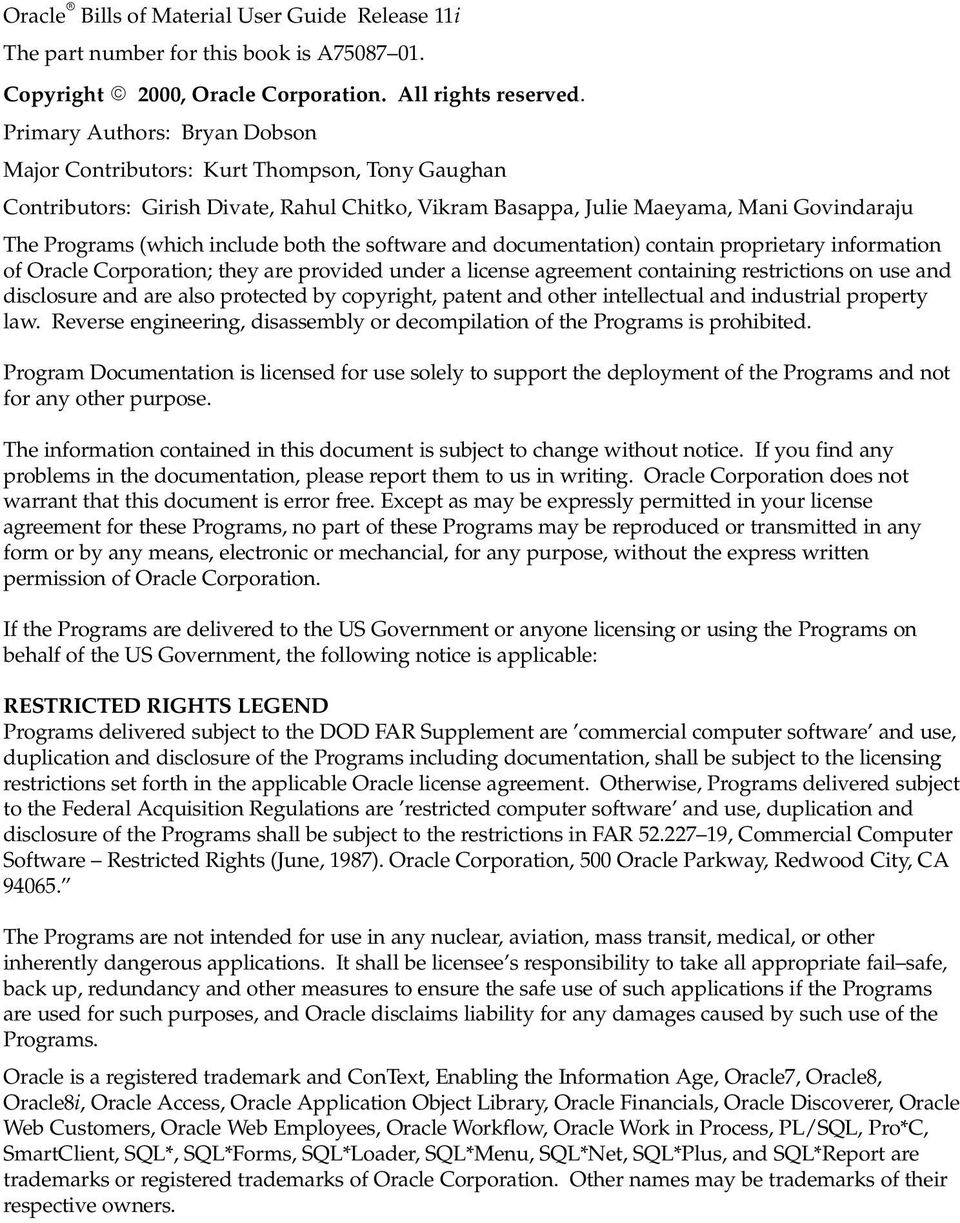
3 Contents Preface vii Chapter 1 Setting Up Overview of Setting Up Related Product Setup Steps Setup Flowchart Setup Checklist Setup Steps Defining Bills of Material Parameters Creating Alternates Creating Custom Deletion Constraints Creating a Department Class Defining a Department Assigning Resources to a Department Defining a Resource Overview of Workday Calendar Repeating Workday Patterns Workday Exceptions Shifts Organizations Creating a Workday Exception Template Creating a Workday Calendar Copying Calendar and Shift Information Creating a Workday Pattern Creating Shifts and Shift Times Assigning Workday or Shift Exceptions Reviewing the Workday Calendar Building the Workday Calendar Importing Bills and Routings Contents iii

4 Bills of Material Profile Options Profile Option Settings Chapter 2 Bills of Material Overview of Bills of Material Bill of Material Types Phantoms Primary and Alternate Bills of Material Item and Routing Revisions Components Access Control by Item Type Creating a Bill of Material Copying Bill and Routing Information Referencing Common Bills and Routings Common Bills of Material Common Routings Assigning Descriptive Elements Creating Reference Designators Assigning Substitute Components Defining Item Revisions Defining Bill or Routing Operation Documents Attaching Files Checking for Bill Loops Mass Changing Bills of Material Viewing an Indented Bill of Material Comparing Bills of Material Viewing Item Usage Bills of Material Field Reference Item and Operation Sequence Fields Effective Date Fields Yield Field Planning Percent Field Extended Quantity Field Supply Subinventory and Locator Fields Mutually Exclusive and Optional Fields Check ATP (Available To Promise) Field Minimum and Maximum Quantity Fields Basis Field Shipping Details Fields Bill / Component Validation Rules iv Oracle Bills of Material User s Guide

5 Creating a Product Family Assigning Product Family Members Setting Planning Percentages for Product Family Members 3 48 Chapter 3 Routings Overview of Routings Primary and Alternate Routings Operations Resource Usage Creating a Routing Switching Between Primary and Alternate Routings Assigning a Completion Subinventory and Locator Creating a Routing Revision Assigning Operation Resources Rolling Up Costs Creating a Standard Operation Viewing Resource Usage Routings Field Reference Completion Subinventory and Locator Fields Count Point and Autocharge Fields Schedule Field Charge Type Field Chapter 4 Deleting Information Deleting Items, Bills, Routings, Components, and Operations Deleting Components and Operations Deletion Constraints Chapter 5 Configure to Order Overview of Configure To Order Configure to Order and Pick to Order Steps Overview of Model and Option Class Bills of Material Configure to Order Environments Forecast Model / Option Demand Establishing the Production Forecast Forecast Control Forecast Explosion Forecast Consumption Master Schedule Models and Options Contents v

6 Production Relief Shipment Relief Sales Order Management Match and Reserve Pricing Configurations Order Processing Cycles ATP Check AutoCreate Configuration Items and Final Assembly Orders Configuration Items AutoCreate by Release Date Item Numbering Methods Single Level Bill of Material Configuration Item Routings Cost Rollup Lead Time Calculation Option Configuration Item Catalog Existing Configuration Item Numbers AutoCreate Final Assembly Orders Manually Create Final Assembly Orders AutoCreating Configuration Items and Final Assembly Orders Final Assembly Order Completion Build Final Assembly Orders Automatic Inventory Reservations Manual Inventory Reservations Complete Lot and Serial Number Controlled Assemblies Pick Release and Ship Configuration Orders Automatic Pick Release Shipping Documents Deactivating Configuration Items Chapter 6 Manufacturing Scheduling Overview of Manufacturing Scheduling Oracle Manufacturing Products and Scheduling Detailed Scheduling Repetitive Line Scheduling Dynamic Lead Time Offsetting Uses of Dynamic Lead Time Offsetting Required Lead Time Information Lead Time Offsetting Computations vi Oracle Bills of Material User s Guide
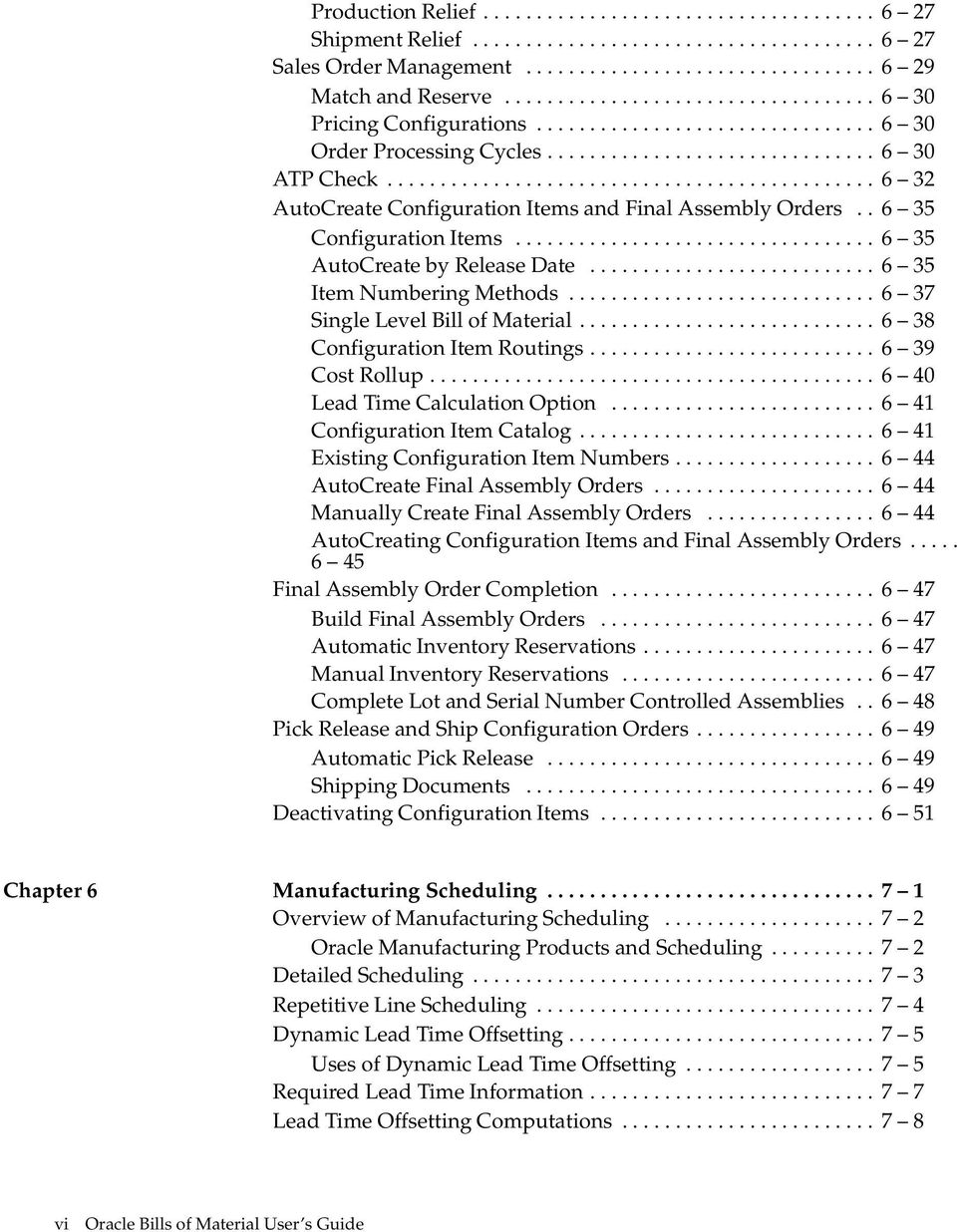
7 Chapter 7 Manufacturing Lead Times Overview of Lead Time Management Computed vs. Assigned Lead Times Item Lead Time Attributes Manufacturing Lead Time Computations Lead Time Lot Size Routings Lead Time Percent Offset Percent Fixed and Variable Lead Times Processing Lead Time Offset Computations Cumulative Lead Time Computations Calculating Lead Times Rolling Up Cumulative Lead Times Chapter 8 Reports Bill of Material Comparison Report Report Submission Report Parameters Bill of Material Listing Report Submission Report Parameters Bill of Material Loop Report Report Submission Report Parameters Bill of Material Structure Report Report Submission Report Parameters Bills of Material Parameters Report Report Submission Consolidated Bill of Material Report Report Submission Report Parameters Delete Items Report Report Submission Report Parameters Department Classes Report Report Submission Report Parameters Contents vii

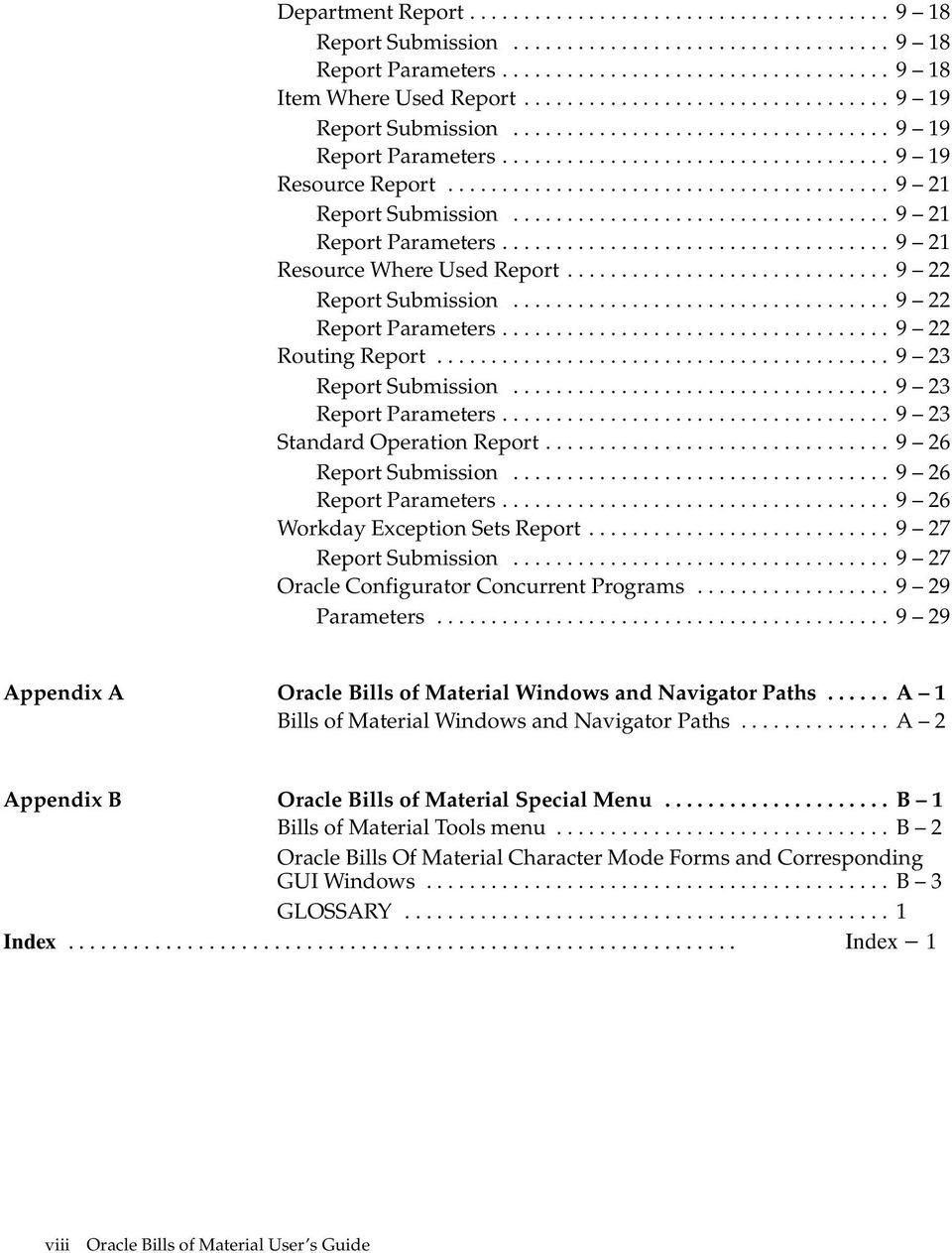
8 Department Report Report Submission Report Parameters Item Where Used Report Report Submission Report Parameters Resource Report Report Submission Report Parameters Resource Where Used Report Report Submission Report Parameters Routing Report Report Submission Report Parameters Standard Operation Report Report Submission Report Parameters Workday Exception Sets Report Report Submission Oracle Configurator Concurrent Programs Parameters Appendix A Oracle Bills of Material Windows and Navigator Paths A 1 Bills of Material Windows and Navigator Paths A 2 Appendix B Oracle Bills of Material Special Menu B 1 Bills of Material Tools menu B 2 Oracle Bills Of Material Character Mode Forms and Corresponding GUI Windows B 3 GLOSSARY viii Oracle Bills of Material User s Guide
9 Preface Welcome to the Oracle Bills of Material User s Guide, Release 11. This user s guide includes the information you need to work with Oracle Bills of Material effectively. It contains detailed information about the following: Overview and reference information Specific tasks you can accomplish using Oracle Bills of Material Oracle Bills of Material setup Oracle Bills of Material functions and features Oracle Bills of Material windows Oracle Bills of Material reports and processes This preface explains how this user s guide is organized and introduces other sources of information that can help you. Preface ix

10 About This User s Guide This guide contains overviews as well as task and reference information about Oracle Bills of Material. This guide includes the following chapters: Chapter 1 describes how to set up Bills of Material. Implementation information and procedures are contained in this chapter. Chapter 2 describes different types of bills of material and explains how to create them. Chapter 3 describes how to create routings and standard operations. Chapter 4 explains how to delete item, bill, and routing information. Chapter 5 explains how to use configure to order functionality to process orders for unique product configurations while maintaining control of inventory, planning, and cost accounting. Chapter 6 describes the three scheduling methods used in Manufacturing Scheduling: detailed scheduling, repetitive line scheduling, and dynamic lead time offsetting. Chapter 7 explains how to calculate manufacturing lead times. Chapter 8 provides information on running Bills of Material reports. The appendices provide you with navigation paths to all windows and Tools menu options in Bills of Material. x Oracle Bills of Material User s Guide

11 Audience for This Guide This guide assumes you have a working knowledge of your business area s processes and tools. It also assumes you are familiar with Oracle Bills of Material. If you have never used Oracle Bills of Material, we suggest you attend one or more of the Oracle Bills of Material training classes available through World Wide Education. For more information about Oracle Bills of Material and Oracle training, see: Other Information Sources. Do Not Use Database Tools to Modify Oracle Applications Data Because Oracle Applications tables are interrelated, any change you make using Oracle Applications can update many tables at once. But when you modify Oracle Applications data using anything other than Oracle Applications, you may change a row in one table without making corresponding changes in related tables. If your tables get out of synchronization with each other, you risk retrieving erroneous information and you risk unpredictable results throughout Oracle Applications. When you use Oracle Applications to modify your data, Oracle Applications automatically checks that your changes are valid. Oracle Applications also keeps track of who changes information. If you enter information into database tables using database tools, you may store invalid information. You also lose the ability to track who has changed your information because SQL*Plus and other database tools do not keep a record of changes. Consequently, we STRONGLY RECOMMEND that you never use SQL*Plus or any other tool to modify Oracle Applications data unless otherwise instructed. Other Information Sources Here are some other ways you can increase your knowledge and understanding of Oracle Bills of Material. Online Documentation All Oracle Applications documentation is available online on CD ROM, except for technical reference manuals. There are two online Preface xi

12 formats, HyperText Markup Language (HTML) and Adobe Acrobat (PDF). All user s guides are available in HTML, PDF, and paper. Technical reference manuals are available in paper only. Other documentation is available in PDF and paper. The content of the documentation does not differ from format to format. There may be slight differences due to publication standards, but such differences do not affect content. For example, page numbers and screen shots are not included in HTML. The HTML documentation is available from all Oracle Applications windows. Each window is programmed to start your web browser and open a specific, context sensitive section. Once any section of the HTML documentation is open, you can navigate freely throughout all Oracle Applications documentation. The HTML documentation also ships with Oracle Information Navigator (if your national language supports this tool), which enables you to search for words and phrases throughout the documentation set. Related User s Guides Oracle Bills of Material shares business and setup information with other Oracle Applications products. Therefore, you may want to refer to other user s guides when you set up and use Oracle Bills of Material. If you do not have the hardcopy versions of these manuals, you can read them online using the Applications Library icon or Help menu command. Country Specific User s Guides These manuals document functionality developed to meet specific legal and business requirements in more than 25 countries. You should use the appropriate user s guide, such as the Oracle Financials for Germany User s Guide, for more information about using Oracle Financials in a specific country. Consult your country specific user s guide, Oracle Financials Regional User s Guide, and your financial product s manual to effectively use Oracle Financials in your country. Global Accounting Engine Use the Global Accounting Engine to replace the transfer to General Ledger and create subledger accounting entries that meet additional statutory standards within some countries. The Accounting Engine xii Oracle Bills of Material User s Guide

13 provides subledger balances, legal reports, and bidirectional drilldown from General Ledger to the subledger transaction. Oracle Applications User s Guide This guide explains how to enter data, query, run reports, and navigate using the graphical user interface (GUI) available with this release of Oracle Bills of Material (and any other Oracle Applications products). This guide also includes information on setting user profiles, as well as running and reviewing reports and concurrent processes. You can access this user s guide online by choosing Getting Started with Oracle Applications from any Oracle Applications help file. Oracle Applications Demonstration User s Guide This guide documents the functional storyline and product flows for Vision Enterprises, a fictional manufacturer of personal computers products and services. As well as including product overviews, the book contains detailed discussions and examples across each of the major product flows. Tables, illustrations, and charts summarize key flows and data elements. Oracle Configurator User s Guide This guide describes how to improve order taking and fulfillment productivity by eliminating errors in new sales orders and bills of materials. You can use Oracle Configurator to verify product configurations, automatically select configuration options, and generate manufacturing bills of materials according to configuration constraints. Oracle Engineering User s Guide This guide enables your engineers to utilize the features of Oracle Engineering to quickly introduce and manage new designs into production. Specifically, this guide details how to quickly and accurately define the resources, materials and processes necessary to implement changes in product design. Oracle Financials Regional User s Guide This manual describes functionality developed to meet specific legal and business requirements that are common to several countries in a given region. Consult this user s guide along with your Preface xiii

14 country specific user s guide and your financial product s manual to effectively use Oracle Financials in your country. Oracle Flow Manufacturing User s Guide This guide describes how to use Oracle s Flow manufacturing functionality to support the processes of flow manufacturing. It describes design features of demand management, line design and balancing, and kanban planning. It also describes production features of line scheduling, productions and kanban execution. Oracle Inventory User s Guide This guide describes how to define items and item information, perform receiving and inventory transactions, maintain cost control, plan items, perform cycle counting and physical inventories, and set up Oracle Inventory. Oracle Master Scheduling/MRP and Supply Chain Planning User s Guide This guide describes how to anticipate and manage both supply and demand for your items. Using a variety of tools and techniques, you can create forecasts, load these forecasts into master production schedules, and plan your end items and their component requirements. You can also execute the plan, releasing and rescheduling planning suggestions for discrete jobs and repetitive schedules. Oracle Order Management User s Guide This guide describes how to enter sales orders and returns, copy existing sales orders, schedule orders, release orders, create price lists and discounts for orders, run processes and create reports. Oracle Work in Process User s Guide This guide describes how Oracle Work in Process provides a complete production management system. Specifically this guide describes how discrete, repetitive, assemble to order, project, flow, and mixed manufacturing environments are supported. xiv Oracle Bills of Material User s Guide

15 Reference Manuals Oracle Automotive Implementation Manual This manual describes the setup and implementation of the Oracle Applications used for the Oracle Automotive solution. Oracle Manufacturing and Distribution Open Interfaces Manual This manual contains up to date information about integrating with other Oracle Manufacturing applications and with your other systems. This documentation includes open interfaces found in Oracle Manufacturing. Oracle Applications Message Reference Manual This manual describes all Oracle Applications messages. This manual is available in HTML format on the documentation CD ROM for Release 11i. Oracle Project Manufacturing Implementation Manual This manual describes the setup steps and implementation for Oracle Project Manufacturing. Oracle Self Service Web Applications Implementation Manual This manual describes the setup steps for Oracle Self Service Web Applications and the Web Applications dictionary. Installation and System Administration Oracle Alert User s Guide This guide explains how to define periodic and event alerts to monitor the status of your Oracle Applications data. Multiple Reporting Currencies in Oracle Applications If you use the Multiple Reporting Currencies feature to record transactions in more than one currency, use this manual before implementing Oracle Bills of Material. This manual details additional steps and setup considerations for implementing Oracle Bills of Material with this feature. Preface xv

16 Multiple Organizations in Oracle Applications If you use the Oracle Applications Multiple Organization Support feature to use multiple sets of books for one Oracle Bills of Material installation, this guide describes all you need to know about setting up and using Oracle Bills of Material with this feature. Oracle Applications Implementation Wizard User s Guide If you are implementing more than one Oracle product, you can use the Oracle Applications Implementation Wizard to coordinate your setup activities. This guide describes how to use the wizard. Oracle Applications Developer s Guide This guide contains the coding standards followed by the Oracle Applications development staff. It describes the Oracle Application Object Library constituents needed to implement the Oracle Applications user interface described in the Oracle Applications User Interface Standards. It also provides information to help you build your custom Developer/2000 forms so that they integrate with Oracle Applications. Oracle Applications Flexfields Guide This guide provides flexfields planning, setup and reference information for the Oracle Bills of Material implementation team, as well as for users responsible for the ongoing maintenance of Oracle Applications product data. This manual also provides information on creating custom reports on flexfields data. Oracle Applications Installation Manual for Windows Clients This guide provides information you need to successfully install Oracle Financials, Oracle Public Sector Financials, Oracle Manufacturing, or Oracle Human Resources in your specific hardware and operating system software environment. Oracle Applications Product Update Notes If you are upgrading your Oracle Applications, refer to the product update notes appropriate to your update and product(s) to see summaries of new features as well as changes to database objects, profile options and seed data added for each new release. xvi Oracle Bills of Material User s Guide

17 Oracle Applications Upgrade Preparation Manual This guide explains how to prepare your Oracle Applications products for an upgrade. It also contains information on completing the upgrade procedure for each product. Refer to this manual and the Oracle Applications Installation Manual when you plan to upgrade your products. Oracle Applications System Administrator s Guide This manual provides planning and reference information for the Oracle Bills of Material System Administrator. Other Sources Training We offer a complete set of formal training courses to help you and your staff master Oracle Bills of Material and reach full productivity quickly. We organize these courses into functional learning paths, so you take only those courses appropriate to your job or area of responsibility. You have a choice of educational environments. You can attend courses offered by Oracle Education Services at any one of our many Education Centers, or you can arrange for our trainers to teach at your facility. In addition, Oracle training professionals can tailor standard courses or develop custom courses to meet your needs. For example, you may want to use your organization structure, terminology, and data as examples in a customized training session delivered at your own facility. Support From on site support to central support, our team of experienced professionals provides the help and information you need to keep Oracle Bills of Material working for you. This team includes your Technical Representative, Account Manager, and Oracle s large staff of consultants and support specialists with expertise in your business area, managing an Oracle8 server, and your hardware and software environment. Preface xvii

18 About Oracle Oracle Corporation develops and markets an integrated line of software products for database management, applications development, decision support, and office automation, as well as Oracle Applications, an integrated suite of more than 45 software modules for financial management, supply chain management, manufacturing, project systems, human resources and sales and service management. Oracle products are available for mainframes, minicomputers, personal computers, network computers and personal digital assistants, allowing organizations to integrate different computers, different operating systems, different networks, and even different database management systems, into a single, unified computing and information resource. Oracle is the world s leading supplier of software for information management, and the world s second largest software company. Oracle offers its database, tools, and applications products, along with related consulting, education, and support services, in over 140 countries around the world. Thank You Thank you for using Oracle Bills of Material and this user s guide. We value your comments and feedback. At the end of this guide is a Reader s Comment Form you can use to explain what you like or dislike about Oracle Bills of Material or this user s guide. Mail your comments to the following address or call us directly at (650) Oracle Applications Documentation Manager Oracle Corporation 500 Oracle Parkway Redwood Shores, CA U.S.A. Or, send electronic mail to [email protected]. xviii Oracle Bills of Material User s Guide

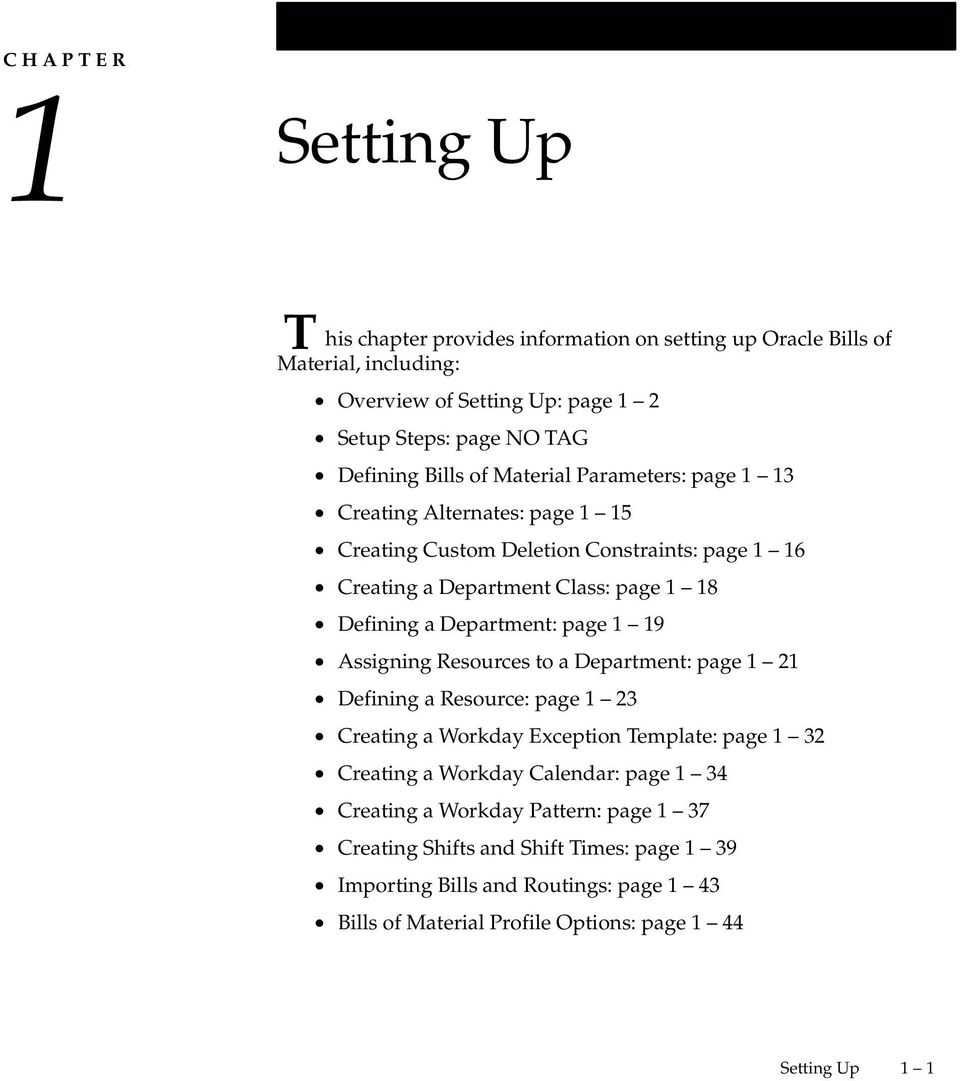
19 C H A P T E R 1 Setting Up T his chapter provides information on setting up Oracle Bills of Material, including: Overview of Setting Up: page 1 2 Setup Steps: page NO TAG Defining Bills of Material Parameters: page 1 13 Creating Alternates: page 1 15 Creating Custom Deletion Constraints: page 1 16 Creating a Department Class: page 1 18 Defining a Department: page 1 19 Assigning Resources to a Department: page 1 21 Defining a Resource: page 1 23 Creating a Workday Exception Template: page 1 32 Creating a Workday Calendar: page 1 34 Creating a Workday Pattern: page 1 37 Creating Shifts and Shift Times: page 1 39 Importing Bills and Routings: page 1 43 Bills of Material Profile Options: page 1 44 Setting Up 1 1
20 Overview of Setting Up This section contains an overview of each task you need to complete to set up Oracle Bills of Material. Oracle Applications Implementation Wizard If you are implementing more than one Oracle Applications product, it is recommended that you use the Oracle Applications Implementation Wizard (AIW) to coordinate your setup activities. The Wizard guides you through the setup steps for the applications you have installed, suggesting a logical sequence that satisfies cross product implementation dependencies and reduces redundant setup steps. You can use the Wizard to see a graphical overview of setup steps, read online help for a setup activity, and open the appropriate setup window. You can also document your implementation, for further reference and review, by using the Wizard to record comments for each step. Related Product Setup Steps The following steps may need to be performed to implement Oracle Bills of Material. These steps are discussed in detail in the Overview of Setting Up sections of other Oracle product user s guides. Set up Underlying Oracle Applications Technology The Wizard guides you through the entire Oracle Applications setup, including system administration. However, if you do not use the Implementation Wizard, you need to complete several other setup steps, including: Performing system wide setup tasks such as configuring concurrent managers and printers Managing data security, which includes setting up responsibilities to allow access to a specific set of business data and complete a specific set of transactions, and assigning individual users to one or more of these responsibilities Setting up Oracle Workflow 1 2 Oracle Bills of Material User s Guide

21 See Also Oracle Applications Implementation Wizard User s Guide Oracle Applications System Administrator s Guide Oracle Workflow Guide Inventory Setup Steps Refer to the Overview of Setting Up section in the Inventory User s Guide for details of the following setup steps. Defining Items Step See: Defining Items, Oracle Inventory User s Guide AIW Reference Common Applications Setting Up 1 3
22 Setup Flowchart Some of the steps outlined in this flowchart and setup checklist are Required and some are Optional. Required Step With Defaults refers to setup functionality that comes with pre seeded, default values in the database; however, you should review those defaults and decide whether to change them to suit your business needs. If you want or need to change them, you should perform that setup step. You need to perform Optional steps only if you plan to use the related feature or complete certain business functions. 1 4 Oracle Bills of Material User s Guide
23 Setting Up 1 5
24 Setup Checklist Step No. Required The following table lists setup steps and a reference to their location within the Wizard. For a detailed description of AIW reference levels, see the Oracle Applications Implementation Wizard User s Guide. After you log on to Oracle Applications, complete these steps to implement Bills of Material: Step AIW Reference Step 1 Required Set Profile Options Oracle Bills of Material Step 2 Optional Define Exception Templates Oracle Bills of Material Step 3 Required Define and Build your Workday Calendar Oracle Bills of Material Step 4 Required Assign Workday Calendar to Organization Oracle Bills of Material Step 5 Required Define Bills of Material Parameters Oracle Bills of Material Step 6 Optional Define Department Classes Oracle Bills of Material Step 7 Optional Define Resources Oracle Bills of Material Step 8 Optional Define Resource Groups Oracle Bills of Material Step 9 Optional Define Simulation Sets Oracle Bills of Material Step 10 Optional Define Locations Oracle Bills of Material 1 6 Oracle Bills of Material User s Guide
25 Step 11 Optional Define Departments Oracle Bills of Material Step 12 Optional Assign Resources and Resource Shifts to Departments Oracle Bills of Material Step 13 Optional Define Overheads Oracle Bills of Material Step 14 Optional Associate Overheads with Departments Oracle Bills of Material Step 15 Optional Define Alternates Oracle Bills of Material Step 16 Optional Define Standard Bill of Material Comments Oracle Bills of Material Step 17 Optional Define Standard Instructions Oracle Bills of Material Step 18 Optional Define Change Order Types Oracle Bills of Material Step 19 Optional Define Delete Constraints Oracle Bills of Material Setup Steps For each step, a Context section indicates whether you need to repeat the step for each set of books, set of tasks, inventory organization, HR organization, or other operating unit under Multiple Organizations. Step 1 Set Profile Options (Required) Profile options specify how Oracle Bills of Material controls access to and processes data. In general, profile options can be set at one or more of the following levels: site, application, responsibility, and user. Oracle Bills of Material users use the Update Personal Profile Options form to set profile options only at the user level. System administrators Setting Up 1 7
26 use the Update System Profile Options form to set profile options at the site, application, responsibility, and user levels. See: Oracle Bills of Material Profile Options: page 1 44 Context: Perform this step once for each entity, that is, organization operating unit, business group, or legal entity. See Also: Oracle Bills of Material Profile Options: page 1 44 Step 2 Step 3 Step 4 Define Exception Templates (Optional) You can define your own exception templates. When you assign an exception template to your workday calendar, you can assign workday exceptions to account for plant workday differences such as holidays, scheduled maintenance, or extended downtime. Context: Perform this step once per installation. See Also: Creating a Workday Exception Templates: page 1 32 Define and Build your Workday Calendar (Required) You define a workday calendar for one or more organizations, and assign an exception set to each calendar. For each workday calendar and exception set, you assign a list of holidays or workday exceptions. You then define shifts for your workday calendar, and assign any shift workday exceptions. After you define your workday calendar information, you build your workday calendar with the exception set. If you associate one calendar with multiple organizations, you can build your workday calendar with multiple exception sets to account for workday differences across organizations. Attention: If you use Oracle Master Scheduling/MRP, choose the calendar options 445 weekly quarter pattern or 544 weekly quarter pattern if you want to report MRP information in weeks and months. Otherwise, if you choose 13 period calendar or Regular calendar months, you can only report MRP information in monthly buckets. Context: Perform this step once per installation. See Also: Creating a Workday Calendar: page 1 34 Assign Workday Calendar to Organization (Required) You assign a workday calendar and exception set to each of your organizations. You can share the same workday calendar across organizations with either the same or a different exception set for each organization. 1 8 Oracle Bills of Material User s Guide
27 Default: If you skip this step, <enter value here> will be used as the default value. Context: Perform this step once per organization. See Also: Assigning Workday or Shift Exceptions: page 1 40 Step 5 Step 6 Step 7 Step 8 Define Bill of Material Parameters (Required) You assign the maximum number of bill of material levels for bill explosions, loop checks and implosions. For assemble to order manufacturers, you assign configuration item information. Oracle Cost Management does require that you assign values to each parameter if you compute an organization s manufacturing costs based on bill of material and routing information defined in Oracle Bills of Material. Context: Perform this step once per organization. See Also: Defining Bill of Material Parameters: page 1 13 Define Department Classes (Optional) You can define department classes to group departments and to identify manufacturing cells. This information is for your reference only. Context: Perform this step once per organization. See Also: Creating a Department Class: page 1 18 Define Resources (Optional) You can define a resource as anything of value, except material and cash, required to manufacture, cost, and schedule products. Resources include people, tools, labor purchased from a supplier, and physical space. Context: Perform this step once per organization. See Also: Defining a Resource: page 1 23 Define Resource Groups (Optional) You can group department resources by resource group to facilitate bill of resource generation and capacity planning in Oracle Capacity. Context: Perform this step once per installation. See Also: Defining a Resource: page 1 23 Setting Up 1 9
28 Step 9 Step 10 Step 11 Step 12 Step 13 Step 14 Define Simulation Sets (Optional) You can group deviations to available resource capacity for resource shifts and use each set in shop floor scheduling and capacity planning. Context: Perform this step once per installation. See Also: Defining a Resource: page 1 23 Define Locations (Optional) You define delivery locations for departments with outside processing resources. Context: Perform this step once per organization. See Also: Defining a Resource: page 1 23 Define Departments (Optional) You can define departments as areas within your organization where you perform work and/or collect costs. Context: Perform this step once per organization. See Also: Defining a Department: page 1 19 Assign Resources and Resource Shifts to Departments (Optional) You can assign resources to a department and then assign shifts to those resources. You can group department resources by resource group, and assign a simulation set with capacity modifications for each resource shift. Default: If you skip this step, <enter value here> will be used as the default value. Context: Perform this step once per organizational department. See Also: Assigning Resources to a Department: page 1 21 Define Overheads (Optional) You can define resource overhead by using the Define Overhead form. Each overhead sub element has a default basis, default activity, and absorption account. The overhead absorption account offsets your corresponding overhead cost pool in the general ledger. Context: Perform this step once per organizational resource. See Also: Defining a Resource: page 1 23 Associate Overheads with Departments (Optional) 1 10 Oracle Bills of Material User s Guide
29 You can assign overhead rates or amounts to your department by cost type and department. The cost rollup uses the assigned basis type to allocate the overhead charge. The cost rollup assigns the activity to the calculated overhead cost. You can define pending rates and use the cost rollup/update process to change the pending rates to Frozen overhead rates. Context: Perform this step once per organizational department. See Also: Defining a Department: page 1 19 Step 15 Step 16 Step 17 Step 18 Define Alternates (Optional) You can define any number of alternate names that you use when you create alternate bills of material and routings. You use alternate bills and routings to produce an identical product using a different bill or routing. You can apply the same alternate name to a bill of material and a routing. Context: Perform this step once per organization. See Also: Primary and Alternate Bills of Material: page 2 5 Define Standard Bill of Material Comments (Optional) You can define any number of standard bill of material comments that you can assign to your bills of material. Context: Perform this step once per organization. See Also: Creating a Bill of Material: page 2 10 Define Standard Instructions (Optional) You can define any number of operation instructions that you can assign to a routing operation or standard operation. Context: Perform this step once per organization. See Also: Creating a Standard Operation: page 3 18 Define Change Order Types (Optional) You can define mass change order types, using your own terminology, to describe mass changes to your manufacturing bills of material. Default: If you skip this step, Oracle shipped change order types will be used as the default value. Context: Perform this step once per installation. See Also: Mass Changing Bills of Material: page 2 23 Setting Up 1 11
30 Step 19 Define Delete Constraints (Optional) Oracle Bills of Material provides a list of rules to determine if an item, bill of material or routing can be deleted. Each rule insures data integrity across all Oracle Manufacturing applications. You can add to this list with your own business rules to further restrict the entities that can be deleted. You write each of your delete constraints as a SQL select statement that either prevents or lets a user delete an item, bill, or routing. Default: If you skip this step, Oracle shipped delete constraints will be used as the default value. Context: Perform this step once per organization. See Also: Creating Custom Delete Constraints: page Oracle Bills of Material User s Guide
31 Defining Bills of Material Parameters Use bill of material parameters to define modes of operation and default values for an organization that affect functions such as bill definition, bill deletion, and assemble to order configuration numbering. Define bill of material parameters for each organization in which you use bills or routings. (Bill parameters are specific to, and must be defined for, each organization.) Doing so ensures access to resource, outside processing, and overhead cost information for certain cost management functions. To define bill of material parameters: 1. Navigate to the Parameters window. 2. Enter the maximum bill levels to explode. The maximum is For configurations only, enter an inactive status. 4. For configurations only, enter the numbering segment to use when creating configuration item numbers. 5. Select an automatic or user defined numbering method. A unique configuration item number is automatically assigned based on the numbering method you select: Setting Up 1 13
32 Append Sequence: Appends a sequence number to the item segment you entered for the numbering segment. Replace with Sequence: Replace the item segment you entered in the numbering segment with a sequence number. Replace with Order, Line Number: Replace the item segment you entered for numbering segment with the sales order and line number. User Defined: Allows you to define a numbering scheme that meets your business needs. 6. If you would like Work in Process to maintain the individual operation sequence numbers for phantom subassemblies, and to charge their resource and overhead costs to the parent or higher level assembly, you set the following two parameters in Oracle Bills of Material: Use Phantom Routings: Set this parameter to specify whether phantom routing resources and overhead costs (including those for outside processing resources assigned to phantom routing operations) are charged to the parent or higher level assembly. Setting this parameter also implies department inheritance for resources; thus, phantom resources can be used by departments that they are not owned by or assigned to as a borrowed resource. You set the parameter at the inventory organization level and it then applies to all phantoms within a single inventory organization. These are its two values: Yes: If you select this value, phantom routing components and resources and overheads are included in the cost of the higher level assembly. Routing resource costs are also included in capacity planning. No: This is the default. This value specifies that only components are included in the higher assembly s cost, not resources and overheads. Replace with Sequence: Set this parameter to specify whether phantom subassembly components inherit the operation sequence number of their parent or higher level assembly, or maintain their own operation sequence number. This parameter is set at the inventory organization level, and applies to all phantoms within a single inventory organization. The parameter has these two values: Yes: If you select this value, phantom subassembly components maintain their own operation sequence numbers 1 14 Oracle Bills of Material User s Guide
33 .No: This is the default. This value specifies that phantom subassembly components inherit the operation sequence number of their parent or higher level assemblies. See Also Overview of Configure To Order: page 5 2 Bills of Material Parameters Report: page 8 11 Creating Alternates An alternate bill describes an alternate list of component items that produce an assembly. An alternate routing describes an alternate manufacturing process that produces an assembly. To create or update an alternate: 1. Navigate to the Alternates window. Setting Up 1 15
34 2. Enter an alphanumeric string to describe a unique alternate. 3. Enter a date that the alternate is inactive on. As of the inactive date, you can no longer assign the alternate to a bill of material or routing. See Also Primary and Alternate Bills of Material: page 2 5 Primary and Alternate Routings: page 3 2 Effective Date Fields: page 2 36 Creating Custom Deletion Constraints Use custom deletion constraints to enforce specific business rules. Custom deletion constraints prevent the deletion of bills or routings if your data meets the conditions set forth in the constraint Oracle Bills of Material User s Guide
35 To create a custom deletion constraint: 1. Navigate to the Deletion Constraints window. 2. Enter a name for the deletion constraint. 3. Indicate whether the constraint is enabled. An enabled deletion constraint means that it is in effect when the delete concurrent program runs. 4. Select what kind of delete entity the constraint applies to: item, bill, routing, component, or operation. 5. Enter the SQL Select Statement that the delete concurrent program is to execute. You cannot update SQL statements for predefined deletion constraints. 6. Indicate whether to delete if there are rows found or no rows found by the SQL Select Statement Setting Up 1 17
36 7. Enter a failure message from Oracle Application Object Library s message dictionary to display if the delete fails. See Also Deletion Constraints: page 4 7 Creating a Department Class Use department classes to group departments for shop floor scheduling and control, and to identify manufacturing cells and flexible machine centers. Department classes are used for reporting purposes. To create a department class: 1. Navigate to the Department Classes window Oracle Bills of Material User s Guide
37 2. Enter text that uniquely describes the department class. For example, you could use ASSY to group all final assembly departments. 3. Choose the Departments button to display the departments assigned to this department class and the dates when these departments can no longer be assigned to routing operations. Note: Assign departments to classes when you define departments. See Also Defining a Department: page 1 19 Department Classes Report: page 8 17 Defining a Department A department is an area within your organization that consists of one or more people, machines, or suppliers, where you want to collect costs, apply overhead, and compare load to capacity. You assign a department to each operation in a routing, and assign resources that are available for that department. When you define a department, you specify any department overhead costs and the resources that are available. You can enter multiple resources for each department. For each resource, you can specify the shifts that the resource is available. For each resource shift, you can also specify capacity modifications that change the available hours per day, units per day, or workdays. Setting Up 1 19
38 To define a department: 1. Navigate to the Departments window. 2. Enter a name for the department unique for the organization. 3. Optionally, enter a department class. See: Creating a Department Class: page Enter a location for the department. Attention: You must assign a location to a department if it is the receiving department following outside processing. See: Outside Processing, Oracle Work in Process User s Guide.. 5. Enter a project expenditure organization. 6. Optionally, enter an inactive date on which you can no longer assign this department to routing operations. 7. Choose the Rates button to view the overhead rates for the department. 8. Choose the Resources button to assign and update resources to the department Oracle Bills of Material User s Guide
39 See Also Assigning Resources to a Department: page 1 21 Department Report: page 8 18 Assigning Resources to a Department To assign resources to a department: 1. Navigate to the Resources window. You can do this by choosing the Resources button from the Departments window. The Resources window is split into owned and borrowed resources. 2. Enter the resource to assign to the current department. 3. Optionally, for owned resources, indicate whether the resource is available 24 hours a day. You cannot assign shifts to a resource that is available 24 hours a day. 4. For owned resources, indicate whether this department can share the resource and capacity with other departments. 5. For borrowed resources, enter the owning department. 6. Enter the number of capacity units (resource units) available for this department, for example, the number of machines for a machine resource. Each resource can be assigned to any number of departments; multiple resources can be assigned to each department. 7. Optionally, enter a resource group for the resource in this department. 8. Optionally, select the Check CTP check box. The Check CTP check box tells the system to use this resource in a Capable to Promise (CTP) check. See: Capable to Promise, Oracle Master Scheduling/MRP and Supply Chain Planning User s Guide, Release Optionally, enter an exception set. The exception sets that you assign help identify capacity problems. See:.Creating Planning Exception Sets, Oracle Master Scheduling/MRP and Supply Chain Planning User s Guide, Release Enter an expenditure type for the resource. Setting Up 1 21
40 11. For owned resources that are not available 24 hours, choose the Shifts button to assign and update shift information for the resource. To assign shift information for the resource: 1. Navigate to the Shifts window. Do this by choosing the Shifts button from the Resources window. 2. Enter a shift number to assign to the resource. The shifts available to assign to the resource are those assigned to the workday calendar assigned to the organization. 3. Choose the Capacity Changes button to define capacity changes for a shift. To define capacity changes: Capacity modifications can add or delete a day, or add or reduce capacity for a shift. 1. Navigate to the Capacity Changes window. Do this by choosing the Capacity Changes button from the Shifts window. 2. Enter or select a simulation set for the capacity change. Use simulation sets for capacity requirements planning in Oracle Capacity. See: Creating Simulation Sets, Oracle Capacity User s Guide.. 3. Select the action to take for the department resource: Add: Adds a workday and capacity changes. Delete: Deletes a workday for this department resource. Add or Reduce Capacity: Add or reduce capacity for a resource shift. The capacity change can fall outside a shift time, so you can add time to a shift. To reduce capacity, enter negative numbers. 4. Enter the number of resource units to increase or decrease capacity (if applicable). Make sure to use a negative number if you are reducing capacity. 5. Enter an effective date and time from which the capacity change starts. If you are adding or reducing capacity, you must also enter a date and time on which the change is no longer in effect. If you are adding a shift s workday, this is the date of the new workday. If you are deleting a shift s workday, this is the date of 1 22 Oracle Bills of Material User s Guide
41 the deleted workday. If you are changing capacity, this is the first day the resource shift s capacity changes. See Also Cost Management Profile Options and Security Functions, Oracle Cost Management User s Guide Overview of Capacity Planning, Oracle Capacity User s Guide Defining a Resource Use resources to define the time an assembly spends at an operation and the cost you incur at the operation. A resource is anything you require to perform, schedule, or cost, including but not limited to: employees, machines, outside processing services, and physical space. A resource and usage rate for all scheduled activities is required in a routing. Scheduled resources can include queue, setup, run, and move time. When you define your departments, you assign the resources available in each department and the shifts that each resource is available. For each operation you define, you specify a department and list of resources and usages. An operation can use any resource that is available in the department, but you do not need to use all resources assigned to the department. Prerequisites Before you can define resources, set up your units of measure and unit of measure conversion rates. Some resources may represent currency such as a fixed charge resource, but currency resources cannot be scheduled since their unit of measure is not time based. Set the site level profile option BOM: Hour UOM to hold the unit of measure that represents an hour. Oracle Work in Process prevents you from scheduling resources whose unit of measure is not in the same unit of measure class as the hour unit or measure and has no conversions defined to the hour unit or measure. Setting Up 1 23
42 To define a resource: 1. Navigate to the Resources window. 2. Enter a resource name unique to the organization to describe the resource. For example, you could assign AS1 to signify assembler grade 1, or WE for welder. 3. Optionally, enter an inactive date after which you can no longer assign this resource. 4. Select a resource type: Amount, Currency (the set of books currency as defined in Oracle General Ledger), Machine, Miscellaneous, Person, or physical Space. 5. Enter a unit of measure (UOM) that describes how you measure the resource. (You can only update this if the BOM: Update Resource UOM profile option is set to Yes.) 6. Select a charge type. When an operation is completed, Oracle Work in Process records the units applied to the job or repetitive schedule 1 24 Oracle Bills of Material User s Guide
43 in the resource unit of measure for all resources you charge manually or automatically. See: Charge Types: page Select a basis type by which to charge and schedule the resource. Item: Charge and schedule the resource where the resource usage quantity is the amount required per assembly unit you make. Lot: Charge and schedule the resource where the resource usage quantity is the amount required per job or schedule. 8. Select an expenditure type for this resource. If the Project Cost Collection Enabled parameter is set in the Organization Parameters window, you must associate the resource with an expenditure type. See: Organization Parameters Window, Oracle Inventory User s GuideDefining Project Parameters, Oracle Inventory User s Guide and. You can only select expenditure types that belong to the Work in Process expenditure type class. Expenditure types are defined in Oracle Projects. See: Expenditure Type Classes, Oracle Projects User s Guide, Expenditure Types, Oracle Projects User s Guide,and Defining Expenditure Types, Oracle Projects User s Guide. 9. Indicate whether to enable the outside processing resource, and if so, enter its item number. Attention: If you specify PO Move or PO Receipt, Oracle Purchasing uses this item when it creates requisitions for your outside processing resource. See: Overview of Shop Floor Control, Oracle Work in Process User s Guide.. See: Outside Processing, Oracle Work in Process User s Guide. 10. Enable the Costed check box to collect and assign costs to this resource, and if so, optionally enter an activity for the resource. You cannot view costing information if the Privilege To View Cost Information function is excluded from the responsibility. You cannot update costing information if, in addition, the Privilege To Maintain Cost Information function is excluded. You can use activities to group resource charges for cost reporting purposes. See: Defining Activities and Activity Costs, Oracle Cost Management User s Guide If the resource is costed, indicate whether to charge jobs and repetitive schedules based on a standard rate you define. Or, disable Standard Rate to enter a rate to charge the resource in Work in Process for an internal resource, or derive the rate from the purchase order for an outside processing resource. For outside Setting Up 1 25
44 processing resources, if you charge a job or repetitive schedule at the standard rate, a purchase price variance is computed and posted to the rate variance account. If you charge for all other resources, if you charge a job or repetitive schedule at the actual rate, a resource rate variance is computed and posted to the rate variance account. 12. If this resource is costed, enter an absorption account (general ledger account) used to offset resource charges earned in work in process. At period end, you normally compare this account to the resource charges in the general ledger. For outside processing resources, the default is the receiving valuation account from Oracle Purchasing, as defined in the receiving options. Attention: For outside processing resources, do not change the default receiving valuation account. When you receive an outside processing purchase order, Oracle Purchasing credits the inventory AP accrual account, and debits the receiving valuation account. Bills of Material then debits the work in process outside processing account and credits the receiving valuation account. If you change the above default account, your receiving valuation account will have an incorrect balance. 13. If this resource is costed, enter a variance account (general ledger account) to accumulate resource rate variances for a job or repetitive schedule. For outside processing resources, this is the purchase price variance account. To define cost type and resource rate associations: 1. Navigate to the Resource Costs window. Do this by choosing the Rates button from the Resources window. Note: You cannot view costing information if the Privilege To View Cost Information function is excluded. You cannot update costing information if, in addition, the Privilege To Maintain Cost Information function is excluded. 2. Enter or select a cost type to associate with each resource overhead rate. 3. Enter the Resource Unit Cost, that is, the resource s current standard cost per UOM Oracle Bills of Material User s Guide
45 To associate overheads with resources: 1. Navigate to the Resource Overhead Associations window. Do this by choosing the Overheads button from the Resources window. Note: You cannot view costing information if the Privilege To View Cost Information function is excluded from the responsibility. You cannot update costing information if, in addition, the Privilege To Maintain Cost Information function is excluded. 2. Enter or select the cost type for the resource. The Allow Updates check box indicates whether the cost type is defined as updatable. 3. Enter or select the overhead to associate with the resource. For example, you could assign resource cost as dollars per hour. If you enter a new resource, you can directly enter a frozen unit cost. However, you cannot directly update the frozen unit cost for a previously entered resource. See Also Defining a Department: page 1 19 Defining a Cost Type, Oracle Cost Management User s Guide Setting Up Inventory Standard Costing, Oracle Cost Management User s Guide Cost Management Profile Options and Security Functions, Oracle Cost Management User s Guide Resource Report: page 8 21 Setting Up 1 27
46 Overview of Workday Calendar A workday calendar defines the valid working days for a manufacturing organization and consists of repeating pattern of days on and days off and exceptions to that pattern. This allows you to, for example, designate a normal workday as a scheduled downtime day, or designate a holiday as a workday. You can define one or more workday calendars and assign them to any number of organizations, and any number of organizations can share a calendar. You can specify the start and end dates, and the weekend schedule for each calendar. Repeating Workday Patterns You can also define a series of repeating workday patterns for a given calendar. For example, you have a repeating two week pattern where you work five days the first week, and three days the second week. Or, you have a repeating pattern of 17 consecutive workdays, followed by four days off. When you build the calendar, Oracle Bills of Material automatically determines the valid workdays for you, based on the patterns you specify. You can also specify repeating workday patterns for shifts (see below). Workday Exceptions There are three ways to apply exceptions to the workday calendar: selecting individual exception days loading them from an exception template, another calendar, and another calendar shift copying a set of exceptions from another calendar. An exception template allows you to create groups of exception dates and apply them to different calendars. You can define multiple workday exception templates that define different holidays and scheduled down times for different organizations. Multiple exception templates can be applied to the same calendar. As each template is applied, new exception dates are added to the exception list for that calendar. Conflicts on a particular date between one template and another are resolved as follows: 1 28 Oracle Bills of Material User s Guide
47 if the exception date already exists in the target calendar, it is not copied if the exception on day falls on a workday, the exception is copied but is redundant and has no effect on the calendar if the exception off day falls on a non workday, the exception is copied but is redundant and has no effect on the calendar This allows you to define different holidays or scheduled down times, for example, for organizations in different countries. Different organizations can use the same calendar, but apply different exception dates. In addition, you can apply the same exception dates to different organizations. You can optionally define exception templates, lists of exception dates, before you set up your workday calendar. Then when you define your calendar, you can choose an exception template, and apply its exception dates to that calendar. Shifts For a given workday calendar, you can specify any number of shifts. Each shift can have a different weekend schedule and a list of specific work interval start and end times. For both calendars and shifts, you can assign sets of workday exceptions and repeating workday patterns. Shifts inherit workday exceptions and workday patterns from the base calendar. Shift exceptions can either add to or override those of the base calendar. If an exception on the base calendar changes, those shifts that do not have an overriding exception on that date will automatically reflect the change. Those shifts that do have an overriding exception on that date will not reflect the change and must be changed manually if they are to reflect the change in the base calendar. Shift exceptions are applied to a calendar the same way as workday calendar exceptions by selecting individual exception days, by defining exception templates, or by copying a set of exceptions from another shift. The following diagram illustrates the steps Bills of Material uses to determine workdays from an organization s workday calendar and exception template information. Setting Up 1 29
48 Figure Oracle Bills of Material User s Guide
49 Setting Up 1 31
50 Organizations For each organization, you specify the calendar to use. All scheduling functions use the calendar you specify. Detailed scheduling uses specific resource availability information by department and shift to schedule resources. Dynamic lead time offsetting, however, uses an organization s workday calendar and does not consider shift information. See Also Creating a Workday Exception Template: page 1 32 Creating a Workday Calendar: page 1 34 Organization Parameters Window, Oracle Inventory User s Guide Creating a Workday Exception Template Exception templates define and group deviations to your workday calendar, such as holidays, downtime, or scheduled maintenance. When defining a workday calendar, specify which days (or shifts) are on and off. The workday calendar, in combination with the exceptions to it, determine the work pattern for each organization Oracle Bills of Material User s Guide
51 To create a workday exception template: 1. Navigate to the Exception Templates window. 2. Enter a unique name for the exception template. 3. Enter a date on which this template becomes inactive. 4. Enter all exception dates, and indicate whether each is an on or off workday. See Also Overview of Workday Calendar: page 1 28 Creating a Workday Calendar: page 1 34 Assigning Workday or Shift Exceptions: page 1 40 Setting Up 1 33
52 Workday Exception Sets Report: page 8 27 Creating a Workday Calendar A workday calendar consists of a start date, and end date, and on and off days that follow one or more defined workday patterns. A workday calendar can also include shift information and exception dates, such as holidays or scheduled down time. Use a workday calendar for forecasting and planning material requirements, use shift information for job scheduling, and capacity analysis. Workday exceptions identify deviations to the workday calendar. Shift exceptions identify deviations for a shift. Attention: Shift exceptions take precedence over workday exceptions. (This is only relevant if a workday exception and a shift exception overlap.) To assign workday exceptions to a workday calendar or calendar shift, either select them intuitively from the Calendar Dates (or Shift Calendar Dates) window, or apply them from an existing template, calendar, or shift Oracle Bills of Material User s Guide
53 To create a workday calendar: 1. Navigate to the Workday Calendar window. 2. Enter a name for the workday calendar. 3. Select a quarterly calendar type: 4/4/5 Week Pattern: Two four week periods followed by one five week period. 5/4/4 Week Pattern: One five week period followed by two four week periods. Calendar Months: Twelve periods per year based on calendar months. 13 Periods: Thirteen four week periods per year. Note: If you use Oracle Master Scheduling/MRP, choose the 4/4/5 Weekly Pattern or the 5/4/4 Weekly Pattern to report MRP information in weeks and months. Otherwise, if you choose the 13 Periods calendar or Calendar Months, you can only report MRP information in monthly buckets. Setting Up 1 35
54 4. Enter a date range for the workday calendar. The default end date is four years from the start date. Note: Days on and off are calculated based on the start date and the day of the week. For example, if you want a standard five day workweek to start on 01 JAN, you must enter the start date as the Monday before 01 JAN (unless 01 JAN falls on a Monday). 5. Continue creating the workday calendar by choosing one of the following buttons: Workday Pattern: Set workdays on or off. Shifts: Assign shifts to the workday calendar. Dates: Review your work so far and its effect on the workday calendar. Do this before you build or rebuild the workday calendar you are now creating. (You can only do this after you have defined a workday pattern.) Once you have created a workday pattern, assigned shifts, assigned workday and shift exceptions, and reviewed your work, you must build the calendar and assign it to an organization. 6. Save your work. See Also Copying Calendar and Shift Information: page 1 36 Creating a Workday Pattern: page 1 37 Creating Shifts and Shift Times: page 1 39 Assigning Workday or Shift Exceptions: page 1 40 Reviewing the Workday Calendar: page 1 41 Building the Workday Calendar: page 1 42 Creating a Workday Exception Template: page 1 32 Copying Calendar and Shift Information You can copy the entire calendar, including workday patterns, exceptions, and all or none of its specific shift information. Or, you can copy a specific shift, including the workday patterns, exceptions, and shift times Oracle Bills of Material User s Guide
55 Exactly what is copied depends upon how you navigate to the Copy window: From the Workday Calendar, Calendar Dates, and Workday Patterns windows, all workday patterns, all exceptions, and selected shift information are copied. From the Shifts, Shift Times, Shift Dates, or Shift Workday Patterns windows, the shift workday patterns, shift exceptions, and all shift times for the specified shift are copied. Note: If you copy calendar information to an existing calendar, all new information is appended to the existing calendar; existing information, in other words, is retained. To copy a calendar or shifts: 1. Navigate to the Copy window. Do this by choosing Copy from the Tools menu. 2. If you are copying calendar information, enter the calendar to copy information from and indicate if you want none, all, or specific shift information. If you select a specific shift, enter the shift number. If you are copying shift information, enter the calendar you want to copy the shift information from and the specific shift number. See Also Overview of Workday Calendar: page 1 28 Creating a Workday Pattern To create a workday pattern: 1. Navigate to the Workday Patterns (or Shift Workday Patterns) window. You can do this by choosing the Workday Pattern button from either the Workday Calendar or Shifts window. 2. Enter a sequence number in which the workday patterns are applied when the calendar is built. 3. Enter the number for consecutive workdays on and off. For example, if you want Monday through Friday on and Saturday and Sunday off, enter 5 for Days On and 2 for Days Off. Setting Up 1 37
56 4. Enter a description for the sequence. Repeat the previous three steps for each workday pattern to create. All defined sequences are repeated for the duration of the workday calendar. If there are two sequences, sequence 1 will be in effect first, then sequence 2, then 1 again, and so on. For example, assume that sequence 1 is 5 on and 2 off, and sequence 2 is 4 on and 3 off. The calendar shows 5 on, 2 off, 4 on, and 3 off. 5. Save your work. Doing so ensures that you can view calendar dates. See Also Overview of Workday Calendar: page 1 28 Reviewing the Workday Calendar: page Oracle Bills of Material User s Guide
57 Creating Shifts and Shift Times To create shifts and shift times: 1. Navigate to the Shifts window. You can do this by choosing the Shifts button from the Workday Calendar window. 2. Enter a shift number and a description. 3. Choose the Times button to open the Shift Times window. 4. Enter the start and stop times for each shift. You can enter multiple start and stop times, but the start and stop times for a shift cannot overlap. If you create a shift without first creating a workday pattern, a default workday pattern of 5 days on and 2 days off is created. You can then update that workday pattern. 5. Save your work. See Also Overview of Workday Calendar: page 1 28 Setting Up 1 39
58 Assigning Workday or Shift Exceptions To select workday or shift exceptions: 1. Navigate to the Calendar Dates window (or Shift Calendar Dates window). Do this by choosing the Dates button from the Workday Calendar window Oracle Bills of Material User s Guide
59 2. Select individual days of the month to toggle them on or off. Days you change become either workday or shift exceptions, depending on how you entered the window. 3. Save your work. To load existing workday or shift exceptions: 1. Navigate to the Exceptions window. Do this by choosing the Exception List button from the Calendar Dates window. 2. Chooses the Load button and select whether existing exceptions should be applied from a template, a calendar, or a shift. If you select Template, enter a template name. If you select Calendar, enter a calendar name. If you select Shift, enter the calendar name that the shift belongs to and the shift number. 3. When finished, choose OK to save your work. See Also Overview of Workday Calendar: page 1 28 Creating a Workday Exception Template: page 1 32 Reviewing the Workday Calendar To review the calendar: Navigate to the Calendar Dates window (or Shift Calendar Dates window). Do this by choosing the Dates button from either the Workday Calendar or Shifts windows. See Also Overview of Workday Calendar: page 1 28 Setting Up 1 41
60 Building the Workday Calendar Caution: Rebuilding an existing workday calendar affects all organizations that reference the same calendar and exception template. Changes to your workday information impacts your material plans, capacity plans, scheduling, and any other function in Oracle Manufacturing that uses the workday calendar. (This does not apply if you are building a calendar for the first time.) To build the workday calendar: From the Tools menu, choose Build (or Rebuild). See Also Overview of Workday Calendar: page Oracle Bills of Material User s Guide
61 Importing Bills and Routings The Bill and Routing Open Interface programs allow you to import bill and routing information. Imported bills include revision, component, substitute component, and reference designator information. Imported routings include routing revision, operation, instruction, and resource information. To import bills and routings: 1. Navigate to the Import Item Information window. 2. Indicate whether to include all organization codes in the bill of material and routing interface tables, or just the current organization. Attention: If you specify just the current organization, rows in the interface tables that do not have either an organization code or an organization ID assigned are ignored. 3. Indicate whether to import routings from the interface tables. 4. Indicate whether to import bills of material from the interface tables. 5. Indicate whether to delete processed rows from the bill of material and routing interface tables. See Also Integrating Your Systems: Oracle Manufacturing Implementation Manual, Release 10 Setting Up 1 43
62 Bills of Material Profile Options During implementation, you set a value for each user profile option to specify how Bills of Material controls access to and processes data The system administrator sets up and maintains profile values. Profile Option Settings You can set or view the following profile options in Oracle Bills of Material. The table also includes some profile options from other applications that are used by Bills of Material. Profile Option BOM: Check for Duplicate Configuration BOM: Component Item Sequence Increment BOM: Configuration Item Delimeter BOM: Configuration Item Type User System Administrator Requirements User User Resp App Site Required? Optional No Optional Optional No Optional No Default Value BOM: Days Past Before Starting Cutoff of Order Management Bills BOM: Default Bill of Material Levels BOM: Default WIP Supply Values for Components Optional 0 Optional Optional Yes BOM: Hour UOM Optional 1 BOM: Inherit Option Class Operation Sequence Number Optional No BOM: Model Item Access Optional Yes BOM: Perform Lead Time Calculations Optional No BOM: Planning Item Access Optional Yes Key 0 You can update the profile option. You can view the profile option value but you cannot change it. You cannot view or change the profile option value Oracle Bills of Material User s Guide
63 Profile Option User User System Administrator User Resp App Site Required? Requirements Default Value BOM: Standard Item Access Optional Yes BOM: Update Resource UOM Optional No Key 0 You can update the profile option. You can view the profile option value but you cannot change it. You cannot view or change the profile option value. BOM: Check for Duplicate Configuration Indicates whether to search for an existing duplicate configuration rather than create a new item. BOM: Component Item Sequence Increment Indicates the value by which to increment the sequence of the component item on the bill. BOM: Configuration Item Delimiter Indicates a character used to separate the order and line numbers when you replace the base model s segment value with the order number/line number. BOM: Configuration Item Type Indicates the item type of the new configuration items that the create configuration program creates. BOM: Days Past Before Starting Cutoff of Order Management Bills Indicates n days ago to save versions of Order Management bills of material in the pre explosions table. Components effective as of n days before the current date are used to explode the indented bill. BOM: Default Bill of Material Levels Indicates the number of explosion levels to use as a default for bill of material indented explosions. BOM: Default WIP Supply Values for Components Indicates whether to default WIP Supply Type, WIP Supply Subinventory, and WIP Supply Locator from item master for a Setting Up 1 45
64 component item when defining a bill. If set to No, WIP reads the item master. BOM: Hour UOM Indicates the unit of measure that represents an hour. You cannot schedule resources whose unit of measure is not in the same class as the hour unit of measure. BOM: Inherit Option Class Operation Sequence Number Indicates whether to allow components on model bills to inherit operation information from parent items. BOM: Model Item Access Indicates whether a holder of this responsibility can define and update bills of material for model and option class items. BOM: Perform Lead Time Calculations Indicates whether to perform lead time calculations when you autocreate configuration items. BOM: Planning Item Access Indicates whether a holder of this responsibility can define and update bills of material for planning items. BOM: Standard Item Access Indicates whether a holder of this responsibility can define and update bills of material for standard items. BOM: Update Resource UOM Indicates whether you can update the resource unit of measure. See Also Setting Your Personal User Profile, Oracle Applications User s Guide Common User Profile Options, Oracle Applications User s Guide Profile Options in Oracle Application Object Library, Oracle Appliactions System Administrator s Guide Defining Items, Oracle Inventory User s Guide 1 46 Oracle Bills of Material User s Guide
65 Overview of Function Security, Oracle Appliactions System Administrator s Guide Implementing Function Security, Oracle Appliactions System Administrator s Guide Setting Up 1 47
66 1 48 Oracle Bills of Material User s Guide
67 C H A P T E R 2 Bills of Material T his chapter provides you everything you need to know to define and use bills of material, including: Overview of Bills of Material: page 2 2 Primary and Alternate Bills of Material: page 2 5 Item and Routing Revisions: page 2 6 Components: page 2 7 Creating a Bill of Material: page 2 10 Creating Reference Designators: page 2 19 Attaching Files: page 2 21 Mass Changing Bills of Material: page 2 23 Viewing an Indented Bill of Material: page 2 28 Comparing Bills of Material: page 2 31 Viewing Item Usages: page 2 33 Bills of Material Field Reference: page 2 35 Bill / Component Validation Rules: page 2 43 Creating a Product Family: page 2 46 Assiging Product Family Members: page 2 47 Bills of Material 2 1
68 Overview of Bills of Material Oracle Manufacturing and Oracle Order Management use bills of material to store lists of items that are associated with a parent item and information about how each item is related to its parent. Oracle Manufacturing supports standard, model, option class, and planning bills of material. See Also Bill of Material Types: page 2 2 Primary and Alternate Bills of Material: page 2 5 Item and Routing Revisions: page 2 6 Components: page 2 7 Access Control By Item Type: page 2 9 Bill of Material Types Standard Bill of Material A standard bill of material is the most common type of bill and lists the mandatory components, the required quantity of each component, and information to control work in process, material planning, and other Oracle Manufacturing functions. Examples include bills for manufacturing assemblies, pick to order bills, kit bills, and phantoms. A configuration bill (a type of standard bill) is a set of option choices made from a model bill that comprise a buildable, sellable product. Configuration items and bills are automatically created from model bills after a customer chooses options on a sales order. Or, you can manually create configuration bills by choosing options directly from a model bill. Model Bill of Material A model bill of material defines the list of options and option classes you can choose in Oracle Order Management to order a configuration. A model bill also specifies mandatory components or included items that are required for each configuration of that model. You do not order or build the model itself: you order and build configurations of the model. A model bill can be either assemble to order or pick to order. 2 2 Oracle Bills of Material User s Guide
69 Option Class Bill of Material An option class is an item that groups optional components on a bill. An option class is an item that becomes a level in your model bill of material. Option classes can also have mandatory components that apply for all of its options. For example, when you order a computer, the monitor is an option class, and the specific type of monitor you order is an option within that option class. An option class bill can be either assemble to order or pick to order. Planning Bill of Material A planning bill of material is a bill of material structure that includes a percentage distribution for its components. The percentages associated with the components on a planning bill of material do not need to add to 100%. You can define alternate and common planning bills, where the bill you reference as a common must be another planning bill. Planning items can be nested within one another any number of times. When you nest planning items, Oracle Master Scheduling explodes forecasts level by level and applies planning percentages at each level. Engineering Bills of Material You can define an engineering bill of material as an alternate for a manufacturing bill. The typical use for an alternate engineering bill is to prototype variations from the primary bill that produce the same assembly. You can specify a list of item catalog descriptive elements for model and option class engineering bills. After you release the engineering bill to manufacturing and take customer orders for specific configurations, Bills of Material creates the new configuration item and automatically assigns values to each catalog descriptive element. Oracle Engineering users are allowed to assign manufacturing and engineering items as components to an engineering bill. Bills of Material users can assign only manufacturing items as components to manufacturing bills. Phantoms A phantom assembly is a non stocked assembly that lets you group together material needed to produce a subassembly. When you create a bill of material for a parent item, you can specify whether a component is a phantom. One bill of material can represent a phantom Bills of Material 2 3
70 subassembly for one parent item, and a stocked subassembly for another parent item. Oracle Work in Process explodes through a phantom subassembly to the components as if the components were tied directly to the parent assembly. You can define routing for phantoms assemblies the same way as other assemblies. Work in Process ignores phantom assembly routings when you define a job or repetitive schedule. You can compute manufacturing and cumulative lead times for phantom assemblies that have routings. If you do not want to offset the components of a phantom assembly in the planning process, exclude the phantom item from the lead time calculations. In general, phantom assemblies behave like normal assemblies when they represent a top level assembly, such as when you master schedule them or manufacture them using a discrete job. As a subassembly, however, they lose their identity as distinct assemblies and are a collection of their components. The components of the phantom subassembly are included on the job and on the pick list of the job not the phantom itself. Oracle Master Scheduling/MRP plans the phantom subassembly using the lot for lot lot sizing technique. Otherwise, the same rules apply to phantoms as for other assemblies. Set the lead time of a phantom to zero to avoid lead time offset during the planning process. When model or option class bills are components to another bill of material, the component supply type is phantom. See: Two Level Master Scheduling, Oracle Master Scheduling/MRP User s Guide.. The cost rollup treats phantom assemblies the same as regular assemblies. The phantom is treated as a distinct entity; the cost elements of the phantom (material, resource, and so on) are added to the cost elements of the higher assembly. Also, the full cost rollup process sets the pending phantom assembly burden to 0. See Also Overview of Configure to Order: page 5 2 Item Attributes Listed in Alphabetical Order, Oracle Inventory User s Guide 2 4 Oracle Bills of Material User s Guide
71 Primary and Alternate Bills of Material A primary bill is a list of the components you most frequently use to build a product. An alternate bill is another list of components for the same basic assembly. The primary bill is the default for rolling up costs, defining a job, and calculating cumulative item lead times. You must define a primary bill before you define an alternate. A primary bill can have many alternate bills. Any bill of material type can have an alternate. Oracle Master Scheduling/MRP uses the primary bill to plan your material. Oracle Order Management uses the primary bill for model and option class products to list available options. When you build an item, roll up costs, and perform other functions that use bills of material, you can specify whether to use the primary bill (the default) or an alternate bill. You can also use engineering change orders to control changes to primary and alternate bills of material. Use alternate bills to account for manufacturing variations that produce the same assembly, by specifying the parent item number and an alternate name when you create a bill. You cannot enter new revisions for alternate bills of material. You can use an alternate to define an engineering bill or routing. The alternate used as a prototype variation from the primary manufacturing bill that produces essentially the same assembly. Bills and routings can share alternate labels. If you create an alternate bill with the same label as an alternate routing, components are assigned to operations on the alternate routing. If there is no routing with the same alternate label, components are assigned to operations on the primary routing. See Also Creating Alternates: page 1 15 Item and Operation Sequence: page 2 35 Engineering Bills of Material and Routings, Oracle Engineering User s Guide Bills of Material 2 5
72 Item and Routing Revisions You can define any number of revisions for the item and any number of routing revisions for an item s routing. Attention: Item revisions and routing revisions function alike and are discussed together below. However, item revisions and routing revisions are two distinct pieces of information. They are created and maintained separately and have no influence over each other. Assign each revision a unique three character alphanumeric revision identifier (such as A, B, B1, and so on) and a revision date. Revisions are sorted according to ASCII rules. Each revision must be greater than the previous revision. Therefore, you cannot use revision 10 after revision 9 because, according to ASCII sorting, 10 precedes 9. Use letters and/or numbers to label revisions. Letters are always upper case and numbers may include decimals. To ensure that revisions sort properly (according to ASCII sorting rules), decimals should always be followed by a number. Therefore, valid revisions can include: A, B, 1, 2, A1, B1, 1A, 1B, 0.0, 0.1, A.0, A.1, and so on. When you create an item or a routing, the beginning revision defaults to the value for Starting Revision in the Organization Parameters window. When you create or update a bill of material or routing, you can choose to create a new revision or modify an existing revision. When adding new revisions, you should be sure that the revision date you enter does not overlap with other existing revision dates. Revisions are time stamped, so you can determine the latest revision for multiple revisions defined on the same date. New revision numbers must be greater than the revision number of the currently effective revision. Different versions of a bill of material or routing can be defined within the same revision. You can change component information for bills or operation information for routings without modifying the revision. For example, assume that you defined an initial revision A on 18 AUG and made a change on 20 AUG without creating a new revision. If you make another change on 22 AUG, you can create a new revision B, effective 22 AUG. There are now three different versions of the item: revision A of 18 AUG, revision A of 20 AUG, and revision B of 22 AUG. See Also Defining Item Revisions, Oracle Inventory User s Guide Routings: page Oracle Bills of Material User s Guide
73 Effective Date Fields: page 2 36 Components Bills of Material restricts the types of items you can assign as components based on the type of bill you are defining. Parent BOM Item Type Standard Item Model Item Option Class Item Planning Item Component BOM Item Type Standard Item Standard Item, Model Item, Option Class Item Standard Item, Model Item, Option Class Item Standard Item, Model Item, Option Class, Planning Item Table 2 1 Valid Components (Page 1 of 1) Component Attributes and Bill Types Each bill of material can have many components. For each component, you specify attributes, such as operation sequence, item sequence, usage quantity, yield, supply type, supply subinventory and locator, and others. The following table lists valid component attributes for each type of bill: Component Attributes Standard Parent Item Model Parent Item Option Class Parent Item Planning Parent Item Item Item Sequence Operation Sequence Effective Date Range Planning Percent Table 2 2 Valid Component Attributes by Bill Type (Page 1 of 2) Bills of Material 2 7
74 Component Attributes Standard Parent Item Model Parent Item Option Class Parent Item Planning Parent Item Yield Include in Cost Rollup Supply Type Supply Subinventory Supply Locator Mutually Exclusive Options Optional Flag Check ATP Minimum Quantity Maximum Quantity Basis Include in Shipping Doc. Required to Ship Required for Revenue Quantity Descriptive Flexfield Comments Table 2 2 Valid Component Attributes by Bill Type (Page 2 of 2) See Also Item and Operation Sequence: page 2 35 Effective Date Fields: page 2 36 Yield: page 2 37 Planning Percent: page 2 38 Supply Types, Oracle Work in Process User s Guide Supply Subinventory and Locator: page Oracle Bills of Material User s Guide
75 Mutually Exclusive and Optional: page 2 39 Check ATP: page 2 40 Minimum and Maximum Quantity: page 2 40 Basis: page 2 41 Shipping Details: page 2 41 Bill / Component Validation Rules: page 2 43 Consolidated Bill of Material Report: page 8 12 Access Control by Item Type Control access to bills of material by item type using the following profile options: BOM: Standard Item Access BOM: Planning Item Access BOM: Model Item Access (also controls access to option class items) Each profile option can have either a Yes or No value. A Yes value indicates that you can create and update bills for the associated item type. For example, you might specify No at the site level for BOM: Standard Item Access profile to restrict access for creating standard bills. But you might specify Yes for BOM: Planning Item Access profile option at the user level for specific engineers so they can update engineering bills of material for planning items. Note: Profiles are ignored in query mode. A user with no access to any type of item can query all types of bills. See Also Defining Items, Oracle Inventory User s Guide Bills of Material Profile Options: page 1 44 Bills of Material 2 9
76 Creating a Bill of Material A bill of material contains information on the parent item, components, attachments, and descriptive elements. Each standard component on a bill can have multiple reference designators and substitute components. You can create either an engineering or manufacturing bill, copy an existing bill, or reference a common bill. When you create a bill, it exists only in the current organization. To use a bill in another organization, you must either copy it or reference it as a common. The procedure below describes how to create a bill. See: Copying Bill and Routing Information: page See: Referencing Common Bills and Routings: page Prerequisites Define the parent item and all components as inventory items and set the BOM Allowed attribute to Yes and BOM Item Type to model, option class, planning or standard. See: Defining Items, Oracle Inventory User s Guide 2 10 Oracle Bills of Material User s Guide
77 To create a bill of material: 1. Navigate to the Bills of Material window. Note: If your current responsibility does not include the Privilege to Maintain security function, you can only view bill information. If so, enter selection criteria in the Find Bills window and choose the Find button. The Bills Summary folder window appears. 2. Enter the parent item for which you are creating a bill, and if you are creating an alternate bill, enter the alternate. Note: Bills and routings can share alternate labels. If you create an alternate bill with the same label as an alternate routing, components are assigned to operations on the alternate routing. If there is no routing with the same alternate label, components are assigned to operations on the primary routing. 3. Enter or select the revision and the revision date. Bills of Material 2 11
78 4. If you are updating or viewing a bill, use the Display poplist to display all, current, or future and current components effective as of the revision date you specify. Check the Implemented Only field to further restrict the components to display. See: ECO Statuses, Oracle Engineering User s Guide. The Bills of Material window contains the following tabbed regions: Main, Effectivity, Component Details, Material Control, Order Entry, Shipping, and Comments. 5. Enter the item sequence, operation sequence, and the component item. See: Item and Operation Sequence: page In the Main tabbed region, enter the quantity used to make one unit of this assembly item at the current operation. This can include negative or decimal values, subject to the following rules: Pick to order bills cannot have fractional component quantities if Oracle Order Management is installed. Pick to order option class components cannot have negative values. Components with Check ATP turned on cannot have negative or zero quantities. If the component has Quantity Related turned on, then the component quantity cannot be fractional or negative. If an implemented component has Quantity Related turned on, then the component quantity must be equal to the number of reference designators. See: By Product Recovery, Oracle Work in Process User s Guide. Attention: The planning process in Oracle Master Scheduling/MRP ignores negative requirements on standard discrete jobs and components with a negative usage on a bill of material when netting supply and demand. Note: If you enter a negative quantity for a component, you should enter either Assembly pull or Operation pull for the supply type to ensure that you transact the material when you build the bill. The Revision field displays the current revision of the component as of the revision date of the parent item. 7. Open the Effectivity tabbed region and enter the effective date range for each component. See: Effective Date Fields: page Oracle Bills of Material User s Guide
79 The Implemented check box indicates whether the component is implemented. Checked: Component is on a pending Engineering Change Order (ECO) Unchecked: Component is on implemented ECO or was added directly to the bill 8. Open the Component Details tabbed region and enter the planning percent. See: Planning Percent: page Enter the yield. See: Yield: page Indicate whether the component should be included in cost rollups. If enabled, the material cost of this component, but not the routing cost, is included in the cost of the parent item. 9. Optionally, open the Material Control tabbed region and enter the supply type. See: Supply Types, Oracle Work in Process User s Guide. Enter the supply subinventory and the locator. See: Supply Subinventory and Locator: page If you have set the BOM: Default WIP Supply Values for Components profile option to Yes, these values default from the item master. If any of these values are left blank, Work in Process will read the values contained in the item master. See: Bills of Material Profile Options: page For model, option class, and kit bills, open the Order Entry tabbed region and enter the minimum and maximum sales order quantities. See: Minimum and Maximum Quantities: page Indicate whether to check ATP. See: Check ATP: page Indicate whether the component is optional and mutually exclusive. See: Mutually Exclusive and Optional: page Enter the basis. See: Basis: page Open the Shipping tabbed region, and choose whether the component should be listed on shipping documents, required to ship, or required for revenue. See: Shipping Details: page Choose buttons to perform related tasks: Substitutes: assign substitute components Designators: create reference designators Elements: assign descriptive elements Bills of Material 2 13
80 Bill Details: reference common bills Revision: define item revisions See Also Copying Bill and Routing Information: page 2 14 Referencing Common Bills and Routings: page 2 17 Assigning Descriptive Elements: page 2 18 Creating Reference Designators: page 2 19 Assigning Substitute Components: page 2 20 Defining Item Revisions: page 2 21 Attaching Files: page 2 21 Checking for Bill Loops: page 2 22 Deleting Components and Operations: page 4 6 Defining a Product Family: page NO TAG Bill / Component Validation Rules: page 2 43 Bill of Material Listing Report: page 8 3 Customizing the Presentation of Data in a Folder, Oracle Applications User s Guide Copying Bill and Routing Information You can save time defining new, similar bills or routings by copying their information rather than creating them manually. You can copy a bill or routing from your current organization or from another organization that shares your same item master organization. You can then modify your new bill or routing as necessary. You can copy any revision of a primary or alternate bill or routing. Subinventory and locator information are not copied across organizations Oracle Bills of Material User s Guide
81 Bills of Material Only When you copy bills from your current organization, everything is copied to the new bill including the supply type and the supply subinventories and locators. You can only copy bills between items having the same BOM Item Type attribute. For example, if the new bill is a model bill, you can only copy existing bills that are model bills. Know the structure of the bill you are copying, since the copy function only copies single level components of the bill. For example, if the parent item whose bill you want to copy has single level components that are subassemblies, the bill copy function will not copy the components of the subassembly. When you copy the bill from another organization, the components on the bill you are copying must exist in the target organization. The supply subinventories and locators are not copied. Substitute component items must also exist in the target organization to be copied. When copying an engineering bill to manufacturing, only those single level manufacturing (not engineering) components are copied. Routings Only When copying from another organization, only operations occurring in departments that exist in both organizations are copied. Similarly, only resources that exist in both organizations are copied. The resource must also belong to the same department in the target organization. To copy bill or routing information: 1. Navigate to the Copy Bill / Rtg From window. Do this by choosing the Tools menu item and then choosing Copy Bill / Rtg From. Bills of Material 2 15
82 2. Enter the organization, item, alternate, revision, and revision date for the bill or routing that to copy. 3. Select a copy option: Current: components or operations effective on the revision date. Future and Current: same as current and all future components and operations. Note: After you have copied information, you can update it as you see fit. 4. Choose the Copy and Save button. Doing so copies the appropriate components (or operations) and automatically saves the new bill or routing. See Also Defining Items, Oracle Inventory User s Guide Bill / Component Validation Rules: page Oracle Bills of Material User s Guide
83 Referencing Common Bills and Routings Any two items that are of the same bill type can share common bills and routings. If two different items share the same bill or routing, you can define the bill or routing once and then maintain one copy instead of two. The following notes apply to both bills and routings: You cannot reference another bill or routing as a common if that bill or routing also references a common. In other words, you cannot create a chain of common references. You can only reference another bill or routing as a common if it has the same alternate name assigned to it. If the current bill you are creating is a manufacturing bill, the common bill must also be a manufacturing bill. Common Bills of Material If two or more organizations manufacture the same item using the same bill of material, you can define the bill in one organization and reference it from the other organizations. Necessary changes must then be made to the referenced bill. When you enter orders for models, kits, and assemblies in Oracle Order Management, you must define all bills of material in your item master organization (your OE: Item Validation Organization profile option value). Using common bills of material, you can share bills of material that exist in your manufacturing organizations with your item master organization. When you define a bill for a new assembly, you can reference another assembly and organization as a common bill of material. You do not need to make any further entries for the bill of material. The following notes apply to bills of material: You can only reference bills from organizations that have the same item master organization as the current organization. If components already exist for the new bill, you cannot reference another bill as a common. If your new assembly is in a different organization than the bill you reference, all component items must exist in the new bill s organization. This also applies to substitute components. Bills of Material 2 17
84 Common Routings The following notes apply to routings: You cannot reference a routing outside your current organization. Attention: If an item s routing references another item s routing as a common, you should set both items lead time lot size to the same value. The lead time lot size and the routing information are used to compute lead times. To reference a common bill or routing: 1. Navigate to the Common Bill window from either the Bills of Material window or the Routings window. Do this by choosing Assign Common Bill from the Tools menu. 2. Enter the organization for the item to reference as a common bill. 3. Enter the bill or routing that to use as a common. 4. Choose OK. Assigning Descriptive Elements For each model and option class bills only, you can specify a list of item catalog descriptive elements. Values are assigned to catalog descriptive elements when new configuration item are created. The descriptive element value of the chosen option is assigned for each descriptive element. Prerequisites For model bills, you must assign the item to a catalog group. See: Defining Item Catalog Groups, Oracle Inventory User s Guide. To assign descriptive elements: 1. Navigate to the Descriptive Elements window. Do this by choosing the Elements button from the Bills of Material window. 2. Enter a descriptive element to assign automatically based on the option chosen in the current bill Oracle Bills of Material User s Guide
85 For model bills, you can only specify a descriptive element name within the model item catalog group. For option class bills, you can specify a descriptive element name from any catalog group. When you order a configuration, Bills of Material automatically creates and assigns the configuration item to the model s item catalog group, and assigns values to the descriptive elements in this group. See Also Overview of Configure to Order: page 5 2 Creating Reference Designators Reference designators are sequenced comments and instructions that pertain to a component. For example, you may have drawings that clarify the assembly process for certain components, or further instructions for the use of a large quantity of the same component. You can specify whether to assign one reference designator for every usage of the component or assign any number of reference designators to the component. Planning bills and model, option class, and planning components cannot have reference designators. Reference designators are sorted in alphanumeric order on inquiries and reports. You can also specify a comment for each reference designator. To create reference designators: 1. Navigate to the Reference Designators window. Do this by choosing the Designators button from the Bills of Material window. 2. Indicate whether you want component quantity related to the number of reference designators. Off: Assign any number of reference designators to each component (the default). The number of reference designators is independent of the component quantity. With Quantity Related unchecked, if the usage quantity of the component is four, you could, for example, define six or more reference designators. On: Use one reference designator per usage of the component. The component usage quantity must be a positive integer in order for Bills of Material 2 19
86 you to use this option. When the bill requires a quantity of four of a given component, you assign four reference designators to that component, one for each usage. 3. Do one of the following: Enter a reference designator for the component. (A reference designator must be ten characters or less.) Choose the Add Range or Delete Range button to open the Range window. Enter a prefix and a suffix for the range of reference designators to add or delete. For example, if you enter A as the Prefix, 1 and 4 as the starting and ending values, and XYZ as the Suffix; A1XYZ, A2XYZ, A3XYZ, and A4XYZ are the reference designators. To number reference designators, use the Starting Value field to define the beginning value for a range of reference designators. Then either enter the number of values to add or delete, or define the ending value in the Ending field. 4. Save your work. Assigning Substitute Components You can assign any number of substitute items to each bill component and you can assign the same substitute item to more than one component. The substitute item quantity is the quantity needed to replace the full component quantity. The quantity can differ from the component usage quantity. Oracle Master Scheduling/MRP reports these substitutes on some planning reports, such as the MRP Detail Report. Oracle Work in Process does not consider substitute items in its pick lists. Planning bills and model, option class, and planning components cannot have substitute components. To assign substitute components: 1. Navigate to the Substitute Components window. Do this by choosing the Substitutes button from the Bills of Material window. 2. Enter a substitute item for the component. If you are using Bills of Material, use a manufacturing item; if you are using Oracle Engineering, use an engineering or a manufacturing item Oracle Bills of Material User s Guide
87 3. Enter the quantity of the substitute item needed to replace the full component quantity. This quantity can differ from the bill usage quantity of the component. Defining Item Revisions To define an item revision: 1. Navigate to the Item Revisions window. Do this by choosing the Revisions button from the Bills of Material window. 2. Enter an alphanumeric revision for the item. 3. Enter the effective date of the item revision. See Also Item and Routing Revisions: page 2 6 Defining Bill or Routing Operation Documents You can attach documents to bills of material or to routing operations. To define bill or routing operation documents: Navigate to either the Bill Documents or Operation Documents window. See Also Working With Attachments, Oracle Applications User s Guide Attaching Files: page 2 21 Attaching Files You can attach text and files, such as spreadsheets, graphics, and OLE objects to bills of material, engineering change orders, and routing operations. Bills of Material 2 21
88 For example, an attached file may include comments, such as a graphical representation of the bill structure, or detailed instructions and schematic diagrams for routing operations. To attach files: From the Bills of Material, Engineering Change Orders, or Routings window, choose the Attachments icon. Note: To attach a file to a bill or ECO, position the cursor in the header region. To attach a file to a routing operation, position the cursor in the Operations region. See Also Working With Attachments, Oracle Applications User s Guide Defining Bill or Routing Operation Documents: page 2 21 Checking for Bill Loops Bill loops occur when a bill is assigned as a component to itself somewhere in the multilevel structure of the bill. The loop check program searches for such loops. The Check for Loops program can be run from the Tools menu of the Bills of Material window. To check for bill loops: 1. Navigate to the Bills of Material window. Note: The Check for Loops item on the Tools menu is only available when creating a new bill, after that new bill has been saved. 2. Choose Check for Loops from the Tools menu. See Also Bill of Material Loop Report: page Oracle Bills of Material User s Guide
89 Mass Changing Bills of Material Use the Mass Change Bills window to mass change your manufacturing or engineering bills of material. You can define a mass change to add, delete or replace a component, alter a component quantity or yield, or change other component information. You can mass change all using bills of material or choose a subset of bills by item range, item category, or item type. You can mass change primary and alternate bills of material for each using assembly. For engineering bills, you can schedule the mass change for a future effective date. For manufacturing bills, you can implement the changes immediately. You can also report effective changes for all using assemblies or components. If you are using Oracle Engineering, you can create an engineering change order (ECO) from the mass change order that affects both engineering and manufacturing bills. You can then implement the ECO and report on any effected using assemblies. Bills of Material or Engineering take into account all the actions you enter to determine if the change is applicable. For example, suppose you add component A and delete component B. This change is made only if component A does not exist and component B does exist on the selected bills. The change is applied only if both conditions are met. In this example, two records are affected. Prerequisites You must create at least one bill of material. See: Creating Bills of Material: page 2 10 You must create at least one change order type. See: Defining ECO Types, Oracle Engineering User s Guide. Bills of Material 2 23
90 To mass change bills of material: 1. Navigate to the Mass Change Bills window. 2. Enter a mass change order number and a change order type. If you have Engineering installed and have set up ECO Autonumbering, a default value will appear. See: Defining ECO Autonumbering, Oracle Engineering User s Guide. The change order type describes your changes and determines the type of bills to modify. 3. Enter the effective date for the change (for engineering bills only). 4. Indicate whether to increment the parent item s revision by 1 (numeric based revisions only) Oracle Bills of Material User s Guide
91 5. Indicate whether to update Work in Process material requirements of any unreleased discrete job, or any release or unreleased repetitive schedule associated with the parent items. 6. Specify the parent items to change. You can use a category set, a category range, or an item range. Alternatively, indicate whether to change all primary bills, all primary and alternate bills, or a specific alternate bill. Optionally, enter a base model to mass change configuration items related to this model that meets your other selection criteria. 7. Enter an item type for the parent items. 8. Choose the Changes button to enter component changes. Caution: If you do not wish to replace the values for the Suppy Type, Supply Subinventory, and Supply Locator fields, you must enter the current value when executing a mass change. If you leave the Supply Type, Supply Subinventory, and Supply Locator fields blank when entering component changes, their values will be replaced by the blank (null) value when the mass change is executed. 9. When finished, select the action(s) to take. For Bills of Material, select Report (to see affected bills), Implement (to perform the mass change), both, or neither. For Engineering, select Report, Create ECO, both, or neither. If you make no selection, the mass change order is saved for you to work on later. Caution: You cannot undo a mass change. However, you can create another mass change to reverse the effects of a previous mass change. 10. Choose the Submit button to launch the selected actions. To enter component changes: 1. Choose the Changes button on the Mass Change Bills window. 2. For each component item to change, indicate the action to perform. You can add or delete components to or from a parent item. Or, you can update existing information about the component on the parent item. With this option a new row is created that you enter new information into. Bills of Material 2 25
92 3. In the Main tabbed region, enter the item sequence, operation sequence, the quantity, and the inactive date for each component. See: Item and Operation Sequence: page Open the Component Detail tabbed region and enter the planning percent. See: Planning Percent: page Enter the yield and indicate whether the component should be quantity related and included in cost rollups. See: Yield: page Open the Material Control tabbed region and enter the supply type. See: Supply Types, Oracle Work in Process User s Guide. Enter the supply subinventory and locator identifiers. See: Supply Subinventory and Locator: page For model, option class, and kit bills, open the Order Entry tabbed region and enter the minimum and maximum sales order quantities. See: Minimum and Maximum Quantity: page Indicate whether to check ATP. See: Check ATP: page Indicate whether the component is optional and mutually exclusive. See: Mutually Exclusive and Optional: page Open the Shipping tabbed region, and choose whether the component should be listed on shipping documents, required to ship, or required for revenue. See: Shipping Details: page To set Engineering Change Order (ECO) options: For Oracle Engineering only. 1. From the Mass Change Bills window, choose the Tools menu item and choose Set ECO Options. 2. Use the Plan check box to indicate whether you want Oracle Master Scheduling/MRP to include the revised item in the planning process. 3. Indicate whether each revised item s effective date is based upon the planned item s use up date. If so, check the Use Up check box. 4. Enter an item whose use up date is tied to each revised item effective date. The default is the use up item associated with the plan name. This can be the revised item or a component of the revised item. Oracle Alert automatically notifies the planner for the revised item if the use up date changes based on information from a new MRP plan Oracle Bills of Material User s Guide
93 See Also Bill / Component Validation Rules: page 2 43 Engineering Change Order Schedule Report, Oracle Engineering User s Guide Overview of Engineering Change Orders, Oracle Engineering User s Guide Bills of Material 2 27
94 Viewing an Indented Bill of Material An indented (multilevel, exploded) manufacturing or engineering bill of material displays the structure of a manufacturing or engineering item. To view an indented bill of material: 1. Navigate to the Indented Bill of Material window. 2. In the Find Indented Bills window, enter the item and/or the alternate for the bill. Note: If you entered an alternate, the explosion process will search for all components with the same alternate label. If, at any level, an alternate with the same label is not found, the primary is used. The explosion process then continues searching for the original alternate label. 3. Enter the revision, the revision date, and the number of levels to explode for this bill. See: Bills of Material Profile Options: page Oracle Bills of Material User s Guide
95 4. Select a Display option: All, Current, or Future and Current components effective as of the revision date you specify. Use the Implemented Only field to further restrict the components displayed. See: ECO Statuses, Oracle Engineering User s Guide. 5. Select a sort option for each level of the bill, by operation sequence then item sequence, or item sequence then operation sequence. 6. Indicate whether to see costing information, and if so, enter the cost type. You can simulate product costs for budgeting and planning analysis purposes. To do so, the Privilege to View Cost security function must be enabled for the responsibility. Indicate whether to view lead time and/or material control information, and whether to use planning percents when calculating component quantities. Any field that is checked here causes a corresponding tabbed region to appear on the Indented Bill of Material window. 7. Choose the Find button to explode the bill. Bills of Material 2 29
96 The Indented Bill of Material window appears and displays the first level of the bill. The Components window contains the following tabbed regions, some of which may be disabled according the display options you selected: Item Details, Bill Details, Quantities, Effectivity, Material Control, Lead Time, Order Entry, Costing, and Shipping. 8. Use the control buttons to expand or collapse portions of the indented bill. You can only expand up to the explosion level indicated in the Find window. See Also Using Query Find, Oracle Applications User s Guide Using Query Operators, Oracle Applications User s Guide Searching For Information, Oracle Applications User s Guide Performing Query by Example and Query Count, Oracle Applications User s Guide Item and Operation Sequence: page 2 35 Effective Date Fields: page 2 36 Yield: page 2 37 Planning Percent: page 2 38 Supply Types, Oracle Work in Process User s Guide Supply Subinventory and Locator: page 2 39 Extended Quantity: page 2 38 Mutually Exclusive and Optional Components: page 2 39 Check ATP: page 2 40 Minimum and Maximum Quantity: page 2 40 Basis: page 2 41 Shipping Details: page 2 41 Overview of Lead Time Management: page 7 2 Viewing Item Usage: page 2 33 Overview of Routings: page 3 2 Bill of Material Structure Report: page Oracle Bills of Material User s Guide
97 Comparing Bills of Material You can compare any two bills. For example, compare the primary to an alternate bill, the same bill across organizations, or the current revision of an item to a future revision. Note: The two assemblies and their attributes are referred to as Bill 1 and Bill 2, or simply as 1 and 2. To compare two bills of materials: 1. Navigate to the Bill Components Comparison (or the Report Bill of Material Comparison) window. 2. In the Find Bills to Compare window, enter selection criteria for Bill 1. Do the same for Bill Check comparison criteria check boxes for the attributes to compare the bills on. 4. Select an Order By option: by item sequence then operation sequence, or by operation sequence then item sequence. Bills of Material 2 31
98 5. To view only the differences between bills, check the Differences Only check box. 6. Choose the Compare button to compare the bills online. (If you are running the Bill of Material Comparison Report, choose the Report button.) The Bill Components Comparison window displays both bills. Two columns of check boxes, one for assembly #1 and one for assembly #2, indicate if the component appears in the assembly. The Main tabbed region displays the item and operation sequences, the planning percent, the quantity, and whether the item is optional. The Effectivity tabbed region displays the effective date range and whether the item is implemented. See Also Item and Operation Sequence: page 2 35 Planning Percent: page 2 38 Yield: page 2 37 Effective Date Fields: page 2 36 Bill of Material Comparison Report: page Oracle Bills of Material User s Guide
99 Viewing Item Usage View an imploded list of all the using assemblies for a specified component. To view item where used: 1. Navigate to the FindItem WhereUsed window. 2. In the Find Item WhereUsed window, enter the item, the revision, the revision date, and the number of levels to implode for this bill of material. Attention: Only Current components effective as of the revision date you specify will be displayed. Use the Implemented Only field to further restrict the components to display. 3. Choose the Find button to open the Item WhereUsed window. The level bill of material where the inventory item appears in the using assembly is displayed, starting at 1 (level 2 signifies the parent of level 1; level 3 signifies the parent of level 2, and so on.) The Item WhereUsed window has three tabbed regions: Item Details, Bill Details, and Effectivity. The Item Details tabbed region displays the revision, the type, and the status for the component. Bills of Material 2 33
100 The Bill Details tabbed region displays the alternate, whether the bill is an engineering bill, the usage quantity (of the item in the immediate parent assembly), the ECO that implemented the component (if it has been implemented), and the operation sequence. The Effectivity tabbed region displays the effective date range and whether the item is implemented. See: Effective Date Fields: page Use the control buttons to expand or collapse portions of the indented item usages. See Also Using Query Find, Oracle Applications User s Guide Using Query Operators, Oracle Applications User s Guide Searching For Information, Oracle Applications User s Guide Performing Query by Example and Query Count, Oracle Applications User s Guide Viewing An Indented Bill of Material: page 2 28 Item Where Used Report: page 8 19 Consolidated Bill of Material Report: page Oracle Bills of Material User s Guide
101 Bills of Material Field Reference This section describes the use of certain major fields. Item and Operation Sequence Fields Item Sequence Field The item sequence indicates the sequence of the item on the bill. It is used to sort components on reports and when choosing options from a model bill in Oracle Order Management. This defaults to the value of the highest existing component item sequence plus the value of the BOM: Component Item Sequence Increment profile option. If this profile option is not set, the default is 10. You can override or change this number. Operation Sequence Field On a bill, the operation sequence indicates the order in which you perform operations on a routing. You can assign any component to any operation on the routing, including all components to the same operation (such as the first operation). The planning process assigns material requirement dates based on the operations to which you assign each component. Valid values range from 1 to You can define bills of material for items with or without routings. If you use routings, you can either define the bill first or the routing first. With component to operation assignments, you can schedule and issue component material to the operation that requires the component on the exact requirement date. You can also assign the same component on the bill to different operations on the routing, with different usage quantities for each assignment. If no routing exists for the item, all components default to operation sequence 1. You cannot change this value until you define a routing for the item. After you define the routing, you can update your bill of material with routing operations if you want specific component to operation assignments. If you define the routing before you define a bill, assign components to valid routing operations, or an operation sequence 1 when you define the bill. If you define an alternate routing and then define the alternate bill, you can assign components to the alternate routing operations. If Bills of Material 2 35
102 you define an alternate bill and no alternate routing exists, you can assign components to the primary routing operations. See Also Bills of Material Profile Options: page 1 44 Overview of Material Control, Oracle Work in Process User s Guide Material Requirements Planning, Oracle Master Scheduling/MRP User s Guide Creating a Routing: page 3 8 Effective Date Fields Effective date fields appear throughout Oracle Manufacturing products. These are defined as follows: Effective From / Effective Date Effective To / Inactive After Inactive On First date and time the component or operation becomes effective. For components, the effective date is the first day a component becomes effective for a bill. For routings, it is the first day an operation becomes effective in a routing. Last date and time the component or operation is effective. After this date, you can no longer assign the component to a bill or the operation to a routing. The first date and time the component or operation is inactive. As of 12:00AM on this date, you can no longer assign the component to a bill or the operation to a routing. If this date equals the effective date, the component or operation is inactive. To avoid confusion, make sure that effective dates for one revision do not overlap with those of another. For example, if you must introduce three new components to a bill in a specific order, you should assign each change to the appropriate parent item revision. So, component 1 of revision B may be effective today, component 2 of revision C tomorrow, then component 3 of revision D may be effective the following day. If there are two operations on a routing and you replace the first operation with a new operation, you 2 36 Oracle Bills of Material User s Guide
103 should set the effective date for the new operation to the date the operation you are replacing becomes inactive. Effective dates can be either the current date or a date in the future; you cannot enter a date in the past. For components, the default effective date is the later of the current date or the date entered for the bill. If an inactive date already exists for the operation sequence/item combination, the default effective date of any subsequent rows with the same operation sequence/item combination is the same as the inactive date. That means that the subsequent operation sequence/item combination becomes effective immediately after the previous one becomes inactive. You cannot assign duplicate components to the same operation with overlapping effective date ranges. For example, suppose component A001 at operation 10 is effective from 10 JAN to 14 FEB. You may not add another component A001 at operation 10 to the bill with an effective date of 10 FEB. Use Oracle Master Scheduling/MRP to identify any overlapping effective dates. See Also Item and Routing Revisions: page 2 6 Yield Field The yield is the percentage of the component that survives the manufacturing process. A yield factor of 0.90 means that only 90% of the usage quantity of the component on a bill actually survives to be incorporated into the finished assembly. To compensate for the expected gain or loss, any function that explodes a bill of material increases or decreases the material requirements for the component, based on the yield. component requirements = component usage quantity / component yield For example, when Master Scheduling/MRP plans a component with a usage quantity of 10 units per assembly and a component yield of 50% Bills of Material 2 37
104 (or 0.5), the resulting component requirements increase to 20 units per assembly. Note: You cannot enter component yield for an option class item or for any components of a planning bill. The default is 1, indicating 100% yield (no loss or gain). See Also Material Requirements Planning, Oracle Master Scheduling/MRP User s Guide Planning Percent Field Master Scheduling/MRP uses component planning percentages in forecast explosions through planning, model, and option class bills of material. Assign planning percentages to components on model, option class, and planning bills. Note: You can assign planning percents to mandatory components on model or option class bills only if the Forecast Control attribute is set to Consume and Derive. Enter a component planning percent to specify a distribution percentage for the components. You can enter a planning percent greater than 100 to overplan a component. The default is 100. See Also Material Requirements Planning, Oracle Master Scheduling/MRP User s Guide Two Level Master Scheduling, Oracle Master Scheduling/MRP User s Guide Extended Quantity Field The extended quantity of the component used in the parent item is calculated as follows: 2 38 Oracle Bills of Material User s Guide
105 ((explosion quantity of parent item x component usage quantity) / component yield) / (1 shrinkage rate for parent) See Also Two Level Master Scheduling, Oracle Master Scheduling/MRP User s Guide Supply Subinventory and Locator Fields Work in Process pulls components from the supply subinventory and the locator within the subinventory during backflushing. Assign a supply subinventory and locator, if applicable, to components that have a supply type of Assembly pull or Operation pull. You must specify a supply locator if you have mandatory locator control for the supply subinventory. The system validates any item subinventory and locator restrictions you defined during your Oracle Inventory setup. See Also Overview of Material Control, Oracle Work in Process User s Guide Mutually Exclusive and Optional Fields The following pertains to options for model and option class bills. All components are mandatory on standard and planning bills. Model and option class bills can have both mandatory and optional components. The Optional field indicates whether the component is mandatory or optional. The Mutually Exclusive field applies only to option class bills and indicates whether you can choose one or many options within an option class. Oracle Order Management uses the Mutually Exclusive check box in combination with the Optional check box to determine the number of option items you can or must choose to order the components of the option class bill. Refer to the table below for details on how the Bills of Material 2 39
106 Optional check box and the Mutually Exclusive check box work together. [X] Optional [ ] Optional (default) [ ] Mutually Exclusive (default) Choose any number or no options on the option class bill Choose at least one option on the option class bill [X] Mutually Exclusive Choose one or no options on the option class bill Choose one, and only one, option on the option class bill Check ATP (Available To Promise) Field Check ATP indicates whether to perform an ATP check on the component. The default is enabled if both the parent s Check Component ATP item attribute is Yes and the component s Check ATP item attribute is set to Yes. You can update this check box only if all of the following are true: Selected the Check ATP attribute of the component item Selected the Check Component ATP item attribute of the assembly item Entered a component quantity greater than 0 Minimum and Maximum Quantity Fields Oracle Order Management uses the minimum and maximum quantities to determine the number of optional items available when orders are placed for components on option class bills. If you enter a minimum sales order quantity, you must also enter a maximum sales order quantity. You can only enter a minimum and maximum quantity range that contains the quantity for the component. If you update the component quantity, the minimum and maximum values are changed to include the new component quantity. Attention: These attributes do not apply to mandatory standard components Oracle Bills of Material User s Guide
107 Basis Field If the component is an option class item, you must indicate whether you want to override the default quantity for the option class when a sales order is entered (the default). Option class quantities affect the mandatory standard components assigned to the option class. If you select None for the Basis field, Oracle Order Management can override the default quantity for the option class. Order Management defaults the total quantity to release as the component quantity multiplied by the option class extended quantity. If you select Option class for the Basis field, Order Management cannot override the default quantity for the option class. Order Management calculates the total quantity to release as the component quantity multiplied by the option class extended quantity. Note: Set the basis to Option class for an ATO option class component. When creating a configuration bill, Oracle Manufacturing computes the total quantity required for a mandatory standard component as the component quantity multiplied by the option class extended quantity regardless of the quantity entered on the sales order. Shipping Details Fields Shippable Include on Ship Docs Required to Ship Indicates whether the component item is shippable. The default is determined by the value of the Shippable Item attribute in the item master. Indicates whether Oracle Order Management prints the components on external shipping documents, such as pack slips and commercial invoices. The default is off. Indicates whether the component is required to ship the order. You can only update this check box if the Assemble to Order item attribute for the assembly item in the Define Item window is disabled. This attribute only affects PTO included items (not ATO items or configurations), and is only effective Bills of Material 2 41
108 Required for Revenue if your OE: Reservations profile option is set to No. If OE: Reservations is set to Yes, then the Ship Model Complete inventory attribute and the Ship Set feature in Order Management control what is required to ship, and what prints on the pick slip. Indicates whether the component is required to recognize revenue before you ship the order. You can only update this check box if the Assemble to Order item attribute for the assembly item in the Define Item window is disabled. This attribute is recognized by the Receivables Interface in Order Management. Required for Revenue components prevent their parent item from invoicing until they are shipped. For example, if you have an option class bill with a non optional component with the Required for Revenue attribute set to Yes, then the option class will not invoice until the non optional component has shipped. This field does not affect mandatory or optional components for an ATO item or configuration Oracle Bills of Material User s Guide
109 Bill / Component Validation Rules The following bill and component validation rules apply when defining, copying, or mass changing bills of material: Depending on the setting of the profiles that limit access to different bill types (BOM: Model Item Access, BOM: Planning Item Access, BOM: Standard Item Access), you may not be able to modify bills. You cannot add a component with an operation sequence number that does not exist in the routing. The only exception is for operation sequences that are equal to 1. You cannot add a component to a bill where the component item is the same as the parent. You cannot add a component to a bill where the same component, with the same operation sequence and effectivity, already exists on the bill. Only manufacturing items can be added to manufacturing bills. You cannot add a component to a bill that is being referenced as a common bill from another organization, where the component does not exist in the other organization. You cannot add components to common bills. You cannot add a component to a bill if it violates the rules shown in the following table: Parents Children Planning PTO Model PTO Option Class PTO Item (kit) ATO Model ATO Option Class ATO Item Standard Item Planning Bill Yes Yes Yes Yes Yes Yes Yes Yes PTO Model Bill Yes Yes Yes Yes Yes* Yes PTO Option Class Bill Yes Yes Yes Yes Yes* Yes PTO Item (kit) Yes Yes Configuration Item Bill*** Yes Yes Yes Yes ATO Model Bill Yes Yes Yes Yes Table 2 3 Bills of Material 2 43
110 Parents Children Planning PTO Model PTO Option Class PTO Item (kit) ATO Model ATO Option Class ATO Item Standard Item ATO Option Class Bill Yes Yes Yes Yes ATO Item Bill Yes** Yes Standard Item Bill Table 2 3 Yes** Yes * These components must be optional. ** These components are treated as standard subassemblies. *** The Configuration Item must have a Base Model. ATO Model and ATO Option class components will get WIP Supply Type Phantom. Configured items are Assemble to Order (ATO) items that have a base item identification. ATO items have the Assemble to Order attribute set to Yes. Pick to Order (PTO) items have the Pick Component attribute set to Yes. For example, if the parent item is a PTO model, it is not allowed to have a component that is a planning item, it is allowed to have a component that is a configured item, any ATO model component must be a phantom assembly, and any ATO standard component must be optional. For ATO, PTO, and phantom bills where the parent item has ATP Components set to No, you cannot add a component that has either the item attributes Check ATP set to Yes or ATP Components set to Yes. You cannot add an optional component to a bill that is neither model or option class. You cannot add a component, whose planning percent is not equal to 100, to a standard bill. You cannot add a mandatory component, whose planning percent is not equal to 100 and has the Forecast Control attribute set to Consume or None, to a model or option class bill Oracle Bills of Material User s Guide
111 When adding a component to a bill, the mass change will set the Check ATP component attribute to No if the component quantity is less than or equal to 0. See Also Creating a Bill of Material: page 2 10 Copying Bill and Routing Information: page 2 14 Referencing Common Bills and Routings: page 2 17 Deleting Components and Operations: page 4 6 Mass Changing Bills of Material: page 2 23 Bills of Material 2 45
112 Creating a Product Family A product family is a grouping of products whose similarity in resource usage, design, and manufacturing process facilitates planning at an aggregate level. A product family cannot be a part of a Standard, Model, Option Class, or Planning Bill of Material. Consequently, a product family is a single level bill. Members of a product family can belong to one and only one product family. You will be able to plan based on the planning percentages and effectivity of the product family members. Attention: You must make sure that the Product Family flex structure is configured to match the System Items structure. If the System Items structure is changed it should be reflected in the Product Family structure as well. See: System Item Structure, Oracle Inventory User s Guide To create a product family item: 1. Navigate to the Master Item window. Attention: If you are a Flow Manufacturing customer, select Product Family from the Flow Manufacturing window. The product family template is automatically applied. 2. Apply the product family template. See: Item Templates, Oracle Inventory User s Guide To define a default template for product family items, you must select a template from the INV: Product Family Item Template Name profile option. The template assigned in this profile option will be automatically applied when you create a new product family item. Note: You are not required to use the product family template. If you choose not to use a template, make sure that you define the correct product family attributes. Specifically, the item must be an inventory item and the BOM Item Type must be Product Family. The item must also be BOM allowed. Each product family corresponds to an item category. A new category is added for each product family item that is defined. The relationship between the product family item and the product family category is established by the equality of their concatenated key flexfield segment values. The category has the same name as the product family item. Consequently, product family item categories have the same flexfield structure as the System Items 2 46 Oracle Bills of Material User s Guide
113 Flexfield. A new structure called Product Family has been defined for the Item Categories Flexfield. Each product family member item and the product family item itself are assigned to the corresponding category within the Product Family category set. The assignment is removed when an item is no longer a member of a product family. See Also Assigning Product Family Members: page 2 47 Oracle Flow Manufacturing: page NO TAG Setting Planning Percentages for Product Family Members: page 2 48 Assigning Product Family Members Prerequisites To create a product family you must first define all of the family members as items and the product family item. See: Defining Items, Oracle Inventory User s Guide and Defining Product Families: page To assign product family members: 1. Navigate to the Product Family window. Note: If you are using Oracle Flow Manufacturing, you can select Product Family Members from the Flow Manufacturing menu. 2. Select a product family item. 3. Select item members of the product family. The description, type, forecast control, and planning method for the member items are displayed for the items selected. Attention: When an item is included in a product family, it will be automatically assigned to the same category as the family item. 4. Commit the record by selecting Save from the File menu. Attention: You can commit a record without assigning planning percentages. The default planning percent is 100. The default effectivity date is the system date. Bills of Material 2 47
114 See Also Oracle Flow Manufacturing: page NO TAG Mixed Model Map: page NO TAG Setting Planning Percentages for Product Family Members: page 2 48 Creating a Flow Routing: page NO TAG Setting Planning Percentages for Product Family Members Prerequisites To assign planning percentages you must first create a product family item and assign member items. See: Defining Product Families: page 2 46 and Assigning Product Family Members: page To assign planning percentages to product family members: 1. Navigate to the Product Family window. Do this by selecting Defining Product Families from the Bills of Material menu. 2. To assign planning percentages for a member item, choose the Allocation button. 3. Enter the product family member s planning factor. 4. Enter effectivity dates for the item. Effectivity dates cannot overlap. 5. Optionally, enter comment text. 6. Commit the record by selecting Save from the File menu. Attention: You can commit a record without assigning planning percentages. The default planning percent is 100. The default effectivity date is the system date. See Also Oracle Flow Manufacturing: page NO TAG Creating a Flow Routing: page NO TAG 2 48 Oracle Bills of Material User s Guide
115 C H A P T E R 3 Routings T his chapter tells you everything you need to know to use routings, including: Overview of Routings: page 3 2 Creating a Routing: page 3 8 Creating a Standard Operation: page 3 18 Viewing Resource Usage: page 3 20 Routings Reference: page 3 22 Routings 3 1
116 Overview of Routings A routing defines the step by step operations you perform to manufacture a product. Each routing can have any number of operations. For each operation you specify a department that determines the resources you may use for that operation. See Also Primary and Alternate Routings: page 3 2 Routing Revisions: page 2 6 Creating a Routing: page 3 8 Operations: page 3 4 Resource Usage: page 3 5 Defining a Department: page 1 19 Defining a Resource: page 1 23 Primary and Alternate Routings A primary routing is the list of operations most frequently performed to build a product. You can define one primary routing and many alternate routings an item. When you define a new primary routing, you specify only the item (no alternate name) and you can assign a routing revision. For example, you can define a routing for an item that includes two operations an assembly and a testing operation. You typically build your product with these operations, so you define this routing as the primary routing for the item. Item Alternate Name Operation Sequence Description A 10 Assembly Table 3 1 Primary Routing (Page 1 of 1) 20 Test A/B You can define an alternate routing to describe a different manufacturing process used to produce the same product. Unlike a 3 2 Oracle Bills of Material User s Guide
117 new primary routing, specify the item and alternate name to define an alternate routing. You must define a primary routing before you can define alternate routings, and you can define any number of alternate routings for an item. For example, you have three test machines, one new machine capable of performing both tests A and B and two older machines that can only perform test A or test B. Ideally you would like to use the new machine that can perform both tests, but if it is unavailable, you use the other machines to complete the job. Item Alternate Name Operation Sequence Description A 10 Assembly 20 Test A/B A Split Test 10 Assembly 20 Test A 30 Test B Table 3 2 Primary and Alternate Routings (Page 1 of 1) Bills and routings can share alternate labels. If you create an alternate bill with the same label as an alternate routing, components are assigned to operations on the alternate routing. If there is no routing with the same alternate label, components are assigned to operations on the primary routing. Engineering Routings You can define an engineering routing as an alternate for a manufacturing routing. This would typically be used to prototype a variation from the primary routing that produces the same assembly. Both engineering and manufacturing routings share the same resource, department, and standard operation information. See Also Switching Between Primary and Alternate Routings: page 3 12 Creating Alternates: page 1 15 Primary and Alternate Bills of Material: page 2 5 Routings 3 3
118 Operations To define a routing operation you first specify an operation sequence number to indicate the order to perform operations. Components in your bill of material can reference an operation sequence. Next, you can choose either a standard operation, or you can enter a new operation. Sequence of Operations Routings define the step by step descriptions, or operations, for manufacturing an assembly. Each operation on a routing defines a specific portion of the manufacturing process for the assembly. You can use operations to identify the location, the quantity, and the state of completion of the assemblies you are currently manufacturing. For each component item on the bill of material associated with a routing, you can specify the operation sequence where you require the item. You can then only issue material where and when it is needed. See: Creating a Bill of Material: page Standard Operation A standard operation is a commonly used operation that you define as a template to default operation information when you define routings. When you define a new operation on a routing, you can specify a standard operation whose information Bills of Material copies into the operation you are currently defining. You can then change any of the copied information for the new operation. See: Creating a Standard Operation: page Backflushing Transactions You can specify at what point in the routing you backflush component material. Moves automatically backflush the appropriate components at the time they are needed. You can postpone the backflush of material at time critical operations until a later operation. See: Issuing Components From Inventory to WIP, Oracle Work in Process User s Guide. Minimum Transfer Quantities You can set the minimum quantity that you move from an operation when you define a routing. The Shop Floor Transaction window issues a warning when you move a quantity less than this minimum. 3 4 Oracle Bills of Material User s Guide
119 Attachments You can attach files, which may include instructions, to routing operations. See: Attaching Files to Bills and Routing Operations: page Option Dependent Operations When you define routings for model and option class items, you can indicate the operations that appear in a configuration item s routing only if you choose an option that references that operation. Bills of Material automatically creates a configuration item s routing including all operations that are not option dependent and any option dependent operations referenced by a chosen option. See: Configure to Order Environments: page 5 7. Resource Usage You can associate multiple resources with an operation on a routing. For each resource, you can determine if you want to include that resource in scheduling and lead time calculations. You can also collect costs for a resource on a routing if you specified the resource as a costed resource. See: Defining a Resource: page Item or Lot Based Resources You can specify resource usage as a fixed rate per job for activities such as setup and teardown, and variable rates for resources whose usage depends on the number of units processed. For lot based resources you choose the Lot basis type and your usage rate is fixed, and for item based resources you choose the Item basis type to indicate that your usage rate is variable. For example, you might define an operation where you schedule lot based and item based resources. Operation Sequence Resource Sequence Activity Resource Usage UOM Basis Resource Unit Cost 10 1 Queue Time 1 HR Lot $0 2 Run Labor 01.2 HR Item $10 Table 3 3 Scheduling by Item or Lot (Page 1 of 1) Routings 3 5
120 Oracle Cost Management divides lot based resource usages by lot size to determine item costs. For example, you might define a lot based resource that represents time spent setting up a machine, and a resource that represents the time to teardown the machine for the next job or schedule. You could schedule and collect costs for both the setup and teardown resources. Resource Scheduling You can specify usage rates either as resource units per item unit, or the inverse item units per resource unit. For example, you could specify usage rate for a machine hour resource in either units per hour, or hours per unit. For each routing operation, you can specify multiple resources and usage rates. For each resource, you can specify whether to schedule it, and whether it overlaps the prior or next operation. If you specify that a resource overlaps the prior operation, Oracle Work in Process schedules the resource so that the last resource on the prior operation ends at the same time as this resource. Conversely, if you specify a resource that overlaps the next operation, Work in Process schedules the resource so that the first resource on the next operation begins at the same time as this resource. Work in Process schedules assuming that the department uses up to the number of assigned units of the resource simultaneously up to the number that exist in the department. If you specify that a resource is available 24 hours (such as time in a drying area), Work in Process schedules it around the clock regardless of shifts. See: Assigning Operation Resources: page Resource Charging Method You can associate multiple resources with an operation on a routing, and for each resource you can determine how the resource is charged. You can automatically charge resources in Work in Process based on move transactions and purchase order receipts (for outside processing). You can also manually charge resources. See: Overview of Resource Management, Oracle Work in Process User s Guide. You can collect and group resource charges by activity for cost reporting. See: Work in Process Standard Cost Transactions, Oracle Cost Management User s Guide. Resource Capacity Modifications For each resource on a shift, you can override the number of resource units available (such as number of machines) and specify additions or 3 6 Oracle Bills of Material User s Guide
121 reductions to the amount of time the resource is available on that shift. These capacity modifications are assigned to simulation sets that you can use later when you generate a capacity plan or schedule discrete jobs or repetitive schedules to simulate capacity changes. See: Overview of Capacity Planning, Oracle Capacity User s Guide. Resource Usage Rate or Amount The usage rate or amount is the amount of the resource consumed at the operation, either the quantity per item or per lot. If you assign more than one resource unit to work at an operation, Work in Process considers the number of units when scheduling a resource at an operation. (Assign the usage rate for the resource as the total quantity per item or lot, regardless of the number of resource units you specify.) For example, if you define a machine resource to require 10 hours per item and you assign 2 resource units to the resource, Work in Process automatically schedules 2 machines for 5 hours. Standard Resource Costs When you define a routing, you specify the resources you use to build the items, and each resource has costs associated with it. By defining the routing with specific resources, you establish standard resource costs for any item that uses the routing. See: Setting Up Manufacturing Standard Costing, Oracle Cost Management User s Guide. Outside Processing You can define outside processing resources and then assign these resources to operations on a routing. Work in Process considers any operation that has an outside processing resource as an outside operation. See: Outside Processing, Oracle Work in Process User s Guide. Routings 3 7
122 Creating a Routing For each routing, define the operations, the sequence to perform them, and the resources required at each operation. You can define either a primary or an alternate routing. If you are a Flow Manufacturing customer you can also create a Flow Routing. See: Creating a Flow Routing: page NO TAG. Attention: You cannot create routings for planning or pick to order items. Note: Use attachments, such as detailed operation instructions, for routing operations. See: Attaching Files: page Prerequisites You must define at least one department before you can create a routing. BOM Allowed must be set to Yes for the item you are creating a routing for. You can create a routing manually, copy an existing routing, or reference a common routing. See: Copying Bills and Routings: page See: Referencing Common Bills and Routings: page 2 18 The procedure below describes how to manually create a routing. 3 8 Oracle Bills of Material User s Guide
123 To create a routing: 1. Navigate to the Routings window. Note: If your current responsibility does not include the Privilege to Maintain security function, you can only view routing information. If so, enter selection criteria in the Find Routings window and choose the Find button. The Routings Summary folder window appears. 2. Enter a manufacturing item to create a routing for. 3. If you are creating an alternate routing, enter an alternate. For a primary routing, do not enter an alternate. See: Primary and Alternate Routings: page If you are updating an existing routing, enter the routing revision and the effective date. Routings 3 9
124 To update the revision, choose the Routing Revisions button to open the Routing Revisions window. See: Creating a Routing Revision: page If you would like this routing to be capable to promise, then choose the Capable to Promise button. See: Capable to Promise, Oracle Master Scheduling/MRP and Oracle Supply Chain Planning User s Guide Note: Capable to promise describes an available to promise calculation that considers both available material and capacity of manufacturing and distribution resources. You are able to define one and only one CTP routing for each item. 6. Select a display option to display All, Current, or Future and Current operations effective as of the revision date you specify. To enter completion subinventory and locator information, or view a common routing, choose the Routing Details button to open the Routing Details window. See: Completion Subinventory and Locator: page Enter the operation sequence. See: Item and Operation Sequence: page To copy or reference standard operations into a routing, use the Operation Code list of values. You can define a new standard operation by selecting Standard Operations from the Tools menu. If you use a standard operation code, the operation information for that code will be copied into the operation you are currently defining. You can then update that information as desired. See: Creating a Standard Operation: page Attention: You can assign the same standard operation to more than one operation sequence within the same routing. The Routings window has three tabbed regions: Main, WIP, and Description. 9. Enter the department in which the operation is performed. 10. Enter an effective date range. See: Effective Date Fields: page For operations in ATO model or option class routings only, indicate whether the operation is option dependant, that is, whether the operation is dependant on the choice of an optional component. All mandatory components and their related operations appear on the routing for each configuration. The default is enabled. See: Overview of Configure to Order: page Oracle Bills of Material User s Guide
125 12. Optionally, enter the item s manufacturing lead time percent required to complete all previous operations on the routing. See: Calculating Manufacturing Lead Times: page 7 17 If the manufacturing lead time equals 10 days and all previous operations combined require 2 days, the lead time percent is 20%. 13. Open WIP tabbed region and select Count Point and Autocharge options. See: Count Point and Autocharge: page See: Charge Type: page Indicate whether to backflush components on shop floor moves at this operation. A backflush transaction automatically pulls Operation pull components from inventory. Work in Process also pulls all Operation pull components at non backflush operations preceding this operation (through the previous completed backflush operation.) See: Backflush Transaction Options, Oracle Work in Process User s Guide. Enter the minimum transfer quantity of assemblies to move from this operation to the next. Work in Process will warn you if you attempt to move a number less than this value. If you used a standard operation, this value defaults to minimum transfer quantity defined for the standard operation. Otherwise the default is 0. See Also Defining a Department: page 1 19 Creating a Standard Operation: page 3 18 Defining Bill or Routing Operation Documents: page 2 21 Defining a Resource: page 1 23 Deleting Components and Operations: page 4 6 Attaching Files: page 2 21 Creating a Bill of Material: page 2 10 Routing Report: page 8 23 Customizing the Presentation of Data in a Folder, Oracle Applications User s Guide Routings 3 11
126 Switching Between Primary and Alternate Routings From the Routings window you can switch between Primary and Alternate routings. Prerequisites You must define both the primary and alternate routing before you are able to perform the switch. To switch between a primary and alternate routing: 1. Navigate to the the Routings window. 2. Perform a query to display the alternate routing which you would like to switch to the primary routing. 3. Choose the Tools menu and select Switch to Primary. 4. After the switch is completed a message will appear confirming the switch. Choose OK Oracle Bills of Material User s Guide
127 Assigning a Completion Subinventory and Locator To assign a completion subinventory and locator: 1. Navigate to the Routing Details window. You can do this by choosing the Routing Details button from the Routings window. 2. Enter the completion subinventory and locator. See Also Completion Subinventory and Locator: page 3 22 Creating a Routing Revision To create or update a routing revision: 1. Navigate to the Routing Revisions window. You can do this by choosing the Revision button from the Routings window. 2. Enter the routing revision. Routings 3 13
128 3. Enter an effective date and time. The implementation date, which is either the date the revision was added or the date the routing was transferred from Oracle Engineering, is displayed. If the routing was transferred from Engineering, the ECO text is displayed. See Also Item and Routing Revisions: page 2 6 Transferring or Copying Engineering Items, Bills, and Routings, Oracle Engineering User s Guide 3 14 Oracle Bills of Material User s Guide
129 Assigning Operation Resources To assign a resource to a routing operation: 1. Navigate to the Operation Resources window. You can do this by choosing the Resources button from the Routings window. 2. Enter the sequence number of the resource and the resource name. You can use any resource assigned to the department. Valid values for sequence range from 1 to 9999 and must be unique for the operation. 3. Select a basis type by which to charge and schedule the resource. The default is the basis specified for the resource. Item: Charge and schedule the resource by multiplying the usage rate by the job or schedule quantity for the assembly. Select Item when your charges fluctuate with quantity change. Lot: Charge and schedule the resource by charging the usage rate or amount once per job or schedule. Select Lot when your resource Routings 3 15
130 usage quantity is the amount required per job or schedule, for example, setup charges. 4. Enter a value for the Rate or Amount in either the Usage or Inverse fields. That is, enter the resource consumed at the operation (per item or per lot) or it s inverse. Entering a value for either field updates the other field. Resources with time based unit of measures must have usage rates greater than zero. Enter an inverse when you know the number of units a resource can process (rather than the duration an assembly unit consumes the resource. For example, if you know a resource can process 10 units per hour, enter 10 for the inverse. Usage or Inverse can be negative only for resources that cannot be scheduled and where the charge type is neither PO move nor PO receipt. 5. Open the Scheduling tabbed region and enter the number of assigned units to the resource. See: Resource Usage: page If the unit of measure of the resource is time based, select a schedule value. See: Schedule: page Enter the resource offset percent within this routing. For example, a value of 50 means that you utilize the resource when the routing is half completed. This value is automatically calculated when you compute the lead time for the assembly. 8. Open the Costing tabbed region and enter an activity to perform when you use the resource. Use activities to group resource charges for cost reporting. The default is the activity associated with the resource. See: Defining Activities and Activity Costs, Oracle Cost Management User s Guide. 9. Indicate whether to charge jobs or schedules based on the standard rate defined for the resource (default). Off: Use this option if you import charges from an outside labor system and want to record actual costs, or to record the labor rate of an employee. On: For outside processing resources, if you charge a job and repetitive schedule at the standard rate, Oracle Purchasing computes any purchase price variance and posts it to the rate variance account. 10. Select a charge type. The default is the charge type specified for the resource. See: Charge Type: page Oracle Bills of Material User s Guide
131 See Also Viewing Resource Usage: page 3 20 Work in Process Standard Cost Transactions, Oracle Cost Management User s Guide Resource Report: page 8 21 Rolling Up Costs From the Routing window, you can perform a single level cost rollup for the currently selected routing. To roll up costs: 1. Navigate to the Cost Rollup window. Do this by choosing Cost Rollup from the Tools menu. 2. Enter the cost type. 3. Enter the effective date and time to determine the structure of the bill of material to use in the cost rollup. You can use this to roll up historical and future bill structures using current rates and component costs. The default is the current date and time. 4. Indicate whether to include unimplemented engineering change orders (ECO). 5. Indicate whether to produce the Indented Bill of Material Cost Report, which lists the detailed cost structure by level. 6. Choose OK. See Also Rolling Up Assembly Costs, Oracle Cost Management User s Guide Indented Bills of Material Cost Report, Oracle Cost Management User s Guide Routings 3 17
132 Creating a Standard Operation Standard operations are commonly used operations you can define as a template for use in defining future routing operations. If you assign the operation code of standard operation in a routing, the standard operation information is copied into the operation you are currently defining. You can then modify the operation information in your new operation. Prerequisites You must define at least one department before you can define a standard operation. See: Defining a Department: page To create a standard operation: 1. Navigate to the Standard Operations window. 2. Enter a unique operation code to identify a standard operation. 3. Enter the department where the operation is performed. 4. Enter the minimum transfer quantity of assemblies to move from this operation to the next Oracle Bills of Material User s Guide
133 5. For operations in ATO model or option class routings only, indicate whether the operation is option dependant, that is, whether the operation is dependant on the choice of an optional component. All mandatory components and their related operations appear on the routing for each configuration. The default is enabled. See: Overview of Configure to Order: page Select your Count Point and Autocharge options. See: Count Point and Autocharge: page Indicate whether to backflush components on shop floor moves at this operation. A backflush transaction automatically pulls Operation pull components from inventory. Work in Process also pulls all Operation pull components at non backflush operations preceding this operation (through the previous completed backflush operation.) 8. Choose the Operation Resources button to assign resources to the standard operation. See: Assigning Operation Resources: page See Also Defining a Department: page 1 19 Overview of Shop Floor Control, Oracle Work in Process User s Guide Overview of Routings: page 3 2 Overview of Bills of Material: page 2 2 Defining Activities and Activity Costs, Oracle Cost Management User s Guide Defining Bill or Routing Operation Documents: page 2 21 Work in Process Standard Cost Transactions, Oracle Cost Management User s Guide Standard Operation Report: page 8 26 Routings 3 19
134 Viewing Resource Usage You can view the operations and routings that use a particular resource. To view resource usage: 1. Navigate to the Resource WhereUsed window. 2. Enter the name of the resource for which to view the operation and routing usage. 3. Enter an effective date. Operation information effective on this date is displayed. The Resource WhereUsed window contains four tabbed regions: Operation Details, Resource Details, Descriptions, and More. The Operation Details tabbed region displays the operation sequence, department, the effective date range, and the routing in which the resource is used Oracle Bills of Material User s Guide
135 The Resource Details tabbed region displays the resource, the basis type, the usage rate (or amount) and its inverse, and the number of resource units assigned. The More tabbed region displays the resource sequence, the activity for the resource, the scheduling type (Yes, No, Prior, Next), and whether this is an engineering routing. See Also Assigning Operation Resources: page 3 15 Resource Where Used Report: page 8 22 Routings 3 21
136 Routings Field Reference This section describes the use of certain major fields. Completion Subinventory and Locator Fields In a routing, you can define the completion subinventory and locator where you store finished assemblies upon completion. When you define a job or repetitive schedule, Work in Process uses these values as the default, and you can change the completion subinventory and locator if necessary. Upon completion of assemblies, the completion subinventory and locator you defined for the job and repetitive schedule is the default, and you can change these values if necessary. See Also Overview of Assembly Completions and Returns, Oracle Work in Process User s Guide Count Point and Autocharge Fields You can define which operations in a routing record move transactions by defining how resources are consumed at that operation. The Count Point and Autocharge check boxes work together. In the following discussion, the Count Point and Autocharge check boxes can be set to either on or off. However, you cannot set Count Point on and Autocharge off. When you move assemblies from an operation with Count Point on / Autocharge on operation to another count point operation set the same way, Work in Process automatically completes all Count Point off / Autocharge on count point operations between them. To transact a Count Point off / Autocharge off count point operation, you must explicitly move assemblies into and out of that operation. Moving assemblies past a Count Point off / Autocharge off count point operation acts as though the operation did not exist in the routing. This is particularly useful for rework or debug operations that are performed on a portion of the assemblies you process. If you issue components with a supply type of Operation pull to an assembly at a Count Point off / Autocharge off count point operation, 3 22 Oracle Bills of Material User s Guide
137 Work in Process backflushes these components when you move out of the Count Point off / Autocharge off count point operation into a count point operation that allows backflushing. Work in Process never pulls components with a supply type of Assembly pull from Count Point off/ Autocharge off count point operations. However, you must turn Backflush on for Count Point off / Autocharge off count point operations. The Backflush field should always be turned on for the last operation in a routing. See: Overview of Shop Floor Control, Oracle Work in Process User s Guide. In the following example, the routing has five operations. The second and fourth operations are not count points, and you must explicitly move units in and out of the fourth operation if you want to charge the job or repetitive schedule for the consumed resources. Operation Sequence Description Count Point Backflush Instructions 10 Assembly 1 Yes Autocharge 20 Assembly 2 No Autocharge 30 Painting Yes Autocharge Yes No Yes If color and texture do not meet standards, send to Op 40. If job meets standards, send to Op Painting Rework No Direct charge Yes Sand finish and repaint to meet standards. 50 Packaging Yes Autocharge Yes Ship directly to customer site when finished with this operation. Table 3 4 Count Point Operations (Page 1 of 1) Count Point off / Autocharge on Assign this count point to operations that you always perform in a routing, but where you do not want to monitor assembly moves into, out of, and through the operation. For example, choose this count point for non bottleneck operations that are not labor or time intensive, such as inspection or minor assembly operations. Work in Process automatically completes the operation and charges its WIP move resources to your job or schedule when you record a move transaction through or beyond the operation, as with Count Point on / Autocharge on count point operations. Routings 3 23
138 Work in Process does not default the operation, unlike Count Point on / Autocharge on count point operations. You can still record movements into, out of, and through the operation by overriding the default in Work in Process. Count Point off / Autocharge off Assign this count point to operations that you do not typically perform in a routing. For example, a rework operation that you only perform on occasion. If you choose this count point for an operation, Work in Process does not complete the operation and charge its resources to your job or schedule unless you explicitly record a move transaction into and through the operation. Work in Process does not default the operation. You can still record movements into, out of, and through the operation by overriding the default in Work in Process. Count Point on / Autocharge on Assign this count point to operations you want to automatically default as destination operations in the Move Transactions window. You should always assign this count point to the final operation in a routing, to insure that you record move transactions into the operation, and then record completion transactions. You can automatically complete and charge operations in a routing with this count point. Work in Process automatically completes an operation and charges its WIP Move resources to your job or schedule when you record a move transaction through or beyond the operation. For operations that you always perform in a routing, you can also monitor assembly moves into, out of, and through the operation. For example, choose this count point for critical, time intensive, or bottleneck operations. See Also Overview of Shop Floor Control, Oracle Work in Process User s Guide Overview of Routings: page Oracle Bills of Material User s Guide
139 Schedule Field Yes No default Prior Include this resource when scheduling an operation from a job or repetitive schedule and calculating manufacturing lead time for the assembly. Do not include scheduling the operation or calculating the lead time. Include this resource when scheduling a job or schedule by backward scheduling the previous operation from the end of this resource. Use this option when setup resources can work in parallel with previous operations. The lead time is calculated the same way Work in Process schedules the job or repetitive schedule. Op10 R1 R2 R3 R4 Op20 R1 R2 R3 (R=resource) Prior Next Include this resource when scheduling a job or repetitive schedule by forward scheduling the next operation from the start of this resource. Use this option when the teardown of the current operation can overlap with the execution of the next operation. The lead time is calculated the same way Work in Process schedules the job or repetitive schedule. Next Op10 R1 R2 R3 R4 Op20 R1 R2 R3 (R=resource) Routings 3 25
140 Charge Type Field You can determine how each resource is charged in Work in Process. When an operation completes, Work in Process records the units applied to the job or repetitive schedule in the resource unit of measure. You can charge resources manually or automatically. Manual Work in Process does not automatically charge this type of resource to a job or repetitive schedule. You must manually charge it to a job or repetitive schedule using Work in Process. PO Receipt Automatically charge this resource upon receipt of a purchase order in Oracle Purchasing. The assemblies are not automatically moved to the next operation upon receipt, so you must manually move them using Work in Process. PO Move Automatically charge this resource upon receipt of a purchase order in Oracle Purchasing and move the assemblies to the Queue intraoperation step of the next operation, or to the To move intraoperation step if this is the last operation. WIP Move Work in Process automatically charges this type of resource to a job or repetitive schedule when you complete an operation Oracle Bills of Material User s Guide
141 C H A P T E R 4 Deleting Information T his chapter tells you everything you need to know to delete item, bill, and routing information, including: Deleting Items, Bills, Routings, Components, and Operations: page 4 2 Deleting Components and Operations: page 4 6 Deletion Constraints: page 4 7 Deleting Information 4 1
142 Deleting Items, Bills, Routings, Components, and Operations Set up groups of entities to check, delete and optionally archive. Entities can include items, bills of material, components, routings, or operations. What entities you can delete depends on what Oracle application you are currently using and what applications you have installed. if you are using Oracle Bills of Material, you can delete only bills, routings, components, and operations if you are using Oracle Engineering, you can delete any engineering entity except ECOs if you are using Oracle Inventory and you do not have Bills of Material installed, you can only delete manufacturing items if you are using Inventory and you do have Bills of Material installed, you can delete only items, bills, and routings Deleting physically removes information from the database tables. Deleted bill or routing information can be archived to database tables. (You cannot archive item level information.) You can then write custom programs to report on the archived data. Summary information is saved for all deletion groups. You can report on deletion groups. Note: Files or objects that are attached to bills or routings are not deleted. Instead, the link between the bill or routing and the attached file is severed. The files themselves remain intact in their original location. Several deletion constraints are installed with Bills of Material. However, you can define custom deletion constraints. If what you are attempting to delete does not pass deletion constraints, it is not deleted. For example, you can define a constraint that prevents you from deleting a bill of material for an assembly that has an item status of active. When you delete an entire bill, you delete all the components for the assembly along with their reference designators and substitute items. When you delete a routing, all operations are deleted. For both bills and routings, any links to attachments are severed. Oracle Work in Process reflects any changes to the bills or routings using the delete functionality only if you re explode the bill or routing in Work in Process. 4 2 Oracle Bills of Material User s Guide
143 To define a deletion group: 1. Navigate to the Deletion Groups window. If you are updating an existing deletion group, the date it was last submitted (if applicable) is displayed. 2. Enter a group name to identify the group of entities to delete. 3. Select what type of entity to delete. 4. Indicate whether to archive the deleted entities in the archive tables. Attention: You can archive bill and routing information, but not item information. The option to archive is not available if you are deleting only items. 5. Enter the item, bill, or routing to delete, or from which to delete components or operations. The Details tabbed region displays the organization the entity belongs to, its type, and the alternate (if applicable). The Effectivity Deleting Information 4 3
144 tabbed region displays the effective date range. See: Effective Date Fields: page The Results tabbed region displays the delete status and the date of deletion (if applicable). 6. To delete an alternate bill or routing, enter the alternate. 7. If you are deleting components, choose the Components button; if you are deleting operations, enter the Operations button. 8. When finished, choose either the Delete Group button or the Check Group button. To specify components to delete: 1. Navigate to the Components window. Do this by choosing the Components button from the Deletion Groups window. 2. Enter a component item to delete. The Results tabbed region displays the status as Error, Check OK, or Deleted. A status of Pending indicates the delete program has not run yet. The Effectivity tabbed region displays the effective date range of the component. See: Effective Date Fields: page If the status is listed as Error, choose the Error button to review why the deletion failed. To specify operations to delete: 1. Navigate to the Operations window. Do this by choosing the Operations button from the Deletion Groups window. 2. Enter the operation sequence to delete. The Results tabbed region displays the status as Error, Check OK, or Deleted. A status of Pending indicates the delete program has not run yet. The Effectivity tabbed region displays the effective date range of the operation. See: Effective Date Fields: page If the status is listed as Error, choose the Error button to review why the deletion failed. To check entities for deletion: Attention: If you perform a check on the item, bill, and routing, the check program will return an Error status for the item. This 4 4 Oracle Bills of Material User s Guide
145 simply indicates that the item s bill or routing still exists. In this case, disregard the Error status for the item. Choose the Check Group button to verify whether any deletion constraints are violated. The delete concurrent program updates the entity s status to Error, or Check OK. A status of Pending indicates the delete program has not run yet. To submit entities for deletion: Choose the Delete Group button to submit the delete concurrent program. The delete concurrent program first performs a check for all the entities listed for deletion. Once the check succeeds, the entities are deleted. The delete concurrent program updates the entity s status to Error, Check OK, or Deleted. A status of Pending indicates the delete program has not run yet. To review errors: 1. Choose the Errors button to see why the entity could not be deleted. Do this from either the Components, Operations, or Delete Groups windows. 2. Choose the View Constraint button or the drill down indicator to see the violated deletion constraint. See Also Item Deletion, Oracle Inventory User s Guide Deletion Constraints: page 4 7 Creating Custom Deletion Constraints: page 1 16 Deleting Components and Operations: page 4 6 Delete Items Report: page 8 15 Deleting Information 4 5
146 Deleting Components and Operations You can delete components from the Bills of Material or operations from the Routings window. To delete components and operations: 1. Navigate to either the Bills of Material or Routings windows. 2. Do one of the following: If deleting a component, select a component. If deleting an operation, select an operation. 3. Choose either the Delete Record icon, or Delete from the Edit menu. The Delete Component or Delete Operation window appears. A default value for the delete group name may appear, depending upon the last entity deleted. 4. Do one of the following: accept the default delete group name select or enter an existing delete group name enter a new delete group name 5. If you are entering a new delete group name, enter a description for the group. 6. Choose OK. 7. Navigate to the Delete Groups window and run the Delete Group concurrent process. Note: Components and operations are not assigned to the delete group until you save the bill or routing. If you do not save the bill or routing, components and operations are not assigned to the delete group. See Also Deletion Constraints: page 4 7 Creating Custom Deletion Constraints: page 1 16 Deleting Items, Bills, Routings, Components, and Operations: page Oracle Bills of Material User s Guide
147 Deletion Constraints Predefined constraints for deleting bills of material or routings are as follows: a primary bill if an alternate exists a bill if it is used as a common in another bill a bill if a repetitive schedule references the bill a bill if a discrete job references the bill a bill if any sales orders are open for the parent item a bill if any demand exists for the parent item a model bill if any configuration items exist for the model an option class bill if it is a component of another bill a primary routing if an alternate exists a routing if it is used as a common routing a routing if a repetitive schedule references the routing a routing if a discrete job references the routing a component where the parent item is an option class or model and there is an open sales order for the parent item an item, bill, or component that is affected by a pending ECO mandatory standard components if there is demand for it See Also Deleting Items, Bills, Routings, Components, and Operations: page 4 2 Item Deletion, Oracle Inventory User s Guide Deleting Information 4 7
148 4 8 Oracle Bills of Material User s Guide
149 C H A P T E R 5 Configure to Order T his chapter tells you everything you need to know to use the configure to order features of Oracle Manufacturing, including: Overview of Configure to Order: page 5 2 Model and Option Class Bills of Material: page 5 5 Forecast Model / Option Demand: page 5 21 Master Schedule Models and Options: page 5 27 Sales Order Management: page 5 29 ATP Check: page 5 32 AutoCreate Configuration Items and Final Assembly Orders: page 5 35 Final Assembly Order Completion: page 5 47 Pick Release and Ship Configuration Orders: page 5 49 Deactivating Configuration Items: page 5 51 Configure to Order 5 1
150 Overview of Configure To Order Oracle Manufacturing enables you to define options available for products and to process orders for unique product configurations while maintaining control of inventory, planning, and cost accounting. 5 2 Oracle Bills of Material User s Guide
151 Configure to Order and Pick to Order Steps Process orders for configurations in assemble to order (ATO) and pick to order (PTO) environments using the following steps: # ATO PTO Name Description 1 Define Model and Option Class Bills of Material Define multilevel model and option class bills to control order management, master scheduling/mrp, work in process, and costing. 2 Forecast Model/Option Demand Forecast demand for model, options, or both. Explode forecasts through planning bills to models and/or options. 3 Master Schedule Models and Options Master schedule ATO models, options, or both. 4 Enter Sales Order Enter sales orders for models with options. 5 Check ATP Perform group ATP check for all supply constrained components to find earliest possible ship date for configuration. 6 AutoCreate Configuration Items Automatically generate new item number, bill, and routing for each new sales order and assign new item to sales order. 7 AutoCreate Final Assembly Orders 8 Complete Final Assembly Orders 9 Pick Release and Ship Configuration Orders Automatically open discrete job for each new ATO configuration order. Reserve work in process job to sales order. Complete configuration item to inventory, automatically convert work in process reservation into inventory reservation. Pick Release all configuration sales orders for which work in process jobs are completed. 10 Deactivate Configuration Items Deactivate auto generated configuration item numbers whose orders are complete more than x days ago. Table 5 1 Configure to Order Steps (Page 1 of 1) Configure to Order 5 3
152 5 4 Oracle Bills of Material User s Guide The following diagram illustrates the flow of the steps listed above:
153 Overview of Model and Option Class Bills of Material Oracle Manufacturing enables you to define integrated multilevel bills that contain planning bills, model and option class bills, as well as standard product and subassembly bills. For example: Level Item Item Type Optional Planning % Qty 1 Training Computer Planning Laptop Computer ATO Model No 60% Carrying Case Product No 100% Keyboard Product No 100% CPU ATO Option Class No 100% Processor Purchased Item Yes 65% Processor Purchased Item Yes 35% Monitor ATO Option Class No 100% VGA ATO Option Class Yes 70% VGA Manual Purchased Item No 100% VGA1 Purchased Item Yes 50% VGA2 Purchased Item Yes 50% EGA ATO Option Class Yes 30% EGA1 Product Yes 55% EGA2 Product Yes 45% Monitor Manual Purchased Item No 100% Operating System ATO Option Class Yes 90% DOS Phantom Yes 80% DOS Manual Purchased Item No 100% DOS Diskettes Subassembly No 100% UNIX Phantom Yes 20% UNIX Manual Purchased Item No 100% UNIX Diskettes Subassembly No 100% 1 Table 5 2 Indented Planning Bill of Material (Page 1 of 1) Configure to Order 5 5
154 Planning Bills of Material In the example below, the Training Computer (at level 1) is a planning item that represents a family of products whose demand you want to forecast by family. The Training Computer planning bill contains three components (at level 2) that are each ATO models. Each component specifies a planning factor that represents the percentage of Training Computer orders that are for that model. All components in the bill for a planning item must have a planning percentage. Planning percentage totals can exceed 100% to over plan. Level Item Item Type Optional Planning % Qty 1 Training Computer Planning Laptop Computer ATO Model No 60% Desktop Computer ATO Model No 20% Server Computer ATO Model No 20% 1 Table 5 3 Single Level Bill for Training Computer Optional components of model and option class bills can also have planning factors. Notice that in the example in Table 1 9: page 5 5, the Laptop Computer has a planning percent of 60% and the Operating System option class has a planning percent of 90%. The two options under the option class (DOS and UNIX) have 80% and 20% respectively. If there is a forecast for 100 units of the Training Computer, Oracle Master Scheduling/MRP computes the forecasts for DOS and UNIX by exploding the forecast for 100 units considering each planning percent: DOS forecast = 100 x.60 x.90 x.80 = 44 units UNIX forecast = 100 x.60 x.90 x.20 = 11 units See Also Overview of Bills of Material: page 2 2 Two Level Master Scheduling, Oracle Master Scheduling/MRP User s Guide 5 6 Oracle Bills of Material User s Guide
155 Configure to Order Environments You can define model and option class bills of material that list the options your customers can choose from when they place a sales order for an assemble to order configuration. To define assemble to order models whose configurations you assemble using manufacturing work orders, you must set the Assemble to Order Item Master field to Yes for the model and option class items. Item Item Type BOM Item Type Assemble to Order Pick Components Laptop Computer ATO Model Model Yes No CPU ATO Option Class Option Class Yes No Modem ATO Item Standard Yes No Table 5 4 Item Attributes for Configure to Order Items (Page 1 of 1) When you assign an option class item to a model or option class bill of material, the component item (option class) must have the same value for the Assemble to Order Item Master field or Pick Components Item Master field as the parent item (model or option class). So, you can only assign assemble to order option classes to assemble to order models and pick to order option classes to pick to order models. You can also define hybrid model bills where you list some options that you pick and some options that you assemble using a final assembly order. When you place an order, your customers can choose the options for the assembled configurations as well as the picked options that ship with the order. For each of these hybrid model bills, you set the Pick Components Item Master field to Yes for the top model item and assign assemble to order model items as components (where the Assemble to Order Item Master field is Yes). So the components of a PTO model can include ATO models as well as PTO option classes and included items. Also, an option under a PTO model or option class can be a standard ATO item that requires a manufacturing work order to assemble it, but unlike the ATO model, has no options. Model Bills of Material A model bill lists the option classes, options, and standard items that exist for a model. The bill of material for a PTO model lists the option classes, options, and included items that exist for that model. For example, the Promotional Laptop is a model where you have both picked and assembled components. The single level bill under the Configure to Order 5 7
156 Promotional Laptop contains one option, one option class and two included items. Both the Accessories option class and Diskettes are optional, and you can choose any number of options under the Accessories option class. The included items, Battery Pack and Laptop Computer, are not optional in the bill. The single level bill under the Laptop Computer contains two mandatory components and three option classes. The mandatory components, Computer Case and Keyboard, are standard items that are not optional in the bill. CPU and Monitor are mandatory option classes since they are not optional, while Operating System is an optional option class. You must choose at least one option under mandatory option classes. CPU and Operating System option classes are mutually exclusive which means you can only choose a single option under each. You can choose any number of Monitors however. Level Item Item Type Optional Planning % Mutually Exclusive 1 Promotional Laptop PTO Model.2. Battery Pack Kit No 100%.2. Accessories PTO Option Class Yes 40% No.2. Diskettes Purchased Item Yes 95%.2. Laptop Computer ATO Model No 100%. 2. Laptop Computer ATO Model 60% Carrying Case Product No 100% Keyboard Product No 100% CPU ATO Option Class No 100% Yes Monitor ATO Option Class No 100% No Operating System ATO Option Class Yes 90% Yes Table 5 5 Single Level Bill for Laptop Computer When you place an order for the Promotional Laptop, you choose from the list of options (Diskettes, Accessories options) and from the list of options under the Laptop Computer bill of material, such as DOS, VGA1 and 386 Processor. As described earlier, you open a work order for the Laptop Computer configuration. Order Management then includes the completed Laptop Computer configuration on the sales order pick slip for the Promotional 5 8 Oracle Bills of Material User s Guide
157 Computer configuration, along with any other chosen options and included items. See: Mutually Exclusive and Optional: page Option Class Bills of Material Option class bills can contain standard components, options, as well as other option classes. Oracle Manufacturing lets you structure any number of levels of option classes within option classes so you can create an indented hierarchy of choices. You can also specify a mandatory component under any option class in the indented structure that would automatically be included anytime you choose an option from that option class (or a lower level option class). In the example below, the indented Promotional Computer (exploded to three levels) contains one option class at level 2 (Accessories) and three option classes (CPU, Monitor, and Operating System) in its structure at level three. The Accessories option class has one included item (Peripherals Guide) and three options, Mouse, LaserPrinter, and Scanner. When you place an order for the Promotional Laptop, you can choose as many options as you like (or no options) from the Accessories option class. If you choose at least one option, you automatically include the Peripherals Guide for the order. The Laptop Computer bill contains three option classes at level 3 and the Monitor option class has two option classes (VGA and EGA) in its structure at level 4. The Monitor option class has a mandatory component (Monitor Manual) that is included for any monitor choice. The VGA option class has a mandatory component (VGA Manual) that is included if you choose VGA1 or VGA2. Level Item Item Type Optional Planning % Mutually Exclusive 1 Promotional Laptop PTO Model.2. Battery Pack Kit No 100%.2. Accessories PTO Option Class Yes 40% No.2. Diskettes Purchased Item Yes 95%. 2. Laptop Computer ATO Model No 60% CPU ATO Option Class No 100% Yes Processor Purchased Yes 65% Processor Purchased Yes 35% Table 5 6 Indented Bill of Material for Laptop Computer (Page 1 of 2) Configure to Order 5 9
158 Level Item Item Type Optional Planning % Mutually Exclusive Monitor ATO Option Class No 100% No VGA ATO Option Class Yes 70% No VGA Manual Purchased Item No 100% VGA1 Purchased Item Yes 50% VGA2 Purchased Item Yes 50% EGA ATO Option Class Yes 30% No EGA1 Product Yes 55% EGA2 Product Yes 45% Monitor Manual Purchased Item No 100% Operating System ATO Option Class Yes 90% Yes DOS Phantom Yes 80% UNIX Phantom Yes 20% Table 5 6 Indented Bill of Material for Laptop Computer (Page 2 of 2) Standard Bills of Material Standard bills are bills of material for manufactured products, kits, subassemblies, phantoms, or purchased assemblies. Standard bills appear at the bottom levels of the indented structure. In the example below, the DOS option in the model bill for the Laptop Computer is a phantom item whose bill contains DOS Manual and DOS Diskettes. Each time you order a Laptop Computer and choose the DOS option, your final assembly order requires DOS Diskettes and DOS Manual. Oracle Work in Process automatically explodes the requirement for DOS to its components, DOS Diskettes and DOS Manual, since the DOS option is a phantom item. DOS Diskettes is a subassembly, so it also has a standard bill of material although it is not shown below. Level Item Item Type Optional Supply Type Qty. 2. Laptop Computer ATO Model No Operating System ATO Option Class Yes Oracle Bills of Material User s Guide
159 Level Item Item Type Optional Supply Type Qty DOS Phantom Yes DOS Manual Purchased Item No Assembly Pull DOS Diskettes Subassembly No Assembly Pull 1 1 Table 5 7 Standard Bill of Material (Page 2 of 2) Option Quantity Ranges For each option, you can specify a quantity range that limits the quantity of the option you can order during Order Management. In the example below, you can order only one CPU and Operating System but you can order up to 10 VGA1 or VGA2 monitors and up to 20 EGA1 or EGA2 monitors. Configure to Order 5 11
160 Level Item Item Type Optional 1 Promotional Laptop PTO Model.2. Battery Pack Kit No Recharger Purchased Item No Hour Battery Purchased Item No.2. Accessories PTO Option Class Yes Min Qty Max Qty Mouse Product Yes LaserPrinter Product Yes Scanner Product Yes Peripherals Guide Purchased Item No.2. Diskettes Purchased Item Yes Laptop Computer ATO Model No CPU ATO Option Class No Processor Purchased Item Yes Processor Purchased Item Yes Monitor ATO Option Class No VGA ATO Option Class Yes VGA1 Purchased Item Yes VGA2 Purchased Item Yes 1 10 Table 5 8 Option Quantity Ranges for Laptop Computer (Page 1 of 1) Basis Option Class You can define a basis of option class for PTO Option Class items. This means Order Management prevents you from modifying the extended order quantity of the option class item. You can still modify the extended quantity of the options below the PTO Option Class. In the example below, basis is set to Option Class for the Accessories option class item, and the extended order quantity for the option class is 3. You cannot modify the extended order quantity for the Accessories option class. You can, however, modify the extended order quantity for any of the options below the accessories option class (Mouse, LaserPrinter, and Scanner). The Peripherals Guide included 5 12 Oracle Bills of Material User s Guide
161 item s extended quantity is based on the extended order quantity of the option class, so this quantity cannot be changed by modifying the accessories option class. Level Item Item Type Basis Qty Qty Ordered Extend Qty 1 Promotional Laptop PTO Model Accessories PTO Option Class None Mouse Option Option Class LaserPrinter Option Scanner Option Peripherals Guide Included Item 1 3 ATP Check Controls Oracle Manufacturing lets you specify the components in model and option class bills of material for which you want to check Available to Promise before scheduling a ship date for a configuration. Oracle Manufacturing lets you specify for each item in the item master whether you must check ATP for that item itself and whether the item has bill of material components that require an ATP check. For example, you might need to check ATP for the keyboard and CPU each time you order a Laptop Computer configuration but the supply of all other components is not constrained. In that case, you would set the ATP Components Item Master field to Yes for the Laptop Computer and the CPU option class, and you would set the Check ATP Item Master field to Yes for the Keyboard and CPUs. That way, when you order a Laptop Computer and choose a 486 Processor, Oracle Order Management performs an ATP check for each component in the Laptop Computer bill where Check Component ATP is set to Yes (Keyboard only) and it would check ATP for the 486 Processor since that option was selected. Note: If the Check ATP item master field is set to Yes, you can change this value when you create a bill of material. If the Check ATP is set to No, it cannot be updated when you create the bill. Configure to Order 5 13
162 Level Item Item Type Check ATP ATP Components 1 Promotional Laptop PTO Model No Yes.2. Battery Pack Kit No Yes Recharger Purchased Item No No Hour Battery Purchased Item Yes No.2. Accessories PTO Option Class No Yes Mouse Product Yes No LaserPrinter Product No No Scanner Product No No Peripherals Guide Purchased Item No No.2. Diskettes Purchased Item No No. 2. Laptop Computer ATO Model No Yes Carrying Case Product No No Keyboard Product Yes No CPU ATO Option Class No Yes Processor Purchased Item Yes No Processor Purchased Item Yes No Table 5 9 ATP Checks for Laptop Computer (Page 1 of 1) ATP calculation can also be done for a product family. A product family calculation takes into account demand and supply for individual items that are members of the product family. Oracle Manufacturing supports multiple levels of ATP check components. For example, a standard component of a model could contain a phantom item with ATP check components in its bill. In that case, you would set the ATP Components Item Master field to Yes for both the model and the phantom item. That way, Order Management knows to continue exploding the bill through the phantom item looking for components to include in the group ATP check for the configuration Oracle Bills of Material User s Guide
163 MultiOrganization Bills of Material You can enter sales orders for assemble to order configurations in your item master organization and build the configurations in other organizations. Using common bills of material, you can share model and option class bills of material between organizations. You define the model and option class bills in the manufacturing organization that owns each bill, creating common bills in your item master organization (and other manufacturing organizations) to reference the bill in the manufacturing organization. For example, you can enter orders for the Laptop Computer in your item master organization(global Computers) and build the Laptop Computer in two other organizations Sacramento and Austin. And, all engineering changes to the Laptop Computer (and its components) originate from the Sacramento organization. You define the Laptop Computer model item in your item master organization (Global Computers) and assign the item to the Sacramento and Austin organizations. Then you can define the Laptop Computer s model bill of material in the Sacramento organization, creating common bills of material in the Global Computers and Austin organizations. Each common bill references the model bill in the Sacramento organization. For each component that has its own bill of material (option class and standard items), you define the component s bill in the Sacramento organization and create common bills in the Global Computers and Austin organizations(where each common bill references a bill in the Sacramento organization). Organization Item Alternate Common Bill Details Organization Item Alternate Sacramento Laptop Computer Primary Global Computers Laptop Computer Primary Sacramento Laptop Computer Primary Austin Laptop Computer Primary Sacramento Laptop Computer Primary Table 5 10 Shared Bills of Material for Laptop Computer (Page 1 of 1) Option Dependent Routing Steps Oracle Bills of Materials lets you define routing steps for models that can be selected as options for configurations. You can specify that a routing step is option dependent which causes the configuration to include that routing step only if an option referencing that step was chosen. Configure to Order 5 15
164 Level Item Item Type Op Seq Optional Qty. 2. Laptop Computer ATO Model No Carrying Case Product 10 No Keyboard Product 20 No CPU Option Class 30 No Processor Purchased Item 30 Yes Processor Purchased Item 25 Yes Monitor Option Class 40 No VGA Option Class 40 Yes VGA Manual Purchased Item 40 No VGA1 Purchased Item 40 Yes VGA2 Purchased Item 40 Yes EGA ATO Option Class 40 Yes EGA1 Product 40 Yes EGA2 Product 40 Yes Monitor Manual Purchased Item 40 No Operating System ATO Option Class 50 Yes DOS Phantom 50 Yes UNIX Phantom 50 Yes 1 Table 5 11 Indented Bill of Material for Laptop Computer (Page 1 of 1) 5 16 Oracle Bills of Material User s Guide
165 Op Seq Option Dependent Department Operation Description 10 No Casing Cut and smooth case edges 20 No Assembly 1 Attach keyboard and cable 25 Yes Assembly 2 Clean processor 30 No Assembly 2 Insert processor into board 40 No Assembly 3 Attach monitor cable/glare screen 50 No Packaging Wrap OS kit with power supply Table 5 12 Routing Steps for Laptop Computer (Page 1 of 1) In the example above, Oracle Manufacturing automatically includes Operation Sequence 25 in any configuration containing a 486 processor since the 486 processor option in the bill references step 25. This routing step can also add to the standard cost for configurations with the 486 Processor, since Oracle Manufacturing performs a single level rollup for configurations and accounts for all costed resources used in the configuration routing. The routing for your model should include all steps that any configuration might require. You can then establish option class routings by referencing the model routing as a common routing. That way, lower level options can still reference the model s routing. For example, you can reference the Laptop Computer s routing as a common routing for the CPU option class, referencing the Laptop Computer s routing steps in the option class bill. Operation Sequence Inheritance You can specify that items within the model structure inherit the operation sequence from their parent option class or model. You invoke this option by setting the site level profile BOM: Inherit Option Class Operation Sequence Number to yes. Bills of Material applies inheritance logic for all items in the model structure with an operation sequence defaulted to 1. You should maintain a routing for the top level model, but may not need to maintain a routing for any option class or model where all items below it have an operation sequence of 1. In the example below, the profile option is set to yes, and the CPU and Monitor option class items have operation sequence numbers for the Laptop Computer routing. The processor options are defaulted to an Configure to Order 5 17
166 operation sequence of 1, and inherit operation sequence 30 from the CPU option class item. The VGA Option class, options and included item are defaulted to an operation sequence of 1, and inherit operation sequence 40 from the manual option class item. Routings are not required for the CPU, Monitor, and VGA option classes. Level Item Item Type Op Seq Operation Sequence Inherited. 2. Laptop Computer ATO Model CPU Option Class 30 Retains Processor Option 1 Inherits Processor Option 1 Inherits Monitor Option Class 40 Retains VGA Option Class 1 Inherits VGA Manual Included Item 1 Inherits VGA1 Option 1 Inherits VGA2 Option 1 Inherits 40 Cataloging Configurations Oracle Manufacturing provides features that help you catalog your assemble to order configurations so you can easily find on hand configurations that meet customer requirements, or find configuration item numbers that were used to fulfill previous orders for the same configuration. Oracle Manufacturing lets you set up rules to automatically assign Item Catalog descriptive element values to assemble to order configurations based on the options selected. For example, you might want to catalog computer configurations using descriptive elements that indicate the Processor Type, Monitor Type, and Operating System chosen for each configuration. You could then assign the Laptop Computer model item to a catalog group that specifies those descriptive elements, but not assign any values to those attributes since the Laptop Computer is a model, not a specific configuration. You would also assign each option item to a catalog group with descriptive elements that describe that option. So you would assign the processor option items (386,486) to a Processors catalog group containing a Processor descriptive element as well as others that might describe more specific processor attributes Oracle Bills of Material User s Guide
167 Item Catalog Group Descriptive Element Name Descriptive Element Value Laptop Computer Personal Computers Processor Monitor OS 386 Processor Processors Processor Slow 486 Processor Processors Processor Fast VGA1 Monitors Monitor VGA VGA2 Monitors Monitor VGA EGA1 Monitors Monitor EGA EGA2 Monitors Monitor EGA DOS Operating Systems OS MS DOS UNIX Operating Systems OS SCO Unix Table 5 13 Catalog and Descriptive Elements (Page 1 of 1) You would also specify which descriptive elements to assign automatically to an ordered configuration, based on options chosen under each option class in the Laptop Computer s bill. For example, when you defined the bill for the CPU option class, you would specify that the Processor descriptive element should be assigned automatically based on options chosen under this class. The Bills of Material window lets you specify descriptive elements for each model or option class bill of material. If you want the autocreate configuration items process to concatenate descriptions, you must specify descriptive elements for each model and option class bill. An example of a concatenated description might be 486 VGA DOS. Item Item Type Element Name CPU Option Class Processor VGA Option Class Monitor EGA Option Class Monitor Operating System Option Class OS Table 5 14 Descriptive Elements for Bills of Material (Page 1 of 1) Configure to Order 5 19
168 See Also Defining Items, Oracle Inventory User s Guide Overview of Bills of Material: page 2 2 On hand and Availability, Oracle Inventory User s Guide Overview of Routings: page Oracle Bills of Material User s Guide
169 Forecast Model / Option Demand Establishing the Production Forecast Oracle Master Scheduling/MRP lets you define and maintain forecasts for any item, at any level on your bills of material. You can forecast demand for products directly, or forecast product families and explode forecasts to individual products through planning bills. You can directly forecast demand for option classes, options, and mandatory components. You can also explode forecasts for models and option classes, through model and option class bills, to selected option classes, options, and mandatory components. Forecast Control Use the Forecast Control item attribute to tell Master Scheduling/MRP the types of demand that you place for models, option classes, options, and mandatory components. Master Scheduling/MRP uses the Forecast Control value you assign to each assemble to order and pick to order item when forecasting and master scheduling models and options. Independent Forecast Demand Independent forecast demand is demand that you place for an item by directly entering forecasts for the item, rather than exploding forecast to the item. If you forecast demand directly for an item, then set Forecast Control to Consume. Exploded Forecast Demand The forecast explosion process generates the exploded forecast demand for an item by collecting the forecasted demand for all the components in the item s bill of material. You typically generate exploded forecast demand for items, such as option classes and options, whose demand is directly related to or derived from the bill of material structure for other items. If you forecast demand for an item by exploding demand from a higher level item in a bill of material, then set Forecast Control to Consume and derive. If you forecast demand for an item directly, and explode forecast demand to the item, then set Forecast Control to Consume and derive. Configure to Order 5 21
170 Sales Order Demand Sales order demand is demand that you place when your customers order configurations. As your customers order configurations, Order Management can automatically place sales order demand for each model, option class, and option selected by your customer when they place the order. If you place sales order demand for an item, but do not forecast the item, then set Forecast Control to None. Derived Sales Order Demand Under normal circumstances, Order Management does not place sales order demand for mandatory components when your customers order configurations. You can set the Forecast Control attribute to Consume or Consume and derive to automatically place demand and consume forecasts for mandatory components when you place sales orders demand for configurations that include the mandatory components. If you forecast demand for a mandatory component, either directly or through forecast explosion, then set Forecast Control to Consume or Consume and derive. Forecast Explosion Forecast explosion is the process that explodes forecasts for planning items, models, product families and option classes to selected components on your planning, model, product family and option class bills. Forecast explosion calculates exploded forecast quantities by extending parent forecast quantities using the component usages and planning percents defined on your planning, model, and option class bills. A product family can be exploded to dependent quantity explosion for those members that have a forecast control of Consume and derive. This explosion is based on the product family allocation percentage in relation to the existing sales order quantity. You can associate alternate bills of material to multiple forecasts for the same item. This lets you explode the same forecast using different components, usages, and planning percents. You explode forecasts, using the Load Forecasts or Load Master Schedules forms, by choosing the Explode Forecasts option when loading a forecast into another forecast or a master schedule Oracle Bills of Material User s Guide
171 The following table shows how forecast explosion explodes a forecast for 100 Laptop computers. Notice that forecast is only exploded to items where you have set Forecast Control to Consume and derive. Level Item BOM Item Type Forecast Control Optio nal Plan % Forecast/ Sales Order. 2. Laptop Computer Model Consume No Carrying Case Standard Consume and derive Keyboard Standard Consume and derive No 100% 100 No 100% CPU Option Class Consume and derive No 100% Processor Standard Consume and derive Processor Standard Consume and derive Yes 65% 65 Yes 35% Monitor Option Class VGA Option Class Consume and derive Consume and derive No 100% 100 Yes 70% VGA Manual Standard Consume and derive VGA1 Standard Consume and derive VGA2 Standard Consume and derive No 100% 70 Yes 50% 35 Yes 50% EGA Option Class Consume and derive Yes 30% EGA1 Standard Consume and derive EGA2 Standard Consume and derive Yes 55% 16.5 Yes 45% Monitor Manual Standard None No 100% Operating System Option Class Consume and derive Yes 90% 90 Table 5 15 Forecast Explosion Example (Page 1 of 2) Configure to Order 5 23
172 Level Item BOM Item Type Forecast Control Optio nal Plan % Forecast/ Sales Order DOS Standard Consume and derive UNIX Standard Consume and derive Yes 80% 72 Yes 20% 18 Table 5 15 Forecast Explosion Example (Page 2 of 2) Forecast Consumption Forecast consumption is the process that replaces forecast demand with sales order demand. Each time you place a sales order, you create actual demand. If the actual demand is forecasted, then you typically want to reduce the forecast demand by the sales order quantity to avoid overstating demand. Master Scheduling/MRP automatically consumes forecasts for configurations, models, product families, option classes, and options when you place sales order demand for configurations. Forecast consumption for product families behaves the same as forecast consumption for models. A sales order for a family member will consume forecasts for the member item as well as forecasts for the entire family. Attention: Under normal circumstances, no sales order demand is placed for mandatory components. You can generate derived sales order demand for selected mandatory components, since forecast consumption generates derived sales order demand for all items where you have set Forecast Control to Consume or Consume and derive. This lets you define and maintain forecasts for key mandatory components as well as models, option classes, and options. The following table shows how forecast consumption consumes the exploded forecast for 100 Laptop Computers when a customer places a sales order for 10 Laptop Computers with 486 processors, VGA1 monitors, and DOS operating system. Notice that forecast consumption generates and consumes derived sales order demand for each mandatory component where you have set Forecast Control to Consume or Consume and derive Oracle Bills of Material User s Guide
173 Level Item BOM Item Type Forecast Control Optio nal Plan % Forecast/ Sales Order. 2. Laptop Computer Model Consume No Carrying Case Standard Consume and derive Keyboard Standard Consume and derive No 100% No 100% CPU Option Class Consume and derive No 100% Processor Standard Consume and derive Processor Standard Consume and derive Yes 65% 65 Yes 35% Monitor Option Class VGA Option Class Consume and derive Consume and derive No 100% Yes 70% VGA Manual Standard Consume and derive VGA1 Standard Consume and derive VGA2 Standard Consume and derive No 100% Yes 50% Yes 50% EGA Option Class Consume and derive Yes 30% EGA1 Standard Consume and derive EGA2 Standard Consume and derive Yes 55% 16.5 Yes 45% Monitor Manual Standard None No 100% Operating System Option Class Consume and derive Yes 90% Table 5 16 Forecast Consumption Example Configure to Order 5 25
174 Level Item BOM Item Type Forecast Control Optio nal Plan % Forecast/ Sales Order DOS Standard Consume and derive UNIX Standard Consume and derive Yes 80% Yes 20% 18 Table 5 16 Forecast Consumption Example See Also Two Level Master Scheduling, Oracle MRP/Master Scheduling User s Guide 5 26 Oracle Bills of Material User s Guide
175 Master Schedule Models and Options Master Scheduling/MRP lets you master schedule any planned item, anywhere on your bills of material, including models, option classes, options, product families and mandatory components. You can create master production schedules to load forecasts and sales orders into a master demand schedule. You can then use the master demand schedule to drive the planning process. Identify your master production schedules as visible to the Oracle Inventory available to promise (ATP) process, so that Order Management can check ATP information for your key subassemblies when scheduling sales orders for configurations. The shipment and production reliefs for product families prevents the duplication of supply/demand and keeps the supply/demand for the product family in sync with those of the member items. Production Relief Production relief, also known as MPS relief, is the process that replaces planned supply with actual supply when you create a work order to build a manufactured item, or when you create a purchase requisition to buy a purchased item. Each time you create a work order or purchase requisition, you create actual supply. If the actual supply is planned, then you typically want to reduce the planned supply by the work order or purchase requisition quantity to avoid overstating supply. When a purchase order, purchase requisition or discrete job is created for a member of a product family, the MPS is relieved for the member items as well as the product family. Production relief relieves your master production schedules for any phantom item when you create a work order for the phantom s parent. Since models and option classes are created as phantoms on the configuration item bill, Master Scheduling/MRP automatically relieves your master production schedules for models and option classes when you create a final assembly order for a configuration. Production relief relieves your master production schedules for options and mandatory components when you create work orders for them. Shipment Relief Shipment relief, also known as MDS relief, is the process that reduces anticipated demand when you ship product that satisfies a sales order. Each time you ship a product to a customer, you satisfy demand. If the demand is included on your master demand schedules, then you Configure to Order 5 27
176 typically want to reduce the anticipated demand by the sales order quantity to avoid overstating demand. Master Scheduling/MRP automatically relieves master demand schedules when you ship a sales order for a configuration. If you have not reloaded your master demand schedule after the AutoCreate Configuration process, there is be no master demand schedule for the configuration item. When there is no master demand schedule for the configuration item, shipment relief explodes the configuration bill and relieves master demand schedules for each model and option class on the bill. Shipment relief also relieves master demand schedules for each standard item where you have set Forecast Control to Consume or Consume & Derive. If you ship a sales order for a member of a product family, sales order shipment relieves the master demand schedule for member items as well as the product family. If you have reloaded your master demand schedule since the AutoCreate Configuration process, shipment relief finds and relieves master demand schedules for the configuration item only. See Also Two Level Master Scheduling, Oralce MRP/Master Scheduling User s Guide 5 28 Oracle Bills of Material User s Guide
177 Sales Order Management Order Management supports ordering Pick to Order configurations where you pick and ship options from stock, and Assemble to Order configurations where you use a work order to build configurations before you ship them. The entire indented list of option classes and options from which to choose from is displayed. Specify one of the Select options next to your choices to take the default quantity; you can choose all options within an option class (if it is not mutually exclusive) or bill, you can override quantities within the allowed range, or you can use new navigation choices to move quickly to a specific option class. Select Item Item Type Optional Mutually Exclusive Qty CPU Option Class No Yes. 386 Processor Purchased Item. 486 Processor Purchased Item 1 Monitor Option Class No No. VGA Option Class Yes No.. VGA1 Purchased Item 1.. VGA2 Purchased Item. EGA Option Class Yes No.. EGA1 Product.. EGA2 Product Operating System Option Class Yes Yes. DOS Phantom 1. UNIX Phantom Table 5 17 Configuration Selection (Page 1 of 1) You can select individual options for the model from all available options, displayed as an indented bill of material. Each option is displayed as it is selected. Classes are automatically added as options within the classes are selected. Order Management prevents users from violating mutually exclusive and mandatory option class rules when the order is booked. If an Configure to Order 5 29
178 option class is mutually exclusive then only one choice is allowed. If an option class is mandatory (not optional), then at least one choice is required. See: Mutually Exclusive and Optional: page Match and Reserve Match and Reserve ATO Configurations allow you to check for an existing matching configuration and reserve against it. While entering an order you can search for matching active ATO configurations and associated available to transact quantities based on the options selected for the entered order line. To select a matching configuration the following criteria must be met: The order must be booked The order line cannot have an associated configuration item assigned The profile option BOM: Check for Duplicate Configurations must be set to Match and Reserve Pricing Configurations Order Management automatically prices your configurations as they are entered. You can price the model and individual options, or price only the model or options. As you select the options for your configuration, Order Management displays the cumulative total for the configuration. Order Processing Cycles Order Management uses order cycles to process your orders. Cycles include actions, such as Enter, Pick Release, and Close to identify the required actions for the order, and results, such as Booked, Released, and Closed to indicate the condition of an order or order line. The Manufacturing Release cycle action monitors the progress of Assemble to Order items and configurations through the manufacturing process. This action identifies when the order line is released to manufacturing; when the ATO configured item has been created (Configuration Created); when the work order has been opened (Work Order Opened); when some portion of the work order quantity is complete (Work Order Partially Completed); and when the total quantity of the work order is complete (Work Order Completed). You can see the actions and results for any order or order line Oracle Bills of Material User s Guide
179 Assemble to order (ATO) configurations are treated like ship together models. Additionally, even though the assembled configuration item is associated only with the ATO model order line, the status of each associated order line is updated identically and simultaneously as the configuration is pick released, ship confirmed, and interfaced to Inventory or Receivables. Configure to Order 5 31
180 ATP Check Order Management lets you promise ship dates for configurations based on Available to Promise information for key components. You can check Available to Promise for an individual item, an entire configuration, a ship set or an entire order. You can specify for each item in a model or option class bill whether Order Management must perform an ATP check before scheduling a ship date for that item using the Check ATP Bill of Material attribute for the orderable items in the bill and the Check ATP item attribute for all standard components. The ATP Components item attribute indicates whether an item contains components in its structure that also require an ATP check. Note: If the Check ATP item master field is set to Yes, you can change this value when you create a bill of material. If the Check ATP is set to No, it cannot be updated when you create the bill. Select Code Level Item Type Optional ATP Components Check ATP Yes. 2. Laptop Computer ATO Model No Yes Carrying Case Product No Keyboard Product No Yes CPU Option Class No Yes Processor Purchased Item Yes Yes Yes Processor Purchased Item Yes Yes Monitor Option Class No Yes VGA Option Class Yes Yes VGA Manual Purchased Item No Yes Yes VGA1 Purchased Item Yes VGA2 Purchased Item Yes EGA Option Class Yes EGA1 Product Yes EGA2 Product Yes Monitor Manual Purchased Item No Yes Table 5 18 ATP Check (Page 1 of 2) 5 32 Oracle Bills of Material User s Guide
181 Select Code Level Item Type Optional ATP Components Check ATP Operating System Option Class Yes Yes DOS Phantom Yes UNIX Phantom Yes Table 5 18 ATP Check (Page 2 of 2) You would set item attributes per the above table if you wanted to promise ship dates for Laptop Computers based on the available supply of keyboards, processors, and monitor manuals, but the supply for other components was not constrained. If you ordered a Laptop Computer with a 486 processor, VGA1 monitor, and DOS operating system and requested a shipment on 2/5, Order Management would offset that ship date to compute a requested availability date for components and then perform a group ATP check for all Check ATP components simultaneously. The table below illustrates sample results of a group ATP check. It includes all components from the previous table that would be included in the selected configuration and whose Check ATP attribute is Yes. In this case, the requested date for components is offset to 2/1, four days before the requested ship date. The group ATP check found that the Keyboard is the latest available component, so the ship date for the entire configuration would be set to 2/3 plus the four day offset for manufacturing lead time. Level Item Type Qty Requested Date ATP Date Keyboard Product 1 2/1 2/ Processor Purchased Item 1 2/1 1/ VGA Manual Purchased Item 1 2/1 2/ Monitor Manual Purchased Item 1 2/1 2/1 Table 5 19 Group ATP Check (Page 1 of 1) Oracle Inventory lets you define different ATP rules for different items, depending on how you manage your inventory. You can promise ship Configure to Order 5 33
182 5 34 Oracle Bills of Material User s Guide dates from master schedules, discrete jobs, repetitive schedules, purchase orders, on hand inventory, or any combination. And, you can specify rules to control ATP netting to match your order promising policies.
183 AutoCreate Configuration Items and Final Assembly Orders Note: The functions documented here are for use in ATO environments only. Once you have entered and scheduled a sales order for an assemble to order model, Bills of Material automatically defines a new, unique configuration item complete with a bill of material and routing (based on the model bill and routing) that you can manufacture to fulfill the sales order. When Bills of Material creates a configuration item for a sales order, it links the new configuration item to the sales order such that Order Management ships the new item to fulfill the order. Once a configuration item has been linked to a sales order, you can open a Final Assembly Order to build the configuration. Work in Process lets you reserve discrete jobs to sales orders manually, or you can use the AutoCreate Final Assembly Orders concurrent program to automatically open and reserve a work in process discrete job for each configuration sales order. Configuration Items AutoCreate by Release Date When you start the AutoCreate Configuration Items concurrent program, you can specify Release Offset Days to help you minimize the impact of order changes on the planning process. By entering the Release Offset Days, you can create configuration items only for sales orders whose work order must be released within that number of days. In other words, if you specify Release Offset Days = 2, then you only create configuration items for orders whose work order must begin within two days. The AutoCreate Configuration Item process searches your new orders, finds your orders for assemble to order models, and assigns an estimated work order release date to these order lines. Oracle Manufacturing computes the estimated work order release date by offsetting the scheduled ship date by the order lead time (through the workday calendar). Using the lead time information for the model item (as specified in the item master), Oracle Manufacturing calculates order lead time as follows: Configure to Order 5 35
184 fixed lead time + (quantity x variable lead time) After assigning the estimated work order release dates to the new orders, the AutoCreate Configuration Item process finds all orders whose work order release date is within the Release Offset Days you specified and automatically creates configuration items for those orders. For example, the table below describes the results if you placed an order for the Laptop Computer with the following options: Selection Code Item Item Type Optional Mutually Exclusive Qty CPU Option Class No Yes. 386 Processor Purchased Item Yes. 486 Processor Purchased Item 1 Monitor Option Class No No. VGA Option Class Yes No Yes.. VGA1 Purchased Item 1.. VGA2 Purchased Item. EGA Option Class Yes No.. EGA1 Product.. EGA2 Product Operating System Option Class Yes Yes Yes. DOS Phantom 1. UNIX Phantom Table 5 20 AutoCreate Configuration Item (Page 1 of 1) Bills of Material automatically defines a new, unique configuration item in the item master and assigns a bill of material and routing. Tables in the next few pages show the single level bill and routing that would be assigned to the new configuration item Oracle Bills of Material User s Guide
185 See Also Overview of Lead Time Management: page 7 2 Item Numbering Methods You can choose from four methods to automatically assign item numbers to configuration items: Replace model item number with a sequence number Replace model item number with the order number/line number Append a sequence to the model number User defined Configuration Item numbering For each method, you can specify which segment of the item flexfield you want to either append or replace. For the Order number/line number method, you can specify a delimiter to separate order number and line number. For example, the following table illustrates the item numbers that would be created for different sales orders and different model item numbers. In this example, you have a two segment item flexfield with as the delimiter, you have chosen / as the order number/line number delimiter, the sales order number is 123, the line number is 21, and the next available sequence number is Method Numbering Segment Model Item Number Configuration Item Number Append with Sequence 2 Computer 00 Computer Replace with Sequence 2 Computer 00 Computer 2001 Replace with order # / line # 2 Computer 00 Computer 123/21 Append with Sequence 1 Computer 00 Computer Replace with Sequence 1 Computer Replace with order # / line # 1 Computer /21 00 Table 5 21 Assign Item Numbers (Page 1 of 1) You can also generate unique configuration numbers by using the user defined configuration item numbering method. You can develop a numbering scheme that works for your own unique business needs Configure to Order 5 37
186 which must return an item number consistent with the existing ATO architecture. The unique configuration number segment returned by the package will be accepted and used to form the configuration item number. The length of the returned number should be 40 or the the maximum size specified in the config segment parameter, which ever is greater. If it is longer than forty it will be truncated to 40. Note: If the System Items flexfield has been configured to use multiple segments, then only the column specified in the BOM parameter Config Segment is available for customized modifications. Modifications to all other segments will be ignored and these segments will be inherited from the ATO model s item flexfield. See Also Defining Bills of Material Parameters: page 1 13 Single Level Bill of Material Bills of Material creates the new configuration item and then assigns a single level bill of material with the following components: Options from the sales order Mandatory components of the model and any option class that was included on the sales order The Model and each Option Class included on the sales order. The model and option classes appear on configuration bills as phantom components only to consume forecast and to consume master schedules. Material Requirements Planning and Work In Process do not use them since all mandatory components from the model and option classes are also included directly on the single level bill. If you do not forecast or master schedule options and option classes, they perform no function on configuration bills, but they are still included automatically. For example, the single level bill for the Laptop Computer configuration that was ordered in the example would include the Computer Case and Keyboard because they are mandatory components for the model, the 486 processor, the VGA1 monitor, and DOS since they are options that were explicitly chosen. It would also include VGA Manual and Monitor Manual since they are mandatory components of the VGA option class and the Monitor option class 5 38 Oracle Bills of Material User s Guide
187 respectively. And, it would include the Laptop Computer model itself plus the CPU, Monitor, VGA, and Operating System option classes. Operation Item Sequence Optional Mutually Exclusive Component Item 1 10 No No Laptop Computer No No Computer Case No No Keyboard No No CPU No No 486 Processor No No Monitor No No VGA No No VGA No No VGA Manual No No Monitor Manual No No Operating System No No DOS Table 5 22 Single Level Bill of Material (Page 1 of 1) Bills of Material assigns each component to the operation sequence and the item sequence from its original bill. For example, the 486 processor is item sequence 20 in the CPU option class bill and it references operation 25 in that bill. See Also Overview of Bills of Material: page 2 2 Configuration Item Routings Bills of Material automatically assigns a routing to each configuration item by copying the model routing and then dropping any option dependent routing steps for which no component exists that references that step. Each routing step it includes has the Option Dependent operation field set to No, since the new item is a mandatory item with no options in its bill. The routing for the Laptop Computer Configure to Order 5 39
188 configuration includes step 25 to Clean processor since the 486 processor was chosen which referenced step 25. Since step 25 is Option Dependent in the model routing, it would have been dropped if you had not chosen the 486 processor option. Operation Option Dependent Department Operation Description 10 No Casing Cut and smooth case edges 20 No Assembly 1 Attach keyboard and cable 25 No Assembly 1 Clean processor 30 No Assembly 2 Insert processor into board 40 No Assembly 3 Attach monitor cable/glare screen 50 No Packaging Wrap OS kit with power supply Table 5 23 Routing for Configuration Item (Page 1 of 1) See Also Overview of Routings: page 3 2 Cost Rollup Bills of Material automatically performs a single level cost rollup for each new configuration item to establish accurate standard costs. The Laptop Computer configuration in the example would get a frozen standard cost equal to the sum of the costs of the components in its single level bill, any resource costs in its routing, plus any material overhead. Each new configuration item automatically inherits the material overheads of the model on which it is based. Configuration items do not pick up any cost from models or option classes in their single level bill. Models and option classes are only considered by forecast consumption and master schedule relief functions Oracle Bills of Material User s Guide
189 Lead Time Calculation Option Bills of Material lets you optionally compute the manufacturing and cumulative lead times for each new configuration item to establish accurate lead times based only on the options chosen. For example, the AutoCreate Configuration Item concurrent program could automatically compute fixed and variable lead times for the Laptop Computer configuration based on the routing steps that were included from the model routing. In this case, the Clean Processor step would contribute to the lead time. So, if the Clean Processor step included one hour of setup time, then it would contribute one hour to the fixed lead time for the configuration. Note: When your model s routings has no option dependent routing steps (or has a minimum amount of time spent at option dependent steps), you can choose not to calculate lead times for each configuration item. Oracle Manufacturing automatically assigns the model item s lead time information to the new configuration item when you do not specify to calculate lead times for the configuration item. See Also Overview of Lead Time Management: page 7 2 Configuration Item Catalog Bills of Materials helps you catalog your configurations so you can easily search for a pre existing configuration item definitions, or on hand configurations. The AutoCreate Configuration Item concurrent program automatically assigns the new configuration item to the same Item Catalog Group as the model and assigns catalog descriptive element values based on the options chosen, depending on how you setup your item catalog and model and option class bills. And, you can specify that certain catalog descriptive elements should become part of the configuration item s description. For example, you could define item catalog groups for personal computers, processors, monitors, and operating systems and assign descriptive elements to each that represent key characteristics of items in that group. The Personal Computers catalog group might have all descriptive elements while the catalog groups for the main components Configure to Order 5 41
190 of a personal computer would have only the element that applies to that type of component. Catalog Group Element Name Include in Item Description Personal Computers Processor Type Yes Monitor OS Yes Yes Processors Processor Type No Monitors Monitor No Operating Systems OS No Table 5 24 Catalog Groups (Page 1 of 1) You could assign the Laptop Computer model and its options to catalog groups and assign elements as follows: Item Catalog Group Element Name Element Value Laptop Computer Personal Computers Processor Type Monitor 386 Processor Processors Processor Type Slow 486 Processor Processors Processor Type Fast VGA1 Monitors Monitor VGA VGA2 Monitors Monitor VGA EGA1 Monitors Monitor EGA EGA2 Monitors Monitor EGA DOS Operating Systems OS MS DOS UNIX Operating Systems OS SCO Unix OS Table 5 25 Catalog Groups for model item (Page 1 of 1) When you define the bill of material for models and option classes, you can specify a list of descriptive elements that the AutoCreate Configuration Item program should assign automatically to the 5 42 Oracle Bills of Material User s Guide
191 configuration item. In this example, when you define the bill for the CPU, VGA, EGA, and Operating System option classes, you would specify a single descriptive element for each option class as shown in the table below: Item Item Type Element Name CPU Option Class Processor Type VGA Option Class Monitor EGA Option Class Monitor Operating System Option Class OS Table 5 26 Specify Descriptive Elements (Page 1 of 1) In the example where you order a Laptop Computer with a VGA1 monitor, and 486 processor, and a DOS operating system, Bills of Material would automatically assign the following values to descriptive elements: Configuration Item Catalog Group Element Name Element Value Laptop Computer 01 Personal Computers Processor Type Fast Monitor OS VGA MS DOS Table 5 27 Assign Descriptive Elements (Page 1 of 1) Since the Personal Computers catalog group specifies that each of the three descriptive elements should be included in the item description, Bills of Material would automatically assign the description Fast VGA MS DOS to the configuration item. See Also Overview of Item Catalogs, Oracle Inventory User s Guide Searching for Items, Oracle Inventory User s Guide Configure to Order 5 43
192 Existing Configuration Item Numbers The AutoCreate Configuration Item program does not contain features to search for existing configuration items. It always creates a new configuration item for each order. Your MIS department can, however, write a PL/SQL program to search for matching configurations and directly insert it into the AutoCreate Configuration Item PL/SQL package. If you set the profile option BOM: Check for Duplicate Configuration to Yes, then the AutoCreate Configuration Item process calls this custom procedure before creating new configuration items. If that procedure returns an item number, AutoCreate Configuration Item links that configuration item to the sales order instead a creating a new configuration item. The AutoCreate Configuration Item program does, however, search for multiple new orders for duplicate configurations. If the program finds multiple orders for the same configuration, it creates one new configuration item and links it to each order. AutoCreate Final Assembly Orders Note: The function documented here is for use in ATO environments only. You can automatically create discrete jobs for configurations that you must begin assembling within the number of days you specify. Work in Process offsets the scheduled ship date for each configuration item ordered through the workday calendar. Work in Process uses the fixed and variable lead time for the configuration item to compute a work order release date for each sales order and loads discrete jobs for sales orders whose release date is within the number of days you specify. You can minimize the impact of sales order changes by delaying the work in process job components requirements explosion as long as possible. Manually Create Final Assembly Orders You can also manually reserve multiple final assembly orders to a single sales order or reserve the same final assembly order to several sales orders using Work in Process. You can view and report final assembly orders that reference sales orders Oracle Bills of Material User s Guide
193 See Also AutoCreating Configuration Items and Final Assembly Orders: page 5 45 Overview of Discrete Manufacturing, Oracle Work in Process User s Guide AutoCreating Configuration Items and Final Assembly Orders Note: The function documented here is for use in ATO environments only. Create unique configuration items complete with bills of material and routings (based on the model bill and routing) to fulfill customer orders for manufactured configurations. A single level cost rollup is performed for each new configuration to establish accurate standard costs that are posted to cost of goods sold. See: AutoCreate Configuration Items and Final Assembly Orders: page Canned Configurations must exist to successfully use the Match and Reserve functionality. Canned configurations are created when the AutoCreate Configuration process is run. This process will run each time an ATO model line is entered. Attention: Canned configurations will only be created if the profile option BOM: Check for Duplicate Configurations is set to Match and Reserve. To autocreate configuration items and final assembly orders: 1. Navigate to the Submit Requests window. See: Submitting Requests, Oracle Applications User s Guide. 2. To autocreate a configuration item based on an order number, enter the order number. Otherwise skip the Sales Order Number field. 3. If you chose not to enter an order number, enter the number of release offset days for the configuration items. To minimize the impact of order changes, you can delay creating configuration items. You can create configuration items for only those sales orders where the estimated discrete job release date is within the number of days you specify. 4. If you chose not to enter an order number, enter the organization in which you want to autocreate configuration items. Configure to Order 5 45
194 5 46 Oracle Bills of Material User s Guide 5. Indicate whether to compute the standard lead time for each new configuration item by actually scheduling a test WIP job to be completed on the requirement date. If this is disabled, (the default), the configuration item lead time value is derived from the value of the base model.
195 Final Assembly Order Completion Oracle Work in Process lets you build final assembly orders the same way you build discrete jobs. You can automatically or manually convert reservations between the sales order and the job into reservations to inventory as you complete assemblies into inventory. Build Final Assembly Orders You can perform standard work in process transactions with your final assembly orders. You can issue material, return components back to inventory from the job and perform move and resource transactions by using the WIP Material Transactions, Move Transactions, and Resource Transactions windows. Automatic Inventory Reservations As you complete assemblies from final assembly orders, Work in Process automatically creates reservations from the job to the completion subinventory and locator and relieves the work in process reservation by the number of assemblies you complete. For example, if you opened a discrete job to build 10 units of Laptop Computer 2001 (a configuration of Laptop Computer), you would establish a reservation between the sales order and the work in process job. If you then completed 4 units, Work in Process would automatically reserve the inventory you completed to the sales order and relieve the work in process reservation by 4. If multiple sales orders were linked to the same work in process job and you did not manually specify which sales order you intended for a particular completion transaction, Work in Process would automatically choose the one with the earliest ship date. Manual Inventory Reservations You can also manually create reservations from the job to the subinventory and locator as you complete assemblies from final assembly orders. You can specify a sales order number, line and shipment to which Work in Process completes assemblies first before trying to allocate any remaining completions to other sales order number, lines, and shipments. Configure to Order 5 47
196 Complete Lot and Serial Number Controlled Assemblies When you complete assemblies under serial number control from a final assembly order to inventory, you can choose to specify the serial number immediately or wait until you actually ship the sales order. You must specify the lot number at completion time when you complete assemblies under lot control from a final assembly order into inventory Oracle Bills of Material User s Guide
197 Pick Release and Ship Configuration Orders Once you have built a configuration for a sales order and completed it to inventory, you are ready to pick release the sales order. Automatic Pick Release Order Management automatically holds pick release for all order lines that require shipment of items you are manufacturing on work in process jobs linked to that sales order. For example, Order Management waits for work in process jobs to be completed any time you have a sales order for: ATO Model Unique configuration you assemble using a work in process job for that sales order. ATO Standard Product PTO Model including ATO Standard Product PTO Model including ATO Model Standard ATO product that you assemble using a work in process job for each sales order. Pick to order configuration where one or more options are assemble to order products that you assemble using a work in process job for each sales order. Pick to order model that includes one or more assemble to order models, each of which you assemble using a work in process job for each sales order. If you have orders for several units of an ATO item or configuration, you can pick release as work in process completes partial quantities or wait until the entire quantity has been completed before releasing pick slips. You control this when you define your cycle action prerequisites for Pick Release. If you choose Manufacturing Release Work Order Partially Completed, Pick Release releases any available completed quantity. When you choose Manufacturing Release Work Order Completed, Pick Release does not attempt to pick the order line until work in process has completed the full quantity. If PTO options should ship proportionately with the ATO Models, then Ship Mode Complete must be set to Yes on the PTO Model. Shipping Documents Order Management supplies standard pick slips and pack slips to manage customer shipments. All physical, shippable items appear on the pick slip. For example, if the order line is for an ATO model, the Configure to Order 5 49
198 ATO configured item is listed on the pick slip, rather than the ATO model and options. If the Bills of Material Include on Shipping Documents attribute is set to Yes, the option class and options print on the Pack Slip. For example, for an ATO model, it may be more reasonable to print the order lines, ATO model and options on the Pack Slip, instead of or in addition to the ATO configured item Oracle Bills of Material User s Guide
199 Deactivating Configuration Items Bills of Material lets you automatically deactivate item numbers associated with completed configuration orders. You can also deactivate configuration items to remove them from item master reports and screens before you actually purge them from the database. See: Deletion Constraints: page 4 7 When you set up Inventory and Bills of Material, you can define an item status to identify completed configuration items. You can use this status to disable the configuration item from all Oracle Manufacturing functions. You would normally specify No for each of the following item attributes for inactive configuration items: BOM allowed Build in WIP Transactable Stockable When defining bills of material parameters, specify the item status to use for completed configuration items. See: Defining Bills of Material Parameters: page 1 13 You can run the Deactivate Configuration Items concurrent program to automatically deactivate all configuration items that have no open sales orders or on hand inventory, and whose most recent sales order shipped more than the number of days ago you specify. Each deactivated configuration item has its status updated. To deactivate configuration items: 1. Navigate to the Submit Requests window. See: Submitting a Request, Oracle Applications User s Guide. 2. Select Report and select Deactivate Configuration Items. 3. Enter the organization for which you want to deactivate configuration items that were completed and shipped more than the number of days ago you specify. 4. Enter the shipped number of days ago. Configuration items completed and shipped more than this are deactivated. The default is 90. Note: You can delete item information for completed configurations from the database, including the bills of material and routings. Configure to Order 5 51
200 The ability to delete configuration items is subject to the same deletion constraints that operate for other item types as well. See Also Deletion Constraints: page 4 7 Deleting Items, Bills, Routings, Components, and Operations: page Oracle Bills of Material User s Guide
201 C H A P T E R 6 Manufacturing Scheduling T his chapter tells you everything you need to know about manufacturing scheduling, including: Overview of Manufacturing Scheduling: page 6 2 Detailed Scheduling: page 6 3 Repetitive Line Scheduling: page 6 4 Dynamic Lead Time Offsetting: page 6 5 Required Lead Time Information: page 6 7 Lead Time Offsetting Computations: page 6 8 Manufacturing Scheduling 6 1
202 Overview of Manufacturing Scheduling Oracle Manufacturing schedules production orders and operation dates using three scheduling methods: detailed scheduling repetitive line scheduling dynamic lead time offsetting Oracle Manufacturing Products and Scheduling The following lists the Oracle Manufacturing products that schedule orders and operations, and indicates their scheduling method: Product Scheduling Function Scheduling Method Oracle Work in Process Schedule Discrete Jobs Detailed Scheduling Oracle Work in Process Schedule Repetitive Schedules Repetitive Line Scheduling Oracle Bills of Material Compute Manufacturing Lead Times Detailed Scheduling Oracle Master Scheduling/ MRP Oracle Master Scheduling/ MRP Oracle Capacity Compute Planned Order Start Date Compute Planned Order Component Requirement Dates Load Planned Order Resource Requirements Dynamic Lead Time Offsetting Dynamic Lead Time Offsetting Dynamic Lead Time Offsetting Oracle Inventory Compute Requirement Dates for Assemble to Order Item Components for ATP Checks Dynamic Lead Time Offsetting Table 6 1 Manufacturing Scheduling 6 2 Oracle Bills of Material User s Guide
203 Detailed Scheduling Detailed scheduling is based on detailed resource availability and usages and is the most precise scheduling method in Oracle Manufacturing. It takes into account minute to minute resource availability information as well as exact resource requirements from routings to schedule precise start and end dates and times for jobs and operations. Detailed scheduling is an infinite scheduling algorithm so it does not take into account load from other discrete jobs. However, you can simulate the scheduling impact of the load by adding queue, move, and wait resources. Job and Operation Scheduling Oracle Work in Process schedules discrete jobs using detailed scheduling. Each resource required on a job is scheduled consecutively. Work in Process can either forward schedule, backward schedule, or both from an operation. Work in Process schedules repetitive production using repetitive line scheduling, schedules each resource in sequence based upon the shift workday calendar, the amount of the resource required, and the number of assigned resources that can be simultaneously scheduled. See Also Overview of Discrete Manufacturing, Oracle Work in Process User s Guide Overview of WIP Scheduling, Oracle Work in Process User s Guide Overview of Routings: page 3 2 Manufacturing Scheduling 6 3
204 Repetitive Line Scheduling Repetitive line scheduling is based on production line attributes including start and stop times, line speed, line capacity, and lead time. Repetitive line scheduling uses your workday calendar and the line start and stop times rather than detailed resource shift availability. Define Production Lines Work in Process lets you define production lines and specify a start and stop time for each line. You must also specify the minimum and maximum hourly rate on each line, and specify whether a line s lead time is fixed or routing based. Repetitive Assembly For lines with a lead time basis of Fixed, you must enter a fixed lead time. Oracle Manufacturing uses this fixed lead time for all repetitive assemblies assigned to the line. For lines with a lead time basis of Routing based, you can automatically compute manufacturing lead time based upon a repetitive assembly s routing. Work in Process lets you specify the production line where you build each assembly and the line speed determines the production run rate to schedule that assembly on that line. If you have a fixed speed line, all assemblies should use the same line speed. For variable speed lines, you need to specify different speeds for each assembly. The line speed for any particular assembly cannot exceed the line s maximum rate. See Also Defining Production Lines, Oracle Work in Process User s Guide Overview of Lead Time Management: page Oracle Bills of Material User s Guide
205 Dynamic Lead Time Offsetting Dynamic lead time offsetting is based on order quantity, lead times, and the workday calendar. It is a faster scheduling method that quickly estimates the start date of an order, an operation, or a resource. Dynamic lead time offsetting always computes a date that is a particular number of days from a specified date in the workday calendar. It accounts for changes in lead time based on order quantity, using the fixed and variable components of manufacturing lead time, as well as operation and resource offsets. See Also Overview of Lead Time Management: page 7 2 Uses of Dynamic Lead Time Offsetting Oracle Manufacturing functions whose processing performance is most critical use dynamic lead time offsetting while other functions that schedule exact operation and resource start and end times use detailed scheduling. For example, Master Scheduling/MRP generates MRP plans as quickly as possible, so it schedules planned order start dates using dynamic lead time offsetting. Work in Process, however, uses detailed scheduling to schedule jobs since it schedules resource usages in departments with exact start date, end dates and times, not scheduling a resource when one is not available. Results from detailed scheduling and dynamic lead time offsetting may differ. The more resource availability exceptions and capacity modifications from the workday calendar you have, the more detailed scheduling results differ from dynamic lead time offsetting results. Assigning preprocessing lead time to manufactured items can also produce different results; detailed scheduling does not use lead times in its calculations while dynamic lead time offsetting does. Material Requirement Dates Master Scheduling/MRP computes component requirement dates for planned orders using the offset percentage for the operation where each component is used. Master Scheduling/MRP multiplies the operation offset percentage times the planned order lead time to get Manufacturing Scheduling 6 5
206 offset days, and then finds the workday that is the number of days past the planned order start date. Resource Load by Department / Date for Planned Orders Oracle Capacity offsets resource requirement dates the same way that Master Scheduling/MRP offsets component requirement dates, except it uses resource offset percentages. Oracle Capacity computes resource offset days as the planned order lead time multiplied by the resource offset percentage. Oracle Capacity then finds the workday that is the number of days past the work order start date to find the resource start date and time. Component Requirement Dates for ATP Checks Oracle Inventory lets you check component available to promise (ATP) for assemble to order (ATO) and Pick to Order (PTO) items. Oracle Bills of Material allows you to specify the components of an ATO or PTO product that must be promised using ATP. When you check ATP for a product having such components, Inventory determines the requirement date for components by first computing the manufacturing lead time for that product using the dynamic lead time calculation and then finding the date that is the number of workdays before the requested ship date. Inventory assumes that all ATO product components are required at the beginning of the ATO job. See Also Material Requirements Planning, Oracle Master Scheduling/MRP User s Guide Overview of Capacity Planning, Oracle Capacity User s Guide Overview of On hand and Availability, Oracle Inventory User s Guide 6 6 Oracle Bills of Material User s Guide
207 Required Lead Time Information Bills of Material lets you automatically compute item, bill of material and routing information required for dynamic lead time offsetting. You can also maintain lead time information manually. Manufactured Items Dynamic lead time offsetting uses the following lead time attributes for discretely manufactured items: fixed lead time variable lead time preprocessing lead time Dynamic lead time offsetting uses the following lead time attributes for repetitively manufactured items: processing lead time fixed lead time Purchased Items Dynamic lead time offsetting uses the following lead time attributes: preprocessing time processing lead time post processing lead time Routings When computing manufacturing lead times, operation and resource offsets are automatically assigned to a routing. For material and resource requirement planning, you can optionally include offsets when computing requirement dates. See Also Overview of Lead Time Management: page 7 2 Manufacturing Scheduling 6 7
208 Lead Time Offsetting Computations Dynamic lead time offsetting offsets dates in two steps, computing total lead time and offsetting the date by total lead time. Total lead time contains both fixed lead time and the quantity dependent portion of lead time. Preprocessing lead time is also included for discrete items. To compute the total lead time for discrete items use the following equation: preprocessing lead time + fixed lead time + (order quantity x variable lead time) Compute the total lead time for repetitive items using the following equation: fixed lead time + (daily rate x processing lead time) Offset the date by total lead time using the following equation: start date = requirement date total lead time Attention: Oracle Manufacturing offsets the requirement date by the total lead time using the workday calendar, accounting for any non workdays. Before subtracting total lead time, Oracle Manufacturing determines the workday for the requirement date. After offsetting by total lead time, the calendar date is derived from the starting workday. Example Master Scheduling/MRP uses dynamic lead time offsetting to compute a planned order release date. Master Scheduling/MRP computes total lead time and then uses the workday calendar to calculate the planned order release date. Suppose your MRP plan produced a requirement for 100 discretely manufactured assemblies on March 12 and the following information exists for that assembly: Requirement date = 12 MAR Fixed lead time = 2 days Variable lead time =.05 days (1 day per 20 units) 6 8 Oracle Bills of Material User s Guide
209 Preprocessing lead time = 0 days Order quantity = 100 Master Scheduling/MRP first computes the total lead time as follows: Total lead time = (100 x.05) Total lead time = 7 days Suppose your organization s workday calendar has a workday pattern with five days on and two days off. Workdays 1 5 are March 1 5. Saturday and Sunday, March 6 and 7, are off. Workdays 6 10 are March Master Scheduling/MRP then calculates the planned order release date as follows: Start date = requirement date total lead time Start date = (12 MAR) 7 days Convert planned order requirement date to a workday (using your organization s workday calendar). Start date = Date ((Workday 10) 7)) Start date = Date (3) Finally, determine the start date. Start date = 03 MAR (planned order release date) See Also Overview of On hand and Availability, Oracle Inventory User s Guide Material Requirements Planning, Oracle Master Scheduling/MRP User s Guide Manufacturing Scheduling 6 9
210 6 10 Oracle Bills of Material User s Guide
211 C H A P T E R 7 Manufacturing Lead Times T his chapter tells you everything you need to know about manufacturing lead times, including: Overview of Manufacturing Lead Times: page 7 2 Calculating Lead Times: page 7 17 Manufacturing Lead Times 7 1
212 Overview of Lead Time Management Oracle Manufacturing uses dynamic (quantity dependent) lead times to plan material and resource requirements, and to determine material requirement dates for available to promise (ATP) calculations. When computing requirement dates, both the fixed and variable components of an item s manufacturing lead time are used. When setting time fences for planning and available to promise calculations, an item s cumulative lead times are used. See Also Overview of Manufacturing Scheduling: page 6 2 Material Requirements Planning, Oracle Master Scheduling/MRP User s Guide Computed vs. Assigned Lead Times For manufactured items, you can automatically compute manufacturing and cumulative lead times for a specific item or a range of items. You can also maintain this information manually. You must manually assign all lead time information for purchased items. Note: You can calculate manufacturing and cumulative lead times for manufacturing or engineering items. Changing Lead Times Updating the values assigned to your lead times may impact functions that use dynamic lead time offsetting such as material and resource requirements planning. Updating cumulative lead times can also impact material plans and available to promise calculations if these lead times are used to set time fences. See Also Overview of Manufacturing Scheduling: page Oracle Bills of Material User s Guide
213 Item Lead Time Attributes For all scheduled time elements, which are less than the standard workday, the system will compute the lead time day by dividing the lead time element by 24. The standard workday is defined in the workday calendar. Oracle Manufacturing stores the following lead time information for each item: Fixed Lead Time The portion of manufacturing lead time that is independent of order quantity. You can enter this factor manually for an item, or compute it automatically for manufactured items. Variable Lead Time Preprocessing Lead Time Postprocessing Lead Time Processing Lead Time Lead Time Lot Size Dynamic Lead Time Offsetting The portion of manufacturing lead time that is dependent on order quantity. You can enter this factor manually for an item, or compute it automatically for manufactured items. A component of total lead time that represents the time required to release a purchase order or create a job from the time you learn of the requirement. You can manually enter preprocessing lead time for both manufactured and purchased items. A component of total lead time that represents the time to make a purchased item available in inventory from the time you receive it. Manually enter postprocessing lead time for each purchased item. Postprocessing lead time for manufactured items is not recognized. The time required to procure or manufacture an item. You can compute processing lead time for a manufactured item, or manually assign a value. Processing lead time is computed as the time as total integer days required to manufacture 1 lead time lot size of an item. You must manually assign a processing lead time for purchased items. Processing lead time does not include preprocessing and postprocessing lead times. The quantity you use to calculate manufacturing lead times. You can specify an item s lead time lot size to be different from the standard lot size. A scheduling method that quickly estimates the start date of an order, operation, or resource. Manufacturing Lead Times 7 3
214 Total Lead Time Cumulative Manufacturing Lead Time Cumulative Total Lead Time Dynamic lead time offsetting schedules using the organization workday calendar. The fixed lead time plus the variable lead time multiplied by the order quantity. The planning process uses the total lead time for an item in its scheduling logic to calculate order start dates from order due dates. The total time required to make an item if you had all raw materials in stock but had to make all subassemblies level by level. Oracle Bills of Material automatically calculates this value, or you can manually assign a value. The total time required to make an item if no inventory existed and you had to order all the raw materials and make all subassemblies level by level. Bills of Material automatically calculates this value, or you can manually assign a value. 7 4 Oracle Bills of Material User s Guide
215 The following diagram describes the relationship between preprocessing, processing, and postprocessing lead times for manufactured items (assembly A and subassembly B) and purchased items (component C). This diagram also describes the cumulative manufacturing lead time and cumulative total lead time for a manufactured item (assembly A). Figure 7 1 See Also Defining Items, Oracle Inventory User s Guide Manufacturing Lead Time Computations: page 7 6 Manufacturing Lead Times 7 5
216 Manufacturing Lead Time Computations Bills of Material computes manufacturing lead times from item, routing and resource availability information. Item and routing information is updated as part of the computation. Lead Time Lot Size Processing lead time is computed as the time required to complete 1 lead time lot size of an item (the time required to complete the second scheduled job). Bills of Material determines an item s lead time lot size from two item master fields: standard lot size and lead time lot size. For items that you plan and cost by the same lot size, you can specify a value only for the standard lot size. Bills of Material then computes manufacturing lead time using the standard lot size quantity. Note: If an item s routing references another item s routing as a common, set both items lead time lot size to the same value. If you do not specify a lead time lot size, ensure that both items standard lot sizes are equal. For items that you plan with one lot size and cost with a different lot size, you can enter a lead time lot size. Bills of Material then calculates manufacturing lead time using this value (rather than the standard lot size). If an item does not have a value for the standard or lead time lot size, Bills of Material uses a quantity of one to compute manufacturing lead times. Note: If you enter a lead time lot size for an item, consider the item s planning lot size to accurately offset lead times. For planned items with a fixed order quantity, set the lead time lot size to the fixed order quantity. If a planned item has varying lot sizes, assign a lead time lot size that represents the typical lot size. Routings Oracle Manufacturing uses routing, operation, and resource information to compute fixed, variable, and processing lead times for manufactured items. Lead times are not calculated for purchased items even if they have a routing. When computing manufacturing lead times, primary routings are automatically updated with lead time and offset percents. As with the item lead time attributes, you can also manually assign these values. 7 6 Oracle Bills of Material User s Guide
217 Lead Time Percent Oracle Manufacturing stores the lead time percent for each routing operation as the percent of manufacturing (processing) lead time required for previous operations, calculated from the start of a job to the start of an operation. For example, if an item s manufacturing lead time is two days and the primary routing has two operations with the same duration (1 day), the first operation s lead time percent is zero and the second operation s lead time percent is 50%. Offset Percent Oracle Manufacturing stores the offset percent for each resource on a routing operation as the percent of manufacturing (processing) lead time required for previous operations, calculated from the start of the job to the start time of a resource at an operation. For example, both operations in the previous example for lead time percent require one day(eight hours) to perform. If you have two different resources assigned to the second operation, and each resource requires four hours to complete their task, the offset percent is 50% for the first resource and 75% for the second resource. Fixed and Variable Lead Times You can automatically compute processing, fixed, and variable lead times for manufactured items, whether they are produced using discrete jobs or repetitive schedules. A value of zero is assigned to the fixed, variable, and processing lead times of a manufactured item that does not have a routing and is not assigned to a production line. Discrete Jobs Lead Times Bills of Material computes manufacturing lead time by forward scheduling two jobs: the first job is scheduled for a quantity of zero and the second job is scheduled for a quantity equal to the item s lead time lot size. The first job determines the fixed lead time and the second job determines the variable and processing lead times. Using detailed scheduling, fixed and variable lead times are computed as the difference between the total time required for two scheduled jobs. In other words, Bills of Material plots total time required for a Manufacturing Lead Times 7 7
218 work in process job as a function of order quantity for both order quantities and computes the slope of the line that the two points define. Attention: Although Bills of Material uses detailed scheduling to compute lead times, all calendar days are considered workdays regardless of days off, workday exceptions, or shift exceptions. Bills of Material uses the following formulas to compute fixed and variable lead times: Schedule a job for zero quantity beginning on the system date and compute fixed lead time as follows: completion date (of one item) system date 7 8 Oracle Bills of Material User s Guide
219 Schedule a job for the lead time lot size beginning on the system date and compute variable lead time (rate) as follows: [(completion date (of all items) system date) fixed lead time] / lead time lot size Repetitive Schedule Lead Times A lead time lot size of 1 is always used to compute lead times for items produced on routing based schedules. The following terms apply to repetitive schedules: Day A day is equal to the number of hours the production line is active. If the line is active from 8:00 to 16:00, the day is 8 hours long. Production Rate The number of assemblies built per line, per hour. (Line Speed) Line Fixed Lead Time Production Interval The fixed lead time of the production line, that is, the amount of time for one assembly to travel down a production line. The time between two assemblies on a production line. If the production rate (line speed) is 10 assemblies per hour, then the production interval is.1 hours or once every.0125 days, or 1/(10*8), for a line that runs 8 hours per day. 1 / (production rate * day) The Calculate Manufacturing Lead Times program calls the scheduler twice, first using a quantity of 1, then using a quantity of 0. For each case, the scheduling lead time (expressed in days) is returned. This is the total time taken to build the assemblies. The program then converts the two values into the fixed lead time and the variable lead time item attributes, respectively. Manufacturing Lead Times 7 9
220 Table 7 1 illustrates how scheduling lead times are calculated: Assembly s Routing Scheduling Basis Quantity Scheduling Lead Time No routing routing production interval fixed 0 line fixed lead time 1 line fixed lead time + production interval Assembly with item based resources only routing 0 fixed lead time production interval 1 (fixed lead time production interval) + production interval fixed 0 line fixed lead time 1 line fixed lead time + production interval Assembly with item and lot based resources routing 0 fixed lead time production interval Table 7 1 (Page 1 of 1) 1 (fixed lead time production interval) + production interval fixed 0 line fixed lead time 1 line fixed lead time + production interval For fixed lead time lines, the fixed and variable lead times are not based on whether a routing exists. The fixed lead time is always the line fixed lead time, the amount of time for one assembly to travel down a production line. The variable lead time is always the production interval: variable lead time (repetitive schedule) = 1 / (production rate * day) 7 10 Oracle Bills of Material User s Guide
221 For a routing based line, the fixed lead time is the time required to build one assembly; the fixed lead time includes the time for both item and lot based resources. Processing Lead Time Bills of Material also computes the processing lead time as the time required to complete the second scheduled job (where the job starts on the system date): completion date (of one item) system date Manufacturing Lead Times 7 11
222 Processing lead time is presented in whole days rounded to the next day. Example For example, if for item A, you had the following data: Lead time lot size = 10 units System date = 01 JAN End date for work in process job for 1 unit = 10 JAN End date for work in process job for 10 units = 13 JAN Then: fixed lead time = completion date (of one item) system date =10 JAN 01 JAN = 10 days Variable lead time = [(completion date system date) (rate) fixed lead time] / lead time lot size = [(13 JAN 01 JAN) 10] / 10 = [13 10] / 10 = 0.3 days/unit Processing lead time = completion date system date =13 JAN 01 JAN = 13 days 7 12 Oracle Bills of Material User s Guide
223 Offset Computations The corresponding operation lead time percent for operations in the primary routing is updated automatically. For example, if the routing operations for item A had the following start dates (on a job for 10 assemblies), Bills of Material would compute and update the following operation lead time percentages: Op Seq Start Date and Time End Date and Time Time Required Previous Op Time Required Lead Time Percent JAN 00: JAN 00: JAN 00: JAN 00:00 02 JAN 24:00 04 JAN 24:00 09 JAN 24:00 10 JAN 24: /10 = 0% 2 2 2/10 = 20% 4 4 4/10 = 40% 2 8 8/10= 80% Table 7 2 Operation Lead Time Percent Bills of Material also computes, for each operation resource in an item s primary routing, the percent of total lead time required for previous resource operations in that routing. For example, if your resource start and end times were as follows, Bills of Material would compute these resource offset percents: Op Seq Res. Seq Start Date and Time End Date and Time Time Required Previous Res Time Required Offset Percent JAN 00:00 02 JAN 00:00 01 JAN 24:00 02 JAN 24: /10 = 0% 1/10 = 10% JAN 00:00 04 JAN 24: /10 = 20% Table 7 3 Resource Offset Percent Manufacturing Lead Times 7 13
224 Op Seq Res. Seq Start Date and Time End Date and Time Time Required Previous Res Time Required Offset Percent JAN 00:00 07 JAN 00:00 06 JAN 24:00 08 JAN 24: /10 = 40% 6/10 = 60% JAN 00:00 10 JAN 24: /10= 80% Table 7 3 Resource Offset Percent See Also Creating a Routing: page 3 8 Calculating Manufacturing Lead Times: page 7 17 Overview of Work in Process Scheduling, Oracle Work in Process User s Guide Cumulative Lead Time Computations Bills of Material computes cumulative manufacturing lead time and cumulative lead time by stepping through indented bill structures. Item information is updated as part of the both cumulative calculations. Cumulative Manufacturing Lead Time Bills of Material sets an item s cumulative manufacturing lead time equal to its own manufacturing lead time plus the maximum value of the cumulative manufacturing lead time for any component, adjusted for operation offset. The operation offset is the lead time percent for the operation where the component is used times the item s manufacturing lead time (based on one lead time lot size). Purchasing items have no cumulative manufacturing lead time. Bills of Material uses the following formula to compute cumulative manufacturing lead time: 7 14 Oracle Bills of Material User s Guide
225 manufacturing lead time for item + Maximum [(cumulative manufacturing lead time offset days) for any component] Cumulative Total Lead Time Bills of Material sets an item s cumulative total lead time to its own total lead time plus the maximum value of cumulative total lead time less operation offset for any component. Operation offset for a component is the lead time percent for the operation where the component is used times the item s manufacturing lead time (based on one lead time lot size). Bills of Material calculates cumulative total lead time using the following equation: total lead time for item + Maximum [(cumulative total lead time offset days) for any component] For example, suppose Item A is made up of B, C, and D. B, C, and D are used at operations 20, 30, and 40 respectively and the manufacturing (processing) lead time for A (for the lead time lot size) equals 10. The following table illustrates the component, offset days, and lead time percent for each component: Component Cum. Mfg. Lead Time. Op Seq. Lead Time Percent Offset Days Cum Mfg. Lead Time Offset Days B C D Table 7 4 Cumulative Manufacturing Lead Time Manufacturing Lead Times 7 15
226 Bills of Material calculates cumulative manufacturing lead time as follows: manufacturing lead time for A + Maximum [(cumulative manufacturing lead time offset days) for component B, C, or D] Cumulative manufacturing lead time = = 26 days And, the following table illustrates the cumulative total lead times assigned to components B, C, and D: Component Cum. Total Lead Time. Op Seq. Lead Time Percent Offset Days Cum Total Lead Time Offset Days B C D Table 7 5 Cumulative Total Lead Time Bills of Material calculates cumulative total lead time for A as follows: total lead time for A + Maximum [(cumulative total lead time offset days) for component B, C, or D] Cumulative total lead time = = 27 days 7 16 Oracle Bills of Material User s Guide
227 Calculating Lead Times You can calculate manufacturing lead times for one item, a range of items, or a category of items. The calculation updates the lead time attributes of all manufacturing items that you include, regardless of whether you manually maintain an item s lead times. Lead Times By Item Category You can limit the items included in the manufacturing lead time calculation by specifying an item range or item category range when you submit the manufacturing lead time program. Using item categories, you can segregate the manufactured items whose lead times you manually maintain from those items you include in the manufacturing lead time calculation. You can also limit the parent items included in the cumulative lead time calculations by using item categories. Recomputing Lead Times Changes to routing and resource usages can impact an item s lead times. After each change you make to a routing (adjusting usages, adding operations, and so on), recalculate the manufacturing lead time for the item. Prerequisites You must define a bill of material for the parent item and member items who s lead time is to be calculated. See: Defining Bills of Material You must define a routing for each item that will be used in the lead time calculation. See: Defining a Routing You must define a lead time lot size for the parent item who s lead time is to be calculated. See: Defining a Routing To calculate lead times: 1. Navigate to the Calculate Lead Times window. See: Submitting Requests, Oracle Applications User s Guide. 2. Select a Type: Request: calculate or roll up lead times without a report. Set: calculate lead times and produce either the Bills of Material Structure Report or the Routing Report. Manufacturing Lead Times 7 17
228 3. If you selected Set in the previous step, select one of the following: Calculate Cumulative Lead Times Set GUI: calculates cumulative lead times and produces the Bills of Material Structure Report. Calculate Manufacturing Lead Times Set GUI: calculates manufacturing lead times and produces the Routing Report. If you selected Request in the previous step, select Calculate Manufacturing Lead Times. 4. Indicate a range of items or a specific item. 5. If you chose a specific item, enter the item. 6. Optionally, enter a revision for the item. Enter the date and time to snapshot the bill or routing. All data effective as of this date and time are included in the calculation. 7. If you chose to calculate lead times for a range of items, enter a beginning and ending range. 8. If you chose to calculate lead times for a range of items, you may enter a category set to calculate the lead times of the items associated with this category set. The default is the category set you defined for your functional area. 9. If you chose to enter a category set, enter a beginning and ending category. See Also Manufacturing Lead Time Computations: page 7 6 Bill of Material Structure Report: page 8 7 Routing Report: page 8 23 Creating a Bill of Material: page 2 10 Rolling Up Cumulative Lead Times Changes to the indented bill of material and component lead times can impact a parent item s cumulative lead times. After each change made to a bill (adding components, assigning to a different operation, and so on) or the item lead times, roll up the cumulative lead times Oracle Bills of Material User s Guide
229 To roll up cumulative lead times: 1. Navigate to the Calculate Lead Times window. See: Submitting a Request, Oracle Applications User s Guide. 2. Select Request for the Type. 3. Select Rollup Cumulative Lead Times for the Name. 4. Indicate a range of items or a specific item. 5. If you chose a specific item, enter the item. 6. Optionally, enter a revision for the item. 7. Enter the date and time to explode the bill of material. 8. If you chose to roll up cumulative lead times for a range of items, enter a beginning and ending range. 9. If you chose to roll up cumulative lead times for a range of items, you may enter a category set to roll up the cumulative lead times of the items associated with this category set. The default is the category set you defined for your functional area. 10. If you chose to enter a category set, enter a beginning and ending category. See Also Manufacturing Lead Time Computations: page 7 6 Manufacturing Lead Times 7 19
230 7 20 Oracle Bills of Material User s Guide
231 C H A P T E R 8 Reports T his chapter describes Oracle Bills of Material reports. Each description includes a sample report, with a description of submission parameters. Reports 8 1
232 Bill of Material Comparison Report Use the Bill of Material Comparison Report to report the comparison between two manufacturing assemblies. You can compare primary bills, manufacturing and engineering bills, alternates, and different revisions. Based on your comparison criteria, if the assemblies have identical components, item sequences, operation sequences, yields, quantities, and implementations, one line is printed for each identical component. Otherwise, the report prints a separate line for each different component. Report Submission Use the Report Bill of Material Comparison window to submit this report. Report Parameters The parameters for the Bill of Material Comparison Report are identical to those you supply when comparing bills of material online. See Also Submitting a Request, Oracle Applications User s Guide Comparing Bills of Materials: page Oracle Bills of Material User s Guide
233 Bill of Material Listing Use the Bill of Material Listing to report manufacturing and engineering bills without any associated component or routing information. Report Submission In the Submit Requests window, select Bill of Listing Report in the Name field. Report Parameters Items From/To To restrict the report to a range of items, select the beginning and ending item numbers. Category Set Enter a category set to report on. The default is the category set you defined for your functional area. Categories From/To To restrict the report to a range of categories, select the beginning and ending category. Alternate Selection Choose one of the following options: All Report the bill of material information for the primary and alternate assemblies. Primary Report the bill of material information for only the primary assembly. Specific Report the bill of material information for the alternate assembly you specify. Alternate Enter a specific alternate to report. Reports 8 3
234 Common Organization Enter the organization where you define bills of material in your current organization reference. Bills of Material prints the bill information for each common bill of material. Common Bill Enter common bills that report bill of material information. See Also Submitting a Request, Oracle Applications User s Guide 8 4 Oracle Bills of Material User s Guide
235 Bill of Material Loop Report Use the Bill of Material Loop Report to check for loops in a bill of material. Bill loops occur when you assign an assembly as a component to itself somewhere in the multilevel structure. You must fix loops before you can run an accurate MRP, or define a discrete job or repetitive schedule for the assembly. If no loop exists, No Data Found is printed on the report. Report Submission In the Submit Requests window, select Bill of Material Loop Report in the Name field. Report Parameters Item Selection Choose one of the following options: Range Check for loops in the bill of material structure for a range of items you specify. Specific Check for loops in the item you specify. Bills of Material displays this option as the default. Item Enter a top level item (not a component of another item). Bills of Material checks for loops throughout the multilevel structure, starting with this level. Alternate Selection Choose one of the following options: All Verify the bill structure for both the primary and alternate assemblies. Primary Verify the bill structure for the primary assemblies only. Bills of Material displays this option as the default. Specific Verify the bill structure for a specific alternate only. Reports 8 5
236 Alternate Enter an alternate for the item. The bill structure for item associated with this alternate is checked. Revision Enter a revision for the item. Date Enter the date and time to explode the bill of material. Items From/To To restrict the report to a range of items, select the begining and ending item numbers. Category Set Enter a category set. The bill structure associated with this category set is checked. The default is the category set you defined for your functional area. You can enter a value in this field only if you entered Range in the Item Selection field. Category From/To To restrict the report to a range of categories, select the beginning and ending category. See Also Submitting a Request, Oracle Applications User s Guide 8 6 Oracle Bills of Material User s Guide
237 Bill of Material Structure Report Use the Bill of Material Structure Report to report the detail for all levels of an engineering or manufacturing bill of material. You can multiply the component usage by an explosion quantity to get an extended quantity. Report Submission In the Submit Requests window, select Bill of Material Structure Report in the Name field. Report Parameters Item Selection Choose one of the following options: Range Report the bill structure for the range of items you specify. Specific Report the bill structure for the specific item you specify. Item Enter a specific item to report its bill structure. Alternate Selection Choose one of the following options: All Report the bill structure for the primary and alternate assemblies. Primary Report the bill structure for only the primary assembly. Specific Report the bill structure for the alternate assembly you specify. Alternate Enter a specific alternate to report. Reports 8 7
238 Revision Enter a revision for the item. The bill structure associated with this revision is printed. Date Enter a revision date and time. If you entered a specific item and a revision, the date defaults to the highest date of the revision. The bill structure effective as of this date and time is printed. Items From/To To restrict the report to a range of items, select the beginning and ending item numbers. Category Set Enter a category set. The bill structure information associated with this category set is reported. The category set you defined for your functional area is the default. Categories From/To To restrict the report to a range of categories, select the beginning and ending category. Levels to Explode Enter the number of levels to explode for the bill of material. The default is the value specified when bill of material parameters were defined. Implemented Only Indicate whether to report only implemented or all components used by assemblies as of the effective date. Display Option Choose one of the following options: All Report all past, current, and pending components associated with the bill. 8 8 Oracle Bills of Material User s Guide
239 Current Future and current Report all components effective as of the revision date. Report all future and current components as of the revision date. Explosion Quantity Enter a quantity to explode. This quantity is used to calculate the requirements for the components of the parent item by multiplying this quantity by the component usage in the bill of material. Assembly Detail Indicate whether you want to print assembly detail associated with the bill. Order Entry Detail Indicate whether to print order entry detail for the components on the bill. Leadtime and Other Detail Indicate whether to print lead time details associated with the components on the bill. Reference Designators Indicate whether to print reference designators for the components on the bill. Substitute Components Indicate whether to print substitute components for the components on the bill. Order By Choose one of the following options: Item Seq, Op Seq For each bill level, order the components by item sequence, then by operation sequence. Reports 8 9
240 Op Seq, Item Seq For each bill level, order the components by operation sequence, then by item sequence. Use Planning Percent Indicate whether you want to use the planning percent to calculate the component requirements of the present item. Component requirements are calculated by multiplying the component usage quantity by the explosion quantity, and then multiplying the component planning percent. See Also Submitting a Request, Oracle Applications User s Guide 8 10 Oracle Bills of Material User s Guide
241 Bills of Material Parameters Report Use the Bills of Material Parameters Report to report bill of material default parameters. You use these parameters to define modes of operation and default values for Bills of Material. Report Submission In the Submit Requests window, select Bills of Material Parameters Report in the Name field. See Also Submitting a Request, Oracle Applications User s Guide Reports 8 11
242 Consolidated Bill of Material Report Use the Consolidated Bill of Material Report to summarize component usage at all levels for a manufacturing bill of material. Report Submission In the Submit Requests window, select Consolidated Bill of Material Report in the Name field. Report Parameters Item Selection Choose one of the following options: Range Report the consolidated bill for the range of items you specify. Specific Report the consolidated bill for the specific item you specify. Item Enter a specific item. Alternate Selection Choose one of the following options: All Report the consolidated bill for the primary and alternate assemblies. Primary Report the consolidated bill for only the primary assembly. Specific Report the consolidated bill for the alternate assembly you specify. Alternate Enter a specific alternate to report Oracle Bills of Material User s Guide
243 Revision Enter a revision for the item. The consolidated bill associated with this revision is printed. Date Enter a revision date and time. If you entered a specific item and a revision, the date defaults to the highest date of the revision. The consolidated bill effective as of this date and time is printed. Items From/To To restrict the report to a range of items, select the beginning and ending item numbers. Category Set Enter a category set. Routings associated with this category set are reported. The default is the category set you defined for your functional area. Categories From/To To restrict the report to a range of categories, select the beginning and ending category. Levels to Explode Enter the number of levels to explode the bill of material. The default is derived from the value entered when bill of material parameters were defined. Implemented Only Indicate whether to report only implemented or all components used by assemblies as of the effective date. Display Option Choose one of the following options: All Report all past, current, and pending components associated with the bill. Reports 8 13
244 Current Future and current Report all components effective as of the revision date. Bills of Material displays this option as the default. Report all future and current components as of the revision date. Explosion Quantity Enter a quantity to explode. This quantity is used to calculate the requirements for the components of the parent item by multiplying this quantity by the component usage in the bill of material. Assembly Detail Indicate whether you want to print assembly detail associated with the bill. Use Planning Percent Indicate whether you want to use the planning percent to calculate the component requirements of the present item. Component requirements are calculated by multiplying the component usage quantity by the explosion quantity, and then multiplying the component planning percent. See Also Submitting a Request, Oracle Applications User s Guide 8 14 Oracle Bills of Material User s Guide
245 Delete Items Report Use the Delete Items Report to report the delete history for items, components, bills of material, operations, and routings. Report Submission In the Submit Requests window, select Delete Items Report in the Name field. Report Parameters Delete Group From/To To restrict the report to a range of delete groups, select the beginning and ending delete group. Item Indicate whether to print delete groups that delete items. Bill of Material Indicate whether to print delete groups that delete bills of material. Routing Indicate whether to print delete groups that delete routings. Bill and Routing Indicate whether to print delete groups that delete bills and routings. Item, Bill and Routing Indicate whether to print delete groups that delete items, bills, and routings. Component Indicate whether to print delete groups that delete components. Reports 8 15
246 Operation Indicate whether to print delete groups that delete operations. Pending Status Indicate whether to print delete groups that have entities waiting to be checked or deleted. Check Ok Status Indicate whether to print delete groups that have entities that were successfully checked and are eligible to be deleted. Error Status Indicate whether to print delete groups that have entities that could not be checked or deleted because of an error. Deleted Status Indicate whether to print delete groups that you have successfully deleted entities from. See Also Submitting a Request, Oracle Applications User s Guide 8 16 Oracle Bills of Material User s Guide
247 Department Classes Report Use the Department Classes Report to report department classes and their member departments. You can use department classes to identify manufacturing cells and flexible machine centers. Report Submission In the Submit Requests window, select Department Classes Report in the Name field. Report Parameters Department Class Detail Indicate whether to print member departments associated with the department classes. See Also Submitting a Request, Oracle Applications User s Guide Reports 8 17
248 Department Report Use the Department Report to report department resource and overhead information. Report Submission In the Submit Requests window, select Department Report in the Name field. Report Parameters Overhead Details Indicate whether to print department overhead information. Resource Details Indicate whether to print department resource information. Department Class Enter a department class to print member departments. Departments From/To To restrict the report to a range of departments, select the beginning and ending department. See Also Submitting a Request, Oracle Applications User s Guide 8 18 Oracle Bills of Material User s Guide
249 Item Where Used Report Use the Item Where Used Report to report the assemblies that use the inventory items you specify. Report Submission In the Submit Requests window, select Item Where Used Report in the Name field. Report Parameters Report Option Choose one of the following options: Range Report the range of items you specify. Specific Report the item you specify. Specific Item Enter an item to report where used information. Items From/To To restrict the report to a range of items, select the beginning and ending item numbers. Category Set Enter a category set. Bills of Material reports item where used information associated with this category set. The default is the category set defined for your functional area. Categories From/To To restrict the report to a range of categories, select the beginning and ending category. Levels to Implode Enter the number of bill of material levels to implode. The default is 15. Reports 8 19
250 Implemented Only Indicate whether to report only implemented or all components used by assemblies as of the effective date. Display Option Choose one of the following options: All Report all past, current, and pending components associated with the bill. This option is only available if Levels to Implode is set to 1. Current Report all components effective as of the revision date. Future and current Report all future and current components as of the revision date. This option is only available if Levels to Implode is set to 1. Date Enter a revision date and time. Bills of Material uses the bill of material information associated with this date when determining item usage. See Also Submitting a Request, Oracle Applications User s Guide 8 20 Oracle Bills of Material User s Guide
251 Resource Report Use the Resource Report to report resource cost and overhead information. Report Submission In the Submit Requests window, select Resource Report in the Name field. Report Parameters Resource Detail Indicate whether to print resource cost and overhead information for the resource. Resources From/To To restrict the report to a range of resources, select the beginning and ending resources. See Also Submitting a Request, Oracle Applications User s Guide Reports 8 21
252 Resource Where Used Report Use the Resource Where Used Report to report the manufacturing routings that use the resources you specify. Report Submission In the Submit Requests window, select Resource Where Used Report in the Name field. Report Parameters Resource From/To To restrict the report to a range of resources, select the beginning and ending resources. Effective Date Enter an effective date. Bills of Material uses the routing information associated with this date when determining resource usage. See Also Submitting a Request, Oracle Applications User s Guide 8 22 Oracle Bills of Material User s Guide
253 Routing Report Use the Routing Report for manufacturing routing information. A routing defines the steps for manufacturing an item. For each routing you define operations, the sequence in which to perform them, and the resources required at each operation. Report Submission In the Submit Requests window, select Routing Report in the Name field. Report Parameters Item Selection Choose one of the following options: Range Report routings for the range of items you specify. Specific Report routings for the specific item you specify. Bills of Material displays this option as the default. Item Enter a specific item to report routing information. Alternate Selection Choose one of the following options: All Report routing information for the primary and alternate routings. Bills of Material displays this option as the default. Primary Report routing information only for the primary routing. Specific Report routing information for the alternate routing you specify. Alternate Enter a specific alternate to report. Reports 8 23
254 Revision Enter a routing revision for the item. The routing associated with this revision is printed. Date Enter a revision date and time. Bills of Material prints the routing effective as of this date and time. Display Option Choose one of the following options: All Report all past, current, and future operations associated with the assembly. Current Report all operations effective as of the revision date. Future and current Report all future and current operations as of the revision date. Operation Detail Indicate whether you want to print operation information associated with the routing. Items From/To To restrict the report to a range of items, select the beginning and ending item numbers. Category Set Enter a category set. Bills of Material reports routings associated with this category set. The default is the category set defined for your functional area. Categories From/To To restrict the report to a range of categories, select the beginning and ending categories Oracle Bills of Material User s Guide
255 See Also Submitting a Request, Oracle Applications User s Guide Reports 8 25
256 Standard Operation Report Use the Standard Operation Report to report standard operations to use in assembly routings. Standard operations are default templates that you use, with little or no modification, in more than one routing. If you assign a standard operation as the operation code in a routing, the standard operation information is loaded into the routing. You can then modify the standard operation information in the routing. Report Submission In the Submit Requests window, select Standard Operation Report in the Name field. Report Parameters Standard Operation Detail Indicate whether you want to print resource information associated with the standard operation. Standard Operations From/To To restrict the report to a range of standard operations, select the beginning and ending standard operations. See Also Submitting a Request, Oracle Applications User s Guide 8 26 Oracle Bills of Material User s Guide
257 Workday Exception Sets Report Use the Workday Exception Sets Report to report exception sets. You can use workday exception sets to group workday changes for each organization. For example, you can define exception sets for holidays, schedule maintenance, or extended downtime. You use exception sets in combination with your workday calendar, the days on/off pattern, and shift on/off pattern to generate a work pattern for your organization. Report Submission In the Submit Requests window, select Workday Exception Sets Report in the Name field. See Also Submitting a Request, Oracle Applications User s Guide Reports 8 27
258 8 28 Oracle Bills of Material User s Guide
259 Oracle Configurator Concurrent Programs If you want to build configuration models based on BOM models, you can use a series of concurrent programs provided in Bills of Material to transfer BOM and Item Master data from the Bills of Material schema to the Oracle Configurator schema. The Oracle Configurator uses this data in its development environment, Oracle Configurator Developer, to define a configuration model. Use the following concurrent programs in the Other > Configurator menu to transfer, disable transfer, or refresh BOM Model data from the Bills of Material schema to the Oracle Configurator schema: Populate Configuration Models Refresh Configuration Models Disable Import of Configuration Model When you run the Oracle Configurator concurrent programs from these submenus, you are prompted to enter the required parameters, if any. Once you complete the entry of these parameters, they are automatically added to the Submit Request form. Note: If you are familiar with these concurrent programs and know the required parameters, you can also run these concurrent programs directly from the Submit Request form. Parameters Populate Configuration Models Transfers BOM Model tree structures and associated Item Master data from the BOM schema to Oracle Configurator schema. This data is then available in Oracle Configurator Developer for developing configuration models. Organization Code Enter (or choose from the drop down list) the code defined for the applicable organization. Model Inventory Item From Model Inventory Item To Enter (or choose from the drop down list) the first Model Inventory Item in the range of items for which you want to transfer data. Enter (or choose from the drop down list) the last Model Inventory Item in the range of items for which you want to transfer data. Reports 8 29
260 Note: All Model Inventory Items between and including the first and last specified, are in the data transfer. The range can include multiple Model Inventory Item Types. For example, from ATO800 to CNO500 is a valid range. Refresh Configuration Models Refreshes data between the BOM schema and the Oracle Configurator schema. Updates Model tree structures and associated Item Master data with new or revised BOM data in Oracle Configurator Developer. Note: No parameters are required to run this concurrent program. Disable Import of Configuration Model Disables transfer of BOM model data to the Oracle Configurator schema for the specified Model Inventory Item. Organization Code Enter (or choose from the drop down list) the code defined for the applicable organization. Model Inventory Item Enter (or choose from the drop down list) the Model Inventory Item for which you want to disable data transfer to the Oracle Configurator schema. See Also Submitting a Request, Oracle Applications User s GuideOracle Configurator Administration Guide 8 30 Oracle Bills of Material User s Guide
261 A P P E N D I X A Oracle Bills of Material Windows and Navigator Paths T his appendix shows you the default navigator path for each Bills of Material window. Refer to this appendix when you do not already know the navigator path for a window you want to use. Oracle Bills of Material Windows and Navigator Paths A 1
262 Bills of Material Windows and Navigator Paths For windows described in other manuals: See... CAP CST ENG Flex GL HR PO MRP SYS User Refer to this manual for a complete window description. Oracle Capacity User s Guide Oracle Cost Management User s Guide Oracle Engineering User s Guide Oracle Applications Flexfields Manual Oracle General Ledger User s Guide Oracle Human Resources User s Guide Oracle Purchasing User s Guide Oracle Master Scheduling/MRP User s Guide Oracle System Administrator s Guide Oracle Applications User s Guide Although your system administrator may have customized your navigator, typical navigational paths include the following: Note: Text in brackets ([ ]) indicates a button. Bills of Material Responsibility Window Name Add Range: page 2 19 Alternates: page 1 15 Bill Components Comparison: page 2 31 Bill Details: page 2 17 Bill Documents: page 2 21 Bills of Material: page 2 10 Navigation Path Bills > Bills > [Designators] > [Add Range] Setup > Alternates Bills > Comparison Bills > Bills > [Bill Details] Bills > Documents Bills > Bills A 2 Oracle Bills of Material User s Guide
263 Bills of Material Responsibility Calculate Lead Times: page 7 17 Calendar Dates: page 1 41 Change Types (See ENG) Component Changes: page 2 23 Delete Range: page 2 19 Deletion Constraints: page 1 16 Deletion Groups: page 4 2 Department Classes: page 1 18 Departments: page 1 19 Descriptive Elements: page 2 18 Exceptions: page 1 40 Exception Templates: page 1 32 Import Bills and Routings: page 1 43 Indented Bill of Material: page 2 28 Item Revisions: page 2 21 Item WhereUsed: page 2 33 Locations (See HR) Mass Change Bills: page 2 23 Operation Resources: page 1 23 Parameters: page 1 13 Reference Designators: page 2 19 Resource Groups (See CAP) Resource WhereUsed: page 3 20 Routing Details: page 3 8 Routing Documents: page 2 21 Routings > Lead Times Setup > Calendars > [Dates] or Setup > Calendars > [Shifts] > [Dates] Setup > Change Types Bills > Mass Changes > [Changes] Bills > Bills > [Designators] > [Delete Range] Setup > Delete Constraints Delete Groups Setup > Department Classes Routings > Departments Bills > Bills > [Elements] Setup > Calendars > [Dates] > [Exceptions] Setup > Exception Templates Bills > Import or Routings > Import Bills > Indented Bills Bills > Bills > [Revision] Bills > Item WhereUsed Setup > Locations Bills > Mass Changes Routings > Resources Setup > Parameters Bills > Bills > [Designators] Setup > Resource Groups Routings > Resource WhereUsed Routings > Routings > [Routing Details] Routings > Documents Oracle Bills of Material Windows and Navigator Paths A 3
264 Bills of Material Responsibility Routing Revisions: page 3 13 Routings: page 3 8 Run Assemble to Order Processes: page 5 45 Simulation Sets (See CAP) Shifts: page 1 39 Shift Times: page 1 39 Standard Operations: page 3 18 Substitute Components: page 2 20 Workday Calendar: page 1 34 Workday Patterns: page 1 37 Routings > Routings > [Routing Revisions] Routings > Routings Routings > ATO Setup > Simulation Sets Setup > Calendars > [Shifts] Setup > Calendars > [Shifts] > [Times] Routings > Standard Operations Bills > Bills > [Substitutes] Setup > Calendars Setup > Calendars > [Workday Pattern] A 4 Oracle Bills of Material User s Guide
265 A P P E N D I X B Oracle Bills of Material Special Menu T his appendix describes the options on the Bills of Material Tools menu. Oracle Bills of Material Special Menu B 1
266 Bills of Material Tools menu Depending upon the currently active window and other factors, the Tools menu for Bills of Material includes: Roll Up Costs Navigates to the Cost Rollup window, where you can perform a cost rollup. Roll Up Lead Times Check for Loops Transfer Bill / Rtg Copy Bill / Rtg From Assign Common Bill / Rtg Configure Bill Executes the Calculate Cumulative Lead Times program. Executes the Loop Check program that searches for loops in your bill. Bill loops occur when you assign a bill as a component to itself somewhere in the multilevel structure of the bill. Navigates to the Transfer Engineering Data window so that you can transfer engineering data to manufacturing. Navigates to the Copy Bill / Rtg From window where you can copy bills or routings. Navigate to the Common Bill / Rtg window where you can reference a common bill or routing. Navigate to the Oracle Product Configurator window. See Also Rolling Up Assembly Costs, Oracle Cost Management User s Guide Rolling Up Cumulative Lead Times: page 7 18 Checking for Bill Loops: page 2 22 Transferring or Copying Engineering Items, Bills, and Routings, Oracle Engineering User s Guide Copying Bill and Routing Information: page 2 14 Referencing Common Bills and Routings: page 2 17 B 2 Oracle Bills of Material User s Guide
267 Oracle Bills Of Material Character Mode Forms and Corresponding GUI Windows The following table matches character mode forms with their corresponding GUI windows or processes. This information supplements Windows and Navigator Paths in the product online documentation. Text in brackets ([ ]) indicates a button. The GUI Navigator paths are based on the BOM Supervisor responsibility. For more information on any window, navigate to the window and choose the help icon. Character Mode Form and Menu Path GUI Window or Process, and Navigation Path ÁÁÁÁÁÁÁÁÁÁÁÁÁÁÁÁ Assemble to Order Reports and Processes ÁÁÁÁÁÁÁÁÁÁÁÁÁÁÁ Run Assemble to Order Processes \Navigate ATO Navigator: Routings > ATO ÁÁÁÁÁÁÁÁÁÁÁÁÁÁÁÁÁÁÁÁÁÁÁÁÁÁÁÁÁÁ ÁÁÁÁÁÁÁÁÁÁÁÁÁÁÁÁ Assign Descriptive Security Rules ÁÁÁÁÁÁÁÁÁÁÁÁÁÁÁ Assign Security Rules ÁÁÁÁÁÁÁÁÁÁÁÁÁÁÁÁ \Navigate Setup Flexfields Descriptive Security ÁÁÁÁÁÁÁÁÁÁÁÁÁÁÁ Navigator: Setup > Flexfields > Descriptive > Define Security > Assign ÁÁÁÁÁÁÁÁÁÁÁÁÁÁÁÁ ÁÁÁÁÁÁÁÁÁÁÁÁÁÁÁ Assign Key Flexfield Security Rules Assign Security Rules ÁÁÁÁÁÁÁÁÁÁÁÁÁÁÁÁÁÁÁÁÁÁÁÁÁÁÁÁÁÁ \Navigate Setup Flexfields Key Security Assign Navigator: Setup > Flexfields ÁÁÁÁÁÁÁÁÁÁÁÁÁÁÁÁÁÁÁÁÁÁÁÁÁÁÁÁÁÁ Assign Security Rules Assign Security Rules ÁÁÁÁÁÁÁÁÁÁÁÁÁÁÁÁ ÁÁÁÁÁÁÁÁÁÁÁÁÁÁÁ \Navigate Setup Flexfields Key Security Assign Navigator: Setup > Flexfields > Key > Security > ÁÁÁÁÁÁÁÁÁÁÁÁÁÁÁÁÁÁÁÁÁÁÁÁÁÁÁÁÁÁ Assign ÁÁÁÁÁÁÁÁÁÁÁÁÁÁÁÁ ÁÁÁÁÁÁÁÁÁÁÁÁÁÁÁ Bill of Material Comparison Report Bill Components Comparison ÁÁÁÁÁÁÁÁÁÁÁÁÁÁÁÁÁÁÁÁÁÁÁÁÁÁÁÁÁÁ \Navigate Report Bill Compare Navigator: Bills > Comparison ÁÁÁÁÁÁÁÁÁÁÁÁÁÁÁÁ ÁÁÁÁÁÁÁÁÁÁÁÁÁÁÁ Bill of Material Loop Report Bill of Material Reports ÁÁÁÁÁÁÁÁÁÁÁÁÁÁÁÁÁÁÁÁÁÁÁÁÁÁÁÁÁÁ \Navigate Report Bill LoopCheck Navigator: Reports > Bills ÁÁÁÁÁÁÁÁÁÁÁÁÁÁÁÁ ÁÁÁÁÁÁÁÁÁÁÁÁÁÁÁ Bill of Material Structure Report Bill of Material Reports ÁÁÁÁÁÁÁÁÁÁÁÁÁÁÁÁÁÁÁÁÁÁÁÁÁÁÁÁÁÁ \Navigate Report Bill Structure Navigator: Reports > Bills ÁÁÁÁÁÁÁÁÁÁÁÁÁÁÁÁÁÁÁÁÁÁÁÁÁÁÁÁÁÁ ÁÁÁÁÁÁÁÁÁÁÁÁÁÁÁÁ Bills of Material Setup Reports ÁÁÁÁÁÁÁÁÁÁÁÁÁÁÁ BOM Setup Reports \Navigate Report Setup Bills of Material Navigator: Reports > Setup ÁÁÁÁÁÁÁÁÁÁÁÁÁÁÁÁÁÁÁÁÁÁÁÁÁÁÁÁÁÁ ÁÁÁÁÁÁÁÁÁÁÁÁÁÁÁÁ Calculate Lead Times ÁÁÁÁÁÁÁÁÁÁÁÁÁÁÁ Calculate Lead Times ÁÁÁÁÁÁÁÁÁÁÁÁÁÁÁÁ \Navigate Leadtimes ÁÁÁÁÁÁÁÁÁÁÁÁÁÁÁ Navigator: Routings > Lead Times ÁÁÁÁÁÁÁÁÁÁÁÁÁÁÁÁ Table 8 1 (Page 1 of 6) ÁÁÁÁÁÁÁÁÁÁÁÁÁÁÁ Oracle Bills of Material Special Menu B 3
268 Character Mode Form and Menu Path GUI Window or Process, and Navigation Path ÁÁÁÁÁÁÁÁÁÁÁÁÁÁÁÁÁÁÁÁÁÁÁÁÁÁÁÁÁÁ Change Organization Change Organization ÁÁÁÁÁÁÁÁÁÁÁÁÁÁÁÁÁÁÁÁÁÁÁÁÁÁÁÁÁÁ \Navigate Other ChangeOrg Navigator: Other > Change Organization ÁÁÁÁÁÁÁÁÁÁÁÁÁÁÁ ÁÁÁÁÁÁÁÁÁÁÁÁÁÁÁÁ Define Alternates Alternates ÁÁÁÁÁÁÁÁÁÁÁÁÁÁÁÁÁÁÁÁÁÁÁÁÁÁÁÁÁÁ \Navigate Setup BOM Alternates Navigator: Setup > Alternates ÁÁÁÁÁÁÁÁÁÁÁÁÁÁÁÁÁÁÁÁÁÁÁÁÁÁÁÁÁÁ ÁÁÁÁÁÁÁÁÁÁÁÁÁÁÁ Define Bill of Material ÁÁÁÁÁÁÁÁÁÁÁÁÁÁÁÁ Delete Range \Navigate Bill Define Navigator: Bills > Bills > [Designators] > [Delete ÁÁÁÁÁÁÁÁÁÁÁÁÁÁÁÁÁÁÁÁÁÁÁÁÁÁÁÁÁÁ Range] ÁÁÁÁÁÁÁÁÁÁÁÁÁÁÁÁÁÁÁÁÁÁÁÁÁÁÁÁÁÁ or ÁÁÁÁÁÁÁÁÁÁÁÁÁÁÁÁÁÁÁÁÁÁÁÁÁÁÁÁÁÁ Add Range ÁÁÁÁÁÁÁÁÁÁÁÁÁÁÁÁÁÁÁÁÁÁÁÁÁÁÁÁÁÁ Navigator: Bills > Bills > [Designators] > [Add Range] ÁÁÁÁÁÁÁÁÁÁÁÁÁÁÁÁÁÁÁÁÁÁÁÁÁÁÁÁÁÁ ÁÁÁÁÁÁÁÁÁÁÁÁÁÁÁ Define Bills of Material Parameters ÁÁÁÁÁÁÁÁÁÁÁÁÁÁÁÁ Parameters ÁÁÁÁÁÁÁÁÁÁÁÁÁÁÁ \Navigate Setup BOM Parameters ÁÁÁÁÁÁÁÁÁÁÁÁÁÁÁÁ Navigator: Setup > Parameters ÁÁÁÁÁÁÁÁÁÁÁÁÁÁÁ Define Change Order types ÁÁÁÁÁÁÁÁÁÁÁÁÁÁÁÁ Change Types ÁÁÁÁÁÁÁÁÁÁÁÁÁÁÁ \Navigate Setup BOM Types ÁÁÁÁÁÁÁÁÁÁÁÁÁÁÁÁ Navigator: Setup > Change Types ÁÁÁÁÁÁÁÁÁÁÁÁÁÁÁ Define Delete Constraint ÁÁÁÁÁÁÁÁÁÁÁÁÁÁÁÁ Deletion Constraints ÁÁÁÁÁÁÁÁÁÁÁÁÁÁÁ \Navigate Setup BOM Delete ÁÁÁÁÁÁÁÁÁÁÁÁÁÁÁÁ Navigator: Setup > Delete Constraints ÁÁÁÁÁÁÁÁÁÁÁÁÁÁÁ Define Department ÁÁÁÁÁÁÁÁÁÁÁÁÁÁÁÁ Departments ÁÁÁÁÁÁÁÁÁÁÁÁÁÁÁ \Navigate Setup Organization Department ÁÁÁÁÁÁÁÁÁÁÁÁÁÁÁÁ Navigator: Routings > Departments ÁÁÁÁÁÁÁÁÁÁÁÁÁÁÁ Define Department Classes ÁÁÁÁÁÁÁÁÁÁÁÁÁÁÁÁ Department Classes ÁÁÁÁÁÁÁÁÁÁÁÁÁÁÁ \Navigate Setup Organization DeptClass ÁÁÁÁÁÁÁÁÁÁÁÁÁÁÁÁ Navigator: Setup > Department Classes ÁÁÁÁÁÁÁÁÁÁÁÁÁÁÁ Define Key Flexfield Security Rule ÁÁÁÁÁÁÁÁÁÁÁÁÁÁÁÁ Define Security Rules ÁÁÁÁÁÁÁÁÁÁÁÁÁÁÁ \Navigate Setup Flexfields Key Security Define ÁÁÁÁÁÁÁÁÁÁÁÁÁÁÁÁ Navigator: Setup > Flexfields > Key > Security > ÁÁÁÁÁÁÁÁÁÁÁÁÁÁÁÁÁÁÁÁÁÁÁÁÁÁÁÁÁÁ Define ÁÁÁÁÁÁÁÁÁÁÁÁÁÁÁ Define Key Flexfield Segments ÁÁÁÁÁÁÁÁÁÁÁÁÁÁÁÁ Key Flexfield Segments ÁÁÁÁÁÁÁÁÁÁÁÁÁÁÁ \Navigate Setup Flexfields Key Segments ÁÁÁÁÁÁÁÁÁÁÁÁÁÁÁÁ Navigator: Setup > Flexfields > Key > Segments ÁÁÁÁÁÁÁÁÁÁÁÁÁÁÁ Define Key Segment Values ÁÁÁÁÁÁÁÁÁÁÁÁÁÁÁÁ Segment Values ÁÁÁÁÁÁÁÁÁÁÁÁÁÁÁ \Navigate Setup Flexfields Key Values ÁÁÁÁÁÁÁÁÁÁÁÁÁÁÁÁ Navigator: Setup > Flexfields > Key > Values ÁÁÁÁÁÁÁÁÁÁÁÁÁÁÁ Define Location ÁÁÁÁÁÁÁÁÁÁÁÁÁÁÁÁ Location ÁÁÁÁÁÁÁÁÁÁÁÁÁÁÁ \Navigate Setup Location ÁÁÁÁÁÁÁÁÁÁÁÁÁÁÁÁ Navigator: Setup > Locations ÁÁÁÁÁÁÁÁÁÁÁÁÁÁÁÁÁÁÁÁÁÁÁÁÁÁÁÁÁÁ Table 8 1 (Page 2 of 6) B 4 Oracle Bills of Material User s Guide
269 Character Mode Form and Menu Path GUI Window or Process, and Navigation Path ÁÁÁÁÁÁÁÁÁÁÁÁÁÁÁÁÁÁÁÁÁÁÁÁÁÁÁÁÁÁ Define Resource Groups Application Utilities ÁÁÁÁÁÁÁÁÁÁÁÁÁÁÁÁÁÁÁÁÁÁÁÁÁÁÁÁÁÁ \Navigate Setup Organization ResourceGroup Navigator: Setup > Resource Group ÁÁÁÁÁÁÁÁÁÁÁÁÁÁÁÁ ÁÁÁÁÁÁÁÁÁÁÁÁÁÁÁ Define Rollup Groups Rollup Groups ÁÁÁÁÁÁÁÁÁÁÁÁÁÁÁÁÁÁÁÁÁÁÁÁÁÁÁÁÁÁ \Navigate Setup Flexfields Key Groups Navigator: Setup > Flexfields > Key > Groups ÁÁÁÁÁÁÁÁÁÁÁÁÁÁÁÁÁÁÁÁÁÁÁÁÁÁÁÁÁÁ ÁÁÁÁÁÁÁÁÁÁÁÁÁÁÁÁ Define Routing ÁÁÁÁÁÁÁÁÁÁÁÁÁÁÁ Routing Details \Navigate Routing Define Navigator: Routings > Routings > [Routing Details] ÁÁÁÁÁÁÁÁÁÁÁÁÁÁÁÁÁÁÁÁÁÁÁÁÁÁÁÁÁÁ or ÁÁÁÁÁÁÁÁÁÁÁÁÁÁÁÁÁÁÁÁÁÁÁÁÁÁÁÁÁÁ Routing Revisions ÁÁÁÁÁÁÁÁÁÁÁÁÁÁÁÁÁÁÁÁÁÁÁÁÁÁÁÁÁÁ Navigator: Routings > Routings > [Routing ÁÁÁÁÁÁÁÁÁÁÁÁÁÁÁÁÁÁÁÁÁÁÁÁÁÁÁÁÁÁ Revisions] ÁÁÁÁÁÁÁÁÁÁÁÁÁÁÁÁÁÁÁÁÁÁÁÁÁÁÁÁÁÁ or ÁÁÁÁÁÁÁÁÁÁÁÁÁÁÁÁÁÁÁÁÁÁÁÁÁÁÁÁÁÁ Routings Navigator: Routings > Routings ÁÁÁÁÁÁÁÁÁÁÁÁÁÁÁÁÁÁÁÁÁÁÁÁÁÁÁÁÁÁ ÁÁÁÁÁÁÁÁÁÁÁÁÁÁÁÁ ÈÈÈÈÈÈÈÈÈÈÈÈÈÈÈÈ Define Security Rule Define Security Rules ÈÈÈÈÈÈÈÈÈÈÈÈÈÈÈÈ \Navigate Setup Flexfields Validation Security DefineÁÁÁÁÁÁÁÁÁÁÁÁÁÁÁ Navigator: Setup > Flexfields > Validation > Security > Define ÈÈÈÈÈÈÈÈÈÈÈÈÈÈÈÈ ÁÁÁÁÁÁÁÁÁÁÁÁÁÁÁÁ ÁÁÁÁÁÁÁÁÁÁÁÁÁÁÁ Define Segment Values Segment Values ÁÁÁÁÁÁÁÁÁÁÁÁÁÁÁÁÁÁÁÁÁÁÁÁÁÁÁÁÁÁ \Navigate Setup Flexfields Validation Values Navigator: Setup > Flexfields > Validation > Values ÁÁÁÁÁÁÁÁÁÁÁÁÁÁÁÁÁÁÁÁÁÁÁÁÁÁÁÁÁÁ ÁÁÁÁÁÁÁÁÁÁÁÁÁÁÁÁ Define Shorthand Aliases ÁÁÁÁÁÁÁÁÁÁÁÁÁÁÁ Shorthand Aliases \Navigate Setup Flexfields Key Aliases Navigator: Setup > Flexfields > Key > Aliases ÁÁÁÁÁÁÁÁÁÁÁÁÁÁÁÁÁÁÁÁÁÁÁÁÁÁÁÁÁÁ ÁÁÁÁÁÁÁÁÁÁÁÁÁÁÁÁ Define Simulation Sets ÁÁÁÁÁÁÁÁÁÁÁÁÁÁÁ Simulation Sets ÁÁÁÁÁÁÁÁÁÁÁÁÁÁÁÁ \Navigate Setup Organization SimulationSets ÁÁÁÁÁÁÁÁÁÁÁÁÁÁÁ Navigator: Setup > Simulation Sets ÁÁÁÁÁÁÁÁÁÁÁÁÁÁÁÁ Define Standard Comments ÁÁÁÁÁÁÁÁÁÁÁÁÁÁÁ Bill Documents ÁÁÁÁÁÁÁÁÁÁÁÁÁÁÁÁ \Navigate Setup BOM Comments ÁÁÁÁÁÁÁÁÁÁÁÁÁÁÁ Navigator: Bills > Documents ÁÁÁÁÁÁÁÁÁÁÁÁÁÁÁÁ Define Standard Instructions ÁÁÁÁÁÁÁÁÁÁÁÁÁÁÁ Operation Documents ÁÁÁÁÁÁÁÁÁÁÁÁÁÁÁÁ \Navigate Setup BOM Instructions ÁÁÁÁÁÁÁÁÁÁÁÁÁÁÁ Navigator: Routing > Documents ÁÁÁÁÁÁÁÁÁÁÁÁÁÁÁÁ Define Standard Operation ÁÁÁÁÁÁÁÁÁÁÁÁÁÁÁ Standard Operations ÁÁÁÁÁÁÁÁÁÁÁÁÁÁÁÁ \Navigate Routing Define ÁÁÁÁÁÁÁÁÁÁÁÁÁÁÁ Navigator: Routings > Standard Operations ÁÁÁÁÁÁÁÁÁÁÁÁÁÁÁÁ Define Value Set ÁÁÁÁÁÁÁÁÁÁÁÁÁÁÁ Value Sets ÁÁÁÁÁÁÁÁÁÁÁÁÁÁÁÁ \Navigate Setup Flexfields Validation Sets ÁÁÁÁÁÁÁÁÁÁÁÁÁÁÁ Navigator: Setup > Flexfields > Validation > Sets ÁÁÁÁÁÁÁÁÁÁÁÁÁÁÁÁÁÁÁÁÁÁÁÁÁÁÁÁÁÁ Table 8 1 (Page 3 of 6) Oracle Bills of Material Special Menu B 5
270 Character Mode Form and Menu Path GUI Window or Process, and Navigation Path ÁÁÁÁÁÁÁÁÁÁÁÁÁÁÁÁÁÁÁÁÁÁÁÁÁÁÁÁÁÁ Define Workday Calendar Calendar Dates ÁÁÁÁÁÁÁÁÁÁÁÁÁÁÁÁÁÁÁÁÁÁÁÁÁÁÁÁÁÁ \Navigate Setup Calendar Define Navigator: Setup > Calendars > [Dates] ÁÁÁÁÁÁÁÁÁÁÁÁÁÁÁÁÁÁÁÁÁÁÁÁÁÁÁÁÁÁ or ÁÁÁÁÁÁÁÁÁÁÁÁÁÁÁÁÁÁÁÁÁÁÁÁÁÁÁÁÁÁ Navigator: Setup > Calendars > [Shifts] > [Dates] ÁÁÁÁÁÁÁÁÁÁÁÁÁÁÁÁÁÁÁÁÁÁÁÁÁÁÁÁÁÁ or ÁÁÁÁÁÁÁÁÁÁÁÁÁÁÁÁÁÁÁÁÁÁÁÁÁÁÁÁÁÁ Shifts ÁÁÁÁÁÁÁÁÁÁÁÁÁÁÁÁÁÁÁÁÁÁÁÁÁÁÁÁÁÁ Navigator: Setup > Calendars > [Shifts] ÁÁÁÁÁÁÁÁÁÁÁÁÁÁÁÁÁÁÁÁÁÁÁÁÁÁÁÁÁÁ or ÁÁÁÁÁÁÁÁÁÁÁÁÁÁÁÁÁÁÁÁÁÁÁÁÁÁÁÁÁÁ Shift Times Navigator: Setup > Calendars > [Shifts] > [Times] ÁÁÁÁÁÁÁÁÁÁÁÁÁÁÁÁÁÁÁÁÁÁÁÁÁÁÁÁÁÁ or ÁÁÁÁÁÁÁÁÁÁÁÁÁÁÁÁÁÁÁÁÁÁÁÁÁÁÁÁÁÁ Workday Calendar ÁÁÁÁÁÁÁÁÁÁÁÁÁÁÁÁÁÁÁÁÁÁÁÁÁÁÁÁÁÁ Navigator: Setup > Calendars ÁÁÁÁÁÁÁÁÁÁÁÁÁÁÁÁÁÁÁÁÁÁÁÁÁÁÁÁÁÁ or ÁÁÁÁÁÁÁÁÁÁÁÁÁÁÁÁÁÁÁÁÁÁÁÁÁÁÁÁÁÁ Workday Patterns ÁÁÁÁÁÁÁÁÁÁÁÁÁÁÁÁÁÁÁÁÁÁÁÁÁÁÁÁÁÁ Navigator: Setup > Calendars > [Workday Pattern] ÁÁÁÁÁÁÁÁÁÁÁÁÁÁÁÁÁÁÁÁÁÁÁÁÁÁÁÁÁÁ or ÁÁÁÁÁÁÁÁÁÁÁÁÁÁÁÁÁÁÁÁÁÁÁÁÁÁÁÁÁÁ Exceptions ÁÁÁÁÁÁÁÁÁÁÁÁÁÁÁÁÁÁÁÁÁÁÁÁÁÁÁÁÁÁ Navigator: Setup > Calendars > [Dates] > [Exceptions] ÁÁÁÁÁÁÁÁÁÁÁÁÁÁÁ ÁÁÁÁÁÁÁÁÁÁÁÁÁÁÁÁ Define Workday Exception Sets Exception Templates ÁÁÁÁÁÁÁÁÁÁÁÁÁÁÁÁÁÁÁÁÁÁÁÁÁÁÁÁÁÁ \Navigate Setup Calendar ExceptionSets Navigator: Setup > Exception Templates ÁÁÁÁÁÁÁÁÁÁÁÁÁÁÁÁÁÁÁÁÁÁÁÁÁÁÁÁÁÁ ÁÁÁÁÁÁÁÁÁÁÁÁÁÁÁ Delete Item Information ÁÁÁÁÁÁÁÁÁÁÁÁÁÁÁÁ Deletion Groups \Navigate Delete Navigator: Delete Groups ÁÁÁÁÁÁÁÁÁÁÁÁÁÁÁÁÁÁÁÁÁÁÁÁÁÁÁÁÁÁ or ÁÁÁÁÁÁÁÁÁÁÁÁÁÁÁÁÁÁÁÁÁÁÁÁÁÁÁÁÁÁ Navigator: Routings > Delete Groups ÁÁÁÁÁÁÁÁÁÁÁÁÁÁÁ ÁÁÁÁÁÁÁÁÁÁÁÁÁÁÁÁ Delete Items Report Delete History Report ÁÁÁÁÁÁÁÁÁÁÁÁÁÁÁÁÁÁÁÁÁÁÁÁÁÁÁÁÁÁ \Navigate Report Setup Item Navigator: Reports > Delete Groups ÁÁÁÁÁÁÁÁÁÁÁÁÁÁÁÁÁÁÁÁÁÁÁÁÁÁÁÁÁÁ ÁÁÁÁÁÁÁÁÁÁÁÁÁÁÁ Indented Bill of Material Cost Report ÁÁÁÁÁÁÁÁÁÁÁÁÁÁÁÁ Use the Cost Management responsibility and See: \Navigate Report Setup Cost Indented Oracle Cost Management User s Guide or online ÁÁÁÁÁÁÁÁÁÁÁÁÁÁÁÁÁÁÁÁÁÁÁÁÁÁÁÁÁÁ documentation. ÁÁÁÁÁÁÁÁÁÁÁÁÁÁÁ Item Cost Information Report ÁÁÁÁÁÁÁÁÁÁÁÁÁÁÁÁ Use the Cost Management responsibility and See: ÁÁÁÁÁÁÁÁÁÁÁÁÁÁÁ \Navigate Report Setup Item Cost CostItem ÁÁÁÁÁÁÁÁÁÁÁÁÁÁÁÁ Oracle Cost Management User s Guide or online documentation. ÁÁÁÁÁÁÁÁÁÁÁÁÁÁÁÁÁÁÁÁÁÁÁÁÁÁÁÁÁÁ ÁÁÁÁÁÁÁÁÁÁÁÁÁÁÁ Table 8 1 (Page 4 of 6) ÁÁÁÁÁÁÁÁÁÁÁÁÁÁÁÁ B 6 Oracle Bills of Material User s Guide
271 Character Mode Form and Menu Path GUI Window or Process, and Navigation Path ÁÁÁÁÁÁÁÁÁÁÁÁÁÁÁÁÁÁÁÁÁÁÁÁÁÁÁÁÁÁ Item Usage Report Item WhereUsed Report ÁÁÁÁÁÁÁÁÁÁÁÁÁÁÁÁÁÁÁÁÁÁÁÁÁÁÁÁÁÁ \Navigate Report WhereUsed Navigator: Reports > Bills ÁÁÁÁÁÁÁÁÁÁÁÁÁÁÁÁ ÁÁÁÁÁÁÁÁÁÁÁÁÁÁÁ Manufacturing Setup Reports BOM Setup Reports ÁÁÁÁÁÁÁÁÁÁÁÁÁÁÁÁÁÁÁÁÁÁÁÁÁÁÁÁÁÁ \Navigate Report Setup Organization Navigator: Reports > Setup ÁÁÁÁÁÁÁÁÁÁÁÁÁÁÁÁÁÁÁÁÁÁÁÁÁÁÁÁÁÁ ÁÁÁÁÁÁÁÁÁÁÁÁÁÁÁÁ Mass Change Bills of Material ÁÁÁÁÁÁÁÁÁÁÁÁÁÁÁ Mass Change Bills \Navigate Bill MassChange Navigator: Bills > Mass Changes ÁÁÁÁÁÁÁÁÁÁÁÁÁÁÁÁÁÁÁÁÁÁÁÁÁÁÁÁÁÁ ÁÁÁÁÁÁÁÁÁÁÁÁÁÁÁÁ Mass Change Bills of Material ÁÁÁÁÁÁÁÁÁÁÁÁÁÁÁ Component Changes ÁÁÁÁÁÁÁÁÁÁÁÁÁÁÁÁ \Navigate Bill MassChange ÁÁÁÁÁÁÁÁÁÁÁÁÁÁÁ Navigator: Bills > Mass Changes > Changes > [Changes] ÁÁÁÁÁÁÁÁÁÁÁÁÁÁÁÁ ÁÁÁÁÁÁÁÁÁÁÁÁÁÁÁ Resource Usage Report Resource Usage Report ÁÁÁÁÁÁÁÁÁÁÁÁÁÁÁÁÁÁÁÁÁÁÁÁÁÁÁÁÁÁ \Navigate Report WhereUsed Navigator: Reports > Routings ÁÁÁÁÁÁÁÁÁÁÁÁÁÁÁÁÁÁÁÁÁÁÁÁÁÁÁÁÁÁ Routing Reports Routing Reports ÁÁÁÁÁÁÁÁÁÁÁÁÁÁÁÁ ÁÁÁÁÁÁÁÁÁÁÁÁÁÁÁ \Navigate Report Routing Navigator: Reports > Routings ÁÁÁÁÁÁÁÁÁÁÁÁÁÁÁÁÁÁÁÁÁÁÁÁÁÁÁÁÁÁ ÁÁÁÁÁÁÁÁÁÁÁÁÁÁÁÁ Run Reports ÁÁÁÁÁÁÁÁÁÁÁÁÁÁÁ \Navigate Report Routing GUI Obsolete ÁÁÁÁÁÁÁÁÁÁÁÁÁÁÁÁÁÁÁÁÁÁÁÁÁÁÁÁÁÁ Substitute Components Substitute Components ÁÁÁÁÁÁÁÁÁÁÁÁÁÁÁÁÁÁÁÁÁÁÁÁÁÁÁÁÁÁ \Navigate Bill Define Navigator: Bills > Bills > [Substitutes] ÁÁÁÁÁÁÁÁÁÁÁÁÁÁÁÁ ÁÁÁÁÁÁÁÁÁÁÁÁÁÁÁ Update Personal Profile Options Personal Profile Values ÁÁÁÁÁÁÁÁÁÁÁÁÁÁÁÁÁÁÁÁÁÁÁÁÁÁÁÁÁÁ \Navigate Other Profile Navigator: Setup > Profiles ÁÁÁÁÁÁÁÁÁÁÁÁÁÁÁÁ ÁÁÁÁÁÁÁÁÁÁÁÁÁÁÁ View Bill of Material Comparison Bill Components Comparison ÁÁÁÁÁÁÁÁÁÁÁÁÁÁÁÁÁÁÁÁÁÁÁÁÁÁÁÁÁÁ \Navigate Inquiry Bill Compare Navigator: Bills > Comparison ÁÁÁÁÁÁÁÁÁÁÁÁÁÁÁÁÁÁÁÁÁÁÁÁÁÁÁÁÁÁ View Bill of Material Details Bill Details ÁÁÁÁÁÁÁÁÁÁÁÁÁÁÁÁ ÁÁÁÁÁÁÁÁÁÁÁÁÁÁÁ \Navigate Inquiry Bill Detail Navigator: Bills > Bills > [Bill Details] ÁÁÁÁÁÁÁÁÁÁÁÁÁÁÁÁÁÁÁÁÁÁÁÁÁÁÁÁÁÁ ÁÁÁÁÁÁÁÁÁÁÁÁÁÁÁÁ View Concurrent Requests ÁÁÁÁÁÁÁÁÁÁÁÁÁÁÁ \Naviagate Other Requests GUI Obsolete ÁÁÁÁÁÁÁÁÁÁÁÁÁÁÁÁÁÁÁÁÁÁÁÁÁÁÁÁÁÁ View Delete History Deletion Groups ÁÁÁÁÁÁÁÁÁÁÁÁÁÁÁÁÁÁÁÁÁÁÁÁÁÁÁÁÁÁ \Navigate Inquiry DeleteHistory Navigator: Routings > Delete Groups ÁÁÁÁÁÁÁÁÁÁÁÁÁÁÁÁ ÁÁÁÁÁÁÁÁÁÁÁÁÁÁÁ View Department Departments ÁÁÁÁÁÁÁÁÁÁÁÁÁÁÁÁÁÁÁÁÁÁÁÁÁÁÁÁÁÁ \Navigate Inquiry Organization Department Navigator: Routings > Departments ÁÁÁÁÁÁÁÁÁÁÁÁÁÁÁÁ ÁÁÁÁÁÁÁÁÁÁÁÁÁÁÁ View Indented Bill of Material Indented Bills of Material ÁÁÁÁÁÁÁÁÁÁÁÁÁÁÁÁÁÁÁÁÁÁÁÁÁÁÁÁÁÁ \Navigate Inquiry Bill Indented Navigator: Bills > Indented Bills ÁÁÁÁÁÁÁÁÁÁÁÁÁÁÁÁÁÁÁÁÁÁÁÁÁÁÁÁÁÁ Table 8 1 (Page 5 of 6) ÁÁÁÁÁÁÁÁÁÁÁÁÁÁÁÁÁÁÁÁÁÁÁÁÁÁÁÁÁÁ Oracle Bills of Material Special Menu B 7
272 Character Mode Form and Menu Path GUI Window or Process, and Navigation Path ÁÁÁÁÁÁÁÁÁÁÁÁÁÁÁÁÁÁÁÁÁÁÁÁÁÁÁÁÁÁ View Item Cost Information Use the Cost Management responsibility and See: ÁÁÁÁÁÁÁÁÁÁÁÁÁÁÁÁÁÁÁÁÁÁÁÁÁÁÁÁÁÁ \Navigate Inquiry Item Cost Oracle Cost Management User s Guide or online help ÁÁÁÁÁÁÁÁÁÁÁÁÁÁÁ ÁÁÁÁÁÁÁÁÁÁÁÁÁÁÁÁ View Item Revisions Item Revisions ÁÁÁÁÁÁÁÁÁÁÁÁÁÁÁÁÁÁÁÁÁÁÁÁÁÁÁÁÁÁ \Navigate Inquiry Item Revision Navigator: Bills > Bills > [Revision] ÁÁÁÁÁÁÁÁÁÁÁÁÁÁÁÁÁÁÁÁÁÁÁÁÁÁÁÁÁÁ ÁÁÁÁÁÁÁÁÁÁÁÁÁÁÁ View Item Usage ÁÁÁÁÁÁÁÁÁÁÁÁÁÁÁÁ Item WhereUsed \Navigate Inquiry WhereUsed Item Navigator: Bills > Item WhereUsed ÁÁÁÁÁÁÁÁÁÁÁÁÁÁÁÁÁÁÁÁÁÁÁÁÁÁÁÁÁÁ ÁÁÁÁÁÁÁÁÁÁÁÁÁÁÁ View Resource Usage ÁÁÁÁÁÁÁÁÁÁÁÁÁÁÁÁ Resource WhereUsed ÁÁÁÁÁÁÁÁÁÁÁÁÁÁÁ \Navigate Inquiry WhereUsed Resource ÁÁÁÁÁÁÁÁÁÁÁÁÁÁÁÁ Navigator: Routings > Resource WhereUsed ÁÁÁÁÁÁÁÁÁÁÁÁÁÁÁ View Routing Details ÁÁÁÁÁÁÁÁÁÁÁÁÁÁÁÁ Routing Details ÁÁÁÁÁÁÁÁÁÁÁÁÁÁÁ \Navigate Inquiry Routing ÁÁÁÁÁÁÁÁÁÁÁÁÁÁÁÁ Navigator: Routings > Routings > [Routing Details] ÁÁÁÁÁÁÁÁÁÁÁÁÁÁÁ Table 8 1 (Page 6 of 6) ÁÁÁÁÁÁÁÁÁÁÁÁÁÁÁÁ See Also Oracle System Administrator Character Mode Forms and Corresponding GUI Windows: page NO TAG B 8 Oracle Bills of Material User s Guide
273 GLOSSARY activity A business action or task which uses a resource or incurs a cost. alternate bill of material An alternate list of component items you can use to produce an assembly. alternate routing An alternate manufacturing process you can use to produce an assembly. assemble to order (ATO) An environment where you open a final assembly order to assemble items that customers order. Assemble to order is also an item attribute that you can apply to standard, model, and option class items. assembly An item that has a bill of material. You can purchase or manufacture an assembly item. See also assemble to order, bill of material. assigned units The number of resource units assigned to work at an operation in a routing. For example, if you have 10 units of machine resource available at a department, you can assign up to 10 of these units to an operation in a routing. The more units you assign, the less elapsed time Work in Process schedules for the operation. autocharge A method of charging a discrete job or repetitive schedule for the resources consumed at an operation. backflush operation A routing operation where you backflush component items. base model The model item from which a configuration item was created. bill of material A list of component items associated with a parent item and information about how each item relates to the parent item. Oracle Manufacturing supports standard, model, option class, and planning bills. The item information on a bill depends on the item type and bill type. The most common type of bill is a standard bill of material. A standard bill of material lists the components associated with a product or subassembly. It specifies the required quantity for each component plus other information to control work in process, material planning, and other Oracle Manufacturing functions. Also known as product structures. bill revision A specific version of an item which specifies the components that are active for a date range. BOM item type An item classification that determines the items you can use as components in a bill of material. BOM Item types include standard, model, option class, and planning items. by product Material produced as a residual of a production process. Represented by negative usage in the bill of material for an assembly. calendar type The period pattern used to define a manufacturing calendar. capacity modification Deviation to available resources for a specific department shift. capacity units The number of units of a resource available in a department. For example, the number of machines. Glossary 1
274 charge type See autocharge common bill of material An assembly that uses the bill of material of another assembly as its bill. This enables you to reduce your maintenance effort by sharing the same bill structure among two or more assemblies. For example, if you have identical bills of material that produce the same product in two different organizations, you can define common bills of material for the identical structures. common routing A routing that uses the routing of another assembly as its routing. This enables you to reduce your maintenance effort by sharing the same routing and operations for two or more assemblies. component demand Demand passed down from a parent assembly to a component. component item An item associated with a parent item on a bill of material. component yield The percent of the amount of a component you want to issue to build an assembly that actually becomes part of that assembly. Or, the amount of a component you require to build plus the amount of the component you lose or waste while building an assembly. For example, a yield factor of 0.90 means that only 90% of the usage quantity of the component on a bill actually becomes part of the finished assembly. configuration A product a customer orders by choosing a base model and a list of options. It can be shipped as individual pieces as a set (kit) or as an assembly (configuration item). configuration bill of material The bill of material for a configuration item. configuration item The item that corresponds to a base model and a specific list of options. Bills of Material creates a configuration item for assemble to order models. configurator A form that allows you to choose options available for a particular model, thus defining a particular configuration for the model. configure to order An environment where you enter customer orders by choosing a base model and then selecting options from a list of choices. count point operation A default operation to move to and from where you record move and charge resource transactions. Also known as pay point. cumulative manufacturing lead time The total time required to make an item if you had all raw materials in stock but had to make all subassemblies level by level. Bills of Material automatically calculates this value. Purchased items have no cumulative manufacturing lead time. cumulative total lead time The total time required to make an item if no inventory existed and you had to order all the raw materials and make all subassemblies level by level. Bills of Material automatically calculates this value. days off The number of consecutive days off a shift has before a day on. days on The number of consecutive days that a shift works before a day off. delete entity An item, bill of material or routing you choose to delete. 2 Oracle Bills of Material User s Guide
275 delete group A set of items, bills, and routings you choose to delete. delete subentity A component or operation you choose to delete. deletion constraint A business rule that restricts the entities you can delete. A deletion constraint is a test that must succeed before an item, bill, or routing can be deleted. department An area within your organization that consists of one or more people, machines, or suppliers. You can also assign and update resources to a department. department class A group of departments. detailed scheduling A method of scheduling production that considers minute to minute resource availability information as well as exact resource requirements from routings. disable date A date when an Oracle Manufacturing function is no longer available for use. For example, this could be the date on which a bill of material component or routing operation is no longer active, or the date a forecast or master schedule is no longer valid. dynamic lead time offsetting A scheduling method that quickly estimates the start date of an order, operation, or resource. Dynamic lead time offsetting schedules using the organization workday calendar. effective date Date when an Oracle Manufacturing function is available for use. For example, this could be the date a bill of material component or routing operation becomes effective, or the date you anticipate revised item changes become part of a bill of material and can no longer be controlled by an ECO. elapsed time The clock time between start and completion. For example, if the build time of a resource is 10 hours, but you only schedule 5 hours of work a day, the elapsed time is 29 hours. engineer to order An environment where customers order unique configurations for which engineering must define and release custom bills for material and routings. Oracle Manufacturing does not provide special support for this environment beyond the support it provides for assemble to order manufacturing. engineering change order (ECO) A record of revisions to one or more items usually released by engineering. engineering item A prototype part, material, subassembly, assembly, or product you have not yet released to production. You can order, stock, and build engineering items. fixed lead time The portion of the time required to make an assembly independent of order quantity, such as time for setup or teardown. flow manufacturing Manufacturing philosophy utilizing production lines and schedules instead of work orders to drive production. Mixed models are grouped into families and produced on lines balanced to the TAKT time. implementation date The date a component becomes part of a bill of material and is no longer controlled through an ECO. Implementation date does not necessarily equal the effective date. Glossary 3
276 included item A standard mandatory component in a bill, indicating that it ships (if shippable) whenever its parent item is shipped. Included items are components of models, kits, and option classes. item Anything you make, purchase, or sell, including components, subassemblies, finished products, or supplies. Oracle Manufacturing also uses items to represent planning items that you can forecast, standard lines that you can include on invoices, and option classes you can use to group options in model and option class bills. item based resource A resource whose usage quantity is the amount required per assembly unit you make. item sequence The sequence of the component item on the bill of material used to sort components on reports. kit An item that has a standard list of components (or included items) you ship when you process an order for that item. A kit is similar to a pick to order model because it has shippable components, but it has no options and you order it directly by its item number, not using the configuration selection screen. lead time lot size The item quantity used to compute the fixed and variable portions of manufacturing lead time. For manufactured items, the processing lead time represents the time required to build this quantity. lead time rollup A Bill of Material program that computes cumulative lead times for items. locator Physical area within a subinventory where you store material, such as a row, aisle, bin, or shelf. lot based resource A resource whose usage quantity is the amount required per job or schedule. make to order An environment where customers order unique configurations that must be manufactured using multiple discrete jobs and/or final assembly orders where the product from one discrete job is required as a component on another discrete job. Oracle Manufacturing does not provide special support for this environment beyond the support it provides for assemble to order manufacturing. mandatory component A component in a bill that is not optional. Bills of Material distinguishes required components from options in model and option class bills of material. Mandatory components in pick to order model bills are often referred to as included items, especially if they are shippable. manufacturing lead time The total time required to manufacture an assembly. mass change order A record of a plan to replace, delete, or update one or more component items in many bills of material at the same time. minimum transfer quantity The minimum number of assemblies to move from your current operation to the next. Work in Process warns you when you move less than the minimum transfer quantity. 4 Oracle Bills of Material User s Guide
277 model bill of material A bill of material for a model item. A model bill lists option classes and options available when you place an order for the model item. model item An item whose bill of material lists options and option classes available when you place an order for the model item. multi department resource A resource whose capacity can be shared with other departments. occurrence An individual quality result. For example, a measurement that falls in or out of a specified tolerance. Occurrences can be charted using Oracle Quality. offset percent An operation resource field that holds the percent of total manufacturing lead time required for previous operations. For example, if all operations require a total of ten hours to perform and the offset percent for a resource is 40%, then the resource is used four hours after the start of the first operation. operation A step in a manufacturing process where you perform work on, add value to, and consume department resources for an assembly. operation code A label that identifies a standard operation. operation instructions Directions that describe how to perform an operation. operation offset Elapsed days from the start of your first operation until the beginning of your current operation. operation sequence A number that orders operations in a routing relative to each other. option An optional item component in an option class or model bill of material. option class A group of related option items. An option class is orderable only within a model. An option class can also contain included items. option class bill of material A bill of material for an option class item that contains a list of related options. option class item An item whose bill of material contains a list of related options. option dependent operation An operation in a model or option class item s routing that appears in a configuration item routing only if the configuration contains an option that references that operation. option item A non mandatory item component in an option class or model bill of material. outside processing operation Any operation that has an outside processing resource. See outside resource outside processing item An item you include on a purchase order line to purchase supplier services as part of your assembly build process. This item can be the assembly itself or a non stocked item which represents the service performed on the assembly. over completions Completing an assembly quantity into inventory that is greater than the Discrete job or Repetitive schedule start quantity, whether or not the assemblies have a routing. Glossary 5
278 over completion quantity The transaction quantity minus the available quantity. over moves Moving a quantity from one interoperation step to another that is greater than the quantity at the interoperation step, whether or not the assemblies have a routing. overhead The indirect expenses allocated in your budgeting process and assigned to your resources or departments. You charge overhead costs based on resource value, resource units, or operation completions. You typically include administration, facility, depreciation activity, and other costs you cannot directly charge to your manufactured items. Does not include material overhead. phantom assembly An assembly Work in Process explodes through when it creates the bill of material for a job or schedule. A particular assembly can be a phantom assembly on one bill and a subassembly on another. pick to order A configure to order environment where the options and included items in a model appear on pick slips and order pickers gather the options when they ship the order. Alternative to manufacturing the parent item on a work order and then shipping it. Pick to order is also an item attribute that you can apply to standard, model, and option class items. planning bill of material A bill of material for a planning item that contains a list of items and planning percentages. You can use a planning bill to facilitate master scheduling and/or material planning. The total output of a planning bill of material is not limited to 100% (it can exceed this number by any amount). planning item A type of item representing a product family or demand channel whose bill of material contains a list of items and planning percentages. planning percent A component usage percentage that facilitates planning for optional components on model and option class bills, and all components on planning bills. PO move resource An outside resource that is automatically charged upon receipt of a purchase order. PO move resources also automatically initiate shop floor move transactions upon receipt. PO receipt resource An outside resource that is automatically charged upon receipt of a purchase order. postprocessing lead time The time required to receive a purchased item into inventory from the initial supplier receipt, such as the time required to deliver an order from the receiving dock to its final destination. preprocessing lead time The time required to place a purchase order or create a discrete job or repetitive schedule that you must add to purchasing or manufacturing lead time to determine total lead time. If you define this time for a repetitive item, the planning process ignores it. primary bill of material A list of the components you most frequently use to build a product. The primary bill is the default bill for rolling up costs, defining a job, and calculating cumulative item lead times. Master Scheduling/MRP uses this bill to plan your material. primary routing A list of the operations you most frequently perform to build a product. The primary routing is the default routing for defining a job and calculating manufacturing lead times. 6 Oracle Bills of Material User s Guide
279 processing lead time The time required to procure or manufacture an item. For manufactured assemblies, processing lead time equals the manufacturing lead time. reference designator An optional identifier you can assign to a component on a bill. For example, when the bill requires four of a component, you can assign four reference designators to that component, one for each usage. related item An acceptable substitute you define for an item so that you may receive the item if your supplier cannot ship the original item on the purchase order. resource Anything of value, except material and cash, required to manufacture, cost, and schedule products. Resources include people, tools, machines, labor purchased from a supplier, and physical space. resource basis The basis for resource usage quantity that indicates whether that quantity is required per item or per lot. resource sequence The number that indicates the order of a resource in an operation relative to other resources. revision A particular version of an item, bill of material, or routing. routing A sequence of manufacturing operations that you perform to manufacture an assembly. A routing consists of an item, a series of operations, an operation sequence, and operation effective dates. routing revision A specific version of a routing that specifies the operations that are active for a date range. scheduled resource A resource on a routing that is scheduled by Work in Process. setup time The time required to for a machine or work center to convert from the production of one item to another. shift A scheduled period of work for a department within an organization. shrinkage rate The percentage on a parent assembly expected to be scrapped in work in process. simulation schedule Unofficial schedules for personal use that contain the most current scheduled item information. You can print Simulation schedules, but you cannot confirm or send them via EDI. simulation set A group of capacity modifications for resource shifts to simulate, plan, or schedule capacity. standard bill of material A bill of material for a standard item, such as a manufactured product or assembly. standard item Any item that can have a bill or be a component on a bill except planning items, option classes, or models. Standard items include purchased items, subassemblies, and finished products. Glossary 7
280 standard operation A commonly used operation you can define as a template for use in defining future routing operations. standard rate The frozen standard unit cost for a resource. subinventory Subdivision of an organization, representing either a physical area or a logical grouping of items, such as a storeroom or receiving dock. substitute item An item that can be used in place of a component. Master Scheduling/MRP suggests substitutes items on some reports. supply A quantity of materials available for use. Supply is replenished in response to demand or anticipated demand. supply type A bill of material component field that controls issue transactions from inventory to work in process. Supply types supported by Work in Process include: Push, Assembly pull, Operation pull, Bulk, Supplier, Phantom, and Based on bill. teardown time The time required to clean up or restore a machine or work center after operation. total lead time An item s fixed lead time plus the variable lead time multiplied by the order quantity. For lead time calculations, Bills of Material sets the order quantity to the item s standard or lead time lot size. The planning process uses the total lead time for an item in its scheduling logic to calculate order start dates from order due dates. usage rate The amount of a resource consumed at an operation. variable lead time The time required to produce one additional unit of an assembly. To compute an item s total lead time multiply variable lead time by order quantity, and add an item s fixed lead time. workday calendar A calendar that identifies available workdays for one or more organizations. Master Scheduling/MRP, Inventory, Work in Process, and Capacity plan and schedule activities based on a calendar s available workdays. workday exception set An entity that defines mutually exclusive sets of workday exceptions. For each organization, you can specify a workday calendar and exception set. workday exceptions Dates that define plant or shift workday variations, including holidays, scheduled maintenance, or extended downtime. yield See component yield. 8 Oracle Bills of Material User s Guide
281 Index A Absorption account, for costed resources, 2 26 Activity for resource charges, 4 16 to group resources, 2 25 All organizations, importing bills and routings, 2 42 Alternate, 2 16 for bills, 3 11 for routings, 4 9 when deleting information, 5 4 Alternate bills of material, 3 5 Alternates window, Creating Alternates, 2 15 Archive, deleted entities, 5 3 Assemble to order ATP check, 6 13, 6 32 autocreate configuration items, 6 35 automatic inventory reservation, 6 47 automatic pick release, 6 49 build final assembly order, 6 47 catalog configurations, 6 18 completing lot and serial controlled assemblies, 6 48 deactivate configuration item, 6 51 forecast model demand, 6 21 forecast option demand, 6 21 manual inventory reservations, 6 47 manually create final assembly order, 6 44 master schedule models, 6 27 model bill, 6 7, 6 15 operation sequence inheritance, 6 17 option class bill, 6 9 option dependent routing steps, 6 15 option quantity ranges, 6 11 order processing cycle, 6 30 planning bill, 6 6 sales orders, 6 29 shipping documents, 6 49 standard bills, 6 10 steps, 6 3 Assigned units, 4 16 Assigning a completion subinventory and locator, 4 13 Assigning Descriptive Elements, 3 18 Assigning Operation Resources, 4 15 Assigning Substitute Components, 3 20 Assigning Workday or Shift Exceptions, 2 39 Attaching Files, 3 21 Attachments, 3 21 Autocharge, 4 22 AutoCreating Configuration Items, 6 45 AutoCreating Final Assembly Orders, 6 45 Available 24 hours, resource, 2 21 Available to promise, check, 6 13, 6 32 B Backflush, 4 19 Base model, 3 25 Basis, 3 41 Basis option class, 6 12 Basis type, 2 25, 4 15 Bill / component validation rules, 3 43 Bill components, 3 7 Bill Components Comparison window, Comparing Bills of Material, 3 31 Bill Documents window, Defining Bill or Routing Operation Documents, 3 21 Bill loops. See Checking for Bill Loops Bill of material, operation sequence, 3 35 Bill of Material Comparison report, 9 2 Bill of Material Information report, 9 3 Bill of Material Loop report, 9 5 Bill of Material Structure report, 9 7 Bill of material types, 3 2 Bills of material access control, 3 9 copying, 3 14 creating, 3 10 Index 10
282 importing, 2 42 item sequence, 3 35 mass change, 3 23 profile options, 3 9 referencing, 3 17 Bills of Material Parameters report, 9 11 Bills of Material window Attaching Files to Bills, Components, and Routing Operations, 3 22 Checking for Bill Loops, 3 22 Referencing Common Bills and Routings, 3 18 Creating a Bill of Material, 3 11 C Common Bill window, Referencing Common Bills and Routings, 3 18 Calculating manufacturing lead times, 8 17 Calendar Dates window Assigning Workday or Shift Exceptions, 2 39 Reviewing the Workday Calendar, 2 40 Capacity Changes window, Assigning Resources to a Department, 2 22 Catalog, configuration item, 6 18, 6 41 Category set, when calculating lead times, 8 18 Change order type, 3 24 Charge type, 2 24, 4 26 Check ATP, 3 40 Class, department, 2 19 Comparing bills of material, 3 31 Completion locator, 4 22 Completion subinventory, 4 22 Component computing requirement dates for ATP, 7 6 to delete, 5 4 Component item, for bills, 3 12 Components, on bills of material, 3 7 Components window, Viewing Item Usage, 3 30 Components window, Deleting Items, Bills, Routings, Components, and Operations, 5 4 Computing component requirement dates for ATP, 7 6 dynamic lead time, 7 7 fixed lead time, 8 7, 8 12 manufacturing lead time, 8 2, 8 3, 8 6 MRP material requirement dates, 7 5 operation lead time percents, 8 13 resource load for planned orders, 7 6 variable lead time, 8 7, 8 12 Computing fixed lead time, 8 11 Computing variable lead time, 8 11 Configuration item autocreate, 6 35 catalog, 6 18, 6 41 cost rollup, 6 40 creating single level bill for options, 6 38 lead time calculation, 6 41 linking existing item to sales order, 6 44 numbering method, 6 37 routings, 6 39 Consolidated Bill of Material report, 9 12 Constraints, when deleting bills and routings, 5 7 Copy options, for bills and routing operations, 3 16 Copy window Copying Bill and Routing Information, 3 15 Copying Calendar and Shift Information, 2 36 Cost rollup, configuration item, 6 40 Cost type for overhead and resource associations, 2 27 for resource overhead rate associations, 2 26 Costed resource, 2 25 Costing information, 3 29 Count point, 4 22 Cumulative lead time computations, 8 14 Index 11
283 manufacturing lead time, 8 14 total lead time, 8 15 Cumulative lead times, rolling up, 8 18 Cumulative manufacturing lead time, calculation, 8 14, 8 16 Cumulative total lead time, calculation, 8 15 D Dates effective from and effective date, 3 36 effective to and inactive after, 3 36 inactive on, 3 36 Deactivating Configuration Items, 6 51 Delete Component window, Deleting Components and Operations, 5 6 Delete entity, and deletion constraints, 2 17 Delete if, in deletion constraints, 2 17 Delete Items report, 9 15 Delete Operation window, Deleting Components and Operations, 5 6 Delete processed rows, importing bills and routings, 2 42 Deleting Components and Operations, 5 6 Deleting information, 5 2 Deletion constraint, 2 17 Deletion constraints, predefined, 5 7 Deletion Constraints window, Creating Custom Deletion Constraints, 2 17 Deletion group, 5 3 Deletion Groups window, Deleting Items, Bills, Routings, Components, and Operations, 5 3 Department, 2 19, 2 20 for standard operations, 4 18 Department Class report, 9 17 Department classes, 2 18 Department Classes window, Creating a Department Class, 2 18 Department report, 9 18 Departments window, Defining a Department, 2 20 Derived sales order demand, 6 22 Descriptive element, 3 18 Descriptive Elements window, Assigning Descriptive Elements, 3 18 Detailed scheduling, 7 3 Differences only, 3 32 Discrete job scheduling, 7 3 Display option, 3 29 Dynamic lead time offsetting, 7 5, 7 7 E Effectivity dates. See Dates Enable outside processing, 2 25 Exception template name, 2 32 Exception Templates window, Creating a Workday Exception Template, 2 31, 2 32 Exceptions window, Assigning Workday or Shift Exceptions, 2 40 Extended quantity, 3 38 calculation, 3 38 F Failure message, deletion constraint, 2 17 Final assembly order building, 6 47 manually creating, 6 44 Fixed lead time, calculation, 8 8 Folders Bills Summary window, 3 11 Routings Summary window, 4 9 G General ledger account. See Absorption account Group, 5 3 I Implemented only, 3 29 Index 12
284 Import bills of material, 2 42 Import Item Information window, Importing Bills and Routings, 2 42 Import routings, 2 42 Importing Bills and Routings, 2 42 Inactive status, 2 13 Include on ship docs, 3 41 Included in cost rollups, 3 13 Increment revision, 3 24 Indented Bills of Material window, Viewing an Indented Bill of Material, 3 28 Inventory reservations. See Reservation Inverse rate or amount. See Usage rate or amount Item creating a bill, 3 11 for routings, 4 9 to delete, 5 3 Item revisions, 3 6 defining, 3 21 Item Revisions window, Defining Item Revisions, 3 21 Item selection, to calculate lead times, 8 18 Item sequence, on bills of material, 3 35 Item Where Used report, 9 19 Item WhereUsed window, Viewing Item Usage, 3 33 L Lead time, 3 29 computing manufacturing, 8 2, 8 3, 8 6 computing operation percents, 8 13 configuration item, 6 41 cumulative manufacturing, 8 14 cumulative total, 8 15 dynamic offsetting, 7 5, 7 7 fixed, 8 7, 8 11, 8 12 processing, 8 3 variable, 8 7, 8 11, 8 12 Lead time percent, 4 11 Location, department, 2 20 Locator. See Completion locator; Supply locator Loops in bills of material. See Checking for Bill Loops M Manufacturing Lead Times, calculating, 8 17 Mass change bill of material, 3 23 Mass Change Bills window, Mass Changing Bills of Material, 3 24 Mass change order number, 3 24 Master schedule model bill, 6 27 option class bill, 6 27 production relief, 6 27 shipment relief, 6 27 Material control, 3 29 Material requirement dates, 7 5 Maximum bill levels, 2 13 Maximum quantity, 3 40 Minimum quantity, 3 40 Minimum transfer quantity, 4 18 Model bills of material defining, 6 7, 6 15 forecast demand, 6 21 master schedule, 6 27 MRP material requirement dates, 7 5 Mutually exclusive, 3 39 N Numbering method, 2 13 Numbering segment, 2 13 O Offset percent, 4 16 Operation defining, 4 4 lead time percents, 8 13 outside processing, 4 7 scheduling, 7 3 Operation sequence, on bills of material, 3 35 Index 13
285 Operation Documents window, Defining Bill or Routing Operation Documents, 3 21 Operation sequence inheritance, 6 17 Operations window, Deleting Items, Bills, Routings, Components, and Operations, 5 4 Option class bills of material defining, 6 9 forecast demand, 6 21 master schedule, 6 27 Option dependent, 4 19 Option dependent routing steps, 6 15 Option quantity ranges, 6 11 Optional, 3 39 Order lead time, calculation, 6 35 Order processing cycle, 6 30 Organization, 3 18 when autocreating configuration items, 6 45 when copying a bill, 3 16 when deactivating configuration items, 6 51 Outside processing enabled, 2 25 Outside processing operation, 4 7 Overhead, to associate to resource, 2 27 Owning department, for borrowed resources, 2 21 P Parameters window, Defining Bill of Material Parameters, 2 13 Perform lead time calculation, 6 46 Personal profile option, bill of material access, 3 9 Phantoms, 3 3 Pick Release, automatic, 6 49 Pick to order ATP check, 6 13, 6 32 automatic pick release, 6 49 basis option class, 6 12 catalog configurations, 6 18 deactivate configuration item, 6 51 forecast model demand, 6 21 forecast option demand, 6 21 master schedule options, 6 27 model bill, 6 7, 6 15 option class bill, 6 9 option dependent routing steps, 6 15 order processing cycle, 6 30 planning bill, 6 6 sales orders, 6 29 shipping documents, 6 49 standard bills, 6 10 steps, 6 3 Plan, 3 26 Planned order release date, calculation, 7 9 Planning bills of material, 6 6 Planning percent, 3 38 Primary and alternate bills, 3 5 Primary bills of material, 3 5 Processes Autocreating Configuration Items and Final Assembly Orders, 6 45 Calculating Manufacturing Lead Times, 8 17 Deactivating Configuration Items, 6 51 Importing Bills and Routings, 2 42 Rolling Up Cumulative Lead Times, 8 18 Processing lead time, 8 3 calculation, 8 11 Product Families, 3 46 assigning members, 3 47 Setting Planning Percentages, 3 48 Production relief, 6 27 Profile options, 2 43 Purchase price variance account, 2 26 Q Quantity for bill components, 3 12 minimum and maximum, 3 40 of substitute item, 3 21 Quantity related, 3 19 Index 14
286 Quarterly types, of workday calendar, 2 34 R Rate or amount. See Usage rate or amount Receiving valuation account, 2 26 Reference designator, 3 20 Reference designators, creating, 3 19 Reference Designators window, Creating Reference Designators, 3 19 Referencing Common Bills and Routings, 3 17 Release offset days, 6 45 Repetitive assembly scheduling, 7 4 Repetitive scheduling, line, 7 4 Reports Bill of Material Comparison, 9 2 Bill of Material Information, 9 3 Bill of Material Loop, 9 5 Bill of Material Structure, 9 7 Bills of Material Parameters, 9 11 Consolidated Bill of Material, 9 12 Delete Items, 9 15 Department, 9 18 Department Class, 9 17 Item Where Used, 9 19 Resource, 9 21 Resource Where Used, 9 22 Routing, 9 23 Standard Operation, 9 26 Workday Exception Sets, 9 27 Required for revenue, 3 41 Required to ship, 3 41 Reservations automatic, 6 47 manual, 6 47 Resource, assigning to a department, 2 21 Resource name, 2 24 Resource type, 2 24 Resource Costs window, Defining a Resource, 2 26 Resource group, 2 21 Resource load for planned orders, 7 6 Resource name, 4 15 Resource Overhead Associations window, Defining a Resource, 2 27 Resource report, 9 21 Resource unit cost, 2 26 Resource usage, 4 5 Resource Where Used report, 9 22 Resources, collecting and assigning costs to, 2 25 Resources WhereUsed window, Viewing Resource Usage, 4 20 Resources window Assigning Operation Resources, 4 15 Assigning Resources to a Department, 2 21 Defining a Resource, 2 24 Revision item, 3 21 when creating a bill, 3 11 Revisions item, 3 6 routing, 3 6 Rolling Up Costs, 4 17 Rolling Up Cumulative Lead Times, 8 18 Routing configuration item, 6 39 operation sequence inheritance, 6 17 operations, 4 4 option dependent steps, 6 15 outside operations, 4 7 resource usage, 4 5 Routing Details window, Assigning a Completion Subinventory and Locator, 4 13 Routing report, 9 23 Routing revision, 4 9 creating, 4 13 Routing revisions, 3 6 Routing Revisions window, Creating a Routing Revision, 4 13 Routings copying, 3 14 creating, 4 8 importing. See Importing bills and routings referencing, 3 17 switching between Primary and Alternate, 4 12 Index 15
287 Routings window Creating a Routing, 4 9 Referencing Common Bills and Routings, 3 18 Switching between Primary and Alternate, 4 12 S Sales order demand, 6 22 Sales order number, 6 45 Sales orders assemble to order, 6 29 linking to existing configuration item, 6 44 pick to order, 6 29 Schedule, when scheduling an operation, 4 25 Scheduling detailed, 7 3 discrete jobs, 7 3 dynamic lead time, 7 5 operations, 7 3 operations based on resources, 4 5 repetitive assembly, 7 4 repetitive line, 7 4 creating a workday calendar, 2 28, 2 33 Sequence number, 4 15 Share, resources across departments, 2 21 Shift Calendar Dates window Assigning Workday or Shift Exceptions, 2 39 Reviewing the Workday Calendar, 2 40 Shift number, when creating shifts, 2 38 Shift number, to assign to resource, 2 22 Shift times, start and stop, 2 38 Shifts window Assigning Resources to a Department, 2 22 Creating Shifts and Shift Times, 2 38 Shipment relief, 6 27 Shippable, 3 41 Shipped number of days ago, 6 51 Shipping documents, 6 49 Simulation set, for capacity change, 2 22 Sort option, 3 29 Special menu, B 2 Standard bills of material, 6 10 Standard comments, 3 21 Standard instructions, 3 21 Standard operation code, 4 18 Standard Operation report, 9 26 Standard Operations window, Creating a Standard Operation, 4 18 Standard rate, 4 16 for charging jobs and schedules, 2 25 Starting value, 3 20 Subinventory. See Completion subinventory; Supply subinventory Substitute Components window, Assigning Substitute Components, 3 20 Substitute components, assigning, 3 20 Substitute item, 3 20 Supply locator, 3 39 Supply subinventory, 3 39 T Total lead time for discrete items, calculation, 7 8 Total lead time for repetitive items, calculation, 7 8 Type of delete entity, 5 3 U Update WIP, 3 25 Usage rate or amount, 4 16 Use up, 3 26 Use up item, 3 26 V Validation rules, bill and component, 3 43 Variable lead time, calculation, 8 8, 8 10 Variable lead time rate, calculation, 8 9 Variance account, for costed resources, 2 26 Index 16
288 Viewing Resource Usage, 4 20 W Workday calendar, building, 2 41 Workday Calendars window, Creating a Workday Calendar, 2 34 Workday Exception Sets report, 9 27 Workday Patterns window, Creating a Workday Pattern, 2 36 Y Yield, 3 37 calculation, 3 37 Index 17
289 Reader s Comment Form Oracle Bills of Material User s Guide A Oracle Corporation welcomes your comments and suggestions on the quality and usefulness of this publication. Your input is an important part of the information we use for revision. Did you find any errors? Is the information clearly presented? Do you need more information? If so, where? Are the examples correct? Do you need more examples? What features did you like most about this manual? What did you like least about it? If you find any errors or have any other suggestions for improvement, please indicate the topic, chapter, and page number below: Please send your comments to: Oracle Applications Documentation Manager Oracle Corporation 500 Oracle Parkway Redwood Shores, CA USA Phone: (415) Fax: (415) If you would like a reply, please give your name, address, and telephone number below: Thank you for helping us improve our documentation.
290
Oracle Capacity User s Guide
 Oracle Capacity User s Guide Release 11 March 1998 Oracle Capacity User s Guide Release 11 The part number for this book is A58272 01. Copyright 1995, 1998 Oracle Corporation. All Rights Reserved. Major
Oracle Bills of Material
 Oracle Bills of Material User's Guide Release 12 Part No. B28673-01 October 2006 Oracle Bills of Material User's Guide, Release 12 Part No. B28673-01 Copyright 1996, 2006, Oracle. All rights reserved.
Oracle EDI Gateway User s Guide
 Oracle EDI Gateway User s Guide Release 11 March 1998 Enabling the Information Age Oracle EDI Gateway User s Guide Release 11 The part number for this volume is A58271 01. Copyright 1998, Oracle Corporation.
Oracle Property Manager User Guide
 Oracle Property Manager User Guide RELEASE 11i February 2002 Oracle Property Manager User Guide, Release 11i The part number for this book is A80837 02. Copyright 2000, 2002, Oracle Corporation. All rights
Oracle Cash Management User Guide
 Oracle Cash Management User Guide RELEASE 11i January 2000 Oracle Cash Management User Guide 11i The part number for this book is A80839 01. Copyright 1995, 2000, Oracle Corporation. All rights reserved.
Oracle Process Manufacturing PhysicalInventory
 Oracle Process Manufacturing PhysicalInventory Release11.0 PartNo.A69853-01 Oracle Process Manufacturing Physical Inventory Part No. A69853-01 Copyright 1999, Oracle Corporation. All rights reserved. Primary
Oracle Engineering. User s Guide Release 11i Part No. A75090-03
 Oracle Engineering User s Guide Release 11i Part No. A75090-03 December 2004 Oracle Engineering User s Guide, Release 11i Part No. A75090-03 Copyright 2001, 2004, Oracle. All rights reserved. Primary Author:
Oracle Cash Management User Guide
 Oracle Cash Management User Guide RELEASE 11i March 2003 Oracle Cash Management User Guide, Release 11i The part number for this book is A80839 02. Copyright 1995, 2003 Oracle Corporation. All rights reserved.
Oracle Applications User s Guide
 Oracle Applications User s Guide RELEASE 11i September 2000 Oracle Applications User s Guide Release 11i The part number for this book is A75394 03. Copyright 1990, 2000, Oracle Corporation. All rights
Oracle Process Manufacturing Inventory Management
 Oracle Process Manufacturing Inventory Management Release 11.0 Part No. A69852-01 Oracle Process Manufacturing Inventory Management Part No. A69852-01 Copyright 1999, Oracle Corporation. All rights reserved.
Oracle Process Manufacturing Process Operation Controls
 Oracle Process Manufacturing Process Operation Controls Release 11.0 Part No. A69959-01 Oracle Process Manufacturing Process Operation Controls Part No. A69959-01 Copyright 1999, Oracle Corporation. All
Oracle Public Sector Advanced Features
 Oracle Public Sector Advanced Features User s Guide Release 11i March, 2001 Part No. A86613-01 Oracle Public Sector Advanced Features User s Guide, Release 11i Part No. A86613-01 Copyright 1998, 2001,
Oracle CRM Foundation
 Oracle CRM Foundation Implementation Guide Release 11i November 2000 Part No. A86122-02 Oracle CRM Foundation Implementation Guide, Release 11i Part No. A86122-02 Copyright 1996, 2000, Oracle Corporation.
Oracle Applications Global Accounting Engine User s Guide
 Oracle Applications Global Accounting Engine User s Guide RELEASE 11 March, 1998 Enabling the Information Age Oracle Applications Global Accounting Engine User's Guide, Release 11 The part number for this
Oracle Process Manufacturing
 Oracle Process Manufacturing Capacity Planning User s Guide Release 11i Part No. A96513-02 January 2003 The OPM Capacity Planning User's Guide describes the setup required to use OPM with the Oracle Applications
Oracle Process Manufacturing
 Oracle Process Manufacturing Inventory Management User s Guide Release 11i January 2002 Part No. A77228-08 Oracle Process Manufacturing Inventory Management User s Guide, Release 11i Part No. A77228-08
Oracle Enterprise Asset Management
 Oracle Enterprise Asset Management Implementation Guide Release 12 Part No. B3156501 November 2006 Oracle Enterprise Asset Management Implementation Guide, Release 12 Part No. B3156501 Copyright 2004,
Oracle Internet Expenses
 Oracle Internet Expenses Implementation and Administration Guide Release 11i, Second Generation September, 2001 Part No. A80831-03 Oracle Internet Expenses Implementation and Administration Guide, Release
PeopleSoft Enterprise CRM 9.1 Marketing Applications PeopleBook
 PeopleSoft Enterprise CRM 9.1 Marketing Applications PeopleBook October 2009 PeopleSoft Enterprise CRM 9.1 Marketing Applications PeopleBook SKU crm91pbr0 Copyright 2001, 2009, Oracle and/or its affiliates.
Oracle Network Logistics
 Oracle Network Logistics Concepts and Procedures Release 11i November, 2000 Part No. A86681_01 Oracle Network Logistics Concepts and Procedures, Release 11i Part No. A86681_01 Copyright 1996, 2000, Oracle
Oracle Database. How To Get Started. April 2006. 10g Release 2 (10.2) for or IBM z/os (OS/390) B28533-01
 Oracle Database How To Get Started 10g Release 2 (10.2) for or IBM z/os (OS/390) B28533-01 April 2006 Oracle Database How To Get Started, 10g Release 2 (10.2) for or IBM z/os (OS/390) B28533-01 Copyright
Oracle Demand Planning
 Oracle Demand Planning User s Guide Release 11i January 2002 Part No. A95134-01 Oracle Demand Planning User s Guide, Release 11i Part No. A95134-01 Copyright 1996, 2002, Oracle Corporation. All rights
PeopleSoft Enterprise Supply Chain Management 9.1 Common Information PeopleBook
 PeopleSoft Enterprise Supply Chain Management 9.1 Common Information PeopleBook November 2009 PeopleSoft Enterprise Supply Chain Management 9.1 Common Information PeopleBook SKU fscm91pbr0 Copyright 1992,
Oracle CRM Foundation
 Oracle CRM Foundation Concepts and Procedures Release 11i November 2000 Part No. A86099-02 Oracle CRM Foundation Concepts and Procedures, Release 11i Part No. A86099-02 Copyright 1996, 2000, Oracle Corporation.
Oracle Procurement. Punchout and Transparent Punchout Guide for Oracle iprocurement and Oracle Exchange Release 11i. Part No.
 Oracle Procurement Punchout and Transparent Punchout Guide for Oracle iprocurement and Oracle Exchange Release 11i Part No. A92190-03 April 2003 Oracle Procurement Punchout and Transparent Punchout Guide
Oracle Inventory. Consigned Inventory from Supplier Process Guide Release 11i. Part No. B10483-01
 Oracle Inventory Consigned Inventory from Supplier Process Guide Release 11i Part No. B10483-01 June 2003 Oracle Inventory, Consigned Inventory from Supplier Process Guide, Release 11i Part No. B10483-01
USA CANADA INDIA. R12.x Oracle E-Business Suite Essentials for Implementers
 USA CANADA INDIA Modules in Oracle Manufacturing R12.x Oracle E-Business Suite Essentials for Implementers R12.1 Oracle E-Business Essentials for Implementers: Overview Objectives Course purpose More help
Oracle Knowledge Management
 Oracle Knowledge Management User Guide Release 11i October 2002 Part No. A96665-02 Oracle Knowledge Management User Guide, Release 11i Part No. A96665-02 Copyright 2002, Oracle Corporation. All rights
Using Oracle Time Management. Release 11.i A77086-01
 Using Oracle Time Management Release 11.i A77086-01 Using Oracle Time Management, Release 11.i (A77086-01) Copyright Oracle Corporation 1999 Primary Author: Joycelyn Smith. Contributing Authors: Linda
Oracle Project Portfolio Management Integration Pack for Primavera P6 and Oracle E-Business Suite 3.1 - Implementation Guide
 Oracle Project Portfolio Management Integration Pack for Primavera P6 and Oracle E-Business Suite 3.1 - Implementation Guide Release 3.1 Part No. E20507-02 June 2011 Oracle Project Portfolio Management
Oracle Process Manufacturing Production Management
 Oracle Process Manufacturing Production Management Release 11.0 Part No. A70046-01 Oracle Process Manufacturing Production Management Part No. A70046-01 Copyright 1999, Oracle Corporation. All rights reserved.
Oracle Incentive Compensation
 Oracle Incentive Compensation Concepts and Procedures Release 11i December 2001 Part No. A90475-01 Oracle Incentive Compensation Concepts and Procedures, Release 11i Part No. A90475-01 Copyright 1996,
Oracle Loans. User Guide Release 11i Part No. B16208-01
 Oracle Loans User Guide Release 11i Part No. B16208-01 April 2005 Oracle Loans User Guide, Release 11i Part No. B16208-01 Copyright 2005, Oracle. All rights reserved. Primary Author: Melanie Heisler, Kristin
Oracle Utilities Meter Data Management Business Intelligence
 Oracle Utilities Meter Data Management Business Intelligence Metric Reference Guide Release 2.3.2 E22567-01 May 2011 Oracle Utilities Meter Data Management Business Intelligence Metric Reference Guide
Oracle Project Resource Management
 Oracle Project Resource Management User Guide Release 12.1 Part No. E13493-04 August 2010 Oracle Project Resource Management User Guide, Release 12.1 Part No. E13493-04 Copyright 2000, 2010, Oracle and/or
Oracle Enterprise Manager
 Oracle Enterprise Manager Getting Started with Oracle Change Management Pack Release 9.2.0 March 2002 Part No. A96679-01 Oracle Enterprise Manager Getting Started with Oracle Change Management Pack, Release
Oracle Asset Tracking
 Oracle Asset Tracking User Guide Release 12 Part No. B25724-01 November 2006 Oracle Asset Tracking User Guide, Release 12 Part No. B25724-01 Copyright 2006, Oracle. All rights reserved. Primary Author:
PeopleSoft Enterprise Program Management 9.1 PeopleBook
 PeopleSoft Enterprise Program Management 9.1 PeopleBook November 2009 PeopleSoft Enterprise Program Management 9.1 PeopleBook SKU fscm91pbr0 Copyright 1992, 2009, Oracle and/or its affiliates. All rights
Oracle Sales Compensation
 Oracle Sales Compensation Implementation Guide Release 11i August 2000 Part No. A86178-01 Oracle Sales Compensation Implementation Guide, Release 11i Part No. A86178-01 Copyright 2000, Oracle Corporation.
Oracle Lease Management
 Oracle Lease Management Implementation Guide Release 11i September 2002 Part No. B10039-01 Oracle Lease Management Implementation Guide, Release 11i Part No. B10039-01 Copyright 2002, Oracle Corporation.
Oracle Process Manufacturing Capacity Planning
 Oracle Process Manufacturing Capacity Planning Release 11.0 Part No. A69960-01 Oracle Process Manufacturing Capacity Planning Part No. A69960-01 Copyright 1999, Oracle Corporation. All rights reserved.
Oracle Supply Chain Hub Technical Reference Manual
 Oracle Supply Chain Hub Technical Reference Manual RELEASE 6.2 April 2001 A88857 01 Oracle Supply Chain Hub Technical Reference Manual Release 6.2 A88857 01. Copyright 2001. Oracle Corporation. All rights
Secure Configuration Guide
 Secure Configuration Guide Oracle Health Sciences Empirica Healthcare 1.0 Part number: E49242-01 Copyright 2013, Oracle and/or its affiliates. All rights reserved. The Programs (which include both the
Oracle Enterprise Manager. Description. Versions Supported. Prerequisites
 Oracle Enterprise Manager System Monitoring Plug-in Installation Guide for Microsoft SQL Server 10g Release 2 (10.2) B28049-01 January 2006 This document provides a brief description about the Oracle System
Oracle Enterprise Manager. Description. Versions Supported
 Oracle Enterprise Manager System Monitoring Plug-in Installation Guide for Microsoft Active Directory 10g Release 2 (10.2.0.2) B28044-02 June 2006 This document provides a brief description about the Oracle
How To Read The Ooracle Call Center Technology Technical Reference Manual
 Oracle Call Center Technology Technical Reference Manual RELEASE 11i April 2000 Oracle Call Center Technology Technical Reference Manual Release 11i To order this book, ask for Part No. A83703 01 Copyright
Oracle iprocurement and Oracle Exchange
 Oracle iprocurement and Oracle Exchange Punchout Guide Release 11i September, 2002 Part No. A92190-02 Oracle iprocurement and Oracle Exchange Punchout Guide, Release 11i Part No. A92190-02 Copyright 2001,
Oracle Sales Online. Implementation Guide. Release 11i. June 2001 Part No. A87352-04
 Oracle Sales Online Implementation Guide Release 11i June 2001 Part No. A87352-04 Oracle Sales Online Implementation Guide, Release 11i Part No. A87352-04 Copyright 2001 Oracle Corporation. All rights
NEW FEATURES ORACLE ESSBASE STUDIO
 ORACLE ESSBASE STUDIO RELEASE 11.1.1 NEW FEATURES CONTENTS IN BRIEF Introducing Essbase Studio... 2 From Integration Services to Essbase Studio... 2 Essbase Studio Features... 4 Installation and Configuration...
Oracle Process Manufacturing MPS/MRP
 Oracle Process Manufacturing MPS/MRP Release 11.0 Part No. A69936-01 Oracle Process Manufacturing MPS/MRP Part No. A69936-01 Copyright 1999, Oracle Corporation. All rights reserved. Primary Authors: Carole
Oracle Process Manufacturing Capacity Planning with RHYTHM Factory Planner
 Oracle Process Manufacturing Capacity Planning with RHYTHM Factory Planner Release 11.0 Part No. A70047-01 Oracle Process Manufacturing Capacity Planning with RHYTHM Factory Planner Part No. A70047-01
Running Your Payroll Using Oracle HRMS (UK) RELEASE 11i VOLUME 3 February 2002
 Running Your Payroll Using Oracle HRMS (UK) RELEASE 11i VOLUME 3 February 2002 Running Your Payroll Using Oracle HRMS (UK) Release 11i The part number for this book is A73291 03. The part number for this
Oracle Human Resources Management Systems
 Oracle Human Resources Management Systems Workforce, Sourcing, Deployment, and Talent Management Guide (Australia) Release 12 Part No. B31645-02 December 2006 Oracle Human Resources Management Systems
Review Employee Leave Balances
 COPYRIGHT & TRADEMARKS Copyright 1998, 2009, Oracle and/or its affiliates. All rights reserved. Oracle is a registered trademark of Oracle Corporation and/or its affiliates. Other names may be trademarks
Oracle Agile Product Lifecycle Management for Process
 Oracle Agile Product Lifecycle Management for Process Document Reference Library User Guide Release 6.1.0.1 E27854-01 March 2012 Oracle Agile Product Lifecycle Management for Process Document Reference
Oracle Enterprise Manager. 1 Introduction to SAP Monitoring with Oracle Enterprise Manager Grid Control. 1.1 Overview
 Oracle Enterprise Manager SAP Monitoring Guide 10g Release 4 (10.2.0.4.0) E11037-02 February 2008 This document provides a brief introduction to SAP Monitoring using Oracle Enterprise Manager Grid Control.
PeopleSoft Enterprise FSCM 9.1 Mobile Inventory Management Hardware and Software Requirements
 PeopleSoft Enterprise FSCM 9.1 Mobile Inventory Management Hardware and Software Requirements FEBRUARY 2011 PeopleSoft Enterprise FSCM 9.1 Mobile Inventory Hardware and Software Requirements SKU ifscm91hwsw_021011
Oracle Retail Item Planning Configured for COE Installation Guide Release 13.0.2. December 2008
 Oracle Retail Item Planning Configured for COE Installation Guide Release 13.0.2 December 2008 Oracle Retail Item Planning Configured for COE Installation Guide, Release 13.0.2 Copyright 2003, 2008, Oracle.
JD Edwards EnterpriseOne Applications
 JD Edwards EnterpriseOne Applications Customer Relationship Management Fundamentals Implementation Guide Release 9.1 E15092-03 November 2012 JD Edwards EnterpriseOne Applications Customer Relationship
Oracle Property Manager
 Oracle Property Manager Implementation Guide Release 12.1 Part No. E13611-04 August 2010 Oracle Property Manager Implementation Guide, Release 12.1 Part No. E13611-04 Copyright 2000, 2010, Oracle and/or
JD Edwards EnterpriseOne Applications
 JD Edwards EnterpriseOne Applications Plant Manager's Dashboard Implementation Guide Release 9.1 E15098-01 March 2012 JD Edwards EnterpriseOne Applications Plant Manager's Dashboard Implementation Guide,
Agile Product Lifecycle Management for Process
 Document Reference Library User Guide Release 6.0.0.3.0 Part No. E18528-01 September 2010 Copyrights and Trademarks Agile Product Lifecycle Management for Process, Release 6.0.0.3.0 E18528-01 Copyright
H Y P E R I O N F I N A N C I A L D A T A Q U A L I T Y M A N A G E M E N T R E L E A S E 9. 3. 1 R E P O R T S G U I D E
 H Y P E R I O N F I N A N C I A L D A T A Q U A L I T Y M A N A G E M E N T R E L E A S E 9. 3. 1 R E P O R T S G U I D E FDM Reports Guide, 9.3.1 Copyright 1989, 2007, Oracle and/or its affiliates. All
Reference Process Models User's Guide for Oracle Application Integration Architecture Foundation Pack 11g Release 1 (11.1.1.9.0)
 [1]Oracle Fusion Middleware Reference Process Models User's Guide for Oracle Application Integration Architecture Foundation Pack 11g Release 1 (11.1.1.9.0) E17368-09 December 2014 Describes the modeling
Oracle Application Server
 Oracle Application Server Quick Installation Guide 10g Release 3 (10.1.3) for Microsoft Windows (64-Bit) on Intel Itanium B28114-01 February 2006 Oracle Application Server Quick Installation Guide 10g
Oracle Enterprise Single Sign-on Logon Manager How-To: Configuring ESSO-LM Event Logging with Microsoft SQL Server 2005 Release 11.1.1.2.
 Oracle Enterprise Single Sign-on Logon Manager How-To: Configuring ESSO-LM Event Logging with Microsoft SQL Server 2005 Release 11.1.1.2.0 20413-01 December 2010 8B Oracle Enterprise Single Sign-on Logon
Customer Order Portal Created on 9/24/2009 12:45 PM
 Created on 9/24/2009 12:45 PM COPYRIGHT & TRADEMARKS Copyright 1998, 2009, Oracle and/or its affiliates. All rights reserved. Oracle is a registered trademark of Oracle Corporation and/or its affiliates.
PeopleSoft HR 9.1 PeopleBook: Manage Variable Compensation
 PeopleSoft HR 9.1 PeopleBook: Manage Variable Compensation March 2012 PeopleSoft HR 9.1 PeopleBook: Manage Variable Compensation SKU hcm91fp2hhvc-b0312 Copyright 1988, 2012, Oracle and/or its affiliates.
Deploying Oracle Business Intelligence Publisher in J2EE Application Servers Release 10.1.3.2.0
 Oracle Business Intelligence Publisher Deploying Oracle Business Intelligence Publisher in J2EE Application Servers Release 10.1.3.2.0 Part No. B32481-01 December 2006 Introduction Oracle BI Publisher
Implementing Oracle Time Management (US) Release 11.i (A77087-01)
 Implementing Oracle Time Management (US) Release 11.i (A77087-01) Implementing Oracle Time Management, Release 11.i (A77087-01) Copyright Oracle Corporation 1999 Primary Author: Joycelyn Smith. Contributing
How to Use Oracle Account Generator for Project-Related Transactions
 How to Use Oracle Account Generator for Project-Related Transactions Marian Crkon 3Gs Consulting OAUG Forum at COLLABORATE 07 Copyright 2007 3Gs Consulting Page 1 of 40 Introduction Account Generators
Oracle Complex Maintenance, Repair and Overhaul
 Oracle Complex Maintenance, Repair and Overhaul Oracle Complex Maintenance, Repair and Overhaul User s Guide Release 11i February, 2003 Part No. A97640-01 Oracle Complex Maintenance, Repair and Overhaul
PeopleSoft Candidate Gateway 9.1 PeopleBook
 PeopleSoft Candidate Gateway 9.1 PeopleBook March 2012 PeopleSoft Candidate Gateway 9.1 PeopleBook SKU hcm91fp2hert-b0312 Copyright 1988, 2012, Oracle and/or its affiliates. All rights reserved. Trademark
About Contract Management
 Contract Management System Architecture Data Sheet June 2015 About Contract Management Oracle Primavera Contract Management is a multi-user, multi-project Web-based application that manages all aspects
P R O V I S I O N I N G O R A C L E H Y P E R I O N F I N A N C I A L M A N A G E M E N T
 O R A C L E H Y P E R I O N F I N A N C I A L M A N A G E M E N T, F U S I O N E D I T I O N R E L E A S E 1 1. 1. 1.x P R O V I S I O N I N G O R A C L E H Y P E R I O N F I N A N C I A L M A N A G E
Universal Content Management Version 10gR3. Security Providers Component Administration Guide
 Universal Content Management Version 10gR3 Security Providers Component Administration Guide Copyright 2008 Oracle. All rights reserved. The Programs (which include both the software and documentation)
ORACLE USER PRODUCTIVITY KIT USAGE TRACKING ADMINISTRATION & REPORTING RELEASE 3.6 PART NO. E17087-01
 ORACLE USER PRODUCTIVITY KIT USAGE TRACKING ADMINISTRATION & REPORTING RELEASE 3.6 PART NO. E17087-01 FEBRUARY 2010 COPYRIGHT Copyright 1998, 2009, Oracle and/or its affiliates. All rights reserved. Part
Oracle Internet Expenses
 Oracle Internet Expenses Implementation and Administration Guide Release 12 Part No. B31551-01 December 2006 Oracle Internet Expenses Implementation and Administration Guide, Release 12 Part No. B31551-01
New Features in Primavera Contract Management 14.1
 New Features in Primavera Contract Management 14.1 July 2014 COPYRIGHT & TRADEMARKS Copyright 2014 Oracle and/or its affiliates. All rights reserved. Oracle is a registered trademark of Oracle Corporation
Oracle Utilities Mobile Workforce Management Business Intelligence
 Oracle Utilities Mobile Workforce Management Business Intelligence Metric Reference Guide Release 2.4.0 E26818-01 December 2011 Oracle Utilities Mobile Workforce Management Business Intelligence Metric
Oracle HRMS. Payroll Processing Management Guide Release 11i Part No. B15516-01
 Oracle HRMS Payroll Processing Management Guide Release 11i Part No. B15516-01 November 2004 Oracle HRMS Payroll Processing Management Guide, Release 11i Part No. B15516-01 Copyright 2004, Oracle. All
PeopleSoft Enterprise Human Resources 9.1 PeopleBook: Administer Compensation
 PeopleSoft Enterprise Human Resources 9.1 PeopleBook: Administer Compensation November 2010 PeopleSoft Enterprise Human Resources 9.1 PeopleBook: Administer Compensation SKU hrms91hhac-b1110 Copyright
Oracle Release Management
 Oracle Release Management User s Guide Release 11i Part No. A88850-05 August 2004 Oracle Release Management User s Guide, Release 11i Part No. A88850-05 Copyright 1996, 2004, Oracle. All rights reserved.
Oracle Financials. for France Documentation Update. RELEASE 11 August, 1998. Enabling the Information Age
 Oracle Financials for France Documentation Update RELEASE 11 August, 1998 Enabling the Information Age Copyright 1998, Oracle Corporation All rights reserved The Programs (which include both the software
Oracle Enterprise Manager. Description. Platforms Supported. Versions Supported
 Oracle Enterprise Manager System Monitoring Plug-in Installation Guide for Check Point Firewall 10g Release 2 (10.2) B28038-02 May 2007 This document provides a brief description about the Oracle System
Oracle Field Service Cloud SmartCollaboration Administration Panel. Release 4.5
 Oracle Field Service Cloud SmartCollaboration Administration Panel Release 4.5 Copyright 2015 Oracle and/or its affiliates. All rights reserved. Part Number E62377-02. This software and related documentation
COPYRIGHT & TRADEMARKS
 COPYRIGHT & TRADEMARKS Copyright 1998, 2009, Oracle and/or its affiliates. All rights reserved. Oracle is a registered trademark of Oracle Corporation and/or its affiliates. Other names may be trademarks
Oracle Project Billing
 Oracle Project Billing User Guide Release 12.1 Part No. E13587-04 August 2010 Oracle Project Billing User Guide, Release 12.1 Part No. E13587-04 Copyright 1994, 2010, Oracle and/or its affiliates. All
Oracle Sales Compensation
 Oracle Sales Compensation Concepts and Procedures Release 11i June 2001 Part No. A86673-03 Oracle Sales Compensation Concepts and Procedures, Release 11i Part No. A86673-03 Copyright 1996, 2001, Oracle
Oracle Utilities Integration for Device Operations
 Oracle Utilities Integration for Device Operations Release Notes Oracle Utilities Meter Data Management v2.0.1.8 Oracle Utilities Operational Device Management v2.0.1 E36211-01 October 2012 Oracle Utilities