
DSL-100D ADSL PCI Modem User s Guide
|
|
|
- Giles Brooks
- 10 years ago
- Views:
Transcription
1 DSL-100D ADSL PCI Modem User s Guide First Edition Version 2 (February 2001) 6DSL100D..02

2

3 Trademarks Copyright 2000 D-Link Corporation. Contents subject to change without prior notice. D-Link is a registered trademark of D-Link Corporation/D-Link Systems, Inc. All other trademarks belong to their respective proprietors. Copyright Statement No part of this publication may be reproduced in any form or by any means or used to make any derivative such as translation, transformation, or adaptation without permission from D-Link Corporation/D-Link Systems Inc., as stipulated by the United States Copyright Act of 1976 FCC Warning This device complies with part 15 of the FCC Rules. Operation is subject to the following two conditions: (1) This device may not cause harmful interference, and (2) this device must accept any interference received, including interference that may cause undesired operation. This equipment has been tested and found to comply with the limits for a Class B digital device, pursuant to part 15 of the FCC Rules. These limits are designed to provide reasonable protection against harmful interference in a residential installation. This generates, uses and can radiate radio frequency energy and, if not installed and used in accordance with the instructions, may cause harmful interference to radio communications. However, there is no guarantee that interference will not occur in a particular installation. If this equipment does cause harmful interference to radio or television reception, which can be determined by turning equipment off and on, the user is encouraged to try to correct the interference by one or more of the following measures: -Reorient or relocate the receiving antenna. -Increase the separation between the equipment and receiver. -Connect the equipment into an outlet on a circuit different from that to which the receiver is connected. -Consult the dealer or an experienced radio/tv technician for help. CE Mark Warning This is a Class B product. In a domestic environment, this product may cause radio interference in which case the user may be required to take adequate measures. VCCI Class B Warning i

4 BSMI Warning Limited Warranty Hardware: D-LINK WARRANTS EACH OF ITS HARDWARE PRODUCTS TO BE FREE FROM DEFECTS IN WORKMANSHIP AND MATERIALS UNDER NORMAL USE AND SERVICE FOR A PERIOD COMMENCING ON THE DATE OF PURCHASE FROM D-LINK OR ITS AUTHORIZED RESELLER AND EXTENDING FOR THE LENGTH OF TIME STIPULATED BY THE AUTHORIZED RESELLER OR D-LINK BRANCH OFFICE NEAREST TO THE PLACE OF PURCHASE. THIS WARRANTY APPLIES ON THE CONDITION THAT THE PRODUCT REGISTRATION CARD IS FILLED OUT AND RETURNED TO A D-LINK OFFICE WITHIN NINETY (90) DAYS OF PURCHASE. A LIST OF D-LINK OFFICES IS PROVIDED AT THE BACK OF THIS MANUAL, TOGETHER WITH A COPY OF THE REGISTRATION CARD. IF THE PRODUCT PROVES DEFECTIVE WITHIN THE APPLICABLE WARRANTY PERIOD, D-LINK WILL PROVIDE REPAIR OR REPLACEMENT OF THE PRODUCT. D-LINK SHALL HAVE THE SOLE DISCRETION WHETHER TO REPAIR OR REPLACE, AND REPLACEMENT PRODUCT MAY BE NEW OR RECONDITIONED. REPLACEMENT PRODUCT SHALL BE OF EQUIVALENT OR BETTER SPECIFICATIONS, RELATIVE TO THE DEFECTIVE PRODUCT, BUT NEED NOT BE IDENTICAL. ANY PRODUCT OR PART REPAIRED BY D-LINK PURSUANT TO THIS WARRANTY SHALL HAVE A WARRANTY PERIOD OF NOT LESS THAN 90 DAYS, FROM DATE OF SUCH REPAIR, IRRESPECTIVE OF ANY EARLIER EXPIRATION OF ORIGINAL WARRANTY PERIOD. WHEN D-LINK PROVIDES REPLACEMENT, THEN THE DEFECTIVE PRODUCT BECOMES THE PROPERTY OF D-LINK. WARRANTY SERVICE MAY BE OBTAINED BY CONTACTING A D-LINK OFFICE WITHIN THE APPLICABLE WARRANTY PERIOD, AND REQUESTING A RETURN MATERIAL AUTHORIZATION (RMA) NUMBER. IF A REGISTRATION CARD FOR THE PRODUCT IN QUESTION HAS NOT BEEN RETURNED TO D-LINK, THEN A PROOF OF PURCHASE (SUCH AS A COPY OF THE DATED PURCHASE INVOICE) MUST BE PROVIDED. IF PURCHASER'S CIRCUMSTANCES REQUIRE SPECIAL HANDLING OF WARRANTY CORRECTION, THEN AT THE TIME OF REQUESTING RMA NUMBER, PURCHASER MAY ALSO PROPOSE SPECIAL PROCEDURE AS MAY BE SUITABLE TO THE CASE. AFTER AN RMA NUMBER IS ISSUED, THE DEFECTIVE PRODUCT MUST BE PACKAGED SECURELY IN THE ORIGINAL OR OTHER SUITABLE SHIPPING PACKAGE TO ENSURE THAT IT WILL NOT BE DAMAGED IN TRANSIT, AND THE RMA NUMBER MUST BE PROMINENTLY MARKED ON THE OUTSIDE OF THE PACKAGE. THE PACKAGE MUST BE MAILED OR OTHERWISE SHIPPED TO D-LINK WITH ALL COSTS OF MAILING/SHIPPING/INSURANCE PREPAID. D-LINK SHALL NEVER BE RESPONSIBLE FOR ANY SOFTWARE, FIRMWARE, INFORMATION, OR MEMORY DATA OF PURCHASER CONTAINED IN, STORED ON, OR INTEGRATED WITH ANY PRODUCT RETURNED TO D-LINK PURSUANT TO THIS WARRANTY. ANY PACKAGE RETURNED TO D-LINK WITHOUT AN RMA NUMBER WILL BE REJECTED AND SHIPPED BACK TO PURCHASER AT PURCHASER'S EXPENSE, AND D-LINK RESERVES THE RIGHT IN SUCH A CASE TO LEVY A REASONABLE HANDLING CHARGE IN ADDITION MAILING OR SHIPPING COSTS. Software: WARRANTY SERVICE FOR SOFTWARE PRODUCTS MAY BE OBTAINED BY CONTACTING A D-LINK OFFICE WITHIN THE APPLICABLE WARRANTY PERIOD. A LIST OF D-LINK OFFICES IS PROVIDED AT THE BACK OF THIS MANUAL, TOGETHER WITH A COPY OF THE REGISTRATION CARD. IF A REGISTRATION CARD FOR THE PRODUCT IN QUESTION HAS NOT BEEN RETURNED TO A D-LINK OFFICE, THEN A PROOF OF PURCHASE (SUCH AS A COPY OF THE DATED PURCHASE INVOICE) MUST BE PROVIDED WHEN REQUESTING WARRANTY SERVICE. THE TERM "PURCHASE" IN THIS SOFTWARE WARRANTY REFERS TO THE PURCHASE TRANSACTION AND RESULTING LICENSE TO USE SUCH SOFTWARE. D-LINK WARRANTS THAT ITS SOFTWARE PRODUCTS WILL PERFORM IN SUBSTANTIAL CONFORMANCE WITH THE APPLICABLE PRODUCT DOCUMENTATION PROVIDED BY D-LINK WITH SUCH SOFTWARE PRODUCT, FOR A PERIOD OF NINETY (90) DAYS FROM THE DATE OF PURCHASE FROM D-LINK OR ITS AUTHORIZED RESELLER. D-LINK WARRANTS THE MAGNETIC MEDIA, ON WHICH D-LINK PROVIDES ITS SOFTWARE PRODUCT, AGAINST FAILURE DURING THE SAME WARRANTY PERIOD. THIS WARRANTY APPLIES TO PURCHASED SOFTWARE, AND TO REPLACEMENT SOFTWARE PROVIDED BY D-LINK PURSUANT TO THIS WARRANTY, BUT SHALL NOT APPLY TO ANY UPDATE OR REPLACEMENT WHICH MAY BE PROVIDED FOR DOWNLOAD VIA THE INTERNET, OR TO ANY UPDATE WHICH MAY OTHERWISE BE PROVIDED FREE OF CHARGE. D-LINK'S SOLE OBLIGATION UNDER THIS SOFTWARE WARRANTY SHALL BE TO REPLACE ANY DEFECTIVE SOFTWARE PRODUCT WITH PRODUCT WHICH SUBSTANTIALLY CONFORMS TO D-LINK'S APPLICABLE PRODUCT DOCUMENTATION. PURCHASER ASSUMES RESPONSIBILITY FOR THE SELECTION OF APPROPRIATE APPLICATION AND ii

5 SYSTEM/PLATFORM SOFTWARE AND ASSOCIATED REFERENCE MATERIALS. D-LINK MAKES NO WARRANTY THAT ITS SOFTWARE PRODUCTS WILL WORK IN COMBINATION WITH ANY HARDWARE, OR ANY APPLICATION OR SYSTEM/PLATFORM SOFTWARE PRODUCT PROVIDED BY ANY THIRD PARTY, EXCEPTING ONLY SUCH PRODUCTS AS ARE EXPRESSLY REPRESENTED, IN D-LINK'S APPLICABLE PRODUCT DOCUMENTATION AS BEING COMPATIBLE. D-LINK'S OBLIGATION UNDER THIS WARRANTY SHALL BE A REASONABLE EFFORT TO PROVIDE COMPATIBILITY, BUT D-LINK SHALL HAVE NO OBLIGATION TO PROVIDE COMPATIBILITY WHEN THERE IS FAULT IN THE THIRD-PARTY HARDWARE OR SOFTWARE. D-LINK MAKES NO WARRANTY THAT OPERATION OF ITS SOFTWARE PRODUCTS WILL BE UNINTERRUPTED OR ABSOLUTELY ERROR-FREE, AND NO WARRANTY THAT ALL DEFECTS IN THE SOFTWARE PRODUCT, WITHIN OR WITHOUT THE SCOPE OF D-LINK'S APPLICABLE PRODUCT DOCUMENTATION, WILL BE CORRECTED. Warranty Period FOR WARRANTY IN YOUR REGION, PLEASE CHECK WITH YOUR LOCAL D-LINK OFFICE AND AUTHORIZED AGENTS AS WARRANTY PERIODS MAY VARY FROM REGION TO REGION. THE WARRANTY FOR POWER SUPPLIES AND POWER ADAPTERS IS ONE YEAR. D-Link Offices for Registration and Warranty Service THE PRODUCT'S REGISTRATION CARD, PROVIDED AT THE BACK OF THIS MANUAL, MUST BE SENT TO A D-LINK OFFICE. TO OBTAIN AN RMA NUMBER FOR WARRANTY SERVICE AS TO A HARDWARE PRODUCT, OR TO OBTAIN WARRANTY SERVICE AS TO A SOFTWARE PRODUCT, CONTACT THE D-LINK OFFICE NEAREST YOU. AN ADDRESS/TELEPHONE/FAX/ /WEB SITE LIST OF D-LINK OFFICES IS PROVIDED IN THE BACK OF THIS MANUAL. LIMITATION OF WARRANTIES IF THE D-LINK PRODUCT DOES NOT OPERATE AS WARRANTED ABOVE, THE CUSTOMER'S SOLE REMEDY SHALL BE, AT D-LINK'S OPTION, REPAIR OR REPLACEMENT. THE FOREGOING WARRANTIES AND REMEDIES ARE EXCLUSIVE AND ARE IN LIEU OF ALL OTHER WARRANTIES, EXPRESSED OR IMPLIED, EITHER IN FACT OR BY OPERATION OF LAW, STATUTORY OR OTHERWISE, INCLUDING WARRANTIES OF MERCHANTABILITY AND FITNESS FOR A PARTICULAR PURPOSE. D-LINK NEITHER ASSUMES NOR AUTHORIZES ANY OTHER PERSON TO ASSUME FOR IT ANY OTHER LIABILITY IN CONNECTION WITH THE SALE, INSTALLATION MAINTENANCE OR USE OF D-LINK'S PRODUCTS D-LINK SHALL NOT BE LIABLE UNDER THIS WARRANTY IF ITS TESTING AND EXAMINATION DISCLOSE THAT THE ALLEGED DEFECT IN THE PRODUCT DOES NOT EXIST OR WAS CAUSED BY THE CUSTOMER'S OR ANY THIRD PERSON'S MISUSE, NEGLECT, IMPROPER INSTALLATION OR TESTING, UNAUTHORIZED ATTEMPTS TO REPAIR, OR ANY OTHER CAUSE BEYOND THE RANGE OF THE INTENDED USE, OR BY ACCIDENT, FIRE, LIGHTNING OR OTHER HAZARD. LIMITATION OF LIABILITY IN NO EVENT WILL D-LINK BE LIABLE FOR ANY DAMAGES, INCLUDING LOSS OF DATA, LOSS OF PROFITS, COST OF COVER OR OTHER INCIDENTAL, CONSEQUENTIAL OR INDIRECT DAMAGES ARISING OUT THE INSTALLATION, MAINTENANCE, USE, PERFORMANCE, FAILURE OR INTERRUPTION OF A D- LINK PRODUCT, HOWEVER CAUSED AND ON ANY THEORY OF LIABILITY. THIS LIMITATION WILL APPLY EVEN IF D-LINK HAS BEEN ADVISED OF THE POSSIBILITY OF SUCH DAMAGE. IF YOU PURCHASED A D-LINK PRODUCT IN THE UNITED STATES, SOME STATES DO NOT ALLOW THE LIMITATION OR EXCLUSION OF LIABILITY FOR INCIDENTAL OR CONSEQUENTIAL DAMAGES, SO THE ABOVE LIMITATION MAY NOT APPLY TO YOU. iii

6

7 TABLE OF CONTENTS ABOUT THIS GUIDE... II PURPOSE... II BEFORE YOU BEGIN... II INTRODUCTION... 1 FEATURES... 1 System Requirements... 1 Operating Systems:... 2 GATHER INFORMATION... 2 Determine Your Operating System... 2 Internet Service Protocol... 3 Connection Address and Configuration... 3 Configuration Form... 4 STEP HARDWARE INSTALLATION... 5 STEP SOFTWARE INSTALLATION AND CONFIGURATION... 6 INSTALL SOFTWARE DRIVER... 6 Windows 98/98SE Driver Installation... 7 Windows 95 Driver Installation... 9 Windows 2000 Driver Installation Windows ME Driver Installation Windows NT 4.0 Driver Installation CONFIGURE MODEM Configure Modem for Windows 95/98/98SE, Windows ME and Windows NT Configure Modem for Windows STEP CONNECT TO INTERNET RFC 2364 PPPOA USERS FOR RFC 1483 AND RFC 1577 USERS Windows 95 and Windows 98 (RFC 1483/RFC 1577) Windows 2000 (RFC 1483/RFC 1577)... 2 MODEM INDICATORS... 3 DIAGNOSTIC ICON FUNCTION... 3 LED Indicators... 3 UNINSTALL THE MODEM... 3 TECHNICAL SPECIFICATIONS... 4 TECHNICAL SUPPORT... 4

8 About This Guide Congratulations on your purchase of the ADSL PCI Modem Card for Windows 95, 98, 2000 Me and NT 4.0. This internal modem card connects to a telephone line using a standard RJ-11 connector and follows all the latest PC industry guidelines, including Plug and Play. Purpose The purpose of this manual is to discuss the installation and use of your ADSL PCI Modem Card. Before you Begin This manual has all the information you need to install and configure the PCI Modem card and it will walk you through the steps. However, it is very important that you follow each step and gather the information you will need before you begin. This will make the installation smoother and easier. Be sure to read each instruction before you begin. ii

9 Introduction This section describes the ADSL PCI modem card, its features, and system requirements. Features The ADSL PCI Modem Card is an internal PCI device designed for use with Windows 95, 98, 2000, Me and NT 4.0. This modem card connects to an ADSL/telephone line using a standard RJ-11 connector and follows all the latest PC industry guidelines, including Plug 'n Play. For added convenience, an additional RJ-11 receptacle provides an outlet for a standard telephone or fax machine. To insure interoperability with service provider DSL systems your ADSL modem card supports DMT (Discrete Multi-Tone) modulation. Performance features: Remote bridging with RFC 1483 encapsulation, both LLC-SNAP and VC multiplexing options Classical IP over ATM per RFC 1577 PPP (Point-to-Point Protocol) over ATM per RFC 2364 Full LCP: NBCP, IPCP, and IPXCP Authentication: PAP, CHAP, SPAP, and Microsoft(r) password encryption extensions TAPI style interface Van Jacobsen IP header compression Software frame compression LED indicators: Link indicates a valid ADSL connection Data indicates data is currently being transferred via the ADSL connection System Requirements D-Link recommends that your PC system meet the following minimum requirements to be able to use the ADSL PCI Modem Card: An IBM PC or compatible computer with a Pentium 100Mhz or faster processor 30 megabytes of free hard disk space 32 megabytes or more of main memory (RAM) A 8x or faster CD-ROM drive Microsoft Windows 95, 95 OSR2, 98, 98 second edition, 2000, Windows Millennium Edition or NT 4.x (Service Pack 3 or above) 1

10 Operating Systems: Windows 95, 95 OSR2 Windows 98, 98 second edition Windows 2000 Windows Me Windows NT 4.0 NOTE: You will need the original Windows operating system installation CD-ROM to complete the installation. The installation procedure varies according to the operating system you are using. It is critical that you use the correct installation procedure for your operating system. Gather Information To make connecting and configuring your modem as easy and straightforward as possible, gather the information listed on the form that follows. Fill out the appropriate sections of the form for your operating system and ISP. Refer to the information during the installation and store the form in case you need to update the information at a later date. If you are using Windows 95, you must upgrade your Dial-Up Networking (DUN) application to version 1.3 or above. Open the file MSDUN13.EXE located on the Driver CD. The Microsoft DUN is also available for download from Microsoft at Determine Your Operating System You must use the correct installation procedure for your operating system. If you are not sure exactly which operating system you are using, follow the instructions and write down the information on the form provided. Follow these steps to determine your operating system: 1. Go to the desktop. Right click on My Computer and select Properties. 2. Click on the General tab. The version number of your operating system is displayed. Refer to the table for more detailed information. SYSTEM DESCRIPTION VERSION RELEASE NAME Win 95A Windows 95 Win 95B B Windows 95 OSR2 Win Windows 98 Win 98SE A Windows 98 2 nd Edition Win Windows 2000 Win Me Windows Millennium Edition Win NT Windows NT 4.0 2

11 Internet Service Protocol Your Internet Service Provider (ISP) uses one of the protocols listed below. Look over the information provided by your ISP or call their technical support if you are not sure which protocol they are using. RFC 2364 Point-to-Point Protocol over ATM RFC 1483 Multi-protocol Encapsulation over ATM, a.k.a. Bridged Ethernet RFC 1577 Classical Internet Protocol over ATM Connection Address and Configuration You need to know the connection address and configuration information for your ISP. 3

12 Configuration Form Before beginning the installation, photocopy or print this page and fill out the form provided. Refer to this form when you reach the Service Options panel and enter the proper configurations. Protocol: VPI value: VCI value: Framing: ADSL COMMUNICATION SETTINGS: RFC 1483 Multi-protocol Encapsulation over ATM RFC 2364 Point-to-Point Protocol over ATM RFC 1577 Classical Internet Protocol over ATM LLC/SNAP VC MUX ADSL Mode: ANSI T1.413 Issue 2 ITU G Annex A (G.lite) ITU G Annex A (G.dmt) NETWORK CONFIGURATION FOR RFC 1483 (MULTI-PROTOCOL ENCAPSULATION OVER ATM) AND RFC 1577 (CLASSICAL IP OVER ATM): IP Address: Subnet Mask: Gateway: DNS Host Name: DNS Domain: DNS Server: ACCOUNT INFORMATION FOR RFC 2364 POINT-TO-POINT PROTOCOL OVER ATM User Name: Password: 4

13 Step 1 Hardware Installation The card must be installed on the computer s mainboard. Since this is an electrical device, safety is important. First, properly shutdown the computer and unplug the computer s power cord. Touch an unpainted screw on the back of the power supply with the tip of your screwdriver to discharge any static electricity and prevent possible damage to the card and computer components. Open the computer s case. Insert the card into an open PCI slot. Insert the card straight in and gently push straight down until it seats firmly and has good connection. Screw the bracket on the back of the card to the case so the card is firmly held in place. Put the case back on the computer and plug the power cord back in. The physical installation of the card is now complete. Figure 1: Insert the card into the PCI slot. 5

14 Step 2 Software Installation and Configuration Windows automatically detects new hardware when it is added to the computer. The Add New Hardware Wizard appears to guide you through the Software Installation. In order for the Modem to work you must configure it properly. The following sections show you the steps. You must enter the proper configurations for the DSLAM. You will enter one of the following: VPI VCI Framing Method ADSL Mode The Digital Subscriber Line Access Multiplexer (DSLAM) is a machine at the phone company s central office that links many DSL connections to a single high speed Internet connection. Please refer to your DSL provider s documentation for information on the settings you should use. If you have questions about these settings, contact your DSL provider. Your DSL provider can tell you the specific configurations that you need. Install Software Driver For Windows 95, 98/98SE, 2000 and ME users, the device will be detected when you restart the PC. The Plug-and-Play installation will walk you through the entire process. Follow the installation steps in this guide for the operating system you are using. Windows NT 4.0 does not support the Plug-and-Play feature but you can use the step-by-step instructions in this installation guide. The drivers for the device are specific to the Windows operating system with which they are used. The following table lists the names of the driver folders each operating system and protocol. WINDOWS OS RFC 1483 (MPoA) RFC 1577 (IPoA) RFC 2364 (PPPoA) Win 95/95OSR2 1483W W W95 Win 98/98SE 1483W W W98 Win NT NT4 1577NT4 2364NT4 Win W2K 1577W2K 2364W2K Win Me 1483WME 1577WME 2364WME Follow the instructions appropriate to your system after you have installed the PCI Modem and restarted the PC. 6

15 Windows 98/98SE Driver Installation 1. The Add New Hardware Wizard window automatically appears and indicates that the new PCI Network Controller (PCI Modem) has been found. Click Next. 2. Still in the Add New Hardware window, you will be asked What do you want Windows to do? Select Search for the best driver for your device, then click Next. 3. Insert the driver CD. 4. Choose Specify a location and click Browse. 7

16 5. Find the folder 1483w98, 1577w98, or 2364w98 (according to the protocol used by your ISP) on the CD-ROM drive and click OK. 6. Again the Add New Hardware Wizard window appears indicating the location of the driver. Click Next to install the driver. 7. After the driver has finished installing, click Finish. 8

17 8. You must restart the computer to finish the installation. You can do that now if you wish. 9. If you install the RFC2364 (PPPoA) driver, after you restart, the Location Information window appears automatically. Choose the country and enter the area code where you are located. Click Close when you are finished. You next need to configure the device. Proceed to the section on Configuration. Windows 95 Driver Installation If you want to install the RFC2364 (PPPoA) driver, you must upgrade the Dial-Up Networking Application. The self-executing file is located on the Driver CD. The file name is MSDUN13.EXE. Double-click on this file to update Dial-up Networking. You will be prompted to restart your computer after running the application. 1. The Update Device Driver Wizard prompts you to begin the installation of the PCI Network Controller (PCI Modem). Insert the driver CD and click Next. 9


18 2. You will need to search for the driver. Click Other Locations to continue. 3. In the Select Other Location window, click Browse to search for the driver on your CD- ROM drive. 4. Find the folder 1483w95, 1577w95, or 2364w95 (according to the protocol used by your ISP) on the CD-ROM drive and click OK. 10

19 5. The driver is now ready to be installed. Click Finish to install it. 6. You must restart the computer to finish the installation. You can do that now if you wish. After you have restarted, you will next need to configure the device. Proceed to the section on Configuration. Windows 2000 Driver Installation 1. The Found New Hardware Wizard window automatically appears. Click Next. 11


20 2. The Found New Hardware Wizard explains that it can install the driver for the Network Controller (PCI Modem). Select Search for a suitable driver and click Next to proceed. 3. You will be asked where you want the computer to search for the driver. Select the Specify a location option. Insert the Driver CD and click Next. 4. Click Browse to search the CD for the driver folder. 12

21 5. Find the folder 1483w2k, 1577w2k, or 2364w2k (according to the protocol used by your ISP) and double-click on it to open it. Or highlight it and click Open. 6. Click Open to proceed to the next window. 7. The driver folder location will now appear in the Found New Hardware Wizard window. Click OK. 13

22 8. The driver is now ready to be installed. Check to be sure the driver file path is correct and click Next. 9. A warning appears telling you the Microsoft digital signature has not been found. D-Link has thoroughly tested the driver for Windows Click Yes to continue. 10. Windows has completed the driver installation. Click Finish and proceed to the Configuration section of this guide. 14
23 Windows ME Driver Installation 1. The Add New Hardware Wizard window automatically appears and indicates that the new PCI Network Controller (PCI Modem) has been found. Click Next. Insert the driver CD into the CD-ROM drive. 2. Still in the Add New Hardware window, select Search for the best driver for the device option, then choose Specify a location: and click Browse. 3. Find the folder 1483wMe, 1577wMe, or 2364wMe (according to the protocol used by your ISP) and highlight it. Click OK. 15
24 4. The location of the driver is now listed. Click Next. 5. Again the Add New Hardware Wizard window appears indicating the location of the driver. Click Next to install the driver. 6. After the driver has finished installing, click Finish. 16
25 7. You must restart the computer to finish the installation. You can do that now if you wish. 8. If you install the RFC2364 (PPPoA) driver, after you restart the Location Information window appears automatically. Choose the country and enter the area code where you are located. Click Close when you are finished. You next need to configure the device. Proceed to the section on Configuration. Windows NT 4.0 Driver Installation 1. From the Start menu, go to Settings and open the Control Panel folder. 2. Double-click the Network icon. 3. Select the Adapters tab. Click Add to add the new hardware. 17
26 4. Click the Have Disk button to search for the driver. 5. Insert the driver CD and click OK. Assuming your CD-ROM drive is labeled the D drive you would type D:\1483NT4, D:\1577NT4 or D:\2364NT4 (according to the protocol used by your ISP) and click OK. 6. The Select OEM Option window appears. The DSL-100D ADSL Modem will be listed if you typed in the correct path in the previous window, click OK. 18
27 7. The Setup Message window tells you that Remote Access Services will be installed. Click OK. 8. Replace the driver CD with the NT 4.0 CD. Type in the directory name and click Continue. For example, if your CD-ROM drive is labeled as the D drive, type D:\I If you install the RFC2364 (PPPoA) driver, the Add RAS Device window will appear. The RAS Capable Device listed will be ISDN1 DSLHwana. Click OK. 10. The Remote Access Setup window confirms your selection. Click Configure. 19
28 11. In the Configure Port Usage window, select Dial out only and click OK. 12. You are again asked to confirm the selection. Click Continue. 13. Finally the Network window again appears. You will see the PCI Modem has been added to the list of network adapters. Click Close. 14. You need to restart the computer to save the settings changes, click Yes. 20
29 Configure Modem The third step of the installation procedure is to configure the Modem. The configuration process is identical for all Windows operating systems except Windows This section describes both configuration processes. Configure Modem for Windows 95/98/98SE, Windows ME and Windows NT 4.0 Follow these steps to configure the Modem on a PC running Windows 95/98/98SE, Windows ME or Windows NT 4.0: 1. After you have installed the driver, a new icon will appear in the system tray of your PC display on the right side. This icon mirrors the LED indicators located on the PCI modem. Right-click on the icon and a pop-up menu will appear. Select the Configuration option. 21
30 2. In the Configuration menu, you will need to choose the ADSL connection mode as instructed by your ADSL service provider. Select ANSI T1.413 Issue 2, ITU G992.2 Annex A (G.lite), or ITU G992.2 Annex A in the Select ADSL Mode field by checking the box to the left of the mode. If you are unsure which mode to select you can select all three, the correct one will be detected automatically. Click Set when finished. 3. In the same window, you must define the data framing method used in the Framing pull-down menu. If your ADSL service provider doesn t instruct you which framing method to use, choose VC MUX for RFC 2364 (PPPoA), LLC/SNAP for RFC 1483 (MPoA) and RFC 1577 (IPoA). You must also enter the VPI and VCI values assigned to you. Click Setting when finished. 1. You must restart for the settings to take effect. Click Yes. 22

31 Configure Modem for Windows 2000 To configure the Modem for the Windows 2000 environment, follow these steps: 1. After you have installed the driver, a new icon will appear in the system tray of your PC display on the right side. This icon mirrors the LED indicators located on the PCI modem. Right-click on the icon and a pop-up menu will appear. Select the Configuration option. 2. In the Configuration window you will see the name of your ADSL service provider listed in the PVC Setup field. Click the PVC Table button to view and edit the PVC settings. 23

32 3. In the PVC Table window you will see your ADSL service provider listed as well as the default VPI/VCI settings, the ADSL protocol (RFC 2364 PPP over ATM), the framing method used (Virtual Circuit Multiplexing) and the status of the ADSL link (Active). Highlight the ADSL Service Provider and click Edit or double-click the ADSL Service Provider to change the settings. 4. In the Edit PVC Entry window you can change the VPI, VCI values as well as the ADSL protocol used and the framing method. Choose the protocol and framing method according to the instructions provided by your ADSL service provider. If your ADSL service provider doesn t instruct you which framing method to use, choose VC MUX for RFC2364 (PPPoA), LLC/SNAP for RFC 1483 (MPoA) and RFC 1577 (IPoA). In addition to this information, your service provider should have assigned a VPI and VCI value to use for your connection. Enter those values here as well. Click OK when you are satisfied with the PVC settings you have specified. 24
33 5. The PVC Table will again appear with a summary of the PVC settings. Check them again to be certain they are correct and click Close to exit this menu. 6. The Configuration window will appear one more time. Select the ADSL Mode according to the instruction of your ADSL service provider. If you are unsure which mode to select you can select all three, the correct one will be detected automatically. Click Set Mode to finalize this setting. 7. You may now close the Configuration window. Click Close to end the configuration process. 25
34 Step 3 Connect to Internet How you connect to the Internet using ADSL is effected by which protocol is used to establish that connection. The instructions here are given according to the connection method used. For ADSL connections using RFC 2364 (Point-to-Point Protocol over ATM), follow the instructions below. The procedure for establishing Internet connection using RFC 1483 (Multi-protocol Encapsulation over ATM) and RFC 1577 (Classical IP over ATM) requires you to enter information given to you by your ISP or ADSL service provider. The procedures for the different Windows OS environments differ slightly and are presented in separate sections. Follow the instruction appropriate for your operating system. RFC 2364 PPPoA Users If you have configured the modem for the RFC 2364 PPPoA, the final step in the setup process is to establish the actual connection. The Modem uses the same system software as an analog modem to make the connection. However there is no actual dial-up. The ADSL connection is completely separate from regular voice telephone service. 1. To complete the ADSL connection (using RFC 2364), double-click the DSL-100D ADSL Connection icon that now appears on your desktop. 26
35 2. You now need only to provide a User Name and Password, no other information is required. The sample window pictured below appears on a PC running Windows 95 or 98/98SE after you click on the icon. 3. Enter the User Name and Password here and click on Connect. You do not need to enter a phone number or in the case of Windows NT 4.0, you do not need to enter the domain information. Windows 2000 users will click on Dial to connect. Windows NT 4.0 users click on OK to connect. 4. A few seconds may be required for the negotiation phase of the connection procedure. Once the connection is established, a new window will confirm the connection. 5. Click on Close and you are done. 27
36 For RFC 1483 and RFC 1577 Users If your ADSL connection uses either the RFC 1483 or the RFC 1577 protocol, you must set your own TCP/IP configuration. The following information should be provided by your ISP or ADSL service provider: IP Address, Subnet Mask, Gateway DNS Host Name DNS Domain DNS Server Windows 95 and Windows 98 (RFC 1483/RFC 1577) Follow these steps if you are using the RFC 1483 or RFC 1577 protocol on a computer running Windows 95 or Windows From the Start menu, select Settings, Control Panel, and then double-click on the Network icon. 2. The Network window appears. Select the Configuration tab, scroll down the installed network components list and click on TCP/IP D-Link DSL-100D ADSL Modem 3. Click the Properties button. 4. The TCP/IP Properties window will appear. Select the IP Address tab and then select the Select an IP address option. Enter the IP Address and Subnet Mask settings given to you by your ISP or ADSL service provider. 5. Select the Gateway tab and enter the IP settings in the New gateway field. Click Add. 6. Select the DNS Configuration tab. Select the Enable DNS option. 7. Type in your host name in the Host: field. 8. Type in your domain name in the Domain: field. 9. Enter the DNS settings in the DNS Server Search Order field and click Add. If you have more than one DNS IP address, repeat this step. You can have up to 3 DNS servers listed here. 10. After all the TCP/IP information has been entered, click OK. 11. The Network window again appears, click OK. 12. The System Settings Change window appears. You need to restart your computer for the changes to go into effect. Click Yes. 28
37 Windows 2000 (RFC 1483/RFC 1577) 1. Double-click on the My Computer icon, then the Control Panel icon, and then the Network and Dial-up Connections icon. 2. The Network and Dial-up Connections window appears. Right click on the Local Area Connection for the D-Link DSL-100D ADSL PCI Modem. 3. The Local Area Connection window appears. Click on Internet Protocol (TCP/IP), then click on Properties. 4. The Internet Protocol (TCP/IP) window appears. Under the General tab, select Use the following IP address. Enter the IP address, Subnet Mask, and Default Gateway given to you by your ISP or ADSL service provider. Click OK. 5. The General tab will again appear. Click OK. 6. The Network and Dial-up Connection window appears. Close this window to complete the connection. 2
38 Modem Indicators Diagnostic Icon Function Once you have installed the software driver a new Diagnostic Tool icon will appear in the lower right corner of your desktop in the system tray. This icon serves to help you monitor some of the characteristics of the ADSL connection. It can also be used to access the Configuration menu (see the next section). The table below summarizes the icon display function. COLOR STATUS DESCRIPTION RED RED No connection. Check your cable BLACK YELLOW Handshake process in progress BLACK BLACK Connection established, line is idle BLACK GREEN Connection established, data being received GREEN BLACK Connection established, data being transmitted GREEN GREEN Data being transmitted and received Icon with Ø symbol PCI Modem is disconnected or there is a problem with the driver LED Indicators There are two LED indicators on the PCI Modem. The Link indicator will light green when an ADSL link has been established. The Act indicator will blink green when there is activity on the ADSL line. Uninstall the Modem To uninstall this PCI ADSL Modem, follow these steps 1. Click on Start, 2. Go to Program, 3. Select D-Link DSL-100D 4. Click Un-Installer and follow the instructions when prompted 3
39 Appendix A TECHNICAL SPECIFICATIONS Interfaces: Edge connector for PCI bus; two RJ-11 jacks (ADSL connection and telephone connection). Standards Compliance: ANSI T1.413 issue 2 (full-rate DMT over analog POTS) ITU G (G.dmt) ITU G (G.lite) Data Rate: DMT full rate: Downstream data rate to 8 Mbps, upstream data rate to 800 Kbps. G.lite ADSL: Downstream data rate to 1.5 Mbps, upstream data rate to 800 Kbps. Dimensions (H x W x D): x 95 x 18 mm. Operating temperature: 0 to 55 C. Operating humidity: 5% to 95% (non-condensing). EMI: CE class B, FCC class B Safety: UL, CSA Technical Support Contact D-Link Technical Support at the phone numbers or Internet addresses listed below: Technical Support: (949) Web: 4
40
41 Offices AUSTRALIA CANADA CHILE DENMARK EGYPT FRANCE GERMANY INDIA ITALY D-LINK AUSTRALASIA Unit 16, 390 Eastern Valley Way, Roseville, NSW 2069, Australia TEL: FAX: TOLL FREE: (Australia), (New Zealand) URL: D-LINK CANADA 2180 Winston Park Drive, Oakville, Ontario L6H 5W1 Canada TEL: FAX: BBS: FREE CALL: URL: FTP: ftp.dlinknet.com D-LINK SOUTH AMERICA Isidora Goyenechea #2934 of.702, Las Condes, Santiago, Chile TEL: FAX: URL: D-LINK DENMARK Naverland 2, DK-2600 Glostrup, Copenhagen, Denmark TEL: FAX: URL: D-LINK MIDDLE EAST 7 Assem Ebn Sabet Street, Heliopolis Cairo, Egypt TEL: FAX: URL: [email protected], [email protected] D-LINK FRANCE Le Florilege #2, Allee de la Fresnerie Fontenay Le Fleury France TEL: FAX: URL: [email protected] D-LINK CENTRAL EUROPE/D-LINK DEUSTSCHLAND GMBH Schwalbacher Strasse 74, Eschborn Germany TEL: 49-(0) FAX: 49-(0) URL: [email protected], [email protected] D-LINK INDIA Plot No.5, Kurla-Bandra Complex Road, Off Cst Road, Santacruz (E), Bombay India TEL: FAX: URL: [email protected] D-LINK ITALY Via Nino Bonnet No. 6/b, Milano, Italy TEL: FAX: [email protected] URL:
42 JAPAN RUSSIA SINGAPORE D-LINK JAPAN 10F, Nishi-Gotanda, Shinagawa-ku, Tokyo 141 Japan TEL: FAX: URL: D-LINK RUSSIA Michurinski Prospekt 49, Moscow, Russia TEL: , FAX: D-LINK INTERNATIONAL 1 International Business Park, #03-12 The Synergy, Singapore TEL: FAX: URL: [email protected] S. AFRICA D-LINK SOUTH AFRICA Unit 2, Parkside 86 Oak Avenue Highveld Technopark Centurion, Gauteng, Republic of South Africa TEL: 27(0) FAX: 27(0) CELL NO: (Bertus Moller) CELL NO: (Attie Pienaar) [email protected], [email protected] SWEDEN TAIWAN U.K. U.S.A D-LINK SWEDEN P.O. Box 15036, S Bromma Sweden TEL: 46-(0) FAX: 46-(0) [email protected] URL: D-LINK TAIWAN 2F, No. 119 Pao-Chung Road, Hsin-Tien, Taipei, Taiwan TEL: FAX: URL: [email protected] D-LINK EUROPE D-Link (Europe) Ltd. 4 th Floor Merit House, Edgware Road, Colindale, London NW95AB U.K. TEL: FAX: URL: [email protected] D-LINK U.S.A. 53 Discovery Drive, Irvine, CA USA TEL: FAX: INFO LINE: BBS: , URL: [email protected], [email protected]
43 Registration Card Print, type or use block letters. Your name: Mr./Ms Organization: Dept. Your title at organization: Telephone: Fax: Organization's full address: Country: Date of purchase (Month/Day/Year): Product Model Product Serial No. * Product installed in type of * Product installed in computer serial No. computer (e.g., Compaq 486) (* Applies to adapters only) Product was purchased from: Reseller's name: Telephone: Fax: Reseller's full address: Answers to the following questions help us to support your product: 1. Where and how will the product primarily be used? Home Office Travel Company Business Home Business Personal Use 2. How many employees work at installation site? 1 employee or more 3. What network protocol(s) does your organization use? XNS/IPX TCP/IP DECnet Others 4. What network operating system(s) does your organization use? D-Link LANsmart Novell NetWare NetWare Lite SCO Unix/Xenix PC NFS 3Com 3+Open Banyan Vines DECnet Pathwork Windows NT Windows NTAS Windows '95 Others 5. What network management program does your organization use? D-View HP OpenView/Windows HP OpenView/Unix SunNet Manager Novell NMS NetView 6000 Others 6. What network medium/media does your organization use? Fiber-optics Thick coax Ethernet Thin coax Ethernet 10BASE-T UTP/STP 100BASE-TX 100BASE-T4 100VGAnyLAN Others 7. What applications are used on your network? Desktop publishing Spreadsheet Word processing CAD/CAM Database management Accounting Others 8. What category best describes your company? Aerospace Engineering Education Finance Hospital Legal Insurance/Real Estate Manufacturing Retail/Chainstore/Wholesale Government Transportation/Utilities/Communication VAR System house/company Other 9. Would you recommend your D-Link product to a friend? Yes No Don't know yet 10.Your comments on this product?
44
NEWSTAR 2-PORT VGA VIDEO SPLITTER Broadcast Video Signals on to 2 Monitors. User Manual. www.newstar.nl
 User Manual NEWSTAR 2-PORT VGA VIDEO SPLITTER Broadcast Video Signals on to 2 Monitors User Manual www.newstar.nl TABLE OF CONTENTS INTRODUCTION----------------------------------------------------------------------------
TD-8610/TD-8610B External ADSL2+ MODEM
 TD-8610/TD-8610B External ADSL2+ MODEM Rev: 1.0.2 1910010011 COPYRIGHT & TRADEMARKS Specifications are subject to change without notice. is a registered trademark of TP-LINK TECHNOLOGIES CO., LTD. Other
TL-PS310U Single USB 2.0 Port MFP and Storage Server
 TL-PS310U Single USB 2.0 Port MFP and Storage Server Rev: 2.0.0 1910010313 Contents Chapter 1 Introduction... 1 1.1 Product Overview...1 1.2 Network Management...1 1.3 Components and Features...1 1.4 Hardware
INSTALL GUIDE Making Your Mobile Life Easier.
 Targus USB Bluetooth Adapter Making Your Mobile Life Easier. Visit our Web site at: www.targus.com Features and specifications are subject to change without notice 2005 Targus Group International, Inc.
Wireless Router Setup Manual
 Wireless Router Setup Manual NETGEAR, Inc. 4500 Great America Parkway Santa Clara, CA 95054 USA 208-10082-02 2006-04 2006 by NETGEAR, Inc. All rights reserved. Trademarks NETGEAR is a trademark of Netgear,
Congratulations on your HomePortal purchase. To install your HomePortal and configure your home network, follow these steps.
 Notice to Users 2003 2Wire, Inc. All rights reserved. This manual in whole or in part, may not be reproduced, translated, or reduced to any machine-readable form without prior written approval. 2WIRE PROVIDES
LabelWriter. Print Server. User Guide
 LabelWriter Print Server User Guide Copyright 2010 Sanford, L.P. All rights reserved. 08/10 No part of this document or the software may be reproduced or transmitted in any form or by any means or translated
1-Port PCI Gigabit Ethernet Network Card
 1-Port PCI Gigabit Ethernet Network Card ST1000BT32 *actual product may vary from photos DE: Bedienungsanleitung - de.startech.com FR: Guide de l'utilisateur - fr.startech.com ES: Guía del usuario - es.startech.com
If anything is damaged or missing, contact your dealer.
 User Manual UN-201 Read this guide thoroughly and follow the installation and operation procedures carefully in order to prevent any damage to the units and/or any devices that connect to them. This package
Installing the Microsoft Network Driver Interface
 Installing the Microsoft Network Driver Interface Overview This guide explains how to install the PictureTel Live200 Microsoft Network Driver Interface (NDIS) software you have downloaded from PictureTel's
2Wire Gateway Installation Guide. For 1000 Series
 2Wire Gateway Installation Guide For 1000 Series Notice to Users 2005 2Wire, Inc. All rights reserved. This manual in whole or in part, may not be reproduced, translated, or reduced to any machinereadable
Acer ADSL Surf USB Modem
 . Acer ADSL Surf USB Modem Installation Guide Acer European Support: http://support.acer-euro.com 1 Table of Contents. 1. About The Manual 2. Specification 3. Preface Chapter 1 : Chapter 2 : ADSL Overview
DSL-360T ADSL Modem User s Manual
 DSL-360T ADSL Modem User s Manual (January 2004) 651D360T.015 DSL-360T DSL Modem User s Guide CE Mark Warning This is a Class B product. In a domestic environment, this product may cause radio interference
How To Set Up An Andsl Modem Router For Internet Access
 ADSL Modem Router Setup Manual NETGEAR, Inc. 4500 Great America Parkway Santa Clara, CA 95054 USA 208-10026-01 2006-2 2006 by NETGEAR, Inc. All rights reserved. Trademarks NETGEAR is a trademark of Netgear,
UTStarcom UT-300R2U. ADSL Modem. UTStarcom, Inc. USER GUIDE. Release: 1.0. Doc. Code:
 UTStarcom UT-300R2U ADSL Modem USER GUIDE Release: 1.0 Doc. Code: UTStarcom, Inc. Copyright 2005 UTStarcom, Inc. All rights reserved. No part of this documentation may be reproduced in any form or by any
Targus USB Port Adapter USER S GUIDE. Making Your Mobile Life Easier. Making Your Mobile Life Easier.
 Targus USB Port Adapter Making Your Mobile Life Easier. Visit our Web site at: www.targus.com Features and specifications are subject to change without notice. 2002 Targus Corp. 400-0066-001A USER S GUIDE
HM220d ADSL Modem User Guide
 HM220d ADSL Modem User Guide HM220d ADSL Modem User Guide Ericsson Mobile Communications AB 2000 All rights reserved Copyright This manual is published by Ericsson Mobile Communications AB, without any
USB-2.0 Mobile Mini Hub USER S GUIDE. Making Your Mobile Life Easier. Making Your Mobile Life Easier.
 USB-2.0 Mobile Mini Hub Making Your Mobile Life Easier. Visit our Web site at: www.targus.com Features and specifications are subject to change without notice. 2002 Targus Corp. 400-0093-001A USER S GUIDE
IDE ATA/133 Controller
 IDE ATA/133 Controller 2 Port PCI ATA-133 IDE Adapter Card PCIIDE2 Actual product may vary from photo FCC Compliance Statement This equipment has been tested and found to comply with the limits for a Class
Ethernet Radio Configuration Guide
 Ethernet Radio Configuration Guide for Gateway, Endpoint, and Repeater Radio Units April 20, 2015 Customer Service 1-866-294-5847 Baseline Inc. www.baselinesystems.com Phone 208-323-1634 FAX 208-323-1834
PCMCIA Wireless LAN Card User s Manual
 PCMCIA Wireless LAN Card User s Manual Rev 1.0 Regulatory compliance FCC Warning This equipment has been tested and found to comply with the limits for a Class B digital device, pursuant to part 15 of
Omni 56K USB Lite Quick Start Guide
 Omni 56K USB Lite Quick Start Guide ZyXEL TOTAL INTERNET ACCESS SOLUTION 1. Hardware Installation Connect your modem to your analog phone or fax. Use the phone cord included to connect to the phone jack
Operating Instructions
 Operating Instructions (For Setting up the Printer Driver and the Panasonic Document Management System) Digital Imaging Systems Model No. DP-800P / 800E / 806P Installation Table of Contents Installation
TL-PS310U Single USB 2.0 Port MFP and Storage Server
 Single USB 2.0 Port MFP and Storage Server REV3.0.0 1910010947 COPYRIGHT & TRADEMARKS Specifications are subject to change without notice. is a registered trademark of TP-LINK TECHNOLOGIES CO., LTD. Other
ADSL Modem Installation Guide. Model # 36R515 Part # 030-300108 Rev. D Revision Date 12/2000. ADSL Modem Installation Guide
 ADSL Modem Installation Guide Model # 36R515 Part # 030-300108 Rev. D Revision Date 12/2000 ADSL Modem Installation Guide Installation Instructions Westell ADSL Modem 1. Package Inspection and Contents...2
Frontier DSL SelfConnect Guide
 Frontier DSL SelfConnect Guide Frontier DSL Self-Installation Guide Table of Contents Getting Started...2 Customer and Computer Requirements...2...3 STEP 1: Install Microfilters...3 STEP 2: Install Your
Regulatory Compliance. IC Certification. FCC Certification. Declaration of Conformity
 VP6495 Regulatory Compliance This device complies with Part 15 of the FCC Rules. Operation is subject to the following two conditions: (1) This device may not cause harmful interference, and (2) This device
2 Port USB Keyboard Mouse Switch Cable with File Transfer for PC and Mac
 2 Port USB Keyboard Mouse Switch Cable with File Transfer for PC and Mac SVKMS2 *actual product may vary from photos DE: Bedienungsanleitung - de.startech.com FR: Guide de l'utilisateur - fr.startech.com
4 Port PCI Express Gigabit Ethernet PoE PSE Network Card
 4 Port PCI Express Gigabit Ethernet PoE PSE Network Card ST4000PEXPSE *actual product may vary from photos DE: Bedienungsanleitung - de.startech.com FR: Guide de l'utilisateur - fr.startech.com ES: Guía
TD-8810 External ADSL2+ Router
 External ADSL2+ Router Rev: 1.1.2 1910010007 COPYRIGHT & TRADEMARKS Specifications are subject to change without notice. is a registered trademark of TP-LINK TECHNOLOGIES CO., LTD. Other brands and product
USB2VGA. Instruction Manual. USB to VGA Adapter. USB 2.0 to VGA External Multi Monitor Video Adapter
 USB to VGA Adapter USB2VGA Instruction Manual USB 2.0 to VGA External Multi Monitor Video Adapter FCC Compliance Statement This equipment has been tested and found to comply with the limits for a Class
D-Link DSL-302G. ADSL Ethernet/USB Modem Manual. Building Networks for People. Version 100 Rev. 102202
 D-Link DSL-302G ADSL Ethernet/USB Modem Manual Version 100 Rev. 102202 Building Networks for People i TABLE OF CONTENTS ABOUT THIS USER S GUIDE... 1 INTRODUCTION... 2 MODEM DESCRIPTION AND OPERATION...
USER S MANUAL USB FILE TRANSFER CABLE
 1. Introduction USER S MANUAL USB FILE TRANSFER CABLE Congratulations on your purchase of the PC-Linq, an USB file transfer cable. This unique cable allows you to easily connect two computers with USB
User Guide USB 2.0 LAPTOP DOCKING STATION WITH VIDEO N2953
 USB 2.0 LAPTOP DOCKING STATION WITH VIDEO 410-1864-001B / ACP51US 1 YEAR LIMITED WARRANTY: We pride ourselves on the quality of our products. For complete warranty details and a list of our worldwide offices,
Broadband Router ESG-103. User s Guide
 Broadband Router ESG-103 User s Guide FCC Warning This equipment has been tested and found to comply with the limits for Class A & Class B digital device, pursuant to Part 15 of the FCC rules. These limits
Chapter 3 Connecting the Router to the Internet
 Chapter 3 Connecting the Router to the Internet This chapter describes how to set up the router on your Local Area Network (LAN) and connect to the Internet. It describes how to configure your DG834GT
PCI USB 2.0 Card PCI225USB PCI225USB_LP PCI425USB PCI625USB2I. Instruction Manual. Actual product may vary from photo
 PCI USB 2.0 Card 2 Port High-Speed USB 2.0 PCI Card 2 Port High-Speed USB 2.0 Low-Profile PCI Card 4 Port High-Speed USB 2.0 PCI Card 6 Port High-Speed USB 2.0 PCI Card PCI225USB PCI225USB_LP PCI425USB
10/100 Mbps USB Print Server
 10/100 Mbps USB Print Server PM1115U *actual product may vary from photos DE: Bedienungsanleitung - de.startech.com FR: Guide de l'utilisateur - fr.startech.com ES: Guía del usuario - es.startech.com IT:
Prestige 660R-6x Read Me First
 Prestige 660R-6x Read Me First Prestige Rear Panel Connections DSL PORT CONNECTION Connect the DSL port on the Prestige to the wall jack using the included DSL cable (telephone wire). Connect the micro
Professional USB to Serial Adapter Hub with COM Retention
 Professional USB to Serial Adapter Hub with COM Retention ICUSB2321X ICUSB2322X ICUSB2324X *actual product may vary from photos *actual product may vary from photos DE: Bedienungsanleitung - de.startech.com
Linksys Gateway SPA2100-SU Manual
 Linksys Gateway SPA2100-SU Manual Manuel de l'utilisateur Table of Contents Looking for Basic Setup Instructions?... 3 Most Recent Version of this Manual... 3 Advanced Setup Instructions... 4 Wiring Your
RedRapid X WIRELESS MODEM ROUTER. Quick Installation Guide (DN-7060)
 RedRapid X WIRELESS MODEM ROUTER Quick Installation Guide (DN-7060) 1. Product Introduction Congratulations on purchasing this Wireless N ADSL2/2+ Router. This router is a cost-effective ADSL2+ router,
Laser Wireless Rechargeable Mouse. User s Manual
 Laser Wireless Rechargeable Mouse Model #: LM8000WR User s Manual Rev. 060801 User s Record: To provide quality customer service and technical support, it is suggested that you keep the following information
TG-3468 Gigabit PCI Express Network Adapter
 TG-3468 Rev:2.0.0 1910010580 COPYRIGHT & TRADEMARKS Specifications are subject to change without notice. is a registered trademark of TP-LINK TECHNOLOGIES CO., LTD. Other brands and product names are trademarks
EPSON Network Image Express Card User s Guide
 Network Scan Server English EPSON Network Image Express Card User s Guide All rights reserved. No part of this publication may be reproduced, stored in a retrieval system, or transmitted in any form or
Disclaimers. Important Notice
 Disclaimers Disclaimers Important Notice Copyright SolarEdge Inc. All rights reserved. No part of this document may be reproduced, stored in a retrieval system, or transmitted, in any form or by any means,
TD-8616 ADSL2+ Modem. Rev: 2.0.0 1910010591
 ADSL2+ Modem Rev: 2.0.0 1910010591 COPYRIGHT & TRADEMARKS Specifications are subject to change without notice. is a registered trademark of TP-LINK TECHNOLOGIES CO., LTD. Other brands and product names
PCI USB 2.0 Card. 3 Port PCI USB 2.0 Card PCI330USB2. Instruction Manual. Actual product my vary from photo
 PCI USB 2.0 Card 3 Port PCI USB 2.0 Card PCI330USB2 Instruction Manual Actual product my vary from photo FCC Compliance Statement This equipment has been tested and found to comply with the limits for
Prestige 630M. ADSL USB Modem. Quick Start Guide
 Prestige 630M ADSL USB Modem Quick Start Guide Table of Contents Chapter 1 Driver Installation... 1-1 Chapter 2 Install and Configure your Modem... 2-1 2.1 Rear Panel Connections... 2-1 2.2 Front Panel
File Share Cable USER GUIDE. for Mac. www.targus.com/us/formac ONE YEAR LIMITED WARRANTY N2953
 N2953 USER GUIDE ACC9602US / 410-1486-001A www.targus.com/us/formac 2008 Manufactured or imported by Targus Group International, Inc. (for U.S. sales: 1211 North Miller Street, Anaheim, CA 92806 USA, for
4 Port PCI Express Low Profile High Speed USB Card
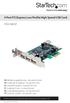 4 Port PCI Express Low Profile High Speed USB Card PEXUSB4DP DE: Bedienungsanleitung - de.startech.com FR: Guide de l'utilisateur - fr.startech.com ES: Guía del usuario - es.startech.com IT: Guida per
Networking. General networking. Networking overview. Common home network configurations. Wired network example. Wireless network examples
 Networking General networking Networking overview A network is a collection of devices such as computers, printers, Ethernet hubs, wireless access points, and routers connected together for communication
DSL-584T ADSL2+ Router User Guide
 DSL-584T ADSL2+ Router User Guide January 2006 ESL584TEU.A1G FCC Warning This device complies with part 15 of the FCC Rules. Operation is subject to the following two conditions: (1) This device may not
Please use only wired network connections to configure the Router.
 Note Please use only wired network connections to configure the Router. Power down all of your network devices, including your computer(s) and the Modem Router. If you currently use a modem, disconnect
High Speed File Share Cable USER GUIDE
 High Speed File Share Cable USER GUIDE Visit our Website at www.targus.com/emea Features and specifications are subject to change without notice. 2008 Targus Group International, Inc. and Targus, Inc.
D-Link DSL-320B User Manual 2
 Table of Contents Table of Contents TABLE OF CONTENTS...2 PACKAGE CONTENTS...3 SYSTEM REQUIREMENTS...3 FEATURES...4 HARDWARE OVERVIEW...5 Connections...5 LEDs...6 INSTALLATION...7 BEFORE YOU BEGIN...7
DMX USB PRO. User Manual. www.enttec.com
 DMX USB PRO User Manual www.enttec.com Firmware V1.43 February 2007 Package Contents Your DMX USB PRO package should contain these items: DMX USB PRO (Part No. 70304) Driver for Windows software on the
3.5in Black USB 2.0 IDE SATA External Hard Drive Enclosure
 3.5in Black USB 2.0 IDE SATA External Hard Drive Enclosure UNI3510U2 UNI3510U2EB UNI3510U2EB UNI3510UEBGB *actual product may vary from photos DE: Bedienungsanleitung - de.startech.com FR: Guide de l'utilisateur
Broadband ADSL2+ Modem DM111PSPv2
 Broadband ADSL2+ Modem DM111PSPv2 User Manual 350 East Plumeria Drive San Jose, CA 95134 USA August 2011 202-10913-01 v1.0 2011 NETGEAR, Inc. All rights reserved No part of this publication may be reproduced,
Quick Installation Guide DSL-2750U/NRU. 3G/ADSL/Ethernet Router with Wi-Fi and Built-in Switch
 DSL-2750U/NRU 3G/ADSL/Ethernet Router with Wi-Fi and Built-in Switch BEFORE YOU BEGIN Delivery Package Router DSL-2750U/NRU Power adapter RJ-11 telephone cable Straight-through Ethernet cable (CAT 5E)
Quick Installation Guide TK-209K TK-409K
 Quick Installation Guide TK-209K TK-409K Table of of Contents Contents English... 1. Before You Start... 2. How to Connect... 3. Operation... 1 1 2 4 Troubleshooting... 5 Version 09.07.2006 1. Before You
HDMI or Component Standalone Capture Device 1080p
 HDMI or Component Standalone Capture Device 1080p USB2HDCAPS *actual product may vary from photos DE: Bedienungsanleitung - de.startech.com FR: Guide de l'utilisateur - fr.startech.com ES: Guía del usuario
This document will show you how to set up the Hotwire 6205 ADSL Modem, and how to customize its configuration to get the most out of this product.
 Hotwire 6205 ADSL Modem Installation Instructions Document Number 6205-A2-GZ40-00 July 2004 Introduction Congratulations on becoming the owner of a Hotwire ADSL USB Modem. You will now be able to surf
USB to VGA Adapter USB2VGAE2. Instruction Manual. USB 2.0 to VGA Multi Monitor External Video Adapter
 USB to VGA Adapter USB2VGAE2 Instruction Manual USB 2.0 to VGA Multi Monitor External Video Adapter *Please ensure that the driver installation is complete prior to the physical installation of the USB
4 Port PCIe 2.0 SATA III 6Gbps RAID Controller
 4 Port PCIe 2.0 SATA III 6Gbps RAID Controller PEXSAT34SFF *actual product may vary from photos DE: Bedienungsanleitung - de.startech.com FR: Guide de l'utilisateur - fr.startech.com ES: Guía del usuario
Installation Guide 1-port USB 2.0 Print Server 1 GPSU21
 Installation Guide 1-port USB 2.0 Print Server 1 GPSU21 2 Welcome Thank you for purchasing this 1-port USB 2.0 Print Server that allows any networked computer to share a USB printer. It complies with USB
Iridium Extreme TM Satellite Phone. Data Services Manual
 Iridium Extreme TM Satellite Phone Data Services Manual Table of Contents 1 OVERVIEW... 1 2 HOW IT WORKS... 1 3 BEFORE INSTALLING... 2 4 USB DRIVER INSTALLATION... 3 5 MODEM INSTALLATION AND CONFIGURATION...
GWA502 package contains: 1 Wireless-G Broadband Router 1 Power Adapter 1 Ethernet Cable 1 Manual CD 1 Quick Start Guide 1 Warranty/Registration Card
 Wireless-G Broadband Router GWA502 Quick Start Guide Read this guide thoroughly and follow the installation and operation procedures carefully to prevent any damage to the unit and/or any of the devices
Low Power Ethernet Card
 Low Power Ethernet Card CompactFlash and PC Card solutions for Windows Mobile-based Pocket PCs, Handheld PCs and pen tablets Windows 95/98/Me/2000/XP/NT 4.0 Notebooks User's Guide 8/2005 Document # 6410-00125
DSL Self-install Kit Instructions. SpeedStream 4100
 DSL Self-install Kit Instructions SpeedStream 4100 Cover and installation notes Page 1 1. Verify your system requirements Page 2 2. Verify the contents of your DSL Self-Install kit Page 2 3. Install filters
IMATION SECURE SCAN. ck Start Guide. Imation Secure Scan
 IMATION SECURE SCAN Quick ck Start Guide Imation Corp 2012 Imation Secure Scan page 1 of 6 1 Unpacking your Imation Secure Scan The following items are contained inside the case: 1 2 Imation Secure Scan
USB 2.0 to 10/100Mbps Ethernet Adapter UE-9521. User Manual
 USB 2.0 to 10/100Mbps Ethernet Adapter UE-9521 User Manual 1 Copyright Copyright 2004 by PLANET Technology Corp. All rights reserved. No part of this publication may be reproduced, transmitted, transcribed,
PCI Express Serial Card
 PCI Express Serial Card 1 Port 16650 PCI Express Serial Card 2 Port 16650 PCI Express Serial Card PEX1S550 PEX2S550 Actual product may vary from photo FCC Compliance Statement This equipment has been tested
DSL Self-install Kit Instructions. SpeedStream 5360
 DSL Self-install Kit Instructions SpeedStream 5360 Cover and installation notes Page 1 1. Verify your system requirements Page 2 2. Verify the contents of your DSL Self-Install kit Page 2 3. Install filters
GWA501 package contains: 1 Wireless-G Broadband Gateway 1 Power Adapter 1 Ethernet Cable 1 Manual CD 1 Quick Start Guide 1 Warranty/Registration Card
 Wireless-G Broadband Gateway GWA501 Quick Start Guide Read this guide thoroughly and follow the installation and operation procedures carefully to prevent any damage to the unit and/or any of the devices
Broadband ADSL2+ Modem Model DM111Pv2 Setup Manual
 Broadband ADSL2+ Modem Model DM111Pv2 Setup Manual NETGEAR, Inc. 350 East Plumeria Drive San Jose, CA 95134 USA October 2014 208-10256-02 v1.0 Support Thank you for selecting NETGEAR products. After installing
Setup and Configuration Guide for Pathways Mobile Estimating
 Setup and Configuration Guide for Pathways Mobile Estimating Setup and Configuration Guide for Pathways Mobile Estimating Copyright 2008 by CCC Information Services Inc. All rights reserved. No part of
DSL-G604T Wireless ADSL Router
 This product can be set up using any current web browser, i.e., Internet Explorer 6 or Netscape Navigator 6.2.3. DSL-G604T Wireless ADSL Router Before You Begin 1. If you purchased this Router to share
Meridian 1 Meridian 1 Attendant PC LAN Interface Installation Guide
 Meridian 1 Meridian 1 Attendant PC LAN Interface Installation Guide Document Number: P0874391 Document Release: Standard 1.00 Date: November 1997 Year Publish FCC TM 1997 All rights reserved Printed in
Prestige 623R-T. Quick Start Guide. ADSL Dual-link Router. Version 3.40
 Prestige 623R-T ADSL Dual-link Router Quick Start Guide Version 3.40 February 2004 Introducing the Prestige The Prestige 623R-T ADSL Dual-link Router is the ideal all-in-one device for small networks connecting
Router Setup Manual. NETGEAR, Inc. 4500 Great America Parkway Santa Clara, CA 95054 USA 208-10060-01 2006-03-17
 NETGEAR, Inc. 4500 Great America Parkway Santa Clara, CA 95054 USA 208-10060-01 2006-03-17 2006 by NETGEAR, Inc. All rights reserved. Trademarks NETGEAR is a trademark of Netgear, Inc. Microsoft, Windows,
DSL-G604T Wireless ADSL Router User s Guide
 DSL-G604T Wireless ADSL Router User s Guide (Sep. 2005) DSLG604TAUB3 v2.00b02.au DSL-G604T Wireless ADSL Router Manual FCC Warning This equipment has been tested and found to comply with the limits for
GPS 35 USB. installation and quick start guide
 GPS 35 USB installation and quick start guide 2001 GARMIN Corporation GARMIN International, Inc. 1200 E 151 st Street, Olathe, Kansas 66062 U.S.A. Tel. 913/397.8200 Fax. 913/397.8282 GARMIN (Europe) Ltd.
Package Checklist. Overview. Features. USB Data Link Cable User s Manual. USB Data Link Cable User s Manual 1
 USB Data Link Cable User s Manual Congratulations on your purchase of the USB Data Link Cable adapter. This unique cable allows you to easily connect two computers with USB port and instantly transfer
DSL-502T ADSL Router User s Guide
 DSL-502T ADSL Router User s Guide (December 2004) 651SL502T045 FCC Warning This equipment has been tested and found to comply with the limits for a Class A digital device, pursuant to Part 15 of the FCC
ADSL MODEM. User Manual V1.0
 ADSL MODEM User Manual V1.0 CONTENTS 1.OVERVIEW... 3 1.1 ABOUT ADSL... 3 1.2 ABOUT ADSL2/2+... 3 1.3 FEATURES... 3 2 SPECIFICATION... 4 2.1 INTERFACE INTRODUCTION... 4 2.1.1 INDICATOR AND INTERFACE...
XTEND 900 MHZ WIRELESS MODEM For use with VEEDER-ROOT EMR³ DATALINK INSTALLATION INSTRUCTIONS Manual 577013-859, Rev. B
 INTRODUCTION This Installation Guide Contains the necessary information to Connect the Wireless Modems to the EMR³ Interconnect Box and the Office Computer for running the EMR³ Datalink Program. For Specific
5-and 8-Port 10/100 Network Switch
 5-and 8-Port 10/100 Network Switch Share your files and Internet connection network F5D5130-5 F5D5130-8 Table of Contents Introduction..........................................1 Product Description...................................2-5
PCI/PXI ETHERNET ADAPTERS
 INSTALLATION GUIDE PCI/PXI ETHERNET ADAPTERS Installing Your PCI Board National Instruments offers several Ethernet adapters based on the Intel 82559-compatible Ethernet controller. This document explains
USB 3.0 to HDMI Adapter with 3-Port USB 3.0 Hub USB 3.0 to VGA Adapter with 3-Port USB 3.0 Hub
 USB 3.0 to HDMI Adapter with 3-Port USB 3.0 Hub USB 3.0 to VGA Adapter with 3-Port USB 3.0 Hub USB32HDEH3 / USB32VGAEH3 *actual product may vary from photos DE: Bedienungsanleitung - de.startech.com FR:
DSL Self-install Kit Instructions
 DSL Self-install Kit Instructions Cover and installation notes Page 1 1. Verify your system requirements Page 2 2. Verify the contents of your DSL Self-Install kit Page 2 3. Install filters on your telephone
DCM-200 DOCSIS 1.0 USB/Ethernet Cable Modem User s Manual
 DCM-200 DOCSIS 1.0 USB/Ethernet Cable Modem User s Manual Third Edition (May 2001) 6DCM200...03 Made in Taiwan RECYCLABLE Table of Contents Introduction... 1 Features 1 Contents and Identification...
HUAWEI HG533 Home Gateway. User Guide HUAWEI TECHNOLOGIES CO., LTD.
 HUAWEI HG533 Home Gateway User Guide HUAWEI TECHNOLOGIES CO., LTD. HUAWEI HG533 Home Gateway V100R001 User Guide 202466_02 Huawei Technologies Co., Ltd. provides customers with comprehensive technical