
Novell Distributed File Services Administration Guide
|
|
|
- Alisha Baldwin
- 10 years ago
- Views:
Transcription
1 Novell Distributed File Services Administration Guide Open Enterprise Server 11 SP2 January 2014

2 Legal Notices Novell, Inc., makes no representations or warranties with respect to the contents or use of this documentation, and specifically disclaims any express or implied warranties of merchantability or fitness for any particular purpose. Further, Novell, Inc., reserves the right to revise this publication and to make changes to its content, at any time, without obligation to notify any person or entity of such revisions or changes. Further, Novell, Inc., makes no representations or warranties with respect to any software, and specifically disclaims any express or implied warranties of merchantability or fitness for any particular purpose. Further, Novell, Inc., reserves the right to make changes to any and all parts of Novell software, at any time, without any obligation to notify any person or entity of such changes. Any products or technical information provided under this Agreement may be subject to U.S. export controls and the trade laws of other countries. You agree to comply with all export control regulations and to obtain any required licenses or classification to export, re export or import deliverables. You agree not to export or re export to entities on the current U.S. export exclusion lists or to any embargoed or terrorist countries as specified in the U.S. export laws. You agree to not use deliverables for prohibited nuclear, missile, or chemical biological weaponry end uses. See the Novell International Trade Services Web page ( for more information on exporting Novell software. Novell assumes no responsibility for your failure to obtain any necessary export approvals. Copyright Novell, Inc. All rights reserved. No part of this publication may be reproduced, photocopied, stored on a retrieval system, or transmitted without the express written consent of the publisher. Novell, Inc South Novell Place Provo, UT U.S.A. Online Documentation: To access the latest online documentation for this and other Novell products, see the Novell Documentation Web page ( Novell Trademarks For Novell trademarks, see the Novell Trademark and Service Mark list ( tmlist.html). Third-Party Materials All third party trademarks are the property of their respective owners.

3 Contents About This Guide 9 1 Overview of Distributed File Services Benefits of DFS Data Distribution Backup Data Migration DFS Components DFS Management Context Volume Location Database VLDB Service VLDB Service Replica Sites DFS Junctions Move Volume Jobs Split Volume Jobs DFS Management Tools Services and Components Used by DFS Novell Storage Services NCP Server and NCP Volumes Novell Storage Management Services edirectory DClient JetStream Examples of DFS Management Contexts A Single DFS Management Context Multiple DFS Management Contexts in Different Subtrees Multiple DFS Management Contexts in the Same Subtree What s Next What s New or Changed in Distributed File Services (DFS) What s New (OES 11 SP2) What s New (OES11 SP1) What s New (OES11) Installing and Configuring Novell Distributed File Services Requirements for OES 11 SP2 Services Novell Storage Services Novell Storage Management Services Novell edirectory SLP Novell Linux User Management NCP Server File Access Protocols (NCP, CIFS, Samba) Novell imanager Novell Logical Volume Management System Installing DFS Upgrade Upgrading from OES to OES 11 SP Enabling DFS Junction Support for CIFS Contents 3

4 3.4.1 Limitations Enabling DFS Support CIFS What s Next Clustering Novell Distributed File Services Guidelines for Using DFS in a Cluster Environment Guidelines for Using DFS Junctions in a Cluster Environment Guidelines for Using DFS Move and Split in a Cluster Environment Guidelines for Clustering the VLDB Service Clustering the VLDB Service Modifying VLDB Settings in the Cluster Load Script Business Continuity Clustering Novell Distributed File Services Guidelines for Enabling DFS Using BCC BCC Enabling the VLDB Service Migrating DFS from NetWare to OES 11 SP Migration Issues for DFS Caveats for Junctions Caveats for Protocol Compatibility Caveats for Mounting NSS Volumes on Different Servers Caveats for Migrating Data with the OES 11 SP2 File System Migration Tool Planning Your Migration in a DFS Management Context Supported Migration Platforms System Credential Requirements Supported Migration Scenarios Migrating the DFS VLDB Service Prerequisites for Migrating the VLDB Service Migrating a VLDB Service by Adding It as a Replica Site Migrating NSS Volumes with the DFS Move Volume or Split Volume Task Running DFS in a Virtualized Environment Guidelines for Managing DFS in a Virtualized Environment Guidelines for Using DFS Junctions in a Virtualized Environment What s Next Management Tools for DFS Novell imanager and DFS-Related Plug-Ins Installing the DFS-Related Plug-Ins in imanager Accessing imanager Accessing Roles and Tasks in imanager Selecting a Server to Manage Distributed File Services Plug-In Storage Plug-In Files and Folders Plug-In SFCB DFS Commands Planning for DFS Guidelines for Combining Platforms, Volumes, and Protocols Supported Combinations for Junctions OES 11 SP2: Novell Distributed File Services Administration Guide for Linux

5 9.1.2 Supported Combinations for Moving Volumes Supported Combinations for Splitting Volumes Guidelines for DFS Management Contexts Guidelines for VLDB Services Guidelines for Junctions Junction Volumes Junction Target Volumes Junction Target Directory Junctions Guidelines for Using DFS with Encrypted NSS Volumes Creating DFS Junctions on Encrypted NSS Volumes Moving or Splitting Encrypted NSS Volumes Guidelines for Moving or Splitting NSS Volumes Choosing Source and Destination Volumes Preparing the DFS Management Context Requirements for OES 11 SP2 Services Prerequisites for Trustees and Trustee Rights Moving Volumes that Use the Upgraded Media Format for Enhanced Hard Links Moving or Splitting in a Cluster Environment Moving or Splitting in a Dynamic Storage Technology Environment Guidelines for Managing Move Volume or Split Volume Jobs Guidelines for Using DFS and Novell Dynamic Storage Technology DFS and DST Compatibility Using DFS Junctions in a DST Shadow Volume Moving and Splitting Volumes in a DST Shadow Volume Guidelines for DFS and Volume Attributes Guidelines for Using DFS with Novell Archive and Version Services Guidelines for Using DFS and Nearline Storage Managing VLDB Services Creating a DFS Management Context Deleting a Management Context Managing Replica Sites Starting or Activating the VLDB Service Using imanager Using Script Specifying Non-Default VLDB Database Paths on Replica Sites Stopping the VLDB Service Using imanager Using Script Monitoring the Health of the VLDB Service Using imanager Using Script Viewing VLDB Service Details for a Replica Site Adding a Replica Site Removing a Replica Site Viewing a List of Volume Entries in the VLDB Adding a Volume Entry to the VLDB Deleting a Volume Entry from the VLDB Repairing the VLDB Managing DFS Junctions Understanding DFS Junctions Junction Properties Contents 5

6 Trustee Rights for the Junction and Target Locations Prerequisites and Guidelines for DFS Junctions Creating a DFS Junction Modifying a DFS Junction Name Modifying the Junction Location Modifying the Target Location Adding or Deleting Trustees for the Junction Adding or Deleting Trustees for the Junction Target Modifying Trustee Rights for the Junction Modifying Trustee Rights for the Junction Target Viewing a DFS Junction Deleting the Junction Salvaging or Purging Deleted Junctions Guidelines for Deleted Junctions Salvaging a Deleted Junction Purging Deleted Junctions Using DFS to Move NSS Volumes Prerequisites for Moving an NSS Volume with DFS Planning the Move Volume Job Preparing the DFS Management Context Preparing the Source Server and Volume Preparing the Destination Server Moving an NSS Volume with DFS Using DFS to Split NSS Volumes Prerequisites for Splitting an NSS Volume with DFS Planning the Split Volume Job Preparing the DFS Management Context Preparing the Source Server and Directory Preparing the Destination Server Splitting a Volume with DFS Managing Move Volume or Split Volume Jobs Monitoring the Status of Move Volume or Split Volume Jobs Understanding the Job Status Report Viewing the Volume Job Report Pausing a Move or Split Job Resuming a Move or Split Job Rescheduling a Move or Split Job Viewing Files Skipped by a Move or Split Job Finishing a Move or Split Job Deleting a Move or Split Job Troubleshooting Move or Split Job Failures Failed: (No Reason Specified) Failed: Could Not Start Backup Failed: File Read Failed: File Restore Failed: Invalid Original Server s NSS Version Failed: Invalid Target Server s NSS Version Failed: Log File Problem Failed: Login Failed: No Management Context OES 11 SP2: Novell Distributed File Services Administration Guide for Linux
7 Failed: Wrong Management Context Troubleshooting DFS Adding Replica Site to the New Management Context Fails with an edirectory -603 error NetStorage Does Not Resolve a DFS Junction If Both OES 11 SP2 and NetWare VLDB Replicas are Present in a Management Context DFS may not function properly after upgrading NSS on OES 2 and later Cannot Delete DFS Management Context by Using imanager Cannot Re-Create a DFS Management Context on a Container Errors Using DFS on an Upgraded OES 11 Server or Later Junctions Are Broken After a Volume Object Update Junctions Are Broken After Deleting and Re-Creating an NCP Volume Move Volume or Split Volume Job Fails to Start Users Cannot See Directories or Files on the Target Location VLDB Stops Working After Renaming the O or OU Container for a DFS Management Context The State of a Move Volume or Split Volume Job in a Cluster Environment is Scheduled Security Considerations VLDB File TCP Port Move and Split Job Crash Persistence Creating DFS Junctions on Encrypted NSS Volumes Moving or Splitting Encrypted NSS Volumes ~DFSINFO.8-P File A DFS Commands and Utilities 135 A.1 VLDB A.1.1 Managing the VLDB Service A.1.2 Managing VLDB Entries A.1.3 Repairing the VLDB A.1.4 Hidden VLDB Command A.2 VOLMN B DFS Modules 139 B.1 DFS VLDB Modules B.2 DFS Volume Manager Module B.3 DFS Remote Procedure Calls Modules B.4 DFS Library Modules B.5 JetStream Modules C Error Code List 141 D Documentation Updates 145 D.1 January D.1.1 What s New D.1.2 Clustering Novell Distributed File Services D.1.3 Managing VLDB Services D.2 August 2012 (OES 11 SP1) D.2.1 What s New D.2.2 Error Code List Contents 7

8 8 OES 11 SP2: Novell Distributed File Services Administration Guide for Linux

9 About This Guide This document describes how to configure and manage Novell Distributed File Services for Novell Storage Services (NSS) volumes on a Novell Open Enterprise Server (OES) 11 SP2 server. Chapter 1, Overview of Distributed File Services, on page 11 Chapter 2, What s New or Changed in Distributed File Services (DFS), on page 27 Chapter 3, Installing and Configuring Novell Distributed File Services, on page 29 Chapter 4, Clustering Novell Distributed File Services, on page 37 Chapter 5, Business Continuity Clustering Novell Distributed File Services, on page 43 Chapter 6, Migrating DFS from NetWare to OES 11 SP2, on page 47 Chapter 7, Running DFS in a Virtualized Environment, on page 57 Chapter 8, Management Tools for DFS, on page 59 Chapter 9, Planning for DFS, on page 67 Chapter 10, Managing VLDB Services, on page 79 Chapter 11, Managing DFS Junctions, on page 93 Chapter 12, Using DFS to Move NSS Volumes, on page 105 Chapter 13, Using DFS to Split NSS Volumes, on page 111 Chapter 14, Managing Move Volume or Split Volume Jobs, on page 117 Chapter 15, Troubleshooting DFS, on page 127 Chapter 16, Security Considerations, on page 133 Appendix A, DFS Commands and Utilities, on page 135 Appendix B, DFS Modules, on page 139 Appendix C, Error Code List, on page 141 Appendix D, Documentation Updates, on page 145 Audience This guide is intended for network administrators. Chapter 16, Security Considerations, on page 133 describes key security issues for security administrators. Feedback We want to hear your comments and suggestions about this manual and the other documentation included with this product. Please use the User Comment feature at the bottom of each page of the online documentation. Documentation Updates For the most recent version of the Novell Distributed File Services Administration Guide, see the latest Novell Open Enterprise Server 11 documentation ( index.html). About This Guide 9

10 Additional Documentation For information about DFS XML options, see the Novell Developer Kit: Virtual File Services ( developer.novell.com/documentation/vfs/vfs enu/data/bktitle.html). For information about OES 11 SP2 services referenced in this guide, see the following: NetIQ edirectory 8.8 SP8 Administration Guide OES 11 SP2: NCP Server for Linux Administration Guide OES 11 SP2: Novell CIFS for Linux Administration Guide OES 11 SP2: Novell Samba Administration Guide For information about using DFS on NetWare 6.5 servers, see the NW 6.5 SP8: Novell Distributed File Services Administration Guide. 10 OES 11 SP2: Novell Distributed File Services Administration Guide for Linux
11 1 1Overview of Distributed File Services Novell Distributed File Services (DFS) for the Novell Storage Services (NSS) file system provides location transparency of file data to end users. With DFS, you can create a single virtual file system for data on NSS volumes that spans multiple machines to maximize the use and performance of storage resources. Section 1.1, Benefits of DFS, on page 11 Section 1.2, DFS Components, on page 12 Section 1.3, Services and Components Used by DFS, on page 18 Section 1.4, Examples of DFS Management Contexts, on page 19 Section 1.5, What s Next, on page Benefits of DFS Novell Distributed File Services helps you modify the underlying physical organization of data on NSS volumes to maximize the use and performance of available storage resources. Section 1.1.1, Data Distribution, on page 11 Section 1.1.2, Backup, on page 12 Section 1.1.3, Data Migration, on page Data Distribution DFS preserves the logical file organization from the user perspective by maintaining a Volume Location Database (VLDB) for all volumes in a DFS management context. When you move an NSS volume to a new volume in a different pool, the VLDB helps redirect queries to the new location. When you split an NSS volume to relocate a directory s data to a newly created NSS volume, DFS places a junction file in place of the directory at the source location. The junction contains a hint about the destination location of the data. When a user attempts to access the data, DFS uses that information to look up the location of the destination volume in the VLDB, then automatically redirects queries so that the session connection can be made transparently from the user s point of view by going directly to the data. After the connection is made, the junction itself is no longer involved in the session. Using junctions and the VLDB eliminates the user s need to know the path to the physical location of the data. Not only does it decrease administration costs by allowing you to move a volume to a different server without making any announcements or needing to reeducate users, but it also simplifies the number of paths a user needs to remember if the data is spread among different volumes or servers. For example, if John s data is located on servers X, Y, and Z, you can create junctions on server X that point to all of his data on servers Y and Z. That way, John only needs to remember the path to server X, because with junctions, it appears as if the data is all located in one place. Overview of Distributed File Services 11

12 1.1.2 Backup DFS provides a solution to the common problem of storage volumes growing too big to back up within the desired or required time period. A too large volume can be split into two (or more) volumes, and the resulting volumes backed up separately as required. You can split a volume at any directory to a new NSS volume without changing the logical path to files. You and your users can continue to use the logical paths when mapping network drives or creating login scripts. The physical location of data can change over time, and that change is completely transparent to the end user Data Migration DFS can also provide a migration path for customers moving NSS volumes from NetWare 6.5 to OES 11 SP2. The Move Volume task for DFS can be used on a NetWare server to move file data on an NSS volume to a target NSS volume or an NCP volume on an OES 11 SP2 server. This allows you to gradually move data to an OES 11 SP2 environment, without committing to a turnkey change of operating environment. For an example, see Chapter 6, Migrating DFS from NetWare to OES 11 SP2, on page DFS Components Section 1.2.1, DFS Management Context, on page 12 Section 1.2.2, Volume Location Database, on page 14 Section 1.2.3, VLDB Service, on page 15 Section 1.2.4, VLDB Service Replica Sites, on page 15 Section 1.2.5, DFS Junctions, on page 15 Section 1.2.6, Move Volume Jobs, on page 16 Section 1.2.7, Split Volume Jobs, on page 17 Section 1.2.8, DFS Management Tools, on page DFS Management Context DFS operates within a management context. The management context is a preexisting O or OU container that you choose from your Novell edirectory tree. When you define the management context, two attributes are added to the O or OU container object that you select: DFS VLDB Hosts: A multiple valued attribute that contains the distinguished names of the one or two servers that host the VLDB service replica for this management context. VLDB BackEnd ID: The name of the back end database plug in for this management context. Currently, this is vdqad, and the plug in is not modifiable. The presence of these attributes is what indicates to the DFS software that the container is a DFS management context. The management context can have one or two Volume Location Database services replicas. The servers that host replicas of the VLDB service can exist anywhere in the management context, as shown below. 12 OES 11 SP2: Novell Distributed File Services Administration Guide for Linux

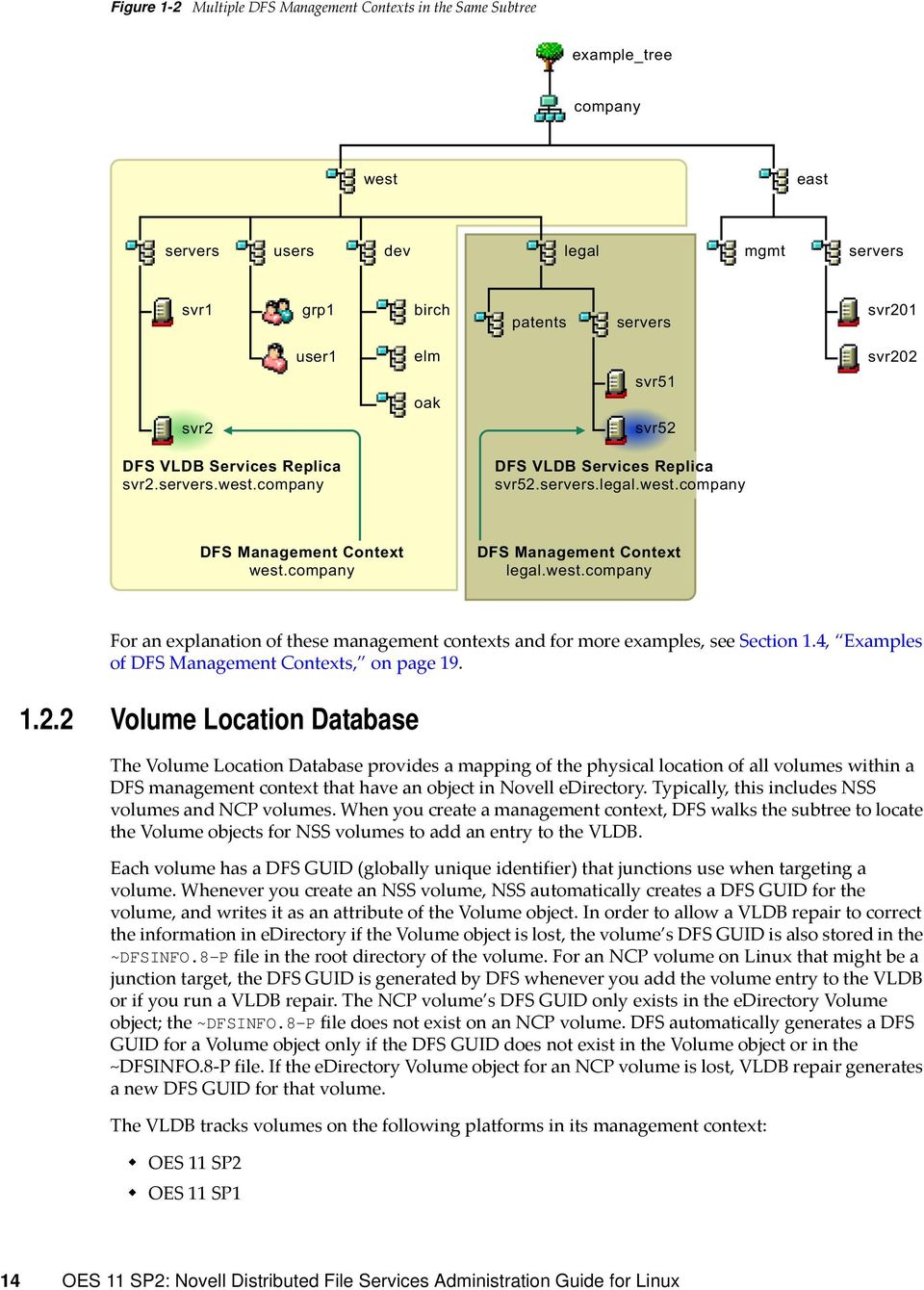
13 Figure 1-1 A Single DFS Management Context example_tree company west east servers users dev legal mgmt servers svr1 grp1 birch patents servers svr201 svr2 user1 elm oak svr51 svr52 svr202 DFS VLDB Services Replica svr2.servers.west.company DFS VLDB Services Replica svr52.servers.legal.west.company DFS Management Context west.company Multiple management contexts can be defined in a single edirectory tree. The management contexts function independently. If the management contexts are defined in different subtrees, adding and removing one of the contexts has no effect on the other one. If a management context is defined at a different level in the tree, the higher level management context does not include the subtree of the lower level management context, as shown below. Each management context is responsible for only those volumes that are in its subtree but are not in a lower level management context. Overview of Distributed File Services 13

14 Figure 1-2 Multiple DFS Management Contexts in the Same Subtree example_tree company west east servers users dev legal mgmt servers svr1 grp1 birch patents servers svr201 svr2 user1 elm oak svr51 svr52 svr202 DFS VLDB Services Replica svr2.servers.west.company DFS VLDB Services Replica svr52.servers.legal.west.company DFS Management Context west.company DFS Management Context legal.west.company For an explanation of these management contexts and for more examples, see Section 1.4, Examples of DFS Management Contexts, on page Volume Location Database The Volume Location Database provides a mapping of the physical location of all volumes within a DFS management context that have an object in Novell edirectory. Typically, this includes NSS volumes and NCP volumes. When you create a management context, DFS walks the subtree to locate the Volume objects for NSS volumes to add an entry to the VLDB. Each volume has a DFS GUID (globally unique identifier) that junctions use when targeting a volume. Whenever you create an NSS volume, NSS automatically creates a DFS GUID for the volume, and writes it as an attribute of the Volume object. In order to allow a VLDB repair to correct the information in edirectory if the Volume object is lost, the volume s DFS GUID is also stored in the ~DFSINFO.8-P file in the root directory of the volume. For an NCP volume on Linux that might be a junction target, the DFS GUID is generated by DFS whenever you add the volume entry to the VLDB or if you run a VLDB repair. The NCP volume s DFS GUID only exists in the edirectory Volume object; the ~DFSINFO.8-P file does not exist on an NCP volume. DFS automatically generates a DFS GUID for a Volume object only if the DFS GUID does not exist in the Volume object or in the ~DFSINFO.8 P file. If the edirectory Volume object for an NCP volume is lost, VLDB repair generates a new DFS GUID for that volume. The VLDB tracks volumes on the following platforms in its management context: OES 11 SP2 OES 11 SP1 14 OES 11 SP2: Novell Distributed File Services Administration Guide for Linux
15 OES 2 NetWare 6.5 Any volume that has a Volume object in the O or OU container belongs to the management context, unless the volume belongs to a management context that is defined at a lower level in the container. NSS automatically creates a Volume object in edirectory when you create a volume with NSS tools. NCP Server automatically creates a Volume object in edirectory when you create the NCP share for an NCP volume (an NCP share on a Linux POSIX volume) VLDB Service The Volume Location Database service provides the framework for locating volumes in the management context. Managing the VLDB service involves the creation, day to day management, maintenance, and repair of the VLDB VLDB Service Replica Sites A replica site is the server that hosts an instance of the VLDB service and its VLDB file for a DFS management context. Each management context has one or two replicas. The replicas can be on any combination of operating platforms that support DFS. The servers can be at the same level or below the management context in the edirectory tree, but they must not be in a lower level DFS management context. When two replica sites are deployed for the management context, each instance of the VLDB service is an equal replica that automatically synchronizes its data with the other replica site. The two instances exchange databases (the entire database, not just the changes) any time a change is made to an instance. Upon receipt of the other replicaʹs database, each replica merges the received database with its own, determining which entries have been added, deleted, or modified. Use the Distributed File Services > Manage Replica Sites task in imanager to configure replica sites, monitor their status, and repair the VLDB as needed. You can also manage the VLDB service from the server console with VLDB commands DFS Junctions A DFS junction is a logical placeholder for data that is stored on a different NSS volume. One junction points to only one target location. A junction is a virtual directory that points to the root of a target NSS volume. In some configurations, the junction can point to a subdirectory on the target volume. For details, see Section 9.1.1, Supported Combinations for Junctions, on page 67. The DFS junction stores the DFS GUID of the target volume, not its physical location. This allows volumes to be moved without rectifying the change in every junction. The VLDB contains information about the physical location of volumes. When the junction receives a query, DFS aware client (Novell Client, Novell CIFS server, or NetStorage) presents the target DFS GUID to the VLDB to get the physical location of the volume, and the query is transparently redirected to the target location. To the user, a DFS junction appears to be a normal subdirectory; only its directory properties identify it as a junction. Users can continue to access their data without modifying the familiar logical paths. DFS supports junctions for NSS volumes. The junction can be located anywhere in the source NSS volume, including the root of the volume. Multiple levels of junctions are allowed when a junction points to the root of a target volume and the file access protocol supports multiple levels of junctions. For details of supported relationships, see Section 9.1, Guidelines for Combining Platforms, Volumes, and Protocols, on page 67. Overview of Distributed File Services 15

16 A junction can point to a target location on the following types of volumes that are in the same DFS Management Context. File access is controlled by file system trustees and trustee rights: NSS volumes The source server and target server must have the same communication protocol configured for file access, such as NCP to NCP, NetWare CIFS to NetWare CIFS, Novell CIFS to Novell CIFS, or NetWare CIFS to Samba. IMPORTANT: Samba does not support DFS junctions themselves, so if the target volume contains junctions, they do not work. NCP volumes (NCP shares on Linux POSIX volumes) This requires the NCP Server to be running on the source and target servers. Target volumes can reside on the following operating systems: OES 11 SP2 OES 11 SP1 OES 2 NetWare 6.5 When you split an NSS volume, DFS copies the data to a newly created volume, creates a junction to replace the directory, and deletes all content below that point in the original volume. For instructions on how to split a volume, see Chapter 13, Using DFS to Split NSS Volumes, on page 111. You can also create a junction manually. The following tables describe the rules for manually creating junctions. Table 1-1 Rules for Manually Creating Junctions Source Volume Source Volume s DFS Management Context Target Volume Target Volume s DFS Management Context An existing NSS volume on a supported system. It must be in the same edirectory tree as the target volume. None required. It must be in the same edirectory tree as the target volume, but is not required to be in the target s DFS management context. An existing volume on a supported system. It must be in the same edirectory tree as the source volume. Required. It can be in any management context in the same edirectory tree as the source volume Move Volume Jobs A Move Volume job helps you to do the following: Move an NSS volume to a newly created NSS volume in a different pool that has space available or that is expandable. Move NSS volumes to different servers in the same DFS management context to balance associated traffic and workload across multiple servers. Move data between volumes faster than with a normal copy because it uses Novell Storage Management Services to transfer the data. Use the Move Volume task in the Storage plug in to imanager to define Move Volume jobs. 16 OES 11 SP2: Novell Distributed File Services Administration Guide for Linux

17 After a successful move, the physical location of the volume is automatically updated in the VLDB. If the volume is on a different server, existing junctions that point to the source volume are not broken. They simply point to the new volume location by using the updated VLDB mapping. Scripts need to be modified in order to access the volume by its new pathname if you move the volume to a different server or rename it. The following table describes the rules for moving volumes with DFS. For instructions, see Chapter 12, Using DFS to Move NSS Volumes, on page 105. Table 1-2 Rules for Moving Volumes Source Volume Source Volume s DFS Management Context Target Volume Target Volume s DFS Management Context NSS volume on a supported system. Required. The source and target volume must be in the same management context. A newly created volume on a supported system Required. The source and target volume must be in the same management context Split Volume Jobs With DFS, you can split an NSS volume at a specified directory and relocate the directory contents to a new volume on the same server, or to a different server anywhere in the same edirectory management context. The new volume typically resides in a different pool. After a successful relocation of directory contents, DFS automatically creates a DFS junction at the split point, which replaces the original directory and its content. The DFS junction contains information used to redirect queries to the new location. Users can continue to access their data on the new volume, without modifying the familiar logical paths. The following table describes the rules for splitting volumes. For instructions, see Chapter 13, Using DFS to Split NSS Volumes, on page 111. Table 1-3 Rules for Splitting Volumes Source Directory Source Volume s DFS Management Context Target Location Target Volume s DFS Management Context Any directory in an NSS volume on a supported system. Required. The source and target volume must be in the same management context. A newly created NSS volume on a supported system. The target location must be at the root of the volume. Required. The source and target volume must be in the same management context. Overview of Distributed File Services 17

18 1.2.8 DFS Management Tools The primary management tool for Novell Distributed File Services is Novell imanager 2.7. Use the following plug ins: Distributed File Services: This plug in allows you to create or delete DFS contexts, manage VLDB replica sites and their VLDB service, and control move and split volume jobs. For an overview of the available tasks, see Section 8.1.5, Distributed File Services Plug In, on page 61. Storage: This plug in allows you to define Move Volume jobs and Split Volume jobs from its Volumes page. For an overview of the available tasks, see Section 8.1.6, Storage Plug In, on page 64. For more information about using imanager, see Section 8.1, Novell imanager and DFS Related Plug Ins, on page Services and Components Used by DFS The services and components in this section are used by DFS. Section 1.3.1, Novell Storage Services, on page 18 Section 1.3.2, NCP Server and NCP Volumes, on page 18 Section 1.3.3, Novell Storage Management Services, on page 18 Section 1.3.4, edirectory DClient, on page 19 Section 1.3.5, JetStream, on page Novell Storage Services DFS junctions can reside only on NSS volumes. The DFS volume move and split options are available only where both the source and destination volumes are NSS volumes NCP Server and NCP Volumes On OES 11 SP2, DFS junctions can also point to NCP volumes (NCP shares for Linux POSIX volumes). NCP Server must be installed and running on the target server in order to support NCP volumes. It enforces secure file access on NCP volumes for Linux enabled edirectory users, using the Novell Trustee Model of trustees and trustee rights. When you define an NCP share (mount point) for the NCP volume, NCP Server creates a Volume object in edirectory. DFS assigns a DFS GUID as an object attribute for the NCP volume. The physical server location of the NCP volume is tracked in the VLDB. The VLDB tracks volumes by their DFS GUIDs and does not contain information that distinguishes whether a given volume is an NSS volume or an NCP volume Novell Storage Management Services DFS uses Novell Storage Management Services to copy files to the new location in a DFS volume move or split. An SMS copy is faster than for a normal copy utility, and it can be restarted as needed. 18 OES 11 SP2: Novell Distributed File Services Administration Guide for Linux

19 1.3.4 edirectory DClient The VLDB code is written to Novell edirectory, not LDAP, and uses the low level DClient interfaces for edirectory. This requires that edirectory be running on servers that contain junctions or on both the source and target servers when using the DFS volume moves or splits. However, an edirectory replica is not required to be co located on the server JetStream JetStream provides a transport independent interprocess communication facility. DFS uses JetStream for interprocess communications by DFS modules. JetStream uses an unregistered TCP port 6901 (0x1AF5). This port assignment is not configurable. Using DFS through a firewall requires this port to be opened by the network administrator. DFS components that interact with JetStream use edirectory names (such as dfstest.east.example) for names of target hosts. The DFS JetStream related code uses the low level DClient interfaces for edirectory. 1.4 Examples of DFS Management Contexts This section describes multiple examples of DFS management contexts. The following icons represent edirectory containers and objects in the examples. Figure 1-3 Icons for edirectory Containers and Objects edirectory Icons Containers Tree Organization (O) Organizational Unit (OU) Leaf Objects (Common Name (CN)) Server Volume Group User Section 1.4.1, A Single DFS Management Context, on page 20 Section 1.4.2, Multiple DFS Management Contexts in Different Subtrees, on page 21 Section 1.4.3, Multiple DFS Management Contexts in the Same Subtree, on page 22 Overview of Distributed File Services 19

20 1.4.1 A Single DFS Management Context In the following example, a single DFS management context is shown by a shaded box. Figure 1-4 A Single DFS Management Context example_tree company west east servers users dev legal mgmt servers svr1 grp1 birch patents servers D svr201 user1 elm oak svr2 B C svr51 svr52 svr202 DFS VLDB Services Replica svr2.servers.west.company DFS VLDB Services Replica svr52.servers.legal.west.company A DFS Management Context west.company Feature A Description The management context is defined at the edirectory container called west.company (ou=west.o=company). Junctions can point to any supported volume in the management context. B C D Two replica servers each host an instance of the VLDB service for the management context. Its VLDB maps the location of the volumes at all levels in the subtree defined by the west.company edirectory container. Volume objects in the east.company (ou=east.o=company) subtree are not in a management context in this example, so it is not possible to create a junction to any supported volumes in this part of the tree. 20 OES 11 SP2: Novell Distributed File Services Administration Guide for Linux

21 1.4.2 Multiple DFS Management Contexts in Different Subtrees In the following example, two management contexts in different subtrees are shown by shaded boxes. Figure 1-5 DFS Management Contexts in Different Subtrees example_tree company west east servers users dev legal mgmt servers svr1 grp1 birch patents servers svr201 user1 elm oak svr2 B C svr51 svr52 D svr202 DFS VLDB Services Replica svr202.servers.east.company DFS VLDB Services Replica svr2.servers.west.company DFS VLDB Services Replica svr52.servers.legal.west.company A DFS Management Context west.company DFS Management Context east.company Feature A Description The management context defined at west.company (ou=west.o=company) functions in a different subtree than the management context defined at east.company (ou=east.o=company). Replica sites for each context must reside within their respective management context. Junctions can point to any supported volumes in either of the management contexts. Move volume and split volume jobs can be defined only for source and target volumes within the same management context. B C D Two replica servers each host an instance of the VLDB service for the west.company management context. The VLDB maps the location of the volumes at all levels in the subtree defined by the west.company edirectory container. In this example, the replicas are located in different organizational units in the subtree, but they could be in the same one. A single replica server hosts the VLDB service for the east.company management context. Its VLDB maps the location of the volumes at all levels in the subtree defined by the east.company edirectory container. Overview of Distributed File Services 21
22 1.4.3 Multiple DFS Management Contexts in the Same Subtree In the following example, a second management context is added at a lower level in the same subtree. The two management contexts are shown by shaded boxes in the After figure. Figure 1-6 Adding a DFS Management Contexts at a Lower Level in the Subtree 22 OES 11 SP2: Novell Distributed File Services Administration Guide for Linux
23 Before example_tree company west east servers users dev legal mgmt servers svr1 grp1 birch patents servers svr201 svr2 user1 elm oak A svr51 svr52 svr202 DFS VLDB Services Replica svr2.servers.west.company DFS VLDB Services Replica svr52.servers.legal.west.company DFS Management Context west.company After example_tree company west east servers users dev legal mgmt servers svr1 grp1 birch patents servers D svr201 user1 elm oak svr2 B C svr51 svr52 svr202 DFS VLDB Services Replica svr2.servers.west.company DFS VLDB Services Replica svr52.servers.legal.west.company DFS Management Context west.company DFS Management Context legal.west.company Overview of Distributed File Services 23
24 Feature A Description The management context is defined at west.company (ou=west.o=company). One of its two replica servers resides in the subtree legal.west.company where you want to create a second DFS management context. You must delete this replica from the west.company management context before you create the DFS management context for legal.west.company. If the replica in legal.west.company is the only replica server for west.company, you must create a second replica server in a different subtree of west.company, synchronize the VLDB on the second replica server, delete the replica in legal.west.company, then create the second DFS management context. B The management context defined at west.company (ou=west.o=company) does not contain legal.west.company (ou=legal.ou=west.o=company). A single replica server hosts the VLDB service for the west.company management context. Its VLDB maps the location of the volumes at all levels in the subtree defined by the west.company edirectory container, except for those volumes in the legal.west.company subtree. You can optionally add a second replica in the subtree, but not under the legal.west.company subtree. Replica sites for each context must reside within their respective management context. Junctions can point to any supported volumes in either of the management contexts. Move volume and split volume jobs can be defined only for source and target volumes within the same management context. C The management context defined at legal.west.company (ou=legal.ou=west.o=company) functions independently of the management context defined above it. A single replica server hosts the VLDB service for the legal.west.company management context. Its VLDB maps the location of the volumes at all levels in the subtree defined by the legal.west.company edirectory container. You can optionally add a second replica in the legal.west.company subtree. D Volume objects in the east.company (ou=east.o=company) subtree are not in a management context in this example, so it is not possible to create a junction to any volumes in this part of the tree. 24 OES 11 SP2: Novell Distributed File Services Administration Guide for Linux
25 In the following example, a second management context is added at a higher level in the same subtree. The two management contexts are shown by shaded boxes in the After figure. Figure 1-7 Adding a DFS Management Contexts at a Higher Level in the Subtree Before example_tree company west east servers users dev legal mgmt servers svr1 grp1 birch patents servers B svr201 svr2 user1 elm oak A svr51 svr52 svr202 DFS VLDB Services Replica svr52.servers.legal.west.company DFS Management Context legal.west.company After example_tree company west east servers users dev legal mgmt servers svr1 grp1 birch patents servers E svr201 user1 elm oak svr2 C D svr51 svr52 svr202 DFS VLDB Services Replica svr2.servers.west.company DFS VLDB Services Replica svr52.servers.legal.west.company DFS Management Context west.company DFS Management Context legal.west.company Overview of Distributed File Services 25
26 Feature A B C Description The management context is defined at legal.west.company (ou=legal.ou=west.o=company). Its replica server is not affected by the management context you want to add at a higher level in the edirectory tree. Volume objects in the east.company (ou=east.o=company) subtree are not in a management context in this example, so it is not possible to create a junction to any volumes in this part of the tree. The management context defined at west.company (ou=west.o=company) does not contain legal.west.company (ou=legal.ou=west.o=company). A single replica server hosts the VLDB service for the west.company management context. Its VLDB maps the location of the NSS volumes at all levels in the subtree defined by the west.company edirectory container, except for those NSS volumes in the legal.west.company subtree. You can optionally add a second replica in the subtree, but not under the legal.west.company subtree. Replica sites for each context must reside within their respective management context. Junctions can point to any supported volumes in either of the management contexts. Move volume and split volume jobs can be defined only for source and target volumes within the same management context. D The management context defined at legal.west.company (ou=legal.ou=west.o=company) functions independently of the management context defined above it. A single replica server hosts the VLDB service for the legal.west.company management context. Its VLDB maps the location of the volumes at all levels in the subtree defined by the legal.west.company edirectory container. You can optionally add a second replica in the legal.west.company subtree. E The east.company subtree is not affected by the addition of a DFS management context in a different subtree even though it is at the same level in the tree. In both of the same subtree examples, if you delete the higher level DFS management context (west.company), the VLDB service on its replica server (svr2.servers.west.company) is stopped and its VLDB is deleted. Any junctions that point to volumes in the deleted management context are broken. Deleting the west.company management context has no effect on the lower level DFS management context at legal.west.company. In both of the same subtree examples, if you delete the lower level DFS management context (legal.west.company), the VLDB service on its replica server (svr52.servers.legal.west.company) are stopped and its VLDB is deleted. The higher level management context automatically expands to include the lower level subtree. A VLDB repair adds the volumes in the subtree to the VLDB. When the repair is completed, junctions that point to volumes in the legal.west.company subtree continue to work normally. 1.5 What s Next Read about OES 11 SP2 enhancements for DFS in Chapter 2, What s New or Changed in Distributed File Services (DFS), on page 27. For information about installing and configuring DFS, see Chapter 3, Installing and Configuring Novell Distributed File Services, on page OES 11 SP2: Novell Distributed File Services Administration Guide for Linux
27 2 2What s New or Changed in Distributed File Services (DFS) This section describes enhancements and changes in Distributed File Services since the initial release of Novell Open Enterprise Server (OES) 11. Section 2.1, What s New (OES 11 SP2), on page 27 Section 2.2, What s New (OES11 SP1), on page 27 Section 2.3, What s New (OES11), on page What s New (OES 11 SP2) The Novell Distributed File Services in OES 11 SP2 has been modified to run on 64 bit SUSE Linux Enterprise Server (SLES) 11 SP3. In addition to bug fixes, OES 11 SP2 provides the following enhancements and changes for DFS: Setting the [Public] Trustee for a Distributed File Services Junction in imanager The Distributed File Services plug in for imanager was modified to allow the [Public] trustee to be selected as a trustee of a junction. For information about setting trustees on DFS junctions, see Adding or Deleting Trustees for the Junction in the OES 11 SP2: Novell Distributed File Services Administration Guide for Linux. 2.2 What s New (OES11 SP1) The Novell Distributed File Services in OES 11 SP1 has been modified to run on 64 bit SUSE Linux Enterprise Server (SLES) 11 SP2. In addition to bug fixes, OES 11 SP1 provides the following enhancements and changes for DFS: Setting the [Public] Trustee for a Distributed File Services Junction in imanager The Distributed File Services plug in for imanager was modified to allow the [Public] trustee to be selected as a trustee of a junction. For information about setting trustees on DFS junctions, see Adding or Deleting Trustees for the Junction in the OES 11 SP1: Novell Distributed File Services Administration Guide for Linux. 2.3 What s New (OES11) The Novell Distributed File Services in OES 11 has been modified to run on 64 bit SUSE Linux Enterprise Server (SLES) 11 SP1. In addition to bug fixes, OES 11 provides the following enhancements and changes for file systems management: What s New or Changed in Distributed File Services (DFS) 27
28 Setting the [Public] Trustee for a Distributed File Services Junction in imanager The Distributed File Services plug in for imanager was modified to allow the [Public] trustee to be selected as a trustee of a junction. 28 OES 11 SP2: Novell Distributed File Services Administration Guide for Linux
29 3 3Installing and Configuring Novell Distributed File Services This section describes how to install and configure Novell Distributed File Services on a Novell Open Enterprise Server (OES) 11 SP2 server. Section 3.1, Requirements for OES 11 SP2 Services, on page 29 Section 3.2, Installing DFS, on page 34 Section 3.3, Upgrade, on page 35 Section 3.4, Enabling DFS Junction Support for CIFS, on page 35 Section 3.5, What s Next, on page Requirements for OES 11 SP2 Services Novell Distributed File Services is a consumer of the OES 11 SP2 services identified in this section. These services must be installed and running as noted in order for DFS to function as designed. Section 3.1.1, Novell Storage Services, on page 29 Section 3.1.2, Novell Storage Management Services, on page 30 Section 3.1.3, Novell edirectory, on page 31 Section 3.1.4, SLP, on page 31 Section 3.1.5, Novell Linux User Management, on page 31 Section 3.1.6, NCP Server, on page 32 Section 3.1.7, File Access Protocols (NCP, CIFS, Samba), on page 32 Section 3.1.8, Novell imanager, on page 33 Section 3.1.9, Novell Logical Volume Management System, on page Novell Storage Services Novell Distributed File Services is an integrated component of Novell Storage Services (NSS). In addition, DFS is a consumer of other NSS features described in this section: NSS Volumes on page 30 Event File List for NSS Volumes on page 30 _Admin Volume for NSS on page 30 For information about installing NSS, see Installing and Configuring Novell Storage Services in the OES 11 SP2: NSS File System Administration Guide for Linux. Installing and Configuring Novell Distributed File Services 29
30 NSS Volumes DFS junctions can reside only on NSS volumes. The DFS move volume and split volume options are available only where both the source and destination volumes are NSS volumes. Event File List for NSS Volumes When using DFS to move or split an NSS volume, the DFS Volume Manager uses the NSS Event File List (EFL) to track which files have changed while it was busy copying data from that volume. This allows DFS to recopy files as necessary after the initial copying of data is complete. _Admin Volume for NSS DFS provides an XML interface through the NSS _Admin volume for management. This provides support for imanager, and allows administrators to create scripts (such as in Perl) to automate tasks or to provide a command line interface Novell Storage Management Services Novell Distributed File Services uses Novell Storage Management Services (SMS) to move and split volumes. SMS must be installed and running on your system to use these DFS options. Installing SMS SMS is automatically selected and installed when you select Novell Storage Services to be installed on the OES 11 SP2 system. For information about installing SMS, see Installing and Configuring SMS in the OES 11 SP2: Storage Management Services Administration Guide for Linux. Configuring SMS The NetWare Emulation Mode option (--tsamode) on OES 11 SP2 for the TSAFS (File System Target Service Agent) must be set to linux when moving or splitting an NSS volume from Linux to Linux. The default setting is linux. The NetWare Emulation mode must be set to dual when moving or splitting an NSS volume from NetWare to Linux. In dual mode, the TSA exposes both NSS and Linux file systems on a target OES Linux server. When the move or split from NetWare to Linux is complete, reset the TSAFS mode to linux. To set the TSAFS mode to dual: 1 Open a terminal console, then log in as the root user. 2 At a terminal console prompt, enter smsconfig -l tsafs --tsamode=dual To reset the TSAFS mode to linux: 1 Open a terminal console, then log in as the root user. 2 At a terminal console prompt, enter smsconfig -l tsafs --tsamode=linux 30 OES 11 SP2: Novell Distributed File Services Administration Guide for Linux
31 For more information about the NetWare Emulation Mode on OES 11 SP2, see NetWare Emulation Mode in the OES 11 SP2: Storage Management Services Administration Guide for Linux Novell edirectory Novell edirectory must be configured and running on the server where you are using Novell Distributed File Services. The edirectory replica can be on any server that is the same edirectory tree as the DFS management context. However, if the edirectory replica is not on the same server where you are using DFS, the server must be configured for SLP. For more information about SLP, see Section 3.1.4, SLP, on page 31. Users that access data via a DFS junction must be edirectory users. That is, the user must have a User object defined in edirectory. For edirectory, usernames are case insensitive. For Linux users, usernames are case sensitive. To avoid potential login conflicts and confusion, we recommend that usernames be lowercase, which is the convention for usernames on Linux. IMPORTANT: Use lowercase when creating usernames for administrators and users SLP SLP (Service Location Protocol) is typically required to resolve tree names in networks with three or more servers. SLP must be correctly configured for Novell edirectory on the server where you are using Novell Distributed File Services if that server does not host a Novell edirectory replica, or if there are three or more servers in the tree. For instructions on configuring SLP for use with edirectory, see Specifying SLP Configuration Options in the OES 11 SP2: Installation Guide Novell Linux User Management Linux User Management is a technology for OES 11 Linux that coordinates a user s authentication identity in Novell edirectory with a Linux local user identity on the server. When a user is Linuxenabled, a Linux UID is automatically created for the user. The UID is stored as an attribute for the user s User object in edirectory. The administrator user identity in edirectory is Linux enabled by default for the server. An administrator user has access rights equivalent to the root user. Users must be Linux enabled if they are using Samba to access files. When NCP or Novell CIFS is not available to control file access, NSS enforces user access based on file system trustees and trustee rights for the Linux enabled users. When using NCP only, Linux enabling users is optional. IMPORTANT: Other products and services might require users to be Linux enabled. The case you use for usernames matters. For edirectory, usernames are case insensitive. For Linux users, usernames are case sensitive. To avoid potential login conflicts and confusion, we recommend that usernames be lowercase, which is the convention for usernames on Linux. Installing and Configuring Novell Distributed File Services 31
32 IMPORTANT: Use lowercase when creating usernames for administrators and users NCP Server NCP Server must be installed and running on the source and target server in order for DFS junctions to work. Even if users are not using NCP to access files, NCP Server must be running when the Move Volume and Split Volume jobs are configured and until the jobs are completed. You can install NCP Server during the install, or use YaST > Software Install to install and enable NCP Server at any time. For information, see Installing and Configuring NCP Server for Linux in the OES 11 SP2: NCP Server for Linux Administration Guide File Access Protocols (NCP, CIFS, Samba) Novell Distributed File Services junctions support file access with the NCP and CIFS/Samba protocols. Both the source volume and target volume for any given DFS junction must reside on servers that are configured to share the same file access protocol. The following table provides an overview of the protocols supported for DFS functions. For details and guidelines, see Section 9.1, Guidelines for Combining Platforms, Volumes, and Protocols, on page 67. Table 3-1 Protocols Supported for DFS Functions Junction Server Junction Target Server Target Location DFS Functions Platform Volume Protoco l Platform Volume Protoco l Root Subdir (Junction, Move, Split) NetWare or Linux NSS NCP NetWare or Linux NSS NCP Yes Yes (no junctions) Junction NetWare or Linux NSS NCP Linux NCP Volume NCP Yes Yes (no junctions) Junction NetWare NSS CIFS NetWare NSS CIFS Yes No Junction Linux NSS CIFS Linux NSS CIFS Yes Yes Junction Linux NSS CIFS NetWare NSS CIFS Yes No Junction NetWare or Linux NSS NCP NetWare or Linux NSS NCP Yes No Move and Split Novell Client The Novell Client for Windows must be installed on user workstations in order for users to access data seamlessly via a DFS junction. You can use the Novell Client for Windows 4.9 or higher for junctions that point to the target volume root. You must use Novell Client for Windows 4.91 SP4 or later for junctions that point to subdirectories on the target volume. The Novell Client 2.0 for Linux supports DFS junctions. It works for junctions that target the root of the volume and subdirectories on the target volume. If the junction breaks, there is no Junction Properties page to identify which junction is broken as there is for the Windows client. 32 OES 11 SP2: Novell Distributed File Services Administration Guide for Linux
33 IMPORTANT: Earlier version of the Novell Client for Linux do not support DFS junctions. CIFS For Novell CIFS servers, you must enable DFS junction support in the CIFS configuration. For instructions, see Section 3.4.2, Enabling DFS Support CIFS, on page 35 IMPORTANT: Junctions to subdirectories are supported with Novell CIFS on Linux servers. Use the following guidelines for configuring CIFS: DFS is available only if Unicode (UTF8 format) is enabled. By default, Unicode is enabled. DFS must be enabled for CIFS on all the source and target servers. Both source and target CIFS servers must be running. VLDB server must be running. The user must have access rights for the source and target CIFS share. IMPORTANT: The CIFS clients accessing DFS junctions must be DFS aware. smbclient on Linux may not work appropriately in case of junctions as it is not DFS aware. Samba Linux Samba does not support DFS junctions, so you cannot use Samba as the file access protocol for volumes that contain junctions. However, OES 11 SP2 servers running Samba can be the target of junctions on servers that are running Novell CIFS Novell imanager Novell Distributed File Services requires Novell imanager or later for managing DFS management contexts, the VLDB service, junctions, move volume, and split volume. Novell imanager must be available somewhere in the network. NOTE: imanager or later is required for managing Distributed File Services on Netware 6.5 SP8 and OES 2 or later servers. DFS requires the Distributed File Services plug in (dfsmgmt.npm) and Storage plug in (nssmgmt.npm). You must also install the Storage Management plug in (storagemgmt.npm). For more information, see Chapter 8, Management Tools for DFS, on page Novell Logical Volume Management System DFS junctions can be created only on NSS volumes. For OES 11 SP2, DFS is supported only on NSS volumes that reside on devices that are managed by the Novell Logical Volume Manager (NLVM). NLVM is installed automatically when you select Novell Storage Services to be installed on your OES 11 SP2 server. Make sure to use NSSMU or imanager to create the NSS volumes so that the NLVM is automatically configured. Installing and Configuring Novell Distributed File Services 33
34 3.2 Installing DFS DFS is delivered as part of the Novell Storage Services (novell-nss) userspace package on OES 11 SP2. NSS must be installed and enabled on VLDB replica servers for the DFS management context and on any server where you want to create junctions. For OES 11 SP2, in the YaST install, use the Software Selection and Systems Tasks menu to select Novell Storage Services from the OES Services menu. This choice automatically selects these additional OES services that are used by DFS: Novell Storage Services Novell Backup/Storage Management Services (SMS) Novell edirectory Novell Linux User Management Figure 3-1 Novell Storage Services Installation in YaST 34 OES 11 SP2: Novell Distributed File Services Administration Guide for Linux
35 3.3 Upgrade Section 3.3.1, Upgrading from OES to OES 11 SP2, on page Upgrading from OES to OES 11 SP2 Novell Distributed File Services is not supported for NSS on OES 1 servers. Thus, there are no existing DFS services installed on OES 1. After upgrading the OES server to OES 2 or later, the DFS capability is available when NSS is installed. If NSS is installed on an OES 11 SP2 server, the DFS capability is added automatically as part of the NSS services upgrade. If NSS is not installed on the OES 11 SP2 server, you must install NSS on the OES 11 SP2 server after the upgrade by using the Software Management option in YaST. Make sure that the OES 11 SP2 server meets the requirements as specified in Section 3.1, Requirements for OES 11 SP2 Services, on page 29 before you add the server as a replica site or create junctions on its NSS volumes. IMPORTANT: Verify that the /var/opt/novell/dfs directory was created during the upgrade process. If the directory does not exist, create the directory as the root user, and set its POSIX permissions to mode 755 (rwxr-xr-x). 3.4 Enabling DFS Junction Support for CIFS Novell CIFS for OES 2 SP2 or later supports DFS junctions, but you must enable DFS support and configure it. By default, DFS junction support is disabled. Section 3.4.1, Limitations, on page 35 Section 3.4.2, Enabling DFS Support CIFS, on page Limitations Junctions from Linux to NetWare system work only when the junction target is the root of the volume. However if both the source and target is on a Linux system, then junctions to subdirectories also work. Unicode must be enabled. By default, Unicode is enabled on your Linux servers. DFS support is enabled only at server level Enabling DFS Support CIFS For Novell CIFS on OES 11 SP2 servers, you can map to CIFS shares using either the IP address or server name. Junctions that point to subdirectories are now supported. 1 In imanager, click File Protocols > CIFS. For instructions, see Section 8.1.2, Accessing imanager, on page Browse to locate and select the Linux server you want to manage. For instructions, see Section 8.1.4, Selecting a Server to Manage, on page 61. Installing and Configuring Novell Distributed File Services 35
36 3 On the Server properties page, select the Distributed File Services (DFS) Support check box to enable DFS for CIFS on the selected server. 4 Click OK to save the setting. 3.5 What s Next You must create a DFS management context before you can create junctions, move volumes, or split volumes. For information, see Section 10.1, Creating a DFS Management Context, on page OES 11 SP2: Novell Distributed File Services Administration Guide for Linux
37 4 4Clustering Novell Distributed File Services This section describes how to cluster Novell Distributed File Services on a Novell Open Enterprise Server (OES) 11 SP2 server using Novell Cluster Services. Section 4.1, Guidelines for Using DFS in a Cluster Environment, on page 37 Section 4.2, Clustering the VLDB Service, on page 38 Section 4.3, Modifying VLDB Settings in the Cluster Load Script, on page Guidelines for Using DFS in a Cluster Environment DFS supports clusters based on Novell Cluster Services. Consider the guidelines in this section when using DFS in a cluster environment. Section 4.1.1, Guidelines for Using DFS Junctions in a Cluster Environment, on page 37 Section 4.1.2, Guidelines for Using DFS Move and Split in a Cluster Environment, on page 37 Section 4.1.3, Guidelines for Clustering the VLDB Service, on page Guidelines for Using DFS Junctions in a Cluster Environment When clustering servers with Novell Cluster Services in a DFS management context, consider the following guidelines: Volumes that contain DFS junctions or are junction targets can reside in an NCS cluster. Clustering does not break junctions. DFS automatically updates the VLDB when clusters are created in a DFS management context Guidelines for Using DFS Move and Split in a Cluster Environment When clustering servers with NCS in a DFS management context, consider the following guidelines: For OES 2 SP2 and earlier versions, move and split operations are supported where both the source volume and the target volume are unshared (that is, their pools are not cluster enabled). For OES 2 SP3 and later versions, DFS supports move and split operations from a shared volume to another shared volume in a clustered environment. DFS also supports these operations from an unshared volume to another unshared volume. NOTE: When moving or splitting volumes, perform the move or split only from an active node. Clustering Novell Distributed File Services 37
38 4.1.3 Guidelines for Clustering the VLDB Service When planning your NCS cluster solution for VLDB services, consider the following guidelines: The two replica servers for a DFS management context can reside on different clusters in the management context. If you create two replicas in the same cluster, the two instances cannot be mounted on the same node in the cluster at the same time. Use the cluster configuration settings to configure which nodes to use for failover for each of the replicas. DFS does not support mixed platform clusters. 4.2 Clustering the VLDB Service Use the procedure in this section to configure the DFS management context s VLDB service in a cluster with Novell Cluster Services. To cluster an instance of the VLDB service: 1 Install and configure Novell Cluster Services on the server where you want to host the VLDB service. For information, see the OES 11 SP2: Novell Cluster Services for Linux Administration Guide. 2 Create a clustered NSS pool on the server. This creates a clustered resource that is called a cluster virtual server based on the IP address you specify. For information, see Creating a Pool in the OES 11 SP2: NSS File System Administration Guide for Linux. 3 Create a shared NSS volume on the clustered pool. For information, see Creating Unencrypted NSS Volumes in the OES 11 SP2: NSS File System Administration Guide for Linux. 4 Configure a DFS management context with the following settings: Parameter Replica site VLDB path Description Specify the cluster virtual server that you created in Step 2 as the replica site. Specify the location of the VLDB file as a path on the clustered pool s volume that you created in Step 3. The default path is /var/opt/novell/dfs, which is on the node and not in the clustered resource. In order to be able to be failed over, the path must be changed to a volume on the clustered resource. For OES 11 SP2 clusters, specify the path in either the Linux format (/media/nss/ clus_volname/vldbpath) or NetWare format (clus_volname:\vldbpath). For example, for a clustered volume named DFSVOL and a path of /dfs, the Linux format is /media/nss/dfsvol/dfs and the NetWare format is DFSVOL:\dfs VLDB startup Deselect (disable) the Run VLDB service when the server restarts option. 38 OES 11 SP2: Novell Distributed File Services Administration Guide for Linux
39 5 Edit the cluster load script. 5a Make sure that the script mounts the volume that contains the VLDB file before you issue the vldb command. 5b Add the vldb command at the end. exit_on_error /sbin/vldb -dir /vldbpath This command starts the VLDB service for the cluster. Replace vldbpath with the path to the VLDB file that you entered for the DFS management context in Step 4. The path must match exactly with what you entered for the DFS management context. Example of Cluster Load Script: Variable Cluster resource s virtual server name Your Value CLUSTER-POOL1-SERVER Resource IP address Pool name Volume name POOL1 DFSVOL Volume ID 253 (valid values are 0 to 254) vldbpath /media/nss/dfsvol/dfs #!/bin/bash. /opt/novell/ncs/lib/ncsfuncs exit_on_error nss /poolact=pool1 exit_on_error ncpcon mount DFSVOL=253 exit_on_error add_secondary_ipaddress exit_on_error ncpcon bind --ncpservername=cluster-pool1-server -- ipaddress= exit_on_error /sbin/vldb -dir /media/nss/dfsvol/dfs exit 0 IMPORTANT: If you ever modify the VLDB file location, you must also modify the path in the cluster load script. For information, see Section 4.3, Modifying VLDB Settings in the Cluster Load Script, on page Edit the cluster unload script. 6a Add vldb exit command before the ncpcon unbind line. Example of Cluster Unload Script: Clustering Novell Distributed File Services 39
40 Variable Cluster resource s virtual server name Your Value CLUSTER-POOL1-SERVER Resource IP address Pool name vldbpath POOL1 /media/nss/dfsvol/dfs #!/bin/bash. /opt/novell/ncs/lib/ncsfuncs ignore_error /sbin/vldb exit ignore_error ncpcon unbind --ncpservername=cluster-pool1-server -- ipaddress= ignore_error del_secondary_ipaddress ignore_error nss /pooldeact=pool1 exit 0 7 Edit the cluster monitor script. Example of Cluster Monitor Script: Variable Cluster resource s virtual server name Your Value CLUSTER-POOL1-SERVER Resource IP address Pool name Volume name POOL1 DFSVOL #!/bin/bash. /opt/novell/ncs/lib/ncsfuncs exit_on_error status_fs /dev/pool/pool1 /opt/novell/nss/mnt/.pools/pool1 nsspool exit_on_error ncpcon volume DFSVOL exit_on_error status_secondary_ipaddress exit_on_error rcnovell-dfs status exit 0 8 Add the nss admin user of every Linux node in the cluster on which VLDB is expected to run as a trustee to the container configured as the Management Context in Step 4. The nssadmin user object must be in the same container as its server and the username format is servnameadmin.context. For example, if the server name is server1.ou1.mycompany, the nssadmin username is server1admin.ou1.mycompany 8a In imanager, select Rights > Modify Trustees. 8b Select the container configured as the Management Context in Step 4, then click OK. 8c List of trustees for the selected container are displayed. Ensure that the nssadmin user for each node in the cluster is listed as a trustee with a minimum of Read and Compare Rights to the [All Attribute Rights] property. 40 OES 11 SP2: Novell Distributed File Services Administration Guide for Linux
41 8d (Conditional) If the nssadmin user for a node on which the VLDB service runs is not set as a trustee of the container, add it as a trustee and assign the required rights. To add trustee and assign rights, perform the following steps: 8d1 Click Add Trustee, select the nssadmin object, then click OK. 8d2 Click Assigned Rights for the nssadmin object. 8d3 Assign Read and Compare to [All Attribute Rights] property, then click Done. 8d4 Click Apply. Repeat Step 8d for the nssadmin user for each cluster node. NOTE: If the Management Context is the container in which the server object for the cluster node exists, the nssadmin object for that server is a trustee of the container with Supervisor rights. Do not modify these rights for the nssadmin user. 4.3 Modifying VLDB Settings in the Cluster Load Script You must modify the cluster load script for the clustered VLDB service whenever you change the location of the replica site or the path on a replica site. 1 Offline the cluster resource that contains the VLDB. 2 Modify the replica site or VLDB database location as desired. For instructions, see Chapter 10, Managing VLDB Services, on page 79. IMPORTANT: Make sure that the Run VLDB service when the server restarts option is disabled (deselected). 3 Edit the cluster load script by modifying the existing vldb command to use the new vldbpath. vldb -dir /vldbpath This command starts the VLDB service for the cluster. Replace vldbpath with the path to the VLDB file. The path much exactly match what you entered for the DFS management context. 4 Make sure that the script mounts the volume that contains the VLDB file before issuing the vldb command. 5 Online the cluster resource that contains the VLDB. Clustering Novell Distributed File Services 41
42 42 OES 11 SP2: Novell Distributed File Services Administration Guide for Linux
43 5 5Business Continuity Clustering Novell Distributed File Services This section describes how to enable Novell Distributed File Services on a Novell Open Enterprise Server (OES) 11 SP2 when used with Novell Cluster Services and Business Continuity Clustering (BCC). Section 5.1, Guidelines for Enabling DFS Using BCC, on page 43 Section 5.2, BCC Enabling the VLDB Service, on page Guidelines for Enabling DFS Using BCC When clustering servers with BCC in a DFS management context, consider the following guidelines: All clusters that are BCC peers must be within same tree in order for DFS to be enabled on the BCC clusters. DFS does not function across trees. The DFS MC must be at a container level which contains all the BCC peer clusters. BCC enabled resources which are junction targets must use virtual IP addresses which remain the same across the BCC peer clusters to allow clients to access them as they migrate across clusters. For information on virtual IP, see Using Virtual IP Addresses with BCC 1.2 ( in the BCC Documentation ( To BCC enable the VLDB service, do the following: The VLDB path must be on a BCC enabled cluster resource. The VLDB replica server must be the cluster virtual server for the volume. This virtual server must use a virtual IP which remains the same across all the BCC peer clusters. 5.2 BCC Enabling the VLDB Service Use the procedure in this section to configure the DFS management context s VLDB service in a BCC setup (cluster with Novell Cluster Services). To setup an instance of the VLDB service in BCC: 1 Install and configure Novell Cluster Services and BCC on the server where you want to host the VLDB service. For information, see the OES 11 SP2: Novell Cluster Services for Linux Administration Guide and BCC Documentation ( 2 Create a clustered NSS pool on the server. Business Continuity Clustering Novell Distributed File Services 43
44 This creates a clustered resource that is called a cluster virtual server based on the IP address you specify. For information, see Creating a Pool in the OES 11 SP2: NSS File System Administration Guide for Linux. 3 BCC enable the clustered NSS pool. 4 Create a shared NSS volume on the clustered pool. For information, see Creating Unencrypted NSS Volumes in the OES 11 SP2: NSS File System Administration Guide for Linux. 5 Configure a DFS management context with the following settings: Parameter Management Context Replica Site VLDB Path Description This container must be of type o or ou which contains all the BCC peer cluster containers. Specify the cluster virtual server for the BCC enabled pool that you created in Step 2 as the replica site. Specify the location of the VLDB file as a path on the BCC enabled clustered pool s volume that you created in Step 3. The default path is /var/opt/novell/dfs, which is on the node and not in the clustered resource. In order to be able to be failed over, the path must be changed to a volume on the clustered resource. For OES 2 SP2 or later Linux clusters, specify the path in Linux format (/media/nss/clus_volname/vldbpath). For example, for a clustered volume named dfsvol and a path of /dfs, the Linux format is /media/nss/dfsvol/dfs VLDB startup Deselect (disable) the Run VLDB service when the server restarts option. 6 Edit the cluster load script. 6a Make sure that the script mounts the volume that contains the VLDB file before you issue the vldb command. 6b Add the vldb command at the end. For Linux clusters, use the Linux form of the switch: vldb -dir /vldbpath This command starts the VLDB service for the cluster. Replace vldbpath with the path to the VLDB file that you entered for the DFS management context in Step 5. The path must match exactly with what you entered for the DFS management context. In imanager, use the Clusters plug in to edit the resource load script to comment out the add_secondary_ipaddress line, and add the virtual IP address information for the dummy0 adapter. Example of Cluster Load Script: 44 OES 11 SP2: Novell Distributed File Services Administration Guide for Linux
45 #!/bin/bash. /opt/novell/ncs/lib/ncsfuncs exit_on_error nss /poolact=pool1 exit_on_error ncpcon mount DFSVOL=253 ###exit_on_error add_secondary_ipaddress exit_on_error ip addr add /32 dev dummy0 exit_on_error ncpcon bind --ncpservername=cl1-pool1-vs -- ipaddress= vldb -dir /media/nss/dfsvol/dfs exit 0 IMPORTANT: If you ever modify the VLDB file location, you must also modify the path in the cluster load script. For information, see Section 4.3, Modifying VLDB Settings in the Cluster Load Script, on page Edit the cluster unload script to Add vldb exit command before ncpcon unbind line. In imanager, use the Clusters plug in to edit the resource unload script to comment out the del_secondary_ipaddress line, and add a line that deletes the virtual IP address information for the dummy0 adapter. Example of Cluster Unload Script: #!/bin/bash. /opt/novell/ncs/lib/ncsfuncs vldb exit ignore_error ncpcon unbind --ncpservername=cl1-pool1-vs -- ipaddress= ###ignore_error del_secondary_ipaddress ignore_error ip addr del /32 dev dummy0 ignore_error nss /pooldeact=pool1 exit 0 8 Add the nss admin user of every Linux node in the cluster on which VLDB is expected to run as trustees to the container configured as the Management Context in Step 5. The nssadmin user object must be in the same container as its server and the username format is servnameadmin.context. For example, the server name is server1.ou1.mycompany and the nssadmin username is server1admin.ou1.mycompany 8a In imanager, select Rights > Modify Trustees. 8b Select the container configured as the Management Context in Step 5, then click OK. 8c List of trustees for the selected container are displayed. Ensure that the nssadmin user for each node in the cluster is listed as a trustee with a minimum of Read and Compare Rights to the [All Attribute Rights] property. 8d (Conditional) If the nssadmin user for a node on which the VLDB service runs is not set as a trustee of the container, add it as a trustee and assign the required rights. To add trustee and assign rights, perform the following steps: 8d1 Click Add Trustee, select the nssadmin object, then click OK. 8d2 Click Assigned Rights for the nssadmin object. 8d3 Assign Read and Compare to [All Attribute Rights] property, then click Done. 8d4 Click Apply. Repeat Step 8d for the nssadmin user for each cluster node. Business Continuity Clustering Novell Distributed File Services 45
46 NOTE: If the Management Context is the container in which the server object for the cluster node exists, the nssadmin object for that server is a trustee of the container with Supervisor rights. Do not modify these rights for the nssadmin user. 46 OES 11 SP2: Novell Distributed File Services Administration Guide for Linux
47 6 6Migrating DFS from NetWare to OES 11 SP2 This section provides scenarios for using Novell Distributed File Services tools to migrate the DFS VLDB service and NSS data from a NetWare 6.5 SP8 to an Novell Open Enterprise Server (OES) 11 SP2 Linux server. Section 6.1, Migration Issues for DFS, on page 47 Section 6.2, Planning Your Migration in a DFS Management Context, on page 51 Section 6.3, Migrating the DFS VLDB Service, on page 52 Section 6.4, Migrating NSS Volumes with the DFS Move Volume or Split Volume Task, on page Migration Issues for DFS Consider the issues in this section when planning migration for NSS volumes. Section 6.1.1, Caveats for Junctions, on page 47 Section 6.1.2, Caveats for Protocol Compatibility, on page 47 Section 6.1.3, Caveats for Mounting NSS Volumes on Different Servers, on page 48 Section 6.1.4, Caveats for Migrating Data with the OES 11 SP2 File System Migration Tool, on page Caveats for Junctions There is no change in format between junctions created on NSS volumes on NetWare and those created on NSS volumes on Linux. The junctions that are created on a NetWare NSS volume continue to work if that volume is later mounted on Linux, and vice versa Caveats for Protocol Compatibility DFS on Linux requires the NCP or CIFS protocol for the junction s server because Samba and AFP do not support DFS junctions. For NSS volumes that contain junctions, NCP server must be running on the Linux server and users must access the junction via the Novell Client or CIFS server running on the Linux server and users must access the junction via the CIFS client. An NSS volume on an OES 11 SP2 server running Samba can be the target of a junction that resides on an NSS volume that is on a server that is running Novell CIFS. Migrating DFS from NetWare to OES 11 SP2 47
48 In an NCP or Novell CIFS environment, junctions can point to the root of a target volume or to a subdirectory on it. For junctions pointing to subdirectories, users must use the latest version of the Novell Client or Novell CIFS in order for junctions to work. In a CIFS/Samba environment on NetWare, junctions can point to the root of a target volume, but not to a subdirectory on it Caveats for Mounting NSS Volumes on Different Servers If you move devices with NSS volumes cross platform, make sure your migration plan considers the following caveats: DFS Support for Remounting Shared Volumes on Different Servers on page 48 DFS Support for Remounting Unshared Volumes on Different Servers on page 48 DFS Support for Remounting Volumes on page 49 Remounting NSS Volumes When Move and Split Jobs Are In Progress on page 49 Mounting an NSS Volume on a Server in the Same DFS Management Context on page 49 Mounting an NSS Volume on a Server in a Different DFS Management Context in the Same Tree on page 49 Mounting an NSS Volume on a Server in a Different Tree on page 49 DFS Support for Remounting Shared Volumes on Different Servers DFS supports using junctions on shared volumes when used in clusters using Novell Cluster Services. DFS must be installed and running on each server. When the NSS volume fails over to a different node, its junctions work. DFS Support for Remounting Unshared Volumes on Different Servers NSS supports moving non clustered devices between servers with compatible operating platforms and access protocols. If any NSS volume on the device contain junctions, the destination server must be in the same tree in order for junctions to continue to work. In addition, the destination server s operating system and access protocols must support DFS, and DFS must be installed and running. When the volume is mounted on the destination server, the junctions work. If the volume is a junction target, the destination server must be in a DFS management context. It can be the same or different context as the original server. Any junctions pointing to a remounted volume are broken until the VLDB for the destination server is repaired. You must repair the VLDB for any DFS management contexts that are affected by the relocation of the volume. For example, if the new location is in the same DFS management context, a VLDB repair updates the volume location. If the destination is a different context, the VLDB repair in the original location removes the volume information from its database, and the VLDB repair in the destination location adds the volume information to its database. For information about updating the VLDB, see the following: Section 10.14, Repairing the VLDB, on page 91. Section 10.12, Adding a Volume Entry to the VLDB, on page 89. Section 10.13, Deleting a Volume Entry from the VLDB, on page 90. For instructions on how to move NSS devices cross platform, see Migrating NSS Devices to OES 11 SP2 in the OES 11 SP2: NSS File System Administration Guide for Linux. 48 OES 11 SP2: Novell Distributed File Services Administration Guide for Linux
49 DFS Support for Remounting Volumes DFS supports remounting NSS volumes on different servers in the same tree. DFS stores a copy of a volume s DFS GUID in a file (called ~DFSINFO.8-P) at the root directory of the NSS volume. When a new Volume object is created in the same tree, DFS checks for the existence of the file, then writes the existing DFS GUID as an attribute for the new object. Keeping the same DFS GUID allows NSS volumes to be found in the same tree, independently of the actual DFS management context they are in at any given time. If the NSS volume contains junctions, but it is not a junction target, then the destination server can be anywhere in the same tree. If the NSS volume is a junction target, the destination server can be in the same or different DFS management context in the same tree. Remounting NSS Volumes When Move and Split Jobs Are In Progress An NSS volume cannot be remounted from a NetWare to a Linux server, or vice versa, while a Move Volume or Split Volume job is in progress. Wait until the move or split job is completed to attempt remounting. Early in a job s progress, it is also possible to stop the job and delete it. Mounting an NSS Volume on a Server in the Same DFS Management Context If a volume is a junction target (that is, it has junctions pointing to it), and if you mount the volume on a different server in the same DFS management context, you must run a VLDB repair so that the volume s new physical location can be recorded in the VLDB. If the volume is shared in a cluster, a VLDB repair should not be necessary when a volume is mounted on a different node as part of the cluster failover. The VLDB maps the location to the clustered virtual server s IP, not to a specific node in the cluster. For instructions on VLDB repair, see Section 10.14, Repairing the VLDB, on page 91. Mounting an NSS Volume on a Server in a Different DFS Management Context in the Same Tree After changes have been made in Novell edirectory, run VLDB repair in the original and destination DFS management contexts. You must run VLDB repair in the original DFS management context to remove the volume entry. You must run VLDB repair in the destination DFS management context to add the volume entry. For instructions on VLDB repair, see Section 10.14, Repairing the VLDB, on page 91. Mounting an NSS Volume on a Server in a Different Tree DFS does not work across trees. After the migration, all junctions on the volume are broken. Junctions on the moved volume cannot point to volumes in the original tree. All junctions in the original tree that point to the moved volume are broken. If you move all of the volumes that are involved to the new tree, you must create a new DFS management context in the new tree, wait until the VLDB is built, and then modify the target location for each of the broken junctions to point to the volumes in their new location. Migrating DFS from NetWare to OES 11 SP2 49
50 6.1.4 Caveats for Migrating Data with the OES 11 SP2 File System Migration Tool The OES 11 SP2 File System Migration Tool does not consider the consequences to DFS junctions of moving data on NSS volumes. If you use the OES 11 SP2 File System Migration Tool, make sure your migration plan considers the following caveats: Migrating Data from NSS Volumes to Non NSS Volumes on page 50 Migrating NSS Volumes to a Different Server in the Same DFS Management Context on page 50 Migrating NSS Volumes to a Different Server in the Same Tree but in a Different DFS Management Context on page 50 Migrating NSS Volumes to a Different Server in a Different Tree on page 51 Migrating Data from NSS Volumes to Non-NSS Volumes If the NSS volume contains junctions, the junctions do not work if you migrate data from the NSS volume to a non NSS volume. If an NSS volume is a junction target, junctions that point to it do not work if you migrate the data from an NSS volume to a Linux tradtional volume. The junction target volume can be migrated to an NCP volume if the NCP volume has a Volume object in edirectory and you add an entry to the VLDB for it. Migrating NSS Volumes to a Different Server in the Same DFS Management Context After migrating an NSS volume to an NSS volume on a different server in the same management context, you must run VLDB repair for the DFS management context. This updates the VLDB with the new physical location of the volume. For instructions on VLDB repair, see Section 10.14, Repairing the VLDB, on page 91. In a DFS environment, we recommend that you use the DFS Move Volume or Split Volume tasks to migrate data from the NetWare server to an OES 11 SP2 Linux server. This is an NSS to NSS migration that avoids breaking junctions and automatically updates the VLDB. For information about moving and splitting NSS volumes, see Section 6.4, Migrating NSS Volumes with the DFS Move Volume or Split Volume Task, on page 54. Migrating NSS Volumes to a Different Server in the Same Tree but in a Different DFS Management Context After migrating an NSS volume to an NSS volume to a server in a different DFS management context, you must run VLDB repair in the original DFS management context to remove the volume entry. You must run VLDB repair in the destination DFS management context to add the volume entry. For instructions on VLDB repair, see Section 10.14, Repairing the VLDB, on page OES 11 SP2: Novell Distributed File Services Administration Guide for Linux
51 Migrating NSS Volumes to a Different Server in a Different Tree DFS does not work across trees. After the migration, all junctions on the volume are broken. They cannot point to volumes in the original tree. All junctions in the original tree that pointed to the volume are broken. If you move all of the volumes that are involved to the new tree, you must create a new DFS management context in the new tree, wait until the VLDB is built, and then modify the target location for each of the broken junctions to point to the volumes in their new location. 6.2 Planning Your Migration in a DFS Management Context Consider the guidelines in this section as you plan your migration. Section 6.2.1, Supported Migration Platforms, on page 51 Section 6.2.2, System Credential Requirements, on page 51 Section 6.2.3, Supported Migration Scenarios, on page Supported Migration Platforms The migration procedures support migration from NetWare 6.5 SP8 to OES 11 SP System Credential Requirements The administrator user must have file system trustee rights for the NetWare and Linux servers involved in the migration. All imanager tasks are run with the administrator s Novell edirectory credentials (username and password) for the servers. All terminal console commands on the Linux server are run as the root user or user with equivalent Linux rights Supported Migration Scenarios It is the nature of Novell Distributed File Services that junctions and the VLDB service reside within the same tree. This means that you cannot use migration procedures that are described in this section for moving data and VLDB services across edirectory trees. Supported migration scenarios are: Migrating VLDB services between servers in the same DFS management context. Migrating nonencrypted NSS volumes between servers in the same DFS management context, using the DFS Move Volume and Split Volume tasks. If an NSS volume that you want to migrate is not currently in a DFS management context, you must create a new DFS management context in the edirectory tree that includes both the NetWare server and the Linux server. The servers must reside in the same DFS management context until the move or split process is complete. We strongly advise against using the Move Volume and Split Volume tasks for encrypted NSS volumes because the data is not secure in the new location. For more information, see Section 9.5.2, Moving or Splitting Encrypted NSS Volumes, on page 72. Migrating DFS from NetWare to OES 11 SP2 51
52 6.3 Migrating the DFS VLDB Service This section describes how to migrate the control files and VLDB from a DFS replica site on a NetWare server to an OES 11 SP2 server, along with the prerequisites for migration. Section 6.3.1, Prerequisites for Migrating the VLDB Service, on page 52 Section 6.3.2, Migrating a VLDB Service by Adding It as a Replica Site, on page Prerequisites for Migrating the VLDB Service Make sure your setup addresses the requirements in this section before you attempt to migrate the VLDB service. DFS Management Context The NetWare server and Linux server must reside within the same DFS management context. NetWare Server The NetWare server is running NetWare 6.5 SP8. The NetWare server hosts an instance of the VLDB service for the DFS management context. The VLDB is up to date. The VLDB service is running. OES 11 SP2 Linux Server The administrator must install and configure DFS and other OES 11 SP2 services that are needed for using DFS on the OES 11 SP2 server: Linux User Management NCP Server Novell edirectory Novell Storage Services (includes DFS) Novell Storage Management Services SLP (Service Location Protocol) For details, see Section 3.1, Requirements for OES 11 SP2 Services, on page 29. The Linux server cannot currently be the host of a VLDB service Migrating a VLDB Service by Adding It as a Replica Site Adding the OES 11 SP2 server as a replica site is the simplest way to migrate an instance of the VLDB service from a NetWare server to an OES 11 SP2 server. Generally, you follow the same procedure as you might use to modify the replica sites for a DFS management context. You add the OES 11 SP2 52 OES 11 SP2: Novell Distributed File Services Administration Guide for Linux
53 server as a replica site, let the VLDB synchronize, then remove the replica site on the NetWare server. If you already have two replica sites defined, you must remove one of them before you can add the OES 11 SP2 server as a replica site. A DFS management context can have only one or two replica sites. The procedure in this section assumes that you are beginning with two replica sites that are hosted on NetWare servers. 1 Make sure that the instances of the VLDB service are loaded and running properly on the current DFS replica sites. For instructions on how to view the replica site status, see Section 10.7, Monitoring the Health of the VLDB Service, on page If you have two replica sites currently configured for the DFS management context, remove one of the two instances. WARNING: Do not remove the last remaining replica site because removing it also deletes the DFS management context. Removing a replica site deactivates and unloads the VLDB service on the replica server, deletes the VLDB database file on the replica server, then updates the DFS VLDB Hosts attribute for the DFS management context (that is, its O or OU container object) in Novell edirectory. 2a In imanager, select Distributed File Services > Manage Replica Sites. 2b Select any server with an NSS volume that is located in the DFS management context that you want to manage. This action locates the DFS management context, lists the replica servers in that context that host an instance of its VLDB service, and reports the current status of the VLDB service on each replica. 2c Visually verify that this is the DFS management context you want to manage. 2d Select the check box next to the replica site you want to remove, then click Delete. This process can take up to 5 minutes. Do not click again on the page or elsewhere in the browser until the page refreshes with a message that confirms whether the delete was successful or not. 2e Click OK to dismiss the confirmation message. 3 Add the OES 11 SP2 server as a replica site for the DFS management context. 3a In imanager, select Distributed File Services > Manage Replica Sites. 3b Select any server with an NSS volume that is located in the DFS management context that you want to manage. The NSS volume will have an entry in the VLDB, and this information allows DFS to walk the edirectory tree to discover its management context. 3c Visually verify that this is the DFS management context that you want to manage. 3d Click New. 3e Browse to locate and select the OES 11 SP2 server where you want to host a VLDB service for the selected DFS management context. 3f Specify the location where you want to put the VLDB file. The default location is the /var/opt/novell/dfs directory. Migrating DFS from NetWare to OES 11 SP2 53
54 3g Do one of the following: Select Run VLDB service on server restart if you want the service to start automatically when you start the server. Deselect Run VLDB service on server restart if you want to start the service manually or in a cluster environment. 3h Click OK. This process can take up to 5 minutes. Do not click again on the page or elsewhere in the browser until the page refreshes with a message that confirms whether the delete was successful or not. 3i Click OK to dismiss the confirmation message. The existing replica site automatically begins to synchronize the VLDB on the new site. 4 Verify that the new site s VLDB is synchronized with the existing instance of the replica site. For instructions on how to view the replica site status, see Section 10.7, Monitoring the Health of the VLDB Service, on page Remove the NetWare 6.5 instance of the replica site. Use the same steps as outlined in Step 8a through Step 2e. 6.4 Migrating NSS Volumes with the DFS Move Volume or Split Volume Task Novell Distributed File Services provides the Move Volume and Split Volume tasks for NSS volumes so you can relocate data with trustees and quotas intact, without moving the physical device to the other server. Both the source and destination servers must be in the same DFS management context. If an NSS volume that you want to migrate is not currently in a DFS management context, you must create a new DFS management context in the edirectory tree that includes both the NetWare server and the Linux server. The servers must reside in the same DFS management context until the move or split process is complete. You might consider this gradual migration option under the following conditions: NSS volumes on a NetWare server reside in a DFS management context, and they are the targets of one or multiple junctions. NSS volumes on a NetWare server contain junctions. You want to gradually migrate data from the NSS volumes on the NetWare server to one or more NSS volumes on the same or different OES 11 SP2 servers. The NSS volume is not encrypted. We strongly advise against using the Move Volume or Split Volume tasks for encrypted NSS volumes because the data is not secure in the new location. For more information, see Section 9.5.2, Moving or Splitting Encrypted NSS Volumes, on page 72. The Move Volume option (Storage > Volumes > Move Volume) can be used to move data from a NSS volume on the NetWare server to an NSS volume on an OES 11 SP2 server. The NSS volume continues to support any DFS junctions it contains after the move. It moves the data, trustees, and quotas. DFS uses Novell Storage Management Services to copy the data, which is faster than a regular copy function. When the move is complete, the Volume Location Database automatically updates the location of the volume to its new location. The relocation of the data is transparent to existing junctions that pointed to the source volume. 54 OES 11 SP2: Novell Distributed File Services Administration Guide for Linux
55 The Split Volume option (Storage > Volumes > Split Volume) can be used to move the contents of a directory on an NSS volume on the NetWare server to a new NSS volume on an OES 11 SP2 server. The Split Volume command moves the data, trustees, and quotas of the data beneath that directory to the new volume. When the split is complete, DFS replaces the old directory with a DFS junction that points to the new location. You must Linux enable users on the target server before you allow users to access the data in order for quotas to be enforced. With the Split Volume option, you can relocate the data in a single volume to multiple volumes on one or more servers so that data is gradually migrated to the OES Linux environment. Afterwards, you can keep the NetWare server running with the old junction filled volume. Alternately, you can create an OES 11 SP2 server with the same name as the old server and mount the old volume on it, remove the old server from the network, and rebuild the VLDB to recognize the new server. The relocation of the data is transparent to all the usersʹ and scriptsʹ drive mappings to the location of the DFS junction. You can schedule any number of Move Volume or Split Volume jobs. Only four jobs can run concurrently. They are usually scheduled for non peak hours. For planning guidelines, see Section 9.6, Guidelines for Moving or Splitting NSS Volumes, on page 73. For instructions, see the following: Chapter 12, Using DFS to Move NSS Volumes, on page 105 Chapter 13, Using DFS to Split NSS Volumes, on page 111 Migrating DFS from NetWare to OES 11 SP2 55
56 56 OES 11 SP2: Novell Distributed File Services Administration Guide for Linux
57 7 7Running DFS in a Virtualized Environment Novell Distributed File Services works and behaves exactly the same whether it is running on a physical machine or a virtual machine. Use the information in this section to plan and use DFS in a virtual environment. Section 7.1, Guidelines for Managing DFS in a Virtualized Environment, on page 57 Section 7.2, Guidelines for Using DFS Junctions in a Virtualized Environment, on page 57 Section 7.3, What s Next, on page Guidelines for Managing DFS in a Virtualized Environment Consider the following guidelines when planning a DFS management context in a virtualized environment: DFS is not supported to run on the virtualization host server. Install DFS on the guest server just as you do on a physical server. When selecting a guest server as a replica site, select the Server object of the virtual machine from among the available servers, not the host server s Server object. 7.2 Guidelines for Using DFS Junctions in a Virtualized Environment Consider the following guidelines when planning for DFS junctions in a virtualized environment: You can create, modify, and delete DFS junctions on NSS volumes on guest servers just as you do for NSS volumes on physical servers. NSS volumes and NCP volumes (that have a Volume object and an entry in the VLDB) on guest servers can be targets of junctions. NSS and NCP Server are not supported in the virtualization host server environment. 7.3 What s Next To get started with Xen virtualization, see Virtualisation with Xen documentation. For information on setting up virtualized OES 11 SP2, see Installing, Upgrading, or Updating OES on a VM in the OES 11 SP2: Installation Guide. To get started with third party virtualization platforms, such as Hyper V from Microsoft and the different VMware product offerings, refer to the documentation for the product that you are using. Running DFS in a Virtualized Environment 57
58 58 OES 11 SP2: Novell Distributed File Services Administration Guide for Linux
59 8 8Management Tools for DFS This section identifies the various tools for managing your Novell Distributed File for the Novell Storage Services (NSS) file system. Section 8.1, Novell imanager and DFS Related Plug Ins, on page 59 Section 8.2, DFS Commands, on page Novell imanager and DFS-Related Plug-Ins Novell imanager is a Web browser based tool used for configuring, managing, and administering Novell edirectory objects on your network. Section 8.1.1, Installing the DFS Related Plug Ins in imanager, on page 59 Section 8.1.2, Accessing imanager, on page 60 Section 8.1.3, Accessing Roles and Tasks in imanager, on page 60 Section 8.1.4, Selecting a Server to Manage, on page 61 Section 8.1.5, Distributed File Services Plug In, on page 61 Section 8.1.6, Storage Plug In, on page 64 Section 8.1.7, Files and Folders Plug In, on page 65 Section 8.1.8, SFCB, on page Installing the DFS-Related Plug-Ins in imanager The Storage related plug ins for imanager contains the Distributed File Services (dfsmgmt.npm) role for Linux and NetWare, nssmgmt.npm and storagemgmt.npm files. You must install all the three plug ins. For information about installing NPM files for imanager, see the Novell imanager Installation Guide. Table 8-1 NPM Files for imanager Storage-Related Plug-In NPM File Use to Manage Role in imanager Distributed File Services Management dfsmgmt.npm Novell Distributed File Services Distributed File Services NSS Management nssmgmt.npm Novell Storage Services to Move Volume and Split Volume tasks for DFS Storage Management storagemgmt.npm Contains common code for all storage-related plug-ins Storage Required when using any combination of storagerelated plug-ins Management Tools for DFS 59
60 IMPORTANT: The DFS and NSS Management plug ins share code in common with other storagerelated plug ins in the storagemgmt.npm file. For more information, see Novell imanager and Storage Related Plug Ins in the OES 11 SP2: NSS File System Administration Guide for Linux Accessing imanager 1 Launch a Web browser. 2 Click File > Open, then enter The URL is case sensitive. Replace server IP address with the actual server DNS name or IP address. For example: The imanager Login page opens. 3 Use your administrator username and password to log in to the Novell edirectory tree that contains the server you want to manage. In Novell imanager, you can access only the roles and tasks you are authorized to manage. For full access to all available Novell imanager features, you must log in as Supervisor of the tree Accessing Roles and Tasks in imanager 1 Access imanager, then log in to the edirectory tree where the server you want to manage resides. For information, see Section 8.1.2, Accessing imanager, on page In Roles and Tasks, do one of the following: Expand the Distributed File Services role to reveal its main tasks. Expand the Storage role to reveal its main tasks. The DFS Move Volume and Split Volume tasks are located on the Volumes page. 60 OES 11 SP2: Novell Distributed File Services Administration Guide for Linux
61 As you work in the storage related plug ins, use the navigation links at the top of the page, referred to as breadcrumbs, to return to pages you recently visited, or use the links in Roles and Tasks. If you use the Refresh and Back features of your Web browser to navigate, imanager returns you to the initial page you encountered after login. 3 To activate the options on the selected page, select a server to manage. For information, see Section 8.1.4, Selecting a Server to Manage, on page Selecting a Server to Manage Before you can access the management options on a selected task page, you must select a server to manage that is in the same Novell edirectory tree where you are currently logged in. 1 Use one of the following methods to select a server in the tree where you are logged in: Type the Novell edirectory distinguished server name for the server you want to manage, then press Tab or click somewhere on the page outside of the Server field to enter your selection. For example: svr1.company. Click the Search icon to open the edirectory Object Selector. Browse or search the list to locate the server you want to manage, then click the server name. Click the Object History icon to select a server you have recently managed. 2 Wait for imanager to retrieve information about that server and display the appropriate information to the task page you are in. It might take several seconds to retrieve the information, depending on the size and complexity of your storage solution Distributed File Services Plug-In The Distributed File Services plug in for Novell imanager provides the tasks described in this section. Volume Job Control on page 61 Create Junction on page 62 Delete Junction on page 62 Modify Junction on page 62 Manage Replica Sites on page 62 Create Management Context on page 63 Delete Management Context on page 64 Volume Job Control After you use the Move Volume or Split Volume tasks on the Storage > Volumes page, use Distributed File Services > Volume Job Control to manage those jobs. For information about the Move Volume and Split Volume tasks, see Section 8.1.6, Storage Plug In, on page 64. Management Tools for DFS 61
62 Table 8-2 Volume Job Control Tasks Subtask Description Reference Create a Move/Split Job Move or split an NSS volume. Planning for DFS Move/Split Job Report After creating a move volume or split volume job, view the job s status report. Managing Move Volume or Split Volume Jobs Pause Pause active move and split jobs. Pausing a Move or Split Job Resume Resume previously paused move and split jobs. Resuming a Move or Split Job Reschedule Reschedule pending move and split jobs. Rescheduling a Move or Split Job Delete Finish Cancel and delete pending move and split jobs. Manually force a job completion to occur for a selected move or split job that cannot complete without manual intervention. Typically, this occurs if files are open during the move or split process and cannot be copied to the new location. Deleting a Move or Split Job Finishing a Move or Split Job Create Junction Create junctions anywhere on an NSS volume. Delete Junction Locate and delete existing junctions. Modify Junction Locate and modify the following settings for an existing DFS junction: Junction name Target location Junction rights Target rights on NSS volumes To modify target rights on NCP volumes go to the File Manager role, select Properties, then set the rights on the target location. Manage Replica Sites Use the Manage Replica Sites task to add, remove, or modify settings for replica sites that host the VLDB service for a DFS management context. IMPORTANT: On Linux, adding or removing a replica server requires SFCB (CIMOM) to be running on the imanager server and the server you are managing in order to pass information securely to edirectory. Otherwise, the imanager plug in does not perform the task. 62 OES 11 SP2: Novell Distributed File Services Administration Guide for Linux
63 Table 8-3 Manage Replica Sites Tasks Subtask Description Reference Replica Sites New Delete Actions > Details Actions > Activate Actions > Start Actions > Stop Actions > Repair Select a server to find the DFS management context it is in, and view information about its replica sites. Add a replica site for the selected DFS management context. Remove a replica site. If it is the last replica site, this action also deletes the management context. View more information about the selected replica site. Optionally configure the back-end database location and number of threads to use when services are running. Start the VLDB Service that is already loaded on the selected replica site. Load the VLDB service on each of the selected replica sites, then activate them. If a VLDB service is already loaded, this command simply activates it. Deactivate the VLDB service on each of the selected replica sites, then unload them. Configure a repair of the VLDB on the selected replica site. Monitoring the Health of the VLDB Service Adding a Replica Site Removing a Replica Site Viewing VLDB Service Details for a Replica Site Starting or Activating the VLDB Service Starting or Activating the VLDB Service Stopping the VLDB Service Repairing the VLDB Create Management Context Create and configure a DFS management context where you plan to use Novell Distributed File Services for NSS volumes. IMPORTANT: On Linux, creating a DFS management context requires SFCB (CIMOM) to be running on the imanager server and the server you are managing in order to pass information securely to edirectory. Otherwise, the imanager plug in does not perform the task. Management Tools for DFS 63
64 Table 8-4 Create Management Context Tasks Subtask Description Reference Management Context Run VLDB service on server restart Specify the O or OU level in the edirectory tree where you want to create the management context. Specify one or two servers where you want to host an instance of the VLDB service for the context. Specify the directory path where you want to locate the VLDB database file on the replica sites. Select this option if you want the VLDB service to start automatically whenever you reboot its replica server. Disable this option when clustering the VLDB service, or if you want to start the service manually. Creating a DFS Management Context Creating a DFS Management Context Clustering the VLDB Service Delete Management Context Locate and delete a DFS management context. This removes the context and its VLDB service from the replica sites. IMPORTANT: On Linux, deleting a DFS management context requires SFCB (CIMOM) to be running on the imanager server and the server you are managing in order to pass information securely to edirectory. Otherwise, the imanager plug in does not perform the task. Table 8-5 Delete Management Context Tasks Subtask Description Reference Delete a DFS Management Context Select a server to find the DFS management context it is in. Visually verify that the management context and its VLDB replica sites are the ones you intend to delete, then click OK to delete the context. Deleting a Management Context Storage Plug-In The Storage plug in for Novell imanager provides the Move Volume and Split Volume tasks on the Volumes page: 64 OES 11 SP2: Novell Distributed File Services Administration Guide for Linux
65 Table 8-6 Volume Management Tasks Subtask Description Reference Move Split Move a selected volume to reorganize and redistribute storage on the same server (or to other servers) in response to changing business needs. Use the DFS plug-in to manage Move Volume jobs. Split a selected volume to reorganize and redistribute storage on the same server (or to other servers) in response to changing business needs. Use the DFS plug-in to manage Split Volume jobs. Using DFS to Move NSS Volumes Using DFS to Split NSS Volumes Files and Folders Plug-In SFCB You can optionally use the Files and Folders > Properties > Rights page to view and modify trustees, trustee rights, and the inherited rights filter on either the junction or the target location. There is no ability to copy between the two locations as there is in the Distributed File Services > Modify Junction page. For a quick reference for the Files and Folders plug in, see Files and Folders Plug In Quick Reference in the OES 11 SP2: NSS File System Administration Guide for Linux. You must make sure CIMOM is running on the server you want to manage if the task you are performing changes values in edirectory. If CIMOM is not running, the plug in does not perform the task. For DFS for Linux, this affects the following tasks: Creating or deleting an DFS Management context Adding or removing a Replica server SFCB is loaded and runs automatically when you start the server. IMPORTANT: If you receive file protocol errors, it might be because SFCB is not running. To check the status of SFCB: 1 As root in a console shell, enter rcsfcb status To start SFCB: 1 As root in a console shell, enter rcsfcb start For information on WBEM using SFCB, about installing WBEM, see the SLES 11 Administration Guide ( book_sle_admin/data/cha_wbem.html). Management Tools for DFS 65
66 8.2 DFS Commands Command line instructions are available to control the VLDB service. For information about DFS commands, see Appendix A, DFS Commands and Utilities, on page OES 11 SP2: Novell Distributed File Services Administration Guide for Linux
67 9 9Planning for DFS This section describes guidelines for using Novell Distributed File Services for Novell Open Enterprise Server 11 SP2. Section 9.1, Guidelines for Combining Platforms, Volumes, and Protocols, on page 67 Section 9.2, Guidelines for DFS Management Contexts, on page 70 Section 9.3, Guidelines for VLDB Services, on page 70 Section 9.4, Guidelines for Junctions, on page 70 Section 9.5, Guidelines for Using DFS with Encrypted NSS Volumes, on page 72 Section 9.6, Guidelines for Moving or Splitting NSS Volumes, on page 73 Section 9.7, Guidelines for Managing Move Volume or Split Volume Jobs, on page 75 Section 9.8, Guidelines for Using DFS and Novell Dynamic Storage Technology, on page 76 Section 9.9, Guidelines for DFS and Volume Attributes, on page 77 Section 9.10, Guidelines for Using DFS with Novell Archive and Version Services, on page 77 Section 9.11, Guidelines for Using DFS and Nearline Storage, on page Guidelines for Combining Platforms, Volumes, and Protocols When planning your DFS environment, consider the guidelines in this section for the supported combinations of platforms, volumes, and protocols. Section 9.1.1, Supported Combinations for Junctions, on page 67 Section 9.1.2, Supported Combinations for Moving Volumes, on page 68 Section 9.1.3, Supported Combinations for Splitting Volumes, on page Supported Combinations for Junctions DFS junctions point to data that is stored on a different NSS volume or NCP volume. Table 9 1 summarizes the requirements for the junction, junction target location, and the users file access. Consider the following additional requirements: Both the junction and junction target servers must use the same file access protocol for users. You must configure file system trustee rights for users on the junction and the junction target location. For visibility, users must have at least Read and File Scan rights on the target location. When you create a junction, the target volume or subdirectory must already exist. Planning for DFS 67
68 The junctions on the target volume must also be supported by the protocol the users are using to access data. Novell CIFS for Linux allows multiple levels of junctions when the junction points to the root of a target volume or to a subdirectory. In the following table, the NetWare and Linux platforms represent only the explicitly supported versions of NetWare and Linux as defined in Section 3.1, Requirements for OES 11 SP2 Services, on page 29. Table 9-1 Supported Combinations for Junctions Junction Server Junction Target Server Target Location User Platform Volume Protocol Platform Volume Protocol Root Subdir File Access NetWare or Linux NSS NCP NetWare or Linux NSS NCP Yes Yes (no junctions) Novell Client NetWare or Linux NSS NCP Linux NCP Volume NCP Yes Yes (no junctions) Novell Client NetWare NSS CIFS NetWare NSS CIFS Yes No CIFS/Samba Linux NSS CIFS Linux NSS CIFS Yes Yes CIFS/ Samba Linux NSS CIFS NetWare NSS CIFS Yes No CIFS/ Samba Supported Combinations for Moving Volumes The Move operation moves the implicit rights of the source volume to the target volume. If it is a different pool, the destination pool can be on the same server or on a different server in the same DFS management context. Table 9 2 summarizes the requirements for the original and destination servers. During the move process, the original and destination servers must both use the NCP protocol. Users can continue to access data via NCP or CIFS/Samba in the original location while data is being copied to the new location. After the move, you can configure the destination server to use NCP, CIFS, or Samba, as appropriate for your environment. IMPORTANT: Samba does not support DFS junctions. If you move a volume from NetWare to Linux, junctions on the volume are broken for Samba users. After the move is complete, the volume location is automatically updated in the VLDB. This ensures that junctions that point to the volume are not broken. No junctions are created in the move process. In the following table, the NetWare and Linux platforms represent only the explicitly supported versions of NetWare and Linux as defined in Section 3.1, Requirements for OES 11 SP2 Services, on page OES 11 SP2: Novell Distributed File Services Administration Guide for Linux
69 Table 9-2 Supported Combinations for the Move Volume Task Original Server Configuration Destination Server Configuration Platform Volume Protocol Platform Volume Protocol NetWare or Linux NetWare or Linux NSS NCP, during the move NetWare NSS (new) NCP, during the move NCP or CIFS, after the move NSS NCP, during the move Linux NSS (new) NCP, during the move NCP or Samba (no junctions), after the move Supported Combinations for Splitting Volumes The DFS Split Volume task splits data from a directory on an NSS volume to a new NSS volume. You can split the volume at any subdirectory level. The target location is the root of a new NSS volume. The Split Volume task does not allow you to split a volume to a subdirectory. Table 9 3 summarizes the requirements for the original and destination server. During the split process, the original and target servers must both use the NCP protocol. Users can continue to access data via NCP or CIFS/Samba in the original location while data is being copied to the new location. After the split is complete, a junction is created in place of the directory in the original volume. Users access data in the target location via that junction. IMPORTANT: Samba does not support DFS junctions. If you split an NSS volume on Linux, the junction works only for NCP users. The Split operation moves the implicit rights on the directory being split to the target volume. For visibility, users must have at least Read and File Scan rights on the target location. In the following table, the NetWare and Linux platforms represent only the explicitly supported versions of NetWare and Linux as defined in Section 3.1, Requirements for OES 11 SP2 Services, on page 29. Table 9-3 Supported Combinations for the Split Volume Task Original Server Configuration Destination Server Configuration Junction Target Location Platform Volume Protocol Platform Volume Protocol Root Subdirectory NetWare or Linux NSS NCP, during the split NetWare or Linux NSS (new) NCP, during the split Yes Not allowed NCP, after the split NCP, after the split NetWare NSS NCP, during the split CIFS, after the split NetWare NSS (new) NCP, during the split CIFS, after the split Yes Not allowed Not supported for CIFS/ Samba Planning for DFS 69
70 Original Server Configuration Destination Server Configuration Junction Target Location Platform Volume Protocol Platform Volume Protocol Root Subdirectory NetWare NSS NCP, during the split CIFS, after the split Linux NSS (new) NCP, during the split Samba, after the split Yes (no junctions) Not allowed Not supported for CIFS/ Samba 9.2 Guidelines for DFS Management Contexts You must configure a DFS management context and let it build the VLDB before you can use DFS junctions and tasks for volumes in that context. For information about creating a DFS management context, see Section 10.1, Creating a DFS Management Context, on page Guidelines for VLDB Services The VLDB service is configured when you create the DFS management context. At least one instance of the VLDB service for a DFS management context must be running in order use DFS junctions and tasks for volumes in that context. You can define one or two replica sites to host instances of the VLDB service. The VLDB service tracks only those volumes in the DFS management context that have Volume objects in Novell edirectory. NSS Volume Entries in the VLDB: NSS volumes can be source or target volumes for DFS junctions and the Move Volume or Split Volume tasks. NSS automatically creates a Volume object in edirectory when you create the volume in imanager or NSSMU. These tools go through the _admin volume, so the corresponding VLDB entry occurs automatically. If the Volume object is not created or is damaged, you can force NSS to create it, using the Update edirectory option on the Storage > Volumes page. For instructions, see Updating edirectory Volume Objects in the OES 11 SP2: NSS File System Administration Guide for Linux. NCP Volume Entries in the VLDB: On Linux, NCP volumes (NCP shares defined for Linux Ext3 and Reiser file systems) can be the target of junctions. NCP Server automatically creates a Volume object in edirectory when you create NCP volumes by defining NCP shares. For information about monitoring the VLDB service, see Chapter 10, Managing VLDB Services, on page Guidelines for Junctions Use the guidelines in this sections for planning for the junction and target volumes for DFS junctions. Section 9.4.1, Junction Volumes, on page 71 Section 9.4.2, Junction Target Volumes, on page 71 Section 9.4.3, Junction Target Directory, on page 71 Section 9.4.4, Junctions, on page OES 11 SP2: Novell Distributed File Services Administration Guide for Linux
71 9.4.1 Junction Volumes The volume where the DFS junction resides must be an NSS volume on one of the following supported operating systems (or later versions): OES 11 SP2 OES 11 SP1 OES 2 Linux NetWare 6.5 IMPORTANT: A junction does not work if you mount its NSS volume on a server running an unsupported platform Junction Target Volumes The target volume must be an existing volume within a DFS management context. For a DFS junction, the target volume can be an NSS volume or an NCP volume (an NCP share on a Linux POSIX volume). When moving or splitting volumes, only NSS volumes are supported as target volumes. The target volume for a junction can be an NSS volume on the following platforms: OES 11 SP2 OES 11 SP1 OES 2 Linux or later NetWare 6.5 SP8 The target volume for a junction can be an NCP volume (an NCP share on an Ext3 or Reiser file system) on an OES 11 SP2 server. Target volumes cannot be non NCP Linux volumes primarily for security reasons such as enforcing file system trustees, rights, inherited rights filters, and file attributes. In addition, the target volume must be represented by a Volume object in Novell edirectory in order to be tracked by the VLDB. Volume objects are created automatically in edirectory when you create an NSS volume or an NCP volume Junction Target Directory When using NSS volumes as the target volume in an NCP or Novell CIFS environment, junctions can point to the root of a target volume or to a subdirectory on it. For junctions pointing to subdirectories, users must use the latest version of the Novell Client or Novell CIFS in order for junctions to work Junctions When planning and managing junctions, consider the following guidelines: The junction s volume and the target volume must be in the same Novell edirectory tree. Junctions can exist in or out of a DFS management context. If a junction is in a DFS management context, the context can be the same or different than the one for the target volume. The target volume must be in an existing DFS management context where an instance of its VLDB service is up and running. Planning for DFS 71
72 Before creating a junction, make sure the source and target volumes are mounted and active. Junctions can be created only in existing directories. Make sure to create the directory path before attempting to create the junction. Junctions can point only to existing volumes or existing directories. Make sure the target volume or target directory exists before attempting to create the junction. The users must be defined with User objects in Novell edirectory in order to be available as potential trustees. You can add trustees to a junction or junction target at any time. Both the junction and target locations inherit trustees and trustee rights relative to their actual locations in accordance with the Novell Trustee Model. You must set explicit rights on the two locations to block any rights that you do not want to be inherited. For information about the Novell Trustee Model, see Understanding File System Access Control Using Trustees in the OES 11 SP2: File Systems Management Guide. 9.5 Guidelines for Using DFS with Encrypted NSS Volumes Make sure you understand the security implications in this section if you use DFS with encrypted NSS volumes. Section 9.5.1, Creating DFS Junctions on Encrypted NSS Volumes, on page 72 Section 9.5.2, Moving or Splitting Encrypted NSS Volumes, on page Creating DFS Junctions on Encrypted NSS Volumes We strongly advise against creating a situation where encrypted and nonencrypted volumes are paired in the junction to target relationship. If you create a DFS junction on an encrypted NSS volume, the target volume should also be an encrypted NSS volume. Otherwise, the data on the target location is not encrypted and the data is not secure. WARNING: When creating DFS junctions, make sure the source and target volumes are either both encrypted or both nonencrypted Moving or Splitting Encrypted NSS Volumes We strongly advise against using the Move Volume or Split Volume tasks for encrypted NSS volumes because of the following security considerations: You can move or split data only to a newly created NSS volume. NSS encrypted volume support is available only for volumes created in NSSMU, so the target volume is necessarily an NSS volume that is not encrypted. The data is transferred nonencrypted from the encrypted NSS volume to the nonencrypted target volume where the data is stored nonencrypted. WARNING: If you use the Move Volume or Split Volume tasks on an encrypted NSS volume, the relocated data is not encrypted in its new location. It is no longer secure. 72 OES 11 SP2: Novell Distributed File Services Administration Guide for Linux
73 9.6 Guidelines for Moving or Splitting NSS Volumes Use the guidelines in this section when planning to use DFS to move or split NSS volumes. Section 9.6.1, Choosing Source and Destination Volumes, on page 73 Section 9.6.2, Preparing the DFS Management Context, on page 74 Section 9.6.3, Requirements for OES 11 SP2 Services, on page 74 Section 9.6.4, Prerequisites for Trustees and Trustee Rights, on page 74 Section 9.6.5, Moving Volumes that Use the Upgraded Media Format for Enhanced Hard Links, on page 75 Section 9.6.6, Moving or Splitting in a Cluster Environment, on page 75 Section 9.6.7, Moving or Splitting in a Dynamic Storage Technology Environment, on page Choosing Source and Destination Volumes The Move Volume and Split Volume tasks are available only for NSS volumes. Both the original and destination volumes are NSS. The source volume must be an NSS data volume on one of the following server platforms (or later versions): OES 11 SP2 OES 11 SP1 OES 2 Linux NetWare 6.5 SP8 The destination location for a move or split is a newly created NSS volume on one of the following server platforms (or later versions): OES 11 SP2 OES 11 SP1 OES 2 Linux NetWare 6.5 SP8 The destination NSS volume is typically in a different pool on the same or different server. You must have unpartitioned free space available for this volume on the destination server. For Linux, the free space must be on an unpartitioned device or on a device that is managed by the Novell Logical Volume Manager (NLVM). The destination volume should be configured with the same volume attributes as the original volume. Review the properties for the original volume before you begin a move or split, and note which attributes need to be set. Specifically, the compression attribute must match. When moving or splitting a volume to a pool on a different server, the administrator username and password must be valid on both servers. Otherwise, the Move Volume or Split Volume job fails. Deleted files are not relocated, so make sure to salvage any deleted files that you want to keep before you begin. Users can continue to access data on the source volume during the move or split process. Planning for DFS 73
74 The move or split process tracks which files change after they are copied, so files can be accessed while it is running. The job may reach a point where it is necessary for you to disconnect users in order to allow the job to finish, but not until it has at least attempted to copy all files multiple times. You cannot move or split to an existing volume. Data is moved or split to the root of a newly created NSS volume that you configure when you define the move or split job Preparing the DFS Management Context The original and destination servers must be in the same DFS management context, so you cannot move or split across trees. The DFS management context is necessary even if you are moving the volume to a different pool on the same server. If a DFS management context does not exist, you must create a DFS management context at an O or OU class level in the Novell edirectory tree that contains both the source and destination servers. For instructions, see Section 10.1, Creating a DFS Management Context, on page 79. The VLDB service must be enabled and running in the DFS management context. For information, see Section 10.4, Starting or Activating the VLDB Service, on page Requirements for OES 11 SP2 Services NCP Server must be running when you set up the move or split job and remain running until the job is completed. If you are using CIFS/Samba options for users, make sure that NCP Server is up and running before you define the move or split job. It is not required that CIFS/Samba users be configured as NCP users during or after the move or split is completed. For information about how to install and configure NCP Server on Linux, see Installing and Configuring NCP Server for Linux in the OES 11 SP2: NCP Server for Linux Administration Guide. Novell Storage Management Services (SMS) must be installed and running. On OES 11 SP2, the NetWare Emulation Mode (--tsamode) for TSAFS must be set to dual when moving NSS volumes from NetWare to Linux. The default setting is linux. For instructions, see Configuring SMS on page Prerequisites for Trustees and Trustee Rights For a Move Volume job, the trustee access rights for the original volume are transferred automatically to the target volume. For a Split Volume job, the implicit rights on the directory being split are moved to the target volume. 74 OES 11 SP2: Novell Distributed File Services Administration Guide for Linux
75 9.6.5 Moving Volumes that Use the Upgraded Media Format for Enhanced Hard Links If you use the Novell Distributed File Services Volume Move operation to move a volume that has been upgraded to the new media format for hardlinks, consider the following guidelines: Before you create the DFS Move Volume job, make sure that NSS is set so that the new target volume is automatically created with the upgraded media format for enhanced hard links. For information and command options, see Upgrading the Media Format Automatically for New NSS Volumes in the OES 11 SP2: NSS File System Administration Guide for Linux. If you moved the volume without enabling the new media format, you must upgrade the volume to the new media format after the move completes successfully. For information and command options, see Upgrading the Media Format for Existing NSS Volumes in the OES 11 SP2: NSS File System Administration Guide for Linux. In the initial release of OES 11 SP2, the Move Volume Wizard does not have an option to enable the Hard Links attribute for the new target volume. After the move is completed and the media format is upgraded for enhanced hard links support, you must manually enable the Hard Links attribute. For instructions, see Enabling or Disabling the Hard Links Attribute in the OES 11 SP2: NSS File System Administration Guide for Linux Moving or Splitting in a Cluster Environment For OES 2 SP2 and earlier versions, perform the move/split only from an active node and only for unshared volumes. The Move and Split operations among shared volumes or from a shared or unshared volume to another unshared or shared volume do not work. For OES 2 SP3 and later versions, perform the move/split only from an active node. DFS supports move and split operations from a shared volume to another shared volume in a clustered environment Moving or Splitting in a Dynamic Storage Technology Environment Do not attempt to use the Move Volume or Split Volume tasks on a volume that is the primary or secondary storage area in a Novell Dynamic Storage Technology shadow volume. If the NSS volume is a part of a shadow volume, you must force the data to either the primary or secondary NSS volume in that relationship. After all the data is on a single volume, remove the shadow volume relationship. Then you can move the data on the volume using DFS. For more information about using DFS with DST, see Section 9.8, Guidelines for Using DFS and Novell Dynamic Storage Technology, on page Guidelines for Managing Move Volume or Split Volume Jobs Consider the following guidelines for managing your DFS move or split volume jobs: If the server crashes during a volume move or split operation, the operation resumes where it left off when the server comes back up. Planning for DFS 75
76 You can set up as many move or split jobs as you want; however, DFS can concurrently run only four active move or split operations. After four requests, any additional requests must wait for one of the running operations to complete, or you must pause a job and start the operation you want to run. After you move a volume with the Move Volume task, DFS automatically updates the VLDB with the new physical location of the volume. After the update, scripts that access the volume through an existing junction do not need any changes. However, scripts that reference the volume or server name must be updated, and so do any drive mappings to the server or volume. When you split a volume with the Split Volume task, DFS automatically creates a DFS junction at the directory point where you split the volume. After the split is complete, you can optionally modify the trustee rights on the junction and target volume in imanager with Distributed File Services > Modify Junction. 9.8 Guidelines for Using DFS and Novell Dynamic Storage Technology The Novell Dynamic Storage Technology coexists with DFS, but they are not tightly integrated. Use the guidelines in this section when using DST and DFS in the same environment. Section 9.8.1, DFS and DST Compatibility, on page 76 Section 9.8.2, Using DFS Junctions in a DST Shadow Volume, on page 76 Section 9.8.3, Moving and Splitting Volumes in a DST Shadow Volume, on page DFS and DST Compatibility NSS volumes that are shadowed with DST recognize DFS junctions on the primary volume. It does not migrate junctions to the secondary volume. Junctions work properly on a volume where DST is running. DFS junctions can point only to the primary volume of the shadow pair. DST considers only the junction itself as data on the primary volume. It does not follow the junction to manage any data stored in the target location. You must manage the data in the target location independently of the junction s volume, as you normally do for DFS junctions Using DFS Junctions in a DST Shadow Volume When using Dynamic Storage Technology in combination with Novell Distributed File Services, consider the following guidelines: The shadowing efforts for the junction volume and the junction target volume are unrelated, and are not coordinated. Create new DFS junctions only on the primary volume of a shadow relationship between two NSS volumes. When the junction target volume is in a shadow relationship, point the junction at the primary volume. Junctions support only NSS volumes or NCP volumes as junction targets. When the target volume of an existing junction becomes the secondary volume in a shadow relationship, the junction is broken. You must create a new junction that points to the same location on the primary volume of that shadow relationship, then delete the junction on the secondary volume. Do not create a shadow relationship for any NSS volume while a DFS Move Volume or Split Volume is in progress for the volumes involved. 76 OES 11 SP2: Novell Distributed File Services Administration Guide for Linux
77 9.8.3 Moving and Splitting Volumes in a DST Shadow Volume The DFS Move Volume and Split Volume tasks do not work properly when DST is running on the original volume. DFS does not automatically demigrate the data to move or copy it to the move or split destination location. IMPORTANT: Before you use the Move Volume task or Split Volume task on an NSS volume, you must modify the volume s DST policies to force it to demigrate data from the secondary volume to the primary volume. Make sure you have enough space available on the primary volume to demigrate the data. When the demigration is complete, turn off DST shadowing on the volume, and leave it off until the move or split is complete. Now, you can define a Move Volume or Split Volume job on the original volume. After a Move Volume job is complete, you can optionally configure DST shadowing on the new volume. After a Split Volume job is complete, you can optionally configure DST shadowing on the original volume. Data that was split to the new location is not affected by shadowing that you set up on the original volume. In order to shadow the data that was moved to a new location, you must set up DST shadowing on that target volume. 9.9 Guidelines for DFS and Volume Attributes Junction volumes and target volumes function independently from each other. For example, if volume attributes such as Salvage and Compression are set on the junction volume, those attributes do not follow the junction to the target volume. You must manage volume attributes of each volume separately Guidelines for Using DFS with Novell Archive and Version Services When using Novell Archive and Version Services to version files, if the source volume being versioned contains a DFS junction, only the junction itself is versioned. The versioning process does not follow the junction. If you need to archive data on the target volume, set up a separate versioning job for that volume Guidelines for Using DFS and Nearline Storage Nearline storage is a third party solution that migrates least used data from faster storage disks to a less expensive storage disk. For NSS volumes, the third party software uses the Migration attribute to identify which volumes participate in nearline storage. If the Migration attribute is set for the NSS volume that you want to move or split, some of the volume s data might reside on nearline storage. The Move Volume and Split Volume tasks demigrate the files from the secondary storage, then copy the files to the new location. Make sure the original volume and new volume have enough space to incorporate both inline and nearline files to allow the data demigration. Planning for DFS 77
78 78 OES 11 SP2: Novell Distributed File Services Administration Guide for Linux
79 10 10Managing VLDB Services This section discusses how to create a management context for Novell Distributed File Services and to manage its VLDB service. Section 10.1, Creating a DFS Management Context, on page 79 Section 10.2, Deleting a Management Context, on page 81 Section 10.3, Managing Replica Sites, on page 81 Section 10.4, Starting or Activating the VLDB Service, on page 82 Section 10.5, Specifying Non Default VLDB Database Paths on Replica Sites, on page 83 Section 10.6, Stopping the VLDB Service, on page 83 Section 10.7, Monitoring the Health of the VLDB Service, on page 84 Section 10.8, Viewing VLDB Service Details for a Replica Site, on page 85 Section 10.9, Adding a Replica Site, on page 87 Section 10.10, Removing a Replica Site, on page 88 Section 10.11, Viewing a List of Volume Entries in the VLDB, on page 88 Section 10.12, Adding a Volume Entry to the VLDB, on page 89 Section 10.13, Deleting a Volume Entry from the VLDB, on page 90 Section 10.14, Repairing the VLDB, on page Creating a DFS Management Context The DFS management context monitors the location of any NSS volume or NCP volume that has a Volume object in a specified O or OU container in the Novell edirectory tree. Before you can create junctions, you must create at least one DFS management context that contains the volumes you want to target. When you create a DFS management context, you specify one or two servers to host instances of its VLDB service and VLDB. A given server can host only one VLDB. It is the VLDB service and VLDB that allow you to create DFS junctions that point to volumes in the DFS management context. You can create more than one DFS management context if you have a geographically diverse company. In this way, each geographic area can manage and control the junctions and the VLDB service within its own domain. Whenever you rebuild the VLDB, it searches all services in the context you specify as the DFS management context. If you use DFS for only a small subset of your total servers, the VLDB rebuild is faster if you place only the servers that use DFS in a separate context, then specify the DFS management context at that same level. After the management context is configured, DFS does not monitor edirectory for changes to the name or for the existence of the O or OU container. If you change the name of the container or if you delete and replace the container, the DFS management context stops working because its Managing VLDB Services 79
80 configuration does not match with the information in edirectory. The VLDB is broken, and junctions that point to volumes in that container are broken. This failure occurs even if you eventually change the name to the original name of the O or OU container. A VLDB repair cannot fix this problem. WARNING: If you delete or rename the O or OU container that is referenced by a DFS management context, you must delete the existing DFS management context, then create a new DFS management context for that modified container. If renaming container modifies the name of the nss admin object for a Linux VLDB replica server, perform the steps listed in edirectory Error 601 When Creating NSS Volume in the OES 11 SP2: NSS File System Administration Guide for Linux before recreating the DFS management context. To create a DFS management context: 1 In imanager, select the Distributed File Services role to expand it, then select Create Management Context. 2 Configure the following parameters: Parameter Name Description The distinguished name of the O-level or OU-level container in the edirectory tree where the management context resides. For example, if a tree contains the following O and OU containers, you can specify a DFS management context in any of them: example hr.example mfg.asia.example sales.emea.example Replica Site The distinguished name of the server where you want to host an instance of the VLDB service for the new management context. A management context can have one or two replica sites. Any supported server within the management context can host a replica of the VLDB service, but the chosen server can host a replica for only one management context. The server can be at any level within the specified container but it cannot be in another management context. For example, if a management context exists beneath another context, both function independently. If the server is in the lower-level management context, it cannot host the replica site for the higherlevel management context. Database Location The path to the directory where the VLDB database is stored on the replica site. The default location is the /var/opt/novell/dfs directory. IMPORTANT: You should modify the VLDB location only when you are clustering the VLDB service so that the VLDB resides on a shared device. The name of the VLDB file itself cannot be specified or modified. The name of the VLDB file is vldb.dat. For information about security issues for the VLDB file, see Section 16.1, VLDB File, on page 133. Run VLDB Service on Server Restart Select this check box if you want the VLDB service to begin automatically when the replica server is restarted. Deselect this check box if you want to start the VLDB service manually or in a clustered environment. 80 OES 11 SP2: Novell Distributed File Services Administration Guide for Linux
81 3 When you are done, select OK to create the DFS management context and load and activate the VLDB service on the replica servers. The create action updates edirectory. This process can take up to 5 minutes. Do not click again on the page or elsewhere in the browser until the page refreshes with a message that confirms whether the create was successful or not Deleting a Management Context Deleting a DFS management context also deletes the VLDB service on its replica sites. Deleting the only replica site for a DFS management context also deletes the context. Any affected junctions automatically refer to the next nearest management context they find above the deleted one. If a higher level management context exists, junctions are broken only until its VLDB is updated. If there is no higher level management context, junctions that pointed to volumes in the deleted management context cannot work until you create a new management context for them. For example, if a management context exists beneath another context, it functions independently of the one above it. If the lower level management context is removed, its volumes are added to the VLDB of the management context above it. However, if the higher level management context is removed, its volumes are not covered because they are outside the lower level management context and would no longer be mapped in any VLDBs. Junctions cannot locate their junction target volumes after the context is deleted, and the junctions are broken until a one or multiple DFS management contexts are put in place that include their junction target volumes. 1 In imanager, select the Distributed File Services role to expand it, then select Delete Management Context. 2 Select any server with an NSS volume that is located in the DFS management context that you want to manage. This action locates the DFS management context, lists the servers in that context that host its VLDB service replicas, and reports the current status of the VLDB service on each. 3 Click OK to delete the selected DFS management context and its replicas. For each replica, the delete action deactivates and unloads the VLDB service, deletes the VLDB database, then updates edirectory. This process can take up to 5 minutes. Do not click again on the page or elsewhere in the browser until the page refreshes with a message that confirms whether the delete was successful or not Managing Replica Sites 1 In imanager, select Distributed File Services > Manage Replica Sites. 2 Select any server with an NSS volume that is located in the DFS management context that you want to manage. This action locates the DFS management context, lists the replica servers in that context that host an instance of its VLDB service, and reports the current status of the VLDB service on each. Name: The distinguished name of the O level or OU level container in the edirectory tree that defines the selected DFS management context. Replica Site: The distinguished names of the servers that host an instance of VLDB service for the selected management context. A management context can have one or two replica sites. The server can be at any level within the specified container that is not controlled by a lower level management context. Managing VLDB Services 81
82 State: The status of the VLDB service on the replica site. See Section 10.7, Monitoring the Health of the VLDB Service, on page 84 for details. Version: The build version of the VLDB service module that is running on the replica site. 3 Do one or more of the following: Action Description Reference New (Add Replica Site) Delete (Remove Replica Site) Activate Details Repair Start Stop Select a second server to host an instance of the VLDB service for the selected management context. Delete the VLDB service and its VLDB from the replica server for the selected management context. If the server is the only replica site, deleting the replica also deletes the management context. Start a VLDB Service that is already loaded on the selected replica site. View more information about the selected replica site. Optionally configure whether to run the VLDB service on server restart, the location of the back-end database, and the number of threads to use when the VLDB service is running. Configure a repair of the VLDB database on the selected replica site. Load the VLDB service on each of the selected replica sites, then activate the services. If a VLDB service is already loaded, Start simply activates it. Deactivate the VLDB service on each of the selected replica sites, then unload the services. Section 10.9, Adding a Replica Site, on page 87 Section 10.10, Removing a Replica Site, on page 88 Section 10.4, Starting or Activating the VLDB Service, on page 82 Section 10.8, Viewing VLDB Service Details for a Replica Site, on page 85 Section 10.14, Repairing the VLDB, on page 91 Section 10.4, Starting or Activating the VLDB Service, on page 82 Section 10.6, Stopping the VLDB Service, on page Starting or Activating the VLDB Service You can activate the VLDB service using either an imanager or a script. Section , Using imanager, on page 82 Section , Using Script, on page Using imanager 1 In imanager, select Distributed File Services > Manage Replica Sites. 2 Select any server with an NSS volume that is located in the DFS management context that you want to manage. This action locates the DFS management context, lists the servers in that context that host its VLDB service replicas, and reports the current status of the VLDB service on each replica. 82 OES 11 SP2: Novell Distributed File Services Administration Guide for Linux
83 3 Select the check box next to the VLDB replica site that you want to manage. 4 Do one of the following: Start: Select Actions > Start to load the software module and activate the service. If the selected replica site was not originally in the Not Loaded state, the service is simply activated. This option is the one you use most often because it works for both the Stopped and Not Loaded states. Activate: Select Actions > Activate to activate a service that is loaded but in the Stopped state. The VLDB service might be in a Stopped state following a successful VLDB repair. The repair automatically starts the service when the repair is done. If activation fails for any reason, DFS puts the service in the Stopped state. After the service starts successfully, the replica s status changes to Running. 5 Verify that the replica site s status has changed to Running by refreshing the Manage Replica Sites page Using Script 1 Log in to the VLDB replica server. 2 Start VLDB using the command, /etc/init.d/novell-dfs start NOTE: The script novell-dfs script is used only to start VLDB service on non clustered volumes Specifying Non-Default VLDB Database Paths on Replica Sites If you specify two replica sites when you create a DFS management context, it is not possible to specify non default VLDB paths that are different for each of the replica sites. By default, each replica site uses the default VLDB path appropriate for its platform. If you specify a non default VLDB path when two sites are selected, that path applies to both selected replica sites. For example, you typically specify a non default VLDB path when you are clustering the VLDB service for a replica site so that the VLDB is located on a clustered resource. If you cluster each replica site, the sites might need different non default paths on their respective servers. To specify different non default paths for two replica sites, create the DFS management context with a single replica site, and specify its non default VLDB path. After the management context is created successfully, use the Distributed File Services > Manage Replica Sites task in imanager to add the second replica and specify the non default VLDB path to use for its VLDB Stopping the VLDB Service You can deactivate the VLDB service and unload it using either imanager or a script. Section , Using imanager, on page 84 Section , Using Script, on page 84 Managing VLDB Services 83
84 Using imanager 1 In imanager, select Distributed File Services > Manage Replica Sites. 2 Select any server with an NSS volume that is located in the DFS management context that you want to manage. This action locates the DFS management context, lists the servers in that context that host its VLDB service replicas, and reports the current status of the VLDB service on each replica. 3 Select the check box next to the VLDB replica site that you want to manage. 4 Select Actions > Stop to deactivate the service and unload the software module. After the service stops successfully, the replica s status changes to Stopped/Not Loaded. 5 Verify that the replica site s status has changed to Stopped/Not Loaded by refreshing the Manage Replica Sites page Using Script 1 Log in to the VLDB replica server. 2 Stop VLDB using the command, /etc/init.d/novell-dfs stop 10.7 Monitoring the Health of the VLDB Service To find the replica sites for a management context and view the status of VLDB service on them, use either imanager or scripts: Section , Using imanager, on page 84 Section , Using Script, on page Using imanager 1 In imanager, select Distributed File Services > Manage Replica Sites. 2 Select any server with an NSS volume that is located in the DFS management context that you want to manage. This action locates the DFS management context, lists the replica servers in that context that host its VLDB service, and reports the current status of the VLDB service on each replica. Name: The distinguished name of the O level or OU level container in the edirectory tree that defines the selected DFS management context. Replica Site: The distinguished names of the servers that host an instance of VLDB service for the selected management context. A management context can have one or two replica sites. Within the specified container, the server can be at any level that is not controlled by a lower level management context. State: The status of the currently running VLDB service on the replica site. See Table 10 1 for details. Version: The build version of the VLDB service module that is running on the replica site. The following table explains the status conditions for a VLDB service and possible actions: 84 OES 11 SP2: Novell Distributed File Services Administration Guide for Linux
85 Table 10-1 State of the VLDB Service State Icon Description Possible Actions Running The VLDB service is loaded and running. Details, Repair, or Stop actions are possible. Stopped The VLDB service is not loaded. The VLDB service is stopped. After a VLDB repair finishes successfully, the VLDB service should automatically load and activate. If the activation fails, the VLDB service goes into a Stopped state. Activate, Details, Repair, or Start actions are possible. Working Site Connection Failed Unknown The VLDB service is initializing; please wait. A VLDB repair is in progress; please wait. imanager could not connect to the replica site. The cause is unknown. This might occur if the connection path, server, or volume are offline at that time. The reported state from the replica site is either null or a state that imanager does not recognize. After you start or activate the VLDB service, wait until the replica reports a different state to perform other tasks on that replica. If you interrupt a VLDB repair while it is in progress, you must start over. It does not pick up where it left off. Use standard methods to verify the health of the replica server and paths inbetween the imanager server and the replica server. Use standard methods to verify the health of the replica server Using Script 1 Log in to the VLDB replica server. 2 Start VLDB using the command, /etc/init.d/novell-dfs status 10.8 Viewing VLDB Service Details for a Replica Site The Details page for a replica site reports information about its VLDB service. You can modify the following settings from the Details page: Run VLDB service on server restart The location of the VLDB database file The number of requested processing threads (1 to 16 threads) The Details report includes the following information: Table 10-2 VLDB Service Details for a DFS Replica Site Parameter Replica Site Description The typeless fully distinguished name of the selected VLDB service replica site, such as context.exampledomain. Managing VLDB Services 85
86 Parameter Date Management Context Replica Sites State Description The current date and time (Month dd, yyyy hh:mm:ss AM/PM ZZZ). The management context of the selected VLDB service replica site. The common names of the servers that are replica sites for the management context, such as DFSSVR1 and DFSSVR2. Current operational state of the service (running, stopped, or broken). A running service responds to all user requests but does not do certain repair operations. A stopped service rejects normal volume operations but can perform low-level repair operations. A broken service rejects normal volume operations and must be repaired. Version Build version of the running software. If this server is configured as a VLDB server, and the VLDB is currently running, these fields display the software version and current state of the service. This information is necessary if you need to contact Novell Support. Build Date Date that the running software was built. This information is necessary if you need to contact Novell Support. Service Load Time Run VLDB Service on Server Restart (Modifiable) Time and date that the running service was loaded into memory on your server. Select this option to start the VLDB service automatically when the server is restarted. Deselect this option if you want to start the VLDB service manually or in a cluster environment. If you change the setting, make sure to click OK to apply the change before you leave the Details page. If the VLDB is configured in a cluster configuration with Novell Cluster Services, the cluster load script loads the VLDB service. In this case, you must deselect the check box here, and add the appropriate vldb commands to the load and unload scripts. For clustering instructions, see Section 4.2, Clustering the VLDB Service, on page 38. VLDB Repair Information VLDB Requests Database Entries Back End Database (Modifiable) Information about the currently running repair operation (if any) and the most recently completed repair operation. Number of operations that the service has processed since it was most recently started. Number of volume entries that have been created, deleted, or modified since the service was most recently started. The location on the replica server where the VLDB database file is stored. The default location is the /var/opt/novell/dfs directory. Typically, the location never changes. However, you can optionally change the VLDB database location to a different NSS volume on the same replica server. The destination volume can be in the same or different pool. If you change the location, make sure to click OK to apply the change before you leave the Details page. The database file is automatically moved to the new location. No VLDB repair is necessary. 86 OES 11 SP2: Novell Distributed File Services Administration Guide for Linux
87 Parameter Threads (Modifiable) Description Displays the number of processing threads configured for the service (Requested) and the number actually running (Running). The number of running threads can vary because of lack of memory on the server, or because the number of running threads is in the process of changing to meet the requested number. The Refresh setting for the Details report is shared with the one on the Replica Sites page. If you change the Refresh value on either page, it affects both pages. To access the details for a replica site: 1 In imanager, select Distributed File Services > Manage Replica Sites. 2 Select any server with an NSS volume that is located in the DFS management context that you want to manage. This action locates the DFS management context, lists the replica servers in that context that host an instance of the VLDB service, and reports the current status of the VLDB service on each replica. 3 Do one of the following to view details for a replica site: Click the Name link of the replica site. Select the check box next to the replica site that you want to manage, then click Actions > Details. 4 On the Replica Site Details page, do one or more of the following: View information about the selected replica site. Click Print to print a printer friendly version of the report. Modify settings if desired, then click OK to accept the changes and close the report Adding a Replica Site You can define one or two replica sites for a DFS management context. If there are already two replica sites, you must remove one of them before you can add a new one. For information or deleting a replica site, see Section 10.10, Removing a Replica Site, on page In imanager, select Distributed File Services > Manage Replica Sites. 2 Select any server with an NSS volume that is located in the DFS management context that you want to manage. This action locates the DFS management context, lists the replica servers in that context that host instances of the VLDB service, and reports the current status of the VLDB service on each replica. 3 Visually verify that this is the DFS management context that you want to manage. 4 Click New. If you change the setting, make sure to click OK to apply the change before you leave the Details page. Range: 1 (default) to 16 5 Browse to locate and select a server where you want to host a VLDB service for the selected DFS management context. 6 Specify the location where you want to put the VLDB file. Managing VLDB Services 87
88 The default location is the /var/opt/novell/dfs directory. 7 Do one of the following: Select Run VLDB service on server restart if you want the service to start automatically when you start the server. Deselect Run VLDB service on server restart if you want to start the service manually or in a cluster environment. 8 Click OK. This process can take up to 5 minutes. Do not click again on the page or elsewhere in the browser until the page refreshes with a message that confirms whether the addition was successful or not. 9 Click OK to dismiss the confirmation message. The existing replica site automatically begins to synchronize the VLDB on the new site Removing a Replica Site Removing a replica site deactivates and unloads the VLDB service on the replica server, deletes the VLDB database file on the replica server, then updates the DFS VLDB Hosts attribute for the DFS management context (that is, its O or OU container object) in Novell edirectory. WARNING: If the selected site is the last remaining replica site, deleting it also deletes its DFS management context. 1 In imanager, select Distributed File Services > Manage Replica Sites. 2 Select any server with an NSS volume that is located in the DFS management context that you want to manage. This action locates the DFS management context, lists the replica servers in that context that host an instance of its VLDB service, and reports the current status of the VLDB service on each replica. 3 Visually verify that this is the DFS management context you want to manage. 4 Select the check box next to the replica site you want to remove, then click Delete. This process can take up to 5 minutes. Do not click again on the page or elsewhere in the browser until the page refreshes with a message that confirms whether the delete was successful or not. 5 Click OK to dismiss the confirmation message Viewing a List of Volume Entries in the VLDB For VLDB replica sites, you can view a list of current volume entries in the in memory VLDB. 1 On the OES 11 SP2 replica site, open a terminal console, then log in as the root user. 2 At the terminal console prompt, view the current list of VLDB volume entries by entering vldb list For each volume entry, the server name, volume name, and DFS GUID are displayed. 88 OES 11 SP2: Novell Distributed File Services Administration Guide for Linux
89 10.12 Adding a Volume Entry to the VLDB DFS automatically adds volume entries to the VLDB when the DFS management context is initially created, when you create a new NSS volume, and during a VLDB repair process. Entries are not automatically added when you add a server with existing volumes to a container in a DFS management context or when you create an NCP volume. To add them, you must run the vldb repair command, which walks the tree and discovers the new volumes. For OES 11 SP2 replica sites, you can optionally add an entry for a volume by using the vldb add command instead. This might be faster than running the vldb repair command, particularly when you have a large tree but only a few entries that need to be modified. If the volume s edirectory Volume object already contains a DFS GUID attribute, this GUID is added to the VLDB. Otherwise, this command generates a DFS GUID for the volume and stores it in the Volume object and in the VLDB. To issue the Add command: The VLDB service must be running on the replica site. You must be logged in as the root user or equivalent in the terminal console on the Linux replica site. The specified volume must already have a Volume object in the edirectory tree, and be in the management context. The action results and errors are displayed on the console from which the operation is done, and are written to the /var/log/messages file. 1 On the OES 11 SP2 replica site, open a terminal console, then log in as the root user. 2 At the terminal console prompt, view the current list of VLDB volume entries by entering vldb list For each volume entry, the server name, volume name, and DFS GUID are displayed. 3 Visually verify that the volume does not already have an entry in the VLDB. 4 Add an entry for the volume to the in memory VLDB by entering For OES 2 SP2 or later, enter vldb add VolumeFDN For example, enter vldb add.server2_vol1.mycompany.treename. This command adds an entry for VOL1 on server2.mycompany.treename to the VLDB database. For OES 2 SP1, enter vldb add svrname volname Replace svrname with the fully distinguished server name. Replace volname with the name of the volume. After successful authentication, the operation is performed on the in memory VLDB, then is synchronized to the VLDB on the disk. If you have a second VLDB replica site, the changes you make to the VLDB database on the disk are automatically synchronized to the second site. The second replica can be on a Linux or NetWare server. Managing VLDB Services 89
90 10.13 Deleting a Volume Entry from the VLDB DFS automatically deletes a volume entry from the VLDB when the last replica site for a DFS management context is deleted, when you delete an NSS volume, and during a VLDB repair process. Entries are not automatically deleted when you remove a server with existing volumes from a container to a location outside the current DFS management context or when you delete an NCP volume. To delete the volume entries, you typically run the vldb repair command, which walks the tree and discovers the current set of volumes in the management context. For OES 11 SP2 replica sites, you can optionally delete an entry for a volume by using the vldb delete command instead. This might be faster than running the vldb repair command, particularly when you have a large tree but only a few entries that need to be modified. The delete operation only removes the entry from the database. It does modify or delete the DFS GUID attribute for the volume s Volume object in edirectory. It does not delete the Volume object from edirectory. IMPORTANT: Deleting the volume entry from the VLDB disables any junction resolution for junctions that target this volume. If you later run a VLDB repair in the DFS management context, the repair discovers all volumes with Volume objects in edirectory that are in the management context. It is possible for deleted entries to be added back to the VLDB. 1 On the OES 11 SP2 replica site, open a terminal console, then log in as the root user. 2 At the terminal console prompt, view the current list of VLDB volume entries by entering vldb list For each volume entry, the server name, volume name, and DFS GUID are displayed. 3 In the list of VLDB volume entries, locate the volume entry that you want to delete and write down the volume s DFS GUID as it appears in the list. 4 Delete the entry for the volume from the in memory VLDB by entering vldb delete vol_dfsguid Replace vol_dfsguid with the DFS GUID of the volume as it appears in the report results of the vldb list command. For example, enter (all on the same line, of course) vldb delete 0x6affb60fdc56dc ff0d412 The operation is performed on the in memory VLDB, then is synchronized to the VLDB on the disk. If you have a second VLDB replica site, the changes you make to the VLDB database on the disk are automatically synchronized to the second site. The second replica can be on a Linux or NetWare server. 90 OES 11 SP2: Novell Distributed File Services Administration Guide for Linux
91 10.14 Repairing the VLDB The VLDB repair rebuilds the VLDB database. It recursively walks the edirectory tree down from the management context container, and records information about the Volume objects it discovers in a repair database. On completion, VLDB repair activates the repair database, which replaces the current active database. If there are two replica sites, the replica automatically gets synchronized to the active repaired database. Until the repair database is activated, all VLDB requests (that do not explicitly specify that they are referencing the repair database) act against the existing database. Thus, clients can access DFS junctions even while the VLDB is being repaired for those volumes that still have correct entries in the VLDB. Make sure you perform the VLDB repair as an administrator user with sufficient edirectory rights to access the necessary objects in the edirectory tree. Otherwise, VLDB Repair cannot scan the entire tree within the DFS management context, and the repair is done only for those areas where you have sufficient rights. Problems that occur as a result of logging in with a username with insufficient rights (and any other errors such as crashed servers or edirectory problems) are logged in the repair log. Administrators should review the system log to look for errors. DFS modules log error conditions to the repair log file (/var/opt/novell/log/dfs/vlrpr.log). 1 In imanager, select Distributed File Services > Manage Replica Sites. 2 Select any server with an NSS volume that is located in the DFS management context that you want to manage. This action locates the DFS management context, lists the servers in that context that host instances of its VLDB service, and reports the current status of the VLDB service on each replica. 3 Select the check box next to the VLDB replica site that you want to manage. IMPORTANT: If you have two replica servers, run the VLDB repair from only one of the servers. 4 Select Actions > Repair to open the Repair the VLDB Database page. 5 Select one of the following repair levels, then click OK: Replace the VLDB with Its Last Saved Copy: The repair option restores the last saved copy of the database. It uses the automatically created backup file that it creates whenever it writes out the database. On completion of the repair, restart the VLDB service. Copy the VLDB from the Context s Second Replica Site: You can use this feature only if you have the VLDB service running on more than one server. The VLDB service gets a copy of the database from another server that is currently running the service. On completion of the repair, restart the VLDB service. Rebuild the VLDB by Walking the edirectory Tree: When you rebuild a database, the VLDB service walks the edirectory tree, looks at volume and server objects, and then completely rebuilds the database from scratch. 6 Monitor the status of the rebuild periodically until it is done. This can take from a few minutes to a few days, depending on the repair level you chose. During the repair, the status reports that it is Working. If the option Rebuild the VLDB by Walking the edirectory Tree is selected, on completion of repair, DFS automatically reloads the VLDB service on the replica server, then activates the VLDB, changing the state to Running. If there is a second replica site, its copy of the database is automatically synchronized to the repaired database. 7 Review the repair log to look for VLDB repair errors: /var/opt/novell/log/dfs/vlrpr.log Managing VLDB Services 91
92 92 OES 11 SP2: Novell Distributed File Services Administration Guide for Linux
93 11 11Managing DFS Junctions This section describes how to manage Novell Distributed File Services junctions. Section 11.1, Understanding DFS Junctions, on page 93 Section 11.2, Prerequisites and Guidelines for DFS Junctions, on page 95 Section 11.3, Creating a DFS Junction, on page 96 Section 11.4, Modifying a DFS Junction Name, on page 97 Section 11.5, Modifying the Junction Location, on page 97 Section 11.6, Modifying the Target Location, on page 97 Section 11.7, Adding or Deleting Trustees for the Junction, on page 98 Section 11.8, Adding or Deleting Trustees for the Junction Target, on page 99 Section 11.9, Modifying Trustee Rights for the Junction, on page 99 Section 11.10, Modifying Trustee Rights for the Junction Target, on page 100 Section 11.11, Viewing a DFS Junction, on page 100 Section 11.12, Deleting the Junction, on page 101 Section 11.13, Salvaging or Purging Deleted Junctions, on page Understanding DFS Junctions The DFS junction is a special file that takes the place of a directory and its contents. The junction contains information that points to a target location where the data actually resides. The junction can be created at the root of an NSS volume or in any of its directories. The junction can point to the root of the target volume or to any of its directories. For the administrator, the junction appears in the file structure as a directory. The user usually sees only the data structure in the target location, and is unaware that the junction exists. The user sees the junction as a subdirectory and is unable to access the target data if the target path is down or if VLDB service for the target s DFS management context is not running. Any attempt to access the junction in a file browser results in an error; that is, they cannot open it. If they right click the junction and click Properties, they can view information about the junction name. Clients that are not DFS aware see a junction as a file that they have no rights to access. Section , Junction Properties, on page 93 Section , Trustee Rights for the Junction and Target Locations, on page Junction Properties Junction properties define the junction and the junction target. For information about restrictions on the junction and target locations, see Section 9.4.4, Junctions, on page 71. Managing DFS Junctions 93
94 Junction The junction is commonly identified by its name and location. DFS assigns a DFS GUID (globally unique identifier) to each Volume object in Novell edirectory to uniquely identify the volume in the VLDB for the DFS management context. Table 11-1 Junction Properties Property Name Description The administrator-specified name of the junction. The name is handled according to the naming conventions of whatever name space you used to mount the source volume. For example, if the source volume is mounted with the Long name space, the junction name is case insensitive. In a UNIX name space, the name is case sensitive. In a DOS name space, the name is changed to all capitals. Volume Path The NSS volume where the junction resides. A directory path on the volume where the junction resides. If no path is specified, the junction resides at the root of the volume. The path name does not include the name of the junction. Junction Target The junction can point to the root of a target volume or to a directory on it. The target volume can reside within any existing DFS management context that is defined in the same tree as the volume where the junction resides. The junction works only when the VLDB Service is running for that DFS management context. Table 11-2 Junction Target Properties Property Volume Path Description The target NSS volume that contains the data that the junction represents. The directory path on the target NSS volume where the data resides. If no path is specified, the junction points to the root of the target volume Trustee Rights for the Junction and Target Locations DFS honors the trustees and file system trustee rights that you define for the junction location and target location. You can modify the assigned trustees and their rights at any time after you create the junction. IMPORTANT: To avoid security and visibility issues, make sure to modify the settings on both the junction and the target location. Effective rights on the junction target include explicitly defined rights on the junction itself and rights that are inherited from the junction s parent directory. To block any undesired inherited rights, set trustees and trustee rights explicitly on the junction. If desired, you can copy the effective rights to the target location as explicit rights. 94 OES 11 SP2: Novell Distributed File Services Administration Guide for Linux
95 Visibility rights on the target location include explicitly defined rights on the target location and rights that are inherited from the target s parent directory on the target volume. To block any undesired inherited rights, or to block rights that are set on the junction, set trustees and trustee rights explicitly on the target location or its subdirectories. For file visibility via the junction, users need a minimum of Read and File Scan trustee rights on the target location. If desired, you can copy the visibility rights you set on the target location to the junction as explicit rights. The following table defines the file system trustee rights that can be set for the junction and target. Table 11-3 File System Trustee Rights Trustee Right S (Supervisor) R (Read) W (Write) C (Create) E (Erase) M (Modify) F (File Scan) A (Access Control) Description Grant all rights to the file or directory. Open and read files in the directory. Open and write to files in the directory. Create files and subdirectories. Erase files and directories. Rename files and directories, and change file attributes. View and search on file and directory names in the file system structure. Add and remove trustees and change trustee rights to files and directories Prerequisites and Guidelines for DFS Junctions Use the prerequisites and guidelines in this section for planning and managing DFS junctions: The junctionʹs volume must be an existing NSS volume on one of the following supported operating systems (or later versions): OES 11 SP2 OES 11 SP1 OES 2 Linux NetWare 6.5 SP8 The target volume must be an existing NSS volume on one of the following supported operating systems (or later versions): OES 11 SP2 OES 11 SP1 OES 2 Linux NetWare 6.5 SP8 The junction s volume and the target volume must be in the same Novell edirectory tree. Junctions can exist in or out of a DFS management context. If a junction is in a DFS management context, the context can be the same or different than the one for the target volume. The target volume must be in an existing DFS management context where its VLDB service is up and running. For information about creating a DFS management context, see Section 10.1, Creating a DFS Management Context, on page 79. Make sure the source and target volumes are mounted and active. Managing DFS Junctions 95
96 If you plan to create the junction in a directory, that directory path must exist. If you plan to point the junction to a directory on the target volume, that directory path must exist. The users must be defined with User objects in Novell edirectory in order to be available as potential trustees. Both the junction and target locations inherit trustees and trustee rights relative to their actual locations in accordance with the Novell Trustee Model. You must set explicit rights on both locations to block any rights that you do not want to be inherited. For information about the Novell Trustee Model, see Understanding File System Access Control Using Trustees in the OES 11 SP2: File Systems Management Guide Creating a DFS Junction For information about the settings for junction properties, junction trustees, and target trustees, see Section 11.1, Understanding DFS Junctions, on page Make sure you have met the requirements specified in Section 9.4.4, Junctions, on page In imanager, click Distributed File Services > Create Junction. 3 In Junction, configure the junction properties: 3a Specify the name of the junction. 3b Browse to locate and select the NSS volume where you want to create the junction, then click OK. The volume name is entered in the Volume field in the typeless fully distinguished name format, such as servername_volname.context. The volume name is automatically entered in the Path field in a common format, such as volname:\. 3c In Path, add an existing directory path where you want to create the junction, or leave only the volume name to create the junction at the root of the volume. Do not include the junction name in the directory path. If the specified directory path does not exist, this process does not create it for you. Cancel this process, create the directory path that you want to use on the source volume, then try again to create a junction. 4 In Target, configure the target location properties for the junction. 4a Browse to locate and select the NSS volume where you want the junction to point, then click OK. The volume name is entered in the Volume field in the typeless fully distinguished name format, such as servername_volname.context. 4b In Path, type an existing directory path where you want the junction to point, or leave the field empty to point at the root of the volume. If the specified directory path does not exist, this process does not create it for you. Cancel this process, create the directory path that you want to use on the target volume, then try again to create a junction. 4c Click OK to accept the target location. 5 Click Next to proceed to the Trustees page, then configure the file system trustee rights for the junction and target locations. If any part of the junction properties are invalid, an error message displays. You must start over by clicking Create Junction. 96 OES 11 SP2: Novell Distributed File Services Administration Guide for Linux
97 IMPORTANT: To avoid file visibility and security issues, you should set the file system trustee rights for the junction and target locations when you create the junction. 6 Click Finish to save your settings and create the junction. 7 Click OK to dismiss the confirmation message Modifying a DFS Junction Name 1 In imanager, click Distributed File Services > Modify Junction. 2 Browse to locate and select the junction you want to manage. 3 On the Junction Properties page, specify the new name of the junction. 4 Click OK or Apply to save the change. IMPORTANT: The changes you make are queued but are not applied until you save the changes. If you leave the Modify Junction page without saving, the changes you see on screen are cancelled Modifying the Junction Location You cannot use the Modify Junction option to modify the junction path. Instead, you create a new junction in the new location, then delete the old junction. 1 (Optional) Get a copy of the effective rights on the old junction to help with settings on the junction in its new location. 1a Click Distributed File Services > Modify Junction. 1b Browse to locate and select the current junction. 1c Click Junction Rights > Effective Rights. 1d Do one or both of the following: Select all trustees, then click Copy to Target. When you create the new junction that points to this target, you can use the Target Rights > Copy to Junction option to set the rights on the new junction. Print the trustees and trustee rights settings to use as a reference when you create the new junction. 2 In imanager, click Distributed File Services > Create Junction, then create a new junction in the new location. 3 Click Distributed File Services > Delete Junction, then browse to locate and delete the old junction Modifying the Target Location The junction can point to the root of a target volume or to a directory on it. You can change the target location to any NSS volume or NCP volume in any existing DFS management context in the same tree as the NSS volume that contains the junction. Users must be using the Novell Client if you target an NCP volume. 1 In imanager, click Distributed File Services > Modify Junction. 2 Browse to locate and select the junction you want to manage. Managing DFS Junctions 97
98 3 Verify that the trustees and trustee rights for the current target location are the settings you want the location to have after you modify the junction s target path. 3a Click Target Rights. 3b Review the Visibility Rights, Trustees, and Trustee rights and make changes if needed. 3c If you modify the trustees or trustee rights, click OK or Apply to save your changes. 4 Click Junction Properties. If necessary, repeat Step 1 and Step 2 to return to the Junction Properties page. 5 On the Junction Properties page under Target, browse to find the NSS volume in an existing DFS management context where the data actually resides. 6 In the Target Path dialog box, leave the Path empty to point to the root of the selected volume, or specify the path relative to the selected volume, such as dir1\dir2. If the specified directory path does not exist, this process does not create it for you. Cancel this process, create the directory path that you want to use at the target location, then try again to create a junction. 7 Click OK or Apply to save the Target Path changes. 8 Configure trustee rights as needed: Click Junction Rights, then configure the trustee rights for the junction. Click Target Rights, then configure the trustee rights for the new target location. IMPORTANT: To avoid file visibility and security issues, make sure to verify the file system trustee rights on both the junction and target location. For information, see Table 11 3 on page Click OK or Apply to save the changes to trustee rights. IMPORTANT: The changes you make are queued but are not applied until you save the changes. If you leave the Modify Junction page without saving, the changes you see on screen are cancelled Adding or Deleting Trustees for the Junction You can set trustees and trustee rights for the junction only through the Distributed File Services plug in for imanager. 1 In imanager, click Distributed File Services > Modify Junction. 2 Browse to locate and select the junction you want to manage. 3 Click Junction Rights, then click Trustee to open a list of trustees for the junction. 4 Modify the Trustees list as needed: Click Add, then browse to locate and select one or more users to add as trustees. Select the Trustee check box next to the users who you want to delete from the trustee list, then click Delete. 5 Configure the trustee rights for the users. For information about file system trustee rights, see Table 11 3 on page If desired, copy all these settings to the target location by selecting all trustees, then clicking Copy to Target. 98 OES 11 SP2: Novell Distributed File Services Administration Guide for Linux
99 7 Click Target Rights, verify the trustee and trustee rights settings for the junction target, then modify the trustee rights if needed. IMPORTANT: For file visibility, users need at least Read and File Scan rights on the target location. 8 Click OK or Apply to save all of the trustee and trustee rights changes. IMPORTANT: The changes you make are queued but are not applied until you save the changes. If you leave the Modify Junction page without saving, the changes that you see onscreen are cancelled Adding or Deleting Trustees for the Junction Target You can set trustees and trustee rights for the junction through the Distributed File Services plug in for imanager, or with any other method you normally use. 1 In imanager, click Distributed File Services > Modify Junction. 2 Browse to locate and select the junction you want to manage. 3 Click Target Rights, then click Trustee to open a list of trustees for the target location. 4 Modify the Trustees list as needed: Click Add, then browse to locate and select one or more users to add as trustees. Select the Trustee check box next to the users who you want to delete from the trustee list, then click Delete. 5 Configure the trustee rights for the users. For information about file system trustee rights, see Table 11 3 on page (Optional) Copy all of the Target Rights settings to the junction by selecting all Trustees, then clicking Copy to Junction. 7 Click Junction Rights, verify the trustee and trustee rights settings for the junction, then modify the settings if needed. IMPORTANT: Read and File Scan rights are the default trustee rights. 8 Click OK or Apply to save all of the trustee and trustee rights changes. IMPORTANT: The changes you make are queued but are not applied until you save the changes. If you leave the Modify Junction page without saving, the changes that you see onscreen are cancelled Modifying Trustee Rights for the Junction You can set trustees and trustee rights for the junction only through the Distributed File Services plug in for imanager. 1 In imanager, click Distributed File Services > Modify Junction. 2 Browse to locate and select the junction you want to manage. 3 Click Junction Rights. 4 Select the Trustee check box next to the user whose rights you want to configure, then modify the user s rights. Managing DFS Junctions 99
100 For information about file system trustee rights, see Table 11 3 on page (Optional) Copy the changed settings to the target location by selecting all Trustees, then clicking Copy to Target. 6 Click Target Rights, verify the trustee and trustee rights settings for the junction target location, then modify the trustee rights if needed. IMPORTANT: For file visibility, users need at least Read and File Scan rights on the target location. 7 Click OK or Apply to save all of the trustee rights changes. IMPORTANT: The changes you make are queued but are not applied until you save the changes. If you leave the Modify Junction page without saving, the changes that you see onscreen are cancelled Modifying Trustee Rights for the Junction Target You can set trustees and trustee rights for the junction through the Distributed File Services plug in for imanager, or with any other method you normally use. 1 In imanager, click Distributed File Services > Modify Junction. 2 Browse to locate and select the junction you want to manage. 3 Click Target Rights. 4 Select the Trustee check box next to the user whose rights you want to configure, then modify the user s rights. For information about file system trustee rights, see Table 11 3 on page (Optional) Copy the changed settings to the junction by selecting all Trustees, then clicking Copy to Junction. 6 Click Junction Rights, verify the trustee and trustee rights settings for the junction, then modify the trustee rights if needed. IMPORTANT: Read and File Scan rights are the default trustee rights. 7 Click OK or Apply to save all of the trustee rights changes. IMPORTANT: The changes you make are queued but are not applied until you save the changes. If you leave the Modify Junction page without saving, the changes that you see onscreen are cancelled Viewing a DFS Junction You can access DFS junctions with the latest Novell Client via the NCP protocol, Web based services via Novell NetStorage, and the Microsoft client via the CIFS protocol. 1 In a file browser, right click the directory, then select Properties. 2 Click the Junction Properties page to view the junction s property page. 100 OES 11 SP2: Novell Distributed File Services Administration Guide for Linux
101 If you are using an unsupported protocol to access a DFS junction, you see something that looks like a small file, but you are unable to read or open it Deleting the Junction Deleting a junction removes the junction file and the trustees, trustee rights, and inherited rights filters that are explicitly set on the junction. It does not delete the data or trustee settings in the target location. Changing the access path to the data might result in different effective rights for users at the target location. To avoid security or visibility issues, make sure to verify trustee settings in the target location before or after the delete. Before you delete the junction, you can use the Target Rights page for the junction to modify the settings. After you delete the junction, use any other method you normally use to view and modify rights. 1 (Optional, recommended) Verify that the trustees and trustee rights settings at the target location are what you intend them to be when users access the data via a different path than the current junction. For information, see Section 11.8, Adding or Deleting Trustees for the Junction Target, on page 99 and Section 11.10, Modifying Trustee Rights for the Junction Target, on page In imanager, click Distributed File Services > Delete Junction. 3 Browse to locate the junction you want to delete. 4 Click OK, then confirm the warning message to delete the junction. Managing DFS Junctions 101
102 11.13 Salvaging or Purging Deleted Junctions Deleted junctions are treated like deleted files for an NSS volume. If salvage is enabled for the NSS volume, a deleted junction can be salvaged or purged using the same tools that you use for managing deleted files. If salvage is disabled for the NSS volume, deleted junctions are purged immediately so are not available for salvage. For more information about configuring salvage for NSS volumes, see Salvaging and Purging Deleted Volumes, Directories, and Files Guidelines for Deleted Junctions The NSS volume must be configured for salvage in order for deleted junctions to be available. Enable the Salvage attribute by going to the volume s Attributes page (Storage > Volumes > Properties > Attributes), select Salvage, then click OK. Deleted junctions are typically purged according to the Purge Delay settings on the server. When the delay time elapses, the deleted junction is no longer available for salvage. Deleted junctions can be salvaged or purged by any trustee for the file with the Create right. If another user has purged the deleted file, it is no longer available for salvage. If the Purge Immediate attribute is set for a junction, it is immediately and permanently removed from the volume upon deletion Salvaging a Deleted Junction You can salvage a deleted junction and restore it to the directory from which it was deleted. 1 In imanager, click Files and Folders, then click Deleted File to open the Deleted File page. 2 On the Deleted File page, use one of the following methods to locate the folder on an NSS volume where the deleted junction existed when it was deleted: Click the Search icon to browse and locate the folder, then click the name link of the folder to select it. Click the History icon to select a folder from the list of folders that you recently accessed. The Deleted Files report lists the deleted files in the folder and shows who deleted each file and when it was deleted. 3 Browse the list of deleted files to locate the deleted junction you want to salvage. 4 Select the deleted junction, then click Salvage. A confirmation message confirms that the junction was successfully saved. The junction and its trustees, trustee rights, and inherited rights filter are restored. 5 Click Repeat Task to salvage or purge other deleted files, or click OK to dismiss the confirmation message. 102 OES 11 SP2: Novell Distributed File Services Administration Guide for Linux
103 Purging Deleted Junctions You can purge a deleted junction to remove it immediately from the volume. Purged junctions can no longer be salvaged. 1 In imanager, click Files and Folders, then click Deleted File to open the Deleted File page. 2 On the Deleted File page, use one of the following methods to locate the folder on an NSS volume where the deleted junction existed when it was deleted: Click the Search icon to browse and locate the folder, then click the name link of the folder to select it. Click the History icon to select a folder from the list of folders that you recently accessed. The Deleted Files report lists the deleted files in the folder and shows who deleted each file and when it was deleted. 3 Browse the list of deleted files to locate the deleted junction you want to purge. 4 Select one or multiple deleted junctions (or deleted files) that you want to purge, then click Purge. A confirmation message confirms that the junction was successfully purged. 5 Click Repeat Task to salvage or purge other deleted files, or click OK to dismiss the confirmation message. Managing DFS Junctions 103
104 104 OES 11 SP2: Novell Distributed File Services Administration Guide for Linux
105 12 12Using DFS to Move NSS Volumes The Move Volume task uses Novell Distributed File Services to move a data volume s file structure, data, and the file system trustee rights information from the original NSS volume to a new NSS volume in the same DFS management context. Section 12.1, Prerequisites for Moving an NSS Volume with DFS, on page 105 Section 12.2, Moving an NSS Volume with DFS, on page Prerequisites for Moving an NSS Volume with DFS Section , Planning the Move Volume Job, on page 105 Section , Preparing the DFS Management Context, on page 105 Section , Preparing the Source Server and Volume, on page 106 Section , Preparing the Destination Server, on page Planning the Move Volume Job Make sure you meet the prerequisites and guidelines in the following sections of Chapter 9, Planning for DFS, on page 67: Section 9.1.2, Supported Combinations for Moving Volumes, on page 68 Section 9.5.2, Moving or Splitting Encrypted NSS Volumes, on page 72 Section 9.6, Guidelines for Moving or Splitting NSS Volumes, on page 73 Section 9.8, Guidelines for Using DFS and Novell Dynamic Storage Technology, on page Preparing the DFS Management Context 1 If one does not already exist, create a DFS management context that contains both the source and destination servers. For instructions, see Section 10.1, Creating a DFS Management Context, on page Make sure the VLDB service for the management context is synchronized and running. For instructions, see Section 10.7, Monitoring the Health of the VLDB Service, on page If necessary, start or activate the VLDB service. For instructions, see Section 10.4, Starting or Activating the VLDB Service, on page 82. Using DFS to Move NSS Volumes 105
106 Preparing the Source Server and Volume If the NSS volume is an encrypted volume, you should not use DFS to move the volume. You cannot create an encrypted volume as the destination volume because that capability is limited to volumes created in NSSMU. Thus, the destination volume would be unencrypted. 1 For OES 11 SP2, make sure NCP Server is installed and running. For instructions, see the OES 11 SP2: NCP Server for Linux Administration Guide. 2 Make sure Novell Storage Management Services (SMS) is installed and running. For instructions, see Installing and Configuring SMS in the OES 11 SP2: Storage Management Services Administration Guide for Linux. 3 (Conditional) For an OES 2 SP3 or later source server, if the source volume is a shared volume, reload tsafs on the source server: 3a Open a terminal console, then log in as the root user. 3b At the terminal console prompt, enter the following command: smsconfig -u tsafs 3c At the terminal console prompt, enter the following command: smsconfig -l tsafs --showclustervolumesonnode The DFS Volume Manager treats the shared source volume as a local or unshared volume on the source server. During the move job, if the source volume is migrated to another node, the DFS Volume Manager sets the status of the job to scheduled and continues the job only when the volume is migrated back to the original source server node. IMPORTANT: Moving a shared volume is supported only on an OES 2 SP3 or later server. 4 (Conditional) If the source volume is currently part of a shadow volume with Novell Dynamic Storage Technology, you must remove the shadow before you can use DFS to move the volume. For information about Dynamic Storage Technology, see the OES 11 SP2: Dynamic Storage Technology Administration Guide. 5 (Conditional) If there are deleted files that you want to keep on the volume, salvage those deleted files before you define the move job. For information about salvaging deleted files, see Salvaging or Purging Deleted Files with Other Tools in the OES 11 SP2: NSS File System Administration Guide for Linux. 6 (Conditional) If you are moving the volume to a pool on a different server, make sure that the administrator username and password you use to log in to imanager are valid on both servers. 7 View the attribute settings for the source NSS volume so that you have the information you need to set the same settings for the destination volume. 7a In imanager, click Storage > Volumes. For instructions, see Section 8.1.3, Accessing Roles and Tasks in imanager, on page 60. 7b Select the source server to view a list of its NSS volumes. 7c In the Volumes list, select the source NSS volume that you want to move, then wait until the page refreshes and displays information about the selected volume. 7d Click Properties to view attributes for the selected volume. 8 Ensure SLP is configured and running. To verify if SLP is running, run the following command: slptool findsrvs smdr.novell On running the above command destination server must also be displayed. 106 OES 11 SP2: Novell Distributed File Services Administration Guide for Linux
107 Preparing the Destination Server 1 Make sure the destination server contains a disk with sufficient free space to create the destination volume. You must have unpartitioned free space available for this volume on the destination server. For Linux, the free space must be on an unpartitioned device or on a device that is managed by the Novell Logical Volume Manager (NLVM). 2 For OES 11 SP2, make sure NCP Server is installed and running. For instructions, see the OES 11 SP2: NCP Server for Linux Administration Guide. 3 Make sure Novell Storage Management Services (SMS) is installed and running. For instructions, see Installing and Configuring SMS in the OES 11 SP2: Storage Management Services Administration Guide for Linux. 4 If you are moving from NetWare to OES 11 SP2, configure the SMS TSAFS mode to dual. 4a Open a terminal console, then log in as the root user. 4b At a terminal console prompt, enter smsconfig -l tsafs --tsamode=dual IMPORTANT: After the move job is completed, make sure to reset the TSAFS mode to linux. 5 If you are moving the volume to a pool on a different server, make sure that the administrator username and password you use to log in to imanager are valid on both servers. 6 Ensure that the destination server is registered with SLP for smdrd service and SLP is up and running Moving an NSS Volume with DFS Before you begin, make sure you have completed the prerequisites in Section 12.1, Prerequisites for Moving an NSS Volume with DFS, on page If you plan to temporarily retain the source volume as a deleted volume in salvage after a successful volume move, verify that your server s ImmediatePurgeOfDeletedFiles setting and the Purge Delay setting meet your needs. IMPORTANT: These settings must be in effect if you disable Purge Immediately in Step 7 in order for the volume to be available in salvage. 1a Enable salvage for deleted volumes. At the server console, enter nss /NoImmediatePurgeOfDeletedFiles For more information about this parameter, see Setting the Immediate Purge of Deleted Files for All NSS Volumes in the OES 11 SP2: NSS File System Administration Guide for Linux. 1b Configure the Purge Delay setting as desired. The default Purge Delay setting is 4 days ( seconds), but the actual setting might differ. At the server console, enter Using DFS to Move NSS Volumes 107
108 nss /logicalvolumepurgedelay=value where value is the number of seconds until a deleted volume is purged from the salvage area. For more information about this parameter, see Salvaging and Purging Deleted Volumes, Directories, and Files in the OES 11 SP2: NSS File System Administration Guide for Linux. 2 Log in to imanager using an administrator username and password that are valid on both the source and destination servers. 3 In imanager, click Storage > Volumes. For instructions, see Section 8.1.3, Accessing Roles and Tasks in imanager, on page Use the Server object browser to locate and select the server that contains the NSS volume you want to move. For instructions, see Section 8.1.4, Selecting a Server to Manage, on page From the Volumes list, select the volume that you want to move. Wait for the page to refresh with the volume s details before continuing. 6 Click Move to open the Move Volume dialog box. 7 Specify the following parameters, then click Next. New Location: Specify the Novell edirectory common name of the server where you want to move the selected volume. If the destination volume is a shared volume, select the virtual server object for the pool on which the shared volume is to be created. If the shared destination volume is migrated to another node during the move job, the data copy to the volume is not affected. Schedule: Select Start Now to begin the move immediately, or specify the date and time you want to schedule the move. Make sure that the volume is active at the time that the move is to begin. Purge Immediately: Select Purge Immediately to purge the original volume s deleted data from the server s salvage area immediately following the successful completion of a volume move job. 108 OES 11 SP2: Novell Distributed File Services Administration Guide for Linux
109 If Purge Immediately is disabled (deselected), DFS delays the purge of the volume s deleted data according to the server s Purge Delay setting and the normal purge process. You can manually purge or restore the original volume s deleted data at any time during the purge delay period. Use the normal method of purging deleted volumes. For information, see Viewing, Salvaging, or Purging Deleted NSS Volumes in a Pool in the OES 11 SP2: NSS File System Administration Guide for Linux. 8 Specify a unique name for the new volume. Typically, the new volume s name is different from the original volume s name. The new volume s name must meet the uniqueness requirements in the new location and must conform to volume naming conventions. For guidelines about naming volumes, see Naming NSS Storage Objects in the OES 11 SP2: NSS File System Administration Guide for Linux. It is possible, though not necessarily advisable, to use the same name under some conditions, such as when the original location and the new location are on different servers. IMPORTANT: If the name you provide is not unique, you receive an error message. You must click Cancel to back out of the dialog box, then begin the move process again. 9 Specify the pool on the new location where you want the new volume to reside, specify the volume quota, then click Next. Only pools that have free space appear in the list. You can select an existing pool from the list or create a new pool. If you create a new pool, the dialog box guides you through steps similar to the process for creating a new pool. For instructions, see Creating a Pool in the OES 11 SP2: NSS File System Administration Guide for Linux. If no pools are listed, there is no space available to create a volume in the new location. Cancel the dialog box, add more devices to the server and expand the desired pool, or free up space by deleting existing pools, then return to the Volume Management page to begin the move process from the beginning. 10 Specify the attributes for the new volume you are creating, based on the volume attributes of the original volume. The dialog box displays the volume attributes for the original volume. Modifiable attribute settings can differ on the new volume. However, settings such as Compression that cannot be changed after they are set for a volume must be the same on the original volume and the new volume. 11 Click Finish. The move can take a few minutes to several hours, depending on how much data needs to be moved. 12 To view the job s status or to pause and resume the job, click Volume Job Control. For information, see Chapter 14, Managing Move Volume or Split Volume Jobs, on page (Optional) After the job completes successfully, if you disabled the Purge Volume Immediately option, you can manually purge or restore the original volume s deleted data at any time during the purge delay period, using the normal method of purging deleted volumes. For information, see Viewing, Salvaging, or Purging Deleted NSS Volumes in a Pool in the OES 11 SP2: NSS File System Administration Guide for Linux. 14 Manually update script files, configuration files, or mappings by modifying the location of the original volume to the location of the new volume. Using DFS to Move NSS Volumes 109
110 110 OES 11 SP2: Novell Distributed File Services Administration Guide for Linux
111 13 13Using DFS to Split NSS Volumes The Split Volume task uses Novell Distributed File Services to move part of a volume s file structure, data, and the file system trustee rights information from the original Novell Storage Services (NSS) volume to a new NSS volume in the same DFS management context. Section 13.1, Prerequisites for Splitting an NSS Volume with DFS, on page 111 Section 13.2, Splitting a Volume with DFS, on page Prerequisites for Splitting an NSS Volume with DFS Section , Planning the Split Volume Job, on page 111 Section , Preparing the DFS Management Context, on page 111 Section , Preparing the Source Server and Directory, on page 112 Section , Preparing the Destination Server, on page Planning the Split Volume Job Make sure you meet the prerequisites and guidelines in the following sections of Chapter 9, Planning for DFS, on page 67: Section 9.1.3, Supported Combinations for Splitting Volumes, on page 69 Section 9.5.2, Moving or Splitting Encrypted NSS Volumes, on page 72 Section 9.6, Guidelines for Moving or Splitting NSS Volumes, on page 73 Section 9.8, Guidelines for Using DFS and Novell Dynamic Storage Technology, on page Preparing the DFS Management Context 1 If one does not already exist, create a DFS management context that contains both the source and destination servers. For instructions, see Section 10.1, Creating a DFS Management Context, on page Make sure the VLDB service for the management context is synchronized and running. For instructions, see Section 10.7, Monitoring the Health of the VLDB Service, on page If necessary, start or activate the VLDB service. For instructions, see Section 10.4, Starting or Activating the VLDB Service, on page 82. Using DFS to Split NSS Volumes 111
112 Preparing the Source Server and Directory If the NSS volume is an encrypted volume, you should not use DFS to split the volume. You cannot create an encrypted volume as the destination volume because that capability is limited to volumes created in NSSMU. Thus, the destination volume would be unencrypted. 1 For OES 11 SP2, make sure NCP Server is installed and running. For instructions, see the OES 11 SP2: NCP Server for Linux Administration Guide. 2 Make sure Novell Storage Management Services (SMS) is installed and running. For instructions, see Installing and Configuring SMS in the OES 11 SP2: Storage Management Services Administration Guide for Linux. 3 (Conditional) For an OES 11 SP2 source server, if the source volume is a shared volume, reload the tsafs on the source server. 3a Open a terminal console, then log in as the root user. 3b At the terminal console prompt, enter smsconfig -u tsafs 3c At the terminal console prompt, enter smsconfig -l tsafs --showclustervolumesonnode The DFS Volume Manager treats the shared source volume as a local or unshared volume on the source server. During the split job, if the source volume is migrated to another node, the DFS Volume Manager sets the status of the job to Scheduled and continues the job only when it is migrated back to the original source server node. IMPORTANT: Splitting a shared volume is supported from OES 2 SP3 or later. 4 (Conditional) If the source volume is currently part of a shadow volume with Novell Dynamic Storage Technology, you must remove the shadow before you can use DFS to split the volume. For information about Dynamic Storage Technology, see the OES 11 SP2: Dynamic Storage Technology Administration Guide. 5 (Conditional) If there are deleted files that you want to keep in the directory you are splitting, salvage those deleted files before you define the split job. For information about salvaging deleted files, see Salvaging or Purging Deleted Files with Other Tools in the OES 11 SP2: NSS File System Administration Guide for Linux. 6 (Conditional) If you are splitting the directory to a pool on a different server, make sure that the administrator username and password you use to log in to imanager are valid on both servers. 7 Set explicit trustees and trustee rights on the directory so they can be transferred to the junction when the split job is complete. Users must have Read and File Scan rights to the directory. Inherited trustees and trustee rights are not automatically transferred to the target volume. IMPORTANT: You must set rights on the target volume or directory after the split is complete Preparing the Destination Server 1 Make sure the destination server contains a disk with sufficient free space to create the destination volume. 112 OES 11 SP2: Novell Distributed File Services Administration Guide for Linux
113 You must have unpartitioned free space available for this volume on the destination server. For Linux, the free space must be on an unpartitioned device or on a device that is managed by the Novell Logical Volume Manager (NLVM). 2 For OES 11 SP2, make sure NCP Server is installed and running. For instructions, see the OES 11 SP2: NCP Server for Linux Administration Guide. 3 Make sure Novell Storage Management Services (SMS) is installed and running. For instructions, see Installing and Configuring SMS in the OES 11 SP2: Storage Management Services Administration Guide for Linux. 4 If you are splitting from NetWare to OES 11 SP2, configure the SMS TSAFS mode to dual. 4a Open a terminal console, then log in as the root user. 4b At a terminal console prompt, enter smsconfig -l tsafs --tsamode=dual IMPORTANT: After the move job is completed, make sure to reset the TSAFS mode to linux. 5 If you are splitting the volume to a pool on a different server, make sure that the administrator username and password you use to log in to imanager are valid on both servers Splitting a Volume with DFS Before you begin, make sure you have completed the prerequisites in Section 12.1, Prerequisites for Moving an NSS Volume with DFS, on page Log in to imanager using an administrator username and password that are valid on both the source and destination servers. 2 In imanager, click Storage > Volumes. For instructions, see Section 8.1.3, Accessing Roles and Tasks in imanager, on page Use the Server object browser to locate and select the server that contains the NSS volume you want to split. For instructions, see Section 8.1.4, Selecting a Server to Manage, on page From the Volumes list, select a volume that you want to split. Wait for the page to refresh with the volume s details before continuing. 5 Click Split to open the Split Volume dialog box. Using DFS to Split NSS Volumes 113
114 6 Specify the following parameters, then click Next. New Location: Specify the Novell edirectory common name of the server where you want to move the selected volume. If the destination volume is a shared volume, select the virtual server object for the pool on which the shared volume is to be created. If the shared destination volume is migrated to another node during the split job, the data copy to the volume is not affected. Split Volume At: Specify the directory path on the selected volume where you want the DFS junction to reside. All data below that point moves to the new volume created at the new location. IMPORTANT: Do not include a leading slash in the path. Schedule: Select Start Now to begin the move immediately, or specify the date and time you want to schedule the move. 7 Create and name the new volume. Typically, the new volume s name is different from the original volume s name. The new volume s name must meet the uniqueness requirements in the new location and must conform to volume naming conventions. For guidelines about naming volumes, see Naming NSS Storage Objects in the OES 11 SP2: NSS File System Administration Guide for Linux. It is possible, though not necessarily advisable, to use the same name under some conditions, such as when the original volume and the new volume are on different servers. IMPORTANT: If the name you provide is not unique, you receive an error message. You must click Cancel to back out of the dialog box, then begin the split process again. 8 Specify the pool on the new location where you want the new volume to reside, specify the volume quota, then click Next. Only pools that have free space appear in the list. You can select an existing pool from the list or create a new pool. If you create a new pool, the dialog box guides you through steps similar to the process for creating a new pool. For instructions, see Creating a Pool in the OES 11 SP2: NSS File System Administration Guide for Linux. 114 OES 11 SP2: Novell Distributed File Services Administration Guide for Linux
115 If no pools are listed, there is no space available to create a volume in the new location. Cancel the dialog box, add more devices to the server and expand the desired pool, or free up space by deleting existing pools, then return to the Volume Management page to begin the move process from the beginning. 9 Specify the attributes for the new volume, based on the volume attributes of the original volume. The dialog box displays the volume attributes for the original volume. Modifiable attribute settings can differ on the new volume. However, settings such as Compression that cannot be changed after they are set for a volume must be the same on the original volume and the new volume. 10 Click Finish. The split can take a few minutes to several hours, depending on how much data needs to be relocated. 11 To view the job s status or to pause and resume the job, click Volume Job Control. For information, see Chapter 14, Managing Move Volume or Split Volume Jobs, on page When the job is complete, verify that the junction works as intended. Using DFS to Split NSS Volumes 115
116 116 OES 11 SP2: Novell Distributed File Services Administration Guide for Linux
117 14 14Managing Move Volume or Split Volume Jobs Use the Distributed File Services > Volume Job Control page to monitor and manage the jobs. This page allows you to monitor the status of all the active jobs and recently completed jobs that were initiated for a selected server. You can pause, resume, reschedule, finish, or delete a job, depending on the state it is in. NOTE: Configure and initiate Move Volume jobs and Split Volume jobs from the Storage > Volumes page in imanager. Section 14.1, Monitoring the Status of Move Volume or Split Volume Jobs, on page 117 Section 14.2, Pausing a Move or Split Job, on page 120 Section 14.3, Resuming a Move or Split Job, on page 120 Section 14.4, Rescheduling a Move or Split Job, on page 121 Section 14.5, Viewing Files Skipped by a Move or Split Job, on page 122 Section 14.6, Finishing a Move or Split Job, on page 122 Section 14.7, Deleting a Move or Split Job, on page 123 Section 14.8, Troubleshooting Move or Split Job Failures, on page Monitoring the Status of Move Volume or Split Volume Jobs Section , Understanding the Job Status Report, on page 117 Section , Viewing the Volume Job Report, on page Understanding the Job Status Report The Volume Job Control Status Report shows the information described in this section. To update the status, click Move/Split Job Control in Roles and Tasks, or click Refresh. Type on page 117 Name on page 118 State on page 118 Percent Complete on page 119 Comment on page 119 Type Distinguishes the job as a Move job or Split job. Managing Move Volume or Split Volume Jobs 117
118 Name If it is a Move, this is the name of the original volume, such as DATA1:. If it is a Split, this is the path to directory on the original volume where you split it, such as DATA2:project\dev. State States are defined in logical tasks so that the Move job or Split job can start and stop at several points in the process and go back to repeat any subprocesses, as needed. Reported states include the following: Scheduled The Move or Split job is currently suspended, but it will automatically resume (or start) at a later time. If you have paused a job, you must resume the job in order for the schedule to trigger the job to run at scheduled times. Running In a Move or Split job, files are actively being moved from the original volume to the new volume. Administrator Action Required Cleanup Failed DFS could not delete one or more files from the original volume while in the Cleaning Up state. For example, DFS cannot delete files that are currently in use. This state requires administrator action. Do one of the following: To retry the cleanup, click Resume. If undeleted files remain in use, DFS might return to this state. You can repeat this option as often as necessary. To complete the job and leave undeleted files in the original volume, click Finish. You must manually delete the duplicate files from the original volume afterwards. Files Skipped A Move or Split job is mostly completed, but some files were left behind after two attempts to copy them to the new volume. Files that are in use at the time of the move or split process cannot be copied to the new location. IMPORTANT: DFS does not identify which of the files left behind are more recent duplicates of those copied to the new volume and which could not be copied because they were in use during the Move or Split job. This state requires administrator action. Do one of the following: To retry to copy the files left behind, click Resume. If uncopied files remain in use, DFS might return to this state. You can repeat this option as often as necessary. If the files can now be copied successfully, the job will finish normally. To complete the job and leave uncopied files in the original volume, click Finish. You must manually determine which files to move from the original volume afterwards. Users can no longer access files left behind in the old location. Paused The Move or Split job has been manually paused by an administrator. From this state, you can Resume or Delete the job. 118 OES 11 SP2: Novell Distributed File Services Administration Guide for Linux
119 Failed The Move or Split job failed and cannot be completed successfully. For troubleshooting tips, see Section 14.8, Troubleshooting Move or Split Job Failures, on page 123. Deleted The Move or Split job was stopped by the administrator before it was successfully completed. After you issue a Delete command, the Volume Manager waits for the next convenient step in the process to stop the job. Because it checks for new commands after copying an entire file, the wait time varies. If the file is large, the wait time could be several seconds. Completed DFS completed the Move or Split job, more or less successfully. Completed jobs remain in the status report for seven (7) days after completion. If the job successfully reaches the Completed state on its own, no files remain behind in the original volume or below the DFS junction point in the original volume. If the job reaches the Completed state after a Cleanup Failed state, one or more undeleted files might remain behind in the original volume or below the DFS junction point in the original volume. If the job reaches the Completed state after a Files Skipped state, one or more uncopied files might remain behind in the original volume or below the DFS junction point in the original volume. IMPORTANT: You must manually delete or transfer files left behind. Users can no longer access files left behind. Percent Complete The estimated percentage of data to be copied from the original volume that has been copied to the new volume as of the instant the status report was created. Comment A comment you typed when you issued a Pause command Viewing the Volume Job Report To access a report of move and split jobs: 1 In imanager, click Distributed File Services > Volume Job Control. For instructions, see Section 8.1.3, Accessing Roles and Tasks in imanager, on page Select a server to manage. For instructions, see Section 8.1.4, Selecting a Server to Manage, on page 61. A list of move and split jobs appears. Managing Move Volume or Split Volume Jobs 119
120 3 To exit, click Close Pausing a Move or Split Job Pause suspends one or more Move or Split jobs until you manually resume or delete them. Only four Move or Split jobs can be running concurrently on a given server. The Volume Manager performs the jobs in the order they are scheduled. If four operations are in progress and you want to activate others that you decide are a higher priority, you can pause one or more of the active jobs, thus allowing the new job to run immediately. You might want to pause a Move or Split job to allow another job to run or to reduce the load on the system or network. 1 In imanager, open the Volume Job Control page to view a job status report. For instructions, see Section 14.1, Monitoring the Status of Move Volume or Split Volume Jobs, on page Select the Job check box next to one or more active jobs that you want to pause. 3 Click Pause. 4 Type a comment to be displayed in the status report, such as the reason you are pausing the job. 5 Click OK. After the page refreshes, the jobs report their status as Pausing or Paused. If you inadvertently selected some jobs that are not eligible to be rescheduled, imanager ignores the Pause command for those jobs. It applies only to those jobs that the command is valid for Resuming a Move or Split Job Resume continues one or more paused Move or Split jobs so that they can continue from wherever they were in the move or split process when you paused them. IMPORTANT: You cannot resume a completed, failed, or deleted job. 1 In imanager, open the Volume Job Control page to view the job status report for current and recent Move or Split jobs. For instructions, see Section 14.1, Monitoring the Status of Move Volume or Split Volume Jobs, on page OES 11 SP2: Novell Distributed File Services Administration Guide for Linux
121 2 Select the Job check box next to one or more paused jobs that you want to resume. 3 Click Resume. 4 Click OK. After the page refreshes, the jobs report their status as Scheduled or Running, depending on when the job was originally scheduled to run. If you inadvertently selected some jobs that are not eligible to be rescheduled, imanager ignores the Resume command for those jobs. It applies only to those jobs for which the command is valid Rescheduling a Move or Split Job Reschedule changes the date and time that the selected jobs should run. It applies the same date and time to all of the selected jobs. IMPORTANT: You cannot reschedule a completed, failed, or deleted job. 1 In imanager, open the Volume Job Control page to view a job status report. For instructions, see Section 14.1, Monitoring the Status of Move Volume or Split Volume Jobs, on page Select the Job check box next to one or more uncompleted jobs that you want to reschedule. 3 Click Reschedule. This opens a Reschedule Jobs dialog box. 4 To set the new schedule: To start the job immediately, select Start Now. To start the job at a future date or time, specify the start date and time when you want the Move or Split job to begin. 5 Click OK. After the page refreshes, the jobs report their status with the new schedule. If you inadvertently selected some jobs that are not eligible to be rescheduled, imanager ignores the Reschedule command for those jobs. It applies only to those jobs for which the command is valid. 6 If any of the rescheduled jobs are paused, you must resume them in order for the rescheduling to take effect. 6a On the Volume Job Control page, select the job or jobs that are currently paused. 6b Click Resume, then click OK. Managing Move Volume or Split Volume Jobs 121
122 14.5 Viewing Files Skipped by a Move or Split Job If a Move or Split job reports a Files Skipped status, some files could not be moved because they were open at the time that DFS attempted to copy them. To view a list of files: 1 To retrieve the Operation ID number of the Move or Split job, enter the following command at the server command prompt: volmn status NSS displays a list of the Move and Split jobs that are in progress or were initiated or run in the past seven days. 2 Find the Move or Split job of interest and make a note of its Operation ID (OpID) number. For example, Move(VOL1) might have an Operation ID number of To display a list of the files skipped, enter the following at the server command prompt: volmn list OpID For example, enter volmn list Finishing a Move or Split Job Finish continues a move or split job that has reached a state that requires manual intervention to finish even though some files might remain behind. 1 In imanager, open the Job Control page to view a job status report. For instructions, see Section 14.1, Monitoring the Status of Move Volume or Split Volume Jobs, on page Select the Job check box next to one or more jobs waiting for administrator intervention that you want to complete, acknowledging and understanding the exceptions noted. 3 Click Finish. After the page refreshes, the selected jobs report their status as Scheduled, Running, or Complete, depending on how much work was left to do in the job. If you inadvertently selected some jobs that are not eligible to be finished, imanager ignores the Finish command for those jobs. It applies only to those jobs for which the command is valid. 4 After the job is completed, do the following cleanup tasks: If the job successfully reaches the Completed state on its own, no files remain behind in the original volume or below the DFS junction point in the original volume. If the job reaches the Completed state after a Cleanup Failed state, one or more undeleted files might remain behind in the original volume or below the DFS junction point in the original volume. If the job reaches the Completed state after a Files Skipped state, one or more uncopied files might remain behind in the original volume or below the DFS junction point in the original volume. For information about viewing skipped files, see Section 14.5, Viewing Files Skipped by a Move or Split Job, on page 122. IMPORTANT: You must manually delete or transfer files left behind. Users can no longer access files left behind. 122 OES 11 SP2: Novell Distributed File Services Administration Guide for Linux
123 14.7 Deleting a Move or Split Job Delete cancels a selected job before it begins or up to a certain point in the move or split process. If the process is beyond a certain state, it returns an error message to prevent you from deleting the process. IMPORTANT: You cannot delete a completed, failed, or previously deleted job. After you issue a Delete command, the Volume Manager waits for the next convenient step in the process to stop the job. Because it checks for new commands after copying an entire file, the wait time varies. If the file is large, the wait time could be several seconds. The deletion stops the job at the next convenient step in the process, but performs no cleanup. The destination volume exists and contains all files copied to it before you deleted the job. By default, deleted Move or Split jobs appear in the status report for a week. IMPORTANT: If deletion continues, the original data is still intact. There is no loss of service or need to copy data from the destination volume back to the original volume. 1 In imanager, open the Volume Job Control page to view a job status report. For instructions, see Section 14.1, Monitoring the Status of Move Volume or Split Volume Jobs, on page Select the Job check box next to one or more scheduled or paused jobs that you want to cancel. 3 Click Delete. After the page refreshes, the selected jobs report their status as Deleted. Some jobs might not allow themselves to be deleted, depending on how far into the move or split process they are when you click Delete. If you inadvertently selected some jobs that are not eligible to be deleted, imanager ignores the Delete command for those jobs. It applies only to those jobs for which the command is valid. 4 If the destination volume exists, you can remove it. The original volume s data is still intact. There is no loss of service or need to copy data from the destination volume back to the original volume Troubleshooting Move or Split Job Failures There are multiple conditions that result in a job failure: Section , Failed: (No Reason Specified), on page 124 Section , Failed: Could Not Start Backup, on page 124 Section , Failed: File Read, on page 124 Section , Failed: File Restore, on page 124 Section , Failed: Invalid Original Server s NSS Version, on page 124 Section , Failed: Invalid Target Server s NSS Version, on page 124 Section , Failed: Log File Problem, on page 124 Section , Failed: Login, on page 125 Section , Failed: No Management Context, on page 125 Section , Failed: Wrong Management Context, on page 125 Managing Move Volume or Split Volume Jobs 123
124 Failed: (No Reason Specified) The Move or Split job failed for an unspecified reason. This failure state is unlikely because most failures identify a specific error Failed: Could Not Start Backup The Move or Split job failed because the Novell Storage Management Services (SMS) could not be started. The Volume Manager uses SMS to move data by backing it up from the original volume and immediately restoring it to the new volume. Make sure that SMS is installed and loaded on the original and destination servers, then try again Failed: File Read The Move or Split job failed because a read error occurred while SMS was backing up files from the original volume. The Volume Manager uses SMS to move data by backing it up from the original volume and immediately restoring it to the new volume. This error does not occur if the file that SMS is trying to read is merely open. DFS tracks files that are open when SMS attempts to back them up and tries again to back them up later in the process Failed: File Restore The Move or Split job failed because a write error occurred while SMS was restoring files to the new volume. The Volume Manager uses SMS to move data by backing it up from the original volume and immediately restoring it to the new volume. To avoid this problem, make sure the new volume has sufficient space allocated to contain the data you intend to move to it Failed: Invalid Original Server s NSS Version The Move or Split job failed because the specified original server has a version of NSS that does not support Move and Split. For information about supported server platforms for Moves, see Section 9.1.2, Supported Combinations for Moving Volumes, on page 68. For information about supported server platforms for Splits, see Section 9.1.3, Supported Combinations for Splitting Volumes, on page Failed: Invalid Target Server s NSS Version The Move or Split job failed because the specified target server has a version of NSS that does not support Move and Split. For information about supported server platforms for Moves, see Section 9.1.2, Supported Combinations for Moving Volumes, on page 68. For information about supported server platforms for Splits, see Section 9.1.3, Supported Combinations for Splitting Volumes, on page Failed: Log File Problem The Move or Split job failed because a log file cannot be created or DFS cannot write to it. DFS tracks files that are open when SMS attempts to back them up and tries again to back them up later in the process. The process fails because it needs the log file to identify which files to retry to move. 124 OES 11 SP2: Novell Distributed File Services Administration Guide for Linux
125 Failed: Login The Move or Split failed because the supplied user name and password were invalid. To avoid this problem, make sure you have the necessary rights and permissions to move files on the original volume and the new volume. If the volumes on different servers, the administrator username and password you use when you log in to imanager to create the job must be valid on both servers. By default, usernames are case sensitive on Linux, but they are case insensitive on NetWare. Login fails if you are using the what appears to be the same username, but it is treated differently on the two platforms. To avoid this problem, make sure to create usernames in lowercase Failed: No Management Context The server where the original volume exists is not contained in a DFS Management context. Move and Split are DFS operations, and require the original and destination servers to be in the same DFS Management context. Define a management context that includes both servers, allow time for the VLDB to be built, then try again Failed: Wrong Management Context The original server and the new server specified in a Move or Split job are in different DFS Management contexts. This is not allowed. Define a management context that includes both servers, allow time for the VLDB to be built, then try again. Managing Move Volume or Split Volume Jobs 125
126 126 OES 11 SP2: Novell Distributed File Services Administration Guide for Linux
127 15 15Troubleshooting DFS This section describes some issues you might experience with Novell Distributed File Services, and provides suggestions for resolving or avoiding them. Section 15.1, Adding Replica Site to the New Management Context Fails with an edirectory 603 error, on page 127 Section 15.2, NetStorage Does Not Resolve a DFS Junction If Both OES 11 SP2 and NetWare VLDB Replicas are Present in a Management Context., on page 128 Section 15.3, DFS may not function properly after upgrading NSS on OES 2 and later., on page 128 Section 15.4, Cannot Delete DFS Management Context by Using imanager, on page 128 Section 15.5, Cannot Re Create a DFS Management Context on a Container, on page 129 Section 15.6, Errors Using DFS on an Upgraded OES 11 Server or Later, on page 129 Section 15.7, Junctions Are Broken After a Volume Object Update, on page 130 Section 15.8, Junctions Are Broken After Deleting and Re Creating an NCP Volume, on page 130 Section 15.9, Move Volume or Split Volume Job Fails to Start, on page 131 Section 15.10, Users Cannot See Directories or Files on the Target Location, on page 131 Section 15.11, VLDB Stops Working After Renaming the O or OU Container for a DFS Management Context, on page 131 Section 15.12, The State of a Move Volume or Split Volume Job in a Cluster Environment is Scheduled, on page 131 For additional troubleshooting information, see the Novell Knowledgebase ( support.novell.com) Adding Replica Site to the New Management Context Fails with an edirectory -603 error Using imanager, replica site is not added to the newly created management context because admin user has insufficient rights. To resolve this issue, ensure that the admin user has sufficient rights (create, read,write,access, modify, and erase) on the container to be made as a management context. Troubleshooting DFS 127
128 15.2 NetStorage Does Not Resolve a DFS Junction If Both OES 11 SP2 and NetWare VLDB Replicas are Present in a Management Context. NetStorage fails to resolve a DFS junction if the target volumeʹs Management Context has both NetWare and OES 11 SP2 VLDB replicas. Junction resolution works if either one of the VLDB replicas is deleted DFS may not function properly after upgrading NSS on OES 2 and later. DFS is delivered as a part of the NSS rpm on the OES 2 and later versions. When you upgrade NSS, the DFS binaries are automatically upgraded. After the upgrade, for DFS to function properly, you must restart the daemons in the following order: 1 jstcpd 2 adminusd 3 volmnd 4 (Optional) Restart vldb, if the server is a VLDB replica. All the above binaries are located in the /opt/novell/nss/sbin directory Cannot Delete DFS Management Context by Using imanager If you have selected a cluster pool as a DFS replica and it gets corrupted, the management context and the replica cannot be deleted. When a DFS management context is created on an O or OU container object, two attributes are added to its container object in edirectory: DFS VLDB Hosts: Contains a list of the replica servers for the management context. VLDB Backend ID: Contains the filename used for the VLDB, which is vdqad. To resolve this issue, do the following: 1 Using imanager, delete the attributes: DFS VLDB Hosts and VLDB Backend ID from the O or OU container. 1a Using imanager, select Directory Administration > Modify Object. 1b Specify the container that is located in the DFS management context. 1c Click General > Other to display the Attributes. 1d From the Valued Attributes, select DFS VLDB Hosts, click Delete, then OK. 1e From the Valued Attributes, select VLDB Backend ID, click Delete, then OK. 2 If the VLDB process is running on the replicas, kill the process. 2a To get the process id of vldb, execute the following command: ps -aef grep vldb 128 OES 11 SP2: Novell Distributed File Services Administration Guide for Linux
129 2b Kill the process id received in Step 2a. The DFS management context is deleted Cannot Re-Create a DFS Management Context on a Container When attempting to create a DFS management context on a container that had previously been a management context, you might get the following error: Error: Storage Error servername.ou_context.o_context: Could not add the replica site to the new management context edirectory Error - Object attribute does not exist. This error can occur if you previously deleted a DFS management context with multiple VLDB replicas. It is related to Novell edirectory synchronization and occurs randomly. When a DFS management context is created on an O or OU container object, two attributes are added to its container object in edirectory: DFS VLDB Hosts: Contains a list of the replica servers for the management context. VLDB Backend ID: Contains the filename used for the VLDB, which is vdqad for this release. When you delete the management context, if an edirectory synchronization happens to be interrupted for any reason, the DFS VLDB Hosts attribute is deleted but the VLDB BackEnd ID is not. When you next try to create a management context again on the same container, the service finds the VLDB BackEnd ID attribute and assumes it is already a management context. Then it tries to add the replica servers to the DFS VLDB Hosts attribute, which it expects to be present. When it does not find the attribute, it returns a 603 edirectory error. To resolve this problem you should remove the old VLDB Backend ID attribute, then try again to create the DFS management context. To remove the old VLDB Backend ID attribute from the O or OU container: 1 In imanager, select Directory Administration > Modify Object. 2 Select the O or OU container that you chose for the DFS management context. 3 Click General > Other to display the Attributes.. 4 From the Valued Attributes, select VLDB Backend ID, click Delete, then OK. Now you should be able to create a DFS management context on the container Errors Using DFS on an Upgraded OES 11 Server or Later After upgrading from OES 2 Linux to OES 11 or later server, errors occur when trying to use DFS on the upgraded server. The /var/opt/novell/dfs is the default location for the VLDB database files. It is automatically created during a fresh install, and should also be automatically created for an upgrade. The DFS plug in to Novell imanager assumes that the default directory exists and does not create it for you if you accept the default location when using the server as a DFS replica site. Because the path does not exist, the VLDB initialization process fails, and the VLDB file is not created. Troubleshooting DFS 129
130 To resolve this problem: 1 Create the /var/opt/novell/dfs directory as the root user, and set its POSIX permissions to mode 755 (rwxr-xr-x). 2 In imanager, remove the server as a replica site, then add the server as a replica site to create the VLDB on this server. 3 If removing and adding the server as a DFS replica site does not cause the VLDB to be created, you can force the file to be created by reinitializing the database using the vldb -init command. WARNING: Before you use the -init option, see Section A.1.4, Hidden VLDB Command, on page 138. Enter the following command at a terminal console prompt as the root user: vldb -init 4 Go to the /var/opt/novell/dfs directory, and verify that the database file was created. 5 Start the VLDB services Junctions Are Broken After a Volume Object Update In very rare cases, it is possible that a volume s DFS GUID for a volume needs to be regenerated after a Volume object is updated, causing junctions that point to the volume to be broken. For NSS volumes, the DFS GUID for a volume is stored as an attribute of the Volume object and in the ~DFSINFO.8-P file in the root directory of the volume. If the old Volume object and the ~DFSINFO.8- P file are not present when you perform the Update edirectory option for an NSS pool or volume, then the Volume object is created without a DFS GUID. If junctions are broken after updating a Volume object, run a VLDB repair or add an entry (available on Linux only) to the VLDB to generate a DFS GUID for the volume. Afterwards, you must delete and re create the junctions that point to the volume so the junctions can pick up the volume s new DFS GUID Junctions Are Broken After Deleting and Re-Creating an NCP Volume If you delete an NCP volume, the Volume object is deleted from edirectory. The existing entry in the VLDB is invalid because the Volume object no longer exists. Junctions that point to the volume are broken. Re creating the NCP volume cannot fix the broken junctions. If you re create the NCP volume, a new Volume object is created. The first time that you add an entry for the volume to the VLDB (using the vldb add command or running a VLDB repair), a new DFS GUID is automatically generated for the Volume object. In the initial OES 11 release and earlier, the ~DFSINFO.8-P file is not used for NCP volumes and is not stored at the root directory of the volume. Therefore, the old DFS GUID is unknown to DFS and cannot be re used. If you delete and re create an NCP volume, you must delete and re create the junctions that point to the volume so the junctions can pick up the new DFS GUID. 130 OES 11 SP2: Novell Distributed File Services Administration Guide for Linux
131 15.9 Move Volume or Split Volume Job Fails to Start When moving or splitting a volume to a volume located on a different server, the administrator username and password must be valid on both servers. Otherwise, the Move Volume or Split Volume job fails. Two possible causes of invalid matches are: The administrator username that you used to log in to imanager and the original server is not configured for access on the destination server. There is a case mismatch between the usernames, and the destination server is a Linux server, where usernames are case sensitive Users Cannot See Directories or Files on the Target Location If users cannot see the directories or files on the target location, you probably need to set the file system trustees and trustee rights on the junction and on the junction target location. Users need at least the Read and File Scan rights for visibility into the directory structure VLDB Stops Working After Renaming the O or OU Container for a DFS Management Context After the DFS management context is configured, DFS does not monitor edirectory for changes to the name or for the existence of the O or OU container. If you change the name of the container or if you delete and replace the container, the DFS management context stops working because its configuration does not match with the information in edirectory. The VLDB is broken, and junctions that point to volumes in that container are broken. This failure occurs even if you eventually change the name back to the original name of the O or OU container. A VLDB repair cannot fix this problem. To avoid this problem, do not rename or delete and replace an O or OU container after you create a DFS management context. To resolve this problem, you must delete the existing DFS management context, then create a new DFS management context for the modified container The State of a Move Volume or Split Volume Job in a Cluster Environment is Scheduled If the source server is an OES 2 SP3 server or later and the source volume is a shared volume: The move or split might get scheduled if the DFS Volume Manager is unable to locate the source volume. On the source server, check the /var/log/messages file for more information. If the message, Failed to find source volume is present for the job ID, perform the following: 1 Open a terminal console on the source server, then log in as the root user. 2 At the terminal console prompt, unload tsafs by entering the following command: smsconfig -u tsafs Troubleshooting DFS 131
132 3 Load the tsafs by entering the following command: smsconfig -l tsafs --showclustervolumesonnode If the target server is an OES 2 or later server and the target volume is a shared volume: The move or split operation might get scheduled if the DFS Volume Manager is unable to find the target volume. On the source server, check the /var/log/messages file for more information. If the message, Failed to find target volume is present for the job ID, reload tsafs on the node on which the target volume is currently active: 1 Open a terminal console on the target server, then log in as the root user. 2 At the terminal console prompt, unload tsafs by entering the following command: smsconfig -u tsafs 3 At the terminal console prompt, enter smsconfig -l tsafs 132 OES 11 SP2: Novell Distributed File Services Administration Guide for Linux
133 16 16Security Considerations This section describes security issues and recommendations for Novell Distributed File Services for Novell Open Enterprise Server 11 SP2. It is intended for security administrators or anyone who is using DFS and is responsible for the security of the system. It requires a basic understanding of DFS, the Novell Storage Services (NSS) volumes, and NCP volumes on Linux. It also requires the organizational authorization and the administrative rights to effect the configuration recommendations. Section 16.1, VLDB File, on page 133 Section 16.2, TCP Port 6901, on page 133 Section 16.3, Move and Split Job Crash Persistence, on page 133 Section 16.4, Creating DFS Junctions on Encrypted NSS Volumes, on page 134 Section 16.5, Moving or Splitting Encrypted NSS Volumes, on page 134 Section 16.6, ~DFSINFO.8 P File, on page VLDB File For Linux, the VLDB (volume location database) back end database file is /var/opt/novell/dfs/ vldb.dat. The file is owned by the code specified DFS user, which is the root user. The DFS code sets POSIX access rights for the file as mode 644. This should not be modified by the administrator. Whenever the VLDB is updated, it makes a copy of vldb.dat called vldb.bak. Its access rights are set by the code and should not be modified by the administrator TCP Port 6901 DFS uses JetStream for interprocess communications by DFS modules. JetStream uses an unregistered TCP port 6901 (0x1AF5). This port assignment is not configurable. Using DFS through a firewall requires this port to be opened by the network administrator Move and Split Job Crash Persistence The Move Volume and Split Volume jobs require a username and password when they are started. To permit automatic restarting of crashed operations, the username and password are stored (in encrypted form) in the job state database. The DFS Volume Manager keeps job state information in two files, named volmnchk.dat and volmnch2.dat. The files are stored in the /var/opt/novell/ dfs/ directory. The NICI calls LSSProtect and LSSUnprotect are used for the encryption, and the username and password are encrypted as a single field. The use name and password are stored in encrypted form both in memory and on disk, and only decrypted (into a temporary buffer) when needed. Security Considerations 133
134 16.4 Creating DFS Junctions on Encrypted NSS Volumes We strongly advise against creating a situation where encrypted and nonencrypted volumes are paired in the junction to target relationship. If you create a DFS junction on an encrypted NSS volume, the target volume should also be an encrypted NSS volume. Otherwise, the data on the target location is not stored encrypted, and the data is not secure. WARNING: When creating DFS junctions, make sure the source and target volumes are either both encrypted or both nonencrypted Moving or Splitting Encrypted NSS Volumes We strongly advise against using the Move Volume or Split Volume tasks for encrypted NSS volumes because of the following security considerations: You can move or split data only to a newly created NSS volume. NSS encrypted volume support is available only for volumes created in NSSMU, so the target volume is necessarily an NSS volume that is not encrypted. The data is transferred nonencrypted from the encrypted NSS volume to the nonencrypted target volume where the data is stored nonencrypted. WARNING: If you use the Move Volume or Split Volume tasks on an encrypted NSS volume, the relocated data is stored nonencrypted in its new location. It is no longer secure ~DFSINFO.8-P File Whenever you create an NSS volume with NSS management tools, NSS automatically generates a DFS GUID and writes it as an attribute in the volume object and in the ~DFSINFO.8-P file located in the root directory of the volume. The file is used to restore a DFSGUID for the volume during a VLDB repair in a rare occurrence that the information has been lost in edirectory. Any trustee with Read and File Scan rights at the root of an NSS volume can see this file. It also shows up if you point any junction at the root of a volume, because this file is present for all NSS volumes. You can remove Read and File Scan rights to the file for users who you do not want to see the file. This file is only visible on NSS volumes on OES Linux. 134 OES 11 SP2: Novell Distributed File Services Administration Guide for Linux
135 A ADFS Commands and Utilities This section describes the Novell Distributed File Services command line instructions and utilities that are available for Novell Open Enterprise Server (OES) 11 SP2 Section A.1, VLDB, on page 135 Section A.2, VOLMN, on page 138 For information about NSS file system commands and utilities, please refer to NSS Commands and NSS Utilities in the OES 11 SP2: NSS File System Administration Guide for Linux. A.1 VLDB Section A.1.1, Managing the VLDB Service, on page 135 Section A.1.2, Managing VLDB Entries, on page 136 Section A.1.3, Repairing the VLDB, on page 138 Section A.1.4, Hidden VLDB Command, on page 138 A.1.1 Managing the VLDB Service Use the vldb command options in Table A 1 to manage the VLDB service and VLDB file for a DFS replica server. For Linux, make sure you are logged in as the root user or equivalent in the terminal console. Table A-1 DFS Volume Location Database (vldb) Commands Options vldb help vldb start service vldb stop service vldb exit vldb status vldb context For Linux cluster load scripts: vldb -dir /vldbpath Description Display a list of available VLDB commands. Resume operation of the VLDB. Suspend operation of the VLDB. Terminate the Volume Location Service on this machine. Display the current status of the Volume Location Service. Display this VLDB server's management context. Start the VLDB service for the Novell Cluster Services cluster of the VLDB services for a DFS management context. Replace vldbpath with the path to the VLDB file. The path much exactly match what you entered for the DFS management context. Add this command to the cluster load script. Make sure the volume that contains the VLDB is mounted before issuing the command. DFS Commands and Utilities 135
136 Options vldb refresh Description Update the VLDB entries from the other VLDB server. A.1.2 Managing VLDB Entries For VLDB replica sites on OES 2 or later servers, the additional commands in Table A 2 are available to manually add volume entries to or delete volume entries from the VLDB database for a single volume at a time without having to run the vldb repair command. Using these commands to manually add and delete entries can be faster than running vldb repair, particularly when you have a large tree but only a few entries that need to be modified. If you have a second replica site, the changes you make in one replica site are automatically synchronized to the second VLDB. The second VLDB replica site can be NetWare or Linux. To issue these commands: The VLDB service must be running on the replica site. You must be logged in as the root user or equivalent in the terminal console on the Linux replica site. The action results and errors are displayed on the console from which the operation is done, and are written to the /var/log/messages file. Table A-2 Additional DFS Volume Location Database (vldb) Commands for Linux Options vldb list Description Display a list of the in-memory VLDB entries for the currently running VLDB. Displays the server name, volume name, and volume GUID for each volume entry. 136 OES 11 SP2: Novell Distributed File Services Administration Guide for Linux
137 Options vldb add VolumeFDN NOTE: For OES 2 SP1, the syntax is vldb add svrname volname Description Add an entry for the specified volume to the in-memory entries of the VLDB database, then synchronize the change to the VLDB file on the disk. The specified volume must have a Volume object in the edirectory tree, and be in the management context. If the volume s edirectory Volume object already contains a DFS GUID attribute, this GUID is used for the entry in the VLDB. Otherwise, this command automatically generates a DFS GUID for the volume, then stores the GUID as an attribute of the Volume object and uses it for the entry in the VLDB. This command requires edirectory authentication. The command prompts for the valid administrator username and password of the user who has sufficient rights in edirectory to update the attributes of Volume objects. Enter the username in typeless fully distinguished format (username.ou_context.o_context, such as admin.eur.company). After successful authentication, the operation is performed. For example on OES 2 SP2 or later, enter vldb add.server2_vol1.mycompany.treename. This command adds an entry for VOL1 on server2.mycompany.treename to the VLDB database. For example on OES 2 SP1, enter vldb add.server2.mycompany.treename. VOL1 This command adds an entry for VOL1 on server2.mycompany.treename to the VLDB database. vldb delete vol_dfsguid Delete an entry for the specified volume from the in-memory entries of the VLDB database, then synchronize the change to the VLDB file on disk. The delete operation only removes the entry from the database. It does not modify or delete the DFS GUID attribute for the volume s Volume object in edirectory. It does not delete the Volume object from edirectory. Replace vol_dfsguid with the DFS GUID of the volume as it appears in the report results of the vldb list command. For example, enter (all on the same line, of course) vldb delete 0x6affb60fdc56dc ff0d412 IMPORTANT: Deleting the volume entry from the VLDB disables any junction resolution for junctions that target this volume. If you later run a VLDB repair in the DFS management context, the repair discovers all volumes with Volume objects in edirectory that are in the management context. It is possible for deleted entries to be added back to the VLDB. DFS Commands and Utilities 137
138 A.1.3 Repairing the VLDB Use the vldb command options in Table A 3 to repair the VLDB service and VLDB file for a DFS replica server. For Linux, make sure you are logged in as the root user or equivalent in the terminal console. Table A-3 DFS Volume Location Database (vldb) Repair Commands Options vldb repair Description Walk the edirectory tree to rebuild the VLDB by adding the DFS GUID for all volumes with a Volume object in the DFS management context. You must run the command from the server console to allow a username and password to be entered that is valid across multiple containers and management contexts. Make sure you perform this task as an admin user with sufficient rights to access the necessary objects in the tree. Otherwise, VLDB Repair cannot scan the entire tree within the DFS management context, and the repair affects only those areas where you have sufficient rights. Problems that occur as a result of logging in with a username with insufficient rights (and any other errors such as crashed servers or edirectory problems) are logged in the repair log. Administrators should review the repair log to look for errors. Review the repair log to look for VLDB repair errors: /var/opt/novell/log/dfs/vlrpr.log vldb cancel repair Stop a running repair operation. A.1.4 Hidden VLDB Command When you create a DFS management context, on the first time that the VLDB service is loaded, the vldb command will run with the init flag (vldb -init) in order to create a new, empty VLDB. This is done automatically by the DFS configuration tools, not by the administrator. The init option is generally never used by the administrator unless instructed to do so by Novell Support. The init option must be issued at the command line in the event that the VLDB file becomes corrupt and the VLDB service cannot be restarted. The VLDB service refuses to load if it finds a corrupt database, so there is no opportunity to repair the VLDB unless the init flag is specified. A.2 VOLMN Use the DFS Volume Manager (volmn) command to display the current status of the DFS Volume Manager module and its jobs. For Linux, make sure you are logged in as the root user or equivalent in the terminal console. Table A-4 DFS Volume Manager (volmn) Command Options volmn status Description Displays the status of all DFS move and split operations on the server. 138 OES 11 SP2: Novell Distributed File Services Administration Guide for Linux
139 B BDFS Modules Novell Distributed File Services consists of the software modules listed in this section. Section B.1, DFS VLDB Modules, on page 139 Section B.2, DFS Volume Manager Module, on page 139 Section B.3, DFS Remote Procedure Calls Modules, on page 139 Section B.4, DFS Library Modules, on page 140 Section B.5, JetStream Modules, on page 140 B.1 DFS VLDB Modules vldb The main module for the VLDB. It is responsible for loading the dependent modules. Runs as a daemon. It also processes console commands. vlmsg The message layer. It receives requests through JetStream, processes them, and sends replies. vdqad The implemented back end database. vlrpr The module that repairs a VLDB by walking the edirectory tree. B.2 DFS Volume Manager Module volmn The main module for the DFS Volume Manager. Runs as a daemon. Also processes console commands. B.3 DFS Remote Procedure Calls Modules vlrpc Used to make remote procedure calls to the VLDB. Runs as a daemon. vmrpc Used to make remote procedure calls to the DFS Volume Manager. DFS Modules 139
140 B.4 DFS Library Modules libdfs DFS shared library that provides some common low level functions. libmcinfo DFS shared library that provides common code to locate a DFS management context. B.5 JetStream Modules jsmsg Application interface. Contains the APIs called by services that make use of JetStream, such as the VLDB. jstcp Transport module. Provides the interface between the jsmsg module and the Berkeley sockets transport interface 140 OES 11 SP2: Novell Distributed File Services Administration Guide for Linux
141 C CError Code List This section lists the error codes for the VLDB module on a Novell Open Enterprise Server (OES) 11 SP2 server. Table C 1, VLDB Error Codes, on page 141 Table C 2, VLRPC Error Codes, on page 142 Table C 3, VLDB Repair Error Codes, on page 142 Table C 4, Back end Database plug in Error Codes, on page 143 Table C-1 VLDB Error Codes Value Option Description 0 VLDB_SUCCESS Successful -2 VLDB_ERR_INVALID_PARAMETERS Invalid parameters -3 VLDB_ERR_REQUEST_WAS_ABORTED Request was aborted -4 VLDB_ERR_DATABASE_IS_CORRUPT Volume Location Database is corrupt -5 VLDB_ERR_INSUFFICIENT_RIGHTS Insufficient rights to perform the operation -6 VLDB_ERR_TRANSACTION_NOT_FOUND Transaction not found -7 VLDB_ERR_COULD_NOT_CANCEL Could not cancel the operation -8 VLDB_ERR_NO_MORE_ENTRIES No more entries -9 VLDB_ERR_ENTRY_NOT_FOUND Entry not found in the Volume Location Database -10 VLDB_ERR_ENTRY_ALREADY_EXISTS Entry already exists in the Volume Location Database -11 VLDB_ERR_INVALID_OPCODE Invalid opcode -12 VLDB_ERR_OPERATION_NOT_SUPPORTED Operation is not supported -13 VLDB_ERR_INSUFFICIENT_RESOURCES Insufficient resources -14 VLDB_ERR_MAX_SERVERS_EXCEEDED Management context already has the maximum number of VLDB servers allowed -15 VLDB_ERR_SERVICE_IS_STOPPED VLDB service is stopped -16 VLDB_ERR_SERVICE_IS_NOT_STOPPED VLDB service is not stopped -17 VLDB_ERR_DATABASE_UNDER_REPAIR Volume Location Database is under repair -18 VLDB_ERR_DATABASE_NOT_UNDER_REPAIR Volume Location Database is not under repair Error Code List 141
142 Value Option Description -19 VLDB_ERR_IMPOSSIBLE Impossible -20 VLDB_ERR_NOT_ALL_ENTRIES_DELETED Not all entries were deleted -21 VLDB_ERR_INVALID_INCARNATION_NUMBER Invalid incarnation number -31 VLDB_ERR_SERVER_NOT_IN_MC Server is not in the specific management context Table C-2 VLRPC Error Codes Value Option Description VLDB_ERR_NO_MANAGEMENT_CONTEXT No management context VLDB_ERR_CANNOT_CONNECT Cannot connect to the VLDB service VLDB_ERR_CANNOT_DISCONNECT Cannot disconnect from the VLDB service VLDB_ERR_NDS_ERROR edirectory operation failed VLDB_ERR_CANT_LOGIN_AS_SERVER Cannot login as server VLDB_ERR_REQUEST_TIMED_OUT Request is timed out VLDB_ERR_SERVICE_IS_NOT_RUNNING VLDB service is not running Table C-3 VLDB Repair Error Codes Value Option Description VLDB_ERR_CANT_CONNECT_TO_HIGHER_LEVEL_V LDB Cannot connect to the higher level VLDB VLDB_ERR_CANT_READ_HIGHER_LEVEL_VLDB Cannot read the highter level VLDB 142 OES 11 SP2: Novell Distributed File Services Administration Guide for Linux
143 Table C-4 Back end Database plug in Error Codes Value Option Description VLDB_ERR_NO_SUCH_DATABASE No such database VLDB_ERR_OUT_OF_DISK_SPACE Out of disk space VLDB_ERR_RECORD_IS_LOCKED Record is locked VLDB_ERR_RECORD_NOT_LOCKED Record is not locked VLDB_ERR_DATABASE_IS_OPEN Database is open VLDB_ERR_NO_MEMORY Out of memory VLDB_ERR_REPAIR_LEVEL_NOT_SUPPORTED VLDB repair level is not supported VLDB_ERR_CANNOT_STOP_REPAIR Cannot stop the VLDB repair VLDB_ERR_PRIMARY_DB_IS_OPEN Primary database is open VLDB_ERR_MAX_REPLICAS_DEFINED Maximum number of VLDB replicas exists VLDB_ERR_RECORD_WAS_DELETED Record is deleted VLDB_ERR_NO_REPLICA No replica Error Code List 143
144 144 OES 11 SP2: Novell Distributed File Services Administration Guide for Linux
145 D DDocumentation Updates This section contains information about documentation content changes made to the Novell Distributed File Services Administration Guide since the initial release of Novell Open Enterprise Server (OES) 2. If you are an existing user, review the change entries to readily identify modified content. If you are a new user, simply read the guide in its current state. This document was updated on the following dates: Section D.1, January 2014, on page 145 Section D.2, August 2012 (OES 11 SP1), on page 146 D.1 January 2014 Updates were made to the following sections. D.1.1 What s New Location Section 2.1, What s New (OES 11 SP2), on page 27 Change This section is new. D.1.2 Clustering Novell Distributed File Services Location Section 4.2, Clustering the VLDB Service, on page 38 Change The sample load scripts and unload scripts for NSS pool cluster resources were updated to reflect the new default sequence of commands for OES 11 SP2. In the sample load script, the Secondary IP address command is moved after the volume mount command. In the sample unload script, the Secondary IP address command is moved just before the pool deactivation command. Documentation Updates 145
146 D.1.3 Managing VLDB Services Location Section 10.4, Starting or Activating the VLDB Service, on page 82 Section 10.6, Stopping the VLDB Service, on page 83 Section 10.7, Monitoring the Health of the VLDB Service, on page 84 Change Added a new section Using Script. Added a new section Using Script. Added a new section Using Script. D.2 August 2012 (OES 11 SP1) Updates were made to the following sections. D.2.1 What s New Location Section 2.2, What s New (OES11 SP1), on page 27 Change This section is new. D.2.2 Error Code List Location vlrpc on page 139 Change The definition is updated and vlrpc now also runs as daemon. 146 OES 11 SP2: Novell Distributed File Services Administration Guide for Linux
Novell Storage ServicesTM File System Administration Guide for Linux
 www.novell.com/documentation Novell Storage ServicesTM File System Administration Guide for Linux Open Enterprise Server 11 SP2 January 2014 Legal Notices Novell, Inc., makes no representations or warranties
Migration Tool Administration Guide
 www.novell.com/documentation Migration Tool Administration Guide Open Enterprise Server 11 SP2 January 2014 Legal Notices Novell, Inc., makes no representations or warranties with respect to the contents
Novell Archive and Version Services Administration Guide
 www.novell.com/documentation Novell Archive and Version Services Administration Guide Open Enterprise Server 11 SP2 January 2014 Legal Notices Novell, Inc., makes no representations or warranties with
Migration Tool Administration Guide
 www.novell.com/documentation Migration Tool Administration Guide Open Enterprise Server 2015 August 2015 Legal Notices Novell, Inc., makes no representations or warranties with respect to the contents
Novell Remote Manager Administration Guide
 www.novell.com/documentation Novell Remote Manager Administration Guide Open Enterprise Server 11 SP2 January 2014 Legal Notices Novell, Inc., makes no representations or warranties with respect to the
NCP Server for Linux Administration Guide
 www.novell.com/documentation NCP Server for Linux Administration Guide Open Enterprise Server 11 SP2 January 2014 Legal Notices Novell, Inc., makes no representations or warranties with respect to the
Database Management Reference
 www.novell.com/documentation Database Management Reference ZENworks 11 October 2013 Legal Notices Novell, Inc., makes no representations or warranties with respect to the contents or use of this documentation,
Novell ZENworks 10 Configuration Management SP3
 AUTHORIZED DOCUMENTATION Software Distribution Reference Novell ZENworks 10 Configuration Management SP3 10.3 November 17, 2011 www.novell.com Legal Notices Novell, Inc., makes no representations or warranties
Mobile App Quick Start
 www.novell.com/documentation Mobile App Quick Start Service Desk Mobile App 1.0 November 2013 Legal Notices Novell, Inc., makes no representations or warranties with respect to the contents or use of this
Installation and Configuration Guide
 www.novell.com/documentation Installation and Configuration Guide GroupWise Coexistence Solution for Exchange November 2015 Legal Notices Novell, Inc., makes no representations or warranties with respect
Password Management Guide
 www.novell.com/documentation Management Guide Identity Manager 4.0.2 June 2012 Legal Notices Novell, Inc. makes no representations or warranties with respect to the contents or use of this documentation,
Audit Management Reference
 www.novell.com/documentation Audit Management Reference ZENworks 11 Support Pack 3 February 2014 Legal Notices Novell, Inc., makes no representations or warranties with respect to the contents or use of
File Systems Management Guide
 www.novell.com/documentation File Systems Management Guide Open Enterprise Server 11 SP2 January 2014 Legal Notices Novell, Inc., makes no representations or warranties with respect to the contents or
Novell Identity Manager
 Password Management Guide AUTHORIZED DOCUMENTATION Novell Identity Manager 3.6.1 June 05, 2009 www.novell.com Identity Manager 3.6.1 Password Management Guide Legal Notices Novell, Inc. makes no representations
Novell LDAP Proxy Server
 AUTHORIZED DOCUMENTATION Best Features Guide Novell LDAP Proxy Server 1.0 October 2011 www.novell.com Legal Notices Novell, Inc. makes no representations or warranties with respect to the contents or use
www.novell.com/documentation Policy Guide Access Manager 3.1 SP5 January 2013
 www.novell.com/documentation Policy Guide Access Manager 3.1 SP5 January 2013 Legal Notices Novell, Inc., makes no representations or warranties with respect to the contents or use of this documentation,
Administration Quick Start
 www.novell.com/documentation Administration Quick Start ZENworks 11 Support Pack 3 February 2014 Legal Notices Novell, Inc., makes no representations or warranties with respect to the contents or use of
Installation and Configuration Guide
 www.novell.com/documentation Installation and Configuration Guide GroupWise Coexistence Solution for Exchange August 2014 Legal Notices Novell, Inc., makes no representations or warranties with respect
Software Distribution Reference
 www.novell.com/documentation Software Distribution Reference ZENworks 11 Support Pack 3 July 2014 Legal Notices Novell, Inc., makes no representations or warranties with respect to the contents or use
ATT8367-Novell GroupWise 2014 and the Directory Labs
 ATT8367-Novell GroupWise 2014 and the Directory Labs ATT8367 Novell Training Services AUTHORIZED COURSEWARE www.novell.com Legal Notices Novell, Inc., makes no representations or warranties with respect
Installation Guide. Novell Storage Manager 3.1.1 for Active Directory. Novell Storage Manager 3.1.1 for Active Directory Installation Guide
 Novell Storage Manager 3.1.1 for Active Directory Installation Guide www.novell.com/documentation Installation Guide Novell Storage Manager 3.1.1 for Active Directory October 17, 2013 Legal Notices Condrey
System Administration Guide
 www.novell.com/documentation System Administration Guide Data Synchronizer 1.2 August 22, 2012 Legal Notices Novell, Inc. makes no representations or warranties with respect to the contents or use of this
SSL Management Reference
 www.novell.com/documentation SSL Management Reference ZENworks 11 Support Pack 4 July 2015 Legal Notices Novell, Inc., makes no representations or warranties with respect to the contents or use of this
www.novell.com/documentation Administration Guide Certificate Server 3.3.8 May 2013
 www.novell.com/documentation Administration Guide Certificate Server 3.3.8 May 2013 Legal Notices Novell, Inc., makes no representations or warranties with respect to the contents or use of this documentation,
High Availability Configuration
 www.novell.com/documentation High Availability Configuration ZENworks Mobile Management 3.2.x September 2015 Legal Notices Novell, Inc., makes no representations or warranties with respect to the contents
www.novell.com/documentation Administration Guide imanager 2.7.5 April 30, 2012
 www.novell.com/documentation Administration Guide imanager 2.7.5 April 30, 2012 Legal Notices Novell, Inc., makes no representations or warranties with respect to the contents or use of this documentation,
www.novell.com/documentation Administration Guide Messenger 2.2 July 30, 2013
 www.novell.com/documentation Administration Guide Messenger 2.2 July 30, 2013 Legal Notices Novell, Inc. makes no representations or warranties with respect to the contents or use of this documentation,
www.novell.com/documentation Administration Guide Modular Authentication Services (NMAS) 3.3.4 April 2013
 www.novell.com/documentation Administration Guide Modular Authentication Services (NMAS) 3.3.4 April 2013 Legal Notices Novell, Inc., makes no representations or warranties with respect to the contents
www.novell.com/documentation Jobs Guide Identity Manager 4.0.1 February 10, 2012
 www.novell.com/documentation Jobs Guide Identity Manager 4.0.1 February 10, 2012 Legal Notices Novell, Inc. makes no representations or warranties with respect to the contents or use of this documentation,
Administration Guide. Novell Storage Manager 3.1.1 for Active Directory. Novell Storage Manager 3.1.1 for Active Directory Administration Guide
 Novell Storage Manager 3.1.1 for Active Directory Administration Guide www.novell.com/documentation Administration Guide Novell Storage Manager 3.1.1 for Active Directory October 17, 2013 Legal Notices
Asset Inventory Reference
 www.novell.com/documentation Asset Inventory Reference ZENworks 11 Support Pack 3 July 2014 Legal Notices Novell, Inc., makes no representations or warranties with respect to the contents or use of this
Novell Identity Manager Driver for Remedy Action Request System (ARS)
 Novell Identity Manager Driver for Remedy Action Request System (ARS) 1.1 www.novell.com June 05, 2009 DRIVER GUIDE 1/18 Legal Notices Novell, Inc. makes no representations or warranties with respect to
How To Manage Storage With Novell Storage Manager 3.X For Active Directory
 www.novell.com/documentation Installation Guide Novell Storage Manager 4.1 for Active Directory September 10, 2015 Legal Notices Condrey Corporation makes no representations or warranties with respect
www.novell.com/documentation Administration Guide Novell Filr 1.0.1 May 2014
 www.novell.com/documentation Administration Guide Novell Filr 1.0.1 May 2014 Legal Notices Novell, Inc., makes no representations or warranties with respect to the contents or use of this documentation,
NDK: Novell edirectory Core Services. novdocx (en) 24 April 2008. Novell Developer Kit. www.novell.com NOVELL EDIRECTORY TM CORE SERVICES.
 NDK: Novell edirectory Core Services Novell Developer Kit www.novell.com June 2008 NOVELL EDIRECTORY TM CORE SERVICES Legal Notices Novell, Inc. makes no representations or warranties with respect to the
www.novell.com/documentation Administration Guide Messenger 3.0 February 2015
 www.novell.com/documentation Administration Guide Messenger 3.0 February 2015 Legal Notices Novell, Inc. makes no representations or warranties with respect to the contents or use of this documentation,
Configuring File Servers and Active Directory with Domain Services for Windows-Lab
 Configuring File Servers and Active Directory with Domain Services for Windows-Lab OES11 Novell Training Services ATT LIVE 2012 LAS VEGAS www.novell.com Legal Notices Novell, Inc., makes no representations
www.novell.com/documentation User Guide Novell iprint 1.1 March 2015
 www.novell.com/documentation User Guide Novell iprint 1.1 March 2015 Legal Notices Novell, Inc., makes no representations or warranties with respect to the contents or use of this documentation, and specifically
www.novell.com/documentation Database Maintenance ZENworks Mobile Management 2.7.x August 2013
 www.novell.com/documentation Database Maintenance ZENworks Mobile Management 2.7.x August 2013 Legal Notices Novell, Inc., makes no representations or warranties with respect to the contents or use of
www.novell.com/documentation Server Installation ZENworks Mobile Management 2.7.x August 2013
 www.novell.com/documentation Server Installation ZENworks Mobile Management 2.7.x August 2013 Legal Notices Novell, Inc., makes no representations or warranties with respect to the contents or use of this
Troubleshooting: 2 Solutions to Common Problems
 www.novell.com/documentation Troubleshooting: 2 Solutions to Common Problems GroupWise 8 August 31, 2009 Legal Notices Novell, Inc. makes no representations or warranties with respect to the contents or
System Planning, Deployment, and Best Practices Guide
 www.novell.com/documentation System Planning, Deployment, and Best Practices Guide ZENworks Application Virtualization 9.0 February 22, 2012 Legal Notices Novell, Inc., makes no representations or warranties
www.novell.com/documentation Administration Guide GroupWise Mobility Service 2.1 February 2015
 www.novell.com/documentation Administration Guide GroupWise Mobility Service 2.1 February 2015 Legal Notices Novell, Inc. makes no representations or warranties with respect to the contents or use of this
Upgrade and Migration Guide
 www.novell.com/documentation Upgrade and Migration Guide Identity Manager 4.0.2 June 2012 Legal Notices Novell, Inc. makes no representations or warranties with respect to the contents or use of this documentation,
2 Installing Privileged User Manager 2.3
 NetIQ Privileged User Manager 2.3.2 Release Notes January, 2013 1 Documentation The following sources provide information about Privileged User Manager: Privileged User Manager 2.3 Documentation Site (http://www.novell.com/documentation/
2 Downloading Access Manager 3.1 SP4 IR1
 Novell Access Manager 3.1 SP4 IR1 Readme May 2012 Novell This Readme describes the Novell Access Manager 3.1 SP4 IR1 release. Section 1, Documentation, on page 1 Section 2, Downloading Access Manager 3.1
Novell SUSE Linux Enterprise Virtual Machine Driver Pack
 SLES 10 Virtual Machine Drivers for Windows on Xen Novell SUSE Linux Enterprise Virtual Machine Driver Pack 10 September 10, 2007 SUSE DRIVERS FOR WINDOWS* ON XEN* www.novell.com Legal Notices Novell,
Novell Access Manager
 J2EE Agent Guide AUTHORIZED DOCUMENTATION Novell Access Manager 3.1 SP3 February 02, 2011 www.novell.com Novell Access Manager 3.1 SP3 J2EE Agent Guide Legal Notices Novell, Inc., makes no representations
Asset Management Reference
 www.novell.com/documentation Asset Management Reference ZENworks 11 Support Pack 2 October 2013 Legal Notices Novell, Inc., makes no representations or warranties with respect to the contents or use of
Novell Identity Manager Resource Kit
 AUTHORIZED DOCUMENTATION Installation Guide for SUSE Linux Enterprise Server 10 SP2 Novell Identity Manager Resource Kit 1.2 August 17, 2009 www.novell.com Identity Manager Resource Kit 1.2 Installation
Remote Management Reference
 www.novell.com/documentation Remote Management Reference ZENworks 11 Support Pack 2 October 2013 Legal Notices Novell, Inc., makes no representations or warranties with respect to the contents or use of
Generating an Apple Push Notification Service Certificate
 www.novell.com/documentation Generating an Apple Push Notification Service Certificate ZENworks Mobile Management 2.6.x January 2013 Legal Notices Novell, Inc., makes no representations or warranties with
Setup Guide Access Manager 3.2 SP3
 Setup Guide Access Manager 3.2 SP3 August 2014 www.netiq.com/documentation Legal Notice THIS DOCUMENT AND THE SOFTWARE DESCRIBED IN THIS DOCUMENT ARE FURNISHED UNDER AND ARE SUBJECT TO THE TERMS OF A LICENSE
NOVELL ZENWORKS ENDPOINT SECURITY MANAGEMENT
 You can read the recommendations in the user, the technical or the installation for NOVELL ZENWORKS ENDPOINT SECURITY MANAGEMENT 4.0. You'll find the answers to all your questions on the NOVELL ZENWORKS
Server Installation Guide ZENworks Patch Management 6.4 SP2
 Server Installation Guide ZENworks Patch Management 6.4 SP2 02_016N 6.4SP2 Server Installation Guide - 2 - Notices Version Information ZENworks Patch Management Server Installation Guide - ZENworks Patch
Full Disk Encryption Agent Reference
 www.novell.com/documentation Full Disk Encryption Agent Reference ZENworks 11 Support Pack 3 May 2014 Legal Notices Novell, Inc., makes no representations or warranties with respect to the contents or
Lecture No 01 Novell Products Open Enterprise Server 2 Preview By Haim Malool. Main features Preview
 Lecture No 01 Novell Products Open Enterprise Server 2 Preview By Haim Malool About Haim Malool Haim Malool is a Networking engineer and IT Consultant for more Than 15 years experience. He is a Ceritified
Domain Services for Windows Administration Guide
 www.novell.com/documentation Domain Services for Windows Administration Guide Open Enterprise Server 11 SP1 August 28, 2012 Legal Notices Novell, Inc. makes no representations or warranties with respect
Novell Identity Manager
 AUTHORIZED DOCUMENTATION Manual Task Service Driver Implementation Guide Novell Identity Manager 4.0.1 April 15, 2011 www.novell.com Legal Notices Novell, Inc. makes no representations or warranties with
Storage Management Services Administration Guide
 www.novell.com/documentation Storage Management Services Administration Guide Open Enterprise Server 2015 August 2015 Legal Notices Novell, Inc. makes no representations or warranties with respect to the
Novell Open Workgroup Suite Small Business Edition Helpdesk
 Administration Guide AUTHORIZED DOCUMENTATION Novell Open Workgroup Suite Small Business Edition Helpdesk 2.5 June 1, 2009 www.novell.com Helpdesk Administration Guide Legal Notices Novell, Inc. makes
NetIQ Sentinel 7.0.1 Quick Start Guide
 NetIQ Sentinel 7.0.1 Quick Start Guide April 2012 Getting Started Use the following information to get Sentinel installed and running quickly. Meeting System Requirements on page 1 Installing Sentinel
Certificate Management
 www.novell.com/documentation Certificate Management ZENworks Mobile Management 3.1.x August 2015 Legal Notices Novell, Inc., makes no representations or warranties with respect to the contents or use of
Web Application User Guide
 www.novell.com/documentation Web Application User Guide Filr 1.2 November 2015 Legal Notices Novell, Inc., makes no representations or warranties with respect to the contents or use of this documentation,
Remote Management Reference
 www.novell.com/documentation Remote Management Reference ZENworks 11 Support Pack 3 2014 Legal Notices Novell, Inc., makes no representations or warranties with respect to the contents or use of this documentation,
ZENworks Adaptive Agent Reference
 www.novell.com/documentation ZENworks Adaptive Agent Reference ZENworks 11 Support Pack 2 March 2013 Legal Notices Novell, Inc., makes no representations or warranties with respect to the contents or use
User Source and Authentication Reference
 User Source and Authentication Reference ZENworks 11 www.novell.com/documentation Legal Notices Novell, Inc., makes no representations or warranties with respect to the contents or use of this documentation,
Out-of-Band Management Reference
 www.novell.com/documentation Out-of-Band Management Reference ZENworks 11 Support Pack 3 Beta February 2014 Legal Notices Novell, Inc., makes no representations or warranties with respect to the contents
For Active Directory Installation Guide
 For Active Directory Installation Guide Version 2.5.2 April 2010 Copyright 2010 Legal Notices makes no representations or warranties with respect to the contents or use of this documentation, and specifically
User Application: Design Guide
 www.novell.com/documentation User Application: Design Guide Designer for Identity Manager Roles Based Provisioning Tools 4.0.2 June 15, 2012 Legal Notices Novell, Inc. makes no representations or warranties
www.novell.com/documentation Advanced User Guide Vibe 4.0 March 2015
 www.novell.com/documentation Advanced User Guide Vibe 4.0 March 2015 Legal Notices Novell, Inc., makes no representations or warranties with respect to the contents or use of this documentation, and specifically
Android App User Guide
 www.novell.com/documentation Android App User Guide ZENworks Mobile Management 2.7.x August 2013 Legal Notices Novell, Inc., makes no representations or warranties with respect to the contents or use of
www.novell.com/documentation Installation Guide GroupWise 2014 January 2015
 www.novell.com/documentation Installation Guide GroupWise 2014 January 2015 Legal Notices Novell, Inc. makes no representations or warranties with respect to the contents or use of this documentation,
This Readme includes information pertaining to Novell Service Desk 7.0.
 Novell Service Desk 7.0 November 14, 2012 Novell Novell Service Desk is a complete service management solution that allows you to easily monitor and solve services issues so that there is minimal disruption
www.novell.com/documentation Installation Guide GroupWise 2014 R2 November 2015
 www.novell.com/documentation Installation Guide GroupWise 2014 R2 November 2015 Legal Notices Novell, Inc. makes no representations or warranties with respect to the contents or use of this documentation,
Full Disk Encryption Pre-Boot Authentication Reference
 www.novell.com/documentation Full Disk Encryption Pre-Boot Authentication Reference ZENworks 11 Support Pack 4 Beta April 2015 Legal Notices Novell, Inc., makes no representations or warranties with respect
Storage and File Services Overview
 www.novell.com/documentation Storage and File Services Overview Open Enterprise Server 11 SP January 2014 Legal Notices Novell, Inc., makes no representations or warranties with respect to the contents
Synchronization Agent Configuration Guide
 SafeNet Authentication Service Synchronization Agent Configuration Guide 1 Document Information Document Part Number 007-012476-001, Revision A Release Date July 2014 Trademarks All intellectual property
Upgrade Guide. CA Application Delivery Analysis 10.1
 Upgrade Guide CA Application Delivery Analysis 10.1 This Documentation, which includes embedded help systems and electronically distributed materials, (hereinafter referred to as the Documentation ) is
Novell Sentinel Log Manager 1.2 Release Notes. 1 What s New. 1.1 Enhancements to Licenses. Novell. February 2011
 Novell Sentinel Log Manager 1.2 Release Notes February 2011 Novell Novell Sentinel Log Manager collects data from a wide variety of devices and applications, including intrusion detection systems, firewalls,
www.novell.com/documentation SSL VPN Server Guide Access Manager 3.1 SP5 January 2013
 www.novell.com/documentation SSL VPN Server Guide Access Manager 3.1 SP5 January 2013 Legal Notices Novell, Inc., makes no representations or warranties with respect to the contents or use of this documentation,
Windows Client User Guide
 www.novell.com/documentation Windows Client User Guide GroupWise 2012 September 20, 2012 Legal Notices Novell, Inc., makes no representations or warranties with respect to the contents or use of this documentation,
Novell GroupWise. Troubleshooting 1: Error Messages. novdocx (en) 16 April 2010. July 14, 2010. www.novell.com
 Troubleshooting 1: Error Messages AUTHORIZED DOCUMENTATION Novell GroupWise 8 July 14, 2010 www.novell.com GroupWise 8 Troubleshooting 1: Error Messages Legal Notices Novell, Inc. makes no representations
ZENworks Mobile Management 3.0.x Deployment Quick Start
 ZENworks Mobile Management 3.0.x Deployment Quick Start September 2014 This Quick Start helps you deploy ZENworks Mobile Management in your environment. It includes the following sections: Install Your
Patch Management Reference
 Patch Management Reference ZENworks 11 www.novell.com/documentation Legal Notices Novell, Inc. makes no representations or warranties with respect to the contents or use of this documentation, and specifically
How To Use Netiq Access Manager 4.0.1.1 (Netiq) On A Pc Or Mac Or Macbook Or Macode (For Pc Or Ipad) On Your Computer Or Ipa (For Mac) On An Ip
 Setup Guide Access Manager 4.0 SP1 May 2014 www.netiq.com/documentation Legal Notice THIS DOCUMENT AND THE SOFTWARE DESCRIBED IN THIS DOCUMENT ARE FURNISHED UNDER AND ARE SUBJECT TO THE TERMS OF A LICENSE
Novell ZENworks Server Management
 Installation Guide AUTHORIZED DOCUMENTATION Novell ZENworks Server Management 7 SP1 IR4 December 15, 2010 www.novell.com Novell ZENworks 7 Server Management Installation Guide Legal Notices Novell, Inc.
Novell GroupWise. GroupWise 7 Troubleshooting 1: Error Messages. novdocx (ENU) 01 February 2006. www.novell.com TROUBLESHOOTING 1: ERROR MESSAGES
 GroupWise 7 Troubleshooting 1: Error Messages Novell GroupWise 7 June 15, 2006 TROUBLESHOOTING 1: ERROR MESSAGES www.novell.com Legal Notices Novell, Inc. makes no representations or warranties with respect
www.novell.com/documentation Administration Guide ClientTM 2 SP4 for Windows September 2015
 www.novell.com/documentation Administration Guide ClientTM 2 SP4 for Windows September 2015 Legal Notices Novell, Inc. makes no representations or warranties with respect to the contents or use of this
Integrated Installation Guide
 www.novell.com/documentation Integrated Installation Guide Identity Manager 4.0.1 February 2012 Legal Notices Novell, Inc. makes no representations or warranties with respect to the contents or use of
www.novell.com/documentation Administration Guide Integrating Novell edirectory with FreeRADIUS 1.1 January 02, 2011
 www.novell.com/documentation Administration Guide Integrating Novell edirectory with FreeRADIUS 1.1 January 02, 2011 Legal Notices Novell, Inc. makes no representations or warranties with respect to the
Patch Management Reference
 www.novell.com/documentation Patch Management Reference ZENworks 11 SP3 February 2014 Legal Notices Novell, Inc. makes no representations or warranties with respect to the contents or use of this documentation,
Driver for NetIQ Privileged User Manager Implementation Guide. Identity Manager 4.0.2
 Driver for NetIQ Privileged User Manager Implementation Guide Identity Manager 4.0.2 May 2014 Legal Notice THIS DOCUMENT AND THE SOFTWARE DESCRIBED IN THIS DOCUMENT ARE FURNISHED UNDER AND ARE SUBJECT
Novell Password Management
 Novell Password Management Administration Guide Novell Password Management 3.1x March 9, 2007 ADMINISTRATION GUIDE www.novell.com Legal Notices Novell, Inc. makes no representations or warranties with