
End-User Reference Guide for OU Campus v10
|
|
|
- Eric Ellis
- 10 years ago
- Views:
Transcription
1 End-User Reference Guide for OU Campus v10 Long Support Site Version OmniUpdate, Inc Flynn Road, Suite 100 Camarillo, CA 93012

2 OmniUpdate, Inc Flynn Road, Suite 100 Camarillo, CA (fax) Copyright 2014 OmniUpdate, Inc. All rights reserved. Document Number: End-User Reference Guide Publish Date: 8/18/2014 OmniUpdate and are trademarks or registered trademarks of OmniUpdate, Inc. Any other company and product names, and trademarks mentioned within are property of their respective owners. Content is subject to change without notice. About OmniUpdate, Inc. OmniUpdate is the leading web content management system (CMS) provider for higher education. The company focuses on providing an exceptional product and customer experience to its CMS users who manage more than 700 web and mobile sites in the U.S. and around the world. is secure and scalable, server and platform independent, and seamlessly integrates with other enterprise campus systems. It provides college and university web developers, administrators, and marketers with the userfriendly tools and deployment flexibility they need to achieve excellence. For more information, visit. About This Guide The End-User Reference Guide provides information about using including how to get started with editing, reviewing, and publishing pages and other content. Support The Support site is available to everyone and users are encouraged to visit and browse the site for information. An institution's administrators are also available if the answer cannot be found on the Support site or further explanation and clarification is needed. Administrators may contact the OmniUpdate Support Team. Ways to access the support documentation include: Support site: The help link in the main interface of The WYSIWYG Help link Help links embedded in the system Text instructions are provide onscreen for specific fields and functionality OmniUpdate Community Network (OCN): Conventions Shorthand for navigation through the CMS is indicated with a greater-than sign and bolded: > For example, Setup > Sites. Code snippets use Courier New and a shaded background. Page 2 of 180

3 Contents End-User Introduction... 7 Support...7 Filter and Quick Search... 8 Log In Overview...10 About DirectEdit Editing a Page with DirectEdit...10 Logging Out...11 Reset Password Failed Logins and User Lockouts Checked Out/In...14 Overview...14 Checking In a Page...15 Behaviors of Checked Out Pages Best Practices Drag and Drop...17 Overview...17 The Drop Zone Moving Content with Drag and Drop Uploading Content with Drag and Drop...19 Inserting Content with Drag and Drop WYSIWYG Editor WYSIWYG Editor Overview Toolbars and Tools Toolbar Functionality...22 Toolbar Row Overview...23 File Tools (Save, Save As, Revert, Restore) Cut, Copy, Paste, Find, Replace Undo Redo Functions Spell Check...26 Remove Formatting Font Formatting Lists, Indents...27 Text Placement (Vertical) Align, Justify (Horizontal) Link Tools, WYSIWYG Help Documentation WYSIWYG Spell Check...32 WYSIWYG Spell Check Overview Correcting Misspelled Words Adding Words...33 Browser Specific Spell Check vs. Spell Check Disabling Automatic Spell Checking in Firefox...34 Disabling Automatic Spell Checking in Safari Insert/Edit Link Insert/Edit Link Overview...37 Links and Dependency Manager...37 Inserting an Internal Link (Typical)...38 Linking to an External Page...41 Linking to an Unpublished File Linking Across Sites within an Account Specifying a Link Target More Options with Insert/Edit Link Tool...43 Renaming or Moving a Directory or File Broken Links...43 Final Notes and Reminders...44 Toolbar Row Toolbar Row 2 Overview...45 Font Properties (Family, Size, Format, Styles) Text Color, Text Background Images/Media...47 Miscellaneous Functionality Insert/Edit Image Insert/Edit Image Overview Inserting an Image Editing an Inserted Image Additional Information and Reminders Decorative Images...55 Image Editor Image Editor Overview Image Editor Restrictions and Requirements Image Editor Tools Image Editing on Upload...57 Image Editing from Pages List View...59 Editing Images in WYSIWYG Mode Final Notes...62 Page 3 of 180

4 Insert/Edit Embedded Media Insert/Edit Embedded Media Overview Inserting Embedded Media from OU Campus Uploading and Inserting Embedded Media from the WYSIWYG...65 Inserting Embedded Media from an External Source Final Notes/Troubleshooting Toolbar Row Toolbar Row 3 Overview...69 Table Tools Form Tools...71 Rename Overview...72 Renaming a File Copy Copy Overview Copying a Single File Copying a File from the Pages List View Copying a File by Drag and Drop Copying Multiple Files Move Move Overview...79 Moving a Single File...79 Moving a File from the Pages List View...79 Moving a File by Drag and Drop...80 Moving Multiple Files...81 Recycle Bin...84 Move to Recycle Bin Permissions...84 Moving a File to the Recycle Bin...84 MultiFile Recycle...85 Directories...86 Delete...87 Deleting Files and Directories Deleting a File Deleting Multiple Files Deleting a Directory Review Review Overview...90 Preview Page Check...91 Save Version Versions...91 Log...91 Preview...92 Preview Overview...92 Navigating...92 Page Preview from Content > Pages View Page Preview with Preview or Edit Modes...92 Multi-Output Preview...92 Multi-Browser Preview Publish Target...93 Page Check...94 Page Check Overview...94 Initiating a Page Check From the Folder Structure (Content > Pages)...94 From Preview, Edit, or Editing As Final Check Choosing Various Options...95 Analyzing Results of the Error Reports Enabling Page Check in User Settings W3C Valid W3C Valid Overview W3C Validation Results Dialog Performing a W3C Valid Test Spell Check Spell Check Overview Spell Check Results Dialog Performing a Spell Check Link Check Link Check Overview Link Check Legend Performing a Link Check Accessibility Check Accessibility Check Overview Accessibility Check Results Dialog Performing an Accessibility Check Versions Versions Overview Saving a New Version Navigating to Versions From the Folder Structure Page 4 of 180

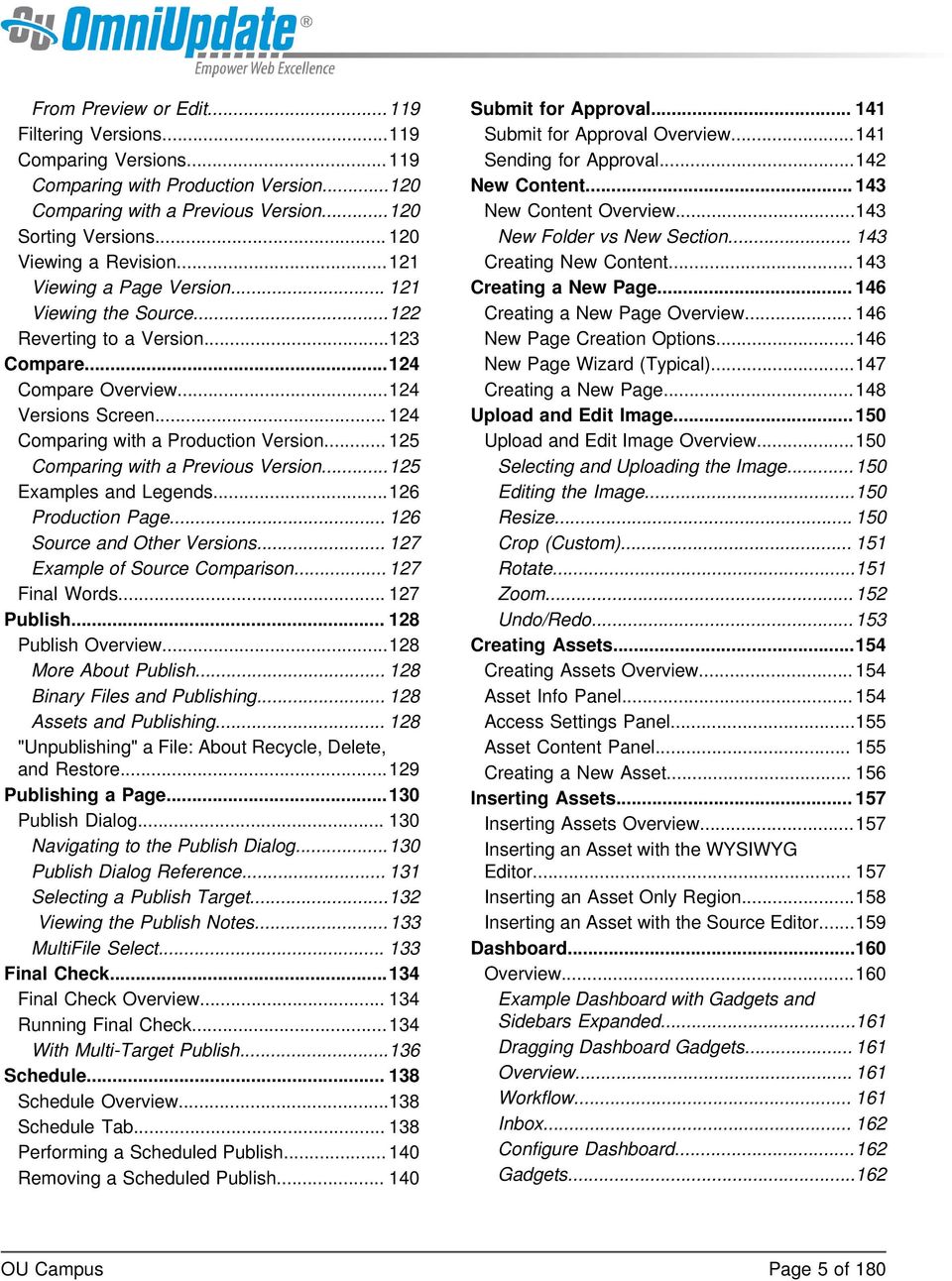
5 From Preview or Edit Filtering Versions Comparing Versions Comparing with Production Version Comparing with a Previous Version Sorting Versions Viewing a Revision Viewing a Page Version Viewing the Source Reverting to a Version Compare Compare Overview Versions Screen Comparing with a Production Version Comparing with a Previous Version Examples and Legends Production Page Source and Other Versions Example of Source Comparison Final Words Publish Publish Overview More About Publish Binary Files and Publishing Assets and Publishing "Unpublishing" a File: About Recycle, Delete, and Restore Publishing a Page Publish Dialog Navigating to the Publish Dialog Publish Dialog Reference Selecting a Publish Target Viewing the Publish Notes MultiFile Select Final Check Final Check Overview Running Final Check With Multi-Target Publish Schedule Schedule Overview Schedule Tab Performing a Scheduled Publish Removing a Scheduled Publish Submit for Approval Submit for Approval Overview Sending for Approval New Content New Content Overview New Folder vs New Section Creating New Content Creating a New Page Creating a New Page Overview New Page Creation Options New Page Wizard (Typical) Creating a New Page Upload and Edit Image Upload and Edit Image Overview Selecting and Uploading the Image Editing the Image Resize Crop (Custom) Rotate Zoom Undo/Redo Creating Assets Creating Assets Overview Asset Info Panel Access Settings Panel Asset Content Panel Creating a New Asset Inserting Assets Inserting Assets Overview Inserting an Asset with the WYSIWYG Editor Inserting an Asset Only Region Inserting an Asset with the Source Editor Dashboard Overview Example Dashboard with Gadgets and Sidebars Expanded Dragging Dashboard Gadgets Overview Workflow Inbox Configure Dashboard Gadgets Page 5 of 180
6 Workflow Overview Workflow Screen Status View Reply Delete Inbox Overview Inbox Composing Messages Viewing, Replying to, and Deleting Messages Sent Forwarding a Message Gadgets Overview Gadget Configuration Dashboard Gadgets Configuring the Dashboard Rearranging Dashboard Gadgets Gadgets Sidebar Gadget Sidebar Icon Reference Choosing Gadgets on the Gadget Sidebar Rearranging Sidebar Gadgets Page 6 of 180
7 End-User Introduction TM provides users an easy way to manage web pages. With the ability to login directly from the institution s website, it is easy to navigate to the page to be edited. Once logged in, users can simply click on the area to edit, and they are placed in a user-friendly What-You-See-Is-What-You-Get (WYSIWYG) Editor. The system allows an approval process to be put into place, which results in users either having the ability to publish pages once they have finished editing them, or they can send the completed pages to other users as defined by the workflow to gain approval prior to publication. The system has a built-in intelligence that allows the workflow process to be defined prior to page creation. Users do not have to understand which pages need approval prior to publication because the system tells them. Pages are checked out to only one user at a time to prevent users from overwriting each other s work, but as the pages move through the workflow system, the system automatically changes to whom the page is checked out based on its placement in the workflow system. In addition, users can only access content to which they have permissions to edit. When creating new pages, preconfigured templates are made available to provide consistency in web page design. Users may also have the ability to upload new images, add words to the dictionary, access full page source, and much more. Support Online support is available through the OmniUpdate Support site at: The Support site, which is accessible by everyone in its entirety, includes user support on all the features in, as well as video and text tutorials, archived Training Tuesdays, which are the free monthly webinars offered the last Tuesday of every month unless otherwise announced at 11:00 AM PST, and access to the Permissions Chart. The Support site can be accessed through the Help link in the upper, right-hand corner of. Additionally, support can be gained using the contextual help links found within. Throughout the site the in-context help links are available and are specific to the area or task at hand. These links open the relevant page at the Support site. Finally, contextual help may also be found within the CMS as instructions relating to particular fields. End-User Introduction Page 7 of 180

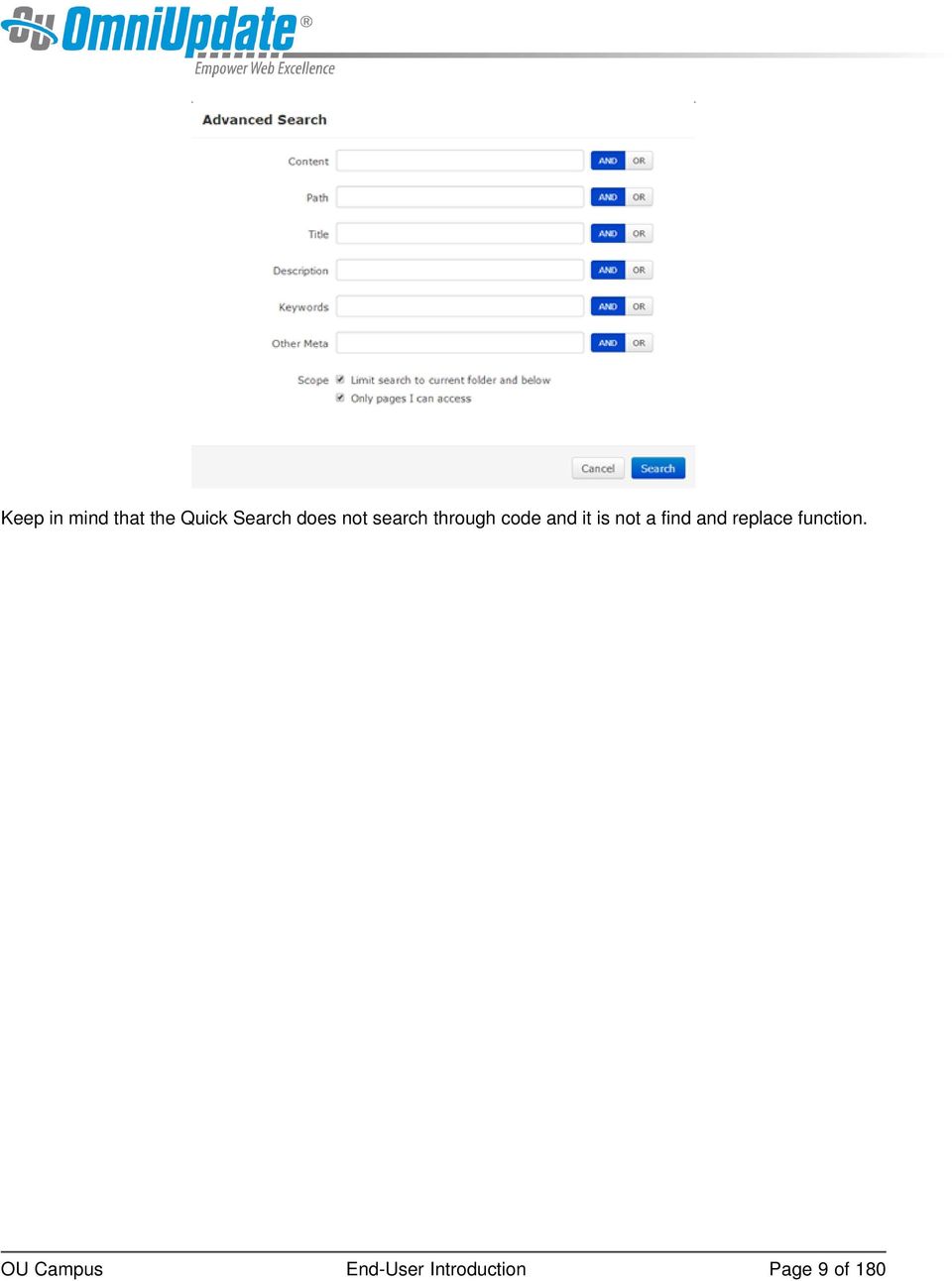
8 The Support site is available to everyone. Users are encouraged to visit and search the Support site. The institution s administrators are also available if the answer cannot be found on the Support site or further explanation and clarification is needed. Administrators may contact the OmniUpdate Support Team. Filter and Quick Search The Filter tool is available on the Pages list view and many views within the content management system. The Filter tool allows the content listed on the screen to be delimited by the string typed into the Filter field. The filter applies to specific columns that are available on the the screen and usually the filter does not apply to the date column. If the Quick Search functionality is turned on, it is possible to search the entire site for content. This search allows the user to find content in order to easily navigate to a desired page. On the Pages list view the Quick Search is also the Filter tool. Content in the current view is filter; pressing Enter uses the Quick Search functionality to search the entire site. Advanced Search allows for additional search criteria to be applied. The search can be narrowed by: Content (the search term) Path Title Description Keywords Other Meta Limited in scope to current folder and below Limited in scope to only pages to which the user has access End-User Introduction Page 8 of 180

9 Keep in mind that the Quick Search does not search through code and it is not a find and replace function. End-User Introduction Page 9 of 180
10 Log In Overview Content contributors and administrators alike can log in to through a published page with TM the use of an on-page link known as DirectEdit. DirectEdit can be a link, a button, an image, and more anywhere on a published page, as it can be styled to match the look and feel of the site. Typically, every page of a web site managed by includes a DirectEdit link to allow content contributors to log in directly to edit a page. After clicking the DirectEdit link, users are logged in directly to the Edit view of the page they logged into. Users must have the proper access privileges granted in order to access the page. Without proper access, users will be logged into, but will be unable to view the page they logged into via DirectEdit. The DirectEdit button type is configurable for the site by a Level 10 administrator. At the account level, the Login Page settings can be used to configure log in, log out, and authentication pages. The layout that is viewed upon logging in to depends upon the access settings for that particular editable region. About DirectEdit Users can access the interface using DirectEdit by navigating to the page to be edited and clicking the DirectEdit link. DirectEdit links are determined by the template design. For example, the demo site, Gallena University, uses the Last Updated date found in the footer of the web pages as the DirectEdit link.\ Each implementation will be different, however. If a user is unsure as to what the DirectEdit link is for their site, they should contact a site administrator. Clicking the link will take the user to the login page. Once logged in, the browser session is persistent and a user can open another page in the same browser without having to log in again. Editing a Page with DirectEdit 1. Click the DirectEdit link on the published page. If a user does not know what has been specified for their institution, they should contact their administrator. 2. Use the login credentials that have been provided for the user by the administrator. This might be a user name and password that is specific to, or it may be that another authentication method is being used, such as LDAP, CAS, or Shibboleth. Log In Page 10 of 180

11 3. Select an editable region. For more information on editable regions, visit the Editable Regions page. 4. Edit the page. 5. Save and publish the page (or send to an approver). Logging Out Users can log out of via the global navigation bar. 1. Hover over the user s name. 2. Choose Logout from the menu. 3. The original Login screen will be shown unless otherwise configured by an administrator. Reset Password Content contributors and administrators alike can create a new password for their account. Reset Password allows users to change their password by entering their username and address in a modal. After the information has been provided, an is sent to the user, containing directions and a link that users can use to reset their password on their own without having to contact a system administrator. Note: if a user's password is managed by an external authentication method, such as CAS or LDAP, the user will have to contact a system administrator for a password reset, as passwords are not stored within in these cases. 1. From the main Login screen, choose Reset Password. Log In Page 11 of 180

12 2. A modal will appear, prompting the user to enter their username and address associated with their username. Once both text fields have been entered, clicking Submit will send the to the user's inbox. If the operation needs to be cancelled, simply choose Cancel. 3. After a user has submitted their request, the system notifies them that it has sent an to their inbox with instructions and a link to reset their password. Log In Page 12 of 180

13 Failed Logins and User Lockouts If a user incorrectly enters their login credentials more than three consecutive times, then they will automatically be locked out of the system. This will prevent users from trying to log in again. In the event of a user lockout, the Reset Password function becomes unavailable. Instead, an administrator must be contacted to reset the user s privileges. Editable Regions Log In Page 13 of 180

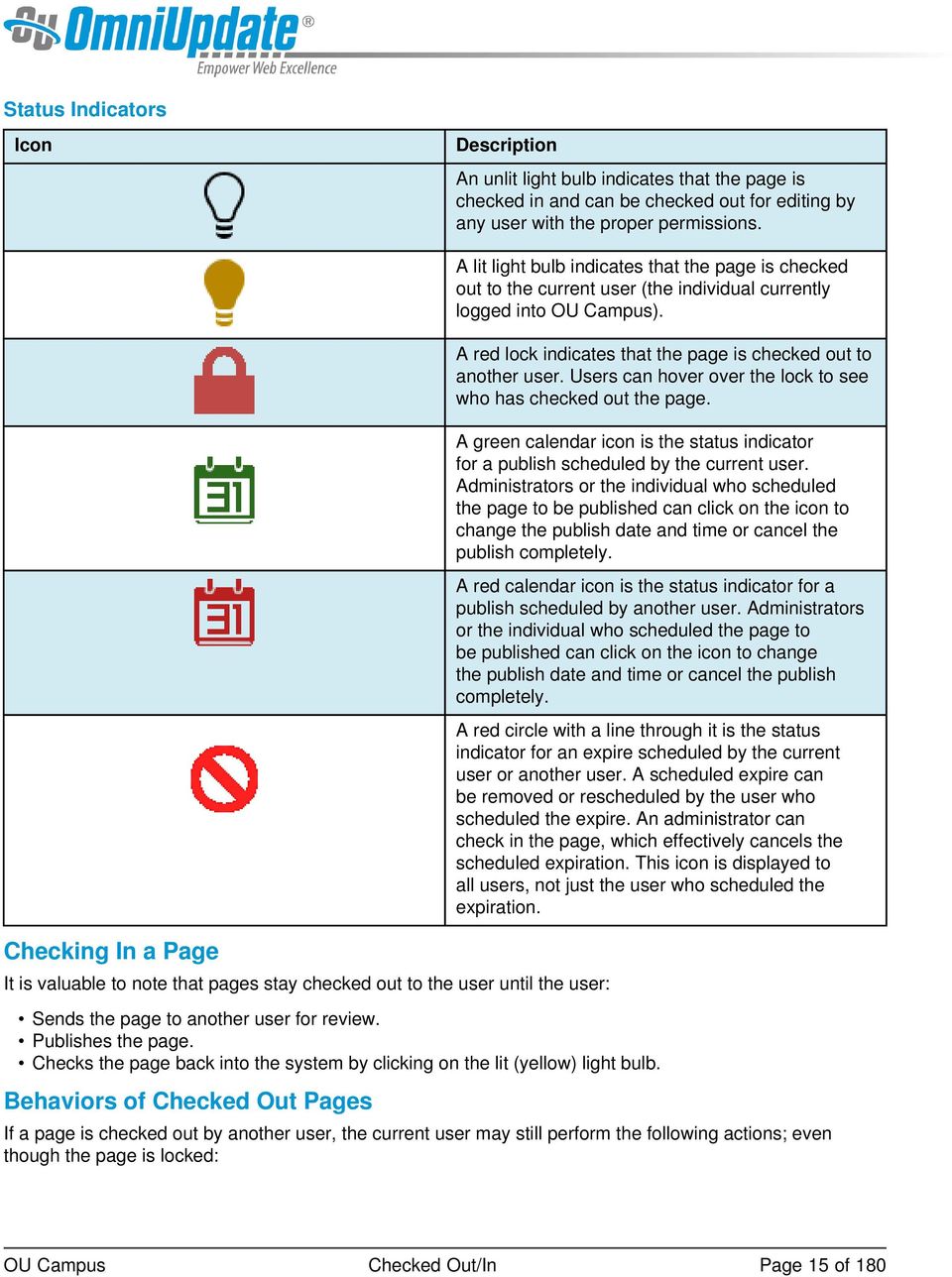
14 Checked Out/In Overview The checked out/in icon, represented by a lightbulb, reflects the state of an page or file. When a user edits a page by clicking on an editable region button, or clicks to a from a list view, the page is automatically checked out to that user. Likewise, when the user publishes a page it is automatically checked back in. When a page or file is checked out to a user, no other users can enter the pages and make changes until the file has been checked back in. A level 10 administrator can override this and manually check pages back in that are checked out, and doing so will cancel any unsaved changes to the page. A user might also decide to check out a page in order to make other page options available. also has status indicators help make clear why a page is not available for editing as well as who has checked out a page, scheduled an action, or if the page is in the process of a workflow. These icons are shown on many of the screens that display content lists, most notably the File Navigation sidebar, Pages list view and the My Checked-Out Content gadget. For example, in the Pages list view (Content > Pages), the page status indicators are found in the Status column. A lit light bulb indicates a page is checked out to the currently logged in user and a red lock indicated the page is checked out to another user. An unlit light bulb indicates the file is checked in and available to be checked out. Page Status Indicators in File Navigation Sidebar Checked Out Pages in Gadgets Sidebar Checked Out/In Page 14 of 180

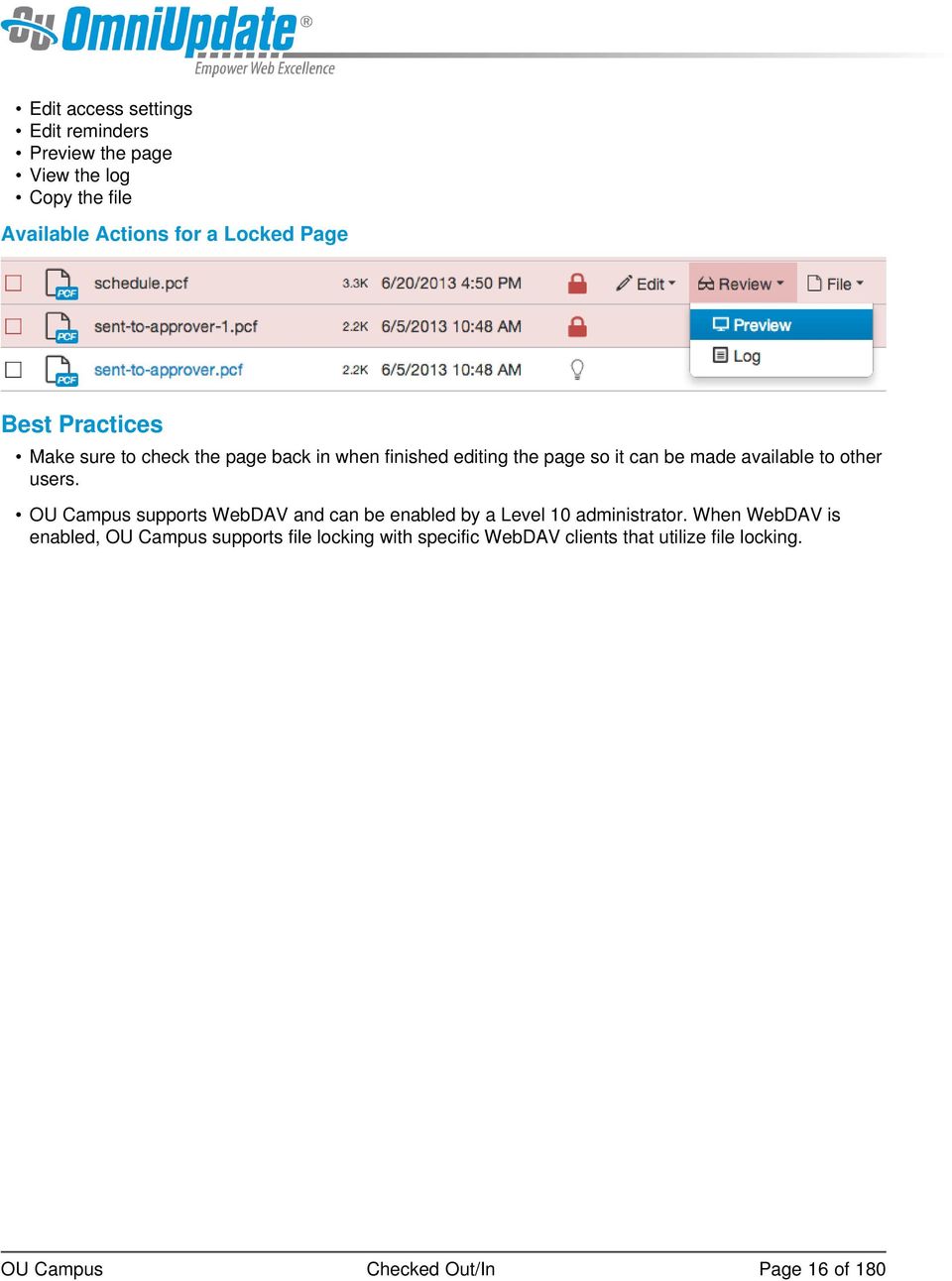
15 Status Indicators Icon Description An unlit light bulb indicates that the page is checked in and can be checked out for editing by any user with the proper permissions. A lit light bulb indicates that the page is checked out to the current user (the individual currently logged into ). A red lock indicates that the page is checked out to another user. Users can hover over the lock to see who has checked out the page. A green calendar icon is the status indicator for a publish scheduled by the current user. Administrators or the individual who scheduled the page to be published can click on the icon to change the publish date and time or cancel the publish completely. A red calendar icon is the status indicator for a publish scheduled by another user. Administrators or the individual who scheduled the page to be published can click on the icon to change the publish date and time or cancel the publish completely. A red circle with a line through it is the status indicator for an expire scheduled by the current user or another user. A scheduled expire can be removed or rescheduled by the user who scheduled the expire. An administrator can check in the page, which effectively cancels the scheduled expiration. This icon is displayed to all users, not just the user who scheduled the expiration. Checking In a Page It is valuable to note that pages stay checked out to the user until the user: Sends the page to another user for review. Publishes the page. Checks the page back into the system by clicking on the lit (yellow) light bulb. Behaviors of Checked Out Pages If a page is checked out by another user, the current user may still perform the following actions; even though the page is locked: Checked Out/In Page 15 of 180
16 Edit access settings Edit reminders Preview the page View the log Copy the file Available Actions for a Locked Page Best Practices Make sure to check the page back in when finished editing the page so it can be made available to other users. supports WebDAV and can be enabled by a Level 10 administrator. When WebDAV is enabled, supports file locking with specific WebDAV clients that utilize file locking. Checked Out/In Page 16 of 180
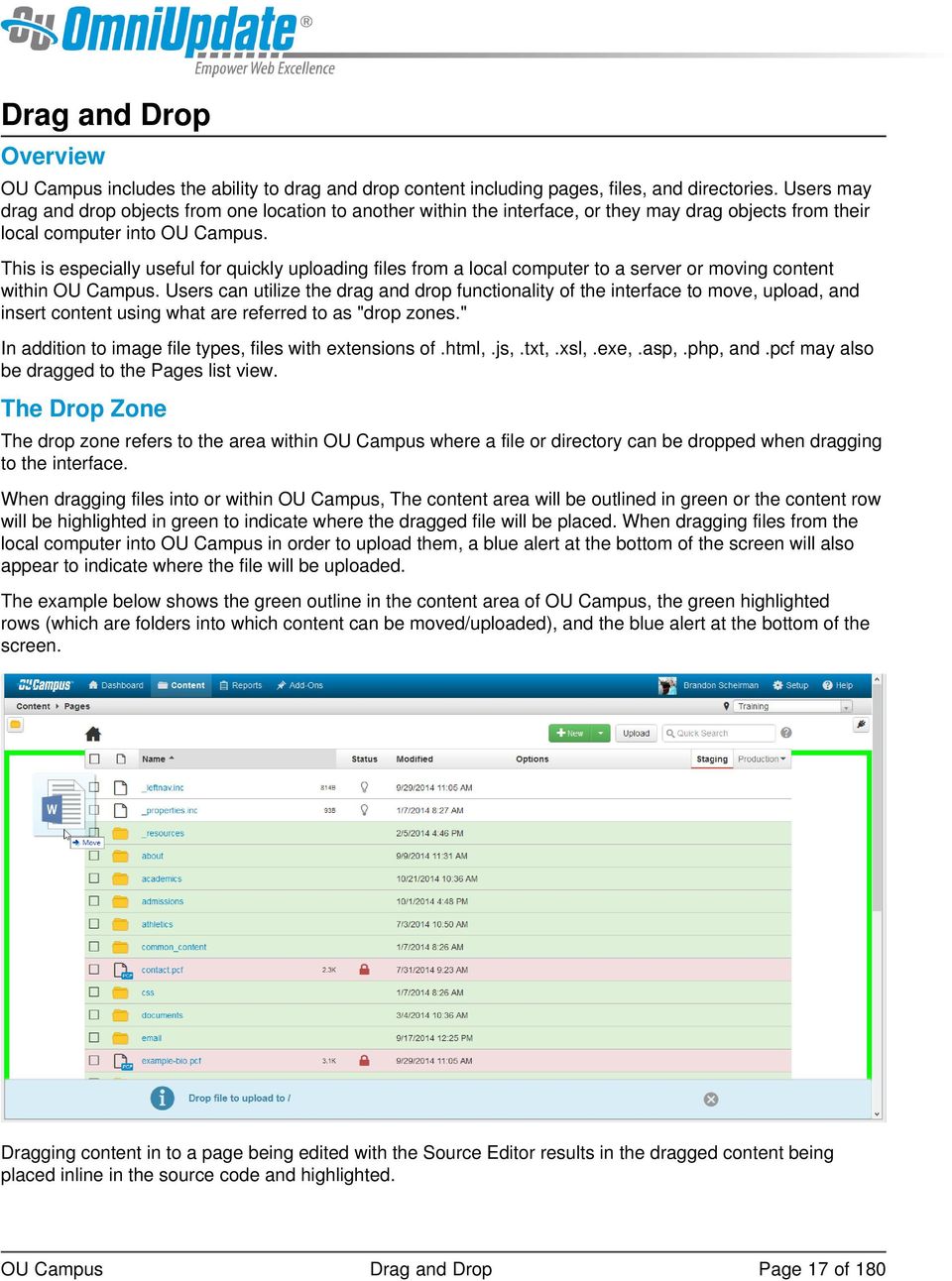
17 Drag and Drop Overview includes the ability to drag and drop content including pages, files, and directories. Users may drag and drop objects from one location to another within the interface, or they may drag objects from their local computer into. This is especially useful for quickly uploading files from a local computer to a server or moving content within. Users can utilize the drag and drop functionality of the interface to move, upload, and insert content using what are referred to as "drop zones." In addition to image file types, files with extensions of.html,.js,.txt,.xsl,.exe,.asp,.php, and.pcf may also be dragged to the Pages list view. The Drop Zone The drop zone refers to the area within where a file or directory can be dropped when dragging to the interface. When dragging files into or within, The content area will be outlined in green or the content row will be highlighted in green to indicate where the dragged file will be placed. When dragging files from the local computer into in order to upload them, a blue alert at the bottom of the screen will also appear to indicate where the file will be uploaded. The example below shows the green outline in the content area of, the green highlighted rows (which are folders into which content can be moved/uploaded), and the blue alert at the bottom of the screen. Dragging content in to a page being edited with the Source Editor results in the dragged content being placed inline in the source code and highlighted. Drag and Drop Page 17 of 180
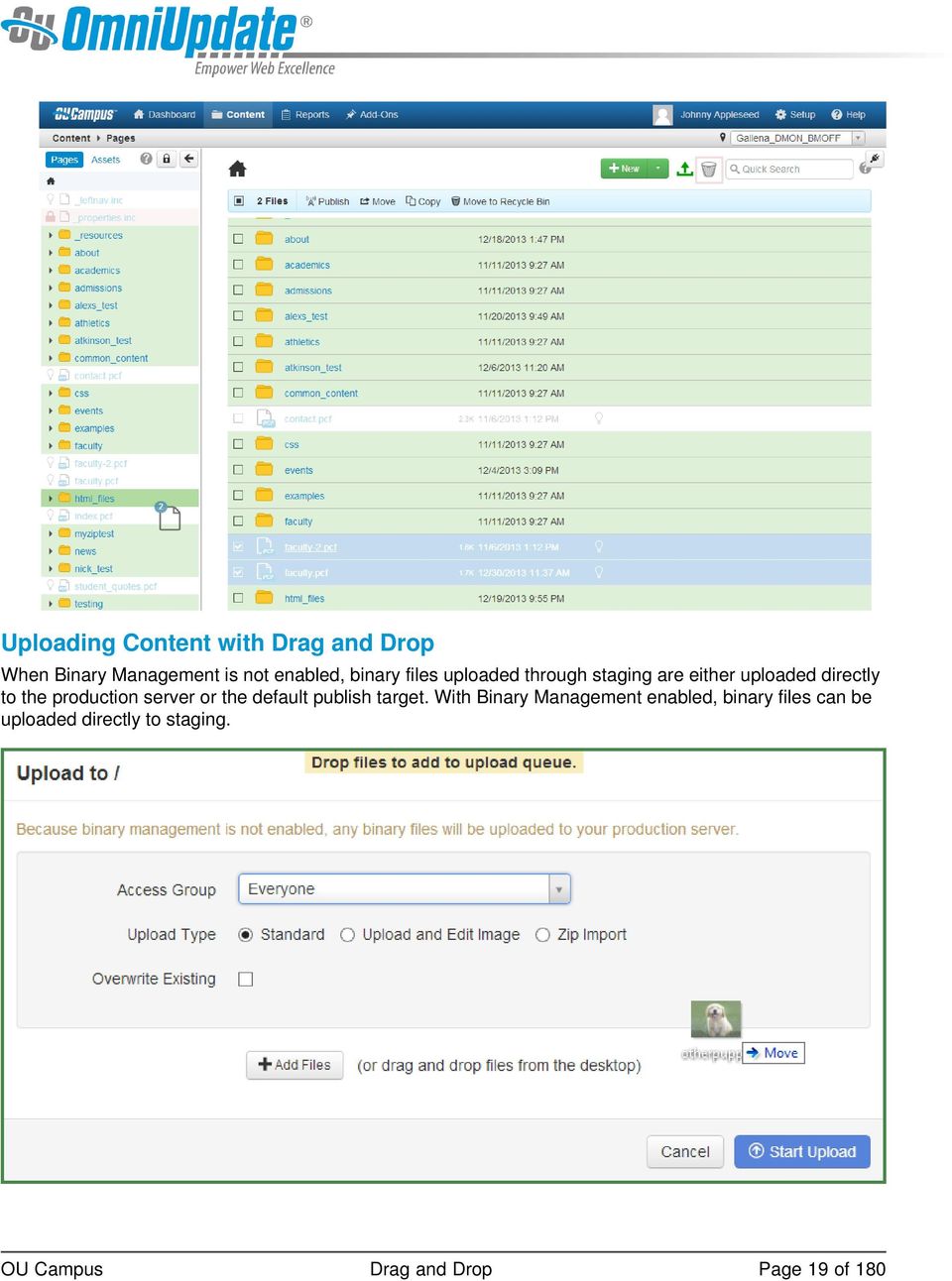
18 Moving Content with Drag and Drop Drag and drop functionality can be used to move files from one location to another within an site. When Dependency Manager is on, content moved on the staging server, including directories, are silently republished to the production target and the links are updated automatically, unless the content is locked with an action that would otherwise prevent auto-publishing such as a scheduled expire. Moving content on the production server, including directories, will not be reflected on the staging server. Content can be moved using drag and drop within and between the Pages list view and the File Navigation sidebar. Content can also be moved from the Gadgets sidebar into a directory in the Pages list view. When moving files within, a file with the same name cannot be overwritten; for example, moving an index.pcf file from one directory to another that already has an index.pcf file would result in an error notification and no files being moved. Users can move files either individually or in bulk using drag and drop. To move files using drag and drop: 1. Navigate to the Pages list view by selecting Content > Pages from the global navigation bar. Alternatively, expand the File Navigation sidebar and navigate to the file using that method. 2. Once the file has been selected, drag the content to its new destination. 3. To move multiple files, select the checkbox next to each target item in the Pages list view and then drag the content to the new destination folder. The icon displays a number, indicating the number of files being moved. Note: Multiple files cannot be selected from the File Navigation sidebar. Drag and Drop Page 18 of 180

19 Uploading Content with Drag and Drop When Binary Management is not enabled, binary files uploaded through staging are either uploaded directly to the production server or the default publish target. With Binary Management enabled, binary files can be uploaded directly to staging. Drag and Drop Page 19 of 180
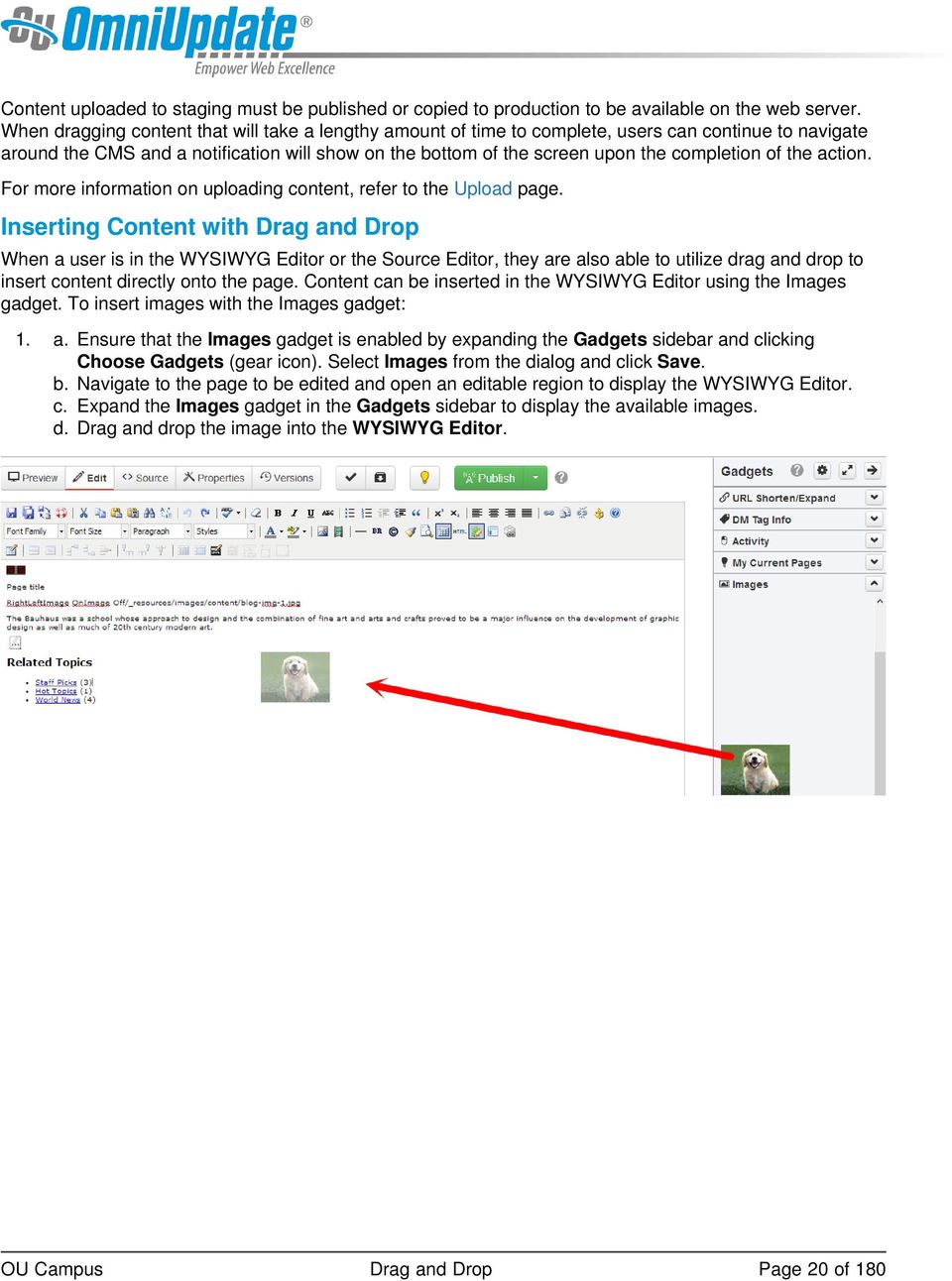
20 Content uploaded to staging must be published or copied to production to be available on the web server. When dragging content that will take a lengthy amount of time to complete, users can continue to navigate around the CMS and a notification will show on the bottom of the screen upon the completion of the action. For more information on uploading content, refer to the Upload page. Inserting Content with Drag and Drop When a user is in the WYSIWYG Editor or the Source Editor, they are also able to utilize drag and drop to insert content directly onto the page. Content can be inserted in the WYSIWYG Editor using the Images gadget. To insert images with the Images gadget: 1. a. Ensure that the Images gadget is enabled by expanding the Gadgets sidebar and clicking Choose Gadgets (gear icon). Select Images from the dialog and click Save. b. Navigate to the page to be edited and open an editable region to display the WYSIWYG Editor. c. Expand the Images gadget in the Gadgets sidebar to display the available images. d. Drag and drop the image into the WYSIWYG Editor. Drag and Drop Page 20 of 180
21 WYSIWYG Editor WYSIWYG Editor Overview There are several types of editors available to edit pages in distinctly different ways, but the WYSIWYG editor is the most common way for users to edit pages in. The WYSIWYG (What You See Is What You Get) Editor allows for a familiar experience of editing a page similar to that of many web applications and traditional word processors. When logging into the system to directly edit a page, there may be several editable regions available. The available editable regions are defined by permissions levels and group associations. Only areas that are available to be edited by that user are shown with an edit button. Clicking on the Edit button above a region allow for the area to be edited. This opens the WYSIWYG Editor by default and the assigned toolbar is available. Keep in mind that part of the configuration of the template design may include an image in the background that helps present a more accurate rendering of how the content will appear on the page. It is intended for visualization purposes and to help understand how the content is organized on the page into editable regions. Once the content has been saved, an actual view of the configured page can be seen using the Preview mode. When editing in the WYSIWYG, modifications should be saved by clicking the Save icon before navigating away from the page. If an attempt is made to navigate away from the page without first saving it, the user notification is shown as a reminder to save the page. WYSIWYG Editor Page 21 of 180
22 Toolbars and Tools Many of the editing tasks for a page such as inserting images and links, applying formatting such as bold, and spell checking a page can be accomplished from within the WYSIWYG using the toolbar. WYSIWYG toolbars are customizable and the toolbar the user sees may contain a subset of the available tools as various custom toolbars can be created, which can be assigned to users, sites, directories, pages, and editable regions. Icons represent the tools. Clicking on any icon performs an action, either directly to the page, or to the selected text and graphics. Some icons display more options in a drop-down menu, or in a dialog. The availability of a function is based on the selected items, or the location of the cursor on the page. For example, if nothing is selected, functions such as Insert Link are dimmed, signifying that this function is not available at the moment. For the Insert Link function button to be available, the user must first select text or a graphic. In many cases, right-clicking offers contextual functions. For example, right-clicking within a table provides a list of available table editing and formatting functions. Additionally, commonly used control key combinations are available such as CTRL+X, CTRL+C, and CTRL+V for cut, copy, and paste respectively for PC. Toolbar Functionality Each toolbar is organized into three rows and each row has groups of functionality. In the WYSIWYG, the groups are divided by a vertical line on-screen. The behavior of the icon is specific to the functionality of the tool. For example, some functionality such as the link tool requires text or another type of content to be selected before it is available on the toolbar. Other items on the toolbar include icons that are unavailable until the main feature has been inserted on a page. For example, the Insert/Edit Table icon will be available, but the other table editing tools such as those to define row properties or delete a column are not available until a table has been inserted on a page. Some items such as the Insert/Edit Image icon or spell check, when clicked, provide a dialog with a much more underlying functionality than is readily apparent. One last type of element that might be available on the toolbar are several drop-down selectors that provide the ability to style text. One item that is not represented on the toolbar, but is available from within the WYSIWYG is the ability to save-in-place (CTRL+S or CMD-S). This offers users the ability to save the page without clicking the usual save icon that ends the editing session. Save-in-place saves the page and allows the user to continue editing. WYSIWYG Editor Page 22 of 180
23 Toolbar Row 1 Overview Most of the tools available on the first row of a toolbar for the WYSIWYG are basic text formatting and linking. The descriptions of the functionality available for each tool is provided on this page. A few of the features have a more in-depth description; links are provided to those pages. The tools are grouped on this page as follows: Save, Save As, Revert, Restore Cut, Copy, Paste, Find, Replace Undo/Redo Toggle Spell Checker Remove Formatting Font Formatting List, Indents Text Placement (Vertical) Align, Justify (Horizontal) Link Tools, WYSIWYG Help Documentation File Tools (Save, Save As, Revert, Restore) Icon Tool Description Save Click on the Save icon to save the current file on the staging server and exit the WYSIWYG Editor. Remember, it will not be live on the production server until it is published. To use save-inplace, use the keyboard shortcut CTRL+S for Windows or CMD+S for Mac. Save As Click on the Save As icon to save the current file with a new file name and exit the WYSIWYG Editor. Revert to Last Saved Click on the Revert to Last Saved icon to undo all changes and revert the content in the editable region to its original state. Auto Draft Click on the Auto Draft icon to restore the content to its last auto-saved point. For more information: Toolbar Row 1 Page 23 of 180
24 Icon Tool Description Auto Draft Cut, Copy, Paste, Find, Replace Icon Tool Description Cut To remove content from the document, highlight the content and click the Cut icon. The keyboard shortcut is CTRL+X for Windows or CMD-X for Mac. Many browsers (specifically Firefox, Chrome, and Safari) disable the use of the cut, copy, and paste commands via the WYSIWYG toolbar for security purposes. This is not a function of ; this is a browser behavior. The alternative workaround is to use keyboard shortcuts. Copy To copy a content from the page, highlight the content and click the Copy icon. The keyboard shortcut is CTRL+C for Windows or CMD-C for Mac. Many browsers (specifically Firefox, Chrome, and Safari) disable the use of the cut, copy, and paste commands via the WYSIWYG toolbar for security purposes. This is not a function of ; this is a browser behavior. The alternative workaround is to use keyboard shortcuts. Paste To paste content on to a page, click the location the content should be placed on the page and click the Paste icon. The Toolbar Row 1 Page 24 of 180
25 Icon Tool Description keyboard shortcut is CTRL+V for Windows or CMD-V for Mac. This pastes only valid content, code, and styling. The paste automatically switches between a traditional paste (e.g., pasting the code when text is copied from a page in a web browser), and pasting from Word, removes the MSO formatting that is not appropriate for a web site, as needed. The Paste function always cleans up the content to be pasted to remove any formatting or code that is not compliant with the requirements of the WYSIWYG Editor. Many browsers (specifically Firefox, Chrome, and Safari) disable the use of the cut, copy, and paste commands via the WYSIWYG toolbar for security purposes. This is not a function of ; this is a browser behavior. The alternative workaround is to use keyboard shortcuts. Paste as Plain Text To paste as plain text, click the Paste as Plain Text icon. The icon stays selected until clicked again, and all pastes going forward until exiting the WYSIWYG Editor will be plain text. This removes all formatting. Find Click the Find icon to search for text on the current page. Find/Replace Click the Find/Replace icon to search for text on the current page then replace that text with other text. Toolbar Row 1 Page 25 of 180
26 Undo Redo Functions Icon Tool Description Undo Click the Undo icon to undo the last changes made in this session one by one. Redo Click on the Redo icon to redo changes that were previously undone and should be restored. Tool Description Toggle Spell Checker To spell check the region that is being edited, click the Toggle Spell Checker tool. Misspelled words are underlined with a red, squiggly line. Change the incorrectly spelled word with the suggested words provided or choose one of the other options provided: Spell Check Icon Ignore the incorrectly spelled word (e.g., not make any changes to it). Add to the word to the dictionary: Level 9 and 10 administrators can add marked words to a site-wide dictionary, and administrators can give users Levels 1 through Level 9 the ability to add words to the dictionary as well. Learn more about the spell checking. Remove Formatting Icon Tool Description Remove Formatting To remove all formatting for a selection, highlight the text to be updated and click the Remove Formatting icon. This returns the selected text back to the default settings. Toolbar Row 1 Page 26 of 180
27 Font Formatting Icon Tool Description Bold Applies bold formatting to selected text. Italic Applies italicized formatting to selected text. Underline Applies underlined formatting to selected text. Please note that underlined text usually means that a word or phrase is a link to another web page. In this case however, the underline formatting does not create a link (to create a link, click Insert/Edit Link). Strikethrough Applies strikethrough formatting to selected text. Lists, Indents Icon Tool Description Unordered list Turns the selected text into an bulleted list. Example: Apples Oranges Bananas Ordered list Turns the selected text into a numbered list. Example: 1. Click the Go button. 2. Enter the text to search on. 3. Click Start. Outdent To decrease the indent of a paragraph, click the Outdent tool. Each consecutive click moves text further to the left. Indent To increase the indent of a paragraph, click the Indent icon. Each consecutive click moves text further to the right. Toolbar Row 1 Page 27 of 180
28 Icon Tool Description Blockquote Blockquote is a block-level element in HTML that can be used to set-off quotations or to cite material. Tool Description Superscript Formats the selected text as Text Placement (Vertical) Icon superscript text. Subscript Formats the selected text as subscript text. Align, Justify (Horizontal) Icon Tool Description Align Left Aligns a block-level element such as a paragraph or a heading to the left margin. Align Center Center aligns a block-level element such as a paragraph or a heading within the left and right margin. Align Right Aligns a block-level element such as a paragraph or a heading to the right margin. Align Full Justifies text making it flush on both the left and right side Link Tools, WYSIWYG Help Documentation Icon Tool Description Insert/Edit Link To create a hyperlink: 1. Select the text or image for the link. 2. Click the Insert/Edit Link tool. If applicable, the dialog contains existing link information. 3. Click the Browse icon to select an internal page to which to link. 4. After locating the file, click Select Link. Toolbar Row 1 Page 28 of 180
29 Icon Tool Description 5. Click Insert. For links to pages internally, a page should generally be chosen from a production server, publish target, or an auxiliary server. An unpublished file on the staging server or publish target can also be chosen by choosing the staging server or publish target from the drop-down, navigating to the file, and selecting the HTML version that is available. Links can also be made across sites within an account with the file browser by clicking Sites in the breadcrumb and choosing the appropriate site. For links external to the site, the complete URL for the resource can be typed (or pasted) into the URL field. Optionally, a target window type and an anchor name can also be entered. For more information about links and linking: Insert/Edit Link If Dependency Manager has been enabled for the account, dependency tags instead of URLs are inserted into the source of the page when inserting a link. Create or Modify a Mailto Link To create a mailto link, select the text or image for the link, then click the Create or Modify a Mailto Link icon. If applicable, the resulting dialog contains existing mailto information. Properties for the mailto link can be defined including the address that is provided when the link is clicked. For more information: Mailto Link Toolbar Row 1 Page 29 of 180
30 Icon Tool Description Unlink Select in the hyperlink and click the Unlink icon to remove a hyperlink. Note : For unlinking anchors, the Unlink icon works with anchors in Internet Explorer. It will not work on anchors in Firefox, Safari, or Chrome. Insert/Edit Anchor To create an anchor: 1. Position the cursor where the anchor should be placed or select the text or image. 2. Click the Insert/Edit Anchor icon. 3. In the Anchor Name field, enter the name for the anchor. It is not necessary to enter a # (hash mark). 4. Click Insert. To modify an existing anchor: 1. Click the existing anchor shown in the editing area. 2. Click the Anchor icon on the toolbar. 3. The Insert/Edit Anchor dialog shows the existing text for the anchor. 4. Make the modification to the text and click Update. The specifics of valid anchor names can be found in the HTML specifications: HTML 4.01 HTML 5 Help Icon Toolbar Row 1 The Help icon displays the help text for the WYSIWYG Editor. It Page 30 of 180
31 Icon Tool Description show help text for all available functions, not only those limited to the toolbar being used. Toolbar Row 1 Page 31 of 180
32 WYSIWYG Spell Check WYSIWYG Spell Check Overview Within the WYSIWYG Editor there is a built in spell checker. Provided that this feature is available in the selected toolbar being used, utilizing the spell checker before publishing a page helps increase the professionalism of the site. Currently the spell checker supports five languages, each with its own custom dictionary. The current languages supported are: English, Spanish, French, Italian, and Portuguese. These are the same custom dictionaries that are used during Page Check and/or Final Check. The WYSIWYG Spell Check feature checks the spelling for the editable region that is open in the WYSIWYG. This differs from the Page Check/Final Check spell check, which performs the spell check on the complete page prior to being published. New and custom words can be added to the spell check dictionary on a per site basis. This is a useful tool for organizations with a set of custom words they do not want to appear marked as misspelled when using spell check in the WYSIWYG Editor. Custom words that have been added to a site s dictionary are omitted by the spell checker tool in the WYSIWYG Editor for any page within that site. Keep in mind that it is possible that the spell checker in an individual#s browser may still mark the word as misspelled. If a word has been added to the dictionary, and it is still being marked as misspelled, check the browser's spell check settings. The default language is a configuration option, which allows various pages or users to be able to be able to use by default different language options. The different custom dictionary can be selected from the dropdown menu. Once the WYSIWYG Spell Check is toggled on, misspelled words stay highlighted until an action is performed that corrects the issue. If new words are typed and misspelled, the spell check should be run again to catch more words. Correcting Misspelled Words 1. Click the Spell Check icon from the WYSIWYG Editor toolbar. The default language will be used to spell check the page. However, if the page should be edited in another language click the downward facing arrow portion of the split button and select another language. Misspelled words are identified with a wavy, red underline. 2. Click on a word identified as misspelled. This displays a list of words that may be selected to replace the misspelled word and other options. WYSIWYG Spell Check Page 32 of 180
33 3. Select one of the suggested words or, one of the other options. Other options are: Add to dictionary (if access has been granted) Ignore word: Allows just the current instance of the word to not be marked as misspelled Ignore all: Allows all current instance of the word to not be marked as misspelled Note : Keep in mind that the browser s spell checker may be active and marking words as misspelled while the page is being edited. However, only spell checker references the custom dictionary. To help verify that a word is being marked as misspelled by the OU Campus dictionary, look to see if the spell check icon is highlighted. This indicates that the spell checker is being used. Adding Words Adding custom words to the spell check dictionary is available dependent upon authority level. It is included automatically for Level 9 and 10 and it can be made available to Level 1 and above users by a Level 10 administrator. 1. Click the Spell Check icon from the WYSIWYG Editor toolbar. 2. Click the misspelled word that should be added. 3. From the shortcut menu, choose Add to dictionary. When adding new words to the custom dictionary, they will get added to the dictionary of the language that is set for the spell checker tool. Unless set differently by an administrator, the default language is English. An additional custom dictionary may exist at the account level. WYSIWYG Spell Check Page 33 of 180
34 Browser Specific Spell Check vs. Spell Check In the WYSIWYG Editor misspelled words can still appear underlined in red (indicating a misspelled word), even after they ve been added to the dictionary. The reason for this is that many modern browsers have spell-as-you-type or automatic spell-checking capabilities built-in. This can lead to some confusion as to whether or not a word has in fact been added to the dictionary. To eliminate this problem it can be helpful to turn off the browser#s spell-as-you-type functionality. Refer to the specific browser help documentation on spell check for Firefox and Google Chrome. Safari also has a built in spell checker. Internet Explorer requires an add-on. Keep in mind that this is not all-inclusive of all available browsers, platforms, add-ons, or applications for spell checker options. Should the information needed not be listed in this help document, please see the help documentation for the browser, add-on, or application being used. Disabling Automatic Spell Checking in Firefox By default, Firefox is configured to automatically check spelling. It can be turned off in the Preferences window: 1. At the top Firefox menu bar, click the Tools > Options on Windows or Firefox > Preferences on a Mac. 2. Select the Advanced panel. 3. Click the General tab. 4. Clear the checkbox labeled Check my spelling as I type. 5. Click Okay or exit the Preferences window to save the changes. WYSIWYG Spell Check Page 34 of 180
35 Disabling Automatic Spell Checking in Safari By default, Safari is configured to automatically check spelling. Turn it off on the Edit menu: 1. At the top Safari menu bar, click Edit. 2. Click Spelling and Grammar. 3. Click Check Spelling While Typing. If a checkmark is present, spell check is enabled for Safari. If a checkmark is not present, spell check is disabled for Safari. WYSIWYG Spell Check Page 35 of 180
36 WYSIWYG Spell Check Page 36 of 180
37 Insert/Edit Link Insert/Edit Link Overview The Insert/Edit Link tool provides the basic functionality to add a hyperlink within the WYSIWYG Editor. Links are created by highlighting text or an image, clicking the Insert/Edit Link icon, and specifying the Link URL. The Insert/Edit Link icon is dimmed until the text or image to be hyperlinked is selected. A hyperlink can point to an internal web page, an external web page not maintained in, as well as a directory or file within or external to it. This can include linking to binaries, such as PDFs. Links can be made among sites within an account. In addition to providing the basic functionality for creating and maintaining links, this tools provides more advanced functionality relating to linking including linking to anchors, specifying targets, applying classes, and utilizing JavaScript and HTML to affect the style and behavior of a link. Several tutorials are included on this page: Inserting an Internal Link (Typical) Linking to an Unpublished File Linking Across Sites within an Account Inserting a Link to an External Site Specifying a Target Links and Dependency Manager It is possible for links to pages or directories maintained within to be updated automatically when the page or directory to where the link is pointed is moved or renamed. The links are tracked by Dependency Manager. When Dependency Manager is activated, it is important to browse for the appropriate page in order to ensure that the link will be updated if the target page, directory, or other content is moved or renamed. Pages can also be linked to internally without browsing and inserting a dependency tag, and can also be specified with a root-relative syntax. Dependency Manager can be configured to manage links both within a site and across sites within an account. However, it does not manage links to external websites such as CNN. If Binary Management is in use for the site or sites, binary files such as PDFs and images are also managed. Links with dependency tags may also be inserted with the Source Editor and file choosers and are supported across publish targets if Multi-Target Publish is configured. Once the appropriate page is selected, a dependency tag is shown instead of the page path. The actual path to which the link will be pointed is shown below the dependency tag. Example syntax for the tags are shown as follows: {{d:####}} Directory tag {{f:####}} File/Page tag {{a:####}} Asset tag {{s:####}} S-tag Insert/Edit Link Page 37 of 180
38 Example of a Dependency Tag Inserting an Internal Link (Typical) 1. Within the WYSIWYG Editor, select the text or image for the link. 2. From the toolbar, click the Insert/Edit Link tool. The Insert/Edit Link dialog > General tab is shown. If applicable, the dialog contains existing link information. Insert/Edit Link Page 38 of 180
39 3. Click the Browse icon to select an internal page to which to link. The Select File modal is shown. Insert/Edit Link Page 39 of 180
40 4. Select a file or directory to which to link. The staging server is selected by default and a PCF file type should be selected in order to have links managed. Navigation can be accomplished by: Clicking the breadcrumb link to navigate up the folder structure Filtering by enter the first few characters of a subfolder or file name. Uploading a file and linking to it (Click the Upload button) Selecting a different environment or auxiliary site. Generally, for internal linking just select the PCF, click Insert, and see the next step. 4. From the Select Product dialog, the HTML output is usually the default and highlighted, so click Insert Link. 5. In the Title field, it is frequently a best practice to add a short descriptive phrase. 6. From the Insert/Edit Link dialog, click Insert. Insert/Edit Link Page 40 of 180
41 Other configuration options for a link are also available before inserting the link; for example, selecting a Target window/tab for the link to open in. The Title is both valuable and important as this is used by screen readers and helps keep the site in compliance with accessibility compliance standards. The text entered in this field is used to create the title attribute for the <a> element in HTML. A developer might use this attribute to display the text when mousing over the link. Here s what it looks like in HTML: <a title="contact Us" href="{{f:####}}">test</a> Linking to an External Page The steps are the same as the procedure outlined in the Inserting an Internal Link (Typical) heading, but rather than browsing for the internal link the complete URL for the resource can be typed (or pasted) into the URL field. Links to external pages are not under Dependency Manager tracking. The protocol prefix is required; i.e., or Linking to an Unpublished File An unpublished file on the staging server or publish target can also be linked to prior to actually publishing the page. The steps are the same as the procedure outlined in the Inserting an Internal Link (Typical) heading up to and including linking to the HTML product. Note that the important difference is that when publishing the file, there will be an Include Unpublished Dependencies checkbox and by default it will be selected. This ensures that the unpublished file that was linked to is also published and proper link management is maintained. 1. Select the text or image for the link. 2. Click the Insert/Edit Link tool. 3. From the Insert/Edit Link dialog > General tab, click the Browse icon. 4. From the Select File dialog, select the file and click Insert Link. Insert/Edit Link Page 41 of 180
42 5. From the Select Product dialog, the HTML output is usually the default and highlighted, so click Insert Link. 6. Click Insert. 7. For a publish or scheduled publish, make sure the Include Unpublished Dependencies checkbox is selected before publishing. Linking Across Sites within an Account Links can also be made across sites within an account when inserting a link on a page within the WYSIWYG. The steps are the same as the procedure outlined in the Inserting an Internal Link (Typical) heading, but rather than selecting from production select Sites in the breadcrumb, choose the appropriate site, and navigate to the desired file. Specifying a Link Target The steps are the same as the procedure outlined in the Inserting an Internal Link (Typical) heading, but the target is chosen from the Target drop-down on the General tab. As a general rule, when inserting a link to another page on the institution s website, the link should open in the same window. When inserting a link to a page outside the institution s website, or to a PDF, or other similar file, the page should open in a new window. The options for the Target field include: Open in This Window/Frame: Linking to pages on the institution s website Open in New Window (_blank): Linking to pages on another site or binary files Open in a Parent Window/Frame (_parent): Used with framesets Open in Top Frame (Replaces All Frames) (_top): Opens a page in the topmost parent frame Insert/Edit Link Page 42 of 180
43 More Options with Insert/Edit Link Tool For more information about the additional functionality available on the other tabs, see: Links: General Tab Insert/Edit Link Popup Tab Insert/Edit Link: Events Tab Insert/Edit Link: Advanced Tab Renaming or Moving a Directory or File Dependency Manager maintains the correct link association when files or directories are moved or renamed. All the files that link to a moved or renamed file or directory are automatically republished to maintain the correct link. When a file or directory is either moved or renamed, a prompt that all dependent pages will be republished will appear. This will republish the page based on the current version of the page on the live production server with the new dependency links. If changes have been made but not published to the live site, those changes will still not be published to the live production server but will be available in and still saved on the staging server. This includes backed up versions. Broken Links When initiating a recycle action, the dialog provides a warning that any derivatives on the production server or publish target will be removed, as well as listing any files that contain links that will become broken. If content is deleted anyway, a broken link is created. The system has various indications for broken links. Dependency Manager provides informative reporting for broken links and broken assets. When a dependency is lost; for example, a linked-to page or a subscribed-to asset is deleted, the dependency tag, path, and file name are shown within asterisks. For example: *** Broken f:1234 /training/about/filename.html*** One way to avoid broken links is to utilize the Include Unpublished Dependencies checkbox from the publish dialog to publish any unpublished content. Dependency Manager reports at page publish time if there is dependent content that has not been published to the target server. This includes content that is linked or referred to by the page that is being published, as well as any unpublished assets. By selecting to include the unpublished dependencies, those unpublished files are published as well. This action prevents broken links (for example) from existing on the current page being published. Insert/Edit Link Page 43 of 180
44 This checkbox is only shown if the Dependency Manager is being used on the site, dependency tags are used in the page being published, and one or more of those dependency tags refer to files that have not been published to the target yet. Final Notes and Reminders Dependency Manager links are case sensitive. As such, it is advised that paths for links to pages managed in are always inserted using the browse functionality. Dependency Manager inserts Dependency tags into <a> and <link> tags at the href attribute automatically, both when the Dependency Manager Scanner is run and when new links are created. However, tags can be manually included elsewhere as desired. Dependency Manager will not automatically add Dependency tags to any other types of tags, including php, asp, and JavaScript. Important Exception: Dependency tags cannot be placed within processing instructions or the prologue, which is the instructions prior to the opening XML comment. Entering in Dependency tags within these will cause an error as they will not be able to be rendered. Dependency Manager renders root relative links (i.e. /directory/page) or absolute links (i.e. depending on the site settings. The rendered URL to the Production Site cannot and will not be page relative (i.e.,../page). Reporting is available with details on which Dependency tags refer to which pages, and which pages are currently subscribing to those pages. Insert/Edit Link Page 44 of 180
45 Toolbar Row 2 Toolbar Row 2 Overview A brief description of the functionality available with each tool on row 2 of the toolbar is provided in the tables below. Several of the features require a more in-depth description and links to those pages are provided also. Content on this page includes: Font Properties (Family, Size, Format, Styles) Text Color, Text Background Images/Media Miscellaneous Functionality The Font Properties drop-downs and the selectors for text color and background color can be toggled on and off. For example, if the Format drop-down was used to apply Heading 1, the use of Heading 1 can be deactivated by deselecting it in the drop-down. Formatting applied with the use of the Styles drop-down, and those for selecting text color and background color can also be cleared with the use of the Remove Formatting tool, which is represented by the Eraser icon on the toolbar. In other words, if a span has been applied, it can be removed by locating the cursor within the span and clicking the Remove Formatting tool. It is not necessary to be in code view to perform this action. Font Properties (Family, Size, Format, Styles) Icon Tool Description Font Family This Font Family drop-down displays a list of the standard fonts recognized by most web browsers. To change the font of existing text, select the text and choose a font from the dropdown list. To start typing new text with a specific font, position the cursor where text where the text should be inserted and select a font from the dropdown list, then begin typing. Text can also be selected and the formatting applied. Note that the appearance in the WYSIWYG Editor may not reflect the newly applied styling. From the dropdown deselect the font size to stop applying it in the WYSIWYG by clicking on it again. The markup is added as a span; for example: <span style="fontfamily: 'book antiqua', Toolbar Row 2 Page 45 of 180
46 Icon Tool Description palatino;">on the bright plume</span> Font Size This Font Size drop-down changes the size of selected text. Font size properties are configured by an administrator and labeled 1 through 7. To start typing new text with a specific font size, position the cursor where text is to be inserted, select a size from the dropdown list, then begin typing. From the drop-down deselect the font size to stop applying it in the WYSIWYG by clicking on it again. The markup is added as a span; for example: <span style="font-size: x-large;"> This is a font size application.</span> Format The Format drop-down lists builtin styles that can be applied to a selected paragraph. To apply an element from the Format dropdown, click within the paragraph (or select text), and then click the element from the drop-down. For more information: Format Drop-Down Styles This drop-down sets the style of any selected text. The styles available are configured by the system administrator. Note that when applying a class from a Styles drop-down and then selecting another class from the Styles drop-down that both styles are applied to the text. For example: <span class="compare note">this paragraph has two classes applied.</ span> Toolbar Row 2 Page 46 of 180
47 Text Color, Text Background Icon Tool Description Select Text Color The color for selected text may be selected by using a picker, using a hexadecimal, chosen from a palette, or by color name. Alternatively, if a custom color has already been selected, click the icon to apply the text color. There are 216 color choices on the palette. To start typing new text with a specific font color, position the cursor at the location where new text is to be inserted, choose a color by clicking on it, or by clicking More Colors and using the color slider, palette, name selector, or by typing in the hexadecimal color code preceded by a number sign, and then begin typing. Select Background Color The color for the background of the selected text may be selected by using a picker, using a hexadecimal, chosen from a palette, or by color name. Alternatively, if a custom color has already been chosen, clicking on the icon applies the choice. There are 216 color choices on the palette. To start typing new text with a specific font color, click the cursor at the location where new text is to be inserted, choose a color by clicking on it, or by clicking More Colors and using the color slider, palette, name selector, or by typing in the hexadecimal color code preceded by a number sign, and then begin typing. Tool Description Insert/Edit Image The Insert/Edit Image tool provides the functionality for linking to an image by browsing Images/Media Icon Toolbar Row 2 Page 47 of 180
48 Icon Tool Description or by uploading, and allows for access to the Image Editor. Additional tabs and fields provide advanced options for images such as including styling and JavaScript. It also includes a preview. For more information: Image Editor Insert/Edit Image Insert/Edit Embedded Media The Insert/Edit Embedded Media tool provides the functionality for embedding media specific to several format types to an image by browsing or by uploading. Additional tabs and fields provide advanced options for embedded media such as specifying dimensions, setting audio quality options and Flash options, and previewing the source. For more information: Insert/Edit Embedded Media Miscellaneous Functionality Icon Tool Description Insert Horizontal Line Adds a horizontal rule. <hr /> Insert line break To insert a line break, click the Line break icon. This is the same as entering <br /> into the source. Insert Special Character To insert a special character such as an copyright symbol, registered trademark, or other symbol, click the Insert Special Character icon. The Select Special Character dialog provides a selection of 200 special character from which to choose. Hover or use left and right keyboard arrows to navigate the selection. During Toolbar Row 2 Page 48 of 180
49 Icon Tool Description the selection process, a preview of the character is shown with its name, HTML character reference, and numerical character entity reference. Click on the icon of the character to insert into the page. Right click the symbol and choose Copy Link from the shortcut menu, to copy to the clipboard, which allows the symbol to be repeatedly pasted on a page. Cleanup Messy Code The Cleanup Messy Code icon removes extraneous tags and adds appropriate ending tags where necessary. This helps with cross-browser functionality as well as being a best practice. Show/Hide Block Elements Toggles the WYSWISYG view to show or hide block-level element labeling. Each element such as <p> or <article> is displayed encapsulated with a thin border and labeled with a small tag. For more information: Show/Hide Block Elements Show/Hide Guidelines/Invisible Elements Toolbar Row 2 The Toggle Guidelines/Invisible Elements icon adds/removes the outlines of tables and other elements, for visual purposes only. Page 49 of 180
50 Icon Tool Description Edit HTML Source The Edit HTML Source icon opens a code view of the HTML source. If a user has been granted access, there is also an HTML Source Editor available for the source code editing. For more information, see: HTML Source Editor CodeProtect Displays the position of serverside code within the WYSIWYG Editor represented within the editing area with the PHP Symbols icon: This allows for easy editing of server side code (PHP only). Snippets Click the Snippets icon in order to select preexisting snippets of HTML or text to be inserted into the page. The Snippets available are set by the system administrator. For more information: Snippets Assets Click the Assets icon in order to select a preconfigured asset to insert into the page. For more information about assets: Assets Toolbar Row 2 Page 50 of 180
51 Insert/Edit Image Insert/Edit Image Overview The Insert/Edit Image tool is available on the default toolbar for the WYSIWYG Editor. Custom toolbars can be created and assigned to a user or content region utilizing the CMS administrator functionality; and if so utilized, the Insert/Edit Image tool may not be shown on the toolbar. Note that using the Images Gadget may also be used to drop an image on a page and will automatically spawn the Insert/ Edit Image dialog. The Insert/Edit Image tool provides access to a plenitude of functionality related to images, image management, and code markup for images. At the very simplest, it can be used to link to an image and provide a description for it, which is usually required. On the other hand, Insert/Edit Image can also be used to: Upload an image and edit it with the Image Editor Manually enter a URL of an image to insert on the page Browse to an image that was previously uploaded in order to link to it, including the ability to choose from an auxiliary site Provide metadata about an image in the form of an Image Description (alt tag) and Title (title tag) Preview an image Align an image Add space or a border around an image Assign a CSS class or styling to an image Create an image swap with JavaScript Specify an image map When using the Insert/Edit Image tool, once an image has been selected for insertion on a page, the WYSIWYG Editor seamlessly provides the HTML mark-up and the dependency tag for the link behind the scenes. A dependency tag can also be inserted from within the Source Editor. In addition to adding an image to a page, the Insert/Edit Image tool includes the Appearance and Advanced tabs, which provide content contributors with the ability to further manipulate images by entering information in a field or selecting it from a drop-down. The Appearance tab provides the ability to modify the appearance of the inserted image with CSS, but without having to know CSS or directly interface with CSS syntax. The Advanced tab, in a fashion similar to the Appearance tab, provides miscellaneous functionality for image manipulation with JavaScript and HTML, including the ability to swap images on mouse over, designate an image map, and add an ID to the IMG tag. For more information: Appearance Tab Advanced Tab Inserting an Image 1. To insert an image, position the cursor where the image should be inserted and click the Insert/Edit Image icon. Insert/Edit Image Page 51 of 180
52 This shows the Insert/Edit Image dialog. 2. The location of the image can be manually entered in the Image URL field, but to take full advantage of link management, click the Browse icon to browse to the image as in this manner the image will be assigned a dependency tag. The Select Image modal is shown. Insert/Edit Image Page 52 of 180
53 3. An image can be selected by doing one of the following: Navigating the folder structure via the breadcrumb links. This includes being able to navigate to another site within the account. Uploading an image. Uploading and editing an image. Selecting a different environment from the drop-down; such as the production server or publish target. Staging is the default when Binary Management is in effect. Selecting an auxiliary site from the drop-down. Filtering by entering one or more characters. The filter is relevant to the file name, including extension. Switching between list view and thumbnail view. Previewing in the preview pane by single-clicking. Double-clicking to immediately select and insert. Viewing the preview pane content details Clicking through the Edit Image link to edit an image. After editing, click save to return to the Select Image dialog. This edits the physical file and can be useful for quick resizing of an image. 4. Once the image has been selected, click Insert. Alternatively, double-click an image in the list or thumbnail view. 5. From the Insert/Edit Image dialog, enter a value for the Image Description field. 6. Click Insert. The image is shown in the context of the page within the WYSIWYG Editor. Note: When linking to an image or other binary file from staging the file must be published to production. This can be accomplished by making sure that the Include Unpublished Dependencies checkbox is selected. Insert/Edit Image Page 53 of 180
54 Editing an Inserted Image The details of the image can be modified after insertion on a page by clicking the same Insert/Edit Image icon, making the necessary edits, and clicking Update. Dragging a File to Upload 1. As described above, click the Insert/Edit Image tool, and the Browse icon. 2. From the Insert Image dialog, click Upload. 3. Drag the file or files to upload from the local computer to the dialog. (Multiple files may be selected and uploaded at one time. On a PC, use Control+Click, Shift+Click, or click and drag to select multiple files. For a Mac, use the Command key to select multiple files.) 4. Alternatively, click the Add Files button to browse and select local files. 5. If necessary and available, chose an access group for the files. This will limit the ability to access the image to insert it on a page from within the WYSIWYG to members of the group. 6. The ability to overwrite files may be enabled and available by clicking the Overwrite Existing checkbox. 7. Files may be renamed at this point by clicking Rename, entering the new file name, and clicking OK. Insert/Edit Image Page 54 of 180
55 Note that after renaming a file, the modification can be reverted by clicking Revert. 8. Click Start Upload to upload the files. For a successful upload, the Upload dialog is automatically dismissed and the uploaded file may now be selected for insertion. During the upload the status is shown as In Progress, which may or may not be visible. An error message is shown if a file could not be uploaded, which may be the case if it does not follow file naming conventions configured by the site or if the file exists already and the Overwrite Existing checkbox was not selected. Some errors may be fixed by renaming the file or selecting Overwrite Existing and clicking OK and Start Upload again. When completed, the green success message is display, Done. Click Close and select and insert the image from the Select Image dialog. Example of Successful File Upload After Correction Additional Information and Reminders The ability to upload files is inherently available for users, level 6 or above. Lower level users (1 5) can be granted the rights to upload via the user s settings. The permission to overwrite files to which they have access can be granted to user levels 1 through 8. To import multiple files using only one selection and containing subfolders, use the Zip Import feature. Zip Import is available to users Levels 6 8 through the user s settings. Note: All binary files including images are uploaded to the staging server and must be published to the public-facing web server. Image files can be manually published with any publish action, or if having been inserted on a page without publishing, the Dependency Manager will provide a checkbox on the Publish dialog so that any unpublished dependencies are also published. Decorative Images Decorative images are images for which no <alt> descriptive image tag is required. Inserting decorative images must be enabled for each site by an administrator. This can be accomplished from Setup > Sites > WYSIWYG Editor > Decorative Images. The default, Disabled, means that the Decorative Image checkbox is not available and that an Image Description must be added. For more information: Setup Sites > WYSIWYG Editor Panel Using Decorative Images Once enabled, the Insert/Edit Image dialog in the WYSIWYG editor allows users to select a checkbox indicating that the image to be inserted is a decorative image and to omit the image description. Insert/Edit Image Page 55 of 180
56 Image Editor Image Editor Overview The Image Editor allows images to be resized, cropped, rotated, and resized with zoom directly in the OU Campus system. Images can be uploaded and edited all in one operation. The ability to edit an image helps ensure large images are properly resized before being transferred to the web server. Additionally, images can be saved and renamed. Access to the Image Editor is level dependent. Those who can upload files can use the Image Editor to upload images and edit existing images, but cannot overwrite any existing image with the same file name. Those with overwrite permissions are able to replace existing images. The Image Editor can be accessed using the following methods: Within the Pages list view by clicking a linked image Within the Pages list view by clicking Upload and using Upload and Edit While inserting images on a web page using the WYSIWYG Editor > Insert/Edit Image dialog When editing or creating a new Web Content Asset, the mini-wysiwyg Editor > Insert/Edit Image dialog While inserting images on a page using the Source Editor LDP Image Galleries are another way users can add images to a site in the system. However, this function is not related to the standard Upload and Edit Image feature and requires that Live Delivery Platform (LDP) be enabled. For information about creating LDP Image Galleries: Image Galleries Image file types support by the Image Editor is browser dependent. The following file types commonly used for web pages can be edited and saved with the Image Editor with the most commonly used browsers: JPG PNG GIF BMP For a complete reference of browser support for image formats, see: Image Editor Restrictions and Requirements When an image is edited through The Image Editor in, it will be recompressed once it is saved. When using lossy file formats such as JPG, this can cause a visible degradation in image quality. As a best practice, crop or resize images to the exact size needed on the page before importing them into OU Campus. Furthermore, using images saved in a lossless file format (such as PNG) in the Image Editor will avoid losses of quality due to recompression. The image size is dependent on two factors: the browser and the amount of memory allocated to the browser by the parent machine. In testing a fairly large image, x 3955 pixel (27 MB), was used and rendered in 198 ms. Performance of image rendering is dependent upon each individual user's machine and Internet connection. In short, every time a user tries to load an image, large or small, jpeg or any other extension, the image editor relies on the browser to provide the pixel information. If working with an image that cannot be edited, log out of, quit and relaunch the browser. This will free up browser-allocated RAM and may resolve the issue. Image Editor Page 56 of 180
57 If pictures do not update to the edited version in Preview mode, the Image Editor and web browser might be clashing. A browser stores copies of pages of visited pages, then displays these stored files upon the next visit. This way, the browser is not being forced to load the page anew with each visit, which takes more time than viewing a stored copy. This storage of pages is called a cache. However, this cache can sometimes pose a problem when viewing the most updated version of a page is needed. Clear the browser's cache to ensure viewing of the most recent versions of a page. Reloading or refreshing a page in a browser is usually sufficient and there are more invasive method of clearing all browser data in each browser's settings. Image Editor Tools The Image Editor has a predefined set of tools that allow users to customize images as they wish. For more information about the tools available in the Image Editor: Image Editor Tools Image Editing on Upload Images imported into can be edited on import. To edit images when importing: 1. Click the Upload icon in the Pages list view. 2. In the Upload dialog, select Upload and Edit Image. 3. This automatically opens the local computer s File Explorer (PC) or Finder (Mac). Locate the file and click Open. 4. The image is opened in the Image Editor where changes can be made to the file. Image Editor Page 57 of 180
58 5. When all the changes have been made, click Upload. 6. A dialog will appear. Enter the New File Name for the file, including the extension, and use the browser to Select Destination Folder. If needed, select the checkbox for Show Files. Image Editor Page 58 of 180
59 7. Click Save. The user is returned to the Pages list view inside the folder where the image was uploaded. Image Editing from Pages List View Any image file can be edited from the Pages list view. The image editor can be used to edit images already uploaded to the staging server. Image Editor Page 59 of 180
60 1. Navigate to the Pages list view by selecting Content > Pages from the global navigation bar. 3. Hover over the target row and click Edit, or click the hyperlinked image name. 4. The Image Editor will open and the image can be modified. Editing Images in WYSIWYG Mode To edit any image while using the WYSIWYG editor, click the Insert/Edit Image icon in the WYSIWYG toolbar. Any image can be selected and edited using the Edit Image button in the file selector window. Additionally, users can upload and edit any image from this same window by clicking the Upload button. 1. Click the Insert/Edit Image icon on the WYSIWYG toolbar. 2. Click the Browse icon to change or edit an image. Image Editor Page 60 of 180
61 3. Expand a folder or double-click to view thumbnails of all the images contained within that folder. Click a thumbnail to show a preview of just the selected image. Image Editor Page 61 of 180
62 4. Choose one of the following actions: Click the Edit Image button to edit the file displayed in the Image Preview window. Click the Upload button to open, edit, and upload a file from a local computer. Click the Upload & Edit button to upload a file from a local computer and start the Image Editor. Final Notes The edited image must be republished in order to appear correctly on the rendered webpage. This may be initiated with a page publish by selecting the checkbox to publish unpublished dependencies. Or it may be necessary to manually publish the image. If the image does not appear correctly, refresh the browser or clear the browser cache as the previous iteration of the image may have been saved by the browser. This action can be found in various places in browsers' settings and for some browsers/platforms, this can be accomplished by click CTRL+F5 or CTRL+ the Reload icon. Otherwise the edited image may not appear as expected. Image Editor Page 62 of 180
63 Insert/Edit Embedded Media Insert/Edit Embedded Media Overview The Insert/Edit Embedded Media tool on the WYSIWYG Editor toolbar allows users to include markup for video, movies, and audio on a page. This embeds the proper markup such as the video tag or object in order to add the proper media player for the media type. Attributes/parameters for specific media types can configured on the Advanced tab. Users can link to media from external sources, as well as upload files directly to. To access the Insert/Edit Embedded Media button, select Content > Pages from the global navigation bar and open any page for editing with the WYSIWYG Editor. Note: If HTML5 schema is not in use for the WYSIWYG Editor, HTML5 tagging may not be supported on the rendered page. An administrator may cautiously enable the schema for the WYSIWYG Editor. For more information about HTML5 and schemas: WYSIWYG Editor Step-by-step instructions on this page include: Insert/Edit Embedded Media Page 63 of 180
64 Inserting Embedded Media Uploading and Inserting Embedded Media Inserting Embedded Media from an External Source Also in this section are the following topics: General Tab: This tab allows users to specify the media type and the URL for the media file. Advanced Tab: Allows users to further customize the settings which affects both how the file is rendered and how it will be imported. Source Tab: Provides a source code view of the markup for the video. Inserting Embedded Media from A media file can be upload prior to or during the process of embedding the media on the page. 1. Edit a page with the WYSIWYG Editor. 2. From the toolbar, click the Insert/Edit Embedded Media icon. This shows the Insert/Edit Embedded Media dialog with the General, Advanced, and Source tabs. 3. From the General tab, select a Type. By default Flash is select, but HTML5 and several other types are available. For more details about types and the Advanced tab, see the Insert/Edit Embedded Media Advanced Tab topic. 4. From the File/URL field select the Browse icon and use the file chooser to select the media file. A media file can be selected from any environment to which the user has access; specifically, staging, production, auxiliary sites, the folder structure within the site, and among sites within an account. At this point, one or more files may also be uploaded, and one can be selected to embed on the page. 5. Once the media file is selected, click Insert. Insert/Edit Embedded Media Page 64 of 180
65 6. Configure any other options on the dialog tabs, and click Insert again. The media does not render within the WYSIWYG Editor. Instead a yellow placeholder box the size of the intended media is displayed. Once the page is saved, the video renders in the preview. Depending upon the configuration, the file may need to published before it will play in preview. Uploading and Inserting Embedded Media from the WYSIWYG The organization of a site may include a folder designated for containing media. If it is necessary to upload a media file to a specifically configured folder prior to embedding on the page, do the following: 1. From Content > Pages, navigate to the folder to which media should be uploaded. Alternatively, the File Navigation sidebar can be used. This folder may be configured to only allow certain types of media to be uploaded. 2. Choose any of the following methods to upload media files: Click the Upload button > Add Files and select files from the local computer. Click Start Upload. Click the Upload button and drag files from the local computer to the dialog box. Click Start Upload. Click the Upload button > Zip Import and upload a ZIP package. From the local computer, drag one or more files directly onto the Pages list view. Look for the green drop zone indicator. Drag one or more files onto the File Navigation sidebar. 3. Navigate to page on which the media should be embedded and open an editable region on the page to display the WYSIWYG Editor. 4. Click the Insert/Edit Embedded Media tool and click Browse. 5. Navigate to and select the media file. 6. Click Insert to choose the file and return to the Insert/Edit Embedded Media tool in the WYSIWYG. If Dependency Manager and Binary Management are enabled, the dependency tag is now populated in the File/URL field. 7. Click Insert again to return to the WYSIWYG Editor. Insert/Edit Embedded Media Page 65 of 180
66 Inserting Embedded Media from an External Source In addition to uploading media files to and inserting them with the WYSIWYG Editor, users can also link to media files from external sources, such as YouTube or other similar video-sharing services. This method uses an <iframe> tag. 1. Locate the video on an external video sharing service such as YouTube. 2. Copy the URL for the video from the top address bar. Insert/Edit Embedded Media Page 66 of 180
67 3. Return to the page in where the video should be placed, and place the cursor at the location where the video should be displayed. 4. Click on the Insert/Edit Embedded Media icon in the WYSIWYG toolbar. 5. On the General tab > Type field, select Iframe. 6. Paste the file's URL into the File/URL box. 7. When complete, click Insert. Insert/Edit Embedded Media Page 67 of 180
68 Final Notes/Troubleshooting The WYSIWYG Editor uses the XHTML schema to validate the content when saving. In the case of an <iframe>, the "name" attribute is deprecated for XHTML, and is removed. Instead, try using the ID attribute, or id="iframename". There are a few reasons why a video may not render: The browser used to view the page does not have the correct plugin. The type of media specified is incorrect for the media. Make sure the video appears in the Preview screen inside of the Insert/Edit Embedded Media window. The video file has an incorrect or invalid file extension. Insert/Edit Embedded Media Page 68 of 180
69 Toolbar Row 3 Toolbar Row 3 Overview The available tools on the third row of the toolbar are those available for inserting and editing tables and forms within the WYSIWYG Editor. For both tables and forms, the additional features are available after the initial table or form has been inserted on the page. Place the cursor within the element and the editing tools will become available. In addition to the Insert/Edit Table tool, other table editing functions include those for defining the properties for table cells and rows, and for inserting and deleting rows and columns. As with other functionality, right-clicking within a table provides a shortcut menu for table editing and formatting. Example of Shortcut Menu Table Tools Icon Tool Description Insert/Edit Table To insert a table, position the cursor then click the Insert/Edit Table icon. The Insert/Edit Table dialog includes several fields that can be used to define the table including: Columns: Number of columns in table Rows: Number of rows in table Cell Padding: Padding around cells Cell Spacing: Spacing between cells Alignment: The alignment of the content within the cells Border: Thickness of the border around the cells Width: Width of table Toolbar Row 3 Page 69 of 180
70 Icon Tool Description Height: Height of the table Class: A class defining the styling of the table Table Caption: Choose whether or not to have a caption above the table Fill in table details, then click OK to insert table, or click Cancel to return to the editor. For more information about tables: Insert/Edit Table General tab Advanced tab Table Row Properties Edit the alignment, background color and several other properties of the rows of the table. Table Cell Properties Edit the alignment, background color and several other properties of the cells of the table. Insert Row Before To insert a row above another row, click inside the row cell the new row is to precede, then click the Insert Row Before icon. Insert Row After To insert a row below another row, click inside the row cell the new row is to follow, then click the Insert Row After icon. Delete Row To delete a row, click inside the row to be removed, then click the Delete row icon. Insert Column Before To insert a column before another column, click inside the column cell the new column is to precede, then click the Insert Column Before icon. Insert Column After To insert a column after another column, click inside the column cell the new column is to follow, then click the Insert Column After icon. Toolbar Row 3 Page 70 of 180
71 Icon Tool Description Delete Column To delete a column, click inside the column to be removed, then click the Delete Column icon. Split Merged Table Cells To split cells that have previously been merged, select the cell then click the Split Merged Table Cells icon. Merge Table Cells To merge cells, highlight the cells to be merged, then click the Merge Table Cells icon. Form Tools The Form tools build the client interface for the form. The site developer will need to provide the server side form processing code. The form tools available from within the WYSIWYG are not the same as the Form Asset provided with the Live Delivery Platform product: Live Delivery Platform Forms. Icon Tool Description Insert/Edit Form Create or edit the form. When creating a new form, set all attributes needed for the form to function properly. Delete Form Highlight the form for deletion and click the Delete Form icon. Insert/Edit Input Element Insert or modify input field such as checkboxes, icons, or events. Insert/Edit Select Element Insert or modify selection drop down elements. Insert/Edit Textarea Element Insert or modify textarea elements. For more information about forms, see the Forms Tutorial or Forms Reference. Toolbar Row 3 Page 71 of 180
72 Rename Overview The Rename features allows users to rename files. The file is renamed on the staging and the production server. User levels 8, 9, and 10 have the ability to rename files, and Level 8 users can only rename files to which they are assigned access rights. It is important to note that files renamed on the staging server change the associated files on the production server, but files renamed on the production server do not change the file name on the staging server. Using the Rename feature only renames a file; it does not convert between file types. Generally, file extensions should not be renamed as this can corrupt a file and render it unreadable by the system. This can be particularly fatal for binary files; for example, renaming image.png to image.jpg does not convert the PNG to a JPG. This is also true of other file types. Some text file types might survive the changing of an extension (for example, changing HTM to HTML), but generally the Rename feature is intended to be used to only change the file name and not its extension. Directories can be renamed as well. Visit the Directory Options page for more information. Renaming a File A file can be renamed from the Pages list view by hovering over the row and selecting Rename from the File menu. Note that a file does not have to be checked out to be renamed. To rename a file, navigate to the Pages list view, hover over the desired file, and from the File menu, click Rename. Input the new file name. When the new name has been added, click away from the box or press the Enter key. Alternatively, press the Escape button to cancel the rename. While some extensions can be changed, PCF file types cannot. Likewise, a file extension cannot be changed to PCF. Note: if Dependency Manager is enabled and a file that is referenced on another page is renamed, the Confirm Rename modal will appear indicating how many pages will need to be republished should the rename process be completed. To continue, click OK. This will republish the affected pages based on the current version of the page on the live production server with the new dependency links. If changes have been made but not published to the live site, those changes will still not be published to the live production server but will be available in and still saved on the staging server. This includes any versions. Rename Page 72 of 180
73 For more information about dependency manager, refer to the Dependency Manager page. Rename Page 73 of 180
74 Copy Copy Overview The Copy function can be used to copy one or more pages or files. Copying a file automatically renames the copy by appending a number. Only users assigned to levels 8, 9, and 10 can copy files, and level 8 can only copy files to which they are assigned access rights. It is also important to note that copying files and folders can only occur on the staging server. Copies cannot be made of assets. Copying a Single File A file can be copied from the Pages list view by hovering and from the File menu, selecting Copy, by selecting the checkbox adjacent to a file, or by using the drag-and-drop feature. The location to copy to can be browsed to or entered manually. Additionally, an option can be selected to show the files in a directory. Note that a file does not have to be checked out to be copied (unless copying from the File Navigation sidebar), and can be copied when it is checked out to another user or when it has a scheduled action associated with it. Copying a File from the Pages List View 1. To copy a file do one of the following: From the Pages view, hover and from the File menu select Copy. From the Pages view, select the checkbox for one or more files (and/or directories) and from the top row click Copy. 2. From the dialog box via the breadcrumbs or preview window, browse to the directory path to which to move it. Click the Show Files checkbox to view the files and subdirectories within directories. Copy Page 74 of 180
75 Copying a File by Drag and Drop A file may be copied by checking out the file and then dragging the file from the File Navigation to the desired location in the main content area. 1. Navigate to the appropriate directory for the file to be copied to in the Pages view. 2. Expand the File Navigation using the folder button in the top left of the screen, and locate the file to be copied. Copy Page 75 of 180
76 3. Check out the file. 4. Holding Control (PC) or Option (Mac), drag the file from the File Navigation into the directory to where the file should be copied. Copy Page 76 of 180
77 4. A confirmation dialog will appear. Click Copy. Copying Multiple Files Multiple files can be copied in the same action by selecting the checkboxes found to the left of each file, and then the Copy button at the top of the page list. All files within a directory may be selected at one time by clicking the checkbox at the top of the list. The location to copy to can be browsed to or entered manually. Additionally, an option can be selected to show the files in a directory. Note that files do not have to be checked out to be copied, and can be copied when they are checked out to another user or when they have a scheduled action associated with it. Copy Page 77 of 180
78 1. To copy multiple files at one time do one of the following: Select the checkbox at the top of the list to select all files, files can be deselected individually by clicking the checkbox for a file. From the Pages List view, select the checkbox for each file to be copied and from the top row click Copy. 2. From the dialog box via the breadcrumbs or preview window, browse to the directory path to which to move it. Click the Show Files checkbox to view the files and subdirectories within directories. 3. When the location has been selected, click Copy. Copy Page 78 of 180
79 Move Move Overview The Move function allows for the moving of one or more files at a time. Only users assigned to levels 8, 9, and 10 can move files, and a Level 8 user can only move files to which they are assigned access rights. It is also important to note that moving files and folders will move them on both the staging and production servers. If a page or file has not been published, it will only be moved on staging. If Multi-Target Publish is in affect, the files are moved to any target to which it has been published. Moving a Single File A file can be moved from the Pages list view by hovering over the desired file and from the File menu, selecting Move, by selecting the checkbox adjacent to a file, or by using the drag-and-drop feature. The location to move to can be browsed to or entered manually. Additionally, an option can be selected to show the files in a directory. Note that a file does not have to be checked out to be moved. Moving a File from the Pages List View 1. To move a file, do one of the following: From the Pages List view, hover over the desired file and from the File menu select Move. From the Pages List view, select the checkbox for a file and from the top row click Move. 2. From the dialog box via the breadcrumbs or preview window, browse to the directory path to which to move it. Click the Show Files checkbox to view the files and subdirectories within directories. 3. When the desired directory is located, click the Move button. Move Page 79 of 180
80 Moving a File by Drag and Drop A file may be moved by dragging the file from the File Navigation sidebar to the desired location in the main content area. 1. Navigate to the appropriate directory for the file to be moved to in the Pages List view. 2. If necessary, expand the File Navigation using the folder button in the top left of the screen, and locate the file to be moved. 3. Drag the file from the File Navigation into the main content area to where the file should be moved. Move Page 80 of 180
81 4. Click Move. Moving Multiple Files Multiple files can be moved in the same action by selecting the checkboxes found to the left of each file, and then clicking the Move button at the top of the page list. All files within a directory may be selected at one time by clicking the checkbox at the top of the list. The location to move to can be browsed to or entered manually. Additionally, an option can be selected to show the files in a directory. Note that files do not have to be checked out to be moved. 1. To move multiple files at one time, do one of the following: Move Page 81 of 180
82 Select the checkbox at the top of the list to select all files, and click Move. Files can be deselected individually by clicking the checkbox for a file. From the Pages List view, select the checkbox for each file to be moved and from the top row, click Move. 2. From the dialog box via the breadcrumbs or preview window, browse to the directory path to which to move it. Click the Show Files checkbox to view the files and subdirectories within directories. Move Page 82 of 180
83 3. When the desired location has been selected, click the Move button. Note: If Dependency Manager is turned on, a prompt will appear when moving a file or files indicating how many pages will need to be republished should the move process be completed. To continue, click OK. This republishes the page based on the current version of the page on the live production server with the new dependency links. If changes have been made but not published to the live site, those changes will still not be published to the live production server but will be available in and saved on the staging server. This includes backed up versions. For more information about Dependency Manager, see: Dependency Manager Move Page 83 of 180
84 Recycle Bin Move to Recycle Bin Location: Content > Pages > hover > File > Move to Recycle Moving a file to the recycle bin effectively removes the content from being accessible for use as it requires a level 9 or level 10 administrator to restore content. When a file is moved to the recycle bin, derivatives on the production server or any publish targets are subsequently permanently deleted. If content is restored from the recycle bin, it must be republished to make the content available on the web site again If the recycle bin is not configured for a site, then files can only be permanently deleted rather than being moved to the trash. Files in workflow cannot not be immediately recycled; that is, if a page is locked by a user or pending approval by another user, the administrator needs to check in a page that is locked by another user before it can be recycled. Permissions The ability to move content to the recycle bin can be enabled by an administrator for user levels 1 through 7. Level 8 users have the inherent ability. If assigned or if a level 8, users can only recycle content to which they are assigned access rights. If a site is not employing the recycle functionality, for more information about deleting see: Deleting Files and Directories For more information about setting up a recycle bin see: Recycle Bin Configuration Moving a File to the Recycle Bin 1. From the Content > Pages view, hover over the menu bar for a file and from the File menu choose Move to Recycle Bin. Alternatively, one or more files can be selected by clicking the adjacent checkbox, and Move to Recycle Bin is made available. Recycle Bin Page 84 of 180
85 2. The resulting dialog warns that the selected file and any derivatives on production will be deleted. Also, if the content to be deleted is linked to from another page, then a warning is provided about the broken link and the page it will be on is noted. Likewise, a file can also be solely deleted from the production server or other publish target by navigating to the Production button or selecting a publish target, and deleting it. The recycle bin functionality does not extend to these servers. Once a file is deleted from the production server or publish target, it cannot be restored. It can be re-published from the main file on the staging server with any routine form of publishing, such as publish, site publish, directory publish, or scheduled publish. 3. Click Move to Recycle Bin. The files are moved to the trash. Note that a page or file checked out to another user or that has been scheduled for an action by another cannot be moved to the recycle bin. MultiFile Recycle Multiple files can be recycled with the same action by selecting the the checkbox in the header row of a list or each checkbox adjacent to the file name and clicking Move to Recycle Bin. Note that when performing a multi-object selection that includes directories, only Delete is available as directories cannot be recycled. Using a multifile section can be useful to simulate a directory recycle, as in this manner, all files within a directory can be selected for moving to the recycle bin, which will then allow the files to be restored, if necessary. Recycle Bin Page 85 of 180
86 Note when selecting multiple files and a page or file checked out to another user or that has been scheduled for an action by another is included in the selection, Move to Recycle Bin is not available as it is not possible to recycle those pages. The resulting dialog enumerates how many files will be moved to the trash and warns that derivative files on production will be deleted. Directories Directories cannot be recycled on staging or on a production server. Directories that are deleted are permanently deleted. The multiple file recycle function can be used to simulate a directory recycle. Select all files within a directory with the checkbox located above the view of the folder structure and click the recycle bin icon in the same area to recycle the files. Then the directory can be deleted. Recycling files within a directory in this method allows the files to be individually restored if needed. To delete the directory from the Content > Pages view, hover over the menu bar for the directory and from the File menu choose Delete. Alternatively, a directory can be selected by clicking the adjacent checkbox, and Delete is made available. Recycle Bin Page 86 of 180
87 Delete Deleting Files and Directories If the recycle bin is not configured for a site, then files can only be deleted. Even if recycle is in use, directories can only be deleted. The files within a directory can be recycled first to ensure that the files can be restored in the event that a restore is required. Deleting directories, pages, and other files completely removes them from the system, including any previous versions or backup. Deleting files and directories deletes them from both the staging and production servers. Delete with caution. Only users assigned to levels 8, 9, and 10 can delete files and directories, and level 8 users can only delete files and directories to which they are assigned access rights. It is more common that a recycle bin is configured for a site and this allows for recycling files from the Pages list view, with the additional functionality of restoring or permanently deleting from the Recycle Bin screen. For more information: Recycle & Restore Deleting a File Files can be permanently deleted from the Pages list view. 1. Navigate to the Pages list view and locate the file to be deleted. 2. Hover over File on the page row and select Delete. 3. A dialog will appear to confirm the delete. Click the red Delete button. Delete Page 87 of 180
88 Deleting Multiple Files 1. Navigate the folder structure in Content > Pages and locate the files that are to be deleted. 2. Select the appropriate checkboxes for each file. The checkbox at the top of the column selects all files in the directory. 3. Click the Delete button at the top row of the file structure view. 4. A dialog box will appear to confirm the delete. Click the red Delete button. Note: Deleting a file or files removes any previous versions or backup version. Deleting removes them from both the staging and production servers. Deleting a Directory Directories cannot be recycled on the staging or production server. Directories that are deleted are permanently deleted. If recycle is available for the site, all the files in the directory can be recycled and then the directory deleted. This allows for the directory to be recreated and the files restored if necessary. Otherwise, deleting a directory deletes all contents within the directory on both the staging and production servers. Files within a directory are removed as are any previous versions and backups. 1. Navigate the folder structure in Content > Pages and locate the desired directory. 2. A directory can be deleted either by hovering over the File menu and selecting Delete. Delete Page 88 of 180
89 Alternatively, a directory can be deleted by selecting the checkbox next to the directory, and selecting Delete from the options above the file navigation. 3. A dialog box will appear to confirm the delete. Click the red Delete button. Delete Page 89 of 180
90 Review Review Overview Several items of functionality exist within the content management system to assist in the review of pages and other content. Within this category, information is provided specific to the review of pages, including utilizing a workflow process for approval of the content of pages. While the information is specific to pages, the review of content throughout the system for other types of content, specifically assets and if applicable binary files, is very similar to the information provided here. Users can review content either from the Pages list view or from the Page Actions toolbar. For Assets, review options can be selected from the Assets list view or the Asset Actions toolbar. The options available in the Review menu are dependent on user permission level as well as the current status of the content. Content that is not checked out will have fewer options available. Pages that are not checked out will only have the following options available by default: Preview Log On the other hand, content that is checked out displays the following options by default: Preview Page Check Save Version Versions Log Not all users will have the same permissions and therefore will not all have the same options available even if the content is checked out. Preview Prior to checking out or editing a page, a page can be previewed. This view provides limited functionality in that no buttons are available for editing, saving. Preview does allow for server selection, which can be used in conjunction with Multi-Target Publish to provide views of different variations of the same page prior to publishing to the live production server. For more information: Review Page 90 of 180
91 Preview Page Check The system includes methods for configuring several "checks" that can be run manually and/or at the time of page publish, and which can be required to be performed. The available checks include tools for spell check, link check, page validation, and an accessibility check of which one of several specifications can be designated. For more information: Page Check Save Version During the review process, or veritably at any time, a user or reviewer can commit a version of a page, and later if or when necessary, revert to a previous version of a page. The current state of a page on staging can be compared with the current published version of a page or with previous versions of a page. The resulting comparison includes color-coded markup indicating how the pages differ. For more information: Save Version Versions The Versions tool allows users to access and review previous saved versions of content on the staging server and allows for comparison between versions, including the version on the production server. For more information: Versions Log In addition to the built-in versioning system, the system also maintains a log file for a page. This displays all of the saves and publishes, whether manual, scheduled, or if it was part of a directory publish, that have occurred for a specific page. For more information: Log Review Page 91 of 180
92 Preview Preview Overview Prior to checking out or editing a page, a page can be previewed. This view provides limited functionality in that no buttons are available for editing or saving the file. Preview does allow for server selection, which can be used in conjunction with Multi-Target Publish to provide views of different variations of the same page prior to publishing to the live production server. With Multi-Output Preview, the page can be previewed in all published formats (for instance, HTML and PDF). With Multi-Browser Preview, it is also possible to preview the page as it will appear in other browsers across multiple platforms. The rendered preview of a page will display all graphics and server-side includes. Other server-side scripting code is not be displayed in Page Preview mode. Preview can be utilized with various alternative publish targets, if Multi-Target Publish is being used. The page preview includes the graphics, server-side includes, and assets. The default preview is the first product declaration. The Preview screen also allows users the ability to use Multi-Browser Preview and Multi-Output Preview. Multi-Browser Preview is a handy test tool to preview a page as it is rendered by any number of browsers on either or both the Windows or Mac OS operating system. Multi-Output Preview refers to the drop-down by which an output can be reviewed prior to publishing. For example, if the template configuration for a page includes publishing as a PDF as well as an HTML file both outputs are available for preview. This requires that the XML portion of the template include the pcf-stylesheet declaration that among other attributes includes the path to the stylesheet that assists in the transformation of the page. For more information: Navigating Preview can be navigated from the folder structure viewable from Content > Pages or from DirectEdit log in. Pages can be previewed whether it is checked out to the current user or not, and users can preview files checked out to others. Immediately after editing and saving a page, a rendered preview is displayed, with the option to see a preview in other browsers. It is possible to navigate to the preview at any time using the Preview button. Page Preview from Content > Pages View Page Preview with Preview or Edit Modes Multi-Output Preview Multi-Output Preview can be used to display the other products that have been configured. Use the dropdown on the right to choose the output for preview. Contributors can preview pages rendered with different file type formats, including HTML, PDF, RTF, CSV, XML, and mobile, as well as any UTF-8 compatible foreign language formats (including two-byte languages such as Chinese and Japanese). If an XSL template is designed to output multiple files, Multi-Output Preview provides the ability to view the outputs together before publishing. For more information, see: Preview Page 92 of 180
93 Multi-Output Preview Multi-Browser Preview Users can select different browser and platform combinations such as Mac OS or Windows to preview a page before publishing, resulting in full-resolution screenshots of the page in each selected browser. For more information, see: Multi-Browser Preview Publish Target When Multi-Target Publish has been enabled and alternative publish targets defined, then the publish targets can be selected for preview. Preview Page 93 of 180
94 Page Check Page Check Overview Page Check is an account-wide feature with several customization options that can be applied at the account, site, and even user level. Because of the flexibility of the implementation of the various quality assurance checks that can be run on a page, the available options described here may vary for an institution's implementation. The four basic types of checks available with Page Check are: Spell Check Link Check W3C Valid Accessibility Check Depending upon configuration, the Page Check can be initiated while in preview or edit mode for a checkedout page, while editing a page, or at the time of publish. All of the four quality checks may be enabled to run or any combination of the available checks may be enabled to run. It can be forced to run automatically at the time of publish as Final Check. A user can also configure to enable Page Check in their individual user settings if this option was configured at the account level. If Page Check was disabled, the item does not appear as an option on the Review menu nor is it available when the page is checked out. In addition to the options available for configuration of Page Check, the individual checks have their own options. For example, a language option is available for Spell Check and a choice of specification is available for Accessibility Check. Initiating a Page Check Keep in mind that identified errors for all four options can include issues that are in specific areas on a page that cannot be edited by the user. For instance, if the error is in the header, this is generally only editable by an administrator. In those cases, the user should pass on the identified error to an administrator to have it updated. From the Folder Structure (Content > Pages) 1. Navigate to Content > Pages and check out the desired page. 2. Hover over the menu bar and Review menu, and choose Page Check. From Preview, Edit, or Editing 1. When the page is checked out, the Page Check icon is available in the page actions toolbar. Page Check Page 94 of 180
95 2. Click Page Check icon. As Final Check If in addition to Page Check, Final Check is enabled (and perhaps even required), then initiating a publish will either make the enabled page checks available, or run them automatically. Choosing Various Options The four basic types of checks available for Page Check can be enabled on an option-by-option basis. All may be force enabled by an administrator to run by default when publishing a page. All may be available to run or any combination of checks may have been configured to be available. Icon Description Spelling: Includes the ability to select from five languages that include English, Spanish, French, Italian, or Portuguese. Page Check Page 95 of 180
96 Icon Description Links: Link Check checks the links for both internal and external links, identifies any broken links, and provides additional warnings. W3C Valid: W3C Valid identifies any W3C compliance issues (both errors and warnings) with a page. Accessibility: Accessibility Check identifies any issues that may be present relating to the type of accessibility standards configured by an administrator. 1. From the Page Check dialog, choose the output type to be checked from the drop-down. Only one option may be available, such as HTML, but other outputs may be checked. 2. If necessary, choose the language for Spell Check. 3. To choose to run all of the checks, click the Run All button. 4. To run each type of check separately, click each individual option to run. Page Check Page 96 of 180
97 5. After running each check, the item is shown in red if there were errors, warnings, or other issues in the results. The results can be viewed by clicking the link below the errored item. The item is shown in green if it passed the check. Example of Page Check for Spelling with Errors 6. Click Done when finished reviewing the results. Analyzing Results of the Error Reports Each of the four types of checks provides reporting of the errors that were discovered. For details about the results of each of the four checks: Spell Check Link Check W3C Valid Accessibility Check Page Check Page 97 of 180
98 Enabling Page Check in User Settings One of the configuration options available at the account level is for an administrator to enable Page Check to be user enabled. When Page Check is user enabled, the currently logged in user can choose to enable Page Check from within their user settings. 1. Hover over the user name on menu bar and choose Settings from the menu. 2. Choose Preferences from the menu. 3. Click Save. Any Page Check options enabled for the account are now available for the user. Page Check Page 98 of 180
99 W3C Valid W3C Valid Overview W3C Valid identifies any W3C compliance issues with a page. This can assist in determining the validity of web documents. Most web documents are written using markup languages, such as HTML or XHTML. These languages are defined by technical specifications, which usually include a machine-readable formal grammar and vocabulary. The act of checking a document against these constraints is called validation, and this is what W3C Validate does. Validating web documents is an important step that can dramatically help with improving and ensuring presentation quality. This validator can process documents written in most markup languages. Supported document types include the following: HTML5 (when HTML5 Schema for the WYSIWYG Editor is in use) HTML (through HTML 4.01) XHTML (1.0 and 1.1) MathML SMIL SVG (1.0 and 1.1, including the mobile profiles) The W3C Valid can also validate web documents written with an SGML or XML DTD, provided they use a proper document type declaration. This validator is also an HTML validating system conforming to International Standard ISO/IEC HyperText Markup Language, and International Standard ISO 8879 Standard Generalized Markup Language (SGML), which means that in addition to W3C recommendations, it can validate according to these ISO standards.w3c Valid can be run from the Page Check dialog. W3C Valid Page 99 of 180
100 Additionally, W3C Valid can be performed from the Final Check dialog, if so configured. Depending upon the configuration, it may run automatically during Final Check; otherwise, it can be selected to run on its own or as part of the Run All option. The output to check, which frequently defaults to HTML, can be chosen from the drop-down. W3C Valid Page 100 of 180
101 W3C Validation Results Dialog When there are W3C errors on the currently selected page, and the user has selected the W3C button from either the Page Check or Final Check dialogs, then the W3C Validation Results dialog is displayed. This dialog includes the following elements: Results: This field provides a summary of the W3C validation test. Checked By: The tool used to perform the validation test. Doctype: The document type of the file being tested. Character Set: The syntax used in the file being tested. Validation Output: Provides users with a summary of entries found in the content that either contain w3c errors or warnings. W3C Valid Page 101 of 180
102 List View: Provides users with a list view of each error with relevant attached information. Each item, whether the test identified error items or warning items, will display in the W3C Validation Results dialog. Each item identifies a line of code, along with a helper message indicating the problem and a preview of the problem content. In some instances, a solution or additional helper text will be displayed per item when available. Performing a W3C Valid Test There are several different methods to performing a W3C Valid test. To perform a W3C Valid test from the Pages list view: 1. Navigate to the Pages list view by selecting Content > Pages from the global navigation bar. 2. Hover on the target page's row and select Page Check from the Review menu to display the Page Check dialog. Additionally, selecting Publish from the Publish menu to display the Final Check dialog will also provide the ability to perform a W3C Valid test. 3. Click the W3C Valid button to display the W3C Validation Results dialog. Regardless if the user has navigated to the Page Check or Final Check dialog, the W3C Valid button should be available in either dialog. Users can also perform a W3C Valid test from the Page Actions toolbar: 1. Navigate to the Pages list view by selecting Content > Pages from the global navigation bar and select the page to be edited. Additionally, selecting the page from the File Navigation sidebar also displays a view with the Page Actions toolbar included. W3C Valid Page 102 of 180
103 2. Click the Page Check button in the Page Actions toolbar to display the Page Check dialog. Additionally, clicking the Publish button displays the Final Check dialog. 3. Click the W3C Valid button to display the W3C Validation Results dialog. Regardless if the user has navigated to the Page Check or Final Check dialog, the W3C Valid button should be available in either dialog. W3C Valid Page 103 of 180
104 Spell Check Spell Check Overview Spell Check utilizes the global dictionary, as well as a custom site-wide dictionary, to spell check a page. Administrators can grant access to users to add words to the custom dictionaries. Any words in the custom dictionaries are ignored by the spell checker and not marked as incorrect. The language may be selected from a drop-down menu with a choice of English, Spanish, French, Italian, or Portuguese. Users can access the Spell Check tool from the Page Check dialog. Additionally, Spell check can also be performed from the Final Check dialog, if enabled. Depending upon the configuration, it may run automatically during Final Check; otherwise, it can be selected to run on its own or as part of the Run All option. Spell Check Page 104 of 180
105 Spell Check is also available during editing in the WYSIWYG Editor, if the option has been made available on the toolbar that is in use. The WYSIWYG Spell Check can be toggled on and off by a user and provides on-screen indication of misspelled words, and uses the default custom dictionary, which can be changed when editing a page by selecting the language from the drop-down. While both utilize the same dictionary files, Spell Check in the WYSIWYG Editor provides a spell check of the region that is being edited, while a spell check run as Page Check or Final Check spell checks the whole page as manufactured as part of the publish. In this way the spell check can detect additional misspelled Spell Check Page 105 of 180
106 words that may be present in an include file or XSL, for example, and also possible in the different output formats that can be chosen such as HTML or TXT. For information regarding the WYSIWYG spell checker: WYSIWYG Spell Check When errors are encountered, the Spelling button highlights red and displays the number of errors underneath the button. This is also a link to the error report. The error report displays any misspelled word and, within parentheses, the number of occurrences of that word. If the word is not misspelled, it may need to be added to the custom dictionary. Spell Check Results Dialog When users click the Spelling button, the Spell Check Results dialog is displayed. This dialog provides users with a list view of all misspelled words on the currently select page. Although this dialog identifies the errors, users must navigate to the WYSIWYG Editor to actually edit the content and correct the errors. If the WYSIWYG Spell Check is not enabled, a user may manually search for and correct the misspelled word. If a word is spelled correctly but is being flagged as a misspelled word, the word can either be ignored or added to the custom dictionary (for users with this permission) with the WYSIWYG Spell Check tool. The ability to add a word to a custom dictionary can be enabled for user levels 0 through 8, and if so enabled, the ability to add a word to the dictionary is available by hovering over the row and clicking Add to Dictionary. Performing a Spell Check There are several methods to performing a Spell Check: 1. Navigate to the Pages list view by selecting Content > Pages from the global navigation bar. 2. Hover on the target page's row and select Page Check from the Review menu to display the Page Check dialog. Additionally, selecting Publish from the Publish menu to display the Final Check dialog will also provide the ability to perform a W3C Valid test. Spell Check Page 106 of 180
107 3. Click the Spelling button to display the Spell Check Results dialog. Regardless if the user has navigated to the Page Check or Final Check dialog, the Spelling button should be available in either dialog. Users can also perform a Spell Check test from the Page Actions toolbar: 1. Navigate to the Pages list view by selecting Content > Pages from the global navigation bar and select the page to be edited. Additionally, selecting the page from the File Navigation sidebar also displays a view with the Page Actions toolbar included. 2. Click the Page Check button in the Page Actions toolbar to display the Page Check dialog. Additionally, clicking the Publish button displays the Final Check dialog. 3. Click the Spelling button to display the Spell Check Results dialog. Regardless if the user has navigated to the Page Check or Final Check dialog, the Spelling button should be available in either dialog. Spell Check Page 107 of 180
108 Link Check Link Check Overview Link Check allows users to verify the validity of on-page links, both internal and external, and provides information for users that allows them to correct the issues associated with broken links. Link Check is a feature of two different tools, Final Check and Page Check. Users can run a Page Check by selecting Content > Pages from the global navigation bar and selecting Page Check from the available row options for the target file. This action displays the Page Check dialog, which includes a button for the Link Check tool. Additionally, Link Check can be performed during a Final Check. In order for this functionality to be available, Final Check must be enabled. If enabled, the Final Check dialog displays which includes a button for the Link Check tool. Link Check Page 108 of 180
109 When users click the Link Check button, it will attempt to validate all on-page links for the selected page. Both staging and production links are spidered. A 202 result indicates the page was found. A 404 indicates it was not. Mailto links are skipped as are those image links that use the data URI scheme in the src attribute. So, even an OK result does not necessarily mean that every link is valid. There are three different indicators that can display after a Link Check has been performed: Link Check Page 109 of 180
110 If there are no warnings or errors during the Link Check report, the button is shaded green and the message "OK" displays. This indicates that links are either valid or skipped (by design). The Link Check button is shaded gold and the message "Warning" with a numerical value indicating the number of potential errors. The system flags a warning for a link when the result of a request for a resource is indeterminate; that is, it did not receive either a positive 202 that the link was OK or a 404 indicating that the file was missing. Other status codes are also possible. If the result of a request for a resource there are any errors confirmed by the Link Check report; that is, the result of the request for a file is a client or server error; such as a 404, not found, the Link Check button is shaded red and the message "Error." The number of errors are also provided. Click Show Results to display the Link Check Results dialog that includes the list of resources requested and the responses. This dialog lists the results and provides a legend. The results include: Link URL: Lists the URL or defined href that was requested. Staging: Indicates whether the resource was determined to be okay on staging. Production: Indicates whether the resource was determined to be okay on production. Depending upon the type of resource either staging or production, or both are used to provide the results of the link check. Status Code: When applicable, provides the response to the request; e.g., 200 (OK) or 404 (not found) Link Check Legend: The legend that is displayed in the dialog helps users identify the status of each link, and also identifies errors caused by broken links. Link Check Legend The row items displayed in the Link Check Results dialog include color-coded icons and are labeled with numbers to help users identify broken links using HTTP status codes. A legend is displayed at the bottom of the Link Check Results dialog and provides the following explanation of both error code number: Link Check Page 110 of 180
111 Performing a Link Check 1. From a Content > Pages list view, check out the page. 2. Hover, and from the Review menu, choose Page Check. If Page Check is not available, it may not be enabled for the account. 3. Click the Links button. Alternatively, the Run All button may be used to run all of the page checks simultaneously. 4. Click the Show Results text link to open the Link Check Results dialog. Note that a link check may be run from the Publish dialog prior to a page publish. Also, a link check may be run automatically depending upon the Final Check configuration. Link Check Page 111 of 180
112 Accessibility Check Accessibility Check Overview Accessibility Check identifies any issues that may be present relating to the type of accessibility standards configured by an administrator. When running an Accessibility Check, problems may be found according to the guidelines for accessibility chosen by the administrator. These errors will appear as red, hyperlinked text beneath the Accessibility button. Any found problems may be viewed by clicking on the problem, and this action will open a list inside the current page check or final check dialog. There are several ways an Accessibility Check can be performed. First, users can access this tool from the Page Check Dialog. Depending upon the configuration, Accessibility Check also runs automatically during Final Check; otherwise, it can be selected to run on its own or as part of the Run All option. The output to check, which frequently defaults to HTML, can also be chosen from the drop-down. Accessibility Check Page 112 of 180
113 An administrator can configure Accessibility Check for one of the following standards and the results will reflect the guidelines that were chosen. Standard Definition WCAG Web Content Accessibility Guidelines: Includes both 1.0 and 2.0 specifications as well as all three priority levels (A AAA). Section 508 USA federal requirements for accessibility standards. Accessibility Check Page 113 of 180
114 Standard Definition Stanca Act Italian requirements for accessibility standards. BITV 1.0 German accessibility standards. Accessibility Check Results Dialog When users click the Accessibility button from either the Page Check dialog or the Final Check dialog, the Accessibility Check Results dialog is displayed. This dialog displays a list view of all problems, both verified and unverified. Each item displayed in the Accessibility Check Results dialog includes reference to the exact line in which the errors are found, including the source code and an explanation of the problem. The following categories may be configured for types of errors: Known Problems Likely Problems Potential Problems Known problems are problems that have been verified as broken or creating an error. These problems are identified by the red icon next to each list item. If available, a helper message may appear with each list item, helping users identify a solution to repairing the problem. Accessibility Check Page 114 of 180
115 Likely Problems are items that the system identifies as most likely being an error, but is required to be reviewed by a user to designate if the problem is real or not. Potential Problems are similar to Likely Problems in that they are not verified, but the system has identified code which may or may not cause errors and is required to be reviewed by a user. Accessibility Check Page 115 of 180
116 Performing an Accessibility Check There are several ways to perform an Accessibility Check: 1. Navigate to the Pages list view by selecting Content > Pages from the global navigation bar. 2. Hover on the target page's row and select Page Check from the Review menu to display the Page Check dialog. Additionally, selecting Publish from the Publish menu to display the Final Check dialog will also provide the ability to perform a W3C Valid test. 3. Click the Accessibility button to display the Accessibility Check Results dialog. Regardless if the user has navigated to the Page Check or Final Check dialog, the Accessibility button should be available in either dialog. Users can also perform a Accessibility Check test from the Page Actions toolbar: 1. Navigate to the Pages list view by selecting Content > Pages from the global navigation bar and select the page to be edited. Additionally, selecting the page from the File Navigation sidebar also displays a view with the Page Actions toolbar included. 2. Click the Page Check button in the Page Actions toolbar to display the Page Check dialog. Additionally, clicking the Publish button displays the Final Check dialog. 3. Click the Accessibility button to display the Accessibility Check Results dialog. Regardless if the user has navigated to the Page Check or Final Check dialog, the Accessibility button should be available in either dialog. Accessibility Check Page 116 of 180
117 Versions Versions Overview A unique version of a page is saved through the automatic version control system every time a page is published. A backup version of a page can also be created at will with the use of the Save Version button. It can be useful to create a permanent version or backup of the page before extensive editing. It is also important to note that any version descriptions or publish notes added at the time of page publish are shown in the Description column. The Versions screen shows this list of saved versions of a page. It can be accessed from the folder structure or while previewing or editing a page. Before navigating from editing a page to viewing versions, the page should be saved. The Versions screen: Shows the number of versions saved for the page Shows a sortable list of versions, which includes the revision number for the page, the date it was saved, the page author, the version description given with the save or publish, and other options Allows for comparing the current staging version to the current production version Provides a method for saving another version of the page Allows for reverting to a previous version of the page Example of Versions Screen Saving a New Version Although a unique version of a page is saved in the automatic version control system every time a page is published, users can also create a version at any time. For example, after editing and saving a page several times, a user may wish to create a permanent version or backup of the page before moving on with further edits such as a find and replace. When editing a page, the Save Version button is available for this purpose. The Save Version button is also available in Preview mode. 1. To save a version of a page, either: Preview a checked out page, or enter into the Edit mode of a checked out page. Click on the Save Version button in the Page Actions Toolbar. Versions Page 117 of 180
118 Enter the Pages List view and check out the desired page. Hover over the Review menu and select Save Version. 2. This opens the Save Version dialog. If so desired, click the linked current state text to see a preview of the page as it exists on staging. 3. Although optional, it is recommended to enter a bit of descriptive text for the version. This can be viewed from the Versions screen and can be a useful clue in the future if it is necessary to determine that a page should be reverted and to which version it should be reverted. 4. Click Save Version. A success message is displayed briefly. Versions Page 118 of 180
119 Navigating to Versions From the Folder Structure The Versions screen can be accessed from the Pages list view of the site. 1. Navigate to the Pages list view and check out the desired page. 2. Hover over Review on the page row and choose Versions. This displays the Versions screen. From Preview or Edit The Versions screen can also be accessed while in Preview or Edit mode, or while editing a page with the WYSIWYG Editor. Note that the page must be checked out to the current user. 1. Check out a page and view the page in Preview or Edit mode. 2. While viewing the checked out page, click the Versions button. This displays the Versions screen. Filtering Versions The Versions list can be filtered by entering characters in the Filter field. The filter is relevant to the Revision, Author, and Message columns, and items with matching character strings are displayed in the list. The rest are hidden until the filter is removed, which can be accomplished by clicking the circle-x icon. Filtering can be used to help locate a specific version of a page. Comparing Versions The compare feature includes the ability to compare different versions of a page. Options of the feature include the capability to show or hide includes and to compare the rendered page or the source code for the page. The current version of the page can be compared with previous version or with the production version. When compared with other versions a source code comparison is rendered and includes files are included. Versions Page 119 of 180
120 Comparing with Production Version 1. From the Versions screen click Compare Current to Live. 2. The comparison is shown for the rendered page in the default mode. Information about the compare will display above the rendered page. 3. If so desired, click Hide Includes to hide any include files that are part of the rendered page. 4. Additionally, if it is required to view a comparison of the source code, click Source to view a comparison in source code mode. Options for Comparing Current Version to Live Comparing with a Previous Version 1. Locate the previous version that is desired. The different versions can be scrolled through, or a version number may be entered to jump directly to that version. 2. From the Versions screen, navigate to the row for the page version and hover over Compare. A user may select from here to compare the page as is, without includes, or in source mode. By default, the page previews with includes. The page comparison view is displayed. For more information about the color coding in comparing and examples, see: Compare Sorting Versions Page versions can also be sorted by clicking any of the available columns: Versions Page 120 of 180
121 Revision: The default sort is reverse numerical with revision 1 showing at the bottom of the sorted list Save Date: Date last saved Author: Shows the user that performed the page action Message: Shows the version description text that was entered when the version was saved Options: Three options are available: View, Compare, and Revert. Additionally, from the view menu a user can choose to view the version of the page or the source of the page version. Viewing a Revision From the Versions screen, a version of the page can be viewed and the source can be viewed. These views of a page version are provided in a separate browser window or tab. Note that the revision uses the current version of any XSLs that are called. This can cause the viewing of the page version of a previous revision to not display as expected if one or more XSL have been significantly modified. Viewing a Page Version From the Versions screen, hover over the row for the version and from View, select Page. The page is displayed. Versions Page 121 of 180
122 Viewing the Source From the Versions screen, hover over the row for the version and View, select Source. Versions Page 122 of 180
123 Reverting to a Version The Versions screen includes the ability to revert to a previous version of a page. 1. From the Versions screen, hover over the row for the version and click Revert. 2. The confirmation dialog is shown. 3. Click Revert. 4. A success message shows to which version the page was reverted. Note: The page must be published to the production web server to make it live on the World Wide Web. Versions Page 123 of 180
124 Compare Compare Overview The Compare feature includes the ability to compare different versions of a page. The compare feature is found in the Versions section of a page. Compare allows a user or reviewer (e.g., an approver) to easily identify changes that have been made to a given page by comparing the newly proposed page with either the page currently on the production server (the last published version of the page), to any prior published versions, or to any version explicitly saved by the Save Version function. Comparing versions is also supported by Multi-Target Publish and a version on a publish target can be selected, if Multi-Target Publish is in use. The document comparison of various versions provides mark-up of text, image, and asset changes with color coding and strikethrough notations. Versions Screen The Compare feature is located on the Versions screen, which shows a list of versions of a page. Versions can be accessed in either of two ways: 1. From the Pages list view, check out the page. Hover over Review in the page row and choose Versions. 2. Enter the Preview or Edit mode of a checked out page. Click the Versions button in the Page Actions toolbar. Either method directs the user to the Versions screen where a comparison can be made. The Versions screen includes the following features and functionality: Lists the number of versions of a page or file Filter Compare Current to Live Compare Current to a publish target Sort View the rendered page or source of a page of any version Compare the currently saved version to any previous version of a page with or without includes, or in source view Revert Compare Page 124 of 180
125 Example of Versions Screen Comparing with a Production Version When comparing with the current version on the production server, either page or source view is available. If comparing in page view, hide includes is also available. 1. From the Versions screen click the Compare Current to Live button. The comparison is shown for the rendered page. If configured and available, a publish target may be selected by clicking the drop-down arrow on the button. 2. If so desired, click Hide Includes to hide any include files that are part of the rendered page. 3. Additionally, if it is required to view a comparison of the source code, click Source to view a comparison of the source code. If viewing the source, the includes are pulled in automatically. Comparing with a Previous Version When comparing with versions other than the live production version, a source code comparison is rendered. This option pulls in the includes files and shows revisions in the code. It is useful for pages rendered as ASP or when the compare is not being rendered due to the format of the include files. 1. From the Versions screen, hover over the menu bar for the page version and click Compare. The Version Compare is displayed. Compare Page 125 of 180
126 2. When comparing the staging version with previous versions, the different versions can be scrolled through or a version number can be entered with which to compare. Examples and Legends Production Page The following table lists the mark-up types and color-coding for comparing to the live production page in page view. For example, text that is shown in red strikethrough indicates text that was deleted. Green underlined text indicates that the text was added. Blue text with a squiggly underline indicates text that underwent a formatting change such as having applied bold or italics to the text. Type of Change Color Style Deletion Red Strikethrough Addition Green Underlined Formatting Change Blue Squiggly underline Example of Live Version Comparison Compare Page 126 of 180
127 Source and Other Versions When comparing to the live production server version in source view or when comparing to any other version the markup is slightly different as no blue markup is provided. Any addition of text or formatting change is show in green (not underlined). Type of Change Color Style Deletion Red Strikethrough Addition or Formatting Change Green Plain Text Example of Source Comparison Final Words Approvers can use this feature when reviewing a page prior to publishing it. The approver (depending on the page s access settings) can then elect to publish the page, schedule it for publish, send it to another user for review, decline to publish it but keep the changes, which then sends it back to the requester, or decline to publish it and revert to the previous version. This also sends it back to the requester. If the approver does not have publishing rights, only Send to User and Decline & Keep will be visible. Compare Page 127 of 180
128 Publish Publish Overview Pages and other content files within are located on a staging server. They must be published in order to be viewable on the World Wide Web. By default, all user levels can publish content, but this can be restricted by an administrator with the use of access settings or with an approver workflow. The following items may be on the Publish menu: Publish (dialog) Schedule Submit for Approval Expire More About Publish Publishing a page or other content can be as simple and easy as clicking the Publish button. There are quite a few other features related to publishing that may or may not be enabled for a site. Pages can be published inherently by all user levels. However, it is possible to restrict publishing permissions by assigning an approver. That can also be overridden with a group assignment whose members can override the approval process and publish directly. Also, users can only publish pages to which they have access. If an approval workflow is in place for a site, a user sees a Submit for Approval button rather than a Publish button; otherwise both options are available. In this case, the user should send the page to the approver or other user if applicable, for review and publishing. If the Submit for Approval is the only option available, then the page must be sent to an approver as part of the publishing workflow. Publishing a page is also a method to repurpose content. For example, at the time of a page publish, an RSS feed can be updated, Facebook, Twitter, and blog content can also be published. Page publish can include publishing to multiple outputs and alternative publish targets. Additionally, at the time of publish, various automated reviews of the page to check spelling, compliance to an accessibility standard, broken links and W3 standards validation can be configured by an administrator to run automatically. The Page Check/Final Check feature can be configured to be available, but not run automatically, but rather at the discretion of the user. Dependency Manager tracks when a page includes dependencies that have not yet been published. When publishing a page an error message indicates that the page includes unpublished content that might result in broken links or missing content. The unpublished content can include assets and unpublished content; basically when any dependency tags are included on the page. Binary Files and Publishing Binary file types also must be published to the production server if under management with the Binary Management and Dependency Manager features. For more information about publishing binary files: Binary Management Reference Guide (PDF) Publishing Binary Files Assets and Publishing A separate topic is available with more information about publishing assets and the various configuration options available: Publish Page 128 of 180
129 Publishing Assets "Unpublishing" a File: About Recycle, Delete, and Restore Even though, files are "published" to make them live on the production server or publish target, they are not "unpublished" to have them removed from a server. Pages and files can be recycled to have them removed from the web. Inherently, only administrators and Level 8 users can recycle and delete files, pages, directories, and assets. The delete permissions for Level 8 include only the files and directories to which they have access. Administrators can assign access rights for recycling and deleting files and pages to Level 1 7 users. By default the recycle bin function is configured for a site, and this allows pages on the staging server to be recycled rather than immediately and permanently deleted. When a page is recycled rather than deleted, it can later be restored if necessary. When a page is recycled on the staging server, the published derivatives are automatically deleted from production servers. Likewise, a file can also be solely deleted from the production server or other publish target by navigating to the Production tab or tab for the publish target, and deleting it. The recycle bin functionality does not extend to these servers. Once a file is deleted from the production server or publish target, it cannot be restored. It can be re-published from the main file on the staging server with any routine form of publishing, such as publish, site publish, directory publish, or scheduled publish. Directories cannot be recycled on staging nor on a production server. Directories that are deleted are immediately and permanently deleted. There is a multiple file recycle function. All or multiple files within a directory can be selected with the checkbox and the recycle bin function for multiple files can be selected. Then the directory can be deleted. Recycling files within a directory in this method enables the ability to individual restore the files from the directory. Restoring a file is performed from the recycle bin. From the recycle bin a file can be restored or permanently deleted, or the entire recycle bin can be emptied. For more information: Recycle and Delete Publish Page 129 of 180
130 Publishing a Page Publish Dialog This topic provides an overview as to the features and functionality that can be available from the Publish dialog depending upon site configuration. A brief overview is provided on this page and the bulleted items are linked to topics with more information, if applicable. Keep in mind that content can be "published" in other manners as well, such as with a find and replace action, directory or site publish, an expire, triggered publish, upload to the production server, or via a template that automatically publishes specific files upon initial creation. Example of the Publish Dialog Navigating to the Publish Dialog The Publish dialog may navigated to as follows: Pages List View: The Publish dialog can be access for a checked in or a checked out page: Hover and from the Publish menu, choose Publish. Publishing a Page Page 130 of 180
131 Page Action View: The Publish dialog can be access for a checked in or a checked out page from the page action toolbar, which is available in preview/edit mode. The button is only shown if the user has publishing rights. Multiple pages can be selected for simultaneous publish. Select each checkbox for a page or use the select all checkbox in the header row. The Publish option is only made available if the selected pages would otherwise be available for publish by the user. In other words, if a page is selected that is checked out by another user, the Publish button will not be available. Publish Dialog Reference Final Check Tab Final Check: Includes a set of checks that can be run manually by the user or can be set to automatically run by the system administrator. Output Selector: If more than one output is created by the template configuration (e.g., both an HTML page and a CSV are created) and the alternate is a type on which the checks can be run, the selector can be used. Run All: Click to run all available checks on the selected output. See Final Check. Publishing a Page Page 131 of 180
132 Spell Check Language: The default language (as determined by the Locale setting) for the spell check dictionary is shown, but a different dictionary can be selected by which to run the spell check against. Spelling: Checks the spelling on a page in the given language selected in the Spell Check Language box. Links: Checks for broken links on the page. Links may be broken due to unpublished dependencies. If available, the Also Include Unpublished Dependencies checkbox can be selected to publish files that have been linked to, but not yet published. See Dependency Manager. W3C Valid:Checks a page for valid HTML and XHTML markup, depending on the schema setting. Accessibility: Checks the accessibility of a page complies to the standard defined by an administrator (i.e., WCAG, Section 508, Stanca Act, or BITV). Publish Target: If available, a publish target other than the production server may be selected. Also Include Unpublished Dependencies: This checkbox allows a user to publish all unpublished dependencies for the page at the time of publish. When enabled, the Dependency Manager reports at the time of page publish if there is dependent content that has not been published to the target server. This includes content that is linked or referred to by the page that is being published. This prevents broken links and images from occurring on the current page being published. This option only works if Dependency Manager is enabled, dependency tags are being used on the page being published, and one or more of the dependency tags in use refer to files that have not been published to the current target. Version Description: This will allow a version description to be included in order to indicate what was updated and why the page is being published. This can be used when choosing previous versions in which to revert. Schedule Tab Schedule: This tab allows for a scheduled publish, rather than an immediate publish, of the page. A user can select the date and time of publish, and choose to repeat the publish according to a schedule if desired. A user is also notified of publish, and can choose to be notified in the user's Inbox only or also to the user's external if configured in the user's settings. Social Media Tab Social Media: This tab provides options for the user to include a publish to Twitter or Facebook with the page publish. A shortened URL for the page can be added by clicking the Add URL link beneath the respective social media fields. Twitter: If one or more Twitter accounts have been configured, the system sends a tweet to the selected Twitter accounts upon publish. A shortened URL can be added that directs to the published page. Tweets may be up to 140 characters in length. Default text can be configured at the account and/or site level and edited at the time of publish. Facebook: If one or more Facebook pages have been configured, the system sends a post to the selected Facebook pages upon publish. A user may add a shortened URL that directs to the published page. Posts may be up to 420 characters in length. Default text can be configured at the account and/or site level and edited at the time of publish. After configuring the options, click the Publish to finalize the action. Selecting a Publish Target If Multi-Target Publish has been enabled for the site and alternative publish targets defined, users with the proper access rights can publish to it. The defined publish targets are available in a drop-down menu. When within the Pages view of the site, the available servers, including the staging, production, and additional publish targets, are shown in tab view. Publishing a Page Page 132 of 180
133 For more information regarding Multi-Target Publish, please see: Publish Targets Viewing the Publish Notes Once a file has been published, the message input before the file is published can be viewed within the versioning system. To view the notes, check out a page from Content > Pages. Hover over Review on the page row and choose Versions. This will present a log of the publishes and backups, including any messages. MultiFile Select Multiple files may be selected using the checkbox for a file, or by using the to select all files. However, if multiple files are selected in this method, publish only becomes available if the files are checked in or checked out to the current user. Publishing a Page Page 133 of 180
134 Final Check Final Check Overview Final Check gives a content contributor the capability to perform a series of quality assurance tests on a page before publishing. These include spell checking, link checking, W3C validation, and/or accessibility compliance. An administrator can configure the options, if any, to auto-run when an user publishes a page. Even if Final Check is not configured to run automatically at the time of publish, the site may configured so that a user may manually run any enabled checks. The available Final Check options are based on the activated Page Check options. For more information about Page Check and available options, see: Page Check Running Final Check Final Check can be configured in one of two ways: To be forced to be run all the checks or a selective combination of page checks at the time of page publish To allow users to choose which page checks, if any, to run at the time of page publish If Final Check is configured to force Final Check, any time a page is published by clicking on the Publish button from the page preview or edit view, or the Publish menu for the page from the Pages list view, any selected Final Check options will run. They must run to completion prior to the Publish button at the bottom of the screen being available to complete the publication process. Once the check has completed, click any of the indicated errors to view them. It is strongly advised that the errors be resolved prior to publishing the page. Note that the identification of errors, warnings, or problems does not prevent the page from being published. If Final Check is not configured to run automatically, click Run All to run all checks, or click any of the enabled checks to selectively run checks. Final Check Page 134 of 180
135 Final Check Page 135 of 180
136 Example of Spell Check Errors With Multi-Target Publish If additional publish targets are enabled for the site, they can be selected at the time of publish. Final Check Page 136 of 180
137 Final Check Page 137 of 180
138 Schedule Schedule Overview When users want to publish content, but wish to do so at a later date, they can utilize the Scheduled Publish tool. A scheduled publish can only be canceled or modified by the user who set the schedule or a Level 9 or 10 administrator. If a new RSS item has been added to a page, but not yet published, the RSS item is added to the feed and the feed is rebuilt with a new page publish. The Schedule Publish tab is part of the Publish dialog, which can be accessed from the Pages list view by selecting Pages > Content from the global navigation bar. Additionally, selecting a publish can be performed from any screen that contains the Page Actions toolbar. Schedule Tab When users select the Schedule tab of the Publish dialog, the following elements are displayed: Date: The target date the user wants the page to publish on. Time: The time at which the scheduled publish will take place. Repeat Every: Allows users to repeat the publish by specific amounts of time using the text field and drop-down selector. Subject: Optionally, users can send an external in addition to the internal message. This field lets users add a subject line to that . Message: Allows users to include a brief message about the publish in an external . Also Me: If selected, the option sends an external to user in addition to the internal OU Campus message. Schedule Page 138 of 180
139 After a scheduled publish has been performed, the content's status will change in the Pages list view. A green calendar icon indicates that the page is checked out to the current user because the user has scheduled a publish to occur. Other users' scheduled publishes will appear as red calendars. Schedule Page 139 of 180
140 Performing a Scheduled Publish 1. Navigate to the Pages list view by selecting Content > Pages from the global navigation bar. 2. Hover over the target item's row and select Schedule from the Publish menu. Additionally, navigating to a view that displays the Page Actions toolbar and selecting Schedule from the drop-down menu on the Publish button will accomplish this. 3. Click in the Date text field to display a calendar widget and select a date. Users can scroll through the months of the calendar using the arrows at the top of the calendar. 4. Click in the Time text field to display a time selector and set the target date for the publish. 5. In the Notification section, a checkbox may be selected to Also Me. This sets an optional notification that can be sent when the page is published. If selected, fill out the fields in the Notification section. 7. If preferred, select the Final Check tab and run any tests necessary before publishing. 8. Click Schedule. When the page is published, the notification is sent through workflow, and if the option checkbox was utilized, through external . Removing a Scheduled Publish A scheduled publish can also be removed from a page or file. If a user attempts to immediately publish content that is already scheduled for publishing at a later date, they will be unable to perform this action until the scheduled publish assignment is removed. To remove a scheduled publish: 1. Navigate to the Pages list view by selecting Content > Pages from the global navigation bar. 2. Click the green calendar icon on the target item's row to display the Remove Scheduled Publish dialog. 2. Click the Remove button to cancel the scheduled publish. To remove the scheduled publish using the Page actions toolbar: 1. Preview the scheduled page, or enter into the pages Edit mode through DirectEdit or by using the My Checked-Out Content gadget. 2. Click the Remove Scheduled Publish button in the page actions toolbar. A dialog will appear. 3. Confirm by clicking Remove. When the page is published, the notification is sent through workflow, and if the option checkbox was utilized, through external . Schedule Page 140 of 180
141 Submit for Approval Submit for Approval Overview If an approval workflow is in place, and users, content areas, or a content type have had an approver assigned, then a user may have to send the content for approval rather than being able to publish directly. Content must be checked out before it can be submitted for approval. Instead of a Publish item on-screen, they will see a Submit button or Submit for Approval item on the Publish menu. Users Level 4 and greater that have not otherwise had an approver assigned, also have this functionality available as an option and may choose to use the Submit for Approval feature to send the content to another user. Sending the page to an approver transfers the checked-out status from the current user to the approver to whom the page is sent. The sent content is shown in both the user's and the approver's Workflow with a status of Pending Approval. Content in an approval workflow is also shown on the Pending Approval report. The Submit for Approval dialog includes the following items: To: Users select an approver from the drop-down to send the content for review. If the approver is enforced, then the drop-down is unavailable and the content must be sent to the enforced approver. Subject: Required. A brief subject used to help identify the file for review. Message: Optional. Users enter a brief description in the text field to help approvers identify the changes that have been made. Send Copy to Sends an to the approver's external address in addition to the internal message received in the approver's workflow Inbox. Submit Button: Click to send the content to the approver. Submit for Approval Page 141 of 180
142 Sending for Approval Both pages and binary files can utilize the approval workflow. 1. Navigate to the Pages list view by selecting Content > Pages from global navigation bar. Additionally, expanding the File Navigation sidebar displays a list of the available pages. 2. Select a page from the Pages list view and hover over the row. Choose Submit For Approval from the Publish menu. Additionally, clicking the linked file name from the File Navigation sidebar will display a view that includes the Page Actions toolbar. From the toolbar, click the arrow on the Publish button to reveal additional publishing options including Submit For Approval. 3. Select the user from the drop-down next to the To field. If an approver has been enforced, the To field is auto-populated, and there will not be a drop-down available. 4. Fill out the necessary text fields. 5. Optionally, select Send External to allow the request for review to be sent to the user s external address. This allows the user to receive an indication that action is to be completed without having to log into. Clearing this option will only send the message through the system. 6. Click Submit. For more information about approving content: Approving Submit for Approval Page 142 of 180
143 New Content New Content Overview Content can created and managed within the Pages list view of the CMS. By navigating to Content > Pages, a user with the proper authority may create new pages, sections, folders, and other types of content. The system is configured with templates, which are utilized to create new sections and pages. These templates allow for the pages to be configured uniformly and have a consistent look and feel. The available templates depend upon the structure created by the administrators. For more information about setting up templates, please see: Templates The templates available for creating new content are dependent upon the implementation and the access settings as configured. Templates are specific to the institution, and examples given may vary from new page to new page, as well as from institution to institution. Note that the template choices below are examples and may not be the same template options offered by the institution, and do not include every conceivable template. Also, different sets of templates may be available in different folders. New Folder vs New Section The difference between creating a new folder and creating a new section is that when creating a new section the template can be configured to create new pages as well. The basic New folder tool generally should not be used to create new directories that will contain web pages, as the support files are not created when selecting the New Folder checkbox. This will lead to error message as the supporting pages needed by the XSLs will not be available. The most common use of the New Folder checkbox is when users need a directory to contain images, PDFs, Word docs, or other non-web page files. For this reason, it is generally recommended to use template groups to allow administrators to repress the ability to have empty folders created in directories, as often times users can become confused between the basic (built-in) New Folder tool and new section templates (which create folders and files). Creating New Content New pages and directories can be created by clicking the New button or the drop-down indicator next to New from within the folder structure. Similar options are available between clicking the New button and clicking the drop-down indicator. Note that the option to create a folder is unavailable when the New button is used, and that the user is navigated away from the directory structure to a new screen. New Content Page 143 of 180
144 Example of New Content Options from Drop-Down Example of New Content Dialog An implementation will typically include at a minimum: Create a New Folder. Folders are for binary files and are not the same as creating a new directory. A folder can be created to contain binary files, such as images and PDFs. Create a New Section. The New Section option creates a new content-based directory. The new section template will contain all of the necessary files to make the pages within the new directory render correctly. When creating a new section, navigate to the parent directory where the new section will be contained. If New Section does not appear, contact the administrator. New Content Page 144 of 180
145 Create a New Page. A new page can be created by clicking on the appropriate template for the type of page. Note that administrators can restrict the type of templates available for the directory, and that users may not have a choice in template type. New Content Page 145 of 180
146 Creating a New Page Creating a New Page Overview A new page can be created from existing templates within the system by accessing the Pages list view. The Pages list view can be accessed by selecting Content > Pages from the global navigation bar. Pages should be created from within the appropriate directory. Not all users have the authority to create new pages, and users with authority to create new pages may have restricted access to the type of template that may be used. Users have access to the following screens during the new page creation process: New Content: Allows users to select a template to create new content. New Page Template: The new page templates may include templates that create pages with different layouts, such as for a one- or a two-column layout. A new page template usually includes the ability to add metadata and configure parameters for the page creation. New Page Creation Options A new page can be created from the Pages list view by using the New button. Users can additionally click the drop-down indicator on the New button to display the available templates. New Content Dialog The templates available vary depending on access settings. Users click one of the templates to open the form-based editing for a new page using the selected template. The New Content dialog includes: Creating a New Page Page 146 of 180
147 Template Icon: Provides users a thumbnail icon, usually depicting the functionality of the template associated with the image. Template Name: Provides the name of the template (or the template's file name) as it appears in the OU Campus system. New Page Wizard (Typical) After users select the template to use for the new page creation process, a dialog displays. The options available on this screen are directly dependent on the options defined in the template design files and the XSL. Users fill out all necessary parameters in this dialog to create a basic page, usually without the content. The customized content is added by the user with the WYSIWYG Editor. Creating a New Page Page 147 of 180
148 Creating a New Page To create a new page in the system: Navigate to the Pages list view by selecting Content > Pages from the global navigation bar. Click the New button, or use the drop-down menu. Select the type of page to be created. Fill out the New Page information in the displayed dialog. Creating a New Page Page 148 of 180
149 5. When the information is completed, click Create. Creating a New Page Page 149 of 180
150 Upload and Edit Image Upload and Edit Image Overview An image can be edited and uploaded from the Upload To dialog within the Pages list view of. Selecting and Uploading the Image 1. From the Pages list view, click the Upload button. 2. For Upload Type, choose Upload and Edit Image. 3. Select the image file from the local computer for uploading and editing. 4. This displays the Edit Image panel with the image. 5. After utilizing any necessary editing functionality, click Upload to upload the image. Editing the Image The following functionality is available on the Tools menu: Resize Crop Rotate Zoom Undo Redo Resize The Resize tool includes the ability to specify a new width and height for an image to upload. The original ratio for the dimensions of the width and height for can be kept intact by selecting the Preserver Ratio checkbox. Upload and Edit Image Page 150 of 180
151 Crop (Custom) The Crop tool can be used to reduce the dimensions of the image by either selecting a ratio or by determining a custom crop size by manipulating the crop box by dragging the crop handles located on the edges of the crop box. Rotate The Rotate tool rotates the image (edited and unedited) 45 degrees in a clockwise direction with each click. Upload and Edit Image Page 151 of 180
152 Zoom The Zoom tool can be used to manually enter a percentage of the original image size to be displayed in the Edit Image panel for editing. The plus and minus magnifying glass buttons may also be used to increase or decrease the viewing size. The Original button reverts the image to the original size. The Zoom to Fit button resizes the image to fit into the panel for viewing. Upload and Edit Image Page 152 of 180
153 Undo/Redo The Undo and Redo functionality is available after performing another editing function. Upload and Edit Image Page 153 of 180
154 Creating Assets Creating Assets Overview The basic steps for creating an asset are the same for all assets types. Inherently, levels 4 through 10 have the ability to create a new asset and this can be modified with various access settings. Depending upon the asset type being created the available fields and options vary. Once an asset has been created, it will be available for inserting onto a page via the WYSIWYG Editor or Source Editor in accordance with any access settings that may be configured. Click the New button to create a new asset. The following panels are available: Asset Info: Configures basic metadata properties. Access Settings: Allows for the initial initial group assignment to be made for editing and using the asset. Approver/workflow access settings can be configured after creation. Asset Content: Allows users to create the content within the asset. LDP is an optional set of features in that require specific configuration by an administrator. Please contact the university s designated OmniUpdate Sales Director for details. The Forms and Image Gallery assets are not available on the New menu unless Live Delivery Platform has been purchased and activated both at the account level and the site level. Asset Info Panel The Asset Info panel allows users to configure basic metadata properties of an asset. The following are displayed in the Asset Info panel: Asset Name: Friendly name that will be displayed through the whole system. Description: The description can also be useful as it is shown when selecting an assets from the Asset Browser when hovering over an asset. Tags: Tags can be added during asset creation or editing. Tags can be utilized by users to filter a list of assets. Lock to Site: Select the checkbox to disallow use of the asset outside of the site. Forms assets are locked to site by default. In other words, assets are available to all sites within an account. If the asset should only be available to the site in which it was created, then select this checkbox. Creating Assets Page 154 of 180
155 Access Settings Panel The Access Settings panel allows users to configure the access settings for editing and using the asset. Available for levels 8 through 10. The Access Settings panel contains the following items: Access Group: Assigns an access group to the asset. Everyone, the default, indicates that every user within the account can edit the asset from the Access screen. Available To: Assigns an access group whose members can use (insert on a page) the asset. Everyone, the default, indicates that every user within the account can insert the asset into a page via the WYSIWGY Editor or the Source Editor. After the asset has been saved, the additional settings include Approver, Enforce Approver, and Bypass Approval, and those can be configured via the assets action view in the Properties menu. Asset Content Panel The Asset Content panel is available for Web Content Assets, Source Code Assets, and Text Assets, and allows users to create the actual content of the asset. The available functionality of this panel depends upon asset type. Image Galleries and Forms do not have this panel displayed. Creating Assets Page 155 of 180
156 Creating a New Asset To create a new asset in the account: 1. Navigate to the Assets list view by selecting Content > Assets from the global navigation bar. 2. Click the New button or the down-arrow on the New button. 3. Select the asset type from the menu. 4. Configure the necessary settings. 5. Click Create. 6. Publish the asset. An asset must be published to the production server or publish target to update content on pages. An asset may be inserted on a page without publishing, but the content will not update the page on the web server. After using the asset on a page, the page must be published to update live version of the page. Creating Assets Page 156 of 180
157 Inserting Assets Inserting Assets Overview In order to insert an asset into a page or editable region, it must first be created within a site in the OU Campus system. For more information about creating assets: Creating Assets Once assets have created, content contributors can utilize assets. Assets are commonly inserted by one of the following methods: Using the WYSIWYG Editor Using an Asset only region Using the Source Editor Inserting an Asset with the WYSIWYG Editor Most often, an asset will be available to insert on a page while editing in the WYSIWYG Editor. Content editing might also be configured so that when clicking on an editable region button, the user is only presented with an asset chooser. Once a page has subscribed to the asset, any changes in the asset will update the page and republish it. The republishing of pages subscribed to assets can be throttled by administrators with the configuration of the publish threshold setting. 1. While in the WYSIWYG Editor, place the cursor where the asset will be entered. 2. Then find and click on the Insert Asset icon in the toolbar. 3. From the Asset Browser, choose the asset from the list of available assets. Optionally, a user can filter the list by tag, type, or site. Assets from all sites within an account are shown, unless otherwise restricted except for Managed Form Assets, which are site specific, are also only shown in the site in which they were created. Inserting Assets Page 157 of 180
158 4. Click on Select Asset. The asset will be entered into the page where the cursor was placed. If the asset is a Text Only Asset, or a Web Content Asset with no block level HTML code (such as p or div tags), the asset will preview with the content inside of a wrapper. If the asset is a Web Content Asset with block level HTML code, a Source Code Asset, an Image Gallery Asset, or a Managed Form Asset, it cannot be previewed in the WYSIWYG Editor, but it will still have a wrapper. Note that even though the asset is not displayed in the WYSIWYG Editor, most will still render in the page preview. Source Code Assets will not always render with preview. To delete an asset from a page in the WYSIWYG Editor, click anywhere on the asset wrapping and press the Delete key. Inserting an Asset Only Region An administrator may also create a template file that displays an editable region which forces users to use an asset chooser. 1. Click on Choose an Asset when creating a new page or in the MultiEdit screen, or simply the Edit button in an editable region. 2. Search for the desired asset using the filter options. Assets from all sites will appear, except for Managed Form Assets, which are site specific. 3. Select the desired asset. 4. Click Select. Inserting Assets Page 158 of 180
159 Inserting an Asset with the Source Editor A user can add an asset to a page or editable region using multiple methods including the Source Editor. It is important to remember that only Level 10 and Level 9 administrators have access to the Source Editor in the system. However, lower level users can have access to the Source Editor as well as long as an administrator has enabled this functionality for the user's account in their permission settings. 1. Navigate to the pages list view by selecting Content > Pages from the global navigation bar. Hover over the row for the target page and select Edit from the list of available actions. 2. While in the Source Editor, place the cursor where the asset will be entered. Then click Insert from the available toolbar. 3. After clicking the icon, the Insert Asset dialog is displayed. The Insert Asset dialog contains a list of the available assets along with a preview of the asset's content. The available list can be filtered by tag, type, or site. 4. Select the asset to be used. 5. Click Insert. The asset tag is entered into the source code where the cursor was placed. Assets in source code follow the syntax {{a:###}}, where the ### denotes the asset number. If an asset number that does not exist is entered, the asset does not render. Inserting Assets Page 159 of 180
160 Dashboard Overview The Dashboard provides a location within the CMS where each individual user can access user-specific messaging and gadgets. The Dashboard is the default log-in location from the standard OU Campus Login screen when not utilizing DirectEdit. In the Dashboard menu on the Global Navigation bar, users can find links to Workflow and Inbox. These options are also found beneath the user's name on the Dashboard overview page. The Dashboard can be customized by each individual user by choosing which gadgets to show or hide in the view. A level 10 administrator can add gadgets to the system, and then make them available using group access controls. Dashboard Page 160 of 180
161 Example Dashboard with Gadgets and Sidebars Expanded Dragging Dashboard Gadgets Gadgets can also be reordered on the Dashboard by clicking and dragging the grey title bar to a new "tile," shown by a dotted line. There are three options on the Dashboard menu in the Global Navigation bar: Overview Clicking Overview takes users to the Dashboard overview page (seen above). Simply clicking the Dashboard link in the Global Navigation bar will take users to the same location. Workflow The Workflow list view shows content that a user has sent to another user for approval or content that has been sent to the current user for approval. These messages are separate from other messages (which Dashboard Page 161 of 180
162 can be viewed in Inbox and Sent). Content moving through an approval process can be tracked using this screen. For more information, visit the Workflow page. Inbox Inbox displays messages from other users as well as automated messages associated with scheduled actions, such as a notification of scheduled publish or notification of page expiration. The Inbox Gadget is also shown on the Dashboard and includes how many new messages are in the inbox. The Inbox includes a linked list of messages and the functionality to compose a message. For more information, visit the Inbox page. Additionally, the Dashboard itself includes more functionality: Configure Dashboard Configure Dashboard can be used by each individual user to choose which gadgets to show in the main content area. For more information, visit the Configure Dashboard page. Gadgets Frequently displayed gadgets include Inbox for messaging, site analytics, and a list of content that is currently checked out by the user. For more information, visit the Gadgets page. Dashboard Page 162 of 180
163 Workflow Overview Workflow is a component of the Mailbox that allows users to track content that has been sent for review through the approval process. The Workflow list view shows content that the current user has submitted to another user or received from another user. Additionally, content that has passed through or completed a workflow process (such as when content was approved and published, the request was declined, or canceled) is also shown in this view. Workflow can be found in the Global Navigation Bar at Dashboard > Workflow or by clicking the Workflow link near the user's name on the Dashboard page. When an administrator configures access settings for a page, users editing the page may be required to submit their changes to an approver in order for the content to be published. When this is the case, the Publish button on the page will be replaced with the Submit button. Users can include a message to the approver along with the submission. These messages, along with a link to the content, appear in the approver's Workflow list view. General messages unrelated to approvals that are sent to the user's account will not be found on the Approval page. They are available in the Inbox. Level 9 and Level 10 administrators may view the Pending Approvals report to view all content in workflow across all users. Workflow Screen The Workflow screen includes the following features and functionality: Workflow Page 163 of 180
164 The number of items in the Workflow Filter tool to narrow down visible results in the list view Selection checkboxes to select and delete multiple messages at a time, or to view a single workflow message Sortable columns in the list view. Messages can be sorted by From, Approver, File, Status, or Date The linked file name which can be clicked to preview the content Status icons indicated where the page is in the workflow process The date and time that the content was sent for approval File The approver can click the linked file name to preview the content. Content that is sent to an approver is automatically checked out to that user and the user can perform various actions on the content, including decline and revert. For example, if the content is an image, clicking the link in Workflow will bring up the Image Editor. If the content is a page, the preview of the page is shown. Please note that Level 0 Reviewers cannot edit files. Status A status icon is shown in the Status column for each content item. Content listed in Workflow can be previewed by any user, but only the user to whom the content was sent has the file checked out and can perform other actions upon it. Clicking a status icons shows the Workflow Message. Status Icon Description Pending Approval (by another user) Pending Approval (by the current user) Approved and Published Declined Cancelled from Workflow View When content is sent for approval, the sender can attach a message. This is associated with the item in Workflow as a Workflow Message, which can be viewed by performing one of the following actions: Hovering over the file row and clicking on the View option Clicking the Status icon Selecting the checkbox next to the item and clicking View From within the message, users can: Click the linked file to preview the content sent for approval View the workflow details, including the site from which the content originated, the status, the date of the latest action indicated by status (e.g., if the content has only been sent for approval but not approved, this shows the sent date, once published this shows the publish date), and who sent the content and Workflow Page 164 of 180
165 the approver. This also shows the message's details: i.e., the date and time the message was sent, the subject, and the message (if any). Delete the message Reply to the message Navigate back to Workflow Reply Users can reply to workflow messages by clicking the Reply button in the message. The Reply dialog is shown. Additional users or groups can be added to the message, the subject can be changed, and a message can be added. Optionally, a copy of the message can be sent by in addition to the internal message. Workflow Page 165 of 180
166 Clicking Send will send the message to the designated users and/or groups and will return the user to the original Workflow message. Clicking Cancel returns the user to the original Workflow message without sending a reply. Delete Workflow items can be deleted with one of the following actions: Hovering over the file row and clicking Delete Clicking Delete in the Workflow Message view Selecting the checkbox next to the item or multiple items and clicking Delete Workflow Page 166 of 180
167 Inbox Overview has an internal messaging system that allows users to send messages to other users and groups of users. These messages can be attached to requests for approval as part of the Workflow process, or they can be sent to users without associating them with a page. All messages can have a copy sent to a user's address in addition to being sent internally in. All workflow-related messages reside in a separate section of the Mailbox. For more information, visit the Workflow page. All other messages reside in the Inbox section, with the ability to compose, reply, forward, and delete messages, as well as view sent messages in the Sent section. Inbox The Inbox is similar to a standard inbox. Users can navigate to the Inbox from the Dashboard menu in the Global Navigation bar or by clicking the link to the Inbox on the Dashboard itself. Inbox messages can be also be previewed from the Dashboard through the Inbox Gadget. Clicking a message in the gadget will take users to the message in the normal Inbox interface. Inbox Page 167 of 180
168 Composing Messages Compose is found in the Inbox and in the Sent box. By default, the Send a Copy by checkbox is selected. This will send an with the composed message to the recipient's external account, as long as the user receiving the message has an address on file. If no address is on file, it will only send the message within. To compose a message: 1. Navigate to the Inbox or Sent box. 2. Click on the Compose button, found in the top right of either screen. 3. A modal will appear. Enter the user to whom the message should be sent in the To field. A user or a group of users may be selected from the drop-down, which appears when the user clicks into the field. Inbox Page 168 of 180
169 4. Enter a Subject and Message. 5. By default, the Send a copy by Inbox Page 169 of 180
170 checkbox is selected. To only send the message within, uncheck this checkbox. 6. When the message is complete, click Send. Viewing, Replying to, and Deleting Messages To view a message on the Inbox screen, hover over the message row and click View, or click the hyperlinked message subject. From the gadget, click anywhere on the desired message to enter the message view in the Inbox screen. Use the blue Reply button to reply to the message, or use the drop-down indicator next to the Reply button to forward the message to another user. A user can return to the Inbox without responding to or deleting the message by clicking the Back to Inbox button or the Inbox button in the local navigation bar on the left. A message may be deleted by using the red Delete button inside of the message, or by hovering over the message row in the Inbox list view and clicking Delete. Multiple messages may be deleted by selecting the checkbox next to each message and clicking the Delete icon that appears in the top row. Inbox Page 170 of 180
171 Sent The Sent list view shows messages that the user has sent and messages that were sent in association with scheduled publishes, reminders, and the workflow process. If a message that has been sent to the user is replied to or forwarded, then that is also shown on the Sent screen. Other functionality available from the Sent screen includes: A list of the number of sent messages A filter tool to narrow results by the recipient or the subject A Compose button to immediately compose a new message Columns that are sortable by recipient, subject, or date Multi-select checkboxes to delete multiple messages at one time The ability to review, reply, forward, and delete messages from the Sent view Items that can be hovered over in the list view, allowing users to view or delete individual messages Forwarding a Message Users can forward previously sent messages to other users and groups. To forward a message: Inbox Page 171 of 180
172 1. From the Sent screen, Click the Subject column of the desired message. Alternatively, hover over the message and click View. 2. Click Forward in the top right and fill in the To field with the desired recipients. Modify the Subject and Message fields as necessary. 3. By default, a copy will be sent via external . If the user does not have an external associated with their account, then the message is only sent within the CMS. 4. Click Send. Inbox Page 172 of 180
173 Gadgets Overview A gadget is a little program that provides additional functionality or streamlined access to functionality within. Gadgets are available account-wide and can be either a system gadget or a customcreated gadget. System gadgets are included with the CMS. Gadgets customized for an institution are also integrated into the implementation. Gadgets may also be created after the initial implementation and added to the system. In any event, gadget access may be limited by group assignment and members of the group (and administrators) will have access to that particular gadget. Some gadgets are only located on the Dashboard or on the Gadgets sidebar, while others are available in both locations. Each individual user can choose which gadgets to show or hide on their Dashboard or Gadgets sidebar; some sidebar gadgets are only shown when within a specific editor as the operations performed there are specific only to page editing. These include the Images Gadget, Snippets Gadget, and Page Info gadget. Administrator-created gadgets have access to the API, so they can be programmed to do virtually anything a built-in tool can do, plus can additionally be scripted to access other external web services. Gadget files are created in a directory that consists of, at a minimum, an XML file to configure the appearance of the gadget, and a URL (i.e., index.html) that includes the program. The gadget code can include JavaScript, jquery, HTML, and CSS, both in the form of imported files and within the page itself. Custom-created gadget functionality includes but is by no means limited to: Bulk assigning a user to groups A chat client for in-system, real-time messaging A color picker that can be used to visually choose a color and then insert the hexadecimal equivalent into code Inserting an image from Flickr Sending an from the Gadgets sidebar Quickly publishing a page Providing a user list Programmatically modifying PCF files Automating repetitive tasks Gadget Configuration Gadget access is controlled by a Level 10 administrator from the Setup > Gadgets screen. This screen allows the administrator to assign groups to each gadget, giving group members the ability to view and use the gadgets. In addition to being able to assign gadget access, an administrator can create new gadgets and configure gadget-specific properties. For more information, visit the Gadgets Setup page. Gadgets Page 173 of 180
174 Dashboard Gadgets Dashboard gadgets are generally gadgets that have site-wide functionality, such as site analytics or the Activity gadget. Others provide shortcuts to content, such as the Inbox or My Checked-Out Content. The system gadgets available on the Dashboard are as follows: Activity: Activity shows content with recently performed actions such as a scheduled publish, expire, or upload. My Checked-Out Content: Shows the content checked out by the current user and the date/time stamp that the content, which can be a page, asset, or file, was checked out. Within this gadget, the pages are linked and can be clicked to for editing or approving. The light bulb icon indicates the page is checked out and clicking the icon checks the page back in. Inbox: Provides a scrollable list of recently received messages. Site Analytics: Provides site-level analytics through Google Analytics directly inside. Gadgets Page 174 of 180
175 Configuring the Dashboard The Configure Dashboard link can be used to choose which gadgets to display on the Dashboard. All users have access to this functionality, but not necessary all gadgets will be visible for all user levels, depending on access settings established by the administrator. Clicking Configure Dashboard brings up the Dashboard Configuration modal. Gadgets Page 175 of 180
176 The Dashboard Configuration modal shows the Dashboard gadgets that are available to the user. Gadgets that are currently configured to be available on the Dashboard are listed and can be filtered by name. Functionality includes: Filter: Enter two or more characters to filter by gadget name. Hide: To hide a gadget from view on the Dashboard, click anywhere within the green gadget box or click the checkbox to clear the selection. A gadget configured to be hidden is shown in gray. Show: Click anywhere within the gadget box or the checkbox to select a gadget to show on the Dashboard. A gadget configured to be shown is shown in green. Rearranging Dashboard Gadgets Gadgets can also be reordered on the Dashboard by clicking and dragging the grey title bar to a new "tile," shown by a dotted line. Gadgets Sidebar Gadgets Page 176 of 180
177 The Gadgets sidebar is a global element that can be shown or hidden by the user. The sidebar exemplifies responsive design as the sidebar also automatically collapses or expands when a browser is resized. The Gadgets sidebar can be shown by clicking on the Show Gadgets button at the top right of the screen. Once the Gadgets sidebar has been expanded, individual gadgets can be collapsed or expanded and the user can configure which gadgets appear in the sidebar. The gadgets that are available on the sidebar are dependent upon the implementation of the site and can be configured by a Level 10 administrator. Gadget Sidebar Icon Reference Icon Name Description Show Gadgets Click the Gadgets icon to show the sidebar. Choose Gadget Click to display the Choose Sidebar Gadgets modal from where it can be determined which gadgets to show on the sidebar. Hide Gadgets Click the arrow to hide the sidebar. Expand a Gadget Click to expand the view of the gadget on the sidebar. Collapse a Gadget Click to collapse the view of the gadget on the sidebar. The Gadgets sidebar includes the following system gadgets by default: Dependency Tag Info: Search functionality for dependency manager tag that reports information about the tag. Valid search syntax is shown below the field. My Checked-Out Content: Shows the content checked out by the current user and the date/time stamp that the content, which can be a page, asset, or file, was checked out. Within this gadget, the pages are linked and can be clicked to for editing or approving. The light bulb icon indicates the page is checked out and clicking the icon checks the page back in. Activity: Activity shows content with recently performed actions such as a scheduled publish, expire, or upload. Administrator only. Images: Drag and drop images from any folder into edit views. Page Info: Displays information about the file currently being viewed or edited. Page Analytics: Allows users to view Google Analytics data for the page they are currently viewing or editing. Snippets: Drag and drop any snippet into an edit view. URL Shortener: Provides a utility to shorten a URL, which can then also be dragged onto a page. Gadgets Page 177 of 180
178 Choosing Gadgets on the Gadget Sidebar To show and hide gadgets in the Gadgets sidebar, click the Choose Gadgets icon (circled above) to be taken to the Manage Sidebar modal. Gadgets Page 178 of 180
179 The Manage Sidebar modal shows the Sidebar gadgets that are available to the user. Gadgets that are currently configured to be available on the Sidebar are listed and can be filtered by name. Functionality includes: Filter: Enter two or more characters to filter by gadget name. Hide: To hide a gadget from view on the Sidebar, click anywhere within the green gadget box or click the checkbox to clear the selection. A gadget configured to be hidden is shown in gray. Show: Click anywhere within the gadget box or the checkbox to select a gadget to show on the Sidebar. A gadget configured to be shown is shown in green. Gadgets Page 179 of 180
180 Rearranging Sidebar Gadgets A user may relocate the gadgets on the sidebar by dragging them into a different order. Users can click and hold on the gadget's title bar and move the gadget up or down in the list. Gadgets Page 180 of 180
Cascade Server. End User Training Guide. OIT Training and Documentation Services OIT TRAINING AND DOCUMENTATION. oittraining@uta.
 OIT Training and Documentation Services Cascade Server End User Training Guide OIT TRAINING AND DOCUMENTATION [email protected] http://www.uta.edu/oit/cs/training/index.php 2013 CONTENTS 1. Introduction
OU Campus Web Content Management
 DRAFT DRAFT DRAFT DRAFT DRAFT DRAFT DRAFT DRAFT DRAFT DRAFT DRAFT DRAFT DRAFT DRAFT DRAFT DRAFT DRAFT OU Campus Web Content Management Table of Contents OU Campus Web Content Management... 1 Introduction
Content Management System
 OIT Training and Documentation Services Content Management System End User Training Guide OIT TRAINING AND DOCUMENTATION [email protected] http://www.uta.edu/oit/cs/training/index.php 2009 CONTENTS 1.
Using the Content Management System 05-02-12
 Using the Content Management System 05-02-12 Using the Content Management System Introduction 2 Logging In 3 Using the Editor 4 Basic Text Editing 5 Pasting Text 7 Adding Hyperlinks 8 Adding Images 9 Style
[D YOUVILLE COLLEGE OUCAMPUS WEB CONTENT MANAGEMENT SYSTEM TRAINING] June 11, 2014
![[D YOUVILLE COLLEGE OUCAMPUS WEB CONTENT MANAGEMENT SYSTEM TRAINING] June 11, 2014](/thumbs/28/12852219.jpg "[D YOUVILLE COLLEGE OUCAMPUS WEB CONTENT MANAGEMENT SYSTEM TRAINING] June 11, 2014") MANAGEMENT SYSTEM TRAINING] June 11, 2014 What is OU Campus? OU Campus is a content management system used by D Youville College on www.dyc.edu. It is an easy-to-learn tool for updating Web pages from
MANAGEMENT SYSTEM TRAINING] June 11, 2014 What is OU Campus? OU Campus is a content management system used by D Youville College on www.dyc.edu. It is an easy-to-learn tool for updating Web pages from
Quick Guide to the Cascade Server Content Management System (CMS)
 Quick Guide to the Cascade Server Content Management System (CMS) Waubonsee Community College Cascade Server Content Administration January 2011 page 1 of 11 Table of Contents Requirements...3 Logging
Google Docs Basics Website: http://etc.usf.edu/te/
 Website: http://etc.usf.edu/te/ Google Docs is a free web-based office suite that allows you to store documents online so you can access them from any computer with an internet connection. With Google
Module One: Getting Started... 6. Opening Outlook... 6. Setting Up Outlook for the First Time... 7. Understanding the Interface...
 2 CONTENTS Module One: Getting Started... 6 Opening Outlook... 6 Setting Up Outlook for the First Time... 7 Understanding the Interface...12 Using Backstage View...14 Viewing Your Inbox...15 Closing Outlook...17
The Home link will bring you back to the Dashboard after. Workflows alert you to outstanding assets waiting for approval or review.
 Gonzaga University s content management system (CMS) is a software program that allows individuals to create and edit departmental websites. This tutorial demonstrates commonly used CMS functions. For
collab.virginia.edu UVACOLLAB ECLPS: BUILDING COURSE PORTALS UVaCollab User Guide Series [email protected]
 UVACOLLAB ECLPS: BUILDING COURSE PORTALS UVaCollab User Guide Series [email protected] Revised 4/28/2014 CONTENTS The eclps Overview... 3 Objectives... 3 Adding the Syllabus or Lessons Tool to
How to Edit Your Website
 How to Edit Your Website A guide to using your Content Management System Overview 2 Accessing the CMS 2 Choosing Your Language 2 Resetting Your Password 3 Sites 4 Favorites 4 Pages 5 Creating Pages 5 Managing
Ingeniux 8 CMS Web Management System ICIT Technology Training and Advancement ([email protected])
 Ingeniux 8 CMS Web Management System ICIT Technology Training and Advancement ([email protected]) Updated on 10/17/2014 Table of Contents About... 4 Who Can Use It... 4 Log into Ingeniux... 4 Using Ingeniux
HOW TO USE THIS GUIDE
 HOW TO USE THIS GUIDE This guide provides step-by-step instructions for each exercise. Anything that you are supposed to type or select is noted with various types and colors. WHEN YOU SEE THIS Click Help
NJCU WEBSITE TRAINING MANUAL
 NJCU WEBSITE TRAINING MANUAL Submit Support Requests to: http://web.njcu.edu/its/websupport/ (Login with your GothicNet Username and Password.) Table of Contents NJCU WEBSITE TRAINING: Content Contributors...
UH CMS Basics. Cascade CMS Basics Class. UH CMS Basics Updated: June,2011! Page 1
 UH CMS Basics Cascade CMS Basics Class UH CMS Basics Updated: June,2011! Page 1 Introduction I. What is a CMS?! A CMS or Content Management System is a web based piece of software used to create web content,
User Guide. Chapter 6. Teacher Pages
 User Guide Chapter 6 s Table of Contents 1. Introduction... 4 I. Enhancements... 5 II. Tips... 6 2. Key Information... 7 3. How to Add a... 8 4. How to Edit... 10 I. SharpSchool s WYSIWYG Editor... 11
CONTENTM WEBSITE MANAGEMENT SYSTEM. Getting Started Guide
 CONTENTM WEBSITE MANAGEMENT SYSTEM Getting Started Guide Table of Contents CONTENTM WEBSITE MANAGEMENT SYSTEM... 1 GETTING TO KNOW YOUR SITE...5 PAGE STRUCTURE...5 Templates...5 Menus...5 Content Areas...5
Lotus Notes Client Version 8.5 Reference Guide
 Lotus Notes Client Version 8.5 Reference Guide rev. 11/19/2009 1 Lotus Notes Client Version 8.5 Reference Guide Accessing the Lotus Notes Client From your desktop, double click the Lotus Notes icon. Logging
Training Schedule: Third Wednesday of every month from 1:30 PM to 3:00 PM in the ARKU Team Meeting Room ARKU A354
 OU Campus 101 Training Schedule: Third Wednesday of every month from 1:30 PM to 3:00 PM in the ARKU Team Meeting Room ARKU A354 Class Description: This introductory course is designed specifically to train
Faculty Web Editing. Wharton County Junior College Employee Training Manual
 2013 Wharton County Junior College Employee Training Manual Faculty Web Editing 13 Faculty Web sites are maintained through Omni Updates Campus Content Management Systems as of January 2013. Please address
CMS Training Manual. A brief overview of your website s content management system (CMS) with screenshots. CMS Manual
 Training A brief overview of your website s content management system () with screenshots. 1 Contents Logging In:...3 Dashboard:...4 Page List / Search Filter:...5 Common Icons:...6 Adding a New Page:...7
UHR Training Services Student Manual
 UHR Training Services Student Manual October 2012 1 Logging in to CareWorks Clicking the copyright symbol on the bottom left of the footer takes you to the sign-in screen and then to the control panel.
Web Mail Classic Web Mail
 April 14 Web Mail Classic Web Mail Version 2.2 Table of Contents 1 Technical Requirements... 4 2 Accessing your Web Mail... 4 3 Web Mail Features... 5 3.1 Home... 5 3.1.1 Mailbox Summary... 5 3.1.2 Announcements...
Cascade. Website Content Management for the Site Manager University of Missouri St. Louis
 Cascade Website Content Management for the Site Manager University of Missouri St. Louis Information Technology Services/Administrative Services January 2015 Contents Purpose & How to Use This Guide...
Terminal Four (T4) Site Manager
 Terminal Four (T4) Site Manager Contents Terminal Four (T4) Site Manager... 1 Contents... 1 Login... 2 The Toolbar... 3 An example of a University of Exeter page... 5 Add a section... 6 Add content to
Introduction to Drupal
 Introduction to Drupal Login 2 Create a Page 2 Title 2 Body 2 Editor 2 Menu Settings 5 Attached Images 5 Authoring Information 6 Revision Information 6 Publishing Options 6 File Attachments 6 URL Path
Where do I start? DIGICATION E-PORTFOLIO HELP GUIDE. Log in to Digication
 You will be directed to the "Portfolio Settings! page. On this page you will fill out basic DIGICATION E-PORTFOLIO HELP GUIDE Where do I start? Log in to Digication Go to your school!s Digication login
How to Use Swiftpage for SageCRM
 How to Use Swiftpage for SageCRM 1 Table of Contents Basics of the Swiftpage for SageCRM Integration 3 How to Install Swiftpage for SageCRM and Set Up Your Account...4 Accessing Swiftpage s Online Editor
picocms Client Training - A pico-cms.com
 picocms Client Training - A pico-cms.com Find Our User Manual at http://pico-cms.com/user-manual Login: URL(domain name/login) Layout to training: I. Overview about pico II. Users a. Adding a User b. Edit
KEZBER CONTENT MANAGEMENT SYSTEM MANUAL
 KEZBER CONTENT MANAGEMENT SYSTEM MANUAL Page 1 Kezber Table Content Table Content 1. Introduction/Login... 3 2. Editing General Content... 4 to 8 2.1 Navigation General Content Pages... Error! Bookmark
JOOMLA 2.5 MANUAL WEBSITEDESIGN.CO.ZA
 JOOMLA 2.5 MANUAL WEBSITEDESIGN.CO.ZA All information presented in the document has been acquired from http://docs.joomla.org to assist you with your website 1 JOOMLA 2.5 MANUAL WEBSITEDESIGN.CO.ZA BACK
Web Ambassador Training on the CMS
 Web Ambassador Training on the CMS Learning Objectives Upon completion of this training, participants will be able to: Describe what is a CMS and how to login Upload files and images Organize content Create
Using Webmail. Document Updated: 11/10. Technical Manual: User Guide. The Webmail Window. Logging In to Webmail. Displaying and Hiding the Full Header
 Using Webmail Technical Manual: User Guide Webmail is supported in the following browsers: Windows Internet Explorer 6, Internet Explorer 7, Firefox 2, and Firefox 3 Mac OSX Safari 2, Safari 3, Firefox
About Google Analytics
 About Google Analytics v10 OmniUpdate, Inc. 1320 Flynn Road, Suite 100 Camarillo, CA 93012 OmniUpdate, Inc. 1320 Flynn Road, Suite 100 Camarillo, CA 93012 800.362.2605 805.484.9428 (fax) www.omniupdate.com
Cascade Content Management System Training
 Cascade Content Management System Training 2 3 HOW TO LOGIN 1. Visit cms.unomaha.edu 2. Using your NetID and password, login in here. THE DASHBOARD Here is an example of the dashboard: CASCADE CONTENT
UNPAN Portal Content Management System (CMS) User Guide
 UNPAN Portal Content Management System (CMS) User Guide www.unpan.org User Manual Version 1.0 260309 Page 1 of 36 Table of Contents A. UNPAN Sitemap... 3 B. DPADM Sitemap... 4 C. Introduction to UNPAN
Outlook Web Access (OWA) User Guide
 Outlook Web Access (OWA) User Guide September 2010 TABLE OF CONTENTS TABLE OF CONTENTS... 2 1.0 INTRODUCTION... 4 1.1 OUTLOOK WEB ACCESS SECURITY CONSIDERATIONS... 4 2.0 GETTING STARTED... 5 2.1 LOGGING
Mura CMS. (Content Management System) Content Manager Guide
 Mura CMS (Content Management System) Content Manager Guide Table of Contents Table of Contents 1. LOGGING IN...1 2. SITE MANAGER...2 3. ADDING CONTENT (Pages, Folders, etc.)...6 4. WORKING WITH IMAGES...15
CMS Basic Training. Getting Started
 The (Content Management System), was designed to allow most people in an organization to contribute to or edit their website(s). Utilizing a set of templates and stylesheets, users can add or edit information
Sitecore Author Training Manual
 Sitecore Author Training Manual Division of Strategic Communications Ball State University www.bsu.edu/cms Introduction Managing the Ball State Website The Division of Strategic Communications is responsible
Login: https://ipfw.edu/c Quick Guide for dotcms & Accessibility November 2014 Training: http://ipfw.edu/training
 dotcms & Accessibility Folders Creating a New Folder Note: All folders showing on menu must have an index page. 1. Right-click the parent folder in which the new folder will reside. 2. Click New > Folder.
NDSU Technology Learning & Media Center. Introduction to Google Sites
 NDSU Technology Learning & Media Center QBB 150C 231-5130 www.ndsu.edu/its/tlmc Introduction to Google Sites Get Help at the TLMC 1. Get help with class projects on a walk-in basis; student learning assistants
WEBSITE CONTENT MANAGEMENT SYSTEM USER MANUAL CMS Version 2.0 CMS Manual Version 1.0 2-25-13
 WEBSITE CONTENT MANAGEMENT SYSTEM USER MANUAL CMS Version 2.0 CMS Manual Version 1.0 2-25-13 CONTENTS Things to Remember... 2 Browser Requirements... 2 Why Some Areas of Your Website May Not Be CMS Enabled...
Chapter 1: Introduction. Chapter 2: Website Overview. Chapter 3: DAM Overview. Chapter 4: Editing a Page
 Table of Contents Chapter 1: Introduction Responsive Design Higher Graphical Standards Logging In o Tips for Login o First Login Chapter 2: Website Overview Adobe Experience Manager Interface: Web Content
Starting User Guide 11/29/2011
 Table of Content Starting User Guide... 1 Register... 2 Create a new site... 3 Using a Template... 3 From a RSS feed... 5 From Scratch... 5 Edit a site... 6 In a few words... 6 In details... 6 Components
Content Management System Help. basic tutorial on Evergreen s CMS
 Content Management System Help cms.evergreen.edu Tips, tricks and basic tutorial on Evergreen s CMS Contents Vocabulary Login Opening a page Editing a page Creating a new page Inserting internal and external
Chapter 14: Links. Types of Links. 1 Chapter 14: Links
 1 Unlike a word processor, the pages that you create for a website do not really have any order. You can create as many pages as you like, in any order that you like. The way your website is arranged and
WYSIWYG Tips and FAQ
 WYSIWYG Tips and FAQ Version 1.0 WYSIWYG: What you see is what you get. This is an abbreviation for the type of editor Acalog uses. You will layout your content in the editor, and when you hit preview,
RADFORD UNIVERSITY. Radford.edu. Content Administrator s Guide
 RADFORD UNIVERSITY Radford.edu Content Administrator s Guide Contents Getting Started... 2 Accessing Content Administration Tools... 2 Logging In... 2... 2 Getting Around... 2 Logging Out... 3 Adding and
Joomla! 2.5.x Training Manual
 Joomla! 2.5.x Training Manual Joomla is an online content management system that keeps track of all content on your website including text, images, links, and documents. This manual includes several tutorials
Cascade Server CMS Quick Start Guide
 Cascade Server CMS Quick Start Guide 1. How to log in 2. How to open page 3. How to edit a page 4. How to create a new page 5. How to publish a page 6. How to change settings to view publish status page
Decision Support AITS University Administration. Web Intelligence Rich Client 4.1 User Guide
 Decision Support AITS University Administration Web Intelligence Rich Client 4.1 User Guide 2 P age Web Intelligence 4.1 User Guide Web Intelligence 4.1 User Guide Contents Getting Started in Web Intelligence
Outlook Email. User Guide IS TRAINING CENTER. 833 Chestnut St, Suite 600. Philadelphia, PA 19107 215-503-7500
 Outlook Email User Guide IS TRAINING CENTER 833 Chestnut St, Suite 600 Philadelphia, PA 19107 215-503-7500 This page intentionally left blank. TABLE OF CONTENTS Getting Started... 3 Opening Outlook...
Quick Reference Guide
 Simplified Web Interface for Teachers Quick Reference Guide Online Development Center Site Profile 5 These fields will be pre-populated with your information { 1 2 3 4 Key 1) Website Title: Enter the name
User Guide. Chapter 6. Teacher Pages
 User Guide Chapter 6 s Table of Contents Introduction... 6 Tips for s... 7 Pitfalls... 8 Key Information... 9 I. Adding a... 10 II. Editing a... 12 SharpSchool s WYSIWYG Editor... 13 1) Uploading Images
How To Write A Cq5 Authoring Manual On An Ubuntu Cq 5.2.2 (Windows) (Windows 5) (Mac) (Apple) (Amd) (Powerbook) (Html) (Web) (Font
 Adobe CQ5 Authoring Basics Print Manual SFU s Content Management System SFU IT Services CMS Team ABSTRACT A summary of CQ5 Authoring Basics including: Setup and Login, CQ Interface Tour, Versioning, Uploading
Custom Reporting System User Guide
 Citibank Custom Reporting System User Guide April 2012 Version 8.1.1 Transaction Services Citibank Custom Reporting System User Guide Table of Contents Table of Contents User Guide Overview...2 Subscribe
Access Edit Menu... 2. Edit Existing Page... 3. Auto URL Aliases... 5. Page Content Editor... 7. Create a New Page... 17. Page Content List...
 DRUPAL EDITOR Content Management Instructions TABLE OF CONTENTS Access Edit Menu... 2 Edit Existing Page... 3 Auto URL Aliases... 5 Page Content Editor... 7 Create a New Page... 17 Page Content List...
Build a New Website Using the UB Content Management System (UBCMS)
 Build a New Website Using the UB Content Management System (UBCMS) Support Website Online training, help and support, UBCMS status and more. ubcms.buffalo.edu Training Feedback Survey https://www.surveymonkey.com/s/mm-dd-yyyy
Vodafone Business Product Management Group. Hosted Services EasySiteWizard Pro 8 User Guide
 Vodafone Business Product Management Group Hosted Services EasySiteWizard Pro 8 User Guide Vodafone Group 2010 Other than as permitted by law, no part of this document may be reproduced, adapted, or distributed,
UW WEB CONTENT MANAGEMENT SYSTEM (CASCADE SERVER)
 UW WEB CONTENT MANAGEMENT SYSTEM (CASCADE SERVER) LEVEL 1 Information Technology Presented By: UW Institutional Marketing and IT Client Support Services University of Wyoming UW CONTENT MANAGEMENT SYSTEM
Table of Contents. Welcome... 2. Login... 3. Password Assistance... 4. Self Registration... 5. Secure Mail... 7. Compose... 8. Drafts...
 Table of Contents Welcome... 2 Login... 3 Password Assistance... 4 Self Registration... 5 Secure Mail... 7 Compose... 8 Drafts... 10 Outbox... 11 Sent Items... 12 View Package Details... 12 File Manager...
Word 2007: Basics Learning Guide
 Word 2007: Basics Learning Guide Exploring Word At first glance, the new Word 2007 interface may seem a bit unsettling, with fat bands called Ribbons replacing cascading text menus and task bars. This
Version 7 Editor s Manual
 Version 7 Editor s Manual Contents 1. Introduction... 3 2. Getting started with Umbraco... 2.1 Logging In and Out... 2.2 Umbraco Interface... 2.2.1 Initial View... 2.2.2 Various Screen Sizes... 2.3 Creating,
Content Author's Reference and Cookbook
 Sitecore CMS 6.2 Content Author's Reference and Cookbook Rev. 091019 Sitecore CMS 6.2 Content Author's Reference and Cookbook A Conceptual Overview and Practical Guide to Using Sitecore Table of Contents
CMS USER GUIDE A MANUAL FOR CASCADE SERVER CONTENT MANAGEMENT SYSTEM (CMS)
 CMS USER GUIDE A MANUAL FOR CASCADE SERVER CONTENT MANAGEMENT SYSTEM (CMS) CMS USER GUIDE A MANUAL FOR CASCADE SERVER CONTENT MANAGEMENT SYSTEM (CMS) BRANDEIS UNIVERSITY LOGIN webedit.brandeis.edu LIVE
How to Use Swiftpage for Microsoft Excel
 How to Use Swiftpage for Microsoft Excel 1 Table of Contents Basics of the Swiftpage for Microsoft Excel Integration....3 How to Install Swiftpage for Microsoft Excel and Set Up Your Account...4 Creating
USER GUIDE. Unit 2: Synergy. Chapter 2: Using Schoolwires Synergy
 USER GUIDE Unit 2: Synergy Chapter 2: Using Schoolwires Synergy Schoolwires Synergy & Assist Version 2.0 TABLE OF CONTENTS Introductions... 1 Audience... 1 Objectives... 1 Before You Begin... 1 Getting
Microsoft Access 2010 handout
 Microsoft Access 2010 handout Access 2010 is a relational database program you can use to create and manage large quantities of data. You can use Access to manage anything from a home inventory to a giant
Creating an Email with Constant Contact. A step-by-step guide
 Creating an Email with Constant Contact A step-by-step guide About this Manual Once your Constant Contact account is established, use this manual as a guide to help you create your email campaign Here
Outlook. Getting Started Outlook vs. Outlook Express Setting up a profile Outlook Today screen Navigation Pane
 Outlook Getting Started Outlook vs. Outlook Express Setting up a profile Outlook Today screen Navigation Pane Composing & Sending Email Reading & Sending Mail Messages Set message options Organizing Items
Web Mail Guide... Error! Bookmark not defined. 1 Introduction to Web Mail... 4. 2 Your Web Mail Home Page... 5. 3 Using the Inbox...
 Powered by Table of Contents Web Mail Guide... Error! Bookmark not defined. 1 Introduction to Web Mail... 4 1.1 Requirements... 4 1.2 Recommendations for using Web Mail... 4 1.3 Accessing your Web Mail...
Web Content Management System User Guide [Essentials] v.4.0
![Web Content Management System User Guide [Essentials] v.4.0](/thumbs/26/8926636.jpg "Web Content Management System User Guide [Essentials] v.4.0") Web Content Management System User Guide [Essentials] v.4.0 Table of Contents WCMS User Guide [Essentials] Contents... 1 Getting Started... 4 Logging Into the WCMS... 4 System Essentials... 4 Session Timeout...
Web Content Management System User Guide [Essentials] v.4.0 Table of Contents WCMS User Guide [Essentials] Contents... 1 Getting Started... 4 Logging Into the WCMS... 4 System Essentials... 4 Session Timeout...
How to Use Swiftpage for Microsoft Outlook
 How to Use Swiftpage for Microsoft Outlook 1 Table of Contents Basics of the Swiftpage for Microsoft Outlook Integration.. 3 How to Install Swiftpage for Microsoft Outlook and Set Up Your Account...4 The
Using Webmail. Document Updated: 9/08. Technical Manual: User Guide. The Webmail Window. Displaying and Hiding the Full Header.
 Using Webmail Technical Manual: User Guide Webmail is supported in the following browsers: Windows Internet Explorer 6, Internet Explorer 7, Firefox 2, and Firefox 3 Mac OSX Safari 2, Safari 3, Firefox
Redback Solutions. Visionscape Manual
 Redback Solutions Visionscape Manual Updated 31/05/2013 1 Copyright 2013 Redback Solutions Pty Ltd. All rights reserved. The Visionscape Content Management System (CMS) may not be copied, reproduced or
Webmail User Guide. The Webmail Window. Logging In to Webmail. Displaying and Hiding the Full Header. Printing an Email. Composing a New Email
 Webmail User Guide Rev: November, 2012 Webmail is supported in the following browsers: Windows Internet Explorer 6, Internet Explorer 7, Firefox 2, and Firefox 3 Mac OSX Safari 2, Safari 3, Firefox 2,
SoftChalk. Level 1. University Information Technology Services. Training, SoftChalk Level Outreach, 1 Learning Technologies and Video Production
 SoftChalk Level 1 University Information Technology Services Training, SoftChalk Level Outreach, 1 Learning Technologies and Video Production Page 1 of 49 Copyright 2013 KSU Department of University Information
Go Kiwi Internet Content Management System Version 5.0 (K5) TRAINING MANUAL
 Go Kiwi Internet Content Management System Version 5.0 (K5) TRAINING MANUAL K5 CMS The K5 Content Management System (CMS), previously known as Kwik-Az Updating, is a small downloadable program that permits
For further support information, refer to the Help Resources appendix. To comment on the documentation, send an email to [email protected].
 Technical Support and Product Information tk20.com Tk20 Corporate Headquarters 10801 MoPac Expressway, Suite 740, Austin, Texas 78759 USA Tel: 512-401-2000 For further support information, refer to the
Microsoft Outlook 2010 Part 1: Introduction to Outlook
 CALIFORNIA STATE UNIVERSITY, LOS ANGELES INFORMATION TECHNOLOGY SERVICES Microsoft Outlook 2010 Part 1: Introduction to Outlook Spring 2012, Version 1.0 Table of Contents Introduction...3 Starting the
Web Content Management Training Manualv3
 City & County of San Francisco Powered by Innovation DT City & County of Sa Departme Techno Powered by Innova DEPARTMENT OF TECHNOLOGYDT Web Content Management Training Manualv3 Department of Technology
Microsoft Outlook 2013 Part 1: Introduction to Outlook
 CALIFORNIA STATE UNIVERSITY, LOS ANGELES INFORMATION TECHNOLOGY SERVICES Microsoft Outlook 2013 Part 1: Introduction to Outlook Fall 2014, Version 1.0 Table of Contents Introduction...3 Starting Outlook...3
Ohio University Computer Services Center August, 2002 Crystal Reports Introduction Quick Reference Guide
 Open Crystal Reports From the Windows Start menu choose Programs and then Crystal Reports. Creating a Blank Report Ohio University Computer Services Center August, 2002 Crystal Reports Introduction Quick
Content Author's Reference and Cookbook
 Sitecore CMS 6.5 Content Author's Reference and Cookbook Rev. 110621 Sitecore CMS 6.5 Content Author's Reference and Cookbook A Conceptual Overview and Practical Guide to Using Sitecore Table of Contents
Microsoft Word 2010. Quick Reference Guide. Union Institute & University
 Microsoft Word 2010 Quick Reference Guide Union Institute & University Contents Using Word Help (F1)... 4 Window Contents:... 4 File tab... 4 Quick Access Toolbar... 5 Backstage View... 5 The Ribbon...
Rochester Institute of Technology. Finance and Administration. Drupal 7 Training Documentation
 Rochester Institute of Technology Finance and Administration Drupal 7 Training Documentation Written by: Enterprise Web Applications Team CONTENTS Workflow... 4 Example of how the workflow works... 4 Login
USER GUIDE. Unit 4: Schoolwires Editor. Chapter 1: Editor
 USER GUIDE Unit 4: Schoolwires Chapter 1: Schoolwires Centricity Version 4.2 TABLE OF CONTENTS Introduction... 1 Audience and Objectives... 1 Getting Started... 1 How the Works... 2 Technical Requirements...
MS Word 2007 practical notes
 MS Word 2007 practical notes Contents Opening Microsoft Word 2007 in the practical room... 4 Screen Layout... 4 The Microsoft Office Button... 4 The Ribbon... 5 Quick Access Toolbar... 5 Moving in the
CMS Training. Prepared for the Nature Conservancy. March 2012
 CMS Training Prepared for the Nature Conservancy March 2012 Session Objectives... 3 Structure and General Functionality... 4 Section Objectives... 4 Six Advantages of using CMS... 4 Basic navigation...
css href title software blog domain HTML div style address img h2 tag maintainingwebpages browser technology login network multimedia font-family
 technology software href browser communication public login address img links social network HTML div style font-family url media h2 tag handbook: id domain TextEdit blog title PORT JERVIS CENTRAL SCHOOL
How To Create A Website In Drupal 2.3.3
 www.webprophets.com.au PO Box 2007 St Kilda West Victoria Australia 3182 Phone +61 3 9534 1800 Fax +61 3 9534 1100 Email [email protected] Web www.webprophets.com.au Welcome to the Drupal How to
Microsoft Outlook 2010 Part 1: Introduction to Outlook
 CALIFORNIA STATE UNIVERSITY, LOS ANGELES INFORMATION TECHNOLOGY SERVICES Microsoft Outlook 2010 Part 1: Introduction to Outlook Spring 2015, Version 1.4 Table of Contents Introduction...3 Starting Outlook...3
EMC Documentum Webtop
 EMC Documentum Webtop Version 6.5 User Guide P/N 300 007 239 A01 EMC Corporation Corporate Headquarters: Hopkinton, MA 01748 9103 1 508 435 1000 www.emc.com Copyright 1994 2008 EMC Corporation. All rights