
Junos OS for EX Series Ethernet Switches
|
|
|
- Karin Lambert
- 10 years ago
- Views:
Transcription
1 Junos OS for EX Series Ethernet Switches Network Management and Monitoring on EX Series Switches Release 13.2X51 Published:

2 Juniper Networks, Inc North Mathilda Avenue Sunnyvale, California USA Juniper Networks, Junos, Steel-Belted Radius, NetScreen, and ScreenOS are registered trademarks of Juniper Networks, Inc. in the United States and other countries. The Juniper Networks Logo, the Junos logo, and JunosE are trademarks of Juniper Networks, Inc. All other trademarks, service marks, registered trademarks, or registered service marks are the property of their respective owners. Juniper Networks assumes no responsibility for any inaccuracies in this document. Juniper Networks reserves the right to change, modify, transfer, or otherwise revise this publication without notice. Junos OS for EX Series Ethernet Switches Network Management and Monitoring on EX Series Switches Release 13.2X51 All rights reserved. The information in this document is current as of the date on the title page. YEAR 2000 NOTICE Juniper Networks hardware and software products are Year 2000 compliant. Junos OS has no known time-related limitations through the year However, the NTP application is known to have some difficulty in the year END USER LICENSE AGREEMENT The Juniper Networks product that is the subject of this technical documentation consists of (or is intended for use with) Juniper Networks software. Use of such software is subject to the terms and conditions of the End User License Agreement ( EULA ) posted at By downloading, installing or using such software, you agree to the terms and conditions of that EULA. ii

3 Table of Contents About the xvii and Release Notes xvii Supported Platforms xvii Using the Examples in This Manual xvii Merging a Full Example xviii Merging a Snippet xviii Conventions xix Feedback xxi Requesting Technical Support xxi Self-Help Online Tools and Resources xxi Opening a Case with JTAC xxii Part 1 Overview Chapter 1 Real-Time Performance Monitoring Understanding Real-Time Performance Monitoring on EX Series Switches RPM Packet Collection Tests and Probe Types Hardware Timestamps Limitations of RPM on EX Series Switches Chapter 2 Port Mirroring Understanding Port Mirroring on EX Series Switches Port Mirroring Overview Port Mirroring Terminology Configuration Guidelines for Port Mirroring on the Switches Chapter 3 sflow Monitoring Technology Understanding How to Use sflow Technology for Network Monitoring on an EX Series Switch Sampling Mechanism and Architecture of sflow Technology on EX Series Switches Adaptive Sampling sflow Agent Address Assignment Chapter 4 Ethernet OAM Link Fault Management and Connectivity Fault Management Understanding Ethernet OAM Link Fault Management for an EX Series Switch Understanding Ethernet OAM Connectivity Fault Management for an EX Series Switch iii

4 Network Management and Monitoring on EX Series Switches Understanding Ethernet Frame Delay Measurements on Switches Ethernet Frame Delay Measurements Types of Ethernet Frame Delay Measurements Limitations Chapter 5 Uplink Failure Detection Understanding Uplink Failure Detection Uplink Failure Detection Overview Failure Detection Pair Part 2 Configuration Chapter 6 Configuration Examples Example: Configuring sflow Technology to Monitor Network Traffic on EX Series Switches Example: Configuring Port Mirroring for Local Monitoring of Employee Resource Use on EX Series Switches Example: Configuring Port Mirroring for Remote Monitoring of Employee Resource Use on EX Series Switches Example: Configuring Port Mirroring to Multiple Interfaces for Remote Monitoring of Employee Resource Use on EX Series Switches Example: Configuring Port Mirroring for Remote Monitoring of Employee Resource Use Through a Transit Switch on EX Series Switches Example: Configuring Ethernet OAM Connectivity Fault Management on EX Series Switches Example: Configuring Ethernet OAM Link Fault Management on EX Series Switches Chapter 7 Configuration Tasks Configuring SNMP (J-Web Procedure) Configuring Port Mirroring to Analyze Traffic (CLI Procedure) Configuring Port Mirroring for Local Traffic Analysis Configuring Port Mirroring for Remote Traffic Analysis Filtering the Traffic Entering an Analyzer Configuring Port Mirroring to Analyze Traffic (J-Web Procedure) Configuring sflow Technology for Network Monitoring (CLI Procedure) Configuring Real-Time Performance Monitoring (J-Web Procedure) Configuring the Interface for RPM Timestamping for Client/Server on an EX Series Switch (CLI Procedure) Configuring Ethernet OAM Connectivity Fault Management (CLI Procedure) Creating the Maintenance Domain Configuring the Maintenance Domain MIP Half Function Creating a Maintenance Association Configuring the Continuity Check Protocol Configuring a Maintenance Association End Point Configuring a Connectivity Fault Management Action Profile Configuring the Linktrace Protocol Configuring Ethernet OAM Link Fault Management (CLI Procedure) Configuring Interfaces for Uplink Failure Detection (CLI Procedure) iv
5 Table of Contents Configuring MEP Interfaces on Switches to Support Ethernet Frame Delay Measurements (CLI Procedure) Configuring One-Way Ethernet Frame Delay Measurements on Switches (CLI Procedure) Configuring an Iterator Profile on a Switch (CLI Procedure) Triggering an Ethernet Frame Delay Measurement Session on a Switch Configuring Two-Way Ethernet Frame Delay Measurements on Switches (CLI Procedure) Chapter 8 Configuration Statements: SNMP [edit snmp] Configuration Statement Hierarchy on EX Series Switches Supported Statements in the [edit snmp] Hierarchy Unsupported Statements in the [edit snmp] Hierarchy address (SNMP) address-mask agent-address alarm (SNMP RMON) authorization bucket-size categories client-list client-list-name clients commit-delay community (SNMP) community (SNMP RMON) community-name (SNMP) contact (SNMP) description (SNMP) description (SNMP RMON) destination-port engine-id (SNMP) event (SNMP) falling-event-index falling-threshold falling-threshold falling-threshold-interval filter-duplicates filter-interfaces group (Configuring Access Privileges) group (Associating a Security Name) health-monitor history interface (SNMP RMON History) interface (SNMP) interval interval (SNMP Health Monitor) interval (SNMP RMON) location (SNMP) v
6 Network Management and Monitoring on EX Series Switches logical-system (SNMP message-processing-model name nonvolatile notify notify-filter (Applying to the Management Target) notify-filter (Configuring the Profile Name) notify-view oid (SNMP) oid owner parameters port (SNMP) read-view request-type rising-event-index rising-threshold (SNMP Health Monitor) rising-threshold (SNMP RMON) rmon rmon routing-instance (SNMP) routing-instance (SNMPv3) sample-type security-level (Defining Access Privileges) security-level (Generating SNMP Notifications) security-model (Access Privileges) security-model (Group) security-model (SNMP Notifications) security-name (Security Group) security-name (Community String) security-name (SNMP Notifications) security-to-group snmp snmp snmp-community source-address (SNMP) startup-alarm syslog-subtag tag (SNMPv3) tag-list target-address target-parameters targets traceoptions (SNMP) trap-group trap-options type (SNMP RMON) type (SNMPv3) v vi

7 Table of Contents vacm variable version (SNMP) view (Associating a MIB View with a Community) view (Configuring a MIB View) write-view Chapter 9 Configuration Statements: Port Mirroring [edit ethernet-switching-options] Configuration Statement Hierarchy on EX Series Switches Supported Statements in the [edit ethernet-switching-options] Hierarchy Unsupported Statements in the [edit ethernet-switching-options] Hierarchy analyzer egress egress (Interface or VLAN) ethernet-switching-options ingress (vlans) ingress (Interface or VLAN) input (Port Mirroring) interface loss-priority (Port Mirroring) no-tag output (Port Mirroring) ratio vlan (Port Mirroring) Chapter 10 Configuration Statements: sflow Technology [edit protocols] Configuration Statement Hierarchy on EX Series Switches agent-id collector disable (sflow Monitoring Technology) interfaces (sflow Monitoring Technology) polling-interval sample-rate sflow source-ip udp-port Chapter 11 Configuration Statements: Ethernet OAM Connectivity Fault Management action-profile (Applying to OAM CFM, for EX Series Switch Only) age (EX Series Switch Only) auto-discovery (EX Series Switch Only) calculation-weight connectivity-fault-management (EX Series Switch Only) continuity-check (EX Series Switch Only) cycle-time data-tlv-size vii
8 Network Management and Monitoring on EX Series Switches delay delay-variation direction (EX Series Switch Only) hold-interval (OAM CFM, for EX Series Switch Only) interface (OAM CFM, for EX Series Switch Only) interval (EX Series Switch Only) iteration-count iteration-period level (EX Series Switch Only) linktrace (EX Series Switch Only) loss-threshold (EX Series Switch Only) maintenance-association (EX Series Switch Only) maintenance-domain (EX Series Switch Only) measurement-type (OAM LFM) mep (EX Series Switch Only) mip-half-function (EX Series Switch Only) name-format (EX Series Switch Only) path-database-size (EX Series Switch Only) performance-monitoring (OAM LFM) priority (Protocols OAM) priority (OAM Connectivity-Fault Management) remote-mep (EX Series Switch Only) short-name-format sla-iterator-profile sla-iterator-profiles (OAM LFM) traceoptions (OAM CFM, for EX Series Switch Only) Chapter 12 Configuration Statements: Ethernet OAM Link Fault Management action (OAM LFM) action-profile allow-remote-loopback ethernet (OAM LFM) event (OAM LFM) event-thresholds frame-error frame-period frame-period-summary interface (OAM LFM) link-adjacency-loss link-discovery link-down link-event-rate link-fault-management negotiation-options no-allow-link-events oam pdu-interval pdu-threshold remote-loopback viii

9 Table of Contents symbol-period syslog (OAM LFM) traceoptions (OAM LFM, for EX Series Switch Only) Chapter 13 Configuration Statements: RPM data-fill data-size destination-port dscp-code-point hardware-timestamp history-size moving-average-size one-way-hardware-timestamp port (RPM) probe probe-count probe-interval probe-limit probe-server probe-type routing-instance routing-instances rpm source-address tcp test test-interval thresholds traps udp Chapter 14 Configuration Statements: Uplink Failure Detection action (Uplink Failure Detection) group (Uplink Failure Detection) link-to-disable link-to-monitor traceoptions (Uplink Failure Detection) uplink-failure-detection Part 3 Administration Chapter 15 Routine Monitoring Monitoring Hosts Using the J-Web Ping Host Tool Monitoring Network Traffic Using Traceroute Verifying Input and Output for Port Mirroring Analyzers on EX Series Switches Viewing Real-Time Performance Monitoring Information Verifying That Uplink Failure Detection Is Working Correctly ix

10 Network Management and Monitoring on EX Series Switches Chapter 16 Operational Commands: General monitor traffic ping show pfe statistics bridge traceroute Chapter 17 Operational Commands: RPM show services rpm active-servers show services rpm history-results show services rpm probe-results Chapter 18 Operational Commands: SNMP clear snmp rmon history clear snmp statistics request snmp spoof-trap show snmp health-monitor show snmp inform-statistics show snmp mib show snmp rmon show snmp rmon history show snmp statistics show snmp v Chapter 19 Operational Commands: Port Mirroring show analyzer Chapter 20 Operational Commands: sflow show sflow show sflow interface show sflow collector clear sflow collectors statistics Chapter 21 Operational Commands: Ethernet OAM Connectivity Fault Management clear oam ethernet connectivity-fault-management delay-statistics clear oam ethernet connectivity-fault-management sla-iterator-statistics clear oam ethernet connectivity-fault-management statistics monitor ethernet delay-measurement show oam ethernet connectivity-fault-management delay-statistics show oam ethernet connectivity-fault-management forwarding-state show oam ethernet connectivity-fault-management interfaces show oam ethernet connectivity-fault-management path-database show oam ethernet connectivity-fault-management mep-database show oam ethernet connectivity-fault-management mip show oam ethernet connectivity-fault-management sla-iterator-statistics Chapter 22 Operational Commands: Ethernet OAM Link Fault Management show oam ethernet link-fault-management Chapter 23 Operational Commands: Uplink Failure Detection show uplink-failure-detection x

11 Table of Contents Part 4 Troubleshooting Chapter 24 Troubleshooting Procedures and Commands Troubleshooting Port Mirroring Configuration Error Messages An Analyzer Configuration Returns a Multiple interfaces cannot be configured as a member of Analyzer output VLAN Error Message Troubleshooting sflow on Management Interface show pfe statistics bridge xi

12 Network Management and Monitoring on EX Series Switches xii

13 List of Figures Part 1 Overview Chapter 1 Real-Time Performance Monitoring Figure 1: RPM Timestamps Chapter 4 Ethernet OAM Link Fault Management and Connectivity Fault Management Figure 2: Relationship Among MEPs, MIPs, and Maintenance Domain s Chapter 5 Uplink Failure Detection Figure 3: Uplink Failure Detection Configuration on Switches Part 2 Configuration Chapter 6 Configuration Examples Figure 4: sflow Technology Monitoring System Figure 5: Network Topology for Local Port Mirroring Example Figure 6: Remote Port Mirroring Example Network Topology Figure 7: Remote Port Mirroring Example Network Topology Using Multiple VLAN Member Interfaces Figure 8: Remote Port Mirroring Example Through a Transit Switch Network Topology xiii

14 Network Management and Monitoring on EX Series Switches xiv

15 List of Tables About the xvii Table 1: Notice Icons xix Table 2: Text and Syntax Conventions xix Part 1 Overview Chapter 2 Port Mirroring Table 3: Port Mirroring Terminology Table 4: Configuration Guidelines for Port Mirroring Part 2 Configuration Chapter 7 Configuration Tasks Table 5: SNMP Configuration Page Table 6: Port Mirroring Configuration Settings Table 7: RPM Probe Owner, Concurrent Probes, and Probe Servers Configuration Fields Table 8: Performance Probe Tests Configuration Fields Chapter 8 Configuration Statements: SNMP Table 9: Unsupported [edit snmp] Configuration Statements on EX Series Switches Part 3 Administration Chapter 15 Routine Monitoring Table 10: J-Web Ping Host Field Summary Table 11: Traceroute field summary Chapter 16 Operational Commands: General Table 12: Match Conditions for the monitor traffic Command Table 13: Logical Operators for the monitor traffic Command Table 14: Arithmetic and Relational Operators for the monitor traffic Command Table 15: show pfe statistics bridge Output Fields Table 16: traceroute Output Fields Chapter 17 Operational Commands: RPM Table 17: show services rpm active-servers Output Fields Table 18: show services rpm history-results Output Fields Table 19: show services rpm probe-results Output Fields Chapter 18 Operational Commands: SNMP xv
16 Network Management and Monitoring on EX Series Switches Table 20: show snmp health-monitor Output Fields Table 21: show snmp inform-statistics Output Fields Table 22: show snmp mib Output Fields Table 23: show snmp rmon Output Fields Table 24: show smp rmon history Output Fields Table 25: show snmp statistics Output Fields Table 26: show snmp v3 Output Fields Chapter 19 Operational Commands: Port Mirroring Table 27: show analyzer Output Fields Chapter 20 Operational Commands: sflow Table 28: show sflow Output Fields Table 29: show sflow interface Output Fields Table 30: show sflow collector Output Fields Chapter 21 Operational Commands: Ethernet OAM Connectivity Fault Management Table 31: monitor ethernet delay-measurement one-way Output Fields Table 32: monitor ethernet delay-measurement two-way Output Fields Table 33: show oam ethernet connectivity-fault-management delay-statistics and mep-statistics Output Fields Table 34: show oam ethernet connectivity-fault-management forwarding-state Output Fields Table 35: show oam ethernet connectivity-fault-management interfaces Output Fields Table 36: show oam ethernet connectivity-fault-management linktrace path-database Output Fields Table 37: show oam ethernet connectivity-fault-management mep-database Output Fields Table 38: show oam ethernet connectivity-fault-management mip Output Fields Table 39: show oam ethernet connectivity-fault-management sla-iterator-statistics Output Fields Chapter 22 Operational Commands: Ethernet OAM Link Fault Management Table 40: show oam ethernet link-fault-management Output Fields Chapter 23 Operational Commands: Uplink Failure Detection Table 41: show uplink-failure-detection Output Fields Part 4 Troubleshooting Chapter 24 Troubleshooting Procedures and Commands Table 42: show pfe statistics bridge Output Fields xvi
17 About the and Release Notes and Release Notes on page xvii Supported Platforms on page xvii Using the Examples in This Manual on page xvii Conventions on page xix Feedback on page xxi Requesting Technical Support on page xxi Supported Platforms To obtain the most current version of all Juniper Networks technical documentation, see the product documentation page on the Juniper Networks website at If the information in the latest release notes differs from the information in the documentation, follow the product Release Notes. Juniper Networks Books publishes books by Juniper Networks engineers and subject matter experts. These books go beyond the technical documentation to explore the nuances of network architecture, deployment, and administration. The current list can be viewed at For the features described in this document, the following platforms are supported: EX Series Using the Examples in This Manual If you want to use the examples in this manual, you can use the load merge or the load merge relative command. These commands cause the software to merge the incoming configuration into the current candidate configuration. The example does not become active until you commit the candidate configuration. If the example configuration contains the top level of the hierarchy (or multiple hierarchies), the example is a full example. In this case, use the load merge command. xvii

18 Network Management and Monitoring on EX Series Switches Merging a Full Example If the example configuration does not start at the top level of the hierarchy, the example is a snippet. In this case, use the load merge relative command. These procedures are described in the following sections. To merge a full example, follow these steps: 1. From the HTML or PDF version of the manual, copy a configuration example into a text file, save the file with a name, and copy the file to a directory on your routing platform. For example, copy the following configuration to a file and name the file ex-script.conf. Copy the ex-script.conf file to the /var/tmp directory on your routing platform. system { scripts { commit { file ex-script.xsl; interfaces { fxp0 { disable; unit 0 { family inet { address /24; 2. Merge the contents of the file into your routing platform configuration by issuing the load merge configuration mode command: [edit] user@host# load merge /var/tmp/ex-script.conf load complete Merging a Snippet To merge a snippet, follow these steps: 1. From the HTML or PDF version of the manual, copy a configuration snippet into a text file, save the file with a name, and copy the file to a directory on your routing platform. For example, copy the following snippet to a file and name the file ex-script-snippet.conf. Copy the ex-script-snippet.conf file to the /var/tmp directory on your routing platform. commit { file ex-script-snippet.xsl; 2. Move to the hierarchy level that is relevant for this snippet by issuing the following configuration mode command: xviii

19 About the [edit] edit system scripts [edit system scripts] 3. Merge the contents of the file into your routing platform configuration by issuing the load merge relative configuration mode command: [edit system scripts] load merge relative /var/tmp/ex-script-snippet.conf load complete Conventions For more information about the load command, see the CLI User Guide. Table 1: Notice Icons Table 1 on page xix defines notice icons used in this guide. Icon Meaning Informational note Indicates important features or instructions. Caution Indicates a situation that might result in loss of data or hardware damage. Warning Alerts you to the risk of personal injury or death. Laser warning Alerts you to the risk of personal injury from a laser. Tip Indicates helpful information. Best practice Alerts you to a recommended use or implementation. Table 2: Text and Syntax Conventions Table 2 on page xix defines the text and syntax conventions used in this guide. Convention Examples Bold text like this Represents text that you type. To enter configuration mode, type the configure command: user@host> configure xix
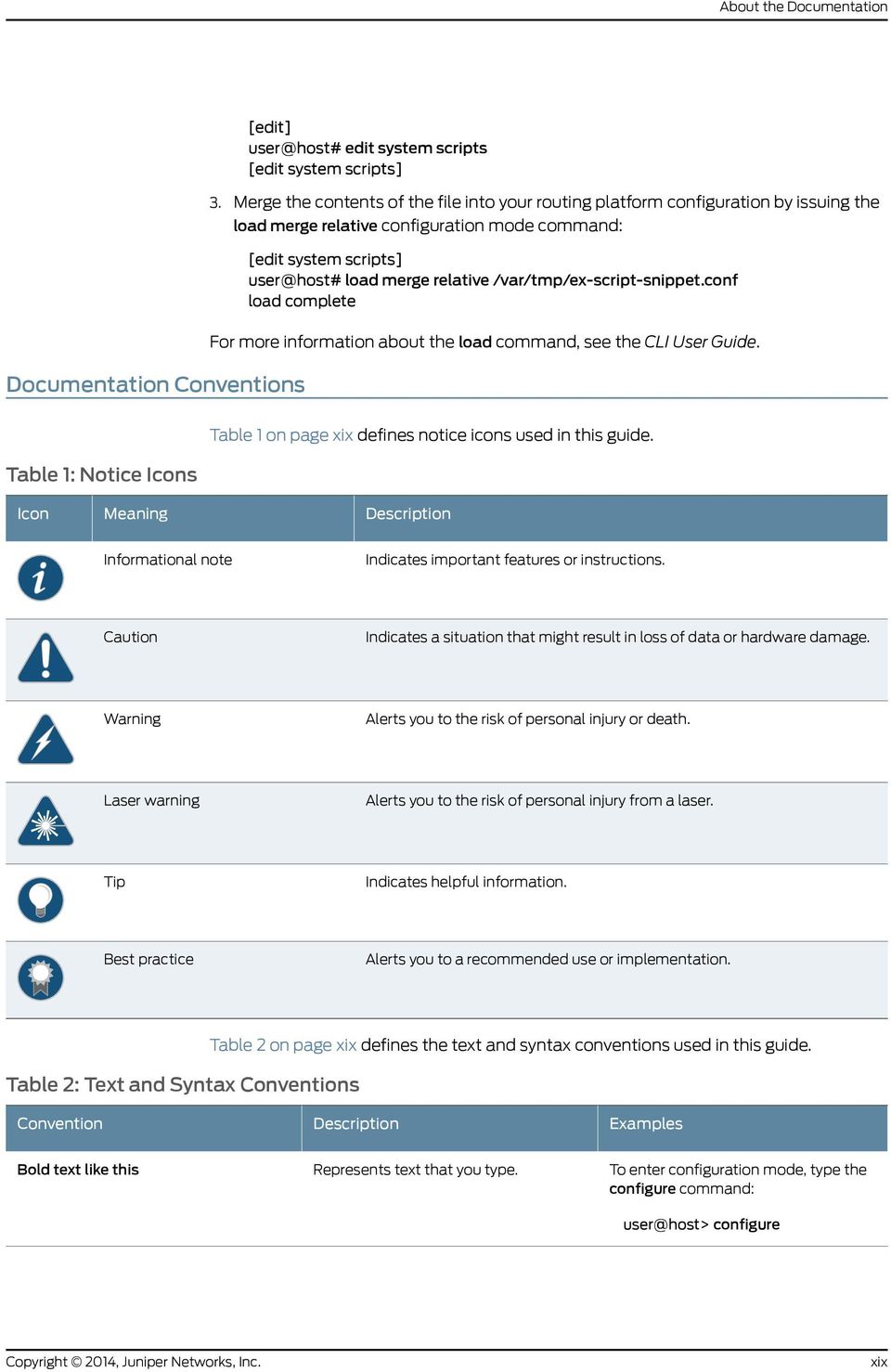
20 Network Management and Monitoring on EX Series Switches Table 2: Text and Syntax Conventions (continued) Convention Examples Fixed-width text like this Italic text like this Represents output that appears on the terminal screen. Introduces or emphasizes important new terms. Identifies guide names. Identifies RFC and Internet draft titles. show chassis alarms No alarms currently active A policy term is a named structure that defines match conditions and actions. Junos OS CLI User Guide RFC 1997, BGP Communities Attribute Italic text like this Text like this Represents variables (options for which you substitute a value) in commands or configuration statements. Represents names of configuration statements, commands, files, and directories; configuration hierarchy levels; or labels on routing platform components. Configure the machine s domain name: [edit] root@# set system domain-name domain-name To configure a stub area, include the stub statement at the [edit protocols ospf area area-id] hierarchy level. The console port is labeled CONSOLE. < > (angle brackets) Encloses optional keywords or variables. stub <default-metric metric>; (pipe symbol) Indicates a choice between the mutually exclusive keywords or variables on either side of the symbol. The set of choices is often enclosed in parentheses for clarity. broadcast multicast (string1 string2 string3) # (pound sign) Indicates a comment specified on the same line as the configuration statement to which it applies. rsvp { # Required for dynamic MPLS only [ ] (square brackets) Encloses a variable for which you can substitute one or more values. community name members [ community-ids ] Indention and braces ( { ) ; (semicolon) Identifies a level in the configuration hierarchy. Identifies a leaf statement at a configuration hierarchy level. [edit] routing-options { static { route default { nexthop address; retain; GUI Conventions Bold text like this Represents graphical user interface (GUI) items you click or select. In the Logical Interfaces box, select All Interfaces. To cancel the configuration, click Cancel. xx

21 About the Table 2: Text and Syntax Conventions (continued) Convention Examples > (bold right angle bracket) Separates levels in a hierarchy of menu selections. In the configuration editor hierarchy, select Protocols>Ospf. Feedback We encourage you to provide feedback, comments, and suggestions so that we can improve the documentation. You can send your comments to [email protected], or fill out the documentation feedback form at If you are using , be sure to include the following information with your comments: Document or topic name URL or page number Software release version (if applicable) Requesting Technical Support Technical product support is available through the Juniper Networks Technical Assistance Center (JTAC). If you are a customer with an active J-Care or JNASC support contract, or are covered under warranty, and need post-sales technical support, you can access our tools and resources online or open a case with JTAC. JTAC policies For a complete understanding of our JTAC procedures and policies, review the JTAC User Guide located at Product warranties For product warranty information, visit JTAC hours of operation The JTAC centers have resources available 24 hours a day, 7 days a week, 365 days a year. Self-Help Online Tools and Resources For quick and easy problem resolution, Juniper Networks has designed an online self-service portal called the Customer Support Center (CSC) that provides you with the following features: Find CSC offerings: Search for known bugs: Find product documentation: Find solutions and answer questions using our Knowledge Base: Download the latest versions of software and review release notes: xxi
22 Network Management and Monitoring on EX Series Switches Search technical bulletins for relevant hardware and software notifications: Join and participate in the Juniper Networks Community Forum: Open a case online in the CSC Case Management tool: To verify service entitlement by product serial number, use our Serial Number Entitlement (SNE) Tool: Opening a Case with JTAC You can open a case with JTAC on the Web or by telephone. Use the Case Management tool in the CSC at Call JTAC ( toll-free in the USA, Canada, and Mexico). For international or direct-dial options in countries without toll-free numbers, see xxii
23 PART 1 Overview Real-Time Performance Monitoring on page 3 Port Mirroring on page 9 sflow Monitoring Technology on page 17 Ethernet OAM Link Fault Management and Connectivity Fault Management on page 21 Uplink Failure Detection on page 27 1
24 Network Management and Monitoring on EX Series Switches 2
25 CHAPTER 1 Real-Time Performance Monitoring Understanding Real-Time Performance Monitoring on EX Series Switches on page 3 Understanding Real-Time Performance Monitoring on EX Series Switches Real-time performance monitoring (RPM) enables you to configure active probes to track and monitor traffic across the network and to investigate network problems. You can use RPM with Juniper Networks EX Series Ethernet Switches. The ways in which you can use RPM include: Monitor time delays between devices. Monitor time delays at the protocol level. Set thresholds to trigger SNMP traps when values are exceeded. You can configure thresholds for round-trip time, ingress or egress delay, standard deviation, jitter, successive lost probes, and total lost probes per test. (SNMP trap results are stored in pingresultstable, jnxpingresultstable, jnxpingprobehistorytable, and pingprobehistorytable.) Determine automatically whether a path exists between a host router or switch and its configured BGP neighbors. You can view the results of the discovery using an SNMP client. Use the history of the most recent 50 probes to analyze trends in your network and predict future needs. RPM provides MIB support with extensions for RFC 2925, Definitions of Managed Objects for Remote Ping, Traceroute, and Lookup Operations. This topic includes: RPM Packet Collection on page 4 Tests and Probe Types on page 4 Hardware Timestamps on page 4 Limitations of RPM on EX Series Switches on page 6 3
26 Network Management and Monitoring on EX Series Switches RPM Packet Collection Probes collect packets per destination and per application, including ping Internet Control Message Protocol (ICMP) packets, User Datagram Protocol and Transmission Control Protocol (UDP/TCP) packets with user-configured ports, user-configured Differentiated Services code point (DSCP) type-of-service (ToS) packets, and Hypertext Transfer Protocol (HTTP) packets. Tests and Probe Types A test can contain multiple probes. The probe type specifies the packet and protocol contents of the probe. EX Series switches support the following tests and probe types: Ping tests: ICMP echo probe ICMP timestamp probe HTTP tests: HTTP get probe (not available for BGP RPM services) HTTP get metadata probe UDP and TCP tests with user-configured ports: UDP echo probe TCP connection probe UDP timestamp probe Hardware Timestamps To account for latency or jitter in the communication of probe messages, you can enable timestamping of the probe packets (hardware timestamps). If hardware timestamps are not configured, then timers are generated at the software level and are less accurate than they would have been with hardware timestamps. NOTE: EX Series switches support hardware timestamps for UDP and ICMP probes. EX Series switches do not support hardware timestamps for HTTP or TCP probes. You can timestamp the following RPM probes to improve the measurement of latency or jitter: ICMP ping ICMP ping timestamp 4
27 Chapter 1: Real-Time Performance Monitoring UDP ping UDP ping timestamp You should configure the requester (the RPM client) with hardware timestamps (see Figure 1 on page 5) to get more meaningful results than you would get without the timestamps.the responder (the RPM server) does not need to be configured to support hardware timestamps. If the responder supports hardware timestamps, it timestamps the RPM probes. If the responder does not support hardware timestamps, RPM can only report round-trip measurements that include the processing time on the responder. NOTE: Hardware timestamps are supported on all EX Series switches. Figure 1 on page 5 shows the timestamps: Figure 1: RPM Timestamps T1 is the time the packet leaves the requester port. T2 is the time the responder receives the packet. T3 is the time the responder sends the response. T4 is the time the requester receives the response. The round-trip time is (T2 T1) + (T4 T3). If the responder does not support hardware timestamps, then the round-trip time is (T4 T1) / 2, and thus includes the processing time of the responder. You can use RPM probes to find the following time measurements: Minimum round-trip time Maximum round-trip time Average round-trip time Standard deviation of the round-trip time Jitter of the round-trip time Difference between the minimum and maximum round-trip time 5
28 Network Management and Monitoring on EX Series Switches NOTE: See Configuring the Interface for RPM Timestamping for Client/Server on an EX Series Switch (CLI Procedure) on page 92 for information on how to configure hardware timestamps on the requester. The RPM feature provides a configuration option to set one-way hardware timestamps. Use one-way timestamps when you want information about one-way time, rather than round-trip times, for packets to traverse the network between the requester and the responder. As shown in Figure 1 on page 5, one-way timestamps represent the time T2 T1 and the time from T4 T3. Use one-way timestamps when you want to gather information about delay in each direction and to find egress and ingress jitter values. NOTE: For correct one-way measurement, the clocks of the requester and responder must be synchronized. If the clocks are not synchronized, one-way jitter measurements and calculations can include significant variations, in some cases orders of magnitude greater than the round-trip times. When you enable one-way timestamps in a probe, the following one-way measurements are reported: Minimum, maximum, standard deviation, and jitter measurements for egress and ingress times Number of probes sent Number of probe responses received Percentage of lost probes Limitations of RPM on EX Series Switches Two-Way Active Measurement Protocol (TWAMP) is not supported on EX Series switches. EX Series switches do not support user-configured class-of-service (CoS) classifiers or prioritization of RPM packets over regular data packets received on an input interface. Timestamps: If the responder does not support hardware timestamps, RPM can only report the round-trip measurements and cannot calculate round-trip jitter. EX Series switches do not support hardware timestamps for HTTP and TCP probes. Timestamps apply only to IPv4 traffic. For further details about RPM, see Junos OS Services Interfaces Configuration Guide Configuring the Interface for RPM Timestamping for Client/Server on an EX Series Switch (CLI Procedure) on page 92 Configuring Real-Time Performance Monitoring (J-Web Procedure) on page 85 6
29 Chapter 1: Real-Time Performance Monitoring Configuring SNMP (J-Web Procedure) on page 75 Monitoring Network Traffic Using Traceroute on page 299 7
30 Network Management and Monitoring on EX Series Switches 8
31 CHAPTER 2 Port Mirroring Understanding Port Mirroring on EX Series Switches on page 9 Understanding Port Mirroring on EX Series Switches You can use port mirroring to facilitate analyzing traffic on your Juniper Networks EX Series Ethernet Switch on a packet level. You might use port mirroring as part of monitoring switch traffic for such purposes as enforcing policies concerning network usage and file sharing and for identifying sources of problems on your network by locating abnormal or heavy bandwidth usage by particular stations or applications. Port mirroring copies packets to either a local interface for local monitoring or to a VLAN for remote monitoring. You can use port mirroring to copy these packets: Packets entering or exiting a port Packets entering a VLAN on Juniper Networks EX2200, EX3200, EX3300, EX4200, EX4500, EX4550, or EX6200 Ethernet Switches Packets exiting a VLAN on Juniper Networks EX8200 Ethernet Switches This topic describes: Port Mirroring Overview on page 9 Port Mirroring Terminology on page 10 Configuration Guidelines for Port Mirroring on the Switches on page 12 Port Mirroring Overview Port mirroring might be needed for traffic analysis on a switch because a switch, unlike a hub, does not broadcast packets to every port on the destination device. The switch sends packets only to the port to which the destination device is connected. You configure port mirroring on the switch to send copies of unicast traffic to either a local analyzer port or an analyzer VLAN. Then you can analyze the mirrored traffic using a protocol analyzer application. The protocol analyzer application can run either on a computer connected to the analyzer output interface or on a remote monitoring station. 9
32 Network Management and Monitoring on EX Series Switches You can use port mirroring on a switch to mirror any of the following: Packets entering or exiting a port You can mirror the packets in any combination (on up to 256 ports). For example, you can send copies of the packets entering some ports and the packets exiting other ports to the same local analyzer port or analyzer VLAN. Packets entering a VLAN on an EX2200, EX3200, EX3300, EX4200, EX4500, EX4550, or EX6200 switch You can mirror the packets entering a VLAN on these switches to either a local analyzer port or to an analyzer VLAN. On EX3200, EX4200, EX4500, and EX4550 switches, you can configure multiple VLANs (up to 256 VLANs), including a VLAN range and PVLANs, as ingress input to an analyzer. Packets exiting a VLAN on an EX8200 switch You can mirror the packets exiting a VLAN on an EX8200 switch to either a local analyzer port or to an analyzer VLAN. You can configure multiple VLANs (up to 256 VLANs), including a VLAN range and PVLANs, as egress input to an analyzer. Statistical samples You can mirror a statistical sample of packets that are Entering or exiting a port Entering a VLAN on an EX2200, EX3200, EX3300, EX4200, EX4500, EX4550, or EX6200 switch Exiting a VLAN on an EX8200 switch You specify the sample number of packets by setting the ratio. You can send the sample to either a local analyzer port or to an analyzer VLAN. Policy-based sample You can mirror a policy-based sample of packets that are entering a port or a VLAN. You configure a firewall filter to establish a policy to select the packets to be mirrored. You can send the sample to a local analyzer port or to an analyzer VLAN. NOTE: Juniper Networks Junos operating system (Junos OS) for EX Series switches implements port mirroring differently than other Junos OS packages. Junos OS for EX Series switches does not include the port-mirroring statement found in the edit forwarding-options level of the hierarchy of other Junos OS packages, or the port-mirror action in firewall filter terms. Port Mirroring Terminology Table 3 on page 11 lists some port mirroring terms and their descriptions. 10
33 Chapter 2: Port Mirroring Table 3: Port Mirroring Terminology Term Analyzer A port mirroring configuration on an EX Series switch. The analyzer includes: The name of the analyzer Source (input) ports or VLAN (optional) A destination for mirrored packets (either a monitor port or a monitor VLAN) Ratio field for specifying statistical sampling of packets (optional) Loss-priority setting Analyzer output interface (Also known as monitor port) Interface to which mirrored traffic is sent and to which a protocol analyzer application is connected. NOTE: Interfaces used as output for an analyzer must be configured as family ethernet-switching. Analyzer output interfaces have the following limitations: Cannot also be a source port. Cannot be used for switching. Do not participate in Layer 2 protocols, such as Spanning Tree Protocol (STP), when part of a port mirroring configuration. Do not retain any VLAN associations they held before they were configured as analyzer output interfaces. If the bandwidth of the analyzer output interface is not sufficient to handle the traffic from the source ports, overflow packets are dropped. Analyzer VLAN (Also known as monitor VLAN) VLAN to which mirrored traffic is sent. The mirrored traffic can be used by a protocol analyzer application. The member interfaces in the monitor VLAN are spread across the switches in your network. Firewall-based analyzer An analyzer whose configuration does not specify an input source; it specifies only an output destination. A firewall-based analyzer must be used with a firewall filter to achieve the functionality of an analyzer. Global analyzer (on EX4500 and EX4550 switches only) An analyzer that is based on a firewall filter, VLAN, or link aggregation group (LAG) or an analyzer in which interfaces are on different port groups on the switch. A port group is a logical group of ports on the switch. Input interface (Also known as mirrored ports or monitored interfaces) An interface on the switch that is being mirrored, on traffic that is either entering or exiting the interface. An input interface cannot also be an output interface for an analyzer. LAG-based analyzer An analyzer that has a LAG specified as the input (ingress) interface in the analyzer configuration. Local port mirroring An analyzer configuration in which packets are mirrored to a local analyzer port. Mirror ratio See statistical sampling. Monitoring station A computer running a protocol analyzer application. 11
34 Network Management and Monitoring on EX Series Switches Table 3: Port Mirroring Terminology (continued) Term Native analyzer session An analyzer session that has both input and output definitions in its analyzer configuration. Policy-based mirroring Mirroring of packets that match the match items in the defined firewall filter term. The action item analyzer analyzer-name is used in the firewall filter to send the packets to the analyzer. Port-based analyzer An analyzer session whose configuration defines interfaces for both input and output. Protocol analyzer application An application used to examine packets transmitted across a network segment. Also commonly called network analyzer, packet sniffer, or probe. Remote port mirroring Functions the same as local port mirroring, except that the mirrored traffic is not copied to a local analyzer port but is flooded to an analyzer VLAN that you create specifically for the purpose of receiving mirrored traffic. If you are using an intermediate (transit) switch, you can avoid flooding of the mirrored traffic to member interfaces of the VLAN by setting the ingress option to specify an interface of the VLAN for ingress-only traffic and the egress option to specify an interface of the VLAN for egress-only traffic in the [edit vlans] hierarchy level. See Example: Configuring Port Mirroring for Remote Monitoring of Employee Resource Use Through a Transit Switch on EX Series Switches on page 61. Statistical sampling You can configure the system to mirror a sampling of the packets by setting a ratio of 1:x, where x is a value from 1 through For example, when x is set to 1, all packets are copied to the analyzer. When x is set to 200, 1 of every 200 packets is copied. VLAN-based analyzer An analyzer session whose configuration uses VLANs for both input and output or for either input or output. Configuration Guidelines for Port Mirroring on the Switches When you configure port mirroring, we recommend that you follow certain guidelines to ensure that you obtain optimum benefit from the port mirroring feature. Additionally, we recommend that you disable port mirroring when you are not using it and that you select specific interfaces for which packets must be mirrored (that is, select specific interfaces as input to the analyzer) in preference to using the all keyword option, which will enable port mirroring on all interfaces. You can also limit the amount of mirrored traffic by using statistical sampling, setting a ratio to select a statistical sample, or using a firewall filter. Mirroring only the necessary packets reduces any potential performance impact. With local port mirroring, traffic from multiple ports is replicated to the analyzer output interface. If the output interface for an analyzer reaches capacity, packets are dropped. Thus, while configuring an analyzer, you must consider whether the traffic being mirrored exceeds the capacity of the analyzer output interface. Table 4 on page 13 summarizes further configuration guidelines for port mirroring on the switches. 12
35 Chapter 2: Port Mirroring Table 4: Configuration Guidelines for Port Mirroring Guideline Comment NOTE: All other switches or All switches in the column applies to switch platforms that support port mirroring. For details on platform support, see EX Series Switch Software Features Overview. Number of VLANs that you can use as ingress input to an analyzer 1 EX2200 switches 256 EX3200, EX4200, EX4500, EX4550, and EX6200 switches Does not apply EX8200 switches Number of analyzers that you can enable concurrently 1 EX2200, EX3200, EX4200, EX3300, and EX6200 switches 7 port-based or 1 global EX4500 and EX4550 switches 7 total, with one based on a VLAN, firewall filter, or LAG and with the remaining 6 based on firewall filters EX8200 switches NOTE: An analyzer configured using a firewall filter does not support mirroring of packets that are egressing ports. You can configure more than the specified number of analyzers on the switch, but you can enable only the specified number for a session. Use disable ethernet-switching-options analyzer name to disable an analyzer. See Table 3 on page 11 for a description of global analyzers. See the next row entry in this table for the exception to the number of firewall-filter based analyzers allowed on EX4500 and EX4550 switches. On an EX4550 Virtual Chassis, you can configure only one analyzer if ports in the input and output definitions are on different switches in a Virtual Chassis. To configure multiple analyzers, an entire analyzer session must be configured on the same switch of a Virtual Chassis. Number of firewall-filter based analyzers that you can configure on EX4500 and EX4550 switches 1 EX4500 and EX4550 switches If you configure multiple analyzers, you cannot attach any of them to a firewall filter. Types of ports on which you cannot mirror traffic Virtual Chassis ports (VCPs) Management Ethernet ports (me0 or vme0) Routed VLAN interfaces (RVIs) VLAN-tagged Layer 3 interfaces If port mirroring is configured to mirror packets exiting 10-Gigabit Ethernet ports on EX8200 switches, packets are dropped in both network and mirrored traffic when the mirrored packets exceed 60 percent of the 10-Gigabit Ethernet port traffic. EX8200 switches Traffic directions for which you can specify a ratio Ingress only EX8200 switches Ingress and egress All other switches 13
36 Network Management and Monitoring on EX Series Switches Table 4: Configuration Guidelines for Port Mirroring (continued) Guideline Comment Protocol families that you can include in a firewall-filter-based remote analyzer Any except inet and inet6 EX8200 switches Any All other switches You can use inet and inet6 on EX8200 switches in a local analyzer. Traffic directions that you can configure for mirroring on ports in firewall-filter based configurations Ingress only All switches Mirrored packets on tagged interfaces might contain an incorrect VLAN ID or Ethertype. Both VLAN ID and Ethertype EX2200 switches VLAN ID only EX3200 and EX4200 switches Ethertype only EX4500 and EX4550 switches Does not apply EX8200 switches Mirrored packets exiting an interface do not reflect rewritten class-of-service (CoS) DSCP or 802.1p bits. All switches The analyzer appends an incorrect 802.1Q (dot1q) header to the mirrored packets on the routed traffic or does not mirror any packets on the routed traffic when an egress VLAN that belongs to a routed VLAN interface (RVI) is configured as the input for that analyzer. EX8200 switches Does not apply All other switches As a workaround, configure an analyzer that uses each port (member interface) of the VLAN as egress input. Packets with physical layer errors are not sent to the local or remote analyzer. All switches Packets with these errors are filtered out and thus are not sent to the analyzer. Port mirroring configuration on a Layer 3 interface with the output configured to a VLAN is not available on EX8200 switches. EX8200 switches Does not apply All other switches Port mirroring does not support line-rate traffic. All switches Port mirroring for line-rate traffic is done on a best-effort basis. In an EX8200 Virtual Chassis, if you need to mirror traffic across the virtual chassis, then the output port must be a LAG. EX8200 Virtual Chassis Does not apply All other switches In an EX8200 Virtual Chassis: You can configure LAG as a monitor port only for native analyzers. You cannot configure LAG as a monitor port for analyzers based on firewall filters. If an analyzer configuration contains LAG as a monitor port, then you cannot configure VLAN in the input definition of an analyzer. 14
37 Chapter 2: Port Mirroring Table 4: Configuration Guidelines for Port Mirroring (continued) Guideline Comment In standalone EX8200 switches, you can configure LAG in the output definition. EX8200 standalone switches Does not apply All other switches In EX8200 standalone switches: You can configure a LAG as a monitor port on both native and firewall-based analyzers. If a configuration contains LAG as a monitor port, then you cannot configure VLAN in the input definition of an analyzer. Example: Configuring Port Mirroring for Local Monitoring of Employee Resource Use on EX Series Switches on page 37 Example: Configuring Port Mirroring for Remote Monitoring of Employee Resource Use on EX Series Switches on page 42 Configuring Port Mirroring to Analyze Traffic (J-Web Procedure) on page 81 Configuring Port Mirroring to Analyze Traffic (CLI Procedure) on page 78 Firewall Filter Match Conditions, Actions, and Action Modifiers for EX Series Switches 15
38 Network Management and Monitoring on EX Series Switches 16
39 CHAPTER 3 sflow Monitoring Technology Understanding How to Use sflow Technology for Network Monitoring on an EX Series Switch on page 17 Understanding How to Use sflow Technology for Network Monitoring on an EX Series Switch The sflow technology is a monitoring technology for high-speed switched or routed networks. sflow monitoring technology randomly samples network packets and sends the samples to a monitoring station. You can configure sflow technology on a Juniper Networks EX Series Ethernet Switch to continuously monitor traffic at wire speed on all interfaces simultaneously. This topic describes: Sampling Mechanism and Architecture of sflow Technology on EX Series Switches on page 17 Adaptive Sampling on page 18 sflow Agent Address Assignment on page 19 Sampling Mechanism and Architecture of sflow Technology on EX Series Switches sflow technology uses the following two sampling mechanisms: Packet-based sampling: Samples one packet out of a specified number of packets from an interface enabled for sflow technology. Time-based sampling: Samples interface statistics at a specified interval from an interface enabled for sflow technology. The sampling information is used to create a network traffic visibility picture. The Juniper Networks Junos operating system (Junos OS) fully supports the sflow standard described in RFC 3176, InMon Corporation's sflow: A Method for Monitoring Traffic in Switched and Routed Networks (see NOTE: sflow technology on the switches samples only raw packet headers. A raw Ethernet packet is the complete Layer 2 network frame. 17
40 Network Management and Monitoring on EX Series Switches An sflow monitoring system consists of an sflow agent embedded in the switch and a centralized collector. The sflow agent s two main activities are random sampling and statistics gathering. It combines interface counters and flow samples and sends them across the network to the sflow collector in UDP datagrams, directing those datagrams to the IP address and UDP destination port of the collector. Each datagram contains the following information: The IP address of the sflow agent The number of samples The interface through which the packets entered the agent The interface through which the packets exited the agent The source and destination interface for the packets The source and destination VLAN for the packets EX Series switches adopt the distributed sflow architecture. The sflow agent has two separate sampling entities that are associated with each Packet Forwarding Engine. These sampling entities are known as subagents. Each subagent has a unique ID that is used by the collector to identify the data source. A subagent has its own independent state and forwards its own sample messages to the sflow agent. The sflow agent is responsible for packaging the samples into datagrams and sending them to the sflow collector. Because sampling is distributed across subagents, the protocol overhead associated with sflow technology is significantly reduced at the collector. NOTE: If the mastership assignment changes in a Virtual Chassis setup, sflow technology continues to function. Adaptive Sampling The switches use adaptive sampling to ensure both sampling accuracy and efficiency. Adaptive sampling is a process of monitoring the overall incoming traffic rate on the network device and providing intelligent feedback to interfaces to dynamically adapt their sampling rate to the traffic conditions. Interfaces on which incoming traffic exceeds the system threshold are checked so that all violations can be regulated without affecting the traffic on other interfaces. Every 12 seconds the agent checks interfaces to get the number of samples, and interfaces are grouped based on the slot that they belong to. The top five interfaces that produce the highest number of samples are selected. Using the binary backoff algorithm, the sampling load on these interfaces is reduced by half and allotted to interfaces that have a lower sampling rate. Therefore, when the processor s sampling limit is reached, the sampling rate is adapted such that it does not load the processor any further. If the switch is rebooted, the adaptive sampling rate is reset to the user-configured sampling rate. Also, if you modify the sampling rate, the adaptive sampling rate changes. The advantage of adaptive sampling is that the switch continues to operate at its optimum level even when there is a change in the traffic patterns in the interfaces. You do not need 18
41 Chapter 3: sflow Monitoring Technology to make any changes. Because the sampling rate adapts dynamically to changing network conditions, the resources are utilized optimally resulting in a high performance network. Infrequent sampling flows are not reported in the sflow information, but over time the majority of flows are reported. Based on a defined sampling rate, 1 out of N packets is captured and sent to the collector. This type of sampling does not provide a 100 percent accurate result in the analysis, but it does provide a result with quantifiable accuracy. A user-configured polling interval defines how often the sflow data for a specific interface are sent to the collector, but an sflow agent can also schedule polling. NOTE: sflow technology on EX Series switches does not support graceful restart. When a graceful restart occurs, the adaptive sampling rate is set to the user-configured sampling rate. sflow Agent Address Assignment The sflow collector uses the sflow agent s IP address to determine the source of the sflow data. You can configure the IP address of the sflow agent to ensure that the agent ID of the sflow agent remains constant. If you do not specify the IP address to be assigned to the agent, an IP address is automatically assigned to the agent based on the following order of priority of interfaces configured on the switch: 1. Virtual management Ethernet (VME) interface 2. Management Ethernet interface If neither of the preceding interfaces has been configured, the IP address of any Layer 3 interface or the routed VLAN interface (RVI) is assigned to the agent. At least one interface must be configured on the switch for an IP address to be automatically assigned to the agent. When the agent s IP address is assigned automatically, the IP address is dynamic and changes when the switch reboots. sflow data can be used to provide network traffic visibility information. You can explicitly configure the IP address to be assigned to source data (sflow datagrams). If you do not explicitly configure that address, the IP address of the configured Gigabit Ethernet interface, 10-Gigabit Ethernet interface, or the routed VLAN interface (RVI) is used as the source IP address. Example: Configuring sflow Technology to Monitor Network Traffic on EX Series Switches on page 33 Configuring sflow Technology for Network Monitoring (CLI Procedure) on page 84 Monitoring Interface Status and Traffic 19
42 Network Management and Monitoring on EX Series Switches 20
43 CHAPTER 4 Ethernet OAM Link Fault Management and Connectivity Fault Management Understanding Ethernet OAM Link Fault Management for an EX Series Switch on page 21 Understanding Ethernet OAM Connectivity Fault Management for an EX Series Switch on page 22 Understanding Ethernet Frame Delay Measurements on Switches on page 24 Understanding Ethernet OAM Link Fault Management for an EX Series Switch Juniper Networks Junos operating system (Junos OS) for Juniper Networks EX Series Ethernet Switches allows the Ethernet interfaces on these switches to support the IEEE 802.3ah standard for the Operation, Administration, and Maintenance (OAM) of Ethernet in access networks. The standard defines OAM link fault management (LFM). You can configure IEEE 802.3ah OAM LFM on point-to-point Ethernet links that are connected either directly or through Ethernet repeaters. The IEEE 802.3ah standard meets the requirement for OAM capabilities even as Ethernet moves from being solely an enterprise technology to a WAN and access technology, and the standard remains backward-compatible with existing Ethernet technology. Ethernet OAM provides the tools that network management software and network managers can use to determine how a network of Ethernet links is functioning. Ethernet OAM should: Rely only on the media access control (MAC) address or virtual LAN identifier for troubleshooting. Work independently of the actual Ethernet transport and function over physical Ethernet ports or a virtual service such as pseudowire. Isolate faults over a flat (or single operator) network architecture or nested or hierarchical (or multiprovider) networks. The following OAM LFM features are supported on EX Series switches: Discovery and Link Monitoring The discovery process is triggered automatically when OAM is enabled on the interface. The discovery process permits Ethernet interfaces to discover and monitor the peer 21
44 Network Management and Monitoring on EX Series Switches on the link if it also supports the IEEE 802.3ah standard. You can specify the discovery mode used for IEEE 802.3ah OAM support. In active mode, the interface discovers and monitors the peer on the link if the peer also supports IEEE 802.3ah OAM functionality. In passive mode, the peer initiates the discovery process. After the discovery process has been initiated, both sides participate in discovery. The switch performs link monitoring by sending periodic OAM protocol data units (PDUs) to advertise OAM mode, configuration, and capabilities. You can specify the number of OAM PDUs that an interface can miss before the link between peers is considered down. Remote Fault Detection Remote fault detection uses flags and events. Flags are used to convey the following: Link Fault means a loss of signal, Dying Gasp means an unrecoverable condition such as a power failure, and Critical Event means an unspecified vendor-specific critical event. You can specify the periodic OAM PDU sending interval for fault detection.the EX Series switch uses the Event Notification OAM PDU to notify the remote OAM device when a problem is detected. You can specify the action to be taken by the system when the configured link-fault event occurs. Remote Loopback Mode Remote loopback mode ensures link quality between the switch and a remote peer during installation or troubleshooting. In this mode, when the interface receives a frame that is not an OAM PDU or a pause frame, it sends it back on the same interface on which it was received. The link appears to be in the active state. You can use the returned loopback acknowledgement to test delay, jitter, and throughput. Junos OS can place a remote DTE into loopback mode (if remote loopback mode is supported by the remote DTE). When you place a remote DTE into loopback mode, the interface receives the remote loopback request and puts the interface into remote loopback mode. When the interface is in remote loopback mode, all frames except OAM PDUs are looped back without any changes made to the frames. OAM PDUs continue to be sent and processed. Configuring Ethernet OAM Link Fault Management (CLI Procedure) on page 97 Example: Configuring Ethernet OAM Link Fault Management on EX Series Switches on page 72 Understanding Ethernet OAM Connectivity Fault Management for an EX Series Switch Ethernet interfaces on Juniper Networks EX Series Ethernet Switches and Juniper Networks Junos operating system (Junos OS) for EX Series switches support the IEEE 802.1ag standard for Operation, Administration, and Management (OAM). The IEEE 802.1ag specification provides for Ethernet connectivity fault management (CFM). CFM monitors Ethernet networks that might comprise one or more service instances for network-compromising connectivity faults. The major features of CFM are: 22
45 Chapter 4: Ethernet OAM Link Fault Management and Connectivity Fault Management Fault monitoring using the continuity check protocol. This is a neighbor discovery and health check protocol that discovers and maintains adjacencies at the VLAN or link level. Path discovery and fault verification using the linktrace protocol. Fault isolation using the loopback protocol. CFM partitions the service network into various administrative domains. For example, operators, providers, and customers might be part of different administrative domains. Each administrative domain is mapped into one maintenance domain providing enough information to perform its own management, thus avoiding security breaches and making end-to-end monitoring possible. In a CFM maintenance domain, each service instance is called a maintenance association. A maintenance association can be thought of as a full mesh of maintenance association endpoints (MEPs) having similar characteristics. MEPs are active CFM entities generating and responding to CFM protocol messages. There is also a maintenance intermediate point (MIP), which is a CFM entity similar to the MEP, but more passive (MIPs only respond to CFM messages). Each maintenance domain is associated with a maintenance domain level from 0 through 7. allocation is based on the network hierarchy, where outer domains are assigned a higher level than the inner domains. Configure customer end points to have the highest maintenance domain level. The maintenance domain level is a mandatory parameter that indicates the nesting relationships between various maintenance domains. The level is embedded in each CFM frame. CFM messages within a given level are processed by MEPs at that same level. To enable CFM on an Ethernet interface, you must configure maintenance domains, maintenance associations, and maintenance association end points (MEPs). Figure 2 on page 24 shows the relationships among maintenance domains, maintenance association end points (MEPs), and maintenance intermediate points (MIPs) configured on a switch. 23
46 Network Management and Monitoring on EX Series Switches Figure 2: Relationship Among MEPs, MIPs, and Maintenance Domain s Configuring Ethernet OAM Connectivity Fault Management (CLI Procedure) on page 93 Junos OS Network Interfaces Configuration Guide Understanding Ethernet Frame Delay Measurements on Switches Performance management depends on the accurate measurement of service-level agreement (SLA) objective parameters, which can include bandwidth and reliability. In many cases, a service provider could be subject to penalties imposed by regulation, statute, or contract if network performance is not within the bounds established for the service. One key performance objective is delay, along with its close relative, delay variation (often called jitter). Some applications (such as bulk file transfer) will function just as well with high delays across the network and high delay variations, while other applications (such as voice) can function only with low and stable delays. Many networks invoke protocols or features available at Layer 3 (the packet layer) or higher to measure network delays and jitter link by link. However, when the network consists of many Ethernet links, there are few protocols and features available at Layer 2 (the frame layer) that allow routers and switches to measure frame delay and jitter. This is where the ability to configure and monitor Ethernet frame delay is helpful. This topic includes: Ethernet Frame Delay Measurements on page 24 Types of Ethernet Frame Delay Measurements on page 25 Limitations on page 26 Ethernet Frame Delay Measurements You can perform Ethernet frame delay measurements (referred to as ETH-DM in Ethernet specifications) on Juniper Networks EX Series Ethernet Switches. This feature allows you to configure on-demand Operation, Administration, and Maintenance (OAM) 24
47 Chapter 4: Ethernet OAM Link Fault Management and Connectivity Fault Management statements for the measurement of frame delay and frame delay variation (jitter). You can configure Ethernet frame delay measurement in either one-way or two-way (round-trip) mode to gather frame delay statistics simultaneously from multiple sessions. Ethernet frame delay measurement provides fine control to operators for triggering delay measurement on a given service and can be used to monitor SLAs. Ethernet frame delay measurement also collects other useful information, such as worst and best case delays, average delay, and average delay variation. It supports software-assisted timestamping in the receive direction for delay measurements. It also provides runtime display of delay statistics when two-way delay measurement is triggered. Ethernet frame delay measurement records the last 100 samples collected per remote maintenance association end point (MEP) or per connectivity fault management (CFM) session. You can retrieve the history at any time using simple commands. You can clear all Ethernet frame delay measurement statistics and PDU counters. Ethernet frame delay measurement is fully compliant with the ITU-T Y.1731 (OAM Functions and Mechanisms for Ethernet-based Networks) specification. Ethernet frame delay measurement uses the IEEE 802.1ag CFM infrastructure. Generally, Ethernet frame delay measurements are made in a peer fashion from one MEP or CFM session to another. However, these measurements are not made to maintenance association intermediate points (MIPs). For a complete description of Ethernet frame delay measurement, see the ITU-T Y.1731 Ethernet Service OAM topics in the Junos OS Network Interfaces Library for Routing Devices. Types of Ethernet Frame Delay Measurements There are two types of Ethernet frame delay measurements: One-way Two-way (round-trip) For one-way Ethernet frame delay measurement, either MEP can send a request to begin a one-way delay measurement to its peer MEP. However, the statistics are collected only at the receiver MEP. This feature requires the clocks at the transmitting and receiving MEPs to be synchronized. If these clocks fall out of synchronization, only one-way delay variation and average delay variation values are computed correctly (and will, therefore, be valid). Use the show commands at the receiver MEP to display one-way delay statistics. For two-way (round-trip) Ethernet frame delay measurement, either MEP can send a request to begin a two-way delay measurement to its peer MEP, which responds with timestamp information. Run-time statistics are collected and displayed at the initiator MEP. The clocks do not need to be synchronized at the transmitting and receiving MEPs. Junos OS supports timestamps in delay measurement reply (DMR) frames to increase the accuracy of delay calculations. Use the show commands at the initiator MEP to display two-way delay statistics, and at the receiver MEP to display one-way delay statistics. 25
48 Network Management and Monitoring on EX Series Switches You can create an iterator profile to periodically transmit SLA measurement packets in the form of ITU-Y.1731-compliant frames for delay measurement or loss measurement. Limitations The following are some limitations with regard to using Ethernet frame delay measurement: Ethernet frame delay measurements are available only when distributed periodic packet management (PPM) is enabled. The statistics collected are lost after a graceful Routing Engine switchover (GRES). You can monitor only one session to the same remote MEP or MAC address. Accuracy is compromised when the system configuration changes (such as from reconfiguration). We recommend performing Ethernet frame delay measurements on a stable system. Configuring MEP Interfaces on Switches to Support Ethernet Frame Delay Measurements (CLI Procedure) on page 100 Configuring One-Way Ethernet Frame Delay Measurements on Switches (CLI Procedure) on page 101 Configuring Two-Way Ethernet Frame Delay Measurements on Switches (CLI Procedure) on page 104 Triggering an Ethernet Frame Delay Measurement Session on a Switch on page
49 CHAPTER 5 Uplink Failure Detection Understanding Uplink Failure Detection on page 27 Understanding Uplink Failure Detection Uplink failure detection allows Juniper Networks EX Series Ethernet Switches to detect link failure on uplink interfaces and to propagate the failure to the downlink interfaces so that servers connected to those downlink interfaces can switch over to secondary interfaces. Uplink failure detection supports network adapter teaming and provides network redundancy. In network adapter teaming, all the network interface cards (NICs) on a server are configured in a primary or secondary relationship and share the same IP address. When the primary link goes down, the server transparently shifts the connection to the secondary link. With uplink failure detection, the switch monitors uplink interfaces for link failures. When it detects a failure, it disables the downlink interfaces. When the server detects disabled downlink interfaces, it switches over to the secondary link to help ensure balanced traffic flow on switches. This topic describes: Uplink Failure Detection Overview on page 27 Failure Detection Pair on page 28 Uplink Failure Detection Overview Uplink failure detection allows switches to monitor uplink interfaces to spot link failures. When a switch detects a link failure, it automatically disables the downlink interfaces in that group. The server that is connected to the disabled downlink interfaces triggers a network-adapter failover to a secondary link to avoid any information drop. Figure 3 on page 28 illustrates a typical setup for uplink failure detection. 27
50 Network Management and Monitoring on EX Series Switches Figure 3: Uplink Failure Detection Configuration on Switches Switch Switch link-to-monitor Switch 1 Switch 2 link-to-disable NIC 1 NIC 2 Server g For uplink failure detection, you specify a group of uplink interfaces to be monitored and downlink interfaces to be brought down when an uplink fails. The downlink interfaces are bound to the uplink interfaces within the group. If all uplink interfaces in a group go down, then the switch brings down all downlink interfaces within that group. If any uplink interface returns to service, then the switch brings all downlink interfaces in that group back to service. NOTE: Routed VLAN interfaces (RVIs) cannot be configured as uplink interfaces to be monitored. The switch can monitor both physical-interface links and logical-interface links for uplink failures, but you must put the two types of interfaces in separate groups. NOTE: To detect failure of logical interfaces, the server must run some high level protocol such as keepalives between the switch and the server. Failure Detection Pair Uplink failure detection requires that you create groups that contain uplink interfaces and downlink interfaces. Each group includes one of each of the following: A link-to-monitor interface The link-to-monitor interfaces specify the uplink interfaces the switch monitors. You can configure a maximum of 48 uplink interfaces as link-to-monitor in a group. 28
51 Chapter 5: Uplink Failure Detection A link-to-disable interface The link-to-disable interfaces specify the downlink interfaces the switch disables when the switch detects an uplink failure. You can configure a maximum of 48 downlink interfaces as link-to-disable in a group. The link-to-disable interfaces are bound to the link-to-monitor interfaces within the group. When a link-to-monitor interface returns to service, the switch automatically enables all link-to-disable interfaces in the group. Configuring Interfaces for Uplink Failure Detection (CLI Procedure) on page 99 29
52 Network Management and Monitoring on EX Series Switches 30
53 PART 2 Configuration Configuration Examples on page 33 Configuration Tasks on page 75 Configuration Statements: SNMP on page 105 Configuration Statements: Port Mirroring on page 185 Configuration Statements: sflow Technology on page 203 Configuration Statements: Ethernet OAM Connectivity Fault Management on page 213 Configuration Statements: Ethernet OAM Link Fault Management on page 245 Configuration Statements: RPM on page 267 Configuration Statements: Uplink Failure Detection on page
54 Network Management and Monitoring on EX Series Switches 32
55 CHAPTER 6 Configuration Examples Example: Configuring sflow Technology to Monitor Network Traffic on EX Series Switches on page 33 Example: Configuring Port Mirroring for Local Monitoring of Employee Resource Use on EX Series Switches on page 37 Example: Configuring Port Mirroring for Remote Monitoring of Employee Resource Use on EX Series Switches on page 42 Example: Configuring Port Mirroring to Multiple Interfaces for Remote Monitoring of Employee Resource Use on EX Series Switches on page 52 Example: Configuring Port Mirroring for Remote Monitoring of Employee Resource Use Through a Transit Switch on EX Series Switches on page 61 Example: Configuring Ethernet OAM Connectivity Fault Management on EX Series Switches on page 68 Example: Configuring Ethernet OAM Link Fault Management on EX Series Switches on page 72 Example: Configuring sflow Technology to Monitor Network Traffic on EX Series Switches You can configure sflow technology, designed for monitoring high-speed switched or routed networks, to continuously monitor traffic at wire speed on all interfaces simultaneously. You can specify sample rates for ingress and egress packets. sflow data can be used to provide network traffic visibility information. This example describes how to configure and use sflow technology to monitor network traffic. Junos OS fully supports the sflow standard described in RFC 3176, InMon Corporation's sflow: A Method for Monitoring Traffic in Switched and Routed Networks (see Requirements on page 34 Overview and Topology on page 34 Configuration on page 35 Verification on page 36 33
56 Network Management and Monitoring on EX Series Switches Requirements This example uses the following hardware and software components: One EX Series switch Junos OS Release 9.3 or later for EX Series switches Overview and Topology sflow technology is a statistical-sampling based network monitoring technology for high-speed switched or routed networks. sflow technology samples network packets and sends the samples to a monitoring station. You can specify sample rates for ingress and egress packets. The information gathered is used to create a network traffic visibility picture. An sflow monitoring system consists of an sflow agent embedded in the switch and a centralized collector. The sflow agent runs on the switch. It combines interface counters and flow samples and sends them across the network to the sflow collector. Figure 4 on page 34 depicts the basic elements of the sflow system. Figure 4: sflow Technology Monitoring System 34
57 Chapter 6: Configuration Examples Configuration To configure sflow technology, perform the following tasks: CLI Quick Configuration To quickly configure sflow technology, copy the following commands and paste them into the switch terminal window: [edit protocols] set sflow collector udp-port 5600 set sflow interfaces ge-0/0/0 set sflow polling-interval 20 set sflow sample-rate egress 1000 Step-by-Step Procedure To configure sflow technology: 1. Configure the IP address and UDP port of the collector: [edit protocols] set sflow collector udp-port 5600 NOTE: You can configure a maximum of 4 collectors. 2. Enable sflow technology on a specific interface: [edit protocols sflow] user@switch# set interfaces (sflow Monitoring Technology) ge-0/0/0 NOTE: You cannot enable sflow technology on a Layer 3 VLAN-tagged interface. You cannot enable sflow technology on a link aggregation group (LAG) interface that is, an aggregated Ethernet interface with a name such as ae0. You can enable sflow technology on the member interfaces that make up the LAG. 3. Specify how often the sflow agent polls the interface: [edit protocols sflow] user@switch# set polling-interval 20 NOTE: The polling interval can be specified as a global parameter also. Specify 0 if you do not want to poll the interface. 4. Specify the rate at which egress packets must be sampled: NOTE: The sample-rate number (the global sample-rate) statement has been deprecated and might be removed from future product releases. We strongly recommend that you phase out its use. 35
58 Network Management and Monitoring on EX Series Switches [edit protocols sflow] set sample-rate egress 1000 NOTE: If you set only the egress sample rate, the ingress sample rate will be disabled. Results Check the results of the configuration: [edit protocols sflow] show polling-interval 20; sample-rate egress 1000; collector { udp-port 5600; interfaces ge-0/0/0.0; Verification To confirm that the configuration is correct, perform these tasks: Verifying That sflow Technology Has Been Configured Properly on page 36 Verifying That sflow Technology Is Enabled on the Intended Interface on page 37 Verifying the sflow Collector Configuration on page 37 Verifying That sflow Technology Has Been Configured Properly Purpose Verify that sflow technology has been configured properly. Action Use the show sflow command: user@switch> show sflow sflow: Enabled Sample limit: 300 packets/second Polling interval: 20 seconds Sample rate egress: 1:1000: Enabled Sample rate ingress: 1:2048: Disabled Agent ID: NOTE: The sample limit cannot be configured and is set to 300 packets/second. Meaning The output shows that sflow technology is enabled and specifies the values for the sample limit, polling interval, and sample rate. 36
59 Chapter 6: Configuration Examples Verifying That sflow Technology Is Enabled on the Intended Interface Purpose Verify that sflow technology is enabled on interfaces and display the sampling parameters. Action Use the show sflow interface command: show sflow interface Interface Status Sample rate Adapted sample rate Polling-interval Egress Ingress Egress Ingress Egress Ingress ge-0/0/0.0 Enabled Disabled NOTE: The sample limit cannot be configured and is set to 300 packets/second. Meaning The output indicates that sflow technology is enabled on the ge-0/0/0.0 interface with an egress sample rate of 1000, a disabled ingress sample rate, a sampling limit of 300 packets per second and a polling interval of 20 seconds. Verifying the sflow Collector Configuration Purpose Verify the sflow collector's configuration. Action Use the show sflow collector command: user@switch> show sflow collector Collector Udp-port No. of samples address Meaning The output displays the IP address of the collectors and the UDP ports. It also displays the number of samples. Configuring sflow Technology for Network Monitoring (CLI Procedure) on page 84 Understanding How to Use sflow Technology for Network Monitoring on an EX Series Switch on page 17 Example: Configuring Port Mirroring for Local Monitoring of Employee Resource Use on EX Series Switches EX Series switches allow you to configure port mirroring to send copies of packets to either a local interface for local monitoring or to a VLAN for remote monitoring. You can use port mirroring to copy these packets: 37
60 Network Management and Monitoring on EX Series Switches Packets entering or exiting a port Packets entering a VLAN on EX2200, EX3200, EX3300, EX4200, EX4500, EX4550, or EX6200 switches Packets exiting a VLAN on EX8200 switches You can analyze the mirrored traffic using a protocol analyzer application installed on a system connected to the local destination interface (or a running on a remote monitoring station if you are sending mirrored traffic to an analyzer VLAN). This example describes how to configure an EX Series switch to mirror traffic entering interfaces connected to employee computers to an analyzer output interface on the same switch. This example describes how to configure local port mirroring: Requirements on page 38 Overview and Topology on page 38 Mirroring All Employee Traffic for Local Analysis on page 39 Mirroring Employee-to-Web Traffic for Local Analysis on page 40 Verification on page 42 Requirements This example uses the following hardware and software components: Junos OS Release 9.0 or later for EX Series switches One EX Series switch Before you configure port mirroring, be sure you have an understanding of port mirroring concepts. Overview and Topology This topic includes two related examples that describe how to mirror traffic entering ports on the switch to a destination interface on the same switch. The first example shows how to mirror all traffic entering the ports connected to employee computers. The second example shows the same scenario, but includes a filter to mirror only the employee traffic going to the Web. Network Topology In this example, ge-0/0/0 and ge-0/0/1 serve as connections for employee computers. In this example, one interface, ge-0/0/10, is reserved for analysis of mirrored traffic. Connect a PC running a protocol analyzer application to the analyzer output interface to analyze the mirrored traffic. NOTE: Multiple ports mirrored to one interface can cause buffer overflow and dropped packets. 38
61 Chapter 6: Configuration Examples Figure 5 on page 39 shows the network topology for this example. Figure 5: Network Topology for Local Port Mirroring Example Mirroring All Employee Traffic for Local Analysis To configure port mirroring for all employee traffic for local analysis, perform these tasks: CLI Quick Configuration To quickly configure local port mirroring for ingress traffic to the two ports connected to employee computers, copy the following commands and paste them into the switch terminal window: [edit] set interfaces ge-0/0/0 unit 0 family ethernet-switching set interfaces ge-0/0/1 unit 0 family inet /24 set interfaces ge-0/0/10 unit 0 family ethernet-switching set ethernet-switching options analyzer employee monitor input ingress interface ge-0/0/0.0 set ethernet-switching options analyzer employee monitor input ingress interface ge-0/0/1.0 set ethernet-switching options analyzer employee monitor output interface ge-0/0/10.0 Step-by-Step Procedure To configure an analyzer called employee-monitor and specify the input (source) interfaces and the analyzer output interface: 1. Configure each interface connected to employee computers as an input interface for the port-mirror analyzer that we are calling employee-monitor: [edit ethernet-switching-options] user@switch# set analyzer employee-monitor input ingress interface ge 0/0/0.0 user@switch# set analyzer employee-monitor input ingress interface ge 0/0/ Configure the output analyzer interface for the employee-monitor analyzer. This will be the destination interface for the mirrored packets: [edit ethernet-switching-options] user@switch# set analyzer employee-monitor output (Port Mirroring) interface ge-0/0/10.0 Results Check the results of the configuration: [edit] user@switch# show ethernet-switching-options { 39
62 Network Management and Monitoring on EX Series Switches analyzer employee-monitor { input { ingress { interface ge-0/0/0.0; interface ge-0/0/1.0; output { interface { ge-0/0/10.0; Mirroring Employee-to-Web Traffic for Local Analysis To configure port mirroring for employee to web traffic, perform these tasks: CLI Quick Configuration To quickly configure local port mirroring of traffic from the two ports connected to employee computers, filtering so that only traffic to the external Web is mirrored, copy the following commands and paste them into the switch terminal window: [edit] set ethernet-switching-options analyzer employee web monitor output interface ge-0/0/10.0 set firewall family ethernet-switching filter watch-employee term employee-to-corp from destination-address /28 set firewall family ethernet-switching filter watch-employee term employee-to-corp from source-address /28 set firewall family ethernet-switching filter watch-employee term employee-to-corp then accept set firewall family ethernet-switching filter watch-employee term employee-to-web from destination-port 80 set firewall family ethernet-switching filter watch-employee term employee-to-web then analyzer employee-web-monitor set interfaces ge-0/0/0 unit 0 family ethernet-switching filter input watch-employee set interfaces ge-0/0/1 unit 0 family ethernet-switching filter input watch-employee Step-by-Step Procedure To configure local port mirroring of employee-to-web traffic from the two ports connected to employee computers: 1. Configure the local analyzer interface: [edit interfaces] user@switch# set ge-0/0/10 unit 0 family ethernet-switching 2. Configure the employee-web-monitor analyzer output (the input to the analyzer comes from the action of the filter): [edit ethernet-switching-options] user@switch# set analyzer employee-web-monitor output interface ge-0/0/ Configure a firewall filter called watch-employee to send mirrored copies of employee requests to the Web to the employee-web-monitor analyzer. Accept all traffic to and from the corporate subnet (destination or source address of /28). Send mirrored copies of all packets destined for the Internet (destination port 80) to the employee-web-monitor analyzer. [edit firewall family ethernet-switching] user@switch# set filter (Firewall Filters) watch-employee term employee-to-corp from destination-address /28 40
63 Chapter 6: Configuration Examples set filter watch-employee term employee-to-corp from source-address /28 set filter watch-employee term employee-to-corp then accept set filter watch-employee term employee-to-web from destination-port 80 set filter watch-employee term employee-to-web then analyzer employee-web-monitor 4. Apply the watch-employee filter to the appropriate ports: [edit interfaces] set ge-0/0/0 unit 0 family ethernet-switching filter input (Port Mirroring) watch-employee user@switch# set ge-0/0/1 unit 0 family ethernet-switching filter input watch-employee Results Check the results of the configuration: [edit] user@switch# show ethernet-switching-options { analyzer employee-web-monitor { output { interface ge-0/0/10.0;... firewall family ethernet-switching { filter watch-employee { term employee-to-corp { from { destination-address /28; source-address /28; then accept { term employee-to-web { from { destination-port 80; then analyzer employee-web-monitor;... interfaces { ge-0/0/0 { unit 0 { family ethernet-switching { port-mode trunk; vlan members [employee-vlan, voice-vlan]; filter { input watch-employee; ge-0/0/1 { family ethernet-switching { 41
64 Network Management and Monitoring on EX Series Switches filter { input watch-employee; Verification To confirm that the configuration is correct, perform these tasks: Verifying That the Analyzer Has Been Correctly Created on page 42 Verifying That the Analyzer Has Been Correctly Created Purpose Verify that the analyzer named employee-monitor or employee-web-monitor has been created on the switch with the appropriate input interfaces, and appropriate output interface. Action You can verify the port mirror analyzer is configured as expected using the show analyzer command. user@switch> show analyzer Analyzer name : employee-monitor Output interface : ge-0/0/10.0 Mirror ratio : 1 Loss priority : Low Ingress monitored interfaces : ge-0/0/0.0 Ingress monitored interfaces : ge-0/0/1.0 Egress monitored interfaces : None Meaning This output shows that the employee-monitor analyzer has a ratio of 1 (mirroring every packet, the default setting), a loss priority of low (set this option to high only when the analyzer output is to a VLAN), is mirroring the traffic entering the ge-0/0/0 and ge-0/0/1 interfaces, and sending the mirrored traffic to the ge-0/0/10 interface. Example: Configuring Port Mirroring for Remote Monitoring of Employee Resource Use on EX Series Switches on page 42 Configuring Port Mirroring to Analyze Traffic (CLI Procedure) on page 78 Configuring Port Mirroring to Analyze Traffic (J-Web Procedure) on page 81 Understanding Port Mirroring on EX Series Switches on page 9 Example: Configuring Port Mirroring for Remote Monitoring of Employee Resource Use on EX Series Switches EX Series switches allow you to configure port mirroring to send copies of packets to either a local interface for local monitoring or to a VLAN for remote monitoring. You can use port mirroring to copy these packets: 42
65 Chapter 6: Configuration Examples Packets entering or exiting a port Packets entering a VLAN on Juniper Networks EX2200, EX3200, EX3300, EX4200, EX4500, EX4550, or EX6200 Ethernet Switches Packets exiting a VLAN on Juniper Networks EX8200 Ethernet Switches You can analyze the mirrored traffic using a protocol analyzer application running on a remote monitoring station if you are sending mirrored traffic to an analyzer VLAN. This topic includes two related examples that describe how to mirror traffic entering ports on the switch to the remote-monitor VLAN so that you can perform analysis from a remote monitoring station. The first example shows how to mirror all traffic entering the ports connected to employee computers. The second example shows the same scenario but includes a filter to mirror only the employee traffic going to the Web. BEST PRACTICE: Mirror only necessary packets to reduce potential performance impact. We recommend that you: Disable your configured port mirroring analyzers when you are not using them. Specify individual interfaces as input to analyzers rather than specifying all interfaces as input. Limit the amount of mirrored traffic by: Using statistical sampling. Setting ratios to select statistical samples. Using firewall filters. This example describes how to configure remote port mirroring: Requirements on page 43 Overview and Topology on page 44 Mirroring All Employee Traffic for Remote Analysis on page 44 Mirroring Employee-to-Web Traffic for Remote Analysis on page 47 Verification on page 51 Requirements This example uses the following hardware and software components: Junos OS Release 9.5 or later for EX Series switches EX Series switch connected to another EX Series switch Before you configure remote port mirroring, be sure that: You have an understanding of port-mirroring concepts. 43
66 Network Management and Monitoring on EX Series Switches The interfaces that the analyzer will use as input interfaces have been configured on the switch. Overview and Topology This topic includes two related examples that describe how to configure port mirroring to the remote-monitor VLAN so that analysis can be performed from a remote monitoring station. The first example shows how to configure a switch to mirror all traffic from employee computers. The second example shows the same scenario, but the setup includes a filter to mirror only the employee traffic going to the Web. Figure 6 on page 44 shows the network topology for both these example scenarios. Figure 6: Remote Port Mirroring Example Network Topology In this example: Interface ge-0/0/0 is a Layer 2 interface, and interface ge-0/0/1 is a Layer 3 interface (both interfaces on the source switch) that serve as connections for employee computers. Interface ge-0/0/10 is a Layer 2 interface that connects the source switch to the destination switch. Interface ge-0/0/5 is a Layer 2 interface that connects the destination switch to the remote monitoring station. VLAN remote-monitor is configured on all switches in the topology to carry the mirrored traffic. Mirroring All Employee Traffic for Remote Analysis To configure port mirroring for remote traffic analysis for all incoming and outgoing employee traffic, perform these tasks: 44
67 Chapter 6: Configuration Examples CLI Quick Configuration To quickly configure port mirroring for remote traffic analysis for incoming and outgoing employee traffic, copy the following commands and paste them into the switch terminal window: Copy and paste the following commands in the source switch terminal window: [edit] set vlans remote-monitor vlan-id 999 set interfaces ge-0/0/10 unit 0 family ethernet-switching port-mode trunk set interfaces ge-0/0/10 unit 0 family ethernet-switching vlan members 999 set vlans remote-monitor interface ge-0/0/10 egress set ethernet-switching-options analyzer employee-monitor input ingress interface ge-0/0/0.0 set ethernet-switching-options analyzer employee-monitor input ingress interface ge-0/0/1.0 set ethernet-switching-options analyzer employee-monitor input egress interface ge-0/0/0.0 set ethernet-switching-options analyzer employee-monitor input egress interface ge-0/0/1.0 set ethernet-switching-options analyzer employee-monitor loss-priority high set ethernet-switching-options analyzer employee-monitor output vlan remote-monitor Copy and paste the following commands in the destination switch terminal window: [edit] set vlans remote-monitor vlan-id 999 set interfaces ge-0/0/10 unit 0 family ethernet-switching port-mode trunk set interfaces ge-0/0/10 unit 0 family ethernet-switching vlan members 999 set interfaces ge-0/0/5 unit 0 family ethernet-switching port-mode trunk set interfaces ge-0/0/5 unit 0 family ethernet-switching vlan members 999 Step-by-Step Procedure To configure basic remote port mirroring: 1. On the source switch: Configure the VLAN tag ID for the remote-monitor VLAN: [edit vlans] user@switch# set remote-monitor vlan-id 999 Configure the interface on the network port connected to the destination switch for trunk mode and associate it with the remote-monitor VLAN: [edit interfaces] user@switch# set ge-0/0/10 unit 0 family ethernet-switching port-mode trunk user@switch# set ge-0/0/10 unit 0 family ethernet-switching vlan members 999 Configure the ge-0/0/10 interface for egress-only traffic so that traffic can only egress from the interface: [edit vlans] user@switch# set remote-monitor interface ge-0/0/10 egress Configure the employee-monitor analyzer: [edit ethernet-switching-options] user@switch# set analyzer employee-monitor input ingress interface ge-0/0/0.0 user@switch# set analyzer employee-monitor input ingress interface ge-0/0/1.0 user@switch# set analyzer employee-monitor input egress interface ge-0/0/0.0 user@switch# set analyzer employee-monitor input egress interface ge-0/0/1.0 user@switch# set analyzer employee-monitor loss-priority high user@switch# set analyzer employee-monitor output vlan remote-monitor 2. On the destination switch: Configure the VLAN tag ID for the remote-monitor VLAN: [edit vlans] 45
68 Network Management and Monitoring on EX Series Switches set remote-monitor vlan-id 999 Configure the interface on the destination switch for trunk mode and associate it with the remote-monitor VLAN: [edit interfaces] set ge-0/0/10 unit 0 family ethernet-switching port-mode trunk user@switch# set ge-0/0/10 unit 0 family ethernet-switching vlan members 999 Configure the interface connected to the destination switch for trunk mode and associate it with the remote-monitor VLAN: [edit interfaces] user@switch# set ge-0/0/5 unit 0 family ethernet-switching port-mode trunk user@switch# set ge-0/0/5 unit 0 family ethernet-switching vlan members 999 Results Check the results of the configuration on the source switch: [edit] user@switch# show ethernet-switching-options { analyzer employee-monitor { loss-priority high; input { ingress { interface ge-0/0/0.0; interface ge-0/0/1.0; egress { interface ge-0/0/0.0; interface ge-0/0/1.0; output { vlan { remote-monitor; interfaces { ge-0/0/10 { unit 0 { family ethernet-switching { port-mode trunk; vlan { members 999; vlans { remote-monitor { vlan-id 999; interface { ge-0/0/10.0 egress; 46
69 Chapter 6: Configuration Examples Check the results of the configuration on the destination switch: [edit] show interfaces { ge0/0/5 { unit 0 { family ethernet-switching { port-mode trunk; vlan { members 999; ge-0/0/10 { unit 0 { family ethernet-switching { port-mode trunk; vlan { members 999; vlans { remote-monitor { vlan-id 999; Mirroring Employee-to-Web Traffic for Remote Analysis To configure port mirroring for remote traffic analysis of employee to web traffic, perform these tasks: CLI Quick Configuration To quickly configure port mirroring to mirror employee traffic to the external Web, copy the following commands and paste them into the switch terminal window: Copy and paste the following commands in the source switch terminal window: [edit] set ethernet-switching-options analyzer employee-web-monitor loss-priority high output vlan 999 set vlans remote-monitor vlan-id 999 set interfaces ge-0/0/10 unit 0 family ethernet-switching port mode trunk set interfaces ge-0/0/10 unit 0 family ethernet-switching vlan members 999 set firewall family ethernet-switching filter watch-employee term employee-to-corp from destination-address /28 set firewall family ethernet-switching filter watch-employee term employee-to-corp from source-address /28 47
70 Network Management and Monitoring on EX Series Switches set firewall family ethernet-switching filter watch-employee term employee-to-corp then accept set firewall family ethernet-switching filter watch-employee term employee-to-web from destination-port 80 set firewall family ethernet-switching filter watch-employee term employee-to-web then analyzer employee-web-monitor set interfaces ge-0/0/0 unit 0 family ethernet-switching filter input watch-employee set interfaces ge-0/0/1 unit 0 family ethernet-switching filter input watch-employee Copy and paste the following commands in the destination switch terminal window: [edit] set vlans remote-monitor vlan-id 999 set interfaces ge-0/0/10 unit 0 family ethernet-switching port-mode trunk set interfaces ge-0/0/10 unit 0 family ethernet-switching vlan members 999 set interfaces ge-0/0/5 unit 0 family ethernet-switching port-mode trunk set interfaces ge-0/0/5 unit 0 family ethernet-switching vlan members 999 Step-by-Step Procedure To configure port mirroring of all traffic from the two ports connected to employee computers to the remote-monitor VLAN for use from a remote monitoring station: 1. On the source switch: Configure the employee-web-monitor analyzer: [edit ethernet-switching-options] user@switch# set interfaces ge-0/0/10 unit 0 family ethernet-switching port mode trunk user@switch# set analyzer employee-web-monitor loss-priority high output vlan 999 Configure the VLAN tag ID for the remote-monitor VLAN: [edit vlans] user@switch# set remote-monitor vlan-id 999 Configure the interface to associate it with the remote-monitor VLAN: [edit interfaces] user@switch# set ge-0/0/10 unit 0 family ethernet-switching vlan members 999 Configure the firewall filter called watch-employee: [edit firewall family ethernet-switching] user@switch# set filter (Firewall Filters) watch-employee term employee-to-corp from destination-address /28 user@switch# set filter watch-employee term employee-to-corp from source-address /28 user@switch# set filter watch-employee term employee-to-corp then accept user@switch# set filter watch-employee term employee-to-web from destination-port 80 user@switch# set filter watch-employee term employee-to-web then analyzer employee-web-monitor Apply the firewall filter to the employee interfaces: [edit interfaces] user@switch# set ge-0/0/0 unit 0 family ethernet-switching filter input (Port Mirroring) watch-employee user@switch# set ge-0/0/1 unit 0 family ethernet-switching filter input watch-employee 2. On the destination switch: Configure the VLAN tag ID for the remote-monitor VLAN: [edit vlans] user@switch# set remote-monitor vlan-id
71 Chapter 6: Configuration Examples Configure the interface on the destination switch for trunk mode and associate it with the remote-monitor VLAN: [edit interfaces] set ge-0/0/10 unit 0 family ethernet-switching port-mode trunk user@switch# set ge-0/0/10 unit 0 family ethernet-switching vlan members 999 Configure the interface connected to the destination switch for trunk mode and associate it with the remote-monitor VLAN: [edit interfaces] user@switch# set ge-0/0/5 unit 0 family ethernet-switching port-mode trunk user@switch# set ge-0/0/5 unit 0 family ethernet-switching vlan members 999 Results Check the results of the configuration on the source switch: [edit] user@switch# show interfaces { ge-0/0/10 { unit 0 { family ethernet-switching { port-mode trunk; vlan { members remote-monitor; ge-0/0/0 { unit 0 { family ethernet-switching { filter { input watch-employee; ge-0/0/1 { unit 0 { family ethernet-switching { filter { input watch-employee; firewall { family ethernet-switching { filter watch-employee { term employee-to-corp { from { source-address { /28; destination-address { 49
72 Network Management and Monitoring on EX Series Switches /28; then accept; term employee-to-web { from { destination-port 80; then analyzer employee-web-monitor; ethernet-switching-options { analyzer employee-web-monitor { loss-priority high; output { vlan { 999; vlans { remote-monitor { vlan-id 999; Check the results of the configuration on the destination switch: [edit] user@switch# show vlans { remote-monitor { vlan-id 999; interfaces { ge-0/0/10 { unit 0 { family ethernet-switching { port-mode trunk; vlan { members 999; ge-0/0/5 { unit 0 { family ethernet-switching { port-mode trunk; vlan { members 999; 50
73 Chapter 6: Configuration Examples Verification To confirm that the configuration is working properly, perform these tasks: Verifying That the Analyzer Has Been Correctly Created on page 51 Verifying That the Analyzer Has Been Correctly Created Purpose Verify that the analyzer named employee-monitor or employee-web-monitor has been created on the switch with the appropriate input interfaces and appropriate output interface. Action You can verify the analyzer is configured as expected by using the show analyzer command. To view previously created analyzers that are disabled, go to the J-Web interface. To verify that the analyzer is configured as expected while monitoring all employee traffic on the source switch, run the show analyzer command on the source switch. The following output is displayed for this example configuration: show analyzer Analyzer name : employee-monitor Output VLAN : remote-monitor Mirror ratio : 1 Loss priority : High Ingress monitored interfaces : ge-0/0/0.0 Ingress monitored interfaces : ge-0/0/1.0 Meaning This output shows that the employee-monitor analyzer has a ratio of 1 (mirroring every packet, the default), has a loss priority of high (this indicates that mirrored packets are dropped on priority in case of a congestion; the default loss-priority value is low), is mirroring the traffic entering or exiting ge-0/0/0 and ge-0/0/1 to the remote vlan called remote-monitor. Example: Configuring Port Mirroring for Local Monitoring of Employee Resource Use on EX Series Switches on page 37 Example: Configuring AnalyzersPort Mirroring to Multiple Interfaces for Remote Monitoring of Employee Resource Use on EX Series Switches on page 52 Configuring Port Mirroring to Analyze Traffic (CLI Procedure) on page 78 Configuring Port Mirroring to Analyze Traffic (J-Web Procedure) on page 81 Understanding Port Mirroring on EX Series Switches on page 9 51
74 Network Management and Monitoring on EX Series Switches Example: Configuring Port Mirroring to Multiple Interfaces for Remote Monitoring of Employee Resource Use on EX Series Switches EX Series switches allow you to configure port mirroring to send copies of packets to either a local interface for local monitoring or to a VLAN for remote monitoring. You can use port mirroring to copy these packets: Packets entering or exiting a port Packets entering a VLAN on EX2200, EX3200, EX3300, EX4200, EX4500, EX4550, or EX6200 switches Packets exiting a VLAN on EX8200 switches NOTE: The feature of mirroring traffic to multiple VLAN interfaces is available only on EX8200 switches. You can analyze the mirrored traffic using a protocol analyzer application running on a remote monitoring station if you are sending mirrored traffic to an analyzer VLAN. This example describes how to mirror traffic entering ports on the switch to the remote-analyzer VLAN so that you can perform analysis from a remote monitoring station. The remote-analyzer VLAN in this example contains multiple member interfaces. Therefore, the same traffic is mirrored to all member interfaces of the remote-analyzer VLAN so that mirrored packets can be sent to different remote monitoring stations. You can install applications, such as sniffers and intrusion detection systems, on remote monitoring stations to analyze these mirrored packets and to obtain useful statistical data. For instance, if there are two remote monitoring stations, you can install a sniffer on one remote monitoring station and an intrusion detection system on the other station. You can use a firewall filter analyzer configuration to forward a specific type of traffic to a remote monitoring station. BEST PRACTICE: Mirror only necessary packets to reduce potential performance impact. We recommend that you: Disable your configured port mirroring analyzers when you are not using them. Specify individual interfaces as input to analyzers rather than specifying all interfaces as input. Limit the amount of mirrored traffic by: Using statistical sampling. Setting ratios to select statistical samples. Using firewall filters. 52
75 Chapter 6: Configuration Examples This example describes how to configure remote port mirroring to multiple interfaces on an analyzer VLAN: Requirements on page 53 Overview and Topology on page 53 Mirroring All Employee Traffic to Multiple VLAN Member Interfaces for Remote Analysis on page 55 Verification on page 60 Requirements This example uses the following hardware and software components: Junos OS Release 9.5 or later for EX Series switches Three EX8200 switches Before you configure remote port mirroring, be sure that: You have an understanding of port-mirroring concepts. The interfaces that the analyzer will use as input interfaces have been configured on the switch. Overview and Topology This example describes how to configure port mirroring to multiple interfaces in the remote-analyzer VLAN so that traffic is sent to different remote monitoring stations for analysis. Figure 7 on page 54 shows the network topology for this example. 53
76 Network Management and Monitoring on EX Series Switches Figure 7: Remote Port Mirroring Example Network Topology Using Multiple VLAN Member Interfaces In this example: Interface ge-0/0/0 is a Layer 2 interface, and interface ge-0/0/1 is a Layer 3 interface (both interfaces on the source switch) that serve as connections for employee computers. Interfaces ge-0/0/10 and ge-0/0/11 are Layer 2 interfaces that are connected to different destination switches. 54
77 Chapter 6: Configuration Examples Interface ge-0/0/12 is a Layer 2 interface that connects the Destination 1 switch to the remote monitoring station. Interface ge-0/0/13 is a Layer 2 interface that connects the Destination 2 switch to the remote monitoring station. VLAN remote-analyzer is configured on all switches in the topology to carry the mirrored traffic. Mirroring All Employee Traffic to Multiple VLAN Member Interfaces for Remote Analysis To configure port mirroring to multiple VLAN member interfaces for remote traffic analysis for all incoming and outgoing employee traffic, perform these tasks: CLI Quick Configuration To quickly configure port mirroring for remote traffic analysis for incoming and outgoing employee traffic, copy the following commands and paste them into the switch terminal window: In the source switch terminal window, copy and paste the following commands: [edit] set vlans remote-analyzer vlan-id 999 set interfaces ge-0/0/10 unit 0 family ethernet-switching port-mode trunk set interfaces ge-0/0/10 unit 0 family ethernet-switching vlan members 999 set vlans remote-analyzer interface ge-0/0/10 egress set interfaces ge-0/0/11 unit 0 family ethernet-switching port-mode trunk set interfaces ge-0/0/11 unit 0 family ethernet-switching vlan members 999 set vlans remote-analyzer interface ge-0/0/11 egress set ethernet-switching-options analyzer employee-monitor input ingress interface ge-0/0/0.0 set ethernet-switching-options analyzer employee-monitor input ingress interface ge-0/0/1.0 set ethernet-switching-options analyzer employee-monitor input egress interface ge-0/0/0.0 set ethernet-switching-options analyzer employee-monitor input egress interface ge-0/0/1.0 set ethernet-switching-options analyzer employee-monitor loss-priority high set ethernet-switching-options analyzer employee-monitor output vlan remote-analyzer In the Destination 1 switch terminal window, copy and paste the following commands: [edit] set vlans remote-analyzer vlan-id 999 set interfaces ge-0/0/10 unit 0 family ethernet-switching port-mode trunk set vlans remote-analyzer interface ge-0/0/10 ingress set interfaces ge-0/0/12 unit 0 family ethernet-switching port-mode trunk set ethernet-switching-options analyzer employee-monitor input ingress vlan remote-analyzer set ethernet-switching-options analyzer employee-monitor loss-priority high output interface ge-0/0/12.0 In the Destination 2 switch terminal window, copy and paste the following commands: [edit] set vlans remote-analyzer vlan-id 999 set interfaces ge-0/0/11 unit 0 family ethernet-switching port-mode trunk set vlans remote-analyzer interface ge-0/0/11 ingress set interfaces ge-0/0/13 unit 0 family ethernet-switching port-mode trunk set ethernet-switching-options analyzer employee-monitor input ingress vlan remote-analyzer set ethernet-switching-options analyzer employee-monitor loss-priority high output interface ge-0/0/13.0 Step-by-Step Procedure To configure basic remote port mirroring to two VLAN member interfaces: 1. On the source switch: 55
78 Network Management and Monitoring on EX Series Switches Configure the VLAN tag ID for the remote-analyzer VLAN: [edit vlans] set remote-analyzer vlan-id 999 Configure the interfaces on the network port connected to destination switches for trunk mode and associate it with the remote-analyzer VLAN: [edit interfaces] set ge-0/0/10 unit 0 family ethernet-switching port-mode trunk user@switch# set ge-0/0/10 unit 0 family ethernet-switching vlan members 999 user@switch# set ge-0/0/11 unit 0 family ethernet-switching port-mode trunk user@switch# set ge-0/0/11 unit 0 family ethernet-switching vlan members 999 Configure ge-0/0/10 and ge-0/0/11 for egress-only traffic so that traffic can only exit from the interface: [edit vlans] user@switch# set remote-analyzer interface ge-0/0/10 egress user@switch# set remote-analyzer interface ge-0/0/11 egress Configure the employee-monitor analyzer: [edit ethernet-switching-options] user@switch# set analyzer employee-monitor input ingress interface ge-0/0/0.0 user@switch# set analyzer employee-monitor input ingress interface ge-0/0/1.0 user@switch# set analyzer employee-monitor input egress interface ge-0/0/0.0 user@switch# set analyzer employee-monitor input egress interface ge-0/0/1.0 user@switch# set analyzer employee-monitor loss-priority high user@switch# set analyzer employee-monitor output vlan remote-analyzer 2. On the Destination 1 switch: Configure the VLAN tag ID for the remote-analyzer VLAN: [edit vlans] user@switch# set remote-analyzer vlan-id 999 Configure the ge-0/0/10 interface on the Destination 1 switch for trunk mode, associate it with the remote-analyzer VLAN, and set the interface for ingress traffic only: [edit interfaces] user@switch# set ge-0/0/10 unit 0 family ethernet-switching port-mode trunk user@switch# set vlans remote-analyzer interface ge-0/0/10 ingress Configure the interface connected to the remote monitoring station for trunk mode: [edit interfaces] user@switch# set ge-0/0/12 unit 0 family ethernet-switching port-mode trunk Configure the employee-monitor analyzer: [edit ethernet-switching-options] user@switch# set analyzer employee-monitor input ingress vlan remote-analyzer user@switch# set analyzer employee-monitor loss-priority high output interface ge-0/0/ On the Destination 2 switch: Configure the VLAN tag ID for the remote-analyzer VLAN: [edit vlans] user@switch# set remote-analyzer vlan-id
79 Chapter 6: Configuration Examples Configure the ge-0/0/11 interface on the Destination 2 switch for trunk mode, associate it with the remote-analyzer VLAN, and set the interface only for ingress traffic: [edit interfaces] user@switch# set ge-0/0/11 unit 0 family ethernet-switching port-mode trunk user@switch# set vlans remote-analyzer interface ge-0/0/11 ingress Configure the interface connected to the remote monitoring station for trunk mode: [edit interfaces] user@switch# set ge-0/0/13 unit 0 family ethernet-switching port-mode trunk Configure the employee-monitor analyzer: [edit ethernet-switching-options] user@switch# set analyzer employee-monitor input ingress vlan remote-analyzer user@switch# set analyzer employee-monitor loss-priority high output interface ge-0/0/13.0 Results Check the results of the configuration on the source switch: [edit] user@switch# show ethernet-switching-options { analyzer employee-monitor { loss-priority high; input { ingress { interface ge-0/0/0.0; interface ge-0/0/1.0; egress { interface ge-0/0/0.0; interface ge-0/0/1.0; output { vlan { remote-analyzer; vlans { remote-analyzer { vlan-id 999; interface { ge-0/0/10.0 { egress; ge-0/0/11.0 { egress; 57
80 Network Management and Monitoring on EX Series Switches interfaces { ge-0/0/10 { unit 0 { family ethernet-switching { port-mode trunk; vlan { members 999; ge-0/0/11 { unit 0 { family ethernet-switching { port-mode trunk; vlan { member 999; Check the results of the configuration on the Destination 1 switch: [edit] user@switch# show vlans { remote-analyzer { vlan-id 999; interface { ge-0/0/10.0 { ingress; interfaces { ge-0/0/10 { unit 0 { ethernet-switching { port-mode trunk; ge-0/0/12 { unit 0 { family ethernet-switching { port-mode trunk; ethernet-switching-options { analyzer employee-monitor { loss-priority high; 58
81 Chapter 6: Configuration Examples input { ingress { vlan remote-analyzer; output { interface { ge-0/0/12.0; Check the results of the configuration on the Destination 2 switch: [edit] user@switch# show vlans { remote-analyzer { vlan-id 999; interface { ge-0/0/11.0 { ingress; interfaces { ge-0/0/11 { unit 0 { family ethernet-switching { port-mode trunk; ge-0/0/13 { unit 0 { family ethernet-switching { port-mode trunk; ethernet-switching-options { employee-monitor { loss-priority high; input { ingress { vlan remote-analyzer; output { interface { ge-0/0/13.0; 59
82 Network Management and Monitoring on EX Series Switches Verification To confirm that the configuration is working properly, perform these tasks: Verifying That the Analyzer Has Been Correctly Created on page 60 Verifying That the Analyzer Has Been Correctly Created Purpose Verify that the analyzer named employee-monitor has been created on the switch with the appropriate input interfaces and appropriate output interface. Action You can verify the analyzer is configured as expected by using the show analyzer command. To view previously created analyzers that are disabled, go to the J-Web interface. To verify that the analyzer is configured as expected while monitoring all employee traffic on the source switch, run the show analyzer command on the source switch. The following output is displayed for this example configuration: show analyzer Analyzer name : employee-monitor Output VLAN : remote-analyzer Mirror ratio : 1 Loss priority : High Ingress monitored interfaces : ge-0/0/0.0 Ingress monitored interfaces : ge-0/0/1.0 Meaning This output shows that the employee-monitor analyzer has a ratio of 1 (mirroring every packet, the default), has a loss priority of high (set this option to high whenever the analyzer output is to a VLAN), is mirroring the traffic entering ge-0/0/0 and ge-0/0/1, and is sending the mirrored traffic to the analyzer called remote-analyzer. Example: Configuring Port Mirroring for Local Monitoring of Employee Resource Use on EX Series Switches on page 37 Example: Configuring Port Mirroring for Remote Monitoring of Employee Resource Use Through a Transit Switch on EX Series Switches on page 61 Example: Configuring Port Mirroring for Remote Monitoring of Employee Resource Use on EX Series Switches on page 42 Configuring Port Mirroring to Analyze Traffic (CLI Procedure) on page 78 Configuring Port Mirroring to Analyze Traffic (J-Web Procedure) on page 81 Understanding Port Mirroring on EX Series Switches on page 9 60
83 Chapter 6: Configuration Examples Example: Configuring Port Mirroring for Remote Monitoring of Employee Resource Use Through a Transit Switch on EX Series Switches EX Series switches allow you to configure port mirroring to send copies of packets to either a local interface for local monitoring or to a VLAN for remote monitoring. You can use port mirroring to copy these packets: Packets entering or exiting a port Packets entering a VLAN on EX2200, EX3200, EX3300, EX4200, EX4300, EX4500, or EX6200 switches Packets exiting a VLAN on EX8200 switches You can analyze the mirrored traffic using a protocol analyzer application running on a remote monitoring station if you are sending mirrored traffic to an analyzer VLAN. This topic includes an example that describes how to mirror traffic entering ports on the switch to the remote-analyzer VLAN through a transit switch, so that you can perform analysis from a remote monitoring station. BEST PRACTICE: Mirror only necessary packets to reduce potential performance impact. We recommend that you: Disable your configured port mirroring analyzers when you are not using them. Specify individual interfaces as input to analyzers rather than specifying all interfaces as input. Limit the amount of mirrored traffic by: Using statistical sampling. Setting ratios to select statistical samples. Using firewall filters. This example describes how to configure remote port mirroring through a transit switch: Requirements on page 61 Overview and Topology on page 62 Mirroring All Employee Traffic for Remote Analysis Through a Transit Switch on page 63 Verification on page 67 Requirements This example uses the following hardware and software components: Junos OS Release 9.5 or later for EX Series switches 61
84 Network Management and Monitoring on EX Series Switches EX3200 or EX4200 switch connected to another EX3200 or EX4200 switch through a third EX3200 or EX4200 switch Before you configure remote port mirroring, be sure that: You have an understanding of port-mirroring concepts. The interfaces that the analyzer will use as input interfaces have been configured on the switch. Overview and Topology This example describes how to mirror traffic entering ports on the switch to the remote-analyzer VLAN through a transit switch so that you can perform analysis from a remote monitoring station. The example shows how to configure a switch to mirror all traffic from employee computers to a remote analyzer. In this configuration, an analyzer session is required on the destination switch to mirror incoming traffic from the analyzer VLAN to the egress interface to which the remote monitoring station is connected. You must disable MAC learning on the transit switch for the remote-analyzer VLAN so that MAC learning is disabled for all member interfaces of the remote-analyzer VLAN on the transit switch. Figure 8 on page 62 shows the network topology for this example. Figure 8: Remote Port Mirroring Example Through a Transit Switch Network Topology In this example: Interface ge-0/0/0 is a Layer 2 interface, and interface ge-0/0/1 is a Layer 3 interface (both interfaces on the source switch) that serve as connections for employee computers. Interface ge-0/0/10 is a Layer 2 interface that connects to the transit switch. Interface ge-0/0/11 is a Layer 2 interface on the transit switch. Interface ge-0/0/12 is a Layer 2 interface on the transit switch and connects to the destination switch. 62
85 Chapter 6: Configuration Examples Interface ge-0/0/13 is a Layer 2 interface on the destination switch. Interface ge-0/0/14 is a Layer 2 interface on the destination switch and connects to the remote monitoring station. VLAN remote-analyzer is configured on all switches in the topology to carry the mirrored traffic. Mirroring All Employee Traffic for Remote Analysis Through a Transit Switch To configure port mirroring for remote traffic analysis through a transit switch, for all incoming and outgoing employee traffic, perform these tasks: CLI Quick Configuration To quickly configure port mirroring for remote traffic analysis through a transit switch, for incoming and outgoing employee traffic, copy the following commands and paste them into the switch terminal window: Copy and paste the following commands in the source switch (monitored switch) terminal window: [edit] set vlans remote-analyzer vlan-id 999 set interfaces ge-0/0/10 unit 0 family ethernet-switching port-mode trunk set interfaces ge-0/0/10 unit 0 family ethernet-switching vlan members 999 set ethernet-switching-options analyzer employee-monitor input ingress interface ge-0/0/0.0 set ethernet-switching-options analyzer employee-monitor input ingress interface ge-0/0/1.0 set ethernet-switching-options analyzer employee-monitor input egress interface ge-0/0/0.0 set ethernet-switching-options analyzer employee-monitor input egress interface ge-0/0/1.0 set ethernet-switching-options analyzer employee-monitor output vlan remote-analyzer Copy and paste the following commands in the transit switch window: [edit] set vlans remote-analyzer vlan-id 999 set interfaces ge-0/0/11 unit 0 family ethernet-switching port-mode trunk set vlans remote-analyzer interface ge-0/0/11 ingress set interfaces ge-0/0/12 unit 0 family ethernet-switching port-mode trunk set vlans remote-analyzer interface ge-0/0/12 egress set vlans remote-analyzer no-mac-learning Copy and paste the following commands in the destination switch window: [edit] set vlans remote-analyzer vlan-id 999 set interfaces ge-0/0/13 unit 0 family ethernet-switching port-mode trunk set vlans remote-analyzer interface ge-0/0/13 ingress set interfaces ge-0/0/14 unit 0 family ethernet-switching port-mode trunk set ethernet-switching-options analyzer employee-monitor input ingress vlan remote-analyzer set ethernet-switching-options analyzer employee-monitor loss-priority high output interface ge-0/0/14.0 Step-by-Step Procedure To configure remote port mirroring through a transit switch: 1. On the source switch: Configure the VLAN tag ID for the remote-analyzer VLAN: [edit vlans] user@switch# set remote-analyzer vlan-id
86 Network Management and Monitoring on EX Series Switches Configure the interfaces on the network port connected to transit switch for trunk mode and associate it with the remote-analyzer VLAN: [edit interfaces] set ge-0/0/10 unit 0 family ethernet-switching port-mode trunk user@switch# set ge-0/0/10 unit 0 family ethernet-switching vlan members 999 Configure the employee-monitor analyzer: [edit ethernet-switching-options] user@switch# set analyzer employee-monitor input ingress interface ge-0/0/0.0 user@switch# set analyzer employee-monitor input ingress interface ge-0/0/1.0 user@switch# set analyzer employee-monitor input egress interface ge-0/0/0.0 user@switch# set analyzer employee-monitor input egress interface ge-0/0/1.0 user@switch# set analyzer employee-monitor loss-priority high user@switch# set analyzer employee-monitor output vlan remote-analyzer 2. On the transit switch: Configure the VLAN tag ID for the remote-analyzer VLAN: [edit vlans] user@switch# set remote-analyzer vlan-id 999 Configure the ge-0/0/11 interface for trunk mode, associate it with the remote-analyzer VLAN, and set the interface for ingress traffic only: [edit interfaces] user@switch# set ge-0/0/11 unit 0 family ethernet-switching port-mode trunk user@switch# set vlans remote-analyzer interface ge-0/0/11 ingress Configure the ge-0/0/12 interface for trunk mode, associate it with the remote-analyzer VLAN, and set the interface for egress traffic only: [edit interfaces] user@switch# set ge-0/0/12 unit 0 family ethernet-switching port-mode trunk user@switch# set vlans remote-analyzer interface ge-0/0/12 egress Configure the no-mac-learning option for the remote-analyzer VLAN to disable MAC learning on all interfaces that are members of the remote-analyzer VLAN: [edit interfaces] user@switch# set vlans remote-analyzer no-mac-learning 3. On the destination switch: Configure the VLAN tag ID for the remote-analyzer VLAN: [edit vlans] user@switch# set remote-analyzer vlan-id 999 Configure the ge-0/0/13 interface for trunk mode, associate it with the remote-analyzer VLAN, and set the interface for ingress traffic only: [edit interfaces] user@switch# set ge-0/0/13 unit 0 family ethernet-switching port-mode trunk user@switch# set vlans remote-analyzer interface ge-0/0/13 ingress Configure the interface connected to the remote monitoring station for trunk mode: [edit interfaces] user@switch# set ge-0/0/14 unit 0 family ethernet-switching port-mode trunk Configure the employee-monitor analyzer: [edit ethernet-switching-options] 64
87 Chapter 6: Configuration Examples set analyzer employee-monitor input ingress vlan remote-analyzer set analyzer employee-monitor loss-priority high output interface ge-0/0/14.0 Results Check the results of the configuration on the source switch: [edit] show ethernet-switching-options { analyzer employee-monitor { input { ingress { interface ge-0/0/0.0; interface ge-0/0/1.0; egress { interface ge-0/0/0.0; interface ge-0/0/1.0; output { vlan { remote-analyzer; vlans { remote-analyzer { vlan-id 999; interfaces { ge-0/0/10 { unit 0 { family ethernet-switching { port-mode trunk; vlan { member 999; Check the results of the configuration on the transit switch: [edit] user@switch# show vlans { remote-analyzer { vlan-id 999; interface { ge-0/0/11.0 { ingress; 65
88 Network Management and Monitoring on EX Series Switches ge-0/0/12.0 { egress; no-mac-learning; interfaces { ge-0/0/11 { unit 0 { family ethernet-switching { port-mode trunk; ge-0/0/12 { unit 0 { family ethernet-switching { port-mode trunk; Check the results of the configuration on the destination switch: [edit] user@switch# show vlans { remote-analyzer { vlan-id 999; interface { ge-0/0/13.0 { ingress; interfaces { ge-0/0/13 { unit 0 { family ethernet-switching { port-mode trunk; ge-0/0/14 { unit 0 { family ethernet-switching { port-mode trunk; ethernet-switching-options { analyzer employee-monitor { 66
89 Chapter 6: Configuration Examples loss-priority high; input { ingress { vlan remote-analyzer; output { interface { ge-0/0/14.0; Verification To confirm that the configuration is working properly, perform these tasks: Verifying That the Analyzer Has Been Correctly Created on page 67 Verifying That the Analyzer Has Been Correctly Created Purpose Verify that the analyzer named employee-monitor has been created on the switch with the appropriate input interfaces and the appropriate output interface. Action You can verify the analyzer is configured as expected by using the show analyzer command. To view previously created analyzers that are disabled, go to the J-Web interface. To verify that the analyzer is configured as expected while monitoring all employee traffic on the source switch, run the show analyzer command on the source switch. The following output is displayed for this example configuration: user@switch> show analyzer Analyzer name : employee-monitor Output VLAN : remote-analyzer Mirror ratio : 1 Loss priority : High Ingress monitored interfaces : ge-0/0/0.0 Ingress monitored interfaces : ge-0/0/1.0 Meaning This output shows that the employee-monitor analyzer has a ratio of 1 (mirroring every packet, the default), has a loss priority of high (set this option to high whenever the analyzer output is to a VLAN), is mirroring the traffic entering ge-0/0/0 and ge-0/0/1, and is sending the mirrored traffic to the analyzer called remote-analyzer. Example: Configuring Port Mirroring for Remote Monitoring of Employee Resource Use on EX Series Switches on page 42 Example: Configuring AnalyzersPort Mirroring to Multiple Interfaces for Remote Monitoring of Employee Resource Use on EX Series Switches on page 52 Example: Configuring Port Mirroring for Local Monitoring of Employee Resource Use on EX Series Switches on page 37 67
90 Network Management and Monitoring on EX Series Switches Configuring Port Mirroring to Analyze Traffic (CLI Procedure) on page 78 Configuring Port Mirroring to Analyze Traffic (J-Web Procedure) on page 81 Understanding Port Mirroring on EX Series Switches on page 9 Example: Configuring Ethernet OAM Connectivity Fault Management on EX Series Switches Ethernet interfaces on EX Series switches and Junos OS for EX Series switches support the IEEE 802.1ag standard for Operation, Administration, and Management (OAM). The IEEE 802.1ag specification provides for Ethernet connectivity fault management (CFM). This example describes how to enable and configure OAM CFM on a Gigabit Ethernet interface: Requirements on page 68 Overview and Topology on page 68 Configuring Ethernet OAM Connectivity Fault Management on Switch 1 on page 68 Configuring Ethernet OAM Connectivity Fault Management on Switch 2 on page 69 Verification on page 71 Requirements This example uses the following hardware and software components: Junos OS Release 10.2 or later for EX Series switches Two EX Series switches connected by a point-to-point Gigabit Ethernet link Overview and Topology CFM can be used to monitor the physical link between two switches. In the following example, two switches are connected by a point-to-point Gigabit Ethernet link. The link between these two switches is monitored using CFM. Configuring Ethernet OAM Connectivity Fault Management on Switch 1 CLI Quick Configuration To quickly configure Ethernet OAM CFM, copy the following commands and paste them into the switch terminal window: [edit protocols oam ethernet connectivity-fault-management maintenance-domain] set name-format character-string set maintenance-domain private level 0 set maintenance-association private-ma set continuity-check hold-interval 1s 68
91 Chapter 6: Configuration Examples Step-by-Step Procedure To enable and configure OAM CFM on switch 1: 1. Specify the maintenance domain name format: [edit protocols oam ethernet connectivity-fault-management maintenance-domain] set name-format character-string 2. Specify the maintenance domain name and the maintenance domain level: [edit protocols oam ethernet connectivity-fault-management] set maintenance-domain private level 0 3. Create a maintenance association: [edit protocols oam ethernet connectivity-fault-management maintenance-domain private] user@switch1# set maintenance-association private-ma 4. Enable the continuity check protocol and specify the continuity check hold interval: [edit protocols oam ethernet connectivity-fault-management maintenance-domain private maintenance-association private-ma] user@switch1# set continuity-check hold-interval 1s 5. Configure the maintenance association end point (MEP): [edit protocols oam ethernet connectivity-fault-management maintenance-domain private maintenance-association private-ma] user@switch1# set mep 100 interface ge-1/0/1 auto-discovery direction down Results Check the results of the configuration. [edit] user@switch1 > show protocols { oam { ethernet { connectivity-fault-management { maintenance-domain private { level 0; maintenance-association private-ma { continuity-check { interval 1s; mep 100 { interface ge-1/0/1; auto-discovery; direction down; Configuring Ethernet OAM Connectivity Fault Management on Switch 2 CLI Quick Configuration To quickly configure Ethernet OAM CFM, copy the following commands and paste them into the switch terminal window: [edit protocols oam ethernet connectivity-fault-management maintenance-domain] 69
92 Network Management and Monitoring on EX Series Switches set name-format character-string set maintenance-domain private level 0 set maintenance-association private-ma set continuity-check hold-interval 1s Step-by-Step Procedure The configuration on switch 2 mirrors that on switch Specify the maintenance domain name format: [edit protocols oam ethernet connectivity-fault-management] user@switch2# set name-format character-string 2. Specify the maintenance domain name and the maintenance domain level: [edit protocols oam ethernet connectivity-fault-management] user@switch2# set maintenance-domain private level 0 3. Create a maintenance association: [edit protocols oam ethernet connectivity-fault-management maintenance-domain private] user@switch2# set maintenance-association private-ma 4. Enable the continuity check protocol and specify the continuity check hold interval: [edit protocols oam ethernet connectivity-fault-management maintenance-domain private maintenance-association private-ma] user@switch2# set continuity-check hold-interval 1s 5. Configure the maintenance association end point (MEP) [edit protocols oam ethernet connectivity-fault-management maintenance-domain private maintenance-association private-ma] user@switch2# set mep 200 interface ge-0/2/5 auto-discovery direction down Results Check the results of the configuration. [edit] user@switch2 > show protocols { oam { ethernet { connectivity-fault-management { maintenance-domain private { level 0; maintenance-association private-ma { continuity-check { interval 1s; mep 200 { interface ge-0/2/5; auto-discovery; direction down; 70
93 Chapter 6: Configuration Examples Verification To confirm that the configuration is working properly, perform these tasks: Verifying That OAM CFM Has Been Configured Properly on page 71 Verifying That OAM CFM Has Been Configured Properly Purpose Verify that OAM CFM has been configured properly. Action Use the show oam ethernet connectivity-fault-management interfaces detail command: show oam ethernet connectivity-fault-management interfaces detail Sample Output Interface name: ge-1/0/1.0, Interface status: Active, Link status: Up Maintenance domain name: private, Format: string, : 0 Maintenance association name: private-ma, Format: string Continuity-check status: enabled, Interval: 1ms, Loss-threshold: 3 frames MEP identifier: 100, Direction: down, MAC address: 00:90:69:0b:4b:94 MEP status: running Defects: Remote MEP not receiving CCM : no Erroneous CCM received : yes Cross-connect CCM received : no RDI sent by some MEP : yes Statistics: CCMs sent : 76 CCMs received out of sequence : 0 LBMs sent : 0 Valid in-order LBRs received : 0 Valid out-of-order LBRs received : 0 LBRs received with corrupted data : 0 LBRs sent : 0 LTMs sent : 0 LTMs received : 0 LTRs sent : 0 LTRs received : 0 Sequence number of next LTM request : 0 Remote MEP count: 2 Identifier MAC address State Interface :90:69:0b:7f:71 ok ge-0/2/5.0 Meaning When the output displays that continuity-check status is enabled and displays details of the remote MEP, it means that connectivity fault management (CFM) has been configured properly. Understanding Ethernet OAM Connectivity Fault Management for an EX Series Switch on page 22 Junos OS Network Interfaces Configuration Guide 71
94 Network Management and Monitoring on EX Series Switches Example: Configuring Ethernet OAM Link Fault Management on EX Series Switches Junos OS for EX Series switches allows the Ethernet interfaces on these switches to support the IEEE 802.3ah standard for the Operation, Administration, and Maintenance (OAM) of Ethernet in access networks. The standard defines OAM link fault management (LFM). You can configure IEEE 802.3ah OAM LFM on point-to-point Ethernet links that are connected either directly or through Ethernet repeaters. This example describes how to enable and configure OAM LFM on a Gigabit Ethernet interface: Requirements on page 72 Overview and Topology on page 72 Configuring Ethernet OAM Link Fault Management on Switch 1 on page 72 Configuring Ethernet OAM Link Fault Management on Switch 2 on page 73 Verification on page 74 Requirements This example uses the following hardware and software components: Junos OS Release 9.4 or later for EX Series switches Two EX3200 or EX4200 switches connected directly Overview and Topology Junos OS for EX Series switches allows the Ethernet interfaces on these switches to support the IEEE 802.3ah standard for the Operation, Administration, and Maintenance (OAM) of Ethernet in access networks. The standard defines OAM link fault management (LFM). You can configure IEEE 802.3ah OAM LFM on point-to-point Ethernet links that are connected either directly or through Ethernet repeaters. This example uses two EX4200 switches connected directly. Before you begin configuring Ethernet OAM LFM on two switches, connect the two switches directly through a trunk interface. Configuring Ethernet OAM Link Fault Management on Switch 1 CLI Quick Configuration To quickly configure Ethernet OAM LFM, copy the following commands and paste them into the switch terminal window: [edit protocols oam ethernet link-fault-management] set interface ge-0/0/0 set interface ge-0/0/0 link-discovery active set interface ge-0/0/0 pdu-interval 800 set interface ge-0/0/0 remote-loopback 72
95 Chapter 6: Configuration Examples Step-by-Step Procedure To configure Ethernet OAM LFM on switch 1: 1. Enable IEEE 802.3ah OAM support on an interface: [edit protocols oam ethernet link-fault-management] set interface (OAM LFM) ge-0/0/0 2. Specify that the interface initiates the discovery process by configuring the link discovery mode to active: [edit protocols oam ethernet link-fault-management] set interface ge-0/0/0 link-discovery active 3. Set the periodic OAM PDU-sending interval (in milliseconds) to 800 on switch 1: [edit protocols oam ethernet link-fault-management] set interface pdu-interval Set a remote interface into loopback mode so that all frames except OAM PDUs are looped back without any changes made to the frames. Ensure that the remote DTE supports remote loopback mode. To set the remote DTE in loopback mode [edit protocols oam ethernet link-fault-management] user@switch1# set interface ge-0/0/0.0 remote-loopback Results Check the results of the configuration: [edit] user@switch1# show protocols { oam { ethernet { link-fault-management { interface ge-0/0/0 { pdu-interval 800; link-discovery active; remote-loopback; Configuring Ethernet OAM Link Fault Management on Switch 2 CLI Quick Configuration To quickly configure Ethernet OAM LFM on switch 2, copy the following commands and paste them into the switch terminal window: [edit protocols oam ethernet link-fault-management ] set interface ge-0/0/1 set interface ge-0/0/1 negotiation-options allow-remote-loopback Step-by-Step Procedure To configure Ethernet OAM LFM on switch 2: 1. Enable OAM on the peer interface on switch 2: [edit protocols oam ethernet link-fault-management] user@switch2# set interface ge-0/0/1 2. Enable remote loopback support for the local interface: [edit protocols oam ethernet link-fault-management] 73
96 Network Management and Monitoring on EX Series Switches set interface ge-0/0/1 negotiation-options allow-remote-loopback Results Check the results of the configuration: [edit] show protocols { oam { ethernet { link-fault-management { interface ge-0/0/1 { negotiation-options { allow-remote-loopback; Verification Verifying That OAM LFM Has Been Configured Properly Purpose Verify that OAM LFM has been configured properly. Action Use the show oam ethernet link-fault-management command: user@switch1#show oam ethernet link-fault-management Sample Output Interface: ge-0/0/0.0 Status: Running, Discovery state: Send Any Peer address: 00:19:e2:50:3b:e1 Flags:Remote-Stable Remote-State-Valid Local-Stable 0x50 Remote entity information: Remote MUX action: forwarding, Remote parser action: forwarding Discovery mode: active, Unidirectional mode: unsupported Remote loopback mode: supported, Link events: supported Variable requests: unsupported Meaning When the output displays the MAC address and the discover state is Send Any, it means that OAM LFM has been configured properly. Configuring Ethernet OAM Link Fault Management (CLI Procedure) on page 97 Understanding Ethernet OAM Link Fault Management for an EX Series Switch on page 21 74
97 CHAPTER 7 Configuration Tasks Configuring SNMP (J-Web Procedure) Configuring SNMP (J-Web Procedure) on page 75 Configuring Port Mirroring to Analyze Traffic (CLI Procedure) on page 78 Configuring Port Mirroring to Analyze Traffic (J-Web Procedure) on page 81 Configuring sflow Technology for Network Monitoring (CLI Procedure) on page 84 Configuring Real-Time Performance Monitoring (J-Web Procedure) on page 85 Configuring the Interface for RPM Timestamping for Client/Server on an EX Series Switch (CLI Procedure) on page 92 Configuring Ethernet OAM Connectivity Fault Management (CLI Procedure) on page 93 Configuring Ethernet OAM Link Fault Management (CLI Procedure) on page 97 Configuring Interfaces for Uplink Failure Detection (CLI Procedure) on page 99 Configuring MEP Interfaces on Switches to Support Ethernet Frame Delay Measurements (CLI Procedure) on page 100 Configuring One-Way Ethernet Frame Delay Measurements on Switches (CLI Procedure) on page 101 Configuring an Iterator Profile on a Switch (CLI Procedure) on page 102 Triggering an Ethernet Frame Delay Measurement Session on a Switch on page 103 Configuring Two-Way Ethernet Frame Delay Measurements on Switches (CLI Procedure) on page 104 You can use the J-Web interface to define system identification information, create SNMP communities, create SNMP trap groups, and configure health monitor options for EX Series switches. To configure SNMP features: 1. Select Configure > Services > SNMP. 2. Enter information into the configuration page for SNMP as described in Table 5 on page To apply the configuration click Apply. 75
98 Network Management and Monitoring on EX Series Switches NOTE: After you make changes to the configuration on this page, you must commit the changes for them to take effect. To commit all changes to the active configuration, select Commit Options > Commit. See Using the Commit Options to Commit Configuration Changes for details about all commit options. Table 5: SNMP Configuration Page Field Function Your Action Identification Contact Information Free-form text string that specifies an administrative contact for the system. Type contact information for the administrator of the system (such as name and phone number). System Free-form text string that specifies a description for the system. Type information that describes the system Local Engine ID Provides an administratively unique identifier of an SNMPv3 engine for system identification. Type the MAC address of Ethernet management port 0. The local engine ID contains a prefix and a suffix. The prefix is formatted according to specifications defined in RFC The suffix is defined by the local engine ID. Generally, the local engine ID suffix is the MAC address of Ethernet management port 0. System Location Free-form text string that specifies the location of the system. Type location information for the system (lab name or rack name, for example). System Override Name Free-form text string that overrides the system hostname. Type the hostname of the system. Communities To add a community, click Add Community Name Specifies the name of the SNMP community. Type the name of the community being added. Authorization Specifies the type of authorization (either read-only or read-write) for the SNMP community being configured. Select the authorization (either read-only or read-write) from the list. Traps To add a trap group, click Add. Trap Group Name Specifies the name of the SNMP trap group being configured. Type the name of the group being added. 76
99 Chapter 7: Configuration Tasks Table 5: SNMP Configuration Page (continued) Field Function Your Action Categories Specifies which trap categories are added to the trap group being configured. To generate traps for authentication failures, select Authentication. To generate traps for chassis and environment notifications, select Chassis. To generate traps for configuration changes, select Configuration. To generate traps for link-related notifications (up-down transitions), select Link. To generate traps for remote operation notifications, select Remote operations. To generate traps for remote network monitoring (RMON), select RMON alarm. To generate traps for routing protocol notifications, select Routing. To generate traps on system warm and cold starts, select Startup. To generate traps on Virtual Router Redundancy Protocol (VRRP) events (such as new-master or authentication failures), select VRRP events. Targets Specifies one or more hostnames or IP addresses for the systems to receive SNMP traps generated by the trap group being configured. 1. Enter the hostname or IP address, in dotted decimal notation, of the target system to receive the SNMP traps. 2. Click Add. Health Monitoring Enable Health Monitoring Enables the SNMP health monitor on the switch. The health monitor periodically (over the time you specify in the interval field) checks the following key indicators of switch health: Percentage of file storage used Percentage of Routing Engine CPU used Percentage of Routing Engine memory used Percentage of memory used for each system process Percentage of CPU used by the forwarding process Percentage of memory used for temporary storage by the forwarding process Select the check box to enable the health monitor and configure options. Clear the check box to disable the health monitor. NOTE: If you select the Enable Health Monitoring check box and do not specify options, then SNMP health monitoring is enabled with default values. Interval Specifies the sampling frequency, in seconds, over which the key health indicators are sampled and compared with the rising and falling thresholds. For example, if you configure the interval as 100 seconds, the values are checked every 100 seconds. Enter an interval time, in seconds, from 1 through The default value is 300 seconds (5 minutes). 77
100 Network Management and Monitoring on EX Series Switches Table 5: SNMP Configuration Page (continued) Field Function Your Action Rising Threshold Specifies the value at which SNMP generates an event (trap and system log message) when the value of a sampled indicator is increasing. Enter a value from 0 through 100. The default value is 90. For example, if the rising threshold is 90 (the default), SNMP generates an event when the value of any key indicator reaches or exceeds 90 percent. Falling Threshold Specifies the value at which SNMP generates an event (trap and system log message) when the value of a sampled indicator is decreasing. For example, if the falling threshold is 80 (the default), SNMP generates an event when the value of any key indicator falls back to 80 percent or less. Enter a value from 0 through 100. The default value is 80. NOTE: The falling threshold value must be less than the rising threshold value. Monitoring System Process Information Monitoring System Properties Configuring Port Mirroring to Analyze Traffic (CLI Procedure) EX Series switches allow you to configure port mirroring to send copies of packets to either a local interface for local monitoring or to a VLAN for remote monitoring. You can use port mirroring to copy these packets: Packets entering or exiting a port Packets entering a VLAN on EX2200, EX3200, EX3300, EX4200, EX4500, or EX6200 switches Packets exiting a VLAN on EX8200 switches BEST PRACTICE: Mirror only necessary packets to reduce potential performance impact. We recommend that you: Disable your configured port mirroring analyzers when you are not using them. Specify individual interfaces as input to analyzers rather than specifying all interfaces as input. Limit the amount of mirrored traffic by: Using statistical sampling. Setting ratios to select statistical samples. Using firewall filters. 78
101 Chapter 7: Configuration Tasks NOTE: If you want to create additional analyzers without deleting the existing analyzer, first disable the existing analyzer using the disable analyzer analyzer-name command or the J-Web configuration page for port mirroring. NOTE: Interfaces used as output for an analyzer must be configured as family ethernet-switching. Configuring Port Mirroring for Local Traffic Analysis on page 79 Configuring Port Mirroring for Remote Traffic Analysis on page 79 Filtering the Traffic Entering an Analyzer on page 80 Configuring Port Mirroring for Local Traffic Analysis To mirror interface traffic or VLAN traffic on the switch to an interface on the switch: 1. Choose a name for the analyzer in this case, employee-monitor and specify the input in this case, packets entering ge-0/0/0 and ge-0/0/1: [edit ethernet-switching-options] user@switch# set analyzer employee-monitor input (Port Mirroring) ingress interface ge 0/0/0.0 [edit ethernet-switching-options] user@switch# set analyzer employee-monitor input ingress interface ge 0/0/ Optionally, you can specify a statistical sampling of the packets by setting a ratio: [edit ethernet-switching-options] user@switch# set analyzer employee-monitor ratio 200 When the ratio is set to 200, 1 of every 200 packets is mirrored to the analyzer. You can use statistical sampling to reduce the volume of mirrored traffic, as a high volume of mirrored traffic can be performance intensive for the switch. On EX8200 switches, you can set a ratio only for ingress packets. 3. Configure the destination interface for the mirrored packets: [edit ethernet-switching-options] user@switch# set analyzer employee-monitor output (Port Mirroring) interface ge-0/0/10.0 Configuring Port Mirroring for Remote Traffic Analysis To mirror traffic that is traversing interfaces or a VLAN on the switch to a VLAN for analysis from a remote location: 1. Configure a VLAN to carry the mirrored traffic. This VLAN is called remote-analyzer and given the ID of 999 by convention in this documentation: [edit] user@switch# set vlans remote-analyzer vlan-id Set the uplink module interface that is connected to the distribution switch to trunk mode and associate it with the remote-analyzer VLAN: [edit] 79
102 Network Management and Monitoring on EX Series Switches set interfaces ge-0/1/1 unit 0 family ethernet-switching port-mode trunk vlan members Configure the analyzer: a. Choose a name and set the loss priority to high. Loss priority should always be set to high when configuring for remote port mirroring: [edit ethernet-switching-options] user@switch# set analyzer employee-monitor loss-priority (Port Mirroring) high b. Specify the traffic to be mirrored in this example the packets entering ports ge-0/0/0 and ge-0/0/1: [edit ethernet-switching-options] user@switch# set analyzer employee-monitor input ingress interface ge-0/0/0.0 [edit ethernet-switching-options] user@switch# set analyzer employee-monitor input ingress interface ge-0/0/1.0 c. Specify the remote-analyzer VLAN as the output for the analyzer: [edit ethernet-switching-options] user@switch# set analyzer employee-monitor output (Port Mirroring) vlan Optionally, you can specify a statistical sampling of the packets by setting a ratio: [edit ethernet-switching-options] user@switch# set analyzer employee-monitor ratio 200 When the ratio is set to 200, 1 out of every 200 packets is mirrored to the analyzer. You can use this to reduce the volume of mirrored traffic as a very high volume of mirrored traffic can be performance intensive for the switch. Filtering the Traffic Entering an Analyzer To filter which packets are mirrored to an analyzer, create the analyzer and then use it as the action in the firewall filter. You can use firewall filters in both local and remote port mirroring configurations. If the same analyzeris used in multiple filters or terms, the packets are copied to the analyzer output port or analyzer VLAN only once. To filter mirrored traffic, create an analyzer and then create a firewall filter. The filter can use any of the available match conditions and must have an action of analyzer analyzer-name. The action of the firewall filter provides the input to the analyzer. To configure port mirroring with filters: 1. Configure the analyzer name (here, employee-monitor) and the output: a. For local analysis, set the output to the local interface to which you will connect the computer running the protocol analyzer application: [edit ethernet-switching-options] user@switch# set analyzer employee-monitor output interface ge-0/0/10.0 b. For remote analysis, set the loss priority to high and set the output to the remote-analyzer VLAN: [edit ethernet-switching-options] user@switch# set analyzer employee-monitor loss-priority high output vlan
103 Chapter 7: Configuration Tasks 2. Create a firewall filter using any of the available match conditions and specify the action as analyzer employee-monitor: This step shows a firewall filter called example-filter, with two terms: a. Create the first term to define the traffic that should not pass through to the analyzer: [edit firewall family ethernet-switching] user@switch# set filter (Firewall Filters) example-filter term no-analyzer from source-address ip-address [edit firewall family ethernet-switching] user@switch# set filter example-filter term no-analyzer from destination-address ip-address [edit firewall family ethernet-switching] user@switch# set filter example-filter term no-analyzer then accept b. Create the second term to define the traffic that should pass through to the analyzer: [edit firewall family ethernet-switching] user@switch# set filter example-filter term to-analyzer from destination-port 80 [edit firewall family ethernet-switching] user@switch# set filter example-filter term to-analyzer then analyzer employee monitor [edit firewall family ethernet-switching] user@switch# set filter example-filter term to-analyzer then accept 3. Apply the firewall filter to the interfaces or VLAN that are input to the analyzer: [edit] user@switch# set interfaces ge-0/0/0 unit 0 family ethernet-switching filter input example-filter [edit] user@switch# set vlan (802.1Q Tagging) remote-analyzer filter input example-filter Configuring Port Mirroring to Analyze Traffic (J-Web Procedure) on page 81 Example: Configuring Port Mirroring for Local Monitoring of Employee Resource Use on EX Series Switches on page 37 Example: Configuring Port Mirroring for Remote Monitoring of Employee Resource Use on EX Series Switches on page 42 Example: Configuring Firewall Filters for Port, VLAN, and Router Traffic on EX Series Switches Understanding Port Mirroring on EX Series Switches on page 9 Firewall Filters for EX Series Switches Overview Configuring Port Mirroring to Analyze Traffic (J-Web Procedure) EX Series switches allow you to configure port mirroring to send copies of packets to either a local interface for local monitoring or to a VLAN for remote monitoring. You can use port mirroring to copy these packets: Packets entering or exiting a port 81
104 Network Management and Monitoring on EX Series Switches Packets entering a VLAN on EX2200, EX3200, EX3300, EX4200, EX4300, EX4500, EX6200 switches Packets exiting a VLAN on EX8200 switches To configure port mirroring on an EX Series switch using the J-Web interface: 1. Select Configure > Security > Port Mirroring. The top of the screen displays analyzer details such as the name, status, analyzer port, ratio, and loss priority. The bottom of the screen lists ingress and egress ports of the selected analyzer. NOTE: After you make changes to the configuration on this page, you must commit the changes for them to take effect. To commit all changes to the active configuration, select Commit Options > Commit. See Using the Commit Options to Commit Configuration Changes for details about all commit options. 2. Click one of the following options: Add Add an analyzer. Enter information as specified in Table 6 on page 82. Edit Modify details of the selected analyzer. Enter information as specified in Table 6 on page 82. Delete Delete the selected analyzer. Enable/Disable Enable or disable the selected analyzer (toggle). NOTE: On EX2200, EX3200, EX4200, and EX4500 switches, only one analyzer can be enabled at a time. On EX8200 switches, a maximum of seven analyzers can be enabled. On EX4300 switches a maximum of four Analyzers/Port Mirror instances can be enabled. NOTE: When an analyzer is deleted or disabled, any filter association is removed. Table 6: Port Mirroring Configuration Settings Field Function Your Action Analyzer Name Specifies the name of the analyzer. Type a name for the analyzer. 82
105 Chapter 7: Configuration Tasks Table 6: Port Mirroring Configuration Settings (continued) Field Function Your Action Ratio NOTE: This option is not supported on EX4300 switches. Specifies the ratio of packets to be mirrored. For example: A ratio of 1 sends copies of all packets. A ratio of 2047 sends copies of 1 out of every 2047 packets. Enter a number from 0 through Loss Priority NOTE: This option is not supported on EX4300 switches. Specifies the loss priority of the mirrored packets. By default, the switch applies a lower priority to mirrored data than to regular port-to-port data mirrored traffic is dropped in preference to regular traffic when capacity is exceeded. Keep the default of low, unless the output is to a VLAN. For port-mirroring configurations with output to an analyzer VLAN, set the loss priority to high. Analyzer Port Specifies a local interface or VLAN to which mirrored packets are sent. NOTE: A VLAN must have only one associated interface to be specified as an analyzer interface. Click Select. In the Select Analyzer Port/VLAN window, select either port or VLAN as the Analyzer Type. Next, select the required port or VLAN. For an EX8200 Virtual Chassis configuration, select the member, FPC, and the port (interface) from the list. Analyzer Type Specifies the analyzer type. Select the Analyzer Type from the list. NOTE: This option is supported only on EX4300 switches. No Filter check NOTE: This option is supported only on EX4300 switches. Enable this option to skip checking for filters on port-mirroring instance. To enable this option, select the check box. Ingress Specifies interfaces or VLANs for which entering traffic is mirrored. Click Add. For an EX8200 Virtual Chassis configuration, select the member, FPC, and the interface from the list. Click Remove to delete an ingress interface or VLAN. Egress Specifies interfaces for which exiting traffic is mirrored. Click Add and select Port or VLAN. For an EX8200 Virtual Chassis configuration, select the member, FPC, and the interface from the list. Click Remove to remove egress interfaces. Configuring Port Mirroring to Analyze Traffic (CLI Procedure) on page 78 83
106 Network Management and Monitoring on EX Series Switches Example: Configuring Port Mirroring for Local Monitoring of Employee Resource Use on EX Series Switches on page 37 Example: Configuring Port Mirroring for Remote Monitoring of Employee Resource Use on EX Series Switches on page 42 Understanding Port Mirroring on EX Series Switches on page 9 Configuring sflow Technology for Network Monitoring (CLI Procedure) You can configure sflow technology, designed for monitoring high-speed switched or routed networks, to continuously monitor traffic at wire speed on all interfaces simultaneously. Junos OS fully supports the sflow standard described in RFC 3176, InMon Corporation's sflow: A Method for Monitoring Traffic in Switched and Routed Networks (see To configure sflow features: 1. Configure the IP address and the UDP port of the collector: [edit protocols] user@switch# set sflow collector ip-address udp-port port-number 2. Enable sflow technology on a specific interface: [edit protocols sflow] user@switch# set interfaces interface-name NOTE: You cannot enable sflow technology on a Layer 3 VLAN-tagged interface. You cannot enable sflow technology on a link aggregation group (LAG), but you can enable it on the member interfaces of a LAG. 3. Specify how often the sflow agent polls the interface: [edit protocols sflow] user@switch# set polling-interval seconds NOTE: Specify 0 if you do not want to poll the interface. 4. Specify the rate at which packets must be sampled. You can specify either an egress or an ingress qualifier, or both. NOTE: The sample-rate number (the global sampling rate) statement has been deprecated and might be removed from future product releases. We strongly recommend that you phase out its use. 84
107 Chapter 7: Configuration Tasks NOTE: We recommend that you configure the same sample rates for both ingress and egress. If the sample rates are different, the lower value is used. To specify an egress sampling rate: [edit protocols sflow] set sample-rate egress number To specify an ingress sampling rate: [edit protocols sflow] set sample-rate ingress number 5. To configure the polling interval and the egress and ingress sampling rates at the interface level: [edit protocols sflow interfaces interface-name] set polling-interval seconds [edit protocols sflow interfaces] set sample-rate egress number [edit protocols sflow interfaces] set sample-rate ingress number NOTE: The interface-level configuration overrides the global configuration. 6. To specify an IP address to be used as the agent ID for the sflow agent: [edit protocols sflow] set agent-id ip-address 7. To specify the source IP address to be used for sflow datagrams: [edit protocols sflow] set source-ip ip-address Example: Configuring sflow Technology to Monitor Network Traffic on EX Series Switches on page 33 Understanding How to Use sflow Technology for Network Monitoring on an EX Series Switch on page 17 Configuring Real-Time Performance Monitoring (J-Web Procedure) Real-time performance monitoring (RPM) in EX Series switches enables you to configure and send probes to a specified target and monitor the analyzed results to determine packet loss, round-trip time, and jitter. Jitter is the difference in relative transit time between two consecutive probes. You can set up probe owners and configure one or more performance probe tests under each probe owner. The ways in which you can use RPM include: Monitor time delays between devices. Monitor time delays at the protocol level. 85
108 Network Management and Monitoring on EX Series Switches Set thresholds to trigger SNMP traps when threshold values are exceeded. You can configure thresholds for round-trip time, ingress or egress delay, standard deviation, jitter, successive lost probes, and total lost probes per test. Determine automatically whether a path exists between a host switch and its configured Border Gateway Protocol (BGP) neighbors. You can view the results of the discovery using an SNMP client. Use the history of the most recent 50 probes to analyze trends in your network and predict future needs. Probes collect packets per destination and per application, including PING Internet Control Message Protocol (ICMP) packets, User Datagram Protocol and Transmission Control Protocol (UDP/TCP) packets with user-configured ports, user-configured Differentiated Services code point (DSCP) type-of-service (ToS) packets, and Hypertext Transfer Protocol (HTTP) packets. EX Series switches support the following tests and probe types: Ping tests: ICMP echo ICMP timestamp HTTP tests: HTTP get (not available for BGP RPM services) UDP and TCP tests with user-configured ports: UDP echo TCP connection UDP timestamp To account for latency in the communication of probe messages, you can enable timestamping of the probe packets. You must configure both the requester and the responder to timestamp the RPM packets. The RPM features provides an additional configuration option to set one-way hardware timestamps. Use one-way timestamps when you want information about one-way, rather than round-trip, times for packets to traverse the network between the requester and the responder. NOTE: EX Series switches support hardware timestamps for UDP and ICMP probes. EX Series switches do not support hardware timestamps for HTTP or TCP probes. If the responder does not support hardware timestamps, RPM can only report the round-trip measurements, it cannot calculate round-trip jitter. In EX Series switches timestamps apply only to IPv4 traffic. 86
109 Chapter 7: Configuration Tasks To configure RPM using the J-Web interface: 1. Select Troubleshoot > RPM > Configure RPM. 2. In the Configure RPM page, enter information as specified in Table 7 on page 87. a. Click Add to set up the Owner Name and Performance Probe Tests. b. Select a probe owner from Probe Owners list and click Delete to remove the selected probe owner c. Double-click one of the probe owners in Probe Owners list to display the list of performance probe tests. d. Double-click one of the performance probe tests to edit the test parameters. 3. Enter the Maximum Number of Concurrent Probes and specify the Probe Servers. 4. Click Apply to apply the RPM probe settings. Table 7: RPM Probe Owner, Concurrent Probes, and Probe Servers Configuration Fields Field Function Your Action Probe Owners Identifies a owner for whom one or more RPM tests are configured. In most implementations, the owner name identifies a network on which a set of tests is being run. 1. Click Add and type an owner name. 2. In Performance Probe Tests, click Add to define the RPM test parameters. See Table 8 on page 88 for information on configuring RPM test parameters. 3. Click OK to save the settings or Cancel to exit from the window without saving the changes. Maximum Number of Concurrent Probes Specifies the maximum number of concurrent probes allowed. Type a number from 1 through 500. Probe Servers Specifies the servers that act as receivers and transmitters for the probes. Set up the following servers: TCP Probe Server Specifies the port on which the device is to receive and transmit TCP probes. Type the number 7 (a standard TCP port number) or a port number from through UDP Probe Server Specifies the port on which the device is to receive and transmit UDP probes. Type the number 7 (a standard TCP port number) or a port number from through
110 Network Management and Monitoring on EX Series Switches Table 8: Performance Probe Tests Configuration Fields Field Function Your Action Identification Test Name Identifies the RPM test. Type a test name. Target (Address or URL) Specifies the IP address or the URL of the probe target. Type the IP address in dotted decimal notation or the URL of the probe target. If the target is a URL, type a fully formed URL that includes Source Address Specifies the IP address to be used as the probe source address. Type the source address to be used for the probe. If you do not supply this value, the packet uses the outgoing interface's address as the probe source address. Routing Instance Specifies the routing instance over which the probe is sent. Type the routing instance name. The routing instance applies only to icmp-ping and icmp-ping-timestamp probe types. The default routing instance is inet.0. History Size Specifies the number of probe results to be saved in the probe history. Type a number from 0 through 255. The default history size is 50. Request Information Probe Type Specifies the type of probe to send as part of the test. Select a probe type from the list: http-get http-get-metadata icmp-ping icmp-ping-timestamp tcp-ping udp-ping udp-ping-timestamp Interval Sets the wait time (in seconds) between probe transmissions. Type a number from 1 through 255. Test Interval Sets the wait time (in seconds) between tests. Type a number from 0 through Probe Count Sets the total number of probes to be sent for each test. Type a number from 1 through 15. Moving Average Size Specifies the number of samples to be used in the statistical calculation operations to be performed across a number of the most recent samples. Type a number from 0 through
111 Chapter 7: Configuration Tasks Table 8: Performance Probe Tests Configuration Fields (continued) Field Function Your Action Destination Port Specifies the TCP or UDP port to which probes are sent. To use TCP or UDP probes, you must configure the remote server as a probe receiver. Both the probe server and the remote server must be Juniper Networks network devices configured to receive and transmit RPM probes on the same TCP or UDP port. Type the number 7 (a standard TCP or UDP port number) or a port number from through DSCP Bits Specifies the Differentiated Services code point (DSCP) bits. This value must be a valid 6-bit pattern. Type a valid 6-bit pattern. Data Size Specifies the size (in bytes) of the data portion of the ICMP probes. Type a number from 0 through Data Fill Specifies the hexadecimal value of the data portion of the ICMP probes. Type a hexadecimal value from 1h through 800h. Hardware Timestamp One Way Hardware Timestamp Enables one-way hardware timestamp. To enable timestamping, select the check box. Destination Interface Enables hardware timestamp on the specified interface. Select an interface from the list. Maximum Probe Thresholds Successive Lost Probes Sets the number of probes that can be lost successively, if exceeded, triggers a probe failure and generates a system log message. Type a number from 0 through 15. Lost Probes Sets the number of probes that can be lost, if exceeded, triggers a probe failure and generates a system log message. Type a number from 0 through 15. Round Trip Time Sets the round-trip time (in microseconds), from the switch to the remote server, if exceeded, triggers a probe failure and generates a system log message. Type a number from 0 through Jitter Sets the jitter (in microseconds), if exceeded, triggers a probe failure and generates a system log message. Type a number from 0 through
112 Network Management and Monitoring on EX Series Switches Table 8: Performance Probe Tests Configuration Fields (continued) Field Function Your Action Standard Deviation Sets the maximum allowable standard deviation (in microseconds), if exceeded, triggers a probe failure and generates a system log message. Type a number from 0 through Egress Time Sets the one-way time (in microseconds), from the switch to the remote server, if exceeded, triggers a probe failure and generates a system log message. Type a number from 0 through Ingress Time Sets the one-way time (in microseconds), from the remote server to the switch, if exceeded, triggers a probe failure and generates a system log message. Type a number from 0 through (microseconds). Jitter Egress Time Sets the outbound-time jitter (in microseconds), if exceeded triggers a probe failure and generates a system log message. Type a number from 0 through Jitter Ingress Time Sets the inbound-time jitter (in microseconds), if exceeded, triggers a probe failure and generates a system log message. Type a number from 0 and Egress Standard Deviation Sets the maximum allowable standard deviation of outbound times (in microseconds), if exceeded, triggers a probe failure and generates a system log message. Type a number from 0 through Ingress Standard Deviation Sets the maximum allowable standard deviation of inbound times (in microseconds), if exceeded, triggers a probe failure and generates a system log message. Type a number from 0 through Traps Egress Jitter Exceeded Generates SNMP traps when the threshold for jitter in outbound time is exceeded. To enable SNMP traps for this condition, select the check box. To disable SNMP traps, clear the check box. Egress Standard Deviation Exceeded Generates SNMP traps when the threshold for standard deviation in outbound times is exceeded. To enable SNMP traps for this condition, select the check box. To disable SNMP traps, clear the check box. 90
113 Chapter 7: Configuration Tasks Table 8: Performance Probe Tests Configuration Fields (continued) Field Function Your Action Egress Time Exceeded Generates SNMP traps when the threshold for maximum outbound time is exceeded. To enable SNMP traps for this condition, select the check box. To disable SNMP traps, clear the check box. Ingress Jitter Exceeded Generates SNMP traps when the threshold for jitter in inbound time is exceeded. To enable SNMP traps for this condition, select the check box. To disable SNMP traps, clear the check box. Ingress Standard Deviation Exceeded Generates SNMP traps when the threshold for standard deviation in inbound times is exceeded. To enable SNMP traps for this condition, select the check box. To disable SNMP traps, clear the check box. Ingress Time Exceeded Generates SNMP traps when the threshold for maximum inbound time is exceeded. To enable SNMP traps for this condition, select the check box. To disable SNMP traps, clear the check box. Jitter Exceeded Generates SNMP traps when the threshold for jitter in round-trip time is exceeded. To enable SNMP traps for this condition, select the check box. To disable SNMP traps, clear the check box. Probe Failure Generates SNMP traps when the threshold for the number of successive lost probes is exceeded. To enable SNMP traps for this condition, select the check box. To disable SNMP traps, clear the check box. RTT Exceeded Generates SNMP traps when the threshold for maximum round-trip time is exceeded. To enable SNMP traps for this condition, select the check box. To disable SNMP traps, clear the check box. Standard Deviation Exceeded Generates SNMP traps when the threshold for standard deviation in round-trip times is exceeded. To enable SNMP traps for this condition, select the check box. To disable SNMP traps, clear the check box. Test Completion Generates SNMP traps when a test is completed. To enable SNMP traps for this condition, select the check box. To disable SNMP traps, clear the check box. Test Failure Generates SNMP traps when the threshold for the total number of lost probes is exceeded. To enable SNMP traps for this condition, select the check box. To disable SNMP traps, clear the check box. 91
114 Network Management and Monitoring on EX Series Switches Configuring SNMP (J-Web Procedure) on page 75 Viewing Real-Time Performance Monitoring Information on page 302 Configuring the Interface for RPM Timestamping for Client/Server on an EX Series Switch (CLI Procedure) Use real-time performance monitoring (RPM) to configure active probes to track and monitor traffic across the network and to investigate network problems. To configure basic RPM probes on the EX Series switch, you must configure the probe owner, the test, and the specific parameters of the RPM probe. You can also set a timestamp to improve the measurement of latency or jitter. The probe is timestamped by the device originating the probe (the RPM client). If you do not enable hardware timestamps, the timer values are set. You should configure both the RPM client (the requester) and the RPM server (the responder) to timestamp the RPM packets. However, if the RPM server does not support hardware timestamps, RPM can only report the round-trip measurements. Timestamps apply only to IPv4 traffic. You can enable hardware timestamps for the following RPM probe types: icmp-ping icmp-ping-timestamp udp-ping udp-ping-timestamp To configure RPM probes and enable hardware timestamping: 1. Specify the probe owner: [edit services rpm] user@switch# set probe owner 2. Specify a test name. A test represents the range of probes over which the standard deviation, average, and jitter are calculated. [edit services rpm probe owner] user@switch# set test test-name 3. Specify the packet and protocol contents of the probe: [edit services rpm probe owner test test-name] user@switch# set probe-type type 4. Specify the destination IPv4 address to be used for the probes: [edit services rpm probe owner test test-name] user@switch# set target address 5. Specify the number of probes within a test: [edit services rpm probe owner test test-name] user@switch# set probe-count count 6. Specify the time, in seconds, to wait between sending packets: [edit services rpm probe owner test test-name] 92
115 Chapter 7: Configuration Tasks set probe-interval interval 7. Specify the time, in seconds, to wait between tests: [edit services rpm probe owner test test-name] set test-interval interval 8. Specify the source IP address to be used for probes. If the source IP address is not one of the switch s assigned addresses, the packet uses the outgoing interface s address as its source. [edit services rpm probe owner test test-name] user@switch# set source-address address 9. Specify the value of the Differentiated Services (DiffServ) field within the IP header. The DiffServ code point (DSCP) bits value must be set to a valid 6-bit pattern. [edit services rpm probe owner test test-name] user@switch# set dscp-code-point dscp-bits 10. If you are using ICMP probes, specify the size of the data portion of ICMP probes: [edit services rpm probe owner test test-name] user@switch# set data-size size 11. Enable hardware timestamping of RPM probe messages: [edit services rpm probe owner test test-name] user@switch# set hardware-timestamp Configuring Real-Time Performance Monitoring (J-Web Procedure) on page 85 Understanding Real-Time Performance Monitoring on EX Series Switches on page 3 Configuring Ethernet OAM Connectivity Fault Management (CLI Procedure) Ethernet interfaces on Juniper Networks EX Series Ethernet Switches and Juniper Networks Junos OS for EX Series switches support the IEEE 802.1ag standard for Operation, Administration, and Management (OAM). The IEEE 802.1ag specification provides for Ethernet connectivity fault management (CFM). This topic describes these tasks: 1. Creating the Maintenance Domain on page Configuring the Maintenance Domain MIP Half Function on page Creating a Maintenance Association on page Configuring the Continuity Check Protocol on page Configuring a Maintenance Association End Point on page Configuring a Connectivity Fault Management Action Profile on page Configuring the Linktrace Protocol on page 96 Creating the Maintenance Domain A maintenance domain comprises network entities such as operators, providers, and customers. To enable connectivity fault management (CFM) on an Ethernet interface, you must create a maintenance domains, maintenance associations, and MEPs. 93
116 Network Management and Monitoring on EX Series Switches To create a maintenance domain: 1. Specify a name for the maintenance domain: [edit protocols oam ethernet connectivity-fault-management] user@switch# set maintenance-domain domain-name 2. Specify a format for the maintenance domain name. If you specify none, no name is configured: A plain ASCII character string A domain name service (DNS) format A media access control (MAC) address plus a two-octet identifier in the range 0 through 65,535 none [edit protocols oam ethernet connectivity-fault-management maintenance-domain domain-name] user@switch# set name-format format For example, to specify the name format as MAC address plus a two-octet identifier: [edit protocols oam ethernet connectivity-fault-management maintenance-domain domain-name] user@switch# set name-format mac+2oct 3. Configure the maintenance domain level, which is used to indicate the nesting relationship between this domain and other domains. Use a value from 0 through 7: [edit protocols oam ethernet connectivity-fault-management maintenance-domain domain-name] user@switch# set level level Configuring the Maintenance Domain MIP Half Function MIP Half Function (MHF) divides the maintenance association intermediate point (MIP) functionality into two unidirectional segments, improves visibility with minimal configuration, and improves network coverage by increasing the number of points that can be monitored. MHF extends monitoring capability by responding to loop-back and link-trace messages to help isolate faults. Whenever a MIP is configured, the MIP half function value for all maintenance domains and maintenance associations must be the same. To configure the MIP half function: Creating a Maintenance Association [edit protocols oam ethernet connectivity-fault-management maintenance-domain domain-name] user@switch# set mip-half-function (none default explicit) In a CFM maintenance domain, each service instance is called a maintenance association. To create a maintenance association: [edit protocols oam ethernet connectivity-fault-management maintenance-domain domain-name] user@switch# set maintenance-association ma-name 94
117 Chapter 7: Configuration Tasks Configuring the Continuity Check Protocol The continuity check protocol is used for fault detection by a maintenance association end point (MEP) within a maintenance association. The MEP periodically sends continuity check multicast messages. The receiving MEPs use the continuity check messages (CCMs) to build a MEP database of all MEPs in the maintenance association. To configure the continuity check protocol: 1. Enable the continuity check protocol: [edit protocols oam ethernet connectivity-fault-management maintenance-domain domain-name maintenance-association ma-name] user@switch# set continuity-check 2. Specify the continuity check hold interval. The hold interval is the number of minutes to wait before flushing the MEP database if no updates occur. The default value is 10 minutes. [edit protocols oam ethernet connectivity-fault-management maintenance-domain domain-name maintenance-association ma-name continuity-check] user@switch# set hold-interval number 3. Specify the CCM interval. The interval is the time between the transmission of CCMs. You can specify 10 minutes (10m), 1 minute (1m), 10 seconds (10s), 1 second (1s), 100 milliseconds (100ms), or 10 milliseconds (10ms). [edit protocols oam ethernet connectivity-fault-management maintenance-domain domain-name maintenance-association ma-name continuity-check] user@switch# set interval number 4. Specify the number of CCMs (that is, protocol data units) that can be lost before the MEP is marked as down. The default number of protocol data units (PDUs) is 3. [edit protocols oam ethernet connectivity-fault-management maintenance-domain domain-name maintenance-association ma-name continuity-check] user@switch# set loss-threshold number Configuring a Maintenance Association End Point To configure a maintenance association end point: 1. Specify an ID for the MEP. The value can be from 1 through [edit protocols oam ethernet connectivity-fault-management maintenance-domain domain-name maintenance-association ma-name] user@switch# set mep mep-id] 2. Enable maintenance endpoint automatic discovery if you want to have the MEP accept continuity check messages (CCMs) from all remote MEPs of the same maintenance association: [edit protocols oam ethernet connectivity-fault-management maintenance-domain domain-name maintenance-association ma-name mep mep-id user@switch# set auto-discovery 3. You can specify that CFM packets (CCMs) be transmitted only in one direction for the MEP, that is, the direction be set as down so that CCMs are transmitted only out of (not into) the interface configured on this MEP. [edit protocols oam ethernet connectivity-fault-management maintenance-domain domain-name maintenance-association ma-name mep mep-id] user@switch# set direction down 95
118 Network Management and Monitoring on EX Series Switches 4. Specify the logical interface to which the MEP is attached. It can be either an access interface or a trunk interface. If you specify a trunk interface, the VLAN associated with that interface must have a VLAN ID. NOTE: You cannot associate an access interface that belongs to multiple VLANs with the MEP. [edit protocols oam ethernet connectivity-fault-management maintenance-domain domain-name maintenance-association ma-name mep mep-id] user@switch# set interface interface-name 5. You can configure a remote MEP from which CCMs are expected. If autodiscovery is not enabled, the remote MEP must be configured under the mep statement. If the remote MEP is not configured under the mep statement, the CCMs from the remote MEP are treated as errors. [edit protocols oam ethernet connectivity-fault-management maintenance-domain domain-name maintenance-association ma-name mep mep-id] user@switch# set remote-mep mep-id Configuring a Connectivity Fault Management Action Profile You can configure an action profile and specify the action to be taken when any of the configured events occur. Alternatively, you can configure an action profile and specify default actions when connectivity to a remote MEP fails. To configure an action profile: 1. Specify a name for an action profile: [edit protocols oam ethernet connectivity-fault-management] user@switch# set action-profile profile-name 2. Configure the action of the action profile: [edit protocols oam ethernet connectivity-fault-management action-profile profile-name] user@switch# set action interface-down 3. Configure one or more events under the action profile, the occurrence of which will trigger the corresponding action to be taken: [edit protocols oam ethernet connectivity-fault-management action-profile profile-name] user@switch# set event event See Junos OS Network Interfaces Configuration Guide Configuring the Linktrace Protocol The linktrace protocol is used for path discovery between a pair of maintenance points. Linktrace messages are triggered by an administrator using the traceroute command to verify the path between a pair of MEPs under the same maintenance association. Linktrace messages can also be used to verify the path between a MEP and a MIP under the same maintenance domain. To configure the linktrace protocol: 96
119 Chapter 7: Configuration Tasks 1. Configure the linktrace path age timer. If no response to a linktrace request is received, the request and response entries are deleted after the age timer expires: [edit protocols oam ethernet connectivity-fault-management] user@switch# set linktrace age time 2. Configure the number of linktrace reply entries to be stored per linktrace request: [edit protocols oam ethernet connectivity-fault-management] user@switch# set linktrace path-database-size path-database-size Example: Configuring Ethernet OAM Connectivity Fault Management on EX Series Switches on page 68 Understanding Ethernet OAM Connectivity Fault Management for an EX Series Switch on page 22 Junos OS Network Interfaces Configuration Guide Configuring Ethernet OAM Link Fault Management (CLI Procedure) Ethernet OAM link fault management (LFM) can be used for physical link-level fault detection and management. The IEEE 802.3ah LFM works across point-to-point Ethernet links either directly or through repeaters. To configure Ethernet OAM LFM using the CLI: 1. Enable IEEE 802.3ah OAM support on an interface: [edit protocols oam ethernet link-fault-management] user@switch# set interface interface-name NOTE: You can configure Ethernet OAM LFM on aggregated interfaces. NOTE: The remaining steps are optional. You can choose which of these features to configure for Ethernet OAM LFM on your switch. 2. Specify whether the interface or the peer initiates the discovery process by configuring the link discovery mode to active or passive (active = interface initiates; passive = peer initiates): [edit protocols oam ethernet link-fault-management] user@switch# set interface interface-name link-discovery active 3. Configure a periodic OAM PDU-sending interval (in milliseconds) for fault detection: [edit protocols oam ethernet link-fault-management] user@switch# set interface pdu-interval interval 4. Specify the number of OAM PDUs that an interface can miss before the link between peers is considered down: [edit protocols oam ethernet link-fault-management] user@switch# set interface interface-name pdu-threshold threshold-value 5. Configure event threshold values on an interface for the local errors that trigger the sending of link event TLVs: 97
120 Network Management and Monitoring on EX Series Switches Set the threshold value (in seconds) for sending frame-error events or taking the action specified in the action profile: [edit protocols oam ethernet link-fault-management] set interface interface-name event-thresholds frame-error count Set the threshold value (in seconds) for sending frame-period events or taking the action specified in the action profile: [edit protocols oam ethernet link-fault-management] set interface interface-name event-thresholds frame-period count Set the threshold value (in seconds) for sending frame-period-summary events or taking the action specified in the action profile: [edit protocols oam ethernet link-fault-management] set interface interface-name event-thresholds frame-period-summary count Set the threshold value (in seconds) for sending symbol-period events or taking the action specified in the action profile: [edit protocols oam ethernet link-fault-management] set interface interface-name event-thresholds symbol-period count NOTE: You can disable the sending of link event TLVs. To disable the sending of link event TLVs: [edit protocols oam ethernet link-fault-management] set interface interface-name negotiation-options no-allow-link-events 6. Create an action profile to define event fault flags and thresholds to be taken when the link fault event occurs. Then apply the action profile to one or more interfaces. (You can also apply multiple action profiles to a single interface.) a. Name the action profile: [edit protocols oam ethernet link-fault-management] user@switch# set action-profile profile-name b. Specify actions to be taken by the system when the link fault event occurs: [edit protocols oam ethernet link-fault-management] user@switch# set action-profile profile-name action syslog user@switch# set action-profile profile-name action link-down c. Specify events for the action profile: [edit protocols oam ethernet link-fault-management] user@switch# set action-profile profile-name event link-adjacency-loss NOTE: For each action profile, you must specify at least one link event and one action. The actions are taken only when all of the events in the action profile are true. If more than one action is specified, all actions are executed. You can set a low threshold for a specific action such as logging the error and set a high threshold for another action such as system logging. 7. Set a remote interface into loopback mode so that all frames except OAM PDUs are looped back without any changes made to the frames. Set the remote DTE in loopback 98
121 Chapter 7: Configuration Tasks mode (the remote DTE must support remote-loopback mode) and then enable remote loopback support for the local interface. [edit protocols oam ethernet link-fault-management] set interface interface-name remote-loopback set interface interface-name negotiation-options allow-remote-loopback Example: Configuring Ethernet OAM Link Fault Management on EX Series Switches on page 72 Understanding Ethernet OAM Link Fault Management for an EX Series Switch on page 21 Configuring Interfaces for Uplink Failure Detection (CLI Procedure) You can configure uplink failure detection on EX Series switches to help ensure balanced traffic flow. Using this feature, switches can monitor and detect link failure on uplink interfaces and can propagate the failure to downlink interfaces so that servers connected to those downlink interfaces can switch over to secondary interfaces. Follow these configuration guidelines: You can configure a maximum of 48 groups for each switch. You can configure a maximum of 48 uplink interfaces and 48 downlink interfaces in each group. You can configure physical links and logical links in separate groups. Ensure that all the interfaces in the group are up. If the interfaces are down, uplink failure detection does not work. NOTE: Routed VLAN interfaces (RVIs) cannot be configured as uplink interfaces to be monitored. To configure uplink failure detection on a switch: 1. Specify a name for the group: [edit protocols] user@switch# set uplink-failure-detection group group-name 2. Add an uplink interface to the group: [edit protocols] user@switch# set uplink-failure-detection group group-name link-to-monitor interface-name 3. Repeat Step 2 for adding each uplink interface to the group. NOTE: An interface can be configured as link-to-monitor in multiple groups. 4. Add a downlink interface to the group: [edit protocols] 99
122 Network Management and Monitoring on EX Series Switches set uplink-failure-detection group group-name link-to-disable interface-name 5. Repeat Step 4 for adding each downlink interface to the group. NOTE: After you have configured a group, use the show uplink-failure-detection group group-name command to verify that all interfaces in the group are up. Verifying That Uplink Failure Detection Is Working Correctly on page 302 Understanding Uplink Failure Detection on page 27 Configuring MEP Interfaces on Switches to Support Ethernet Frame Delay Measurements (CLI Procedure) Ethernet frame delay measurement is a useful tool for providing performance statistics or supporting or challenging service-level agreements (SLAs). By default, Ethernet frame delay measurement uses software for timestamping and delay calculations. You can configure an EX Series switch to perform and display Ethernet frame delay measurements on Ethernet interfaces. The switches support software-assisted timestamping. Before you can begin configuring MEP interfaces to support Ethernet frame delay measurements on switches, ensure that you have: Configured Operation, Administration, and Maintenance (OAM) connectivity fault management (CFM) correctly Enabled distributed periodic packet management (PPM) (distributed PPM is enabled by default) 100
123 Chapter 7: Configuration Tasks To configure MEP interfaces on switches to support Ethernet frame delay measurements: 1. Enable the Ethernet frame delay measurement by issuing the monitor ethernet delay-measurement operational mode command. In this command, you must specify one measurement type (either one-way or two-way measurement), and you must specify either the unicast MAC address of the peer MEP or its numeric identifier. Optionally, you can also specify the following parameters: Number of frames to send to the peer MEP (count count) Number of seconds to wait between sending frames (wait time) Priority value of the delay measurement request frame (priority value) Size of the data in the data TLV of the request packet (size value) Suppression of the insertion of the session ID TLV in the request packet (no-session-id-tlv) monitor ethernet delay-measurement maintenance-domain md-name maintenance-association ma-name one-way mep remote-mep-id count count wait time priority value size value no-session-id-tlv Configuring One-Way Ethernet Frame Delay Measurements on Switches (CLI Procedure) on page 101 Configuring Two-Way Ethernet Frame Delay Measurements on Switches (CLI Procedure) on page 104 Triggering an Ethernet Frame Delay Measurement Session on a Switch on page 103 Understanding Ethernet Frame Delay Measurements on Switches on page 24 Configuring One-Way Ethernet Frame Delay Measurements on Switches (CLI Procedure) Ethernet frame delay measurement is a useful tool for providing performance statistics or supporting or challenging service-level agreements (SLAs). You can configure the frame delay measurements in either a one-way mode or a two-way (round-trip) mode to gather frame delay statistics. For one-way Ethernet frame delay measurement, clocks at the local and remote MEPs need to be synchronized. However, clock synchronization is not required for two-way Ethernet frame delay measurement. Before you begin configuring one-way Ethernet frame delay measurements on two EX Series switches, ensure that you have: Configured Operation, Administration, and Maintenance (OAM) connectivity fault management (CFM) correctly on both the switches Synchronized the system clocks of both the switches To configure one-way Ethernet frame delay measurements: 1. Configure the maintenance domain, maintenance association, and MEP ID on both the switches. 101
124 Network Management and Monitoring on EX Series Switches 2. From either switch, start a one-way Ethernet frame delay measurement: user@switch> monitor ethernet delay-measurement maintenance-domain md-name maintenance-association ma-name one-way mep remote-mep-id count count wait time You can view the result on the other switch: user@switch> show oam ethernet connectivity-fault-management delay-statistics maintenance-domain md-name maintenance-association ma-name local-mep mep-id remote-mep mep-id Configuring MEP Interfaces on Switches to Support Ethernet Frame Delay Measurements (CLI Procedure) on page 100 Configuring Two-Way Ethernet Frame Delay Measurements on Switches (CLI Procedure) on page 104 Triggering an Ethernet Frame Delay Measurement Session on a Switch on page 103 Understanding Ethernet Frame Delay Measurements on Switches on page 24 Configuring an Iterator Profile on a Switch (CLI Procedure) Ethernet frame delay measurement provides fine control to operators for triggering delay measurement on a given service and can be used to monitor service-level agreements (SLAs). You can create an iterator profile with its parameters to periodically transmit SLA measurement packets in the form of ITU-Y.1731-compliant frames for two-way delay measurement. To create an iterator profile: 1. Specify a name for an SLA iterator profile for example, i1: [edit protocols oam ethernet connectivity-fault-management performance-monitoring] user@switch# edit sla-iterator-profiles i1 2. (Optional) Configure the cycle time, which is the time (in milliseconds) between back-to-back transmissions of SLA frames. [edit protocols oam ethernet connectivity-fault-management performance-monitoring sla-iterator-profiles i1] user@switch# set cycle-time cycle-time-value 3. (Optional) Configure the iteration period, which indicates the maximum number of cycles per iteration (the number of connections registered to an iterator cannot exceed this value). [edit protocols oam ethernet connectivity-fault-management performance-monitoring sla-iterator-profiles i1] user@switch# set iteration-period iteration-period-value 4. Configure the measurement type as two-way delay measurement. [edit protocols oam ethernet connectivity-fault-management performance-monitoring sla-iterator-profiles i1] user@switch# set measurement-type two-way-delay 5. (Optional) Configure the calculation weight for delay. 102
125 Chapter 7: Configuration Tasks [edit protocols oam ethernet connectivity-fault-management performance-monitoring sla-iterator-profiles i1] set calculation-weight delay delay-value 6. (Optional) Configure the calculation weight for delay variation. [edit protocols oam ethernet connectivity-fault-management performance-monitoring sla-iterator-profiles i1] set calculation-weight delay-variation delay-variation-value 7. Configure a remote MEP with the iterator profile. [edit protocols oam ethernet connectivity-fault-management maintenance-domain md-name maintenance-association ma-name mep mep-id remote-mep remote-mep-id] user@switch# set sla-iterator-profiles i1 Configuring MEP Interfaces on Switches to Support Ethernet Frame Delay Measurements (CLI Procedure) on page 100 Configuring One-Way Ethernet Frame Delay Measurements on Switches (CLI Procedure) on page 101 Configuring Two-Way Ethernet Frame Delay Measurements on Switches (CLI Procedure) on page 104 Triggering an Ethernet Frame Delay Measurement Session on a Switch on page 103 Understanding Ethernet Frame Delay Measurements on Switches on page 24 Triggering an Ethernet Frame Delay Measurement Session on a Switch To trigger Ethernet frame delay measurement, use the monitor ethernet delay-measurement operational command and specify the following values: Either one-way (one-way) or two-way (two-way) measurement Either the MAC address (remote-mac-address) or the MEP ID (mep) of the remote host The maintenance domain (maintenance-domain) The maintenance association (maintenance-association) (Optional) Any or all of these options: count, size, wait, no-session-id-tlv, priority For example: user@switch> monitor ethernet delay-measurement one-way 00:05:85:73:39:4a maintenance-domain md6 maintenance-association ma6 count 10 size 50 wait 5 no-session-id-tlv priority 1 Configuring MEP Interfaces on Switches to Support Ethernet Frame Delay Measurements (CLI Procedure) on page 100 Configuring One-Way Ethernet Frame Delay Measurements on Switches (CLI Procedure) on page
126 Network Management and Monitoring on EX Series Switches Configuring Two-Way Ethernet Frame Delay Measurements on Switches (CLI Procedure) on page 104 Understanding Ethernet Frame Delay Measurements on Switches on page 24 Configuring Two-Way Ethernet Frame Delay Measurements on Switches (CLI Procedure) Ethernet frame delay measurement is a useful tool for providing performance statistics or supporting or challenging service-level agreements (SLAs). You can configure the frame delay measurements in either a one-way mode or a two-way (round-trip) mode to gather frame delay statistics. For one-way Ethernet frame delay measurement, clocks at the local and remote MEPs need to be synchronized. However, clock synchronization is not required for two-way Ethernet frame delay measurement. Before you begin configuring two-way Ethernet frame delay measurements on two EX Series switches, ensure that you have: Configured Operation, Administration, and Maintenance (OAM) connectivity fault management (CFM) correctly on both the switches To configure two-way Ethernet frame delay measurements: 1. Configure the maintenance domain, maintenance association, and MEP ID on both the switches. 2. From either switch, start a two-way Ethernet frame delay measurement: user@switch> monitor ethernet delay-measurement maintenance-domain md-name maintenance-association ma-name two-way mep remote-mep-id count count wait time You can view the result on the other switch: user@switch> show oam ethernet connectivity-fault-management delay-statistics maintenance-domain md-name maintenance-association ma-name local-mep mep-id remote-mep mep-id Configuring MEP Interfaces on Switches to Support Ethernet Frame Delay Measurements (CLI Procedure) on page 100 Configuring One-Way Ethernet Frame Delay Measurements on Switches (CLI Procedure) on page 101 Triggering an Ethernet Frame Delay Measurement Session on a Switch on page 103 Understanding Ethernet Frame Delay Measurements on Switches on page
127 CHAPTER 8 Configuration Statements: SNMP [edit snmp] Configuration Statement Hierarchy on EX Series Switches on page 107 address (SNMP) on page 114 address-mask on page 115 agent-address on page 115 alarm (SNMP RMON) on page 116 authorization on page 117 bucket-size on page 117 categories on page 118 client-list on page 118 client-list-name on page 119 clients on page 119 commit-delay on page 120 community (SNMP) on page 121 community (SNMP RMON) on page 122 community-name (SNMP) on page 123 contact (SNMP) on page 124 description (SNMP) on page 124 description (SNMP RMON) on page 125 destination-port on page 125 engine-id (SNMP) on page 126 event (SNMP) on page 127 falling-event-index on page 127 falling-threshold on page 128 falling-threshold on page 129 falling-threshold-interval on page 130 filter-duplicates on page 130 filter-interfaces on page 131 group (Configuring Access Privileges) on page
128 Network Management and Monitoring on EX Series Switches group (Associating a Security Name) on page 133 health-monitor on page 133 history on page 134 interface (SNMP RMON History) on page 135 interface (SNMP) on page 135 interval on page 136 interval (SNMP Health Monitor) on page 136 interval (SNMP RMON) on page 137 location (SNMP) on page 137 logical-system (SNMP on page 138 message-processing-model on page 139 name on page 139 nonvolatile on page 140 notify on page 141 notify-filter (Applying to the Management Target) on page 142 notify-filter (Configuring the Profile Name) on page 142 notify-view on page 143 oid (SNMP) on page 143 oid on page 144 owner on page 144 parameters on page 145 port (SNMP) on page 145 read-view on page 146 request-type on page 147 rising-event-index on page 148 rising-threshold (SNMP Health Monitor) on page 149 rising-threshold (SNMP RMON) on page 150 rmon on page 150 rmon on page 151 routing-instance (SNMP) on page 152 routing-instance (SNMPv3) on page 153 sample-type on page 153 security-level (Defining Access Privileges) on page 154 security-level (Generating SNMP Notifications) on page 155 security-model (Access Privileges) on page 156 security-model (Group) on page 157 security-model (SNMP Notifications) on page
129 Chapter 8: Configuration Statements: SNMP security-name (Security Group) on page 159 security-name (Community String) on page 160 security-name (SNMP Notifications) on page 161 security-to-group on page 162 snmp on page 162 snmp on page 163 snmp-community on page 164 source-address (SNMP) on page 165 startup-alarm on page 166 syslog-subtag on page 166 tag (SNMPv3) on page 167 tag-list on page 167 target-address on page 168 target-parameters on page 169 targets on page 170 traceoptions (SNMP) on page 171 trap-group on page 173 trap-options on page 174 type (SNMP RMON) on page 175 type (SNMPv3) on page 176 v3 on page 177 vacm on page 179 variable on page 180 version (SNMP) on page 180 view (Associating a MIB View with a Community) on page 181 view (Configuring a MIB View) on page 182 write-view on page 183 [edit snmp] Configuration Statement Hierarchy on EX Series Switches This topic lists supported and unsupported configuration statements in the [edit snmp] hierarchy level on EX Series switches. Supported statements are those that you can use to configure some aspect of a software feature on the switch. Unsupported statements are those that appear in the command-line interface (CLI) on the switch, but that have no effect on switch operation if you configure them. Not all features are supported on all switch platforms. For detailed information about feature support on specific EX Series switch platforms, seeex Series Switch Software Features Overview 107
130 Network Management and Monitoring on EX Series Switches This topic lists: Supported Statements in the [edit snmp] Hierarchy on page 108 Unsupported Statements in the [edit snmp] Hierarchy on page 112 Supported Statements in the [edit snmp] Hierarchy The following hierarchy shows the [edit snmp] configuration statements supported on EX Series switches: snmp { client-list list-name { address { restrict; community community-name { authorization (read-only read-write); client-list-name list-name; clients { address <restrict>; routing-instance instance-name; routing-instance instance-name { client-list-name list-name; clients { address <restrict>; view view-name; contact contact-information; description description; engine-id { (local engine-id use-default-ip-address use-mac-address); filter-duplicates; filter-interfaces { interfaces all-internal-interfaces; interface 1; interface 2; health-monitor { falling-threshold percentage; idp { falling-threshold; interval seconds; rising-threshold; interval seconds; rising-threshold percentage; interface [ interface-names ]; location location; 108
131 Chapter 8: Configuration Statements: SNMP name system-name; nonvolatile { commit-delay seconds; rmon { alarm index { description description; falling-event-index index; falling-threshold integer; falling-threshold-interval seconds; interval seconds; request-type (get-next-request get-request walk-request); rising-event-index index; rising-threshold integer; sample-type (absolute-value delta-value); startup-alarm (falling-alarm rising-alarm rising-or-falling alarm); syslog-subtag text-string; variable oid-variable; event index { community community-name; description description; type (log log-and-trap none snmptrap); history index { bucket-size number; interface interface-name; interval seconds; owner owner-name; routing-instance-access { access-list { routing-instance-name <restrict>; traceoptions { file <files number> <match regular-expression> <size maximum-file-size> <world-readable no-world-readable>; flag flag; no-remote-trace; trap-group group-name { categories { authentication; chassis; configuration; link; otn-alarms { alarm-name; remote-operations; rmon-alarm; routing; services; sonet-alarms { 109
132 Network Management and Monitoring on EX Series Switches alarm-name; startup; vrrp-events; destination-port port-number; routing-instance instance-name; routing-instance instance-name; targets { address; version (all v1 v2); trap-options { agent-address outgoing-interface; enterprise-oid; routing-instance instance-name; routing-instance instance-name { source-address (address lo0); source-address address; v3 {... the v3 subhierarchy appears after the main [edit snmp] hierarchy level... view view-name { oid object-identifier <exclude include>; snmp { v3 { notify name { tag tag-name; type (inform trap); notify-filter profile-name { oid oid <exclude include>; snmp-community community-index { community-name community-name; context context-name; security-name security-name; tag tag-name; target-address target-address-name { address address; address-mask address-mask; routing-instance routing-instance-name; port port-number; retry-count number; routing-instance routing-instance-name; tag-list tag-list; target-parameters parameter-name; timeout seconds; 110
133 Chapter 8: Configuration Statements: SNMP target-parameters parameter-name { notify-filter profile-name; parameters { message-processing-model (v1 v2c v3); security-level (authentication none privacy); security-model (usm v1 v2c); security-name security-name; usm { local-engine { user username { authentication-md5 { authentication-key password; authentication-password password; authentication-none; authentication-sha { authentication-key password; authentication-password password; privacy-3des { privacy-password password; privacy-aes128 { privacy-password password; privacy-des { privacy-password password; privacy-none; remote-engine engine-id { user username { authentication-md5 { authentication-key password; authentication-password password; authentication-none; authentication-sha { authentication-key authentication-password password; privacy-3des { privacy-password password; privacy-aes128 { privacy-password password; privacy-des { privacy-password password; privacy-none; 111
134 Network Management and Monitoring on EX Series Switches vacm { access { group group-name { context-prefix prefix { security-model (any usm v1 v2c) { security-level (authentication none privacy) { context-match (exact prefix); notify-view view-name; read-view view-name; write-view view-name; default-context-prefix prefix { security-model (any usm v1 v2c) { security-level (authentication none privacy) { context-match (exact prefix); notify-view view-name; read-view view-name; write-view view-name; security-to-group { security-model (usm v1 v2c) { security-name security-name { group group-name; Unsupported Statements in the [edit snmp] Hierarchy All statements in the [edit snmp] hierarchy level that are displayed in the command-line interface (CLI) on the switch are supported on the switch and operate as documented with the following exceptions: Table 9: Unsupported [edit snmp] Configuration Statements on EX Series Switches Statement Hierarchy NOTE: Variables, such as community-name, are not shown in the statements or hierarchies. 112
135 Chapter 8: Configuration Statements: SNMP Table 9: Unsupported [edit snmp] Configuration Statements on EX Series Switches (continued) Statement Hierarchy logical-system [edit snmp community] [edit snmp trap-group] 113
136 Network Management and Monitoring on EX Series Switches Table 9: Unsupported [edit snmp] Configuration Statements on EX Series Switches (continued) Statement Hierarchy [edit snmp trap-options] [edit snmp v3 target-address logical-systems-trap-filter [edit snmp] Configuring SNMP (J-Web Procedure) on page 75 Network Management Administration Guide for Routing Devices address (SNMP) Syntax address address; Hierarchy [edit snmp v3 target-address target-address-name] Release Information Statement introduced before Junos OS Release 7.4. Statement introduced in Junos OS Release 9.0 for EX Series switches. Specify the SNMP target address. Options address IPv4 address of the system to receive traps or informs. You must specify an address, not a hostname. snmp To view this statement in the configuration. snmp-control To add this statement to the configuration. Configuring the Address 114
137 Chapter 8: Configuration Statements: SNMP address-mask Syntax address-mask address-mask; Hierarchy [edit snmp v3 target-address target-address-name] Release Information Statement introduced before Junos OS Release 7.4. Statement introduced in Junos OS Release 9.0 for EX Series switches. Statement introduced in Junos OS Release 11.1 on the QFX Series. Define and verify the source addresses for a group of target addresses for SNMP traps and informs. Options address-mask Define a range of addresses. snmp To view this statement in the configuration. snmp-control To add this statement to the configuration. Configuring the Address Mask agent-address Syntax agent-address outgoing-interface; Hierarchy [edit snmp trap-options] Release Information Statement introduced before Junos OS Release 7.4. Statement introduced in Junos OS Release 9.0 for EX Series switches. Set the agent address of all SNMPv1 traps generated by this router or switch. Currently, the only option is outgoing-interface, which sets the agent address of each SNMPv1 trap to the address of the outgoing interface of that trap. Options outgoing-interface Value of the agent address of all SNMPv1 traps generated by this router or switch. The outgoing-interface option sets the agent address of each SNMPv1 trap to the address of the outgoing interface of that trap. Default: disabled (the agent address is not specified in SNMPv1 traps). snmp To view this statement in the configuration. snmp-control To add this statement to the configuration. Configuring the Agent Address for SNMP Traps 115
138 Network Management and Monitoring on EX Series Switches alarm (SNMP RMON) Syntax alarm index { description description; falling-event-index index; falling-threshold integer; falling-threshold-interval seconds; interval seconds; request-type (get-next-request get-request walk-request); rising-event-index index; rising-threshold integer; sample-type (absolute-value delta-value); startup-alarm (falling-alarm rising-alarm rising-or-falling alarm); syslog-subtag syslog-subtag; variable oid-variable; Hierarchy [edit snmp rmon] Release Information Statement introduced before Junos OS Release 7.4. Statement introduced in Junos OS Release 9.0 for EX Series switches. Statement introduced in Junos OS Release 11.1 for the QFX Series. Configure RMON alarm entries. Options index Identifies this alarm entry as an integer. The remaining statements are explained separately. snmp To view this statement in the configuration. snmp-control To add this statement to the configuration. Configuring an Alarm Entry and Its Attributes event (SNMP) on page 127 Configuring RMON Alarms and Events RMON MIB Event, Alarm, Log, and History Control Tables Monitoring RMON MIB Tables Understanding RMON Junos OS Network Management Configuration Guide 116
139 Chapter 8: Configuration Statements: SNMP authorization Syntax authorization authorization; Hierarchy [edit snmp community community-name] Release Information Statement introduced before Junos OS Release 7.4. Statement introduced in Junos OS Release 9.0 for EX Series switches. Statement introduced in Junos OS Release 11.1 for the QFX Series. Set the access authorization for SNMP Get, GetBulk, GetNext, and Set requests. Options authorization Access authorization level: read-only Enable Get, GetNext, and GetBulk requests. read-write Enable all requests, including Set requests. You must configure a view to enable Set requests. Default: read-only snmp To view this statement in the configuration. snmp-control To add this statement to the configuration. Configuring the SNMP Community String bucket-size Syntax bucket-size number; Hierarchy [edit snmp rmon history] Release Information Statement introduced in Junos OS Release 9.0 for EX Series switches. Configure the sampling of Ethernet statistics for network fault diagnosis, planning, and performance tuning. Default 50 Options number Number of discrete samples of Ethernet statistics requested. snmp To view this statement in the configuration. snmp control To add this statement to the configuration. Configuring SNMP (J-Web Procedure) on page 75 Junos OS Network Management Configuration Guide 117
140 Network Management and Monitoring on EX Series Switches categories Syntax categories { category; Hierarchy [edit snmp trap-group group-name] Release Information Statement introduced before Junos OS Release 7.4. Statement introduced in Junos OS Release 9.0 for EX Series switches. Define the types of traps that are sent to the targets of the named trap group. Default If you omit the categories statement, all trap types are included in trap notifications. Options category Name of a trap type: authentication, chassis, configuration, link, remote-operations, rmon-alarm, routing, sonet-alarms, startup, or vrrp-events. snmp To view this statement in the configuration. snmp-control To add this statement to the configuration. Configuring SNMP Trap Groups client-list Syntax client-list client-list-name { ip-addresses; Hierarchy [edit snmp] Release Information Statement introduced in Junos OS Release 8.5. Statement introduced in Junos OS Release 9.0 for EX Series switches. Statement introduced in Junos OS Release 11.1 for QFX Series switches. Define a list of SNMP clients. Options client-list-name Name of the client list. ip-addresses IP addresses of the SNMP clients to be added to the client list, snmp To view this statement in the configuration. snmp-control To add this statement to the configuration. Adding a Group of Clients to an SNMP Community 118
141 Chapter 8: Configuration Statements: SNMP client-list-name Syntax client-list-name client-list-name; Hierarchy [edit snmp community community-name] Release Information Statement introduced in Junos OS Release 8.5. Statement introduced in Junos OS Release 9.0 for EX Series switches. Add a client list or prefix list to an SNMP community. Options client-list-name Name of the client list or prefix list. snmp To view this statement in the configuration. snmp-control To add this statement to the configuration. Adding a Group of Clients to an SNMP Community clients Syntax clients { address <restrict>; Hierarchy [edit snmp community community-name] Release Information Statement introduced before Junos OS Release 7.4. Statement introduced in Junos OS Release 9.0 for EX Series switches. Specify the IPv4 or IPv6 addresses of the SNMP client hosts that are authorized to use this community. Default If you omit the clients statement, all SNMP clients using this community string are authorized to access the router. Options address Address of an SNMP client that is authorized to access this router. You must specify an address, not a hostname. To specify more than one client, include multiple address options. restrict (Optional) Do not allow the specified SNMP client to access the router. snmp To view this statement in the configuration. snmp-control To add this statement to the configuration. Configuring the SNMP Community String 119
142 Network Management and Monitoring on EX Series Switches commit-delay Syntax commit-delay seconds; Hierarchy [edit snmp nonvolatile] Release Information Statement introduced before Junos OS Release 7.4. Statement introduced in Junos OS Release 9.0 for EX Series switches. Configure the timer for the SNMP Set reply and start of the commit. Options seconds Delay between an affirmative SNMP Set reply and start of the commit. Default: 5 seconds snmp To view this statement in the configuration. snmp-control To add this statement to the configuration. Configuring the Commit Delay Timer 120
143 Chapter 8: Configuration Statements: SNMP community (SNMP) Syntax community community-name { authorization authorization; client-list-name client-list-name; clients { address restrict; view view-name; Hierarchy [edit snmp] Release Information Statement introduced before Junos OS Release 7.4. Statement introduced in Junos OS Release 9.0 for EX Series switches. Define an SNMP community. An SNMP community authorizes SNMP clients based on the source IP address of incoming SNMP request packets. A community also defines which MIB objects are available and the operations (read-only or read-write) allowed on those objects. The SNMP client application specifies an SNMP community name in Get, GetBulk, GetNext, and Set SNMP requests. Default If you omit the community statement, all SNMP requests are denied. Options community-name Community string. If the name includes spaces, enclose it in quotation marks (" "). The remaining statements are explained separately. snmp To view this statement in the configuration. snmp-control To add this statement to the configuration. Configuring the SNMP Community String 121
144 Network Management and Monitoring on EX Series Switches community (SNMP RMON) Syntax community community-name; Hierarchy [edit snmp rmon event index] Release Information Statement introduced before Junos OS Release 7.4. Statement introduced in Junos OS Release 9.0 for EX Series switches. The trap group that is used when generating a trap (if eventtype is configured to send traps). If that trap group has the rmon-alarm trap category configured, a trap is sent to all the targets configured for that trap group. The community string in the trap matches the name of the trap group (and hence, the value of eventcommunity). If nothing is configured, traps are sent to each group with the rmon-alarm category set. Options community-name Identifies the trap group that is used when generating a trap if the event is configured to send traps. snmp To view this statement in the configuration. snmp-control To add this statement to the configuration. Configuring an Event Entry and Its Attributes 122
145 Chapter 8: Configuration Statements: SNMP community-name (SNMP) Syntax community-name community-name; Hierarchy [edit snmp v3 snmp-community community-index] Release Information Statement introduced before Junos OS Release 7.4. Statement introduced in Junos OS Release 9.0 for EX Series switches. Statement introduced in Junos OS Release 11. for the QFX Series. Define an SNMP community to authorize SNMPv1 or SNMPv2c clients in an SNMPv3 system. When you configure a community in SNMPv3, you can also specify a security name. The access privileges associated with the security name determine which MIB objects are available and which operations (read, write, or notify) are allowed on those objects. Options community-name Community string for an SNMPv1 or SNMPv2c community. If unconfigured, it is the same as the community index. If the name includes spaces, enclose the name in quotation marks (" "). NOTE: Community names must be unique. You cannot configure the same community name at the [edit snmp community] and [edit snmp v3 snmp-community community-index] hierarchy levels. The community name at the [edit snmp v3 snmp-community community-index] hierarchy level is encrypted and not displayed in the command-line interface (CLI). snmp To view this statement in the configuration. snmp-control To add this statement to the configuration. Configuring the SNMPv3 Community 123
146 Network Management and Monitoring on EX Series Switches contact (SNMP) Syntax contact contact; Hierarchy [edit snmp] Release Information Statement introduced before Junos OS Release 7.4. Statement introduced in Junos OS Release 9.0 for EX Series switches. Define the value of the MIB II syscontact object, which is the contact person for the managed system. Options contact Name of the contact person. If the name includes spaces, enclose it in quotation marks (" "). snmp To view this statement in the configuration. snmp-control To add this statement to the configuration. Configuring the System Contact on a Device Running Junos OS description (SNMP) Syntax description description; Hierarchy [edit snmp] Release Information Statement introduced before Junos OS Release 7.4. Statement introduced in Junos OS Release 9.0 for EX Series switches. Statement introduced in Junos OS Release 11.1 for the QFX Series. Define the value of the MIB II sys object, which is the description of the system being managed. Options description System description. If the name includes spaces, enclose it in quotation marks (" "). snmp To view this statement in the configuration. snmp-control To add this statement to the configuration. Configuring the System on a Device Running Junos OS 124
147 Chapter 8: Configuration Statements: SNMP description (SNMP RMON) Syntax description description; Hierarchy [edit snmp rmon alarm index], [edit snmp rmon event index] Release Information Statement introduced before Junos OS Release 7.4. Statement introduced in Junos OS Release 9.0 for EX Series switches. Text description of alarm or event. Options description Text description of an alarm or event entry. If the description includes spaces, enclose it in quotation marks (" "). snmp To view this statement in the configuration. snmp-control To add this statement to the configuration. Configuring the Configuring an Event Entry and Its Attributes destination-port Syntax destination-port port-number; Hierarchy [edit snmp trap-group] Release Information Statement introduced before Junos OS Release 7.4. Statement introduced in Junos OS Release 9.0 for EX Series switches. Assign a trap port number other than the default. Default If you omit this statement, the default port is 162. Options port-number SNMP trap port number. snmp To view this statement in the configuration. snmp-control To add this statement to the configuration. Configuring SNMP Trap Groups 125
148 Network Management and Monitoring on EX Series Switches engine-id (SNMP) Syntax engine-id { (local engine-id-suffix use-default-ip-address use-mac-address); Hierarchy [edit snmp] Release Information Statement introduced before Junos OS Release 7.4. Statement introduced in Junos OS Release 9.1 for EX Series switches. The local engine ID is defined as the administratively unique identifier of an SNMPv3 engine, and is used for identification, not for addressing. There are two parts of an engine ID: prefix and suffix. The prefix is formatted according to the specifications defined in RFC 3411, An Architecture for Describing Simple Network Management Protocol (SNMP) Management Frameworks. You can configure the suffix here. NOTE: SNMPv3 authentication and encryption keys are generated based on the associated passwords and the engine ID. If you configure or change the engine ID, you must commit the new engine ID before you configure SNMPv3 users. Otherwise the keys generated from the configured passwords are based on the previous engine ID. For the engine ID, we recommend using the MAC address of the management port. Options local engine-id-suffix Explicit setting for the engine ID suffix. use-default-ip-address The engine ID suffix is generated from the default IP address. use-mac-address The SNMP engine identifier is generated from the MAC address of the management interface on the router. Default: use-default-ip-address snmp To view this statement in the configuration. snmp-control To add this statement to the configuration. Configuring the Local Engine ID 126
149 Chapter 8: Configuration Statements: SNMP event (SNMP) Syntax event index { community community-name; description description; type type; Hierarchy [edit snmp rmon] Release Information Statement introduced before Junos OS Release 7.4. Statement introduced in Junos OS Release 9.0 for EX Series switches. Configure RMON event entries. Options index Identifier for a specific event entry. The remaining statements are explained separately. snmp To view this statement in the configuration. snmp-control To add this statement to the configuration. Configuring an Event Entry and Its Attributes alarm on page 116 falling-event-index Syntax falling-event-index index; Hierarchy [edit snmp rmon alarm index] Release Information Statement introduced before Junos OS Release 7.4. Statement introduced in Junos OS Release 9.0 for EX Series switches. The index of the event entry that is used when a falling threshold is crossed. If this value is zero, no event is triggered. Options index Index of the event entry that is used when a falling threshold is crossed. Range: 0 through 65,535 Default: 0 snmp To view this statement in the configuration. snmp-control To add this statement to the configuration. Configuring the Falling Event Index or Rising Event Index rising-event-index on page
150 Network Management and Monitoring on EX Series Switches falling-threshold Syntax falling-threshold percentage; Hierarchy [edit snmp ] Release Information Statement introduced in Junos OS Release 8.0. Statement introduced in Junos OS Release 9.0 for EX Series switches. The lower threshold is expressed as a percentage of the maximum possible value for the sampled variable. When the current sampled value is less than or equal to this threshold, and the value at the last sampling interval is greater than this threshold, a single event is generated. A single event is also generated if the first sample after this entry becomes valid is less than or equal to this threshold. After a falling event is generated, another falling event cannot be generated until the sampled value rises above this threshold and reaches the rising-threshold. Options percentage The lower threshold for the alarm entry. Range: 1 through 100 Default: 70 percent of the maximum possible value snmp To view this statement in the configuration. snmp-control To add this statement to the configuration. Configuring the Falling Threshold or Rising Threshold rising-threshold (SNMP Health Monitor) on page
151 Chapter 8: Configuration Statements: SNMP falling-threshold Syntax falling-threshold integer; Hierarchy [edit snmp rmon alarm index] Release Information Statement introduced before Junos OS Release 7.4. Statement introduced in Junos OS Release 9.0 for EX Series switches. The lower threshold for the sampled variable. When the current sampled value is less than or equal to this threshold, and the value at the last sampling interval is greater than this threshold, a single event is generated. A single event is also generated if the first sample after this entry becomes valid is less than or equal to this threshold, and the associated startup-alarm value is equal to falling-alarm value or rising-or-falling-alarm value. After a falling event is generated, another falling event cannot be generated until the sampled value rises above this threshold and reaches the rising-threshold. Options integer The lower threshold for the alarm entry. Range: -2,147,483,648 through 2,147,483,647 Default: 20 percent less than rising-threshold snmp To view this statement in the configuration. snmp-control To add this statement to the configuration. Configuring the Falling Threshold or Rising Threshold rising-threshold (SNMP RMON) on page
152 Network Management and Monitoring on EX Series Switches falling-threshold-interval Syntax falling-threshold-interval seconds; Hierarchy [edit snmp rmon alarm index] Release Information Statement introduced in Junos OS Release 8.3. Statement introduced in Junos OS Release 9.0 for EX Series switches. Interval between samples when the rising threshold is crossed. Once the alarm crosses the falling threshold, the regular sampling interval is used. Options seconds Time between samples, in seconds. Range: 1 through 2,147,483,647 seconds Default: 60 seconds snmp To view this statement in the configuration. snmp-control To add this statement to the configuration. Configuring the Falling Threshold Interval interval (SNMP RMON) on page 137 filter-duplicates Syntax filter-duplicates; Hierarchy [edit snmp] Release Information Statement introduced before Junos OS Release 7.4. Statement introduced in Junos OS Release 9.0 for EX Series switches. Filter duplicate Get, GetNext, or GetBulk SNMP requests. snmp To view this statement in the configuration. snmp-control To add this statement to the configuration. Filtering Duplicate SNMP Requests 130
153 Chapter 8: Configuration Statements: SNMP filter-interfaces Syntax filter-interfaces { interfaces { all-internal-interfaces; interface 1; interface 2; Hierarchy [edit snmp] Release Information Statement introduced in Junos OS Release 9.4. Statement introduced in Junos OS Release 9.4 for EX Series Switches. Filter out information related to specific interfaces from the output of SNMP Get and GetNext requests performed on interface-related MIBs. Options all-internal-interfaces Filters out information from SNMP Get and GetNext requests for the specified interfaces. interfaces Specifies the interfaces to filter out from the output of SNMP Get and GetNext requests. NOTE: Starting with Release 12.1, Junos OS provides an except option (! operator) that enables you to filter out all interfaces except those interfaces that match the regular expressions prefixed with the! mark. snmp To view this statement in the configuration. snmp-control To add this statement to the configuration. Filtering Interface Information Out of SNMP Get and GetNext Output 131
154 Network Management and Monitoring on EX Series Switches group (Configuring Access Privileges) Syntax group group-name { (default-context-prefix context-prefix context-prefiix){ security-model (any usm v1 v2c) { security-level (authentication none privacy) { notify-view view-name; read-view view-name; write-view view-name; Hierarchy [edit snmp v3 vacm access] Release Information Statement introduced before Junos OS Release 7.4. Statement introduced in Junos OS Release 9.0 for EX Series switches. Statement introduced in Junos OS Release 11.1 for the QFX Series. Assign the security name to a group, and specify the SNMPv3 context applicable to the group. The default-context-prefix statement, when included, adds all the contexts configured on the device to the group, whereas the context-prefix context-prefix statement enables you to specify a context and to add that particular context to the group. (Not applicable to the QFX Series.) When the context prefix is specified as default (for example, context-prefix default), the context associated with the master routing instance is added to the group. To specify a routing instance that is part of a logical system, specify it as logical system/routing instance. For example, to specify routing instance ri1 in logical system ls1, include context-prefix ls1/ri1. The remaining statements under this hierarchy are explained separately. Options group-name SNMPv3 group name created for the SNMPv3 group. snmp To view this statement in the configuration. snmp-control To add this statement to the configuration. Configuring the Group 132
155 Chapter 8: Configuration Statements: SNMP group (Associating a Security Name) Syntax group group-name; Hierarchy [edit snmp v3 vacm security-to-group security-model (usm v1 v2c) security-name security-name] Release Information Statement introduced before Junos OS Release 7.4. Statement introduced in Junos OS Release 9.0 for EX Series switches. Statement introduced in Junos OS Release 11.1 for the QFX Series. Associate a security name with a group composed of users with the same access privileges. The security name is used during authentication of SNMP messages, and is mapped to a username. Options group-name Collection of SNMP security names that share the same SNMPv3 access privileges. snmp To view this statement in the configuration. snmp-control To add this statement to the configuration. Configuring the Group health-monitor Syntax health-monitor { falling-threshold percentage; interval seconds; rising-threshold percentage; Hierarchy [edit snmp] Release Information Statement introduced in Junos OS Release 8.0. Statement introduced in Junos OS Release 9.0 for EX Series switches. Configure health monitoring. The remaining statements are explained separately. snmp To view this statement in the configuration. snmp-control To add this statement to the configuration. Configuring Health Monitoring on Devices Running Junos OS 133
156 Network Management and Monitoring on EX Series Switches history Syntax history history-index { bucket-size number; interface (SNMP RMON History) interface-name; interval seconds; owner owner-name; Hierarchy [edit snmp rmon] Release Information Statement introduced in Junos OS Release 9.0 for EX Series switches. Configure RMON history group entries. This RMON feature can be used with the Simple Network Management Protocol (SNMP) agent in the switch to monitor all the traffic flowing among switches on all connected LAN segments. It collects statistics in accordance with user-configurable parameters. The history group controls the periodic statistical sampling of data from various types of networks. This group contains configuration entries that specify an interface, polling period, and other parameters. The interface (SNMP RMON History) interface-name statement is mandatory. Other statements in the history group are optional. Default Not configured. Options history-index Identifies this history entry as an integer. Range: 1 through snmp To view this statement in the configuration. snmp control To add this statement to the configuration. Configuring SNMP (J-Web Procedure) on page 75 Junos OS Network Management Configuration Guide 134
157 Chapter 8: Configuration Statements: SNMP interface (SNMP RMON History) Syntax interface interface-name; Hierarchy [edit snmp rmon history history-index] Release Information Statement introduced in Junos OS Release 9.0 for EX Series switches. Specify the interface to be monitored in the specified RMON history entry. Only one interface can be specified for a particular RMON history index. There is a one-to-one relationship between the interface and the history index. The interface must be specified in order for the RMON history to be created. Options interface-name Specify the interface to be monitored within the specified entry of the RMON history of Ethernet statistics. snmp To view this statement in the configuration. snmp control To add this statement to the configuration. Configuring SNMP (J-Web Procedure) on page 75 Junos OS Network Management Configuration Guide interface (SNMP) Syntax interface [ interface-names ]; Hierarchy [edit snmp] Release Information Statement introduced before Junos OS Release 7.4. Statement introduced in Junos OS Release 9.0 for EX Series switches. Statement introduced in Junos OS Release 11.1 for the QFX Series. Configure the interfaces on which SNMP requests can be accepted. Default If you omit this statement, SNMP requests entering the router or switch through any interface are accepted. Options interface-names Names of one or more logical interfaces. snmp To view this statement in the configuration. snmp-control To add this statement to the configuration. Configuring the Interfaces on Which SNMP Requests Can Be Accepted 135
158 Network Management and Monitoring on EX Series Switches interval Syntax interval seconds; Hierarchy [edit snmp rmon history] Release Information Statement introduced in Junos OS Release 9.0 for EX Series switches. Configure the interval over which data is to be sampled for the specified interface. Default 1800 sec Options seconds Interval at which data is to be sampled for the specified interface. snmp To view this statement in the configuration. snmp control To add this statement to the configuration. interval (SNMP Health Monitor) Syntax interval seconds; Hierarchy [edit snmp health-monitor] Release Information Statement introduced in Junos OS Release 8.0. Statement introduced in Junos OS Release 9.0 for EX Series switches. Interval between samples. Options seconds Time between samples, in seconds. Range: 1 through seconds Default: 300 seconds snmp To view this statement in the configuration. snmp-control To add this statement to the configuration. Configuring the Interval 136
159 Chapter 8: Configuration Statements: SNMP interval (SNMP RMON) Syntax interval seconds; Hierarchy [edit snmp rmon alarm index] Release Information Statement introduced before Junos OS Release 7.4. Statement introduced in Junos OS Release 9.0 for EX Series switches. Interval between samples. Options seconds Time between samples, in seconds. Range: 1 through 2,147,483,647 seconds Default: 60 seconds snmp To view this statement in the configuration. snmp-control To add this statement to the configuration. Configuring the Interval location (SNMP) Syntax location location; Hierarchy [edit snmp] Release Information Statement introduced before Junos OS Release 7.4. Statement introduced in Junos OS Release 9.0 for EX Series switches. Define the value of the MIB II syslocation object, which is the physical location of the managed system. Options location Location of the local system. You must enclose the name within quotation marks (" "). snmp To view this statement in the configuration. snmp-control To add this statement to the configuration. Configuring the System Location for a Device Running Junos OS 137
160 Network Management and Monitoring on EX Series Switches logical-system (SNMP Syntax logical-system logical-system-name { routing-instance routing-instance-name; Hierarchy [edit snmp community community-name], [edit snmp trap-group], [edit snmp trap-options] [edit snmp v3target-address target-address-name] Release Information Statement introduced in Junos OS Release 9.3 Statement introduced in Junos OS Release 9.0 for EX Series switches. NOTE: The logical-system statement replaces the logical-router statement, and is backward-compatible with Junos OS Release 8.3 and later. Specify a logical system name for SNMP v1 and v2c clients. Include at the [edit snmp trap-options] hierarchy level to specify a logical-system address as the source address of an SNMP trap. Include at the [edit snmp v3 target-address] hierarchy level to specify a logical-system name as the destination address for an SNMPv3 trap or inform. Options logical-system-name Name of the logical system. routing-instance routing-instance-name Statement to specify a routing instance associated with the logical system. snmp To view this statement in the configuration. snmp-control To add this statement to the configuration. Specifying a Routing Instance in an SNMPv1 or SNMPv2c Community Configuring the Trap Target Address 138
161 Chapter 8: Configuration Statements: SNMP message-processing-model Syntax message-processing-model (v1 v2c v3); Hierarchy [edit snmp v3 target-parameters target-parameter-name parameters] Release Information Statement introduced before Junos OS Release 7.4. Statement introduced in Junos OS Release 9.0 for EX Series switches. Statement introduced in Junos OS Release 11.1 for the QFX Series. Configure the message processing model to be used when generating SNMP notifications. Options v1 SNMPv1 message process model. v2c SNMPv2c message process model. v3 SNMPv3 message process model. snmp To view this statement in the configuration. snmp-control To add this statement to the configuration. Configuring the Message Processing Model name Syntax name name; Hierarchy [edit snmp] Release Information Statement introduced before Junos OS Release 7.4. Statement introduced in Junos OS Release 9.0 for EX Series switches. Set the system name from the command-line interface. Options name System name override. snmp To view this statement in the configuration. snmp-control To add this statement to the configuration. Configuring the System Name 139
162 Network Management and Monitoring on EX Series Switches nonvolatile Syntax nonvolatile { commit-delay seconds; Hierarchy [edit snmp] Release Information Statement introduced before Junos OS Release 7.4. The commit-delay statement introduced in Junos OS Release 9.0 for EX Series switches. Configure options for SNMP Set requests. The statement is explained separately. snmp To view this statement in the configuration. snmp-control To add this statement to the configuration. Configuring the Commit Delay Timer commit-delay on page
163 Chapter 8: Configuration Statements: SNMP notify Syntax notify name { tag tag-name; type (trap inform); Hierarchy [edit snmp v3] Release Information Statement introduced before Junos OS Release 7.4. type inform option added in Junos OS Release 7.4. Statement introduced in Junos OS Release 9.0 for EX Series switches. Statement introduced in Junos OS Release 11.1 for the QFX Series. Select management targets for SNMPv3 notifications as well as the type of notifications. Notifications can be either traps or informs. Options name Name assigned to the notification. tag-name Notifications are sent to all targets configured with this tag. type Notification type is trap or inform. Traps are unconfirmed notifications. Informs are confirmed notifications. snmp To view this statement in the configuration. snmp-control To add this statement to the configuration. Configuring the Inform Notification Type and Target Address Configuring the SNMPv3 Trap Notification 141
164 Network Management and Monitoring on EX Series Switches notify-filter (Applying to the Management Target) Syntax notify-filter profile-name; Hierarchy [edit snmp v3 target-parameters target-parameters-name] Release Information Statement introduced before Junos OS Release 7.4. Statement introduced in Junos OS Release 9.0 for EX Series switches. Statement introduced in Junos OS Release 11.1 for the QFX Series. Configure the notify filter applied to a specific set of SNMPv3 target parameters. Target parameters are the message processing and security parameters for notifications sent to a target SNMP manager. Options profile-name Name of the notify filter to apply to notifications. snmp To view this statement in the configuration. snmp-control To add this statement to the configuration. Applying the Trap Notification Filter notify-filter (Configuring the Profile Name) Syntax notify-filter profile-name { oid oid (include exclude); Hierarchy [edit snmp v3] Release Information Statement introduced before Junos OS Release 7.4. Statement introduced in Junos OS Release 9.0 for EX Series switches. Statement introduced in Junos OS Release 11.1 for the QFX Series. Specify a group of MIB objects for which you define access. The notify filter limits the type of traps or informs sent to the network management system. Options profile-name Name assigned to the notify filter. The remaining statement is explained separately. snmp To view this statement in the configuration. snmp-control To add this statement to the configuration. Configuring the Trap Notification Filter oid (SNMP) on page
165 Chapter 8: Configuration Statements: SNMP notify-view Syntax notify-view view-name; Hierarchy [edit snmp v3 vacm access group group-name (default-context-prefix context-prefix context-prefix) security-model (any usm v1 v2c) security-level (authentication none privacy)] Release Information Statement introduced before Junos OS Release 7.4. Statement introduced in Junos OS Release 9.0 for EX Series switches. Statement introduced in Junos OS Release 11.1 for the QFX Series. Associate the notify view with a community (for SNMPv1 or SNMPv2c clients) or a group name (for SNMPv3 clients). Options view-name Name of the view to which the SNMP user group has access. snmp To view this statement in the configuration. snmp-control To add this statement to the configuration. Configuring MIB Views Configuring the Notify View oid (SNMP) Syntax oid oid (include exclude); Hierarchy [edit snmp v3 notify-filter profile-name] Release Information Statement introduced before Junos OS Release 7.4. Statement introduced in Junos OS Release 9.0 for EX Series switches. Specify an object identifier (OID) used to represent a subtree of MIB objects. This OID is a prefix that the represented MIB objects have in common. Options exclude Exclude the subtree of MIB objects represented by the specified OID. include Include the subtree of MIB objects represented by the specified OID. oid Object identifier used to represent a subtree of MIB objects. All MIB objects represented by this statement have the specified OID as a prefix. You can specify the OID using either a sequence of dotted integers or a subtree name. snmp To view this statement in the configuration. snmp-control To add this statement to the configuration. Configuring the Trap Notification Filter 143
166 Network Management and Monitoring on EX Series Switches oid Syntax oid object-identifier (exclude include); Hierarchy [edit snmp view view-name] Release Information Statement introduced before Junos OS Release 7.4. Statement introduced in Junos OS Release 9.0 for EX Series switches. Specify an object identifier (OID) used to represent a subtree of MIB objects. Options exclude Exclude the subtree of MIB objects represented by the specified OID. include Include the subtree of MIB objects represented by the specified OID. object-identifier OID used to represent a subtree of MIB objects. All MIB objects represented by this statement have the specified OID as a prefix. You can specify the OID using either a sequence of dotted integers or a subtree name. snmp To view this statement in the configuration. snmp-control To add this statement to the configuration. Configuring MIB Views owner Syntax owner owner-name; Hierarchy [edit snmp rmon history] Release Information Statement introduced in Junos OS Release 9.0 for EX Series switches. Specify the user or group responsible for this configuration. Options owner-name The user or group responsible for this configuration. Range: 0 through 32 alphanumeric characters snmp To view this statement in the configuration. snmp control To add this statement to the configuration. Configuring SNMP (J-Web Procedure) on page 75 Junos OS Network Management Configuration Guide 144
167 Chapter 8: Configuration Statements: SNMP parameters Syntax parameters { message-processing-model (v1 v2c v3); security-level (none authentication privacy); security-model (usm v1 v2c); security-name security-name; Hierarchy [edit snmp v3 target-parameters target-parameters-name] Release Information Statement introduced before Junos OS Release 7.4. Statement introduced in Junos OS Release 9.0 for EX Series switches. Statement introduced in Junos OS Release 11.1 for the QFX Series. Configure a set of target parameters for message processing and security. The remaining statements are explained separately. snmp To view this statement in the configuration. snmp-control To add this statement to the configuration. Defining and Configuring the Trap Target Parameters port (SNMP) Syntax port port-number; Hierarchy [edit snmp v3 target-address target-address-name] Release Information Statement introduced before Junos OS Release 7.4. Statement introduced in Junos OS Release 9.0 for EX Series switches. Statement introduced in Junos OS Release 11.1 for the QFX Series. Configure a UDP port number for an SNMP target. Default If you omit this statement, the default port is 162. Options port-number Port number for the SNMP target. snmp To view this statement in the configuration. snmp-control To add this statement to the configuration. Configuring the Port 145
168 Network Management and Monitoring on EX Series Switches read-view Syntax read-view view-name; Hierarchy [edit snmp v3 vacm access group group-name (default-context-prefix context-prefix context-prefix) security-model (any usm v1 v2c) security-level (authentication none privacy)] Release Information Statement introduced before Junos OS Release 7.4. Statement introduced in Junos OS Release 9.0 for EX Series switches. Statement introduced in Junos OS Release 11.1 for the QFX Series. Associate the read-only view with a community (for SNMPv1 or SNMPv2c clients) or a group name (for SNMPv3 clients). Options view-name The name of the view to which the SNMP user group has access. snmp To view this statement in the configuration. snmp-control To add this statement to the configuration. Configuring the Read View Configuring MIB Views 146
169 Chapter 8: Configuration Statements: SNMP request-type Syntax request-type (get-next-request get-request walk-request); Hierarchy [edit snmp rmon alarm index] Release Information Statement introduced in Junos OS Release 8.3. Statement introduced in Junos OS Release 9.0 for EX Series switches. Extend monitoring to a specific SNMP object instance (get-request), or extend monitoring to all object instances belonging to a MIB branch (walk-request), or extend monitoring to the next object instance after the instance specified in the configuration (get-next-request). Options get-next-request Performs an SNMP get next request. get-request Performs an SNMP get request. walk-request Performs an SNMP walk request. Default: walk-request snmp To view this statement in the configuration. snmp-control To add this statement to the configuration. Configuring the Request Type variable on page
170 Network Management and Monitoring on EX Series Switches rising-event-index Syntax rising-event-index index; Hierarchy [edit snmp rmon alarm index] Release Information Statement introduced before Junos OS Release 7.4. Statement introduced in Junos OS Release 9.0 for EX Series switches. Index of the event entry that is used when a rising threshold is crossed. If this value is zero, no event is triggered. Options index Index of the event entry that is used when a rising threshold is crossed. Range: 0 through 65,535 Default: 0 snmp To view this statement in the configuration. snmp-control To add this statement to the configuration. Configuring the Falling Event Index or Rising Event Index falling-event-index on page
171 Chapter 8: Configuration Statements: SNMP rising-threshold (SNMP Health Monitor) Syntax rising-threshold percentage; Hierarchy [edit snmp ] Release Information Statement introduced in Junos OS Release 8.0. Statement introduced in Junos OS Release 9.0 for EX Series switches. The upper threshold is expressed as a percentage of the maximum possible value for the sampled variable. When the current sampled value is greater than or equal to this threshold, and the value at the last sampling interval is less than this threshold, a single event is generated. A single event is also generated if the first sample after this entry becomes valid is greater than or equal to this threshold. After a rising event is generated, another rising event cannot be generated until the sampled value falls below this threshold and reaches the falling-threshold. Options percentage The lower threshold for the alarm entry. Range: 1 through 100 Default: 80 percent of the maximum possible value snmp To view this statement in the configuration. snmp-control To add this statement to the configuration. falling-threshold on page 128 Configuring the Falling Threshold or Rising Threshold 149
172 Network Management and Monitoring on EX Series Switches rising-threshold (SNMP RMON) Syntax rising-threshold integer; Hierarchy [edit snmp rmon alarm index] Release Information Statement introduced before Junos OS Release 7.4. Statement introduced in Junos OS Release 9.0 for EX Series switches. Upper threshold for the sampled variable. When the current sampled value is greater than or equal to this threshold, and the value at the last sampling interval is less than this threshold, a single event is generated. A single event is also generated if the first sample after this entry becomes valid is greater than or equal to this threshold, and the associated startup alarm value is equal to the falling alarm or rising or falling alarm value. After a rising event is generated, another rising event cannot be generated until the sampled value falls below this threshold and reaches the falling threshold. Options integer The lower threshold for the alarm entry. Range: 2,147,483,648 through 2,147,483,647 snmp To view this statement in the configuration. snmp-control To add this statement to the configuration. Configuring the Falling Threshold or Rising Threshold falling-threshold on page 129 rmon Syntax rmon {... Hierarchy [edit snmp] Release Information Statement introduced before Junos OS Release 7.4. Statement introduced in Junos OS Release 9.0 for EX Series switches. Configure Remote Monitoring. snmp To view this statement in the configuration. snmp-control To add this statement to the configuration. Configuring an Alarm Entry and Its Attributes 150
173 Chapter 8: Configuration Statements: SNMP rmon Syntax rmon { history history-index { interface (SNMP RMON History) interface-name; bucket-size number; interval seconds; owner owner-name; Hierarchy [edit snmp] Release Information Statement introduced in Junos OS Release 9.0 for EX Series switches. RMON is an existing feature of Junos OS. The RMON specification provides network administrators with comprehensive network fault diagnosis, planning, and performance tuning information. It delivers this information in nine groups of monitoring elements, each providing specific sets of data to meet common network monitoring requirements. Each group is optional, so that vendors do not need to support all the groups within the MIB. Junos OS supports RMON Statistics, History, Alarm, and Event groups. The EX Series documentation describes only the rmon history statement, which was added with this release. The statements are explained separately. Default Disabled. snmp To view this statement in the configuration. snmp control To add this statement to the configuration. Configuring SNMP (J-Web Procedure) on page 75 Junos OS Network Management Configuration Guide 151
174 Network Management and Monitoring on EX Series Switches routing-instance (SNMP) Syntax routing-instance routing-instance-name; Hierarchy [edit snmp community community-name], [edit snmp community community-name logical-system logical-system-name], [edit snmp trap-group group] Release Information Statement introduced in Junos OS Release 8.3. Added to the [edit snmp community community-name] hierarchy level in Junos OS Release 8.4. Added to the [edit snmp community community-name logical-system logical-system-name] hierarchy level in Junos OS Release 9.1. Statement introduced in Junos OS Release 9.1 for EX Series switches. Specify a routing instance for SNMPv1 and SNMPv2 trap targets. All targets configured in the trap group use this routing instance. If the routing instance is defined within a logical system, include the logical-system logical-system-name statement at the [edit snmp community community-name] hierarchy level and specify the routing-instance statement under the [edit snmp community community-name logical-system logical system-name] hierarchy level. Options routing-instance-name Name of the routing instance. snmp To view this statement in the configuration. snmp-control To add this statement to the configuration. Configuring SNMP Trap Groups Configuring the Source Address for SNMP Traps Specifying a Routing Instance in an SNMPv1 or SNMPv2c Community 152
175 Chapter 8: Configuration Statements: SNMP routing-instance (SNMPv3) Syntax routing-instance routing-instance-name; Hierarchy [edit snmp v3 target-address target-address-name] Release Information Statement introduced in Junos OS Release 8.3. Statement introduced in Junos OS Release 9.0 for EX Series switches. Specify a routing instance for an SNMPv3 trap target. Options routing-instance-name Name of the routing instance. To configure a routing instance within a logical system, specify the logical system name followed by the routing instance name. Use a slash ( / ) to separate the two names (for example, test-ls/test-ri). To configure the default routing instance on a logical system, specify the logical system name followed by default (for example, test-ls/default). snmp To view this statement in the configuration. snmp-control To add this statement to the configuration. Configuring the Trap Target Address sample-type Syntax sample-type (absolute-value delta-value); Hierarchy [edit snmp rmon alarm index] Release Information Statement introduced before Junos OS Release 7.4. Statement introduced in Junos OS Release 9.0 for EX Series switches. Method of sampling the selected variable. Options absolute-value Actual value of the selected variable is used when comparing against the thresholds. delta-value Difference between samples of the selected variable is used when comparing against the thresholds. snmp To view this statement in the configuration. snmp-control To add this statement to the configuration. Configuring the Sample Type 153
176 Network Management and Monitoring on EX Series Switches security-level (Defining Access Privileges) Syntax security-level (authentication none privacy) { notify-view view-name; read-view view-name; write-view view-name; Hierarchy [edit snmp v3 vacm access group group-name (default-context-prefix context-prefix context-prefix) security-model (any usm v1 v2c)] Release Information Statement introduced before Junos OS Release 7.4. Statement introduced in Junos OS Release 9.0 for EX Series switches. Statement introduced in Junos OS Release 11.1 for the QFX Series. Define the security level used for access privileges. Default none Options authentication Provide authentication but no encryption. none No authentication and no encryption. privacy Provide authentication and encryption. snmp To view this statement in the configuration. snmp-control To add this statement to the configuration. Configuring the Security 154
177 Chapter 8: Configuration Statements: SNMP security-level (Generating SNMP Notifications) Syntax security-level (authentication none privacy); Hierarchy [edit snmp v3 target-parameters target-parameters-name parameters] Release Information Statement introduced before Junos OS Release 7.4. Statement introduced in Junos OS Release 9.0 for EX Series switches. Statement introduced in Junos OS Release 11.1 for the QFX Series. Configure the security level to use when generating SNMP notifications. Default none Options authentication Provide authentication but no encryption. none No authentication and no encryption. privacy Provide authentication and encryption. snmp To view this statement in the configuration. snmp-control To add this statement to the configuration. Configuring the Security 155
178 Network Management and Monitoring on EX Series Switches security-model (Access Privileges) Syntax security-model (usm v1 v2c); Hierarchy [edit snmp v3 vacm access group group-name (default-context-prefix context-prefix context-prefix)] Release Information Statement introduced before Junos OS Release 7.4. Statement introduced in Junos OS Release 9.0 for EX Series switches. Statement introduced in Junos OS Release 11.1 for the QFX Series. Configure the security model for an SNMPv3 group. The security model is used to determine access privileges for the group. Options usm SNMPv3 security model. v1 SNMPv1 security model. v2c SNMPv2c security model. snmp To view this statement in the configuration. snmp-control To add this statement to the configuration. Configuring the Security Model 156
179 Chapter 8: Configuration Statements: SNMP security-model (Group) Syntax security-model (usm v1 v2c) { security-name security-name { group group-name; Hierarchy [edit snmp v3 vacm security-to-group] Release Information Statement introduced before Junos OS Release 7.4. Statement introduced in Junos OS Release 9.0 for EX Series switches. Statement introduced in Junos OS Release 11.1 for the QFX Series. Define a security model for an SNMPv3 group and associate the security name of a user with the group. All users in the group have the same access privileges. Options usm SNMPv3 security model. v1 SNMPv1 security model. v2c SNMPv2c security model. snmp To view this statement in the configuration. snmp-control To add this statement to the configuration. Configuring the Security Model 157
180 Network Management and Monitoring on EX Series Switches security-model (SNMP Notifications) Syntax security-model (usm v1 v2c); Hierarchy [edit snmp v3 target-parameters target-parameters-name parameters] Release Information Statement introduced before Junos OS Release 7.4. Statement introduced in Junos OS Release 9.0 for EX Series switches. Statement introduced in Junos OS Release 11.1 for the QFX Series. Configure the security model for an SNMPv3 group. The security model is used for SNMP notifications. Options usm SNMPv3 security model. v1 SNMPv1 security model. v2c SNMPv2c security model. snmp To view this statement in the configuration. snmp-control To add this statement to the configuration. Configuring the Security Model 158
181 Chapter 8: Configuration Statements: SNMP security-name (Security Group) Syntax security-name security-name { group group-name; Hierarchy [edit snmp v3 vacm security-to-group security-model (usm v1 v2c)] Release Information Statement introduced before Junos OS Release 7.4. Statement introduced in Junos OS Release 9.0 for EX Series switches. Statement introduced in Junos OS Release 11.1 for the QFX Series. Associate the security name of a user (for SNMPv3 clients) or a community string (for SNMPv1 and SNMPv2c clients) with a configured security group. Options security-name SNMPv3 secure username configured at the [edit snmp v3 usm local-engine user username] hierarchy level that is used for messaging security. For SNMPv1 and SNMPv2c, the security name is the community string configured at the [edit snmp v3 snmp-community community-index] hierarchy level. snmp To view this statement in the configuration. snmp-control To add this statement to the configuration. Assigning Security Names to Groups Assigning a Security Name to a Group 159
182 Network Management and Monitoring on EX Series Switches security-name (Community String) Syntax security-name security-name; Hierarchy [edit snmp v3 snmp-community community-index] Release Information Statement introduced before Junos OS Release 7.4. Statement introduced in Junos OS Release 9.0 for EX Series switches. Statement introduced in Junos OS Release 11.1 for the QFX Series. Associate a community string with the security name of a user. The community string, which is used for SNMPv1 and SNMPv2c clients in an SNMPv3 system, is configured at the [edit snmp v3 snmp-community community-index] hierarchy level. Options security-name Name that is used for messaging security and user access control. NOTE: The security name must match the configured security name at the [edit snmp v3 target-parameters target-parameters-name parameters] hierarchy level when you configure traps or informs. snmp To view this statement in the configuration. snmp-control To add this statement to the configuration. Configuring the Security Names 160
183 Chapter 8: Configuration Statements: SNMP security-name (SNMP Notifications) Syntax security-name security-name; Hierarchy [edit snmp v3 target-parameters target-parameters-name parameters] Release Information Statement introduced before Junos OS Release 7.4. Statement introduced in Junos OS Release 9.0 for EX Series switches. Statement introduced in Junos OS Release 11.1 for the QFX Series. Configure the security name used when generating SNMP notifications. Options security-name If the SNMPv3 USM security model is used, identify the user when generating the SNMP notification. If the v1 or v2c security models are used, identify the SNMP community used when generating the notification. NOTE: The access privileges for the group associated with this security name must allow this notification to be sent. If you are using the v1 or v2 security models, the security name at the [edit snmp v3 vacm security-to-group] hierarchy level must match the security name at the [edit snmp v3 snmp-community community-index] hierarchy level. snmp To view this statement in the configuration. snmp-control To add this statement to the configuration. Configuring the Security Name 161
184 Network Management and Monitoring on EX Series Switches security-to-group Syntax security-to-group { security-model (usm v1 v2c) { group group-name; security-name security-name; Hierarchy [edit snmp v3 vacm] Release Information Statement introduced before Junos OS Release 7.4. Statement introduced in Junos OS Release 9.0 for EX Series switches. Statement introduced in Junos OS Release 11.1 for the QFX Series. Configure the group to which a specific SNMPv3 security name belongs. The security name is used for messaging security. The remaining statements are explained separately. snmp To view this statement in the configuration. snmp-control To add this statement to the configuration. Assigning Security Model and Security Name to a Group snmp Syntax snmp {... Hierarchy [edit] Release Information Statement introduced before Junos OS Release 7.4. Statement introduced in Junos OS Release 9.0 for EX Series switches. Configure SNMP. SNMP modules cannot have the slash (/) character or character in the name. snmp To view this statement in the configuration. snmp-control To add this statement to the configuration. Configuring SNMP on a Device Running Junos OS 162
185 Chapter 8: Configuration Statements: SNMP snmp Syntax snmp { rmon { history index { interface (SNMP RMON History) interface-name; bucket-size number; interval seconds; owner owner-name; Hierarchy [edit] Release Information Statement introduced in Junos OS Release 9.0 for EX Series switches. Configure SNMP. The statements are explained separately. snmp To view this statement in the configuration. snmp control To add this statement to the configuration. Configuring SNMP (J-Web Procedure) on page
186 Network Management and Monitoring on EX Series Switches snmp-community Syntax snmp-community community-index { community-name community-name; security-name security-name; tag tag-name; Hierarchy [edit snmp v3] Release Information Statement introduced before Junos OS Release 7.4. Statement introduced in Junos OS Release 9.0 for EX Series switches. Statement introduced in Junos OS Release 11.1 for the QFX Series. Configure the SNMP community which authorizes SNMPv1 or SNMPv2c clients in an SNMPv3 system. Options community-index (Optional) String that identifies an SNMP community. The remaining statements are explained separately. snmp To view this statement in the configuration. snmp-control To add this statement to the configuration. Configuring the SNMPv3 Community 164
187 Chapter 8: Configuration Statements: SNMP source-address (SNMP) Syntax source-address address; Hierarchy [edit snmp trap-options] Release Information Statement introduced before Junos OS Release 7.4. Statement introduced in Junos OS Release 9.0 for EX Series switches. Set the source address of every SNMP trap packet sent by this router to a single address regardless of the outgoing interface. If the source address is not specified, the default is to use the address of the outgoing interface as the source address. Options address Source address of SNMP traps. You can configure the source address of trap packets two ways: lo0 or a valid IPv4 address configured on one of the router interfaces. The value lo0 indicates that the source address of all SNMP trap packets is set to the lowest loopback address configured at interface lo0. Default: Disabled. (The source address is the address of the outgoing interface.) snmp To view this statement in the configuration. snmp-control To add this statement to the configuration. Configuring the Source Address for SNMP Traps 165
188 Network Management and Monitoring on EX Series Switches startup-alarm Syntax startup-alarm (falling-alarm rising-alarm rising-or-falling-alarm); Hierarchy [edit snmp rmon alarm index] Release Information Statement introduced before Junos OS Release 7.4. Statement introduced in Junos OS Release 9.0 for EX Series switches. The alarm that can be sent upon entry startup. Options falling-alarm Generated if the first sample after the alarm entry becomes active is less than or equal to the falling threshold. rising-alarm Generated if the first sample after the alarm entry becomes active is greater than or equal to the rising threshold. rising-or-falling-alarm Generated if the first sample after the alarm entry becomes active satisfies either of the corresponding thresholds. Default: rising-or-falling-alarm snmp To view this statement in the configuration. snmp-control To add this statement to the configuration. Configuring the Sample Type syslog-subtag Syntax syslog-subtag syslog-subtag; Hierarchy [edit snmp rmon alarm index] Release Information Statement introduced in Junos OS Release 8.5. Statement introduced in Junos OS Release 9.0 for EX Series switches. Add a tag to the system log message. Options syslog-subtag syslog-subtag Tag of not more than 80 uppercase characters to be added to syslog messages. Default: None snmp To view this statement in the configuration. snmp-control To add this statement to the configuration. Configuring the System Log Tag 166
189 Chapter 8: Configuration Statements: SNMP tag (SNMPv3) Syntax tag tag-name; Hierarchy [edit snmp v3 notify name], [edit snmp v3 snmp-community community-index] Release Information Statement introduced before Junos OS Release 7.4. Statement introduced in Junos OS Release 9.0 for EX Series switches. Configure a set of targets to receive traps or informs (for IPv4 packets only). Options tag-name Identifies the address of managers that are allowed to use a community string. snmp To view this statement in the configuration. snmp-control To add this statement to the configuration. Configuring the Tag Configuring the SNMPv3 Trap Notification tag-list Syntax tag-list tag-list; Hierarchy [edit snmp v3 target-address target-address-name] Release Information Statement introduced before Junos OS Release 7.4. Statement introduced in Junos OS Release 9.0 for EX Series switches. Statement introduced in Junos OS Release 11.1 for the QFX Series. Configure an SNMP tag list used to select target addresses. Options tag-list Define sets of target addresses (tags). To specify more than one tag, specify the tag names as a space-separated list enclosed within double quotes. snmp To view this statement in the configuration. snmp-control To add this statement to the configuration. Configuring the Trap Target Address 167
190 Network Management and Monitoring on EX Series Switches target-address Syntax target-address target-address-name { address address; address-mask address-mask; logical-system (SNMP logical-system; port (SNMP) port-number; retry-count (SNMPv3) number; routing-instance (SNMPv3) instance; tag-list tag-list; target-parameters target-parameters-name; timeout seconds; Hierarchy [edit snmp v3] Release Information Statement introduced before Junos OS Release 7.4. Statement introduced in Junos OS Release 9.0 for EX Series switches. Configure the address of an SNMP management application and the parameters to be used in sending notifications. Options target-address-name String that identifies the target address. The remaining statements are explained separately. snmp To view this statement in the configuration. snmp-control To add this statement to the configuration. Configuring the Trap Target Address 168
191 Chapter 8: Configuration Statements: SNMP target-parameters Syntax At the [edit snmp v3] hierarchy level: target-parameters target-parameters-name { profile-name; parameters { message-processing-model (v1 v2c V3); security-level (authentication none privacy); security-model (usm v1 v2c); security-name security-name; At the [edit snmp v3 target-address target-address-name] hierarchy level: target-parameters target-parameters-name; Hierarchy [edit snmp v3] [edit snmp v3 target-address target-address-name] Release Information Statement introduced before Junos OS Release 7.4. Statement introduced in Junos OS Release 9.0 for EX Series switches. Statement introduced in Junos OS Release 11.1 for the QFX Series. Configure the message processing and security parameters for sending notifications to a particular management target. The target parameters are configured at the [edit snmp v3] hierarchy level. The remaining statements at this level are explained separately. Then apply the target parameters configured at the [edit snmp v3 target-parameters target-parameters-name] hierarchy level to the target address configuration at the [edit snmp v3] hierarchy level. snmp To view this statement in the configuration. snmp-control To add this statement to the configuration. Defining and Configuring the Trap Target Parameters Applying Target Parameters 169
192 Network Management and Monitoring on EX Series Switches targets Syntax targets { address; Hierarchy [edit snmp trap-group group-name] Release Information Statement introduced before Junos OS Release 7.4. Statement introduced in Junos OS Release 9.0 for EX Series switches. Configure one or more systems to receive SNMP traps. Options address IPv4 or IPv6 address of the system to receive traps. You must specify an address, not a hostname. snmp To view this statement in the configuration. snmp-control To add this statement to the configuration. Configuring SNMP Trap Groups 170
193 Chapter 8: Configuration Statements: SNMP traceoptions (SNMP) Syntax traceoptions { file filename <files number> <match regular-expression> <size size> <world-readable no-world-readable>; flag flag; no-remote-trace; Hierarchy [edit snmp] Release Information Statement introduced before Junos OS Release 7.4. file filename option added in Junos OS Release 8.1. world-readable no-world-readable option added in Junos OS Release 8.1. match regular-expression option added in Junos OS Release 8.1. Statement introduced in Junos OS Release 9.0 for EX Series switches. The output of the tracing operations is placed into log files in the /var/log directory. Each log file is named after the SNMP agent that generates it. Currently, the following logs are created in the /var/log directory when the traceoptions statement is used: chassisd craftd ilmid mib2d rmopd serviced snmpd Options file filename By default, the name of the log file that records trace output is the name of the process being traced (for example, mib2d or snmpd). Use this option to specify another name. files number (Optional) Maximum number of trace files per SNMP subagent. When a trace file (for example, snmpd) reaches its maximum size, it is archived by being renamed to snmpd.0. The previous snmpd.1 is renamed to snmpd.2, and so on. The oldest archived file is deleted. Range: 2 through 1000 files Default: 10 files flag flag Tracing operation to perform. To specify more than one tracing operation, include multiple flag statements: all Log all SNMP events. general Log general events. 171
194 Network Management and Monitoring on EX Series Switches interface-stats Log physical and logical interface statistics. nonvolatile-sets Log nonvolatile SNMP set request handling. pdu Log SNMP request and response packets. protocol-timeouts Log SNMP response timeouts. routing-socket Log routing socket calls. subagent Log subagent restarts. timer Log internally generated events. varbind-error Log variable binding errors. match regular-expression (Optional) Refine the output to include lines that contain the regular expression. size size (Optional) Maximum size, in kilobytes (KB), of each trace file before it is closed and archived. Range: 10 KB through 1 GB Default: 1000 KB world-readable no-world-readable (Optional) By default, log files can be accessed only by the user who configures the tracing operation. The world-readable option enables any user to read the file. To explicitly set the default behavior, use the no-world-readable option. snmp To view this statement in the configuration. snmp-control To add this statement to the configuration. Tracing SNMP Activity on a Device Running Junos OS 172
195 Chapter 8: Configuration Statements: SNMP trap-group Syntax trap-group group-name { categories { category; destination-port port-number; routing-instance instance; targets { address; version (all v1 v2); Hierarchy [edit snmp] Release Information Statement introduced before Junos OS Release 7.4. Statement introduced in Junos OS Release 9.0 for EX Series switches. Create a named group of hosts to receive the specified trap notifications. The name of the trap group is embedded in SNMP trap notification packets as one variable binding (varbind) known as the community name. At least one trap group must be configured for SNMP traps to be sent. Options group-name Name of the trap group. If the name includes spaces, enclose it in quotation marks (" "). The remaining statements are explained separately. snmp To view this statement in the configuration. snmp-control To add this statement to the configuration. Configuring SNMP Trap Groups 173
196 Network Management and Monitoring on EX Series Switches trap-options Syntax trap-options { agent-address outgoing-interface; source-address address; Hierarchy [edit snmp] Release Information Statement introduced before Junos OS Release 7.4. Statement introduced in Junos OS Release 9.0 for EX Series switches. Using SNMP trap options, you can set the source address of every SNMP trap packet sent by the router or switch to a single address, regardless of the outgoing interface. In addition, you can set the agent address of each SNMPv1 trap. For more information about the contents of SNMPv1 traps, see RFC The remaining statements are explained separately. Default Disabled snmp To view this statement in the configuration. snmp-control To add this statement to the configuration. Configuring SNMP Trap Options 174
197 Chapter 8: Configuration Statements: SNMP type (SNMP RMON) Syntax type type; Hierarchy [edit snmp rmon event index] Release Information Statement introduced before Junos OS Release 7.4. Statement introduced in Junos OS Release 9.0 for EX Series switches. Type of notification generated when a threshold is crossed. Options type Type of notification: log Add an entry to logtable. log-and-trap Send an SNMP trap and make a log entry. none No notifications are sent. snmptrap Send an SNMP trap. Default: log-and-trap snmp To view this statement in the configuration. snmp-control To add this statement to the configuration. Configuring an Event Entry and Its Attributes 175
198 Network Management and Monitoring on EX Series Switches type (SNMPv3) Syntax type (inform trap); Hierarchy [edit snmp v3 notify name] Release Information Statement introduced before Junos OS Release 7.4. inform option added in Junos OS Release 7.4. Statement introduced in Junos OS Release 9.0 for EX Series switches. Statement introduced in Junos OS Release 11.1 for the QFX Series. Configure the type of SNMP notification. Options inform Defines the type of notification as an inform. SNMP informs are confirmed notifications. trap Defines the type of notification as a trap. SNMP traps are unconfirmed notifications. snmp To view this statement in the configuration. snmp-control To add this statement to the configuration. Configuring SNMP Informs Configuring the SNMPv3 Trap Notification 176
199 Chapter 8: Configuration Statements: SNMP v3 Syntax v3 { notify name { tag tag-name; type trap; notify-filter profile-name { oid object-identifier (include exclude); snmp-community community-index { community-name community-name; security-name security-name; tag tag-name; target-address target-address-name { address address; address-mask address-mask; logical-system (SNMP logical-system; port port-number; retry-count number; routing-instance instance; tag-list tag-list; target-parameters target-parameters-name; timeout seconds; target-parameters target-parameters-name { notify-filter profile-name; parameters { message-processing-model (v1 v2c V3); security-level (authentication none privacy); security-model (usm v1 v2c); security-name security-name; usm { local-engine { user username { authentication-md5 { authentication-password authentication-password; authentication-sha { authentication-password authentication-password; authentication-none; privacy-aes128 { privacy-password privacy-password; privacy-des { privacy-password privacy-password; privacy-des { privacy-password privacy-password; 177
200 Network Management and Monitoring on EX Series Switches privacy-none; remote-engine engine-id { user username { authentication-md5 { authentication-password authentication-password; authentication-sha { authentication-password authentication-password; authentication-none; privacy-aes128 { privacy-password privacy-password; privacy-des { privacy-password privacy-password; privacy-3des { privacy-password privacy-password; privacy-none { privacy-password privacy-password; vacm { access { group group-name { (default-context-prefix context-prefix context-prefix){ security-model (any usm v1 v2c) { security-level (authentication none privacy) { notify-view view-name; read-view view-name; write-view view-name; security-to-group { security-model (usm v1 v2c) { security-name security-name { group group-name; Hierarchy [edit snmp] Release Information Statement introduced before Junos OS Release 7.4. Statement introduced in Junos OS Release 9.0 for EX Series switches. 178
201 Chapter 8: Configuration Statements: SNMP Configure SNMPv3. The remaining statements are explained separately. snmp To view this statement in the configuration. snmp-control To add this statement to the configuration. Minimum SNMPv3 Configuration on a Device Running Junos OS vacm Syntax vacm { access { group group-name { (default-context-prefix context-prefix context-prefix){ security-model (any usm v1 v2c) { security-level (authentication none privacy) { notify-view view-name; read-view view-name; write-view view-name; security-to-group { security-model (usm v1 v2c); security-name security-name { group group-name; Hierarchy [edit snmp v3] Release Information Statement introduced before Junos OS Release 7.4. Statement introduced in Junos OS Release 9.0 for EX Series switches. Statement introduced in Junos OS Release 11.1 for the QFX Series. Configure view-based access control model (VACM) information, including access privileges such as security model and security level for a group of users. The remaining statements are explained separately. snmp To view this statement in the configuration. snmp-control To add this statement to the configuration. Defining Access Privileges for an SNMP Group 179
202 Network Management and Monitoring on EX Series Switches variable Syntax variable oid-variable; Hierarchy [edit snmp rmon alarm index] Release Information Statement introduced before Junos OS Release 7.4. Statement introduced in Junos OS Release 9.0 for EX Series switches. Object identifier (OID) of MIB variable to be monitored. Options oid-variable OID of the MIB variable that is being monitored. The OID can be a dotted decimal (for example, ). Alternatively, use the MIB object name (for example, ifinoctets.1). snmp To view this statement in the configuration. snmp-control To add this statement to the configuration. Configuring the Variable version (SNMP) Syntax version (all v1 v2); Hierarchy [edit snmp trap-group group-name] Release Information Statement introduced before Junos OS Release 7.4. Statement introduced in Junos OS Release 9.0 for EX Series switches. Specify the version number of SNMP traps. Default all Send an SNMPv1 and SNMPv2 trap for every trap condition. Options all Send an SNMPv1 and SNMPv2 trap for every trap condition. v1 Send SNMPv1 traps only. v2 Send SNMPv2 traps only. snmp To view this statement in the configuration. snmp-control To add this statement to the configuration. Configuring SNMP Trap Groups 180
203 Chapter 8: Configuration Statements: SNMP view (Associating a MIB View with a Community) Syntax view view-name; Hierarchy [edit snmp community community-name] Release Information Statement introduced before Junos OS Release 7.4. Statement introduced in Junos OS Release 9.0 for EX Series switches. Associate a view with a community. A view represents a group of MIB objects. Options view-name Name of the view. You must use a view name already configured in the view statement at the [edit snmp] hierarchy level. snmp To view this statement in the configuration. snmp-control To add this statement to the configuration. Configuring the SNMP Community String 181
204 Network Management and Monitoring on EX Series Switches view (Configuring a MIB View) Syntax view view-name { oid object-identifier (include exclude); Hierarchy [edit snmp] Release Information Statement introduced before Junos OS Release 7.4. Statement introduced in Junos OS Release 9.0 for EX Series switches. Define a MIB view. A MIB view identifies a group of MIB objects. Each MIB object in a view has a common OID prefix. Each object identifier represents a subtree of the MIB object hierarchy. The view statement uses a view to specify a group of MIB objects on which to define access. To enable a view, you must associate the view with a community by including the view statement at the [edit snmp community community-name] hierarchy level. NOTE: To remove an OID completely, use the delete view all oid oid-number command but omit the include parameter. Options view-name Name of the view. The remaining statement is explained separately. snmp To view this statement in the configuration. snmp-control To add this statement to the configuration. Configuring MIB Views Associating MIB Views with an SNMP User Group community on page
205 Chapter 8: Configuration Statements: SNMP write-view Syntax write-view view-name; Hierarchy [edit snmp v3 vacm access group group-name (default-context-prefix context-prefix context-prefix) security-model (any usm v1 v2c) security-level (authentication none privacy)] Release Information Statement introduced before Junos OS Release 7.4. Statement introduced in Junos OS Release 9.0 for EX Series switches. Statement introduced in Junos OS Release 11.1 for the QFX Series switches. Associate the write view with a community (for SNMPv1 or SNMPv2c clients) or a group name (for SNMPv3 clients). Options view-name Name of the view for which the SNMP user group has write permission. snmp To view this statement in the configuration. snmp-control To add this statement to the configuration. Configuring MIB Views Configuring the Write View 183
206 Network Management and Monitoring on EX Series Switches 184
207 CHAPTER 9 Configuration Statements: Port Mirroring [edit ethernet-switching-options] Configuration Statement Hierarchy on EX Series Switches on page 185 analyzer on page 189 egress on page 190 egress (Interface or VLAN) on page 190 ethernet-switching-options on page 191 ingress (vlans) on page 194 ingress (Interface or VLAN) on page 195 input (Port Mirroring) on page 196 interface on page 197 loss-priority (Port Mirroring) on page 198 no-tag on page 199 output (Port Mirroring) on page 200 ratio on page 201 vlan (Port Mirroring) on page 202 [edit ethernet-switching-options] Configuration Statement Hierarchy on EX Series Switches This topic lists supported and unsupported configuration statements in the [edit ethernet-switching-options] hierarchy level on EX Series switches. Supported statements are those that you can use to configure some aspect of a software feature on the switch. Unsupported statements are those that appear in the command-line interface (CLI) on the switch, but that have no effect on switch operation if you configure them. Not all features are supported on all switch platforms. For detailed information about feature support on specific EX Series switch platforms, see EX Series Switch Software Features Overview. 185
208 Network Management and Monitoring on EX Series Switches This topic lists: Supported Statements in the [edit ethernet-switching-options] Hierarchy on page 186 Unsupported Statements in the [edit ethernet-switching-options] Hierarchy on page 188 Supported Statements in the [edit ethernet-switching-options] Hierarchy The following hierarchy shows the [edit ethernet-switching-options] configuration statements supported on EX Series switches: ethernet-switching-options { analyzer { name { input { egress { interface (all interface-name); ingress { interface (all interface-name); vlan (vlan-id vlan-name); loss-priority priority; output { interface interface-name; vlan (vlan-id vlan-name); ratio number; authentication-whitelist { interface; vlan-assignment; bpdu-block { disable-timeout timeout; interface (all [interface-name]) { (disable drop shutdown); dot1q-tunneling { ether-type (0x8100 0x88a8 0x9100); interfaces interface-name { no-mac-learning; mac-lookup-length number-of-entries; mac-notification { notification-interval seconds; mac-table-aging-time seconds; port-error-disable { 186
209 Chapter 9: Configuration Statements: Port Mirroring disable-timeout timeout; redundant-trunk-group { group name { description; interface interface-name { primary; preempt-cutover-timer seconds; secure-access-port { dhcp-snooping-file { location local_pathname remote_url; timeout seconds; write-interval seconds; interface (all interface-name) { allowed-mac { mac-address-list; (dhcp-trusted no-dhcp-trusted ); fcoe-trusted; mac-limit limit action action; no-allowed-mac-log; static-ip ip-address { mac mac-address; vlan vlan-name; uac-policy; vlan (all vlan-name) { (arp-inspection no-arp-inspection ); dhcp-option82 { disable; circuit-id { prefix hostname; use-interface-description; use-vlan-id; remote-id { prefix (hostname mac none); use-interface-description; use-string string; vendor-id [string]; (examine-dhcp no-examine-dhcp); examine-fip { fc-map fc-map-value; (ip-source-guard no-ip-source-guard); mac-move-limit limit action action; 187
210 Network Management and Monitoring on EX Series Switches static { vlan vlan-id { mac mac-address next-hop interface-name; storm-control { action-shutdown; interface (all interface-name) { bandwidth bandwidth; multicast; no-broadcast; no-multicast; no-registered-multicast; no-unknown-unicast; no-unregistered-multicast; traceoptions { file filename <files number> <no-stamp> <replace> <size size> <world-readable no-world-readable>; flag flag <disable>; unknown-unicast-forwarding { vlan (all vlan-name) { interface interface-name; voip { interface (all [interface-name access-ports]) { forwarding-class (assured-forwarding best-effort expedited-forwarding network-control); vlan vlan-name; Unsupported Statements in the [edit ethernet-switching-options] Hierarchy All statements in the [edit ethernet-switching-options] hierarchy level that are displayed in the command-line interface (CLI) on the switch are supported on the switch and operate as documented. Example: Setting Up Q-in-Q Tunneling on EX Series Switches Example: Configuring Redundant Trunk Links for Faster Recovery Configuring MAC Table Aging (CLI Procedure) Configuring MAC Notification (CLI Procedure) Configuring Q-in-Q Tunneling (CLI Procedure) Configuring Redundant Trunk Links for Faster Recovery (CLI Procedure) Configuring Nonstop Bridging on EX Series Switches (CLI Procedure) 188
211 Chapter 9: Configuration Statements: Port Mirroring analyzer Syntax analyzer { name { ratio number; loss-priority priority; input { ingress { interface (all interface-name); vlan (vlan-id vlan-name); egress { interface (all interface-name); output { interface interface-name; vlan (vlan-id vlan-name) { no-tag; Hierarchy [edit ethernet-switching-options] Release Information Statement introduced in Junos OS Release 9.0 for EX Series switches. Configure port mirroring. One analyzer (port mirroring configuration) can be configured on an EX2200, EX3200, EX4200, or EX4500 switch and seven analyzers (port mirroring configurations) can be configured on an EX8208 or EX8216 switch at a time. Other analyzers can be present and disabled. Default Port mirroring is disabled and Junos OS creates no default analyzers. Options name Name that identifies the analyzer. The name can be up to 125 characters long, must begin with a letter, and can include uppercase letters, lowercase letters, numbers, dashes, and underscores. No other special characters are allowed. The remaining statements are explained separately. system To view this statement in the configuration. system-control To add this statement to the configuration. Example: Configuring Mirroring for Local Monitoring of Employee Resource Use on EX4300 Switches Example: Configuring Mirroring for Remote Monitoring of Employee Resource Use on EX4300 Switches Understanding Port Mirroring and Analyzers on EX4300 Switches 189
212 Network Management and Monitoring on EX Series Switches egress Syntax egress; Hierarchy [edit vlans vlan-name vlan-id number interface interface-name] Release Information Statement introduced in Junos OS Release 10.0 for EX Series switches. Specify that the member interface of the VLAN allows only egress traffic. system To view this statement in the configuration. system-control To add this statement to the configuration. Example: Configuring Port Mirroring for Remote Monitoring of Employee Resource Use Through a Transit Switch on EX Series Switches on page 61 egress (Interface or VLAN) Syntax egress { interface (all interface-name); vlan (vlan-id vlan-name); Hierarchy [edit ethernet-switching-options analyzer name input] Release Information Statement introduced in Junos OS Release 9.0 for EX Series switches. Specify ports or VLANs for which traffic exiting the interface or VLAN is mirrored in a port mirroring configuration. You can define the egress VLAN ID or VLAN name for port mirroring only for EX8200 switches. The remaining statements are explained separately. system To view this statement in the configuration. system-control To add this statement to the configuration. Example: Configuring Port Mirroring for Remote Monitoring of Employee Resource Use Through a Transit Switch on EX Series Switches on page
213 Chapter 9: Configuration Statements: Port Mirroring ethernet-switching-options Syntax ethernet-switching-options { analyzer { name { loss-priority priority; ratio number; input { ingress { interface (all interface-name); vlan (vlan-id vlan-name); egress { interface (all interface-name); output { interface interface-name; vlan (vlan-id vlan-name) { no-tag; bpdu-block { disable-timeout timeout; interface (all [interface-name]) { (disable drop shutdown); dot1q-tunneling { ether-type (0x8100 0x88a8 0x9100); interfaces interface-name { no-mac-learning; mac-lookup-length number-of-entries; mac-notification { notification-interval seconds; mac-table-aging-time seconds; nonstop-bridging; port-error-disable { disable-timeout timeout; redundant-trunk-group { group name { interface interface-name <primary>; interface interface-name; secure-access-port { dhcp-snooping-file { 191
214 Network Management and Monitoring on EX Series Switches location local_pathname remote_url; timeout seconds; write-interval seconds; interface (all interface-name) { allowed-mac { mac-address-list; (dhcp-trusted no-dhcp-trusted); fcoe-trusted; mac-limit limit action action; no-allowed-mac-log; persistent-learning; static-ip ip-address { vlan vlan-name; mac mac-address; vlan (all vlan-name) { (arp-inspection no-arp-inspection) [ forwarding-class class-name; dhcp-option82 { circuit-id { prefix hostname; use-interface-description; use-vlan-id; remote-id { prefix hostname mac none; use-interface-description; use-string string; vendor-id [string]; (examine-dhcp no-examine-dhcp) { forwarding-class class-name; examine-fip { fc-map fc-map-value; (ip-source-guard no-ip-source-guard); mac-move-limit limit action action; static { vlan name { mac mac-address { next-hop interface-name; storm-control { action-shutdown; interface (all interface-name) { bandwidth bandwidth; level level; 192
215 Chapter 9: Configuration Statements: Port Mirroring multicast; no-broadcast; no-multicast; no-registered-multicast; no-unknown-unicast; no-unregistered-multicast; traceoptions { file filename <files number> <no-stamp> <replace> <size size> <world-readable no-world-readable>; flag flag <disable>; unknown-unicast-forwarding { vlan (all vlan-name) { interface interface-name; voip { interface (all [interface-name access-ports]) { vlan vlan-name ; forwarding-class (assured-forwarding best-effort expedited-forwarding network-control); Hierarchy [edit] Release Information Statement introduced in Junos OS Release 9.0 for EX Series switches. Configure Ethernet switching options. The remaining statements are explained separately. system To view this statement in the configuration. system-control To add this statement to the configuration. 193
216 Network Management and Monitoring on EX Series Switches Understanding Port Mirroring on EX Series Switches on page 9 Port Security Overview Understanding BPDU Protection for STP, RSTP, and MSTP on EX Series Switches Understanding Redundant Trunk Links Understanding Storm Control on EX Series Switches Understanding 802.1X and VoIP on EX Series Switches Understanding Q-in-Q Tunneling on EX Series Switches Understanding Unknown Unicast Forwarding Understanding MAC Notification on EX Series Switches Understanding FIP Snooping Understanding Nonstop Bridging on EX Series Switches ingress (vlans) Syntax ingress; Hierarchy [edit vlans vlan-name vlan-id number interface interface-name] Release Information Statement introduced in Junos OS Release 10.0 for EX Series switches. Specify that the member interface of the VLAN allows only ingress traffic. system To view this statement in the configuration.system-control To add this statement to the configuration. Example: Configuring Port Mirroring for Remote Monitoring of Employee Resource Use Through a Transit Switch on EX Series Switches on page
217 Chapter 9: Configuration Statements: Port Mirroring ingress (Interface or VLAN) Syntax ingress { interface (all interface-name); vlan (vlan-id vlan-name); Hierarchy [edit ethernet-switching-options analyzer name input] Release Information Statement introduced in Junos OS Release 9.0 for EX Series switches. Configure ports or VLANs for which the entering traffic is mirrored as part of a port mirroring configuration. You can define the ingress VLAN ID or VLAN name for port mirroring for all switches except EX8200 switches. The remaining statements are explained separately. system To view this statement in the configuration. system-control To add this statement to the configuration. Example: Configuring Port Mirroring for Remote Monitoring of Employee Resource Use Through a Transit Switch on EX Series Switches on page
218 Network Management and Monitoring on EX Series Switches input (Port Mirroring) Syntax input { ingress { interface (all interface-name); vlan (vlan-id vlan-name); egress { interface (all interface-name); Hierarchy [edit ethernet-switching-options analyzer name] Release Information Statement introduced in Junos OS Release 9.0 for EX Series switches. Define the traffic to be mirrored in a port mirroring configuration the definition can be a combination of: Packets entering or exiting a port Packets entering a VLAN on an EX2200, EX3200, EX4200, or EX4500 switch Packets exiting a VLAN on an EX8200 switch The remaining statements are explained separately. Default No default. system To view this statement in the configuration. system-control To add this statement to the configuration. Example: Configuring Port Mirroring for Local Monitoring of Employee Resource Use on EX Series Switches on page 37 Example: Configuring Port Mirroring for Remote Monitoring of Employee Resource Use on EX Series Switches on page 42 Understanding Port Mirroring on EX Series Switches on page 9 196
219 Chapter 9: Configuration Statements: Port Mirroring interface Syntax interface (all interface-name); Hierarchy [edit ethernet-switching-options analyzer name input egress], [edit ethernet-switching-options analyzer name input ingress], [edit ethernet-switching-options analyzer name output] Release Information Statement introduced in Junos OS Release 9.0 for EX Series switches. Configure the interfaces for which traffic is mirrored. Options all Apply port mirroring to all interfaces on the switch. Mirroring a high volume of traffic can be performance intensive for the switch. Therefore, you should generally select specific input interfaces in preference to using the all keyword, or use the all keyword in combination with setting a ratio for statistical sampling. interface-name Apply port mirroring to the specified interface only. system To view this statement in the configuration. system-control To add this statement to the configuration. Example: Configuring Port Mirroring for Local Monitoring of Employee Resource Use on EX Series Switches on page 37 Example: Configuring Port Mirroring for Remote Monitoring of Employee Resource Use on EX Series Switches on page 42 Understanding Port Mirroring on EX Series Switches on page 9 197
220 Network Management and Monitoring on EX Series Switches loss-priority (Port Mirroring) Syntax loss-priority priority; Hierarchy [edit ethernet-switching-options analyzer name] Release Information Statement introduced in Junos OS Release 9.0 for EX Series switches. Configure a loss priority for mirrored packets. By default, the switch applies a lower priority to mirrored data than to regular port-to-port data mirrored traffic is dropped in preference for regular traffic when capacity is exceeded. For port mirroring configurations with output to an analyzer VLAN, set the loss priority to high. Default Low Options priority The value for priority can be low or high. Default: low system To view this statement in the configuration. system-control To add this statement to the configuration. Understanding Port Mirroring on EX Series Switches on page 9 Example: Configuring Port Mirroring for Remote Monitoring of Employee Resource Use on EX Series Switches on page
221 Chapter 9: Configuration Statements: Port Mirroring no-tag Syntax no-tag; Hierarchy [edit ethernet-switching-options analyzer name output vlan (vlan-id vlan-name)] [edit forwarding-options port-mirroring family ethernet-switching output vlan (vlan-name vlan-id) ] [edit forwarding-options port-mirroring instance instance-name family ethernet-switching output vlan (vlan-name vlan-id)] Release Information Statement introduced in Junos OS Release 11.3 for EX Series switches. Hierarchy [edit forwarding-options port-mirroring family ethernet-switching output vlan] introduced in Junos OS Release Hierarchy [edit forwarding-options port-mirroring instance instance-name family ethernet-switching output vlan] introduced in Junos OS Release Specify that remote port mirroring packets are not tagged. system To view this statement in the configuration. system-control To add this statement to the configuration. Example: Configuring AnalyzersPort Mirroring to Multiple Interfaces for Remote Monitoring of Employee Resource Use on EX Series Switches on page 52 Example: Configuring Port Mirroring for Local Monitoring of Employee Resource Use on EX Series Switches on page 37 Example: Configuring Port Mirroring for Remote Monitoring of Employee Resource Use on EX Series Switches on page
222 Network Management and Monitoring on EX Series Switches output (Port Mirroring) Syntax output { interface interface-name; vlan (vlan-id vlan-name) { no-tag; Hierarchy [edit ethernet-switching-options analyzer name] Release Information Statement introduced in Junos OS Release 9.0 for EX Series switches. Configure the destination for mirrored traffic, either an interface on the switch, for local monitoring, or a VLAN, for remote monitoring. You can optionally configure the no-tag statement so that remote port mirroring packets are not tagged. The remaining statements are explained separately. system To view this statement in the configuration. system-control To add this statement to the configuration. Example: Configuring Port Mirroring for Local Monitoring of Employee Resource Use on EX Series Switches on page 37 Example: Configuring Port Mirroring for Remote Monitoring of Employee Resource Use on EX Series Switches on page
223 Chapter 9: Configuration Statements: Port Mirroring ratio Syntax ratio number; Hierarchy [edit ethernet-switching-options analyzer name] Release Information Statement introduced in Junos OS Release 9.0 for EX Series switches. Configure port mirroring to copy a sampling of packets, by setting a ratio of 1:x. A value of 1 for x mirrors every packet, and 2047 mirrors 1 out of every 2047 packets. On EX8200 switches, you can set a ratio only for ingress packets. On EX4500 switches, if you configure a ratio for any one of the port-based analyzers, that ratio automatically applies to all port-based analyzers. Default 1 Options number The number of packets in the sample, out of which 1 packet is mirrored. Range: 1 through 2047 Default: 1 system To view this statement in the configuration. system-control To add this statement to the configuration. Understanding Port Mirroring on EX Series Switches on page 9 201
224 Network Management and Monitoring on EX Series Switches vlan (Port Mirroring) Syntax vlan (vlan-id vlan-name) { no-tag; Hierarchy [edit ethernet-switching-options analyzer name input egress], [edit ethernet-switching-options analyzer name input ingress], [edit ethernet-switching-options analyzer name output] Release Information Statement introduced in Junos OS Release 9.0 for EX Series switches. Configure mirrored traffic to be sent to a VLAN for remote monitoring. On a destination (output) VLAN, you can also configure the no-tag statement. Options vlan-id Numeric VLAN identifier. vlan-name Name of the VLAN. The remaining statement is explained separately. system To view this statement in the configuration. routing-control To add this statement to the configuration. Example: Configuring Port Mirroring for Remote Monitoring of Employee Resource Use Through a Transit Switch on EX Series Switches on page 61 Example: Configuring Port Mirroring for Remote Monitoring of Employee Resource Use on EX Series Switches on page
225 CHAPTER 10 Configuration Statements: sflow Technology [edit protocols] Configuration Statement Hierarchy on EX Series Switches on page 203 agent-id on page 205 collector on page 205 disable (sflow Monitoring Technology) on page 206 interfaces (sflow Monitoring Technology) on page 207 polling-interval on page 208 sample-rate on page 209 sflow on page 210 source-ip on page 211 udp-port on page 211 [edit protocols] Configuration Statement Hierarchy on EX Series Switches Each of the following topics lists the statements at a subhierarchy of the [edit protocols] hierarchy: [edit protocols bfd] Configuration Statement Hierarchy on EX Series Switches [edit protocols bgp] Configuration Statement Hierarchy on EX Series Switches [edit protocols connections] Configuration Statement Hierarchy on EX Series Switches [edit protocols dcbx] Configuration Statement Hierarchy on EX Series Switches [edit protocols dot1x] Configuration Statement Hierarchy on EX Series Switches [edit protocols igmp] Configuration Statement Hierarchy on EX Series Switches [edit protocols igmp-snooping] Configuration Statement Hierarchy on EX Series Switches [edit protocols isis] Configuration Statement Hierarchy on EX Series Switches [edit protocols lacp] Configuration Statement Hierarchy on EX Series Switches [edit protocols link-management] Configuration Statement Hierarchy on EX Series Switches 203
226 Network Management and Monitoring on EX Series Switches [edit protocols lldp] Configuration Statement Hierarchy on EX Series Switches [edit protocols lldp-med] Configuration Statement Hierarchy on EX Series Switches [edit protocols mld] Configuration Statement Hierarchy on EX Series Switches [edit protocols mld-snooping] Configuration Statement Hierarchy on EX Series Switches [edit protocols mpls] Configuration Statement Hierarchy on EX Series Switches [edit protocols msdp] Configuration Statement Hierarchy on EX Series Switches [edit protocols mstp] Configuration Statement Hierarchy on EX Series Switches [edit protocols mvrp] Configuration Statement Hierarchy on EX Series Switches [edit protocols neighbor-discovery] Configuration Statement Hierarchy on EX Series Switches [edit protocols oam] Configuration Statement Hierarchy on EX Series Switches [edit protocols ospf] Configuration Statement Hierarchy on EX Series Switches [edit protocols ospf3] Configuration Statement Hierarchy on EX Series Switches [edit protocols pim] Configuration Statement Hierarchy on EX Series Switches [edit protocols rip] Configuration Statement Hierarchy on EX Series Switches [edit protocols ripng] Configuration Statement Hierarchy on EX Series Switches [edit protocols router-advertisement] Configuration Statement Hierarchy on EX Series Switches [edit protocols router-discovery] Configuration Statement Hierarchy on EX Series Switches [edit protocols rstp] Configuration Statement Hierarchy on EX Series Switches [edit protocols rsvp] Configuration Statement Hierarchy on EX Series Switches [edit protocols sflow] Configuration Statement Hierarchy on EX Series Switches [edit protocols stp] Configuration Statement Hierarchy on EX Series Switches [edit protocols uplink-failure-detection] Configuration Statement Hierarchy on EX Series Switches [edit protocols vrrp] Configuration Statement Hierarchy on EX Series Switches [edit protocols vstp] Configuration Statement Hierarchy on EX Series Switches EX Series Switch Software Features Overview EX Series Virtual Chassis Software Features Overview Junos OS for EX Series Switches, Release 13.2X50 204
227 Chapter 10: Configuration Statements: sflow Technology agent-id Syntax agent-id ip-address; Hierarchy [edit protocols sflow] Release Information Statement introduced in JUNOS Release 10.2 for EX Series switches. Configure the IP address to be assigned as the agent ID for the sflow agent. By assigning an IP address, you ensure that the IP address is not dynamic. routing To view this statement in the configuration. routing-control To add this statement to the configuration. Configuring sflow Technology for Network Monitoring (CLI Procedure) on page 84 collector Syntax collector { ip-address; udp-port port-number; Hierarchy [edit protocols sflow] Release Information Statement introduced in Junos OS Release 9.3 for EX Series switches. Configure a remote collector for sflow network traffic monitoring. The switch sends sflow UDP datagrams to this collector for analysis. You can configure up to four collectors on the switch. You configure a collector by specifying its IP address and a UDP port. The remaining statements are explained separately. routing To view this statement in the configuration. routing-control To add this statement to the configuration. [edit protocols] Configuration Statement Hierarchy on EX Series Switches on page 203 Example: Configuring sflow Technology to Monitor Network Traffic on EX Series Switches on page 33 Configuring sflow Technology for Network Monitoring (CLI Procedure) on page
228 Network Management and Monitoring on EX Series Switches disable (sflow Monitoring Technology) Syntax disable; Hierarchy [edit protocols sflow], [edit protocols sflow interfaces interface-name] Release Information Statement introduced in Junos OS Release 9.3 for EX Series switches. Disable the sflow monitoring protocol on all interfaces on the switch or on the specified interface. routing To view this statement in the configuration. routing-control To add this statement to the configuration. [edit protocols] Configuration Statement Hierarchy on EX Series Switches on page 203 Example: Configuring sflow Technology to Monitor Network Traffic on EX Series Switches on page 33 Configuring sflow Technology for Network Monitoring (CLI Procedure) on page
229 Chapter 10: Configuration Statements: sflow Technology interfaces (sflow Monitoring Technology) Syntax interfaces interface-name { disable; polling-interval seconds; sample-rate { egress number; ingress number; Hierarchy [edit protocols sflow] Release Information Statement introduced in Junos OS Release 9.3 for EX Series switches. Configure sflow network traffic monitoring on the specified interface on the switch. You can configure sflow parameters such as polling interval and sample rate with different values on different interfaces, and you can also disable sflow monitoring on individual interfaces. The remaining statements are explained separately. Options interface-name Name of the interface on which to configure sflow parameters. routing To view this statement in the configuration. routing-control To add this statement to the configuration. [edit protocols] Configuration Statement Hierarchy on EX Series Switches on page 203 Example: Configuring sflow Technology to Monitor Network Traffic on EX Series Switches on page 33 Configuring sflow Technology for Network Monitoring (CLI Procedure) on page
230 Network Management and Monitoring on EX Series Switches polling-interval Syntax polling-interval seconds; Hierarchy [edit protocols sflow], [edit protocols sflow interfaces interface-name] Release Information Statement introduced in Junos OS Release 9.3 for EX Series switches. Configure the interval (in seconds) that the switch waits between port statistics update messages. Polling refers to the switch s gathering various statistics for the network interfaces configured for sflow monitoring and exporting the statistics to the configured sflow collector. Default If no polling interval is configured for a particular interface, the switch waits the number of seconds that is configured for the global sflow configuration. If no global interval is configured, the switch waits 20 seconds between messages. Options seconds Number of seconds between port statistics update messages. A 0 (zero) value specifies that polling is disabled. Range: seconds Default: 20 seconds routing To view this statement in the configuration. routing-control To add this statement to the configuration. [edit protocols] Configuration Statement Hierarchy on EX Series Switches on page 203 Configuring sflow Technology for Network Monitoring (CLI Procedure) on page 84 Example: Configuring sflow Technology to Monitor Network Traffic on EX Series Switches on page
231 Chapter 10: Configuration Statements: sflow Technology sample-rate Syntax sample-rate { egress number; ingress number; Hierarchy [edit protocols sflow], [edit protocols sflow interfaces interface-name] Release Information Statement introduced in Junos OS Release 9.3 for EX Series switches. Option number (directly following sample-rate) deprecated and options egress number and ingress number added in Junos OS Release 10.4 for EX Series switches. Set the ratios of the number of packets to be sampled in sflow network traffic monitoring. For example, if you specify a rate of 1000, every thousandth packet (1 packet out of 1000) is sampled. Default By default, both ingress and egress sample rates are disabled if no global sample rate is configured. NOTE: The sample-rate number (the global sample-rate) statement has been deprecated and might be removed from future product releases. We strongly recommend that you phase out its use. Options egress number Egress qualifier for the sample rate. Range: Default: 2048 ingress number Ingress qualifier for the sample rate. Range: Default: 2048 routing To view this statement in the configuration. routing-control To add this statement to the configuration. [edit protocols] Configuration Statement Hierarchy on EX Series Switches on page 203 Configuring sflow Technology for Network Monitoring (CLI Procedure) on page 84 Example: Configuring sflow Technology to Monitor Network Traffic on EX Series Switches on page
232 Network Management and Monitoring on EX Series Switches sflow Syntax sflow { agent-id ip-address; collector { ip-address; udp-port port-number; disable; interfaces interface-name { disable; polling-interval seconds; sample-rate number; polling-interval seconds; sample-rate number; source-ip ip-address; Hierarchy [edit protocols] Release Information Statement introduced in Junos OS Release 9.3 for EX Series switches. Options agent-id and source-ip added in Junos OS Release 10.2 for EX Series switches. Configure sflow technology, designed for monitoring high-speed switched or routed networks, to continuously monitor traffic at wire speed on specified interfaces simultaneously. sflow data can be used to provide network traffic visibility information. The remaining statements are explained separately. Default The sflow protocol is disabled by default. routing To view this statement in the configuration. routing-control To add this statement to the configuration. [edit protocols] Configuration Statement Hierarchy on EX Series Switches on page 203 Example: Configuring sflow Technology to Monitor Network Traffic on EX Series Switches on page 33 Configuring sflow Technology for Network Monitoring (CLI Procedure) on page
233 Chapter 10: Configuration Statements: sflow Technology source-ip Syntax source-ip ip-address; Hierarchy [edit protocols sflow] Release Information Statement introduced in JUNOS Release 10.2 for EX Series switches. Configure the IP address to be used for the sflow datagrams. By configuring an IP address, you ensure that the IP address is not dynamic. routing To view this statement in the configuration. routing-control To add this statement to the configuration. Configuring sflow Technology for Network Monitoring (CLI Procedure) on page 84 udp-port Syntax udp-port port-number; Hierarchy [edit protocols sflow collector] Release Information Statement introduced in Junos OS Release 9.3 for EX Series switches. Configure the UDP port for a remote collector for sflow network traffic monitoring. The switch sends sflow UDP datagrams to the collector for analysis. Options port-number UDP port number for this collector. Default: 6343 routing To view this statement in the configuration. routing-control To add this statement to the configuration. [edit protocols] Configuration Statement Hierarchy on EX Series Switches on page 203 Example: Configuring sflow Technology to Monitor Network Traffic on EX Series Switches on page 33 Configuring sflow Technology for Network Monitoring (CLI Procedure) on page
234 Network Management and Monitoring on EX Series Switches 212
235 CHAPTER 11 Configuration Statements: Ethernet OAM Connectivity Fault Management action-profile (Applying to OAM CFM, for EX Series Switch Only) on page 215 age (EX Series Switch Only) on page 216 auto-discovery (EX Series Switch Only) on page 216 calculation-weight on page 217 connectivity-fault-management (EX Series Switch Only) on page 218 continuity-check (EX Series Switch Only) on page 219 cycle-time on page 220 data-tlv-size on page 221 delay on page 222 delay-variation on page 223 direction (EX Series Switch Only) on page 224 hold-interval (OAM CFM, for EX Series Switch Only) on page 224 interface (OAM CFM, for EX Series Switch Only) on page 225 interval (EX Series Switch Only) on page 226 iteration-count on page 227 iteration-period on page 227 level (EX Series Switch Only) on page 228 linktrace (EX Series Switch Only) on page 228 loss-threshold (EX Series Switch Only) on page 229 maintenance-association (EX Series Switch Only) on page 230 maintenance-domain (EX Series Switch Only) on page 231 measurement-type (OAM LFM) on page 232 mep (EX Series Switch Only) on page 233 mip-half-function (EX Series Switch Only) on page 234 name-format (EX Series Switch Only) on page 235 path-database-size (EX Series Switch Only) on page
236 Network Management and Monitoring on EX Series Switches performance-monitoring (OAM LFM) on page 236 priority (Protocols OAM) on page 237 priority (OAM Connectivity-Fault Management) on page 237 remote-mep (EX Series Switch Only) on page 238 short-name-format on page 239 sla-iterator-profile on page 240 sla-iterator-profiles (OAM LFM) on page 241 traceoptions (OAM CFM, for EX Series Switch Only) on page
237 Chapter 11: Configuration Statements: Ethernet OAM Connectivity Fault Management action-profile (Applying to OAM CFM, for EX Series Switch Only) Syntax action-profile profile-name { action { interface-down; default-actions { interface-down; event { adjacency-loss; Hierarchy [edit protocols oam ethernet connectivity-fault-management] [edit protocols oam ethernet connectivity-fault-management maintenance-domain domain-name maintenance-association ma-name mep mep-id remote-mep mep-id] Release Information Statement introduced in Junos OS Release 10.2 for EX Series switches. Configure a name and default action for an action profile. Options profile-name Name of the action profile. action Defines the action to be taken when connectivity to the remote MEP is lost. interface-down Brings the interface down when a remote MEP connectivity failure. is detected. default-actions Defines the default action to be taken when connectivity to the remote MEP is lost. interface-down Brings the interface down when a remote MEP connectivity failure is detected. event Defines the event to be monitored when a remote MEP connectivity failure is detected. adjacency-loss Defines the connectivity loss to the remote MEP. routing To view this statement in the configuration. routing-control To add this statement to the configuration. Configuring Ethernet OAM Connectivity Fault Management (CLI Procedure) on page 93 Junos OS Network Interfaces Configuration Guide 215
238 Network Management and Monitoring on EX Series Switches age (EX Series Switch Only) Syntax age (30m 10m 1m 30s 10s); Hierarchy [edit protocols oam ethernet connectivity-fault-management linktrace] Release Information Statement introduced in Junos OS Release 10.2 for EX Series switches. Configure the time to wait (in minutes or seconds) for a response. If no response is received, the request and response entry is deleted from the linktrace database. Default 10 minutes routing To view this statement in the configuration. routing-control To add this statement to the configuration. Configuring Ethernet OAM Connectivity Fault Management (CLI Procedure) on page 93 Junos OS Network Interfaces Configuration Guide auto-discovery (EX Series Switch Only) Syntax auto-discovery; Hierarchy [edit protocols oam ethernet connectivity-fault-management maintenance-domain domain-name maintenance-association ma-name mep mep-id] Release Information Statement introduced in Junos OS Release 10.2 for EX Series switches. Enable the MEP to accept continuity check messages from all remote MEPs. routing To view this statement in the configuration. routing-control To add this statement to the configuration. Configuring Ethernet OAM Connectivity Fault Management (CLI Procedure) on page 93 Junos OS Network Interfaces Configuration Guide 216
239 Chapter 11: Configuration Statements: Ethernet OAM Connectivity Fault Management calculation-weight Syntax calculation-weight { delay delay-value; delay-variation delay-variation-value; Hierarchy [edit protocols oam ethernet connectivity-fault-management performance-monitoring sla-iterator-profiles profile-name] Release Information Statement introduced in Junos OS Release Statement introduced in Junos OS Release 11.4 for EX Series switches. Configure the calculation weight for delay and delay variation. NOTE: This option is applicable only for two-way delay measurement. The remaining statements are explained separately. Configure To enter configuration mode. Control To modify any configuration. Configuring an Iterator Profile Configuring an Iterator Profile on a Switch (CLI Procedure) on page 102 delay on page 222 delay-variation on page
240 Network Management and Monitoring on EX Series Switches connectivity-fault-management (EX Series Switch Only) Syntax connectivity-fault-management { action-profile profile-name { action { interface-down; default-actions { interface-down; event { adjacency-loss; linktrace { age (30m 10m 1m 30s 10s); path-database-size path-database-size; maintenance-domain domain-name { level number; mip-half-function (none default explicit); name-format (character-string none dns mac+2oct); maintenance-association ma-name { continuity-check { hold-interval minutes; interface-status-tlv; interval (10m 10s 1m 1s 100ms); loss-threshold number; port-status-tlv; mep mep-id { auto-discovery; direction down; interface interface-name; remote-mep mep-id { action-profile profile-name; performance-monitoring { sla-iterator-profiles { profile-name { calculation-weight { delay delay-value; delay-variation delay-variation-value; cycle-time cycle-time-value; iteration-period iteration-period-value; measurement-type two-way-delay; passive; 218
241 Chapter 11: Configuration Statements: Ethernet OAM Connectivity Fault Management Hierarchy [edit protocols oam ethernet] Release Information Statement introduced in Junos OS Release 10.2 for EX Series switches. performance-monitoring introduced in Junos OS Release 11.4 for EX Series switches. Configure connectivity fault management for IEEE 802.1ag Operation, Administration, and Management (OAM) support. The remaining statements are explained separately. routing To view this statement in the configuration. routing-control To add this statement to the configuration. Configuring Ethernet OAM Connectivity Fault Management (CLI Procedure) on page 93 Junos OS Network Interfaces Configuration Guide continuity-check (EX Series Switch Only) Syntax continuity-check { hold-interval minutes; interface-status-tlv; interval (10m 10s 1m 1s 100ms); loss-threshold number; port-status-tlv; Hierarchy [edit protocols oam ethernet connectivity-fault-management maintenance-domain domain-name maintenance-association ma-name] Release Information Statement introduced in Junos OS Release 10.2 for EX Series switches. Specify continuity check protocol options. The remaining statements are explained separately. Options interface-status-tlv Includes interface status TLV in CCM. port-status-tlv Includes port status TLV in CCM. The remaining statements are explained separately. routing To view this statement in the configuration. routing-control To add this statement to the configuration. Configuring Ethernet OAM Connectivity Fault Management (CLI Procedure) on page 93 Junos OS Network Interfaces Configuration Guide 219
242 Network Management and Monitoring on EX Series Switches cycle-time Syntax cycle-time cycle-time-value; Hierarchy [edit protocols oam ethernet connectivity-fault-management performance-monitoring sla-iterator-profiles profile-name] Release Information Statement introduced in Junos OS Release Statement introduced in Junos OS Release 11.4 for EX Series switches. Configure the time (in milliseconds) taken between back-to-back transmissions of SLA frames for a single connection. Options cycle-time-value Cycle time value in milliseconds. Range: 10 through 3,600,000 Default: 1000 Configure To enter configuration mode. Control To modify any configuration. Configuring an Iterator Profile Configuring an Iterator Profile on a Switch (CLI Procedure) on page
243 Chapter 11: Configuration Statements: Ethernet OAM Connectivity Fault Management data-tlv-size Syntax data-tlv-size size; Hierarchy [edit protocols oam ethernet connectivity-fault-management maintenance-domain md-name maintenance-association ma-name mep mep-id remote-mep remote-mep-id sla-iterator-profile profile-name] Release Information Statement introduced in Junos OS Release Configure the size of the data TLV portion of the Y.1731 data frame. Options size Size of the data TLV portion of the Y.1731 data frame. NOTE: This option is applicable only for two-way delay measurement. Range: 1 through 1400 bytes Default: 1 Configure To enter configuration mode. Control To modify any configuration. sla-iterator-profile on page 240 Configuring a Remote MEP with an Iterator Profile 221
244 Network Management and Monitoring on EX Series Switches delay Syntax delay delay-value; Hierarchy [edit protocols oam ethernet connectivity-fault-management performance-monitoring sla-iterator-profiles profile-name calculation-weight] Release Information Statement introduced in Junos OS Release Statement introduced in Junos OS Release 11.4 for EX Series switches. Configure the calculation weight for delay. Options delay-value Calculation weight for delay. NOTE: This option is applicable only for two-way delay measurement. Range: 1 through 65,535 Default: 1 Configure To enter configuration mode. Control To modify any configuration. Configuring an Iterator Profile Configuring an Iterator Profile on a Switch (CLI Procedure) on page 102 calculation-weight on page
245 Chapter 11: Configuration Statements: Ethernet OAM Connectivity Fault Management delay-variation Syntax delay-variation delay-variation-value; Hierarchy [edit protocols oam ethernet connectivity-fault-management performance-monitoring sla-iterator-profiles profile-name calculation-weight] Release Information Statement introduced in Junos OS Release Statement introduced in Junos OS Release 11.4 for EX Series switches. Configure the calculation weight for delay variation. Options delay-variation-value Calculation weight for delay variation. NOTE: This option is applicable only for two-way delay measurement. Range: 1 through 65,535 Default: 1 Configure To enter configuration mode. Control To modify any configuration. Configuring an Iterator Profile Configuring an Iterator Profile on a Switch (CLI Procedure) on page 102 calculation-weight on page
246 Network Management and Monitoring on EX Series Switches direction (EX Series Switch Only) Syntax direction down; Hierarchy [edit protocols oam ethernet connectivity-fault-management maintenance-domain domain-name maintenance-association ma-name mep mep-id] Release Information Statement introduced in Junos OS Release 10.2 for EX Series switches. Specify that connectivity fault management (CFM) packets (CCMs) be transmitted only in one direction for the MEP, that is, the direction be set as down so that CCMs are transmitted only out of (not into) the interface configured on this MEP. Options down Down MEP CCMs are transmitted only out (not into) of the interface configured on this MEP. routing To view this statement in the configuration. routing-control To add this statement to the configuration. Configuring Ethernet OAM Connectivity Fault Management (CLI Procedure) on page 93 Junos OS Network Interfaces Configuration Guide hold-interval (OAM CFM, for EX Series Switch Only) Syntax hold-interval minutes; Hierarchy [edit protocols oam ethernet connectivity-fault-management maintenance-domain domain-name maintenance-association ma-name continuity-check] Release Information Statement introduced in Junos OS Release 10.2 for EX Series switches. Configure the time to wait before flushing the maintenance association end point (MEP) database, if no updates occur. Options minutes Time to wait, in minutes. routing To view this statement in the configuration. routing-control To add this statement to the configuration. Configuring Ethernet OAM Connectivity Fault Management (CLI Procedure) on page 93 Junos OS Network Interfaces Configuration Guide 224
247 Chapter 11: Configuration Statements: Ethernet OAM Connectivity Fault Management interface (OAM CFM, for EX Series Switch Only) Syntax interface (interface-name ((ge- xe-) (fpc/pic/port fpc/pic/port.unit-number fpc/pic/port.unit-number vlan vlan-id))); Hierarchy [edit protocols oam ethernet connectivity-fault-management maintenance-domain domain-name maintenance-association ma-name mep mep-id] Release Information Statement introduced in Junos OS Release 10.2 for EX Series switches. Configure IEEE 802.1ag Operation, Administration, and Management (OAM) Connectivity Fault Management (CFM) support for the specified interface. Options interface-name Interface to which the MEP is attached. It can be a physical Ethernet interface or a logical interface. If the interface is a trunk interface, the VLAN associated with the interface must have a VLAN ID. routing To view this statement in the configuration. routing-control To add this statement to the configuration. Configuring Ethernet OAM Connectivity Fault Management (CLI Procedure) on page 93 Junos OS Network Interfaces Configuration Guide 225
248 Network Management and Monitoring on EX Series Switches interval (EX Series Switch Only) Syntax interval (10m 10s 1m 1s 100ms 10ms); Hierarchy [edit protocols oam ethernet connectivity-fault-management maintenance-domain domain-name maintenance-association ma-name continuity-check] Release Information Statement introduced in Junos OS Release 10.2 for EX Series switches. Configure the time between continuity check messages. Options 10m 10 minutes. 10s 10 seconds. 1m 1 minute. 1s 1 second. 100ms 100 milliseconds. 10ms 10 milliseconds. routing To view this statement in the configuration. routing-control To add this statement to the configuration. Configuring Ethernet OAM Connectivity Fault Management (CLI Procedure) on page 93 Junos OS Network Interfaces Configuration Guide 226
249 Chapter 11: Configuration Statements: Ethernet OAM Connectivity Fault Management iteration-count Syntax iteration-count count-value; Hierarchy [edit protocols oam ethernet connectivity-fault-management maintenance-domain md-name maintenance-association ma-name mep mep-id remote-mep remote-mep-id sla-iterator-profile profile-name] Release Information Statement introduced in Junos OS Release Configure the number of iterations for which the connection partakes in the iterator for acquiring SLA measurements. Options count-value Number of iterations for which the connection should partake in the iterator for acquiring SLA measurements. Range: 1 through 65,535 Default: 0 (or infinite iterations) Configure To enter configuration mode. Control To modify any configuration. sla-iterator-profile on page 240 Configuring a Remote MEP with an Iterator Profile iteration-period Syntax iteration-period iteration-period-value; Hierarchy [edit protocols oam ethernet connectivity-fault-management performance-monitoring sla-iterator-profiles profile-name] Release Information Statement introduced in Junos OS Release Statement introduced in Junos OS Release 11.4 for EX Series switches. Configure the iteration period, which is the maximum number of cycles per iteration (that is, the number of connections registered to an iterator cannot exceed this value). Options iteration-period-value Maximum number of cycles per iteration. Range: 1 through 2000 Default: 2000 Configure To enter configuration mode. Control To modify any configuration. Configuring an Iterator Profile Configuring an Iterator Profile on a Switch (CLI Procedure) on page
250 Network Management and Monitoring on EX Series Switches level (EX Series Switch Only) Syntax level number; Hierarchy [edit protocols oam ethernet connectivity-fault-management maintenance-domain domain-name] Release Information Statement introduced in Junos OS Release 10.2 for EX Series switches. Configure a number to be used in CFM messages to identify the maintenance association. Options number Number used to identify the maintenance domain to which the CFM message belongs. Range: 0 through 7 routing To view this statement in the configuration. routing-control To add this statement to the configuration. Configuring Ethernet OAM Connectivity Fault Management (CLI Procedure) on page 93 Junos OS Network Interfaces Configuration Guide linktrace (EX Series Switch Only) Syntax linktrace { age (30m 10m 1m 30s 10s); path-database-size path-database-size; Hierarchy [edit protocols oam ethernet connectivity-fault-management] Release Information Statement introduced in Junos OS Release 10.2 for EX Series switches. Configure connectivity fault management linktrace parameters. The remaining statements are explained separately. routing To view this statement in the configuration. routing-control To add this statement to the configuration. Configuring Ethernet OAM Connectivity Fault Management (CLI Procedure) on page 93 Junos OS Network Interfaces Configuration Guide 228
251 Chapter 11: Configuration Statements: Ethernet OAM Connectivity Fault Management loss-threshold (EX Series Switch Only) Syntax loss-threshold number; Hierarchy [edit protocols oam ethernet connectivity-fault-management maintenance-domain domain-name maintenance-association ma-name continuity-check] Release Information Statement introduced in Junos OS Release 10.2 for EX Series switches. Configure the number of continuity check messages that can be lost before the remote MEP is marked as down. Options number Number of continuity check messages that can be lost before the remote MEP is marked down. routing To view this statement in the configuration. routing-control To add this statement to the configuration. Configuring Ethernet OAM Connectivity Fault Management (CLI Procedure) on page 93 Junos OS Network Interfaces Configuration Guide 229
252 Network Management and Monitoring on EX Series Switches maintenance-association (EX Series Switch Only) Syntax maintenance-association ma-name { continuity-check { hold-interval minutes; interface-status-tlv; interval (10m 10s 1m 1s 100ms); loss-threshold number; port-status-tlv; mep mep-id { auto-discovery; direction down; interface interface-name; remote-mep mep-id { action-profile profile-name; Hierarchy [edit protocols oam ethernet connectivity-fault-management maintenance-domain domain-name] Release Information Statement introduced in Junos OS Release 10.2 for EX Series switches. Configure the name of the maintenance association in IEEE-compliant format. Options ma-name The name of the maintenance association within the maintenance domain. The remaining statements are explained separately. routing To view this statement in the configuration. routing-control To add this statement to the configuration. Configuring Ethernet OAM Connectivity Fault Management (CLI Procedure) on page 93 Junos OS Network Interfaces Configuration Guide 230
253 Chapter 11: Configuration Statements: Ethernet OAM Connectivity Fault Management maintenance-domain (EX Series Switch Only) Syntax maintenance-domain domain-name { level number; mip-half-function (none default explicit); name-format (character-string none dns mac+2oct); maintenance-association ma-name { continuity-check { hold-interval minutes; interface-status-tlv; interval (10m 10s 1m 1s 100ms); loss-threshold number; port-status-tlv; mep mep-id { auto-discovery; direction down; interface interface-name; remote-mep mep-id { action-profile profile-name; Hierarchy [edit protocols oam ethernet connectivity-fault-management ] Release Information Statement introduced in Junos OS Release 10.2 for EX Series switches. Configure the name of the maintenance domain in IEEE-compliant format. Options domain-name The name for the maintenance domain. The remaining statements are explained separately. routing To view this statement in the configuration. routing-control To add this statement to the configuration. Configuring Ethernet OAM Connectivity Fault Management (CLI Procedure) on page 93 Junos OS Network Interfaces Configuration Guide 231
254 Network Management and Monitoring on EX Series Switches measurement-type (OAM LFM) Syntax measurement-type two-way-delay; Hierarchy [edit protocols oam ethernet connectivity-fault-management performance-monitoring sla-iterator-profiles profile-name] Release Information Statement introduced in Junos OS Release 11.4 for EX Series switches. Configure the measurement type for the service-level agreement (SLA) frames. An SLA frame is a type of packet used to measure frame loss in Ethernet connections. Options two-way-delay Use Y.1731-compliant two-way ETH-DM frames to measure frame loss. Configure To enter configuration mode. Control To modify any configuration. Configuring MEP Interfaces on Switches to Support Ethernet Frame Delay Measurements (CLI Procedure) on page 100 Configuring One-Way Ethernet Frame Delay Measurements on Switches (CLI Procedure) on page 101 Configuring Two-Way Ethernet Frame Delay Measurements on Switches (CLI Procedure) on page
255 Chapter 11: Configuration Statements: Ethernet OAM Connectivity Fault Management mep (EX Series Switch Only) Syntax mep mep-id { auto-discovery; direction down; interface interface-name; remote-mep mep-id { action-profile profile-name; Hierarchy [edit protocols oam ethernet connectivity-fault-management maintenance-domain domain-name maintenance-association ma-name] Release Information Statement introduced in Junos OS Release 10.2 for EX Series switches. Configure the numeric identifier of the maintenance association end point (MEP) within the maintenance association. Options mep-id Numeric identifier of the MEP. Range: 1 through 8191 The remaining statements are explained separately. routing To view this statement in the configuration. routing-control To add this statement to the configuration. Configuring Ethernet OAM Connectivity Fault Management (CLI Procedure) on page 93 Junos OS Network Interfaces Configuration Guide 233
256 Network Management and Monitoring on EX Series Switches mip-half-function (EX Series Switch Only) Syntax mip-half-function (none default explicit); Hierarchy [edit protocols oam ethernet connectivity-fault-management maintenance-domain domain-name] Release Information Statement introduced in Junos OS Release 10.2 for EX Series switches. Specify the OAM Ethernet CFM maintenance domain MIP half functions. NOTE: Whenever a MIP is configured, the MIP half function value for all maintenance domains and maintenance associations must be the same. Options none Specify to not use the mip-half-function. default Specify to use the default mip-half-function. explicit Specify an explicit mip-half-function. routing To view this statement in the configuration. routing-control To add this statement to the configuration. Configuring Ethernet OAM Connectivity Fault Management (CLI Procedure) on page 93 Junos OS Network Interfaces Configuration Guide 234
257 Chapter 11: Configuration Statements: Ethernet OAM Connectivity Fault Management name-format (EX Series Switch Only) Syntax name-format (character-string none dns mac+2oct); Hierarchy [edit protocols oam ethernet connectivity-fault-management maintenance-domain domain-name] Release Information Statement introduced in Junos OS Release 10.2 for EX Series switches. Specify the format of the maintenance domain name. Options character-string The name is an ASCII character string. none Name format none means that maintenance domain name is not used. dns Name is in domain name service (DNS) format. For example: mac+2oct Name is the MAC address plus a two-octet maintenance association identifier. For example: 08:00:22:33:44: Default: character-string routing To view this statement in the configuration. routing-control To add this statement to the configuration. Configuring Ethernet OAM Connectivity Fault Management (CLI Procedure) on page 93 Junos OS Network Interfaces Configuration Guide path-database-size (EX Series Switch Only) Syntax path-database-size path-database-size; Hierarchy [edit protocols oam ethernet connectivity-fault-management linktrace] Release Information Statement introduced in Junos OS Release 10.2 for EX Series switches. Specify the number of linktrace reply entries to be stored per linktrace request. Options path-database-size Database size (number of entries stored per request). Range: 1 through 500 Default: 100 routing To view this statement in the configuration. routing-control To add this statement to the configuration. Configuring Ethernet OAM Connectivity Fault Management (CLI Procedure) on page 93 Junos OS Network Interfaces Configuration Guide 235
258 Network Management and Monitoring on EX Series Switches performance-monitoring (OAM LFM) Syntax performance-monitoring { sla-iterator-profiles { profile-name { calculation-weight { delay delay-value; delay-variation delay-variation-value; cycle-time cycle-time-value; iteration-period iteration-period-value; measurement-type two-way-delay; passive; Hierarchy [edit protocols oam ethernet connectivity-fault-management] Release Information Statement introduced in Junos OS Release 11.4 for EX Series switches. Specify performance monitoring support for Ethernet frame delay measurement. The remaining statements are explained separately. Configure To enter configuration mode. Control To modify any configuration. Configuring MEP Interfaces on Switches to Support Ethernet Frame Delay Measurements (CLI Procedure) on page 100 Configuring One-Way Ethernet Frame Delay Measurements on Switches (CLI Procedure) on page 101 Configuring Two-Way Ethernet Frame Delay Measurements on Switches (CLI Procedure) on page
259 Chapter 11: Configuration Statements: Ethernet OAM Connectivity Fault Management priority (Protocols OAM) Syntax priority priority-value; Hierarchy [edit protocols oam ethernet connectivity-fault-management maintenance-domain md-name maintenance-association ma-name mep mep-id remote-mep remote-mep-id sla-iterator-profile profile-namesla-iterator-profile] Release Information Statement introduced in Junos OS Release Configure the priority of the iterator profile, which is the vlan-pcp value that is sent in the Y.1731 data frames. Options priority-value Priority value, which is the vlan-pcp value that is sent in the Y.1731 data frames. Range: 0 through 7 Default: 0 Configure To enter configuration mode. Control To modify any configuration. sla-iterator-profile on page 240 Configuring a Remote MEP with an Iterator Profile priority (OAM Connectivity-Fault Management) Syntax priority number; Hierarchy [edit protocols oam ethernet connectivity-fault-management maintenance-domain md-name maintenance-association ma-name mep mep-id] For EX Series Switches: [edit protocols oam ethernet connectivity-fault-management maintenance-domain domain-name maintenance-association ma-name mep mep-id] Release Information Statement introduced in Junos OS Release 8.4. IEEE 802.1p priority bits used by the continuity check messages. Options number Configure the IEEE 802.1p priority bits to be used in the VLAN header of the CFM packets. Range: 0 through 7 interface To view this statement in the configuration. interface-control To add this statement to the configuration. Configuring a Maintenance Endpoint 237
260 Network Management and Monitoring on EX Series Switches remote-mep (EX Series Switch Only) Syntax remote-mep mep-id { action-profile profile-name; Hierarchy [edit protocols oam ethernet connectivity-fault-management maintenance-domain domain-name maintenance-association ma-name mep mep-id ] Release Information Statement introduced in Junos OS Release 10.2 for EX Series switches. Specify the numeric identifier of the remote maintenance association end point (MEP) within the maintenance association. Options mep-id Specify the numeric identifier of the MEP. Range: 1 through 8191 The remaining statement is explained separately. routing To view this statement in the configuration. routing-control To add this statement to the configuration. Configuring Ethernet OAM Connectivity Fault Management (CLI Procedure) on page 93 Junos OS Network Interfaces Configuration Guide 238
261 Chapter 11: Configuration Statements: Ethernet OAM Connectivity Fault Management short-name-format Syntax short-name-format (character-string vlan 2octet rfc-2685-vpn-id); Hierarchy [edit protocols oam ethernet connectivity-fault-management maintenance-domain domain-name maintenance-association ma-name] Release Information Statement introduced in Junos OS Release 8.4. Statement introduced in Junos OS Release 12.1X48 for PTX Series Packet Transport Routers. Specify the name format of the maintenance association name. Options character-string The name is an ASCII character string. vlan The primary VLAN identifier. 2octet A number in the range 0 through 65,535. rfc-2685-vpn-id A VPN identifier that complies with RFC Default: character-string NOTE: The PTX Series Packet Transport Routers support the vlan and 2octet options only. interface To view this statement in the configuration. interface-control To add this statement to the configuration. Creating a Maintenance Association Configuring Ethernet 802.1ag OAM on PTX Series Packet Transport Routers 239
262 Network Management and Monitoring on EX Series Switches sla-iterator-profile Syntax sla-iterator-profile profile-name { data-tlv-size size; iteration-count count-value; priority priority-value; Hierarchy [edit protocols oam ethernet connectivity-fault-management maintenance-domain md-name maintenance-association ma-name mep mep-id remote-mep remote-mep-id] Release Information Statement introduced in Junos OS Release Configure a remote MEP with an iterator profile and specify the options. Options profile-name Name of the iterator profile configured for a remote MEP. For more information about configuring a remote MEP with an iterator profile, see Configuring a Remote MEP with an Iterator Profile. The remaining statements are explained separately. Configure To enter configuration mode. Control To modify any configuration. Configuring an Iterator Profile Configuring a Remote MEP with an Iterator Profile Verifying the Configuration of an Iterator Profile Managing Iterator Statistics sla-iterator-profiles 240
263 Chapter 11: Configuration Statements: Ethernet OAM Connectivity Fault Management sla-iterator-profiles (OAM LFM) Syntax sla-iterator-profiles { profile-name { calculation-weight { delay delay-value; delay-variation delay-variation-value; cycle-time cycle-time-value; iteration-period iteration-period-value; measurement-type two-way-delay; passive; Hierarchy [edit protocols oam ethernet connectivity-fault-management performance-monitoring] Release Information Statement introduced in Junos OS Release 11.4 for EX Series switches. Configure an iterator application and specify the iterator profile options. Options profile-name Name of the iterator profile. The remaining statements are explained separately. Configure To enter configuration mode. Control To modify any configuration. Configuring an Iterator Profile on a Switch (CLI Procedure) on page
264 Network Management and Monitoring on EX Series Switches traceoptions (OAM CFM, for EX Series Switch Only) Syntax traceoptions { file filename <files number> <match regex> <size size> <world-readable no-world-readable>; flag flag ; no-remote-trace; Release Information Statement introduced in JUNOS OS Release 10.2 for EX Series switches. Configure tracing options the connectivity fault management. Options file filename Name of the file to receive the output of the tracing operation. Enclose the name within quotation marks. All files are placed in the directory /var/log. files number (Optional) Maximum number of trace files. When a trace file named trace-file reaches its maximum size, it is renamed trace-file.0, then trace-file.1, and so on, until the maximum xk to specify KB, xm to specify MB, or xg to specify GB number of trace files is reached. Then the oldest trace file is overwritten. If you specify a maximum number of files, you also must specify a maximum file size with the size option. Range: 2 through 1000 Default: 3 files flag flag Tracing operation to perform. To specify more than one tracing operation, include multiple flag statements. You can include the following flags: all Trace all events. configuration Trace configuration events. error Trace events related to catastrophic errors in daemon. init Trace events related to protocol daemon start-up. protocol Trace protocol processing events. routing socket Trace routing socket events. match (Optional) Refine the output to log only those lines that match the given regular expression. no-world-readable (Optional) Restrict file access to the user who created the file. no-remote-trace (Optional) Disable the remote trace. size size (Optional) Maximum size of each trace file, in kilobytes (KB), megabytes (MB), or gigabytes (GB). When a trace file named trace-file reaches its maximum size, it is renamed trace-file.0, then trace-file.1, and so on, until the maximum number of trace files is reached. Then the oldest trace file is overwritten. If you specify a maximum number of files, you also must specify a maximum file size with the files option. 242
265 Chapter 11: Configuration Statements: Ethernet OAM Connectivity Fault Management Syntax: xk to specify KB, xm to specify MB, or xg to specify GB Range: 10 KB through 1 GB Default: 128 KB Default: If you do not include this option, tracing output is appended to an existing trace file. world-readable (Optional) Enable unrestricted file access. routing To view this statement in the configuration. routing-control To add this statement to the configuration. Configuring Ethernet OAM Connectivity Fault Management (CLI Procedure) on page
266 Network Management and Monitoring on EX Series Switches 244
267 CHAPTER 12 Configuration Statements: Ethernet OAM Link Fault Management action (OAM LFM) on page 246 action-profile on page 247 allow-remote-loopback on page 248 ethernet (OAM LFM) on page 249 event (OAM LFM) on page 252 event-thresholds on page 252 frame-error on page 253 frame-period on page 253 frame-period-summary on page 254 interface (OAM LFM) on page 255 link-adjacency-loss on page 256 link-discovery on page 256 link-down on page 257 link-event-rate on page 257 link-fault-management on page 258 negotiation-options on page 259 no-allow-link-events on page 259 oam on page 260 pdu-interval on page 262 pdu-threshold on page 263 remote-loopback on page 263 symbol-period on page 264 syslog (OAM LFM) on page 264 traceoptions (OAM LFM, for EX Series Switch Only) on page
268 Network Management and Monitoring on EX Series Switches action (OAM LFM) Syntax action { syslog; link-down; Hierarchy [edit protocols oam ethernet link-fault-management] Release Information Statement introduced in Junos OS Release 9.4 for EX Series switches. Define the action or actions to be taken when the OAM link fault management (LFM) fault event occurs. The remaining statements are explained separately. routing To view this statement in the configuration. routing-control To add this statement to the configuration. Configuring Ethernet OAM Link Fault Management (CLI Procedure) on page
269 Chapter 12: Configuration Statements: Ethernet OAM Link Fault Management action-profile Syntax action-profile profile-name; action { syslog; link-down; event { link-adjacency-loss; link-event-rate { frame-error count; frame-period count; frame-period-summary count; symbol-period count; Hierarchy [edit protocols oam ethernet link-fault-management] Release Information Statement introduced in Junos OS Release 9.4 for EX Series switches. Configure an Ethernet OAM link fault management (LFM) action profile by specifying a profile name. The remaining statements are explained separately. Options profile-name Name of the action profile. routing To view this statement in the configuration. routing-control To add this statement to the configuration. Configuring Ethernet OAM Link Fault Management (CLI Procedure) on page
270 Network Management and Monitoring on EX Series Switches allow-remote-loopback Syntax allow-remote-loopback; Hierarchy [edit protocols oam ethernet link-fault-management interface interface-name] Release Information Statement introduced in Junos OS Release 9.4 for EX Series switches. Advertise that the interface is capable of getting into loopback mode. Enable remote loopback in Ethernet OAM link fault management (LFM) on all Ethernet interfaces or the specified interface on the EX Series switch. routing To view this statement in the configuration. routing-control To add this statement to the configuration. Example: Configuring Ethernet OAM Link Fault Management on EX Series Switches on page 72 Configuring Ethernet OAM Link Fault Management (CLI Procedure) on page
271 Chapter 12: Configuration Statements: Ethernet OAM Link Fault Management ethernet (OAM LFM) Syntax ethernet { connectivity-fault-management { action-profile profile-name { action { interface-down; default-actions { interface-down; event { adjacency-loss; esp-traceoptions { file filename <files number> <no-stamp> <replace> <size size> <world-readable no-world-readable>; flag (all error esp interface krt lib normal task timer); linktrace { age (30m 10m 1m 30s 10s); path-database-size path-database-size; maintenance-domain domain-name { level number; mip-half-function (none default explicit); name-format (character-string none dns mac+2oct); maintenance-association ma-name { continuity-check { hold-interval minutes; interface-status-tlv; interval (10m 10s 1m 1s 100ms); loss-threshold number; port-status-tlv; mep mep-id { auto-discovery; direction down; interface interface-name; priority remote-mep mep-id { action-profile profile-name; sla-iterator-profile profile-name { data-tlv-size size; iteration-count count-value; priority priority-value; short-name-format (character-string vlan 2octet rfc-2685-vpn-id); performance-monitoring { 249
272 Network Management and Monitoring on EX Series Switches sla-iterator-profiles { profile-name { calculation-weight { delay delay-value; delay-variation delay-variation-value; cycle-time cycle-time-value; iteration-period iteration-period-value; measurement-type two-way-delay; passive; traceoptions { file filename <files number> <match regex> <size size> <world-readable no-world-readable>; flag flag ; no-remote-trace; link-fault-management { action-profile profile-name; action { syslog; link-down; event { link-adjacency-loss; link-event-rate { frame-error count; frame-period count; frame-period-summary count; symbol-period count; interface interface-name { link-discovery (active passive); pdu-interval interval; pdu-threshold threshold-value; remote-loopback; event-thresholds { frame-errorcount; frame-period count; frame-period-summary count; symbol-period count; negotiation-options { allow-remote-loopback; no-allow-link-events; traceoptions { file filename <files number> <match regex> <size size> <world-readable no-world-readable>; flag flag ; no-remote-trace; 250
273 Chapter 12: Configuration Statements: Ethernet OAM Link Fault Management Hierarchy [edit protocols oam] Release Information Statement introduced in Junos OS Release 9.4 for EX Series switches. connectivity-fault-management introduced in Junos OS Release 10.2 for EX Series switches. Provide IEEE 802.3ah Operation, Administration, and Maintenance (OAM) support for Ethernet interfaces on EX Series switches or configure connectivity fault management (CFM) for IEEE 802.1ag Operation, Administration, and Management (OAM) support on the switches. The remaining statements are explained separately. routing To view this statement in the configuration. routing-control To add this statement to the configuration. Example: Configuring Ethernet OAM Link Fault Management on EX Series Switches on page 72 Example: Configuring Ethernet OAM Connectivity Fault Management on EX Series Switches on page 68 Configuring Ethernet OAM Link Fault Management (CLI Procedure) on page 97 Configuring Ethernet OAM Connectivity Fault Management (CLI Procedure) on page
274 Network Management and Monitoring on EX Series Switches event (OAM LFM) Syntax event { link-adjacency-loss; link-event-rate { frame-error count; frame-period count; frame-period-summary count; symbol-period count; Hierarchy [edit protocols oam ethernet link-fault-management action-profile profile-name] Release Information Statement introduced in Junos OS Release 9.4 for EX Series switches. Configure link events in an action profile for Ethernet OAM link fault management (LFM). The remaining statements are explained separately. routing To view this statement in the configuration. routing-control To add this statement to the configuration. Configuring Ethernet OAM Link Fault Management (CLI Procedure) on page 97 event-thresholds Syntax event-thresholds { frame-error count; frame-period count; frame-period-summary count; symbol-period count; Hierarchy [edit protocols oam ethernet link-fault-management interface interface-name] Release Information Statement introduced in Junos OS Release 9.4 for EX Series switches. Configure threshold limit values for link events in periodic OAM PDUs. The remaining statements are explained separately. routing To view this statement in the configuration. routing-control To add this statement to the configuration. Configuring Ethernet OAM Link Fault Management (CLI Procedure) on page
275 Chapter 12: Configuration Statements: Ethernet OAM Link Fault Management frame-error Syntax frame-error count; Hierarchy [edit protocols oam ethernet link-fault-management event link-event-rate], [edit protocols oam ethernet link-fault-management interface interface-name event-thresholds] Release Information Statement introduced in Junos OS Release 9.4 for EX Series switches. Configure the threshold value for sending frame error events or taking the action specified in the action profile. Frame errors occur on the underlying physical layer. The threshold is reached when the number of frame errors reaches the configured value. Options count Threshold count in seconds for frame error events. Range: 1 through 100 seconds Default: 1 second routing To view this statement in the configuration. routing-control To add this statement to the configuration. Configuring Ethernet OAM Link Fault Management (CLI Procedure) on page 97 frame-period Syntax frame-period count; Hierarchy [edit protocols oam ethernet link-fault-management event link-event-rate], [edit protocols oam ethernet link-fault-management interface interface-name event-thresholds] Release Information Statement introduced in Junos OS Release 9.4 for EX Series switches. Configure the number of frame errors within the last N frames that has exceeded a threshold. Frame errors occur on the underlying physical layer. The threshold is reached when the number of frame errors reaches the configured value. Options count Threshold count in seconds for frame error events. Range: 1 through 100 seconds routing To view this statement in the configuration. routing-control To add this statement to the configuration. Configuring Ethernet OAM Link Fault Management (CLI Procedure) on page
276 Network Management and Monitoring on EX Series Switches frame-period-summary Syntax frame-period-summary count; Hierarchy [edit protocols oam ethernet link-fault-management event link-event-rate], [edit protocols oam ethernet link-fault-management interface interface-name event-thresholds] Release Information Statement introduced in Junos OS Release 9.4 for EX Series switches. Configure the threshold value for sending frame period summary error events or taking the action specified in the action profile. An errored frame second is any 1-second period that has at least one errored frame. This event is generated if the number of errored frame seconds is equal to or greater than the specified threshold for that period. Options count Threshold count in seconds for frame period summary error events. Range: 1 through 100 seconds routing To view this statement in the configuration. routing-control To add this statement to the configuration. Configuring Ethernet OAM Link Fault Management (CLI Procedure) on page
277 Chapter 12: Configuration Statements: Ethernet OAM Link Fault Management interface (OAM LFM) Syntax interface interface-name { link-discovery (active passive); pdu-interval interval; pdu-threshold threshold-value; remote-loopback; event-thresholds { frame-errorcount; frame-period count; frame-period-summary count; symbol-period count; negotiation-options { allow-remote-loopback; no-allow-link-events; Hierarchy [edit protocols oam ethernet link-fault-management] Release Information Statement introduced in Junos OS Release 9.4 for EX Series switches. Configure Ethernet OAM link fault management (LFM) for all interfaces or for specific interfaces. The remaining statements are explained separately. Options interface-name Name of the interface to be enabled for IEEE 802.3ah OAM link fault management (LFM) support. routing To view this statement in the configuration. routing-control To add this statement to the configuration. Example: Configuring Ethernet OAM Link Fault Management on EX Series Switches on page 72 Configuring Ethernet OAM Link Fault Management (CLI Procedure) on page
278 Network Management and Monitoring on EX Series Switches link-adjacency-loss Syntax link-adjacency-loss; Hierarchy [edit protocols oam ethernet link-fault-management action-profile event] Release Information Statement introduced in Junos OS Release 9.4 for EX Series switches. Configure loss of adjacency event with the IEEE 802.3ah link fault management (LFM) peer. When included, the loss of adjacency event triggers the action specified under the action statement. routing To view this statement in the configuration. routing-control To add this statement to the configuration. Example: Configuring Ethernet OAM Link Fault Management on EX Series Switches on page 72 Configuring Ethernet OAM Link Fault Management (CLI Procedure) on page 97 link-discovery Syntax link-discovery (active passive); Hierarchy [edit protocols oam ethernet link-fault-management interface interface-name] Release Information Statement introduced in Junos OS Release 9.4 for EX Series switches. Specify the discovery mode used for IEEE 802.3ah Operation, Administration, and Maintenance (OAM) link fault management (LFM) support. The discovery process is triggered automatically when OAM 802.3ah functionality is enabled on an interface. Link monitoring is done when the interface sends periodic OAM PDUs. Options active In active mode, the interface discovers and monitors the peer on the link if the peer also supports IEEE 802.3ah OAM functionality. passive In passive mode, the peer initiates the discovery process. Once the discovery process is initiated, both sides participate in discovery. routing To view this statement in the configuration. routing-control To add this statement to the configuration. Configuring Ethernet OAM Link Fault Management (CLI Procedure) on page
279 Chapter 12: Configuration Statements: Ethernet OAM Link Fault Management link-down Syntax link-down; Hierarchy [edit protocols oam ethernet link-fault-management action-profile action] Release Information Statement introduced in Junos OS Release 9.4 for EX Series switches. Mark the interface as down for transit traffic. routing To view this statement in the configuration. routing-control To add this statement to the configuration. Configuring Ethernet OAM Link Fault Management (CLI Procedure) on page 97 link-event-rate Syntax link-event-rate { frame-error count; frame-period count; frame-period-summary count; symbol-period count; Hierarchy [edit protocols oam ethernet link-fault-management action-profile event] Release Information Statement introduced in Junos OS Release 9.4 for EX Series switches. Configure the number of link fault management (LFM) events per second. The remaining statements are explained separately. routing To view this statement in the configuration. routing-control To add this statement to the configuration. Configuring Ethernet OAM Link Fault Management (CLI Procedure) on page
280 Network Management and Monitoring on EX Series Switches link-fault-management Syntax link-fault-management { action-profile profile-name; action { syslog; link-down; event { link-adjacency-loss; link-event-rate { frame-error count; frame-period count; frame-period-summary count; symbol-period count; interface interface-name { link-discovery (active passive); pdu-interval interval; pdu-threshold threshold-value; remote-loopback; event-thresholds { frame-errorcount; frame-period count; frame-period-summary count; symbol-period count; negotiation-options { allow-remote-loopback; no-allow-link-events; Hierarchy [edit protocols oam ethernet] Release Information Statement introduced in Junos OS Release 9.4 for EX Series switches. Configure Ethernet OAM link fault management (LFM) for all interfaces or for specific interfaces. The remaining statements are explained separately. routing To view this statement in the configuration. routing-control To add this statement to the configuration. Example: Configuring Ethernet OAM Link Fault Management on EX Series Switches on page 72 Configuring Ethernet OAM Link Fault Management (CLI Procedure) on page
281 Chapter 12: Configuration Statements: Ethernet OAM Link Fault Management negotiation-options Syntax negotiation-options { allow-remote-loopback; no-allow-link-events; Hierarchy [edit protocols oam ethernet link-fault-management interface interface-name] Release Information Statement introduced in Junos OS Release 9.4 for EX Series switches. Enable and disable IEEE 802.3ah Operation, Administration, and Maintenance (OAM) link fault management (LFM) features for Ethernet interfaces. The remaining statements are explained separately. routing To view this statement in the configuration. routing-control To add this statement to the configuration. Configuring Ethernet OAM Link Fault Management (CLI Procedure) on page 97 no-allow-link-events Syntax no-allow-link-events; Hierarchy [edit protocols oam ethernet link-fault-management interface interface-name negotiation-options] Release Information Statement introduced in Junos OS Release 9.4 for EX Series switches. Disable the sending of link event TLVs. routing To view this statement in the configuration. routing-control To add this statement to the configuration. Configuring Ethernet OAM Link Fault Management (CLI Procedure) on page
282 Network Management and Monitoring on EX Series Switches oam Syntax oam { ethernet{ connectivity-fault-management { action-profile profile-name { action { interface-down; default-actions { interface-down; event { adjacency-loss; linktrace { age (30m 10m 1m 30s 10s); path-database-size path-database-size; maintenance-domain domain-name { level number; mip-half-function (none default explicit); name-format (character-string none dns mac+2oct); maintenance-association ma-name { continuity-check { hold-interval minutes; interface-status-tlv; interval (10m 10s 1m 1s 100ms); loss-threshold number; port-status-tlv; mep mep-id { auto-discovery; direction down; interface interface-name; remote-mep mep-id { action-profile profile-name; performance-monitoring { sla-iterator-profiles { profile-name { calculation-weight { delay delay-value; delay-variation delay-variation-value; cycle-time cycle-time-value; iteration-period iteration-period-value; measurement-type two-way-delay; passive; 260
283 Chapter 12: Configuration Statements: Ethernet OAM Link Fault Management link-fault-management { action-profile profile-name; action { syslog; link-down; event { link-adjacency-loss; link-event-rate { frame-error count; frame-period count; frame-period-summary count; symbol-period count; interface interface-name { link-discovery (active passive); pdu-interval interval; pdu-threshold threshold-value; remote-loopback; event-thresholds { frame-errorcount; frame-period count; frame-period-summary count; symbol-period count; negotiation-options { allow-remote-loopback; no-allow-link-events; Hierarchy [edit protocols] Release Information Statement introduced in Junos OS Release 9.4 for EX Series switches. connectivity-fault-management introduced in Junos OS Release 10.2 for EX Series switches. Provide IEEE 802.3ah Operation, Administration, and Maintenance (OAM) link fault management (LFM) support for Ethernet interfaces on EX Series switches or configure connectivity fault management (CFM) for IEEE 802.1ag Operation, Administration, and Management (OAM) support on the switches. The remaining statements are explained separately. interface To view this statement in the configuration. interface-control To add this statement to the configuration. 261
284 Network Management and Monitoring on EX Series Switches Example: Configuring Ethernet OAM Link Fault Management on EX Series Switches on page 72 Example: Configuring Ethernet OAM Connectivity Fault Management on EX Series Switches on page 68 Configuring Ethernet OAM Link Fault Management (CLI Procedure) on page 97 Configuring Ethernet OAM Connectivity Fault Management (CLI Procedure) on page 93 pdu-interval Syntax pdu-interval interval; Hierarchy [edit protocols oam ethernet link-fault-management interface interface-name] Release Information Statement introduced in Junos OS Release 9.4 for EX Series switches. Specify the periodic OAM PDU sending interval for fault detection. It is used for IEEE 802.3ah Operation, Administration, and Maintenance (OAM) link fault management (LFM) support. Options interval Periodic OAM PDU sending interval. Range: 400 through 1000 milliseconds Default: 1000 milliseconds routing To view this statement in the configuration. routing-control To add this statement to the configuration. Example: Configuring Ethernet OAM Link Fault Management on EX Series Switches on page 72 Configuring Ethernet OAM Link Fault Management (CLI Procedure) on page
285 Chapter 12: Configuration Statements: Ethernet OAM Link Fault Management pdu-threshold Syntax pdu-threshold threshold-value; Hierarchy [edit protocols oam ethernet link-fault-management interface interface-name] Release Information Statement introduced in Junos OS Release 9.4 for EX Series switches. Configure how many protocol data units (PDUs) are missed before declaring the peer lost in Ethernet OAM link fault management (LFM) for all interfaces or for specific interfaces. Options threshold-value Number of PDUs missed before declaring the peer lost. Range: 3 through 10 PDUs Default: 3 PDUs routing To view this statement in the configuration. routing-control To add this statement to the configuration. Configuring Ethernet OAM Link Fault Management (CLI Procedure) on page 97 remote-loopback Syntax remote-loopback; Hierarchy [edit protocols oam ethernet link-fault-management interface interface-name] Release Information Statement introduced in Junos OS Release 9.4 for EX Series switches. Set the data terminal equipment (DTE) in loopback mode. Remove the statement from the configuration to take the DTE out of loopback mode. It is used for IEEE 802.3ah Operation, Administration, and Maintenance (OAM) link fault management (LFM) support. routing To view this statement in the configuration. routing-control To add this statement to the configuration. Example: Configuring Ethernet OAM Link Fault Management on EX Series Switches on page 72 Configuring Ethernet OAM Link Fault Management (CLI Procedure) on page
286 Network Management and Monitoring on EX Series Switches symbol-period Syntax symbol-period count; Hierarchy [edit protocols oam ethernet link-fault-management action-profile profile-name; event link-event-rate], [edit protocols oam ethernet link-fault-management interface interface-name event-thresholds] Release Information Statement introduced in Junos OS Release 9.4 for EX Series switches. Configure the threshold for sending symbol period events or taking the action specified in the action profile. Symbol code errors occur on the underlying physical layer. The symbol period threshold is reached when the number of symbol errors reaches the configured value within the period. You cannot configure the default value to a different value. Options count Threshold count in seconds for symbol period events. Range: 1 through 100 seconds routing To view this statement in the configuration. routing-control To add this statement to the configuration. Configuring Ethernet OAM Link Fault Management (CLI Procedure) on page 97 syslog (OAM LFM) Syntax syslog; Hierarchy [edit protocols oam ethernet link-fault-management action-profile profile-name; action] Release Information Statement introduced in Junos OS Release 9.4 for EX Series switches. Generate a system log message for the Ethernet Operation, Administration, and Maintenance (OAM) link fault management (LFM) event. routing To view this statement in the configuration. routing-control To add this statement to the configuration. Configuring Ethernet OAM Link Fault Management (CLI Procedure) on page
287 Chapter 12: Configuration Statements: Ethernet OAM Link Fault Management traceoptions (OAM LFM, for EX Series Switch Only) Syntax traceoptions { file filename <files number> <match regex> <size size> <world-readable no-world-readable>; flag flag ; no-remote-trace; Release Information Statement introduced in JUNOS OS Release 10.2 for EX Series switches. Configure tracing options the link fault management. Options file filename Name of the file to receive the output of the tracing operation. Enclose the name within quotation marks. All files are placed in the directory /var/log. files number (Optional) Maximum number of trace files. When a trace file named trace-file reaches its maximum size, it is renamed trace-file.0, then trace-file.1, and so on, until the maximum xk to specify KB, xm to specify MB, or xg to specify GB number of trace files is reached. Then the oldest trace file is overwritten. If you specify a maximum number of files, you also must specify a maximum file size with the size option. Range: 2 through 1000 Default: 3 files flag flag Tracing operation to perform. To specify more than one tracing operation, include multiple flag statements. You can include the following flags: action-profile Trace action profile invocation events. all Trace all events. configuration Trace configuration events. protocol Trace protocol processing events. routing socket Trace routing socket events. match (Optional) Refine the output to log only those lines that match the given regular expression. no-world-readable (Optional) Restrict file access to the user who created the file. no-remote-trace (Optional) Disable the remote trace. size size (Optional) Maximum size of each trace file, in kilobytes (KB), megabytes (MB), or gigabytes (GB). When a trace file named trace-file reaches its maximum size, it is renamed trace-file.0, then trace-file.1, and so on, until the maximum number of trace files is reached. Then the oldest trace file is overwritten. If you specify a maximum number of files, you also must specify a maximum file size with the files option. Syntax: xk to specify KB, xm to specify MB, or xg to specify GB 265
288 Network Management and Monitoring on EX Series Switches Range: 10 KB through 1 GB Default: 128 KB Default: If you do not include this option, tracing output is appended to an existing trace file. world-readable (Optional) Enable unrestricted file access. routing To view this statement in the configuration. routing-control To add this statement to the configuration. Example: Configuring Ethernet OAM Link Fault Management on EX Series Switches on page 72 Configuring Ethernet OAM Link Fault Management (CLI Procedure) on page
289 CHAPTER 13 Configuration Statements: RPM data-fill on page 268 data-size on page 269 destination-port on page 270 dscp-code-point on page 271 hardware-timestamp on page 272 history-size on page 273 moving-average-size on page 273 one-way-hardware-timestamp on page 274 port (RPM) on page 274 probe on page 275 probe-count on page 276 probe-interval on page 276 probe-limit on page 277 probe-server on page 278 probe-type on page 279 routing-instance on page 280 routing-instances on page 280 rpm on page 281 source-address on page 281 tcp on page 282 test on page 283 test-interval on page 284 thresholds on page 285 traps on page 286 udp on page
290 Network Management and Monitoring on EX Series Switches data-fill Syntax data-fill data; Hierarchy [edit services rpm bgp], [edit services rpm probe owner test test-name] Release Information Statement introduced before Junos OS Release 7.4. Statement introduced in Junos OS Release 9.3 for EX Series switches. Statement introduced in Junos OS Release 93. for PTX Series Packet Transport Routers. Specify the contents of the data portion of Internet Control Message Protocol (ICMP) probes. The data-fill statement is not valid with the http-get or http-metadata-get probe types. Options data A hexadecimal value; for example, 0-9, A-F. system To view this statement in the configuration. interface-control To add this statement to the configuration. Configuring BGP Neighbor Discovery Through RPM Configuring RPM Probes 268
291 Chapter 13: Configuration Statements: RPM data-size Syntax data-size size; Hierarchy [edit services rpm bgp], [edit services rpm probe owner test test-name] Release Information Statement introduced before Junos OS Release 7.4. Statement introduced in Junos OS Release 9.3 for EX Series switches. Statement introduced in Junos OS Release 13.2 for PTX Series Packet Transport Routers. Specify the size of the data portion of ICMP probes. The data-size statement is not valid with the http-get or http-metadata-get probe type. Options data The size can be from 0 through Default: 0 NOTE: If you configure the hardware timestamp feature (see Configuring RPM Timestamping), the data-size default value is 32 bytes and 32 is the minimum value for explicit configuration. The UDP timestamp probe type is an exception; it requires a minimum data size of 52 bytes. system To view this statement in the configuration. interface-control To add this statement to the configuration. Configuring BGP Neighbor Discovery Through RPM 269
292 Network Management and Monitoring on EX Series Switches destination-port Syntax destination-port port; Hierarchy [edit services rpm bgp], [edit services rpm probe owner test test-name] Release Information Statement introduced before Junos OS Release 7.4. Statement introduced in Junos OS Release 9.3 for EX Series switches. Statement introduced in Junos OS Release 13.2 for PTX Series Packet Transport Routers. Specify the User Datagram Protocol (UDP) or Transmission Control Protocol (TCP) port to which a probe is sent. This statement is used only for TCP or UDP probe types. The value for the destination-port can be only 7 when you configure along with hardware timestamping. A constraint check prevents you for configuring any other value for the destination port in this case. This constraint does not apply when you are using one-way hardware timestamping along with destination-port and either probe-type udp-ping or probe-type udp-ping-timestamp. Options port The port number can be 7 or from 49,160 to 65,535. system To view this statement in the configuration. interface-control To add this statement to the configuration. Configuring BGP Neighbor Discovery Through RPM Configuring RPM Probes 270
293 Chapter 13: Configuration Statements: RPM dscp-code-point Syntax dscp-code-point dscp-bits; Hierarchy [edit services rpm probe owner test test-name] Release Information Statement introduced before Junos OS Release 7.4. Statement introduced in Junos OS Release 9.3 for EX Series switches. Statement introduced in Junos OS Release for PTX Series Packet Transport Routers. Specify the value of the Differentiated Services (DiffServ) field within the IP header. The DiffServ code point (DSCP) bits value must be set to a valid 6-bit pattern. Options dscp-bits A valid 6-bit pattern; for example, , or one of the following configured DSCP aliases: af11 Default: af12 Default: af13 Default: af21 Default: af22 Default: af23 Default: af31 Default: af32 Default: af33 Default: af41 Default: af42 Default: af43 Default: be Default: cs1 Default: cs2 Default: cs3 Default: cs4 Default: cs5 Default: cs6 Default: cs7 Default: ef Default: nc1 Default:
294 Network Management and Monitoring on EX Series Switches nc2 Default: interface To view this statement in the configuration. interface-control To add this statement to the configuration. Configuring RPM Probes hardware-timestamp Syntax hardware-timestamp; Hierarchy [edit services rpm probe owner test test-name] Release Information Statement introduced in Junos OS Release 8.1. Statement applied to MX Series routers in Junos OS Release Statement introduced in Junos OS Release 10.3 for EX Series switches. On MX Series routers and EX Series switches only, enable timestamping of RPM probe messages in the Packet Forwarding Engine host processor. This feature is supported only with icmp-ping, icmp-ping-timestamp, udp-ping, and udp-ping-timestamp probe types. When you configure either probe-type udp-ping or probe-type udp-ping-timestamp along with the hardware-timestamp command, the value for the destination-port can be only 7. A constraint check prevents you for configuring any other value for the destination port in this case. This constraint does not apply when you are configuring one-way-hardware-timestamp. interface To view this statement in the configuration. interface-control To add this statement to the configuration. Configuring RPM Timestamping 272
295 Chapter 13: Configuration Statements: RPM history-size Syntax history-size size; Hierarchy [edit services rpm bgp], [edit services rpm probe owner test test-name] Release Information Statement introduced before Junos OS Release 7.4. Statement introduced in Junos OS Release 9.3 for EX Series switches. Statement introduced in Junos OS Release 13.2 for PTX Series Packet Transport Routers. Specify the number of stored history entries. Options size A value from 0 to 255. Default: 50 interface To view this statement in the configuration. interface-control To add this statement to the configuration. Configuring BGP Neighbor Discovery Through RPM Configuring RPM Probes moving-average-size Syntax moving-average-size number; Hierarchy [edit services rpm bgp], [edit services rpm probe owner test test-name] Release Information Statement introduced in Junos OS Release 8.5. Statement introduced in Junos OS Release 9.3 for EX Series switches. Statement Introduced in Junos OS Release 13.2 for PTX Series Packet Transport Routers. Enable statistical calculation operations to be performed across a configurable number of the most recent samples. Options number Number of samples to be used in calculations. Range: 0 through 255 interface To view this statement in the configuration. interface-control To add this statement to the configuration. Configuring RPM Probes 273
296 Network Management and Monitoring on EX Series Switches one-way-hardware-timestamp Syntax one-way-hardware-timestamp; Hierarchy [edit services rpm probe owner test test-name] Release Information Statement introduced in Junos OS Release 8.5. Statement introduced in Junos OS Release 9.3 for EX Series switches. Enable timestamping of RPM probe messages for one-way delay and jitter measurements. You must configure this statement along with the destination-interface statement to invoke timestamping. This feature is supported only with icmp-ping, icmp-ping-timestamp, udp-ping, and udp-ping-timestamp probe types. interface To view this statement in the configuration. interface-control To add this statement to the configuration. Configuring RPM Timestamping destination-interface hardware-timestamp on page 272 port (RPM) Syntax port number; Hierarchy [edit services rpm probe-server (tcp udp)] Release Information Statement introduced before Junos OS Release 7.4. Statement introduced in Junos OS Release 9.3 for EX Series switches. Statement introduced in Junos OS Release 13.2 for PTX Series Packet Transport Routers. Specify the port number for the probe server. Options number Port number for the probe server. The value can be 7 or 49,160 through 65,535. interface To view this statement in the configuration. interface-control To add this statement to the configuration. Configuring RPM Receiver Servers 274
297 Chapter 13: Configuration Statements: RPM probe Syntax probe owner { test test-name { data-fill data; data-size size; destination-interface interface-name; destination-port port; dscp-code-point dscp-bits; hardware-timestamp; history-size size; moving-average-size number; one-way-hardware-timestamp; probe-count count; probe-interval seconds; probe-type type; routing-instance instance-name; source-address address; target (url address); test-interval interval; thresholds thresholds; traps traps; Hierarchy [edit services rpm] Release Information Statement introduced before Junos OS Release 7.4. Statement introduced in Junos OS Release 9.3 for EX Series switches. Specify an owner name. The owner name combined with the test name represent a single RPM configuration instance. Options owner Specify an owner name up to 32 characters in length. The remaining statements are explained separately. system To view this statement in the configuration. interface-control To add this statement to the configuration. Configuring RPM Probes 275
298 Network Management and Monitoring on EX Series Switches probe-count Syntax probe-count count; Hierarchy [edit services rpm bgp], [edit services rpm probe owner test test-name] Release Information Statement introduced before Junos OS Release 7.4. Statement introduced in Junos OS Release 9.3 for EX Series switches. Statement introduced in Junos OS Release 13.2 for PTX Series Packet Transport Routers. Specify the number of probes within a test. Options count A value from 1 through 15. interface To view this statement in the configuration. interface-control To add this statement to the configuration. Configuring BGP Neighbor Discovery Through RPM Configuring RPM Probes probe-interval Syntax probe-interval interval; Hierarchy [edit services rpm bgp], [edit services rpm probe owner test test-name] Release Information Statement introduced before Junos OS Release 7.4. Statement introduced in Junos OS Release 9.3 for EX Series switches. Statement introduced in Junos OS Release 13.2 for PTX Series Packet Transport Routers. Specify the time to wait between sending packets, in seconds. Options interval Number of seconds, from 1 through 255. interface To view this statement in the configuration. interface-control To add this statement to the configuration. Configuring BGP Neighbor Discovery Through RPM Configuring RPM Probes 276
299 Chapter 13: Configuration Statements: RPM probe-limit Syntax probe-limit limit; Hierarchy [edit services rpm] Release Information Statement introduced before Junos OS Release 7.4. Statement introduced in Junos OS Release 9.3 for EX Series switches. Statement introduced in Junos OS Release 13.2 for PTX Series Packet Transport Routers. Configure the maximum number of concurrent probes allowed. Options limit Maximum number of concurrent probes allowed. Range: 1 through 500(PTX Series Packet Transport Routers only) 1 through 200 Default: 100 interface To view this statement in the configuration. interface-control To add this statement to the configuration. Limiting the Number of Concurrent RPM Probes 277
300 Network Management and Monitoring on EX Series Switches probe-server Syntax probe-server { tcp { destination-interface interface-name; port number; udp { destination-interface interface-name; port number; Hierarchy [edit services rpm] Release Information Statement introduced before Junos OS Release 7.4. Statement introduced in Junos OS Release 9.3 for EX Series switches. Statement introduced in Junos OS Release 13.2 for PTX Series Packet Transport Routers. Specify the server to act as a receiver for the probes. The remaining statements are explained separately. NOTE: The destination-interface statement is not supported on PTX Series routers. interface To view this statement in the configuration. interface-control To add this statement to the configuration. Configuring RPM Receiver Servers 278
301 Chapter 13: Configuration Statements: RPM probe-type Syntax probe-type type; Hierarchy [edit services rpm bgp], [edit services rpm probe owner test test-name] Release Information Statement introduced before Junos OS Release 7.4. Statement introduced in Junos OS Release 9.3 for EX Series switches. Statement introduced in Junos OS Release 13.2 for PTX Series Packet Transport Routers. Specify the packet and protocol contents of a probe. Options type Specify one of the following probe type values: http-get (Not available at the [edit services rpm bgp] hierarchy level.) Sends a Hypertext Transfer Protocol (HTTP) get request to a target URL. http-metadata-get (Not available at the [edit services rpm bgp] hierarchy level.) Sends an HTTP get request for metadata to a target URL. icmp-ping Sends ICMP echo requests to a target address. icmp-ping-timestamp Sends ICMP timestamp requests to a target address. tcp-ping Sends TCP packets to a target. udp-ping Sends UDP packets to a target. udp-ping-timestamp Sends UDP timestamp requests to a target address. interface To view this statement in the configuration. interface-control To add this statement to the configuration. Configuring BGP Neighbor Discovery Through RPM 279
302 Network Management and Monitoring on EX Series Switches routing-instance Syntax routing-instance instance-name; Hierarchy [edit services rpm probe owner test test-name] Release Information Statement introduced before Junos OS Release 7.4. Statement introduced in Junos OS Release 9.3 for EX Series switches. Statement introduced in Junos OS Release 13.2 for PTX Series Packet Transport Routers. Specify the routing instance used by the probes. Options instance-name A routing instance configured at the [edit routing-instance] hierarchy level. Default: Internet routing table inet.0. interface To view this statement in the configuration. interface-control To add this statement to the configuration. Configuring RPM Probes routing-instances Syntax routing-instances instance-name; Hierarchy [edit services rpm bgp], [edit services rpm bgp logical-system logical-system-name] Release Information Statement introduced in Junos OS Release 7.6. Statement introduced in Junos OS Release 9.3 for EX Series switches. Statement introduced in Junos OS Release 13.2 for PTX Series Packet Transport Routers. Specify the routing instance used by the probes. Options instance-name A routing instance configured at the [edit routing-instances] hierarchy level. Default: Internet routing table inet.0. interface To view this statement in the configuration. interface-control To add this statement to the configuration. Configuring BGP Neighbor Discovery Through RPM 280
303 Chapter 13: Configuration Statements: RPM rpm Syntax rpm (client server); Hierarchy [edit interfaces interface-name unit logical-unit-number] Release Information Statement introduced in Junos OS Release 8.1. Statement introduced in Junos OS Release 9.3 for EX Series switches. Associate an RPM client (router or switch that originates RPM probes) or RPM server with a specified interface. Options client Identifier for RPM client router or switch. server Identifier for RPM server. interface To view this statement in the configuration. interface-control To add this statement to the configuration. Configuring RPM Timestamping source-address Syntax source-address address; Hierarchy [edit services rpm probe owner test test-name] Release Information Statement introduced before Junos OS Release 7.4. Statement introduced in Junos OS Release 9.3 for EX Series switches. Statement introduced in Junos OS Release 13.2 for PTX Series Packet Transport Routers. Specify the source IP address used for probes. If the source IP address is not one of the router s or switch s assigned addresses, the packet will use the outgoing interface s address as its source. Options address Valid IP address. interface To view this statement in the configuration. interface-control To add this statement to the configuration. Configuring RPM Probes 281
304 Network Management and Monitoring on EX Series Switches tcp Syntax tcp { destination-interface interface-name; port port; Hierarchy [edit services rpm probe-server] Release Information Statement introduced before Junos OS Release 7.4. Statement introduced in Junos OS Release 9.3 for EX Series switches. Statement introduced in Junos OS Release 13.2 for PTX Series Packet Transport Routers. Specify the port information for the TCP server. The remaining statements are explained separately. interface To view this statement in the configuration. interface-control To add this statement to the configuration. Configuring RPM Receiver Servers 282
305 Chapter 13: Configuration Statements: RPM test Syntax test test-name { data-fill data; data-size size; destination-interface interface-name; destination-port port; dscp-code-point dscp-bits; hardware-timestamp; history-size size; moving-average-size number; one-way-hardware-timestamp; probe-count count; probe-interval seconds; probe-type type; routing-instance instance-name; source-address address; target (url url address address); test-interval interval; thresholds thresholds; traps traps; Hierarchy [edit services rpm probe owner] Release Information Statement introduced before Junos OS Release 7.4. Statement introduced in Junos OS Release 9.3 for EX Series switches. Statement introduced in Junos OS Release 13.2 for PTX Series Packet Transport Routers. Specify the range of probes over which the standard deviation, average, and jitter are calculated. The test name combined with the owner name represent a single RPM configuration instance. Options test-name Specify a test name. The name can be up to 32 characters in length. The remaining statements are explained separately. interface To view this statement in the configuration. interface-control To add this statement to the configuration. Configuring RPM Probes 283
306 Network Management and Monitoring on EX Series Switches test-interval Syntax test-interval frequency; Hierarchy [edit services rpm bgp], [edit services rpm probe owner test test-name] Release Information Statement introduced before Junos OS Release 7.4. Statement introduced in Junos OS Release 9.3 for EX Series switches. Statement introduced in Junos OS Release 13.2 for PTX Series Packet Transport Routers. Specify the time to wait between tests, in seconds. Options frequency Number of seconds, from 0 through interface To view this statement in the configuration. interface-control To add this statement to the configuration. Configuring BGP Neighbor Discovery Through RPM Configuring RPM Probes 284
307 Chapter 13: Configuration Statements: RPM thresholds Syntax thresholds thresholds; Hierarchy [edit services rpm probe owner test test-name] Release Information Statement introduced before Junos OS Release 7.4. Statement introduced in Junos OS Release 9.3 for EX Series switches. Statement introduced in Junos OS Release 13.2 for PTX Packet Series Transport Routers. Specify thresholds used for the probes. A system log message is generated when the configured threshold is exceeded. Likewise, an SNMP trap (if configured) is generated when a threshold is exceeded. Options thresholds Specify one or more threshold measurements. The following options are supported: egress-time Measures maximum source-to-destination time per probe. ingress-time Measures maximum destination-to-source time per probe. jitter-egress Measures maximum source-to-destination jitter per test. jitter-ingress Measures maximum destination-to- source jitter per test. jitter-rtt Measures maximum jitter per test, from 0 through 60,000,000 microseconds. rtt Measures maximum round-trip time per probe, in microseconds. std-dev-egress Measures maximum source-to-destination standard deviation per test. std-dev-ingress Measures maximum destination-to-source standard deviation per test. std-dev-rtt Measures maximum standard deviation per test, in microseconds. successive-loss Measures successive probe loss count, indicating probe failure. total-loss Measures total probe loss count indicating test failure, from 0 through 15. interface To view this statement in the configuration. interface-control To add this statement to the configuration. Configuring RPM Probes 285
308 Network Management and Monitoring on EX Series Switches traps Syntax traps traps; Hierarchy [edit services rpm probe owner test test-name] Release Information Statement introduced before Junos OS Release 7.4. Statement introduced in Junos OS Release 9.3 for EX Series switches. Statement introduced in Junos OS Release 13.2 for PTX Series Packet Transport Routers. Set the trap bit to generate traps for probes. Traps are sent if the configured threshold is met or exceeded. Options traps Specify one or more traps. The following options are supported: egress-jitter-exceeded Generates traps when the jitter in egress time threshold is met or exceeded. egress-std-dev-exceeded Generates traps when the egress time standard deviation threshold is met or exceeded. egress-time-exceeded Generates traps when the maximum egress time threshold is met or exceeded. ingress-jitter-exceeded Generates traps when the jitter in ingress time threshold is met or exceeded. ingress-std-dev-exceeded Generates traps when the ingress time standard deviation threshold is met or exceeded. ingress-time-exceeded Generates traps when the maximum ingress time threshold is met or exceeded. jitter-exceeded Generates traps when the jitter in round-trip time threshold is met or exceeded. probe-failure Generates traps for successive probe loss thresholds crossed. rtt-exceeded Generates traps when the maximum round-trip time threshold is met or exceeded. std-dev-exceeded Generates traps when the round-trip time standard deviation threshold is met or exceeded. test-completion Generates traps when a test is completed. test-failure Generates traps when the total probe loss threshold is met or exceeded. NOTE: For RPM traps to be generated, you must configure the remote-operations SNMP trap category by including the categories statement at the [edit snmp trap-group trap-group-name hierarchy level. 286
309 Chapter 13: Configuration Statements: RPM interface To view this statement in the configuration. interface-control To add this statement to the configuration. Configuring RPM Probes categories on page 118 udp Syntax udp { destination-interface interface-name; port port; Hierarchy [edit services rpm probe-server] Release Information Statement introduced before Junos OS Release 7.4. Statement introduced in Junos OS Release 9.3 for EX Series switches. Statement introduced in Junos OS Release 13.2 for PTX Series Packet Transport Routers. Specify the port information for the UDP server. The remaining statements are explained separately. NOTE: The destination-interface statement is not supported on PTX Series routers. interface To view this statement in the configuration. interface-control To add this statement to the configuration. Configuring RPM Receiver Servers 287
310 Network Management and Monitoring on EX Series Switches 288
311 CHAPTER 14 Configuration Statements: Uplink Failure Detection action (Uplink Failure Detection) action (Uplink Failure Detection) on page 289 group (Uplink Failure Detection) on page 290 link-to-disable on page 290 link-to-monitor on page 291 traceoptions (Uplink Failure Detection) on page 292 uplink-failure-detection on page 293 Syntax action { log; Hierarchy [edit protocols uplink-failure-detection] Release Information Statement introduced in Junos OS Release 12.1 for EX Series switches. Define an action on uplink-failure-detection group state change. Options log Generate a system log message. admin To view this statement in the configuration. admin-control To add this statement to the configuration. Configuring Interfaces for Uplink Failure Detection (CLI Procedure) on page
312 Network Management and Monitoring on EX Series Switches group (Uplink Failure Detection) Syntax group group-name { link-to-monitor interface-name; link-to-disable interface-name; Hierarchy [edit protocols uplink-failure-detection] Release Information Statement introduced in Junos OS Release 11.1 for EX Series switches. Configure a group of uplink and downlink interfaces for uplink failure detection. Options group-name Name of the uplink-failure-detection group. The remaining statements are explained separately. admin To view this statement in the configuration. admin-control To add this statement to the configuration. Configuring Interfaces for Uplink Failure Detection (CLI Procedure) on page 99 link-to-disable Syntax link-to-disable interface-name; Hierarchy [edit protocols uplink-failure-detection group group-name] Release Information Statement introduced in Junos OS Release 11.1 for EX Series switches. Configure the downlink interfaces to be disabled when the switch detects an uplink failure. The switch can monitor a maximum of 48 downlink interfaces in a group. Options interface-name Name of the downlink interface or interface range in the group. The interface can be a physical interface or a logical interface. admin To view this statement in the configuration. admin-control To add this statement to the configuration. Configuring Interfaces for Uplink Failure Detection (CLI Procedure) on page
313 Chapter 14: Configuration Statements: Uplink Failure Detection link-to-monitor Syntax link-to-monitor interface-name; Hierarchy [edit protocols uplink-failure-detection group group-name] Release Information Statement introduced in Junos OS Release 11.1 for EX Series switches. Configure the uplink interfaces to be monitored for uplink failure detection. The switch can monitor a maximum of 48 uplink interfaces in a group. An interface can be configured as link-to-monitor in multiple groups. Options interface-name Name of the uplink interface or interface range in the group. The interface can be a physical interface or a logical interface. admin To view this statement in the configuration. admin-control To add this statement to the configuration. Configuring Interfaces for Uplink Failure Detection (CLI Procedure) on page
314 Network Management and Monitoring on EX Series Switches traceoptions (Uplink Failure Detection) Syntax traceoptions { file filename <files number> <no-stamp> <replace> <size size> <world-readable no-world-readable>; flag flag; Hierarchy [edit protocols uplink-failure-detection] Release Information Statement introduced in Junos OS Release 12.1 for EX Series switches. Define tracing operations for uplink failure detection. Default The traceoptions feature is disabled by default. Options file filename Name of the file to receive the output of the tracing operation. Enclose the name within quotation marks. files number (Optional) Maximum number of trace files. When a trace file named trace-file reaches its maximum size, it is renamed trace-file.0, then trace-file.1, and so on, until the maximum number of trace files is reached ( xk to specify KB, xm to specify MB, or xg to specify gigabytes), at which point the oldest trace file is overwritten. If you specify a maximum number of files, you also must specify a maximum file size with the size option. Range: 2 through 1000 Default: 3 files flag flag Tracing operation to perform. To specify more than one tracing operation, include multiple flag statements. You can include the following flags: all Trace everything. dcd Trace ufdd interaction with dcd. groups Trace uplink-failure-detection group handling. interface Trace interface notifcation handlers of ufdd. parse Trace configuration parsing. no-stamp (Optional) Do not place a timestamp on any trace file. no-world-readable (Optional) Restricted file access to the user who created the file. size size (Optional) Maximum size of each trace file, in kilobytes (KB), megabytes (MB), or gigabytes (GB). When a trace file named trace-file reaches its maximum size, it is renamed trace-file.0, then trace-file.1, and so on, until the maximum number of trace files is reached. Then the oldest trace file is overwritten. If you specify a maximum number of files, you also must specify a maximum file size with the files option. Syntax: xk to specify KB, xm to specify MB, or xg to specify gigabytes 292
315 Chapter 14: Configuration Statements: Uplink Failure Detection Range: 10 KB through 1 GB Default: 128 KB world-readable (Optional) Enable unrestricted file access. admin To view this statement in the configuration. admin-control To add this statement to the configuration. Configuring Interfaces for Uplink Failure Detection (CLI Procedure) on page 99 uplink-failure-detection Syntax uplink-failure-detection { action { log; group group-name { link-to-monitor interface-name; link-to-disable interface-name; traceoptions { file filename <files number> <no-stamp> <replace> <size size> <world-readable no-world-readable>; flag flag); Hierarchy [edit protocols] Release Information Statement introduced in Junos OS Release 11.1 for EX Series switches. Configure uplink and downlink interfaces in a group to monitor uplink failures and to propagate uplink failures to the downlink interfaces. The remaining statements are explained separately. admin To view this statement in the configuration. admin-control To add this statement to the configuration. Configuring Interfaces for Uplink Failure Detection (CLI Procedure) on page
316 Network Management and Monitoring on EX Series Switches 294
317 PART 3 Administration Routine Monitoring on page 297 Operational Commands: General on page 305 Operational Commands: RPM on page 329 Operational Commands: SNMP on page 341 Operational Commands: Port Mirroring on page 379 Operational Commands: sflow on page 383 Operational Commands: Ethernet OAM Connectivity Fault Management on page 391 Operational Commands: Ethernet OAM Link Fault Management on page 431 Operational Commands: Uplink Failure Detection on page
318 Network Management and Monitoring on EX Series Switches 296
319 CHAPTER 15 Routine Monitoring Monitoring Hosts Using the J-Web Ping Host Tool on page 297 Monitoring Network Traffic Using Traceroute on page 299 Verifying Input and Output for Port Mirroring Analyzers on EX Series Switches on page 300 Viewing Real-Time Performance Monitoring Information on page 302 Verifying That Uplink Failure Detection Is Working Correctly on page 302 Monitoring Hosts Using the J-Web Ping Host Tool Purpose Use the J-Web ping host tool to verify that the host can be reached over the network. The output is useful for diagnosing host and network connectivity problems. The switch sends a series of ICMP echo (ping) requests to a specified host and receives ICMP echo responses. Action To use the J-Web ping host tool: 1. Select Troubleshoot>Ping Host. 2. Next to Advanced options, click the expand icon. 3. Enter information into the Ping Host page, as described in Table 10 on page 297. The Remote Host field is the only required field. 4. Click Start. The results of the ping operation are displayed in the main pane. If no options are specified, each ping response is in the following format: bytes bytes from ip-address: icmp_seq=number ttl=number time=time 5. To stop the ping operation before it is complete, click OK. Meaning Table 10 on page 297 lists the fields. Table 10: J-Web Ping Host Field Summary Field Remote Host Function Identifies the host to ping. Your Action Type the hostname or IP address of the host to ping. Advanced Options 297
320 Network Management and Monitoring on EX Series Switches Table 10: J-Web Ping Host Field Summary (continued) Field Don't Resolve Addresses Function Determines whether to display hostnames of the hops along the path. Your Action To suppress the display of the hop hostnames, select the check box. To display the hop hostnames, clear the check box. Interface Specifies the interface on which the ping requests are sent. Select the interface on which ping requests are sent from the list. If you select any, the ping requests are sent on all interfaces. Count Specifies the number of ping requests to send. Select the number of ping requests to send from the list. Don't Fragment Specifies the Don't Fragment (DF) bit in the IP header of the ping request packet. To set the DF bit, select the check box. To clear the DF bit, clear the check box. Record Route Sets the record route option in the IP header of the ping request packet. The path of the ping request packet is recorded within the packet and displayed in the main pane. To record and display the path of the packet, select the check box. To suppress the recording and display of the path of the packet, clear the check box. Type-of-Service Specifies the type-of-service (TOS) value in the IP header of the ping request packet. Select the decimal value of the TOS field from the list. Routing Instance Name of the routing instance for the ping attempt. Select the routing instance name from the list. Interval Specifies the interval, in seconds, between transmissions of individual ping requests. Select the interval from the list. Packet Size Specifies the size of the ping request packet. Type the size, in bytes, of the packet. The size can be from 0 through The switch adds 8 bytes of ICMP header to the size. Source Address Specifies the source address of the ping request packet. Type the source IP address. Time-to-Live Specifies the time-to-live (TTL) hop count for the ping request packet. Select the TTL value from the list. Bypass Routing Determines whether ping requests are routed by means of the routing table. If the routing table is not used, ping requests are sent only to hosts on the interface specified in the Interface box. If the host is not on that interface, ping responses are not sent. To bypass the routing table and send the ping requests to hosts on the specified interface only, select the check box. To route the ping requests using the routing table, clear the check box. Monitoring Interface Status and Traffic 298
321 Chapter 15: Routine Monitoring Monitoring Network Traffic Using Traceroute Purpose Use the Traceroute page in the J-Web interface to trace a route between the switch and a remote host. You can use a traceroute task to display a list of waypoints between the switch and a specified destination host. The output is useful for diagnosing a point of failure in the path from the switch platform to the destination host and addressing network traffic latency and throughput problems. Action To use the traceroute tool: 1. Select Troubleshoot > Traceroute. 2. Next to Advanced options, click the expand icon. 3. Enter information into the Traceroute page. The Remote Host field is the only required field. 4. Click Start. 5. To stop the traceroute operation before it is complete, click OK while the results of the traceroute operation are being displayed. Meaning The switch generates the list of waypoints by sending a series of ICMP traceroute packets in which the time-to-live (TTL) value in the messages sent to each successive waypoint is incremented by 1. (The TTL value of the first traceroute packet is set to 1.) In this manner, each waypoint along the path to the destination host replies with a Time Exceeded packet from which the source IP address can be obtained. The results of the traceroute operation are displayed in the main pane. If no options are specified, each line of the traceroute display is in the following format: hop-number host (ip-address) [as-number] time1 time2 time3 The switch sends a total of three traceroute packets to each waypoint along the path and displays the round-trip time for each traceroute operation. If the switch times out before receiving a Time Exceeded message, an asterisk (*) is displayed for that round-trip time. Table 11: Traceroute field summary Field Function Your Action Remote Host Identifies the destination host of the traceroute. Type the hostname or IP address of the destination host. Advanced Options Don't Resolve Addresses Determines whether hostnames of the hops along the path are displayed, in addition to IP addresses. To suppress the display of the hop hostnames, select the check box. Gateway Specifies the IP address of the gateway to route through. Type the gateway IP address. 299
322 Network Management and Monitoring on EX Series Switches Table 11: Traceroute field summary (continued) Field Function Your Action Source Address Specifies the source address of the outgoing traceroute packets. Type the source IP address. Bypass Routing Determines whether traceroute packets are routed by means of the routing table. If the routing table is not used, traceroute packets are sent only to hosts on the interface specified in the Interface box. If the host is not on that interface, traceroute responses are not sent. To bypass the routing table and send the traceroute packets to hosts on the specified interface only, select the check box. Interface Specifies the interface on which the traceroute packets are sent. From the list, select the interface on which traceroute packets are sent. If you select any, the traceroute requests are sent on all interfaces. Time-to-live Specifies the maximum time-to-live (TTL) hop count for the traceroute request packet. From the list, select the TTL. Type-of-Service Specifies the type-of-service (TOS) value to include in the IP header of the traceroute request packet. From the list, select the decimal value of the TOS field. Resolve AS Numbers Determines whether the autonomous system (AS) number of each intermediate hop between the router and the destination host is displayed. To display the AS numbers, select the check box. Connecting and Configuring an EX Series Switch (CLI Procedure) Connecting and Configuring an EX Series Switch (J-Web Procedure) Configuring Gigabit Ethernet Interfaces (J-Web Procedure) Monitoring Interface Status and Traffic Verifying Input and Output for Port Mirroring Analyzers on EX Series Switches Purpose Verify that an analyzer has been created on the switch and has the appropriate output interfaces, and appropriate output interface. 300
323 Chapter 15: Routine Monitoring Action You can verify the port mirror analyzer is configured as expected using the show analyzer command. [edit] show analyzer Analyzer name : employee-monitor Output VLAN : remote-analyzer Mirror ratio : 1 Loss priority : High Ingress monitored interfaces : ge-0/0/0.0 Ingress monitored interfaces : ge-0/0/1.0 You can view all of the port mirror analyzers configured on the switch, including any that are disabled, using the show ethernet-switching-options command in configuration mode. user@switch# show ethernet-switching-options inactive: analyzer employee-web-monitor { loss-priority high; output { analyzer employee-monitor { loss-priority high; input { ingress { interface ge-0/0/0.0; interface ge-0/0/1.0; output { vlan { remote-analyzer; Meaning This output shows that the employee-monitor analyzer has a ratio of 1 (mirroring every packet, the default), a loss priority of high (set this option to high whenever the analyzer output is to a VLAN), is mirroring the traffic entering ge-0/0/0 and ge-0/0/1, and sending the mirrored traffic to the analyzer called remote-analyzer. Configuring Port Mirroring to Analyze Traffic (J-Web Procedure) on page 81 Configuring Port Mirroring to Analyze Traffic (CLI Procedure) on page 78 Example: Configuring Port Mirroring for Local Monitoring of Employee Resource Use on EX Series Switches on page 37 Example: Configuring Port Mirroring for Remote Monitoring of Employee Resource Use on EX Series Switches on page 42 Understanding Port Mirroring on EX Series Switches on page 9 301
324 Network Management and Monitoring on EX Series Switches Viewing Real-Time Performance Monitoring Information Real-time performance monitoring (RPM) on EX Series switches enables you to configure and send probes to a specified target and monitor the analyzed results to determine packet loss, round-trip time, and jitter. The J-Web interface provides a graphical view of RPM information for EX Series switches. To view the RPM information using the J-Web interface: 1. Select Troubleshoot >RPM >View RPM. 2. Select the Round Trip Time check box to display the graph with round-trip time included. Clear the check-box to view the graph without the round-trip time. 3. From the Refresh Time list, select a refresh time interval for the graph. Configuring Real-Time Performance Monitoring (J-Web Procedure) on page 85 Verifying That Uplink Failure Detection Is Working Correctly Purpose Verify that the switch disables the downlink interface when it detects an uplink failure. Action 1. View the current uplink-failure-detection status: user@switch> show uplink-failure-detection Group : group1 Uplink : ge-0/0/0* Downlink : ge-0/0/1* Failure Action : Inactive NOTE: The asterisk (*) indicates that the link is up. 2. Disable the uplink interface: [edit] user@switch# set interface ge-0/0/0 disable 3. Save the configuration on the switch. 4. View the current uplink-failure-detection status: user@switch> show uplink-failure-detection Group : group1 Uplink : ge-0/0/0 Downlink : ge-0/0/1 Failure Action : Active Meaning The output in Step 1 shows that the uplink interface is up, and hence that the downlink interface is also up, and that the status of Failure Action is Inactive. 302
325 Chapter 15: Routine Monitoring The output in Step 4 shows that both the uplink and downlink interfaces are down and that the status of Failure Action is changed to Active. This output shows that uplink failure detection is working. Configuring Interfaces for Uplink Failure Detection (CLI Procedure) on page 99 Understanding Uplink Failure Detection on page
326 Network Management and Monitoring on EX Series Switches 304
327 CHAPTER 16 Operational Commands: General monitor traffic ping show pfe statistics bridge traceroute 305
328 Network Management and Monitoring on EX Series Switches monitor traffic Syntax monitor traffic <brief detail extensive> <absolute-sequence> <count count> <interface interface-name> <layer2-headers> <matching matching> <no-domain-names> <no-promiscuous> <no-resolve> <no-timestamp> <print-ascii> <print-hex> <resolve-timeout> <size size> Release Information Command introduced before Junos OS Release 7.4. Command introduced in Junos OS Release 9.0 for EX Series switches. Command introduced in Junos OS Release 11.1 for the QFX Series. Display packet headers or packets received and sent from the Routing Engine. NOTE: Using the monitor-traffic command can degrade router or switch performance. Delays from DNS resolution can be eliminated by using the no-resolve option. NOTE: This command is not supported on the QFabric system. Options none (Optional) Display packet headers transmitted through fxp0. On a TX Matrix Plus router, display packet headers transmitted through em0. brief detail extensive (Optional) Display the specified level of output. absolute-sequence (Optional) Display absolute TCP sequence numbers. count count (Optional) Specify the number of packet headers to display (0 through 1,000,000). The monitor traffic command quits automatically after displaying the number of packets specified. 306
329 Chapter 16: Operational Commands: General interface interface-name (Optional) Specify the interface on which the monitor traffic command displays packet data. If no interface is specified, the monitor traffic command displays packet data arriving on the lowest-numbered interface. layer2-headers (Optional) Display the link-level header on each line. matching matching (Optional) Display packet headers that match a regular expression. Use matching expressions to define the level of detail with which the monitor traffic command filters and displays packet data. no-domain-names (Optional) Suppress the display of the domain portion of hostnames. With the no-domain-names option enabled, the monitor traffic command displays only team for the hostname team.company.net. no-promiscuous (Optional) Do not put the interface into promiscuous mode. no-resolve (Optional) Suppress reverse lookup of the IP addresses. no-timestamp (Optional) Suppress timestamps on displayed packets. print-ascii (Optional) Display each packet in ASCII format. print-hex (Optional) Display each packet, except the link-level header, in hexadecimal format. resolve-timeout timeout (Optional) Amount of time the router or switch waits for each reverse lookup before timing out. You can set the timeout for 1 through 4,294,967,295 seconds. The default is 4 seconds. To display each packet, use the print-ascii, print-hex, or extensive option. size size (Optional) Read but do not display up to the specified number of bytes for each packet. When set to brief output, the default packet size is 96 bytes and is adequate for capturing IP, ICMP, UDP, and TCP packet data. When set to detail and extensive output, the default packet size is The monitor traffic command truncates displayed packets if the matched data exceeds the configured size. Additional Information In the monitor traffic command, you can specify an expression to match by using the matching option and including the expression in quotation marks: monitor traffic matching "expression" Replace expression with one or more of the match conditions listed in Table 12 on page
330 Network Management and Monitoring on EX Series Switches Table 12: Match Conditions for the monitor traffic Command Match Type Condition Entity host [address hostname] Matches packets that contain the specified address or hostname. The protocol match conditions arp, ip, or rarp, or any of the directional match conditions can be prepended to the host match condition. net address Matches packets with source or destination addresses containing the specified network address. net address mask mask Matches packets containing the specified network address and subnet mask. port (port-number port-name) Matches packets containing the specified source or destination TCP or UDP port number or port name. In place of the numeric port address, you can specify a text synonym, such as bgp (179), dhcp (67), or domain (53) (the port numbers are also listed). Directional dst Matches packets going to the specified destination. This match condition can be prepended to any of the entity type match conditions. src Matches packets from a specified source. This match condition can be prepended to any of the entity type match conditions. src and dst Matches packets that contain the specified source and destination addresses. This match condition can be prepended to any of the entity type match conditions. src or dst Matches packets containing either of the specified addresses. This match condition can be prepended to any of the entity type match conditions. Packet Length less value Matches packets shorter than or equal to the specified value, in bytes. greater value Matches packets longer than or equal to the specified value, in bytes. 308
331 Chapter 16: Operational Commands: General Table 12: Match Conditions for the monitor traffic Command (continued) Match Type Condition Protocol amt Matches all AMT packets. Use the extensive level of output to decode the inner IGMP packets in addition to the AMT outer packet. arp Matches all ARP packets. ether Matches all Ethernet packets. ether (broadcast multicast) Matches broadcast or multicast Ethernet frames. This match condition can be prepended withsrc and dst. ether protocol (address (arp ip rarp)) Matches packets with the specified Ethernet address or Ethernet packets of the specified protocol type. The ether protocol arguments arp, ip, and rarp are also independent match conditions, so they must be preceded by a backslash (\) when used in the ether protocol match condition. icmp Matches all ICMP packets. ip Matches all IP packets. ip (broadcast multicast) Matches broadcast or multicast IP packets. ip protocol (address (icmp igrp tcp udp)) Matches packets with the specified address or protocol type. The ip protocol arguments icmp, tcp, and udp are also independent match conditions, so they must be preceded by a backslash (\) when used in the ip protocol match condition. isis Matches all IS-IS routing messages. rarp Matches all RARP packets. tcp Matches all TCP datagrams. udp Matches all UDP datagrams. To combine expressions, use the logical operators listed in Table 13 on page 309. Table 13: Logical Operators for the monitor traffic Command Logical Operator (Highest to Lowest Precedence)! Logical NOT. If the first condition does not match, the next condition is evaluated. 309
332 Network Management and Monitoring on EX Series Switches Table 13: Logical Operators for the monitor traffic Command (continued) Logical Operator (Highest to Lowest Precedence) && Logical AND. If the first condition matches, the next condition is evaluated. If the first condition does not match, the next condition is skipped. Logical OR. If the first condition matches, the next condition is skipped. If the first condition does not match, the next condition is evaluated. ( ) Group operators to override default precedence order. Parentheses are special characters, each of which must be preceded by a backslash (\). You can use relational operators to compare arithmetic expressions composed of integer constants, binary operators, a length operator, and special packet data accessors. The arithmetic expression matching condition uses the following syntax: monitor traffic matching "ether[0] & 1!= 0""arithmetic_expression relational_operator arithmetic_expression" The packet data accessor uses the following syntax: protocol [byte-offset <size>] The optional size field represents the number of bytes examined in the packet header. The available values are 1, 2, or 4 bytes. The following sample command captures all multicast traffic: user@host> monitor traffic matching "ether[0] & 1!= 0" To specify match conditions that have a numeric value, use the arithmetic and relational operators listed in Table 14 on page 311. NOTE: Because the Packet Forwarding Engine removes Layer 2 header information before sending packets to the Routing Engine: The monitor traffic command cannot apply match conditions to inbound traffic. The monitor traffic interface command also cannot apply match conditions for Layer 3 and Layer 4 packet data, resulting in the match pipe option ( match) for this command for Layer 3 and Layer 4 packets not working either. Therefore, ensure that you specify match conditions as described in this command summary. For more information about match conditions, see Table 12 on page 308. The 802.1Q VLAN tag information included in the Layer 2 header is removed from all inbound traffic packets. Because the monitor traffic interface ae[x] command for aggregated Ethernet interfaces (such as ae0) only shows inbound traffic data, the command does not show VLAN tag information in the output. 310
333 Chapter 16: Operational Commands: General Table 14: Arithmetic and Relational Operators for the monitor traffic Command Arithmetic or Relational Operator Arithmetic Operator + Addition operator. - Subtraction operator. / Division operator. & Bitwise AND. * Bitwise exclusive OR. Bitwise inclusive OR. Relational Operator (Highest to Lowest Precedence) <= If the first expression is less than or equal to the second, the packet matches. >= If the first expression is greater than or equal to the second, the packet matches. < If the first expression is less than the second, the packet matches. > If the first expression is greater than the second, the packet matches. = If the compared expressions are equal, the packet matches.!= If the compared expressions are unequal, the packet matches. trace maintenance List of Sample Output monitor traffic count on page 312 monitor traffic detail count on page 312 monitor traffic extensive (Absolute Sequence) on page 312 monitor traffic extensive (Relative Sequence) on page 312 monitor traffic extensive count on page 312 monitor traffic interface on page 313 monitor traffic matching on page 313 monitor traffic (TX Matrix Plus Router) on page 313 monitor traffic (QFX3500 Switch) on page 314 Output Fields When you enter this command, you are provided feedback on the status of your request. 311
334 Network Management and Monitoring on EX Series Switches Sample Output monitor traffic count monitor traffic count 2 listening on fxp0 04:35: In my-server.home.net.1295 > my-server.work.net.telnet:. ack win (DF) 04:35: Out my-server.work.net.telnet > my-server.home.net.1295: P 1:38(37) ack 0 win (DF) [tos 0x10] monitor traffic detail count user@host> monitor traffic detail count 2 listening on fxp0 04:38: In my-server.home.net.1295 > my-server.work.net.telnet:. ack win (DF) (ttl 121, id 6812) 04:38: Out my-server.work.net.telnet.telnet > my-server.home.net.1295: P 1:38(37) ack 0 win (DF) [tos 0x10] (ttl 6) monitor traffic extensive (Absolute Sequence) user@host> monitor traffic extensive no-domain-names no-resolve no-timestamp count 20 matching "tcp" absolute-sequence listening on fxp0 In > : : (0) ack win <nop,nop,timestamp > [tos 0xc0] (ttl ) In > : P : (53) ack win <nop,nop,timestamp >: BGP [ BGP UPDAT) In > : P : (55) ack win <nop,nop,timestamp >: BGP [ BGP UPDAT)... monitor traffic extensive (Relative Sequence) user@host> monitor traffic extensive no-domain-names no-resolve no-timestamp count 20 matching "tcp" listening on fxp0 In > : : (0) ack win (DF) (ttl 121, id 50003) Out > : P 1:40(39) ack 0 win (DF) [tos 0x10] (ttl 64, id 5394) In > : P : (57) ack win <nop,nop,timestamp >: BGP [ BGP UPDAT)... monitor traffic extensive count user@host> monitor traffic extensive count 5 no-domain-names no-resolve listening on fxp013:18: In > : 40 null (ttl 64, id 38367)13:18: In > : 312
335 Chapter 16: Operational Commands: General reply ok 28 null (ttl 61, id 35495)13:18: In 0:e0:1e:42:9c:e0 0:e0:1e:42:9c:e : :18: In > : : (0) ack win (DF) (ttl 121, id 14)13:18: Out > : P 1:40(39) ack 0 win (DF) [tos 0x10] (ttl 64, id 52376) monitor traffic interface user@host> monitor traffic interface fxp0 listening on fxp0.0 18:17: In server.home.net.723 > host1-0.lab.home.net.log 18:17: Out host2-0.lab.home.net.login > server.home.net.7 18:17: In host30.lab.home.net.syslog > host40.home0 18:17: In host30.lab.home.net.syslog > host40.home0... monitor traffic matching user@host> monitor traffic matching "net /24" verbose output suppressed, use <detail> or <extensive> for full protocol decode Address resolution is ON. Use <no-resolve> to avoid any reverse lookup delay. Address resolution timeout is 4s. Listening on fxp0, capture size 96 bytes Reverse lookup for failed (check DNS reachability). Other reverse lookup failures will not be reported. Use no-resolve to avoid reverse lookups on IP addresses. 21:55: In IP truncated-ip - 18 bytes missing! netbios-ns > netbios-ns: UDP, length 50 21:55: Out IP truncated-ip - 18 bytes missing! netbios-ns > netbios-ns: UDP, length 50 21:55: In arp who-has tell monitor traffic (TX Matrix Plus Router) user@host> monitor traffic verbose output suppressed, use <detail> or <extensive> for full protocol decode Address resolution is ON. Use <no-resolve> to avoid any reverse lookup delay. Address resolution timeout is 4s. Listening on em0, capture size 96 bytes 04:11: Out IP truncated-ip - 25 bytes missing! summit-em0.englab.juniper.net.syslog > sv-log-01.englab.juniper.net.syslog: SYSLOG kernel.info, length: 57 04:11: Out IP truncated-ip - 25 bytes missing! summit-em0.englab.juniper.net.syslog > sv-log-02.englab.juniper.net.syslog: SYSLOG kernel.info, length: 57 04:11: In IP aj-em0.englab.juniper.net > 313
336 Network Management and Monitoring on EX Series Switches summit-em0.englab.juniper.net.telnet:. ack win <nop,nop,timestamp > 04:11: Out IP truncated-ip bytes missing! summit-em0.englab.juniper.net.telnet > aj-em0.englab.juniper.net.65235: P 1:241(240) ack 0 win <nop,nop,timestamp > 04:12: In IP aj-em0.englab.juniper.net > summit-em0.englab.juniper.net.telnet:. ack 241 win <nop,nop,timestamp > 04:12: In IP truncated-ip - 40 bytes missing! ipg-lnx-shell1.juniper.net > summit-em0.englab.juniper.net.telnet: P : (48) ack win <nop,nop,timestamp > 04:12: Out IP summit-em0.englab.juniper.net.telnet > ipg-lnx-shell1.juniper.net.46182: P 1:6(5) ack 48 win <nop,nop,timestamp > 04:12: In IP ipg-lnx-shell1.juniper.net > summit-em0.englab.juniper.net.telnet:. ack 6 win <nop,nop,timestamp > 04:12: Out IP summit-em0.englab.juniper.net.telnet > ipg-lnx-shell1.juniper.net.46182: P 6:10(4) ack 48 win <nop,nop,timestamp > 04:12: In IP ipg-lnx-shell1.juniper.net > summit-em0.englab.juniper.net.telnet:. ack 10 win <nop,nop,timestamp > 04:12: Out IP truncated-ip - 2 bytes missing! summit-em0.englab.juniper.net.telnet > ipg-lnx-shell1.juniper.net.46182: P 10:20(10) ack 48 win <nop,nop,timestamp > 04:12: In IP ipg-lnx-shell1.juniper.net > summit-em0.englab.juniper.net.telnet:. ack 20 win <nop,nop,timestamp > 04:12: Out IP summit-em0.englab.juniper.net.telnet > ipg-lnx-shell1.juniper.net.46182: P 20:28(8) ack 48 win <nop,nop,timestamp > 04:12: In IP ipg-lnx-shell1.juniper.net > summit-em0.englab.juniper.net.telnet:. ack 28 win <nop,nop,timestamp > 04:12: Out IP truncated-ip - 1 bytes missing! summit-em0.englab.juniper.net.telnet > ipg-lnx-shell1.juniper.net.46182: P 28:37(9) ack 48 win <nop,nop,timestamp >... monitor traffic (QFX3500 Switch) user@switch> monitor traffic verbose output suppressed, use <detail> or <extensive> for full protocol decode Address resolution is ON. Use <no-resolve> to avoid any reverse lookup delay. Address resolution timeout is 4s. 314
337 Chapter 16: Operational Commands: General Listening on me4, capture size 96 bytes Reverse lookup for failed (check DNS reachability). Other reverse lookup failures will not be reported. Use <no-resolve> to avoid reverse lookups on IP addresses. 16:35: Out IP truncated-ip bytes missing! labqfx-me0.lab4.juniper.net.ssh > telefinder: P : (132) ack win :35: Out IP truncated-ip bytes missing! labqfx-me0.lab4.juniper.net.ssh > telefinder: P 132:328(196) ack 1 win
338 Network Management and Monitoring on EX Series Switches ping Syntax Syntax (QFX Series) ping host <bypass-routing> <count requests> <detail> <do-not-fragment> <inet inet6> <interface source-interface> <interval seconds> <logical-system logical-system-name> <loose-source value> <mac-address mac-address> <no-resolve> <pattern string> <rapid> <record-route> <routing-instance routing-instance-name> <size bytes> <source source-address> <strict > <strict-source value.> <tos type-of-service> <ttl value> <verbose> <vpls instance-name> <wait seconds> ping host <bypass-routing> <count requests> <detail> <do-not-fragment> <inet> <interface source-interface> <interval seconds> <logical-system logical-system-name> <loose-source value> <mac-address mac-address> <no-resolve> <pattern string> <rapid> <record-route> <routing-instance routing-instance-name> <size bytes> <source source-address> <strict> < strict-source value> <tos type-of-service> <ttl value> <verbose> <wait seconds> Release Information Command introduced before Junos OS Release
339 Chapter 16: Operational Commands: General Command introduced in Junos OS Release 9.0 for EX Series switches. Command introduced in Junos OS Release 11.1 for the QFX Series. Check host reachability and network connectivity. The ping command sends Internet Control Message Protocol (ICMP) ECHO_REQUEST messages to elicit ICMP ECHO_RESPONSE messages from the specified host. Press Ctrl+c to interrupt a ping command. Options host IP address or hostname of the remote system to ping. bypass-routing (Optional) Bypass the normal routing tables and send ping requests directly to a system on an attached network. If the system is not on a directly attached network, an error is returned. Use this option to ping a local system through an interface that has no route through it. count requests (Optional) Number of ping requests to send. The range of values is 1 through 2,000,000,000. The default value is an unlimited number of requests. detail (Optional) Include in the output the interface on which the ping reply was received. do-not-fragment (Optional) Set the do-not-fragment (DF) flag in the IP header of the ping packets. For IPv6 packets, this option disables fragmentation. NOTE: In Junos OS Release 11.1 and later, when issuing the ping command for an IPv6 route with the do-not-fragment option, the maximum ping packet size is calculated by subtracting 48 bytes (40 bytes for the IPV6 header and 8 bytes for the ICMP header) from the MTU. Therefore, if the ping packet size (including the 48-byte header) is greater than the MTU, the ping operation might fail. inet (Optional) Ping Packet Forwarding Engine IPv4 routes. inet6 (Optional) Ping Packet Forwarding Engine IPv6 routes. interface source-interface (Optional) Interface to use to send the ping requests. interval seconds (Optional) How often to send ping requests. The range of values, in seconds, is 1 through infinity. The default value is 1. logical-system logical-system-name (Optional) Name of logical system from which to send the ping requests. Alternatively, enter the set cli logical-system logical-system-name command and then run the ping command. To return to the main router or switch, enter the clear cli logical-system command. loose-source value (Optional) Intermediate loose source route entry (IPv4). Open a set of values. 317
340 Network Management and Monitoring on EX Series Switches mac-address mac-address (Optional) Ping the physical or hardware address of the remote system you are trying to reach. no-resolve (Optional) Do not attempt to determine the hostname that corresponds to the IP address. pattern string (Optional) Specify a hexadecimal fill pattern to include in the ping packet. rapid (Optional) Send ping requests rapidly. The results are reported in a single message, not in individual messages for each ping request. By default, five ping requests are sent before the results are reported. To change the number of requests, include the count option. record-route (Optional) Record and report the packet s path (IPv4). routing-instance routing-instance-name (Optional) Name of the routing instance for the ping attempt. size bytes (Optional) Size of ping request packets. The range of values, in bytes, is 0 through 65,468. The default value is 56, which is effectively 64 bytes because 8 bytes of ICMP header data are added to the packet. source source-address (Optional) IP address of the outgoing interface. This address is sent in the IP source address field of the ping request. If this option is not specified, the default address is usually the loopback interface (lo.0). strict (Optional) Use the strict source route option (IPv4). strict-source value (Optional) Intermediate strict source route entry (IPv4). Open a set of values. tos type-of-service (Optional) Set the type-of-service (ToS) field in the IP header of the ping packets. The range of values is 0 through 255. If the device configuration includes the dscp-code-point value statement at the [edit class-of-service host-outbound-traffic] hierarchy level, the configured DSCP value overrides the value specified in this command option. In this case, the ToS field of ICMP echo request packets sent on behalf of this command carries the DSCP value specified in the dscp-code-point configuration statement instead of the value you specify in this command option. ttl value (Optional) Time-to-live (TTL) value to include in the ping request (IPv6). The range of values is 0 through 255. verbose (Optional) Display detailed output. vpls instance-name (Optional) Ping the instance to which this VPLS belongs. wait seconds (Optional) Maximum wait time, in seconds, after the final packet is sent. If this option is not specified, the default delay is 10 seconds. If this option is used without the count option, a default count of 5 packets is used. 318
341 Chapter 16: Operational Commands: General network Configuring the Junos OS ICMPv4 Rate Limit for ICMPv4 Routing Engine Messages List of Sample Output ping hostname on page 319 ping hostname rapid on page 319 ping hostname size count on page 319 Output Fields When you enter this command, you are provided feedback on the status of your request. An exclamation point (!) indicates that an echo reply was received. A period (.) indicates that an echo reply was not received within the timeout period. An x indicates that an echo reply was received with an error code. These packets are not counted in the received packets count. They are accounted for separately. Sample Output ping hostname user@host> ping skye PING skye.net ( ): 56 data bytes 64 bytes from : icmp_seq=0 ttl=253 time=1.028 ms 64 bytes from : icmp_seq=1 ttl=253 time=1.053 ms 64 bytes from : icmp_seq=2 ttl=253 time=1.025 ms 64 bytes from : icmp_seq=3 ttl=253 time=1.098 ms 64 bytes from : icmp_seq=4 ttl=253 time=1.032 ms 64 bytes from : icmp_seq=5 ttl=253 time=1.044 ms ^C [abort] ping hostname rapid user@host> ping skye rapid PING skye.net ( ): 56 data bytes!!!!! --- skye.net ping statistics packets transmitted, 5 packets received, 0% packet loss round-trip min/avg/max/stddev = 0.956/0.974/1.025/0.026 ms ping hostname size count user@host> ping skye size 200 count 5 PING skye.net ( ): 200 data bytes 208 bytes from : icmp_seq=0 ttl=253 time=1.759 ms 208 bytes from : icmp_seq=1 ttl=253 time=2.075 ms 208 bytes from : icmp_seq=2 ttl=253 time=1.843 ms 208 bytes from : icmp_seq=3 ttl=253 time=1.803 ms 208 bytes from : icmp_seq=4 ttl=253 time= ms --- skye.net ping statistics packets transmitted, 5 packets received, 0% packet loss round-trip min/avg/max = 1.759/5.075/ ms 319
342 Network Management and Monitoring on EX Series Switches show pfe statistics bridge Syntax show pfe statistics bridge <fpc slot> Release Information Command introduced in Junos OS Release 12.1 for EX Series switches. Display information about the number of packets discarded in the ingress pipeline of the Packet Forwarding Engine, packets discarded because of egress filtering or congestion filtering, number of control packets, and general counters for dropped packets. You can use this information to inform troubleshooting investigations. Options none Display bridge counter statistics for all Flexible PIC Concentrator (FPC) slots. fpc slot (Optional) Display bridge counter statistics for a specific FPC slot. view Monitoring System Process Information Monitoring Switch Control Traffic List of Sample Output show pfe statistics bridge (EX3200 and EX4200 Switches) on page 321 show pfe statistics bridge (EX8200 Switches and EX8200 Virtual Chassis) on page 322 show pfe statistics bridge fpc (EX8200 Switches and EX8200 Virtual Chassis) on page 323 show pfe statistics bridge fpc (EX XS (40-port SFP+) Line Card) on page 323 Output Fields Table 15 on page 320 lists the output fields for the show pfe statistics bridge command. Output fields are listed in the approximate order in which they appear. Table 15: show pfe statistics bridge Output Fields Field Name Field Ingress Counters Information about ingress counters: Received Number of packets received by the bridge. VLAN Filtered Number of packets discarded because of VLAN filtering. Security Filtered Number of packets discarded because of security filtering. Other Discards Number of packets dropped by the bridge for reasons other than VLAN or security filtering. 320
343 Chapter 16: Operational Commands: General Table 15: show pfe statistics bridge Output Fields (continued) Field Name Field Egress Counters Information about egress counters: Unicast Number of unicast packets transmitted. Multicast Number of multicast packets transmitted. Broadcast Number of broadcast packets transmitted. Egress Filtered Number of egress-filtered packets (regardless of port, priority, or mode). TailDrop Number of packets filtered because of egress queue congestion. Forward Restrict Number of packets filtered because of egress forward restrictions. Congestion Filtered Number of packets filtered because of transmit queue (TxQ) congestion. Control Packets Number of control packets (sent to CPU, received from CPU, and sent to analyzer). Drop Counters Information about drop counters: Drop Mode Count mode of the counter. Drop Counter Counter value. General Counters Information about general counters: Drop Mode Count mode of the counter. Drop Counter Counter value. Source Not Learnt Number of source addresses that were not learnt because of internal congestion. MUX PFE Information about multiplexer PFE for oversubscribed cards: Drop Mode Count mode of the counter. Drop Count Counter value. Sample Output show pfe statistics bridge (EX3200 and EX4200 Switches) show pfe statistics bridge Slot 0 PFE: Ingress Counters ---- Received: VLAN Filtered: Security Filtered: Other Discards: Egress Counters ---- Unicast: Multicast: Broadcast: Egress Filtered: Congestion Filtered: Control Packets: General Counters ---- Drop Mode:
344 Network Management and Monitoring on EX Series Switches Drop Counter: Source Not Learnt: show pfe statistics bridge (EX8200 Switches and EX8200 Virtual Chassis) user@switch> show pfe statistics bridge Slot 0 PFE: Ingress Counters ---- Received: VLAN Filtered: 0 0 Security Filtered: 0 0 Other Discards: Egress Counters ---- Unicast: 0 0 Multicast: 0 0 Broadcast: 0 0 Egress Filtered: 0 0 TailDrop: 0 0 Forward Restrict: 0 0 Congestion Filtered: 0 0 Control Packets: Drop Counters ---- Drop Mode: 0 0 Drop Counter: Slot 1 PFE: Ingress Counters ---- Received: 0 0 VLAN Filtered: 0 0 Security Filtered: 0 0 Other Discards: Egress Counters ---- Unicast: 0 0 Multicast: 0 0 Broadcast: 0 0 Egress Filtered: 0 0 TailDrop: 0 0 Forward Restrict: 0 0 Congestion Filtered: 0 0 Control Packets: Drop Counters ---- Drop Mode: 0 0 Drop Counter: 0 0 Slot 2 PFE: Ingress Counters ---- Received: 0 0 VLAN Filtered: 0 0 Security Filtered: 0 0 Other Filtered: Egress Counters ---- Unicast: 0 0 Multicast:
345 Chapter 16: Operational Commands: General Broadcast: 0 0 Egress Filtered: 0 0 TailDrop: 0 0 Forward Restrict: 0 0 Congestion Filtered: 0 0 Control Packets: Drop Counters ---- Drop Mode: 0 0 Drop Counter: 0 0 show pfe statistics bridge fpc (EX8200 Switches and EX8200 Virtual Chassis) user@switch> show pfe statistics bridge fpc 2 Slot 2 PFE: Ingress Counters ---- Received: 0 0 VLAN Filtered: 0 0 Security Filtered: 0 0 Other Discards: Egress Counters ---- Unicast: 0 0 Multicast: 0 0 Broadcast: 0 0 Egress Filtered: 0 0 TailDrop: 0 0 Forward Restrict: 0 0 Congestion Filtered: 0 0 Control Packets: Drop Counters ---- Drop Mode: 0 0 Drop Counter: 0 0 show pfe statistics bridge fpc (EX XS (40-port SFP+) Line Card) user@switch> show pfe statistics bridge fpc 8 Slot 8 PFE: Ingress Counters ---- Received: VLAN Filtered: Security Filtered: Other Discards: Egress Counters ---- Unicast: Multicast: Broadcast: Egress Filtered: TailDrop: Forward Restrict: Congestion Filtered: Control Packets: Drop Counters ---- Drop Mode: Drop Counter: MUX PFE:
346 Network Management and Monitoring on EX Series Switches Drop Mode: 0 0 Drop Count:
347 Chapter 16: Operational Commands: General traceroute Syntax traceroute host <as-number-lookup> <bypass-routing> <clns> <gateway address> <inet inet6> <interface interface-name> <logical system logical-system-name> <monitor host> <mpls (ldp FEC address rsvp label-switched-path-name)> <no-resolve> <propagate-ttl> <routing-instance routing-instance-name> <source source-address> <tos value> <ttl value> <wait seconds> Syntax (QFX Series) traceroute host <as-number-lookup> <bypass-routing> <gateway address> <inet> <interface interface-name> <monitor host> <no-resolve> <routing-instance routing-instance-name> <source source-address> <tos value> <ttl value> <wait seconds> Release Information Command introduced before Junos OS Release 7.4. Command introduced in Junos OS Release 9.0 for EX Series switches. mpls option introduced in Junos OS Release 9.2. Command introduced in Junos OS Release 11.1 for the QFX Series. propagate-ttl option introduced in Junos OS Release Display the route that packets take to a specified network host. Use traceroute as a debugging tool to locate points of failure in a network. Options host IP address or name of remote host. as-number-lookup (Optional) Display the autonomous system (AS) number of each intermediate hop on the path from the host to the destination. bypass-routing (Optional) Bypass the normal routing tables and send requests directly to a system on an attached network. If the system is not on a directly attached network, an error is returned. Use this option to display a route to a local system through an interface that has no route through it. 325
348 Network Management and Monitoring on EX Series Switches clns (Optional) Trace the route belonging to the Connectionless Network Service (CLNS). gateway address (Optional) Address of a router or switch through which the route transits. inet inet6 (Optional) Trace the route belonging to IPv4 or IPv6, respectively. interface interface-name (Optional) Name of the interface over which to send packets. logical-system logical-system-name (Optional) Perform this operation on all logical systems or on a particular logical system. monitor host (Optional) Display real-time monitoring information for the specified host. mpls (ldp FEC address rsvp label-switched-path name) (Optional) See traceroute mpls ldp and traceroute mpls rsvp. no-resolve (Optional) Do not attempt to determine the hostname that corresponds to the IP address. propagate-ttl (Optional) On the PE routing device, use this option to view locally generated Routing Engine transit traffic. This is applicable for MPLS L3VPN traffic only. Use for troubleshooting, when you want to view hop-by-hop information from the local provider router to the remote provider router, when TTL decrementing is disabled on the core network using the no-proagate-ttl configuration statement. NOTE: Using propagate-ttl with traceroute on the CE router does not show hop-by-hop information. routing-instance routing-instance-name (Optional) Name of the routing instance for the traceroute attempt. source source-address (Optional) Source address of the outgoing traceroute packets. tos value (Optional) Value to include in the IP type-of-service (ToS) field. The range of values is 0 through 255. ttl value (Optional) Maximum time-to-live value to include in the traceroute request. The range of values is 0 through 128. wait seconds (Optional) Maximum time to wait for a response to the traceroute request. network traceroute monitor List of Sample Output traceroute on page
349 Chapter 16: Operational Commands: General traceroute as-number-lookup host on page 327 traceroute no-resolve on page 327 traceroute propogate-ttl on page 328 traceroute (Between CE Routers, Layer 3 VPN) on page 328 traceroute (Through an MPLS LSP) on page 328 Output Fields Table 16 on page 327 describes the output fields for the traceroute command. Output fields are listed in the approximate order in which they appear. Table 16: traceroute Output Fields Field Name Field traceroute to IP address of the receiver. hops max Maximum number of hops allowed. byte packets Size of packets being sent. number-of-hops Number of hops from the source to the named router or switch. router-name Name of the router or switch for this hop. address Address of the router or switch for this hop. Round trip time Average round-trip time, in milliseconds (ms). Sample Output traceroute user@host> traceroute santacruz traceroute to green.company.net ( ), 30 hops max, 40 byte packets 1 blue23 ( ) ms ms ms 2 red14 ( ) ms ms ms 3 yellow ( ) ms ms ms traceroute as-number-lookup host user@host> traceroute as-number-lookup traceroute to ( ), 30 hops max, 40 byte packets ( ) ms ms ms ( ) [AS 32] ms ms ms ( ) [AS 10, 40, 50] ms ms ms traceroute no-resolve user@host> traceroute santacruz no-resolve traceroute to green.company.net ( ), 30 hops max, 40 byte packets ms ms ms ms ms ms ms ms ms 327
350 Network Management and Monitoring on EX Series Switches traceroute propogate-ttl traceroute propagate-ttl routing-instance VPN-A traceroute to ( ) from , 30 hops max, 40 byte packets ( ) ms ms ms MPLS Label= CoS=0 TTL=1 S=0 MPLS Label= CoS=0 TTL=1 S= ( ) ms ms ms MPLS Label= CoS=0 TTL=1 S= ( ) ms ms ms traceroute (Between CE Routers, Layer 3 VPN) user@host> traceroute vpn09 traceroute to vpn09.skybank.net ( ), 30 hops max, 40 byte packets ( ) ms ms ms ( ) ms ms ms MPLS Label= CoS=0 TTL=1 S=1 3 vpn09.skybank.net ( ) ms ms traceroute (Through an MPLS LSP) user@host> traceroute mpls1 traceroute to ( ), 30 hops max, 40 byte packets 1 mpls1-sr0.company.net ( ) ms ms ms MPLS Label=1024 CoS=0 TTL=1 2 mpls5-lo0.company.net ( ) ms ms ms 328
351 CHAPTER 17 Operational Commands: RPM show services rpm active-servers show services rpm history-results show services rpm probe-results 329
352 Network Management and Monitoring on EX Series Switches show services rpm active-servers Syntax show services rpm active-servers Release Information Command introduced before Junos OS Release 7.4. Command introduced in Junos OS Release 9.0 for EX Series switches. Command introduced in Junos OS Release 13.2 for PTX Series Packet Transport Routers. Display the protocols and corresponding ports for which a router or switch is configured as a real-time performance monitoring (RPM) server. Options This command has no options. view List of Sample Output show services rpm active-servers on page 330 Output Fields Table 17 on page 330 lists the output fields for the show services rpm active-servers command. Output fields are listed in the approximate order in which they appear. Table 17: show services rpm active-servers Output Fields Field Name Field Protocol Protocol configured on the receiving probe server. The protocol can be the User Datagram Protocol (UDP) or the Transmission Control Protocol (TCP). Port Port configured on the receiving probe server. Destination interface name Output interface name for the probes. Sample Output show services rpm active-servers user@host> show services rpm active-servers Protocol: TCP, Port: 50000, Destination interface name: lt-0/0/0.0 Protocol: UDP, Port: 50001, Destination interface name: lt-0/0/
353 Chapter 17: Operational Commands: RPM show services rpm history-results Syntax show services rpm history-results <brief detail> <owner owner> <since time> <test name> Release Information Command introduced before Junos OS Release 7.4. Command introduced in Junos OS Release 9.0 for EX Series switches. Command introduced in Junos OS Release 13.2 for PTX Series Packet Transport Routers. Display standard information about the results of the last 50 probes for each real-time performance monitoring (RPM) instance. Options none Display the results of the last 50 probes for all RPM instances. brief detail (Optional) Display the specified level of output. owner owner (Optional) Display information for the specified probe owner. since time (Optional) Display information from the specified time. Specify time as yyyy-mm-dd.hh:mm:ss. test name (Optional) Display information for the specified test. view List of Sample Output show services rpm history-results on page 332 show services rpm history-results detail on page 332 Output Fields Table 18 on page 331 lists the output fields for the show services rpm history-results command. Output fields are listed in the approximate order in which they appear. Table 18: show services rpm history-results Output Fields Field Name Field of Output Owner Probe owner. All levels Test Name of a test for a probe instance. All levels Probe received Timestamp when the probe result was determined. All levels Round trip time Average ping round-trip time (RTT), in microseconds. All levels Probe results Result of a particular probe performed by a remote host. The following information is contained in the results: detail Response received Timestamp when the probe result was determined. Rtt Average ping round-trip time (RTT), in microseconds. 331
354 Network Management and Monitoring on EX Series Switches Table 18: show services rpm history-results Output Fields (continued) Field Name Field of Output Results over current test Displays the results for the current test by probe at the time each probe was completed, as well as the status of the current test at the time the probe was completed. detail Probes sent Number of probes sent with the current test. detail Probes received Number of probe responses received within the current test. detail Loss percentage Percentage of lost probes for the current test. detail Measurement Increment of measurement. Possible values are round-trip time delay and, for the probe type icmp-pin-timestamp, the egress and ingress delay: Minimum Minimum RTT, ingress delay, or egress delay measured over the course of the current test. Maximum Maximum RTT, ingress delay, or egress delay measured over the course of the current test. Average Average RTT, ingress delay, or egress delay measured over the course of the current test. Jitter Difference, in microseconds, between the maximum and minimum RTT measured over the course of the current test. Stddev Standard deviation of the round-trip time, in microseconds, measured over the course of the current test. detail Sample Output show services rpm history-results show services rpm history-results Owner, Test Probe received Round trip time p1, t1 Wed Aug 12 01:02: usec p1, t1 Wed Aug 12 01:02: usec p1, t1 Wed Aug 12 01:02: usec p1, t1 Wed Aug 12 01:02: usec p1, t1 Wed Aug 12 01:02: usec p1, t1 Wed Aug 12 01:02: usec p1, t1 Wed Aug 12 01:02: usec p1, t1 Wed Aug 12 01:02: usec show services rpm history-results detail show services rpm history-results detail Owner: p1, Test: t1, Probe type: icmp-ping-timestamp Probe results: Response received, Wed Aug 12 01:02: , Client and server hardware timestamps Rtt: 315 usec Results over current test: Probes sent: 1, Probes received: 1, Loss percentage: 0 Measurement: Round trip time Samples: 1, Minimum: 315 usec, Maximum: 315 usec, Average: 315 usec, Peak to peak: 0 usec, Stddev: 0 usec, Sum: 315 usec 332
355 Chapter 17: Operational Commands: RPM Owner: p1, Test: t1, Probe type: icmp-ping-timestamp Probe results: Response received, Wed Aug 12 01:02: , Client and server hardware timestamps Rtt: 266 usec, Round trip jitter: -50 usec, Round trip interarrival jitter: 3 usec Results over current test: Probes sent: 2, Probes received: 2, Loss percentage: 0 Measurement: Round trip time Samples: 2, Minimum: 266 usec, Maximum: 315 usec, Average: 291 usec, Peak to peak: 49 usec, Stddev: 24 usec, Sum: 581 usec Measurement: Negative round trip jitter Samples: 1, Minimum: 50 usec, Maximum: 50 usec, Average: 50 usec, Peak to peak: 0 usec, Stddev: 0 usec, Sum: 50 usec Owner: p1, Test: t1, Probe type: icmp-ping-timestamp Probe results: Response received, Wed Aug 12 01:02: , Client and server hardware timestamps Rtt: 314 usec, Round trip jitter: 49 usec, Round trip interarrival jitter: 6 usec Results over current test: Probes sent: 3, Probes received: 3, Loss percentage: 0 Measurement: Round trip time Samples: 3, Minimum: 266 usec, Maximum: 315 usec, Average: 298 usec, Peak to peak: 49 usec, Stddev: 23 usec, Sum: 895 usec Measurement: Positive round trip jitter Samples: 1, Minimum: 49 usec, Maximum: 49 usec, Average: 49 usec, Peak to peak: 0 usec, Stddev: 0 usec, Sum: 49 usec Measurement: Negative round trip jitter Samples: 1, Minimum: 50 usec, Maximum: 50 usec, Average: 50 usec, Peak to peak: 0 usec, Stddev: 0 usec, Sum: 50 usec Owner: p1, Test: t1, Probe type: icmp-ping-timestamp Probe results: Response received, Wed Aug 12 01:02: , Client and server hardware timestamps Rtt: 388 usec, Round trip jitter: 74 usec, Round trip interarrival jitter: 10 usec Results over current test: Probes sent: 4, Probes received: 4, Loss percentage: 0 Measurement: Round trip time Samples: 4, Minimum: 266 usec, Maximum: 388 usec, Average: 321 usec, Peak to peak: 122 usec, Stddev: 44 usec, Sum: 1283 usec Measurement: Positive round trip jitter Samples: 2, Minimum: 49 usec, Maximum: 74 usec, Average: 62 usec, Peak to peak: 25 usec, Stddev: 12 usec, Sum: 123 usec Measurement: Negative round trip jitter Samples: 1, Minimum: 50 usec, Maximum: 50 usec, Average: 50 usec, Peak to peak: 0 usec, Stddev: 0 usec, Sum: 50 usec 333
356 Network Management and Monitoring on EX Series Switches show services rpm probe-results Syntax show services rpm probe-results <owner owner> <test name> Release Information Command introduced before Junos OS Release 7.4. Command introduced in Junos OS Release 9.0 for EX Series switches. Command introduced in Junos OS Release 13.2 for PTX Series Packet Transport Series Routers. Display the results of the most recent real-time performance monitoring (RPM) probes. Options none Display all results of the most recent RPM probes. owner owner (Optional) Display information for the specified probe owner. test name (Optional) Display information for the specified test. view List of Sample Output show services rpm probe-results on page 337 show services rpm probe-results (BGP Neighbor Discovery) on page 338 Output Fields Table 19 on page 334 lists the output fields for the show services rpm probe-results command. Output fields are listed in the approximate order in which they appear. Table 19: show services rpm probe-results Output Fields Field Name Field Owner Owner name. When you configure the probe owner statement at the [edit services rpm] hierarchy level, this field displays the configured owner name. When you configure BGP neighbor discovery through RPM, the output for this field is Rpm-Bgp-Owner. Test Name of a test representing a collection of probes. When you configure the test test-name statement at the [edit services rpm probe owner] hierarchy level, the field displays the configured test name. When you configure BGP neighbor discovery through RPM, the output for this field is Rpm-BGP-Testn, where n is a cumulative number. Target address Destination address used for the probes. Source address Source address used for the probes. Probe type Protocol configured on the receiving probe server: http-get, http-metadata-get, icmp-ping, icmp-ping-timestamp, tcp-ping, udp-ping, or udp-ping-timestamp. Test size Number of probes within a test. 334
357 Chapter 17: Operational Commands: RPM Table 19: show services rpm probe-results Output Fields (continued) Field Name Field Routing Instance Name (BGP neighbor discovery) Name of the configured (if any) routing instance, logical system name, or both, in which the probe is configured: When a routing instance is defined within a logical system, the logical system name is followed by the routing instance name. A slash ( / ) is used to separate the two entities. For example, if the routing instance called R1 is configured within the logical system called LS, the name in the output field is LS/R1. When a routing instance is configured but the default logical system is used, the name in the output field is the name of the routing instance. When a logical system is configured but the default routing instance is used, the name in the output field is the name of the logical system followed by default. A slash (/) is used to separate the two entities. For example, LS/default. Probe results Raw measurement of a particular probe sample done by a remote host. This data is provided separately from the calculated results. The following information is contained in the raw measurement: Response received Timestamp when the probe result was determined. Client and server hardware timestamps If timestamps are configured, an entry appears at this point. Rtt Average ping round-trip time (RTT), in microseconds. Egress jitter Egress jitter, in microseconds. Ingress jitter Ingress jitter, in microseconds. Round trip jitter Round-trip jitter, in microseconds. Egress interarrival jitter Egress interarrival jitter, in microseconds. Ingress interarrival jitter Ingress interarrival jitter, in microseconds. Round trip interarrival jitter Round-trip interarrival jitter, in microseconds. Results over current test Probes are grouped into tests, and the statistics are calculated for each test. If a test contains 10 probes, the average, minimum, and maximum results are calculated from the results of those 10 probes. If the command is issued while the test is in progress, the statistics use information from the completed probes. Probes sent Number of probes sent within the current test. Probes received Number of probe responses received within the current test. Loss percentage Percentage of lost probes for the current test. Measurement Measurement type. Possible values are round-trip time, positive round-trip jitter, negative round-trip jitter, egress time, positive egress jitter, negative egress jitter, ingress time, positive ingress jitter, negative ingress jitter, and, for the probe type icmp-ping-timestamp, the egress delay and ingress delay. For each measurement type, the following individual calculated results are provided: Samples Number of probes. Minimum Minimum RTT, ingress delay, or egress delay measured over the course of the current test. Maximum Maximum RTT, ingress delay, or egress delay measured over the course of the current test. Average Average RTT, ingress delay, or egress delay measured over the course of the current test. Peak to peak Peak-to-peak difference, in microseconds. Stddev Standard deviation, in microseconds. Sum Statistical sum. 335
358 Network Management and Monitoring on EX Series Switches Table 19: show services rpm probe-results Output Fields (continued) Field Name Field Results over last test Results for the most recently completed test. If the command is issued while the first test is in progress, this information is not displayed Probes sent Number of probes sent for the most recently completed test. Probes received Number of probe responses received for the most recently completed test. Loss percentage Percentage of lost probes for the most recently completed test. Test completed Time the most recent test was completed. Measurement Measurement type. Possible values are round-trip time, positive round-trip jitter, negative round-trip jitter, egress time, positive egress jitter, negative egress jitter, ingress time, positive ingress jitter, negative ingress jitter, and, for the probe type icmp-ping-timestamp, the egress delay and ingress delay. For each measurement type, the following individual calculated results are provided: Samples Number of probes. Minimum Minimum RTT, ingress delay, or egress delay measured for the most recently completed test. Maximum Maximum RTT, ingress delay, or egress delay measured for the most recently completed test. Average Average RTT, ingress delay, or egress delay measured for the most recently completed test. Peak to peak Peak-to-peak difference, in microseconds. Stddev Standard deviation, in microseconds. Sum Statistical sum. Results over all tests Displays statistics made for all the probes, independently of the grouping into tests, as well as statistics for the current test. Probes sent Number of probes sent in all tests. Probes received Number of probe responses received in all tests. Loss percentage Percentage of lost probes in all tests. Measurement Measurement type. Possible values are round-trip time, positive round-trip jitter, negative round-trip jitter, egress time, positive egress jitter, negative egress jitter, ingress time, positive ingress jitter, negative ingress jitter, and, for the probe types icmp-ping-timestamp and udp-ping-timestamp, the egress delay and ingress delay. For each measurement type, the following individual calculated results are provided: Samples Number of probes. Minimum Minimum RTT, ingress delay, or egress delay measured over the course of the current test. Maximum Maximum RTT, ingress delay, or egress delay measured over the course of the current test. Average Average RTT, ingress delay, or egress delay measured over the course of the current test. Peak to peak Peak-to-peak difference, in microseconds. Stddev Standard deviation, in microseconds. Sum Statistical sum. 336
359 Chapter 17: Operational Commands: RPM Sample Output show services rpm probe-results show services rpm probe-results Owner: ADSN-J4300.ADSN-J2300.D2, Test: Target address: , Source address: , Probe type: udp-ping-timestamp, Test size: 10 probes Probe results: Response received, Tue Feb 6 14:53: , Client and server hardware timestamps Rtt: 575 usec, Egress jitter: 5 usec, Ingress jitter: 8 usec, Round trip jitter: 12 usec, Egress interarrival jitter: 8 usec, Ingress interarrival jitter: 7 usec, Round trip interarrival jitter: 7 usec, Round trip interarrival jitter: 669 usec Results over current test: Probes sent: 10, Probes received: 10, Loss percentage: 0 Measurement: Round trip time Samples: 10, Minimum: 805 usec, Maximum: 2859 usec, Average: 1644 usec, Peak to peak: 2054 usec, Stddev: 738 usec, Sum: xxxx usec Measurement: Positive round trip jitter Samples: 5, Minimum: 5 usec, Maximum: 2054 usec, Average: 876 usec, Peak to peak: 2049 usec, Stddev: 679 usec, Sum: xxxx usec Measurement: Negative round trip jitter Samples: 5, Minimum: 5 usec, Maximum: 1812 usec, Average: 926 usec, Peak to peak: 1807 usec, Stddev: 665 usec, Sum: xxxx usec Measurement: Egress time Samples: 10, Minimum: 805 usec, Maximum: 2859 usec, Average: 1644 usec, Peak to peak: 2054 usec, Stddev: 738 usec, Sum: xxxx usec Measurement: Positive Egress jitter Samples: 5, Minimum: 5 usec, Maximum: 2054 usec, Average: 876 usec, Peak to peak: 2049 usec, Stddev: 679 usec, Sum: xxxx usec Measurement: Negative Egress jitter Samples: 5, Minimum: 5 usec, Maximum: 1812 usec, Average: 926 usec, Peak to peak: 1807 usec, Stddev: 665 usec, Sum: xxxx usec Measurement: Ingress time Samples: 10, Minimum: 805 usec, Maximum: 2859 usec, Average: 1644 usec, Peak to peak: 2054 usec, Stddev: 738 usec, Sum: xxxx usec Measurement: Positive Ingress jitter Samples: 5, Minimum: 5 usec, Maximum: 2054 usec, Average: 876 usec, Peak to peak: 2049 usec, Stddev: 679 usec, Sum: xxxx usec Measurement: Negative Ingress jitter Samples: 5, Minimum: 5 usec, Maximum: 1812 usec, Average: 926 usec, Peak to peak: 1807 usec, Stddev: 665 usec, Sum: xxxx usec Results over last test: Probes sent: 10, Probes received: 10, Loss percentage: 0 Test completed on Tue Feb 6 14:53: Measurement: Round trip time Samples: 10, Minimum: 805 usec, Maximum: 2859 usec, Average: 1644 usec, Peak to peak: 2054 usec, Stddev: 738 usec, Sum: xxxx usec Measurement: Positive round trip jitter Samples: 5, Minimum: 5 usec, Maximum: 2054 usec, Average: 876 usec, Peak to peak: 2049 usec, Stddev: 679 usec, Sum: xxxx usec Measurement: Negative round trip jitter Samples: 5, Minimum: 5 usec, Maximum: 1812 usec, Average: 926 usec, Peak to peak: 1807 usec, Stddev: 665 usec, Sum: xxxx usec Measurement: Egress time Samples: 10, Minimum: 805 usec, Maximum: 2859 usec, Average: 1644 usec, Peak to peak: 2054 usec, Stddev: 738 usec, Sum: xxxx usec Measurement: Positive Egress jitter 337
360 Network Management and Monitoring on EX Series Switches Samples: 5, Minimum: 5 usec, Maximum: 2054 usec, Average: 876 usec, Peak to peak: 2049 usec, Stddev: 679 usec, Sum: xxxx usec Measurement: Negative Egress jitter Samples: 5, Minimum: 5 usec, Maximum: 1812 usec, Average: 926 usec, Peak to peak: 1807 usec, Stddev: 665 usec, Sum: xxxx usec Measurement: Ingress time Samples: 10, Minimum: 805 usec, Maximum: 2859 usec, Average: 1644 usec, Peak to peak: 2054 usec, Stddev: 738 usec, Sum: xxxx usec Measurement: Positive Ingress jitter Samples: 5, Minimum: 5 usec, Maximum: 2054 usec, Average: 876 usec, Peak to peak: 2049 usec, Stddev: 679 usec, Sum: xxxx usec Measurement: Negative Ingress jitter Samples: 5, Minimum: 5 usec, Maximum: 1812 usec, Average: 926 usec, Peak to peak: 1807 usec, Stddev: 665 usec, Sum: xxxx usec Results over all tests: Probes sent: 560, Probes received: 560, Loss percentage: 0 Measurement: Round trip time Samples: 560, Minimum: 805 usec, Maximum: 3114 usec, Average: 1756 usec, Peak to peak: 2309 usec, Stddev: 519 usec, Sum: xxxx usec Measurement: Positive round trip jitter Samples: 257, Minimum: 0 usec, Maximum: 2054 usec, Average: 597 usec, Peak to peak: 2054 usec, Stddev: 427 usec, Sum: xxxx usec Measurement: Negative round trip jitter Samples: 302, Minimum: 1 usec, Maximum: 1812 usec, Average: 511 usec, Peak to peak: 1811 usec, Stddev: 408 usec, Sum: xxxx usec Measurement: Egress time Samples: 10, Minimum: 805 usec, Maximum: 2859 usec, Average: 1644 usec, Peak to peak: 2054 usec, Stddev: 738 usec, Sum: xxxx usec Measurement: Positive Egress jitter Samples: 5, Minimum: 5 usec, Maximum: 2054 usec, Average: 876 usec, Peak to peak: 2049 usec, Stddev: 679 usec, Sum: xxxx usec Measurement: Negative Egress jitter Samples: 5, Minimum: 5 usec, Maximum: 1812 usec, Average: 926 usec, Peak to peak: 1807 usec, Stddev: 665 usec, Sum: xxxx usec Measurement: Ingress time Samples: 10, Minimum: 805 usec, Maximum: 2859 usec, Average: 1644 usec, Peak to peak: 2054 usec, Stddev: 738 usec, Sum: xxxx usec Measurement: Positive Ingress jitter Samples: 5, Minimum: 5 usec, Maximum: 2054 usec, Average: 876 usec, Peak to peak: 2049 usec, Stddev: 679 usec, Sum: xxxx usec Measurement: Negative Ingress jitter Samples: 5, Minimum: 5 usec, Maximum: 1812 usec, Average: 926 usec, Peak to peak: 1807 usec, Stddev: 665 usec, Sum: xxxx usec show services rpm probe-results (BGP Neighbor Discovery) user@host> show services rpm probe-results Owner: Rpm-Bgp-Owner, Test: Rpm-Bgp-Test-1 Target address: , Probe type: icmp-ping, Test size: 5 probes Routing Instance Name: LS1/RI1 Probe results: Response received, Fri Oct 28 05:20: Rtt: 662 usec Results over current test: Probes sent: 5, Probes received: 5, Loss percentage: 0 Measurement: Round trip time Minimum: 529 usec, Maximum: 662 usec, Average: 585 usec, Jitter: 133 usec, Stddev: 53 usec Results over all tests: Probes sent: 5, Probes received: 5, Loss percentage: 0 338
361 Chapter 17: Operational Commands: RPM Measurement: Round trip time Minimum: 529 usec, Maximum: 662 usec, Average: 585 usec, Jitter: 133 usec, Stddev: 53 usec 339
362 Network Management and Monitoring on EX Series Switches 340
363 CHAPTER 18 Operational Commands: SNMP clear snmp rmon history clear snmp statistics request snmp spoof-trap show snmp health-monitor show snmp inform-statistics show snmp mib show snmp rmon show snmp rmon history show snmp statistics show snmp v3 341
364 Network Management and Monitoring on EX Series Switches clear snmp rmon history Syntax clear snmp rmon history <interface-name all> Release Information Command introduced in Junos OS Release 9.0 for EX Series switches. Delete the samples of Ethernet statistics collected, but do not delete the RMON history configuration. The clear snmp rmon history command deletes all the samples collected for the interface configured for the history group, but not the configuration of that group. If you want to delete the RMON history group configuration, you must use the delete snmp rmon history configuration-mode command. Options interface-name Delete the samples of Ethernet statistics collected for this interface. all Delete the samples of Ethernet statistics collected for all interfaces that have been configured for RMON monitoring. clear show snmp rmon history on page
365 Chapter 18: Operational Commands: SNMP clear snmp statistics Syntax clear snmp statistics Release Information Command introduced before Junos OS Release 7.4. Command introduced in Junos OS Release 9.0 for EX Series switches. Command introduced in Junos OS Release 11.1 for the QFX Series. Clear Simple Network Management Protocol (SNMP) statistics. Options This command has no options. clear show snmp statistics on page 371 List of Sample Output clear snmp statistics on page 343 Output Fields See show snmp statistics for an explanation of output fields. Sample Output clear snmp statistics In the following example, SNMP statistics are displayed before and after the clear snmp statistics command is issued: show snmp statistics SNMP statistics: Input: Packets: 8, Bad versions: 0, Bad community names: 0, Bad community uses: 0, ASN parse errors: 0, Too bigs: 0, No such names: 0, Bad values: 0, Read onlys: 0, General errors: 0, Total request varbinds: 8, Total set varbinds: 0, Get requests: 0, Get nexts: 8, Set requests: 0, Get responses: 0, Traps: 0, Silent drops: 0, Proxy drops 0 Output: Packets: 2298, Too bigs: 0, No such names: 0, Bad values: 0, General errors: 0, Get requests: 0, Get nexts: 0, Set requests: 0, Get responses: 8, Traps: 2290 user@host> clear snmp statistics user@host> show snmp statistics SNMP statistics: Input: Packets: 0, Bad versions: 0, Bad community names: 0, Bad community uses: 0, ASN parse errors: 0, Too bigs: 0, No such names: 0, Bad values: 0, Read onlys: 0, General errors: 0, 343
366 Network Management and Monitoring on EX Series Switches Total request varbinds: 0, Total set varbinds: 0, Get requests: 0, Get nexts: 0, Set requests: 0, Get responses: 0, Traps: 0, Silent drops: 0, Proxy drops 0 Output: Packets: 0, Too bigs: 0, No such names: 0, Bad values: 0, General errors: 0, Get requests: 0, Get nexts: 0, Set requests: 0, Get responses: 0, Traps: 0 344
367 Chapter 18: Operational Commands: SNMP request snmp spoof-trap Syntax request snmp spoof-trap <trap> variable-bindings <object> <instance> <value> Release Information Command introduced in Junos OS Release 8.2. Command introduced in Junos OS Release 9.0 for EX Series switches. Command introduced in Junos OS Release 11.1 for the QFX Series. Spoof (mimic) the behavior of a Simple Network Management Protocol (SNMP) trap. Options <trap> Name of the trap to spoof. variable-bindings <object> <instance> <value> (Optional) List of variables and values to include in the trap. Each variable binding is specified as an object name, the object instance, and the value (for example, ifindex[14] = 14). Enclose the list of variable bindings in quotation marks ( ) and use a comma to separate each object name, instance, and value definition (for example, variable-bindings ifindex[14] = 14, ifadminstatus[14] = 1, ifoperstatus[14] = 2 ). Objects included in the trap definition that do not have instances and values specified as part of the command are included in the trap and spoofed with automatically generated instances and values. <dummy name> A dummy trap name to display the list of available traps. Question mark (?) Question mark? to display possible completions. request List of Sample Output request snmp spoof-trap (with Variable Bindings) on page 345 Sample Output request snmp spoof-trap (with Variable Bindings) request snmp spoof-trap (Illegal Trap Name) on page 345 request snmp spoof-trap (Question Mark?) on page 349 user@host> request snmp spoof-trap linkup variable-bindings ifindex[14] = 14, ifadminstatus[14] = 1, ifoperstatus[14] = 2 Spoof trap request result: trap sent successfully request snmp spoof-trap (Illegal Trap Name) user@host> request snmp spoof-trap xx Spoof trap request result: trap not found Allowed Traps: adslatucinitfailuretrap adslatucperfessthreshtrap adslatucperflofsthreshtrap adslatucperflolsthreshtrap adslatucperflossthreshtrap adslatucperflprsthreshtrap adslatucratechangetrap adslaturperfessthreshtrap 345
368 Network Management and Monitoring on EX Series Switches adslaturperflofsthreshtrap adslaturperflossthreshtrap adslaturperflprsthreshtrap adslaturratechangetrap apseventchannelmismatch apseventfeplf apseventmodemismatch apseventpsbf apseventswitchover authenticationfailure bfdsessdown bfdsessup bgpbackwardtransition bgpestablished coldstart dlswtrapcircuitdown dlswtrapcircuitup dlswtraptconndown dlswtraptconnpartnerreject dlswtraptconnprotviolation dlswtraptconnup dsx1linestatuschange dsx3linestatuschange entconfigchange fallingalarm frdlcistatuschange ggsntrapchanged ggsntrapcleared ggsntrapnew gmplstunneldown ifmaujabbertrap ipv6ifstatechange isisareamismatch isisattempttoexceedmaxsequence isisauthenticationfailure isisauthenticationtypefailure isiscorruptedlspdetected isisdatabaseoverload isisidlenmismatch isislsptoolargetopropagate isismanualaddressdrops isismaxareaaddressesmismatch isisoriginatinglspbuffersizemismatch isisownlsppurge isisprotocolssupportedmismatch isisrejectedadjacency isissequencenumberskip isisversionskew jnxaccessauthserverdisabled jnxaccessauthserverenabled jnxaccessauthservicedown jnxaccessauthserviceup jnxbfdsessdetectiontimehigh jnxbfdsesstxintervalhigh jnxbgpm2backwardtransition jnxbgpm2established jnxcmcfgchange jnxcmrescuechange jnxcollflowoverload jnxcollflowoverloadcleared jnxcollftpswitchover 346
369 Chapter 18: Operational Commands: SNMP jnxcollmemoryavailable jnxcollmemoryunavailable jnxcollunavailabledest jnxcollunavailabledestcleared jnxcollunsuccessfultransfer jnxdfchardmemthresholdexceeded jnxdfchardmemunderthreshold jnxdfchardppsthresholdexceeded jnxdfchardppsunderthreshold jnxdfcsoftmemthresholdexceeded jnxdfcsoftmemunderthreshold jnxdfcsoftppsthresholdexceeded jnxdfcsoftppsunderthreshold jnxeventtrap jnxexamplestartup jnxfebswitchover jnxfanfailure jnxfanok jnxfrucheck jnxfrufailed jnxfruinsertion jnxfruok jnxfruoffline jnxfruonline jnxfrupoweroff jnxfrupoweron jnxfruremoval jnxharddiskfailed jnxharddiskmissing jnxjsavpatternupdatetrap jnxjschassisclusterswitchover jnxjsfwauthcapacityexceeded jnxjsfwauthfailure jnxjsfwauthservicedown jnxjsfwauthserviceup jnxjsnataddrpoolthresholdstatus jnxjsscreenattack jnxjsscreencfgchange jnxldplspdown jnxldplspup jnxldpsesdown jnxldpsesup jnxmimstcistportloopprotectstatechangetrap jnxmimstcistportrootprotectstatechangetrap jnxmimsterrtrap jnxmimstgentrap jnxmimstinvalidbpdurxdtrap jnxmimstmstiportloopprotectstatechangetrap jnxmimstmstiportrootprotectstatechangetrap jnxmimstnewroottrap jnxmimstprotocolmigrationtrap jnxmimstregionconfigchangetrap jnxmimsttopologychgtrap jnxmacchangednotification jnxmplsldpinitsesthresholdexceeded jnxmplsldppathvectorlimitmismatch jnxmplsldpsessiondown jnxmplsldpsessionup jnxospfv3ifconfigerror jnxospfv3ifrxbadpacket jnxospfv3ifstatechange 347
370 Network Management and Monitoring on EX Series Switches jnxospfv3lsdbapproachingoverflow jnxospfv3lsdboverflow jnxospfv3nbrrestarthelperstatuschange jnxospfv3nbrstatechange jnxospfv3nssatranslatorstatuschange jnxospfv3restartstatuschange jnxospfv3virtifconfigerror jnxospfv3virtifrxbadpacket jnxospfv3virtifstatechange jnxospfv3virtnbrrestarthelperstatuschange jnxospfv3virtnbrstatechange jnxotnalarmcleared jnxotnalarmset jnxovertemperature jnxpmonoverloadcleared jnxpmonoverloadset jnxpingegressjitterthresholdexceeded jnxpingegressstddevthresholdexceeded jnxpingegressthresholdexceeded jnxpingingressjitterthresholdexceeded jnxpingingressstddevthresholdexceeded jnxpingingressthresholdexceeded jnxpingrttjitterthresholdexceeded jnxpingrttstddevthresholdexceeded jnxpingrttthresholdexceeded jnxportbpduerrorstatuschangetrap jnxportloopprotectstatechangetrap jnxportrootprotectstatechangetrap jnxpowersupplyfailure jnxpowersupplyok jnxredundancyswitchover jnxrmonalarmgetfailure jnxrmongetok jnxsecaccessifmaclimitexceeded jnxsecaccessdsratelimitcrossed jnxsonetalarmcleared jnxsonetalarmset jnxspsvcsetcpuexceeded jnxspsvcsetcpuok jnxspsvcsetzoneentered jnxspsvcsetzoneexited jnxstormeventnotification jnxsyslogtrap jnxtemperatureok jnxvccpportdown jnxvccpportup jnxvpnifdown jnxvpnifup jnxvpnpwdown jnxvpnpwup jnxl2aldglobalmaclimit jnxl2aldinterfacemaclimit jnxl2aldroutinginstmaclimit linkdown linkup lldpremtableschange mfrmibtrapbundlelinkmismatch mplslspchange mplslspdown mplslspinfochange mplslspinfodown 348
371 Chapter 18: Operational Commands: SNMP mplslspinfopathdown mplslspinfopathup mplslspinfoup mplslsppathdown mplslsppathup mplslspup mplsnumvrfroutemaxthreshexceeded mplsnumvrfroutemidthreshexceeded mplsnumvrfsecillgllblthrshexcd mplstunneldown mplstunnelreoptimized mplstunnelrerouted mplstunnelup mplsvrfifdown mplsvrfifup mplsxcdown mplsxcup msdpbackwardtransition msdpestablished newroot ospfifauthfailure ospfifconfigerror ospfifrxbadpacket ospfifstatechange ospflsdbapproachingoverflow ospflsdboverflow ospfmaxagelsa ospfnbrstatechange ospforiginatelsa ospftxretransmit ospfvirtifauthfailure ospfvirtifconfigerror ospfvirtifrxbadpacket ospfvirtifstatechange ospfvirtiftxretransmit ospfvirtnbrstatechange pethmainpowerusageoffnotification pethmainpowerusageonnotification pethpseportonoffnotification pingprobefailed pingtestcompleted pingtestfailed ptopoconfigchange risingalarm rpmaujabbertrap sdlclsstatuschange sdlcportstatuschange topologychange traceroutepathchange traceroutetestcompleted traceroutetestfailed vrrptrapauthfailure vrrptrapnewmaster warmstart request snmp spoof-trap (Question Mark?) request snmp spoof-trap? Possible completions: <trap> The name of the trap to spoof adslatucinitfailuretrap 349
372 Network Management and Monitoring on EX Series Switches adslatucperfessthreshtrap adslatucperflofsthreshtrap adslatucperflolsthreshtrap adslatucperflossthreshtrap adslatucperflprsthreshtrap adslatucratechangetrap adslaturperfessthreshtrap adslaturperflofsthreshtrap adslaturperflossthreshtrap adslaturperflprsthreshtrap adslaturratechangetrap apseventchannelmismatch apseventfeplf apseventmodemismatch apseventpsbf apseventswitchover authenticationfailure bfdsessdown bfdsessup bgpbackwardtransition bgpestablished coldstart dlswtrapcircuitdown dlswtrapcircuitup ---(more 10%)
373 Chapter 18: Operational Commands: SNMP show snmp health-monitor Syntax show snmp health-monitor <alarms <detail>> <logs> Release Information Command introduced in Junos OS Release 8.0. Command introduced in Junos OS Release 9.0 for EX Series switches. Statement introduced in Junos OS Release 11.1 for the QFX Series. Display information about Simple Network Management Protocol (SNMP) health monitor alarms and logs. Options none Display information about all health monitor alarms and logs. alarms <detail> (Optional) Display detailed information about health monitor alarms. logs (Optional) Display information about health monitor logs. view List of Sample Output show snmp health-monitor on page 353 show snmp health-monitor alarms detail on page 355 Output Fields Table 20 on page 351 describes the output fields for the show snmp health-monitor command. Output fields are listed in the approximate order in which they appear. Table 20: show snmp health-monitor Output Fields Field Name Field of Output Alarm Index Alarm identifier. All levels Variable description of the health monitor object instance being monitored. All levels Variable name Name of the health monitor object instance being monitored. All levels Value Current value of the monitored variable in the most recent sample interval. All levels 351
374 Network Management and Monitoring on EX Series Switches Table 20: show snmp health-monitor Output Fields (continued) Field Name Field of Output State State of the alarm or event entry: Alarms: active Entry is fully configured and activated. falling threshold crossed Value of the variable has crossed the lower threshold limit. rising threshold crossed Value of the variable has crossed the upper threshold limit. under creation Entry is being configured and is not yet activated. startup Alarm is waiting for the first sample of the monitored variable. object not available Monitored variable of that type is not available to the health monitor agent. instance not available Monitored variable's instance is not available to the health monitor agent. object type invalid Monitored variable is not a numeric value. object processing errored An error occurred when the monitored variable was processed. unknown State is not one of the above. All levels Variable OID Object ID to which the variable name is resolved. The format is x.x.x.x. detail Sample type Method of sampling the monitored variable and calculating the value to compare against the upper and lower thresholds. It can have the value of absolute value or delta value. detail Startup alarm Alarm that might be sent when this entry is first activated, depending on the following criteria: Alarm is sent when one of the following situations exists: Value of the alarm is above or equal to the rising threshold and the startup type is either rising alarm or rising or falling alarm. Value of the alarm is below or equal to the falling threshold and the startup type is either falling alarm or rising or falling alarm. Alarm is not sent when one of the following situations exists: Value of the alarm is above or equal to the rising threshold and the startup type is falling alarm. Value of the alarm is below or equal to the falling threshold and the startup type is rising alarm. Value of the alarm is between the thresholds. detail Owner Name of the entry configured by the user. If the entry was created through the CLI, the owner has monitor prepended to it. detail Creator Mechanism by which the entry was configured (Health Monitor). detail Sample interval Time period between samples (in seconds). detail Rising threshold Upper limit threshold value as a percentage of the maximum possible value. detail 352
375 Chapter 18: Operational Commands: SNMP Table 20: show snmp health-monitor Output Fields (continued) Field Name Field of Output Falling threshold Lower limit threshold value as a percentage of the maximum possible value. detail Rising event index Event triggered when the rising threshold is crossed. detail Falling event index Event triggered when the falling threshold is crossed. detail Sample Output show snmp health-monitor user@host> show snmp health-monitor Alarm Index Variable description Health Monitor: root file system utilization jnxhrstoragepercentused Health Monitor: /config file system utilization jnxhrstoragepercentused Health Monitor: RE 0 CPU utilization jnxoperatingcpu Health Monitor: RE 0 Memory utilization jnxoperatingbuffer Health Monitor: jkernel daemon CPU utilization Init daemon Chassis daemon Firewall daemon Interface daemon SNMP daemon MIB2 daemon Sonet APS daemon VRRP daemon Alarm daemon PFE daemon CRAFT daemon Traffic sampling control daemon Ilmi daemon Remote operations daemon CoS daemon Pic Services Logging daemon Internal Routing Service Daemon Network Access Service daemon Forwarding UDP daemon Routing socket proxy daemon Disk Monitoring daemon Inet daemon Syslog daemon Adaptive Services PIC daemon ECC parity errors logging Daemon Layer 2 Tunneling Protocol daemon PPPoE daemon Value State 58 active 0 active 0 active 35 active 0 active 50 active 0 active 5 active 11 active 42 active 0 active 0 active 3 active 0 active 0 active 0 active 0 active 0 active 0 active 0 active 3 active 0 active 0 active 0 active 1 active 0 active 0 active 0 active 0 active 0 active 3 active 353
376 Network Management and Monitoring on EX Series Switches Redundancy device daemon 0 active PPP daemon 0 active Dynamic Flow Capture Daemon 0 active Health Monitor: jroute daemon CPU utilization Routing protocol daemon Management daemon Management daemon Command line interface Periodic Packet Management daemon Link Management daemon Pragmatic General Multicast daemon Bidirectional Forwarding Detection daemon SRC daemon audit daemon Event daemon Health Monitor: jcrypto daemon CPU utilization IPSec Key Management daemon 1 active 0 active 0 active 4 active 0 active 0 active 0 active 0 active 0 active 0 active 0 active 0 active Health Monitor: jkernel daemon Memory utilization Init daemon active Chassis daemon active Firewall daemon 1956 active Interface daemon 3340 active SNMP daemon 4540 active MIB2 daemon 3880 active Sonet APS daemon 2632 active VRRP daemon 2672 active Alarm daemon 1856 active PFE daemon 2600 active CRAFT daemon 2000 active Traffic sampling control daemon 3164 active Ilmi daemon 2132 active Remote operations daemon 2964 active CoS daemon 3044 active Pic Services Logging daemon 1944 active Internal Routing Service Daemon 1392 active Network Access Service daemon 1992 active Forwarding UDP daemon 1876 active Routing socket proxy daemon 1296 active Disk Monitoring daemon 1180 active Inet daemon 1296 active Syslog daemon 1180 active Adaptive Services PIC daemon 3220 active ECC parity errors logging Daemon 1100 active Layer 2 Tunneling Protocol daemon 3372 active PPPoE daemon 1424 active Redundancy device daemon 1820 active PPP daemon 2060 active Dynamic Flow Capture Daemon active Health Monitor: jroute daemon Memory utilization Routing protocol daemon 8104 active Management daemon active Management daemon active Command line interface 9912 active Periodic Packet Management daemon 1484 active Link Management daemon 2016 active Pragmatic General Multicast daemon 1968 active Bidirectional Forwarding Detection daemon 1956 active SRC daemon 1772 active 354
377 Chapter 18: Operational Commands: SNMP audit daemon 1772 active Event daemon 1808 active Health Monitor: jcrypto daemon Memory utilization IPSec Key Management daemon 5600 active show snmp health-monitor alarms detail show snmp health-monitor alarms detail Alarm Index 32768: Variable name jnxhrstoragepercentused.1 Variable OID Sample type absolute value Startup alarm rising alarm Owner Health Monitor: root file system utilization Creator Health Monitor State active Sample interval 300 seconds Rising threshold 80 Falling threshold 70 Rising event index Falling event index Instance Value: 58 Instance State: active Alarm Index 32769: Variable name jnxhrstoragepercentused.2 Variable OID Sample type absolute value Startup alarm rising alarm Owner Health Monitor: /config file system utilization Creator Health Monitor State active Sample interval 300 seconds Rising threshold 80 Falling threshold 70 Rising event index Falling event index Instance Value: 0 Instance State: active Alarm Index 32770: Variable name jnxoperatingcpu Variable OID Sample type absolute value Startup alarm rising alarm Owner Health Monitor: RE 0 CPU utilization Creator Health Monitor State active Sample interval 300 seconds Rising threshold 80 Falling threshold 70 Rising event index Falling event index Instance Value: 0 Instance State: active 355
378 Network Management and Monitoring on EX Series Switches Alarm Index 32773: Variable name jnxoperatingbuffer Variable OID Sample type absolute value Startup alarm rising alarm Owner Health Monitor: RE 0 Memory utilization Creator Health Monitor State active Sample interval 300 seconds Rising threshold 80 Falling threshold 70 Rising event index Falling event index Instance Value: 35 Instance State: active Alarm Index 32775: Variable name sysapplelmtruncpu.3 Variable OID Sample type delta value Startup alarm rising alarm Owner Health Monitor: jkernel daemon CPU utilization Creator Health Monitor State active Sample interval 300 seconds Rising threshold Falling threshold Rising event index Falling event index Instance Name: sysapplelmtruncpu Instance : Init daemon Instance Value: 0 Instance State: active Instance Name: sysapplelmtruncpu Instance : Chassis daemon Instance Value: 50 Instance State: active Instance Name: sysapplelmtruncpu Instance : Firewall daemon Instance Value: 0 Instance State: active Instance Name: sysapplelmtruncpu Instance : Interface daemon Instance Value: 5 Instance State: active Instance Name: sysapplelmtruncpu Instance : SNMP daemon Instance Value: 11 Instance State: active Instance Name: sysapplelmtruncpu Instance : MIB2 daemon Instance Value:
379 Chapter 18: Operational Commands: SNMP Instance State: active Instance Name: sysapplelmtruncpu Instance : Sonet APS daemon Instance Value: 0 Instance State: active Instance Name: sysapplelmtruncpu Instance : VRRP daemon Instance Value: 0 Instance State: active Instance Name: sysapplelmtruncpu Instance : Alarm daemon Instance Value: 3 Instance State: active Instance Name: sysapplelmtruncpu Instance : PFE daemon Instance Value: 0 Instance State: active Instance Name: sysapplelmtruncpu Instance : CRAFT daemon Instance Value: 0 Instance State: active Instance Name: sysapplelmtruncpu Instance : Traffic sampling control daemon ---(more 23%)
380 Network Management and Monitoring on EX Series Switches show snmp inform-statistics Syntax show snmp inform-statistics Release Information Command introduced in Junos OS Release 7.4. Command introduced in Junos OS Release 9.0 for EX Series switches. Command introduced in Junos OS Release 11.1 for the QFX Series. Display information about Simple Network Management Protocol (SNMP) inform requests. Options This command has no options. view List of Sample Output show snmp inform-statistics on page 358 Output Fields Table 21 on page 358 describes the output fields for the show snmp inform-statistics command. Output fields are listed in the approximate order in which they appear. Table 21: show snmp inform-statistics Output Fields Field Name Field Target Name Name of the device configured to receive and respond to SNMP informs. Address IP address of the target device. Sent Number of informs sent to the target device and acknowledged by the target device. Pending Number of informs held in memory pending a response from the target device. Discarded Number of informs discarded after the specified number of retransmissions to the target device were attempted. Timeouts Number of informs that did not receive an acknowledgement from the target device within the timeout specified. Probe Failures Connection failures that occurred (for example, when the target server returned invalid content or you incorrectly configured the target address). Sample Output show snmp inform-statistics user@host> show snmp inform-statistics Inform Request Statistics: Target Name: TA1_v3_md5_none Address: Sent: 176, Pending: 0 Discarded: 0, Timeouts: 0, Probe Failures: 0 Target Name: TA2_v3_sha_none Address:
381 Chapter 18: Operational Commands: SNMP Sent: 0, Pending: 4 Discarded: 84, Timeouts: 0, Probe Failures: 258 Target Name: TA5_v2_none Address: Sent: 0, Pending: 0 Discarded: 2, Timeouts: 10, Probe Failures: 0 359
382 Network Management and Monitoring on EX Series Switches show snmp mib Syntax show snmp mib (get get-next walk) (ascii decimal) object-id Release Information Command introduced before Junos OS Release 7.4. Command introduced in Junos OS Release 9.0 for EX Series switches. ascii and decimal options introduced in Junos OS Release 9.6. ascii and decimal options introduced in Junos OS Release 9.6 for EX Series switches. Command introduced in Junos OS Release 11.1 for the QFX Series. Display local Simple Network Management Protocol (SNMP) Management Information Base (MIB) object values. Options get Retrieve and display one or more SNMP object values. get-next Retrieve and display the next SNMP object values. walk Retrieve and display the SNMP object values that are associated with the requested object identifier (OID). When you use this option, the Junos OS displays the objects below the subtree that you specify. ascii Display the SNMP object s string indices as an ASCII-key representation. decimal Display the SNMP object values in the decimal (default) format. The decimal option is the default option for this command. Therefore, issuing the show snmp mib (get get-next walk) decimal object-id and the show snmp mib (get get-next walk) object-id commands display the same output. object-id The object can be represented by a sequence of dotted integers (such as ) or by its subtree name (such as interfaces). When entering multiple objects, enclose the objects in quotation marks. snmp To view this statement in the configuration. List of Sample Output show snmp mib get on page 361 show snmp mib get (Multiple Objects) on page 361 show snmp mib get (Layer 2 Policer) on page 361 show snmp mib get-next on page 361 show snmp mib get-next (Specify an OID) on page 361 show snmp mib walk on page 361 show snmp mib walk (QFX Series) on page 361 show snmp mib walk decimal on page 362 show snmp mib walk (ASCII) on page 362 show snmp mib walk (Multiple Indices) on page 362 show snmp mib walk decimal (Multiple Indices) on page 362 Output Fields Table 22 on page 361 describes the output fields for the show snmp mib command. Output fields are listed in the approximate order in which they appear. 360
383 Chapter 18: Operational Commands: SNMP Table 22: show snmp mib Output Fields Field Name Field name Object name and numeric instance value. object value Object value. The Junos OS translates OIDs into the corresponding object names. Sample Output show snmp mib get show snmp mib get sysobjectid.0 sysobjectid.0 = jnxproductnamem20 show snmp mib get (Multiple Objects) user@host> show snmp mib get?sysobjectid.0 sysuptime.0? sysobjectid.0 = jnxproductnamem20 sysuptime.0 = show snmp mib get (Layer 2 Policer) user@host> show snmp mib get ifinoctets ifinoctets = show snmp mib get-next user@host> show snmp mib get-next jnxmibs jnxboxclass.0 = jnxproductlinem20.0 show snmp mib get-next (Specify an OID) show snmp mib walk show snmp mib walk (QFX Series) user@host> show snmp mib get-next sysdescr.0 = Juniper Networks, Inc. m20 internet router, kernel Junos OS Release: Build date: build date UTC Copyright (c) Juniper Networks, Inc. user@host> show snmp mib walk system sysdescr.0 = Juniper Networks, Inc. m20 internet router, kernel Junos OS Release #0: Build date: build date UTC Copyright (c) Juniper Networks, Inc. sysobjectid.0 = jnxproductnamem20 sysuptime.0 = syscontact.0 = Your contact sysname.0 = my router syslocation.0 = building 1 sysservices.0 = 4 user@switch> show snmp mib walk system sysdescr.0 = Juniper Networks, Inc. qfx3500s internet router, kernel JUNOS #0: :17:38 UTC Build date: :00:10 sysobjectid.0 = jnxproductqfx3500 sysuptime.0 = syscontact.0 = System Contact 361
384 Network Management and Monitoring on EX Series Switches show snmp mib walk decimal sysname.0 = LabQFX3500 syslocation.0 = Lab sysservices.0 = 4 user@host show snmp mib walk decimal jnxutildata jnxutilcounter32value = 100 show snmp mib walk (ASCII) show snmp mib walk ascii jnxutildata jnxutilcounter32value."fred" = 100 show snmp mib walk (Multiple Indices) show snmp mib walk ascii jnxfwcounterbytecount jnxfwcounterbytecount."fe-1/3/0.0-i"."class_be-fe-1/3/0.0-i".2 = 0 jnxfwcounterbytecount."fe-1/3/0.0-i"."class_cc-fe-1/3/0.0-i".2 = 0 jnxfwcounterbytecount."fe-1/3/0.0-i"."class_rt-fe-1/3/0.0-i".2 = 0... show snmp mib walk decimal (Multiple Indices) show snmp mib walk ascii jnxfwcounterbytecount jnxfwcounterbytecount."fe-1/3/0.0-i"."class_be-fe-1/3/0.0-i".2 = 0 jnxfwcounterbytecount."fe-1/3/0.0-i"."class_cc-fe-1/3/0.0-i".2 = 0 jnxfwcounterbytecount."fe-1/3/0.0-i"."class_rt-fe-1/3/0.0-i".2 =
385 Chapter 18: Operational Commands: SNMP show snmp rmon Syntax show snmp rmon <alarms <brief detail> events <brief detail> logs> Release Information Command introduced before Junos OS Release 7.4. Command introduced in Junos OS Release 9.0 for EX Series switches. Display information about Simple Network Management Protocol (SNMP) Remote Monitoring (RMON) alarms and events. Options none Display information about all RMON alarms and events. alarms (Optional) Display information about RMON alarms. brief detail (Optional) Display brief or detailed information about RMON alarms or events. events (Optional) Display information about RMON events. logs (Optional) Display information about RMON monitoring logs. view List of Sample Output show snmp rmon on page 365 show snmp rmon alarms detail on page 365 show snmp rmon events detail on page 366 Output Fields Table 23 on page 363 describes the output fields for the show snmp rmon command. Output fields are listed in the approximate order in which they appear. Table 23: show snmp rmon Output Fields Field Name Field of Output Alarm Index Alarm identifier. All levels 363
386 Network Management and Monitoring on EX Series Switches Table 23: show snmp rmon Output Fields (continued) Field Name Field of Output State State of the alarm or event entry: Alarms: active Entry is fully configured and activated. falling threshold crossed Value of the variable has crossed the lower threshold limit. rising threshold crossed Value of the variable has crossed the upper threshold limit. under creation Entry is being configured and is not yet activated. startup Alarm is waiting for the first sample of the monitored variable. object not available Monitored variable of that type is not available to the SNMP agent. instance not available Monitored variable's instance is not available to the SNMP agent. object type invalid Monitored variable is not a numeric value. object processing errored An error occurred when the monitored variable was processed. unknown State is not one of the above. Events: active Entry has been fully configured and activated. under creation Entry is being configured and is not yet activated. unknown State is not one of the above. All levels Variable name Name of the SNMP object instance being monitored. All levels Event Index Event identifier. All levels Type Type of notification made when an event is triggered. It can be one of the following: log A system log message is generated and an entry is made to the log table. snmptrap An SNMP trap is sent to the configured destination. log and trap A system log message is generated, an entry is made to the log table, and an SNMP trap is sent to the configured destination. none Neither log nor trap will be sent. detail Last Event Date and time of the last event. It has the format yyyy-mm-dd hh:mm:ss timezone. brief Community Identifies the trap group used for sending the SNMP trap. detail Variable OID Object ID to which the variable name is resolved. The format is x.x.x.x. detail Sample type Method of sampling the monitored variable and calculating the value to compare against the upper and lower thresholds. It can have the value of absolute value or delta value. detail 364
387 Chapter 18: Operational Commands: SNMP Table 23: show snmp rmon Output Fields (continued) Field Name Field of Output Startup alarm Alarm that might be sent when this entry is first activated, depending on the following criteria: Alarm is sent when one of the following situations exists: Value of the alarm is above or equal to the rising threshold and the startup type is either rising alarm or rising or falling alarm. Value of the alarm is below or equal to the falling threshold and the startup type is either falling alarm or rising or falling alarm. Alarm is not sent when one of the following situations exists: Value of the alarm is above or equal to the rising threshold and the startup type is falling alarm. Value of the alarm is below or equal to the falling threshold and the startup type is rising alarm. Value of the alarm is between the thresholds. detail Owner Name of the entry configured by the user. If the entry was created through the CLI, the owner has monitor prepended to it. detail Creator Mechanism by which the entry was configured (CLI or SNMP). detail Sample interval Time period between samples (in seconds). detail Rising threshold Upper limit threshold value configured by the user. detail Falling threshold Lower limit threshold value configured by the user. detail Rising event index Event triggered when the rising threshold is crossed. detail Falling event index Event triggered when the falling threshold is crossed. detail Current value Current value of the monitored variable in the most recent sample interval. detail Sample Output show snmp rmon show snmp rmon Alarm Index State Variable name 1 falling threshold crossed ifinoctets.1 Event Index Type Last Event 1 log and trap :13:01 PST show snmp rmon alarms detail user@host> show snmp rmon alarms detail 365
388 Network Management and Monitoring on EX Series Switches show snmp rmon events detail Alarm Index 1: Variable name ifinoctets.1 Variable OID Sample type delta value Startup alarm rising or falling alarm Owner monitor Creator CLI State falling threshold crossed Sample interval 60 seconds Rising threshold Falling threshold Rising event index 1 Falling event index 1 Current value 0 user@host> show snmp rmon events detail Event Index 1: Type Community Last event Creator State log and trap boy-elroy :13:01 PST CLI active 366
389 Chapter 18: Operational Commands: SNMP show snmp rmon history Syntax show snmp rmon history <history-index> <sample-index> Release Information Command introduced in Junos OS Release 9.0 for EX Series switches. Display the contents of the RMON history group. Options none Display all the entries in the RMON history group. history-index (Optional) Display the contents of the specified entry in the RMON history group. sample-index (Optional) Display the statistics collected for the specified sample within the specified entry in the RMON history group. view clear snmp rmon history on page 342 List of Sample Output show snmp rmon history 1 on page 368 show snmp rmon history 1 sample 15 on page 369 Output Fields Table 24 on page 367 lists the output fields for the show smp rmon history command. Output fields are listed in the approximate order in which they appear. Table 24: show smp rmon history Output Fields Field Name Field History Index Identifies this RMON history entry within the RMON history group. Owner The entity that configured this entry. Range is 0 to 32 alphanumeric characters. Status The status of the RMON history entry. Interface or Data Source The ifndex object that identifies the interface that is being monitored. Interval The interval (in seconds) configured for this RMON history entry. Buckets Requested The requested number of buckets (intervals) configured for this RMON history entry. Buckets Granted The number of buckets granted for this RMON history entry. 367
390 Network Management and Monitoring on EX Series Switches Table 24: show smp rmon history Output Fields (continued) Field Name Field Sample Index The sample statistics taken at the specified interval. Drop Events Number of packets dropped by the input queue of the I/O Manager ASIC. If the interface is saturated, this number increments once for every packet that is dropped by the ASIC's RED mechanism. Octets Total number of octets and packets. For Gigabit Ethernet IQ PICs, the received octets count varies by interface type. Packets Total number of packets. Broadcast Packets Number of broadcast packets. Multicast Packets Number of multicast packets. CRC errors Total number of packets received that had a length (excluding framing bits, but including FCS octets) of between 64 and 1518 octets, inclusive, and had either a bad FCS with an integral number of octets (FCS error) or a bad FCS with a nonintegral number of octets (alignment error). Undersize Pkts Number of packets received during this sampling interval that were less than 64 octets long (excluding framing bits but including FCS octets) and were otherwise well formed. Oversize Pkts Number of packets received during the sampling interval that were longer than 1518 octets (excluding framing bits, but including FCS octets) but were otherwise well formed. Fragments Total number of packets that were less than 64 octets in length (excluding framing bits, but including FCS octets), and had either an FCS error or an alignment error. Fragment frames normally increment because both runts (which are normal occurrences caused by collisions) and noise hits are counted. Jabbers Number of frames that were longer than 1518 octets (excluding framing bits, but including FCS octets), and had either an FCS error or an alignment error. This definition of jabber is different from the definition in IEEE section (10BASE5) and section (10BASE2). These documents define jabber as the condition in which any packet exceeds 20 ms. The allowed range to detect jabber is from 20 ms to 150 ms. Collisions Number of Ethernet collisions. The Gigabit Ethernet PIC supports only full-duplex operation, so for Gigabit Ethernet PICs, this number should always remain 0. If it is nonzero, there is a software bug. Utilization(%) The best estimate of the mean physical layer network utilization on this interface during this sampling interval, in hundredths of a percent. Sample Output show snmp rmon history 1 user@host> show snmp rmon history 1 History Index 1: Interface 171 Requested Buckets 50 Interval 10 Sample Index 1: Interval Start: Tue Feb 12 04:12: Drop Events 0 Octets 486 Packets 2 368
391 Chapter 18: Operational Commands: SNMP Broadcast Packet 0 Multicast Packets 2 CRC errors 0 Undersize Pkts 0 Oversize Pkts 0 Fragments 0 Jabbers 0 Collisions 0 Utilization(%) 0 Sample Index 2: Interval Start: Tue Feb 12 04:12: Drop Events 0 Octets 486 Packets 2 Broadcast Packet 0 Multicast Packets 2 CRC errors 0 Undersize Pkts 0 Oversize Pkts 0 Fragments 0 Jabbers 0 Collisions 0 Utilization(%) 0 Sample Index 3: Interval Start: Tue Feb 12 04:12: Drop Events 0 Octets 486 Packets 2 Broadcast Packet 0 Multicast Packets 2 CRC errors 0 Undersize Pkts 0 Oversize Pkts 0 Fragments 0 Jabbers 0 Collisions 0 Utilization(%) 0 show snmp rmon history 1 sample 15 user@host> show snmp rmon history 1 sample 15 Index 1 Owner = monitor Status = valid Data Source = ifindex.17 Interval = 1800 Buckets Requested = 50 Buckets Granted = 50 Sample Index 44: Interval Start: Thu Jan 1 00:08: Drop Events = 0 Octetes = 0 Packets = 0 Broadcast Pkts = 0 Multicast Pkts = 0 CRC Errors = 0 Undersize Pkts = 0 Oversize Pkts = 0 Fragments = 0 Jabbers = 0 369
392 Network Management and Monitoring on EX Series Switches Collisions = 0 Utilization (%) = 0 370
393 Chapter 18: Operational Commands: SNMP show snmp statistics Syntax show snmp statistics Release Information Command introduced before Junos OS Release 7.4. Command introduced in Junos OS Release 9.0 for EX Series switches. Command introduced in Junos OS Release 11.1 for the QFX Series. Display statistics about Simple Network Management Protocol (SNMP) packets sent and received by the router or switch. Options This command has no options. view clear snmp statistics on page 343 List of Sample Output show snmp statistics on page 374 Output Fields Table 25 on page 371 describes the output fields for the show snmp statistics command. Output fields are listed in the approximate order in which they appear. Table 25: show snmp statistics Output Fields Field Name Field Input Information about received packets: Packets(snmpInPkts) Total number of messages delivered to the SNMP entity from the transport service. Bad versions (snmpinbadversions) Total number of messages delivered to the SNMP entity that were for an unsupported SNMP version. Bad community names (snmpinbadcommunitynames) Total number of messages delivered to the SNMP entity that used an SNMP community name not known to the entity. Bad community uses (snmpinbadcommunityuses) Total number of messages delivered to the SNMP entity that represented an SNMP operation that was not allowed by the SNMP community named in the message. ASN parse errors (snmpinasnparseerrs) Total number of ASN.1 or BER errors encountered by the SNMP entity when decoding received SNMP messages. Too bigs (snmpintoobigs) Total number of SNMP PDUs delivered to the SNMP entity with an error status field of toobig. No such names (snmpinnosuchnames) Total number of SNMP PDUs delivered to the SNMP entity with an error status field of nosuchname. Bad values (snmpinbadvalues) Total number of SNMP PDUs delivered to the SNMP entity with an error status field of badvalue. Read onlys (snmpinreadonlys) Total number of valid SNMP PDUs delivered to the SNMP entity with an error status field of readonly. Only incorrect implementations of SNMP generate this error. 371
394 Network Management and Monitoring on EX Series Switches Table 25: show snmp statistics Output Fields (continued) Field Name Field Input (continued) General errors (snmpingenerrs) Total number of SNMP PDUs delivered to the SNMP entity with an error status field of generr. Total requests varbinds (snmpintotalreqvars) Total number of MIB objects retrieved successfully by the SNMP entity as a result of receiving valid SNMP GetRequest and GetNext PDUs. Total set varbinds (snmpinsetvars) Total number of MIB objects modified successfully by the SNMP entity as a result of receiving valid SNMP SetRequest PDUs. Get requests (snmpingetrequests) Total number of SNMP GetRequest PDUs that have been accepted and processed by the SNMP entity. Get nexts (snmpingetnexts) Total number of SNMP GetNext PDUs that have been accepted and processed by the SNMP entity. Set requests (snmpinsetrequests) Total number of SNMP SetRequest PDUs that have been accepted and processed by the SNMP entity. Get responses (snmpingetresponses) Total number of SNMP GetResponse PDUs that have been accepted and processed by the SNMP entity. Traps (snmpintraps) Total number of SNMP traps generated by the SNMP entity. Silent drops (snmpsilentdrops) Total number of GetRequest, GetNextRequest, GetBulkRequest, SetRequests, and InformRequest PDUs delivered to the SNMP entity that were silently dropped because the size of a reply containing an alternate response PDU with an empty variable-bindings field was greater than either a local constraint or the maximum message size associated with the originator of the requests. Proxy drops (snmpproxydrops) Total number of GetRequest, GetNextRequest, GetBulkRequest, SetRequests, and InformRequest PDUs delivered to the SNMP entity that were silently dropped because the transmission of the message to a proxy target failed in such a way (other than a timeout) that no response PDU could be returned. Commit pending drops Number of SNMP packets for Set requests dropped because of a previous pending SNMP Set request on the committed configuration. Throttle drops Number of SNMP packets for any requests dropped reaching the throttle limit. 372
395 Chapter 18: Operational Commands: SNMP Table 25: show snmp statistics Output Fields (continued) Field Name Field V3 Input Information about SNMP version 3 packets: Unknown security models (snmpunknownsecuritymodels) Total number of packets received by the SNMP engine that were dropped because they referenced a security model that was not known to or supported by the SNMP engine. Invalid messages (snmpinvalidmsgs) Number of packets received by the SNMP engine that were dropped because there were invalid or inconsistent components in the SNMP message. Unknown pdu handlers (snmpunknownpduhandlers) Number of packets received by the SNMP engine that were dropped because the PDU contained in the packet could not be passed to an application responsible for handling the PDU type. Unavailable contexts (snmpunavailablecontexts) Number of requests received for a context that is known to the SNMP engine, but is currently unavailable. Unknown contexts (snmpunknowncontexts) Total number of requests received for a context that is unknown to the SNMP engine. Unsupported security levels (usmstatsunsupportedsecs) Total number of packets received by the SNMP engine that were dropped because they requested a security level unknown to the SNMP engine (or otherwise unavailable). Not in time windows (usmstatsnotintimewindows) Total number of packets received by the SNMP engine that were dropped because they appeared outside the authoritative SNMP engine s window. Unknown user names (usmstatsunknownusernames) Total number of packets received by the SNMP engine that were dropped because they referenced a user that was not known to the SNMP engine. Unknown engine ids (usmstatsunknownengineids) Total number of packets received by the SNMP engine that were dropped because they referenced an SNMP engine ID that was not known to the SNMP engine. Wrong digests (usmstatswrongdigests) Total number of packets received by the SNMP engine that were dropped because they did not contain the expected digest value. Decryption errors (usmstatsdecryptionerrors) Total number of packets received by the SNMP engine that were dropped because they could not be decrypted. 373
396 Network Management and Monitoring on EX Series Switches Table 25: show snmp statistics Output Fields (continued) Field Name Field Output Information about transmitted packets: Packets (snmpoutpkts) Total number of messages passed from the SNMP entity to the transport service. Too bigs (snmpouttoobigs) Total number of SNMP PDUs generated by the SNMP entity with an error status field of toobig. No such names (snmpoutnosuchnames) Total number of SNMP PDUs delivered to the SNMP entity with an error status field of nosuchname. Bad values (snmpoutbadvalues) Total number of SNMP PDUs generated by the SNMP entity with an error status field of badvalue. General errors (snmpoutgenerrs) Total number of SNMP PDUs generated by the SNMP entity with an error status field of generr. Get requests (snmpoutgetrequests) Total number of SNMP GetRequest PDUs generated by the SNMP entity. Get nexts (snmpoutgetnexts) Total number of SNMP GetNext PDUs generated by the SNMP entity. Set requests (snmpoutsetrequests) Total number of SNMP SetRequest PDUs generated by the SNMP entity. Get responses (snmpoutgetresponses) Total number of SNMP GetResponse PDUs generated by the SNMP entity. Traps (snmpouttraps) Total number of SNMP traps generated by the SNMP entity. Sample Output show snmp statistics show snmp statistics SNMP statistics: Input: Packets: , Bad versions: 12, Bad community names: 12, Bad community uses: 0, ASN parse errors: 96, Too bigs: 0, No such names: 0, Bad values: 0, Read onlys: 0, General errors: 0, Total request varbinds: , Total set varbinds: 67, Get requests: 44942, Get nexts: , Set requests: 10712, Get responses: 0, Traps: 0, Silent drops: 0, Proxy drops: 0, Commit pending drops: 0, Throttle drops: 0, V3 Input: Unknown security models: 0, Invalid messages: 0 Unknown pdu handlers: 0, Unavailable contexts: 0 Unknown contexts: 0, Unsupported security levels: 1 Not in time windows: 0, Unknown user names: 0 Unknown engine ids: 44, Wrong digests: 23, Decryption errors: 0 Output: Packets: , Too bigs: 0, No such names: 31561, Bad values: 0, General errors: 2, Get requests: 0, Get nexts: 0, Set requests: 0, Get responses: , Traps: 0 374
397 Chapter 18: Operational Commands: SNMP show snmp v3 Syntax show snmp v3 <access <brief detail> community general groups notify <filter> target <address parameters> users> Release Information Command introduced before Junos OS Release 7.4. Command introduced in Junos OS Release 9.0 for EX Series switches. Display the Simple Network Management Protocol version 3 (SNMPv3) operating configuration. Options none Display all of the SNMPv3 operating configuration. access (Optional) Display SNMPv3 access information. brief detail (Optional) Display brief or detailed information about SNMPv3 access information. community (Optional) Display SNMPv3 community information. general (Optional) Display SNMPv3 general information. groups (Optional) Display SNMPv3 security-to-group information. notify <filter> (Optional) Display SNMPv3 notify and, optionally, notify filter information. target <address parameters> (Optional) Display SNMPv3 target and, optionally, either target address or target parameter information. users (Optional) Display SNMPv3 user information. Additional Information To edit the default display of the show snmp v3 command, specify options in the show statement at the [edit snmp v3] hierarchy level. view List of Sample Output show snmp v3 on page 377 Output Fields Table 26 on page 376 describes the output fields for the show snmp v3 command. Output fields are listed in the approximate order in which they appear. 375
398 Network Management and Monitoring on EX Series Switches Table 26: show snmp v3 Output Fields Field Name Field Access control Information about access control: Group Group name for which the configured access privileges apply. The group, together with the context prefix and the security model and security level, forms the index for this table. Context prefix SNMPv3 context for which the configured access privileges apply. Security model/level Security model and security level for which the configuration access privileges apply. Read view Identifies the MIB view applied to SNMPv3 read operations. Write view Identifies the MIB view applied to SNMPv3 write operations. Notify view Identifies the MIB view applied to outbound SNMP notifications. Engine Information about local engine configuration: Local engine ID Identifier that uniquely and unambiguously identifies the local SNMPv3 engine. Engine boots Number of times the local SNMPv3 engine has rebooted or reinitialized since the engine ID was last changed. Engine time Number of seconds since the local SNMPv3 engine was last rebooted or reinitialized. Max msg size Maximum message size the sender can accommodate. Engine ID Information about engine ID: Local engine ID Identifier that uniquely and unambiguously identifies the local SNMPv3 engine. Engine boots Number of times the local SNMPv3 engine has rebooted or reinitialized since the engine ID was last changed. Engine time Number of seconds since the local SNMPv3 engine was last rebooted or reinitialized. Max msg size Maximum message size the sender can accommodate. Engine ID SNMPv3 engine ID associated with each user. User SNMPv3 user. Auth/Priv Authentication and encryption algorithm available for use by each user. Storage Indicates whether a user is saved to the configuration file (nonvolatile) or not (volatile). Applies only to users with active status. Status Status of the conceptual row. Only rows with an active status are used by the SNMPv3 engine. Group name Name of the group to which this entry belongs. Security model Identifies the security model context for the security name. Security name Used with the security model; identifies a specific security name instance. Each security model/security name combination can be assigned to a specific group. Storage type Indicates whether a user is saved to the configuration file (nonvolatile) or not (volatile). Applies only to users with active status. Status Status of the conceptual row. Only rows with active status are used by the SNMPv3 engine. 376
399 Chapter 18: Operational Commands: SNMP Sample Output show snmp v3 show snmp v3 Local engine ID: a 4c e Engine boots: 38 Engine time: seconds Max msg size: 2048 bytes Engine ID: local User Auth/Priv Storage Status user1 md5/des nonvolatile active user2 sha/none nonvolatile active user3 none/none nonvolatile active Engine ID: a 4c User Auth/Priv Storage Status UNEW md5/none nonvolatile active Group name Security Security Storage Status model name type g1 usm user1 nonvolatile active g2 usm user2 nonvolatile active g3 usm user3 nonvolatile active Access control: Group Context Security Read Write Notify prefix model/level view view view g1 usm/privacy v1 v1 g2 usm/authent v1 v1 g3 usm/none v1 v1 377
400 Network Management and Monitoring on EX Series Switches 378
401 CHAPTER 19 Operational Commands: Port Mirroring show analyzer 379
402 Network Management and Monitoring on EX Series Switches show analyzer Syntax Release Information show analyzeranalyzer-name show forwarding-options analyzeranalyzer-name Command introduced in Junos OS Release 9.0 for EX Series switches. Hierarchy level [edit forwarding-options] introduced in Junos OS Release 13.2X50-D10 (ELS). Display information about analyzers configured for mirroring. Options analyzer-name (Optional) Displays the status of a specific analyzer on the switch. view Understanding Port Mirroring on EX Series Switches on page 9 List of Sample Output show forwarding-options analyzer on page 380 Output Fields Table 27 on page 380 lists the output fields for the command-name command. Output fields are listed in the approximate order in which they appear. Table 27: show analyzer Output Fields Field Name Field Analyzer name Displays the name of the analyzer. Output interface Specifies a local interface to which mirrored packets are sent. An analyzer can have output to either an interface or a VLAN, not both. Output VLAN Specifies a VLAN to which mirrored packets are sent. An analyzer can have output to either an interface or a VLAN, not both. Mirror ratio Displays the ratio of packets to be mirrored. Egress monitored interfaces Displays interfaces for which traffic exiting the interfaces is mirrored. Ingress monitored interfaces Displays interfaces for which traffic entering the interfaces is mirrored. Ingress monitored VLANs Displays VLANs for which traffic entering the VLAN is mirrored. Sample Output show forwarding-options analyzer user@host> show forwarding-options analyzer Analyzer name : employee-monitor Mirror rate : 1 380
403 Chapter 19: Operational Commands: Port Mirroring Maximum packet length : 0 State : up Ingress monitored interfaces : ge-0/0/0.0 Ingress monitored interfaces : ge-0/0/1.0 Output VLAN : default-switch/remote-analyzer 381
404 Network Management and Monitoring on EX Series Switches 382
405 CHAPTER 20 Operational Commands: sflow show sflow show sflow interface show sflow collector clear sflow collectors statistics 383
406 Network Management and Monitoring on EX Series Switches show sflow Syntax show sflow <collector> <interface> Release Information Command introduced in Junos OS Release 9.3 for EX Series switches. Display default sflow technology configuration information. Options none Display default sflow technology configuration information. collector (Optional) Display standard status information about the specified sflow collector. interface (Optional) Display standard status information about the specified sflow interface. view show sflow interface on page 386 show sflow collector on page 388 Example: Configuring sflow Technology to Monitor Network Traffic on EX Series Switches on page 33 Configuring sflow Technology for Network Monitoring (CLI Procedure) on page 84 List of Sample Output show sflow on page 385 Output Fields Table 28 on page 384 lists the output fields for the show sflow command. Output fields are listed in the approximate order in which they appear. Table 28: show sflow Output Fields Field Name Field of Output sflow Status of the feature: enabled or disabled. All levels Sample rate egress Rate at which egress packets are sampled. All levels Sample rate ingress Rate at which ingress packets are sampled. All levels Sample limit Number of packets sampled per second. The sample limit cannot be configured and is set to 300 packets/second. All levels Polling interval Interval at which the sflow agent polls the interface. All levels Agent ID The IP address assigned to the sflow agent. All levels 384
407 Chapter 20: Operational Commands: sflow Sample Output show sflow sflow : Enabled Sample rate egress : 1:1000 Sample rate ingress : 1: 2048: Disabled Sample limit : 300 packets/second Polling interval : 20 seconds Agent ID : Source IP address :
408 Network Management and Monitoring on EX Series Switches show sflow interface Syntax show sflow interface Release Information Command introduced in Junos OS Release 9.3 for EX Series switches. Display the interfaces on which sflow technology is enabled and the sampling parameters. view show sflow on page 384 show sflow collector on page 388 Example: Configuring sflow Technology to Monitor Network Traffic on EX Series Switches on page 33 Configuring sflow Technology for Network Monitoring (CLI Procedure) on page 84 List of Sample Output show sflow interface on page 386 Output Fields Table 29 on page 386 lists the output fields for the show sflow interface command. Output fields are listed in the approximate order in which they appear. Table 29: show sflow interface Output Fields Field Name Field of Output Interface Interfaces on which sflow technology is enabled. All levels Status Egress Indicates whether egress sample rate is enabled. All levels Status Ingress Indicates whether ingress sample rate is enabled. All levels Sample rate Egress Rate at which egress packets are sampled. All levels Sample rate Ingress Rate at which ingress packets are sampled. All levels Adapted sample rate Egress Adapted rate at which egress packets are sampled. All levels Adapted sample rate Ingress Adapted rate at which ingress packets are sampled. All levels Polling-interval The interval at which the sflow agent polls the interface. All levels Sample Output show sflow interface Interface Status Sample rate Adapted sample rate Polling-interval 386
409 Chapter 20: Operational Commands: sflow Egress Ingress Egress Ingress Egress Ingress ge-0/0/0.0 Enabled Disabled
410 Network Management and Monitoring on EX Series Switches show sflow collector Syntax Release Information show sflow collector Command introduced in Junos OS Release 9.3 for EX Series switches. Displays a list of configured sflow collectors and their properties. view show sflow on page 384 show sflow interface on page 386 Example: Configuring sflow Technology to Monitor Network Traffic on EX Series Switches on page 33 Configuring sflow Technology for Network Monitoring (CLI Procedure) on page 84 List of Sample Output show sflow collector on page 388 Output Fields Table 30 on page 388 lists the output fields for the show sflow collector command. Output fields are listed in the approximate order in which they appear. Table 30: show sflow collector Output Fields Field Name Field of Output IP address IP address of the collector. All levels UDP port UDP port number. All levels No of samples Packet sampling rate. All levels Sample Output show sflow collector IP-address UDP-Port No of samples
411 Chapter 20: Operational Commands: sflow clear sflow collectors statistics Syntax clear sflow collectors statistics Release Information Command introduced in JUNOS Release 9.5 for EX Series switches. Clear the sflow collector s statistics. clear show sflow collector on page 388 Configuring sflow Technology for Network Monitoring (CLI Procedure) on page 84 Sample Output clear sflow collectors statistics 389
412 Network Management and Monitoring on EX Series Switches 390
413 CHAPTER 21 Operational Commands: Ethernet OAM Connectivity Fault Management clear oam ethernet connectivity-fault-management delay-statistics clear oam ethernet connectivity-fault-management sla-iterator-statistics clear oam ethernet connectivity-fault-management statistics monitor ethernet delay-measurement show oam ethernet connectivity-fault-management delay-statistics show oam ethernet connectivity-fault-management forwarding-state show oam ethernet connectivity-fault-management interfaces show oam ethernet connectivity-fault-management path-database show oam ethernet connectivity-fault-management mep-database show oam ethernet connectivity-fault-management mip show oam ethernet connectivity-fault-management sla-iterator-statistics 391
414 Network Management and Monitoring on EX Series Switches clear oam ethernet connectivity-fault-management delay-statistics Syntax clear oam ethernet connectivity-fault-management delay-statistics maintenance-association maintenance-association-name maintenance-domain maintenance-domain-name <logical-system logical-system-name> <one-way> <two-way> Release Information Command introduced in Junos OS Release 9.6. Command introduced in Junos OS Release 11.4 for EX Series switches. On MX Series routers and EX Series switches, clear ITU-T Y.1731 Ethernet frame delay measurement (ETH-DM) delay statistics and ETH-DM frame counts. Options maintenance-association maintenance-association-name Clear ETH-DM delay statistics and ETH-DM frame counts for the specified maintenance association. maintenance-domain maintenance-domain-name Clear ETH-DM delay statistics and ETH-DM frame counts for the specified maintenance domain. logical-system logical-system-name (MX Series routers only) (Optional) Clear ETH-DM delay statistics and ETH-DM frame counts for the specified logical system. one-way (Optional) Clear one-way ETH-DM delay statistics and ETH-DM frame counts for the specified maintenance association, maintenance domain, or (on the routers only) logical system. two-way (Optional) Clear two-way ETH-DM delay statistics and ETH-DM frame counts for the specified maintenance association, maintenance domain, or (on the routers only) logical system. view clear oam ethernet connectivity-fault-management statistics show oam ethernet connectivity-fault-management delay-statistics on page 401 show oam ethernet connectivity-fault-management interfaces List of Sample Output clear oam ethernet connectivity-fault-management delay statistics on page 392 Output Fields When you enter this command, you are provided feedback on the status of your request. Sample Output clear oam ethernet connectivity-faultmanagement delay statistics clear oam ethernet connectivity-fault-management delay-statistics maintenance-domain md1 maintenance-association ma1 Delay statistics entries cleared 392
415 Chapter 21: Operational Commands: Ethernet OAM Connectivity Fault Management 393
416 Network Management and Monitoring on EX Series Switches clear oam ethernet connectivity-fault-management sla-iterator-statistics Syntax clear oam ethernet connectivity-fault-management sla-iterator-statistics maintenance-association maintenance-association-name maintenance-domain maintenance-domain-name <local-mep local-mep-id> <remote-mep remote-mep-id> sla-iterator sla-iterator Release Information Command introduced in Junos OS Release 11.4 for EX Series switches. Command introduced in Junos OS Release 13.2 for MX Series routers. Clear Ethernet Operation, Administration, and Maintenance (OAM) service-level agreement (SLA) iterator statistics. For MX Series routers, clear the SLA iterator statistics and proactive Ethernet synthetic loss measurement (ETH-SLM) statistics. Options maintenance-association maintenance-association-name Name of the maintenance association. maintenance-domain maintenance-domain-name Name of the maintenance domain. local-mep local-mep-id (Optional) Identifier of the local MEP. remote-mep remote-mep-id (Optional) Identifier of the remote MEP. sla-iterator sla-iterator Name of the SLA iterator profile. view Configuring an Iterator Profile on a Switch (CLI Procedure) on page 102 show oam ethernet connectivity-fault-management sla-iterator-statistics on page 425 List of Sample Output clear oam ethernet connectivity-fault-management sla-iterator- statistics on page 394 Output Fields When you enter this command, you are provided feedback on the status of your request. Sample Output clear oam ethernet connectivity-fault -management sla-iterator- statistics user@switch> clear oam ethernet connectivity-fault-management sla-iterator-statistics maintenance-domain md1 maintenance-association ma1 local-mep 1 remote-mep 2 sla-iterator i1 Iterator statistics entries cleared 394
417 Chapter 21: Operational Commands: Ethernet OAM Connectivity Fault Management clear oam ethernet connectivity-fault-management statistics Syntax clear oam ethernet connectivity-fault-management statistics <interface ethernet-interface-name> <level md-level> Release Information Command introduced in Junos OS Release 10.2 for EX Series switches. Clear all statistics maintained by CFM. Options interface ethernet-interface-name (Optional) Clear CFM statistics only for MEPs attached to the specified Ethernet physical interface. level level (Optional) Clear CFM statistics only for MEPs within CFM maintenance domains (MDs) of the specified level. clear show oam ethernet connectivity-fault-management interfaces on page 409 show oam ethernet connectivity-fault-management path-database on page 415 show oam ethernet connectivity-fault-management mip on page 424 List of Sample Output clear oam ethernet connectivity-fault-management statistics on page 395 Output Fields When you enter this command, you are provided feedback on the status of your request. Sample Output clear oam ethernet connectivity-faultmanagement statistics clear oam ethernet connectivity-fault-management statistics Cleared statistics of all CFM sessions 395
418 Network Management and Monitoring on EX Series Switches monitor ethernet delay-measurement Syntax monitor ethernet delay-measurement maintenance-domain md-name maintenance-association ma-name (one-way two-way) (remote-mac-address mep remote-mep-id) <count count> <no-session-id-tlv> <priority 802.1p value> <size size> <wait time> Release Information Command introduced in Junos OS Release 11.4 for EX Series switches. Start an ITU-T Y.1731 Ethernet frame delay measurement session between the specified local connectivity fault management (CFM) maintenance association end point (MEP) and the specified remote MEP, and display a summary of the frames exchanged in the measurement session. Frame delay measurement statistics are stored at one of the MEPs for later retrieval. NOTE: If you attempt to monitor delays to a nonexistent MAC address, you must type Ctrl +C to explicitly quit the monitor ethernet delay-measurement command and return to the CLI command prompt. To start an Ethernet frame delay measurement session, the switch initiates an exchange of frames carrying one-way or two-way frame delay measurement protocol data units (PDUs) between the local and remote MEPs. The frame counts the types of and number of Ethernet frame delay measurement PDU frames exchanged to measure frame delay times are displayed as the run-time output of the monitor ethernet delay-measurement command and are also stored at both the initiator and receiver MEPs for later retrieval. Ethernet frame delay measurement statistics, described below, are measured and stored at only one of the MEPs: Frame delay The difference, in microseconds, between the time a frame is sent and when it is received. Frame delay variation The difference, in microseconds, between consecutive frame delay values. Frame delay variation is sometimes called frame jitter. For one-way Ethernet frame delay measurement, only the receiver MEP (on the remote system) collects statistics. For two-way Ethernet frame delay measurement, only the initiator MEP (on the local system) collects statistics. Options count count (Optional) Number of frames to send to the specified peer MEP. The range of values is 1 through 65,535 frames. The default value is 10 frames. maintenance-association ma-name Name of an existing CFM maintenance association. maintenance-domain md-name Name of an existing CFM maintenance domain. mep remote-mep-id Numeric identifier of the peer MEP with which to perform Ethernet frame delay measurement. The discovered MAC address of the peer MEP is used. The range of values is 1 through
419 Chapter 21: Operational Commands: Ethernet OAM Connectivity Fault Management no-session-id-tlv (Optional) Prevent insertion of the session ID TLV in the request frame. one-way Measurement type is one-way Ethernet frame delay measurement, which is based on the difference between the time at which the initiator MEP sends a one-way delay measurement request (1DM) frame and the time at which the receiver MEP receives the frame. priority 802.1p value (Optional) Priority of the delay measurement request frame supported by both one-way delay measurement and two-way delay measurement. The range of values is from 0 through 7. The default value is zero. remote-mac-address Unicast MAC address of the peer MEP with which to perform Ethernet frame delay measurement. Specify the MAC address as six hexadecimal bytes in nn:nn:nn:nn:nn:nn format. Multicast MAC addresses are not supported. size size (Optional) Size of the data TLV to be included in the request frame. The range of values is from 1 through 1400 bytes. two-way Measurement type is two-way Ethernet frame delay measurement, which is based on the difference between the time at which the initiator MEP sends a two-way delay measurement message (DMM) frame and the time at which the initiator MEP receives an associated two-way delay measurement reply (DMR) frame from the responder MEP, subtracting the time elapsed at the responder MEP. wait time (Optional) Number of seconds to wait between sending frames. The range of values is from 1 through 255 seconds. The default value is 1 second. trace and maintenance Configuring an Iterator Profile on a Switch (CLI Procedure) on page 102 show oam ethernet connectivity-fault-management mep-database on page 418 show oam ethernet connectivity-fault-management mep-statistics show oam ethernet connectivity-fault-management delay-statistics on page 401 clear oam ethernet connectivity-fault-management statistics on page 395 List of Sample Output monitor ethernet delay-measurement one-way on page 399 monitor ethernet delay-measurement two-way on page 399 monitor ethernet delay-measurement two-way (Invalid DMR Frames Received) on page 399 Output Fields The monitor ethernet delay-measurement command displays different output at the CLI, depending on whether you start a one-way or two-way frame delay measurement: Table 31 on page 398 lists the run-time output fields for the monitor ethernet delay-measurement one-way command. Table 32 on page 398 lists the run-time output fields for the monitor ethernet delay-measurement two-way command. 397
420 Network Management and Monitoring on EX Series Switches Output fields are listed in the approximate order in which they appear. Table 31: monitor ethernet delay-measurement one-way Output Fields Output Field Name Output Field One-way ETH-DM request to Unicast MAC address of the remote peer MEP. Interface Name of the Ethernet physical, logical, or trunk interface to which the local MEP is attached. 1DM Frames sent PDU frames sent to the remote MEP in this ETH-DM session. Packets transmitted Total number of 1DM PDU frames sent to the remote MEP during this measurement session. Average delay Average two-way frame delay measured in this session. Average delay variation Average frame jitter measured in this session. Best case delay Lowest two-way frame delay measured in this session. Worst case delay Highest two-way frame delay measured in this session. NOTE: For one-way delay measurement, these CLI output fields display NA ( not applicable ) at the initiator MEP because one-way frame delay measurements occur at the receiver MEP. Table 32: monitor ethernet delay-measurement two-way Output Fields Output Field Name Output Field Two-way Ethernet frame delay measurement request to Unicast MAC address of the remote peer MEP. Interface Name of the Ethernet physical, logical, or trunk interface to which the local MEP is attached. DMR received from Unicast MAC address of the remote MEP that transmitted this DMR frame in response to a DMM frame. Delay Two-way delay, in microseconds, for the initiator-transmitted DMM frame. Delay variation Difference, in microseconds, between the current and previous delay values. This is also known as jitter. Packets transmitted Total number of DMM PDU frames sent to the remote MEP in this measurement session. Valid packets received Total number of DMR PDU frames received from the remote MEP in this measurement session. Average delay Average two-way frame delay measured in this session. Average delay variation Average frame jitter measured in this session. 398
421 Chapter 21: Operational Commands: Ethernet OAM Connectivity Fault Management Table 32: monitor ethernet delay-measurement two-way Output Fields (continued) Output Field Name Output Field Best case delay Lowest two-way frame delay measured in this session. Worst case delay Highest two-way frame delay measured in this session. Sample Output monitor ethernet delay-measurement one-way monitor ethernet delay-measurement one-way 00:05:85:73:39:4a maintenance-domain md6 maintenance-association ma6 count 10 One-way ETH-DM request to 00:05:85:73:39:4a, Interface xe-5/0/0.0 1DM Frames sent : Delay measurement statistics --- Packets transmitted: 10 Average delay: NA, Average delay variation: NA Best case delay: NA, Worst case delay: NA monitor ethernet delay-measurement two-way user@switch> monitor ethernet delay-measurement two-way 00:05:85:73:39:4a maintenance-domain md6 maintenance-association ma6 count 10 Two-way ETH-DM request to 00:05:85:73:39:4a, Interface xe-5/0/0.0 DMR received from 00:05:85:73:39:4a Delay: 100 usec Delay variation: 0 usec DMR received from 00:05:85:73:39:4a Delay: 92 usec Delay variation: 8 usec DMR received from 00:05:85:73:39:4a Delay: 92 usec Delay variation: 0 usec DMR received from 00:05:85:73:39:4a Delay: 111 usec Delay variation: 19 usec DMR received from 00:05:85:73:39:4a Delay: 110 usec Delay variation: 1 usec DMR received from 00:05:85:73:39:4a Delay: 119 usec Delay variation: 9 usec DMR received from 00:05:85:73:39:4a Delay: 122 usec Delay variation: 3 usec DMR received from 00:05:85:73:39:4a Delay: 92 usec Delay variation: 30 usec DMR received from 00:05:85:73:39:4a Delay: 92 usec Delay variation: 0 usec DMR received from 00:05:85:73:39:4a Delay: 108 usec Delay variation: 16 usec --- Delay measurement statistics --- Packets transmitted: 10, Valid packets received: 10 Average delay: 103 usec, Average delay variation: 8 usec Best case delay: 92 usec, Worst case delay: 122 usec monitor ethernet delay-measurement two-way (Invalid DMR Frames Received) user@switch> monitor ethernet delay-measurement two-way 00:05:85:73:39:4a maintenance-domain md6 maintenance-association ma6 count 10 Two-way ETH-DM request to 00:05:85:73:39:4a, Interface xe-5/0/0.0 DMR received from 00:05:85:73:39:4a Delay: 100 usec Delay variation: 0 usec DMR received from 00:05:85:73:39:4a Delay: 92 usec Delay variation: 8 usec DMR received from 00:05:85:73:39:4a Delay: 92 usec Delay variation: 0 usec DMR received from 00:05:85:73:39:4a Delay: 111 usec Delay variation: 19 usec DMR received from 00:05:85:73:39:4a Delay: 110 usec Delay variation: 1 usec DMR received from 00:05:85:73:39:4a Delay: 119 usec Delay variation: 9 usec DMR received from 00:05:85:73:39:4a Delay: 122 usec Delay variation: 3 usec DMR received from 00:05:85:73:39:4a Delay: 92 usec Delay variation: 30 usec DMR received from 00:05:85:73:39:4a with invalid timestamp(s). DMR received from 00:05:85:73:39:4a Delay: 108 usec Delay variation: 16 usec --- Delay measurement statistics
422 Network Management and Monitoring on EX Series Switches Packets transmitted: 10, Valid packets received: 9, Invalid packets received: 1 Average delay: 105 usec, Average delay variation: 9 usec Best case delay: 92 usec, Worst case delay: 122 usec 400
423 Chapter 21: Operational Commands: Ethernet OAM Connectivity Fault Management show oam ethernet connectivity-fault-management delay-statistics Syntax show oam ethernet connectivity-fault-management delay-statistics <count entry-count> <local-mep local-mep-id> maintenance-association ma-name maintenance-domain md-name <remote-mep remote-mep-id> Release Information Command introduced in Junos OS Release 9.5. Command introduced in Junos OS Release 11.4 for EX Series switches. On MX Series routers with Ethernet interfaces on Dense Port Concentrators (DPCs), display ETH-DM delay statistics. On EX Series switches, display delay measurement results. Options count entry-count (Optional) Number of entries to display from the statistics table. The range of values is 1 through 100. The default value is 100 entries. local-mep local-mep-id (Optional) Numeric identifier of the local MEP. On MX Series routers, the range of values is 1 through On EX Series switches, the range of values is 1 through maintenance-association ma-name Name of an existing CFM maintenance association. maintenance-domain md-name Name of an existing connectivity fault management (CFM) maintenance domain. remote-mep remote-mep-id (Optional) Numeric identifier of the remote MEP. On MX Series routers, the range of values is 1 through On EX Series switches, the range of values is 1 through view clear oam ethernet connectivity-fault-management statistics clear oam ethernet connectivity-fault-management delay-statistics on page 392 show oam ethernet connectivity-fault-management interfaces show oam ethernet connectivity-fault-management mep-database show oam ethernet connectivity-fault-management mep-statistics List of Sample Output show oam ethernet connectivity-fault-management delay-statistics on page 403 show oam ethernet connectivity-fault-management delay-statistics remote-mep on page 403 Output Fields Table 33 on page 402 lists the output fields for the show oam ethernet connectivity-fault-management delay-statistics command and the show oam ethernet 401
424 Network Management and Monitoring on EX Series Switches connectivity-fault-management mep-statistics command. Output fields are listed in the approximate order in which they appear. Table 33: show oam ethernet connectivity-fault-management delay-statistics and mep-statistics Output Fields Output Field Name Field MEP identifier Maintenance association end point (MEP) numeric identifier. MAC address Unicast MAC address configured for the MEP. Remote MEP count Number of remote MEPs (unless you specify the remote-mep option). Remote MEP identifier Numeric identifier of the remote MEP. Remote MAC address Unicast MAC address of the remote MEP. Index Index number that corresponds to the ETH-DM entry in the CFM database. One-way delay (usec) For a one-way ETH-DM session, the frame delay time, in microseconds, measured at the receiver MEP. For a detailed description of one-way Ethernet frame delay measurement, see the ITU-T Y.1731 Ethernet Service OAM topics in the Junos OS Network Interfaces Library for Routing Devices. Two-way delay (usec) For a two-way ETH-DM session, the frame delay time, in microseconds, measured at the initiator MEP. For a detailed description of two-way Ethernet frame delay measurement, see the ITU-T Y.1731 Ethernet Service OAM topics in the Junos OS Network Interfaces Library for Routing Devices. Average one-way delay Average one-way frame delay for the statistics displayed. Average one-way delay variation Average one-way frame jitter for the statistics displayed. Best-case one-way delay Lowest one-way frame delay for the statistics displayed. Worst-case one-way delay Highest one-way frame delay for the statistics displayed. Average two-way delay Average two-way frame delay for the statistics displayed. Average two-way delay variation Average two-way frame jitter for the statistics displayed. Best-case two-way delay Lowest two-way frame delay for the statistics displayed. Worst-case two-way delay Highest two-way frame delay calculated in this session. 402
425 Chapter 21: Operational Commands: Ethernet OAM Connectivity Fault Management Sample Output show oam ethernet connectivity-faultmanagement delay-statistics show oam ethernet connectivity-faultmanagement delay-statistics remote-mep show oam ethernet connectivity-fault-management delay-statistics maintenance-domain md6 maintenance-association ma6 MEP identifier: 100, MAC address: 00:05:85:73:7b:39 Remote MEP count: 2 Remote MEP identifier: 101 Remote MAC address: 00:05:85:73:39:4a Delay measurement statistics: Index One-way delay Two-way delay (usec) (usec) Average one-way delay : 286 usec Average one-way delay variation: 62 usec Best case one-way delay : 259 usec Worst case one-way delay : 313 usec Average two-way delay : 580 usec Average two-way delay variation: 26 usec Best case two-way delay : 519 usec Worst case two-way delay : 650 usec Remote MEP identifier: 102 Remote MAC address: 00:04:55:63:39:5a Delay measurement statistics: Index One-way delay Two-way delay (usec) (usec) Average one-way delay : 28 usec Average one-way delay variation: 3 usec Best case one-way delay : 23 usec Worst case one-way delay : 33 usec Average two-way delay : 60 usec Average two-way delay variation: 3 usec Best case two-way delay : 56 usec Worst case two-way delay : 68 usec user@switch> show oam ethernet connectivity-fault-management delay-statistics maintenance-domain md6 maintenance-association ma6 remote-mep 101 MEP identifier: 100, MAC address: 00:05:85:73:7b:39 Remote MEP identifier: 101 Remote MAC address: 00:05:85:73:39:4a Delay measurement statistics: Index One-way delay Two-way delay (usec) (usec)
426 Network Management and Monitoring on EX Series Switches Average one-way delay : 286 usec Average one-way delay variation: 62 usec Best case one-way delay : 259 usec Worst case one-way delay : 313 usec Average two-way delay : 580 usec Average two-way delay variation: 26 usec Best case two-way delay : 519 usec Worst case two-way delay : 650 usec 404
427 Chapter 21: Operational Commands: Ethernet OAM Connectivity Fault Management show oam ethernet connectivity-fault-management forwarding-state Syntax show oam ethernet connectivity-fault-management forwarding-state interface interface-name <brief detail extensive> Release Information Command introduced in Junos OS Release 10.2 for EX Series switches. Display IEEE 802.1ag Operation, Administration, and Management (OAM) connectivity fault management forwarding state information for Ethernet interfaces. Options interface interface-name Display forwarding state information for the specified Ethernet interface only. brief detail extensive (Optional) Display the specified level of output. view clear oam ethernet connectivity-fault-management statistics on page 395 show oam ethernet connectivity-fault-management path-database on page 415 show oam ethernet connectivity-fault-management mip on page 424 List of Sample Output show oam ethernet connectivity-fault-management forwarding-state on page 406 show oam ethernet connectivity-fault-management forwarding-state interface on page 406 show oam ethernet connectivity-fault-management forwarding-state interface detail on page 407 show oam ethernet connectivity-fault-management forwarding-state interface interface-name on page 408 Output Fields Table 34 on page 405 lists the output fields for the show oam ethernet connectivity-fault-management forwarding-state command. Output fields are listed in the approximate order in which they appear. Table 34: show oam ethernet connectivity-fault-management forwarding-state Output Fields Field Name Field of Output Interface name Interface identifier. All levels Filter action Filter action for messages at the level. All levels Nexthop type Next-hop type. All levels Nexthop index Next-hop index number. brief Maintenance domain (MD) level. detail 405
428 Network Management and Monitoring on EX Series Switches Table 34: show oam ethernet connectivity-fault-management forwarding-state Output Fields (continued) Field Name Field of Output Direction MEP direction configured. none CEs Number of customer edge (CE) interfaces. All levels Sample Output show oam ethernet connectivity-faultmanagement forwardingstate show oam ethernet connectivity-faultmanagement forwardingstate interface show oam ethernet connectivity fault-management forwarding-state CEs: 3 Maintenance domain forwarding state: Direction Filter action Nexthop Nexthop type index 0 Drop none 1 Drop none 2 Drop none 3 Drop none 4 Drop none 5 Drop none 6 Drop none 7 Drop none user@host> show oam ethernet connectivity-fault-management forwarding-state interface Interface name: ge-3/0/0.0 Maintenance domain forwarding state: Direction Filter action Nexthop Nexthop type index 0 Drop none 1 Drop none 2 Drop none 3 Drop none 4 Drop none 5 Drop none 6 Drop none 7 down Receive none Interface name: xe-0/0/0.0 Instance name: +bd1 Maintenance domain forwarding state: Direction Filter action Nexthop Nexthop type index 0 Drop none 406
429 Chapter 21: Operational Commands: Ethernet OAM Connectivity Fault Management 1 Drop none 2 Drop none 3 Drop none 4 Drop none 5 Drop none 6 Drop none 7 down Receive none show oam ethernet connectivity-faultmanagement forwardingstate interface detail user@host> show oam ethernet connectivity-fault-management forwarding-state interface detail Interface name: ge-3/0/0.0 : 0 Filter action: Drop Nexthop type: none : 1 Filter action: Drop Nexthop type: none : 2 Filter action: Drop Nexthop type: none : 3 Filter action: Drop Nexthop type: none : 4 Filter action: Drop Nexthop type: none : 5 Filter action: Drop Nexthop type: none : 6 Filter action: Drop Nexthop type: none : 7 Direction: down Filter action: Receive Nexthop type: none Interface name: xe-0/0/0.0 : 0 Filter action: Drop Nexthop type: none : 1 Filter action: Drop Nexthop type: none
430 Network Management and Monitoring on EX Series Switches show oam ethernet connectivity-faultmanagement forwardingstate interface interface-name show oam ethernet connectivity-fault-management forwarding-state interface interface-name ge-3/0/0.0 Interface name: ge-3/0/0.0 Maintenance domain forwarding state: Direction Filter action Nexthop Nexthop type index 0 Drop none 1 Drop none 2 Drop none 3 Drop none 4 Drop none 5 Drop none 6 Drop none 7 down Receive none 408
431 Chapter 21: Operational Commands: Ethernet OAM Connectivity Fault Management show oam ethernet connectivity-fault-management interfaces Syntax show oam ethernet connectivity-fault-management interfaces <ethernet-interface-name> <level md-level> <brief detail extensive> Release Information Command introduced in Junos OS Release 10.2 for EX Series switches. Display IEEE 802.1ag Operation, Administration, and Management (OAM) connectivity fault management (CFM) database information for Ethernet interfaces. Options brief detail extensive (Optional) Display the specified level of output. ethernet-interface-name (Optional) Display CFM information only for CFM entities attached to the specified Ethernet interface. level md-level (Optional) Display CFM information for CFM identities enclosed within a maintenance domain of the specified level. view clear oam ethernet connectivity-fault-management statistics on page 395 show oam ethernet connectivity-fault-management path-database on page 415 show oam ethernet connectivity-fault-management mip on page 424 List of Sample Output show oam ethernet connectivity-fault-management interfaces on page 412 show oam ethernet connectivity-fault-management interfaces detail on page 412 show oam ethernet connectivity-fault-management interfacesextensive on page 413 show oam ethernet connectivity-fault-management interfaces level on page 414 show oam ethernet connectivity-fault-management interfaces (Trunk Interfaces) on page 414 Output Fields Table 35 on page 409 lists the output fields for the show oam ethernet connectivity-fault-management interfaces command. Output fields are listed in the approximate order in which they appear. Table 35: show oam ethernet connectivity-fault-management interfaces Output Fields Field Name Field of Output Interface Interface identifier. All levels Interface status Local interface status. All levels Link status Local link status. Up, down, or oam-down. All levels Maintenance domain name Maintenance domain name. detail extensive 409
432 Network Management and Monitoring on EX Series Switches Table 35: show oam ethernet connectivity-fault-management interfaces Output Fields (continued) Field Name Field of Output Format (Maintenance domain) Maintenance domain name format configured. detail extensive Maintenance domain level configured. All levels Maintenance association name Maintenance association name. detail extensive Format (Maintenance association) Maintenance association name format configured. detail extensive Continuity-check status Continuity-check status. detail extensive Interval Continuity-check message interval. detail extensive Loss-threshold Lost continuity-check message threshold. detail extensive MEP identifier Maintenance association end point (MEP) identifier. All levels Neighbours Number of MEP neighbors. All levels Direction MEP direction configured. detail extensive MAC address MAC address configured for the MEP. detail extensive MEP status Indicates the status of the Connectivity Fault Management (CFM) protocol running on the MEP: Running, inactive, disabled, or unsupported. detail extensive Remote MEP not receiving CCM Whether the remote MEP is not receiving connectivity check messages (CCMs). detail extensive Erroneous CCM received Whether erroneous CCMs have been received. detail extensive Cross-connect CCM received Whether cross-connect CCMs have been received. detail extensive RDI sent by some MEP Whether the remote defect indication (RDI) bit is set in messages that have been received. The absence of the RDI bit in a CCM indicates that the transmitting MEP is receiving CCMs from all configured MEPs. detail extensive CCMs sent Number of CCMs transmitted. detail extensive CCMs received out of sequence Number of CCMs received out of sequence. detail extensive 410
433 Chapter 21: Operational Commands: Ethernet OAM Connectivity Fault Management Table 35: show oam ethernet connectivity-fault-management interfaces Output Fields (continued) Field Name Field of Output LBMs sent Number of loopback request messages (LBMs) sent. detail extensive Valid in-order LBRs received Number of loopback response messages (LBRs) received that were valid messages and in sequence. detail extensive Valid out-of-order LBRs received Number of LBRs received that were valid messages and not in sequence. detail extensive LBRs received with corrupted data Number of LBRs received that were corrupted. detail extensive LBRs sent Number of LBRs transmitted. detail extensive LTMs sent Linktrace messages (LTMs) transmitted. detail extensive LTMs received Linktrace messages received. detail extensive LTRs sent Linktrace responses (LTRs) transmitted. detail extensive LTRs received Linktrace responses received. detail extensive Sequence number of next LTM request Sequence number of next LTM request to be transmitted. detail extensive 1DMs sent If the interface is attached to an initiator MEP for a one-way ETH-DM session: Number of one-way delay measurement (1DM) PDU frames sent to the peer MEP in this session. For all other cases, this field displays 0. detail extensive Valid 1DMs received If the interface is attached to a receiver MEP for a one-way ETH-DM session: Number of valid 1DM frames received. For all other cases, this field displays 0. detail extensive Invalid 1DMs received If the interface is attached to a receiver MEP for a one-way ETH-DM session: Number of invalid 1DM frames received. For all other cases, this field displays 0. detail extensive DMMs sent If the interface is attached to an initiator MEP for a two-way ETH-DM session: Number of Delay Measurement Message (DMM) PDU frames sent to the peer MEP in this session. For all other cases, this field displays 0. detail extensive DMRs sent If the interface is attached to a responder MEP for a two-way ETH-DM session: Number of Delay Measurement Reply (DMR) frames sent. For all other cases, this field displays 0. detail extensive 411
434 Network Management and Monitoring on EX Series Switches Table 35: show oam ethernet connectivity-fault-management interfaces Output Fields (continued) Field Name Field of Output Valid DMRs received If the interface is attached to an initiator MEP for a two-way ETH-DM session: Number of valid DMRs received. For all other cases, this field displays 0. detail extensive Invalid DMRs received If the interface is attached to an initiator MEP for a two-way ETH-DM session: Number of invalid DMRs received. For all other cases, this field displays 0. detail extensive Remote MEP count Number of remote MEPs. extensive Identifier (remote MEP) MEP identifier of the remote MEP. extensive MAC address (remote MEP) MAC address of the remote MEP. extensive State (remote MEP) State of the remote MEP. extensive Interface (remote MEP) Interface of the remote MEP. extensive Sample Output show oam ethernet connectivity-faultmanagement interfaces user@host> show oam ethernet connectivity-fault-management interfaces Interface Link Status MEP Neighbours Identifier ge-1/1/0.0 Up Active ge-1/1/0.1 Up Active ge-1/1/0.10 Up Active ge-1/1/0.100 Up Active ge-1/1/0.101 Up Active ge-1/1/0.102 Up Active ge-1/1/0.103 Up Active ge-1/1/0.104 Up Active ge-1/1/0.105 Up Active ge-1/1/0.106 Up Active show oam ethernet connectivity-faultmanagement interfaces detail user@host> show oam ethernet connectivity-fault-management interfaces detail Interface name: ge-5/2/9.0, Interface status: Active, Link status: Up Maintenance domain name: md0, Format: string, : 5 Maintenance association name: ma1, Format: string 412
435 Chapter 21: Operational Commands: Ethernet OAM Connectivity Fault Management show oam ethernet connectivity-faultmanagement interfaces extensive Continuity-check status: enabled, Interval: 100ms, Loss-threshold: 3 frames MEP identifier: 1, Direction: down, MAC address: 00:90:69:0b:4b:94 MEP status: running Defects: Remote MEP not receiving CCM : no Erroneous CCM received : yes Cross-connect CCM received : no RDI sent by some MEP : yes Statistics: CCMs sent : 76 CCMs received out of sequence : 0 LBMs sent : 0 Valid in-order LBRs received : 0 Valid out-of-order LBRs received : 0 LBRs received with corrupted data : 0 LBRs sent : 0 LTMs sent : 0 LTMs received : 0 LTRs sent : 0 LTRs received : 0 Sequence number of next LTM request : 0 1DMs sent : 0 Valid 1DMs received : 0 Invalid 1DMs received : 0 DMMs sent : 0 DMRs sent : 0 Valid DMRs received : 0 Invalid DMRs received : 0 Remote MEP count: 2 Identifier MAC address State Interface :90:69:0b:7f:71 ok ge-5/2/ :90:69:0b:09:c5 ok ge-5/2/9.0 user@host> show oam ethernet connectivity-fault-management interfaces extensive Interface name: ge-5/2/9.0, Interface status: Active, Link status: Up Maintenance domain name: md0, Format: string, : 5 Maintenance association name: ma1, Format: string Continuity-check status: enabled, Interval: 100ms, Loss-threshold: 3 frames MEP identifier: 1, Direction: down, MAC address: 00:90:69:0b:4b:94 MEP status: running Defects: Remote MEP not receiving CCM : no Erroneous CCM received : yes Cross-connect CCM received : no RDI sent by some MEP : yes Statistics: CCMs sent : 76 CCMs received out of sequence : 0 LBMs sent : 0 Valid in-order LBRs received : 0 Valid out-of-order LBRs received : 0 LBRs received with corrupted data : 0 LBRs sent : 0 LTMs sent : 0 LTMs received : 0 LTRs sent : 0 LTRs received : 0 413
436 Network Management and Monitoring on EX Series Switches Sequence number of next LTM request : 0 1DMs sent : 0 Valid 1DMs received : 0 Invalid 1DMs received : 0 DMMs sent : 0 DMRs sent : 0 Valid DMRs received : 0 Invalid DMRs received : 0 Remote MEP count: 2 Identifier MAC address State Interface :90:69:0b:7f:71 ok ge-5/2/ :90:69:0b:09:c5 ok ge-5/2/9.0 show oam ethernet connectivity-faultmanagement interfaces level user@host> show oam ethernet connectivity-fault-management interfaces level 7 Interface Link Status MEP Neighbours Identifier ge-3/0/0.0 Up Active xe-0/0/0.0 Up Active show oam ethernet connectivity-faultmanagement interfaces (Trunk Interfaces) user@host> show oam ethernet connectivity-fault-management interfaces Interface Link Status MEP Neighbours Identifier ge-4/0/1.0, vlan 100 Up Active ge-10/3/ , vlan 4091 Down Inactive ge-4/0/0.0 Up Active user@host> show oam ethernet connectivity-fault-management interfaces ge-4/0/0.0 Interface Link Status MEP Neighbours Identifier ge-4/0/0.0 Up Active user@host> show oam ethernet connectivity-fault-management interfaces ge-4/0/1.0 vlan 100 Interface Link Status MEP Neighbours Identifier ge-4/0/1.0, vlan 100 Up Active user@host> show oam ethernet connectivity-fault-management interfaces ge-10/3/ vlan 4091 Interface Link Status MEP Neighbours Identifier ge-10/3/ , vlan 4091 Down Inactive
437 Chapter 21: Operational Commands: Ethernet OAM Connectivity Fault Management show oam ethernet connectivity-fault-management path-database Syntax show oam ethernet connectivity-fault-management path-database host maintenance-association ma-name maintenance-domain md-name mac-address Release Information Command introduced in Junos OS Release 10.2 for EX Series switches. Display IEEE 802.1ag Operation, Administration, and Management (OAM) connectivity fault management maintenance linktrace database information. Options mac-address Display connectivity fault management path database information for the specified MAC address of the remote host. maintenance-association ma-name Display connectivity fault management path database information for the specified maintenance association. maintenance-domain md-name Display connectivity fault management path database information for the specified maintenance domain. view clear oam ethernet connectivity-fault-management statistics on page 395 show oam ethernet connectivity-fault-management interfaces on page 409 show oam ethernet connectivity-fault-management mip on page 424 List of Sample Output show oam ethernet connectivity-fault-management path-database on page 416 show oam ethernet connectivity-fault-management linktrace path-database (Two traceroute Commands) on page 416 Output Fields Table 36 on page 415 lists the output fields for the show oam ethernet connectivity-fault-management path-database command. Output fields are listed in the approximate order in which they appear. Table 36: show oam ethernet connectivity-fault-management linktrace path-database Output Fields Field Name Field Linktrace to MAC address of the 802.1ag node to which the linktrace message is targeted. Interface Interface used by the local MEP to send the linktrace message (LTM). Maintenance Domain Maintenance domain identifier specified in the traceroute command. Maintenance Association Maintenance association identifier specified in the traceroute command. Maintenance domain level configured for the maintenance domain. 415
438 Network Management and Monitoring on EX Series Switches Table 36: show oam ethernet connectivity-fault-management linktrace path-database Output Fields (continued) Field Name Field Local Mep MEP identifier of the local MEP originating the linktrace. Hop Sequential hop count of the linktrace path. TTL Number of hops remaining in the linktrace message (LTM). The time to live (TTL) is decremented at each hop. Source MAC address MAC address of the 802.1ag maintenance intermediate point (MIP) that is forwarding the LTM. Next hop MAC address MAC address of the 802.1ag node that is the next hop in the LTM path. Transaction Identifier 4-byte identifier maintained by the MEP. Each LTM uses a transaction identifier. The transaction identifier is maintained globally across all maintenance domains. Use the transaction identifier to match an incoming linktrace responses (LTR), with a previously sent LTM. Sample Output show oam ethernet connectivity-faultmanagement path-database user@host> show oam ethernet connectivity-fault-management path-database maintenance-domain MD1 maintenance-association MA1 00:01:02:03:04:05 Linktrace to 00:01:02:03:04:05, Interface : ge-5/0/0.0 Maintenance Domain: MD1, : 7 Maintenance Association: MA1, Local Mep: 1 Hop TTL Source MAC address Next hop MAC address Transaction Identifier: :00:aa:aa:aa:aa 00:00:bb:bb:bb:bb :00:bb:bb:bb:bb 00:00:cc:cc:cc:cc :00:cc:cc:cc:cc 00:01:02:03:04: :01:02:03:04:05 00:00:00:00:00:00 show oam ethernet connectivity-faultmanagement linktrace path-database (Two traceroute Commands) user@host> show oam ethernet connectivity-fault-management path-database maintenance-domain MD2 maintenance-association MA2 00:06:07:08:09:0A Linktrace to 00:06:07:08:09:0A, Interface : ge-5/0/1.0 Maintenance Domain: MD2, : 6 Maintenance Association: MA2, Local Mep: 10 Hop TTL Source MAC address Next hop MAC address Transaction Identifier: :00:aa:aa:aa:aa 00:00:bb:bb:bb:bb :00:bb:bb:bb:bb 00:00:cc:cc:cc:cc :00:cc:cc:cc:cc 00:06:07:08:09:0A :06:07:08:09:0A 00:00:00:00:00:00 Transaction Identifier: :00:aa:aa:aa:aa 00:00:bb:bb:bb:bb :00:bb:bb:bb:bb 00:00:cc:cc:cc:cc 416
439 Chapter 21: Operational Commands: Ethernet OAM Connectivity Fault Management :00:cc:cc:cc:cc 00:06:07:08:09:0A :06:07:08:09:0A 00:00:00:00:00:00 417
440 Network Management and Monitoring on EX Series Switches show oam ethernet connectivity-fault-management mep-database Syntax show oam ethernet connectivity-fault-management mep-database maintenance-domain domain-name maintenance-association ma-name <local-mep local-mep-id> <remote-mep remote-mep-id> Release Information Command introduced in Junos OS Release 10.2 for EX Series switches. Display IEEE 802.1ag Operation, Administration, and Management (OAM) connectivity fault management (CFM) database information for CFM maintenance association end points (MEPs) in a CFM session. Options maintenance-association ma-name Display connectivity fault management information for the specified maintenance association. maintenance-domain domain-name Display connectivity fault management information for the specified maintenance domain. local-mep local-mep-id (Optional) Display connectivity fault management information for the specified local MEP only. remote-mep remote-mep-id (Optional) Display connectivity fault management information for the specified remote MEP only. view clear oam ethernet connectivity-fault-management statistics on page 395 show oam ethernet connectivity-fault-management interfaces on page 409 show oam ethernet connectivity-fault-management mip on page 424 List of Sample Output show oam ethernet connectivity-fault-management mep-database on page 422 show oam ethernet connectivity-fault-management mep-database local-mep remote-mep on page 422 show oam ethernet connectivity-fault-management mep-database remote-mep (Action Profile Event) on page 422 Output Fields Table 37 on page 418 lists the output fields for the show oam ethernet connectivity-fault-management mep-database command. Output fields are listed in the approximate order in which they appear. Table 37: show oam ethernet connectivity-fault-management mep-database Output Fields Field Name Field Maintenance domain name Maintenance domain name. 418
441 Chapter 21: Operational Commands: Ethernet OAM Connectivity Fault Management Table 37: show oam ethernet connectivity-fault-management mep-database Output Fields (continued) Field Name Field Format (Maintenance domain) Maintenance domain name format configured. Maintenance domain level configured. Maintenance association name Maintenance association name. Format (Maintenance association) Maintenance association name format configured. Continuity-check status Continuity-check status. Interval Continuity-check message interval. MEP identifier Maintenance association end point (MEP) identifier. Direction MEP direction configured. MAC address MAC address configured for the MEP. Auto-discovery Whether automatic discovery is enabled or disabled. Priority Priority used for CCMs and linktrace messages transmitted by the MEP. Interface name Interface identifier. Interface status Local interface status. Link status Local link status. Remote MEP not receiving CCM Whether the remote MEP is not receiving CCMs. Erroneous CCM received Whether erroneous CCMs have been received. Cross-connect CCM received Whether cross-connect CCMs have been received. RDI sent by some MEP Whether the remote defect indication (RDI) bit is set in messages that have been received. The absence of the RDI bit in a CCM indicates that the transmitting MEP is receiving CCMs from all configured MEPs. CCMs sent Number of CCMs transmitted. CCMs received out of sequence Number of CCMs received out of sequence. 419
442 Network Management and Monitoring on EX Series Switches Table 37: show oam ethernet connectivity-fault-management mep-database Output Fields (continued) Field Name Field LBMs sent Number of loopback messages (LBMs) sent. Valid in-order LBRs received Number of loopback response messages (LBRs) received that were valid messages and in sequence. Valid out-of-order LBRs received Number of LBRs received that were valid messages and not in sequence. LBRs received with corrupted data Number of LBRs received that were corrupted. LBRs sent Number of LBRs transmitted. LTMs sent Linktrace messages (LTMs) transmitted. LTMs received Linktrace messages received. LTRs sent Linktrace responses (LTRs) transmitted. LTRs received Linktrace responses received. Sequence number of next LTM request Sequence number of the next linktrace message request to be transmitted. 1DMs sent If the MEP is an initiator for a one-way ETH-DM session: Number of one-way delay measurement (1DM) PDU frames sent to the peer MEP in this session. For all other cases, this field displays 0. Valid 1DMs received If the MEP is a receiver for a one-way ETH-DM session: Number of valid 1DM frames received. For all other cases, this field displays 0. Invalid 1DMs received If the MEP is a receiver for a one-way ETH-DM session: Number of invalid 1DM frames received. For all other cases, this field displays 0. DMMs sent If the MEP is an initiator for a two-way ETH-DM session: Number of Delay Measurement Message (DMM) PDU frames sent to the peer MEP in this session. For all other cases, this field displays 0. DMRs sent If the MEP is a responder for a ETH-DM session: Number of Delay Measurement Reply (DMR) frames sent. For all other cases, this field displays
443 Chapter 21: Operational Commands: Ethernet OAM Connectivity Fault Management Table 37: show oam ethernet connectivity-fault-management mep-database Output Fields (continued) Field Name Field Valid DMRs received If the MEP is an initiator for a two-way ETH-DM session: Number of valid DMRs received. For all other cases, this field displays 0. Invalid DMRs received If the MEP is an initiator for a two-way ETH-DM session: Number of invalid DMRs received. For all other cases, this field displays 0. Remote MEP identifier MEP identifier of the remote MEP. State (remote MEP) State of the remote MEP: idle, start, ok, or failed. MAC address MAC address of the remote MEP. Type Whether the remote MEP MAC address was learned using automatic discovery or configured. Interface Interface of the remote MEP. A seven-digit number is appended if CFM is configured to run on a routing instance of type VPLS. Last flapped Date, time, and how long ago the remote MEP interface went from down to up. The format is Last flapped: year-month-day hours:minutes:seconds timezone (hours:minutes:seconds ago). For example, Last flapped: :52:40 PDT (04:33:20 ago). Remote defect indication Whether the remote defect indication (RDI) bit is set in messages that have been received or transmitted. Port status TLV Interface status TLV Action profile In the Maintenance domain section, displays the last transmitted port status TLV value. In the Remote MEP section, displays the last value of port status TLV received from the remote MEP. In the Action profile section, displays, the last occurred event port-status-tlv blocked event. This event occurred due to the reception of blocked value in the port status TLV from remote MEP. In the Maintenance domain section, displays the last transmitted interface status TLV value. In the Remote MEP section, displays the last value of interface status TLV received from the remote MEP. In the Action profile section, if displays, the last occurred event interface-status-tlv event ( either lower-layer-down or down). This event occurred due to the reception of either lower or down value in the interface status TLV from remote MEP. Name of the action profile occurrence associated with a remote MEP. Last event When an action profile occurs, displays the last event that triggered it. Last event cleared When all the configured and occurred events (under action profile) are cleared, then the action taken gets reverted (such as down interface is made up) and the corresponding time is noted and displayed. Action Action taken and the corresponding time of the action occurrence. 421
444 Network Management and Monitoring on EX Series Switches Sample Output show oam ethernet connectivity-faultmanagement mep-database show oam ethernet connectivity-fault-management mep-database maintenance-domain vpls-vlan2000 maintenance-association vpls-vlan200 Maintenance domain name: vpls-vlan2000, Format: string, : 5 Maintenance association name: vpls-vlan200, Format: string Continuity-check status: enabled, Interval: 100ms, Loss-threshold: 3 frames MEP identifier: 200, Direction: up, MAC address: 00:19:e2:b0:74:01 Auto-discovery: enabled, Priority: 0 Interface name: ge-0/0/1.0, Interface status: Active, Link status: Up Defects: Remote MEP not receiving CCM : no Erroneous CCM received : no Cross-connect CCM received : no RDI sent by some MEP : no Statistics: CCMs sent : 1476 CCMs received out of sequence : 0 LBMs sent : 85 Remote MEP count: 1 Identifier MAC address State Interface :19:e2:b2:81:4b ok vt-0/1/ show oam ethernet connectivity-faultmanagement mep-database local-mep remote-mep user@host> show oam ethernet connectivity-fault-management mep-database maintenance-domain vpls-vlan2000 maintenance-association vpls-vlan200 local-mep 200 remote-mep 100 Maintenance domain name: vpls-vlan2000, Format: string, : 5 Maintenance association name: vpls-vlan200, Format: string Continuity-check status: enabled, Interval: 100ms, Loss-threshold: 3 frames MEP identifier: 200, Direction: up, MAC address: 00:19:e2:b0:74:01 Auto-discovery: enabled, Priority: 0 Interface name: ge-0/0/1.0, Interface status: Active, Link status: Up Remote MEP identifier: 100, State: ok MAC address: 00:19:e2:b2:81:4b, Type: Learned Interface: vt-0/1/ Last flapped: Never Remote defect indication: false Port status TLV: none Interface status TLV: none show oam ethernet connectivity-faultmanagement mep-database remote-mep (Action Profile Event) user@host> show oam ethernet connectivity-fault-management mep-database maintenance-domain md5 maintenance-association ma5 remote-mep 200 Maintenance domain name: md5, Format: string, : 5 Maintenance association name: ma5, Format: string Continuity-check status: enabled, Interval: 1s, Loss-threshold: 3 frames MEP identifier: 100, Direction: down, MAC address: 00:05:85:73:e8:ad Auto-discovery: enabled, Priority: 0 Interface status TLV: none, Port status TLV: none Interface name: ge-1/0/8.0, Interface status: Active, Link status: Up 422
445 Chapter 21: Operational Commands: Ethernet OAM Connectivity Fault Management Remote MEP identifier: 200, State: ok MAC address: 00:05:85:73:96:1f, Type: Configured Interface: ge-1/0/8.0 Last flapped: Never Remote defect indication: false Port status TLV: none Interface status TLV: lower-layer-down Action profile: juniper Last event: Interface-status-tlv lower-layer-down Action: Interface-down, Time: :25:10 PDT (00:00:02 ago) 423
446 Network Management and Monitoring on EX Series Switches show oam ethernet connectivity-fault-management mip Syntax Release Information show oam ethernet connectivity-fault-management mip <qualifier> Command introduced in Junos OS Release 10.2 for EX Series switches. Display all the maintenance association intermediate points (MIPs) created in the system. Specify qualifiers to display specific MIPs. Options qualifier (Optional) Display the specified MIP. view show oam ethernet connectivity-fault-management interfaces on page 409 show oam ethernet connectivity-fault-management path-database on page 415 List of Sample Output show oam ethernet connectivity-fault-management mip on page 424 Output Fields Table 38 on page 424 lists the output fields for the show oam ethernet connectivity-fault-management mip command. Output fields are listed in the approximate order in which they appear. Table 38: show oam ethernet connectivity-fault-management mip Output Fields Field Name Field MIP information for instance Header for the MIP information showing the MIP name. Interface Interface type-dpc/pic/port.unit-number. MIP level configured. Sample Output show oam ethernet connectivity-fault -management mip show oam ethernet connectivity-fault-management mip MIP information for mip_name MIP information for default-switch bd1 Interface ge-3/0/0.0 7 ge-3/0/1.0 6 ge-3/0/
447 Chapter 21: Operational Commands: Ethernet OAM Connectivity Fault Management show oam ethernet connectivity-fault-management sla-iterator-statistics Syntax show oam ethernet connectivity-fault-management sla-iterator-statistics maintenance-domain md-name maintenance-association ma-name sla-iterator sla-iterator <local-mep local-mep-id> <remote-mep remote-mep-id> Release Information Command introduced in Junos OS Release 11.4 for EX Series switches. Command introduced in Junos OS Release 9.6. Command introduced in Junos OS Release 12.2 for ACX Series routers. Command introduced in Junos OS Release 13.2 for MX Series routers (not on MPC3E Hyperion cards). Display the Ethernet Operation, Administration, and Maintenance (OAM) service-level agreement (SLA) iterator statistics. Options maintenance-domain md-name Name of an existing connectivity fault management (CFM) maintenance domain. maintenance-association ma-name Name of an existing CFM maintenance association. sla-iterator sla-iterator Name of the iterator profile. local-mep local-mep-id (Optional) Numeric identifier of the local MEP. The range of values is 1 through remote-mep remote-mep-id (Optional) Numeric identifier of the remote MEP. The range of values is 1 through view Configuring an Iterator Profile on a Switch (CLI Procedure) on page 102 clear oam ethernet connectivity-fault-management sla-iterator-statistics on page 394 List of Sample Output show oam ethernet connectivity-fault-management sla-iterator-statistics on page 428 show oam ethernet connectivity-fault-management sla-iterator-statistics (MX Series routers) on page 428 Output Fields Table 39 on page 425 lists the output fields for the show oam ethernet connectivity-fault-management sla-iterator-statistics command. Output fields are listed in the approximate order in which they appear. Table 39: show oam ethernet connectivity-fault-management sla-iterator-statistics Output Fields Output Field Name Output Field Maintenance domain Name of the maintenance domain. 425
448 Network Management and Monitoring on EX Series Switches Table 39: show oam ethernet connectivity-fault-management sla-iterator-statistics Output Fields (continued) Output Field Name Output Field of the maintenance domain level configured. Maintenance association Name of the maintenance association. Local MEP id Numeric identifier of the local MEP. Remote MEP id Numeric identifier of the remote MEP. Remote MAC address Unicast MAC address of the remote MEP. Iterator name Name of iterator. Iterator Id Numeric identifier of the iterator. Iterator cycle time Number of cycles (in milliseconds) taken between back-to-back transmission of SLA frames for this connection Iteration period Maximum number of cycles per iteration Iterator status Current status of iterator whether running or stopped. Infinite iterations Status of iteration as infinite or finite. Counter reset time Date and time when the counter was reset. Reset reason Reason to reset counter. Delay weight Calculation weight of delay. Delay variation weight Calculation weight of delay variation. DMM sent Delay measurement message (DMM) PDU frames sent to the peer MEP in this session. DMM skipped for threshold hit Number of DMM frames sent to the peer MEP in this session skipped during threshold hit. DMM skipped for threshold hit window Number of DMM frames sent to the peer MEP in this session skipped during the last threshold hit window. DMR received Number of delay measurement reply (DMR) frames received. DMR out of sequence Total number of DMR out of sequence packets received. DMR received with invalid time stamps Total number of DMR frames received with invalid timestamps. 426
449 Chapter 21: Operational Commands: Ethernet OAM Connectivity Fault Management Table 39: show oam ethernet connectivity-fault-management sla-iterator-statistics Output Fields (continued) Output Field Name Output Field Average two-way delay Average two-way frame delay for the statistics displayed. Average two-way delay variation Average two-way frame jitter for the statistics displayed. Average one-way forward delay variation Average one-way forward delay variation for the statistics displayed in microseconds. Average one-way backward delay variation Average one-way backward delay variation for the statistics displayed in microseconds. Weighted average two-way delay Weighted average two-way delay for the statistics displayed in microseconds. Weighted average two-way delay variation Weighted average two-way delay variation for the statistics displayed in microseconds. Weighted average one-way backward delay variation Weighted average one-way backward delay variation for the statistics displayed in microseconds. Weighted average one-way forward delay variation Weighted average one-way forward delay variation for the statistics displayed in microseconds. SLM packets sent Total number of synthetic loss message (SLM) PDU frames sent from the source MEP to the remote MEP during this ETH-SLM session. SLM packets received Total number of synthetic loss message (SLM) PDU frames that the remote MEP received from the source MEP during this ETH-SLM session. SLR packets sent Total number of synthetic loss reply (SLR) PDU frames that the remote MEP sent to the source MEP during this measurement session. SLR packets received Total number of synthetic loss reply (SLR) PDU frames that the source MEP received from the remote MEP during this measurement session. Local TXFC1 value Number of synthetic frames transmitted to the peer MEP for a test ID. A test ID is used to distinguish each synthetic loss measurement because multiple measurements can be simultaneously activated also on a given CoS and MEP pair. It must be unique at least within the context of any SLM for the MEG and initiating MEP. Local RXFC1 value Number of synthetic frames received from the peer MEP for a test ID. The MEP generates a unique Test ID for the session, adds the source MEP ID, and initializes the local counters for the session before SLM initiation. For each SLM PDU transmitted for the session (test ID), the local counter TXFC1 is sent in the packet. Last Received SLR frame TXFCf(tc) Value of the local counter TxFCl at the time of SLM frame transmission. 427
450 Network Management and Monitoring on EX Series Switches Table 39: show oam ethernet connectivity-fault-management sla-iterator-statistics Output Fields (continued) Output Field Name Output Field Last Received SLR frame TXFCb(t Value of the local counter RxFCl at the time of SLR frame transmission. Frame loss (near-end) Count of frame loss associated with ingress data frames. Frame loss (far-end) Count of frame loss associated with egress data frames. Sample Output show oam ethernet connectivity-fault -management sla-iterator-statistics show oam ethernet connectivity-fault-management sla-iterator-statistics sla-iterator i1 maintenance-domain default-1 maintenance-association ma1 local-mep 1 remote-mep 2 Iterator statistics: Maintenance domain: md6, : 6 Maintenance association: ma6, Local MEP id: 1000 Remote MEP id: 103, Remote MAC address: 00:90:69:0a:43:92 Iterator name: i1, Iterator Id: 1 Iterator cycle time: 10ms, Iteration period: 1 cycles Iterator status: running, Infinite iterations: true Counter reset time: :42:39 PDT (2d 18:24 ago) Reset reason: Adjacency flap Iterator delay measurement statistics: Delay weight: 1, Delay variation weight: 1 DMM sent : DMM skipped for threshold hit : DMM skipped for threshold hit window : 0 DMR received : DMR out of sequence : 1142 DMR received with invalid time stamps : Average two-way delay : 129 usec Average two-way delay variation : 15 usec Average one-way forward delay variation : 22 usec Average one-way backward delay variation : 22 usec Weighted average two-way delay : 134 usec Weighted average two-way delay variation : 8 usec Weighted average one-way forward delay variation : 6 usec Weighted average one-way backward delay variation : 2 usec Sample Output show oam ethernet connectivity-fault-management sla-iterator-statistics (MX Series routers) user@switch> show oam ethernet connectivity-fault-management sla-iterator-statistics maintenance-domain mdu maintenance-association mau local-mep 4 remote-mep 3 sla-iterator lm Iterator statistics: Maintenance domain: 2, : 2 Maintenance association: W , Local MEP id: 2 Remote MEP id: 1, Remote MAC address: 00:90:69:0a:43:39 428
451 Chapter 21: Operational Commands: Ethernet OAM Connectivity Fault Management Iterator name: iter1, Iterator Id: 1 Iterator cycle time: 100ms, Iteration period: 10 cycles Iterator status: running, Infinite iterations: true Counter reset time: :15:31 PDT (00:00:45 ago) Reset reason: Adjacency flap Iterator loss measurement statistics: LMM sent : 444 LMM skipped for threshold hit : 0 LMM skipped for threshold hit window: 0 LMR received : 444 LMR out of sequence : 0 LMR forwarding-class mismatch : 0 Accumulated transmit statistics: Near-end (CIR) : 0 Far-end (CIR) : 0 Near-end (EIR) : 0 Far-end (EIR) : 0 Accumulated receive statistics: Near-end (CIR) : 0 Far-end (CIR) : 0 Near-end (EIR) : 0 Far-end (EIR) : 0 Accumulated loss statistics: Near-end loss (CIR) : 0 Near-end loss-ratio (CIR) : 0 ( %) Far-end loss (CIR) : 0 Far-end loss-ratio (CIR) : 0 ( %) Near-end loss (CIR) : 0 Near-end loss-ratio (EIR) : 0 ( %) Far-end loss (CIR) : 0 Far-end loss-ratio (EIR) : 0 ( %) Last loss measurement statistics: Near-end (CIR) : 0 Far-end (CIR) : 0 Near-end (EIR) : 0 Far-end (EIR) 429
452 Network Management and Monitoring on EX Series Switches 430
453 CHAPTER 22 Operational Commands: Ethernet OAM Link Fault Management show oam ethernet link-fault-management 431
454 Network Management and Monitoring on EX Series Switches show oam ethernet link-fault-management Syntax show oam ethernet link-fault-management <brief detail> <interface-name> Release Information Command introduced in Junos OS Release 9.4 for EX Series switches. Displays Operation, Administration, and Maintenance (OAM) link fault management (LFM) information for Ethernet interfaces. Options brief detail (Optional) Display the specified level of output. interface-name (Optional) Display link fault management information for the specified Ethernet interface only. view Example: Configuring Ethernet OAM Link Fault Management on EX Series Switches on page 72 Configuring Ethernet OAM Link Fault Management (CLI Procedure) on page 97 List of Sample Output show oam ethernet link-fault-management brief on page 436 show oam ethernet link-fault-management detail on page 436 Output Fields Table 40 on page 432 lists the output fields for the show oam ethernet link-fault-management command. Output fields are listed in the approximate order in which they appear. Table 40: show oam ethernet link-fault-management Output Fields Field Name Field of Output Status Indicates the status of the established link. All levels Fail A link fault condition exists. Running A link fault condition does not exist. Discovery state State of the discovery mechanism: All levels Passive Wait Send Any Send Local Remote Send Local Remote Ok Peer address Address of the OAM peer. All levels 432
455 Chapter 22: Operational Commands: Ethernet OAM Link Fault Management Table 40: show oam ethernet link-fault-management Output Fields (continued) Field Name Field of Output Flags Information about the interface. Remote-Stable Indicates remote OAM client acknowledgment of, and satisfaction with local OAM state information. False indicates that remote DTE has either not seen or is unsatisfied with local state information. True indicates that remote DTE has seen and is satisfied with local state information. Local-Stable Indicates local OAM client acknowledgment of, and satisfaction with remote OAM state information. False indicates that local DTE either has not seen or is unsatisfied with remote state information. True indicates that local DTE has seen and is satisfied with remote state information. Remote-State-Valid Indicates the OAM client has received remote state information found within Local Information TLVs of received Information OAM PDUs. False indicates that OAM client has not seen remote state information. True indicates that the OAM client has seen remote state information. All levels Remote loopback status Indicates the remote loopback status. An OAM entity can put its remote peer into loopback mode using the Loopback control OAM PDU. In loopback mode, every frame received is transmitted back on the same port (except for OAM PDUs, which are needed to maintain the OAM session). All levels Remote entity information Remote entity information. Remote MUX action Indicates the state of the multiplexer functions of the OAM sublayer. Device is forwarding non-oam PDUs to the lower sublayer or discarding non-oam PDUs. Remote parser action Indicates the state of the parser function of the OAM sublayer. Device is forwarding non-oam PDUs to higher sublayer, looping back non-oam PDUs to the lower sublayer, or discarding non-oam PDUs. Discovery mode Indicates whether discovery mode is active or inactive. Unidirectional mode Indicates the ability to operate a link in a unidirectional mode for diagnostic purposes. Remote loopback mode Indicates whether remote loopback is supported or not supported. Link events Indicates whether interpreting link events is supported or not supported on the remote peer. Variable requests Indicates whether variable requests are supported or not supported. The Variable Request OAM PDU, is used to request one or more MIB variables from the remote peer. All levels OAM Receive Statistics Information The number of information PDUs received. detail Event The number of loopback control PDUs received. detail Variable request The number of variable request PDUs received. detail Variable response The number of variable response PDUs received. detail Loopback control The number of loopback control PDUs received. detail 433
456 Network Management and Monitoring on EX Series Switches Table 40: show oam ethernet link-fault-management Output Fields (continued) Field Name Field of Output Organization specific The number of vendor organization specific PDUs received. detail OAM Transmit Statistics Information The number of information PDUs transmitted. detail Event The number of event notification PDUs transmitted. detail Variable request The number of variable request PDUs transmitted. detail Variable response The number of variable response PDUs transmitted. detail Loopback control The number of loopback control PDUs transmitted. detail Organization specific The number of vendor organization specific PDUs transmitted. detail OAM Received Symbol Error Event information Events The number of symbol error event TLVs that have been received after the OAM sublayer was reset. detail Window The symbol error event window in the received PDU. The protocol default value is the number of symbols that can be received in one second on the underlying physical layer. detail Threshold The number of errored symbols in the period required for the event to be generated. detail Errors in period The number of symbol errors in the period reported in the received event PDU. detail Total errors The number of errored symbols that have been reported in received event TLVs after the OAM sublayer was reset. Symbol errors are coding symbol errors. detail OAM Received Frame Error Event Information Events The number of errored frame event TLVs that have been received after the OAM sublayer was reset. detail Window The duration of the window in terms of the number of 100 ms period intervals. detail Threshold The number of detected errored frames required for the event to be generated. detail Errors in period The number of detected errored frames in the period. detail 434
457 Chapter 22: Operational Commands: Ethernet OAM Link Fault Management Table 40: show oam ethernet link-fault-management Output Fields (continued) Field Name Field of Output Total errors The number of errored frames that have been reported in received event TLVs after the OAM sublayer was reset. A frame error is any frame error on the underlying physical layer. detail OAM Received Frame Period Error Event Information Events The number of frame seconds errors event TLVs that have been received after the OAM sublayer was reset. detail Window The duration of the frame seconds window. detail Threshold The number of frame seconds errors in the period. detail Errors in period The number of frame seconds errors in the period. detail Total errors The number of frame seconds errors that have been reported in received event TLVs after the OAM sublayer was reset. detail OAM Transmitted Symbol Error Event Information Events The number of symbol error event TLVs that have been transmitted after the OAM sublayer was reset. detail Window The symbol error event window in the transmitted PDU. detail Threshold The number of errored symbols in the period required for the event to be generated. detail Errors in period The number of symbol errors in the period reported in the transmitted event PDU. detail Total errors The number of errored symbols reported in event TLVs that have been transmitted after the OAM sublayer was reset. detail OAM Transmitted Frame Error Event Information Events The number of errored frame event TLVs that have been transmitted after the OAM sublayer was reset. detail Window The duration of the window in terms of the number of 100 ms period intervals. detail Threshold The number of detected errored frames required for the event to be generated. detail Errors in period The number of detected errored frames in the period. detail Total errors The number of errored frames that have been detected after the OAM sublayer was reset. detail 435
458 Network Management and Monitoring on EX Series Switches Sample Output show oam ethernet link-fault-management brief show oam ethernet link-fault-management brief Interface: ge-0/0/1 Status: Running, Discovery state: Send Any Peer address: 00:90:69:72:2c:83 Flags:Remote-Stable Remote-State-Valid Local-Stable 0x50 Remote loopback status: Disabled on local port, Enabled on peer port Remote entity information: Remote MUX action: discarding, Remote parser action: loopback Discovery mode: active, Unidirectional mode: unsupported Remote loopback mode: supported, Link events: supported Variable requests: unsupported show oam ethernet link-fault-management detail show oam ethernet link-fault-management detail Interface: ge-0/0/1 Status: Running, Discovery state: Send Any Peer address: 00:90:69:0a:07:14 Flags:Remote-Stable Remote-State-Valid Local-Stable 0x50 OAM receive statistics: Information: , Event: 0, Variable request: 0, Variable response: 0 Loopback control: 0, Organization specific: 0 OAM transmit statistics: Information: , Event: 0, Variable request: 0, Variable response: 0 Loopback control: 0, Organization specific: 0 OAM received symbol error event information: Events: 0, Window: 0, Threshold: 0 Errors in period: 0, Total errors: 0 OAM received frame error event information: Events: 0, Window: 0, Threshold: 0 Errors in period: 0, Total errors: 0 OAM received frame period error event information: Events: 0, Window: 0, Threshold: 0 Errors in period: 0, Total errors: 0 OAM transmitted symbol error event information: Events: 0, Window: 0, Threshold: 1 Errors in period: 0, Total errors: 0 OAM transmitted frame error event information: Events: 0, Window: 0, Threshold: 1 Errors in period: 0, Total errors: 0 Remote entity information: Remote MUX action: forwarding, Remote parser action: forwarding Discovery mode: active, Unidirectional mode: unsupported Remote loopback mode: supported, Link events: supported Variable requests: unsupported 436
459 CHAPTER 23 Operational Commands: Uplink Failure Detection show uplink-failure-detection 437
460 Network Management and Monitoring on EX Series Switches show uplink-failure-detection Syntax Release Information show uplink-failure-detection <group group-name> Command introduced in Junos OS Release 11.1 for EX Series switches. Display information about the uplink-failure-detection group, the member interfaces, and their status. Options none Display information about all groups configured for uplink failure detection. group group-name (Optional) Display information about the specified group only. view Configuring Interfaces for Uplink Failure Detection (CLI Procedure) on page 99 List of Sample Output show uplink-failure-detection on page 438 Output Fields Table 41 on page 438 lists the output fields for the show uplink-failure-detection command. Output fields are listed in the approximate order in which they appear. Table 41: show uplink-failure-detection Output Fields Field Name Field Group Name of the group. Uplink The uplink interface or interfaces configured as link-to-monitor. NOTE: The asterisk (*) indicates that the link is up. Downlink The downlink interface or interfaces configured as link-to-disable. NOTE: The asterisk (*) indicates that the link is up. Failure Action Status of uplink failure detection: Active The switch has detected an uplink failure and has brought the downlink down. Inactive The uplink or uplinks are up. Sample Output show uplink-failure-detection show uplink-failure-detection Group : group1 Uplink : ge-0/0/0* Downlink : ge-0/0/1* Failure Action : Inactive 438
461 Chapter 23: Operational Commands: Uplink Failure Detection Group Uplink Downlink Failure Action : group2 : ge-0/0/3.0 : ge-0/0/4.0 : Active 439
462 Network Management and Monitoring on EX Series Switches 440
463 PART 4 Troubleshooting Troubleshooting Procedures and Commands on page
464 Network Management and Monitoring on EX Series Switches 442
465 CHAPTER 24 Troubleshooting Procedures and Commands Troubleshooting Port Mirroring Configuration Error Messages on page 443 Troubleshooting sflow on Management Interface on page 444 show pfe statistics bridge Troubleshooting Port Mirroring Configuration Error Messages Troubleshooting issues with port mirroring on EX Series switches: 1. An Analyzer Configuration Returns a Multiple interfaces cannot be configured as a member of Analyzer output VLAN Error Message on page 443 An Analyzer Configuration Returns a Multiple interfaces cannot be configured as a member of Analyzer output VLAN Error Message Problem In an analyzer configuration, if the VLAN to which mirrored traffic is sent contains more than one member interface, the following error message is displayed in the CLI when you commit the analyzer configuration and the commit fails: Multiple interfaces cannot be configured as a member of Analyzer output VLAN <vlan name> Solution You must direct the mirrored traffic to a VLAN that has a single member interface. You can do this by completing either of these tasks: Reconfigure the existing VLAN to contain a single member interface. You can choose this method if you want to use the existing VLAN. Create a new VLAN with a single member interface and associate the VLAN with the analyzer. To reconfigure the existing VLAN to contain only one member interface: 1. Remove member interfaces from the VLAN repeatedly by using either the delete vlan command or the delete interface command until the VLAN contains a single member interface: [edit] user@switch# delete vlan vlan-id interface interface-name 443
466 Network Management and Monitoring on EX Series Switches [edit] delete interface interface-name unit 0 family family-name vlan member vlan-id 2. (Optional) Confirm that the VLAN contains only one interface: [edit] user@switch# show vlans vlan-name The output for this command must display only one interface. To create a new VLAN with a single member interface: 1. Configure a VLAN to carry the mirrored traffic: [edit] user@switch# set vlans vlan-name 2. Associate an interface with the VLAN: [edit] user@switch# set interfaces interface-name unit logical-unit-number family family-name vlan members vlan-name 3. Associate the VLAN with the analyzer: [edit ethernet-switching-options] user@switch# set analyzer analyzer-name output vlan vlan-name Example: Configuring Port Mirroring for Remote Monitoring of Employee Resource Use on EX Series Switches on page 42 Configuring Port Mirroring to Analyze Traffic (CLI Procedure) on page 78 Configuring Port Mirroring to Analyze Traffic (J-Web Procedure) on page 81 Understanding Port Mirroring on EX Series Switches on page 9 Troubleshooting sflow on Management Interface Problem On EX Series switches, sflow does not work with the management interface me0 as the Collector IP, when there is an alternate route to the collector through a network port. Cause The sflow packets are sent through the me0 interface only if route lookup to the collector fails at the Packet Forwarding Engine; that is, when there are no network port routes to the collector. Sometimes the static route to the collector through me0 and the default route through network ports match. The sflow packets are then sent through the network ports and not through the me0 port. This might result in the sflow packets being sent through network ports on which no collector is present. Solution Push the collector route-information to the Packet Forwarding Engine by setting a static receive route towards the collector. This will ensure that the sflow packets are sent through the me0 ports. Set a static receive route to the collector for appropriate forwarding of the packet. 1. Assume the collector IP is IP1. Add a static route to IP1, as the best route through me0 to reach the collector. 444
467 Chapter 24: Troubleshooting Procedures and Commands 2. Add an additional static receive route, which is the next best route to the collector. For example: [edit routing-options static] root# show Best route to the collector through me0: /32 next-hop Next best route to the collector: /30 Understanding How to Use sflow Technology for Network Monitoring on an EX Series Switch on page 17 Configuring sflow Technology for Network Monitoring (CLI Procedure) on page
468 Network Management and Monitoring on EX Series Switches show pfe statistics bridge Syntax show pfe statistics bridge <fpc slot> Release Information Command introduced in Junos OS Release 12.1 for EX Series switches. Display information about the number of packets discarded in the ingress pipeline of the Packet Forwarding Engine, packets discarded because of egress filtering or congestion filtering, number of control packets, and general counters for dropped packets. You can use this information to inform troubleshooting investigations. Options none Display bridge counter statistics for all Flexible PIC Concentrator (FPC) slots. fpc slot (Optional) Display bridge counter statistics for a specific FPC slot. view Monitoring System Process Information Monitoring Switch Control Traffic List of Sample Output show pfe statistics bridge (EX3200 and EX4200 Switches) on page 447 show pfe statistics bridge (EX8200 Switches and EX8200 Virtual Chassis) on page 448 show pfe statistics bridge fpc (EX8200 Switches and EX8200 Virtual Chassis) on page 449 show pfe statistics bridge fpc (EX XS (40-port SFP+) Line Card) on page 449 Output Fields Table 15 on page 320 lists the output fields for the show pfe statistics bridge command. Output fields are listed in the approximate order in which they appear. Table 42: show pfe statistics bridge Output Fields Field Name Field Ingress Counters Information about ingress counters: Received Number of packets received by the bridge. VLAN Filtered Number of packets discarded because of VLAN filtering. Security Filtered Number of packets discarded because of security filtering. Other Discards Number of packets dropped by the bridge for reasons other than VLAN or security filtering. 446
469 Chapter 24: Troubleshooting Procedures and Commands Table 42: show pfe statistics bridge Output Fields (continued) Field Name Field Egress Counters Information about egress counters: Unicast Number of unicast packets transmitted. Multicast Number of multicast packets transmitted. Broadcast Number of broadcast packets transmitted. Egress Filtered Number of egress-filtered packets (regardless of port, priority, or mode). TailDrop Number of packets filtered because of egress queue congestion. Forward Restrict Number of packets filtered because of egress forward restrictions. Congestion Filtered Number of packets filtered because of transmit queue (TxQ) congestion. Control Packets Number of control packets (sent to CPU, received from CPU, and sent to analyzer). Drop Counters Information about drop counters: Drop Mode Count mode of the counter. Drop Counter Counter value. General Counters Information about general counters: Drop Mode Count mode of the counter. Drop Counter Counter value. Source Not Learnt Number of source addresses that were not learnt because of internal congestion. MUX PFE Information about multiplexer PFE for oversubscribed cards: Drop Mode Count mode of the counter. Drop Count Counter value. Sample Output show pfe statistics bridge (EX3200 and EX4200 Switches) show pfe statistics bridge Slot 0 PFE: Ingress Counters ---- Received: VLAN Filtered: Security Filtered: Other Discards: Egress Counters ---- Unicast: Multicast: Broadcast: Egress Filtered: Congestion Filtered: Control Packets: General Counters ---- Drop Mode:
470 Network Management and Monitoring on EX Series Switches Drop Counter: Source Not Learnt: show pfe statistics bridge (EX8200 Switches and EX8200 Virtual Chassis) user@switch> show pfe statistics bridge Slot 0 PFE: Ingress Counters ---- Received: VLAN Filtered: 0 0 Security Filtered: 0 0 Other Discards: Egress Counters ---- Unicast: 0 0 Multicast: 0 0 Broadcast: 0 0 Egress Filtered: 0 0 TailDrop: 0 0 Forward Restrict: 0 0 Congestion Filtered: 0 0 Control Packets: Drop Counters ---- Drop Mode: 0 0 Drop Counter: Slot 1 PFE: Ingress Counters ---- Received: 0 0 VLAN Filtered: 0 0 Security Filtered: 0 0 Other Discards: Egress Counters ---- Unicast: 0 0 Multicast: 0 0 Broadcast: 0 0 Egress Filtered: 0 0 TailDrop: 0 0 Forward Restrict: 0 0 Congestion Filtered: 0 0 Control Packets: Drop Counters ---- Drop Mode: 0 0 Drop Counter: 0 0 Slot 2 PFE: Ingress Counters ---- Received: 0 0 VLAN Filtered: 0 0 Security Filtered: 0 0 Other Filtered: Egress Counters ---- Unicast: 0 0 Multicast:
471 Chapter 24: Troubleshooting Procedures and Commands Broadcast: 0 0 Egress Filtered: 0 0 TailDrop: 0 0 Forward Restrict: 0 0 Congestion Filtered: 0 0 Control Packets: Drop Counters ---- Drop Mode: 0 0 Drop Counter: 0 0 show pfe statistics bridge fpc (EX8200 Switches and EX8200 Virtual Chassis) user@switch> show pfe statistics bridge fpc 2 Slot 2 PFE: Ingress Counters ---- Received: 0 0 VLAN Filtered: 0 0 Security Filtered: 0 0 Other Discards: Egress Counters ---- Unicast: 0 0 Multicast: 0 0 Broadcast: 0 0 Egress Filtered: 0 0 TailDrop: 0 0 Forward Restrict: 0 0 Congestion Filtered: 0 0 Control Packets: Drop Counters ---- Drop Mode: 0 0 Drop Counter: 0 0 show pfe statistics bridge fpc (EX XS (40-port SFP+) Line Card) user@switch> show pfe statistics bridge fpc 8 Slot 8 PFE: Ingress Counters ---- Received: VLAN Filtered: Security Filtered: Other Discards: Egress Counters ---- Unicast: Multicast: Broadcast: Egress Filtered: TailDrop: Forward Restrict: Congestion Filtered: Control Packets: Drop Counters ---- Drop Mode: Drop Counter: MUX PFE:
472 Network Management and Monitoring on EX Series Switches Drop Mode: 0 0 Drop Count:
Junos OS for EX Series Ethernet Switches
 Junos OS for EX Series Ethernet Switches Network Management and Monitoring on EX4300 Switches Release 13.2X50 Published: 2014-03-18 Juniper Networks, Inc. 1194 North Mathilda Avenue Sunnyvale, California
Managing Service Design for PTP Timing
 Managing Service Design for PTP Timing Published: 2012-02-06 Juniper Networks, Inc. 1194 North Mathilda Avenue Sunnyvale, California 94089 USA 408-745-2000 www.juniper.net All rights reserved. Juniper
Juniper Secure Analytics
 Juniper Secure Analytics Virtual Appliance Installation Guide Release 2014.1 Published: 2014-12-04 Juniper Networks, Inc. 1194 North Mathilda Avenue Sunnyvale, California 94089 USA 408-745-2000 www.juniper.net
Junos OS for EX Series Ethernet Switches
 Junos OS for EX Series Ethernet Switches Analyzers for EX9200 Switches Release 13.3 Published: 2014-08-07 Juniper Networks, Inc. 1194 North Mathilda Avenue Sunnyvale, California 94089 USA 408-745-2000
Juniper Secure Analytics
 Juniper Secure Analytics Big Data Management Guide Release 2014.1 Published: 2014-03-17 Juniper Networks, Inc. 1194 North Mathilda Avenue Sunnyvale, California 94089 USA 408-745-2000 www.juniper.net All
Juniper Secure Analytics
 Juniper Secure Analytics Big Data Management Guide Release 2014.2 Published: 2014-08-12 Juniper Networks, Inc. 1194 North Mathilda Avenue Sunnyvale, California 94089 USA 408-745-2000 www.juniper.net All
Real-Time Performance Monitoring Services
 Real-Time Performance Monitoring Services Published: 2014-05-02 Juniper Networks, Inc. 1194 North Mathilda Avenue Sunnyvale, California 94089 USA 408-745-2000 www.juniper.net Juniper Networks, Junos, Steel-Belted
Real-Time Performance Monitoring Services
 Real-Time Performance Monitoring Services Published: 2013-12-16 Juniper Networks, Inc. 1194 North Mathilda Avenue Sunnyvale, California 94089 USA 408-745-2000 www.juniper.net Juniper Networks, Junos, Steel-Belted
Junos OS for EX Series Ethernet Switches
 Junos OS for EX Series Ethernet Switches Services Feature Guide for EX4600 Switches Release 14.1X53 Modified: 2015-08-26 Juniper Networks, Inc. 1133 Innovation Way Sunnyvale, California 94089 USA 408-745-2000
Junos Space. Audit Logs. Release 14.1. Published: 2014-08-21. Copyright 2014, Juniper Networks, Inc.
 Junos Space Audit Logs Release 14.1 Published: 2014-08-21 Juniper Networks, Inc. 1194 North Mathilda Avenue Sunnyvale, California 94089 USA 408-745-2000 www.juniper.net All rights reserved. Juniper Networks,
Junos OS. Firewall Filters Feature Guide for Routing Devices. Release 13.2. Published: 2013-09-17. Copyright 2013, Juniper Networks, Inc.
 Junos OS Firewall Filters Feature Guide for Routing Devices Release 13.2 Published: 2013-09-17 Juniper Networks, Inc. 1194 North Mathilda Avenue Sunnyvale, California 94089 USA 408-745-2000 www.juniper.net
Junos OS. Network Management Configuration Guide. Release 12.1. Published: 2012-03-13. Copyright 2012, Juniper Networks, Inc.
 Junos OS Network Management Configuration Guide Release 12.1 Published: 2012-03-13 Juniper Networks, Inc. 1194 North Mathilda Avenue Sunnyvale, California 94089 USA 408-745-2000 www.juniper.net This product
Junos Space. Network Director Monitor Mode User Guide. Release 1.6. Published: 2014-06-30. Copyright 2014, Juniper Networks, Inc.
 Junos Space Network Director Monitor Mode User Guide Release 1.6 Published: 2014-06-30 Juniper Networks, Inc. 1194 North Mathilda Avenue Sunnyvale, California 94089 USA 408-745-2000 www.juniper.net All
Junos Space. Network Director Monitor Mode User Guide. Release 1.5. Published: 2013-10-15. Copyright 2013, Juniper Networks, Inc.
 Junos Space Network Director Monitor Mode User Guide Release 1.5 Published: 2013-10-15 Juniper Networks, Inc. 1194 North Mathilda Avenue Sunnyvale, California 94089 USA 408-745-2000 www.juniper.net All
Junos OS. MPLS Network Operations Guide. Published: 2012-12-10. Copyright 2012, Juniper Networks, Inc.
 Junos OS MPLS Network Operations Guide Published: 2012-12-10 Juniper Networks, Inc. 1194 North Mathilda Avenue Sunnyvale, California 94089 USA 408-745-2000 www.juniper.net This product includes the Envoy
Juniper Secure Analytics
 Juniper Secure Analytics Vulnerability Manager User Guide Release 2014.2 Published: 2014-12-08 Juniper Networks, Inc. 1194 North Mathilda Avenue Sunnyvale, California 94089 USA 408-745-2000 www.juniper.net
Junos OS. Firewall Filters Configuration Guide. Release 12.3. Published: 2012-12-10. Copyright 2012, Juniper Networks, Inc.
 Junos OS Firewall Filters Configuration Guide Release 12.3 Published: 2012-12-10 Juniper Networks, Inc. 1194 North Mathilda Avenue Sunnyvale, California 94089 USA 408-745-2000 www.juniper.net This product
Intrusion Detection and Prevention
 Intrusion Detection and Prevention Published: 2013-08-29 Juniper Networks, Inc. 1194 North Mathilda Avenue Sunnyvale, California 94089 USA 408-745-2000 www.juniper.net This product includes the Envoy SNMP
Junos OS for EX Series Ethernet Switches
 Junos OS for EX Series Ethernet Switches Routing Policy and Packet Filtering for EX Series Switches Release 13.2X50 Published: 2013-09-30 Juniper Networks, Inc. 1194 North Mathilda Avenue Sunnyvale, California
Firewall Filters Feature Guide for EX9200 Switches
 Firewall Filters Feature Guide for EX9200 Switches Release 15.1 Modified: 2015-06-28 Juniper Networks, Inc. 1133 Innovation Way Sunnyvale, California 94089 USA 408-745-2000 www.juniper.net Juniper Networks,
Configuration and File Management Feature Guide for QFabric Systems
 Configuration and File Management Feature Guide for QFabric Systems Release 14.1X53 Modified: 2015-08-20 Juniper Networks, Inc. 1133 Innovation Way Sunnyvale, California 94089 USA 408-745-2000 www.juniper.net
Juniper Secure Analytics
 Juniper Secure Analytics Users Guide Release 2014.1 Modified: 2015-06-25 Juniper Networks, Inc. 1133 Innovation Way Sunnyvale, California 94089 USA 408-745-2000 www.juniper.net All rights reserved. Juniper
Junos Space Security Director
 Junos Space Security Director Logging and Reporting Getting Started Guide Release 13.3 Published: 2014-04-29 Juniper Networks, Inc. 1194 North Mathilda Avenue Sunnyvale, California 94089 USA 408-745-2000
Junos OS. System Log Messages. Release 15.1. Modified: 2015-05-19. Copyright 2015, Juniper Networks, Inc.
 Junos OS System Log Messages Release 15.1 Modified: 2015-05-19 Juniper Networks, Inc. 1133 Innovation Way Sunnyvale, California 94089 USA 408-745-2000 www.juniper.net Juniper Networks, Junos, Steel-Belted
Junos OS for EX Series Ethernet Switches
 Junos OS for EX Series Ethernet Switches Access Control on EX4300 Switches Release 13.2X50 Published: 2014-03-18 Juniper Networks, Inc. 1194 North Mathilda Avenue Sunnyvale, California 94089 USA 408-745-2000
Junos OS. Integrated User Firewall Feature Guide for Security Devices. Release 12.1X47-D10. Published: 2014-09-15
 Junos OS Integrated User Firewall Feature Guide for Security Devices Release 12.1X47-D10 Published: 2014-09-15 Juniper Networks, Inc. 1194 North Mathilda Avenue Sunnyvale, California 94089 USA 408-745-2000
Junos OS for EX Series Ethernet Switches
 Junos OS for EX Series Ethernet Switches Security on EX4600 Release 13.2X51 Published: 2014-07-29 Juniper Networks, Inc. 1194 North Mathilda Avenue Sunnyvale, California 94089 USA 408-745-2000 www.juniper.net
Junos OS. Flow Monitoring Feature Guide for Routing Devices. Release 14.1. Published: 2014-09-27. Copyright 2014, Juniper Networks, Inc.
 Junos OS Flow Monitoring Feature Guide for Routing Devices Release 14.1 Published: 2014-09-27 Juniper Networks, Inc. 1194 North Mathilda Avenue Sunnyvale, California 94089 USA 408-745-2000 www.juniper.net
Junos OS. DHCP Relay Agent Feature Guide for Subscriber Management. Release 13.3. Published: 2013-12-05. Copyright 2013, Juniper Networks, Inc.
 Junos OS DHCP Relay Agent Feature Guide for Subscriber Management Release 13.3 Published: 2013-12-05 Juniper Networks, Inc. 1194 North Mathilda Avenue Sunnyvale, California 94089 USA 408-745-2000 www.juniper.net
Junos OS. Distributed Denial-of-Service Protection Feature Guide. Release 13.2. Published: 2013-07-25. Copyright 2013, Juniper Networks, Inc.
 Junos OS Distributed Denial-of-Service Protection Feature Guide Release 13.2 Published: 2013-07-25 Juniper Networks, Inc. 1194 North Mathilda Avenue Sunnyvale, California 94089 USA 408-745-2000 www.juniper.net
Junos OS. Authentication and Integrated User Firewalls Feature Guide for Security Devices. Release 12.3X48-D10. Modified: 2015-09-01
 Junos OS Authentication and Integrated User Firewalls Feature Guide for Security Devices Release 12.3X48-D10 Modified: 2015-09-01 Juniper Networks, Inc. 1133 Innovation Way Sunnyvale, California 94089
Junos OS. Processing Overview for Security Devices. Release 12.1X44-D10. Published: 2014-07-07. Copyright 2014, Juniper Networks, Inc.
 Junos OS Processing Overview for Security Devices Release 12.1X44-D10 Published: 2014-07-07 Juniper Networks, Inc. 1194 North Mathilda Avenue Sunnyvale, California 94089 USA 408-745-2000 www.juniper.net
Juniper Secure Analytics
 Juniper Secure Analytics Log Sources Users Guide Release 2014.1 Modified: 2015-11-30 Juniper Networks, Inc. 1133 Innovation Way Sunnyvale, California 94089 USA 408-745-2000 www.juniper.net All rights reserved.
SRC Virtualization. Modified: 2015-06-19. Copyright 2015, Juniper Networks, Inc.
 SRC Virtualization Modified: 2015-06-19 Juniper Networks, Inc. 1133 Innovation Way Sunnyvale, California 94089 USA 408-745-2000 www.juniper.net All rights reserved. Juniper Networks, Junos, Steel-Belted
Junos Pulse Access Control Service
 Junos Pulse Access Control Service User Access Management Framework Feature Guide Release 5.0 Published: 2013-11-18 Juniper Networks, Inc. 1194 North Mathilda Avenue Sunnyvale, California 94089 USA 408-745-2000
Building and Managing a Branch Office Network Using Junos Space Network Director
 Building and Managing a Branch Office Network Using Junos Space Network Director Release 1.6 Published: 2015-01-18 Juniper Networks, Inc. 1194 North Mathilda Avenue Sunnyvale, California 94089 USA 408-745-2000
Junos OS. Flow Monitoring Feature Guide for Routing Devices. Release 13.2. Published: 2014-01-09. Copyright 2014, Juniper Networks, Inc.
 Junos OS Flow Monitoring Feature Guide for Routing Devices Release 13.2 Published: 2014-01-09 Juniper Networks, Inc. 1194 North Mathilda Avenue Sunnyvale, California 94089 USA 408-745-2000 www.juniper.net
Load Balancing. Published: 2012-11-27. Copyright 2012, Juniper Networks, Inc.
 Load Balancing Published: 2012-11-27 Juniper Networks, Inc. 1194 North Mathilda Avenue Sunnyvale, California 94089 USA 408-745-2000 www.juniper.net This product includes the Envoy SNMP Engine, developed
Load Balancing. Published: 2013-12-09. Copyright 2013, Juniper Networks, Inc.
 Load Balancing Published: 2013-12-09 Juniper Networks, Inc. 1194 North Mathilda Avenue Sunnyvale, California 94089 USA 408-745-2000 www.juniper.net Juniper Networks, Junos, Steel-Belted Radius, NetScreen,
Junos OS. Layer 2 Bridging and Transparent Mode for Security Devices. Release 12.1X44-D10. Published: 2014-07-18
 Junos OS Layer 2 Bridging and Transparent Mode for Security Devices Release 12.1X44-D10 Published: 2014-07-18 Juniper Networks, Inc. 1194 North Mathilda Avenue Sunnyvale, California 94089 USA 408-745-2000
Firefly Host. Installation and Upgrade Guide for VMware. Release 6.0. Published: 2014-01-14. Copyright 2014, Juniper Networks, Inc.
 Firefly Host Installation and Upgrade Guide for VMware Release 6.0 Published: 2014-01-14 Juniper Networks, Inc. 1194 North Mathilda Avenue Sunnyvale, California 94089 USA 408-745-2000 www.juniper.net All
Network Configuration Example
 Network Configuration Example Configuring IP Monitoring on an SRX Series Device for the Branch Published: 2014-01-10 Juniper Networks, Inc. 1194 North Mathilda Avenue Sunnyvale, California 94089 USA 408-745-2000
Juniper Secure Analytics
 Juniper Secure Analytics Managing Vulnerability Assessment Release 2014.2 Published: 2014-07-15 Juniper Networks, Inc. 1194 North Mathilda Avenue Sunnyvale, California 94089 USA 408-745-2000 www.juniper.net
DDoS Secure. VMware Virtual Edition Installation Guide. Release 5.13.2-0. Published: 2013-11-25. Copyright 2013, Juniper Networks, Inc.
 DDoS Secure VMware Virtual Edition Installation Guide Release 5.13.2-0 Published: 2013-11-25 Juniper Networks, Inc. 1194 North Mathilda Avenue Sunnyvale, California 94089 USA 408-745-2000 www.juniper.net
Juniper Secure Analytics
 Juniper Secure Analytics Configuring Offboard Storage Guide Release 2014.3 Published: 2015-01-19 Juniper Networks, Inc. 1194 North Mathilda Avenue Sunnyvale, California 94089 USA 408-745-2000 www.juniper.net
Junos OS. Firewall User Authentication for Security Devices. Release 12.1X44-D10. Published: 2013-01-06. Copyright 2013, Juniper Networks, Inc.
 Junos OS Firewall User Authentication for Security Devices Release 12.1X44-D10 Published: 2013-01-06 Juniper Networks, Inc. 1194 North Mathilda Avenue Sunnyvale, California 94089 USA 408-745-2000 www.juniper.net
Junos OS for EX Series Ethernet Switches
 Junos OS for EX Series Ethernet Switches Access Control on EX Series Switches Release 12.3 Modified: 2015-11-13 Juniper Networks, Inc. 1133 Innovation Way Sunnyvale, California 94089 USA 408-745-2000 www.juniper.net
Junos Pulse. Windows In-Box Junos Pulse Client Solution. Release 5.0. Published: 2013-11-20. Copyright 2013, Juniper Networks, Inc.
 Junos Pulse Windows In-Box Junos Pulse Client Solution Release 5.0 Published: 2013-11-20 Juniper Networks, Inc. 1194 North Mathilda Avenue Sunnyvale, California 94089 USA 408-745-2000 www.juniper.net All
Juniper Secure Analytics
 Juniper Secure Analytics Managing Vulnerability Assessment Release 2014.4 Published: 2015-02-23 Juniper Networks, Inc. 1133 Innovation Way Sunnyvale, California 94089 USA 408-745-2000 www.juniper.net All
Load Balancing. Published: 2014-05-02. Copyright 2014, Juniper Networks, Inc.
 Load Balancing Published: 2014-05-02 Juniper Networks, Inc. 1194 North Mathilda Avenue Sunnyvale, California 94089 USA 408-745-2000 www.juniper.net Juniper Networks, Junos, Steel-Belted Radius, NetScreen,
Complete Hardware Guide for EX4300 Ethernet Switches
 Complete Hardware Guide for EX4300 Ethernet Switches Modified: 2015-06-23 Revision 6 Juniper Networks, Inc. 1194 North Mathilda Avenue Sunnyvale, California 94089 USA 408-745-2000 www.juniper.net Juniper
Junos OS. Tunnel and Encryption Services Interfaces Feature Guide for Routing Devices. Release 15.1. Modified: 2015-05-27
 Junos OS Tunnel and Encryption Services Interfaces Feature Guide for Routing Devices Release 15.1 Modified: 2015-05-27 Juniper Networks, Inc. 1133 Innovation Way Sunnyvale, California 94089 USA 408-745-2000
Juniper Secure Analytics
 Juniper Secure Analytics Administration Guide Release 204.2 Modified: 206-0-28 Copyright 206, Juniper Networks, Inc. Juniper Networks, Inc. Innovation Way Sunnyvale, California 94089 USA 408-745-2000 www.juniper.net
REAL-TIME PERFORMANCE MONITORING ON JUNIPER NETWORKS DEVICES
 APPLICATION NOTE REAL-TIME PERFORMANCE MONITORING ON JUNIPER NETWORKS DEVICES Tips and Tools for Assessing and Analyzing Network Efficiency Copyright 2010, Juniper Networks, Inc. Table of Contents Table
CTPView Network Management System Administration
 CTPView Network Management System Administration Modified: 2015-09-29 Juniper Networks, Inc. 1133 Innovation Way Sunnyvale, California 94089 USA 408-745-2000 www.juniper.net All rights reserved. Juniper
Junos OS. Installation and Upgrade Guide. Release 14.1. Modified: 2016-06-17. Copyright 2016, Juniper Networks, Inc.
 Junos OS Installation and Upgrade Guide Release 14.1 Modified: 2016-06-17 Juniper Networks, Inc. 1133 Innovation Way Sunnyvale, California 94089 USA 408-745-2000 www.juniper.net Juniper Networks, Junos,
Junos OS for EX Series Ethernet Switches
 Junos OS for EX Series Ethernet Switches System Monitoring on EX Series Switches Release 12.1 Published: 2012-06-07 Juniper Networks, Inc. 1194 North Mathilda Avenue Sunnyvale, California 94089 USA 408-745-2000
Real-Time Performance Monitoring on
 APPLICATION NOTE Real-Time Performance Monitoring on Juniper Networks Devices Tips and Tools for Assessing and Analyzing Network Efficiency Copyright 2009, Juniper Networks, Inc. Table of Contents Table
Juniper Secure Analytics
 Juniper Secure Analytics Log Event Extended Format Release 2014.6 Modified: 2016-04-12 Juniper Networks, Inc. 1133 Innovation Way Sunnyvale, California 94089 USA 408-745-2000 www.juniper.net All rights
Junos Space. Junos Space Network Management Platform Getting Started Guide. Release 14.1. Modified: 2015-07-27
 Junos Space Junos Space Network Management Platform Getting Started Guide Release 14.1 Modified: 2015-07-27 Juniper Networks, Inc. 1133 Innovation Way Sunnyvale, California 94089 USA 408-745-2000 www.juniper.net
Junos OS. MPLS Configuration Guide for Security Devices. Release 12.1. Published: 2012-03-07. Copyright 2012, Juniper Networks, Inc.
 Junos OS MPLS Configuration Guide for Security Devices Release 12.1 Published: 2012-03-07 Juniper Networks, Inc. 1194 North Mathilda Avenue Sunnyvale, California 94089 USA 408-745-2000 www.juniper.net
Junos OS. Denial-of-Service Attacks Feature Guide for Security Devices. Release 12.1X47-D10. Modified: 2015-09-03
 Junos OS Denial-of-Service Attacks Feature Guide for Security Devices Release 12.1X47-D10 Modified: 2015-09-03 Juniper Networks, Inc. 1133 Innovation Way Sunnyvale, California 94089 USA 408-745-2000 www.juniper.net
Network Monitoring. Published: 2013-05-20. Copyright 2013, Juniper Networks, Inc.
 Network Monitoring Published: 2013-05-20 Juniper Networks, Inc. 1194 North Mathilda Avenue Sunnyvale, California 94089 USA 408-745-2000 www.juniper.net All rights reserved. Juniper Networks, Junos, Steel-Belted
Voice over IP. Published: 2012-02-15. Copyright 2012, Juniper Networks, Inc.
 Voice over IP Published: 2012-02-15 Juniper Networks, Inc. 1194 North Mathilda Avenue Sunnyvale, California 94089 USA 408-745-2000 www.juniper.net All rights reserved. Juniper Networks, Junos, Steel-Belted
Junos Space. Junos Space Security Director Restful Web Services API Reference. Modified: 2016-06-10. Copyright 2016, Juniper Networks, Inc.
 Junos Space Junos Space Security Director Restful Web Services API Reference Modified: 2016-06-10 Juniper Networks, Inc. 1133 Innovation Way Sunnyvale, California 94089 USA 408-745-2000 www.juniper.net
Network Configuration Example
 Network Configuration Example Configuring Multiple Port Mirroring Sessions on EX4200 Switches Published: 2014-04-09 Juniper Networks, Inc. 1194 North Mathilda Avenue Sunnyvale, California 94089 USA 408-745-2000
Junos OS. IPv6 Neighbor Discovery Feature Guide for Routing Devices. Release 15.1. Modified: 2015-05-26. Copyright 2015, Juniper Networks, Inc.
 Junos OS IPv6 Neighbor Discovery Feature Guide for Routing Devices Release 15.1 Modified: 2015-05-26 Juniper Networks, Inc. 1133 Innovation Way Sunnyvale, California 94089 USA 408-745-2000 www.juniper.net
VoIP Services in an SRC-Managed Network
 VoIP Services in an SRC-Managed Network Modified: 2015-06-23 Juniper Networks, Inc. 1133 Innovation Way Sunnyvale, California 94089 USA 408-745-2000 www.juniper.net All rights reserved. Juniper Networks,
Junos OS. Application Tracking. Release 12.1X44-D10. Published: 2014-12-09. Copyright 2014, Juniper Networks, Inc.
 Junos OS Application Tracking Release 12.1X44-D10 Published: 2014-12-09 Juniper Networks, Inc. 1194 North Mathilda Avenue Sunnyvale, California 94089 USA 408-745-2000 www.juniper.net Juniper Networks,
Junos OS. Application Tracking Feature Guide for Security Devices. Release 12.1X46-D10. Published: 2014-12-09. Copyright 2014, Juniper Networks, Inc.
 Junos OS Application Tracking Feature Guide for Security Devices Release 12.1X46-D10 Published: 2014-12-09 Juniper Networks, Inc. 1194 North Mathilda Avenue Sunnyvale, California 94089 USA 408-745-2000
Juniper Secure Analytics
 Juniper Secure Analytics Installation Guide Release 2014.1 Published: 2014-11-26 Juniper Networks, Inc. 1194 North Mathilda Avenue Sunnyvale, California 94089 USA 408-745-2000 www.juniper.net All rights
Junos OS. UTM Content Filtering for Security Devices. Release 12.1. Published: 2012-08-30. Copyright 2012, Juniper Networks, Inc.
 Junos OS UTM Content Filtering for Security Devices Release 12.1 Published: 2012-08-30 Juniper Networks, Inc. 1194 North Mathilda Avenue Sunnyvale, California 94089 USA 408-745-2000 www.juniper.net This
Junos Space. Network Monitoring. Release 13.3. Published: 2014-10-19. Copyright 2014, Juniper Networks, Inc.
 Junos Space Network Monitoring Release 13.3 Published: 2014-10-19 Juniper Networks, Inc. 1194 North Mathilda Avenue Sunnyvale, California 94089 USA 408-745-2000 www.juniper.net All rights reserved. Juniper
Spotlight Secure. Spotlight Secure Connector Getting Started Guide. Modified: 2015-06-04. Copyright 2015, Juniper Networks, Inc.
 Spotlight Secure Spotlight Secure Connector Getting Started Guide Modified: 2015-06-04 Juniper Networks, Inc. 1133 Innovation Way Sunnyvale, California 94089 USA 408-745-2000 www.juniper.net All rights
WebApp Secure 5.5. Published: 2014-06-27. Copyright 2014, Juniper Networks, Inc.
 WebApp Secure 5.5 Published: 2014-06-27 Juniper Networks, Inc. 1194 North Mathilda Avenue Sunnyvale, California 94089 USA 408-745-2000 www.juniper.net All rights reserved. Juniper Networks, Junos, Steel-Belted
Junos OS. Traffic Sampling, Forwarding, and Monitoring Feature Guide for Routing Devices. Release 13.3. Published: 2014-01-10
 Junos OS Traffic Sampling, Forwarding, and Monitoring Feature Guide for Routing Devices Release 13.3 Published: 2014-01-10 Juniper Networks, Inc. 1194 North Mathilda Avenue Sunnyvale, California 94089
Junos Space. User Interface. Release 14.1. Published: 2014-08-19. Copyright 2014, Juniper Networks, Inc.
 Junos Space User Interface Release 14.1 Published: 2014-08-19 Juniper Networks, Inc. 1194 North Mathilda Avenue Sunnyvale, California 94089 USA 408-745-2000 www.juniper.net All rights reserved. Juniper
Junos OS. Session Border Control Solutions Guide Using BGF and IMSG. Release 11.2. Published: 2011-10-27. Copyright 2011, Juniper Networks, Inc.
 Junos OS Session Border Control Solutions Guide Using BGF and IMSG Release 11.2 Published: 2011-10-27 Juniper Networks, Inc. 1194 North Mathilda Avenue Sunnyvale, California 94089 USA 408-745-2000 www.juniper.net
Firefly Host. Getting Started Guide for VMware. Release 6.0. Published: 2014-06-23. Copyright 2014, Juniper Networks, Inc.
 Firefly Host Getting Started Guide for VMware Release 6.0 Published: 2014-06-23 Juniper Networks, Inc. 1194 North Mathilda Avenue Sunnyvale, California 94089 USA 408-745-2000 www.juniper.net All rights
Juniper Secure Analytics
 Juniper Secure Analytics Log Sources Users Guide Release 2014.2 Modified: 2015-11-30 Juniper Networks, Inc. 1133 Innovation Way Sunnyvale, California 94089 USA 408-745-2000 www.juniper.net All rights reserved.
Passive Flow Monitoring
 Passive Flow Monitoring Published: 2013-08-29 Juniper Networks, Inc. 1194 North Mathilda Avenue Sunnyvale, California 94089 USA 408-745-2000 www.juniper.net This product includes the Envoy SNMP Engine,
Junos Space. Network Management Platform Monitoring and Troubleshooting Guide. Release 13.3. Published: 2014-03-10
 Junos Space Network Management Platform Monitoring and Troubleshooting Guide Release 13.3 Published: 2014-03-10 Juniper Networks, Inc. 1194 North Mathilda Avenue Sunnyvale, California 94089 USA 408-745-2000
Junos Space. Virtual Appliance Deployment and Configuration Guide. Release 14.1R2. Modified: 2015-08-14 Revision 2
 Junos Space Virtual Appliance Deployment and Configuration Guide Release 14.1R2 Modified: 2015-08-14 Revision 2 Juniper Networks, Inc. 1133 Innovation Way Sunnyvale, California 94089 USA 408-745-2000 www.juniper.net
Junos Space Network Management Platform
 Junos Space Network Management Platform Monitoring and Troubleshooting Guide Release 15.1 Modified: 2015-09-09 Juniper Networks, Inc. 1133 Innovation Way Sunnyvale, California 94089 USA 408-745-2000 www.juniper.net
Concepts & Examples ScreenOS Reference Guide
 Concepts & Examples ScreenOS Reference Guide Address Translation Release 6.3.0, Rev. 02 Published: 2012-12-10 Revision 02 Juniper Networks, Inc. 1194 North Mathilda Avenue Sunnyvale, California 94089 USA
Network Configuration Example
 Network Configuration Example Logging Network Statistics Using Accounting Profiles Published: 2014-01-10 Juniper Networks, Inc. 1194 North Mathilda Avenue Sunnyvale, California 94089 USA 408-745-2000 www.juniper.net
MX Series Routers as a Service Node in an SRC-Managed Network
 MX Series Routers as a Service Node in an SRC-Managed Network Published: 2014-12-10 Juniper Networks, Inc. 1194 North Mathilda Avenue Sunnyvale, California 94089 USA 408-745-2000 www.juniper.net All rights
Technology Overview. Frequently Asked Questions: SNMP on Junos OS. Published: 2014-08-12. Copyright 2014, Juniper Networks, Inc.
 Technology Overview Frequently Asked Questions: SNMP on Junos OS Published: 2014-08-12 Juniper Networks, Inc. 1194 North Mathilda Avenue Sunnyvale, California 94089 USA 408-745-2000 www.juniper.net Juniper
Junos Space High Availability Deployment Guide
 Junos Space High Availability Deployment Guide Release 14.1 Modified: 2015-11-23 Juniper Networks, Inc. 1133 Innovation Way Sunnyvale, California 94089 USA 408-745-2000 www.juniper.net All rights reserved.
Junos Space. Network Monitoring. Published: 2013-05-06. Copyright 2013, Juniper Networks, Inc.
 Junos Space Network Monitoring Published: 2013-05-06 Juniper Networks, Inc. 1194 North Mathilda Avenue Sunnyvale, California 94089 USA 408-745-2000 www.juniper.net All rights reserved. Juniper Networks,
Junos Space. Service Now User Guide. Release 13.1. Published: 2013-06-29. Copyright 2013, Juniper Networks, Inc.
 Junos Space Service Now User Guide Release 13.1 Published: 2013-06-29 Juniper Networks, Inc. 1194 North Mathilda Avenue Sunnyvale, California 94089 USA 408-745-2000 www.juniper.net This product includes
Juniper Networks Network and Security Manager
 Juniper Networks Network and Security Manager Installation Guide Release 2012.2 Modified: 2015-09-07 Revision 5 Juniper Networks, Inc. 1133 Innovation Way Sunnyvale, California 94089 USA 408-745-2000 www.juniper.net
Junos Space High Availability Deployment Guide
 Junos Space High Availability Deployment Guide Modified: 2015-11-23 Juniper Networks, Inc. 1133 Innovation Way Sunnyvale, California 94089 USA 408-745-2000 www.juniper.net All rights reserved. Juniper