
Business Intelligence Platform Installation Guide for Windows
|
|
|
- Martha White
- 10 years ago
- Views:
Transcription
1 SAP BusinessObjects Business Intelligence platform Document Version: 4.1 Support Package Business Intelligence Platform Installation Guide for Windows

2 Table of Contents 1 Document History Introduction About this Document Purpose Constraints Variables Terminology Additional documentation Planning New features and components Upgrade support Database servers Languages Preparation System requirements Account permissions Network permissions Preparing the CMS system or Auditing Data Store database Extra requirements for IBM DB Extra requirements for Sybase ASE Extra requirements for SAP HANA Extra requirements for CMS clustering with SQL Anywhere SAP support Support for SAP System Landscape Directory (SLD) Support for SAP Solution Manager Diagnostics (SMD) Support for CA Wily Introscope Support for SAP BW Final checklist Installation Overview To download the server installation program To run an interactive installation To select an install type While the installation program runs When installation is complete To run a silent installation SAP AG or an SAP affiliate company. All rights reserved. Table of Contents

3 5.4.1 Command-line switch parameters Installation option parameters Post-Installation Verifying your installation Checking the installed version Troubleshooting login issues Creating additional Adaptive Processing Servers Deploying web applications SAP support To configure System Landscape Directory (SLD) Data Supplier (DS) post installation To configure SMD Agent post installation To configure CA Wily Introscope Agent post installation Third-party ERP integration To enable Siebel Enterprise integration To enable JD Edwards EnterpriseOne integration To enable Oracle E-Business Suite (EBS) integration Post-install diagnostic checks Making changes to the BI platform To modify the BI platform To repair the BI platform To remove the BI platform Patching third-party solutions bundled with the BI platform When the administrator account password is lost Installing BI Platform Client Tools Desktop client applications Web Intelligence Rich Client Business View Manager Report Conversion Tool Universe design tool Query as a Web Service Information design tool Translation Management Tool Data Federation Administration Tool Widgets for the BI Platform To download the Client Tools installation program Client Tools installation prerequisites To run an interactive installation of Client Tools To run a silent installation of Client Tools Command-line silent install of Client Tools Installation option parameters for Client Tools Table of Contents 2014 SAP AG or an SAP affiliate company. All rights reserved. 3

4 7.6 Making changes to Client Tools To modify Client Tools To repair a Client Tools installation To remove Client Tools Upgrading Client Tools SAP AG or an SAP affiliate company. All rights reserved. Table of Contents

5 1 Document History The following table provides an overview of important document changes. Version Date Description SAP BusinessObjects Business Intelligence platform 4.1 May, 2013 First release of this document. SAP BusinessObjects Business Intelligence platform 4.1 Support Package 1 SAP BusinessObjects Business Intelligence platform 4.1 Support Package 2 August, 2013 Added instructions for updating SAP BW systems in Support for SAP BW [page 22]. Added post-installation steps to allow database access via DataDirect in #unique_3. Added Terminology [page 7] section. November, 2013 Side-by-side installation has not been supported since 4.0 SP4, so reference to side-by-side installation has been removed from the section Upgrade support. SAP System Landscape Directory (SLD) is now a hidden feature and automatically installed, so all reference to the associated feature code has been removed. Changed the section Checking the installed version. Document History 2014 SAP AG or an SAP affiliate company. All rights reserved. 5
![1 Support Package 2 August, 2013 Added instructions for updating SAP BW systems in Support for SAP BW [page 22]. Added post-installation steps to allow database access via DataDirect in #unique_3.](/docs-images/40/3264455/images/page_5.jpg "Added Terminology [page 7] section. November, 2013 Side-by-side installation has not been supported since 4.")
6 2 Introduction This document guides you through the installation of the BI platform. 2.1 About this Document The following documentation provides administrators with information, procedures, and options for the installation, removal, and modification of a BI platform server. Two versions of this guide exist: SAP BusinessObjects : for use with Microsoft Windows operating systems (this document). SAP BusinessObjects Business Intelligence Platform Installation Guide for Unix: for use with Unix or Linux operating systems. This document also provides information and procedures for the installation of the BI platform Client Tools. 2.2 Purpose This document is intended for system administrators performing a full installation of the BI platform. For information on applying minor release, Support Package, or Patch updates to your existing installation, see the Update installation guides at Constraints This guide does not describe how to set up a supported host operating system, database, web application, or web server. If you are planning to use a dedicated database, web application, or web server, it must be installed and functioning before attempting to install the BI platform. 2.4 Variables The following variables are used throughout this guide. Variable <BIP_INSTALL_DIR> Description The directory where the BI platform is installed SAP AG or an SAP affiliate company. All rights reserved. Introduction

7 Variable Description On Windows, the default directory is C:\Program Files (x86)\sap BusinessObjects\. <WAS_HOSTNAME> The hostname or IP of the web application server where BI platform web applications are deployed. 2.5 Terminology The following terms are used throughout the BI platform documentation: Term add-on products Auditing Data Store (ADS) BI platform bundled database; bundled web application server cluster (noun) cluster (verb) Definition Products that work with the BI platform but have their own installation program, such as SAP BusinessObjects Explorer The database used to store auditing data An abbreviation for the SAP BusinessObjects Business Intelligence platform The database or web application server shipped with the BI platform Two or more Central Management Servers (CMSs) working together and using a single CMS database To create a cluster For example, to create a cluster: 1. Install a CMS and CMS database on machine. 2. Install a CMS on machine B. 3. Point the CMS on machine B to the CMS database on machine A. cluster key Used to decrypt the keys in the CMS database You can change the cluster key in the CCM, but you cannot reset the key like a password. It contains encrypted content and is important not to lose. CMS CMS database An abbreviation for the Central Management Server The database used by the CMS to store information about the BI platform Introduction 2014 SAP AG or an SAP affiliate company. All rights reserved. 7

8 Term deployment installation machine Definition The BI platform software installed, configured, and running on one or more machines An instance of BI platform files created by the installation program on a machine The computer on which the BI platform software is installed major release A full release of the software, such as 4.0 migration The process of transferring BI content from a previous major release (for example, from XI 3.1), using the upgrade management tool. This term does not apply to deployments with the same major release. See promotion. minor release node patch promotion server Server Intelligence Agent (SIA) support package web application server upgrade A release of some components of the software, such as 4.1 A group of BI platform servers that run on the same machine and are managed by the same Server Intelligence Agent (SIA) A small update for a specific Support Package version The process of transferring BI content between deployments with the same major release (for example, 4.0 to 4.0), using the promotion management application A BI platform process. A server hosts one or more services. A process that manages a group of servers, including stopping, starting, and restarting servers A software update for a minor or major release A server that processes dynamic content. For example, the bundled web application server for 4.1 is Tomcat 7. The planning, preparation, migration, and post-processes required to complete a migration process SAP AG or an SAP affiliate company. All rights reserved. Introduction

9 2.6 Additional documentation Documents listed in the following table are relevant to deployment and installation. All 4.1 documents are available for download at Document Description Lists the supported platforms, databases, web application servers, web servers, and other systems. Overview of SAP BusinessObjects Business Intelligence platform documentation. Overview of new features in SAP BusinessObjects Business Intelligence platform. Instructions to upgrade from a previous major release such as XI 3.1 Installation instructions on applying a 4.1 update to your 4.0 deployment. Installation instructions on applying a Support Package update to your 4.1 deployment. Installation instructions on applying a Patch update to your 4.1 deployment. Detailed instructions for deploying BI platform web applications to supported web application servers. Document Title Product Availability Matrix (PAM) SAP BusinessObjects Business Intelligence Suite Master Guide SAP BusinessObjects Business Intelligence Platform What's New Guide SAP BusinessObjects Business Intelligence Platform Upgrade Guide SAP BusinessObjects Suite 4.1 Update Guide SAP BusinessObjects Suite 4.1 Support Package Update Guide SAP BusinessObjects Suite 4.1 Patch Update Guide SAP BusinessObjects Business Intelligence Platform Web Application Deployment Guide Administrative documentation for setting up and maintaining an SAP BusinessObjects Business Intelligence platform server. SAP BusinessObjects Business Intelligence Platform Administrator Guide Introduction 2014 SAP AG or an SAP affiliate company. All rights reserved. 9

10 3 Planning The BI platform can be installed on Windows, Unix, or Linux platforms. Before installing: Ensure the operating system, application server, database server, and other components on which you will install the BI platform are supported. See the SAP BusinessObjects BI 4.0 Product Availability Matrix (PAM) at Decide whether to use the included Sybase SQL Anywhere database server for the CMS and auditing databases. If you do not have a database server to use with the BI platform, the installation program can install and configure one for you. It is recommended that you evaluate your requirements against information from your database server vendor to determine which supported database would best suit your organization's requirements. If you do not plan to use the default database that is included in the installation program, ensure the database that you plan to use is configured before beginning the installation. The database must have user accounts with the appropriate database privileges ready, and the appropriate drivers must be installed and verified as working. The installation program will connect to and initialize the database. The installation program will only install a database on the local machine. It cannot install across a network. Decide whether to use the included Tomcat web application server. If you do not have a web application server system to host BI platform web applications, the installation program can install and configure one for you. It is recommended that you evaluate your requirements against information from your web application server vendor to determine which supported database would best suit your organization's requirements. To use any other supported web application server, it must be installed, configured, enabled, and accessible before you install the BI platform. The installation program will only install Tomcat on the local machine. It cannot install across a network. 3.1 New features and components The following features and components are new to the BI platform 4.1 installation program. Sybase SQL Anywhere bundled database Sybase SQL Anywhere is now the default, bundled database server for the CMS and Auditing Data Store. If you are updating a 4.0 installation that uses the bundled Microsoft SQL Server Express database server to 4.1 with the update installation program, your SQL Server database is preserved and will still be used. You may continue to use this bundled database server with no further action. Or you can choose to migrate your existing databases to Sybase SQL Anywhere by following the steps described in Migrating to Sybase SQL Anywhere in the SAP BusinessObjects Suite 4.1 Update Guide SAP AG or an SAP affiliate company. All rights reserved. Planning

11 Tomcat 7 bundled web application server Tomcat 7.0 is now the default, bundled web application server. If you are updating a 4.0 installation that uses the bundled Tomcat 6.0 web application server to 4.1 with the update installation program, your system is automatically updated to Tomcat 7.0. Any custom settings you had applied in Tomcat 6.0 are migrated to Tomcat 7.0. It is recommended you verify these custom settings in Tomcat 7.0 after applying the 4.1 update. Certain Tomcat 6.0 configuration files are backed up automatically to: <BIP_INSTALL_DIR>\tomcat6ConfBackup\ Language support You may now add or remove a language by modifying your BI platform installation. You do not have to remove and re-install the product to select new languages. To add or remove a language, go to Start Control Panel Programs and Features, select your BI platform server or Client Tools product and click Uninstall/Change. Select the Modify option and add or remove languages from the Choose Language Packs screen. 3.2 Upgrade support Definition of Upgrade and Update Update means adding support packages or patches to a 4.x release. Upgrade means moving a BusinessObject Enterprise XI 3.1 release to a BI platform 4.0 or 4.1 release. Updating from 4.x to 4.1 SP2 Use this table to select the correct update guide. You can install the 4.1 SP1 or 4.1 SP2 update directly on a BI platform 4.0 installation. You do not need to install the 4.1 update first. Planning 2014 SAP AG or an SAP affiliate company. All rights reserved. 11

12 Type of update Example Guide minor release update Installing 4.1 on a 4.0 release BI Platform minor release update guide Support Package update Installing 4.1 SP2 on a 4.1 SP1 release Installing 4.1 SP2 on a 4.0 release Patch update for 4.1 release Installing 4.1 SP1 patch 3 on a 4.1 SP1 release Patch update for 4.0 release Installing 4.0 SP7 Patch 2 on a 4.0 SP7 release Support Package update guide Patch 1.x Update Guide 4.1 SP1 Patch 0.x Update Guide 4.1 Upgrading from XI 3.1 To upgrade the SAP BusinessObjects Enterprise XI 3.1 or other 3.x release to the BI platform 4.1 SP2, you must first perform a full installation of BI platform 4.1 SP2, then use the Upgrade management tool to migrate content and settings from the 3.x installation. See the Business Intelligence Platform Upgrade Guide for more information. 3.3 Database servers If you do not have a database server in place for use with the BI platform, the installation program can install and configure one for you. It is recommended that you evaluate your requirements against information from your database server vendor to determine which supported database would best suit your organization's requirements. Sybase SQL Anywhere is the default database server. Any other database server must be running and accessible when you run the installation program. The database client and server must use the Unicode character set. For a list of supported database versions, revision levels, and requirements, consult the SAP BusinessObjects BI 4.1 Product Availability Matrix (PAM), available at Languages The BI platform user interface has been translated into more than 40 languages. You can add support for different languages by installing language packs, either during the full installation or when modifying the installation. We SAP AG or an SAP affiliate company. All rights reserved. Planning

13 recommend that you install only the language packs that are required because the installed size of language packs can be large. To add or remove languages during a modify installation, see To modify the BI platform [page 58]. You cannot add new languages that are released in an update unless you do a full installation. Example The Arabic language pack was added in the BI Platform 4.1 release. Suppose you are applying the BI Platform 4.1 update to your BI Platform 4.0 installation. You cannot add Arabic after the update installation, because that language did not exist in the BI Platform 4.0 release. You can add Arabic if you do a 4.1 full installation. Planning 2014 SAP AG or an SAP affiliate company. All rights reserved. 13

14 4 Preparation This section details how to prepare for the installation of the BI platform. Process Flow 1. Ensure that sufficient disk space is available. Allow for both the operating system and the software to grow over time as patches or new components become available. 2. Gather the installation media or download the latest release and any Patches or Support Packages from the SAP Service Marketplace as described in To download the server installation program [page 24]. In addition, download: SAP HOST AGENT - a required software package for using SAP System Landscape Directory (SLD). For details, see To enable SAP System Landscape Directory (SLD) support [page 20]. To download SAP HOST AGENT, go to Software Downloads Support Packages and Patches Browse our Download Catalog SAP Technology Components SAP HOST AGENT. SAPCAR - a compression utility used to compress and decompress downloaded packages in the.sar format from SAP Service Marketplace. To download SAPCAR, go to Software Downloads Support Packages and Patches Browse our Download Catalog SAP Technology Components SAPCAR. 3. If you plan to use SAP System Landscape Directory (SLD), ensure that the SAP Host Agent is installed before installing the BI platform. For more information on SLD, see Registration of SAP BusinessObjects Business Intelligence platform in the System Landscape in the SAP BusinessObjects Business Intelligence Platform Administrator Guide. For information on SAP Host Agent, see To enable SAP System Landscape Directory (SLD) support [page 20]. 4. Decide the values for options you will set during the installation process. In most cases, you can accept the default values. More advanced installations require that you plan the installation process. The installation program prompts for the following information: Product key. Folder where the BI platform will be installed. Web application server configuration, including type, connection, and authentication details. Database server configuration, including type, connection, and authentication details. CMS system and Auditing Data Store configuration information, including type, connection, and authentication details. Central Management Server (CMS) administrator account password and cluster key. CMS port number to receive incoming connections. Server Intelligence Agent (SIA) name. Server Intelligence Agent (SIA) port number for incoming connections. SAP Solution Manager Diagnostics (SMD) configuration. CA Wily Introscope Enterprise Manager configuration. Subversion version control system configuration to store configuration files SAP AG or an SAP affiliate company. All rights reserved. Preparation
![Gather the installation media or download the latest release and any Patches or Support Packages from the SAP Service Marketplace as described in To download the server installation program [page 24].](/docs-images/40/3264455/images/page_14.jpg "In addition, download: SAP HOST AGENT - a required software package for using SAP System Landscape Directory (SLD). For details, see To enable SAP System Landscape Directory (SLD) support [page 20].")
15 Promotion management configuration. Installation type (Full, Custom / Expand, Web Tier). For an explanation of the different installation types, see To select an install type [page 26]. 4.1 System requirements Use the following guidelines when you install the BI platform: Ensure that the operating system is supported. Only 64-bit operating systems are supported. Windows.NET Framework 3.5 Service Pack 1 and Windows Installer 4.5 are required. Before you run the installation program, ensure that the destination partition has enough room for the deployment to expand (when updates and new features are added in the future). If you install the deployment on the operating system partition, ensure that there is enough room for the deployment and the operating system. It is recommended that you have at least 2 gigabytes available for temporary files and web applications. If you have previously installed any SAP BusinessObjects BI Suite products, the installation program uses the existing directory. Ensure that the file path of the directory where you run the installation program is less than 280 characters in length. For a detailed list of supported operating systems and hardware requirements, consult the Supported Platforms documentation available at Account permissions To install the BI platform on a Windows host, a user must have the following permissions: Category Operating system Required access Local administrative privileges. Network Network connectivity through appropriate ports to all machines in the deployment. Access to shared file system directories for users of the deployment. Appropriate network authentication privileges. Database Permission for the BI platform user account to create, edit, and drop tables. Permission for the BI platform user account to create stored procedures (required by the Central Management Server (CMS) system database). You cannot install the deployment on a domain controller, or on a Windows host where the default local Administrator group security settings have been modified. Preparation 2014 SAP AG or an SAP affiliate company. All rights reserved. 15

16 4.1.2 Network permissions Ensure that the upgrade management tool can communicate with the source and destination deployments. For more information on network permissions, see the Securing SAP BusinessObjects Business Intelligence platform chapter of the SAP BusinessObjects Business Intelligence platform Administrator s Guide Choosing a server location When planning a distributed installation, consider the latency between servers. To maintain high CMS performance, place your CMS on the same subnet as the CMS system and Auditing Data Store database servers. The CMS can also be clustered, so that CMS server processes run on different host systems in the cluster. When creating a CMS cluster, ensure that each machine experiences the same network latency to the CMS system or Auditing Data Store. Consult the Clustering Central Management Servers section of the SAP BusinessObjects Business Intelligence Platform Administrator Guide for more information on clustering CMS server processes. 4.2 Preparing the CMS system or Auditing Data Store database To use a database server other than the default one, complete the following tasks before installing the BI platform. Create a database (or tablespace or schema, if applicable to your database), and account to store CMS configuration and system information. A second tablespace or scheme is required to hold auditing information. Record the database, tablespace, and account information so you can enter the details when prompted by the BI platform installation program. Caution If you have an existing BI platform installation, you must create a fresh database and migrate existing content after the install is complete. Ensure that your database server is configured to use Unicode character encoding (such as UTF-8). Ensure that the database accounts have privileges to create, modify, and delete tables, and to create stored procedures. When using a database server on a network, the appropriate database client drivers must be installed and verified as working before installing BI platform. Contact your database administrator to establish which drivers are required for your database. During your installation, you will be prompted for the connection and authentication credentials so that the installation program can initialize the database. The table below shows which information is required for supported databases: SAP AG or an SAP affiliate company. All rights reserved. Preparation

17 Database Information required by installation program Microsoft SQL Server using ODBC ODBC DSN name (selected from the Windows System DSN list) Account username Account password Database name Use trusted connection checkbox When using an ODBC connection with Windows NT authentication, a trusted connection is used. You must select Use trusted connection during the installation and ensure that the system account has access to the database. When using an ODBC connection with SQL Server authentication (username and password), a trusted connection is not used. Ensure that Use trusted connection is unselected. Show system database checkbox Reset existing database checkbox (recommended setting) MySQL CMS database name Server hostname Port number (default is 3306) Account username Account password Reset existing database checkbox (recommended setting) IBM DB2 DB2 Alias name Account username Account password Reset existing database checkbox (recommended setting) Oracle Oracle TNSNAME connection identifier Account username Account password Reset existing database checkbox (recommended setting) MaxDB CMS database name Server hostname Port number (default is 7210) Account username Account password Reset existing database checkbox (recommended setting) Sybase ASE Service name Preparation 2014 SAP AG or an SAP affiliate company. All rights reserved. 17

18 Database Information required by installation program The Sybase Adaptive Server Enterprise (ASE) service name is a combination of the hostname and the port number, set by your database administrator in the sql.ini and interfaces files. BI platform will connect to the default database for the user you specify. The default is set by the database administrator. Sybase SQL Anywhere using ODBC Account username Account password Reset existing database checkbox (recommended setting) DSN Account username Account password Reset existing database checkbox (recommended setting) Extra requirements for IBM DB2 IBM DB2 has requirements that must be met before installing the BI platform: Ensure that the DB2 database is created with the following settings: Collating Sequence = "Identity" Codeset = "UTF-8" Territory = "<XX>" Replace <XX> with the code that is appropriate for your location. Consult your DB2 documentation for more information. If your DB2 database does not have the Collating Sequence = "Identity" setting, the user and user group objects may not sort as expected in the CMC. Create a user temporary table space before installing the BI platform. If you do not create a user temporary table space, the BI platform installation program will not be able to configure the DB2 database. For more information on user temporary table spaces in IBM DB2, see DB2 Basics: Table spaces and buffer pools in the IBM technical library: wieser/0212wieser.html. When using IBM DB2 to host an Auditing Data Store database, ensure that the page size for the auditing table space is set to a minimum of 8192 (8 KB). Ensure that the CMS system database is not partitioned. The Auditing Data Store database may be partitioned Extra requirements for Sybase ASE If you are using Sybase ASE for the CMS or auditing database: SAP AG or an SAP affiliate company. All rights reserved. Preparation

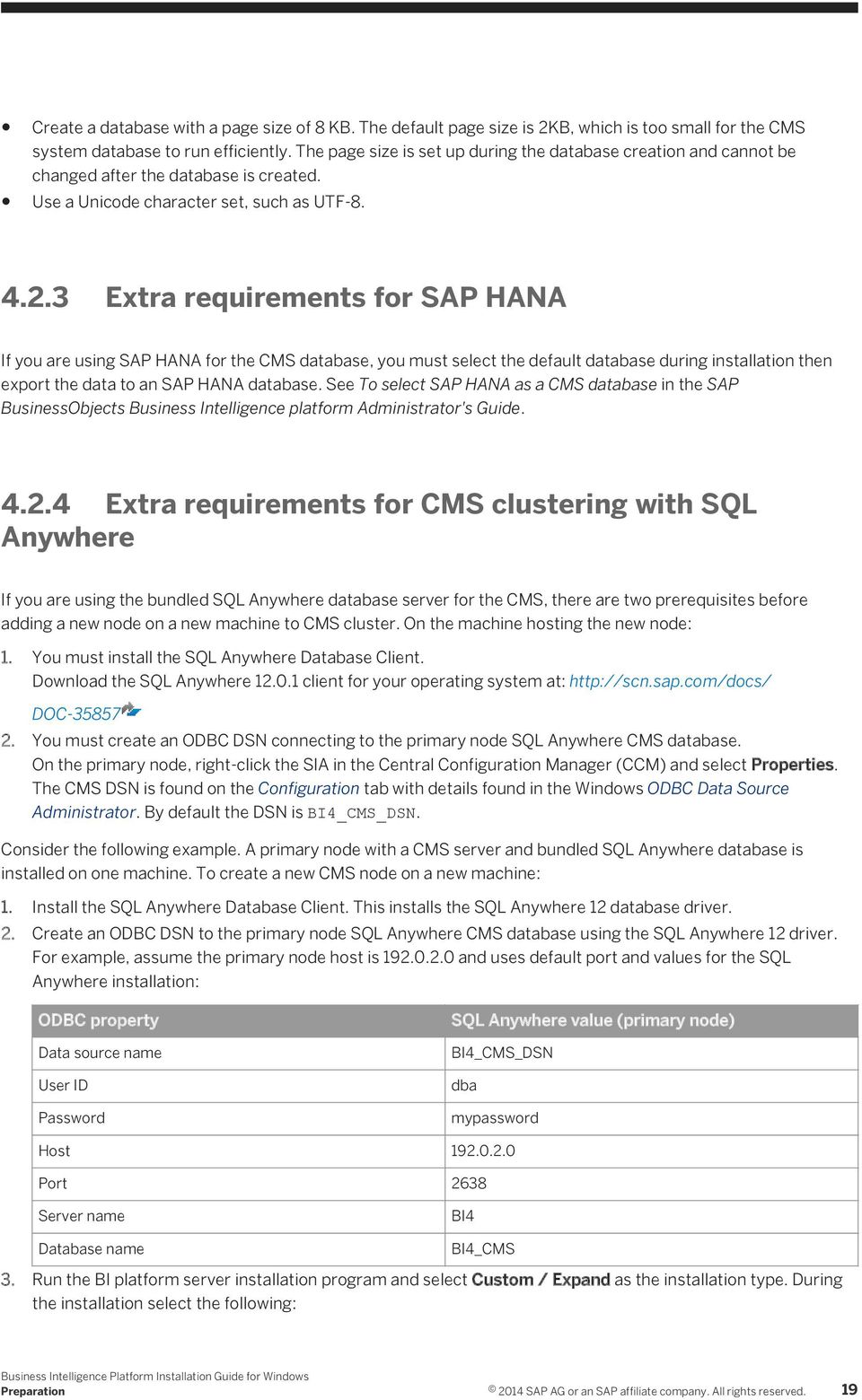
19 Create a database with a page size of 8 KB. The default page size is 2KB, which is too small for the CMS system database to run efficiently. The page size is set up during the database creation and cannot be changed after the database is created. Use a Unicode character set, such as UTF Extra requirements for SAP HANA If you are using SAP HANA for the CMS database, you must select the default database during installation then export the data to an SAP HANA database. See To select SAP HANA as a CMS database in the SAP BusinessObjects Business Intelligence platform Administrator's Guide Extra requirements for CMS clustering with SQL Anywhere If you are using the bundled SQL Anywhere database server for the CMS, there are two prerequisites before adding a new node on a new machine to CMS cluster. On the machine hosting the new node: 1. You must install the SQL Anywhere Database Client. Download the SQL Anywhere client for your operating system at: DOC You must create an ODBC DSN connecting to the primary node SQL Anywhere CMS database. On the primary node, right-click the SIA in the Central Configuration Manager (CCM) and select Properties. The CMS DSN is found on the Configuration tab with details found in the Windows ODBC Data Source Administrator. By default the DSN is BI4_CMS_DSN. Consider the following example. A primary node with a CMS server and bundled SQL Anywhere database is installed on one machine. To create a new CMS node on a new machine: 1. Install the SQL Anywhere Database Client. This installs the SQL Anywhere 12 database driver. 2. Create an ODBC DSN to the primary node SQL Anywhere CMS database using the SQL Anywhere 12 driver. For example, assume the primary node host is and uses default port and values for the SQL Anywhere installation: ODBC property Data source name User ID Password SQL Anywhere value (primary node) BI4_CMS_DSN dba mypassword Host Port 2638 Server name BI4 Database name BI4_CMS 3. Run the BI platform server installation program and select Custom / Expand as the installation type. During the installation select the following: Preparation 2014 SAP AG or an SAP affiliate company. All rights reserved. 19
20 On the Select Features page, select the Central Management Server feature. Unselect the Sybase SQL Anywhere Database, Subversion, and WebTier features. On the Select New or Expand Installation page, select Expand an existing SAP BusinessObjects BI platform deployment. On the Select Existing CMS Database Type page, select SAP Sybase SQL Anywhere using ODBC. On the Configure CMS Repository Database - SQL Anywhere (ODBC) page, select the ODBC DSN created in step 2 and enter the dba account password. Proceed and complete the installation of the new CMS server node. 4.4 SAP support Support for SAP System Landscape Directory (SLD) SAP System Landscape Directory (SLD) is a directory service that maintains a list of installed SAP and (optionally) non-sap software. SLD provides two main categories of information: Software already installed Software that could be installed at a later time SAP systems come with a data supplier (DS) component that automatically updates the landscape directory. Non-SAP software that supports SLD registers through an open API. The information gathered on installed software includes: Version Host information Connection information To use SLD support, ensure that SAP Host Agent is installed and working on the system(s) that host the BI platform. SAP Host Agent may be installed and configured before or after installing the BI platform To enable SAP System Landscape Directory (SLD) support If you plan on using SAP System Landscape Directory (SLD) or SAP Solution Manager Diagnostics (SMD), ensure that the SAP Host Agent is installed and configured. The following steps walk you through installing SAP Host Agent. SAP Host Agent may be installed and configured before or after installing the BI platform. For more information on SAP Host Agent, see Registration of SAP BusinessObjects Business Intelligence platform in the System Landscape in the SAP BusinessObjects Business Intelligence Platform Administrator Guide. If you have installed SAP GUI or SAP Solution Manager Diagnostics (SMD), skip to step 4 below SAP AG or an SAP affiliate company. All rights reserved. Preparation

21 Prior to installing support for SAP System Landscape Directory (SLD) there must be an sapadm user with administrator privileges. The SAP_LocalAdmin group must also exist, and the sapadm user must be a member. The sapadm user password is required during the SAPHOSTCONTROL installation. 1. Download SAP Host Agent (SAPHOSTAGENT.SAR) from the SAP Software Distribution Center of the SAP Service Marketplace ( ). Log on with your SAP Service Marketplace ID and locate the version of SAPHOSTAGENT.SAR appropriate for your system. 2. Extract SAPHOSTAGENT.SAR by entering the following command: sapcar -xvf SAPHOSTAGENT.SAR 3. Install SAPHOSTCONTROL by entering the following command: saphostexec -install 4. Locate the sldreg tool, which is usually located in the following folder: <%Program Files%>\SAP\hostctrl\exe 5. Create an SLD key with the following command: sldreg configure connect.key You will be prompted to supply a username, password, host, port, and protocol for connecting to the SLD server. 6. Enter the information requested. The sldreg tool creates a connect.key file that will automatically be used by sld-ds to push information to SLD server. If you have already installed the BI platform, restart all SIA nodes in the Central Configuration Manager (CCM) to register with the SLD Support for SAP Solution Manager Diagnostics (SMD) SAP Solution Manager Diagnostics (SMD) monitors the performance of systems in the SAP System Landscape Directory (SLD). Problems can be identified, analyzed, and resolved with the information gathered by SMD, which includes: Performance monitoring Configuration management Log management Load testing Alerting Resource monitoring Tools integrated into SMD include: CA Wily Introscope For full instrumentation, both SMD and CA Wily Introscope should be used. SAP LoadRunner by HP Non-SAP software with an SAP-certified integration is entered into a central repository and transferred automatically to your SAP System Landscape Directories (SLD). SAP customers can then easily identify which Preparation 2014 SAP AG or an SAP affiliate company. All rights reserved. 21
22 version of third-party product integration has been certified by SAP within their SAP system environment. This service provides additional awareness for third-party products besides our online catalogs for third-party products. To use SMD, the SMD Agent must be installed. SMD Agent may be installed and configured before or after installing the BI platform. During installation, the installation program prompts for the hostname and port number of the SMD Agent. If you do not want to use SMD, or you will install SMD later, you can choose not to use SMD. The SMD Agent can be configured later in the Central Management Console (CMC) Placeholders screen. For more information, seeto configure SMD Agent post installation [page 54]. SMD Agent is included in the COLLATERALS\DiagnosticsAgent7.3 folder of the installation directory. For information on installing SMD agent, see SAP Support for CA Wily Introscope CA Wily Introscope is included as a part of SAP Solution Manager Diagnostics (SMD). For full instrumentation, both SMD and CA Wily Introscope should be used. To use CA Wily Introscope and SMD, the SMD Agent must be installed. SMD Agent may be installed and configured before or after installing the BI platform. During installation, the installation program prompts for the hostname and port number of the Introscope Agent. If you do not want to use Introscope, or you will install it later, you can choose not use Introscope. Introscope can be configured later in the Central Management Console (CMC) Placeholders screen. For more information, seeto configure SMD Agent post installation [page 54] Support for SAP BW The BI platform can integrate with SAP BW. To get the best performance from SAP BW, follow the instructions in these SAP s on : Incorrect number of hierarchy levels in Design Time BICS metadata service enhancement Missing metadata of characteristics in the fix filter Incorrect hierarchy sorting Metadata missing for node type attributes Attributes for node types are not read Dynamic filter of compound char. is incorrect Nodes in fixed filter in Design Time are incorrect Too many hierarchy levels are read Correction for issue found on Samsung queries Text of characteristic values is not read Correction for invalid variable order when retrieving the list of variables through the design time services This note fixes the sorting of the of drill down characteristics returned by the design-time API so that it matches the runtime sorting SAP AG or an SAP affiliate company. All rights reserved. Preparation
23 This note fixes the sorting of the hierarchies returned by the design-time API so that it matches the runtime sorting This note adds the feature for the Design Time API to choose whether members should be read initially or not. By default, there are not read; this provides a performance enhancement for SL. 4.5 Final checklist Prior to installing the BI platform, review the following checklist. Have you decided on the installation destination folder? The use of Unicode characters in the destination folder is not supported. Ensure that the installation destination folder is not the same folder in which the installation program has been extracted (do not install to the current working directory when running the installation program from the current working directory). Have you verified appropriate network connectivity between all machines that will be part of your deployment? If you are using your own database server: Have you created a database, tablespace (if required), and accounts for the CMS system and Auditing Data Store databases? Have you made sure you can log onto the database from the BI platform host? If you are using IBM DB2 or Sybase ASE, have you verified that your database was created with the correct settings? (Some settings can't be modified after the database has been created.) Has the database client software been properly configured? If you are using your own web application server: Have you decided on which web application server to use? Has the server already been installed and configured? Have you ensured that your existing web application server has the required JDK installed? If you plan to use SAP System Landscape Directory (SLD), ensure that SAP Host Agent been installed and configured. For more information, seesupport for SAP System Landscape Directory (SLD) [page 20]. If you plan to use SAP Solution Manager Diagnostics (SMD), SMD Agent may have been installed and configured before or after the BI platform. For more information, see Support for SAP Solution Manager Diagnostics (SMD) [page 21]. Installation on Microsoft Windows requires a minimum screen solution of The BI platform installation program no longer installs Client Tools. Client Tools can only be installed with the dedicated Client Tools installation program. Preparation 2014 SAP AG or an SAP affiliate company. All rights reserved. 23
24 5 Installation This chapter guides you through the installation of the BI platform. 5.1 Overview There are two different methods of running the installation program for the BI platform: Interactive installation An interactive wizard prompts for all information related to the installation. Use this option to select individual installation options from a series of screens. This is the default installation method. Silent installation Installation options are given on the command-line or in a text file. This option is useful if you want to install the same configuration on multiple machines. If the installation program encounters an unexpected condition, and is unable to continue, it will undo any work completed up to that point, and return the system to the state that it was in before the installation started. When the installation program detects an identical previously-installed version, it will enter maintenance mode, allowing you to remove, repair, or modify the software. The BI platform requires a database server and web application server to function. If you do not have an existing database, the installation program automatically installs and configures a Sybase SQL Anywhere database. If you do not have an existing web application server, the installation program automatically installs and configures a Tomcat web application server. The installation program may take more than one hour to complete. 5.2 To download the server installation program 1. Go to > Software Downloads. 2. On the Find your software tab, under the A Z Index, click Installations and Upgrades. 3. Select B SBOP BI platform (former SBOP Enterprise) SBOP BI PLATFORM (ENTERPRISE) SBOP BI PLATFORM Select Installation and Upgrade and then select your platform. 5. Select all of the packages titled SBOP BI PLATFORM <version> SERVER plus any additional add-on products you require, then follow the instructions on the website to download and extract the packages. The software may take a long time to download, and you may need to contact the system administrator to ensure your company's firewall will not terminate the download process SAP AG or an SAP affiliate company. All rights reserved. Installation
25 Support Packages and Patches are installation programs that contain updates to BI platform software. You can download them from > Software Downloads. On the Find your software tab, under the A Z Index, click Support Packages and Patches. For more information on installing Support Packages and Patches, see the SAP BusinessObjects BI Suite Update Guides. 5.3 To run an interactive installation Before installing, ensure that the account being used has Administrator privileges. The installation requires that the account being used is a member of the Windows Administrators group, and that the default privileges assigned to the Administrators group have not been modified. The installation program requires a minimum screen resolution of pixels. Using Microsoft Remote Desktop Connection to run the installation program is supported, as long as a minimum screen resolution of pixels is used. The installation log file is saved to <BIP_INSTALL_DIR>\InstallData\logs\<DATEandTIME> \setupengine.log. 1. Locate and run setup.exe. 2. Select the setup language. The language setting is used by the installation program to display information to you in the language of your choice. If you select a non-english language, the corresponding language pack is automatically installed on the server. The installation program will automatically run in the same language as your operating system. The language used by the installation program will determine the names used for Windows components configured by the installation program, such as Windows service names and Start menu shortcuts. These names cannot be changed later and are not affected by language settings once the installation is complete. 3. On the Check Prerequisites page, review the results and decide whether to continue with the installation, or abort and correct any unmet requirements. The installation program checks for required components and conditions. If a dependency prerequisite condition is critical, the installation program will not allow the installation to proceed. If the missing or unsupported component is optional, you have the option to either continue with the installation or stop and correct the condition. 4. Review the installation welcome page. 5. On the License Agreement page, review the agreement and select I accept the License Agreement. 6. On the Configure Product Registration page, enter the product key. Tip Store the product key in a safe place in case you need to re-install the product. Installation 2014 SAP AG or an SAP affiliate company. All rights reserved. 25
26 7. On the Select Language Packs page, select additional languages to install from the list. The language currently being used by the operating system is selected automatically. English language support cannot be deselected because it is used if a problem is detected with an individual language. The Select Install Type page appears To select an install type The Select Install Type page is used to select the type of installation to perform. 1. Select one of the following install type options: Full Installs all required server components onto a single machine. Use this option to create a single-host deployment, such as a pre-production development or test environment. Custom / Expand Allows experienced users to select individual features. Use this option: When distributing server components between more than one host, such as creating a CMS cluster. When you want full control over which features are deployed to a host. If you are adding a new node to a CMS cluster that uses the bundled SQL Anywhere database server, see Extra requirements for CMS clustering with SQL Anywhere [page 19] before proceeding with the installation. Web Tier The web tier includes web applications such as BI launch pad and the Central Management Console (CMC). Use the Web Tier installation option to install Java web applications onto a dedicated Java web application server. If you already have a supported web application server installed, you can deselect the option to install Tomcat, and only install the Java web applications. 2. Proceed to the next page to start configuring the selected installation. On the Configure Destination Folder page, review the destination folder shown. This is the folder into which the installation program will install the BI platform. If the folder does not exist, the installation program creates it. The use of Unicode characters in the destination folder is not supported. Ensure that the destination folder is not set to the same folder in which the installation program has been extracted. If you have already installed SAP BusinessObjects products, the Destination Folder Information field is not editable, and the path to the existing folder is displayed. If you selected a Full installation, proceed to the following Full section. If you selected a Custom / Expand installation, proceed to the following Custom / Expand section. If you selected a Web Tier installation, proceed to the following Web Tier section SAP AG or an SAP affiliate company. All rights reserved. Installation
27 Full installation The following steps are performed for Full installations of the BI platform. 1. On the Select Default or Existing Database page, select a database option to store Central Management Server (CMS) and Auditing Data Store (ADS) information. Option Description Configure and install a Sybase SQL Anywhere database If you do not have a database server in place for use with the BI platform, the installation program can install and configure Sybase SQL Anywhere for you. Installation of third-party patches or updates is not supported for bundled software. For details, see Patching third-party solutions bundled with the BI platform [page 60]. Configure an existing database If you have an existing database server, the installation program prompts for information on the database type and connection credentials for both the CMS system and auditing databases. An existing database must have user accounts with the appropriate privileges ready, and the appropriate drivers must be installed and verified as working. The installation program attempts to connect to, and initialize, the database as a part of the installation process. It is recommended that you evaluate your requirements against information from your database server vendor to determine which supported database would best suit your organization's needs. 2. If you selected Configure an existing database: a) On the Select Existing CMS Database Type page, select the database type of the existing CMS database. b) On the Select Existing Auditing Database Type page, select the database type of the existing auditing database. If you do not want to use the auditing feature, select No auditing database. 3. On the Select Java Web Application Server page, select an option for hosting the BI platform web applications. Option Description Install the default Tomcat Java Web Application Server and automatically deploy web applications If you do not have a web application server in place for use with the BI platform, the installation program can install and configure a Tomcat web application server for you. The BI platform web applications are automatically deployed to Tomcat. Installation of third party patches or updates is not supported for bundled software. For details, see Patching third-party solutions bundled with the BI platform [page 60]. Manually deploy web applications to a supported Java Web Application Server after the installation If you have an existing, supported Java web application server, select this option and then deploy web applications to it later (after installation) using the WDeploy tool. For more information, see the SAP BusinessObjects Business Intelligence Platform Web Application Deployment Guide Installation 2014 SAP AG or an SAP affiliate company. All rights reserved. 27
28 Option Description The BI platform does not support the automatic deployment of web applications to any web application server other than the bundled Tomcat web application server during the installation program. Install the Web Application Container Server and automatically deploy web applications If you do not want to use a Java application server to host your BI platform web applications, then select this option to host them on Web Application Container Server (WACS). It is recommended that you evaluate your requirements against information from your web application server vendor to determine which supported web application server would best suit your organization's needs. When configuring a production environment, it is recommended that the web application server is hosted on a separate system from the BI platform servers. Running the BI platform servers and a web application server on the same host in a production environment may decrease performance. 4. One the Select Version Management page, decide whether to install and configure Subversion version control system. Option Description Configure and install Subversion Do not configure a version control system at this time Installs and configures Subversion version control system. If you have an existing, supported version control system, you must manually configure it with the Central Management Console (CMC) after the installation is complete. For more information, see the Version management and Promotion management sections of the Business Intelligence Platform Administrator Guide. The BI platform can maintain different versions of BI resources that exist in the CMS repository in a version control system, making it easier to revert to a previous configuration when needed using the CMC. 5. On the Configure Server Intelligence Agent (SIA) page, review the default name and port number for the SIA node. Option Description Node Name This is the name that you will see in the Central Configuration Manager (CCM). Many CMS servers can be managed by a single SIA. The name must consist of English alphanumeric characters (A-Z, a-z, and 0-9) and contain no spaces or other punctuation aside from underscores. The SIA name cannot start with a number. SIA Port The port is used for the SIA to listen for incoming connections from the CMS. The SIA must be able to receive incoming connections on this port, so ensure that your firewall is configured appropriately. Port 6410 is a standard TCP/IP port number reserved for use with a BI platform SIA. 6. On the Configure Central Management Server (CMS) page, review the default value for the CMS port number SAP AG or an SAP affiliate company. All rights reserved. Installation
29 This is the port on which the CMS listens for incoming connections from the web application server, web server (if applicable), other CMS nodes (if applicable) and servers. The CMS must be able to receive incoming connections on this port, so ensure that your firewall is configured appropriately. Port 6400 is a standard TCP/IP port number reserved for use with the BI platform CMS. 7. On the Configure CMS Account page, enter and confirm the CMS Administrator account password and the CMS cluster key. The CMS Administrator is a super-user account in the BI platform authentication system, used only to administer your server configuration. It is not part of any operating system or single sign-on authentication system. Communication between some CMS components is encrypted to provide a higher level of security when using clusters. 8. Configure the CMS system database. a) If you selected Configure and install a Sybase SQL Anywhere database, enter the account and port information on the Configure Sybase SQL Anywhere page. Enter the port number for Sybase SQL Anywhere to listen for incoming database queries. The database must be able to receive incoming connections on this port, so ensure that your firewall is configured appropriately. Also enter and confirm the database administrator account password. b) If you selected Configure an existing database, enter the connection information for your existing database to use for the CMS on the Configure CMS Repository Database - <database type> page. If you're using an ODBC database driver, you must configure an ODBC data source. A system ODBC DSN can be configured from: Start Control Panel Administrative Tools Data Sources (ODBC). c) If you selected Configure an existing database, and you plan to use auditing, enter the connection information for your existing database to use for the ADS on the Configure Auditing Database page. 9. If you selected Install the default Tomcat Java Web Application Server and automatically deploy web applications, review the default port values on the Configure Tomcat page. Option Description Connection port Shutdown port Redirect port The port on which the web application server listens for incoming connections from web clients. The port that allows the web application to be shut down remotely. The port that enables redirects to secure web connections. Tomcat must be able to receive incoming connections on the given port numbers, so ensure that your firewall is configured appropriately. 10. On the Configure HTTP Listening Port page, review the HTTP Listening Port number on the page for WACS to listen for incoming connections from web clients. WACS must be able to receive incoming connections on the given port numbers, so ensure that your firewall is configured appropriately. 11. If you selected Configure and install Subversion review the port number and enter a Subversion password (user account is "LCM") on the Configure Subversion page. 12. On the Select Connectivity for Solution Management Diagnostics (SMD) Agent page, decide whether to integrate the BI platform with an existing SMD Agent. Option Description Configure connectivity to SMD Agent The BI platform can integrate with your organization's deployment of SAP Solution Manager Diagnostics (SMD). Installation 2014 SAP AG or an SAP affiliate company. All rights reserved. 29
30 Option Description If you select this option, enter the SMD Agent hostname and port number on the following Configure Connectivity to SMD Agent page. Do not configure connectivity to SMD Agent You can configure SMD Agent in the CMC Placeholders screen later after the installation program is complete. To use SAP Solution Manager Diagnostics (SMD), SAP Host Agent and SMD Agent must be installed: For information on installing the SAP Host Agent before installing the BI platform, see To enable SAP System Landscape Directory (SLD) support [page 20]. For information on installing the SAP Host Agent after installing the BI platform, see To configure System Landscape Directory (SLD) Data Supplier (DS) post installation [page 54]. For information on installing SMD Agent before installing the BI platform, see Support for SAP Solution Manager Diagnostics (SMD) [page 21]. For information on installing SMD Agent after installing the BI platform, see To configure SMD Agent post installation [page 54]. 13. On the Select Connectivity to Introscope Enterprise Manager page, decide whether to integrate the BI platform with an existing Introscope Enterprise Manager server. To use CA Wily Introscope Enterprise Manager, SMD Agent must be installed. Option Configure connectivity to Introscope Enterprise Manager Do not configure connectivity to Introscope Enterprise Manager Description The BI platform can integrate with your organization's deployment of CA Wily Introscope Enterprise Manager. If you select this option, enter the hostname and port number for the Introscope Enterprise Manager server on the following Configure Connectivity to Introscope Enterprise Manager page. You can configure Introscope Enterprise Manager in the CMC Placeholders screen later after the installation program is complete. The Start Installation page appears. Start the installation. Proceed to While the installation program runs Custom / Expand installation The following steps are performed for Custom / Expand installations of the BI platform. 1. On the Select Features page, select the features to install from the list. Features are grouped under the following headings: SAP AG or an SAP affiliate company. All rights reserved. Installation
31 Web Tier The web tier components include web applications such as BI launch pad and the Central Management Console (CMC) that allow end users and administrators to interact with BI content and the BI platform installation. If you do not have a web application server in place for use with the BI platform, the installation program can install and configure a Tomcat web application server for you. It is recommended that you evaluate your requirements against information from your web application server vendor to determine which supported web application server would best suit your organization's needs. If you already have a supported web application server installed, you can deselect the option to install Tomcat, and only install the Java web applications Servers Server features include the Business Intelligence platform servers (such as processing and scheduling servers), major system components (such as the CMS, Event Server, bundled database, and a version control system), and servers that integrate the BI platform into your organization's existing network infrastructure, such as SAP BW or other Enterprise Resource Planning (ERP) systems. If you plan to use SAP BW authentication, ensure that the BW Publisher Server feature is selected in the Integration Servers feature list. Administrator Tools The Administrator Tools features help administrators maintain an installation. For example, the Upgrade management tool allows you migrate BI content during an upgrade between different versions of the BI platform. Developer Tools If you plan to develop your own applications with a the BI platform.net Software Development Kit (SDK), install the Developer Tools feature. Database Access To access, analyze, and report on the data in your organization's existing databases, select the appropriate Database Access features. If your organization does not use a particular database, you can deselect it. Integration for PeopleSoft Enterprise, JD Edwards EnterpriseOne, Siebel, or Oracle EBS Enterprise Resource Planning (ERP) systems is not selected by default. If you plan to use an ERP single signon authentication, or other ERP features, ensure that the appropriate ERP feature is selected in the Data Access feature list. If you plan to use integration for SAP, SAP BW, or SAP R3 systems, ensure that the SAPBW and SAP features are selected in the Data Access feature list. Samples The samples features installs sample reports, templates, and reporting databases. If you do not need samples, you can deselect it. 2. On the Select New or Expand Installation page, select the type of installation to perform. Option Description Start a new SAP BusinessObjects BI platform deployment Select if you are installing a stand-alone BI platform server, or the first server in a cluster. Installation 2014 SAP AG or an SAP affiliate company. All rights reserved. 31
32 Option Expand an existing SAP BusinessObjects BI platform deployment Description Select if you already have a CMS and want to create a new server node as part of a cluster. If you selected Start a new SAP BusinessObjects BI platform deployment on the last page, proceed to Custom (New) installation. If you selected Expand an existing SAP BusinessObjects BI platform deployment on the last page, proceed to Custom (Expand) installation Custom (New) installation If you chose the Start a new SAP BusinessObjects BI platform deployment option for a Custom / Expand installation: 1. If you deselected the Sybase SQL Anywhere Database feature in the Select Feature page: a) On the Select Existing CMS Database Type page, select the database type to use for the CMS database. b) On the Select Existing Auditing Database Type page, select the database type to use for the auditing database. If you do not want to use the auditing feature, select No auditing database. 2. On the Configure Server Intelligence Agent (SIA) page, review the default name and port number for the SIA node. Option Description Node Name This is the name that you will see in the Central Configuration Manager (CCM). Many CMS servers can be managed by a single SIA. The name must consist of English alphanumeric characters (A-Z, a-z, and 0-9) and contain no spaces or other punctuation aside from underscores. The SIA name cannot start with a number. SIA Port The port is used for the SIA to listen for incoming connections from the CMS. The SIA must be able to receive incoming connections on this port, so ensure that your firewall is configured appropriately. Port 6410 is a standard TCP/IP port number reserved for use with a BI platform SIA. 3. On the Configure Central Management Server (CMS) page, review the default value for the CMS port number. This is the port on which the CMS listens for incoming connections from the web application server, web server (if applicable), other CMS nodes (if applicable) and servers. The CMS must be able to receive incoming connections on this port, so ensure that your firewall is configured appropriately. Port 6400 is a standard TCP/IP port number reserved for use with the BI platform CMS. 4. On the Configure CMS Account page, enter and confirm the CMS Administrator account password and the CMS cluster key. The CMS Administrator is a super-user account in the BI platform authentication system, used only to administer your SAP BusinessObjects server configuration. It is not part of any operating system or single sign-on authentication system. Communication between some CMS components is encrypted to provide a higher level of security when using clusters. 5. Configure the CMS system database SAP AG or an SAP affiliate company. All rights reserved. Installation
33 a) If you selected the Sybase SQL Anywhere Database feature in the Select Feature page, enter the account and port information on the Configure Sybase SQL Anywhere page. Enter the port number for Sybase SQL Anywhere to listen for incoming database queries. The database must be able to receive incoming connections on this port, so ensure that your firewall is configured appropriately. Also enter and confirm the database administrator account password. b) If you deselected the Sybase SQL Anywhere Database feature in the Select Feature page, enter the connection information for your existing database to use for the CMS on the Configure CMS Repository Database - <database type> page. If you're using an ODBC database driver, you must configure an ODBC data source. A system ODBC DSN can be configured from: Start Control Panel Administrative Tools Data Sources (ODBC). c) If you deselected the Sybase SQL Anywhere Database feature in the Select Feature page, and you plan to use auditing, enter the connection information for your existing database to use for the ADS on the Configure Auditing Database page. 6. On the Select Automatic Server Start page, decide whether to start the servers as soon as the installation is complete. If you select No, the servers must be started manually with the Central Configuration Manager (CCM) after the installation is complete. 7. If you selected the Tomcat feature in the Select Feature page, review the default port values on the Configure Tomcat page. Option Description Connection port Shutdown port Redirect port The port on which the web application server listens for incoming connections from web clients. The port that allows the web application to be shut down remotely. The port that enables redirects to secure web connections. Tomcat must be able to receive incoming connections on the given port numbers, so ensure that your firewall is configured appropriately. 8. If you selected the Web Application Container Server or RESTful Web Service features in the Select Feature page, review the HTTP Listening Port number on the Configure HTTP Listening Port page. WACS must be able to receive incoming connections on the given port numbers, so ensure that your firewall is configured appropriately. 9. If you selected the Subversion feature in the Select Feature page, review the port number and enter a Subversion password (user account is "LCM") on the Configure Subversion page. 10. On the Select Connectivity for Solution Management Diagnostics (SMD) Agent page, decide whether to integrate the BI platform with an existing SMD Agent. Option Description Configure connectivity to SMD Agent The BI platform can integrate with your organization's deployment of SAP Solution Manager Diagnostics (SMD). If you select this option, enter the SMD Agent hostname and port number on the following Configure Connectivity to SMD Agent page. Do not configure connectivity to SMD Agent You can configure SMD Agent in the CMC Placeholders screen later after the installation program is complete. Installation 2014 SAP AG or an SAP affiliate company. All rights reserved. 33
34 To use SAP Solution Manager Diagnostics (SMD), SAP Host Agent and SMD Agent must be installed: For information on installing the SAP Host Agent before installing the BI platform, see To enable SAP System Landscape Directory (SLD) support [page 20]. For information on installing the SAP Host Agent after installing the BI platform, see To configure System Landscape Directory (SLD) Data Supplier (DS) post installation [page 54]. For information on installing SMD Agent before installing the BI platform, see Support for SAP Solution Manager Diagnostics (SMD) [page 21]. For information on installing SMD Agent after installing the BI platform, see To configure SMD Agent post installation [page 54]. 11. On the Select Connectivity to Introscope Enterprise Manager page, decide whether to integrate the BI platform with an existing Introscope Enterprise Manager server. To use CA Wily Introscope Enterprise Manager, SMD Agent must be installed. Option Configure connectivity to Introscope Enterprise Manager Do not configure connectivity to Introscope Enterprise Manager Description The BI platform can integrate with your organization's deployment of CA Wily Introscope Enterprise Manager. If you select this option, enter the hostname and port number for the Introscope Enterprise Manager server on the following Configure Connectivity to Introscope Enterprise Manager page. You can configure Introscope Enterprise Manager in the CMC Placeholders screen later after the installation program is complete. The Start Installation page appears. Start the installation. Proceed to While the installation program runs Custom (Expand) installation If you chose the Expand an existing SAP BusinessObjects BI platform deployment option for a Custom / Expand installation: 1. On the Select Existing CMS Database Type page, select the database type of the existing, remote CMS database. 2. On the Configure Server Intelligence Agent (SIA) page, review the default name and port number for the new SIA node. Option Description Node Name This is the name that you will see in the Central Configuration Manager (CCM). Many CMS servers can be managed by a single SIA SAP AG or an SAP affiliate company. All rights reserved. Installation
35 Option Description The name must consist of English alphanumeric characters (A-Z, a-z, and 0-9) and contain no spaces or other punctuation aside from underscores. The SIA name cannot start with a number. SIA Port The port is used for the SIA to listen for incoming connections from the CMS. The SIA must be able to receive incoming connections on this port, so ensure that your firewall is configured appropriately. Port 6410 is a standard TCP/IP port number reserved for use with a BI platform SIA. 3. On the Existing CMS Deployment Information page, enter connection information for the existing, remote CMS, including the Administrator password. 4. On the Configure CMS Account page, enter and confirm the CMS cluster key for the new CMS. The CMS Administrator is a super-user account in the BI platform authentication system, used only to administer your SAP BusinessObjects server configuration. It is not part of any operating system or single sign-on authentication system. Communication between some CMS components is encrypted to provide a higher level of security when using clusters. 5. On the Configure Central Management Server (CMS) page, review the default value for the CMS port number. This is the port on which the CMS listens for incoming connections from the web application server, web server (if applicable), other CMS nodes (if applicable) and servers. The CMS must be able to receive incoming connections on this port, so ensure that your firewall is configured appropriately. Port 6400 is a standard TCP/IP port number reserved for use with the BI platform CMS. 6. On the Configure CMS Repository Database - <database type> page, enter connection details for the CMS system database. If you are using the Sybase SQL Anywhere database bundled with the BI platform on the existing CMS, to which you are attempting to connect, enter the system ODBC DSN connection for the existing CMS system database. If you are using a different previously installed database, enter connection credentials for the CMS to connect to the database. 7. On the Select Automatic Server Start page, decide whether to start the servers as soon as the installation is complete. If you select No, the servers must be started manually with the Central Configuration Manager (CCM) after the installation is complete. 8. If you selected the Tomcat 7.0 feature, review the default port values on the Configure Tomcat page. Option Description Connection port Shutdown port Redirect port The port on which the web application server listens for incoming connections from web clients. The port that allows the web application to be shut down remotely. The port that enables redirects to secure web connections. 9. On the Configure HTTP Listening Port page, review the HTTP Listening Port number on the page for WACS to listen for incoming connections from web clients. WACS must be able to receive incoming connections on the given port numbers, so ensure that your firewall is configured appropriately. 10. If you selected the Subversion feature, review the port number and enter a Subversion password (user account is "LCM") on the Configure Subversion page. Installation 2014 SAP AG or an SAP affiliate company. All rights reserved. 35
36 11. On the Select Connectivity for Solution Management Diagnostics (SMD) Agent page, decide whether to integrate the BI platform with an existing SMD Agent. Option Description Configure connectivity to SMD Agent The BI platform can integrate with your organization's deployment of SAP Solution Manager Diagnostics (SMD). If you select this option, enter the SMD Agent hostname and port number on the following Configure Connectivity to SMD Agent page. Do not configure connectivity to SMD Agent You can configure SMD Agent in the CMC Placeholders screen later after the installation program is complete. To use SAP Solution Manager Diagnostics (SMD), SAP Host Agent and SMD Agent must be installed: For information on installing the SAP Host Agent before installing the BI platform, see To enable SAP System Landscape Directory (SLD) support [page 20]. For information on installing the SAP Host Agent after installing the BI platform, see To configure System Landscape Directory (SLD) Data Supplier (DS) post installation [page 54]. For information on installing SMD Agent before installing the BI platform, see Support for SAP Solution Manager Diagnostics (SMD) [page 21]. For information on installing SMD Agent after installing the BI platform, see To configure SMD Agent post installation [page 54]. 12. On the Select Connectivity to Introscope Enterprise Manager page, decide whether to integrate the BI platform with an existing Introscope Enterprise Manager server. To use CA Wily Introscope Enterprise Manager, SMD Agent must be installed. Option Configure connectivity to Introscope Enterprise Manager Do not configure connectivity to Introscope Enterprise Manager Description The BI platform can integrate with your organization's deployment of CA Wily Introscope Enterprise Manager. If you select this option, enter the hostname and port number for the Introscope Enterprise Manager server on the following Configure Connectivity to Introscope Enterprise Manager page. You can configure Introscope Enterprise Manager in the CMC Placeholders screen later after the installation program is complete. The Start Installation page appears. Start the installation. Proceed to While the installation program runs SAP AG or an SAP affiliate company. All rights reserved. Installation
37 Web Tier installation The web tier contains web applications such as BI launch pad and the Central Management Console (CMC). Use the Web Tier installation option to install BI platform web applications onto your web application server. During the web tier installation, you are prompted to logon to an existing Central Management Server (CMS) as the BI platform Administrator. You must have a CMS running remotely or on the same machine to perform the web tier installation. If you plan to use a web tier with third-party authentication, or integration for Enterprise Resource Planning (ERP) systems such as Siebel Enterprise, JD Edwards EnterpriseOne, or Oracle E-Business Suite, you must perform a Custom / Expand installation and select the components you need. For example, to perform a web tier installation with ERP support, select the following components from the Custom / Expand feature list: Instances WebTier Java Web Applications Instances WebTier Tomcat 7.0 (if you do not already have a web application server) Instances Database Access (select the name of the ERP system) If you do not have a web application server to use with the BI platform, the installation program can install and configure a Tomcat web application server for you. It is recommended that you evaluate your requirements against information from your web application server vendor to determine which supported web application server would best suit your organization's needs. If you already have a supported web application server installed, you can deselect the option to install Tomcat, and only install the Java web applications. This option will not deploy the web applications to your web application server. To deploy web applications to a web application server after a web tier installation, use the WDeploy tool. For more information on using the WDeploy tool, see the SAP BusinessObjects Business Intelligence Platform Web Application Deployment Guide. The following steps are performed for Web Tier installations of the BI platform. 1. On the Select Features page, select the features to install under Instances WebTier. Option Description Java Web Applications Tomcat 7.0 Installs the BI platform web applications to the machine. Installs and configures the bundled Apache Tomcat web application server. 2. If you selected the Tomcat 7.0 feature, review the default port values on the Configure Tomcat page. Option Description Connection port Shutdown port Redirect port The port on which the web application server listens for incoming connections from web clients. The port that allows the web application to be shut down remotely. The port that enables redirects to secure web connections. 3. On the Existing CMS Deployment Information page, logon to an existing CMS. 4. On the Select Connectivity to Introscope Enterprise Manager page, decide whether to integrate the BI platform with an existing Introscope Enterprise Manager server. To use CA Wily Introscope Enterprise Manager, SMD Agent must be installed. Installation 2014 SAP AG or an SAP affiliate company. All rights reserved. 37
38 For information on installing SMD Agent before installing the BI platform, see Support for SAP Solution Manager Diagnostics (SMD) [page 21]. For information on installing SMD Agent after installing the BI platform, see To configure SMD Agent post installation [page 54]. Option Configure connectivity to Introscope Enterprise Manager Do not configure connectivity to Introscope Enterprise Manager Description The BI platform can integrate with your organization's deployment of CA Wily Introscope Enterprise Manager. If you select this option, enter the hostname and port number for the Introscope Enterprise Manager server on the following Configure Connectivity to Introscope Enterprise Manager page. You can configure Introscope Enterprise Manager in the CMC Placeholders screen later after the installation program is complete. The Start Installation page appears. Start the installation. Proceed to While the installation program runs While the installation program runs The progress bar illustrates the progress of the installation as a whole. When performing an Expand installation, the existing CMS may be restarted automatically as a part of the installation process When installation is complete When the installation is complete, review the information in the Post Installation Steps screen. If you are not using the bundled Tomcat web application server, you must deploy web applications with the WDeploy web application deployment tool Reboot suppression If a file is locked during the installation, you may be prompted to restart the server after the installation. You can choose to reboot immediately, or later. However, if you choose to suppress the reboot, the system may be in an unsupported state until the system is rebooted SAP AG or an SAP affiliate company. All rights reserved. Installation
39 5.4 To run a silent installation Every option in the installation wizard can be read from a response file invoked at the command-line. This type of installation is called a silent install. A response file is a text file containing installation option parameters in key-value format. When using a response file to give installation options, the installation program is run from the command-line with the -r <RESPONSE_FILE> parameter, where <RESPONSE_FILE> is the name of the response file. The response file contains multiple installation options, with one installation option per line. In the following example, the response file is given as a parameter: setup.exe [...] -r C:\response.ini [...] For example, the installation option cmsport=6401 can be given on a line in the response file to set the CMS port number to 6401, instead of the default value of In the following example of giving the cmsport parameter in a response file, ellipses ([...]) are shown to indicate where other installation options would normally be present: [...] cmsport=6401 [...] The installation program returns the cursor to the command-line prompt when it starts. To run the installation program from a script, or to force the installation program to wait to complete before returning to the command-line, use the Windows Command Interpreter start /wait command to invoke setup.exe. For example: start /wait setup.exe [<COMMAND_LINE_OPTIONS>] For a complete list of installation options, see Installation option parameters [page 41]. For an example of a response file, see Response file example [page 48] Command-line switch parameters The following table lists the switch parameters that can be given to the installation program on the command-line to perform a silent installation. Table 1: Installation program command-line switch parameters Switch parameter Description Example -w <FILENAME> Writes a response file to <FILENAME>, containing the options selected from the installation wizard. setup.exe -w "C:\response.ini" Installation 2014 SAP AG or an SAP affiliate company. All rights reserved. 39
40 Switch parameter Description Example -r <FILENAME> Reads installation options from a response file named <FILENAME>. setup.exe -r "C:\response.ini" To use a response file To use a response file, run the installation program with the -r <RESPONSE_FILE parameter. The installation program reads all installation options from the response file, and no further input is required. For example, the following command reads installation options from the response file C:\response.ini: setup.exe -r C:\response.ini To override an installation option in a response file, give that option on the command-line. Installation options given on the command-line take precedence over the options in the response file. For a complete list of installation options, see Installation option parameters below. If an unexpected condition is encountered, an error message is written to the installation log file and the installation program exits. Installation activity, warnings, and errors are written to the installation log file in the folder: <BIP_INSTALL_DIR>\InstallData\logs\<DATEandTIME>\setupengine.log If the <BIP_INSTALL_DIR> folder has not been created by the time the installation program exits, look for install.log in the temporary folder specified by the system <TEMP> environment variable To write a response file To create a response file, run the installation program with the -w <RESPONSE_FILE> parameter and select the desired installation options with the installation wizard. When the wizard completes, the installation program exits and the response file is created. The response file can then be used for future installations. For example, the following command creates the response file C:\response.ini: setup.exe -w C:\response.ini Once created, the response file can be updated with a text editor. When creating a response file with the GUI installation program, the license key and all passwords entered via the GUI are not written to the response file in plain text format. You must replace the starred entries (********) with your passwords before performing a silent installation SAP AG or an SAP affiliate company. All rights reserved. Installation
41 To read a response file A response file installation is started on the command-line, but installation options are read from a ASCII text file with the options stored in key-value format. This is useful when setting up a cluster, or for creating development or test environments with standardized options. When an option is given both on the command-line and in a response file, the command-line options take precedence over the response file options. This allows an administrator to override an option in a response file when required. This provides three levels precedence for installation options: 1. Installation options given on the command-line take highest precedence, and will always override response file and default values. 2. Installation options given in a response file are used when not given on the command-line, and override default values. 3. Installation option default values are used when not given on the command-line or in a response file. For example, the following command reads installation options from the response file C:\response.ini, but overrides the response file's setting for the installation destination folder: setup.exe -r C:\response.ini InstallDir="C:\SAP\BusinessObjects BI platform" Installation option parameters The following table lists the parameters that can be used to select installation options in response files. Table 2: Installation option parameters Parameter chooseintroscopeintegration=<value> choosesmdintegration=<value> clusterkey=<key> cmspassword=<password> cmsport=<port> enableservers=<switch> Description Determines whether Introscope support will be enabled or not. To enable Introscope integration, set <VALUE> to integrate. To disable Introscope integration, set <VALUE> to nointegrate. Determines whether SAP Solution Manager Diagnostics (SMD) Agent support will be enabled or not. To enable SMD integration, set <VALUE> to integrate. To disable SMD integration, set <VALUE> to nointegrate. Cryptographic key used to encrypt secure CMS cluster communications. Substitute <KEY> with the key string. Password to use for the CMS Administrator account. Substitute <PASSWORD> with the password. Network TCP listening port number used by the CMS for incoming connections. Substitute <PORT> with the port number. The default value is Determines whether or not the CMS servers will be started automatically after the installation is complete. To enable servers automatically after the installation, set <SWITCH> to 1. To not enable the serv Installation 2014 SAP AG or an SAP affiliate company. All rights reserved. 41
42 Parameter Description ers, so that they must be started manually at a later time, set <SWITCH> to 0. installdir=<path> Destination folder into which the setup program will install. When installing to a host that already has an installation of the BI platform, the value of installdir will be automatically set to the same path as the existing installation. The use of Unicode characters in the destination folder is not supported. The use of Unicode characters in the destination folder is not supported. Ensure that the destination folder is not the same folder in which the installation program has been extracted (do not install to the current working directory when running the installation program from the current working directory). installtype=<value> introscope_ent_host=<hostname> introscope_ent_port=<port> lcmname=lcm_repository Determines whether or not the installation program should select installable components based upon the default settings, custom settings (allows you to select components), or settings used for installing web tier components (when installing to a web application server). To install the default components, set <VALUE> to default. To install a custom selection of components, set <VALUE> to custom. To install a web tier components, set <VALUE> to webtier. Hostname of the Introscope server. Substitute <HOSTNAME> with the Introscope server hostname. Network TCP listening port number used by the Introscope server. Substitute <PORT> with the Introscope server port number. Hostname of the SAP Lifecycle management server. Do not change this value. lcmpassword=<password> lcmport=<port> lcmusername=lcm User password to access SAP Lifecycle management server. Substitute <PASSWORD> with the password. Network TCP listening port number used by the SAP Lifecycle management server. Substitute <PORT> with the port number. Username to access SAP Lifecycle management server SAP AG or an SAP affiliate company. All rights reserved. Installation
43 Parameter Description Do not change this value. neworexistinglcm=<value> productkey=<key> registeredcompany=<name> registereduser=<name> selectedlanguagepacks=<code> Determines whether or not the installation is a new LCM on a fresh server, or an expand installation used to create a CMS cluster. To perform a new installation, set <VALUE> to new. To perform an expand installation, set <VALUE> to expand. Product license key issued when you purchased the software. Substitute <KEY> with the product key in the format XXXXX-XXXXXX- XXXXXX-XXXX. Name of the company to whom the software is registered. Substitute <NAME> with the name. Name of the user to whom the software is registered. Substitute <NAME> with the name. Installs language support for users and administrators to interact with the BI platform in a supported language. If more than one language pack is to be installed, use a semi-colon delimited list without spaces, within quotes, to separate each code. In the following example, language support for English, Japanese, Simplified Chinese, and Thai will be installed: SelectedLanguagePacks="en;ja;zh_cn;th" Substitute the following language codes where <CODE> is: Arabic: ar Czech: cs Danish: da Dutch: nl English: en Finnish: fi French: fr German: de Hungarian: hu Italian: it Japanese: ja Korean: ko Norwegian Bokmal: nb Polish: pl Portuguese: pt Russian: ru Simplified Chinese: zh_cn Installation 2014 SAP AG or an SAP affiliate company. All rights reserved. 43
44 Parameter Description Slovak: sk Slovenian: sl Spanish: ed Swedish: sv Thai: th Traditional Chinese: zh_tw Turkish: tr selectintegrateddatabase=<value> Determines whether or not the bundled database will be installed. To install the bundled database, set <VALUE> to 1. The bundled database is Sybase SQL Anywhere. setupuilanguage=<code> Determines which language for the installation program to use during the installation. Substitute the language code where <CODE> is: Czech: cs Danish: da Dutch: nl English: en Finnish: fi French: fr German: de Hungarian: hu Italian: it Japanese: ja Korean: ko Norwegian Bokmal: nb Polish: pl Portuguese: pt Russian: ru Simplified Chinese: zh_cn Slovak: sk Slovenian: sl Spanish: es Swedish: sv Thai: th Traditional Chinese: zh_tw Turkish: tr sianame=<name> Name of the Server Intelligence Agent (SIA) node create for this installation. The name must be alphanumeric and cannot start with a number. Substitute <NAME> with the SIA name SAP AG or an SAP affiliate company. All rights reserved. Installation
45 Parameter siaport=<port> smdagent_host=<hostname> smdagent_port=<port> sqlanywhereadminpassword=<pass WORD> sqlanywhereport=<port> tomcatconnectionport=<port> tomcatredirectport=<port> tomcatshutdownport=<port> webappservertype=<value> features=<code> Description Network TCP listening port number used by the SIA. Substitute <PORT> with the port number. Hostname of the SMD Agent. Substitute <HOSTNAME> with the agent hostname. Network TCP listening port number used by the SMD Agent. Substitute <PORT> with the agent port number. Admin password to assign to the Sybase SQL Anywhere dba administrative user account. Substitute <PASSWORD> with the password. Network TCP listening port number used by the Sybase SQL Anywhere database server bundled with the BI platform. Substitute <PORT> with the database server port number. Network TCP listening port number used by the Tomcat web application server for inbound connections. Substitute <PORT> with the port number. Network TCP listening port number used by the Tomcat web application server for server request redirection. Substitute <PORT> with the port number. Network TCP listening port number used by the Tomcat web application server to trigger a server shutdown. Substitute <PORT> with the port number. Sets the web application server to use for web application deployment. The default value is tomcat. Before deploying web applications with the WDeploy tool, you must still manually update the WDeploy configuration files. For more information, see the SAP BusinessObjects Business Intelligence Platform Web Application Deployment Guide. List of components to install. Used in combination with the installtype=custom or installtype=webtier parameter. This parameter should not be modified manually. Features must be selected through the installation program user interface when creating a response file. For a complete list of feature codes, see Feature codes [page 45] Feature codes The following feature codes to select features for installation. Multiple features are separated with commas. root: install all features WebTier: install all web tier components Installation 2014 SAP AG or an SAP affiliate company. All rights reserved. 45
46 If you plan to use a web tier with third-party authentication, or integration for Enterprise Resource Planning (ERP) systems such as SAP BW, Siebel Enterprise, JD Edwards EnterpriseOne, or Oracle E- Business Suite, you must perform a Custom / Expand installation and select the components you need. For example, to perform a web tier installation with SAP BW and SAP authentication support, select the following components from the Custom / Expand feature list: Instances WebTier Java Web Applications Instances WebTier Tomcat 7.0 (if you do not already have a web application server) Instances Database Access SAPBW Instances Database Access SAP To perfom a Web Tier installation with support for a different ERP system, select: Instances WebTier Java Web Applications Instances WebTier Tomcat 7.0 (if you do not already have a web application server) Instances Database Access (select the name of the ERP system) JavaWebApps1 Java Web Applications IntegratedTomcat (install bundled Tomcat web application server) Servers: install all server components PlatformServers: install all platform servers CMS (Central Management Server) FRS (File Repository Servers) PlatformServers.IntegratedDB.SQLAnywhere (installs bundled Sybase SQL Anywhere database server) PlatformServers.EventServer PlatformServers.WebAppContainerService (WACS) AdaptiveProcessingServer (platform processing) AdaptiveJobServer (scheduling) Platform.RestWebService Platform.Action.Framework.backend (Insight to Action framework) Subversion (Subversion version control system) ConnectionServices: install connectivity components ConnectionProcService DataFederatorServices: install all data federation components DataFederatorQueryService AdvancedAnalysisServices: install all Analysis components MultidimensionalAnalysisServices (MDAS) BExWebApplicationsService CrystalReportsServers: install all SAP Crystal Reports components SAP AG or an SAP affiliate company. All rights reserved. Installation
47 CrystalReportsProcServices (SAP Crystal Reports Processing) CrystalReportSchedulingServices CrystalReport2011ProcServices (SAP Crystal Reports 2011 Processing) CrystalReport2011SchedulingServices (SAP Crystal Reports 2011 Scheduling) WebIServers: install all Web Intelligence components WebIProcServer (Web Intelligence Processing) WebISchedulingServices (Web Intelligence Scheduling) XcelsiusServers (Dashboards) MobileServices MobileServers MobileAddon (CMS plugin for Mobile) IntegrationServers: install all integration components BWPublisherServer (SAP BW authentication and SAP BW Publisher support) MultitenancyManager AdministratorTools: install all administrator tools UpgradeManager (Upgrade management tool) DeveloperTools: install all developer tool components BOE64bitNETSDK (64-bit BI platform.net SDK) DataAccess install all database access components DataAccess.DataFederator DataAccess.HPNeoView DataAccess.MySQL DataAccess.GenericJDBC DataAccess.GenericODBC DataAccess.GenericOLEDB DataAccess.OptionalDataDirectODBC DataAccess.MaxDB DataAccess.SAPHANA DataAccess.Salesforce (Salesforce.com) DataAccess.Netezza DataAccess.Microsoft_AnalyticalServices DataAccess.MicrosoftExchange DataAccess.MicrosoftOutlook DataAccess.Microsoft_SQLServer DataAccess.Microsoft_Access DataAccess.Ingres DataAccess.Greenplum DataAccess.IBMDB2 DataAccess.Informix DataAccess.ProgressOpenEdge DataAccess.Oracle Installation 2014 SAP AG or an SAP affiliate company. All rights reserved. 47
48 DataAccess.Sybase DataAccess.Teradata DataAccess.SAPBW DataAccess.SAPERP DataAccess.XMLWebServices DataAccess.OData DataAccess.Excel DataAccess.SAP (security and data access for SAP BW and R/3 systems) DataAccess.PersonalFiles DataAccess.JavaBean DataAccess.OpenConnectivity DataAccess.HSQLDB DataAccess.Derby DataAccess.HadoopHive DataAccess.Essbase DataAccess.Peoplesoft (PeopleSoft Enterprise) DataAccess.JDEdwards (JD Edwards EnterpriseOne) DataAccess.Siebel (Siebel Enterprise Server) DataAccess.OracleEBS (Oracle E-Business Suite) DataAccess.Universe (SAP BusinessObjects Universe) DataAccess.MyCube (OLAP Cube) DataAccess.XML DataAccess.ADO.NET DataAccess.COMData DataAccess.DataSet (Dataset Consumer) DataAccess.SymantecACT DataAccess.BDE (IDAPI Database DLL) DataAccess.CDO (Crystal Data Objects) DataAccess.FieldDefinitions DataAccess.FileSystem DataAccess.NTEventLog DataAccess.WebActivityLog DataAccess.Btrieve (Pervasive Database Driver) DataAccess.dBase DataAccess.UWSC (Universal Web Services Connector (UWSC)) Samples: install sample reports and data sources Response file example The following example response file contains options for installing BI platform SAP AG or an SAP affiliate company. All rights reserved. Installation
49 Tip An example response file called response.ini is also included with your installation package. Example response.ini # InstallDir requires a trailing slash InstallDir=C:\Program Files (x86)\sap BusinessObjects\ ProductKey=XXXXX-XXXXXX-XXXXXX-XXXX SetupUILanguage=en InstallType=default TomcatConnectionPort=10001 TomcatRedirectPort=10002 TomcatShutdownPort=10003 CMSPort=10004 CMSPassword=Password1 ClusterKey=Password1 SIAName=sia SIAPort=10006 SelectedLanguagePacks=en RunMonitorTool=0 LCMName=localhost LCMPort=10004 LCMUserName=Administrator LCMPassword=Password1 NewOrExistingLCM=new #Choose to Integrated Introscope: integrate or nointegrate ChooseIntroscopeIntegration=nointegrate ### Choose to Integrate Solution Manager Diagnostics (SMD) Agent: integrate or nointegrate choosesmdintegration=nointegrate # Change this to "0" if you want to use existing db SelectIntegratedDatabase=1 SQLAnywhereAdminPassword=Password1 SQLAnywherePort=2638 # Choose your existing database types UsingCMSDBType=sqlanywhere UsingAuditDBType=sqlanywhere # Enter appropriate values for the db type ExistingCMSDBServer=www ExistingCMSDBPort=111 ExistingCMSDBDatabase=xxx ExistingCMSDBUser=yyy ExistingCMSDBPassword=zzz ExistingCMSDBReset=1 # Enter appropriate values for the db type ExistingAuditingDBServer=aaa ExistingAuditingDBPort=111 ExistingAuditingDBDatabase=bbb ExistingAuditingDBUser=ccc ExistingAuditingDBPassword=ddd #Enter appropriate values for the Introscope Introscope_ENT_HOST=localhost Installation 2014 SAP AG or an SAP affiliate company. All rights reserved. 49
50 Introscope_ENT_PORT=6001 Introscope_ENT_INSTRUMENTATION=10 #Enter appropriate values for the SMD Agent SMDAgent_HOST=localhost SMDAgent_PORT=6001 #WACS Port WACSPort=6405 # The acceptable value of WebAppServerType: tomcat/wacs/manual/none WebAppServerType=tomcat #List the features installed by default features=javawebapps1,tomcat70,webtier,cms,frs,platformservers.integrateddb.sqlany where,platformservers.eventserver,adaptiveprocessingserver,adaptivejobserver,platf orm.restwebservice,platform.action.framework.backend,subversion,connectionprocserv ice,connectionservices,datafederatorqueryservice,datafederatorservices,multidimens ionalanalysisservices,bexwebapplicationsservice,advancedanalysisservices,crystalre portsprocservices,crystalreportschedulingservices,crystalreport2011procservices,cr ystalreport2011schedulingservices,crystalreportsservers,webiprocserver,webischedul ingservices,webiservers,xcelsiusservers,mobileaddon,mobileservices,bwpublisherserv er,integrationservers,multitenancymanager,upgrademanager,administratortools,dataac cess.datafederator,dataaccess.hpneoview,dataaccess.mysql,dataaccess.genericjdbc,da taaccess.genericoledb,dataaccess.optionaldatadirectodbc,dataaccess.maxdb,dataacces s.salesforce,dataaccess.netezza,dataaccess.microsoft_analyticalservices,dataaccess.microsoftexchange,dataaccess.microsoftoutlook,dataaccess.microsoft_sqlserver,data Access.Microsoft_Access,DataAccess.Ingres,DataAccess.Greenplum,DataAccess.IBMDB2,D ataaccess.informix,dataaccess.progressopenedge,dataaccess.oracle,dataaccess.sybase,dataaccess.teradata,dataaccess.sapbw,dataaccess.sap,dataaccess.saphana,dataaccess.personalfiles,dataaccess.javabean,dataaccess.openconnectivity,dataaccess.hsqldb,d ataaccess.derby,dataaccess.hadoophive,dataaccess.essbase,dataaccess.universe,dataa ccess.mycube,dataaccess.xml,dataaccess.ado.net,dataaccess.comdata,dataaccess.datas et,dataaccess.symantecact,dataaccess.bde,dataaccess.cdo,dataaccess.fielddefinition s,dataaccess.filesystem,dataaccess.nteventlog,dataaccess.webactivitylog,dataaccess.btrieve,dataaccess.dbase,dataaccess.uwsc,dataaccess.saperp,dataaccess.xmlwebservi ces,dataaccess.odata,dataaccess.excel,dataaccess.oracleebs,samples SAP AG or an SAP affiliate company. All rights reserved. Installation
51 6 Post-Installation This section describes the activities that should be performed after the installation program has finished, to test that the installation was successful. 6.1 Verifying your installation You can verify that your installation was successful by using a Central Management Console (CMC) to log onto your CMS. The CMC is used to administer servers, users and groups, rights, and security policies. If you installed the Java Web Applications feature on the machine, launch the CMC by going to: Start Programs SAP Business Intelligence SAP BusinessObjects BI platform 4 SAP BusinessObjects BI platform Central Management Console. If you have installed a dedicated web application server, you can enter the web application server's URL to access the CMC. Use the following URL: Substitute <WAS_HOSTNAME> for the hostname of the web application server and <PORT> for the web application server's listening port. If you are using a custom web application server root context or BOE.war web application context, the URL will be different. If you are using Internet Explorer, you may receive several Internet Explorer Enhanced Security Configuration warnings because the new server is not yet added to the list of trusted sites. Click Add to add the local web server to the list of trusted web sites. If your server is not using SSL encryption, deselect Require server verification ( for all sites in this zone. Log on as the Administrator user by typing Administrator into the User Name field and entering the administrative password that you entered into the installation program. For more information on using the CMC, see the SAP BusinessObjects Business Intelligence Platform Administrator Guide Checking the installed version Use one of the following methods to check the version of the BI platform that you have installed: On Windows deployments, use Windows Add Remove Programs (ARP) On Unix or Linux deployments, run modifyorremoveproducts.sh Post-Installation 2014 SAP AG or an SAP affiliate company. All rights reserved. 51
52 BI products and Client Tools You can see the current version information for BI platform Client Tools and other SAP BusinessObjects BI products such as SAP Crystal Reports in the Help About menu Troubleshooting login issues If you are unable to log on to the CMS using the CMC, or launch the CMC, evaluate the following possible causes: 1. Is a firewall blocking the CMS port number (default 6400) or the web application server port? Check the Windows Firewall settings by going to: Start Settings Control Panel Windows Firewall. 2. Is the URL correct? The default URL to access the CMC is: Substitute <WAS_HOSTNAME> for the hostname of the web application server and <PORT> for the web application server's listening port. If you are using a custom web application server root context or BOE.war web application context, the URL will be different. 3. Is the correct method specified in the Authentication field? The default authentication type is Enterprise, referring to native BI platform authentication system. If you are using an LDAP or Windows AD single sign-on authentication system, select the system instead. 4. Did you provide the correct user credentials in the User Name and Password fields on the CMC login screen? The name of the administrative account is Administrator. You entered the password during the installation process. 5. Is the Server Intelligence Agent (SIA) running.? Go to: Start Programs SAP Business Intelligence SAP BusinessObjects BI platform 4 Central Configuration Manager. If the SIA is not running, start it. 6. Ensure that the database server(s) used for the CMS system and Auditing Data Store databases are running, and that the network connection from the CMS to the database is working. 7. If you are attempting to connect to a CMS cluster using format, and this is your first attempt to connect to the cluster, the CMC will not know which CMS servers belong to the cluster. In this case, you need to specify a list of CMS servers in the web.xml, found in the WEB-INF folder of the CMC web application WAR file. Follow the instructions in the cms.clusters section of web.xml for more details. It is also possible to specify CMS cluster information for the BI launch pad by modifying its corresponding web.xml file. If none of these solutions work, consider repairing or reinstalling the software or contacting support at: service.sap.com/bosap-support SAP AG or an SAP affiliate company. All rights reserved. Post-Installation
53 6.2 Creating additional Adaptive Processing Servers The installation program installs one Adaptive Processing Server (APS) per host system. Depending on the features that you've installed, this APS may host a large number of services, such as the Monitoring Service, Lifecycle Management Service, Multi-Dimensional Analysis Service (MDAS), Publishing Service, and others. For production or test systems, the best practice is to create additional APSs, and configure the APSs to meet your business requirements. You can create additional APSs in two ways: Run the System Configuration Wizard. The wizard helps you with basic configurations of your BI platform system, including configuring APSs according to predefined deployment templates. The APS configuration provided by the wizard is a good starting point; however, system sizing must still be performed. The wizard is available from the Central Management Console (CMC). For more information about the wizard, see Introduction to the System Configuration Wizard in the Business Intelligence Platform Administrator Guide. For more information about default deployment templates, see the SAP BusinessObjects BI platform Deployment Templates document, which is available from within the wizard, and also at bobip41. Use the CMC to manually create and configure additional APSs. For details, see Adding, cloning, and deleting servers in the Business Intelligence Platform Administrator Guide. Remember Selecting a deployment template in the wizard or manually creating additional APSs does not replace system sizing. Ensure that sizing is performed: Deploying web applications The installation only deploys web applications to the bundled version of Tomcat. To deploy web applications to a supported web application server, you must deploy the web applications manually with the WDeploy tool, or with the web application server administrative console. The WDeploy tool automates the deployment of web applications to supported web application servers. For more information on using WDeploy, see the SAP BusinessObjects Business Intelligence Platform Web Application Deployment Guide. Post-Installation 2014 SAP AG or an SAP affiliate company. All rights reserved. 53
54 6.4 SAP support To configure System Landscape Directory (SLD) Data Supplier (DS) post installation If you decided not to enable support for SAP System Landscape Directory (SLD) when installing the BI platform, you can enable it at any time later by installing SAP Host Agent. For more information, see To enable SAP System Landscape Directory (SLD) support [page 20]. Once SAP Host Agent is installed, open the Central Management Console (CMC), select the Servers tab, and restart the SIA nodes. SLD registration will automatically occur whenever a SIA is restarted or created. To enable SLD support for web applications deployed to a web application server, see SAP System Landscape Directory (SLD) registration in the SAP BusinessObjects Business Intelligence Platform Web Application Deployment Guide To configure SMD Agent post installation If you did not configure SAP Solution Manager Diagnostics (SMD) during the installation process, you can still give the SMD Agent hostname and port number in the Central Management Console (CMC). SMD Agent must be installed before configuring the SMD Agent hostname and port number in the BI platform. 1. Open the Central Management Console. 2. Select the Servers tab. 3. Expand the SIA Nodes folder in server list, and right-click the SIA to be updated. 4. Select Placeholders from the context menu. 5. Ensure that the placeholders related to SMD Agent are set correctly: a) Update the %SMDAgentHost% placeholder with the SMD Agent hostname. b) Update the %SMDAgentPort% placeholder with the SMD Agent port number. 6. Save and close the Placeholders screen. 7. Restart the SIA. 8. When more than one SIA is present, repeat steps 3-7 for each SIA in the Nodes folder To configure CA Wily Introscope Agent post installation If you did not configure CA Wily Introscope during the installation process, you can configure it later in the Central Management Console (CMC) SAP AG or an SAP affiliate company. All rights reserved. Post-Installation
55 The Introscope Agent must be installed and running before configuring it in the CMC. 1. Open the Central Management Console. 2. Select the Servers tab. 3. Expand the SIA Nodes folder in server list, and right-click the SIA to be updated. 4. Select Placeholders from the context menu. 5. Ensure that the placeholders related to Introscope are set correctly: a) Change the %IntroscopeAgentEnableInstrumentation% placeholder from false to true. b) Update the %IntroscopeAgentManagerHost% placeholder with the Introscope Agent hostname. c) Update the %IntroscopeAgenEnterpriseManagerPort% placeholder with the Introscope Agent port number. d) Review %IntroscopeAgenEnterpriseManagerTransport% to ensure that the correct network transport is selected (for example, TCP). 6. Save and close the Placeholders screen. 7. Restart the SIA. 8. When more than one SIA is present, repeat steps 3-7 for each SIA in the Nodes folder. 6.5 Third-party ERP integration To enable Siebel Enterprise integration To integrate the BI platform with Siebel Enterprise, you may need to take some additional steps. There are two methods you can use to report off Siebel data: Reporting from a local Siebel client To report from a local Siebel client, ensure that Siebel Enterprise is configured so that either Siebel Dedicated Web Client or Mobile Web Client is enabled and accessible. Report directly off your Siebel Enterprise server To enable Siebel Enterprise integration, the Siebel Java Data Bean JAR files must be copied to the BI platform and web application server lib folders. 1. Locate the classes folder that was created when you installed Siebel Tools. The Java data bean files are typically located in the SIEBEL_HOME\classes folder. For example, the Siebel classes folder may be C:\Program Files (x86)\siebel\7.8\classes. 2. Copy the SiebelJI.jar and SiebelJI_enu.jar Java data bean files to the BI platform Java lib directory. For example, copy C:\Program Files (x86)\siebel\7.8\classes\siebelji.jar and C:\Program Files (x86)\siebel\7.8\classes\siebelji_enu.jar to <BIP_INSTALL_DIR>\SAP BusinessObjects Enterprise XI 4.0\java\lib\siebel. 3. Copy the SiebelJI.jar and SiebelJI_enu.jar Java data bean files to the lib directory of your web application server. Post-Installation 2014 SAP AG or an SAP affiliate company. All rights reserved. 55
56 For example, copy C:\Program Files (x86)\siebel\7.8\classes\siebelji.jar and C:\Program Files (x86)\siebel\7.8\classes\siebelji_enu.jar to <WAS_INSTALL_DIR>\lib\. If you installed the Tomcat web application server bundled with the BI platform, the folder is <BIP_INSTALL_DIR>\tomcat \lib. 4. Restart the Central Management Server and web application server. For more information, see Configuring for Siebel integration in the SAP BusinessObjects Business Intelligence Platform Administrator Guide To enable JD Edwards EnterpriseOne integration To enable JD Edwards EnterpriseOne integration, the JD Edwards Java Data Bean JAR files must be copied to the BI platform Java lib folder. 1. Locate the classes folder that was created when you installed JD Edwards EnterpriseOne. The Java data bean files are typically located in the <JDE_HOME>\system\classes folder. 2. Locate the following Java data bean files: kernel.jar jdeutil.jar log4j.jar pseoneqryxml.jar pseonexml.jar 3. Copy the.jar files above into the BI platform JD Edwards lib folder: <BIP_INSTALL_DIR>\SAP BusinessObjects Enterprise XI 4.0\java\lib\jdedwards\default \jdedwards. 4. Also copy the.jar into the web application server Java lib folder. For example, if you're using the web application server bundled with the BI platform, the default web application server lib directory is: <BIP_INSTALL_DIR>\tomcat\lib. 5. Restart the Central Management Server and Web Application Server. For more information, see Configuring for JD Edwards integration in the SAP BusinessObjects Business Intelligence Platform Administrator Guide To enable Oracle E-Business Suite (EBS) integration To enable reporting from Oracle EBS data sources in SAP Crystal Reports, ensure that the 32-bit Oracle client is installed on systems running SAP Crystal Reports. To enable BI platform integration with Oracle EBS, including Oracle EBS authentication and import roles, follow the steps below. 1. Install and configure the 64-bit Oracle client on BI platform hosts. When installing the 64-bit Oracle client, ensure that the following components are installed: SAP AG or an SAP affiliate company. All rights reserved. Post-Installation
57 Oracle JDBC driver JDBC-OCI bridge 2. Verify that the Oracle client can connect by logging on to the Oracle EBS database on the client. 3. Copy the following Oracle client binaries to the BI platform Oracle library. Copy: <ORA_HOME>\bin\ocijdbc11.dll To: <BIP_INSTALL_DIR>\SAP BusinessObjects Enterprise XI 4.0\win64_x Copy the following file to the web application server lib directory. Copy: <ORA_HOME>\jdbc\lib\ojdbc5.jar Copy the file to the web application server lib directory. For example, if you're using the web application server bundled with the BI platform, the default web application server lib directory is: <BIP_INSTALL_DIR>\tomcat\lib. 5. Restart the CMS. 6. Stop the web application server. 7. Clean up the web application work folder. For example, on the Tomcat web application server bundled with the BI platform, remove all the files in the Tomcat work folder (<BIP_INSTALL_DIR>\tomcat\work\Catalina\localhost\BOE). 8. Restart the web application server. After installing integration for Oracle E-Business Suite, ensure that the Oracle EBS security context is enforced. To do this, manually create the bobj_pkg package in any new Oracle EBS database before using the integration solution for the first time. To generate the package, log on to the Oracle EBS database and use the PL\SQL code given in the following file: <BIP_INSTALL_DIR>\SAP BusinessObjects Enterprise XI 4.0\Samples\ebs\bobj_pkg.txt 6.6 Post-install diagnostic checks You can run the Monitoring Tool at any time to run a diagnostics check and look for problems. To access the Monitoring Tool in order to run diagnostic tests, log on to the Central Management Console (CMC), select the Monitoring screen, and click the Probes tab. Post-Installation 2014 SAP AG or an SAP affiliate company. All rights reserved. 57
58 6.7 Making changes to the BI platform To modify the BI platform These instructions describe the process to modify your BI platform installation by adding or removing installed components though the Windows Control Panel. It is recommended that you back up the CMS system database before modifying the BI platform. 1. Go to: Start Control Panel Programs and Features. 2. Right-click SAP BusinessObjects Business Intelligence platform 4.1 and select Uninstall/Change. 3. On the Application Maintenance page, select Modify and click Next. 4. On the Select Language Packs page, select any languages you want to install; unselect any languages you want to remove. Click Next to continue. 5. On the Select Features page, select any features you want to install; unselect any features you want to remove. Features are grouped under the following headings: Web Tier The web tier components include web applications such as BI launch pad and the Central Management Console (CMC) that allow end users and administrators to interact with BI content and the BI platform installation. If you do not have a web application server in place for use with the BI platform, the installation program can install and configure a Tomcat web application server for you. It is recommended that you evaluate your requirements against information from your web application server vendor to determine which supported web application server would best suit your organization's needs. If you already have a supported web application server installed, you can deselect the option to install Tomcat, and only install the Java web applications Servers Server features include the Business Intelligence platform servers (such as processing and scheduling servers), major system components (such as the CMS, Event Server, bundled database, and a version control system), and servers that integrate the BI platform into your organization's existing network infrastructure, such as SAP BW or other Enterprise Resource Planning (ERP) systems. If you plan to use SAP BW authentication, ensure that the BW Publisher Server feature is selected in the Integration Servers feature list. Administrator Tools The Administrator Tools features help administrators maintain an installation. For example, the Upgrade management tool allows you migrate BI content during an upgrade between different versions of the BI platform. Developer Tools If you plan to develop your own applications with a the BI platform.net Software Development Kit (SDK), install the Developer Tools feature. Database Access SAP AG or an SAP affiliate company. All rights reserved. Post-Installation
59 To access, analyze, and report on the data in your organization's existing databases, select the appropriate Database Access features. If your organization does not use a particular database, you can deselect it. Integration for PeopleSoft Enterprise, JD Edwards EnterpriseOne, Siebel, or Oracle EBS Enterprise Resource Planning (ERP) systems is not selected by default. If you plan to use an ERP single signon authentication, or other ERP features, ensure that the appropriate ERP feature is selected in the Data Access feature list. If you plan to use integration for SAP, SAP BW, or SAP R3 systems, ensure that the SAPBW and SAP features are selected in the Data Access feature list. Samples The samples features installs sample reports, templates, and reporting databases. If you do not need samples, you can deselect it. 6. Click Next to apply your changes. The Start Installation page appears. Start the installation To repair the BI platform These instructions describe the process to repair a BI platform installation from the Microsoft Windows Control Panel. This process restores the files and settings originally configured by the setup program. It is recommended that you back up the CMS system database before running a repair. 1. Go to: Start Control Panel Programs and Features. 2. Right-click SAP BusinessObjects Business Intelligence platform 4.1 and select Uninstall/Change. 3. On the Application Maintenance page, select Repair and click Next. 4. (Optional) On the Existing CMS Deployment Information page, enter the CMS connection and logon information for the existing, remote CMS. If you cannot connect to your existing, remote CMS, click No when prompted and you can proceed with the repair. The Start Installation page appears. Start the installation. Once the repair is complete, the system is restored to its original configuration To remove the BI platform These instructions describe the process to permanently uninstall the BI platform from a machine. It is recommended that you back up the CMS database before removing the BI platform. Post-Installation 2014 SAP AG or an SAP affiliate company. All rights reserved. 59
60 Add-on products that have dependencies on other products should be removed before the product on which they depend. For example, if Explorer installed on a machine, remove it first, as it will not function without the BI platform. The following items will remain: The CMS repository auditing databases, as they may be shared with other programs. If you are using the bundled Sybase SQL Anywhere database server, a backup of the CMS and auditing database files (.db) remain at the following location: <BIP_INSTALL_DIR>\sqlanywhere\database.backup.<DATE>\ The file repository folder, as it may contain user data. Web applications deployed to a web application server will not be undeployed. Use the WDeploy command or the web application server administrative console to undeploy web applications. Web application files customized to an individual web application server. Configuration files These items can be removed manually by an administrator if required. 1. Run the Central Configuration Manager (CCM) by selecting Start Programs SAP Business Intelligence SAP BusinessObjects BI platform 4 Central Configuration Manager. 2. Change the status of all servers to stopped. 3. When all of the servers are stopped, close the CCM. 4. Go to: Start Control Panel Programs and Features. 5. Right-click SAP BusinessObjects Business Intelligence platform 4.1 and select Uninstall/Change. 6. On the Application Maintenance page, select Remove and click Next. 7. On the Uninstall Confirmation page, confirm that you want uninstall by clicking Next. The uninstallation program starts and the BI platform is removed from the system Patching third-party solutions bundled with the BI platform There are several third-party software solutions bundled with the BI platform 4.1 installation, including: SAP Sybase SQL Anywhere Apache Tomcat 7.0 SAP JVM These third-party solutions are delivered as-is and without any support to patch them with vendor-delivered patches or updates. In the event of a security issues arising in those delivered products, SAP will patch them in subsequent Support Packages (SPs) or Patches as necessary. If your business has the need to run a newer version or patch of the bundled software, consider switching to a fully featured solution providing you with a greater flexibility and support. For a list of databases, web application servers, and other systems supported by this release, see the Product Availability Matrix (Supported Platforms/ SAP AG or an SAP affiliate company. All rights reserved. Post-Installation
61 PAR), available on the SAP BusinessObjects section of the SAP Support Portal at: bosap-support The SAP JVM/JDK must not be swapped with another vendor's JVM/JDK. 6.8 When the administrator account password is lost If the credentials for the BI platform administrator account are lost, consider whether another administrative account is available, and use it to change the password for the BI platform administrator account. If this is not possible, refer to SAP Knowledge Base Article How to reset the Administrator password in Business Intelligence Platform 4.0. Post-Installation 2014 SAP AG or an SAP affiliate company. All rights reserved. 61
62 7 Installing BI Platform Client Tools The BI platform Client Tools can only be installed by a dedicated installation program, and are no longer bundled with the installation of the BI platform servers. The BI platform Client Tools installation program installs a suite of desktop clients on supported Windows operating systems only. Client Tools are not available for Unix or Linux operating systems. Although the Client Tools are supported on 64-bit operating systems, the Client Tools themselves are only available as 32-bit applications. When installing a database driver for Client Tools on 64-bit operating systems, ensure that you install the 32-bit version. A 32-bit application cannot use a 64-bit driver. If you install both the Client Tools and BI platform servers on the same 64-bit Windows operating system, you must install both 32-bit and 64-bit database drivers on the machine. You must also ensure that both 32-bit and 64-bit database connector middleware is installed and that their data source configurations are identical, because Client Tools requests in this scenario may be handled by either of the two 32-bit or 64- bit Native Connectivity Services. Some of the client applications that make up the Client Tools suite are also available with their own stand-alone installation program. This allows you to install the client application by itself, without having to install the Client Tools suite's Custom installation option. Client Tools can co-exist on a system that also runs BI platform server software. When installing both BI platform servers and Client Tools on the same system, it is recommended that the server components (including add-ons and language packs) are installed before Client Tools. This allows the Client Tools to use same the same components as the server. No product key is required to install Client Tools, but you require administrative privileges for the account being used to run the installation program. If a file is in use during the installation, the installation program recommends a system reboot when the install is complete. Although the reboot can be postponed, and you can continue to use the system after the installation, the system may be in an unsupported state until it is rebooted. It is recommended that you restart the system at the end of an installation if a reboot is recommended. 7.1 Desktop client applications The following desktop client applications are installed by the BI platform Client Tools installation program: Web Intelligence Rich Client Business View Manager Report Conversion Tool Universe design tool Web service query tool Information design tool SAP AG or an SAP affiliate company. All rights reserved. Installing BI Platform Client Tools
63 Translation Management Tool Data Federation Administration Tool Widgets for the BI platform Developer Components For integrating BusinessObjects functionality into interactive web applications. Includes the BI platform Java SDK, Web Services SDK, and.net SDK. Data Access and Security Web Intelligence Rich Client Web Intelligence Rich Client is an ad-hoc analysis and reporting tool for business users with or without access to the BI platform. It allows business users to access data via universes (.unv and.unx), BEx queries, or other sources, using familiar business terms in a drag-and-drop interface. Workflows allow very broad or very narrow questions to be analyzed, and for further questions to be asked at any point in the analysis workflow. Web Intelligence Rich Client users can continue working with Web Intelligence document files (.wid) even when unable to connect to a Central Management Server (CMS) Business View Manager Business View Manager allows users to build semantic layer objects that simplify underlying database complexity. Business View Manager can create data connections, dynamic data connections, data foundations, business elements, business views, and relational views. It also allows detailed column and row-level security to be set for the objects in a report. Designers can build connections to multiple data sources, join tables, alias field names, create calculated fields, and then use the simplified structure as a Business View. Report designers and users can then use the business view as the basis for their reports, rather than and building their own queries from the data directly Report Conversion Tool The Report Conversion Tool converts reports to Web Intelligence format and publishes them to a Central Management Server (CMS). Reports can be retrieved from the CMS folders Public, Favorites, or Inbox. Once converted, reports publish to the same folder as the original Web Intelligence report, or to a different folder. The tool does not convert all Web Intelligence features and reports. The level of conversion depends on the features in the original report. Some features prevent the report from being converted. Other features are modified, reimplemented, or removed by the tool during conversion. The Report Conversion Tool also lets you audit your converted reports. This helps identify reports that cannot be fully converted by the Report Conversion Tool and explains why. Installing BI Platform Client Tools 2014 SAP AG or an SAP affiliate company. All rights reserved. 63
64 7.1.4 Universe design tool Universe design tool (formerly Universe Designer) allows data designers to combine data from multiple sources in a semantic layer that hides database complexity from end users. It abstracts the complexity of data by using business rather than technical language to access, manipulate, and organize data. Universe design tool provides a graphical interface to select and view tables in a database. The database tables are represented as table symbols in a schema diagram. Designers can use this interface to manipulate tables, create joins between tables, create alias tables, create contexts, and solve loops in a schema. You can also create universes from metadata sources. Universe design tool is used for the universe generation at the end of the creation process Query as a Web Service Query as a Web Service is a wizard-based application that allows queries to be made into a web service and integrated with web-ready applications. Queries can be saved to create a catalog of standard queries that application builders can select as required. Business Intelligence (BI) content is usually bound to a specific user interface of BI tools. Query as a Web Service changes this by allowing BI content to be delivered to any user interface that can process web services. Query as a Web Service is designed to work on top of any Microsoft Windows application the same way as other web services. Query as a Web Service is based on the W3C web service specifications SOAP, SDL, and XML. It has two main components: Server component The server component (included in the BI platform) stores the Query as a Web Service catalog and hosts the published web services. Client tool This is how business users create and publish their queries as a web service on the server. You can install the client tool on several machines that can access and share the same catalog stored on the server. The client tool communicates with the server components via web services. Query as a Web Service allows web queries to be used as part of a range of client-side solutions, including: Microsoft Office, Excel, and InfoPath SAP NetWeaver OpenOffice Business rules and process management applications Enterprise Service Bus platforms Information design tool Information design tool (formerly Information Designer) is a metadata design environment that enables a designer to extract, define, and manipulate metadata from relational and OLAP sources to create and deploy SAP BusinessObjects universes SAP AG or an SAP affiliate company. All rights reserved. Installing BI Platform Client Tools
65 7.1.7 Translation Management Tool The BI platform provides support for multilingual documents and universes. A multilingual document contains localized versions of universe metadata and document prompts. A user can create reports, for example, from the same universe in their chosen languages. Translation Management Tool (formerly Translation Manager) defines the multilingual universes and manages translation of universes and other report and analytic resources in the CMS repository. Translation Management Tool: Translates universe or documents for a multilingual audience. Defines the metadata language parts of a document, and the appropriate translation. It generates external XLIFF format and imports XLIFF files to get translated information. Lists the universe or document structure to be translated. Lets you translate the metadata through the user interface, or through an external translation tool by importing and exporting XLIFF files. Creates multilingual documents Data Federation Administration Tool The Data Federation Administration Tool (formerly Data Federator) is a rich client application that offers easy-touse features to manage your data federation service. Tightly integrated in the BI platform, the data federation service enables multi-source universes by distributing queries across disparate data sources, and lets you federate data through a single data foundation. The data federation administration tool lets you optimize data federation queries and fine-tune the data federation query engine for the best possible performance. You use the data federation administration tool to do the following: Test SQL queries. Visualize optimization plans which detail how federated queries are distributed to each source. Compute statistics and set system parameters to fine-tune the data federation services and get the best possible performance. Manage properties to control how queries are executed in each data source at the connector level. Monitor running SQL queries. Browse the history of executed queries Widgets for the BI Platform Widgets are mini-applications that allow easy and fast access to frequently used functions and provide visual information from your desktop. Widgets for the BI platform (formerly BI Widgets) allow your organization to provide access to existing Business Intelligence (BI) content on the BI platform, or you can add Web Dynpro applications that are registered as XBCML (Extensible Business Client Markup Language) widgets on the SAP NetWeaver Application Servers as desktop widgets. Installing BI Platform Client Tools 2014 SAP AG or an SAP affiliate company. All rights reserved. 65
66 To render XBCML widgets on the user's desktop, SAP Web Dynpro Flex Client is used. The SAP Web Dynpro Flex Client is a rendering engine based on Adobe Flex which is used for rendering widgets. For details about how to configure Web Dynpro applications, see the To enable widgets on the SAP NetWeaver Application Server topic in the Widgets for SAP BusinessObjects User Guide. The SAP Web Dynpro Flex Client support for XBCML Widgets begins in release 7.0 EhP2 SP3. Flex Client queue support is confined only to Flex Client issues found in XBCML widgets in these specified releases. With widgets, you search or browse for existing content, such as Web Intelligence documents, Dashboards models, and Web Dynpro applications, then paste the information onto your desktop so it is available when needed. As a widget, the content gains the following features from the widget framework: User-controlled size and positioning Automatic refresh Optional setting as the top application window Full BI platform security (Web Intelligence report parts and Dashboards models only) Saved display Saved data context state (Web Intelligence report parts only) Web Intelligence OpenDocument links to detailed reports (Web Intelligence documents only) Tabbed views (Dashboards models only) 7.2 To download the Client Tools installation program 1. Go to > Software Downloads. 2. On the Find your software tab, under the A Z Index, click Installations and Upgrades. 3. Select B SBOP BI platform (former SBOP Enterprise) SBOP BI PLATFORM (ENTERPRISE) SBOP BI PLATFORM Select Installation and Upgrade and then select WINDOWS. 5. Select SBOP BI PLATFORM <version> CLIENT TOOLS WINDOWS (32B), then follow the instructions on the website to download and extract the objects. The software may take a long time to download, and you may need to contact the system administrator to ensure your company's firewall will not terminate the download process. Support Packages and Patches are installation programs that contain updates to BI platform software. You can download them from > Software Downloads. On the Find your software tab, under the A Z Index, click Support Packages and Patches. For more information on installing Support Packages and Patches, see the SAP BusinessObjects BI Suite Update Guides SAP AG or an SAP affiliate company. All rights reserved. Installing BI Platform Client Tools
67 7.3 Client Tools installation prerequisites Before installing or making changes to a Client Tools installation, ensure that: Any existing BI Suite client tools and products are closed before running the installation program. If any client tool fails to start after the installation, running the installation program in repair mode should correct the issue. All BI platform servers on the machine are stopped except the CMS and File Repository Servers (FRS). The account being used has Administrator privileges. The installation requires that the account being used is a member of the Windows Administrators group, and that the default privileges assigned to the Administrators group have not been modified. You are using a minimum screen resolution of pixels. Using Microsoft Remote Desktop Connection to run the installation program is supported, as long as a minimum screen resolution of pixels is used. 7.4 To run an interactive installation of Client Tools The installation log file is saved to <BIP_INSTALL_DIR>\InstallData\logs\<DATEandTIME> \setupengine.log. 1. Locate and run setup.exe. 2. Select the setup language. The language setting is used by the installation program to display information to you in the language of your choice. If you select a non-english language, the corresponding language pack is automatically installed on the server. The installation program will automatically run in the same language as your operating system. The language used by the installation program will determine the names used for Windows components configured by the installation program, such as Windows service names and Start menu shortcuts. These names cannot be changed later and are not affected by language settings once the installation is complete. 3. On the Check Prerequisites page, review the results and decide whether to continue with the installation, or abort and correct any unmet requirements. The installation program checks for required components and conditions. If a dependency prerequisite condition is critical, the installation program will not allow the installation to proceed. If the missing or unsupported component is optional, you have the option to either continue with the installation or stop and correct the condition. 4. Review the installation welcome page. 5. On the License Agreement page, review the agreement and select I accept the License Agreement. 6. On the Select Language Packs page, select additional languages to install from the list. Installing BI Platform Client Tools 2014 SAP AG or an SAP affiliate company. All rights reserved. 67
68 The language currently being used by the operating system is selected automatically. English language support cannot be deselected because it is used if a problem is detected with an individual language. 7. On the Configure Destination Folder page, review the destination folder shown. This is the folder into which the installation program will install the BI platform Client Tools. If the folder does not exist, the installation program creates it. The use of Unicode characters in the destination folder is not supported. Ensure that the destination folder is not set to the same folder in which the installation program has been extracted. If you have already installed SAP BusinessObjects products, the Destination Folder Information field is not editable, and the path to the existing folder is displayed. 8. On the Select Features page, select the features to install from the list. Features are grouped under the following headings: Client components Desktop client applications: Web Intelligence Rich Client Business View Manager Report Conversion Tool Universe Design Tool Query as a Web Service Information Design Tool Translation Management Tool Data Federation Administration Tool Widgets Developer Components SAP BusinessObjects BI platform Java SDK SAP BusinessObjects BI platform Web Services SDK SAP BusinessObjects BI platform.net SDK Crystal Reports Java SDK SAP BusinessObjects Semantic Layer Java SDK Semantic Layer SDK Semantic Layer SDK Samples Data Access and Security The individual drivers listed under this heading allow client tools to access supported reporting database systems, or third-party authentication for Enterprise Resource Planning (ERP) systems. The Start Installation page appears. Start the installation SAP AG or an SAP affiliate company. All rights reserved. Installing BI Platform Client Tools
69 7.5 To run a silent installation of Client Tools Every option in the installation wizard can be given from the command-line. This type of installation is known as a silent install. Installation options can be given directly on the command-line as a parameter, or can be stored in a response file. Giving installation options on the command-line Installation options can be passed directly to the setup program from the command-line as a parameter. For example, the installation option CMSPort=6401 can be given on the command-line as a parameter when running the installation program to set the CMS port number to 6401, instead of the default value of In the following example of giving the CMSPort parameter on the command-line, ellipses ([...]) are shown to indicate where other installation options would normally be present: setup.exe [...] CMSPort=6401 [...] Giving installation options in a response file Installation options can be stored in a response file, which is a text file containing installation option parameters in key-value format. When using a response file to give installation options, the installation program is run from the command-line with the -r <RESPONSE_FILE> parameter, where <RESPONSE_FILE> is the name of the response file. The response file contains multiple installation options, with one installation option per line. In the following example, the response file is given as a parameter: setup.exe [...] -r C:\response.ini [...] For example, the installation option CMSPort=6401 can be given on a line in the response file to set the CMS port number to 6401, instead of the default value of In the following example of giving the CMSPort parameter in a response file, ellipses ([...]) are shown to indicate where other installation options would normally be present: [...] CMSPort=6401 [...] The installation program returns the cursor to the command-line prompt when it starts. To run the installation program from a script, or to force the installation program to wait to complete before returning to the command-line, use the Windows Command Interpreter start /wait command to invoke setup.exe. For example: start /wait setup.exe [<COMMAND_LINE_OPTIONS>] For a complete list of installation options, seeinstallation option parameters for Client Tools [page 71]. For an example of a response file, see Response file example [page 48]. Installing BI Platform Client Tools 2014 SAP AG or an SAP affiliate company. All rights reserved. 69
70 7.5.1 Command-line silent install of Client Tools You can install Client Tools with one command by giving parameters on the command-line. This is referred to as a silent installation. When parameters are supplied on the command-line, the installation will not prompt for information To use a response file To use a response file, run the installation program with the -r <RESPONSE_FILE parameter. The installation program reads all installation options from the response file, and no further input is required. For example, the following command reads installation options from the response file C:\response.ini: setup.exe -r C:\response.ini To override an installation option in a response file, give that option on the command-line. Installation options given on the command-line take precedence over the options in the response file. For a complete list of installation options, see Installation option parameters below. If an unexpected condition is encountered, an error message is written to the installation log file and the installation program exits. Installation activity, warnings, and errors are written to the installation log file in the folder: <BIP_INSTALL_DIR>\InstallData\logs\<DATEandTIME>\setupengine.log If the <BIP_INSTALL_DIR> folder has not been created by the time the installation program exits, look for install.log in the temporary folder specified by the system <TEMP> environment variable To write a response file To create a response file, run the installation program with the -w <RESPONSE_FILE> parameter and select the desired installation options with the installation wizard. When the wizard completes, the installation program exits and the response file is created. The response file can then be used for future installations. For example, the following command creates the response file C:\response.ini: setup.exe -w C:\response.ini Once created, the response file can be updated with a text editor. When creating a response file with the GUI installation program, the license key and all passwords entered via the GUI are not written to the response file in plain text format. You must replace the starred entries (********) with your passwords before performing a silent installation SAP AG or an SAP affiliate company. All rights reserved. Installing BI Platform Client Tools
71 To read a response file A response file installation is started on the command-line, but installation options are read from a ASCII text file with the options stored in key-value format. This is useful when setting up a cluster, or for creating development or test environments with standardized options. When an option is given both on the command-line and in a response file, the command-line options take precedence over the response file options. This allows an administrator to override an option in a response file when required. This provides three levels precedence for installation options: 1. Installation options given on the command-line take highest precedence, and will always override response file and default values. 2. Installation options given in a response file are used when not given on the command-line, and override default values. 3. Installation option default values are used when not given on the command-line or in a response file. For example, the following command reads installation options from the response file C:\response.ini, but overrides the response file's setting for the installation destination folder: setup.exe -r C:\response.ini InstallDir="C:\SAP\BusinessObjects BI platform" Installation option parameters for Client Tools The following table lists the parameters that can be used to select installation options on both the command-line and in response files. Table 5: Installation option parameters Parameter InstallDir=<PATH> Description Destination folder into which the setup program will install. When installing to a host that already has an installation of the BI platform, the value of InstallDir will be automatically set to the same path as the existing installation. The use of Unicode characters in the destination folder path is not supported. Ensure that the destination folder is not set to the same folder in which the installation program has been extracted. SelectedLanguagePacks=<CODE> Installs language support for users and administrators to interact with the BI platform in a supported language. If more than one language pack is to be installed, use a semi-colon delimited list without spaces, within quotes, to separate each code. Installing BI Platform Client Tools 2014 SAP AG or an SAP affiliate company. All rights reserved. 71
72 Parameter Description In the following example, language support for English, Japanese, Simplified Chinese, and Thai will be installed: SelectedLanguagePacks="en;ja;zh_cn;th" Substitute the following language codes where <CODE> is: Czech: cs Danish: da Dutch: nl English: en Finnish: fi French: fr German: de Hungarian: hu Italian: it Japanese: ja Korean: ko Norwegian Bokmal: nb Polish: pl Portuguese: pt Russian: ru Simplified Chinese: zh_cn Slovak: sk Spanish: es Swedish: sv Thai: th Traditional Chinese: zh_tw Turkish: tr SetupUILanguage=<CODE> Determines which language for the installation program to use during the installation. Substitute the language code where <CODE> is: Czech: cs Danish: da Dutch: nl English: en Finnish: fi French: fr German: de Hungarian: hu Italian: it Japanese: ja SAP AG or an SAP affiliate company. All rights reserved. Installing BI Platform Client Tools
73 Parameter Description Korean: ko Norwegian Bokmal: nb Polish: pl Portuguese: pt Russian: ru Simplified Chinese: zh_cn Slovak: sk Spanish: es Swedish: sv Thai: th Traditional Chinese: zh_tw Turkish: tr Features=<CODE> List of components to install. To select multiple features, use a comma-delimited list without spaces to give each code. In the following example, Web Intelligence Rich Client, Business View Manager, and Report Conversion Tool are selected for install: Features=WebI_Rich_Client,Business_View_Manager,Report_Conversion,[...] For a complete list of feature codes, see Feature codes Feature codes for Client Tools Use the following feature codes to select features for installation. To select multiple features, separate each feature code with a comma, without spaces. For example, the following feature list selects Web Intelligence Rich Client, Business View Manager, and Report Conversion Tool clients for installation: features=webi_rich_client,business_view_manager,report_conversion,[...] root: install all features ClientComponents: install all client components WebI_Rich_Client (Web Intelligence Rich Client) Business_View_Manager Report_Conversion (Report Conversion Tool) Universe_Designer (Universe design tool) QAAWS (Web service query tool) InformationDesignTool InformationDesignTool_Core(Information Design Tool) UniverseLandscapeMigration (Universe Landscape Migration add-in - requires Information Design Tool to also be installed) Installing BI Platform Client Tools 2014 SAP AG or an SAP affiliate company. All rights reserved. 73
74 Translation_Manager (Translation management tool) DataFederationAdministrationTool biwidgets (Widgets for the BI platform) DevComponents: install all developer tool components JavaSDK (BI platform Java SDK) WebSDK (BI platform Java Web Services SDK) DotNetSDK (BI platform.net SDK) CRJavaSDK (SAP Crystal Reports Java SDK) DataAccess: install all data source drivers and files DataFed_DataAccess (Data Federator) HPNeoView_DataAccess MySQL_DataAccess GenericODBC_DataAccess GenericOLEDB_DataAccess GenericJDBC_DataAccess MaxDB_DataAccess SalesForce_DataAccess (Salesforce.com) Netezza_DataAccess Microsoft_DataAccess Ingres_DataAccess Greenplum_DataAccess IBMDB2 Informix_DataAccess Progress_Open_Edge_DataAccess Oracle_DataAccess Sybase_DataAccess TeraData_DataAccess SAPBW_DataAccess SAP_DataAccess PersonalFiles_DataAccess JavaBean_DataAccess OpenConnectivity_DataAccess HSQLDB_DataAccess Derby_DataAccess Essbase_DataAccess PSFT_DataAccess (PeopleSoft Enterprise) JDE_DataAccess (JD Edwards EnterpriseOne) Siebel_DataAccess (Siebel Sign-on Server) EBS_DataAccess (Oracle E-Business Suite) SAP AG or an SAP affiliate company. All rights reserved. Installing BI Platform Client Tools
75 Response file example for Client Tools The following example response file contains options for installing the BI platform Client Tools. Tip An example response file called response.ini is also included with your installation package. Example In this example, the response file is named C:\response.ini. ### Installation directory installdir=c:\program Files (x86)\sap BusinessObjects\ ### #property.selectedlanguagepack.description# selectedlanguagepacks=cs;da;nl;en;fi;fr;de;hu;it;ja;ko;nb;pl;pt;ru;zh_cn;sk;es;sv; th;zh_tw;tr ### Setup UI language setupuilanguage=en ### Available features ### ### root ### ClientComponents ### WebI_Rich_Client ### Business_View_Manager ### Report_Conversion ### Universe_Designer ### QAAWS ### InformationDesignTool ### InformationDesignTool_Core ### UniverseLandscapeMigration ### Translation_Manager ### DataFederationAdministrationTool ### biwidgets ### DevComponents ### JavaSDK ### WebSDK ### DotNetSDK ### CRJavaSDK ### DataAccess ### DataFed_DataAccess ### HPNeoView_DataAccess ### MySQL_DataAccess ### GenericODBC_DataAccess ### GenericOLEDB_DataAccess ### GenericJDBC_DataAccess ### MaxDB_DataAccess ### SalesForce_DataAccess ### Netezza_DataAccess ### Microsoft_DataAccess ### Ingres_DataAccess ### Greenplum_DataAccess ### IBMDB2 ### Informix_DataAccess ### Progress_Open_Edge_DataAccess ### Oracle_DataAccess ### Sybase_DataAccess ### TeraData_DataAccess ### SAPBW_DataAccess ### SAP_DataAccess ### PersonalFiles_DataAccess Installing BI Platform Client Tools 2014 SAP AG or an SAP affiliate company. All rights reserved. 75
76 ### JavaBean_DataAccess ### OpenConnectivity_DataAccess ### HSQLDB_DataAccess ### Derby_DataAccess ### Essbase_DataAccess ### PSFT_DataAccess ### JDE_DataAccess ### Siebel_DataAccess ### EBS_DataAccess features=webi_rich_client,business_view_manager,report_conversion,universe_designe r,qaaws,informationdesigntool,translation_manager,datafederationadministrationtool,biwidgets,clientcomponents,javasdk,websdk,dotnetsdk,crjavasdk,devcomponents,dataf ed_dataaccess,hpneoview_dataaccess,mysql_dataaccess,genericodbc_dataaccess,generic OLEDB_DataAccess,GenericJDBC_DataAccess,MaxDB_DataAccess,SalesForce_DataAccess,Net ezza_dataaccess,microsoft_dataaccess,ingres_dataaccess,greenplum_dataaccess,ibmdb2,informix_dataaccess,progress_open_edge_dataaccess,oracle_dataaccess,sybase_dataac cess,teradata_dataaccess,sapbw_dataaccess,sap_dataaccess,personalfiles_dataaccess, JavaBean_DataAccess,OpenConnectivity_DataAccess,HSQLDB_DataAccess,Derby_DataAccess,Essbase_DataAccess,PSFT_DataAccess,JDE_DataAccess,Siebel_DataAccess,EBS_DataAcces s,dataaccess,root 7.6 Making changes to Client Tools To modify Client Tools These instructions describe the process to modify your Client Tools installation by adding or removing installed components though the Windows Control Panel. 1. Go to: Start Control Panel Programs and Features. 2. Right-click SAP BusinessObjects Business Intelligence platform 4.1 Client Tools and select Uninstall/ Change. 3. On the Application Maintenance page, select Modify and click Next. 4. On the Select Language Packs page, select any languages you want to install; unselect any languages you want to remove. Click Next to continue. 5. On the Select Features page, select any features you want to install; unselect any features you want to remove. Features are grouped under the following headings: Client components Web Intelligence Rich Client Business View Manager Report Conversion Tool Universe Design Tool Query as a Web Service Information Design Tool Information Design Tool Universe Landscape Migration SAP AG or an SAP affiliate company. All rights reserved. Installing BI Platform Client Tools
77 This feature requires Information Design Tool to also be installed. If you currently have both features installed and want to remove Information Design Tool, you must unselect and remove both features. Translation Management Tool Data Federation Administration Tool Widgets Developer Components SAP BusinessObjects BI platform Java SDK SAP BusinessObjects BI platform Web Services SDK SAP BusinessObjects BI platform.net SDK Crystal Reports Java SDK SAP BusinessObjects Semantic Layer Java SDK Semantic Layer Java SDK Semantic Layer Java SDK Samples Data Access and Security The individual drivers listed under this heading allow client tools to access a broad range of supported data sources. 6. Click Next to apply your changes. The Start Installation page appears. Start the installation To repair a Client Tools installation These instructions describe the process to repair your Client Tools installation through the Windows Control Panel. This process restores the files originally installed by the setup program. It is recommended that you back up your system before running a repair. 1. Go to: Start Control Panel Programs and Features. 2. Right-click SAP BusinessObjects Business Intelligence platform 4.1 Client Tools and click Uninstall/ Change. 3. On the Application Maintenance page, select Repair and click Next. The Start Installation page appears. Start the installation. Once the repair is complete, the Client Tools are restored their original configuration To remove Client Tools The following steps remove the entire set of BI platform Client Tools from a system. To add or remove individual tools and applications, use the steps described in To modify Client Tools. Installing BI Platform Client Tools 2014 SAP AG or an SAP affiliate company. All rights reserved. 77
78 1. Go to: Start Control Panel Programs and Features. 2. Right-click SAP BusinessObjects Business Intelligence platform 4.1 Client Tools and click Uninstall/ Change. If you have installed a Client Tools application using another installation method, each application instance will appear separately in the Programs and Features list. For example, if Web Intelligence Rich Client was installed once by the Client Tools installation program, and then again with the stand-alone installation program, there is an entry in the Programs and Features list for both Web Intelligence Rich Client and BI platform 4.1 Client Tools (containing a separate installation of Web Intelligence Rich Client). Either can be removed without affecting the other. To remove the application entirely, remove both Web Intelligence Rich Client and BI platform 4.1 Client Tools. 3. On the Application Maintenance page, select Remove and click Next. 4. On the Uninstall Confirmation page, confirm that you want uninstall by clicking Next. The uninstallation program starts and the BI platform Client Tools are removed from the system. 7.7 Upgrading Client Tools The Client Tools installation program will not modify existing previous versions of the BI platform Client Tools. BI platform Client Tools are supported when installed on systems that also contain the following previous Client Tool versions: SAP BusinessObjects Business Intelligence platform XI 3.1 (any version) BusinessObjects Enterprise XI 3.0 BusinessObjects Enterprise XI R2 The installation of BI platform Client Tools with Client Tools form BusinessObjects Enterprise 10 or BusinessObjects Enterprise XI is not supported and you may encounter compatibility issues SAP AG or an SAP affiliate company. All rights reserved. Installing BI Platform Client Tools
79 Installing BI Platform Client Tools 2014 SAP AG or an SAP affiliate company. All rights reserved. 79
80 SAP AG or an SAP affiliate company. All rights reserved. No part of this publication may be reproduced or transmitted in any form or for any purpose without the express permission of SAP AG. The information contained herein may be changed without prior notice. Some software products marketed by SAP AG and its distributors contain proprietary software components of other software vendors. National product specifications may vary. These materials are provided by SAP AG and its affiliated companies ("SAP Group") for informational purposes only, without representation or warranty of any kind, and SAP Group shall not be liable for errors or omissions with respect to the materials. The only warranties for SAP Group products and services are those that are set forth in the express warranty statements accompanying such products and services, if any. Nothing herein should be construed as constituting an additional warranty. SAP and other SAP products and services mentioned herein as well as their respective logos are trademarks or registered trademarks of SAP AG in Germany and other countries. Please see index.epx for additional trademark information and notices.
SAP Crystal Server Document Version: 2016 2015-11-12. SAP Crystal Server Installation Guide for Windows
 SAP Crystal Server Document Version: 2016 2015-11-12 SAP Crystal Server Installation Guide for Windows Content 1 Document History....5 2 Introduction.... 7 2.1 About this Document....7 2.2 Purpose....7
Business Intelligence Platform Installation Guide for Windows
 SAP BusinessObjects Business Intelligence platform Document Version: 4.1 Support Package 6 2015-07-20 Business Intelligence Platform Installation Guide for Windows Content 1 Document History....5 2 Introduction....
Business Intelligence Platform Installation Guide for Windows
 SAP BusinessObjects Business Intelligence platform Document Version: 4.2 Support Package 01 2015-12-10 Business Intelligence Platform Installation Guide for Windows Content 1 Document History....5 2 Introduction....
SAP Crystal Server Document Version: 2013 SP3-2014-03-26. SAP Crystal Server Installation Guide for Windows
 SAP Crystal Server Document Version: 2013 SP3-2014-03-26 SAP Crystal Server Installation Guide for Windows Table of Contents 1 Document History....4 2 Introduction.... 5 2.1 About this Document....5 2.2
SAP Crystal Server Document Version: 2013 SP7 2015-11-24. SAP Crystal Server Installation Guide for Windows
 SAP Crystal Server Document Version: 2013 SP7 2015-11-24 SAP Crystal Server Installation Guide for Windows Content 1 Document History....4 2 Introduction.... 5 2.1 About this Document....5 2.2 Purpose....5
Business Intelligence Platform Installation Guide for Unix
 SAP BusinessObjects Business Intelligence platform Document Version: 4.1 Support Package 3-2014-05-07 Business Intelligence Platform Installation Guide for Unix Table of Contents 1 Document History....4
SAP BusinessObjects Business Intelligence platform Document Version: 4.2 2015-11-12. Business Intelligence Platform Installation Guide for Unix
 SAP BusinessObjects Business Intelligence platform Document Version: 4.2 2015-11-12 Business Intelligence Platform Installation Guide for Unix Content 1 Document History....4 2 Introduction.... 6 2.1 About
SAP Crystal Server Document Version: 2011 Support Package 12 2015-10-29. SAP Crystal Server Installation Guide for Linux
 SAP Crystal Server Document Version: 2011 Support Package 12 2015-10-29 SAP Crystal Server Installation Guide for Linux Content 1 Document History....4 2 Introduction.... 5 2.1 About this Document....5
SAP BusinessObjects Business Intelligence Suite Document Version: 4.1 Support Package 3-2014-05-07. Patch 3.x Update Guide
 SAP BusinessObjects Business Intelligence Suite Document Version: 4.1 Support Package 3-2014-05-07 Table of Contents 1 Document History....3 2 Introduction....4 2.1 About this Document....4 2.1.1 Constraints....4
BUSINESS OBJECTS EDGE
 You can read the recommendations in the user guide, the technical guide or the installation guide for BUSINESS OBJECTS EDGE 3.1. You'll find the answers to all your questions on the BUSINESS OBJECTS EDGE
Crystal Reports Server 2008 V1 Upgrade Guide Crystal Reports Server 2008 V1
 Crystal Reports Server 2008 V1 Upgrade Guide Crystal Reports Server 2008 V1 2009-09-22 Copyright 2009 SAP BusinessObjects. All rights reserved. SAP BusinessObjects and its logos, BusinessObjects, Crystal
Installation Guide for Windows
 Installation Guide for Windows SAP BusinessObjects Enterprise XI 3.1 Service Pack 6 windows Copyright 2012 SAP AG. All rights reserved.sap, R/3, SAP NetWeaver, Duet, PartnerEdge, ByDesign, SAP BusinessObjects
Crystal Server Upgrade Guide SAP Crystal Server 2013
 Crystal Server Upgrade Guide SAP Crystal Server 2013 Copyright 2013 SAP AG or an SAP affiliate company. All rights reserved. No part of this publication may be reproduced or transmitted in any form or
SAP BusinessObjects BI 4.0 Installation Deployment Tips Dhirendra Gehlot Shivaji Patnaik
 [ SAP BusinessObjects BI 4.0 Installation Deployment Tips Dhirendra Gehlot Shivaji Patnaik [ Disclaimer This presentation is based on presentes personal and shared experiences. The tips and recommendations
SAP Business Intelligence Suite Patch 10.x Update Guide
 SAP BusinessObjects Business Intelligence Suite Document Version: 4.0 Support Package 10-2014-07-25 SAP Business Intelligence Suite Patch 10.x Update Guide Table of Contents 1 Introduction.... 3 1.1 About
Crystal Reports Installation Guide
 Crystal Reports Installation Guide Version XI Infor Global Solutions, Inc. Copyright 2006 Infor IP Holdings C.V. and/or its affiliates or licensors. All rights reserved. The Infor word and design marks
WhatsUp Gold v16.3 Installation and Configuration Guide
 WhatsUp Gold v16.3 Installation and Configuration Guide Contents Installing and Configuring WhatsUp Gold using WhatsUp Setup Installation Overview... 1 Overview... 1 Security considerations... 2 Standard
WhatsUp Gold v16.1 Installation and Configuration Guide
 WhatsUp Gold v16.1 Installation and Configuration Guide Contents Installing and Configuring Ipswitch WhatsUp Gold v16.1 using WhatsUp Setup Installing WhatsUp Gold using WhatsUp Setup... 1 Security guidelines
PUBLIC Installation: SAP Mobile Platform Server for Linux
 SAP Mobile Platform 3.0 SP11 Document Version: 1.0 2016-06-09 PUBLIC Content 1.... 4 2 Planning the Landscape....5 2.1 Installation Worksheets....6 3 Installing SAP Mobile Platform Server....9 3.1 Acquiring
SAP Crystal Server Document Version: 2016 Support Package 02 2016-03-07. SAP Crystal Server Installation Guide for Linux
 SAP Crystal Server Document Version: 2016 Support Package 02 2016-03-07 Content 1 Document History....4 2 Introduction.... 6 2.1 About this Document....6 2.2 Purpose....6 2.3 Constraints....6 2.4 Variables....
CA Business Intelligence
 CA Business Intelligence Installation Guide r2.1 This documentation and any related computer software help programs (hereinafter referred to as the Documentation ) is for the end user s informational purposes
Reconfiguring VMware vsphere Update Manager
 Reconfiguring VMware vsphere Update Manager vsphere Update Manager 6.0 This document supports the version of each product listed and supports all subsequent versions until the document is replaced by a
Identikey Server Windows Installation Guide 3.1
 Identikey Server Windows Installation Guide 3.1 Disclaimer of Warranties and Limitations of Liabilities Disclaimer of Warranties and Limitations of Liabilities The Product is provided on an 'as is' basis,
WhatsUp Gold v16.2 Installation and Configuration Guide
 WhatsUp Gold v16.2 Installation and Configuration Guide Contents Installing and Configuring Ipswitch WhatsUp Gold v16.2 using WhatsUp Setup Installing WhatsUp Gold using WhatsUp Setup... 1 Security guidelines
CA Business Intelligence
 CA Business Intelligence Implementation Guide Release 03.2.00 This documentation, which includes embedded help systems and electronically distributed materials, (hereinafter referred to as the Documentation
Reconfiguring VMware vsphere Update Manager
 Reconfiguring VMware vsphere Update Manager vsphere Update Manager 5.5 This document supports the version of each product listed and supports all subsequent versions until the document is replaced by a
Installation Manual for Setting up SAP Business Objects BI 4.0 Edge System
 Installation Manual for Setting up SAP Business Objects BI 4.0 Edge System The following components need to be installed before starting the installation: Microsoft Office 2007 Adobe Flash 10.1 or higher
SAP BusinessObjects Business Intelligence platform Document Version: 4.2 Support Package 01 2015-12-11. Web Application Deployment Guide for Windows
 SAP BusinessObjects Business Intelligence platform Document Version: 4.2 Support Package 01 2015-12-11 Web Application Deployment Guide for Windows Content 1 Document History....5 2 Getting Started....7
Sage Intelligence Financial Reporting for Sage ERP X3 Version 6.5 Installation Guide
 Sage Intelligence Financial Reporting for Sage ERP X3 Version 6.5 Installation Guide Table of Contents TABLE OF CONTENTS... 3 1.0 INTRODUCTION... 1 1.1 HOW TO USE THIS GUIDE... 1 1.2 TOPIC SUMMARY...
CA Business Intelligence
 CA Business Intelligence Implementation Guide r3.0 This documentation and any related computer software help programs (hereinafter referred to as the "Documentation") are for your informational purposes
Installation Instruction STATISTICA Enterprise Server
 Installation Instruction STATISTICA Enterprise Server Notes: ❶ The installation of STATISTICA Enterprise Server entails two parts: a) a server installation, and b) workstation installations on each of
Oracle Essbase Integration Services. Readme. Release 9.3.3.0.00
 Oracle Essbase Integration Services Release 9.3.3.0.00 Readme To view the most recent version of this Readme, see the 9.3.x documentation library on Oracle Technology Network (OTN) at http://www.oracle.com/technology/documentation/epm.html.
StreamServe Persuasion SP4
 StreamServe Persuasion SP4 Installation Guide Rev B StreamServe Persuasion SP4 Installation Guide Rev B 2001-2009 STREAMSERVE, INC. ALL RIGHTS RESERVED United States patent #7,127,520 No part of this document
Embarcadero Performance Center 2.7 Installation Guide
 Embarcadero Performance Center 2.7 Installation Guide Copyright 1994-2009 Embarcadero Technologies, Inc. Embarcadero Technologies, Inc. 100 California Street, 12th Floor San Francisco, CA 94111 U.S.A.
Sage 100 ERP. Installation and System Administrator s Guide
 Sage 100 ERP Installation and System Administrator s Guide This is a publication of Sage Software, Inc. Version 2014 Copyright 2013 Sage Software, Inc. All rights reserved. Sage, the Sage logos, and the
CA Business Intelligence
 CA Business Intelligence N-Tier Implementation and Configuration Guide Release 3.2 This documentation, which includes embedded help systems and electronically distributed materials, (hereinafter referred
safend a w a v e s y s t e m s c o m p a n y
 safend a w a v e s y s t e m s c o m p a n y SAFEND Data Protection Suite Installation Guide Version 3.4.5 Important Notice This guide is delivered subject to the following conditions and restrictions:
Installing and Configuring WhatsUp Gold
 Installing and Configuring WhatsUp Gold This guide provides information about installing and configuring WhatsUp Gold v14.2, including instructions on how to run the WhatsUp web interface through an Internet
MGC WebCommander Web Server Manager
 MGC WebCommander Web Server Manager Installation and Configuration Guide Version 8.0 Copyright 2006 Polycom, Inc. All Rights Reserved Catalog No. DOC2138B Version 8.0 Proprietary and Confidential The information
IceWarp Server Windows Installation Guide
 IceWarp Unified Communications IceWarp Server Windows Installation Guide Version 11.3 Published on 2/6/2015 Contents IceWarp Server Windows... 4 Pre-requisites... 5 Launch Installer Wizard... 6 Select
Installation Guide. SAP Control Center 3.3
 Installation Guide SAP Control Center 3.3 DOCUMENT ID: DC01002-01-0330-01 LAST REVISED: November 2013 Copyright 2013 by SAP AG or an SAP affiliate company. All rights reserved. No part of this publication
Secret Server Installation Windows 8 / 8.1 and Windows Server 2012 / R2
 Secret Server Installation Windows 8 / 8.1 and Windows Server 2012 / R2 Table of Contents Table of Contents... 1 I. Introduction... 3 A. ASP.NET Website... 3 B. SQL Server Database... 3 C. Administrative
Upgrade Guide BES12. Version 12.1
 Upgrade Guide BES12 Version 12.1 Published: 2015-02-25 SWD-20150413111718083 Contents Supported upgrade environments...4 Upgrading from BES12 version 12.0 to BES12 version 12.1...5 Preupgrade tasks...5
Business Objects BI Server Installation Guide - Windows
 Business Objects BI Server Installation Guide - Windows Business Objects BI Server Windows Patents Trademarks Copyright Third-party contributors Business Objects owns the following U.S. patents, which
STATISTICA VERSION 12 STATISTICA ENTERPRISE SMALL BUSINESS INSTALLATION INSTRUCTIONS
 STATISTICA VERSION 12 STATISTICA ENTERPRISE SMALL BUSINESS INSTALLATION INSTRUCTIONS Notes 1. The installation of STATISTICA Enterprise Small Business entails two parts: a) a server installation, and b)
SMART Vantage. Installation guide
 SMART Vantage Installation guide Product registration If you register your SMART product, we ll notify you of new features and software upgrades. Register online at smarttech.com/registration. Keep the
Deltek Costpoint 7.1.1. New Installation Guide for Microsoft SQL Server
 Deltek Costpoint 7.1.1 New Installation Guide for Microsoft SQL Server March 28, 2016 While Deltek has attempted to verify that the information in this document is accurate and complete, some typographical
Installation Instruction STATISTICA Enterprise Small Business
 Installation Instruction STATISTICA Enterprise Small Business Notes: ❶ The installation of STATISTICA Enterprise Small Business entails two parts: a) a server installation, and b) workstation installations
Networking Best Practices Guide. Version 6.5
 Networking Best Practices Guide Version 6.5 Summer 2010 Copyright: 2010, CCH, a Wolters Kluwer business. All rights reserved. Material in this publication may not be reproduced or transmitted in any form
Getting Started with ESXi Embedded
 ESXi 4.1 Embedded vcenter Server 4.1 This document supports the version of each product listed and supports all subsequent versions until the document is replaced by a new edition. To check for more recent
SAP BusinessObjects Business Intelligence platform Document Version: 4.1 Support Package 3-2014-03-25. Web Application Deployment Guide
 SAP BusinessObjects Business Intelligence platform Document Version: 4.1 Support Package 3-2014-03-25 Table of Contents 1 Document History....5 2 Getting Started....6 2.1 About this document....6 2.2 What's
IDENTIKEY Server Windows Installation Guide 3.1
 IDENTIKEY Server Windows Installation Guide 3.1 Disclaimer of Warranties and Limitations of Liabilities Disclaimer of Warranties and Limitations of Liabilities The Product is provided on an 'as is' basis,
FileMaker 13. ODBC and JDBC Guide
 FileMaker 13 ODBC and JDBC Guide 2004 2013 FileMaker, Inc. All Rights Reserved. FileMaker, Inc. 5201 Patrick Henry Drive Santa Clara, California 95054 FileMaker and Bento are trademarks of FileMaker, Inc.
c360 Portal Installation Guide
 c360 Portal Installation Guide Microsoft Dynamics CRM 2011 compatible c360 Solutions, Inc. www.c360.com [email protected] Table of Contents c360 Portal Installation Guide... 1 Table of Contents... 2 Overview
Deploying Business Objects Crystal Reports Server on IBM InfoSphere Balanced Warehouse C-Class Solution for Windows
 Deploying Business Objects Crystal Reports Server on IBM InfoSphere Balanced Warehouse C-Class Solution for Windows I Installation & Configuration Guide Author: Thinh Hong Business Partner Technical Enablement
NSi Mobile Installation Guide. Version 6.2
 NSi Mobile Installation Guide Version 6.2 Revision History Version Date 1.0 October 2, 2012 2.0 September 18, 2013 2 CONTENTS TABLE OF CONTENTS PREFACE... 5 Purpose of this Document... 5 Version Compatibility...
Synchronizer Installation
 Synchronizer Installation Synchronizer Installation Synchronizer Installation This document provides instructions for installing Synchronizer. Synchronizer performs all the administrative tasks for XenClient
NetIQ Identity Manager Setup Guide
 NetIQ Identity Manager Setup Guide July 2015 www.netiq.com/documentation Legal Notice THIS DOCUMENT AND THE SOFTWARE DESCRIBED IN THIS DOCUMENT ARE FURNISHED UNDER AND ARE SUBJECT TO THE TERMS OF A LICENSE
How To Upgrade A Websense Log Server On A Windows 7.6 On A Powerbook (Windows) On A Thumbdrive Or Ipad (Windows 7.5) On An Ubuntu 7.3.2 (Windows 8) Or Windows
 Websense v7.6 Install or Upgrade Checklist Greetings from Websense Technical Support. Most Websense upgrades complete successfully, and from my years of troubleshooting, I have learned a number of steps
SAP BusinessObjects Business Intelligence platform Document Version: 4.1 Support Package 3-2014-03-25. Web Application Deployment Guide
 SAP BusinessObjects Business Intelligence platform Document Version: 4.1 Support Package 3-2014-03-25 Table of Contents 1 Document History....5 2 Getting Started....6 2.1 About this document....6 2.2 What's
Crystal Reports Server Quick Installation Guide
 Crystal Reports Server Quick Installation Guide Crystal Reports Server Windows Patents Trademarks Copyright Business Objects owns the following U.S. patents, which may cover products that are offered and
Implementing a SAS 9.3 Enterprise BI Server Deployment TS-811. in Microsoft Windows Operating Environments
 Implementing a SAS 9.3 Enterprise BI Server Deployment TS-811 in Microsoft Windows Operating Environments Table of Contents Introduction... 1 Step 1: Create a SAS Software Depot..... 1 Step 2: Prepare
Laptop Backup - Administrator Guide (Windows)
 Laptop Backup - Administrator Guide (Windows) Page 1 of 86 Page 2 of 86 Laptop Backup - Administrator Guide (Windows) TABLE OF CONTENTS OVERVIEW PREPARE COMMCELL SETUP FIREWALL USING PROXY SETUP FIREWALL
Deploying Oracle Business Intelligence Publisher in J2EE Application Servers Release 10.1.3.2.0
 Oracle Business Intelligence Publisher Deploying Oracle Business Intelligence Publisher in J2EE Application Servers Release 10.1.3.2.0 Part No. B32481-01 December 2006 Introduction Oracle BI Publisher
Voyager Reporting System (VRS) Installation Guide. Revised 5/09/06
 Voyager Reporting System (VRS) Installation Guide Revised 5/09/06 System Requirements Verification 1. Verify that the workstation s Operating System is Windows 2000 or Higher. 2. Verify that Microsoft
SAP Business Objects Business Intelligence platform Document Version: 4.1 Support Package 7 2015-11-24. Data Federation Administration Tool Guide
 SAP Business Objects Business Intelligence platform Document Version: 4.1 Support Package 7 2015-11-24 Data Federation Administration Tool Guide Content 1 What's new in the.... 5 2 Introduction to administration
SAP BusinessObjects Query as a Web Service Designer SAP BusinessObjects Business Intelligence platform 4.0
 SAP BusinessObjects Query as a Web Service Designer SAP BusinessObjects Business Intelligence platform 4.0 Copyright 2011 SAP AG. All rights reserved.sap, R/3, SAP NetWeaver, Duet, PartnerEdge, ByDesign,
Business Objects BI Server Installation Guide - Linux
 Business Objects BI Server Installation Guide - Linux Business Objects BI Server Linux Patents Trademarks Copyright Third-party contributors Business Objects owns the following U.S. patents, which may
Reconfiguration of VMware vcenter Update Manager
 Reconfiguration of VMware vcenter Update Manager Update 1 vcenter Update Manager 4.1 This document supports the version of each product listed and supports all subsequent versions until the document is
Quick Start Guide for VMware and Windows 7
 PROPALMS VDI Version 2.1 Quick Start Guide for VMware and Windows 7 Rev. 1.1 Published: JULY-2011 1999-2011 Propalms Ltd. All rights reserved. The information contained in this document represents the
System Administration Training Guide. S100 Installation and Site Management
 System Administration Training Guide S100 Installation and Site Management Table of contents System Requirements for Acumatica ERP 4.2... 5 Learning Objects:... 5 Web Browser... 5 Server Software... 5
SEER Enterprise Shared Database Administrator s Guide
 SEER Enterprise Shared Database Administrator s Guide SEER for Software Release 8.2 SEER for IT Release 2.2 SEER for Hardware Release 7.3 March 2016 Galorath Incorporated Proprietary 1. INTRODUCTION...
Password Reset Server Installation Guide Windows 8 / 8.1 Windows Server 2012 / R2
 Password Reset Server Installation Guide Windows 8 / 8.1 Windows Server 2012 / R2 Last revised: November 12, 2014 Table of Contents Table of Contents... 2 I. Introduction... 4 A. ASP.NET Website... 4 B.
Burst Technology bt-loganalyzer SE
 Burst Technology bt-loganalyzer SE Burst Technology Inc. 9240 Bonita Beach Rd, Bonita Springs, FL 34135 CONTENTS WELCOME... 3 1 SOFTWARE AND HARDWARE REQUIREMENTS... 3 2 SQL DESIGN... 3 3 INSTALLING BT-LOGANALYZER...
Sage ERP Accpac 6.0A. Installation and System Administrator's Guide
 Sage ERP Accpac 6.0A Installation and System Administrator's Guide 2010 Sage Software, Inc. All rights reserved. Sage, the Sage logos, and all Sage ERP Accpac product and service names mentioned herein
FAS Asset Accounting FAS CIP Accounting FAS Asset Inventory SQL Server Installation & Administration Guide Version 2011.1
 FAS Asset Accounting FAS CIP Accounting FAS Asset Inventory SQL Server Installation & Administration Guide Version 2011.1 2011 Sage Software, Inc. All rights reserved. Published by Sage 2325 Dulles Corner
Portions of this product were created using LEADTOOLS 1991-2009 LEAD Technologies, Inc. ALL RIGHTS RESERVED.
 Installation Guide Lenel OnGuard 2009 Installation Guide, product version 6.3. This guide is item number DOC-110, revision 1.038, May 2009 Copyright 1992-2009 Lenel Systems International, Inc. Information
Moving the TRITON Reporting Databases
 Moving the TRITON Reporting Databases Topic 50530 Web, Data, and Email Security Versions 7.7.x, 7.8.x Updated 06-Nov-2013 If you need to move your Microsoft SQL Server database to a new location (directory,
Installation Guide for Pulse on Windows Server 2008R2
 MadCap Software Installation Guide for Pulse on Windows Server 2008R2 Pulse Copyright 2014 MadCap Software. All rights reserved. Information in this document is subject to change without notice. The software
IDENTIKEY Server Windows Installation Guide 3.2
 IDENTIKEY Server Windows Installation Guide 3.2 Disclaimer of Warranties and Limitations of Liabilities Disclaimer of Warranties and Limitations of Liabilities The Product is provided on an 'as is' basis,
Sophos Enterprise Console server to server migration guide. Product version: 5.1 Document date: June 2012
 Sophos Enterprise Console server to server migration guide Product : 5.1 Document date: June 2012 Contents 1 About this guide...3 2 Terminology...4 3 Assumptions...5 4 Prerequisite...6 5 What are the key
Installation Guide for Pulse on Windows Server 2012
 MadCap Software Installation Guide for Pulse on Windows Server 2012 Pulse Copyright 2014 MadCap Software. All rights reserved. Information in this document is subject to change without notice. The software
WhatsUp Gold v16.2 Database Migration and Management Guide
 WhatsUp Gold v16.2 Database Migration and Management Guide Contents CHAPTER 1 How to use this guide CHAPTER 2 Migrating the WhatsUp Gold Microsoft SQL Server 2008 R2 Express Edition database to Microsoft
Installation manual SAP BusinessObjects BI4.0
 Installation manual SAP BusinessObjects BI4.0 (inclusive connection between SAP BW and SAP BO) (inclusive mobile configuration for ipad) on a Microsoft Windows 7 64 bit machine Creator: Twitter: Blog:
Sage 300 ERP 2014. Installation and Administration Guide
 Sage 300 ERP 2014 Installation and Administration Guide This is a publication of Sage Software, Inc. Copyright 2013. Sage Software, Inc. All rights reserved. Sage, the Sage logos, and the Sage product
HYPERION SYSTEM 9 N-TIER INSTALLATION GUIDE MASTER DATA MANAGEMENT RELEASE 9.2
 HYPERION SYSTEM 9 MASTER DATA MANAGEMENT RELEASE 9.2 N-TIER INSTALLATION GUIDE P/N: DM90192000 Copyright 2005-2006 Hyperion Solutions Corporation. All rights reserved. Hyperion, the Hyperion logo, and
Dell SupportAssist Version 2.0 for Dell OpenManage Essentials Quick Start Guide
 Dell SupportAssist Version 2.0 for Dell OpenManage Essentials Quick Start Guide Notes, Cautions, and Warnings NOTE: A NOTE indicates important information that helps you make better use of your computer.
Kaseya Server Instal ation User Guide June 6, 2008
 Kaseya Server Installation User Guide June 6, 2008 About Kaseya Kaseya is a global provider of IT automation software for IT Solution Providers and Public and Private Sector IT organizations. Kaseya's
Veritas Cluster Server Database Agent for Microsoft SQL Configuration Guide
 Veritas Cluster Server Database Agent for Microsoft SQL Configuration Guide Windows 2000, Windows Server 2003 5.0 11293743 Veritas Cluster Server Database Agent for Microsoft SQL Configuration Guide Copyright
Quick Install Guide. Lumension Endpoint Management and Security Suite 7.1
 Quick Install Guide Lumension Endpoint Management and Security Suite 7.1 Lumension Endpoint Management and Security Suite - 2 - Notices Version Information Lumension Endpoint Management and Security Suite
IBM WebSphere Application Server Version 7.0
 IBM WebSphere Application Server Version 7.0 Centralized Installation Manager for IBM WebSphere Application Server Network Deployment Version 7.0 Note: Before using this information, be sure to read the
WhatsUp Gold v16.1 Database Migration and Management Guide Learn how to migrate a WhatsUp Gold database from Microsoft SQL Server 2008 R2 Express
 WhatsUp Gold v16.1 Database Migration and Management Guide Learn how to migrate a WhatsUp Gold database from Microsoft SQL Server 2008 R2 Express Edition to Microsoft SQL Server 2005, 2008, or 2008 R2
ilaw Installation Procedure
 ilaw Installation Procedure This guide will provide a reference for a full installation of ilaw Case Management Software. Contents ilaw Overview How ilaw works Installing ilaw Server on a PC Installing
Informatica Corporation Proactive Monitoring for PowerCenter Operations Version 3.0 Release Notes May 2014
 Contents Informatica Corporation Proactive Monitoring for PowerCenter Operations Version 3.0 Release Notes May 2014 Copyright (c) 2012-2014 Informatica Corporation. All rights reserved. Installation...
Sage 300 ERP 2012. Installation and Administration Guide
 Sage 300 ERP 2012 Installation and Administration Guide This is a publication of Sage Software, Inc. Version 2012 Copyright 2012. Sage Software, Inc. All rights reserved. Sage, the Sage logos, and the