
NURIT 2060/2070/2080/ 2085/2090
|
|
|
- Lorraine Berry
- 10 years ago
- Views:
Transcription
1 Lip LIPMAN ELECTRONIC ENGINEERING LTD. NURIT 2060/2070/2080/ 2085/2090 POS/EDC TERMINALS USER MANUAL NURIT 2060/2070/2080/2085/2090 User Manual 1

2 NURIT 2060/2070/ 2080/2085/2090 POS/EDC TERMINALS. USER MANUAL NOTICE TRADEMARKS The information contained in this publication is for informational purposes only and subject to change without notice. It does not represent a commitment on the part of Lipman USA Inc. or Lipman Electronic Engineering Ltd. No part of this publication may be reproduced, transmitted, transcribed, stored in a retrieval system, or translated to any language in any form by any means without the prior written permission of Lipman. Copyright 1998 by Lipman Electronic Engineering Ltd. All rights reserved. Trademarks and tradenames contained in this document belong to their respective companies. LIPMAN USA INC. July Seaview Blvd, Suite 200 Original Port Washington, NY Publication No Tel: (1) Fax: (1) NURIT 2060/2070/2080/2085/2090 User Manual

3 WARNING Changes or modifications to this unit not expressly approved by the party responsible for compliance could void the user's authority to operate the equipment. FCC compliance statement This equipment has been tested to be found to comply with the limits for class A digital device, pursuant to Part 15 of the FCC Rules. Operation is subject to the following conditions: (1) This device may not cause harmful interference, and (2) this device must accept any interference received, including interference that may cause undesired operation. Class A limits are designed to provide reasonable protection against harmful interference in a residential installation. This equipment generates, uses and can radiate radio frequency energy and, if not installed and used in accordance with the instructions, may cause interference to radio communications. However, there is no guarantee that interference will not occur in a particular installation. If this equipment does cause harmful interference to radio or television reception, which can be determined by turning the equipment off and on, the user is encouraged to try to correct the interference by one or more of the following measures: Reorient or relocate the receiving antenna. Increase the separation between the equipment and the receiver. Connect the equipment into an outlet on a circuit different from that to which the receiver is connected. Consult your dealer or an experienced technician for help. FCC requirements The Federal Communications Commission (FCC) has established Rules which permit this device to be directly connected to the telephone network. Standardized jacks are used for these connections. This equipment should not be used on party or coin lines. If this devise is malfunctioning, it may be causing harm to the telephone network; this devise should be disconnected until the source of the problem can be determined and until repair has been made. If this is not done, the telephone company may be temporarily disconnect service. The telephone company may make changes in its technical operations and procedures; if such changes affect the compatibility or use of this devise, the telephone company is required to give adequate notice of the changes. You will be advised to file a complaint with the FCC. If the telephone company requests information on what equipment is connected to their lines, inform them of: One.The telephone number this unit is connected to Two.The ringer equivalence number: 0.3B Three.The USOC jack required: RJ-11C Four.The FCC Registration number: * The Ringer Equivalence Number (REN) is used to determine how many devices can be connected to your telephone line. In most areas, the sum of the RENs of all devices on any one line should not exceed five (5). If too many devices are attached, they may not ring properly. NURIT 2060/2070/2080/2085/2090 User Manual 3
4 * This information appears on the underside of the unit. 4 NURIT 2060/2070/2080/2085/2090 User Manual
5 LIPMAN USA - NURIT 2060/70/80/85/90 Limited Warranty Lipman USA Inc. will repair this product with new or rebuilt parts, free of charge, in the U.S.A. for one (1) year from the date of original purchase in the event of a defect in materials or workmanship. Carry-in or mail-in service in the continental U.S.A. can be obtained during the warranty period from our N.Y. Service Center or call LIPMAN toll free. In New York State call (516) This warranty is extended only to the original purchaser. A purchase receipt or other proof of date of original purchase will be required in order to exercise your rights under this warranty. This warranty only covers failures due to defects in materials or workmanship which occur during normal use. It does not cover damage which occurs in shipment; failures which are caused by products not supplied by Lipman USA; or failures which result from accident, misuse, abuse, neglect, mishandling, misapplication, alteration or modification; service by anyone other than the Lipman USA Service Center or accredited service centers, or damage that is attributable to acts of God. Limits and Exclusions There are no express warranties except as listed above. LIPMAN USA SHALL NOT BE LIABLE FOR INCIDENTAL OR CONSEQUENTIAL DAMAGES RESULTING FROM THE USE OF THIS PRODUCT, OR ARISING OUT OF ANY BREACH OF THIS WARRANTY. ALL EXPRESSED AND IMPLIED WARRANTIES, INCLUDING THE WARRANTIES OF MERCHANTABILITY AND FITNESS FOR A PARTICULAR PURPOSE, ARE LIMITED TO THE APPLICABLE WARRANTY PERIOD SET FORTH ABOVE. Some states do not allow the exclusion or limitation of incidental or consequential damages, or limitations on how long an implied warranty lasts, therefore some of the above exclusions or limitations may not apply to you. This warranty gives you specific legal rights and you may also have other rights which vary from state to state. If a problem with this product develops during or after the warranty period, you may contact your dealer or Service Center. If the problem is not handled to your satisfaction, then write to: LIPMAN USA INC.,Seaview Blvd, Suite 200, Port Washington, NY [email protected] Tel: (516) FAX: (516) NURIT 2060/2070/2080/2085/2090 User Manual 5
6 If you ship the product Carefully pack and send the package prepaid, adequately insured and preferably in the original carton. Attach a postage-paid letter to the outside of the package detailing the complaint. PLEASE NOTE: SHIPMENT MUST BE SENT TO AN AUTHORIZED DEALER OR SERVICE CENTER ONLY. PRODUCTS SHIPPED TO OTHER LOCATIONS WILL BE RETURNED AT OWNERS EXPENSE. CONTACT YOUR DEALER FOR THE CORRECT ADDRESS. For your future reference SERIAL NO. (found on the bottom of the unit) DATE OF PURCHASE NAME OF DEALER DEALER'S ADDRESS 6 NURIT 2060/2070/2080/2085/2090 User Manual

7 USER SAFETY INSTRUCTIONS When using this NURIT, basic safety precautions as below should always be followed to reduce the risk of fire, electric shock, or personal injury. The following safety instructions are based on those provided by Underwriters Laboratories Inc. U.S.A. 1. Read and understand all instructions. 2. Follow all warnings and instructions marked on this unit. 3. Unplug this unit from wall outlets before cleaning. Do not use liquid or aerosol cleaners. Use a damp cloth for cleaning and/or a soft brush. 4. Do not use this unit near water. 5. Place this unit on a stable surface. Serious damage may result if the unit falls. 6. Do not cover slots and openings of the unit, for they are provided for ventilation and protection against overheating. Never place the unit near radiators, or in a place where proper ventilation is not provided. 7. Use only the power source as marked on the unit. If you are not sure of the type of the power supply to your home, consult your dealer or local power company. 8. Do not place objects on the power cord. Install the unit where no one can step on the cord. 9. Do not overload wall outlets and extension cords as this can result in the risk of fire or electric shock. 10. Never push any objects into this unit through slots (other than credit/debit/smart cards) as they may result in risk of fire or electric shock. Never spill any liquid on the unit. 11. To reduce the risk of electric shock, do not disassemble this unit, but take it to a qualified serviceman when some service or repair work is required. Opening or removing covers may expose you to dangerous voltages or other ris ks. Incorrect re-assembly can cause electric shock. 12. Unplug this unit from the wall outlet and refer servicing to qualified service personnel under the following conditions: NURIT 2060/2070/2080/2085/2090 User Manual 7

8 a. When the power supply cord or plug is damaged or frayed. b. If liquid has been spilled into the unit. c. If the unit has been exposed to rain or water. d. If the unit does not work normally by following the operating instructions. e. If the unit has been dropped or damaged. f. If the unit exhibits a distinct change in performance. 13. During thunderstorms, disconnect telephone line, if possible. There may be a remote risk of electric shock from lightning. 14. Never install telephone wiring during a lightning storm. 15. Never install telephone jacks in wet locations unless the jack is specifically designed for wet locations. 16. Never touch non-insulated telephone wires or terminals unless the telephone line has been disconnected at the network interface. 17. Use caution when installing or modifying telephone lines. 18. When in the vicinity of a gas leak, do not use a stand-alone telephone or a telephone connected to a NURIT/Terminal setup to report such a leakage. CONVENTIONS Notes, cautions and warnings are used like this: "Notes" contain helpful hints and other important information that will help you get better use from your NURIT. "Cautions" provide information about procedures which, if not observed, could result in damage to the NURIT or other equipment. "Warnings" mean failure to follow specific procedures and practices may result in personal injury. 8 NURIT 2060/2070/2080/2085/2090 User Manual
9 FOREWORD Thank you for purchasing a NURIT POS/EDC terminal. You now own one of the most advanced electronic point-of-sale devices manufactured today. This manual explains how to use the NURIT terminal. To fully utilize the features of your terminal, take some time to familiarize yourself with this manual and the terminal itself. Please store this manual in a safe place for future reference. NURIT 2060/2070/2080/2085/2090 User Manual 9
10 NOTE This publication could include technical inaccuracies or typographical errors. Changes are periodically made to our publications; these changes will be incorporated in future editions. 10 NURIT 2060/2070/2080/2085/2090 User Manual

11 C H A P T E R 1 OPERATION OPERATIONAL OVERVIEW This chapter details the various instructions required to operate the NURIT 2060/2070/2080/2085/2090 POS/EDC Terminals. The terminal keyboard allows for selecting specific transaction types, entering of data, and performing various functions. In this manual, transactions, operations, and specific functions, available with the NURIT 2060/70/80/85/90/85/90 is explained. Setting Time and Date If the time and date needs to be adjusted in the NURIT 2060/70/80/85/90, it can be changed manually. Please refer to page 26, for the correct procedure. Performing a Sale To perform a credit card sale: 1. At the CREDIT...SALE, ACCOUNT? prompt, swipe the credit card, or manually key in the account number and expiration date. 2. The terminal will prompt to enter in the amount (DO NOT PRESS THE DECIMAL POINT). 3. The terminal will then dial, process, give an approval code and print a receipt that reads SALE on top. Credit Return A refund to a customer s credit card account can be done if the original sale is from a different batch (if the sale and refund are in the same batch refer to page 3 - Voids ), otherwise, a refund is done as follows: 1. At CREDIT...SALE, ACCOUNT?, press <RETURN>. Terminal should read CREDIT...RETURN, ACCOUNT? NURIT 2060/2070/2080/2085/2090 User Manual 11
12 2. Swipe the card, or key in the account number manually. 3. Key in the amount to be refunded, and press <ENTER>. 4. Terminal will then prompt you to enter an authorization number. Key in the original six-digit approval code on the sale receipt, and press <ENTER>. 5. The terminal will print a receipt that reads RETURN on top. Verify This function is used to ensure that a customer has adequate funds on their credit card (THIS DOES NOT CHARGE THE CUSTOMER S ACCOUNT). 1. At CREDIT...SALE, ACCOUNT?, press <VERIFY>, and terminal should display CREDIT...VERIFY, ACCOUNT? 2. Swipe the credit card, or key in the account number and expiration date manually. 3. Type in the amount to be verified, and press <ENTER>. 4. The terminal will dial and process the transaction. 5. A receipt will print, and read VERIFIED on top. NOTE: The authorization number given during the verification, can be used for a Forced Sale. There is no need to call for a second authorization. Forced Transaction When voice authorization has been obtained on a customer s credit card, a Forced Sale should be done to process the transaction. 1. At CREDIT...SALE, ACCOUNT?, press <FORCED>. The terminal will display CREDIT... FORCED, ACCOUNT? 2. Swipe the card, or key in the account number and expiration date manually. 3. Enter in the amount that has already been authorized and press <ENTER>. 4. The terminal will then prompt to enter the authorization number that was obtained through voice authorization. 12 NURIT 2060/2070/2080/2085/2090 User Manual
13 5. The terminal will then display, APPROVED. A receipt will print, and read TICKET ONLY on top. NOTE: Since an authorization has already been obtained, there is no need for the terminal to dial out for a second approval. This is also dependent on the host protocols. However, the customer DOES have to sign the receipt. Voids Void a Credit Sale A void of a credit sale is done if the original sale was performed in the same batch (if the sale is from a different batch refer to page 1 - Return ), otherwise, a Void is done as follows: 1. At CREDIT...SALE, ACCOUNT?, press <VOID>. Terminal should display CREDIT...VOID/SALE, ACCOUNT? 2. Swipe the credit card or key in the account number and expiration date manually 3. Enter in the amount of the SALE to be voided, and press <ENTER>. OR Follow the steps in Chapter 2, page 28 (Edit Database). NOTE: Depending on how your terminal has been programmed, the terminal may or may not dial in for an approval. Void a Return A Void Refund is done, if the original return is from the same batch. If the refund is from a different batch, you will not be able to perform a void return, (check with your processing bank for instruction on handling the transaction), otherwise, a void refund is done as follows: 1. At CREDIT...SALE, ACCOUNT?, press <VOID> twice, until the terminal displays, CREDIT...VOID/ RTRN, ACCOUNT? 2. Swipe the credit card or key in the account number and expiration date manually. 3. Enter in the amount of the RETURN to be voided, and press <ENTER>. NURIT 2060/2070/2080/2085/2090 User Manual 13
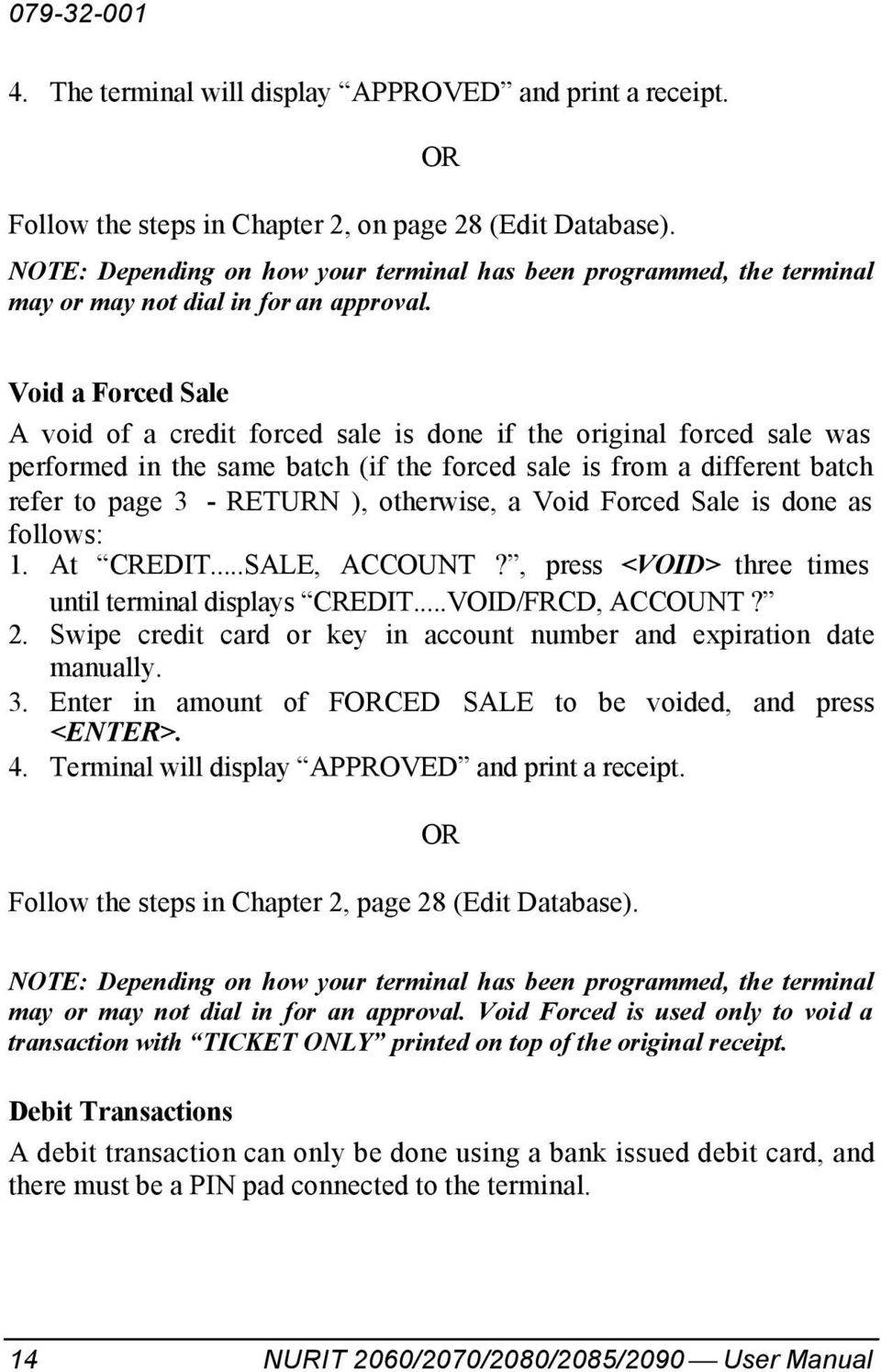
14 4. The terminal will display APPROVED and print a receipt. OR Follow the steps in Chapter 2, on page 28 (Edit Database). NOTE: Depending on how your terminal has been programmed, the terminal may or may not dial in for an approval. Void a Forced Sale A void of a credit forced sale is done if the original forced sale was performed in the same batch (if the forced sale is from a different batch refer to page 3 - RETURN ), otherwise, a Void Forced Sale is done as follows: 1. At CREDIT...SALE, ACCOUNT?, press <VOID> three times until terminal displays CREDIT...VOID/FRCD, ACCOUNT? 2. Swipe credit card or key in account number and expiration date manually. 3. Enter in amount of FORCED SALE to be voided, and press <ENTER>. 4. Terminal will display APPROVED and print a receipt. OR Follow the steps in Chapter 2, page 28 (Edit Database). NOTE: Depending on how your terminal has been programmed, the terminal may or may not dial in for an approval. Void Forced is used only to void a transaction with TICKET ONLY printed on top of the original receipt. Debit Transactions A debit transaction can only be done using a bank issued debit card, and there must be a PIN pad connected to the terminal. 14 NURIT 2060/2070/2080/2085/2090 User Manual
15 Debit Sale Follow these steps to process a debit card: 1. At CREDIT...SALE, ACCOUNT?, press <PAYMT TYPE>, until your terminal displays DEBIT...SALE, ACCOUNT? 2. Swipe the debit card (debit account numbers can NOT be keyed in manually). It must be swiped. 3. Key in the amount of the sale, and press <ENTER>. 4. The terminal will prompt to enter in a CASH BACK amount. If the customer does not want to receive cash back, press <ENTER> to bypass this option. 5. The terminal will display PLEASE ENTER PIN ON THE PIN PAD>>. PIN pad will beep and prompt the customer to enter PIN number on the pad. 6. The terminal will dial, process, and print receipt. Debit Return Please keep in mind, that this transaction is host specific. Therefore, this transaction may not be available. 1. At CREDIT...SALE, ACCOUNT?, press <PAYMT TYPE>, until your terminal displays DEBIT...SALE, ACCOUNT? 2. Swipe the debit card (debit account numbers can NOT be keyed in manually). It must be swiped. 3. Key in the amount of the return, and press <ENTER>. 4. The terminal will then prompt to enter the Authorization from the original sale receipt. Key in six digit code and press <ENTER>. 5. The terminal will display PLEASE ENTER PIN ON THE PIN PAD>. PIN Pad will beep and prompt the customer to enter the PIN number on the pad. 6. The terminal will dial, process, and print receipt reading RETURN on top. Debit Forced Sale, Void Sale/Return/Forced, and Verify These transaction types are not available with most host processors. NURIT 2060/2070/2080/2085/2090 User Manual 15

16 Check Verify To perform Check Verification, follow these steps: 1. At CREDIT...SALE, ACCOUNT?, press <PAYMT TYPE> until the terminal displays CHECK... VERIFY, AMOUNT? 2. Enter the amount of the check, and press <ENTER>. 3. Enter the MICR number (this number is usually the account number on the bottom of the check), or feed check through a check reader. The terminal will prompt different information depending on the check host. 4. Press <ENTER>, and terminal will print receipt. NOTE: The 2070 and 2090 can also perform radio check verification with only certain host processors. Electronic Benefits Transfer (EBT) [Operational in Versions 4.50 and above] A special EBT card must be used to perform a sale or receive cash. Follow these steps to process an EBT card: 1. At CREDIT...SALE, ACCOUNT?, press <PAYMENT TYPE>, until your terminal displays EBT...SALE, ACCOUNT? 2. Swipe the EBT card, or manually enter the account number including the expiration date, or if required, the GEN number. 3. Enter in the amount of the sale and press <ENTER>. 4. The terminal will prompt to enter in a cash back amount. If the customer does not want to receive cash back, press <ENTER> to bypass this option. 5. The terminal will display, PLEASE ENTER PIN ON PIN PAD, and PIN pad will beep to prompt the customer to enter the PIN number on the pad. 6. The terminal will dial, process, and print out a receipt. Cash Transactions The Cash EDC mode must be turned on, to perform cash transactions. Refer to Chapter 2, page 17 (Set Cash EDC). 16 NURIT 2060/2070/2080/2085/2090 User Manual

17 To perform a Cash Sale: 1. At CREDIT...SALE, ACCOUNT?, press <PAYMENT TYPE>, until your terminal displays CASH...SALE, AMOUNT? 2. Key in the amount of the sale and press <ENTER>. Terminal will print receipt. To perform a Cash Return: 1. At CREDIT...SALE, ACCOUNT?, press <PAYMENT TYPE>, until your terminal displays CASH...SALE, AMOUNT? 2. Press the <RETURN> key. 3. Key in the amount of the return, the terminal will print a receipt. NOTE: Transaction types Void Sale, Void Return, Void Forced, Forced, and Verify are not applicable with Cash EDC. Phone Card Activation To Activate a Phone Card: 1. At CREDIT...SALE, ACCOUNT?, press <PAYMENT TYPE>, until your terminal displays PHONE CARD, SWIPE CARD? 2. Swipe Phone Card to be activated. 3. Key in amount of activation and press <ENTER>. 4. Key in Clerk Number and press <ENTER>. 5. Confirm correct amount for activation and press <ENTER>. 6. Terminal will dial, and print receipt with confirmation of activation. NOTE: Transaction types Void Sale, Void Return, Void Forced, Return, Forced, and Verify are not applicable with Phone Card Activation NURIT 2060/2070/2080/2085/2090 User Manual 17

18 Batching To perform a batch release, or settlement of transactions stored in the NURIT 2060/70/80/85/90 memory, the following must be done at the end of every night: 1. At CREDIT...SALE, ACCOUNT?, press <BATCH>. 2. Terminal will display CHOOSE HOST: 1.ALL. Use the <FORCED> key to view different hosts: 1. ALL (if more than one processor), 2. (host name)credit, 3. (host name) DEBIT. 3. Once you make your selection, the terminal will automatically dial the host, and display the host response. 4. If batch was approved, a batch response will print and a current report will be generated. Auto Close If a terminal is programmed for auto batch, the host will close the batch automatically each night, at a specific time, and print a batch report. However, the report will only clear at the time of the first attempted sale, after your set batch time. Although your terminal will be programmed for auto batch, you may still have the option to batch manually. Other Batching Options When batching a single host, there may be other options as determined by a specific host. The following may occur: 1. When selecting a single host, e.g. 2.(host name) CREDIT, the terminal will display: CHOOSE OPTION: 1.CLOSE BATCH 2. Using the same arrow keys you will be able to scroll through the options for that host, e.g. #. OPEN BATCH, or #. FORCE TOTALS These options should only be used, if instructed by customer service. 18 NURIT 2060/2070/2080/2085/2090 User Manual

19 C H A P T E R 2 MENU The NURIT 2060/70/80/85/90 has a menu with several options that control some of the terminal s basic operational functions, and can be manually changed (see Appendix I for an outline of menu). The menu is divided into main menus and sub-menus that can be accessed by pressing the <MENU/ESC> key. 1. At the CREDIT...SALE, ACCOUNT? prompt, press <MENU/ESC> 2. Press the number of the Main Menu to be viewed (the terminal will automatically take you into the sub-menu), or you can use the <RETURN> and <FORCED> keys to scroll through the options and menus REPORTS The first menu in the NURIT 2060/70/80/85/90 is the Report Menu, which generates six different types of reports; Default Report, Current Report, History Report, Display Transactions, and Last Receipt. Pressing <MENU/ESC> at the CREDIT...SALE, ACCOUNT? prompt will access this menu. Default Report This is a report of the terminal's daily transactions, which has been customized, or has set defaults from the Current Report (see Current Report paragraph on the following page). 1. Terminal will display: MENU SCREEN: 1. REPORTS. 2. Press <ENTER>. Terminal will display: REPORTS: 1. DEFAULT REPORT 3. Press <ENTER>. Terminal will print a defaulted current report (see Current Report paragraph on the following page). NURIT 2060/2070/2080/2085/2090 User Manual 19

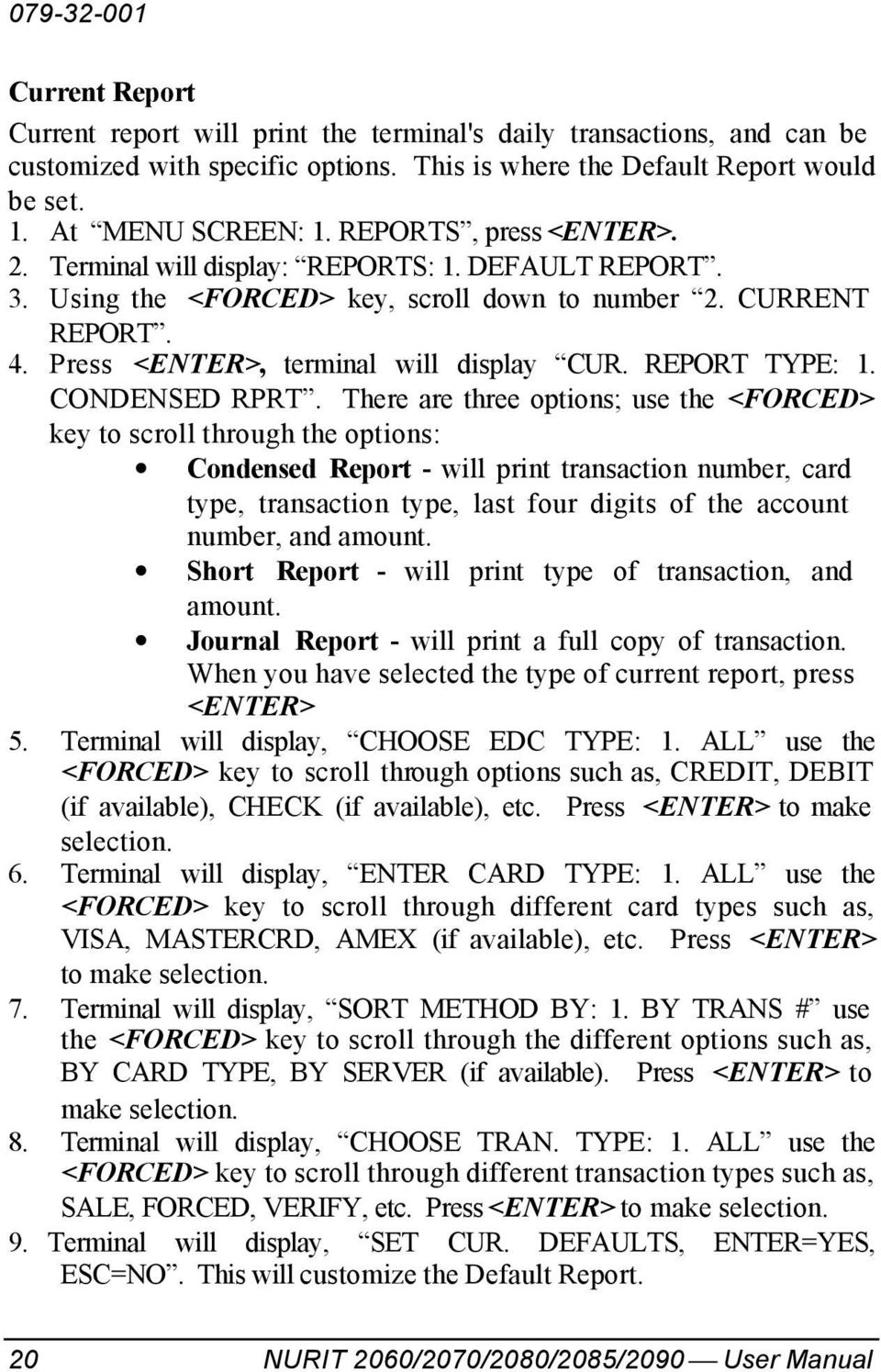
20 Current Report Current report will print the terminal's daily transactions, and can be customized with specific options. This is where the Default Report would be set. 1. At MENU SCREEN: 1. REPORTS, press <ENTER>. 2. Terminal will display: REPORTS: 1. DEFAULT REPORT. 3. Using the <FORCED> key, scroll down to number 2. CURRENT REPORT. 4. Press <ENTER>, terminal will display CUR. REPORT TYPE: 1. CONDENSED RPRT. There are three options; use the <FORCED> key to scroll through the options: Condensed Report - will print transaction number, card type, transaction type, last four digits of the account number, and amount. Short Report - will print type of transaction, and amount. Journal Report - will print a full copy of transaction. When you have selected the type of current report, press <ENTER> 5. Terminal will display, CHOOSE EDC TYPE: 1. ALL use the <FORCED> key to scroll through options such as, CREDIT, DEBIT (if available), CHECK (if available), etc. Press <ENTER> to make selection. 6. Terminal will display, ENTER CARD TYPE: 1. ALL use the <FORCED> key to scroll through different card types such as, VISA, MASTERCRD, AMEX (if available), etc. Press <ENTER> to make selection. 7. Terminal will display, SORT METHOD BY: 1. BY TRANS # use the <FORCED> key to scroll through the different options such as, BY CARD TYPE, BY SERVER (if available). Press <ENTER> to make selection. 8. Terminal will display, CHOOSE TRAN. TYPE: 1. ALL use the <FORCED> key to scroll through different transaction types such as, SALE, FORCED, VERIFY, etc. Press <ENTER> to make selection. 9. Terminal will display, SET CUR. DEFAULTS, ENTER=YES, ESC=NO. This will customize the Default Report. 20 NURIT 2060/2070/2080/2085/2090 User Manual
21 History Report This report will allow you to print previous batch totals from the last 30 days. You can print a total report of several batches, or you can print a report showing totals per batch. To do so, follow these steps: 1. At MENU SCREEN: 1. REPORTS, press <ENTER> 2. Terminal will display: REPORTS: 1. DEFAULT REPORT 3. Using the <FORCED> key, scroll down to number 3. HISTORY REPORT 4. Press <ENTER>, terminal will display, FROM BATCH DATE: MM/DD/YY. Terminal will always display first of the month. 5. Press <ENTER>, to keep date shown, or type in the date needed for a specific batch. 6. Terminal will then display, TO BATCH DATE: MM/DD/YY. 7. Type in the desired date, and terminal will display, HISTORY REPORTS: 1. TOTAL. Use the <FORCED> key, to scroll to 2. PER BATCH. 8. Make selection by pressing <ENTER>, and terminal will display, CHOOSE EDC TYPE: 1. ALL. Using the <FORCED> key, scroll through the different EDC types, and press <ENTER> to make selection. 9. Terminal will display, ENTER CARD TYPE: 1. ALL. Again, use the <FORCED> key to scroll through the different card types, and press <ENTER> to make your selection. 10. Terminal will display, ENTER TRAN. TYPE: 1. ALL. Use the <FORCED> key to scroll through the different transaction types, and press <ENTER> to make your selection. Terminal will print report. NURIT 2060/2070/2080/2085/2090 User Manual 21
22 Display Transaction This option will allow you to view daily transactions on the terminal display. You can view these transactions several ways. To do so, follow these steps: 1. At MENU SCREEN: 1. REPORTS, press <ENTER> 2. Terminal will display: REPORTS: 1. DEFAULT REPORT 3. Using the <FORCED> key, scroll down to number 4. DISPLAY TRANS, and press <ENTER>. 4. Terminal will display, DISPLAY TRANS: 1. SCROLL ALL. Using the <FORCED> key, scroll through the options (By Trans #, By Card Type, By Card No., etc.), and press <ENTER> to make selection. 5. Terminal will display, CHOOSE EDC TYPE: 2. CREDIT. Using the <FORCED> key, scroll through the different EDC types, and press <ENTER> to make selection. 6. Terminal will display the following: #001 SL Terminal displays the transaction number, transaction type, transaction amount, and card number. Use the <FORCED> key to scroll through transactions. Last Receipt This option will print a copy of the last transaction. If a report was the last printed item, this option cannot be used to print a copy of last transaction. To print copy of last transaction: 1. At MENU SCREEN: 1. REPORTS, press <ENTER> 2. Terminal will display: REPORTS: 1. DEFAULT REPORT 3. Using the <FORCED> key, scroll down to number 5. LAST RECEIPT, and press <ENTER>. 4. Terminal will automatically print copy of last receipt. 22 NURIT 2060/2070/2080/2085/2090 User Manual
23 MERCHANT PARAMS This menu contains nine different functions that can be changed manually, if necessary. The first function available is Authorizations, which will allows specific card types, and transaction types to be enabled and disabled. Authorizations (Transaction Types) This allows transaction types, such as Sales, Returns, Voids, etc. to be turned off, or on. At CREDIT...SALE, ACCOUNT?, press <MENU/ESC>. 1. Terminal will display, MENU SCREEN: 1. REPORTS. 2. Press <2>. Terminal will display: MERCHANT PARAMS: 1. AUTHORIZATIONS 3. Press <ENTER>. Terminal will dis play, 1- TRANS TYPES 2- CARD TYPES. 4. Press <1>. Terminal will display, MANAGER CARD OR ESC FOR PASSWORD. 5. Press <MENU/ESC>. Terminal will display, "ENTER PASSWORD." Customer Service must be called to obtain the password. 6. Once password is entered, terminal will display, CHOOSE EDC TYPE: 2. CREDIT. Use the <FORCED> and <RETURN> key to scroll through transaction types 7. Press <ENTER> to make selection, and terminal will display, CREDIT 1. FORCED (EN), (DIS), or (MGR) 8. Press <ENTER>. Terminal will display, CREDIT FORCED 1. DISABLED. Use the <FORCED> and <RETURN> key to scroll through options (EN) -transaction is always enabled (DIS) - transaction is disabled, and can not be performed (MGR) - transaction can only be performed with a manager card NURIT 2060/2070/2080/2085/2090 User Manual 23
24 9. Press <ENTER> to make selection, and terminal will display, CREDIT 1. FORCED (EN), or (DIS), or (MGR). Terminal will always return to this prompt, after every selection. 10. Scroll to next transaction type, and follow same procedure. When finished making all changes, press <MENU/ESC> four times. Terminal will return to CREDIT...SALE ACCOUNT? Authorizations (Card Types) This allows card types, such as Visa, MasterCard, and Discover card to be turned off, or on: 1. At CREDIT...SALE, ACCOUNT?, press <MENU/ESC> 2. Terminal will display, MENU SCREEN: 1. REPORTS 3. Press <2>, terminal will display: MERCHANT PARAMS: AUTHORIZATIONS 5. Press <ENTER>, terminal will display, 1- TRANS TYPES 2- CARD TYPES. 6. Press <2>, terminal will display, MANAGER CARD OR ESC FOR PASSWORD. 7. Press <MENU/ESC>, and terminal will display, "ENTER PASSWORD." Customer Service must be called to obtain password. 8. Once password is entered, terminal will display, CHOOSE CARD TYPE: 1. VISA(+) or (-). Use the <FORCED> and <RETURN> key to scroll through different card types 9. Press <ENTER> to make selection, and terminal will display, VISA+ 1. DISABLED. Use the <FORCED> and <RETURN> key to scroll through options (+) credit card type is always enabled (-) credit card type is disabled, and can NOT be processed 10. Use the <FORCED> and <RETURN> key to scroll through options 11. Press <ENTER> to make selection, and terminal will display, CREDIT 1. FORCED (+), or (-) Terminal will always return to this prompt, after every selection. 12. Scroll to next card type, and follow same procedure. When finished making all changes, press <MENU/ESC> three times. Terminal will return to CREDIT...SALE ACCOUNT? 24 NURIT 2060/2070/2080/2085/2090 User Manual
25 Security Levels This option allows merchants to set security levels for the Menu, Batching, Card Security, Manual Entry of a credit card, and printing of a credit card number. To set a security level for the MENU, follow these steps: 1. At CREDIT...SALE, ACCOUNT?, press <MENU/ESC>. 2. Terminal will display, MENU SCREEN: 1. REPORTS 3. Press <2>, terminal will display: MERCHANT PARAMS: AUTHORIZATIONS. Use the <FORCED> key to scroll down to number 2. SECURITY LEVEL. 5. Press <ENTER>. Terminal will display, SECURITY SWITCH: 1. MENU. 6. Press <ENTER>. Terminal will display, 1. ALWAYS ENABLED. Use the <FORCED> key to scroll to number 2. MANAGER ONLY. These are the two options available. Press <ENTER> to make selection. Always Enabled will always allow access to the menu, and Manager Only will prompt for a manager card, or a password. 7. Press <MENU/ESC> three times to return to CREDIT SALE ACCOUNT? To set a security level for BATCHING, follow these steps: 1. At CREDIT...SALE, ACCOUNT?, press <MENU/ESC>. 2. Terminal will display, MENU SCREEN: 1. REPORTS. 3. Press <2>, terminal will display: MERCHANT PARAMS: AUTHORIZATIONS. Use the <FORCED> key to scroll down to number 2. SECURITY LEVEL. 5. Press <ENTER>. Terminal will display, SECURITY SWITCH: 1. MENU. 6. Use the <FORCED> key to scroll down to number 2. BATCH. Press <ENTER>, terminal will display, 1. ALWAYS ENABLED. 7. Use the <FORCED> key to scroll to number 2. MANAGER ONLY. These are the two options available. Press <ENTER> to make selection. Always Enabled will always allow access to the NURIT 2060/2070/2080/2085/2090 User Manual 25
26 menu, and Manager Only will prompt for a manager card, or a password. 8. Press <MENU/ESC> three times to return to CREDIT SALE ACCOUNT? To set a security level for CARD SECURITY, follow these steps: 1. At CREDIT...SALE, ACCOUNT?, press <MENU/ESC> 2. Terminal will display, MENU SCREEN: 1. REPORTS 3. Press <2>, terminal will display: MERCHANT PARAMS: AUTHORIZATIONS. Use the <FORCED> key to scroll down to number 2. SECURITY LEVEL. 5. Press <ENTER>, terminal will display, SECURITY SWITCH: 1. MENU. 6. Use the <FORCED> key to scroll down to number 3. SECURE CARD. Press <ENTER>, terminal will display, 1. NO SECURITY. 7. Use the <FORCED> key to scroll through options 2. LAST 4 DIGITS, 3. ALL DIGITS. NO SECURITY no security LAST 4 DIGITS terminal will prompt for last four digits of account number after card is swiped ALL DIGITS terminal will prompt for reentry of credit card number, after card is swiped. 8. Press <ENTER> to make selection, and then press <MENU/ESC> three times to return to CREDIT SALE ACCOUNT? Edit Header/Trailer The receipt header and trailer can be changed manually through the terminal. A specific line, character, or entire header/trailer can be changed, if needed. To make a change, follow these steps: 1. At CREDIT...SALE, ACCOUNT?, press <MENU/ESC> 2. Terminal will display, MENU SCREEN: 1. REPORTS 3. Press <2>, terminal will display: MERCHANT PARAMS: AUTHORIZATIONS. Use the <FORCED> key to scroll down to number 3. EDIT HEADER, or 4. EDIT TRAILER. 5. Terminal will display, HEADER (TRAILER) TEXT 1N, and the 26 NURIT 2060/2070/2080/2085/2090 User Manual
27 first line of your current receipt header will appear. The N stands for Normal print. If BOLD print is desired press the <BATCH> key, and N will switch to a B. Please keep in mind that bold print allows 12 characters to a line, and normal print allows 23 characters. 6. Use the <VERIFY> and <VOID> keys to move left and right, and use the <RETURN> and <FORCED> keys to move up and down. 7. Use the <ALPHA/COPY> key to change to alpha-numeric characters. 8. When all changes are completed, press <ENTER>, and then press <MENU/ESC> two times, to return to CREDIT SALE ACCOUNT? Set Cash EDC Cash will be an addition to your Payment Modes, and will record cash transactions, if necessary. To turn this option on, follow these steps: 1. At CREDIT...SALE, ACCOUNT?, press <MENU/ESC> 2. Terminal will display, MENU SCREEN: 1. REPORTS 3. Press <2>, terminal will display: MERCHANT PARAMS: AUTHORIZATIONS. Use the <FORCED> key to scroll down to number 5. SET CASH EDC. 5. Press <ENTER>, terminal will display, MANAGER CARD, OR ESC FOR PASSWORD. 6. Press <MENU/ESC>, terminal will display, ENTER PASSWORD, if password is unknown, call customer service. 7. Once password is entered, terminal will display, CASH EDC SET: 1. WITH CASH. Use the <FORCED> key to scroll to 2. WITHOUT CASH. Press <ENTER> to make your selection. Surcharge Rate This will allow a merchant to add a surcharge rate to a debit transaction. To add a surcharge rate: 1. At CREDIT...SALE, ACCOUNT?, press <MENU/ESC> 2. Terminal will display, MENU SCREEN: 1. REPORTS 3. Press <2>, terminal will display: MERCHANT PARAMS: AUTHORIZATIONS. Use the <FORCED> key to scroll down to number 6. SURCHARGE RATE. NURIT 2060/2070/2080/2085/2090 User Manual 27
28 5. Press <ENTER>, terminal will display, SURCHARGE: 0.00, NEW RATE: Enter amount of surcharge rate and press <ENTER>, and then press <MENU/ESC> twice to return to, CREDIT SALE ACCOUNT? Set Batch Time This option will allow the batch time in the terminal to be set for a specific time. This will print a batch report. It will not actually dial to batch. To change the batch time: 1. At CREDIT...SALE, ACCOUNT?, press <MENU/ESC> 2. Terminal will display, MENU SCREEN: 1. REPORTS 3. Press <2>. Terminal will display: MERCHANT PARAMS: AUTHORIZATIONS. Use the <FORCED> key to scroll down to number 7. SET BATCH TIME. 5. Press <ENTER>. Terminal will display, MANAGER CARD, OR ESC FOR PASSWORD. 6. Press <MENU/ESC>. Terminal will display, ENTER PASSWORD, if password is unknown, call customer service. 7. Once password is entered, terminal will display, SET BATCH TIME: HH:MM. 8. Enter the desired time (military time), and press <ENTER>, and then press <MENU/ESC> twice. Server ID/Invoice This will allow the terminal to prompt for a server or invoice number, or both. This option can be used for both retail and restaurant applications. To turn this option on, or off: 1. At CREDIT...SALE, ACCOUNT?, press <MENU/ESC> 2. Terminal will display, MENU SCREEN: 1. REPORTS 3. Press <2>. Terminal will display: MERCHANT PARAMS: 1. AUTHORIZATIONS. Use the <FORCED> key to scroll down to number 8. SERVER/INVOICE. 4. Press <ENTER>. Terminal will display, MANAGER CARD, OR ESC FOR PASSWORD. 5. Press <MENU/ESC>. Terminal will display, ENTER PASSWORD, if password is unknown, call customer service. 28 NURIT 2060/2070/2080/2085/2090 User Manual
29 6. Once password is entered, terminal will display, SERVER ID MODE: 1. OFF. Use the <FORCED> key to scroll to 2. ON. Press <ENTER> to make selection. 7. Terminal will then display, INVOICE MODE: 1. OFF, Use the <FORCED> key to scroll to 2. ON. Press <ENTER> to make selection. (In the Restaurant application, there are two more options after Invoice, Table # s and Guest # s. In the Bar application, there is Tab open. This will have a preset amount for a Tab that can be changed.) 8. Then press <MENU/ESC> twice to exit menu. Site ID This option is used mainly for programming purposes, it allows customer service to view, or change the terminal number. MERCHANT OPTIONS This Main Menu has seven options that can be enabled or disabled, manually through the terminal. Paper Type Changes paper type to double, single ply, or customized. Single ply prints two receipts, double ply prints one receipt, and customized prints two receipts for every transaction. 1. Press <MENU/ESC> at the "CREDIT...SALE, ACCOUNT?" prompt. 2. Terminal will display, "MENU SCREEN: 1. REPORTS" 3. Press <3>. Terminal will display: "MERCH. OPTIONS: 1. PAPER TYPE. 4. Press <ENTER>. Terminal will display, "PAPER TYPE: 1. SINGLE PLY. 5. Scroll through options, using the <FORCED> key. The available options will be single ply, double ply, and customized. 6. To make your selection press <ENTER>. Terminal will display, "MERCH. OPTIONS: 1. PAPER TYPE. 7. Press the <MENU/ESC> key two times to exit the menu. NURIT 2060/2070/2080/2085/2090 User Manual 29
30 No Paper Mode This option disables the printer, and will not print a receipt for any transaction. To disable a printer: 1. At CREDIT...SALE, ACCOUNT?, press <MENU/ESC> 2. Terminal will display, MENU SCREEN: 1. REPORTS 3. Press <3>. Terminal will display: "MERCH. OPTIONS: 1. PAPER TYPE. 4. Use the <FORCED> key to scroll to 2. NO PAPER MODE. Press <ENTER>. Terminal will display, MANAGER CARD, OR ESC FOR PASSWORD. 5. Press <MENU/ESC>. Terminal will display, ENTER PASSWORD, if password is unknown, call customer service. 6. Once password is entered, terminal will display, NO PAPER MODE: 1. YES. Use the <FORCED> key to scroll to 2. NO YES disables printer NO enables printer 7. Press <ENTER> to make your selection, and terminal will display, ARE YOU SURE? ENTER=YES, ESC=NO. Make selection, and press <MENU/ESC>, twice to exit menu. Buzzer Set Enables or disables tone when performing certain terminal functions. To turn on the buzzer: 1. At CREDIT...SALE, ACCOUNT?, press <MENU/ESC> 2. Terminal will display, MENU SCREEN: 1. REPORTS 3. Press <3>. Terminal will display: "MERCH. OPTIONS: 1. PAPER TYPE. 4. Use the <FORCED> key to scroll to 3. BUZZER SET. Press <ENTER>. Terminal will display, BUZZER SET: 1. OFF 5. Use the <FORCED> key to scroll to 2. ON 6. Press <ENTER> to make selection, and press <MENU/ESC> twice to exit menu. 30 NURIT 2060/2070/2080/2085/2090 User Manual
31 Operation Mode This option allows the terminal to be set at two different modes, normal or demo mode (Demo mode for training. Normal mode for live transactions). If the terminal is set in demo mode for training purposes, it must be back in normal mode for live transactions. To place terminal in demo mode follow these steps: 1. At CREDIT...SALE, ACCOUNT?, press <MENU/ESC> 2. Terminal will display, MENU SCREEN: 1. REPORTS 3. Press <3>. Terminal will display: "MERCH. OPTIONS: 1. PAPER TYPE. 4. Use the <FORCED> key to scroll to 4. OPERATION MODE. Press <ENTER>. Terminal will display, OPERATION MODE 1. DEMO MODE 5. Use the <FORCED> key to scroll to 2. NORMAL MODE. 6. Press <ENTER> to make selection, terminal will display, ARE YOU SURE? ENTER=YES, ESC=NO 7. Press <ENTER>, and then <MENU/ESC> twice to exit menu. Battery Saver This option puts terminal in a standby mode, and is only available on the NURIT 2060U, 2085U, 2070 and It can be enabled or disabled. Battery Saver offers several options: OFF battery saver off RADIO ONLY will shut off only the radio after a specific amount of time, but terminal will stay on RADIO + AUTO OFF will shut off radio and terminal after a specific amount of time AUTO OFF only the terminal will shut off after a specific amount of time, the radio will stay on 1. At CREDIT...SALE, ACCOUNT?, press <MENU/ESC>. 2. Terminal will display, MENU SCREEN: 1. REPORTS NURIT 2060/2070/2080/2085/2090 User Manual 31
32 3. Press <3>. Terminal will display: "MERCH. OPTIONS: 1. PAPER TYPE. 4. Use the <FORCED> key to scroll to 5. BATTERY SAVER. Press <ENTER>. Terminal will display, BATTERY SAVER ON, 1. OFF 5. Use the <FORCED> key to scroll through the options 6. Press <ENTER> to make selection, terminal will display ARE YOU SURE? ENTER=YES, ESC=NO 7. If Battery Saver option is turned on, terminal will display, IDLE TIME (IN SECS). Enter the amount of seconds and press <ENTER>. 8. Press <MENU/ESC> twice to exit menu. Prints Disclaimer This option will print the following statement at the end of a credit card transaction: I AGREE TO PAY ABOVE TOTAL AMOUNT ACCORDING TO CARD ISSUER AGREEMENT (MERCHANT AGREEMENT IF CREDIT VOUCHER). To turn on this option: 1. At CREDIT...SALE, ACCOUNT?, press <MENU/ESC> 2. Terminal will display, MENU SCREEN: 1. REPORTS 3. Press <3>. Terminal will display: "MERCH. OPTIONS: 1. PAPER TYPE. 4. Use the <FORCED> key to scroll to 6. PRT DISCLAIMER. Press <ENTER>. Terminal will display, PRT DSCLMR MODE 1. OFF 5. Use the <FORCED> key to scroll to 2. ON. 6. Press <ENTER> to make selection, and press <MENU/ESC> twice to exit menu. Menu Type The menu in the terminal can be set to scroll automatically, or manually. If terminal is set to auto scroll, the speed can be adjusted. Follow these steps: 1. At CREDIT...SALE, ACCOUNT?, press <MENU/ESC>. 2. Terminal will display, MENU SCREEN: 1. REPORTS. 32 NURIT 2060/2070/2080/2085/2090 User Manual
33 3. Press <3>. Terminal will display: "MERCH. OPTIONS: 1. PAPER TYPE. 4. Use the <FORCED> key to scroll to 7. SET MENU TYPE. Press <ENTER>. Terminal will display, CHOOSE MENU TYPE 1. AUTO SCROLL. 5. Use the <FORCED> key to scroll to 2. MANUAL SCROLL. 6. Press <ENTER> to make selection. If auto scroll is selected terminal will prompt for scroll speed (1-9). Press <MENU/ESC> twice to exit menu. Set Halo This option sets a limit, that the cashier should not exceed for sales, refunds, and cash back. 1. At CREDIT...SALE, ACCOUNT?, press <MENU/ESC> 2. Terminal will display, MENU SCREEN: 1. REPORTS. 3. Press <3>. Terminal will display: "MERCH. OPTIONS: 1. PAPER TYPE. 4. Use the <FORCED> key to scroll to 8. SET HALO. Press <ENTER>. Terminal will display, MANAGER CARD, OR ESC FOR PASSWORD. 5. Press <MENU/ESC>. Terminal will display, ENTER PASSWORD, if password is unknown, call customer service. 6. Once password is entered, terminal will display, HALO FOR SALE: 1. OFF. Use the <FORCED> key to scroll to 2. ON. 7. Press <ENTER> to make selection. If 2. ON is selected, terminal will display, HALO: $0.00, NEW RATE: Enter maximum amount for a sale, and press <ENTER>, terminal will display, HALO FOR RETURN: 1. OFF 9. Use the <FORCED> key to scroll to 2. ON and follow the same steps above for Return Halo and Cash Back Halo. Print Setup This option will print a setup report. It will show all the options that have been turned on for the terminal. To print this report, follow these steps: 1. At CREDIT...SALE, ACCOUNT?, press <MENU/ESC>. 2. Terminal will display, MENU SCREEN: 1. REPORTS. NURIT 2060/2070/2080/2085/2090 User Manual 33
34 3. Press <3>. Terminal will display: "MERCH. OPTIONS: 1. PAPER TYPE. 4. Use the <FORCED> key to scroll to 9. PRINT SETUP. 5. Press <ENTER> to print. Host Parameters This menu allows you to change host parameters, such as merchant numbers, terminal IDs, and authorization numbers. Each host has different individual parameters, and should only be changed, if advised by the processing bank, or NURIT technical support. There are three submenus in Host Parameters. Merchant Parameters This allows you to edit merchant and/or terminal IDs for your host processor. To do so, follow these steps: 1. At CREDIT...SALE, ACCOUNT?, press <MENU/ESC> 2. Terminal will display, MENU SCREEN: 1. REPORTS 3. Press <4>. Terminal will display: "HOST PARAMS: 1. HOST PARAMS. 4. Press <ENTER>. Terminal will display ENTER PASSWORD. 5. Type in password (if password is not known, call customer service), and press <ENTER>. 6. Terminal will display, EDC PARAMETERS, 1. HOST NAME CR 7. Use the <FORCED> key to scroll through the different hosts. Press <ENTER>, to make selection. 8. Terminal will display, HOST NAME, 1. MERCHANT ID (Please keep in mind, that display will differ according to each host). 9. Use the <FORCED> key to scroll through the options, and press <ENTER> to enter new information. 10. When changes are completed, press <ENTER>, and then <MENU/ESC>. 11. Terminal will display, SAVE PARAMETERS?, ENTER=YES, ESC=NO. 12. Press <ENTER> and then <MENU/ESC> three times to exit menu. 34 NURIT 2060/2070/2080/2085/2090 User Manual
35 Host Phones This option allows the changing of authorization phone numbers and batch phone numbers for the host processor. To make any phone number changes: 1. At CREDIT...SALE, ACCOUNT?, press <MENU/ESC> 2. Terminal will display, MENU SCREEN: 1. REPORTS 3. Press <4>. Terminal will display: "HOST PARAMS: 1. HOST PARAMS. 4. Use the <FORCED> key to scroll to 2. HOST PHONE 5. Press <ENTER>. Terminal will display ENTER PASSWORD. 6. Type in password (if password is not known, call customer service), and press <ENTER>. 7. Terminal will display PHONE MENU, 1. HOST NAME CR 8. Use the <FORCED> key to scroll through the different hosts. Press <ENTER>, to make selection. 9. Terminal will display PHONE TYPE, 1. AUTH PHONES: 10. Use the <FORCED> key to scroll to 2. BATCH PHONES. Press <ENTER> to enter at either authorization or batch phones. 11. Press <ENTER>. Terminal will display EDIT PHONE: 1. PHONE NUMBER Use the <FORCED> key to scroll through primary and secondary phone numbers. Press <ENTER> to edit phone number. 13. When changes are completed, press <ENTER>, and then <MENU/ESC>, twice. 14. Terminal will display SAVE PARAMETERS?, ENTER=YES, ESC=NO. 15. Press <ENTER> and then <MENU/ESC> three times to exit menu. Print EDC Setup This report prints host information, such as merchant numbers, phone numbers, baud rates, and capture type. To print this report: 1. At CREDIT...SALE, ACCOUNT?, press <MENU/ESC> 2. Terminal will display MENU SCREEN: 1. REPORTS 3. Press <4>. Terminal will display: "HOST PARAMS: 1. HOST PARAMS. Use the <FORCED> key to scroll to 3. PRINT EDC SETUP. Press <ENTER> to print. NURIT 2060/2070/2080/2085/2090 User Manual 35
36 SYSTEM OPTIONS This menu consists of eight different functions that can be changed manually, however only a customer service representative should make changes on six of these functions. They are as follows: Set Time and Date This allows the time and date to be changed, if needed. To change the time and date: 1. At CREDIT...SALE, ACCOUNT?, press <MENU/ESC> 2. Terminal will display MENU SCREEN: 1. REPORTS 3. Press <5>. Terminal will display: "SYSTEM OPTIONS 1. SET TIME/DATE. 4. Press <ENTER>. Terminal will display the current time and date in terminal. 5. Press <ENTER>. Terminal will display, SETTING DATE: MM/DD/YY. Type in the month, date, and year. 6. Terminal will automatically display, SETTING TIME: HH:MM:00. Enter the correct time (military time). 7. Terminal will display the date and time entered. Press <MENU/ESC> three times to exit menu. 36 NURIT 2060/2070/2080/2085/2090 User Manual
37 Edit PIN key This option allows the changing or viewing of the working key for the PIN pad (access to this menu is not available without a PIN pad). The only time a change should be made in this field, is if instructed by customer service. 1. At CREDIT...SALE, ACCOUNT?, press <MENU/ESC> 2. Terminal will display MENU SCREEN: 1. REPORTS 3. Press <5>. Terminal will display: "SYSTEM OPTIONS 1. SET TIME/DATE. 4. Use the <FORCED> key to scroll to 2. EDIT PIN KEY. 5. Press <ENTER>. Terminal will display, EDIT WORKING KEY (displaying the current working key). Type in the correct working key, and press <ENTER>, and press <MENU/ESC> twice to exit menu. Select Master Key This changes the Master key location (access to this menu is not available without a PIN pad). Again, this is field that should only be changed, if instructed by customer service. To do so, follow these steps: 1. At CREDIT...SALE, ACCOUNT?, press <MENU/ESC> 2. Terminal will display MENU SCREEN: 1. REPORTS 3. Press <5>. Terminal will display: "SYSTEM OPTIONS 1. SET TIME/DATE. 4. Use the <FORCED> key to scroll to 3. SEL. MSTR KEY 5. Press <ENTER>. Terminal will display, MASTER KEY LOCATION. Type in correct master key location (0-9), and press <ENTER>. 6. Press <MENU/ESC> twice to exit menu. NURIT 2060/2070/2080/2085/2090 User Manual 37
38 Set Batch Number This allows the batch number to be changed, if needed. This is also a field that should only be changed when instructed by customer service. To change the batch number: 1. At CREDIT...SALE, ACCOUNT?, press <MENU/ESC> 2. Terminal will display MENU SCREEN: 1. REPORTS 3. Press <5>. Terminal will display: "SYSTEM OPTIONS 1. SET TIME/DATE. 4. Use the <FORCED> key to scroll to 4. SET BATCH NO. 5. Press <ENTER>. Terminal will display, MANAGER CARD OR ESC FOR PASSWORD. 6. Press <MENU/ESC>. Terminal will display, ENTER PASSWORD, if password is unknown, call customer service. 7. Once password is entered, terminal will display, CHOOSE HOST: 2. HOST NAME. Use the <FORCED> key to scroll through different hosts. 8. Press <ENTER> to make selection. Terminal will display, NEW BATCH NO: X (X represents current batch number in terminal). 9. Enter new batch number and press <ENTER>. 10. Press <MENU/ESC> twice to exit menu. Edit Database This sub-menu has two options, void transaction, and clear database. Void transaction will void a transaction by transaction number, and Clear Database will delete a batch and all its transactions in the terminal. To Void A Transaction: 1. At CREDIT...SALE, ACCOUNT?, press <MENU/ESC>. 2. Terminal will display MENU SCREEN: 1. REPORTS 3. Press <5>. Terminal will display: "SYSTEM OPTIONS 1. SET TIME/DATE. 4. Use the <FORCED> key to scroll to 5. EDIT DATABASE. 5. Press <ENTER>. Terminal will display, EDIT DATABASE: 1. VOID TRANSACT. 38 NURIT 2060/2070/2080/2085/2090 User Manual
39 6. Press <ENTER>. Terminal will display, MANAGER CARD OR ESC FOR PASSWORD. 7. Press <MENU/ESC>. Terminal will display, ENTER PASS- WORD. If password is unknown, call customer service. 8. Once password is entered, terminal will display, TRANSACTION# 9. Enter transaction number to be voided, and press <ENTER>. 10. Terminal will display: #001 SL If display is showing correct transaction to be voided, press <ENTER>. 12. Terminal will display VOID TRANS. #1?, ENTER=YES, ESC=NO. Press <ENTER>. Terminal will print voided transaction. 13. Press <MENU/ESC> three times to exit menu. To Clear Database: 1. At CREDIT...SALE, ACCOUNT?, press <MENU/ESC>. 2. Terminal will display MENU SCREEN: 1. REPORTS 3. Press <5>. Terminal will display: "SYSTEM OPTIONS 1. SET TIME/DATE. 4. Use the <FORCED> key to scroll to 5. EDIT DATABASE. 5. Press <ENTER>. Terminal will display, EDIT DATABASE: 1. VOID TRANSACT. 6. Use the <FORCED> key to scroll to 2. CLEAR DATABASE. 7. Press <ENTER>. Terminal will display, CHOOSE EDC TYPE: 1. ALL 8. Use the <FORCED> key to scroll through different EDC types. 9. Press <ENTER> to make selection. Terminal will display, MANAGER CARD OR ESC FOR PASSWORD. 10. Press <MENU/ESC>. Terminal will display, ENTER PASS- WORD, if password is unknown, call customer service. 11. Once password is entered, terminal will display, ARE YOU SURE? ENTER=YES, ESC=NO. 12. Press <ENTER> and terminal will print message that database has been cleared. NURIT 2060/2070/2080/2085/2090 User Manual 39
40 Working Mode (Retail Application) This option places terminal in AVS mode. AVS (Address Verification) will prompt for a zip code, and street address. There are three options for AVS: OFF no prompt for zip code, or street address ON MANUAL ONLY - will prompt for zip code and street address on a manual entry only ALWAYS will prompt for zip code and street address on swiped and manual entries. 1. At CREDIT...SALE, ACCOUNT?, press <MENU/ESC>. 2. Terminal will display MENU SCREEN: 1. REPORTS 3. Press <5>. Terminal will display: "SYSTEM OPTIONS 1. SET TIME/DATE. 4. Use the <FORCED> key to scroll 6. WORKING MODE. 5. Press <ENTER>. Terminal will display: ASK FOR AVS: 1. OFF. 6. Use the <FORCED> key to scroll through options. 7. Press <ENTER> to make selection. If 1. NO is selected, terminal will display, CHECK RATES WITH YOUR BANK. This is a warning that rates may be higher for manual entries without AVS. 8. Press <MENU/ESC> three times to exit menu. Working Mode (Restaurant Application) This option offers different tip options. There are as follows: IN TIP MENU terminal will print a tip line on the receipt IN TRANSACTION - terminal will prompt for tip amount during the transaction. If tip amount unknown, press <ENTER> to bypass, and terminal will print a tip line. PRINT PERCENT will add a percentage of the transaction amount for the tip. A percentage needs to be programmed 1. At CREDIT...SALE, ACCOUNT?, press <MENU/ESC>. 2. Terminal will display MENU SCREEN: 1. REPORTS. 40 NURIT 2060/2070/2080/2085/2090 User Manual
41 3. Press <5>. Terminal will display: "SYSTEM OPTIONS 1. SET TIME/DATE. 4. Use the <FORCED> key to scroll 6. WORKING MODE. 5. Press <ENTER>. Terminal will display: ASK FOR TIP: 1. IN TIP MENU. 6. Use the <FORCED> key to scroll through options. 7. Press <ENTER> to make selection. If PRINT PERCENT is selected, terminal will display, PERCENTAGE OF SUM. 8. Enter percentage amount, and press <ENTER>. 9. Press <MENU/ESC> three times to exit menu. Test Mode Only NURIT programmers use this menu for testing purposes. Pre-dial Call Terminal can be programmed to start dialing once the credit card is swiped. If pre-dial is turned off, the terminal will start dialing after entering the dollar amount. The goal behind pre-dial, is to save transaction time. To turn on pre-dial: 1. At CREDIT...SALE, ACCOUNT?, press <MENU/ESC>. 2. Terminal will display MENU SCREEN: 1. REPORTS 3. Press <5>. Terminal will display: "SYSTEM OPTIONS 1. SET TIME/DATE. 4. Use the <FORCED> key to scroll 8. PREDIAL CALL. 5. Terminal will display MANAGER CARD OR ESC FOR PASS- WORD. 6. Press <MENU/ESC>. Terminal will display, ENTER PASS- WORD, if password is unknown, call customer service. 7. Once password is entered, terminal will display, PREDIAL CALL: 1. OFF. Use the <FORCED> key to scroll 2. ON. 8. Press <ENTER> to make selection. Press <MENU/ESC> twice to exit menu. NURIT 2060/2070/2080/2085/2090 User Manual 41
42 RADIO TEST (2070 and 2090 ONLY) This menu is applicable to the NURIT 2070 and 2090 (radio terminal). It allows viewing of the radio information. The sub-menus are as follows: Radio RSSI This shows the radio strength signal (coverage area). The RSSI should be a six or greater to obtain good reception, and base station will always differ, depending on location. To check radio signal: 1. At CREDIT...SALE, ACCOUNT?, press <MENU/ESC>. 2. Terminal will display MENU SCREEN: 1. REPORTS 3. Press <6>. Terminal will display, RADIO TEST: 1. RSSI 4. Press <ENTER>. Terminal will display, BASE STN: 0, RSSI: 14. Keep in mind that Base Station and RSSI will vary according to location. 5. Press <MENU/ESC> three times to exit menu. Radio Address This displays the radio s MAN number. This is needed when the radio signal provider (Bell South Wireless ) needs to contact the radio, or look up the account. An RSSI test must first be performed before displaying the MAN# (or else MAN# = 0). To view the MAN#: 1. At CREDIT...SALE, ACCOUNT?, press <MENU/ESC>. 2. Terminal will display MENU SCREEN: 1. REPORTS 3. Press <6>. Terminal will display, RADIO TESTS: 1. RSSI 4. Use the <FORCED> key to scroll 2. HOST RADIO ADD. 5. Press <ENTER>. Terminal will display, MAN= , PRESS ANY KEY. The MAN# identifies the radio. 6. Press <MENU/ESC> three times to exit menu. Radio Information Displays radio information and only used by customer service. 42 NURIT 2060/2070/2080/2085/2090 User Manual
43 Battery Test Displays battery the power. To check battery strength: 1. At CREDIT...SALE, ACCOUNT?, press <MENU/ESC>. 2. Terminal will display MENU SCREEN: 1. REPORTS 3. Press <6>. Terminal will display, RADIO TESTS: 1. RSSI 4. Use the <FORCED> key to scroll 4. BATTERY TEST. 5. Press <ENTER>. Terminal will display, AC POWER OK, GOOD BATTERY. 6. Press <MENU/ESC> three times to exit menu. DOWNLOAD PARAMETERS This menu is used for technical purposes only. When and if, the terminal needs to be reprogrammed, a customer service representative will direct you step by step through this operation. COMMUNICATION This Main Menu has four sub-menus pertaining to communication. The sub-menus are as follows: Minimum Retries The amount of times the terminal dials for authorization or batching can be programmed through the terminal. To program the amount of retries: 1. At CREDIT...SALE, ACCOUNT?, press <MENU/ESC>. 2. Terminal will display MENU SCREEN: 1. REPORTS 3. Press <8>. Terminal will display, COMM MENU: 1. MIN RETRIES>. 4. Press <ENTER>. Terminal will dis play, MIN NUM TRIES: Enter amount of retries, and press <ENTER>. 6. Press <MENU/ESC> twice to exit menu. NURIT 2060/2070/2080/2085/2090 User Manual 43
44 Dial: Tone/Pulse The terminal can be set to dial at a pulse or touch tone. To change to either option: 1. At CREDIT...SALE, ACCOUNT?, press <MENU/ESC>. 2. Terminal will display MENU SCREEN: 1. REPORTS. 3. Press <8>. Terminal will display, COMM MENU: 1. MIN RETRIES>. 4. Use the <FORCED> key to scroll 2. DIAL: TONE. 5. Press <ENTER>. Terminal will display, DIAL TYPE: 1. TONE 6. Use the <FORCED> key to scroll to 2. PULSE. Press <ENTER> to make selection, and then <MENU/ESC> twice to exit menu. Exchange Prefix The terminal can programmed to dial an exchange prefix before a phone number if needed. To add an exchange prefix: 1. At CREDIT...SALE, ACCOUNT?, press <MENU/ESC>. 2. Terminal will display MENU SCREEN: 1. REPORTS 3. Press <8>. Terminal will display, COMM MENU: 1. MIN RETRIES>. 4. Use the <FORCED> key to scroll 3. EXCHANGE PREFIX. 5. Press <ENTER>. Terminal will display, EXCHANGE PREFIX: 1. NO. 6. Use the <FORCED> key to scroll to 2. YES. Press <ENTER>. Terminal will display EXCHANGE PREFIX. 7. Enter exchange prefix. Press <ENTER>, and then <MENU/ESC> twice to exit menu. Gateway This menu is used for technical purposes only. Suffix This field is used when a suffix is needed at the end of a phone number. To enter a suffix: 1. At CREDIT...SALE, ACCOUNT?, press <MENU/ESC>. 2. Terminal will display MENU SCREEN: 1. REPORTS. 44 NURIT 2060/2070/2080/2085/2090 User Manual
45 3. Press <8>. Terminal will display, COMM MENU: 1. MIN RETRIES>. 4. Use the <FORCED> key to scroll 5. SUFFIX. 5. Press <ENTER>. Terminal will display, SUFFIX: 1. NO 6. Use the <FORCED> key to scroll to 2. YES. Press <ENTER>. Terminal will display ENTER SUFFIX. 7. Enter suffix, press <ENTER>, and then <MENU/ESC> twice to exit menu. Via Line/Radio (2070 and 2090 only) This will program the terminal to process a transaction by radio first. If no signal is received, the terminal will look for a phone line. If the terminal will only be using a phone line, because of no signal in the area, then it can be programmed for phone line only. This option is for the 2070/2090 only. 1. At CREDIT...SALE, ACCOUNT?, press <MENU/ESC>. 2. Terminal will display MENU SCREEN: 1. REPORTS 3. Press <8>. Terminal will display, COMM MENU: 1. MIN RETRIES>. 4. Use the <FORCED> key to scroll 6. VIA: LINE/RADIO. 5. Press <ENTER>. Terminal will display, VIA LINE/RADIO, 1. BOTH 6. Use the <FORCED> key to scroll to 2. LINE ONLY. Press <ENTER> to make selection. 7. Then press <MENU/ESC> twice to exit menu. DIAGNOSTICS This option allows the terminal to be controlled by customer service via remote control. Again, this is an option used for technical purposes only. NURIT 2060/2070/2080/2085/2090 User Manual 45
46 T h i s p a g e l e f t b l a n k i n t e n t i o n a l l y 46 NURIT 2060/2070/2080/2085/2090 User Manual
47 C H A P T E R 3 BASIC TROUBLESHOOTING This section briefly describes how to troubleshoot some possible common problems that may rise during the normal operation of the NURIT 2060/70/80/85/90. Before requesting service for this unit, check the list below for a possible cause of the problem you are experiencing. Some simple checks on your part may solve the problem, and restore proper operation. If you are still unable to solve the problem, contact the technical support help desk. Terminal seems to have no power Make sure the AC adapter is fully plugged into the wall outlet, and that its barrel connector mates properly with the terminal s DC IN jack. If using the NURIT 2060U, 2070, 2085U, or 2090, make sure the switch on the bottom of the NURIT has been turned on. If using the NURIT 2060U, 2070, 2085U, or 2090, try pressing the <ON/STANDBY>. If using the NURIT 2060U, 2070, 2085U, or 2090, allow the battery to charge 10 to 12 hours, with the terminal on, and AC adapter plugged into the wall (in standby mode). NO LINE appears on the display Check that the telephone (RJ-11) connector is securely mated with the TEL LINE socket on the terminal, and into the wall. NURIT was designed for a dedicated phone line. It should not be on a splitter, or on a rollover phone system. An exchange prefix may or may not be needed. Make sure terminal has correct settings for an exchange prefix (see page ). If using a NURIT 2070 or 2090, make sure that you are receiving radio coverage in the area where you are located. NURIT 2060/2070/2080/2085/2090 User Manual 47
48 Printer does not function properly Check that the paper has been fed to the printer properly (underhand). Check there is paper in the printer compartment. Replace if required. If print is weak, replace the ribbon cassette (on printer model 525). If using, the NURIT 505/504 printer, make sure you are using thermal paper (NURIT 2085/2090 also use thermal paper). On a NURIT 2080, make sure terminal is in Paper Mode and printer setup is correct. If printer continues working even though the paper has been used up, check that the end of paper detector (small opening behind the ribbon cassette) is not blocked by a torn piece of paper (on printer model 525). Card reader not working Make sure that card has been swiped so that its magnetic strip is facing downward and to the right side of the terminal. Be sure to swipe card from back to front of the terminal. Contact the technical support help desk. Possible PIN pad error Verify that the PIN pad is properly plugged into the PIN pad connector on back of terminal. Check the line to the PIN pad itself. Receipt prints CANCELED The terminal will display a host response, or some type of error message, as to why the transaction was canceled. 48 NURIT 2060/2070/2080/2085/2090 User Manual
49 APPENDIX A RESTAURANT REFERENCE GUIDE TO ENABLE SERVER ID/INVOICE MODE Please refer to page 18 for instructions. SALE 1. At the CREDIT...SALE, ACCOUNT? prompt, swipe the credit card, or manually key in the account number and expiration date. 2. The terminal will prompt to enter in the amount (DO NOT PRESS THE DECIMAL POINT). 3. If option has been turned on, terminal will prompt for Server Id or Invoice Number. 4. The terminal will then dial, process, give an approval code, and print a receipt that reads SALE on top EDIT THE TIP 1. At the CREDIT...SALE, ACCOUNT?, press the <EDIT/. > key. The terminal will display ADD TIPS: 3. SCROLL OPENED. 2. Use the <FORCED> key to scroll through the different options, and press <ENTER> to make selection. 3. Terminal will display transaction. Press <ENTER> to select. 4. Terminal will display current tip amount. Enter tip amount, and press <ENTER>. Terminal will display: #001 SL 0.00(total amount) TP 0.00 B 0.00 (base amount) 5. Use the <FORCED> key to scroll to scroll to next transaction, and repeat steps #2 to #4, until all tip amounts have been entered. 6. Press <MENU/ESC> three times to exit tip menu. NURIT 2060/2070/2080/2085/2090 User Manual 49
50 VOID SALE Please refer to page 3 for instructions. RETURN Please refer to page 1 for instructions. NOTE: During batch, if all transactions are not closed the terminal will ask: "CRD TRNS UNTIPPED, 1. SCROLL, 2-IGNORE. Press <1> to check untipped transactions, or <2> to ignore and continue with batch. BAR APPLICATION This application is similar to the restaurant application, except in addition it has an open tab option. To open a tab: At the CREDIT...SALE, ACCOUNT?, press <. >, terminal will display six options: 1. Open Tab - starts a tab at the preset amount 2. Close Tab - closes a tab. If tab is more than preset amount, it will close for full amount, dialing automatically to host. This will print two transactions, one for the preset amount and the other for the difference. 3. Add Tips - enter tip amounts 4. Delete Tab - voids a specific tab 5. Tab Report - prints a report of all tabs; opened and closed 6. Open Tab Report - prints a report of opened tabs and transactions with zero tips amounts. 50 NURIT 2060/2070/2080/2085/2090 User Manual
51 SALE APPENDIX B DIRECT MARKETING REFERENCE GUIDE Charges card for amount entered. 1. At the CREDIT...SALE, ACCOUNT? prompt, swipe the credit card, or manually key in the account number and expiration date. 2. The terminal will prompt to enter in the amount (DO NOT PRESS THE DECIMAL POINT). 3. Then terminal will prompt for an order number. Enter order and press <ENTER>. 4. Terminal will then display, 1. MAIL OR PHONE. Use the <FORCED> key to scroll through the following options: Mail or phone Recurring Installment Unknown Dir. Purchase 5. Press <ENTER> to make selection. Terminal will display, ZIP CODE. Enter zip code and press <ENTER>. 6. Key in POB. or house # 7. The terminal will then dial, process, give an approval code and print a receipt that reads SALE on top. VERIFY 1. Follow steps #1-3 on page 2 2. Then select type of order: Mail or phone Recurring Installment Unknown Dir. Purchase 3. Press <ENTER> to make selection, and terminal will display, ZIP CODE. Enter zip code and press <ENTER>. 4. Key in POB. or house #, and then terminal will dial and process. NURIT 2060/2070/2080/2085/2090 User Manual 51
52 CLOSE SALE Charges card, after verification, for amount entered. 1. Press the < EDIT/.> key, and select an option. Use the <FORCED> key to scroll through the following options: Close order Reauth order Void author. Rtrn/void ord Orders report Expir.ord.rprt 2. Press <ENTER> to make selection. Terminal will display, ODER #. Enter order number and press <ENTER>. 3. Then terminal will prompt for amount of sale (for close order only). 4. Enter amount of sale and press <ENTER>. RUNNING REPORTS FROM ORDER MENU The following procedure will print a journal report for the specific type selected. This report will include the total amount of order type. 1. Press the <EDIT/. > key, and terminal will display, CLOSE ORDER. 2. Use the <FORCED> key to scroll to 5. ORDER REPORT and 6. EXPIR.ORD.RPRT 3. Press <ENTER> to make selection, and terminal will print report. RUNNING REPORTS FROM MENU SCREEN Prints type of report selected as above, but allows customization of information. For example: only open orders, condensed form, for visa cards only. 1. At MENU SCREEN: 1. REPORTS, press <ENTER> 2. Terminal will display: REPORTS: 1. DEFAULT REPORT 3. Using the <FORCED> key, scroll down to number 2. CURRENT REPORT. 52 NURIT 2060/2070/2080/2085/2090 User Manual
53 5. Press <ENTER>. Terminal will display CUR. REPORT TYPE: 1. CURRENT RPRT. There are three options. Use the <FORCED> key to scroll through the options: Current Report Opened Order Expired Order 6. Terminal will display CHOOSE EDC TYPE: 1. ALL. Use the <FORCED> key to scroll through options such as, CREDIT, DEBIT (if available), CHECK (if available), etc. Press <ENTER> to make selection. 7. Terminal will display ENTER CARD TYPE: 1. ALL. Use the <FORCED> key to scroll through different card types such as, VISA, MASTERCRD, AMEX (if available), etc. Press <ENTER> to make selection. 8. Terminal will display SORT METHOD BY: 1. BY TRANS #. Use the <FORCED> key to scroll through the different options such as, BY CARD TYPE, BY SERVER (if available). Press <ENTER> to make selection. 9. Terminal will display CHOOSE TRAN. TYPE: 1. ALL. Use the <FORCED> key to scroll through different transaction types such as, SALE, FORCED, VERIFY, etc. Press <ENTER> to make selection. 10. Terminal will display SET CUR. DEFAULTS, ENTER=YES, ESC=NO. This will customize the Default Report. DEFINITIONS REAUTH ORDER: obtains new approval number when old authorization expired VOID AUTH: delete open order from database RTRN/VOID ORD: delete open order (sale, forced, closed) in current batch. NURIT 2060/2070/2080/2085/2090 User Manual 53
54 T h i s p a g e l e f t b l a n k i n t e n t i o n a l l y 54 NURIT 2060/2070/2080/2085/2090 User Manual
55 APPENDIX C SCRIPT MACHINE REFERENCE GUIDE The Script application is used in instead of an ATM machine. It has the same capabilities as an ATM machine, such as balance inquiry, transfer, and withdrawals. The following is a breakdown of the menus: 1. Withdrawal 2. Transfer 3. Ask Balance (inquiry) (These three transactions on the terminal display will be the idle prompt.) WITHDRAWALS To withdraw money from an account; 1. Press <1>. Terminal will display: WITHDRAWAL FROM: CHECKING SAVINGS CREDIT CARD 2. Select one of these options, and terminal will display, SWIPE DEBIT CARD ACCOUNT 3. Swipe debit card. It cannot be entered in manually. 4. Terminal will then display, SWIPE DEBIT CARD AMOUNT Terminal will display SURCHARGE: 0.50, Esc-No, Enter-Yes. To change surcharge rate please refer to page. 6. After selection, terminal and PIN pad will prompt customer to enter PIN number. Terminal will then dial and process. 7. Receipt will print. TRANSFERS To transfer money from one account to the other: 1. Press <2>, terminal will display, TRANSFER FROM CHECK TO SAV. NURIT 2060/2070/2080/2085/2090 User Manual 55
56 SAV. TO CHECK CRDT TO SAV. 2. Select one of these options, and terminal will display, SWIPE DEBIT CARD ACCOUNT 3. Swipe debit card. It cannot be entered in manually. 4. Terminal will then display, SWIPE DEBIT CARD AMOUNT Enter amount customer wants to transfer. 6. Terminal and PIN pad will prompt customer to enter PIN number. Terminal will then dial and process. Receipt will print. BALANCE INQUIRY To inquire about a balance: 1. Press <2>. Terminal will display, BALANCE INQUIRY CHECKING SAVINGS CREDIT CARD 2. Select one of these options, and terminal will display, SWIPE DEBIT CARD ACCOUNT 3. Swipe debit card. It cannot be entered in manually. 4. After selection, terminal and PIN pad will prompt customer to enter PIN number. Terminal will then dial and process. 5. Receipt will print. NOTE: The menus on the Script Machine application remain the same. They will not change. 56 NURIT 2060/2070/2080/2085/2090 User Manual
57 APPENDIX D NURIT 2080 REFERENCE GUIDE The NURIT 2080 has the same capabilities and functions, as the NURIT 2060 and However, it does have its differences, and the following will give a brief description of them. HOT KEYS The NURIT 2080 has five additional hot keys. Four of the hot keys are programmable at the time of download. Your terminal provider will explain your options and use of the keys (F1, F2, F3, and F4). The fifth key is a <REPORT> key. When you press this key, it will print a current report, based on your default settings, explained in Chapter 2 - Reports. PRINTER SETUP Unlike the NURIT 2060/70, the NURIT 2080 uses an external printer. To setup the printer, the following should be done: 1. Press <BATCH>, <MENU/ESC>, <VOID>, and <ENTER>. 2. Terminal will display, 2080L NOS 1. BACK TO PROGRAM 3. Press <9>. Terminal will display, 9. PRINTER SETUP 4. Press <ENTER>. Terminal will give you 4 options and sub-menus: 1. Select Printer 1. Printer Name 2. Bit Rate 3. Format 2. Test 3. Printer Params 1. Current Setup (Printout) 2. Default Setup (Printout) 4. User Defined (Setup for user defined printer) NURIT 2060/2070/2080/2085/2090 User Manual 57
58 T h i s p a g e l e f t b l a n k i n t e n t i o n a l l y 58 NURIT 2060/2070/2080/2085/2090 User Manual
59 APPENDIX E CELLULAR DIGITAL PACKET DATA (CDPD) OPERATIONAL OVERVIEW Your NURIT 2070 and 2090 have a built-in cellular packet data (CDPD) modem allowing wireless communications. This means you do not need a telephone line to electronically transmit a transaction. CDPD offers secure, dependable communications within the CDPD coverage areas. Coverage CDPD is provided by cellular carriers such as, AT&T Wireless, GTE Mobile, Bell Atlantic NYNEX Mobile, and others. (A partial list of cities and CDPD providers can be found in Appendix F.) Your help desk can further explain to which CDPD service provider/side your terminal should be set. The terminal comes with a fixed antenna as standard equipment. However, if you are using an optional antenna with an extension cable, place the antenna as high as possible and close to a window or outer wall for the best possible reception. If you are having trouble obtaining or maintaining registration you may contact customer service at 1 (800) NOTE: You may not get expected results if: You are below street level The RSSI is below 13 A unity gain antenna is used in building There is rapid channel hopping during peak periods Your unit lost registration NURIT 2060/2070/2080/2085/2090 User Manual 59
60 FEES Most fees for CDPD service are included in the rate and fees quoted you by your sales representative. Your sales representative should have explained any CDPD fees that may be charged in addition to POS processing fees. SETTING UP THE NURIT 2070/2090 (CDPD) Your sales representative must provide you with the following information: M-ES (Terminal) IP: F-ES (Host) IP/Port: / Side Preference : A, B, AB, BA. You should record this information in your personal records, as you will need to have them when you call customer service for help with your CDPD transactions. (If these numbers are not recorded, call your sales representative for the information.) Once side preference is set, it should not be changed unless you have taken the unit to a market, which requires a different side. (See Appendix F). If you are traveling to a city not listed in Appendix F, contact Customer Service to find out to which side the unit should be set. Registering Into CDPD Network Where feasible, place the antenna above head level, and close to a window, or outside when possible. If you have a portable antenna, place the antenna away from the area where your customers will be standing. Transactions cannot be processed until the terminal has successfully registered on the network. After turning on the terminal, it will flash the following display: CDPD RADIO INIT WAITING NURIT 2060/2070/2080/2085/2090 User Manual
61 The terminal will display several prompts for a couple of seconds. While attempting to register on the network the terminal will display: (Explanation of symbols will follow) sibklm r0 c714 The letters and numbers displayed on the screen will change until it has finally registered. When the terminal has registered successfully onto the network, it will display: CREDIT...SALE ACCOUNT? It should take less than a minute for the terminal to register if it has been programmed with the correct IPs, port and side. Once this idle prompt appears on the terminal, it is now ready to process transactions. The terminal should stay registered, until the terminal is power cycled. If the terminal should happen to lose registration, it will automatically try to register back onto the network. TROUBLESHOOTING If you are experiencing problems registering onto the network with the terminal, here are a few tips you may want to try: 1. Power cycle the terminal, and wait for another minute for terminal to register. To power cycle the terminal, turn power switch off and on (switch is located underneath terminal). The terminal will initialize and restart program, try to register onto the network again. 2. Move the terminal near a window or take it outside so that it will get better reception. Wait for a minute or until you register. 3. If you are still unable to get terminal registered onto the network, print the following diagnostic reports, and call the help desk. To print the reports, follow these steps: NURIT 2060/2070/2080/2085/2090 User Manual 61
62 Press <MENU/ESC>. Terminal will display: MENU SCREEN: 1. REPORTS NOTE: You may have to press <MENU/ESC> two or three times before actually getting the MENU SCREEN. Press <6> and wait until the terminal displays: RADIO TEST: 1. CDPD Test Press <2>. Terminal will display: CDPD Dest. Prm 1. Print 2. Edit Press <1>. Terminal will print a short destination report. After it is done printing, press <MENU/ESC> once, and then press <1>. Terminal will display: CDPD DIAG. MENU: 1. Diag. Printout Press <ENTER>. Terminal will print a long diagnostic report of the CDPD terminal. After printing both reports, call the help desk. Press <MENU/ESC>, three times, or until it brings you back to CREDIT...SALE ACCOUNT?. 62 NURIT 2060/2070/2080/2085/2090 User Manual
63 6. RADIO TEST APPENDIX F CDPD DIAGNOSTIC MENU OUTLINE 1. Diagnostic Printout 2. RSSI / Status / Channel Displays RSSI Status Channel in use 3. Registration Errors Displays registration errors. Values other than (0) correspond to an error. 4. Transmissions Errors Same as registration errors. 5. Self Address / Port 1. View View terminal IP address 2. Edit Edit terminal IP address 6. CDPD Side Preference 1. View View side preference 2. Edit 1. A Only 2. B Only 3. A Pref 4. B Pref 5. Home Only Edit terminal Side Preference NURIT 2060/2070/2080/2085/2090 User Manual 63
64 2. CDPD Dest. Prm 3. Battery Test 7. Channel Use 1. Channel List 1. View 2. Edit 2. Channel List Mode 1. View 2. Edit 1. Do not use 2. Use the list 8. Special Comnds 1. S-reg. comnds 2. AT commands 3. Debug mode 4. Connect to PC 5. Load from PC 1. Print 2. Edit View channel list Edit channel list View channel list mode Edit channel list mode Print CDPD destination parameters Edit CDPD destination parameters Will display power status 64 NURIT 2060/2070/2080/2085/2090 User Manual
65 LISTING OF CDPD COVERED AREAS MSA AREA SIDE CDPD CARRIER Long Island/New York City/Newark/Jersey City/ Patterson, NJ Chicago, IL Philadelphia, PA Detroit-Ann Arbor, MI Boston/Lowell/Brockton, MA Dallas/Ft.Worth, TX San Francisco/Oakland, CA Washington, D.C/MD/VA Houston, TX Miami/Ft.Lauderdale, FL San Diego, CA Minneapolis/St.Paul, MN St. Louis, MO - IL Baltimore, MD A B A B A B A B A B A B A B A B A B A B A B A B A B A B AT&T Wireless Bell Atlantic NYNEX South western Ameritech Comcast Bell Atlantic NYNEX AirTouch Ameritech Southwestern Bell Atlantic AT&T Wireless Southwestern AT&T Wireless GTE Mobile Southwestern Bell Atlantic Bell South / AT&T GTE Mobile AT&T Wireless Bell South GTE Mobile AirTouch AT&T Wireless Bell South Ameritech Southwestern Southwestern Bell Atlantic NYNEX NURIT 2060/2070/2080/2085/2090 User Manual 65
66 Phoenix, AZ Pittsburgh, PA Seattle/Everett, WA Tampa/St.Petersburgh, FL Denver /Boulder, CO Cleveland, OH San Jose, CA Portland/Salem, OR, WA Milwaukee, WI A B A B A B A B A B A B A B A B A B Southwest AirTouch AT&T Wireless Bell Atlantic NYNEX AT&T Wireless AirTouch AT&T Wireless GTE Mobile AT&T Wireless Airtouch AirTouch GTE Mobile AT&T Wireless GTE AT&T Wireless AirTouch Bell South Ameritech NOTE: This is only a partial listing. For a full list, please contact the help desk. Use Side Preference that corresponds to your CDPD provider. 66 NURIT 2060/2070/2080/2085/2090 User Manual
67 NETWORK STATUS The following is a list of definitions for each letter. For example, if the response is: A(RSSI) B(ERATE) C(LINK) D(REG) E(CHANNEL) = ABCDE RSSI Status (RSSI): A = okay I = low Link Status (LINK): C = established K = not established Error Rate Status (ERATE): B = okay J = high Registration Status (REG): D = registered L = not registered CDPD Channel Status (CHANNEL): E = CDPD channel acquired M = searching for CDPD channel CDPD DIAGNOSTIC MENU OUTLINE This will be found in number 6. Radio Test in the Menu Screen: 1. Diagnostic Printout - will print a diagnostic report, showing, the network status, CDPD RSSI, Channel in use, registration error, transmission error, IP address, site ID, etc. 2. RSSI / Status / Channel (S200)- displays the contents of the registers S202 / S57 / S204. e.g. r18sabklm c Registration Errors - if zero appears, there are no errors. Any thing other than a zero will be an error message 4. Transmissions Errors (S201) - same as registration errors 5. Self Address / Port - this will allow you to view or edit the address (this is similar to the MAN# for RAM) 6. CDPD Site Preference - this will allow you to choose the service provider that you want to work with. NURIT 2060/2070/2080/2085/2090 User Manual 67
68 7. Channel Use - Forces CDPD modem to look into several channels (from the channel list), or leave the choice up to the modem to pick up the most efficient channel at that moment. 8. Special Commands - 1. Make a call; first ask destination IP and protocol type (TCP or UDP) then dial out. 2. View and change registers; access to all registers 3. Additional AT commands; any AT command 68 NURIT 2060/2070/2080/2085/2090 User Manual
69 APPENDIX G MEDE AMERICA VERIFICATION SYSTEM NOTE: For those familiar with the NURIT 2080 POS menu you will find some minor changes in terminal operation while in Mede America mode. The following Appendix will provide you with an overview of basic operational differences. Introduction The NURIT 2080 POS terminal is now available to run the MEDEAMERICA eligibility verification system for Illinois Medicaid Eligibility. With this program patient eligibility and insurance information can be sought by sending an inquiry through the Mede America host system. If the screen on your terminal displays the POS idle prompt, then press the F1 key to access the MEDE AMERICA Illinois program prompt : ID NUMBER. Entering Eligibility Request 1. Type in the Illinois Medicaid 9-digit patient ID number and press <ENTER>. If patient ID number is not available you can skip this prompt by pressing <ENTER>. If you enter the ID Number, then you will be prompted to enter the patient s First Name, First DOS, and Last DOS in successive order. If you press <ENTER> to bypass the ID Number, then you will be prompted to enter the patient s Last Name, First Name, DOB (Date of Birth) or SSN (Social Security Number), First DOS, and Last DOS in order. 2. When you are asked to enter Last Name and/or First Name the keyboard will be automatically switched to alphanumeric mode. Enter name and press <ENTER> (page 61 for additional alphanumeric info). NURIT 2060/2070/2080/2085/2090 User Manual 69
70 3. You can enter either DOB or SSN. To toggle between the two press <ENTER>. 4. Type in the recipient s First DOS (Date of Service) using the MM/DD/YYYY format and press <ENTER>, or just press <ENTER> to input the current date. 5. Type in the recipient s Last DOS and press <ENTER>, or just press <ENTER> to input the same date as the First DOS. NOTE: The dates of service must be within the past year and may not extend past the current date. The date of service span (First DOS to Last DOS) can extend up to three months. NOTE: In order to cancel this request you can press MENU/ESC (while in the numeric mode) or press SHIFT and then CLEAR (while in the alphanumeric mode), and return to the ID NUMBER prompt. Sending Request(s) If you need to send the request immediately to the Mede America Host, press the <FIND> key after you enter the request. Otherwise each request will be placed in a file automatically and you can send the whole request file by pressing the <BATCH> key. This will save you time when compared to sending transactions one by one with the <FIND> key. Receiving Response(s) Once a response is received, a Mede America eligibility response will print (please refer to figure G.1 for sample of eligibility response) and the letter R (received), will appear in the upper right-hand corner of the screen in the Scroll Request mode. Scrolling Through Request(s)/Response(s) All requests and responses are stored in a file in the terminal. You can scroll through this file after pressing <EDIT> key from the idle prompt. Press <MENU/ESC> any time to switch back to the idle prompt. You can scroll through the requests using the up < > and down < > arrow keys. If the request has already been sent and a response was received, letter R (received) will appear in the upper right-hand corner 70 NURIT 2060/2070/2080/2085/2090 User Manual
71 of the screen. While scrolling through the requests you can delete, print or send that particular request that is displayed the screen (please refer to page 64 for the explanation of the key functions). Using the Alphanumeric Keyboard The majority of the keys on the alpha-numeric keyboard have dual functions. To switch between Alpha and Numeric/Edit modes, press the <SHIFT> key. Either letter A for Alpha mode or letter # for Numeric/Edit mode will appear in the upper right-hand corner of the screen while you are entering the Last or First name. If you make a mistake while entering the names, you have to press the <SHIFT> key in order to switch to Numeric/Edit mode and correct the mistake using the appropriate edit keys. After you finish editing, press <SHIFT> key one more time to return back to Alpha mode. NURIT 2060/2070/2080/2085/2090 User Manual 71
72 Sample Response Note: The first two sections will appear on all responses. Subsequent sections will vary depending on patient and provider. Figure G-1 M/DD/YYYY HH:MM MEDE AMERICA Eligibility, Claims, Dental & Pharmacy System INPUT INFORMATION ID NUMBER FIRST NAME BRANDE BEGIN DATE OF SERVICE 07/24/1997 END DATE OF SERVICE 07/24/1997 *****************RESPONSE****************** PATIENT INFORMATION RECIPIENT ID LAST NAME FURLOW FIRST NAME BRANDE BEGIN DATE OF SERVICE 07/24/1997 END DATE OF SERVICE 07/24/ MEDICAID INFORMATION RESULT CODE 0- ELIGIBLE AUDIT NUMBER ILTCSP7JUAXXS PROVIDER NUMBER PROVIDER NAME TEST PHARMACY RECIPIENT ID LAST NAME FURLOW FIRST NAME BRANDE GENDER FEMALE BEGIN DATE OF SERVICE 07/24/1997 END DATE OF SERVICE 07/24/1997 ZIP CODE ZIP BEGIN DATE 12/05/1996 ZIP END DATE 99/99/ ELIGIBILITY BEGIN DATE 07/24/1997 END DATE 07/24/1997 CATEGORY 94- AFDC (MED.ASSIST.ONLY) COVG TYPE 3- MEDICAID ONLY HMHK NURIT 2060/2070/2080/2085/2090 User Manual
73 PCP IND. C ENROLLMENT K PROVIDER NUMBER PROV. NAME PERRY COUNTY HEALTH DE EXPECT DELIV. DATE BEGIN DATE 12/05/1996 END DATE 99/99/1999 PROVIDER PHONE ***************END OF RESPONSE************* PERFORMANCE REPORT Press the <REPORT> in order to print the performance report. This report will provide you with information regarding MedeAmerica Host communication. It consists of three parts; ID Requests: The terminal automatically communicates with the host in order to find out the id number of the patient, if you do not enter the ID Number for that request. Eligibility Request: Once the Patient ID Number is available, the terminal communicates with the host in order to receive the eligibility response. Telephone Calls After the report is printed the terminal will ask you if you want to reset the performance report. Press <ENTER> accept or press <MENU/ESC> to return back to idle prompt. NURIT 2060/2070/2080/2085/2090 User Manual 73
74 KEY <BATCH> <FIND> <EDIT> <MENU/ESC> ACTION Send all unanswered requests to Mede America Host Send the last(in edit mode)/ the current(in scroll mode) request to Mede America Host Go to scroll mode. Go from scroll mode. < > < > Scroll requests by record in the scroll mode. <CLEAR> <ALPHA/COPY> <REPORT> <PAYMNT> <F1> Delete one current record (only in scroll mode). You will be prompted to press <ENTER> to delete or to press <MENU/ESC> to cancel (save). Print current request + response (only in scroll mode). Print performance report. Switch to regular POS mode. Switch to Mede America mode. 74 NURIT 2060/2070/2080/2085/2090 User Manual
75 APPENDIX H PHONE CARD The NURIT 2060, 2070, 2080, 2085 and 2090 have phone card capabilities via telephone line connection only. A merchant is able to supply phone cards that can be used again and again, as long as the card is valid. The phone cards work in the following way: a customer can purchase a phone card in any amount required, anywhere from $1 to $100. When the card is depleted, he or she may return to the merchant to purchase more calling time on the same card. The NURIT 2060, 2070, 2080, 2085 and 2090 can have this phone card option and still process credit, debit, and check transactions, however the idle prompt will differ with this phone card option. If a credit, or debit card are swiped at the phone card prompt, the terminal automatically switches to the credit card, or debit card prompt, accordingly. This phone card option is host capture-auto dial, meaning the terminal will automatically dial out to the host, and batch the phone card transactions. The terminal must be on, and plugged into a phone line for the batching procedure. The batch time, and amount of attempts can be programmed in Merchant Parameters. The following paragraphs explain the procedures for processing a phone card transaction. The merchant uses a terminal, PIN pad (if processing debit), and printer (optional). The customer enters information on the PIN pad (if applicable), and merchant will confirm information on terminal. NURIT 2060/2070/2080/2085/2090 User Manual 75
76 The idle prompt on the NURIT is: SWIPE ATM/PHONE CARD HERE...?. To process the phone card, follow these steps: 1. At SWIPE ATM/PHONE CARD HERE...?, swipe the phone card. 2. Terminal will display: ENTER AMOUNT ($) 0. Enter amount customer purchased for the phone card, anywhere from $1 to $99. It must be a rounded number, no cents will be accepted. 3. After the amount has been entered, press <ENTER>. PIN pad (if applicable) will display: AMOUNT = (whatever amount entered, will be displayed here) ENTER/YES CLR/NO. 4. If using PIN pad, have customer press <ENTER> on the PIN pad. Terminal will display: CLERK NO. This will be host specific. If you press <CLR>, terminal will display: ENTER AMOUNT ($) 0.. At this time enter the correct amount, or press <MENU/ESC> to cancel transaction. 5. Terminal will dial host, return with one of two responses: ACTIVATED or NOT ACTIVATED (this meaning card was not accepted, for any reason). REPORTS FOR PHONE CARD To print a report for phone card transactions, follow these steps: 1. Press <MENU/ESC>. Terminal will display: MENU SCREEN 1. REPORTS 2. Press <ENTER>. Terminal will display: REPORTS 1. DEFAULT REPORT. 3. Press <2>. Terminal will display: CURRENT REPORT TYPE 1. CONDENSED RPRT 4. Press <ENTER>. Terminal will display: CHOOSE EDC TYPE 1. ALL. 5. Press <7>. Terminal will display: CHOOSE EDC TYPE 7. GENERIC. 6. Press <ENTER>. Terminal will display: SET CURRENT DEFAULTS?, ENTER=YES, ESC=NO. 7. Press <ENTER>. Terminal will print report. 76 NURIT 2060/2070/2080/2085/2090 User Manual
77 APPENDIX I NURIT 2060/70/80/85/90 QUICK REFERENCE MENU TABLE Press <MENU/ESC> to access the menu below. Use the <RETURN> and the <FORCED> keys to scroll through menu, and <ENTER> to select. MAIN MENU<n> SUB-MENU <n> FUNCTION or ACTION 1. Reports 1. Default Report Prints Programmed Default Report 2. Current Report Prints Current Rpt Type: 1. Condensed, 2.Short, 3.Journal 3. History Report Prints Report From Batch Date, To Batch Date or TAB No. 4. Display Transaction Display Credit, Debit, Check Transactions or Tab Range 5. Last Receipt Prints Copy of the LAST transaction receipt 6. Performance Report Prints Approvals, Denials, Disconnects, Manuals, Swipes 2. Merchant Params 3. Merchant Options 1. Authorization Enables or disables different transaction / card types 2. Security Level Sets security levels for different operations 3. Edit Header Edits up to 5-line Header 4. Edit Trailer Edits up to 5-line Footer 5. Set Cash EDC Enable recording of Cash transactions 6. Surcharge Rate Enable Surcharge for a Debit transaction 7. Set batch Time. Change batch Time for Host Auto Close mode 8. Server ID & Invoice Adds Server ID/Invoice #/Table #/Guest # to Transaction: 1. Off 2. On 9. Site ID View or change site ID 1. Paper Type * 2-ply, 1-ply, or customized 2. No Paper Mode * No Receipt Printed 3. Buzzer Set * Enable/disable tone when hitting keyboard keys 4. Operation Mode * Set terminal in Normal or Demo mode 5. Battery Saver * 1-Off, 2-Radio Only, 3-Radio+Auto Off, 4- Auto Off 6. Print Disclaimer * Prints Credit Disclaimer on Receipt NURIT 2060/2070/2080/2085/2090 User Manual 77
78 MAIN MENU<n> SUB-MENU <n> FUNCTION or ACTION 7. Menu type Auto scroll, Manual scroll 8. Set Halo * Max. limit for a transaction (for sales, refunds, and cash back) 9. Print Setup Prints Setup 4. Host Parameters 5. System Options 6. Radio Test (2070/90 only) 7. Download Parameters 1. Host Parameters Edit Merchant and/or Terminal ID # s for all Hosts used 2. Host phone Edits: 1. Credit, 2. Debit, 3. Check Host numbers Phone Numbers 3. Print EDC SETUP Prints: Mgr Card No., Hosts, Merchant and/or Terminal ID, allowed transaction types, phone numbers, Header, etc. 4. Protocol Version Shows the protocol version currently in terminal 5. Host Radio Address Displays the host radio address (2070/2090 only) 1. Set Time and Date Sets Terminal s Date (mm/dd/yy) and Time (hh:mm:00) 2. Edit PIN Key Edit host processor working key 3. Sel Mstr Key Change Master Key location 4. Set batch No. Change Batch Number 5. Edit Database Void transaction, Clear database for selected EDC Type 6. Working Mode Switches to AVS for retail. Switches tip options for restaurant/tab amount for Bar 7. Predial call * 1. Off 2. On 8. Test mode 1. Off 2. On 1. Radio RSSI Displays radio received signal strength 2. Radio Address Displays the radio s MAN number 3. Radio Inf. Displays the radio information 4. Battery Test Test the Battery 1. Load PRM Download parameters from Service Center 2. Connect Parameters 1. Phone Edit phone number for parameter download via modem 2. Exchange Prefix Sets telephone exchange prefix 3. Via Modem / COM1 4. Baud Baud rate for communication 5. Dial Tone / Pulse 78 NURIT 2060/2070/2080/2085/2090 User Manual
79 MAIN MENU<n> SUB-MENU <n> FUNCTION or ACTION 8. Communication 1. Min. Retries Number of times the NURIT will call host processor 2. Dial: Tone Sets pulse or tone (DTMF) dialing 3. Exchange Prefix Sets telephone exchange prefix 4. Via Line/Radio Enables both radio & phone, or phone 9. Remote Diagnostic (2070/90 only) only 1. Start Diags Remote Diagnostic controlled by the Help Desk PC 2. Set Comm Prm Phone, Exchange Prefix, Via, Baud, Dial. * These items are not included in the (2080 with internal PIN pad) Menu. Everything else will remain the same. NURIT 2060/2070/2080/2085/2090 User Manual 79
80 T h i s p a g e l e f t b l a n k i n t e n t i o n a l l y 80 NURIT 2060/2070/2080/2085/2090 User Manual
81 APPENDIX J VISA PATIENT EASY PAY NOTE: For those familiar with the NURIT 2080 POS menus you will find some minor changes in terminal operation while in VISA Patient Easy Pay mode. The following Appendix will provide you with an overview of basic operational differences. INTRODUCTION The NURIT 2080 POS terminal is now available (and soon the NURIT 2085) to run the VISA Patient Easy Pay collection system. With this program, the patient s signature authorizes you to charge the balance due to his or her credit card (up to the prearranged maximum). TRANSACTIONS If the screen on your terminal displays the POS idle prompt, then press the F1 key to access the VISA PATIENT EASY PAY program prompt that appears as follows: 1. New 2. Review 3. Due: 0r/0p Entering a New Record for One Time Payment 1. Press <1> to choose New. 2. Press <1> for One Time. 3. Type in the Patient ID using a unique number between one (1) and eight (8) digits. Press <ENTER> (By default the terminal will assign the next available patient ID). NURIT 2060/2070/2080/2085/2090 User Manual 81
82 4. Swipe the patient s credit card or manually type in their account number and expiration date. 5. Type in the cardholder s last name using the terminal keypad. Press <ENTER>. 6. Type in the cardholder s first name using the terminal keypad. Press <ENTER>. 7. Type in the patient s last name. Press <ENTER>. By default the terminal will display the cardholder s last name. 8. Type in the patient s first name. Press <ENTER>. By default the terminal will display the cardholder s first name. 9. Type in the amount Not to Exceed. Press <ENTER>. Entering a New Record for Annual Payment 1. Press <1> to select NEW. 2. Press <2> for ANNUAL payment. 3. Type in the Patient Id using a unique number between one (1) and eight (8) digits. Press <ENTER> (By default the terminal will assign the next available patient ID). 4. Swipe the patient s credit card or manually type in their account number and expiration date. 5. Type in the cardholder s last name using the terminal keypad. Press <ENTER>. 6. Type in the cardholder s first name using the terminal keypad Press <ENTER>. 7. Type in the patient s last name. Press <ENTER> (By default the terminal will display the cardholder s last name). 8. Type in the patient s first name. Press <ENTER> (By default the terminal will display the cardholder s first name). 9. Type in the amount Not to Exceed. Press <ENTER>. 82 NURIT 2060/2070/2080/2085/2090 User Manual
83 ENTERING A NEW RECORD FOR RECURRING PAYMENT Semimonthly 1. Press <1> to choose New. 2. Press <3> for Recurring Payment. 3. Repeat steps 3-8 from Para. Entering a New Record on page 71. Press <1> for Semimonthly. 4. Type in the Start date. The current date is the default date. Press <ENTER> 5. Type in the number of payments to be made. Press <ENTER>. 6. Type in the semimonthly payment amount. Press <ENTER>. 7. To authorize the credit card now, press <ENTER>. To authorize later, press <MENU/ESC>. Monthly 1. Repeat steps 1-2 from the previous section. 2. Repeat steps 3-8 from section Para. Entering A New Record on page Press <2> for Monthly. 4. Type in the Start date. The current date is the default date. Press <ENTER>. 5. Type in the number of payments to be made. Press <ENTER>. 6. Type in the monthly payment amount. Press <ENTER>. 7. To authorize the credit card now, press <ENTER>. To authorize later, press <MENU/ESC> (see Para. Due on page 75 for further information) Weekly 1. Repeat steps 1-2 from the previous section. 2. Press <3> for Weekly. 3. Type in the Start date. The current date is the default date. Press <ENTER>. 4. Type in the number of payments to be made. Press <ENTER>. 5. Type in the weekly payment amount. Press <ENTER>. 6. To authorize the credit card now, press <ENTER>. To authorize later, press <MENU/ESC>. NURIT 2060/2070/2080/2085/2090 User Manual 83
84 Review The Review function of the NURIT 2080 with Visa Easy Pay allows the merchant to view their records by All Records, Patient Name, Cardholder Name, Patient ID, and by the three recurring payment options. An additional function allows you to print a copy of the record by pressing the <ALPHA/COPY> key while viewing a particular record. All 1. From the Easy Pay idle prompt press <2> for Review. 2. Press <1> for All. 3. Use the <VOID> and <VERIFY> keys to scroll through the records. While viewing the records you can press <VOID> to view the Patient Name. If the patient has chosen the recurring payment option then you can press <VOID> a second time to view when the next payment is due. Patient Name 1. From the Easy Pay idle prompt press <2> for Review. 2. Press <2> for By Patient Name. 3. Type in the patient s Last Name and press <ENTER>. Cardholder 1. From the Easy Pay idle prompt press <2> for Review. 2. Press <3> for By Cardholder. 3. Type in the Cardholder s Last Name and press <ENTER>. Patient ID 1. From the Easy Pay idle prompt press <2> for Review. 2. Press <4> for By Patient Name. 3. Type in the patient s ID number and press <ENTER>. 84 NURIT 2060/2070/2080/2085/2090 User Manual
85 One Time Only 1. From the Easy Pay idle prompt press <2> for Review. 2. Press <5> for One time only. 3. Use the <VOID> and <VERIFY> keys to scroll through the records. While viewing the records you can press <VOID> to view the Patient Name. If the patient has chosen the recurring payment option then you can press <VOID> a second time to view when the next payment is due. Annual Only 1. From the Easy Pay idle prompt press <2> for Review. 2. Press <6> for Annual only. 3. Use the <VOID> and <VERIFY> keys to scroll through the records. While viewing the records you can press <VOID> to view the Patient Name. If the patient has chosen the recurring payment option then you can press <VOID> a second time to view when the next payment is due. Recurring Only 1. From the Easy Pay idle prompt press <2> for Review. 2. Press <5> for One time only. 3. Use the <VOID> and <VERIFY> keys to scroll through the records. While viewing the records you can press <VOID> to view the Patient Name. If the patient has chosen the recurring payment option then you can press <VOID> a second time to view when the next payment is due. Due By pressing (3) three to select Due, the NURIT 2080 Terminal with Visa Easy Pay allows you to view the records with payments due on the current day and to then process the transaction. NURIT 2060/2070/2080/2085/2090 User Manual 85
86 Close Transactions To close transactions after setting up as a new account follow the instructions under the Review section. 1. While viewing the account of your choice, press <FIND> to access the Authorization screen. 2. Press <ENTER> to authorize the pre-set amount or type in the new amount and then press <ENTER>. 86 NURIT 2060/2070/2080/2085/2090 User Manual
87 APPENDIX K NURIT PC TERMINAL The NURIT PC Terminal is a user friendly software program that emulates a NURIT Credit Card terminal. It eliminates the need for peripheral hardware and operates in simple English without computer language or complex menu bars for data entry. NURIT PC allows the computer user to treat the monitor as a regular terminal through the simple use of the PC keyboard or mouse. You can see the receipts on screen in the order they were generated, and produce a regular receipt just like the simplest terminal hardware existing on the market. Use the all-inone menu and scroll to perform variety of functions. The NURIT PC Terminal operates similar to standard NURIT terminal, and has the same functions and menus. The NURIT PC does have a help file that is useful in the aid of operating the software. Every function is explained, and demonstrated in real time. The following is a brief explanation of each function in the Setup Menu. DEVICES This portion of the program is used to enable disable and set up peripherals that can be used with the NURIT PC software (NOTE: Each device requires its own communication port, taking consideration of IRQ settings). Modem This field will help setup your communication parameters. To set up your modem, click on AUTO DETECT. This should identify the modem that is being used by your computer, and automatically set up the required communication parameters. If the AUTO DETECT option does not find your modem, the parameters can be set manually: 1. Pick modem form list of modems in field labeled NAME. If modem is not on list choose GENERIC. 2. Select the COM port that the modem is connected to (COM 1 4). NURIT 2060/2070/2080/2085/2090 User Manual 87
88 3. Enter the Initialization string that works best with your modem, and click on SAVE. Cardreader /Checkreader/ PIN pad This option will let you set the parameters for an external device. To set the parameters: 1. Choose COM port to connect the device. 2. Set the speed (baud rate) that the device uses. 3. Set the data bits to either 7 or 8, depending on the device. 4. Choose parity (EVEN, ODD or NONE) 5. Test the device by pressing the test button. Receipt Printer 1. Choose name of printer from list. 2. Choose COM port you are connecting printer to. 3. Test the printer by pressing the test button. EXPORT The NURIT PC has the option to export data. The user determines if the information should be exported automatically after every batch, or manually. The export is done in the CSV (standard common delimiter) format, and there is one export file for each batch. This file name is as follows: <Letter>XXXXXXX.CSV Where <Letter> would be: A - for a credit batch B for a debit batch C for check transaction XXXXXXX is the batch number with left padded zeros 88 NURIT 2060/2070/2080/2085/2090 User Manual
89 To set the NURIT PC to Export: 1. Choose the export option from the Setup Menu. 2. Select that data needed to export then press >>. The data should be selected in the order you want the information in the export file. 3. The following is a list of information that can be exported: EDC type ( 0 credit, 1 debit, 2 check) Batch number Transaction number Transaction type ( 0- sale, 1- forced sale, 2- verify, 3- return, 4 void sale, 5 void return, 6 void forced sale) Transaction date Transaction time Transaction amount Card type ( 1 VISA, 2 MasterCard, 3 AMEX, 4 DINERS, 5- CARTEBLANCH, 6 DISCOVER, 7 ENROUTE, 8 JCB) Account number Authorization number Invoice number Clerk number Cash back amount Host surcharge amount 4. Keep selecting the data fields until finished. 5. Click on AUTOMATIC BATCH. 6. In the field, TO CALL AFTER EVERY EXPORT, enter the command line of any application you want to run immediately following the export. 7. Click on SAVE when finished. Once set up is complete you will notice an arrow pointing down. The file can be exported at any time by clicking on this arrow. If this item is not pressed, then the data will be exported upon closing of the batch. NURIT 2060/2070/2080/2085/2090 User Manual 89
90 IMPORT The NURIT PC allows information to be entered via an import. The following information can be imported to the NURIT PC. Account Expiration date. Account Number Authorization code Clerk Number Invoice number Transaction type (0- sale, 1- forced sale, 2- verify, 3- return, 4 void sale, 5 void return, 6 void forced sale) To set up the NURIT PC to accept Imports: 1. Choose the import option from the Setup Menu. 2. Select that data to be imported then press >>. The data should be selected in the order you want the information in the export file 3. Continue selecting the data fields until finished. 4. Click on IMPORT CSV FORMAT 5. Click on SAVE when finished. After saving and exiting the setup menu, you will notice an arrow pointing up click on this to import the data. 90 NURIT 2060/2070/2080/2085/2090 User Manual
91 APPENDIX L INSTALLING OR REMOVING PRINTER PAPER ROLL/CARTRIDGE NURIT 2060/2070 Paper Replacement Note: The NURIT terminal will prompt you to Replace Paper Press Any Key when the paper runs out. To replace a paper roll: 1. Remove the printer compartment cover by lifting it up from the back. 2. Remove the empty holder. 3. Press <PAPER FEED> to remove any paper remaining in the compartment. 4. Cut the end of the paper evenly, preferably using a scissors. 5. Insert the edge of the paper into the paper feed slot. This is beneath the ribbon cassette cartridge and above the metal guide plate. 6. The paper will automatically begin to exit through the ribbon cassette cartridge. If for any reason this does not occur manually, press <PAPER FEED> until this happens. Be sure that enough paper has advanced to facilitate sliding it through the printer compartment cover opening. 7. Slide the printer compartment cover in place (front of cover first), while lightly pressing at the rear until it snaps in place. NURIT 2060/2070/2080/2085/2090 User Manual 91
92 CAUTION: You should only advance the paper automatically or by pressing <PAPER FEED>. Pulling the paper backwards through the printer mechanism could damage the printer. 92 NURIT 2060/2070/2080/2085/2090 User Manual
93 NURIT 2060/70 Ribbon Cassette Cartridge Replacement The NURIT 2060 and 2070 printer uses a disposable ribbon cassette. Replace the cartridge if the printout becomes faint or unclear. NEVER try to add any type of liquid or solvent to the ribbon. This may damage the printer! To remove the cartridge: 1. Open the printer compartment cover. 2. Grasp the cartridge and pull it upward out of the compartment. If so desired, tweezers or equivalent may be used. To replace the cartridge: 1. Grasp the cartridge. 2. Tighten the ribbon slack by turning the wheel on the left-hand side clockwise. 3. Slide the paper between the ribbon and the cartridge. 4. Position the cartridge in place and press downwards at both ends. The cartridge should now snap in place. 5. Replace the paper printer compartment cover. Don t forget to slide the paper outside the cover first! NURIT 2060/2070/2080/2085/2090 User Manual 93
94 94 NURIT 2060/2070/2080/2085/2090 User Manual
95 NURIT 2085 or 2090 Paper Replacement Removing an Empty Paper Roll: 1. Remove the paper compartment cover. 2. Remove the roll paper core and spindle. Discard the core but save the spindle to be used with a new paper roll. 3. Remove any paper left in the printing mechanism by pressing the <FEED> button. If required, you may have to remove the last piece of paper by gently pulling the paper upwards to exit the printing mechanism while simultaneously pressing the <FEED> button. CAUTION: Do NOT pull the paper backwards through the printer mechanism. This may damage the printer and void your product warranty. Inserting a New Paper Roll: 4. Unroll the new paper roll so that the imprinted side of the paper is facing you. Lay the paper roll directly behind the printer. 5. Using a scissors, cut the leading edge of the paper roll so that it is perpendicular to the paper feeder and not jagged. 6. Insert the leading edge of the paper underneath the printer mechanism s rubber platen roller. The printer mechanism should automatically catch and feed the paper. Press the <FEED> button in short increments until the paper comes out a few more centimeters. NURIT 2060/2070/2080/2085/2090 User Manual 95
96 7. Lift up the paper roll and tighten up any excessive paper slack. Make sure that the paper unrolls from the bottom. 8. Slide the spindle into the paper roll and lower the paper roll into the spindle slots on each side of the paper compartment. 9. Replace the paper cover by first inserting the tabs on each side of the cover into their designated slots on each side of the paper cover. Be sure that the paper extends outside of the cover before closing. 10. Press down on the back of the cover until it snaps in place. You may now use your new paper roll. 96 NURIT 2060/2070/2080/2085/2090 User Manual
97 NURIT 2060/2070/2080/2085/2090 User Manual 97
98 This page left blank intentionally 98 NURIT 2060/2070/2080/2085/2090 User Manual
99 Lip LIPMAN ELECTRONIC ENGINEERING LTD. INTERNATIONAL HEADQUARTERS 11 Haamal Street, Park Afek, Rosh Haayin, ISRAEL Tel: (972) , Fax: (972) USA HEADQUARTERS 95 Seaview Blvd, Suite 200, Port Washington, NY USA Tel: (1) , Fax: (1) CIS 7 Ostozenka Street, Moscow, RUSSIA Tel: (7) , Fax: (7) [email protected] CHINA-BBM LTD Hua Ying Tower D-405, A14 Fuxing Rd. Haidian District, Beijing, P.R. CHINA Tel: (86) , Fax: (86) [email protected] TURKEY Gayret Sok. No. 8 MCG Binasi Gayrettepe, Istanbul, TURKEY Tel: (90) , Fax: (90) [email protected] NURIT 2060/2070/2080/2085/2090 User Manual 99
LIPMAN USA, INC. Instruction Guide Series. NURIT 8000 User Manual
 LIPMAN USA, INC. Instruction Guide Series NURIT 8000 User Manual INSTRUCTION GUIDE SERIES NURIT 8000 User Manual Lipman USA Inc. 50 Gordon Drive Syosset, New York, USA 11719 Phone 516.484.9898 Fax 516.484.9057
Caller-ID on your TV!
 TM Caller-ID on your TV! User s Manual and Installation Guide Copyright 1998 NetMedia Inc., All rights reserved. Rev. 061898 Thank you for your purchase of Caller-TV! You are now ready to enjoy the convenience
FUTURE CALL PICTURE CARE PHONE MODEL: FC-1007 USER MANUAL
 FUTURE CALL PICTURE CARE PHONE MODEL: FC-1007 USER MANUAL Please follow instructions for repairing if any otherwise do not alter or repair any parts of device except specified. IMPORTANT SAFETY INSTRUCTIONS
Owner s Instruction Manual. 2500/2554 Telephones Message Waiting
 Owner s Instruction Manual 2500/2554 Telephones Message Waiting THANK YOU FOR PURCHASING THIS TELEPHONE We want you to know all about your new telephone, how to install it, the features it provides, and
ITC-BTTN Cellular Bluetooth Gateway. Owner s Manual 1
 ITC-BTTN Cellular Bluetooth Gateway Owner s Manual 1 2 Table of Contents Introduction...3 Package Contents...3 XLink Connections Diagram...4 Setup...5 Pairing your Bluetooth Cell Phone to the XLink...6
Conference Phone UserÕs Manual. Part No. 54-2070-01R1 Printed in Korea. 2002 Bogen Communications, Inc.
 Part No. 54-2070-01R1 Printed in Korea. 2002 Bogen Communications, Inc. UserÕs Manual Notice Every effort was made to ensure that the information in this guide was complete and accurate at the time of
How To Set Up A Cell Phone With A Cellphone From A Celltower.Com
 Model 29875 Digital Answering System (with English or Spanish Voice Prompts) User s Guide 2 Equipment Approval Information Your telephone equipment is approved for connection to the Public Switched Telephone
7 High-Resolution Digital Photo Frame
 TM 16-1003 User s Guide 7 High-Resolution Digital Photo Frame One demo photo included, as illustrated Please read this user s guide before using your new photo frame. Package contents Photo Frame AC Adapter
VOIP Business Phone User Guide
 VOIP Business Phone User Guide Model 25630/25600 MGCP Please read this manual before operating the product for the first time. Interference Information This device complies with Part 15 of the FCC Rules.
Panasonic. Proprietary Telephone for Electronic Modular Switching System MODEL NO. KX-17030. Illustrated Model: White 1
 Panasonic Proprietary Telephone for Electronic Modular Switching System MODEL NO. KX-17030 Illustrated Model: White 1 KX-T7030 is compatible with all of the Panasonic Electronic Modular Switching Systems
LF-IRX. Limited Warranty LF-IRX. Remote Control Extender OWNER S MANUAL
 Limited Warranty OWNER S MANUAL Audiovox Corporation (Audiovox) warrants this product against defects in materials or workmanship for one (1) year from the date of purchase. During this period, this product
ReadyNet Easy Jack 2 Voice/Data and Data Only Owner s Manual PX-211d and PX-211v
 ReadyNet Easy Jack 2 Voice/Data and Data Only Owner s Manual PX-211d and PX-211v Phonex Broadband Corporation dba ReadyNet 6952 High Tech Drive Midvale, Utah 84047 801.566.0100 Phone 801.566.0880 Fax www.readynetsolutions.com
QUICK INSTALLATION. 8-Port Telephony Gateway. Model: SPA8000
 QUICK INSTALLATION 8-Port Telephony Gateway Model: SPA8000 Table of Contents Connect................................................. 4 Regulatory Information....................................12 WEEE
NURIT. Card Payment Terminal. User Manual
 NURIT Card Payment Terminal User Manual Application 4.90 NURIT POS Terminal (All Models) Copyright Notice Copyright Lipman Electronic Engineering Ltd. All rights reserved. The content of this publication
2GB MP3 Player USER GUIDE
 DO NOT FORMAT UNIT under FAT. 2GB MP3 Player USER GUIDE Jazwares, Inc. 2010 CONTENTS Please read the instructions along with the MP3 Player carefully before you use it, so that you can operate it conveniently.
B100. single-line business telephone
 users guide B100 single-line business telephone B100 TELEPHONE DIAGRAM TABLE OF CONTENTS 1) FEATURES......2 1.1 FLASH 1.2 LAST NUMBER REDIAL 1.3 MUTE 1.4 HANDSET VOLUME CONTROL 1.5 DATA PORT 1.6 HEARING
Wireless Phone Jack System
 926 Manual V2.0(1J9643) 6/10/99 1:39 PM Page 1 RC926 Wireless Phone Jack System (Digital Satellite System # D916) The Wireless Phone Jack System works with most telephone line devices, such as: Answering
NURIT 2085 EASY USER GUIDE APPLICATION POS 4.70 OR HIGHER - RETAIL AND RESTAURANT
 NURIT 2085 EASY USER GUIDE APPLICATION POS 4.70 OR HIGHER - RETAIL AND RESTAURANT Cards are swiped with magnetic stripe down and to the right. They can be swiped either top to bottom or bottom to top.
Alarm Clock USER GUIDE
 Alarm Clock USER GUIDE Jazwares, Inc. 2012 CONTENTS Please read the instructions along with the Alarm Clock carefully before you use it, so that you can operate it conveniently. WELCOME & Warnings Page
Wireless Phone Jack System
 43-160.fm Page 1 Thursday, August 12, 1999 2:25 PM Cat. No. 43-160 OWNER S MANUAL Please read before using this equipment. Wireless Phone Jack System 43-160.fm Page 2 Thursday, August 12, 1999 2:25 PM
Operating Guide Manuel de l utilisateur
 Operating Guide Manuel de l utilisateur Model RF-110 Modèle RF-110 English Thank you for purchasing this Ringmaster; please read this operating guide carefully before use and keep it for future reference.
RC930 Manual 6/10/99 1:23 PM Page 1. Wireless Modem Jack
 RC930 Manual 6/10/99 1:23 PM Page 1 Wireless Modem Jack Table of Contents Safety Precautions...1 Important Notes...4 Getting Started...5 System Installation...5 Connecting to Computer...6 Trouble Shooting...7
Dock-N-Talk U S E R S G U I D E. Forming a New World of Communication. SM
 Dock-N-Talk U S E R S G U I D E Forming a New World of Communication. SM 2 UNIVERSAL DOCKING STATION USER S GUIDE INTRODUCTION...3 INSTALLATION...5 Line Pair Switch... 6 Extension Telephone Sets... 7 Warning:
S80 Users Manual v1.00.01 PAX Technology, Inc. All Rights Reserved.
 General Information S80 Users Manual v1.00.01 PAX Technology, Inc. All Rights Reserved. Preface Preface S80 Users Manual Version: v1.00.01 Status: [ ]Draft [ ]Release [ ]Modify Copyright 2013, PAX Technology,
Call Waiting ID Telephone OWNER S MANUAL MODEL BT118 1107
 Call Waiting ID Telephone OWNER S MANUAL MODEL BT118 1107 Table of Contents SETTING UP AND INSTALLING YOUR PHONE... 1 Introduction... 1 Important Safety Instructions... 1 Parts Checklist... 2 Controls
S90 Portable Terminal User Manual
 General Information S90 Portable Terminal User Manual V1.00.01 PAX Technology, Inc. All Rights Reserved. Preface Preface BroadPOS Terminal for S90 V1.00.01 User Manual Version: V20120308 Document No: BT
Intelli-Time Alarm Clock model 13027
 Instruction Manual Intelli-Time Alarm Clock model 13027 CONTENTS Unpacking Instructions... 2 Package Contents... 2 Product Registration... 2 Features & Benefits... 3 Clock Setup... 4 Intelli-Time Clock...
www.iconnectivity.com
 www.iconnectivity.com USER GUIDE WARRANTY INFORMATION iconnectivity warrants to the original purchaser that this unit is free of defects in materials and workmanship under normal use and maintenance for
IR Repeater. Operation Manual P8620
 IR Repeater Operation Manual P8620 Congratulations on your purchase of the P8620 IR Repeater. This operating manual will provide a guide to installation and operation of the product. Please read thoroughly
InTouch TM 5000. Internet Call Waiting with VoiceAnnounce. Caller ID. Users Guide
 InTouch TM 5000 Internet Call Waiting with VoiceAnnounce Users Guide Caller ID 1 2 Table of Contents If you have questions about the operation and use of your InTouch 5000, be sure to check out the troubleshooting
Weather Radio Alarm Clock
 1200093 User s Guide Weather Radio Alarm Clock Thank you for purchasing your Weather Radio Alarm Clock from RadioShack. Please read this user s guide before installing, setting up, and using your new weather
2013 VTech Printed in China 91-009656-000 US
 Rechargeable Power Pack User s Manual 2013 VTech Printed in China 91-009656-000 US INTRODUCTION The Rechargeable Power Pack makes it easier than ever to keep the InnoTab 3 or InnoTab 3S charged and ready
OWNER S INSTRUCTION MANUAL
 OWNER S INSTRUCTION MANUAL 2-LINE PHONE 9225 MODEL IR-9225 THANK YOU FOR PURCHASING THE 2-LINE PHONE 9225 We want you to know all about your new Telephone,how to install it, the features it provides, and
Alarm Clock USER GUIDE
 Alarm Clock USER GUIDE Jazwares, Inc. 2010 1 CONTENTS Please read the instructions along with the alarm clock carefully before you use it, so that you can operate it conveniently. WELCOME, Safety Tips
PC Tab Security System INSTRUCTION MANUAL
 PC Tab Security System INSTRUCTION MANUAL This manual is intended as a Quick Start manual covering the basic functions that have been enabled on the alarm panel. The alarm panel is capable of extensive
Dual-Cool Notebook Cooler Pad. User s Manual
 Dual-Cool Notebook Cooler Pad Model #: CF4500U User s Manual Rev. 060801 User s Record: To provide quality customer service and technical support, it is suggested that you keep the following information
Quick Reference Guide
 Panasonic Telephone Systems Panasonic KX-T7667 Digital Proprietary Telephone Quick Reference Guide Important Information www.voicesonic.com Phone: 877-89-89 Panasonic KX-T7667, Panasonic KXT7667, KX T7667,
Mini Power Bank and Charger
 Mini Power Bank and Charger Owner s Manual Please read before using this equipment. Your charger is ETL listed to UL standards and meets all applicable FCC standards. WARNING: To reduce the risk of fire
Credit & Debit Application
 USER MANUAL ALL TERMINAL PRODUCTS Credit & Debit Application Magic Models: C5, X5, X8, M3, M8 V Series Models: V5, V8, V9, V8 Plus, V9 Plus 1 Dejavoo Systems Instruction Manual V429.12 Instruction Manual
6002TA Analog Port Terminal Adapter User Manual
 6002TA Analog Port Terminal Adapter User Manual Contents Introduction... 1 Operation... 3 Placing a Call... 3 Answering a Call... 3 Switching a Call Between the POTS Port and Speakerphone or Handset...
AVerMedia AVerKey imicro User s Manual
 FCC NOTICE This device has been tested and found to comply with the limits for a Class B digital device, pursuant to Part 15 of the FCC Rules. These limits are designed to provide reasonable protection
user s manual Battery Case model #: SPB3200 Battery Case Charger for Samsung Galaxy S 4
 user s manual model #: SPB3200 Charger for Samsung Galaxy S 4 What s Included Unpack the battery case and make sure all accessories are put aside so they will not be lost. hello. USB to Micro USB Cable
CL2909 Speakerphone with caller ID/call waiting
 Quick start guide CL2909 Speakerphone with caller ID/call waiting LOWER This quick start guide provides you with basic installation and use instructions. A limited set of features are described in an abridged
Optical Wireless Mouse. User s Manual
 Optical Wireless Mouse Model : OM4000W User s Manual 110935-109154 Rev. 061101 User s Record: To provide quality customer service and technical support, it is suggested that you keep the following information
WLAN600 Wireless IP Phone Administrator s Guide
 WLAN600 Wireless IP Phone Administrator s Guide Trademark Acknowledgement All brand names are trademarks or registered trademarks of their respective companies. Disclaimer This document is supplied by
Evolution Digital HD Set-Top Box Important Safety Instructions
 Evolution Digital HD Set-Top Box Important Safety Instructions 1. Read these instructions. 2. Keep these instructions. 3. Heed all warnings. 4. Follow all instructions. 5. Do not use this apparatus near
CAUTION RISK OF ELECTRIC SHOCK NO NOT OPEN
 Evolution Digital HD Set-Top Box Important Safety Instructions 1. Read these instructions. 2. Keep these instructions. 3. Heed all warnings. 4. Follow all instructions. 5. Do not use this apparatus near
How To Use A U.S. Cell Phone At Home
 U.S. Cellular Home Phone 1 Contents Getting to Know Your Device...5 Appearance... 5 LED Indicators... 6 Device Installation...7 Before You Begin... 7 Installing the Battery... 7 Installing the Power Adapter...
Model 70A00-1. GSM Cellular Communications Center
 Home Automation, Inc. Model 70A00-1 GSM Cellular Communications Center Operation Manual Document Number 70I00-1 Rev A August, 2009 Contents Description... 1 Use with security systems...1 Everyday use...2
Big Button Plus 20200
 Big Button Plus 20200 Congratulations on your selection of the Big Button Plus 20200 from Northwestern Bell Phones. This quality telephone, like all Genuine BELL products, has been designed to give you
NURIT 8400 EASY USER GUIDE RETAIL AND RESTAURANT APPLICATION POS 11.30
 NURIT 8400 EASY USER GUIDE RETAIL AND RESTAURANT APPLICATION POS 11.30 Cards are swiped with magnetic stripe down and to the front. They can be swiped either top to bottom or bottom to top. CREDIT CARD
BroadBand PowerShield. User Manual
 BroadBand PowerShield User Manual 990-0375G 12/2006 Chapter 1 General Information The PowerShield provides a power source for broadband telephony and other DC applications. Safety This Safety Guide contains
Owner s Manual. Not suitable for mobile applications. Important Safety Instructions 2. Quick Installation 3. Basic Operation 4. Storage & Service 7
 Register online today for a chance to win a FREE Tripp Lite product! www.tripplite.com/warranty Owner s Manual Internet Office & BC Personal UPS Systems Not suitable for mobile applications. Important
Product Manual. Precision Inbound Call Routing Fast Outbound Line Hunting Streamlined Telecommunications
 MJNOVIS Expanding Communications Product Manual Precision Inbound Call Routing Fast Outbound Line Hunting Streamlined Telecommunications 1 LINE 2 3 4 1 2 3 4 5 6 7 8 9 10 11 12 LINE 2 LINE 3 LINE 4 MULTI-LINK
Quick Reference Guide
 Important Information Quick Reference Guide Model Proprietary Telephones KX-T7720/KX-T7730 KX-T7731/KX-T7735 KX-T7736/KX-T7750 When you ship the product: Carefully pack and send it prepaid, adequately
B220. two-line business speakerphone
 users guide B220 two-line business speakerphone HEADSET PROGRAM REDIAL FLASH RELEASE HEADSET JACK B220 TELEPHONE DIAGRAM PRGM REDIAL FLASH RELEASE FIGURE 1 /HEADSET TABLE OF CONTENTS 1) FEATURES......2
users guide B120D line powered speakerphone with Caller ID
 users guide B120D line powered speakerphone with Caller ID B120D TELEPHONE DIAGRAM CALLER ID DISPLAY MESSAGE WAITING INDICATOR REVIEW KEYS DELETE DELETE REVIEW PROGRAM REDIAL FLASH RELEASE PRGM REDIAL
NFC Communication Tray Model: HHX-IT3-Z
 INSTRUCTION MANUAL NFC Communication Tray Model: HHX-IT3-Z ENGLISH CONTENTS Introduction...3 Important safety information...4 Know your unit...6 Transferring data to the PC...7 Care and maintenance...8
Laser Wireless Rechargeable Mouse. User s Manual
 Laser Wireless Rechargeable Mouse Model #: LM8000WR User s Manual Rev. 060801 User s Record: To provide quality customer service and technical support, it is suggested that you keep the following information
Mercury Helios 2 ASSEMBLY MANUAL & USER GUIDE
 Mercury Helios 2 ASSEMBLY MANUAL & USER GUIDE TABLE OF CONTENTS INTRODUCTION...1 1.1 MINIMUM SYSTEM REQUIREMENTS 1.1.1 Apple Mac Requirements 1.1.2 PC Requirements 1.1.3 Supported PCIe Cards 1.2 PACKAGE
Credit & Debit Application
 USER MANUAL ALL TERMINAL PRODUCTS Credit & Debit Application Magic Models: C5, X5, X8, M3, M8 V Series Models: V5, V8, V9, V8 Plus, V9 Plus 1 Dejavoo Systems Instruction Manual V429.12 Instruction Manual
Targus Bluetooth Keyboard for Tablets
 1 BLUETOOTH KEYBOARD for Tablets 410-2153-001B / AKB33US 1 YEAR LIMITED WARRANTY: We pride ourselves on the quality of our products. For complete warranty details and a list of our worldwide offices, please
1. Installation Requirements
 1. Installation Requirements 1.1. Package Contents Analog Telephone Adapter (CRA-210) Standard Telephone Cable (RJ11) Ethernet Cable (RJ45) Power Adapter 1.2. You will also need the following: 1.2.1. A
466-1936 Rev E October 2004 ZZZ*(6HFXULW\FRP. Part No: 60-883-95R. CareGard. User Guide
 ) *(6HFXULW\ 466-1936 Rev E October 2004 ZZZ*(6HFXULW\FRP Part No: 60-883-95R CareGard User Guide FCC Notices FCC Part 15 Information to the User Changes or modifications not expressly approved by GE Security
User manual. Your best protection against theft and loss. (Android) Made for
 User manual Made for Your best protection against theft and loss (Android) Warranty SCOPE OF THE WARRANTY Subject to legal provisions, the responsibility of SECU4 under this warranty is limited to the
SoftRAID 5 QUICK START GUIDE. for OWC ThunderBay
 SoftRAID 5 QUICK START GUIDE for OWC ThunderBay TABLE OF CONTENTS INTRODUCTION...1 1.1 MINIMUM SYSTEM REQUIREMENTS 1.2 FEATURES 1.3 ABOUT THIS MANUAL SYSTEM SETUP...2 2.1 GETTING STARTED 2.2 INITIALIZING,
Wolverine 35mm Film to Digital Converter. Model F2D USER MANUAL
 Wolverine 35mm Film to Digital Converter Model F2D USER MANUAL Version 1.01 December 2008 TABLE OF CONTENTS DESCRIPTION PAGE Table of Contents 1 Before Using the F2D Converter 3 FCC Certifications 3 Warning
WLAN660 Wireless IP Phone Administrator s Guide
 FEDERAL COMMUNICATIONS COMMISSION This device complies with Part 15 of the FCC Rules. Operation is subject to the following two conditions: (1) this device may not cause harmful interference, and (2) this
P220 DIGITAL GAMEPAD USER MANUAL MANUEL D UTILISATION BEDIENUNGSANLEITUNG MANUALE D USO MANUAL DEL USUARIO
 P220 DIGITAL GAMEPAD USER MANUAL MANUEL D UTILISATION BEDIENUNGSANLEITUNG MANUALE D USO MANUAL DEL USUARIO QUICK-START GUIDE FOR THE P220 DIGITAL GAMEPAD Congratulations on your purchase of the Saitek
Fax Getting Started Guide
 Fax Getting Started Guide April 2009 www.lexmark.com Contents IMPORTANT SAFETY INSTRUCTIONS...3 Getting started...4 Finding more information about the printer...4 Navigating menus using the printer control
AM/FM Emergency Weather Radio/Light With Hand Crank Back-Up Power
 VEC173 ONE YEAR LIMITED WARRANTY PROGRAM This limited warranty program is the only one that applies to this product, and it sets forth all the responsibilities of Vector Manufacturing, regarding this product.
INSTRUCTION MANUAL SOFTWARE VERSION 1.0R
 INSTRUCTION MANUAL SOFTWARE VERSION 1.0R FCC COMPLIANCE STATEMENT CAUTION: Changes or modifications not expressly approved by Digital Security Controls Ltd. could void your authority to use this equipment.
Kinivo 301BN HDMI Switch
 Kinivo 301BN HDMI Switch User Manual 2012 Kinivo LLC. All rights reserved. Kinivo is a trademark of Kinivo LLC. Bluetooth word mark and the Bluetooth logo are registered trademarks of Bluetooth SIG. All
GSM Door Phone System
 GSM Door Phone System System Installation, Setting and Operation Manual User Manual (263-S V1) Please read this user manual completely before operating this system and keep it in a safe place for future
Atomic Alarm Clock model 13131W2
 Instruction Manual Atomic Alarm Clock model 13131W2 CONTENTS Unpacking Instructions... 2 Package Contents... 2 Product Registration... 2 Features & Benefits... 3 Clock Setup... 4 Atomic Clock... 5 Set
USB 2.0 4-Port Hub with USB Power Cable. User s Manual
 USB 2.0 4-Port Hub with USB Power Cable Model: UH2500 User s Manual 251104-109159 Rev. 061107 User s Record: To provide quality customer service and technical support, it is suggested that you keep the
Quick Reference Guide Digital Proprietary Telephone
 Quick Reference Guide Digital Proprietary Telephone Model No. KX-DT321 Thank you for purchasing a Digital Proprietary Telephone (DPT). Please read this manual carefully before using this product and save
Contents. Product Code -------------------------------------------------------15. Page 1
 Contents Important Safety Instructions -------------------------------------2 BT HP01 --------------------------------------------------------------4 BT HP01 Anatomy ---------------------------------------------------5
Wireless Travel Mouse with 5-Buttons User Manual
 Wireless Travel Mouse with 5-Buttons User Manual Product Features 1. Radio frequency 27MHz wireless transmission 2. Use of 256 ID codes to prevent interference between several wireless mice being used
Congratulations on your purchase of this VTech product NEED HELP?
 Congratulations on your purchase of this VTech product NEED HELP? Our representatives are here to help you with any questions concerning the operation of this product, available accessories, or any other
User Manual. RK-2d / RK-2t. dedicated KVM switch and rackmount screen technology. Designed and manufactured by Austin Hughes
 dedicated KVM switch and rackmount screen technology User Manual RK-2d / RK-2t 1U Short Depth Keyboard Drawer Designed and manufactured by Austin Hughes 751 Legal Information First English printing, October
XPanel V2. Remote Control Panel. User Manual. XILICA Audio Design
 XPanel V2 Remote Control Panel User Manual XILICA Audio Design Important Safety Instructions 1. READ THESE INSTRUCTIONS All the safety and operating instructions should be read before the product is operated.
IMPORTANT SAFETY INSTRUCTIONS
 IMPORTANT SAFETY INSTRUCTIONS Before you install or use the apparatus, you must read and understand these Important Safety Instructions. At all times when using the apparatus you must follow these Important
User and Installation Guide
 Connect the AC adapter with the amplifier BEFORE plugging the AC adapter into an outlet to avoid spark generation! User and Installation Guide BlueFIDELITYTM Bluetooth Audio Amplifier Model 300 Contents
DECT 6.0 Cordless Handset with Caller ID User s Guide
 DECT 6.0 Cordless Handset with Caller ID User s Guide This accessory handset is only for use with Model 25423, 25424, or 25425 base units. Please read this manual before operating this product for the
ValuPrompt Computer Prompter Instruction Manual
 ValuPrompt Computer Prompter Instruction Manual For Technical Information Please Call Voice: (604) 985-2250 Toll Free: 877-TEKSKIL (835-7545) Toll Free Fax: 877-576-8361 Or Visit Our Website tekskil.com
Wireless Mouse USER GUIDE. for Mac. www.targus.com/us/formac ONE YEAR LIMITED WARRANTY N2953
 AMW43US / 410-1514-001C N2953 www.targus.com/us/formac 2008 Manufactured or imported by Targus Group International, Inc. (for U.S. sales: 1211 North Miller Street, Anaheim, CA 92806 USA, for Australia
TRANSLATOR INSTALLATION AND OPERATIONS MANUAL KEYBOARD AND MOUSE CONVERTER. 10707 Stancliff Road Phone: (281) 933-7673
 TRANSLATOR KEYBOARD AND MOUSE CONVERTER INSTALLATION AND OPERATIONS MANUAL 10707 Stancliff Road Phone: (281) 933-7673 Houston, Texas 77099 WWW.ROSE.COM . LIMITED WARRATY Rose Electronics warrants the Translator
PIR-1 Owner s Manual
 PIR-1 Owner s Manual PIR-1 Owner s Manual 2010 Universal Remote Control, Inc. The information in this manual is copyright protected. No part of this manual may be copied or reproduced in any form without
Aura SSD. for the 2013 Apple Mac Pro INSTALLATION GUIDE
 Aura SSD for the 2013 Apple Mac Pro INSTALLATION GUIDE TABLE OF CONTENTS 1. INTRODUCTION...1 1.1 SYSTEM REQUIREMENTS 1.2 PACKAGE CONTENTS 1.3 ABOUT THIS MANUAL 2. INSTALLATION...2 2.1 PREPARING THE MAC
VMB070 QUICK START GUIDE
 VMB070 QUICK START GUIDE WELCOME! Thank you for purchasing the VIZIO 7 LED LCD Portable TV. The TV s features include: www.vizio.com. PACKAGE CONTENTS 7 LED LCD Portable TV Remote Carrying Pouch Power
THE NEW GENERATION IN TECHNOLOGY. NI-3103A Alarm Clock w/fm Radio ipod & iphone Docking. Operating Instructions
 THE NEW GENERATION IN TECHNOLOGY NI-3103A Alarm Clock w/fm Radio ipod & iphone Docking Operating Instructions Table of Contents Important Safeguards... 3 Parts... 6 Controls... 6 To Set Up... 7 ipod/iphone
Wireless Indoor/ Outdoor Thermometer
 Wireless Indoor/ Outdoor Thermometer Owner s Manual Please read before using this equipment. ˆ Contents FCC Information... 3 FCC Declaration of Conformity... 5 Preparation... 5 Installing Batteries...
Wireless epay Configuration and User Guide (Jave version)
 Wireless epay Configuration and User Guide (Jave version) INDEX 1 Section 1 - Installing Cradle/Card Reader to Phone... Page 04 Section 2 - Settings... Page 06 Section 3 - Starting and Login in to Wireless
Credit & Debit Application
 USER MANUAL ALL TERMINAL PRODUCTS Credit & Debit Application Instruction Manual V525.15 Dejavoo Systems Instruction Manual V525.15 1 ABOUT THIS MANUAL This manual provides basic instructions for user of
Universal Laptop Charger
 USER GUIDE Universal Laptop Charger NS-PWLC591/NS-PWLC591-C Before using your new product, please read these instructions to prevent any damage. NS-PWLC591/NS-PWLC591-C Insignia NS-PWLC591/ NS-PWLC591-C
Technical Manual. For use with Caller ID signaling types: Belcore 202, British Telecom, & ETSI
 Technical Manual For use with Caller ID signaling types: Belcore 202, British Telecom, & ETSI Caller ID.com WHOZZ CALLING? POS 2 Caller ID Monitoring Unit Technical Manual For use with Caller ID signaling
OWNER S INSTRUCTION MANUAL CALLER ID TYPE II MULTI-FEATURE TELEPHONE MODEL 2730
 OWNER S INSTRUCTION MANUAL CALLER ID TYPE II MULTI-FEATURE TELEPHONE MODEL 2730 1 THANK YOU FOR PURCHASING THE 2730 CALLER ID TYPE II MULTI-FEATURE TELEPHONE We want you to know all about your new Telephone,
USB Scrolling Optical Mini Mouse
 USB Scrolling Optical Mini Mouse Owner s Manual Please read before using this equipment. ˆ Contents Features... 3 System Requirements... 4 FCC Declaration of Conformity... 5 The FCC Wants You to Know...
1789 Norwood Avenue Itasca, Illinois 60143-1095 630-893-1600 Customer Service: 1-800-945-4545 http://www.fellowes.com
 1789 Norwood Avenue Itasca, Illinois 60143-1095 630-893-1600 Customer Service: 1-800-945-4545 http://www.fellowes.com Australia Tullamarine, Vic. Benelux Vianen, NL Canada Markham, Ont. France Rennes,