
(2) Select Next. All Rights Reserved. Copyright 2008, Hitachi Software Engineering Co., Ltd. 1
|
|
|
- Blake Parrish
- 9 years ago
- Views:
Transcription

1 StarBoard FX/FX-DUO Wireless Connection Setup Manual (Windows XP SP2) 1. Preface To establish the wireless connection between StarBoard FX/FX-DUO and the PC, the following devices are necessary: Wireless USB Device Server: USB2.0 WiFi Adapter: Silex technology SX-2000WG+ Planex GW-US54GXS StarBoard Software 8.0/B or higher is necessary prior to setup of the wireless connection. Make sure to select FX/FX-DUO in the Board Type screen during the installation of StarBoard Software. Installation of GW-US54GXS driver - Log on as Administrator to install. - Do not plug the USB2.0 WiFi Adapter into the computer until 4(3). - Disable the firewall on Windows XP and commercial security software during installation. 2. GW-US54GXS Setup (1) Run the installer of FW-US54GXS. If the menu is not displayed automatically, double-click on GW-US54GXS_Windows_v _CE.exe in the CD-ROM root. (2) Select Next. 1

2 (3) Select Next. (4) Select Continue Anyway. (5) Select Finish. 2
3 3. Device Server SX-2000WG+ Setup (1) Please connect SX-2000WG+ and the PC with one of the following methods: (a) Prepare a network cross over cable to connect SX-2000WG+ and PC Connect cross over network cable to SX2000WG+ and PC (b) Prepare two network straight cables and an Ethernet hub to connect SX-2000WG+ and PC (a) Connect straight network cable to Ethernet hub and PC (b) Connect straight network cable to Ethernet hub and SX-2000WG+ (2) Reset SX-2000WG+ as shown below (a) Hold pressing the reset button (b) Plug the power cable (c) Hold pressing the button until the LED turns red, then release the button. 3

4 (3) And then, make sure the bottom LED is solid green. If the LED shows wireless If the LED is blinking green (wireless connection) as shown below, follow (a)-(c) in the section 3(2) If still not good, refer to Trouble shooting 7(1) (4) Insert the CD-ROM bundled with SX-2000WG+ into the PC and select Device Server Setup. If the menu is not displayed automatically, double-click on Autorun in the CD-ROM root. 4
5 (5) Select Wired. (6) Select Yes. (7) Select Next. 5

6 (8) Select Yes. (9) After a while, SX-2000WG+ is listed in the window. Click on the entry required and select Next. SX-2000WG+ is not listed 1. If SX-2000WG+ is still not listed in the window, click on the Search button and wait for 1 minutes. 2. If still not listed, please disconnect and connect the network cable, and restart the device Server (Disconnect and connect the power cable). Please wait 2 minutes to configurate wireless connection. 3. If still not listed, please go back to Step (a)-(c) in Section 3(2) 6

7 (10) Select Assign IP Address and input the default parameters shown below and then select Next. IP Address: Subnet Mask: Default Gateway: IP Address to be used If the same parameters are used for other network, use a different subnet address such as If you are not sure, please ask the network administrator. (11) Select SSID:GROUP Channel:11 and select Detailed Config. 7
8 (12) Input the default parameters shown below and select Next. Wireless Mode: AdHoc SSID: Arbitrary ( Room1 for this manual) Channel: 11 Network Authentication: Open Use WEP: OFF SSID If you install multiple device servers in a close range, please assign unique SSID for each device server. For example, use the room name and so on. (13) Select Execute. 8

9 (14) Select Finish and install SX Virtual Link. (15) Click on English and select Next. Skip to (16) if the window is not appear. (16) Select Next. 9
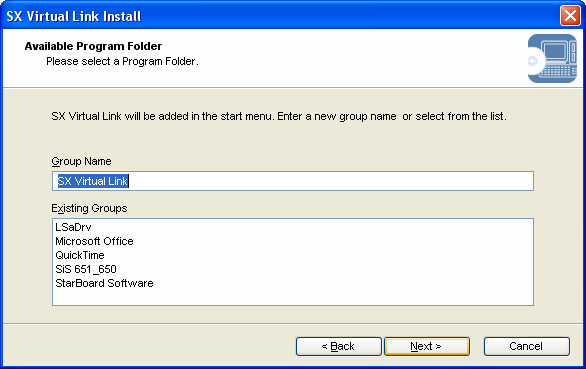
10 (17) Select Yes. (18) Select Next. (19) Select Next. 10

11 (20) Select Start (21) Select Yes. (22) Select Finish. 11

12 (23) Select Quit (24) Select Yes 12

13 4. Planex GW-US54GXS Detailed Setup (1) Unplug the network cable from SX-2000WG+, and Restart SX-2000WG+ (disconnect and connect the power cable). (a) Unplug the network cable (b) Disconnect and connect the power cable (2) Please check if the top LED is blinking green. Please refer to Trouble Shooting 7(2) (3) Plug GW-US54GXS into the PC. (4) Click on No, not this time and select Next. 13

14 (5) Select Next. (6) Select Continue Anyway. (7) Select Finish. 14

15 (8) Run Start All Programs broad Lanner Wave PCI GW-US54GXS Utility. (9) SX-2000WG+ is listed after pressing Refresh button. Click on the required SSID ( Room1 for this manual) and select Connect this site. Required SSID is not listed - If the required SSID is not listed in the window, click on the Refresh button and wait for 1 minute. - If If still the not required listed, please device restart server the is not SX-2000WG+ listed after pressing (Disconnect Refresh and connect button, the please power check cable). Please the settings wait 2 of minutes Device to Server. configurate wireless connection. - If still not listed, please go back to Step (a)-(c) in Section 3(2) (10) Check button name was changed to More Setting, then click on X 15


16 (11) Click on Start Right-click on My Network Places and select Properties. (12) Right-click on the entry for GW-US54GXS and select Properties. (13) Click on Internet Protocol (TCP/IP) and select Properties. 16

17 (14) Input the following default parameters and select OK and close all windows: IP Address: Subnet Mask: Default Gateway: Blank IP Address to be used If you did not use the default parameters for SX-2000WG+, please use the relevant parameters. If you are not sure, please ask the network administrator. (15) Select Close. 17

18 5. FX Setup (1) Connect FX/FX-DUO to the USB port of SX-2000WG+. Device Connection to SX-2000WG+ If FX/FX-DUO is connected to SX-2000WG+, please do not use a USB hub. Connecting multiple USB devices is not supported if FX/FX-DUO is connected. (2) Run Start All Programs SX Virtual Link SX Virtual Link. (3) Select Option. FX FX-DUO (4) Click on Search for device servers and input and select Register as shown below and select OK. Broadcast Address to be used If you did not use the default parameters for SX-2000WG+, please use the relevant broadcast address. If you are not sure, please ask the network administrator. 18
19 (5) Click on the USB device entry listed in the window and select Connect. FX FX-DUO SX-2000WG+ is not listed If SX-2000WG+ is not listed in the window, please refer to Trouble Shooting 7(2) to make sure the device server is working and the connection is established. If the ping command does not work properly, please check the settings of SX-2000WG+ and GW-US54GXS. (6) Run Start All Programs StarBoard Software StarBoard Software.You can see if FX/FX-DUO is connected by the task tray icon. FX not connected connected FX-DUO not connected connected 19
20 6. How to reconnect (1) Make sure GW-US54GXS is connected to the PC. (2) Run Start All Programs SX Virtual Link SX Virtual Link. (3) Click on the USB device entry listed in the window and select Connect. FX FX-DUO (4) You can see if FX/FX-DUO is connected by the task tray icon. FX not connected connected FX-DUO not connected connected 20
21 7. Trouble Shooting (1) SX-2000WG+ is not displayed for initial settings (wired connection) (a) Check the LED If SX-2000WG+ is working with the wired mode, the bottom LED is solid green. If not, please check if the hub and the cable are not faulty, and make sure the connection and restart SX-2000WG+ (disconnect and connect the power cable). If the LED is not still solid green, the unit might be faulty and contact the support for SX-2000WG+. Please refer to Device Server Setup CD for support center information. (2) Connection not established (wireless connection) (a) Check the LED If the settings for wireless connection are configured properly, the LED is blinking green. If not, please disconnect the network cable and restart the SX-2000WG+ (disconnect and connect the power cable). If the LED is not still blinking green, please go back to Section 3 and set up again. If still not, the unit might be faulty and contact the support for SX-2000WG+. Please refer to Device Server Setup CD for support center information. 21

22 (b) ping command Run Start All Programs Accessories Command Prompt and input ping ( IP address for SX-2000WG+ ) and press enter key. ping % loss is displayed Network Connection Established ping % loss is displayed Network Connection Not Established. After trying all the trouble shooting, please contact the support for SX-2000WG+. 22

23 (3) FX/FX-DUO can not work correctly If FX/FX-DUO can not work correctly, please try following recovery process. (a) Unplug USB cable from SX-2000WG+, then the USB device entry listed in the window will be disappeared after 30 seconds. FX FX-DUO (b) Plug USB cable from SX-2000WG+ again, and the USB device will be listed in the window. Then click Connect FX FX-DUO 23

24 (c) You can see if FX/FX-DUO is connected by the task tray icon. FX Not connected connected FX-DUO not connected connected (d) If still not have troubles, please restart the SX-2000WG+ (Disconnect and connect the power cable). Please wait 2 minutes to configurate wireless connection. Then follow to section 6 to reconnect. (e) If still not work correctly, reboot PC (4) How to re-setup USB GW-US54GXS In order to re-setup GW-US54GXS, please uninstall the driver and install it again in accordance with following instruction. (a) Confirm GW-US54GXS is plugged on PC. (b) Run Start All Programs broad Lanner Wave Uninstall GW-US54GXS Utility. (c) Select OK, then uninstall start. 24
25 (d) Installation wizard window will be appeared, then select Finish (e) Unplug GW-US54GXS from PC (f) Follow section 2 GW-US54GXS Setup to setup -end of file- 25
1-Port Wireless USB 2.0 Print Server Model # APSUSB201W. Quick Installation Guide. Ver. 2A
 1-Port Wireless USB 2.0 Print Server Model # APSUSB201W Quick Installation Guide Ver. 2A Section 1 Step 1Connect one end of the Ethernet cable to the RJ-45 port of the Print Server and attach the other
Configuring the WT-4 for Upload to a Computer (Ad-hoc Mode)
 En Configuring the WT-4 for Upload to a Computer (Ad-hoc Mode) Windows XP This document provides basic instructions on configuring the WT-4 wireless transmitter and a Windows XP Professional SP2 computer
Networking. General networking. Networking overview. Common home network configurations. Wired network example. Wireless network examples
 Networking General networking Networking overview A network is a collection of devices such as computers, printers, Ethernet hubs, wireless access points, and routers connected together for communication
Configuring the WT-4 for ftp (Ad-hoc Mode)
 En Configuring the WT-4 for ftp (Ad-hoc Mode) Windows XP Introduction This document provides basic instructions on configuring the WT-4 wireless transmitter and a Windows XP Professional SP2 ftp server
SATO Network Interface Card Configuration Instructions
 SATO Network Interface Card Configuration Instructions Table of Contents 1. Reset of wired/wireless interface card... 3 2. Installing the All-In-One Utility (recommended)... 4 3. Configuring wired/wireless
CANON FAX L360 SOFTWARE MANUAL
 CANON FAX L360 SOFTWARE MANUAL Before You Begin the Installation: a Checklist 2 To ensure a smooth and successful installation, take some time before you begin to plan and prepare for the installation
Easy Setup Guide for the Sony Network Camera
 -878-191-11 (1) Easy Setup Guide for the Sony Network Camera For setup, a computer running the Microsoft Windows Operating System is required. For monitoring camera images, Microsoft Internet Explorer
MFC7840W Windows Network Connection Repair Instructions
 Difficulty printing from your PC can occur for various reasons. The most common reason a networked Brother machine may stop printing, is because the connection between the computer and the Brother machine
Omni 56K USB Lite Quick Start Guide
 Omni 56K USB Lite Quick Start Guide ZyXEL TOTAL INTERNET ACCESS SOLUTION 1. Hardware Installation Connect your modem to your analog phone or fax. Use the phone cord included to connect to the phone jack
Configuring the WT-4 for Upload to a Computer (Infrastructure Mode)
 En Configuring the WT-4 for Upload to a Computer (Infrastructure Mode) Windows XP This document provides basic instructions on configuring the WT-4 wireless transmitter and a Windows XP Professional SP2
2 Setting Up the Hardware for a Wired Ethernet Network... 13. 3 Setting Up the Software for an Ethernet Network... 21
 Contents 1 Networking Basics............................................... 1 Selecting a network connection........................................ 2 Wired Ethernet network...........................................
CMP-102U. Quick Installation Guide
 CMP-102U Quick Installation Guide V1.0 http://www.cnet.com.tw 1 CMP-102U Supports One High-speed USB2.0 Port MFP Server Supports 10/100Mbps Fast Ethernet Network Quick Installation Guide 1 Package Contents:
What is a Home Network? A home network is a collection of two or more home computers connected together through a wired or wireless connection.
 Building A Home Network What is a Home Network? A home network is a collection of two or more home computers connected together through a wired or wireless connection. Why should I network my computers
Configuring the WT-4 for Upload to a Computer (Ad-hoc Mode)
 En Configuring the WT-4 for Upload to a Computer (Ad-hoc Mode) This document provides basic instructions on configuring the WT-4 wireless transmitter and a computer for transmission over an ad-hoc (peer-to-peer)
Wireless LAN 802.11g USB Adapter
 Wireless LAN 802.11g USB Adapter User s Guide Version 1.0 User s Guide 0 Copyright statement No part of this publication may be reproduced, stored in a retrieval system, or transmitted in any form or by
Software Installation Guide
 Software Installation Guide This manual explains how to install the software over a USB or network connection. Network connection is not available for models SP 200/200S/203S/203SF/204SF. To manually configure
EVA Drivers 6.1 and TWAIN Installation Guide for EVA Classic Digital Sensors
 8 Westchester Plaza, Suite 112, Elmsford, NY 10523 (914) 592-6100 Fax (914) 592-6148 www.imageworkscorporation.com EVA Drivers 6.1 and TWAIN Installation Guide for EVA Classic Digital Sensors Note: This
The Wireless LAN (Local Area Network) USB adapter can be operated in one of the two following networking configurations :
 SAGEM Wi-Fi 11g USB ADAPTER Quick Start Guide About this guide This Quick Start Guide describes how to install and operate your SAGEM Wi-Fi 11g USB ADAPTER. Please read this manual before you install the
Connecting to the Internet
 Connecting to the Internet Connecting the Gateway to the Internet Configuration of TCP/IP Protocol Installing the USB Drivers Connecting Ethernet Network Devices Connecting USB Network Devices Connecting
MFC6490CW Windows Network Connection Repair Instructions
 Difficulty printing from your PC can occur for various reasons. The most common reason a networked Brother machine may stop printing, is because the connection between the computer and the Brother machine
Step-by-Step Setup Guide Wireless File Transmitter FTP Mode
 EOS Step-by-Step Setup Guide Wireless File Transmitter FTP Mode Infrastructure Setup Windows XP 2012 Canon U.S.A., Inc. All Rights Reserved. Reproduction in whole or in part without permission is prohibited.
Configuring the WT-4 for Upload to a Computer (Infrastructure Mode)
 Page 1 of 25 Configuring the WT-4 for Upload to a Computer (Infrastructure Mode) Windows 7 Configuring the WT-4 for Upload to a Computer (Infrastructure Mode) This document provides basic instructions
WUA-0605 300Mbps Wireless USB Network Adapter
 WUA-0605 300Mbps Wireless USB Network Adapter User Manual V1.0 Certification FCC CE FCC Statement This equipment has been tested and found to comply with the limits for a Class B digital device, pursuant
ENPS-MF1. 1 USB Port. Multifunctional Print Server. Quick Installation Guide V1.0
 ENPS-MF1 1 USB Port Multifunctional Print Server V1.0 Specifications or features are subject to change without prior notice. All brand names or trademarks are the property of their respective owners. Packing
Wireless USB Adapter
 Wireless USB Adapter User s Manual 1 Table of Contents USER S MANUAL... 1 WELCOME... 3 PACKAGE CONTENTS... 3 WIRELESS USB ADAPTER OVERVIEW... 4 INTERFACE... 4 LED DESCRIPTION... 4 WPS BUTTON... 4 WIRELESS
The following sections describe the Gateway configuration pages in the SBG1000 Setup Program.
 Configuration Gateway > WAN Page Gateway: LAN nat config Page Gateway: LAN dhcp server config Page Gateway LOG Page Preparing the Network Preparing the Computers for TCP/IP Networking Configuring TCP/IP
P-660HWP-Dx. Quick Start Guide. 802.11g HomePlug AV ADSL2+ Gateway. Version 3.40 7/2007 Edition 1. Copyright 2007. All rights reserved.
 P-660HWP-Dx 802.11g HomePlug AV ADSL2+ Gateway Quick Start Guide Version 3.40 7/2007 Edition 1 Copyright 2007. All rights reserved. Overview The P-660HWP-Dx is a gateway which combines high-speed ADSL
PCLinq2 Hi-Speed USB Bridge-Network Cable. Quick Network Setup Guide
 PCLinq2 Hi-Speed USB Bridge-Network Cable Congratulations! Quick Network Setup Guide For Windows 98/ME/2000/XP Congratulations for installing the PCLinq2 Hi-Speed USB Bridge-Network Cable. This Quick Network
Preparing the Computers for TCP/IP Networking
 Configuration Preparing the Computers for TCP/IP Networking Configuring Windows 98, and ME for TCP/IP Networking Verifying TCP/IP Properties Configuring Windows 2000 or XP for IP Networking Install or
USER GUIDE. Ethernet Configuration Guide (Lantronix) P/N: 2900-300321 Rev 6
 KRAMER ELECTRONICS LTD. USER GUIDE Ethernet Configuration Guide (Lantronix) P/N: 2900-300321 Rev 6 Contents 1 Connecting to the Kramer Device via the Ethernet Port 1 1.1 Connecting the Ethernet Port Directly
Self Help Guide IMPORTANT! F5D7330 - Setting Up An Ad Hoc Connection. Please read the following carefully;
 IMPORTANT! This Guide refers to the following Products: F5D7330 - Setting Up An Ad Hoc Connection Please read the following carefully; Synopsis: This guide is designed to assist in you in forming an ad
Configuring the WT-4 for ftp (Infrastructure Mode)
 Introduction En Configuring the WT-4 for ftp (Infrastructure Mode) This document provides basic instructions on configuring the WT-4 wireless transmitter and a ftp server for transmission over an infrastructure
Digitus DN-13007 / DN-13008 / DN-13018
 Digitus DN-13007 / DN-13008 / DN-13018 USB 2.0 Hi-Speed MFP Server Quick Installation Guide 1. Introduction This document describes the steps for installing and configuring Digitus DN-13007/DN-13008/DN-13018
Contents. Section A Networking Basics... 1. 1 Learning the Basics... 3. Section B Wired Ethernet Networking... 17
 Contents Section A Networking Basics...................................... 1 1 Learning the Basics............................................. 3 Selecting a network connection........................................
Configuring the WT-4 for Upload to a Computer (Infrastructure Mode)
 Introduction En Configuring the WT-4 for Upload to a Computer (Infrastructure Mode) This document provides basic instructions on configuring the WT-4 wireless transmitter and a computer for transmission
Before you start, you should prepare the following items
 Before you start, you should prepare the following items Windows 2000/XP/2003/Vista computer with print server setup CD USB Printer(non-GDI/CAPT) USB Printer cable One 802.11b/g Access Point (optional)
A6210 WiFi USB Adapter 802.11ac USB 3.0 Dual Band User Manual
 802.11ac USB 3.0 Dual Band User Manual August 2014 202-11373-01 350 East Plumeria Drive San Jose, CA 95134 USA Support Thank you for selecting NETGEAR products. After installing your device, locate the
HL2170W Windows Network Connection Repair Instructions
 Difficulty printing from your PC can occur for various reasons. The most common reason a networked Brother machine may stop printing, is because the connection between the computer and the Brother machine
Check Your Package Contents. CD-ROM containing Manual and Warranty
 This product can be set up using any current web browser, i.e., Internet Explorer 6 or Netscape Navigator 6.2.3. DVA-G3340S Wireless VoIP Router Before You Begin If you purchased this Router to share your
Step-by-Step Setup Guide Wireless File Transmitter FTP Mode
 EOS Step-by-Step Setup Guide Wireless File Transmitter FTP Mode Ad Hoc Setup Windows XP 2012 Canon U.S.A., Inc. All Rights Reserved. Reproduction in whole or in part without permission is prohibited. 1
NETVIGATOR Wireless Modem Setup Guide. (TG789Pvn)
 NETVIGATOR Wireless Modem Setup Guide (TG789Pvn) Configure the NETVIGATOR Wireless Modem Make sure that system meets the following requirement prior to NETVIGATOR Wireless Modem usage: - Subscribers who
TL-PS310U Single USB 2.0 Port MFP and Storage Server
 TL-PS310U Single USB 2.0 Port MFP and Storage Server Rev: 2.0.0 1910010313 Contents Chapter 1 Introduction... 1 1.1 Product Overview...1 1.2 Network Management...1 1.3 Components and Features...1 1.4 Hardware
Quick Installation Guide
 V48.01 Model: FI8919W Quick Installation Guide Outdoor Pan/Tilt Wireless IP Camera For Windows OS ------- Page 1 For MAC OS ------- Page 15 ShenZhen Foscam Intelligent Technology Co., Ltd Quick Installation
Movie Cube. User s Guide to Wireless Function
 Movie Cube User s Guide to Wireless Function Table of Contents 1. WLAN USB Adapter Connection...3 2. Wireless Setup...4 2.1 Infrastructure (AP)...5 2.2 Peer to Peer (Ad Hoc)...7 2.3 Settings for PC...8
Configuring the WT-4 for ftp (Ad-hoc Mode)
 En Configuring the WT-4 for ftp (Ad-hoc Mode) Mac OS X Introduction This document provides basic instructions on configuring the WT-4 wireless transmitter and a Mac OS X (10.5.2) ftp server for transmission
c. Securely insert the Ethernet cable from your cable or DSL modem into the Internet port (B) on the WGT634U. Broadband modem
 Start Here Follow these instructions to set up your router. Verify That Basic Requirements Are Met Assure that the following requirements are met: You have your broadband Internet service settings handy.
Software Installation Guide
 Software Installation Guide This manual explains how to install the software over a USB or network connection. Network connection is not available for models SP 200/200S/203S/203SF/204SF. Flowchart The
Internet Guide. Prepared for 55 John Street
 Internet Guide Prepared for 55 John Street I. Internet Service How do I connect to the Internet? WiFi (Wireless Connectivity) is available throughout the building. In order to connect, you will need a
TE100-P21/TEW-P21G Windows 7 Installation Instruction
 Hardware Installation TE100-P21/TEW-P21G Windows 7 Installation Instruction 1. Go to http://www.trendnet.com/downloads/ to download the Windows 7 Utility. Save the file to your desktop. 2. Right click
Two options are available to install the device: 1. Conceptronic USB Filetransfer Cable (*) 2. Conceptronic USB Network Filetransfer (*)
 Conceptronic CBRIDGE20 USER S MANUAL Two options are available to install the device: 1. Conceptronic USB Filetransfer Cable (*) 2. Conceptronic USB Network Filetransfer (*) During the installation you
Setting up Digi Connect Wi-SP or Digi ConnectPort TS W Devices On a Secured Wireless Network for use with Veriteq viewlinc
 Setting up Digi Connect Wi-SP or Digi ConnectPort TS W Devices On a Secured Wireless Network for use with Veriteq viewlinc Contents Before You Start the Installation...2 Introduction...2 Veriteq vnet and
DSL Installation Guide
 DSL Installation Guide Thank you for choosing Integra Telecom s DSL service! Introduction This guide will walk you through the DSL installation process and will help you configure a computer to access
POWERLINK High Power Wireless LAN 802.11b/g/n USB Adapter User Manual
 Before you proceed with the installation, please notice the following descriptions. Note 1: The following installation was operated under Windows XP. (Procedures are similar for Windows 98SE/Me/2000.)
Deployment Guide: Transparent Mode
 Deployment Guide: Transparent Mode March 15, 2007 Deployment and Task Overview Description Follow the tasks in this guide to deploy the appliance as a transparent-firewall device on your network. This
Assign a static IP address (192.168.1.100) for your computer. Please refer to T3 in Troubleshooting guide on page 10 if you need assistance.
 Assign a static IP address (192.168.1.100) for your computer. Please refer to T3 in Troubleshooting guide on page 10 if you need assistance. You may need to write down the original settings as a backup.
Section 5: Installing the Print Driver
 Section 5: Installing the Print Driver In This Section Print Driver Installation for USB Connection Using the Ethernet Connection and a Crossover Cable Print Driver: The Epilog print driver is the software
How do I configure the wireless printer using a USB or Ethernet cable and install the printer driver in Windows?
 How do I configure the wireless printer using a USB or Ethernet cable and install the printer driver in Windows? STEP I: Gather the wireless network settings of your wireless access point or wireless router
Windows 2000/XP Network
 This section provides installation and troubleshooting steps for Windows 2000/XP: Preliminary steps see page 23. Quick CD-ROM install steps see page 23. Other methods of installation see page 24. Quick
WebSTAR Model DPW700 PCMCIA Wireless LAN Card and WebSTAR Model DPW730 USB Wireless Adapter User s Guide
 WebSTAR Model DPW700 PCMCIA Wireless LAN Card and WebSTAR Model DPW730 USB Wireless Adapter User s Guide Introduction Are you tired of tripping over or fumbling with countless computer wires? The solution
Chapter 1 Installing the Gateway
 Chapter 1 Installing the Gateway This chapter describes how to set up the wireless voice gateway on your Local Area Network (LAN), connect to the Internet, and perform basic configuration. For information
HG658c Home Gateway. User Guide HUAWEI TECHNOLOGIES CO., LTD.
 HG658c Home Gateway User Guide HUAWEI TECHNOLOGIES CO., LTD. HG658c Home Gateway V100R001 User Guide Issue 01 Date 2012-10-19 Part Number 202537 Huawei Technologies Co., Ltd. provides customers with comprehensive
LPT1 Printer Connector. External Power Supply Connector Power Indicator
 AXIS 1650 Set-up Instructions Page 3 Unpack box Verify that you have all the items listed below: LPT1 Printer Connector Network Indicator Ethernet Connector External Power Supply Connector Power Indicator
Quick Setup Guide High Power Wireless Ethernet Converter WLI-TX4-G54HP
 Quick Setup Guide High Power Wireless Ethernet Converter WLI-TX4-G54HP This guide is intended to help you quickly and easily install your High Power Wireless Ethernet Converter. For more setup and configuration
CNR-BTU5 Bluetooth Dongle
 CNR-BTU5 Bluetooth Dongle A. Package Contents Bluetooth USB Adapter Bluetooth software and driver CD Multi-language user manuals in CD 1. Installing Bluetooth software for windows 1. Insert the Installation
Network Setup & Options
 3.0 Network Setup & Options 3.3 TABLE OF CONTENTS 3.1 INTRODUCTION... 5 3.2 DISABLING NETWORK SECURITY SETTINGS... 6 3.2.1 Aftermarket Internet Security and Firewalls... 6 3.2.2 Windows Firewall... 6
Windows 98 and Windows Me
 Windows 98 and Windows Me This topic includes: "Preliminary Steps" on page 3-25 "Quick CD-ROM Install Steps" on page 3-26 "Other Methods of Installation" on page 3-26 "Windows 98 and Windows Me Troubleshooting"
Configuring NXT Hardware with Mercury Inside into Doors.NET TM Application Note
 1.0 Installing the Mercury SCP Gateway The MSC/SCP gateway must be installed to interface with Mercury hardware. This gateway must be chosen during the installation of the software, or it can be added
MFC8890DW Vista Network Connection Repair Instructions
 Difficulty printing from your PC can occur for various reasons. The most common reason a networked Brother machine may stop printing, is because the connection between the computer and the Brother machine
TCC INTERNET. Setup and Configuration. Comtrend DSL Modem with built-in Wireless Router
 TCC INTERNET Setup and Configuration Comtrend DSL Modem with built-in Wireless Router Guide Contents The Basics: Lights & Plug-ins Security: WEP Setup USB Driver Installation Troubleshooting & Support
WLAN Outdoor CPE For 2.4G. Quick Installation Guide
 WLAN Outdoor CPE For 2.4G Quick Installation Guide Part I: External Installation Direction A. Check the parts in your box CPE SET 1 DC 12V/1.5A Power Adapter 1 PoE DC Injector 1 Hose Clamps 2 Manual &
Router Setup Manual. NETGEAR, Inc. 4500 Great America Parkway Santa Clara, CA 95054 USA 208-10060-01 2006-03-17
 NETGEAR, Inc. 4500 Great America Parkway Santa Clara, CA 95054 USA 208-10060-01 2006-03-17 2006 by NETGEAR, Inc. All rights reserved. Trademarks NETGEAR is a trademark of Netgear, Inc. Microsoft, Windows,
Installing a Westell USB Network Adapter
 Installing a Westell USB Network Adapter Before You Begin Before you begin installing your Westell USB Network adapter: 1. Make sure the computer with the USB adapter meets the minimum system requirements
DSL Self-install Kit Instructions
 DSL Self-install Kit Instructions Cover and installation notes Page 1 1. Verify your system requirements Page 2 2. Verify the contents of your DSL Self-Install kit Page 2 3. Install filters on your telephone
How to configure DVR and computer for running Remote Viewer via IP network
 How to configure DVR and computer for running Remote Viewer via IP network Follow these steps to configure a network DVR and a computer with Remote Viewer software to see live pictures via IP network.
N300 WiFi Range Extender WN2000RPT User Manual
 N300 WiFi Range Extender WN2000RPT User Manual December 2013 202-11333-01 350 East Plumeria Drive San Jose, CA 95134 USA Support Thank you for selecting NETGEAR products. After installing your device,
EnGenius ERB9250 300M Range Extender. Quick Start Guide
 EnGenius ERB9250 300M Range Extender Quick Start Guide Package Contents One ERB9250 300M Range Extender One 12V/1A power adapter Two 2dBi 2.4GHz SMA antennas One Ethernet cable One CD-ROM with user s manual
What is a Home Network? A home network is a collection of two or more home computers connected together through a wired or wireless connection.
 Building A Home Network What is a Home Network? A home network is a collection of two or more home computers connected together through a wired or wireless connection. Why should I network my computers
DSL-G604T Wireless ADSL Router
 This product can be set up using any current web browser, i.e., Internet Explorer 6 or Netscape Navigator 6.2.3. DSL-G604T Wireless ADSL Router Before You Begin 1. If you purchased this Router to share
Digicom Remote Control for the SRT
 Digicom Remote Control for the SRT To operate the SRT remotely, use Remote Desktop; this is available free for Linux, Mac OS-X (from Microsoft), and is included with Windows XP and later. As RD uses a
TECH BULLETIN NETGEN1 DOOR CONTROLLER WI-FI NETWORK CONFIG
 TECH BULLETIN NETGEN1 DOOR CONTROLLER WI-FI NETWORK CONFIG February 12, 2008 The factory default network configuration for BlueWave Security s Wi-Fi NetGen1 door controllers is a dynamic DHCP IP address,
Prestige 623R-T. Quick Start Guide. ADSL Dual-link Router. Version 3.40
 Prestige 623R-T ADSL Dual-link Router Quick Start Guide Version 3.40 February 2004 Introducing the Prestige The Prestige 623R-T ADSL Dual-link Router is the ideal all-in-one device for small networks connecting
3.5 EXTERNAL NETWORK HDD. User s Manual
 3.5 EXTERNAL NETWORK HDD User s Manual Table of Content Before You Use Key Features H/W Installation Illustration of Product LED Definition NETWORK HDD Assembly Setup the Network HDD Home Disk Utility
Network Installation Guide
 Network Installation Guide Before You Begin Make sure you installed ink cartridges and loaded paper as described on the Start Here sheet. Then follow the instructions in this guide to set up the printer
OUTDOOR IR NETWORK CAMERA Series
 OUTDOOR IR NETWORK CAMERA Series INSTALLATION GUIDE Please read instructions thoroughly before operation and retain it for future reference. 1. OVERVIEW 1.1 Package Content Network camera Installation
Step-by-Step Setup Guide Wireless File Transmitter FTP Mode
 EOS Step-by-Step Setup Guide Wireless File Transmitter FTP Mode Infrastructure Setup Windows 7 2012 Canon U.S.A., Inc. All Rights Reserved. Reproduction in whole or in part without permission is prohibited.
Section 5: Connecting the Laser to Your Computer
 Section 5: Connecting the Laser to Your Computer In This Section Connecting the Laser to your Computer USB Port Ethernet Port Connecting the Laser to Your Computer All Epilog systems are designed to be
N300 Wireless Gigabit Router Setup Manual
 N300 Wireless Gigabit Router Setup Manual NETGEAR, Inc. 350 E. Plumeria Drive San Jose, CA 95134 USA June 2010 208-10443-03 v1.0 2010 by NETGEAR, Inc. All rights reserved. Trademarks NETGEAR and the NETGEAR
PIGCHAMP MOBILE. PigCHAMP Knowledge Software. Installation Guide for Mobile Units
 PIGCHAMP MOBILE PigCHAMP Knowledge Software Installation Guide for Mobile Units Table of Contents: Important Note:... 4 Chapter 1: PC Setup... 5 A. Install PigCHAMP Mobile Manager on Windows XP...5 B.
ANDROID RECOVERY STICK QUICK START GUIDE
 Before you get started do the following: Open, and read through http://sticks.paraben.com/phone-recovery-faq.htmlhttp:// sticks.paraben.com/phone-recovery-faq.html this will help you with any questions
Detective. Family. HPGe-Based Portable Nuclide Identifiers. Wireless Remote Operation With SOTI s Pocket Controller Software
 Detective Family HPGe-Based Portable Nuclide Identifiers Wireless Remote Operation With SOTI s Pocket Controller Software This document tells how to set up the Detective-EX/DX, Micro-Detective, Micro-trans-SPEC,
10.3.1.8 Lab - Configure a Windows 7 Firewall
 5.0 10.3.1.8 Lab - Configure a Windows 7 Firewall Print and complete this lab. In this lab, you will explore the Windows 7 Firewall and configure some advanced settings. Recommended Equipment Step 1 Two
Step-by-Step Setup Guide Wireless File Transmitter FTP Mode
 EOS Step-by-Step Setup Guide Wireless File Transmitter FTP Mode Ad Hoc Network Windows 7 2012 Canon U.S.A., Inc. All Rights Reserved. Reproduction in whole or in part without permission is prohibited.
NetLINE Wireless Broadband Gateway
 NetLINE Setup Guide Farallon s NetLINE connects to your cable/dsl modem, allowing computers on your local wired and wireless networks to share a single broadband connection to the Internet. This Setup
N150 Wireless Router WNR1000 Setup Manual
 N150 Wireless Router WNR1000 Setup Manual NETGEAR, Inc. 350 E. Plumeria Drive Santa Jose, CA 95134 USA January 2009 208-10430-01 v1.0 2009 by NETGEAR, Inc. All rights reserved. Trademarks NETGEAR and the
Ralink Utility User Guide/PC/MAC
 /PC/MAC Connecting through Ralink Utility Before you can access the Ralink Utility, please connect the Powerlink USB adapter to your computer, and disable your previous WiFi adapter which is built-in on
Wireless Router Setup Manual
 Wireless Router Setup Manual NETGEAR, Inc. 4500 Great America Parkway Santa Clara, CA 95054 USA 208-10082-02 2006-04 2006 by NETGEAR, Inc. All rights reserved. Trademarks NETGEAR is a trademark of Netgear,
WUA-1610, WUA-1610H. 300Mbps Wireless USB Adapter. User Manual V1.0
 WUA-1610, WUA-1610H 300Mbps Wireless USB Adapter User Manual V1.0 Table of Contents Chapter 1 Introduction... 1 1.1 PACKAGE CONTENTS... 1 1.2 PRODUCT FEATURES... 1 1.3 LED INDICATOR DESCRIPTION... 2 1.4
Network/Floating License Installation Instructions
 Network/Floating License Installation Instructions Installation steps: On the Windows PC that will act as License Manager (SERVER): 1. Install HASP Run-time environment, SERVER 2. Plug in the red USB hardware
FI8910W Quick Installation Guide. Indoor MJPEG Pan/Tilt Wireless IP Camera
 Model: FI8910W Quick Installation Guide (For Windows OS) (For MAC OS please go to page 17) Indoor MJPEG Pan/Tilt Wireless IP Camera Black White Package Contents IP Camera FI8910W with IR-Cut.x 1 DC Power