
Ample Guitar (8 in 1) Manual
|
|
|
- Brook Stokes
- 9 years ago
- Views:
Transcription
1 Ample Guitar (8 in 1) Manual Beijing Ample Sound Technology Co. Ltd 1
2 Contents 1 INSTALLATION AND ACTIVATION INSTALLATION ON MAC INSTALLATION ON WINDOWS ACTIVATION SETTINGS PANEL OVERVIEW OF SETTINGS PANEL SAVE/LOAD PRESET INSTRUMENT PATH SETTING MASTER TUNE MIDI OUT MAX VOICES VELOCITY LAYERS THRESHOLDS POLY BENDER CYCLE MODE CYCLE * 3 AND CYCLE RESET MIDI GUITAR MODE SETTING AND TOGGLE CUSTOMIZED PARAMETERS CONTROL MIDI Controller Automation Tips Fine adjustment & Value reset
3 3.INSTRUMENT PANEL OVERVIEW OF INSTRUMENT PANEL SAMPLE LIBRARY SOUND MODE(ACOUSTIC ONLY) OPEN STRING FIRST PLAY MODE AUTO LEGATO MODE STROKE NOISE TUNER MAIN PANEL OVERVIEW OF MAIN PANEL Acoustic Guitar Electric Guitar Metal Guitar ARTICULATIONS AND POLY LEGATO (IMPORTANT) Acoustics and Electrics Metal Sustain & Pop (Artificial Harmonic) Natural Harmonic & Artificial Harmonic Palm Mute Slide In from below & Slide Out downwards Legato Slide (Poly Legato)
4 4.2.8 Hammer-On & Pull-Off (Poly Legato) Slide Guitar Doubled Keyswitches DOUBLED GUITARS CONTROLLABLE RESONANCE SOUND RICH FRET SOUND GLOBAL SAMPLE START TIME CAPO MANUAL VIBRATO WHEEL STRMAN AND CAPOMAN StrMan CapoMan FX SOUND GROUP POLY REPEATER STRUMMER PANEL OVERVIEW OF STRUMMER PANEL STRUM TIME AND MODE BODY RESONANCE AND MUTE DEPTH STRUMMER HUMANIZATIONS Humanization (All) Humanization (Each) Humanization (Velocity)
5 5.4.4 SEQ Swing CHORD SETTING AND SWITCH (IMPORTANT) Select Mode Detect Mode CHORD PLAY AND SEQ SETTING (IMPORTANT) Strum Notes + 28 Ways to Play (Original) SEQ Edit Save/Load Pattern SEQ Play SEQ Export STRUM WITH ARTICULATIONS (ORIGINAL) Strum Legato - Legato Slide Strum Legato - Hammer On & Pull Off Slide In Strum Harmonic Strum STRUMMER KEYS (IMPORTANT) QUANTIZE & TIME SIGNATURE TAB PLAYER PANEL OVERVIEW OF TAB PANEL TAB LOAD TAB PLAY TAB EXPORT
6 6.5 HOST PLAYBACK VELOCITY PROPORTION AND HUMANIZATION TAB SWING STRUM TIME PROPORTION FX PANEL OVERVIEW OF FX COMPRESSION OVERDRIVE BAND-EQ WAH CHORUS PHASER DELAY REVERB EDIT PANEL
7 1 Installation and Activation 1.1 Installation on Mac 1. Continue to install. 7
8 2. Read and accept the license agreement. 8


9 3. Select plugin formats to install. Change Location if you want to install sample library in a different place. 4. Close to exit. 9
10 1.2 Installation on Windows 1. Extract installer. 2. Continue to install. 10

11 3. Read and accept the license agreement. 4. Specify location to install standalone. 11

12 5. Specify location to install 64bit VST. 6. Specify location to install 32bit VST. 12

13 7. Specify location to install sample library. 8. Select plugin formats to install. 13

14 9. Choose if to create a Start Menu folder. 10. Finish to exit. 14
15 *Please install Microsoft Visual C Redistributable if program cannot run. Ample Guitar (8 in 1) Manual Microsoft official download page *If encountered with error shown above, please close and simply ignore it. 15
16 1.3 Activation 1. 7-days trial with full features is offered. 2. Trial requires an internet connection. 3.Open Activation Manager to activate products,you can activate all of Ample Guitar with one time activation. 16
17 4. Online Activation: fill in User ID and password and click "Activate" to complete activation. Click "Forgot" if you want to inquire User ID and reset password. 17

18 5. Offline Activation: please send Challenge Code and User ID to Our customer service will send you Key Code within 24 hours. Fill in User ID and Key Code and click "Activate" to complete activation. Keep your User ID and Key Code in case of reinstallation. 6.After activation succeeds, please close Activation Manager and restart program. 18
19 2 Settings Panel 2.1 Overview of Settings Panel 1. Save/Load Preset 2. Instrument Path Setting 3. Master Tune 4. MIDI Out 5. Max Voices 6. Real Time Memory Display 7. Velocity Sensitivity 8. Real Time Voices Display 9. Velocity Layer Thresholds 10.Bender Range 11.Poly Bender 12.Mod Wheel Range 13.Auto Mod Wheel 14.Hold Pedal Noise 15.Cycle Mode 16.Cycle *3 and Cycle Reset 17.MIDI Guitar Mode Setting and Toggle 19
20 2.2 Save/Load Preset You can save your current parameters setting as local file for later use with other projects or DAWs. 2.3 Instrument Path Setting You can move sample library folder indicated by original path to anywhere you want, and set path to new location. 2.4 Master Tune Default tune is in 440Hz. You can set tune to any non-standard between 430 and 450Hz. 20
21 2.5 MIDI Out Toggle on MIDI Out, add a MIDI track in project and set the input to MIDI Out of Ample Guitar. Then any note being played will be converted to MIDI, including those by strum and tab. 2.6 Max Voices Defines the maximum number of voices which can be played simultaneously. Voices will be forced stop if the number goes beyond maximum. 21

22 2.7 Velocity Layers Thresholds Rhombic Sampling Structure: Greatly improves sample utilization proficiency. Sliders control velocity thresholds of corresponding layers. Adjust them according to your play style. 2.8 Poly Bender When toggled on, open string and multiple notes can be bended. 2.9 Cycle Mode You can switch cycle mode among Each Cycle (default), Round Robin and Random. Each Cycle: Separate sample cycle for each note and each velocity layer, more appropriate for ARP and Strum. Round Robin: more appropriate for Solo. Random: Sample Cycle random 22
23 2.10 Cycle * 3 and Cycle Reset Cycle*3: When toggled on, 3 times cycles will be available for each note. Cycle Reset: You can reset cycle index here MIDI Guitar Mode Setting and Toggle Toggle on when you use midi guitar as input. Make sure the input channel of midi track is set to all. 23
24 2.12 Customized Parameters Control MIDI Controller All buttons, knobs and sliders on GUI can be controlled by MIDI Controllers. Alt + click or right-click a control to open the dialog below and assign a controller. 1.Left Column: Available controllers, including After Touch, Bender and MIDI CC. 2.Right Column: Assigned parameters. 3.OK: Assign the selected controller to the control. 4.Cancel: Close dialog. 5.Learn: MIDI Learn. 6.Clear: Clear the assigned controller of the control. 24
25 Automation You can also use automation to control parameters Tips Detailed information (tool tips) can be displayed by hovering your mouse over a control Fine adjustment & Value reset Press Shift + click to reset a control to its default value. Press Ctrl and drag the mouse to make fine adjustments. 25
26 3.Instrument Panel 3.1 Overview of Instrument Panel 1. Sample Library 2. Sound Mode 3. Capo Logic - Intelligent Fingering Simulation Algorithm 4. StrMan 5. Open String First (G#6) 6. Hold Pedal 7. Play Mode 8. Auto Legato Mode (D#6) 9. Stroke Noise 10. Alternate Tuner 11. Capo 26
27 3.2 Sample Library Acoustics have three distinct sample libraries: Finger, Pick and Strum. Strum library includes real strum samples customizable for any chord and rhythm without loss of quality. Electrics have sample libraries of three pickup options: Neck, Both and Bridge. *Sample Library cannot be switched during play. 3.3 Sound Mode(Acoustic only) Two mono and stereo modes are available. In addition, you can adjust mic volumes, pan and width to meet your need. Preview: Stereo 1, Stereo 2, Mono 1, Mono 2, Width(25%), Width(100%), Mic 1(Volume 1), Mic 2(Volume 0.5), Mic 1(Volume 0.5) : Mic 2(Volume 1) in order. 27
28 3.4 Open String First Used for high position arpeggios with open strings. When toggled on, notes will be played priory on open strings regardless of Capo Logic. Note G#6 can toggle it on with high velocity and off with low velocity. 3.5 Play Mode When Keyboard Mode is on, multiple notes can be played on same string simultaneously. When Solo Mode is on, only single note can be played. Both Keyboard Mode and Solo Mode will mute Auto Legato. 3.6 Auto Legato Mode When two notes on same string overlap and Keyboard/Solo Mode is off, a legato will be automatically made. Note D#6 can switch auto legato mode, high velocity for Auto LS and low velocity for Auto HP. 28
29 3.7 Stroke Noise When toggled on, a noise will be added for poly notes. 3.8 Tuner You can tune every string by turning its corresponding tuner, 2 semitones down at most. Tuning is fully compatible with strummer, tab and all articulations. 29
30 4 Main Panel 4.1 Overview of Main Panel Acoustic Guitar 1. Articulations and Poly Legato (Important) 2. Mic Volume / Pick Attack Accentuation 3. Master Volume 4. Pan 5. Stereo Width 6. Doubling Toggle and Width (Important) 7. Release Sound Gain 8. FX Sound Gain 9. Resonance Gain and Time / Fade In (Original) 10. Fret Sound Toggle and Gain (Original) 11. Global Sample Start Time (Original) 12. Capo 13. Peak Meter 14. Bender 15. Manual Vibrato Wheel (Original) 30
31 16. StrMan and CapoMan 17. FX Sound Group 18. Strum Mode Toggle 19. Poly Repeater (Original) 20. FX Sound Group Open String First Toggle 22. Auto Legato Mode Switch 23. Tab Play Toggle 31
32 4.1.2 Electric Guitar Metal Guitar 32
33 4.2 Articulations and Poly Legato (Important) Ample Guitar (8 in 1) Manual Acoustics and Electrics Abbr. Full Name Keyswitch Range Sus Sustain & Pop (Artificial Harmonic) C0 E1-C5(D5) NH Natural Harmonic & Artificial Harmonic C#0 E2-C5(E5) PM Palm Mute D0 E1-C5(D5) SIO Slide In from below & Slide Out downwards D#0 F#1-C5(D5) LS Legato Slide (Poly Legato) E0 F1-C5(D5) HP Hammer-On & Pull-Off (Poly Legato) F0 E1-C5(D5) SG Slide Guitar F#0 F#1-C5(D5) Metal Abbr. Full Name Keyswitch Range Sus Sustain & Artificial Harmonic C0 C1-C5 LS Legato Slide (Poly Legato) C#0 C#1-C5 HP Hammer-On & Pull-Off (Poly Legato) D0 C1-C5 SIO Slide In from below & Slide Out downwards D#0 D1-C5 33
34 4.2.3 Sustain & Pop (Artificial Harmonic) Keyswitch is C0. Notes of velocity less than 127 will be Sustain. For acoustics, notes of velocity 127 will be Pop. For electrics, notes of velocity 127 will be either Artificial Harmonic or Pop depending on Accentuate Mode. 34
35 4.2.4 Natural Harmonic & Artificial Harmonic Keyswitch is C#0. For electrics, notes of velocity less than 127 will be Natural Harmonic. Notes of velocity 127 will be Artificial Harmonic. 35
36 4.2.5 Palm Mute Keyswitch is D0. Lower the velocity, greater the mute depth. If you press C0 and D0 at the same time or for Ample Metal Guitars, subsequent notes of high velocity will be Sustain and notes of low velocity will be Palm Mute. 36
37 4.2.6 Slide In from below & Slide Out downwards Ample Guitar (8 in 1) Manual Keyswitch is D#0. When D#0 is before a note, subsequent note will be Slide In. When D#0 is during a note, Slide Out is triggered whose velocity is determined by D#0. Articulation will revert to Sustain when note ends. 37
38 4.2.7 Legato Slide (Poly Legato) Keyswitch is E0. The two notes must overlap and E0 must be ahead of the start note. Articulation will revert to previous one when destination note ends. Slide triggered by E0 of high velocity will change fret position. Low velocity will not. Poly Legato: Press the highest note of destination set to slide upwards; Press the lowest note of destination set to slide downwards. 38
39 Slidesmoother: The speed of long legato slide (slide more than 2 frets) is determined by the velocity of destination note. Higher the velocity, faster the speed. 39
40 Auto Slide: When keyboard/solo mode is off and auto legato mode is Auto LS, two overlapped note on same string will make a slide automatically without keyswitch. 40
41 4.2.8 Hammer-On & Pull-Off (Poly Legato) Keyswitch is F0. The two notes must overlap and F0 must be ahead of the start note. Articulation will return to previous one when destination note ends. HP triggered by F0 of high velocity will change fret position if it goes beyond. Low velocity will not. Auto HP: Ample Guitar can switch to HP automatically if there is a legato on one string, without pressing a Keyswitch first. if you don't need it, open "keyboard mode". Poly Legato: The HP Keyswitch can also change the Capo in the same way as LS, Highly-advanced scripting logic enables this feature to select both the correct "capoed" fret and string, to exactly replicate a real guitar performance. 41
42 4.2.9 Slide Guitar Keyswitch is F# Doubled Keyswitches Press 2 Keyswitches at the same time to get two articulations to switch via velocity layer. 4.3 Doubled Guitars Toggle on to achieve an authentic doubling effect with only one Ample Guitar. The Double knob adjusts the time difference between the notes on the left and right channels. Preview: Normal, then Doubling. 42
43 4.4 Controllable Resonance Sound In real performance, guitarist can control resonance volume and time. Ample Guitar simulates these controls. Preview: Open Resonance, Close Resonance, long Resonance time and short Resonance time modes. Resonance is an indispensable part of the expressiveness and realism of an acoustic instrument. During a live performance, the guitarist controls the volume and duration of resonance manually, Ample Guitar simulates this control. *Silent Press(G5), Silent Stroke(G#5) and releasing Hold Pedal can mute ringing resonance. 43
44 4.5 Rich Fret Sound In real performance, hand is constantly moving and touching fretboard. Without fret sound virtual instruments would sound artificially "clean". Preview: Open Fret Sound, then closed Fret Sound. *Note D#6 can trigger "Fret Sound" on a high velocity layer or end it on a low velocity layer. 44
45 4.6 Global Sample Start Time After pick strokes string, it takes around 50ms to get the string really vibrating. Ample Guitar preserves the moment of the stroke, otherwise it will sound like piano. 45
46 Set Start Time to 50ms and Track Delay of DAWs to 0ms as shown in the figure above on the left for real-time playing. Set Start Time to 0ms and Track Delay of DAWs to -50ms as shown in the figure above on the right for playback or export. If your DAW doesn't support Track delay, you will need to drag tracks a few ms (according to start time) forward manually, or use the formula of Time to BPM: Track Delay(beat) = Time(s) * Tempo / 60, e.g. for 50ms, you need to drag tracks 0.1 beat or 48 ticks forward when Tempo = 120. You need to export audio one bar earlier after Track Delay is set as shown in the figure below. 4.7 Capo Shifts all incoming notes without need to change original. 4.8 Manual Vibrato Wheel Vibrato can be controlled by hand like a real guitarist does. If you want to vibrate automatically, open Settings Panel to toggle on Auto Mod. 46
47 4.9 StrMan and CapoMan StrMan Specify a string to be played manually. G0-C1 correspond to 6th string-1st string. High velocity StrMan will affect fret position, while low velocity will not CapoMan Switch to a fret position manually. Press C#1(F0 for Metal) and the CapoMan line (yellow) will appear. Then press E1-C3 to switch to position 0-20 respectively. For metal, press C1-E2 to switch to position 0-16 respectively. 47
48 4.10 FX Sound Group Note FX Sound F5 Scratch F#5 Slap G5 Silent Press G#5 Silent Stroke A5 Downstroke 1 A#5 Upstroke 1 B5 Downstroke 2 C6 Upstroke 2 F6 Hit Top (Open) / Pick Scrape F#6 Hit Top (Mute) G6 Hit Rim 4.11 Poly Repeater As a simulation of repetitive downstroke and upstroke, you can press D6 and E6 to repeat notes being played or last ended note. Multiple notes are supported. 48
49 5 Strummer Panel 5.1 Overview of Strummer Panel 1. Strum Mode Toggle(C#6) 2. Strum Time (C#5) and Mode 3. Body Resonance and Mute Depth (Original) 4. Stroke Noise Volume 5. Strummer Humanizations 6. Chord Setting and Switch (Important) 7. Switch Chord Mode between Select Mode and Detect Mode 8. Transpose Whole Chord Bank 9. Save/Load Whole Chord Bank 10. Browse Chords 1-12 or Chord Play and SEQ Edit: 14 Strum Notes + 28 Ways to Play (Important) 12. Copy Current SEQ from Another 13. Clear All SEQ Notes 14. Default SEQ Note Velocity 15. Save/Load Pattern 49
50 16. SEQ Sync 17. Pattern Information 18. SEQ Export to MIDI 19. Previous/Next Pattern 20. SEQ Play 21. SEQ Swing 22. SEQ Quantize and Time Signature 23. Strummer Keys 5.2 Strum Time and Mode Strum Time controls how fast pick cross strings. When Strum Time is 1000ms, in Each Mode every interval between chord notes is 1000ms while in All Mode intervals are altogether 1000ms. Note C#5 can control Strum Time. Higher the velocity, shorter the time. 5.3 Body Resonance and Mute Depth There are two ADSRs in strum mode, Body Resonance and Mute Depth. Body Resonance simulates open strum, higher the value longer the ringing time. Mute Depth simulates mute strum, lower the value greater the depth. 50
51 5.4 Strummer Humanizations Humanization (All) Applies random change to total strum time Humanization (Each) Alters the timing of chord notes without affecting total strum time Humanization (Velocity) Randomly assigns variations in note velocities SEQ Swing Randomly flexes the timing grids of SEQ to avoid mechanical performance. 5.5 Chord Setting and Switch (Important) There are two chord modes available, select mode and detect mode. Note D5 can switch chord mode, high velocity for detect mode and low velocity for select mode. *High-velocity switching chords automatically mutes the ringing of the last chord played. 51
52 5.5.1 Select Mode Select Mode provides 24 chord slots. Every chord slot can be customized by setting root note, type and position, altogether 540 variations available. You can also customize by clicking on the fretboard. Press C1-B2 to switch to chord slot 1-24 respectively. Chord switch with high velocity will mute the ringing of previous chord. Click Transpose button will transpose 24 chord slots altogether. 52

53 Click Load button to browse and load whole chord bank. Click Scan Folder to change folder. Click Save button to save whole chord bank. 53
54 5.5.2 Detect Mode Detect Mode can detect chord pressed by users within C1-B2 and directly switch to corresponding preset. Root note must be within C1-B1. 54
55 Chord Inversion is supported. Different inversions will be mapped to different positions. Pressing C1-B1 or C2-B2 solely can make a slash chord based on current. 55
56 5.6 Chord Play and SEQ Setting (Important) Ample Guitar (8 in 1) Manual Strum Notes + 28 Ways to Play (Original) Strummer system provides 14 strum notes, and 28 ways to play when combined with different velocity, giving great variety for chord play, even with only one chord. 28 ways to play have been designed and arranged for convenience concern after countless hours of testing. Without need for remembering them, you can play naturally on keyboard to achieve realistic strum. Figure below shows 28 ways to play with Em chord (6 Notes). 56
57 5.6.2 SEQ Edit Click 8 SEQ buttons to browse and edit SEQs. The icons on the left of editor are 14 strum notes. Click to clear current SEQ notes. Click to copy another SEQ to current. Click to select default velocity of SEQ note. The color of SEQ note indicates velocity. Dragging mouse up/down or left/right will change the velocity and/or duration. Single clicking will enter a note. Double clicking on an existing note will remove it. 57
58 5.6.3 Save/Load Pattern Click Load button to browse and load pattern. Click Scan Folder to change folder. Select Category, Time Signature or type to filter patterns. Click Save button to save pattern. 58
59 5.6.4 SEQ Play Press C3 C#3 D#3 F#3 G#3 A#3 C#4 D#4 to play SEQ 1-8 respectively SEQ Export Drag export button to export current SEQ to host. 5.7 Strum with Articulations (Original) By combining articulation keyswitches and chord switch keys, you can play Natural Harmonic, Palm Mute, Slide In & Out, Legato Slide, Hammer-On & Pull-Off and Pop while strumming Strum Legato - Legato Slide Press E0 and switch to another chord during a strum note, a slide will be made by notes of previous chord and current chord which are on same string but different frets. 59
60 5.7.2 Strum Legato - Hammer On & Pull Off Press F0 and switch to another chord during a strum note, a HP will be made by notes of previous chord and current chord which are on same string but different frets. 60
61 5.7.3 Slide In Strum Press D#0 before a strum note will make a Slide In strum. 61

62 5.7.4 Harmonic Strum Press C#0 before a strum note will make a Natural Harmonics strum, only available on 3rd, 5th, 7th, 9th and 12th fret. 5.8 Strummer Keys (Important) Green: Chord switch (select mode) or detect (detect mode). Yellow: SEQ triggers. Blue: Strum notes. Red: Chord Mode switch and Strum Time control. 62
63 5.9 Quantize & Time Signature Quantize the Time Signature, for example 8/6 or 4/4 Triplet. 63
64 6 Tab Player Panel 6.1 Overview of Tab Panel 1. Track Select 2. Tab Export 3. Load Tab 4. Refresh the Tab 5. Host Playback 6. Tab Sync 7. Convert Current Measure to Pattern 8. Go to Tab Play (Note A6) 10. Go to Tab Loop 12. Velocity Proportion 13. Velocity Humanization 14. Tab Swing 15. Strum Time Proportion 64
65 6.2 Tab Load Ample Guitar supports four formats of tab, GP3, GP4, GP5 and GPX. Tab name and path can only contain numbers and English letters. After you edit a tab, you can click Reload button to refresh. Click on edge or "Go to..." buttons to browse tab. 6.3 Tab Play Click the play button to play a tab. When loop toggle is on, tab will start over again when it reaches end. When loop toggle is off, tab will stop. A6 can toggle on tab play with high velocity and off with low velocity. Use A6 to control tab play when exporting. 6.4 Tab Export Drag export button to export tab to host as midi file. When Export Mode is Channel Mode, exported midi will contain channel information. This will also toggle on Midi Guitar Mode on Settings Panel. Make sure the input channel of midi track is set to all. This mode is not available for some DAWs such as Pro Tools, Ableton Live, etc. When Export Mode is StrMan Mode, exported midi will contain StrMan information. This mode is available for all DAWs. 6.5 Host Playback When toggled on, tab can respond to host playback. Make sure the time signatures of host and tab are same. 65
66 6.6 Velocity Proportion and Humanization Velocity Proportion controls the percentage of original velocity with which to play tab. Humanization applies random change to velocity. 6.7 Tab Swing Randomly flexes the timing of tab to avoid mechanical performance. 6.8 Strum Time Proportion Controls the percentage of original strum time with which to play tab. When set as "Fixed by Strummer",strum time will be fixed by the strum time knob on strummer panel. 66
67 7 FX Panel 7.1 Overview of FX 4 Send FXs: Reverb, Delay, Phaser, Chorus. 4 Direct FXs: Compression, Overdrive, 5-Band-EQ, Wah. 7.2 Compression Name Range Default Unit Thre db Ratio Attack ms Release ms Gain (MakeUp) db 67
68 7.3 Overdrive Name Range Default Unit Drive Gain Tone HZ Band-EQ Name Range Default Unit Cut Active Off / On On - Lo Cut Gain -12/ db Lo Cut Freq 20-20k 100 Hz Band 2 Gain db Band 2 Freq 20-20k 200 Hz Band 3 Gain db Band 3 Freq 20-20k 800 Hz Band 4 Gain db Band 4 Freq 20-20k 1.6K Hz Hi Cut Active Off / On Off - Hi Cut Gain -12 / db Hi Cut Freq 20-20k 16k Hz 7.5 Wah Name Range Default Unit Min Max Pedal According to Min and Max = Min - 68
69 7.6 Chorus Name Range Default Unit Send Depth ms Rate Hz 7.7 Phaser Name Range Default Unit Send Depth Rate FBK Delay Name Range Defa ult Unit Send L.Time s R.Time s FBK Time Bpm/Ti Mode me Bpm Reverb Name Range Default Unit Send Width Damp Size
70 8 Edit Panel You can adjust both pitch and gain of every sample according to your own need. Editor can correspond to sample currently being played. You can save your tune setting for later use or load setting from file. Website: Free Version Download: Online Service: Tech-Born Music Produced and Copyright provided by Beijing Ample Sound Technology Co. Ltd 70
UKU User Guide 1 / 14
 UKU User Guide 1 / 14 Welcome to Acousticsamples Thank you for using the UKU library. We hope you enjoy playing the instrument and wish it supports your musical ideas or even better: inspire new ones.
RealStrat 4 User's Manual
 RealStrat 4 User's Manual Copyright 2000-2016 by MusicLab, Inc. Table of Contents About the program... 4 Installing RealStrat... 6 Installing RealStrat PC version... 6 Installing RealStrat Mac version...
Table of contents. Quick Start... 1. Basic operation... 4. Creating your own sounds...12. Items in the screen... 6. Performing...
 1 Table of contents ii Quick Start... 1 Step 1 Listen to the sound of the effect programs...1 Step 2 Play back a song and cancel the guitar part...2 Step 3 Perform along with the song...3 Basic operation...
ILYA EFIMOV NYLON GUITAR. THE STRUM! User`s manual
 ILYA EFIMOV NYLON GUITAR THE STRUM! User`s manual About About The Strum is a sample-based fully functional totally new formation module to imitate guitar musical accompaniment. Using out library you will
GETTING STARTED WITH STUDIO ONE ARTIST
 GETTING STARTED WITH STUDIO ONE ARTIST 2009, PreSonus Audio Electronics, Inc. All Rights Reserved. TABLE OF CONTENTS Studio One Artist Features...3 System Requirements...4 Installation and Authorization...5
2.13 Guitar notation and tab
 reference.book Page 103 Sunday, March 9, 2008 11:12 PM! 1.5 Guitar tab input, 2.7 Chord diagrams, 2.17 Lute tablature, 8.16 ASCII tab files. Guitar music features a wide array of special markings including
RealGuitar 4 User's Manual
 RealGuitar 4 User's Manual Copyright 2000-2015 by MusicLab, Inc. Table of Contents About the program... 4 Installing RealGuitar... 6 Installing RealGuitar PC version... 6 Installing RealGuitar Mac version...
microgranny 2.0 manual draft
 microgranny 2.0 manual draft Introduction microgranny 2.0 (further only microgranny) is a monophonic granular sampler with MIDI input and 8-bit audio input. It has 6 big buttons, each of which plays a
Tutorial Use Ableton Live for a live set
 Intellinoise Studio Intelligent Audio Conception www.intellinoise.com www.electrypnose.com Tutorial Use Ableton Live for a live set Material needed : - Ableton Live - Some finished tracks 1. Introduction
Session Keys. e-instruments lab GmbH Bremer Straße 18 21073 Hamburg Germany www.e-instruments.com
 User Manual e-instruments lab GmbH Bremer Straße 18 21073 Hamburg Germany www.e-instruments.com All information in this document is subject to change without notice and does not represent a commitment
Controllable Space Phaser. User Manual
 Controllable Space Phaser User Manual Overview Overview Fazortan is a phasing effect unit with two controlling LFOs. 1 Fazortan graphical interface We can distinguish two sections there: Configuration
Keystation Pro 88 Advanced Guide. Contents: 1 Getting Started. 2 Terminology. 3 Performance Operations of the Keystation Pro 88
 Keystation Pro 88 Advanced Guide Contents: 1 Getting Started 2 Terminology 3 Performance Operations of the Keystation Pro 88 Sending Program Changes During Performance Sending Bank Changes During Performance
WAVES JJP STRINGS & KEYS User Guide
 WAVES JJP STRINGS & KEYS TABLE OF CONTENTS CHAPTER 1 INTRODUCTION...3 1.1 WELCOME...3 1.2 PRODUCT OVERVIEW...3 1.3 COMPONENTS...4 1.4 A FEW WORDS FROM JJP...4 CHAPTER 2 QUICKSTART GUIDE...5 CHAPTER 3 CONTROLS,
Inear Display Oxymore Version 1.0. http://www.ineardisplay.com
 Inear Display Oxymore Version 1.0 http://www.ineardisplay.com Thank you for using Oxymore. This guide will give you an overview of all the functions. HOW TO AUTHORIZE THE PLUGIN Enter the key you have
midi2style - the program for converting MIDI files to YAMAHA keyboard style files
 midi2style - the program for converting MIDI files to YAMAHA keyboard style files Help Version 5.0 2002-2013 Jørgen Sørensen Web site: http://www.jososoft.dk/yamaha/software/midi2style E-mail: [email protected]
Note: To use the following three applications, first start up Data Manager and then use Data Manager button operations to start them up.
 This software lets you create WK-3000/WK-3200/WK-3500/WK-3700/CTK-691 and CTK-900 (keyboard) data on your computer and exchange such data between the computer and keyboard. Data Manager Transfer keyboard
Midi Workshop. SAWStudio. From RML Labs. To order this product, or download a free demo, visit www.sawstudio.com
 SAWStudio Midi Workshop From RML Labs Welcome to the exciting new Midi WorkShop add-on for SAWStudio! The Midi WorkShop requires SAWStudio, SAWStudioLite, or SAWStudioBasic as a host. The Midi WorkShop
ÂØÒňΠMusic Workstation July 9, 1997
 XP-50 ÂØÒňΠMusic Workstation July 9, 1997 Supplemental Notes XP-50 Frequently Asked Questions This document is a compilation of questions and answers commonly asked of the Roland Technical Support department.
Rhythm Rascal Quick Start Guide Overview
 Rhythm Rascal Quick Start Guide Overview Rhythm Rascal is a virtual drum machine that can be programmed to play any style of music. It allows you to create unlimited patterns within a song, and each pattern
Little LFO. Little LFO. User Manual. by Little IO Co.
 1 Little LFO User Manual Little LFO by Little IO Co. 2 Contents Overview Oscillator Status Switch Status Light Oscillator Label Volume and Envelope Volume Envelope Attack (ATT) Decay (DEC) Sustain (SUS)
Editor / Plug-In Editor Manual
 Editor / Plug-In Editor Manual E 3 Table of Contents Introduction................................................. Main features...................................................................... Please
MIDI Setup with TonePort UX2 and KB37
 MIDI Setup with TonePort UX2 and KB37 Table of Contents FOOTSWITCH CONNECTIONS... 2 TONEPORT KB37 CONTROLLER LAYOUT... 3 TONEPORT KB37 DEFAULT MESSAGES... 4 Default message map for GearBox 3.0... 4 Default
Tempest Manual Addendum
 Tempest Manual Addendum OS Version 1.1 This document details changes and additions to Tempest s operating system that are not in the Tempest Operation Manual. Manual Errata Assignment of an expression
BOSS GT-10 GUITAR EFFECTS PROCESSOR TRAINING GUIDE
 BOSS GT-10 GUITAR EFFECTS PROCESSOR TRAINING GUIDE Contents: 1. FEATURES 2. LEVEL ONE: Quick Demo and EZ Tone 3. LEVEL TWO: Going Deep 4. FIVE FEATURES TO KNOW and SHOW 5. ACCESSORIES 1. FEATURES BOSS
GSnap Manual. Welcome to GSnap. Installation. Hints
 GSnap Manual Welcome to GSnap GSnap is an auto-tune effect. It can be used subtly to correct the pitch of a vocal, or, with more extreme settings, to create a robot-voice effect. It requires a monophonic
How To Set A Beat Grid in TRAKTOR
 How To Set A Beat Grid in TRAKTOR TRAKTOR DJ Studio 2.0 tutorial by Friedemann Becker Introduction When loading a track into Traktor, the automatic BPM detection analyzes the part of the track currently
OPERATION MANUAL. MV-410RGB Layout Editor. Version 2.1- higher
 OPERATION MANUAL MV-410RGB Layout Editor Version 2.1- higher Table of Contents 1. Setup... 1 1-1. Overview... 1 1-2. System Requirements... 1 1-3. Operation Flow... 1 1-4. Installing MV-410RGB Layout
Hosted Call Recorder Guide. Rev A (21/11/14)
 Hosted Call Recorder Guide Rev A (21/11/14) Replay Interface The Replay area of the Quantify interface is used to retrieve and replay calls from your Red Box Recorder. Below is an example of the interface
Apple Pro Training Series: Logic Pro X: Professional Music Production
 Apple Pro Training Series: Logic Pro X: Professional Music Production By David Nahmani ISBN-13: 978-0-321-96759-6 First print run January 28, 2014: Updates and Errata for Logic Pro X v10.0.6 The guide,
Companion Workbook to the bonus section with Glenn Pearce
 Companion Workbook to the bonus section with Glenn Pearce Page 1 of 21 Page 2 of 21 Chapter 1 leadworship.com title page Chapter 2 main menu and Paul s introduction Electric guitar players - what to play
Evolution USB Keyboards. 249/361 USB MIDI Controller Keyboard
 Evolution USB Keyboards 249/361 USB MIDI Controller Keyboard 225C/249C/361C USB MIDI Controller Keyboard with additional programmable rotary controllers WWW.EVOLUTION.CO.UK EVOLUTION 249/361/225C/249C/361C
Movie Maker 2 Beginning
 Movie Maker 2 Beginning Quick Overview...3 Preparing a Folder...3 Collecting Resources...3 Pictures...4 Screen Resolution...4 Starting Windows Movie Maker...4 Which Version?...4 Windows Movie Maker 2 Window...4
Abstract. For notes detailing the changes in each release, see the MySQL for Excel Release Notes. For legal information, see the Legal Notices.
 MySQL for Excel Abstract This is the MySQL for Excel Reference Manual. It documents MySQL for Excel 1.3 through 1.3.6. Much of the documentation also applies to the previous 1.2 series. For notes detailing
We will be covering the following topics in this document:
 ÂØÒňΠSupplemental Notes External Sequencing with the MC-505 November 15th, 1998 SN95 v1.0 As you know, the MC-505 Groove Box is a great instrument for creating grooves as well as for realtime control
Table of Contents Getting Started... Recording...11 Playing Back...14
 USER GUIDE Table of Contents Getting Started...4 Main Window Essentials...5 Operation Modes...7 Setup...8 Recording...11 Tracks... 11 > Track Names... 11 > Adding Tracks... 11 > Master Bus... 11 > Track
Soundcraft Signature MTK Recording Guide
 Soundcraft Signature MTK Recording Guide S O U N D C R A F T S I G N AT U R E M T K R E C O R D I N G G U I D E 2 Table of Contents USB Overview... 04 Installing the Drivers (PC Only)... 04 Finding the
How to Start Making Music in Pro Tools
 How to Start Making Music in Pro Tools Read this guide if you are new to Pro Tools or are just starting out making your own music. Inside, you ll find quick examples of how to record, compose, mix, and
MIDIKeyz User Manual (Build 1.0) MIDIKeyz is under the umbrella of MIDIculous. All rights reserved 2009
 MIDIKeyz User Manual (Build 1.0) MIDIKeyz is under the umbrella of MIDIculous. All rights reserved 2009 Overview Thank you for purchasing one of the most dynamic virtual MIDI keyboard programs ever created.
Make Voice Calls and Share Documents using Skype*
 Make Voice Calls and Share Documents using Skype* Intel Easy Steps 1 2012 Intel Corporation Using Skype for making Voice Calls and Sharing Documents In the previous activity Using Skype to Communicate
Document authored by: musicandtext.com, Holger Brauns, Native Instruments Translation by: Michael Lockman
 Manual Disclaimer The information in this document is subject to change without notice and does not represent a commitment on the part of Native Instruments GmbH. The software described by this document
NVMS-1200. User Manual
 NVMS-1200 User Manual Contents 1 Software Introduction... 1 1.1 Summary... 1 1.2 Install and Uninstall... 1 1.2.1 Install the Software... 1 2 Login Software... 3 2.1 Login... 3 2.2 Control Panel Instruction...
How To Set Up Flir Cloud Client For Pc Or Mac Or Mac (For Pc Or Ipad) On A Pc Or Pc Or Mouse (For Mac) On An Iphone Or Ipa) On Pc Or Tv (For Ipa
 Instruction Manual FLIR Cloud Services Client Instruction Manual FLIR Cloud Services Client #LX400018; r. 2.0/14567/14568; en-us iii Table of contents 1 Setting up FLIR Cloud Client for PC or Mac...1
Advanced Edit. ENGLISH OS Ver. 1.0
 E 1 Advanced Edit ENGLISH OS Ver. 1.0 Table of Contents 1 Table of Contents Style Record mode................................... 3 The Style structure......................................3 Style/Pad
FREE CHORD BOOK Introduction
 FREE CHORD BOOK Introduction Hi, I m Andy and welcome to my chord book for beginners! Most chord books are packed full hundreds of chord diagrams, so many in fact it could take literally years to play
GETTING STARTED GUIDE
 GETTING STARTED GUIDE CONTENTS Introduction... 1 Impulse Features... 2 Box Contents... 2 About this Guide... 2 Minimum System Requirements... 2 Connecting the Impulse... 3 Impulse Basic Operation... 3
GarageBand 2.0 Getting Started
 GarageBand 2.0 Getting Started Darby Tober School of Information, Technology Lab Fall 2005 GarageBand 2.0 is the musical component of Apple s ilife 05 Suite. Novice and more advanced composers can use
Congratulations on purchasing Molten MIDI B by Molten Voltage
 OWNER S MANUAL Congratulations on purchasing Molten MIDI B by Molten Voltage Molten MIDI B is designed to control the Digitech Bass Whammy. When configured for Whammy & Clock output, Molten MIDI B also
REPLIKA SOUND GUITAR LIBRARY FOR EXS24: ACOUSTIC GUITAR (STEEL STRINGS) FEATURE GUIDE
 REPLIKA SOUND GUITAR LIBRARY FOR EXS24: ACOUSTIC GUITAR (STEEL STRINGS) FEATURE GUIDE 1 TABLE OF CONTENTS Introduction 3 MIDI Requirements 3 Pack Contents 3 Articulation Key Switches 4 Articulation Descriptions
POD Studio & TonePort MIDI Setup Guide
 POD Studio & TonePort MIDI Setup Guide Configuring KB37, UX2 & UX8 MIDI Functionality with POD Farm 2, GearBox & 3rd Party Software Mac OS X & Windows Table of Contents Start Here...1 1 Updating & Registering
DJPower Version 2008 Overview
 DJPower Version 2008 Overview The DJPower program is specifically designed for DJ s. The program has been created with the help of professional DJ s in both the United States and Europe. As a DJ, DJPower
www.tracktion.com Tracktion 4 Quick Start Guide
 QUICK START GUIDE www.tracktion.com Part No. 900201 Rev. A 01/2013 2013 Tracktion Software Corporation. All Rights Reserved. All brand names mentioned are trademarks or registered trademarks of their respective
BEGINNER GUITAR - LESSON 1
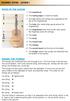 BEGINNER GUITAR - LESSON 1 PARTS OF THE GUITAR 1- The headstock. 2- The tuning pegs or machine heads. 3- The nut (where the strings are supported at the top of the fingerboard). 4- The frets (the metal
Software version 1.1 Document version 1.0
 Software version 1.1 Document version 1.0 1 RDNET PROTOCOL OVERVIEW... 2 1.1 Network description... 2 1.2 Connection topology... 2 2 SOFTWARE BASIC OPERATIONS... 3 2.1 Main View elements... 3 2.2 Scanning
Verizon Cloud Desktop Application Help Guide Version 4.1 72
 Verizon Cloud Desktop Application Help Guide Version 4.1 72 CONTENTS I. Getting started... 4 A. Verizon Cloud... 4 B. Main navigation... 5 C. System requirements... 5 D. Installing the application... 6
USB Recorder User Guide
 USB Recorder User Guide Table of Contents 1. Getting Started 1-1... First Login 1-2... Creating a New User 2. Administration 2-1... General Administration 2-2... User Administration 3. Recording and Playing
Working with Windows Movie Maker
 518 442-3608 Working with Windows Movie Maker Windows Movie Maker allows you to make movies and slide shows that can be saved to your computer, put on a CD, uploaded to a Web service (such as YouTube)
Note: To use Launchkey in Reason, you must first install the Launchkey software bundle.
 Reason CONTROL GUIDE Launchkey s InControl offers a world of opportunity for controlling parameters in Propellerhead Reason. Every device has its own mapping, which allows you to switch quickly between
Windows Live Movie Maker
 Windows Live Movie Maker What is Windows Live Movie Maker? Windows Live Movie Maker is available on all computers that have Windows 7. Teachers and students use Windows Live Movie Maker to turn videos
Lync 2013 Quick Reference Lync Meetings. Join a Lync Meeting. Schedule a Lync Meeting. Do I need a PIN, work number or extension? Set meeting options
 Join a Lync Meeting 1. In the meeting request, click Join Lync Meeting or click Join Online in the meeting reminder. 2. On the Join Meeting Audio window, select one of the options: Use Lync (full audio
Professional Surveillance System User s Manual
 Professional Surveillance System User s Manual \ 1 Content Welcome...4 1 Feature...5 2 Installation...6 2.1 Environment...6 2.2 Installation...6 2.3 Un-installation...8 3 Main Window...9 3.1 Interface...9
Adobe Digital Signatures in Adobe Acrobat X Pro
 Adobe Digital Signatures in Adobe Acrobat X Pro Setting up a digital signature with Adobe Acrobat X Pro: 1. Open the PDF file you wish to sign digitally. 2. Click on the Tools menu in the upper right corner.
DGX-650 DIGITAL PIANOS
 The DGX-650 offers the playability of a real acoustic piano with a comprehensive suite of auto-accompaniment and performance functions that let you give form to your musical inspirations with ease. More
Software Sequencing Basics
 October 12, 1998 software sequencing basics Software Sequencing Basics Supplemental Notes Roland gear is often used in conjunction with a variety of software sequencer programs. The purpose of this document
SAMPLIT U S E R M A N U A L
 SAMPLIT U S E R M A N U A L Table of Contents 1 Welcome to Samplit 2 2 Quick start 4 3 Project 7 4 Typical session 8 5 Project settings 9 6 Main window 11 7 MIDI recall 14 8 Recording 15 9 Looping 17 10
Music Data Management Software Data Manager 6.1 User s Guide
 E Music Data Management Software Data Manager 6.1 User s Guide Use this manual in combination with the User s Guide that comes with the Instrument. DM61-E-1A Contents Introduction...4 What is Data Manager?...
AALTO QUICKSTART version 1.0
 AALTO QUICKSTART version 1.0 Welcome to Aalto! This quickstart guide assumes that you are familiar with using softsynths in your DAW or other host program of choice. It explains how Aalto's dial objects
The Waves Dorrough Meter Collection. User Guide
 TABLE OF CONTENTS CHAPTER 1 INTRODUCTION...3 1.1 WELCOME...3 1.2 PRODUCT OVERVIEW...3 1.3 ABOUT THE MODELING...4 1.4 MONO AND STEREO COMPONENTS...4 1.5 SURROUND COMPONENTS...4 CHAPTER 2 QUICKSTART GUIDE...5
IT Quick Reference Guides Using Windows 7
 IT Quick Reference Guides Using Windows 7 Windows Guides This sheet covers many of the basic commands for using the Windows 7 operating system. WELCOME TO WINDOWS 7 After you log into your machine, the
Microsoft PowerPoint 2010
 Microsoft PowerPoint 2010 Starting PowerPoint... 2 PowerPoint Window Properties... 2 The Ribbon... 3 Default Tabs... 3 Contextual Tabs... 3 Minimizing and Restoring the Ribbon... 4 The Backstage View...
Central Management Software CV3-M1024
 Table of Contents Chapter 1. User Interface Overview...5 Chapter 2. Installation...6 2.1 Beginning Installation...6 2.2 Starting the CMS software...10 2.3 Starting it from the Start menu...10 2.4 Starting
USING WINDOWS MOVIE MAKER TO CREATE THE MOMENT BEHIND THE PHOTO STORY PART 1
 PART 1 Windows Movie Maker lets you assemble a range of video, pictures, and sound elements to create a story. It is an application that comes with most PC computers. This tip sheet was created using Windows
LEGENDplex Data Analysis Software
 LEGENDplex Data Analysis Software Version 7.0 User Guide Copyright 2013-2014 VigeneTech. All rights reserved. Contents Introduction... 1 Lesson 1 - The Workspace... 2 Lesson 2 Quantitative Wizard... 3
NVMS - 1000 USER MANUAL. Version 2.1.0
 NVMS - 1000 USER MANUAL Version 2.1.0 Contents 1 Software Introduction... 1 1.1 Summary... 1 1.2 Operation Environment... 1 1.3 Install and Uninstall... 2 1.3.1 Install the Software... 2 1.3.2 Uninstall
Adobe Audition Workshop Instructor: Sam Fuqua
 Adobe Audition Workshop Instructor: Sam Fuqua Class Objectives Learn the interface for Adobe s audio enhancement software Learn how to do basic recordings, both single and multi-track Learn how to repair
Microsoft PowerPoint 2011
 Microsoft PowerPoint 2011 Starting PowerPoint... 2 Creating Slides in Your Presentation... 3 Beginning with the Title Slide... 3 Inserting a New Slide... 3 Adding an Image to a Slide... 4 Downloading Images
Bome's Mouse Keyboard USER MANUAL
 Bome's Mouse Keyboard USER MANUAL 1 Overview 1 Overview This program simulates a music keyboard which you can play with the mouse or the computer keyboard. You can control your MIDI devices without having
AUDIO INTERFACE MANUAL
 AUDIO INTERFACE MANUAL ZOOM Corporation Reproduction of this manual, in whole or in part, by any means, is prohibited. Contents Contents 2 Audio interface and control surface 4 Cubase LE Installation overview
Introduction to SignApps Express Download and Launch Introduction to User Interface How-to. Available templates
 02/26/2015 Introduction to SignApps Express Download and Launch Introduction to User Interface How-to Edit Playlist Edit Presentation Edit Schedule Export Playlist Firmware Update Available templates Simple
Colligo Email Manager 6.2. Offline Mode - User Guide
 6.2 Offline Mode - User Guide Contents Colligo Email Manager 1 Benefits 1 Key Features 1 Platforms Supported 1 Installing and Activating Colligo Email Manager 3 Checking for Updates 4 Updating Your License
SOS SO S O n O lin n e lin e Bac Ba kup cku ck p u USER MANUAL
 SOS Online Backup USER MANUAL HOW TO INSTALL THE SOFTWARE 1. Download the software from the website: http://www.sosonlinebackup.com/download_the_software.htm 2. Click Run to install when promoted, or alternatively,
GUITAR THEORY REVOLUTION. Part 1: How To Learn All The Notes On The Guitar Fretboard
 GUITAR THEORY REVOLUTION Part 1: How To Learn All The Notes On The Guitar Fretboard Contents Introduction Lesson 1: Numbering The Guitar Strings Lesson 2: The Notes Lesson 3: The Universal Pattern For
User Guide Win7Zilla
 User Guide Win7Zilla Table of contents Section 1: Installation... 3 1.1 System Requirements... 3 1.2 Software Installation... 3 1.3 Uninstalling Win7Zilla software... 3 Section 2: Navigation... 4 2.1 Main
Audition Monster Truck Project Tutorial. -Open Adobe Audition -Click Multitrack in the top left corner
 -Open Adobe Audition -Click Multitrack in the top left corner -Name the project session name last name + first initial + monster -Click Browse and select your Audition Folder that you created in your Finder
Using WebEx Player. Playing a recording. Installing WebEx Player. System requirements for listening to audio in a recording
 17 of 24 Using WebEx Player Using WebEx Player, you can play back any recording that was made using WebEx Recorder that is, a WebEx Recording Format (.wrf) file. Installing WebEx Player If you do not yet
Specifications Keyboard System Sounds Maximum Polyphony: PCM Memory: Program: Combination:
 Specifications Keyboard KROME-61 61-key: Natural Touch Semi Weighted keyboard *Standard C2 - C7 (transposable in the range [C1...C6]-[C3...C8]) KROME-73 73-key: Natural Touch Semi Weighted keyboard *Standard
White Noise Help Guide for iphone, ipad, and Mac
 White Noise Help Guide for iphone, ipad, and Mac Created by TMSOFT - www.tmsoft.com - 12/08/2011 White Noise allows you to create the perfect ambient sound environment for relaxation or sleep. This guide
VirtualDJ 8 Denon MC4000 1
 VirtualDJ 8 Denon MC4000 1 Table of Contents INSTALLATION... 3 Connections... 3 Firmware... 3 Drivers... 3 VirtualDJ 8 Setup... 3 Advanced Setup... 4 A. MIXER... 6 B. BROWSER... 6 C. SAMPLER... 7 D. DECK
Speech and Debate Timekeeper User Manual
 Speech and Debate Timekeeper User Manual Version 2.3 Table of Contents Introduction Features Supported Systems Installing Speech and Debate Timekeeper Windows Mac OS X Linux & Unix Palm OS Windows Mobile
CORSAIR GAMING KEYBOARD SOFTWARE USER MANUAL
 CORSAIR GAMING KEYBOARD SOFTWARE USER MANUAL TABLE OF CONTENTS CORSAIR UTILITY ENGINE OVERVIEW PROFILES 1 9 Introduction 2 Starting the Corsair Utility Engine 2 Profiles: Settings for a Specific Program
STEPfwd Quick Start Guide
 CERT/Software Engineering Institute June 2016 http://www.sei.cmu.edu Table of Contents Welcome to STEPfwd! 3 Becoming a Registered User of STEPfwd 4 Learning the Home Page Layout 5 Understanding My View
Communicating with Skype for Business
 Communicating with Skype for Business Information Services Communicating with Skype for Business This guide is for people who are new to Skype for Business, and provides information on how to begin using
Windows XP Pro: Basics 1
 NORTHWEST MISSOURI STATE UNIVERSITY ONLINE USER S GUIDE 2004 Windows XP Pro: Basics 1 Getting on the Northwest Network Getting on the Northwest network is easy with a university-provided PC, which has
Sequential multi-effect sequencer
 Sequential multi-effect sequencer WHAT IS IT INTRODUCTION Sequential is a dynamic multi-effect that allows you to trigger different processing and synthesis algorithms in a rhythmical fashion. It features
Learning To Play The Guitar An Absolute Beginner s Guide By Anthony Pell
 Learning To Play The Guitar An Absolute Beginner s Guide By Anthony Pell http://www.learningtoplaytheguitar.net All Rights Reserved. No part of this publication may be reproduced in any form or by any
DIGITAL AUDIO BASICS
 DIGITAL AUDIO BASICS 81 DIGITAL AUDIO BASICS 82 DIGITAL AUDIO BASICS 83 DIGITAL AUDIO BASICS 84 DIGITAL AUDIO BASICS 85 DIGITAL AUDIO BASICS 86 DIGITAL AUDIO BASICS 87 DIGITAL AUDIO BASICS 88 DIGITAL AUDIO
Windows Movie Maker 2012
 Windows Movie Maker 2012 Open Windows Movie Maker A shortcut for Movie Maker should be on the desktop, but if it is not, you can search for the program by touching the right edge of the screen and swiping
ASUS GPU Tweak User Manual
 ASUS GPU Tweak User Manual Q6866 First Edition December 0 Contents I. Introduction... a. Knowing ASUS GPU Tweak... II. III. b. System requirements... c. Installing ASUS GPU Tweak... Quick start... a. Launching
Audacity 1.2.4 Sound Editing Software
 Audacity 1.2.4 Sound Editing Software Developed by Paul Waite Davis School District This is not an official training handout of the Educational Technology Center, Davis School District Possibilities...
Nord Stage 2 OS Version 1.30 Release Notes 1
 Nord Stage 2 OS Version 1.30 Release Notes 1 Nord Stage 2 OS Version 1.30 Release Notes The 1.30 Stage 2 OS update contains several bug fixes and some functionality improvements. Internal Instrument levels