
Cisco IronPort Security Plug-in 7.3 Administrator Guide
|
|
|
- Kelly Newton
- 10 years ago
- Views:
Transcription
1 Cisco IronPort Security Plug-in 7.3 Administrator Guide May 01, 2013 Americas Headquarters Cisco Systems, Inc. 170 West Tasman Drive San Jose, CA USA Tel: NETS (6387) Fax:

2 THE SPECIFICATIONS AND INFORMATION REGARDING THE PRODUCTS IN THIS MANUAL ARE SUBJECT TO CHANGE WITHOUT NOTICE. ALL STATEMENTS, INFORMATION, AND RECOMMENDATIONS IN THIS MANUAL ARE BELIEVED TO BE ACCURATE BUT ARE PRESENTED WITHOUT WARRANTY OF ANY KIND, EXPRESS OR IMPLIED. USERS MUST TAKE FULL RESPONSIBILITY FOR THEIR APPLICATION OF ANY PRODUCTS. THE SOFTWARE LICENSE AND LIMITED WARRANTY FOR THE ACCOMPANYING PRODUCT ARE SET FORTH IN THE INFORMATION PACKET THAT SHIPPED WITH THE PRODUCT AND ARE INCORPORATED HEREIN BY THIS REFERENCE. IF YOU ARE UNABLE TO LOCATE THE SOFTWARE LICENSE OR LIMITED WARRANTY, CONTACT YOUR CISCO REPRESENTATIVE FOR A COPY. The Cisco implementation of TCP header compression is an adaptation of a program developed by the University of California, Berkeley (UCB) as part of DUB s public domain version of the UNIX operating system. All rights reserved. Copyright 1981, Regents of the University of California. NOTWITHSTANDING ANY OTHER WARRANTY HEREIN, ALL DOCUMENT FILES AND SOFTWARE OF THESE SUPPLIERS ARE PROVIDED AS IS WITH ALL FAULTS. CISCO AND THE ABOVE-NAMED SUPPLIERS DISCLAIM ALL WARRANTIES, EXPRESSED OR IMPLIED, INCLUDING, WITHOUT LIMITATION, THOSE OF MERCHANTABILITY, FITNESS FOR A PARTICULAR PURPOSE AND NONINFRINGEMENT OR ARISING FROM A COURSE OF DEALING, USAGE, OR TRADE PRACTICE. IN NO EVENT SHALL CISCO OR ITS SUPPLIERS BE LIABLE FOR ANY INDIRECT, SPECIAL, CONSEQUENTIAL, OR INCIDENTAL DAMAGES, INCLUDING, WITHOUT LIMITATION, LOST PROFITS OR LOSS OR DAMAGE TO DATA ARISING OUT OF THE USE OR INABILITY TO USE THIS MANUAL, EVEN IF CISCO OR ITS SUPPLIERS HAVE BEEN ADVISED OF THE POSSIBILITY OF SUCH DAMAGES. Cisco and the Cisco logo are trademarks or registered trademarks of Cisco and/or its affiliates in the U.S. and other countries. To view a list of Cisco trademarks, go to this URL: Third-party trademarks mentioned are the property of their respective owners. The use of the word partner does not imply a partnership relationship between Cisco and any other company. (1110R) Any Internet Protocol (IP) addresses and phone numbers used in this document are not intended to be actual addresses and phone numbers. Any examples, command display output, network topology diagrams, and other figures included in the document are shown for illustrative purposes only. Any use of actual IP addresses or phone numbers in illustrative content is unintentional and coincidental Cisco Systems, Inc. All rights reserved.

3 CONTENTS Getting Started with the Cisco IronPort Security Plug-in 1-1 What s New in this Release 1-1 Supported Configurations 1-2 Related Documents 1-2 How to Use This Guide 1-3 How This Book Is Organized 1-3 Where to Find More Information 1-4 Cisco IronPort Welcomes Your Comments 1-6 Cisco IronPort Security Plug-in Overview 1-7 Overview 2-1 The Cisco IronPort Security Plug-in 2-1 Installing the Plug-in 2-3 Configuration Modes 2-3 Deploying the Cisco IronPort Security Plug-in with the Cisco Registered Envelope Service (CRES) Key Server 2-5 Deploying the Cisco IronPort Security Plug-in with the IronPort Encryption Appliance (IEA) Key Server 2-6 Downloading the IEA Key Server Token 2-6 Customizing and Signing the Configuration File 2-7 Deploying the Configuration File to the End User 2-8 Configuring Settings for the Cisco IronPort Security Plug-in 2-9 i
4 Contents Performing a Mass Installation 3-1 Performing the Installation 3-1 Using Custom Configuration Files 3-15 Overview 3-16 Editing the XML Configuration Files 3-16 Mass Installation Using the BCE_Config.xml File 3-18 Deploying the Custom Configuration Files 3-20 Configuring and Using the Cisco IronPort Security Plug-in for Outlook 4-1 Cisco IronPort Security Plug-in For Outlook General Settings 4-2 Enable or Disable 4-2 Configuring Basic Settings for the Outlook Plug-in 4-3 Reporting Unwanted s-Spam, Virus, and Phishing Attacks 4-4 Using the Reporting Plug-in for Outlook 4-6 Encrypting Flag and Desktop Encryption Configuration 4-12 Launching the Security Plug-in Configuration File 4-12 Flag Encryption 4-14 Flag Encryption Options 4-15 Desktop Encryption 4-20 Desktop Encryption Options 4-21 Sending Encrypted Manage Secure Messages 4-35 Receiving Secure s 4-37 Opening Your First Encrypted Secure Message 4-42 Changing Logging Settings 4-46 Errors and Troubleshooting 4-48 Outlook Startup Errors 4-49 ii
5 Contents Message Reporting Errors 4-50 Decryption and Encryption Errors 4-51 Repairing Cisco Security Plug-in for Outlook Files 4-53 Troubleshooting Using the Diagnostic Tool 4-54 Data Collected by the Cisco IronPort Security Diagnostic Tool 4-54 Running the Cisco IronPort Security Diagnostic Tool 4-55 Uninstalling the Cisco IronPort Security Plug-in 4-57 IronPort End User License Agreement A-1 Cisco IronPort Systems, LLC Software License Agreement A-1 iii
6 Contents iv

7 CHAPTER 1 Getting Started with the Cisco IronPort Security Plug-in This chapter contains the following sections: What s New in this Release, page 1-1 Supported Configurations, page 1-2 Related Documents, page 1-2 How to Use This Guide, page 1-3 Cisco IronPort Security Plug-in Overview, page 1-7 What s New in this Release This release includes the following new features: Ability to configure Cisco Ironport Security Plug-in to use a Cisco Ironport Encryption appliance (IEA) or Cisco Registered Envelope Service (CRES) as the hosted key server. Outlook bit Support. Automatic Configuration. The Cisco Ironport Security Plug-in is automatically configured by an XML file attachment received from the administrator. Configuration Per Account. The Cisco Ironport Security Plug-in is deployed in three modes that determine the configuration per account as Decrypt Only, Flag, or Encrypt. 1-1

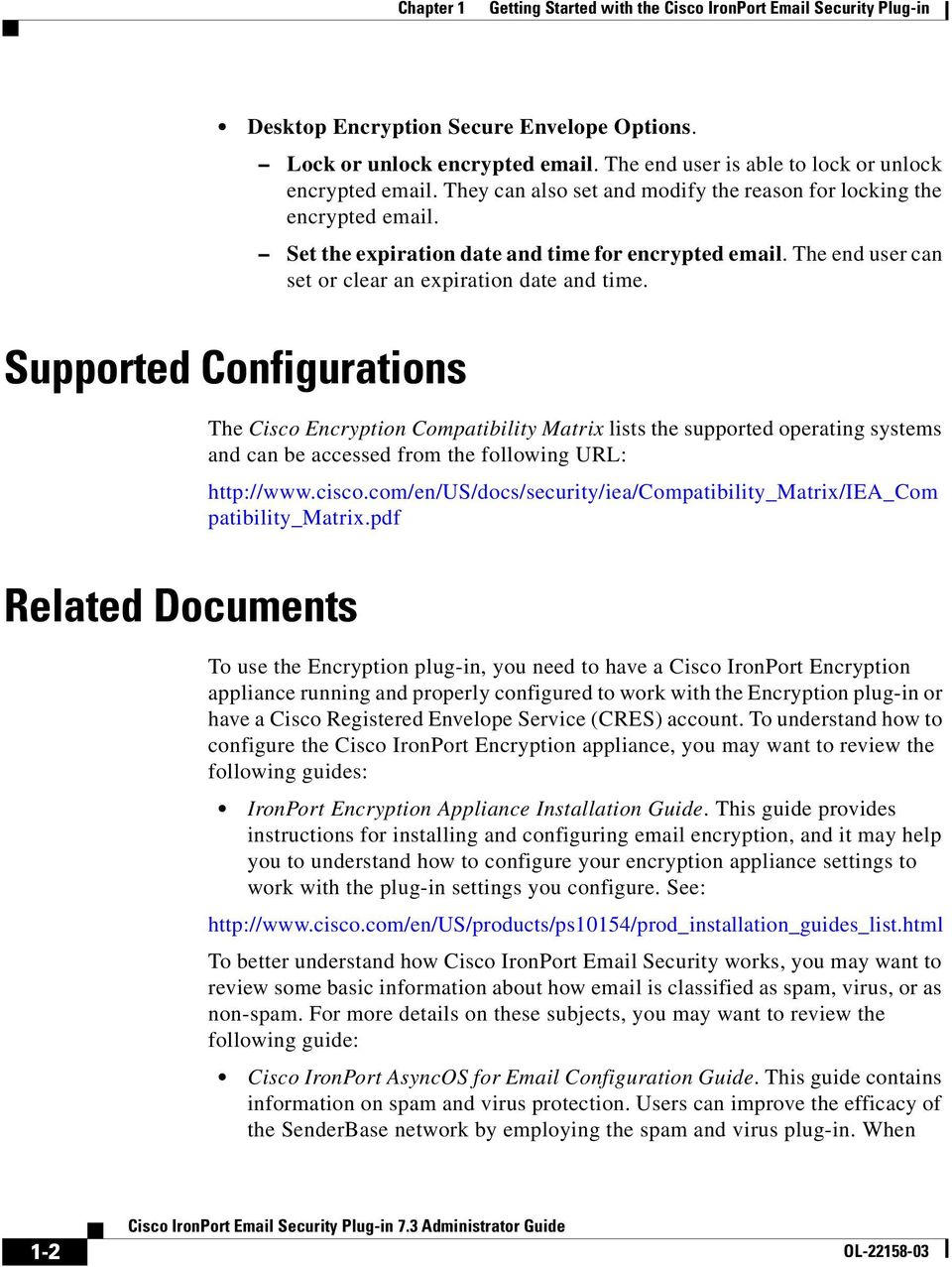
8 Chapter 1 Getting Started with the Cisco IronPort Security Plug-in Desktop Encryption Secure Envelope Options. Lock or unlock encrypted . The end user is able to lock or unlock encrypted . They can also set and modify the reason for locking the encrypted . Set the expiration date and time for encrypted . The end user can set or clear an expiration date and time. Supported Configurations The Cisco Encryption Compatibility Matrix lists the supported operating systems and can be accessed from the following URL: patibility_matrix.pdf Related Documents To use the Encryption plug-in, you need to have a Cisco IronPort Encryption appliance running and properly configured to work with the Encryption plug-in or have a Cisco Registered Envelope Service (CRES) account. To understand how to configure the Cisco IronPort Encryption appliance, you may want to review the following guides: IronPort Encryption Appliance Installation Guide. This guide provides instructions for installing and configuring encryption, and it may help you to understand how to configure your encryption appliance settings to work with the plug-in settings you configure. See: To better understand how Cisco IronPort Security works, you may want to review some basic information about how is classified as spam, virus, or as non-spam. For more details on these subjects, you may want to review the following guide: Cisco IronPort AsyncOS for Configuration Guide. This guide contains information on spam and virus protection. Users can improve the efficacy of the SenderBase network by employing the spam and virus plug-in. When 1-2
9 Chapter 1 Getting Started with the Cisco IronPort Security Plug-in users marks an as spam, virus, or not spam, they can train the filters to become more effective and improve the performance of all Cisco IronPort appliances. See: How to Use This Guide Use this guide as a resource to learn about the features in your Cisco IronPort Security Plug-in. The topics are organized in a logical order, but you might not need to read every chapter in the book. Review the Table of Contents and the section called How This Book Is Organized, page 1-3 to determine which chapters are relevant to your particular configuration. This guide is distributed electronically as a PDF. The electronic versions of the guide are available on the Cisco IronPort Customer Support Portal. You can also access an HTML online help tool in the appliance GUI: In Outlook 2010, go to Tools > Options > Cisco Security. Click the Help button in Outlook, then click Actions > Cisco Security. In Outlook 2003/2007, go to Tools > Options > Cisco Security > Help. How This Book Is Organized Chapter 1, Getting Started with the Cisco IronPort Security Plug-in provides an introduction to the Cisco IronPort Security plug-in and defines its key features and role in network security configurations. New features of the current release are described along with information about other resources for information and support contact information. Chapter 2, Overview introduces the Reporting Plug-in and the Encryption plug-in. This section provides an overview of each of these tools. Chapter 3, Performing a Mass Installation describes how to perform a mass installation. The instructions provide steps for running the install. 1-3
10 Chapter 1 Getting Started with the Cisco IronPort Security Plug-in Chapter 4, Configuring and Using the Cisco IronPort Security Plug-in for Outlook provides instructions for configuring the Cisco IronPort Security Plug-in for Outlook. It includes steps for installing the encryption plug-in, sending or receiving encrypted , and managing secure messages. Appendix A, Cisco IronPort Systems, LLC Software License Agreement contains detailed information about the licensing agreements for Cisco IronPort products. Where to Find More Information Cisco offers the following resources to learn more about the Cisco IronPort Security Plug-in. Security Training Services & Certification Knowledge Base Cisco Security Training Services deliver exceptional education and training for Cisco security products and solutions. Through a targeted curriculum of technical training courses, the program provides up-to-date knowledge and skills transfer to different audiences. Use one of the following methods to contact Cisco Security Training Services: Training. For question relating to registration and general training: [email protected] Certifications. For questions relating to certificates and certification exams: [email protected] You can access the Cisco IronPort Knowledge Base on the Cisco IronPort Customer Support site at the following URL: The Knowledge Base contains a wealth of information on topics related to Cisco IronPort products. 1-4

11 Chapter 1 Getting Started with the Cisco IronPort Security Plug-in Cisco Support Community Articles generally fall into one of the following categories: How-To. These articles explain how to do something with a Cisco IronPort product. For example, a how-to article might explain the procedures for backing up and restoring a database for an appliance. Problem-and-Solution. A problem-and-solution article addresses a particular error or issue that you might encounter when using a Cisco IronPort product. For example, a problem-and-solution article might explain what to do if a specific error message is displayed when you upgrade to a new version of the product. Reference. Reference articles typically provide lists of information, such as the error codes associated with a particular piece of hardware. Troubleshooting. Troubleshooting articles explain how to analyze and resolve common issues related to Cisco IronPort products. For example, a troubleshooting article might provide steps to follow if you are having problems with DNS. Cisco Support Community is an online forum for Cisco customers, partners, and employees. It provides a place to discuss general and web security issues, as well as technical information about specific Cisco products. You can post topics to the forum to ask questions and share information with other Cisco and Cisco IronPort users. You can access the Cisco Support Community from the following URL: 1-5

12 Chapter 1 Getting Started with the Cisco IronPort Security Plug-in Cisco Customer Support Note The level of support available to you depends upon your service level agreement. Cisco IronPort Customer Support service level agreement details are available on the Support Portal. Check this page for details about your level of support. You can request support by phone, , or online 24 hours a day, 7 days a week. You can contact Cisco Customer Support using one of the following methods: Cisco Support Portal: Phone support: Contact Cisco Technical Assistance Center (TAC) within U.S. /Canada at and at Worldwide Phone Numbers. [email protected] If you purchased support through a reseller or another supplier, please contact that supplier directly with your product support issues. Cisco Content Security Welcomes Your Comments The Cisco Content Security Technical Publications team is interested in improving the product documentation. Your comments and suggestions are always welcome. You can send comments to the following address: [email protected] 1-6

13 Chapter 1 Getting Started with the Cisco IronPort Security Plug-in Cisco IronPort Security Plug-in Overview The Cisco IronPort Security Plug-in installs reporting and encryption menus onto Outlook . The reporting plug-in enables users to submit feedback about the type of mail they receive (for example, users can report spam, phishing, and virus s), and the encryption plug-in places an encrypt message button on the toolbar which enables users to either send encrypted from their programs or to flag the to be encrypted before it leaves their organizations. When the Cisco IronPort Security Plug-in is installed, it enables components on an Outlook mail client. This single interface allows end-users to seamlessly report s or send encrypted . End users can lock or unlock encrypted s, adding or modifying a lock reason. End users can also set an expiration date and time for the encrypted . Combining these plug-ins simplifies installation and provides a single interface for users and Administrators to install and modify. The reporting and encryption plug-ins provide a convenient interface that enables you to submit feedback and send encrypted messages by using toolbar buttons and right-click context menus. If you are using the reporting plug-in to report a message, a dialog box appears indicating that the message was submitted. The Encryption Plug-in places an Encrypt Message button in the menu bar of an message to provide an easy way for senders to encrypted messages. The Encryption plug-in requires the presence and proper configuration of a Cisco IronPort Encryption appliance or have a Cisco Registered Envelope Service (CRES) account. 1-7

14 Chapter 1 Getting Started with the Cisco IronPort Security Plug-in 1-8

15 CHAPTER 2 Overview The Cisco IronPort Security Plug-in framework supports several Cisco IronPort Security Plug-ins, including the Reporting plug-in and the Encryption plug-in. This chapter contains the following sections: The Cisco IronPort Security Plug-in, page 2-1 Installing the Plug-in, page 2-3 Configuration Modes, page 2-3 Deploying the Cisco IronPort Security Plug-in with the Cisco Registered Envelope Service (CRES) Key Server, page 2-5 Deploying the Cisco IronPort Security Plug-in with the IronPort Encryption Appliance (IEA) Key Server, page 2-6 Configuring Settings for the Cisco IronPort Security Plug-in, page 2-9 TCP/IP Services Required for the Cisco IronPort Security Plug-in, page 2-9 The Cisco IronPort Security Plug-in The Cisco IronPort Security Plug-in consists of two commonly used security plug-ins: the Reporting plug-in and the Encryption plug-in. You may deploy the Cisco IronPort Security Plug-in on your Outlook program. When you deploy the Cisco IronPort Security Plug-in, it installs one or both of the following applications: 2-1
16 Chapter 2 Overview The Reporting Plug-in The Encryption Plug-in The Reporting Plug-in. The Reporting Plug-in enables Outlook users to submit feedback to Cisco IronPort Systems about unsolicited and unwanted messages, such as spam, viruses, and phishing messages. For details, see The Reporting Plug-in, page 2-2. The Encryption Plug-in. The Encryption Plug-in places an Encrypt Message button in the menu bar of an message to provide an easy way for a sender to mark a message to be encrypted. For details, see The Encryption Plug-in, page 2-2. The Reporting Plug-in enables Outlook users to submit feedback to Cisco IronPort Systems about unsolicited and unwanted messages, such as spam, viruses, and phishing messages. Cisco IronPort uses this feedback to update its filters to stop unwanted messages from being delivered to your inbox. You can also report false positives, which are legitimate messages that are marked as spam, to IronPort Systems by using the Not Spam button. Legitimate messages are often referred to as ham. Cisco uses reports about false positives to adjust its spam filters to avoid misclassifying legitimate in the future. Any valid can be reported as Not Spam and will help to increase filter efficacy. This plug-in provides a convenient interface that enables you to submit feedback by using toolbar buttons and right-click context menus. When you report a message, a dialog box appears indicating that the message was submitted. The message data that you submit is used by automated systems to improve the Cisco IronPort filters. By submitting message data, you help to reduce the volume of unsolicited in your inbox. The Encryption Plug-in places an Encrypt Message button in the menu bar of an message to provide an easy way for senders to mark messages to be encrypted and secured before it leaves the organization. There are two types of encryption available: Flag Encryption and Desktop Encryption. The Flag Encryption option allows you to flag the for encryption, and the is encrypted by the Cisco IronPort Encryption appliance or Security appliance before the is sent out of the network. Desktop 2-2
17 Chapter 2 Overview Encryption allows you to encrypt from within your program using the Cisco IronPort encryption technology. Then, it sends the encrypted from your desktop. You may want to use Desktop Encryption if you want to ensure that mail sent within your organization is encrypted. The Encryption plug-in is designed to work with a functioning and configured Cisco IronPort Encryption appliance or a Cisco IronPort Security appliance (if you have one in your network). The configuration you use for the Encryption plug-in should be developed in conjunction with the settings on these appliances. If you do not use the same configurations for these appliances, issues may occur when sending encrypted messages. Installing the Plug-in To install the Cisco IronPort Security Plug-in for groups of users, you will likely want to perform a silent installation. A silent installation allows you to perform an installation without prompting the end user for input. For instructions on performing the silent installation, see Chapter 3, Performing a Mass Installation. Configuration Modes The Cisco IronPort Security Encryption Plug-in is deployed in three separate configuration modes. The default configuration mode is Decrypt Only. In order to enable the other configuration modes, the Outlook account is configured by an updated attachment file received from the administrator. The administrator sends a BCE_Config_signed.xml file attachment to the end user s account. The end user will receive this file as a securedoc.html file. When the end user clicks the securedoc.html attachment, the Outlook application detects the configuration information attached to the message and applies the updated configuration. Note The default envelope name is securedoc.html.the attachment name value can be changed by the administrator and the envelope will reflect the newly specified name. 2-3

18 Chapter 2 Overview The three configuration modes are: Decrypt Only Allows decrypting of secure messages received. Decrypt and Flag Allows decrypting and flagging of secure s messages. The flag option allows the end user to flag the for encryption, and the is encrypted by the Cisco IronPort Encryption appliance or Security appliance before the is sent out of the network. The server must be configured to detect the flagged messages and encrypt them at the server. Decrypt and Encrypt Allows encrypting and decrypting of secure messages. The following table specifies which features are supported in each configuration mode. Feature Decrypt Only Decrypt and Flag Decrypt and Encrypt Send encrypted message X Flag message for encryption X Open encrypted X X X Reply/Reply All/Forward Message X lock and unlock X expiration X diagnostic (Uses for Reporting and Encryption Plug-ins) X X X Read-receipt X Envelope settings X Settings X X X 2-4

19 Chapter 2 Overview Deploying the Cisco IronPort Security Plug-in with the Cisco Registered Envelope Service (CRES) Key Server Use the following instructions to deploy the Cisco IronPort Security Plug-in so that it is used directly with the Cisco Registered Service (CRES) key server. To begin, log into your CRES account: and go to the Accounts tab. Select the account from which you want to enable the Security Plug-in. Then, go to the BCE Config tab. Step 1 Step 2 Step 3 Choose the token to use with the configuration template: CRES Select if your key server is CRES. SecureCompose Do not choose this option as your CRES token. Token <Account number> Choose this option as your CRES token. Click Download Template to download the template file in order to edit it. The filename is BCE_Config.xml. Edit the configuration file. The BCE_Config.xml file contains detailed instructions for the fields you will need to edit based on your particular environment. Open the file in a text editor and follow the instructions included in the comments to make the necessary modifications. Note Step 4 For localization purposes, do not change or reword the existing Message Security labels Low, Medium, or High. Click Browse to navigate to the edited BCE_Config.xml file, and click Upload and Sign after you have located the file. Once the configuration file is signed, the signed version will be downloaded as BCE_Config_signed.xml. Save this file to your local machine. 2-5
20 Chapter 2 Overview Step 5 To deploy the configuration file to many end users at once, use the Distribute Signed Configuration to Bulk List option. To do so: a. Browse to the BCE_Config_signed.xml file created in Step 4. b. Browse to a comma separated file containing the addresses of end users. c. Change the subject as needed. d. Click Distribute Config. Note If the xml configuration file is forwarded to another end user, versus received from the administrator, the auto configuration will not work and an error is received. Note Do not send the BCE_Config_signed.xml file to a mailing list. CRES does not support mailing lists. Deploying the Cisco IronPort Security Plug-in with the IronPort Encryption Appliance (IEA) Key Server Downloading the IEA Key Server Token The IEA token is needed for use during the configuration signing process. Before signing the configuration file, download the token to your local machine. To download the token file from the IEA key server: Step 1 Log into your IEA administration console: The Administration Console displays. 2-6
21 Chapter 2 Overview Step 2 Step 3 Go to the Accounts tab. Go to the account to use with your plug-in installations. This is usually the Users account. Go to the Tokens tab. Click the Save Token icon (looks like a circle with a down arrow) to the right of the token and save it to your local machine. Customizing and Signing the Configuration File Once the IEA token file has been downloaded, the configuration file can be customized and signed. The Cisco Registered Envelope Service (CRES) is a hosted service that provides support for Cisco IronPort Encryption Technology. Because the plug-in configuration file signature verification is performed by the CRES system, customers using an IEA as their key server who want to deploy the Cisco IronPort Security Plug-in will also need an administrator account on CRES. If you need a CRES administrator account created for you, contact Cisco IronPort Customer Support at: To create a signed configuration file for use with the IEA key server: Step 1 Step 2 Step 3 Step 4 Step 5 Log into your CRES account: The Administration Console displays. Go to the Accounts tab and select the account from which you want to enable the Security Plug-in. Then, go to the BCE Config tab. Choose IEA as the token type, then upload the IEA token you previously downloaded from the IEA. Click Download Template to download the template file in order to edit it. The filename is BCE_Config.xml. Edit the configuration file. The BCE_Config.xml file contains detailed instructions for the fields you will need to edit based on your particular environment. Open the file in a text editor and follow the instructions included in the comments to make the necessary modifications. Note For localization purposes, do not change or reword the existing Message Security labels Low, Medium, or High. 2-7
22 Chapter 2 Overview Step 6 Click Browse to navigate to the edited BCE_Config.xml file, and click Upload and Sign after you have located the file. Once the configuration file is signed, the signed version will be downloaded as BCE_Config_signed.xml. Save this file to your local machine. Note Do not use Step 5 on the BCE config tab Distribute Signed Configuration File to Bulk List (optional) when using the IEA as key server. This option only applies to CRES and will be removed in a future release. Deploying the Configuration File to the End User To deploy the configuration file to end users, send the signed configuration file in an encrypted on the IEA to each end user. The message must be sent from an address that is listed as an administrator on the IEA and on the CRES account. Note If the xml configuration file is forwarded to another end user, versus received from the administrator, the auto configuration will not work and an error is received. Note Do not send the BCE_Config_signed.xml file to a mailing list. CRES does not support mailing lists. To perform a mass installation using the BCE_Config_signed.xml file, see Mass Installation Using the BCE_Config.xml File, page
23 Chapter 2 Overview Configuring Settings for the Cisco IronPort Security Plug-in After you install the Cisco IronPort Security Plug-in, you can make configuration changes from the Cisco Security tab in Outlook. In Outlook 2010, go to File > Options > Add-ins > Add-in Options > Cisco Security. In Outlook 2003/2007, go to Tools > Options > Cisco Security. You can make changes to the Reporting plug-in installation or the Encryption plug-in installation. Or, you can make changes to general options that affect both plug-in installations. For example, you can enable or disable logging for the Cisco IronPort Security Encryption Plug-in or you can modify options for a specific encryption mode. To change the method for marking for Encryption, you need to make changes to the BCE_Config.xml file and perform an auto-configuration. Any of the specified settings must be compatible with your Cisco IronPort Encryption appliance. To make configuration changes on an Outlook installation, see Chapter 4,. TCP/IP Services Required for the Cisco IronPort Security Plug-in Cisco IronPort Security Plug-in requires the use of the following TCP/IP services and their associated ports. These ports must be left available for the TCP/IP services to use. DNS (Domain Name System). The DNS service translates Internet domain and host names to IP addresses. DNS automatically converts the names we type in our Web browser address bar to the IP addresses of Web servers hosting those sites. Port number: 53 (TCP/UDP) 2-9
24 Chapter 2 Overview For more information, see: Impact: High Resolution: This service must be accessible to all end users. SMTP (Simple Mail Transfer Protocol) Simple Mail Transfer Protocol (SMTP) is an Internet standard for electronic mail ( ) transmission across Internet Protocol (IP) networks. Port number: 25, 587, 465, 475, 2525 (TCP) For more information, see: Impact: High Resolution: This service must be accessible to all end users. DHCP (Dynamic Host Configuration Protocol) DHCP is a network protocol used to configure devices that are connected to a network (known as hosts) so they can communicate on that network using the Internet Protocol (IP) Port number: 67, 68 (TCP/UDP) For more information, see: Impact: High Resolution: This service must be accessible to all end users which obtain IP addresses automatically from DHCP server. Net BIOS over TCP/IP NetBIOS over TCP/IP (NBT, or sometimes NetBT) is a networking protocol that allows legacy computer applications relying on the NetBIOS API to be used on modern TCP/IP networks. Port number: 137(UDP) (name services), 138(UDP) (datagram services), 139(TCP) (session services) For more information, see: Impact: High Resolution: This service must be accessible to all end users. 2-10
25 Chapter 2 Overview HTTP (Hypertext Transfer Protocol) The Hypertext Transfer Protocol (HTTP) is an application protocol for distributed, collaborative, hypermedia information systems. Port number: 80, 8080 (TCP) For more information, see: Impact: High Resolution: This service must be accessible to all end users. HTTPS (Hypertext Transfer Protocol Secure) HTTPS is a communications protocol for secure communication over a computer network, with especially wide deployment on the Internet. Port number: 443 (TCP) For more information, see: Impact: High Resolution: This service must be accessible to all end users. IMAP (Internet message access protocol) Internet message access protocol allows an client to access on a remote mail server. Port number: 143, 993 (TCP) For more information, see: Impact: High Resolution: This service must be accessible to all end users. POP3 (Post Office Protocol) Post Office Protocol is used by local clients to retrieve from a remote server over a TCP/IP connection. Port number: 110, 995 (TCP) For more information, see: Impact: High 2-11
26 Chapter 2 Overview Resolution: This service must be accessible to all end users. 2-12
27 CHAPTER 3 Performing a Mass Installation This chapter describes how to perform a mass installation on multiple desktops and contains the following sections: Performing the Installation, page 3-1 Using Custom Configuration Files, page 3-15 Performing the Installation To perform the installation, complete the following steps to create a network shared folder, distribution package, New Package Wizard and New Program Wizard. To perform the installation: Step 1 Step 2 Create a network shared folder that contains the installation package and give users access to the shared folder. Open the SCCM administrative tool. 3-1
28 Chapter 3 Performing a Mass Installation Step 3 Create a new software distribution package. Step 4 Enter a name for the package, and click Next. 3-2
29 Chapter 3 Performing a Mass Installation Step 5 Specify the network source directory that you created in Step 1 by entering the path to the network shared folder. You can enter the path or browse to the folder. Click Next. Step 6 Continue to the next step in the New Package Wizard, and click Next. 3-3
30 Chapter 3 Performing a Mass Installation Step 7 View the confirmation that the New Package Wizard completed successfully, and click Close. 3-4
31 Chapter 3 Performing a Mass Installation Step 8 Create a new distribution point, and click Next on the Welcome page. 3-5
32 Chapter 3 Performing a Mass Installation Step 9 Select the new distribution point. Click through the next pages on the New Distribution Points Wizard, and click Close. 3-6
33 Chapter 3 Performing a Mass Installation Step 10 Create a new program. Step 11 In the command line field, enter the following command: {shared network path}\cisco IronPort Security Plug-in.exe /exenoui /qn For example: \\sc2007\shared\cisco IronPort Security Plug-in.exe /exenoui /qn where \\sc2007\shared\cisco IronPort Security Plug-in.exe is the full network path to the.exe file in the network shared folder. 3-7
34 Chapter 3 Performing a Mass Installation Note If you want to use customized configuration files, you need to add a special key during this step which enables the installation to use the customized files. You add the special key from the command line (specifying the location of the custom configuration files after the = sign) using the following syntax: Cisco IronPort Security Plug-in.exe /exenoui /qn UseCustomConfig="\\sc2007\Shared\config\" For more information about customizing your configuration files, see Using Custom Configuration Files, page Step 12 Step 13 Step 14 In the Run field, enter Hidden, and then click Next. Click through the requirements page, and then click Next. Select the following environment options: Program can run: Only when the user is logged on. If Run mode is set to administrative rights, then Program can run can be set to Whenever the user is logged on. 3-8
35 Chapter 3 Performing a Mass Installation Step 15 Run mode: Run with user's rights, or run with administrative rights if users don't have sufficient permissions to install new software. Confirm that the New Program Wizard completed successfully, and click Close. 3-9
36 Chapter 3 Performing a Mass Installation Step 16 Create a new advertisement. 3-10
37 Chapter 3 Performing a Mass Installation Step 17 Enter a name, select the package and program that you created. Select the collection that contains the group of clients where you want to install the plug-in. Click Next. Step 18 Set the assignment as mandatory. Click Next. 3-11
38 Chapter 3 Performing a Mass Installation Step 19 Step 20 Select the switches based on your preferences. At least one Mandatory assignment should be set. Do not select Do Not Run Program, as the program will not start if the connection is slow. Click Next. Click through the New Advertisement Wizard, and click Next. 3-12
39 Chapter 3 Performing a Mass Installation Step 1 View the confirmation that the New Advertisement Wizard completed successfully, and click Close. 3-13
40 Chapter 3 Performing a Mass Installation Step 2 View the Advertisement Status in the Advertisement Status window. Step 3 You can create an advertisement report to view more details by selecting Show Message > All from the Context menu. If an error occurred, you can review the report to see where the error occured. 3-14
41 Chapter 3 Performing a Mass Installation Using Custom Configuration Files The Cisco IronPort Security Plug-in allows you to modify the default configuration by editing a set of XML files included in your installation. You might want to use different configuration files to change aspects of the installation. For example, in Encryption configuration file, you might change the file flagging method (Only make this change if you are also able to change the method on the Encryption appliance). In the reporting configuration files, you might change some of the default options, such as the maximum mail size for reporting, or whether to maintain copies of the files after they have been reported. You may also want to customize the button names, or even localize the text used in the user interface. 3-15
42 Chapter 3 Performing a Mass Installation Overview To modify and deploy custom configuration files, complete the following steps: Step 1 Make a copy of the \\%allusersprofile%\cisco\cisco IronPort Security Plug-In\ directory. It is required to include the Common folder. Note You must maintain the directory structure of the original files to maintain validity. Make sure that you maintain the structure starting at the Cisco IronPort Security Plug-in directory and include all files with configuration files. Step 2 Edit the XML configuration files. Rather than creating new files, Cisco recommends you modify the XML files included in the installation file. For instructions on modifying these files, see Editing the XML Configuration Files, page Step 3 Run the mass installation as described in Performing the Installation, page 3-1, and deploy the customized XML files as described in Deploying the Custom Configuration Files, page Editing the XML Configuration Files When you install the Cisco IronPort Security Plug-in, configuration data is created and saved in XML files. You can edit the string values to customize the parameter values. However, Cisco does not recommend you remove values or modify the structure of the files. By default, the plug-in installs configuration files in the %AllUsersProfile% directory in the following locations for Outlook: %allusersprofile%\cisco\cisco IronPort Security Plug In 3-16
43 Chapter 3 Performing a Mass Installation The XML files are located in the following default locations: \\%allusersprofile%\cisco\cisco IronPort Security Plug-In\Common\CommonEncryptionConfig.xml. Contains configuration data related to the Desktop Encryption plug-in. \\%allusersprofile%\cisco\cisco IronPort Security Plug-In\Common\config_1.xml, config_{n}.xml. These numbers are dependent on the count of user accounts. \\%allusersprofile%\cisco\cisco IronPort Security Plug-In\Common\CommonConfig.xml. Contains basic configuration data that is common to both the Reporting and Encryption plug-ins, such as the location of the log files and the name of the localization file (en-us.xml is the default localization file). You can use your program settings to change the log file location, and deploy it with your mass installation program. If you want to create a localization file in a language other than the available localization files, you need to reference the name of the new XML file here. \\%allusersprofile%\cisco\cisco IronPort Security Plug-In\Common\Reporting.xml. Contains configuration data related to the Reporting plug-in, such as the maximum mail size that can be reported. Cisco does not recommend you modify this file. \\%allusersprofile%\cisco\cisco IronPort Security Plug-In\Common\Localization\en-US.xml. Contains data related to local languages. The default language is English. However, there are several localization files available, including de.xml, es.xml, fr.xml, it.xml, zh-cn.xml. If you want to use a language that is not within the scope of these xml files, you can create a custom xml file and reference it in the CommonConfig.xml file. Warning Do not change any string id settings that are inside the < or > symbols, as this will prevent your plug-in from functioning properly. Example The following example shows sample changes to the en-us.xml file. To change the text in the Reporting toolbar, find the following section of the en-us.xml xml file and edit the text in bold: 3-17
44 Chapter 3 Performing a Mass Installation <group name="mso.report.button.cations"> <string id="blocksender">block Sender</string> <string id="spam">spam</string> <string id="ham">not Spam</string> <string id="virus">virus</string> <string id="phish">phish</string> </group> For example, if you wanted to add more descriptive titles, you could change the text as follows: <group name="mso.report.button.cations"> <string id="blocksender">block Sender using Outlook</string> <string id="spam">report Spam</string> <string id="ham">report Not Spam</string> <string id="virus">report Virus</string> <string id="phish">report Phishing Attacks</string> </group> Mass Installation Using the BCE_Config.xml File To perform a mass installation using the BCE_Config.xml file: Step 1 Step 2 Step 3 Step 4 Navigate to the \\%allusersprofile%\cisco\cisco IronPort Security Plug-In\Common directory. Remove the config_1.xml file, if any exists. Copy the BCE_Config_signed.xml file to this directory and rename the file back to config_1.xml. Navigate to the \\%allusersprofile%\cisco\cisco IronPort Security Plug-In\CommonEncryptionConfig.xml file. 3-18
45 Chapter 3 Performing a Mass Installation Step 5 Verify that the CommonEncryptionConfig.xml file includes these tags: <accountfilenames> <accountfilename filepath="config_1.xml" address="*" /> </accountfilenames> Note To configure only selected users in a specific domain, you need to modify the CommonEncryptionConfig.xml file by specifying the domain as an address. For example, to apply the BCE config file to only Cisco users, change the: <accountfilename filepath="config_1.xml" address="*" /> to: <accountfilename filepath="config_1.xml" address="@cisco.com" /> If there is more than one accountfilename tag then the filepath will be config_2.xml, config_3.xml, etc. For example: <accountfilename filepath="config_2.xml" address="@cisco.com" /> Step 6 Run the mass installation as described in Performing the Installation, page 3-1 and deploy the customized XML files as described in Deploying the Custom Configuration Files, page Note The \\%allusersprofile%\cisco\cisco IronPort Security Plug-In\Common directory content must be copied to \\{SHARED_DIR}\{CONFIG_FOLDER}. The Common folder must exist in {CONFIG_FOLDER}. The UseCustomConfig command parameter enables the installation to use the custom configuration file that you modified. 3-19
46 Chapter 3 Performing a Mass Installation Deploying the Custom Configuration Files Once you have completed editing the configuration files, you will need to add a special key during deployment to ensure that the installer uses the custom configuration files you modified. The UseCustomConfig command line parameter enables the installation to use custom configuration files and specifies the path to the folder containing configuration files which should be used during the installation. You add the UseCustomConfig key from the command line during Step 11 of the mass installation (see Performing the Installation, page 3-1) using the following syntax: Cisco IronPort Security Plugin.exe /exenoui /qn UseCustomConfigs="\\{SHARED_DIR}\{CONFIG_FOLDER} where the path after the = specifies the path to the customized configuration files. Additional Commands In addition to the UseCustomConfig, you can also use the following commands: AppDir="C:\CustomInstallDir" Specifies custom target directory. SkipReporting="TRUE" Disables Reporting plug-in for upcoming installation. SkipEncryption="TRUE" Disables Encryption plug-in for upcoming installation. 3-20
47 CHAPTER 4 Configuring and Using the Cisco IronPort Security Plug-in for Outlook This chapter introduces the features available in the Cisco IronPort Security Plug-in for Outlook. The Cisco IronPort Security Plug-in includes several types of security plug-ins that work with the Outlook program. This chapter contains the following sections: Cisco IronPort Security Plug-in For Outlook General Settings, page 4-2 Configuring Basic Settings for the Outlook Plug-in, page 4-3 Reporting Unwanted s-Spam, Virus, and Phishing Attacks, page 4-4 Encrypting , page 4-10 Flag and Desktop Encryption Configuration, page 4-12 Flag Encryption, page 4-14 Desktop Encryption, page 4-20 Opening Your First Encrypted Secure Message, page 4-42 Changing Logging Settings, page 4-46 Errors and Troubleshooting, page 4-48 Troubleshooting Using the Diagnostic Tool, page 4-54 Uninstalling the Cisco IronPort Security Plug-in, page
48 Cisco IronPort Security Plug-in For Outlook General Settings The Cisco IronPort Security Plug-in is a platform that supports several Cisco plug-ins, including the Encryption plug-in and the Reporting plug-in. General settings for the Cisco IronPort Security Plug-in can be configured from the Options page. Enable or Disable By default, the Cisco IronPort Security Plug-in is enabled upon installation. The Cisco IronPort Security Plug-in can be disabled from the following places: In Outlook 2010, go to File > Options and select Add-ins from the left navigation bar. Then, select COM Add-ins from the Manage drop-down menu at the bottom of the page, and click Go... In Outlook2003/ 2007, go to Tools > Options > Cisco Security. From the COM Add-Ins window, clear the Cisco IronPort Security Plug-in check box and click OK. 4-2
49 Configuring Basic Settings for the Outlook Plug-in The end user can configure basic settings from the Cisco Security tab. In Outlook 2010, go to File > Options > Add-ins > Add-in Options > Cisco Security. In Outlook 2003/2007, go to Tools > Options > Cisco Security. Cisco Security tab: From this tab, the end user can enable encryption, reporting, and logging by selecting the Enable check box. To further configure the settings, click the Encryption Options..., Reporting Options..., or Logging Options... buttons. The end user can also use the Diagnostic tool to run a report on the Cisco IronPort Security Plug-in to send to Cisco Support when problem-solving. 4-3
50 Reporting Unwanted s-Spam, Virus, and Phishing Attacks Reporting Options The reporting plug-in allows the end user to report to Cisco that an received is spam, a phishing attack, or a virus. The end user can also report mail that is misclassified as spam, also sometimes called ham. The end user can enable the Cisco IronPort Security Reporting Plug-in for Outlook via the Options page in Outlook. To enable Reporting: In Outlook 2010, go to File > Options > Add-ins > Add-in Options > Cisco Security. Select the Enable check box in the Reporting field of the Cisco Security tab. In Outlook 2003/2007, go to Tools > Options > Cisco Security tab. Select the Enable check box in the Reporting field of the Cisco Security tab. The Reporting settings are located on the Cisco Security page. To modify the Reporting settings: In Outlook 2010, go to File > Options > Add-ins > Add-in Options > Cisco Security and click the Reporting Options button. In Outlook 2003/2007, go to Tools > Options > Cisco Security tab and click the Reporting Options button. 4-4
51 Reporting Options page: Options This section describes the Reporting options the end user can configure. Option Keep a copy of sent report Display notification when an is successfully reported Display notification when multiple s are successfully reported Description By default, when the end user reports an message to Cisco as spam, virus, misclassified spam, or virus, the reporting the end user sent is deleted. Selecting this option prevents the from being deleted. When the end user successfully reports an as spam or virus, they can enable Outlook to display a success message in a dialog box. Clearing this option prevents this dialog box from displaying. When the end user successfully reports a group of s as spam or virus, they can enable Outlook to display a success message in a dialog box. Clearing this option prevents this dialog box from displaying. 4-5
52 Option Add security toolbar to the main window Add message reporting options to the right-click menu Add security toolbar to the message window Description By default, when the end user installs the Cisco IronPort Security Plug-in, the plug-in toolbar is added to main Outlook window. Clearing this option prevents this toolbar from being added to main Outlook window. By default, when the end user installs the Cisco IronPort Security Plug-in, the Reporting plug-in menu item is added to the Outlook right-click context menu. Clearing this option prevents this menu item from being added to the right-click context menu. By default, when the end user installs the Cisco IronPort Security Plug-in, the plug-in toolbar is added to the message window. Clearing this option prevents this toolbar from being added to the message window. Using the Reporting Plug-in for Outlook Overview The Cisco IronPort Security Plug-in for Outlook allows the end user to submit feedback to Cisco about spam, virus, or phishing s that are received in their inbox. The end user can let Cisco know if an message is misclassified or if it should be treated as spam, for example. Cisco uses this feedback to update the filters that prevent unwanted messages from being delivered to their inbox. The Plug-in provides a convenient interface through Outlook s menu bar and the right-click message menu to report spam, virus, phishing and misclassified s. After reporting an , a message appears indicating that the report has 4-6
53 been submitted. The messages the end user reports are used to improve Cisco's filters, helping to reduce the overall volume of unsolicited mail to their inbox. Providing Feedback to Cisco The Plug-in provides a new toolbar in Outlook containing the following buttons: Spam, Not Spam, Virus, Phish and Block Sender (Block Sender does not block from the end user s Junk Box). These buttons are used to report spam, virus, and phishing s (Phishing attacks are s that link to spoofed and fraudulent websites designed to fool recipients into divulging personal financial data such as credit card numbers, account user names and passwords, social security numbers. For example, the end user might receive an from [email protected] that fraudulently requests their personal banking information). In addition, the end user can click the Block Sender button. Clicking this button invokes the Outlook Junk action Add Sender to Blocked Senders List. Please see the Microsoft documentation for more information regarding this feature. 4-7
54 The end user can also use right-click context menu to report spam, misclassified mail, virus, and phish. And, the end user can use the buttons in the message window to report spam, virus, phish and misclassified mail (misclassified mail is mail that was erroneously marked as spam, virus, or phish). Message Rotation for Reported Spam, Virus, or Phish s When s messages are reported as spam, misclassified, virus, or phish, the messages are processed as follows. Inbox messages: Inbox messages reported as spam, virus, or phish go into the Junk folder. Inbox messages reported as Not Spam stay in the Inbox folder. Junk Messages: Junk messages reported as spam, virus, or phish stay in the Junk folder. 4-8
55 Junk messages reported as Not Spam go in the Inbox folder. If an received is misclassified as spam (i.e. is filtered and sent to the Junk folder), the end user can report the as misclassified by clicking the Not Spam button. This ensures that mail from the sender will not be classified as spam in the future.. The end user can also mark misclassified from the right-click context menu. 4-9
56 Encrypting The encryption plug-in allows end users to encrypt mail from the desktop or flag to be encrypted before sending out of their company network. Choose one of the following encryption options: Flag Encryption. The Flag Encryption option allows the end user to flag for encryption, and the is encrypted by the Cisco IronPort Encryption appliance before it is sent out of the network. You may want to use Flag Encryption if the end user needs to send encrypted mail outside their organization, but don t require the to be encrypted within their organization. For example, their organization works with sensitive medical documents that need to be encrypted before being sent to patients. Desktop Encryption. Desktop Encryption allows the end user to encrypt from within Outlook using the Cisco IronPort encryption technology. Then, it sends the encrypted from their desktop. You may want to use Desktop Encryption if the end user wants to ensure that mail sent within their organization is encrypted. For example, their organization requires all sensitive financial data to be encrypted when sent both within and outside of the organization. 4-10
57 Figure 4-1 Workflows for Flag Encryption vs. Desktop Encryption Flag Encryption Client with Cisco IronPort Security Plug-in Message Flagged for encryption Exchange Server Encryption appliance sends key request Desktop Encryption Encryption Server Client with Cisco IronPort Security Plug-in sends key request Encrypted Message Exchange Server Encryption appliance passes encrypted message Encryption Server **May not be present. Note The encryption method is determined by decrypting the BCE_Config_signed.xml file attachment from the Outlook account. Decrypt Only mode is enabled by default. The end user can choose to modify their installation in order to change the encryption method by receiving and decrypting an updated BCE_Config_signed.xml file from you, the administrator. 4-11
58 Flag and Desktop Encryption Configuration The default configuration mode for the end user Outlook account is Decrypt Only. In order to enable the Flag or Encrypt feature, the end user account is configured by an updated attachment file received from the administrator. Also, the Flag and Encrypt feature can be enabled via Mass Install when a set of configuration files are provided directly to the user's configuration folder. If a decrypted message contains a BCE_Config_signed.xml attachment, the Encryption Plug-in for Outlook is automatically configured when the end user launches this configuration file. The Cisco IronPort Encryption appliance or the Cisco Registered Envelope Service (CRES) is used as a key server. If the end user does not have an account, they are prompted to register. Three configuration modes are available: Decrypt Only. Allows decrypting of encrypted s received. Decrypt and Flag. Allows decrypting and flagging of secure messages. The flag option allows the end user to flag the for encryption, and the is encrypted by the Cisco Security appliance before the is sent out of the network. The server must be configured to detect the flagged messages and encrypt them at the server. Decrypt and Encrypt. Allows encrypting and decrypting of secure message. Launching the Security Plug-in Configuration File The end user enables and configures the encryption for their Outlook account by decrypting the BCE_Config_signed.xml file attachment from their Outlook account. If the end user does not see the notification with the attachment in their inbox, check the spam or junk folder. When launching the configuration file, the plug-in is configured for the account that received the notification message with the BCE_Config_signed.xml file attachment. Note Normally, the Jave Runtime Environment (JRE) is automatically installed during the plug-in installation. However, if this does not happen, please install at least version 1.6 to use with the plug-in. 4-12
59 To enable and configure the security plug-in for the Outlook account: Step 1 Open the notification message with the BCE_Config_signed.xml file attachment. The end user is asked if they want to apply the settings. Step 2 Click Yes to automatically configure the Cisco IronPort Security Plug-In. A message displays after the configuration has been successfully applied. 4-13
60 Flag Encryption The Flag Encryption option allows the end user to flag the for encryption, and the is encrypted by the Cisco IronPort Encryption appliance or Security appliance before the is sent out of the network. If mail leaving the corporate network needs to be scanned for spam or viruses, the Flag Encryption method should be used. The Flag Encryption settings are located on the Cisco Security page. To modify the Flag Encryption settings: In Outlook 2010, go to File > Options > Add-ins > Add-in Options > Cisco Security > Encryption Options. In Outlook 2003/2007, go to Tools > Options > Cisco Security > Encryption Options. Enable and disable the Encryption plug-in by selecting or clearing the Enable check box in the Encryption field of the Cisco Security tab. Select Enable to enable the program to send sensitive mail via a secure envelope. 4-14
61 Cisco Security Add-in Options page: Flag Encryption Options Encryption Accounts The Encryption Accounts page displays all user accounts for the Flag Encryption Plug-in. Each row indicates a single account and displays the account address and encryption type. Click Options or double-click an Account Address to open the account Encryption Options page. 4-15
62 Encryption Accounts page: Note A new account in Outlook will be automatically added in the Encryption Accounts list. And when an Outlook account is removed, that account is automatically removed from the Encryption Accounts list. Options for Sending Flag Encrypted When the end user wants to encrypt outgoing , you will need to mark or "flag" the for encryption. This allows filters created by you to identify the messages that need to be encrypted. Note These methods for flagging for encryption require changes in filters to work properly and only an administrator can make these changes. The Encrypt Message button is available when composing s. s can be marked for encryption using one of the following methods: 4-16
63 General Tab The following shows the Flag Encryption Options General tab. You can select from the following General options: General Options Flag Subject Text Flag X-header name/value Flag messages using Sensitivity header Value Text can be added to the Subject field of the outgoing to flag the for encryption. Enter the text to append to the Subject field to denote the should be encrypted (the default value is [SEND SECURE]). An x-header can be added to the outgoing that will flag the for encryption. Enter an x-header in the first field (the default value is x-ironport-encrypt). In the second field, enter a value of true or false. If you enter true, then a message with the specified x-header will be encrypted (the default value is true). Outlook can add a sensitivity header to flag the message for encryption. Selecting this method allows you to use Outlook's sensitivity header to mark s for encryption. 4-17
64 Connection Tab The following shows the Encryption Options Connection tab. You can select from the following Connection options: Connection Options No proxy Use system proxy settings Manual proxy configuration Protocol Host Port Username Password Value Select if you are not using a proxy. Select to use the default system proxy settings. Select to enter settings for a specific proxy. If you choose not to use default connection settings choose one of the following protocols: HTTP, SOCKS4, SOCKS4a, or SOCKS5. Specify a host name or IP address for the system or proxy server. Specify a port for the system or proxy server. Enter a username if it is required for your server. Enter the password associated with the username you entered for your system or proxy server. 4-18
65 Remember Password Tab The following shows the Encryption Options Remember password tab. Select from the following Remember Password options: Password Options Never Always Minutes Value When selected, the encryption password is always required when decrypting and encrypting s. When selected, the encryption password is required only for the first time when decrypting an encrypted . Then the password is cached. Select this option to ensure that the encryption password is cached. Type the number of minutes to remember the password, or use the arrows to modify the entry. After the specified duration, the end user must re-enter the encryption password to decrypt an encrypted . The default is 1440 minutes. 4-19
66 Desktop Encryption The Desktop Encrypt option allows the end user to encrypt from within Outlook and sends the encrypted from their desktop. The Desktop Encryption settings are located on the Cisco Security page. To modify the Desktop Encryption settings: In Outlook 2010, go to File > Options > Add-ins > Add-in Options > Cisco Security > Encryption Options. In Outlook 2003/2007, go to Tools > Options > Cisco Security > Encryption Options. The end user can enable and disable the Encryption plug-in by selecting or clearing the Enable check box in the Encryption field of the Cisco Security tab. Select Enable to enable the program to send sensitive mail via a secure envelope. Note The end user can enable or disable the Encryption plug-in from the Cisco Security page, although any changes to the encryption mode need to be made by the administrator in the BCE_config.xml file. 4-20
67 Cisco Security Add-in Options page: Desktop Encryption Options Encryption Accounts The Encryption Accounts page displays all user accounts for the Desktop Encryption Plug-in. Each row indicates a single account and displays the account address and encryption type. Click Options or double-click an Account Address to open the account Encryption Options page. 4-21
68 Encryption Accounts page: Note A new account in Outlook will be automatically added in the Encryption Accounts list. And when an Outlook account is removed, that account is automatically removed from the Encryption Accounts list. 4-22
69 General Tab The following shows the Desktop Encryption Options General tab. Note The screen shot and table show all of the possible options in the General tab, although the options displayed vary dependent on the configuration of the BCE_config.xml file. 4-23
70 Select from the following General options: General Option Server URL Token File Name Default Expiration (days) Default read-by (days) Show dialog during message encryption Encrypt by default Attachment name Value Enter the URL for your Encryption server. Tokens are customer specific keys used to encrypt data between the client and the Encryption server. Currently, this information is only used by customer support and should not be modified. Specify, in days, how long the encrypted remains valid. After the number of expiry days is met, the message expires, and it cannot be opened by the recipient after this period. Specify, in days, the time period during which the recipient is expected to read the encrypted message. If the message is not read within the specified time frame, the sender is notified. Check this option to display the encryption options dialog box for each encrypted message. Select to allow all sent messages to be encrypted by default. The default envelope name is securedoc.html.the attachment name value can be changed and the envelope will reflect the newly specified name. 4-24
71 General Option Message security Value From the drop-down list, set the security for the encrypted . The default value is the value set in the BCE_Config.xml file. Note Changing the message security here applies only to the message being composed. Send return receipt High. A high security message requires a password for authentication every time an encrypted message is decrypted. Medium. If the recipient password is cached, a medium security message does not require a password when the message is decrypted. Low. A low security message is transmitted securely but does not require a password to decrypt an encrypted message. Select to request a return receipt when the sent is opened by the recipient. 4-25
72 Connection Tab The following shows the Encryption Options Connection tab. Select from the following Connection options: Connection Option No proxy Use system proxy settings Manual proxy configuration Protocol Host Port User Name Password Value Select if you are not using a proxy. Select to use the default system proxy settings. Select to enter settings for a specific proxy. If you choose not to use default connection settings choose one of the following protocols: HTTP, SOCKS4, SOCKS4a, or SOCKS5. Specify a host name or IP address for the system or proxy server. Specify a port for the system or proxy server. Enter a user name if it is required for your server. Enter the password associated with the user name you entered for your system or proxy server. 4-26
73 Remember Password Tab The following shows the Encryption Options Remember password tab. Select from the following Remember Password options: Password Options Never Always Minutes Value When selected, the encryption password is always required when decrypting and encrypting s. When selected, the encryption password is required only for the first time when decrypting an encrypted . Then the password is cached. Select this option to ensure that the encryption password is cached. From the drop-down, select the cache duration in minutes. After the specified duration, the end user must re-enter the encryption password to decrypt and encrypt s. The default is 1440 minutes. 4-27
74 Advanced Tab The following shows the Encryption Options Advanced tab. Note The screen shot and table show all of the possible options in the General tab, although the options displayed vary dependent on the configuration of the BCE_config.xml file. Select from the following Advanced options: Advanced Option Unsecure server URL Connection timeout Socket timeout Display "Open offline" check box Value Unsecure base URL to use for message bar help. If omitted, then external secure URL is used. i.e. Length of time to wait for a connection to the key server to be established. Length of time to wait for data from the key server. When selected, the check box for Open offline is visible on the envelope. 4-28
75 Advanced Option Display "Remember envelope key" Display "Enable personal security phrase" Show "Reply" button in the message bar Show "Forward" button in the message bar Suppress applet for open Display "Remember me" Display "Auto open" Add message bar Show "Reply to All" button in the message bar Open in the same window Value When selected, the check box for Remember envelope key is visible on the envelope. When selected, the check box for Enable personal security phrase is visible on the envelope. If the message bar is enabled, show Reply in the message bar. If message bar is enabled, show Forward in the message bar. Select to suppress opening the envelope with the applet. When selected, the check box for Remember me is visible on the envelope. When selected, the check box for Auto open is visible on the envelope. Select to add the message bar to the secure message. If the message bar is enabled, show Reply to All in the message bar. Select to open the secure message in the same window as the envelope. Sending Encrypted Note The default maximum size of an encrypted is 7 MB before attachments, although this value can be changed by the administrator in the BCE_Config.xml file. The end user can send secure s by clicking the Encrypt Message button while composing an . Before sending a secure message, verify that the Encrypt Message button is selected. The Encrypt Message button is available when composing s. 4-29
76 The following shows the Encrypt Message button in the Mail Compose page and the Encryption Mail Options toggle button: To view the Encryption Mail Options page, click the Cisco Security launcher in the right-bottom corner. Encryption Mail Options page: Note The screen shot and table show all of the possible options in the Encryption Mail Options, although the options displayed vary dependent on the configuration of the BCE_config.xml file. Note When modifying the Encryption Mail Options, the changes are applied only to the message being composed. 4-30
77 Select from the following Mail options: Encryption Mail Options Allow Reply Allow Reply All Allow Forward Message security Description When selected, the recipient is able to reply to the encrypted and the reply message is automatically encrypted. When selected, the recipient is able to reply to all who received the encrypted and the reply message is automatically encrypted. When selected, the recipient is able to forward the encrypted and the forwarded message is automatically encrypted. From the drop-down list, set the security for the encrypted . The default value is the value set in the BCE_Config.xml file. Note Changing the message security here applies only to the message being composed. High. A high security message requires a password for authentication every time an encrypted message is decrypted. Medium. If the recipient password is cached, a medium security message does not require a password when the message is decrypted. Low. A low security message is transmitted securely but does not require a password to decrypt an encrypted message. 4-31
78 Encryption Mail Options Expiration Read By Description From the drop-down, specify how long (date and time) the encrypted remains valid. After the expiry date and time is met, the message expires, and it cannot be opened by the recipient after this time. From the drop-down, specify the date and time by which the recipient is expected to read the encrypted message. If the message is not read within the specified time frame, the sender is notified. When the end user clicks Send, the Secure Envelope Options page displays unless this option is disabled. See Errors and Troubleshooting, page
79 Propagating Reply Options When a message is decrypted, all settings for the Reply, Reply All, or Forward options and Message Sensitivity options are inherited from the original message and cannot be changed. For example: By default, the message is encrypted when replied to or forwarded. If the options Reply, Reply All, or Forwarded are not allowed from the original message, a reply or forwarded message cannot be sent and the end user is notified when they click Send. Recipients included in the original message cannot be removed when the end user performs the options of Reply, Reply All, or Forwarded. Recipients not included in the original message cannot be added when the end user performs the options of Reply, Reply All, or Forwarded. Recipients cannot be mixed or moved between the To, Cc, or Bcc fields when the end user performs the options of Reply, Reply All, or Forwarded. If the account is configured for Decrypt Only or Flag Encrypt, a reply or forwarded message cannot be sent and the end user is notified when they click Send. If the account Message Sensitivity is set to High, the Reply, Reply All, or Forwarded message will have High sensitivity. If the account Message Sensitivity is set to Medium, the Reply, Reply All, or Forwarded message will have Medium sensitivity. If the account Message Sensitivity is set to Low, the Reply, Reply All, or Forwarded message will have Medium sensitivity. A Reply, Reply All, or Forwarded message is saved in the Sent Items folder and can be decrypted by the sender. If a message contains a BCE_Config_signed.xml file and is forwarded to another end user, versus received from an administrator, the auto configuration will not work and an error is received. 4-33
80 Secure Envelope Options page: 4-34
81 The end user can select from the following Secure Envelope Options: Secure Envelope Option Expire on Request a Decryption Notification Language Description Select to enable this option. Specify date and time the encrypted will expire. After date and time is met, the message expires, and it cannot be opened by the recipient after this time. Date and time are displayed in the local time zone of the sender. Allows the sender to request a decryption notification for the message. When the encrypted message is opened, the sender will receive a notification. Select a language to use for the notification text. Once a language is selected from the drop-down list, the recipient notification displays in the selected language. If the end user s account is configured for Flag Encryption, the is flagged to be encrypted before it is sent from their organization. If the end user s account is configured for Desktop Encryption, the is encrypted at their desktop before it is sent to the Exchange Server. Manage Secure Messages The Manage Secure Messages page displays sent encrypted s. With this option, the end user can perform the following on encrypted s that they sent: Lock . The end user can lock encrypted that were previously sent. They can also set a lock reason or update the lock reason if the message is already locked. A locked cannot be opened by the recipient. Unlock . The end user can unlock encrypted that they previously sent, allowing the recipient to decrypt the
82 Update expiration date. The end user can set, update, or clear and expiration date on a sent encrypted . When an encrypted is expired, the recipient is unable to decrypted the . To access the Manage Secure Messages page. Step 1 Select the encrypted that you sent and want to modify, then right-click the to display the Manage Secure Messages menu. The end user can also access the Manage Secure Messages menu when decrypting an encrypted . If they are a sender of the current , they will see the Manage Secure Messages button in the toolbar. Manage Secure Messages Menu Option: Step 2 Select Manage Secure Messages. If the end user password is not cached, they will be asked to enter their password. 4-36
83 Step 3 To set the lock or expiration option per recipient, select an encrypted message that you sent, right-click the selected and select Manage Secure Messages. -OR- Select multiple encrypted messages that you sent, right-click the selected s, select Manage Secure Messages and lock all selected encrypted messages.. Note When accessing the Manage Secure Messages menu from the toolbar, the expiration settings can be applied for only one message at a time. Manage Secure Messages page: Receiving Secure s The Desktop Encryption plug-in automatically detects secure s and attempts to decrypt them in Outlook. When the end user receives an encrypted message, they will usually need to enter their encryption password in order to open the envelope. The secure message can be set with a message security of High, Medium, or Low. 4-37
84 Note If the end user receives a password-protected security message, they may need to register and set up a user account with Cisco Registered Envelope Service (CRES) to open their encrypted message. After the end user enrolls with the service, they can use their account password to open all Registered Envelopes that they receive. For more information, see Opening Your First Encrypted Secure Message, page Message Security High page: 4-38
85 Message Security Medium page: 4-39
86 Message Security Low page: The following describes the Message Security Options: Message Security Options High Medium Low Description A high security message requires a password for authentication every time an encrypted message is decrypted. If the recipient password is cached, a medium security message does not require a password when the message is decrypted. A low security message is transmitted securely but does not require a password to decrypt an encrypted message. 4-40
87 If the end user receives a secure message that has been locked or expired, they are notified with a message in red text in the Message Security page. 4-41
88 Opening Your First Encrypted Secure Message If the end user receives an encrypted secure message, they may need to register and set up a user account with Cisco Registered Envelope Service (CRES) to open their encrypted message. After the end user enrolls with the service, they can use their account password to open all encrypted secure messages that they receive. To open your first encrypted secure message: Step 1 Step 2 Double-click the secure message in your mailbox. Decryption dialog with the register button displays. Click Register to enroll with the Cisco Registered Envelope Service (CRES). Step 3 Enter the information in the CRES New User Registration page to complete the online registration form. 4-42
89 CRES New User Registration page: 4-43
90 New User Registration Options: Field Language First Name Last Name Password Description Optional. Select a language for your CRES account from the drop-down menu. By default the registration page may appear in English but the end user can choose from English, French, German, Spanish, Portuguese, or Japanese. Required. Enter the first name of the CRES user account. Required. Enter the last name of the CRES user account. Required. Enter a password for the account. The password should be at least six characters long and should contain both numbers and letters. Note If the end user forgets their password, they can reset it by providing correct answers to the security questions. Personal Security Phrase Required. Enter a personal security phrase. A Personal Security Phrase helps protect the end user from password phishing threats. During registration, the end user can specify a short Personal Security Phrase that is known only to the end user and the service. The Personal Security Phrase appears when the end user clicks the password field on Registered Envelopes that they receive. If the end user does not see their Personal Security Phrase, click the link for more information. Note If the end user has not selected "Remember me on this computer" then the Personal Security Phrase will not be displayed. 4-44
91 Field Enable Personal Security Phrase Security Questions Description Optional. Select this check box to enable the personal security phrase. Required. The end user selects three security questions and must enter and confirm answers to the questions. These questions are used to reset the end user s password if they forget it. Step 4 Click Register at the bottom of the form to create a user account. Note Step 5 Step 6 Step 7 The end user may need to set up more than one user account if they receive Registered Envelopes at multiple addresses. A separate user account is needed for each address. Check the account inbox for an account activation message. In the activation message, click the Click here to activate this account link. A message indicates that the account activation is confirmed and the end user can now view encrypted s sent to the registered address. Return to the original and click the securedoc_date_time.html file attachment. Click Open. The secure is decrypted and the message is displayed. Note Depending on the end user s configuration file settings, some features may not be available. For example, it might not be possible to send a Reply, Reply All, or Forward message. The password will be saved during the Outlook session. But when Outlook is restarted, the end user needs to enter the password again. 4-45
92 Changing Logging Settings A log file writes and lists all actions that have occurred. The Logging Options are located on the Cisco Security page. To modify the Logging Options: In Outlook 2010, go to File > Options > Add-Ins > Add-in Options > Cisco Security > Logging Options. In Outlook 2003/2007, go to Tools > Options > Cisco Security > Logging Options. 4-46
93 Cisco Security Add-in Options page: Encryption Logging Options page: 4-47
94 Logging Options The end user can configure the following options from the Logging menu. Option Description Log file name Allows the end user to specify name for the log file that will be stored in %ALLUSERSPROFILE%\Cisco\Cisco IronPort Security Plug-in\<username>. The log file name should end with a.log extension. Log level Normal. By default, this option is enabled. Normal logging includes fatal, recoverable errors, warnings, and useful information. Extended. Extended logging enables debug log messages in addition to the Normal logging messages. The end user may want to change logging levels based on the level of troubleshooting they need for a given situation. For example, if they experience issues with the Cisco IronPort Security Plug-in, they might set the logging level to Extended in order to provide administrators with maximum information, allowing the developers to reproduce issues and run diagnostics. Errors and Troubleshooting This section lists some of the common errors that can occur when using the Cisco IronPort Security Plug-in for Outlook, and it provides troubleshooting tips for fixing these errors. Note If the end user receives the same error message several times and the error disrupts the Cisco IronPort Security Plug-in for Outlook functionality, they can try running the repair process. See Repairing Cisco Security Plug-in for Outlook Files, page If the end user encounters the same error after running the repair process, follow the steps to provide Cisco feedback with the Diagnostic tool. See Running the Cisco IronPort Security Diagnostic Tool, page
95 Outlook Startup Errors Error occurred during configuration file initialization Solution The following messages may appear while Outlook is starting: An error occurred during <file_name> configuration file initialization. Some settings have been set to the default values. Config validation for account <account_address> has failed. Please set the correct configuration values or contact your administrator. These error messages occur if some configuration values are invalid or some configuration files are corrupted in %ALLUSERSPROFILE%\Cisco\Cisco IronPort Security Plug-In\<username> folder. The Cisco IronPort Security Plug-in will not restore default values of some encryption options in corrupted configuration files but will turn off some encryption features instead. If the end user receives an error message repeatedly, run the repair process to fix the configuration files. See Repairing Cisco Security Plug-in for Outlook Files, page Configuration file not found Solution The following error message may display when Outlook is starting: <file_name> configuration file was not found. Settings have been set to the default values. The Cisco IronPort Security Plug-in will not restore default values of some encryption options in corrupted configuration files but will set the decryption mode instead. If the end user receives an error message repeatedly, run the repair process to fix the configuration files. See Repairing Cisco Security Plug-in for Outlook Files, page
96 Message Reporting Errors Outlook does not recognize one or more names Solution The following message may appear when the end user clicks the Spam, Virus, Phish or Not Spam buttons in Outlook: There was error during reporting. Description: Outlook does not recognize one or more names. This error occurs if the end user is using the Reporting plug-in and Outlook cannot recognize the format of the message they are attempting to report. The end user will need to repair the Reporting plug-in file to ensure that they can report spam and phishing s (as well as reporting legitimate mail as "Not Spam"). Run the repair process. See Repairing Cisco Security Plug-in for Outlook Files, page The connection to the server is unavailable Solution The following message may appear when the end user clicks Spam, Virus, Phish or Not Spam buttons plug-in buttons in Outlook and use IMAP protocol or "headers only" Outlook property: Error: The connection to the server is unavailable. Outlook must be online or connected to complete this action. This error occurs if the end user is trying to report message that downloaded partially (headers only) and the connection to the mail server is off. The Reporting plug-in cannot report a partially downloaded message, and it will attempt to connect to the mail server until it can download a full copy of the message to report. Ensure that Outlook has a connection with the mail server before reporting s with headers only. 4-50
97 Error occurred during connection to server Solution The following error occurs if Outlook is online but your Internet connection has been lost or the server has become temporarily unavailable. An HTTP error occurred during connection to server. Check your network settings or contact the local administrator. Decryption and Encryption Errors When you click Send, the Secure Envelope Options page displays unless you have disabled this option. The account may receive the following status messages: Your account has been locked Solution Your account has been locked. Please contact your account administrator for more information. Contact the system administrator to unlock the account. Your account has been blocked Solution Your account has been blocked and you must reset your password. Please use the forgot password link to reactivate your account. Forgot password? Click the password link and enter the correct answers to the password security challenge questions to reset your password. 4-51
98 Your account has been suspended Solution You have no attempts remaining. Your account is locked for the next 15 minutes. You can attempt to log into later or contact support at for assistance. No recipients If you do not have a recipent listed in the that you are sending, you may recieve the following message: An error occurred during decryption Solution An error occurred during encryption: no recipients specified. An unexpected error occurs during message decryption. For example, the SDK returns an unknown error code or the plug-in reports an exception. An error occurred during decryption. Run the diagnostic tool and send the diagnostic report to the support team. See Running the Cisco IronPort Security Diagnostic Tool, page An error occurred during encryption Solution An unexpected error occurs during message encryption. For example, the SDK returns an unknown error code or the plug-in reports an exception. An error occurred during encryption. Run the diagnostic tool and send the diagnostic report to the support team. See Running the Cisco IronPort Security Diagnostic Tool, page
99 Exceeds allowable limit The default maximum size of an encrypted is 7 MB before attachments, although this value can be changed by the administrator in the BCE_Config.xml file. If the encrypted exceeds the maximum, you may receive one of the following messages: This message exceeds the allowable limit and cannot be decrypted. This message exceeds the allowable limit and cannot be encrypted. An error occurred during encryption: an invalid attachment found. Failed to report this message. This message is too large. Failed to report {0} messages. {0} messages are too large. Note The last two messages for Failed to report... are currently in English only. Repairing Cisco Security Plug-in for Outlook Files To repair Cisco Security Plug-in: Step 1 Step 2 Step 3 Step 4 Make sure Outlook is closed. Go to Control Panel > Add or Remove Programs. Find Cisco IronPort Security Plug In in the list of programs and click Uninstall/Change. Click Repair. The installer repair process runs. Note Step 5 You are not able to restore or repair the encryption configuration. The encryption configuration is only sent by the administrator in the BCE_Config.xml file. Perform the action that caused the error. If the same error occurs after running the repair process, follow the steps to provide Cisco IronPort feedback with the Diagnostic tool. See Running the Cisco IronPort Security Diagnostic Tool, page
100 Troubleshooting Using the Diagnostic Tool The Cisco IronPort Security Plug-in includes a diagnostic tool to help Cisco Support in troubleshooting problems. The Diagnostic tool collects important data from the Plug-in tool that can then be sent to Cisco Support to aid them in problem-solving. The end user may want to use the diagnostic tool if they are receiving errors or if they have issues with the Cisco IronPort Security Plug-in that the repair procedure does not resolve. You can also use the diagnostic tool to share critical information with Cisco engineers when reporting a bug. See Repairing Cisco Security Plug-in for Outlook Files, page 4-53 or Running the Cisco IronPort Security Diagnostic Tool, page Note If you experience errors, review Errors and Troubleshooting, page 4-48 for troubleshooting tips. Data Collected by the Cisco IronPort Security Diagnostic Tool The Diagnostic tool collects the following information from your computer: Registration information about some COM components Environment variables Cisco IronPort Security Plug-in output files Information about Windows and Outlook Your system user name and PC name Information about other Outlook plug-ins Outlook related Windows Event Log entries 4-54
101 Running the Cisco IronPort Security Diagnostic Tool The Cisco Security Diagnostic tool can be run from one of the following places: From the Cisco Security options tab. Typically, you run the diagnostic tool from the Cisco Security options tab. From the Program Files\ Cisco IronPort Security Plug-in folder (typically C:\Program Files\Cisco\Cisco IronPort Security Plug-in). This is the folder where your Cisco IronPort Security Plug-in is installed. From the Start Menu> All Programs > Cisco IronPort Security Plug-in > Cisco IronPort Security Plug-in Diagnostic. Running the Diagnostic Tool from the Outlook Options Page Step 1 Go to the following to run the Diagnostic tool: In Outlook 2010, go to File > Options > Add-Ins > Add-in Options > Cisco Security > Run Diagnostic. In Outlook 2003/2007, go to Tools > Options > Cisco Security > Run Diagnostic. 4-55
102 Cisco Security Add-in Options page: Step 2 Wait a few seconds to allow the Diagnostic tool to collect data. When the Diagnostic tool finishes collecting data, it displays a message indicating that it successfully collected data. The Diagnostic tool generates the CiscoDiagnosticReport.zip file and saves it to the current user s My Documents folder. The end user can then send the file to their system administrator or the administrator can send it to their Cisco Support representative. To view the report, double-click the CiscoDiagnosticsReport.zip file. 4-56
103 Running the Diagnostic Tool from the Program Files There are two ways to run the diagnostic tool from the Program files. Run the Diagnostic tool from Start > Programs > Cisco IronPort Security Plug-in > Cisco IronPort Security Plug-in Diagnostic. -OR- Go to the folder where Cisco IronPort Security Plug-in was installed (typically C:\Program Files\Cisco\Cisco IronPort Security Plug-in) and double-click the Cisco. Security.Framework.Diagnostic.exe file. Uninstalling the Cisco IronPort Security Plug-in You can uninstall the Cisco IronPort Security Plug-in via the Control Panel > Add/Remove Program option or by running the setup.exe program. During the uninstall, the following items are removed: All registry entries made by the plug-in. Entry for the plug-in from the Add/Remove programs listing. Some of the files related to the plug-in. Note that not all of the files are removed. The plug-in toolbar (removed from Outlook). Note Uninstalling the plug-in does not affect Outlook performance. Outlook must be closed during the uninstall. 4-57
104 To uninstall the Cisco IronPort Security Plug-in for Outlook: There are two possible ways to uninstall the Cisco IronPort Security Plug-in for Outlook: Step 1 Click Start > Control Panel > Add/Remove Programs. Step 2 Select Cisco IronPort Security Plug-In and click Uninstall/Change > Next > Remove. The second option to uninstall is Double-click the plug-in setup file (the file used to install the plug-in) and select the Remove option to uninstall the Cisco IronPort Security Plug-in. 4-58
105 APPENDIXA IronPort End User License Agreement This appendix contains the following section: Cisco IronPort Systems, LLC Software License Agreement, page A-1 Cisco IronPort Systems, LLC Software License Agreement NOTICE TO ALL USERS: CAREFULLY READ THE FOLLOWING LEGAL AGREEMENT ( AGREEMENT ) FOR THE LICENSE OF THE SOFTWARE (AS DEFINED BELOW). BY CLICKING THE ACCEPT BUTTON OR ENTERING Y WHEN PROMPTED, YOU (EITHER AN INDIVIDUAL OR A SINGLE ENTITY, COLLECTIVELY, THE COMPANY ) CONSENT TO BE BOUND BY AND BECOME A PARTY TO THE FOLLOWING AGREEMENT BETWEEN CISCO IRONPORT SYSTEMS, LLC, A DELAWARE CORPORATION ( IRONPORT ) AND COMPANY (COLLECTIVELY, THE PARTIES ). BY CLICKING THE ACCEPT BUTTON OR ENTERING Y WHEN PROMPTED, YOU REPRESENT THAT (A) YOU ARE DULY AUTHORIZED TO REPRESENT YOUR COMPANY AND (B) YOU ACCEPT THE TERMS AND CONDITIONS OF THIS AGREEMENT ON BEHALF OF YOUR COMPANY, AND AS SUCH, AN AGREEMENT IS THEN FORMED. IF YOU OR THE COMPANY YOU REPRESENT (COLLECTIVELY, COMPANY ) DO NOT AGREE TO THE TERMS AND CONDITIONS OF THIS AGREEMENT, CLICK THE CANCEL BUTTON OR ENTER N WHEN PROMPTED AND PROMPTLY (BUT NO LATER THAT THIRTY (30) DAYS A-1
106 Appendix A IronPort End User License Agreement OF THE DELIVERY DATE, AS DEFINED BELOW) NOTIFY IRONPORT, OR THE RESELLER FROM WHOM YOU RECEIVED THE SOFTWARE, FOR A FULL REFUND OF THE PRICE PAID FOR THE SOFTWARE. 1. DEFINITIONS 1.1 Company Service means the Company s or internet services provided to End Users for the purposes of conducting Company s internal business and which are enabled via Company s products as described in the purchase agreement, evaluation agreement, beta or pre-release agreement, purchase order, sales quote or other similar agreement between the Company and IronPort or its reseller ( Agreement ) and the applicable user interface and IronPort s standard system guide documentation that outlines the system architecture and its interfaces (collectively, the License Documentation ). 1.2 End User means the employee, contractor or other agent authorized by Company to access to the Internet or use services via the Company Service. 1.3 Service(s) means (i) the provision of the Software functionality, including Updates and Upgrades, and (ii) the provision of support by IronPort or its reseller, as the case may be. 1.4 Software means: (i) IronPort s proprietary software licensed by IronPort to Company along with IronPort s hardware products; (ii) any software provided by IronPort s third-party licensors that is licensed to Company to be implemented for use with IronPort s hardware products; (iii) any other IronPort software module(s) licensed by IronPort to Company along with IronPort s hardware products; and (iv) any and all Updates and Upgrades thereto. 1.5 Updates means minor updates, error corrections and bug fixes that do not add significant new functions to the Software, and that are released by IronPort or its third party licensors. Updates are designated by an increase to the Software s release number to the right of the decimal point (e.g., Software 1.0 to Software 1.1). The term Updates specifically excludes Upgrades or new software versions marketed and licensed by IronPort or its third party licensors as a separate product. 1.6 Upgrade(s) means revisions to the Software, which add new enhancements to existing functionality, if and when it is released by IronPort or its third party licensors, in their sole discretion. Upgrades are designated by an increase in the Software s release number, located to the left of the decimal point (e.g., Software A-2
107 Appendix A IronPort End User License Agreement 1.x to Software 2.0). In no event shall Upgrades include any new versions of the Software marketed and licensed by IronPort or its third party licensors as a separate product. 2. LICENSE GRANTS AND CONSENT TO TERMS OF DATA COLLECTION 2.1 License of Software. By using the Software and the License Documentation, Company agrees to be bound by the terms of this Agreement, and so long as Company is in compliance with this Agreement, IronPort hereby grants to Company a non-exclusive, non-sublicensable, non-transferable, worldwide license during the Term to use the Software only on IronPort s hardware products, solely in connection with the provision of the Company Service to End Users. The duration and scope of this license(s) is further defined in the License Documentation. Except as expressly provided herein, no right, title or interest in any Software is granted to the Company by IronPort, IronPort s resellers or their respective licensors. This license and any Services are co-terminus. 2.2 Consent and License to Use Data. Subject to Section 8 hereof, and subject to the IronPort Privacy Statement at as the same may be amended from time to time by IronPort with notice to Company, Company hereby consents and grants to IronPort a license to collect and use the data from the Company as described in the License Documentation, as the same may be updated from time to time by IronPort ( Data ). To the extent that reports or statistics are generated using the Data, they shall be disclosed only in the aggregate and no End User identifying information may be surmised from the Data, including without limitation, user names, phone numbers, unobfuscated file names, addresses, physical addresses and file content. Notwithstanding the foregoing, Company may terminate IronPort s right to collect and use Data at any time upon prior written or electronic notification, provided that the Software or components of the Software may not be available to Company if such right is terminated. 3. CONFIDENTIALITY. Each Party agrees to hold in confidence all Confidential Information of the other Party to the same extent that it protects its own similar Confidential Information (and in no event using less than a reasonable degree of care) and to use such Confidential Information only as permitted under this Agreement. For purposes of this Agreement Confidential Information means information of a party marked Confidential or information reasonably considered by the disclosing Party to be of a proprietary or confidential nature; provided that the Data, the Software, information disclosed in design reviews and any pre-production releases of the Software provided by IronPort is expressly designated Confidential Information whether or not marked as such. A-3
108 Appendix A IronPort End User License Agreement 4. PROPRIETARY RIGHTS; OWNERSHIP. Title to and ownership of the Software and other materials and all associated Intellectual Property Rights (as defined below) related to the foregoing provided by IronPort or its reseller to Company will remain the exclusive property of IronPort and/or its superior licensors. Company and its employees and agents will not remove or alter any trademarks, or other proprietary notices, legends, symbols, or labels appearing on or in copies of the Software or other materials delivered to Company by IronPort or its reseller. Company will not modify, transfer, resell for profit, distribute, copy, enhance, adapt, translate, decompile, reverse engineer, disassemble, or otherwise determine, or attempt to derive source code for any Software or any internal data files generated by the Software or to create any derivative works based on the Software or the License Documentation, and agrees not to permit or authorize anyone else to do so. Unless otherwise agreed in writing, any programs, inventions, concepts, documentation, specifications or other written or graphical materials and media created or developed by IronPort or its superior licensors during the course of its performance of this Agreement, or any related consulting or professional service agreements, including all copyrights, database rights, patents, trade secrets, trademark, moral rights, or other intellectual property rights ( Intellectual Property Right(s) ) associated with the performance of such work shall belong exclusively to IronPort or its superior licensors and shall, in no way be considered a work made for hire for Company within the meaning of Title 17 of the United States Code (Copyright Act of 1976). 5. LIMITED WARRANTY AND WARRANTY DISCLAIMERS 5.1 Limited Warranty. IronPort warrants to Company that the Software, when properly installed and properly used, will substantially conform to the specifications in the License Documentation for a period of ninety (90) days from the delivery date or the period set forth in the License Documentation, whichever is longer ( Warranty Period ). FOR ANY BREACH OF THE WARRANTY CONTAINED IN THIS SECTION, COMPANY S EXCLUSIVE REMEDY AND IRONPORT S ENTIRE LIABILITY, WILL BE PROMPT CORRECTION OF ANY ERROR OR NONCONFORMITY, PROVIDED THAT THE NONCONFORMITY HAS BEEN REPORTED TO IRONPORT AND/OR ITS RESELLER BY COMPANY WITHIN THE WARRANTY PERIOD. THIS WARRANTY IS MADE SOLELY TO COMPANY AND IS NOT TRANSFERABLE TO ANY END USER OR OTHER THIRD PARTY. IronPort shall have no liability for breach of warranty under this Section or otherwise for breach of this Agreement if such breach arises directly or indirectly out of or in connection with the following: (i) any unauthorized, improper, incomplete or inadequate maintenance or calibration of the Software by Company or any third A-4
109 Appendix A IronPort End User License Agreement party; (ii) any third party hardware software, services or system(s); (iii) any unauthorized modification or alteration of the Software or Services; (iv) any unauthorized or improper use or operation of the Software or Company s failure to comply with any applicable environmental specification; or (v) a failure to install and/or use Updates, Upgrades, fixes or revisions provided by IronPort or its resellers from time to time. 5.2 WARRANTY DISCLAIMER. THE EXPRESS WARRANTIES SET FORTH IN SECTION 5.1 OF THIS AGREEMENT CONSTITUTE THE ONLY PERFORMANCE WARRANTIES WITH RESPECT TO THE SOFTWARE OR SERVICES. TO THE MAXIMUM EXTENT PERMITTED BY APPLICABLE LAW, IRONPORT LICENSES THE SOFTWARE AND SERVICES HEREUNDER ON AN AS IS BASIS. EXCEPT AS SPECIFICALLY SET FORTH HEREIN, IRONPORT AND ITS SUPERIOR LICENSORS MAKE NO REPRESENTATIONS OR WARRANTIES OF ANY KIND, WHETHER EXPRESS, IMPLIED, OR STATUTORY (EITHER IN FACT OR BY OPERATION OF LAW), AND EXPRESSLY DISCLAIM ALL OTHER WARRANTIES, INCLUDING WITHOUT LIMITATION, THE IMPLIED WARRANTIES OF MERCHANTABILITY OR FITNESS FOR A PARTICULAR PURPOSE. NEITHER IRONPORT NOR ITS THIRD PARTY LICENSORS WARRANT THAT THE SOFTWARE OR SERVICES (1) IS FREE FROM DEFECTS, ERRORS OR BUGS, (2) THAT OPERATION OF THE SOFTWARE WILL BE UNINTERRUPTED, OR (3) THAT ANY RESULTS OR INFORMATION THAT IS OR MAY BE DERIVED FROM THE USE OF THE SOFTWARE WILL BE ACCURATE, COMPLETE, RELIABLE AND/OR SECURE. 6. LIMITATION OF LIABILITY. TO THE MAXIMUM EXTENT PERMITTED BY APPLICABLE LAW, IN NO EVENT WILL EITHER PARTY BE LIABLE TO THE OTHER FOR ANY LOSS OF PROFITS, COSTS OF PROCUREMENT OF SUBSTITUTE GOODS OR SERVICES, LOSS OF BUSINESS, LOSS OF USE OR DATA, INTERRUPTION OF BUSINESS, OR FOR INDIRECT, SPECIAL, INCIDENTAL OR CONSEQUENTIAL DAMAGES OF ANY KIND, EVEN IF SUCH PARTY RECEIVED ADVANCE NOTICE OF THE POSSIBILITY OF SUCH DAMAGES. IN NO EVENT SHALL THE LIABILITY OF EITHER PARTY ARISING UNDER ANY PROVISION OF THIS AGREEMENT, REGARDLESS OF WHETHER THE CLAIM FOR SUCH DAMAGES IS BASED IN CONTRACT, TORT, OR OTHER LEGAL THEORY, EXCEED THE TOTAL AMOUNT PAID FOR THE SOFTWARE OR SERVICES DURING THE TWELVE (12) MONTHS PRIOR TO THE EVENT GIVING RISE TO SUCH LIABILITY. A-5
110 Appendix A IronPort End User License Agreement 7. TERM AND TERMINATION. The term of this Agreement shall be as set forth in the License Documentation (the Term ). If IronPort defaults in the performance of any material provision of this Agreement or the License Documentation, then Company may terminate this Agreement upon thirty (30) days written notice if the default is not cured during such thirty (30) day period. If Company defaults in the performance of any material provision of this Agreement or the License Documentation, IronPort may terminate this Agreement upon thirty (30) days written notice if the default is not cured during such thirty (30) day notice and without a refund. This Agreement may be terminated by one Party immediately at any time, without notice, upon (i) the institution by or against the other Party of insolvency, receivership or bankruptcy proceedings or any other proceedings for the settlement of such Party s debts, (ii) such other Party making a general assignment for the benefit of creditors, or (iii) such other Party s dissolution. The license granted in Section 2 will immediately terminate upon this Agreement s termination or expiration. Within thirty (30) calendar days after termination or expiration of this Agreement, Company will deliver to IronPort or its reseller or destroy all copies of the Software and any other materials or documentation provided to Company by IronPort or its reseller under this Agreement. 8. U.S. GOVERNMENT RESTRICTED RIGHTS; EXPORT CONTROL. The Software and accompanying License Documentation are deemed to be commercial computer software and commercial computer software documentation, respectively, pursuant to DFAR Section and FAR Section , as applicable. Any use, modification, reproduction, release, performance, display or disclosure of the Software and accompanying License Documentation by the United States Government shall be governed solely by the terms of this Agreement and shall be prohibited except to the extent expressly permitted by the terms of this Agreement. Company acknowledges that the Software and License Documentation must be exported in accordance with U.S. Export Administration Regulations and diversion contrary to U.S. laws is prohibited. Company represents that neither the United States Bureau of Export Administration nor any other federal agency has suspended, revoked or denied Company export privileges. Company represents that Company will not use or transfer the Software for end use relating to any nuclear, chemical or biological weapons, or missile technology unless authorized by the U.S. Government by regulation or specific license. Company acknowledges it is Company s ultimate responsibility to comply with any and all import and export restrictions, and other applicable laws, in the U.S. or elsewhere, and that IronPort or its reseller has no further responsibility after the initial sale to Company within the original country of sale. A-6
111 Appendix A IronPort End User License Agreement 9. MISCELLANEOUS. This Agreement is governed by the laws of the United States and the State of California, without reference to conflict of laws principles. The application of the United Nations Convention of Contracts for the International Sale of Goods is expressly excluded. Nothing contained herein shall be construed as creating any agency, partnership, or other form of joint enterprise between the parties. Neither party shall be liable hereunder by reason of any failure or delay in the performance of its obligations hereunder (except for the payment of money) on account of (i) any provision of any present or future law or regulation of the United States or any applicable law that applies to the subject hereof, and (ii) interruptions in the electrical supply, failure of the Internet, strikes, shortages, riots, insurrection, fires, flood, storm, explosions, acts of God, war, terrorism, governmental action, labor conditions, earthquakes, or any other cause which is beyond the reasonable control of such party. This Agreement and the License Documentation set forth all rights for the user of the Software and is the entire agreement between the parties and supersedes any other communications with respect to the Software and License Documentation. The terms and conditions of this Agreement will prevail, notwithstanding any variance with the License Documentation or any purchase order or other written instrument submitted by a party, whether formally rejected by the other party or not. This Agreement may not be modified except by a written addendum issued by a duly authorized representative of IronPort, except that IronPort may modify the IronPort Privacy Statement at any time, in its discretion, via notification to Company of such modification that will be posted at No provision hereof shall be deemed waived unless such waiver shall be in writing and signed by IronPort or a duly authorized representative of IronPort. If any provision of this Agreement is held invalid, the remainder of this Agreement shall continue in full force and effect. The parties confirm that it is their wish that this Agreement has been written in the English language only. 10. IRONPORT CONTACT INFORMATION. If Company wants to contact IronPort for any reason, please write to IronPort Systems, Inc., 950 Elm Avenue, San Bruno, California 94066, or call or fax us at tel: and fax: A-7
Cisco IronPort Email Security Plug-in 7.4 Administrator Guide
 Cisco IronPort Email Security Plug-in 7.4 Administrator Guide October 16, 2014 Americas Headquarters Cisco Systems, Inc. 170 West Tasman Drive San Jose, CA 95134-1706 USA http://www.cisco.com Tel: 408
Cisco Email Security Plug-in 7.5 Administrator Guide
 Cisco Email Security Plug-in 7.5 Administrator Guide July 9, 2015 Americas Headquarters Cisco Systems, Inc. 170 West Tasman Drive San Jose, CA 95134-1706 USA http://www.cisco.com Tel: 408 526-4000 800
Release Notes for Cisco IronPort Email Security Plug-in 7.3.1
 Release Notes for Cisco IronPort Email Security Plug-in 7.3.1 Revised: September 18, 2013 Contents These release notes contain information critical to installing and running the Cisco IronPort Email Security
Cisco UCS Director Payment Gateway Integration Guide, Release 4.1
 First Published: April 16, 2014 Americas Headquarters Cisco Systems, Inc. 170 West Tasman Drive San Jose, CA 95134-1706 USA http://www.cisco.com Tel: 408 526-4000 800 553-NETS (6387) Fax: 408 527-0883
Cisco Unified Communications Self Care Portal User Guide, Release 10.5(1)
 Cisco Unified Communications Self Care Portal User Guide, Release 10.5(1) Unified Communications Self Care Portal 2 Unified Communications Self Care Settings 2 Phones 4 Additional Settings 12 Revised:
IronPort Plug-in for Outlook VERSION 1.8 ADMINISTRATOR GUIDE
 IronPort Plug-in for Outlook VERSION 1.8 ADMINISTRATOR GUIDE COPYRIGHT Copyright 2007 by IronPort Systems Inc. All rights reserved. Part Number: 421-0065B Revision Date: October 23, 2007 The IronPort logo,
Cisco Registered Envelope Recipient Guide
 September 8, 2008 Americas Headquarters Cisco Systems, Inc. 170 West Tasman Drive San Jose, CA 95134-1706 USA http://www.cisco.com Tel: 408 526-4000 800 553-NETS (6387) Fax: 408 527-0883 Text Part Number:
Sample Configuration: Cisco UCS, LDAP and Active Directory
 First Published: March 24, 2011 Last Modified: March 27, 2014 Americas Headquarters Cisco Systems, Inc. 170 West Tasman Drive San Jose, CA 95134-1706 USA http://www.cisco.com Tel: 408 526-4000 800 553-NETS
Cisco Jabber for Windows 10.5 Advanced Features Guide
 First Published: August 14, 2014 Last Modified: August 26, 2014 Americas Headquarters Cisco Systems, Inc. 170 West Tasman Drive San Jose, CA 95134-1706 USA http://www.cisco.com Tel: 408 526-4000 800 553-NETS
Cisco TelePresence Authenticating Cisco VCS Accounts Using LDAP
 Cisco TelePresence Authenticating Cisco VCS Accounts Using LDAP Deployment Guide Cisco VCS X8.1 D14465.06 December 2013 Contents Introduction 3 Process summary 3 LDAP accessible authentication server configuration
Cisco TelePresence Management Suite Extension for Microsoft Exchange Version 4.0.1
 Cisco TelePresence Management Suite Extension for Microsoft Exchange Version 4.0.1 Software Release Notes May 2014 Contents Introduction 1 Changes to interoperability 1 Product documentation 2 New features
Cisco TelePresence VCR Converter 1.0(1.8)
 Cisco TelePresence VCR Converter 1.0(1.8) Software release notes D14725.02 February 2011 Contents Contents Document revision history... 3 Introduction... 4 New features in version 1.0(1.8)... 5 Convert
Cisco TelePresence Management Suite Extension for Microsoft Exchange Version 4.0
 Cisco TelePresence Management Suite Extension for Microsoft Exchange Version 4.0 Software Release Notes May 2014 Contents Introduction 1 Changes to interoperability 1 Product documentation 1 New features
Trend Micro Incorporated reserves the right to make changes to this document and to the products described herein without notice.
 Trend Micro Incorporated reserves the right to make changes to this document and to the products described herein without notice. Before installing and using the software, please review the readme files,
TelePresence Migrating TelePresence Management Suite (TMS) to a New Server
 TelePresence Migrating TelePresence Management Suite (TMS) to a New Server THE SPECIFICATIONS AND INFORMATION REGARDING THE PRODUCTS IN THIS MANUAL ARE SUBJECT TO CHANGE WITHOUT NOTICE. ALL STATEMENTS,
Release Notes for Cisco IronPort Email Security Plug-in 7.2
 Release Notes for Cisco IronPort Email Security Plug-in 7.2 Revised: October 12, 2011 Contents These release notes contain information critical to installing and running the Cisco IronPort Email Security
Cisco Collaboration with Microsoft Interoperability
 Cisco Collaboration with Microsoft Interoperability Infrastructure Cheatsheet First Published: June 2016 Cisco Expressway X8.8 Cisco Unified Communications Manager 10.x or later Microsoft Lync Server 2010
Cisco TelePresence Management Suite Provisioning
 Cisco TelePresence Management Suite Provisioning Troubleshooting guide D14427.03 December 2010 Introduction Table of Contents Introduction... 3 Provisioning logs... 4 Cisco TMS provisioning directory logs...
Ports Reference Guide for Cisco Virtualization Experience Media Engine for SUSE Linux Release 9.0
 Ports Reference Guide for Cisco Virtualization Experience Media Engine for SUSE Linux Release 9.0 Ports 2 Virtualization Experience Media Engine 2 Virtualization Experience Client Manager 3 Cisco Jabber
Cisco TelePresence VCR MSE 8220
 Cisco TelePresence VCR MSE 8220 Getting started 61-0008-05 Contents General information... 3 About the Cisco TelePresence VCR MSE 8220... 3 Port and LED location... 3 LED behavior... 4 Installing the VCR
Copyright 2012 Trend Micro Incorporated. All rights reserved.
 Trend Micro Incorporated reserves the right to make changes to this document and to the products described herein without notice. Before installing and using the software, please review the readme files,
Cisco TelePresence MCU Accessing Conferences
 Cisco TelePresence MCU Accessing Conferences Getting started 14523.02 Contents Introduction... 3 Calling in to conferences... 4 Dialing in using a hardware video endpoint... 4 Dialing in using a software
Cisco Unified Workforce Optimization
 Cisco Unified Workforce Optimization Desktop Requirements Guide Version 10.5 First Published: June 18, 2014 Last Updated: March 6, 2015 THE SPECIFICATIONS AND INFORMATION REGARDING THE PRODUCTS IN THIS
QoS: CBQoS Management Policy-to- Interface Mapping Support Configuration Guide, Cisco IOS XE Release 3S (Cisco ASR 1000)
 QoS: CBQoS Management Policy-to- Interface Mapping Support Configuration Guide, Cisco IOS XE Release 3S (Cisco ASR 1000) Americas Headquarters Cisco Systems, Inc. 170 West Tasman Drive San Jose, CA 95134-1706
FireSIGHT User Agent Configuration Guide
 Version 2.2 August 20, 2015 THE SPECIFICATIONS AND INFORMATION REGARDING THE PRODUCTS IN THIS MANUAL ARE SUBJECT TO CHANGE WITHOUT NOTICE. ALL STATEMENTS, INFORMATION, AND RECOMMENDATIONS IN THIS MANUAL
Cisco TelePresence Management Suite 15.0
 Cisco TelePresence Management Suite 15.0 Software Release Notes July 2015 Product Documentation The following documents provide guidance on installation, initial configuration, and operation of the product:
How To Install Caarcserve Backup Patch Manager 27.3.2.2 (Carcserver) On A Pc Or Mac Or Mac (Or Mac)
 CA ARCserve Backup Patch Manager for Windows User Guide r16 This Documentation, which includes embedded help systems and electronically distributed materials, (hereinafter referred to as the Documentation
Accessibility Guidelines for Cisco Unified Contact Center Management Portal
 Accessibility Guidelines for Cisco Unified Contact Center Management Portal Release 8.0(1) February 2010 Corporate Headquarters Cisco System s, Inc. 170 West Tasman D riv e San Jose, CA 95134-1706 USA
Cisco TelePresence Management Suite Extension for Microsoft Exchange Version 4.0.3
 Cisco TelePresence Management Suite Extension for Microsoft Exchange Version 4.0.3 Software Release Notes Revised September 2014 Contents Introduction 1 Changes to interoperability 1 Product documentation
Cisco Registered Envelope Service 4.4 Recipient Guide
 Cisco Registered Envelope Service 4.4 Recipient Guide March 21, 2015 Americas Headquarters Cisco Systems, Inc. 170 West Tasman Drive San Jose, CA 95134-1706 USA http://www.cisco.com Tel: 408 526-4000 800
Cisco Registered Envelope Recipient Guide
 February, 2012 Americas Headquarters Cisco Systems, Inc. 170 West Tasman Drive San Jose, CA 95134-1706 USA http://www.cisco.com Tel: 408 526-4000 800 553-NETS (6387) Fax: 408 527-0883 Text Part Number:
Cisco Registered Envelope Service 4.3 Recipient Guide
 Cisco Registered Envelope Service 4.3 Recipient Guide December 6, 2014 Americas Headquarters Cisco Systems, Inc. 170 West Tasman Drive San Jose, CA 95134-1706 USA http://www.cisco.com Tel: 408 526-4000
IBM Aspera Add-in for Microsoft Outlook 1.3.2
 IBM Aspera Add-in for Microsoft Outlook 1.3.2 Windows: 7, 8 Revision: 1.3.2.100253 Generated: 02/12/2015 10:58 Contents 2 Contents Introduction... 3 System Requirements... 5 Setting Up... 6 Account Credentials...6
QUICK START GUIDE. Cisco C170 Email Security Appliance
 1 0 0 1 QUICK START GUIDE Email Security Appliance Cisco C170 303357 Cisco C170 Email Security Appliance 1 Welcome 2 Before You Begin 3 Document Network Settings 4 Plan the Installation 5 Install the Appliance
Trend Micro Incorporated reserves the right to make changes to this document and to the products described herein without notice.
 Trend Micro Incorporated reserves the right to make changes to this document and to the products described herein without notice. Before installing and using the software, please review the readme files,
http://docs.trendmicro.com/en-us/smb/hosted-email-security.aspx
 Trend Micro Incorporated reserves the right to make changes to this document and to the product described herein without notice. Before installing and using the product, review the readme files, release
OUTLOOK ADDIN V1.5 ABOUT THE ADDIN
 OUTLOOK ADDIN V1.5 ABOUT THE ADDIN The SpamTitan Outlook Addin v1.5 allows reporting of SPAM and HAM messages to the SpamTitan appliance, these messages are then examined by the SpamTitan Bayesian filter
Microsoft Dynamics GP. Workflow Installation Guide Release 10.0
 Microsoft Dynamics GP Workflow Installation Guide Release 10.0 Copyright Copyright 2008 Microsoft Corporation. All rights reserved. Complying with all applicable copyright laws is the responsibility of
Replacing MCU Software with TelePresence Server Software on Cisco TelePresence MCU 5300 Series. Last Updated: February 2016
 Replacing MCU Software with TelePresence Server Software on Cisco TelePresence MCU 5300 Series Last Updated: February 2016 Cisco Systems, Inc. www.cisco.com Preface Change History Table 1 Replacing MCU
Policy Based Encryption E. Administrator Guide
 Policy Based Encryption E Administrator Guide Policy Based Encryption E Administrator Guide Documentation version: 1.2 Legal Notice Legal Notice Copyright 2012 Symantec Corporation. All rights reserved.
Policy Based Encryption E. Administrator Guide
 Policy Based Encryption E Administrator Guide Policy Based Encryption E Administrator Guide Documentation version: 1.2 Legal Notice Legal Notice Copyright 2012 Symantec Corporation. All rights reserved.
User Guide for the Cisco Unity Connection Phone Interface (Release 8.x)
 User Guide for the Cisco Unity Connection Phone Interface (Release 8.x) First Published: February 02, 2010 Last Modified: November 16, 2010 Americas Headquarters Cisco Systems, Inc. 170 West Tasman Drive
Secure Web Service - Hybrid. Policy Server Setup. Release 9.2.5 Manual Version 1.01
 Secure Web Service - Hybrid Policy Server Setup Release 9.2.5 Manual Version 1.01 M86 SECURITY WEB SERVICE HYBRID QUICK START USER GUIDE 2010 M86 Security All rights reserved. 828 W. Taft Ave., Orange,
MadCap Software. Upgrading Guide. Pulse
 MadCap Software Upgrading Guide Pulse Copyright 2014 MadCap Software. All rights reserved. Information in this document is subject to change without notice. The software described in this document is furnished
IT Administrator Guide for Mass Deployment of WebEx Productivity Tools. Installation Guide for Administrators
 IT Administrator Guide for Mass Deployment of WebEx Productivity Tools Installation Guide for Administrators COPYRIGHT 1997-2015. Cisco and/or its affiliates. All rights reserved. WEBEX, CISCO, Cisco WebEx,
DameWare Server. Administrator Guide
 DameWare Server Administrator Guide About DameWare Contact Information Team Contact Information Sales 1.866.270.1449 General Support Technical Support Customer Service User Forums http://www.dameware.com/customers.aspx
User Manual. Onsight Management Suite Version 5.1. Another Innovation by Librestream
 User Manual Onsight Management Suite Version 5.1 Another Innovation by Librestream Doc #: 400075-06 May 2012 Information in this document is subject to change without notice. Reproduction in any manner
Cisco IOS Flexible NetFlow Command Reference
 Americas Headquarters Cisco Systems, Inc. 170 West Tasman Drive San Jose, CA 95134-1706 USA http://www.cisco.com Tel: 408 526-4000 800 553-NETS (6387) Fax: 408 527-0883 THE SPECIFICATIONS AND INFORMATION
NETWRIX EVENT LOG MANAGER
 NETWRIX EVENT LOG MANAGER ADMINISTRATOR S GUIDE Product Version: 4.0 July/2012. Legal Notice The information in this publication is furnished for information use only, and does not constitute a commitment
Enterprise Vault Installing and Configuring
 Enterprise Vault Installing and Configuring Enterprise Vault 6.0 Legal Notice Copyright 2005 Symantec Corporation. All rights reserved. Symantec, the Symantec Logo, VERITAS, the VERITAS Logo, and Enterprise
Aspera Connect User Guide
 Aspera Connect User Guide Windows XP/2003/Vista/2008/7 Browser: Firefox 2+, IE 6+ Version 2.3.1 Chapter 1 Chapter 2 Introduction Setting Up 2.1 Installation 2.2 Configure the Network Environment 2.3 Connect
Dell Statistica Document Management System (SDMS) Installation Instructions
 Dell Statistica Document Management System (SDMS) Installation Instructions 2015 Dell Inc. ALL RIGHTS RESERVED. This guide contains proprietary information protected by copyright. The software described
NETWRIX FILE SERVER CHANGE REPORTER
 NETWRIX FILE SERVER CHANGE REPORTER ADMINISTRATOR S GUIDE Product Version: 3.3 April/2012. Legal Notice The information in this publication is furnished for information use only, and does not constitute
Enabling Single Sign- On for Common Identity using F5
 Enabling Single Sign- On for Common Identity using F5 THE SPECIFICATIONS AND INFORMATION REGARDING THE PRODUCTS IN THIS MANUAL ARE SUBJECT TO CHANGE WITHOUT NOTICE. ALL STATEMENTS, INFORMATION, AND RECOMMENDATIONS
RoomWizard Synchronization Software Manual Installation Instructions
 2 RoomWizard Synchronization Software Manual Installation Instructions Table of Contents Exchange Server Configuration... 4 RoomWizard Synchronization Software Installation and Configuration... 5 System
Adaptive Log Exporter Users Guide
 IBM Security QRadar Version 7.1.0 (MR1) Note: Before using this information and the product that it supports, read the information in Notices and Trademarks on page page 119. Copyright IBM Corp. 2012,
CISCO TELEPRESENCE MANAGEMENT SUITE EXTENSION
 You can read the recommendations in the user guide, the technical guide or the installation guide for CISCO TELEPRESENCE MANAGEMENT SUITE EXTENSION 2.2. You'll find the answers to all your questions on
1 You will need the following items to get started:
 QUICKSTART GUIDE 1 Getting Started You will need the following items to get started: A desktop or laptop computer Two ethernet cables (one ethernet cable is shipped with the _ Blocker, and you must provide
Dell Client Profile Updating Utility 5.5.6
 Complete Product Name with Trademarks Version Dell 5.5.6 April 21, 2015 These release notes provide information about the Dell release. Welcome to What's New Known issues Upgrade and Compatibility System
Zimbra Connector for Outlook Administrator Guide
 With the Zimbra Collaboration Suite Connector for Outlook (ZCO), users can use Microsoft Outlook 2003 and 2007 to access the Zimbra Collaboration Suite server and synchronize data with Outlook for offline
IceWarp Outlook Connector 4 User Guide
 IceWarp Unified Communications IceWarp Outlook Connector 4 User Guide Version 10.3 Printed on 23 February, 2011 Contents IceWarp Outlook Connector 4 1 Installing IceWarp Connector... 2 Pre-Installation
EMC Data Domain Management Center
 EMC Data Domain Management Center Version 1.1 Initial Configuration Guide 302-000-071 REV 04 Copyright 2012-2015 EMC Corporation. All rights reserved. Published in USA. Published June, 2015 EMC believes
DiskPulse DISK CHANGE MONITOR
 DiskPulse DISK CHANGE MONITOR User Manual Version 7.9 Oct 2015 www.diskpulse.com [email protected] 1 1 DiskPulse Overview...3 2 DiskPulse Product Versions...5 3 Using Desktop Product Version...6 3.1 Product
Merak Outlook Connector User Guide
 IceWarp Server Merak Outlook Connector User Guide Version 9.0 Printed on 21 August, 2007 i Contents Introduction 1 Installation 2 Pre-requisites... 2 Running the install... 2 Add Account Wizard... 6 Finalizing
IT Administrator Guide for Mass Deployment of WebEx Productivity Tools
 IT Administrator Guide for Mass Deployment of WebEx Productivity Tools Version 2.0 COPYRIGHT 1997-2010 Cisco and/or its affiliates. All rights reserved. WEBEX, CISCO, Cisco WebEx, the CISCO logo, and the
Cisco Prime Central Managing Certificates
 Cisco Prime Central Managing Certificates Version 1.0.5 September, 2015 Americas Headquarters Cisco Systems, Inc. 170 West Tasman Drive San Jose, CA 95134-1706 USA http://www.cisco.com Tel: 408 526-4000
Spambrella SaaS Email Encryption Enablement for Customers, Domains and Users Quick Start Guide
 January 24, 2015 Spambrella SaaS Email Encryption Enablement for Customers, Domains and Users Quick Start Guide Spambrella and/or other noted Spambrella related products contained herein are registered
Copyright 2013 Trend Micro Incorporated. All rights reserved.
 Trend Micro Incorporated reserves the right to make changes to this document and to the products described herein without notice. Before installing and using the software, please review the readme files,
GFI Product Manual. Outlook Connector User Manual
 GFI Product Manual Outlook Connector User Manual http://www.gfi.com [email protected] The information and content in this document is provided for informational purposes only and is provided "as is" with no
Integrating CAD with Thin Client and Virtual Desktop Environments
 Integrating CAD with Thin Client and Virtual Desktop Environments CAD for Cisco Unified Contact Center Express, releases 6.2 10.5 CAD for Cisco Unified Contact Center Enterprise, releases 7.0 10.0 First
SaaS Email Encryption Enablement for Customers, Domains and Users Quick Start Guide
 SaaS Email Encryption Enablement for Customers, Domains and Users Quick Start Guide Email Encryption Customers who are provisioned for SaaS Email Encryption can easily configure their Content Policies
CA Spectrum and CA Service Desk
 CA Spectrum and CA Service Desk Integration Guide CA Spectrum 9.4 / CA Service Desk r12 and later This Documentation, which includes embedded help systems and electronically distributed materials, (hereinafter
Zimbra Connector for Microsoft Outlook User Guide. Network Edition 7.0
 Zimbra Connector for Microsoft Outlook User Guide Network Edition 7.0 February 2011 Legal Notices Copyright 2005-2011 VMware, Inc. All rights reserved. This product is protected by U.S. and international
Dell SupportAssist Version 2.0 for Dell OpenManage Essentials Quick Start Guide
 Dell SupportAssist Version 2.0 for Dell OpenManage Essentials Quick Start Guide Notes, Cautions, and Warnings NOTE: A NOTE indicates important information that helps you make better use of your computer.
Setting Up a Unisphere Management Station for the VNX Series P/N 300-011-796 Revision A01 January 5, 2010
 Setting Up a Unisphere Management Station for the VNX Series P/N 300-011-796 Revision A01 January 5, 2010 This document describes the different types of Unisphere management stations and tells how to install
Configuring, Customizing, and Troubleshooting Outlook Express
 3 Configuring, Customizing, and Troubleshooting Outlook Express............................................... Terms you ll need to understand: Outlook Express Newsgroups Address book Email Preview pane
Installing and Configuring vcenter Multi-Hypervisor Manager
 Installing and Configuring vcenter Multi-Hypervisor Manager vcenter Server 5.1 vcenter Multi-Hypervisor Manager 1.1 This document supports the version of each product listed and supports all subsequent
Creating a Content Group and assigning the Encrypt action to the Group.
 Product Guide Revision A SaaS Email Encryption Enablement for Customers, Domains, and Users Email Encryption Customers who are provisioned for SaaS Email Encryption can easily configure their Content Policies
4.0. Offline Folder Wizard. User Guide
 4.0 Offline Folder Wizard User Guide Copyright Quest Software, Inc. 2007. All rights reserved. This guide contains proprietary information, which is protected by copyright. The software described in this
DIGIPASS CertiID. Getting Started 3.1.0
 DIGIPASS CertiID Getting Started 3.1.0 Disclaimer Disclaimer of Warranties and Limitations of Liabilities The Product is provided on an 'as is' basis, without any other warranties, or conditions, express
Zimbra Connector for Outlook Administrator Guide
 With the Zimbra Collaboration Suite Connector for Outlook (ZCO), users can use Microsoft Outlook 2003, 2007, and 2010 (32-bit) to access the Zimbra Collaboration Suite server and synchronize data with
Outlook Add-in Deployment Guide
 Outlook Add-in Deployment Guide Sophos TOC 3 Contents Introduction...4 Prerequisites...4 Installation...4 Downloading the Outlook Add-in...5 Installing the Add-in on a Single Workstation...5 Installing
Zimbra Connector for Outlook User Guide. Release 6.0
 Zimbra Connector for Outlook User Guide Release 6.0 Network Edition August 2010 Legal Notices Copyright 2005-2010 Zimbra, Inc. All rights reserved. Zimbra and the Zimbra logo are trademarks of Zimbra.
Cisco Unified Workforce Optimization
 Cisco Unified Workforce Optimization Workforce Management Application User Guide Version 9.0(1) First Published: June 15, 2012 Last Modified: March 7, 2013 Americas Headquarters Cisco Systems, Inc. 170
Using Entrust certificates with Microsoft Office and Windows
 Entrust Managed Services PKI Using Entrust certificates with Microsoft Office and Windows Document issue: 1.0 Date of issue: May 2009 Copyright 2009 Entrust. All rights reserved. Entrust is a trademark
Novell ZENworks 10 Configuration Management SP3
 AUTHORIZED DOCUMENTATION Software Distribution Reference Novell ZENworks 10 Configuration Management SP3 10.3 November 17, 2011 www.novell.com Legal Notices Novell, Inc., makes no representations or warranties
Installation Guide for Cisco Unified ICM/Contact Center Enterprise and Hosted Release 9.0(1)
 Installation Guide for Cisco Unified ICM/Contact Center Enterprise and Hosted Release 9.0(1) First Published: June 21, 2012 Americas Headquarters Cisco Systems, Inc. 170 West Tasman Drive San Jose, CA
Release Notes for Cisco IronPort Email Security Plug-in 7.1
 Release Notes for Cisco IronPort Email Security Plug-in 7.1 Revised: December 10, 2010 Contents These release notes contain information critical to upgrading and running the Cisco IronPort Email Security
CA Nimsoft Service Desk
 CA Nimsoft Service Desk Single Sign-On Configuration Guide 6.2.6 This Documentation, which includes embedded help systems and electronically distributed materials, (hereinafter referred to as the Documentation
SpamTitan Outlook Addin V2.0
 SpamTitan Outlook Addin V2.0 The SpamTitan Outlook Addin v2.0 allows users to do a varity of spam filtering management from the outlook client, including Report Spam and Ham messages to the SpamTitan Bayesian
MailEnable Connector for Microsoft Outlook
 MailEnable Connector for Microsoft Outlook Version 2.23 This guide describes the installation and functionality of the MailEnable Connector for Microsoft Outlook. Features The MailEnable Connector for
9236245 Issue 2EN. Nokia and Nokia Connecting People are registered trademarks of Nokia Corporation
 9236245 Issue 2EN Nokia and Nokia Connecting People are registered trademarks of Nokia Corporation Nokia 9300 Configuring connection settings Legal Notice Copyright Nokia 2005. All rights reserved. Reproduction,
HP Intelligent Management Center v7.1 Virtualization Monitor Administrator Guide
 HP Intelligent Management Center v7.1 Virtualization Monitor Administrator Guide Abstract This guide describes the Virtualization Monitor (vmon), an add-on service module of the HP Intelligent Management
WatchDox Administrator's Guide. Application Version 3.7.5
 Application Version 3.7.5 Confidentiality This document contains confidential material that is proprietary WatchDox. The information and ideas herein may not be disclosed to any unauthorized individuals
Interworks. Interworks Cloud Platform Installation Guide
 Interworks Interworks Cloud Platform Installation Guide Published: March, 2014 This document contains information proprietary to Interworks and its receipt or possession does not convey any rights to reproduce,
www.novell.com/documentation User Guide Novell iprint 1.1 March 2015
 www.novell.com/documentation User Guide Novell iprint 1.1 March 2015 Legal Notices Novell, Inc., makes no representations or warranties with respect to the contents or use of this documentation, and specifically
Novell ZENworks Asset Management 7.5
 Novell ZENworks Asset Management 7.5 w w w. n o v e l l. c o m October 2006 USING THE WEB CONSOLE Table Of Contents Getting Started with ZENworks Asset Management Web Console... 1 How to Get Started...
Version 1.7. Inbound Email Integration (POP3 and IMAP) Installation, Configuration and User Guide. Last updated October 2011
 Version 1.7 Inbound Email Integration (POP3 and IMAP) Installation, Configuration and User Guide Last updated October 2011 1 Introduction and Overview... 1 2 The Case for Email monitoring... 2 3 Installation
Zimbra Connector for Microsoft Outlook User Guide 7.1
 Zimbra Connector for Microsoft Outlook User Guide 7.1 March 2011 Legal Notices Copyright 2005-2011 VMware, Inc. All rights reserved. This product is protected by U.S. and international copyright and intellectual
Cisco Expressway IP Port Usage for Firewall Traversal. Cisco Expressway X8.1 D15066.01 December 2013
 Cisco Expressway IP Port Usage for Firewall Traversal Cisco Expressway X8.1 D15066.01 December 2013 Contents: Cisco Expressway IP port usage Which IP ports are used with Cisco Expressway? Which IP ports