
Oracle Sales Cloud Integrating with Oracle Marketing Cloud. Release 10
|
|
|
- Regina O’Brien’
- 9 years ago
- Views:
Transcription
1 Oracle Sales Cloud Integrating with Oracle Marketing Cloud Release 10
2 Oracle Sales Cloud Part Number E Copyright , Oracle and/or its affiliates. All rights reserved. Author: Shannon Connaire This software and related documentation are provided under a license agreement containing restrictions on use and disclosure and are protected by intellectual property laws. Except as expressly permitted in your license agreement or allowed by law, you may not use, copy, reproduce, translate, broadcast, modify, license, transmit, distribute, exhibit, perform, publish, or display any part, in any form, or by any means. Reverse engineering, disassembly, or decompilation of this software, unless required by law for interoperability, is prohibited. The information contained herein is subject to change without notice and is not warranted to be error-free. If you find any errors, please report them to us in writing. If this is software or related documentation that is delivered to the U.S. Government or anyone licensing it on behalf of the U.S. Government, the following notice is applicable: U.S. GOVERNMENT END USERS: Oracle programs, including any operating system, integrated software, any programs installed on the hardware, and/ or documentation, delivered to U.S. Government end users are "commercial computer software" pursuant to the applicable Federal Acquisition Regulation and agency-specific supplemental regulations. As such, use, duplication, disclosure, modification, and adaptation of the programs, including any operating system, integrated software, any programs installed on the hardware, and/or documentation, shall be subject to license terms and license restrictions applicable to the programs. No other rights are granted to the U.S. Government. This software or hardware is developed for general use in a variety of information management applications. It is not developed or intended for use in any inherently dangerous applications, including applications that may create a risk of personal injury. If you use this software or hardware in dangerous applications, then you shall be responsible to take all appropriate fail-safe, backup, redundancy, and other measures to ensure its safe use. Oracle Corporation and its affiliates disclaim any liability for any damages caused by use of this software or hardware in dangerous applications. Oracle and Java are registered trademarks of Oracle Corporation and/or its affiliates. Other names may be trademarks of their respective owners. Intel and Intel Xeon are trademarks or registered trademarks of Intel Corporation. All SPARC trademarks are used under license and are trademarks or registered trademarks of SPARC International, Inc. AMD, Opteron, the AMD logo, and the AMD Opteron logo are trademarks or registered trademarks of Advanced Micro Devices. UNIX is a registered trademark of The Open Group. This software or hardware and documentation may provide access to or information on content, products and services from third parties. Oracle Corporation and its affiliates are not responsible for and expressly disclaim all warranties of any kind with respect to third-party content, products, and services. Oracle Corporation and its affiliates will not be responsible for any loss, costs, or damages incurred due to your access to or use of third-party content, products, or services. For information about Oracle's commitment to accessibility, visit the Oracle Accessibility Program website at ctx=acc&id=docacc Oracle customers have access to electronic support through My Oracle Support. For information, visit ctx=acc&id=info or visit if you are hearing impaired.
3 Contents Preface 1 i Introduction 1 Integrating and Oracle Marketing Cloud: Overview... 1 About Synchronizing Account, Contact, Lead and Opportunity Data from Sales Cloud to Marketing Cloud... 2 About Synchronizing Lead and Contact Data to Sales Cloud from Marketing Cloud... 4 Configuration Roadmap Oracle Marketing Cloud: Preliminary Configuration Overview Running the CRM Integration Setup Wizard Creating the Lead Custom Object and Creating Custom Fields for Standard Objects Configuring Closed-Loop Reporting Configuring External Assets and Activities Defining Response Rules for Campaign Activities Defining Opportunity Stages Configuring the Default Revenue Attribution Method Configuring the Association between Imported Opportunities and Contacts Configuring Data Synchronization from Sales Cloud to Marketing Cloud About Setting Up Data Synchronization from Sales Cloud Reviewing the Predefined Account and Contact Auto Synchs Creating Auto Synchs for the Lead Object Creating Auto Synchs for the Opportunity Object Creating the Get Deleted Account Auto Synch Reviewing Data Priority Levels for Imported Data Validating Auto Synch Processing

4 4 Configuring Data Synchronization from Marketing Cloud to Sales Cloud About Setting Up Data Synchronization from Marketing Cloud Creating External Calls Creating the Update Contact External Call Creating the Create Lead External Call Creating a Program to Generate Leads and Update Contacts About the Program Builder Templates Editing the Program Builder Template Program Configuration Overview Using Sandboxes Options for Accessing Digital Data in Oracle Marketing Cloud Configuring Access to the Digital Profile Infolet Configuring Access to Digital Profile and Interaction Data for Leads and Contacts Postconfiguration Tasks Overview Enabling the CRM Integration Queues Closed-Loop Reporting Dashboards and Reports Overview Viewing Preconfigured Closed-Loop Reporting Dashboards and Reports... 71
5 Preface Preface This Preface introduces information sources available to help you use Oracle Applications. Oracle Applications Help Use the help icon to access Oracle Applications Help in the application. Note If you don't see any help icons on your page, click the Show Help button in the global area. Not all pages have help icons. You can also access Oracle Applications Help at Oracle Applications Guides To find other guides for Oracle Applications, go to: Oracle Applications Help, and select Documentation Library from the Navigator menu. Oracle Help Center at Other Information Sources My Oracle Support Oracle customers have access to electronic support through My Oracle Support. For information, visit or visit if you are hearing impaired. (if you are hearing impaired). Oracle Enterprise Repository for Oracle Fusion Applications Oracle Enterprise Repository for Oracle Fusion Applications ( provides details on assets (such as services, integration tables, and composites) to help you manage the lifecycle of your software. Documentation Accessibility For information about Oracle's commitment to accessibility, visit the Oracle Accessibility Program website at i

6 Preface Comments and Suggestions Please give us feedback about Oracle Applications Help and guides! Send to: Click your user name in the global area of Oracle Applications Help, and select Send Feedback to Oracle. ii
7 1 Chapter 1 Introduction Introduction Integrating and Oracle Marketing Cloud: Overview This document outlines the implementation and configuration steps that are required to integrate and Oracle Marketing Cloud processes. The integration aligns sales and marketing activities across the buying cycle by connecting the Segmentation, Campaign Management, and Lead Generation processes in Oracle Marketing with Lead, Contact and Account Management processes in Oracle Sales. The integration supports three main process flows: account, contact, and lead data is synchronized to Oracle Marketing Cloud where it can be used to perform segmentation, and to run targeted marketing campaigns to generate new sales leads. Leads generated from marketing campaigns in Oracle Marketing are nurtured and synchronized with Oracle Sales Cloud as sales leads. opportunity data is synchronized to Oracle Marketing Cloud where it can be used to develop models to measure campaign effectiveness. For example, opportunity revenue can be attributed to marketing campaigns allowing you to calculate the ROI from the campaign. The integration also provides the following features: Preconfigured reports and dashboards in Oracle Marketing Cloud provide information on the relationship between opportunities in and contact responses generated in Oracle Marketing Cloud (closed loop reporting). You can display or access digital activities data maintained in Oracle Marketing Cloud from within the Oracle Sales Cloud UI to better understand a contact's digital channel activities and buying behaviors. For example, you can optionally display an embedded digital profile infolet on the Contact - Overview page, as shown in the following figure. The digital profile infolet displays information such as the number of times a user has submitted a form or visited a Web site in response to a campaign. 1

8 Chapter 1 Introduction This integration document is designed to be used as a template. It is a starting point that shows how and Oracle Marketing Cloud can be connected to create a value-added business process and user experience. An implementor must enter the documented configurations to create the integration. However, the integration is not a turnkey solution. Each customer's implementation of and Oracle Marketing Cloud is unique, and each customer has different needs that have led them to implement application customizations that support their unique business requirements. While the steps in this document describe how to connect a non-customized instance to a non-customized Oracle Marketing Cloud instance, they can be combined with customizations that have already been applied to a customer's instances. Data Integration Process Flows The integration supports the following data integration process flows: Synchronizing Account, Contact, Lead and Opportunity Data from to Oracle Marketing Cloud Synchronizing Lead and Contact Data to from Oracle Marketing Cloud Each of these data integration flows is described in the following topics. About Synchronizing Account, Contact, Lead and Opportunity Data from Sales Cloud to Marketing Cloud The data integration process flow from Sales to Marketing synchronizes accounts, contacts, leads and opportunities in Oracle Sales Cloud with Oracle Marketing Cloud. The data flow is illustrated in the following figure. Detailed Synchronization Process When you go live with the to Oracle Marketing Cloud integration, account, contact, and lead historical data is synchronized to Oracle Marketing Cloud. Subsequently, account, contact, lead and opportunity data is synchronized using an incremental process. 2

9 Chapter 1 Introduction The integration uses Oracle Eloqua Auto Synch functionality to schedule imports of data from into your Oracle Marketing Cloud system. External calls defined for each auto synch allow you to determine how fields are mapped for an object, which fields are synchronized for each object, and the synchronization schedule. For information on the auto synchs used in the integration, and the external calls they use, see the chapter Configuring Data Synchronization from Sales Cloud to Marketing Cloud. Note When a Sales account, contact, lead or opportunity is synchronized to Oracle Marketing Cloud, the corresponding record in Oracle Marketing Cloud is tagged with the CRM ID of the original Sales Cloud record. Synchronization of Contact Data In the Oracle Marketing Cloud user interface, Sales Cloud contacts display as contacts. Contact data is synchronized as follows: Only Sales Cloud contacts with an address are synchronized. When contact records are synchronized, they are matched using the contact's address. If a record with a matching address exists in Oracle Marketing Cloud, it is updated. Otherwise, a new contact is created in Oracle Marketing Cloud. A contact's primary address, phone number and are synchronized. When Sales Cloud contact records are deleted or merged, these changes are not synchronized to Oracle Marketing Cloud. Duplicate Record Processing Oracle Marketing Cloud uniquely identifies records based on address. When contact records in with the same address are imported into Oracle Marketing Cloud at the same time, duplicates are merged into a single, complete record, with the highest ASCII value retained on a field-by-field basis (Z is higher than A; 9 is higher than 1; letters are higher than numbers; lowercase is higher than uppercase). The following figure provides an example of duplicate contact record processing. Note It is recommended that you remove duplicate sales records before integrating with Oracle Marketing Cloud. Historical duplicate data is not maintained. Synchronization of Account Data All new and updated account records are synchronized to Oracle Marketing Cloud. In the Oracle Marketing Cloud UI, Oracle Sales accounts display as accounts. The primary address and primary phone details for each account are synchronized. 3

10 Chapter 1 Introduction When account records are synchronized, they are matched using the Account ID. If a record with a matching CRM account ID exists in Oracle Marketing Cloud, it is updated. Otherwise, a new account is created in Oracle Marketing Cloud. Only a contact's primary account is associated with the contact in Oracle Marketing Cloud, even if the contact is associated with more than one account in. Deletions and merges of Sales Cloud account records are synchronized to Oracle Marketing Cloud. Synchronization of Lead Data Leads from are synchronized to Oracle Marketing Cloud as Lead custom objects. Leads are matched using the Lead ID. If a record with a matching CRM Lead ID exists in Oracle Marketing Cloud, it is updated. Otherwise, a new lead is created in Oracle Marketing Cloud. Leads are linked to Marketing Cloud contacts using the address on the Sales Cloud lead record. Only one contact is associated with each lead synchronized. In Oracle Marketing Cloud, a lead can only be associated to one contact, but a contact can be associated to multiple leads. When Sales Cloud lead records are deleted or merged, these changes are not synchronized to Oracle Marketing Cloud. Synchronization of Opportunity Data An opportunity in is synchronized to Oracle Marketing Cloud where it is either associated to a contact, or associated to a contact through an account. The Sales opportunity is not visible in Oracle Marketing until the contact linked to the opportunity makes a response to a marketing campaign, for example, submits a form. The opportunity can then be viewed, but not edited, in the Opportunity Search screen. Sales opportunities are matched in Oracle Marketing using the Opportunity ID field. In Oracle Marketing cloud, you must define opportunity stages to match those used in. About Synchronizing Lead and Contact Data to Sales Cloud from Marketing Cloud This process uses contact data in Oracle Marketing Cloud to update contacts and generate leads in. A Sales lead is created for new prospects captured in Oracle Marketing Cloud and for responses from existing contacts to a campaign or other marketing event. The data synchronization flow to is shown in the following figure. 4

11 Chapter 1 Introduction Detailed Synchronization Process The integration uses Oracle Eloqua Program Builder functionality to specify the business process logic that is used to synchronize data with. Synchronization to is event based, that is, data is synchronized when an event occurs in Oracle Marketing Cloud, thereby triggering a synchronization action to occur. For example, when a form is submitted by a contact in response to a campaign (the event), rules defined in the form add the contact's details to the relevant Program Builder program, which in turn executes the logic defined in the program, such as running an external call to create a lead in. External calls defined for the Program Builder program you create also determine how fields are mapped for an object, which fields are synchronized for each object, and the synchronization schedule. For information on creating the Program Builder program and external calls, see the chapter Configuring Data Synchronization from Marketing Cloud to Sales Cloud. Oracle Eloqua maintains the relationship between Sales Cloud records and its own records using the Sales Cloud record identifier (CRM ID). The CRM ID of each item successfully synchronized from is retained on the corresponding record created or updated in Oracle Marketing Cloud. On subsequent synchronization cycles, the logic defined in the Program Builder program checks whether or not a record in Oracle Marketing Cloud has a CRM ID and synchronizes data as described in the following topics. Synchronization of Contact Data Contacts are synchronized to as follows: If the contact record in Oracle Marketing Cloud has a Contact CRM ID, then the mapped fields of the associated contact in are updated and, if a new lead is created, it references the contact. If the contact in Oracle Marketing Cloud does not have a Contact CRM ID or a Lead CRM ID, then a lead is created in but a contact record is not created. A contact and account record can be manually added for the lead. Synchronization of Account Data Existing accounts in are not updated during the data synchronization process from Oracle Marketing Cloud. Synchronization of Lead Data A lead is created in for: New prospects captured in Oracle Marketing Cloud, for example, list uploads from a trade show Responses from existing contacts, for example, when a contact submits a form as a result of an campaign The integration provides three different Program Builder templates that you can choose from, depending on the lead synchronization logic you want to implement. The templates are as follows: Point of Interest. A new lead is created in for all new prospects or response generated in Oracle Marketing Cloud. Existing lead records in are not updated; instead, multiple leads can be created for a contact. Create Unique. A new lead is created in only if there is no contact or lead record with the same address in. Existing lead records in are updated. Hybrid. A new lead is created in only if there is no unconverted lead record with the same address in. Existing unconverted lead records in are updated. For additional information on the templates, see the chapter Configuring Data Synchronization from Marketing Cloud to Sales Cloud. 5
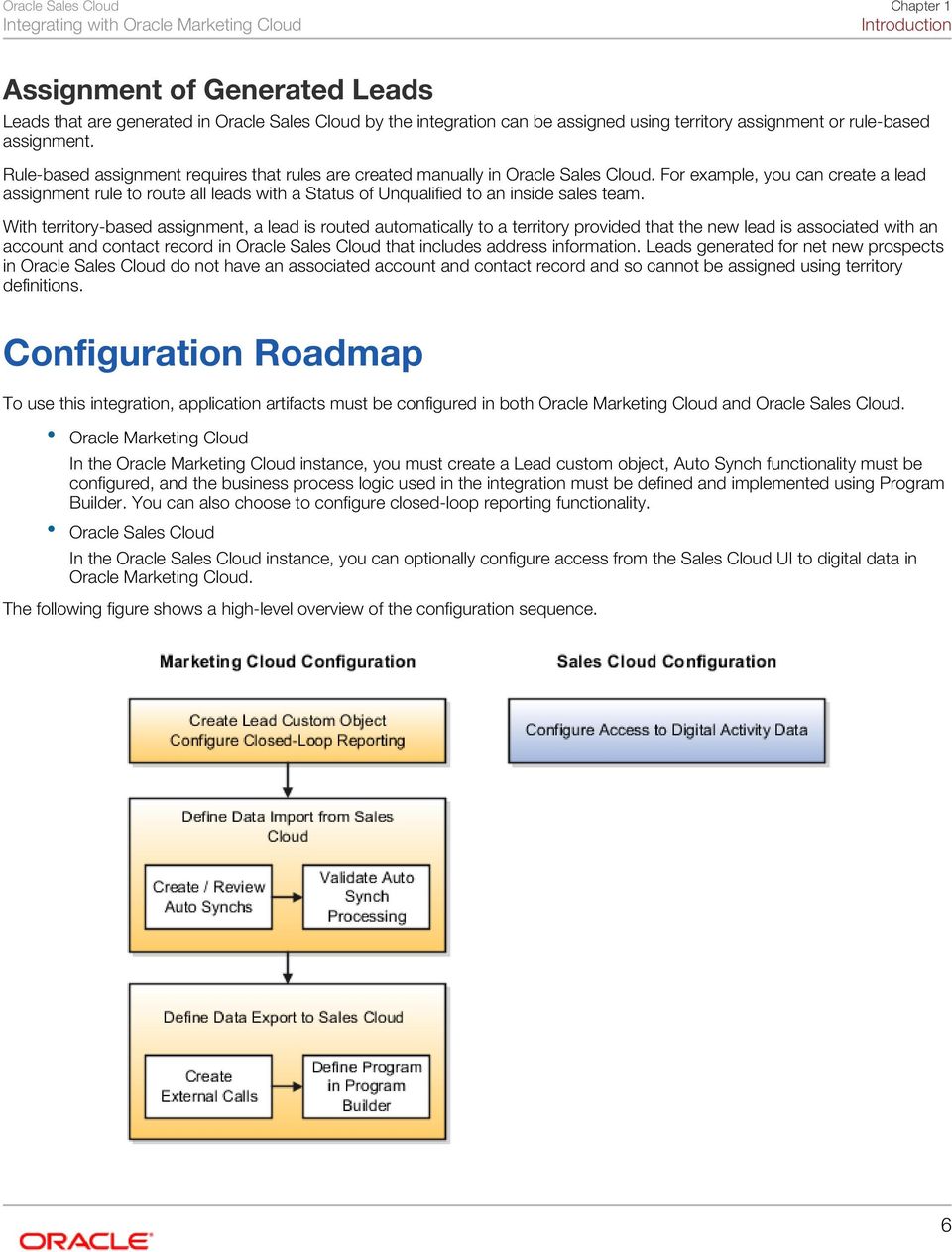
12 Chapter 1 Introduction Assignment of Generated Leads Leads that are generated in by the integration can be assigned using territory assignment or rule-based assignment. Rule-based assignment requires that rules are created manually in. For example, you can create a lead assignment rule to route all leads with a Status of Unqualified to an inside sales team. With territory-based assignment, a lead is routed automatically to a territory provided that the new lead is associated with an account and contact record in that includes address information. Leads generated for net new prospects in do not have an associated account and contact record and so cannot be assigned using territory definitions. Configuration Roadmap To use this integration, application artifacts must be configured in both Oracle Marketing Cloud and. Oracle Marketing Cloud In the Oracle Marketing Cloud instance, you must create a Lead custom object, Auto Synch functionality must be configured, and the business process logic used in the integration must be defined and implemented using Program Builder. You can also choose to configure closed-loop reporting functionality. In the instance, you can optionally configure access from the Sales Cloud UI to digital data in Oracle Marketing Cloud. The following figure shows a high-level overview of the configuration sequence. 6
13 Chapter 1 Introduction Integration Assumptions and Constraints Before implementing the to Oracle Marketing Cloud integration, note the following assumptions and constraints: Not all fields visible on the Contact, Account and Lead objects are available in the integration. Check the fields that are available before finalizing field mapping. Fields that allow multiple selections are not supported by default in this release of the integration. However, you can use Oracle Cloud extensibility tools to enable this functionality. When Sales Cloud contact and lead records are merged or deleted, these changes are not synchronized to Oracle Marketing Cloud. Merged or deleted account records are synchronized to Oracle Marketing Cloud. The integration supports the synchronization of custom fields defined for standard objects. 7

14 Chapter 1 Introduction 8
15 Chapter 2 Oracle Marketing Cloud: Preliminary Configuration 2 Oracle Marketing Cloud: Preliminary Configuration Overview This chapter details the preliminary tasks you must perform in Oracle Marketing Cloud before you can configure data synchronization for the integration. Note You must be a member of the Customer Administrator security group in Oracle Eloqua Marketing Cloud to access the integration functionality and perform the configuration tasks described in this chapter. Software Requirements for Oracle Marketing Cloud The integration is supported on all Oracle Eloqua Marketing Cloud implementations. For the list of supported Web browsers for Oracle Eloqua Marketing Cloud, see the Certifications tab on My Oracle Support. Prerequisite Tasks for Configuring Oracle Marketing Cloud Before you can configure your Oracle Marketing Cloud environment to prepare it for the integration, carry out the following prerequisite tasks. 1. Verify that the integration is enabled. If the integration was not enabled when your Oracle Eloqua instance was provisioned, create a service request (SR) on My Oracle Support to request this feature. Alternatively, you can phone Oracle Global Customer Support directly. 2. If you want to use the Digital Profile functionality to display digital activity data for contacts in Oracle Sales Cloud, create an SR on My Oracle Support and request that the Dhttps and JSSE settings are enabled on your environment. For additional information about the digital profiler, see the topic Configuring Access to the Digital Profile Infolet. 3. Run the integration startup wizard as described in Running the CRM Integration Setup Wizard. Before running the wizard, identify the user ID and password required to connect to. Related Topics Configuring Access to the Digital Profile Infolet: Procedure 9
16 Chapter 2 Oracle Marketing Cloud: Preliminary Configuration Running the CRM Integration Setup Wizard Before you can complete any of the integration configuration tasks in Oracle Eloqua, you must first run the CRM Integration Setup wizard. Running the wizard allows you to setup and verify the connection to, and enables the import of data from. The following procedure describes how to run the wizard. 1. Log in to Oracle Eloqua Marketing Cloud with administrator privileges. 2. In the navigation bar at the top of the application window, select Settings - Setup - Integration. Provided that the CRM Integration Setup wizard has not been run previously, the CRM Integration Setup window is displayed. 3. In the CRM Account Information area, enter the following connection information: The URL of your instance. The user name and password used to connect to. 4. In the Error Notification area, enter the address to which error notifications are sent if an error occurs during communications with. You can change the address at a later time, if necessary, as follows: a. From the navigation bar at the top of the application window, select Settings - Setup - Integration. b. Select the Configuration tab, and then select Error Notifications, Manage Error Notifications. 5. Click Start CRM Integration. The wizard runs processes to verify the Sales Cloud login, and to enable the integration with. Once the wizard completes successfully, the integration is started. 6. Disable the auto synchs enabled by the CRM Integration Setup wizard so that they do not run until you have completed the auto synch configuration for your implementation: a. In the navigation bar at the top of the application window, select Settings - Setup - Integration. b. Click the Inbound tab, and then select Auto Synchs from the Management menu. c. In the Auto Synchs area, navigate to each of the following auto synchs, click the down arrow beside the auto synch, and then select the option Disable Auto Synch. Get Accounts Get Contacts When you have completed the integration configuration described in this guide, enable each auto synch by selecting the Run Auto Synch option. 10

17 Chapter 2 Oracle Marketing Cloud: Preliminary Configuration Creating the Lead Custom Object and Creating Custom Fields for Standard Objects Oracle Marketing Cloud does not include a Lead object by default. In order to synchronize lead data from, therefore, you must first create a Lead custom object. You might also want to create custom fields for the Account and Contact objects in Oracle Marketing Cloud. Both of these tasks are described in this topic. Note You must create the Lead custom object and custom fields for the Account and Contact objects before you perform any other Oracle Marketing Cloud configuration tasks. Creating the Marketing Cloud Lead Custom Object Perform the steps in the following procedure to create the Lead custom object required for the integration. You must create the Lead custom object before you create the Auto Synch functionality and external calls used to synchronize data in the integration. 1. Log in to Oracle Eloqua Marketing Cloud with administrator privileges. 2. In the navigation bar at the top of the application window, select Contacts, then Custom Objects. 3. From the Custom Object menu, click New Custom Object. 4. In the Custom Object area, enter values similar to those in the following table, and then click Next. Field Value Display Name Lead Entity Type Contacts Entity Field Address 5. Create fields for the new Lead object as follows: a. From the Custom Object Record Fields menu on the top right of the screen, select Add New Field. b. On the Custom Object Record Field window, enter values in the fields as required, then click Save and Close. You must enter values for the following at a minimum: Field Name Data Type Field Type used when editing a Custom Object Record 11
18 Chapter 2 Oracle Marketing Cloud: Preliminary Configuration For an example of the fields you might choose to create, see the topic Creating the Lead Auto Synch. 6. Click Save and Close, and then click Next. 7. In the Header Fields window, click Next. 8. On the Custom Object window, review the values you entered for the Lead custom object, and then click Save. Creating Contact and Account Custom Fields Custom fields created in are available when you perform field mappings for the external calls used by Program Builder and Auto Synch functionality. Create equivalent custom fields in Oracle Eloqua if required, and map the custom Sales Cloud fields to them. Note You must create a custom field, Account Status, in Oracle Eloqua Marketing Cloud before you create the Get Deleted Account auto synch. To create Account or Contact custom fields, perform the steps in the following procedure. 1. Log in to Oracle Eloqua Marketing Cloud with administrator privileges. 2. In the navigation bar at the top of the application window, select Settings - Setup - Fields & Views. Make sure that the Fields button in the center of the screen is highlighted. 3. Click on the add icon (+) and select Add Contact Field or Add Account Field as appropriate. 4. Enter values in the fields as required. You must enter values for the following fields: Display Name Data Type Field Type 5. Select any options, if required. 6. Click Save. Related Topics Creating the Lead Auto Synch: Procedure Creating the Get Deleted Account Auto Synch: Procedure Configuring Closed-Loop Reporting The integration provides closed-loop reporting functionality which you can optionally choose to implement. Closed-loop reporting allows you to associate sales opportunity revenue with specific marketing campaigns so that you can analyze your 12

19 Chapter 2 Oracle Marketing Cloud: Preliminary Configuration campaign effectiveness. To use the closed-loop reporting functionality, there are additional configuration tasks you must complete, which are described in this topic. For additional information about the closed-loop reports and dashboards that are available with the integration, see the chapter Closed-Loop Reporting Dashboards and Reports. Note You do not have to implement closed-loop reporting functionality. Configuring closed-loop reporting is an optional task. To enable closed-loop reporting, perform the following tasks. Each task is described in detail in the remainder of this chapter. 1. Define campaign activities. For information, see the topic Configuring External Assets and Activities. 2. Define response rules. For information, see the topic Defining Response Rules for Campaign Activities. 3. Define opportunity stages for Oracle Marketing Cloud. For information, see the topic Defining Opportunity Stages. 4. Configure the method of attributing opportunity revenue to campaigns. For information, see the topic Configure the Default Revenue Attribution Method. 5. Configuring how opportunities are associated to contacts. For information, see the topic Configuring the Association between Imported Opportunities and Contacts. Configuring External Assets and Activities An external asset is an offline activity, such as attending a tradeshow, performed by a contact or prospect. Perform the steps in the following procedure to define the external assets and associated activities for your campaigns 1. Log in to Oracle Eloqua Marketing Cloud with administrator privileges. 2. In the navigation bar at the top of the application window, select Settings - Setup - Assets - External Activities. 3. To add a new external asset type, click the Add icon (+) on the bottom left hand corner of the page. 4. In the External Asset Type field, enter a name for the external asset, for example, Tradeshow. 5. To add an external activity type for the asset, click the Add icon located below the Activity Types box. 6. Enter the name of the activity, for example, Viewed a Demo, or Visited Booth. Note Activity Type names must be unique. 13
20 Chapter 2 Oracle Marketing Cloud: Preliminary Configuration 7. Enter the name of the corresponding external asset in the Asset Type Name field. 8. Add as many external asset types and activities as are required for your campaigns. 9. Click Save. Perform all of the steps outlined above for each external asset and activity type required for your campaigns. Defining Response Rules for Campaign Activities Perform the steps in the following procedure to configure response rules for the campaign activities you created previously. 1. In the navigation bar at the top of the application window, select Settings - Setup - Assets - Response Rules. The Default Campaign Response Rules window opens. 2. First, create the campaign member status values as follows. Member status values indicate the responses made by campaign members to an activity. a. Select the Manage Campaign Member Statuses option from the Advanced Options menu (top right corner of the window). b. For each campaign member status value you want to add, click Add, then enter the status name in both the Value and Display Name fields. Examples of status values might be Attended, or Viewed Demo. c. Click Close. 3. In the Default Campaign Response Rule Details section, create a response rule for each external asset response activity as follows: a. Click the Add Response Activity icon (+). b. In the Response Activity field, select the activity for which you are creating the rule. For example, External Activity: Tradeshow Viewed a Demo. c. In the Member Campaign Status field, select an appropriate status value to associate with the activity, for example, Viewed Demo. d. In the Priority field, indicate the priority of the activity. e. Click Save. Defining Opportunity Stages To successfully synchronize opportunities from Sales to Marketing, the stages defined for opportunities in must also be created in Oracle Marketing Cloud. Determine the opportunity stages that are used in then, if necessary, create any additional opportunity stages in Oracle Marketing Cloud. If an opportunity stage is no longer required in Oracle Marketing Cloud, you can inactivate the stage. The procedures in this topic describe how to create and inactivate opportunity stages. 14
21 Chapter 2 Oracle Marketing Cloud: Preliminary Configuration Note The names of the opportunity stages you create in Oracle Marketing Cloud must match exactly the opportunity stage names in, including the use of spaces. Defining Opportunity Stages Perform the steps in the following procedure to create any additional opportunity stages that you require in Oracle Marketing Cloud. 1. Log in to Oracle Eloqua Marketing Cloud with administrator privileges and navigate to Campaigns. 2. From the Action menu (Gear icon), select Opportunity Settings In the Opportunity Stage Details section, select Add New Opportunity Stage. 4. Create at least 2 opportunity stages: A stage with a probability of closing of 100% (closed won) A stage with a probability of closing of 0% (closed lost) For each stage, enter values similar to those in the following table, and then click Next. Field Value Opportunity Stage Name The name of the new stage, for example, Closed Lost. Probability of Closing The probability of closing the opportunity as a percentage. For example, 0%. 5. Check the Indicate Closed/Lost box for the stage, if appropriate. 6. To define another stage, click Save and New. Otherwise, click Save and Close. Inactivating Opportunity Stages Opportunities are managed in. As a result, after you create an opportunity stage in Oracle Marketing Cloud, you cannot edit the stage name or the probability of closing value specified for the stage. You can, however, select or deselect the Indicate Closed/Lost checkbox for the stage and you can inactivate an existing stage. Perform the steps in the following procedure to inactivate an opportunity stage. 1. Log in to Oracle Eloqua Marketing Cloud with administrator privileges and navigate to Campaigns. 2. From the Action menu (Gear icon), select Opportunity Settings In the Opportunity Stage Details section, select Inactivate Stage for a selected stage. 15
22 Chapter 2 Oracle Marketing Cloud: Preliminary Configuration Note If you set a stage to inactive, it cannot be reactivated. 4. Click OK when prompted to confirm that you want to inactivate the stage. When you inactivate an opportunity stage, the stage is no longer included in the Opportunity Stages list. However, the stage data is maintained in Oracle Marketing Cloud for use in related reports. Configuring the Default Revenue Attribution Method Configure the default method of attributing opportunity revenue as described in the following procedure. You must have defined opportunity stages, as described in Defining Opportunity Stages, to complete this task. To configure the default revenue attribution method, perform the following steps. 1. Log in to Oracle Eloqua Marketing Cloud with administrator privileges and navigate to Campaigns. 2. From the Action menu (Gear icon), select Opportunity Settings In the Default Revenue Attribution Method section, click Edit. 4. Specify the campaign responses that you want to include in the revenue attribution. It is recommended that you choose the option All Campaign Responses from Lead Creation in Eloqua to Opportunity Close in CRM. 5. Specify the method you want to use to attribute opportunity revenue across campaigns. 6. Click Save and Close, then Save. Configuring the Association between Imported Opportunities and Contacts When an opportunity is synchronized to Oracle Marketing Cloud, it can either be associated to a contact directly, or associated to a contact through an account. This topic describes how to specify the method of associating opportunities to contacts that you want to use in the integration; only one method can be selected. To configure the association between opportunities and contacts, perform the following steps. 1. Log in to Oracle Eloqua Marketing Cloud with administrator privileges and navigate to Campaigns. 2. From the Action menu (Gear icon), select Opportunity Settings In the Contact to Opportunity Association section, click Edit. 4. Under the heading Association of Opportunities to Campaigns Using Contacts, specify how you want imported opportunities to be associated with contacts. 16
23 Chapter 2 Oracle Marketing Cloud: Preliminary Configuration The value that you select determines which of the link opportunity auto synchs you must create. For information, see the topic About Creating the Opportunity Auto Synchs. 5. Click Save and Close, then Save. Related Topics Creating Auto Synchs for the Opportunity Object: Explained 17
24 Chapter 2 Oracle Marketing Cloud: Preliminary Configuration 18
25 Chapter 3 Configuring Data Synchronization from Sales Cloud to Marketing Cloud 3 Configuring Data Synchronization from Sales Cloud to Marketing Cloud About Setting Up Data Synchronization from Sales Cloud This chapter details the steps required to configure Oracle Marketing Cloud to enable data synchronization from Oracle Sales Cloud to Oracle Marketing Cloud. Note You must be a member of the Customer Administrator security group in Oracle Eloqua to access the integration functionality and perform the configuration tasks described in this chapter. Oracle Eloqua Auto-Synch Functionality The integration uses Oracle Eloqua Auto-Synch functionality to provide scheduled imports of data. An auto synch must exist for each type of data that is synchronized from. The auto synch defines the import schedule, the fields to synchronize, and the actions that Oracle Eloqua performs when the data is imported. The integration provides auto syncs for importing account and contact data which you can review and change if required. As part of the integration configuration, you must also create additional auto synchs and verify auto synch processing. Auto Synch Configuration Tasks To synchronize data from to Oracle Marketing Cloud, you perform the following tasks: Review the auto synchs provided to import account and contact data and amend them if required. For information, see the topic Reviewing the Predefined Account and Contact Auto Synchs. Create an auto synch to import lead data. If you are using the Program Manager Hybrid template, you must also create two additional auto synchs so that the status of imported leads (converted or unconverted) can be tracked on the associated Oracle Eloqua contact records. Lead objects do not exist in Oracle Eloqua Marketing Cloud so create a custom Lead object before creating the Lead auto synch. For information, see the topic Creating Auto Synchs for the Lead Object. Create an auto synch to import opportunity data. You must also create a second opportunity auto synch to link the imported opportunity to either a contact or an account in Oracle Marketing Cloud. For information, see the topic Creating Auto Synchs for the Opportunity Object. The integration provides an auto synch to import account data. However, you must create an additional auto synch to import deleted or merged account records from. For information, see the topic Creating the Get Deleted Account Auto Synch. 19
26 Chapter 3 Configuring Data Synchronization from Sales Cloud to Marketing Cloud Verify that the priority levels assigned to Sales Cloud data during the import process are correct. For information, see the topic Reviewing Data Priority Levels for Imported Data. Test the auto synchs you created and updated to make sure they run correctly. For information, see the topic Validating Auto Synch Processing. Reviewing the Predefined Account and Contact Auto Synchs Perform the steps in the following procedure to review the auto syncs defined in the integration for account and contact data, and to update the auto synchs if required. The values specified for each auto synch determine what fields are synchronized from and how often they are synchronized. 1. Log in to Oracle Eloqua Marketing Cloud with administrator privileges. 2. In the navigation bar at the top of the application window, select Settings - Setup - Integration. 3. Click the Inbound tab, 4. From the Management menu, select Auto Synchs. All the existing auto syncs are listed. 5. Navigate to either the Account or Contact auto synch and select Auto Synch Details from the drop-down menu. 6. Review the information in each of the sections shown by clicking the down arrow. Amend the information by clicking the Edit button. The information you can update is described in the following sections. Auto Synch Details Edit the Auto Synch Details if, for example, you want to change the address to which success or failure notifications are sent. Verify that the Enabled check box is selected. Transfer Values The Transfer Values section displays information relating to the external call used by the auto sync. To edit this information, perform the following steps: 1. Click the Edit icon in the Transfer Values section. 2. The default transfer values are displayed. Click the Edit icon again. 3. Edit the fields in the following table as required. Parameter Value External Call Name Get Accounts or Get Contacts External Call Description Change the description if required. 20
27 Chapter 3 Configuring Data Synchronization from Sales Cloud to Marketing Cloud Parameter Value External User If you have multiple users set up, make sure the correct user is selected. The Action and Entity values specified for the auto synch are displayed but cannot be changed. 4. From the Options menu in the top right corner, click View Field Selection. All the fields currently selected for synchronization from are displayed. You can add additional fields or remove fields as required. Account auto sync: Map the Organization ID field at a minimum. Contact auto sync: Map the field at a minimum. 5. From the Options menu, select View Filter Details to modify the filter values for the auto synch. In the Filter Type area, verify that: a. The value of the Account Fields or Contact Fields field is set to Last Updated At. b. The Operator field is set to Greater Than or Equal. c. The Expression field is set to Last Successful Upload. Field Mapping The field mapping values specify how fields in are mapped to fields in Oracle Marketing Cloud. Review the following values: The values of the Uniquely Match On field must be set as follows: Account auto sync. Leave the value as Oracle Fusion Account ID. Contact auto sync. Leave the value as Address. Field Mappings Map the source fields in to the target fields in Oracle Marketing Cloud. Account field mappings. The following table shows how account fields are mapped to Oracle Marketing Cloud fields by default. Sales Cloud Account Fields Marketing Cloud Fields Organization ID Oracle Fusion Account ID 21
28 Sales Cloud Account Fields Chapter 3 Configuring Data Synchronization from Sales Cloud to Marketing Cloud Marketing Cloud Fields Note This field is used by the integration. Do not change the default mapping. Organization Name Account Name Address Line 1 Address 1 Address Line 2 Address 2 Address Line 3 Address 3 City City Country Country Postal Code Zip or Postal Code State State or Province Contact field mappings. The following table shows how contact fields are mapped to Oracle Marketing Cloud fields by default. Sales Cloud Contact Fields Marketing Cloud Fields Account ID Oracle Fusion Account ID Address Line 1 Address 1 Address Line 2 Address 2 Address Line 3 Address 3 Business Phone Business Phone 22
29 Chapter 3 Configuring Data Synchronization from Sales Cloud to Marketing Cloud Sales Cloud Contact Fields Marketing Cloud Fields Contact ID Oracle Fusion Contact ID Address Note NOTE: This field is used by the integration. Do not change this default mapping. Do Not Opt Out First Name First Name Last Name Last Name City City Country Country State State Province Province Postal Code Zip or Postal Code Mobile Phone Mobile Phone Salutation Salutation Job Title Title Upload Actions Do not change the values for upload actions. 23
30 Chapter 3 Configuring Data Synchronization from Sales Cloud to Marketing Cloud Upload Schedule You can change the auto synch synchronization schedule for account and contact data as required. It is recommended that you specify the following values: Auto Synch Runs on Selected Days at 10pm EST. Select No. Auto-Synch Runs or Repeats Once Every. Select 2 hours. You can optionally specify values ranging from 30 minutes to 24 hours. Auto Synch proceeds by Standard Business Schedule. Select No. In the calendar, specify the day the auto synch is to run, and the start and end times to run the auto synch, and then click Finish. Creating Auto Synchs for the Lead Object About Creating the Lead Auto Synchs To import lead data from to Oracle Eloqua Marketing Cloud, you must create the following auto synchs: An auto synch to import lead data from to the Lead custom object in Oracle Eloqua Marketing Cloud. For information, see the topic Creating the Lead Auto Synch. If you are using the Program Manager Hybrid template, you must also create two additional auto synchs to import lead data to the Contact object in Oracle Eloqua Marketing Cloud: one auto synch for leads that have been converted to opportunities, and one for unconverted leads. For information, see the topics: Creating the Get Unconverted Lead Auto Synch Creating the Get Converted Lead Auto Synch Note Before creating the Lead auto synchs, create a custom lead object and associated fields in Oracle Eloqua Marketing Cloud. For information, see the topic Creating the Lead Custom Object and Creating Custom Fields for Standard Objects. Related Topics Creating the Lead Custom Object and Creating Custom Fields for Standard Objects: Procedure Creating the Lead Auto Synch This topic describes how to create an auto synch that imports lead data from to the Lead custom object in Oracle Eloqua Marketing Cloud. To create the Lead auto synch, perform the steps in the following procedure. 1. Log in to Oracle Eloqua Marketing Cloud with administrator privileges. 24
31 Chapter 3 Configuring Data Synchronization from Sales Cloud to Marketing Cloud 2. In the navigation bar at the top of the application window, select Settings - Setup - Integration. 3. Click the Inbound tab. 4. On the Create Data Sources menu, select Create Data Source with External Call. The External Call wizard starts. In the External Call wizard, enter the information for each step as described below, then click Next to proceed to the following step. Step 1 - External Call Details Enter details about the external call used by the auto synch. 1. Enter the values shown in the following table. Field Value External Call Name Get Leads Save in Folder Retrieve Data External User If you have multiple users set up, make sure you are using the correct one. Data Type Data Card Custom Object Lead Purpose of Upload Add these data cards to the database. Priority Get CRM Leads 2. Select the Can Be Scheduled for Automatic Execution checkbox. Step 2 - Source Details Specify details for the data source as shown in the following table. Field Value Action Retrieve Entity Lead (Lead) 25
32 Chapter 3 Configuring Data Synchronization from Sales Cloud to Marketing Cloud Step 3 - Field Selection Check all the lead fields you want to synchronize from. You must select Address and Lead ID as a minimum. Step 4- Filter Details Specify how you want to filter the data that is imported from. 1. In the Lead Fields column, select the value Last Updated At. 2. In the Operator column, select the value Greater Than or Equal. 3. In the Expression column, click the arrow beside the text box and select Add Date. 4. In the Add Date window, select the option Use the start date of the last successful upload, then click Save and Close. 5. Click Save. Step 5 - Field Mapping Specify how lead-related fields in are mapped to fields in Oracle Marketing Cloud. 1. In the Unique Match area, enter the values shown in the following table. Field Value Data Card Field ID Unique Identifier Provided by Eloqua Lead ID 2. In the Field Mappings area, map source lead fields in to target lead fields in Oracle Marketing Cloud. Create custom fields for the Lead custom object in Oracle Marketing Cloud for any fields you want to map. The following table shows the recommended mapping for lead fields. Sales Cloud Lead Fields Marketing Cloud Lead Fields Address 1 Address 1 Address 2 Address 2 Address 3 Address 3 Assignment Status Code Assignment Status Code Budget Status Budget Status Channel Type Channel Type 26
33 Chapter 3 Configuring Data Synchronization from Sales Cloud to Marketing Cloud Sales Cloud Lead Fields Marketing Cloud Lead Fields City City Country Country Customer Id Oracle Fusion Account Id Lead Id Lead Id Lead Name Lead Name Postal Code Postal Code Address Address Primary Contact ID Contact ID First Name First Name Last Name Last Name Province Province Rank Rank Sales Channel Sales Channel State State Status Code Status Code Company Name Company Name Lead Source Lead Source 27
34 Chapter 3 Configuring Data Synchronization from Sales Cloud to Marketing Cloud Step 6 - Upload Actions Specify the upload actions as follows. 1. In the Validate Address area, uncheck the checkbox Validate that the address exists and the format is correct. 2. In the Import Data Cards area: Verify that the value of the Data Card Set field is Sales Cloud Leads. Select the Map data cards check box. Set Entity Type to Contacts. Set Entity Field to Address. Set Source Field to . Do not select the Case sensitive match check box. Step 7- Summary The Summary screen displays a summary of the settings that are used by the auto synch to synchronize lead data from. You also specify scheduling information for the auto synch. Perform the following steps. 1. In the Notification area, enter the address where the auto synch success or failure notification is sent. 2. In the After Uploading area, select the Schedule automatic data imports using these settings check box. 3. In the Auto-Synch Schedule area, it is recommended that you specify the following values: Auto Synch Runs on Selected Days at 10pm EST. Select No. Auto-Synch Runs or Repeats Once Every. Select 2 hours. You can optionally specify values ranging from 30 minutes to 24 hours. Auto Synch proceeds by Standard Business Schedule. Select No. In the calendar, specify the day the auto synch is to run, and the start and end times to run the auto synch. 4. Click Finish. Creating the Get Unconverted Lead Auto Synch If you are using the Program Manager Hybrid template, you must create an auto synch that synchronizes data for unconverted leads in (for example, leads with a status of Qualified, Unqualified, or Retired) to the associated Oracle Eloqua contact records. Data synchronized to the contact record includes the Lead CRM ID of the record. 28
35 Chapter 3 Configuring Data Synchronization from Sales Cloud to Marketing Cloud Perform the steps in the following procedure to create the Get Unconverted Lead auto synch. 1. Log in to Oracle Eloqua Marketing Cloud with administrator privileges. 2. If a shared list for unconverted leads does not already exist, create it as follows: a. In the navigation bar at the top of the application window, select Contacts - Shared Library. b. Select Shared Lists in the left navigation bar. c. Click the New button. d. In the Add New Shared List dialog box, click the Action menu (Gear icon), then select Settings. e. In the Name field, enter the value Leads. f. Click Done, then click Save. 3. To create the auto synch, in the navigation bar at the top of the application window, select Settings - Setup Integration. 4. Click the Inbound tab. 5. On the Create Data Sources menu, select Create Data Source with External Call. The External Call wizard starts. In the External Call wizard, enter the information for each step as described below, then click Next to proceed to the following step. Step 1 - External Call Details Enter details about the external call used by the auto synch. 1. Enter the values shown in the following table. Field Value External Call Name Get Un-Converted Leads Save in Folder Retrieve Data External User If you have multiple users set up, make sure you are using the correct one. Data Type (For Import) Contact Purpose of Upload Add these contacts to the database. 29
36 Chapter 3 Configuring Data Synchronization from Sales Cloud to Marketing Cloud Field Value Priority CRM Leads 2. Select the Can Be Scheduled for Automatic Execution checkbox. Step 2 - Source Details Specify details for the data source as shown in the following table. Field Value Action Retrieve Entity Contact Step 3 - Field Selection Check all the lead fields you want to synchronize from. You must select Address and Oracle Sales Lead ID as a minimum. Step 4 - Filter Details Specify how you want to filter the data that is imported from. Specify two filters as follows. First Row. a. In the Lead Fields column, select the value Last Updated At. b. In the Operator column, select the value Greater Than or Equal. c. In the Expression column, click the arrow beside the text box and select Add Date. d. In the Add Date window, select the option Use the start date of the last successful upload, then click Save and Close. Second Row. a. In the Lead Fields column, select the value Status Code. b. In the Operator column, select the value Not Equal To. c. In the Expression column, enter the value Converted. d. Click Save. 30
37 Chapter 3 Configuring Data Synchronization from Sales Cloud to Marketing Cloud Step 5 - Field Mapping Specify how lead-related fields in are mapped to fields in Oracle Marketing Cloud. 1. In the Unique Match area, for the field Uniquely Match On Eloqua Contact Field, enter the value Address. 2. In the Field Mappings area, map the source lead fields you previously selected for synchronization to the target fields in Oracle Marketing Cloud. You must map the lead fields shown in the following table at a minimum. Sales Cloud Lead Fields Marketing Cloud Lead Fields Address_c Address Lead ID Lead ID Step 6 - Upload Actions In the Add to Contact Group area, select the shared list Leads. Step 7- Summary The Summary screen displays a summary of the settings that are used by the auto synch to synchronize lead data from. You also specify scheduling information for the auto synch. Perform the following steps. 1. In the Notification area, enter the address where the auto synch success or failure notification is sent. 2. In the After Uploading area, select the Schedule automatic data imports using these settings check box. 3. In the Auto-Synch Schedule area, specify the day and time when the auto synch is to run. 4. Click Finish. Creating the Get Converted Lead Auto Synch If you are using the Program Manager Hybrid template, you must create an auto synch that synchronizes information for leads with a status of converted to the associated Oracle Eloqua contact records. When a converted lead is imported into Oracle Eloqua, the CRM Lead ID is removed from the Oracle Eloqua contact record, thereby allowing a new lead to be created for the contact in future. Perform the steps in the following procedure to create the Get Converted Lead auto synch. 1. Log in to Oracle Eloqua Marketing Cloud with administrator privileges. 2. If a shared list for converted leads does not already exist, create it as follows: a. In the navigation bar at the top of the application window, select Contacts - Shared Library. 31
38 Chapter 3 Configuring Data Synchronization from Sales Cloud to Marketing Cloud b. Select Shared Lists in the left navigation bar. c. Click the New button. d. In the Add New Shared List dialog box, click the Action menu (Gear icon), then select Settings. e. In the Name field, enter the value Converted Leads. f. Click Done, then click Save. 3. To create the auto synch, in the navigation bar at the top of the application window, select Settings - Setup Integration. 4. Click the Inbound tab. 5. On the Create Data Sources menu, select Create Data Source with External Call. The External Call wizard starts. In the External Call wizard, enter the information for each step as described below, then click Next to proceed to the following step. Step 1 - External Call Details Enter details about the external call used by the auto synch. 1. Enter the values shown in the following table. Field Value External Call Name Get Converted Leads Save in Folder Retrieve Data External User If you have multiple users set up, make sure you are using the correct one. Data Type (For Import) Contact Purpose of Upload Add these contacts to the database. Priority CRM Leads 2. Select the Can Be Scheduled for Automatic Execution checkbox. 32
39 Chapter 3 Configuring Data Synchronization from Sales Cloud to Marketing Cloud Step 2 - Source Details Specify details for the data source as shown in the following table. Field Value Action Retrieve Entity Contact Step 3 - Field Selection Check all the lead fields you want to synchronize from. You must select Address_c and Lead ID as a minimum. Step 4 - Filter Details Specify how you want to filter the data that is imported from. Specify two filters as follows. First Row. a. In the Lead Fields column, select the value Last Updated At. b. In the Operator column, select the value Greater Than or Equal. c. In the Expression column, click the arrow beside the text box and select Add Date. d. In the Add Date window, select the option Use the start date of the last successful upload, then click Save and Close. Second Row. a. In the Lead Fields column, select the value Status Code. b. In the Operator column, select the value Equals. c. In the Expression column, enter the value Converted. d. Click Save. Step 5 - Field Mapping Specify how lead-related fields in are mapped to fields in Oracle Marketing Cloud. 1. In the Unique Match area, for the field Uniquely Match On Eloqua Contact Field, enter the value Oracle Sales Cloud Lead ID. 2. In the Field Mappings area, map the source lead fields you previously selected for synchronization to the target fields in Oracle Marketing Cloud. You must map the lead fields shown in the following table at a minimum. 33
40 Chapter 3 Configuring Data Synchronization from Sales Cloud to Marketing Cloud Sales Cloud Lead Fields Marketing Cloud Lead Fields Address_c Address Lead ID Lead ID 3. Click Advanced Options. 4. In the Update Records With a Set Value area, select Lead ID in the Field column, then click Add Set Value. Leave the Set to Value field blank. Step 6 - Upload Actions In the Add to Contact Group area, select the shared list Converted Leads. Step 7- Summary The Summary screen displays a summary of the settings that are used by the auto synch to synchronize converted lead data from. You also specify scheduling information for the auto synch. Perform the following steps. 1. In the Notification area, enter the address where the auto synch success or failure notification is sent. 2. In the After Uploading area, select the Schedule automatic data imports using these settings check box. 3. In the Auto-Synch Schedule area, specify the day and time when the auto synch is to run. 4. Click Finish. Creating Auto Synchs for the Opportunity Object About Creating the Opportunity Auto Synchs To import opportunity data to Oracle Marketing Cloud, you must create two auto synchs: An auto synch to import opportunity data. For information, see Creating the Get Opportunities Auto Synch. An auto synch to link imported opportunities to contacts. You can choose to link opportunities to contacts directly, or you can link opportunities to contacts through accounts. However, you can only choose one method of linking opportunities, which is applied to all opportunities that are imported by the integration. Depending on the linking method you prefer, create one of the following auto synchs: To link opportunities to contacts directly, see Creating the Get Opportunities and Link to Primary Contact Auto Synch 34
41 Chapter 3 Configuring Data Synchronization from Sales Cloud to Marketing Cloud To link opportunities to contacts through accounts, see Creating the Get Opportunities and Link to Accounts Auto Synch. The procedures in the following topics describe how to create all three opportunity auto synchs. Note Define required opportunity stages in Oracle Marketing Cloud before creating the opportunity auto synchs. For information, see the topic Defining Opportunity Stages. Related Topics Defining Opportunity Stages: Procedure Creating the Get Opportunities Auto Synch This topic describes how to create an auto synch that imports opportunity data from to Oracle Marketing Cloud. Note You cannot delete opportunities from the Oracle Marketing Cloud user interface (UI) so test the Get Opportunities auto synch thoroughly before enabling opportunity data import. Perform the steps in the following procedure to create the Get Opportunities auto synch. 1. Log in to Oracle Eloqua Marketing Cloud with administrator privileges. 2. In the navigation bar at the top of the application window, select Settings - Setup - Integration. 3. Click the Inbound tab. 4. On the Create Data Sources menu, select Create Data Source with External Call. The External Call wizard starts. In the External Call wizard, enter the information for each step as described below, then click Next to proceed to the following step. Step 1 - External Call Details Enter details about the external call used by the auto synch. 1. Enter the values shown in the following table. Field Value External Call Name Get Opportunities Save in Folder Retrieve Data 35
42 Chapter 3 Configuring Data Synchronization from Sales Cloud to Marketing Cloud Field Value External User If you have multiple users set up, make sure you are using the correct one. Data Type Opportunity Purpose of Upload Add these opportunities to the database. 2. Select the Can Be Scheduled for Automatic Execution checkbox. Step 2 - Source Details Specify details for the data source as shown in the following table. Field Value Action Retrieve Entity Opportunity (Opportunity) Step 3 - Field Selection Check all the fields you want to synchronize from. You must select the following fields at a minimum. Account Name Actual Close Date Opportunity Id Opportunity Name Revenue Stage Step 4 - Filter Details Specify how you want to filter the data that is imported from. 1. In the Opportunity Fields column, select the value Last Update Date. 2. In the Operator column, select the value Greater Than or Equal. 36
43 Chapter 3 Configuring Data Synchronization from Sales Cloud to Marketing Cloud 3. In the Expression column, click the arrow beside the text box and select Add Date. 4. In the Add Date window, select the option Use the start date of the last successful upload, then click Save and Close. Step 5 - Field Mapping Specify how opportunity-related fields in are mapped to fields in Oracle Marketing Cloud. 1. In the Unique Match area, in the field Eloqua Opportunity Field, select Opportunity ID. Also select the Perform a case-sensitive match check box. 2. In the Field Mappings area, map the source lead fields you previously selected for synchronization to the target fields in Oracle Marketing Cloud. The following table shows how opportunity fields are mapped by default. Sales Cloud Opportunity Fields Marketing Cloud Opportunity Fields Account Name Account Name Actual Close Date Close Date Opportunity Id Opportunity ID Opportunity Name Opportunity Name Revenue Amount Stage Stage Step 6 - Summary This screen displays a summary of the settings that are used by the auto synch to synchronize opportunity records from. You also specify scheduling information for the auto synch. Perform the following steps. 1. In the Notification area, enter the address where the auto synch success or failure notification is sent. 2. In the After Uploading area, select the Schedule automatic data imports using these settings check box. 3. In the Auto-Synch Schedule area, it is recommended that you specify the following values: Auto Synch Runs on Selected Days at 10pm EST. Select No. 37
44 Chapter 3 Configuring Data Synchronization from Sales Cloud to Marketing Cloud Auto-Synch Runs or Repeats Once Every. Select 2 hours. Auto Synch proceeds by Standard Business Schedule. Select No. In the calendar, specify the day the auto synch is to run, and the start and end times to run the auto synch. 4. Click Finish. Creating the Get Opportunities and Link to Primary Contact Auto Synch Perform the steps in the following procedure to create an auto synch to link opportunities imported from to contacts in Oracle Marketing Cloud. Note You don't have to create the Get Opportunities and Link to Primary Contact auto synch if you've created the Get Opportunities and Link to Accounts auto synch. 1. Log in to Oracle Eloqua Marketing Cloud with administrator privileges. 2. In the navigation bar at the top of the application window, select Settings - Setup - Integration. 3. Click the Inbound tab. 4. On the Create Data Sources menu, select Create Data Source with External Call. The External Call wizard starts. In the External Call wizard, enter the information for each step as described below, then click Next to proceed to the following step. Step 1 - External Call Details Enter details about the external call used by the auto synch. 1. Enter the values shown in the following table. Field Value External Call Name Link Opportunities to Contacts Save in Folder Retrieve Data External User If you have multiple users set up, make sure you are using the correct one. Data Type Opportunity 38
45 Chapter 3 Configuring Data Synchronization from Sales Cloud to Marketing Cloud Field Value Purpose of Upload Link these opportunities to contacts. 2. Select the Can Be Scheduled for Automatic Execution checkbox. Step 2 - Source Details Specify details for the data source as shown in the following table. Field Value Action Retrieve Entity Opportunity Contact (OpportunityContact) Step 3 - Field Selection Check the opportunity fields you want to synchronize from. Select the Contact ID (reference) field and the Opportunity Id (reference) field. Step 4 - Filter Details Specify how you want to filter the data that is imported from. Enter the following row in the Filter Details table. 1. In the Opportunity Contact Fields column, select the value Last Update Date. 2. In the Operator column, select the value Greater Than or Equal. 3. In the Expression column, click the arrow beside the text box and select Add Date. 4. In the Add Date window, select the option Use the start date of the last successful upload, then click Save and Close. Step 5 - Field Mapping Specify how opportunity-related fields in are mapped to fields in Oracle Marketing Cloud. 1. In the Unique Match area, specify the values shown in the following table. Field Value Eloqua Opportunity Field Opportunity ID 39
46 Chapter 3 Configuring Data Synchronization from Sales Cloud to Marketing Cloud Field Value Upload Source Field Opportunity Id 2. Select the Perform a case-sensitive match check box. Step 6 - Upload Actions Specify the upload actions as follows. 1. In the Link Opportunities to Contacts area, specify the values shown in the following table. Field Value Source Field Contact ID Field Name Contact ID 2. Select the Case-sensitive match check box. Step 7- Summary This screen displays a summary of the settings that are used by the auto synch to synchronize opportunity records from. You also specify scheduling information for the auto synch. Perform the following steps. 1. In the Notification area, enter the address where the auto synch success or failure notification is sent. 2. In the After Uploading area, select the Schedule automatic data imports using these settings check box. 3. In the Auto-Synch Schedule area, specify the day and time when the auto synch is to run. 4. Click Finish. Creating the Get Opportunities and Link to Accounts Auto Synch Perform the steps in the following procedure to create an auto synch to link opportunity data synchronized from Oracle Sales Cloud to accounts in Oracle Marketing Cloud. Note You don't have to create the Get Opportunities and Link to Accounts auto synch if you've created the Get Opportunities and Link to Primary Contact auto synch. 40
47 Chapter 3 Configuring Data Synchronization from Sales Cloud to Marketing Cloud 1. Log in to Oracle Eloqua Marketing Cloud with administrator privileges. 2. In the navigation bar at the top of the application window, select Settings - Setup - Integration. 3. Click the Inbound tab. 4. On the Create Data Sources menu, select Create Data Source with External Call. The External Call wizard starts. In the External Call wizard, enter the information for each step as described below, then click Next to proceed to the following step. Step 1 - External Call Details Enter details about the external call used by the auto synch. 1. Enter the values shown in the following table. Field Value External Call Name Link Opportunities to Accounts Save in Folder Retrieve Data External User If you have multiple users set up, make sure you are using the correct one. Data Type Opportunity Purpose of Upload Link opportunities to contacts through accounts. 2. Select the Can Be Scheduled for Automatic Execution checkbox. Step 2 - Source Details Specify details for the data source as shown in the following table. Field Value Action Retrieve Entity Opportunity (Opportunity) 41
48 Chapter 3 Configuring Data Synchronization from Sales Cloud to Marketing Cloud Step 3 - Field Selection Check the opportunity fields you want to synchronize from. Select the Account ID (reference) field and the Opportunity Id (id) field. Step 4 - Filter Details Specify how you want to filter the data that is imported from by entering the following row in the Filter Details table. 1. In the Opportunity Contact Fields column, select the value Last Update Date. 2. In the Operator column, select the value Greater Than or Equal. 3. In the Expression column, click the arrow beside the text box and select Add Date. 4. In the Add Date window, select the option Use the start date of the last successful upload, then click Save and Close. Step 5 - Field Mapping Specify how opportunity-related fields in are mapped to fields in Oracle Marketing Cloud. 1. In the Unique Match area, specify the values shown in the following table. Field Value Eloqua Opportunity Field Opportunity ID Upload Source Field Opportunity: Opportunity ID 2. Select the Perform a case-sensitive match check box. Step 6 - Upload Actions Specify the upload actions as follows. 1. In the Link Opportunities to Contacts through Accounts area, specify the values shown in the following table. Field Value Source Field Account Id Field Name Account ID 42
49 Chapter 3 Configuring Data Synchronization from Sales Cloud to Marketing Cloud 2. Select the Case-sensitive match check box. Step 7- Summary This screen displays a summary of the settings that are used by the auto synch to synchronize opportunity records from. You also specify scheduling information for the auto synch. Perform the following steps. 1. In the Notification area, enter the address where the auto synch success or failure notification is sent. 2. In the After Uploading area, select the Schedule automatic data imports using these settings check box. 3. In the Auto-Synch Schedule area, specify the day and time when the auto synch is to run. 4. Click Finish. Creating the Get Deleted Account Auto Synch Perform the steps in the following procedure to create an auto synch to synchronize deleted account records from Oracle Sales Cloud to Oracle Marketing Cloud. Note Before creating the Get Deleted Account auto synch, create a custom field, Account Status, in Oracle Marketing Cloud. For information on creating custom fields, see the topic Creating the Lead Custom Object and Creating Custom Fields for Standard Objects. 1. Log in to Oracle Eloqua Marketing Cloud with administrator privileges. 2. In the navigation bar at the top of the application window, select Settings - Setup - Integration. 3. Click the Inbound tab. 4. On the Create Data Sources menu, select Create Data Source with External Call. The External Call wizard starts. In the External Call wizard, enter the information for each step as described below, then click Next to proceed to the following step. Step 1 - External Call Details Enter details about the external call used by the auto synch. 1. Enter the values shown in the following table. Field Value External Call Name Get Deleted Accounts 43
50 Chapter 3 Configuring Data Synchronization from Sales Cloud to Marketing Cloud Field Value Save in Folder Retrieve Data External User If you have multiple users set up, make sure you are using the correct one. Data Type Company Purpose of Upload Add these companies to the database. Priority CRM Account 2. Select the Can Be Scheduled for Automatic Execution checkbox. Step 2 - Source Details Specify details for the data source as shown in the following table. Field Value Action Retrieve Entity Account (Account) Step 3 - Field Selection Check the account fields you want to synchronize from. Select the Organization ID and Status fields. Step 4 - Filter Details Enter two rows in the Filter Details table. 1. Enter the first row: a. In the Account Fields column, select the value Last Updated At. b. In the Operator column, select the value Greater Than or Equal. c. In the Expression column, click the arrow beside the text box and select Add Date. d. In the Add Date window, select the option Use the start date of the last successful upload, then click Save and Close. 44
51 Chapter 3 Configuring Data Synchronization from Sales Cloud to Marketing Cloud 2. Enter the second row: a. In the Account Fields column, select the value Status. b. In the Operator column, select Equals. c. In the Expression column, enter the letter I. Step 5 - Field Mapping Specify how account-related fields in are mapped to fields in Oracle Marketing Cloud. 1. In the Unique Match area, select Account ID in the field Eloqua Company Field. 2. In the Field Mappings area, map the source fields in to the target fields in Oracle Marketing Cloud. The following table shows how Sales Cloud account fields are mapped to Marketing Cloud fields by default. Sales Cloud Account Fields Marketing Cloud Account Fields Organization Account ID Status Account Status Note Account Status is a custom field. You must create this field in Oracle Marketing Cloud. 3. Click Advanced Options. 4. In the Update Records With a Set Value area, select Account ID in the Field column, then click Add Set Value. Leave the Set to Value field blank. Step 6 - Upload Actions Specify the upload actions as follows. 1. In the Add to Company Group area, click the icon beside the Company Group field to add the Get Deleted Accounts group. The Company Group Search window is displayed. 2. Search for the company group Get Deleted Accounts, and then select the group. If a Get Deleted Accounts group does not already exist, create a new group by clicking the Create New button and entering details for the new group. The group can then be selected from the Company Group Search window. 45
52 Chapter 3 Configuring Data Synchronization from Sales Cloud to Marketing Cloud Step 7- Summary This screen displays a summary of the settings that are used by the auto synch to synchronize deleted and merged account records from. You also specify scheduling information for the auto synch. Perform the following steps. 1. In the Notification area, enter the address where the auto synch success or failure notification is sent. 2. In the After Uploading area, select the Schedule automatic data imports using these settings check box. 3. In the Auto-Synch Schedule area, it is recommended that you specify the following values: Auto Synch Runs on Selected Days at 10pm EST. Select No. Auto-Synch Runs or Repeats Once Every. Select 2 hours. Auto Synch proceeds by Standard Business Schedule. Select No. In the calendar, specify the day and time the auto synch is to run. 4. Click Finish. Related Topics Creating the Lead Custom Object and Creating Custom Fields for Standard Objects: Procedure Reviewing Data Priority Levels for Imported Data Priority levels are assigned to the data sources used to import data into Oracle Eloqua Marketing Cloud. The data priority level specifies the order in which Oracle Eloqua evaluates sources of data when updating fields in the database. By default, CRM (Sales Cloud) data is assigned the highest priority level in Oracle Eloqua Marketing Cloud, and CRM contacts are assigned a higher priority level than CRM leads. For the integration, the priority order assigned to the Sales Cloud data sources is as follows, where account data sources are assigned highest priority: 1. Accounts 2. Contacts 3. Leads To verify the priority order assigned to Sales Cloud data sources, perform the steps in the following procedure. 1. In the navigation bar at the top of the application window, select Settings - Setup - Integration. 2. Click the Inbound tab. 3. From the Management menu, select Data Priority Order. 46
53 Chapter 3 Configuring Data Synchronization from Sales Cloud to Marketing Cloud 4. Verify that the integration data sources are in the following priority order: CRM Account, CRM Contacts, CRM Leads. Validating Auto Synch Processing After you have completed the setup for your integration, verify that the auto synchs you have created or updated are running correctly by performing the steps in the following procedure. 1. In the navigation bar at the top of the application window, select Settings - Setup - Integration. 2. Click the Inbound tab. 3. From the Management menu, select Auto Synchs. All the existing auto syncs are listed. A green check mark beside an auto synch indicates that it completed successfully the last time it ran. 4. To view historical processing data for an auto synch, click on the name of the auto synch in the Auto Synchs area. The Auto Synch window is displayed. 5. From the Reporting menu on the top right of the screen, select Auto Synch History. A report is displayed that lists status details for each run of the auto synch. You can: Print the report or export it to Excel by selecting options from the Export menu. View more detailed information about a specific auto synch processing run by selecting the down arrow in the first column of the table, then selecting the View Upload Details option. 47
54 Chapter 3 Configuring Data Synchronization from Sales Cloud to Marketing Cloud 48
55 Chapter 4 Configuring Data Synchronization from Marketing Cloud to Sales Cloud 4 Configuring Data Synchronization from Marketing Cloud to Sales Cloud About Setting Up Data Synchronization from Marketing Cloud This chapter describes the tasks required to configure Oracle Eloqua Marketing Cloud to enable data synchronization from Oracle Marketing Cloud to. The integration uses Oracle Eloqua Program Builder functionality to synchronize contact data from Marketing Cloud to Sales Cloud. Oracle Eloqua Program Builder is used to create automated marketing workflows to replace repetitive manual tasks, including data integration. For detailed information about using Program Builder, see the Oracle Eloqua documentation at To set up data synchronization from Oracle Marketing Cloud, you perform the following tasks: 1. Create the external calls that are used by Program Builder to perform the actions required by the data synchronization process, such as create leads and update contacts. For information, see the section Creating External Calls. 2. Create a program in Program Builder that provides the logic to synchronize contacts as leads to Oracle Sales Cloud. The integration includes three Program Builder templates, each of which provides a different option for lead creation in. To create the Program Builder program, select the template you want to use, and then update it as appropriate for your implementation. For information on this task, see the topic Creating a Program to Generate Leads and Update Contacts in. Creating External Calls You must create external system calls for the program you create in Program Builder to synchronize data from Oracle Marketing Cloud to. External calls perform the actions defined in the program, that is, Create Lead and Update Contact. External calls are triggered by an internal event, which is an action that can be executed through Program Builder when a marketing activity occurs. The external call specifies the internal event that triggers the call, the action that is performed, and the data that is transferred to when a particular action is executed. For example, when a contact is updated in, the external call updates only the fields specified in the external call itself. You must manually create the external calls to perform the following actions: Update Contact. See the topic Creating the Update Contact External Call. Create Lead. See the topic Creating the Create Lead External Call. 49
56 Chapter 4 Configuring Data Synchronization from Marketing Cloud to Sales Cloud Creating the Update Contact External Call Perform the steps in the following procedure to create the Update Contact call. 1. Log in to Oracle Eloqua Marketing Cloud with administrator privileges. 2. In the navigation bar at the top of the application window, select Settings - Setup - Integration. 3. Click the Outbound tab. 4. In the All Internal Events section, navigate to Internal Events - Custom - Custom Contact Events. 5. Click the down arrow beside Custom Contact Events. 6. Select the Create New Custom Event option. 7. In the Custom Event screen, specify the name of the custom event. Enter the value Update Contact, then click Save. 8. To create the external call for the new custom event, click the down arrow beside the new Update Contact custom event in the All Internal Events section, then select Create New External Call. The External Call wizard starts. In the External Call wizard, enter the information for each step as described below, then click Next to proceed to the following step. Step 1 - External Call Details Enter details about the external call using values similar to those shown in the following table. Field Value External Call Name Update Contact Save in Folder Send Data External User If you have multiple users set up, make sure you use the correct one. Delay This Call By 0 hours Step 2 - Target Details Specify details for the data target as shown in the following table. 50
57 Chapter 4 Configuring Data Synchronization from Marketing Cloud to Sales Cloud Field Value Action Update Entity Contact (Contact) Field to store the entity ID Contact ID Step 3 - Field Mapping Map the contact fields to Oracle Marketing Cloud fields. To map a field, drag a value from the Eloqua Fields column on the far right of the screen to the appropriate row of the Field Expression column. The following table shows the default mapping of fields for Update Contact synchronization. Sales Cloud Contact Fields Field Expression Contact ID Oracle Fusion Contact ID First Name First Name Mobile Phone Mobile Phone Salutation Salutation Job Title Title Step 4 - Event Mapping This screen allows you to verify that the external call and event mapping is correct. Verify that the Update Contact custom event created earlier is mapped to the Update Contact external call you just created. Step 5 - Testing Test the external call you created as follows. 1. In the External Call Parameters section, select a contact by clicking the Search Contact icon, and then enter a search query. 2. Once you have located the appropriate record, from the drop-down menu beside the record choose Select Item, and then click OK. You return to the original screen. 3. Click Prepare for Test. 51
58 Chapter 4 Configuring Data Synchronization from Marketing Cloud to Sales Cloud For each of the fields you mapped for the Update Contact external call, the current value of the field in Oracle Sales cloud is displayed, as is the value that will be synchronized to Oracle Marketing Cloud. 4. Click Execute Test. 5. Click Finish to complete the test. A message is displayed indicating that the external call was created. Creating the Create Lead External Call Perform the steps in the following procedure to create the Create Lead external call. 1. Log in to Oracle Eloqua Marketing Cloud with administrator privileges. 2. In the navigation bar at the top of the application window, select Settings - Setup - Integration. 3. Click the Outbound tab. 4. In the All Internal Events section, navigate to Internal Events - Custom - Custom Contact Events. 5. Click the down arrow beside Custom Contact Events. 6. Select the Create New Custom Event option. 7. In the Custom Event screen, specify the name of the custom event. Enter the value Create Lead, then click Save. 8. To create the external call for the new custom event, click the down arrow beside the new Create Lead custom event in the All Internal Events section, then select Create New External Call. The External Call wizard starts. In the External Call wizard, enter the information for each step as described below, then click Next to proceed to the following step. Step 1 - External Call Details Enter details about the external call using values similar to those shown in the following table. Field Value External Call Name Create Lead Save in Folder Send Data External User If you have multiple users set up, make sure you use the correct one. Delay This Call By 0 hours 52
59 Chapter 4 Configuring Data Synchronization from Marketing Cloud to Sales Cloud Field Value Step 2 - Target Details Specify details for the data target as shown in the following table. Field Value Action Create Entity Lead (Lead) Field to store the entity ID Lead ID Step 3 - Field Mapping Map lead fields to Oracle Marketing Cloud fields. To map a field, drag a value from the Eloqua Fields column on the far right of the screen to the appropriate row of the Field Expression column. It is recommended that you map the following fields to Oracle Marketing Cloud. These fields are standard fields in Oracle Marketing Cloud and in. Lead Name Primary Contact ID Account ID Address 1 Address 2 Address 3 City Country Postal Code Address First Name Last Name Province 53
60 Chapter 4 Configuring Data Synchronization from Marketing Cloud to Sales Cloud State Company Name Mobile Phone Business Phone Industry Step 4 - Event Mapping This screen allows you to verify that the external call and event mapping is correct. Verify that the Create Lead custom event created earlier is mapped to the Create Lead external call you just created. Step 5 - Testing Test the external call you created as follows. 1. In the External Call Parameters section, select a contact by clicking the Search Contact icon, and then enter a search query. 2. Once you have located the appropriate record, from the drop-down menu beside the record choose Select Item, and then click OK. You return to the original screen. 3. Click Prepare for Test. For each of the fields you mapped for the Create Lead external call, the current value of the field in Oracle Sales cloud is displayed, as is the value that will be synchronized to Oracle Marketing Cloud. 4. Click Execute Test. 5. Click Finish to complete the test. A message is displayed indicating that the external call was created. Creating a Program to Generate Leads and Update Contacts The following topics describes how to use the Program Builder templates provided with the integration to create a Program Builder program that uses new and updated contact data in Oracle Marketing Cloud to generate leads in. To create the Program Builder program to synchronize Marketing Cloud data, do the following: 1. Review the predefined program templates and select the one you want to use. For information, see the topic Program Builder Templates: Explained. 2. Edit the template you've chosen to use and update it with information about the Update Contact and Create Lead external calls you created previously. 54
61 Chapter 4 Configuring Data Synchronization from Marketing Cloud to Sales Cloud For information, see the topic Editing the Program Builder Template Program: Procedure. How the Template Programs Match Records The mechanism that is used in each of the templates to cross-reference the contact records in Oracle Sales and Oracle Marketing is the CRM ID attribute in the contact or lead record. The CRM ID of each sales lead, account, and contact record synchronized from is retained on the corresponding record in Oracle Marketing Cloud. Before synchronizing a contact, Program Builder determines whether or not the contact, or a lead associated with the contact, already exists in by determining whether or not the CRM ID attribute is populated. Then, regardless of the program template that you select, the following logic is implemented: Existing Accounts and Contacts. When an existing customer responds to an Oracle Marketing campaign, if a new prospective lead is created in, the lead is associated with the corresponding sales account and contact records through the CRM IDs of the records. Any updates to the contact in Oracle Marketing Cloud are reflected in. New Accounts and Contacts. When a new prospect responds to an Oracle Marketing campaign, because the prospect is not an existing Sales Cloud customer, there are no corresponding Sales Cloud account and contact records for the prospect. If a new prospective lead is created in during the synchronization process, a salesperson can manually assign the lead to a contact or account in when then lead is qualified and accepted by the salesperson. (All new leads created in have a status of Unqualified.) Note In accordance with sales and marketing best practices, when a prospect generated in Oracle Marketing Cloud is captured as a lead in, is designated as the CRM customer master. As such, it is recommended that a salesperson qualify the prospective lead and determine its opportunity potential before creating an account or contact for the lead in Oracle Sales Cloud. About the Program Builder Templates This topic describes each of the three Program Builder templates that are provided with the integration. Review the description of each of the templates and decide which one is most appropriate for your implementation. You then use the template as the basis for the program you create to synchronize contact data in Oracle Marketing Cloud to Oracle Sales Cloud. The templates are: Point of Interest Create Unique Hybrid Each of the three templates provides a slightly different option for lead creation in. 55
62 Chapter 4 Configuring Data Synchronization from Marketing Cloud to Sales Cloud Point of Interest The Point of Interest template program creates new leads and updates existing contacts in ; existing leads in are not updated. Specifically, the program implements the following business process logic: A new lead is created in for all new prospects or responses generated in Oracle Marketing Cloud even if there is an existing contact or lead record in with the same address. If there is a CRM contact or CRM account ID on the Oracle Marketing Cloud contact record, the new lead is linked to the contact or account in. All new leads created in have a status of Unqualified. Existing contacts in are updated with any changes to the contact in Oracle Marketing Cloud. The program flow is shown in the following figure. 56
63 Chapter 4 Configuring Data Synchronization from Marketing Cloud to Sales Cloud Create Unique The Create Unique template program creates new leads and updates existing contacts and leads in. Specifically, the program implements the following business process logic: A new lead is created in only if there is no existing contact or lead record with the same address. If there is a CRM contact or CRM account ID on the Oracle Marketing Cloud contact record, the new lead is linked to the contact or account in. If there is a CRM contact ID or CRM lead ID on the Oracle Marketing Cloud contact record, existing contact and lead records in are updated with any changes to mapped fields in the contact or lead in Oracle Marketing Cloud. If a lead is rejected in, it still has a CRM lead ID in Oracle Marketing Cloud. The program flow is shown in the following figure. Hybrid The Hybrid template program creates new leads and updates existing contacts and leads in. Specifically, the program implements the following business process logic: A new lead is created in only if there is no unconverted lead record with the same address in. If there is a CRM contact or CRM account ID on the Oracle Marketing Cloud contact record, the new lead is linked to the contact or account in. If there is a CRM contact ID or CRM lead ID on the Oracle Marketing Cloud contact record, existing contact or unconverted lead records in are updated with any changes to the contact or lead in Oracle Marketing Cloud. 57
64 Chapter 4 Configuring Data Synchronization from Marketing Cloud to Sales Cloud If a lead is rejected in, it still has a CRM lead ID in Oracle Marketing Cloud. The program flow is shown in the following figure. Editing the Program Builder Template Program This topic describes how to update the Program Builder templates provided with the integration to create a program that synchronizes Oracle Marketing Cloud contact data to. You must: 1. Edit the program template you have chosen to use by adding the Update Contact and Create Lead external calls you previously created as integration events to the program. 2. Enable the program for data synchronization. Edit the Program Builder Template Program Perform the steps in the following procedure to edit the Program Builder templates. 1. Log in to Oracle Eloqua Marketing Cloud. 2. In the navigation bar at the top of the application window, select Settings - Setup - Database - Program Builder. 58
65 Chapter 4 Configuring Data Synchronization from Marketing Cloud to Sales Cloud 3. In the left-hand pane, click the Programs tab to view existing programs, and then navigate to the CRM Integrations folder. 4. Select the template you want to use in the integration, either Point of Interest, Hybrid, or Create Unique. The program is displayed in the right-hand pane. 5. Select the Edit Program Details option from the Program drop-down menu. 6. In the Program Details area, review the values listed and make changes to the Program Name and Program Owner fields if required. 7. Click Save. 8. From the Program drop-down menu, select Edit Program Flow to review and amend the program logic. The Program window is displayed. To make changes to the program logic, navigate to a step or decision, click the down arrow, and select one of the edit menu options. 9. To edit the program to add the Update Contact event: a. Navigate to the Update Contact step. b. From the drop-down menu, select the Edit Step Default Action option. c. In the Edit Action window, do the following: i. Select All in the Type list and Run Integration Event in the Action list. ii. In the Action Parameters area, in the Custom Event field, search for and select Update Contact. iii. Click OK. 10. To edit the program to add the Create Lead event: a. Navigate to the Update Contact step. b. From the drop-down menu, select the Edit Step Default Action option. c. In the Edit Action window, do the following: i. Select All in the Type list and Run Integration Event in the Action list. ii. In the Action Parameters area, in the Custom Event field, search for and select Create Lead. iii. Click OK. 11. If you are using either the Create Unique or the Hybrid program template, you must also edit the program to add the Update Lead event. Perform the following procedure for both occurrences of the Update Lead step in the template: a. Navigate to the Update Lead step. 59
66 Chapter 4 Configuring Data Synchronization from Marketing Cloud to Sales Cloud b. From the drop-down menu, select the Edit Step Default Action option. c. In the Edit Action window, do the following: i. Select All in the Type list and Run Integration Event in the Action list. ii. In the Action Parameters area, in the Custom Event field, search for and select Update Contact. iii. Click OK, and then click Save and Close. Enabling the Program When you have finished editing the template program and are ready to start synchronizing data to, enable the program by performing the steps in the following procedure. 1. In Program Builder, navigate to the program you updated for the integration. 2. Click the Program menu, and then select the Run Program Checker option to ensure there are no configuration errors in your program. 3. If the program checker does not highlight any errors, click the Program menu, then select the Enable Program option. 4. On the Program Run Mode window, select the mode in which you want to run the program by selecting the appropriate Enable button. Generally, it is recommended that you run the integration program in Priority Mode. 60
67 5 Chapter 5 Configuration Configuration Overview This chapter describes how to configure to enable the integration. Note You must have the Sales Administrator job role to access the integration functionality and perform the configuration tasks described in this chapter. The Sales Administrator job role is required to access Personally Identifiable Information (PII), such as address, or mobile phone data. Software Requirements for The integration is designed to work with Release 9 and Release 10. Using Sandboxes Sandboxes in Oracle Applications provide functionality to help isolate and control customization efforts without impacting other users' configuration environments or the production environment. Use sandboxes to test the configuration tasks described in this chapter before publishing the changes. For more information on using sandboxes, see (Doc ID) on My Oracle Support. Creating Sandboxes You create sandboxes under the Administration menu at the top right of the screen. To create a sandbox, perform the steps in the following procedure. 1. Log in to, navigate to the Administration menu, and then select the Manage Sandboxes option. 2. Click New. 3. Name the new sandbox, and then save it. 4. After you see the newly created sandbox in the list, click in the sandbox row (not on the name link), and then click Set as Active. This activates the new sandbox. 5. Log out, then log back in to start using the sandbox. Validating Sandboxes To validate changes made in a sandbox, test them by using the added functionality. Publishing Sandboxes To publish a sandbox, perform the steps in the following procedure. 1. Make sure the sandbox is currently active. 61
68 Chapter 5 Configuration 2. Click the sandbox link. The Sandbox Details window appears. 3. Click Publish. 4. Log out, and then log back in. The changes in the sandbox are published so that they are viewable by all users. Options for Accessing Digital Data in Oracle Marketing Cloud Using integration functionality, you can access digital activity data maintained for users in Oracle Marketing Cloud from the UI. The following options are available: Display an embedded Digital Profile infolet on the Contact - Overview page to display digital activity data for a contact. This infolet is provided with the integration but must be made visible on the UI using Application Composer. For information, see the topic, Configuring Access to the Digital Profile Infolet. Extend the integration by creating custom links to Oracle Eloqua Profiler for leads and to Oracle Eloqua Engage for contacts and leads, and then embed the links in the Sales Cloud UI. For information, see the topic Configuring Access to Digital Profile and Interaction Data for Leads and Contacts. Configuring Access to the Digital Profile Infolet This topic describes how to enable the Digital Profile infolet provided with the integration which you can optionally display on the Edit Contact - Overview page. The Digital Profile infolet shown in the following figure displays summary information about a contact's digital activities, such as the number of websites visited or form submissions made. You can also drill down on each activity type to access the Digital Profiler tool in Oracle Marketing Cloud where detailed information for each activity is available. To enable the Digital Profile infolet functionality, perform the following tasks: Set up a connection to Oracle Marketing Cloud. Display the infolet using Application Composer. 62
69 Chapter 5 Configuration Both tasks are described in the following sections. Note Before you enable the Digital Profile infolet, make sure that you have created an SR on My Oracle Support to request that the Dhttps and JSSE settings are enabled on your environment. Configuring a Connection to Oracle Marketing Cloud In, perform the following steps to set up a connection to Oracle Marketing Cloud. 1. Navigate to the Setup and Maintenance work area. 2. On the All Tasks tab, search for the Manage Sales Cloud to Marketing Cloud Integration task. 3. Select the task in the search results list, and then click OK. 4. On the Eloqua Cloud integration screen, enter the following information. Field Value URL The URL of your Oracle Eloqua Marketing Cloud instance. Security Policy For example: oracle/wss_ username_ token_ over_ ssl_ client_policy Username Enter the company name and user name you use to connect to Oracle Eloqua Marketing Cloud in the following format: CompanyName\UserName Password The password used to connect to Oracle Eloqua Marketing Cloud. Displaying the Digital Profile Infolet on the UI Perform the steps in the following procedure to make the Digital Profile infolet visible on the Contact Overview page using Application Composer. 1. Navigate to the Application Composer work area (Navigator - Tools - Customization - Application Composer). 2. From the Application drop-down menu on the top left of the page, select Common. 3. In the Objects area, expand Standard Objects, then expand the node for the Contact object and select Pages. 4. On the Simplified Pages tab, navigate to the Detailed Page Layouts section. 5. Edit the Default layout (or make a copy of the default layout if you prefer). 6. In the Subtabs region, select the Overview icon (the first icon in the list). 7. Click the Create Infolet Group icon, which is located towards the end of the page. 63
70 Chapter 5 Configuration 8. On the Create Infolet Group page, enter a name for the new infolet in the Infolet Group Name field, for example, Digital Activities, or Digital Profile. 9. Shuttle the following infolets from the Available Infolets region to the Displayed Infolets region: Form Submissions Website Visits Opened 10. Click Save and Close. 11. Test your changes in the sandbox before publishing. For information, see the topic Using Sandboxes. Configuring Access to Digital Profile and Interaction Data for Leads and Contacts Overview You can create custom links in the UI that users can click to access digital profile and interaction data maintained in Oracle Marketing Cloud for a contact or lead. To enable this functionality, you must: 1. Create custom links to Oracle Eloqua Profiler and Oracle Eloqua Engage (Lead object) or to Oracle Eloqua Engage (Contact object). For information, see the following topics: Creating Custom Links for the Sales Lead Object Creating a Custom Link for the Contact Object Note You do not have to create a custom link to Oracle Eloqua Profiler for the Contact object because the Digital Profile infolet provides this functionality. For information, see the topic Configuring Access to the Digital Profile Infolet. 2. Add the custom links to the Sales Cloud UI. For information, see the following topics: Adding Custom Links to the Sales Lead UI Adding the Custom Link to the Sales Contact UI Consult with Oracle Marketing Cloud to determine the URLs to use for the Oracle Eloqua Engage and Oracle Eloqua Profiler applications. Note You can embed the Eloqua Profiler and Eloqua Engage pages as subtabs in the Sales Cloud UI instead of creating links. For information on creating subtabs, see the guide Customizing Sales at docs.oracle.com. 64
71 Chapter 5 Configuration Creating Custom Links for the Sales Lead Object Perform the steps in the following procedure to create custom links to Oracle Eloqua Profiler and Oracle Eloqua Engage for the Sales Lead object. 1. Log into as a user with the system administrator role. 2. Navigate to the Application Composer work area (Navigator - Tools - Customization - Application Composer.) 3. From the Application drop-down menu on the top left of the page, select Sales. 4. In the Objects area, expand Standard Objects, and then expand the node for the Sales Lead Contacts object. 5. Select Actions and Links. 6. Create the link to Eloqua Engage: a. In the Sales Lead Contacts: Actions and Links area, click the Create icon. b. Set the value of the Display Label field to Eloqua Engage. c. Verify that the Name field is automatically set to Eloqua_Engage. d. To indicate the Type of item you want to create, click the Link radio button.. e. In the Script region, click the New icon. f. In the expression text box, enter the Oracle Eloqua Engage URL with arguments as follows: " sendtemplatetocontacts/" + nvl (Person ,"no ") where <Your_Eloqua_Prefix> is the prefix of your Oracle Eloqua instance. If you don't know what your prefix is, contact Oracle Eloqua Product Support. g. Validate the script by clicking the Validate icon. h. If the script validates successfully, click the Save button. 7. Create the link to Eloqua Profiler: a. In the Sales Lead Contacts: Actions and Links area, click the Create icon. b. Set the value of the Display Label field to Digital Profile. c. Verify that the Name field is automatically set to Digital_Profile. d. To indicate the Type of item you want to create, click the Link radio button. e. In the Script region click the New icon. f. In the expression text box, enter the Oracle Eloqua Profiler URL with arguments as follows: 65
72 Chapter 5 Configuration + nvl(person ,"no ") where <Your_Eloqua_Prefix> is the prefix of your Oracle Eloqua instance. g. Validate the script by clicking the Validate icon. h. If the script validates successfully, click the Save button. Adding Custom Links to the Sales Lead UI Perform the steps in the following procedure to add the Eloqua Engage and Eloqua Profiler custom links you created for the Sales Lead object to the Sales Lead UI. 1. In Application Composer, select Sales from the Application drop-down menu on the top left of the page. 2. In the Objects area, expand Standard Objects, then expand the node for the Sales Lead object. 3. Select Pages, and then click the Simplified Pages tab. 4. In the Details Page Layouts area, edit the Default Layout 5. Edit the Summary area. 6. Move the custom links you created for Eloqua Engage and Eloqua Profiler from the Available Fields list to the Selected Fields list, and position them as required. 7. Click Save and Close, and then Done. You can view the custom links on the Sales Cloud Edit Lead UI. 66
73 Chapter 5 Configuration Creating a Custom Link for the Contact Object Perform the steps in the following procedure to create a custom link to Oracle Eloqua Engage for the Contact object. You do not have to create a custom link to Oracle Eloqua Profiler for the Contact object because the Digital Profile infolet provides this functionality. For information, see the topic Configuring Access to the Digital Profile Infolet. 1. Log in to as a user with the system administrator role. 2. Navigate to the Application Composer work area (Navigator - Tools - Customization - Application Composer). 3. In Application Composer, select Common from the Application drop-down menu on the top left of the page. 4. In the Objects area, expand Standard Objects, expand the node for the Contact object, and then select Actions and Links. 5. Create the link to Eloqua Engage: a. In the Contact: Actions and Links area, click the Create icon. b. Set the value of the Display Label field to Eloqua Engage. c. Verify that the Name field is automatically set to Eloqua_Engage. d. To indicate the Type of item you want to create, click the Link radio button. e. In the expression text box, enter the Oracle Eloqua Engage URL with arguments as follows: sendtemplatetocontacts/" + nvl(person ,"no ") where <Your_Eloqua_Prefix> is the prefix of your Oracle Eloqua instance. If you don' know what your prefix is, contact Oracle Eloqua Product Support. f. Validate the script by clicking the Validate icon. g. If the script validates successfully, click Save. Adding the Custom Link to the Sales Contact UI Perform the steps in the following procedure to add the Eloqua Engage custom link you created for the Contact object to the Sales Cloud Contact UI. 1. In Application Composer, select Common from the Application drop-down menu. 2. In the Objects area, expand Standard Objects, expand the node for the Contact object, and then select Pages. 3. Click the Simplified Pages tab. 4. In the Details Page Layouts area, edit the Default Layout. 67
74 Chapter 5 Configuration 5. Edit the Summary area. 6. Move the custom link you created for Eloqua Engage from the Available Fields area to the Selected Fields area, and position it as required. 7. Click Save and Close, and then Done. You can view the custom link on the Sales Cloud Edit Contact UI. 68
75 6 Chapter 6 Postconfiguration Tasks Postconfiguration Tasks Overview This chapter details further tasks that you must perform after configuring Oracle Marketing Cloud and for the integration to work correctly. Enabling the CRM Integration Queues Oracle Eloqua Marketing Cloud provides a number of reporting functions that allow you to monitor integration activity between and Oracle Marketing Cloud. For example, you can view detailed information for your outbound integration by viewing statistics for the following queues: Internal Event Queue. This queue lists internal events in Oracle Eloqua that are subject to integration updates in. External Call Queue. This queue lists calls made to to synchronize data with Oracle Marketing Cloud. The Internal and External queues can be in either a Paused or an Enabled state. When a queue is paused, all new calls are added to the corresponding queue, but they are not processed until the queue is enabled. Make sure that both queues are enabled in your environment by performing the steps in the following procedure. 1. Log in to Oracle Eloqua Marketing Cloud with administrator privileges. 2. In the navigation bar at the top of the application window, select Settings - Setup - Integration. 3. On the Integration Status screen, from the Reporting menu, select Integration Reporting. 4. In the Internal Event Queue Stats area, verify the queue status: If the status icon is labeled Pause, then the queue is enabled. No action is required. If the status icon is labeled Enable, then the queue is paused. Click the button to enable the queue. 5. In the External Call Queue status area, enable the queue if necessary by clicking the Enable button. 69
76 Chapter 6 Postconfiguration Tasks 70
77 7 Chapter 7 Closed-Loop Reporting Dashboards and Reports Closed-Loop Reporting Dashboards and Reports Overview This chapter describes the closed-loop reporting options available in Oracle Marketing Cloud. opportunity data is synchronized to Oracle Marketing Cloud where it can be used to develop models for assessing campaign effectiveness. Closed-loop reporting allows you to attribute sales opportunity revenue to marketing campaigns so that you can analyze your overall campaign revenue performance (ROI), and identify the best and worst performing campaigns. After implementing the integration and completing the closed-loop reporting tasks described in the topic Configuring ClosedLoop Reporting, you can use the preconfigured closed-loop reports and dashboards in Oracle Marketing Cloud. Note You do not have to implement closed-loop reporting functionality. However, configuring closed-loop reporting is required if you want to use the preconfigured closed-loop reporting dashboards and reports. Related Topics Configuring Closed-Loop Reporting: Procedure Viewing Preconfigured Closed-Loop Reporting Dashboards and Reports The closed-loop reports and dashboards provide information on the effectiveness of campaigns using measures such as revenue generated, or opportunities closed. This topic explains how to access these reports and dashboards and provides a brief description of each. Note Campaign response and opportunity data must be preset in Oracle Eloqua and available in Oracle Eloqua Insight in order for the reports to be populated with data. Perform the steps in the following procedure to access the closed-loop reporting dashboards and reports. 1. Log in to Oracle Eloqua Marketing Cloud with a user ID that is assigned Eloqua Insight Reporter User access. 2. In the Navigation bar at the top of the application window, select Insight. 3. On the Home page, expand the Reports and Dashboards folder. This folder contains the standard reports and dashboards provided with Insight. 4. Select the Closed-Loop Reporting folder. 71
78 Chapter 7 Closed-Loop Reporting Dashboards and Reports All the predefined closed-loop reports and dashboards are displayed. 5. Select the report or dashboard you want to run. The following preconfigured closed-loop reports and dashboards are available. You can also create customized reports and dashboards according to your business requirements. For additional information on the reports and dashboards, see ELOQUA INSIGHT Report Details Guide. The following closed-loop reports are available to assess campaign effectiveness: Campaign Cost Metrics report. It shows the results of campaign spend in terms of cost per lead and cost per opportunity. Campaign Revenue Analysis report. It shows the attributed revenue results for a campaign, the resulting return on investment (ROI), and the cost metrics for a campaign. Opportunity Overview report. It shows the list of opportunities and their details. The following closed-loop reporting dashboards are available for evaluating campaigns: Opportunity Influence. It shows the influence that a contact or set of contacts has on an opportunity. Return: Revenue Performance Dashboard. It shows the overall revenue results, overall campaign revenue performance, and best and worst performing campaigns. Revenue Analysis by Campaign Region. It shows revenue results by campaign region. Revenue Analysis by Campaign Product. It shows revenue results by campaign product. Revenue Analysis by Campaign Type. It shows revenue results by campaign type. 72
Integrating Oracle Sales Cloud, Release 9 with JD Edwards EnterpriseOne release 9.1 Implementation Guide
 December 2014 Integrating Oracle Sales Cloud, Release 9 with JD Edwards EnterpriseOne release 9.1 Implementation Guide Doc version 1.0 Copyright 2005, 2014 Oracle and/or its affiliates. All rights reserved.
Oracle Enterprise Manager
 Oracle Enterprise Manager System Monitoring Plug-in Installation Guide for Microsoft Active Directory Release 12.1.0.1.0 E28548-04 February 2014 Microsoft Active Directory, which is included with Microsoft
Oracle Enterprise Manager
 Oracle Enterprise Manager System Monitoring Plug-in Installation Guide for Microsoft Internet Information Services Release 12.1.0.2.0 E28547-05 February 2014 This document provides a brief description
Introduction to Virtual Datacenter
 Oracle Enterprise Manager Ops Center Configuring a Virtual Datacenter 12c Release 1 (12.1.1.0.0) E27347-01 June 2012 This guide provides an end-to-end example for how to use Oracle Enterprise Manager Ops
Oracle Sales Cloud Reporting and Analytics Overview. Release 13.2 Part Number E51666-02 January 2014
 Oracle Sales Cloud Reporting and Analytics Overview Release 13.2 Part Number E51666-02 January 2014 Copyright 2005, 2014 Oracle and/or its affiliates. All rights reserved. This software and related documentation
Oracle CRM On Demand Connected Mobile Sales Administration Guide. Version 1.0.3 March 2012
 Oracle CRM On Demand Connected Mobile Sales Administration Guide March 2012 Copyright 2005, 2012 Oracle and/or its affiliates. All rights reserved. This software and related documentation are provided
Oracle Human Capital Management Cloud Securing Oracle HCM Cloud. Release 10
 Oracle Human Capital Management Cloud Release 10 Oracle Human Capital Management Cloud Part Number E61339-03 Copyright 2011-2015, Oracle and/or its affiliates. All rights reserved. Authors: Suzanne Kinkead,
Oracle Fusion Middleware
 Oracle Fusion Middleware Getting Started with Oracle Business Intelligence Publisher 11g Release 1 (11.1.1) E28374-02 September 2013 Welcome to Getting Started with Oracle Business Intelligence Publisher.
Oracle Cloud E37404-05
 Oracle Cloud Known Issues for Oracle Business Intelligence Cloud Service E37404-05 November 2015 Describes information about known software issues and their workarounds for this release of Oracle Business
Oracle Fusion Middleware. 1 Oracle Identity Management Templates
 Oracle Fusion Middleware Domain Reference for Oracle Identity and Access Management 11g Release 2 (11.1.2) E35961-01 July 2012 This chapter describes the WebLogic domain and extension templates that are
Oracle Cloud E66330-01
 Oracle Cloud Known Issues for Oracle Data Visualization Cloud Service E66330-01 November 2015 Describes information about known software issues and their workarounds for this release of Oracle Data Visualization
Oracle Field Service Cloud SmartCollaboration Administration Panel. Release 4.5
 Oracle Field Service Cloud SmartCollaboration Administration Panel Release 4.5 Copyright 2015 Oracle and/or its affiliates. All rights reserved. Part Number E62377-02. This software and related documentation
Oracle Banking Digital Experience
 Oracle Banking Digital Experience Merchant Payments User Manual Release 16.1.0.0.0 Part No. E71761-01 March 2016 Merchant Payments User Manual March 2016 Oracle Financial Services Software Limited Oracle
Oracle Audit Vault Administrator s Guide Oracle Audit Vault Auditor s Guide Oracle Enterprise Manager Cloud Control Administrator s Guide
 Oracle Enterprise Manager System Monitoring Plug-in Installation Guide for Oracle Audit Vault Release 12.1 (12.1.0.2.0) E26595-02 September 2012 Oracle Audit Vault is used to transparently collect and
Oracle Cloud. Creating a Business Intelligence Cloud Extract 11.1.1.10.1 E59934 01
 Oracle Cloud Creating a Business Intelligence Cloud Extract 11.1.1.10.1 E59934 01 June 2015 Oracle Cloud Creating a Business Intelligence Cloud Extract, 11.1.1.10.1 E59934 01 Copyright 2014, 2015, Oracle
Version 15.5. Using Oracle Commerce Cloud Service Agent Console
 Version 15.5 Using Oracle Commerce Cloud Service Agent Console Using Oracle Commerce Cloud Service Agent Console Product version: 15.5 Release date: 10-28-15 Document identifier: UsingCCAgent1511110401
Oracle Retail MICROS Stores2 Functional Document Tax Free - Manual Receipt Number Assignment Release 1.35. September 2015
 Oracle Retail MICROS Stores2 Functional Document Tax Free - Manual Receipt Number Assignment Release 1.35 September 2015 Oracle Retail MICROS Stores2 Functional Document Tax Free - Manual Receipt Number
Oracle Enterprise Manager Ops Center. Introduction. Tuning Monitoring Rules and Policies 12c Release 1 (12.1.1.0.0)
 Oracle Enterprise Manager Ops Center Tuning Monitoring Rules and Policies 12c Release 1 (12.1.1.0.0) E27340-01 August 2012 This guide provides an end-to-end example for how to use Oracle Enterprise Manager
NetFlow Collection and Processing Cartridge Pack User Guide Release 6.0
 [1]Oracle Communications Offline Mediation Controller NetFlow Collection and Processing Cartridge Pack User Guide Release 6.0 E39478-01 June 2015 Oracle Communications Offline Mediation Controller NetFlow
Introduction. Document Conventions. Administration. In This Section
 MS Project Integration Guide March 2014 Contents Introduction... 5 Document Conventions... 5 Administration... 5 MS Project Template... 6 MS Project Template Usage... 6 Project Metadata... 6 Project WBS/Assignments...
JD Edwards EnterpriseOne Tools. 1 Understanding JD Edwards EnterpriseOne Business Intelligence Integration. 1.1 Oracle Business Intelligence
 JD Edwards EnterpriseOne Tools Embedded Business Intelligence for JD Edwards EnterpriseOne Release 8.98 Update 4 E21426-02 March 2011 This document provides instructions for using Form Design Aid to create
Oracle. Human Capital Management Cloud Using Workforce Reputation Management. Release 11. This guide also applies to on-premise implementations
 Oracle Human Capital Management Cloud Using Workforce Reputation Management Release 11 This guide also applies to on-premise implementations Oracle Human Capital Management Cloud Part Number E67266-01
Oracle Retail MICROS Stores2 Functional Document General - License Control Release 1.37.1. September 2015
 Oracle Retail MICROS Stores2 Functional Document General - License Control Release 1.37.1 September 2015 Oracle Retail MICROS Stores2 Functional Document General - License Control, Release 1.37.1 Copyright
Siebel Social Media Guide. Siebel Innovation Pack 2013 Version 8.1/8.2 September 2013
 Siebel Social Media Guide Siebel Innovation Pack 2013 Version 8.1/8.2 September 2013 Copyright 2005, 2013 Oracle and/or its affiliates. All rights reserved. This software and related documentation are
Oracle Enterprise Manager
 Oracle Enterprise Manager System Monitoring Plug-in Installation Guide for Apache Tomcat Release 12.1.0.1.0 E28545-04 February 2014 This document provides installation instructions and configuration information
Reviewing Employee History
 COPYRIGHT & TRADEMARKS Copyright 1998, 2009, Oracle and/or its affiliates. All rights reserved. Oracle is a registered trademark of Oracle Corporation and/or its affiliates. Other names may be trademarks
Oracle Retail MICROS Stores2 Functional Document Sales - Reasons Release 1.34. September 2015
 Oracle Retail MICROS Stores2 Functional Document Sales - Reasons Release 1.34 September 2015 Oracle Retail MICROS Stores2 Functional Document, Sales - Reasons, Release 1.34 Copyright 2015, Oracle and/or
Oracle Taleo Enterprise Scheduling Center Configuration Guide
 Oracle Taleo Enterprise Scheduling Center Configuration Guide Feature Pack 15A Part Number: E64232-01 June 19, 2015 Scheduling Center Configuration Guide Part Number: E64232-01 Copyright 2015, Oracle and/or
Customer Order Portal Created on 9/24/2009 12:45 PM
 Created on 9/24/2009 12:45 PM COPYRIGHT & TRADEMARKS Copyright 1998, 2009, Oracle and/or its affiliates. All rights reserved. Oracle is a registered trademark of Oracle Corporation and/or its affiliates.
Review Employee Leave Balances
 COPYRIGHT & TRADEMARKS Copyright 1998, 2009, Oracle and/or its affiliates. All rights reserved. Oracle is a registered trademark of Oracle Corporation and/or its affiliates. Other names may be trademarks
Oracle Enterprise Manager. Introduction to the Oracle Virtual Networking Plug-in. Requirements. Supported Versions
 Oracle Enterprise Manager System Monitoring Plug-in Installation Guide for Oracle Virtual Networking Release 12.1.0.2.0 E40873-02 October 2013 This document describes how to install and use the System
Hardware and Software Requirements
 Oracle Retail Allocation Release Notes Release 14.1 E58971-01 December 2014 This document highlights the major changes for Release 14.1 of Oracle Retail Allocation. Overview A retailer's most important
Oracle Global Human Resources Cloud Using Reputation Management
 Oracle Global Human Resources Cloud Using Reputation Management Release 9 This guide also applies to on-premise implementations Oracle Global Human Resources Cloud Part Number E55735-01 Copyright 2011-2014,
Oracle Retail Customer Engagement Cloud Service (Relate) Release Notes Release 11.4. March 2015
 Oracle Retail Customer Engagement Cloud Service (Relate) Release Notes Release 11.4 March 2015 Oracle Retail Customer Engagement Cloud Service (Relate), Release Notes, Release 11.4 Copyright 2015, Oracle
Revenue/Expenses Balance by Fund
 COPYRIGHT & TRADEMARKS Copyright 1998, 2009, Oracle and/or its affiliates. All rights reserved. Oracle is a registered trademark of Oracle Corporation and/or its affiliates. Other names may be trademarks
Oracle FLEXCUBE Direct Banking Release 12.0.1.0.0 Help Desk User Manual. Part No. E52306-01
 Oracle FLEXCUBE Direct Banking Release 12.0.1.0.0 Help Desk User Manual Part No. E52306-01 Help Desk User Manual Table of Contents 1. Transaction Host Integration Matrix... 3 2. Introduction... 4 3. Advance
Third Party System Management Integration Solution
 Third Party System Management Integration Solution Oracle Hardware Management Connector Update Catalog 1.1 for Microsoft System Center Configuration Manager 2007 A complete list of currently supported
http://support.oracle.com/
 Contract Management System Architecture Data Sheet October 2012 Legal Notices Copyright 1997, 2012, Oracle and/or its affiliates. All rights reserved. Oracle and Java are registered trademarks of Oracle
Oracle Utilities Work and Asset Management
 Oracle Utilities Work and Asset Management User Guide Release 2.1.0 E61870-01 May 2015 Oracle Utilities Work and Asset Management User Guide Release 2.1.0 E61870-01 May 2015 Documentation build: 4.30.2015
Contents Legal Notices... 2 Preface... 5 Introduction... 7 Installation Instructions... 8
 Unifier File Transfer Utility Instructions Release 9.13.0.0 August 2013 Legal Notices Oracle Primavera Unifier File Transfer Utility Instructions Copyright 1998, 2013, Oracle and/or its affiliates. All
Functional Enhancements
 Oracle Retail Brand Compliance Management Cloud Service Release Notes Release 1.10 E64138-01 November 2015 Note: The rebranding for the latest version of this documentation set is in development as part
Oracle Sales Cloud Securing Oracle Sales Cloud. Release 10
 Oracle Sales Cloud Securing Release 10 Oracle Sales Cloud Securing Part Number E61255-03 Copyright 2011-2015, Oracle and/or its affiliates. All rights reserved. Authors: Shannon Connaire, Scott Dunn, David
About Contract Management
 Contract Management System Architecture Data Sheet June 2015 About Contract Management Oracle Primavera Contract Management is a multi-user, multi-project Web-based application that manages all aspects
IBM WebSphere Portal Reference Guide Release 9.2
 [1]JD Edwards EnterpriseOne IBM WebSphere Portal Reference Guide Release 9.2 E53620-03 March 2016 Describes how to use this guide to supplement the use of the IBM WebSphere Portal with Oracle JD Edwards
Oracle Cloud. What s New for Oracle Compute Cloud Service (IaaS) Topics. July 2016. What's New for Oracle Compute Cloud Service (IaaS) Release 16.
 Oracle Cloud What's New for Oracle Compute Cloud Service (IaaS) Release 16.3 E71882-05 July 2016 What s New for Oracle Compute Cloud Service (IaaS) Learn about the new and changed features of Oracle Compute
Pre-Installation Instructions
 Agile Product Lifecycle Management PLM Mobile Release Notes Release 2.0 E49504-02 October 2014 These Release Notes provide technical information about Oracle Product Lifecycle Management (PLM) Mobile 2.0.
Oracle Utilities Meter Data Management Business Intelligence
 Oracle Utilities Meter Data Management Business Intelligence Metric Reference Guide Release 2.3.2 E22567-01 May 2011 Oracle Utilities Meter Data Management Business Intelligence Metric Reference Guide
Oracle Banking Digital Experience
 Oracle Banking Digital Experience Dashboard Widgets Loans User Manual Release 15.1.0.0.0 Part No. E66313-01 October 2015 Dashboard Widgets Loans User Manual October 2015 Oracle Financial Services Software
COPYRIGHT & TRADEMARKS
 COPYRIGHT & TRADEMARKS Copyright 1998, 2009, Oracle and/or its affiliates. All rights reserved. Oracle is a registered trademark of Oracle Corporation and/or its affiliates. Other names may be trademarks
Siebel Correspondence, Proposals, and Presentations Guide. Siebel Innovation Pack 2013 Version 8.1/8.2 September 2013
 Siebel Correspondence, Proposals, and Presentations Guide Siebel Innovation Pack 2013 Version 8.1/8.2 September 2013 Copyright 2005, 2013 Oracle and/or its affiliates. All rights reserved. This software
Crystal Access Guide HCM 9.1 All Sites
 Crystal Access Guide HCM 9.1 Version Date: April 2013 COPYRIGHT & TRADEMARKS Copyright 1998, 2011, Oracle and/or its affiliates. All rights reserved. Oracle is a registered trademark of Oracle Corporation
1 Changes in this release
 Oracle SQL Developer Oracle TimesTen In-Memory Database Support Release Notes Release 4.0 E39883-01 June 2013 This document provides late-breaking information as well as information that is not yet part
PeopleSoft Enterprise Campus Solutions 9.0 Enrollment Web Services
 PeopleSoft Enterprise Campus Solutions 9.0 Enrollment Web Services DEVELOPER'S GUIDE July 2011 ORACLE PROPRIETARY AND C ONFIDENTIAL P AGE 1 OF 26 Enrollment Web Services Developer s Guide for PeopleSoft
Siebel Installation Guide for Microsoft Windows. Siebel Innovation Pack 2013 Version 8.1/8.2, Rev. A April 2014
 Siebel Installation Guide for Microsoft Windows Siebel Innovation Pack 2013 Version 8.1/8.2, Rev. A April 2014 Copyright 2005, 2014 Oracle and/or its affiliates. All rights reserved. This software and
MySQL Installer Guide
 MySQL Installer Guide Abstract This document describes MySQL Installer, an application that simplifies the installation and updating process for a wide range of MySQL products, including MySQL Notifier,
Siebel Installation Guide for UNIX. Siebel Innovation Pack 2013 Version 8.1/8.2, Rev. A April 2014
 Siebel Installation Guide for UNIX Siebel Innovation Pack 2013 Version 8.1/8.2, Rev. A April 2014 Copyright 2005, 2014 Oracle and/or its affiliates. All rights reserved. This software and related documentation
P R O V I S I O N I N G O R A C L E H Y P E R I O N F I N A N C I A L M A N A G E M E N T
 O R A C L E H Y P E R I O N F I N A N C I A L M A N A G E M E N T, F U S I O N E D I T I O N R E L E A S E 1 1. 1. 1.x P R O V I S I O N I N G O R A C L E H Y P E R I O N F I N A N C I A L M A N A G E
New Features in Primavera Contract Management 14.1
 New Features in Primavera Contract Management 14.1 July 2014 COPYRIGHT & TRADEMARKS Copyright 2014 Oracle and/or its affiliates. All rights reserved. Oracle is a registered trademark of Oracle Corporation
Vendor Performance Summary Report
 COPYRIGHT & TRADEMARKS Copyright 1998, 2009, Oracle and/or its affiliates. All rights reserved. Oracle is a registered trademark of Oracle Corporation and/or its affiliates. Other names may be trademarks
Oracle Fusion Applications Marketing Leads Guide. 11g Release 1 (11.1.3) Part Number E22673-03
 Oracle Fusion Applications Marketing Leads Guide 11g Release 1 (11.1.3) Part Number E22673-03 November 2011 Oracle Fusion Applications Marketing Leads Guide Part Number E22673-03 Copyright 2011, Oracle
Oracle Fusion Transactional Business Intelligence 11.1.1.8.0
 Oracle Fusion Transactional Business Intelligence 11.1.1.8.0 Payroll Payroll Run Results Real Time Subject Area November 2014 Contents Payroll Payroll Run Results Real Time... 3 Description... 3 This subject
ORACLE USER PRODUCTIVITY KIT USAGE TRACKING ADMINISTRATION & REPORTING RELEASE 3.6 PART NO. E17087-01
 ORACLE USER PRODUCTIVITY KIT USAGE TRACKING ADMINISTRATION & REPORTING RELEASE 3.6 PART NO. E17087-01 FEBRUARY 2010 COPYRIGHT Copyright 1998, 2009, Oracle and/or its affiliates. All rights reserved. Part
Oracle Transactional Business Intelligence Enterprise for Human Capital Management Cloud Service 11.1.1.10
 Oracle Transactional Business Intelligence Enterprise for Human Capital Management Cloud Service 11.1.1.10 Human Resources Workforce Learning Enrollment and Completion July 2015 Contents Human Resources
Oracle Virtual Desktop Client for ipad. User Guide for Version 1.0
 Oracle Virtual Desktop Client for ipad User Guide for Version 1.0 Oracle Virtual Desktop Client for ipad: User Guide for Version 1.0 Published June 2011 Abstract Part Number: E23350-01 This manual describes
StorageTek Library Attach for Window Servers
 StorageTek Library Attach for Window Servers Release Notes Version 1.4.3 Part Number: 316138001 May 2010, Revision AA Submit comments about this document by clicking the Feedback [+] link at: http://docs.sun.com
Application Interface Services Server for Mobile Enterprise Applications Configuration Guide Tools Release 9.2
 [1]JD Edwards EnterpriseOne Application Interface Services Server for Mobile Enterprise Applications Configuration Guide Tools Release 9.2 E61545-01 October 2015 Describes the configuration of the Application
Oracle Fusion Applications Workforce Deployment, Expenses Guide. 11g Release 1 (11.1.4) Part Number E22898-04
 Oracle Fusion Applications Workforce Deployment, Expenses Guide 11g Release 1 (11.1.4) Part Number E22898-04 March 2012 Oracle Fusion Applications Workforce Deployment, Expenses Guide Part Number E22898-04
Oracle Beehive. Using iphone or ipad with Oracle Beehive Release 2 (2.0.1.6)
 Oracle Beehive Using iphone or ipad with Oracle Beehive Release 2 (2.0.1.6) November 2011 Document updated November 4, 2011 This page contains instructions on how to access Oracle Beehive from your iphone
New Features in Primavera P6 EPPM 16.1
 New Features in Primavera P6 EPPM 16.1 COPYRIGHT & TRADEMARKS Copyright 2016, Oracle and/or its affiliates. All rights reserved. Oracle is a registered trademark of Oracle Corporation and/or its affiliates.
Oracle Banking Digital Experience
 Oracle Banking Digital Experience Dashboard Widgets Personal Finance Management User Manual Release 15.1.0.0.0 Part No. E66313-01 October 2015 Dashboard Widgets Personal Finance Management User Manual
Oracle Hospitality Cruise Shipboard Property Management System 3M AT9000MKII Installation Guide Release 7.30.868
 Oracle Hospitality Cruise Shipboard Property Management System 3M AT9000MKII Installation Guide Release 7.30.868 August 2015 Copyright 2015, 2015, Oracle and/or its affiliates. All rights reserved. This
Oracle Secure Payment Gateway for HIS Profit Series SQL Server Upgrade Procedures. May 2016
 Oracle Secure Payment Gateway for HIS Profit Series SQL Server Upgrade Procedures May 2016 Copyright 2016, Oracle and/or its affiliates. All rights reserved. This software and related documentation are
JD Edwards World. Database Audit Manager Release A9.3 E21957-02
 JD Edwards World Database Audit Manager Release A9.3 E21957-02 April 2013 JD Edwards World Database Audit Manager, Release A9.3 E21957-02 Copyright 2013, Oracle and/or its affiliates. All rights reserved.
Oracle Hospitality Payment Gateway Services Release Notes Release 6.0.2 Part Number: E70291-01. January 2016
 Oracle Hospitality Payment Gateway Services Release Notes Release 6.0.2 Part Number: E70291-01 January 2016 Copyright 2006, 2016, Oracle and/or its affiliates. All rights reserved. This software and related
Oracle VM. Paravirtual Drivers Installation Guide for Microsoft Windows for Release 3.1.1. E27311-02 May 2012
 Paravirtual Drivers Installation Guide for Microsoft Windows for Release 3.1.1 E27311-02 May 2012 Copyright 2011, 2012, Oracle and/or its affiliates. All rights reserved. Oracle and Java are registered
Oracle Cloud E54561-04
 Oracle Cloud Known Issues for Trial and Paid Subscriptions Release 15.3 E54561-04 August 2015 Documentation for Oracle Cloud administrators that lists the known issues related to subscription of Oracle
Oracle Virtual Desktop Client for Android. Release Notes for Release 1.2
 Oracle Virtual Desktop Client for Android Release Notes for Release 1.2 E35974-01 February 2013 Oracle Virtual Desktop Client for Android: Release Notes for Release 1.2 Copyright 2013, Oracle and/or its
Oracle Project Portfolio Management Integration Pack for Primavera P6 and Oracle E-Business Suite 3.1 - Implementation Guide
 Oracle Project Portfolio Management Integration Pack for Primavera P6 and Oracle E-Business Suite 3.1 - Implementation Guide Release 3.1 Part No. E20507-02 June 2011 Oracle Project Portfolio Management
Oracle Virtual Desktop Client. Release Notes for Release 3.2
 Oracle Virtual Desktop Client Release s for Release 3.2 E36350-03 January 2013 Oracle Virtual Desktop Client: Release s for Release 3.2 Copyright 2013, Oracle and/or its affiliates. All rights reserved.
Oracle Retail MICROS Stores2 Functional Document Customers - Online Centralized Customer Management Release 1.34.1. September 2015
 Oracle Retail MICROS Stores2 Functional Document Customers - Online Centralized Customer Management Release 1.34.1 September 2015 Oracle Retail MICROS Stores2 Functional Document, Customers - Online Centralized
Oracle Communications Network Charging and Control. Release: 4.4
 Oracle Communications Network Charging and Control SMS Email Interface Release: 4.4 June 2011 Copyright Copyright 2011, Oracle and/or its affiliates. All rights reserved. This software and related documentation
Oracle Transactional Business Intelligence Enterprise for Human Capital Management Cloud Service 11.1.1.10
 Oracle Transactional Business Intelligence Enterprise for Human Capital Management Cloud Service 11.1.1.10 Human Resources Talent Profile Subject Area July 2015 Contents Human Resources Talent Profile
Reference Process Models User's Guide for Oracle Application Integration Architecture Foundation Pack 11g Release 1 (11.1.1.9.0)
 [1]Oracle Fusion Middleware Reference Process Models User's Guide for Oracle Application Integration Architecture Foundation Pack 11g Release 1 (11.1.1.9.0) E17368-09 December 2014 Describes the modeling
Oracle Project Portfolio Management Cloud Using Grants Management
 Oracle Project Portfolio Management Cloud Release 10 This guide also applies to on-premise implementations Oracle Project Portfolio Management Cloud Part Number E61457-02 Copyright 2011-2015, Oracle and/or
Oracle Agile Product Lifecycle Management for Process
 Oracle Agile Product Lifecycle Management for Process Document Reference Library User Guide Release 6.1.0.1 E27854-01 March 2012 Oracle Agile Product Lifecycle Management for Process Document Reference
Oracle Cloud E66791-05
 Oracle Cloud Using Oracle Managed File Transfer Cloud Service 16.2.5 E66791-05 June 2016 Oracle Managed File Transfer (MFT) is a standards-based, endto-end managed file gateway. Security is maintained
Viewing Paycheck Information Online - LSU Health New Orleans - On Campus
 Viewing Paycheck Information Online - LSU Health New Orleans - On Campus Version Date: March 2013 COPYRIGHT & TRADEMARKS Copyright 1998, 2011, Oracle and/or its affiliates. All rights reserved. Oracle
Oracle Fusion Applications Compensation Management, Compensation Guide. 11g Release 1 (11.1.4) Part Number E22776-04
 Oracle Fusion Applications Compensation Management, Compensation Guide 11g Release 1 (11.1.4) Part Number E22776-04 March 2012 Oracle Fusion Applications Compensation Management, Compensation Guide Part
How To Customize An Orgsync App On Anorus Mobile Security Suite On A Microsoft Ipad Oracle 2.5 (Ios) On A Pc Orca 2.2 (Iphone) On An Android Orca2 (Ip
 Oracle Fusion Middleware Customization and Branding Guide for Oracle Mobile Security Suite Release 3.0 E51967-01 February 2014 Oracle Mobile Security Suite enhances employee productivity by allowing secure
Primavera Unifier Real Estate Management. User, Configuration, and Administration Guides
 Primavera Unifier Real Estate Management User, Configuration, and Administration Guides Version 9.10 November 2012 Copyright Copyright 1998, 2012, Oracle and/or its affiliates. All rights reserved. Oracle
Oracle Fusion Middleware. 1 Oracle Team Productivity Center Server System Requirements. 2 Installing the Oracle Team Productivity Center Server
 Oracle Fusion Middleware Installation Guide for Oracle Team Productivity Center Server 11g Release 2 (11.1.2.1.0) E17075-02 September 2011 This document provides information on: Section 1, "Oracle Team
Viewing Paycheck Information Online - LSUSH Off Campus
 Viewing Paycheck Information Online - LSUSH Off Version Date: March 2013 COPYRIGHT & TRADEMARKS Copyright 1998, 2011, Oracle and/or its affiliates. All rights reserved. Oracle is a registered trademark
Siebel Marketing User Guide. Siebel Innovation Pack 2013 Version 8.1/8.2 September 2013
 Siebel Marketing User Guide Siebel Innovation Pack 2013 Version 8.1/8.2 September 2013 Copyright 2005, 2013 Oracle and/or its affiliates. All rights reserved. This software and related documentation are
Oracle Enterprise Manager. Description. Versions Supported
 Oracle Enterprise Manager System Monitoring Plug-in Installation Guide for Microsoft Active Directory 10g Release 2 (10.2.0.2) B28044-02 June 2006 This document provides a brief description about the Oracle
University of Missouri
 University of Missouri PeopleSoft End User Training MYHR - NEW EMPLOYEE ONBOARDING T R A IN IN G PARTICIPANT GUIDE P E O P L E S O F T H R M S 9.1 MYHR J A N U A R Y 28, 2014 COPYRIGHT & TRADEMARKS Copyright
2 Software requirements and installation
 Oracle Enterprise Manager for Oracle TimesTen In-Memory Database Release Notes Release 12.1.0.3.0 E58956-03 October 2015 This document provides late-breaking information and information that is not yet
Oracle Virtual Desktop Infrastructure. VDI Demo (Microsoft Remote Desktop Services) for Version 3.2
 Oracle Virtual Desktop Infrastructure VDI Demo (Microsoft Remote Desktop Services) for Version 2 April 2011 Copyright 2011, Oracle and/or its affiliates. All rights reserved. This software and related
Approve or Reject Purchase Requistions, Contracts, and Purchase Orders
 Contracts, and Purchase Orders COPYRIGHT & TRADEMARKS Copyright 1998, 2009, Oracle and/or its affiliates. All rights reserved. Oracle is a registered trademark of Oracle Corporation and/or its affiliates.
MSS110 Approval for Expenses Training Guide
 Training Guide COPYRIGHT & TRADEMARKS Copyright 1998, 2009, 2010 Oracle, IBM and Grant MacEwan University and/or its affiliates. All rights reserved. Oracle is a registered trademark of Oracle Corporation
Configuring Internet Explorer Oracle FLEXCUBE Universal Banking Release 12.0.3.0.0 [April] [2014]
![Configuring Internet Explorer Oracle FLEXCUBE Universal Banking Release 12.0.3.0.0 [April] [2014]](/thumbs/39/20046043.jpg "Configuring Internet Explorer Oracle FLEXCUBE Universal Banking Release 12.0.3.0.0 [April] [2014]") Configuring Internet Explorer Oracle FLEXCUBE Universal Banking Release 12.0.3.0.0 [April] [2014] Table of Contents 1. CONFIGURING INTERNET EXPLORER... 1-1 1.1 CONFIGURING INTERNET OPTIONS... 1-1 1.2 CREATING
Configuring Internet Explorer Oracle FLEXCUBE Universal Banking Release 12.0.3.0.0 [April] [2014] Table of Contents 1. CONFIGURING INTERNET EXPLORER... 1-1 1.1 CONFIGURING INTERNET OPTIONS... 1-1 1.2 CREATING