
MacBook Pro. Important Product Information Guide
|
|
|
- Tyrone Carpenter
- 9 years ago
- Views:
Transcription
1 MacBook Pro Important Product Information Guide

2 This Important Product Information Guide contains safety, handling, disposal and recycling, regulatory, and software license information, as well as the limited warranty for your MacBook Pro. Retain documentation for future reference. Read all safety information and operating ± instructions below before using MacBook Pro to avoid injury. For a downloadable version of the MacBook Pro Quick Start guide and the latest version of this Important Product Information Guide, visit: support.apple.com/manuals/macbookpro. Failure to follow these safety instructions could result in fire, electric shock, or other injury or damage to MacBook Pro or other property. Important Safety and Handling Information Built-in battery Do not remove the battery from your MacBook Pro. The battery should be replaced only by an Apple Authorized Service Provider. Discontinue use of your MacBook Pro if it s dropped or appears crushed, bent, deformed, or damaged. Do not expose your MacBook Pro to extreme heat sources, such as radiators or fireplaces, where temperatures might exceed 212 F (100 C). For information about battery recycling and replacement, see Proper handling Handle your MacBook Pro with care. It is made of metal, glass, and plastic and has sensitive electronic components inside. Your MacBook Pro can be damaged if dropped, burned, punctured, or crushed, or if it comes in contact with liquid. Don t disassemble your MacBook Pro and don t attempt to repair your MacBook Pro by yourself. Disassembling your MacBook Pro may damage it or may cause injury to you. If your MacBook Pro is damaged, malfunctions, or comes in contact with liquid, contact Apple or an Apple Authorized Service Provider. Don t use a damaged MacBook Pro, such as one with a cracked screen, as it may cause injury. The bottom of your MacBook Pro may become very warm during normal use. The MacBook Pro complies with the user-accessible surface temperature limits defined by the International Standard for Safety of Information Technology Equipment (IEC ). To operate the computer safely and reduce the possibility of heat-related injuries, follow these guidelines: Set up your MacBook Pro on a stable work surface that allows for adequate air circulation under and around the computer. Do not operate your MacBook Pro on a pillow, blanket, or other soft material, because the material can block the airflow vents. Never place anything over the keyboard when operating your MacBook Pro. Do not push objects into the ventilation openings. If your MacBook Pro is on your lap and gets uncomfortably warm, remove it from your lap and place it on a stable work surface. Water and wet locations Keep your MacBook Pro away from sources of liquid, such as drinks, washbasins, bathtubs, shower stalls, and so on. Protect your MacBook Pro from dampness or wet weather, such as rain, snow, and fog. MagSafe 2 Power Adapter Use only the power adapter that came with your MacBook Pro, or an Apple-authorized power adapter that is compatible with this product. Make sure the AC plug or AC power cord is fully inserted into the power adapter before plugging the adapter into a power outlet. The power adapter may become very warm during normal use. The MagSafe 2 Power Adapter complies with the user-accessible surface temperature limits defined by the International Standard for Safety of Information Technology Equipment (IEC ). To reduce the possibility of overheating the power adapter or of heat-related injuries, do one of the following: Plug the power adapter directly into a power outlet. AC plug MagSafe 2 power connector MagSafe 2 Power Adapter If you re using the AC power cord, place the power adapter on a desk, table, or on the floor in a well-ventilated location. AC power cord MagSafe 2 power connector MagSafe 2 Power Adapter Disconnect the power adapter and disconnect any other cables if any of the following conditions exists: You want to clean the case (use only the recommended procedure described on the next page). The power cord or plug becomes frayed or otherwise damaged. Your MacBook Pro or power adapter is exposed to rain, excessive moisture, or liquid spilled into the case. Your MacBook Pro or power adapter has been dropped, the case has been damaged, or you suspect that service or repair is required.

3 The MagSafe 2 power port (where you plug in the MagSafe 2 power connector) contains a magnet that can erase data on a credit card, ipod, or other device. To preserve your data, do not place these or other magnetically sensitive material or devices within 1 inch (25 mm) of this port. If debris gets into the MagSafe 2 power port, remove it gently with a dry cotton swab. 60W MagSafe 2 power specifications (13-inch model): Frequency: 50 to 60 Hz, single phase Line Voltage: 100 to 240 V Output Voltage: 16.5 V DC, 3.65 A 85W MagSafe 2 power specifications (15-inch model): Frequency: 50 to 60 Hz, single phase Line Voltage: 100 to 240 V Output Voltage: 20 V DC, 4.25 A Hearing damage Permanent hearing loss may occur if earbuds or headphones are used at high volume. You can adapt over time to a higher volume of sound that may sound normal but can be damaging to your hearing. If you experience ringing in your ears or muffled speech, stop listening and have your hearing checked. The louder the volume, the less time is required before your hearing could be affected. Hearing experts suggest that to protect your hearing: Limit the amount of time you use earbuds or headphones at high volume. Avoid turning up the volume to block out noisy surroundings. Turn the volume down if you can t hear people speaking near you. For more information about hearing loss, see Medical conditions If you have any other medical condition that you believe could be affected by your MacBook Pro (for example, seizures, blackouts, eyestrain, or headaches), consult with your physician prior to using your MacBook Pro. High-risk activities This computer is not intended for use in the operation of nuclear facilities, aircraft navigation or communications systems, air traffic control systems, or for any other uses where a failure of the computer system could lead to death, personal injury, or severe environmental damage. Operating environment Operating your MacBook Pro outside these ranges may affect performance: Operating temperature: 50 to 95 F (10 to 35 C) Storage temperature: -4 to 113 F (-20 to 45 C) Relative humidity: 5% to 90% (noncondensing) Operating altitude: 0 to 10,000 feet (0 to 3048 meters) Carrying your MacBook Pro If you carry your MacBook Pro in a bag or briefcase, make sure that there are no loose items (such as paper clips or coins) that could accidentally get inside the computer through vent openings or get stuck inside a port. Also, keep magnetically sensitive items away from the MagSafe 2 power port. Using connectors and ports Never force a connector into a port. When connecting a device, make sure the port is free of debris, that the connector matches the port, and that you have positioned the connector correctly in relation to the port. Handling glass parts Your MacBook Pro contains glass components, including the display and trackpad. If they are damaged, don t use your MacBook Pro until it has been repaired by an Apple Authorized Service Provider. Storing your MacBook Pro If you are going to store your MacBook Pro for an extended period of time, keep it in a cool location (ideally, 71 F or 22 C) and discharge the battery to 50 percent. When storing your computer for longer than five months, discharge the battery to approximately 50 percent. To maintain the capacity of the battery, recharge the battery to 50 percent every six months or so. Cleaning your MacBook Pro When cleaning the outside of your MacBook Pro and its components, first shut down your MacBook Pro, and then unplug the power adapter. Then dampen the included cleaning cloth to wipe the MacBook Pro exterior. Avoid getting moisture in any openings. Do not spray liquid directly on the computer. Do not use aerosol sprays, solvents, or abrasives that might damage the finish. Cleaning the MacBook Pro screen To clean your MacBook Pro screen, first shut down your MacBook Pro and unplug the power adapter. Then dampen the included cleaning cloth with just water and wipe the screen. Do not spray liquid directly on the screen. Understanding Ergonomics Here are some tips for setting up a healthy work environment. Keyboard and Trackpad When you use the keyboard and trackpad, your shoulders should be relaxed. Your upper arm and forearm should form an angle that is slightly greater than a right angle, with your wrist and hand in roughly a straight line. This Not this

4 Use a light touch when typing or using the trackpad and keep your hands and fingers relaxed. Avoid rolling your thumbs under your palms. This Not this Change hand positions often to avoid fatigue. Some computer users might develop discomfort in their hands, wrists, or arms after intensive work without breaks. If you begin to develop chronic pain or discomfort in your hands, wrists, or arms, consult a qualified health specialist. External Mouse If you use an external mouse, position the mouse at the same height as the keyboard and within a comfortable reach. Chair An adjustable chair that provides firm, comfortable support is best. Adjust the height of the chair so your thighs are horizontal and your feet are flat on the floor. The back of the chair should support your lower back (lumbar region). Follow the manufacturer s instructions for adjusting the backrest to fit your body properly. You might have to raise your chair so that your forearms and hands are at the proper angle to the keyboard. If this makes it impossible to rest your feet flat on the floor, you can use a footrest with adjustable height and tilt to make up for any gap between the floor and your feet. Or you can lower the desktop to eliminate the need for a footrest. Another option is to use a desk with a keyboard tray that s lower than the regular work surface. Built-In Display Adjust the angle of the display to minimize glare and reflections from overhead lights and windows. Do not force the display if you meet resistance. The display is not designed to open past 135 degrees. You can adjust the brightness of the screen when you take the computer from one work location to another, or if the lighting in your work area changes. More information about ergonomics is available on the web: Apple and the Environment Apple Inc. recognizes its responsibility to minimize the environmental impacts of its operations and products. More information is available on the web: Learning More, Service, and Support Your MacBook Pro does not have any user-serviceable parts. If you need service, contact Apple or take your MacBook Pro to an Apple Authorized Service Provider. You can find more information about your MacBook Pro through Help Center, online resources, System Information, and Apple Hardware Test. Help Center You can often find answers to your questions, as well as instructions and troubleshooting information, in Help Center on your Mac. Click the Finder icon, click Help in the menu bar, and choose Help Center. Online Resources For online service and support information, go to and choose your country from the pop-up menu. You can search the AppleCare Knowledge Base, check for software updates, or get help from Apple s discussion forums. System Information To get information about your MacBook Pro, use System Information. It shows you what hardware and software is installed, the serial number and operating system version, how much memory is installed, and more. To open System Information, choose Apple (apple) > About This Mac from the menu bar and then click More Info. Apple Hardware Test You can use the Apple Hardware Test (AHT) application to help determine if there s a problem with one of the computer s components, such as the memory or processor. To use Apple Hardware Test: Disconnect all external devices from your computer except the power adapter. Restart your computer and hold down the D key as it starts up. When the AHT chooser screen appears, select the language for your location. Press the Return key or click the right arrow button. When the AHT main screen appears (after about 45 seconds), follow the onscreen instructions. If AHT detects a problem, it displays an error code. Make a note of the error code before pursuing support options. If AHT doesn t detect a hardware failure, the problem might be software related. AppleCare Service and Support Your MacBook Pro comes with 90 days of technical support and one year of hardware repair warranty coverage at an Apple Retail Store or an Apple-authorized repair center, such as an Apple Authorized Service Provider. You can extend your coverage by purchasing the AppleCare Protection Plan. For information, visit or visit the website address for your country listed later in this section.

5 If you need assistance, AppleCare telephone support representatives can help you with installing and opening applications, and troubleshooting. Call the support center number nearest you (the first 90 days are complimentary). Have the purchase date and your MacBook Pro serial number ready when you call. Your 90 days of complimentary telephone support begins on the date of purchase. United States: Australia: (61) Canada: (English) (French) Ireland: (353) New Zealand: United Kingdom: (44) Telephone numbers are subject to change, and local and national telephone rates may apply. A complete list is available on the web: Regulatory Compliance Information FCC Compliance Statement This device complies with part 15 of the FCC rules. Operation is subject to the following two conditions: (1) This device may not cause harmful interference, and (2) this device must accept any interference received, including interference that may cause undesired operation. See instructions if interference to radio or television reception is suspected. Radio and Television Interference This computer equipment generates, uses, and can radiate radio-frequency energy. If it is not installed and used properly that is, in strict accordance with Apple s instructions it may cause interference with radio and television reception. This equipment has been tested and found to comply with the limits for a Class B digital device in accordance with the specifications in Part 15 of FCC rules. These specifications are designed to provide reasonable protection against such interference in a residential installation. However, there is no guarantee that interference will not occur in a particular installation. You can determine whether your computer system is causing interference by turning it off. If the interference stops, it was probably caused by the computer or one of the peripheral devices. If your computer system does cause interference to radio or television reception, try to correct the interference by using one or more of the following measures: Turn the television or radio antenna until the interference stops. Move the computer to one side or the other of the television or radio. Move the computer farther away from the television or radio. Plug the computer into an outlet that is on a different circuit from the television or radio. (That is, make certain the computer and the television or radio are on circuits controlled by different circuit breakers or fuses.) If necessary, consult an Apple Authorized Service Provider or Apple. See the service and support information that came with your Apple product. Or consult an experienced radio/ television technician for additional suggestions. Important: Changes or modifications to this product not authorized by Apple Inc. could void the EMC compliance and negate your authority to operate the product. This product has demonstrated EMC compliance under conditions that included the use of compliant peripheral devices and shielded cables (including Ethernet network cables) between system components. It is important that you use compliant peripheral devices and shielded cables between system components to reduce the possibility of causing interference to radios, television sets, and other electronic devices. Responsible party (contact for FCC matters only): Apple Inc. Corporate Compliance 1 Infinite Loop, MS 91-1EMC Cupertino, CA Wireless Radio Use This device is restricted to indoor use when operating in the 5.15 to 5.25 GHz frequency band. Cet appareil doit être utilisé à l intérieur. Exposure to Radio Frequency Energy The radiated output power of the wireless technology is below the FCC and EU radio frequency exposure limits. Nevertheless, it is advised to use the wireless equipment in such a manner that the potential for human contact during normal operation is minimized. FCC Bluetooth Wireless Compliance The antenna used with this transmitter must not be colocated or operated in conjunction with any other antenna or transmitter subject to the conditions of the FCC Grant.

6 Canadian Compliance Statement This device complies with Industry Canada license-exempt RSS standard(s). Operation is subject to the following two conditions: (1) this device may not cause interference, and (2) this device must accept any interference, including interference that may cause undesired operation of the device. Cet appareil est conforme aux normes CNR exemptes de licence d Industrie Canada. Le fonctionnement est soumis aux deux conditions suivantes : (1) cet appareil ne doit pas provoquer d interférences et (2) cet appareil doit accepter toute interférence, y compris celles susceptibles de provoquer un fonctionnement non souhaité de l appareil. Bluetooth Industry Canada Statement This Class B device meets all requirements of the Canadian interference-causing equipment regulations. Cet appareil numérique de la Class B respecte toutes les exigences du Règlement sur le matériel brouilleur du Canada. Industry Canada Statement CAN ICES-3 (B)/NMB-3(B). This device complies with RSS 210 of Industry Canada. European Compliance Statement This product complies with the requirements of European Directives 2006/95/EC, 2004/108/EC, and 1999/5/EC. Europe EU Declaration of Conformity Български Apple Inc. декларира, че това MacBook Pro е в съответствие със съществените изисквания и другите приложими правила на Директива 1999/5/ЕС. Česky Společnost Apple Inc. tímto prohlašuje, že tento MacBook Pro je ve shodě se základními požadavky a dalšími příslušnými ustanoveními směrnice 1999/5/ES. Dansk Undertegnede Apple Inc. erklærer herved, at følgende udstyr MacBook Pro overholder de væsentlige krav og øvrige relevante krav i direktiv 1999/5/EF. Deutsch Hiermit erklärt Apple Inc., dass sich das MacBook Pro in Übereinstimmung mit den grundlegenden Anforderungen und den übrigen einschlägigen Bestimmungen der Richtlinie 1999/5/EG befinden. Eesti Käesolevaga kinnitab Apple Inc., et see MacBook Pro vastab direktiivi 1999/5/EÜ põhinõuetele ja nimetatud direktiivist tulenevatele teistele asjakohastele sätetele. English Hereby, Apple Inc. declares that this MacBook Pro is in compliance with the essential requirements and other relevant provisions of Directive 1999/5/EC. Español Por medio de la presente Apple Inc. declara que este MacBook Pro cumple con los requisitos esenciales y cualesquiera otras disposiciones aplicables o exigibles de la Directiva 1999/5/CE. Ελληνικά Mε την παρούσα, η Apple Inc. δηλώνει ότι αυτή η συσκευή MacBook Pro συμμορφώνεται προς τις βασικές απαιτήσεις και τις λοιπές σχετικές διατα ξεις της Οδηγίας 1999/5/ΕΚ. Français Par la présente Apple Inc. déclare que l appareil MacBook Pro est conforme aux exigences essentielles et aux autres dispositions pertinentes de la directive 1999/5/CE. Islenska Apple Inc. lýsir því hér með yfir að þetta tæki MacBook Pro fullnægir lágmarkskröfum og öðrum viðeigandi ákvæðum Evróputilskipunar 1999/5/EC. Italiano Con la presente Apple Inc. dichiara che questo dispositivo MacBook Pro è conforme ai requisiti essenziali ed alle altre disposizioni pertinenti stabilite dalla direttiva 1999/5/CE. Latviski Ar šo Apple Inc. deklarē, ka MacBook Pro ierīce atbilst Direktīvas 1999/5/EK būtiskajām prasībām un citiem ar to saistītajiem noteikumiem. Lietuvių Šiuo Apple Inc. deklaruoja, kad šis MacBook Pro atitinka esminius reikalavimus ir kitas 1999/5/EB Direktyvos nuostatas. Magyar Alulírott, Apple Inc. nyilatkozom, hogy a MacBook Pro megfelel a vonatkozó alapvetõ követelményeknek és az 1999/5/EC irányelv egyéb elõírásainak. Malti Hawnhekk, Apple Inc., jiddikjara li dan MacBook Pro jikkonforma mal-ħtiġijiet essenzjali u ma provvedimenti oħrajn relevanti li hemm fid-dirrettiva 1999/5/EC. Nederlands Hierbij verklaart Apple Inc. dat het toestel MacBook Pro in overeenstemming is met de essentiële eisen en de andere bepalingen van richtlijn 1999/5/EG. Norsk Apple Inc. erklærer herved at dette MacBook Proapparatet er i samsvar med de grunnleggende kravene og øvrige relevante krav i EU-direktivet 1999/5/EF. Polski Niniejszym Apple Inc. oświadcza, że ten MacBook Pro są zgodne z zasadniczymi wymogami oraz pozostałymi stosownymi postanowieniami Dyrektywy 1999/5/EC. Português Apple Inc. declara que este dispositivo MacBook Pro está em conformidade com os requisitos essenciais e outras disposições da Directiva 1999/5/CE. Română Prin prezenta, Apple Inc. declară că acest aparat MacBook Pro este în conformitate cu cerinţele esenţiale şi cu celelalte prevederi relevante ale Directivei 1999/5/CE. Slovensko Apple Inc. izjavlja, da je ta MacBook Pro skladne z bistvenimi zahtevami in ostalimi ustreznimi določili direktive 1999/5/ES. Slovensky Apple Inc. týmto vyhlasuje, že toto MacBook Pro spĺňa základné požiadavky a všetky príslušné ustanovenia Smernice 1999/5/ES.

7 Suomi Apple Inc. vakuuttaa täten, että tämä MacBook Pro tyyppinen laite on direktiivin 1999/5/EY oleellisten vaatimusten ja sitä koskevien direktiivin muiden ehtojen mukainen. Svenska Härmed intygar Apple Inc. att denna MacBook Pro står i överensstämmelse med de väsentliga egenskapskrav och övriga relevanta bestämmelser som framgår av direktiv 1999/5/EG. A copy of the EU Declaration of Conformity is available at: This device can be used in the European Community. Taiwan Class B Statement Japan VCCI Class B Statement European Community Restrictions This device is restricted to indoor use in the 5150 to 5350 MHz frequency range. Korea Warning Statements Singapore Wireless Certification Russia, Kazakhstan, Belarus Taiwan Wireless Statements External USB Modem Information When connecting your MacBook Pro to the phone line using an external USB modem, refer to the telecommunications agency information in the documentation that came with your modem. ENERGY STAR Compliance As an ENERGY STAR partner, Apple has determined that standard configurations of this product meet the ENERGY STAR guidelines for energy efficiency. The ENERGY STAR program is a partnership with electronic equipment manufacturers to promote energy-efficient products. Reducing energy consumption of products saves money and helps conserve valuable resources.

8 This computer is shipped with power management enabled with the computer set to sleep after 10 minutes of user inactivity. To wake your computer, click the mouse or trackpad button or press any key on the keyboard. For more information about ENERGY STAR, visit: Disposal and Recycling Information China Battery Statement Taiwan Battery Statement The symbol indicates that this product and/or battery should not be disposed of with household waste. When you decide to dispose of this product and/or its battery, do so in accordance with local environmental laws and guidelines. For information about Apple s recycling program, recycling collection points, restricted substances and other environmental initiatives, visit European Union Disposal Information Battery Replacement The rechargeable battery should be replaced only by Apple or an Apple Authorized Service Provider. For more information about battery replacement services, go to: Battery Charger Efficiency The symbol above means that according to local laws and regulations your product and/or its battery should be disposed of separately from household waste. When this product reaches its end of life, take it to a collection point designated by local authorities. Some collection points accept products for free. The separate collection and recycling of your product at the time of disposal will help conserve natural resources and ensure that it is recycled in a manner that protects human health and the environment. Türkiye Türkiye Cumhuriyeti: EEE Yönetmeliğine Uygundur. Brasil Informações sobre descarte e reciclagem O símbolo indica que este produto e/ou sua bateria não devem ser descartadas no lixo doméstico. Quando decidir descartar este produto e/ou sua bateria, faça-o de acordo com as leis e diretrizes ambientais locais. Para informações sobre substâncias de uso restricto, o programa de reciclagem da Apple, pontos de coleta e telefone de informações, visite Battery Disposal Information Dispose of batteries according to your local environmental laws and guidelines A EFUP15china

9 Software License Agreement Use of MacBook Pro constitutes acceptance of the Apple and third-party software license terms found at: Apple One-Year Limited Warranty Summary Apple warrants the included hardware product and accessories against defects in materials and workmanship for one year from the date of original retail purchase. Apple does not warrant against normal wear and tear, nor damage caused by accident or abuse. To obtain service call Apple, visit an Apple owned retail store or an Apple authorized service provider available service options dependent on country in which service is requested and may be restricted to original country of sale. Call charges and international shipping charges may apply depending on location. Subject to the full terms and detailed information on obtaining service available at and com/support, if you submit a valid claim under this warranty, Apple will either repair, replace, or refund your computer at its own discretion. Warranty benefits are in addition to rights provided under local consumer laws. You may be required to furnish proof of purchase details when making a claim under this warranty. For Australian Consumers: Our goods come with guarantees that cannot be excluded under the Australian Consumer Law. You are entitled to a replacement or refund for a major failure and for compensation for any other reasonably foreseeable loss or damage. You are also entitled to have the goods repaired or replaced if the goods fail to be of acceptable quality and the failure does not amount to a major failure. Apple Pty Ltd, PO Box A2629, Sydney South NSW Tel: For Brazilian Consumers: Warranty benefits are in addition to rights provided under local consumer laws, except for the 1-year warranty that already comprises the full term of legal warranty provided by the Brazilian consumer defense code/regulations.

10

11

12 2013 Apple Inc. All rights reserved. Apple, the Apple logo, ipod, Mac, MacBook, and MagSafe are trademarks of Apple Inc., registered in the U.S. and other countries. AppleCare and Apple Store are service marks of Apple Inc., registered in the U.S. and other countries. The Bluetooth word mark and logos are registered trademarks owned by Bluetooth SIG, Inc. and any use of such marks by Apple Inc. is under license. ENERGY STAR is a U.S. registered trademark A Printed in XXXX

FIREWIRE PCI IEEE1394 PCI CARD
 FIREWIRE PCI IEEE1394 PCI CARD User Manual F4U900 Features VIA VT6306 chipset FIREWIRE PCI IEEE1394 PCI CARD Compliant IEEE 1394-1995, 1394a (rev. 1.1) and OHCI Interface Specification 1.0 Supports data
AirRouter Power Adapter Ethernet Cable Quick Start Guide
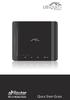 Package Contents Package Contents AirRouter Power Adapter Ethernet Cable Quick Start Guide System Requirements Microsoft Windows XP, Windows Vista, Windows 7, Linux, or Mac OS X Java Runtime Environment
Enterprise WiFi System
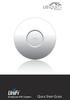 Enterprise WiFi System Enterprise WiFi System Package Contents Package Contents Wall Mount UniFi Enterprise AP Wall-Mount Bracket Ceiling-Mount Plate UniFi Controller CD with User Guide Quick Start Guide
Quick Start. Your wireless Apple Magic Trackpad uses Bluetooth technology to connect to your Mac and comes with two AA batteries installed.
 Magic Trackpad Quick Start Your wireless Apple Magic Trackpad uses Bluetooth technology to connect to your Mac and comes with two AA batteries installed. Read these instructions to update your software,
Meraki Outdoor Hardware Installation Guide
 Meraki Outdoor Hardware Installation Guide Trademarks Meraki, Meraki Outdoor, Meraki Cloud Controller, and Meraki Mesh are trademarks of Meraki, Inc. Other brand and product names are registered trademarks
Meraki MR12/16. Hardware Installation Guide
 Meraki MR12/16 Hardware Installation Guide Trademarks Meraki, Meraki MR12, Meraki MR16, Meraki Cloud Controller, and Meraki Mesh are trademarks of Meraki, Inc. Other brand and product names are registered
Seagate Wireless User Manual
 Seagate Wireless User Manual Model: 1AYBA5 Click here to access an up-to-date online version of this document. You will also find the most recent content as well as expandable illustrations, easier navigation,
M511W Wireless Day/Night Pan/Tilt IP Camera. Hardware User Manual
 0 M511W User Manual M511W Wireless Day/Night Pan/Tilt IP Camera M511W User Manual Hardware User Manual -Contents- Statement and Declaration..2 CHAPTER 1. SAFETY INSTRUCTION...6 CHAPTER 2. INTRODUCTION...8
AirPort Express Setup Guide
 AirPort Express Setup Guide Contents 5 Getting Started 7 About AirPort Express 9 Connecting Your AirPort Express 10 What You Need to Get Started 11 AirPort Express Status Lights 12 AirPort Software 13
Overview. Installation Requirements. TOUGHCable Ethernet Connectors
 Overview Overview Thank you for purchasing Ubiquiti Networks TOUGHCable CARRIER cabling. This Quick Start Guide is designed to provide wiring instructions and includes the warranty terms. Ubiquiti offers
WIRELESS 150N USB 2.0 ADAPTER. User Manual
 WIRELESS 150N USB 2.0 ADAPTER User Manual Federal Communication Commission Interference Statement This equipment has been tested and found to comply with the limits for a Class B digital device, pursuant
F5321 and H5321 User Guide
 USER GUIDE 1/1553-KRD 131 21 Uen Rev E Ericsson AB 2011 All rights reserved. The information in this document is the property of Ericsson. Except as specifically authorized in writing by Ericsson, the
Regulatory Compliance Statement
 Regulatory Compliance Statement 0560 EU Declaration of Conformity The declaration of conformity may be consulted at www.kobo.com/userguides SAR Limits The exposure standard for wireless devices employs
Universal WiFi Range Extender WN3000RP
 Universal WiFi Range Extender WN3000RP User Manual 350 East Plumeria Drive San Jose, CA 95134 USA February 2013 202-10789-02 v1.0 2011 NETGEAR, Inc. All rights reserved. No part of this publication may
Preface. FCC Statement. Warranty
 1 Preface FCC Statement Warranty This equipment has been tested and complies with the limits for a Class B digital device, pursuant to Part 15 of the FCC Rules. These limits are designed to provide reasonable
24V PoE Adapter Power Cord Quick Start Guide
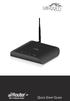 Package Contents Package Contents airrouter HP Antenna Ethernet Cable 24V PoE Adapter Power Cord Quick Start Guide System Requirements Microsoft Windows XP, Windows Vista, Windows 7, Linux, or Mac OS X
Plug n Play Wireless 10/100 Ethernet Cable
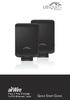 Plug n Play Wireless 10/100 Ethernet Cable Plug n Play Wireless 10/100 Ethernet Cable Package Contents Package Contents AirWire (Qty. 2) Power Adapter (Qty. 2) Ethernet Cable (Qty. 2) Quick Start Guide
NETGEAR N150 Wireless USB Adapter WNA1100
 NETGEAR N150 Wireless USB Adapter WNA1100 User Manual 350 East Plumeria Drive San Jose, CA 95134 USA August 2011 202-10947-01 v1.0 2011 NETGEAR, Inc. All rights reserved No part of this publication may
HP SuperSpeed USB 3.0 PCIe x1 Card. User Guide
 HP SuperSpeed USB 3.0 PCIe x1 Card User Guide Copyright 2010 Hewlett-Packard Development Company, L.P. The information contained herein is subject to change without notice. Microsoft, Windows, and Windows
Mini Speaker. Printed in China Part No. 480-919-P Version D. CWA BT300 Product Information Guide
 Mini Speaker Printed in China Part No. 480-919-P Version D CWA BT300 Product Information Guide IMPORTANT To get the full capability of your new Cobra Airwave Mini, please read this manual. It's more than
Universal Dual Band WiFi Range Extender WN2500RP
 Universal Dual Band WiFi Range Extender WN2500RP User Manual 350 East Plumeria Drive San Jose, CA 95134 USA November 2012 202-10932-02 v1.0 2012 NETGEAR, Inc. All rights reserved. No part of this publication
WiFi Booster for Mobile WN1000RP
 WiFi Booster for Mobile WN1000RP User Manual 350 East Plumeria Drive San Jose, CA 95134 USA November 2012 202-10990-02 v1.0 NETGEAR, Inc. All rights reserved. No part of this publication may be reproduced,
Universal Dual Band WiFi Internet Adapter (WNCE3001)
 Universal Dual Band WiFi Internet Adapter (WNCE3001) User Manual 350 East Plumeria Drive San Jose, CA 95134 USA November 2011 202-10876-01 v1.0 2011 NETGEAR, Inc. All rights reserved No part of this publication
TRENDnet User s Guide. Cover Page
 Cover Page Contents Product Overview... 2 Package Contents... 2 Overview... 2 Interface... 3 Setting up... 4 WPS Setup... 4 Web Browser Setup... 4 ios Setup... 4 Android Setup... 7 Managing the App...
Gateway Port Replicator User Guide
 Gateway Port Replicator User Guide Using the Port Replicator Identifying features Connecting and disconnecting the port replicator 1 Using the Port Replicator Top Power button Component Icon Description
Universal Dual Band WiFi Extender Wallplug Edition
 Universal Dual Band WiFi Extender Wallplug Edition User Manual 350 East Plumeria Drive San Jose, CA 95134 USA October 2011 202-11049-01 v1.0 Universal Dual Band WiFi Extender Wallplug Edition Support Thank
NETGEAR RangeMax 240 Wireless USB 2.0 Adapter WPNT121 User Manual. NETGEAR, Inc. 4500 Great America Parkway Santa Clara, CA 95054 USA
 NETGEAR RangeMax 240 Wireless USB 2.0 Adapter WPNT121 User Manual NETGEAR, Inc. 4500 Great America Parkway Santa Clara, CA 95054 USA 202-10175-01 March 2006 Technical Support For customer support see http://kbserver.netgear.com/kb_web_files/n10005.asp
802.11ac USB WiFi Adapter (A6200)
 802.11ac USB WiFi Adapter (A6200) User Manual 350 East Plumeria Drive San Jose, CA 95134 USA November 2012 202-11093-01 v1.0 Support Thank you for choosing NETGEAR. After installing your device, locate
TRENDnet User s Guide. Cover Page
 Cover Page Table of Contents Contents Product Overview... 1 Package Contents... 1 Features... 1 Product Hardware Features... 2 Application Diagram... 4 Installing your Powerline Adapters... 5 Before you
NETGEAR Wireless-N 150 USB Adapter WNA1000 User Manual. NETGEAR, Inc. 350 E. Plumeria Drive San Jose, CA 95134 USA
 NETGEAR Wireless-N 150 USB Adapter WNA1000 User Manual NETGEAR, Inc. 350 E. Plumeria Drive San Jose, CA 95134 USA 202-10575-01 August 2009 Technical Support Please refer to the support information card
NETGEAR 108 Mbps Wireless PCI Adapter WG311T User Manual. NETGEAR, Inc. 4500 Great America Parkway Santa Clara, CA 95054 USA
 NETGEAR 108 Mbps Wireless PCI Adapter WG311T User Manual NETGEAR, Inc. 4500 Great America Parkway Santa Clara, CA 95054 USA 202-10070-03 January 2007 Technical Support Please refer to the support information
NETGEAR RangeMax Dual Band Wireless-N USB Adapter WNDA3100v2 User Manual. NETGEAR, Inc. 350 E. Plumeria Drive San Jose, CA 95134 USA
 NETGEAR RangeMax Dual Band Wireless-N USB Adapter WNDA3100v2 User Manual NETGEAR, Inc. 350 E. Plumeria Drive San Jose, CA 95134 USA 202-10426-02 June 2009 2009 by NETGEAR, Inc. All rights reserved. Technical
THERMAL PRINTER TSP650II SERIES
 THERMAL PRINTER TSP650II SERIES Hardware Manual Caution Symbol These symbols are located near the thermal print head. Because the thermal print head is hot immediately after printing, do not touch it.
NETGEAR 54 Mbps Wireless USB 2.0 Adapter WG111v3 User Manual. NETGEAR, Inc. 4500 Great America Parkway Santa Clara, CA 95054 USA
 NETGEAR 54 Mbps Wireless USB 2.0 Adapter WG111v3 User Manual NETGEAR, Inc. 4500 Great America Parkway Santa Clara, CA 95054 USA 202-10240-02 March 2008 2008 by NETGEAR, Inc. All rights reserved. Technical
Mobile Printer SM-S230I SERIES. Hardware Manual
 Mobile Printer SM-S230I SERIES Hardware Manual Federal Communications Commission Radio Frequency Interference Statement This device complies with Part 15 of the FCC Rules. Operation is subject
EPSON USB/Parallel Adapter User s Guide
 EPSON USB/Parallel Adapter User s Guide EPSON Stylus COLOR 440 EPSON Stylus COLOR 800 EPSON Stylus COLOR 600 EPSON Stylus COLOR 850 EPSON Stylus COLOR 640 EPSON Stylus COLOR 1520 EPSON Stylus Photo EX
NETGEAR 54 Mbps Wireless PCI Adapter WG311v3 User Manual. NETGEAR, Inc. 4500 Great America Parkway Santa Clara, CA 95054 USA
 NETGEAR 54 Mbps Wireless PCI Adapter WG311v3 User Manual NETGEAR, Inc. 4500 Great America Parkway Santa Clara, CA 95054 USA 202-10091-03 February 2007 Technical Support Please refer to the support information
User guide. Stereo Bluetooth Headset SBH80
 User guide Stereo Bluetooth Headset SBH80 Contents Introduction...3 Function overview...3 Hardware overview...3 Basics...5 Charging the battery...5 Battery status...5 Turning the headset on and off...5
NETGEAR RangeMax NEXT Wireless Router WNR854T User Manual. NETGEAR, Inc. 4500 Great America Parkway Santa Clara, CA 95054 USA
 NETGEAR RangeMax NEXT Wireless Router WNR854T User Manual NETGEAR, Inc. 4500 Great America Parkway Santa Clara, CA 95054 USA 202-10187-02 January 2007 2007 by NETGEAR, Inc. All rights reserved.. Product
User Guide. MT-91 / MT-90 / MT-92 Interlinking Transmitter Module MT-90/MT-92 MT-91
 User Guide MT-9 / MT-90 / MT-9 MT-90/MT-9 All rights reserved. MN 04/08 Do not copy or forward without prior approvals MIPRO. Specifications and design subject to change without notice. CE5 0 4 A MT-9
Wireless Mouse USER GUIDE. for Mac. www.targus.com/us/formac ONE YEAR LIMITED WARRANTY N2953
 AMW43US / 410-1514-001C N2953 www.targus.com/us/formac 2008 Manufactured or imported by Targus Group International, Inc. (for U.S. sales: 1211 North Miller Street, Anaheim, CA 92806 USA, for Australia
Wireless Optical Mouse
 Wireless Optical Mouse User s Manual Model PD950P FCC STATEMENT PD950P This device complies with part 15 of FCC Rules. Operation is subject to the following two conditions: (1) this device may not cause
NETGEAR RangeMax Wireless PCI Adapter WPN311 User Manual. NETGEAR, Inc. 4500 Great America Parkway Santa Clara, CA 95054 USA
 NETGEAR RangeMax Wireless PCI Adapter WPN311 User Manual NETGEAR, Inc. 4500 Great America Parkway Santa Clara, CA 95054 USA 202-10075-03 January 2007 Technical Support See the support information card
Care and Handling of Your VAIO Computer
 Care and Handling of Your VAIO Computer Proper Handling Use your computer on a clean dry, stable surface. Use only specified peripheral equipment and interface cables or you may experience problems. When
by QUICK START GUIDE 1
 by QUICK START GUIDE 1 BUTTONS & CONTROLS TALK* PREVIOUS / NEXT* POWER BUTTON & LED PAIRING BUTTON LINE IN USB DC IN PLAY / PAUSE* VOLUME DOWN / UP * Only works when connected wirelessly via Bluetooth
User Guide Nokia Portable Wireless Charging Plate DC-50
 User Guide Nokia Portable Wireless Charging Plate DC-50 Issue 1.1 EN User Guide Nokia Portable Wireless Charging Plate DC-50 Contents For your safety 3 About your accessory 4 Keys and parts 5 Top up your
User Manual for the NETGEAR 54 Mbps Wireless PC Card WG511v2
 User Manual for the NETGEAR 54 Mbps Wireless PC Card WG511v2 NETGEAR, Inc. 4500 Great America Parkway Santa Clara, CA 95054 USA v2.2 December 2005 202-10049-03 Technical Support Please refer to the support
Wireless Keyboard and Optical Mouse Bundle
 Wireless Keyboard and Optical Mouse Bundle Enjoy the freedom of wireless optical precision User Manual F8E832-BNDL TABLE OF CONTENTS Introduction....................................1 Compatible Equipment............................2
Wireless Internet Keyboard and Laser Mouse
 Wireless Internet Keyboard and Laser Mouse User s Manual Model KB1045LSR FCC STATEMENT KB1045LSR This device complies with part 15 of FCC Rules. Operation is subject to the following two conditions: (1)
User Manual for the NETGEAR 11 Mbps Wireless USB Adapter MA111. NETGEAR, Inc. 4500 Great America Parkway Santa Clara, CA 95054 USA
 User Manual for the NETGEAR 11 Mbps Wireless USB Adapter MA111 NETGEAR, Inc. 4500 Great America Parkway Santa Clara, CA 95054 USA Version v1.0 June 2004 Technical Support Please refer to the support information
Universal Dual Band WiFi Range Extender WN2500RP
 Universal Dual Band WiFi Range Extender WN2500RP User Manual 350 East Plumeria Drive San Jose, CA 95134 USA November 2012 202-10932-02 v1.0 2012 NETGEAR, Inc. All rights reserved. No part of this publication
Universal Laptop Charger
 USER GUIDE Universal Laptop Charger NS-PWLC591/NS-PWLC591-C Before using your new product, please read these instructions to prevent any damage. NS-PWLC591/NS-PWLC591-C Insignia NS-PWLC591/ NS-PWLC591-C
User Manual for the NETGEAR 54 Mbps Wireless USB 2.0 Adapter WG111
 User Manual for the NETGEAR 54 Mbps Wireless USB 2.0 Adapter WG111 NETGEAR, Inc. 4500 Great America Parkway Santa Clara, CA 95054 USA Version v1.0 February 2004 Technical Support Please refer to the support
User Guide. Soft-Touch TM Bluetooth Laser Mouse N2953
 Soft-Touch TM Bluetooth Laser Mouse 410-XXXXXXXXXXX 1 YEAR LIMITED WARRANTY: We pride ourselves on the quality of our products. For complete warranty details and a list of our worldwide offices, please
User guide. Stereo Bluetooth Headset SBH70
 User guide Stereo Bluetooth Headset SBH70 Contents Introduction...3 Function overview...3 Hardware overview...3 Basics...5 Charging the battery...5 Battery and power management...5 Turning the headset
USB 2.0 USB 2.0 ETHERNET AUDIO JACK AND RCA VIDEO HDMI MICRO SD CARD MICRO USB POWER
 3 USB 2.0 USB 2.0 ETHERNET 4 1 MICRO SD CARD HDMI MICRO USB POWER AUDIO JACK AND RCA VIDEO 2 TO SET UP YOUR RASPBERRY PI YOU WILL NEED: ITEM MINIMUM RECOMMENDED SPECIFICATION & NOTES 1 microsd card Minimum
Wireless-N 150 Router WNR1000v2 User Manual
 Wireless-N 150 Router WNR1000v2 User Manual NETGEAR, Inc. 350 E. Plumeria Drive San Jose, CA 95134 USA 202-10546-01 November 2009 v1.0 2009 by NETGEAR, Inc. All rights reserved. Product Registration, Support,
AirPort Express Setup Guide
 AirPort Express Setup Guide Contents 5 Getting Started 7 Ports on Your AirPort Express 8 AirPort Express Status Lights 9 Using AirPort Express 9 The AirPort Express Network 11 Setting Up AirPort Express
Jarv Joggerz BT-301 Bluetooth Stereo Headphones Users Guide
 Jarv Joggerz BT-301 Bluetooth Stereo Headphones Users Guide Features: Bluetooth Wireless technology Compact design fits in the palm of your hand and weighs less than 2 oz. Comfortable Behind the Neck design
N900 Wireless Dual Band USB Adapter (WNDA4100)
 N900 Wireless Dual Band USB Adapter (WNDA4100) User Manual 350 East Plumeria Drive San Jose, CA 95134 USA April 2012 202-10938-02 v1.0 2011 NETGEAR, Inc. All rights reserved No part of this publication
7 High-Resolution Digital Photo Frame
 TM 16-1003 User s Guide 7 High-Resolution Digital Photo Frame One demo photo included, as illustrated Please read this user s guide before using your new photo frame. Package contents Photo Frame AC Adapter
BTX180 Wireless Bluetooth Speaker
 BTX180 Wireless Bluetooth Speaker User Manual 2012 Kinivo LLC. All rights reserved. Kinivo is a trademark of Kinivo LLC. Bluetooth word mark and the Bluetooth logo are registered trademarks of Bluetooth
WF720 Wireless Home Phone User Manual
 WF720 Wireless Home Phone User Manual Content Getting to Know Your Device... 3 Appearance...3 LED Indicator...4 Device Installation... 5 Before You Begin...5 Installing the SIM Card and the Battery...5
NFC Communication Tray Model: HHX-IT3-Z
 INSTRUCTION MANUAL NFC Communication Tray Model: HHX-IT3-Z ENGLISH CONTENTS Introduction...3 Important safety information...4 Know your unit...6 Transferring data to the PC...7 Care and maintenance...8
Quick-Start Guide. Arrival Sensor
 Quick-Start Guide Arrival Sensor Meet your Arrival Sensor The Arrival Sensor lets you stay connected to people, pets, and cars by sending you a push notification when they arrive and leave home. How to
SanDisk Connect Wireless Flash Drive QUICK START GUIDE
 SanDisk Connect Wireless Flash Drive QUICK START GUIDE GET STARTED 1. Charge your Wireless Drive Plug the Drive into a computer or USB-AC adaptor. A full charge can take up to 2 hours. 2) Turn on the
User Guide Microsoft Screen Sharing for Lumia Phones (HD-10)
 User Guide Microsoft Screen Sharing for Lumia Phones (HD-10) Issue 1.1 EN-US User Guide Microsoft Screen Sharing for Lumia Phones (HD-10) Contents Safety 3 About your accessory 4 Keys and parts 5 Connect
Cabling and Connectors
 Cabling and Connectors Contents Contents Overview.... 1 Installation Requirements... 1 Wiring the Cable (Level 1 Shielding)... 2 Wiring the Cable (Level 2 Shielding)... 8 Cable Wiring Specification (T568B)...
User Guide Microsoft Screen Sharing for Lumia Phones (HD-10)
 User Guide Microsoft Screen Sharing for Lumia Phones (HD-10) Issue 1.1 EN User Guide Microsoft Screen Sharing for Lumia Phones (HD-10) Contents Safety 3 About your accessory 4 Keys and parts 5 Connect
Xbox LIVE Vision. english
 Xbox LIVE Vision Thanks for choosing the Xbox LIVE Vision camera. Xbox LIVE Vision adds video to your Xbox 360 system and games, including: Video chat and picture messages. Photo snapshots. Family Settings
User Guide Nokia Bluetooth Headset BH-222
 User Guide Nokia Bluetooth Headset BH-222 Issue 1.0 EN-US BC User Guide Nokia Bluetooth Headset BH-222 Contents Safety 3 About your headset 4 Keys and parts 5 Charge your headset 6 Switch your headset
iosafe Solo External Hard Drive
 Users Manual & Limited Warranty iosafe Solo External Hard Drive USB 2.0 Fireproof Waterproof FloSafe Cooling Technology Data Recovery Service 910-10841-00 REV 7.1 2 COPYRIGHTS Copyright iosafe, Inc. 2009.
Bluetooth Stereo Headphone. User Guide. Hive
 Bluetooth Stereo Headphone User Guide Hive 1. Product Description Avantree Hive is a Bluetooth stereo headphone with MIC from the Avantree family. It delivers clear voice transmission and high quality
User guide. Stereo Bluetooth Headset SBH50
 User guide Stereo Bluetooth Headset SBH50 Contents Stereo Bluetooth Headset User guide...3 Introduction...4 Function overview...4 Hardware overview...4 Status icon overview...5 Basics...6 Charging the
Jarv Nmotion BTHL-201 Bluetooth Stereo Earbuds Users Guide
 Jarv Nmotion BTHL-201 Bluetooth Stereo Earbuds Users Guide Features: Bluetooth wireless technology Comfortable lightweight in-ear design with detachable sports ear hooks for added support High Definition
Conference Phone UserÕs Manual. Part No. 54-2070-01R1 Printed in Korea. 2002 Bogen Communications, Inc.
 Part No. 54-2070-01R1 Printed in Korea. 2002 Bogen Communications, Inc. UserÕs Manual Notice Every effort was made to ensure that the information in this guide was complete and accurate at the time of
PROGRAMMER INSTALLATION INSTRUCTIONS
 PROGRAMMER INSTALLATION INSTRUCTIONS TABLE OF CONTENTS Description 4 Installation 4 Operation 5 Safety Precautions 6 Regulatory & Service Information 6 Important Safety and Usage Information 7 Regulatory
Getting started with
 PART NO. CMA113 MADE IN CHINA 1. Measuring CAT II 2. Max. voltage 250V ~ 3. Max. current 71 Amp Getting started with Electricity consumption monitoring single phase for homes and some smaller light commercial
WN-5000R 802.11n Wireless Router
 WN-5000R 802.11n Wireless Router User s Manual AirLive 0 Clause Declaration of Conformity We, Manufacturer/Importer OvisLink Corp. 5F., NO.6, Lane 130, Min-Chuan Rd., Hsin-Tien City, Taipei County, Taiwan
HP POS Keyboard with MSR for Point of Sale System. User Guide
 HP POS Keyboard with MSR for Point of Sale System User Guide Copyright 2008 2010 Hewlett-Packard Development Company, L.P. The information contained herein is subject to change without notice. Microsoft,
user s manual Battery Case model #: SPB3200 Battery Case Charger for Samsung Galaxy S 4
 user s manual model #: SPB3200 Charger for Samsung Galaxy S 4 What s Included Unpack the battery case and make sure all accessories are put aside so they will not be lost. hello. USB to Micro USB Cable
Wireless Stereo Headphone System
 3-254-600-32(1) Wireless Stereo Headphone System Operating Instructions MDR-RF820RK MDR-RF850RK 2005 Sony Corporation WARNING To prevent fire or shock hazard, do not expose the unit to rain or moisture.
Wireless Optical Travel Mouse
 Wireless Optical Travel Mouse User s Manual PLEASE READ THESE INSTRUCTIONS CAREFULLY BEFORE INSTALLING THIS DEVICE. Table of Contents FCC Statement Page 3 Introduction.. Page 6 Package Contents.. Page
ZigBee Extender 3. Features. Supported Models and Requirements. Important Safety Instructions. What Is Included: Specifications
 ZigBee Extender 3 Features The Card Access ZigBee Extender 3 operates as a ZigBee (IEEE 802.15.4) router and mesh extender. The Extender is designed to improve ZigBee signal latency that can occur when
PEARL Portable Reading Camera
 PEARL Portable Reading Camera Quick Start Guide Freedom Scientific, Inc. 440528-001 Rev. D Freedom Scientific, Inc., 11800 31 st Court North, St. Petersburg, Florida 33716-1805, USA www.freedomscientific.com
User Guide. Cordless Optical Mouse N2953
 Cordless Optical Mouse 410-XXXXXXXXXXX 1 YEAR LIMITED WARRANTY: We pride ourselves on the quality of our products. For complete warranty details and a list of our worldwide offices, please visit www.targus.com.
EPSON USB/Parallel Adapter User s Guide
 EPSON USB/Parallel Adapter User s Guide EPSON Stylus COLOR 440 EPSON Stylus COLOR 1520 EPSON Stylus COLOR 600 EPSON Stylus COLOR 3000 EPSON Stylus COLOR 640 EPSON Stylus Photo 700 EPSON Stylus COLOR 660
Broadband Telecommunications Drop Amplifier
 INSTALL SHEET BDA Broadband Telecommunications Drop Amplifier Introduction The Broadband Telecommunications Drop Amplifier (BDA) is a two-way, 1 GHz amplifier designed for customer-premise amplification
2013 VTech Printed in China 91-009656-000 US
 Rechargeable Power Pack User s Manual 2013 VTech Printed in China 91-009656-000 US INTRODUCTION The Rechargeable Power Pack makes it easier than ever to keep the InnoTab 3 or InnoTab 3S charged and ready
Universal WiFi Internet Adapter (WNCE2001)
 Universal WiFi Internet Adapter (WNCE2001) User Manual 350 East Plumeria Drive San Jose, CA 95134 USA September 2010 202-10598-01 v1.0 2010 NETGEAR, Inc. All rights reserved. No part of this publication
USB 3.0 SATA/IDE 2.5 Hard Drive Enclosure
 USB 3.0 SATA/IDE 2.5 Hard Drive Enclosure UNI251BMU33 *actual product may vary from photos DE: Bedienungsanleitung - de.startech.com FR: Guide de l'utilisateur - fr.startech.com ES: Guía del usuario -
Key. ➍ Micro USB Port ➎ Operating System Toggle Keys ➏ Foam Screen Protectors. ➊ On/Off switch ➋ Bluetooth Connect Button (flashes when searching)
 INSTRUCTION MANUAL ➏ ➋ ➊ Product Features ➎ ➍ ➌ Built-in wireless Bluetooth 3.0 keyboard Compatible across ios, Android, and Windows, enabling you to mix and match with devices Ultra-thin, lightweight
User Guide for the Wireless Headset (HS-11W) 9235346 Issue 1
 User Guide for the Wireless Headset (HS-11W) 9235346 Issue 1 DECLARATION OF CONFORMITY We, NOKIA CORPORATION declare under our sole responsibility that the product HS-11W is in conformity with the provisions
Targus Wireless Remote Presenter USER S GUIDE. Making Your Mobile Life Easier. Making Your Mobile Life Easier.
 Targus Wireless Remote Presenter Making Your Mobile Life Easier. Visit our Web site at: www.targus.com Features and specifications are subject to change without notice. 2003 Targus Corp. 400-0110-001B