
Seagate Wireless User Manual
|
|
|
- Alison Gallagher
- 9 years ago
- Views:
Transcription
1 Seagate Wireless User Manual Model: 1AYBA5 Click here to access an up-to-date online version of this document. You will also find the most recent content as well as expandable illustrations, easier navigation, and search capability.

2 Contents 1. Regulatory Compliance Introduction What s in.. the.... Box? Product Specifications Setting up... and.... Using..... Your..... Seagate Wireless Installing the... Seagate Media..... app Establishing a.. Wireless Connection Loading Media..... onto..... the... Seagate Wireless Synchronizing Content Safely..... Disconnecting Your..... Device Setting a. Password for... Your..... Seagate Wireless Connecting to.. the... Internet Through Your..... Seagate Wireless Streaming Media Understanding Your..... Seagate Wireless Understanding Wi-Fi..... Mode Charging the... Battery Resetting Your.... Device to... Its.. Factory Settings Getting Help Finding More..... Help Common Problems and.... Solutions

3 Regulatory Compliance FCC Class B Information This equipment has been tested and found to comply with the limits for a Class B digital de-vice, pursuant to Part 15 of the FCC Rules. These limits are designed to provide reasonable protection against harmful interference in a residential installation. This equipment generates, uses and can radiate radio frequency energy and, if not installed and used in accordance with the instructions, may cause harmful interference to radio communications. However, there is no guarantee that interference will not occur in a particular installation. If this equipment does cause harmful interference to radio or television reception, which can be determined by turning the equipment off and on, the user is encouraged to try to correct the interference by one of the following measures: Reorient or relocate the receiving antenna. Increase the separation between the equipment and receiver. Connect the equipment into an outlet on a circuit different from that to which the receiver is connected. Consult the dealer or an experienced radio/tv technician for help. This device complies with Part 15 of the FCC Rules. Operation is subject to the following two conditions: (1) This device may not cause harmful interference, and (2) this device must accept any interference received, including interference that may cause undesired operation. FCC Caution: Any changes or modifications not expressly approved by the party responsible for compliance could void the user's authority to operate this equipment. IMPORTANT NOTE: FCC Radiation Exposure Statement This equipment complies with FCC radiation exposure limits set forth for an uncontrolled environment. This equipment should be installed and operated with minimum distance 20cm between the radiator & your body. This transmitter must not be co-located or operating in conjunction with any other antenna or transmitter. The availability of some specific channels and/or operational frequency bands are country dependent and are firmware programmed at the factory to match the intended destination. The firmware setting is not accessible by the end user. Note to US model owner: To comply with US FCC regulation, the country selection function has been completely removed from all US models. The above function is for non-us models only. Industry Canada This device complies with RSS-210 of the Industry Canada Rules. Operation is subject to the following two 3

4 conditions: (1) This device may not cause harmful interference, and (2) this device must accept any interference received, including interference that may cause unde-sired operation. Ce dispositif est conforme à la norme CNR-210 d'industrie Canada applicable aux appareils radio exempts de licence. Son fonctionnement est sujet aux deux conditions suivantes: (1) le dispositif ne doit pas produire de brouillage préjudiciable, et (2) ce dispositif doit accepter tout brouillage reçu, y compris un brouillage susceptible de provoquer un fonctionnement indésirable. IMPORTANT NOTE: (For mobile device use) Radiation Exposure Statement: This equipment complies with IC radiation exposure limits set forth for an uncontrolled envi-ronment. This equipment should be installed and operated with minimum distance 20cm be-tween the radiator & your body. NOTE IMPORTANTE: (Pour l'utilisation de dispositifs mobiles) Déclaration d'exposition aux radiations: Cet équipement est conforme aux limites d'exposition aux rayonnements IC établies pour un environnement non contrôlé. Cet équipement doit être installé et utilisé avec un minimum de 20 cm de distance entre la source de rayonnement et votre corps. Manufacturer's Declaration for CE Certification Czech Danish Dutch English Estonian German Seagate tímto prohlašuje, že tento Wi-Fi je ve shodě se základními požadavky a dalšími příslušnými ustanoveními směrnice 1999/5/ES. Undertegnede Seagate erklærer herved, at følgende udstyr Wi-Fi overholder de væsentlige krav og øvrige relevante krav i direktiv 1999/5/EF. Hierbij verklaart Seagate dat het toestel Wi-F in overeenstemming is met de essentiële eisen en de andere relevante bepalingen van richtlijn 1999/5/EG. Hereby, Seagate declares that this Wi-Fi is in compliance with the essential requirements and other relevant provisions of Directive 1999/5/EC. Käesolevaga kinnitab Seagate seadme Wi-Fi vastavust direktiivi 1999/5/EÜ põhinõuetele ja nimetatud direktiivist tulenevatele teistele asjakohastele sätetele. Hiermit erklärt Seagate, dass sich das Gerät Wi-Fi in Übereinstimmung mit den grundlegenden Anforderungen und den übrigen einschlägigen Bestimmungen der Richtlinie 1999/5/EG befindet. 4

5 Greek Hungarian Finnish French Icelandic Italian Latvian Lithuanian Maltese Norwegian Polish Portuguese Slovak Slovenian Spanish Swedish ΜΕ ΤΗΝ ΠΑΡΟΥΣΑ Seagate ΗΛΩΝΕΙ ΟΤΙ Wi-Fi ΣΥΜΜΟΡΦΩΝΕΤΑΙ ΠΡΟΣ ΤΙΣ ΟΥΣΙΩ ΕΙΣ ΑΠΑΙΤΗΣΕΙΣ ΚΑΙ ΤΙΣ ΛΟΙΠΕΣ ΣΧΕΤΙΚΕΣ ΙΑΤΑΞΕΙΣ ΤΗΣ Ο ΗΓΙΑΣ 1999/5/ΕΚ. Alulírott, Seagate nyilatkozom, hogy a Wi-Fi megfelel a vonatkozó alapvetõ követelményeknek és az 1999/5/EC irányelv egyéb elõírásainak. Seagate vakuuttaa täten että Wi-Fi laitteen tyyppimerkintä]tyyppinen laite on direktiivin 1999/5/EY oleellisten vaatimusten ja sitä koskevien direktiivin muiden ehtojen mukainen. Par la présente Seagate déclare que l'appareil Wi-Fi est conforme aux exigences essentielles et aux autres dispositions pertinentes de la directive 1999/5/CE. Hér með lýsir Seagate yfir því að Wi-Fi er í samræmi við grunnkröfur og aðrar kröfur, sem gerðar eru í tilskipun 1999/5/EC Con la presente Seagate dichiara che questo Wi-Fi è conforme ai requisiti essenziali ed alle altre disposizioni pertinenti stabilite dalla direttiva 1999/5/CE. Ar šo Seagate deklarē, ka Wi-Fi atbilst Direktīvas 1999/5/EK būtiskajām prasībām un citiem ar to saistītajiem noteikumiem. Šiuo Seagate deklaruoja, kad šis Wi-Fi atitinka esminius reikalavimus ir kitas 1999/5/EB Direktyvos nuostatas. Hawnhekk Seagate, jiddikjara li dan Wi-Fi mal-ħtiġijiet essenzjali u ma provvedimenti oħrajn relevanti li hemm fid-dirrettiva 1999/5/EC. Seagate erklærer herved at utstyret Wi-Fi er i samsvar med de grunnleggende krav og øvrige relevante krav i direktiv 1999/5/EF. Niniejszym Seagate oświadcza, że Wi-Fi jest zgodny z zasadniczymi wymogami oraz pozostałymi stosownymi postanowieniami Dyrektywy 1999/5/EC Seagate declara que este Wi-Fi está conforme com os requisitos essenciais e outras disposições da Directiva 1999/5/CE. Seagate týmto vyhlasuje, že Wi-Fi spĺňa základné požiadavky a všetky príslušné ustanovenia Smernice 1999/5/ES. Seagate izjavlja, da je ta Wi-Fi v skladu z bistvenimi zahtevami in ostalimi relevantnimi določili direktive 1999/5/ES. Por medio de la presente Seagate declara que el Wi-Fi cumple con los requisitos esenciales y cualesquiera otras disposiciones aplicables o exigibles de la Directiva 1999/5/CE. Härmed intygar Seagate att denna Wi-Fi står I överensstämmelse med de väsentliga egenskapskrav och övriga relevanta bestämmelser som framgår av direktiv 1999/5/EG. Battery Safety This product contains a lithium-ion battery that must be disposed of properly. 5

6 Please follow the battery safety items below: Do not dismantle, open or shred secondary cells or batteries. Do not expose cells or batteries to heat or fire. Avoid storage in direct sunlight. Do not short-circuit a cell or a battery. Do not store cells or batteries haphazardly in a box or drawer where they may short-circuit each other or be short-circuited by, other metal objects. Do not use any charger other than that specifically provided for use with the equipment. Do not use any cell or battery that is not designed for use with the equipment. Do not mix cells of different manufacture, capacity, size or type within a device. Seek medical advice immediately if a cell or a battery has been swallowed. Do not subject cells or batteries to mechanical shock. In the event of a cell leaking, do not allow the liquid to come in contact with the skin or eyes. If contact has been made, wash the affected area with copious amounts of water and seek medical advice. Keep cells and batteries out of the reach of children. Keep cells and batteries clean and dry. Secondary cells and batteries need to be charged before use. Always use the correct charger and refer to the manufacturer's instructions or equipment manual for proper charging instructions. Do not leave a battery on prolonged charge when not in use. After extended periods of storage, it may be necessary to charge and discharge the cells or batteries several times to obtain maximum performance. Secondary cells and batteries give their best performance when they are operated at normal room temperature (20 C+5 C). Retain the original product literature for future reference. Use only the cell or battery in the application for which it was intended. Dispose of properly. The Seagate Wireless device is not intended for professional use. 6

7 Introducon Congratulations on the purchase of your Seagate Wireless. Using this device, you can take your digital media anywhere and stream it to your Wi-Fi enabled tablet, smartphone, or computer. Imagine listening to your favorite music while hiking through the Swiss Alps. You can do that with the Seagate Wireless. This guide shows you how to set up your Seagate Wireless so that you can begin enjoying your videos, photos, and music wherever you are. What s in the Box? Unpack the box and ensure you have all of these items. Product Specificaons Supported Devices iphone 4 or higher running ios 7 or higher ipad 2 or higher running ios 7 or higher Android phones and tablets running Android OS 4 or higher Windows Vista and higher, including Windows RT Mac OS 10.7 and higher 7

8 Supported Web Browsers Safari 5 or later (Mac OS) WebKit (Android) Internet Explorer 8 or later (Windows) Firefox Google Chrome Supported File Types For ipads Video: H.264 video, MPEG-4, Motion-JPEG Audio: AAC, MP3, M4a, Audible (formats 2, 3, 4), Apple Lossless, AIFF, WAV Documents: Microsoft Office, iwork, PDF Certain files supported by third-party apps For Laptops, Tablets, and Smartphones Any files supported by your device applications Hardware Specifications Drive Capacity: 500GB The Wireless can store over 150 high-definition movies (1.5GB MP4 H.264), 62,500 songs, or 50,000 photos. USB 2.0 port Battery: Non-user replaceable, rechargeable lithium-ion battery Battery Life: Up to 8 hours of continuous streaming (1 user), or stream photos, songs, and documents with up to 3 users. The Seagate Wireless battery life is up to 20 hours in standby mode. Maximum Wi-Fi range: 45 meters (147 feet) Drive Format: NTFS The Paragon NTFS driver is available to enable read/write access using the Mac OS. The software is available on your Seagate Wireless. 8

9 Seng up and Using Your Seagate Wireless This chapter explains each step of the setup process in more detail than what is described in the. An online version of the Seagate Wireless Quick Start Guide is available at Installing the Seagate Media app Use the Seagate Media app on your mobile devices to organize and stream the media stored on the Seagate Wireless. On your mobile device, go to the Apple App Store, Google Play Store, or the Amazon website, and then find and install the Seagate Media app. The same functionality is available on your computer through a Web browser after it is wirelessly connected to the Seagate Wireless. Establishing a Wireless Connecon Your Seagate Wireless comes partially charged and runs for about 20 minutes. Consider fully charging it (see Charging the Battery) before connecting other devices. You can wirelessly connect up to eight devices to your Seagate Wireless. 1. Press the power button on the top of the Seagate Wireless. 9

10 2. The Wi-Fi LED blinks as the device starts up. When the Wi-Fi light is solid blue, your de-vice is Wi-Fi enabled and ready to accept other device connections. 3. Open the network or wireless settings on your computer or mobile device. See the user documentation for your computer or mobile device for the most up-to-date instructions on connecting to a wireless network. Apple devices choose Settings > Wi-Fi. Android devices choose Settings > Wireless & Networks > Wi-Fi. Mac Computer select Apple > System Preferences and then select Network. PC enable the wireless connection. 4. Select SeagateWireless from the list of networks. This establishes a wireless connection between your device and the Seagate Wireless. 5. Open the Seagate Media app. On the home page of your mobile device, tap the Seagate Media app icon. On your computer, open a browser and type any URL in the address bar. The Seagate Wireless main page appears with the Getting Started tutorial ready for viewing. Follow the steps in the Getting Started tutorial to verify that you can view a video and connect to the Internet. Your devices are now ready to stream the sample media packaged with your Seagate Wireless. Loading Media onto the Seagate Wireless 1. Connect the supplied USB 2.0 cable to the Seagate Wireless and the USB 3.0 or 2.0 port on your computer. Note: If you are connecting to a Mac, do not allow Time Machine to use the Seagate Wireless for backup because it will attempt to reformat the drive. If your device has been reformatted, see I mistakenly reformatted the drive for my Mac. 10

11 2. The device s name appears on your computer as SeagateWireless. Important info: To copy content to your Seagate Wireless, after you connect it to your computer with the USB provided cable, you must power off the device. If you do not power off the device, your computer will continue to broadcast a Wi-Fi signal, and you will not be able to detect the device on your computer. 3. (Mac only) If the device is connected to your Mac, install MacInstaller.dmg (located on your Seagate Wireless) to allow file copying. 4. Choose one of the following method to copy media: Copy media to your device by dragging and dropping files from your computer to your device. Install Seagate Dashboard on your computer and create a Smart Copy plan to copy all media files to your Seagate Wireless. For more information, go to Important info: It is the user s responsibility to comply with applicable copyright laws and to respect owner s rights in content usage. The time it takes to copy data to your Seagate Wireless depends on the amount you are copying. If you have a lot of media files, consider copying the files overnight. Your Apple, Android, or other Wi-Fi device plays files only in the formats that it supports. See your device s specifications for details. You cannot copy files from your Seagate Wireless to your computer when your Wireless is directly attached to your computer. You can copy files to and from your mobile device and your Seagate Wireless while in Wi-Fi mode. Synchronizing Content You can also install Seagate Media Sync software to help you copy your files and synchronize them after they are on your Seagate Wireless. Note: Seagate does not recommend that you use Seagate Dashboard Smart Copy and Seagate Media Sync at the same time to help you manage your media files. Download the software to learn more: Windows Mac Safely Disconnecng Your Device You must safely disconnect your device from your computer to prevent damage to your Wireless device: Windows. In the notification area at the far right of the taskbar, you should see the Safely Remove 11

12 Hardware icon ( ). Click the icon, and then in the list of devices that displays, click the device that you want to remove. Windows displays a notification when it s safe to remove your device. If you can t find the Safely Remove Hardware icon, click the Show hidden icons button to display all icons in the notification area. Mac. Drag the Seagate Wireless icon into your trash can or open Finder and click the Eject button that displays next to your Seagate Wireless. Seng a Password for Your Seagate Wireless When you set a password for your Seagate Wireless, only those who know the password can connect their devices to the wireless device. 1. Establish a wireless connection from your mobile device or computer to the Seagate Wireless. 2. Open the Seagate Media app on your mobile device or in a Web browser on your computer. 3. Tap or click the Settings icon. 4. Tap or select Network. 5. Tap or select Turn on password (or Off to the right of Enable Password on some devices). 6. Type a password of at least 8 alphanumeric characters in the window that opens, and then tap or click OK. Connecng to the Internet Through Your Seagate Wireless To stream media from the device and browse other websites at the same time, connect to the Internet through your Seagate Wireless. Note: We do not recommend streaming a movie from the Internet while connected to the Seagate Wireless network. 1. Establish a wireless connection from your mobile device or computer to the Seagate Wireless. 2. Open the Seagate Media app on your mobile device or in a Web browser on your computer. 3. Tap or click the Wi-Fi icon (on most devices) near the top of the app or page. 4. Select the wireless network you want and tap or click Join Network. Streaming Media Use the Seagate Media app to stream media from the Seagate Wireless to your mobile device or computer. 1. Power on the Seagate Wireless. Establish a wireless connection between the Seagate Wireless and your mobile device or computer. Open the Seagate Media app on your mobile device or in a Web browser on your computer. 12

13 Select the media you want to play, and enjoy. You can connect up to three devices to the Seagate Wireless. For details on using the Seagate Media app, view the Seagate Media App User s Guide. 13

14 Understanding Your Seagate Wireless Understanding how your Seagate Wireless operates helps keep your device charged and ready to stream your media library. Understanding Wi-Fi Mode The Seagate Wireless serves as a Wi-Fi network allowing you to stream your media to other devices. Wi-Fi LED Color No color Flashing blue Solid blue Description Seagate Wireless Wi-Fi is off. Seagate Wireless Wi-Fi is starting up but not yet ready. Seagate Wireless Wi-Fi is ready to connect to your computer or mobile device. Connecting the device to your computer To disable Wi-Fi mode when connected to your computer, you must power off Seagate Wireless. Your computer provides power to Seagate Wireless while it is connected. USB LED Color Description 14

15 No color White Seagate Wireless is not connected to a computer with a USB cable. Seagate Wireless is connected to a computer with a USB cable. Working with the Battery The Seagate Wireless uses a rechargeable lithium-ion battery. Charging the Baery To charge the battery, connect the device to your computer using the included USB cable. Optionally, charge your device using a USB charger that plugs into the wall and the included USB cable. For fastest charging, use a charger originally designed for tablets, which usually has a capability of 10 Watts or 2 Amps. Tip: Apple USB chargers typically have the wattage displayed at the top of the USB information. For generic chargers, look for the Output number. Power LED Color No color Green Amber Flashing Amber Flashing Red Description Power is off. Seagate Wireless is powered on and the battery has a greater than 25% charge. Seagate Wireless is on and the battery is charging. Seagate Wireless is charging to recovery from low power. Seagate Wireless is trying to charge to power on, but is not getting enough power. Recycling the Battery The battery is not user-replaceable and is affected by the number of charge cycles. It must be disposed of properly. Reseng Your Device to Its Factory Sengs For a variety of reasons, you might need to reset your Seagate Wireless back to its original factory settings. 1. Press and release the button located on the top of your device. No data is lost during this process, and you do not need to reconfigure the device. 15

16 Geng Help The Seagate Wireless is a plug-and-play device. However, in certain situations, the setup process and product usage might require extra attention. Finding More Help Visit the Seagate Wireless support page where you will find: How-to videos Firmware updates (when available) Software updates (when available) FAQs Common Problems and Soluons I can t connect wirelessly to the Seagate Wireless Make sure that the Seagate Wireless is physically disconnected from your computer, powered on, and that the Wi-Fi LED is a steady blue. A steady blue indicates that the device is Wi-Fi ready and broadcasting. Make sure to select SeagateWireless from your device s wireless network list. If you leave the Seagate Wireless range (150 feet), your device disconnects from the signal. Any obstructions, such as walls between your device and Seagate Wireless, might affect the strength of the signal. If you know that the Seagate Wireless is broadcasting, but your device can t connect, the upper limit of three devices might already be connected to it. Try disconnecting one of the other devices. If you are attempting to stream using a browser, make sure that your device s wireless connection is enabled. Go to any URL to be redirected to the Seagate Wireless main page. I mistakenly reformatted the drive for my Mac If you mistakenly allowed Time Machine to use the Seagate Wireless as its backup drive, it reformatted the drive for backup purposes. You must return the Seagate Wireless to the NTFS format. Important info: Reformatting erases all of the data on the Seagate Wireless. 1. Copy any data that you want to keep from the Seagate Wireless to another device. 2. Eject and disconnect any other USB drives from your Mac. 3. Attach the Seagate Wireless to your Mac. 4. Install the NTFS driver included on the Seagate Wireless device. You can also find this driver on the Seagate download page. 5. On your Mac, open Finder, click Go, and then click Utilities. 16

17 6. Double-click Disk Utility. 7. Select the Seagate Wireless drive or Seagate USB. 8. Click the Erase button. 9. For Format type, select Windows NT File System (do not select the compressed option). 10. Enter a recognizable name, for example, Seagate Wireless drive. This is the name that appears on the Desktop when you connect the Seagate Wireless to your Mac. The Seagate Wireless should be ready to use within a few minutes. You may need to eject the device by dragging it to the trash can and then disconnect and reconnect it to gain full read and write capability. You can now set up the Seagate Wireless for your use. Important info: If you are using Time Machine, do not allow the program to use the Seagate Wireless drive for backup. The Seagate Wireless shuts down by itself Your Seagate Wireless includes a power-save feature, which means that it enters a standby state after 5 minutes of inactivity. Your device automatically returns to active mode whenever someone attempts to access it. I know the Seagate Wireless is broadcasting, but I can t stream from it Up to three wireless-enabled devices can stream from the Seagate Wireless at one time. To see how many devices are currently connected to the Seagate Wireless, open the Seagate Media app on a connected device and tap Users. The Seagate Wireless beeps when I plug it in to my computer The battery is low. Keep your Seagate Wireless connected to your computer to charge the device. 17

FIREWIRE PCI IEEE1394 PCI CARD
 FIREWIRE PCI IEEE1394 PCI CARD User Manual F4U900 Features VIA VT6306 chipset FIREWIRE PCI IEEE1394 PCI CARD Compliant IEEE 1394-1995, 1394a (rev. 1.1) and OHCI Interface Specification 1.0 Supports data
AirRouter Power Adapter Ethernet Cable Quick Start Guide
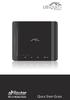 Package Contents Package Contents AirRouter Power Adapter Ethernet Cable Quick Start Guide System Requirements Microsoft Windows XP, Windows Vista, Windows 7, Linux, or Mac OS X Java Runtime Environment
Enterprise WiFi System
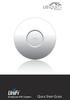 Enterprise WiFi System Enterprise WiFi System Package Contents Package Contents Wall Mount UniFi Enterprise AP Wall-Mount Bracket Ceiling-Mount Plate UniFi Controller CD with User Guide Quick Start Guide
NETGEAR N150 Wireless USB Adapter WNA1100
 NETGEAR N150 Wireless USB Adapter WNA1100 User Manual 350 East Plumeria Drive San Jose, CA 95134 USA August 2011 202-10947-01 v1.0 2011 NETGEAR, Inc. All rights reserved No part of this publication may
M511W Wireless Day/Night Pan/Tilt IP Camera. Hardware User Manual
 0 M511W User Manual M511W Wireless Day/Night Pan/Tilt IP Camera M511W User Manual Hardware User Manual -Contents- Statement and Declaration..2 CHAPTER 1. SAFETY INSTRUCTION...6 CHAPTER 2. INTRODUCTION...8
Meraki MR12/16. Hardware Installation Guide
 Meraki MR12/16 Hardware Installation Guide Trademarks Meraki, Meraki MR12, Meraki MR16, Meraki Cloud Controller, and Meraki Mesh are trademarks of Meraki, Inc. Other brand and product names are registered
WiFi Booster for Mobile WN1000RP
 WiFi Booster for Mobile WN1000RP User Manual 350 East Plumeria Drive San Jose, CA 95134 USA November 2012 202-10990-02 v1.0 NETGEAR, Inc. All rights reserved. No part of this publication may be reproduced,
Meraki Outdoor Hardware Installation Guide
 Meraki Outdoor Hardware Installation Guide Trademarks Meraki, Meraki Outdoor, Meraki Cloud Controller, and Meraki Mesh are trademarks of Meraki, Inc. Other brand and product names are registered trademarks
F5321 and H5321 User Guide
 USER GUIDE 1/1553-KRD 131 21 Uen Rev E Ericsson AB 2011 All rights reserved. The information in this document is the property of Ericsson. Except as specifically authorized in writing by Ericsson, the
802.11ac USB WiFi Adapter (A6200)
 802.11ac USB WiFi Adapter (A6200) User Manual 350 East Plumeria Drive San Jose, CA 95134 USA November 2012 202-11093-01 v1.0 Support Thank you for choosing NETGEAR. After installing your device, locate
Universal WiFi Range Extender WN3000RP
 Universal WiFi Range Extender WN3000RP User Manual 350 East Plumeria Drive San Jose, CA 95134 USA February 2013 202-10789-02 v1.0 2011 NETGEAR, Inc. All rights reserved. No part of this publication may
WIRELESS 150N USB 2.0 ADAPTER. User Manual
 WIRELESS 150N USB 2.0 ADAPTER User Manual Federal Communication Commission Interference Statement This equipment has been tested and found to comply with the limits for a Class B digital device, pursuant
Universal Dual Band WiFi Extender Wallplug Edition
 Universal Dual Band WiFi Extender Wallplug Edition User Manual 350 East Plumeria Drive San Jose, CA 95134 USA October 2011 202-11049-01 v1.0 Universal Dual Band WiFi Extender Wallplug Edition Support Thank
Seagate Wireless Plus User Guide
 Seagate Wireless Plus User Guide Model 1AYBA2 Seagate Wireless Plus User Guide 2013 Seagate Technology LLC. All rights reserved. Seagate, Seagate Technology, the Wave logo, and Seagate Media are trademarks
Universal Dual Band WiFi Range Extender WN2500RP
 Universal Dual Band WiFi Range Extender WN2500RP User Manual 350 East Plumeria Drive San Jose, CA 95134 USA November 2012 202-10932-02 v1.0 2012 NETGEAR, Inc. All rights reserved. No part of this publication
NETGEAR RangeMax 240 Wireless USB 2.0 Adapter WPNT121 User Manual. NETGEAR, Inc. 4500 Great America Parkway Santa Clara, CA 95054 USA
 NETGEAR RangeMax 240 Wireless USB 2.0 Adapter WPNT121 User Manual NETGEAR, Inc. 4500 Great America Parkway Santa Clara, CA 95054 USA 202-10175-01 March 2006 Technical Support For customer support see http://kbserver.netgear.com/kb_web_files/n10005.asp
Universal Dual Band WiFi Range Extender WN2500RP
 Universal Dual Band WiFi Range Extender WN2500RP User Manual 350 East Plumeria Drive San Jose, CA 95134 USA November 2012 202-10932-02 v1.0 2012 NETGEAR, Inc. All rights reserved. No part of this publication
Regulatory Compliance Statement
 Regulatory Compliance Statement 0560 EU Declaration of Conformity The declaration of conformity may be consulted at www.kobo.com/userguides SAR Limits The exposure standard for wireless devices employs
GoFlex Satellite User Guide
 GoFlex Satellite User Guide GoFlex Satellite User Guide 2012 Seagate Technology LLC. All rights reserved. Seagate, Seagate Technology, the Wave logo, FreeAgent, GoFlex, GoFlex Satellite and GoFlex Media
NETGEAR 54 Mbps Wireless USB 2.0 Adapter WG111v3 User Manual. NETGEAR, Inc. 4500 Great America Parkway Santa Clara, CA 95054 USA
 NETGEAR 54 Mbps Wireless USB 2.0 Adapter WG111v3 User Manual NETGEAR, Inc. 4500 Great America Parkway Santa Clara, CA 95054 USA 202-10240-02 March 2008 2008 by NETGEAR, Inc. All rights reserved. Technical
Overview. Installation Requirements. TOUGHCable Ethernet Connectors
 Overview Overview Thank you for purchasing Ubiquiti Networks TOUGHCable CARRIER cabling. This Quick Start Guide is designed to provide wiring instructions and includes the warranty terms. Ubiquiti offers
Preface. FCC Statement. Warranty
 1 Preface FCC Statement Warranty This equipment has been tested and complies with the limits for a Class B digital device, pursuant to Part 15 of the FCC Rules. These limits are designed to provide reasonable
User Manual for the NETGEAR 54 Mbps Wireless PC Card WG511v2
 User Manual for the NETGEAR 54 Mbps Wireless PC Card WG511v2 NETGEAR, Inc. 4500 Great America Parkway Santa Clara, CA 95054 USA v2.2 December 2005 202-10049-03 Technical Support Please refer to the support
TRENDnet User s Guide. Cover Page
 Cover Page Table of Contents Contents Product Overview... 1 Package Contents... 1 Features... 1 Product Hardware Features... 2 Application Diagram... 4 Installing your Powerline Adapters... 5 Before you
Universal Dual Band WiFi Internet Adapter (WNCE3001)
 Universal Dual Band WiFi Internet Adapter (WNCE3001) User Manual 350 East Plumeria Drive San Jose, CA 95134 USA November 2011 202-10876-01 v1.0 2011 NETGEAR, Inc. All rights reserved No part of this publication
NETGEAR RangeMax Dual Band Wireless-N USB Adapter WNDA3100v2 User Manual. NETGEAR, Inc. 350 E. Plumeria Drive San Jose, CA 95134 USA
 NETGEAR RangeMax Dual Band Wireless-N USB Adapter WNDA3100v2 User Manual NETGEAR, Inc. 350 E. Plumeria Drive San Jose, CA 95134 USA 202-10426-02 June 2009 2009 by NETGEAR, Inc. All rights reserved. Technical
Plug n Play Wireless 10/100 Ethernet Cable
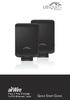 Plug n Play Wireless 10/100 Ethernet Cable Plug n Play Wireless 10/100 Ethernet Cable Package Contents Package Contents AirWire (Qty. 2) Power Adapter (Qty. 2) Ethernet Cable (Qty. 2) Quick Start Guide
NETGEAR 108 Mbps Wireless PCI Adapter WG311T User Manual. NETGEAR, Inc. 4500 Great America Parkway Santa Clara, CA 95054 USA
 NETGEAR 108 Mbps Wireless PCI Adapter WG311T User Manual NETGEAR, Inc. 4500 Great America Parkway Santa Clara, CA 95054 USA 202-10070-03 January 2007 Technical Support Please refer to the support information
NETGEAR Wireless-N 150 USB Adapter WNA1000 User Manual. NETGEAR, Inc. 350 E. Plumeria Drive San Jose, CA 95134 USA
 NETGEAR Wireless-N 150 USB Adapter WNA1000 User Manual NETGEAR, Inc. 350 E. Plumeria Drive San Jose, CA 95134 USA 202-10575-01 August 2009 Technical Support Please refer to the support information card
User guide. Stereo Bluetooth Headset SBH80
 User guide Stereo Bluetooth Headset SBH80 Contents Introduction...3 Function overview...3 Hardware overview...3 Basics...5 Charging the battery...5 Battery status...5 Turning the headset on and off...5
NETGEAR 54 Mbps Wireless PCI Adapter WG311v3 User Manual. NETGEAR, Inc. 4500 Great America Parkway Santa Clara, CA 95054 USA
 NETGEAR 54 Mbps Wireless PCI Adapter WG311v3 User Manual NETGEAR, Inc. 4500 Great America Parkway Santa Clara, CA 95054 USA 202-10091-03 February 2007 Technical Support Please refer to the support information
N900 Wireless Dual Band USB Adapter (WNDA4100)
 N900 Wireless Dual Band USB Adapter (WNDA4100) User Manual 350 East Plumeria Drive San Jose, CA 95134 USA April 2012 202-10938-02 v1.0 2011 NETGEAR, Inc. All rights reserved No part of this publication
NETGEAR RangeMax Wireless PCI Adapter WPN311 User Manual. NETGEAR, Inc. 4500 Great America Parkway Santa Clara, CA 95054 USA
 NETGEAR RangeMax Wireless PCI Adapter WPN311 User Manual NETGEAR, Inc. 4500 Great America Parkway Santa Clara, CA 95054 USA 202-10075-03 January 2007 Technical Support See the support information card
TRENDnet User s Guide. Cover Page
 Cover Page Contents Product Overview... 2 Package Contents... 2 Overview... 2 Interface... 3 Setting up... 4 WPS Setup... 4 Web Browser Setup... 4 ios Setup... 4 Android Setup... 7 Managing the App...
NETGEAR RangeMax NEXT Wireless Router WNR854T User Manual. NETGEAR, Inc. 4500 Great America Parkway Santa Clara, CA 95054 USA
 NETGEAR RangeMax NEXT Wireless Router WNR854T User Manual NETGEAR, Inc. 4500 Great America Parkway Santa Clara, CA 95054 USA 202-10187-02 January 2007 2007 by NETGEAR, Inc. All rights reserved.. Product
User guide. Stereo Bluetooth Headset SBH70
 User guide Stereo Bluetooth Headset SBH70 Contents Introduction...3 Function overview...3 Hardware overview...3 Basics...5 Charging the battery...5 Battery and power management...5 Turning the headset
Wireless-N 150 Router WNR1000v2 User Manual
 Wireless-N 150 Router WNR1000v2 User Manual NETGEAR, Inc. 350 E. Plumeria Drive San Jose, CA 95134 USA 202-10546-01 November 2009 v1.0 2009 by NETGEAR, Inc. All rights reserved. Product Registration, Support,
24V PoE Adapter Power Cord Quick Start Guide
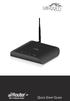 Package Contents Package Contents airrouter HP Antenna Ethernet Cable 24V PoE Adapter Power Cord Quick Start Guide System Requirements Microsoft Windows XP, Windows Vista, Windows 7, Linux, or Mac OS X
Wireless Stereo Headphone System
 3-254-600-32(1) Wireless Stereo Headphone System Operating Instructions MDR-RF820RK MDR-RF850RK 2005 Sony Corporation WARNING To prevent fire or shock hazard, do not expose the unit to rain or moisture.
N300 Wireless Router with USB WNR2200 User Manual
 N300 Wireless Router with USB WNR2200 User Manual NETGEAR, Inc. 350 E. Plumeria Drive San Jose, CA 95134 USA 202-10667-01 September 2010 v1.0 2010 by NETGEAR, Inc. All rights reserved. Product Registration,
NeoTV Streaming Player
 NTV300 User Manual 350 East Plumeria Drive San Jose, CA 95134 USA November 2012 202-11048-01 v1.0 Support Thank you for choosing NETGEAR. After installing your device, locate the serial number on the label
NETGEAR RangeMax NEXT Wireless Router WNR834B User Manual
 NETGEAR RangeMax NEXT Wireless Router WNR834B User Manual NETGEAR, Inc. 4500 Great America Parkway Santa Clara, CA 95054 USA 202-10243-01 July 2007 v2.1 2007 by NETGEAR, Inc. All rights reserved. Product
NETGEAR RangeMax Dual Band Wireless-N Router WNDR3300 User Manual
 NETGEAR RangeMax Dual Band Wireless-N Router WNDR3300 User Manual NETGEAR, Inc. 350 E. Plumeria Drive San Jose, CA 95134 USA 202-10301-02 October 2008 v1.1 2008 by NETGEAR, Inc. All rights reserved. Product
User Manual for the NETGEAR 11 Mbps Wireless USB Adapter MA111. NETGEAR, Inc. 4500 Great America Parkway Santa Clara, CA 95054 USA
 User Manual for the NETGEAR 11 Mbps Wireless USB Adapter MA111 NETGEAR, Inc. 4500 Great America Parkway Santa Clara, CA 95054 USA Version v1.0 June 2004 Technical Support Please refer to the support information
User Manual for the NETGEAR 54 Mbps Wireless USB 2.0 Adapter WG111
 User Manual for the NETGEAR 54 Mbps Wireless USB 2.0 Adapter WG111 NETGEAR, Inc. 4500 Great America Parkway Santa Clara, CA 95054 USA Version v1.0 February 2004 Technical Support Please refer to the support
WN-5000R 802.11n Wireless Router
 WN-5000R 802.11n Wireless Router User s Manual AirLive 0 Clause Declaration of Conformity We, Manufacturer/Importer OvisLink Corp. 5F., NO.6, Lane 130, Min-Chuan Rd., Hsin-Tien City, Taipei County, Taiwan
SanDisk Connect Wireless Flash Drive QUICK START GUIDE
 SanDisk Connect Wireless Flash Drive QUICK START GUIDE GET STARTED 1. Charge your Wireless Drive Plug the Drive into a computer or USB-AC adaptor. A full charge can take up to 2 hours. 2) Turn on the
NETGEAR RangeMax NEXT Wireless Router WNR834B Reference Manual. NETGEAR, Inc. 4500 Great America Parkway Santa Clara, CA 95054 USA
 NETGEAR RangeMax NEXT Wireless Router WNR834B Reference Manual NETGEAR, Inc. 4500 Great America Parkway Santa Clara, CA 95054 USA 202-10171-01 May 2006 2006 by NETGEAR, Inc. All rights reserved. May 2006.
Mobile Printer SM-S230I SERIES. Hardware Manual
 Mobile Printer SM-S230I SERIES Hardware Manual Federal Communications Commission Radio Frequency Interference Statement This device complies with Part 15 of the FCC Rules. Operation is subject
3G Broadband Wireless Router MBR624GU User Manual. NETGEAR, Inc. 350 E. Plumeria Drive San Jose, CA 95134 USA
 3G Broadband Wireless Router MBR624GU User Manual NETGEAR, Inc. 350 E. Plumeria Drive San Jose, CA 95134 USA 202-10437-02 March 2009 2009 by NETGEAR, Inc. All rights reserved. Trademarks NETGEAR and the
MWA2 Wireless Adapter User Manual
 MWA2 Wireless Adapter User Manual Contents Product Features... 4 Connecting to a Projector/Monitor/TV... 5 Home Screen... 6 Navigating the Home Screen... 7 Using edisplay on a Mac or Windows PC... 8 Using
Mini Speaker. Printed in China Part No. 480-919-P Version D. CWA BT300 Product Information Guide
 Mini Speaker Printed in China Part No. 480-919-P Version D CWA BT300 Product Information Guide IMPORTANT To get the full capability of your new Cobra Airwave Mini, please read this manual. It's more than
CLICK HERE TO ACCESS AN UP-TO-DATE ONLINE VERSION
 FUEL USER MANUAL CLICK HERE TO ACCESS AN UP-TO-DATE ONLINE VERSION of this document. You will find the most recent content as well as expandable illustrations, easier navigation, and search capability.
Key. ➍ Micro USB Port ➎ Operating System Toggle Keys ➏ Foam Screen Protectors. ➊ On/Off switch ➋ Bluetooth Connect Button (flashes when searching)
 INSTRUCTION MANUAL ➏ ➋ ➊ Product Features ➎ ➍ ➌ Built-in wireless Bluetooth 3.0 keyboard Compatible across ios, Android, and Windows, enabling you to mix and match with devices Ultra-thin, lightweight
ASUS Miracast Dongle E-MANUAL E8741
 E-MANUAL E8741 E8741 First Edition November 2013 COPYRIGHT INFORMATION No part of this manual, including the products and software described in it, may be reproduced, transmitted, transcribed, stored in
Wireless Cable Modem Gateway CGD24G User Manual
 Wireless Cable Modem Gateway CGD24G User Manual NETGEAR, Inc. 350 East Plumeria Drive San Jose, CA 95134 USA 202-10389-02 May 2009 v1.1 2009 by NETGEAR, Inc. All rights reserved. Technical Support Please
NeoTV PRO Streaming Player
 NTV300S User Manual 350 East Plumeria Drive San Jose, CA 95134 USA November 2012 202-11083-01 v1.0 Support Thank you for choosing NETGEAR. After installing your device, locate the serial number on the
RangeMax WiFi Range Extender WPN824EXT User Manual. NETGEAR, Inc. 4500 Great America Parkway Santa Clara, CA 95054 USA
 RangeMax WiFi Range Extender WPN824EXT User Manual NETGEAR, Inc. 4500 Great America Parkway Santa Clara, CA 95054 USA 202-10310-02 April 2008 2008 by NETGEAR, Inc. All rights reserved. Technical Support
NeoTV Prime with Google TV GTV100
 NeoTV Prime with Google TV GTV100 User Manual 350 East Plumeria Drive San Jose, CA 95134 USA January 2013 202-11067-01 v1 Support Thank you for choosing NETGEAR. After installing your device, locate the
Universal WiFi Internet Adapter (WNCE2001)
 Universal WiFi Internet Adapter (WNCE2001) User Manual 350 East Plumeria Drive San Jose, CA 95134 USA September 2010 202-10598-01 v1.0 2010 NETGEAR, Inc. All rights reserved. No part of this publication
NETGEAR 54 Mbps Wireless Access Point WG602v4 Reference Manual
 NETGEAR 54 Mbps Wireless Access Point WG602v4 Reference Manual NETGEAR, Inc. 4500 Great America Parkway Santa Clara, CA 95054 USA June 2007 202-10279-01 Technical Support Please register to obtain technical
Table of Contents. 16 Technical Support System Requirements. Included in the Box General Controls Playback Features Care Charging
 Instruction Manual Table of Contents 01 02 02 03 04 Included in the Box General Controls Playback Features Care Charging 05 06 07 08 09 10 10 10 Uploading Songs Supported Audio Files Manual Drag and Drop
RangeMax NEXT Wireless-N Access Point WN802T Reference Manual. NETGEAR, Inc. 4500 Great America Parkway Santa Clara, CA 95054 USA
 RangeMax NEXT Wireless-N Access Point WN802T Reference Manual NETGEAR, Inc. 4500 Great America Parkway Santa Clara, CA 95054 USA 202-10204-03 v1.0 August 2007 2007 by NETGEAR, Inc. All rights reserved..
Broadband ADSL2+ Modem Model DM111Pv2 User Manual
 Broadband ADSL2+ Modem Model DM111Pv2 User Manual NETGEAR, Inc. 350 East Plumeria Drive San Jose, CA 95134 USA 202-10392-02 October 2014 v1.0 Support Thank you for selecting NETGEAR products. After installing
Getting Started. Table of Contents. Quick User Guide - English
 Getting Started This Quick User Guide helps you get started with the IRIScan TM Anywhere Wifi. Please read this guide before operating this scanner and its software. All information is subject to change
User guide. Stereo Bluetooth Headset SBH50
 User guide Stereo Bluetooth Headset SBH50 Contents Stereo Bluetooth Headset User guide...3 Introduction...4 Function overview...4 Hardware overview...4 Status icon overview...5 Basics...6 Charging the
ADSL2+ Modem Router User Manual
 ADSL2+ Modem Router User Manual NETGEAR, Inc. 350 East Plumeria Drive San Jose, CA 95134 USA 202-10392-01 October 2008 v1.0 2008 by NETGEAR, Inc. All rights reserved. Trademarks NETGEAR is a trademark
RangeMax Dual Band Wireless-N Modem Router DGND3300 User Manual
 RangeMax Dual Band Wireless-N Modem Router DGND3300 User Manual NETGEAR, Inc. 350 E. Plumeria Drive San Jose, CA 95134 USA 202-10463-02 September 2009 v1.0 2009 by NETGEAR, Inc. All rights reserved. Product
WLA-5200AP 802.11a/b/g Multi-function Wireless Access Point
 WLA-5200AP 802.11a/b/g Multi-function Wireless Access Point User s Manual Declaration of Conformity We, Manufacturer/Importer OvisLink Corp. 5F., NO.6, Lane 130, Min-Chuan Rd., Hsin-Tien City, Taipei County,
BTX180 Wireless Bluetooth Speaker
 BTX180 Wireless Bluetooth Speaker User Manual 2012 Kinivo LLC. All rights reserved. Kinivo is a trademark of Kinivo LLC. Bluetooth word mark and the Bluetooth logo are registered trademarks of Bluetooth
Bank. Wireless Portable Hard Drive. User s Manual
 Bank Wireless Portable Hard Drive User s Manual REGULATORY AND SAFETY INFORMATION FCC Compliance and Advisory Statement This device complies with Part 15 of the FCC rules. Operation is subject to the following
WF720 Wireless Home Phone User Manual
 WF720 Wireless Home Phone User Manual Content Getting to Know Your Device... 3 Appearance...3 LED Indicator...4 Device Installation... 5 Before You Begin...5 Installing the SIM Card and the Battery...5
THERMAL PRINTER TSP650II SERIES
 THERMAL PRINTER TSP650II SERIES Hardware Manual Caution Symbol These symbols are located near the thermal print head. Because the thermal print head is hot immediately after printing, do not touch it.
VueZone System. User Manual. 350 East Plumeria Drive San Jose, CA 95134 USA. October 2012 202-11173-02 v1.0
 User Manual 350 East Plumeria Drive San Jose, CA 95134 USA October 2012 202-11173-02 v1.0 Support Thank you for choosing NETGEAR. After installing your device, locate the serial number on the label of
7 Mini Tablet User Guide
 7 Mini Tablet User Guide MODEL NUMBER: Powered by SYTABBL7 Wireless Mobile Internet Tablet Getting to Know Your New Tablet: Front View: Back View: Side Angle View: MENU MENU Power Key ON/OFF, Back Button
Android Dongle. User Manual TL869
 Android Dongle User Manual TL869 2 User Manual Android TV Dongle Before using the product, please read this manual thoroughly. The specifications and software in this manual are subject to change without
Cabling and Connectors
 Cabling and Connectors Contents Contents Overview.... 1 Installation Requirements... 1 Wiring the Cable (Level 1 Shielding)... 2 Wiring the Cable (Level 2 Shielding)... 8 Cable Wiring Specification (T568B)...
USB 3.0 WiFi Hard Drive. Sky Share H10 User Manual
 USB 3.0 WiFi Hard Drive Sky Share H10 User Manual 1. Introduction...3 2. Spec and System Requirements...5 3. Sky Share H10 Overview...6 4. Sky Share Web UI Overview...8 5. Sky Share App Overview...11 6.
TEW-735AP User s Guide. Copyright 2014 TRENDnet. All rights reserved. a
 Copyright 2014 TRENDnet. All rights reserved. a Table of Contents Table of Contents Product Overview 1 Package Contents 1 Features 1 Front Panel 2 Mounting Holes 2 Connectors 2 Product Preset Information
Bluetooth Stereo Headphone. User Guide. Hive
 Bluetooth Stereo Headphone User Guide Hive 1. Product Description Avantree Hive is a Bluetooth stereo headphone with MIC from the Avantree family. It delivers clear voice transmission and high quality
ZigBee Extender 3. Features. Supported Models and Requirements. Important Safety Instructions. What Is Included: Specifications
 ZigBee Extender 3 Features The Card Access ZigBee Extender 3 operates as a ZigBee (IEEE 802.15.4) router and mesh extender. The Extender is designed to improve ZigBee signal latency that can occur when
QUICK START GUIDE CX-MC200LE-VZ
 QUICK START GUIDE CX-MC200LE-VZ LTE/EV-DO Business-Grade Modem For use with Juniper Networks CX111 3G/4G Bridge with Enhanced Performance and Reliability GETTING READY TO USE YOUR CX-MC200LE-VZ MODEM Thank
NeoTV MAX Streaming Player
 NTV300SL User Manual 350 East Plumeria Drive San Jose, CA 95134 USA November 2012 202-11084-01 v1.0 Support Thank you for choosing NETGEAR. After installing your device, locate the serial number on the
Plantronics.Audio 995 User Guide
 Plantronics.Audio 995 User Guide Welcome Congratulations on purchasing your new Plantronics.Audio 995. This User Guide contains instructions for setting up and using the.audio 995. Please refer to the
ADSL2+ Modem Router DM111PSPv2 User Manual
 ADSL2+ Modem Router DM111PSPv2 User Manual NETGEAR, Inc. 350 East Plumeria Drive San Jose, CA 95134 USA 202-10449-01 December 2008 v1.0 2008 by NETGEAR, Inc. All rights reserved. Trademarks NETGEAR, the
AirVideo-2000. User s Manual. 802.11g Wireless Video Presenter. AirVideo-2000 User s Manual
 AirVideo-2000 802.11g Wireless Video Presenter User s Manual 0 Clause Declaration of Conformity We, Manufacturer/Importer OvisLink Corp. 5F., NO.6, Lane 130, Min-Chuan Rd., Hsin-Tien City, Taipei County,
Fit Clip Plus Portable Media Player
 Fit Clip Plus Portable Media Player User Guide BL 8GB Thank you for purchasing a Fit Clip Plus Portable Media Player! To get the most out of your Fit Clip Plus, please read this entire user guide carefully.
Bounce & Spin ZebraTM
 K0317 Bounce & Spin ZebraTM Please keep this instruction sheet for future reference, as it contains important information. Requires three AAA (LR03) alkaline batteries (not included). Adult assembly is
User Guide Microsoft Screen Sharing for Lumia Phones (HD-10)
 User Guide Microsoft Screen Sharing for Lumia Phones (HD-10) Issue 1.1 EN-US User Guide Microsoft Screen Sharing for Lumia Phones (HD-10) Contents Safety 3 About your accessory 4 Keys and parts 5 Connect
WIRELESS ACCESS POINT PRODUCT MANUAL
 WIRELESS ACCESS POINT PRODUCT MANUAL Models: AN-100-AP-I-N AN-300-AP-I-N CE Warning This is a Class A product. In a domestic environment, this product may cause radio interference, in which case the user
User guide. Miracast Wireless Display IM10
 User guide Miracast Wireless Display IM10 Contents Miracast Wireless Display User guide...3 Setting up the Miracast Wireless Display...4 Hardware overview...4 Turning on and connecting the Miracast Wireless
24 GHz Point to Point 1.4+ Gbps Radio. Model: AF-24
 24 GHz Point to Point 1.4+ Gbps Radio Model: AF-24 24 GHz Point to Point 1.4+ Gbps Radio Model: AF-24 Introduction Thank you for purchasing the Ubiquiti Networks airfiber 24 GHz Point-to-Point Radio.
User Guide. MT-91 / MT-90 / MT-92 Interlinking Transmitter Module MT-90/MT-92 MT-91
 User Guide MT-9 / MT-90 / MT-9 MT-90/MT-9 All rights reserved. MN 04/08 Do not copy or forward without prior approvals MIPRO. Specifications and design subject to change without notice. CE5 0 4 A MT-9