
for Oracle User Guide
|
|
|
- Silas Lambert
- 9 years ago
- Views:
Transcription
1 Quest SQL Optimizer for Oracle User Guide

2 2010 Quest Software, Inc. ALL RIGHTS RESERVED. This guide contains proprietary information protected by copyright. The software described in this guide is furnished under a software license or nondisclosure agreement. This software may be used or copied only in accordance with the terms of the applicable agreement. No part of this guide may be reproduced or transmitted in any form or by any means, electronic or mechanical, including photocopying and recording for any purpose other than the purchaser s personal use without the written permission of Quest Software, Inc. The information in this document is provided in connection with Quest products. No license, express or implied, by estoppel or otherwise, to any intellectual property right is granted by this document or in connection with the sale of Quest products. EXCEPT AS SET FORTH IN QUEST'S TERMS AND CONDITIONS AS SPECIFIED IN THE LICENSE AGREEMENT FOR THIS PRODUCT, QUEST ASSUMES NO LIABILITY WHATSOEVER AND DISCLAIMS ANY EXPRESS, IMPLIED OR STATUTORY WARRANTY RELATING TO ITS PRODUCTS INCLUDING, BUT NOT LIMITED TO, THE IMPLIED WARRANTY OF MERCHANTABILITY, FITNESS FOR A PARTICULAR PURPOSE, OR NON- INFRINGEMENT. IN NO EVENT SHALL QUEST BE LIABLE FOR ANY DIRECT, INDIRECT, CONSEQUENTIAL, PUNITIVE, SPECIAL OR INCIDENTAL DAMAGES (INCLUDING, WITHOUT LIMITATION, DAMAGES FOR LOSS OF PROFITS, BUSINESS INTERRUPTION OR LOSS OF INFORMATION) ARISING OUT OF THE USE OR INABILITY TO USE THIS DOCUMENT, EVEN IF QUEST HAS BEEN ADVISED OF THE POSSIBILITY OF SUCH DAMAGES. Quest makes no representations or warranties with respect to the accuracy or completeness of the contents of this document and reserves the right to make changes to specifications and product descriptions at any time without notice. Quest does not make any commitment to update the information contained in this document. If you have any questions regarding your potential use of this material, contact: Quest Software World Headquarters LEGAL Dept 5 Polaris Way Aliso Viejo, CA [email protected] Refer to our web site for regional and international office information. Trademarks Quest, Quest Software, the Quest Software logo, AccessManager, ActiveRoles, Aelita, Akonix, AppAssure, Benchmark Factory, Big Brother, BusinessInsight, ChangeAuditor, ChangeManager, DeployDirector, DirectoryAnalyzer, DirectoryTroubleshooter, DS Analyzer, DS Expert, ERDisk, Foglight, GPOADmin, Imceda, IntelliProfile, InTrust, Invirtus, itoken, I/Watch, JClass, Jint, JProbe, LeccoTech, LiteSpeed, LiveReorg, LogADmin, MessageStats, Monosphere, NBSpool, NetBase, NetControl, Npulse, NetPro, PassGo, PerformaSure, Quest Central, Quest vtoolkit, Quest vworkspace, ReportADmin, RestoreADmin, SelfServiceADmin, SharePlex, Sitraka, SmartAlarm, Spotlight, SQL LiteSpeed, SQL Navigator, SQL Watch, SQLab, Stat, StealthCollect, Storage Horizon, Tag and Follow, Toad, T.O.A.D., Toad World, vautomator, vcontrol, vconverter, vfoglight, voptimizer Pro, vpackager, vranger, vranger Pro, vspotlight, vstream, vtoad, Vintela, Virtual DBA, VizionCore, Vizioncore vautomation Suite, Vizioncore vbackup, Vizioncore vessentials, Vizioncore vmigrator, Vizioncore vreplicator, Vizioncore vtraffic, Vizioncore vworkflow, WebDefender, Webthority, Xaffire, and XRT are trademarks and registered trademarks of Quest Software, Inc in the United States of America and other countries.

3 Other trademarks and registered trademarks used in this guide are property of their respective owners. Quest SQL Optimizer for Oracle User Guide March 2010

4 Table of Contents Introduction to Quest SQL Optimizer 6 About Quest SQL Optimizer for Oracle 6 Performance Assurance Process 8 Database Privileges About Optimizing SQL and Generating Indexes 12 About SQL Optimizer 13 Optimize SQL Tutorial 15 Deploy Outline Tutorial 16 About Index Generation 18 Index Generation Tutorial 19 Index Impact Analysis Tutorial 20 Best Practices Tutorial 21 About Batch Optimize 22 Batch Optimize Tutorial 25 About Scan SQL 27 Scan SQL Tutorial 28 About Inspect SGA 31 Inspect SGA Tutorial 31 About Advise Indexes 34 Advise Indexes Tutorial 35 About Analyze Impact 36 Analyze Impact Tutorial 39 Save SQL Statements to SQL Repository Tutorial 42 About Manage Outlines 43
5 Table of Contents 5 Manage Outlines Tutorial 44 Appendix: Contact Quest 45 Contact Quest Support 45 Contact Quest Software 45 About Quest Software, Inc. 45 Index 46

6 1 Introduction to Quest SQL Optimizer About Quest SQL Optimizer for Oracle Quest SQL Optimizer for Oracle maximizes SQL performance by automating the manual, timeintensive, and uncertain process of ensuring that SQL statements are performing as fast as possible. SQL Optimizer automatically analyzes, rewrites, and evaluates SQL statements within multiple database objects, files, or collections of SQL statements from the SGA. The process of optimizing problematic SQL from multiple source code locations is completely automated. Whether you are a developer, DBA, or performance tuner, you can just let Quest SQL Optimizer for Oracle analyze and optimize in batch all problem SQL from multiple sources and then SQL Optimizer will provide you with the replacement code which includes the optimized SQL statements. SQL Optimizer also provides you a complete index optimization and plan change analysis solution, from index recommendations for multiple SQL statements to simulated index impact analysis, through comparison of multiple SQL execution plans. SQL Optimizer consists of the following: Batch Optimize The Batch Optimize enables you to submit files, database objects, text, or a Performance Analysis SQL repository for batch processing. It first scans the code to extract the SQL statements, then optimizes the SQL statements and tests the SQL alternatives to find the best performing SQL for your database environment. It provides the replacement code with the optimized SQL statements. Scan SQL The Scan SQL identifies SQL statements from source code and database objects without requiring the execution of the SQL statements. Once the SQL statements are identified, the Scan SQL analyzes and categorizes them according to suspected levels of performance problems. Inspect SGA The Inspect SGA offers an easy way to view and analyze previously executed and currently running SQL statements from Oracle s system global area (SGA). You can specify your own criteria to retrieve the SQL statements and their corresponding statistics to review SQL performance.

7 Introduction to Quest SQL Optimizer 7 Optimize SQL and Generate Indexes (Optimization Session) The Optimization Session contains the SQL Optimizer, the Index Generation, Deploy Outline, Test for Scalability and Best Practices along with the testing of the alternative SQL statements and the index candidates. Optimization Session - SQL Optimizer The optimization process automates the optimization of SQL statements. It first analyzes the original SQL statement and then exhaustively rewrites the syntax of the SQL statement and apply the Oracle optimization hints. It produces a list of semantically equivalent and syntactically correct SQL statements. By test running these SQL statements, it is then possible to identify which SQL statement best suits the needs of your database environment. Optimization Session - Find Best SQL Alternative The execution of the SQL statements enables you to test run the original and optimized SQL statements to select which SQL statement gives the best performance. The execution times and run time statistics help you identify which SQL statement is most suitable for the needs your database application environment. Optimization Session - Deploy Outline Deploy Outline stores an Oracle stored outline for a specific SQL statement. Oracle will use the stored outline when executing the SQL statement in place of using the execution plan. Optimization Session - Index Generation The Index Generation enables you to determine the best possible indexes for your SQL statements. It analyzes the syntax of a SQL statement and the relation between tables to generate index alternatives. It provides all the alternative index sets that generate a unique execution plan for a SQL statement. It creates these index sets without physical creating the indexes in your database. Optimization Session - Find Best Index Alternative The performance of a SQL statement with the index candidates can be tested to help you determine which indexes should be permanently created in your database. Optimization Session - Test for Scalability The user workload that SQL statements may encounter can be simulated with Quest Benchmark Factory to see how the best SQL alternatives will perform under

8 Introduction to Quest SQL Optimizer 8 different workload conditions. Optimization Session - Best Practices Best Practices proposes common techniques to improve performance on your database. Advise Indexes Advise Indexes module analyzes a group of SQL statements and determines the best common index set for all of those SQL statements. Analyze Impact The Analyze Impact module helps you to ensure reliable database performance by tracking execution plan and Oracle cost changes for SQL statements. It keeps track of execution plan changes to allow you to estimate the impact on the SQL statements' performance due to database changes. You can simulate different database scenarios with a selected group of SQL statements that will give you a good representation of what will happen if a proposed database change actually occurred. Or, you can track the actual changes in the execution plan over time or as the result of actual changes in the database environment. Manage Outlines The Manage Outline module organizes the stored outlines used to improve the performance of SQL statements when you cannot or do not want to change the SQL syntax in the source code. Performance Assurance Process Quest SQL Optimizer for Oracle enables you to assure that your SQL statements will run as fast as possible in your database environment. Use the following process to identify the SQL that needs to be optimized, to find the alternative SQL statements, and select the best SQL for your application. 1. Identify problematic SQL, optimize SQL statements, and test SQL alternatives The first step in optimizing a database application is to find which statements are causing the performance problems. Use the Batch Optimize module to extract embedded SQL statements from your database objects (such as stored procedures, views, etc), application source code files, or executable files. The scanning process extracts the SQL statements directly from the source code without requiring you to execute your application. Note: Dynamic SQL statements, which are not created until the application is executed, can be captured by the Inspect SGA module. For dynamic SQL statements, capture them first with the Inspect SGA module and then use the Batch Optimize module to extract and identify the problematic SQL statements from the Inspector file.

9 Introduction to Quest SQL Optimizer 9 The scanning process, by analyzing the operations in the execution plan, identifies potential performance bottlenecks such as performing full table scans on large tables or multiple table scans. These thresholds are user-defined under the SQL Classification definitions. The analysis identifies the problematic SQL that should be optimization. The Batch Optimize module automatically optimizes the problematic and complex SQL to find alternative SQL statements that have unique execution plans. The optimization process explores all possible ways to rewrite the original SQL statement. First, the syntax of the SQL statement is analyzed along with the tables and indexes and it is rewritten to provide all the SQL alternatives that produce the exact same result. It applies the optimization hints that are specific to Oracle, such as ALL_ROWS, HASH, and ORDERED. The use of these Oracle hints is optional. Once the optimization process has generated all the semantically equivalent SQL alternatives, the Batch Optimize module determines which one is the most efficient for your database environment by executing the original SQL statement and the SQL alternatives. It generates a script that you can use to replace the original SQL statement with the better performing alternatives. Note: You can also use the Scan SQL module to extract and identify problematic SQL. Then you can use the Optimize SQL and Batch Run functions to generate the SQL alternatives and to test them. 2. Improve SQL coding skills and optimization knowledge In an Optimization Session, use the Compare function after the original SQL statement is optimized to view side-by-side the alternative SQL statements in order to learn what alternate SQL syntax accomplishes the same result. Also, view the execution plans side-by-side to improve your knowledge of how Oracle executes a SQL statement based on the SQL syntax. Use the context sensitive help for each keyword in the execution plan to further your understanding of execution plan steps. 3. Replace poor performing SQL Once you have found the best SQL for your application, copy the SQL alternative to the source code. Note: The Batch Optimize module will create a replacement script for you. 4. Generate index alternatives If optimizing a SQL statement does not improve the performance enough to meet your performance requirements, index alternatives can be generated for a single SQL statement with the Index Generation in an Optimization Session or for a group of SQL statements with the Advise Indexes module to further enhance the database performance. 5. Predict and track changes to performance You can predict the performance changes to your database before you migrate to another database, make configuration changes, or add new indexes using the Analyze Impact module.

10 Introduction to Quest SQL Optimizer 10 You can also track the changes that take place in the performances of SQL statements as the result of changes like updating database statistics, changes in data volume, or program upgrades. 6. Improve Vendor Applications You can use Oracle stored outlines to improve the performance of SQL statements when you cannot replace the original SQL statement in your source. In the Optimize SQL module, you can deploy an outline after you have optimized a SQL statement and then use the Manage Outlines module to organize your stored outlines. Database Privileges Oracle database privileges limit the access of individual users. The following lists the functionality that requires specific Oracle database privileges. If you do not have one of these privileges, you can still use the functionality in the other features of the program. Module Functionality Privilege Optimize SQL and Batch Optimize Optimize SQL, Advise Indexes, and Batch Optimize Optimize SQL, Advise Indexes, and Batch Optimize Optimize SQL Index Generation and Advise Indexes Optimize SQL All Modules Execution Method option: Run on Server setting Retrieve Run Time Statistics Retrieve time related statistics Generate Virtual Indexes Altering session parameters for executing SQL Access is needed to this package: SYS.DBMS_ SQL Access is needed to these system views: SYS.V_$PARAMETER, SYS.V_$MYSTAT, and SYS.V_$STATNAME The TIMED_STATISTICS parameter in the INIT.ORA file must be set to TRUE. Oracle 8i or above is required. Access is needed to this system view: SYS.V_ $PARAMETER If the Oracle init parameter O7_DICTIONARY_ ACCESSIBILITY (Oracle 8 or above) is set to false, objects under SYS are not accessible, even for a user with the SELECT ANY TABLE privilege granted. In this case, the SELECT ANY

11 Introduction to Quest SQL Optimizer 11 Module Functionality Privilege DICTIONARY privilege or the SELECT_ CATALOG_ROLE role is needed to access the objects under SYS. Inspect SGA Manage Outlines and Deploy Outlines SQL to Collect: Executed SQL from SQL Area SQL to Collect: Currently executing SQL Flush Oracle shared pool Execution Plan Information Creating and managing stored outlines Access is needed to these system views: SYS.V_$SQLAREA and SYS.V_$SQLTEXT_ WITH_NEWLINES (or SYS.V_$SQLTEXT depending on your version of Oracle) In Oracle 9 or later, SYS.V$_SQL_PLAN Access is needed to these system views: SYS.V_$OPEN_CURSOR, SYS.V_$SESSION, SYS.V_$SQLAREA and SYS.V_$SQLTEXT_ WITH_NEWLINES (or SYS.V_$SQLTEXT depending on your version of Oracle) In Oracle 9 or later, SYS.V$_SQL_PLAN ALTER SYSTEM privilege is needed. Oracle 9 or above is required. Access is needed to this system view: SYS.V_ $SQL_Plan Oracle 8i or above is required. CREATE ANY OUTLINE and DROP ANY OUTLINE privileges are needed. Access to this package is needed: SYS.OUTLN_ PKG Access is needed to these system views: OUTLN.OL$ SYS.USER_OUTLINES and SYS.USER_ OUTLINE_HINTS or SYS.DBA_OUTLINES and SYS.DBA_OUTLINE_ HINTS Update privilege is needed to: OUTLN.OL$, OUTLN.OL$HINTS. For Oracle 9i or later, update privilege is needed to: OUTLN.OL$NODES ALTER SYSTEM is needed to enable a stored outline category.

12 2 About Optimizing SQL and Generating Indexes The Optimize SQL module contains the SQL optimization and index generation for a single SQL statement along with the testing of the alternative SQL statements created by the optimization process and the index candidates generated by the index generation process. SQL Optimization The SQL Optimization process automates the optimizing of SQL statements. It first analyzes the original SQL statement and then exhaustively rewrites the syntax of the SQL statement and applies the Oracle optimization hints. It produces a list of semantically equivalent and syntactically correct SQL statements that produce the same result set as the original SQL statement. Find Best SQL Alternative The execution of the SQL statements enables you to test run the original and optimized SQL statements to select which SQL statement gives the best performance. The execution times and run time statistics help you identify which SQL statement is most suitable for the needs of your database application environment. Index Generation The Index Generation process enables you to determine the best possible indexes for your SQL statements. It analyzes the syntax of a SQL statement and the relation between tables to generate index alternatives. It provides all the alternative index sets that generate a unique execution plan for the SQL statement. It creates these index sets without physical creation of indexes in your database. Find Best Index Alternative The performance of a SQL statement with and without the index candidates can be tested to help you determine which indexes should be permanently created in your database. This process does create the indexes in your database.

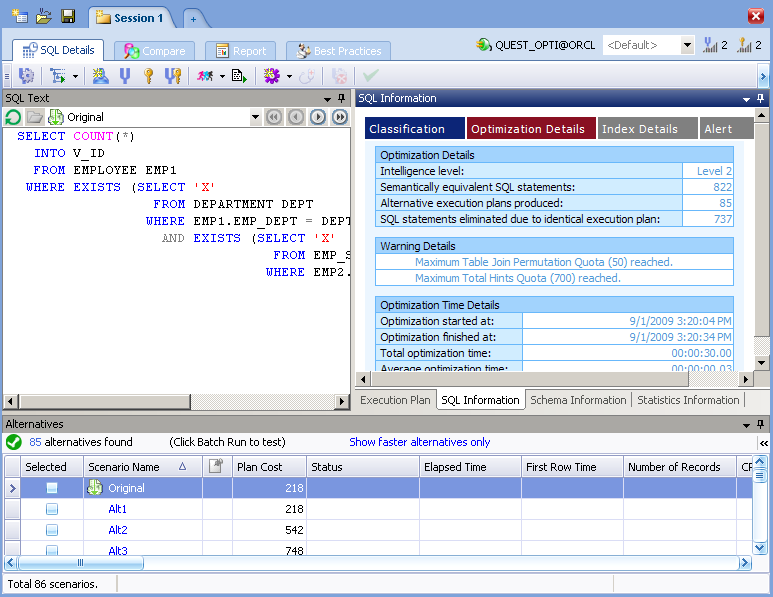
13 13 About SQL Optimizer The SQL Optimizer in the Optimize SQL module automates the optimization of SQL statements. It employs a unique engine that uses Artificial Intelligence to generate all the possible SQL alternatives that can be mathematically proven to be "semantically equivalent" to the original SQL statement which guarantees that the SQL alternatives will produce the exact same results as the original SQL statement. After the alternatives are generated, you can compare each SQL statement to any other SQL statements to see the different SQL coding techniques for achieving the same results. You can then test these alternative SQL statements in your environment to find the best one for your database environment. SQL Syntax Transformation The first step of this engine transforms the original SQL statement and produces a group of alternative SQL statements where the syntax was rewritten. Then, the SQL Optimizer rewrites each newly created SQL statement to produce another group of alternatives. The engine continues rewriting each alternative until all the SQL statements cannot be rewritten any further or until the user-defined quota for the number of SQL statements generated by syntax transformation is reached.

14 14 One of the syntax transformation rules is illustrated in the following example: SELECT * FROM table_a WHERE table_a.key IN (SELECT table_b.key FROM table_b) If table_b.key is an indexed column, the following transformation rule is applied: SELECT * FROM table_a WHERE EXISTS (SELECT 'x' FROM table_b WHERE table_b.key = table_a.key) In the Optimization settings, you can also control whether the optimization process will merge the SELECT statement from a VIEW used in the original SQL so that it is rewriting the original SQL and the SELECT statements from all the views accessed by the SQL statement. You can also specify to include a transformation rule that will transform the query to an inline view, that is take a subquery and use it as a table in a FROM clause. You can also select to use the JOIN clause (INNER JOIN, CROSS JOIN) from the Ansi-92 SQL standard or to use the original SQL syntax for joining tables. Applying Oracle Hints After the SQL Optimizer has exhausted rewriting the syntax of the SQL statement, the Oracle optimization hints which are selected in the Optimizer options are applied to the original SQL statement and each of the SQL alternatives until all selected hints have been applied to all the SQL alternatives or until the user-defined quota is reached. Eliminating Duplicate Execution Plan For each rewritten SQL statement, the execution plan is compared to all the other execution plans. One SQL alternative is selected for each unique execution plan. Although the optimization process may generate hundreds of SQL alternatives, you will see only some of the alternatives since the alternatives with a duplicate execution plan are eliminated. Testing for Best Alternative Although all the SQL alternative statements produce the same result, Oracle will likely use a different path to retrieve the data for each one. It is difficult to decide which SQL statement will run faster without taking into account the database structure, indexes, and data volume, so it is important to test the SQL alternatives in your database environment using the Batch Run function to determine the best SQL alternative from the run time statistics.
15 15 Intelligence Level Settings The settings in the Optimizer options affect the amount of time it takes and the number of alternatives that are generated by the optimization process. You can quickly select to increase or decrease the intensity of the optimization process using the Intelligence Level settings to automatically select more or less options. Create Your Own Alternative SQL You also have the ability to test and compare your own SQL alternatives using the User Alternative function. Optimize SQL Tutorial The SQL optimization in which the syntax of the SQL statement is rewritten is a two-step process. In the first step, the SQL optimization process automatically transforms the original SQL statement and generates semantically equivalent alternative SQL statements with unique execution plans. For every alternative execution plan, the Oracle Cost estimation is displayed. Once the SQL alternatives have been generated, the second step consists of locating the mostefficient SQL alternatives for your database environment by testing the SQL alternatives against your database. The results obtained from the second step indicate the time required to execute each SQL statement, as well as, run time statistics. Tip: The Oracle Cost is only an estimate of the resources it takes to execute a SQL statement. It is essential to execute the alternative SQL statements in order to determine which statement performs the best in your environment. Optimize SQL 1. Click the Optimize SQL tab. 2. Enter a SQL statement in the SQL Text window. 3. Click. 4. In the Connection box, click and select a previously created database connection or click to create a new Connection Profile. Select a Schema. Click OK. This step launches the optimization processing that automatically transforms the SQL statement. The use of hints and other optimization options such as transforming a view to an inline view and the ANSI JOIN syntax are optional. In the Options, the intensity of the SQL transformation process is controlled by the Intelligence Level. The Intelligence Levels control how many Oracle hints are applied to transform SQL and how many SQL alternatives are created.
16 16 Compare Scenarios 5. To compare the original SQL statement and the execution plan to the alternative SQL statements, click the Compare tab. Test Alternative SQL statements The Batch Run function provides an efficient way of testing SQL. It runs the selected SQL statements in the database and the SQL statements that exceed the termination time are canceled. For SQL statements such as INSERT, DELETE and UPDATE, each statement is run in a transaction that is ROLLBACK, therefore maintaining the consistency of your data. 6. Click the SQL Details tab. 7. To prepare to execute the source and the alternative SQL statements, click. 8. Select the Optimize SQL Batch Run branch and review the settings. 9. Click to execute all the SQL alternatives. 10. Once you have identified the alternative SQL statement you want to use, you can copy and paste it back in your application. Deploy Outline Tutorial The Deploy Outline feature leverages the Oracle plan stability strategy called stored outlines. In Oracle 9i and above, the stored outlines enables you to influence the execution plan of a SQL statement without having to modify the SQL statement syntax. The major advantage of deploying a outline is that you can optimize the SQL statement without altering the SQL text. This is an ideal solution for when you do not have the source code from a vendor but want to improve the performance of the database application. In this case, you cannot change the source code that contains a poor performing SQL statement, but you can deploy a stored outline to force Oracle to use a specific execution plan for that SQL statement. In the Optimize SQL module, you can optimize to find the semantically equivalent SQL statements with alternative executions plans and then choose the best SQL statement and deploy it as a outline. Creating a Stored Outline for the Original SQL Statement 1. Optimize and execute a SQL statement using the Optimize SQL Tutorial. 2. Select the alternative SQL statement whose execution plan you want Oracle to use in place of the execution plan for the original SQL statement. 3. In the Alternatives window, right-click the SQL alternative to deploy and select Deploy

17 17 Outline. 4. In the Outline name box, enter a name for the stored outline. 5. In the Category box, select a category name or enter a new name to create a new category. The default category name is SQL_OPTIMIZER. Note: At this point, it is a good idea to put this outline in a category that is disabled until you have finished testing the execution of the SQL statement with and without the use of the outline. You can move the stored outline to another category using the Manage Outlines. 6. Click Deploy. Moving the Outline to another Category If you are satisfied with the performance improvement for the SQL statement with the stored outline, then move the stored outline to a category that is enabled. 7. Click the Manage Outlines tab to open the Manage Outlines window. 8. In the Category/Outline pane, select the stored outline. 9. Click. 10. Enter either a new category name or the name of an existing category. Enabling an Outline Category Outlines are stored in a category. A category is either set as enabled or disabled. If the category is enabled, all outlines in the category will be used when corresponding SQL statement is executing. If a category is disabled, then when the SQL statement is executed, Oracle retrieves the execution in the normal manner at the time of execution. 11. Click the category name in the Category/Outline tree. 12. Click. Note: The category named DEFAULT is always enabled, so that outlines stored in the DEFAULT category are always used when the corresponding SQL statement is executed.


18 18 About Index Generation The Index Generation in the Optimize SQL module enables you to determine the best possible indexes for a SQL statement. The Index Generation generates multiple index sets for a single SQL statement. Index Set Generation The process generates index sets by analyzing the syntax of a SQL statement and the tables it references. It generates the individual index candidates and then groups these indexes into index sets of one or more indexes. In the Index Type options you can select to generate B-Tree and Bitmap indexes. You can specify to parallelize the indexes and to what degree. For B-Tree indexes, you can specify keycompressed. When generating the indexes, it determines the selectivity of the data from the sample data size that you specific in the Index Options. You can also determine the maximum number of columns that will be used in a composite index, the maximum number of indexes in an index set, along with setting quotas for how many individual indexes and index sets are generated. Note: Index Generation requires Oracle 8i or above. It also requires the use of the Oracle costbased optimizer. If your are using the rule-based optimizer, cost-based optimization will be enforced by using the ALL_ROWS or FIRST_ROWS hint. This is required in order to create virtual indexes in Oracle. If the SQL statement has the rule hint /*+ RULE */, you must remove it before generating the Index sets.

19 19 Eliminating Duplicate Execution Plan The virtual execution plan for the SQL statement is retrieved using each index set that is generated. Each plan is compared to all the other virtual execution plans. One index set is selected for each unique virtual execution plan. Although the index generation process may generate several index sets, you will see only some of the index sets since the sets with a duplicate virtual execution plan are eliminated. It retrieves the virtual execution plan for every index set without physically creating of the indexes in your database because it uses virtual indexes. Testing Performance Improvement with the Index Sets You can review the virtual execution plans and the Oracle cost estimations to assist you in selecting which Index Sets to test and implement. The original SQL statement can be executed using index sets to identify which index set will yield the greatest performance gain for the SQL statement. The execution process physically creates the indexes in the index set on your database, executes the original SQL statement, and then drops the indexes from the database. Index Impact Analysis You can do an Index Impact Analysis to see the impact that creating new indexes would have on the execution plans of your SQL statements before you actually create the indexes on your database. The Index Impact Analysis evaluates the effect of the creation of the indexes in the database system without affecting database performance. It shows which SQL statements are impacted by the index sets and identifies the index set that yields the highest performance gain with the least impact on the database system. Index Generation Tutorial Index Generation analyzes the syntax of a SQL statement, the relation between tables, and selectivity of the data to identify columns as index candidates. Index candidates are combined into multiple index sets and it gives you all the alternative index sets that generate a unique execution plan for the SQL statement. It does this without physically creating the indexes in the database. Index Generation provides performance estimations for every index set to assist you in selecting which index set alternatives to test, evaluate, or implement. The SQL statement can be executed using the index alternatives to identify which set will yield the greatest performance gain for the SQL statement. Generate Index Alternatives 1. Click the Optimize SQL tab. 2. Enter a SQL statement in the SQL text window. 3. Click.

20 20 4. In the Connection box, click and select a previously created database connection or click to create a new Connection Profile. Select a Schema. Click OK. Compare the Index Sets with the Original SQL statement 5. To compare the original SQL statement and the execution plan to the execution plan with the Index Sets, click the Compare tab. Test the Alternative SQL statements The Execute function provides an efficient way of testing the indexes. It physically creates the indexes on the database, runs the SQL statement, and then drops the indexes. This process may impact the performance of other SQL statements. 6. Click the SQL Details tab. 7. Select the index sets that you would like to test. 8. Click the down arrow on the right of and select Batch Run Selected. 9. Before creating new indexes you can do an Index Impact Analysis. Index Impact Analysis Tutorial You can analyze the impact that creating new indexes would have on the execution plans of your SQL statements before you actually create the indexes on your database. To do this, you use the Analyze Impact module to store the current execution plans of your SQL statements. Then you can do a simulation of creating the indexes by creating virtual indexes and compare the execution plans before and after the index simulation to see what affect the indexes would have on the execution of your SQL statements. You can do an Index Impact Analysis from the Optimize SQL or Advise Indexes module. 1. In order to do an Index Impact Analysis, you must have already created an Analyzer in the Analyze Impact module. If you have not done this, following the steps in the Analyze Impact Tutorial. 2. Generate Index candidates using the Index Generation Tutorial. 3. Select the virtual index you want to use for the analysis. 4. Click. 5. The Select a Group window appears. Select the Analyze Impact Group which contains the SQL Repository that you want to analyze. 6. The Analyze Impact window is opened and you are prompted with the Impact Analysis - Add Snapshot wizard. 7. The Impact Analysis - Add Snapshot wizard consists of the following:

21 21 General Page 8. Select the Analyzer which contains the SQL statements you want to analyze in the Analyzer tree. Box Name Type Description Last generated Add to Analyzer Select an Analyzer to analyze its SQL statements Description The name is automatically generated for a virtual index snapshot. The snapshot type of Virtual Index Simulation is automatically entered. Enter the description for the Snapshot to be created. Displays the last generated date and time. This will be blank since you are creating the Snapshot for the first time. Displays the Analyzer location where the Snapshot will be saved. From the tree structure, select an Analyzer. When you are doing an Index Impact Analysis from the Optimize SQL module, the Analyzer must have been previously created in the Analyze Impact. Virtual Indexes Page 9. The virtual index set that you selected in the Alternatives window is selected. You may select addition index sets. Best Practices Tutorial Best Practices within the Optimize SQL module does an overall analysis of a SQL statement and your database and then proposes common ways to improve performance. However, review these recommendations to see if they are the correct solution for your database environment and thoroughly test the recommendations before you apply them to your production system. A recommendation may help to improve a specific SQL performance, but it may affect other SQL statements as well. When evaluating the recommendations, you need to take into account that database performance is a result of the complex mix of the following: System resources (CPU, I/O, memory, database architecture, and more) Data distribution
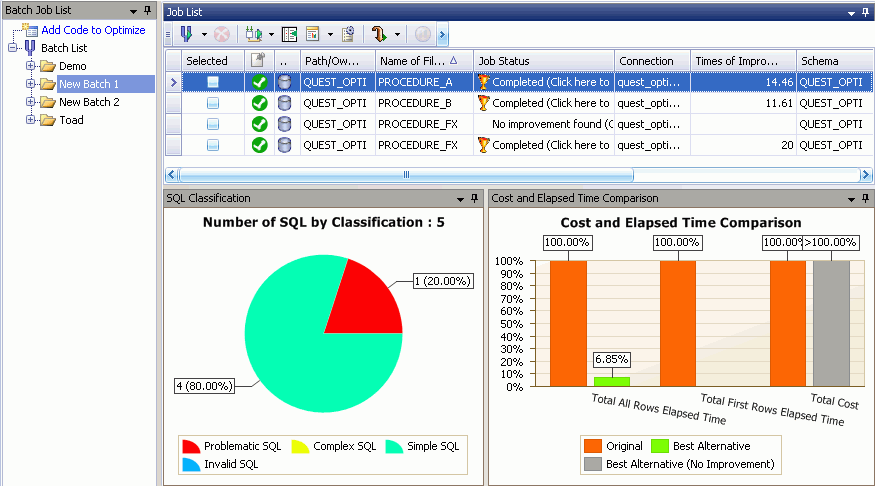
22 22 System architecture SQL execution plans User's usage behavior 1. Click. 2. Select Optimize SQL Best Practices General. Check Include Best Practices module in Optimize SQL. Click OK. 3. Click the Optimize SQL tab. 4. Click the Best Practices tab. 5. Enter a SQL statement into the SQL Text window. 6. In the Connection box, click and select a previously created database connection or click to create a new Connection Profile. Select a Schema. Click OK. 7. Click. 8. Review the recommendations. About Batch Optimize The Batch Optimize module combines the scanning of source code, the optimization of SQL statement, and testing of the SQL alternatives with the original SQL into one simple process. So, it automates the whole process of identifying problematic SQL in your database application, rewriting the SQL statements, and executing the original SQL statement along with the alternative SQL statements to find the fastest alternative. Then it creates a script from your
23 23 original source code in which the slower SQL statements are replaced with better performing SQL alternatives. Add Jobs to a Batch To start the process, you must a add a job to a batch. A job consists of text which is expected to contain one or more SQL statements. A job may be a block of text, a database object, an ASCII file, a binary file, a Scan SQL job, a Inspect SGA job, or a Performance Analysis SQL repository. You can use the Add Batch Optimize Jobs wizard to put the jobs into a batch. You can also submit a job to the Batch Optimize from other Quest products, such as Toad, SQL Navigator, Performance Analysis, or Spotlight. You can submit a SQL statement from the SQL Text window of the Inspect SGA or the Scan SQL. modules. Scanning The first step of the Batch Optimize process is to scan through the text in each job to find the INSERT, UPDATE, DELETE, and SELECT SQL statements. This scanning process works exactly the same as the scanning process in the Scan SQL. Optimization The second step of the Batch Optimize process is to optimize the SQL statements that were found during the scanning process. This optimization is the same process that is used in the SQL Optimizer. Execution The third step of the Batch Optimize process is to execute the original SQL statement and the alternative statements to see if any of the SQL alternatives outperform the original SQL statement. If a SQL statement has a bind variable, it is not executed until you enter the value for the variable. You may select to execute the SQL statements in a different schema or using a different database connection from the one used for the scanning and optimizing processes. Generate Optimized Script After the SQL alternatives are executed, if one of the alternatives is faster than the original SQL statement then a replacement script can be generated. This script is a copy of the original text that was scanned with the poor performing SQL statements replaced with the best SQL alternatives. You can then take this script and replace the code in the database object or application source code file.
24 24 Options Settings The Batch Optimize process can be fully automated by using the settings in the Batch Optimize options. Or, can manually control the process. Scanning Options Jobs will be automatically scanned as soon as they are placed in a batch if you select the Automatically start extracting SQL when job is added setting. The jobs are scanned using the settings in the Scan SQLsettings. Optimizing Options When the scanning process is finished, the optimization process can automatically be started based on the SQL classification that you select in the SQL to automatically optimize setting. For example, if you select Problematic, only those SQL statements that are classified as Problematic will automatically be optimized. If you do not select any of the SQL classifications, then you must manually select each SQL statement you would like optimized. The SQL statements are optimized using the Optimizer settings. Executing Options When the optimization process is finished, the execution of the original SQL statement and the selected alternatives are automatically started if you select one type of SQL statement under the Types of SQL statement to execution automatically after optimization option. The SQL alternative that are executed are determined by these settings. The Types of SQL statement to execution automatically after optimization enables you to select whether the INSERT, UPDATE, DELETE, or SELECT statements are automatically executed. SQL alternatives to execute The Number of SQL alternatives to select as the representatives and Execute these additional SQL alternatives settings determine which SQL alternatives are to executed. When executing the SQL statements in the Batch Optimize module, the default execution method is Run on server. By that, it is meant that all SQL statements are executed on the server and do not return the data from the SELECT statements to the client. Executing the SQL statements with this method provides you with the run time on the CPU for the SQL statement. Using this method, your logon account must have the SYS.DBMS_SQL package privilege to retrieve the run time from the server. Selecting Best Alternative Options The best alternative is selected based on the Total elapsed time or the First row elapsed time in the Best SQL Alternative Selection Criteria setting. The Elapsed time is how long it takes to
25 25 retrieve all the records returned by a SELECT statement. The First row time is how long it takes to retrieve only the first record. Batch Optimize Tutorial The Batch Optimize module combines the scanning, the SQL optimization, and testing of the SQL alternatives with the original SQL into one simple process. So, it automates the whole process of identifying problematic SQL in your database application, rewriting the SQL statements, and executing the original SQL statement along with the alternative SQL statements to find the fastest alternative. Then it creates a script from your original source code in which the problematic SQL is replaced with a better SQL alternative. 1. Click the Batch Optimize tab. 2. In the Batch Job List window, click and select All Types to open the Add Batch Optimize Jobs wizard so you can select which files, database objects, Scan SQL files, Inspect SGA files, text, or Performance Analysis SQL repository you want to scan for and optimize the SQL statements that are found. Connection page a. In the Connection box, click to select a previously created database connection or click Database Objects page to create a new connection. a. Expand the database user branch in the Database Objects box. b. Highlight the schema, a database object type, or an individual database object, and click to move the item to the Select Objects box. (Whether or not you can scan all of the selected database objects depends on your database privileges.) Source Code page a. Click the Text or binary files, Oracle SQL*Plus scripts, or COBOL programming source code option. b. Click and select the files you want to scan. c. Click Open to insert the files in the Add Scanner Jobs wizard. d. Set the schema in the Scan using Schema list to correspond with the SQL that you are scanning.
26 26 SQL Text page a. Paste or type the text which contains one or more SQL statements. b. Set the schema in the Scan using Schema list to correspond with the SQL that you are scanning. Scan SQL page a. In the Group box, select the Scanner group which contains the SQL statement you want to scan to identify the problematic SQL. b. From the Available Scanners box, select the Scanner jobs. c. Click Add selected Scanner jobs Scanners box. to move the Scanner jobs to the Selected d. Set the schema in the Scan using Schema list to correspond with the SQL that you are scanning. The scanning process will use this schema and not the database connection that is associated with the Scanner group you select in step a. Inspect SGA page a. In the Group box, select the Inspector group which contains the SQL statement you want to scan to identify the problematic SQL. b. From the Available Inspectors box, select an Inspector job. c. Click Add selected Inspector jobs Inspectors box. to move the Inspector to the Selected d. Set the schema in the Scan using Schema list to correspond with the SQL that you are scanning. The scanning process will use this schema and not the database connection that is associated with the Inspector group you select in step a. Performance Analysis page a. Click Check for PA Repository. b. Check Add the PA Repository as a job checkbox. c. Enter the selection criteria for the SQL statement you would like to extract. Batch Info page a. Select Create a new batch. b. In the Batch Name box, enter a name. 3. After you have made all your selections in the Add Batch Optimize Jobs wizard, click Finish.

27 27 4. The Batch Optimize will automatically start scanning the jobs that you created. Note: The scanning automatically starts when the Automatically start extracting SQL when job is added option is checked on the Batch Optimize Options page. The option is checked by default. 5. The SQL statements that are classified as Problematic or Complex will automatically start optimizing after the scanning process is finished. Note: Which SQL statements are optimized is determined by the SQL classifications selected in the SQL to automatically optimize option on the Batch Optimize Options page. By default, the Problematic and Complex SQL are optimized. 6. After the SQL statements are optimized, the original SQL statement and some of the alternatives SQL statements are executed. Note: The specific SQL statements that are executed is determined by the option selected under the Number of SQL alternatives to select as the representatives and the Execute these additional SQL alternatives settings on the Batch Optimize Execution SQL to Execute Options page. 7. You can review the details of the an optimized SQL statement in an Optimization Session by clicking the row for the SQL statement in the SQL List window and clicking. 8. If a faster SQL alternative is found for a SQL statement, you can generate a replacement script for the source code by click the job in the Job List window and clicking. Review the script before using it to replace your original source code. About Scan SQL
28 28 Database applications typically contain thousands of SQL statements that may need to be optimized for better performance. Without the Scan SQL, you have to find and extract each SQL statement manually a very tedious and time-consuming task. Once you have found the SQL statements, you need to analyze the execution plan of each SQL statement to see if the execution plan represents a potential performance problem. The Scan SQL relieves you of this tedious task. The Scan SQL extracts SQL statements embedded in database objects, captured from the SGA, stored in application source code and binary files, or saved in a Performance Analysis SQL repository. It retrieves and analyzes the execution plans for the extracted SQL statements. It then categorizes the SQL statements according to the complexity of the execution plan and determines whether it has the characteristics that typically cause performance problems. The Scan SQL allows you to quickly review SQL statements in existing code and detect potential problems. With this approach, you can be proactive in the detection of performance problems and identify the SQL statements that need to be optimized without executing the applications. Once the problematic SQL statements have been identified, you can determine the best solution by Sending a SQL statement to the Optimize SQL module for optimization. Sending a SQL statement to the Optimize SQL module for index generation. Sending a SQL statement to the Batch Optimize for optimization. Sending a group of SQL statements to Advise Indexes for index generation. Saving a group of SQL statements to the SQL Repository for further analysis. Each item that is scanned is referred to as a "job" which can be a database object, text file, binary file, Inspect SGA file, or Performance Analysis SQL repository. The Scanning options allow you to include SQL statements that are found in a comment or that use only the SYS.DUAL table. If your code has tags at the beginning of each line, you can have the scanning process skip them. You can specify a continuation character if your code uses one at the end of each line of a SQL statement that is displayed on several lines. And you can specify that it searches for the whole word when it looks for the INSERT, UPDATE, DELETE, and SELECT statements, so that it does not try to build a SQL statement when it finds text like UPDATERECORD. Scan SQL Tutorial Use the Scan SQL module to analyze SQL statements embedded within database objects, text/binary files, Inspect SGA files, and application source codes. The scanning process extracts each SQL statement embedded within the scanned database objects and files, retrieves their respective execution plans from Oracle, and then performs an analysis that determines which of these SQL statements are likely to contain performance bottlenecks. You can send the SQL statements analyzed as problematic (top priority) or complex (second priority) to an Optimization
29 29 Session or the Batch Optimize module to provide alternative SQL statements that may improve the performance and/or examine the extracted SQL statements with their execution plans. Best Practices: An effective use of the Scan SQL module is to review existing code to proactively identify the SQL statements that can potentially cause performance problems without the need of executing the applications. In this way, you can prevent performance degradation. Another effective use of the Scan SQL module is to locate the SQL that is causing performance problems in your applications. For example, if you know that you have a slow running report, you can scan the program text or binary file to extract the SQL statements that it contains without having to execute it. The Scan SQL identifies SQL statements that are likely to create performance problems. You can then use the an Optimization Session or the Batch Optimize module to provide alternative SQL statements that may improve the performance. 1. Click the SQL Scan tab. 2. In the Group list, click and select a group or click to create a new group. 3. Click to open the Add Scanner Jobs wizard so you can select which files, database objects, or Inspect SGA files you want to scan. 4. In the Add Scanner Jobs wizard, click Next until you are at the page for the item that you want to scan. Database Objects page a. Expand the database user branch in the Database Objects box. b. Highlight the schema, a database object type, or an individual database object, and click to move the item to the Select Objects box. (Whether or not you can scan all of the selected database objects depends on your database privileges.) Source Code page a. Click the Text or binary files, Oracle SQL*Plus scripts, or COBOL programming source code option. b. Click and select the files you want to scan. c. Click Open to insert the files in the Add Scanner Jobs wizard. d. Set the Scan using Schema in the Schema list to correspond with the SQL that you are scanning. Inspect SGA page
30 30 a. In the Group box, select the Inspector group which contains the SQL statement you want to scan to identify the problematic SQL. b. From the Available Inspectors box, select an Inspector job. c. Click to move the Inspector to the Selected Inspectors box. d. Set the Scan using Schema in the Schema list to correspond with the SQL that you are scanning. The scanning process will use this schema and not the database connection that is associated with the Inspector group you select in step a. Performance Analysis page a. Click Check for PA Repository. b. Check Add the PA Repository as a job checkbox. c. Enter the selection criteria for the SQL statement you would like to extract. 5. After you have made all your selections in the Add Scanner Jobs wizard, click Finish. 6. Click and select Scan All. 7. Details are filled in the Job Grid as the scanning process completes each job. It shows you how many SQL statements classified Problematic, Complex, or Simple. 8. To view the scanned SQL statements, highlight the job by clicking the row and then click the individual SQL statement in the SQL List window to see the text SQL statement in the SQL Text window, the execution plan in the Execution Plan window. 9. To view the classification, clicking the SQL Classification tab displaying the execution plan to change the displayed window to the SQL Classification window. 10. Select one SQL statement you think can be improved. In the SQL Text window, click the arrow to the right of and select Optimize in Optimize SQL to copy the SQL statement to the Optimize SQL module where you can optimize it with the SQL Optimizer or generate index candidates with the Index Generation. Or, click Optimize in Batch Optimize to send the SQL statement to the Batch Optimize where the optimizing and testing process is automated. 11. To generate one index set that will maximize the performance of the SQL statements in one or more jobs, select the arrow to the right of.

31 31 About Inspect SGA The Inspect SGA module offers an easy way to capture, view, and analyze executed and currently running SQL statements from Oracle s system global area (SGA). You can specify your own criteria to determine which SQL statements and statistics to retrieve from the SGA. Since the information in the SGA is not static, all the SQL statements and information retrieved are stored on your client computer for you to review now or a later time. You can schedule the date and time of when the SQL statements and statistics are collected. Then you can identify the impact of the SQL activities on database performance. The SQL Scanner module can also be used to review the SQL statements after they are collected from the SGA to classify the SQL statements based on the characteristics of the execution. Once you have identified poor performing SQL statements, you can use the Batch Optimize or the SQL Optimizer to rewrite the syntax of the SQL statement to find a better execution plan. Inspect SGA Tutorial You can retrieve executed SQL statements from the Oracle SQL Area or currently running SQL statements from Oracle s open cursor. After you have captured the SQL statements and statistics according to the retrieval criteria you selected, the SQL statements and their run time statistics
32 32 are displayed to help you identify the resource intensive SQL statements. After you have identified these SQL statements, you can then move a specific SQL statement to an Optimization Session so you can generate SQL alternatives or index candidates. Or, you can use the Scan SQL module to enable you to identify potentially problematic SQL statements. You can also use the Add Jobs function in the Batch Optimize module to automatically optimize all the collected SQL statements. Retrieve previously executed SQL statements from Oracle SQL Area Note: To retrieve previously executed SQL statements, you must have the privilege to view SYS.V_$SQLAREA, and either SYS.V_$SQLTEXT_WITH_NEWLINES or SYS.V_$SQLTEXT. 1. Click the Inspect SGA tab. 2. In the Group and select a group or click to create a new group. list, click 3. Click to open the Add Inspector Job wizard. 4. On the General Information page, select Executed SQL from SQL Area for the Job Type. 5. Enter a Job name. 6. On the Collecting Criteria page, select Top n records and set the Number of records to be displayed to your desired number. 7. In the First by box, select the statistic to use to extract the SQL statements when you are not displaying all records. So if you are displaying only 100 records, it will extract the top 100 records based on the statistic you select in this box. Note: If you have a large SGA, it will take some time to sort the SQL statements before the extraction is done. 8. On the SQL Filter page, select the type of SQL statements you want to collect. 9. On the Collection Time page, select Start collecting when you click the Inspect button. 10. On the Statistics page, review the selected statistics and remove any that you do not want collected. 11. Click Finish. 12. Click to start retrieving the SQL statements and statistics from the Oracle SQL Area. 13. In the SQL Statistics window, review the statistics. 14. The SQL statement in the SQL Text window corresponds to the selected statistics row in
33 33 the SQL Statistics window, which also displays the in the left grid border. 15. Select one SQL statement that you feel should be optimized. In the SQL Text window, click Optimize in Batch Optimize and select Optimize in Optimize SQL and then continue from the Optimize SQL Tutorial. 16. If you would like to optimize all the SQL statements in the collection, use the Batch Optimize Tutorial and add an Inspector Job to the batch queue. 17. Another way of identifying problematic SQL statements is to scan the Inspector file using the Scan SQL Tutorial. Retrieve currently running SQL statements Note: To retrieve previously executed SQL statements, you must have the privilege to view SYS.V_$SESSION, SYS.V_$OPEN_CURSOR, and either SYS.V_$SQLTEXT_WITH_ NEWLINES or SYS.V_$SQLTEXT. 1. Click the Inspect SGA tab. 2. In the Group click and select a group or click to create a new group. list, 3. Click to open the Add Inspector Job wizard. 4. On the General Information page, select Currently running SQL for the Job Type. 5. Enter a Job name. 6. On the Session page, select to collect the SQL from the Whole server, a specific Session ID, or a particular Connection identity. 7. On the SQL Filter page, select the type of SQL statements you want to collect. 8. On the Collection Time page, set the amount of time you want to collect the executing SQL statements. 9. On the Statistics page, review the selected statistics and remove any that you do not want collected. 10. Click to start the collecting process. 11. The collecting process will stop according to the duration or end time defined in the Add Inspector Job wizard. If you want to stop the monitor before the specified time, click. 12. Select one SQL statement that you feel should be optimized. In the SQL Text window,

34 34 click Optimize and select Optimize in Optimize SQL and then continue from the Optimize SQL Tutorial, Step If you would like to optimize all the SQL statements in the collection, use the Batch Optimize Tutorial and add an Inspector Job to the batch queue. 14. Another way of identifying a problematic SQL statement is to scan the Inspector file using the Scan SQL Tutorial. About Advise Indexes Advise Indexes analyzes a group of SQL statements and determines the best common index set for all of the SQL statements in the group. It does the analysis and index generation without physically creating the indexes on the database. It is necessary to create the indexes if you want to do a comparison of the run times with and without the indexes. Note: Advise Indexes is only available for Oracle 8i or above. Index Set Generation Advise Indexes generates a set of indexes by analyzing all the SQL statements in a group of statements and the tables that are referenced by all the statements. While generating the index set, no indexes are physically created on the database. Instead, each index in the proposed set of indexes is created as a virtual index and an virtual execution plan is retrieved for each SQL statement in the group. This virtual execution plan simulates the execution plan that Oracle would generate if the indexes were physically created. Testing SQL Performance Improvement with the Index Set The SQL statements can be executed first without and then with the index set to compare the run times to see whether there would be any performance gain from creating the proposed index set. The execution process executes the SQL statement before creating the indexes. Next, it physically creates the indexes on the database, executes the SQL statements again, and then
35 35 drops the indexes from the database. You can compare the run times with and without the indexes and also compare the virtual execution plan to the actual execution plan. Index Impact Analysis You can do an Index Impact Analysis to see the impact that creating the indexes would have on the execution plans of other SQL statements used in your application before you permanently create the indexes on your database. The Index Impact Analysis evaluates the effect of the creation of the indexes in the database system without affecting database performance since it uses virtual indexes instead of creating indexes on the database. It identifies the SQL statements which have execution plans that are impacted by the creation of the indexes. Note: The options for executing SQL statements are shared between the Optimize SQL and Advise Indexes modules. The execution settings for Advise Indexes are found under the Optimize SQL Optimizer Order and Termination and Execution Method options. Some of the options for generating indexes are shared between the Optimize SQL Index Generation and Advise Indexes. These settings are found under the Optimize SQL Index Generation Options and Index Type. Advise Indexes Tutorial Advise Indexes enables you to analyze a set of SQL statements and determine the best common index for all of the SQL statements. Generate Index Set Using SQL Statements in a File 1. Gather the SQL statements you want to analyze into a file. 2. Click the Advise Indexes tab. 3. If the Create a New Advise Indexes window does not appear, click. 4. In the Connection box, click and select a previously created database connection or click to create a new Connection Profile. Click OK. 5. Click and open the file. 6. Click to use the expert knowledge to formulate a set of proposed indexes for the group of SQL statements. This retrieves the execution plan for the SQL statements, creates all of the indexes as virtual indexes and then retrieves a virtual execution plan for each SQL statement. When the index generation is finished, the Advice layout displays. The changes in cost and optimizer paths can be seen in by comparing the execution plan to the virtual execution plan retrieved while the virtual index was present on the data. 7. Click. This executes the all the SQL statement to obtain the run time. Then,

36 36 it creates the indexes in the tablespace you specify and executes all of the SQL statements again. After the execution is finished, the indexes are dropped. The Results layout displays showing execution statistics in the Scenario Explorer window. Note: This physically creates the indexes on the database, runs the SQL statement, and then drops the indexes. This may impact the performance of other SQL statements. 8. Before creating new indexes you can do an Index Impact Analysis. 9. Deploy the index advice into a production environment by using. This button sends the index scripts and statistic generation commands to the SQL Editor for editing and final deployment opens another Quest product such as Toad or SQL Navigator and copies a index script that you can use to create the set of indexes. If you do not have a Quest product that can execute the script, the script is copied into a dialog where you can save the it to a file or copy and paste it to another program. About Analyze Impact Analyze Impact provides a way to determine the effects on SQL performance before a change is made to the database or after a change has occurred. You can find out what will happen to the performance of the SQL statements if you were to add an index or change a database configuration parameter before you make the change in the database. You can also find the SQL statements that have been affected as the result of changes that have occurred in the database environment. The Analyze Impact helps you to ensure reliable database performance by tracking execution plan and Oracle cost changes for SQL statements.
37 37 All kinds of changes can affect SQL performance. Before and after these changes take place, you can predict and track the impact of changes. Analyze Impact helps you find where the SQL statements that are effect by changes and to fix the problem quickly. The following are some of the changes that can have significant impact on the performance of your SQL: Database Configuration changes Index creation, rebuilding, or dropping Hardware upgrades Database upgrades Database migration Updating database statistics Database restructure Database reorganization Fragmentations SQL Repository The Analyze Impact enables you to save the SQL statements whose performance you would like to track in a SQL Repository. The execution plan is saved along with the SQL text. You can then use those SQL statement in one or more "Analyzers." Analyzer An Analyzer is set up so that you can find the changes in the execution plans for SQL statements that are critical to the performance of your production application. In an Analyzer, you create a "Baseline Snapshot" which saves the execution plan for each SQL statement you have placed in the Analyzer. The execution plans in the Baseline Snapshot are used as the bases for comparison to execution plans for the same SQL statements under differing database conditions. Script "Scripts" are used so that you can do various "what if" analysis to determine what impact changing the database configuration would have on the performance of the SQL statements. Use for Analyzer Changes that have occurred in the database You can set up an Analyzer so that you can take a snapshot on a periodic bases to obtain the current execution plan to find out if any of the execution plans have changed over a period of time. You can also take a snapshot each time a change has taken place in the database such as a updating of the statistics for tables and indexes. For those statements with changes, you can use the SQL Optimizer to see if a SQL statement performance would be improved by optimizing it.
38 38 Use for Analyzer Move application from development to production You can set up an Analyzer to save the execution plans for the SQL statements in the development environment. Then when the application is ready to be placed into the production environment, you can take a snapshot to obtain the execution plans on the production server to find the SQL statements that have different execution plans and need to be optimized for the production environment. Use for Analyzer Upgrade from one version of Oracle to another You can set up an Analyzer to save the execution plans for the SQL statements in your current version of Oracle. Then you can connect to a new version of Oracle and take a snapshot to obtain the execution plans on the new version to find the SQL statements that have different execution plans and need to be optimized for the Oracle version. Use for Analyzer What If analysis for adding new indexes You can set up an Analyzer to analyze what effect adding an index will have on the execution plans for SQL statements. This way you can evaluate the affect the new index will have on performance before you create the index. You can analyze the effect the index will have on the execution plan for each SQL and also see the total effect on all SQL. This aids you in determining if the index is right for the overall performance of your database. Note: Virtual indexes are use to create the snapshot so that no indexes are created on your database by this analysis. Use for Analyzer What If analysis for database parameter changes You can set up an Analyzer to analyze what effect changing various database parameter will have on the execution plans for SQL statements. This way you can evaluate the affect of a change on performance before you actual make the change. To simulate the change before it is made, you create an script that would make the proposed change. Then create a snapshot using the script to obtain what the execution plan would be for each SQL statement in the Analyzer if you actually made the change. You can analyze the effect that change will have on the execution plan for each SQL and also see the total effect on all SQL. This aids you in determining if the change is right for your database. Scripts When creating a Script, you set up a Pre-script and a Post-script. The Pre-script is run to change the database environment. Then the execution plan is retrieved for each SQL statement in the Analyzer. The post-script can be used to set the database back to its original state. Note: It is recommended that you use the ALTER SESSION command in the scripts so as to not affect other users on the database.
39 39 Analyze Impact Tutorial The Analyze Impact module saves the execution plan for SQL statements so that you can track changes to the database environment such as: parallel processing, database system changes, data growth, database migration, database version upgrade, development to production deployment, data reorganization, index changes, virtual index simulation, database re-design, rule-based to cost-based optimizing, and any other database environment change. Analyze Impact shows how these changes affect the execution plans. It enables you to save and compare the execution plans before and after these changes so that you can see how these changes impact the performance of your SQL statements. Analyze Impact stores the SQL statements and their execution plan information in this directory on your PC: C:\Documents and Settings\user\Application Data\Quest Software\version\Quest SQL Optimizer for Oracle\Analyzer Data The location of the directory can be changed in the Options window under the Analyzer page. 1. Click the Analyze Impact tab. 2. In the Group list, click and select a group or click to create a new group. SQL Tab Entering a SQL statement The SQL statements that you save in the Analyze Impact are listed under the SQL tab located at the bottom left of the Analyze Impact window. You may save a SQL statement from another module (see Save SQL Statements to the Analyze Impact Tutorial) or from within Analyze Impact module. 3. Click the SQL tab at the bottom left corner of the window. 4. Right-click in the SQL pane and select Add SQL to open the Add SQL wizard. 5. On the General page, enter a name for your SQL statement in the Name box. 6. If you would like to create a new folder to store the SQL statement, click. 7. In the pane at the bottom of the Add SQL page, click the folder where you want to store the SQL statement. 8. On the SQL Information page, enter your SQL statement. 9. Click to check the syntax and retrieve the execution plan.
40 Click Finish to save the SQL. Analyzer Tab Analyzing Execution Plan Changes You must have saved a SQL statement before you can perform any comparison in the Analyze Impact. (See Save SQL Statements to the Analyze Impact Tutorial or SQL Tab, step 3.) The Analyzer tab can contain more than one Analyzer. Every Analyzer is an individual unit that contains the analysis of different SQL statements execution plans. Every Analyzer can have one or more SQL statements grouped in what is called a SQL Repository. For the SQL statements in the SQL Repository, you can take one or more execution plan snapshots under different database environments. 11. Click the Analyzer tab at the bottom left corner of the window. 12. Right-click in the Analyzer pane and select Add Analyzer to open the Add Analyzer wizard. 13. On the General page, enter a name for your Analyzer in the Name box. 14. If you would like to create a new folder to store the Analyzer, click. 15. In the pane at the bottom of the General page, select the folder where you want to store the Analyzer. 16. On the SQL page, select the SQL statements you would like to add to the Analyzer from your predefined SQL statements, or you may add a statement to this Analyzer by clicking in the right corner of this window. 17. On the Plan Snapshot page, the first time you are on this page, it brings up the Add Baseline Snapshot wizard. This snapshot of the SQL statements and execution plans is used as the comparison for all other snapshots in the Analyzer. After the first execution plan is saved, if you would like to add another SQL snapshot to this Analyzer, click under the Plan Snapshot page. 18. In the Add Baseline Snapshot or Add Plan Snapshot wizard under the General page, enter a name for this Snapshot in the Name box. 19. Under the Connection Information page, select the options for retrieving your execution plan. Copy existing execution plan from SQL Use the execution plan that was saved with the SQL statement at the time that statement was saved to the Analyze Impact. Current connection
41 41 Get the execution plan from the current logon that you are using. New connection Get the execution plan with a different user logon. 20. If you would like to run one or more of the Oracle scripts, under the Script page, select the script you would like to use. If you select to use scripts, the pre-script will be executed after connecting to the database and before getting the execution plan. After retrieving the execution plan, if there is a post-script it will be executed. You can use scripts to change your database environment. For instance, you can use a pre-script to change some of the dynamic init.ora parameters such as optimizer_mode, and then use the post-script to reset the parameter to its original value. (See Script Tab, step 26.) Note: You can add a new Oracle script by clicking. 21. Click Finish to close the Add Baseline or Plan Snapshot wizard. 22. To add more snapshots, repeat from step Click Finish to close the Add Analyzer Wizard. The Analyzer makes the connection to the database and retrieves the execution plan under the different snapshots. 24. The Plan Generation Summary window displays information regarding the retrieval of the execution plans. There you can see if the retrieval is successful or if an error occurred. Click OK to close the window. 25. To review the Plan Analyzer summary, see View the Execution Plan Changes, step 34. Script Tab Creating Scripts for Analyzing Configuration Changes 26. Click the Script tab at the bottom left corner of the window. 27. Right-click in the Script pane and select Add Script to open the Add Script wizard. 28. On the General page, enter a name for your Script in the Name box. 29. One the Scripts page, you will see an area for a Pre-Script and a Post-Script. 30. In the Pre-Script area, enter the Oracle commands to be executed before the execution plan is retrieved. 31. In the Post-Script area, enter the Oracle commands to be executed after the execution plan is retrieved. 32. In order to check your script in a pre-selected database, click verify that you your scripts execute.. This will allow you to 33. Click Finish to save the scripts.
42 42 View the Execution Plan Changes 34. Click the Analyzer tab at the bottom left corner of the window. 35. Expand the tree in the left pane to find the SQL statement for which you would like to analysis the various execution plans. 36. To view the SQL text and the execution plans for each snapshot, click the name you gave the SQL statement in the left pane. 37. In the right pane, you will see the SQL statement with tabs at the bottom of the pane to display the execution plan and SQL classification for each snapshot. This interface allows you to compare side by side the execution plan for the SQL statement under different snapshots. It also displays the SQL Classification associated with every execution plan. 38. To view a summary of the performance change from the SQL statement in the Baseline snapshot and a comparison snapshot, click the name of the comparison snapshot in the left pane. 39. In the right pane, you will see a table (in the center pane) that summarizes the comparison of the Baseline execution plan and the snapshot execution plan. It shows the Baseline Snapshot Oracle Cost, the Snapshot Oracle Cost, Cost difference (Snapshot cost Baseline cost), YES/NO Plan Changed, SQL Classification for the Baseline Snapshot, SQL Classification for the Snapshot, and what type of change occurs, Improved/Unchanged/Degraded. From here you can identify the SQL statements that may experience performance improvement (Oracle cost in the comparison snapshot is smaller than the cost in the Baseline snapshot), or performance degradation (Oracle cost in comparison snapshot is higher than the cost in the Baseline snapshot). You can also analyze how the complexity of the execution plan changes between snapshots by comparing changes in the SQL Classification. Note: Oracle only provides a cost for the execution plan for SQL statements under the cost-based optimizer. If no cost is displayed, this means that the SQL statement is using the rule-based optimizer. 40. At the top right pane, you can see a graph or a summary of Oracle cost changes, which indicate overall performance improvement or degradation. The summary also displays overall performance improvement or degradation of the SQL Classification. Clicking any portion of one of these graphs will highlight the statements that are being represented in these graphs in the table summary discussed in the previous point (step 39). Save SQL Statements to SQL Repository Tutorial SQL statements are saved to the Analyze Impact SQL Repository so that you can track and analyze changes to the execution plan of a SQL statement under different database environments. This allows the prediction of the overall performance improvement or degradation in different database environments.
43 43 1. In Scan SQL or Inspect SGA, highlight a job. 2. Click. 3. In the Save SQL to Impact Analyzer wizard, select the folder where you want the SQL stored or click to create a new folder for the SQL statements. You can also save one SQL statement at a time from within in the Analyze Impact module or from the SQL Text window in the Batch Optimize, Scan SQL, Inspect SGA, or Optimize SQL modules. About Manage Outlines What is a stored outline? A stored outline consists primarily of a set of "hints" that is equivalent to the Oracle optimizer's execution plan for a particular SQL statement. What is the function of a stored outline? In Oracle, stored outlines enable you to influence the optimization of a SQL statement without having to modify the SQL statement syntax. If you cannot change the source code that contains your SQL statement, you can use a stored outline to force Oracle to use a specific execution plan for a SQL statement. This is particularly useful if you have third party applications where you do not have access to the source code. Stored outlines are used to preserve the performance characteristics of SQL statements by stabilizing the execution plan. The execution plan for a SQL statement can change due these and other factors: Increase or decrease in data volume Moving from rule-based to cost-based optimization mode Upgrade in database version and application programs Statistics changes Database parameter changes particularly those affecting the size of memory structures When these changes occur, the Oracle optimizer may select a different execution plan which in turn affects the performance of the SQL statement. By creating a stored outline for a SQL statement, you can stabilize and preserve performance characteristics of the statement. Therefore, using outlines can prevent performance degradation of SQL statements due to database environment changes. Caution: The SQL text that is saved with the outline needs to be identical to the SQL statement in the source code or the outline will not be used. Oracle will consider two SQL
44 44 statements as not identical if there is any difference in spacing, carriage return, embedded hints, comments, and upper/lowercase. What is a stored outline category? A stored outline is saved to a category. A category must be "enabled" before the stored outlines that are saved in it are used when the SQL statements are executed. When a SQL statement is executed, Oracle first searches the enabled category and then the DEFAULT category to see if the SQL statement has a stored outline associated with it. If a stored outline is found, then Oracle will use the hints in the outline to determine the execution path for the SQL statement instead of using the execution plan. Note: By default the Manage Outlines module is not displayed. You can specify to display this module from the General page of the Outlines options. The current plan is to remove the Manage Outlines module from SQL Optimizer for Oracle in the next release. Manage Outlines Tutorial The Manage Outlines allows you to manage Oracle outlines after they have been deployed. 1. Click. Select Outlines. Check Show Manage Outlines. Click OK. 2. Click the Outlines tab. 3. If the Create a New Outline window does not appear, click. 4. In the Connection box, click and select a previously created database connection or click to create a new Connection Profile. Click OK. 5. For a category, use the Manage Outlines to drop, enable, or rename it. 6. For an outline, use the Manage Outlines to drop, move, or rename it, or reset the "unused flag".
45 Appendix: Contact Quest Contact Quest Support Quest Support is available to customers who have a trial version of a Quest product or who have purchased a Quest product and have a valid maintenance contract. Quest Support provides unlimited 24x7 access to SupportLink, our self-service portal. Visit SupportLink at From SupportLink, you can do the following: Retrieve thousands of solutions from our online Knowledgebase Download the latest releases and service packs Create, update and review Support cases View the Global Support Guide for a detailed explanation of support programs, online services, contact information, policies and procedures. The guide is available at: You may also find help and additional information at the SQL Optimizer community at: Contact Quest Software Mail Web site [email protected] Quest Software, Inc. World Headquarters 5 Polaris Way Aliso Viejo, CA USA See our web site for regional and international office information. About Quest Software, Inc. Now more than ever, organizations need to work smart and improve efficiency. Quest Software creates and supports smart systems management products helping our customers solve everyday IT challenges easier and faster. Learn more at
46 Index D database privileges 10 A deploy outline add jobs Batch Optimize Batch Optimize tutorial 25 Scan SQL Scan SQL tutorial 28 Advise Indexes About Quest SQL Optimizer 6 overview 34 tutorial 35 Analyze Impact About Quest SQL Optimizer 6 overview 36 tutorial 39 About Quest SQL Optimizer 6 tutorial 16 E execute SQL Optimizer tutorial 15 G generate optimized script Batch Optimize tutorial 25 generate virtual indexes performance assurance 8 get Best Practices tutorial 21 Analyzer Analyze Impact tutorial 39 hints H B Batch Optimize About Quest SQL Optimizer 6 overview 22 tutorial 25 Best Practices About Quest SQL Optimizer 6 tutorial 21 optimization process 14 I identify problematic SQL process to find 8 Index Generation About Quest SQL Optimizer 6 overview 18 tutorial 19
47 Index Index Impact Analysis tutorial 20 Inspect SGA About Quest SQL Optimizer 6 tutorial 31 Inspector overview 31 tutorial 31 outlines About Manage Outlines 43 P performance assurance 8 privileges 10 Q Quest Software 45 M Manage Outlines About 43 About Quest SQL Optimizer 6 tutorial 44 O optimization hints optimization process 14 optimize in Batch Optimize 28 optimize in Optimize SQL 30 optimize SQL performance assurance 8 SQL Optimizer tutorial 15 Optimize SQL About Quest SQL Optimizer 6 Index Generation 18 SQL Optimizer 13 optimized script 25 Oracle hints optimization process 14 R rewrite SQL process 14 S Save SQL Statements to the SQL Repository tutorial42 scan overview 27 Scan SQL tutorial 28 Scan SQL About Quest SQL Optimizer 6 tutorial 28 send to Advise Indexes 28 SGA 28, 31 SQL Optimizer About Quest SQL Optimizer 6 optimization process 14 tutorial 15 T test alternative SQL 8
Quest SQL Optimizer. for Oracle 8.0. User Guide
 Quest SQL Optimizer for Oracle 8.0 User Guide 2010 Quest Software, Inc. ALL RIGHTS RESERVED. This guide contains proprietary information protected by copyright. The software described in this guide is
An Introduction to Toad Extension for Visual Studio. Written By Thomas Klughardt Systems Consultant Quest Software, Inc.
 An Introduction to Toad Extension for Visual Studio Written By Thomas Klughardt Systems Consultant Quest Software, Inc. Contents Introduction... 2 Installation... 3 Creating Projects... 4 Working with
10.2. Auditing Cisco PIX Firewall with Quest InTrust
 10.2 Auditing Cisco PIX Firewall with Quest InTrust 2010 Quest Software, Inc. ALL RIGHTS RESERVED. This guide contains proprietary information protected by copyright. The software described in this guide
6.0. Planning for Capacity in Virtual Environments Reference Guide
 6.0 Planning for Capacity in Virtual Environments 2009 Quest Software, Inc. ALL RIGHTS RESERVED. This guide contains proprietary information protected by copyright. The software described in this guide
Go Beyond Basic Up/Down Monitoring
 Go Beyond Basic Up/Down Monitoring Extending the Value of SCOM with Spotlight on SQL Server Enterprise and Foglight Performance Analysis for SQL Server Introduction Microsoft Systems Center Operations
Direct Migration from SharePoint 2003 to SharePoint 2010
 Direct Migration from SharePoint 2003 to SharePoint 2010 It s Easy with Quest Migration Manager for SharePoint Written By Alexander Kirillov, Quest Software TECHNICAL BRIEF 2010 Quest Software, Inc. ALL
Quest Management Agent for Forefront Identity Manager
 Quest Management Agent for Forefront Identity Manager Version 1.0 Administrator Guide 2010 Quest Software, Inc. ALL RIGHTS RESERVED. This guide contains proprietary information protected by copyright.
Foglight 5.5.4.5 for SQL Server
 Foglight 5.5.4.5 for SQL Server Managing SQL Server Database Systems 2010 Quest Software, Inc. ALL RIGHTS RESERVED. This guide contains proprietary information protected by copyright. The software described
Quest ChangeAuditor 5.0. For Windows File Servers. Events Reference
 Quest ChangeAuditor For Windows File Servers 5.0 Events Reference 2010 Quest Software, Inc. ALL RIGHTS RESERVED. This guide contains proprietary information protected by copyright. The software described
Toad for Oracle 8.6 SQL Tuning
 Quick User Guide for Toad for Oracle 8.6 SQL Tuning SQL Tuning Version 6.1.1 SQL Tuning definitively solves SQL bottlenecks through a unique methodology that scans code, without executing programs, to
Secure and Efficient Log Management with Quest OnDemand
 Secure and Efficient Log Management with Quest OnDemand TECHNICAL BRIEF 2011 Quest Software, Inc. ALL RIGHTS RESERVED. This document contains proprietary information protected by copyright. No part of
Migrating Your Applications to the Cloud
 Migrating Your Applications to the Cloud How to Overcome the Challenges and Reduce the Costs Written By Quest Software, Inc. Contents Abstract... 2 Introduction... 3 What is the Cloud?... 3 Current and
Eight Best Practices for Identity and Access Management
 Eight Best Practices for Identity and Access Management BUSINESS BRIEF 2011 Quest Software, Inc. ALL RIGHTS RESERVED. This document contains proprietary information protected by copyright. No part of this
Proactive Performance Management for Enterprise Databases
 Proactive Performance Management for Enterprise Databases Written by Dave Pearson, Senior Product Manager, Quest Software, Inc. WHITE PAPER 2010 Quest Software, Inc. ALL RIGHTS RESERVED. This document
Taking Unix Identity and Access Management to the Next Level
 Taking Unix Identity and Access Management to the Next Level Now that you ve taken care of local users and groups what s next? Written by Quest Software, Inc. TECHNICAL BRIEF 2010 Quest Software, Inc.
Using Stat with Custom Applications
 Using Stat with Custom Applications Written by Quest Software Inc. TECHNICAL BRIEF 2010 Quest Software, Inc. ALL RIGHTS RESERVED. This document contains proprietary information protected by copyright.
Toad for Oracle Compatibility with Windows 7 Revealed
 Toad for Oracle Compatibility with Windows 7 Revealed Written by John Pocknell Quest Software TECHNICAL BRIEF Contents Contents... 1 Abstract... 2 Introduction... 3 Testing... 4 Possible Issues... 5 Issue
Key Methods for Managing Complex Database Environments
 Key Methods for Managing Complex Database Environments Written by Dave Pearson Senior Project Manager Quest Software, Inc. WHITE PAPER Contents Abstract... 4 Introduction... 5 Balancing Key Business Needs...
2007 Quest Software, Inc. ALL RIGHTS RESERVED. TRADEMARKS. Disclaimer
 What s New 6.7 2007 Quest Software, Inc. ALL RIGHTS RESERVED. This guide contains proprietary information protected by copyright. The software described in this guide is furnished under a software license
Enterprise Single Sign-On 8.0.3
 For Internal Use Only Enterprise Single Sign-On 8.0.3 Additional Dedicated Server Instance Copyright 1998-2009 Quest Software and/or its Licensors ALL RIGHTS RESERVED. This publication contains proprietary
Enterprise Single Sign-On 8.0.3 Installation and Configuration Guide
 Enterprise Single Sign-On 8.0.3 Installation and Configuration Guide Dedicated Directory Replication Copyright 1998-2009 Quest Software and/or its Licensors ALL RIGHTS RESERVED. This publication contains
The Active Directory Recycle Bin: The End of Third-Party Recovery Tools?
 The Active Directory Recycle Bin: The End of Third-Party Recovery Tools? Written by Don Jones Microsoft MVP White Paper 2009 Quest Software, Inc. All rights reserved. This guide contains proprietary information,
Six Steps to Achieving Data Access Governance. Written By Quest Software
 Six Steps to Achieving Data Access Governance Written By Quest Software Contents Abstract... 2 It s the Wild West Out There... 3 The Problems with Current Practices... 4 Inefficiency... 4 Ineffectiveness...
An Innovative Approach to SOAP Monitoring. Written By Quest Software
 An Innovative Approach to SOAP Monitoring Written By Quest Software Contents Introduction...2 SOAP Overview...3 The SOAP Monitoring Challenge...6 From the Service Consumer Perspective...6 From the Service
How to Use Custom Site Templates and Definitions supporting Corporate look-and-feel
 l 10.3 1.0 Installation Auditing and Configuration Microsoft ISA Server Guide How to Use Custom Site Templates and Definitions supporting Corporate look-and-feel 2010 Quest Software, Inc. ALL RIGHTS RESERVED.
6.5. Web Interface. User Guide
 6.5 Web Interface User Guide 2009 Quest Software, Inc. ALL RIGHTS RESERVED. This guide contains proprietary information protected by copyright. The software described in this guide is furnished under a
2009 Quest Software, Inc. ALL RIGHTS RESERVED. Trademarks. Disclaimer
 6.5 User Guide 2009 Quest Software, Inc. ALL RIGHTS RESERVED. This guide contains proprietary information protected by copyright. The software described in this guide is furnished under a software license
Quest One Privileged Account Appliance
 Quest One Privileged Account Appliance Security Architecture Written By Quest Software, Inc. Contents Abstract... 2 Introduction... 3 Enhanced Privileged Account Management with Quest One... 3 About this
Quest Application Performance Monitoring Implementation Methodology
 Quest Application Performance Monitoring Implementation Methodology 02-03-11 1 Contents Contents... 2 Objectives... 3 Quest APM Implementation Phases... 4 Phase I: Business Requirements Assessment... 4
Quest Support: vworkspace Troubleshooting Guide. Version 1.0
 Quest Support: vworkspace Troubleshooting Guide Version 1.0 2010 Quest Software, Inc. ALL RIGHTS RESERVED. This guide contains proprietary information protected by copyright. The software described in
Foglight 5.2.0. Foglight Experience Viewer (FxV) Upgrade Field Guide
 Foglight 5.2.0 Foglight Experience Viewer (FxV) 2009 Quest Software, Inc. ALL RIGHTS RESERVED. This guide contains proprietary information protected by copyright. The software described in this guide is
The Case for Quest One Identity Manager
 The Case for Quest One Identity Manager How Four Organizations Simplified and Transformed Identity and Access Management BUSINESS BRIEF 2010 Quest Software, Inc. ALL RIGHTS RESERVED. This document contains
How to Use Custom Site Templates and Definitions supporting Corporate look-and-feel
 l 10.3 1.0 Auditing Installation and and Monitoring Configuration Microsoft Guide IIS How to Use Custom Site Templates and Definitions supporting Corporate look-and-feel 2010 Quest Software, Inc. ALL RIGHTS
Moving to the Cloud : Best Practices for Migrating from Novell GroupWise to Microsoft Exchange Online Standard
 Moving to the Cloud : Best Practices for Migrating from Novell GroupWise to Microsoft Exchange Online Standard Written by Keith Ridings, Product Manager, GroupWise Migration Dan Gauntner, Product Marketing
Benchmark Factory for Databases 6.5. User Guide
 Benchmark Factory for Databases 6.5 User Guide Copyright 2010 Quest Software, Inc. ALL RIGHTS RESERVED. This guide contains proprietary information protected by copyright. The software described in this
Top Seven Tips and Tricks for Group Policy in Windows 7
 Top Seven Tips and Tricks for Group Policy in Windows 7 Written by Jeremy Moskowitz, Microsoft Group Policy MVP, GPanswers.com WHITE PAPER 2010 Quest Software, Inc. ALL RIGHTS RESERVED. This document contains
Foglight 5.6.4. Managing SQL Server Database Systems Getting Started Guide. for SQL Server
 Foglight for SQL Server 5.6.4 Managing SQL Server Database Systems Getting Started Guide 2012 Quest Software, Inc. ALL RIGHTS RESERVED. This guide contains proprietary information protected by copyright.
Foglight 5.6.5.2. Managing SQL Server Database Systems Getting Started Guide. for SQL Server
 Foglight for SQL Server 5.6.5.2 Managing SQL Server Database Systems Getting Started Guide 2013 Quest Software, Inc. ALL RIGHTS RESERVED. This guide contains proprietary information protected by copyright.
Foglight for Oracle. Managing Oracle Database Systems Getting Started Guide
 Foglight for Oracle Managing Oracle Database Systems Getting Started Guide 2014 Quest Software, Inc. ALL RIGHTS RESERVED. This guide contains proprietary information protected by copyright. The software
Foglight. Dashboard Support Guide
 Foglight Dashboard Support Guide 2013 Quest Software, Inc. ALL RIGHTS RESERVED. This guide contains proprietary information protected by copyright. The software described in this guide is furnished under
2010 Quest Software, Inc. ALL RIGHTS RESERVED. Trademarks. Third Party Contributions
 4.9 User Guide 2010 Quest Software, Inc. ALL RIGHTS RESERVED. This guide contains proprietary information protected by copyright. The software described in this guide is furnished under a software license
Foglight. Managing Hyper-V Systems User and Reference Guide
 Foglight Managing Hyper-V Systems User and Reference Guide 2014 Quest Software, Inc. ALL RIGHTS RESERVED. This guide contains proprietary information protected by copyright. The software described in this
Quest One Password Manager
 Quest One Password Manager Version 5.0 Administrator Guide 2013 Quest Software, Inc. ALL RIGHTS RESERVED. This guide contains proprietary information protected by copyright. The software described in this
Protecting and Auditing Active Directory with Quest Solutions
 Protecting and Auditing Active Directory with Quest Solutions Written by Randy Franklin Smith CEO, Monterey Technology Group, Inc. Publisher of UltimateWindowsSecurity.com TECHNICAL BRIEF 2010 Quest Software,
Top Five Reasons to Choose Toad Over SQL Developer
 Top Five Reasons to Choose Toad Over SQL Developer Written By: John Pocknell Senior Product Manager Quest Software Contents Abstract... 2 Introduction... 3 Toad for Oracle... 5 SQL Developer... 7 Top Five
formerly Help Desk Authority 9.1.3 HDAccess Administrator Guide
 formerly Help Desk Authority 9.1.3 HDAccess Administrator Guide 2 Contacting Quest Software Email: Mail: Web site: [email protected] Quest Software, Inc. World Headquarters 5 Polaris Way Aliso Viejo, CA 92656
Spotlight on SQL Server 7.0. Reporting and Trending Guide
 Spotlight on SQL Server 7.0 Reporting and Trending Guide 2010 Quest Software, Inc. ALL RIGHTS RESERVED. This guide contains proprietary information protected by copyright. The software described in this
The Quest Cloud Automation Platform
 The Quest Cloud Automation Platform Written by Dave Malcom Vice President and Chief Technologist, Virtualization and Cloud, Quest Software, Inc. BUSINESS BRIEF Contents Abstract... 3 Introduction... 4
Introduction to Version Control in
 Introduction to Version Control in In you can use Version Control to work with different versions of database objects and to keep the database updated. You can review, manage, compare, and revert to any
Are You Spending More than You Realize on Active Directory Management?
 Are You Spending More than You Realize on Active Directory Management? Curbing Costs with Unified AD Management Written By Jeffery D. Hicks Principal Consultant JDH Information Technology Solutions, Inc.
formerly Help Desk Authority 9.1.2 Quest Free Network Tools User Manual
 formerly Help Desk Authority 9.1.2 Quest Free Network Tools User Manual 2 Contacting Quest Software Email: Mail: Web site: [email protected] Quest Software, Inc. World Headquarters 5 Polaris Way Aliso Viejo,
Foglight. Foglight for Virtualization, Free Edition 6.5.2. Installation and Configuration Guide
 Foglight Foglight for Virtualization, Free Edition 6.5.2 Installation and Configuration Guide 2013 Quest Software, Inc. ALL RIGHTS RESERVED. This guide contains proprietary information protected by copyright.
Foglight. Foglight for Virtualization, Enterprise Edition 7.2. Virtual Appliance Installation and Setup Guide
 Foglight Foglight for Virtualization, Enterprise Edition 7.2 Virtual Appliance Installation and Setup Guide 2014 Quest Software, Inc. ALL RIGHTS RESERVED. This guide contains proprietary information protected
Dell Spotlight on Active Directory 6.8.3. Server Health Wizard Configuration Guide
 Dell Spotlight on Active Directory 6.8.3 Server Health Wizard Configuration Guide 2013 Dell Software Inc. ALL RIGHTS RESERVED. This guide contains proprietary information protected by copyright. The software
Achieving ISO/IEC 27001 Compliance with Quest One Solutions for Privileged Access. Written By Quest Software, Inc.
 Achieving ISO/IEC 27001 Compliance with Quest One Solutions for Privileged Access Written By Quest Software, Inc. Contents Abstract... 2 Introduction... 3 About BS ISO/IEC 27001:2005... 3 About ISO 27001
Quick Connect Express for Active Directory
 Quick Connect Express for Active Directory Version 5.2 Quick Start Guide 2012 Dell Inc. ALL RIGHTS RESERVED. This guide contains proprietary information protected by copyright. The software described in
4.0. Offline Folder Wizard. User Guide
 4.0 Offline Folder Wizard User Guide Copyright Quest Software, Inc. 2007. All rights reserved. This guide contains proprietary information, which is protected by copyright. The software described in this
Quest vworkspace Virtual Desktop Extensions for Linux
 Quest vworkspace Virtual Desktop Extensions for Linux What s New Version 7.6 2012 Quest Software, Inc. ALL RIGHTS RESERVED. Patents Pending. This guide contains proprietary information protected by copyright.
Identifying Problematic SQL in Sybase ASE. Abstract. Introduction
 Identifying Problematic SQL in Sybase ASE Written by Darren Mallette, Senior Technical Consultant, Dell Software Abstract Database administrators (DBAs), developers, quality assurance (QA) analysts and
System Requirements and Platform Support Guide
 Foglight 5.6.7 System Requirements and Platform Support Guide 2013 Quest Software, Inc. ALL RIGHTS RESERVED. This guide contains proprietary information protected by copyright. The software described in
Quest SQL Optimizer 6.5. for SQL Server. Installation Guide
 Quest SQL Optimizer for SQL Server 6.5 2008 Quest Software, Inc. ALL RIGHTS RESERVED. This guide contains proprietary information protected by copyright. The software described in this guide is furnished
FOR WINDOWS FILE SERVERS
 Quest ChangeAuditor FOR WINDOWS FILE SERVERS 5.1 User Guide Copyright Quest Software, Inc. 2010. All rights reserved. This guide contains proprietary information protected by copyright. The software described
Exchange 2010 and Your Audit Strategy
 Exchange 2010 and Your Audit Strategy Authors Valentine Boiarkine Software Architect, Blade Contributors Jamie Manuel Product Marketing Manager, Quest Software Keith Bick Editor, Blade WHITE PAPER 2010
Foglight. Managing Java EE Systems Supported Platforms and Servers Guide
 Foglight Managing Java EE Systems Supported Platforms and Servers Guide 2013 Quest Software, Inc. ALL RIGHTS RESERVED. This guide contains proprietary information protected by copyright. The software described
Migrating Lotus Notes Applications to Microsoft Office 365 and SharePoint Online
 Migrating Lotus Notes Applications to Microsoft Office 365 and SharePoint Online Author Steve Walch Senior Product Manager Quest Software WHITE PAPER 2011 Quest Software, Inc. ALL RIGHTS RESERVED. This
ChangeAuditor 5.6. For Windows File Servers Event Reference Guide
 ChangeAuditor 5.6 For Windows File Servers Event Reference Guide 2011 Quest Software, Inc. ALL RIGHTS RESERVED. This guide contains proprietary information protected by copyright. The software described
Enterprise Single Sign-On 8.0.3. Getting Started with SSOWatch
 Enterprise Single Sign-On 8.0.3 Getting Started with SSOWatch Copyright 1998-2009 Quest Software and/or its Licensors ALL RIGHTS RESERVED. This publication contains proprietary information protected by
Enterprise Single Sign-On 8.0.3 User Guide
 Enterprise Single Sign-On 8.0.3 User Guide Advanced Login for Windows Copyright 1998-2009 Quest Software and/or its Licensors ALL RIGHTS RESERVED. This publication contains proprietary information protected
ChangeAuditor 6.0 For Windows File Servers. Event Reference Guide
 ChangeAuditor 6.0 For Windows File Servers Event Reference Guide 2013 Quest Software, Inc. ALL RIGHTS RESERVED. This guide contains proprietary information protected by copyright. The software described
The Top 10 Things DBAs Should Know About Toad for IBM DB2
 The Top 10 Things DBAs Should Know About Toad for IBM DB2 Written by Jeff Podlasek, senior product architect, Dell Software Abstract Toad for IBM DB2 is a powerful tool for the database administrator.
Dell One Identity Cloud Access Manager 8.0 - How to Configure vworkspace Integration
 Dell One Identity Cloud Access Manager 8.0 - How to Configure vworkspace Integration February 2015 This guide describes how to configure Dell One Identity Cloud Access Manager to communicate with a Dell
Spotlight Management Pack for SCOM
 Spotlight Management Pack for SCOM User Guide January 2015 The is used to display data from alarms raised by Spotlight on SQL Server Enterprise in SCOM (System Center Operations Manager). About System
2.0. Quick Start Guide
 2.0 Quick Start Guide Copyright Quest Software, Inc. 2007. All rights reserved. This guide contains proprietary information, which is protected by copyright. The software described in this guide is furnished
Dell InTrust 11.0. Preparing for Auditing Microsoft SQL Server
 2014 Dell Inc. ALL RIGHTS RESERVED. This guide contains proprietary information protected by copyright. The software described in this guide is furnished under a software license or nondisclosure agreement.
Object Level Authentication
 Toad Intelligence Central Version 2.5 New in This Release Wednesday, 4 March 2015 New features in this release of Toad Intelligence Central: Object level authentication - Where authentication is required
vranger Version 5.5 Installation and Setup Guide
 vranger Version 5.5 Installation and Setup Guide 2012 Vizioncore, Inc. ALL RIGHTS RESERVED. This guide contains proprietary information protected by copyright. The software described in this guide is furnished
Best Practices for SharePoint Development and Customization
 Best Practices for SharePoint Development and Customization Written By: Mario Fulan, MCM, Account Technology Strategist, Microsoft Ricardo Wilkins, SharePoint Practice Lead, Improving Enterprises Contents
Quest Migration Manager 3.2
 Quest Migration Manager 3.2 for SharePoint User Guide 2011 Quest Software, Inc. ALL RIGHTS RESERVED. This guide contains proprietary information, which is protected by copyright. The software described
Authentication Services 4.1. Authentication Services Single Sign-on for SAP Integration Guide
 Authentication Services 4.1 Authentication Services Single Sign-on for SAP Integration Guide Copyright 2014 Quest Software, Inc. ALL RIGHTS RESERVED. This guide contains proprietary information protected
Foglight 5.5.5. Managing Microsoft Active Directory Installation Guide
 Foglight 5.5.5 Managing Microsoft Active Directory 2010 Quest Software, Inc. ALL RIGHTS RESERVED. This guide contains proprietary information protected by copyright. The software described in this guide