
ENGINEERING MANUAL. * - Euro-44+ fitted with MSX Card.
|
|
|
- Roy Payne
- 9 years ago
- Views:
Transcription
1 ENGINEERING MANUAL Information is included relevant to the following systems, fitted with End Station software issues 3.0 or later, or equivalent MSX cards: Euro-10 Euro-12 Euro-22 Euro-28 Euro-44+ Euro-134 * Euro-256 * * - Euro-44+ fitted with MSX Card. This manual does NOT include information for earlier issues where this differs. Bona fide alarm engineers may obtain technical support for this product from Castle Care-Tech Ltd. on
2 ENGINEERING MANUAL - CONTENTS This manual provides the information necessary to successfully design, install and programme an alarm system built around an alarm control from the range. Chapter Contents 1 Introduction 2 System Components 3 System Architecture 4 Specifications 5 The User Interface 6 Indications and Tones 7 Partitioning the System 8 Emergency Alarms 9 Remote Signalling and DD243: Installation 11 Wiring 12 Powering Up and Addressing Components 13 Basic Programming 14 Test and Diagnostic Features 15 System Logs 16 Ward Control and Shunt Zones 17 Use of Output Modules 18 Access Control 19 Guard Tour Systems 20 The Slot-in Digi-Modem 21 ARC Signalling with the Digi-Modem 22 DownLoading with the Digi-Modem 23 SMS Text Messages 24 System Expansion and Enhancement 25 CCTV / Lighting Control Appendix A Fault Finding Appendix B Principal changes to Issue 3 1 Page (i)

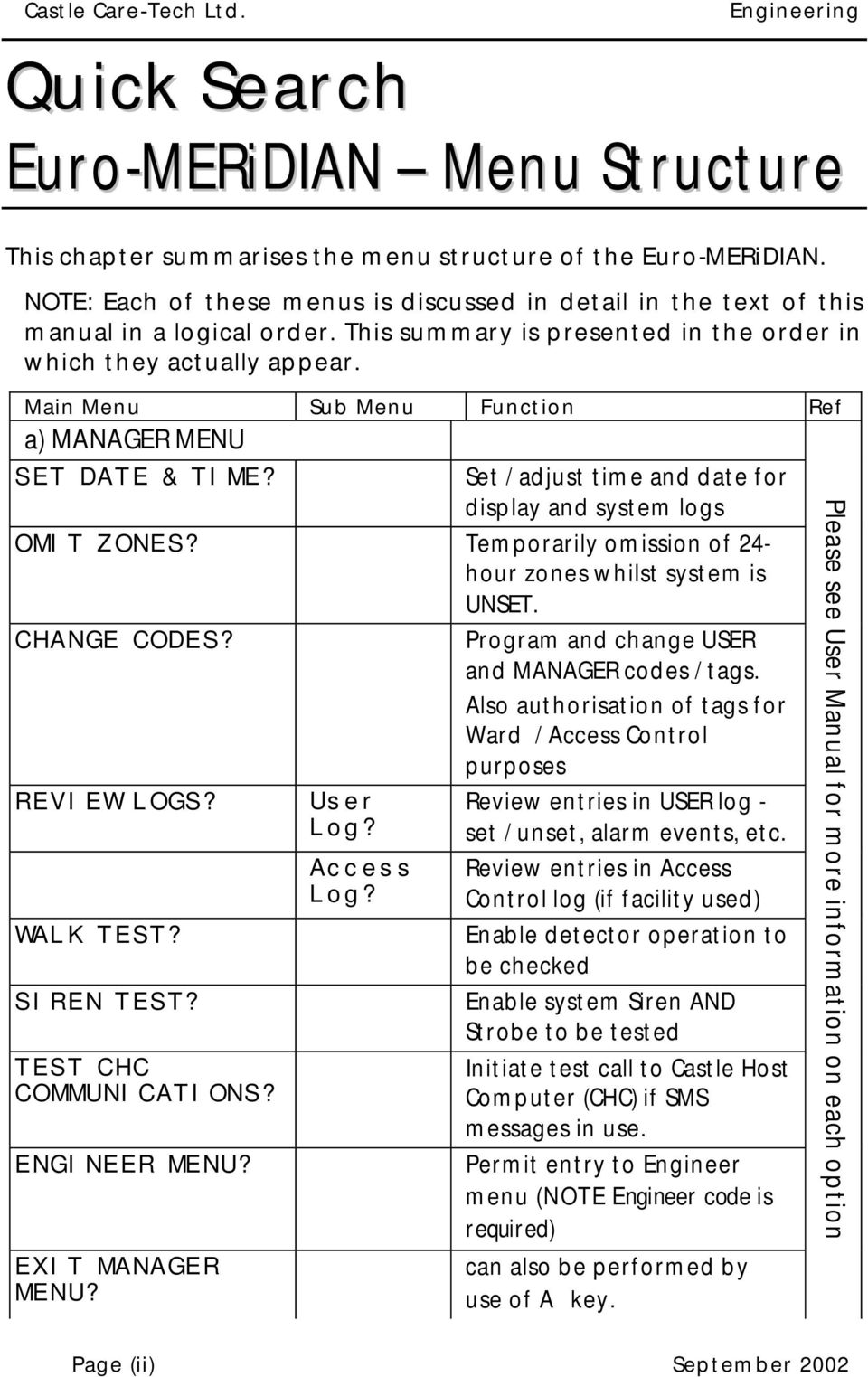
3 Castle Care-Tech Ltd. Engineering Quick Search Menu Structure This chapter summarises the menu structure of the. NOTE: Each of these menus is discussed in detail in the text of this manual in a logical order. This summary is presented in the order in which they actually appear. Main Menu Sub Menu Function Ref a) MANAGER MENU SET DATE & TIME? Set / adjust time and date for display and system logs OMIT ZONES? Temporarily omission of 24- hour zones whilst system is UNSET. CHANGE CODES? Program and change USER and MANAGER codes / tags. Also authorisation of tags for Ward / Access Control purposes REVIEW LOGS? WALK TEST? SIREN TEST? TEST CHC COMMUNICATIONS? ENGINEER MENU? EXIT MANAGER MENU? User Log? Access Log? Review entries in USER log - set / unset, alarm events, etc. Review entries in Access Control log (if facility used) Enable detector operation to be checked Enable system Siren AND Strobe to be tested Initiate test call to Castle Host Computer (CHC) if SMS messages in use. Permit entry to Engineer menu (NOTE Engineer code is required) can also be performed by use of A key. Please see User Manual for more information on each option Page (ii) September 2002
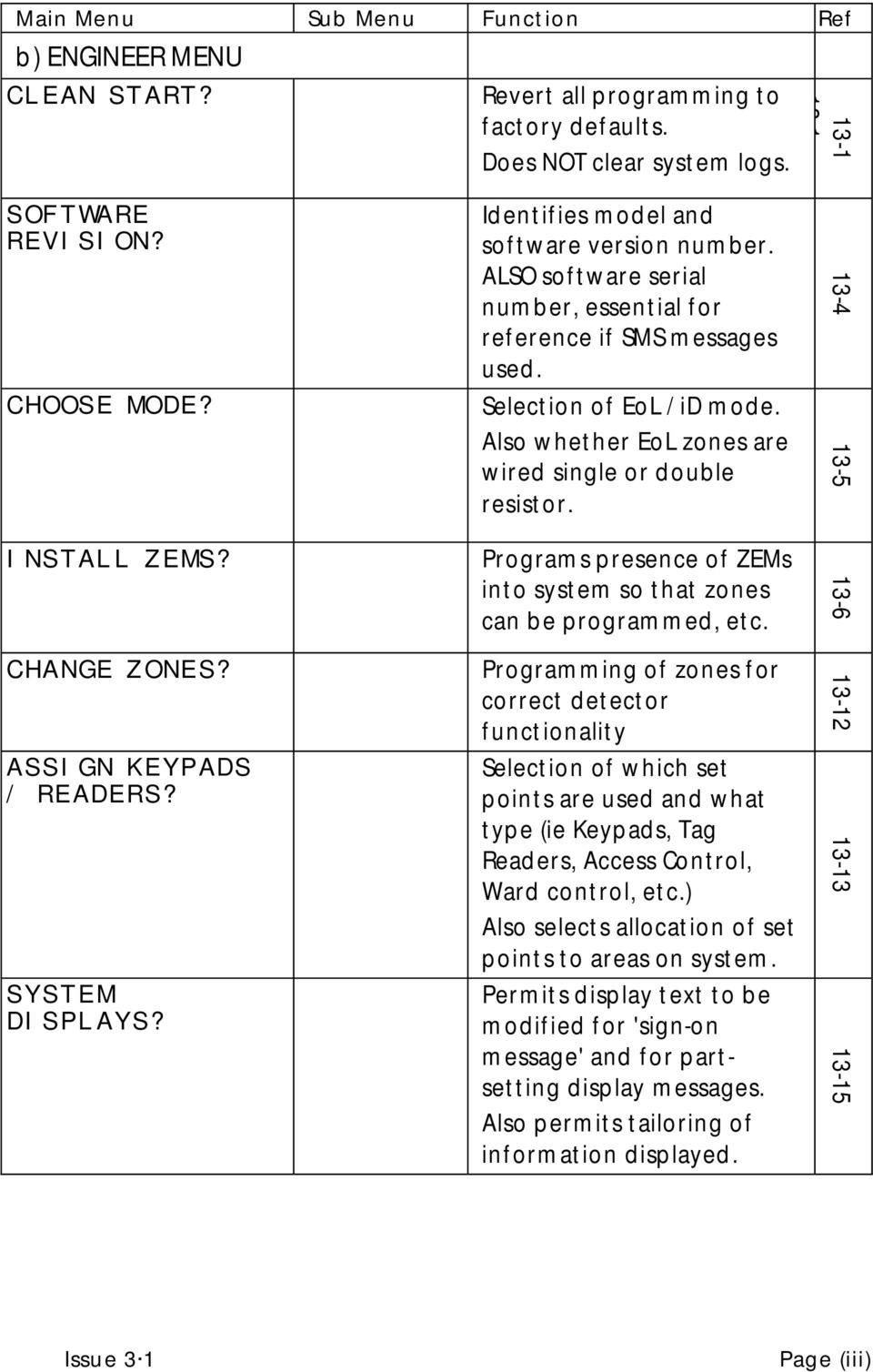
4 Main Menu Sub Menu Function Ref b) ENGINEER MENU CLEAN START? Revert all programming to factory defaults. Does NOT clear system logs SOFTWARE REVISION? CHOOSE MODE? INSTALL ZEMS? CHANGE ZONES? ASSIGN KEYPADS / READERS? SYSTEM DISPLAYS? Identifies model and software version number. ALSO software serial number, essential for reference if SMS messages used. Selection of EoL / id mode. Also whether EoL zones are wired single or double resistor. Programs presence of ZEMs into system so that zones can be programmed, etc. Programming of zones for correct detector functionality Selection of which set points are used and what type (ie Keypads, Tag Readers, Access Control, Ward control, etc.) Also selects allocation of set points to areas on system. Permits display text to be modified for 'sign-on message' and for partsetting display messages. Also permits tailoring of information displayed Issue 3 1 Page (iii)
5 Castle Care-Tech Ltd. Engineering Main Menu Sub Menu Function Ref CHANGE TIMERS? Programming of all system timers (except Soak Test) 13-17,18 SET DATE AND TIME? EXIT MODES? Set / adjust time and date for display and system logs Selection of means of completion of setting system, per area CHANGE CODES? VOLUME CONTROL? ALARM RESPONSE? CHANGE OUTPUTS? Program and change ENGINEER, MASTER MANAGER codes, also DURESS and GUARD codes. Does NOT permit programming of USER or MANAGER codes. Allocation of volume level (for system loudspeaker output) for the various tones available. Programming of alarm response for each area individually. Includes "upgrade" options, also response requirements for use with 'Confirmation' signalling Programming of ALL system outputs Page (iv) September 2002

6 Main Menu Sub Menu Function Ref INTELLIGENT SET? Selection of intelligent setting and programming of associated 'intelligent' zone SITE OPTIONS? selection of range of miscellaneous options ENGINEER RESET OPTIONS? Selection of Engineer Reset (including Remote Reset code use) for the system REVIEW LOGS? User Log? Access Log? Review entries in USER log - set / unset, alarm events, etc. Review entries in Access Control log (if facility used) Engineer Log? Clear Logs? Review entries in Engineer log - ie fault information and other significant entries Use option with caution when certain information no longer required ENGINEER TESTS? DIAGNOSTICS? Access to Engineer Test modes, including control of Soak Test function. Always exit engineer mode and re-enter before testing if ANY system data has been changed. Access to range of diagnostic information, and calibration routines SET UP DOWNLOADING? Programming of information relevant to use of the system in Downloading scenarios Issue 3 1 Page (v)

7 Castle Care-Tech Ltd. Engineering Main Menu Sub Menu Function Ref SET UP DIGI / SMS? Programming of information relevant to remote signalling of alarm, etc. messages - to ARC or text (SMS) messages to mobile 'phones. EXIT ENGINEER MENU? Can also be performed by use of A key Castle Care-Tech Ltd. is an independent British company, specialising in the design and manufacture of high-quality security control equipment. Our Quality Assurance procedures are approved to BS.EN.ISO.9001, and are rigidly applied in all aspects of design, manufacture and servicing of all products. Suggestions for improvement of these products, or manuals, will be gratefully received. Please address them to the Product Development Manager at: Castle Care-Tech Ltd North Street, Winkfield, Windsor, Berkshire, SL4 4SY t Sales: Technical Support: f e [email protected] NOTE: Certain features are available only on certain models within the range these are identified on the relevant pages. Castle Care-Tech Ltd. reserves the right to adjust the specifications of these systems, at any time and without notice, in the interests of product improvement. Castle Care-Tech Ltd. INSTRUCT 62 Issue 3.1 Sept 2002 Castle Care-Tech Ltd. Page (vi) September 2002

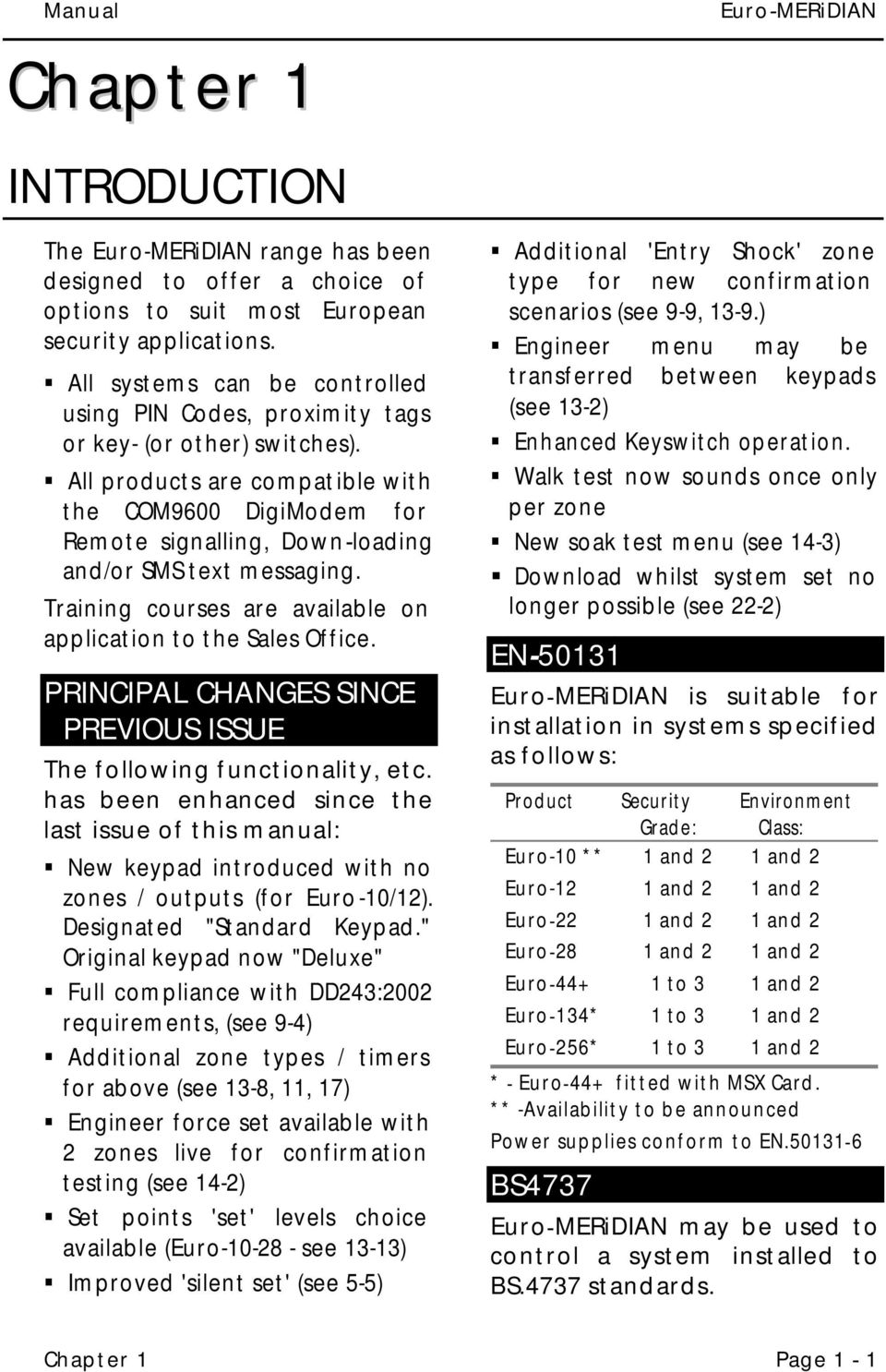
8 Manual Chapter 1 INTRODUCTION The range has been designed to offer a choice of options to suit most European security applications.! All systems can be controlled using PIN Codes, proximity tags or key- (or other) switches).! All products are compatible with the COM9600 DigiModem for Remote signalling, Down-loading and/or SMS text messaging. Training courses are available on application to the Sales Office. PRINCIPAL CHANGES SINCE PREVIOUS ISSUE The following functionality, etc. has been enhanced since the last issue of this manual:! New keypad introduced with no zones / outputs (for Euro-10/12). Designated "Standard Keypad." Original keypad now "Deluxe"! Full compliance with DD243:2002 requirements, (see 9-4)! Additional zone types / timers for above (see 13-8, 11, 17)! Engineer force set available with 2 zones live for confirmation testing (see 14-2)! Set points 'set' levels choice available (Euro see 13-13)! Improved 'silent set' (see 5-5)! Additional 'Entry Shock' zone type for new confirmation scenarios (see 9-9, 13-9.)! Engineer menu may be transferred between keypads (see 13-2)! Enhanced Keyswitch operation.! Walk test now sounds once only per zone! New soak test menu (see 14-3)! Download whilst system set no longer possible (see 22-2) EN is suitable for installation in systems specified as follows: Product Security Grade: Environment Class: Euro-10 ** 1 and 2 1 and 2 Euro-12 1 and 2 1 and 2 Euro-22 1 and 2 1 and 2 Euro-28 1 and 2 1 and 2 Euro to 3 1 and 2 Euro-134* 1 to 3 1 and 2 Euro-256* 1 to 3 1 and 2 * - Euro-44+ fitted with MSX Card. ** -Availability to be announced Power supplies conform to EN BS4737 may be used to control a system installed to BS.4737 standards. Chapter 1 Page 1-1
9 Castle Care-Tech Ltd. COMPLIANCE STATEMENT The range complies with requirements of the European "EMC Directive" (89/336/EC) and the "Low Voltage Directive" (72/23/EC and 93/68/EC). It is essential that the recommendations in this manual be followed, and that equipment and wiring be installed to avoid the effects of potential sources of interference. DD243:2002 The range fully complies with requirements of DD243:2002. This has been verified using the BSIA "Manufacturers Check List for Compliance with the Requirements of DD243:2002." ALL appropriate facilities and options are available for systems using sequential confirmation signalling EXCEPT: Zeroing of 'Confirm Timer' if first zone to alarm retriggers (see 9-6). EXPANSION OF Euro-44+ Provision is made for an MSX Card (MERiDIAN System EXpander) to be slotted in to the Euro-44+ End Station. This enables the system to be expanded, and the facilities available further enhanced. For details, see Chapter 24. WARRANTY Engineering Castle Care-Tech Ltd. will repair or replace, at our discretion, any product developing a fault within 2 years, free of charge. If the failure was the result of physical damage, unauthorised modifications or operating the system outside of its specification, we reserve the right to raise an appropriate repair charge. REPAIRS Products for repair should be returned to the factory, suitably packed to prevent damage (including damage from electrostatic discharges), and be accompanied by the full return address. It is ESSENTIAL that full details of the fault are reported. Note: If a software upgrade is specifically required, this should be clearly stated. For upgrades from issue 2.05 or later this will be chargeable. Older software issues will be upgraded automatically during repair to permit the use of our current test equipment. Page 1-2 Chapter 1

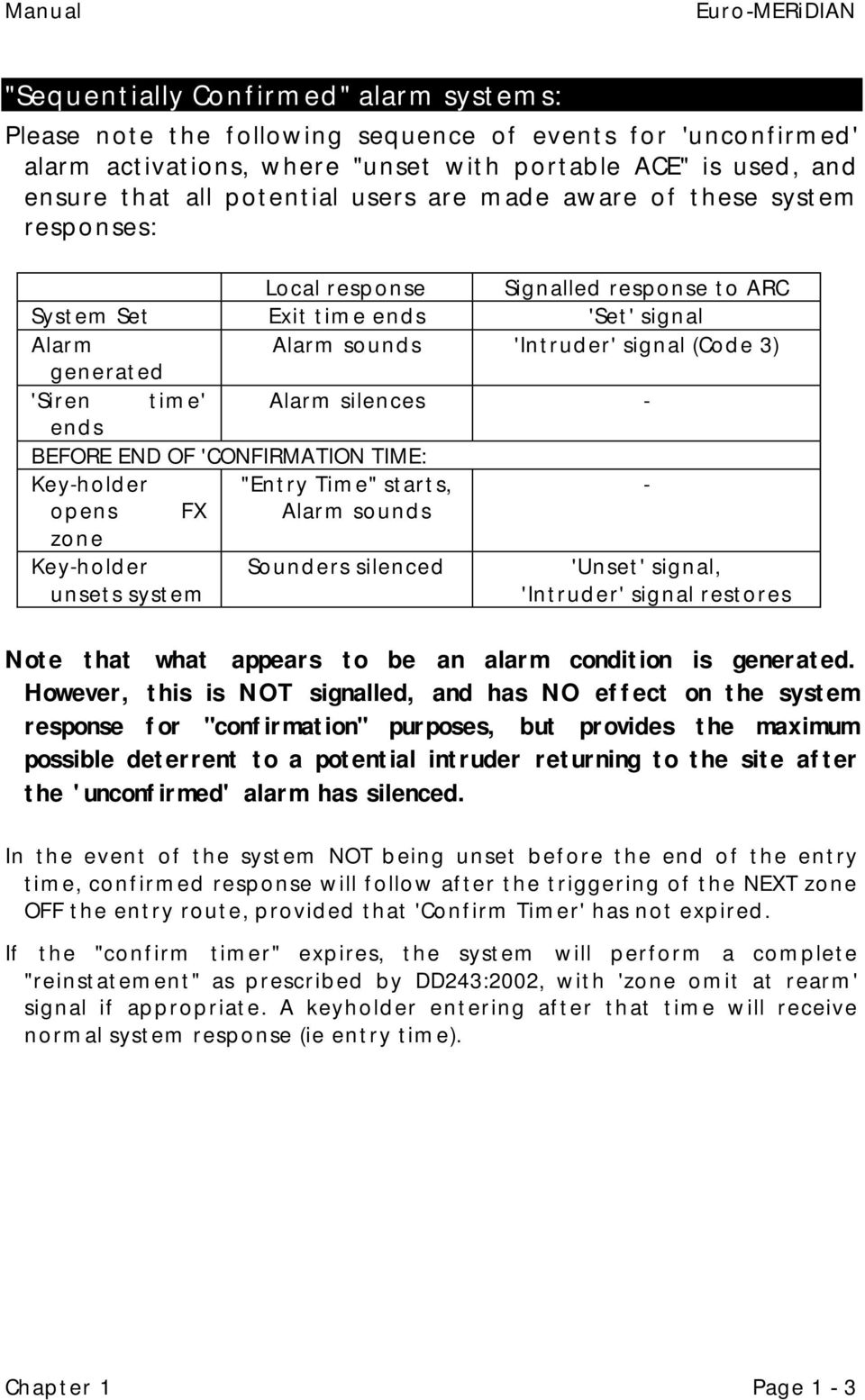
10 Manual "Sequentially Confirmed" alarm systems: Please note the following sequence of events for 'unconfirmed' alarm activations, where "unset with portable ACE" is used, and ensure that all potential users are made aware of these system responses: Local response Signalled response to ARC System Set Exit time ends 'Set' signal Alarm Alarm sounds 'Intruder' signal (Code 3) generated 'Siren time' Alarm silences - ends BEFORE END OF 'CONFIRMATION TIME: Key-holder "Entry Time" starts, - opens FX Alarm sounds zone Key-holder unsets system Sounders silenced 'Unset' signal, 'Intruder' signal restores Note that what appears to be an alarm condition is generated. However, this is NOT signalled, and has NO effect on the system response for "confirmation" purposes, but provides the maximum possible deterrent to a potential intruder returning to the site after the 'unconfirmed' alarm has silenced. In the event of the system NOT being unset before the end of the entry time, confirmed response will follow after the triggering of the NEXT zone OFF the entry route, provided that 'Confirm Timer' has not expired. If the "confirm timer" expires, the system will perform a complete "reinstatement" as prescribed by DD243:2002, with 'zone omit at rearm' signal if appropriate. A keyholder entering after that time will receive normal system response (ie entry time). Chapter 1 Page 1-3
11 Castle Care-Tech Ltd. Engineering THIS PAGE LEFT BLANK FOR NOTES Page 1-4 Chapter 1

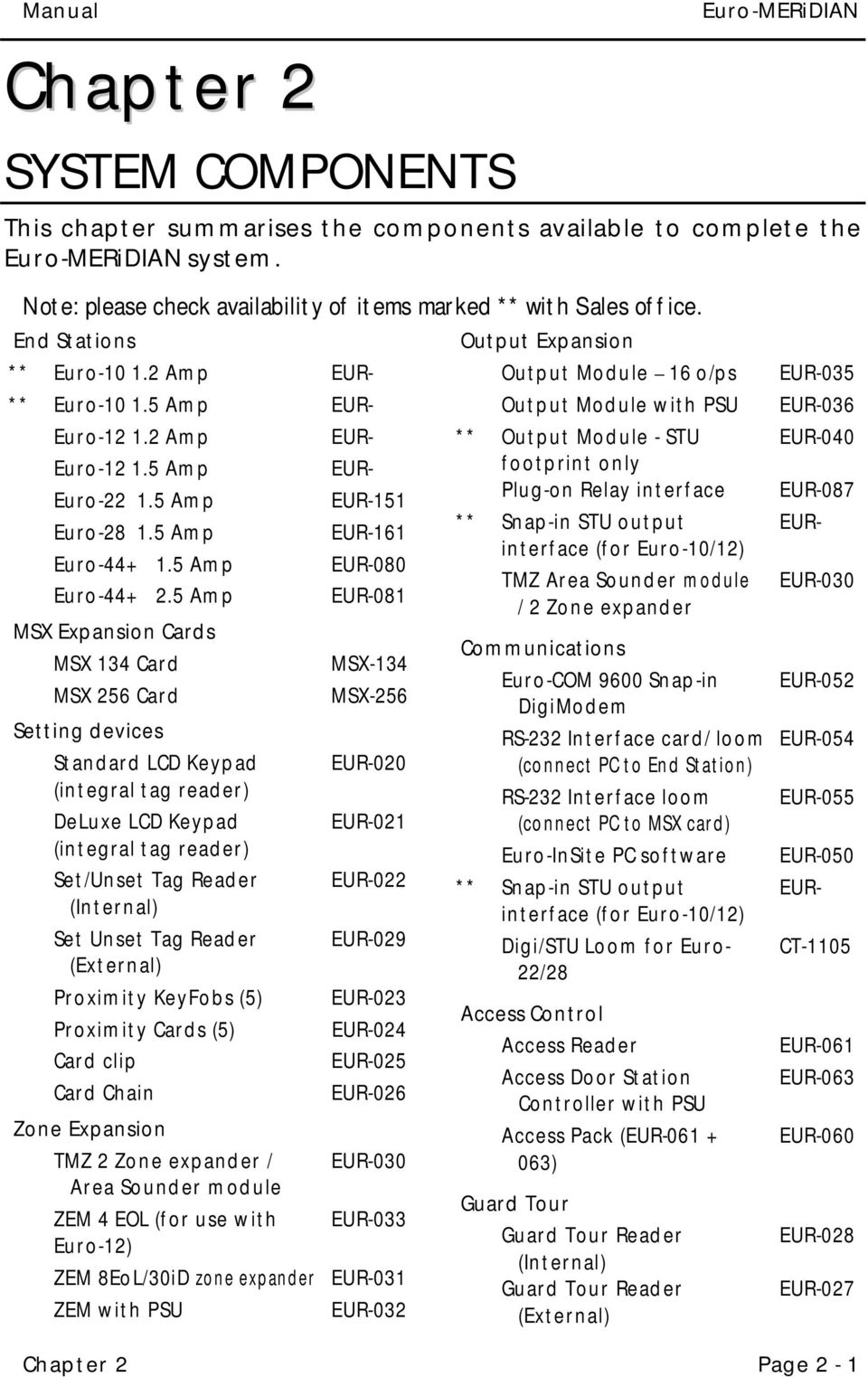
12 Manual Chapter 2 SYSTEM COMPONENTS This chapter summarises the components available to complete the system. Note: please check availability of items marked ** with Sales office. End Stations Output Expansion ** Euro Amp EUR- Output Module 16 o/ps ** Euro Amp EUR- Output Module with PSU Euro Amp EUR- ** Output Module - STU Euro Amp EUR- footprint only Euro Amp EUR-151 Plug-on Relay interface ** Snap-in STU output Euro Amp EUR-161 interface (for Euro-10/12) Euro Amp EUR-080 TMZ Area Sounder module Euro Amp EUR-081 / 2 Zone expander MSX Expansion Cards Communications MSX 134 Card MSX-134 Euro-COM 9600 Snap-in MSX 256 Card MSX-256 DigiModem Setting devices RS-232 Interface card/ loom EUR-020 (connect PC to End Station) Standard LCD Keypad (integral tag reader) DeLuxe LCD Keypad (integral tag reader) Set/Unset Tag Reader (Internal) Set Unset Tag Reader (External) Proximity KeyFobs (5) Proximity Cards (5) Card clip Card Chain Zone Expansion TMZ 2 Zone expander / Area Sounder module ZEM 4 EOL (for use with Euro-12) ZEM 8EoL/30iD zone expander ZEM with PSU EUR-021 EUR-022 EUR-029 EUR-023 EUR-024 EUR-025 EUR-026 EUR-030 EUR-033 EUR-031 EUR-032 RS-232 Interface loom (connect PC to MSX card) Euro-InSite PC software ** Snap-in STU output interface (for Euro-10/12) Digi/STU Loom for Euro- 22/28 Access Control Access Reader Access Door Station Controller with PSU Access Pack (EUR ) Guard Tour Guard Tour Reader (Internal) Guard Tour Reader (External) EUR-035 EUR-036 EUR-040 EUR-087 EUR- EUR-030 EUR-052 EUR-054 EUR-055 EUR-050 EUR- CT-1105 EUR-061 EUR-063 EUR-060 EUR-028 EUR-027 Chapter 2 Page 2-1
13 Castle Care-Tech Ltd. Engineering Spare PCBs ** Euro-10 ES PCB EUR- Euro-12 ES PCB EUR-079 Euro-22 ES PCB EUR-090 Euro-28 ES PCB EUR-092 Euro Amp ES PCB EUR-083 Euro Amp ES PCB EUR-084 ZEM PCB EUR-085 Output Module PCB EUR-086 Access Door Station EUR-088 Controller PCB Remote PSU PCB EUR-089 Page 2-2 Chapter 2

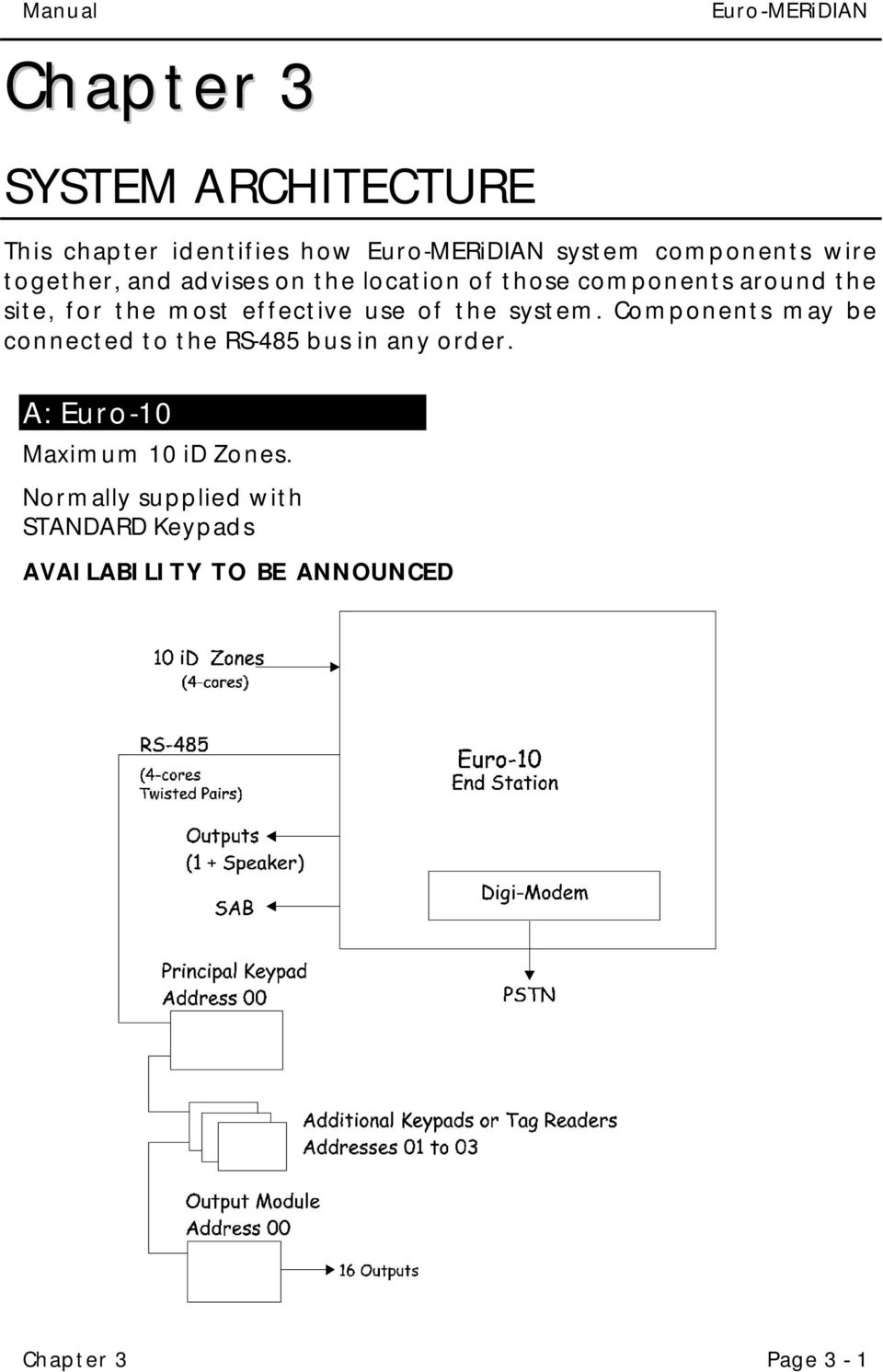
14 Manual Chapter 3 SYSTEM ARCHITECTURE This chapter identifies how system components wire together, and advises on the location of those components around the site, for the most effective use of the system. Components may be connected to the RS-485 bus in any order. A: Euro-10 Maximum 10 id Zones. Normally supplied with STANDARD Keypads AVAILABILITY TO BE ANNOUNCED Chapter 3 Page 3-1
15 Castle Care-Tech Ltd. B: Euro-12 Max 12 End of Line Zones. Normally supplied with STANDARD Keypads Engineering Page 3-2 Chapter 3

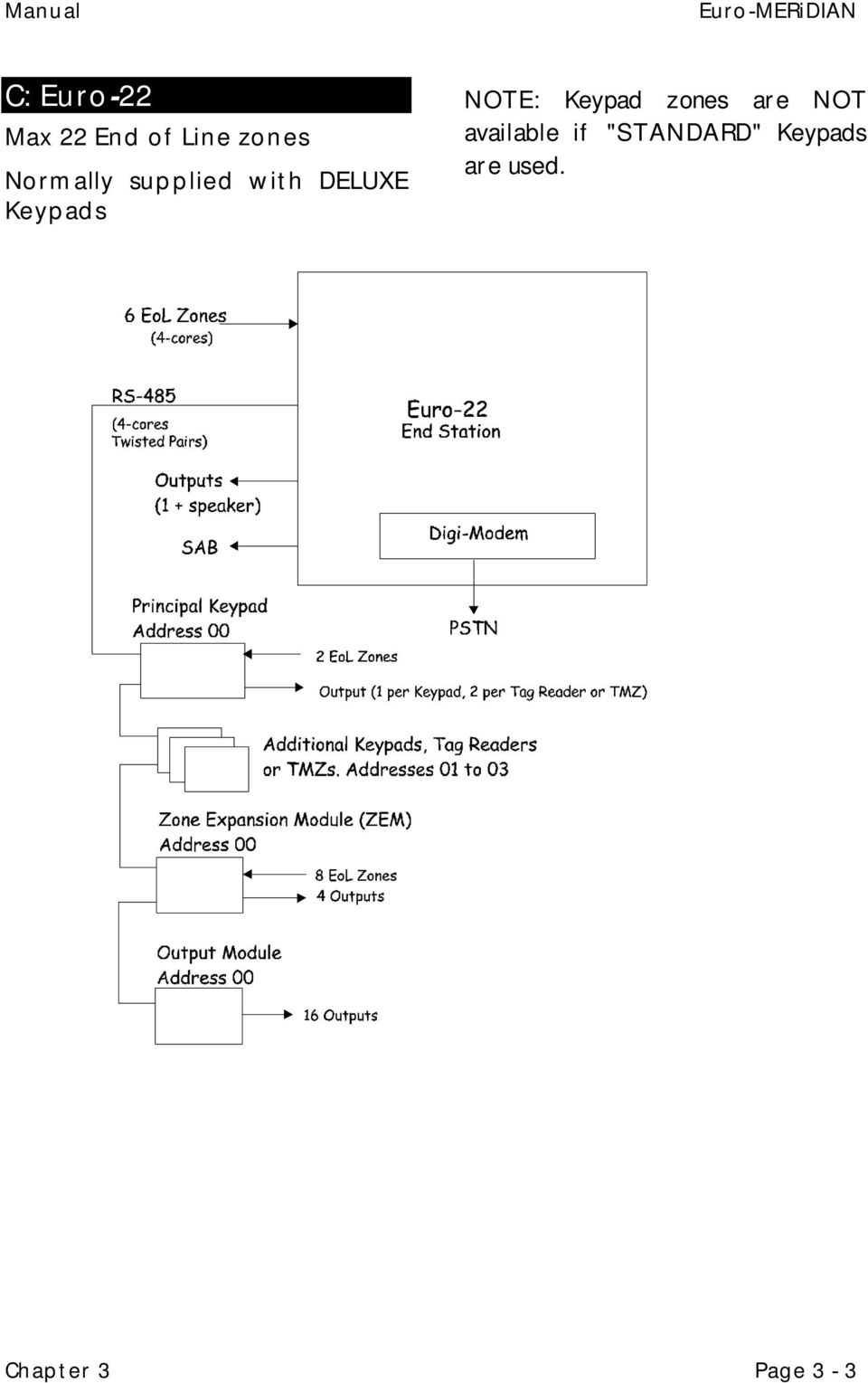
16 Manual C: Euro-22 Max 22 End of Line zones Normally supplied with DELUXE Keypads NOTE: Keypad zones are NOT available if "STANDARD" Keypads are used. Chapter 3 Page 3-3
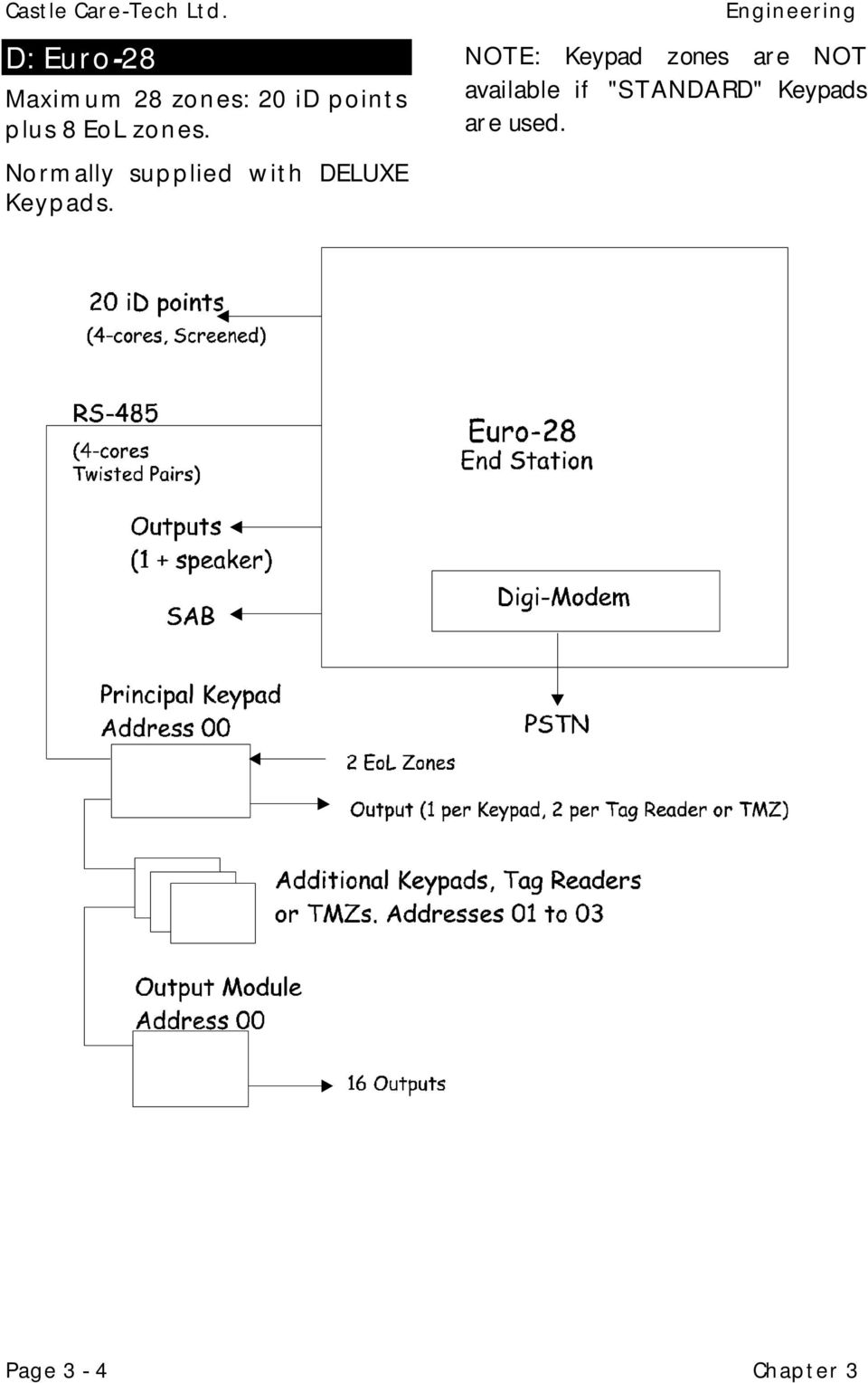
17 Castle Care-Tech Ltd. D: Euro-28 Maximum 28 zones: 20 id points plus 8 EoL zones. Normally supplied with DELUXE Keypads. Engineering NOTE: Keypad zones are NOT available if "STANDARD" Keypads are used. Page 3-4 Chapter 3
18 Manual E: Euro-44+ EoL Mode Maximum 44 End of Line zones. Normally supplied with DELUXE Keypads. NOTE: Keypad zones are NOT available if "STANDARD" Keypads are used. For details with MSX Card fitted, refer chapter 24. Chapter 3 Page 3-5

19 Castle Care-Tech Ltd. F: Euro-44+ id Mode Maximum 44 zones: 30 id points plus 14 EoL zones. Normally supplied with DELUXE Keypads. Engineering NOTE: Keypad zones are NOT available if "STANDARD" Keypads are used. For details with MSX Card fitted, refer chapter 24. Page 3-6 Chapter 3

20 Manual G: LOCATING COMPONENTS These components all connect via the RS-485 bus, and may be wired in any order. Avoid siting system components close to equipment switching high frequencies, or using radio frequencies in its operation. END STATION The End Station should be located where suitable for wiring of the system, taking due note of the availability of AC mains. KEYPADS and SET/UNSET PROXIMITY TAG READERS These should be located in the most convenient points for the client in using the system. Keypads are best located with the display around 10 cm below average eye level. Tag Readers used as Ward Controllers (see chapter 16) should be mounted OUTSIDE the ward area they control. NOTE: To ensure that Tag response is not impaired, do NOT locate Keypads and Tag Readers (including Access Readers) Within 1 metre of each other (including opposite sides of a wall!) On, or close to, a metal surface. ENGINEER KEYPAD Access to the Engineer menu is available from any keypad on the system. To transfer the menu from one keypad to another, simply press 'B' at the keypad to which the menu is to be transferred. Where an engineer requires an additional keypad adjacent to the End Station during testing, etc. this may be achieved as follows: 1. Enter Engineer mode from a system keypad 2. Plug a spare keypad onto the End Station (using Engineer Keypad Loom ) 3. Use keypad address menu (see page 12-3) to code the additional keypad to an unused address 4. Within engineer menu, enter Keypad programming section, and enable the additional keypad, thus permitting its use. 5. On completion, disable the keypad in engineering before disconnecting it, and finally leaving engineer mode. ZONE EXPANDER UNITS Zone Expander Units (ZEMs) are designed for distribution of zone inputs, also outputs, to strategic locations around the site. NOTE: A Zone Expander used in id mode should NOT be located more than 10 metres from the power supply it is fed from. Chapter 3 Page 3-7

21 Castle Care-Tech Ltd. TMZ UNITS TMZ units provide two additional zones each, plus two outputs one of which is dedicated as loudspeaker and may be used to provide area loudspeakers. On Euro-10 and 12, TMZ modules function ONLY as extension speaker outputs. OUTPUT MODULES Output Modules provide additional programmable outputs, and should be sited where convenient. NOTE: Ensure that adequate power is available for the outputs. ACCESS CONTROL EQUIPMENT Details in respect of Access Control equipment are shown in Chapter 18. GUARD TOUR SYSTEMS Information concerning Guard Tour systems is shown in Chapter 19. Engineering INTELLIGENT POWER SUPPLIES Please ensure that adequate power is available for all possible system functions. Each Zone Expander Unit, Output Module, or Access controller may be plugged onto an Intelligent Power Supply, at any suitable point on the system. Full diagnostic analysis of voltage and current from these power supplies is available through the system. Strategic siting of the End Station and powered units should minimise the need for any additional power supplies for detectors, sounders, etc. However, if Keypads or Set/Unset Tag Readers are being used more than 100 metres from the nearest supply point, additional power supplies may be required, sited as close as possible to the equipment being powered. Page 3-8 Chapter 3
22 Manual Chapter 4 SPECIFICATIONS This chapter outlines the essential specifications for the Euro- MERiDIAN range. Castle Care-Tech Ltd. reserve the right to change these specifications at any time, without notice, in the interests of product improvement. Please ensure that this information is used in designing the system, so that it can be installed and programmed as intended, and will continue to function reliably. In particular, system outputs and power supplies must be used within their rated specifications. A: EN System components (including the expansion products) are suitable for use in systems specified as follows: Product Security Grade Environment Class Euro-10 1 and 2 1 and 2 Euro-12 1 and 2 1 and 2 Euro-22 1 and 2 1 and 2 Euro-28 1 and 2 1 and 2 Euro to 3 1 and 2 Euro-134 * 1 to 3 1 and 2 Euro-256 * 1 to 3 1 and 2 External Tag Reader Head - 1 to 4 (IP65) *-Euro-134 and 256 are simply Euro-44+ fitted with MSX Card. B: SYSTEM SPECIFICATIONS Euro- 10/12 22/ Power Supply 1.2 or 1½A 1½A - - 1½ or 2½A - - Zones 10 / / (max) Set points (max) of which, max keypads: Level (Part) Sets Full Areas Option: Wards (max) User/ Manager Codes Duress/ Guard Codes Logs Access NO NO Control (max) Output Modules - Plus Engineer and Master Manager Codes Chapter 4 Page 4-1
23 Castle Care-Tech Ltd. C: OUTPUT CAPABILITIES At End Station: Hold Off 650mA (continuous) Outputs m A Output 3 100m A Output 4 100m A Max 800mA in alarm Present on Euro-44+ and above. Relay (A) 3 A Volt free changeover contacts Present in Euro-44+ and above. May be selected as Watchdog or Output 3 Loudspeaker Max load 8 ohms Suitable for 1x8 ohm, or 2x16 ohm speakers STU pins 1mA Note: a plug-on interface is available to provide alternative drive capability for these outputs, see below. 12v outlets 800m A on ZEM 300m A At Keypad: Output 1 100mA At Tag Reader: Outputs mA At TMZ Zone Expander / Area Sounder Module: Output 1 100mA Output 2 Loudspeaker max load 16 ohms At ZEM Zone Expander Unit: Outputs mA Engineering Note: restricted to maximum of 400mA simultaneous loading (see 11-12).0 At Output Module: Outputs m A Note: restricted to maximum of 400mA simultaneous loading (see 11-12). A plug -on interface is available to provide alternative drive capability for these outputs, see below. Plug-on Relay Interface O/Ps R and S 800m A Relays A Volt free relay contacts May be plugged onto End Station STU pins or Output module. D: HOUSING DIMENSIONS Item Size Height Width Depth Keypad Set/Unset Tag Reader or TMZ Euro-10/ A Euro-10/12 1½A Euro-22/ Euro ZEM or Output Module Powered ZEM or Output Module, or Access Controller See note on page 4-3 re PS rating and alternative '4' housing. All dimensions in millimetres. Battery accommodation: Size 3, 5: Max. 7Ah 4: Max. 17Ah Note: All housings are steel, except size "5" (Polycarbonate). Page 4-2 Chapter 4
24 Manual E: ELECTRICAL SPECIFICATIONS Mains Supply Fuse 230v (220 to 240v) AC. Max 250mA 1.2A PS: 1½ A PS 2½ A PS 150m A 250m A 500m A Euro-10/12 END STATION: Power Supply Battery Fuses: Battery 12v outlets slow blow 13.75v DC 1.2 A (800mA continuous) or 1½ A (1A continuous) 2.9 or 7Ah Euro-22/28 END STATION: Power Supply Battery 1.5A quick blow 800mA quick blow 13.75v DC 1½ Amp (1A Continuous) 7Ah Fuses: Battery 12v outlets Euro-44+ END STATION: Power Supply Battery Fuses: Battery 12v outlets 1.5A quick blow 800mA quick blow 13.75v DC 1½ Amp (1A continuous) or 2½ Amp (1½ A Continuous) 7Ah or 17Ah 3.15A quick blow 800mA quick blow All system power supplies are monitored continuously Condition and charging of all batteries are continuously monitored, with battery load testing available. Batteries protected against deep discharge (Euro-44+ and above). INTELLIGENT POWER SUPPLIES: Power Supply 3" housing 4" housing (standard) 13.75v DC 13.75v DC 1½ A * 2½ A (1A continuous) (1½ A continuous) * Suitable for maximum instantaneous loads (up to 15 seconds) of 2½ A. Battery 7 Ah 7Ah or 17Ah Fuse: Battery 3.15A quick blow Quiescent Current Drain: Euro-10/12 End Station 70mA Euro-22/28 End Station 75 ma Euro-44+ End Station 90 ma Standard Keypad B/L ON 130mA* Standard Keypad B/L OFF 60mA* Deluxe Keypad B/L on 150mA* Deluxe Keypad B/L off 80mA * Set/Unset Tag Reader 60mA * * Plus 10mA in alarm condition. TMZ zone expander 40mA ZEM Zone Expander 40mA Output Module 40mA Access Door Station 100mA External Reader Head 60mA MSX Card Slot-in Digi-modem Chapter 4 Page 4-3
25 Castle Care-Tech Ltd. Engineering F: WIRING SPECIFICATIONS The following specifications must be observed when installing alarm systems: A: General Principles: 1 Routing: NO alarm system cable should be run with other cables carrying AC or digital signals 2 Insulation: Protected by the use of grommets, etc. where appropriate. 3 Specifications: The following specifications for cable types and distances are important for reliable operation. B: RS-485 Wiring (Keypad, etc. connections): 1 Cores 4- core minimum. Use of 6-core and doubling up supply cores is beneficial to minimise volt drop, but NEVER double communications connections (D3-4) 2 Cable type: Twisted pair, eg Belden 9744 (unscreened) or 9502 (screened). 3 Wiring format: Parallel, daisy-chained. 4 Cable length: Overall network max 1 Km. 5 Termination: Extreme end points fitted with 120! resistors between D3 / D4 C: End of Line Zone Wiring 1 Cores 4- core 2 Cable type: Standard alarm cable; screened if required by environment. 3 Wiring format: Detectors individually wired, using EoL resistors, mounted at detector. 4 Cable length: Max 1 Km per detector. D: id Wiring 1 Cable type: Screened. 4- core minimum. Doubling up supply cores will minimise volt drop to detectors. Doubling of id cores is also possible 2 Wiring format: Any parallel format, except ring main loops. 3 Termination 0.01"F capacitor between id+/- at end of each cable run. 4 Cable length: Max 100 metres for any cable run. 5 Biscuit location: Must be wired directly to detector terminals. If it is impossible to locate the biscuit in this way, a DP junction box must be used. 6 Checks: All commissioning checks must be performed and recorded. 7 Warning: In some situations, especially take-over sites using existing wiring, id technology may not be suitable. Castle Care-Tech Ltd. cannot be held responsible for problems arising from failure to follow this specification Page 4-4 Chapter 4
26 Manual G: LOCATION OF ZONES The zones on the system are distributed as follows: Euro Mode id EoL EoL id EoL id EoL id EoL id id zones End Station ZEM ZEM ZEM ZEM ZEM ZEM ZEM EoL zones End Station ZEM ZEM ZEM ZEM ZEM ZEM ZEM ZEM ZEM ZEM ZEM ZEM ZEM ZEM End Station K PAD K PAD K PAD K PAD K PAD NOTE: Zones are NOT available on Standard Keypads etc. Chapter 4 Page 4-5
27 Castle Care-Tech Ltd. Engineering THIS PAGE LEFT BLANK FOR NOTES Page 4-6 Chapter 4
28 Manual Chapter 5 THE USER INTERFACE This chapter outlines how the user interface of has been designed to be as user-friendly as possible, and thus minimise the risk of false alarms or reduced security levels for the system. A: SECURITY PATTERNS a) LEVEL SETTING (Euro-10, 12, 22 and 28, also option on Euro-44+) The user has the choice of setting security level A or B or C or D. Each set level will provide a different pattern of coverage, dependant upon the programming of the relevant zones. For example, the front door may need to be active in all setting scenarios, so would therefore be allocated to levels A,B,C and D when programming. On the other hand, the master bedroom may need to be active only if ALL of the system is set, and would therefore be allocated to level A only. The kitchen may need to be omitted when the dog is left at home, and at night, and would thus be programmed to A and C etc. NOTE: The Sets Areas Unsets Areas and Located In Areas programming selections are NOT required when this mode is in use. b) AREA SETTING (Euro-134 and 256, also default option on Euro-44+) The user has the option of setting any combination of independent areas, and of adding to or subtracting from the list of areas set at any time. Normally zones will be allocated to a single area, but the application may require some zones to be allocated to multiple areas. In this case, the choice of ANY (zone live if any of the relevant areas are set) or ALL (zone live only if all relevant areas are set) will apply for those zones. B: OPERATION In the simplest case, entering a code (or presenting a tag) will immediately set or unset (depending upon current status) all security levels/areas allocated to that code, and for which the setting point is valid. T hus functionality can be programmed into the system, permitting the user to use a single, consistent action to produce the desired response. Chapter 5 Page 5-1
29 Castle Care-Tech Ltd. If a multiple area code is entered at a suitable Keypad, when some of the relevant areas are set and others unset, the default response will be to set the additional areas. If entry time has started, then the response will be to unset those areas which are set. FLEXI-SET Flexi-Set may be selected (individually for each code), which will present the selected code - holder(s) with the option to select individual area(s) from those available with his code / setting point combination. If flexi-set is allocated to a TAG, this will be functional ONLY if the tag is presented at a Keypad. Flexi-set is NOT available when Level Setting is in use. With effect from software 3 1: Flexi-Set now applies during the setting operation only. If a part of the system for which the Code/tag is valid is already set, the system will UNSET that part of the system. Eg, LEVEL Setting system Part Set B, code/tag presented will UNSET system. AREA setting system set areas AB; code/tag valid for B presented will UNSET B, leaving A set. Engineering Setting Points on the system should not be skimped. It is also vital that special care be taken when programming the Setting Points (Keypads or Set/Unset Tag Readers) and codes or tags, as described in this chapter. C: SETTING POINT OPTIONS: a) KEYPADS In addition to the LCD, 5 system LEDs are provided, also 4 Area LEDs (on ABCD Keys), as described in Chapter 6. Codes may be 4-, 5- or 6- digit, and be programmed as User or Manager (by Manager) or Duress or Guard (by Engineer). DELUXE Keypads have connections available for outputs and zone inputs, also additional indications for activity involving the four principal system areas. These are NOT available on STANDARD Keypads. b) SET/UNSET TAG READERS These have the same 5 system LEDs as the Keypads. In addition to use as a setting point, these may be programmed as Ward Controllers (see Chapter 16). GENERAL To ensure maximum simplicity, along with flexibility in use, it is implied that the number of Page 5-2 Chapter 5
30 Manual c) INTELLIGENT SETTING (i) LEVEL SETTING This will function only if a code valid for A (ALL) is used to set the system. The system will commence full setting at intelligent volume level. If the nominated intelligent zone is activated during exit time, the system will switch automatically to level B set. (ii) AREA SETTING This will function ONLY if a code including area B is used. The system will commence setting the areas authorised by the code, with exit tone at intelligent level. If the nominated intelligent zone is activated during exit time, the system will automatically OMIT area B and quick-set remaining areas. NOTE: To be able to unset successfully, a detector MUST be sited to start entry time before unsetting. (iii) ALL SYSTEMS If a final exit (FX) zone is triggered before the intelligent zone, the system will switch to normal exit mode and volume and continue to set according to code validity. NOTE: It is NOT possible to Intelligent set other combinations of areas/levels. If 'intelligent set' is in use, the exit route MUST be designed so that an FX detector can only be triggered when the system is definitely required to fully set. The 'intelligent' detector MUST be sited to ensure that ALL potential system users are correctly detected. Some "pet-immune" detectors are not suitable. d) SETS AREAS This option programmes the areas that can be set from the Setting Point. This wil l be read in conjunction with the areas allocated to a code, so that, for example: AB code at A keypad will set only A B code at AB keypad will set only B. etc. The system will respond by setting the resulting valid areas. Keypad sounders respond only to signals for areas they control. Euro-10,12,22,28 have an alternative option DEFAULT LEVEL [A ]. This permits the selection of a single level that will be SET if a code/tag is entered at that setting point. If the system is already set, the operati on will UNSET to the limit of validity of the code/tag used. e) UNSETS AREAS This option programmes the areas that can be unset from the Setting Point. This will be read in conjunction with the areas allocated to a code, so that, for example: Chapter 5 Page 5-3
31 Castle Care-Tech Ltd. AB code at A keypad will unset only A B code at AB keypad will unset only B. etc. The system will respond by unsetting the resulting valid areas. Keypad sounders respond only to signals for areas they control. It is essential that the system be programmed such that all areas that may be set can also be unset; and that all areas to which zones are allocated can be unset. Notes: Set and Unset allocations for individual setting points may differ eg a bedroom keypad may be programmed to set only the downstairs area, but unset the entire system, etc. If a multi-area code without the flexiset attribute is used at an appropriate keypad whilst part of the system is set, the remaining valid area(s) will set, UNLESS entry time has started, in which case the valid areas will unset. From Software 3 1, the system will always default to unsetting all areas for which the code is valid. f) LOCATED IN AREAS When setting from a keypad / reader located IN the area being set, the programmed exit mode/time will apply. W hen setting an area from a keypad NOT IN that area, 5-second quickset exit mode will apply. This will NOT apply to setting of area B as part of a Full system set if intelligent setting is enabled. Engineering If a Set Point programmed as IN multiple areas is used, the highest priority programmed for those areas Timed lowest and PTS highest will apply. Any other areas being set will Quickset. Exit volume level will always be the highest applicable to area(s) actually being set. On entry, the system will allow the highest entry time applicable to areas to which the entry door is allocated. On entry, correct cancellation of entry time will ONLY be possible if the areas the keypad used is located in exactly matches the areas for which the entry route zones are valid. D: OMITTING ZONES Zones to be omitted must have the omittable attribute selected. The omission may be done by: (i) 24 hour tamper day alarm, and similar zone types may be omitted during an unset period from the Manager menu. Readmission may be done from the menu, or automatically when the relevant area is next set. (ii) During setting procedure, press YES whilst Unable to Set is displayed, or during the first 20 seconds of exit time, then enter the number of the zones to be omitted. If the LEAVE OPEN option is selected (in SITE OPTIONS ) a zone active at the time of setting will be omitted just by pressing YES whilst it is displayed. Page 5-4 Chapter 5
32 Manual E: SILENT SETTING This is NOT available as a user choice when setting the system. It can be arranged by careful use of the area exit tone volume levels. Settings 0 and 1 are both silent - setting 1 has audible 'chime' at end of exit time. A Site Option is available for exit and entry tones to be generated by Keypad sounders only F: EXIT MODES Timed mode sets the system when the programmed exit time has expired, provided all zones on the exit route are clear. Any PTS button fitted will be live also in this mode. Final Door mode: the setting procedure will be completed when a zone programmed as Final Exit (FX) is closed. This mode may also be used for lock set operation: securing the lock completes setting procedure, unlocking starts entry time. If the FX zone is closed before the remainder of the exit route is clear, it will be stored and acted on to complete the setting procedure only after the remainder of the exit route is clear. Timed/Door mode: the setting will be completed when the exit time expires, OR when a Final Exit zone is opened and closed - whichever occurs first ( NOT DD243:2002 systems). PTS mode will override the programmed exit time for the area in question, and will be endless. Note: The PTS signal is NOT stored. If pressed before the exit route is clear, it will be ignored. Quickset (5 seconds) is not programmable, but is applied automatically when an area is set from a Keypad located outside that area, and if intelligent setting. Fail to Set procedure will apply if the setting procedure is not completed within a pre-set time see SITE OPTIONS. Intelligent Set permits the system to automatically omit Area B when setting with a multiple area code including area B. (See page 5-3) Multiple Areas If a Set Point programmed as IN multiple areas is used, the highest priority exit mode programmed for those areas Timed as lowest and PTS as highest will apply. Any other areas being set will automatically Quickset. On entry, the system will allow the highest entry time applicable to areas to which the entry door is programmed. NOTE: Care is required in setting up exit modes / volumes for common lobby areas. Chapter 5 Page 5-5
33 Castle Care-Tech Ltd. G: KEYSWITCH OPERATION This is an alternative means of setting the system, using a key operated switch (or equivalent electronic means) to perform the setting procedure. Two options are available: Keyswitch Zone: When activated, the system will commence exit time in the normal way. Blockschloss Zone: When activated, the system will set IMMEDIATELY, with NO Exit time. The switch used may be interlocked from the control (eg by a solenoid) to prevent it being set if a fault is present. In both cases, returning the switch to the normal position will immediately UNSET the system. a) KEYSWITCH INPUT The switch should be wired as a ZONE INPUT (id or EoL as required). Programme the zone as 'Keyswitch' or Blockschloss according to operation required, and allocate the zone to the area(s) required to be set / unset from the switch. The default is for the switch to be active (ie setting system) when switch contacts are OPEN. If required to use this with switch contacts closed, select NORMALLY OPEN attribute for the zone when programmed. b) Exit mode Engineering When a Keyswitch zone is in use, the exit mode, etc. are the same as would apply if an equivalent code were entered at Keypad address 00 (note the "IN" settings). c) INTERLOCK OUTPUT For Blockschloss operation, output configurations are available for Can Set All (to interlock for setting the entire system) or for Can Set A etc. (when setting an individual area) see page It is NOT possible to provide a dedicated interlock output for combinations of areas (unless an external module is used to gate two outputs together). These outputs will be live to release the interlock, as long as ALL zones (or those relevant to the area being set) are clear, AND there are no technical faults present that are programmed to inhibit setting (see site options ). It is, of course, essential that the outputs used have sufficient current drive capability to power the solenoid. H: UNSET ONLY INPUT An 'Unset Only' input type is available to permit the system to be unset from (for example) an access control unit, without attempting to set again each time the unit is used. Page 5-6 Chapter 5
34 Manual I: FAIL TO SET If the exit procedure is not correctly completed, a Fail to Set warning may be used. The time delay before this becomes operative may be programmed (see page 13-18). At the end of this period, an alarm will be generated if the site option Set Fail = Alarm is selected (page 13-35). The alarm response will be the relevant programmed option. Alternatively, an output may be programmed as Set Fail which can be used to initiate a dedicated signal to the Alarm Receiving Centre. NOTE: The Set Fail timer starts simultaneously with the exit timer, and should therefore be set longer. J: SETTING WITH FAULTS In the event of setting with a zone in active condition (except on exit route), the intermittent fault on exit tone will sound and the display will show UNABLE TO SET and scroll through the zone(s) preventing setting. If omit options are programmed (see page 5-4), this zone can be omitted to permit the setting procedure to continue. Alternatively, the fault must be cleared, and the setting procedure started again. In the event of deviation from exit route during exit time, an alarm tone will sound. The system is programmable to prevent it being set if any of a range of technical faults (eg Mains, Battery, Telecom Line, etc) is present - see SITE OPTIONS. K: SYSTEM CODES / TAGS Codes (which can be 4 -, 5- or 6- digit) or Tags may be programmed in the following ways: USER MANAGER MASTER MANAGER DURESS GUARD CODE Euro-44+ and above only Set & Unset only Set & Unset, also access Manager menu. Set & Unset, also access Manager menu. From software 3 1, cannot Set/Unset the system Set, also Unset with PA signal to ARC Set, also unset after alarm valid for a pre-set period ENGINEER Test Set / Unset, also access to Engineer menu. Programmable by Manager only Default 1234 Programmable by Manager only Programmable by Manager and by Engineer Default 2222 Programmable by Engineer only Programmable by Engineer only Programmable only by Engineer Default 1111 Chapter 5 Page 5-7
35 Castle Care-Tech Ltd. Additionally, codes / tags may be restricted to specific area(s), and to set only or unset only. Tags may also be programmed for Access Control and Ward Control applications. Mixing codes of different lengths is NOT recommended. From Software 3 1, an option is available to restrict managers to programming TAGs only not codes. (see page 13-36) L: VALID CODE SILENCES ALARM If the Site Option Code Stops Sound is selected as YES, then entering ANY code valid on the system, at a Setting Point at which it is valid, will silence an alarm, regardless of which area the alarm originated in. If the code is not valid for the area in which the alarm was generated, the system will silence, and a misoperation signal will be generated (if programmed). The area in question will remain set. If the option is NOT set, such a code will silence the alarm only, if used at a keypad valid for the area in which the alarm has occurred, and at which it is itself valid. It will NOT trigger the misoperation output. M: DEVICE FAILURE Engineering In the event of a keypad becoming severed from the rest of the system, a Device Alarm will be triggered, identifying the device causing the alarm, and will apply to ALL areas that the keypad can set. If any of these areas cannot be unset from a remaining keypad, they will remain set, and it will NOT be possible to access the Engineer or Manager menus, until the fault has been repaired. The device will be identified by a 3-digit code: The first digit identifies the device type: 1 = End Station 2 = Keypad 3 = Tag Reader 4 = Zone Expansion Module 5 = Output Module The remaining digit(s) identify the individual address of the type, thus Device 204 = Keypad addressed as 04, etc. N: OTHER FAULT INDICATIONS See Appendix A for full details of other fault messages, and suggested responses. Page 5-8 Chapter 5
36 Manual Chapter 6 INDICATIONS and TONES This chapter explains the indications available to the user, and the options available for tailoring these. a) Keypad Liquid Crystal Display Displays all relevant system information. In factory default mode, entry of a code is required in order to view this. Options are available (see 6-2). b) Setting Point LED Display 5 system LEDs are provided at each Keypad and Set/Unset Tag Reader. These are tailored to the requirements of EN.50131, as follows: Power (Green) Alarm (Red) Lit when AC (mains) power healthy Flashes when mains fault on any part of system Flashes when correct code entered after alarm is silenced (including by timer). Remains until reset performed Fault (Yellow) Unset (Green) Lit when a Technical fault is present, at a Setting Point where some valid areas are unset. Flashes during cannot set period if a technical or zone fault is present Lights at code entry if all areas assigned to code are unset (whether at setting or unsetting). Flashes if not all assigned areas are unset. Remains lit for minimum of 5, and maximum of 30 seconds dependent upon other system activity. These may be adjusted to suit other standards requirements, as shown on page 6-3. NOTE: At Set/Unset Tag Readers programmed as Ward Controllers the display will be tailored to that function (see Chapter 16). Tamper (Red) Flashes when correct code entered after tamper alarm is silenced (including by timer). Remains until reset performed c) Area LEDs The ABCD keys at DeLuxe Keypads contain Red LEDs, which illuminate at all relevant times to indicate the security levels or principal areas being set/unset or programmed. Chapter 6 Page 6-1
37 Castle Care-Tech Ltd. d) Backlighting LCDs and Keypad keys are backlit. The backlighting will illuminate at the start of entry and exit times, and at key (or tag) entry, and will remain lit for 30 seconds after the last key entry, or termination of the function. NOTE: An option is available at each keypad to force the backlight to remain lit except in mains failure, see e) Fault Indications Fault indications shown on the Liquid Crystal Display will include a numeric identification of the individual device at which the fault is present, eg Mains Failure 401 Device Failure 214 etc. The first digit identifies the device type: 1 = End Station 2 = Keypad 3 = Tag Reader 4 = Zone Expansion Module 5 = Output Module The remaining digit(s) identify the individual device of the type, thus Mains Failure identifies the Zone Expansion Module addressed as 01 etc. For details of other fault indications, see Appendix A. f) Engineer Reset Engineering If the system indicates Engineer Reset Required (see Site Options ), this must be performed before the area(s) on the system to which it applies can be used again. The reset may be performed: a) By entering the engineer code. The system will not enter the engineer mode, but will reset. b) By entering the special reset code derived from the displayed anticode, by means of the Castle Remote Reset Code programme. c) By the RedCare Reset line being activated via a STU d) By Download Reset from a PC running Euro-InSite software. The system will log the reset, however initiated. The entire system must be unset before an Engineer Reset may be performed. Note: by default, engineer reset of Intruder alarms will be invoked when an intruder/confirmation signal is triggered after the system is set. If secure intruder signals are used (which signal also during exit time), a Site Option is available to invoke Engineer Reset in this mode also. Page 6-2 Chapter 6
38 Manual g) Display Options (i) Customise Text Strings The area setting text strings can be programmed to make the display meaningful to the user. Additionally, the sign-on message can be customised. (ii) Display characteristics The system can be tailored to display certain information without requiring a code entry: Display when set Display Active Alarms Display PA Alarms Display Faults Display zones Display omits Enables the system to display the status of the areas whilst set. Displays alarm information immediately, without having to silence first Displays PA Alarm information immediately, without having to cancel the alarm first. Permits system fault indications to be displayed whilst the system is unset / partially set, without requiring code entry. Displays current status of all active zones whilst system is unset. At unset displays all zones omitted during the preceding set period for 15 seconds. h) System Tones Separately identifiable tones are generated for each of the following system condition: Chime Exit Exit Fault Entry Technical Fault Tamper Alarm Intruder Alarm PA /Duress /Hold Up Alarm (where not silent ) Fire Alarm i) Area Sounders The End Station loudspeaker output responds to ALL system functions, and is NOT programmable. Keypads and Tag Readers have integral sounders that respond ONLY to sounds relevant to the areas for which they are programmed. TMZ modules have an output (No. 2) allocated as a sounder output, capable of driving a loudspeaker, which responds to stimuli only for the areas for which it is programmed (programmes as a Tag Reader). Chapter 6 Page 6-3
39 Castle Care-Tech Ltd. Engineering THIS PAGE LEFT BLANK FOR NOTES Page 6-4 Chapter 6
40 Manual Chapter 7 PARTITIONING THE SYSTEM This chapter identifies the alternative methods of sub-dividing the system for operating convenience. Please refer also to the BSIA Guidelines for Intruder Alarm Systems Incorporating Split Systems. A: SECURITY PATTERNS a) LEVEL SETTING (Euro-10, 12, 22 and 28, also option on Euro-44+) The user may set security level A or B or C or D. Each level will provide a different pattern of coverage, determined by the programming of the zones. For example, the front door may need to be active in all setting scenarios, so would be programmed to levels A, B, C and D. On the other hand, the master bedroom may need to be active only if ALL of the system is set, and would therefore be allocated to level A only. The kitchen may need to be omitted when the dog is left at home and at night, and would thus be programmed to A and C etc. b) AREA SETTING (Euro-134 and 256, also default option on Euro-44+) The user has the option of setting any combination of independent areas, and of adding to or subtracting from the list of areas set at any time. Euro-44+ has four such areas, Euro- 134 eight and Euro-256 fourteen. Areas may be operated independently and simultaneously at different setting points. Software 3 00: If a code is entered whilst some areas are set, the default response will be to SET remaining areas for which the code is valid, UNLESS entry time has started, when the response will be to UNSET relevant areas. This response will be modified by the use of flexi-set codes. Software 3 1: If a code is entered whilst some areas are Set, the default response will be to UNSET those areas for which the code is valid, leaving remaining areas Set. This is not affected by the flexi-set attribute. If multiple areas are set simultaneously, the system will use the highest mode / time / volume for which the setting keypad is IN. Other areas will quickset. When entry time is started, the longest time / highest volume Chapter 7 Page 7-1
41 Castle Care-Tech Ltd. relevant to areas for which the entry route is valid will apply. c) Wards and Shunts Additional partitions may be set up as subdivisions of areas (or levels) by the use of WARDS or SHUNTS. For details, refer to chapter 16. B: ZONES ANY or ALL When AREA SETTING is in use. As a general rule, zones should be programmed to a single area. However, there are applications requiring zones to be allocated to more than one area. This may be done as: ANY: The zone will be live if ANY of the areas to which it is allocated are set; eg in a domestic situation a garage may be programmed to AB Any and be live if either Downstairs (A) or Upstairs (B) is set; or ALL: The zone(s) will be live only if ALL the allocated areas are set. Thus a common lobby can be programmed that will set automatically with the last of the allocated areas, and unset with the first, regardless of the order in which this is done. Any number of such common areas may be established on a system, BUT no area may be used in more than one common lobby that is part of an entry/exit route. NOTE: Care should be taken when setting up exit modes and volumes for a common lobby area (see 5-4). Engineering C: Keyswitch Control All systems can have areas (or levels) programmed for Keyswitch operation. This may be with conventional exit time in use or instant setting for Blockschloss applications. Zone inputs are used to accept an input from a Key- (or other) switch to set / unset the system. For further information, refer page 5-6 D: Area Sounders The End Station loudspeaker output responds to ALL system functions, and is NOT programmable. Note: selection of the site option E/E Keypads Only will prevent the system loudspeaker from repeating these tones. Keypads and Tag Readers have integral sounders that respond ONLY to sounds relevant to the area(s) that they are programmed as IN. Alarm signals for individual areas may be programmed (as area siren ) to any output, to drive DC powered sounders. TMZ modules have an output (No. 2) allocated as a sounder output, capable of driving a loudspeaker, which responds to stimuli only for the areas for which it is programmed as IN (programmes as a Tag Reader). Page 7-2 Chapter 7
42 Manual Chapter 8 EMERGENCY ALARMS This chapter discusses the facilities included in for emergency situations. NOTE: Emergency zone types are NOT active whilst the system is in engineer mode. A: PERSONAL ATTACK/ DURESS ALARMS Facilities for Personal Attack alarms are: 1 Deliberately operated device wired into zone programmed as PA : 2 Deliberately operated device wired into zone programmed as Silent PA : 3 Use of a Duress code (programmable only by engineer). Full audible alarm, and communicator Hold Up and Zone PA signals to Alarm Receiving Centre Silent communicator Hold Up and Zone PA signals to Alarm Receiving Centre Silent communicator Hold Up and Duress signals to Alarm Receiving Centre whilst unsetting system. 4 2-Key PA from Keypad (keys 1 and 7) Default is audible alarm only. Options are available for communicator Hold Up and Duress signals, and for silent operation. NOTE: This function must be enabled in Site Options. NOTE: please ensure that communicator signals are selected carefully: ZONE PA Duress Hold Up triggers ONLY for an alarm generated from a PA ZONE triggers ONLY for an alarm generated at a keypad triggers for alarms generated by a zone OR at a keypad Chapter 8 Page 8-1
43 Castle Care-Tech Ltd. B: FIRE ALARMS The system can accept Fire detectors directly into zones programmed accordingly or, alternatively, a trigger from a dedicated Fire Alarm system. This will initiate a Full audible alarm (sounds differentiated from standard sounds) and a communicator Fire output. A separate timer is provided for a Fire alarm output, with the option of indefinite operation if required for fire regulations. D: MIMIC DISPLAYS Engineering A customised mimic display may be driven from suitably programmed Output Modules. E: CALL SYSTEMS A call system may be arranged using switcher zone types and follow zone outputs, with call and reset facilities, and mimic displays available. Note: When selecting and siting fire detectors, the same criteria must be applied as for a full BS5839 Fire Alarm system. If a silent trigger from a dedicated fire Alarm system to the ARC is required, use a follow zone output, triggered by a switcher zone rather than a fire zone. C: GAS ALARMS The system can accept Gas detectors into zones programmed accordingly. This will initiate a Full audible alarm (sounds differentiated from standard alarm sounds) and a communicator Gas output. Page 8-2 Chapter 8
44 Manual Chapter 9 REMOTE SIGNALLING This chapter summarises the options available for remote signalling from the system and details the facilities available for compliance with DD243:2002. A: ARC Signalling Using the Slot-in Digi-Modem The digicom may be used independently of the modem function. A variety of formats are available, including standard fast' and 'extended' formats, which are fully programmable. Installation information is shown at Chapter 20, with programming information in Chapter 21. The Slot-in Digi-modem can also be used for Downloading purposes, in conjunction with a PC running In-Site software. (see Chapter 22) and SMS Text Message transmission (see Chapter 23) B: Using a STU / Dual path signalling An industry standard plug-on STU or communicator may be fitted to the Euro-44+ (or 134, 256) End Station. Up to 10 channels are available, and are fully programmable under Program outputs section. Three monitoring inputs are provided (Fail to Communicate, Tellback/RedCare Reset and Line Fault), which are enabled in 'Site Options.' Euro-22 and 28 are fitted with a connector for a loom (Cat. No. CT1105) to a stand-alone STU or digicom. 6 fully programmable output channels are available, along with two inputs (Line Fault and RedCare Reset). Please check for availability of adaptor to provide a comparable connector on Euro- 10 and 12. Outputs from the End Station default to +5v when active; so the communicator should be programmed for +ve applied. Software 3 1 (& later) has invert option for positive removed signalling. See page Inputs also require +5v signals to trigger. NOTE: Connector pins on Output Modules will also accept a STU or communicator, but inputs from the device are NOT (yet) monitored. Chapter 9 Page 9-1
45 Castle Care-Tech Ltd. C: AREA SIGNALLING Set/Unset Intruder Hold Up PA and Confirmation signals are available for each area individually. D: FUNCTIONALITY The following functionality should be noted: PA etc SIGNALLING Zone PA Duress Hold Up triggers ONLY for an alarm generated from a PA ZONE triggers ONLY for an alarm generated at a keypad triggers for alarms generated by a zone OR at a keypad Please ensure that communicator signals are selected carefully - see page 8-1. Alarm Responses The alarm response may be programmed individually for each area (and for Fire and Day alarms). This may be done on a graduated basis eg system warnings may start at keypad bleepers only, and progress through internal sounders to external sounders (15 seconds at each level). This response may be programmed to upgrade to start at digi response if additional areas are set, and again to confirmed response if all areas are set. Engineering Entry Pre-Alarm Timer Introduces a programmable delay before triggering of the intruder signal, if the alarm is generated after entry time has started. NOTE: For correct operation to comply with the requirements of DD243:2002, this should be set to 30 seconds or equal to entry time if shorter. Siren Delay This may be programmed to suit appropriate requirements. The delay will apply to any alarm generating an intruder communicator signal, but will NOT be valid: A: Within 3 minutes of setting the system B: After entry time has started. A separate 'Silent First Alarm' option is available when confirmation signalling is used. Rearm When the "Siren" Time expires, the system will silence. Re-arm (re-instatement) will NOT take place until expiration of the "confirmation" timer. Re-arm may be programmed between 0 (never) and 9 (always). At rearm, any zone in fault will be omitted, and a 'zone isolated at rearm' signal generated. The zone will be reintroduced should it subsequently close, unless Re- Page 9-2 Chapter 9
46 Manual arm Isolates (in SITE OPTIONS ) is selected, in which case the zone will remain isolated until manually reset (unless it is a Final Exit zone). Misoperation (Abort) Signalling May be signalled: A: By dedicated Misoperation signal B: By generation of the unset signal All these options will be signalled (if programmed) when a valid user code is entered after the generation of the intruder signal. There is no time limit on this. Note that 'intruder' signal will restore if the system is reinstated after an unconfirmed alarm. Misoperation can optionally be signalled when silencing an alarm at a Ward Controller. Engineer Reset Separately programmable for PA Intruder, 'Confirmed' and Tamper alarms, also for soak zones triggering falsely. If programmed, this becomes valid immediately the appropriate alarm output has been generated. NOTE: If audio or visual confirmation systems are in use, 'engineer reset at confirmation' will apply only when sequential confirmation is valid. Reset may be performed: A: By use of the Engineer code (even if another area remains set) B: By use of the Red Care reset facility (see below). C: By use of a remote reset code generated at the ARC from an anticode generated by the system. D: By download from Euro- InSite software. Engineer Reset of Intruder may be selected as operative when using standard Intruder output signalling, or for Secure Intruder signalling. Digi Reply Signal An input is available through the STU connections to accept an input signal from the Alarm Receiving Centre. This may be programmed (in SITE OPTIONS ) as: None when not to be used. Fail to Communicate' for use with a digital communicator (to log the failure to receive acknowledgement of the signal from ARC). Red Care Reset to accept an Engineer Reset signal from the ARC. Relay provides monitoring of the plug-on relay interface (non-uk use). NOTE: If 'None' or 'Relay' is selected, monitoring of the inputs will NOT be active. Chapter 9 Page 9-3
47 Castle Care-Tech Ltd. E: SEQUENTIAL CONFIRMATION SIGNALLING DD243:2002 Compliance All models include necessary functionality for systems to comply with the requirements of DD243:2002. They have been tested to the "BSIA Manufacturers Check List for Compliance of CIE with Requirements of DD243:2002." A number of additional options are provided to enhance system performance. SEQUENTIAL CONFIRMATION SIGNALLING FROM PARTITIONED SYSTEMS The system may be programmed to respond A: To events within a dedicated area only ('Confirmed Area' signal) B: To any event on the system ('Confirmed Any' signal) NOTES: 1. It is important for correct operation that the pre-alarm timer is set to at least 30 seconds (but not longer than the standard entry time). 2. Sequential confirmation may also be signalled by use of an extended signalling format. Engineering GENERAL: Sequential Confirmation applies to all zone types that generate an intruder response when the system is set, ie: INTRUDER TAMPER (including SAB/System tamper, but NOT Codeguessing) ENTRY ROUTE (other than 'final exit' - if tripped without entry time started) ENTRY SHOCK (see page 9-8) DAY ALARM - and to tamper alarms from those zone types. Tamper response of zone types that do NOT form part of the intruder system (ie Fire, Switcher, etc. types) do NOT generate an intruder response OR count towards 'Confirmation.' NOTE: Whilst an 'intruder' alarm signal will be generated in the event of entry time expiring after a FINAL EXIT zone is tripped, such zones are NOT permitted to count towards a confirmed alarm. A sequentially confirmed alarm can ONLY be signalled for triggers of two zones of the types listed above. Page 9-4 Chapter 9
48 Manual OPERATION: a) Normal operation The first zone to alarm will cause an intruder signal to be sent to the ARC, which should be interpreted as unconfirmed alarm. A second zone going into alarm prior to the end of confirmation time will be signalled as confirmed for notification to the police. A repeat trigger of the first zone will be ignored. If the confirmed signal has NOT been generated by the end of confirmation time the system will reset and (subject to setting of rearm count in programmable options timers section) rearm (re-instate). The intruder signal WILL restore (along with 'tamper' or 'entry deviation' outputs if these have been triggered). In the event of a further trigger before the system is unset, a fresh 'intruder' alarm will be generated. Subsequent triggering of an additional zone (within the new confirmation time ) will result in the confirmation signal being sent. b) Entry Route Operation: Applicable only if the means of entry selected permits sequential confirmation to remain available (page 9-8): If entry time has started before an alarm occurs, no confirmation will be signalled until TWO zones off the entry route have been triggered AFTER expiration of entry time (including pre-alarm time). If entry through the entry route follows an 'intruder' alarm being generated, entry time will commence, and only one zone will need to be triggered after expiration of the timer. If a final exit zone remains open when the confirmation time expires and the system resets, it will automatically be omitted. All entry route zones (including ER/FX and FX/ER) sharing exactly the same area configuration as the FX zone will be treated as FX zones and will start entry time, not generate an alarm. At rearm, any zone in fault will be omitted, and a 'zone isolated at rearm' signal generated. The zone will be reintroduced should it subsequently close, unless Rearm Isolates (in SITE OPTIONS ) is selected, in which case the zone will remain isolated until manually reset (unless it is a Final Exit zone). Chapter 9 Page 9-5
49 Castle Care-Tech Ltd. COMPLIANCE WITH SPECIFIC REQUIREMENTS a) Basic Operation Normal operation of a "Sequentially Confirmed" system requires the following signals to be sent to the ARC: Intruder (03) Confirmation (06) Zone omit at Rearm (17) Set/Unset (04) OR Misoperation (05) at first alarm at second valid alarm in the event of a zone being omitted at Reinstatement of the system at the end of confirmation time When system sets / unsets When system manually unset following an alarm. These output configurations are programmable as required (see 13-27). These are available on a systemwide ("ANY") - type number references as above -or per area ("AREA") as required. Local responses of the system should be set up in the "Alarm responses menu, see page Engineering Note particularly the following option available: 'Silent First Alarm:' all sounder and siren outputs remain silent until an alarm is confirmed. This could be used for an audio-confirmed system for example, if the audio confirmation equipment did not include the facility to interrupt these outputs. If such a situation, feedback from that equipment would be required to simulate a "sequentially" confirmed alarm in order to trigger the panel sounders and sirens. Additionally, the following TIMERS are required (page 13-17): "Pre-Alarm" Time should be set to 30 seconds (or equal to entry time if shorter) for correct operation. "Confirmation" Time should be set as required, noting that DD243:2002 specifies between 30 and 60 minutes. NOTE: DD243:2002 permits the "Confirmation" timer to be restarted in the event of a second trigger of the 'first detector' during confirmation time. This option is NOT available on the range. Page 9-6 Chapter 9
50 Manual b) Means of Completion of Setting DD243:2002 permits a variety of methods. These should be considered carefully and compared to the permitted 'means of unsetting' to select the most suitable combination. For details of zone programming, refer page 13-6; Timers page 13-17; Exit modes page ALL permitted options can be used with. (i) Key Operated Shunt Lock fitted to final exit door: Wire suitable lock to zone programmed as "Final exit." Programme exit mode as "Final Door." Door contact fitted to door should be programmed as "Entry Route" zone type. (ii) Push Button switch mounted outside the protected premises: Wire suitable button as zone programmed as "PTS" and programme exit mode as "PTS" (iii) Protective switch (ie door contact) fitted to the final exit door: Wire the door contact to a zone programmed as "Final Exit" and programme exit mode as "Final Door." (iv) Use of Portable ACE This requires the use of a tag (or equivalent) whilst OUTSIDE the premises to perform the 'PTS' operation. A suitable device may be wired as a 'PTS' zone, as option (ii). There is currently no suitable device within the range. (v) In conjunction with ARC: This may be carried out using 'downloading' features of the system by an ARC running 'Euro-InSite' software. (vi) Other compliant methods if installed to requirements of EN50131: Possible methods include use of key operated or electronic lock wired to system as 'Keyswitch' or 'Blockschloss' zone (see page 5-9). c) Means of Unsetting A variety of methods are permitted, which may be achieved as under: (i) Unlocking initial entry door unsets the IAS: Lock contacts should be wired to "Unset" zone. Note this cannot be combined with "completion of setting by key operated shunt lock on final exit door" using the same switch contacts. Chapter 9 Page 9-7
51 Castle Care-Tech Ltd. (ii) Unlocking initial entry door disables all means of confirmation: Wire lock contacts as "Final Exit" zone with programming option "Disable confirmation on entry" selected (see page 13-25). Note: This readily combines with "completion of setting by means of key operated shunt lock on final exit door." (iii) Opening Initial entry door disables all means of confirmation: Contact on door wired as 'FX' zone with programming option "Disable confirmation on entry" selected (see page 13-25). (iv) Completion of entry using portable ACE: Entry time must be started by contact (FX) on initial entry door and unsetting carried out by use of TAG at Keypad or Tag Reader. NOTE: Engineering (v) Unsetting in Conjunction with ARC: This may be carried out using 'downloading' features of the system by an ARC running 'Euro-InSite' software. d) Indications to user DD243:2002 requires a timelimited indication to the user that the system is set / unset. This is made available by the cessation of exit / entry tones as appropriate. Additionally, a visual "unset" indication is provided at the Keypad / Tag Reader used to unset the system, live during exit time and for a short period when the system is unset. An 'Alarm Now Confirmed' indication for a keyholder attending site (suggested option, not mandatory) may be obtained by programming an output programmed as 'confirmed' to drive an indicator or the system Strobe. proximity tags, used with a Keypad or Reader meet all requirements for a "Portable ACE" as defined in DD243:2002. Page 9-8 Chapter 9
52 Manual e) Additional Facilities Additional facilities are available for use in conjunction with Sequential Confirmation signalling, as follows: (i) 'Entry Shock' zone type: Patent applied for. This zone type is always used in conjunction with a 'Final Exit' zone. The 'FX' zone is a door contact on the initial entry door, and the 'Entry Shock' zone is a non-latching shock sensor fitted to the door frame in the vicinity of the lock. If the initial entry door is subject to gross attack and forced open, then at the expiry of entry time only one further intruder zone needs to be tripped to signal a sequentially confirmed alarm - counting the 'Entry Shock' zone as the first to alarm.. Triggering the Entry Shock zone in isolation will NOT generate an alarm of any kind. The Final Exit door contact must be opened within 10 seconds of the shock detector triggering for the Entry Shock response to apply. This configuration thus provides enhanced protection for forced entry via the entry route as an alternative to the 'shunt lock' option. CAUTION: The 'Entry Shock' function should only be used after careful risk assessment. It is essential that the shock detector is properly adjusted, and that the door construction / fittings are adequate for the purpose. (ii) 'Confirm Group' zone attribute Applying this attribute to any zone will prevent a zone from confirming an alarm triggered by another zone within the same group. Thus if a number of detectors are in use that could respond to the same stimulus (eg multiple shock or pressure wave detectors), these may be wired individually to the control to avoid the need for complex 'series' wiring. NOTE: Default allocation "00" means that zone is NOT allocated to a group. Zones allocated to Group "99" will trigger a first (unconfirmed) alarm in the normal way, but will NEVER trigger a 'confirmed' signal, regardless of which group the 'first alarm' zone is allocated to. Chapter 9 Page 9-9
53 Castle Care-Tech Ltd. Engineering THIS PAGE LEFT BLANK FOR NOTES Page 9-10 Chapter 9
54 Manual Chapter 10 INSTALLATION This chapter describes the recommended procedure for installing. A: ELECTROMAGNETIC COMPATIBILITY (EMC) Euro-MERIDIAN has been designed to meet, or exceed, all relevant EMC requirements. This alone does NOT guarantee that no problems will be experienced, especially in relation to older equipment not designed to the same standards, or to equipment for which the same provisions of the EMC Directive do not apply. To maintain full EMC performance for the system, it is essential that the following points be followed: (i) All other equipment used must carry the CE mark for electromagnetic compatibility. (ii) Do not locate any component of a Euro- MERiDIAN system close to equipment switching high frequencies, or using radio frequencies in its operation. (iii) Avoid using mains supplies contaminated by interference generated by switching, arcing, etc. (iv) (v) (vi) The system MUST be connected to a good, clean, earth. The connection of lids of steel housings to mains earth is a mandatory safety requirement. The correct cable type should be used for each application, as specified (see page 11-2). Cables should be routed to avoid the possibility of interference being picked up from other nearby cabling or equipment. Be alert to the possibility of other cables or equipment being installed after the alarm system has been commissioned. For further information refer to BSIA EMC Guidelines for Alarm Installers. Chapter 10 Page 10-1
55 Castle Care-Tech Ltd. B: MOUNTING THE EQUIPMENT Mount the equipment carefully in suitable locations, noting particularly the following points: (i) Zone Expander Units (ZEMs or TMZs) should be located to suit the wiring to appropriate detectors. More than two units should NOT be mounted together. (ii) Where Zone Expanders, Output Modules or Access Controllers are mounted on power supplies, all necessary connections are automatically made to draw all current from the power supply, and to use the system diagnostic capabilities to control the power supply. (iii) Intelligent Power Supplies cannot be used in isolation from the Euro- MERiDIAN system plug-on pcbs. (iv) (v) Keypads and Set/Unset Tag Readers should NOT be mounted on, or near a metal surface, or within a metre of each other, or tag response could be affected. Where provided, metal housings must have the earth strap connected to the lid to meet electrical safety regulations. (vi) Engineering When used in id mode, Zone Expanders should NOT be located more than 10 metres from the power supply it is powered from. C: TAMPER SWITCHES To suit different housing requirements, tamper switches may be either Printed Circuit Board mounted, using an arm or spring to bear on the lid, or screw on the backplate to bear on the switch Or Secured to the housing, and connected to the PCB by a loom plugged onto a suitable header. Some products have the facility to be used with either type. Tamper switches should be adjusted so that they are correctly closed when the housings are secured. Where a back-tamper facility is fitted, a No. 6 round-head screw should be inserted as a locating hanger, but not screwed home. Instead it should be left to provide a surface for the switch linkage to bear onto, thus: Page 10-2 Chapter 10
56 Manual C: MAINS CONNECTION MAINS ELECTRICITY IS DANGEROUS MAINS connection must be performed by a qualified electrician, in accordance with Electrical Wiring regulations (BS.7671). The Earth connection MUST be correctly made to the centre terminal of the mains terminal block, and to terminal G1 of the End Station, and of any Intelligent Power Supplies. Metal lids MUST be correctly connected to mains earth by the wiring loom provided, before securing in position. D: SYSTEM CONNECTIONS NEVER add equipment to the system with power applied. Damage could result! Please refer to the following diagrams to identify the functions of all terminals on components. Note that all components use the same identification for equivalent applications eg D1,2,3,4 will ALWAYS be the RS- 485 terminations, etc. E: DIGI-MODEM Information for installing the Euro-COM 9600 Digi-modem is shown separately at Chapter 20. F: ACCESS CONTROL and GUARD TOUR EQUIPMENT Information for installing Access Control and Guard Tour equipment (Euro-44+ and above only) is shown separately in Chapters 18 and 19. NOTE: The PCB ground connection is NOT a safety earth connection, but is for EMC filtering purposes. WARNING: Always isolate the mains supply before removing the cover and working on the equipment. Chapter 10 Page 10-3
57 Castle Care-Tech Ltd. G: POWER-UP INITIALISATION Pre Power-Up Checks Prior to powering up the system, a final check should be made of: 1. POWER SUPPLIES adequate for the load to be applied. 2. WIRING conforms to specifications in this manual (see 4-4, 11-2). 3. CONNECTIONS correctly made, with no loose whiskers, etc. When you are satisfied that all is correct: Powering Up Power up the End Station on MAINS ONLY. Go to the first keypad, which will be showing ADDRESS [- -] Key 00 and A Time: 00:05 The system will be generating a tamper alarm, use default code (1234) to silence. When Battery Fault is indicated (NOT BEFORE), the back-up battery should be connected. Additional keypads on the system must also be addressed in the same way, ensuring that Engineering no address duplicates another Keypad, Tag Reader or Access Control Point. When this has been done, any additional power supplies may be powered up noting the same need to await a Battery Fault indication before connecting the back-up battery. NOTES: A blank keypad display may mean that it has previously been coded to an address other than 00 (eg for test purposes). Press the 'D' key for 10 seconds to access the menu to enter the correct address as above. When prompted to enter a code, this is Additional keypads, and any tag readers on the system will NOT work unless they are correctly addressed, AND enabled in the engineer menu, as shown on page Voltage Measurements: Please note that on initial power up, at mains restore, and on exit from engineering, the PSU voltage will initially vary according to the state of battery charge. Measurements at these times may therefore be misleading. Page 10-4 Chapter 10
58 Manual H: THE PRINTED CIRCUIT BOARD LAYOUTS (i) THE Euro-10 END STATION AVAILABILITY TO BE ANNOUNCED Terminal Allocations: G AC input 1 Mains earth 2-3 Transformer B SAB: 1 O/p 2 2 O/p 1 3 Tamp Ret 4 HO 5 HO + C Outputs: 1 Speaker 2 +12v 3 O/p 3 D RS v 2 +12v 3 A 4 B E id bus 1 0v 2 +12v 3 id Line 4 id Line + Fuse Allocations: F2: +12v at terminals D 800mA F3: +12v at terminals E 800mA F4: 0v BATTERY 1.5 Amp F5: +12v at terminals C 800mA F6: +12v at terminals B 800mA Chapter 10 Page 10-5
59 Castle Care-Tech Ltd. Engineering (ii) The Euro-12 END STATION Terminal Allocations: G AC input 1 Mains earth 2-3 Transformer B SAB: 1 O/p 2 2 O/p 1 3 Tamp Ret 4 HO 5 HO + C Outputs: 1 Speaker 2 +12v 3 O/p 3 D RS v 2 +12v 3 A 4 B T Telecoms see p.20-4 H EoL Zones 1 Zone 1 2 Common 3 Zone 2 6 Zone 3 7 Common 8 Zone 4 11 Zone 5 12 Common 13 Zone 6 14 Zone 7 15 Common 16 Zone 8 4,9 0v 5,10 +12v Fuse Allocations: F1: +12v at terminals H 800mA F2: +12v at terminals D 800mA F4: 0v BATTERY 1.5 Amp F5: +12v at terminals C 800mA F6: +12v at terminals B 800mA Page 10-6 Chapter 10
60 Manual (iii) The Euro-22 and 28 END STATION Slot Slot for for DigiModem Terminal Allocations: G AC input 1 Mains earth 2-3 Transformer B SAB: 1 O/p 2 2 O/p 1 3 Tamp Ret 4 HO 5 HO + C Outputs: 1 Speaker 2 +12v 3 O/p 3 D RS v 2 +12v 3 A 4 B E id bus (Euro-28 only) 1 0v 2 +12v (H11 is NOT used) 3 Line 4 Line + J Not used H EoL Zones (Euro-22 only) 1 Zone 1 2 Common 3 Zone 2 6 Zone 3 7 Common 8 Zone 4 11 Zone 5 12 Common 13 Zone 6 4,9 0v 5,10 +12v T Telecoms see p.20-4 Fuse Allocations: F1: +12v at terminals E/H 800mA F2: +12v at terminals D 800mA F4: 0v BATTERY 1.5 Amp F5: +12v at terminals C 800mA F6: +12v at terminals B 800mA Chapter 10 Page 10-7
61 Castle Care-Tech Ltd. (iv) THE Euro-44+ END STATION NVM Socket for additional NVM on 256 only Fuse Allocations: F1: +12v at terminals H 800mA (O4) F2: +12v at terminals D 800mA (O1) F3: +12v at terminals E 800mA (O5) F4: +12v BATTERY 3.15 Amp (O6) F5: +12v at terminals C 800mA (O3) F6: +12v at terminals B 800mA (O2) Indications: LEDs pulsing indicates communications normal Flashing at even on/off rate indicates fuse overload Steady indicates fuse blown Engineering Terminal Allocations: A Relay (see p.13-33) 1 C contact 2 NC contact 3 NO contact B SAB: 1 O/p 2 2 O/p 1 3 Tamp Ret ( ) 4 HO 5 HO + C Outputs: 1 Speaker 2 +12v 3 O/p 3 4 0v 5 O/p 4 + D RS v 2 +12v 3 A 4 B E id bus 1 0v 2 +12v 3 Line 4 Line + G AC Input H EoL Zones 1 Zone 1 2 Common 3 Zone 2 6 Zone 3 7 Common 8 Zone 4 11 Zone 5 12 Common 13 Zone 6 4,9 0v 5,10 +12v J Reserved T Telecoms see p.20-4 Page 10-8 Chapter 10
62 Manual (v) KEYPADS Note: Keypad addressing is performed as a software function whilst programming there are no address coding switches. NOTE: Deluxe Keypad shown. Standard Keypad has no zone or output terminals. Zones are available only at nominated Addresses see page 4-5 (vi) SET/UNSET TAG READERS Note: Before powering up, the Zone Expander Unit must be addressed, using the coding switches open switches to add up to the Terminal Allocations: D RS v 2 +12v 3 A 4 B K EOL Zones 1 0v 2 +12v 3 Zone 1 4 Zone 2 M Output 1 Output 1 Terminal Allocations: D RS v 2 +12v 3 A 4 B K EOL Zones 1 0v 2 +12v 3 Zone 1 4 Zone 2 L Outputs 1 +12v 2 Output 1 3 Output 2 address required. The same information is valid for the TMZ Module, which uses the same PCB, except that OUTPUT 2 is a SOUNDER output, suitable for driving a loudspeaker. NOTE: Zones are available only at nominated Addresses see page 4-5 Chapter 10 Page 10-9
63 Castle Care-Tech Ltd. (vii) ZEM (ZONE EXPANDER) UNIT Note: Before powering up, the Zone Expander Unit must be addressed, using the coding switches open switches to add up to the address required. For details of zone numbering, see page 4-5. If a Zone Expander Unit is plugged onto an Intelligent Power Supply, all connections are automatically made to draw current from the power supply, and to use the system diagnostic capabilities to control the power supply. Do NOT therefore connect the +12v terminal (D2) to the End Station, or to any other item that is directly connected to another power supply. 4-zone ZEM for use with Euro-12 has no id or Output terminals, and 4 EoL zone inputs only. Engineering Terminal Allocations D RS v 2 +12v 3 A 4 B E id bus 1 0v 2 +12v 3 Line 4 Line + H EoL Zones 1 Zone 1 3 Zone 2 6 Zone 3 8 Zone 4 11 Zone 5 13 Zone 6 16 Zone 7 18 Zone 8 2,7,12,17 Common 4,9,14 0v 5,10,15 +12v N Outputs 1 +12v 2 O/p 1 3 O/p 2 4 O/p 3 5 O/p 4 NOTE: When a ZEM is used in id mode, it MUST be plugged onto an Intelligent Power Supply, unless used within 10 metres of the End Station. For details of TMZ Zone Expander, see Tag Reader, on page Page Chapter 10
64 Manual (viii) OUTPUT MODULE Note: Before powering up, the Output Module must be addressed, using the coding switches open switches to add up to the address required. Terminal Allocations D RS v 2 +12v 3 A 4 B Q Outputs 1 Output 1-3 Output 2-5 Output 3-7 Output 4-9 Output 5-11 Output 6-13 Output 7-15 Output 8-17 Output 9-19 Output Output Output Output Output Output Output 16 - All even-numbered terminals are +12v When the Output Module is plugged onto an Intelligent Power Supply, all connections are automatically made to draw current from the power supply, and to use the system diagnostic capabilities to control the power supply. Do NOT therefore connect the +12v terminal (D2) to the End Station, or to any other item that is powered from a different supply. NOTE: Outputs are also available at Keypads, Tag Readers and Zone Expander Modules. Loudspeaker outputs are available ONLY at the End Station and TMZ Modules. Check for availability of an alternative module (EUR-040) with STU footprint outputs only. Refer chapter 17 for additional information. Chapter 10 Page 10-11
65 Castle Care-Tech Ltd. Engineering (ix) INTELLIGENT POWER SUPPLY NOTE: The battery should NOT be connected until Battery Fault is indicated on the system see Terminal Allocations: All connections are made through the connections to the item plugged onto the power supply, except the AC input, as shown. Fuse F1: Battery Fuse, rated at 3.15 Amp Page Chapter 10
66 Manual (x) PLUG-ON RELAY INTERFACE Terminal Allocations R STROBE 1 Strobe 2 Strobe + S SIREN 1 Siren A 2 Siren A + 3 Siren B 4 Siren B + V RELAYS 1 Relay 1 C 2 Relay 1 NO 3 Relay 1 NC Repeat for relays 2-6 This interface may be plugged onto Euro-44+ (or 134/256) End Stations, and Output Modules. Programme the outputs as follows: Output If on End Station If on Output Module Relay 1 (V 1-3) STU output 1 Output 1 Relay 2 (V 4-6) STU Output 2 Output 2 Relay 3 (V 7-9) STU output 3 Output 3 Relay 4 (V 10-12) STU Output 4 Output 4 Relay 5 (V 13-15) STU output 5 Output 5 Relay 6 (V 16-18) STU Output 6 Output 6 Strobe Output (R) STU Output 9 Output 7 Siren outputs (S) STU Output 10 Output 8 NOTE: Care must be taken to ensure that this PCB is plugged on correctly use the pin numbers as a guide. If Site Option "Digi-Reply" is set to 'Relay' the Siren and Strobe outputs on the relay PCB will be monitored in accordance with German specifications! Chapter 10 Page 10-13
67 Castle Care-Tech Ltd. Engineering THIS PAGE LEFT BLANK FOR NOTES Page Chapter 10
68 Manual Chapter 11 WIRING THE SYSTEM This chapter describes how the system should be wired for maximum effectiveness. Note that all components use the same identification for equivalent applications eg D1,2,3,4 will ALWAYS be the RS.485 terminations, etc. The connection details that follow therefore are general to the entire system A: PLANNING THE CABLE ROUTES Please refer also to the section ElectroMagnetic Compatibility in Chapter 10. Care should be taken to avoid running alarm cables in the same trunking as, or otherwise close to cables carrying signals that may cause interference e.g. telephone cables, etc. Similarly, where practical, avoid routing cables close to equipment capable of generating interference e.g. fluorescent lighting, welding equipment, etc. Never run alarm cables in the same trunking as mains cables. B: SCREENED CABLE When screened cable is used, the screen should be terminated at the End Station (or Zone Expander Unit) only. For best results, connect to the metalwork immediately at the point of cable entry into the housing, with a pigtail not exceeding 5 cm. Terminals are provided in all housings for this purpose. Cables should NOT be looped inside the housings, or routed across or underneath printed circuit boards. Ensure that screen connections are continuous through all intermediate detectors, junction boxes, etc. Note: screened cable should ALWAYS be used for id systems. Chapter 11 Page 11-1
69 Castle Care-Tech Ltd. Engineering C: WIRING SPECIFICATIONS The following specifications must be observed when installing alarm systems: A: General Principles: 1 Routing: NO alarm system cable should be run with other cables carrying AC or digital signals 2 Insulation: Protected by the use of grommets, etc. where appropriate. 3 Specifications: The following specifications for cable types and distances are important for reliable operation. B: RS-485 Wiring (Keypad, etc. connections): 1 Cores 4- core minimum. Use of 6-core and doubling up supply cores is beneficial to minimise volt drop, but NEVER double communications connections (D3-4) 2 Cable type: Twisted pair, eg Belden 9744 (unscreened) or 9502 (screened). 3 Wiring format: Parallel, daisy-chained. 4 Cable length: Overall network max 1 Km. 5 Termination: Extreme end points fitted with 120! resistors between D3 / D4 C: End of Line Zone Wiring 1 Cores 4- core 2 Cable type: Standard alarm cable; screened if required by environment. 3 Wiring format: Detectors wired using EoL resistors, mounted at detector. 4 Cable length: Max 1 Km per detector. D: id Wiring 1 Cable type: Screened. 4- core minimum. Doubling up supply cores will minimise volt drop to detectors. Doubling of id cores is also possible 2 Wiring format: Any parallel format, except ring main loops. 3 Termination 0.01µF capacitor between id+/- at end of each cable run. 4 Cable length: Max 100 metres for any cable run. 5 Biscuit location: Must be wired directly to detector terminals. If it is impossible to locate the biscuit in this way, a DP junction box must be used. 6 Checks: All commissioning checks must be performed and recorded. 7 Warning: In some situations, especially take-over sites using existing wiring, id technology may not be suitable. Castle Care-Tech Ltd. cannot be held responsible for problems arising from failure to follow this specification Page 11-2 Chapter 11
70 Manual D: RS.485 COMMUNICATIONS See wiring specifications on page A maximum of 30 devices (including the End Station) may be connected to an RS- 485 network. For larger systems (ie Euro-256, refer chapter 24.) NOTE: E. END of LINE DETECTION On a small system (up to 5 peripheral devices connected to the RS-485 bus, with a maximum of 200 metres of cable) in an electrically quiet environment, standard alarm cable (4-core) may be used for this network, but this is NOT best practice. Chapter 11 Page 11-3
71 Castle Care-Tech Ltd. Engineering WIRING See wiring specifications on page Single- or Double-resistor EoL wiring may be used. NOTE: Zones are available only at nominated Keypads see page 4-5 SINGLE RESISTOR WIRING This is NOT suitable for systems installed to BS.4737, or to EN systems in grades 2 and above. The 2K2 resistor MUST be located at the furthest point on the wiring circuit, or the wiring security it provides will be lost Resistor colour code: 2K2 Red / Red / Red / Gold NORMALLY OPEN DETECTORS should be connected in the same way, with the Normally Open attribute selected when programming the zone. NOTE: Issue 3 1 software (& later) can use a total of 3 detectors with separate 4K7 resistors per circuit. Peripheral devices (keypads, ZEMs, etc) must be fitted with software 1 19 (or later) AVAILABLE ON DELUXE KEYPADS ONLY - NOT Standard Keypads. Page 11-4 Chapter 11
72 Manual DOUBLE RESISTOR WIRING This is suitable for all systems installed to BS.4737, or to EN The 2K2 resistor MUST be located at the furthest point on the wiring circuit, or the wiring security it provides will be lost Resistor colour code: 2K2 Red / Red / Red / Gold 4K7 Yellow / Purple / Red / Gold NORMALLY OPEN DETECTORS should be connected in the same way, with the Normally Open attribute selected when programming the zone. NOTE: Issue 3 1 software (& later) can use a total of 3 detectors with separate 4K7 resistors per circuit. Peripheral devices (keypads, ZEMs, etc) must be fitted with software 1 19 (or later) AVAILABLE ON DELUXE KEYPADS ONLY - NOT Standard Keypads. Chapter 11 Page 11-5
73 Castle Care-Tech Ltd. Engineering F: id Wiring Castle Care-Tech Ltd. is a permitted user of id. See wiring specifications on page System response cannot be guaranteed if these specifications are not followed. For details of zone numbering, see page 4-5. The use of SCREENED cable is specified to minimise any problems from RFI, especially taking into account the lack of control over any wiring installed after the alarm system is commissioned. id is NOT a detection system, but a means of simplifying wiring by individually addressing a number of detectors wired to the control in parallel. A small interface, known as a biscuit actually a silicon microchip - is used to achieve this, and wires directly into the terminals of any detector. Each device has its own identification number, from 01 to 30, which must NOT be duplicated on the same network. A new network (ie each new ZEM) has a new sequence of biscuits starting from 01. The system polls the devices continuously for two signals: a) A diagnostic signal showing that the device is correctly connected and functional and that the tamper switch is correctly closed. b) A signal to report the status of the detector being monitored. The devices wire in any order and any parallel configuration, requiring two cores only for communication plus the supply for detectors. It is essential that the connections are correctly made, or serious malfunction of the entire id network could result. Page 11-6 Chapter 11
74 Manual The standard wiring convention is YELLOW for the id Line +, and BLUE for the id Line, which thus match the colour coding of the biscuit itself. The third, WHITE, connection to the biscuit is used for the switch contact, as follows: YELLOW: id+ Term E4 BLUE: id - Term E3 Tamper switch: In series with YELLOW Switch contact: Between WHITE and BLUE The connections of the biscuit in a typical PIR are as follows: This shows the incoming cable from the End Station at one side and the ongoing connection to the next detector at the other. It is possible to spur off at this point to a further detector(s). On completion of making connections, the biscuit should be placed neatly against the terminal block or cable form, ensuring that it does not obstruct the tamper switch, cause a short circuit, or obstruct the operation of the detector. The biscuit should be wired directly to the terminals of the detector to which it refers. If there is insufficient space, use the id DP junction box - see page id LINE TERMINATION Each cable run should be terminated with a 0.01µF capacitor connected between id + and - (yellow and blue) at the last biscuit. NORMALLY OPEN DETECTORS should be connected in the same way. Select the Normally Open attribute when programming the zone. WINDOW FOIL and similar detectors require the id DP junction box, which interfaces an optically isolated circuit to the id biscuit. Chapter 11 Page 11-7
75 Castle Care-Tech Ltd. HINT: It will be found beneficial for subsequent maintenance and faultfinding purposes, to have a simple record of the cable layout and biscuit order available, eg: Engineering Reminders for successful installation of an id system: 1. Ensure that all biscuits are correctly connected 2. Ensure that safe wiring distances are not exceeded and cable runs are correctly terminated. id JUNCTION BOX TYPES: T IL DP Basic junction box for extending cables, spurring, etc. The IL type junction box is now OBSOLETE. Provides double pole circuit to interface to window foil, or other detectors that cannot be located close to the biscuit, for multiple contacts connected to the same biscuit, etc. NOTE: The original DP Junction box was designed for 24 Hour tamper, and similar circuits only, and does NOT separately identify a tamper circuit. This can be distinguished by having a socket for a plugin biscuit the new type, with correctly identified tamper circuit, has terminals for a wired biscuit. 3. Ensure that all biscuits are wired directly to the detector 4. Ensure that cabling specifications are carefully followed (see page 11-2). 5. Ensure that the resistance measurements are correctly checked and recorded (see next page). Castle Care-Tech Ltd. cannot be held responsible for problems arising from failure to follow these specifications. NOTE: When a Zone Expander is used in id mode, it is essential that it be plugged onto an Intelligent Power Supply, unless used within 10 metres of the End Station (or other power supply). Page 11-8 Chapter 11
76 Manual G: id COMMISSIONING READINGS On completion of the installation, it is essential that the commissioning readings described below be taken, both to ensure the integrity of the system and to satisfy the documentation requirements of BS.4737, etc. This procedure has been agreed with NACOSS as an acceptable method of meeting these requirements: 1. Complete the wiring, but do not secure the detector housings. 2. Remove the id + and connections from the terminals E3 & 4 at the End Station, and twist them together. 3. Measure, and record, the following readings, at each detector: a: The resistance between the id Blue and Yellow connections and ensure that this is correct for the cable length involved (typically 100 metres of alarm cable will measure approx. 16 ohms). b: The supply voltage at the detector (if applicable). 4. Secure the detector housing, ensuring that the tamper switch is correctly closed. 5. Repeat the above for each detector. 6. Separate the id + & wires at the End Station, and measure and record the resistance between them. Compare the reading with the table on page to ensure that the correct number of biscuits is being read. Investigate any significant variation. 7. Check the resistance reading between the id + & wires and mains earth. This should show open circuit; any reading could indicate an earth leakage, which may cause problems later. 8. Check the voltage reading between the id + & wires and the 0v and +12v terminals (E1,2). This should show open circuit; any voltage present will indicate a leakage, which may cause problems later. 9. Replace the id wiring in the End Station terminals. 10. Test id line response in diagnostic menu, and Walk test detectors. Note: The measurements on this page are made with the wiring still in place at all detectors, and with power applied. The presence of the id biscuits will not affect the readings. Chapter 11 Page 11-9
77 Castle Care-Tech Ltd. Table of resistance readings for measurement at step 6, above: No of biscuits Nominal resistance No of biscuits Nominal resistance No of biscuits Nominal resistance 1 87K K K K K K 3 29K K K K K K K K K K K K K K K K K K 9 9.7K K K K K K NOTE: These readings are a guide to the effectiveness of the wiring, and that all biscuits are correctly connected. This is NOT a diagnostic test for the biscuits themselves. A range of tolerance, roughly equivalent to the next figure above and below, should be expected. Important Notes for installing id systems Engineering A transient generated by an id biscuit whilst being addressed will occasionally cause another biscuit to perform a counter reset. This can result in the biscuit affected signalling again, at an incorrect address, and thus generate a twin device alarm. To eliminate this possibility a small value capacitor (0.01 "F recommended) should be wired across the id line at a convenient biscuit or junction box, at the end of each id spur. A supply of suitable capacitors (marking code 103 ) is supplied with the End station / ZEM. Remember that some sites may not be suitable for the use of id systems, whether because of the re-use of wiring of dubious history, or the presence of severe sources of electrical interference. An id Test Meter is available from ACT Meters Ltd. ( ). Training is recommended for all personnel working on id systems. Courses are available on application to the Sales Dept. Page Chapter 11
78 Manual H: OUTPUTS WIRING When wiring outputs, do NOT exceed the maximum rating for individual outputs, or for the system power supply. (i) SAB Connections Current Available: O/p 1 (Siren): 800mA O/p 2 (Strobe): 800mA Hold Off: 800mA Note tamper return is NEGATIVE. On Euro-44+ issue 1 End Station PCB there is NO fuse to remove to test SAB action. OUTPUT RATING Strobe and Siren Outputs are rated for 800mA each. Note that the 'Hold Off' fuse is rated as 800mA. This may be upgraded to 1.25A (only on End Stations with PSU of 1½ Amps or higher) with care, ensuring that the total current drain does NOT exceed the maximum rating of the power supply. Ensure that the system power supply is not overloaded. NOTE for Euro-44+ Issue 1 PCBs only: Whilst the Strobe and Siren outputs are capable of powering up to 800 ma individually, the combined loading of these outputs must NOT EXCEED 800mA. The maximum current that can be drawn from the Hold Off terminals (B4,5) is 650mA continuously, or 800mA for the duration of an alarm only. If a higher current sounder is to be used, and which draws all current from the Hold Off connections (ie uses the Siren feed solely as a trigger ), the additional current may be supplied by using terminals H9,10 for the Hold Off connections, and uprating fuse F1 to a suitable value eg 1.0 or 1.25 Amps. Chapter 11 Page 11-11
79 Castle Care-Tech Ltd. Engineering (ii) End Station Outputs Current Available: Speaker: 500mA Output 3: 100mA * Output 4: 100mA Output 4 available on Euro-44+ only) * - or to volt free relay contacts (Euro-44+ only) (iii) Zone Expander Unit Outputs Current Available: Each output : 250mA Maximum combined total 400mA See note below NOT AVAILABLE ON 4-ZONE ZEM USED WITH Euro-12. (iv) Output Module Outputs Current Available: Each output : 250mA Maximum 400mA combined total See note below NOTE: If the Zone Expander or Output Module is plugged onto a power supply, it is possible to rate one individual output at 800mA, by using terminal D2 for the +12v connection for that output. Page Chapter 11
80 Manual (v) Keypad Outputs Current Available: Output 1: 100mA AVAILABLE ON DELUXE KEYPAD ONLY - NOT standard Keypad. (vi) Set/Unset Tag Reader Outputs, also TMZ Current Available: Each Output: 100mA See note re TMZ. When a Tag Reader is used as a Ward Controller, the outputs are automatically configured for this function. NOTE: The TMZ uses the same PCB. In this application, Output 2 is configured as a loudspeaker output, suitable for driving 16- ohm loads. Only this output may be used with a Euro-10 or 12 system. (vii) Telecom Connections Refer to Chapter 20 for details of these connections. (viii) Access Control and Guard Tour Equipment. Refer to Chapters 18 and 19 for details of wiring Access Control and Guard Tour equipment. Chapter 11 Page 11-13
81 Castle Care-Tech Ltd. Engineering (ix) Plug-on Relay Interface DEDICATED OUTPUTS Current Available: O/P R: 800mA O/P S: 800mA Note: Polarity shown is in ALARM condition. In non-alarm, these polarities are REVERSED to meet German specifications. If Digi-Reply is selected as Relay any unused outputs MUST have 4K7 resistor fitted between terminals. RELAY CONNECTIONS Switching Capability Each relay is rated to switch up to 2.5 amps at up to 30v DC dependent upon PSU in use. Output Identification Output If on End Station If on Output Module Relay 1 (V 1-3) STU output 1 Output 1 Relay 2 (V 4-6) STU Output 2 Output 2 Relay 3 (V 7-9) STU output 3 Output 3 Relay 4 (V 10-12) STU Output 4 Output 4 Relay 5 (V 13-15) STU output 5 Output 5 Relay 6 (V 16-18) STU Output 6 Output 6 Strobe Output (R) STU Output 9 Output 7 Siren outputs (S) STU Output 10 Output 8 Page Chapter 11
82 Manual J: COMMUNICATIONS OUTPUTS (i) A Stand-Alone STU / Dual-path signalling device Euro-22 and 28 A 10-pin connector is provided, which can be used with a plugon loom (Cat. No. CT1105) to connect to a STU or other communicator. This loom must be plugged on with the BROWN wire towards the TOP of the printed Circuit Board (Pin 1 marking). Euro- 10 and 12 An output module may be wired to the unit to provide a plug-on STU footprint. Note: this module does NOT currently monitor the inputs. Alternatively, a slot-in adaptor will be made available to fit into the Digimodem slot and provide a connector identical to that on the Euro-22 and 28. PLEASE CHECK FOR AVAILABILITY The pin allocation for these outputs is shown below. Please ensure that the STU is correctly programmed: Pin Loom Program Default colour o/p No. 1 BROWN $ 'Line Fault' input 2 RED $ 'RedCare Reset' OR 'Fail to Communicate' input 3 ORANGE - +12v supply 4 YELLOW 5 Mis-operation (abort) 5 GREEN 1 Fire 6 BLUE 6 Confirmed Any 7 MAUVE 3 Intruder Any 8 GREY 2 Zone PA Any 9 WHITE - 0v supply 10 BLACK 4 Set All NOTES: $ - These inputs MUST be enabled as shown on page Outputs provide +5v when triggered. Software 3 1 has output invert option is available for use with Positive Removed signalling (see page 13-35). These outputs have insufficient drive current available for any other application. Inputs are configured to accept +ive triggers (5-12v). Chapter 11 Page 11-15
83 Castle Care-Tech Ltd. Engineering (ii) A Plug-on STU / Dualpath signalling device Euro-44+ and above Any communicating device with the industry standard footprint may be plugged onto the End Station STU pins OR onto an Output Module. The pin allocation for this device is shown below. NOTES: Outputs provide +5v when triggered. Software 3 1 has output invert option for +ve removed signalling. Insufficient current is available for other uses. The channels triggered on a STU (except Versus GSM STU) are NOT the same as on a Digicom. A plug-on module is available to provide high-current volt-free relay switches from these outputs. $ - Inputs are configured to accept +ve triggers (5v). These inputs MUST be enabled as shown on page The inputs are NOT currently live if an Output Module is used. PCB Pin Digi channel STU channel Prog Default O/p type No. ALSO Versus GSM STU NOT Versus GSM STU o/p No Fire Zone PA Any Intruder Any Set All or 7 5 Misoperation 6 - RedCare Reset - See Note $ Input 7 Fail to Not used - See Note $ Communicate Input 8 Lo Bat 9 (Lo Bat) v supply v supply Not used v supply Not used 6 Confirm Any Zone Omit at Rearm 15 Line Fault Input - See Note $ 16 Digi Reset 8 8 Digi Reset Please ensure that the Communicating device is correctly programmed. Page Chapter 11
84 Manual Chapter 12 POWERING UP and ADDRESSING COMPONENTS This chapter explains how to address the various system components, and perform the power-up routine. A: ADDRESSING SYSTEM COMPONENTS Before using the system, all items connected to the RS-485 communications bus must be allocated a unique address. The number of components that may be fitted is dependent upon the model, and is detailed on page 4-1. NOTE: RS485 bus protocol does not allow more than 30 devices from being connected to the bus. Development is under way to permit additional devices to be used for Euro-256 systems. (i) KEYPADS Keypads are addressed in software after powering up see page (ii) Tag Readers, Access Door Stations, Guard Tour Points, TMZs, Zone Expanders, Output Modules These are addressed by means of selection switches fitted. These must be correctly coded before the system is powered. Set Points Keypads, Tag Readers, TMZs, Access Door Stations and Guard Tour points share a single number sequence, of which address 00 is normally reserved for the primary system keypad, which must be present in order to commence programming the system. From these, the Keypads/Tag Readers/TMZs with zone inputs used MUST be at the live addresses identified on page Zone Expanders and Output Modules number from 00 in individual number sequences. NOTE: TMZ units are addressed in the Set Point sequence as a Tag Reader see above. Chapter 12 Page 12-1
85 Castle Care-Tech Ltd. To address these items, identify the address coding switches, and open the switches to add up to the required address, thus: Switch Address 00 C C C C C 01 O C C C C 02 C O C C C 03 O O C C C 04 C C O C C 05 O C O C C 06 C O O C C 07 O O O C C 08 C C C O C 09 O C C O C 10 C O C O C 11 O O C O C 12 C C O O C 13 O C O O C 14 C O O O C 15 O O O O C C denotes switch closed, O denotes open. B: PRE-POWER UP CHECKS Perform a final check before powering up: 1: POWER SUPPLIES must be adequate for the intended loading. 2: WIRING must conform to the specifications shown in this manual. 3: CONNECTIONS must be correctly made, with no loose whiskers, etc. Engineering When you are satisfied that these are all correct, and that all components (except keypads) are correctly addressed, proceed. C: POWERING UP Power up initially on MAINS only. An alarm will be generated. Proceed to the nearest Keypad, which will display (from power up) EURO KEYPAD v /08/02 After 10 seconds, blanks, then: ADDRESS [- -] Key 00 and YES LANGUAGE English [00] Press A to exit to normal mode, and use default code (1234) to silence the alarm. When the display shows Call Engineer Batt Fault and NOT before connect the battery to the End Station. Additional keypads on the system must all be addressed in the same way, ensuring that no address duplicates another Keypad, Tag Reader, or Access Control or Guard Tour point. Page 12-2 Chapter 12
86 Manual Full programming of keypad addressing, etc. is performed as follows: From initial power up: ADDRESS [- -] If already initialised: Press D for 10 seconds ENTER CODE [ ] Enter code 2000 ADDRESS [- -] In either case, use B or D keys or number keys to insert address required, eg 01 for address No. 01 LANGUAGE English [00] Use B or D keys to select language required. NOTE: This selects the character set used by the display. It does NOT provide language selection for the main system. ZONE STATUS 1: >25K 2: >25K This displays the circuit resistance of the two zones wired to the keypad. In this example, both are open circuit. KEYCLICK VOLUME [7] Use B or D keys to adjust to volume level required (0 7) for keyclicks at this Keypad Repeat for "TAG VOLUME" and "MASTER VOLUME" TAG ID Present Tag If a Tag is presented, display shows the tag internal identification code FACTORY RESET [ ] Permits Keypad to be returned to factory settings (ie unaddressed). Enter code 2000 and YES. Press A BACKLIGHT FORCE [ 0] Use B or D keys to adjust to select On [1] to have backlight always on (except mains fail) or Off [0] for normal operation Time 12:15 Keypad waits for system to be programmed. Press A at any time to escape to normal mode. Chapter 12 Page 12-3
87 Castle Care-Tech Ltd. NOTES: Keypad 00 MUST be used the first time Engineer menu is accessed, and until remaining Keypads / Set/Unset Tag Readers are enabled in the main programming menu. All keypads should be correctly addressed BEFORE enabling them through the programming menu. Access to the keypad programming menu is possible at any time to adjust the settings. D: Keypad Indications Test Engineering With the system unset, pressing B for 10 seconds at any keypad will cause all LEDs at that Keypad to illuminate, and the LCD to scroll a display testing every pixel. The Keypad will revert to normal display approximately 10 seconds after the key is released. The information programmed at the Keypad in this way will be stored in the Keypad s individual non-volatile memory, independent of the remainder of the system. Backlight Force option is NOT available on keypads fitted with software prior to issue 1.13 (March 2001) Page 12-4 Chapter 12
88 Manual Chapter 13 PROGRAMMING THE BASICS This chapter explains how to programme a system to meet the specified configuration. A: THE ENGINEER MENU The various programming functions are selected and manipulated from the Engineer (Programming) menu. Basic programming features are described in this chapter; other more specialised facilities are detailed in relevant chapters, as follows: Access Control Chapter 18 ARC Signalling Chapter 21 Downloading Chapter 22 Guard Tour Systems Chapter 19 Output Modules Chapter 17 Shunt Zones Chapter 16 SMS Messages Chapter 23 Ward Control Chapter 16 Additional facilities available only when MSX Cards are fitted (Euro-134 and 256) are noted in Chapter 24. Whilst all functions can be programmed from the Engineer menu, it will be found much quicker and simpler to use a PC for this function, either connected to the panel by RS- 232 interface or via the NVM programmer. MAIN menu items are identified by use of CAPITAL letters. ENTERING ENGINEER MENU On a new system, only Keypad 00 is enabled by default. It is therefore necessary to use this keypad until the remainder are enabled from the Engineer Menu. NOTE: The system MUST be fully unset before the Engineer or Manager menus can be accessed. Time: 17:24 Enter engineer code (default 1111) SET/UNSET SYSTEM? Press NO FORCE ARM ON 1st ZONE? Press NO A tamper alarm is generated Enter Code [ ] Enter engineer code again Alarm silences CLEAN START? The system is now in the Engineer Main menu. Chapter 13 Page 13-1
89 Castle Care-Tech Ltd. This gives access to a number of sub menus, each of which enables a system function, or group of associated functions, to be programmed. To use the engineer menu at a different keypad, simply press 'B' at the alternative keypad. EXIT ENGINEER MENU On completion of programming or use of test/diagnostic functions, the system can be returned to normal mode by: EXIT ENGINEER MENU? or A Please Wait Saving NVM data Please Wait Checking System The system will check the current status of zones that would trigger an alarm if open, as well as certain programmed parameters. If the display shows a fault message, return to engineer menu and correct the problem before again attempting to exit (see below). Time: 17:24 OR: With the display showing any MAIN menu item (ie shown in CAPITALS), press A. The sequence followed will then be as above. NOTE: system voltage readings should NOT be taken immediately after exit - see page Engineering Fault Indications Should one of the following messages be displayed on attempting to leave the engineer menu, correct the fault or adjust the programming before making a further attempt to exit: Check Failed Zone name This indicates that a 24-hour Tamper or similar zone is in fault condition, or a tamper fault exists on the zone identified, so that an alarm would be generated if the system returned to normal mode. Multiple faults will scroll. Error zone areas not accessible Zones have been programmed to an area(s) for which no Setting Point is valid to unset eg it would be impossible to reset after a tamper alarm on that zone. Programming must be adjusted before again attempting to exit. Error some areas cannot be unset Setting Points have been programmed in such a way that it is possible to set an area that cannot be unset from any Setting Point. Programming must be adjusted before again attempting to exit. Page 13-2 Chapter 13
90 Manual B: GENERAL PRINCIPLES The various functions are selected and manipulated as follows: Key NO YES A B (= #) In main menu: Moves forwards to next main menu item Selects and enters sub menu indicated Exit from Engineer menu Moves backwards to previous menu item In sub menu: Answers questions, also exits to next menu level above, retaining all alterations made Accepts option offered, and moves to next item - Moves backwards to previous option C - In Logs and Diagnostic menus, permits additional information to be displayed D (= $) - Moves forward to next option, or toggles between YES/NO choices. TEXT PROGRAMMING Text may be programmed for Zone names, for the sign-on message, and to identify the area(s) being set/unset. In all cases, this is performed as follows: Each key is allocated characters, which may be programmed as required: Press the relevant key the appropriate number of times eg the 3 key twice for J or 5 key three times for S. A key B key C key D key YES key will change the letter at the cursor position to a CAPITAL. backspaces one position to the LEFT. clears any character from the cursor position, and moves it one space to the right. moves the cursor position one position to the RIGHT. accepts the text string as programmed, and returns to the relevant menu. Chapter 13 Page 13-3
91 Castle Care-Tech Ltd. C: NON VOLATILE MEMORY The End Station is fitted with a memory chip to retain all programmed information, codes and logs in the event of the system being powered down. THE SYSTEM WILL NOT FUNCTION IF THIS NVM CHIP IS NOT PRESENT. Additionally, each Keypad has its own non-volatile memory to retain its individual address and volume settings. D: PROGRAMMING OPTIONS: (i) CLEAN START It is essential that a clean start be performed at initial power up of a new system, to ensure that the initialisation is correct, to true factory defaults. If the Non-Volatile Memory (NVM) chip is ever removed from the End Station, it MUST be replaced before starting programming. To perform a clean start: With the display showing CLEAN START? Clean Start? [ ] Enter 2000 Clean Start? Please Wait Panel has been clean started! Press NO CLEAN START? Engineering Press NO Moves to next menu item The system memory will now be restored to factory defaults, EXCEPT: LOGS are NOT cleared Keypad 00 remains enabled at all times Keypad in use remains enabled. Current Keypad areas are NOT changed Note: If a new NVM chip is to be used, Logs should be cleared (see 15-3) (ii) SOFTWARE REVISION Selecting this option will display the software version fitted to the system, eg Rev 3.1 UK Euro44+ This identifies the software version number, software serial number and product, and should always be checked before contacting Technical Support. A record should be retained of this serial number for systems using SMS Message service see Page 13-4 Chapter 13
92 Manual (iii) MODE SELECTION This programmes whether the End Station and any Zone Expanders enabled will be used in End of Line (default) or id detection mode. This choice only exists on the Euro-44+ and above, smaller models are fixed. The further choice of Single or Double resistor End of Line configuration for is global including Keypads etc. As part of the MODE SELECTION menu, the ZONE RESPONSE time should be programmed. This selects the time that a zone trigger must be present before the system responds by generating an alarm, and is programmable from 100mS (0.1 sec) to 3 seconds. This is a global selection. NOTE: settings below 400 ms or above 800mS do NOT comply with EN or BS.4737, and are provided purely for diagnostic purposes. Higher settings are more resistant to false stimuli / interference. With display showing CHOOSE MODE? Detection Mode EoL [ 1] Use D to select between id [0] and EOL [1] EOL Mode DR [ 1] Use D to select between SR [0] (for single resistor) and DR [1] (for double resistor) Zone Response 800 ms [08] Adjust this setting for diagnostic purposes only. Zone XDF Dynamic [0] DO NOT CHANGE THIS SETTING, unless specifically advised to do so by Castle Care-Tech Ltd. Technical Support staff. CHOOSE MODE? Press NO Moves to next menu item NOTES: When a ZEM is enabled, its detection mode will automatically be set up as shown in the table on page Zones wired from Keypads / Tag Readers will always be End of Line, regardless of mode selected. Chapter 13 Page 13-5
93 Castle Care-Tech Ltd. (iv) INSTALL ZEMs Any Zone Expander Modules fitted to the system must be enabled. They will automatically be set up in the mode determined by the mode selection made (see above). Refer to table of zone locations on page 13-7 to identify actual pattern of id / EoL ZEMs in such cases. With display showing INSTALL ZEMs? ZEM Address [ 0] Select ZEM to be enabled, eg press 1 and YES ZEM Installed No [0] Use D to select Yes [1] and press YES ZEM Address [ 1] Engineering Repeat for additional ZEMs or Press NO INSTALL ZEMs? Press NO Moves to next menu item (v) ZONE PROGRAMMING By default, all zones are pre-set as isolated and must be programmed before the system can be used. The zone will NOT be live (and hence cannot be Walk Tested) until exiting Engineer mode. All zone triggers that initiate an alarm will be entered in the system logs (see also Special Logged zone attribute). The zones on the system are distributed as shown in the table on the next page: Page 13-6 Chapter 13
94 Manual System Zone map: The zones on the system are distributed as follows: Euro Mode id EoL EoL id EoL id EoL id EoL id id zones End Station ZEM ZEM ZEM ZEM ZEM ZEM ZEM EoL zones End Station ZEM ZEM ZEM ZEM ZEM ZEM ZEM ZEM ZEM ZEM ZEM ZEM ZEM ZEM End Station K PAD K PAD K PAD K PAD K PAD NOTE: Zones are NOT available on Standard Keypads etc. Chapter 13 Page 13-7
95 Castle Care-Tech Ltd. Zone types: The zone types available are: Type Operation 00 Isolated Factory default Zone is programmed out of operation 01 Fire See Active at all times Audible response: Full Note (differentiated) Communicator: Fire signal 02 Gas Active at all times Audible response: Full (differentiated) Communicator: Gas signal 03 PA Active at all times Audible response: Full (differentiated) Communicator: Hold Up and Zone PA signals 04 Silent PA 05 Tamper Active at all times Audible response: None Communicator: Hold Up and Zone PA signals When unset: Audible response: Internal only Communicator: Tamper signal When set: Audible response: Full Communicator: Tamper + Intruder signals. 06 Intruder Active when set Audible response: Full Communicator: Intruder signal Type 07 Final Exit (FX) 08 Entry Route (ER) Engineering Operation Active when set initiates Entry time If system not unset before entry time expires: Audible response: Full Communicator: Intruder signal Active when set, except during entry time Audible response: Full Communicator: Intruder signal 09 ER /Area FX When Fully set, acts as ER zone, as above When Part set, acts as FX zone, as above 10 FX When Fully set, acts as /Area ER FX zone, as above When Part set, acts as ER zone, as above 11 PTS Active during exit time to complete setting procedure. No audible or communicator response. Note: may be used to act as a doorbell by use of chime attribute. 12 Switcher Active at all times. No audible or communicator response. Triggers associated output for switching other equipment. Page 13-8 Chapter 13
96 Manual Type 13 Day Alarm 14 Blockschloss 15 Ward Control Operation When system SET: Audible response: Full Communicator: Intruder signal When system UNSET: Audible response: Programmable Communicator: Day Alarm signal Active at all times No audible or communicator response. Accepts input from a keyswitch (or equivalent) to arm / disarm the area(s) assigned to it. Arming is INSTANT. An associated can set output is available to provide interlocking. Zone is allocated by system software and cannot be reprogrammed to a different type (see note), though relevant attributes may be adjusted. See chapter 16 for further information. 16 Trouble Active when system is unset. Audible response: Graduated Internal. Triggers Technical Fault output. Accepts input from detectors to indicate a problem, eg masking. If input is active, system cannot be set - may be manually overridden. Logs activation at ALL times. Type 17 Closure Supervision Operation Active during setting procedure. No audible or communicator response. Prevents system being set whilst active. 18 Shunt Active at all times No audible or communicator response. Accepts input from a keyswitch (or equivalent) to shunt the zones assigned to it. Associated outputs are available. See Chapter 16 for further information. 19 Unset Active when system is set. Accepts input from keyswitch (or equivalent) to UNSET the area(s) assigned to it. 20 Keyswitch 21 Entry Shock Notes: Always active. Accepts input from keyswitch (or equivalent) to set/unset the area(s) assigned to it. Setting includes normal exit time, etc. Active when system set. Used in conjunction with 'FX' zone, monitors for attempts to force initial entry door. See page 9-9 for full details. Types are NOT available on Euro-10/12. Chapter 13 Page 13-9
97 Castle Care-Tech Ltd. Types 13, are NOT available on Euro-22/28. Newly programmed zones will NOT be live, and therefore cannot be walk tested, until after exiting from Engineer mode. An Entry Route zone trigger will be stored for 2 seconds before an alarm is activated. If a Final Exit zone is triggered within this time, the system will select entry time, rather than an alarm. Part set refers to levels B, C or D on a Level Setting system, or to any combination other than all available areas on an Area Setting system. Use of Fire Zones Any fire detectors used MUST be selected and sited to meet the requirements of BS is NOT suitable for use on sites requiring a fire alarm system installed to full BS.5839 specifications, but may be used to monitor an alarm signal from such a fire alarm panel in order to trigger a communicating device. SECURITY PATTERNS There are two setting patterns available on the range. Euro-44+ and above have choice (see page 13-36), others are fixed as 'Level Setting:' Engineering LEVEL SETTING The user has a choice of setting A or B or C or D; each set level will provide a different pattern of security coverage. Each zone therefore will need to be allocated into the required patterns (or levels). For example, the front door may need to be active in all setting scenarios, and would therefore be programmed as [ABCD]. On the other hand, the master bedroom may only need to be active if ALL the system is set, and would therefore be assigned [A ]. The kitchen may need to be active at all times, except when the dog is left at home ( D set) and at night ('B' set) and would be programmed [A C ]. AREA SETTING (Euro-44+ and above) The user has the option of setting any combination of the areas, and of adding to or subtracting from those areas set at any time. Normally zones are allocated to a single area. Alternatively, they may be programmed to more than one area, in which case the choice of ANY (zones live if any of programmed areas is set) or ALL (zones live only if all of programmed areas are set) will apply for those zones. For full details refer page 7-2. NOTE: "UNSET" zones will ALWAYS use the "ANY" response. Page Chapter 13
98 Manual ZONE ATTRIBUTES Any zone may be programmed with any combination of these attributes, except as shown. Attribute Response modification Chime System loudspeaker(s) will chime when zone triggered whilst relevant area is unset. Single System chimes once when zone triggered Follow System chimes until zone is cleared. Applicable to Intruder FX EN and Switcher zones. Zone concerned will NOT be displayed. Omittable Enables zone to be manually omitted during set procedure Double knock This zone must be triggered twice within a (programmable) preset period, or remain in fault condition for that period, for an alarm to be generated. Use with care in view of security risk involved. Dual Trip To generate an alarm, this zone, and another like-programmed zone with adjacent number, must be in fault condition at the same time. Either zone in fault condition will prevent the system from setting. Not available on Euro-10/12 Attribute Normally Open Special Log Confirm Group Response modification Permits detectors of normally open configuration to be wired to the system. Alternatively converts zone types which default to normally open (eg PTS) to operate with normally closed devices. Forces a log entry when the zone is opened or closed, even when an alarm does not result. Select to apply when system is set, when unset, or always. This attribute MUST be selected for switcher zones required to activate SMS text messages. Zone will not 'confirm' an alarm triggered by another zone from same group. Groups available. Default '00' denotes NOT part of a group. Zones allocated to Confirm Group 99 will always generate an (unconfirmed) alarm condition, but will NEVER generate a "confirmed" signal, regardless of the group in which the initial zone is allocated. See page 9-9. Chapter 13 Page 13-11
99 Castle Care-Tech Ltd. PROGRAMMING STEPS With the display showing CHANGE ZONES? Zone Number [01] Zone Type Isolated [00] EITHER use D to scroll to required setting OR key in zone type number from table above eg 07 Zone Type Final Exit [07] Zone Areas [ABCD] Use keys to select the security patterns required, eg press AB Zone Areas [AB ] Whilst programming this step, the relevant keypad Area (A,B,C,D) keys will illuminate when that pattern is selected. Zone Areas Any [0] Area Setting systems only: Use D to select Any [0] or All [1] as required Engineering Zone Attributes? Chime No [0] Use D to select No [0], Single [1] or Follow [2] Omittable No [0] Continue to select zone attribute options as required, until Zone Name? Enter Zone Name Zone 01 Enter text to identify zone, as described on page Zone Number [01] EITHER key in next zone number to programme, or NO to exit function CHANGE ZONES? Press NO Moves to next menu item NOTES: After programming the zone, exit engineering for this to take effect before walk testing, etc. See Chapter 16 for information relevant to Shunt zones. Page Chapter 13
100 Manual (vi) ASSIGNING KEYPADS and TAG READERS NOTE: All keypads and Tag Readers MUST be correctly addressed before attempting to program them in this menu. See page Each setting point can be programmed: SETS which security pattern(s) can be Set from it. Limits operation to these areas, regardless of availability of code used. Euro-10/12/22/28 can select any ONE level as alternative to All system. UNSETS which areas can be Unset from it. Limits operation to these areas, regardless of availability of code used. Not applicable to level-setting systems. IN - which area(s) it is located in. Defines operation on exit and entry, as described on page 5-3. NOT APPLICABLE TO LEVEL SETTING SYSTEMS. Care should be taken to ensure that every area that can be set, or to which a zone is allocated, can be unset by at least one Keypad or Set/Unset Tag Reader. Tag Readers can further be selected as: Access Control or Guard Tour points (Euro-44+ and above) see Chapters 18 and 19 or Ward Controllers Chapter 16. PROGRAMMING A KEYPAD: With the display showing ASSIGN KEYPADS/ READERS? Address [0] Use number keys (or D) to select address Type Keypad [0] Use D to select Keypad [0] or Reader [1] Select [2] to DISABLE If Euro-10/12/22/28 Default Level? [A ] Select System Level that will be set when code/tag used at this set point If Euro-44 Set Point Sets Areas [ABCD] Press appropriate key(s) to select the areas (or a single level) required, eg Press A Set Point Sets Areas [A ] Chapter 13 Page 13-13
101 Castle Care-Tech Ltd. Whilst programming this step, the keypad Area (A,B) keys will illuminate when that area is selected. Set Point Unsets Areas [ABCD] Press appropriate key(s) to select the areas required, eg Press A Set Point Unsets Areas [A ] Whilst programming this step, the keypad Area (A,B) keys will illuminate when that area is selected. Set Point In [ABCD] Press appropriate key(s) to select the areas required, eg Press A Set Point In [A ] Whilst programming this step, the keypad Area (A,B) keys will illuminate when that area is selected. NOTE: For control of Common Lobby type applications, it should be selected as IN multiple areas. Set Point Name? Engineering Permits name to be programmed for Set Point to simplify locating the item in the future. Set Point Name Reader 0 Enter text, as described on page Address [0] EITHER key in next keypad number to programme, or NO to exit function Press NO ASSIGN KEYPADS/ READERS? Press NO Moves to next menu item PROGRAMMING A TAG READER AS A SET POINT: With display showing ASSIGN KEYPADS/ READERS? Address [0] Select address required, eg Press 4 Address [4] Type Not Used [2] Page Chapter 13
102 Manual Use D to select Reader [1] Reader is [0] Set Point to select Set Point [0] Then proceed in exactly the same way as for programming a Keypad. NOTES: To programme a Tag Reader as Access Control Reader See ch. 18 Guard Tour Point See ch. 19 Ward Controller See ch. 16 A TMZ should be programmed as a Tag Reader; use the controls and in options to select which areas sound will be generated for. (vii) CHANGING SYSTEM DISPLAYS This permits tailoring of the display information referred to in Chapter 6. Area and Full setting texts may be customised to meet site requirements. Additionally, the sign-on message may be reprogrammed, and a site reference code programmed. Options are available to adjust the timing of the displays, such that Areas set status may be displayed whilst set Alarms (other than PAs) may be displayed whilst active PA Alarms may be displayed whilst active ( ) Faults may be displayed whilst unset ( ) Zones in fault may be displayed in real time whilst unset. ( ) Zones omitted may be displayed for 15 seconds as the system is unset. ( ) - without requiring code entry. ( ) - not available Euro-10 / 12. With the display showing SYSTEM DISPLAYS? Area A Text Area A Enter text, as described on page Area B Text Area B Repeat for other areas. Full Area Text Full Area Enter text, as described on page Sign-on Message _ MERiDIAN Enter text, as described on page Site Name _ Chapter 13 Page 13-15
103 Castle Care-Tech Ltd. Enter text, as described on page Display When Set No [0] Selects whether system status information (ie which areas are set) is displayed, whilst system is set. Use D to select between No [0] or Yes [1] Enter text, as described on page Display Alarms No [0] Selects whether all alarms are to be displayed immediately, without code entry. Use D to select between No [0] or Yes [1] Display Faults No [0] Selects whether system fault information is displayed whilst system is unset or partially set, without requiring code entry. Use D to select between No [0] or Yes [1] Engineering Selects whether PA alarms are to be displayed immediately, without code entry. NOTE: Display Alarms MUST also be selected as YES to use this option. Use D to select between No [0] or Yes [1] Display Zones No [0] Selects whether zone fault information is displayed in real time whilst system is unset or partially set. Use D to select between No [0] or Yes [1] Display Omits No [0] Selects whether a summary of omitted zones is displayed as the system is unset. Use D to select between No [0] or Yes [1] SYSTEM DISPLAYS? Press NO Moves to next menu item. Display PAs No [0] Page Chapter 13
104 Manual (viii) CHANGING TIMERS The various timers on the system are: Timer Function Range Default Entry Entry time for each Area Time seconds If entry time is started at a door programmed to multiple areas, the longest time will apply Exit Time Exit time for each Area seconds If the system is being set at a Set Point programmed as IN multiple areas, the longest of those times will apply Where multiple entry and exit routes exist within a single area, the timers must be set for the longer route. Siren Time Confirm time Siren Delay Strobe Time Re-Arm Number AC signal Delay Cut off time for external sounder for each Area Sets time period during which a second activation must occur to qualify as 'sequentially confirmed' alarm minutes minutes DD243:2002 specifies between 30 and 60 minutes minutes Delay after intruder alarm before siren live NOT valid within three minutes of final set, or after entry time started. If 'Silent 1st Alarm' selected, delay commences at confirmed alarm. Time Strobe output remains live after Siren time ends 99 represents endless Number of times system re-arms after Siren time ends 0 99 minutes Note: rearm number applies to each area, and does not affect emergency alarms. 9 represents always rearm Time delay before Mains failure or Technical alarm generated minutes NB setting 250 = never alarms System response and indication is always immediate 60 Chapter 13 Page 13-17
105 Castle Care-Tech Ltd. Engineering Timer Function Range Default Speaker Time Speaker and Keypad Bleeper Time outputs remains live after Siren Time ends minutes 99 represents endless Settle Double Knock Pre-Alarm Line Fault Set Fail Guard Code Alarm Fire Siren Time Time permitted after exit procedure is complete before system active (to permit exit route detectors to settle). Length of filter period applied to zones with double knock attribute Delays intruder output signal if entry time has started SEE NOTE ON PAGE 9-4. Duration of Telecom Line Fault before Line Fault alarm triggered 250 represents endless Time after which Set Fail operation will be invoked if exit procedure not completed Minimum time an alarm must have existed before a Guard code will be accepted to unset seconds 0 75 seconds 0 99 seconds 0 99 seconds 0 99 seconds 0 10 minutes Cut off time for Fire alarm 0 99 minutes 99 represents endless NOTE: 'Entry,' 'Exit' and 'Siren' timers are individually programmable for each area / level. PROGRAMMING PROCEDURE: With the display showing CHANGE TIMERS? A Entry Time [030] Adjust time as required, with numeric keys A Exit Time [030] Repeat for each timer... Press NO CHANGE TIMERS? Press NO Moves to next menu item Page Chapter 13
106 Manual (ix) SET DATE and TIME ALL log entries and the system display include time and date. This may be programmed in Engineer OR Manager menu. With the display showing SET DATE & TIME? Year [00] Adjust year as required (2000 to 2098), with numeric keys. Month (1-12) [01] Adjust month as required with numeric keys. Day (1-31) [01] Adjust date as required with numeric keys. Hours (0-23) [00] Adjust hours as required (using 24-hour clock) with numeric keys. Minutes (0-59) [00] SET DATE & TIME? Press NO Moves to next menu item (x) EXIT MODES TIMED mode sets the system when the programmed exit time has expired, provided all zones on the exit route are clear. Any PTS button fitted will be live also in this mode. FINAL DOOR mode, the setting procedure will be completed when a zone programmed as Final Exit (FX) is closed. This mode may also be used for lock set operation: securing the lock completes setting procedure, unlocking starts entry time. If the FX zone is closed before the remainder of the exit route is clear, it will be stored and acted on to complete the setting procedure only after the remainder of the exit route is clear. DOOR/TIMED mode follows timed operation, except that the timer will be overridden if a final exit zone is opened and closed before the timer expires. Note: NOT compliant with DD243:2002. PTS mode will override the programmed exit time for the area in question, and will be endless. Note: The PTS signal is NOT stored. If pressed before the exit route is clear, it will be ignored. Chapter 13 Page 13-19
107 Castle Care-Tech Ltd. QUICKSET (5 seconds) is not programmable, but is applied automatically when an area is set from a Keypad located outside that area, and if intelligent setting. FAIL TO SET procedure will apply if the setting procedure is not completed within a pre-set time see SITE OPTIONS. INTELLIGENT SET permits the system to automatically switch between two setting patterns. For area setting systems, it will OMIT Area B when setting with a multiple area code including area B. Level Setting systems will switch over TO set level B. Care is required in the design of the exit route when intelligent set is to be used. See pages 5-3; for details. NOTES: If a Set Point programmed as IN multiple areas is used, the highest priority programmed for those areas Timed as lowest and PTS as highest will apply. Any other areas being set will automatically Quickset. (On entry, the system will respond to the highest entry time applicable to areas to which the entry door is programmed.) Engineering zone(s) must be omitted to permit exit time to start, or cleared and setting procedure started again. Deviation from exit route once exit time has started will generate an alarm. Care is required in setting up exit modes / volumes for common lobby areas. See also Strobe Confirm Set in SITE OPTIONS. PROGRAMMING PROCEDURE: With the display showing EXIT MODES? A Exit mode Timed [0] Use D to select between Timed [0] Final Door [1] PTS [2] and Door/Timed [3] for area A. B Exit mode Timed [0] Repeat for area B, etc. EXIT MODES? Press NO Moves to next menu item If any zone not on the exit route is in active condition, the system will display Unable to Set and the Page Chapter 13
108 Manual (xi) PROGRAMMING CODES and TAGS Codes may be 4-, 5- or 6-digit, or proximity Tags. Using a 5- or 6-digit code will automatically block several possible 4-digit codes that clash with it. It is preferable to avoid mixing different length codes on the same system. The areas valid for codes / tags are programmed individually. A Flexi-Set option is available to permit selection of areas at the time of setting and unsetting where this is required. CODE TYPES and NUMBERS Product: User/Manager Codes Duress/Guard Codes Euro Euro Euro Euro Euro Euro Euro Plus Master Manager and Engineer codes NOTES: Manager and User codes can ONLY be programmed through the MANAGER menu. Duress and Guard Codes can be programmed ONLY through the Engineer menu. CODE CAPABILITIES Type USER Default 1234 MANAGER MASTER MANAGER Default 2222 ENGINEER Default 1111 DURESS GUARD (Only on Euro- 44+ and above) Functions Set and Unset System Also for Access Control and Ward Control functions Set and Unset System Also access to Manager menu functions Set and Unset System Also access to Manager menu functions (see box below) Access to all Engineering functions, also set/unset system for test purposes. Unset System, generating silent Duress or Hold Up signal Unset system, but only after an alarm, provided alarm has been active for a minimum time (programmable). Also Set System An output type is available to signal whenever this code is used. Program by MANAGER only Program by Manager OR Engineer Program by ENGINEER only. The Master Manager and Engineer Codes CANNOT be deleted. From Software Version 3 1, the MASTER MANAGER CODE will NOT set or unset the system. It will solely give access to the Manager Menu. NOTE: during programming, it will appear to be valid to set the system, but will NOT do so. Chapter 13 Page 13-21
109 Castle Care-Tech Ltd. PROGRAMMING PROCEDURE: With the display showing CHANGE CODES? Engineering Use A and B to select Areas code is to be valid for. Whilst this is being done, the Area A and B keys will be illuminated to reflect the choice made Change Duress Codes? User Number [01] Use number keys to select code to be changed User Code [ ] Use number keys to enter new code, or present Tag to reader to programme this. Display shows [******] if a code is already programmed, or [Tag] if a tag allocated: enter replacement code/tag, or press C to delete. Code Type Duress [2] Use D to select between Duress [2] and Guard Code [3] User and Manager codes can be programmed ONLY from the Manager menu. Areas [AB] User Set Options Unset/Set [0] Use D to select between Unset/Set [0] Unset only [1] Set only [2] and None [3] Flexi-Set No [0] Use D to select between No [0] and YES [1] If selected, the user will be able to choose which area(s) are set/unset, from those the code is valid for. If allocated to a tag, flexiset will only be operative when tag is presented at a Keypad. User Name _ Enter text, as described on page 13-3 User Number [01] Repeat this procedure for additional codes, or Change Duress Codes? Page Chapter 13
110 Manual Press NO Change Master Manager Code? Master Manager Code [******] Use number keys to insert new Master code, then area, etc. information relevant to it. Press NO Change Master Manager Code? Press NO Change Engineer Code? Press NO to reject option, or Engineer Code [******] Use number keys to insert new Engineer code Change Engineer Code? Press NO CHANGE CODES? Press NO Moves to next menu item NOTE: will NOT accept tags intended for the older MERiDIAN system, or vice versa. (xii) VOLUME LEVELS This applies to the system loudspeaker output levels generated at Keypads are programmed individually (see page 12-3). Each system tone may be programmed to a pre-set volume level, between 0 (silent) and 7. The default settings are: Intelligent Set 2 Chime tones 3 Exit tones 3 Entry tones 4 Tamper tones 6 Alarm tones 7 NOTE: At setting points, Level 1 is SILENT, with an audible chime to end exit time. This may be used in conjunction with Site Option E/E Keypads Only when Silent Set is required. With Version 3 11, this is also true at system loudspeakers PROGRAMMING PROCEDURE: With the display showing VOLUME CONTROL? A Entry [4] Use number keys to select level required. Chapter 13 Page 13-23
111 Castle Care-Tech Ltd. B Entry [4] Use number keys to select level required. A Exit [3] Use number keys to select level required B Exit [3] Use number keys to select level required Alarm [7] Use number keys to select level required Fire [7] Use number keys to select level required Tamper [6] Use number keys to select level required Day Alarm [7] Use number keys to select level required Engineering Chime [3] Use number keys to select level required Intelligent Set [2] Use number keys to select level required VOLUME CONTROL? Press NO Moves to next menu item Intelligent Set selection sets volume level for the start of exit tone when intelligent setting is in use. If Exit time is started from a Set Point programmed as IN multiple areas, or Entry time from a door programmed to multiple areas, the HIGHER relevant level will apply. Thus it is possible to programme silent exit for part of the system, with a normal level when fully setting. Note: an option is available (see Site Options ) that permits Entry and Exit tones to be generated by the Setting Points only. Page Chapter 13
112 Manual (xiii) ALARM RESPONSES Silent 1 st Alarm This prevents all system sounders from becoming live until an alarm has been 'confirmed' - eg to prevent noise interfering with audio confirmation equipment. Disable Confirmation on entry Used with a suitable FX, Unset or Keyswitch zone disables all sequential confirmation operation to satisfy certain options in DD243 (see page 9-7 Zones to confirm after entry Accepts choice of 1 or 2 zones to trigger after expiration of entry time to qualify as 'sequentially confirmed' alarm. ONLY THE "2" SETTING COMPLIES WITH DD243 : Each area alarm response may be programmed with the option of graduated functions, as can Day Alarm, Fire, Gas and PA alarms (note some alarm types are ONLY available on Euro-44+ and above). Graduation can be between 'Keypads,' 'Internal Sounders,' 'Sirens only,' 'Digi' and 'Confirm.' The following options are available for each: Starts at Stops at Insert level at which alarm starts Insert level to which alarm graduates The following additional options are available on AREA SETTING systems only: Starts at if area set Starts at Digi if areas set Select higher starting point valid if additional Insert areas required to be set for response to be upgraded to digi (leave blank if upgrade not required) When graduated function is programmed, each step will apply for 15 seconds before the next graduated step. PROGRAMMING PROCEDURE: Note some alarm types are available only on Euro-44+ and above: With the display showing ALARM RESPONSE? Area A Starts at Digi [3] Use D to select from Keypads [0] Int Sounders [1] Local [2] and Digi [3] eg Area A stops at Confirm [4] Use D to select from Keypads [0] Int Sounders [1] Local [2] Digi [3] and 'Confirm [4]' Area B Starts at Digi [3] Chapter 13 Page 13-25
113 Castle Care-Tech Ltd. Repeat for other areas. Fire Starts at Digi [3] Repeat for FIRE alarms. Gas Starts at Digi [3] Repeat for Gas alarms. PA Starts at Digi [3] Repeat for PA alarms. Day Alarm Starts Int Sounders [1] Repeat for Day alarms. The following steps are available ONLY on AREA SETTING systems: Start at Digi [3] Permits first level of response upgrade. Identifies response system will immediately generate if any of the additional area(s) are set, as defined in next programming step. May be set for 'Internal Sounders' 'Sirens only' or 'Digi' NOTE This upgrade will be operative if ANY of the areas selected here are set. Engineering eg system may be programmed for Area A alarm response to start at keypad bleepers and graduate to 'sirens only,' but to be immediate 'sirens only' if area B also set, etc. Use D to select option required if areas set [ ] Use keys to select which area(s) are required to be set for upgrade level selected in previous step to apply. Start at Confirm [4] if areas set [ ] Repeat above steps to program second stage of upgrade - eg to graduate to 'Confirmed' response if ALL areas are set, etc. ALARM RESPONSE? Press NO Moves to next menu item Page Chapter 13
114 Manual (xiv) PROGRAMMING OUTPUTS Any output type may be programmed to any of the system outputs. Outputs MUST be used within their rated capacity see Chapter 4 for full details. STU pin output details are shown on pages 11-15/16. Output types may be selected from the following list. Please note especially the differences between HOLD UP DURESS and ZONE PA types, Type Default Active Restore 0000 Not Used Default setting 0001 Fire STU 1 At Alarm When valid code entered 0002 Hold Up ANY At a PA or Duress Alarm When valid code entered 0003 Intruder ANY 0004 Final Set ALL 0005 Misoperation ANY (Abort) 0006 Confirmed ANY STU 3 At alarm, while system set STU 4 When system is FULLY set STU 5 When system silenced after any intruder output triggered STU 6 See description of operation on page 9-4 At first valid code entry OR at rearm (re-instatement) at end of 'confirm' time. At code entry to unset After 2 minutes At next code entry 0007 Tamper Any tamper alarm At code entry to silence OR at rearm (reinstatement) at end of 'confirm' time DURESS At a Duress Alarm (ie from a Keypad) When valid code entered 0009 ZONE PA ANY STU 2 At Alarm on a PA ZONE When valid code entered 0012 Entry Deviation NOTE: This output type responds ONLY to alarms triggered by PA ZONES 0010 Gas At Alarm When valid code entered 0011 Set Fail If exit procedure is not completed in pre- At code entry to reset set time. When deviation from entry route occurs, during entry time At code entry to unset OR at rearm (re-instatement) at end of 'confirm' time. Chapter 13 Page 13-27
115 Castle Care-Tech Ltd. Engineering Type Default Active Restore 0013 Secure Intruder ANY At alarm, after exit time started, until unset At first valid code entry 0014 Siren ANY 0015 French Siren ANY 0016 Strobe ANY 0017 Omit Rearm any ES 1 When alarm live When alarm silenced, or when Siren timer expires When alarm live When Siren timer has expired AND zone triggering alarm has cleared. ES 2 When alarm live When alarm silenced, or when Strobe timer expires STU 7 At rearm (reinstatement) at end of confirm time if a zone in fault isolated Trouble When Trouble zone is triggered 0019 Can Set All (For use with Blockschloss) 0020 Exit Starts ALL 0021 Exit Starts ANY 0022 Final Set ANY If all zones are clear and no technical faults. Also during entry time At start of exit time to set LAST area When system unset. When zone restores If fault exists, and when final set. At code entry to unset FIRST area (ie no longer fully set) NOTE: For exit starts to be entered in system logs, the site option Confirmed when... must be set to exit start When exit time starts to set FIRST area When FIRST area is set At code entry to unset LAST area At code entry to unset LAST area 0031 Entry Live during any Entry time 0032 Exit Live during any exit time 0033 Entry/Exit Live during any exit or entry time 0034 Lights When Exit or Entry Timer starts 0035 ** 20 seconds after Set / unset procedure completed. Follow Zone When zone triggers Dependent upon programming see 25-2 This output type is available only on Euro-134/256 - see types 1001 upwards. Programming options include: Zone/Shunt List/Ward/Area to follow, When set/unset/always and Follow/Timed/Latched. Page Chapter 13
116 Manual Type Default Active Restore 0036 ** Shunt Fault For use with shunt zones see Technical Note Use of Wards and Shunt Zones. ** - NOTE: Types 035 and 036 will NOT function correctly if assigned to a ZEM or Output Module fitted software earlier than Reset 1 At code entry to set After 3 seconds (Viper Reset) 0038 Reset 2 At code entry to set When unset (Viper Set/Unset) Re-triggers whenever an additional area is set PIR Latch 1 When set (and in At alarm, or when unset Walk Test) NOTE: Restores and reactivates at 'reinstatement' at end of 'Confirm Time.' 0040 PIR Latch 2 This is the inverse polarity to PIR Latch Telecom Line Fault When Line fault signalled by communicator 0052 Mains Fail After pre-set time without mains power 0053 Battery Fault When battery disconnect or load fail detected When fault clears On restore of mains At next valid code entry 0054 Low Volts At fault When fault clears 0055 Technical Fault When any system fault (including trouble zone) occurs 0056 General Fault If technical fault, or zone fault occurs 0058 Guard Code Used 0059 Engineer Access When guard code accepted When enter Engineer menu When all faults clear When all faults cleared After 60 seconds When leave Engineer menu 0060 Reset Digi At power up Live for 45 seconds only A repeating block of output types should be noted: 0202 Hold Up A As 002 for Area/Level A events only 0203 Intruder A As 003 for Area/Level A events only 0204 Final Set A As 004 for Area/Level A events only 0206 Confirmed A As 006 for Area/Level A events only (see page 9-4) 0209 ZONE PA A As 009 for Area/Level A events only Chapter 13 Page 13-29
117 Castle Care-Tech Ltd. Engineering Type Default Active Restore 0213 Sec. Intr. A As 013 for Area/Level A events only 0214 Siren A As 014 for Area/Level A events only 0215 French Siren A As 015 for Area/Level A events only 0216 Strobe A As 016 for Area/Level A events only 0217 Omit rearm A As 017 for Area/Level A events only 0219 Can Set A As 019 for Area/Level A events only 0220 Exit Starts A As 020 for Area/Level A events only Then the pattern from 201 to 220 repeats for each other area, so that Area/Level B Area/Level C Area/Level D Area Area Area Area Area Area Area Area Area Area 9 1xxx Follow zone xxx When zone xxx is activated When zone clears ie add 1000 to the zone number to select the output required. These output types are available throughout the range. See also type 035 (with additional programming options) when using the Euro-134 and 256. NOTE: The following additional configurations are available, but are NOT programmable: Area Sounder Watchdog At output 2 of TMZ (fixed as loudspeaker), areas selected in Assign Keypads section - see page At terminals A (Euro-44+ and above only), selected by jumper J1 see Page Chapter 13
118 Manual PROGRAMMING PROCEDURE: Note: There may be a delay of up to 10 seconds in the display updating when jumping unused output type numbers during programming. With the display showing CHANGE OUTPUTS? End Station Outputs? Press NO to move to next set of outputs, or Output 1 [014] Siren Any Use number keys to select output type from table above, or D or B to scroll through available options Output 2 [016] Strobe Any Repeat for Outputs 2, 3 and 4 STU OP 1 Fire [01] Repeat for STU OP 1 to 9 End Station Outputs? Press NO ZEM Outputs? ZEM Address [0] Use number keys to select address required. Output 1 [00] Not Used Use number keys to select output type from table above, or D or B to scroll through available options Repeat for Outputs 2, 3 and 4 ZEM Address [0] Use number keys to select next unit to programme, or Press NO ZEM Outputs? Press NO Output Module Outputs? OP Mod Address [0] Use number keys to select address required. Op Mod Installed No [0] Use D to change to YES [1] Output 1 [00] Not Used Chapter 13 Page 13-31
119 Castle Care-Tech Ltd. Use number keys to select output type from table above, or D or B to scroll through available options Repeat for Outputs 2, 3 and 4 OP Mod Address [0] Use number keys to select next unit to programme, or Press NO Output Module Outputs? Press NO Keypad Outputs? Keypad Address [0] Use number keys to select address required. Output 1 [00] Not Used Use number keys to select output type from table above, or D or B to scroll through available options Keypad Address [0] Use number keys to select next Keypad to programme, or Press NO Keypad Outputs? Press NO Reader Outputs? Reader Address [0] Engineering Use number keys to select address required Output 1 [00] Not Used Use number keys to select output type from table above, or D or B to scroll through available options See NOTES 4 and 5 below Repeat for Output 2 Reader Address [0] Use number keys to select next Set/Unset Tag Reader to programme, or Press NO Reader Outputs? Press NO CHANGE OUTPUTS? Press NO Moves to next menu item NOTES: Page Chapter 13
120 Manual 1. To identify the communicator output channels to correspond to the STU output numbers, refer to table on page 11-15/ When programming follow zone outputs (type 035), additional options require selection, see page 25-1,2 for full details. 3. Output configuration for Slot-in Digi-Modem is selected from Programme Digi-Modem menu. 4. When a Set/Unset Tag Reader is programmed as a Ward Controller the outputs will automatically be programmed for that Ward (see chapter 16). 5. A TMZ is programmed exactly as for a Tag Reader, EXCEPT that output 2 is FIXED as a loudspeaker output regardless of any configuration allocated to it here. To programme the areas for which tones will be generated, see Assign Keypads and Tag Readers on Euro-44+ RELAY OUTPUT This output (at terminals A) is available only on Euro-44+ (and above) End Stations. The output is configured using jumper JP1 on the printed circuit board. The options are: Jumper at left (linking pins 1-2) Jumper at right (linking pins 2-3) Follows ES output 3 System watchdog (xv) INTELLIGENT SETTING LEVEL SETTING SYSTEMS Setting the system in pattern A will commence intelligent setting of the whole system, with the exit tone at intelligent volume level. Activating the nominated zone during exit time will cause the system switch to pattern B. AREA SETTING SYSTEMS (Euro-44+ and above) Setting the system with any code including area B will initiate setting the areas for which the code/tag is valid, with the exit tone at intelligent level. Activating the nominated zone during exit time will cause the system to OMIT area B, and quickset the remaining areas. NOTE: To be able to unset successfully, a detector must be sited to start entry time before unsetting. The 'intelligent' detector must be sited to ensure that ALL potential users of the system are correctly detected. Some ' pet-immune' detectors are NOT suitable. ALL SYSTEMS The nominated Intelligent zone is the one controlling access to the area that is to be UNPROTECTED when the system is set. If an FX zone is triggered before the nominated zone, the system Chapter 13 Page 13-33
121 Castle Care-Tech Ltd. will continue to set according to code/tag validity, using normal exit mode. It is NOT possible to Intelligent set other security patterns. If 'intelligent set' is in use, the exit route MUST be designed so that an FX detector can only be triggered when the system is definitely required to fully set. Programming Steps With the display showing INTELLIGENT SET? Intelligent No [0] Use D to choose No [0] or Yes [1] Intelligent Zone No [ ] Insert number of zone required to switch to part setting. INTELLIGENT SET? Press NO Moves to next menu item NOTES FOR AREA SETTING SYSTEMS: Zones in Area B should NOT be programmed as intruder types, but as ENTRY ROUTE type. If this is Engineering not done, it will be impossible to commence intelligent setting with an Area B zone already active. The system should be set up so that there is an ER-Area FX zone not active in area B, which will be triggered before reaching the Keypad / tag Reader to unset the system. This Keypad / Tag Reader MUST be programmed as IN the same area(s) as the zones on the entry route which will NOT include B. When full setting, area B will use its full timer, which may be prolonged after area A has set especially if Final Door or PTS modes are used. This ensures that the user has ample time to reach area B if part setting is intended. NOTE: To be able to unset successfully, a detector must be sited so that entry time is started before attempting to unset the system. If this is not done, additional areas will be set instead of unsetting. (xvi) SITE OPTIONS Option Set with Mains Fail Set with Line Fault Function Permits the system to be set if a Mains fault is present. If selected as YES, the system can be set, even if Set with Technical Fault (below) is selected as NO. Permits the system to be set if a Telecom Line fault is present. Page Chapter 13
122 Manual Option Set with Technical Fault Set Ward with Technical Fault Set Fail = Alarm Do Battery Load Test Ward Misoperation Strobe Confirm Function Permits the system to be set if a Mains, Battery, Telecom Line, or other System fault is present. Permits a Ward to be set if a relevant Mains, Battery, Telecom Line, or other System fault is present If NO, exit time will continue until exit route is clear. If YES, a graduated alarm will be generated when Set Fail timer expires, if exit procedure is still incomplete. Programmes the system to perform a full load test of the battery at 7.00 am each day Permits Misoperation (abort) signal to be generated without the entry of a valid code into the system when Blockschloss or Ward operated after an alarm. If selected, a STROBE ANY output will be live for 5 seconds as the system sets. Use with care, in view of potential security risk. Option Rearm Isolates Leave Open Menu Code Stops Sound E/E Keypads only Use Level set Confirmed When Final Set (or When exit starts) Function At rearm (reinstatement) at end of confirmation time, forces zone (NOT system tamper) causing unconfirmed alarm to be isolated, whether still in fault or not. Permits simple omission of omittable zones in fault at time of setting. Entry of a code which is valid for the system (but not for the area in which an alarm has been generated) will silence alarm, and generate a Misoperation signal leaving area set, and other output conditions valid. Use with care, in view of potential security risk. Entry and Exit tones will sound on keypads only, NOT on system loudspeaker. Permits Euro-44+ to function in Level setting mode. See page Selects between Confirmation signal being available only when system finally set (mandatory for DD243:2002), or from start of exit time. NOTE: This option MUST be set for exit starts to be entered in logs. Chapter 13 Page 13-35
123 Castle Care-Tech Ltd. Option 2 Key PA Digi- Reply Function Selects whether the 2-key PA function at the Keypads is live, and if so, whether signalled only, audible only, or both. If used, the 1 and 7 keys, pressed simultaneously, will generate a Duress alarm. Permits selection of inputs on plug-on or loom connector to suit STU (inc. Red Care Reset), Digicom (inc. Fail to Communicate), Relay Interface monitoring or not used. NOTE: This option MUST be set to 'STU' or 'Digi' in order for Line Fault, etc. Monitoring to function. INVERT STU O/Ps (version 3 1) Prevent PIN codes (Version 3 1) Changes outputs at STU pins, to trigger as POSITIVE REMOVED instead of the default Positive applied. If selected, Manager codes can ONLY program TAGs NOT PIN codes. (Engineers can still programme PIN codes for DURESS etc purposes) Engineering PROGRAMMING PROCEDURE: With the display showing SITE OPTIONS? Set Mains Fail? Yes [1] Use D to select No [0] or Yes [1] Repeat for other options to: 2 Key PA None [2] Use D to select None [2], Silent [0] Noisy [1] or Both [3] Note: None Silent Noisy Both = = = = No response Digi (Duress) response ONLY Audible response ONLY Digi AND audible response Digi Reply None [3] Use D to select STU [0], Digi [1] or Relay [2] SITE OPTIONS? Press NO Moves to next menu item Page Chapter 13
124 Manual (xvii) ENGINEER RESET OPTIONS Options are available as follows: Option Engineer Reset of PA Engineer Reset of Intruder Engineer Reset of Tamper Engineer Reset of Soak Engineer Reset of Conf Anticode reset Function Following a Hold Up, Zone PA or Duress alarm, an engineer must reset the system before it can be used again. This will not interfere with the generation of a Fire or Gas (emergency) alarm. Following an intruder alarm, an engineer must reset the system before it can be used again. This may be selected to operate either on generation of standard Intruder signal, or Secure Intruder signal. This will not interfere with the generation of an emergency alarm Following a Tamper alarm, an engineer must reset the system before it can be used again. This will not interfere with the generation of an emergency alarm In the event of a zone with the soak attribute triggering whilst the system is set, the system must be reset by an engineer before it can be used again. This will not interfere with the generation of an emergency alarm Following sequentially confirmed alarm, an engineer must reset the system before it can be used again. This will not interfere with the generation of an emergency alarm Enables system to display an anticode whilst awaiting Engineer Reset, which can be used to generate a special reset code. Engineer Reset may be performed by: Use of Engineer code on site Use of remote reset anticode (if option enabled) to generate a special code via a PC programme to perform the reset (for one occasion only). Red Care reset from the Alarm Receiving Centre Download reset from a PC running Euro-InSite software PROGRAMMING PROCEDURE: With the display showing ENGINEER RESETS? Eng Reset PA No [0] Use D to select No [0] or Yes [1] Eng Reset Int No [0] Repeat for other Engineer Reset options to ENGINEER RESETS? Press NO Moves to next menu item (xviii) PROGRAMMING THE DIGI-MODEM Programming information is shown in: ARC Signalling Chapter 21 Downloading Chapter 22 SMS Messages Chapter 23 Chapter 13 Page 13-37
125 Castle Care-Tech Ltd. Engineering THIS PAGE LEFT BLANK FOR NOTES Page Chapter 13
126 Manual Chapter 14 TEST & DIAGNOSTIC FEATURES This chapter outlines how to access the test and diagnostic features available on MANAGER TEST FACILITIES The Manager menu gives access to SIREN TEST and WALK TEST facilities see User Manual for details. KEYPAD INDICATIONS TEST With the system unset, pressing B for 5 seconds at any keypad will cause all LEDs at that Keypad to illuminate, and the LCD to scroll a display testing every pixel. The Keypad will revert to normal display approximately 10 seconds after the key is released. BATTERY TEST The system performs a check of the battery operation every 10 seconds, by dipping the power supply voltage momentarily, and measuring the system voltage. If the battery voltage measured is below 12.0v, or the battery fuse has failed, a BATTERY FAULT warning will be generated. BATTERY LOAD TEST The system may be set up to perform an automatic Battery Load Test at every power supply at 7.00 am each day. This will drop the power supply voltage below battery voltage, and (Euro-44+ and above only) switch a dummy resistive load onto the system whilst monitoring the system diagnostics. This test will NOT take place if: The site option is not selected; The End Station Siren and Strobe outputs are live; The system is in engineer mode; Any battery fault exists; Any mains fault exists. If the test has already started, it will be aborted if any of these conditions, other than entry into Engineer menu, occur. If the test is aborted, it will NOT be performed until the next day. This test is selected in SITE OPTIONS. The test may also be performed as required, under engineer control. Chapter 14 Page 14-1
127 Castle Care-Tech Ltd. ENGINEER SYSTEM SET This permits the engineer to set / unset the system using his code. With display showing Time 13:45 Enter Engineer code (default 1111 SET SYSTEM? Set Areas [ABCD] Select areas/level required to be set, noting that the Area keys will illuminate to reflect the choices made. Setting [30] Full The system will commence setting, in Timed mode. Exit time will count down, and system set. Time 13:48 Note: The system will give correct digicom response to the setting, and any resulting alarm. On unsetting (with Engineer or User code), the system will revert to normal mode. If the system has been set by any other code, the Engineer code will NOT unset the system. ENGINEER FORCE SET Engineering This permits the engineer to set / unset the system using his code, forcing it to set despite zones in fault condition, and nominate which zones must be triggered to generate an alarm condition With display showing Time 13:45 Enter Engineer code, default 1111 SET SYSTEM? Press NO FORCE ARM ON 1st ZONE? [01] Nominate number of zone to generate alarm once set, eg Press 05 and YES FORCE ARM ON 2nd ZONE? [01] Nominate number of additional zone to generate alarm once set, eg Press 13 and YES Set Areas [AB ] Select areas / level required to be set, noting that the Area keys will illuminate to reflect the choices made. Quick Setting.. The system will set with minimum 5 second exit time. Page 14-2 Chapter 14
128 Manual Time 13:48 Note: The system will give correct communicator response to the setting, and any resulting alarms (including sequential confirmation, if the selected zones make a valid combination). On unsetting (with Engineer or User code), the system will revert to normal mode. If the system has been set by any other code, the Engineer code will NOT unset the system. SOAK TESTING ZONES Any zone (except Final Exit types) may be placed on 'soak test' to prevent it from generating an alarm. If the zone triggers whilst the area(s) in which it is located is set, it will indicate the activation (at unset) and enter details in the system log. The 'SOAK CONTROL' facility is accessed through the 'Engineer Tests' menu. This provides means of identifying which zones are on soak, selecting and removing zones, as well as specifying the time that they are to be on test before automatic removal from test. NOTE: If additional zones are placed on test without removing previously tested zones, they will be returned to soak test. ENGINEER TEST FACILITIES With display showing ENGINEER TESTS? Walk Test? Walk Test permits the detectors on the system to be tested NOTE: It is necessary to exit engineering to set programming changes before Walk Test or Outputs Test can be performed. Press NO Walk Test Areas [ABCD] Use A B C and D to select area(s) to be tested. These keys will illuminate whilst selection is made. Walk Test Front door Display scrolls through all programmed zones in areas selected. As test is conducted, system chimes, and zone tested is removed from scrolling display, until Walk Test Completed Press NO Walk Test? Press NO Chapter 14 Page 14-3
129 Castle Care-Tech Ltd. Soak Control? Soak Zones [---] Insert number of zone required to be on soak, eg 023, followed by YES Soak Zones [---] Zone 023 Repeat for additional zones to be placed on soak, noting that all zones selected will scroll. To remove a zone from the 'soak list' simply insert this number again and press YES. On completion of selection, press NO Soak Days Left [00] This shows the number of days currently left on the soak timer. Change to number of days soak is to apply, eg 14, and press YES Initial Soak [14] This is the number of days that the soak timer will revert to in the event of a soak zone being triggered. Adjust as required and press YES Soak Control? Press NO Test Siren? Engineering to activate test ALL outputs programmed to any Siren OR STROBE output configurations will trigger. Testing Siren... Press NO Do Batt Load Test? Battery Test permits the system batteries to be tested to activate test power supply voltage will drop to place system load onto battery. Results will be displayed in the form Testing Battery 12.5v 1.1A Press NO Do Batt Load Test? Press NO Test Outputs? Outputs Tests permit the system outputs to be tested Output Test [ ] Use A and B or number keys to select output type required, from table on page 13-27, eg 014 [Siren Any] Output Test [014] Siren Any Page 14-4 Chapter 14
130 Manual Testing Siren Any ALL outputs programmed to that type will become live, INCLUDING those on slot-in Digi and plug-on STU. Press NO Output Type [ ] Output(s) switches off. Repeat as above for other output types, or Press NO Test Outputs? Press NO Test CHC Communications? See chapter 23 for details Press NO ENGINEER TESTS? Press NO Moves to next menu item SYSTEM DIAGNOSTIC FACILITIES The system diagnostics are available for all parts of the system, including any remote power supplies fitted. The diagnostic resolution is: VOLTS: 0.1v CURRENT 0.01A System voltage and current at End Station and at each individual power supply. (There are no current readings on Euro-10/12). System voltage at each Keypad / Tag Reader Battery condition and charge current at End Station or any remote power supply (under development). Output Diagnostics for each output, with voltage and system current diagnostics. Display zones current status of all zones connected to a single system component, displayed in real time id Diagnostics Slow scan mode (including display of actual mid voltage), line current, biscuit diagnostic current at End Station and each Zone Expander Calibration calibrates End Station id output voltages, also calibration of diagnostic reading of unit to correspond with a calibrated meter. Note: Certain parts of the diagnostic readings from remote intelligent power supplies are NOT yet available. With display showing DIAGNOSTICS View PSUs? End Station PSU 13.75v 0.22A Display shows diagnostic readings for End Station power supply in quiescent state. Chapter 14 Page 14-5
131 Castle Care-Tech Ltd. Press A to make all siren and strobe outputs live, so that display shows alarm current. Press 0 to return to quiescent state. ZEM PSU [0] 13.65v 0.15A Insert number of alternative Zone Expander with PSU fitted, and repeat above, as required Or: Press NO Op Mod PSU [0] 13.65v 0.15A Repeat steps described above for Output Modules with PSUs fitted Press NO Keypad volts [0] 13.70v Displays system voltage at indicated Keypad. Use number key to change to alternative Keypad Reader volts [0] 13.60v Displays system voltage at indicated Tag Reader. Use number key to change to alternative Reader View PSUs? Press NO View Zones? Engineering EndStation Zones? CccOOccOccOccOc OOcccFFFFFFFFFF Display shows status of zones 1 30 (End Station id zones) in real time, displaying the following codes: c: zone in normal state 0: zone in active state F: zone in Tamper state T: id zone in Twin Device state CccOOF Display shows status of zones (End Station EoL zones) in real time. Zone [001][01] 14mA 14mA id Display shows diagnostic current, and switch current respectively for system zone 001, biscuit 01. OR: Zone [031][1] 2K2 EOL Display shows circuit resistance reading for system zone 031, EoL zone 1 Slow Scan? Note: This option only relevant if system includes id zones. Page 14-6 Chapter 14
132 Manual Slow scan Is in progress.. System ceases normal zone scanning to permit the normal (mid) voltage on the id line to be measured with a standard meter. EndStation Zones? Press NO Zone Exp Zones? Repeat above diagnostic steps for zones wired to each Zone Expander Press NO Keypad Zones? Repeat above diagnostic steps for zones wired to each Keypad. NOTE: diagnostics for Keypad zones are also available at that keypad - see 12-3 Press NO Reader Zones? Repeat above diagnostic steps for zones wired to each Tag Reader Press NO View Zones? Press NO Calibration? Calibration? [ ] Key in code 2000 Adjust id mid voltage [+00] System will provide steady mid voltage, which can be checked at any point on the id wiring connected to the End Station (see below for ZEMs). To calibrate, disconnect all id wiring from E/S terminals, place calibrated DVM across id terminals (E3,4) and use D or B keys to adjust measured voltage to 6.50 Adjust PSU voltage [+00] Place calibrated DVM across Battery connectors WITH BATTERY REMOVED, and use D or B keys to adjust measured voltage to 13.7 DIAGNOSTICS? Press NO Moves to next menu item Calibrating ZEM id output Disconnect id wiring from terminals, place calibrated DVM across id terminals and press reset button on ZEM. Steady mid voltage will be present at id terminals (E3,4) for a few seconds, and may be adjusted (to 6.50 volts), using RV1. Chapter 14 Page 14-7
133 Castle Care-Tech Ltd. Engineering THIS PAGE LEFT BLANK FOR NOTES Page 14-8 Chapter 14
134 Manual Chapter 15 SYSTEM LOGS This chapter summarises the system log facilities of. Logs are fully date and time stamped, and may be viewed from either Engineer or Manager menus. USER LOG includes all set and unset events and alarm events. The code holder performing any operation may be identified by pressing the C key. ACCESS LOG includes all Access Control and Guard Tour events (systems fitted MSX software only see chapters 18 and 19). ENGINEER LOG includes all system faults, together with details of engineer access, etc. Within each log, the D key will move from one event to the next, starting at the most recent event. The B key will move similarly, but in the reverse direction. To view additional detail, press the C key. If none is available, the display will move directly to the next log entry. Pressing the A key will return to the main screen for that entry. Number of log entries: Log: User Engineer Access Euro Euro Euro Euro Euro Euro Euro Identification of Codes: The codes used are identified by number, as follows: Code Engineer Code Master Manager Code User (or Manager) 01 (001) xxx Duress (or Guard) (20) "Zone switched" Identity Engineer Code Master Manager Code Codes 01 (001) to xxx programmed through Manager menu Codes 01 to 10 (20) programmed through Engineer menu Key or other switch used through zone input Chapter 15 Page 15-1
135 Castle Care-Tech Ltd. Fault Codes Fault codes shown in the system logs include a numeric code to identify the individual piece of equipment at which the fault is present, eg: Device Failure 203, Mains Failure 400, etc. The first digit identifies the device type, so that 1 = End Station 2 = Keypad 3 = Tag Reader 4 = Zone Expansion Module 5 = Output Module The remaining digits identify the address of the individual device of that type. Thus Device failure 203 identifies the keypad that is addressed as 03, Mains Failure 400 identifies the power supply fitted to Zone Expander address 00, etc. For details of other fault indications, refer Appendix A. With the display showing REVIEW LOGS? User Log? Engineering 15/09 14:15:24 AB UNSET Press C John Smith User 004 Press C 15/09 14:15:08 A ENTRY Press C Back Door Zone 12 Press C 15/09 10:42:18 ALARM Press C Lounge PIR Zone 14 Press C VIEWING LOGS The following summary illustrates the information available if C is used throughout. If the D key is used, the display will show only the items including the Date and Time. 15/09 08:14:33 AB SET Press C 15/09 08:14:20 OMITTED 05: Press C 15/09 08:14:18 OMITTED 03: Press C Page 15-2 Chapter 15
136 Manual 15/09 08:14:15 AB EXIT Press C Mary Smith Manager 002 Etc. Press NO Access Log? Provides option to view Access Control log not present on Euro-22 and 28. View as above. Press NO Engineer Log? Please wait, clearing logs Logs Cleared Press NO REVIEW LOGS? Press NO Moves to next menu item View this log in a similar way Press NO Clear Logs? Use this option with care, only when absolutely certain that log information is no longer required, or when replacing NVM. Clear which log? User log [0] Use B or D to select 0=User log, 1=Access log, 2=Engineer log or 3=All logs Clear logs code [ ] Key in 2000 Chapter 15 Page 15-3
137 Castle Care-Tech Ltd. System activities that will be entered in the logs include: Unset Final Set Secure Set Only if Confirm when exit started option selected Alarm on zone Tamper on zone Duress Code used 2-key PA Code guessing Digi Triggered Alarm Silenced Clock set from Clock set to Manager Access Code deleted Code changed Engineer Access and exit System Restart Low volts Mains Fail and OK Battery Fault and OK Batt Charge Batt Critical Batt Load Fail D-M Line Fail and Restore D-M Fail to Communicate STU Line Fail and Restore STU Fail to Communicate Modem Fault Engineering Twin Device High Resistance id Line Short Fuse x Fault Case Tamper SAB Tamper Tag at Reader Invalid Tag Device Fail with identity Set Failed Ward Unset Ward Set Ward zone Alarm Ward Silenced Zone omitted Zone Omit Rearm Log Cleared Red Care Reset Engineer Reset Anti-code Reset Zone on Soak Zone off Soak Soak Time * Clean Start * - daily log of timer counting down Page 15-4 Chapter 15
138 Manual Chapter 16 Ward Control and Shunt Zones This Chapter examines two methods of extending the operating flexibility of the system beyond the basic Security levels or areas by additional partitioning techniques. PARTITIONING THE SYSTEM The primary means of partitioning the system is the use of the Security Patterns available in the systems. Depending upon the model of in use, and programming option selected, this may be by: A: LEVEL SETTING The user will have a choice of setting the entire system, or a pre-programmed portion of it. B: AREA SETTING The user will have the option of setting any combination of independent areas, and of adding to or subtracting from the list of areas set at any given time. In either of these modes, this flexibility may be extended by the use of WARDS and SHUNTS. 1. WARDS A Ward is sub-division of an area, providing a degree of independent control so that in many systems it may be used as a separate partition. Control is by means of a dedicated Set/Unset Tag Reader located OUTSIDE the ward area. No entry/exit route is available. The number of Wards available is limited to the number of Setting Points not otherwise allocated as Keypads, Set/Unset Tag Readers or Access Control or Guard Tour Points. The maximum number is therefore: Euro-10 3 Euro-12 3 Euro-22 3 Euro-28 3 Euro Euro-134 * 15 Euro-256 * 16 * - Euro-44+ fitted with MSX Card. Each ward may consist of any number of intruder zones, all of which must be allocated to the same area. No zone may be allocated to more than one Ward. Operation may be by proximity Tag, or by key (or other) switch wired into the first zone on the Tag Reader. Wards using switch Chapter 16 Page 16-1
139 Castle Care-Tech Ltd. operation MUST be those on which the zones are live (ie as shown in the table on page 4-5). Tags for Ward Control operation are programmed through the Manager Menu. The Ward Controller provides Alarm and Can Set outputs dedicated to that Ward. It also provides relevant indications, including Set/Unset status, so should always be located adjacent to the controlling Keyswitch where this is used. Engineering If the option Auto Readmits when set is selected as ALWAYS then the ward will always set when the area in which it located is set. If selected as NEVER it will always require manual setting. The Ward must ALWAYS be unset manually. An additional option is available (within the SITE OPTIONS menu, to permit a misoperation (abort) signal to be generated by silencing an alarm at the Ward Controller. Operation of the Ward Action Status Notes Normal (unset) Zones within Ward are Unset indication lit. status inactive. Ward zone triggered No response Attempt to set Ward with zone in fault Set Ward with no faults Ward zone triggered Ward Controller unset Valid code entered at a Keypad whilst alarm running - Fault LED flashes and intermittent tone to indicate cannot set. Ward sets (zones live) Alarm generated Ward Unsets Alarm silenced Unset indication goes out. Alarm LED lights, alarm tone generated. Unset indication lights. Ward remains set. Page 16-2 Chapter 16
140 Manual Programming a Ward: With the display showing ASSIGN KEYPADS/ READERS? Address [0] Select address required, eg Press 4 Address [4] Type Not Used [2] Use D to select Reader [1] Reader is [0] Set Point Use D to select Ward Control [1] Reader is [1] Ward Control Ward Zones None Use number keys, followed by YES to select the zones that are to be within the ward controlled. These will scroll continuously to identify those selected - eg to select zone 4, key 04 (or 004) and Ward Zones 04 Parts Store Zones to be entered onto a Ward List MUST already be enabled in programming as intruder zones. To delete a zone already present in the list, simply enter the zone number again. When the Ward List is complete, to escape from the menu Press NO Auto Readmits When Area Set [0] Use D to select between When Area Set [0] or Never [1] Selecting When Area Set forces the Ward to set whenever the area in which it is located is set. Selecting Never leaves the Ward to be set independently of the area in which it is located. Unset is always independent. Ward Control By Tag [0] Use D to select between Tag [0] or Zone [1] Select Tag to programme the Ward to be controlled by presentation of a valid tag at the Reader. Select Zone selection to permit the Ward to be controlled by a Keyswitch. This Keyswitch must be wired into Input 1 of the controlling Tag Reader. Chapter 16 Page 16-3
141 Castle Care-Tech Ltd. Ward Control Name? Permits name to be programmed for Ward Control Point to simplify locating the item. Ward Control Name Reader 4 Enter text, as described on page This name will assist in programming tags to operate the ward, as described in the User manual. Address [0] EITHER key in next keypad number to programme, or NO to exit function Press NO ASSIGN KEYPADS/ READERS? Press NO to move to next menu item NOTES: Outputs 1 and 2 of the Set/Unset Tag Reader will automatically be programmed to Ward Can Set and Ward Alarm respectively. Selecting Zone operation (see 16-2) will automatically programme the first zone of the Tag Reader as a Ward Control zone for connection of the controlling switch (Switch contacts OPEN = set, CLOSED = unset). 2. SHUNTS Engineering Shunts are an alternative method of subdividing an area, but provide less sophistication than Wards. The number of shunts available is as follows: Euro-10 0 Euro-12 0 Euro-22 1 Euro-28 1 Euro ie one half of number of Euro-134 * 67 zones on Euro-256 * 128 system * - Euro-44+ fitted with MSX Card. A shunt group may consist of any number of zones, including Intruder, 24Hr Tamper and Day alarm types. These must all be allocated to the same area. No zone may appear in more than one shunt list. Control is by means of a Keyswitch (or alternative means of providing switch contacts) wired as a zone. If the switch contacts are OPEN, the zones in the shunt list are ACTIVE. Closing the switch contacts shunts ie isolates the zones. Selection of the NORMALLY OPEN attribute when programming the zone will reverse this operation. Indications of the status of the shunt may be provided by suitably programming a pair of outputs (see page 16-5/6). Page 16-4 Chapter 16
142 Manual Associated Outputs: It is recommended that a Follow Zone output and Shunt fault output be programmed for each shunt in use. The Follow Zone output may be used to drive a visual indication that the shunt is applied and it is permissible to enter the area. The Shunt Fault output may be used to drive an audible indication (eg 12v DC buzzer) to provide the equivalent of an exit timer for the shunt, as described as shunt clear/fault below. Operation of the Shunt Action Status Outputs Shunt zone Zones within shunt list Follow zone output live closed (shunted) are inactive. Shunted zone triggered Shunt zone opened (unshunted) After 10 seconds Shunt zone opened with fault on a zone (attempting to unshunt) No response - Follow zone output clears. Shunt clear/fault output live for 10 seconds Zones in shunt list Indications off. active - Follow zone output clears. Shunt clear/fault output pulses till shunt re-set, or zone fault clears. Zone fault clears - Shunt clear/fault output live for 10 seconds After 10 seconds Shunted zone triggered (whilst not shunted) Zones in shunt list active Normal zone response Indications off. (Note depends upon status of area in which shunt located.) Note: Closing the shunt (shunting) whilst the system is in alarm condition will NOT silence the alarm, even if the alarm was generated within the shunted area. Chapter 16 Page 16-5
143 Castle Care-Tech Ltd. Programming the Shunt Zone and List. With the display showing CHANGE ZONES? Zone Number [01] Select zone number required, and press YES Zone Type Isolated [00] Select zone type 18 and Zone Type Shunt [18] Shunt List None Use number keys, followed by YES to select the zones that are to be within the shunt list. These will scroll continuously to identify those selected - eg to select zone 7, key 07 (or 007) and Shunt List 07 Canteen Door Engineering Zones to be entered onto a Shunt List MUST already be enabled in programming. To delete a zone already present in the list, simply enter the zone number again. When the Shunt List is complete, escape from the menu by Pressing NO Zone Name? Enter Zone Name Zone 01 Enter text, as described on page 13-3 Zone Number [01] EITHER key in next zone number to programme, or NO to exit function Press NO CHANGE ZONES? Press NO Moves to next menu item Page 16-6 Chapter 16
144 Manual Programming the Outputs With the display showing CHANGE OUTPUTS? End Station Outputs? Press NO to move to appropriate set of outputs, eg Output module, and select output number required: Output 3 [00] Not Used Select as FOLLOW ZONE output type 10xx where xx is the number of the programmed Shunt zone, eg 1018 for zone 18. On Euro-134 and 256, type 035 may alternatively be used, as follows: Output 4 [035] Follow Zone Follow Type Follow [0] (ignore alternative settings) Follow What? Zone [0] Use D to select Shunt List [1] Follow When? When Set [0] Use D to select Always [2] Shunt to Follow [001] Enter the number of the zone controlling the shunt list. The Follow Zone output is now programmed. FOR ALL SYSTEMS: To programme the shunt fault output: Output 4 [000] Not Used Select output type 026 Output 4 [026] Shunt Fault Select Shunt zone [01] Select number of Shunt zone, eg 18 (or 018) and press YES This step is not required on Euro- 22 and 28. Repeat for additional shunts, or press NO to CHANGE OUTPUTS? Press NO Moves to next item Chapter 16 Page 16-7
145 Castle Care-Tech Ltd. Engineering THIS PAGE LEFT BLANK FOR NOTES Page 16-8 Chapter 16
146 Manual Chapter 17 Use of Output Modules This Chapter outlines the use of Output Modules in the expansion of systems Output Modules may be added to to extend its capability. Each module has 16 programmable outputs. The number of modules that may be used is Euro-10 1 Euro-12 1 Euro-22 1 Euro-28 1 Euro Euro-134 * 8 Euro-256 * 8 *-These are simply Euro-44+ fitted with MSX Cards. INSTALLATION Output modules may be located at any convenient location. They may be mounted independently, or plugged onto Intelligent Power Supplies. ADDRESSING THE UNITS Each module must be correctly addressed before being powered up. This should be done as follows: Address Switch 1 Switch 2 Switch 4 0 Closed Closed Closed 1 OPEN Closed Closed 2 Closed OPEN Closed 3 OPEN OPEN Closed 4 Closed Closed OPEN 5 OPEN Closed OPEN 6 Closed OPEN OPEN 7 OPEN OPEN OPEN Switch 8 should CLOSED always be Output modules are addressed in their own number sequence, not to be confused with those for Zone Expansion Modules, Keypads, etc. Ensure that individual outputs, and the module, are not overloaded; and that adequate power is available. Chapter 17 Page 17-1
147 Castle Care-Tech Ltd. TERMINAL CONNECTIONS Engineering If the Output Module is plugged onto an Intelligent Power Supply, all connections are automatically made to draw current from the power supply, and to use the system diagnostic capabilities to control the power supply. A set of pins is provided that will accept a plug-on relay interface to provide higher current drive outputs. These pins are also compatible with industry-standard STUs, etc. However, the INPUTS from the device are NOT currently monitored. An alternative module will be available with ONLY the STU pin outputs. Terminal Allocations D RS v 2 +12v 3 A 4 B Q Outputs 1 Output 1-3 Output 2-5 Output 3-7 Output 4-9 Output 5-11 Output 6-13 Output 7-15 Output 8-17 Output 9-19 Output Output Output Output Output Output Output 16 - All even numbered terminals are+12v G (ON PSU PCB) AC Input 1 Mains Earth 2 AC in 3 AC in Page 17-2 Chapter 17
148 Manual WIRING THE UNIT RS-485 Wiring: The unit must be wired to the RS-485 keypad bus, exactly as described for keypads on page NOTES: Two sets of RS-485 terminals are provided, to simplify wiring, especially if adding to existing wiring. If the unit is plugged onto a power supply, and hence powered from it, terminal D2 (+12v) must NOT be connected to the system End Station or any item connected to another power supply, thus: Outputs Wiring: Individual outputs are capable of driving up to 250mA, subject to an overall limit of 400mA per module. Note: If plugged onto a power supply, it is possible to rate ONE individual output at 800mA, by wiring the +12v for that output from terminal D2. Ensure that sufficient power is available to power the equipment being switched from the unit. NOTE: For details of 'STU' pin connections, refer page Chapter 17 Page 17-3
149 Castle Care-Tech Ltd. PROGRAMMING THE OUTPUTS Any output type may be programmed to any output. The range of output types available is shown on page Note that some types are available on Euro-44+ and above only. PROGRAMMING PROCEDURE: With the display showing: CHANGE OUTPUTS? End Station Outputs? Press NO until Output Module Outputs? OP Mod Address [0] Use number keys to select address required. Engineering Output 1 [00] Not Used Use number keys to select output type from table above, or D or B to scroll through available options Repeat for outputs 2 to 16 OP Mod Address [0] Use number keys to select next unit to programme, or Press NO Output Module Outputs? Press NO CHANGE OUTPUTS? Press NO Moves to next menu item NOTE: The 'STU' pin outputs programme as Outputs 1 to 8. Page 17-4 Chapter 17
150 Manual Chapter 18 ACCESS CONTROL with This chapter outlines how to install and programme the Access Control facility for a system. Access Control Facilities are ONLY available on Euro-44+ and above. The Access Control installation must comply with any requirements of the local Fire Officer. Attention is also drawn to BSIA Code of Practice BSIA.107 Planning, Installation and Maintenance of Access Control Systems, and NACOSS Code of Practice NACP.30 Access Control Systems. A: FEATURES provides Access Control facilities integrated into the alarm system, incorporating the following features: Number of doors Reader head 1 per door station, max (dependent upon number of other control devices fitted): Euro- 44+ Euro- 134 Euro Fully sealed to IP66 for exterior use. Lock release Tags Lock Open Door Open Door monitor Local alarm Request to exit Power Supply Suitable for any type, including Car Park barriers. Voltage (12v DC) or volt-free (suitable for 12v or 24v DC, or AC) outputs available. Proximity tags shared with system operation. Max: Euro- 44+ Euro- 134 Euro Timer programmable individually seconds. Timer programmable individually seconds. Yes - may be integrated into alarm system Yes - changeover relay contacts. Input for normally open push button Integrated with door station. Can power second station for two-way access. Chapter 18 Page 18-1
151 Castle Care-Tech Ltd. B: SYSTEM ARCHITECTURE Engineering C: INSTALLATION The general installation notes (see Chapter 10) are applicable when installing the Access Control components. Please note the following additional information: The Access Control Door Station unit (EUR-063) is supplied with the Control PCB plugged onto an Intelligent Power Supply. The unit is wired to the system RS-485 bus. Connections are provided for control of a single door. The Power Supply is rated as follows: Housing "3" (standard) "4" (special order) Continuous Peak (20 mins) 1A DC 1.5A DC 1.5A DC 2.5A DC Peak (15 secs) 2.5A DC After mounting the reader unit, the supplied label should be carefully applied, thus concealing the fixings. - Page 18-2 Chapter 18
152 Manual D: The Door Station Fuse values: F1, F2 3.15A Note: Before powering up, the Door Station must be addressed, using the coding switches open switches to add up to the address required. Terminal Allocations D RS v 2 +12v 3 A 4 B U Outputs etc. 1 Lock 0v 2 Lock +12v 3 Lock NC 4 Lock C 5 Lock NO 6 Supply 0v 7 Supply 12v 8 Alarm NC 9 Alarm C 10 Alarm NO 11/12 RTE (exit button) 13/14 Door Mon. Z Reader Head 1 BLACK (0v) 2 RED (+12v) 3 BROWN 4 BLUE 5 GREEN 6 WHITE NOTE issue 2 PCB shown Issue 1 Door Station pcbs do NOT have the full range of options, nor provide full diagnostic features. All connections to the Intelligent Power Supply are automatically made to power the unit and lock mechanism from the local power supply, and use the system diagnostic capabilities to control the power supply. In default mode, the Door Station communications section is powered from the local Power Supply, through the plug-on connections. Do NOT therefore connect terminal D2 to the RS.485 network. Chapter 18 Page 18-3
153 Castle Care-Tech Ltd. E: WIRING RS.485 Communications Terminals D1,3,4 should be wired to the system as shown in Chapter 11. NOTE: In default mode, the Door Station communications section is powered from the local Power Supply. The D2 connection should NOT therefore be used. If a second Door Station is being wired from the power supply to provide two-way access control through a door, the full D1,2,3,4 connection is required to the second unit. The Access Reader NOTE: The Access Reader cable must be kept separate from the lock supply connections. The captive cable from the Access Reader head may be extended to a maximum of 100 metres. Recommended Cable type is TWISTED PAIR. If a screen is present, this should be terminated to mains earth at the Door Station only. Engineering Care should be taken to ensure that there is no earth leakage on this cable. Lock Supply Connections The wiring to the lock mechanism MUST be kept separate from that for the Access Reader head. Use of properly terminated screened cables for BOTH connections may provide sufficient isolation, separation is preferred. DC Lock mechanisms MUST have back-emf protection diode correctly fitted as specified by the manufacturer. a) Using switched 12v supply Max current: 2.5 amps for 15 seconds. Voltage is permanently present, and switched OFF to release the mechanism. Note the use of an emergency break glass unit to release the mechanism in the event of a fire or other emergency. b) Using volt-free relay contacts Page 18-4 Chapter 18
154 Manual Relay capable of switching up to 50 volts, up to 10 amps. This may be used to switch the internal supply, or any suitable external supply, including AC voltages. Request to Exit Button and Door Monitoring Connections If an electromagnetic lock or solenoid bolt is used, a RTE device (exit button) is required to permit exit. This is activated when the normally open push button is momentarily closed. Alarm Output Relay capable of switching up to 50 volts, up to 10 amps. This may be used to switch the internal supply, or any suitable external supply, including AC voltages. The Door Monitoring facility may use a switch contact on a monitored door release, but a separate security door contact is recommended. NOTE: Each Door Station has these connections available. Automatic Release from an Alarm Output A Fire Alarm Auxiliary relay output may be wired in place of the Exit Button shown in the diagram above. Alternatively, any appropriate output on the system may be used to drive 0v directly into terminal U12 to achieve the same functionality. Chapter 18 Page 18-5
155 Castle Care-Tech Ltd. F: Addressing the Units The door is addressed by means of the coding switches on the Door Station, before the system is powered up, as follows: Switch Address 00 C C C C C 01 O C C C C 02 C O C C C 03 O O C C C 04 C C O C C 05 O C O C C 06 C O O C C 07 O O O C C 08 C C C O C 09 O C C O C 10 C O C O C 11 O O C O C 12 C C O O C 13 O C O O C 14 C O O O C 15 O O O O C C denotes switch closed, O denotes open. Switch 16 should always be closed. Engineering G: Programming the Access Control (i) Programming the Access Control unit: With the display showing ASSIGN KEYPADS/ READERS? Address [00] Use number keys (or D) to select address, eg 03 Type Keypad [3] Use D or 1 to select Reader [1] Reader Is Set Point [0] Use D or 2 to select Access Control [2] Lock Open Time [005] Use number keys to programme time door release is to be active when valid tag presented (max 250 secs). Door Open Time [010] Page 18-6 Chapter 18
156 Manual Use number keys to programme time door is permitted to be open before triggering an alarm (max 250 secs). Door Contact No. Disabled [999] Use number keys to programme the number of the zone used to monitor the door. NOTE: This zone number MUST be selected for the door monitoring to function, number 999 disables the monitoring for this door. Access Ctrl Name? Permits a name to be allocated to the door Access Ctrl Name Reader 3 Programme text entry, as described on page 13-3 Address [03] Programme next Keypad / Tag Reader, or Press NO to escape to main menu. (ii) Programming the Zone Unless the zone number is programmed as 999, the door will ALWAYS be monitored by the door station, and generate a local alarm (via the Door Station alarm terminals) in the event of the door being forced, or the door open time being exceeded. After assigning the zone number required for door monitoring, this zone must be programmed through the change zones menu (see 13-8) as for other zones. Response to the zone by the alarm system will depend upon the programming, as follows: Zone type Final Exit (FX) Switcher All other types Valid door open (ie valid tag or request to exit ) Starts entry time, if system set No response No response Door forced (ie no valid tag, nor request to exit ) Tamper Tamper Normal zone response Follow Zone outputs may be programmed as required. Chapter 18 Page 18-7
157 Castle Care-Tech Ltd. NOTES: If zone is programmed as isolated then monitoring will be SOLELY at the Door Station. If the zone is to be monitored by the alarm system ONLY, it should be wired direct to the system, NOT via the Door Station. H: SYSTEM LOGS The system will log in the ACCESS log, in the form: 15/09 14:15:24 Tag at Reader Press C John Smith User 004 Press C Device 07 Despatch Door Press C 15/09 14:23:12 Tag at Reader etc. J: PROGRAMMING TAGS Tags are programmed through the normal Programme Codes routine in MANAGER menu. Note relevant programming options: User Set Options None [3] Option None [3] identifies that tag will NOT also set/unset the system Engineering If alternative options [1] or [2] are selected, tag can also be used (on suitable Keypads/Set-Unset Tag Readers) to control alarm system. Reader [4] Reader 4 Permits selection of which Access Readers the tag will be valid at. Bottom line of display will show reader identification name which has been programmed. Defaults to lowest number reader, change as required, then press YES. Figure in brackets should be changed to select an alternative or additional reader, as required. Total list allocated will scroll. again with the same reader showing to delete the reader. Press NO on completion of selection, to move to next option. K: Access Control Facility and DD243 Certain unsetting options compliant with DD243:2002 may be set up in conjunction with the access control system. Unlocking the initial entry door unsets the system: use relay to trigger zone programmed as "unset." Unlocking the initial entry door disables confirmation: use relay to trip zone programmed as "FX" with "Disable Confirmation on entry" option selected in Alarm Response menu. Page 18-8 Chapter 18
158 Manual Chapter 19 GUARD TOUR SYSTEMS WITH This chapter outlines a further application for the system. It is possible to use the Access Control features of Euro- MERiDIAN to install a Guard Tour system. Guards touring the site can use a programmed tag at suitable readers to log their progress, by guard name, location, date and time. This facility is available only on Euro-44+ and above. A: Features The number of points available is dependent upon the number of control points otherwise in use on the system: Keypads + Set/Unset Readers + Ward Controllers + Access Controllers + Guard Tour points. The maximum number available is: Euro-44+: 7 Euro-134: 15 Euro-256: 16 Tour points may be located internally or externally by selection of appropriate components: EUR-028 Internal Guard Tour Tag Reader EUR-027 External IP66 Tag Reader and Guard Tour Station The Guard Tour Station may be plugged onto a Intelligent Power Supply, if required. NOTE: It is NOT possible at this time to provide time overdue or out of time warnings. B: Addressing the units The units should be addressed between 1 and 16, as described on page No other control devices (Keypads, Set/Unset Readers, Access Controllers, etc.) may duplicate these addresses. Chapter 19 Page 19-1
159 Castle Care-Tech Ltd. C: Installing and Wiring the units The installation and Wiring of INTERNAL units is identical to that for Set / Unset Tag Readers, as described in Chapter 11. Installation and wiring of the EXTERNAL reader units is identical to that for Access Control units described in Chapter 18, except that they will not normally be used with local power supplies (therefore, unless a local power supply is used, terminal D2 must be connected to the system RS-485 bus). D: Programming the units Units are programmed in the same way as Access Control units (see chapter 18). Thus, in the menu: Select Assign Keypads/Readers Ignore Assign Address Reader Access Controller Lock open Door open and Door Contact No. options. a distinctive device name to be the location of the Guard Tour point eg GT-Stores, etc. Engineering The LED on the external reader head will be driven by OUTPUT 1 at the relevant Tag Reader address, and should be programmed accordingly (eg a relevant Exit Start type). Tags to be used should be programmed through the MANAGER menu, in the same way as Access Control tags (see 18-8) ensuring that none is selected in the user set option sub-menu. Do NOT attempt to use Guard codes (programmable in Engineer menu) for this purpose these provide an entirely different function! E: SYSTEM LOGS The system will log in the ACCESS log, in the form: 15/09 14:15:24 Tag at Reader Press C John Smith User 004 Press C Device 07 GT-Stores Press C 15/09 14:23:12 Tag at Reader etc. Page 19-2 Chapter 19
160 Manual Chapter 20 Euro-MERIDIAN Installing the Euro-COM 9600 DigiModem This chapter provides the information needed to install the Euro-COM 9600 DigiModem in accordance with appropriate regulations. This product complies with all requirements of the European R&TTE Directive 1999/5/EC for connection to the PSTN. It is approved for use throughout the EU, see Declaration of Conformity on next page. This equipment is thus suitable for single terminal connection to the public switched telephone network (PSTN) throughout Europe. However, due to the differences between the individual PSTNs provided in different countries - and even within a country - the approval does not, of itself, give an unconditional assurance of successful operation on every PSTN network, or compatibility with every possible ring cadence. Should any difficulties be experienced, or it is required to use the unit on another network, please contact your supplier in the first instance. IMPORTANT NOTICE The Declaration of Conformity to European R&TTE Directive for this product is valid ONLY when it is correctly installed as described in these instructions. These instructions are designed to ensure that SAFETY regulations are met, as well as functional and programming aspects. It is therefore essential that these are followed exactly; in particular the telephone cable must be routed and connected correctly. The product declaration is for use with the following services ONLY: Multi-Frequency signalling Auto-Calling Auto-Clearing The declaration will be void if used for any other purpose. Chapter 20 Page 20-1
161 Castle Care-Tech Ltd. Engineering Page 20 2 Chapter 20
162 Manual A: Features % Ademco and Scantronic fast-format compatible % Extended Format reporting - SIA Format % 4 Alarm Receiving Centre telephone numbers with individual URNs. % 8 reporting channels, fully programmable % Open/Close/Restore reporting programmable % DTMF (multi-frequency) dialling % V22/V22bis (2400bps) compatible modem, STU compatible. % Line Fault monitor signalling directly to control panel % CTR-21 approved for use throughout EU. B: Safety and Installation These instructions are designed to ensure that SAFETY regulations are correctly followed, as well as functional aspects. It is therefore essential that these be followed exactly. In particular, the telephone cable MUST be routed and connected correctly. Euro-MERIDIAN on any End Station from the range, and can only be used in this way. Attempts to use the device in any other host will invalidate the safety certification, could cause damage to the equipment and MAY BE HAZARDOUS. The card MUST be installed and used as described in these installation instructions. All connections to the End Station are made automatically. Terminals for connection to the PSTN are located on the End Station PCB. When the unit is used on a shared line, the total REN loading of the line must NOT exceed 2.5. The REN value of any piece of equipment which is not marked should be assumed to be 1 The REN value of the Euro-COM 9600 is 1. C: The Euro-COM 9600 PCB The Euro-COM PCB is designed to slot into a SIMM socket (P20) D: Fitting the Euro-COM 9600 to the End Station Before slotting the Euro-COM PCB into the SIMM slot on the Chapter 20 Page 20-3
163 Castle Care-Tech Ltd. End Station, ALL POWER MUST BE DISCONNECTED. The card must be slotted into the correct socket (labelled P20) on the End Station. This is the UPPER socket on Euro-22/28, and RIGHT hand socket on Euro It is the only socket on Euro-10/12. The notched end must be to the LEFT (Euro-10/12/22/28) or TOP (Euro-44+), as follows: Engineering power is removed before doing so. E: PSTN Wiring Connections are made to terminals on the End Station PCB, T A Line A in T B Line B in T C Line A out T D Line B out T E Telecom Ground Before making these connections, ALL POWER MUST BE DISCONNECTED from the system. The Telecom Ground terminal (TE) should ALWAYS be connected to earth in order to maximise the effectiveness of the transient voltage protection on the unit. Failure to do so will leave the device vulnerable to damage during electrical storms, etc. Should it be necessary to remove the unit, the reverse procedure should be performed, ensuring that all Note that the approvals standard TBR21 clause 4.2 requires connection to be made via an RJ11 plug and socket. The cable must be fed into the End Station housing through the hole provided, protected Page 20 4 Chapter 20
164 Manual by the grommet supplied, and secured in place with the cabletie, thus: Euro-MERIDIAN F: Programming the Unit Programming of all telephone numbers, etc. should be carried out as described in Chapters 21, 22 and 23 of this manual. G: Initialisation To ensure correct initialisation, after installation, wait for the main system to initialise after powering up, then press the "RESET" button on the End Station for approx. 2 seconds. If this is not done, a "MODEM FAULT" may be indicated. NOTE: The PCB layout varies between the models, but labelling and connections are identical. WARNING The Declaration of Conformity for this product for attachment to the PSTN is void if it is subject to any unauthorised modification, or if used with, or connected to: Internal software which has not been approved. External control software or control equipment which causes the unit to contravene the requirements of telecommunications standards. Chapter 20 Page 20-5
165 Castle Care-Tech Ltd. Engineering THIS PAGE HAS BEEN LEFT BLANK FOR NOTES Page 20 6 Chapter 20
166 Manual Chapter 21 ARC Signalling with the Digi- Modem This chapter explains how to set up system to signal to an Alarm Receiving Centre. PLANNING THE CALLS Before starting to programme the system, take a little time to plan the pattern of calls required. NOTE: Certain facilities may not be programmable on some models in the range. The system can communicate as follows: Downloading: ARC Signalling (Digicom): SMS Text Messages: One PC Up to four numbers, each with individual account numbers and channel information Up to four numbers, each with individual message content selection Combined Maximum four numbers. Priority: ARC and SMS signalling will ALWAYS take priority over communication with the PC. Within the block of four numbers allocated to Digi and SMS calls, the priority is in numerical order. To prevent SMS taking priority, ensure that Digi calls are programmed as the first call numbers, and as retry same (NOT try next ). Stop on Success applies only to Digi-com calls. SPECIAL NOTE: When setting up, it is essential that ARC call numbers are correctly programmed, AND THAT THE FORMAT SELECTED MATCHES THE RECEIVER ALLOCATED TO THAT NUMBER. If only one ARC number is programmed, "STOP ON SUCCESS" must be selected as 'YES' and "Dial Mode" as 'RETRY SAME.' IF SET UP IS INCORRECT, SIGNALLING FAILURES MAY RESULT. Chapter 21 Page 21-1
167 Castle Care-Tech Ltd. ARC SIGNALLING Red Care Signalling Note this requires a separate STU, which may be wired from or plugged onto the End Station. A high degree of compatibility exists if the digi-modem shares a telephone line with the STU. However, in the light of warnings issued by RedCare and by STU manufacturers, Castle Care-Tech Ltd. cannot unconditionally guarantee this operation. On most sites, problems will NOT be experienced a trial on site, using the line involved, is recommended to verify this. DIGICOM SECTION OF DIGIMODEM Format selection. Output allocation to the available channels. Telephone and account number, plus reporting channels (x4) Set/Unset and Restore channels Digicom signalling always takes priority over PC signalling PROGRAMMING PROCEDURE: Engineering With the display showing SET UP DIGI/SMS? Program Digi/SMS Calls? Disable Digi/SMS Yes [1] Use D to select No [1] NOTE: This option permits calling to be disabled at any time (eg for testing) without cancelling any programmed settings. Program Digi/SMS Call [1] Select identity of Digi call to be programmed (1 to 4) Active? Yes [1] Use D to select No [0] or Yes [1] Note additional option when programming Call numbers 2, 3 and 4 see at! SIGNALLING MODE Fast Format signalling, 4 or 6 character ID, 8 or 16 channels. SIA Level 1 and Telenot formats are also available. Page 21-2 Chapter 21
168 Manual Choose Format[0] Fast Press Use number keys, or D to select signalling format. 0 = fast format = fast format = fast format = fast format = Telenot format 5 = SIA Level 1 6 = Contact ID 7 = SMS Message (see ch. 23) NOTE: If an 'extended reporting' format is selected, see page 21-5 Call No _ Use number keys to programme first telephone number for Alarm Receiving Centre (20 digits available) A/C No Use number keys to programme first account number for Alarm Receiving Centre (20 digits available) Channels Use D key to move cursor to required position, and press A to select the channel. The channel number, corresponding to the output type previously programmed, will appear (last digit only) in the appropriate position. Press the A key again to remove the channel. Restore Use D key to move cursor to required position, and press A to select the channel. The channel number will appear (last digit only) in the appropriate position. Press the A key again to remove the channel. Redials [03] Use number keys, or D to select number of redials to attempt (0 to 15) Time Out [15] Use number keys, or D to select time to wait for reply at each attempt to attempt (0 99 seconds) Stop on Success? Yes [1] Use number keys, or D to select No [0] or Yes [1]. If NO is selected, the system will dial ALL digicom numbers, before moving on to SMS Messaging. Dial mode Try Next [1] Use D to select 0= retry same or 1= try next to select action required if dialling unsuccessful. Chapter 21 Page 21-3
169 Castle Care-Tech Ltd. If selected as retry same and number of redials reached, tries next number, etc. When using SMS messaging, always select retry same. Low Bat Report No [0] Use D to select No [0] or Yes [1] AC Fail Report No [0] Use D to select No [0] or Yes [1] NOTE: This option is available in selected 'extended reporting' formats ONLY. Test Calls No [0] Use number keys or D to select No [0] Timed [1] Periodic [2] or Sign of Life [3]. ( Sign of Life mode functions as timed but skips the test call if another call has been made within the programmed period.) If periodic is selected, programme test time each day, as follows; if timed is selected, programme the interval between tests: Hours [00] Use number keys, to select hours Minutes [00] Engineering Use number keys, to select minutes Program DigiSMS Call [1] Select identity of next Digi call to be programmed (1 to 4) Note that additional options will be available, thus: At point! Same as Call 1? Yes [1] Use number keys, or D to select No [0] or Yes [1]. If YES selected, jumps immediately to program next Call No., selecting same options as programmed for Call 1. If NO selected, select options required for call. When finished, Press NO Program Digi/SMS Call [1] Press NO Program Digi/SMS Calls? Press NO Program Digi Channels? Digi 01 is[000] Not Used Use number keys, or D to select output type required for channel 1, from table on page 13-27, eg 001 Page 21-4 Chapter 21
170 Manual Digi 01 is [001] Fire Repeat for Digi channels 2 to 8 (or 16 if permitted by format) Press NO to abort and move to Program Digi Channels? Note: if options for Telenot and Telenot restore are shown, press NO these are NOT applicable in the UK. Press NO Program SMS Details? Press NO 3 way calling No [0] Use D or number keys to select 0= No or 1= Yes This will apply to both Downloading and Digi signalling. ONLY AVAILABLE IF FACILITY IS ENABLED ON TELEPHONE LINE SET UP DIGI/SMS? Press NO to move to next menu. If an "extended reporting" format was selected (see page 21-3), continue as follows: Choose Format[0] Fast Use number keys, or D to select signalling format. eg press number 5 or use D key so that display shows Choose Format[5] SIA level 1 Call No Use number keys to programme first telephone number for Alarm Receiving Centre (20 digits available) A/C No _ Use number keys to programme first account number for Alarm Receiving Centre (20 digits available) Content Use D key to move cursor to required position, and press A to select the content type(s) required to be signalled, or Use number keys - see table on page This number will appear (last digit only) in the appropriate position. To remove the content type, press A key again. Content Repeat the last operation to insert additional content types. and continue from appropriate point on page Chapter 21 Page 21-5
171 Castle Care-Tech Ltd. CONTENT TYPES AVAILABLE. The signalling requirements for "extended format" reporting may be selected from the following: Engineering NOTE: These 'Content Types' are also used for SMS text messages, see chapter Set All set events (by area/level) 02 Unset All unset events (by area/level) 03 Special Unset Unset events initiated by codes 15 to 20 only (codes 11 to 12 on Euro-10 / 12) 04 Set Fail Attempt to set the system failed 05 Alarm All alarm events (by area, level and type) 06 First alarm First to alarm event (for each zone) only 07 Alarm Silenced Any alarm/fault silenced (by area) 08 Confirmed Sequentially confirmed alarm 09 LoTechFault Mains Fail/Restore Telecom Line restore (STU or DigiModem) 10 HiTechFault Low volts Battery fault/ok id Line short Fuse failure RS-485 or Device Failure 11 Tech Info System restart id Twin Device Over current Logs cleared 12 Manager Info Code Changed / deleted 13 Engineer Info Engineer accessing system, and leaving 14 AccessC Alarm Access Control door forced or left open 15 AccessC Info Access Control tag at Reader 16 AccessC Ref Access refused (invalid code) 17 SL SwitchOn * Switcher zone active * - Signalled ONLY for 18 SL SwitchOff * Switcher zone restored zones with Special 19 SL OtherOn * Other zone active Logged attribute. 20 SL OtherOff * Other zone restored 21 Ward Set Setting events for wards 22 Ward Unset Unsetting events for wards 23 Ward Alarm Alarm event in a ward Page 21-6 Chapter 21
172 MANUAL Chapter 22 DOWNLOADING WITH This chapter outlines the features and benefits available from Downloading systems All members of the Euro- MERiDIAN range include the ability to communicate with a host personal computer at a remote location via a modem, or with a PC at site via RS-232 link. Almost any function available at the system keypads is available at the PC, and the alarm system may signal selected events to the PC. Please refer to the BSIA Publication Guidelines for Downloading Systems for further recommendations. This provides a range of benefits, both to the alarm company and to the user, including: Alarm Company: & & Programming the system, and any adjustments, via the PC System problems reported to the PC as they occur. & Remote interrogation of the system (including diagnostics) prior to reset after an alarm. & & Remote servicing of the system, and remote system interrogation in advance of on-site servicing. Remote access to logs to assist in investigation of alarms, etc. The Customer & Immediate response to need for changes & Regular system verification for peace of mind & Status interrogation for multiple sites & Easy analysis of user irregularities. & Analysis and indefinite storage of logs at PC. Signalling to the PC The system may be set up to duplicate the information signalled to the ARC. It may instead (or additionally) transmit a wide range of fault and diagnostic information to the PC. The signal to the ARC will always take precedence over the signal to the PC. Chapter 22 Page 22-1
173 Castle Care-Tech Ltd. Control from the PC The PC provides full programming facilities for the system. Additionally, full test and diagnostic facilities for the system can be accessed. It is also possible to perform a download reset, from the PC as well as set and unset the system (if it is in alarm condition, Guard Code Timer must have expired). It is NOT now possible to download data to the system whilst it is set, though logs, diagnostics, etc. may be uploaded to the PC. Signalling modes A range of dialling modes may be used: Auto answer permits the PC to dial in to the panel Dial back permits the PC to dial the panel, which hangs up call and dials PC back to establish communication Panel dials does not permit the PC to dial into the panel at all. All modes permit the panel to dial the PC without restriction. At any time, the panel can be forced to dial the PC by keying in 5555 Line Mode Dedicated Line when PC dials panel, it will respond immediately. Engineering Shared Line - when PC dials panel, it will hang up after the second ring, and dial again. The first call primes the panel, which will then answer the second call. PC at Site It is possible to use a PC at site to perform exactly the same functions. In this case, the Digimodem is not required; an RS- 232 connection should be made to the RS-232 connector of an MSX Card (or RS-232 interface card fitted into the MSX slot). The communications should then be set up to RS- 232 instead of MODEM (see page 22-3). Note that in this mode, SMS text messages cannot be used. PLANNING THE CALLS Before starting to programme the system, take time to plan the pattern of calls required. The system can communicate as follows: Downloading: ARC Signalling (Digicom): SMS Text Messages: One PC Up to four numbers, each with individual account numbers and channel information Up to four numbers, each with individual message content selection Combined Maximum four numbers. Page 22-2 Chapter 22
174 MANUAL Priority: ARC and SMS signalling will ALWAYS take priority over communication with the PC. Within the block of four numbers allocated to Digi and SMS calls, the priority is in numerical order. To prevent SMS taking priority, ensure that Digi calls are programmed as the first call numbers, and as retry same (NOT try next ). Stop on Success applies only to Digi-com calls. NOTE: Whilst the COMM9600 has been designed with a high degree of compatibility with STUs, in view of the warnings issued by STU manufacturers, we cannot unconditionally guarantee correct operation when a line is shared. Trials, using the actual PSTN line, should always be carried out. PROGRAMMING PROCEDURE: NOTE: Certain facilities may not be programmable on some models in the range. With the display showing SET UP DOWNLOADING? Download by None [0] Use D or number keys to select 1= Modem (or 2= RS-232 for direct PC connection) NOTE: Modem MUST be enabled if SMS Messaging is to be used. Security mode Auto-Answer [0] Use D or number keys to select 0= Auto-Answer, 1= Panel Dials or 2= Dial-Back (see page 22-2) Telecom Line Dedicated [0] Use D or number keys to select 0= Dedicated Line 1= Shared Line Number of Rings to Prime [03] Select number of rings (1 to 15) required to prime panel when used in 'shared' mode. Modem Speed High [1] DO NOT CHANGE THIS SETTING UNLESS ADVISED BY TECHNICAL SUPPORT Program PCs [1] Select identity of PC host to be programmed (1 to 4) Modem Tel No _ Chapter 22 Page 22-3
175 Castle Care-Tech Ltd. Use number keys to programme host modem telephone number (up to 20 characters). Signal Alarms No [0] Use number keys, or D to select No [0] or Yes [1] Signal Faults No [0] Use D to select No [0] or Yes [1] Signal Set/Unset No [0] Use D to select No [0] or Yes [1] Signal Access C. No [0] Use D to select No [0] or Yes [1] Option only for Euro-44+ and above. Program PCs [1] Press NO Password _ Programme password text, as described on page This must NOT be changed after the panel has initialised communication with the PC, or further communication will be impossible. Redials [03] Engineering Use number keys or D to select number of redials to attempt (0 to 15) Time Out [15] This option is NOT currently supported Stop on Success? Yes [1] This option is NOT currently supported Dial mode Retry same [0] This option is NOT currently supported SET UP DOWNLOADING? Press NO to move to next menu item NOTES: The option to select 3-way calling is located within the SET UP DIGI/SMS menu. Incoming 'ring cadence' recognition now follows a 'universal' protocol, so the previous "Country" selection is no longer required. Version 3 1 software is NOT YET SUPPORTED by Euro-INSITE programme for Downloading. A major upgrade to Euro-InSite to provide support is under development, & will be available shortly Page 22-4 Chapter 22
176 MANUAL Chapter 23 SMS Text Messages from Euro- MERiDIAN This chapter explains the facility to transmit text messages to mobile phones. Scope Up to 32 different message groups may be programmed, for transmission to up to 4 different numbers. ALL message types within the selected group will be sent this cannot be varied. The message groups may be selected from the list below. Planning the Calls Before starting to programme the system, take a little time to plan the pattern of calls required. NOTE: Certain facilities may not be programmable on some models in the range. The system can communicate as follows: Downloading: ARC Signalling (Digicom): SMS Text Messages: One PC Up to four numbers, each with individual account numbers and channel information Up to four numbers, each with individual message content selection Maximum four b NOTE: a total of four telephone numbers can be programmed these can be any mix of ARC numbers and mobile phones (for SMS signalling). Chapter 23 Page 23-1
177 Castle Care-Tech Ltd. Engineering Message Groups available: CONTENT TYPE: 01 Set All set events (by area/level) 02 Unset All unset events (by area/level) 03 Special Unset Unset events initiated by codes 15 to 20 only (codes 11 to 12 on Euro-10 and 12). 04 Set Fail Attempt to set the system failed 05 Alarm All alarm events (by area, level and type) 06 First alarm First to alarm event (for each zone) only 07 Alarm Silenced Any alarm/fault silenced (by area) 08 Confirmed Sequentially confirmed alarm 09 LoTechFault Mains Fail/Restore Telecom Line restore (STU or DigiModem) 10 HiTechFault Low volts Battery fault/ok id Line short Fuse failure RS-485 or Device Failure 11 Tech Info System restart ID Twin Device Over current Logs cleared 12 Manager Info Code Changed / deleted 13 Engineer Info Engineer accessing system, and leaving 14 AccessC Alarm Access Control door forced or left open 15 AccessC Info Access Control tag at Reader 16 AccessC Ref Access refused (invalid tag) 17 SL SwitchOn * Switcher zone active 18 SL SwitchOff * Switcher zone restored 19 SL OtherOn * Other zone active 20 SL OtherOff * Other zone restored 21 Ward Set Setting events for wards 22 Ward Unset Unsetting events for wards 23 Ward Alarm Alarm event in a ward * - Signalled ONLY for zones with Special Logged attribute. Initialisation Before SMS signalling can be used, it must be initialised by communication with the Castle Host Computer (CHC). This is done through the Test CHC Communications in Engineer Tests menu. NOTE: To ensure traceability of SMS sites from the Castle CHC, you should keep a record of the software serial number of each site see page Page 23-2 Chapter 23
178 MANUAL Testing If live testing is conducted to a suitable telephone, please bear in mind that a delay in receipt is likely to be a function of the messaging service, rather than an alarm system fault. The Engineer Test menu contains an option to Test CHC Communications that initiates a call to the CHC. The system will automatically carry out a test call to the CHC every two weeks. Castle Care- Tech will contact the alarm company in the event of this call not being received. Summary of Steps to Set Up for SMS Text Message Transmission 1 In Setup Downloading 2 In Setup Digi/SMS 3 In Test CHC Communi cations Select Communications as MODEM cannot be used in RS-232 mode (see page 22-3) Select content type(s). Program mobile number and Network (see page 23-4) Program Account Reference (see page 23-5) Initiate test call to CHC (see page 23-6) PROGRAMMING PROCEDURE: Within the SET UP DOWNLOADING menu, ensure that MODEM is enabled, as shown on page 8, and then scroll to: SET UP DIGI/SMS? Program Digi/SMS Calls? Disable Digi/SMS Yes [1] Use D to select No [1] NOTE: This option permits calling to be disabled at any time (eg for testing) without cancelling any programmed settings. Program Digi/SMS Call [1] Select identity of call to be programmed (1 to 4) BE CAREFUL NOT TO OVERWRITE ANY DIGI CALLS ALREADY PROGRAMMED. Active? Yes [1] Use D to select No [0] or Yes [1] Note additional option when programming Call numbers 2, 3 and 4 see at! Chapter 23 Page 23-3
179 Castle Care-Tech Ltd. Choose Format[0] Fast Press Use number keys, or D to select signalling format: 07 = SMS Text Messages Choose Format[7] SMS Message Network[0] Vodafone Press Use number keys, or D to select network. 0 = Vodafone 1 = T Mobile 2 = Orange 3 = O2 4 = Virgin eg Press 3 Network[3] Cellnet Mobile No _ Use number keys to programme telephone number for first mobile phone (20 digits available) Content NOTE: It is recommended that 'content types' be programmed AFTER the initial initialisation call to the CHC has been completed successfully. Engineering Use D or B keys to move cursor to appropriate position, and press A to select Message Type(s) to be signalled to this number, (see list on page 23-2), eg 3 for type 3 (Special Unset) the selected channel number will be displayed. Press A again to remove the channel. Content Repeat the above to select additional message types. Redials [03] Use number keys, or D to select number of redials to attempt (0 to 15) Time Out [15] Use number keys, or D to select time to wait for reply at each attempt to attempt (0 99 seconds) Stop on Success? Yes [1] Use number keys, or D to select No [0] Dial mode Try Next [1] Use D to select 0= retry same Page 23-4 Chapter 23
180 MANUAL Low Bat Report No [0] Leave at default (No) AC Fail Report No [0] Leave at default (No) Test Calls No [0] Leave at default (No) Program Digi/SMS Call [1] Select identity of next Digi call to be programmed (1 to 4) Active? Yes [1] Use D to select No [0] or Yes [1] Note that additional options will be available when programming Call numbers 2,3 and 4, see at! Same as Call 1? Yes [1] Use number keys, or D to select No [0] or Yes [1]. If YES selected, jumps immediately to program next Call No., selecting same options as programmed for Call 1. If NO selected, programme options required for call. When finished programming calls: Program Digi/SMS Call [1] Press NO Program Digi/SMS Calls? Press NO Program Digi Channels? Press NO Program SMS Details? Account Ref. Use letter and number keys to insert account reference advised by Castle Care-Tech Ltd. Manufacturer Access [ ] Press NO Program SMS Details? Press NO 3 way calling No [0] Leave as required by Digi / Downloading signalling. SET UP DIGI/SMS? Press NO to move to next menu item Chapter 23 Page 23-5
181 Castle Care-Tech Ltd. Initialisation and Test Procedure Before SMS messages can be sent to a mobile phone, it is necessary to gain authorisation for connection to the network, and set up the call routing through the appropriate bureau. This is done, after programming the calls (as described above), but before programming 'content types' by scrolling to ENGINEER TESTS and following these steps: ENGINEER TESTS and then scroll (with NO) to: Test CHC Communications? Testing to CHC Please Wait The panel communicates with the Castle Host Computer (CHC), which will initialise the system as required. When this is complete the display will show EITHER Test sent to CHC Test Complete The panel is now able to send SMS Text messages. OR Failed to dial CHC Engineering The test call has failed. Check: Telecom Line is OK Downloading is correctly set up for MODEM Digi/SMS Programmed correctly Call = Active Mobile number is programmed correctly. or NO to escape from menu. When testing, bear in mind that a delay in receiving the message is likely to be due to the messaging service, rather than the Control. Communication Failure: In the event of failure to communicate with the CHC on a routine test call, the panel will display CHC Test Fail until the test is next conducted successfully. This acts as a reminder that SMS signalling may not be operational, but will NOT interfere with normal system operation or SMS signalling (if operative). To permit sites with CHC communication problems to be traced, a record should be maintained of the software serial number of each site (see 13-4). Page 23-6 Chapter 23
182 Manual Chapter 24 SYSTEM EXPANSION and ENHANCEMENT This chapter highlights the means of providing additional and expanded facilities. Expansion of the system is by means of MSX Cards that slot into the End Station to provide enhanced specifications. Current MSX134 and MSX256 cards are compatible with Euro- 44+ systems, and with older systems fitted with software issues from 1.2 onwards (whether STD or MSX). INSERTING THE MSX CARD The MSX card must be slotted into the correct socket on the End Station, as shown. Chapter 24 Page 24-1
183 Castle Care-Tech Ltd. Cards Available: MSX-134 This card expands the maximum capacity of the Euro- 44+ to 134 zones, in 8 simultaneous areas. The number of Control Points (ie Keypads, Tag Readers, Ward Controllers, Access Controllers Engineering and Guard Tour points) available is increased to 16 in any combination. The areas are identified as A,B,C,D,0,1,2 and 3 and controlled from the appropriate keys on the keypad. The zones are located as in the table below: Mode: EoL id id zones End Station ZEM ZEM ZEM EoL zones ZEM ZEM ZEM ZEM ZEM ZEM ZEM ZEM ZEM ZEM ZEM NOTES: Keypad zones are ALWAYS End of Line. Zones are NOT available on "Standard" Keypads. Zones 1 to 30 are ALWAYS id. Programming of these zones is as shown on pages 13-6 and following. End Station K PAD K PAD K PAD K PAD K PAD Page 24-2 Chapter 24
184 Manual MSX-256 This card expands the maximum capacity of the Euro- 44+ to 256 zones with 14 simultaneous areas. The number of Control Points (ie Keypads, Tag Readers, Ward Controllers, Access Controllers and Guard Tour points) available is increased to 30. Of these up to 16 may be keypads, Mode: EoL id id zones End Station ZEM ZEM ZEM ZEM ZEM ZEM ZEM EoL zones ZEM ZEM ZEM ZEM ZEM ZEM ZEM ZEM ZEM ZEM ZEM End Station K PAD K PAD K PAD K PAD K PAD etc. and up to 16 any combination of the other types. Addresses 16 to 29 can ONLY be allocated to keypads. The areas are identified as A,B,C,D,0,1,2,3,4, 5,6,7,8 and 9 and controlled from the corresponding keys. The zones are located as follows: NOTES: Zones 1 to 120 are ALWAYS id. Keypad Zones are always End of Line. These zones are additionally available at keypad address 04 (and higher on -256). Zones are NOT available on "Standard" Keypads. Programming of these zones is as shown on page 13-6 and following. Non-Volatile Memory. The additional NVM provided must be inserted (correct polarity!) in the socket at U12 located near the top of the Euro-44+. PLEASE NOTE RS-485 RESTRICTIONS OUTLINED ON NEXT PAGE. Chapter 24 Page 24-3
185 Castle Care-Tech Ltd. ADDITIONAL FACILITIES WITH MSX CARDS RS-232 Connection A connector is provided on the MSX Card to permit direct connection (with an appropriate loom) to the RS-232 Serial port of a PC running Euro- InSite software in order to provide full engineer access facilities, etc. from the PC. Outputs Up to 8 Output modules (with 16 outputs each) may be used on systems fitted with MSX Cards. Output types Type 035 Follow Zone is available only on systems with MSX134 or MSX256 Card fitted. In addition to the simple follow function, this output type can alternatively be programmed (individually) to be active for a specified time or to latch on until reset. Engineering It is also possible to select the output to be active only when the relevant area (in which the zone is located) is set or unset, or to be active always. A further option permits an output to be programmed to follow an Area, a Shunt or a Ward, as alternatives to individual zones. See chapter 25 for full details. RS-485 Restrictions Note that a standard RS-485 system has a maximum capacity of 30 devices. It is thus not possible to simultaneously connect the full number of devices that the Euro-256 is capable of handling. It is recommended that a maximum of 8 keypads be used with the full number of 256 zones, or 128 zones only with 16 or more keypads. Development is currently in progress to permit the use of additional RS-485 devices. Page 24-4 Chapter 24
186 Manual Chapter 25 CCTV or LIGHTING CONTROL WITH EURO-MERiDIAN This chapter suggests further applications for the facilities of the system. can be used to switch CCTV cameras, lighting, etc. using the wide range of output configurations, and output types available. Outputs may be located at any convenient point by use of Output modules (or by use of outputs on Zone Expander units, Keypads and Set/Unset Tag Readers) as well as at End Station. As well as outputs triggered by specific system functions, Euro- MERiDIAN may be programmed to switch outputs automatically by triggering detectors. This will NOT interfere with the normal system response to the zones, however programmed. The SWITCHER zone type is provided to switch outputs without initiating any other system function. All Systems A set of output types is available designated to Follow zone xx (types 1001 on) which will be live whenever the designated zone is in its active state, automatically restoring when the appropriate zone clears. These output types may be programmed to any suitable output on the system. Systems fitted MSX134 or MSX256 Cards Alternatively, if the system is fitted with an MSX card, an additional output type (0035) is available providing the following functionality: FOLLOW (whilst zone active), TIMED or LATCHED output Follow individual ZONE, AREA, WARD or SHUNT LIST Follow WHEN SET, WHEN UNSET or ALWAYS Chapter 25 Page 25-1
187 Castle Care-Tech Ltd Programming the Outputs: Select Output type 035 as described on page 13-2 Output xx [035] Follow Zone Follow Type Follow [0] Use D or number keys to select type required: 0 = Follow 1 = Timed 2 = Latched IF TIMED selected: Output On For [000] Select time (in seconds) output required to be live for. For ALL selections: Follow What? Zone [0] Use D or number keys to select type required: 0 = Zone 1 = Shunt List 2 = Ward 3 = Area Engineering Follow When? When Set [0] Use D or number keys to select type required: 0 = When Set 1 = When Unset 2 = Always Zone to Follow [001] OR Area to Follow etc dependant upon selection made). Use D or number keys to select zone (etc.) number required to follow. IF LATCHED OPTION SELECTED ONLY Reset by Zone [001] Insert number of zone to be used for performing the reset. This may be a suitably located switch, etc. wired as a zone, or any other zone on the system. IN ALL CASES: Option to programme next output. Page 25-2 Chapter 25
188 Manual Appendix A FAULTFINDING This chapter provides assistance to identifying and eliminating possible problems with systems using. FIRST STEPS There is no substitute for thorough familiarisation with the product, and manuals. Before attempting to locate the source of a fault, ensure that you have correctly identified what the fault is: 1. Check the Keypad display (bear in mind that keypads may display different messages according to how they are programmed). 2. Check the logs. These sources provide essential information that could be fundamental to understanding the true cause of the problem. From that information, conclusions can be drawn that will enable fault-finding to commence, in line with the suggestions set out in this Appendix. DEVICE CODES Where appropriate, fault messages include a 3-figure device code to identify the individual item of equipment with problem, thus: First digit identifies device type: 1 = End Station 2 = Keypad 3 = Tag Reader / Door Station / TMZ 4 = Zone Expander 5 = Output Module Remaining digits identify individual address of failed item - Device Failure 204 = RS-485 failure of Keypad address 04 Mains Fail 401 = Mains failure at PSU fitted to ZEM address 01 etc... FAULT INDICATIONS An extensive range of indications is provided. Please ascertain the true significance of each before commencing corrective action. The following table defines each fault message displayed by Euro- MERiDIAN, and suggests appropriate initial actions. It does NOT cover all possible factors that may be relevant. Appendix A Page A - 1
189 Castle Care-Tech Ltd. Engineering TELECOMS / SIGNALLING RELATED MESSAGES MODEM FAULT End Station unable to communicate with COM9600 DigiModem If modem not present, ensure that "Disable Digi" option is set to 'YES' and "DOWNLOAD MODE" is set to 'NONE' or 'RS232' If present, but not detected, check DigiModem is inserted correctly and complete initialisation by pressing End Station 'RESET' button for 2 seconds DIGI FAIL COMM CHC TEST FAIL LINE FAULT 100 STU LINE FAULT STU FAIL COMM Call to ARC from COM9600 Digimodem has failed. NOTE: This is a communication problem, which is rarely caused by an equipment fault. Unable to communicate with Castle Host Computer NOTE: This would also result if 'phone line had premium rate calls blocked! PSTN Line Fault signalled by COMM9600 DigiModem PSTN Line Fault signalled by device using 'STU' pins on End Station Call to ARC from device using End station STU pins has failed. NOTE: This is a communication problem, which is rarely caused by an equipment fault. Check ALL call details are programmed correctly. Ensure signalling format correctly set for ARC receiver. If only one call number programmed, ensure "STOP ON SUCCESS" = 'YES' and "TRY SAME" is selected - NOT "Try Next." Ensure Digi is enabled, and at least one SMS call is correctly programmed. Check that ordinary phone on same line connects to CHC and modem tones heard - if not, problem is PSTN - NOT equipment. De-programme SMS Content types for each call, exit Engineer menu, press RESTART button, and retry CHC test from Manager menu. Only operative if "DOWNLOAD BY MODEM" selected OR "DISABLE DIGI/SMS" is set to 'NO' NOTE: 'Line Fault' timer operative Only operative if Site Option "DIGI- REPLY" is set to 'STU' or 'Digicom.' Check voltage on input pin (15 on Euro- 44+; 1 [brown] on Euro-22/28) -if +5/12 volts, device connected is showing fault. NOTE: 'Line Fault' timer operative Only operative if Site Option "DIGI- REPLY" is set to 'Digicom.' Check voltage on input pin (7 on Euro- 44+; 2 [red] on Euro-22/28) -if +5/12 volts, device connected is showing fault. Page A - 2 Appendix A
190 Manual SYSTEM COMMUNICATIONS (RS-485) AND KEYPAD PROBLEMS DEVICE FAIL xxx 485/COMMS LOST Keypad display is BLANK Keypad display normal, but KEYS LOCKED OUT Device on RS-485 communications bus failing to communicate Displayed on Keypad that has not yet established communications with End Station Keypad address does not match any keypad enabled More than one device connected at the same address Identify device from numeric code. Check device addressed correctly to match programming. Check connections at device, and cabling to it. If above correct, re-boot device, followed by re-boot End Station Part of routine initialisation procedure. If persists, check display at other keypad(s) to confirm if device failure at that keypad or complete system RS-485 failure (temporarily attach additional keypad direct to End Station if necessary). Check keypad address, noting that a keypad at address 00 must be present to programme system. Also check "Assigning Keypads" menu in Engineer mode set up correctly. Correct addressing so that no overlaps. Then power system down and up again to correctly reinitialise. DETECTION FAULTS id LINE Fault on id line SHORT SAB TAMPER CASE TAMPER SIREN x TAMPER STROBE TAMPER Tamper fault detected on connection from SAB Case tamper switch open Monitors for German specification fault conditions on relay plug-on Line may be shorted to itself, or to a supply connection. Check also for shorts to EARTH Terminal B3 should be at or near 0v. If not, is SAB Tamper switch closed? Check Fuse F6 intact, and connections to SAB. Secure switch closed Euro-44+ and above. For UK use, Site Option "DIGI-REPLY" should NOT be set to 'Relay monitor' Appendix A Page A - 3
191 Castle Care-Tech Ltd. Engineering POWER SUPPLY, etc. BATTERY FAULT xxx BAT LOAD FAIL BATTERY CRITICAL MAINS FAIL xxx FUSE x FAULT LOW VOLTS xxx Battery Fuse (F4) failed, OR Battery not present, OR Battery volts low Battery Load Test has failed Battery being disconnected Mains supply failed Fuse identified failed, OR Output protected by fuse drawing excessive current Power supply volts low Note: This indication should be expected during recharge after a mains failure. Only displays if option selected. Battery uncharged or capacity below specification, may need replacing. Protects battery from deepdischarge damage during extended mains failure. NOTE: System is now powered down! System detects mains frequency out of specification, as well as voltage. NOTE: 'AC FAIL' timer operative. x identifies fuse affected: Fuse 1 = +12v at terminals H Fuse 2 = +12v at terminals D Fuse 3 = +12v at terminals E Fuse 4 = BATTERY 0v Fuse 5 = +12v at terminals C Note: Fuse 6 failure will cause SAB Tamper fault. Battery volts below normal 'battery fault' level during mains failure Page A - 4 Appendix A
192 Manual INDICATIONS ASSOCIATED WITH ENGINEER MENU Engineer Access to Engineer Ensure that ALL areas are unset, Access menu NOT possible, using suitable USER codes / Tags at Denied as system is not appropriate keypads / readers. fully unset. Check Failed Zone xxxx Error zone areas not accessible Error some areas cannot be unset Zone in fault on attempting to exit engineering A zone has been programmed to an area for which no setting point is valid to unset Setting points have been programmed such that it is possible to set an area, but not unset it. Applies to 24-hour tamper, or other zone types that would generate an alarm condition if the system were returned to 'day' mode. Also applies to tamper fault on other zone types. Check for fault on zone, or isolate in programming. It would therefore be impossible to fully unset the system after a tamper alarm on that zone. Programming must be adjusted before exit engineering. Programming must be adjusted before exit engineering. Appendix A Page A - 5
193 Castle Care-Tech Ltd. Engineering THIS PAGE LEFT BLANK FOR NOTES Castle Care-Tech Ltd. welcome suggestions for expanding this appendix, or providing additional information. Page A - 6 Appendix A
194 Manual Appendix B PRINCIPAL CHANGES to This chapter summarises the principal changes that have been implemented in the system. NOTE: This manual includes information relevant to CURRENT software issues (as identified on front cover) only. For details relevant to earlier issues, please refer to corresponding manuals, which may be downloaded from Castle Care-Tech web site. Function Summary of change Issue 1.0 STD and 1.0MSX - Release issue April 1999 Issue June 1999 Siren Test Includes strobe Diagnostics Current readings available id Slow Scan implemented Outputs Additional "French Siren" configuration Downloading RS232 PC Link available Issue September 1999 Expansion Introduced compatibility with MSX134 / 256 cards when introduced. Issue June 2000 Range revised, Original now designated Euro-44+; new Euro-22 and Euro-28 models. Also MSX-134 card to upgrade Euro-44. Level Setting Standard on Euro-22 / 28; option on Euro-44 Intelligent Set Revised for level setting Exit modes New "Door / Timed mode Duress Code Now signals only when used to UNSET Shunts New 'Shunt' zone type and associated menu Timers New 'Fire' timer Outputs Completely revised table, many new configurations Logs New 'digi triggered' entry Special log zone attribute available Appendix B Page B - 1
195 Castle Care-Tech Ltd. Engineering Function Summary of change Issue July 2000 Downloading Issue April 2001 Time display Confirmation Accepts 'Unset' whilst in alarm, after 'guard code' timer expired. Updates every minute only (to accelerate communications in larger systems) 2 nd alarm NOT triggered if entry route used during 1 st alarm. Issue September 2001 Mains Fail New setting, 250 = endless Time Confirmation Response from entry route changed in anticipation of DD243 If FX zone omitted at rearm, ER defaults as if FX Issue October 2001 Euro-256 Released on extended field trial with RS485 restrictions Issue April 2002 Confirmation Operation on entry route revert to 2.05 specification Ring cadence 'Universal' ring cadence recognition for incoming calls from PC when Downloading in use. Issue June 2002 Euro-12 New product in range Confirmation Full compliance with DD243: New Keyswitch, Unset zone types for confirmation scenarios New Confirm Timer New Entry Shock zone type and Confirm Group zone attribute Engineer Force Set Keyswitch operation Set Points Volume levels Engineer Menu Soak Test Downloading New options for DD243:2002 requirements and options Now accepts 2 zones for testing confirmed alarms Enhanced with new 'Keyswitch' zone type Euro-10/12/22/28 can allocate set point to set an individual level. Level one now silent with audible 'chime' at end of exit time. Can be transferred between Keypads New menu, now located in Engineer Tests Download when set not now possible. Page B - 2 Appendix B
196 Manual Function Summary of change Issue 3 1 September 2002 Master Manager Code No longer Sets/Unsets the system. Page 5-7,8 FLEXI-SET Now operative at SETTING only. Page 5-2 EoL Wiring Accepts up to three detectors per circuit. Page 11-4 Invert STU Outputs Prevent PIN codes New: Option to invert outputs for Positive Removed triggering. New: Option to prevent PIN Codes being programmed from Manager Menu. Page Page Appendix A Page A - 3
197 Castle Care-Tech Ltd. Engineering This Page has been left Blank for Notes Page B - 4 Appendix B
198 Castle Care-Tech Ltd. INSTRUCT 62 Issue 3.1 Sept 2002 Castle Care-Tech Ltd. North Street, Winkfield, Windsor, Berkshire, SL4 4SY t Sales: Technical Support: f e [email protected]
Programming & Installation PIEZO WARNING. EN50131-3 : 2009 EN50131-6 : 2008 EN50131-5-3 : 2005 Security Grade 2 Environmental Class II RINS1347-2
 Programming & Installation EN50131-3 : 2009 EN50131-6 : 2008 EN50131-5-3 : 2005 Security Grade 2 Environmental Class II PIEZO WARNING The Enforcer control panel contains a 100 dba siren, please be aware
TS510 & TS500. Installation & User Guide. Compatible Equipment
 Installation & User Guide Compatible Equipment TS510 REM - Remote Keypad 9040 - Loudspeaker DC54/58 - Digital Communicator SD1+ - Speech Dialler 496525 Issue A 1 of 10 TS510 and TS500 Overview Introduction
EURO User Manual. Castle Care-Tech 2012 (RINS1531) Issue 2. Page 1
 Contents Introduction 1 Using EURO Panel with Code or Tag 7-9 Intelligent Setting 13 Silencing the Alarm 20 Setting Individual Areas 14-17 Chime Facility 22 Omitting Inputs 18-19 Keypad Hold Up/Personal
Euro-MERiDIAN. NEplus. Intruder Alarm System. Operator s Instructions
 Euro-MERiDIAN NE & NEplus Intruder Alarm System Operator s Instructions You ve Made the Right Choice Page A1 Contents Introduction A1-4 Using Euro-MERiDIAN with Code or Tag B1-5 Intelligent Setting B6-7
Galaxy 2 Series. User Guide. Honeywell Security
 Galaxy 2 Series User Guide Honeywell Security Table of Contents Table of Contents... iii Introduction...1 Controlling Your Alarm System...2 Users... 2 Groups... 2 Keypads...3 Prox Tags/Cards... 3 Wireless
Master User Guide Premier Elite Series
 Master User Guide Premier Elite Series INS177-8 Overview Premier Elite Series Master User Guide Contents 1. Overview... 5 Introduction... 5 Keypads... 7 Emergency Keys... 8 The Quick Arm Keys... 9 Keypad
500r+ Installation and User Guide
 500r+ Installation and User Guide Compatible Equipment 502rUK-50 Watch/Pendant PA. 509rUK-50 Smoke Detector 515rUK-00 10 metre passive infra red movement detector. 525rUK-00 Remote Set/Unset (Full and
User Manual. Wireless Alarm System. PIEZO WARNING: This wireless alarm system contains a 100dBA siren, please be aware of this after activation.
 User Manual Wireless Alarm System PIEZO WARNING: This wireless alarm system contains a 100dBA siren, please be aware of this after activation. EN50131-1:2006+A1:2009 EN50131-3:2009 EN50131-6:2008 EN50131-5-3:2005+A1:2008
9452/9453 Installation and User Guide
 9452/9453 Installation and User Guide Compatible Equipment 9425 Remote Keypad 9040 Internal Sounder 660 Speech Communicator 8440 4-Channel Minicom 496330 Issue 1 1 of 10 9452/3 Introduction The 9452 and
Gen4 Intruder Alarm Panels SIMPLY SECURE. For Residential & Small Commercial Applications
 Gen4 Intruder Alarm Panels SIMPLY SECURE For Residential & Small Commercial Applications Overview and features 8 Zones Each one is separately identified on the keypad and provides ample security detection
User Manual Wireless Alarm System RINS1548-4. PIEZO WARNING The wireless system contains a loud siren, please be aware of this after an activation
 EN50131-1:2006+A1:2009 EN50131-3:2009 EN50131-6:2008 EN50131-5-3:2005+A1:2008 PD6662:2010 Security Grade 2 Environmental Class II Software Version >9.13 User Manual Wireless Alarm System RINS1548-4 PIEZO
Matrix 424/832/832+ ICON & LCD User Manual. Software Version 5 RINS915-2. EN50131-1 Security Grade 2 Environmental Class 2
 Matrix 424/832/832+ ICON & LCD User Manual Software Version 5 RINS915-2 EN50131-1 Security Grade 2 Environmental Class 2 CONTENTS CHAPTER 1: INTRODUCTION... 1 CHAPTER 2: REPLACING THE BATTERIES... 2 CHAPTER
Diamond + User Manual. Wireless Alarm System. Default codes: User code: 1234 Master Manager Code: 2222
 Diamond + Wireless Alarm System User Manual Default codes: User code: 1234 Master Manager Code: 2222 CONTENTS CHAPTER 1: INTRODUCTION... 4 CHAPTER 2: KEYPADS / READERS... 5 CHAPTER 3: THE KEY-FOB... 6
Master User Guide Premier Elite 24/48/88/168/640
 Master User Guide Premier Elite 24/48/88/168/640 INS177-7 Overview Premier Elite Series Master User Guide Contents 1. Overview... 4 Introduction... 4 Keypads... 6 Emergency Keys... 7 The Quick Arm Keys...
9448 Installation and User Guide
 9448 Installation and User Guide Compatible Equipment 9040 Internal Sounder 660 Speech communicator 496327 Issue 1 1 of 6 9448 INTRODUCTION The 9448 is a 3 zone control panel with separate Entry/Exit and
User Guide Premier Elite 24/48/88/168/640
 User Guide Premier Elite 24/48/88/168/640 INS221-4 Overview Introduction Users of the alarm system will be assigned a unique 4, 5 or 6 digit User code, and may be assigned a Proximity Tag. User codes are
FIREDEX 2200. Conventional Fire Panels
 68 Flexible, high specification system Choice of 1, 2, 4 or 8 zones Simple one-shot auto-reset user test facility Approved to EN54 Maintenance free poly switch circuit protection, with auto reset Class
2 4PI175 issue 1_6/01. How to unset system in alarm. Programs 1, 2 and 3. Access codes. How to operate Personal Attack
 Access codes Contents Unset system indications - - - - - - - - - - - System indication - - - - - - - - - - - - Access codes - - - - - - - - - - - - - - - - How to operate Personal - - - - - - How to unset
How To Set A Timer On A Gg System
 ZONE ZONE 2 ZONE ZONE ZONE 5 ZONE 6 ZONE 7 ZONE Power PA XR2/ XR2+ Intruder alarm system Operating Instructions ZONE ZONE 2 ZONE ZONE ZONE 5 ZONE 6 ZONE 7 ZONE 0 2 5 6 7 9 Omit Prog Remote LED keypad 0
ACTIVE 5 ENGINEERING MANUAL
 ACTIVE 5 ENGINEERING MANUAL C & K Systems Ltd C031-066 Issue 3 THE ACTIVE 5 INSTALLATION MANUAL. Date: Feb 1997 INTRODUCTION. The Active 5 is a microprocessor controlled intruder alarm panel. It features
Accenta/Optima. Engineer s Manual. Honeywell Security. 8SP399A - Accenta mini panel with remote LCD keypad and communicator outputs.
 Reset Chime Omit Prog Set Power PA Day ZONE PA PA Accenta/Optima Engineer s Manual Power Gen" ACCENTA! " # $ % & Zones Power Attack Tamper Day 0 1 2 3 5 6 7 8 Chime Omit Reset Prog 4 9 Set Accenta/! mini
CONTENTS 4. HOW TO UNSET THE PANEL...7
 Pi-8 USER MANUAL CONTENTS 1. THE KEYPAD AND ITS OPERATION...3 1.1 DESCRIPTION OF THE KEYPAD LEDS... 3 1.1.1 READY LED (RED)...3 1.1.2 TAMPER LED (RED)...3 1.1.3 POWER LED (GREEN)...3 1.1.4 CIRCUIT LEDs
HARDWIRED CONTROL PANELS
 USER GUIDE 9651 HARDWIRED CONTROL PANELS Contents 1. Introduction...3 The Alarm System...3 The Keypad...3 About This Guide...5 2. Everyday Operation...6 How Do I Know if the System is Working?...6 Setting
TS590. Intruder Alarm Control Panel. SYSTEM OPEN 17:30 01 Jan ENT 0 ESC
 TS590 Intruder Alarm Control Panel 7:0 0 Jan _ ~ A B 5 6 C 7 8 9 D 0 ESC Setting the System Enter your passcode XXXX then leave the protected area. Unsetting the System Go directly to the keypad and en
Security System User Guide
 Security System User Guide Contents 1. Introduction... 1 Controls and Displays... 3 Displays... 3 Controls:... 4 2. Everyday Operation... 5 Access to the System... 5 Entering and Leaving the Protected
User s Information Guide R1A
 HSC505-R Home Security Controller - User Manual Release R1a Pi HSC505 and Pi HSC505R Home Security Controller User s Information Guide R1A Page 1 QD Dynamics (Pty) Ltd reserves the right to make changes
INSTALLATION MANUAL 5-051-719-00 CONTENTS
 INSTALLATION MANUAL CHALLENGER VIII CONTROL PANEL 5-051-719-00 CONTENTS Warnings 2 Standards 2 Product Description 2 Available Parts 2 Intended use 2 Specifications 3 Processor Version 3 Power Supply 3
USER GUIDE SERIES 4250 AUDIO ALARM CONFIRMATION SYSTEM CONTROL UNIT
 USER GUIDE SERIES 4250 AUDIO ALARM CONFIRMATION SYSTEM CONTROL UNIT CONTENTS Page INTRODUCTION... 2 Security conditions... 3 Full Set (Fully armed)... 3 Part Set (Partially armed)... 3 Unset (Disarmed)...
USER GUIDE HARDWIRED CONTROL UNIT
 USER GUIDE HARDWIRED CONTROL UNIT 1. Introduction...3 Alarm System...3 Keypad...4 Proximity Tags...4 Mains Power Failures...6 About this Guide...7 2. Everyday Operation...8 Setting the System...8 General
D24 ALARM CONTROL PANEL USER S MANUAL REVISION 1.1 A$12.00 INC GST
 D24 ALARM CONTROL PANEL USER S MANUAL REVISION 1.1 A$12.00 INC GST Ness Security Products Pty Ltd Quality Endorsed Company ISO9001 LIC.No. QEC2074 NSW Head Office only WWW.NESS.COM.AU Australia s largest
CM705B - Universal Expander Module CM707B - Plug On Zone Expander Security Systems
 CM705B - Universal Expander Module CM707B - Plug On Zone Expander Security Systems EN Security System CM705B CM705B - Universal Expander Module The CM705B universal expander provides a cost effective way
Control/Communicator Installation Manual
 DAS NETWORX NX-8 Control/Communicator Installation Manual Page General Description... 2 Ordering Information... 2 Option Definitions... 2 Programming the LED Code Pads... 4 Programming the NX-8... 8 Types
SECURIT 800L+ CONTROL PANEL
 INSTALLATION MANUAL SECURIT 800L+ CONTROL PANEL With additional options CONTENTS Warnings 2 Standards 2 Warranty Statement 2 Product Description 2 Available Parts 2 Intended use 2 Specifications 3 Processor
IMPORTANT USER INFORMATION
 TM C P 8 L L C D U S E R M A N UA L TM Contents Introduction................................. 1 Display Status Blanking........................ 2 IMPORTANT USER INFORMATION.............. 2 Full Setting
Intruder alarm system Engineering Information
 ZONE ZONE ZONE ZONE ZONE ZONE ZONE ZONE 8 ZONE ZONE ZONE ZONE ZONE ZONE ZONE ZONE 8 Power Power Chime Omit Chime Omit Prog Prog Set Set PA PA Chime Omit Prog Chime Omit Set PA Prog Set PA Intruder alarm
XR1. Intruder alarm system Operating Instructions. Unset system indications. Set System indication
 h m mi R s t P o S t A XR EP 9 XR G panel with built-in keypad 2 5 6 7 Power A tack 0 2 5 6 7 9 Intruder alarm system Operating Instructions These operating instructions cover the following intruder system:
Accenta/Optima. User Guide. Servicing Organisation (Installer) name: Telephone Number: Date of Installation: Account Number: Honeywell Security
 Accenta/Optima User Guide ZONE 1 2 3 4 5 6 7 8 9 Chime Omit Prog PA 0 1 2 3 4 5 6 7 8 9 CHIME OMIT RESET PROG SET Accenta + TA PA DAY POWER PA! " # $ % & 0 1 2 3 5 6 7 8 Chime Omit Reset Prog 4 9 Set PA
Intruder alarm system Operating Instructions
 New remote keypad Intruder alarm system Operating Instructions 0 2 3 4 5 6 7 8 9 CHIME OMIT RESET PROG SET Power Power 0 2 3 5 6 7 8 Chime Omit Prog 4 9 Set AccentaG3 mini Servicing organisation details
Intruder alarm system Engineering Information
 ZONE ZONE ZONE ZONE ZONE ZONE ZONE ZONE Chime Omit Chime Omit Prog Prog Set Set PA PA Chime Omit Prog Chime Omit Set PA Prog Set PA Intruder alarm system Engineering Information 0 6 7 8 6 7 8 9 0 6 7 8
IDS. Users Guide to Keypad Functions S E C U R I T Y MANUAL NO. 700-171-01B ISSUED AUG 2002 VERSION 1.18
 INHEP DIGITAL IDS S E C U R I T Y Users Guide to Keypad Functions MANUAL NO. 700-171-01B ISSUED AUG 2002 VERSION 1.18 Summary of Operation A rm/ disarm [#] + [USER CODE] Quick Quick Quick Away Arm Stay
CONTENTS QUICK SETUP & INSTALLATION USER MANUAL. SUPA8 Quick Setup & User Manual
 SUPA8 Quick Setup & User Manual QUICK SETUP & INSTALLATION CONTENTS FACTORY DEFAULTS... 1 INSTALLATION OF THE SECURITY SYSTEM... 2 COMMISSIONING THE DIALLER PANEL... 5 ZONE INPUT CONNECTIONS... 7 PANEL
ACP10 10 Zone Intruder Alarm System
 ACP10 10 Zone Intruder Alarm System Installation Manual Contents 1. System Overview... 4 System Configuration... 4 Control Panel... 4 Remote Keypads... 5 LED Remote Keypad... 5 LCD Remote Keypad... 5 USB-Link...
THANK YOU FOR VOTING TEXECOM INSTALLATION MANUAL. Security Control Panels. Issue 12
 THANK YOU FOR VOTING TEXECOM INSTALLATION MANUAL Security Control Panels Issue 12 Contents Veritas 8, 8C & R8 Installation Manual Contents 1. Quick Reference and Factory Settings... 3 Programming Guide...
CAPTAIN 6. USER GUIDE System ver. 6.0. 6 Zones Intruder Alarm System. PIMA Electronic Systems Ltd. www.pima-alarms.com
 CAPTAIN 6 6 Zones Intruder Alarm System USER GUIDE System ver. 6.0 PIMA Electronic Systems Ltd. www.pima-alarms.com P/N 4410049, G2 XX en, Jan. 2010 2 CAPTAIN 6 User Guide SAFETY INSTRUCTIONS Your CAPTAIN-i
SECURITY ALARM CONTROL PANEL QUICK SETUP & USER MANUAL
 SECURITY ALARM CONTROL PANEL QUICK SETUP & USER MANUAL PINKERTON Quick Setup & User Manual QUICK SETUP & INSTALLATION CONTENTS FACTORY DEFAULTS...1 INSTALLATION OF THE SECURITY SYSTEM...2 COMMISSIONING
9x5x PROGRAMMING GUIDE
 9x5x PROGRAMMING GUIDE HARDWIRED CONTROL UNITS 9853, 9752, 9751 Hardwired Control Unit Programming Guide This document applies to control panels using software version 4.2.x. Cooper Security Ltd. 2005
User.QXD 09/05/00 14:47 Page 1 Gardtec 370 581/582 User Instructions
 Gardtec 370 581/582 User Instructions Contents Introduction 1 Keypads 1 User Levels and Options 1 Master Code Flow Chart 3 Setting and Unsetting the System 4 Removing Zones and Setting the System 5 Testing
PK-01. Standalone door control module. SATEL sp. z o.o. ul. Schuberta 79 80-172 Gdańsk POLAND tel. + 48 58 320 94 00
 Standalone door control module PK-01 Firmware version 1.00 pk-01_en 06/12 SATEL sp. z o.o. ul. Schuberta 79 80-172 Gdańsk POLAND tel. + 48 58 320 94 00 [email protected] www.satel.eu WARNINGS Read carefully
User Guide Veritas 8/Veritas 8Compact/Veritas R8 INS036-5
 User Guide Veritas 8/Veritas 8Compact/Veritas R8 INS036-5 User Guide Summary User Guide Summary Full Set Press Full " Part Set Press Part Set Number # or $ Press Part % Unset Omit Zones Press Full or Part
User Guide. RX-406 LED Keypad For CAPTAIN-I Ver.5.5 & up
 RX-406 LED Keypad For CAPTAIN-I Ver.5.5 & up User Guide PIMA Electronic Systems Ltd. 5 Hatzoref Street, Holon 58856, Israel +972-3-6506444 +972-3-5500442 [email protected] http://www.pima-alarms.com
Users Guide to Keypad Functions
 Users Guide to Keypad Functions MANUAL NO. 700-175-01J ISSUED JAN 2002 VERSION 1.41 Summary of Operation A rm/ disarm [#] + [USER CODE] Quick Quick Quick Panic Fire Medical Away Arm Stay Arm Stay Arm &
AC-115 Compact Networked Single Door Controller. Installation and User Manual
 AC-115 Compact Networked Single Controller Installation and User Manual December 2007 Table of Contents Table of Contents 1. Introduction...5 1.1 Key Features... 6 1.2 Technical Specifications... 7 2.
BARDIC. 4 & 8 Zone Fire Panels Zircon range. Data, installation, operation and maintenance. by Honeywell
 Data, installation, operation and maintenance 4 & 8 Zone Fire Panels Zircon range BARDIC by Honeywell LED flashing LED Continuous FAULT DISABLE/TEST Power General Fault Sounder Fault/ Disable System Fault
IDS X-Series User Manual 700-398-01D Issued July 2012
 1 2 Contents 1. Introduction to the IDS X-Series Panels... 7 2. Before Operating Your Alarm System... 7 3. Understanding the Keypad LEDs... 8 3.1 Viewing Data on an LED Keypad... 12 3.1.1 LED Status Indicators...
SECURIT 800L+ CONTROL PANEL
 USER MANUAL SECURIT 800L+ CONTROL PANEL COMPANY PROFILE IntelliSense have been successfully making security products for over 20 years and lead the security industry throughout the world with many innovative
Drayton Digistat +2RF/+3RF
 /+3RF Programmable Room Thermostat Wireless Model: RF700/22090 Model: RF701/22092 Power Supply: Battery - Thermostat Mains - Digistat SCR Invensys Controls Europe Customer Service Tel: 0845 130 5522 Customer
Master User Guide Premier 24/48/88/168. Issue 6
 Master User Guide Premier 24/48/88/168 Issue 6 Overview Premier Series Master User Guide Contents 1. Overview...4 Introduction... 4 Keypads... 6 Emergency Keys...7 The Quick Arm Keys...8 Keypad Lock...8
Secure Keypads for access control
 torm Secure Keypads for access control Strike Master Read this manual carefully before attempting to install, program or operate the STORM AXS Strike Master Keypad. After installation the Command Summary
SECTION 13850 DETECTION AND ALARM
 SECTION 13850 DETECTION AND ALARM PART 1 GENERAL 1.01 SUMMARY A. Section Includes 1. Control Panel 2 Associated Equipment B. Products Installed But Not Supplied Under This Section 1. Section 16140 - Wiring
Using your LED Plus keypad
 Using your LED Plus keypad System 238 System 2316 System 238i System 2316i Part Number 5-051-372-00 Rev B Thank you for purchasing this C&K alarm system Your system is one of the most powerful and advanced
INTRODUCTION. The data provided is for The Standard Products and any variation will be dealt with at the end of this manual.
 INTRODUCTION The information provided herein covers the range of products known as the 'Sensor 901' series. The range of equipment is designed to meet the requirements of BS 5839 parts 1 & 4 1988. The
MATRIX 6/816. Control Panel with Remote Keypads Software Version 1.34 USER MANUAL RINS545-7
 MATRIX 6/816 Control Panel with Remote Keypads Software Version 1.34 USER MANUAL RINS545-7 CONTENTS 1. GENERAL OVERVIEW... 1 1.1 Keypad Buttons... 1 1.2 Keypad Display... 2 1.3 Common Keypad Indications...
CA60 Plus Software Version 3.1 User Manual May 2000
 TeleT eletek ek CA60 Plus Software Version 3.1 User Manual May 2000 CONTENTS 1. CA60Plus Keypad... 3 1.1. LED display... 3 1.2. Keys... 4 1.3. Combinations of Keys... 4 1.4. Audible Indication... 4 2.
ALARM SYSTEM USER GUIDE
 ALARM SYSTEM USER GUIDE 1. Introduction...3 Alarm System...3 Keypad...4 Proximity Tags...4 723r Telecommand/ 722r PA...7 Mains Power Failures...7 About this Guide...8 2. Everyday Operation...9 Setting
Master User Guide Veritas Excel. Issue 2
 Master User Guide Veritas Excel Issue 2 Contents Veritas Excel Master User Guide Contents 1. Overview... 3...3 Omitting...3 Part Set Suites 1-4...3 If Your System is Due for Maintenance...3 To Activate
Maintenance Manual PC6010. WARNING This manual contains information on limitations regarding product use and function
 WARNING This manual contains information on limitations regarding product use and function and information on the limitations as to liability of the manufacturer. The entire manual should be carefully
ICP-CC488. Installation Guide ICP-CC488 Control Panel
 ICP-CC488 EN Installation Guide ICP-CC488 Control Panel ICP-CC488 Installation Guide Notices EN 2 Copyright Notice Unless otherwise indicated, this publication is the copyright of Bosch Security Systems,
THANK YOU FOR VOTING TEXECOM MASTER USER MANUAL. Security Control Panels with Integrated Communicator. Issue 6
 THANK YOU FOR VOTING TEXECOM MASTER USER MANUAL Security Control Panels with Integrated Communicator Issue Contents Premier 4// Master User Manual Contents. About the System... Introduction... About this
SCORPION. micron security products
 SCORPION 4120 6020 & 8020 USER INSTRUCTIONS Thank you for purchasing a Quality Micron Security Alarm Controller. Micron product is manufactured to exacting quality standards. We understand the importance
SCORPION Z16040C Alarm Controller User Instructions
 SCORPION Z16040C Alarm Controller User Instructions Thank you for choosing to purchase this micron security alarm controller. Micron product is manufactured to exacting quality standards. We understand
Operation and Installation Manual
 Operation and Installation Manual RCM-10 Remote Control Monitor and RSM-10 Remote Status Monitor for the CNA-100 & CNA-200 Automations Revision 1.1 9/98 WARRANTY INFORMATION The RCM-10 Remote Control
Conventional Fire Detection and Extinguishant Control System Specification
 Conventional Fire Detection and Extinguishant Control System Specification Page 1 of 9 Scope Furnish a complete 24VDC Conventional, electrically supervised, combined fire detection and extinguishant release
FIRST ALERT INSTRUCTION MANUAL FOR FA 270 KEYPADS SECURITY SYSTEM
 FIRST ALERT INSTRUCTION MANUAL FOR FA 270 KEYPADS SECURITY SYSTEM Page 0 Table of Contents Introduction 1 System Basics.. 1 Burglary Protection.. 1 Fire Protection.. 1 Security Codes. 1 Zones and Partitions
i 70 Installation Manual V1.04 Contents Grade 2 Wireless Intruder Alarm System YOUR SECURITY IS OUR PRIORITY Installation Instructions 2
 YOUR SECURITY IS OUR PRIORITY Contents Installation Instructions 2 Operation Instructions Trouble shooting Technical Specification 8 25 31 i 70 Grade 2 Wireless Intruder Alarm System Global Security Devices
SPECIAL CONTROL BUTTON FUNCTIONS
 Operating Guide 1 2 3 CONTENTS Page No. OPERATING YOUR ALARM 5 General Information 5 Arming the Alarm 5 Disarming the Alarm 6 Arming in Stay Mode 7 Disarming Stay Mode 8 Bypassing Zones 8 Manual Panic,
Solution-16 Operators Manual ISSUE 1.60
 Solution-16 Operators Manual ISSUE 1.60 !"#$%&"'()*+ Operators Manual Copyright 2002 by, SYDNEY, AUSTRALIA Document Part Number MA880O DOCUMENT ISSUE 1.60 Printed 22 March 2002 This documentation is provided
PX Control Panel. User Manual. Issue C
 PX Control Panel User Manual Issue C Contents CONTENTS...2 INTRODUCTION...5 EVENT LOG...5 AREAS & SET GROUPS...5 CIRCUITS...5 USER, SET GROUP AND CIRCUIT IDENTIFICATION...6 USER CODES...6 OPERATOR CONTROLS
EDA-Z5008 & Z5020. Radio Fire Alarm System. User Manual
 EDA-Z5008 & Z5020 Radio Fire Alarm System User Manual Electro-Detectors Ltd. Electro House, Edinburgh Way Harlow, Essex, CM20 2EG UK Tel: 01279 635668. Fax 01279 450185 Email: [email protected]
Security System Installation and Programming Guide
 Security System Installation and Programming Guide Cooper Security Ltd. 2009 Every effort has been made to ensure that the contents of this book are correct. However, neither the authors nor Cooper Security
HILLS Series LED Code Pad User Manual
 HILLS Series LED Code Pad User Manual Not all features may be available on your system Check with your installer to find out which features are programmed Page 2 TABLE OF CONTENTS Code Pad Diagrams...2
NetworX Series. NX- 4/8 Code Pad. User Manual (Australian Version)
 NetworX Series NX- 4/8 Code Pad User Manual (Australian Version) Table Of Contents Code Pad Diagram... Inside Front Glossary of Terms...2 Understanding the Code Pad lights...3 Code Pad Tones...4 Fully
NESS D16. 16 Zone Control Panel and Dialler OWNER S MANUAL
 NESS D16 16 Zone Control Panel and Dialler OWNER S MANUAL REVISION 2, JULY 2001 Ness Security Products Pty Ltd Quality Endorsed Company ISO9001 LIC.No. QEC2074 NSW Head Office only WWW.NESS.COM.AU Australia
Understanding the Code Pad lights...4. Code Pad tones...5. Fully arming the system On MODE...6. Fully arming the system - Quick Arm MODE...
 TABLE OF CONTENTS...Glossary of terms...2...code Pad Diagram...3 Understanding the Code Pad lights...4 Code Pad tones...5 Fully arming the system On MODE...6 Fully arming the system - Quick Arm MODE...6
PRODUCT WARRANTY. Page 20
 PRODUCT WARRANTY Manufactured equipment is warranted to be free from defects in material and workmanship for a period of twelve (12) months from date of manufacture as indicated by the date stamp and/or
Emergency Voice Communication Systems EVCS Network 8 Data Sheet
 Emergency Voice Communication Systems EVCS Network 8 Data Sheet The Emergency Voice Communications System (EVCS) Network 8 is for use as a Fire Telephone system, Disabled Refuge Call system or as a combined
Security System Owner s Manual
 Security System Owner s Manual Interactive Technologies Inc. 2266 North 2nd Street North St. Paul, MN 55109 FCC Notices FCC Part 15 Information to the User Changes or modifications not expressly approved
Operating Guide. Alert 8D Version 8 Zone Controller Arrowhead Alarm Products Ltd
 8 Alert 8D Version 8 Zone Controller Arrowhead Alarm Products Ltd Operating Guide 20 1 Proudly Designed and Manufactured in New Zealand Installer Notes: Please contact your alarm installer if you require
VR8. User Guide Intruder Alarm System
 VR8 EN User Guide Intruder Alarm System VR8 User Guide Notices EN 2 Copyright Notice Unless otherwise indicated, this publication is the copyright of Bosch Security Systems Pty Ltd ( Bosch ). All rights
HILLS Series LED Code Pad User Manual
 HILLS Series LED Code Pad User Manual Not all features may be available on your system Check with your installer to find out which features are programmed Page 2 TABLE OF CONTENTS Code Pad Diagrams...2
HyperAccess Access Control System
 Control System We manufacture, an advanced PC based access control solution that will give you control over who has access to your building. With you can control access on hundreds of doors for up to 10,000
NetworX Series. NX-216E Zone Expander Module Installation and Startup
 NetworX Series NX-E Zone Expander Module Installation and Startup 00 GE Security All rights reserved. These instructions do not purport to cover all details or variations in equipment nor to provide every
!"#$%&"'()**+),-+)).( /'0%1##1%&"'(21'$1#( ISSUE 1.40
 !"#$%&"'()**+),-+)).( /'0%1##1%&"'(21'$1#( ISSUE 1.40 MA8XXI 34&0(5167(410(877'(&'9#$:7:(;"
HUNTER-PRO 32 Ver. 3.8 Intruder Alarm System RXN-9/416 User Guide
 HUNTER-PRO 32 Ver. 3.8 Intruder Alarm System RXN-9/416 User Guide PIMA Electronic Systems Ltd. 5 Hatzoref Street, Holon 58856, Israel +972-3-5587722 +972-3-5500442 [email protected] http://www.pima-alarms.com
D200+ Auto-Dialler Installation/Operators Manual
 D200+ Auto-Dialler Installation/Operators Manual Bell System (Telephones) Ltd. Presley Way, Crownhill, Milton Keynes, MK8 0ET D200+ Software Version 1.0 Contents General Description...3 Central Station
ZMR 80 STEREO MODULAR ZONER USERS MANUAL
 ZMR 80 STEREO MODULAR ZONER USERS MANUAL Lime Technologies http://limetechnologies.co.uk Tel: 08712 233127 ZMR80 Stereo Modular Zoner Mixer Introduction The modular construction of the ZMR80 allows it
Security System User's Guide
 Security System User's Guide Security System Glossary As security system technology has evolved, a special jargon has developed. Some terms widely used within the industry are these: Arm and Disarm Your
Alarm over IP. IRIS Touch Home Installation Manual. Version 1.0 ENGLISH. Now certified and compliant with EN50131, EN50136 Security Grade 4 ATS6
 Alarm over IP IRIS Touch Home Installation Manual Version 1.0 ENGLISH Now certified and compliant with EN50131, EN50136 Security Grade 4 ATS6 1. Introduction No more bulky batteries, just one sleek unit
Product Data Sheet. User Manual. User Manual MX-4100, MX-4200, MX-4400, Mx-4400/LE & Mx-4800 Fire Alarm Control Panels
 User Manual Product Data Sheet User Manual MX-4100, MX-4200, MX-4400, Mx-4400/LE & Mx-4800 Fire Alarm Control Panels The operation and functions described in the manual are available from Software Versions
Microprocessor Intruder Alarm System User Guide
 9 8 0 0 Microprocessor Intruder larm System User Guide SNTRONI LTD Glossary of Terms ccess ode utomatic Signalling Device ell-walk Test hime (optional) Day State Deferred Set Duress Entry Time Exit Time
Important Notice This guide is delivered subject to the following conditions and restrictions:
 User Manual Important Notice This guide is delivered subject to the following conditions and restrictions: Agility User Manual This guide contains proprietary information belonging to RISCO Group. Such