
Wireless Bluetooth Mouse User s Guide
|
|
|
- Hannah Daniels
- 9 years ago
- Views:
Transcription
1 Wireless Bluetooth Mouse User s Guide Thanks for purchasing this 1000dpi Bluetooth Optical Mouse. This creative and easy-to-use Bluetooth Mouse will bring you a whole new wireless life experience. System Requirement Mouse compatible with standard Microsoft Mode. IBM compatible PCs running Windows Operating System which supports USB devices. If your computer don't have built in Bluetooth function, please make sure that you have the Bluetooth Dongle. Bluetooth Dongle is not included in this product. Before you Begin Keep this Installation Guide for future reference! It contains important Troubleshooting Information. Keep your old PS/2 mouse as a back-up device. Getting Started Congratulations on your purchase of a 1000dpi Bluetooth Optical Mouse, especially for a display at 1024*768 or higher. It has a double operation speed and only requires 1/4 space, compared with a 400dpi mouse. Main Features Use Broadcom 2042 Chipset with wireless Bluetooth 2.0 interface Use Agilent s 5030 optical IC, with 1000DPI optical resolution as minimum Features comfortable, ergonomic design Unique super energy saving mode, battery life longer than similar products by 50% to a maximum period of 12 months Come with particular power managing software, indicates the power capacity in Microsoft Windows System automatically Use the Bluetooth industry leading software solutions, WIDCOMM BTW (Microsoft officially designated software) Bluetooth software Built-in software solutions with Bluetooth human interface device and comply with the standard version of the Bluetooth SIG Bluetooth 2.0 Work with Windows 98, ME, 2000, Server 2003, XP and Vista AAA alkaline battery x2 Frequency band: GHz unlicensed ISM band Receiving sensitivity: -75bm (standard) RF output power: up to 4bm as maximum, good for your health with lowest radiates Operation distance: 10m Operating temperature: -10~55 C Workable environment: 0-55 C Humidity: 20%-50%

2 Precaution! The optical mouse cannot work on a glass or mirror surface. Avoid operating this mouse on a glossy surface. Otherwise, this mouse may not operate normally.! For consideration of saving battery power, it is strongly recommended to operate an optical mouse on a bright surface with fine texture to obtain lower power consumption of the Agilest high illumination LED. A very dark surface will cause higher power consumption.! For a better transmission distance, avoid to use this device on a metal plate or desktop because a large surface of iron, aluminum. Operating on a metal may cause the transmission distance shorter. Installation Guide (Applicable to all our Bluetooth Mouse, take PA-BTM02 for example) Step1. Inserting Batteries 1. Remove the battery cover by holding the mouse with the scrolling wheel towards you, and using your thumb to push out the battery cover along the direction indicated by the bold arrow.(below is the picture of PA-BTM02) 2. Inset two AAA alkaline batteries. (Please be cautious of the polarity of the batteries). 3. Carefully slide the battery cover back in the direction opposite to that stated in procedure 1. The Multifunction Button is at the bottom of the Mouse, acts as Match, Turn on and Reset. Press the Button to turn on the Mouse, meanwhile it will be in the Match state. Some Models have special Turn On Button, please turn on the power first (please refer to below picture for detailed information) and then press the connect Button. Step2. Connecting the Mouse to the Dongle.

3 Before you install the Bluetooth Mouse, please make sure that your computer supports Bluetooth function, and finished the Bluetooth software installation. Software available like Wincomm(Recommended), IVT or the Microsoft built-in software(can not connect to the headset). Press and hold the connect button at the bottom until the Red LED light turns on.(changes among High-light, Low-light and Off, ready for the match), pls note that the connect button is only useful during the match procedure. Match Procedure A: Match on Widcomm (recommended) Double click the Icon again, My Bluetooth Place pops up; click Bluetooth Setup---Bluetooth Setup Guide. In the Setup Guild window, click next button, wait until the system found the mouse, select Mouse, click Next. Hint for connection, click Click here, now you can use your mouse at ease. Note: If being unused after 10 minutes, the mouse will transfer to the battery save mode. Just double click the left button will reactivate the mouse. Once connected, after you drag off the dongle or turn off the computer, double click the left button will reactivate the mouse, no need for reconnecting. Also, if you press the Connect Button inadvertently or some abnormal disconnection occurs during using, please reconnect the mouse. If this is not available, please open the Bluetooth Dongle Software window, delete or disconnect the mouse(as the picture shows), then reconnect.

4 If you are using the Widcomm Bluetooth Software, click the right button of the mouse and select Status, then you can check the power status of the batteries and setup alarm for shortage of battery. B. Match on Microsoft built-in software 1. Make sure that the Blueooth Function has been activated. Double click the Bluetooth Icon on the Task Bar or in the Control Panel, open the Bluetooth Management window, click Add, tick off facility is ready for searching, click Next. 2. Wait till the Mouse is found, select mouse, click Next.

5 3. Select No Password, click Next, the system will install the new facility automatically. C. Match on IVT Software 1. Make sure that the Bluetooth function is active. Double click the Bluetooth Icon, open the Management window, select Search for Bluetooth facilities or click the Round Ball in the middle of the window. 2. Click the Bluetooth Mouse founded, click the right button for Refresh Service. 3. Select the Bluetooth Mouse again, click the right button for Connect-Bluetooth Input Service, the system will auto install the HID facility. After that you can use your Bluetooth Mouse at ease.

6 FAQ: If unable to connect the Bluetooth Mouse to the computer, or the Mouse work unconventionally, please try the steps below: 1. Before you install your Bluetooth Mouse, please make sure you have done the Bluetooth Dongle installation procedure, and the Bluetooth facility is turned on. 2. Press and release the connect button on the bottom of Bluetooth Mouse. The red light led on the bottom will be on(changes among High-light, Low-light and Off, ready for the match). 3. Make sure that the Computer is connected to the Bluetooth Mouse. If they are matched to each other before, then under the Standby State, just double click the left button of the mouse. If the Match Button is turned on, please rematch the mouse to computer. If unable to rematch, kindly delete the Mouse Icon to erase the stored info of the mouse in the computer. 4. Make sure that the mouse is within the effective range---10m. 5. Make sure that there s no change of the Bluetooth facility. If anything changed, please kindly rematch. 6. If your Bluetooth facility is connected to other Bluetooth products, please kindly confirm that the speed of the Bluetooth facility is enough. 7. Please kindly check the batteries. If they are short of power, replace them for new ones. Mouse Drawing Size and weight of Mouse Length: 9.4cm Width: 5.0cm Height: 3.4cm Weight:50±5 g Materials of Mouse Top case: Bottom case: Right/Left button: Scrolling wheel: Buttery cover: Electric Specifications

7 Operation Voltage: 3V DC (powered by batteries). Operation Current: <=30mA, operate on a white paper. Standby Current: 5-30mA Sleep Current: 10uA Disconnected State: 6mA Transmit Range: up to 10 meters Storage Temperature: -40~+125 degree Federal Communication Commission Interference Statement This equipment has been tested and found to comply with the limits for a Class B digital device. Pursuant to Part 15 of the FCC Rules. These limits are designed to provide reasonable protection against harmful interference in a residential installation. This equipment generates, uses and can radiate radio frequency energy and, if no installed and used in accordance with the instructions, may cause harmful interference to radio or television reception, which can be determined by turning the equipment off and on, the user is encouraged to try to correct the interference by one of the following measures: Reorient or relocate the receiving antenna Increase the separation between the equipment and receiver. Connect the equipment into an outlet on a circuit different from that to which the receiver is connected Consult the dealer or an experienced radio/tv technician for help. This device complies with Part 15 of the FCC Rules. Operation is subject to the following two conditions (1) This device may not cause harmful interference, and (2) this device must accept any interference received, including interference that may cause undesired operation. FCC Caution: Any change or modifications no expressly approved by the party responsible for compliance could void the user s authority to operate this equipment. IMPORTANT NOTE: FCC Radiation Exposure Statement: 1. This equipment complies with FCC radiation exposure limits ser forth for an uncontrolled environment. End users must follow the specific operating instructions for satisfying RF exposure compliance. 2. This transmitter must not be co-located or operating in conjunction with any other antenna or transmitter. When abandon the battery, please take care of it according to your local regulations. It can not be treated as Normal Trash.

8

Wireless Travel Mouse with 5-Buttons User Manual
 Wireless Travel Mouse with 5-Buttons User Manual Product Features 1. Radio frequency 27MHz wireless transmission 2. Use of 256 ID codes to prevent interference between several wireless mice being used
Key. ➍ Micro USB Port ➎ Operating System Toggle Keys ➏ Foam Screen Protectors. ➊ On/Off switch ➋ Bluetooth Connect Button (flashes when searching)
 INSTRUCTION MANUAL ➏ ➋ ➊ Product Features ➎ ➍ ➌ Built-in wireless Bluetooth 3.0 keyboard Compatible across ios, Android, and Windows, enabling you to mix and match with devices Ultra-thin, lightweight
User Guide. Soft-Touch TM Bluetooth Laser Mouse N2953
 Soft-Touch TM Bluetooth Laser Mouse 410-XXXXXXXXXXX 1 YEAR LIMITED WARRANTY: We pride ourselves on the quality of our products. For complete warranty details and a list of our worldwide offices, please
Creatix 802.11g Adapter CTX405 V.1/V.2 User Manual
 Creatix 802.11g Adapter CTX405 V.1/V.2 User Manual 1 Safety instructions for Creatix 802.11g Adapter This equipment has been designed and tested in accordance with the requirements of Standard EN60950.
WUA-0605 300Mbps Wireless USB Network Adapter
 WUA-0605 300Mbps Wireless USB Network Adapter User Manual V1.0 Certification FCC CE FCC Statement This equipment has been tested and found to comply with the limits for a Class B digital device, pursuant
Wireless Optical Mouse
 Wireless Optical Mouse User s Manual Model PD950P FCC STATEMENT PD950P This device complies with part 15 of FCC Rules. Operation is subject to the following two conditions: (1) this device may not cause
User Guide. Cordless Optical Mouse N2953
 Cordless Optical Mouse 410-XXXXXXXXXXX 1 YEAR LIMITED WARRANTY: We pride ourselves on the quality of our products. For complete warranty details and a list of our worldwide offices, please visit www.targus.com.
Targus Wireless RF Mouse USER S GUIDE. Making Your Mobile Life Easier.
 Targus Wireless RF Mouse Visit our Web site at: www.targus.com Features and specifications are subject to change without notice. 2004 Targus Group International and Targus, Inc.. 400-0111-001B USER S GUIDE
Pad. Quick Start Guide
 Pad Quick Start Guide Copyright 2008 Mimio Congratulations on your mimio Pad purchase! mimio Pad is a 4 GHz wireless pad. To configure mimio Pad for use, install the mimio Studio software and plug the
Wireless Stow-N-Go Keypad USER GUIDE
 Wireless Stow-N-Go Keypad USER GUIDE Table of Contents Introduction...3 System Requirements...3 Installing the Battery...4 Connecting the Receiver and Installing the Default Drivers...5 Turning the Keypad
A. FEDERAL COMMUNICATIONS COMMISSION (FCC) STATEMENT
 A. FEDERAL COMMUNICATIONS COMMISSION (FCC) STATEMENT This equipment has been tested and found to comply with the limits for a Class B digital device, Pursuant to Part 15 the FCC rules. These limits are
Installation Guide 1-port USB 2.0 Print Server 1 GPSU21
 Installation Guide 1-port USB 2.0 Print Server 1 GPSU21 2 Welcome Thank you for purchasing this 1-port USB 2.0 Print Server that allows any networked computer to share a USB printer. It complies with USB
PCMCIA Wireless LAN Card User s Manual
 PCMCIA Wireless LAN Card User s Manual Rev 1.0 Regulatory compliance FCC Warning This equipment has been tested and found to comply with the limits for a Class B digital device, pursuant to part 15 of
User Manual USB Laptop KVM Switch. GCS661U Part No. M1069
 User Manual USB Laptop KVM Switch 1 GCS661U Part No. M1069 2 Table of Contents User Notice 4 A Note About Terminology 5 Overview 6 Features 7 Package Contents 8 Requirements 9 Operating System Support
Targus Bluetooth Keyboard for Tablets
 1 BLUETOOTH KEYBOARD for Tablets 410-2153-001B / AKB33US 1 YEAR LIMITED WARRANTY: We pride ourselves on the quality of our products. For complete warranty details and a list of our worldwide offices, please
Wireless Optical Travel Mouse
 Wireless Optical Travel Mouse User s Manual PLEASE READ THESE INSTRUCTIONS CAREFULLY BEFORE INSTALLING THIS DEVICE. Table of Contents FCC Statement Page 3 Introduction.. Page 6 Package Contents.. Page
Bluetooth Stereo Headphone. User Guide. Hive
 Bluetooth Stereo Headphone User Guide Hive 1. Product Description Avantree Hive is a Bluetooth stereo headphone with MIC from the Avantree family. It delivers clear voice transmission and high quality
User s Manual. Bluetooth Calculator Keypad. Page
 User s Manual Bluetooth Calculator Keypad Page Regulatory Compliance This device complies with Part 15 of the FCC Rules. Operation is subject to the following two conditions: (1) This device may not cause
Pebble. E-Paper Watch for iphone and Android. 1 Button A. 4 Button B. 5 Button C. 2 Display. 6 Button D. 3 Charge Port
 2 4 4 5 3 6 Button A 2 Display 4 Button B 5 Button C 3 Charge Port 6 Button D Page of 4 Certifications and Safety Approvals FCC Compliance Statement This device complies with Part 5 of the FCC Rules. Operation
Wireless RF Mouse USER S GUIDE. Making Your Mobile Life Easier. Making Your Mobile Life Easier.
 Wireless RF Mouse Making Your Mobile Life Easier. Visit our Web site at: www.targus.com Features and specifications are subject to change without notice. 2003 Targus Corp. 400-0120-001B USER S GUIDE Making
User Guide for the Wireless Headset (HS-11W) 9235346 Issue 1
 User Guide for the Wireless Headset (HS-11W) 9235346 Issue 1 DECLARATION OF CONFORMITY We, NOKIA CORPORATION declare under our sole responsibility that the product HS-11W is in conformity with the provisions
Fitbit User's Manual. Last Updated 10/22/2009
 Fitbit User's Manual Last Updated 10/22/2009 Getting Started... 2 Installing the Software... 2 Setting up Your Tracker... 2 Using Your Tracker... 3 The Battery... Error! Bookmark not defined. The Display...
Introduction. Setting Up Your Remote Installing the Battery. Contents. System Requirements
 410-1680-001E / AMP09US 1 YEAR LIMITED WARRANTY: We pride ourselves on the quality of our products. For complete warranty details and a list of our worldwide offices, please visit www.targus. com. Features
User Guide. BLUETOOTH WIRELESS KEYBOARD for ipad
 BLUETOOTH WIRELESS KEYBOARD for ipad 410-2119-001A / AKB32US 1 YEAR LIMITED WARRANTY: We pride ourselves on the quality of our products. For complete warranty details and a list of our worldwide offices,
EZCast 5GHz. Rev. 1.10. ! Quick Start Guide. Introduction
 EZCast 5GHz Quick Start Guide Rev. 1.10 Introduction Thanks for choosing EZCast EZCast 5G is an WiFi display receiver, which supports a reliable WiFi 802.11ac dual band 2.4GHz/5GHz connection, providing
Wireless Mouse USER GUIDE. for Mac. www.targus.com/us/formac ONE YEAR LIMITED WARRANTY N2953
 AMW43US / 410-1514-001C N2953 www.targus.com/us/formac 2008 Manufactured or imported by Targus Group International, Inc. (for U.S. sales: 1211 North Miller Street, Anaheim, CA 92806 USA, for Australia
Wireless 802.11g CF Card User Manual
 Wireless 802.11g CF Card User Manual Version 1.0 Copyright statement No part of this publication may be reproduced, stored in a retrieval system, or transmitted in any form or by any means, whether electronic,
Hands-free phone system features (for cellular phone)
 Hands-free phone system features (for cellular phone) This system supports Bluetooth, which allows you to make or receive calls without using cables to connect a cellular phone and the system, and without
Getting Started. Table of Contents. Quick User Guide - English
 Getting Started This Quick User Guide helps you get started with the IRIScan TM Anywhere Wifi. Please read this guide before operating this scanner and its software. All information is subject to change
Optical Wireless Mouse. User s Manual
 Optical Wireless Mouse Model : OM4000W User s Manual 110935-109154 Rev. 061101 User s Record: To provide quality customer service and technical support, it is suggested that you keep the following information
Introduction. Setting Up Your Remote Installing the Battery. Contents. System Requirements
 410-1681-001F / AMP13US 1 YEAR LIMITED WARRANTY: We pride ourselves on the quality of our products. For complete warranty details and a list of our worldwide offices, please visit www.targus.com. Features
DELORME. Getting Started with. Earthmate GPS BT-20. Bluetooth
 DELORME Getting Started with GPS BT-20 Bluetooth Earthmate Table of Contents Overview... 2 Hardware Features... 2 Using the Earthmate GPS BT-20... 3 Charging the Battery... 4 Troubleshooting... 4 Hardware
QUICK START GUIDE CX-MC200LE-VZ
 QUICK START GUIDE CX-MC200LE-VZ LTE/EV-DO Business-Grade Modem For use with Juniper Networks CX111 3G/4G Bridge with Enhanced Performance and Reliability GETTING READY TO USE YOUR CX-MC200LE-VZ MODEM Thank
Model: 616-146v2 Quick Setup Guide DC: 071015 Atomic Projection Alarm with Indoor and Outdoor Temperature
 Model: 616-146v2 Quick Setup Guide DC: 071015 Atomic Projection Alarm with Indoor and Outdoor Temperature Snooze/Backlight BUTTONS Time, Alarm with Snooze, & Calendar Projection Arm Rotates 180 Indoor/Outdoor
FB-500A User s Manual
 Megapixel Day & Night Fixed Box Network Camera FB-500A User s Manual Quality Service Group Product name: Network Camera (FB-500A Series) Release Date: 2011/7 Manual Revision: V1.0 Web site: Email: www.brickcom.com
Jabra BIZ 2400 USB USER MANUAL
 Jabra BIZ 2400 USB USER MANUAL 1 2011 GN Netcom A/S. All Rights Reserved. This user guide is published by GN Netcom A/S. The information in this user guide is furnished for informational use only, is subject
RADIO CONTROLLED DIGITAL CLOCK MODELS 88905 / 88906
 RADIO CONTROLLED DIGITAL CLOCK MODELS 88905 / 88906 QUICK SETUP GUIDE IMPORTANT! INSTALL BATTERIES IN THE OUTDOOR TRANSMITTER BEFORE INSTALLING BATTERIES IN THE RADIO-CONTROLLED CLOCK. ALKALINE BATTERIES
User s Manual Model KB990W
 Wireless Internet Keyboard & Optical Mouse User s Manual Model KB990W FCC Statement This device complies with part 15 of FCC Rules. Operation is subject to the following two conditions: (1) this device
High Speed File Share Cable USER GUIDE
 High Speed File Share Cable USER GUIDE Visit our Website at www.targus.com/emea Features and specifications are subject to change without notice. 2008 Targus Group International, Inc. and Targus, Inc.
Quick Start Guide. Version: 1.01 Date: 19/03/2010
 Vigor 2710e/ne ADSL2/2+ Router Quick Start Guide Version: 1.01 Date: 19/03/2010 Warranty We warrant to the original end user (purchaser) that the router will be free from any defects in workmanship or
Installation Guide USB Laptop KVM Switch GCS661U
 Installation Guide USB Laptop KVM Switch 1 GCS661U 2 Table of Contents Table of Contents 3 Package Contents 4 System Requirements 5 Overview 6 Before You Start 7 Software Installation 8 Hardware Installation
Installer Guide smart connect
 Installer Guide smart connect TM 7330 Wireless Remote Humidity Sensor Please read all instructions before proceeding. The wireless remote humidity sensor monitors the humidity passing through the return
Wireless Keyboard with Touchpad
 Wireless Keyboard with Touchpad Quick Installation Guide 86266 Features Worldwide 2.4G wireless program Meet the ergonomic shape design concept Chocolate keycap design, flexible operation, easy to clean
mysensors mysensors Wireless Sensors and Ethernet Gateway Quick Start Guide Information to Users Inside the Box mysensors Ethernet Gateway Quick Start
 mysensors Information to Users mysensors Wireless Sensors and Ethernet Gateway Quick Start Guide This equipment has been tested and found to comply with the limits for a Class B digital devices, pursuant
HANDS-FREE BLUETOOTH CONTROLLER for SMART READY TABLETS AND COMPUTERS
 HANDS-FREE BLUETOOTH CONTROLLER for SMART READY TABLETS AND COMPUTERS Operating Manual 2 CONTENTS Before Turning on Your PED... 4 Power... 5 ON... 5 OFF... 5 Modes... 6 Changing the MODE... 7 Connecting
Wireless Internet Keyboard and Laser Mouse
 Wireless Internet Keyboard and Laser Mouse User s Manual Model KB1045LSR FCC STATEMENT KB1045LSR This device complies with part 15 of FCC Rules. Operation is subject to the following two conditions: (1)
ST815 Illumination Sensor with LCD
 ST815 Illumination Sensor with LCD The Illumination Sensor with LCD (refer to as Illumination Sensor hereafter) is a Z-Wave TM enabled device which is fully compatible with any Z-Wave TM enabled network.
TL-PS310U Single USB 2.0 Port MFP and Storage Server
 TL-PS310U Single USB 2.0 Port MFP and Storage Server Rev: 2.0.0 1910010313 Contents Chapter 1 Introduction... 1 1.1 Product Overview...1 1.2 Network Management...1 1.3 Components and Features...1 1.4 Hardware
Regulatory Compliance. IC Certification. FCC Certification. Declaration of Conformity
 VP6495 Regulatory Compliance This device complies with Part 15 of the FCC Rules. Operation is subject to the following two conditions: (1) This device may not cause harmful interference, and (2) This device
IEEE 802.11b WLAN PC Card
 IEEE 802.11b WLAN PC Card User s Guide Version: 1.3 August 2001 Please install the Utility/Driver first before inserting the PCMCIA Card. FCC Class B Radio Frequency Interference Statement The manufacturer
56-A11A-10511. Plantronics Calisto Headset with Bluetooth USB Adapter. User Guide
 56-A11A-10511 Plantronics Calisto Headset with Bluetooth USB Adapter User Guide Table of Contents Package Contents... 1 Product Features... 2 Wearing Your Headset... 3 Powering... 4 Charging... 5 Indicator
P-660HN-51. 802.11n Wireless ADSL2+ 4-port Gateway DEFAULT LOGIN DETAILS. Firmware Version 1.10 Edition 1, 9/2010. IP Address: http://192.168.1.
 P-660HN-51 802.11n Wireless ADSL2+ 4-port Gateway Firmware Version 1.10 Edition 1, 9/2010 DEFAULT LOGIN DETAILS IP Address: http://192.168.1.1 User Name: admin Password: 1234 www.zyxel.com Copyright 2010
Customer VFD pole display JP-8034 USB OPERATION MANUAL
 ISO 9001 Certified Lead with technology Win customers with service Customer VFD pole display JP-8034 USB OPERATION MANUAL Jarltech International Inc. 2007. All rights reserved. Under the copyright laws,
Jabra LINK 220 Jabra LINK 220a
 Jabra LINK 220 Jabra LINK 220a USER MANUAL www.jabra.com 1 2009 GN Netcom A/S. All Rights Reserved. This user guide is published by GN Netcom A/S. The information in this user guide is furnished for informational
reflecta Super 8 Scanner
 reflecta Super 8 Scanner User Manual 1 FEDERAL COMMUNICATIONS COMMISSION (FCC) STATEMENT This Equipment has been tested and found to comply with the limits for a class B digital device, pursuant to Part
Wireless Alarm System. Panic Button. User s Manual. Choice ALERT. Control all sensors, accessories and remote transmitters from one location
 Wireless Alarm System Panic Button User s Manual Choice ALERT Control all sensors, accessories and remote transmitters from one location Table of Contents Important Safeguards 4 Introduction 5 Activating
Fit Clip Plus Portable Media Player
 Fit Clip Plus Portable Media Player User Guide BL 8GB Thank you for purchasing a Fit Clip Plus Portable Media Player! To get the most out of your Fit Clip Plus, please read this entire user guide carefully.
File Share Cable USER GUIDE. for Mac. www.targus.com/us/formac ONE YEAR LIMITED WARRANTY N2953
 N2953 USER GUIDE ACC9602US / 410-1486-001A www.targus.com/us/formac 2008 Manufactured or imported by Targus Group International, Inc. (for U.S. sales: 1211 North Miller Street, Anaheim, CA 92806 USA, for
User Guide Microsoft Screen Sharing for Lumia Phones (HD-10)
 User Guide Microsoft Screen Sharing for Lumia Phones (HD-10) Issue 1.1 EN-US User Guide Microsoft Screen Sharing for Lumia Phones (HD-10) Contents Safety 3 About your accessory 4 Keys and parts 5 Connect
Laser Wireless Rechargeable Mouse. User s Manual
 Laser Wireless Rechargeable Mouse Model #: LM8000WR User s Manual Rev. 060801 User s Record: To provide quality customer service and technical support, it is suggested that you keep the following information
RC8021 Indoor Camera Installation Guide
 RC8021 Indoor Camera Installation Guide P/N: 957YL502GJ Document Version: 1.0 Copyright 2011. All Rights Reserved. All trademarks and trade names are the properties of their respective owners i Package
56-K61A-15000. Plantronics Calisto Headset with Bluetooth USB Adapter. User Guide
 56-K61A-15000 Plantronics Calisto Headset with Bluetooth USB Adapter User Guide Table of Contents Package Contents... 1 Product Features... 2 Wearing Your Headset... 3 Powering... 4 Charging... 5 Indicator
WBSn Family. FW Upgrade
 WBSn Family FW Upgrade WBSn-2400 and WBSn-2450 Software Version: 1.3.2 Doc version: v1 Jan 2013 WBSn Family FW Upgrade Procedure Copyright 2013 Alvarion All rights reserved. FCC Statement Federal Communication
Model: 308-1412 Manual DC: 080215 WIRELESS COLOR FORECAST STATION
 Model: 308-1412 Manual DC: 080215 WIRELESS COLOR FORECAST STATION FRONT VIEW SENSOR TX141TH-Bv2 LED TX Sensor Battery Cover Sensor Battery Compartment 2 AA Buttons Battery Compartment 3 AAA BACK VIEW Battery
SoftRAID 5 QUICK START GUIDE. for OWC ThunderBay
 SoftRAID 5 QUICK START GUIDE for OWC ThunderBay TABLE OF CONTENTS INTRODUCTION...1 1.1 MINIMUM SYSTEM REQUIREMENTS 1.2 FEATURES 1.3 ABOUT THIS MANUAL SYSTEM SETUP...2 2.1 GETTING STARTED 2.2 INITIALIZING,
Wireless Keyboard and Optical Mouse Bundle
 Wireless Keyboard and Optical Mouse Bundle Enjoy the freedom of wireless optical precision User Manual F8E832-BNDL TABLE OF CONTENTS Introduction....................................1 Compatible Equipment............................2
WPR400 Wireless Portable Reader
 P516-098 WPR400 Wireless Portable Reader User guide Para el idioma español, navegue hacia www.schlage.com/support. Pour la portion française, veuillez consulter le site www.schlage.com/support. Contents
1.3 MEGAPIXEL WIRELESS NETWORK CAMERA SERIES
 1.3 MEGAPIXEL WIRELESS NETWORK CAMERA SERIES ADVANCED NETWORK SETUP Please read instructions thoroughly before operation and retain it for future reference. n812_813_network_v1.3 IMPORTANT SAFEGUARD All
ViviCam 25 Digital Camera User s Manual
 ViviCam 25 Digital Camera User s Manual 2010 Sakar International, Inc. All rights reserved. Windows and the Windows logo are registered trademarks of Microsoft Corporation. All other trademarks are the
Plantronics.Audio 995 User Guide
 Plantronics.Audio 995 User Guide Welcome Congratulations on purchasing your new Plantronics.Audio 995. This User Guide contains instructions for setting up and using the.audio 995. Please refer to the
Targus Wireless Remote Presenter USER S GUIDE. Making Your Mobile Life Easier. Making Your Mobile Life Easier.
 Targus Wireless Remote Presenter Making Your Mobile Life Easier. Visit our Web site at: www.targus.com Features and specifications are subject to change without notice. 2003 Targus Corp. 400-0110-001B
INFINEA TAB USER MANUAL. INFINEA ipad TAB
 INFINEA TAB USER MANUAL INFINEA ipad TAB CONTACT INFORMATION National Sales Headquarters: Infinite Peripherals, Inc. 1124 Main Street Suite B Irvine, CA 92614 Toll Free: (866) 278-7860 Office: (949) 222-0300
3.5 mm Audio Jack. Manual innoxplore ix B24 A2DP Stereo Bluetooth Audio Adapter Dongle 3.5mm Audio Jack [ix B24] Contents
![3.5 mm Audio Jack. Manual innoxplore ix B24 A2DP Stereo Bluetooth Audio Adapter Dongle 3.5mm Audio Jack [ix B24] Contents](/thumbs/40/20932712.jpg "3.5 mm Audio Jack. Manual innoxplore ix B24 A2DP Stereo Bluetooth Audio Adapter Dongle 3.5mm Audio Jack [ix B24] Contents") 3.5 mm Audio Jack Manual innoxplore ix B24 A2DP Stereo Bluetooth Audio Adapter Dongle 3.5mm Audio Jack [ix B24] Contents 1 Safety Information.. 2 1.1. Electronic Devices 2 1.2 Aircraft..2 1.3 Medical Instruments..2
3.5 mm Audio Jack Manual innoxplore ix B24 A2DP Stereo Bluetooth Audio Adapter Dongle 3.5mm Audio Jack [ix B24] Contents 1 Safety Information.. 2 1.1. Electronic Devices 2 1.2 Aircraft..2 1.3 Medical Instruments..2
ES-3305P V2 / ES-3308P V2. Quick Installation Guide. 09-2013 / v1.0
 ES-3305P V2 / ES-3308P V2 Quick Installation Guide 09-2013 / v1.0 1 COPYRIGHT Copyright Edimax Technology Co., Ltd. all rights reserved. No part of this publication may be reproduced, transmitted, transcribed,
USER GUIDE. Access to the Server is via the following webpage: www.admin.airgoosignage.co.uk
 USER GUIDE The A+K Airgoo Digital Signage MicroPlayer is a totally new generation of product with wireless capabilities and innovative features. It is designed to operate with our Digital Signage Server
7 Mini Tablet User Guide
 7 Mini Tablet User Guide MODEL NUMBER: Powered by SYTABBL7 Wireless Mobile Internet Tablet Getting to Know Your New Tablet: Front View: Back View: Side Angle View: MENU MENU Power Key ON/OFF, Back Button
USB Dual Handset Adapter for Nortel 1100-Series IP Phones
 1021 USB Dual Handset Adapter for Nortel 1100-Series IP Phones User Guide Document#: 90-00039 [email protected] [email protected] www.algosolutions.com Table of Contents Algo 1021 USB Dual
User Manual. PePWave Surf / Surf AP Indoor Series: Surf 200, E200, AP 200, AP 400. PePWave Mesh Connector Indoor Series: MC 200, E200, 400
 User Manual PePWave Surf / Surf AP Indoor Series: Surf 200, E200, AP 200, AP 400 PePWave Mesh Connector Indoor Series: MC 200, E200, 400 PePWave Surf AP Series: Surf AP 200-X, E200-X, 400-X PePWave Surf
MANUAL. Go to our website and watch the setup video for set up instructions and to better understand your device: www.streamboxtv.
 MANUAL Go to our website and watch the setup video for set up instructions and to better understand your device: www.streamboxtv.com/setup Table of Contents 1. What s Inside your Shipping box...3 2. Streambox
No. S8351. S8351 External Bluetooth module for mz series transmitter OPERATING INSTRUCTION
 No. S8351 S8351 External Bluetooth module for mz series transmitter OPERATING INSTRUCTION Prior to use, please read this manual thoroughly. Keep this manual in a convenient place for quick and easy reference.
4.3-inch Back-Up Camera
 TM 4.-inch Back-Up Camera Model No.: PKC0BU4 Owner s Manual and Warranty Information Read these instructions completely before using this product. Retain this Owner s Manual for future reference. INTRODUCTION
In-Site Motion Webcam
 In-Site Motion Webcam User s Manual Model IC825C FCC STATEMENT IC825C This device complies with part 15 of FCC Rules. Operation is subject to the following two conditions: (1) this device may not cause
EPSON USB/Parallel Adapter User s Guide
 EPSON USB/Parallel Adapter User s Guide EPSON Stylus COLOR 440 EPSON Stylus COLOR 800 EPSON Stylus COLOR 600 EPSON Stylus COLOR 850 EPSON Stylus COLOR 640 EPSON Stylus COLOR 1520 EPSON Stylus Photo EX
Oscar Mouse Editor Software. User s Guide
 Oscar Mouse Editor Software (Tailor-made to Simplify the Work) User s Guide www.a4tech.com Connecting the mouse Step 1: Insert the USB mouse connector into the USB port of your computer. Step 2: Your computer
RF Projection Barometer With Remote Thermo Sensor
 RF Projection Barometer With Remote Thermo Sensor Model No.: BAR338P (UK VERSION BAR338PU) User s Manual MAIN UNIT CONTROLS GB INTRODUCTION Congratulations on your purchasing the BAR338P RF Projection
INSTALL GUIDE Making Your Mobile Life Easier.
 Targus USB Bluetooth Adapter Making Your Mobile Life Easier. Visit our Web site at: www.targus.com Features and specifications are subject to change without notice 2005 Targus Group International, Inc.
Wireless Alarm System. Window/Door Sensor. User s Manual. Choice ALERT. Control all Sensors & accessories from one location
 45131 Wireless Alarm System Window/Door Sensor User s Manual Choice ALERT Control all Sensors & accessories from one location Table of Contents Important Safeguards 4 Introduction 5 Installation 6 Assigning
C24-CAMANL Video Server/Encoder
 C24-CAMANL Video Server/Encoder User s Guide Table of Contents CHAPTER 1 INTRODUCTION... 1 Overview... 1 Physical Details - Video Server... 2 Package Contents... 3 CHAPTER 2 BASIC SETUP... 4 System Requirements...
USB2VGA. Instruction Manual. USB to VGA Adapter. USB 2.0 to VGA External Multi Monitor Video Adapter
 USB to VGA Adapter USB2VGA Instruction Manual USB 2.0 to VGA External Multi Monitor Video Adapter FCC Compliance Statement This equipment has been tested and found to comply with the limits for a Class
Point of view HDMI Smart TV dongle Mini RF Keyboard
 Point of view HDMI Smart TV dongle Mini RF Keyboard English Contents Contents... 1 General notices for use... 2 Disclaimer... 2 Box Contents... 2 1. HDMI TV dongle... 3 1.1. Product display... 3 1.2. Instructions
AIRAVE 2.5 User Guide
 AIRAVE 2.5 User Guide 2012 Sprint. Sprint and the logo are trademarks of Sprint. Other marks are trademarks of their respective owners. 911702 Rev. 51.13 Important Messages IMPORTANT: Sprint s policies
Transmitter Speed. Instructions for use Betriebsanleitung Mode d emploi Instrucciones para el uso Istruzioni per l uso
 Transmitter Speed 1 9 3 5 0 Instructions for use Betriebsanleitung Mode d emploi Instrucciones para el uso Istruzioni per l uso E L S Tr a n s m i t t e r S p e e d M a n u a l 0 2. 0 2. 2 0 1 0 / / 7
USER GUIDE. BLUETOOTH HEADSET system
 USER GUIDE Plantronics VOYAGER 510-USB BLUETOOTH HEADSET system 0 0 0 TABLE OF CONTENTS PACKAGE CONTENTS Package Contents 3 Features 4 Charging 5 Powering 6 Pairing 7 Installing PerSono Suite Software
USB Scrolling Optical Mini Mouse
 USB Scrolling Optical Mini Mouse Owner s Manual Please read before using this equipment. ˆ Contents Features... 3 System Requirements... 4 FCC Declaration of Conformity... 5 The FCC Wants You to Know...
2013 VTech Printed in China 91-009656-000 US
 Rechargeable Power Pack User s Manual 2013 VTech Printed in China 91-009656-000 US INTRODUCTION The Rechargeable Power Pack makes it easier than ever to keep the InnoTab 3 or InnoTab 3S charged and ready
Plantronics Calisto Headset with Bluetooth USB Adapter User Guide 56-K61A-23010
 56-K61A-23010 Plantronics Calisto Headset with Bluetooth USB Adapter User Guide Contents Package Contents... 1 Product Features... 2 Wearing Your Headset... 3 Powering Your Headset and USB Bluetooth Adapter...
Wireless Alarm System. Alarm Siren. User s Manual. Choice ALERT. Control all Sensors & accessories from one location
 45136 Wireless Alarm System Alarm Siren User s Manual Low Batt On Armed ON/OFF LEARN Choice ALERT Control all Sensors & accessories from one location Table of Contents Important Safeguards 4 Introduction
GETTING TO KNOW YOUR 4G USB
 GETTING TO KNOW YOUR Telstra Pre-paid 4G USB LET S GET THIS SHOW ON THE ROAD WHAT S INSIDE Your Telstra Pre-Paid 4G USB has been tested to the highest standards to deliver you the best possible coverage
Atomic Projection Alarm with Indoor and Outdoor Temperature
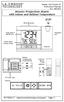 Model: WS-5220U-IT Instruction Manual DC: 082415 Atomic Projection Alarm with Indoor and Outdoor Temperature SNOOZE button Time, Alarm + WWVB Icon Projection arm Indoor Temp., Outdoor Temp. Battery Compartment