
Aruba AP-70 Access Point. Installation Guide
|
|
|
- MargaretMargaret Cross
- 9 years ago
- Views:
Transcription
1 Aruba AP-70 Access Point Installation Guide

2 Copyright 2008 Aruba Networks, Inc. AirWave, Aruba Networks, Aruba Mobility Management System, Bluescanner, For Wireless That Works, Mobile Edge Architecture, People Move. Networks Must Follow., RFProtect, The All Wireless Workplace Is Now Open For Business, and The Mobile Edge Company are trademarks of Aruba Networks, Inc. All rights reserved. All other trademarks are the property of their respective owners. Open Source Code Certain Aruba products include Open Source software code developed by third parties, including software code subject to the GNU General Public License ("GPL"), GNU Lesser General Public License ("LGPL"), or other Open Source Licenses. The Open Source code used can be found at this site: Legal Notice The use of Aruba Networks, Inc. switching platforms and software, by all individuals or corporations, to terminate other vendors' VPN client devices constitutes complete acceptance of liability by that individual or corporation for this action and indemnifies, in full, Aruba Networks, Inc. from any and all legal actions that might be taken against it with respect to infringement of copyright on behalf of those vendors. Warranty This hardware product is protected by the standard Aruba warranty of one year parts/labor. For more information, refer to the ARUBACARE SERVICE AND SUPPORT TERMS AND CONDITIONS. Altering this device (such as painting it) voids the warranty Crossman Avenue Sunnyvale, California Phone: Fax Aruba AP-70 Access Point Installation Guide April 2008

3 Contents Preface Overview of this Guide 5 Related Documents 5 Text Conventions 5 Contacting Aruba Networks 6 Chapter 1 Introduction 7 Front Features 7 Back Features 10 The Aruba AP Deployment Process 10 Chapter 2 AP Installation 11 Enabling APs to Connect to the Mobility Controller 11 Enable APs to Obtain IP Addresses 11 Locate the Mobility Controller 11 From a DNS Server 11 From a DHCP Server 12 Using the Aruba Discovery Protocol (ADP) 12 Mounting the Aruba AP-70 Access Point 12 Free-Standing Placement 13 Using the Built-In Mounting Slots 13 Using the Optional Mounting Kits 15 Connecting Required Cables 15 Selecting an FE Cable 15 Connecting Cables and Power 15 Appendix A Port Specifications 17 FE Ports 17 Serial Breakout Adapter 17 DB-9 Specification 18 To AP Specifications 18 To Network Specifications 18 USB Port 19 Appendix B Product Specifications 21 Product Features 21 Ethernet Compatibility 21 Radio Characteristics 21 Power over Ethernet 21 Physical Description 22 Package Contents 22 Optional Items 22 AP-70 Specifications 22 Safety and Regulatory Compliance 24 Certifications 25 Product Labeling 25 Proper Disposal of Aruba Equipment 26 Aruba AP-70 Access Point Installation Guide Contents 3

4 European Union RoHS 27 China RoHS 27 4 Contents Aruba AP-70 Access Point Installation Guide

5 Preface This preface includes the following information: An overview of the sections in this manual A list of related documentation for further reading A key to the various text conventions used throughout this manual How to contact Aruba Wireless Networks Overview of this Guide This giode is for trained technicians responsible for installing the Aruba AP-70 access point. Related Documents The following items are part of the complete documentation for the Aruba system: Aruba AP-70 Wireless Access Point Installation Guide (this document) Aruba Mobility Controller Installation Guide ArubaOS User Guide For the current versions of these manuals, or to obtain the latest product release notes, visit the support section of our Web site (see Contacting Aruba Networks on page 6). Text Conventions The following conventions are used throughout this manual to emphasize important concepts: Table 1 Text Conventions Italics System items Commands <Arguments> This style is used to emphasize important terms and to mark the titles of books. This fixed-width font depicts the following: Sample screen output System prompts Filenames, software devices, and certain commands when mentioned in the text In the command examples, this bold font depicts text that the user must type exactly as shown. In the command examples, italicized text within angle brackets represents items that the user should replace with information appropriate to their specific situation. For example: # send <text message> In this example, the user would type send at the system prompt exactly as shown, followed by the text of the message they wish to send. Do not type the angle brackets. Aruba AP-70 Access Point Installation Guide Preface 5

6 Table 1 Text Conventions (Continued) [ Optional ] In the command examples, items enclosed in brackets are optional. Do not type the brackets. { Item A Item B } In the command examples, items within curled braces and separated by a vertical bar represent the available choices. Enter only one choice. Do not type the braces or bars. Contacting Aruba Networks Web Site Support Main Site Support Site Software Licensing Site Wireless Security Incident Response Team (WSIRT) Support s Americas and APAC EMEA WSIRT Please details of any security problem found in an Aruba product [email protected] [email protected] [email protected] Telephone Support Aruba Corporate +1 (408) FAX +1 (408) Support United States 800-WI-FI-LAN ( ) Universal Free Phone Service Number (UIFN): Australia, Canada, China, France, Germany, Hong Kong, Ireland, Israel, Japan, Korea, Singapore, South Africa, Taiwan, and the UK WIFI-LAN ( ) All Other Countries +1 (408) Preface Aruba AP-70 Access Point Installation Guide

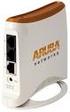
7 Chapter 1 Introduction The Aruba AP-70 Access Point works in conjunction with the Aruba Mobility Controller and can act as a wireless access point or air monitor. As a wireless access point (AP), the Aruba AP-70 Access Point provides transparent, secure, high-speed data communications between wireless network devices (fixed, portable, or mobile computers with IEEE a or IEEE b/g wireless adapters) and the wired LAN. As a wireless air monitor (AM), a feature unique to Aruba products, the Aruba AP-70 Access Point enhances wireless networks by collecting statistics, monitoring traffic, detecting intrusions, enforcing security policies, balancing wireless traffic load, self-healing coverage gaps, and more. NOTE Service to all Aruba Networks equipment must be performed by trained service personnel only. Front Features This section describes the features on the front of the AP-70 (Figure 1). Figure 1 Aruba AP-70 Access Point Front View Aruba AP-70 Access Point Installation Guide Introduction 7

8 1 Fold-Out Internal Antenna The fold-out antenna allows the Aruba 70 to be placed on a flat table or shelf, mounted on a wall, or suspended from a ceiling (an optional mounting kit is available). If you are configuring external antennas, the internal antenna can be left closed. The serial number and the model number are on the bottom of the fold-out antenna panel. NOTE For best performance, swivel the antenna array so that it is oriented vertically. For more information about installing the AP-70 access point, see Chapter 2, AP Installation. 2 Indicator LEDs During operation, the Aruba AP-70 Access Point LEDs provide the following information: Table 2 Aruba AP-70 Access Point LEDs LED State Description PWR Off The device is off - no power. Green-Solid Green-Flashing The device is powered and operating. The device is powered but is not ready for operation (typically, the AP is booting). ENET0/1 Off No link on the FE port. No connection to the network. a Green-Solid Green-Flashing Ethernet link detected on the FE port. Transmitting or receiving data across the FE port. Flashing rate is proportional to network activity. b A Off The wireless interface is disabled or down. Green-Solid Green-Flashing The wireless interface is enabled and functioning as an access point. The wireless interface is enabled and functioning as an air monitor. B/G Off The wireless interface is disabled or down. Green-Solid Green-Flashing The wireless interface is enabled and functioning as an access point. The wireless interface is enabled and functioning as an air monitor. a. The ENET1 LED on Aruba AP-70 rev D and earlier models configured for 10Base-T traffic does not illuminate, but traffic is processed normally. The ENET1 LED on Aruba AP-70 rev E and later models (circa March, 2005 and later) illuminates when configured for 10Base-T traffic. b. The ENET1 LED does not flash when traffic is being processed when configured for 10Base-T half duplex traffic. However, traffic is being processed properly. NOTE LEDs on some Mobility Controller models provide additional status and security information about directly-connected APs. See the Installation Guide for the Mobility Controller for more information. 3 4 Air Vents These vents promote proper air circulation for cooling the device. Do not allow these vents to be obstructed by mounting equipment, network cables, or any other material. FE Ports The ENET0 and ENET1 ports attach the Aruba AP-70 Access Point to a 10Base-T/100Base-TX (twistedpair) Ethernet LAN segment. Both ports support Power over Ethernet (POE). ENET0 also supports Serial Over Ethernet (SOE). 8 Introduction Aruba AP-70 Access Point Installation Guide

9 USB Ports This port is used to connect the AP to a host computer to support application specific functionality and for future applications in the RF environment such as RFID tracking or spectrum analysis. DC Power Socket This socket is used to connect the optional AC power adapter (not included). If POE is being used to supply power to the Aruba AP-70 Access Point, the power adapter is not necessary. B/G Antenna Jack For external antenna connection. A Antenna Jack For external antenna connection. Kensington Security Slot This slot is compatible with a Kensington MicroSaver Security Cable (not included), which can be used to prevent the unauthorized removal of the Aruba AP-70 Access Point from its installed location. To secure the Aruba AP-70 Access Point, wrap a security cable around an immovable object, insert the cable s lock into the Kensington Security Slot, and turn the key. To use the Kensington Security Slot while the Aruba AP-70 is mounted by the mounting slots, the foldout internal antenna must be in an open position. See Appendix A, Port Specifications for port and cable specifications. Aruba AP-70 Access Point Installation Guide Introduction 9

10 Back Features This section describes the features on the back of the AP-70 (Figure 2). Figure 2 Aruba AP-70 Access Point Back View Mounting Slots The keyhole-shaped slots on the back of the chassis are used for mounting the Aruba AP-70 Access Point. Air Vents These vents promote proper air circulation for cooling the device. Do not allow these vents to be obstructed by mounting equipment, network cables, or any other material. The Aruba AP Deployment Process Deploying an Aruba AP typically consists of four stages: 1. Run Aruba s automated RF Plan site-survey software (available separately) to determine how many Aruba APs are needed and where they will be installed. 2. Ensure that the APs can locate the Mobility Controller when they are installed and connected to the network. This is covered in Chapter 2, AP Installation. 3. Install the APs by connecting the AP to an Ethernet port and, optionally, to a power source. This is covered in Chapter 2, AP Installation. 4. On the Mobility Controller, provision the APs. For AP configuration information, refer to the ArubaOS User Guide. 10 Introduction Aruba AP-70 Access Point Installation Guide

11 Chapter 2 AP Installation This chapter explains how to enable APs to connect to an Aruba Mobility Controller, and how to install and connect the Aruba AP-70. Enabling APs to Connect to the Mobility Controller Before you install APs in a network environment, you must ensure that the APs will be able to locate and connect to the Mobility Controller when powered on. Specifically, you need to ensure the following: When connected to the network, each AP is assigned a valid IP address APs are able to locate the Mobility Controller NOTE Aruba APs use Trivial File Transfer Protocol (TFTP) the first time they boot to obtain their software image and configuration from the Mobility Controller. After the initial boot, the APs use FTP to obtain software images and configurations from the Mobility Controller. Enable APs to Obtain IP Addresses Each Aruba AP requires a unique IP address on a subnetwork that has connectivity to a Mobility Controller. Aruba recommends using the Dynamic Host Configuration Protocol (DHCP) to provide IP addresses for APs; the DHCP server can be an existing network server or an Aruba Mobility Controller configured as a DHCP server. You can use an existing DHCP server in the same subnetwork as the AP to provide the AP with its IP information. You can also configure a device in the same subnetwork to act as a relay agent for a DHCP server on a different subnetwork. Refer to the vendor documentation for the DHCP Server or relay agent for information. If an AP is on the same subnetwork as the master Mobility Controller, you can configure the Mobility Controller as a DHCP server to assign an IP address to the AP. The Mobility Controller must be the only DHCP server for this subnetwork. See the ArubaOS User Guide for information on how to enable DHCP server capability on a Mobility Controller: Locate the Mobility Controller An Aruba AP can discover the IP address of the Mobility Controller in one of the following ways: From a DNS server From a DHCP server Using the Aruba Discovery Protocol (ADP) From a DNS Server Aruba APs are factory-configured to use the host name aruba-master for the Mobility Controller. For the DNS server to resolve this host name to the IP address of the Mobility Controller, you must configure an entry on the DNS server for the name aruba-master. Aruba AP-70 Access Point Installation Guide AP Installation 11

12 For information on how to configure a host name entry on the DNS server, refer to the vendor documentation for your server. NOTE Aruba recommends using a DNS server to provide APs with the IP address of the master Mobility Controller because it involves minimal changes to the network and provides the greatest flexibility in the placement of APs. From a DHCP Server You can configure a DHCP server to provide the Mobility Controller s IP address. You need to configure the DHCP server to send the Mobility Controller s IP address using the DHCP vendor-specific attribute option 43. Aruba APs identify themselves with a vendor class identifier set to ArubaAP in their DHCP request. When the DHCP server responds to the request, it will send the controller s IP address as the value of option 43. For more information on how to configure vendor-specific information on a DHCP server, see the ArubaOS User Guide or refer to the vendor documentation for your server. Using the Aruba Discovery Protocol (ADP) ADP is enabled by default on all Aruba APs and Mobility Controllers. To use ADP, all Aruba APs and Mobility Controllers must be connected to the same Layer-2 network. If the devices are on different networks, a Layer-3 compatible discovery mechanism, such as DNS, DHCP, or IGMP forwarding, must be used instead. With ADP, APs send out periodic multicast and broadcast queries to locate the Mobility Controller. You may need to perform additional network configuration, depending on whether the APs are in the same broadcast domain as the Mobility Controller: If the APs are in the same broadcast domain as the Mobility Controller, the controller automatically responds to the APs queries with its IP address. If the APs are not in the same broadcast domain as the Mobility Controller, you need to enable multicast on the network (ADP multicast queries are sent to the IP multicast group address ) for the controller to respond to the APs queries. You also need to make sure that all routers are configured to listen for Internet Group Management Protocol (IGMP) join requests from the Mobility Controller and can route these multicast packets. See the ArubaOS User Guide for more information about enabling ADP on the Mobility Controller. Mounting the Aruba AP-70 Access Point Mount the Aruba AP-70 Access Point at its intended service location. The Aruba AP-70 Access Points are intended only for installation in Environment A as defined in IEEE af. All interconnected equipment must be contained within the same building, including the interconnected equipment's associated LAN connections. Select a location as close as possible to the center of the intended coverage area. If necessary, use the Aruba RF Plan site survey tool to determine the optimum locations for your access points and air monitors. The service location should be free from obstructions or obvious sources of interference. Normally, the higher you place an access point or air monitor, the better its performance. The Aruba AP-70 Access Point can be mounted on a wall or suspended from above (not shown) using one of the optional mounting kits (dimensions vary) in the following ways: 12 AP Installation Aruba AP-70 Access Point Installation Guide

13 Figure 3 Aruba AP-70 Access Point Mounting Options NOTE For dimensions, see Appendix B, Product Specifications on page 21. Allow 5 cm (2") additional space on the right-hand side for cables. Measurements for the Aruba AP-70 depend on attached antennas, which vary.! CAUTION Free-Standing Placement To place the Aruba AP-70 Access Point indoors on a flat table or shelf: 1. Flip open the Aruba AP-70 Access Point internal antenna. 2. Place the device on a sturdy table or shelf. Do not place the Aruba AP-70 Access Point in any place where it could fall on people or equipment. For more secure installation, use one of the optional mounting kits. 3. Orient the antennas. For best performance, swivel the antenna array so that it is oriented vertically. Once mounting is complete, connect the required cables (see instructions in Connecting Required Cables on page 15). NOTE Remember to open the antenna array and rotate it away from the body of the AP. Leaving the antenna array closed decreases the performance of the AP. Using the Built-In Mounting Slots The keyhole-shaped slots on the back of the Aruba AP-70 Access Point can be used to attach the device upright to an indoor wall or shelf.! CAUTION Do not use the mounting slots to hang the Aruba AP-70 Access Point from the ceiling, sideways, or in any place where it could fall on people or equipment. For more secure installation, use one of the optional mounting kits. Aruba AP-70 Access Point Installation Guide AP Installation 13

14 To hang the Aruba AP-70 Access Point upright using the mounting slots, perform the following steps. 1. Install two screws in the wall or shelf as shown in Figure 4: Figure 4 Mounting Screw Specifications Screw/Nail Positions (fastened to wall or shelf) 10 cm (3 15/16") Screw/Nail Dimensions Maximum Minimum 5.6 mm 2.4 mm 7/32" 3/32" 1.6 mm 4.0 mm clearance from surface 1/16" 5/32" clearance from surface 4.8 mm 3/16" 2.4 mm clearnace from surface 3/32" clearance from surface If you are attaching the device to drywall, we recommend using appropriate wall anchors (not included) as shown in Figure 5 on page Align the Aruba AP-70 Access Point mounting slots to capture the surface screws. Figure 5 Hanging the Aruba AP-70 Access Point on Screws 3. Secure the Aruba AP-70 Access Point, if desired. To prevent the unauthorized removal of the Aruba AP-70 Access Point from its installed location, use a Kensington MicroSaver Security Cable (not included). Wrap the security cable around an immovable object, insert the cable s lock into the Kensington Security Slot on the back of the Aruba AP-70 Access Point, and turn the key. 4. Orient the antennas. For best performance, swivel the antenna array so that it is oriented vertically (see Figure 3 on page 13). Once mounting is complete, connect the required cables (see instructions in Connecting Required Cables on page 15). NOTE Remember to open the antenna array and rotate it away from the body of the AP. Leaving the antenna array closed decreases the performance of the AP. 14 AP Installation Aruba AP-70 Access Point Installation Guide

15 Using the Optional Mounting Kits Use the optional mounting kit to attach the Aruba AP-70 Access Point to a wall, shelf, or ceiling. For installation, see the Aruba AP-70 Mounting Kit Installation Notes provided with each kit. Connecting Required Cables The Aruba AP-70 Access Points are intended only for installation in Environment A as defined in IEEE af. All interconnected equipment must be contained within the same building, including the interconnected equipment's associated LAN connections. Selecting an FE Cable The 10/100 Mbps Ethernet (FE) port is used to connect the AP to a 10Base-T/100Base-TX (twisted-pair) Ethernet LAN segment. The appropriate FE cable depends on the features required of the FE port: SPOE When connecting the AP to a device that supports Serial and Power Over Ethernet (SPOE), use an 8- conductor, Category 5 UTP, straight-through FE cable. The Aruba 5000 (with Line Card LC FE-2GE-SPOE), the Aruba 2400, and the Aruba 800 support SPOE. POE If the connecting device supports only Power Over Ethernet (POE), use a 4- or 8-conductor, Category 5 UTP, straight-through FE cable. Network Only If the connecting device does not support POE, use a 4- or 8-conductor, Category 5 UTP, FE cable. The ENET0 port detects MDI/MDX and automatically adjusts for straight-through or crossover cables. The maximum length for FE cables is 100 meters (325 feet). When the Aruba AP-70 Access Point is installed in an air-handling space, such as above suspended ceilings, as described in National Electrical Code (2002) Article (C), and Canadian Electrical Code, Sections 2-128, (3) and , Part 1, CSA C22.1, POE is required. Also, any FE cable installed in such spaces should be suitable under NEC Article and marked accordingly for use in plenums and air-handling spaces with regard to smoke propagation, such as CL2-P, CL3-P, MPP, or CMP. Install cables in accordance with all applicable local and national regulations and practices. See Appendix B, Product Specifications on page 21 for port and cable details. Connecting Cables and Power! CAUTION To prevent personal injury or damage to equipment, be sure to comply with electrical grounding standards during all phases of installation and operation of the AP. Do not allow the Aruba AP-70 Access Point or its attachments to be connected to or make contact with metal or power outlets on a different electrical ground than the device to which it is connected. Also, never connect the AP or Mobility Controller to external storm grounding sources. Aruba AP-70 Access Point Installation Guide AP Installation 15

16 To connect the FE port on the AP-70: 1. Connect one end of the FE cable directly to the Aruba AP-70 Access Point FE port. 2. Connect the other end of the FE cable to one of the following: To a network port on the Mobility Controller, or To a network hub, router, or Mobility Controller that has a routable path to the Mobility Controller. NOTE If the connecting device supplies POE, a straight-through cable must connect the Aruba AP-70 Access Point directly to the powering device without any intervening hubs, routers, or other networking equipment. 3. Connect power, if necessary. The Aruba AP-70 Access Point can receive electrical power using the following options: POE If the Aruba AP-70 Access Point is connected to a device that supplies IEEE 802.3af compliant POE, no additional power connection is necessary Power Outlet If local regulations and practices permit, connect the optional AC power adapter (not included) to the DC power socket on the Aruba AP-70 Access Point and plug it into an appropriate power outlet. NOTE When the Aruba AP-70 Access Point is installed in an air-handling space, as described in NEC (2002) Article (C), POE must be used instead of a power outlet.. NOTE If the Aruba AP-70 Access Point is installed on a wall or shelf within 6 feet of a patient, the unit must be powered only by PoE. Ceiling-mounted units can be powered using an AC power adapter and an appropriate power outlet.! CAUTION To prevent personal injury or damage to equipment, use only the AC power adapter certified for this device in the country where it is used. 16 AP Installation Aruba AP-70 Access Point Installation Guide

17 Appendix A Port Specifications FE Ports The ENET0 and ENET1 10/100 Mbps Ethernet ports attach the Aruba 70 to a 10Base-T/100Base-TX (twisted pair) LAN segment. Both ports support Power over Ethernet (PoE). ENET0 also supports Serial over Ethernet (SoE) and auto-sensing MDI/MDX. The port pin-outs are shown in Figure 6: Figure 6 Aruba AP-70 Access Point FE Port AP70 10/100 Mbps Ethernet RJ-45 Female Pin-Out Direction Input Output ETH Tx+ (POE negative*) ETH Tx (POE negative*) ETH Rx+ (POE positive*) Serial RxD** Serial RGND** (POE positive*) ETH Rx (POE positive*) Serial TxD** Serial TGND** (POE negative*) *POE optional **Serial optional The appropriate cable depends on the level of connectivity required of the FE port: If the connecting device supports Serial and Power Over Ethernet (SPOE), use an 8-conductor, Category 5 UTP, straight-through FE cable with a male RJ-45 connector. The Aruba 5000 (with Line Card LC FE-2GE-SPOE), the Aruba 2400, and the Aruba 800 support SPOE. If the connecting device supports only Power Over Ethernet (POE, including IEEE 802.3af POE as well as inline or midspan POE devices), use an 8- or 4-conductor, Category 5 UTP, straightthrough FE cable with male RJ-45 connectors. If the connecting device does not support Serial or POE, use a 4- or 8-conductor, Category 5 UTP, FE cable with male RJ-45 connectors. The ENET0 port detects MDI/MDX and automatically adjusts for straight-through or crossover cables. The maximum length for FE cables is 100 meters (325 feet).install cables in accordance with all applicable local regulations and practices. Serial Breakout Adapter The optional serial breakout adapter is used to separate the serial communications lines from the Aruba AP-70 Access Point FE+SPOE port. This allows the administrator to connect a local serial console directly to the AP and access the apboot prompt for manual provisioning. Aruba AP-70 Access Point Installation Guide Port Specifications 17

18 The serial breakout adapter pin-outs are shown in Figure 7: Figure 7 Aruba Serial Breakout Adapter DB-9 Female Pin-Out SG TxD RxD Direction Input Output Internal Adapter Wiring To Console RJ-45 Male "To AP" Pin-Out ETH Rx+ (POE negative) ETH Rx (POE negative) ETH Tx+ (POE positive) Serial TxD Serial TGND ETH Tx (POE positive) Serial RxD Serial RGND "To AP" RJ-45 Male "To Network" Pin-Out ETH Tx+ ETH Tx ETH Rx+ ETH Rx (POE negative) (POE negative) (POE positive) (POE positive) "To Network" DB-9 Specification The DB-9 connector attaches to the serial port of a console terminal. Communication settings for the port are specified in Table 3: Table 3 Console Terminal Settings Baud Rate Data Bits Parity Stop Bits Flow Control None 1 None To AP Specifications The RJ-45 connector labeled To AP attaches to the Aruba AP-70 Access Point FE port either directly (if the AP is physically available) or indirectly (if the AP is already deployed). When connecting indirectly, use a straight-through FE coupler to attach the To AP connector to the FE cable leading directly to the AP s FE port with no intervening hubs, routers, or other network equipment. The cable must be 8-conductor, Category 5 UTP, straight-through FE cable with a maximum length of 100 meters (325 feet). Install cables in accordance with all applicable local regulations and practices. To Network Specifications The RJ-45 connector labeled To Network attaches to an FE LAN segment. This connection is optional unless IEEE af Power Over Ethernet (POE) is used to power the AP during manual provisioning. A straight-through FE coupler may be used to attach the To Network connector to a LAN FE cable. The appropriate cable depends on the level of connectivity required of the FE port. If the connecting device supports IEEE 802.3af Power Over Ethernet (POE), use a 4- or 8-conductor, Category 5 UTP, straight-through FE cable with male RJ-45 connectors. The Aruba 5000 (with Line Card LC FE-2GE-SPOE), the Aruba 2400, and the Aruba 800 support SPOE. 18 Port Specifications Aruba AP-70 Access Point Installation Guide

19 Otherwise, use a 4- or 8-conductor, Category 5 UTP, FE cable with male RJ-45 connectors. The ENET0 port detects MDI/MDX and automatically adjusts for straight-through or crossover cables. NOTE Only IEEE 802.3af Power Over Ethernet is supported for manual provisioning. Inline or midspan POE devices will not work with the Aruba serial breakout adapter. The maximum length for FE cables is 100 meters (325 feet). Install cables in accordance with all applicable local regulations and practices. USB Port This Universal Serial Bus port is compliant with Universal Serial Bus Specification rev The USB port pin outs are: Pin Description 1 (counting from the outside edge) Power 2 Signal (negative) 3 Signal (positive) 4 Ground Aruba AP-70 Access Point Installation Guide Port Specifications 19

20 20 Port Specifications Aruba AP-70 Access Point Installation Guide

21 Appendix B Product Specifications Product Features Wireless dual-band transceiver Varied antenna options: The Aruba AP-70 has a built-in array with dual, tri-band, omnidirectional antennas for reception diversity. Protocol-independent networking functionality Supports IEEE a or IEEE b/g operation as an AP Supports IEEE a and IEEE b/g operation as an AM Compatible with IEEE 802.3af Power Over Ethernet (POE) Seamless connectivity to wired LANs augment existing networks quickly and easily Can be centrally managed, configured, and upgraded through the Mobility Controller to take advantage of network changes and security improvements Ethernet Compatibility The Aruba AP-70 Access Point attaches to 10/100 Mbps Ethernet (FE) LAN segments that utilize 10Base-T/100Base-TX (twisted-pair) wiring. The device appears as an Ethernet node and performs a routing function by moving packets between the wired LAN and remote workstations on the wireless infrastructure. Radio Characteristics The Aruba AP-70 Access Point can be configured to support IEEE a or IEEE b/g operation as an AP, and supports both IEEE a and IEEE b/g operation as an AM: a provides a high data rate and reliable wireless connectivity a operation uses a radio modulation technique known as Orthogonal Frequency Division Multiplexing (OFDM), and a shared collision domain (CSMA/CA). It operates in the 5 Ghz Unlicensed National Information Infrastructure (UNII) band. Data is transmitted over a half-duplex radio channel operating at up to 54 Megabits per second (Mbps) b provides an alternative to wired LANs that can dramatically cut costs b operation uses the IEEE High-Rate Direct Sequence (HRDS) specification, and a shared collision domain (CSMA/CA). It operates in the 2.4 Ghz Industrial/Scientific/Medical (ISM) band. The ISM band is available worldwide for unlicensed use. Data is transmitted at speeds of up to 11 Mbps g provides a high data rate and is backwards compatible with b g operation uses ODFM and a shared collision domain (CSMA/CA). It operates in the 2.4 Ghz Industrial/Scientific/Medical (ISM) band. The ISM band is available worldwide for unlicensed use. Data is transmitted at speeds of up to 54 Mbps. Power over Ethernet The Aruba AP-70 Access Point supports the IEEE 802.3af standard for Power over Ethernet (PoE). With this feature, the Aruba AP-70 Access Point can accept electrical power from a compatible PoE-capable Aruba AP-70 Access Point Installation Guide Product Specifications 21
22 device (such as the Aruba 5000 (with Line Card LC FE-2GE-SPOE), Aruba 2400, or Aruba 800) directly over the FE cable. PoE eliminates the need to provide separate power outlets in environments that are difficult or undesirable to wire for electricity. The Aruba AP-70 Access Point also supports inline and midspan PoE devices for normal operation. Inline power is PoE that is integrated into FE ports and provides PoE directly to devices. Non-PoE ports can have PoE added by means of a mid-span device that provides PoE. The non-poe port is connected to a mid-span PoE port, and this mid-span port is connected to the device that requires PoE. Physical Description Package Contents The Aruba AP-70 Access Point package includes: One Aruba AP-70 Access Point Access Point Assorted documentation Inform your supplier if there are any incorrect, missing or damaged parts. If possible, retain the carton, including the original packing materials. Use them to repack the product in case there is a need to return it. Optional Items The following optional items can also be ordered for the Aruba AP-70 Access Point: Detachable antennas (Aruba AP-70 only) AC power adapter (5 VDC, 3 A) and power cord Serial breakout adapter for direct access to the AP console Mounting kit (modular cradle for walls and suspended ceilings) Check with your Aruba sales representative for the availability of optional items. The following specifications apply to the Aruba AP-70 Access Points. AP-70 Specifications Table 4 Aruba AP Specifications Description a b g Integral Antenna Dual, diversity supporting omni-directional, high gain as follows: Ghz 4.46 dbi Ghz 7.21 dbi Ghz 6.49 dbi Ghz 5.23 dbi Frequency Band ~ Ghz (low band) ~ Ghz (ETSI) 5.500~ Ghz (high band) ~ Ghz (high band) 2.4 ~ Ghz (US, Canada & ETSI) 2.4 ~ Ghz (Japan) Complete country list available at com/products/aps/ certification ~ Ghz (US, Canada) ~ Ghz (ETSI) ~ Ghz (Japan) Complete country list available at com/products/aps/ certification 22 Product Specifications Aruba AP-70 Access Point Installation Guide
23 Table 4 Aruba AP Specifications (Continued) Description a b g Radio Technology Orthogonal Frequency Division Multiplexing (OFDM) Direct Sequence Spread Spectrum (DSSS) Orthogonal Frequency Division Multiplexing (OFDM) Modulation Type BPSK, QPSK, 16-QAM, 64-QAM CCK, BPSK, QPSK CCK, BPSK, QPSK, 16- QAM, 64-QAM Transmit Power Configurable by system administrator/ professional installer Configurable by system administrator/ professional installer Configurable by system administrator Media Access Control CSMA/CA with ACK CSMA/CA with ACK CSMA/CA with ACK Operating Channels US & Canada: 8 external antenna 12 internal antenna ETSI: 19 Japan: 4 Complete country list available at products/aps/certification US & Canada: 11 ETSI: 13 Japan: 14 Complete country list available at products/aps/ certification US & Canada: 11 ETSI: 13 Japan: 14 Complete country list available at com/products/aps/ certification Data Rates 6, 9, 12, 18, 24, 36, 48, 54 Mbps per channel 1, 2, 5.5, 11 Mbps per channel 6, 9, 12, 18, 24, 36, 48, 54 Mbps per channel Table 5 Aruba AP-70 Characteristics Description Maximum Clients 64 Multi-mode Radio Band Manageability: Encryption Support (AP and Mobility Controller) Physical (HxWxD): Selectable via software Management of all parameters Network Wide AP management via: > CLI > WEB GUI > SNMPv3 Access point profiles, management by: > Geographical location > BSSID > Radio type 40-bit/64-bit/128-bit/152-bit WEP, TKIP, AES, WPA, WPA2.0 Antenna retracted: 167 x190 x 30 mm (6.57 x 7.48 x 1.18 in) Antenna deployed: 293 x 190 x 30 mm (11.54 x 7.48 x 1.18 in) Weight 510 grams (18 oz) Aruba AP-70 Access Point Installation Guide Product Specifications 23
24 Table 5 Aruba AP-70 Characteristics (Continued) Description Interfaces (Electrical): Interfaces (Mechanical): Visual Indicators (LEDs) Power Requirements Output Power Power Consumption Operating Environment Storage Environment Humidity Altitude 2 x 10/100 Base-TX RJ-45 auto-sensing Ethernet interfaces: Port ENET0 > Supports auto-sensing MDI/MDX > Supports Power Over Ethernet 48V DC / 250mA (802.3af compliant) > Supports Serial Over Ethernet Port ENET1 > Does not support auto-sensing > Supports Power Over Ethernet 48V DC / 250mA (802.3af compliant) > Does not support Serial Over Ethernet USB ver 2.0 Interface Standard Kensington MicroSaver Security Cable Interface (cable not supplied) Wall, wall gang box, ceiling mount kit interface (optional - part number AP-70-MNT) Ready -- Power on/off Ethernet (0/1) Link status/activity (Radio Mode) a +b/g access point/air monitor mode External AC power or POE 5V DC / 3A supplied externally via optional, country-specific AC adapter kits 48V DC / 250mA Power Over Ethernet (802.3af compliant) 100 mw maximum (or lower as configured on the Aruba Mobility Controller to comply with local regulatory requirements) 12W maximum 0 ºC to 50 ºC (32 ºF to 122 ºF) AP 0 ºC to 40 ºC (32 ºF to 104 ºF) AC Mains Power Adapter Kit 0 ºC to 70 ºC (32 ºF to 158 ºF) AP -20 ºC to 70 ºC (-4 ºF to 158 ºF) AC Mains Power Adapter Kit 5 to 95%, non-condensing AP 15 to 85% RH AC Mains Power Adapter Kit 5 to 90% RH Storage Humidity AC Mains Power Adapter Kit 3,048 m (10,000 feet) maximum Standards Compliance Ethernet IEEE / IEEE 802.3u Power Over Ethernet IEEE 802.3af Wireless IEEE a/b/g USB 2.0 Safety and Regulatory Compliance Aruba provides a multi-language document containing country-specific restrictions and additional safety and regulatory information for all Aruba hardware products. This document can be viewed or downloaded from the following location: CAUTION Aruba Access Points must be installed by a professional installer. The professional installer is responsible for ensuring that grounding is available and it meets applicable local and national electrical codes. 24 Product Specifications Aruba AP-70 Access Point Installation Guide
25 Certifications Table 6 Certifications Item Electromagnetic Compatibility Measurement FCC Part 15 Class B, FCC Part 15 Class C / FCC Part 15 Class E RSS 210 (CAN) ICES-003 Class B VCCI Class B TELEC ARIB STD-T66 EN , EN , EN , EN , EN , EN , EN , EN , EN 55022, EN (89/336/EEC), 73/23/ECC, and 89/336/EEC The CE approval mark on back of the product indicates that it meets European Directives 73/23/EEC and 89/336/EEC R&TTE Directive: EN , EN , EN AS/NZS 3548 Class B CIPPR22 Class B RFS 29 (NZ) Safety UL Listed (UL ) UL Listed (Canadian Electrical Code/CSA 22.2 No ) EN / IEC60950 National Electrical Code Section (C) Canadian Electrical Code, Part 1, CSA C22.1 Sections 2-128, (3), and UL 2043 Plenum Rating IEC Product Labeling The following illustration shows the label affixed to the chassis of the AP-70. This appendix explains symbols used on the label. ARUBA NETWORKS, INC. MODEL: AP70 FCC ID:Q9DARUBA70 IC: 4675A-AP70 2.4DS4/OF4 005NYCA GZCA WYAA N EN EN R-LARN TA-2004/648 UL2043 Aruba AP-70 Access Point Installation Guide Product Specifications 25
26 This symbol indicates that protection against electrical shock is required and that the level of protection against electric shock based on the definitions of IEC The following illustration shows the power connrctions for the AP70 unit. Proper Disposal of Aruba Equipment For the most current information on Global Environmental Compliance and Aruba products please see our website at Aruba products at end of life are subject to separate collection and treatment in the EU Member States, Norway, and Switzerland and therefore are marked with the symbol shown at the left (crossed-out wheelie bin). The treatment applied at end of life of these products in these countries shall comply with the applicable national laws of countries implementing Directive 2002/96EC on Waste of Electrical and Electronic Equipment (WEEE). 26 Product Specifications Aruba AP-70 Access Point Installation Guide
27 European Union RoHS Aruba products comply with the EU Restriction of Hazardous Substances Directive 2002/95/EC (RoHS). EU RoHS restricts the use of specific hazardous materials in the manufacture of electrical and electronic equipment. Specifically, restricted materials under the RoHS Directive are Lead (including Solder used in printed circuit assemblies), Cadmium, Mercury, Hexavalent Chromium, and Bromine. Some Aruba products are subject to the exemptions listed in RoHS Directive Annex 7 (Lead in solder used in printed circuit assemblies). Products and packaging will be marked with the RoHS label shown at the left indicating conformance to this Directive. China RoHS Aruba products comply with China environmental declaration requirements and are labeled with the EFUP 50 label shown at the left. (Parts) PCA Board Lead (Pb) Hazardous Materials Declaration Mercury (Hg) Hazardous Substances) Chromium VI Polybrominated Cadmium Compounds Biphenyls (Cd) (Cr 6+ ) (PBB) Polybrominated Diphenyl Ether (PBDE) X O O O O O Mechanical X O O O O O Subassembly O: SJ/T This component does not contain this hazardous substance above the maximum concentration values in homogeneous materials specified in the SJ/T Industry Standard. X: SJ/T This component does contain this hazardous substance above the maximum concentration values in homogeneous materials specified in the SJ/T Industry Standard. This table shows where these substances may be found in the supply chain of electronic information products, as of the date of sale of the enclosed product. The Environment- Friendly Use Period (EFUP) for all enclosed products and their parts are per the symbol shown here. The Environment- Friendly Use Period is valid only when the product is operated under the conditions defined in the product manual. Part Number: Aruba AP-70 Access Point Installation Guide Product Specifications 27
28 28 Product Specifications Aruba AP-70 Access Point Installation Guide
Aruba AP-60/61 Access Point. Installation Guide
 Aruba AP-60/61 Access Point Installation Guide Copyright 2008 Aruba Networks, Inc. AirWave, Aruba Networks, Aruba Mobility Management System, Bluescanner, For Wireless That Works, Mobile Edge Architecture,
Aruba 2E Wired Access Point. Installation Guide
 Aruba 2E Wired Access Point Installation Guide Copyright 2006 Aruba Wireless Networks, Inc. All rights reserved. Aruba Networks and Aruba The Mobile Edge Company are trademarks of Aruba Wireless Networks,
ARUBA RAP-100 SERIES REMOTE ACCESS POINTS
 ARUBA RAP-100 SERIES REMOTE ACCESS POINTS High-performance wireless and wired networking for SMBs, branch offices and teleworkers The multifunctional Aruba RAP-100 series delivers secure 802.11n wireless
ARUBA 90 SERIES ACCESS POINTS For low-density Wi-Fi client environments
 Aruba 9 Series Access Points ARUBA 9 SERIES ACCESS POINTS For low-density Wi-Fi client environments Multifunctional and affordable 9 series wireless access points (APs) deliver enterprise-grade Wi-Fi to
Aruba 2400 Mobility Controller. Installation Guide
 Aruba 2400 Mobility Controller Installation Guide TM Aruba 2400: Installation Guide Copyright 2005 Aruba Wireless Networks, Inc. All rights reserved. Specifications are subject to change without notice.
ARUBA RAP-3 REMOTE ACCESS POINT
 ARUBA RAP-3 REMOTE ACCESS POINT High-performance wireless and wired networking for branch offices and teleworkers The multifunctional Aruba RAP-3 delivers secure 802.11n wireless and wired network access
How To Use The Cisco Aironet 1240G Series For A Wireless Network (Wired) And For A Wired Network (Wireless)
 Cisco Aironet 1240G Series Access Point Cisco Aironet 1240G Series Access Points provide single-band 802.11g wireless connectivity for challenging RF environments such as factories, warehouses, and large
ARUBA INSTANT IAP-92 and IAP-93 ACCESS POINTS
 ARUBA INSTANT IAP- and IAP-93 ACCESS POINTS For low-density Wi-Fi client environments inherits the role of the primary Virtual Controller with no service disruption. The primary Virtual Controller operates
Cisco Aironet 1130G Series IEEE 802.11g Access Point
 Cisco Aironet 1130G Series IEEE 802.11g Access Point Low-profile business-class access point with integrated antennas for easy deployment in offices and similar RF environments Product Overview The Cisco
HP ProCurve Wireless Access Point 10ag Overview
 Overview Models, North America only, Worldwide J9140A J9141A Key features Wireless AP with IEEE 802.11a/b/g support Powerable by PoE or AC Secure connectivity, dual radio, up to eight SSIDs Industry-leading
IEEE 802.3af 4-Port Power over Ethernet Injector Hub POE-400. User s Manual
 IEEE 802.3af 4-Port Power over Ethernet Injector Hub POE-400 User s Manual - 1 - Trademarks Disclaimer Copyright PLANET Technology Corp. 2006. Contents subject to revision without prior notice. PLANET
ARUBA INSTANT 103 IAP-103 HP 103 INSTANT
 ARUBA INSTANT 103 IAP-103 HP 103 INSTANT Cost effective dual-band coverage in mediumdensity enterprise Wi-Fi environments Multifunctional and affordable Instant 103 wireless access points (APs) maximize
HP AP8760 Dual Radio 802.11a/b/g Access Point Overview
 Overview Models JD016A Key features Simultaneous 802.11a and 802.11b/g support PoE power/data via Category 5/6 data cables WPA/2, AES, TKIP, WEP packet encryption MAC address authentication/filtering WDS
IFS SP-PoE Splitter User Manual
 IFS SP-PoE Splitter User Manual P/N 1069176-EN REV 1.01 ISS 01JUL10 2011 UTC Fire & Security. All rights reserved. Content Overview 2 Package contents 2 Introduction 3 Product Specifications 3 Hardware
Installation Guide. Wireless N Access Point EAP110/EAP120/EAP220
 Installation Guide Wireless N Access Point EAP110/EAP120/EAP220 CONTENTS Network Topology 01 Hardware Overview 02 Hardware Installation 05 1. Installation Requirements... 05 2. Mounting Bracket... 05
Wireless LAN Outdoor Bridge Solution
 309-2273-001AA.fm Page 1 Monday, February 3, 2003 4:54 PM Quick Start Guide Wireless LAN Outdoor Bridge Solution 3CRWEASY96A Outdoor solution for secure long-distance wireless connections The 3Com Wireless
Installation Instructions. Wireless Adapter/Repeater. Introduction. 30-3001-887 Rev C
 /Repeater Installation Instructions 30-3001-887 Rev C Workstation Ethernet bcx Controller Repeater Repeater Introduction Schneider Electric has designed a device that allows Andover Continuum controllers
Concurrent 2.4 and 5 GHz Performance. Backward Compatible. Fast Roaming through 802.1X PMK Caching. Power over Ethernet Port. Secure Communications
 High-Power Ceiling Mount Wireless AC1200 Dual-Band Gigabit PoE Access Point 300 Mbps Wireless N (2.4 GHz) + 867 Mbps Wireless AC (5 GHz), WDS, Wireless client isolation, 26 dbm Part No.: 525688 Add performance
LevelOne IFE-0500 4-Port PoE + 1-Port TP Industrial Fast Ethernet Switch User Manual
 LevelOne IFE-0500 4-Port PoE + 1-Port TP Industrial Fast Ethernet Switch User Manual Ver. 1.0.0-0711 1 FCC Warning This Equipment has been tested and found to comply with the limits for a Class-A digital
Product Specifications
 Cisco Model EPR2320 EuroDOCSIS 2.0 Residential Gateway with Wireless Access Point The Cisco Model EPR2320 EuroDOCSIS 2.0 Residential Gateway (EPR2320) combines a cable modem, router, and wireless access
RC8021 Indoor Camera Installation Guide
 RC8021 Indoor Camera Installation Guide P/N: 957YL502GJ Document Version: 1.0 Copyright 2011. All Rights Reserved. All trademarks and trade names are the properties of their respective owners i Package
USER MANUAL MODEL 2300M SERIES. OpticLink Ethernet Media Converters (2300M, 2310M, 2311M, & 2312M)
 USER MANUAL MODEL 2300M SERIES OpticLink Ethernet Media Converters (2300M, 2310M, 2311M, & 2312M) An ISO-9001 Certified Company Part# 07M2300M Doc# 077321U Rev. A Revised 4/14/03 SALES OFFICE (301) 975-1000
Disclaimers. Important Notice
 Disclaimers Disclaimers Important Notice Copyright SolarEdge Inc. All rights reserved. No part of this document may be reproduced, stored in a retrieval system, or transmitted, in any form or by any means,
QuickSpecs. HP M220 802.11n Access Point Series. Models HP M220 802.11n WW Access Point. Key features
 Overview HP M220 802.11n Access Point Series Models HP M220 802.11n AM Access Point HP M220 802.11n WW Access Point J9798A J9799A Key features IEEE 802.11a/b/g/n access point Single-radio, dual-band (2.4
5-port / 8-port 10/100BaseTX Industrial Ethernet Switch User Manual
 5-port / 8-port 10/100BaseTX Industrial Ethernet Switch User Manual Content Overview... 1 Introduction... 1 Features... 3 Packing List... 4 Safety Precaution... 4 Hardware Description... 5 Front Panel...
8-Port PoE Network Switch
 Page 1 of 12 8-Port PoE Network Switch User s Guide Document Number 91I00-1 Rev A August, 2009 FCC Warning: Page 2 of 12 This devices has been tested and found to comply with the regulations for Class
HP M220 802.11n Access Point Series
 Data sheet HP M220 802.11n Access Point Series Key features IEEE 802.11a/b/g/n access point Single-radio, dual-band (2.4 GHz or 5 GHz) Simplified wireless LAN administration with clustering technology
HP E-M110 Access Point Series. Product overview. Key features. Data sheet
 HP E-M110 Access Point Series Data sheet Product overview HP E-M110 Access Point is an entry-level, single IEEE 802.11a/b/g radio device that can be configured to operate as an access point, a wireless
How To Get A Gigabit Wireless Connection On An Aruba 220 Series Wireless Aps
 ARUBA 220 SERIES ACCESS POINTS Setting a higher standard for 802.11ac Multifunctional 220 series wireless APs deliver gigabit Wi-Fi performance to 802.11ac mobile devices. Integrated Aruba ClientMatch
HP ProCurve MultiService Access Point Series
 Product overview HP ProCurve MultiService Mobility Access Points (MSM APs) bring intelligence to the network edge by providing scalable, seamless wireless access anywhere, anytime. Their feature set is
AXIS T81B22 DC 30W Midspan
 INSTALLATION GUIDE AXIS T81B22 DC 30W Midspan ENGLISH About this Document This document includes instructions for installing AXIS T81B22 on your network. Previous experience of networking will be beneficial
Quick Installation Guide 24-port PoE switch with 2 copper Gigabit ports and 2 Gigabit SFP ports (af Version 15.4W)
 Quick Installation Guide 24-port PoE switch with 2 copper Gigabit ports and 2 Gigabit SFP ports (af Version 15.4W) Table of Contents Introduction.. Power Over Ethernet (PoE) & Features.... Unpacking and
GEU-0822 8-Port Gigabit Switch
 GEU-0822 8-Port Gigabit Switch 1 V1. 1_20150622 1. INTRODUCTION... 3 1.1 Product Briefs... 3 1.2 Product Features... 3 1.3 Hardware Introduction... 4 2. CONNECTING THE SWITCH... 5 2.1 Package Contents...
User's Manual. 8-Port 10/100Mbps with 4-Port PoE Fast Ethernet Switch FSD-804P - 1 -
 User's Manual FSD-804P 8-Port 10/100Mbps with 4-Port PoE Fast Ethernet Switch - 1 - Trademarks Disclaimer Copyright PLANET Technology Corp. 2007. Contents subject to revision without prior notice. PLANET
ARUBA RAP-155 SERIES REMOTE ACCESS POINTS
 ARUBA RAP-155 SERIES REMOTE ACCESS POINTS High-performance wireless and wired networking for small/medium businesses and branch offices The multifunctional Aruba RAP-155 series delivers secure 802.11n
QuickSpecs. Models HP WA2110 Single Radio 802.11a/b/g Access Point HP WA2220 Dual Radio 802.11a/b/g Access Point
 Overview Models HP WA2110 Single Radio 802.11a/b/g Access Point HP WA2220 Dual Radio 802.11a/b/g Access Point JD446B JD451A Key features Centralized access point management Automatic access point version
QuickSpecs. Model. Key features Can connect wired device to a wireless network Single radio IEEE 802.11a/b/g Two external antennas Indoor enclosure
 Overview Model HP M111 Client Bridge US HP M111 Client Bridge JP J9389A J9523A Key features Can connect wired device to a wireless network Single radio IEEE 802.11a/b/g Two external antennas Indoor enclosure
Operating Instructions. Sophos Access Points
 Sophos Access Points Foreword We are pleased to welcome you as a new Sophos Access Point customer. These operating instructions will help you install and configure the access point and provide technical
Cisco Aironet Wireless Bridges FAQ
 Cisco Aironet Wireless Bridges FAQ Document ID: 16041 Contents Introduction What is the Cisco Aironet Wireless Bridge? What are the different platforms of wireless bridges that Cisco offers? Where can
OC810 Outdoor Camera Setup Guide
 OC810 Outdoor Camera Setup Guide P/N: 957YU60001 Document Version: 1.0 Copyright 2010. All Rights Reserved. All trademarks and trade names are the properties of their respective owner i Package Contents
Mobility Point MP-422A
 Mobility Point MP-422A DATA SHEET Mobility Point MP-422A Dual-radio Indoor Wireless Access Point for 802.11a and 802.11b/g The Mobility Point family provides access point, bridging and wireless mesh services
HP ProCurve Wireless Access Point 420
 Datasheet HP ProCurve Wireless Access Point 420 The HP ProCurve Wireless Access Point 420 is a full-featured IEEE 802.11g, single-radio access point ideally suited for medium to large wireless LAN deployments.
Passive PoE Port. PoE WAN / LAN1
 AirLive Dual 11g PoE A fter more than one year of research and development, the AirLive has finally arrived. It is the first with 2 Wireless-G radios that combines breakthrough design and advance functions
HP-1000E v2. User s Manual. Powerline Ethernet Adapter. HP1000E v2 User s Manual
 HP-1000E v2 Powerline Ethernet Adapter User s Manual HP1000E v2 User s Manual Table of Contents Chapter 1: Introduction...1 Chapter 2: Planning your Powerline Network...1 Network Topology...1 Chapter 3:
OC810 Outdoor Camera Installation Guide
 OC810 Outdoor Camera Installation Guide P/N: 957YU601GJ Document Version: 1.0 Copyright 2011. All Rights Reserved. All trademarks and trade names are the properties of their respective owner i Package
Models HPE OfficeConnect M210 802.11n (WW) Access Point
 Overview Models HPE OfficeConnect M210 802.11n (AM) Access Point HPE OfficeConnect M210 802.11n (WW) Access Point JL023A JL024A Key features IEEE 802.11a/b/g/n access point (AP) Single-radio, dual-band
Wireless 802.11g CF Card User Manual
 Wireless 802.11g CF Card User Manual Version 1.0 Copyright statement No part of this publication may be reproduced, stored in a retrieval system, or transmitted in any form or by any means, whether electronic,
FriendlyNet Hub 5-Port or 8-Port Ethernet Hub User s Manual
 FriendlyNet Hub 5-Port or 8-Port Ethernet Hub User s Manual Asanté Technologies, Inc. 821 Fox Lane San Jose, CA 95131 Copyright Notice Copyright 1997 by Asanté Technologies, Inc. All rights reserved. No
FSW-0505TX/0805TX 5/8 Port SOHO 10/100Mbps NWay Switch FSW-0505TX FSW-0805TX. 5/8 Port SOHO 10/100Mbps NWay Switch. User s Manual. (Revision 1.
 FSW-0505TX FSW-0805TX 5/8 Port SOHO 10/100Mbps NWay Switch User s Manual (Revision 1.0) FCC Class A Appliance This equipment generates and uses radio frequency energy. If it is not installed and used
Cisco Aironet 1100 Series Access Point
 Cisco Aironet 1100 Series Access Point The Cisco Aironet 1100 Series Access Point provides a high-speed, secure, affordable, and easy-to-use wireless LAN solution that combines the freedom and flexibility
BODi rs BD004 Series Bandwidth-on-Demand Internet with Reliability and Survivability. Quick Start Guide NOTES
 NOTES BODi rs BD004 Series Bandwidth-on-Demand Internet with Reliability and Survivability Quick Start Guide This is a Class A device and is not intended for use in a residential environment. Important
M7250P. PoE Powered. Gigabit Ethernet Media Converter 1000BASE-TX TO 1000BASE-SX/LX. Installation Guide
 M7250P PoE Powered Gigabit Ethernet Media Converter 1000BASE-TX TO 1000BASE-SX/LX Installation Guide September 2009 VERSITRON, Inc. 83 Albe Drive - Suite C Newark, DE 19702 www.versitron.com www.versitron.com
ARUBA 200 SERIES ACCESS POINTS
 ARUBA 200 SERIES ACCESS POINTS Bringing 802.11ac to the masses Multifunctional and affordable Aruba 200 series 802.11ac wireless APs maximize mobile device performance in medium-density enterprise Wi-Fi
ARUBA INSTANT 215/ HP 215 INSTANT ACCESS POINT
 ARUBA INSTANT 215/ HP 215 INSTANT ACCESS POINT Affordable, high-performance 802.11ac Multifunctional and affordable Aruba Instant 215 wireless access points (APs) maximize mobile device performance in
Powerline 1200 User Manual
 User Manual Models PL1200 PLP1200 January 2016 202-11566-01 350 E. Plumeria Drive San Jose, CA 95134 USA Support Thank you for purchasing this NETGEAR product.you can visit www.netgear.com/support to register
AP 300 Access Port. Wireless Switch System. Next-Generation Access Ports: More Functionality at a Lower Cost WIRELESS LANS
 AP 300 Access Port Next-Generation Access Ports: More Functionality at a Lower Cost Wireless Switch System WIRELESS LANS Powerful Enterprise-Level Next-Generation Wireless Technology More Functionality
2.4GHz 802.11n Outdoor CPE Model:WLAN-LCCPE28-1
 2.4GHz 802.11n Outdoor CPE Model:WLAN-LCCPE28-1 Features IP55 Rated Enclosure IEEE 802.11b/g/n Compliant Low Power Consumption Access Point, Client, PxP Modes Selectable Bandwidth Settings: 20/40MHz Applications
WIB250A5 Series PC/104+ 802.11b/g/a/h WLAN Modules
 Product Overview WIB250A5 series are full-featured wireless devices that use the PC/104 Plus form factor. WIB250A5 works with PC/104 Plus and PCI-104 CPU modules and upgrades your embedded system into
IdentiFi AP3600. Overview. Fully Featured, Enterprise-Grade Wi-Fi DATA SHEET
 DATA SHEET IdentiFi AP3600 Fully Featured, Enterprise-Grade Wi-Fi BENEFITS BUSINESS ALIGNMENT Support for demanding voice/video/data applications to enhance mobile worker productivity and convenience Role-based
ECB3500 2.4GHz Super G 108Mbps Access Point/Client Bridge/Repeater/WDS AP/
 Wireless Long Range Multi-function 7+1 AP ECB3500 2.4GHz Super G 108Mbps Access Point/Client Bridge/Repeater/WDS AP/ EIRP up to 2000mW WDS Bridge/Client Router/AP Router ECB3500 is a powerful, enhanced,
ARUBA 210 SERIES ACCESS POINTS
 ARUBA 210 SERIES ACCESS POINTS Affordable, high-performance 802.11ac Multifunctional and affordable Aruba 210 series wireless access points (APs) maximize mobile device performance in medium-density, highperformance
Industrial 802.11n Wireless Access Point with PoE PSE
 Industrial 802.11n Wireless Access Point with PSE Industrial Wireless LAN For robust Wireless access, the PLANET Industrial Access Point with injector function is specially designed for the Wi-Fi applications
User Manual. EtherUSB
 User Manual EtherUSB USB Ethernet Access Point for PDA V 2.0 Clarinet Systems, Inc. Clarinet Systems, Inc. http://www.clarinetsys.com Page 1 Publication Revision No. Control Table Rev. No. Date Contents
Full_IG.book Page 1 Monday, January 9, 2012 6:11 PM. ProSafe 24 Port Gigabit Switch Installation Guide
 Full_IG.book Page 1 Monday, January 9, 2012 6:11 PM ProSafe 24 Port Gigabit Switch Installation Guide Full_IG.book Page 2 Monday, January 9, 2012 6:11 PM 2011 NETGEAR, Inc. All rights reserved. No part
IAP93 IAP92 IAP105 IAP134 IAP135
 Alcatel-Lucent OmniAccess Instant for OmniAccess Instant Access Points 92, 93,105, 134 and 135 INSTANT VIRTUALIZATION OF OMNIACCESS WLAN SWITCH /CONTROLLER The Alcatel-Lucent OmniAccess lnstant virtualizes
Cisco Unified IP Phone Power Injector
 Data Sheet Cisco Unified IP Phone Power Injector The Cisco Unified IP Phone Power Injector (Figure 1) increases the deployment flexibility of Cisco Unified IP phones by providing an alternative powering
Quick Start Guide. WAP371 Wireless AC/N Dual Radio Access Point with Single Point Setup Quick Start Guide. Cisco Small Business
 Quick Start Guide Cisco Small Business WAP371 Wireless AC/N Dual Radio Access Point with Single Point Setup Quick Start Guide Versión en Español para México en el CD Version en français sur CD Versione
Cisco HWIC-AP WLAN Module for Cisco 1800 (Modular), Cisco 2800 and Cisco 3800 Series Integrated Services Routers
 Cisco HWIC-AP WLAN Module for Cisco 1800 (Modular), Cisco 2800 and Cisco 3800 Series Integrated Services Routers Product Overview The Cisco HWIC-AP 802.11G and HWIC-AP 802.11A/B/G are Wireless LAN interface
BLACK BOX. T1/E1 Link Extenders OCTOBER 2007 MT195A-T1 MT196A-E1
 BLACK BOX NETWORK SERVICES OCTOBER 2007 MT195A-T1 MT196A-E1 T1/E1 Link Extenders Important This is a Class A device and is intended for use in a light industrial environment. It is not intended nor approved
ECB1220R. Wireless SOHO Router/Client Bridge
 Wireless SOHO Router/Client Bridge 2.4GH 802.11 b/g 54Mbps PRODUCT DESCRIPTION ECB-1220R is a 2.4GHz 802.11b/g broadband Wi-Fi Router with advanced AP/Client Bridge/Repeater functions. So you could implement
Wireless Access Point AT-WA7400. Installation Guide. PN 613-000487 RevA
 Wireless Access Point AT-WA7400 Installation Guide PN 613-000487 RevA Copyright 2006 Allied Telesyn, Inc. All rights reserved. No part of this publication may be reproduced without prior written permission
EAP9550 11N Wall Mount Access Point / WDS AP / Universal Repeater
 EAP9550 is a powerful and multi-functioned 11n Access Point and it can act three modes AP/WDS/Universal Repeater. Smoke detector appearance will minimize visibility. So this model can work properly at
MoCA Adapter MC1001 v2 Installation Guide
 Technical Support Thank you for selecting NETGEAR products. After installing your device, locate the serial number on the label of your product and use it to register your product at www.netgear.com/register.
FCC COMPLIANCE STATEMENT
 MEDIA CONVERTER Fiber to UTP Ethernet Media Converter ET90110SC ET90110ST Instruction Guide * Actual product may vary from photo Revised: December 6, 2002 The Professionals Source For Hard-to-Find Computer
ARUBA 103 SERIES ACCESS POINTS
 ARUBA 103 SERIES ACCESS POINTS Cost effective dual-band coverage in mediumdensity enterprise Wi-Fi environments Multifunctional and affordable Aruba 103 series wireless access points (APs) maximize mobile
DES-1005P 5-Port 10/100Mbps with 1-Port PoE Unmanaged Switch
 DES-1005P 5-Port 10/100Mbps with 1-Port PoE Unmanaged Switch Manual RECYCLABLE V1.01 TABLE OF CONTENTS About This Guide... 1 Purpose... 1 Introduction... 2 Fast Ethernet Technology... 2 Switching Technology...
Cisco Aironet 1230AG Series 802.11A/B/G Access Point
 Cisco Aironet 1230AG Series 802.11A/B/G Access Point Cisco Aironet 1230AG Series Access Points deliver the versatility, high capacity, security, and enterprise-class features demanded by WLAN customers.
ALL8808POE. 8 Port Gigabit PoE+ Switch. Manual
 ALL8808POE 8 Port Gigabit PoE+ Switch Manual FCC Certifications This Equipment has been tested and found to comply with the limits for a Class B digital device, pursuant to part 15 of the FCC Rules. These
A6210 WiFi USB Adapter 802.11ac USB 3.0 Dual Band User Manual
 802.11ac USB 3.0 Dual Band User Manual August 2014 202-11373-01 350 East Plumeria Drive San Jose, CA 95134 USA Support Thank you for selecting NETGEAR products. After installing your device, locate the
Key Features. EnGenius Outdoor Base Station designs High Power, High Sensitivity and Strong Reliability Solutions under Harsh Environment.
 802.11 b/g/n N300 Access Point Key Features IEEE 802.11 b/g/n compliant Up to 300Mbps (2.4GHz) Complaint with IEEE 802.3 at for PoE supported PoE injector with reset from remote-end Two Gigabit Ethernet
Technical Support. Support Information
 Technical Support Please refer to the Support Information card that shipped with your product. By registering your product at www.netgear.com/register, we can provide you with faster expert technical support
Hardware overview. Package contents MSM310, documentation, two 2.4-GHz (2-dBi) / 5-GHz (2-dBi) dual-mode omnidirectional antennas.
 VIEW Certified The MSM310 is a Wi-Fi Alliance authorized Wi-Fi CERTIFIED 802.11a/b/g product. The Wi-Fi CERTIFIED Logo is a certification mark of the Wi-Fi Alliance. The MSM310 is certified under the SpectraLink
2.4GHz 802.11n Wireless Outdoor Access Point
 2.4GHz 802.11n Wireless Outdoor Access Point High Power Outdoor Wireless Coverage PLAET Technology introduces the latest high power outdoor wireless LA solution - the outdoor wireless,. It provides higher
High PoE Midspans NPD-6001A NPD-9501A. en Installation Manual
 High PoE Midspans NPD-6001A NPD-9501A en Installation Manual High PoE Midspans Table of Contents en 3 Table of contents 1 Safety 4 1.1 About this Manual 4 1.2 Legal Information 4 1.3 Safety Precautions
D-Link DES-1024D 24-Port 10/100Mbps Ethernet Switch. Manual
 D-Link DES-1024D 24-Port 10/100Mbps Ethernet Switch Manual TABLE OF CONTENTS About This Guide... 1 PURPOSE...1 TERMS/USAGE...1 OVERVIEW OF THIS USER S GUIDE...1 Introduction... 2 FAST ETHERNET TECHNOLOGY...2
Cisco WAP200E Wireless-G Exterior Access Point: PoE Cisco Small Business Access Points
 Cisco WAP200E Wireless-G Exterior Access Point: PoE Cisco Small Business Access Points High-Speed Wireless Access for Exterior Environments Highlights Extends network to exterior business environments,
750Mbps 802.11ac Wireless Broadband Router
 750Mbps 802.11ac Wireless Broadband Router IEEE Compliant Wireless LA & Wired LA Compliant with IEEE 802.11a/b/g/n/ac dual band (2.4G & 5G) wireless technology capable of up to 300 + 433Mbps data rate
Product Regulatory Compliance Datasheet BE3600
 Product Regulatory Compliance Datasheet BE3600 TABLE OF CONTENTS I. GLOBAL ENVIRONMENTAL INFORMATION...1 II. BATTERIES...1 III. POWER CORDS AND USER DOCUMENTATION.....2 IV. DATASHEET RESPONSIBLE PARTY
User Guide TL-SG1016/ TL-SG1024 16/24-port Gigabit Ethernet Switch
 User Guide TL-SG1016/ TL-SG1024 16/24-port Gigabit Ethernet Switch Rev:2.0.0 7106500823 COPYRIGHT & TRADEMARKS Specifications are subject to change without notice. is a registered trademark of TP-LINK
Setting Up the Cisco IP Phone
 CHAPTER 3 This chapter includes this following topics, which help you install the Cisco IP Phone on an IP telephony network: Before You Begin, page 3-1 Installing the Cisco IP Phone, page 3-6 Adjusting
Power Over Ethernet Adapters POE101
 Power Over Ethernet Adapters POE101 Installation Guide Introduction NETGEAR POE101 Power over Ethernet adapters are designed to supply operational power to devices through an Ethernet cable. These adapters
Gigabit eco-friendly Ethernet Switch AT-GS900/8. Installation Guide. 613-001352 Rev. A
 Gigabit eco-friendly Ethernet Switch AT-GS900/8 Installation Guide 613-001352 Rev. A Copyright 2010 Allied Telesis, Inc. All rights reserved. No part of this publication may be reproduced without prior
5GHz 300Mbps 802.11a/n Wireless Outdoor Access Point
 5GHz 300Mbps 802.11a/n Wireless Outdoor Access Point Key Features Wireless LAN & LAN Compliant with IEEE 802.11n wireless technology capable of up to 300Mbps data rate Backward compatible with 802.11a
Cisco Aironet 1130AG Series IEEE 802.11A/B/G Access Point
 Cisco Aironet 1130AG Series IEEE 802.11A/B/G Access Point Low-profile enterprise-class access point with integrated antennas for easy deployment in offices and similar RF environments. Product Overview
ARUBA 220 SERIES ACCESS POINTS
 ARUBA 220 SERIES ACCESS POINTS Setting a higher standard for 802.11ac Multifunctional 220 series wireless APs deliver gigabit Wi-Fi performance to 802.11ac mobile devices. Integrated Aruba ClientMatch
Setting Up the Cisco Unified IP Phone
 CHAPTER 3 This chapter includes the following topics, which help you install the Cisco Unified IP Phone on an IP telephony network: Before You Begin, page 3-1 Understanding the Cisco Unified IP Phone 7962G
ENET-710. ENET-710 - Ethernet Module ENET-710 JAN / 06 FOUNDATION
 ENET-710 ENET-710 - Ethernet Module JAN / 06 ENET-710 FOUNDATION E N E T 7 1 0 ME smar www.smar.com Specifications and information are subject to change without notice. Up-to-date address information is