
Experion LX System Administration Guide
|
|
|
- Jessica Watkins
- 9 years ago
- Views:
Transcription
1 Experion LX System Administration Guide EXDOC-X139-en-110A February 2014 Release 110
2 Document Release Issue Date EXDOC-X139-en-110A February 2014 Disclaimer This document contains Honeywell proprietary information. Information contained herein is to be used solely for the purpose submitted, and no part of this document or its contents shall be reproduced, published, or disclosed to a third party without the express permission of Honeywell International Sàrl. While this information is presented in good faith and believed to be accurate, Honeywell disclaims the implied warranties of merchantability and fitness for a purpose and makes no express warranties except as may be stated in its written agreement with and for its customer. In no event is Honeywell liable to anyone for any direct, special, or consequential damages. The information and specifications in this document are subject to change without notice. Copyright Honeywell International Sàrl 2

3 Contents About this guide... 5 Before reading this guide... 6 System administration... 7 Administering users... 8 Windows user accounts... 8 Users and groups... 8 Passwords administration... 8 Deleting a user... 9 Experion operator accounts... 9 Changing service account passwords Service account scope types Changing passwords for single-machine scope accounts Changing passwords for multi-machine scope accounts Preparing to change passwords for system-wide scope accounts Changing passwords for system-wide scope accounts Windows mngr account and Experion services and processes The mngr password and OPC Interface configuration The mngr password and OPC The mngr password and print settings for alarms, events, and reports Restricting access to operating systems and non-station software Creating a batch file to start Station Specifying the batch file as a logon script Preventing operator shut down Removing access to Task Manager, Windows Explorer and Internet Explorer Setting up automatic logon Disabling the lock computer option About the system time and time zone Restoring server B from a hardware failure or corrupted database Restricting access to operating systems and non-station software Creating a batch file to start Station Specifying the batch file as a logon script Preventing operator shut down Removing access to Task Manager, Windows Explorer and Internet Explorer Setting up automatic logon Disabling the lock computer option Locking Station in full screen and disabling menus Changing the Station command line Station command line options Tuning system performance Specialized terms Network layers Control network (level 1) Supervisory network (level 2) Application network (level 3)

4 CONTENTS Business network (level 4, not shown) Tuning the Windows operating system Setting the processor scheduling Optimizing the server's hard disk performance Fixing file system errors Defragmenting the hard disk Optimizing the server's memory usage Viewing memory usage Pagefile settings Increase memory to reduce paging Adjusting the pagefile size Network performance Network traffic Optimizing other computer settings Optimizing file sharing Optimizing video settings Optimizing system usage Optimizing topology-related settings Optimizing the scanning load Guidelines for scan optimization Checking the health of the scanning subsystem Optimizing a controller's scanning packets Importing the scan list into a spreadsheet Manipulating and analyzing the spreadsheet Monitoring the system Assessing the need for hardware upgrades Using Dell OpenManage Monitoring performance Configuring the Performance Monitor Interpreting the performance counter values Notices Documentation feedback How to report a security vulnerability
5 About this guide This guide is intended primarily for system administrators who are responsible for the administration and maintenance of the Experion Server software and related Windows operating system. How to use this guide This guide includes basic information on Windows system administration features and discusses how to: Task Administer users, changing mngr password, setting the system time and time zone. Restricting access to the operating system, Station, and non- Station software. Go to System administration on page 7 Restricting access to operating systems and non-station software on page 18 Tuning system performance and performance monitoring. Tuning system performance on page 39 For more information about: Installing the system, see the Software Installation User's Guide. Configuring Experion after installation, see the Station Configuration Guide. Configuring Windows domain controllers or Windows workgroups, see the Windows Domain and Workgroups Implementation Guide. Starting up and shutting down Experion, see the Startup and Shutdown Guide. Before reading this guide on page 6 5

6 ABOUT THIS GUIDE Before reading this guide Before using this guide for administration and maintenance of your Experion server, you need to: Understand basic Experion concepts such as 'channel,' 'controller,' 'point,' and 'Station,' as explained in the Overview. Install the Experion and third-party software as described in the Software Installation User's Guide. Prerequisite skills This guide assumes that you have a basic knowledge of the hardware you are using, that is, the computers, printers, network components. It also assumes that you have a basic familiarity with the Microsoft Windows operating systems that you are using. 6

7 System administration The following topics describe the system administration tasks. Administering users on page 8 Changing service account passwords on page 10 Windows mngr account and Experion services and processes on page 17 Restricting access to operating systems and non-station software on page 18 About the system time and time zone on page 23 Restoring server B from a hardware failure or corrupted database on page 24 7

8 SYSTEM ADMINISTRATION Administering users The tasks you need to perform to administer users might include: Creating Windows user accounts Adding user accounts to groups Deleting Windows user accounts Creating Experion operator accounts Changing passwords Windows user accounts To enable your users to have access to Experion they must be able to log on to the computers running the Experion software. To enable this you create Windows user accounts. The way you create Windows user accounts depends on your environment. If your site is set up in a domain environment, you create user accounts using the Active Directory Users and Computers tool. If your site is set up in a workgroup environment, you create user accounts locally using the Computer Management tool on each computer that a user needs to log on to. See the Microsoft Windows documentation for specific procedures on how to create user accounts. Users and groups Users inherit the rights of the groups to which they belong. For example, every member of the group inherits all the rights assigned to the group. There are several groups that are created when you install Experion. You can use Computer Management to see a description of each local group. If you have a domain environment, you add users to global groups. The particular group to which you add a user depends on the type of rights the user needs. If the type of user is an operator, add this user to the Users group. Users belonging to this group can run certified applications, for example, Station. They cannot perform any administrative functions. If you want to further restrict the access of an operator, you can set up the computer so that the operator only has access to Station. If the type of user requires Windows administrator privileges, add this user to the Windows Administrators group. Users belonging to this group can use all installed applications and carry out Windows administrative functions. If the type of user requires Experion administrator privileges, add this user to the group. Users belonging to this group can use all installed applications and carry out Experion administrative functions. For information about adding a user to a group, see the Windows online help. Restricting access to operating systems and non-station software on page 18 Passwords administration If you have administrator privileges you can change any user's password. For example, you might need to reset the password for a user who has forgotten their password. 8
9 SYSTEM ADMINISTRATION If you have domain accounts, you use the Active Directory Users and Computers tool to change a user's password. If you have local accounts, you use Computer Management to change a user's password. If your site uses integrated accounts, see the section on changing passwords for integrated accounts in the security section of the Station. Changing the password for the mngr account has implications for other Experion services that also use the mngr account. If you change the password for the mngr account, you must change the password for the mngr account on all computers that contain the mngr account. Deleting a user CAUTION Do not delete the local Windows mngr account. On the Experion server this account is the Experion system account. If you delete a Windows account (or group) which has been granted access to certain resources (for example, files), then access to those resources through the deleted account is lost, even if you recreate another Windows account with the same name. Experion operator accounts After you create the required Windows user accounts, if your system uses operator-based security, you need to create operator accounts. For details on creating operator accounts see the 'Operator-based security configuration checklist' topic in the 'Configuring system security' section of the Station Configuration Guide. 9

10 SYSTEM ADMINISTRATION Changing service account passwords Overview This section guides you in developing a process to change the password on the Windows accounts that Experion uses for various non-interactive services and DCOM objects across multiple nodes. It highlights limitations and suggests various paths to achieve an appropriate outcome for your system. There is no one method that can be used by all systems, so use this section as a starting point to develop your own procedure. Although the main focus of this section is on the Windows mngr account, other accounts used by Experion Services and DCOM objects are also mentioned. Honeywell created accounts for non-interactive services Experion uses several Honeywell created accounts for non-interactive services on Experion nodes. These accounts are: Mngr LocalComServer ExpSQLSvc ExpSQLAgtSvc StandardAccessAdmin To help maintain a secure environment, or if your company has such a policy, you might periodically need to change the passwords on these accounts. If you change the password on one of these accounts using the standard Microsoft tools, "Server Manager" in Windows Server 2008 and "Computer Management" in Windows 7, the configuration for associated Services and/or DCOM objects configured to launch as one of these accounts will not be updated and hence these services or objects will not start after the next reboot or restart. Honeywell provides a utility, PwdUtil, that can help with this issue. The utility changes the password on the specified account and modifies any dependant services or DCOM objects. Once the machine restarts, all the dependant services and DCOM objects use the account s new password. However, some of the accounts listed above are required to have a common password on multiple nodes, and the PwdUtil utility does not provide explicit support to coordinate this. You need to manage this effort yourself. This has typically resulted in: The service accounts never having their password changed. The service accounts only having their password changed when all nodes can be taken offline (for example, at a time of plant wide shutdown). Plants experimenting with an off process system to come up with a strategy for changing the service account passwords for their online systems. This section discusses the implications of changing the various accounts, what the effect will be of doing so on various nodes, and highlight any limitations on functionality at various points. From this information, you will be better able to create a policy and procedure for changing the service account passwords at your site. This section also includes some sample procedures and scenarios for changing passwords across some sample systems. Why use local accounts instead of domain accounts? There are several reasons to use local accounts in preference to domain accounts. Some of these reasons are: Experion can be installed in Workgroup environments where no domain exists, so a non-domain accounts model would be required anyway. Local accounts ensure that Services/DCOM objects can start even if Domain is offline; this helps prevent your system from relying on cached credentials to startup. 10

11 SYSTEM ADMINISTRATION Even with a domain account, the Services/DCOM objects still need to be changed on all nodes. Using a domain account may make it more complex to sequence the change. Local accounts simplify the installation. Service account scope types Service accounts have different purposes and scopes and are generally split up to help improve the overall security of the system by applying the principle of least privilege. Some of the accounts are used only on the one node, so passwords could differ from node to node with no effect. Some of the accounts are only required on Server nodes, and only need a common password for redundant server pairs. Finally, some are required on all nodes and need a common password for all nodes. Scope Accounts Description Single machine scope accounts Multi machine scope accounts LocalComServer StandardAccessAdmin ExpSqlAgtSvc ExpSqlSvc These accounts are not used for any inter-machine communication, and hence can have their passwords changed and dependant services and DCOM objects updated independent of any other nodes. For these accounts, you can use the PwdUtil to change the password on the node, that node can then be restarted or have the relevant components on the node restarted and not cause any issues to other nodes. Note that the LocalComServer and StandardAccessAdmin passwords may differ from each other. These accounts are involved in limited intermachine communication. This communication occurs between the A & B servers of a single cluster. Hence, the password for these accounts needs to be synchronized on the A and B servers. However, in DSA connected systems, Cluster 1 A & B servers may share a password that is different to the equivalent shared password on Cluster 2 A & B servers. Given the password is required to be synchronized on only two machines, coordination of changes to this password is straight forward. However, a consideration of what is required is still needed. Note that the ExpSqlAgtSvc and ExpSqlSvc passwords may differ from each other. 11

12 SYSTEM ADMINISTRATION Scope Accounts Description System wide scope accounts Mngr The Mngr account exists on the following node types and needs to keep its password synchronized across all these nodes: Servers (including EAS and eserver nodes) Console Stations Flex Stations Engineering Stations SIM-Cxx nodes Other nodes that use the Mngr account to connect to the above nodes, or that receive a connection from the above nodes using the Mngr account. For example, an OPC Client, OPC Server, Advanced Applications, and printers. Not all of the node types will have services or DCOM objects running as the Mngr account. However, quite often the File Replication option in the Server may be configured to replicate files to or from such nodes and this work will be performed using the Mngr account. If DSA is in use, the Mngr account needs to be synchronized across the entire DSA connected system. Changing passwords for single-machine scope accounts on page 12 Changing passwords for multi-machine scope accounts on page 13 Changing passwords for system-wide scope accounts on page 14 Changing passwords for single-machine scope accounts Despite the account s scope only being to one node, the larger use of that node needs to be considered. For example, if you are changing the LocalComServer account on a Server node, you also need to consider that restarting this node to ensure all Services and DCOM objects pickup the change in the LocalComServer account will cause a disruption to other nodes depending on this node via multi machine or system wide accounts. If the account whose password is being changed is on such a node, the password change should be performed at a time when that node is not critical to operation. A policy around choosing an appropriate time to reboot a node should already be in place for dealing with Microsoft Security Updates, so that policy could be reused to determine the appropriate time to restart a node. The password change should then be scheduled as close as possible prior to this restart. To change the Windows account password 1 Double-click the pwdutil.exe file. 2 Click the appropriate account. 3 Type the new password and then click OK. 4 If an error message is displayed one or more times, click OK on each message. 5 When finished changing Windows account passwords, click Done. 6 Click OK. 7 Restart the computer. 12

13 SYSTEM ADMINISTRATION Service account scope types on page 11 Changing passwords for multi-machine scope accounts This section focusses specifically on the ExpSqlAgtSvc and ExpSqlSvc accounts, which exist only on Server nodes. The ExpSqlAgtSvc account should have a different password to the ExpSqlSvc account. Attention Whilst the passwords for ExpSqlSvc are mismatched between the Servers: The Events database in the Servers will not be able to be synchronized. This will result in a loss of events between the point at which Server B is restarted and when Server B becomes primary in steps 2 and 3. The ERDB and EMDB will be read only from when Server B is restarted in step 2 and when Server B becomes primary in step 3. To change passwords for multi machine scope accounts 1 Ensure Server A is primary and is synchronized with Server B. This also includes ensuring the ERDB and EMDB are synchronized if they also exist on these nodes. 2 On Server B, change the password for ExpSqlAgtSvc and/or ExpSqlSvc using the method in the topic titled Changing passwords for single-machine scope accounts on page Once Server B has restarted, synchronize it with Server A, and then failover to Server B. 4 On Server A, change the password for ExpSqlAgtSvc and/or ExpSqlSvc using the method in the topic titled Changing passwords for single-machine scope accounts on page Once Server A has restarted, synchronize it with Server B. 6 (Optional) Failover to Server A and synchronize Servers. Service account scope types on page 11 Preparing to change passwords for system-wide scope accounts When you change the Mngr account password change across the entire system, it is important to keep in mind that none of the following are taking place: Any configuration, such as building new points, new hardware, adding servers to the system, changing points or hardware from Control Builder or Quick Builder. No use of casual OPC Clients, such as Experion OPC Validator or other similar tools. The system is in a stable state, and the system it is controlling is also stable (that is, the plant is not in an upset condition). Ensure that you make current backups for any nodes that are of high importance. There may be a partial loss of view, and loss of small amounts of data/communication through this process. The best path to change the Mngr account password across your system will vary depending on what nodes you have in your system and the relative importance you place on these nodes. Servers While the Mngr password is mismatched between servers: The Events database in the servers cannot be synchronized. This will result in a loss of events between the point at which Server A is restarted and then becomes primary. 13

14 SYSTEM ADMINISTRATION Unless a different account is being used for DSA Security, DSA communications will fail to other servers with mismatched Mngr passwords, causing a loss of: Any data subscribed via DSA in both directions Any notifications subscribed via DSA in both directions Console Stations with mismatched Mngr password will not be able to connect to the Server. OPC clients or servers with mismatched Mngr passwords will not be able to connect to the server's OPC server, OPC scan task, OPC Advanced Client, or OPC Integrator. File Replication will fail to any node with a mismatched Mngr password. The server will be unable to connect to printers using the Mngr account when the password is mismatched. Console Stations Whilst the Mngr password is mismatched between a Console Station and its server, the Console Station will run in server disconnected mode. Flex Stations There is no impact on Flex Stations if its Mngr password is mismatched with the current primary server, unless File Replication is configured to replicate files between the server and the Flex Station. File Replication will fail when the Mngr password is mismatched between the Flex and the current primary server. Engineering Stations Much like Flex Stations, an Engineering Station will only be impacted by a mismatched Mngr password if File Replication is setup to the Engineering Station, and the Engineering Station's Mngr password does not match the password of the current primary server. In addition, if the Engineering Station is using an OPC Client to connect to the server, the server will be calling back to the client using the Mngr account and this will fail. SIM nodes Communications with SIM nodes will not be lost. However, once the Mngr password is changed on the SIM node it will need to be restarted and reloaded. You should do this only after Server B has had its Mngr password changed, and has become primary. Printers If the printer is directly connected to the server either via a parallel printer port, USB, or direct network connection, then no interruptions to print operations will occur. However, if the connection to the printer is via a printer share on another computer (for example, the printer is shared from a domain controller), then any printing initiated by the Experion services (for example, Reports) will fail until the MNGR password is synchronized between the Experion server and the computer sharing the printer. Changing passwords for system-wide scope accounts on page 14 Changing passwords for system-wide scope accounts Different systems will have different priorities for the order in which nodes you change the Mngr password, so as to control the scope of lost functionality. For example, your system could be on a single cluster or it could be on multiple clusters. The procedures below assume that your cluster is similar to that listed in the table and are offered as a guide to what you might use as the basis for your strategy to change the Mngr password systemwide. 14

15 SYSTEM ADMINISTRATION Cluster type Example nodes Single cluster Redundant Servers Multiple Flex Stations Multiple Console Stations ACE Nodes Multiple OPC Servers (some are redundant, some are not) An Engineering Station Network Printer Multiple cluster Cluster 1 Redundant Servers Multiple Flex Stations Multiple Console Stations ACE Nodes Multiple OPC Servers (some are redundant, some are not) An Engineering Station Network Printer Subscribes to data and alarms from Cluster 2 and Cluster 3 Cluster 2 Redundant Servers Multiple Flex Stations Multiple OPC Servers (some are redundant, some are not) An Engineering Station Subscribes to data and alarms from Cluster 1 Cluster 3 Redundant Servers Multiple Console Stations An ACE Node An Engineering Station Subscribes to data and alarms from Cluster 1 In the following procedures, when a step states to Change Mngr password, follow the procedure titled "To change the Windows account password" below. Prerequisites You have created current backups for any nodes that are of high importance. You have read the topic titled "Preparing to change passwords for system-wide scope accounts." To change the Windows account password 1 Double-click the pwdutil.exe file. 2 Click the appropriate account. 3 Type the new password and then click OK. 4 If an error message is displayed one or more times, click OK on each message. 5 When finished changing Windows account passwords, click Done. 6 Click OK. 7 Restart the computer. 15

16 SYSTEM ADMINISTRATION Sample strategy for changing passwords for a single cluster 1 Ensure Server A is primary and is synchronized with Server B. 2 Change Mngr password on half of the Console Stations. 3 Change Mngr password on one of the OPC Servers in each redundant pair. 4 Change Mngr password on Server B. 5 Synchronize Server A and Server B. 6 Failover to Server B. 7 Change Mngr password on non-redundant OPC Servers. 8 Change Mngr password on remaining Console Stations. 9 Change Mngr password on the remaining OPC Servers in each redundant pair. 10 Change Mngr password on Flex Stations. 11 Change Mngr password on Engineering Station. 12 Adjust Network Printer or Print Server to allow Mngr access with new password. 13 Change Mngr password on Server A. 14 Synchronize Server B and Server A. 15 (Optional) Failover to Server A. Sample strategy for changing passwords for multiple clusters 1 For each cluster, complete steps 1 to 5 in the procedure above for the single cluster. Skip the steps for those node types that are not included in that cluster. 2 Failover to Server B in all clusters simultaneously. 3 For each cluster, complete steps #Changing_passwords_for_system-wide_scope_accounts-SITG/Single_7 to 14 in the procedure above for the single cluster. Skip the steps for those node types that are not included in that cluster. 4 (Optional) Failover to Server A in all clusters. Service account scope types on page 11 Preparing to change passwords for system-wide scope accounts on page

17 SYSTEM ADMINISTRATION Windows mngr account and Experion services and processes The Windows mngr account is created with User privileges during the Experion installation process. The Experion services and some other Experion processes run under this account. The mngr password and OPC Interface configuration When the Experion OPC Interface connects to a third-party OPC server over the network, it uses the Windows mngr account and password on the Experion server to connect to the computer running the OPC server. If this login fails, the OPC connection is refused. To ensure that security does not become an issue for OPC Connections, ensure that a guest account exists on the third-party OPC server computer with the same name and password as the Windows mngr account on the Experion server computer. The mngr password and OPC When the Experion OPC connects to a third-party OPC server over the network, it uses the Windows mngr account and password on the Experion server to connect to the computer running the OPC server. If this login fails, the OPC connection is refused. To ensure that security does not become an issue for OPC connections, ensure that a guest account exists on the third-party OPC server computer with the same name and password as the Windows mngr account on the Experion server computer. The mngr password and print settings for alarms, events, and reports When the Experion server attempts to print Experion alarms, events, or reports to a printer that is connected to a remote computer, the server uses the Windows mngr account and password to make a connection to the remote computer. If the login fails, the print job is rejected. The account and password on the computer where the network printer resides must match the server account. 17

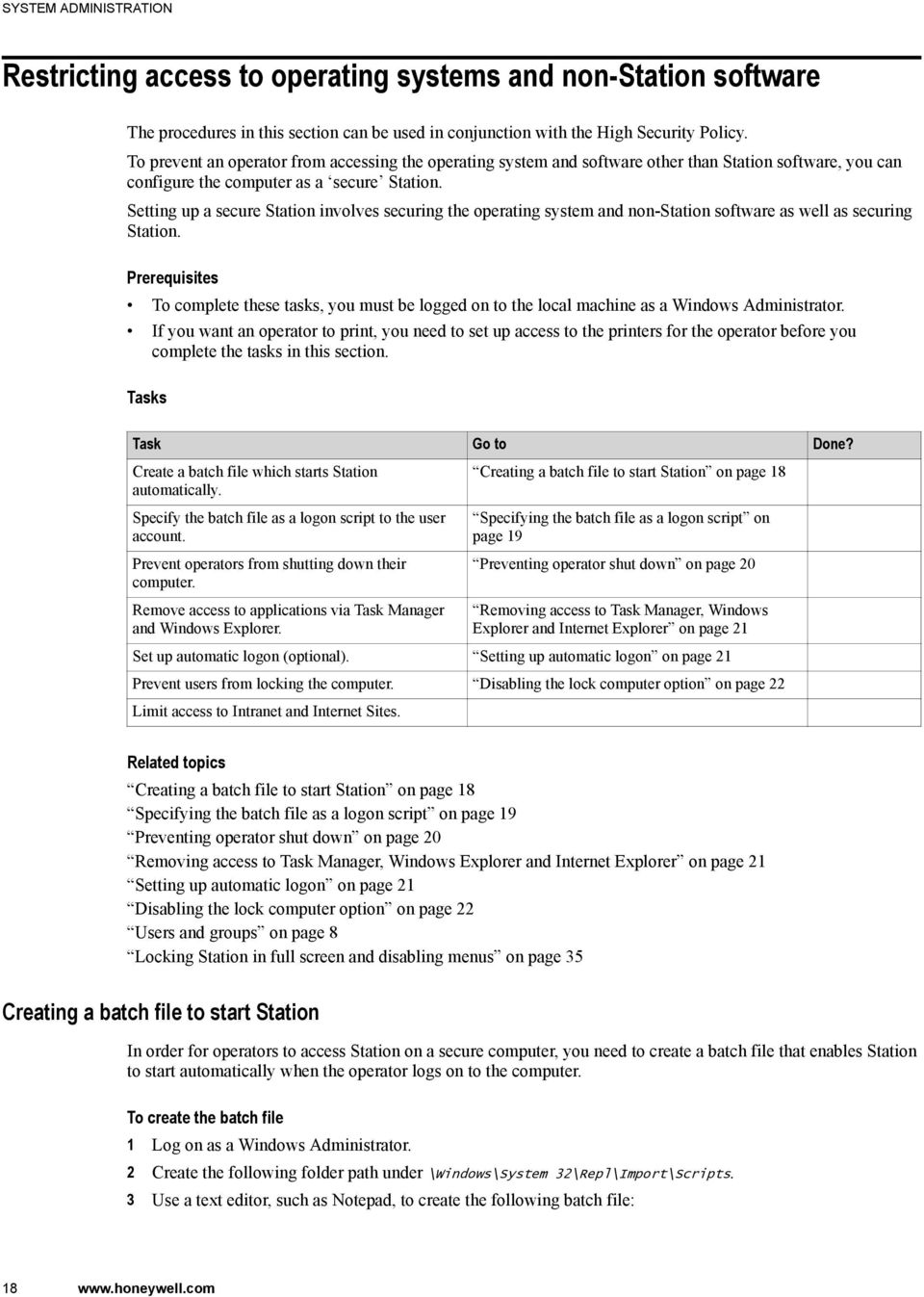
18 SYSTEM ADMINISTRATION Restricting access to operating systems and non-station software The procedures in this section can be used in conjunction with the High Security Policy. To prevent an operator from accessing the operating system and software other than Station software, you can configure the computer as a secure Station. Setting up a secure Station involves securing the operating system and non-station software as well as securing Station. Prerequisites To complete these tasks, you must be logged on to the local machine as a Windows Administrator. If you want an operator to print, you need to set up access to the printers for the operator before you complete the tasks in this section. Tasks Task Go to Done? Create a batch file which starts Station automatically. Specify the batch file as a logon script to the user account. Prevent operators from shutting down their computer. Remove access to applications via Task Manager and Windows Explorer. Creating a batch file to start Station on page 18 Specifying the batch file as a logon script on page 19 Preventing operator shut down on page 20 Removing access to Task Manager, Windows Explorer and Internet Explorer on page 21 Set up automatic logon (optional). Setting up automatic logon on page 21 Prevent users from locking the computer. Disabling the lock computer option on page 22 Limit access to Intranet and Internet Sites. Creating a batch file to start Station on page 18 Specifying the batch file as a logon script on page 19 Preventing operator shut down on page 20 Removing access to Task Manager, Windows Explorer and Internet Explorer on page 21 Setting up automatic logon on page 21 Disabling the lock computer option on page 22 Users and groups on page 8 Locking Station in full screen and disabling menus on page 35 Creating a batch file to start Station In order for operators to access Station on a secure computer, you need to create a batch file that enables Station to start automatically when the operator logs on to the computer. To create the batch file 1 Log on as a Windows Administrator. 2 Create the following folder path under \Windows\System 32\Repl\Import\Scripts. 3 Use a text editor, such as Notepad, to create the following batch file: 18
19 SYSTEM ADMINISTRATION For Windows Server 2008 and Windows 7: rem ******************************************* rem change to station directory rem ******************************************* cd \Program Files (x86)\honeywell\experion PKS\Client\Station rem ******************************************* rem the following line need only be included rem if you are on the server computer rem and also using automatic logon. rem It delays Station startup to let the rem Server start completely first. rem ******************************************* timeout 70 rem ******************************************* rem start station with "full screen lock" and rem always on top and all 'Station" menu options rem inactive. rem stnsetup.stn is optional, delete if not rem required. rem ******************************************* start station.exe [stnsetup.stn] -sslxc rem ******************************************* rem the following lines need only to be included rem if you use SignOn Manager rem ******************************************* cd \Program Files (x86)\honeywell\tps\base start signon rem ******************************************* rem the following lines need only to be included rem if you use an IKB or OEP rem ******************************************* cd \Program Files (x86)\honeywell\tps\base start MsgTransfer.exe 4 Save the file as \windows\system32\repl\import\scripts\start_station.bat Specifying the batch file as a logon script After you have created a batch file to start Station, you need to associate the batch file with the operator's user account so that the batch file runs when the user logs on. Prerequisites The batch file must be stored locally on each computer in the \Windows\System 32\Repl\Import\Scripts\ folder. To specify the batch file as a logon script for domain accounts 1 Depending on your operating system, do one of the following: Operating system Windows 2008 Windows 7 2 Double-click Active Directory Users and Computers. Description 3 In the tree view select Users to display the list of users in the domain. In the Windows Control Panel classic view, double-click Administrative Tools. In the Windows Control Panel large or small icon view, click Administrative Tools. 4 Right-click the account name to which the Logon Script is to be assigned and select Properties. 5 On the Profile tab type start_station.bat. 6 Click Close. 7 Close Active Directory Users and Computers. 19

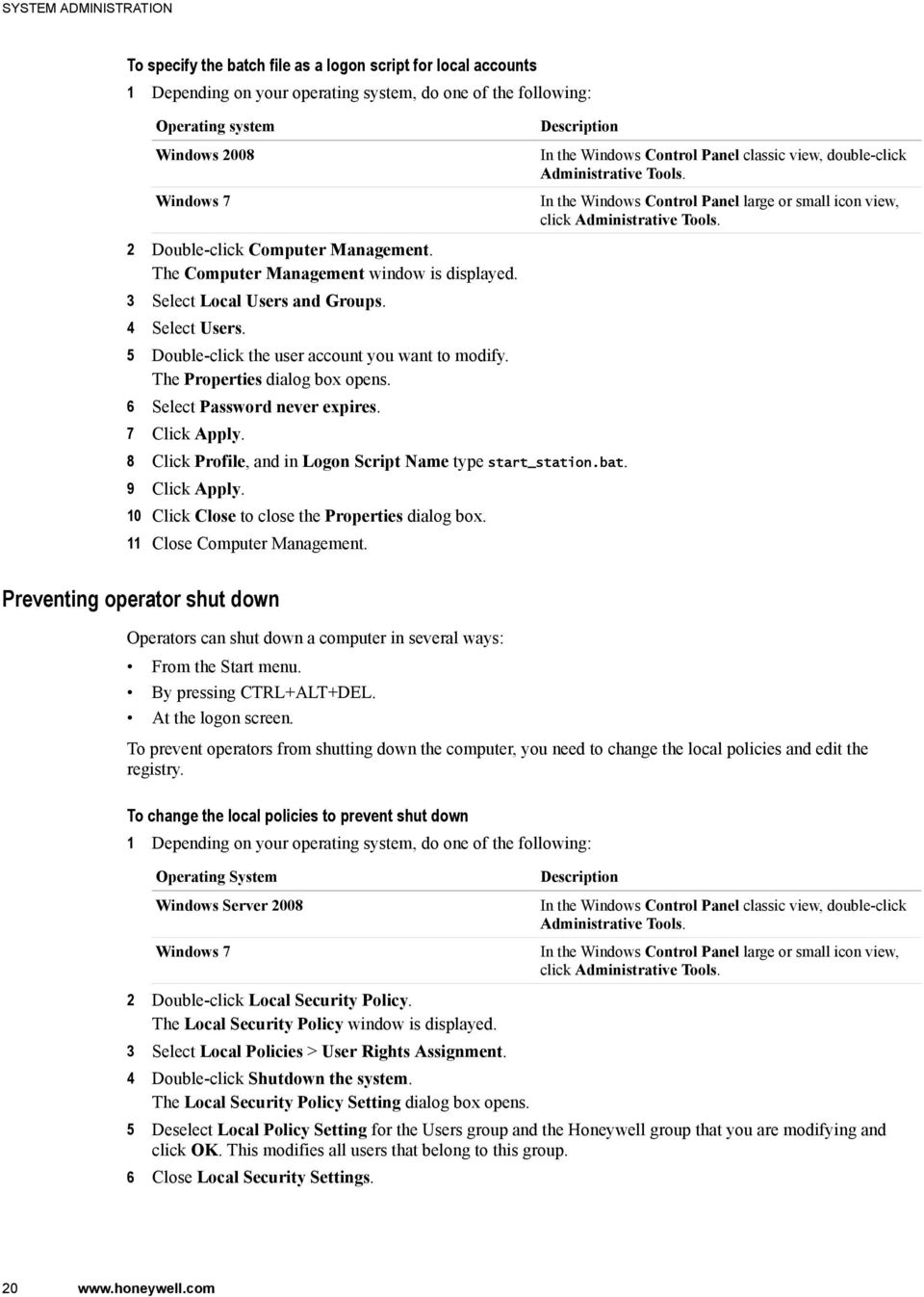
20 SYSTEM ADMINISTRATION To specify the batch file as a logon script for local accounts 1 Depending on your operating system, do one of the following: Operating system Windows 2008 Windows 7 2 Double-click Computer Management. The Computer Management window is displayed. 3 Select Local Users and Groups. 4 Select Users. 5 Double-click the user account you want to modify. The Properties dialog box opens. 6 Select Password never expires. 7 Click Apply. Description 8 Click Profile, and in Logon Script Name type start_station.bat. 9 Click Apply. 10 Click Close to close the Properties dialog box. 11 Close Computer Management. In the Windows Control Panel classic view, double-click Administrative Tools. In the Windows Control Panel large or small icon view, click Administrative Tools. Preventing operator shut down Operators can shut down a computer in several ways: From the Start menu. By pressing CTRL+ALT+DEL. At the logon screen. To prevent operators from shutting down the computer, you need to change the local policies and edit the registry. To change the local policies to prevent shut down 1 Depending on your operating system, do one of the following: Operating System Windows Server 2008 Windows 7 2 Double-click Local Security Policy. The Local Security Policy window is displayed. 3 Select Local Policies > User Rights Assignment. 4 Double-click Shutdown the system. The Local Security Policy Setting dialog box opens. Description In the Windows Control Panel classic view, double-click Administrative Tools. In the Windows Control Panel large or small icon view, click Administrative Tools. 5 Deselect Local Policy Setting for the Users group and the Honeywell group that you are modifying and click OK. This modifies all users that belong to this group. 6 Close Local Security Settings. 20
21 SYSTEM ADMINISTRATION To edit the registry to prevent operator shut down 1 Select Start > All Programs > Accessories > Run, type regedit and click OK. The Registry Editor opens. 2 Locate the key: HKEY_LOCAL_MACHINE\SOFTWARE\Microsoft\WindowsNT\CurrentVersion\Winlogon\ShutdownWithoutLogon Set its value to 0. 3 Exit Regedit. Removing access to Task Manager, Windows Explorer and Internet Explorer You can prevent operators from accessing applications through Task Manager and Windows Explorer by removing access to Task Manager and Windows Explorer. To remove access to Task Manager and Windows Explorer 1 In Windows Explorer, right-click the file windows\system32\taskmgr.exe 2 Select Properties > Security. 3 Click Add. 4 Select the user you want to modify, click Add and OK. 5 Select the user you added, click Deny for full control. 6 Click OK. 7 Select Yes in response to the 'Do you wish to continue?' prompt. 8 Repeat steps 1 through 7 of this task for the file \%windir%\explorer.exe. 9 Repeat steps 1 through 7 of this task for the file \%windir%\iexplore.exe. Next steps If you do not need to set up automatic logon, restart the computer and log on as the user you have modified to run the secure Station. If you need to complete any administration tasks, log off and log on again as Windows administrator. Setting up automatic logon If you want Windows to start automatically without the operator entering a Windows password, you can set up automatic logon. If you set up automatic logon, the computer always logs on with the same user name and password. Attention If you set up automatic logon, to log on as Administrator you need to press the Shift key to prevent automatic logon. To set up an automatic logon 1 Start Regedit. 2 Locate the key: HKEY_LOCAL_MACHINE\SOFTWARE\Microsoft\WindowsNT\CurrentVersion\Winlogon\ DefaultUserName Set the value to the user name of the operator you are modifying. 3 Select Edit > New > String Value, and type DefaultPassword. Set the value to the password of user you are modifying. 4 Select Edit > New > String Value, and type AutoAdminLogon. Set the value to 1. 21
22 SYSTEM ADMINISTRATION 5 Close the Registry Editor. Disabling the lock computer option If you have set up an account with automatic logon without requiring a password, you should disable the Lock Computer option so that an operator cannot lock themselves out of the computer. To disable the Lock Computer option 1 Select Start > All Programs > Accessories > Run. 2 Type mmc and click OK or press ENTER. The Microsoft Management Console displays. 3 Select Console > Add/Remove Snap-in. The Add/Remove Snap-in dialog box opens. 4 Click Add. The Add Standalone Snap-in dialog box opens. 5 Select Group Policy from the list and click Add. 6 Accept the defaults and click Finish. 7 Click Close to close the Add Standalone Snap-in dialog box. 8 Click OK to close the Add/Remove Snap-in dialog box. 9 In the Console Window, navigate to Console Root > Local Computer Policy > User Configuration > Administrative Templates > SystemLogon/Logoff. 10 In right-hand pane double-click Disable Lock Computer. The Disable Lock Computer Properties dialog box opens. 11 Select Enabled and click Apply. 12 Press CTRL+ALT+DEL to verify that Lock Computer option is disabled. Click Cancel. 13 Click OK to close the Disable Lock Computer Properties dialog box. 14 Close MMC, you do not need to save the save console settings. 22
23 SYSTEM ADMINISTRATION About the system time and time zone When you install the Windows operating system, the time is set to automatically adjust for daylight saving time. It is recommended that you retain this automatic adjustment. The Experion server uses coordinated universal time (UTC) to determine how alarms and events are presented in summary displays and reports. As a result: In summary displays, the newest alarms and events appear at the top. The time displayed is the local time as set on the computer. In reports alarms and events are sorted by UTC. The time displayed is the local time as set on the computer. Sequence of events reports lists events in their order they occurred. For example, an Alarm Summary contains entries for alarms raised and and At the time changes from daylight saving to standard time and the time on the server computer is reset to Another alarm is raised at 02.15, after the time change from daylight saving. The alarm raised at appears above the alarm raised at daylight saving time. This ordering of alarms is correct since the alarm raised at standard time is newer than the alarm raised at Process controller nodes are continually updated with the correct (UTC) time from the server. The TIMEZONE and DAYLIGHTTIME parameters must be manually adjusted. Any trends that are open during the time change to or from daylight saving time stop updating until the display is refreshed. If you do not want the time automatically adjusted for daylight savings, contact your Honeywell Technical Assistance Center (TAC) for information on how to manually adjust for daylight saving time. 23
24 SYSTEM ADMINISTRATION Restoring server B from a hardware failure or corrupted database This procedure is used when you are replacing the hardware platform on server B or performing a clean installation on server B. To restore server B 1 Make sure that server A is running as primary. 2 Remove server B from the network (disconnect network cables). 3 Shutdown server B. 4 Replace server B. Do not connected network cables. 5 Restore server B, (install Windows operating system and Experion server software, including any patches/ support media. The Windows operating system and Experion server software version and patch level must be the same as server A). 6 Create a hosts configuration file on server B that is similar to the hosts file on server A. 7 In the Windows Control Panel large or small icon view, click Administrative Tools. A Windows Explorer window appears, showing the shortcuts to the Administrative Tools. 8 Double-click Services. The Services management console window appears. 9 Double-click on the Experion PKS ER Server service. The Experion PKS ER Server Properties window appears. 10 Click the Dependencies tab, and note the names of the system components that depend on this service. You will need to manually restart these services later, so it is important that you note these names now. For example, the list of dependent system components are shown below: 24
25 SYSTEM ADMINISTRATION 11 Click the General tab. 12 In the Startup type list, select Disabled. 13 Click Stop. The Stop Other Services dialog box appears. 14 Click Yes to stop the dependent system services. The Service Control window appears showing the progress of stopping the dependent system services and the Experion PKS ER Server service. 15 Click OK to close the Experion PKS ER Server Properties window. 16 Click the Start menu, and type cmd in the search box. In the list of Programs that appear, right-click on cmd and choose Run as administrator. The User Account Control dialog box appears. 17 Click Yes. The Administrator:Command Prompt or Administrator:C:\Windows\System32\cmd.exe window appears. 18 In the Command prompt window, type hscserver /unload /y. For example: C:\Windows\system32>hscserver /unload /y Wait for the command to complete. 19 Connect server B to the network. 20 In Configuration Studio, connect to the server. 21 In Process Control Strategies category, click the Administer the control strategy database task. 22 In the ERDB Admin Tasks folder, select Recover the Primary Database. 23 Click Yes to recover the database. 24 Click OK to acknowledge that the recovery is complete. 25 Close the DBAdmin window. 26 Use the Network Analysis Tools to evaluate the network configuration settings on each node within the network tree. 27 On server B, click the Start menu, and type cmd in the search box. In the list of Programs that appear, rightclick on cmd and choose Run as administrator. The User Account Control dialog box appears. 28 Click Yes. The Administrator:Command Prompt or Administrator:C:\Windows\System32\cmd.exe window appears. 29 In the Command prompt window, type hscserver /start /y. For example: C:\Windows\system32>hscserver /start /y Wait for the command to complete. 30 On server B, start the Experion PKS ER Server by completing the following steps: a b c d In the Windows Control Panel large or small icon view, click Administrative Tools. A Windows Explorer window appears, showing the shortcuts to the Administrative Tools. Double-click Services. The Services management console window appears. Double-click on the Experion PKS ER Server service. The Experion PKS ER Server Properties window appears. Click the General tab. 25
26 SYSTEM ADMINISTRATION e f g h i j In the Startup type list, select Automatic. Click Apply. Click Start. The Service Control window appears showing the progress of starting the Experion PKS ER Server service. Click OK to close the Experion PKS ER Server Properties window. In the Services management console window, start the dependent services that you had noted earlier in the procedure, before you stopped the Experion PKS ER Server. Close the Services window. 31 On server B, enable ERDB replication: a b c d e f In Configuration Studio, connect to the system. In Process Control Strategies category, click the Administer the control strategy database task. In the ERDB Admin Tasks folder, select Enable Replication. Click Yes to enable replication. Replication is started, which may take some time, depending on the size of the database. Click OK to acknowledge the replication successful message. Close the DBAdmin window. 32 Open Station on server B and connect to the primary server. a b c d Choose Start > All Programs > Honeywell Experion PKS > Server > Station. The Station window appears. If required, configure the Station Connection Properties to connect to server A. Choose Configure > System Hardware > Redundant Server The Redundant Server display appears. Click the Status tab. Review the following redundancy status values to ensure all the data is synchronized between the primary and backup server: Backup server status. Engineering Repository DB status. System Repository backup status. 26
27 Restricting access to operating systems and non- Station software The procedures in this section can be used in conjunction with the High Security Policy. To prevent an operator from accessing the operating system and software other than Station software, you can configure the computer as a secure Station. Setting up a secure Station involves securing the operating system and non-station software as well as securing Station. Prerequisites To complete these tasks, you must be logged on to the local machine as a Windows Administrator. If you want an operator to print, you need to set up access to the printers for the operator before you complete the tasks in this section. Tasks Task Go to Done? Create a batch file which starts Station automatically. Specify the batch file as a logon script to the user account. Prevent operators from shutting down their computer. Remove access to applications via Task Manager and Windows Explorer. Creating a batch file to start Station on page 18 Specifying the batch file as a logon script on page 19 Preventing operator shut down on page 20 Removing access to Task Manager, Windows Explorer and Internet Explorer on page 21 Set up automatic logon (optional). Setting up automatic logon on page 21 Prevent users from locking the computer. Disabling the lock computer option on page 22 Limit access to Intranet and Internet Sites. 27
28 RESTRICTING ACCESS TO OPERATING SYSTEMS AND NON-STATION SOFTWARE Creating a batch file to start Station In order for operators to access Station on a secure computer, you need to create a batch file that enables Station to start automatically when the operator logs on to the computer. To create the batch file 1 Log on as a Windows Administrator. 2 Create the following folder path under \Windows\System 32\Repl\Import\Scripts. 3 Use a text editor, such as Notepad, to create the following batch file: For Windows Server 2008 and Windows 7: rem ******************************************* rem change to station directory rem ******************************************* cd \Program Files (x86)\honeywell\experion PKS\Client\Station rem ******************************************* rem the following line need only be included rem if you are on the server computer rem and also using automatic logon. rem It delays Station startup to let the rem Server start completely first. rem ******************************************* timeout 70 rem ******************************************* rem start station with "full screen lock" and rem always on top and all 'Station" menu options rem inactive. rem stnsetup.stn is optional, delete if not rem required. rem ******************************************* start station.exe [stnsetup.stn] -sslxc rem ******************************************* rem the following lines need only to be included rem if you use SignOn Manager rem ******************************************* cd \Program Files (x86)\honeywell\tps\base start signon rem ******************************************* rem the following lines need only to be included rem if you use an IKB or OEP rem ******************************************* cd \Program Files (x86)\honeywell\tps\base start MsgTransfer.exe 4 Save the file as \windows\system32\repl\import\scripts\start_station.bat 28
29 RESTRICTING ACCESS TO OPERATING SYSTEMS AND NON-STATION SOFTWARE Specifying the batch file as a logon script After you have created a batch file to start Station, you need to associate the batch file with the operator's user account so that the batch file runs when the user logs on. Prerequisites The batch file must be stored locally on each computer in the \Windows\System 32\Repl\Import\Scripts\ folder. To specify the batch file as a logon script for domain accounts 1 Depending on your operating system, do one of the following: Operating system Windows 2008 Windows 7 2 Double-click Active Directory Users and Computers. Description 3 In the tree view select Users to display the list of users in the domain. In the Windows Control Panel classic view, double-click Administrative Tools. In the Windows Control Panel large or small icon view, click Administrative Tools. 4 Right-click the account name to which the Logon Script is to be assigned and select Properties. 5 On the Profile tab type start_station.bat. 6 Click Close. 7 Close Active Directory Users and Computers. To specify the batch file as a logon script for local accounts 1 Depending on your operating system, do one of the following: Operating system Windows 2008 Windows 7 2 Double-click Computer Management. The Computer Management window is displayed. 3 Select Local Users and Groups. 4 Select Users. 5 Double-click the user account you want to modify. The Properties dialog box opens. 6 Select Password never expires. 7 Click Apply. Description 8 Click Profile, and in Logon Script Name type start_station.bat. 9 Click Apply. 10 Click Close to close the Properties dialog box. 11 Close Computer Management. In the Windows Control Panel classic view, double-click Administrative Tools. In the Windows Control Panel large or small icon view, click Administrative Tools. 29
30 RESTRICTING ACCESS TO OPERATING SYSTEMS AND NON-STATION SOFTWARE Preventing operator shut down Operators can shut down a computer in several ways: From the Start menu. By pressing CTRL+ALT+DEL. At the logon screen. To prevent operators from shutting down the computer, you need to change the local policies and edit the registry. To change the local policies to prevent shut down 1 Depending on your operating system, do one of the following: Operating System Windows Server 2008 Windows 7 2 Double-click Local Security Policy. The Local Security Policy window is displayed. 3 Select Local Policies > User Rights Assignment. 4 Double-click Shutdown the system. The Local Security Policy Setting dialog box opens. Description In the Windows Control Panel classic view, double-click Administrative Tools. In the Windows Control Panel large or small icon view, click Administrative Tools. 5 Deselect Local Policy Setting for the Users group and the Honeywell group that you are modifying and click OK. This modifies all users that belong to this group. 6 Close Local Security Settings. To edit the registry to prevent operator shut down 1 Select Start > All Programs > Accessories > Run, type regedit and click OK. The Registry Editor opens. 2 Locate the key: HKEY_LOCAL_MACHINE\SOFTWARE\Microsoft\WindowsNT\CurrentVersion\Winlogon\ShutdownWithoutLogon Set its value to 0. 3 Exit Regedit. 30
31 RESTRICTING ACCESS TO OPERATING SYSTEMS AND NON-STATION SOFTWARE Removing access to Task Manager, Windows Explorer and Internet Explorer You can prevent operators from accessing applications through Task Manager and Windows Explorer by removing access to Task Manager and Windows Explorer. To remove access to Task Manager and Windows Explorer 1 In Windows Explorer, right-click the file windows\system32\taskmgr.exe 2 Select Properties > Security. 3 Click Add. 4 Select the user you want to modify, click Add and OK. 5 Select the user you added, click Deny for full control. 6 Click OK. 7 Select Yes in response to the 'Do you wish to continue?' prompt. 8 Repeat steps 1 through 7 of this task for the file \%windir%\explorer.exe. 9 Repeat steps 1 through 7 of this task for the file \%windir%\iexplore.exe. Next steps If you do not need to set up automatic logon, restart the computer and log on as the user you have modified to run the secure Station. If you need to complete any administration tasks, log off and log on again as Windows administrator. 31
32 RESTRICTING ACCESS TO OPERATING SYSTEMS AND NON-STATION SOFTWARE Setting up automatic logon If you want Windows to start automatically without the operator entering a Windows password, you can set up automatic logon. If you set up automatic logon, the computer always logs on with the same user name and password. Attention If you set up automatic logon, to log on as Administrator you need to press the Shift key to prevent automatic logon. To set up an automatic logon 1 Start Regedit. 2 Locate the key: HKEY_LOCAL_MACHINE\SOFTWARE\Microsoft\WindowsNT\CurrentVersion\Winlogon\ DefaultUserName Set the value to the user name of the operator you are modifying. 3 Select Edit > New > String Value, and type DefaultPassword. Set the value to the password of user you are modifying. 4 Select Edit > New > String Value, and type AutoAdminLogon. Set the value to 1. 5 Close the Registry Editor. 32
33 RESTRICTING ACCESS TO OPERATING SYSTEMS AND NON-STATION SOFTWARE Disabling the lock computer option If you have set up an account with automatic logon without requiring a password, you should disable the Lock Computer option so that an operator cannot lock themselves out of the computer. To disable the Lock Computer option 1 Select Start > All Programs > Accessories > Run. 2 Type mmc and click OK or press ENTER. The Microsoft Management Console displays. 3 Select Console > Add/Remove Snap-in. The Add/Remove Snap-in dialog box opens. 4 Click Add. The Add Standalone Snap-in dialog box opens. 5 Select Group Policy from the list and click Add. 6 Accept the defaults and click Finish. 7 Click Close to close the Add Standalone Snap-in dialog box. 8 Click OK to close the Add/Remove Snap-in dialog box. 9 In the Console Window, navigate to Console Root > Local Computer Policy > User Configuration > Administrative Templates > SystemLogon/Logoff. 10 In right-hand pane double-click Disable Lock Computer. The Disable Lock Computer Properties dialog box opens. 11 Select Enabled and click Apply. 12 Press CTRL+ALT+DEL to verify that Lock Computer option is disabled. Click Cancel. 13 Click OK to close the Disable Lock Computer Properties dialog box. 14 Close MMC, you do not need to save the save console settings. 33
34 RESTRICTING ACCESS TO OPERATING SYSTEMS AND NON-STATION SOFTWARE 34
35 Locking Station in full screen and disabling menus You can restrict access to non-station software on a computer by changing the Station command line. Attention If you have already restricted access to the operating system and non-station software (including the use of the High Security Policy), you can skip this topic. Changing the Station command line allows you to: Lock the Station window in full screen so that users cannot resize the window or access operating system functions and non-station applications. Disable the Exit menu choice so users cannot close down this Station. Disable the Setup menu choice so that users cannot change the connection or display settings for this Station. Disable the Connect menu choice so that users cannot attempt to connect to a different server and disconnect from the current server. Access to Intranet and Internet sites is disabled by default on Station. For more information about enabling full or restricted access using Station's SafeBrowse feature, see the 'Web access tab, Connection properties' topic in the 'Customizing Station' section of the Station Configuration Guide. Restricting access to operating systems and non-station software on page 18 35
36 LOCKING STATION IN FULL SCREEN AND DISABLING MENUS Changing the Station command line To lock the Station window in full screen and to disable menu choices, you need to use various switches to change a Station's command line. Some of the syntax options for a Station command line are as follows: Station [-s[f][l][x][s][c]] To change a Station's command line 1 Depending on your operating system, do one of the following: Option Windows Server 2008 Windows 7 2 Select Open All Users. 3 Double-click the Programs icon. 4 Double-click the Honeywell Experion icon. 5 Double-click the Client Software icon. 6 Right-click the Station icon and select Properties. Description Click Start and right-click All Programs and choose Open All Users. 7 In the Station Properties dialog box, modify the Target option to include any of the parameters required for Station. To use opsetup.stn as the default setup file for this Station, and to disable the Exit and Setup menu choices, type:station.exe opsetup.stn -sxs There are a number of other command line options, such as specifying the name of the setup file that you want Station to start up with. 36
37 LOCKING STATION IN FULL SCREEN AND DISABLING MENUS Station command line options Parameter -sf -sl -sx -ss -sc Description Disables window resizing so that Station can only operate in full screen mode and is always on top Disables window resizing so that Station can only operate in full screen mode and is always on the bottom Disables the Exit menu choice Disables the Setup menu choice Disables the Connect menu choice 37
38 LOCKING STATION IN FULL SCREEN AND DISABLING MENUS 38
39 Tuning system performance The following topics describe how to tune system performance. Tip These topics are also generally applicable to Console Stations. Specialized terms on page 40 Tuning the Windows operating system on page 42 Optimizing the server's hard disk performance on page 43 Optimizing the server's memory usage on page 45 Network performance on page 48 Optimizing other computer settings on page 49 Optimizing the scanning load on page 51 Monitoring the system on page 56 Monitoring performance on page 58 39
40 TUNING SYSTEM PERFORMANCE Specialized terms This section describes the components of the supervisory network and the features in Experion that affect reliability, system availability, and performance. Performance refers to the speed with which a system reacts to a series of tasks, and the ability to perform those tasks in a reliable manner. There are two aspects of performance: Overall system performance. This type of performance is most affected by the configuration of drivers and related software that make up the system. Individual application/subsystem performance. This type of performance is typically configured through the use of software settings and hardware components. Reliability and system availability are the primary concern of process control systems. The main goals are to make sure that the system is available to the user at any point it time, and that Experion is responsive and presents the correct data. Network layers The following figure shows how a process control system can contain several network layers: IO, Control, Supervisory, and Application. Control network (level 1) This is the network between PC devices and controller. There are various options for this network type: Fault Tolerant Ethernet (FTE). 40
41 TUNING SYSTEM PERFORMANCE LCNP interface. Examples of devices communicating on this network: Server to Series 8 controller (C300 ) Supervisory network (level 2) This communication network is for the distribution of data between data collection devices (typically servers) and user interfaces. The options available for this network are: Fault Tolerant Ethernet (FTE) (see the Attention below). Examples of systems communicating over this network: Server to Console Station. Server to Flex Station. Application network (level 3) This communication network is for applications that manage control devices but not necessary for control process itself. The options existing for this network: Fault Tolerant Ethernet (FTE) (see the Attention note below). Examples of systems communicating over this ProfitMAX. Business network (level 4, not shown) This communication network is for applications that interface between business systems and the control system. The options existing for this network: Fault Tolerant Ethernet (FTE) either a co-joined (combined level 1 control network and level 2 supervisory network) or a level 2 network. When co joined, it is physically one network, but logically separated by the use of subnet masks. Examples of systems communicating over this network: OptiVISION. 41
42 TUNING SYSTEM PERFORMANCE Tuning the Windows operating system Operating system (or kernel) tuning changes the way the operating system assigns process priorities. To tune the operating system as described in this section, you need to log on to a Windows account with administrative privileges. Setting the processor scheduling on page 42 Setting the processor scheduling Windows manages processor resources automatically. It can allocate processing tasks between processors or manage multiple processing tasks on a single processor. You can adjust how Windows manages these processor resources by prioritizing them between foreground programs and background services. During the configuration phase, applications that run on the server are affected by the application response setting. This setting can be set to Applications during the configuration phase and then changed to Background Services for the operational phase. Attention Honeywell recommends that you run your server as a 'headless node', that is, you do not run applications (for example Control Builder, Station, Excel) on your Experion server. However, if you do run applications on the server during the operational phase (that is, you configure your server as a 'non-headless node'), it is recommended that you set the processor scheduling to Applications. To change the processor scheduling 1 Choose Start, right-click on Computer and choose Properties. The System window appears. 2 In the Tasks list, click the Advanced system settings link. 3 If prompted, click Continue in the User Account Control dialog box. 4 Under Performance, click Settings. The Performance Options dialog box appears. 5 Click the Advanced tab. 6 Under Processor scheduling, click the appropriate option button. Option Background services Programs Description 7 Click OK to close the Performance Options window. 8 Click OK to close the System Properties window. To assign equal amounts of processor resources to all running services. Use this option for 'headless nodes'. To assign more processor resources to the foreground programs. Use this option for 'non-headless nodes'. 42
43 TUNING SYSTEM PERFORMANCE Optimizing the server's hard disk performance Disk performance, or the capability of a computer to access and store files on the hard disk, can greatly affect its overall performance. The two main file system issues (that is, issues related to the format of storage on the hard disk) that affect a computer are: File system errors, which are typically caused by power outages or hardware malfunctions. Fragmentation, which occurs gradually over time. Note that the following procedures also apply to Console Stations. Fixing file system errors on page 43 Defragmenting the hard disk on page 44 Fixing file system errors on page 43 Defragmenting the hard disk on page 44 Fixing file system errors File system errors can be caused by the following events: Power outages Improper shutdown Disk hardware malfunction To check and fix file system errors, you need to start the file system scan, and then restart the computer. Prerequisites Your process must be 'off control' before scanning for file system errors. Check that no other applications are running as this task requires restarting the computer. To fix file system errors 1 Choose Start and click Computer. 2 Right-click the hard drive to check and choose Properties. 3 Click the Tools tab. 4 In the Error-checking section, click Check Now. The Check Disk window opens. 5 Click Automatically fix file system errors. Unless a previous check for file system errors revealed bad sectors, do not select Scan for and attempt recovery of bad sectors. 6 Click Start. Because the file system (NTFS) locks the hard disk, the computer cannot scan for file system errors until the computer is restarted. 7 Click Yes to schedule the operation to occur the next time the computer is started. 8 Restart the computer. The computer checks for file system errors during startup. 9 Log on to the computer. 10 Review the disk report in the Event Viewer. To display the Event Viewer: a Choose Start, right-click on Computer and click Manage. 43
44 TUNING SYSTEM PERFORMANCE b Expand the Event Viewer > Windows Logs items, and then click the Application item. Next steps If the disk report contains bad sector error, you must restart this task, and select the Scan for and attempt recovery of bad sectors option. If a hard disk continuously reports bad sectors, it should be scheduled for replacement as it usually indicates that the hard disk is experiencing hardware malfunctions. Optimizing the server's hard disk performance on page 43 Defragmenting the hard disk Although the Windows file system (NTFS) attempts to minimize file system fragmentation, it is the most frequent performance issue related to normal computer operations. Fragmentation occurs when files or pieces of data are not written to the hard disk contiguously (that is, they are not written in order and in the same part of the disk). Consequently, the computer must perform multiple read and lookups every time that file/data is accessed. Defragmenting the hard disk optimizes the file system so that each file is written contiguously on the disk. In addition, certain files, such as the operating system or frequently accessed files, are moved to the first sectors on the hard disk, so that they can be found and accessed faster. It is recommended that you add this task to your system's maintenance schedule, so that it is performed during control shutdowns. Fragmentation occurs during the configuration phase of the system. Consequently, you should defragment the hard disk immediately after the configuration phase (but before starting the operation phase). You can upgrade the default defragmentation utility included with Windows to the full version. Executive Software's Diskeeper includes a scheduler, and can defragment folders and pagefiles when a computer restarts. Defragmentation tasks affect the control system if they are set to run automatically with the scheduler. Care must be taken when scheduling defragmentation tasks. Prerequisites Your process must be 'off control' before defragmenting the hard disk because the performance of the computer is severely degraded during the defragmentation process. To defragment the hard disk 1 Click Start > Computer. 2 Right-click the hard disk that needs defragmenting and choose Properties. 3 Click the Tools tab. 4 Click Defragment Now in the Defragmentation group. The Disk Defragmenter window opens. 5 Click Defragment now and select the drives you want to defragment. Click OK to start defragmenting the hard disk. Depending on the level of fragmentation and usage, the task may take some time to complete. Optimizing the server's hard disk performance on page
45 TUNING SYSTEM PERFORMANCE Optimizing the server's memory usage Computers have two types of memory: physical and virtual. Multi-tasking operating systems, such as Windows, can move data from the RAM (physical memory) and swap it to a file on the hard disk (virtual memory). This technique frees up the RAM for other processes. If a process requires data which has been swapped to a file, the data is first swapped back from the file to RAM so that the process can continue. This technique is called paging, and the file is called the pagefile. Viewing memory usage on page 45 Pagefile settings on page 45 Increase memory to reduce paging on page 46 Adjusting the pagefile size on page 46 Viewing memory usage on page 45 Adjusting the pagefile size on page 46 Pagefile settings on page 45 Increase memory to reduce paging on page 46 Viewing memory usage In the Windows Task Manager dialog box you can view memory usage. To view memory usage In the Windows Task Manager dialog box, click the Performance tab. The Commit Charge (K) group displays the total memory available in physical and virtual memory combined (the Limit value). The Physical Memory (K) group displays the amount of physical memory available for use. Pagefile settings on page 45 Increase memory to reduce paging on page 46 Optimizing the server's memory usage on page 45 Pagefile settings The pagefile settings include a lower and upper limit. The lower limit is typically the amount of physical RAM plus management space. This is almost always 1.5 times the amount of physical RAM. It is recommended that the upper limit be set to around three times the amount of physical RAM. The Windows operating system, in normal operation, will only use the lower limit size, and therefore only the value of the lower limit (Initial Size) is pre-allocated. If the usage exceeds this limit, the Windows operating system will then continue to allocate additional space until the upper limit (Maximum Size) is reached or the computer runs out of hard disk space. If this occurs, it usually means that an application/process is leaking memory. Viewing memory usage on page 45 Adjusting the pagefile size on page 46 Optimizing the server's memory usage on page 45 45
46 TUNING SYSTEM PERFORMANCE Increase memory to reduce paging Some paging is normal. However, excessive paging affects computer performance during the swapping and allocation phases. If a computer pages frequently during normal operation, you can significantly improve its performance by adding more physical RAM. However, if you do add more RAM, you must make the appropriate adjustments to the virtual memory configuration. Servers/Console Stations Based on the operating system and application usage, the server/console Station is not affected by paging as long as the memory specifications are followed for the computer size and usage. If adjustments are needed, you must follow the default rules of the Operating System suggestion (approximate example for a 1024 MB computer): Initial Size: 1.5 times physical or default operating system suggestion (for example, 1536 MB). Maximum Size: 3 times physical or default operating system suggestion. (for example, 3072 MB). Console Extension Stations/Flex Stations Based on the operating system and application usage, the client/flex Station is not affected by paging operations as long as the memory is at the specified amount of 512 MB. If adjustments are needed, you must follow the default rules of the operating system suggestion (approximate example for a 512 MB computer): Initial Size: 1.5 times physical or default operating system suggestion (for example, 768 MB). Maximum Size: 3 times physical or default operating system suggestion (for example, 1536 MB). Viewing memory usage on page 45 Adjusting the pagefile size on page 46 Optimizing the server's memory usage on page 45 Adjusting the pagefile size Prerequisites Check that no other applications are running as this task requires restarting the computer. To adjust the pagefile size 1 Click Start, right-click on Computer and then choose Properties. 2 If prompted, click Continue in the User Account Control dialog box. 3 In the Tasks list, click the Advanced System Settings link. The System Properties dialog box appears. 4 Under Performance, click Settings. The Performance Options window appears. 5 Click the Advanced tab. 6 Under Virtual memory, click Change. The Virtual Memory window appears. 7 Select the Automatically manage paging file size for all drives check box if you want Windows to manage the pagefile. Otherwise, type the settings for each drive. 8 Click Set. 46
47 TUNING SYSTEM PERFORMANCE 9 Click OK. 10 If prompted, click OK to acknowledge the restart your computer message. 11 Click OK to close the Performance Options window. 12 Click OK to close the System Properties window. Pagefile settings on page 45 Increase memory to reduce paging on page 46 Optimizing the server's memory usage on page 45 47
48 TUNING SYSTEM PERFORMANCE Network performance A network is the communication media between servers, clients, and devices. If this network is not tuned properly, the following problems may occur: The performance of the client application may be poor There may be intermittent or complete device communication failures Redundant servers may lose synchronization There may be intermittent or complete loss of communication between clients and servers In Windows, there are several settings to optimize the network. It is recommended that these settings be combined with an overall plan to monitor and adjust to the traffic on the network. Consult your networking equipment Honeywell for tools and management applications that work best with your hardware. The order in which the system accesses the network is also important this is known as the binding order. It is recommended that the binding order be adjusted so that each computer accesses the network in the same order. If your computer has more than one network card, you must verify that the bindings for each computer are in the correct order. Operating system tuning also affects the ability of the computer to respond to network traffic. Network traffic Windows, by default, uses all network cards defined in a computer for communication with other systems as long as the networks are common between the initiator and target. Note that special handling/restrictions placed on NetBIOS are required if networks use a Fault Tolerant Ethernet (FTE) topology. For more information on configuring FTE, see Software Installation User's Guide. 48
49 TUNING SYSTEM PERFORMANCE Optimizing other computer settings Optimizing file sharing on page 49 Optimizing video settings on page 49 Optimizing system usage on page 49 Optimizing topology-related settings on page 50 Optimizing file sharing on page 49 Optimizing video settings on page 49 Optimizing system usage on page 49 Optimizing topology-related settings on page 50 Optimizing file sharing For easier management, it is possible to share custom displays and other files from servers with Flex Stations and other computers. Due to the performance settings for the servers, you are limited in the amount of information that can be shared. The movement of such files can cause additional network activity. This will degrade the performance of the server to perform other tasks. Optimizing other computer settings on page 49 Optimizing video settings There are no great performance gains to be made by adjusting the video settings. The system applications and displays have been optimized for resolutions of 1024 by 768 and 1280 by 1024 with 65k (High Color 16 bit) colors. Using any other setting than this may produce anomalies in some displays. For best performance, the video card should: Use a specialized video bus (AGP or PCI Express) Have a dedicated RAMDAC capable of 300 MHz (or better), and Contain at least 32 MB of VRAM per video display port. This frees up the computer bus and gives the video processor a more direct line to the CPU and memory resources. Optimizing other computer settings on page 49 Optimizing system usage The system usage itself will have an impact on the performance of the system. Most memory and CPU recommendations are based on 'average' use of the system, which means that your system may require servers with, for example, more memory, higher CPU speed or larger disks. 49
50 TUNING SYSTEM PERFORMANCE These types of adjustments can only occur over time as you gain experience with your system. The following will affect the performance of your system: Number of Stations, and: The display update rate Shared versus local displays Chart visualization The number of parameters viewed (across all Stations) and their frequency of change Frequency of report generation Frequency of performed maintenance, for example, defragmentation level of the disk If you have a DSA system, the number of servers and the number of shared parameters The amount of history being collected The frequency at which events are archived and the duration for which events are kept online Server synchronization with file backup Size of the system, including the size of the Engineering Repository database for Process systems As your system is adjusted over time and customized to your control environment, you should regularly evaluate how your systems are performing and make the appropriate adjustments. Optimizing other computer settings on page 49 Optimizing topology-related settings Physical location of computers The location and distance between each node becomes a factor in the performance. Experion servers are designed to be within the same network. Consequently, if hops are introduced, then timing parameters need to be adjusted due to the increased time to perform such things as synchronization. As tasks take longer to complete, they affect the other running tasks on the system. A Station s performance will also be affected if it is running remotely. Service integration Adding services, such as Active Directory, to the Experion server has an impact on the server s CPU and memory usage. This must be taken into consideration when planning the hardware purchase for your server. Optimizing other computer settings on page
51 TUNING SYSTEM PERFORMANCE Optimizing the scanning load This section is only applicable if you have controllers other than Process Controllers. Controllers with badly configured scanning can place a significant load on the system and result in data not being accurately represented in the server database. It is also important to remember that making even seemingly minor changes to a controller's configuration such as adding a few new points can have a significant impact on a system and can result in unstable performance. Guidelines for scan optimization on page 51 Checking the health of the scanning subsystem on page 53 Optimizing a controller's scanning packets on page 53 Importing the scan list into a spreadsheet on page 54 Manipulating and analyzing the spreadsheet on page 54 Optimizing a controller's scanning packets on page 53 Guidelines for scan optimization on page 51 Checking the health of the scanning subsystem on page 53 Guidelines for scan optimization Use unsolicited messaging if the controller supports this feature and values change infrequently. Use periodic scanning if values change frequently. Choose a scanning period appropriate to the values being scanned. For example, you do not need to scan a temperature every 5 seconds if it changes only slightly over an hour. See the section below titled "Choosing an appropriate periodic scanning period" for more information. Minimize the number of scan packets as follows: Specify the minimum number of scan periods for a given controller because the server requires a separate scan for each scan period. For example, you may only need two scan periods for a particular controller: a short one for a few critical values, and a long one for all other values. For each scan period you use, specify the longest period that is acceptable to your needs. Arrange parameter value addresses so that they occupy contiguous addresses in the controller's memory, as shown in the following figure. If parameters occupy contiguous addresses, the server can access many parameters in a single scan the exact number is controller-specific. 51
52 TUNING SYSTEM PERFORMANCE Parameter values in contiguous memory addresses Parameter values in non-contiguous memory addresses The server requires only one scan to access all parameter values The server requires several scans to access all parameter values Choosing an appropriate periodic scanning period Periodic scanning involves reading parameter values at specified time intervals. This means that you need to select an appropriate scan period, ranging from seconds to minutes, for each input/output parameter. For example, if you assign a scan period of 15 seconds to the PV, the server scans the value in the controller every 15 seconds. When choosing a scan period, consider the following factors: The rate of change of the value. If a value only changes once an hour, it is inefficient to scan that value every five seconds. The period at which you need to collect history for the point (in the case of the PV parameter). A point requiring one minute snapshots needs a scan period less than 60 seconds. How quickly field changes need to appear in Station displays. Dynamic values on a display are updated from the database at the configured update rate of the Station. The number of values that can be scanned from a controller at a particular scan period. For example, it is unlikely that 2,000 analog values could be scanned every second from a controller connected to server via a serial line operating at 1200 baud. Whether periodic scanning is available some controllers do not respond to scanning polls and rely on reporting by exception. Optimizing a controller's scanning packets on page 53 Checking the health of the scanning subsystem on page 53 Optimizing the scanning load on page
53 TUNING SYSTEM PERFORMANCE Checking the health of the scanning subsystem Task Go to: Done? Call up the Channel Scanning Statistics display and check the scanning load of each channel. There is a loading problem on a channel if the Ovld column is not clear, or if the Daq and Cnt columns contain high values (ideally, they should be close to zero). Use trace utility to record the communications activity for heavily loaded channels. Run the communications test utility for heavily loaded controllers. There is a separate test utility for each type of controller for example, abrtst for an Allen-Bradley controller. Use shheap to diagnose Shared Heap corruption. If there are any overloaded controllers, optimize their scanning packets. "Checking the scanning load" topic in the Station Troubleshooting Guide "trace" topic in the Station Configuration Guide Associated interface reference "Optimizing a controller's scanning packets" topic in this guide Optimizing a controller's scanning packets on page 53 Guidelines for scan optimization on page 51 Optimizing the scanning load on page 51 Optimizing a controller's scanning packets The basic steps involved in optimizing scanning packets are 1 Monitor/capture the existing communication statistics, so that you can use them later as a reference point. 2 Identify a controller that needs to be optimized. 3 Use lisscn to generate a scan list for that the controller. Use the -out option to save the report to a file. 4 Import the scan list into a Microsoft Excel spreadsheet. 5 Manipulate the spreadsheet and analyze the current scanning efficiency. 6 Change the scanning settings in accordance with your analysis. 7 Monitor/capture the new communication statistics, and compare them with the original statistics. 8 Use lisscn to generate a new scan list and check that your changes have had the desired effect. Guidelines for scan optimization on page 51 Checking the health of the scanning subsystem on page 53 Optimizing the scanning load on page 51 Importing the scan list into a spreadsheet on page 54 Manipulating and analyzing the spreadsheet on page 54 53
54 TUNING SYSTEM PERFORMANCE Importing the scan list into a spreadsheet To import the scan list into a spreadsheet 1 Open a new spreadsheet. 2 Choose Data > Import External Data > Import Data. 3 Select the scan list file and click Open. 4 In the Text Import Wizard, select Fixed width and click Next. 5 Adjust the lines so that the data is imported into the correct columns, such as Index, Scan type and Point/ Parameter. 6 Click Next and then click Finish. 7 Select Existing worksheet and click OK. The result should look similar to the following figure. Optimizing a controller's scanning packets on page 53 Manipulating and analyzing the spreadsheet on page 54 Manipulating and analyzing the spreadsheet After importing the scan list into Excel, you manipulate the list so that you can analyze the current scanning efficiency. To manipulate the spreadsheet 1 Add a column on the right, label it 'Period' and fill in the scan period for each row. 2 Sort the spreadsheet by index. 3 Clean up the spreadsheet by removing unnecessary rows and, for example, removing 'for' after the addresses. 4 Sort the spreadsheet by Address. The result should look similar to the following figure. 54
55 TUNING SYSTEM PERFORMANCE Next steps You can now see how efficient your current scanning strategy is, and where you can make improvements. Ideally contiguous addresses should have the same scanning period unlike the above figure, where almost every subsequent address has a different period. Having analyzed the problem, you can make appropriate adjustments to the scanning periods. In the above figure, for example, if it is not possible to slow all points down to 5 seconds or to speed them up to 1 second, you may find it acceptable to change the scan rate of all points to 2 seconds. Optimizing a controller's scanning packets on page 53 Importing the scan list into a spreadsheet on page 54 55
56 TUNING SYSTEM PERFORMANCE Monitoring the system Assessing the need for hardware upgrades on page 56 Using Dell OpenManage on page 56 Assessing the need for hardware upgrades on page 56 Using Dell OpenManage on page 56 Assessing the need for hardware upgrades Most monitoring of the system should be done during the operational phase of the system. The Windows Event Viewer The Windows Event Manager (System and Application Logs) should be checked immediately after installation and major configuration changes. Errors in configuration and problems with components in the system are reported in these logs. If you locate any, you should contact your Honeywell Technical Assistance Center (TAC) for assistance in getting them resolved. After initial configuration, you should periodically check for any new errors in the log. This should be part of your normal maintenance routines. Monitoring the system on page 56 Using Dell OpenManage If the computer was installed using the Experion Initialization Media, the Dell OpenManage tools are preinstalled and configured. Attention Dell supplies OpenManage only for the current MZ-PCSV20, -30, and 50 server models and the previous MZ- NTPC51, -71 and -81 server models. The Dell OpenManage tools monitor the performance and operation of the internal hardware components that make up the system. If any type of hardware event occurs, the system will notify the user and, if necessary, perform critical actions to prevent more major problems from occurring. You need to download, install, and configure the software for these tools. These tools are also available on computers where Experion was not installed using the Experion System Initialization media, but you need to download, install, and configure the software. There are two types of Dell OpenManage client software: Dell OpenManage Server Administrator (OMSA) for server operating systems. Dell OpenManage Client Interface (OMCI) for client operating systems. OMSA provides a view application to look at hardware events and internal sensor readings. OMCI requires a central application (Dell's IT Administrator) to view the hardware events and internal sensor readings. (This does not stop the software from reporting events local on the system.) Dell's IT Administrator application must not be installed on any Experion node. It must be on a dedicated computer if used with an Experion system. Dell IT Administrator application is not required, as both client applications are SMTP and CIM compliant. They can interoperate with any central system monitoring utilities such as HP OpenView, Tivoli, or other systems that support these standards. 56
57 TUNING SYSTEM PERFORMANCE Monitoring the system on page 56 57
58 TUNING SYSTEM PERFORMANCE Monitoring performance You use the Windows Performance Monitor to monitor a server's performance. This procedure is also applicable to Console Stations. If the computer was installed using the Experion Initialization Media, a performance monitoring tool is configured and installed. If your computer was not ordered with the Experion installation using the Experion System Initialization media, you first need to configure the Performance Monitor as described below. Configuring the Performance Monitor on page 58 Interpreting the performance counter values on page 59 Configuring the Performance Monitor You only need to perform this task if your computer did not have Experion installed using the Experion System Initialization media. To configure Performance Monitor 1 In the Windows Control Panel large or small icon view, click Administrative Tools, and then double-click Performance Monitor. 2 Select Performance Monitor from the left-hand frame. 3 Click the + button on the toolbar. 4 Use the steps below to add each performance counter listed in the table. a b c d Click the + button to the right of the performance object in the Performance Object list. Select the required counter under the performance object. If required, you can select multiple counters by holding the CTRL key. If required, select the instance in the Select instance from list. Click Add. Table 1: Performance counters # Performance Object Counter Instance 1 Paging File % Usage <\\??\C:\Pagefile.sys> 2 System Processor Queue Length 3 System Context Switches/Sec 4 Processor % Processor Time _Total 5 Processor % Interrupt Time _Total 6 Server Work Queues Queue Length 0 7 Server Work Queues Bytes Transferred/Sec 0 8 TCP Segments/Sec 58
59 TUNING SYSTEM PERFORMANCE # Performance Object Counter Instance 9 HWHsc.OPCServer Reads Per Sec Writes Per Sec Reads and Writes Per Sec Alarms Per Sec Events Per Sec Messages Per Sec Device Reads Per Sec Cache Reads Per Sec Subscription Reads Per Sec 5 Click OK. Interpreting the performance counter values Paging file usage Evaluating the Paging File Usage counter tells you whether or not your computer has enough physical RAM. The counter itself tells you how often the computer is using the Paging File. Average values approaching 40% or higher are a strong indication that the computer is running without enough memory. Processor speed and quantity In order to evaluate whether or not you computer has adequate processing power, you must look at several counters: System/Processor Queue Length System/Context Switches/Sec Processor/% Processor Time Processor/% Interrupt Time Server Work Queues/Queue Length The Processor Queue Length indicates how many threads are waiting for CPU time. Evaluating the Average gives you an idea of how well the system is supporting the configuration. Generally, numbers averaging from 2 to 15 indicate the system could benefit by moving to a faster CPU. Numbers averaging above 15 indicate the system could benefit by moving to a multiple CPU system. (Microsoft states that systems with average queue lengths above 2 indicate processor congestion.) Evaluating the Context Switches/Sec gives you an idea of how busy the system is. The counter measures the number of times a thread: Voluntarily relinquishes the processor Is preempted by a higher priority thread Switches between user-mode and privileged (kernel) mode to use an Executive or subsystem service. The Percent Processor Time indicates the utilization of the processor measured in a percentage. Sustained average percentages higher than 80% may indicate that there is a problem with your system. The Percent Interrupt Time indicates how often the system is handling hardware-related tasks, and where CPU congestion might exist. Evaluating this counter may assist you in customizing your system configuration and usage to gain the best performance. The Server Work Queue Length indicates the workload the server is performing. A sustained queue length greater than four might indicate processor congestion. It is recommended that you evaluate all these counters before considering an upgrade for the CPU. Faster speed processors will not always solve CPU performance problems. Some systems will require the use of multiple 59
60 TUNING SYSTEM PERFORMANCE CPUs. If you are unsure of the CPU requirements of your system, it is recommended you purchase a system capable of supporting multiple CPUs. This leaves you with the option of going to higher speed CPUs as well as the ability to add a second. Networking Network utilization is best measured using third-party tools to evaluate the network hardware itself. However, you can gain knowledge by how a particular server node is performing by looking at the following counters: Server Work Queues/Bytes Transferred/Sec TCP/Segments/Sec With these counters, you can also evaluate the network using the pre-installed network diagnostic tools provided with the network drivers. Experion clients utilize two methods to communicate with the server. To adequately evaluate the performance of this mechanism, it requires viewing both counters at the server to determine how busy the network/server is performing these tasks: Bytes Transferred/Sec shows how busy the server is servicing network clients. This is the rate at which the server is sending and receiving bytes with the clients. TCP/Segments/Sec shows the amount of TCP traffic sent or received by the server. 60
61 Notices Trademarks Experion and SafeBrowse are registered trademarks of Honeywell International, Inc. Other trademarks Microsoft and SQL Server are either registered trademarks or trademarks of Microsoft Corporation in the United States and/or other countries. Trademarks that appear in this document are used only to the benefit of the trademark owner, with no intention of trademark infringement. Third-party licenses This product may contain or be derived from materials, including software, of third parties. The third party materials may be subject to licenses, notices, restrictions and obligations imposed by the licensor. The licenses, notices, restrictions and obligations, if any, may be found in the materials accompanying the product, in the documents or files accompanying such third party materials, in a file named third_party_licenses on the media containing the product, or at 61
62 NOTICES Documentation feedback You can find the most up-to-date documents on the Honeywell Process Solutions support website at: If you have comments about Honeywell Process Solutions documentation, send your feedback to: Use this address to provide feedback, or to report errors and omissions in the documentation. For immediate help with a technical problem, contact your local Honeywell Technical Assistance Center (TAC) listed in the Support and other contacts section of this document. 62
63 NOTICES How to report a security vulnerability For the purpose of submission, a security vulnerability is defined as a software defect or weakness that can be exploited to reduce the operational or security capabilities of the software. Honeywell investigates all reports of security vulnerabilities affecting Honeywell products and services. To report a potential security vulnerability against any Honeywell product, please follow the instructions at: Submit the requested information to Honeywell using one of the following methods: Send an to [email protected]. or Contact your local Honeywell Technical Assistance Center (TAC) listed in the Support and other contacts section of this document. 63
64 NOTICES 64
65 Index C configuring Performance Monitor 58 D deleting Windows user accounts 9 G guidelines optimizing scanning 51 scan optimization 51 I Internet access configuring 35 Intranet access configuring 35 O operating system, restricting access to 18, 27 P passwords changing 10, 12, 13 service account passwords 10, 12, 13 Windows 8 Windows user accounts setting and changing 8 performance Performance Monitor 58 S SafeBrowse 35 scanning guidelines 51 optimization 51 security Internet/Intranet access 35 operating system 18, 27 Windows 18, 27 servers tuning the performance 39 service account passwords 10, 12, 13 Station command line, changing 36 disabling menus 35 locking in full screen 35 using command line to implement security measures 36 system performance tuning 39 system time, changing 23 T time zone, changing 23 troubleshooting server performance 39 tuning system performance 39 U user accounts, Windows adding 8 deleting 9 W Windows logon accounts 8 passwords, changing 8 securing 18, 27 user accounts, deleting 9 65
66 INDEX 66
Experion HS Supplementary Installation Tasks Guide
 Experion HS Supplementary Installation Tasks Guide EHDOC-X138-en-410A July 2013 Release 410 Document Release Issue Date EHDOC-X138- en-410a 410 0 July 2013 Disclaimer This document contains Honeywell proprietary
Honeywell Process Solutions. Experion LX. Backup and Restore. Guide. EXDOC-X111-en-110A R110 February 2014. Release 110. Honeywell
 Honeywell Process Solutions Experion LX Backup and Restore Guide EXDOC-X111-en-110A R110 February 2014 Release 110 Honeywell Notices and Trademarks Copyright 2014 by Honeywell International Sárl. Release
VERITAS Backup Exec TM 10.0 for Windows Servers
 VERITAS Backup Exec TM 10.0 for Windows Servers Quick Installation Guide N134418 July 2004 Disclaimer The information contained in this publication is subject to change without notice. VERITAS Software
Honeywell Process Solutions Experion HS R400 Server Patch220 for PAR1-MVKSRD Software Change Notice
 Honeywell Process Solutions Experion HS R400 Server Patch220 for PAR1-MVKSRD Software Change Notice March 2012 Software Change Notice Page 1 of 12 Notices and Trademarks Copyright 2012 by Honeywell Inc.
WhatsUp Gold v16.3 Installation and Configuration Guide
 WhatsUp Gold v16.3 Installation and Configuration Guide Contents Installing and Configuring WhatsUp Gold using WhatsUp Setup Installation Overview... 1 Overview... 1 Security considerations... 2 Standard
Deploying Remote Desktop Connection Broker with High Availability Step-by-Step Guide
 Deploying Remote Desktop Connection Broker with High Availability Step-by-Step Guide Microsoft Corporation Published: May 2010 Abstract This guide describes the steps for configuring Remote Desktop Connection
safend a w a v e s y s t e m s c o m p a n y
 safend a w a v e s y s t e m s c o m p a n y SAFEND Data Protection Suite Installation Guide Version 3.4.5 Important Notice This guide is delivered subject to the following conditions and restrictions:
WhatsUp Gold v16.2 Installation and Configuration Guide
 WhatsUp Gold v16.2 Installation and Configuration Guide Contents Installing and Configuring Ipswitch WhatsUp Gold v16.2 using WhatsUp Setup Installing WhatsUp Gold using WhatsUp Setup... 1 Security guidelines
VERITAS Backup Exec 9.1 for Windows Servers Quick Installation Guide
 VERITAS Backup Exec 9.1 for Windows Servers Quick Installation Guide N109548 Disclaimer The information contained in this publication is subject to change without notice. VERITAS Software Corporation makes
CA NetQoS Performance Center
 CA NetQoS Performance Center Install and Configure SSL for Windows Server 2008 Release 6.1 (and service packs) This Documentation, which includes embedded help systems and electronically distributed materials,
Sophos Anti-Virus for NetApp Storage Systems startup guide
 Sophos Anti-Virus for NetApp Storage Systems startup guide Runs on Windows 2000 and later Product version: 1 Document date: April 2012 Contents 1 About this guide...3 2 About Sophos Anti-Virus for NetApp
Dell Recovery Manager for Active Directory 8.6. Quick Start Guide
 Dell Recovery Manager for Active Directory 8.6 2014 Dell Inc. ALL RIGHTS RESERVED. This guide contains proprietary information protected by copyright. The software described in this guide is furnished
FactoryTalk View Site Edition V5.0 (CPR9) Server Redundancy Guidelines
 FactoryTalk View Site Edition V5.0 (CPR9) Server Redundancy Guidelines This page left intentionally blank. FTView SE 5.0 (CPR9) Server Redundancy Guidelines.doc 8/19/2008 Page 2 of 27 Table of Contents
Upgrade Guide. CA Application Delivery Analysis 10.1
 Upgrade Guide CA Application Delivery Analysis 10.1 This Documentation, which includes embedded help systems and electronically distributed materials, (hereinafter referred to as the Documentation ) is
Installation Guide. Novell Storage Manager 3.1.1 for Active Directory. Novell Storage Manager 3.1.1 for Active Directory Installation Guide
 Novell Storage Manager 3.1.1 for Active Directory Installation Guide www.novell.com/documentation Installation Guide Novell Storage Manager 3.1.1 for Active Directory October 17, 2013 Legal Notices Condrey
Windows Firewall must be enabled on each host to allow Remote Administration. This option is not enabled by default
 SiteAudit Knowledge Base Local Printer Discovery August 2011 In This Article: Windows Firewall Settings COM Configuration SiteAudit provides discovery and management of printers attached to Windows hosts
WhatsUp Gold v16.1 Installation and Configuration Guide
 WhatsUp Gold v16.1 Installation and Configuration Guide Contents Installing and Configuring Ipswitch WhatsUp Gold v16.1 using WhatsUp Setup Installing WhatsUp Gold using WhatsUp Setup... 1 Security guidelines
Sharp Remote Device Manager (SRDM) Server Software Setup Guide
 Sharp Remote Device Manager (SRDM) Server Software Setup Guide This Guide explains how to install the software which is required in order to use Sharp Remote Device Manager (SRDM). SRDM is a web-based
SolarWinds Migrating SolarWinds NPM Technical Reference
 SolarWinds Migrating SolarWinds NPM Technical Reference Copyright 1995-2015 SolarWinds Worldwide, LLC. All rights reserved worldwide. No part of this document may be reproduced by any means nor modified,
Digipass Plug-In for IAS. IAS Plug-In IAS. Microsoft's Internet Authentication Service. Installation Guide
 Digipass Plug-In for IAS IAS Plug-In IAS Microsoft's Internet Authentication Service Installation Guide Disclaimer of Warranties and Limitations of Liabilities Disclaimer of Warranties and Limitations
Administration Guide. . All right reserved. For more information about Specops Deploy and other Specops products, visit www.specopssoft.
 . All right reserved. For more information about Specops Deploy and other Specops products, visit www.specopssoft.com Copyright and Trademarks Specops Deploy is a trademark owned by Specops Software. All
ProficyTM. HMI/SCADA - ifix I MPLEMENTING S ECURITY
 ProficyTM HMI/SCADA - ifix I MPLEMENTING S ECURITY Version 4.0 December 2005 All rights reserved. No part of this publication may be reproduced in any form or by any electronic or mechanical means, including
Sophos for Microsoft SharePoint startup guide
 Sophos for Microsoft SharePoint startup guide Product version: 2.0 Document date: March 2011 Contents 1 About this guide...3 2 About Sophos for Microsoft SharePoint...3 3 System requirements...3 4 Planning
Modular Messaging. Release 4.0 Service Pack 4. Whitepaper: Support for Active Directory and Exchange 2007 running on Windows Server 2008 platforms.
 Modular Messaging Release 4.0 Service Pack 4 Whitepaper: Support for Active Directory and Exchange 2007 running on Windows Server 2008 platforms. April 2009 2006-2009 Avaya Inc. All Rights Reserved. Notice
Security Explorer 9.5. User Guide
 2014 Dell Inc. ALL RIGHTS RESERVED. This guide contains proprietary information protected by copyright. The software described in this guide is furnished under a software license or nondisclosure agreement.
USER GUIDE WEB-BASED SYSTEM CONTROL APPLICATION. www.pesa.com August 2014 Phone: 256.726.9200. Publication: 81-9059-0703-0, Rev. C
 USER GUIDE WEB-BASED SYSTEM CONTROL APPLICATION Publication: 81-9059-0703-0, Rev. C www.pesa.com Phone: 256.726.9200 Thank You for Choosing PESA!! We appreciate your confidence in our products. PESA produces
GlobalSCAPE DMZ Gateway, v1. User Guide
 GlobalSCAPE DMZ Gateway, v1 User Guide GlobalSCAPE, Inc. (GSB) Address: 4500 Lockhill-Selma Road, Suite 150 San Antonio, TX (USA) 78249 Sales: (210) 308-8267 Sales (Toll Free): (800) 290-5054 Technical
Integrated Virtual Debugger for Visual Studio Developer s Guide VMware Workstation 8.0
 Integrated Virtual Debugger for Visual Studio Developer s Guide VMware Workstation 8.0 This document supports the version of each product listed and supports all subsequent versions until the document
Configuring a Custom Load Evaluator Use the XenApp1 virtual machine, logged on as the XenApp\administrator user for this task.
 Lab 8 User name: Administrator Password: Password1 Contents Exercise 8-1: Assigning a Custom Load Evaluator... 1 Scenario... 1 Configuring a Custom Load Evaluator... 1 Assigning a Load Evaluator to a Server...
DigitalPersona Pro Server for Active Directory v4.x Quick Start Installation Guide
 DigitalPersona Pro Server for Active Directory v4.x Quick Start Installation Guide 1 of 7 DigitalPersona Pro Server for Active Directory v4.x Quick Start Installation Guide Process Overview Step Description
CA XOsoft Replication for Windows
 CA XOsoft Replication for Windows Microsoft SQL Server Operation Guide r12.5 This documentation and any related computer software help programs (hereinafter referred to as the Documentation ) is for the
Polycom CMA System Upgrade Guide
 Polycom CMA System Upgrade Guide 5.0 May 2010 3725-77606-001C Trademark Information Polycom, the Polycom Triangles logo, and the names and marks associated with Polycom s products are trademarks and/or
User Guide. CTERA Agent. August 2011 Version 3.0
 User Guide CTERA Agent August 2011 Version 3.0 Copyright 2009-2011 CTERA Networks Ltd. All rights reserved. No part of this document may be reproduced in any form or by any means without written permission
vcenter Configuration Manager Backup and Disaster Recovery Guide VCM 5.3
 vcenter Configuration Manager Backup and Disaster Recovery Guide VCM 5.3 This document supports the version of each product listed and supports all subsequent versions until the document is replaced by
Symantec AntiVirus Corporate Edition Patch Update
 Symantec AntiVirus Corporate Edition Patch Update Symantec AntiVirus Corporate Edition Update Documentation version 10.0.1.1007 Copyright 2005 Symantec Corporation. All rights reserved. Symantec, the Symantec
Windows Domain Network Configuration Guide
 Windows Domain Network Configuration Guide Windows Domain Network Configuration Guide for CCC Pathways Copyright 2008 by CCC Information Services Inc. All rights reserved. No part of this publication may
Maintaining the Content Server
 CHAPTER 7 This chapter includes the following Content Server maintenance procedures: Backing Up the Content Server, page 7-1 Restoring Files, page 7-3 Upgrading the Content Server, page 7-5 Shutting Down
Installation & Upgrade Guide. Hand-Held Configuration Devices Mobility DHH820-DMS. Mobility DHH820-DMS Device Management System Software
 Installation & Upgrade Guide Hand-Held Configuration Devices Mobility DHH820-DMS Mobility DHH820-DMS Device Management System Software WARNING notices as used in this manual apply to hazards or unsafe
Portions of this product were created using LEADTOOLS 1991-2009 LEAD Technologies, Inc. ALL RIGHTS RESERVED.
 Installation Guide Lenel OnGuard 2009 Installation Guide, product version 6.3. This guide is item number DOC-110, revision 1.038, May 2009 Copyright 1992-2009 Lenel Systems International, Inc. Information
ACTIVE DIRECTORY DEPLOYMENT
 ACTIVE DIRECTORY DEPLOYMENT CASAS Technical Support 800.255.1036 2009 Comprehensive Adult Student Assessment Systems. All rights reserved. Version 031809 CONTENTS 1. INTRODUCTION... 1 1.1 LAN PREREQUISITES...
SOS Suite Installation Guide
 SOS Suite Installation Guide rev. 8/31/2010 Contents Overview Upgrading from SOS 2009 and Older Pre-Installation Recommendations Network Installations System Requirements Preparing for Installation Installing
User Manual. Onsight Management Suite Version 5.1. Another Innovation by Librestream
 User Manual Onsight Management Suite Version 5.1 Another Innovation by Librestream Doc #: 400075-06 May 2012 Information in this document is subject to change without notice. Reproduction in any manner
NETWRIX ACCOUNT LOCKOUT EXAMINER
 NETWRIX ACCOUNT LOCKOUT EXAMINER ADMINISTRATOR S GUIDE Product Version: 4.1 July 2014. Legal Notice The information in this publication is furnished for information use only, and does not constitute a
Objectives. At the end of this chapter students should be able to:
 NTFS PERMISSIONS AND SECURITY SETTING.1 Introduction to NTFS Permissions.1.1 File Permissions and Folder Permission.2 Assigning NTFS Permissions and Special Permission.2.1 Planning NTFS Permissions.2.2
DS License Server V6R2013x
 DS License Server V6R2013x DS License Server V6R2013x Installation and Configuration Guide Contains JAVA SE RUNTIME ENVIRONMENT (JRE) VERSION 7 Contains IBM(R) 64-bit SDK for AIX(TM), Java(TM) Technology
Sophos Anti-Virus for NetApp Storage Systems user guide. Product version: 3.0
 Sophos Anti-Virus for NetApp Storage Systems user guide Product version: 3.0 Document date: May 2014 Contents 1 About this guide...3 2 About Sophos Anti-Virus for NetApp Storage Systems...4 3 System requirements...5
Backup Assistant. User Guide. NEC NEC Unified Solutions, Inc. March 2008 NDA-30282, Revision 6
 Backup Assistant User Guide NEC NEC Unified Solutions, Inc. March 2008 NDA-30282, Revision 6 Liability Disclaimer NEC Unified Solutions, Inc. reserves the right to change the specifications, functions,
File and Printer Sharing with Microsoft Windows
 Operating System File and Printer Sharing with Microsoft Windows Microsoft Corporation Published: November 2003 Abstract File and printer sharing in Microsoft Windows allows you to share the contents of
Create, Link, or Edit a GPO with Active Directory Users and Computers
 How to Edit Local Computer Policy Settings To edit the local computer policy settings, you must be a local computer administrator or a member of the Domain Admins or Enterprise Admins groups. 1. Add the
Sentinel Management Server
 Sentinel Management Server Installation, Reinstallation, and Upgrade Guide Server Sentinel 4.4.3 and Higher April 2007 . unisys imagine it. done. Sentinel Management Server Installation, Reinstallation,
CA ARCserve Backup for Windows
 CA ARCserve Backup for Windows Agent for Microsoft SharePoint Server Guide r15 This documentation and any related computer software help programs (hereinafter referred to as the "Documentation") are for
HP Intelligent Management Center v7.1 Virtualization Monitor Administrator Guide
 HP Intelligent Management Center v7.1 Virtualization Monitor Administrator Guide Abstract This guide describes the Virtualization Monitor (vmon), an add-on service module of the HP Intelligent Management
Table of Contents. CHAPTER 1 About This Guide... 9. CHAPTER 2 Introduction... 11. CHAPTER 3 Database Backup and Restoration... 15
 Table of Contents CHAPTER 1 About This Guide......................... 9 The Installation Guides....................................... 10 CHAPTER 2 Introduction............................ 11 Required
Veritas Cluster Server Database Agent for Microsoft SQL Configuration Guide
 Veritas Cluster Server Database Agent for Microsoft SQL Configuration Guide Windows 2000, Windows Server 2003 5.0 11293743 Veritas Cluster Server Database Agent for Microsoft SQL Configuration Guide Copyright
ms-help://ms.technet.2005mar.1033/security/tnoffline/security/smbiz/winxp/fwgrppol...
 Page 1 of 16 Security How to Configure Windows Firewall in a Small Business Environment using Group Policy Introduction This document explains how to configure the features of Windows Firewall on computers
Windows Peer-to-Peer Network Configuration Guide
 Windows Peer-to-Peer Network Configuration Guide Windows Peer-to-Peer Network Configuration Guide for CCC Pathways Copyright 2008 by CCC Information Services Inc. All rights reserved. No part of this publication
VMware vcenter Configuration Manager Backup and Disaster Recovery Guide vcenter Configuration Manager 5.4.1
 VMware vcenter Configuration Manager Backup and Disaster Recovery Guide vcenter Configuration Manager 5.4.1 This document supports the version of each product listed and supports all subsequent versions
Software Change Notice
 Experion Software Change tice Release 310.2 Server Patch 028 for PAR 1-BFHU6R March 2009 Software Change tice 1 of 6 1. About This Document... 3 2. Contents of Patch... 4 3. Prerequisites... 4 4. Applicable
Pharos Uniprint 8.4. Maintenance Guide. Document Version: UP84-Maintenance-1.0. Distribution Date: July 2013
 Pharos Uniprint 8.4 Maintenance Guide Document Version: UP84-Maintenance-1.0 Distribution Date: July 2013 Pharos Systems International Suite 310, 80 Linden Oaks Rochester, New York 14625 Phone: 1-585-939-7000
Symantec Backup Exec TM 11d for Windows Servers. Quick Installation Guide
 Symantec Backup Exec TM 11d for Windows Servers Quick Installation Guide September 2006 Symantec Legal Notice Copyright 2006 Symantec Corporation. All rights reserved. Symantec, Backup Exec, and the Symantec
8.7. Target Exchange 2010 Environment Preparation
 8.7 Target Exchange 2010 Environment Preparation 2011 Quest Software, Inc. ALL RIGHTS RESERVED. This document contains proprietary information protected by copyright. The software described in this document
EXPRESSCLUSTER X for Windows Quick Start Guide for Microsoft SQL Server 2014. Version 1
 EXPRESSCLUSTER X for Windows Quick Start Guide for Microsoft SQL Server 2014 Version 1 NEC EXPRESSCLUSTER X 3.x for Windows SQL Server 2014 Quick Start Guide Document Number ECX-MSSQL2014-QSG, Version
Getting Started with. Ascent Capture Internet Server 5. 10300260-000 Revision A
 Ascent Capture Internet Server 5 Getting Started with Ascent Capture Internet Server 5 10300260-000 Revision A Copyright Copyright 2001 Kofax Image Products. All Rights Reserved. Printed in USA. The information
HELP DOCUMENTATION E-SSOM DEPLOYMENT GUIDE
 HELP DOCUMENTATION E-SSOM DEPLOYMENT GUIDE Copyright 1998-2013 Tools4ever B.V. All rights reserved. No part of the contents of this user guide may be reproduced or transmitted in any form or by any means
Topaz Installation Sheet
 Topaz Installation Sheet P/N 460924001E ISS 08FEB12 Content Introduction... 3 Recommended minimum requirements... 3 Setup for Internet Explorer:... 4 Topaz installation... 10 Technical support... 14 Copyright
Support Document: Microsoft SQL Server - LiveVault 7.6X
 Contents Preparing to create a Microsoft SQL backup policy... 2 Adjusting the SQL max worker threads option... 2 Preparing for Log truncation... 3 Best Practices... 3 Microsoft SQL Server 2005, 2008, or
LepideAuditor Suite for File Server. Installation and Configuration Guide
 LepideAuditor Suite for File Server Installation and Configuration Guide Table of Contents 1. Introduction... 4 2. Requirements and Prerequisites... 4 2.1 Basic System Requirements... 4 2.2 Supported Servers
Citrix Systems, Inc.
 Citrix Password Manager Quick Deployment Guide Install and Use Password Manager on Presentation Server in Under Two Hours Citrix Systems, Inc. Notice The information in this publication is subject to change
SafeCom G2 Enterprise Disaster Recovery Manual
 SafeCom G2 Enterprise Disaster Recovery Manual D60612-06 September 2009 Trademarks: SafeCom, SafeCom Go, SafeCom P:Go, SafeCom OnLDAP, SafeCom epay and the SafeCom logo are trademarks of SafeCom a/s. Company
How To Create An Easybelle History Database On A Microsoft Powerbook 2.5.2 (Windows)
 Introduction EASYLABEL 6 has several new features for saving the history of label formats. This history can include information about when label formats were edited and printed. In order to save this history,
CA VPN Client. User Guide for Windows 1.0.2.2
 CA VPN Client User Guide for Windows 1.0.2.2 This Documentation, which includes embedded help systems and electronically distributed materials, (hereinafter referred to as the Documentation ) is for your
Kepware Technologies Remote OPC DA Quick Start Guide (DCOM)
 Kepware Technologies Remote OPC DA Quick Start Guide (DCOM) March, 2013 Ref. 03.10 Kepware Technologies Table of Contents 1. Overview... 1 1.1 What is DCOM?... 1 1.2 What is OPCEnum?... 1 2. Users and
Direct Storage Access Using NetApp SnapDrive. Installation & Administration Guide
 Direct Storage Access Using NetApp SnapDrive Installation & Administration Guide SnapDrive overview... 3 What SnapDrive does... 3 What SnapDrive does not do... 3 Recommendations for using SnapDrive...
Metalogix SharePoint Backup. Advanced Installation Guide. Publication Date: August 24, 2015
 Metalogix SharePoint Backup Publication Date: August 24, 2015 All Rights Reserved. This software is protected by copyright law and international treaties. Unauthorized reproduction or distribution of this
Installing RMFT on an MS Cluster
 Installing RMFT on an MS Cluster RMFT Software Version 2.4.3 Supported on: Windows Server 2003 Enterprise Edition Windows Server 2000 Advanced Windows Server 2003 Datacenter Edition Windows Server 2008
Installation Manual UC for Business Unified Messaging for Exchange 2010
 Installation Manual UC for Business Unified Messaging for Exchange 2010 NEC Corporation nec.com Unified Messaging for Exchange Installation Manual - Exchange 2010 Edition Table of Contents About this Manual...
Installation Guide. . All right reserved. For more information about Specops Inventory and other Specops products, visit www.specopssoft.
 . All right reserved. For more information about Specops Inventory and other Specops products, visit www.specopssoft.com Copyright and Trademarks Specops Inventory is a trademark owned by Specops Software.
Paul McFedries. Home Server 2011 LEASHE. Third Edition. 800 East 96th Street, Indianapolis, Indiana 46240 USA
 Paul McFedries Microsoft Windows9 Home Server 2011 LEASHE Third Edition 800 East 96th Street, Indianapolis, Indiana 46240 USA Table of Contents Introduction 1 Part I Unleashing Windows Home Server Configuration
ILTA 2013 - HAND 6B. Upgrading and Deploying. Windows Server 2012. In the Legal Environment
 ILTA 2013 - HAND 6B Upgrading and Deploying Windows Server 2012 In the Legal Environment Table of Contents Purpose of This Lab... 3 Lab Environment... 3 Presenter... 3 Exercise 1 Add Roles and Features...
LAB: Enterprise Single Sign-On Services. Last Saved: 7/17/2006 10:48:00 PM
 LAB: Enterprise Single Sign-On Services LAB: Enterprise Single Sign-On Services 2 TABLE OF CONTENTS HOL: Enterprise Single Sign-On Services...3 Objectives...3 Lab Setup...4 Preparation...5 Exercise 1:
Managing Multi-Hypervisor Environments with vcenter Server
 Managing Multi-Hypervisor Environments with vcenter Server vcenter Server 5.1 vcenter Multi-Hypervisor Manager 1.0 This document supports the version of each product listed and supports all subsequent
INSTALLATION AND CONFIGURATION GUIDE. Rockwell Automation Publication HSE-IN025A-EN-E September 2013
 INSTALLATION AND CONFIGURATION GUIDE Rockwell Automation Publication HSE-IN025A-EN-E September 2013 Supersedes Publication HSE-IN024A-EN-E December 2012 Contacting Rockwell Copyright Notice Trademark Notices
Cisco TelePresence Management Suite Extension for Microsoft Exchange
 Cisco TelePresence Management Suite Extension for Microsoft Exchange Installation Guide D14846.01 June 2011 Software version 2.3 Contents Introduction 5 End user guidance 5 Server requirements 6 Exchange
Sophos Anti-Virus for NetApp Storage Systems startup guide. Runs on Windows 2000 and later
 Sophos Anti-Virus for NetApp Storage Systems startup guide Runs on Windows 2000 and later Document date: July 2007 Contents About this guide...4 About Sophos Anti-Virus for NetApp Storage Systems...5
NTP Software File Auditor for NAS, EMC Edition
 NTP Software File Auditor for NAS, EMC Edition Installation Guide June 2012 This guide provides a short introduction to the installation and initial configuration of NTP Software File Auditor for NAS,
IBM FileNet Image Services
 IBM FileNet Image Services Version 4.1 Microsoft Cluster Server Installation and Upgrade Procedures for Windows Server GC31-5531-01 IBM FileNet Image Services Version 4.1 Microsoft Cluster Server Installation
Step-by-Step Guide to Securing Windows XP Professional with Service Pack 2 in Small and Medium Businesses
 Step-by-Step Guide to Securing Windows XP Professional with Service Pack 2 in Small and Medium Businesses 2004 Microsoft Corporation. All rights reserved. This document is for informational purposes only.
Setting Up SSL on IIS6 for MEGA Advisor
 Setting Up SSL on IIS6 for MEGA Advisor Revised: July 5, 2012 Created: February 1, 2008 Author: Melinda BODROGI CONTENTS Contents... 2 Principle... 3 Requirements... 4 Install the certification authority
Troubleshooting File and Printer Sharing in Microsoft Windows XP
 Operating System Troubleshooting File and Printer Sharing in Microsoft Windows XP Microsoft Corporation Published: November 2003 Updated: August 2004 Abstract File and printer sharing for Microsoft Windows
Acronis Backup & Recovery 11.5 Quick Start Guide
 Acronis Backup & Recovery 11.5 Quick Start Guide Applies to the following editions: Advanced Server for Windows Virtual Edition Advanced Server SBS Edition Advanced Workstation Server for Linux Server
Core Protection for Virtual Machines 1
 Core Protection for Virtual Machines 1 Comprehensive Threat Protection for Virtual Environments. Installation Guide e Endpoint Security Trend Micro Incorporated reserves the right to make changes to this
Diamond II v2.3 Service Pack 4 Installation Manual
 Diamond II v2.3 Service Pack 4 Installation Manual P/N 460987001B ISS 26APR11 Copyright Disclaimer Trademarks and patents Intended use Software license agreement FCC compliance Certification and compliance
CA ARCserve Replication and High Availability for Windows
 CA ARCserve Replication and High Availability for Windows Microsoft SQL Server Operation Guide r15 This documentation and any related computer software help programs (hereinafter referred to as the "Documentation")
CA Spectrum. Microsoft MOM and SCOM Integration Guide. Release 9.4
 CA Spectrum Microsoft MOM and SCOM Integration Guide Release 9.4 This Documentation, which includes embedded help systems and electronically distributed materials, (hereinafter referred to as the Documentation
CA ARCserve Backup for Windows
 CA ARCserve Backup for Windows Enterprise Option for SAP R/3 for Oracle Guide r15 This documentation and any related computer software help programs (hereinafter referred to as the "Documentation") are
13 Managing Devices. Your computer is an assembly of many components from different manufacturers. LESSON OBJECTIVES
 LESSON 13 Managing Devices OBJECTIVES After completing this lesson, you will be able to: 1. Open System Properties. 2. Use Device Manager. 3. Understand hardware profiles. 4. Set performance options. Estimated
WINDOWS SERVER 2008 OFFLINE SYSTEM RECOVERY USING WINDOWS SERVER BACKUP WITH NETWORKER
 TECHNICAL NOTES WINDOWS SERVER 2008 OFFLINE SYSTEM RECOVERY USING WINDOWS SERVER BACKUP WITH NETWORKER NETWORKER RELEASE 7.4 SERVICE PACK 2 AND LATER TECHNICAL NOTE P/N 300-010-339 REV A02 Table of Contents
DeviceLock Management via Group Policy
 User Manual DeviceLock Management via Group Policy SmartLine Inc 1 Contents Using this Manual...3 1. General Information...4 1.1 Overview...4 1.2 Applying Group Policy...5 1.3 Standard GPO Inheritance
Sophos Enterprise Console server to server migration guide. Product version: 5.1 Document date: June 2012
 Sophos Enterprise Console server to server migration guide Product : 5.1 Document date: June 2012 Contents 1 About this guide...3 2 Terminology...4 3 Assumptions...5 4 Prerequisite...6 5 What are the key
Dell MessageStats for Lync and the MessageStats Report Pack for Lync & OCS 7.3. User Guide
 Dell MessageStats for Lync and the MessageStats Report Pack for Lync & OCS 7.3 User Guide 2014 Dell Inc. ALL RIGHTS RESERVED. This guide contains proprietary information protected by copyright. The software