
USER GUIDE: MaaS360 Financial IT Reg Enforcement Service
|
|
|
- Candice Hubbard
- 10 years ago
- Views:
Transcription
1 USER GUIDE: MaaS360 Financial IT Reg Enforcement Service
2 Copyright 2011 Fiberlink Corporation. All rights reserved. Information in this document is subject to change without notice. The software described in this document is furnished under a license agreement or nondisclosure agreement. The software may be used or copied only in accordance with the terms of those agreements. No part of this publication may be reproduced, stored in a retrieval system, or transmitted in any form or any means electronic or mechanical, including photocopying and recording for any purpose other than the purchaser s personal use without the written permission of Fiberlink Corporation. All brands and their products are trademarks or registered trademarks of their respective holders and should be noted as such. Fiberlink Corporation 1787 Sentry Parkway West Blue Bell, PA

3 Table of Contents Introduction... 7 Major Features... 8 Navigation... 8 The Tabs... 8 My Reg Watch List... 9 Watch List s Managing Policies and Portal Administrators Policy Management and Configuration Portal Administrator Management Add User Edit User Delete User Search for Deleted Administrators Reset User Password Reactivate Locked Administrator Accounts MaaS360 Device Management View Overview Accessing the Device Views View All Devices Screen Smart Search Device Views Headings Summary View Hardware Inventory View Network Information View Software Installed View Operating System View Missing OS Patches View Missing Application Updates View Endpoint Security View Data Protection View Compliance Incidents View Internet Connections View VPN Connections View MaaS360 Services View Change History View Remote Control Software Distribution Manage Packages Distribute Package Manage Distributions Software Distributions from the Device Management Screen Reports Overview Types of Reports Graphs and Charts Tabs

4 Filters Saving a Filter Using a Saved Filter Summary-to-Detail Drill-Down Views Printing and Downloading Report Information Navigating to Different Pages Agent Reports Agent Details Agent Details Tab Agent Policy Details Tab Any Connection Reporting Connection Details Tab Any Connection Details Report Wi-Fi Connection Details Tab Wi-Fi Connection Details Report VPN Usage Reports VPN Overview Tab Devices by Last VPN Connection Report Total VPN Connections (Top 10) Report VPN Connected Networks Report Total Connections and Average VPN Duration (Minutes) Report VPN Summary Tab VPN Connections Summary Report VPN Details Tab VPN Connections Details Report Policy Enforcement Reports Policy Enforcement Summary Tab Out-of-Compliance Events by Application Report Out-of-Compliance Events by Cause Report Out-of Compliance Enforcement Actions Report Out-of-Compliance Events (Last 7 Days) Report Devices Out-of-Compliance (Top 10) Report Devices by Out-of-Compliance Events Report Out-of-Compliance Events Tab Out-of-Compliance Events Report Enforcement Actions Tab Out-of Compliance Enforcement Actions Report Compliance Details Tab Out-of-Compliance Events and Enforcement Actions Report Hardware Inventory Reports Device Summary Tab Device Summary by Manufacturer (Top 10) Free Space on System Drive Physical Memory Installed Operating System Summary Hardware Identity Tab Hardware Identity Report Hardware Capacity Tab Hardware Capacity Report Operating System Tab

5 Operating System Details Report Network Information Tab Network Information Details Report Software Inventory Reports Installed Software Tab Installed Software Report Software Details Tab Software Details Report Endpoint Security Reports Endpoint Security Summary Tab Installed Endpoint Security Applications Report Devices by Anti-Virus Definition Age Report Devices by Anti-Virus Version (Top 10) Report Devices by Personal Firewall Version (Top 10) Devices by Personal Firewall Status Summary by Device Tab Endpoint Security Details Report Anti-Virus Tab Anti-Virus Details Report Personal Firewall Tab Personal Firewall Details Report Patch Management Reports Patch Management Overview Tab Devices Missing Critical Microsoft Patches Report Total Missing Microsoft Patches by Severity Report Patch Summary by Device Tab Devices Missing Critical Microsoft Patches Report Summary by Patch Tab Missing Microsoft Patches Summary by Patch Report Patch Details Tab Missing Microsoft Patch Details Report Microsoft Patch Deployments Tab Microsoft Patch Deployments Report Data Protection Reports Data Protection Summary Tab Installed Data Protection Applications Report Devices by Encryption Status Report Devices by Encryption Application (Top 10) Report Summary by Device Tab Summary by Device Report Encryption Tab Encryption Details Report End User Instructions Starting the Application Minimizing the Application Window Using Online Help Viewing Version and Copyright Information Getting Status Details Main View Status for Individual Applications

6 Overall Status System Tray Icons Compliance Icon Background Update Icon Message History Activity Log Activity Log Codes Uploading the Activity Log Adjusting Preferences Changing the Language for the Service Updates Getting Policy and Software Updates Troubleshooting Troubleshooting Compliance Events

7 Introduction MaaS360 s Financial IT Reg Enforcement Service allows Fiberlink customers to see detailed information about their end users computers. It also allows you to define the steps it should take if a device is out of compliance. You can see information about the hardware and software on your end users computers, and the status of the security applications protecting them. After you load the software, it reports in to the MaaS360 Management Center where you can see graphs, charts and reports showing how well these computers are protected. It can show you how many of your users have no anti-virus protection, and how many have the software but the definitions are out of date. It can show you which computers are missing critical operating system patches and which drives on each computer are encrypted. You can then take action to enforce compliance to corporate security policies, as necessary. MaaS360 s Financial IT Reg Enforcement Service reports provide information about the following: 1. Hardware Inventory 2. Network Information 3. Software Installed 4. Operating System 5. Missing OS Patches 6. Missing Application Updates 7. Endpoint Security 8. Data Protection 9. Compliance Incidents 10. Internet Connections 11. VPN Connections 7

8 Major Features Navigation The user interface provides easy-to-use navigation with links, menus and tabs, allowing quicker access to the available applications. Links on the My Reg Watch List window take you directly to reports showing potential problems you may want to address immediately. Links on the Financial IT Reg Enforcement Suite window take you directly to reports you can use to proactively manage your organizations devices. Tabs correspond to a related set of available applications or tasks. The menus show the individual workflows, reports, etc. for the portal user. To access the menus, move your mouse over the tab and the menu will appear. Then click once to access the item. The Tabs A breadcrumb trail allows you to move backwards through different screens. Links on the right side of the page provide quick access to additional information about the MaaS360 Financial IT Reg Enforcement Service, how to get help, etc. The MaaS360 Platform includes the following tabs: 1. Home - takes you to the Home screen. 8

9 2. Manage allows you to manage your portal administrators, and provides access to the Device Summary Report. Depending on the services you are using, you may also be able to manage your policy from this tab. 3. Reports provides access to the MaaS360 Platform reports. 4. Support displays the Get Help page, which has a variety of resources to help you. My Reg Watch List The My Reg Watch List block appears at the top of the Home page. It shows you critical information about your endpoints and allows you to access the details you need to remediate problems. For example, the MaaS360 Platform will tell you if any of your devices do not have Anti-Virus or Personal Firewall software installed. You can click on the Watch List to see a list of those devices. The MaaS360 Platform displays how many devices are in a potentially problematic situation, allowing you to rectify the situation promptly. Watch List items include the following: Devices that do not have Anti-Virus or Personal Firewall software Devices that are missing at least one critical patch Devices with disabled Anti-Virus software Devices with disabled Personal Firewall software Anti-Virus definitions that are older than seven days Devices that do not have Encryption software You can click on each Watch List item to see a MaaS360 report that shows you detailed information about that item. In many cases report with filters set up to show the devices that meet the Watch List criteria. For example, if you click on the Watch List item for devices with disabled personal firewall software, MaaS360 automatically displays the Personal Firewall Details Report with the Status filter set to Stopped. 9

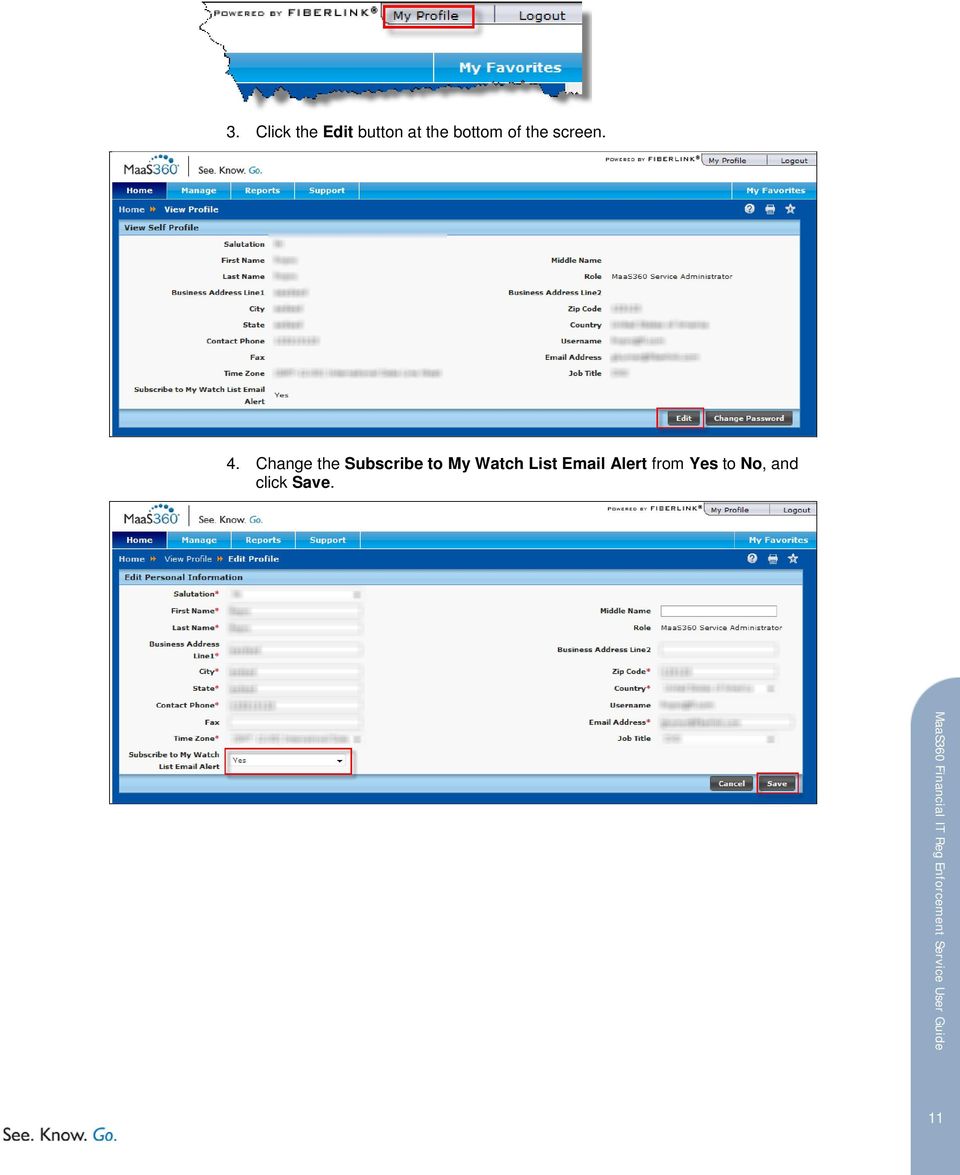
10 Watch List s An will be sent each week to the address on file for the account. It shows the Watch List items that could prove to be a problem for your organization. The Watch List items are links if you click on them you will be taken to a MaaS360 report that has the details about that item (after you log in). You can choose to opt out of these s, if you wish, by performing the following steps: 1. Log into MaaS360 as usual. 2. Click the My Profile button at the top of any screen. 10

11 3. Click the Edit button at the bottom of the screen. 4. Change the Subscribe to My Watch List Alert from Yes to No, and click Save. 11
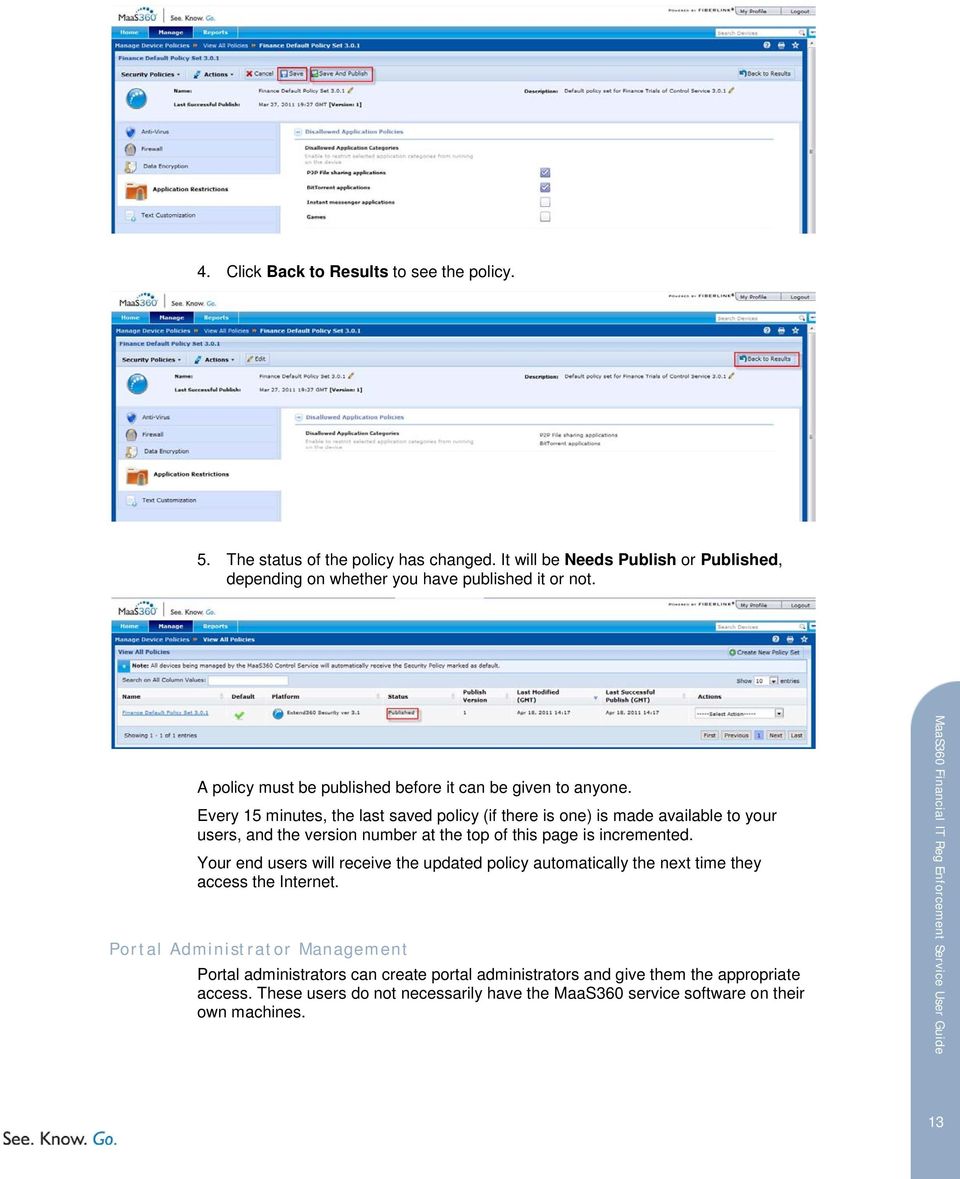
12 Managing Policies and Portal Administrators To make your MaaS360 Services run smoothly, there are a few basic maintenance tasks that a portal administrator will need to do. All of these workflows are accessible from the Manage tab. Policy Management and Configuration MaaS360 uses policies to govern everything from what should happen if a device has no anti-virus software to the Help Desk message that is displayed to the user. You can have multiple policies in your organization, but a device can only have one policy at a time. When a device is enrolled, it receives the default policy automatically. You can customize that policy or create different policies as necessary. Start by reviewing the default policy: 1. Click Step 3 on the Getting Started Checklist on the Home page. 2. Review the settings in the policy, reviewing the items on each of the tabs. Click Edit to make changes. 3. Make your changes. If you are finished and want to revise the policy later, click Save. If you want to distribute the new policy to users immediately, click Save and Publish. 12

13 4. Click Back to Results to see the policy. 5. The status of the policy has changed. It will be Needs Publish or Published, depending on whether you have published it or not. A policy must be published before it can be given to anyone. Every 15 minutes, the last saved policy (if there is one) is made available to your users, and the version number at the top of this page is incremented. Your end users will receive the updated policy automatically the next time they access the Internet. Portal Administrator Management Portal administrators can create portal administrators and give them the appropriate access. These users do not necessarily have the MaaS360 service software on their own machines. 13
14 Add User Administrators can create new portal administrators and assign them one or more roles. To add a new portal administrator: 1. Mouse over the Manage tab. 2. Select Add User under the Create Portal Administrators heading. 3. Enter the user name in the User Name field. Make sure it has a minimum of six characters. 4. Enter a valid address in the Address field. The password for this person will be automatically generated and sent to this address. 5. Click to select one or more roles to assign to the new user. When you click to select a role, the role description appears in the Role Description field. 6. Click the arrow buttons to move selected options or all options between the fields. 7. Click Add to finalize the changes. 8. A message confirms successful addition of the user and roles. Edit User Administrators can view, edit, or delete a portal administrator s role assignments. To edit portal administrator role assignments: 1. Hover over the Manage tab. 2. Select Manage Portal Administrators to view the Search Portal User screen. 14

15 3. Enter or select desired search criteria in the User Name box, the Address box and the Role drop-down list, if required. 4. Click Search to view results matching the entered search criteria. 5. Click the Edit icon associated with the user to view the Edit Portal User screen. 6. Click the arrow buttons to move selected roles or all roles between the fields, as necessary. 7. Click Save to save your changes and view the confirmation message. Delete User To delete a portal administrator: 1. Hover over the Manage tab. 2. Select Manage Portal Administrators to view the Search User screen. 15

16 3. Enter or select desired search criteria in the User Name box, the Address box and the Role drop-down list, if required 4. Click Search to view results matching the entered search criteria. 5. Click the Delete icon to delete the selected portal administrator accounts. A deletion confirmation message displays. Search for Deleted Administrators As part of the User Management Audit feature, the new Search for Deleted Administrators menu item allows you to search and view a list of all deleted portal administrator accounts and the associated audit details. To view deleted administrator accounts: 1. Mouse over the Manage tab, and select Search for Deleted Administrators. 2. Enter or select desired search criteria in the User Name field, the Address box and the Deletion Date boxes, if required. 3. Click Search. Results matching the search criteria display. 16

17 4. Click the Audit History icon to view the View Change History screen. 5. If required, click the View Change link to view the View Changes screen. Note: Items are highlighted in yellow to indicate a changed value, green text indicates a new value, and text with a red strike-through indicates that the value was deleted. Reset User Password You can also reset a user password. You may choose to reset a password when a user has forgotten his password or if a new portal user has requested you to reset and resend his password. To reset a portal administrator password: 1. Mouse over the Manage tab and click Manage Portal Administrators menu to view the Search Portal User screen. 17

18 2. Enter or select desired search criteria in the User Name field, the Address field or the Role drop-down list, as necessary. 3. Click Search. Results matching the search criteria display. 4. Click the Reset icon to reset the password. 5. The Reset Password Confirmation message displays. 6. Click Confirm to reset the selected portal administrator s password. A confirmation message displays. The new password will be sent to the portal administrator s address. Reactivate Locked Administrator Accounts Due to the enhanced security features in the MaaS360 Services, if a user belonging to the MAS authentication domain enters an incorrect password five times consecutively, then the user account will be locked. If a user account is locked, it can be reactivated through the Manage Portal Administrators workflow. 18

19 To reactivate a locked administrator account: 1. Mouse over the Manage tab and click Manage Portal Administrators to view the Search Portal User screen. 2. Enter the desired search criteria. 3. Click Search to view the results matching the entered criteria. 4. Click the Reactivate icon to reactivate the locked user account. The Reset Password Confirmation screen displays. 5. Click Confirm to reactivate the locked user account. The Password Reset screen displays a confirmation message. The user account is reactivated and a new system-generated password is sent to the user s address. 19

20 MaaS360 Device Management View Overview Device views provide detailed information about individual devices. This information can be useful for managing licenses, migrations and troubleshooting. The information in these views is collected and displayed in real- or near real-time, instead of daily as with the reports you find in the Reports tab. A unique identifier other than computer name is also used. As a result: Due to timing differences, you may find that data appears in your device views a few hours before it appears in your reports. Device views can show data about inactive devices but reports include only active ones. Device views can show multiple security applications, if they are installed on the device. The views will indicate which applications, if any, are running. Device view data is updated 15 minutes after a device heartbeats in to the server. Accessing the Device Views Many reports in MaaS360 list the Computer Name as a link. If you click the link, you will display the Device View for that endpoint. After viewing the information about the device, click Back To Results to return to the View All Devices screen. 20

21 You can also access the Device View for an endpoint from the View All Devices screen, and by performing a Smart Search. View All Devices Screen Access the screen by performing the following steps: 1. Mouse over the Manage tab. 2. Select View All Devices. The View All Devices screen appears. You can customize the columns displayed on the field by clicking the arrow to the right of each column, then selecting Columns. 21
22 Check the items you want to see on the screen. You can save your choice by selecting the Save Column Preference button. You can update the data on the screen by selecting the Refresh Data button. 22
23 You can search for a particular device using the filter at the top of the screen. Select a column, enter the search criteria and click Search. When you find the device you want, click the Computer Name. Smart Search You can also find a device by performing a Smart Search. 1. Mouse over the Manage tab and select Smart Search. 23
24 2. Specify if you want to search for Active Devices, Inactive Devices, or All Devices, and then specify when the devices should have reported in to the Fiberlink servers. 3. Enter the specific items you want to search for. You can use Boolean operators to search for more than one criterion at a time. Three conditions are available by default, but you can add more by clicking the green plus icon. 24
25 Category Attribute Operator Criteria The Device View where you would find the information about the attribute. Specific data item you are searching for. Operator for the search. Depending on the attribute, it could be Contains, Doesn t Contain, Begins With, Ends With, Equal To, Not Equal To, Between, and more. Value to be included in the search. Depending on the attribute, it could be text, a number, or a date. 4. Click Search to see the results. Device Views 5. Click on the Computer Name to see the Device View for that endpoint. The different Device View screens show specific details about the endpoint. The Summary View is the default. Select a different option from the pull-down menu to see the different device views for the selected device. Note: Depending on the MaaS360 services your organization has implemented, some of the options listed on the menu may not be visible. Contact your account representative for more information. 25
26 Headings The following four fields appear at the top of each view: OS Username Last Reported (GMT) Custom Asset Number License Status Username used to log into the computer. Last date that the computer contacted the Fiberlink servers. Unique identifier for the device as defined by your organization. Specifies if the device s license is Active or Inactive. All the views include following: The Actions button, which allows you to make the device inactive. It will not appear on views or in searches (unless you search for inactive devices) until the devices reports in to the Fiberlink servers. The Refresh button, which updates the information on the screen. The Device Online Status icon, which indicated if the device is online ( ) or offline ( ). The Back to Results button, which takes you back to the list of devices. Summary View The first screen you see when you access the device view is the Summary screen. It shows general information about the device and can help with basic troubleshooting. 26
27 The view contains the following fields: MaaS360 Services Service Package Name of the MaaS360 service package running on the computer. Installed Date Date the MaaS360 service was installed on the device. Hardware Manufacturer Company that made the computer. Model Model of the computer. Physical Memory Amount of physical memory the computer has. Installed Free Space on Percentage of the space on the system drive that is free. System Drive Operating Device s operating system. System Office/Location Custom attribute used to define the primary location of the device. Security Anti-Virus Status Specifies if anti-virus software has been installed on the device, and if it is Running or Stopped. Anti-Virus Definition Date Anti-Spyware Status Personal Firewall Status Encryption Status Last Backup Microsoft Auto- Update Status Number of Missing Critical OS Patches Date that the last anti-virus definitions were downloaded and installed on the device. Specifies if anti-spyware software has been installed on the device, and if it is Running or Stopped. Specifies if personal firewall software has been installed on the device, and if it is Running or Stopped. Shows where the device is in the encryption process. Date of the last backup. Displays how Microsoft automatic updates are being handled. Shows how many critical security operating system patches are missing from the device. Hardware Inventory View This report shows detailed information about the device s hardware. 27
28 The view contains the following fields: Basic Information Manufacturer Company that made the computer. Model Model of the computer. Computer Model Model ID of the computer. ID Motherboard Serial Number BIOS Serial Number BIOS Date Date of the BIOS software. Processor Computer s processor. Physical Memory Amount of physical memory the computer has. Installed WMI Status Serial number of the computer s motherboard (Windows) or the Apple serial number (Mac). Serial number of the basic input/output system boot firmware (Windows) or the boot ROM version (Mac). Specifies if the Windows Management Interface (WMI) is Running or Stopped. Test Device Indicates if the device is defined as a test machine. OS Username Last username that was used to log into the computer. User Access Specifies the access level of the last logged in user. Level CD/DVD Name Name of the CD/DVD drive. Local Timezone Configured local time for the device. Number of Drives Number of drives on the device. Drive Information Note: These fields will be repeated for each of the device s drives. Drive Size Amount of space on the drive. Free Space Amount of free space on the drive. Drive Label Drive identifier. File System Type Drive s file system type. System Drive Indicates if this is the system drive. Custom Attributes Custom Asset Custom inventory number for the device. Number Device Owner Name of the device s owner. Vendor Vendor from whom the device was purchased. 28
29 Purchase Order Number Purchase Type Purchase Date Purchase Price Warranty Number Warranty Type Warranty Expiration Date Office/Location Department Business Unit Comments Purchase order number for the device. Type of purchase, as defined by your organization. Date the device was purchased. Cost of the device. Identification number of the warranty. Type of warranty. Date the warranty expires. Primary physical location of the device. Department to which the device or device owner belongs. Field where you can enter any additional information or comments about the device. Network Information View This view shows detailed information about the networks the device uses. The fields will be repeated if the device uses more than one network. The view contains the following fields: Domain/Workgroup Adapter Adapter Type Adapter ID IP Address Subnet Mask DHCP Enabled MAC Address DNS Servers Gateway Device Driver Name Device Driver Version Device Driver Date Domain or workgroup to which the device belongs. Basic information about the adaptor. Type of network adaptor. Adaptor ID. IP address for the device. Bit mask covering the number of bits used in the prefix of the IP address. Indicates if Dynamic Host Configuration Protocol is enabled for the network adaptor. Unique identifier assigned by the adaptor s manufacturer. Domain Name System identification of the adaptor s servers. Identifier of the network node. Name of the program that allows other applications to interface with the device. Version of the device driver. Date of the device driver version. 29
30 Software Installed View The Software Installed view lists all the applications installed on the device. The view contains the following fields: Application Vendor Application Name Version Installed Date Company that provides the application. Name of the software application. Version number of the application. Date the application was installed. Operating System View This view shows detailed information about the device s operating system, and the operating system patches that have been installed. The view contains the following fields: Operating System OS Edition Operating system on the computer. Edition of the operating system. 30
31 Service Pack OS Architecture Version Default OS Language Microsoft Auto- Update Status Installed OS Patches Patch Name Patch Category Vendor Product Severity KB ID Bulletin ID Latest service pack installed on the computer. Specific architecture of the operating system. Operating system s version. Default operating system language. Specifies how automatic updates from Microsoft will be handled. Name of the patch. Click to see a description of the patch from the vendor s web site. Type of patch. Company that provided the patch. Software that needed the patch. How critical the patch is. Knowledgebase identification number of the patch. Bulletin that discusses the patch. Missing OS Patches View The Missing OS Patches view shows all the patches that are available for the device, but have not been installed. Patch Name Patch Category Vendor Product Severity KB ID Bulletin ID Name of the patch. Click to see a description of the patch from the vendor s web site. Type of patch. Company that provided the patch. Software that needed the patch. How critical the patch is. Knowledgebase identification number of the patch. Bulletin that discusses the patch. Missing Application Updates View This view shows missing application updates from vendors like Adobe and Apple. 31
32 The view contains the following fields: Application Update Name Application Update Category Vendor File Size (MB) Release Date Missing Application Update Detected Date Name of the update that is missing. Type of update that is missing. Company that provided the update. Download size of the update. Date the update became available. Date that MaaS360 determined that the update was missing. *This view is updated daily. Endpoint Security View The Endpoint Security view displays information about your security applications. It will show all the applications installed on the device, even if they are not currently enabled. The view has the following fields: Anti-Virus 32
33 Anti-Virus Detected Number of Vendors Vendor Indicates if an anti-virus application has been installed on the device. Specifies how many anti-virus applications have been installed on the device, whether they are running or not. Company that supplied the anti-virus application. Note: The following fields will be repeated for each unique vendor. Application Name Version Installed Date Status Anti-Virus Definition Date Anti-Virus Definition Last Scan Date Personal Firewall Personal Firewall Detected Number of Vendors Vendor Name of the anti-virus application. Version of the software. Date the application was installed. Specifies if the anti-virus application is Running or Stopped. Date of the most recent definition update. Definition s identifier. Date of the most recent anti-virus scan. Indicates if a personal firewall application has been installed on the device. Specifies how many personal firewall applications have been installed on the device, whether they are running or not. Company that supplied the personal firewall application. Note: The following fields will be repeated for each unique vendor. Application Name of the personal firewall application. Name Version Version of the application. Installed Date Date the application was installed. Status Specifies if the application is Running or Stopped. Anti-Spyware Anti-Spyware Indicates if an anti-spyware application has been installed on the device. Detected Number of Vendors Vendor Specifies how many applications have been installed on the device, whether they are running or not. Company that supplied the anti-spyware application. Note: The following fields will be repeated for each unique vendor. Application Name of the anti-spyware application. Name Version Version of the software. Installed Date Date that the application was installed. Status Indicates if the application is Running or Stopped. Anti-Spyware Date of the most recent definition update. Definition Date Anti-Spyware Definition s identifier. Definition Last Scan Date Date of the most recent anti-spyware scan. Data Protection View The Data Protection view shows the data protection applications resident on the device. Data protection applications include: 33
34 Data encryption Peripheral protection Backup and recovery Data leak prevention The view includes the following fields: Data Encryption Data Encryption Indicates if a data encryption application has been installed on the device. Detected Number of Specifies how many data encryption applications have been installed on Vendors the device, whether they are running or not. Vendor Note: The following fields will be repeated for each unique vendor. Application Name of the data encryption application. Name Version Version of the software. Installed Date Date the software was installed. Encryption Current state of encryption application. Status Encrypted Drives Names of the encrypted drives. Peripheral Protection Peripheral Protection Detected Number of Vendors Application Name Application Vendor Version Installed Date Status Backup & Recovery Indicates if a peripheral protection application has been installed on the device. Specifies how many peripheral protection applications have been installed on the device, whether they are running or not. Name of the peripheral protection application. Company that provided the software. Version of the software. Date the software was installed. Specifies if the application is Running or Stopped. 34
35 Backup & Recovery Detected Number of Vendors Vendor Indicates if a backup and recovery application has been installed on the device. Specifies how many backup and recovery applications have been installed on the device, whether they are running or not. Note: The following fields will be repeated for each unique vendor. Application Name of the backup and recovery application. Name Version Version of the software. Installed Date Date the software was installed. Status Indicates if the software is Running or Stopped. Last Backup Date of the most recent backup. Next Backup Date of the next scheduled backup. Backup Limit Maximum amount of data that can be backed up. Data Leak Prevention Data Leak Prevention Detected Number of Vendors Application Name Version Installed Date Status Indicates if a data leak prevention application has been installed on the device. Specifies how many data leak prevention applications have been installed on the device, whether they are running or not. Name of the data leak prevention application. Version of the software. Date the software was installed. Indicates if the software is Running or Stopped. Compliance Incidents View This view displays out-of-compliance events for the specified period. It also shows the actions that the service took as a result, which are defined by your policy. The view has the following fields: Event Date/Time When the event took place. OS Username Username used to log into the computer. 35
36 Event Type Application Type Application Name Description Type of out-of-compliance event. Type of security application that fell out of compliance. Name of the security application. Action taken by the MaaS360 as a result of the event. The action is determined by policy. *This view is updated daily. Internet Connections View This view shows the different Internet connections made by the device, no matter which connection manager it uses. The view contains the following fields: Start Time End Time Connection Duration (Minutes) OS Username Adaptor Name Connection Type IP Address Subnet Mask Connection Speed Bytes In (MB) Bytes Out (MB) *This view is updated daily. Date and time the connection started. Date and time the connection ended. Total duration of the connection. Username used to log into the computer. Manufacturer and model of the network adapter. Type of connection that was made (e.g., VPN, Home) IP address for the device. Bit mask covering the number of bits used in the prefix of the IP address. Speed of the connection. Amount of data downloaded onto the computer during the connection. Amount of data sent by the computer during the connection. VPN Connections View The VPN Connections view shows the different VPN connections made via the device for the specified timeframe. 36
37 The view contains the following fields: Start Time End Time Connection Duration (Minutes) OS Username VPN IP Address Subnet Mask Connected Network Date and time the VPN connection started. Date and time the VPN connection ended. Total duration of the connection. Username used to log into the computer. Type of VPN that was used. IP address for the device. Bit mask covering the number of bits used in the prefix of the IP address. Network that made the connection. *This view is updated daily. MaaS360 Services View The MaaS360 Services view displays the MaaS360 service package that is installed on the device and modules that package contains. This information is particularly useful if you need to contact Fiberlink s Customer Support. The view contains the following fields: Basic Information Service Package MaaS360 Service Package name that is installed on the device. Installed Date Date and time that the core product was installed (GMT) Agent Version Version of the installed core product. 37
38 EEA Status Number of Active Modules Module Specifies if EEA is Running or Stopped. Number of MaaS360 modules currently active on the device. Note: The following fields will be repeated for each module. Version Version of the module. Activation Date Date and time that the module was activated on the device. Other MaaS360 Services Service Name Name of additional Fiberlink services that may be installed on the device. Policy Update Username of the person who last updated the device s policies. Username Policy Set Name of the policy set in use on the device. Policy Groups Details about the four policy groups that comprise the policy set. Last Policy Date and time of the last policy update for the device. Update Date Change History View This view shows how the device s information has been modified over the specified timeframe. The view contains the following fields: Change Date Date and time the change was made. Change Made By Username of the person who changed the account. IP Address IP address of the person who made the change. Attribute Name Attribute that was changed. Old Value Original value of the attribute. New Value Final value of the attribute. 38
39 Remote Control MaaS360 s Remote Control feature works with many of the most popular remote control applications to help you troubleshoot your devices. You can take control of an end user s device without manually entering an IP address or initiating a connection. MaaS360 supports the following remote control applications: Microsoft Remote Desktop RealVNC UltraVNC TightVNC DameWare To use the Remote Control feature, you must have at least one of these applications installed on your device and the endpoints. You must also have permission to access those endpoints. If you do not have any of those applications, you may use one of the web-based applications. You should have Webex, Citrix, or a similar application installed on your device. Before using this feature, you must set it up. 1. Mouse over the Manage tab and select Remote Control Settings. 39
40 2. Select all of the remote control applications you are using. Select the checkbox for each one, and enter the location. 3. When you are finished, save your changes. To take control of a device, perform the following steps: 1. Mouse over the Manage tab and select Remote Control. 40
41 2. MaaS360 displays a list of the devices that have one or more of the supported Remote Control applications. You can use the filters to reduce the number of devices listed. 3. When you find the device you want, click Take Control. 41
42 4. A pop-up box appears with last reported IP addresses used by the device and the remote control applications information from the Remote Control Settings. Review the information, and select an IP address and remote control application. Click Take Control. MaaS360 will automatically launch the remote control application, seed the IP address information, and connect to the device. 42
43 Software Distribution The Software Distribution module allows the Administrator to distribute software applications and non-executable files to end user devices on or off the corporate network. Devices include laptops, desktops, tablets, smartphones, and mobile devices. The Software Distribution module under the Manage tab includes the following menu options: Manage Packages Distribute Packages Manage Distributions If you wish to upload a package, navigate to the Manage > Manage Packages screen, click the Upload Package button and select the type of package that you wish to upload. The Upload Package screen allows you to upload a package that you wish to distribute or install on your end user devices. A package can include an executable file that will be installed on the end user device or a non-executable file that will be downloaded to a desktop or a mobile device. 43
44 The available package types that you can upload include: Application (Windows Computers) Enterprise Application (ios) App Store Application (ios) Document (ios) Application (Windows Computers) allows you to upload packages for Windows Desktops and Laptops. Enterprise Application (ios) allows you to upload enterprise applications for ios devices. 44
45 App Store Application (ios) allows you to upload applications using the Apple itunes and the Apple App Store applications. Document (ios) allows you to upload documents to Apple ios devices On the Upload Package screen, the Total Storage Space and the Available Storage Space sections display the present space limit that is available on the Upload Server. The size of the package that you wish to distribute or install on your end user devices must be less than the Available Storage Space. Manage Packages The Manage > Manage Packages option shows the Manage Packages screen, which allows you to search and view all the available packages. The Manage Packages screen displays the Package Name, Platform, Filename, Package Type, File Size (MB), Status, Upload Date (GMT), and the Uploaded By details. Clicking the associated Distribute Package icon allows you to distribute the package. 45
46 Select the desired filter criteria and click Search to narrow the search results. If required, click the Upload Package button to upload a package or distribute a package from the Manage Packages screen. Clicking the Audit History button at the bottom of the screen displays a list of all actions that were performed on the package. Click Back To Results to return to the Manage Packages screen. If required, select CSV or Excel format option and click Export to export the displayed results. Clicking on a Package Name displays the associated View Package Details screen. Clicking the Package Details menu displays the Package Distributions menu option. Selecting the Package Details > Package Distributions option on the View Package Details screen displays the Distribution Name, Target Devices, Status, Distribution Date (GMT), Distributed By, Relevant Devices, and Successful Devices information for any actions that have been created referencing this package. Clicking the Actions menu displays the Distribute and the Delete actions. The Distribute action displays the Distribute Package screen, which allows you to distribute a package to a specific device, a device group or to all devices. The Distribute Package screen allows you to upload a package that you wish to distribute and install on your end user devices. A package can include an executable, 46
47 which must be installed or a non-executable file that will be downloaded to the device. The Delete action allows you to delete a package. Once a package is deleted, it can no longer be used in distributions. Any active distributions that reference the deleted package will be disabled. If you have also purchased the MaaS360 Mobile Device Management solution, clicking the Actions menu displays the Distribute, Update Provisioning Profile, Upgrade Package, and the Delete actions, as shown below. Every ios application is associated with a provisioning profile. An ios application is verified for its authenticity based on its provisioning profile which is embedded in the ios Package. ios Enterprise Applications requires a provisioning profile that authenticates your devices and allows them to use the application. You can create a provisioning profile by accessing the ios provisioning portal at Ensure that the provisioning profile matches the Bundle ID of the Enterprise application that you wish to distribute. The provisioning profile must also include an application expiry date. The Update Provisioning Profile action allows you to update an existing ios provisioning profile. 47
48 The Upgrade Package action allows you to upgrade an existing ios package. The Delete action allows you to delete a package. Once a package is deleted, it can no longer be used in distributions. Any active distributions that reference the deleted package will also be stopped. Distribute Package The Manage > Distribute Package option displays the Distribute Package screen, which allows you to distribute a package to the end user devices. Click the Search Package icon next to the Package text box to view a list of all the available packages. Alternatively, enter a few characters of a Package Name to view a list of all package names that include the entered string of characters. Click on a Package Name link to select the package. Select the desired Execution Behavior. If you wish to install an executable file, then select the Execute Package option and enter the execution command with the associated command options. If you wish to distribute a non-executable file that will be downloaded or saved to a location, then select the Save Package option. If required, enter the folder location where you wish the package to be automatically downloaded on the end user device. If you do not enter the drive letter in the Save Package text-box, the entered value will be used to create a folder in the Visibility Service s installation path. By default, C:\ Program Files\MaaS360\MaaS360 Visibility Service\ is the folder location where the distributed package will be saved. 48
49 Select the desired Target Devices for distribution of the package. To ensure efficient Internet bandwidth utilization, select the most suitable Distribution Behavior option. The Distribution Name field is automatically populated. Make changes, if required. Enter a relevant package description in the Description field. On the Distribute Package screen, select a desired option and hover your mouse pointer over the associated information icons to view more details, if required. Clicking the Advanced Settings button allows you to configure advance settings in the Advanced Settings pop-up window. Click Save Settings to save the Advanced Settings. Clicking the Distribute button on the Distribute Package screen allows you to review the package distribution details before performing a security check and then distributing the package to the selected devices or device groups. 49
50 Click Continue to complete the distribution. The package distribution confirmation message displays. If required, click the hyperlink text in the confirmation message to view the distribution details. Click Create Another Request if you wish to create another package. Click Manage Distributions if you wish to view and manage the package distributions. When you select a package that will be distributed to ios mobile devices, the following screen displays. Clicking the Distribute button on the Distribute Package screen allows you to review the package distribution details before performing a security check and then distributing the package to the selected devices or device groups. 50
51 Click Continue to complete the distribution. The package distribution confirmation message displays. Manage Distributions Select the Manage > Manage Distributions option to search and list all package distributions that you have performed on your end user devices. The Manage Distributions screen displays the Distribution Name, Package Name, Target Devices, Status, Distribution Date (GMT), Expiration Date (GMT), and the Distributed By information. Clicking on the New Distribution button allows you to create a new package distribution. On the Manage Distributions screen, select the desired filter options and click Search to view results matching the selected search criteria. Clicking on a Distribution Name link displays the associated Package Distribution details screen. On the Package Distribution <package distribution details> screen, clicking the Package Name link under the Basic Information section displays the Package 51
52 Distribution Details screen. On the Package Distribution Details screen, clicking on the Distribution Settings drop-down menu shows the Distribution Details and the Distribution Audit History options. The Distribution Details screen displays the Device Name, OS Username, Last Reported, Status, Description, and the Details information. The Distribution Audit History screen displays the Action Date (GMT), Action, Action By and the IP Address information. Clicking on the Actions tab displays the Create a Copy and the Stop actions. Clicking the Create a Copy action allows you to create a clone or a copy of the selected package distribution. If you wish to create a duplicate distribution, then click the Create a Copy action. The Distribute Package screen displays the details of the selected package distribution. Make changes, if required and click Distribute to create a copy of the selected package distribution. Clicking the Stop action allows you to stop distributing the selected package. 52
53 Software Distributions from the Device Management Screen The Manage > View All Devices option lists all devices on your corporate network. Clicking on a Device Name displays the View Device Details: <device name> screen. Selecting the Software Distributions option from the Summary drop-down list displays the Software Distributions screen, which includes the Distribution Date (GMT), Distribution Name, Package Name, Status, Description, and the Details information for any distribution actions that have been evaluated by the device. 53
54 On the View Device Details screen, if you wish to distribute a package to the device, then select the Distribute Software action on the Actions tab. On the Distribute Package screen, select the desired package that you wish to distribute and click Distribute to distribute the package to the device. Alternatively, on the Manage > Device Groups screen, click the MaaS360 folder icon and select the Distribute Software option to distribute a package to a device group, as shown below. 54
55 Reports Overview The report generation features allow you to use enhanced reporting functions (such as the tabular presentation of reports) to group associated graphs and reports, and it provides easy navigation between the reports. The enhanced reporting solution also includes filters, which help you generate a variety of real-time reports or narrow down report details based on your filter criteria. The graphs and charts provide an enhanced representation of the data in summary and detailed reports. The Print and Download links allow you to print and download the displayed tables to a variety of file formats. Types of Reports The MaaS360 Management Center provides the following types of reports: Note: 1. Device Summary 2. Agent Details 3. Policy Enforcement 4. Endpoint Security Overview a. Anti-Virus b. Personal Firewall 5. Data Protection Overview a. Encryption 6. Hardware Inventory 7. Software Inventory 8. Hardware Inventory for BlackBerry Handhelds 9. Software Inventory for BlackBerry Handhelds 10. Patch Management 11. VPN 12. Any Connection Reporting Not all reports are available for all services. If you have any questions access our Support page. Graphs and Charts Most of the data is presented in charts and graphs, and you can click on one bar or pie section to see details about that piece of data. You can also mouse over a bar or pie section to see the number being represented graphically. 55
56 To view report graphs, you must have installed the Flash plug-in with your browser. You can get the Flash plug-in at Tabs Filters Additional tabs further organize the data, helping you to understand it more easily. Most of the reports have a summary tab, and additional facts appear on subsequent tabs. For example, when you first access Hardware Inventory from the Reports tab, you see data on the Device Summary tab. If you click each of the subsequent tabs (Hardware Identity, Hardware Capacity, Operating System and Network Information), the data is presented with a different focus and in greater detail. Filters allow you to change what you see in the reports based on specific selection criteria. Select the options you want from the drop-down lists and click Apply Filters. If you want to return to the default values for all the selection criteria, click Clear Filters. 56
57 In some cases the filter options you choose affect the other tabs for that report. If you find unexpected results on a report, try clearing the filters. Saving a Filter You can also save filters so you can use them again later. To save a filter, perform the following steps: 1. Set the desired filters by selecting options from the pull-down menus, and then click Apply Filters. 57
58 2. Click Filter Options to see the choices on the pull-down menus. 3. Click Save Current Filters and then click For Me. 4. A pop-up box allows you to enter a name for the filter and set it as the default for the page. 5. Make your changes and click OK to save the filter. 58
59 Using a Saved Filter To use a filter you had previously saved, perform the following steps: 1. Click Filter Options to see the different choices. 2. Mouse over the Apply Saved Filters option to display all your saved filters, and select the filter you want to use. Summary-to-Detail Drill-Down Views You can click on a bar or pie chart section to see the details that pertain to that item. For example, if you are looking at the Operating System Summary chart, you can click on the Microsoft Windows XP, SP2 pie section: 59
60 You will automatically see the Operating System tab, with the appropriate filter options (Microsoft Windows XP for the Operating System and XP for the Service Pack). Printing and Downloading Report Information Each report has two links at the bottom, Print and Download. When you click Print, a menu appears giving you the option to export the report in either HTML or PDF format so it can be printed. When you click Download, a menu appears giving you the option to download the chart, graph or report as an Excel, PowerPoint, Excel 2000 or CSV file. Navigating to Different Pages To help you see the data in long reports, MaaS360 provides buttons at the bottoms of the pages. 60
61 Button Description Go to the first page of records. Go to the previous page. Go to the next page. 61
62 Agent Reports Agent Details These reports are designed to help you understand which products each user has. The reports appear on the following tabs: Agent Details Agent Policy Details Agent Details Tab This tab contains the Agent Details Report. The tab has the following filters: Computer Name OS Username Agent Username Domain (Windows only) Operating System Product(s) EEA Installed Installed Date Fiberlink Software Last Reported Agent Details Report This report shows detailed information about the computers in your organization and the Fiberlink software installed on those computers. To access this report: 1. Mouse over the Reports tab. 2. Click Agent Details under the Agent Reports heading. Computer Name OS Username Agent Username Domain (Windows only) Name of the device on which the service is installed. Username used to log into the computer. Username used to log into the service. Windows domain into which the user logged in. 62
63 Operating System Product(s) EEA Installed Installed Date Fiberlink Software Last Reported Device s operating system. Name and version of the MaaS360 Service running on the computer. Specifies if the Extend360 Enforcement Agent (EEA) is installed on the computer. Date that the MaaS360 Service was installed on the computer. Date that the software last contacted the Fiberlink servers. Agent Policy Details Tab This tab contains the Agent Policy Details Report. The tab has the following filters: Computer Name OS Username Agent Username Fiberlink Software Last Reported Operating System Product(s) EEA Installed Policy Set Agent Policy Details Report This report shows detailed information about the policies in force on the computers in your organization. To access this report: 1. Mouse over the Reports tab. 2. Click Agent Details under the Agent Reports heading. 3. Click the Agent Policy Details tab. Computer Name Name of the device on which the service is installed. 63
64 OS Username Agent Username Operating System Product(s) EEA Installed Policy Set UI Configuration Policy (Version) Connectivity Policy (Version) Security Policy (Version) Software Administration Policy (Version) Fiberlink Software Last Reported Username used to log into the computer. Username used to log into the service. Device s operating system. Name and version of the MaaS360 Service running on the computer. Specifies if the Extend360 Enforcement Agent (EEA) is installed on the computer. Name of the policy set in force on the device Name and version of the UI Configuration Policy in force on the device. Name and version of the Connectivity Policy in force on the device. Name and version of the Security Policy in force on the device. Name and version of the Software Administration Policy in force on the device. Last date that the computer contacted the Fiberlink servers. 64
65 Any Connection Reporting The Any Connection Reporting module provides visibility into all connections made with a corporate device, regardless of connection manager, device or service provider, and includes connection and usage details for Dial, Wi-Fi, Broadband and Mobile data. The reports appear on the following tabs: Note: Connection Details Wi-Fi Connection Details These reports are available for purchase from Fiberlink. Contact your account manager for details. Connection Details Tab The report on this tab provides a detailed look at your users connection activity. The tab has the following filters: Connection Period Computer Name OS Username Adapter Name Connection Type IP Address Subnet Mask Connection Speed Any Connection Details Report This report provides information about all connections made from your corporate devices. It shows overall user connectivity patterns (including connections made outside the MaaS360 Mobile Service), the network types used and the locations where the users are connecting. To access this report: 1. Mouse over the Reports tab. 2. Click Any Connection Details under the Connectivity Reports heading. Computer Name Device s unique identifier. Click the link to see additional information 65
66 OS Username Adapter Name Connection Type IP Address Subnet Mask Start Time End Time Connection Duration (Minutes) Connection Speed Bytes In (MB) Bytes Out (MB) about the device. Username used to log in to the machine. Manufacturer and model of the network adapter. Type of connection that was made (e.g., VPN, Home) IP address for the computer. Bit mask covering the number of bits used in the prefix of the IP address. Date and time the connection started. Date and time the connection ended. Total length of the connection. Speed of the connection. Amount of data downloaded onto the computer during the connection. Amount of data sent by the computer during the connection. Wi-Fi Connection Details Tab The report on this tab provides a detailed look at your users Wi-Fi connection activity. The tab has the following filters: Connection Period Computer Name OS Username SSID Network Authentication Type Data Encryption EAP Type IP Address Subnet Mask Access Point MAC Address Wi-Fi Connection Details Report This report focuses on your Wi-Fi connections. It shows overall user connectivity patterns (including connections made outside the MaaS360 Mobile Service), the network types used and the locations where the users are connecting. To access this report: 1. Mouse over the Reports tab. 2. Click Any Connection Details under the Connectivity Reports heading. 3. Click the Wi-Fi Connection Details tab. 66
67 Computer Name OS Username SSID Network Authentication Type Data Encryption EAP Type IP Address Subnet Mask Access Point MAC Address Start Time End Time Connection Duration (Minutes) Device s unique identifier. Click the link to see additional information about the device. Username used to log in to the machine. Name that uniquely identifies the Wi-Fi signal. Protocol that the MaaS360 software uses to authenticate the users credentials. Type of encryption used to safeguard the data while it was being transmitted over the Wi-Fi network. Protocol used for 802.1x authentication. IP address for the computer. Bit mask covering the number of bits used in the prefix of the IP address. Unique identifier assigned to the network adaptor. Time when the connection was established. This is determined by the computer s system clock. Time when the connection was terminated. This is determined by the computer s system clock. How long the connection was active for the session. 67
68 VPN Usage Reports The VPN Usage module provides visibility into all connections made using a corporate VPN. The reports appear on the following tabs: Note: VPN Overview VPN Summary VPN Details These reports are available for purchase from Fiberlink. Contact your account manager for details. VPN Overview Tab The reports on this tab provide a high-level overview of your VPN connections. The tab has the following filter: Connection Period Devices by Last VPN Connection Report This graph shows you how many of your users last connected to the VPN within certain date ranges. To access this report: 1. Mouse over the Reports tab. 2. Click VPN Usage Overview under the VPN Reports heading. X axis Number of devices Number of devices that connected to your VPNs. Y axis Last connection date Specifies how recent the last connection was. The ranges ranges are: 1-7 Days, 8-14 Days and Days. Total VPN Connections (Top 10) Report This graph shows you the ten users who are making the most connections. To access this report: 1. Mouse over the Reports tab. 68
69 2. Click VPN Usage Overview under the VPN Reports heading. X axis Computer Name Unique identifier of the computer making the connections Y axis Number of connections How many connections the computer made. VPN Connected Networks Report This chart shows you the ten users who are making the most connections. To access this report: 1. Mouse over the Reports tab. 2. Click VPN Usage Overview under the VPN Reports heading. Networks VPN networks that devices used to make successful connections. 69
70 Total Connections and Average VPN Duration (Minutes) Report This graph shows the number of connections made during the last seven days, and duration of these connections. 1. Mouse over the Reports tab. 2. Click VPN Usage Overview under the VPN Reports heading. X axis Days The last seven days. Y axis Connection The total number of connections that were made on each of the seven days. Duration (Minutes) Total number of minutes that the connections lasted on each of the seven days. VPN Summary Tab The report on this tab contains the VPN Connections Summary Report. The tab has the following filters: Connection Period Last VPN Connection Computer Name VPN Connections Summary Report This report shows you VPN-related totals for each of your devices. To access this report: 1. Mouse over the Reports tab. 2. Click VPN Usage Overview under the VPN Reports heading. 3. Click the VPN Summary tab. 70
71 Computer Name Total VPN Connections Total VPN Connection Duration (Minutes) Average VPN Connection Duration (Minutes) Last VPN Connection Name of the device connecting to the VPN. Click the link to see additional information about the device. Total number of connections made by each device during the period specified by the filter. Click to see a list of the connections for that computer on the VPN Details tab. Total number of minutes that the device was connected during the period specified by the filter. Click to see additional information on the VPN Details tab. Average number of minutes the device was for each connection made during the period specified by the filter. Click to see additional information on the VPN Details tab. Date that the last connection was made. VPN Details Tab The report on this tab contains the VPN Connections Details Report. The tab has the following filters: Connection Period Computer Name OS Username VPN IP Address Subnet Mask Connected Network VPN Connections Details Report This report shows you the details that support the other reports. To access this report: 1. Mouse over the Reports tab. 2. Click VPN Usage Overview under the VPN Reports heading. 3. Click the VPN Details tab. 71
72 Computer Name OS Username VPN Start Time End Time Connection Duration (Minutes) IP Address Subnet Mask Connected Network Name of the device connecting to the VPN. Click the link to see additional information about the device. Name of the person making the connections. Name of the VPN being used. Date and time that the connection was established. Date and time that the connection was terminated. Number of minutes that the connection was active. IP address used for the connection. Bit mask covering the number of bits used in the prefix of the IP address. Network that made the connection. 72
73 Policy Enforcement Reports Policy Enforcement reports show which applications MaaS360 is monitoring for compliance with your company s policies. These reports also show what, if anything, they will do when computers are out of compliance. This reporting module shows policy enforcement and compliance events that were reported on security logs sent by the MaaS360 service. Policy Enforcement Summary Tab This tab contains reports that provide an overview of the out-of-compliance events logged by the MaaS360 service. This tab contains the following filter: Event Period Out-of-Compliance Events by Application Report This report breaks down the out-of-compliance events by different applications: Anti Virus, Firewall, Data Encryption, etc. To access the report: 1. Mouse over the Reports tab. 2. Click Policy Enforcement Overview under the Policy Enforcement Reports heading. Out-of- Compliance Events Application Number of times the computer has gone out of compliance during the timeframe specified in the Event Period filter. Type of software that has gone out of compliance (e.g., Anti-Virus or Firewall). 73
74 Out-of-Compliance Events by Cause Report This report shows the applications that have the greatest number of out-ofcompliance events by cause for the timeframe specified in the Event Period filter. You can mouse over each bar to see the actual number of events. This report shows how many software applications are not running properly (e.g., an Anti-Virus application with outdated virus definitions), which are disabled, and which were never properly installed to begin with. To access the report: 1. Mouse over the Reports tab. 2. Click Policy Enforcement Overview under the Policy Enforcement Reports heading. X axis Application Type of security software (e.g., Anti-Virus or Firewall) that the MaaS360 services are monitoring. Y axis Number of out-ofcompliance events Number of out-of-compliance events for the different reasons. Out-of Compliance Enforcement Actions Report This report specifies which actions the MaaS360 service took when it found an outof-compliance event. You defined these actions when you set up the policy in the Manage Policies section. To access the report: 1. Mouse over the Reports tab. 2. Click Policy Enforcement Overview under the Policy Enforcement Reports heading. 74
75 Out-of- Compliance Enforcement Actions The actions performed when the service discovered that an application was out of compliance, based on your policy settings. Out-of-Compliance Events (Last 7 Days) Report This report specifies the number of compliance events for the last seven days. The value in the Event Period filter does not affect this report. To access the report: 1. Mouse over the Reports tab. 2. Click Policy Enforcement Overview under the Policy Enforcement Reports heading. 75
76 X axis Date Date of the last seven days. Y axis Number of out-ofcompliance Number of out-of-compliance events. events Devices Out-of-Compliance (Top 10) Report This report lists the 10 computers that have the most out-of-compliance events by computer name. To access the report: 1. Mouse over the Reports tab. 2. Click Policy Enforcement Overview under the Policy Enforcement Reports heading. 76
77 X axis Events Number of out-of-compliance events during the timeframe specified by the Event Period filter. Y axis Computer Name Machine names of the 10 computers with the most outof-compliance events. Devices by Out-of-Compliance Events Report This report shows how many computers have had a certain number of out-ofcompliance events. The numbers are organized into ranges: 1 to 3 events, 4 to 10 events, greater than 10 events. To access the report: 1. Mouse over the Reports tab. 2. Click Policy Enforcement Overview under the Policy Enforcement Reports heading. Devices Events Number of devices that have gone out of compliance. Number of times the devices have gone out of compliance, organized into ranges. Out-of-Compliance Events Tab This tab contains one report, the Out-of-Compliance Events report. It contains the following filters: Event Period Computer Name OS Username Domain (for Windows only) Agent Username Application Type Application Name 77
78 Out-of-Compliance Cause Out-of-Compliance Events Report This report lists the out-of-compliance events that took place within the timeframe specified in the Event Period filter. To access the report: 1. Mouse over the Reports tab. 2. Click Policy Enforcement Overview under the Policy Enforcement Reports heading. 3. Click the Policy Details tab. Event Time Computer Name OS OS Username Domain (for Windows only) Agent Username Application Name Out-of- Compliance Cause Enforcement Actions Tab Date and time that the computer went out of compliance. Name of the machine on which the application is installed. Operating system installed on the machine. Username used to log in to the machine. Windows domain on which the user has logged in. Username used to log in. Third party application that was out of compliance. Reason the application was out of compliance. This tab shows one report, the Out-of-Compliance Enforcement Actions report. It contains the following filters: Event Period Computer Name OS Username Domain (for Windows only) Agent Username Application Name 78
79 Enforcement Action Out-of Compliance Enforcement Actions Report This report lists the out-of-compliance events, and displays how the MaaS360 service responded to the event. To access the report: 1. Mouse over the Reports tab. 2. Click Policy Enforcement Overview under the Policy Enforcement Reports heading. 3. Click the Enforcement Actions tab. Event Time Computer Name OS OS Username Domain (for Windows only) Agent Username Application Name Enforcement Action Description Date and time that the computer went out of compliance. Name of the machine on which the software is installed. Operating system installed on the machine. Username used to log in to the machine. Windows domain on which the user has logged in. Username used to log in. Name of the third party software that went out of compliance. Action taken by the MaaS360 service because the watched application fell out of compliance. Additional information about the Enforcement Action. Compliance Details Tab This tab displays information about out-of-compliance events and enforcement actions together. It contains the following filters: Event Period Computer Name OS Username Domain (for Windows only) Agent Username Application Name Event Type 79
80 Out-of-Compliance Events and Enforcement Actions Report This report combines information about out-of-compliance events and enforcement actions so you can clearly see how the MaaS360 software is finding the events and acting on them (based on what is defined in your policy). To access the report: 1. Mouse over the Reports tab. 2. Click Policy Enforcement Overview under the Policy Enforcement Reports heading. 3. Click the Compliance Details tab. Event Time Computer Name OS OS Username Domain (for Windows only) Agent Username Event Type Application Name Enforcement Action Description Date and time that the computer went out of compliance. Name of the machine on which the MaaS360 software is installed. Operating system installed on the machine. Username used to log in to the machine. Windows domain on which the user has logged in. Username used to log in. Specifies if the event was an Out-of-Compliance Event, a Remediation Action, or an Enforcement Action. Out-of-Compliance Event no action is taken by Extend360 Enforcement Action Extend360 will restrict access (e.g., terminate a VPN connection) Remediation Action the MaaS360 service will help the computer become compliant (e.g., provide a link to updated Anti-Virus definitions) Name of the third party software that went out of compliance. Specifies the action taken by the MaaS360 service because the watched application fell out of compliance. Additional information about the Enforcement Action. 80
81 Hardware Inventory Reports Hardware Inventory reports display information about the hardware deployed in your organization. Device Summary Tab This tab contains graphs and charts which provide you with an overview of your users hardware. This tab does not have any filters. Device Summary by Manufacturer (Top 10) This report shows how many devices are provided by each of the top manufacturers (up to 10). To access the report: 1. Click the Hardware Inventory Overview link in the My Actions and Reports section of the Home screen. You can also: 1. Mouse over the Reports tab. 2. Click Hardware Inventory Overview under the Inventory Management Reports heading. X axis Manufacturers Names of the device manufacturers. Y axis Number of devices Number of computers provided by each manufacturer. Free Space on System Drive This report shows how much free space is available on users hard drives. The users are grouped into ranges based on the amount of free space they have. To access the report: 1. Click the Hardware Inventory Overview link in the My Actions and Reports section of the Home screen. 81
82 You can also: 1. Mouse over the Reports tab. 2. Click Hardware Inventory Overview under the Inventory Management Reports heading. Amount of free space Number of devices Percentage of the system drive that is available. Number of users that have a certain percentage of free space, grouped by range. Physical Memory Installed This report shows how much physical memory has been installed on the users hard drives. The users are grouped into ranges based on the amount of memory installed. To access the report: 1. Click the Hardware Inventory Overview link in the My Actions and Reports section of the Home screen. You can also: 1. Mouse over the Reports tab. 2. Click Hardware Inventory Overview under the Inventory Management Reports heading. 82
83 X axis Number of devices Number of computers in each range. Y axis Physical memory Amount of memory installed, grouped into ranges. Operating System Summary This report shows how many computers are using each of the different operating systems. To access the report: 1. Click the Hardware Inventory Overview link in the My Actions and Reports section of the Home screen. You can also: 1. Mouse over the Reports tab. 2. Click Hardware Inventory Overview under the Inventory Management Reports heading. 83
84 Operating Systems Computers Different operating systems your organization is using. Number of computers that have each operating system. Hardware Identity Tab This tab contains the Hardware Identity Report. It has the following filters: Computer Name OS Username Last Reported Manufacturer Model Computer Model ID Device Type BIOS Serial Number Motherboard Serial Number Processor Physical Memory Installed Total Hard Drive(s) Space (GB) Hardware Identity Report This report provides detailed information about the users hardware. To access the report: 1. Click the Hardware Inventory Overview link in the My Actions and Reports section of the Home screen. 2. Click the Hardware Identity tab. You can also: 1. Mouse over the Reports tab. 2. Click Hardware Inventory Overview under the Inventory Management Reports heading. 3. Click the Hardware Identity tab. 84
85 Computer Name OS Username Manufacturer Model Computer Model ID Device Type BIOS Serial Number Motherboard Serial Number Processor Physical Memory Installed Total Hard Drive(s) Space (GB) Last Reported Name of the machine on which the application is installed. Username used to log in to the machine. Company that made the computer. Model of the computer. Model ID of the computer. Specifies if the computer is a laptop or a desktop. Serial number of the basic input/output system boot firmware. Serial number of the computer s motherboard. Computer s processor. Amount of physical memory the computer has. Amount of hard drive space the computer has. Date that the device last contacted the Fiberlink servers. Hardware Capacity Tab This tab contains the Hardware Capacity Report. It has the following filters: Computer Name OS Username Last Reported Total Hard Drive(s) Space (GB) Free Hard Drive Space(s) Space (GB) Total Space on System Drive (GB) Free Space on System Drive (GB) Free Space on System Drive (%) Hardware Capacity Report This report provides detailed information about the space on devices drives. To access the report: 85
86 1. Click the Hardware Inventory Overview link in the My Actions and Reports section of the Home screen. 2. Click the Hardware Capacity tab. You can also: 1. Mouse cursor over the Reports tab. 2. Click Hardware Inventory Overview under the Inventory Management Reports heading. 3. Click the Hardware Capacity tab. Computer Name OS Username Total Hard Drive(s) Space (GB) Free Hard Drive(s) Space (GB) Total Space on System Drive (GB) Free Space on System Drive (GB) Free Space on System Drive (%) Last Reported Name of the machine on which the application is installed. Username used to log in to the machine. Total amount of space on the machine s hard drive. Amount of free hard drive on the machine s hard drive. Total amount of space on the machine s system drive. Amount of free space on the machine s system drive. Percentage of free space on the machine s system drive. Date that the device last contacted the Fiberlink servers. Operating System Tab This tab contains the Operating System Details Report. It has the following filters: Computer Name OS Username Last Reported Operating System Architecture Service Pack Version 86
87 Default OS Language Operating System Details Report This report provides detailed information about the users operating systems. To access the report: 1. Click the Hardware Inventory Overview link in the My Actions and Reports section of the Home screen. 2. Click the Operating System tab. You can also: 1. Mouse over the Reports tab. 2. Click Hardware Inventory Overview under the Inventory Management Reports heading. 3. Click the Operating System tab. Computer Name OS Username Operating System Architecture Service Pack Version Default OS Language Last Reported Name of the machine on which the application is installed. Username used to log in to the machine. Operating system on the computer. Specific architecture of the operating system. Latest service pack installed on the computer. Operating system s version. Default operating system language. Date that the device last contacted the Fiberlink servers. Network Information Tab This tab contains the Network Information Details Report. It has the following filters: Computer Name OS Username Domain (Windows only) Last Reported Network Adapter(s) IP Address (Last Reported) MAC Address Network Information Details Report This report provides detailed information about the users networks. To access the report: 1. Click the Hardware Inventory Overview link in the My Actions and Reports section of the Home screen. 87
88 2. Click the Network Information tab. You can also: 1. Mouse over the Reports tab. 2. Click Hardware Inventory Overview under the Inventory Management Reports heading. 3. Click the Network Information tab. Computer Name OS Username Domain (Windows only) Network Adapter(s) IP Address MAC Address Last Reported Name of the machine on which the application is installed. Username used to log in to the machine. Computer s domain. This is only available for computers running Windows. Network adapters used by the computer. IP address for the computer. Unique identifier assigned to a network adapter. Date that the device last contacted the Fiberlink servers. 88
89 Software Inventory Reports Software Inventory reports are designed to help you manage the software installed on your users computers. Installed Software Tab This tab contains the Installed Software Report. It has one filter, Application Name. Installed Software Report This report lists the applications installed on your users computers, the version numbers and the number of computers that have them. To access the report: 1. Click the Software Inventory Overview link in the My Actions and Reports section of the Home screen. 2. Click the Software tab. You can also: 1. Mouse over the Reports tab. 2. Click Software Inventory Overview under the Inventory Management Reports heading. 3. Click the Software tab. Application Name Major Versions Install Count Name of the software application. Version number installed on the computers. Number of computers using the specified version of the application. Software Details Tab This tab contains the Software Details Report. It has the following filters: Computer Name OS Username Last Reported Application Vendor 89
90 Application Name Major Version Installed Date Software Details Report This report provides detailed information about the applications installed on your users computers. To access the report: 1. Click the Software Inventory Overview link in the My Actions and Reports section of the Home screen. 2. Click the Software Details tab. You can also: 1. Mouse over the Reports tab. 2. Click Software Inventory Overview under the Inventory Management Reports heading. 3. Click the Software Details tab. Computer Name OS Username Application Vendor Application Name Major Version Full Version Installed Date Last Reported Name of the machine on which the application is installed. Username used to log in to the machine. Company that provides the application. Name of the software application. Major version number of the application. Unabridged version information. Date the application was installed. Date the data leak prevention application last contacted the Fiberlink servers. 90
91 Endpoint Security Reports Endpoint security reports focus on specific security applications that the MaaS360 Services monitor. The Endpoint Security Reports appear on a series of tabs, and describe the anti-virus and personal firewall applications on your end users computers. The reports also provide visibility into the critical OS patches that should be installed. Endpoint Security Summary Tab This tab contains reports about the types of security applications that are installed or are being installed on your users computers. This tab does not have any filters. Installed Endpoint Security Applications Report This report shows how many of the different security applications are currently installed on your users computers. To access the report: 1. Click the Endpoint Security Overview link in the My Actions and Reports section of the Home screen. You can also: 1. Mouse over the Report tab. 2. Click Endpoint Security Overview under the Endpoint Security Reports heading. X axis Application Different endpoint security applications that your company has put on end users computers and that the MaaS360 Services are set up to monitor. Y axis Computers Number of computers using each application. Devices by Anti-Virus Definition Age Report This report shows how many computers have anti-virus definitions that are a number of days old. The days are grouped into ranges to make the report easier to use. For example, you can easily tell how many of your users computers have old anti-virus definitions, and what part of the total population they comprise. To access the report: 91
92 1. Click the Endpoint Security Overview link in the My Actions and Reports section of the Home screen. You can also: 1. Mouse over the Report tab. 2. Click Endpoint Security Overview under the Endpoint Security Reports heading. Devices Anti-Virus Definition Age Number of devices that have anti-virus definitions of a certain age. How old the anti-virus definitions are, grouped into ranges. Devices by Anti-Virus Version (Top 10) Report This report shows how many computers have each of the top 10 anti-virus versions. (You will not see 10 if you have fewer than 10 versions.) To access the report: 1. Click the Endpoint Security Overview link in the My Actions and Reports section of the Home screen. You can also: 1. Mouse over the Report tab. 2. Click Endpoint Security Overview under the Endpoint Security Reports heading. 92
93 X axis Anti-Virus Versions Up to 10 anti-virus versions that could be on your users computers. Y axis Computers Number of computers using each version. Devices by Personal Firewall Version (Top 10) This report shows how many computers have each of the most popular versions of personal firewall, up to 10 versions. (You will not see 10 in the report if you have fewer than 10 versions.) To access the report: 1. Click the Endpoint Security Overview link in the My Actions and Reports section of the Home screen. You can also: 1. Mouse over the Report tab. 2. Click Endpoint Security Overview under the Endpoint Security Reports heading. 93
94 X axis Personal Firewall Up to 10 personal firewall versions that could be on Version your users computers. Y axis Computers Number of computers using each version. Devices by Personal Firewall Status This report displays how many of your users computers are running personal firewall software, and how many have it stopped. To access the report: 1. Click the Endpoint Security Overview link in the My Actions and Reports section of the Home screen. You can also: 1. Mouse over the Report tab. 2. Click Endpoint Security Overview under the Endpoint Security Reports heading. 94
95 Devices Personal Firewall Status Number of devices with personal firewall software. If the personal firewall software is running or if it is stopped. Summary by Device Tab This tab contains the Endpoint Security Details report, which provides visibility into the different security applications on individual computers. This tab contains the following filters: Computer Name OS Username Last Reported Application Installed Endpoint Security Details Report This report lists the security applications (including the version numbers) on individual computers. To access the report: 1. Click the Endpoint Security Overview link in the My Actions and Reports section of the Home screen. 2. Click the Summary by Device tab. You can also: 1. Mouse over the Report tab. 2. Click Endpoint Security Overview under the Endpoint Security Reports heading. 3. Click the Summary by Device tab. 95
96 Computer Name OS Username Last Reported Anti-Virus Detected Anti-Spyware Detected Zero Day Threat Protection Detected Personal Firewall Detected Name of the machine on which the service is installed. Username used to log in to the machine. Date and time that the service or EEA last contacted the Fiberlink servers. Indicates if anti-virus software has been installed on the computer. Indicates if anti-spyware software has been installed on the computer. Indicates if ZDTP software has been installed on the computer. Indicates if personal firewall software has been installed on the computer. Anti-Virus Tab This tab contains the Anti-Virus Details Report, which provides visibility into anti-virus applications on individual computers. It contains the following filters: Computer Name OS Username Last Reported Installed Date Application Vendor Application Name Version Status Anti-Virus Definition Anti-Virus Definition Age Anti-Virus Details Report This report lists the anti-virus software that has been installed on end users computers. To access the report: 1. Click the Endpoint Security Overview link in the My Actions and Reports section of the Home screen. 2. Click the Anti-Virus tab. You can also: 1. Mouse over the Report tab. 96
97 2. Click Endpoint Security Overview under the Endpoint Security Reports heading. 3. Click the Anti-Virus tab. You can also access this report directly: 1. Mouse over the Report tab. 2. Click Anti-Virus under the Endpoint Security Reports heading. Computer Name OS Username Application Vendor Application Name Version Installed Date Status Anti-Virus Definition Anti-Virus Definition Date Last Reported Personal Firewall Tab Name of the machine on which the MaaS360 Service is installed. Username used to log in to the machine. Name of the company that provided the anti-virus software that has been installed on the computer. Name of the anti-virus application. Version number of the anti-virus software. Date that the software was installed. Indicates if the software is running or if it has been stopped. Latest anti-virus version installed on the computer. Date the anti-virus software was last revised. Date and time the computer last contacted the Fiberlink servers. This tab shows detailed information about personal firewall applications that have been installed on end users computers. It contains the following filters: Computer Name OS Username Last Reported Installed Date Application Vendor Application Name Version Status 97
98 Personal Firewall Details Report This report displays information about the personal firewall software installed on the end users computers if, according to your policies, a MaaS360 Service is monitoring it. To access the report: 1. Click the Endpoint Security Overview link in the My Actions and Reports section of the Home screen. 2. Click the Personal Firewall tab. You can also: 1. Mouse over the Report tab. 2. Click Endpoint Security Overview under the Endpoint Security Reports heading. 3. Click the Personal Firewall tab. You can also access this report directly: 1. Mouse over the Report tab. 2. Click Personal Firewall under the Endpoint Security Reports heading. Computer Name OS Username Application Vendor Application Name Version Installed Date Status Last Reported Name of the machine on which the MaaS360 Service is installed. Username used to log in to the machine. Company that provided the personal firewall software. Name of the personal firewall software. Version of the software that is running on the computer. Date the personal firewall software was installed. Indicates if the software is running or stopped. Date that the MaaS360 Service last contacted the Fiberlink servers. 98
99 Patch Management Reports Patch Management reports show you the Microsoft patches that have not yet been installed on your end users devices. They provide information about both the patches and the devices which are missing the patches. Patch Management Overview Tab This tab contains reports about the Microsoft patches that are missing from your end users devices. This tab does not have any filters. Devices Missing Critical Microsoft Patches Report This report shows how many devices are missing critical patches, organized into ranges. To access the report: 1. Mouse over the Reports tab. 2. Click Application Updates Overview under the Application Updates Reports heading. X axis Devices Number of devices missing critical Microsoft patches, organized into ranges. Y axis Patches Number of patches that are missing. Total Missing Microsoft Patches by Severity Report This report shows how many devices are missing critical patches, organized into ranges. To access the report: 1. Mouse over the Reports tab. 2. Click Application Updates Overview under the Application Updates Reports heading. 99
100 X axis Severity How critical the missing patches are. Y axis Number of patches Number of patches that are missing. Patch Summary by Device Tab This tab contains the Devices Missing Critical Microsoft Patches Report. It has the following filters: Computer Name OS Username Last Reported Critical Missing Patches Devices Missing Critical Microsoft Patches Report This report shows how many devices are missing critical patches, organized into ranges. To access the report: 1. Mouse over the Reports tab. 2. Click Application Updates Overview under the Application Updates Reports heading. 3. Click the Patch Summary by Device tab. 100
101 Computer Name OS Username Missing Critical Patches Missing Important Patches Other Missing Patches Total Missing Patches Last Reported Name of the machine on which the software is installed. Username used to log in to the machine. Number of missing patches that are considered critical. Number of missing patches that are considered important. Number of missing patches that are not considered critical or important. Total number of missing patches. Last date that the computer last contacted the Fiberlink servers. Summary by Patch Tab This tab contains the Missing Microsoft Patches Summary by Patch Report. It has the following filters: Patch Name Patch Category KB ID Release Date Severity Missing Microsoft Patches Summary by Patch Report This report shows how many devices are missing critical patches, organized into ranges. To access the report: 1. Mouse over the Reports tab. 2. Click Application Updates Overview under the Application Updates Reports heading. 3. Click the Summary by Patch tab. 101
102 Patch Name Patch Category Source KB ID File Size (MB) Release Date Severity Computers Missing Patch Actions Name of the patch that is missing from at least one computer. Type of patch. Vendor that supplied the application and the patch. Unique identifier for the Knowledgebase article that provides more information about the patch. Size of the patch. When the patch was first made available. How important the patch is. Number of devices that do not have the patch. Click on the number to see a list of those devices. Actions you can take for the patch. Valid values are: Details displays a pop-up box with information about the patch Deploy initiates a workflow to deploy the patch to your users Status displays the status of a patch deployment Note: If you do not see the Deploy or Status options, your organization may not have purchased the Patch Self Service feature. Contact your account representative for more information. Deploying a Patch You can push a patch to your installed user interface quickly and easily from this report. 1. Click the Deploy link for the patch you want to deploy. 102
103 2. Specify if you want the patch to be deployed to your test users or all users. Next, specify if you want the patch to be deployed immediately, or enter the date and time for the deployment. Click Next. 3. Enter the restart options, if necessary, and then click Next: a. Specify if you want MaaS360 to prompt the user before performing the restart. b. Enter a title and message text for this prompt. c. Specify if the user can delay the restart. d. Select how long the user can delay it. 103
104 4. MaaS360 will display the options you chose. If they are correct, click Proceed. Note: If you need to stop the deployment after it has been scheduled, go to the Microsoft Patch Deployments tab, search for the patch and click the Stop link. The Microsoft Patch Deployments tab is described in detail later in this document. Patch Details Tab This tab contains the Missing Microsoft Patch Details Report and it has the following filters: Computer Name OS Username Last Reported Patch Name Severity Missing Microsoft Patch Details Report This report shows detailed information about each of the patches that are missing from your computers. To access the report: 1. Mouse over the Reports tab. 2. Click Application Updates Overview under the Application Updates Reports heading. 3. Click the Patch Details tab. 104
105 Computer Name OS Username Patch Name KB ID Severity File Size (MB) Date Detected Name of the machine on which the software is installed. Username used to log in to the machine. Unique identifier for the missing patch. Unique identifier for the Knowledgebase article that provides more information about the patch. How important the patch is. Size of the patch. Date that the patch was first discovered. Microsoft Patch Deployments Tab This tab contains the Microsoft Patch Deployments Report and it has the following filters: Deployment Request Date Deployed By Patch Name Status KB ID Computer Group Microsoft Patch Deployments Report This report shows detailed information about each of the patch deployments that were made for your computers. To access the report: 1. Mouse over the Reports tab. 2. Click Application Updates Overview under the Application Updates Reports heading. 3. Click the Microsoft Patch Deployments tab. 105
106 Deployment Request Date Deployed By IP Address Patch Name KB ID Computer Group Deployment Status Schedule Date/Time (Computer Local Time) Status Stopped By Stop Date/Time (GMT) Action Date on which the patch deployment was initiated. Username used to schedule the deployment. IP address for the computer used to schedule the deployment. Name of the patch. Unique identifier for the Knowledgebase article that provides more information about the patch. Specifies if the patch was deployed to test users or to all users. Specifies if the patch was deployed immediately, or if it was scheduled to be deployed later. Date and time that the patch was to be pushed to the users. Status of the deployment. Valid values are: Pending the patch will be deployed at the scheduled time In Progress the patch is currently being deployed Stopped the patch had been scheduled for deployment, but the deployment has been stopped User ID of the person who stopped the scheduled deployment. Date and time that the deployment was stopped. Click the Stop link to stop the deployment of a patch. The Action will then change to Stopping. 106
107 Data Protection Reports Endpoint security focuses on protecting your end users computers. Data protection, on the other hand, focuses on protecting the data on those computers. MaaS360 s Data Protection reports provide visibility into the data and how it is kept safe. Data Protection Summary Tab This tab contains summary reports giving you a high-level look at the data on your users computers. Installed Data Protection Applications Report This report shows the different data protection applications installed on your users computers. To access the report: 1. Click the Data Protection Overview link in the My Actions and Reports section of the Home screen. You can also: 1. Mouse over the Reports tab. 2. Click Endpoint Security Overview under the Endpoint Security Reports heading. X axis Application Different data protection applications that your company has put on end users computers and that the service is set up to monitor. Y axis Computers Number of computers using each application. Devices by Encryption Status Report This report shows the status of the encryption process by indicating how many computers are in each phase. To access the report: 1. Click the Data Protection Overview link in the My Actions and Reports section of the Home screen. 107
108 You can also: 1. Mouse over the Reports tab. 2. Click Data Protection Overview under the Data Protection Reports heading. Devices Encryption Status Number of encrypted devices in each phase of the process. Where the devices are in the encryption process. Devices by Encryption Application (Top 10) Report This report specifies how many computers are encrypted, categorized by encryption application. Only the 10 most common applications are shown. To access the report: 1. Click the Data Protection Overview link in the My Actions and Reports section of the Home screen. You can also: 1. Mouse over the Reports tab. 2. Click Data Protection Overview under the Data Protection Reports heading. 108
109 X axis Encryption Application The top 10 applications your organization uses to encrypt data. Y axis Devices Number of devices using each encryption application. Summary by Device Tab This tab contains the Data Protection Summary Report. It has the following filters: Computer Name OS Name Last Reported Applications Installed Summary by Device Report This report provides visibility into the data protection applications on individual computers. To access the report: 1. Mouse over the Reports tab. 2. Click Data Protection Overview under the Data Protection Reports heading. 3. Click the Summary by Device tab. You can also: 1. Click the Data Protection Overview link in the My Actions and Reports section of the Home screen. 109
110 Computer Name OS Username Last Reported Encryption Detected Backup & Recovery Detected Data Leak Prevention Detected Name of the machine on which the service is installed. Username used to log in to the machine. Date that the service agent or Endpoint Enforcement Agent (EEA) last contacted the Fiberlink servers. Specifies if encryption software is installed on the user s machine. Specifies if Backup & Recovery software is installed on the user s machine. Specifies if Data Leak Prevention is installed on the user s machine. Encryption Tab This tab contains the Encryption Details report. It has the following filters: Computer Name OS Username Last Reported Installed Date Device Type Application Vendor Application Name Version Encryption Status Encryption Details Report This report describes, in detail, the status of the encryption process on individual computers. To access the report: 1. Mouse over the Reports tab. 2. Click Data Protection Overview under the Data Protection Reports heading. 3. Click the Full Disk Encryption tab. Computer Name Name of the machine on which the software is installed. OS Username Username used to log in to the machine. 110
111 Device Type Application Vendor Application Name Version Installed Date Encryption Status Encrypted Drives Last Reported Type of the device: Desktop, Laptop, or Not Available. Company that makes the encryption software. Name of the encryption software. Version of the encryption software installed on the device. Date the encryption software was installed on the device. Specifies where the computer is in the encryption process: No Encryption the application has been installed but no endpoint drives have been selected for encryption. This status also occurs when drives have been decrypted but the application has not been uninstalled Pending Encryption the application has been installed but it has not yet been activated, or the encryption has not yet begun Encryption In-Progress the encryption has been started but has not finished (it is currently encrypting) Encryption Complete all the selected volumes have been encrypted Installed and Active the application is installed and the service is running Installed and Not Active the application is installed, but the service is not running Not Available data is not available Names of the drives that have been encrypted. Date and time the encryption application last contacted the Fiberlink servers. 111
112 End User Instructions Welcome to your new MaaS360 Financial IT Reg Enforcement Service software. This intuitive, intelligent interface provides you with the highest levels of security enforcement to keep your endpoint and data safe. Among its features are: An easy-to-use interface (UI) Compliance monitoring and remediation Security Alerts with Systray notification and message balloons Activity Logs Message History User-friendly background updates with bandwidth sensitive resumable downloads to keep your software current at all times with no drain on your online productivity Online Help, including context-sensitive topics for Troubleshooting compliance events Starting the Application The MaaS360 Service can be started from either your desktop or the Windows Programs menu. To start the service from your desktop, follow these steps: 112
113 1. Locate the icon on your desktop. 2. Double-click the icon. This launches the application and displays it showing the Main View tab. To start the service from the Windows Programs menu, follow these steps: 1. Click the Windows Start button located on the lower left corner of your desktop. The Windows Start menu is displayed. 2. Click the Programs menu option. The Windows Programs menu is displayed. 3. Click the MaaS360 menu option. The MaaS360 Financial IT Reg Enforcement Service menu options are displayed. 4. Click the MaaS360 Financial IT Reg Enforcement Service menu option. This launches the application and displays it showing the Main View tab. Minimizing the Application Window Note: Minimizing or maximizing UI does not terminate any security enforcement. The application continues to run on your laptop even when the application window is minimized. To minimize the application window from the user interface, follow these steps: When the application is maximized, click the X button in the upper right corner of the MaaS360 Financial IT Reg Enforcement Service window. The UI closes, but the icon remains active in the Systray. To minimize the application window from the Windows task bar, follow these steps: 1. When the application is maximized, place your mouse cursor over the MaaS360 Financial IT Reg Enforcement Service button on the Task Bar. 2. Click the left mouse button. The window closes, but the icon remains active in the Systray. To re-display (or maximize) the application window, follow these steps: 1. When the application is minimized, place your mouse cursor over the Financial Service icon in the Systray. 2. Double-click the left mouse button. The application window is maximized on the desktop. or Click the right mouse button. Select Show MaaS360 Financial IT Regulatory Enforcement Service. The application window is maximized on the desktop. Using Online Help The Help screen provides access to the online Help that is provided in each of the available languages for the User Interface. To launch the online Help, follow this step: 1. Click the Help tab. 2. Click MaaS360 Financial IT Reg Enforcement Service Help to launch the online Help in a separate window on your desktop. The help appears in the same language that is selected in the Tools > Options drop-down list. 113
114 Viewing Version and Copyright Information The Help screen provides you with detailed version and copyright information for the service. Your System Administrator and Help Desk employees can use the version information to resolve issues associated with your copy of the service. To view version and copyright information, follow this step: Getting Status Details 1. Click the Help tab. The About MaaS360 Financial IT Reg Enforcement Service information displays on the screen, along with other information about the application. 2. Click Details to see specific details of the policies and current build. 3. Click Close to close the Details window. 4. Click End User License Agreement to view the License Agreement. 5. Click Copy to Clipboard if you wish to copy the License Agreement and save it to another location. 6. Click OK to close the License Agreement. The following sections describe the different ways that MaaS360 provides status of your applications and your security. Information about individual applications is provided in the Main View; information about more general states is provided both in the Main View and in the Systray. Main View The Main View provides you with information about the Compliance Status for individual security software running on your system. It also indicates overall Compliance Status and Corporate Network Status. Note: If there are multiple components of a security suite that are being monitored (such as a single product that contains both firewall and anti-virus,) the Main View will show a single listing for the security suite. Details about the status of each component will be shown within that listing when applicable. 114
115 Status for Individual Applications Each separate panel contains the following information for the individual application being monitored: Name and version number of the security software application running on your system Symbolic icon indicating the policy status of the application Indicator of the Active/Inactive status of the application Individual Status Indicators In compliance. The application is running according to policy. Out of compliance, with warning. No restrictive action has been enforced. If this condition persists, contact your Help Desk. Out of compliance, with enforcement. A disconnect or restrict action has been enforced. You should contact your Help Desk. Not currently monitored. Security Alerts Any time an application is out of compliance, its panel expands to show a Security Alert and details, which include: Status, or reason for the compliance violation Explanation of the event(s) Troubleshooting link that identifies the event further Clicking on the Troubleshooting link will take you to the appropriate Help page for the Troubleshooting Compliance Event that is identified. Note: When the monitoring information overflows the Main View, use the scroll bar to see information that is not visible initially. 115
116 Overall Status The service provides several methods for obtaining information about your overall security and VPN connection status. Although the application does not provide the connection capability, it monitors your connection status. Security and connection indicators are described below. A status indicator shows the overall compliance of the device. Indicates that you are in compliance. Indicates that you are out of compliance, but there is no action. Indicates that you are out of compliance, and action is being taken. Indicates that applications are not being monitored. System Tray Icons When you launch the service the Compliance icon is displayed in the Windows System Tray (Systray), located in the lower right corner of your desktop in the Windows Task Bar. This lets you view status even when the UI is not open. Overall, there are three icons that can appear in the Systray: The Compliance icon will always be present in the Systray. A Connection icon will appear only when connection status is present. A Background Update icon will appear only when an update is occurring. You can mouse over an icon to see details of its status. You will see the state of the compliance, update activity or connection, for example: Compliance Icon The Financial Service Systray icon menu gives you access to the following option that opens the UI: Show MaaS360 Financial Service - displays the application window. In addition to allowing you to interact with the application, the Systray icon plays an important role in letting you know the compliance status of your security enforcement. The following table describes the icons, the conditions under which they are displayed and the types of informational messages that display at each status. 116
117 Compliance Icon Description Mouse-over Message Security Alerts Message In compliance. Not in compliance, but no action is being taken. Not in compliance, and action is taken. Compliance is pending. Financial Service, Security Enforcement: OK Financial Service, <Application Name>:Requires Attention Financial Service, <Application Name>:Requires Attention Financial Service, Security Enforcement: Off (No Security Alerts displayed) Financial Service, <Application Name>:Security Enforcement has detected device is out of compliance, click here for more details. Financial Service, <Application Name>:Security Enforcement has detected device is out of compliance, click here for more details. (No Security Alerts displayed) Background Update Icon The Background Update icon appears briefly when an update to policy or software is occurring in the background. Mousing over this icon shows the percentage of completion. Message History The Message History keeps a record of messages indicating general system status, warnings, and other messages of interest, such as compliance results messages. These messages should assist you in the event of a problem. You can view Message History by clicking the Logs tab. This section is useful for troubleshooting because it shows the progression of states that your PC passes through during operation. You can copy this information and paste it into a document or it to your corporate Help Desk or System Administrator for additional assistance. 117
118 To view the Message History, follow these steps: 1. Click the Logs tab on the main application screen. The Messages display in a list that presents entries dated in descending order by date and time. 2. Click Copy to Clipboard to save the list and send it to another application. 3. Click Detailed Logs if you wish to view the Activity Log. 4. Click Upload Logs if you wish to upload your logs to the server. This may take a few minutes, depending on your connection speed. Activity Log The Activity Log provides you with a history of your session activity. This information is valuable in assisting your Help Desk or System Administrator in tracing issues with your computer. 118
119 To view the Activity Log, follow these steps: 1. Click the Logs tab. The Messages screen is displayed with entries dated in descending order by date and time. 2. Click Detailed Logs. The Activity Log screen is displayed. 3. To see the details of any log item, highlight it and click Next> to display the Activity Log - Detail screen. Refer to the Activity Log Codes, below, to better understand each item. 119
120 1. To return to the Activity Log list, click <Back. To exit, click Cancel. 2. You can also copy the contents of the Activity Log list to the clipboard so you can save it to a spreadsheet. Click on Copy to Clipboard to do this. Activity Log Codes While viewing the Activity Log - Detail screen there are several areas that display error codes and other details that inform you of the state or history of the activity. The following details display for the associated events: Error Code - Displays on any Activity Log Category, for instance, Connection Status or Connection Attempt. For every Error Code there will be an equivalent Error Description that will provide a reason for the error. Result - Displays on AppPolicyEnforcement. For every Result there will be an equivalent Result Description that will provide a reason for the result. If the Result Value is: 0 Not defined 1 Disconnect The Result Description is: 2 Access denied 3 Manual disable 4 No action per policy 5 User disconnect 6 Timeout disconnect 120
121 7 No policy defined 8 Disconnect tunnel 9 Disconnect tunnel 10 Tunnel reconnecting 11 Network Restrict enabled 12 Network Restrict disabled Application or service started Application or service stopped Compliance VPN profile mode restored Restricted VPN profile mode activated Monitoring Enabled - Displays on applicationstatus. Valid values are ON and OFF. Status Code - Displays on applicationstatus. For every Status Code there will be an equivalent Status Description that will provide a reason for the status. Application Status Code 100 Application is in compliance Application Status Description 101 Application is out of compliance because it is not running 102 Application is out of compliance because it is not installed 103 Application is not monitored 104 Unknown status 105* Application is out of compliance 106 Application is out of compliance because application is not enabled 107 Application is out of compliance because last full scan is too old 108 Application is out of compliance because definitions are out of date 109 Application is out of compliance because no drives or folders are encrypted 112 Application is out of compliance because no drives or 121
122 folders are encrypted *In some instances applications can be installed and running, but display an out-ofcompliance status. There are different reasons for this. For example, with Anti-Virus and Anti-Spy applications this could be attributed to old. dat files. Uploading the Activity Log The Activity Log (located locally on your computer) captures information about your connection (e.g., when the connection was established, the speed of the connection, and so forth). This information is valuable in diagnosing connection problems and for collecting and reporting statistics about the usage of the application. Uploading the Activity Log sends this information to a MaaS360 server for use by the Help Desk. To upload the Activity Log: Adjusting Preferences 1. Click the Logs tab. 2. Click Upload Logs. This uploads the Activity Log from your computer to a server on your corporate network. Status messages display in the Messages field as the upload takes place. Note: You must be connected to the Internet in order to upload your Activity Log. Changing the Language for the Service The MaaS360 Financial IT Reg Enforcement Service can be displayed in a number of languages, including: English Chinese, Simplified or Traditional Dutch French German Italian Japanese Spanish Note: The set of available languages depends on how your system administrator configures the service to meet your site's language needs. To display the service in one of these languages, follow these steps: 1. Click the Tools tab to display Options. 2. Click the Language drop-down list, and click on your language to select it. Text, buttons, menus and messages will now display in your chosen language. Note these exceptions: a. Terms that have no equivalent in the selected language, or are commonly known in English (like OK) will display in English. b. Fields or screens that show dynamic text, (e.g., Logs will display in the language in which they were generated (previous language selection), until a new event occurs. Then the text will display in the current language selection. 122
123 3. To return to the original language or choose another language, return to the Tools tab and select a new Language option. If you don t update this setting, the language displayed in the UI will automatically be the same as the operating system s language (if that language is supported). Updates Getting Policy and Software Updates The MaaS360 Financial IT Reg Enforcement Service checks for Policy and Software updates silently, every 60 minutes after it detects an Internet connection. If updates are available, it automatically downloads them to your computer in the background, and applies them immediately. Note: You can also initiate the update process manually during the time you have an active network connection. To initiate a manual update of Policy information and Software, follow these steps: 1. Click the Tools tab. 2. Click Manual Update. This initiates a manual update of Policy and Software information through your active connection. A systray icon indicates whenever a background update takes place. You can mouse over the icon to get the progress of the update. 123
124 Troubleshooting Note: The Manual Update option is active only when you have a network connection. Troubleshooting Compliance Events When you encounter a compliance event, the Security Alerts portion of the screen lists the name of the application that is out of compliance. Clicking the Troubleshooting link launches the online Help and displays a context-sensitive topic with the possible Cause and Solutions for the out-of-compliance event. An example of a Troubleshooting topic is shown here: 124
USER GUIDE: MaaS360 Services
 USER GUIDE: MaaS360 Services 05.2010 Copyright 2010 Fiberlink Corporation. All rights reserved. Information in this document is subject to change without notice. The software described in this document
Advanced Configuration Steps
 Advanced Configuration Steps After you have downloaded a trial, you can perform the following from the Setup menu in the MaaS360 portal: Configure additional services Configure device enrollment settings
Compliance Rule Sets in MaaS360
 Compliance Rule Sets in MaaS360 MaaS360 allows you to apply sets of compliance rules on mobile devices. These rules are conditions that are checked on devices on real-time basis. If a device is not in
1. What are the System Requirements for using the MaaS360 for Exchange ActiveSync solution?
 MaaS360 FAQs This guide is meant to help answer some of the initial frequently asked questions businesses ask as they try to figure out the who, what, when, why and how of managing their smartphone devices,
MaaS360 Mobile Device Management (MDM) Administrators Guide
 MaaS360 Mobile Device Management (MDM) Administrators Guide Copyright 2014 Fiberlink Corporation. All rights reserved. Information in this document is subject to change without notice. The software described
MaaS360 Cloud Extender
 MaaS360 Cloud Extender Installation Guide Copyright 2013 Fiberlink Communications Corporation. All rights reserved. Information in this document is subject to change without notice. The software described
Charter Business Desktop Security Administrator's Guide
 Charter Business Desktop Security Administrator's Guide Table of Contents Chapter 1: Introduction... 4 Chapter 2: Getting Started... 5 Creating a new user... 6 Recovering and changing your password...
MaaS360 On-Premises Cloud Extender
 MaaS360 On-Premises Cloud Extender Installation Guide Copyright 2014 Fiberlink Communications Corporation. All rights reserved. Information in this document is subject to change without notice. The software
Using the Apple Configurator and MaaS3360
 Using the Apple Configurator and MaaS3360 Overview Apple Configurator Utility (ACU) is a free Apple tool that enables a Mac to configure up to 30 ios devices simultaneously via a USB. There are two modes
Are You in Control? MaaS360 Control Service. Services > Overview MaaS360 Control Overview
 Services > Overview MaaS360 Control Overview Control Over Endpoints Ensure that patches and security software on laptops and distributed PCs are always up to date. Restart applications automatically. Block
Kaseya 2. User Guide. Version 1.0
 Kaseya 2 Mobile Device Management User Guide Version 1.0 March 12, 2012 About Kaseya Kaseya is a global provider of IT automation software for IT Solution Providers and Public and Private Sector IT organizations.
MaaS360 Secure Productivity Suite (SPS): Secure Container User Guide
 MaaS360 Secure Productivity Suite (SPS): Secure Container User Guide Overview MaaS360 keeps your corporate apps, documents, emails, and contacts, etc., separate from your personal content. Corporate content
IBM MobileFirst Protect (MaaS360) Mobile Enterprise Gateway Migration Guide
 IBM MobileFirst Protect (MaaS360) Mobile Enterprise Gateway Migration Guide Version 2.3.0 Copyright 2015 Fiberlink, an IBM Company. All rights reserved. Information in this document is subject to change
Resource Online User Guide JUNE 2013
 Resource Online User Guide JUNE 2013 CHASE PAYMENTECH SOLUTIONS MAKES NO WARRANTY OF ANY KIND, EITHER EXPRESSED OR IMPLIED, WITH REGARD TO THIS MATERIAL, INCLUDING, BUT NOT LIMITED TO, THE IMPLIED WARRANTIES
MaaS360 Mobile Enterprise Gateway
 MaaS360 Mobile Enterprise Gateway Administrator Guide Copyright 2013 Fiberlink Communications Corporation. All rights reserved. Information in this document is subject to change without notice. The software
MaaS360 Mobile Enterprise Gateway
 MaaS360 Mobile Enterprise Gateway Administrator Guide Copyright 2014 Fiberlink, an IBM Company. All rights reserved. Information in this document is subject to change without notice. The software described
Kaseya 2. User Guide. Version R8. English
 Kaseya 2 Discovery User Guide Version R8 English September 19, 2014 Agreement The purchase and use of all Software and Services is subject to the Agreement as defined in Kaseya s Click-Accept EULATOS as
CounterACT Plugin Configuration Guide for ForeScout Mobile Integration Module MaaS360 Version 1.0.1. ForeScout Mobile
 CounterACT Plugin Configuration Guide for ForeScout Mobile Integration Module Version 1.0.1 ForeScout Mobile Table of Contents About the Integration... 3 ForeScout MDM... 3 Additional Documentation...
SafeGuard Enterprise Web Helpdesk. Product version: 6 Document date: February 2012
 SafeGuard Enterprise Web Helpdesk Product version: 6 Document date: February 2012 Contents 1 SafeGuard web-based Challenge/Response...3 2 Installation...5 3 Authentication...8 4 Select the Web Helpdesk
FOR WINDOWS FILE SERVERS
 Quest ChangeAuditor FOR WINDOWS FILE SERVERS 5.1 User Guide Copyright Quest Software, Inc. 2010. All rights reserved. This guide contains proprietary information protected by copyright. The software described
Seagate Dashboard User Guide
 Seagate Dashboard User Guide Seagate Dashboard User Guide 2013 Seagate Technology LLC. All rights reserved. Seagate, Seagate Technology, the Wave logo, and FreeAgent are trademarks or registered trademarks
VMware Mirage Web Manager Guide
 Mirage 5.1 This document supports the version of each product listed and supports all subsequent versions until the document is replaced by a new edition. To check for more recent editions of this document,
Sophos Mobile Control Super administrator guide. Product version: 3
 Sophos Mobile Control Super administrator guide Product version: 3 Document date: January 2013 Contents 1 About Sophos Mobile Control...3 2 Super administrator accounts...4 3 The super administrator customer...5
How To Use Senior Systems Cloud Services
 Senior Systems Cloud Services In this guide... Senior Systems Cloud Services 1 Cloud Services User Guide 2 Working In Your Cloud Environment 3 Cloud Profile Management Tool 6 How To Save Files 8 How To
Table of Contents. Introduction...9. Installation...17. Program Tour...31. The Program Components...10 Main Program Features...11
 2011 AdRem Software, Inc. This document is written by AdRem Software and represents the views and opinions of AdRem Software regarding its content, as of the date the document was issued. The information
User Manual for Web. Help Desk Authority 9.0
 User Manual for Web Help Desk Authority 9.0 2011ScriptLogic Corporation ALL RIGHTS RESERVED. ScriptLogic, the ScriptLogic logo and Point,Click,Done! are trademarks and registered trademarks of ScriptLogic
Legal Notes. Regarding Trademarks. 2012 KYOCERA Document Solutions Inc.
 Legal Notes Unauthorized reproduction of all or part of this guide is prohibited. The information in this guide is subject to change without notice. We cannot be held liable for any problems arising from
Citrix Access Gateway Plug-in for Windows User Guide
 Citrix Access Gateway Plug-in for Windows User Guide Access Gateway 9.2, Enterprise Edition Copyright and Trademark Notice Use of the product documented in this guide is subject to your prior acceptance
Kaseya 2. User Guide. Version 7.0. English
 Kaseya 2 Mobile Device Management User Guide Version 7.0 English September 3, 2014 Agreement The purchase and use of all Software and Services is subject to the Agreement as defined in Kaseya s Click-Accept
Web Dashboard. User Manual. Build 2.0 2015-09-17
 Web Dashboard User Manual Build 2.0 2015-09-17 This is the official user manual on using SAMLite web dashboard to perform reporting and administrative tasks. This manual describes each section of reporting
Software Version 5.1 November, 2014. Xerox Device Agent User Guide
 Software Version 5.1 November, 2014 Xerox Device Agent User Guide 2014 Xerox Corporation. All rights reserved. Xerox and Xerox and Design are trademarks of Xerox Corporation in the United States and/or
Remark FTP Utility. For Remark Office OMR. User s Guide
 Remark FTP Utility For Remark Office OMR User s Guide Remark Products Group 301 Lindenwood Drive, Suite 100 Malvern, PA 19355-1772 USA www.gravic.com Disclaimer The information contained in this document
Server Installation, Administration and Integration Guide
 Server Installation, Administration and Integration Guide Version 1.1 Last updated October 2015 2015 sitehelpdesk.com, all rights reserved TABLE OF CONTENTS 1 Introduction to WMI... 2 About Windows Management
User's Manual. Intego Remote Management Console User's Manual Page 1
 User's Manual Intego Remote Management Console User's Manual Page 1 Intego Remote Management Console for Macintosh 2007 Intego, Inc. All Rights Reserved Intego, Inc. www.intego.com This manual was written
OneDrive for Business User Guide
 OneDrive for Business User Guide Contents OneDrive for Business and Office 365... 2 Storing University Information in the Cloud... 2 Signing in... 2 The Office 365 Interface... 3 The OneDrive App... 3
MySupport. End User Guide. Document Version: 1.3
 MySupport End User Guide Document Table of Contents Table of Contents... 2 Introduction... 3 What is MySupport?...3 System Requirements...3 MySupport Application... 4 Installing MySupport... 4 System Tests...5
Advanced Event Viewer Manual
 Advanced Event Viewer Manual Document version: 2.2944.01 Download Advanced Event Viewer at: http://www.advancedeventviewer.com Page 1 Introduction Advanced Event Viewer is an award winning application
ReadyNAS Setup Manual
 ReadyNAS Setup Manual NETGEAR, Inc. 4500 Great America Parkway Santa Clara, CA 95054 USA October 2007 208-10163-01 v1.0 2007 by NETGEAR, Inc. All rights reserved. Trademarks NETGEAR, the NETGEAR logo,
Sophos Mobile Control Startup guide. Product version: 3.5
 Sophos Mobile Control Startup guide Product version: 3.5 Document date: July 2013 Contents 1 About this guide...3 2 What are the key steps?...5 3 Log in as a super administrator...6 4 Activate Sophos Mobile
Quick Start Guide. Version R9. English
 Mobile Device Management Quick Start Guide Version R9 English February 25, 2015 Agreement The purchase and use of all Software and Services is subject to the Agreement as defined in Kaseya s Click-Accept
SafeGuard Enterprise Web Helpdesk
 SafeGuard Enterprise Web Helpdesk Product version: 5.60 Document date: April 2011 Contents 1 SafeGuard web-based Challenge/Response...3 2 Installation...5 3 Authentication...8 4 Select the Web Help Desk
Net Protector Admin Console
 Net Protector Admin Console USER MANUAL www.indiaantivirus.com -1. Introduction Admin Console is a Centralized Anti-Virus Control and Management. It helps the administrators of small and large office networks
Strategic Asset Tracking System User Guide
 Strategic Asset Tracking System User Guide Contents 1 Overview 2 Web Application 2.1 Logging In 2.2 Navigation 2.3 Assets 2.3.1 Favorites 2.3.3 Purchasing 2.3.4 User Fields 2.3.5 History 2.3.6 Import Data
Verizon Remote Access User Guide
 Version 17.12 Last Updated: August 2012 2012 Verizon. All Rights Reserved. The Verizon names and logos and all other names, logos, and slogans identifying Verizon s products and services are trademarks
Vantage RADIUS 50. Quick Start Guide Version 1.0 3/2005
 Vantage RADIUS 50 Quick Start Guide Version 1.0 3/2005 1 Introducing Vantage RADIUS 50 The Vantage RADIUS (Remote Authentication Dial-In User Service) 50 (referred to in this guide as Vantage RADIUS)
BDR for ShadowProtect Solution Guide and Best Practices
 BDR for ShadowProtect Solution Guide and Best Practices Updated September 2015 - i - Table of Contents Process Overview... 3 1. Assess backup requirements... 4 2. Provision accounts... 4 3. Install ShadowProtect...
Dell SupportAssist Version 2.0 for Dell OpenManage Essentials Quick Start Guide
 Dell SupportAssist Version 2.0 for Dell OpenManage Essentials Quick Start Guide Notes, Cautions, and Warnings NOTE: A NOTE indicates important information that helps you make better use of your computer.
READYNAS INSTANT STORAGE. Quick Installation Guide
 READYNAS INSTANT STORAGE Quick Installation Guide Table of Contents Step 1 Connect to FrontView Setup Wizard 3 Installing RAIDar on Windows 3 Installing RAIDar on Mac OS X 3 Installing RAIDar on Linux
Novell ZENworks Asset Management 7.5
 Novell ZENworks Asset Management 7.5 w w w. n o v e l l. c o m October 2006 USING THE WEB CONSOLE Table Of Contents Getting Started with ZENworks Asset Management Web Console... 1 How to Get Started...
Learn More MaaS360 Cloud Extender Checklist (MDM for Blackberry)
 Learn More MaaS360 Cloud Extender Checklist (MDM for Blackberry) June 2011 Copyright 2011 Fiberlink Communications Corporation. All rights reserved. Information in this document is subject to change without
SonicWALL SSL VPN 3.5: Virtual Assist
 SonicWALL SSL VPN 3.5: Virtual Assist Document Scope This document describes how to use the SonicWALL Virtual Assist add-on for SonicWALL SSL VPN security appliances. This document contains the following
ScoMIS Encryption Service
 Introduction This guide explains how to implement the ScoMIS Encryption Service for a secondary school. We recommend that the software should be installed onto the laptop by ICT staff; they will then spend
Audit Management Reference
 www.novell.com/documentation Audit Management Reference ZENworks 11 Support Pack 3 February 2014 Legal Notices Novell, Inc., makes no representations or warranties with respect to the contents or use of
CTERA Agent for Linux
 User Guide CTERA Agent for Linux September 2013 Version 4.0 Copyright 2009-2013 CTERA Networks Ltd. All rights reserved. No part of this document may be reproduced in any form or by any means without written
Sophos Mobile Control Startup guide. Product version: 3
 Sophos Mobile Control Startup guide Product version: 3 Document date: January 2013 Contents 1 About this guide...3 2 What are the key steps?...5 3 Log in as a super administrator...6 4 Activate Sophos
MaaS360 Mobile Service
 Services > Overview MaaS360 Mobile Service Go Mobile! Everything for mobile work - visibility, control, easy mobile connectivity, management tools and security - all in one economical, hosted solution.
formerly Help Desk Authority 9.1.3 Upgrade Guide
 formerly Help Desk Authority 9.1.3 Upgrade Guide 2 Contacting Quest Software Email: Mail: Web site: [email protected] Quest Software, Inc. World Headquarters 5 Polaris Way Aliso Viejo, CA 92656 USA www.quest.com
BlackBerry Enterprise Service 10. Universal Device Service Version: 10.2. Administration Guide
 BlackBerry Enterprise Service 10 Universal Service Version: 10.2 Administration Guide Published: 2015-02-24 SWD-20150223125016631 Contents 1 Introduction...9 About this guide...10 What is BlackBerry
TANDBERG MANAGEMENT SUITE 10.0
 TANDBERG MANAGEMENT SUITE 10.0 Installation Manual Getting Started D12786 Rev.16 This document is not to be reproduced in whole or in part without permission in writing from: Contents INTRODUCTION 3 REQUIREMENTS
Moxa Device Manager 2.0 User s Guide
 First Edition, March 2009 www.moxa.com/product 2009 Moxa Inc. All rights reserved. Reproduction without permission is prohibited. Moxa Device Manager 2.0 User Guide The software described in this manual
About This Guide SolarEdge Configuration Tool Software Guide. About This Guide
 About This Guide 3 About This Guide This user guide is intended for Photovoltaic (PV) system owners, installers, technicians, maintainers, administrators and integrators who are authorized to configure
NETWORK PRINT MONITOR User Guide
 NETWORK PRINT MONITOR User Guide Legal Notes Unauthorized reproduction of all or part of this guide is prohibited. The information in this guide is subject to change without notice. We cannot be held liable
Wavelink Avalanche Mobility Center Java Console User Guide. Version 5.3
 Wavelink Avalanche Mobility Center Java Console User Guide Version 5.3 Revised 17/04/2012 ii Copyright 2012 by Wavelink Corporation. All rights reserved. Wavelink Corporation 10808 South River Front Parkway,
Device LinkUP + Desktop LP Guide RDP
 Device LinkUP + Desktop LP Guide RDP Version 2.1 January 2016 Copyright 2015 iwebgate. All Rights Reserved. No part of this publication may be reproduced, transmitted, transcribed, stored in a retrieval
HP IMC Firewall Manager
 HP IMC Firewall Manager Configuration Guide Part number: 5998-2267 Document version: 6PW102-20120420 Legal and notice information Copyright 2012 Hewlett-Packard Development Company, L.P. No part of this
LogMeIn Hamachi. Getting Started Guide
 LogMeIn Hamachi Getting Started Guide Contents What Is LogMeIn Hamachi?...3 Who Should Use LogMeIn Hamachi?...3 The LogMeIn Hamachi Client...4 About the Relationship Between the Client and Your LogMeIn
Android App User Guide
 www.novell.com/documentation Android App User Guide ZENworks Mobile Management 2.7.x August 2013 Legal Notices Novell, Inc., makes no representations or warranties with respect to the contents or use of
Sophos Mobile Control Administrator guide. Product version: 3.6
 Sophos Mobile Control Administrator guide Product version: 3.6 Document date: November 2013 Contents 1 About Sophos Mobile Control...4 2 About the Sophos Mobile Control web console...7 3 Key steps for
Learn More Cloud Extender Requirements Cheat Sheet
 Learn More Cloud Extender Requirements Cheat Sheet Overview This document defines all requirements to ensure a successful installation of the MaaS360 Cloud Extender to enable use of ActiveSync Manager
PowerSchool Parent Portal User Guide. PowerSchool 7.x Student Information System
 PowerSchool 7.x Student Information System Released December 2011 Document Owner: Documentation Services This edition applies to Release 7.1 of the [product name] software and to all subsequent releases
Configuration Information
 This chapter describes some basic Email Security Gateway configuration settings, some of which can be set in the first-time Configuration Wizard. Other topics covered include Email Security interface navigation,
System Area Manager. Remote Management
 System Area Manager Remote Management Remote Management System Area Manager provides remote management functions for its managed systems, including Wake on LAN, Shutdown, Restart, Remote Console and for
Cox Business Premium Online Backup USER'S GUIDE. Cox Business VERSION 1.0
 Cox Business Premium Online Backup USER'S GUIDE Cox Business VERSION 1.0 Table of Contents ABOUT THIS GUIDE... 4 DOWNLOADING COX BUSINESS PREMIUM ONLINE BACKUP... 5 INSTALLING COX BUSINESS PREMIUM ONLINE
User Guide Win7Zilla
 User Guide Win7Zilla Table of contents Section 1: Installation... 3 1.1 System Requirements... 3 1.2 Software Installation... 3 1.3 Uninstalling Win7Zilla software... 3 Section 2: Navigation... 4 2.1 Main
Attix5 Pro. Your guide to protecting data with Attix5 Pro Desktop & Laptop Edition. V6.0 User Manual for Mac OS X
 Attix5 Pro Your guide to protecting data with Attix5 Pro Desktop & Laptop Edition V6.0 User Manual for Mac OS X Copyright Notice and Proprietary Information All rights reserved. Attix5, 2011 Trademarks
Attix5 Pro Server Edition
 Attix5 Pro Server Edition V7.0.2 User Manual for Mac OS X Your guide to protecting data with Attix5 Pro Server Edition. Copyright notice and proprietary information All rights reserved. Attix5, 2013 Trademarks
Release 2.0. Cox Business Online Backup Quick Start Guide
 Cox Business Online Backup Quick Start Guide Release 2.0 Cox Business Online Backup Quick Start Guide i IMPORTANT: You must notify Cox in advance if you would like to move or relocate your telephone Service.
Enroll a Windows Phone 8 Device
 Enroll a Windows Phone 8 Device Download Process Enrolling your Windows 8 device is a quick and easy process that takes around 2 minutes to complete. Your IT administrator will send you a MaaS360 enrollment
ONE Mail Direct for Mobile Devices
 ONE Mail Direct for Mobile Devices User Guide Version: 2.0 Document ID: 3292 Document Owner: ONE Mail Product Team Copyright Notice Copyright 2014, ehealth Ontario All rights reserved No part of this document
Guide to the Kofax Customer Portal
 Kofax Technical Support April 2015 Contents 1 Introduction... 1 2 Accessing the Portal... 1 2.1 Requesting a Kofax Customer Portal Account... 1 2.2 Requesting a Password Reset... 5 2.3 Requesting your
Table of Contents. Welcome... 2. Login... 3. Password Assistance... 4. Self Registration... 5. Secure Mail... 7. Compose... 8. Drafts...
 Table of Contents Welcome... 2 Login... 3 Password Assistance... 4 Self Registration... 5 Secure Mail... 7 Compose... 8 Drafts... 10 Outbox... 11 Sent Items... 12 View Package Details... 12 File Manager...
Sophos SafeGuard Native Device Encryption for Mac Administrator help. Product version: 7
 Sophos SafeGuard Native Device Encryption for Mac Administrator help Product version: 7 Document date: December 2014 Contents 1 About SafeGuard Native Device Encryption for Mac...3 1.1 About this document...3
Sophos Enterprise Console Help. Product version: 5.1 Document date: June 2012
 Sophos Enterprise Console Help Product version: 5.1 Document date: June 2012 Contents 1 About Enterprise Console...3 2 Guide to the Enterprise Console interface...4 3 Getting started with Sophos Enterprise
CLOUD SECURITY FOR ENDPOINTS POWERED BY GRAVITYZONE
 CLOUD SECURITY FOR ENDPOINTS POWERED BY GRAVITYZONE Quick Start Guide for Partners Cloud Security for Endpoints powered by GravityZone Quick Start Guide for Partners Publication date 2013.10.28 Copyright
Server Installation Guide ZENworks Patch Management 6.4 SP2
 Server Installation Guide ZENworks Patch Management 6.4 SP2 02_016N 6.4SP2 Server Installation Guide - 2 - Notices Version Information ZENworks Patch Management Server Installation Guide - ZENworks Patch
Junos Pulse for Google Android
 Junos Pulse for Google Android User Guide Release 4.0 October 2012 R1 Copyright 2012, Juniper Networks, Inc. Juniper Networks, Junos, Steel-Belted Radius, NetScreen, and ScreenOS are registered trademarks
CTERA Agent for Mac OS-X
 User Guide CTERA Agent for Mac OS-X June 2014 Version 4.1 Copyright 2009-2014 CTERA Networks Ltd. All rights reserved. No part of this document may be reproduced in any form or by any means without written
http://www.trendmicro.com/download
 Trend Micro Incorporated reserves the right to make changes to this document and to the products described herein without notice. Before installing and using the software, please review the readme files,
How to configure Mac OS X Server
 How to configure Mac OS X Server By Rob Buckley In the previous article in this series, we showed you how to secure a Mac using the functions built into its operating system, OS X. See photo story here
Imaging License Server User Guide
 IMAGING LICENSE SERVER USER GUIDE Imaging License Server User Guide PerkinElmer Viscount Centre II, University of Warwick Science Park, Millburn Hill Road, Coventry, CV4 7HS T +44 (0) 24 7669 2229 F +44
CTERA Agent for Mac OS-X
 User Guide CTERA Agent for Mac OS-X September 2013 Version 4.0 Copyright 2009-2013 CTERA Networks Ltd. All rights reserved. No part of this document may be reproduced in any form or by any means without
Drake Hosted User Guide
 Drake Hosted User Guide Last Revision Date: 11/23/2015 Support.DrakeSoftware.com (828) 524-8020 Drake Hosted User Guide Copyright The Drake Hosted User Guide, Drake Tax Software, and any other related
SafeGuard Enterprise Web Helpdesk. Product version: 6.1
 SafeGuard Enterprise Web Helpdesk Product version: 6.1 Document date: February 2014 Contents 1 SafeGuard web-based Challenge/Response...3 2 Scope of Web Helpdesk...4 3 Installation...5 4 Allow Web Helpdesk
Admin Guide Virtual Private Server (VPS) MailStreet Hosting Control Panel (CP)
 Admin Guide Virtual Private Server (VPS) MailStreet Hosting Control Panel (CP) DOCUMENT REVISION DATE: September 1, 2009 Virtual Private Server (VPS) Admin Guide / Table of Contents Page 2 of 87 Table
OneDrive for Business User Guide
 OneDrive for Business User Guide Contents OneDrive for Business and Office 365... 2 Storing University Information in the Cloud... 2 Signing in... 2 The Office 365 Interface... 3 The OneDrive App... 3
Windows Server 2008 R2 Initial Configuration Tasks
 Windows Server 2008 R2 Initial Configuration Tasks I am not responsible for your actions or their outcomes, in any way, while reading and/or implementing this tutorial. I will not provide support for the
safend a w a v e s y s t e m s c o m p a n y
 safend a w a v e s y s t e m s c o m p a n y SAFEND Data Protection Suite Installation Guide Version 3.4.5 Important Notice This guide is delivered subject to the following conditions and restrictions:
Hyper-V Server 2008 Setup and Configuration Tool Guide
 Hyper-V Server 2008 Setup and Configuration Tool Guide Microsoft Corporation Published: October 2008 Author: Cynthia Nottingham Abstract This guide will help you set up and configure Microsoft Hyper-V
System Administration Training Guide. S100 Installation and Site Management
 System Administration Training Guide S100 Installation and Site Management Table of contents System Requirements for Acumatica ERP 4.2... 5 Learning Objects:... 5 Web Browser... 5 Server Software... 5