
WIDESCREEN HD WEBCAM 860 PRO USER MANUAL
|
|
|
- Sharlene Ross
- 10 years ago
- Views:
Transcription
1 WIDESCREEN HD WEBCAM 860 PRO USER MANUAL MODEL MAN UM

2 INTRODUCTION Thank you for purchasing the MANHATTAN Widescreen HD Webcam 860 Pro, Model With simple, operation and easy-to-use software, the camera s 21-megapixel (software interpolated) CMOS lens captures crisp images and smooth, steady video to share in widescreen HD resolutions up to 720p. Automatic color balance, exposure and brightness controls help make professionallooking photos and video ready for upload to Facebook, YouTube, MySpace and more. Special, built-in filter and frame effects add customized, personal touches to images, and a sensitive, built-in microphone with a stable frequency and dynamic range adds voice and sound to video recordings and ensures clear communications with VoIP and Skype, Windows Live, Yahoo!, AIM, Google Talk and other instant messengers. By following the instructions in this user manual or the simpler setup procedure in the printed quick install guide included with the product you ll soon be enjoying these additional features: Compact design that fits most flat-panel displays and mobile PCs Plug and Play installation Windows compatibility Lifetime Warranty (For a complete list of country-specific warranties, go to Package Contents Widescreen HD Webcam 860 Pro Software CD with user manual Quick install guide System Requirements Windows XP/Vista/7 or Mac compatible IBM PC with USB interface Pentium 200 or higher CPU CD-ROM 200 MB free disk space 32 MB RAM NOTE: The pathways and screen images that follow represent Windows XP and may vary slightly from those for Windows Vista and 7. Refer to your operating system user manual as needed. Some screen images have been modified to fit the format of this manual. 2

3 HARDWARE NOTE: Before you connect the camera to your computer or install any of its software, un-install any other webam drivers or software programs to avoid any conflicts that could prevent proper operation of this webcam. 1. Run the USB cable from the camera through the slot on the monitor clip. This helps prevent the camera from Monitor clip hitting your desk, keyboard or other hard (and possibly USB damaging) surface if it s knocked cable from its magnetic mount. Magnetic mount 2. Gently position the monitor clip in the desired location and position. Be careful not to scratch your screen. 3. Place the ball on the camera s back panel on the magnetic mount and adjust the angle of the camera. (Obviously, you can re-adjust the camera as needed after you view your initial snapshots.) Snapshot button 4. Plug the cable into an active USB port. To protect your camera: Avoid dropping or otherwise mishandling it, as this can affect its performance. Do not place it in extremely hot, cold or dusty environments. Wipe with a soft cloth to clean. Built-in microphone Video Record button 3

4 DRIVER INSTALLATION 1. With the camera connected to a USB port on your computer, insert the included software CD in your CD/DVD drive. 2. After a few moments, your system will detect the camera and you can begin the driver installation. On the initial screen of the InstallShield Wizard, click Driver ; when the Ready to Install the Program screen displays, click Install. 3. When the next screen displays, click Continue Anyway. 4

5 4. The Setup Status screen will display to show the progress of the driver installation. If you need to interrupt the procedure, click Cancel. 5. When the InstallShield Wizard Complete screen displays, click Finish to complete the driver installation. 5

6 DRIVER & MICROPHONE INSTALL VERIFICATION 1. From your desktop, go to My Computer, then Properties. 2. On the Properties screen, go to the Hardware tab and click Device Manager. 6

7 3. Among your list of hardware icons, confirm that USB 2.0 Webcam is listed under Imaging Devices. If no exclamation point (!) appears in front of the listing, then the installation was succesful. USB 2.0 Webcam 4. From the desktop, go to Control Panel, and then click on the Sound icon. 5. Go to the Recording tab and select USB Camera/Microphone from the Default Device drop-down menu to activate the camera s built-in microphone. QUICK-ACCESS CONTROLS The two touch-sensitive buttons on the front of the camera Snapshot and Video Record allow you to quickly utilize/activate both functions. Both the Snapshot and the Video buttons are touch-sensitive ; that is, the functions are activated without actually depressing a moving part as with a conventional button. 1 Press the camera icon to take a snapshot 2 Press the video camera icon to record 1 video clips NOTE: These functions work only when 2 a video capture program such as Skype or MSN is being utilized. 7

8 ADVANCED SETTINGS To make any changes to the camera settings (image controls and modes and such) or to take advantage of the variety of features (special effects and frame options), open the Webcam VideoCap application (in your Control Panel or on your desktop, depending on your operating system. For example: To stabilize the video (if needed), go to Options, then go to Video Capture Filter and select the Settings tab to change between 50 Hz and 60 Hz to improve your results. To establish a new location for storing AVI images, go to File, then Set Capture. To select a video output size, go to Options, then Video Capture Pin (which displays the Stream Format screen and the Output Size drop-down menu, plus several other Video Format and Compression options). You can also choose from many different special effect filters and photo frames. These are accessed by going to the Option tab of the Webcam Video application and then selecting Video Capture Filter, then Special Effects. VIDEO RECORD 1. Double-click on the Webcam VideoCap icon. NOTE: If the icon isn t displayed on your desktop, click on the Start icon, go to the All Programs tab, scroll down to and open the Webcam folder, then click on the Webcam VideoCap icon. 2. To begin recording video, simply touch the Video Record button on the front of the camera. (See Quick Access Controls above.) 3. When the Record window displays, you can set the format to either VGA or AVI. 8

9 4. Drag the Record window so it overlaps and defines the area of the picture that you want to record. 5. Position your mouse anywhere within the Record area and double-click to display a Save As screen that lets you name your video file and designate a folder where you can save it. 6. Press <Enter> on your keyboard to begin recording. 7. To stop recording, touch the Video Record button on the camera again. A Record End screen will display to confirm the recording has stopped. 9

10 SNAPSHOT 1. Double-click on the Webcam VideoCap icon. NOTE: If the icon isn t displayed on your desktop, click on the Start icon, go to the All Programs tab, scroll down to and open the Webcam folder, then click on the Webcam VideoCap icon. 2. To create a still-action image, simply touch the Snapshot button on the front of the camera. (See Quick Access Controls above.) FREQUENTLY ASKED QUESTIONS Q. What can be done to rectify a dropped frame or video lag? A. The camera automatically activates White Balance and Exposure (both displayed on the Auto Mode Control panel of the Settings screen) when the lighting isn t sufficient. If continuity or delay problems occur, deselect the Auto option for Exposure. Q. When using MSN, why isn t my voice heard? A. The built-in microphone probably isn t activated. Click the Sound icon in the Device Manager or Control Panel and make sure USB Camera/Microphone is selected as the Default Device drop-down menu option in the Sound Recording tab. You can also check that your Instant Messenger software is defaulted to recognize the camera; and confirm that the other IM user has the same software version and not one that s incompatible. Q. How do I take 1.3-megapixel snapshots? A. Click on the Webcam VideoCap icon, go to Options, then Video Capture Pin to display the Stream Format screen. In the Output Size field, select 640 x 480 (VGA). Then return to Options and go to Video Capture Filter. In the Image Control panel, set the VGA/SXGA slide bar to SXGA (all the way to the right, which equates to 1280 x 960 pixels). Q. After inserting the installation CD, the auto-run program doesn t work in Windows Vista or 7. How do I get the camera to install? A. This is an issue involving how these two operating systems handle the autorun.exe file. To install the software and drivers, you ll need to manually open the disk. 1. Right-click the My Computer icon and select Explore. 2. Browse the CD drive and right-click the setup program. 3. Select Run as administrator ; the installation will begin. 4. Follow the prompts to complete the installation. 10

11 SPECIFICATIONS Standards and Certifications USB 2.0 USB 1.1 CE FCC RoHS WEEE Lens CMOS 1/6 color sensor; 1.3 megapixels 720p (software enhanced; interpolated to 21 megapixels) with 4x digital zoom Lens: plastic, 6 mm (0.25 in.); 64 angle Image focus: 30 mm to infinity Image Photo and video recording maximum resolution up to 3200 x 2400 (software enhanced) Supports video transfer rates up to 30 fps (640 x 480 resolution, VGA), 10 fps (1280 x 1024, VGA) Format: MPEG Color depth: 24-bit true color General Fixed focus, color equalizing, exposure and brightness balance adjustments Built-in microphone with touch-sensitive snapshot and video record buttons Built-in compression ratio (JPG) Physical USB cable, 1.2 m (4 ft.) Dimensions: 80 x 70 x 50 mm (3.15 x 2.75 x 2 in.) Weight: 80 g (2.8 oz.) System Requirements Windows XP/Vista/7 or Mac compatible IBM PC with USB interface Pentium 200 or higher CPU CD-ROM 200 MB free disk space 32 MB RAM 11

12 WASTE ELECTRICAL & ELECTRONIC EQUIPMENT Disposal of Electric and Electronic Equipment (applicable in the European Union and other European countries with separate collection systems) ENGLISH This symbol on the product or its packaging indicates that this product shall not be treated as household waste. Instead, it should be taken to an applicable collection point for the recycling of electrical and electronic equipment. By ensuring this product is disposed of correctly, you will help prevent potential negative consequences to the environment and human health, which could otherwise be caused by inappropriate waste handling of this product. If your equipment contains easily removable batteries or accumulators, dispose of these separately according to your local requirements. The recycling of materials will help to conserve natural resources. For more detailed information about recycling of this product, contact your local city office, your household waste disposal service or the shop where you purchased this product. In countries outside of the EU: If you wish to discard this product, contact your local authorities and ask for the correct manner of disposal. DEUTSCH Dieses auf dem Produkt oder der Verpackung angebrachte Symbol zeigt an, dass dieses Produkt nicht mit dem Hausmüll entsorgt werden darf. In Übereinstimmung mit der Richtlinie 2002/96/EG des Europäischen Parlaments und des Rates über Elektro- und Elektronik-Altgeräte (WEEE) darf dieses Elektrogerät nicht im normalen Hausmüll oder dem Gelben Sack entsorgt werden. Wenn Sie dieses Produkt entsorgen möchten, bringen Sie es bitte zur Verkaufsstelle zurück oder zum Recycling- Sammelpunkt Ihrer Gemeinde. ESPAÑOL Este símbolo en el producto o su embalaje indica que el producto no debe tratarse como residuo doméstico. De conformidad con la Directiva 2002/96/CE de la UE sobre residuos de aparatos eléctricos y electrónicos (RAEE), este producto eléctrico no puede desecha se con el resto de residuos no clasificados. Deshágase de este producto devolviéndolo a su punto de venta o a un punto de recolección municipal para su reciclaje. FRANÇAIS Ce symbole sur Ie produit ou son emballage signifie que ce produit ne doitpas être traité comme un déchet ménager. Conformément à la Directive 2002/96/EC sur les déchets d équipements électriques et électroniques (DEEE), ce produit électrique ne doit en aucun cas être mis au rebut sous forme de déchet municipal non trié.veuillez vous débarrasser de ce produit en Ie renvoyant à son point de vente ou au point de ramassage local dans votre municipalité, à des fins de recyclage. 12

13 ITALIANO Questo simbolo sui prodotto o sulla relativa confezione indica che il prodotto non va trattato come un rifiuto domestico. In ottemperanza alla Direttiva UE 2002/96/EC sui rifiuti di apparecchiature elettriche ed elettroniche (RAEE), questa prodotto elettrico non deve essere smaltito come rifiuto municipale misto. Si prega di smaltire il prodotto riportandolo al punto vendita o al punto di raccolta municipale locale per un opportuno riciclaggio. POLSKI Jeśli na produkcie lub jego opakowaniu umieszczono ten symbol, wówczas w czasie utylizacji nie wolno wyrzucać tego produktu wraz z odpadami komunalnymi. Zgodnie z Dyrektywą Nr 2002/96/WE w sprawie zużytego sprzętu elektrycznego i elektronicznego (WEEE), niniejszego produktu elektrycznego nie wolno usuwać jako nie posortowanego odpadu komunalnego. Prosimy o usuniecie niniejszego produktu poprzez jego zwrot do punktu zakupu lub oddanie do miejscowego komunalnego punktu zbiórki odpadów przeznaczonych do recyklingu. 13

14 WARRANTY INFORMATION ENGLISH: For warranty information, go to DEUTSCH: Garantieinformationen finden Sie unter ESPAÑOL: Si desea obtener información sobre la garantía, visite com/warranty. FRANÇAIS: Pour consulter les informations sur la garantie, visitez com/warranty. POLSKI: Informacje dotyczące gwarancji znajdują się na stronie com/warranty. ITALIANO: Per informazioni sulla garanzia, accedere a warranty. EN MÉXICO: Póliza de Garantía MANHATTAN Datos del importador y responsable ante el consumidor IC Intracom México, S.A. de C.V. Av. Interceptor Poniente # 73, Col. Parque Industrial La Joya, Cuautitlán Izcalli, Estado de México, C.P , México. Tel. (55) La presente garantía cubre los siguientes productos contra cualquier defecto de fabricación en sus materiales y mano de obra. A. Garantizamos los productos de limpieza, aire comprimido y consumibles, por 60 dias a partir de la fecha de entrega, o por el tiempo en que se agote totalmente su contenido por su propia función de uso, lo que suceda primero. B. Garantizamos los productos con partes móviles por 3 años. C. Garantizamos los de más productos por 5 años (productos sin partes móviles), bajo las siguientes condiciones: 1. Todos los productos a que se refiere esta garantía, ampara su cambio físico, sin ningún cargo para el consumidor. 2. El comercializador no tiene talleres de servicio, debido a que los productos que se garantizan no cuentan con reparaciones, ni refacciones, ya que su garantía es de cambio físico. 3. La garantía cubre exclusivamente aquellas partes, equipos o sub-ensambles que hayan sido instaladas de fábrica y no incluye en ningún caso el equipo adicional o cualesquiera que hayan sido adicionados al mismo por el usuario o distribuidor. Para hacer efectiva esta garantía bastará con presentar el producto al distribuidor en el domicilio donde fue adquirido o en el domicilio de IC Intracom México, S.A. de C.V., junto con los accesorios contenidos en su empaque, acompañado de su póliza debidamente llenada y sellada por la casa vendedora (indispensable el sello y fecha de compra) donde lo adquirió, o bien, la factura o ticket de compra original donde se mencione claramente el modelo, número de serie (cuando aplique) y fecha de adquisición. Esta garantía no es válida en los siguientes casos: Si el producto se hubiese utilizado en condiciones distintas a las normales; si el producto no ha sido operado conforme a los instructivos de uso; o si el producto ha sido alterado o tratado de ser reparado por el consumidor o terceras personas. 14

15 REGULATORY STATEMENTS FCC Class B This equipment has been tested and found to comply with the limits for a Class B digital device, pursuant to Part 15 of Federal Communications Commission (FCC) Rules. These limits are designed to provide reasonable protection against harmful interference in a residential installation. This equipment generates, uses and can radiate radio frequency energy, and if not installed and used in accordance with the instructions may cause harmful interference to radio communications. However, there is no guarantee that interference will not occur in a particular installation. If this equipment does cause harmful interference to radio or television reception, which can be determined by turning the equipment off and on, the user is encouraged to try to correct the interference by one or more of the following measures: Reorient or relocate the receiving antenna. Increase the separation between the equipment and the receiver. Connect the equipment to an outlet on a circuit different from the receiver. Consult the dealer or an experienced radio/tv technician for help. R&TTE ENGLISH This device complies with the requirements of the R&TTE Directive 1999/5/EC. DEUTSCH Dieses Gerät enspricht der Direktive R&TTE Direktive 1999/5/EC. ESPAÑOL Este dispositivo cumple con los requerimientos de la Directiva R&TTE 1999/5/EC. FRANÇAIS Cet appareil satisfait aux exigences de la directive R&TTE 1999/5/CE. POLSKI Urządzenie spełnia wymagania dyrektywy R&TTE 1999/5/EC. ITALIANO Questo dispositivo è conforme alla Direttiva 1999/5/EC R&TTE. 15

16 MANHATTAN offers a complete line of PC Components, Peripherals, Cables and Accessories. Ask your local computer dealer for more information or visit us online at IC INTRACOM. All rights reserved. MANHATTAN is a trademark of IC INTRACOM, registered in the U.S. and other countries.

DRIVE ENCLOSURE USER MANUAL
 DRIVE ENCLOSURE USER MANUAL MODEL 130288 manhattan-products.com MAN-130288-UM-0712-01 INTRODUCTION Thank you for purchasing this MANHATTAN Drive Enclosure, Model 130288. Install an idle or new hard disk
DRIVE ENCLOSURE USER MANUAL
 DRIVE ENCLOSURE USER MANUAL MODEL 130295 MAN-130295-UM-0812-02 INTRODUCTION Thank you for purchasing this MANHATTAN Drive Enclosure, Model 130295. With support for large-capacity 3.5-inch SATA drives and
SATA 3 Gb/s RAID PCI. user manual. ModelS 150965 & 160377 MAN-150965/160377-UM-1006-05. Model 150965. Model 160377
 SATA 3 Gb/s RAID PCI Express Card user manual ModelS 150965 & 160377 Model 150965 Model 160377 MAN-150965/160377-UM-1006-05 Thank you for purchasing the MANHATTAN SATA 3 Gb/s RAID PCI Express Card, Model
2D Barcode Scanner. Model 177603 MAN-177603-UM-1110-01
 2D Barcode Scanner USER MANUAL Model 177603 MAN-177603-UM-1110-01 table of contents Section Page 1 Introduction...4 1.1 Safety Considerations...4 1.2 Hardware Features...4 2 Installation...5 3 Configuration...5
user manual IH-W350DB IH-W351DW MyLife webcam pro 5.0 megapixel max resolution
 IH-W350DB IH-W351DW MyLife webcam pro 5.0 megapixel max resolution Congratulations on the purchase of your new MyLife webcam pro. This product comes with a limited lifetime warranty. Before using your
Quick 1.3MP WebCam with Night Vision
 Quick 1.3MP WebCam with Night Vision Model #: WC1100BLU, WC1200RED WC1300BLK, WC1400YLW User s Manual PID # 031362/3/4/5-109281 Rev. 100524 All brand name and trademarks are the property of their respective
In-Site Motion Webcam
 In-Site Motion Webcam User s Manual Model IC825C FCC STATEMENT IC825C This device complies with part 15 of FCC Rules. Operation is subject to the following two conditions: (1) this device may not cause
HDMI or Component Standalone Capture Device 1080p
 HDMI or Component Standalone Capture Device 1080p USB2HDCAPS *actual product may vary from photos DE: Bedienungsanleitung - de.startech.com FR: Guide de l'utilisateur - fr.startech.com ES: Guía del usuario
User s Manual Model KB990W
 Wireless Internet Keyboard & Optical Mouse User s Manual Model KB990W FCC Statement This device complies with part 15 of FCC Rules. Operation is subject to the following two conditions: (1) this device
USB to VGA Adapter USB2VGAE2. Instruction Manual. USB 2.0 to VGA Multi Monitor External Video Adapter
 USB to VGA Adapter USB2VGAE2 Instruction Manual USB 2.0 to VGA Multi Monitor External Video Adapter *Please ensure that the driver installation is complete prior to the physical installation of the USB
USB 3.0 to HDMI Adapter with 3-Port USB 3.0 Hub USB 3.0 to VGA Adapter with 3-Port USB 3.0 Hub
 USB 3.0 to HDMI Adapter with 3-Port USB 3.0 Hub USB 3.0 to VGA Adapter with 3-Port USB 3.0 Hub USB32HDEH3 / USB32VGAEH3 *actual product may vary from photos DE: Bedienungsanleitung - de.startech.com FR:
Wireless Internet Keyboard and Laser Mouse
 Wireless Internet Keyboard and Laser Mouse User s Manual Model KB1045LSR FCC STATEMENT KB1045LSR This device complies with part 15 of FCC Rules. Operation is subject to the following two conditions: (1)
USB VoIP Phone 2 Piece
 USB VoIP Phone 2 Piece User Manual LINDY No. 42779 www.lindy.com LINDY ELECTRONICS LIMITED & LINDY-ELEKTRONIK GMBH - FIRST EDITION (March 2009) Introduction Thank you for purchasing the LINDY USB VoIP
Quick Operation Guide DAB, DAB + und DMB USB Digital Receiver Albrecht DR 403
 Quick Operation Guide DAB, DAB + und DMB USB Digital Receiver Albrecht DR 403. 1 Note Thank you for purchasing the DAB/ DMB receiver. This Quick Guide is to guide you to the software installation of the
Professional USB to Serial Adapter Hub with COM Retention
 Professional USB to Serial Adapter Hub with COM Retention ICUSB2321X ICUSB2322X ICUSB2324X *actual product may vary from photos *actual product may vary from photos DE: Bedienungsanleitung - de.startech.com
Quick Start Guide. Getting to know your AIR PRO WIFI camera EN-1
 Quick Start Guide Quick Start Guide Thank you for purchasing the ion AIR PRO WiFi HD sports video camera. The ion AIR PRO with WiFi PODZ allows you to connect to your PCs and smart devices without using
USB2VGA. Instruction Manual. USB to VGA Adapter. USB 2.0 to VGA External Multi Monitor Video Adapter
 USB to VGA Adapter USB2VGA Instruction Manual USB 2.0 to VGA External Multi Monitor Video Adapter FCC Compliance Statement This equipment has been tested and found to comply with the limits for a Class
User Guide USB 2.0 LAPTOP DOCKING STATION WITH VIDEO N2953
 USB 2.0 LAPTOP DOCKING STATION WITH VIDEO 410-1864-001B / ACP51US 1 YEAR LIMITED WARRANTY: We pride ourselves on the quality of our products. For complete warranty details and a list of our worldwide offices,
3-IN-1 DIGITAL MUSIC PLAYER
 3-IN-1 DIGITAL MUSIC PLAYER 1 Gateway digital music player 3-IN-1 DIGITAL MUSIC PLAYER Contents Preparing to Use Features 6 Package content 6 Product overview 7 LCD Panel 7 Button function table 8 Using
Docking station for two laptops
 Docking station for two laptops USB3DDOCKFT DE: Bedienungsanleitung - de.startech.com FR: Guide de l'utilisateur - fr.startech.com ES: Guía del usuario - es.startech.com IT: Guida per l'uso - it.startech.com
EPSON USB/Parallel Adapter User s Guide
 EPSON USB/Parallel Adapter User s Guide EPSON Stylus COLOR 440 EPSON Stylus COLOR 800 EPSON Stylus COLOR 600 EPSON Stylus COLOR 850 EPSON Stylus COLOR 640 EPSON Stylus COLOR 1520 EPSON Stylus Photo EX
USB 2.0 to DVI External Video Adapter USB 2.0 to VGA External Video Adapter
 USB 2.0 to DVI External Video Adapter USB 2.0 to VGA External Video Adapter USB2DVIE2 USB2VGAE2 DE: Bedienungsanleitung - de.startech.com FR: Guide de l'utilisateur - fr.startech.com ES: Guía del usuario
ViviCam 25 Digital Camera User s Manual
 ViviCam 25 Digital Camera User s Manual 2010 Sakar International, Inc. All rights reserved. Windows and the Windows logo are registered trademarks of Microsoft Corporation. All other trademarks are the
user manual MyLife webcam 1.3 megapixel max resolution
 IH-W301DW IH-W303DN IH-W302DP IH-W304DR MyLife webcam 1.3 megapixel max resolution Congratulations on the purchase of your new MyLife webcam. This product comes with a limited lifetime warranty. Before
HP WEBCAM 2100 USER S GUIDE
 HP WEBCAM 2100 USER S GUIDE Version 1.0.EN Copyright 2010 Hewlett-Packard Development Company, L.P. The information contained herein is subject to change without notice. The only warranties for HP products
USB 3.0 Mini Docking Station Adapter with Gigabit Ethernet and VGA
 USB 3.0 Mini Docking Station Adapter with Gigabit Ethernet and VGA USB31GEVG *actual product may vary from photos DE: Bedienungsanleitung - de.startech.com FR: Guide de l'utilisateur - fr.startech.com
FB-500A User s Manual
 Megapixel Day & Night Fixed Box Network Camera FB-500A User s Manual Quality Service Group Product name: Network Camera (FB-500A Series) Release Date: 2011/7 Manual Revision: V1.0 Web site: Email: www.brickcom.com
C24-CAMANL Video Server/Encoder
 C24-CAMANL Video Server/Encoder User s Guide Table of Contents CHAPTER 1 INTRODUCTION... 1 Overview... 1 Physical Details - Video Server... 2 Package Contents... 3 CHAPTER 2 BASIC SETUP... 4 System Requirements...
How To Install A Basler Aviator Gige Camera
 Basler aviator QUICK INSTALLATION GUIDE FOR GigE CAMERAS Document Number: AW000977 Version: 02 Language: 000 (English) Release Date: 15 June 2011 Preliminary The information in this document is preliminary
Regulatory Compliance Statement
 Regulatory Compliance Statement 0560 EU Declaration of Conformity The declaration of conformity may be consulted at www.kobo.com/userguides SAR Limits The exposure standard for wireless devices employs
Quick Installation Guide TV-IP422 TV-IP422W H/W: A1.0R
 Quick Installation Guide TV-IP422 TV-IP422W H/W: A1.0R Table Table of Contents of Contents... 1 1. Before You Start... 1 2. Hardware Installation... 3 3. Configure the Internet Camera... 4 Troubleshooting...
USB 3.0 PCI Express. 2-Ports Host Controller Card. User Manual. www.hamletcom.com HUSB302PCX
 USB 3.0 PCI Express 2-Ports Host Controller Card User Manual HUSB302PCX www.hamletcom.com Index 1. INTRODUCTION... 4 2. INSTALLATION... 5 2.1. HARDWARE INSTALLATION...5 2.2. DRIVER INSTALLATION (WINDOWS
Rapier V1. Laser Gaming Mouse. User Guide English
 Rapier V1 Laser Gaming Mouse User Guide English Contents Welcome 3 Whats in the Pack 3 Key Features 3 Button Assignment 3 Rapier V1 Installation 4 Software Introduction 4 Rapier V1 Gamer Toolkit 4 Funtion
USB PC Camera User s Guide
 USB PC Camera User s Guide For VGA 300K Pixels D-PCV-1.1 Table of Contents 1.Basic Computer Requirement............02 2. USB PC Camera.....02 2.1 USB PC Camera Package......02 2.2 How to Adjust the Focus......02
HP-1000E v2. User s Manual. Powerline Ethernet Adapter. HP1000E v2 User s Manual
 HP-1000E v2 Powerline Ethernet Adapter User s Manual HP1000E v2 User s Manual Table of Contents Chapter 1: Introduction...1 Chapter 2: Planning your Powerline Network...1 Network Topology...1 Chapter 3:
IEEE 802.11b WLAN PC Card
 IEEE 802.11b WLAN PC Card User s Guide Version: 1.3 August 2001 Please install the Utility/Driver first before inserting the PCMCIA Card. FCC Class B Radio Frequency Interference Statement The manufacturer
EPSON USB/Parallel Adapter User s Guide
 EPSON USB/Parallel Adapter User s Guide EPSON Stylus COLOR 440 EPSON Stylus COLOR 1520 EPSON Stylus COLOR 600 EPSON Stylus COLOR 3000 EPSON Stylus COLOR 640 EPSON Stylus Photo 700 EPSON Stylus COLOR 660
reflecta Super 8 Scanner
 reflecta Super 8 Scanner User Manual 1 FEDERAL COMMUNICATIONS COMMISSION (FCC) STATEMENT This Equipment has been tested and found to comply with the limits for a class B digital device, pursuant to Part
Package Checklist. Overview. Features. USB Data Link Cable User s Manual. USB Data Link Cable User s Manual 1
 USB Data Link Cable User s Manual Congratulations on your purchase of the USB Data Link Cable adapter. This unique cable allows you to easily connect two computers with USB port and instantly transfer
Android Dongle. User Manual TL869
 Android Dongle User Manual TL869 2 User Manual Android TV Dongle Before using the product, please read this manual thoroughly. The specifications and software in this manual are subject to change without
Video Capture Cable with Composite and S-Video Input
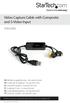 Video Capture Cable with Composite and S-Video Input SVID2USB2 DE: Bedienungsanleitung - de.startech.com FR: Guide de l'utilisateur - fr.startech.com ES: Guía del usuario - es.startech.com IT: Guida per
USB 2.0 USB 2.0 ETHERNET AUDIO JACK AND RCA VIDEO HDMI MICRO SD CARD MICRO USB POWER
 3 USB 2.0 USB 2.0 ETHERNET 4 1 MICRO SD CARD HDMI MICRO USB POWER AUDIO JACK AND RCA VIDEO 2 TO SET UP YOUR RASPBERRY PI YOU WILL NEED: ITEM MINIMUM RECOMMENDED SPECIFICATION & NOTES 1 microsd card Minimum
4 Port PCI Express Gigabit Ethernet PoE PSE Network Card
 4 Port PCI Express Gigabit Ethernet PoE PSE Network Card ST4000PEXPSE *actual product may vary from photos DE: Bedienungsanleitung - de.startech.com FR: Guide de l'utilisateur - fr.startech.com ES: Guía
USER S MANUAL USB FILE TRANSFER CABLE
 1. Introduction USER S MANUAL USB FILE TRANSFER CABLE Congratulations on your purchase of the PC-Linq, an USB file transfer cable. This unique cable allows you to easily connect two computers with USB
SanDisk Connect Wireless Flash Drive QUICK START GUIDE
 SanDisk Connect Wireless Flash Drive QUICK START GUIDE GET STARTED 1. Charge your Wireless Drive Plug the Drive into a computer or USB-AC adaptor. A full charge can take up to 2 hours. 2) Turn on the
Getting Started. Table of Contents. Quick User Guide - English
 Getting Started This Quick User Guide helps you get started with the IRIScan TM Anywhere Wifi. Please read this guide before operating this scanner and its software. All information is subject to change
2 Port USB Keyboard Mouse Switch Cable with File Transfer for PC and Mac
 2 Port USB Keyboard Mouse Switch Cable with File Transfer for PC and Mac SVKMS2 *actual product may vary from photos DE: Bedienungsanleitung - de.startech.com FR: Guide de l'utilisateur - fr.startech.com
Intra-oral Camera User s Manual
 Intra-oral Camera User s Manual Thanks for having this home care intra-oral camera! This product is a PC solution device and so friendly in user interface. It can help users taking still photo, recording
USB to DVI-I Graphics Adapter CSV-2300D USER S MANUAL
 USB to DVI-I Graphics Adapter CSV-2300D USER S MANUAL 1 of 40 Table of contents Safety instructions 3 Copyright 4 Trademarks 4 Introduction 4 Features 5 Application 5 Package contents 6 System requirement
QuickSpecs. Model. HP USB HD 720p v2 Business Webcam. Overview
 Overview 1. Power LED 4. USB connector cable 2. HP Webcam Control Center button 5. Adjustable clip/stand 3. Integrated microphone Model D8Z08AA Introduction Easily connect with colleagues for all of your
External USB 2.0 DVD-RW Drive
 External USB 2.0 DVD-RW Drive External Slim USB 2.0 8x DVD-RW Drive SLIMDVDRW8U2 Actual product may vary from photo FCC Compliance Statement This equipment has been tested and found to comply with the
WUA-0605 300Mbps Wireless USB Network Adapter
 WUA-0605 300Mbps Wireless USB Network Adapter User Manual V1.0 Certification FCC CE FCC Statement This equipment has been tested and found to comply with the limits for a Class B digital device, pursuant
Gateway Port Replicator User Guide
 Gateway Port Replicator User Guide Using the Port Replicator Identifying features Connecting and disconnecting the port replicator 1 Using the Port Replicator Top Power button Component Icon Description
Smart Remote. with. QuickGuide
 Smart Remote with QuickGuide 1 1 2 3 2 A B 3 A Connecting the remote control B Do not cover the microphone 1 Adjusting the volume Press the + or - button. 2 Controlling audio functions Press the button
TRENDnetVIEW Pro. TRENDnetVIEW Pro Quick Installation Guide (1)
 TRENDnetVIEW Pro TRENDnetVIEW Pro Quick Installation Guide (1) TRENDnetVIEW Pro/10.08.2013 Table of Contents TRENDnetVIEW Pro Management Software Requirements... 1 TRENDnetVIEW Pro Installation... 2 Add
USB to DVI Video Adapter
 USB2DVI Instruction Manual USB to DVI Video Adapter USB 2.0 to DVI External Multi Monitor Video Adapter FCC Compliance Statement This equipment has been tested and found to comply with the limits for a
TL-PS310U Single USB 2.0 Port MFP and Storage Server
 TL-PS310U Single USB 2.0 Port MFP and Storage Server Rev: 2.0.0 1910010313 Contents Chapter 1 Introduction... 1 1.1 Product Overview...1 1.2 Network Management...1 1.3 Components and Features...1 1.4 Hardware
Quick Installation Guide
 Quick Installation Guide TEW-432BRP H/W: v.d1.0r Table of Contents... 1 1. Before You Start... 1 2. Install Router... 2 3. Replacing an existing router... 5 4. Adding the router behind an existing router...
SOFTWARE INSTALLATION AND USB/i.LINK CONNECTION GUIDE
 SOFTWARE INSTALLATION AND USB/i.LINK CONNECTION GUIDE ENGLISH LYT1155-001A COPYRIGHT 2003 VICTOR COMPANY OF JAPAN, LTD. M3D8 Printed in Japan 0403-FO-ID-VP This document explains the basic information
Targus Bluetooth Keyboard for Tablets
 1 BLUETOOTH KEYBOARD for Tablets 410-2153-001B / AKB33US 1 YEAR LIMITED WARRANTY: We pride ourselves on the quality of our products. For complete warranty details and a list of our worldwide offices, please
HP Webcam User s Guide. Version 1.0
 HP Webcam User s Guide Version 1.0 Copyright 2008 Hewlett-Packard Development Company, L.P. The information contained herein is subject to change without notice. The only warranties for HP products and
3.5in Black USB 2.0 IDE SATA External Hard Drive Enclosure
 3.5in Black USB 2.0 IDE SATA External Hard Drive Enclosure UNI3510U2 UNI3510U2EB UNI3510U2EB UNI3510UEBGB *actual product may vary from photos DE: Bedienungsanleitung - de.startech.com FR: Guide de l'utilisateur
Wireless Travel Mouse with 5-Buttons User Manual
 Wireless Travel Mouse with 5-Buttons User Manual Product Features 1. Radio frequency 27MHz wireless transmission 2. Use of 256 ID codes to prevent interference between several wireless mice being used
USB 3.0 to HDMI Video Adapter with USB Hub Port
 USB 3.0 to HDMI Video Adapter with USB Hub Port USB32HDEH *actual product may vary from photos DE: Bedienungsanleitung - de.startech.com FR: Guide de l'utilisateur - fr.startech.com ES: Guía del usuario
10/100 Mbps USB Print Server
 10/100 Mbps USB Print Server PM1115U *actual product may vary from photos DE: Bedienungsanleitung - de.startech.com FR: Guide de l'utilisateur - fr.startech.com ES: Guía del usuario - es.startech.com IT:
Quick Installation Guide TK-204UK H/W: V1.0R
 Quick Installation Guide TK-204UK H/W: V1.0R English... 1. Before You Start... 2. How to Install... 3. Operation... 4. Using the KVM Utility... Specifications... Troubleshooting... 1 1 2 4 5 8 9 1. Before
HP WEBCAM 3100 HP WEBCAM 3110 USER S GUIDE
 HP WEBCAM 3100 HP WEBCAM 3110 USER S GUIDE Version 1.0.EN Part number: 603528-001 Copyright 2010 Hewlett-Packard Development Company, L.P. The information contained herein is subject to change without
3.5 esata USB 2.0 to IDE SATA External Hard Drive Enclosure
 3.5 esata USB 2.0 to IDE SATA External Hard Drive Enclosure UNI3510U2EB UNI3510UEBEU UNI3510UEBGB *actual product may vary from photos DE: Bedienungsanleitung - de.startech.com FR: Guide de l'utilisateur
External Hard Drive esata & USB 2.0 Combo. User Guide English
 External Hard Drive esata & USB 2.0 Combo User Guide English Contents Introduction 3 Controls, Connectors and Indicators 3 Front Panel Area 3 Rear Panel Area 3 About the Hard Drive 4 Locating the Drive
SSDNow For Desktops. Installation Guide
 Installation Guide Your purchase of the SSDNow with Accessory Kit will allow you to enjoy the benefits of increased system performance and reliability. All hardware and software necessary to replace your
Getting Started on the PC and MAC
 Getting Started on the PC and MAC Click on the topic you want to view. Download the Desktop App Download the ios or Android App Desktop App Home Screen Home Screen Drop Down Menu Home Screen: Upcoming
Installation Guide 1-port USB 2.0 Print Server 1 GPSU21
 Installation Guide 1-port USB 2.0 Print Server 1 GPSU21 2 Welcome Thank you for purchasing this 1-port USB 2.0 Print Server that allows any networked computer to share a USB printer. It complies with USB
1 Port FTDI USB to RS232 Null Modem Adapter
 1 Port FTDI USB to RS232 Null Modem Adapter ICUSB232FTN *actual product may vary from photos DE: Bedienungsanleitung - de.startech.com FR: Guide de l'utilisateur - fr.startech.com ES: Guía del usuario
File Share Cable USER GUIDE. for Mac. www.targus.com/us/formac ONE YEAR LIMITED WARRANTY N2953
 N2953 USER GUIDE ACC9602US / 410-1486-001A www.targus.com/us/formac 2008 Manufactured or imported by Targus Group International, Inc. (for U.S. sales: 1211 North Miller Street, Anaheim, CA 92806 USA, for
Wireless Optical Mouse
 Wireless Optical Mouse User s Manual Model PD950P FCC STATEMENT PD950P This device complies with part 15 of FCC Rules. Operation is subject to the following two conditions: (1) this device may not cause
Action Camcorder Rollei Youngstar USER MANUAL
 Action Camcorder Rollei Youngstar USER MANUAL Mounting Accessories 1 Functions This user's manual has referred to the latest information we had when this user s manual was made. The screen display and
If anything is damaged or missing, contact your dealer.
 User Manual UN-201 Read this guide thoroughly and follow the installation and operation procedures carefully in order to prevent any damage to the units and/or any devices that connect to them. This package
Quick Installation Guide TV-IP400 TV-IP400W
 Quick Installation Guide TV-IP400 TV-IP400W Table of of Contents Contents English... 1. Before You Start... 2. Hardware Installation... 3. Configure the Internet Camera... Troubleshooting... 1 1 2 3 5
EKB200. USB Controller Keyboard. Installation / Operation Instructions. Rev. 1.0
 EKB200 USB Controller Keyboard Installation / Operation Instructions Rev. 1.0 SAFETY WARNINGS Do not place the device near to heaters, furnaces, other heat sources or under direct solar irradiation. Operate
OC810 Outdoor Camera Setup Guide
 OC810 Outdoor Camera Setup Guide P/N: 957YU60001 Document Version: 1.0 Copyright 2010. All Rights Reserved. All trademarks and trade names are the properties of their respective owner i Package Contents
Triple video docking station for laptops
 Triple video docking station for laptops USB3DOCKH2DP DE: Bedienungsanleitung - de.startech.com FR: Guide de l'utilisateur - fr.startech.com ES: Guía del usuario - es.startech.com IT: Guida per l'uso -
USB 2.0 VGA ADAPTER USER MANUAL
 USB 2.0 VGA ADAPTER USER MANUAL CONTENTS INTRODUCTION... 3 FEATURES... 3 SYSTEM REQUIREMENTS... 3 PACKAGE CONTENTS... 3 SUPPORTED COMMON DISPLAY RESOLUTION... 4 TECHNICAL SPECIFICATIONS... 4 INSTALLATION
ENR-2000 Series. User s Manual. For V4.00.02 Firmware 2014/01/29
 ENR-2000 Series User s Manual For V4.00.02 Firmware 2014/01/29 Legal Notice Disclaimer The information contained in this document is intended for general information purposes. ACTi Corporation shall not
LabelWriter. Print Server. User Guide
 LabelWriter Print Server User Guide Copyright 2010 Sanford, L.P. All rights reserved. 08/10 No part of this document or the software may be reproduced or transmitted in any form or by any means or translated
7. Computer System Minimum Requirement. 31 8. Troubleshooting. 32. PortableCapture Pro Software Introductions...33
 Table of Contents EN 1. Precaution. 3 2. Preparation..6 Standard Accessories 6 Part Names & Functions..7 3. key features..... 8 4. Use the Microscope.....9 Install Battery... 9 Insert a MicroSD Card...
Universal Push2TV HD Adapter PTVU1000 Installation Guide
 Universal Push2TV HD Adapter PTVU1000 Installation Guide 2011 NETGEAR, Inc. All rights reserved. No part of this publication may be reproduced, transmitted, transcribed, stored in a retrieval system, or
Serial/ Parallel Combo PCi Card user manual
 Serial/ Parallel Combo PCi Card user manual Model 165495 MAN-165495-UM-1007-02 introduction Thank you for purchasing this MANHATTAN Serial/Parallel Combo PCI Card, Model 165495. The easy-to-follow instructions
User Manual USB Laptop KVM Switch. GCS661U Part No. M1069
 User Manual USB Laptop KVM Switch 1 GCS661U Part No. M1069 2 Table of Contents User Notice 4 A Note About Terminology 5 Overview 6 Features 7 Package Contents 8 Requirements 9 Operating System Support
INSTALL GUIDE Making Your Mobile Life Easier.
 Targus USB Bluetooth Adapter Making Your Mobile Life Easier. Visit our Web site at: www.targus.com Features and specifications are subject to change without notice 2005 Targus Group International, Inc.
USB 2.0 to Gigabit Ethernet Adapter
 USB 2.0 to Gigabit Ethernet Adapter USB21000S2 *actual product may vary from photos DE: Bedienungsanleitung - de.startech.com FR: Guide de l'utilisateur - fr.startech.com ES: Guía del usuario - es.startech.com
OC810 Outdoor Camera Installation Guide
 OC810 Outdoor Camera Installation Guide P/N: 957YU601GJ Document Version: 1.0 Copyright 2011. All Rights Reserved. All trademarks and trade names are the properties of their respective owner i Package
USB 3.0 to M.2 NGFF SSD Enclosure with UASP
 USB 3.0 to M.2 NGFF SSD Enclosure with UASP SM2NGFFMBU33 *actual product may vary from photos DE: Bedienungsanleitung - de.startech.com FR: Guide de l'utilisateur - fr.startech.com ES: Guía del usuario