
|
|
|
- Edwina Norman
- 10 years ago
- Views:
Transcription
1
2 Trend Micro Incorporated reserves the right to make changes to this document and to the products described herein without notice. Before installing and using the software, please review the readme files, release notes, and the latest version of the applicable user documentation, which are available from the Trend Micro Web site at: Trend Micro, the Trend Micro t-ball logo, Control Manager, emanager, and ScanMail are trademarks or registered trademarks of Trend Micro Incorporated. All other product or company names may be trademarks or registered trademarks of their owners. Copyright Trend Micro Incorporated. All rights reserved. Document Part No. SEEM115888_ Release Date: May 2013 Document Version No.: 1.0 Product Name and Version No.: ScanMail for Microsoft Exchange 11.0 Protected by U.S. Patent No.: 5,951,698

3 The user documentation for Trend Micro ScanMail for Microsoft Exchange 11.0 is intended to introduce the main features of the software and installation instructions for your production environment. You should read through it prior to installing or using the software. Detailed information about how to use specific features within the software are available in the online help file and the Knowledge Base at Trend Micro Web site. Trend Micro is always seeking to improve its documentation. Your feedback is always welcome. Please evaluate this documentation on the following site:
4

5 Table of Contents Preface Preface... v ScanMail Documentation... vi Audience... vi Document Conventions... vii Chapter 1: Planning ScanMail Installation and Upgrade System Requirements ScanMail with Exchange Server ScanMail with Exchange Server ScanMail with Exchange Server Cluster Installations ScanMail Integration with Trend Micro Products Conducting a Pilot Installation Step 1: Creating an Appropriate Test Site Step 2: Preparing a Rollback Plan Step 3: Executing and Evaluating Your Pilot Installation Deployment Strategy Planning for Network Traffic Deploying ScanMail to Multiple Servers Preparing to Install Configuration Exceptions When You Upgrade Installing without Internet Information Services Installing with a Remote SQL Server Additional Requirements for Installing Remotely with Windows 2008 and Pre-Installation Checklist About Fresh Installations i

6 ScanMail for Microsoft Exchange 11.0 Installation and Upgrade Guide About Upgrading to ScanMail Upgrade Effect on Logs and Folders About Upgrading on Clusters About Cluster Installations Cluster Installation for Exchange Server Cluster Installation for Exchange Server 2010 and Cluster Installation for SCR Target Manually Creating a ScanMail Resource for Virtual Servers Chapter 2: Installing ScanMail with Exchange Server 2013 Installing with Exchange Server Chapter 3: Installing ScanMail with Exchange 2010/2007 Hub Transport and Mailbox Servers Installing with Hub Transport and Mailbox Servers Chapter 4: Installing ScanMail with Exchange 2010/2007 Edge Transport Servers Installing with Edge Transport Servers Chapter 5: Post-Installation Tasks Verifying a Successful Installation About the ScanMail Management Pack Testing Your Installation Testing Manual Scan Testing Real-time Scan Testing Notifications Spam Folder Configuration Chapter 6: Silent Installation About Silent Installation Silent Installation Limitations ii

7 Table of Contents Performing Silent Installation Using an Existing Pre-Configured File Chapter 7: Removing ScanMail Before Removing ScanMail Privilege Requirements Using the Enterprise Solution DVD Using the Windows Control Panel Removing ScanMail from Clusters Manually Removing from Exchange 2013 Servers Manually Removing from Exchange 2010/2007 Edge Transport or Hub Transport Servers Manually Removing from Exchange 2010/2007 Mailbox Servers Chapter 8: Contacting Trend Micro Contacting Technical Support TrendLabs Speeding Up Your Support Call Knowledge Base Security Information Site Appendix A: Pre-configured Files Appendix B: Glossary Index Index... IN-1 iii
8

9 Preface Preface Welcome to the Trend Micro ScanMail for Microsoft Exchange Installation and Upgrade Guide. This book contains basic information about the tasks you need to perform to deploy ScanMail to protect your Exchange servers. It is intended for novice and advanced users of ScanMail who want to manage ScanMail. This preface discusses the following topics: ScanMail Documentation on page vi Audience on page vi Document Conventions on page vii v

10 ScanMail for Microsoft Exchange 11.0 Installation and Upgrade Guide ScanMail Documentation The product documentation consists of the following: Online Help: Web-based documentation that is accessible from the product console The Online Help contains explanations about ScanMail features. Installation and Upgrade Guide: PDF documentation that discusses requirements and procedures for installing and upgrading the product Administrator s Guide: PDF documentation that discusses getting started information and product management Readme File: Contains late-breaking product information that might not be found in the other documentation. Topics include a description of features, installation tips, known issues, and product release history. Knowledge Base: Contains the latest information about all Trend Micro products. Other inquiries that were already answered area also posted and a dynamic list of the most frequently asked question is also displayed. Trend Micro recommends checking the corresponding link from the Update Center ( for updates to the documentation. Audience The ScanMail documentation assumes a basic knowledge of security systems, including: Antivirus and content security protection Spam protection Network concepts (such as IP address, netmask, topology, LAN settings) vi
11 Preface Various network topologies Microsoft Exchange Server administration Microsoft Exchange Server 2010 and 2007 server role configurations Various message formats Document Conventions The documentation uses the following conventions. TABLE 1. Document Conventions CONVENTION UPPER CASE Bold Italics Monospace Navigation > Path DESCRIPTION Acronyms, abbreviations, and names of certain commands and keys on the keyboard Menus and menu commands, command buttons, tabs, and options References to other documents Sample command lines, program code, web URLs, file names, and program output The navigation path to reach a particular screen For example, File > Save means, click File and then click Save on the interface Configuration notes Tip Recommendations or suggestions Important Information regarding required or default configuration settings and product limitations vii
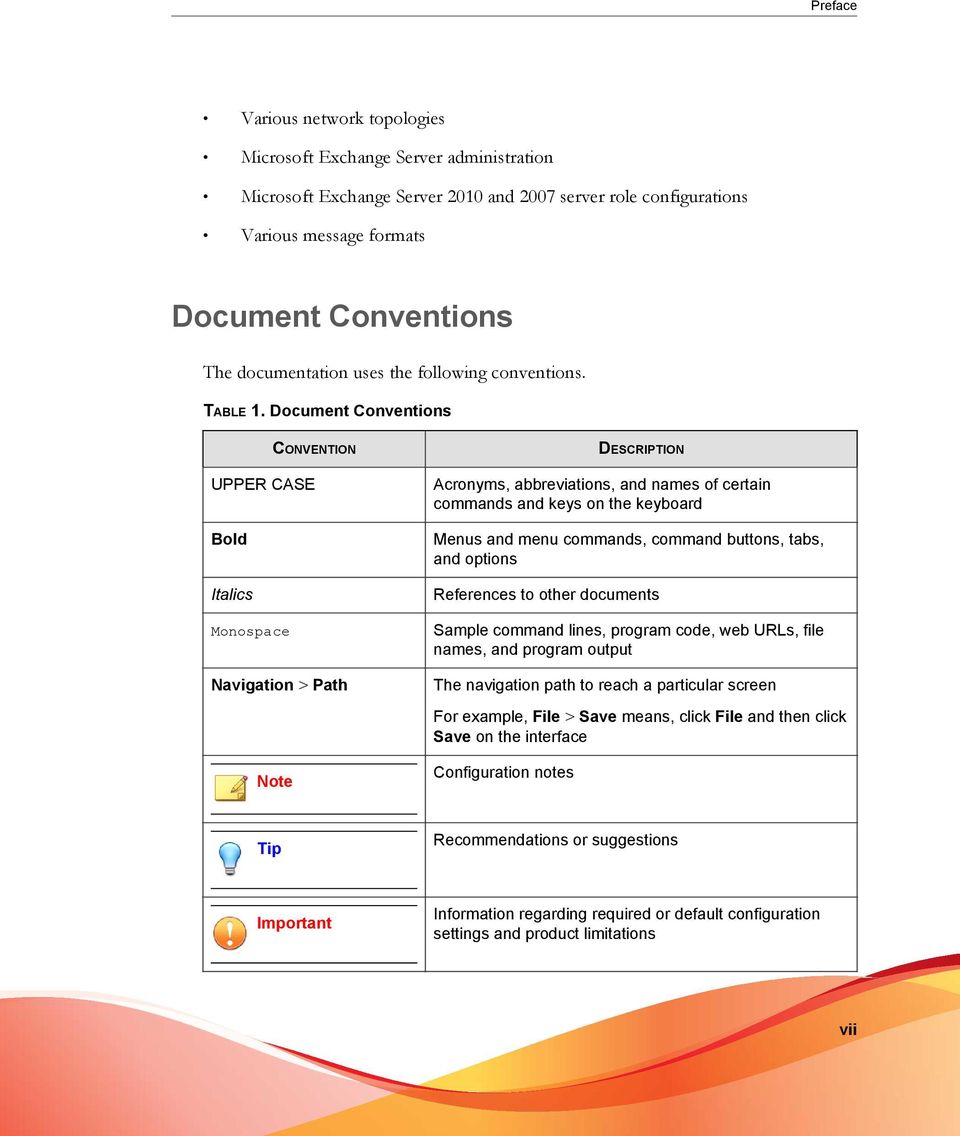
12 ScanMail for Microsoft Exchange 11.0 Installation and Upgrade Guide CONVENTION WARNING! DESCRIPTION Critical actions and configuration options viii

13 Chapter 1 Planning ScanMail Installation and Upgrade Install ScanMail locally or remotely to one or more servers using one easy-to-use Setup program. Topics in this chapter: System Requirements on page 1-2 Conducting a Pilot Installation on page 1-7 Deployment Strategy on page 1-9 Preparing to Install on page 1-13 Pre-Installation Checklist on page 1-23 About Fresh Installations on page 1-24 About Upgrading to ScanMail 11.0 on page 1-25 About Cluster Installations on page

14 ScanMail for Microsoft Exchange 11.0 Installation and Upgrade Guide System Requirements The following lists the system requirements for running Trend Micro ScanMail for Microsoft Exchange. ScanMail with Exchange Server 2013 The following table lists the system requirements for running ScanMail with Exchange Server TABLE 1-1. System Requirements for Installation with Exchange Server 2013 RESOURCE REQUIREMENTS Processor x64 architecture-based processor that supports Intel 64 architecture (formally known as Intel EM64T) x64 architecture-based computer with AMD 64-bit processor that supports AMD64 platform Memory Disk space 1GB RAM exclusively for ScanMail (2GB RAM recommended) 2GB free disk space Operating System Microsoft Windows Server 2012 Standard or Datacenter (64-bit) Microsoft Windows Server 2008 R2 Standard with Service Pack 1 or above (64-bit) Microsoft Windows Server 2008 R2 Enterprise with Service Pack 1 or above (64-bit) Microsoft Windows Server 2008 R2 Datacenter RTM or above (64-bit) Mail Server Microsoft Exchange Server 2013 Web Server Microsoft Internet Information Services (IIS) 7.5 Microsoft Internet information Services (IIS)
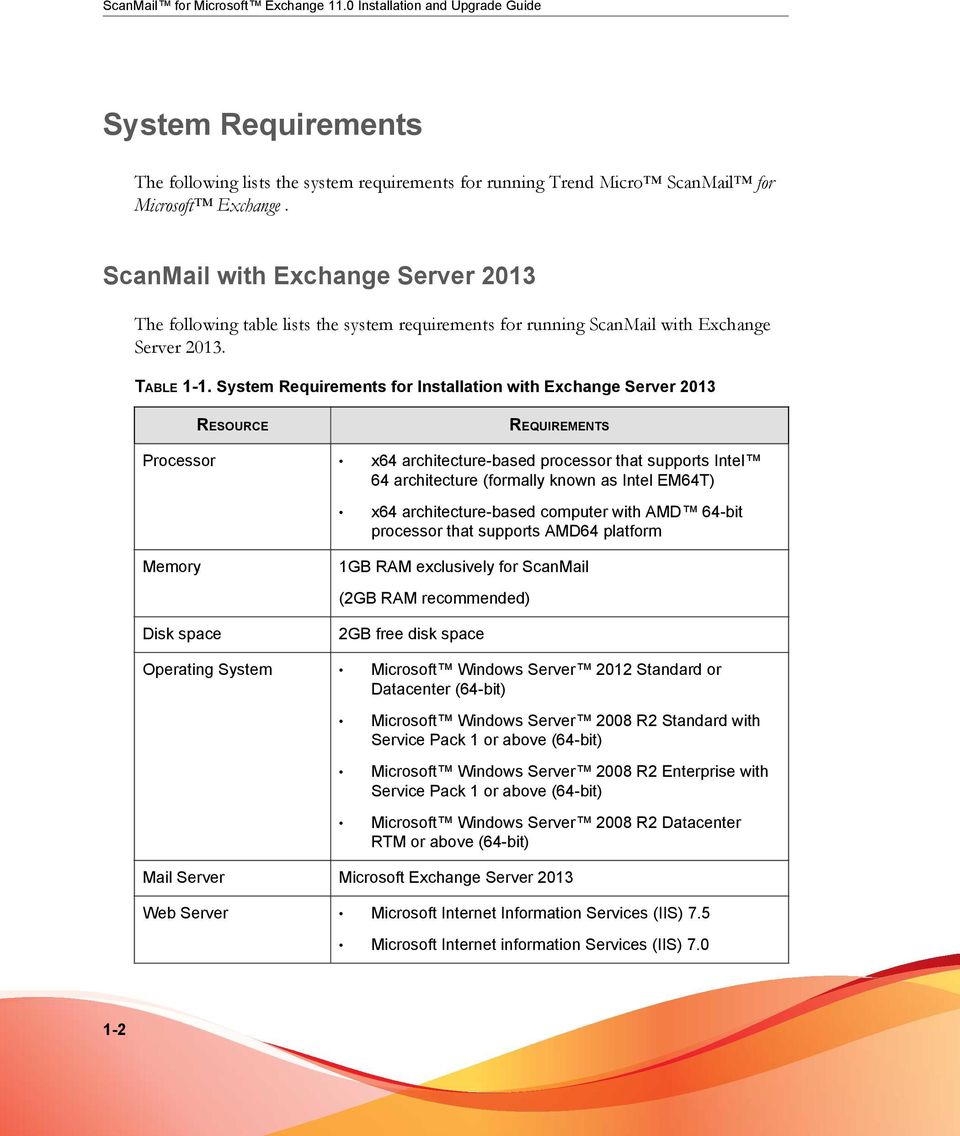
15 Planning ScanMail Installation and Upgrade RESOURCE REQUIREMENTS Browser Microsoft Internet Explorer 6.0 or above Trend Micro recommends operating Internet Explorer 10 in compatibility view. Mozilla Firefox 3.0 or above ScanMail with Exchange Server 2010 The following table lists the system requirements for running ScanMail with Exchange Server TABLE 1-2. System Requirements for Installation with Exchange Server 2010 RESOURCE REQUIREMENTS Processor x64 architecture-based processor that supports Intel Extended Memory 64 Technology (Intel EM64T) x64 architecture-based computer with AMD 64-bit processor that supports AMD64 platform Memory Disk space 1GB RAM exclusively for ScanMail (2GB RAM recommended) 2GB free disk space 1-3

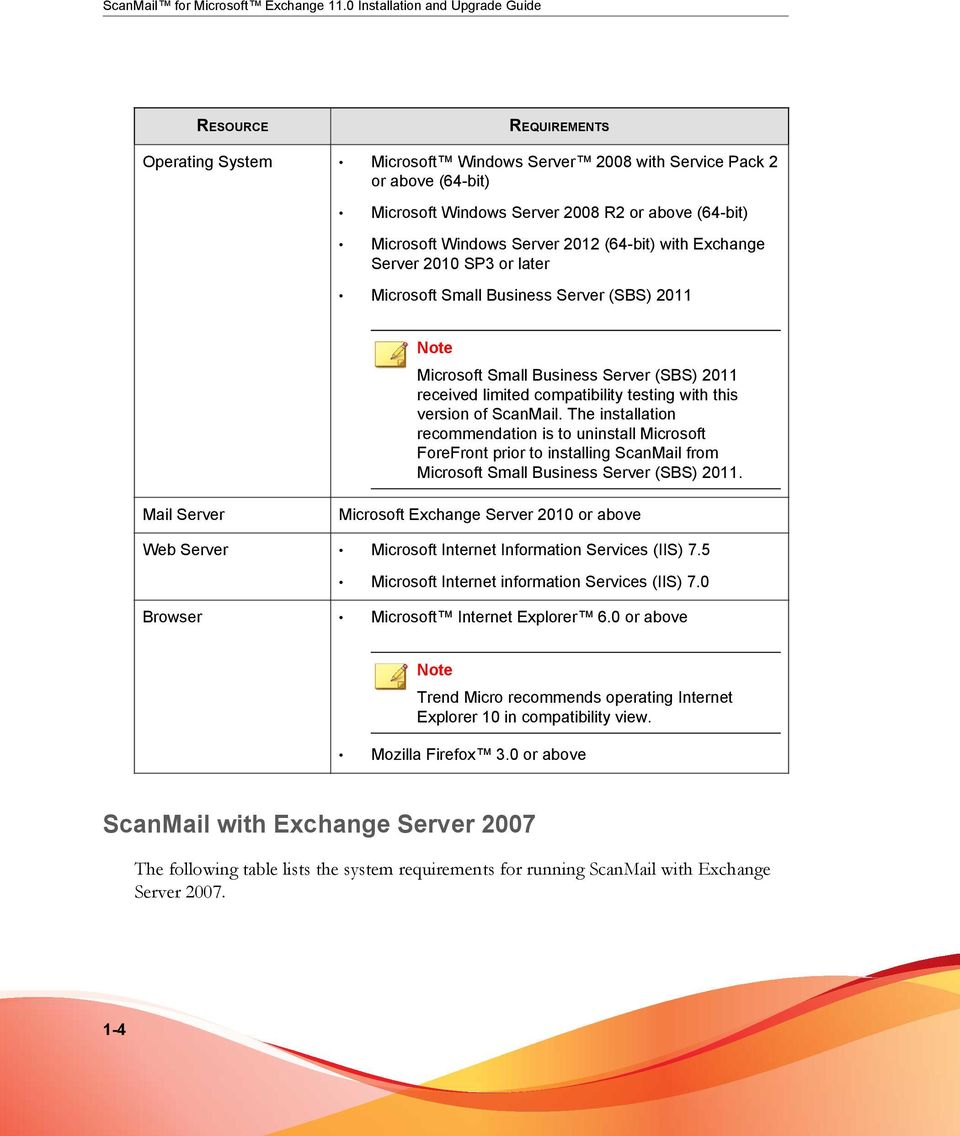
16 ScanMail for Microsoft Exchange 11.0 Installation and Upgrade Guide RESOURCE REQUIREMENTS Operating System Microsoft Windows Server 2008 with Service Pack 2 or above (64-bit) Microsoft Windows Server 2008 R2 or above (64-bit) Microsoft Windows Server 2012 (64-bit) with Exchange Server 2010 SP3 or later Microsoft Small Business Server (SBS) 2011 Microsoft Small Business Server (SBS) 2011 received limited compatibility testing with this version of ScanMail. The installation recommendation is to uninstall Microsoft ForeFront prior to installing ScanMail from Microsoft Small Business Server (SBS) Mail Server Microsoft Exchange Server 2010 or above Web Server Microsoft Internet Information Services (IIS) 7.5 Microsoft Internet information Services (IIS) 7.0 Browser Microsoft Internet Explorer 6.0 or above Trend Micro recommends operating Internet Explorer 10 in compatibility view. Mozilla Firefox 3.0 or above ScanMail with Exchange Server 2007 The following table lists the system requirements for running ScanMail with Exchange Server
17 Planning ScanMail Installation and Upgrade TABLE 1-3. System Requirements for Installation with Exchange Server 2007 RESOURCE REQUIREMENTS Processor x64 architecture-based processor that supports Intel Extended Memory 64 Technology (Intel EM64T) x64 architecture-based computer with AMD 64-bit processor that supports AMD64 platform Memory Disk space 1GB RAM exclusively for ScanMail (2GB RAM recommended) 2GB free disk space Operating System Microsoft Windows Server 2008 with Service Pack 2 or above (64-bit) Microsoft Small Business Server 2008 Microsoft Small Business Server (SBS) 2008 received limited compatibility testing with this version of ScanMail. The installation recommendation is to uninstall Microsoft ForeFront prior to installing ScanMail from Microsoft Small Business Server (SBS) Microsoft Windows Server 2003 R2 with Service Pack 2 (64-bit) Microsoft Windows Server 2003 with Service Pack 2 (64- bit) Mail Server Microsoft Exchange Server 2007 with Service Pack 1 or above Web Server Microsoft Internet Information Services (IIS) 7.0 Microsoft Internet information Services (IIS)

18 ScanMail for Microsoft Exchange 11.0 Installation and Upgrade Guide RESOURCE REQUIREMENTS Browser Microsoft Internet Explorer 6.0 or above Trend Micro recommends operating Internet Explorer 10 in compatibility view. Mozilla Firefox 3.0 or above Cluster Installations The following lists supported cluster environments: Exchange Server 2013 with Database Availability Group (DAG) model Exchange Server 2010 with VERITAS Cluster 5.1 SP2 Exchange Server 2010 with Database Availability Group (DAG) model Exchange Server 2007 with VERITAS Cluster 5.1 SP2 Exchange Server 2007 with Single Copy Cluster (SCC) model Exchange Server 2007 with Cluster Continuous Replication (CCR) model Exchange Server 2007 with Standby Continuous Replication (SCR) model For cluster installations, ScanMail adds resources for each virtual server and installs to all nodes in the cluster simultaneously. For uniform protection, Trend Micro recommends that you install and configure identical copies of ScanMail on each of your Microsoft Exchange servers. ScanMail supports Windows NTFS volume mount points feature, this means you can surpass the 26-drive-letter limitation. ScanMail can install on the mount point disk. For 1-6

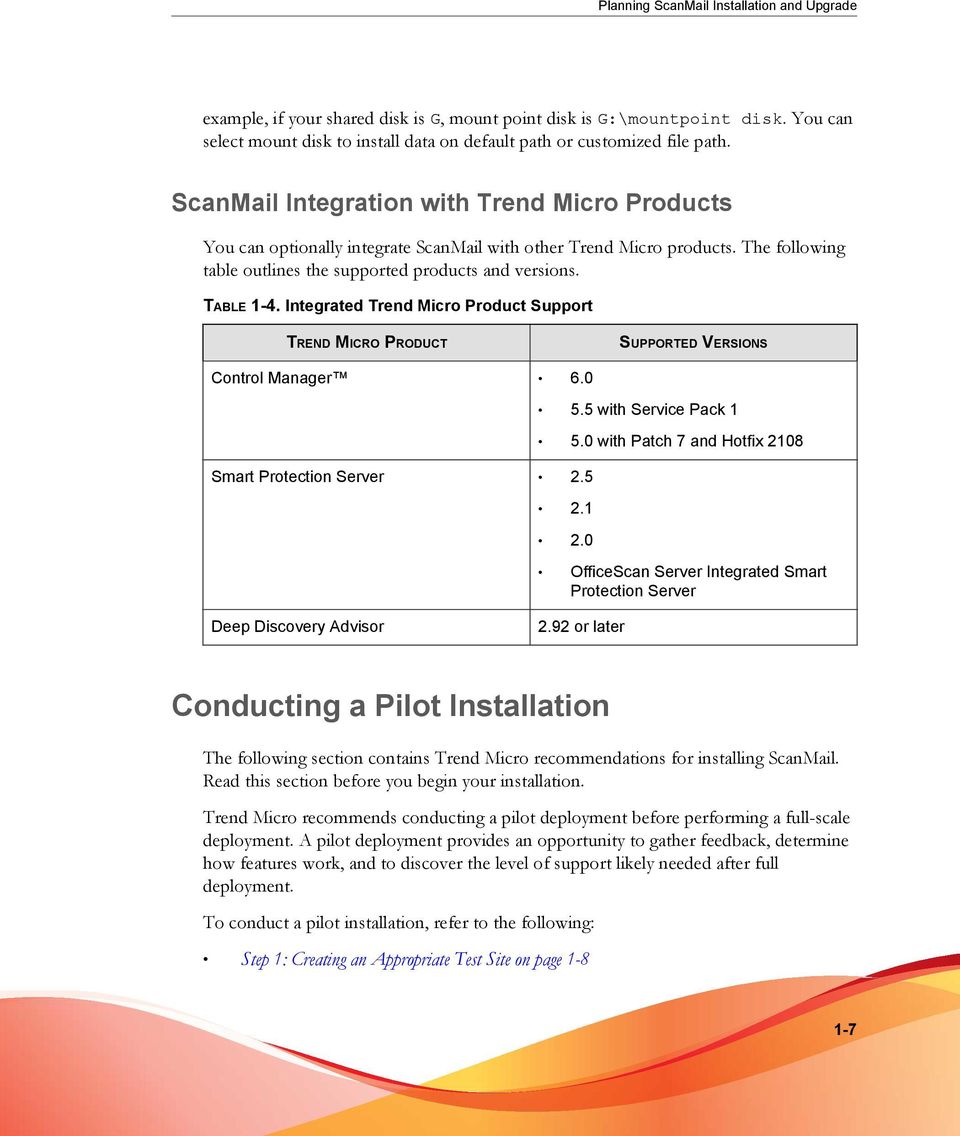
19 Planning ScanMail Installation and Upgrade example, if your shared disk is G, mount point disk is G:\mountpoint disk. You can select mount disk to install data on default path or customized file path. ScanMail Integration with Trend Micro Products You can optionally integrate ScanMail with other Trend Micro products. The following table outlines the supported products and versions. TABLE 1-4. Integrated Trend Micro Product Support TREND MICRO PRODUCT SUPPORTED VERSIONS Control Manager 6.0 Smart Protection Server with Service Pack with Patch 7 and Hotfix OfficeScan Server Integrated Smart Protection Server Deep Discovery Advisor 2.92 or later Conducting a Pilot Installation The following section contains Trend Micro recommendations for installing ScanMail. Read this section before you begin your installation. Trend Micro recommends conducting a pilot deployment before performing a full-scale deployment. A pilot deployment provides an opportunity to gather feedback, determine how features work, and to discover the level of support likely needed after full deployment. To conduct a pilot installation, refer to the following: Step 1: Creating an Appropriate Test Site on page
20 ScanMail for Microsoft Exchange 11.0 Installation and Upgrade Guide Step 2: Preparing a Rollback Plan on page 1-8 Step 3: Executing and Evaluating Your Pilot Installation on page 1-9 Step 1: Creating an Appropriate Test Site Create a test environment that matches your production environment as closely as possible. The test server and production servers should share: The same operating system, Exchange version, service packs, and patches The same Trend Micro and other third party software such as Trend Micro Control Manager, Trend Micro OfficeScan, and Trend Micro ServerProtect The same type of topology that would serve as an adequate representation of your production environment Evaluation versions of most Trend Micro products are available for download from the Trend Micro website: Step 2: Preparing a Rollback Plan Trend Micro recommends creating a rollback recovery plan in case there are issues with the installation or upgrade process. This process should take into account local corporate policies, as well as technical specifics. Backing Up ScanMail Configurations Before making any changes, back up ScanMail configurations. 1-8

21 Planning ScanMail Installation and Upgrade Procedure 1. Stop ScanMail Master Service and SQL Server (SCANMAIL) Service on the target server which has the database you want to backup. 2. Copy the Conf.mdf, Log.mdf, or Report.mdf file. Restoring ScanMail Configurations Use the following procedures to restore ScanMail configurations if necessary. Procedure 1. Stop the ScanMail Master Service and SQL Server (SCANMAIL) Service on the target server which you want to restore the configurations to. 2. Delete Conf.mdf, or Log.mdf, or Report.mdf. 3. Replace the Conf.mdf, or Log.mdf, or Report.mdf. 4. Start SQL Server (SCANMAIL) Service and ScanMail Master Service. Step 3: Executing and Evaluating Your Pilot Installation Install and evaluate the pilot based on expectations regarding antivirus and content security enforcement and network performance. Create a list of successes and issues encountered throughout the pilot installation. Identify potential "pitfalls" and plan accordingly for a successful installation. Deployment Strategy The ScanMail Setup program supports installation to a single or multiple local server or remote servers. When deploying and configuring ScanMail on your LAN segments consider: 1-9
22 ScanMail for Microsoft Exchange 11.0 Installation and Upgrade Guide The network traffic burden on your servers Whether your network uses multiple mail servers and/or a bridgehead server and back-end servers Whether your enterprise network contains more than one Local Area Network (LAN) segment Planning for Network Traffic When planning for deployment, consider the network traffic and CPU load that ScanMail will generate. ScanMail generates network traffic when it does the following: Connects to the Trend Micro ActiveUpdate server to check for and download updated components Sends alerts and notifications to administrators and other designated recipients ScanMail increases the burden on the CPU when it scans messages arriving at the Exchange server in real time or during scheduled and manual scans. ScanMail uses multi-threaded scanning which reduces the CPU burden. Deploying ScanMail to Multiple Servers If your network has only one Exchange server, deploying ScanMail is a relatively simple task. Install ScanMail on the Exchange server and configure it to optimize your messaging security. If your company has multiple Exchange servers, deploying ScanMail can be more complex. A popular strategy deploys one server as a front-end server just behind the gateway and the rest of the mail servers as back-end servers. Back-end servers are often installed to clusters to gain the benefit of failover recovery. If your company uses this model, consider the points in Table 1-5: Deploying ScanMail with Exchange Server 2010 or 2007 on page 1-11 when you deploy ScanMail. Another strategy is to deploy ScanMail to an Exchange server in the network demilitarized zone (DMZ). This increases the risks to which the servers are exposed. 1-10
23 Planning ScanMail Installation and Upgrade When exposing Exchange servers to the Internet, SMTP traffic is a major concern. Trend Micro recommends enabling SMTP scanning when installing ScanMail on Exchange servers exposed to the Internet (this is the default value). ScanMail scans SMTP traffic during real-time scanning. Carefully consider your configurations and only depart from Trend Micro default configurations when you understand the consequences. TABLE 1-5. Deploying ScanMail with Exchange Server 2010 or 2007 SERVER ROLE Edge Transport server: No access to Active Directory XML-based routing Port 25 SMTP relay Decentralized management Information that defines configuration, connectors, recipients, SMTP settings and agent settings are files that are on the server and are updated to the Edge Transport server role periodically Deploys in a standalone manner RECOMMENDATION Set Edge Transport servers to perform real-time security risk scan. Set Edge Transport servers to update through Trend Micro ActiveUpdate, and to regularly perform scheduled update for protection against new security risks. Enable spam prevention features. Enable web reputation features. There are two primary deployment servers for the Edge Transport server role: (1) In the organization's network perimeter, directly facing the Internet, (2) Behind a third-party mail server directly facing the Internet 1-11
24 ScanMail for Microsoft Exchange 11.0 Installation and Upgrade Guide SERVER ROLE Hub Transport server: All transport components, such as Categorizer, can be installed and configured on hardware that is separate from the Mailbox server roles or the Public Folder server role Intra-organizational server role for mail transport in an organization and the Internet Centralized management RECOMMENDATION Set Hub Transport servers to perform real-time security risk scan. If there is an Edge server, set Hub server to use the Edge server as the source of updates. Otherwise set the Trend Micro ActiveUpdate server as the source. Enable Active Directory integrated Attachment Blocking rules and Content Filtering policies. Has direct access to Active Directory Handles all authentications All routing is based on Active Directory Uses Port 25 SMTP relay and message relay Can be load balanced Mailbox server: Located within the local network, behind the network perimeter and shielded from the Internet Hosts mailbox databases Delivers and stores messages to client mailboxes on the Information Store Set Mailbox servers to use the Hub Transport server as the source of updates, which decreases overall network traffic and reduces exposure to the Internet. Set Mailbox servers to perform security risk scan with vigorous screening options. Regularly perform scheduled scans on Exchange mailboxes to prevent security risks from creeping in from unexpected sources not covered in your configurations. Disable Attachment Blocking and Content Filtering scans. 1-12
25 Planning ScanMail Installation and Upgrade Deploying ScanMail to Multiple Local Area Network (LAN) Segments Large enterprises might have multiple Exchange servers on different LAN segments separated by the Internet. In these cases, Trend Micro recommends installing ScanMail on each LAN segment separately. ScanMail for Microsoft Exchange is designed to guard your Exchange mail servers. ScanMail does not provide protection to non-exchange mail servers, file servers, desktops, or gateway devices. ScanMail protection is enhanced when used together with other Trend Micro products such as Trend Micro OfficeScan to protect your file servers and desktops, and Trend Micro InterScan VirusWall or InterScan Messaging Security Suite to protect your network perimeter. Preparing to Install To prepare for a smooth installation, preview the information in this section and consult the pre-installation checklist. The installation process is the same for all supported Windows server versions. For complete protection, Trend Micro recommends that you install one copy of Trend Micro ScanMail on each of your Microsoft Exchange servers. In ScanMail, you can perform local and remote installations from one Setup program. The local machine is the one on which the Setup program runs and the remote machines are all other machines to which it installs ScanMail. You can simultaneously install ScanMail on multiple servers. The only requirements are that you integrate these servers into your network and access them using an account with administrator privileges. The following table displays the minimum privileges required for a ScanMail fresh installation. TABLE 1-6. Fresh Installation Minimum Privileges EXCHANGE ROLE Exchange Server 2013 MINIMUM PRIVILEGES Local Administrator and Domain User 1-13
26 ScanMail for Microsoft Exchange 11.0 Installation and Upgrade Guide EXCHANGE ROLE Exchange Server 2010 or 2007 (Edge Transport Server Roles) Exchange Server 2010 or 2007 (Hub/ Mailbox/Cluster Roles) Local Administrator MINIMUM PRIVILEGES Local Administrator and Domain User Configuration Exceptions When You Upgrade When you upgrade from ScanMail 10.0 with Service Pack 1 or 10.2 SP2 to ScanMail 11.0, the Setup program uses your previous settings during installation. However, certain settings are not directly copied to ScanMail TABLE 1-7. Configuration Exception Settings SETTING Activation Code Web Server DESCRIPTION When you perform an upgrade, ScanMail always uses the new activation code. If a new activation code is not submitted, the original activation code is used. ScanMail always uses new web server settings. Update web server settings to use a new web server or keep previous settings to use the original web server. This version of ScanMail only supports Microsoft Internet Information Services (IIS). If an Apache web server was used previously, specify a new web port for Internet Information Services (IIS). If a new web port is not specified, an error message displays regarding the web port conflict. 1-14
27 Planning ScanMail Installation and Upgrade SETTING Server Management (Exchange Server 2013 only) DESCRIPTION If you select Specify an existing account or Create a new account: Removes original settings. Applies new settings. If you select Skip and reactivate server management later: Removes original settings. Trend Micro Management Communication Protocol (MCP) Agent This version of ScanMail supports Trend Micro Control Manager 5.5. The communication mechanism between the Control Manager server and Trend Micro Management Communication Protocol (MCP) agent is different from previous versions. The installation process includes settings for migration. Installing without Internet Information Services This version of ScanMail does not require the installation of Internet Information Services (IIS) on your server. If you do not require the ScanMail management console on your server, you can install ScanMail without the normal IIS requirement. Procedure 1. Run cmd.exe. 2. Navigate to the Smex folder and type the following after the command prompt: setup /skipwebconsole 3. Setup will continue to the Welcome screen and the installation process will proceed like a normal install. ScanMail will not check for IIS and will not install the management console on this server. 1-15
28 ScanMail for Microsoft Exchange 11.0 Installation and Upgrade Guide Installing with a Remote SQL Server This version of ScanMail supports storing the ScanMail database on a remote SQL server with fresh installs on Exchange Server 2013, 2010, or Prepare a remote SQL server before installing ScanMail. ScanMail cannot automatically detect the remote SQL server. Manually configure the remote SQL server settings during installation. If the settings are not configured during installation, ScanMail installs on the local SQL Server Express. Procedure 1. Prepare a remote SQL server. 2. Create an account as a dbcreator role in the SQL instance where you want to install ScanMail. ScanMail supports SQL server accounts; Windows accounts are not supported. 3. During installation specify the remote SQL server on the following screens: When ScanMail is installed with a remote SQL server and connection to the server is unavailable, ScanMail will perform a database reconnect. ScanMail logs the error to Windows Event Log and adds an entry every hour the server is unavailable. When the server is unavailable, ScanMail does not scan messages. All messages are sent to the mail database. ScanMail tries to reconnect to the database server every minute, by default. When connection to the database is recovered, another windows event log entry is added and ScanMail will continue message scans. a. On the Select Target Server(s) screen of the ScanMail Setup program, click the link to configure remote SQL server settings. 1-16
29 Planning ScanMail Installation and Upgrade The remote SQL configuration screen appears. b. Type the SQL instance name and SQL account prepared in Step 2. Then, click OK. 1-17
30 ScanMail for Microsoft Exchange 11.0 Installation and Upgrade Guide The Target Server Requirements screen appears. c. Click Next to continue with the installation process if the status check was successful. 1-18
31 Planning ScanMail Installation and Upgrade The Check SQL Server Database screen appears. Otherwise, click Back to navigate to the Target Server Requirements screen to configure remote SQL server settings. 4. Complete the rest of the installation process. Additional Requirements for Installing Remotely with Windows 2008 and 2012 This only applies to Windows 2008 and Windows 2012 operating systems when remotely installing multiple Exchange servers. Prepare the following: 1-19
32 ScanMail for Microsoft Exchange 11.0 Installation and Upgrade Guide An account with domain administrator privileges or domain user privileges. If it is an account with domain user privileges, this account must have local administrator privileges on each Exchange server. Enable file sharing on Windows Firewall or disable Windows Firewall on each Exchange server. Ensure that administrative shares are available on each Exchange server. Procedure 1. Log on to the operating system with an account that has domain administrator privileges and launch the ScanMail Setup program. 2. Specify the options on the following screens: a. On the Select Target Server(s) screen of the installation process, Add or Browse to add multiple target ScanMail servers that belong to the same domain. 1-20
33 Planning ScanMail Installation and Upgrade b. On the Log On screen of the installation process, type the same account that was used to log on to the operating system in Step
34 ScanMail for Microsoft Exchange 11.0 Installation and Upgrade Guide c. On the Configure Shared/Target Directory screen of the installation process, type the administrative shares such as ADMIN$, C$, and D$. 1-22
35 Planning ScanMail Installation and Upgrade 3. Complete the rest of the installation process. Pre-Installation Checklist The following table outlines important items to note before proceeding with a ScanMail installation. 1-23
36 ScanMail for Microsoft Exchange 11.0 Installation and Upgrade Guide TABLE 1-8. Pre-installation Checklist ITEM Minimum account privileges Restart Registration Key and Activation Code Proxy server CGI component NOTES For Exchange Hub / Mailbox / Cluster you need Local Administrator privileges. However, you need to activate End User Quarantine later with an account with Domain Administrator privileges For Exchange Server Edge Transport you need Local Administrator privileges. You do not need to stop Exchange services before installing or restart them after a successful installation. During installation, the Setup program prompts you to type an Activation Code. You can use the Registration Key that came with ScanMail to obtain an Activation Code online from the Trend Micro website. The Setup program provides a link to the Trend Micro website. If you do not activate your product during registration, you can do so at a later time from the product console. However, until you activate ScanMail, ScanMail will only provide a limited service. During installation, the Setup program prompts you to specify proxy information. If a proxy server handles Internet traffic on your network, you must type the proxy server information, your user name, and your password to receive pattern file and scan engine updates. If you leave the proxy information blank during installation, you can configure it at a later time from the product console. On Windows 2008, install CGI role service before installing ScanMail. Add CGI role service from Windows Server Manager > Add Roles > Web Server (IIS) > Add Role services > Application development > CGI. About Fresh Installations If you do not have a previous version of ScanMail installed on your Exchange server, perform a fresh installation. Before beginning your installation, consult the preinstallation checklist (Table 1-8: Pre-installation Checklist on page 1-24). 1-24
37 Planning ScanMail Installation and Upgrade The installation procedure is the same for all supported Windows versions. About Upgrading to ScanMail 11.0 Before beginning your installation, consult the pre-installation checklist (Table 1-8: Preinstallation Checklist on page 1-24). To upgrade ScanMail, run the Setup program. ScanMail 11.0 supports upgrading from the following previous versions: ScanMail 10.2 with Service Pack 2 ScanMail 10.0 with Service Pack 1 If you have a version of ScanMail that does not support upgrading, remove it using the same version of the uninstallation program that you used to install it. For example, if you are using ScanMail 6.1, uninstall using the ScanMail 6.1 uninstallation program. When upgrading, if ScanMail 11.0 has configuration settings similar to the previous version, then the upgraded version maintains these customized configurations. However, when there is no equivalent configuration setting, ScanMail installs and uses the Trend Micro default configurations. Upgrade Effect on Logs and Folders Upgrading to this version of ScanMail has the following effects on logs and folders: Logs are retained and can be queried in the upgraded version. Tip Before upgrading, check the size of your log files. If the log file is very large, Trend Micro recommends that you run maintenance using your current version before you upgrade. This will greatly reduce the amount of time required for upgrade. 1-25
38 ScanMail for Microsoft Exchange 11.0 Installation and Upgrade Guide The quarantine and backup folders are retained during upgrading. About Upgrading on Clusters The upgrade process for clusters is the same as the single server. WARNING! Never upgrade a cluster during failover. ScanMail does not stop the Exchange System Attendant service and IIS admin when you perform a version or build upgrade on cluster servers. About Cluster Installations Cluster Installation for Exchange Server 2007 You can use the regular ScanMail Setup program to install ScanMail on all virtual servers on Exchange 2007 clusters. For cluster installation, you can select virtual servers just like selecting target servers. The Setup program will install ScanMail on each node belonging to the cluster simultaneously, and add a ScanMail resource to each virtual server group. The instructions to install ScanMail from a cluster server are nearly identical to the noncluster installation instructions. Refer to the installation chapter that corresponds to your Exchange version for instructions for installing ScanMail to a cluster server environment. For Microsoft clusters, type the node name, Exchange Virtual Server (EVS) name, or cluster name on the Select Target Servers screen. For VERITAS clusters, type the node name or Exchange Virtual Server (EVS) name on the Select Target Servers screen and ScanMail can detect and install on each Exchange Virtual Server (EVS) in the cluster. 1-26
39 Planning ScanMail Installation and Upgrade If the Exchange virtual server is off-line or is not installed when installing ScanMail, the installation to the cluster will not be successful. In this case, manually create a resource on the virtual server group after the server is on-line. Cluster Installation for Exchange Server 2010 and 2013 Installing ScanMail on Exchange 2010 clusters with DAG or VERITAS is the same as installing on a normal server. ScanMail does not automatically install on all the DAG or VERITAS cluster nodes. ScanMail will only install on the nodes that you configure on the Select Target Servers screen. Manually add all the nodes of the DAG or VERITAS cluster to the target server on the Select Target Server screen during installation. Cluster Installation for SCR Target Installation of ScanMail is possible on an active Standby Continuous Replication (SCR) target. In a normal configuration, an SCR target is a backup system and does not host an active mailbox. A successful installation of ScanMail is not possible until the SCR target is active. Preparing to Install ScanMail on an SCR Target Procedure 1. Primary Site Failure and Backup Site Activation a. Activate the SCR target and mount the database on a backup site. b. Install ScanMail to the SCR target on the backup site. 2. Primary Site Re-configuration a. Delete the ScanMail resource from the Cluster Administrator console on the primary site: SMEX-<EVS Name>. b. Run Setup.com /ClearLocalCMS to clear the clustered mailbox server and its resources on the primary site. 3. Controlled Switch to Original Primary Site 1-27
40 ScanMail for Microsoft Exchange 11.0 Installation and Upgrade Guide a. Run Setup.com /RecoverCMS to recover the clustered mailbox server on the primary site. b. Manually add the ScanMail resource (for SCC or CCR types) SMEX-<EVS Name> from Cluster Administrator console. WARNING! When adding the ScanMail resource from the Cluster Administrator console, refer to Manually Creating a ScanMail Resource for Virtual Servers on page Do not refer to the Exchange 2007 SCR Cluster section. 4. Re-configuration of Backup Site a. Uninstall ScanMail from the SCR target on the backup site. Tip You do not need to uninstall ScanMail from the SCR target server if you are only using one SCR source. Instead, delete the ScanMail resource SMEX-<EVS Name> using the Cluster Administrator console on the backup site. You will not have to re-install ScanMail the next time that the SCR target is active. You can manually add the ScanMail resource SMEX-<EVS Name> using the Cluster Administrator console. Refer to Exchange 2007 SCR Cluster on page 1-32 to manually create a resource. b. Run Setup.com /ClearLocalCMS to clear the clustered mailbox server and its resources from the backup site. Manually Creating a ScanMail Resource for Virtual Servers You can install ScanMail to virtual servers on clusters during installation. Once the installation is complete, you can not install ScanMail on more servers using the Setup program. ScanMail does not support a same build upgrade in the cluster environment. 1-28
41 Planning ScanMail Installation and Upgrade If you want to add virtual servers to a cluster and have the servers protected by ScanMail after the initial installation, you must first manually create a ScanMail resource for the new virtual servers. Windows 2003 Procedure 1. Create a ScanMail resource by selecting the correct resource type: Microsoft Exchange Server 2007 SCC: ScanMail for Exchange Cluster Agent for Single Copy Cluster Microsoft Exchange Server 2007 CCR: ScanMail for Exchange Cluster Agent for MNS Cluster 2. Create a ScanMail resource on the server group for the target virtual server. The new resources will have a dependency on resource types. Refer to the following list of the ScanMail resource dependencies: Microsoft Exchange Server 2007 SCC: Physical/Mount-point disk, network name, and Exchange Information store Microsoft Exchange Server 2007 CCR: Network name and Microsoft Exchange Information Store 3. Disable the Affect the group option in the ScanMail resource properties. a. Right-click the ScanMail resource and then click Properties > Advanced. b. Clear the Affect the group check box. 4. Create a virtual directory using an Internet Information Services (ISS) web server to view reports about the target server on each node. The target virtual server must be on the current node. a. Navigate to [computername] SMEX Web Site > SMEX > [virtual directory] to open the IIS. 1-29
42 ScanMail for Microsoft Exchange 11.0 Installation and Upgrade Guide b. Create the virtual directory. Type the path directory as follows: <ShareDisk on the target server>:\smex\data\report 5. Create an account and mailbox for EUQ functions: EUQ_<Virtual Server Name> Windows 2008 Exchange 2007 SCC Cluster Procedure 1. Verify that the cluster resource type already exists or is registered by running the following PowerShell command: cluster restype You should see this resource type: ScanMail for Exchange Cluster Agent for Single Copy Cluster 2. Add the data path for ScanMail by running the command: cluster.exe res "<SMEX_Resource_Name>" /create / group:"<clusteredmailboxserver_group_name>" / type:"clusrdll" /priv SMEX_DATA_PATH="<share_disk_Data_path>" 3. Once the resource group has been successfully created, select and right-click the new <SMEX_Resource_Name> then click Properties > Policies. 4. Disable the If restart is unsuccessful, fail over all resources in this service or application option. 5. Add the dependencies for ScanMail using the PowerShell command, or using the graphics user interface (GUI). Right-click on <SMEX_Resource_Name> then go to Properties > Dependencies > Inserts: cluster.exe res "<SMEX_Resource_Name>" / adddep:"<network_name>" 1-30
43 Planning ScanMail Installation and Upgrade cluster.exe res "<SMEX_Resource_Name>" / adddep:"<share_disk>" cluster.exe res "<SMEX_Resource_Name>" / adddep:"<exchange_information_store_instance>" 6. Bring the ScanMail resource online using the PowerShell command below, or using the GUI. Right-click on <SMEX_Resource_Name> then click Bring this resource online: cluster.exe group <ClusteredMailboxServer_Group_Name> / online Windows 2008 Exchange 2007 CCR Cluster Procedure 1. Verify that the cluster resource type already exists or is registered by running the following in the command prompt: cluster restype You should see this resource type: ScanMail for Exchange Cluster Agent for MNS Cluster 2. Create the ScanMail resource using this command: cluster.exe res "SMEX-<EVS Name>" /create /group:"<evs Name>" /type:"clusrdllccr" /priv SMEX_DATA_PATH="C:\Program Files\Trend Micro\Smex\CCRVSDB\<EVS Name>" 3. Add the resource dependency. cluster.exe res "SMEX-<EVS Name>" /adddep:"exchange Information Store Instance (<EVS Name>)" cluster.exe res "SMEX-<EVS Name>" /adddep:"network Name (<EVS Name>)" 4. Clear the Affect the group check box. 1-31
44 ScanMail for Microsoft Exchange 11.0 Installation and Upgrade Guide cluster.exe res "SMEX-<EVS Name>" /prop RestartAction=1 Exchange 2007 SCR Cluster Procedure 1. Verify that the cluster resource type already exists or is registered by running the following in the command prompt: cluster restype You should see this resource type: ScanMail for Exchange Cluster Agent for Single Copy Cluster 2. Create the ScanMail resource using this command: cluster.exe res "SMEX-<EVS Name>" /create /group:"<evs Group>"/type:"clusRDLL" /priv SMEX_DATA_PATH="C:\Program Files\Trend Micro\Smex" 3. Add the resource dependency: cluster.exe res "SMEX-<EVS Name>" /adddep:"exchange Information Store Instance (<EVS Name>)" cluster.exe res "SMEX-<EVS Name>" /adddep:"network Name <EVS Name> 4. Clear the Affect the group check box. cluster resource "SMEX-<EVS Name>" /prop restartaction=1 1-32
45 Chapter 2 Installing ScanMail with Exchange Server 2013 Install ScanMail locally or remotely to one or more servers using one easy-to-use Setup program. Topics in this chapter: Installing with Exchange Server 2013 on page
46 ScanMail for Microsoft Exchange 11.0 Installation and Upgrade Guide Installing with Exchange Server 2013 The following lists the steps to install ScanMail with Exchange Server Procedure 1. Select a source for the Setup program: Trend Micro website. a. Download ScanMail from the Trend Micro website. b. Unzip the file to a temporary directory. c. Run setup.exe to install ScanMail. The Trend Micro Enterprise Solution DVD. a. Insert the DVD and follow the online instructions. 2-2
47 Installing ScanMail with Exchange Server 2013 The Welcome to Trend Micro ScanMail for Microsoft Exchange Setup screen appears. 2. Click Next to continue the installation. 2-3
48 ScanMail for Microsoft Exchange 11.0 Installation and Upgrade Guide The License Agreement screen appears. 3. Click I accept the terms in the license agreement to agree to the terms of the agreement and continue installation. Click Next to continue. If you do not accept the terms, click I do not accept the terms in the license agreement. This terminates the installation without modifying your operating system. 2-4
49 Installing ScanMail with Exchange Server 2013 The Select an Action screen appears. 4. Select an action. a. Select Perform a fresh installation of ScanMail for Microsoft Exchange 11.0 to perform a fresh install. b. Select Upgrade from a previous version to upgrade an existing version of ScanMail. For more information about upgrading, see About Upgrading to ScanMail 11.0 on page c. Click Next to continue. 2-5
50 ScanMail for Microsoft Exchange 11.0 Installation and Upgrade Guide The Server Version Selection screen appears. 5. Select Exchange Server 2013 to install ScanMail with Exchange Server Click Next to continue. 2-6
51 Installing ScanMail with Exchange Server 2013 The Select Target Server(s) screen appears. 6. Select the computers to which you want to install ScanMail. a. Perform one of the following: Type the name of the server to which you want to install in the Computer name field and click Add to add the computers to the list of servers. Click Browse and browse the computers that are available on your network, then double-click the domain or computers you want to add to the list. Click Remove to remove a server from the list. b. Click Next to save your list of target servers and continue the installation. 2-7
52 ScanMail for Microsoft Exchange 11.0 Installation and Upgrade Guide The Log On screen appears. The Setup program can install ScanMail to a number of single servers or to all the computers in a domain. Use an account with the appropriate privileges to access every target server. This version of ScanMail supports IPv6. 7. Log on to the target servers where you want to install ScanMail. Type the user name and password to log on to the target server to install ScanMail. Click Next to continue. 2-8
53 Installing ScanMail with Exchange Server 2013 The Configure Shared/Target Directory screen appears. 8. Type the directory share name for which the specified user has access rights or keep the default temporary share directory, C$. The Setup program uses the shared directory to copy temporary files during installation and is only accessible to the administrator. Select Default path or Specify path and type the directory path on the target server where you will install ScanMail. Click Next to continue. 2-9
54 ScanMail for Microsoft Exchange 11.0 Installation and Upgrade Guide The Web Server Information screen appears. 9. Select IIS Default Web Site or Virtual Web Site. Next to Port number type the port to use as a listening port for this server. You also have the option of enabling Secure Socket Layer (SSL) security. Select Enable SSL check box to use this feature. Click Next to continue. WARNING! If SSL is used in a cluster environment, SMTP services may stay in pending for an extended period and cause SMTP resources to encounter issues. If using SSL on clusters is necessary, extend the pending time-out of SMTP resources in each Exchange virtual server group. 2-10
55 Installing ScanMail with Exchange Server 2013 The Target Server System Requirements Checking screen appears. 10. Review the settings. To install ScanMail on a remote SQL server (for cluster installations), click the server on which to configure remote SQL server settings. a. Select one of the following: 2-11
56 ScanMail for Microsoft Exchange 11.0 Installation and Upgrade Guide Select Install SQL Server 2008 Express to install SQL Server 2008 Express on the local computer. Select Specify an existing SQL server to use an existing database server. Type the SQL server name, SQL server account, and password. b. Click OK. Using a centralized SQL server for ScanMail data storage increases the risk of a single point of failure and reduction in performance. Ensure that steps are taken for a high availability remote SQL server. 2-12
57 Installing ScanMail with Exchange Server 2013 The Checking SQL Server Database screen appears. 11. Click Next to continue. For cluster servers, double-click the virtual server on which to install ScanMail data files. 2-13
58 ScanMail for Microsoft Exchange 11.0 Installation and Upgrade Guide The Connection Settings screen appears. 12. If a proxy server handles Internet traffic on your network, select Use a proxy server and then type the proxy hostname or address and port number that your proxy uses. By default, the proxy server is disabled. If you want to use SOCKS 5 for secure communication behind the proxy, select SOCKS 5. If your proxy requires authentication, type the user name and password used for authentication. Click Next to continue. 2-14
59 Installing ScanMail with Exchange Server 2013 The Product Activation screen appears. 13. Click Next. 2-15
60 ScanMail for Microsoft Exchange 11.0 Installation and Upgrade Guide The World Virus Tracking Program screen appears. 14. Read the statement and click Yes to enroll. If you decline to participate, you can still proceed with the installation. Click Next to continue. During a fresh installation, the Spam Prevention Settings screen appears. During an upgrade installation, the Control Manager Server Settings screen appears. 15. For upgrade installations, skip to step 15 on page On the Spam Prevention Settings screen, perform the following tasks: 2-16
61 Installing ScanMail with Exchange Server 2013 a. Select one of the following folder options for storing ScanMail detected spam messages: Tip Trend Micro recommends that administrators who want to use the End User Quarantine feature activate the feature during installation. Trend Micro does not recommend using End User Quarantine in the following environments: The Exchange Mailbox server role is installed on a domain controller The Exchange Client Access server role is installed on a domain controller (even if the Mailbox server role is installed on a member server) Select Integrate with Outlook Junk to send all ScanMail detected spam messages to the Junk folder in Outlook. 2-17
62 ScanMail for Microsoft Exchange 11.0 Installation and Upgrade Guide Select Integrate with End User Quarantine to create a ScanMail Spam Folder in Outlook. i. Select Activate End User Quarantine to create the spam folder during the installation process. ii. Type the domain\user name and the password of the Exchange account with Exchange Organization Management Group privileges and the ApplicationImpersonation role. To add the account to the ApplicationImpersonation role, use the following cmdlet: New-ManagementRoleAssignment Name { rule name } Role ApplicationImpersonation -User { EUQ account } iii. iv. Select to use the default spam folder name or specify a new name for the spam folder. Specify the Number of days to keep spam messages. b. Click Next to continue. End User Quarantine (EUQ) is not supported with Microsoft Outlook on Exchange Mailbox Server or Combo Server roles. 2-18
63 Installing ScanMail with Exchange Server 2013 The Control Manager Server Settings screen appears. 16. Specify the Control Manager server settings and specify the proxy server settings if you use a proxy server between your ScanMail server and Control Manager server. Click Next to continue. 2-19
64 ScanMail for Microsoft Exchange 11.0 Installation and Upgrade Guide The Management Group Selection screen appears. 17. On the Management Group Selection screen: a. Configure an Active Directory Group to have ScanMail management privileges by: Clicking Specify an Active Directory Group. Selecting Skip now and specify later to configure this feature after installation. b. Click Next to continue. 2-20
65 Installing ScanMail with Exchange Server 2013 The Review Settings screen appears. 18. Review your settings and select the Update pattern files when installation is complete check box if you want to update pattern files immediately after installation. Click Next to continue. 2-21
66 ScanMail for Microsoft Exchange 11.0 Installation and Upgrade Guide The Installation Progress screen appears. 19. Click View details to display a list of each computer to which you are installing ScanMail and the status of each computer. Click Next when the installation completes. 2-22
67 Installing ScanMail with Exchange Server 2013 The Installation Complete screen appears. 20. This screen informs you that the installation was successful. Click Finish to exit the Setup program and the Readme file displays. 2-23
68
69 Chapter 3 Installing ScanMail with Exchange 2010/2007 Hub Transport and Mailbox Servers Install ScanMail locally or remotely to one or more servers using one easy-to-use Setup program. Topics in this chapter: Installing with Hub Transport and Mailbox Servers on page
70 ScanMail for Microsoft Exchange 11.0 Installation and Upgrade Guide Installing with Hub Transport and Mailbox Servers The following lists the steps to install ScanMail with Exchange Server 2010 or 2007 Hub Transport and Mailbox server roles. Procedure 1. Select a source for the Setup program: Trend Micro website. a. Download ScanMail from the Trend Micro website. b. Unzip the file to a temporary directory. c. Run setup.exe to install ScanMail. The Trend Micro Enterprise Solution DVD. a. Insert the DVD and follow the online instructions. 3-2
71 Installing ScanMail with Exchange 2010/2007 Hub Transport and Mailbox Servers The Welcome to Trend Micro ScanMail for Microsoft Exchange Setup screen appears. 2. Click Next to continue the installation. 3-3
72 ScanMail for Microsoft Exchange 11.0 Installation and Upgrade Guide The License Agreement screen appears. 3. Click I accept the terms in the license agreement to agree to the terms of the agreement and continue installation. Click Next to continue. If you do not accept the terms, click I do not accept the terms in the license agreement. This terminates the installation without modifying your operating system. 3-4
73 Installing ScanMail with Exchange 2010/2007 Hub Transport and Mailbox Servers The Select an Action screen appears. 4. Select an action. a. Select Perform a fresh installation of ScanMail for Microsoft Exchange 11.0 to perform a fresh install. b. Select Upgrade from a previous version to upgrade an existing version of ScanMail. For more information about upgrading, see About Upgrading to ScanMail 11.0 on page c. Click Next to continue. 3-5
74 ScanMail for Microsoft Exchange 11.0 Installation and Upgrade Guide The Server Version Selection screen appears. 5. Select Exchange Server 2007 / 2010 and Hub Transport / Mailbox Servers / Clustered Mailbox Servers to install ScanMail with the Hub Transport, Mailbox server role, or clustered Mailbox server. Click Next to continue. 3-6
75 Installing ScanMail with Exchange 2010/2007 Hub Transport and Mailbox Servers The Select Target Server(s) screen appears. 6. Select the computers to which you want to install ScanMail. a. Perform one of the following: Type the name of the server to which you want to install in the Computer name field and click Add to add the computers to the list of servers. Click Browse and browse the computers that are available on your network, then double-click the domain or computers you want to add to the list. Click Remove to remove a server from the list. b. Click Next to save your list of target servers and continue the installation. 3-7
76 ScanMail for Microsoft Exchange 11.0 Installation and Upgrade Guide The Log On screen appears. The Setup program can install ScanMail to a number of single servers or to all the computers in a domain. Use an account with the appropriate privileges to access every target server. This version of ScanMail supports IPv6. 7. Log on to the target servers where you want to install ScanMail. Use an account with Exchange Organization Administrator privileges and Local Administrator privileges for the Hub Transport or Mailbox server. Type the user name and password to log on to the target server to install ScanMail. Click Next to continue. 3-8
77 Installing ScanMail with Exchange 2010/2007 Hub Transport and Mailbox Servers The Configure Shared/Target Directory screen appears. 8. Type the directory share name for which the specified user has access rights or keep the default temporary share directory, C$. The Setup program uses the shared directory to copy temporary files during installation and is only accessible to the administrator. Select Default path or Specify path and type the directory path on the target server where you will install ScanMail. Click Next to continue. 3-9
78 ScanMail for Microsoft Exchange 11.0 Installation and Upgrade Guide The Web Server Information screen appears. 9. Select IIS Default Web Site or Virtual Web Site. Next to Port number type the port to use as a listening port for this server. You also have the option of enabling Secure Socket Layer (SSL) security. Select Enable SSL check box to use this feature. Click Next to continue. 3-10
79 Installing ScanMail with Exchange 2010/2007 Hub Transport and Mailbox Servers The Target Server System Requirements Checking screen appears. 10. Review the settings. To install ScanMail on a remote SQL server (for cluster installations), click the server on which to configure remote SQL server settings. 3-11
80 ScanMail for Microsoft Exchange 11.0 Installation and Upgrade Guide For SCC and VERITAS clusters: a. Specify the shared disk for ScanMail to store data files. b. Specify SQL settings: Select Install SQL Server 2008 Express to install SQL Server 2008 Express on the local computer. 3-12
81 Installing ScanMail with Exchange 2010/2007 Hub Transport and Mailbox Servers Select Specify an existing SQL server to use an existing separate database server. c. Click OK. Using a centralized SQL server for ScanMail data storage increases the risk of a single point of failure and reduction in performance. Ensure that steps are taken for a high availability remote SQL server. The Checking SQL Server Database screen appears. For CCR and DAG clusters, and single servers: a. Select one of the following: 3-13
82 ScanMail for Microsoft Exchange 11.0 Installation and Upgrade Guide Select Install SQL Server 2008 Express to install SQL Server 2008 Express on the local computer. Select Specify an existing SQL server to use an existing database server. Type the SQL server name, SQL server account, and password. b. Click OK. 11. Click Next to continue. Using a centralized SQL server for ScanMail data storage increases the risk of a single point of failure and reduction in performance. Ensure that steps are taken for a high availability remote SQL server. The Checking SQL Server Database screen appears. 3-14
83 Installing ScanMail with Exchange 2010/2007 Hub Transport and Mailbox Servers The Connection Settings screen appears. 12. If a proxy server handles Internet traffic on your network, select Use a proxy server and then type the proxy hostname or address and port number that your proxy uses. By default, the proxy server is disabled. If you want to use SOCKS 5 for secure communication behind the proxy, select SOCKS 5. If your proxy requires authentication, type the user name and password used for authentication. Click Next to continue. The Product Activation screen appears. 13. Depending on the type of installation you are performing, one of the following screens will be displayed: 3-15
84 ScanMail for Microsoft Exchange 11.0 Installation and Upgrade Guide Product Activation for a fresh installation: a. Type the activation code. b. Click Next. You can copy an Activation Code and paste it in the input field of the Activation Code on this screen. 3-16
85 Installing ScanMail with Exchange 2010/2007 Hub Transport and Mailbox Servers Product Activation for an upgrade installation: a. Perform one of the following options: Select Continue using existing activation code. Select Specify new activation code. Type the activation code. b. Click Next. You can copy an Activation Code and paste it in the input field of the Activation Code on this screen. 3-17
86 ScanMail for Microsoft Exchange 11.0 Installation and Upgrade Guide The World Virus Tracking Program screen appears. 14. Read the statement and click Yes to enroll. If you decline to participate, you can still proceed with the installation. Click Next to continue. During a fresh installation, the Spam Prevention Settings screen appears. During an upgrade installation, the Control Manager Server Settings screen appears. 15. For upgrade installations, skip to step 16 on page On the Spam Prevention Settings screen, perform the following tasks: 3-18
87 Installing ScanMail with Exchange 2010/2007 Hub Transport and Mailbox Servers a. Select one of the following folder options for storing ScanMail detected spam messages: Tip Trend Micro recommends that administrators who want to use the End User Quarantine feature activate the feature during installation. Trend Micro does not recommend using End User Quarantine in the following environments: The Exchange Mailbox server role is installed on a domain controller The Exchange Client Access server role is installed on a domain controller (even if the Mailbox server role is installed on a member server) Select Integrate with Outlook Junk to send all ScanMail detected spam messages to the Junk folder in Outlook. 3-19
88 ScanMail for Microsoft Exchange 11.0 Installation and Upgrade Guide Select Integrate with End User Quarantine to create a ScanMail Spam Folder in Outlook. You can also specify a different spam folder name. b. Click Next to continue. End User Quarantine (EUQ) is not supported with Microsoft Outlook on Exchange Mailbox Server or Combo Server roles. The Control Manager Server Settings screen appears. 16. Specify the Control Manager server settings and specify the proxy server settings if you use a proxy server between your ScanMail server and Control Manager server. Click Next to continue. 3-20
89 Installing ScanMail with Exchange 2010/2007 Hub Transport and Mailbox Servers The Management Group Selection screen appears. 17. On the Management Group Selection screen: a. Configure an Active Directory Group to have ScanMail management privileges by: Clicking Specify an Active Directory Group. Selecting Skip now and specify later to configure this feature after installation. b. Click Next to continue. 3-21
90 ScanMail for Microsoft Exchange 11.0 Installation and Upgrade Guide The Review Settings screen appears. 18. Review your settings and select the Update pattern files when installation is complete check box if you want to update pattern files immediately after installation. Click Next to continue. 3-22
91 Installing ScanMail with Exchange 2010/2007 Hub Transport and Mailbox Servers The Installation Progress screen appears. 19. Click View details to display a list of each computer to which you are installing ScanMail and the status of each computer. Click Next when the installation completes. ScanMail installs Microsoft SQL Server 2008 Express for configurations, logs, and reports on 64-bit computers. ScanMail sets the Microsoft SQL Server 2008 Express security level to the highest. 3-23
92 ScanMail for Microsoft Exchange 11.0 Installation and Upgrade Guide The Installation Complete screen appears. 20. This screen informs you that the installation was successful. Click Finish to exit the Setup program and the Readme file displays. 3-24
93 Chapter 4 Installing ScanMail with Exchange 2010/2007 Edge Transport Servers Install ScanMail locally or remotely to one or more servers using one easy-to-use Setup program. Topics in this chapter: Installing with Edge Transport Servers on page
94 ScanMail for Microsoft Exchange 11.0 Installation and Upgrade Guide Installing with Edge Transport Servers The following lists the steps to install ScanMail with Exchange Server 2010 or 2007 Edge Transport server roles. Procedure 1. Select a source for the Setup program: Trend Micro website. a. Download ScanMail from the Trend Micro website. b. Unzip the file to a temporary directory. c. Run setup.exe to install ScanMail. The Trend Micro Enterprise Solution DVD. a. Insert the DVD and follow the online instructions. 4-2
95 Installing ScanMail with Exchange 2010/2007 Edge Transport Servers The Welcome to Trend Micro ScanMail for Microsoft Exchange Setup screen appears. 2. Click Next to continue the installation. 4-3
96 ScanMail for Microsoft Exchange 11.0 Installation and Upgrade Guide The License Agreement screen appears. 3. Click I accept the terms in the license agreement to agree to the terms of the agreement and continue installation. Click Next to continue. If you do not accept the terms, click I do not accept the terms in the license agreement. This terminates the installation without modifying your operating system. 4-4
97 Installing ScanMail with Exchange 2010/2007 Edge Transport Servers The Select an Action screen appears. 4. Select an action. a. Select Perform a fresh installation of ScanMail for Microsoft Exchange 11.0 to perform a fresh install. b. Select Upgrade from a previous version to upgrade an existing version of ScanMail. For more information about upgrading, see About Upgrading to ScanMail 11.0 on page c. Click Next to continue. 4-5
98 ScanMail for Microsoft Exchange 11.0 Installation and Upgrade Guide The Server Version Selection screen appears. 5. Select Exchange Server 2007 / 2010 and Edge Transport Server to install ScanMail with the Edge Transport server role. Click Next to continue. 4-6
99 Installing ScanMail with Exchange 2010/2007 Edge Transport Servers The Select Target Server(s) screen appears. 6. Select the computers to which you want to install ScanMail. a. Perform one of the following: Type the name of the server to which you want to install in the Computer name field and click Add to add the computers to the list of servers. Click Browse and browse the computers that are available on your network, then double-click the domain or computers you want to add to the list. Click Remove to remove a server from the list. b. Click Next to save your list of target servers and continue the installation. 4-7
100 ScanMail for Microsoft Exchange 11.0 Installation and Upgrade Guide The Log On screen appears. The Setup program can install ScanMail to a number of single servers or to all the computers in a domain. Use an account with the appropriate privileges to access every target server. This version of ScanMail supports IPv6. 7. Log on to the target servers where you want to install ScanMail. Use an account with Exchange Organization Administrator privileges and Local Administrator privileges for the Edge Transport server. Type the user name and password to log on to the target server to install ScanMail. Click Next to continue. 4-8
101 Installing ScanMail with Exchange 2010/2007 Edge Transport Servers The Configure Shared/Target Directory screen appears. 8. Type the directory share name for which the specified user has access rights or keep the default temporary share directory, C$. The Setup program uses the shared directory to copy temporary files during installation and is only accessible to the administrator. Select Default path or Specify path and type the directory path on the target server where you will install ScanMail. Click Next to continue. 4-9
102 ScanMail for Microsoft Exchange 11.0 Installation and Upgrade Guide The Web Server Information screen appears. 9. Select IIS Default Web Site or Virtual Web Site. Next to Port number type the port to use as a listening port for this server. You also have the option of enabling Secure Socket Layer (SSL) security. Select Enable SSL check box to use this feature. Click Next to continue. 4-10
103 Installing ScanMail with Exchange 2010/2007 Edge Transport Servers The Target Server System Requirements Checking screen appears. 10. Review the settings. a. To install ScanMail on a remote SQL server, double-click the virtual server on which to install ScanMail data files. 4-11
104 ScanMail for Microsoft Exchange 11.0 Installation and Upgrade Guide The SQL Server Selection screen appears. b. Select one of the following: Select Install SQL Server 2008 Express to install SQL Server 2008 Express on the local computer. Select Specify an existing SQL server to use an existing database server. Type the SQL server name, SQL server account, and password. c. Click OK. Using a centralized SQL server for ScanMail data storage increases the risk of a single point of failure and reduction in performance. Ensure that steps are taken for a high availability remote SQL server. The Checking SQL Server Database screen appears. 4-12
105 Installing ScanMail with Exchange 2010/2007 Edge Transport Servers d. Check that the user name and password are correct. Click Next. The Connection Settings screen appears. 11. If a proxy server handles Internet traffic on your network, select Use a proxy server and then type the proxy hostname or address and port number that your proxy uses. By default, the proxy server is disabled. If you want to use SOCKS 5 for secure communication behind the proxy, select SOCKS 5. If your proxy requires authentication, type the user name and password used for authentication. Click Next to continue. The Product Activation screen appears. 12. Depending on the type of installation you are performing, one of the following screens will be displayed: 4-13
106 ScanMail for Microsoft Exchange 11.0 Installation and Upgrade Guide Product Activation for a fresh installation: a. Type the activation code. b. Click Next. You can copy an Activation Code and paste it in the input field of the Activation Code on this screen. 4-14
107 Installing ScanMail with Exchange 2010/2007 Edge Transport Servers Product Activation for an upgrade installation: a. Perform one of the following options: Select Continue using existing activation code. Select Specify new activation code. Type the activation code. b. Click Next. You can copy an Activation Code and paste it in the input field of the Activation Code on this screen. 4-15
108 ScanMail for Microsoft Exchange 11.0 Installation and Upgrade Guide The World Virus Tracking Program screen appears. 13. Read the statement and click Yes to enroll. If you decline to participate, you can still proceed with the installation. Click Next to continue. During a fresh installation, the Spam Prevention Settings screen appears. During an upgrade installation, the Control Manager Server Settings screen appears. 14. For upgrade installations, skip to step 15 on page On the Spam Prevention Settings screen, perform the following tasks: 4-16
109 Installing ScanMail with Exchange 2010/2007 Edge Transport Servers a. Select one of the following folder options for storing ScanMail detected spam messages: Select Integrate with Outlook Junk to send all ScanMail detected spam messages to the Junk folder in Outlook. Select Integrate with End User Quarantine to create a ScanMail Spam Folder in Outlook. You can also specify a different spam folder name. b. Click Next to continue. End User Quarantine (EUQ) is not supported with Microsoft Outlook on Exchange Mailbox Server or Combo Server roles for Exchange Server 2010 or
110 ScanMail for Microsoft Exchange 11.0 Installation and Upgrade Guide The Control Manager Server Settings screen appears. 15. Specify the Control Manager server settings and specify the proxy server settings if you use a proxy server between your ScanMail server and Control Manager server. Click Next to continue. 4-18
111 Installing ScanMail with Exchange 2010/2007 Edge Transport Servers The Review Settings screen appears. 16. Review your settings and select the Update pattern files when installation is complete check box if you want to update pattern files immediately after installation. Click Next to continue. 4-19
112 ScanMail for Microsoft Exchange 11.0 Installation and Upgrade Guide The Installation Progress screen appears. 17. Click View details to display a list of each computer to which you are installing ScanMail and the status of each computer. Click Next when the installation completes. ScanMail installs Microsoft SQL Server 2008 Express for configurations, logs, and reports on 64-bit computers. ScanMail sets the Microsoft SQL Server 2008 Express security level to the highest. 4-20
113 Installing ScanMail with Exchange 2010/2007 Edge Transport Servers The Installation Complete screen appears. 18. This screen informs you that the installation was successful. Click Finish to exit the Setup program and the Readme file displays. 19. Use an administrator account with local administrator privileges to log on to the ScanMail product console. 4-21
114
115 Chapter 5 Post-Installation Tasks Perform post-installation tasks to ensure that ScanMail was successfully installed. Topics in this chapter: Verifying a Successful Installation on page 5-2 About the ScanMail Management Pack on page 5-3 Testing Your Installation on page 5-4 Spam Folder Configuration on page
116 ScanMail for Microsoft Exchange 11.0 Installation and Upgrade Guide Verifying a Successful Installation Check for ScanMail folders, services, and registry keys to verify a successful installation. TABLE 5-1. Successful Installation Verification ITEM Installation folder SETTINGS C:\Program Files\Trend Micro\SMEX\ Services ScanMail for Microsoft Exchange Master Service ScanMail EUQ Monitor Service ScanMail for Microsoft Exchange Remote Configuration Server This service is not added to Exchange Server Edge Transport server roles. ScanMail for Microsoft Exchange System Watcher Registry keys (All versions) HKEY_LOCAL_MACHINE\SOFTWARE\TrendMicro\ScanMail for Exchange 5-2
117 Post-Installation Tasks ITEM Registry keys Hub Transport with Mailbox Servers Mailbox Servers SETTINGS HLM\SYSTEM\CurrentControlSet\Services \MSExchangeIS\VirusScan HKEY_LOCAL_MACHINE\SYSTEM\CurrentControlSet \Services\MSExchangeIS\<Server-Name>\Private- <MDB-GUID>\VirusScanEnabled HKEY_LOCAL_MACHINE\SYSTEM\CurrentControlSet \Services\MSExchangeIS\<Server-Name>\Private- <MDB-GUID>\VirusScanBackgroundScanning HKEY_LOCAL_MACHINE\SYSTEM\CurrentControlSet \Services\MSExchangeIS\<Server-Name>\Public- <MDB-GUID>\VirusScanEnabled HKEY_LOCAL_MACHINE\SYSTEM\CurrentControlSet \Services\MSExchangeIS\<Server-Name>\Public- <MDB-GUID>\VirusScanBackgroundScanning These keys are not added to Edge Transport Servers or Hub Transport Servers. About the ScanMail Management Pack ScanMail provides full support for Systems Center Operations Manager (SCOM) 2007 and Administrators can import the ScanMail management package to System Center Operations Manager (SCOM) from the following path in the ScanMail installation package to use ScanMail with Systems Center Operations Manager (SCOM): \Management Pack \Trend.Micro.ScanMail.for.Microsoft.Exchange.xml 5-3
118 ScanMail for Microsoft Exchange 11.0 Installation and Upgrade Guide Testing Your Installation Trend Micro recommends verifying installation by testing ScanMail features using the EICAR test script. EICAR, the European Institute for Computer Antivirus Research, developed the test script to confirm that you have properly installed and configured your antivirus software. Visit for more information. The EICAR test script is a text file with a *.com extension. It is inert. It is not a virus/ malware, it does not replicate, and it does not contain a payload. WARNING! Never use real viruses/malware to test your antivirus installation. Depending on how you have configured your Exchange servers, you might need to disable antivirus products for the duration of the EICAR test (otherwise, the virus/malware might be detected before it arrives at the Exchange server). This leaves your servers vulnerable to infection. For this reason, Trend Micro recommends that you only conduct the EICAR test in a test environment. Testing Manual Scan Procedure 1. Connect a valid mail client to the Exchange Server being tested. 2. Change the Real-time virus scan action to Pass or so that all the messages and text file attachments can be delivered to the database you selected for the manual scan. 3. Open your mail client and create a test message called Test ScanMail, attach a copy of the EICAR test file to your and send that to your test mailbox 4. Configure your manual scan or accept the Trend Micro default configurations. The default virus scanning configuration scans all files and cleans viruses. 5. Perform a manual scan. ScanMail will detect the EICAR virus and take the action that you have configured against it. 5-4
119 Post-Installation Tasks 6. View the results in the Virus Summary screen or a ScanMail log. Testing Real-time Scan Procedure 1. Connect a valid mail client to the Exchange Server being tested. 2. Download a copy of the standard industry EICAR test file for testing. 3. Verify that the Real-time Scan and Real-time Monitor are running correctly. On the Real-time Monitor screen, check to see if you can read the message Real-time scan has been running since. 4. Open your mail client and create a test message called Test ScanMail. Attach a copy of the EICAR test file to your and send that to your test mailboxes. 5. After the message is sent to the mailboxes, switch back to the Real-time Monitor screen. You will see the message being scanned as it passes through the Real-time monitor. You will also see the test file being detected in the Real-time Monitor. In addition to the Real-time Monitor you can also review the security risk detection result in the Virus Log from the ScanMail product console. Testing Notifications Procedure 1. Configure security risk scan to detect the virus/malware and notify the administrator. a. Click Security Risk Scan > Target. Select IntelliScan if necessary. b. Click Action. Select ActiveAction and select Notify from the drop-down list. c. Click Notification. Click Notify administrator and then click the icon to expand the page. Select To and type the address where you want to send the notification. 5-5
120 ScanMail for Microsoft Exchange 11.0 Installation and Upgrade Guide d. Click Save. 2. Send an containing the EICAR test script and verify that the administrator received the . a. Create a test message called Test ScanMail and attach a copy of the EICAR test script to your . b. Send the to your test mailboxes. c. Go to the administrator mailbox and view the notification. Spam Folder Configuration Trend Micro Spam Folder ScanMail creates a spam folder on all of the mailboxes on the Exchange server where you installed ScanMail. During the installation, the installation program prompted you to name this folder and it will have the name that you specified. After installation, you can rename the spam folder using Microsoft Outlook. Trend Micro identifies the folder by ID, not by folder name. Spam detection levels ScanMail also configures the spam detection level defaults. The spam detection level filters out spam messages arriving at the Exchange server. High: This is the most rigorous level of spam detection. ScanMail monitors all messages for suspicious files or text, but there is greater chance of false positives. False positives are those messages that ScanMail filters as spam when they are actually legitimate messages. Medium: ScanMail monitors at a high level of spam detection with a moderate chance of filtering false positives. Low: This is the default setting. This is most lenient level of spam detection. ScanMail will only filter the most obvious and common spam messages, but there is a very low chance that it will filter false positives. 5-6
121 Chapter 6 Silent Installation Install ScanMail locally or remotely to one or more servers using silent installation. Topics in this chapter: About Silent Installation on page 6-2 Performing Silent Installation on page
122 ScanMail for Microsoft Exchange 11.0 Installation and Upgrade Guide About Silent Installation This version of ScanMail supports silent installation. The steps in silent installation follow the same steps as regular installation. Refer to corresponding installation sections for the different server roles. The differences are between the standard installation process and silent installation are: The Welcome screen displays a message reminding you that ScanMail records the installation process into a pre-configured file. In recording mode, ScanMail only records the user name and password and does not log on to target server(s). Once the recording completes, the file name and location information is listed on the setup screen. The Checking Target Server System Requirements and Selecting an Action screens do not display. Silent Installation Limitations The following lists the limitations for silent installation: Silent installations are only supported on local computers. Generate the pre-configured file by using recording mode the first time. Then, modify settings in the pre-configured file. However, do not modify settings in the Do not edit sections. For version/build upgrades, record settings using the new package. Silent installation will keep the previous settings when an upgrade is performed. Record settings separately for target servers with different languages. Do not apply pre-configured files recorded on an English operating system to a target server with a German operating system. 6-2
123 Silent Installation Performing Silent Installation Procedure 1. Launch Windows command prompt. 2. Locate the ScanMail for Exchange directory. 3. Type Setup /R to start recording mode. 4. Copy the pre-configured file (setup-xxx.iss) to the ScanMail for Exchange directory when the recording completes. This version of ScanMail supports installations on remote SQL servers. After the recording completes, type the SQL server information in the preconfigured file. The password is not encrypted in the pre-configured file. If the SQL server information is not specified, ScanMail installs on the local SQL server. If the SQL server information is incorrect, ScanMail displays an error message and installation stops. For example: [RemoteSQL] RemoteSQLServerName=mysql/instance1 RemoteSQLUserName=sqluser RemoteSQLPassword=userpwd The password cannot be encrypted in the file. This version of ScanMail supports silent install on cluster servers. For Cluster Continuous Replication (CCR) clusters, there is no need to edit the preconfigure file. For Microsoft cluster for Single Copy Cluster (SCC) and VERITAS cluster silent installations, type the shared disk and data folder path in the pre-configured file. If the shared disk and data folder path is not specified, ScanMail installs to the default shared disk and data folder path. For example, the following is a record file after an edit: 6-3
124 ScanMail for Microsoft Exchange 11.0 Installation and Upgrade Guide [Cluster] VirtualServers=EVS1, EVS2 [EVS1] DiskResourceName=Disk Q: SMEXFolderPath=Q:\Data\SMEX RemoteSQLServerName=mysql2\instance2 RemoteSQLUserName=sqluser2 RemoteSQLPassword=userpwd [EVS2] DiskResourceName=Disk R: SMEXFolderPath=R:\SMEX RemoteSQLServerName= RemoteSQLUserName= RemoteSQLPassword= [RemoteSQL] RemoteSQLServerName=mysql/instance1 RemoteSQLUserName=sqluser RemoteSQLPassword=userpwd Separate multiple Exchange Virtual Servers with a comma, semicolon, or space. If the Exchange Virtual Server information is incorrect, ScanMail installs using default settings. 5. Type Setup /S <pre-configured filename> to perform silent installation. Using an Existing Pre-Configured File The following table displays the parameters you can use to configure silent installation settings. TABLE 6-1. Silent Installation Setting Parameters Setup /H Help? PARAMETER DESCRIPTION Displays the Help screen. 6-4
125 Silent Installation PARAMETER Setup /R <config_file path> Setup /S <config_file> Setup /output <result_file> DESCRIPTION Starts recording mode. If the path is empty, the default path is the Windows directory C:\Windows\temp\setup-silentconfig.dat Performs a silent installation with the file name you specify. Specifies the result file and name. The default path is the Windows directory C: \Windows\temp \ScanMail_SilentOutput.txt 6-5
126
127 Chapter 7 Removing ScanMail This chapter describes how to remove ScanMail. Topics in this chapter: Before Removing ScanMail on page 7-2 Using the Enterprise Solution DVD on page 7-3 Using the Windows Control Panel on page 7-12 Manually Removing from Exchange 2013 Servers on page 7-14 Removing ScanMail from Clusters on page 7-13 Manually Removing from Exchange 2010/2007 Edge Transport or Hub Transport Servers on page 7-17 Manually Removing from Exchange 2010/2007 Mailbox Servers on page
128 ScanMail for Microsoft Exchange 11.0 Installation and Upgrade Guide Before Removing ScanMail Uninstallation removes the following components: ScanMail product console All program files EUQ, including end-user approved senders list Program folders Entries made to the registry Uninstallation of ScanMail with Exchange Server does not remove the following components: Microsoft Visual C Redistributable Microsoft Visual C Redistributable (X64) WARNING! For single servers, uninstall ScanMail from the Windows Control Panel or the Uninstall program. For cluster servers, uninstall ScanMail from the Uninstall program. Do not manually uninstall ScanMail. Privilege Requirements The following table displays the minimum privileges required for uninstalling ScanMail. TABLE 7-1. Minimum Privileges Required for Uninstalling ScanMail EXCHANGE VERSION Exchange Server 2013 MINIMUM PRIVILEGES Local Administrator and Domain User FEATURE LIMITATION WITHOUT DOMAIN ADMINISTRATOR PRIVILEGES Manual removal of EUQ mailbox required. 7-2
129 Removing ScanMail EXCHANGE VERSION Exchange Server 2010 or 2007 Edge Transport Exchange Server 2010 or 2007 Hub/Mailbox/Cluster MINIMUM PRIVILEGES Local Administrator Local Administrator and Domain User FEATURE LIMITATION WITHOUT DOMAIN ADMINISTRATOR PRIVILEGES N/A Manual removal of EUQ mailbox required. Using the Enterprise Solution DVD You can use the Trend Micro Enterprise Solution DVD to uninstall ScanMail. Procedure 1. To remove ScanMail, run setup.exe from the Trend Micro Enterprise Solution DVD. Select uninstall when prompted. If, at any time, you click Cancel from the Setup program, the program will display an Exit Setup dialog box. When you click Yes from this dialog box, the uninstallation aborts. The Welcome to Trend Micro ScanMail Setup screen appears. 2. Click Next to continue with the uninstallation. 7-3
130 ScanMail for Microsoft Exchange 11.0 Installation and Upgrade Guide The License Agreement screen appears. 3. If you do not accept the terms, click I do not accept the terms in the license agreement. This terminates the process without modifying your operating system. Agree to the terms of the agreement by selecting I accept the terms in the license agreement and click Next to continue with the uninstallation. 7-4
131 Removing ScanMail The Select an Action screen appears. 4. Select Uninstall to remove ScanMail from your server(s). 7-5
132 ScanMail for Microsoft Exchange 11.0 Installation and Upgrade Guide The Select Target Server(s) screen appears. 5. To uninstall ScanMail from a server: a. Select the computers from which you want to uninstall ScanMail: Type the name of the server from which you want to uninstall ScanMail in the Computer name field and click Add to add the computers to the list of servers. Click Browse and browse the computers that are available on your network, then double-click the domain or computers you want to add to the list Click Remove to remove a server from the list. b. Click Next to save your list of target servers and continue the uninstallation. 7-6
133 Removing ScanMail The Log On screen appears. 6. Type the user name and password to log on to the target server to uninstall ScanMail. Click Next to continue. 7-7
134 ScanMail for Microsoft Exchange 11.0 Installation and Upgrade Guide The Configure Shared Directory screen appears. 7. Use this screen to specify the shared directory for the target servers from where you will uninstall ScanMail. a. Specify a folder on the target server for storing support files for the uninstallation process. b. Click Next. 7-8
135 Removing ScanMail The Checking Target System Requirements screen appears. 8. View the screen and ensure the settings for the uninstallation are correct and click Next to continue. 7-9
136 ScanMail for Microsoft Exchange 11.0 Installation and Upgrade Guide The Review Settings screen appears. 9. Review your settings and click Next to begin the uninstallation progress. 7-10
137 Removing ScanMail The Uninstallation Progress screen appears. 10. When the uninstallation is complete, click Next to proceed. 7-11
138 ScanMail for Microsoft Exchange 11.0 Installation and Upgrade Guide The Uninstallation Complete screen appears to inform you that the servers successfully uninstalled. 11. Click Finish to exit the Setup program. The Setup program removes ScanMail from the selected servers. Using the Windows Control Panel You can remove ScanMail using the Microsoft Windows Control Panel, but you must remove Microsoft SQL Server 2008 Express separately after uninstallation. Using the Setup program to uninstall ScanMail removes all related components and programs. Trend Micro recommends using the Setup.exe program to uninstall ScanMail. 7-12
139 Removing ScanMail Procedure 1. Go to Start > Settings > Control Panel > Add or Remove Programs. 2. Click Trend Micro ScanMail for Microsoft Exchange and then click Remove. 3. At the prompt, select Yes to remove ScanMail. ScanMail installs Microsoft Visual C Redistributable and Microsoft Visual C Redistributable (X64) and they are not uninstalled when you uninstall ScanMail. Removing ScanMail from Clusters The instructions to uninstall ScanMail from clusters are similar to the non-cluster uninstallation instructions. For more information on removing non-clustered ScanMail, see Using the Enterprise Solution DVD on page 7-3. For Microsoft clusters, type the node name, Exchange Virtual Server (EVS) name, or cluster name on the Select Target Servers screen. For VERITAS clusters, type the node name or Exchange Virtual Server (EVS) name on the Select Target Servers screen and ScanMail can detect and uninstall from each Exchange Virtual Server (EVS) in the cluster. Procedure 1. Run setup.exe again and uninstall ScanMail. 2. Remove ScanMail together from each cluster node belonging to the same cluster and remove the resources on each online virtual server. 3. Remove all the changes from each Exchange virtual server accordingly. 7-13
140 ScanMail for Microsoft Exchange 11.0 Installation and Upgrade Guide ScanMail installs Microsoft Visual C Redistributable and Microsoft Visual C Redistributable (X64) and they are not uninstalled when you uninstall ScanMail. Manually Removing from Exchange 2013 Servers Manually remove ScanMail from Exchange 2013 server, including cluster servers, by following the instructions below. Procedure 1. Stop ScanMail related services: ScanMail for Microsoft Exchange Master Service ScanMail for Microsoft Exchange Remote Configuration Server ScanMail System Watcher Service ScanMail EUQ Monitor This service only exists if End User Quarantine (EUQ) was installed. ScanMail EUQ Migrator service This service only exists if upgrades included End User Quarantine (EUQ) settings. 2. For non-cluster removal, skip this step. If removing ScanMail from Microsoft cluster servers: 7-14
141 Removing ScanMail Delete ScanMail resources from the Cluster Administrator console. Delete the following ScanMail resource type on each node: HKLM\Cluster\ResourceTypes\clusRDLL If removing ScanMail from VERITAS cluster servers, delete ScanMail resources from the Cluster Explorer console: <EVS name>-scanmail_regrep <EVS name>-scanmail_master <EVS name>-scanmail_systemwatcher <EVS name>-scanmail_remoteconfig <EVS name>-euq_monitor 3. Delete related registry keys: Product registry key: Only if EUQ was installed. HKLM\SOFTWARE\Trend Micro\ScanMail for Exchange Service registry keys: HKLM\SYSTEM\CurrentControlSet\Services \ScanMail_Master HKLM\SYSTEM\CurrentControlSet\Services \ScanMail_RemoteConfig HKLM\SYSTEM\CurrentControlSet\Services \ScanMail_SystemWatcher HKLM\SYSTEM\CurrentControlSet\Services \RIFRemoteInstallAgent HKLM\SYSTEM\CurrentControlSet\Services\EUQ_Monitor 7-15
142 ScanMail for Microsoft Exchange 11.0 Installation and Upgrade Guide This exists only if End User Quarantine (EUQ) was installed. HKLM\SYSTEM\CurrentControlSet\Services\EUQ_Migrator This exists only if upgrades included End User Quarantine (EUQ) settings. The security risk scan registry key: HKLM\SYSTEM\CurrentControlSet\Serices\MSExchangeIS \VirusScan The virus/malware scan registry key for each mailbox store. There are three REG_DWORD items for each mailbox store: HKLM\SYSTEM\CurrentControlSet\Serices\MSExchangeIS \<computer name>\<storename>\ VirusScanBackgroundScanning VirusScanEnabled VirusScanProactiveScanning 4. Delete Web Server Configurations: a. Launch the Internet Information Services (IIS) Manager console. b. Extend Web Sites. c. Right click SMEX Web Site. d. Select Delete. 5. If End User Quarantine (EUQ) was installed, delete End User Quarantine Accounts and Mailboxes. a. Launch Active Users and Computers. b. Remove the End User Quarantine (EUQ) accounts and mailboxes for the Exchange Server. 7-16
143 Removing ScanMail 6. Delete ScanMail from the Start menu. C:\Documents and Settings\All Users\Start Menu\Programs \Trend Micro ScanMail for Microsoft Exchange. 7. Delete all files and sub folders in the folder that ScanMail installed to. For example: C:\Program Files\Trend Micro\SMEX\ 8. Delete all files and sub folders in <Shared Directory>\SMEXtemp\. This is the shared directory that was specified during installation. The default is C$. 9. Install Microsoft Windows Installer Cleanup utility on the target server(s) that you want to manually remove ScanMail from. a. Launch Windows Install Cleanup. b. Select Trend Micro ScanMail for Microsoft Exchange. c. Click Remove. Manually Removing from Exchange 2010/2007 Edge Transport or Hub Transport Servers Manually remove ScanMail from Exchange 2010 or 2007 Edge Transport or Hub Transport servers by following the instructions below. Procedure 1. Stop ScanMail related services: ScanMail for Microsoft Exchange Master Service ScanMail for Microsoft Exchange Remote Configuration Server ScanMail for Microsoft Exchange System Watcher Microsoft Exchange Transport Service 2. Remove ScanMail transport agent from Exchange 2010 or
144 ScanMail for Microsoft Exchange 11.0 Installation and Upgrade Guide a. Type the following commands: Uninstall-TransportAgent -Identity "ScanMail Routing Agent" Uninstall-TransportAgent -Identity "ScanMail SMTP Receive Agent" b. Type Y. c. Type the following to ensure that ScanMail transport agent has been removed: get-transportagent 3. Delete related registry keys: Product registry keys: HKLM\SOFTWARE\Trend Micro\ScanMail for Exchange HKLM\SOFTWARE\Wow6432Node\Trend Micro\ScanMail for Exchange Service registry keys: This key only exists in 64-bit environments HKLM\SYSTEM\CurrentControlSet\Services \ScanMail_Master HKLM\SYSTEM\CurrentControlSet\Services \ScanMail_RemoteConfig HKLM\SYSTEM\CurrentControlSet\Services \ScanMail_SystemWatcher HKLM\SYSTEM\CurrentControlSet\Services \RIFRemoteInstallAgent This key only exists if installation stopped unexpectedly. 7-18
145 Removing ScanMail 4. Delete Web Server Configurations a. Launch the Internet Information Services (IIS) Manager console. b. Extend Web Sites. c. Right click SMEX Web Site. d. Select Delete. 5. Delete ScanMail from the Start menu. For example: C:\Documents and Settings\All Users\Start Menu\Programs \Trend Micro ScanMail for Microsoft Exchange 6. Delete all files and subfolders in the folder that ScanMail installed to. For example: C:\Program Files\Trend Micro\SMEX\ 7. Delete all files and sub folders in <Shared Directory>\SMEXtemp\. This is the shared directory that was specified during installation. The default is C$. 8. Remove Microsoft SQL Server 2008 on local servers: a. Launch the Add or Remove Programs console. b. Next to Microsoft SQL Server, click Remove. c. Select SCANMAIL: Database Engine. d. Click Next. e. Click Finish. 9. Remove Microsoft SQL Server 2008 on remote servers: a. Use SQL Server Management Studio Express to connect to the remote SQL server which has the ScanMail installation. b. Delete ScanMail databases: Conf_HostName_UUID Log_HostName_UUID Report_HostName_UUID 7-19
146 ScanMail for Microsoft Exchange 11.0 Installation and Upgrade Guide 10. Install Microsoft Windows Installer Cleanup utility on the target server(s) that you want to manually remove ScanMail from. a. Launch Windows Install Cleanup. b. Select Trend Micro ScanMail for Microsoft Exchange. c. Click Remove. Manually Removing from Exchange 2010/2007 Mailbox Servers Manually remove ScanMail from Exchange 2010 or 2007 Mailbox servers, including cluster servers, by following the instructions below. Procedure 1. Stop ScanMail related services: ScanMail for Microsoft Exchange Master Service ScanMail for Microsoft Exchange Remote Configuration Server ScanMail EUQ Monitor This service only exists if End User Quarantine (EUQ) was installed. ScanMail EUQ Migrator service This service only exists if upgrades included End User Quarantine (EUQ) settings. 2. For non-cluster removal, skip this step. If removing ScanMail from Microsoft cluster servers: 7-20
147 Removing ScanMail Delete ScanMail resources from the Cluster Administrator console. Delete the following ScanMail resource type on each node for Cluster Continuous Replication (CCR): HKLM\Cluster\ResourceTypes\clusRDLLCCR Delete the following ScanMail resource type on each node for Single Copy Clusters (SCC): HKLM\Cluster\ResourceTypes\clusRDLL Delete the following ScanMail resource type on each node for Standby Continuous Replication (SCR): HKLM\Cluster\ResourceTypes\clusRDLL If removing ScanMail from VERITAS cluster servers, delete ScanMail resources from the Cluster Explorer console: <EVS name>-scanmail_regrep <EVS name>-scanmail_master <EVS name>-scanmail_systemwatcher <EVS name>-scanmail_remoteconfig <EVS name>-euq_monitor 3. Delete related registry keys: Product registry keys: Only if End User Quarantine was installed. HKLM\SOFTWARE\Trend Micro\ScanMail for Exchange HKLM\SOFTWARE\Wow6432Node\Trend Micro\ScanMail for Exchange 7-21
148 ScanMail for Microsoft Exchange 11.0 Installation and Upgrade Guide Service registry keys: This key only exists in 64-bit environments. HKLM\SYSTEM\CurrentControlSet\Services \ScanMail_Master HKLM\SYSTEM\CurrentControlSet\Services \ScanMail_RemoteConfig HKLM\SYSTEM\CurrentControlSet\Services \ScanMail_SystemWatcher HKLM\SYSTEM\CurrentControlSet\Services \RIFRemoteInstallAgent HKLM\SYSTEM\CurrentControlSet\Services\EUQ_Monitor This exists only if End User Quarantine (EUQ) was installed. HKLM\SYSTEM\CurrentControlSet\Services\EUQ_Migrator This exists only if upgrades included End User Quarantine (EUQ) settings. The security risk scan registry key: HKLM\SYSTEM\CurrentControlSet\Serices\MSExchangeIS \VirusScan The security risk scan registry key for each mailbox store. There are three REG_DWORD items for each mailbox store: HKLM\SYSTEM\CurrentControlSet\Serices\MSExchangeIS \<computer name>\<storename>\ VirusScanBackgroundScanning 7-22
149 Removing ScanMail VirusScanEnabled VirusScanProactiveScanning 4. Delete Web Server Configurations. a. Launch the Internet Information Services (IIS) Manager console. b. Extend Web Sites. c. Right click SMEX Web Site. d. Select Delete. 5. If End User Quarantine (EUQ) was installed, delete End User Quarantine Accounts and Mailboxes. a. Launch Active Users and Computers. b. Remove the End User Quarantine (EUQ) accounts and mailboxes for the Exchange Server. 6. Delete ScanMail from the Start menu. For example: C:\Documents and Settings\All Users\Start Menu\Programs \Trend Micro ScanMail for Microsoft Exchange 7. Delete all files and sub folders in the folder that ScanMail installed to. For example: C:\Program Files\Trend Micro\SMEX\ 8. Delete all files and subfolders in <Shared Directory>\SMEXtemp\. This is the shared directory that was specified during installation. The default is C$. 9. Remove Microsoft SQL Server 2008 on local servers: a. Launch the Add or Remove Programs console. b. Next to Microsoft SQL Server, click Remove. c. Select SCANMAIL: Database Engine. d. Click Next. e. Click Finish. 7-23
150 ScanMail for Microsoft Exchange 11.0 Installation and Upgrade Guide 10. Remove Microsoft SQL Server 2008 on remote servers: a. Use SQL Server Management Studio Express to connect to the remote SQL server which has the ScanMail installation. b. Delete ScanMail databases: Conf_HostName_UUID Log_HostName_UUID Report_HostName_UUID 11. Install Microsoft Windows Installer Cleanup utility on the target server(s) that you want to manually remove ScanMail from. a. Launch Windows Install Cleanup. b. Select Trend Micro ScanMail for Microsoft Exchange. c. Click Remove. 7-24
151 Chapter 8 Contacting Trend Micro This chapter discusses how to contact Trend Micro to receive help, research security threats, and find the latest product solutions. Topics include: Contacting Technical Support on page 8-2 Speeding Up Your Support Call on page 8-3 Knowledge Base on page 8-3 Security Information Site on page
152 ScanMail for Microsoft Exchange 11.0 Installation and Upgrade Guide Contacting Technical Support Trend Micro provides technical support, pattern downloads, and program updates for one year to all registered users, after which you must purchase renewal maintenance. If you need help or just have a question, please feel free to contact us. We also welcome your comments. Get a list of the worldwide support offices at Get the latest Trend Micro product documentation at In the United States, you can reach the Trend Micro representatives through phone, fax, or Trend Micro, Inc North De Anza Blvd., Cupertino, CA Toll free: +1 (800) (sales) Voice: +1 (408) (main) Fax: +1 (408) Web address: [email protected] TrendLabs Trend Micro TrendLabs is a global network of antivirus research and product support centers providing continuous, 24 x 7 coverage to Trend Micro customers worldwide. Staffed by a team of more than 250 engineers and skilled support personnel, the TrendLabs dedicated service centers worldwide ensure rapid response to any virus outbreak or urgent customer support issue, anywhere in the world. The TrendLabs modern headquarters earned ISO 9002 certification for its quality management procedures in TrendLabs is one of the first antivirus research and support facilities to be so accredited. Trend Micro believes that TrendLabs is the leading service and support team in the antivirus industry. For more information about TrendLabs, please visit: 8-2
153 Contacting Trend Micro Speeding Up Your Support Call When you contact Trend Micro, to speed up your problem resolution, ensure that you have the following details available: Operating System and Service Pack version Network type Computer brand, model, and any additional hardware connected to your computer Browser version Amount of memory and free hard disk space on your computer Detailed description of the install environment Exact text of any error message given Steps to reproduce the problem Knowledge Base The Trend Micro Knowledge Base is a 24x7 online resource that contains thousands of do-it-yourself technical support procedures for Trend Micro products. Use the Knowledge Base, for example, if you are getting an error message and want to find out what to do. New solutions are added daily. Also available in the Knowledge Base are product FAQs, important tips, preventive antivirus advice, and regional contact information for support and sales. The Knowledge Base can be accessed by all Trend Micro customers as well as anyone using an evaluation version of a product. Visit: 8-3
154 ScanMail for Microsoft Exchange 11.0 Installation and Upgrade Guide And, if you can't find an answer to a particular question, the Knowledge Base includes an additional service that allows you to submit your question via an message. Response time is typically 24 hours or less. Security Information Site Comprehensive security information is available at the Trend Micro website: In the ScanMail banner at the top of any ScanMail screen, click the Help drop down, then Security Info. Information available: List of viruses and malicious mobile code are currently "in the wild," or active Computer virus hoaxes Internet threat advisories Virus weekly report Virus Encyclopedia, which includes a comprehensive list of names and symptoms for known viruses and malicious mobile code Glossary of terms 8-4
155 Appendix A Pre-configured Files Pre-configured files are used for Silent Installation. To perform silent installation, record a new pre-configured file. There are twelve sections in each pre-configured file. The following table lists the different sections. Use the following table as a reference if you want to manually modify a pre-configured file. TABLE A-1. Pre-configured Files SECTION CONTENTS Log on LogonUserDomain=<User s configuration> LogonUserName=<User s configuration> Directory TempDir=smex80temp ShareName=C$ Default is C$ and can be changed. TargetDir=C:\Program Files\Trend Micro\Smex This is the default setting and can be changed. UseDefaultProgPath=0 or 1 A-1
156 ScanMail for Microsoft Exchange 11.0 Installation and Upgrade Guide SECTION CONTENTS 0 uses your configuration and 1 uses the default Activation MasterACCode=<User s configuration> Proxy UseProxy=0 0 is disable, 1 is enable DoAUAfterInstall=0 0 is disable, 1 is enable ProxyURL=<Your configuration> ProxyPort=<Your configuration> The range is 1 to ProxyUsername=<Your configuration> EnableSocks5=0 or 1 0 is disable, 1 is enable Web WebServerType=0 0 is IIS, 1 is Apache IISSiteType=0 or 1 A-2
157 Pre-configured Files SECTION CONTENTS 0 is Virtual Web Site, 1 is Default Web Site. This setting is only applicable when IIS is selected. WebPort=<Your configuration> The range is 1 to EnableSSL=0 or 1 0 is disable, 1 is enable SSLPort=<Your configuration> The range is 1 to SSLValidPeriodCertificate=<Your configuration> WTC WTCEnable=0 or 1 0 is disable, 1 is enable ServerManagement CreateNewConsoleAccount=0 or 1 0 uses the current or skip, 1 creates a new account ConsoleUsername=<Your configuration> ActivateServerManagement=0 or 1 A-3
158 ScanMail for Microsoft Exchange 11.0 Installation and Upgrade Guide SECTION CONTENTS 0 is deactivate, 1 is activate SMTP EnableSMTPScanning=1 0 is disable, 1 is enable EUQ ActivateEUQ=0 or 1 0 is deactivate, 1 is activate IntegrateWithOutook2K3JunkMailFolder=0 or 1 0 is disable, 1 is enable UseDefaultSpamFolderName=0 or 1 0 uses user s configuration, 1 uses default SpamFolderName=Spam Mail This is default folder name and can be changed. SpamMsgRetainDay=14 This is default setting and can be changed. The range is 0 to 30. A-4
159 Pre-configured Files SECTION CONTENTS CMAgent RegisterCMAgent=0 or 1 0 is disable, 1 is enable CMServerAddress=<Your configuration> CMServerPortNumber=443 This is the default setting and can be changed. The range is 1 to ConnectCMServerUsingHTTPS=0 or 1 0 is disable, 1 is enable ConnectCMServerUsingProxy=0 or 1 0 is disable, 1 is enable ConnectCMServerProxyAddress=<Your configuration> ConnectCMServerUseSOCKS5=0 or 1 0 is disable, 1 is enable ConnectCMServerProxyUserName=<Your configuration> CMServerWebUserName=<Your configuration> ConnectCMServerProxyPortNumber=80 A-5
160 ScanMail for Microsoft Exchange 11.0 Installation and Upgrade Guide SECTION CONTENTS This is the default setting and can be changed. The range is 1 to Do NOT edit these settings LogonPassword=<Your configuration> Password does not display. ExchangeType=1, 2 or 3 1 is Exchange 2007 Edge Transport Server 2 is Exchange 2007 Hub Transport Server / Mailbox Server ProxyPassword=<Your configuration> Password does not display. ConsolePassword=<Your configuration> Password does not display. EUQInstallLangID=1033 Do not change this setting. EUQDefaultLangID=9 A-6
161 Pre-configured Files SECTION CONTENTS Do not change this setting. ConnectCMServerProxyPassword=<Your configuration> Password does not display. CMServerWebPassword=<Your configuration> Password does not display. ConsoleGroup=<User s configuration> For example: DomainName\Group, do not modify the group name ServerManagementGroupSid= Do not modify the SID Cluster VirtualServers=<Your configuration> [VirtualServerName] (type the virtual server name here) DiskResourceName=<Your configuration> SMEXFolderPath=<Your configuration> RemoteSQLServerName=<Your configuration> RemoteSQLUserName=<Your configuration> A-7
162 ScanMail for Microsoft Exchange 11.0 Installation and Upgrade Guide SECTION CONTENTS RemoteSQLPassword=<Your configuration> RemoteSQL RemoteSQLServerName=<Your configuration> RemoteSQLUserName=<Your configuration> A dbcreator role is required. RemoteSQLPassword=<Your configuration> InstallOption WaitIISAdminToUnloadSMTPHook=-1 This setting is applicable only when migrating. -1: The default setting. ScanMail Setup program restarts the IIS service during upgrades to regular server(s) and waits 20 minutes for cluster server(s). Migration includes build and version upgrades. 0: Restart the IIS service without waiting 20 minutes for regular or cluster server(s). 1: Wait 20 minutes for regular and cluster server(s) before restarting the IIS service. A-8
163 Appendix B Glossary The following is a list of terms in this document: TERM Activation code ActiveUpdate Adware Anti-spam Approved sender Attachment Blocked sender Body ( body) DESCRIPTION A 37-character code, including hyphens, that is used to activate ScanMail. Also, see Registration key. A Trend Micro utility that enables on-demand or background updates to the virus pattern file and scan engine, as well as the anti-spam rules database and anti-spam engine. Similar to spyware, adware gathers user data, such as web surfing preferences, that could be used for advertising purposes. Refers to a filtering mechanism, designed to identify and prevent delivery of unsolicited advertisements, pornography, and other nuisance mail. A sender whose messages are not processed by spam filters. A file attached to (sent with) an message. A sender whose messages are always deleted. The content of an message. B-1
164 ScanMail for Microsoft Exchange 11.0 Installation and Upgrade Guide TERM Boot sector viruses Clean Compressed file Configuration Content filtering Default DNS DNS resolution Denial of Service Attack (DoS Attack) Dialers DESCRIPTION A type of virus that infects the boot sector of a partition or a disk. To remove virus code from a file or message. A single file containing one or more separate files plus information to allow them to be extracted by a suitable program, such as WinZip. Selecting options for how ScanMail will function, for example, selecting whether to quarantine or delete a virus-infected message. Scanning messages for content (words or phrases) prohibited by your organization s Human Resources or IT messaging policies, such as hate mail, profanity, or pornography. A value that pre-populates a field in the management console interface. A default value represents a logical choice and is provided for convenience. Use default values as-is, or change them Domain Name System A general-purpose data query service chiefly used on the Internet for translating host names into IP addresses When a DNS client requests host name and address data from a DNS server, the process is called resolution. Basic DNS configuration results in a server that performs default resolution. For example, a remote server queries another server for data on a machine in the current zone. Client software on the remote server queries the resolver, which answers the request from its database files. An attack on a computer or network that causes a loss of 'service', namely a network connection. Typically, DoS attacks negatively affect network bandwidth or overload computer resources such as memory. Software that changes client Internet settings and can force the client to dial pre-configured phone numbers through a modem. B-2
165 Glossary TERM Domain name Dynamic Host Control Protocol (DHCP) Dynamic IP Address (DIP) End-User License Agreement (EULA) End User Quarantine Executable file False positive DESCRIPTION The full name of a system, consisting of its local host name and its domain name, for example, tellsitall.com. A domain name should be sufficient to determine a unique Internet address for any host on the Internet. This process, called name resolution, uses the Domain Name System (DNS). A device, such as a computer or switch, must have an IP address to be connected to a network, but the address does not have to be static. A DHCP server, using the Dynamic Host Control Protocol, can assign and manage IP addresses dynamically every time a device connects to a network. A Dynamic IP address is an IP address that is assigned by a DHCP server. The MAC address of a computer will remain the same, however, the computer may be assigned a new IP address by the DHCP server depending on availability. An End User License Agreement or EULA is a legal contract between a software publisher and the software user. It typically outlines restrictions on the side of the user, who can refuse to enter into the agreement by not clicking I accept during installation. Clicking I do not accept will, of course, end the installation of the software product. Many users inadvertently agree to the installation of spyware and other types of grayware into their computers when they click I accept on EULA prompts displayed during the installation of certain free software. The End User Quarantine is a tool that adds extra spam management features to ScanMail. During installation, ScanMail adds a folder to the server-side mailbox of each end user. When spam messages arrive, the system quarantines them in this folder according to spam filter rules predefined by ScanMail. End users can view this spam folder to open, read, or delete the suspect messages. A binary file containing a program in machine language which is ready to be executed (run). An message that was caught by the spam filter and identified as spam, but is actually not spam. B-3
166 ScanMail for Microsoft Exchange 11.0 Installation and Upgrade Guide TERM File Transfer Protocol (FTP) File type Gateway Spyware/Grayware Hacker Hacking tools Hostname Hot Fixes and Patches HTTP (Hypertext Transfer Protocol) HTML, VBScript, or JavaScript viruses HTTPS (Hypertext Transfer Protocol Secure) DESCRIPTION FTP is a standard protocol used for transporting files from a server to a client over the Internet. Refer to Network Working Group RFC 959 for more information. The kind of data stored in a file. Most operating systems use the file name extension to determine the file type. The file type is used to choose an appropriate icon to represent the file in a user interface, and the correct application with which to view, edit, run, or print the file. A device that enables data to flow between different networks. Files and programs, other than viruses, that can negatively affect the performance of the computers on your network. These include spyware, adware, dialers, joke programs, hacking tools, remote access tools, password cracking applications, and others. The ScanMail scan engine scans for grayware as well as viruses. See Virus writer. Tools used to help hackers enter computers, often through empty ports. The unique name composed of ASCII characters, by which a computer is known on a network. Workaround solutions to customer related problems or newly discovered security vulnerabilities that you can download from the Trend Micro website and deploy to the ScanMail server and/or client program. The client-server TCP/IP protocol used on the World Wide Web for the exchange of HTML documents. It conventionally uses port 80. Viruses that reside in web pages and are downloaded through a browser. A variant of HTTP used for handling secure transactions. B-4
167 Glossary TERM DESCRIPTION Incoming IntelliScan Internet Protocol (IP) Java malicious code Joke program LAN (Local Area Network) License Macro viruses Mass-mailing behavior Message size messages routed into your network. IntelliScan is a Trend Micro scanning technology that optimizes performance by examining file headers using true file type recognition, and scanning only file types known to potentially harbor malicious code. True file type recognition helps identify malicious code that can be disguised by a harmless extension name. The internet protocol provides for transmitting blocks of data called datagrams from sources to destinations, where sources and destinations are hosts identified by fixed length addresses. (RFC 791) Operating system-independent virus code written or embedded in Java. Software that causes a computer to behave abnormally, such as forcing the screen to shake. A data communications network which is geographically limited, allowing easy interconnection of computers within the same building. Authorization by law to use ScanMail for Microsoft Exchange. Unlike other virus types, macro viruses aren't specific to an operating system and can spread via attachments, web downloads, file transfers, and cooperative applications. A malicious program that has high damage potential, because it causes large amounts of network traffic. The number of bytes occupied by a message and all its attachments. B-5
168 ScanMail for Microsoft Exchange 11.0 Installation and Upgrade Guide TERM Maintenance Agreement Notification DESCRIPTION A Maintenance Agreement is a contract between your organization and Trend Micro, regarding your right to receive technical support and product updates in consideration for the payment of applicable fees. A license to the Trend Micro software usually includes the right to product updates, pattern file updates, and basic technical support ( Maintenance ) for one (1) year from the date of purchase only. After the first year, Maintenance must be renewed on an annual basis at Trend Micro s then-current Maintenance fees. A message that is forwarded to one or more of the following: System administrator Sender of a message Recipient of a message Other address SNMP and Windows event log The purpose of the notification is to communicate that an event has occurred, such as a virus being detected in a message Offensive content Outgoing Password cracking applications Pattern file Words or phrases in messages or attachments that are considered offensive to others, for example, profanity, sexual harassment, racial harassment, or hate mail. messages or other data leaving your network; routed out. Software that can help hackers decipher user names and passwords. The pattern file, as referred to as the Official Pattern Release (OPR), is the latest compilation of patterns for identified viruses. It is guaranteed to have passed a series of critical tests to ensure that you get optimum protection from the latest virus threats. This pattern file is most effective when used with the latest scan engine. B-6
169 Glossary Phish sites Ping TERM Ping of Death Post Office Protocol 3 (POP3) Quarantine entire message Quarantine message part Registration key Remote access tools Scan Scan engine DESCRIPTION A website that lures users into providing personal details, such as credit card information. Links to phish sites are often sent in bogus messages disguised as legitimate messages from well-known businesses. A utility that sends an ICMP echo request to an IP address and waits for a response. The Ping utility can determine if the machine with the specified IP address is online or not. A Denial of Service attack where a hacker directs an oversized ICMP packet at a target computer. This can cause the computer s buffer to overflow, which can freeze or reboot the machine. POP3 is a standard protocol for storing and transporting messages from a server to a client application. To place messages in an isolated directory (the Quarantine Directory) on the ScanMail scanner. Items placed in the quarantine directory are indexed in the ScanMail database. To move the message body or attachment to a restricted access folder, removing it as a security risk to the Exchange environment. ScanMail replaces the message part with the text/file you specify. A 22-character code, including hyphens, that is used to register in the Trend Micro customer database. Also see Activation code. Tools used to help hackers remotely access and control a computer. To examine items in a file in sequence to find those that meet a particular criteria. The module that performs antivirus scanning and detection in the host product to which it is integrated. B-7
170 ScanMail for Microsoft Exchange 11.0 Installation and Upgrade Guide TERM Secure Socket Layer (SSL) SSL certificate Simple Mail Transport Protocol (SMTP) SOCKS 4 Spam Spyware/Grayware Standardmaintenance Subject (message subject) Tag DESCRIPTION SSL is a scheme proposed by Netscape Communications Corporation to use RSA public-key cryptography to encrypt and authenticate content transferred on higher-level protocols such as HTTP, NNTP, and FTP. A digital certificate that establishes secure HTTPS communication between the Policy Server and the ACS server. SMTP is a standard protocol used to transport messages from server to server, and client to server, over the internet. A TCP protocol used by proxy servers to establish a connection between clients on the internal network or LAN and computers or servers outside the LAN. The SOCKS 4 protocol makes connection requests, sets up proxy circuits and relays data at the Application layer of the OSI model. Unsolicited messages meant to promote a product or service. A type of grayware that installs components on a computer for the purpose of recording web surfing habits (primarily for marketing purposes). Spyware sends this information to its author or to other interested parties when the computer is online. Spyware often downloads with items identified as 'free downloads' and does not notify the user of its existence or ask for permission to install the components. The information spyware components gather can include user keystrokes, which means that private information such as login names, passwords, and credit card numbers are vulnerable to theft. See Maintenance Agreement The title or topic of an message, such as Third Quarter Results or Lunch on Friday. ScanMail uses the subject from the message header to determine the message subject. To place an identifier, such as Spam: in the subject field of an message. B-8
171 Glossary Test virus Traffic TERM Transmission Control Protocol (TCP) TrendLabs Trojan horses True file type Undesirable content Unsolicited DESCRIPTION An inert file that acts like a real virus and is detectable by security risk-scanning software. Use test files, such as the EICAR test script, to verify that your antivirus installation is scanning properly. Data flowing between the Internet and your network, both incoming and outgoing. A connection-oriented, end-to-end reliable protocol designed to fit into a layered hierarchy of protocols which support multinetwork applications. TCP relies on IP datagrams for address resolution. Refer to DARPA Internet Program RFC 793 for information. TrendLabs is Trend Micro's global network of antivirus research and product support centers that provide 24 x 7 coverage to Trend Micro customers around the world. Executable programs that do not replicate but instead reside on systems to perform malicious acts, such as open ports for hackers to enter. A virus scanning technology, to identify the type of information in a file by examining the file headers, regardless of the file name extension (which could be misleading). Words or phrases in messages or attachments that are considered offensive to others, for example, profanity, sexual harassment, racial harassment, or hate mail. See Spam B-9
172 ScanMail for Microsoft Exchange 11.0 Installation and Upgrade Guide TERM DESCRIPTION Virus A computer virus is a program a piece of executable code that has the unique ability to infect. Like biological viruses, computer viruses can spread quickly and are often difficult to eradicate. In addition to replication, some computer viruses share another commonality: a damage routine that delivers the virus payload. While payloads may only display messages or images, they can also destroy files, reformat your hard drive, or cause other damage. Even if the virus does not contain a damage routine, it can cause trouble by consuming storage space and memory, and degrading the overall performance of your computer. Virus writer Wildcard Worm Zip file Another name for a computer hacker. Someone who writes virus code. For ScanMail, an asterisk (*) represents any character. For example, in the expression *ber, this expression can represent barber, number, plumber, timber, and so on. A self-contained program (or set of programs) that is able to spread functional copies of itself or its segments to other computer systems, often via . A worm can also be called a network virus. A compressed archive (in other words, zip file ) from one or more files using an archiving program such as WinZip. B-10
173 Index A Activation Code, 1-14 upgrading, 1-14 ActiveUpdate, 1-10 Apache web server, 1-14 C cluster installation, 1-26, 1-27 Exchange Server 2007, 1-26 Exchange Server 2010, 1-27 Exchange Server 2013, 1-27 SCR target, 1-27 configurations backing up, 1-8 Exchange Server 2007, 1-11, 1-12 Exchange Server 2010, 1-11, 1-12 Exchange Server 2013, 1-11, 1-12 restoring, 1-8, 1-9 upgrade exceptions, 1-14, 1-15 contacting technical support, 8-4 Control Manager, 1-15 D deploying Exchange Server 2007 configurations, 1-11, 1-12 Edge Transport servers, 1-11, 1-12 recommendations, 1-11, 1-12 server roles, 1-11, 1-12 Exchange Server 2010 configurations, 1-11, 1-12 Edge Transport servers, 1-11, 1-12 recommendations, 1-11, 1-12 server roles, 1-11, 1-12 Exchange Server 2013 configurations, 1-11, 1-12 recommendations, 1-11, 1-12 server roles, 1-11, 1-12 in the demilitarized zone (DMZ), 1-10 on Exchange Server 2007, 1-11, 1-12 on Exchange Server 2010, 1-11, 1-12 on Exchange Server 2013, 1-11, 1-12 on multiple LAN segments, 1-13 strategies, 1-10 to multiple servers, 1-10 deployment strategy, 1-9 Domain User, 1-13 E EICAR test script, 5-4 End User Quarantine, 1-23 enhanced security, 1-13 Enterprise Solution DVD, 7-3 Exchange Server 2007 cluster installation, 1-26 configurations, 1-11, 1-12 deploying ScanMail, 1-11, 1-12 edge transport server installation, 4-2 hub transport and mailbox server installation, 3-2 privileges, 1-13, 1-23 remote SQL server, 1-15 uninstallation Hub/Edge transport servers, 7-13, 7-17 Mailbox servers, 7-20 Exchange Server 2010 IN-1
174 ScanMail for Microsoft Exchange 11.0 Installation and Upgrade Guide cluster installation, 1-27 configurations, 1-11, 1-12 deploying ScanMail, 1-11, 1-12 edge transport server installation, 4-2 hub transport and mailbox server installation, 3-2 privileges, 1-13, 1-23 remote SQL server, 1-15 uninstallation Hub/Edge transport servers, 7-13, 7-17 Mailbox servers, 7-20 Exchange Server 2013 cluster installation, 1-27 configurations, 1-11, 1-12 deploying ScanMail, 1-11, 1-12 installation, 2-2 privileges, 1-13, 1-23 server management settings, 1-14 uninstallation, 7-14 F failover, 1-26 fresh installation, 1-13 privileges, 1-13 I IIS, 1-14, 1-15 installing without, 1-15 installation End User Quarantine, 1-23 Exchange Server 2007 edge transport server, 4-2 hub transport and mailbox server, 3-2 Exchange Server 2010 edge transport server, 4-2 hub transport and mailbox server, 3-2 Exchange Server 2013, 2-2 on mount point disks, 1-6 preparing, 1-13 privileges, 1-23 remotely to Windows 2008, 1-19 remotely to Windows 2012, 1-19 remote Windows 2008 requirements, 1-19 remote Windows 2012 requirements, 1-19 silent install, 6-2, 6-3 pre-configured file, A-1 verification, 5-2 EICAR test script, 5-4 installation folder, 5-2 manual scan test, 5-4 notifications test, 5-5 real-time scan test, 5-5 registry keys, 5-2 services, 5-2 without IIS, 1-15 without management console, 1-15 with remote SQL server, 1-15, 1-16 Internet Information Services installing without, 1-15 InterScan Messaging Security Suite, 1-13 InterScan VirusWall, 1-13 IPv6, 2-8, 3-8, 4-8 L Local Administrator, 1-13 M Management Communication Protocol, 1-15 IN-2
175 Index upgrade exceptions, 1-15 minimum privileges, 1-13 mount point disk, 1-6 multiple LAN segments, 1-13 N network traffic, 1-10 ActiveUpdate, 1-10 planning for, 1-10 O OfficeScan, 1-13 P pilot installation, 1-7 Step 1 - Creating an Appropriate Test Site, 1-8 Step 3 - Executing and Evaluating, 1-9 pre-configured file, A-1 pre-installation, 1-23 privileges Domain User, 1-13 Exchange Server 2007, 1-13 Exchange Server 2010, 1-13 Exchange Server 2013, 1-13 Local Administrator, 1-13 R rollback plan, 1-8, 1-9 backing up configurations, 1-8 restoring configurations, 1-8, 1-9 S SCR target cluster installation, 1-27 security information site, 8-4 server management settings, 1-14 Exchange Server 2013, 1-14 silent installation, 6-2, 6-3, A-1 about, 6-2 limitations, 6-2 performing, 6-3 pre-configured file, A-1 silent installations pre-configured files, 6-4 setting parameters, 6-4 SQL remote server, 1-15, 1-16 security level default, 3-23, 4-20 T TrendLabs, 8-2 Trend Micro download website, 1-8 U uninstallation, 7-2, 7-3, 7-13, 7-14, 7-17, 7-20 Enterprise Solution DVD, 7-3 from clusters, 7-13 from Exchange Server 2007 Hub/Edge transport servers, 7-13, 7-17 Mailbox servers, 7-20 from Exchange Server 2010 Hub/Edge transport servers, 7-13, 7-17 Mailbox servers, 7-20 from Exchange Server 2013, 7-14 pre-tasks, 7-2 privileges uninstallation, 7-2 Wizard, 7-3 upgrade exceptions, 1-14, 1-15 server management settings, 1-14 web server settings, 1-14 IN-3
176 ScanMail for Microsoft Exchange 11.0 Installation and Upgrade Guide upgrade installation effects on folders, 1-25 on logs, 1-25 on clusters, 1-26 supported ScanMail versions, 1-25 URLs EICAR website, 5-4 technical support, 8-4 security information site, 8-4 Trend Micro downloads, 1-8 W web server settings, 1-14 Windows 2008, 1-19 multiple Exchange servers, 1-19 privileges, 1-19 requirements, 1-19 Windows 2012, 1-19 multiple Exchange servers, 1-19 privileges, 1-19 requirements, 1-19 Windows Firewall, 1-19 IN-4
177
Trend Micro Incorporated reserves the right to make changes to this document and to the products described herein without notice.
 Trend Micro Incorporated reserves the right to make changes to this document and to the products described herein without notice. Before installing and using the software, please review the readme files,
http://docs.trendmicro.com
 Trend Micro Incorporated reserves the right to make changes to this document and to the products described herein without notice. Before installing and using the product, please review the readme files,
http://docs.trendmicro.com/en-us/smb/hosted-email-security.aspx
 Trend Micro Incorporated reserves the right to make changes to this document and to the product described herein without notice. Before installing and using the product, review the readme files, release
http://docs.trendmicro.com
 Trend Micro Incorporated reserves the right to make changes to this document and to the products described herein without notice. Before installing and using the product, please review the readme files,
Core Protection for Virtual Machines 1
 Core Protection for Virtual Machines 1 Comprehensive Threat Protection for Virtual Environments. Installation Guide e Endpoint Security Trend Micro Incorporated reserves the right to make changes to this
Installation Guide. McAfee Security for Microsoft Exchange 7.6.0 Software
 Installation Guide McAfee Security for Microsoft Exchange 7.6.0 Software COPYRIGHT Copyright 2011 McAfee, Inc. All Rights Reserved. No part of this publication may be reproduced, transmitted, transcribed,
IM Security for Microsoft Office Communications Server 1 Instant Protection for Instant Messaging
 TM IM Security for Microsoft Office Communications Server 1 Instant Protection for Instant Messaging Installation and Deployment Guide m s Messaging Security Trend Micro Incorporated reserves the right
E-MAIL AND SERVER SECURITY
 E-MAIL AND SERVER SECURITY DEPLOYMENT GUIDE 1 E-MAIL AND SERVER SECURITY Deployment Guide 2 CONTENTS 1. Overview 3 2. Deployment scenarios 5 2.1 Stand-alone server 5 2.2 Deploying the product with F-Secure
E-MAIL AND SERVER SECURITY
 E-MAIL AND SERVER SECURITY DEPLOYMENT GUIDE 1 E-MAIL AND SERVER SECURITY Deployment Guide 2 CONTENTS 1. Overview 3 1.1 How the product works 3 1.2 Product contents 4 2. Deployment scenarios 5 2.1 Stand-alone
http://docs.trendmicro.com/en-us/smb/worry-free-business-security.aspx
 Trend Micro Incorporated reserves the right to make changes to this document and to the product described herein without notice. Before installing and using the product, review the readme files, release
Copyright 2012 Trend Micro Incorporated. All rights reserved.
 Trend Micro Incorporated reserves the right to make changes to this document and to the products described herein without notice. Before installing and using the software, please review the readme files,
http://www.trendmicro.com/download
 Trend Micro Incorporated reserves the right to make changes to this document and to the products described herein without notice. Before installing and using the software, please review the readme files,
Client Server Messaging Security3
 Client Server Messaging Security3 for Small and Medium Business Getting Started Guide Trend Micro Incorporated reserves the right to make changes to this document and to the products described herein without
Worry-FreeTM. Business Security Standard and Advanced Editions. Installation and Upgrade Guide. Administrator s Guide
 8 Worry-FreeTM Business Security Standard and Advanced Editions Securing Your Journey to the Cloud Administrator s Guide Installation and Upgrade Guide Trend Micro Incorporated reserves the right to make
Trend Micro Incorporated reserves the right to make changes to this document and to the products described herein without notice.
 Trend Micro Incorporated reserves the right to make changes to this document and to the products described herein without notice. Before installing and using the software, please review the readme files,
Trend Micro Incorporated reserves the right to make changes to this document and to the products described herein without notice.
 Trend Micro Incorporated reserves the right to make changes to this document and to the products described herein without notice. Before installing and using the software, please review the readme files,
http://docs.trendmicro.com
 Trend Micro Incorporated reserves the right to make changes to this document and to the product described herein without notice. Before installing and using the product, review the readme files, release
Installing GFI MailSecurity
 Installing GFI MailSecurity Introduction This chapter explains how to install and configure GFI MailSecurity. You can install GFI MailSecurity directly on your mail server or you can choose to install
Trend Micro Incorporated reserves the right to make changes to this document and to the products described herein without notice.
 Trend Micro Incorporated reserves the right to make changes to this document and to the products described herein without notice. Before installing and using the software, please review the readme files,
Installing GFI MailSecurity
 Installing GFI MailSecurity Introduction This chapter explains how to install and configure GFI MailSecurity. You can install GFI MailSecurity directly on your mail server or you can choose to install
WhatsUp Gold v16.3 Installation and Configuration Guide
 WhatsUp Gold v16.3 Installation and Configuration Guide Contents Installing and Configuring WhatsUp Gold using WhatsUp Setup Installation Overview... 1 Overview... 1 Security considerations... 2 Standard
http://docs.trendmicro.com/en-us/enterprise/trend-micro-endpoint-applicationcontrol.aspx
 Trend Micro Incorporated reserves the right to make changes to this document and to the product described herein without notice. Before installing and using the product, review the readme files, release
Quick Install Guide. Lumension Endpoint Management and Security Suite 7.1
 Quick Install Guide Lumension Endpoint Management and Security Suite 7.1 Lumension Endpoint Management and Security Suite - 2 - Notices Version Information Lumension Endpoint Management and Security Suite
Release Notes for Websense Email Security v7.2
 Release Notes for Websense Email Security v7.2 Websense Email Security version 7.2 is a feature release that includes support for Windows Server 2008 as well as support for Microsoft SQL Server 2008. Version
Installation Guide for Pulse on Windows Server 2012
 MadCap Software Installation Guide for Pulse on Windows Server 2012 Pulse Copyright 2014 MadCap Software. All rights reserved. Information in this document is subject to change without notice. The software
Trend Micro Incorporated reserves the right to make changes to this document and to the products described herein without notice.
 Trend Micro Incorporated reserves the right to make changes to this document and to the products described herein without notice. Before installing and using the software, please review the readme files,
Installation Guide for Pulse on Windows Server 2008R2
 MadCap Software Installation Guide for Pulse on Windows Server 2008R2 Pulse Copyright 2014 MadCap Software. All rights reserved. Information in this document is subject to change without notice. The software
Configuration Guide. Websense Web Security Solutions Version 7.8.1
 Websense Web Security Solutions Version 7.8.1 To help you make the transition to Websense Web Security or Web Security Gateway, this guide covers the basic steps involved in setting up your new solution
Trend Micro Email Encryption Gateway 5
 Trend Micro Email Encryption Gateway 5 Secured by Private Post Quick Installation Guide m Messaging Security Trend Micro Incorporated reserves the right to make changes to this document and to the products
http://www.trendmicro.com/download
 Trend Micro Incorporated reserves the right to make changes to this document and to the products described herein without notice. Before installing and using the software, please review the readme files,
Kaseya Server Instal ation User Guide June 6, 2008
 Kaseya Server Installation User Guide June 6, 2008 About Kaseya Kaseya is a global provider of IT automation software for IT Solution Providers and Public and Private Sector IT organizations. Kaseya's
Trend Micro Incorporated reserves the right to make changes to this document and to the products described herein without notice.
 Trend Micro Incorporated reserves the right to make changes to this document and to the products described herein without notice. Before installing and using the software, please review the readme files,
http://downloadcenter.trendmicro.com/
 Trend Micro Incorporated reserves the right to make changes to this document and to the product/service described herein without notice. Before installing and using the product/service, review the readme
Copyright 2013 Trend Micro Incorporated. All rights reserved.
 Trend Micro Incorporated reserves the right to make changes to this document and to the products described herein without notice. Before installing and using the software, please review the readme files,
How to Install Microsoft Mobile Information Server 2002 Server ActiveSync. Joey Masterson
 How to Install Microsoft Mobile Information Server 2002 Server ActiveSync Joey Masterson How to Install Microsoft Mobile Information Server 2002 Server ActiveSync Joey Masterson Copyright Information
ArcMail Technology Defender Mail Server Configuration Guide for Microsoft Exchange Server 2003 / 2000
 ArcMail Technology Defender Mail Server Configuration Guide for Microsoft Exchange Server 2003 / 2000 Version 3.2 ArcMail Technology 401 Edwards Street, Suite 1601 Shreveport, LA 71101 Support: (888) 790-9252
PureMessage for Microsoft Exchange startup guide
 PureMessage for Microsoft Exchange startup guide Product version: 3.1 Document date: May 2010 Contents 1 About this guide...3 2 Planning your PureMessage deployment...4 3 Installing PureMessage...6 4 Starting
OfficeScan. Client/Server Edition 8 for Enterprise and Medium Business
 OfficeScan TM Client/Server Edition 8 for Enterprise and Medium Business TM TM for Windows Vista Installation and Deployment Guide es Endpoint Security Trend Micro Incorporated reserves the right to make
Installing GFI MailEssentials
 Installing GFI MailEssentials Introduction to installing GFI MailEssentials This chapter shows you how to install and configure GFI MailEssentials. GFI MailEssentials can be installed in two ways: Installation
StruxureWare Power Monitoring 7.0.1
 StruxureWare Power Monitoring 7.0.1 Installation Guide 7EN02-0308-01 07/2012 Contents Safety information 5 Introduction 7 Summary of topics in this guide 7 Supported operating systems and SQL Server editions
Server Installation Guide ZENworks Patch Management 6.4 SP2
 Server Installation Guide ZENworks Patch Management 6.4 SP2 02_016N 6.4SP2 Server Installation Guide - 2 - Notices Version Information ZENworks Patch Management Server Installation Guide - ZENworks Patch
Trend ScanMail. for Microsoft Exchange. Quick Start Guide
 Trend ScanMail for Microsoft Exchange Quick Start Guide Trend ScanMail for Microsoft Exchange ScanMail for Exchange This Quick Start Guide provides a step-by-step guide to installing ScanMail for Exchange,
VERITAS Backup Exec TM 10.0 for Windows Servers
 VERITAS Backup Exec TM 10.0 for Windows Servers Quick Installation Guide N134418 July 2004 Disclaimer The information contained in this publication is subject to change without notice. VERITAS Software
Getting started. Symantec AntiVirus Corporate Edition. About Symantec AntiVirus. How to get started
 Getting started Corporate Edition Copyright 2005 Corporation. All rights reserved. Printed in the U.S.A. 03/05 PN: 10362873 and the logo are U.S. registered trademarks of Corporation. is a trademark of
GFI Product Manual. Getting Started Guide
 GFI Product Manual Getting Started Guide The information and content in this document is provided for informational purposes only and is provided "as is" with no warranty of any kind, either express or
PureMessage for Microsoft Exchange startup guide. Product version: 3.1
 PureMessage for Microsoft Exchange startup guide Product version: 3.1 Document date: June 2015 Contents 1 About this guide...4 2 Planning your PureMessage deployment...5 2.1 Deploying PureMessage to Exchange
Sophos for Microsoft SharePoint startup guide
 Sophos for Microsoft SharePoint startup guide Product version: 2.0 Document date: March 2011 Contents 1 About this guide...3 2 About Sophos for Microsoft SharePoint...3 3 System requirements...3 4 Planning
Enterprise Manager. Version 6.2. Installation Guide
 Enterprise Manager Version 6.2 Installation Guide Enterprise Manager 6.2 Installation Guide Document Number 680-028-014 Revision Date Description A August 2012 Initial release to support version 6.2.1
How To Install Powerpoint 6 On A Windows Server With A Powerpoint 2.5 (Powerpoint) And Powerpoint 3.5.5 On A Microsoft Powerpoint 4.5 Powerpoint (Powerpoints) And A Powerpoints 2
 DocAve 6 Service Pack 1 Installation Guide Revision C Issued September 2012 1 Table of Contents About the Installation Guide... 4 Submitting Documentation Feedback to AvePoint... 4 Before You Begin...
Kaspersky Security 8.0 for Microsoft Exchange Servers AD Administrator's Guide
 Kaspersky Security 8.0 for Microsoft Exchange Servers AD Administrator's Guide P R O G R A M V E R S I O N : 8. 0 M A I N T E N A N C E P A C K 1 Dear User! Thank you for choosing our product. We hope
Enterprise Vault Installing and Configuring
 Enterprise Vault Installing and Configuring Enterprise Vault 6.0 Legal Notice Copyright 2005 Symantec Corporation. All rights reserved. Symantec, the Symantec Logo, VERITAS, the VERITAS Logo, and Enterprise
Symantec Mail Security for Domino
 Getting Started Symantec Mail Security for Domino About Symantec Mail Security for Domino Symantec Mail Security for Domino is a complete, customizable, and scalable solution that scans Lotus Notes database
F-Secure Messaging Security Gateway. Deployment Guide
 F-Secure Messaging Security Gateway Deployment Guide TOC F-Secure Messaging Security Gateway Contents Chapter 1: Deploying F-Secure Messaging Security Gateway...3 1.1 The typical product deployment model...4
Administration GUIDE. Exchange Database idataagent. Published On: 11/19/2013 V10 Service Pack 4A Page 1 of 233
 Administration GUIDE Exchange Database idataagent Published On: 11/19/2013 V10 Service Pack 4A Page 1 of 233 User Guide - Exchange Database idataagent Table of Contents Overview Introduction Key Features
Getting Started Guide. Review system requirements and follow the easy steps in this guide to successfully deploy and test GFI FaxMaker.
 Getting Started Guide Review system requirements and follow the easy steps in this guide to successfully deploy and test GFI FaxMaker. The information and content in this document is provided for informational
GFI Product Manual. Getting Started Guide
 GFI Product Manual Getting Started Guide http://www.gfi.com [email protected] The information and content in this document is provided for informational purposes only and is provided "as is" with no warranty
EMC NetWorker Module for Microsoft for Windows Bare Metal Recovery Solution
 EMC NetWorker Module for Microsoft for Windows Bare Metal Recovery Solution Release 3.0 User Guide P/N 300-999-671 REV 02 Copyright 2007-2013 EMC Corporation. All rights reserved. Published in the USA.
Installing and Configuring vcenter Multi-Hypervisor Manager
 Installing and Configuring vcenter Multi-Hypervisor Manager vcenter Server 5.1 vcenter Multi-Hypervisor Manager 1.1 This document supports the version of each product listed and supports all subsequent
http://docs.trendmicro.com/en-us/enterprise/safesync-for-enterprise.aspx
 Trend Micro Incorporated reserves the right to make changes to this document and to the product described herein without notice. Before installing and using the product, review the readme files, release
Trend Micro Incorporated reserves the right to make changes to this document and to the products described herein without notice.
 Trend Micro Incorporated reserves the right to make changes to this document and to the products described herein without notice. Before installing and using the software, please review the readme files,
http://docs.trendmicro.com/en-us/enterprise/officescan.aspx
 Trend Micro Incorporated reserves the right to make changes to this document and to the product described herein without notice. Before installing and using the product, review the readme files, release
http://docs.trendmicro.com/en-us/enterprise/cloud-app-encryption-foroffice-365.aspx
 Trend Micro Incorporated reserves the right to make changes to this document and to the cloud service described herein without notice. Before installing and using the cloud service, review the readme files,
Getting Started with ESXi Embedded
 ESXi 4.1 Embedded vcenter Server 4.1 This document supports the version of each product listed and supports all subsequent versions until the document is replaced by a new edition. To check for more recent
PHD Virtual Backup for Hyper-V
 PHD Virtual Backup for Hyper-V version 7.0 Installation & Getting Started Guide Document Release Date: December 18, 2013 www.phdvirtual.com PHDVB v7 for Hyper-V Legal Notices PHD Virtual Backup for Hyper-V
Installation & Configuration Guide
 Installation & Configuration Guide Bluebeam Studio Enterprise ( Software ) 2014 Bluebeam Software, Inc. All Rights Reserved. Patents Pending in the U.S. and/or other countries. Bluebeam and Revu are trademarks
Product Manual. Administration and Configuration Manual
 Product Manual Administration and Configuration Manual http://www.gfi.com [email protected] The information and content in this document is provided for informational purposes only and is provided "as is" with
NTP Software File Auditor for Windows Edition
 NTP Software File Auditor for Windows Edition An NTP Software Installation Guide Abstract This guide provides a short introduction to installation and initial configuration of NTP Software File Auditor
LifeSize Control Installation Guide
 LifeSize Control Installation Guide April 2005 Part Number 132-00001-001, Version 1.0 Copyright Notice Copyright 2005 LifeSize Communications. All rights reserved. LifeSize Communications has made every
OfficeScan. Client/Server Edition 8 for Enterprise and Medium Business
 OfficeScan TM Client/Server Edition 8 for Enterprise and Medium Business TM TM for Windows Vista Installation and Deployment Guide es Endpoint Security Trend Micro Incorporated reserves the right to make
Veeam Backup Enterprise Manager. Version 7.0
 Veeam Backup Enterprise Manager Version 7.0 User Guide August, 2013 2013 Veeam Software. All rights reserved. All trademarks are the property of their respective owners. No part of this publication may
Symantec Database Security and Audit 3100 Series Appliance. Getting Started Guide
 Symantec Database Security and Audit 3100 Series Appliance Getting Started Guide Symantec Database Security and Audit 3100 Series Getting Started Guide The software described in this book is furnished
Getting Started Guide
 GFI MailArchiver for Exchange Getting Started Guide By GFI Software Ltd. http://www.gfi.com Email: [email protected] Information in this document is subject to change without notice. Companies, names, and
File Auditor for NAS, Net App Edition
 File Auditor for NAS, Net App Edition Installation Guide Revision 1.2 - July 2015 This guide provides a short introduction to the installation and initial configuration of NTP Software File Auditor for
WhatsUp Gold v16.1 Installation and Configuration Guide
 WhatsUp Gold v16.1 Installation and Configuration Guide Contents Installing and Configuring Ipswitch WhatsUp Gold v16.1 using WhatsUp Setup Installing WhatsUp Gold using WhatsUp Setup... 1 Security guidelines
NETWRIX EVENT LOG MANAGER
 NETWRIX EVENT LOG MANAGER QUICK-START GUIDE FOR THE ENTERPRISE EDITION Product Version: 4.0 July/2012. Legal Notice The information in this publication is furnished for information use only, and does not
How to Test Out Backup & Replication 6.5 for Hyper-V
 How to Test Out Backup & Replication 6.5 for Hyper-V Mike Resseler May, 2013 2013 Veeam Software. All rights reserved. All trademarks are the property of their respective owners. No part of this publication
User Manual. Onsight Management Suite Version 5.1. Another Innovation by Librestream
 User Manual Onsight Management Suite Version 5.1 Another Innovation by Librestream Doc #: 400075-06 May 2012 Information in this document is subject to change without notice. Reproduction in any manner
Kaspersky Security 9.0 for Microsoft Exchange Servers Administrator's Guide
 Kaspersky Security 9.0 for Microsoft Exchange Servers Administrator's Guide A P P L I C A T I O N V E R S I O N : 9. 0 Dear User! Thank you for choosing our product. We hope that this document will help
safend a w a v e s y s t e m s c o m p a n y
 safend a w a v e s y s t e m s c o m p a n y SAFEND Data Protection Suite Installation Guide Version 3.4.5 Important Notice This guide is delivered subject to the following conditions and restrictions:
Table of Contents. Chapter 1: Installing Endpoint Application Control. Chapter 2: Getting Support. Index
 Table of Contents Chapter 1: Installing Endpoint Application Control System Requirements... 1-2 Installation Flow... 1-2 Required Components... 1-3 Welcome... 1-4 License Agreement... 1-5 Proxy Server...
MGC WebCommander Web Server Manager
 MGC WebCommander Web Server Manager Installation and Configuration Guide Version 8.0 Copyright 2006 Polycom, Inc. All Rights Reserved Catalog No. DOC2138B Version 8.0 Proprietary and Confidential The information
Sage ERP MAS 90 Sage ERP MAS 200 Sage ERP MAS 200 SQL. Installation and System Administrator's Guide 4MASIN450-08
 Sage ERP MAS 90 Sage ERP MAS 200 Sage ERP MAS 200 SQL Installation and System Administrator's Guide 4MASIN450-08 2011 Sage Software, Inc. All rights reserved. Sage, the Sage logos and the Sage product
INSTALLATION AND SET UP GUIDE
 INSTALLATION AND SET UP GUIDE This guide will help IT administrators to install and set up NVivo Server. It provides step by step instructions for installing the software, configuring user permissions
Symantec Backup Exec 12.5 for Windows Servers. Quick Installation Guide
 Symantec Backup Exec 12.5 for Windows Servers Quick Installation Guide 13897290 Installing Backup Exec This document includes the following topics: System requirements Before you install About the Backup
User Guide. CTERA Agent. August 2011 Version 3.0
 User Guide CTERA Agent August 2011 Version 3.0 Copyright 2009-2011 CTERA Networks Ltd. All rights reserved. No part of this document may be reproduced in any form or by any means without written permission
http://downloadcenter.trendmicro.com/
 Trend Micro Incorporated reserves the right to make changes to this document and to the product described herein without notice. Before installing and using the product, review the readme files, release
Veritas Cluster Server Database Agent for Microsoft SQL Configuration Guide
 Veritas Cluster Server Database Agent for Microsoft SQL Configuration Guide Windows 2000, Windows Server 2003 5.0 11293743 Veritas Cluster Server Database Agent for Microsoft SQL Configuration Guide Copyright
www.novell.com/documentation Server Installation ZENworks Mobile Management 2.7.x August 2013
 www.novell.com/documentation Server Installation ZENworks Mobile Management 2.7.x August 2013 Legal Notices Novell, Inc., makes no representations or warranties with respect to the contents or use of this
Getting Started with. Ascent Capture Internet Server 5. 10300260-000 Revision A
 Ascent Capture Internet Server 5 Getting Started with Ascent Capture Internet Server 5 10300260-000 Revision A Copyright Copyright 2001 Kofax Image Products. All Rights Reserved. Printed in USA. The information
Sharp Remote Device Manager (SRDM) Server Software Setup Guide
 Sharp Remote Device Manager (SRDM) Server Software Setup Guide This Guide explains how to install the software which is required in order to use Sharp Remote Device Manager (SRDM). SRDM is a web-based
Getting Started. Symantec Client Security. About Symantec Client Security. How to get started
 Getting Started Symantec Client Security About Security Security provides scalable, cross-platform firewall, intrusion prevention, and antivirus protection for workstations and antivirus protection for
Kaspersky Security 8.0 for Microsoft Exchange Servers Installation Guide
 Kaspersky Security 8.0 for Microsoft Exchange Servers Installation Guide APPLICATION VERSION: 8.0 MAINTENANCE RELEASE 2 CRITICAL FIX 1 Dear User! Thank you for choosing our product. We hope that this document
How To Backup An Exchange 2007 Mailbox With A Backup From A Backup To A Backup On A Windows 2007 Mail Box (Brick Level) (Barcondown) (For Windows 2007) (Powerpoint) (Windows 2007) And Power
 MS Exchange Server Backup - User Guide TABLE OF CONTENTS Introduction...2 Features...2 System Requirements...4 Exchange Server 2010... 4 Exchange Server 2007... 4 Exchange Server 2003... 4 Exchange Server
WhatsUp Gold v16.2 Installation and Configuration Guide
 WhatsUp Gold v16.2 Installation and Configuration Guide Contents Installing and Configuring Ipswitch WhatsUp Gold v16.2 using WhatsUp Setup Installing WhatsUp Gold using WhatsUp Setup... 1 Security guidelines
How To Upgrade A Websense Log Server On A Windows 7.6 On A Powerbook (Windows) On A Thumbdrive Or Ipad (Windows 7.5) On An Ubuntu 7.3.2 (Windows 8) Or Windows
 Websense v7.6 Install or Upgrade Checklist Greetings from Websense Technical Support. Most Websense upgrades complete successfully, and from my years of troubleshooting, I have learned a number of steps
Kaspersky Security 9.0 for Microsoft SharePoint Server Administrator's Guide
 Kaspersky Security 9.0 for Microsoft SharePoint Server Administrator's Guide APPLICATION VERSION: 9.0 Dear User! Thank you for choosing our product. We hope that this document will help you in your work
Parallels Panel. Parallels Small Business Panel 10.2: User's Guide. Revision 1.0
 Parallels Panel Parallels Small Business Panel 10.2: User's Guide Revision 1.0 Copyright Notice ISBN: N/A Parallels 660 SW 39 th Street Suite 205 Renton, Washington 98057 USA Phone: +1 (425) 282 6400 Fax: