
The simplest, most time effective way to schedule appointments, meetings, facilities and more. Client User Guide
|
|
|
- Blaze Booth
- 10 years ago
- Views:
Transcription
1 The simplest, most time effective way to schedule appointments, meetings, facilities and more. Client User Guide

2 Copyright Milum Corporation. All rights reserved worldwide. See additional Third Party Copyright Notices included as a separate document. This manual, as well as the software described in it, is furnished under license and may be used or copied only in accordance with the terms of such license. The content of this manual is furnished for informational use only, is subject to change without notice, and should not be construed as a commitment by Milum Corporation. Milum Corporation assumes no responsibility or liability for any errors or inaccuracies that may appear in this book. For defense agencies: Restricted Rights Legend. Use, reproduction, or disclosure is subject to restrictions set forth in subparagraphs (a) through (d) of the commercial Computer Software Restricted Rights clause at and the limitations set forth in the license agreement for this software. Unpublished rights reserved under the copyright laws of the United States. First Printing October 1993 Most Recent Printing September 2005 Version 7.2 MILUM Corporation P.O. Box 5807 Austin, TX Business: Support: Trademark Notification Office Tracker, point.click.schedule. and MILUM are trademarks belonging to Milum Corporation. All other trademarks or trade names mentioned belong to their respective owners. Printed in the U.S.A. Part number: 90001

3 Table of Contents Table of Contents Introduction...1 Installing the Desktop Client Software...3 What You Need to Get Started for the Windows Version...3 Getting Started with the Office Tracker Desktop Client...7 How the Office Tracker Desktop Client Works...7 Working Offline...7 Where Schedule Information is Stored...8 How Schedules Are Updated...8 Tip: Force Server Update...9 Starting Up the Office Tracker Application Connecting to the Server Creating and Working with Schedules...13 Creating New Schedules Creating a New Schedule Using the New Schedule View Command Groups Saving New Schedule Views Changing Schedule Views - Day, Week and Month Working with the Daily, Weekly, Monthly View Weekly Calendar View Saving Schedule Views Changing the Display of Schedule Views Time Scale Display Changing the Time Increments in Your Schedule Views Drag and Drop Support Creating and Working With Events...21 Group Views and Event Creation Creating Events in Daily, Weekly, Monthly Views Creating Events in the Daily or Weekly View Creating Events in the Monthly Calendar View Creating a Recurring Event Recurring Event Options Additional Event Scheduling Features Adding Labels to Events Adding Keywords to Events Editing Events Drag Events to Change "Starting" and "Ending" Times Double-Booking Check Automatic Double-booking Check Avoiding Double-bookings Add Double-bookings with warning Add Double-booking without warning Double-booking and Recurring Events iii

4 Table of Contents Server Settings Preference - Timeout for Double-book check Finding Open Time on the Desktop Client Finding Open Time Group and Meeting Scheduling...35 Removing Names from Schedule Views...37 Editing or Rescheduling Group Events MAPI Support for Integration...43 Example: Using Office Tracker's MAPI Interface with Eudora Printing Schedules and Reports...45 Creating and Using Alarm Reminders...49 Office Tracker Alarmer Overview Creating Alarms Standard Alarm Options Deleting Alarms and Turning Alarms Off Creating Alarms for Events You Didn't Schedule Windows Users Show Alarms List Palette Where Alarms are Stored Find Feature Finding Event Information in Your Schedules...53 How to Use Find Exporting Found Events for Reports Office Tracker Contact Manager...57 How Contacts Update From the Office Tracker Server Office Tracker Contacts Window List View Record View Record Locking Adding New Contact Records Categories and Customized Fields Editing Contact Records Creating Events or Appointments With Linked Contacts Quick Add Printing Contacts Copy Label Finding Contacts Marking Contact Records Office Tracker Contacts Preferences How Office Tracker Users Share Contacts Exporting Contacts Office Tracker Preferences Settings...73 Preferences Window General Preferences Event Preferences iv

5 Table of Contents Mail Preferences Server Settings Security and Sharing Privileges...79 Setting a Password for Yourself Sharing Privileges Overview Sharing Privileges Updating Specific Sharing Privileges Defined GMT Time Zone Support...81 Setting Time Zone on Windows Clients Office Tracker Web-based Client...83 Sample Schedule Set Ups for the Desktop Client...95 Troubleshooting and Tips...97 Resetting the Local Client Database File Office Tracker Client Tips Index v

6

7 Introduction Introduction Welcome to Office Tracker. Office Tracker is a flexible and easy to use group scheduling tool that can be shared by everyone in an organization and beyond. Office Tracker can be used as a client/server desktop application, as a web-based system, or a combination of both. Office Tracker lets users share side-by-side group schedules for people, rooms, meetings, facilities, and other resources. In addition, with the optional Office Tracker Contact Manager, users can share and schedule contacts for appointments, meetings and events with customers, vendors, employees or others. Two optional add-ons, the Office Tracker WebViewer and OTPalm, provide even more functionality. The WebViewer allows users to share schedules via the web on a more public basis with view only privileges, and the OTPalm allows users to use their schedules while they are on the road from their Palm hand held and later synchronize with the Office Tracker Server. For more information about Office Tracker or add-on products, contact Milum Corporation at: or visit the Office Tracker web site at: About this Guide This guide explains how to install and use Office Tracker. It is divided into sections to help you understand each part of the Office Tracker system. If your network administrator has installed the Office Tracker software on your computer, you can skip the section Installing the Client Software. If you are not familiar with the basic operation of your computer please refer to your Operating System Software User's Guide. Onscreen Help Office Tracker provides online help in addition to this printed guide. Choose "Contents" from the Help menu to open the online version of this Client User Guide. For More Information To receive additional information about Office Tracker you may contact Milum Corporation in several ways. Please send us your comments and suggestions because we love to get real user input to make our products and services even better. Customer Support: Sales Phone: Facsimile: support: [email protected] Web Site: 1
8

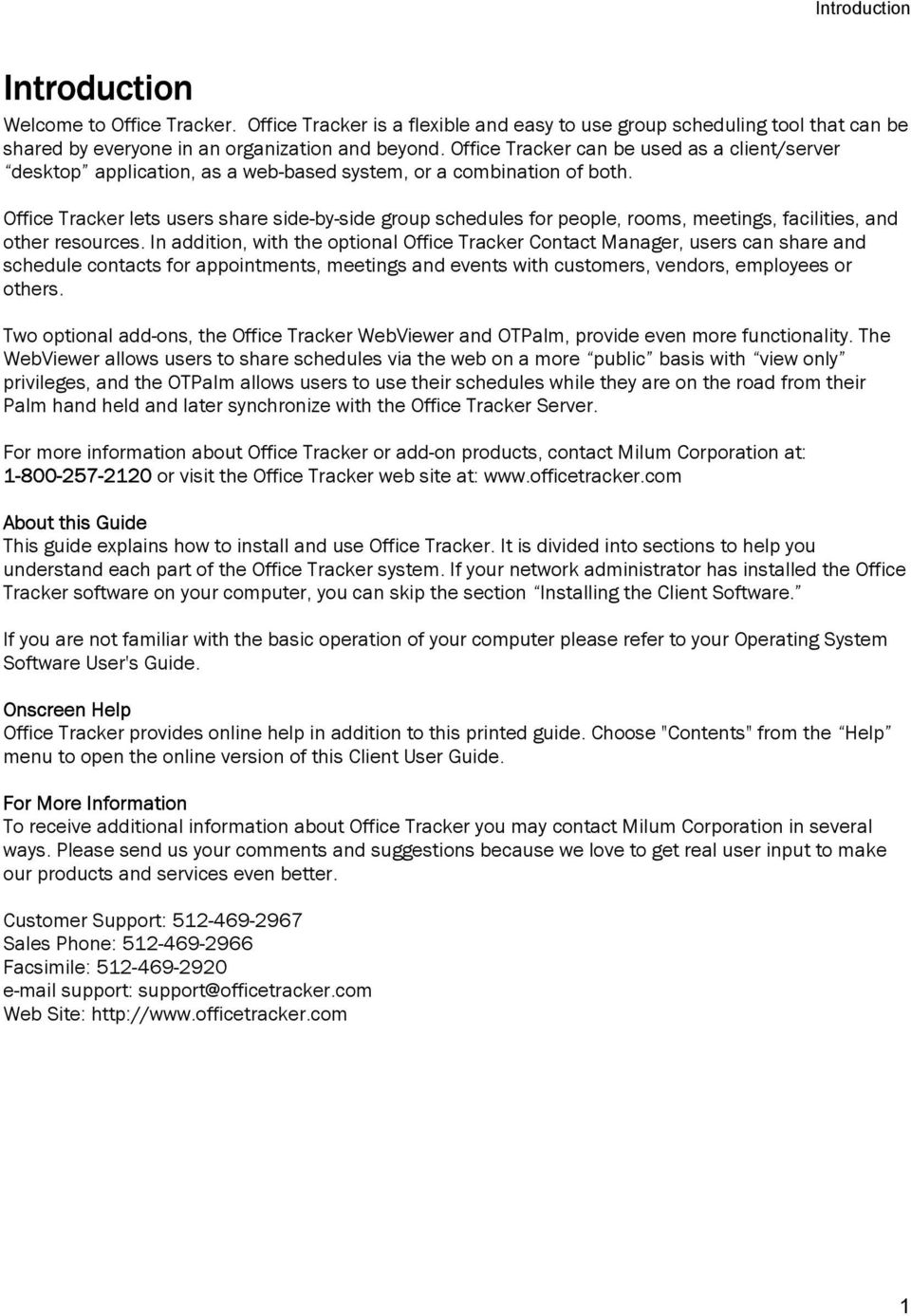
9 Installing the Office Tracker Software Installing the Desktop Client Software This section describes the system requirements and installation procedures for installing the Office Tracker desktop client. The optional web-based client does not require install and differs in many of its features and functionality. Please refer to the section The Office Tracker Web-based Client for more complete instructions. What You Need to Get Started for the Windows Version Office Tracker Client Minimum System Requirements Processor: 800 MHz or greater Operating System: Windows NT/2000/XP/2003 RAM: 256 MB RAM* (512MB RAM or More Recommended) Network: TCP/IP Network Support Hard Drive: 200 MB free disk space Monitor: 15" VGA or SVGA video monitor and 256 colors Resolution: 800x600 or larger screen area recommended * may be higher if you view a large number of names, have a large number of events on each day or include Agendas on a regular basis To install the Windows client software from the CD ROM, follow these steps. 1. Insert the Office Tracker CD-ROM. The installer should automatically open. If not, open it from your CD ROM drive (Open "My Computer" then double-click the Office Tracker CD-ROM icon), double-click the Office Tracker for Windows folder, double-click the Office Tracker Installer.exe. 4. When the installer launches you will see the Destination Location window for unpacking the installer. Choose a location to extract the installer files. We recommend leaving the default location unless you do not have enough disk space. Click the Next button. 5. The Office Tracker Installer Extracting Files window displays. a. If you have previously installed using this installer, you may get a window asking if you d like to replace files already installed. Press Yes to All to continue. 6. The Office Tracker Installer Welcome screen displays. Press Next to continue. 3

10 Installing the Office Tracker Software 7. License Agreement. Press the I accept the terms of the license agreement button to agree to the License Agreement and press the Next button to continue. 8. The Select Components window displays. The Office Tracker Client should be checked by default. Click Next to continue. 9. The Typical or Custom Install window displays. Choose Typical. For a Custom install see the section Advanced Installation and Options. 4
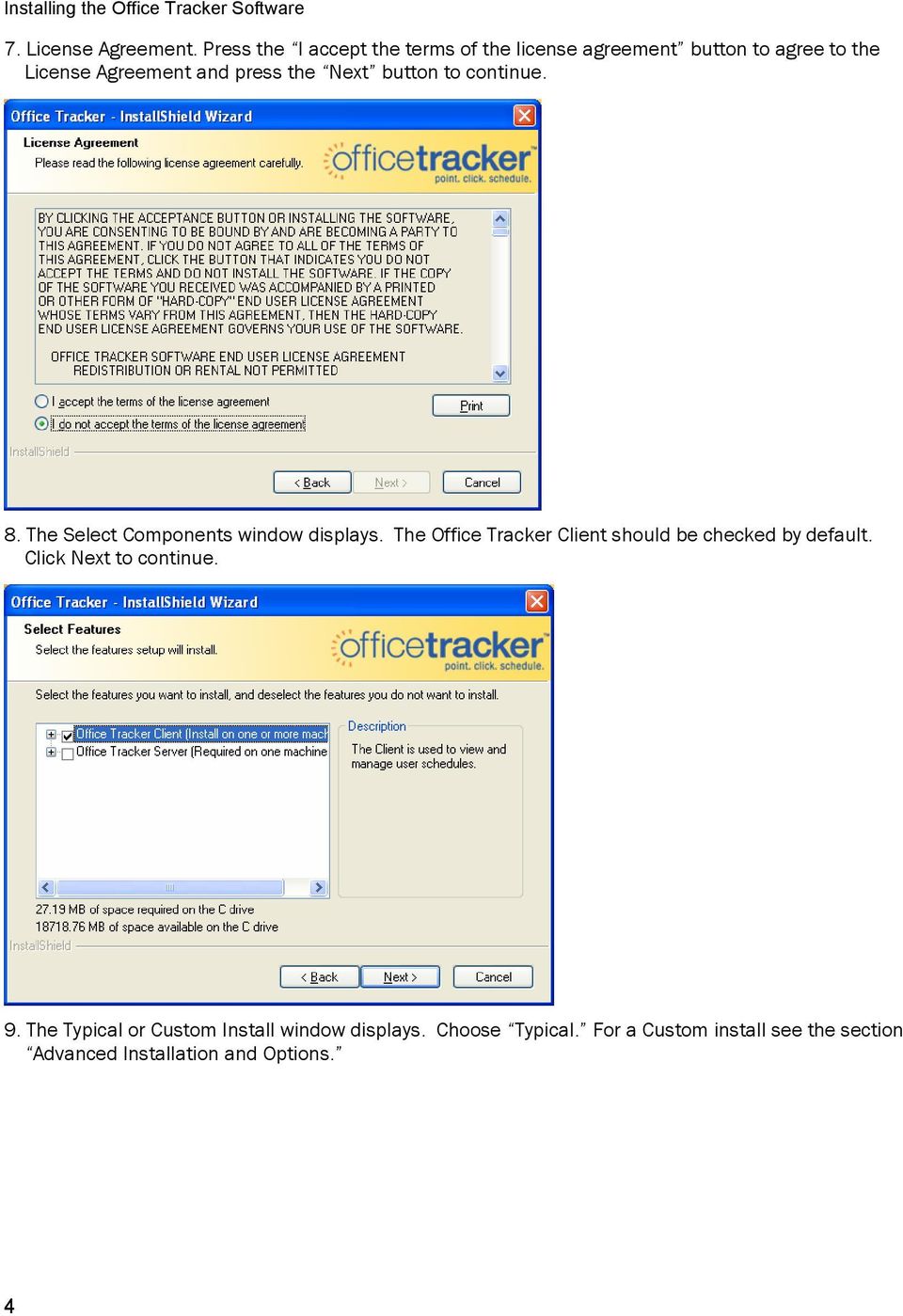
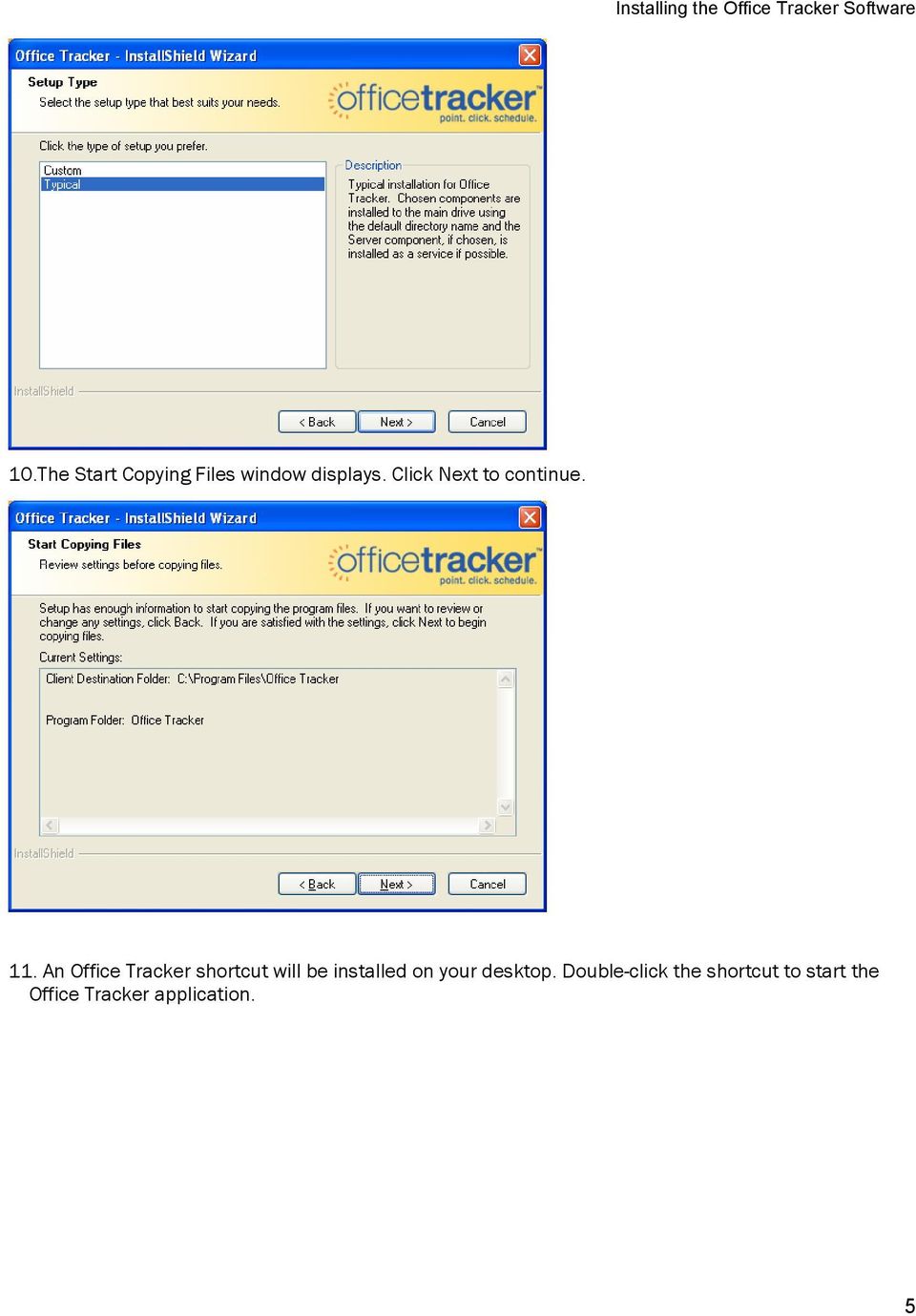
11 Installing the Office Tracker Software 10.The Start Copying Files window displays. Click Next to continue. 11. An Office Tracker shortcut will be installed on your desktop. Double-click the shortcut to start the Office Tracker application. 5
12

13 Getting Started with Office Tracker Getting Started with the Office Tracker Desktop Client This section describes how the Office Tracker desktop client system works, where your schedule information is stored and how to get started and connect to the Office Tracker Server. The optional Office Tracker web-based client is covered in a special section and many of the features are slightly different in operation or do not yet exist on the web-based client. Contact Milum Corporation for more details at: How the Office Tracker Desktop Client Works The Office Tracker desktop client lets you do several things: View schedules for yourself and any other names on the Office Tracker Server Save multiple views of schedules. Schedule meetings and group events with other Office Tracker users. Schedule or reserve conference rooms and other resources. Find Open Times for meetings and appointments Create notifications to let other users know of upcoming events. Create recurring events such as "every Monday" meetings. Create Agendas or Notes to correspond to events. Avoid scheduling double-bookings Create custom Labels to indicate the "type" of event Print schedules in a variety of formats Create and schedule contacts in an address book format (with the optional Office Tracker Contact Manager add on) Office Tracker lets you create schedules you can share company-wide. You can view any number of names in the Office Tracker schedule window, side-by-side in a daily, weekly or monthly view. You can also view your personal and group schedules of other Office Tracker users. Each user has Sharing Privileges to control the access limits of other users so keeping personal events personal is easy. You share only the information you want. Having access to other user's schedules makes finding an available meeting time or keeping up with the progress of a particular project easier than ever. Working Offline Office Tracker lets you work offline whenever you are disconnected from the server. This makes it possible for you to keep working if the server is down for maintenance. When you work offline, Office Tracker keeps track of the changes you make on your local machine and waits for you to reconnect to the server before it synchronizes the changes. Offline icon- When you do not have a connection to the Office Tracker Server (this could happen for several reasons, such as the server being down for maintenance or if you are using Office Tracker on a laptop while not connected to a network) you will see a red X icon in the upper right corner of your 7

14 Getting Started With Office Tracker schedule window. The offline icon indicates that the Office Tracker Server is not currently running. The offline icon lets you know that you will not be getting the most recent updates and you could create schedule double-bookings during this time. The best approach you can take is to contact your Server Administrator and ask if the Office Tracker Server will be up again soon and let them know you have the offline icon displaying so you know you are not currently connected. When the server is back online the synchronization process between you (the client) and the Office Tracker Server happens automatically and takes place in the background. There are some "rules" to be aware of concerning how events are updated. In general, the server always has the ruling events. In other words, changes to events on the server hold precedence over changes you make while offline. Note: Remember, any change to the event is considered an "edit." Events that are added by other users while you are offline shows up on your schedule once you're reconnected and synchronized to the server. Events that you did not create but may have edited while you were offline may have been edited by another connected user prior to your reconnection. In this case, Office Tracker uses the event on the server as the ruling event. This means your schedule may reflect the changes made by the other connected user once you've synchronized. If you are the only one who made a change to an event, your change should be reflected once you've reconnected. Events you create and edit while offline should be reflected once you've synchronized. Where Schedule Information is Stored The Office Tracker Server communicates with the Office Tracker clients over the network. Your personal schedule information is stored on your local machine in a data file named "otclient.mdb" and synchronized to the server machine when you connect. The Server machine maintains the master data file of all events from each client. The Server file overrides clients in the respect that once data is removed from the server, it is removed from your local file. You should make backup copies of this file on a regular basis. How Schedules Are Updated Schedules are updated each time you change the date you are viewing, each time you open a schedule view, any time you press the update key (see below) or when the automated update time has elapsed. Office Tracker updates the schedule view with the most current information from the server. This means everyone on the Office Tracker system has current information about other user's schedules. Security features and access privileges may limit the information you are able to see for other user's schedules. See the section Sharing Privileges later in this guide for more information. Schedule Views and Offline Editing Office Tracker lets you create multiple views of your calendar in different documents. The schedule information or "events" are stored both locally on your personal machine, and on the Office Tracker Server. When you connect to the server, the event files synchronize to reflect any changes made. For example, if another user has scheduled a meeting and included you as an attendee, the meeting event 8

15 Getting Started with Office Tracker would show up after you synchronized with the server. Tip: Force Server Update To force an events update from the Office Tracker Server Press F2 on your keyboard. To force a Sharing Privilege and Names update, press F3. 9

16 Getting Started With Office Tracker Starting Up the Office Tracker Application 1. Start the Office Tracker application. On Windows machines, press the Start menu button and choose "Programs" > "Office Tracker" > "Office Tracker" from the menu or double-click the Office Tracker shortcut on your desktop. 2. Enter Your Serial Number The first time you launch Office Tracker you are prompted to enter your serial number, then your identity. The serial number is on the Office Tracker Install Disk. If you are using a demo copy you can simply press the "Demo" button. Your administrator should give you a serial number if you are a registered user. You only need to enter the serial number once. 3. Enter Your Identity. The Identity window displays. Type your name (case sensitive) into the "Identity" window exactly as your network administrator has instructed you to do (i.e. Firstname Lastname). If your network administrator has specifically given you an Office Tracker password enter it here, otherwise leave it blank. 4. Connect to the Server as shown in the next set of steps. Connecting to the Server 1. Click on the Connect to Server button in the Identity window ( File/Identity menu). The IP Address screen displays. 2. Enter the IP address, machine name, or the domain name your Office Tracker Server Administrator has given you. If you do not have an IP address or domain name to enter, contact your administrator. Note: Do NOT append the: 8001 after the IP address on the client. 10

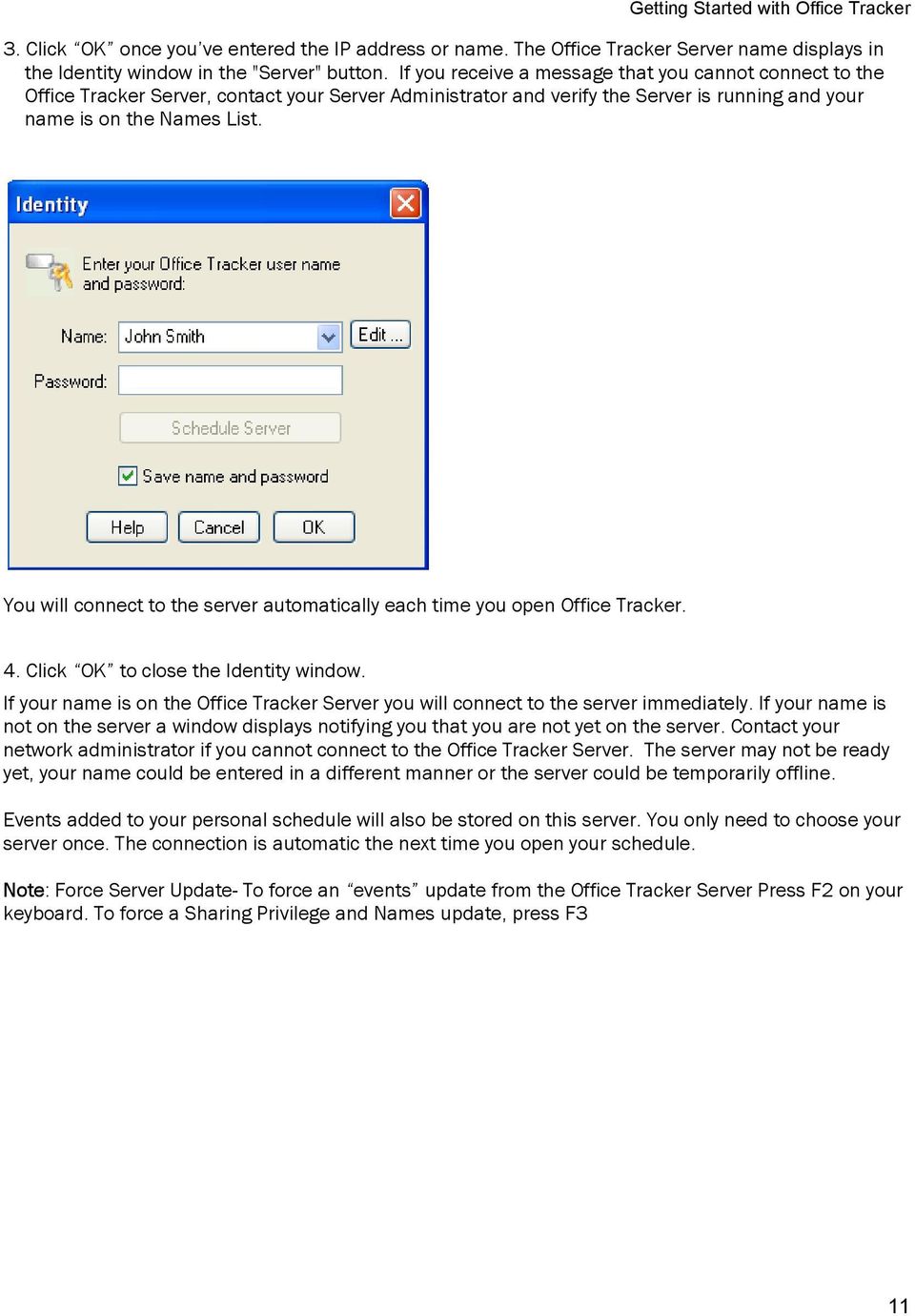
17 Getting Started with Office Tracker 3. Click OK once you ve entered the IP address or name. The Office Tracker Server name displays in the Identity window in the "Server" button. If you receive a message that you cannot connect to the Office Tracker Server, contact your Server Administrator and verify the Server is running and your name is on the Names List. You will connect to the server automatically each time you open Office Tracker. 4. Click OK to close the Identity window. If your name is on the Office Tracker Server you will connect to the server immediately. If your name is not on the server a window displays notifying you that you are not yet on the server. Contact your network administrator if you cannot connect to the Office Tracker Server. The server may not be ready yet, your name could be entered in a different manner or the server could be temporarily offline. Events added to your personal schedule will also be stored on this server. You only need to choose your server once. The connection is automatic the next time you open your schedule. Note: Force Server Update- To force an events update from the Office Tracker Server Press F2 on your keyboard. To force a Sharing Privilege and Names update, press F3 11
18

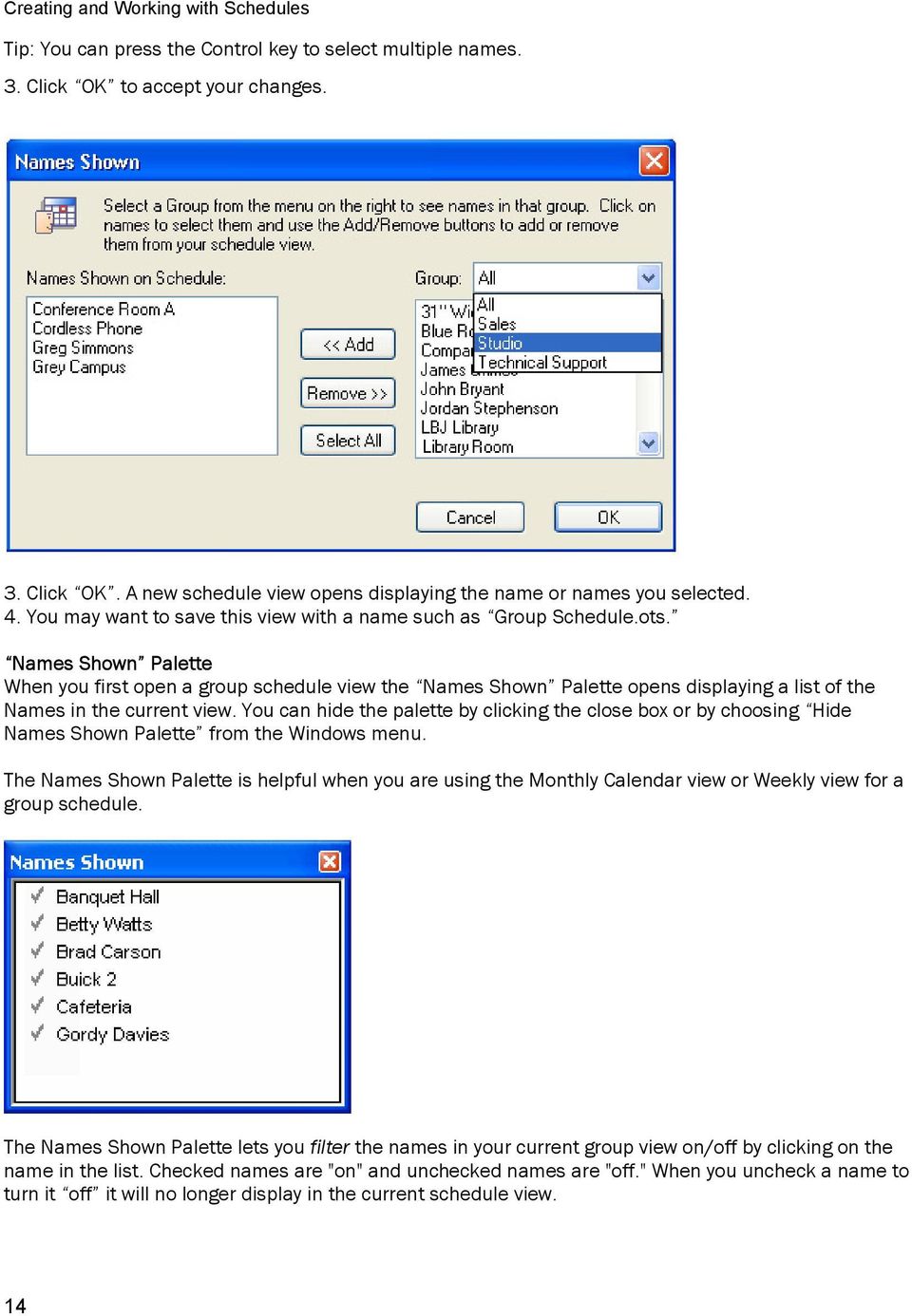
19 Creating and Working with Schedules Creating and Working with Schedules Office Tracker s desktop client schedules are documents stored on your computer that display the Daily, Weekly and Monthly schedules with events, meetings and appointments created by you and other Office Tracker users. You choose which names to include in each schedule document. The schedules display the information but do not store the event data in the document The event data - appointments, events, etc. - are stored in a database file on your machine and in the master database files on the Office Tracker Server machine. Schedule documents are saved with the extension.ots appended to the file name such as My Daily Calendar.ots. The schedule data or events are saved automatically in the database file otclient.mdb. Events are sent to the server where they are stored in the server s database. Events are saved automatically on creation You should save your schedule views once you have the view set up the way you like, but there is no need to choose Save each time you create a new event. New events and event changes are automatically saved and sent to the server. When you Save a schedule view you are saving the layout information such as which names are in the view, what format (Daily, Weekly or Monthly) the view is in, and the column sizes, etc. Creating New Schedules You can create and save as many Daily, Weekly, and Monthly schedules as you want. You can also create Group Views with any number of names/resource names in the view. Resources include conference rooms, equipment and similar items. You can keep multiple views open on your screen at one time. There is more than one way to create new schedule documents: Choose New Schedule View... from the File menu to create a new personal or group view Choose Save As... from the File menu to save the current view under another name Creating a New Schedule Using the New Schedule View Command 1. Choose New Schedule View... from the File menu. Your name displays in the Names Shown field to the left. Other names on the server (if any) display in the list on the right. Groups Groups are a feature of the Windows versions of Office Tracker. Your Office Tracker Server administrator may or may not use Groups to divide the list of names. If Group names are used, you can select a specific Group and only list names associated to that group in the list. 2. Select the names you want to add to the new schedule view and click the left arrow button to add the names to the view. You can choose to view only names in a particular Group by selecting the Group name from the drop down menu at the top of the list. If you want to remove names, select them in the Names Shown field and click the Remove>> button to remove them. 13

20 Creating and Working with Schedules Tip: You can press the Control key to select multiple names. 3. Click OK to accept your changes. 3. Click OK. A new schedule view opens displaying the name or names you selected. 4. You may want to save this view with a name such as Group Schedule.ots. Names Shown Palette When you first open a group schedule view the Names Shown Palette opens displaying a list of the Names in the current view. You can hide the palette by clicking the close box or by choosing Hide Names Shown Palette from the Windows menu. The Names Shown Palette is helpful when you are using the Monthly Calendar view or Weekly view for a group schedule. The Names Shown Palette lets you filter the names in your current group view on/off by clicking on the name in the list. Checked names are "on" and unchecked names are "off." When you uncheck a name to turn it off it will no longer display in the current schedule view. 14
21 Creating and Working with Schedules Names Shown Palette Resizing The Names Shown palette is resizable. This accommodates larger lists of names and makes it easier to navigate among them. To resize the palette, follow these steps: 1. Choose "Show Names Shown" from the "Windows" menu to open the palette. 2. Position your mouse cursor over the bottom right corner. 3. Click and Drag the window edge to the desired size. Handy Tip for Names Shown Palette Another handy feature of the Names Shown palette is the ability to Option-Click on any one name to turn it "on" and all others off. This makes it a great tool for the front desk scheduler who likes to keep a lot of names in a monthly calendar view but needs to quickly filter the names to check available appointment times. Saving New Schedule Views If you do not save a view of your schedule, Office Tracker opens a default monthly calendar view, with the current Identity as the only name shown, when you start the application. You can choose Save as... at any time to save a view of your schedule under another name. You may want to create a Daily view and save it under the name "Daily Schedule" in addition to the default Monthly Calendar view. Schedule documents do not store the event information. This is stored in a database called otclient.mdb on your local machine. You can create an unlimited number of schedule views customized to meet your particular needs. Changing Schedule Views - Day, Week and Month Office Tracker lets you quickly change your schedule window to display the current names in Daily, Weekly or Monthly views. To change the current view format, click on the Daily, Weekly or Monthly icon button at the top of the Office Tracker Schedule window, or choose View Daily, View Weekly or View Monthly from the "View" menu. Daily View - Displays the time range for the day in a scale from 5 to 60 minute intervals. You can change the scale by choosing Zoom In or Zoom Out from the View menu. If you are viewing a Month view and click the Day icon, you navigate to the currently selected day of the month. If you are viewing by the Week, then click the Day icon you navigate to the selected day of that week. Weekly View - Displays the days of the week in a columnar format, Sunday through Saturday. - Displays the time range for each day in a scale from 5 to 60 minute intervals. You can change the scale by choosing Zoom In or Zoom Out from the View menu. Double-click the day at the top of the weekly view to "jump" to that day in the Daily view Monthly View- Displays a thirty day calendar view with zoom capability to see the days in a range from 100% up to 800%. 15
22 Creating and Working with Schedules Working with the Daily, Weekly, Monthly View 1. Click the Daily view button. Your schedule view changes to display one day. You can navigate in the Daily, Weekly and Monthly view by using the Date Palette calendar or the arrows at the top of the window. If the Date Palette is not visible, choose Show Date Palette from the Windows menu. Navigating with the Date Palette The Date Palette is available any time you have an Office Tracker schedule window open. It lets you easily navigate to different days, months and years. Hide/Show Date Palette To hide the Date Palette, choose Hide Date Palette from the Windows menu or click the close button. To show it again, choose Show Date Palette from the Windows menu. Changing the Date you are viewing The Date Palette allows you to move around from day to day, week to week, month to month, and year to year. To change the day on your current schedule view, click on the square representing any day of the month. Notice how the schedule window changes to display the day you select. You can also navigate by clicking on the arrow buttons at the top of the Office Tracker schedule window. These arrows navigate one day at a time in the Day view, one week at a time in the Week view, or one month at a time in the Month view. Navigating or Changing Views to Previous and Future Months Use the arrow buttons at the top left of the Date Palette to change the current schedule view to another month. You must click on a day in the Date Palette to activate the schedule window to navigate to that day and month. Navigating or Changing Views to Previous and Future Years Use the arrow buttons at the top right of the Date Palette to change the current schedule view to another year, then click on a day to display the selected date. Displaying "Today" To change your view quickly back to today, choose Today from the "View" menu at any time or press 16
23 Creating and Working with Schedules Control-T on Windows. Weekly Calendar View The Weekly Calendar View is a columnar view displaying five or seven days (depending on whether you choose to Show/Hide weekends). Show/Hide Weekends In the Weekly calendar view, you can choose to Show or Hide weekend days (Saturday and Sunday) by choosing "Show Weekends" or "Hide Weekends" from the "View" menu. This toggles the days Saturday and Sunday on/off in the view. Weekly Calendar View With Multiple Names If you are viewing multiple names (group schedules) in the weekly calendar view format, a composite view with all the schedules layered together, you will likely rely on the Names Shown Palette (Windows menu) to filter names on/off in the view. Be sure to take advantage of the Option-click feature to click on any one name in the Names Shown Palette (turns only the one "on" and all others "off") and view the schedule information for just that name. Create Recurring Events By Dragging Across Days in Weekly Calendar Format To create a recurring event such as a "Monday, Tuesday, Wednesday" while in the Weekly Calendar view, drag across the days to select them, then click the New Event button to create a new recurring event. This creates an event with a recurring structure of every Monday, Tuesday and Wednesday at the time you specified. Saving Schedule Views You can save any number of schedule views; each remains linked to Office Tracker and display current information when opened. For example, if you want to create a schedule view that includes your name and four of your colleagues, but you would also like to save a view of just your schedule, you can do both. Each remains linked and current with the Office Tracker Server. There is no limit to the number of schedule views you can save. TIP: The preference option "Remember Open Windows" remembers the windows you leave open when you Exit from Office Tracker and re-opens them the next time you launch the application. This is on by default and available by choosing the menu Edit/Preferences. To save a view of the current schedule window, follow the steps below. 1. Choose Save... from the File menu or press the Ctrl and the S key simultaneously. 2. Enter the name of your schedule view, for example "Marketing Group Schedule." 3. Click the Save button. This saved document contains a link to the Office Tracker Server document and displays current information each time it gets an update from the Server machine. To open a saved schedule view, double-click the document icon from your desktop or choose Open... from the Office Tracker File menu and locate the view by its name. It should be in the Office Tracker folder unless you saved it in another location. 17
24 Creating and Working with Schedules Changing the Display of Schedule Views There are two ways you can change the size of the columns in the Office Tracker schedule window in the Daily view. You may need to increase the width of a column to enable all of the event text to be displayed. 1. Dragging Columns to Adjust their Width To move the column manually, position the cursor over the column divider between any two columns where the names are displayed, then click and drag the column divider to the new position on the screen, then release the mouse button to leave it where you want. NOTE: If you size a column very narrow, the column header and information may "disappear." If this happens, you must size the column to be wider to see its contents again. 2. Using The Set Column Widths Menu Command When you are viewing the Daily view, the Set Column Width dialog allows you to choose your size (in pixels) or let it "Auto Size" size automatically (the default number the Set Column Width window displays when first opening is "Auto Size". To resize all the columns in any current schedule view, follow these steps: 1. Choose "Set Column Width" from the "View" menu. (The default size displayed when you first open the window makes the columns fit to the size of the window.) 18
25 Creating and Working with Schedules 2. Type in the number (in pixels) that you want to use. 3. Click "OK". 4. Choose "Save" from the "File" menu to save your changes. Rearranging Columns When viewing multiple names in the Daily view, you can rearrange the columns in the Schedule window by click-dragging in the column header to move the column to a new spot. On Windows machines, position your cursor over the name in the column header, click and hold the left mouse button down and drag the column left or right to move it. Project Schedules If you would like to use Office Tracker to schedule projects in addition to people and resources, ask your workgroup manager or network administrator to add the Project s name to the Names List on the Office Tracker Server. You should also request that the item type "Folder" be used for the project name on the list. Once the Project name is created you can create schedule views with the Project Names included just as you can for people and resources. You create a project view in the same way as you create group views for people and resource names. The section on Group and Meeting Scheduling discusses how to create group views in more detail. Time Scale Display Changing the Time Increments in Your Schedule Views You can adjust the time display on any Daily or Weekly schedule viewing by zooming in or out. You can then save this setting so that your schedules will always display with the new time increments. Changing the Time Scale Display You can adjust your schedule view to display 5, 10, 15, 20, 30, 45 and 60 minute increments. This is particularly useful if you typically schedule a set duration such as 10 minute events or 20 minute events. Once you adjust your schedule view you can click on a cell to create an event with that precise duration. Choose "Zoom In" from the "View" menu to see smaller time increments. Choose "Zoom Out" from the "View" menu to see fewer time increments. Choose "Zoom to Fit" from the "View" menu to see the default time scale. You can also use the right mouse button to Zoom In, Zoom Out. When you hold down the Ctrl key with your cursor positioned over a schedule area, the Office Tracker cursor changes to a magnifying glass with a "+" and - sign to the right and left. Pressing the Ctrl key plus the left mouse button click will zoom in and the Ctrl key plus the right mouse button will zoom out. Drag and Drop Support The Office Tracker desktop client supports drag and drop in several ways. Basic Calendar Drag and Drop 1. Select an event in the monthly view by clicking on it once, then click and drag it to a new day. The event is now set to that day and retains all other original information. 2. Select an event in the Daily view by clicking on it once, then click and drag it up or down to a new time 19
26 Creating and Working with Schedules in that day and drop the event on the new starting time. Note: As you drag the event the new start/end time displays in the window header at the top of your schedule window. 3. Select an event in the weekly view and drag it to another day and drop the event on the start time you want for the event. Note: In this case the event time and date would change accordingly. The start and end time displays at the top of the schedule window as you drag. Changing the Event Duration You can change the "Starting" or "Ending" time for any event in the Daily and Weekly views by dragging the top or bottom of the event to a new time span. When you position your mouse cursor over the top or bottom edge of a selected event the cursor changes to an arrow bar indicating the direction you can drag. Hold the mouse button down while you drag the arrow to the new time position, then release. The event time changes accordingly. Dialog Drag and Drop 4. In the Names Shown dialog, drag and drop names from the Names Available field into the Names Shown field. 5. In the Attendees window, drag and drop names from the Names Available field into the Attendees field. 20
27 Creating and Working With Events Creating and Working With Events Group Views and Event Creation Events can be created for one name or for several names in the same step. Use some caution when you are viewing a group of names in a Weekly or Monthly format (composite view) as you could create a group event by accident. You will know when you have more than one name in your schedule view as a small double-head icon will display in the upper right corner of the schedule window. In the Weekly and Monthly view if you are displaying a group of names and create an event, the event will include all names in the current view. Creating Events in Daily, Weekly, Monthly Views Creating Events in the Daily or Weekly View 1. Click on the Daily View button to display your schedule in the Daily mode. You select time in the Daily and Weekly views in the same manner. See the sub-heading Creating Events in the Monthly Calendar View for information on how to select time in the Monthly Calendar view. 2. Select the time for the new event by click-dragging through the time cells. Select the cells like you would in a spreadsheet application. The selected time range highlights as shown in the following figure. 21
28 Creating and Working With Events 3. The New Event window displays automatically unless you've turned "Auto-Create Events" off in the Preferences. If Auto-Create Events is "off" in the Preferences, once you have selected an event time, click the New Event button or choose New Event... from the Schedule menu. 4. Enter the Event Name in the corresponding field. The event name displays in the schedule window. Depending on the column size and event length it may display in truncated form: Type your..., displaying only the text that fits. 22
29 Creating and Working With Events 5. Make any desired changes to the scheduled time of the event by selecting the Start or End time and typing in a new number. To select the time in any field, click-drag through it with your mouse or press the Tab key to move your selection through the fields. 6. Once you have completed all event information, click the OK button. The new event displays in the schedule window unless a double-booking is found. For more information about double-book checking see the section Double Booking. If a double-booking is found, and you have privileges assigned to you by the server administrator to override them, you will be able to schedule the event even though it is at the same time as an event already scheduled or you may be able to try another time or date. Creating Events in the Monthly Calendar View The Monthly view is a composite view. The Monthly view can display schedules for one or more names at once. Use caution when creating events in the Monthly view if you have more than one name in the view you will be creating a group event. If you see the double-head icon (group icon) at the top right corner of the schedule window as shown below you are viewing more than one name in the current schedule view. This double head icon in the upper right corner of your Office Tracker window indicates you are viewing more than one name in the current schedule view. Choose Names Shown from the View menu to change the names involved when you are scheduling in the Monthly Calendar view. You can also use the Names Shown Palette to filter names out of the current view. To create a new event while in the Monthly Calendar view, follow these steps: 1. Click on the day to select it. 2. Press the New Event button. 3. Enter your event information and be sure to set your Starts and Ends time to the correct time for your event. When you have multiple events for the same day the monthly calendar view may not be able to display all events in the current day square. When this happens Office Tracker puts an ellipsis "..." at the bottom of the day to indicate there are more events. Zoom in to see the additional events or double-click on the number of the day to switch to a Daily view. 23
30 Creating and Working With Events The ellipsis... displays when your monthly schedule is not sized large enough to display all events for one day. You can zoom in or resize your window to see the other events. Private Events Private Events can be created by simply checking the Private Event checkbox. When you make an event private, other users on the network see the blocked out time but they do not see the event text unless you've given them specific privileges to view your private events. The text is visible only on your machine and on the machines of those who have privileges to View My Private Events. See Sharing Privileges later in this guide for more information. Note: Your Server Administrator has full access to all event information. Duration The Duration field shows the current duration for the event. You can use the up and down arrows to increase or decrease the duration of the event. Notice that you will likely use the second portion (to the right) to change the hours and minutes and only use the left portion to change the number of Days. This, unlike a recurring event, creates a single-event which may span across multiple days. All Day If you d like to make the event span the entire day from your current display Start Time to your current display End Time, press the All Day button and the event duration will change automatically. You can change the "Starting" or "Ending" time for any event in the Daily and Weekly views by dragging the top or bottom of the event to a new time span. When you position your mouse cursor over the top or bottom edge of a selected event the cursor changes to an arrow bar indicating the direction you can drag. Hold the mouse button down while you drag the arrow to the new time position, then release. The event time changes accordingly. Small Icons in Event Blocks When you create events that include an agenda, multiple attendees, alarm, contact links, or recurring information (every Monday event) or is marked as Private Event Office Tracker displays small icons in the event block on your Daily and Weekly view. These icons are "shortcuts" to the editing/viewing windows for the corresponding functions. For example, you can double-click the small agenda/note icon to open the Agenda/Note window. (Note: if the event is a recurring event and you have editing privileges you will first be prompted to choose if you want to edit just this one occurrence or all of the occurrences.) 24
31 Creating and Working With Events Adding Agendas or Notes to Events Office Tracker lets you include an agenda or note with your event information. If the event has multiple attendees they all can read the Agenda. You can type or paste into the Agenda as well as copy it to the clipboard to transfer it to another application. To create an agenda, follow the steps below. 1. Create a New Event or Edit an existing event. 2. Click on the Agenda button in the Event window. The Agenda window displays: 3. Type in some text. You can add additional text at any time. 4. Click the OK button. Printing Agendas When you print Office Tracker schedules, you have the option to print corresponding agendas for events. See "Printing" later in this guide for more information. How to set aside personal time (blocking out time) You may want to set aside some time on your schedule (perhaps every day) as "Personal Time." This keeps other Office Tracker users from scheduling meetings and events with you during times you need to get your regular work accomplished. One way to set aside personal time is to create a recurring event that happens every day of the week during a certain time period. You may want to name the event "Flex Time" if you'd like other users to know that the time is preferred for your personal work but is flexible if there is an important meeting or event. 25
32 Creating and Working With Events VACATIONS AND OTHER MULTI-DAY EVENTS You can create events that span across one day or several days by changing the End Date in the New Event window. If you have a color monitor and set the event label you get the effect of a banner in the Monthly Calendar view with the ability to wrap around weekends. Recurring Events Office Tracker allows you to create recurring or "repeating" events that occur multiple times at the intervals you select. For example, if you would like to set up a meeting to occur every Monday for the next 2 months, you can easily do this by creating a recurring event. Creating a Recurring Event 1. Create a new event or double-click an event to edit it. 2. Click on the recurring event icon. The recurring event window displays. Click on one of the "recurrence" tabs to view your options. 3. Select the dates you want the event to recur on by clicking on them. 4. Enter a Stop Date indicating the last day you want the event to recur. 5. Click OK to accept your settings. Recurring Event Options Daily Creates an event that repeats once every X number of days, depending on the settings. Every weekday sets the event to repeat once every weekday: Monday, Tuesday, Wednesday, Thursday, and Friday Every x days lets you enter a number to indicate how often the event should repeat such as Every 3 days. Exclude weekends skips Saturday and Sunday when calculating the number of days. Every other day sets the event to repeat every other day. Use the Stop after this date to indicate the last day you would like the event to occur. The default setting is one year from the Start date. 26
33 Creating and Working With Events Weekly Creates an event that repeats each week on the days of the week selected. Selected days will be highlighted. Click on the specific days of the week M is for Monday, T is for Tuesday, etc. When you select them they will remain highlighted. Every Other Week- click this button to set the event to repeat once on the selected days, every other week. On These Weeks- click this button to set the event to repeat on specific weeks you select such as the 1 st week of every month, etc. Every x weeks click this button to set the event to repeat the number of weeks you indicate such as every 3 weeks. Use the Stop after this date to indicate the last day you would like the event to occur. The default setting is one year from the Start date. 27
34 Creating and Working With Events Monthly The monthly recurring options allow you to create an event that repeats once on each of the days of the month selected. Choose any number of days from the calendar area to the right of the pop-up menu by clicking on the days to select them. You might use Monthly recurrences for scheduling pay periods, sales meetings, and other events tied to specific dates during the month. On this date every x months- recurs on the selected date of the month such as the 3 rd On this day ever y x months- recurs on the first similar day such as the first Wednesday of the month. Use the Stop after this date to indicate the last day you would like the event to occur. The default setting is one year from the Start date. 28
35 Creating and Working With Events Yearly The yearly recurring option creates an event that repeats once a year on the same day of the year. This is a good option for birthdays, anniversaries and similar events. Editing and Deleting Recurring Events When editing a recurring event, Office Tracker prompts you to decide if you want to change just the selected occurrence or all occurrences. If you want to change just the selected occurrence, click One. If you edit or delete a recurring event in the middle of the chain of occurrences you create a break in the chain. For example, if you have a recurring meeting every Monday and delete one of the Monday meetings in the middle of the recurrence, the chain is broken and you essentially have two recurring events: one every Monday before the one you deleted and one every Monday after the one you deleted. Additional Event Scheduling Features Adding Labels to Events The Label menu allows you to select a customized label for each event such as "Very Hot" or "My Project." The labels displays in the Daily and Weekly view after the event description and Keyword. Labels are created at the Office Tracker Server Admin pages. You can ask your Office Tracker Server Administrator to add new labels to the Office Tracker labels list. Once you add labels to events you can search for events based on their label by using the Find command under the Edit menu. Adding Keywords to Events The Keyword menu and corresponding Edit button lets you choose a customized keyword for each event such as "Bill s Client" or "File #123" The keyword displays in the Daily and Weekly view after the event description. Keywords are created at the Office Tracker Server Admin pages. You can ask your Office Tracker Server Administrator to add new keywords to the Office Tracker keywords list. Once you add keywords to events you can search for events based on their keyword by using the Find command under the Edit menu. Editing Events To "edit" an existing event, in the Daily, Weekly or Monthly view follow, the steps below. 1. Click on the event once to select it. If it is an event scheduled for multiple names in your current schedule window (group event), the event highlights in each corresponding column. 2. Choose Edit Event... from the Schedule menu or double-click on the event to open the Edit Event window or select the event and click the Edit event button. 29
36 Creating and Working With Events Tip: You can double-click an event to open the Edit event window. NOTE: You cannot edit events created by other users unless you have editing privileges. See the section on Sharing Privileges for more information. Moving or Deleting Events Using Cut Copy and Paste Events can be moved or copied and pasted using cut, copy and paste. Events can only be deleted (cut) by the user who created them, or by users with editing privileges to edit the creators events. If you create events for yourself or for others you are able to delete them. If another user schedules an event for your name (you've given them "Add Events" Sharing Privileges) you can delete the event from your schedule which removes your name from the Attendees list. You cannot delete events if you didn't create them, unless you have specific privileges to do so, however you can remove your name from the Attendees list in group events (provided you are not the only one scheduled for the event, in which case the creator of the event must delete it, or you must have Delete Events privileges for that user). If you delete an event from your schedule you didn't create, a warning dialog displays. Click "Remove" if you want to remove your name from the Attendees list and remove the event from your schedule. When you cut or copy an event, the event description, location, private checkbox, and agenda are kept with it. Once you select a time range and paste, the event is added to the schedule and the new time is indicated in the Edit Event window. The selected range of time is the new time for the event once it is pasted. Drag Events to Change "Starting" and "Ending" Times You can change the "Starting" or "Ending" time for any event in your Daily and Weekly views by dragging the top or bottom of the event to a new time span. When you click on an event to select it, then position your mouse cursor over the top or bottom edge of a selected event the cursor changes to an arrow bar indicating the direction you can drag. Hold the mouse button down while you drag the arrow to the new time position, then release. The event time changes accordingly. Double-Booking Check Office Tracker has Sharing Privileges which are set up at the Office Tracker Server. The Sharing Privileges allows the Administrator to choose whether a name may have multiple events for the same time and which users are allowed to create double-bookings. You can avoid double-bookings or allow them in several ways. One way is to use the automatic double-booking check that is on by default. This is likely the most convenient method for you to use, provided you are connected to the Office Tracker Server and you do not need to schedule double-bookings. You can also use the Find Open Time feature described later in this guide, or you can view the schedules for free time visually, then schedule for time slots that are obviously open (much like the paper method of scheduling). Important Note: The double-booking check feature is not completely foolproof. If two users create an event at the exact same time for the same room/person/resource and the event data is sent to the server simultaneously, a double-booking could occur. 30
37 Creating and Working With Events Automatic Double-booking Check The automatic double-booking check feature works while you are connected to an Office Tracker Server. Allow Double-booking is a Sharing Privilege that your Server Administrator controls. It is off by default and enabled on a name-by-name basis for each person, room or other resource. Avoiding Double-bookings The default Office Tracker Sharing Privilege setting does not allow double-bookings. This means if you want people to schedule more than one event on your schedule or on the schedule of a particular room or resource you will need to ask your Server Administrator to make the appropriate Allow Doublebookings change to the Sharing Privileges. Add Double-bookings with warning When the Sharing Privilege Allow Double-bookings is on, (checked) each time you create a new event, the Office Tracker application queries the Server and notifies you if a booking already occurs. In this case, you will see a list of the events in your New Event window. You can click the Schedule Event button in the window and the event will be scheduled even though an event exists. You can make a change to the Scheduled Time information or change the Attendees, then click OK to try another search. If no other events are found, the event will be created and the New Event window will close. Add Double-booking without warning When the Allow Double-bookings Sharing Privilege is on and the Without warning option has also been selected, the event will be scheduled without notifying you that another event is already scheduled for that time. Double-booking and Recurring Events The Office Tracker double-booking check reacts in the same way for recurring events, however, the time it takes to do the check will be longer. This depends greatly on how far into the future you are scheduling the recurring event as well as how many names (Attendees) are involved. Since each Attendee s schedule must be checked for the entire date range of the recurring event it may take several minutes or longer to complete the check. Server Settings Preference - Timeout for Double-book check The timeout setting for the double-book check tells Office Tracker how long to wait for a server communication before timing out during a check for other events. Your Network Administrator should determine the proper setting for this and instruct you if it needs to be changed. If you notice that you frequently are unable to complete a check (such as for a recurring event) before the server loses communication, you may need to increase this setting. Also note that reducing the length of your recurring events will allow you to check for double-bookings more rapidly. Finding Open Time on the Desktop Client There are several ways to find open times when scheduling for others when using the desktop client. You can use the Busy Indicator Bar to see open time slots at a glance when you have several names in the Daily (side-by-side) view and want to find one person out of several who can be scheduled, or you can use the Find Time feature. 31
38 Creating and Working With Events Busy Indicator Bar Office Tracker's Busy Indicator Bar lets you see who or what is available at a glance. Along the left side of the schedule window you see the times of the day (if you are in the Daily or Weekly view) and a rectangular area to the right of each time slot. This rectangular area is the Busy Indicator for that time slot and indicates the busy status of all names across the columns for that time. White or light gray indicates all names in the schedule window are available for the corresponding time, Medium Gray indicates some of the names have existing events and black indicates none of the names are available. In the figure below 7:00 AM to 9:00 AM is open for the names displayed. To use the Busy Indicator follow the steps below. 1. Create a new schedule view for the names you want to check. 2. Look at the bar to see if a time is available. For example: you need to know if Bob and Steve are both available on Tuesday at 3 PM. To find out, you simply create a schedule view with Bob and Steve and look at the Busy Indicator for 3 PM. If it is white, they are both available. If it is gray, only one of them is available. If it is black, both are busy for that time. Finding Open Time 1. Click the Find Open Time button or choose Find Open Time from the Schedule menu. The Find Open Time dialog opens. 2. The "Find Open Time" window opens. 32
39 Creating and Working With Events 3. Choose the names you want to include by selecting them in the Choose Names: area then click the arrow button >>> to move the selected names to the Find Time for These Names: area. Choose the dates and times to search within. If your office has Groups set up you can choose a Group to see only the names/resources that are part of that group. 4. Click the "Find First" button. The first available time appears in the "Found Time" field. If this time does not suit you, click the "Find Next" button until you find a time that works for you. 5. Once you've found a suitable time, click the "Schedule" button to open the New Event window and create an event with the names you selected. Finding Recurring Open Times You can automatically find a recurring event time that is open for any number of names by pressing the Recurring button in the Find Open Time window, then entering the recurring information such as Every Week on a particular day. Days Filter (Windows only feature) You can choose a particular day or series of days such as Weekdays to filter how the Office Tracker Find Open Time feature works. If you choose to search only on Mondays, Office Tracker will search any Monday within the date range you specified and return the first open time or the message No Times Found. 33
40
41 Group and Meeting Scheduling Group and Meeting Scheduling Office Tracker's group schedules function in the same way as personal schedules. You can create Daily, Weekly and Monthly views, cut, copy and paste events, navigate with the Date palette, add Agendas/Notes, use the Busy Indicator, Find Open Time feature, etc. The key difference is you have the added advantage of seeing your colleagues' schedules and the schedules for resources such as conference rooms, projectors and company vehicles. You can schedule meetings and events for any number of names/resources at once. TIP: Save views of the groups you most often schedule meetings with such as "R&D Group" or "Marketing Group". This way you can simply open the group view and begin scheduling instead of selecting the names over and over and creating the view from scratch each time. See the section Creating and Working with Schedule Views for more information about saving group views. Creating Group Schedule Views To create a New view choose New Schedule View from the File menu, or to add names to your existing view, use the Names Shown... command under the "View "menu to add names to a personal schedule view. Option 1: Creating Group Schedules Using the New Schedule View... Command 1. Choose New Schedule View... from the File menu. 2. The Names Shown window displays. Your current Identity (name) will display in the field to the left. 35
42 Group and Meeting Scheduling Other names on the server (if any) display in the field on the right. Above the names is the Group menu. If your Office Tracker Server administrator has set up groups, you can select a Group name first, to filter the names list below. Select the names you want to add to the new schedule view and click the << Add button to add the selected names to the Names Shown on Schedule field. If you want to remove names, select the name in the Names Shown field and click the Remove >> button to move the name out of the Names Shown on Schedule field. 3. When you are done adding/removing names, click OK. A new schedule view opens displaying the names selected. If you have more than one name selected in Names Shown, the schedule view will default to the Daily side by side format. If you have selected just one name, the display will default the to the Monthly calendar format. You can click the Day, Week or Month button to change the view. Names Shown Palette The Names Shown Palette opens when you create a group view, displaying a list of the Names in the current view. You can filter the names on/off by clicking on them in the list. Checked names are "on" and unchecked names are "off." If you close the Names Shown Palette you can open it again by choosing Show Names Shown Palette from the Windows menu. 36
43 Group and Meeting Scheduling Names Shown Palette Any time you are viewing multiple names in your schedule views you can choose Show Names Shown Palette from the Windows menu to display the Names Shown palette. The Names Shown Palette is helpful when you are using the Monthly Calendar view or Weekly columnar view for a group schedule and you want to be able to distinguish one user s events from another. The Names Shown palette is resizable. This accommodates larger lists of names and makes it easier to navigate among them. To resize the palette, follow these steps: 1. Choose "Show Names Shown Palette" from the "Windows" menu to open the palette. 2. Position your mouse cursor over the bottom right corner. 3. Click and Drag the window edge to the desired size. Tip: Option-Click on any one name in the Names Shown palette to turn it "on" and all others off. This makes it a great tool for the front desk scheduler who likes to keep a lot of names in a monthly calendar view but needs to quickly filter them to check available appointment times. Removing Names from Schedule Views When you remove names from your schedule views the names are no longer available in the Names Shown Palette. To remove a name from the current schedule view, follow these steps: 1. Choose Names Shown... from the "View" menu. This opens the Names Shown window. 2. Select the names you want to remove from the Names Shown field on the left. 3. Press the Remove >>> button. The names no longer appear in the schedule view. Scheduling Group Meetings and Events Office Tracker lets you create group meetings and events any time your are viewing multiple names in the schedule window or by pressing the Attendees button in the New or Edit Event window. To create a group event or meeting: 1. Open a group schedule view. See the first part of this section on Creating Group Views for information on how to create a group schedule view. 2. Use the Date Palette to navigate to the day you want to schedule the meeting or event. Check for availability by looking at the busy indicator. If you don't see an available time for the attendees you want, try another day. 3. Select the time range for the new meeting or event and click-drag across the time cells under the names. or Use the Find Open Time to locate an available time. Drag-select through multiple columns to set a meeting or event for several names at once. Click and drag right across the name columns. 37
44 Group and Meeting Scheduling Select a meeting or event time for all names in the schedule window at once by click-dragging through the time range on the left side of the schedule window as shown below. 2. Once you select a time the New Event window will display automatically (unless you ve turned off the Auto Create Event Preference). If you do not have Auto Create Event turned on then you can click the New Event button or choose New Event from the Schedule menu to open the New Event window. 3. Type the Event description in the Event Name: field. This text displays in the schedule window. Depending on the column size and event length it may display in truncated form: R&D Meet..., displaying only the text that fits. See the section on Creating and Working with Events for more details on event options. Busy Indicator Bar Office Tracker's Busy Indicator Bar lets you see who or what is available at a glance. Along the left side of the schedule window you see the times of the day (if you are in the Daily or Weekly view) and a rectangular area to the right of each time slot. This rectangular area is the Busy Indicator for that time slot and indicates the busy status of all names across the columns for that time. White or light gray indicates all names in the schedule window are available for the corresponding time, Medium Gray indicates some of the names have events and black indicates none of the names are available. In the figure below 7:00 AM to 9:00 AM is open for the names displayed. 38
45 Group and Meeting Scheduling To use the Busy Indicator follow the steps below. 1. Create a new schedule view for the names you want to check. 2. Look at the bar to see if a time is available. For example: you need to know if Bob and Steve are both available on Tuesday at 3 PM. To find out, you simply create a schedule view with Bob and Steve and look at the Busy Indicator for 3 PM. If it is white, they are both available. If it is gray, only one of them is available. If it is black, both are busy for that time. Group Meeting and Event Notifications When the "Auto-Create Notifications" Preference is "on," meeting and event notifications are created automatically when you schedule an event for multiple Office Tracker users or when you create an event for any name other than your own. Select the menu "Edit: Preferences" then click on the "Mail" tab to make changes to the notification system settings. If you have chosen a mail program to use for your notifications, the message is created as an message of that type. See "Office Tracker Preferences Settings" for information on how to choose a mail program. The notification is composed with all relevant information, ready to send (no typing is necessary). You can edit or add to the default message. When you create or edit a group meeting or event and accept the New Event information by clicking OK, Office Tracker opens the Notification window displaying a default message indicating who scheduled the event, the time, location, and current attendees list. The message is composed automatically based on your event or meeting information. You can add to the message or edit it before sending. 39
46 Group and Meeting Scheduling Click in the text area and type to add information to the message. Click the Send button to send the notification to all attendees. If you cancel the notification the attendees will not be notified, however the event is still added to their schedule. Receiving Meeting And Event Notifications When another Office Tracker user creates or edits an event that includes your name as an attendee, you may be notified of the event if the creator (Scheduled by Name) made the choice to Send a notification. The Event Notification informs you of the event, duration, who scheduled it, and attendees. The event notification window displays automatically as long as Office Tracker is open or running in the background. The event is added to your schedule automatically provided the user scheduling it has access privileges to create events for you. You can reply to a notification by clicking on the "Reply" button at the top of the notification window. Replies are sent to everyone on the "Attendees" list, which may also include your own name. Viewing Meetings or Events Scheduled by Other Users Once a new meeting or event has been scheduled with you as an attendee the event displays on your schedule. You can open the event window to review the information such as Attendees, Agenda, Location, etc. To open the event window, simply double-click on the event block or click once to select it and choose Edit Event from the Schedule menu. If you do not wish to attend the meeting you can remove your name from the attendees list. See the heading Declining or Removing Your Name from Group Meetings and Events. Adding Attendees to Meetings and Events When you schedule an event Office Tracker automatically creates an Attendees list in the Event window. Provided you have the sharing privileges to do so, you can add new attendees to an event and the event displays on their schedule as well. If you do not have access privileges to add events to another user's schedule, Office Tracker notifies you. The Office Tracker Server Administrator must set privileges for from the Office Tracker Server. To add attendees to an existing event, follow the steps below. 40
47 1. Click on the event to select it. Group and Meeting Scheduling 2. Click on the Edit Event button or choose Edit Event from the Schedule menu. This displays the Edit Event window. 3. Click on the Attendees button in the Edit Event window. The Attendees dialog opens. The Attendees dialog displays all names scheduled to attend the selected event in the Attendees/Resources field on the left and the names of other Office Tracker users in the field on the right. To view only those names in a specific group, select the group name from the menu first. 4. To add an attendee who is on the Office Tracker system, scroll though the list of names on the right and click on the name you want to add. 5. Click on the <<Add button. The name displays in the Attendees/Resources list on the left and the event will be added to the corresponding schedules when you click OK. Editing or Rescheduling Group Events When you edit an event scheduled for a group, Office Tracker creates a notification to alert attendees of the changes made. Be sure to Send the notification so all attendees are aware of the new event information. To "edit" any existing group event, follow the steps below. 1. Click on the event to select it. If it is an event scheduled for multiple names in your current schedule window (group event), the event highlights in each corresponding column. 2. Choose Edit Event... from the Schedule menu or double-click on the event to open the Edit Event window. Removing Attendees from Events If you create a meeting or event and one or more of the attendees cannot make it, you can remove their 41
48 Group and Meeting Scheduling name from the Attendees list, or they can remove their own name as described below. To remove an attendee from any event, follow the steps below. 1. Open the Edit Event window by double-clicking the event. NOTE: You must have Edit/Delete Events privileges to remove names other than your own, from events you did not create. 2. Click the Attendees/Resources button. 3. Select the name from the Attendees/Resources list and click the <<<Remove button. 4. Click OK. If you remove an Attendee from an event after the event notifications have been sent, a new notification is created to notify other attendees of the changed Attendees list. Declining or Removing Your Name from Group Events If someone schedules an event with your name on the Attendees list and you cannot attend the meeting or want to remove your name from the Attendees list for another reason, you can remove your name, provided you have Sharing Privileges to do so. Deleting Group Events from your Schedule Select the event on your schedule and press the Delete key. You cannot delete events if you are not the creator unless you have specific privileges to do so. You can remove your name from the Attendees list if you are not the only Attendee. If you attempt to delete an event from your schedule you didn't create and do not have privileges to do so, a dialog displays to prompt you. Click "Remove" if you want to remove your name from the Attendees list and remove the event from your schedule. Office Tracker removes your name and if Notifications is turned on in your Preferences, it will send a notification to the other attendees to let them know the Attendees list has changed. 42
49 MAPI Support MAPI Support for Integration The Office Tracker desktop client uses its internal notification structure by default. Each time a client user creates an event with names other than their own included as "attendees" the notification is created (unless they have the notification feature turned "off" in the "Preferences"). As an alternative to the internal notifications, desktop clients can choose any MAPI-compliant application as the "carrier" of notifications instead of using the internal notification structure. This option will create messages which will be stored along with their other in your "In" and "Out" box of the mail application of choice. Note: Your Office Tracker Server Administrator must set an address on your name record at the server prior to using the notifications. You must have a "Profile" set up in your system and have the application set up to be the default MAPI application. See your mail application user guide for more detailed instruction. Choosing a MAPI-compliant application from the Office Tracker Windows client machine. 1. Start Office Tracker and choose "Preferences" from the "Edit" menu. 2. Click on the "Mail" tab. 3. Select MAPI for the Preferred Notification Method from the drop-down menu. 4. Choose your Default Profile Name from the drop-down menu. 5. If you have a password set in your mail application for this profile, enter the password in the Default Profile Password field (most often this will be left blank). 6. Click OK to accept the changes. Office Tracker will now use this mail application to create group event notifications. Example: Using Office Tracker's MAPI Interface with Eudora To setup Office Tracker to work with Eudora follow these steps: In Eudora on each client: 1. Choose Tools\Options from Eudora menu. 2. Click MAPI icon 3. Check radio button "When Eudora is running" or "Always" if you're not ever going to use another besides Eudora. Note: If you have "Office Tracker Alarmer", "Office Tracker" or IE Explorer running you likely won't be able to set the MAPI option in Eudora. Exit the Alarmer by right clicking on the small icon in your Task Bar. Exit any other applications you have running, and then try again. On the Office Tracker Server: 4. Be sure you have addresses set at the server for your names (if some names do not have an e- mail address listed, Office Tracker will create both an notification and a regular OT notification for the names that do not have addresses). In Office Tracker on each client: 43
50 MAPI Support 5. Choose Edit\Preferences in Office Tracker and click the Mail tab. 6. Choose MAPI from the Preference Notification Method 7. Don't worry about the Default Profile Name; just select one of the profiles. The Eudora MAPI will override this Next time you create a meeting with a notification, you'll be creating the notification in Eudora to be sent out just like your other . 44
51 Printing Schedules and Reports Printing Schedules and Reports The Office Tracker desktop client prints schedule documents in a wide variety of formats. You can control the Page Setup commands just as you can with other applications. When printing, it is recommended that you experiment using the "landscape" orientation (wide) in order to fit as many columns onto one page as possible. When printing schedules, you may want to print in the "landscape" orientation if you are printing a schedule with more than 6 names displayed. You have several options on how to format your pages and which event information to print. To print a schedule or report: You can choose options in your Page Setup window such as paper size and orientation (Landscape or Portrait). Use the "Preview" button to see how the final printout will look for any of the Layout Formats before printing. 1. Choose Print from the File menu. You can "preview" your print by pressing the "Preview" button in the Print window. This helps you decide if you have the options set the way you want in your final print. Note: Not all options are available on all printouts 2. Select additional settings you want to include by using the settings outlined below 3. Once you've selected your print options, click "Print" to begin your print job. Print Format and Range 45
52 Printing Schedules and Reports This tab includes the Layout, Range of Events, and Names to display on the print out. Formats Detail List- This is the most flexible and powerful print option, providing a report printout with the ability to fit more information on one page. Printing on a legal size page in "Portrait" mode can give you even more on a single page. Each option can be included, adding a separate column on the Detail report printout. When the Detail List format is used, you can choose your Font by pressing the Font button in the Print window. Daily- This layout format option prints basically what you see on your screen in the Daily view with names side by side. There are a few limitations. When printing on a standard 8.5" x 11" paper, it is recommended you choose the Page Layout "Landscape" option. This will allow you to fit up to 6 columns (names) on your printout. If you print on Legal size paper you can fit an additional 2 columns for a total of 8. Weekly- This layout option prints all events for the current "Names Shown" in a weekly columnar format. Monthly- This layout option prints all events for the current "Names Shown" in a composite monthly calendar format. It is not best suited for multiple names, unless you simply want an overview of activity for a group of names. Size- Depending on Which Format you choose, this option determines the style of the particular layout. Some include Full page, or 5.5 x 8.5, columnar, etc. Increment- This indicates the time increments to display on the calendar printout on some of the print formats. You can choose from 10 minutes up to an hour. Orientation- This determines if the Page will be printed in a Portrait (vertical, usual) or Landscape (horizontal) format. Horizontal is good for printing group schedules or for printing certain Detail Reports where you want to show a larger number of columns. Date/Time Range- This determines which dates and Time Ranges will be displayed on the Printout. Names Shown- This button will allow you to determine which Attendees/Resources to include on the printout. Event Info This Tab includes Event Information available to be displayed on the Print outs (Note: Not all Event information will be available in all print outs) 46
53 Printing Schedules and Reports Start Time- Displays the Starting time of the Event End Time- Displays the Ending time of the Event Duration- Displays the Duration of the Event Label- Displays the Label of the Event as well as the Color (will print in Gray Scale on Black and White printer) Keyword- Displays Keyword of the Event. Scheduled By- Displays who created the Event Attendees/Resources- Displays the Attendees and Resources of the Event Contacts- Displays the Contact Name of the Linked Contacts Include Agenda- Includes the Agenda section (Separate Pages on Daily and Weekly Views) Private Events- Displays the Events marked Private Options This Tab includes the Additional Print Options Available Note: Not all options will be available in all printouts. 47
54 Printing Schedules and Reports Include Headers- Displays the Custom Header and Sub Header Include Footer- Displays the Footer which displays the Page count, Identity, and Date/Time Printed Event Text Wrap- Allows the Event Dialogue Boxes to expand to show all event information Use Gray Backgrounds- This is the alternating Grey/White Backgrounds that help show information alignment Show Small Calendars- Displays the Mini Past Month, Present Month, and Future Month calendars Event Font- This allows you to adjust the Font settings for the Text Style Printouts. Edit Headers - This allows you to make changes to the title and sub-title headers. The print Headers if included will be printed at the top of your schedule. Click on the "Edit Headers" button to make changes to the title and sub-title headers. Check the box "Include Headers" to include the text on the page, uncheck the box "Include Headers" if you do not want to print headers on your schedule report. Private Events This option lets you print private events (when checked). If unchecked, any "Private" events will not be printed. Weekends This option when checked includes the weekends on the printed reports. 48
55 Creating and Using Alarm Reminders Creating and Using Alarm Reminders The Office Tracker Alarmer is a mini-application installed as part of the desktop client software. It is installed as a Startup item so it will open automatically when you restart your computer. If you use the web-based client only, you will not have this item on your machine but you can get alarm reminders provided you are Logged in to the web-based client. Office Tracker Alarmer Overview Office Tracker Alarmer lets you create alarm reminders for any event. You can be notified via any combination of the following: Dialog Alert, Sound Notification, addresses, or pagers in some cases. The Office Tracker Alarmer application is a separate application. It must be running in order for you to create/edit alarms. You can create an alarm for any event on your schedule. You can also create alarms for other users as well as alarms that go to other users. Note: If you are using the desktop client and the web-based client you will need to leave your Office Tracker client software running on your desktop machine as well as the Office Tracker Alarmer application in order to retrieve updated alarms edited on the web-based client. Creating Alarms Alarms can be created or edited at any time. The alarm is displayed on your machine only. Other users must set alarms for events even if you scheduled the event for them. To create a new alarm, follow these steps: 1. Create a new event or double-click an existing one to edit it. 2. Click the Alarm button in the New Event or Edit Event window. The Alarm window displays as shown. 49
56 Creating and Using Alarm Reminders 3. Click the checkbox at the top of the window "Alert me about this event as:" 4. Choose the Alarm options you want. 5. Press OK. Standard Alarm Options # Minutes before/on-leave the default "30 min." chosen if you want the alarm to occur 30 minutes before the event starts. You can choose to be notified of a selected number of minutes, days, or hours before the event starts. Display Alert- When checked, this displays the alert window to notify you at the scheduled time. The alert information contains the name of the event as well as the label. The Alert window lets you use the Snooze feature and delay the reminder for any number of minutes. Just like the Snooze button on your alarm clock at home. If you use the Snooze option, the Reminder window displays in the specified number of minutes. 50
57 Creating and Using Alarm Reminders Play Sound- When checked, this will play the sound chosen from the Browse button or from the popup menu. Send Mail Alarm To- When checked, this sends the alert message to the selected addresses. Note: addresses must be entered on the Office Tracker Server s Names List or in the contact record of the Office Tracker Contact Manager for this feature to work. Deleting Alarms and Turning Alarms Off Once you've created an Alarm for an event you can turn it off without deleting the event itself. If you decide to delete an event that has an alarm you delete the alarm as well. To turn an alarm off, follow these steps. 1. Double-click the event to edit it. 2. Click the Alarm button. 3. Click on the "Remind me about..." checkbox to remove the check. The options dim. 4. Click OK. Creating Alarms for Events You Didn't Schedule You can create an alarm for any event that is on your schedule, whether or not you created the event. When you create a group event such as a meeting, all attendees who have the meeting on their schedule are able to create an alarm for the event from their machine. They simply open the event as if they were going to edit it and click the Alarm button. This is the one exception to the Edit/Delete privilege. Even if a user does not have the privilege to edit events you created, they are able to set personal alarms for them. 3. Click on the "Remind me about this event..." checkbox to remove the check 4. Click OK. Creating Alarms for Other Office Tracker Users You can create an alarm for any attendee that is part of an event provided you have Sharing Privileges to Add Alarms to that user s schedule. Creating Alarms for Contacts You can create an alarm for any attendee that is part of an event provided you have Sharing Privileges to do so. Windows Users Show Alarms List Palette You can view your entire pending alarm list at any time by choosing "Show Alarm List Palette" from the "Windows" menu. This list lets you view, edit and delete existing or "pending" alarms. Where Alarms are Stored Alarms are stored in the Office Tracker Server database files and synchronized to your local machine. Alarm sounds are stored in your "Office Tracker" directory. 51
58
59 Finding Information in Your Schedules Find Feature Finding Event Information in Your Schedules The Find feature lets you find text in any Office Tracker event. You can search the description, attendees list, agenda, labels and keyword field. Guidelines for the Find Feature Office Tracker searches the names in the current view. For example, if you are viewing your name only, Office Tracker tries to find the text in your schedule data only. When you are finding in group views, private items are ignored unless you have Sharing Privileges to see the contents of the events. How to Use Find To use the Find feature, follow these steps: 1. Choose Find... from the Edit menu. The Find window displays. 2. Enter the word or phrase you want to find in the "Search For" area or leave this field blank to search for all events in a particular date range. 3. Choose the range of dates you'd like to search. 4. Check the corresponding event fields (Description, Label, etc.) you want Officer Tracker to search. 5. Click the "Find" button. Office Tracker finds the events that match your search criteria then displays a "Found Events" window. 53
60 Finding Information in Your Schedules To view one of the found events listed in the Found Events window, click the item in the Found Events list. Office Tracker will change the view to the Daily view format and highlight the event containing the found text. Double-click on any event in the Found Events list and the Edit Event window opens. The Found Events list remains open until you choose to close the window. Closing the window loses the found set. You can have multiple "Found Events" windows open at one time. Exporting Found Events for Reports Once you ve found a set of matches Office Tracker lets you Export the found events to a tab-delimited text file. This file can be opened in most word processors, spreadsheet or database applications and is a great way to create custom reports to track time usage, etc. 1. Perform the Find as described above, choosing the Date Range and event information desired in your report. 2. Click the Export button in the Found Events window. 3. Name your export file and choose where you want to Save it. 4. Click the Save button. Now you can open this file in your spreadsheet, word processing or database application to create customized time use reports. 54
61 Finding Information in Your Schedules When you open the exported file in a spreadsheet you will see each event (one per row). You can use this information to create an unlimited number of reports such as how much time was spent on a particular project, how many vacation days were taken, etc. The Actual Time will default to the total minutes. To convert this to hours and minutes in Microsoft Excel you can do a total of the column using a SUM=(E2:E9)/60 formula, then set the Format for the total cell to a time format such as hh:mm. 55
62
63 Office Tracker Contacts Office Tracker Contact Manager Office Tracker Contact Manger is available on the desktop client only at this time. If you are using the web-based client, contact Milum Corporation for information about when the contact manager will be available. Office Tracker Contact Manger integrates into the main Office Tracker scheduling program giving you a group address book system to track customers, vendors, employees and others. Your office may or may not have purchased this option when they purchased the Office Tracker scheduling system. If you d like to add Office Tracker Contacts to your system, you can contact Milum Corporation at: or visit the Office Tracker web site at: With Office Tracker Contacts you can track and schedule people and appointments more effectively. With Office Tracker Contacts you can enter detailed information about your customers, patients, vendors, employees, or others you want to keep track of on an ongoing basis, then find, sort, print and schedule them with a few simple clicks. Each contact record provides fields for information such as Name, Address, Business Phone, etc. and gives you the ability to instantly create an appointment or scheduled event within Office Tracker by simply dragging and dropping the contact icon onto the schedule. Opening the Office Tracker Contact Manager To open Office Tracker Contacts, you will first start the Office Tracker client by double-clicking the Office Tracker icon on your desktop or by choosing Office Tracker from your Start menu under Programs. There are two ways to open the Office Tracker Contacts. 1. Go to the View Menu, and select Contact Manager, or 2. Click on the Contact Manager Button on the toolbar. 57
64 Office Tracker Contacts If you try to activate Office Tracker Contacts and have not yet supplied a serial number or chosen demo mode, a dialog appears to inform you that contact tracking is not yet available. To activate a 30-day demo of Office Tracker Contacts, press the Demo button in this window. Once you purchase, you will need to enter your Serial Number. Once Office Tracker Contacts starts, it downloads all contacts owned by you to your local client database, if any exist on the Office Tracker Server. Note: The Office Tracker Server can import contacts from other programs and allows the Office Tracker Server Administrator to assign the contacts to a particular owner. If your Office Tracker Server Administrator imported contacts and assigned them to you, you will see contacts immediately. If not, you will likely not see any contacts until you either add them, or choose to display other users contacts as described later in this section. 58
65 Office Tracker Contacts How Contacts Update From the Office Tracker Server Once you ve made your initial connection, contact information is included in the regular server updates, or when you press the F3 key for a forced update, as long as the Office Tracker Contacts window is active. You may also press the F4 key to force an immediate contact only update whenever necessary. Note: Before you can view contacts created by other users, you will need to select the name of the users whose contact records you want to share. To Add Contacts from other users, choose Select Contacts from Server under the Contacts menu. You will only be able to view contacts from other users if you have been granted Sharing Privileges to do so. Sharing Privileges are set up at the Office Tracker Server. Click on the checkbox for each name in order to view the contacts created by the chosen name. When Office Tracker Contacts is activated, the contact information local to the client (your machine) is reconciled with the same information on the Office Tracker Server using the Reconciled and Revision fields in the contact record. If the client cannot update the record because it has been locked by another user, the record will remain unreconciled until it is either edited or found to be unlocked during a poll of the server. Contacts that no longer exist on the Server are automatically removed from the Client and any new records created on the Client while offline are added to the Server. New contact records are downloaded from the Server and added to your local Office Tracker client database. Office Tracker Contacts Window Viewing Contact Records Office Tracker Contacts allows you to view contact records in two ways. You can change your view at any time by pressing the View button in the Contacts toolbar. This button toggles between three view options: List, Record, and Record and List. When you are viewing List and Record, the left side of the window displays the list of currently shown contacts or the found set of contacts, depending on the tab chosen. The right side of the window displays the contact record where you can view and edit the information, depending on the tab chosen and the user s privileges for that contact owner. Just like events, you must have the correct Sharing Privileges in order to make changes to another user s contact records. The Office Tracker Contacts window acts independently of the main scheduling window, allowing the user to minimize the main Client window while still editing the contact information and vice versa. Persistent information about this window such as size, position, contact header sort order, contact header display order and viewed contacts is stored in a separate document, tracker.otc, associated with the window. Though you may resize the Office Tracker Contacts window, the window imposes a minimum size required to display the contact views. Office Tracker Contacts is accessible either offline or while connected to an Office Tracker Server. Contact record changes are always stored to the local Client database first, then to the server when available. List View The Office Tracker Contacts List View displays the shown list of contacts stored in the local database, or 59
66 Office Tracker Contacts the found set of contacts, depending on the tab selected. The List View shows the main screen contact information in columnar format and allows the columns to be rearranged by dragging the column header to a new location (to drag, click on the column header and keep the mouse button held down while you move the header to a new location, then release the mouse button). Sorting the List View The currently active sort column is indicated by the ascending or descending arrow displayed in the column header. You may re-sort the list by a particular column by clicking on the column header. The list allows you to select a single contact to view/edit on the right-hand view by clicking on the contact name. The list view also allows you to mark the contact by clicking on the check box in the contact name. Marking records gives you an easy way to create a list of contacts to be printed or contacted. Record View The Record View lets you enter and edit contact information, or simply view it on a record by record basis. When a contact record is selected via the List View, Office Tracker Contacts checks the user s privilege for that record. In the event that the user does not have the privilege to edit the contact, the view will show all controls, except the Marked checkbox, as inactive and will display a message at the top left of the view stating: You may view this contact but you may not make changes. Marking records is local to the Client and therefore does not require edit privileges from the Server. The contact owner, creation date/time and modification date/time are displayed at the bottom left of the view and the rest of the contact information is displayed in the various edit controls contained in the Main and Details tabs of the Record View. The Main tab of the record view contains the most commonly used fields for a contact. Most of the controls shown are single-line edit controls, with the exception of the Salutation, Date, Category, Date Stamp, Notes, Private and Marked controls. The Salutation and Category are regular drop-down lists. The first is hard-coded to the normal salutations and the second is filled with the contact categories set at the Server. The Date field is a date-time picker control allowing the user to select the date from a calendar, if desired. The Date Stamp simply adds a current date stamp to the Notes field, which is a multi-line edit control that resizes as the entire window is resized, allowing the user to enter and view lengthy notes more easily. The Private and Marked controls are simple check boxes to indicate private contacts and marked contacts, respectively. You may send to the address in the field by clicking on the text control. This opens your default program with the address included in the To: field. Category The Category choices are set up at the Office Tracker Server administration pages. Details Screen Additional details for the contact may be edited by selecting the Details tab. 60
67 Office Tracker Contacts The Web field is a pre-labeled field to hold the contact s web site address. You may access the URL in the Web field via a browser by clicking on the Web text control. The Info. field is a pre-labeled field that you may use to put specific descriptive text about this contact. The Number field is a pre-labeled field that can be used to assign a customer number or other identification number for the contact. The Linked Events field holds links to each event (appointment, meeting, etc.) that you have scheduled with this contact. Custom Fields 1 through 10 The ten custom fields shown in the Details view may be assigned specific names via the Server Administration pages. Once these names are assigned, the fields will display the appropriate name in place of the Custom# placeholder on this view and subsequent printouts. The first 8 custom fields are single-line edit only, while the last two allow for multi-line editing to handle large amounts of information more easily. The view also shows the events linked to this contact, none of which are editable by the user from this view. The user may view a linked event by clicking on the event in the linked events list. Record Locking When any user activates one of the edit fields in the Record View Main or Details screen by clicking in the field, Office Tracker Contacts checks with the Server, if online, for that contact record s availability. If the Server indicates that another client is currently editing the record, a message window will open to notify you: Contact locked by User Name. You may view this contact but you may not make changes. This occurs any time you attempt to select the contact record as long as it remains in use by another 61
68 Office Tracker Contacts user. If the contact record is available, and you click in a field, Office Tracker Contacts locks the record on the Server and no other client may edit it until you release it. The record remains locked until you save the record, revert the record or select a different record. The buttons at the bottom of the Record View Save and Revert activate once you make changes to any of the edit fields. Pressing the Save button saves any changes to the contact information and pressing the Revert button reverts the information to that stored in the local database via the last update. If the Revert button is pressed, a dialog appears asking you to verify that the current changes should be discarded and the information reverted to that stored in the local database. When you press the Save button the contact information is saved to your local database and to the Office Tracker Server database. If you are working offline, the changes are stored to your local database, to be reconciled at a later date when the Server is available. Adding New Contact Records You can add a new contact record at any time, provided you have the Sharing Privileges to do so. To add a new contact: 1 Open Office Tracker Contacts by pressing the Contact button in the Office Tracker main toolbar. 2. Click on the New Contact button in the Office Tracker Contacts window toolbar or select New Contact from the Contact menu. An empty contact record will display, ready for you to fill out. 3. Enter as much of the contact information as you wish. You can come back to the record to add more information at any time. When you are finished adding information to the contact record, click the Save Button or press Ctrl-S to Save. Once you save the record, other users will be able to access it from their computers provided they have Sharing Privileges to see your contacts. Quick Add- Adding a Contact without Opening Office Tracker Contacts You can also add new contacts when you are scheduling by pressing the Contact button in the New/Edit event window, then pressing the Quick Add button in the Link/Unlink Contacts window. When you press the Quick Add button the following window opens. 62
69 Office Tracker Contacts Enter as much information as you want, then click OK to add the contact record. You can edit the contact record at any time later to add additional information. Categories and Customized Fields Contact Categories are another way for you to organize your contact records. Contact Categories are created at the Office Tracker Server. This is an optional feature but one that can help you organize your contact records. Once Contact Categories are created at the Office Tracker Server, you can assign a category to any contact record you create or edit. Your Office Tracker Server Administrator may set a default category to use for each new contact record created. The Details screen of the contact record is set up to use Custom Field names created at the Office Tracker Server. If the names are still the default names such as Custom Field 1, Custom Field 2 you should speak to your administrator before you begin using them and ask to have them set up with field names so they will be most useful for your office. Editing Contact Records To edit a contact record you must be either the creator or have specific Sharing Privileges to Edit the creator s contacts. To edit a contact: 1. Open Office Tracker Contacts by pressing the Contact button in the Office Tracker main toolbar. Make sure you are viewing the List and Record view by choosing it from the View menu. 2. Click on the contact name in the List view of the Contacts window to display the corresponding contact record. You can also use the Find feature to locate a specific contact record. 3. Edit the record as needed, then click the Save button to save your changes. 63
70 Office Tracker Contacts Creating Events or Appointments With Linked Contacts Linking contacts is most beneficial when you have a large number of customers, vendors or employees that you schedule appointments with on a regular basis. Office Tracker Contacts makes this a simple step, eliminating the need to type in the Customer name, address and phone number on a repeated basis. This not only reduces keystrokes and time, it reduces errors. Once you add and Save a contact record, you can link it to an event instantly by using the drag and drop feature to drag the contact from the List view to the schedule or by pressing the New Event button in the Office Tracker Contacts toolbar. Drag and Drop You may create new events for a contact or link a contact to an event by dragging the contact name from the List View to the Client schedule window and dropping the contact name on an empty time slot or existing event. Contacts Button in Event Window Contacts may be linked/unlinked to/from events using the Schedule New/Edit Event window. Press the Contacts button to activate the Link/Unlink Contacts dialog. The Link/Unlink Contacts window lets you link contacts to an event by selecting from the list of available contacts in a given category or All and either double-clicking on that contact to link it or using the link button to the left of the list to link the selected contacts. When any contact is selected, the main information for that contact will appear in the Contact Info area at the bottom of the window. You may select contacts from the Contacts Linked list and double-click or use the unlink button to remove linked contacts from the event. Contact Names Displayed in Event Events with contacts linked to them will display the linked contacts names between the event start time and description on the schedule view and printouts, if the user desires. This is a preference you can set. To change the preference, choose Preferences from the Edit menu and click the Schedule tab. Under the Daily/Weekly/Monthly View Options you can uncheck the Contact Name option if you d like to remove this from your event and print displays. 64
71 Office Tracker Contacts The event block in the Daily and Weekly view will also show a small contact icon that lets you open the Link/Unlink Contacts window to view more information. If you use both the Contact Name preference and the Office Tracker Contacts preference Use Contact Info for event Name you will display repetitive information as shown above. To change this, turn off the Contact Name preference under the Schedule tab in your Preferences window. Quick Add Adding a Contact without Opening Office Tracker Contacts You can also add new contacts when you are scheduling by pressing the Contact button in the New/Edit event window, then pressing the Quick Add button in the Link/Unlink Contacts window. When you press the Quick Add button the following window opens. 65
72 Office Tracker Contacts Enter as much information as you want, then click OK to add the contact record. You can edit the contact record at any time later to add additional information. Printing Contacts You can print any number of contact records in a variety of formats such as labels, envelopes, address book, or a Detail report style printout. The Detail page print is suitable to fit into standard #10 window envelopes to be sent as a history or statement of upcoming scheduled events, appointments or meetings. Note: Some of the Contact fields such as the Notes field, may not print in entirety as they were designed primarily for on-screen use. To print the current contact, or the list of found contacts, choose Print from the File menu and the Print Options window opens. 66
73 Office Tracker Contacts Print Contacts- This section allows you to decide which Contact Records you wish to have included in your printout. Choose the contacts you want to print by making a selection in the first section of this window, such as Current Record. Not all options will be available for all print formats. Current Record- Includes ONLY the selected Contact to be included in the print out All Records- Includes All records in the Found Set to be included in the print out (Note: If there is no Found Set, this is all records being displayed) Private Contacts- Includes Contacts marked as Private to be displayed in the print out. Contact Info- This section allows you to decide which parts of the Contact's Information you wish to have displayed on the print out. Choose the Contact Info you would like to include by clicking on each corresponding box to turn it on or off. Some options will not be available for some print formats. Main Address- This will use the Contact's Main Address information on the Print out Alt. Address- This will use the Contact's Alternate Address information on the Print out Salutation, Country, Notes, Number, Info, and Custom Fields- When checked, includes the particular piece of information in the print out. Linked Event Info - This section allows you to decide which pieces of information to display about the events. If you are printing the Detail Report format you can choose the event information you want to include by clicking on the corresponding check boxes. 67
74 Office Tracker Contacts Start Time, End Time, Label, Keyword, Agenda, Contacts, Duration, Scheduled By, Attendees/Resources- When checked, includes the information in the print out. For more information on the different Event Info options, refer the Printing Schedules and Reports section. Show Events From...To...- This option allows you to select what date range to include events to be displayed. Layout- This section allows you to decide which print out you want to print Format- This option allows you to select which format of Print you wish to print out. These include Address Book, Labels(1"x2 5/8"), Envelopes (#10 standard), and Detailed Report. Show Headers- This will allow you to display your custom Headers Edit Headers- Allows you to modify your custom Header Select Font- Allows you to customize the font setting for the print out Starting Row and Column- When printing labels, allows you to set which column and row you wish to have the print out start. Copy Label The command Copy Label under the Edit menu lets you copy the contact name, company name and address into a label format that may then be pasted into other applications such as Microsoft Word, for printing. Finding Contacts To Search for a particular contact or group of contacts use the Find feature. 1. Click the Find button on the Office Tracker Contacts window toolbar or select Find from the Edit Menu. The Find Contacts window opens. 68
75 Office Tracker Contacts 2. Choose the field name you want to search from the first drop down menu. 3. Choose your search options, for example contains will find any matches that contain the word or characters you enter, even if they occur within another word. The search entry field and the search type field change depending on the type of field selected. If a text type field is selected, text entry is allowed and the search types are: contains, is, is not, starts with, and ends with. However if a numeric or date type field is selected, only numeric entry is allowed, and the search types are: equals, greater than, less than, greater than or equal, less than or equal, range. If a date type field is selected, the date must be formatted MM/DD/YY. Any field in the contact information may be included in the search, except for the private indicator and the linked events list. The date controls in the Find window are date/time picker controls allowing you to select the date from a calendar, if desired. The requested search is conducted against the list of currently viewed contacts in the local database and the result set is displayed in the list view under the Found tab.. 4. Choose any other filters you want to use such as a specific Category, the Creator, or Marked Records. 5. Press the Find button. Once the Find is complete, you will have a list of any found contacts displayed on the left pane of your Office Tracker Contacts window. The found set will be kept during your current. If you close the window you will lose the current found set or until you perform another Find. Marking Contact Records You can mark any number of contact records by clicking on the Marked checkbox on the contact record Main screen. Marking records allows you to search and find a set of related records at a later date. You can filter your contact records to view only those that are Marked by selecting View Marked from the View menu. Office Tracker Contacts Preferences The Office Tracker Contacts Preferences lets you set personal preferences. Choose Preferences from the Edit menu in Office Tracker Contacts. This opens the Preferences window and sets the active tab to Office Tracker Contacts. 69
76 Office Tracker Contacts Toolbar Preferences The Toolbar preferences controls how the contact record title is displayed at the top of your Office Tracker Contacts main window. You can set this to display the contact record Lastname, Firstname M., Firstname, Lastname M., or the Company Name. You can also choose the font you would like to use to display this information. Record View Preferences The Record View preferences let you set the option to include a salutation on your contacts, to include your name on the Date Stamp used for Notes, and the font used for the Notes field. List View Preferences The List View preferences let you set the list to display the contact record Lastname, Firstname M. or Firstname, Lastname M. You can also choose if you want to show the contact icon. Default Settings Use Contact Info for Event Name This setting is very useful as it controls the information included in the event block when you schedule a contact in Office Tracker. When checked (on) this control will use the Contact Name, Address and Phone number as the default event description. This means you will not have to type this information each time you schedule an appointment or event with a contact. How Office Tracker Users Share Contacts Contact records are owned by the creator just like events. You can give sharing privileges to each user 70
77 Office Tracker Contacts to View, Add, Edit, Delete, and View Private Contacts. You assign Sharing Privileges from the Office Tracker Server Admin Pages described in the Office Tracker Server Guide. Adding/Sharing Contacts with Other Office Tracker Contacts Users To Add Contacts from other users, choose Select Contacts from Server under the Contacts menu. You will only be able to view contacts from other users if you have been granted Sharing Privileges to do so. Sharing Privileges are set up from the Office Tracker Server Admin pages. Click on the checkbox for each name in order to view the contacts owned by that user. Once your selection is complete press OK and contacts are downloaded from the server and your local contact database is updated. Exporting Contacts You can export any Found set of contacts for use with mail merge or other applications. You must have the contact records stored locally in order to export them. To store them locally, be sure you have Sharing Privileges to View any user s contacts that you wish to export. Then be sure you have followed the steps for Sharing Contacts with Other Office Tracker Contacts Users as described in the section above. 1. Use the Find button and find the contacts you want to export. 2. Choose Export found set from the File menu. 3. Select to export either the Main data or both the Main and Detail data and click OK. Note: Some information such as Marked will not be exported. 4. Enter a name for the exported file and click the Save button. 71
78 Office Tracker Contacts 72
79 Office Tracker Preference Settings Office Tracker Preferences Settings The Office Tracker Preferences in the desktop client let you create personalized settings that affect the way the Office Tracker application works and displays information. You can change the font you use for your schedules, the color of your events, the start time and end time of your Daily and Weekly schedule views, and choose how to receive your meeting notifications. Preferences Window To view the Office Tracker preferences, choose Preferences... from the Edit menu. General Preferences Click on the "General" tab to view the General Preferences. Remember Open Documents When checked, this option will "remember" all previously saved Office Tracker documents that are open when you Exit the Office Tracker application and re-open them the next time you launch Office Tracker. Auto-Save Documents When checked, this option will automatically save all changes made to your schedule views and additions to your schedule such as new events. Changes to your display such as the order of columns, size of window, etc. are saved only if you save them or if this option is on (checked). 73
80 Office Tracker Preference Settings Show Office Tracker Contacts: When checked, this displays the Contacts buttons in the Office Tracker scheduling windows. If you have not purchased the Office Tracker Contacts module you can demo it for 30 days before purchasing. Call: for more information. Schedule Preferences Click on the "Schedules" tab to view the Schedule Display Preferences. View Range - Start Time and End Time for Daily, Weekly The view range settings allow you to set the start and end time for your schedule views. This setting controls the Start /End Times application wide for your Daily and Weekly views. If you want to schedule events earlier or later than the default range you can change the times by selecting the number and entering a new number. The time range you select will only display on your machine. Each user can choose to display the time range they prefer. View Options Daily/Weekly/Monthly View Options Event Labels- When checked, the label will display in the Daily, Weekly and Monthly views. The label displays at the end of the event information and is separated by a colon : from the rest of the event information. Event Keyword- When checked, the keyword will display in the Daily, Weekly and Monthly views. The keyword displays at the end of the event information and is separated by a colon : from the rest of the event information. 74
81 Office Tracker Preference Settings Attendees/Resources- When checked, the attendee/resource names will display in the Daily, Weekly and Monthly views. Contact Name- When checked, the name for any linked contacts will display right before the event description. Daily/Weekly View Options Column Header Icons When checked, this option displays the "head" or other type such as conference room icons at the top of each column on the Daily view and the small calendar icons on the Weekly view. Event Start Time- When checked, the event start time will display at the start of each event description. Event End Time When checked, the event end time will display at the start of each event description. Small Icons When checked, this option displays the small icons associated with Attendees (if there is more than one), Recurring, Agenda, Alarm, Private Event, or Linked Contacts in the event block of Daily and Weekly views. The small icons can be double-clicked to bring up the corresponding info windows quickly. For example, to view the Agenda for a meeting double-click the Agenda icon and the Agenda displays. Weekly View Options Weekends When checked, this option displays Saturday and Sunday in the Weekly View. 75
82 Office Tracker Preference Settings Monthly View Options Event Start Time- When checked, the event start time will display at the start of each event description. Event End Time When checked, the event end time will display at the start of each event description. Event AM/PM Indication- When checked, the am or pm information will display as part of the event Start and End time. Header Font Settings Column Header Font You can click on the font button to change the font for your Column Headers. Column Headers refer to the Names across the top of your Daily schedule view and to the days of the week displayed at the top of your Weekly view. Date/Time Header Font Click on the font button to change the font for your Date/Time Header. Event Preferences Click on the "Events" tab to view the Event Preferences. Font Settings Event Font Daily/Weekly View- Click on the button to choose the font you want to use for events displayed in your Daily/Weekly schedule views. Click Apply to make the change. Event Font Monthly View- Click on the button to choose the font you want to use for events displayed in your Monthly schedule views. Click Apply to make the change. Default Settings Event Label Color - Click on the button to choose the default event color you want to use for events displayed in your Daily/Weekly/Monthly schedule views. Click Apply to make the change. Event Duration - Enter the hours/minutes you would like to use as your default event duration. This will be used when you click the New Event button to create a new event. Click Apply to make the change. Automatic Settings Auto Create Events- This option does not apply to the Monthly Calendar views. When checked, Office Tracker will automatically open the New Event window whenever you select a range of time, without requiring you to click the New Event button or choosing New Event from the Schedule menu. Auto Create Notification (off by default) 76
83 Office Tracker Preference Settings Notifications (Network Version Only) Notifications are turned "Off" by default on the single -user version of Office Tracker. Notifications are only useful when you are using network versions (multi-user versions) of Office Tracker. When checked, notifications are created every time you create events or meetings with attendees other than yourself. Mail Preferences Notification Method This lets you choose whether you send your Office Tracker meeting and group event notifications via the internal Office Tracker notification system or via your MAPI compliant application. Your Server Administrator can help you determine this and will recommend the correct setting. MAPI Attributes See MAPI Support section for more details. Default Profile Name- Lets you pick your MAPI profile, such as Outlook to link Office Tracker notifications to your in box. Default Profile Password- Lets you enter your password for the Profile you are using. Server Settings Request Updates Every Minutes/Hours This setting tells Office Tracker how often to get full updates from the Office Tracker Server. The default setting is 10 minutes and should not be set below 3 minutes. This should not be confused with event updating, as these are displayed using a different set of rules, unless you are sitting on one date and not moving around in your schedules. This setting pertains most importantly to Sharing Privileges, Meeting Notifications and other events not updated as part of the regular communications. Timeout After minutes/seconds This tells Office Tracker how long to wait for a server communication before timing out. Basically it means that you won t be held up by slow server communication. It is recommended to leave this setting at the default. Timeout for Double-Booking Check This tells Office Tracker how long to wait for a server communication before timing out during a double-booking check. Your Network Administrator should determine the proper setting for this and instruct you if it needs to be changed. If you notice that you frequently are unable to complete a check (such as for a recurring event) before the server loses communication you may need to increase this setting by one minute at a time. Also note that reducing the length of your recurring events will allow you to check for double-bookings more rapidly. Port Number This is a pre-set number used by the Office Tracker Server for its communications. Do not change this number without permission from your Server Administrator. 77
84
85 Security and Sharing Privileges Security and Sharing Privileges Setting a Password for Yourself It is strongly recommended that you set a password for yourself on the desktop client. The web-based client allows the Server Administrator to set your password. Passwords keep other users from being able to log on to the Office Tracker system under your name. 1. Choose Password... from the "Edit" menu. The Password window opens. 2. Enter your current password into the password field. If you have not set one yet you can leave this field blank. Passwords can be up to 30 characters and are not case sensitive. 3. Enter the password you would like in the New Password field area. 4. Enter the password again in the Verify Password field and click the OK button. Sharing Privileges Overview Office Tracker lets you share schedules in a number of ways. Sharing privileges are the settings that let the Office Tracker Administrator control who can view, edit, delete or otherwise change your schedule or other Office Tracker schedules. Sharing privileges allow you to create group meetings and events. Each identity or name on the Office Tracker system can have privileges assigned at the Office Tracker Server for each of the other names. This includes names for rooms and resources as well as people. Sharing Privileges Updating The Sharing Privileges can be changed from the server at any time, however, the new privileges are only updated on connected client users every 10 minutes, or when you re-launch the Office Tracker client application or press the F3 key to force an update. 79
86 Security and Sharing Privileges Specific Sharing Privileges Defined Each sharing privilege is described in detail below along with a brief description of when you would want to ask your Office Tracker Server Administrator to assign the privilege to another user. By default, users can View and Schedule for each other as well as for any room or resource. If your Office Tracker Server Administrator changes these settings, you may need to ask them to allow you access. View Schedule- allows the selected group or user to view the schedule for the selected, no matter who scheduled the events. If this setting is off, the name column displays in italics on that user s machine. This Sharing Privilege is on by default. Add Events - allows the selected group or user to schedule events for this name. Assign this to anyone in your workgroup who may need to set up events or meetings that include this person or resource. This Sharing Privilege is on by default. Allow Double-bookings- allows the selected group or user to be notified of double-bookings for this name, then allows the user to Schedule the event with the double-booking or try another time. Some organizations may need this ability in order to schedule shared rooms or to accommodate other specific scheduling needs where more than one event takes place at the same time. Without Warning- allows the selected group or user to schedule double-bookings for this name/resource without being notified that a previous booking exists. Some organizations may need this ability in order to schedule shared rooms or to accommodate other specific scheduling needs where more than one event takes place at the same time. You will not be allowed to select Without Warning unless Allow Double-bookings is also selected. Add Alarms allows the selected group or user to create alarm reminders for the selected name. Edit/Delete Events- allows the selected user to edit or delete events created by this name. Users with this privilege can edit the contents of any event created by the user who is granted Edit/Delete. Assign this privilege to a user who does all of the scheduling for an office for each of the names they schedule. View Private Events- allows the selected group or user to view Private Events. This privilege requires View Schedule to be checked. It overrides the Private Event checkbox in the Event window. Assign this only when you want a group or user to have viewing access to all of another user or resource's private events. When an event is displayed that is set to "private" and the user who is viewing does not have privileges to view the private events for this name, the event block displays with no readable text. View Contacts- allows the selected group or user to view the contacts for this name. If this setting is off, the name will not be available in the client user s Select Contacts from Server window. This Sharing Privilege is on by default. Edit Contacts- allows the selected group or user to edit contacts created by this name. This is off by default. Delete Contacts- allows the selected group or user to delete contacts created by this name. This Sharing Privilege is off by default. View Private Contacts- allows the selected group or user to view private contacts created by this name. This Sharing Privilege is off by default. Add Contacts- this setting is only available when you choose the same name from both Name menus. It allows the selected group or user to create contacts. This Sharing Privilege is on by default. 80
87 GMT Time Zone GMT Time Zone Support Office Tracker supports GMT (Greenwich Mean Time) so clients can schedule easily with colleagues in other time zones. Your Office Tracker schedule will reflect the time zone of your computer so you may want to check before you start creating events. Setting Time Zone on Windows Clients You should be sure you have your computer set to the proper time zone before using Office Tracker. 1. Choose Settings: Control Panel: Date/Time from your Start menu. 2. When the Date/Time control panel displays click on the Time Zone tab. 3. Select your time zone from the drop down menu. 81
88 GMT Time Zone 82
89 Office Tracker Web-based Client Office Tracker Web-based Client The Office Tracker Web-based Client offers an easy way to access and use group schedules, without the need for desktop software to be installed on each client machine. The Web-based Client is part of the Office Tracker Server installation. It allows the Office Tracker Server Administrator to give access to users via their web browser by simply providing them with a Log in name and log in instructions. Web -based Client Set Up Your Office Tracker Server Administrator will add your name and each web-based client user name at the Office Tracker Server Names List. Once this is done and you have your Log-in name and password, follow the instructions below to proceed. Logging in to the Office Tracker web-based client system 1. Open your web browser such as Internet Explorer by double-clicking it from the desktop or by choosing Start:Programs:Internet Explorer from your Start menu. 2. Enter the Office Tracker Web-based client URL into your web browser address area such as: or (using the actual IP address of the Office Tracker Server at your location, not the example number here. The :8001 is required at the end of the IP address) Note: If the Office Tracker Server Administrator has set up SSL (Secure Socket Layer) you will need to enter https in place of http in the examples above. The Office Tracker Web-based client Log In window displays. 3. Type in your Office Tracker User name and password then click the Login button. 83
90 Office Tracker Web-based Client 4. You will see the main Office Tracker scheduling page. Once you log in you will remain logged in until you Log Out or close your web browser. You can log out of the Office Tracker web-based client at any time by clicking the Log Out link at the top right of the blue bar. The default view settings will display the Day, Week, Month or Planner view as set up in the Office Tracker Administrator Web Client Preferences. What You See At the top of the Office Tracker schedule window in the deep blue area you will see today's date, the current time and your time zone. Clicking on the underlined link Today changes your view so the current day is visible. Log Out: Name Click this link in the upper right hand area of the Office Tracker screen to log out of the Office Tracker system at any time. You can also close your web browser to log out. Current Date and Time Today link: Click the underlined Today link will change your view to display the current day. 84
91 Office Tracker Web-based Client The Office Tracker Web-based client Toolbar (Buttons) The toolbar has several buttons that provide specific functionality. New Event Click this button to create any new event; appointment, meeting, reservation, etc. Names Click this button to change the names on your schedule view. You can view one or many names at a time. You may not be able to view some names depending on what Sharing Privileges have been created for you at the Office Tracker Administrator. Find Click this button to find scheduled events. Day The "Day" view button displays one day at a time. It is a great way to track your own day as well as any group of people, rooms or resources. The Day view shows names side by side, for people, rooms and any other resources you may schedule. Week The Week view lets you see your week at a glance. When you add additional Names to your schedule view, you will see a composite view of all events for those names. If you would like to see multiple names in a multi-day format you should try using the Planner view. Month The Week view lets you see your month at a glance, or if you add additional Names to your schedule view, you will see a composite view of all events for those names. Planner The Planner view lets you see from 1 day to 14 days as well as a full month. The names display individually listed down the left column and the times across the top. The Planner is a great way to see blocks of time such as for staff or project scheduling. Date The Date button lets you change your schedule view to another date, month or year. When you click the Date button a small monthly calendar displays. Click on the underlined date to jump to that day. Press on the arrow buttons to change the month or year, then click on a day in that month/year to jump to it. 85
92 Office Tracker Web-based Client Update The Update button will refresh your schedule view if you want to be sure you have up to the minute information before you schedule a new event. The Office Tracker Web-based client will get a new update automatically every 10 minutes but if you are in a fast paced scheduling environment you may need to get updates in between this time. Help The Help button brings up the Office Tracker Web-based client Help window. Prev The Prev button brings changes your schedule view to display the previous Day, Week, Month, etc. Next The Next button brings changes your schedule view to display the next Day, Week, Month, etc. How to Schedule Appointments, Meetings, Rooms and Events 1. Click on any open time slot to create a new event or click the New Event button. An "event" is any appointment, reservation, meeting, or other time based commitment. When you press the New Event button or click on an open time slot, the New Event window displays. When you hold your mouse over a time slot on the schedule window, the time information is displayed at the bottom left of the screen as shown above. 86
93 Office Tracker Web-based Client Note: Group Views and Event creation Events can be created for one name or for several names in the same step. Use some caution when you are viewing a group of names in a Weekly or Monthly format (composite view) as you could create a group event by accident. You will know when you have more than one name in your schedule view as a small double-head icon will display in the upper right corner of the schedule window. In the Weekly and Monthly view if you are displaying a group of names and create an event, the event will include all names in the current view. 2. Enter the description for the event in the Event Name area. This is the main text that will display on screen. Start Time and End Dates and Times can be adjusted in the New Event window. Click on the small date button next to the Start date to view a pop-up calendar. You can also enter duration to automatically adjust the end time for the event. If you'd like the event to span the entire workday of your schedule, click the "All Day" button. All Day If you d like to make the event span the entire day - from the current display Start Time to the current display End Time, click the All Day button and the event duration will change automatically. 87
94 Office Tracker Web-based Client You can change the "Starting" or "Ending" time for any event in the Daily and Weekly views by first clicking on the event to select it, then dragging the top or bottom of the event to a new time span. When you position your mouse cursor over the top or bottom edge of a selected event the cursor changes to an arrow bar indicating the direction you can drag. Hold the mouse button down while you drag the arrow to the new time position, then release. The event time changes accordingly. Private Events Private Events can be created by simply checking the Private Event checkbox in the upper right hand corner of the New Event window. When you make an event private, other users on the network see the blocked out time but they do not see the event text unless you've given them specific privileges to view your private events. The text is visible only on your machine and on the machines of those who have privileges to View My Private Events. See the section on Security and Custom Sharing Privileges in this guide for more information. Note: The Server Administrator has full access to all event information. 4. Keyword, Label These are optional settings you can apply to any event you schedule. The Keyword and Label list is created and maintained from the Office Tracker Administrator. If you need a particular keyword or label you should ask your Office Tracker Administrator to add it to the list. All Office Tracker users can share the keywords and labels to help keep your schedules more organized and efficient. 5. Recurring Information Office Tracker allows you to create recurring or "repeating" events that occur multiple times at the intervals you select. For example, if you would like to set up a meeting to occur every Monday for the next 2 months, or an event that occurs every Tuesday and Thursday for the next three months, you can easily do this by creating a recurring event. Creating a Recurring Event 1. Create a new event or double-click an event to edit it. 2. Click on the recurring event icon. The recurring event window displays. 88
95 Office Tracker Web-based Client 3. Select the type of recurrence Daily, Weekly, Monthly or Yearly from the first menu. 4. Choose the dates/options you want the event to recur on by clicking on them. 5. Select a Stop Date indicating the last day you want the event to recur. 6. Click OK to accept your settings. Recurring Event Options Daily Creates an event that repeats once every X number of days, depending on the settings. Every weekday sets the event to repeat once every week day: Monday, Tuesday, Wednesday, Thursday, and Friday Every x days lets you enter a number to indicate how often the event should repeat such as Every 3 days. Exclude weekends skips Saturday and Sunday when calculating the number of days. Every other day sets the event to repeat every other day. Use the Stop after this date to indicate the last day you would like the event to occur. The default setting is one year from the Start date. Weekly Creates an event that repeats each week on the days of the week selected. Selected days will be highlighted. Click on the specific days of the week M is for Monday, T is for Tuesday, etc. When you select them they will remain highlighted. 89
96 Office Tracker Web-based Client Every Other Week- Click this button to set the event to repeat once on the selected days, every other week. On These Weeks- Click this button to set the event to repeat on specific weeks you select such as the 1 st week of every month, etc. Every x weeks Click this button to set the event to repeat the number of weeks you indicate such as every 3 weeks. Use the Stop after this date to indicate the last day you would like the event to occur. The default setting is one year from the Start date. Monthly The monthly recurring options allow you to create an event that repeats once on each of the days of the month selected. Choose any number of days from the calendar area to the right of the pop-up menu by clicking on the days to select them. You might use Monthly recurrences for scheduling pay periods, sales meetings, and other events tied to specific dates during the month. On this date every x months- recurs on the selected date of the month such as the 3 rd On this day ever y x months- recurs on the first similar day such as the first Wednesday of the month. Use the Stop after this date to indicate the last day you would like the event to occur. The default setting is one year from the Start date. Yearly The yearly recurring option creates an event that repeats once a year on the same day of the year. This is a good option for birthdays, anniversaries and similar events. 7. Alarm Reminders You can create alarm reminders for yourself as well as for others provided you have the necessary Sharing Privilege set up at the Office Tracker Administrator. To create a new alarm, follow these steps: 1. Create a new event or double-click an existing one to edit it. 2. Click the Alarm button in the New Event or Edit Event window. The Alarm window displays. 3. Choose the settings you would like and add additional names to be reminded from the Available Attendees, and click the OK button. Once you create alarms for other users they can no longer be edited by you, with the exception of changing the event time or date, which will update the alarms automatically. 90
97 Office Tracker Web-based Client 6. Attendees/Resources Press the Attendees/Resources button in the New Event window to add additional people or resources to any event. Adding Attendees/Resources to events adds the event to that person or resources schedule so when they view it from their own computer they will see it as well. 7. Agenda/Notes Press the Agenda button to enter an Agenda or Notes for this event. All other attendees will be able to read the Agenda/Notes from their own machine. 91
98 Office Tracker Web-based Client 8. Click OK when you are done with the New Event information. The event will display on the schedules for all attendees/resources. Small Icons in Event Blocks When you create events that include an agenda, multiple attendees, alarm, contact links, or recurring information (every Monday event) or is marked as Private Event Office Tracker displays small icons in the event block on your Daily and Weekly view. These icons are "shortcuts" to the editing/viewing windows for the corresponding functions. For example, you can double-click the small agenda/note icon to open the Agenda/Note window. (Note: if the event is a recurring event and you have editing privileges you will first be prompted to choose if you want to edit just this one occurrence or all of the occurrences.) Finding Events The Find feature lets you find text in any Office Tracker event. You can search the description, attendees list, agenda, labels and keyword field. Guidelines for the Find Feature Office Tracker searches the names in the current view. For example, if you are viewing your name only, Office Tracker tries to find the text in your schedule data only. When you are finding in group views, private items are ignored unless you have Sharing Privileges to see the contents of the events. 1. Choose Find... from the Edit menu. The Find window displays. 92
99 Office Tracker Web-based Client 2. Enter the word or phrase you want to find in the "Search For" area or leave this field blank to search for all events in a particular date range. 3. Choose the range of dates you'd like to search. 4. Check the corresponding event fields (Description, Label, etc.) you want Officer Tracker to search. 5. Click the "Find" button. Office Tracker finds the events that match your search criteria then displays a "Found Events" window. To view one of the found events listed in the Found Events window, click the item in the Found Events list. Office Tracker will change the view to the Daily view format and highlight the event containing the found text. Double-click on any event in the Found Events list and the Edit Event window opens. The Found Events list remains open until you choose to close the window. Closing the window loses the found set. You can have multiple "Found Events" windows open at one time. Printing Schedules Currently, the printing of Office Tracker Web-based client schedules are set up to print what you see on screen. To print any schedule window, choose Print from your web browser File menu, then make the desired changes to the settings. Landscape printing will work best for most of the schedule views. How the Office Tracker Web-based client Updates Information Your schedule will be updated in several instances. Each time you move to a different day or a different display (Daily, Weekly, Monthly or Planner) the web-based client will request an update from the Office Tracker Server and display current information. Each time you create a new event, the current view will 93
100 Office Tracker Web-based Client be updated automatically and each time you click the Update button. In addition, an auto-refresh will update you if you stay on the same screen for 10 minutes. Auto-Refresh If you remain on the same screen or page. Every 10 minutes the Office Tracker Web-based client will check in with the Office Tracker Server and get updates. If you need an update in between this period, you can click the Update button. 94
101 Sample Schedule Set Ups Sample Schedule Set Ups for the Desktop Client Setting Up Office Tracker to Schedule People and Rooms Office Tracker lets you create schedule views (saved documents) for one or more people, rooms or resources. You can add names to your schedule at any time and view them in Daily, Weekly or Monthly formats. Here is an example of how you would set up Office Tracker to schedule people and rooms. Let s say you are going to schedule 30 people on a regular basis. These 30 people will sometimes meet with others, and usually require a room. 1. At the Office Tracker Server Administration pages (on the machine where you installed the Office Tracker Server) you or the server administrator will create entries on the Names List for each of the 30 people, each of the rooms, and each of the people who will *do* the scheduling. 2. At the Office Tracker Client, you will Start Office Tracker by double-clicking the desktop icon, and if you haven t already, connect to the server in the Identity window and click OK. You will see a monthly calendar at first with just your name displaying. The schedule view will be Untitled Click on the Day button at the top of the window to change the view to a Daily schedule for your name. 4. Choose Names Shown from the View menu. You should see a list of available names on the right. These are the names entered at the Office Tracker Server Names List. 5. Select the names of the people you will be scheduling on a regular basis and Add them to the Names Shown on Schedule and click OK 6. You will now see the names side-by-side in a group schedule view. 7. Choose Save As.. and give the schedule view document a name such as People Schedule. 8. Now, use the Restore Down button at the top right corner of the schedule view to reduce the size and allow you to move the schedule window around more freely. 95
102 Sample Schedule Setups 9. Now, choose New Schedule View from the File menu and create a new view with the names of the rooms in it. Select the room names and click OK. A new separate window will open. 10. Save the room schedule view by choosing Save As from the File menu and give it a name such as Room Schedule. Both of the schedule views are linked to the Office Tracker Server and will update with changes you and other Office Tracker users make to the schedules for these people and rooms. 96
103 Troubleshooting and Tips Troubleshooting and Tips Resetting the Local Client Database File If a client user is experiencing trouble and it seems to be isolated to their machine only, it is often best to follow these steps to reset the client data file. CAUTION: Doing this will delete the associated alarms. 1. Exit from the Office Tracker software by choosing Exit from the File menu. a. Use the right mouse button to click on the Alarmer icon (small clock icon in the lower right corner of your Task bar) and choose Exit. b. Rename the client's local data file ("otclient.mdb") in the Office Tracker folder to otclient.mdbold. Note: You won t be able to rename it if you haven t Exited from the Alarmer application. c. Make a copy of the otclient.mdb file from the reserve db folder (right click on it and choose copy ) then close the reserve db folder and right click and choose paste in the Office Tracker folder in the same location as the otclient.mdbold 2. Go back to the client machine and restart the Office Tracker from the Start menu, re-entering the serial number and Server IP address in the Identity window ( File menu). This is like starting the client as a new connection and will create a new local schedule file on the client's machine using the server for data collection. It will take a few minutes at first for the client to get the updated events from the server but once the client has viewed the data, it will again be stored in the local file. Office Tracker Client Tips The following tips are useful in diagnosing and assisting with client trouble. Windows 95 Potential Problem: Running the 4.0 or higher client on Windows 95 machines. There can be a problem setting up the 4.0 or higher version of the Office Tracker client on Windows 95 machines if the wrong version of the MDAC file exists. If you get an error message about OLE you know you have this problem. Take the following steps to fix the client install on Windows Locate and download MDAC from the following web page: 2. Install MDAC. 3. Launch the Office Tracker client. 4. "Select Existing" button from the dialog that appears 97
104 Troubleshooting and Tips 5. Select the "Microsoft Jet OLE DB Provider" or the "Microsoft OLE DB Provider for ODBC Drivers" from the list 6. Press the next button. 7. Select the button "..." to the right of the data base name field. 8. Navigate to the Office Tracker folder - the default path is C:/Program Files/Office Tracker. 9. Select the file "otclient.mdb" 10. Press the "OK" button. 11. You should now see the registration screen for the client. #1- Event notifications aren t being created Check the client s notification preferences by choosing "Preferences" from the Edit menu on the Office Tracker client machine, then click the icon Events and be sure the Auto-create Notifications option is checked (on). #2- Client can t see their colleague s events Be sure the client has the necessary Sharing Privileges to view their colleague's schedule information. Also, be sure they have signed in under their correct Identity. #3- Server seems slow There may be more than one reason for this. Check the frequency of the WebViewer exports. If you are exporting Every 15 mins. You likely need to change this setting to Every hour or Every 3 hours. A large number of non-default Sharing Privileges can slow down server performance, especially when a new user connects for the first time and needs to retrieve all permission information concerning their name. Once all users have retrieved the initial Sharing Privileges, server speed should increase. Clients may see a slowdown if you have a large number of client users accessing one Office Tracker Server. Check how often other client users are requesting large group views. For example, if several users have monthly group views saved with several names in them and they open and use the view regularly, the Office Tracker Server is receiving a very large data request each time they open and navigate with the view. In this instance, the best solution is to be sure the clients understand the purpose of creating group views and to recommend they limit access to large group views to an as needed basis only. #4- When printing the monthly calendar the day in the calendar only shows the first character. Choose Preferences from the "Edit" menu. Click on the Schedule tab, and then click on the font button (probably says Arial ). Select "Regular" for the style and set the font size to a smaller setting like 8. If you need to reduce the font size smaller than 8 you can select the text field that displays the current font size and type in your new size. Press the OK button when you have finished then press the "Apply" button to have your changes saved. Press the OK button. Your monthly calendar view should be corrected. 98
105 Troubleshooting and Tips #5- When I open a saved schedule view it comes up with nothing in the window, no columns or names. With the saved view open, set the View to "Daily," select Set Column Widths... from the View menu. In the "Set Column Width" window press the Fill Client Area button. This should fix the display. You should save the file now to save the new settings. If this does not work you will need to recreate the view and delete the damaged view from the Office Tracker folder. 99
106
107 Index Index add a new contact record, 62 Finding Contacts, 68 agenda, 24, 25, 40, 75, 92 Finding Open Time, 31, 32 Alarmer, 97 GMT Time Zone, 81 Alarms, 49, 51 group view, 13, 14, 19, 35, 53, 92, 98 attendees, 20, 30, 31, 37, 40, 41, 42 Help, 1 Auto-Create Event, 22 Hide Date Palette, 16 Auto-Save Documents, 73 Hide Names Shown Palette, 14 Busy indicator, 32, 35, 38, 39 Icons, 75 Categories and Customized Fields, 63 identity, 10, 11, 97, 98 Category, 60 Identity, 10, 35 Changing Schedule views, 15 Info. field, 61 Column Header Font, 76 installation, 3 Column width, 18 Installing, 1, 3 conference rooms, 7, 13, 35 ip address, 10 Contact locked, 61 Keyword, 29 Contacts, 57, 74 Label, 29, 53, 93 Adding New Contact, 62 Link/Unlink Contacts, 64 Editing Contact Records, 63 Linked Contacts, 64 Contacts Update, 59 Linked Events, 61 Copy, 30 List View Preferences, 70 Copy Label, 68 Location, 29, 40 creating events, 23, 81 Macintosh Client Requirements, 3 Custom Fields, 61 MAPI, 43, 44, 77 Custom Fields 1 through 10, 61 Marked, 69 Cut, 30 Marking Contact Records, 69 Daily view, 15, 16, 18, 19, 20, 23, 29, 54, 75, Meeting, 22, 39, 40, Meeting Notification, 77 data file, 8, 97 Name, 40, 42, 43, 44, 54, 77 database file, 13, 51 names list, 11 Date Palette, 16, 37 Navigating, 16 Declining, 40, 42 New Contact, 62 Default Settings, 70 New event, 13 delete events, 30, 42 Details Screen, 60 double-booking, 30, 31, 77 New Event, 17, 22, 23, 25, 26, 31, 33, 38, 39, 49, 90 New Schedule View, 15 duration, 24 New View..., 13, 35 Edit Event, 29, 30, 37, 40, 41, 42, 49, 54, 90, Note, 8, 11, 20, 24, 43, 88, Notes, 7, 25 Edit menu, 22, 29, 41, 53, 73, 92 notification, 2, 39, 40, 43, 44, 49, 77 , 1, 43, 44, 51, 77 Number field, 61 End Time, 24, 74, 87 ODBC, 98 Event, 17, 22, 23, 24, 25, 26, 29, 30, 31, 33, Office Tracker Web-based Client, 83 37, 38, 39, 40, 41, 42, 49, 53, 54, 75, 76, 80, 88, 90, 92, 93 Exporting, 54 offline, 7, 8 Offline icon, 7 OLE, 97 Find Open Time, 30, 32, 33, 35, 37 Outlook, 77 Find..., 53, 92 Password, 43, 77,
108 Index Paste, 30 Port, 77 Preferences, 22, 39, 43, 44, 73, 74, 76, 77 Printing, 2, 25, 45 Printing Contacts, 66 printing the monthly calendar, 98 Private Events, 24, 48, 80, 88 privileges, 7, 8, 24, 30, 40, 42, 79, 80, 88, 92 Project Schedules, 19 Quick Add, 62, 65 Record Locking, 61 Record View Preferences, 70 recurring, 17, 26, 29, 31, 33, 75, 88 Remember Open Documents, 73 Reminder, 50 report, 45 Reports, 45, 54 Rescheduling, 41 reset the client data file, 97 Revert button, 62 save, 7, 13, 14, 15, 17, 19, 35, 54 Saving Schedule Views, 17 Security, 8, 79 serial number, 10 server, 10, 11, 98 Server, 7, 8, 9, 10, 11, 19, 24, 30, 31, 43, 77, 88 Set Column Widths, 18 Share Contacts, 70 Sharing, 8, 24, 30, 31, 42, 53, 77, 79, 80, 88, 92 Show Alarms List Palette, 51 Show Header Icons, 75 Show small icons, 75 Show Weekends, 17, 75 Show/Hide Weekends, 17 Small icons, 24, 75, 92 starting, 97 support, 2, 1, 20, 43, 77, 81 Time Scale, 19 time zone, 81 Today, 17 Toolbar Preferences, 70 type, 10, 19, 25, 38 Use Contact Info for Event Name, 70 Views, 8, 13, 15, 16, 17, 18, 21, 35, 37 Web field, 61 Weekends, 17, 48, 75 Weekly, 13, 14, 15, 16, 17, 20, 21, 24, 29, 30, 35, 37, 74, 75, 76, 87, 88, 92 Weekly view, 20, 21, 24, 30, 74, 75, 76, 88, 92 Windows 95, 97 zoom in, 19 zoom out,
Appointment Scheduler
 EZClaim Appointment Scheduler User Guide Last Update: 11/19/2008 Copyright 2008 EZClaim This page intentionally left blank Contents Contents... iii Getting Started... 5 System Requirements... 5 Installing
User Guide. Customer Appointment Manager. Standard & Pro Versions. Overview. New in this Version
 Customer Appointment Manager User Guide Standard & Pro Versions Thank you for choosing Customer Appointment Manager. Everything you ll need to promptly serve your customers is right at your fingertips
Microsoft. Outlook 2007 Calendar Management Tools For. Jerry Maletsky Dash Designs Consulting Technology Training And Consulting
 Microsoft 1 Outlook 2007 Calendar Management Tools For Jerry Maletsky Dash Designs Consulting Technology Training And Consulting Microsoft Outlook 2007 Calendar Management Tools For The Haas School of
Microsoft Outlook 2003 Basic Guide
 Microsoft Outlook 2003 Basic Guide Table of Contents Introduction... 2 Getting Help... 2 Exploring Outlook... 3 Drop-Down Menus... 3 Navigation Pane... 4 Folder Pane... 7 Reading Pane... 7 Toolbars...
The Rehab Documentation Company, Inc. 12/8/11. ReDoc Scheduler. User Guide
 The Rehab Documentation Company, Inc. 12/8/11 ReDoc Scheduler User Guide 12/8/11 Contents CONTENTS CHAPTER 1 INTRODUCTION................................ 1 CHAPTER 2 SETUP........................................
NDA-30141 ISSUE 1 STOCK # 200893. CallCenterWorX-Enterprise IMX MAT Quick Reference Guide MAY, 2000. NEC America, Inc.
 NDA-30141 ISSUE 1 STOCK # 200893 CallCenterWorX-Enterprise IMX MAT Quick Reference Guide MAY, 2000 NEC America, Inc. LIABILITY DISCLAIMER NEC America, Inc. reserves the right to change the specifications,
Getting Started with Vision 6
 Getting Started with Vision 6 Version 6.9 Notice Copyright 1981-2009 Netop Business Solutions A/S. All Rights Reserved. Portions used under license from third parties. Please send any comments to: Netop
OWA - Outlook Web App
 OWA - Outlook Web App Olathe Public Schools 0 Page MS Outlook Web App OPS Technology Department Last Revised: May 1, 2011 Table of Contents MS Outlook Web App... 1 How to Access the MS Outlook Web App...
NETWORK PRINT MONITOR User Guide
 NETWORK PRINT MONITOR User Guide Legal Notes Unauthorized reproduction of all or part of this guide is prohibited. The information in this guide is subject to change without notice. We cannot be held liable
Microsoft Outlook 2007 Calendar Features
 Microsoft Outlook 2007 Calendar Features Participant Guide HR Training and Development For technical assistance, please call 257-1300 Copyright 2007 Microsoft Outlook 2007 Calendar Objectives After completing
Central Management Software CV3-M1024
 Table of Contents Chapter 1. User Interface Overview...5 Chapter 2. Installation...6 2.1 Beginning Installation...6 2.2 Starting the CMS software...10 2.3 Starting it from the Start menu...10 2.4 Starting
CITS. Windows & Macintosh Zimbra Calendar 5.0. Computing and Information Technology Services. Revised 8/21/2008
 Windows & Macintosh Zimbra Calendar 5.0 CITS Computing and Information Technology Services Sunday Monday Tuesday Wednesday Thursday Friday Saturday 1 2 3 4 5 6 7 8 9 10 11 12 13 14 15 16 17 18 19 20 21
Overview Settings Creating Events New Calendars, Granting Permissions and Ownership Subscribing to Other Calendars Help
 Saint Louis University Google Apps Calendar Overview Settings Creating Events New Calendars, Granting Permissions and Ownership Subscribing to Other Calendars Help Information Technology Services IT Training
User Manual for Web. Help Desk Authority 9.0
 User Manual for Web Help Desk Authority 9.0 2011ScriptLogic Corporation ALL RIGHTS RESERVED. ScriptLogic, the ScriptLogic logo and Point,Click,Done! are trademarks and registered trademarks of ScriptLogic
Getting Started Guide. Trimble Accubid Enterprise Software
 Getting Started Guide Trimble Accubid Enterprise Software Revision A August 2013 F Toronto Office Trimble Canada Ltd. 7725 Jane Street Concord, Ontario L4K 1X4 Copyright and Trademarks 2005-2013 Trimble
Appointments: Calendar Window
 Appointments Appointments: Calendar Window Purpose The Appointment Calendar window is the automated equivalent of a paper appointment book. You can make appointments, confirm appointments, and view appointments
WHAT S NEW IN OUTLOOK 2010 & HOW TO CUSTOMIZE IT
 WHAT S NEW IN OUTLOOK 2010 & HOW TO CUSTOMIZE IT THE RIBBON... 2 CONTEXTUAL TABS... 4 THE FILE TAB... 4 DIALOG BOXES... 5 MINIMIZING THE RIBBON... 5 CUSTOMIZING THE RIBBON... 6 CUSTOMIZING THE QUICK ACCESS
Legal Notes. Regarding Trademarks. 2012 KYOCERA Document Solutions Inc.
 Legal Notes Unauthorized reproduction of all or part of this guide is prohibited. The information in this guide is subject to change without notice. We cannot be held liable for any problems arising from
Outlook. Getting Started Outlook vs. Outlook Express Setting up a profile Outlook Today screen Navigation Pane
 Outlook Getting Started Outlook vs. Outlook Express Setting up a profile Outlook Today screen Navigation Pane Composing & Sending Email Reading & Sending Mail Messages Set message options Organizing Items
Table Of Contents. System Monitoring... 14 System Monitoring Display...14 Monitoring Zones...15 About Areas (partitions)...15 Area Status Display...
 Quick Start Table Of Contents Getting Started... 2 NEware Editions...2 Installing NEware...3 Installing Languages...3 Connecting to NEware...3 Changing Your IP100 Password...4 User Codes... 5 Master Feature...5
Titanium Schedule Center Management Software USER MANUAL. Sales and Customer Service Technical Support
 Titanium Schedule Center Management Software USER MANUAL Sales and Customer Service Technical Support Postal Mail Web Site 281-443-3544 (telephone) [email protected] (email) 281-443-3544 (telephone)
Web Mail Guide... Error! Bookmark not defined. 1 Introduction to Web Mail... 4. 2 Your Web Mail Home Page... 5. 3 Using the Inbox...
 Powered by Table of Contents Web Mail Guide... Error! Bookmark not defined. 1 Introduction to Web Mail... 4 1.1 Requirements... 4 1.2 Recommendations for using Web Mail... 4 1.3 Accessing your Web Mail...
Outlook 2010 Sharing and Using Calendars
 Outlook 2010 Sharing and Using Calendars Frequently Asked Questions: How do I share my calendar?... 1 How can I organise my list of calendars?... 6 How do I make past appointments private?... 8 How do
Welcome to Bridgit @ CSU The Software Used To Data Conference.
 Welcome to Bridgit @ CSU The Software Used To Data Conference. Overview SMART Bridgit software is a client/server application that lets you share programs and information with anyone, anywhere in the world.
Outlook 2007 Email and Calendaring
 Outlook 2007 Email and Calendaring The Outlook Calendar Environment... 2 The Different Calendar Views... 3 Creating Appointments/Events/Meetings in Your Calendar... 4 Creating an Appointment the Speedy
Mac Outlook Calendar/Scheduler and Tasks
 Introduction Schedule an event and/or meeting. Schedule all-day and recurring events. Assign tasks to another user and use special shortcut keys. Contents Introduction Contents Calendar View Edit an appointment
Lotus Notes Client Version 8.5 Reference Guide
 Lotus Notes Client Version 8.5 Reference Guide rev. 11/19/2009 1 Lotus Notes Client Version 8.5 Reference Guide Accessing the Lotus Notes Client From your desktop, double click the Lotus Notes icon. Logging
Microsoft Outlook 2010 The Essentials
 2010 The Essentials Training User Guide Sue Pejic Training Coordinator Information Technology Services Email : [email protected] Mobile : 0419 891 113 Table of Contents What is Outlook?... 4 The Ribbon...
Outlook 2010. Mail, Calendar, Contacts, Notes & Tasks. User Guide
 User Guide Outlook 2010 Mail, Calendar, Contacts, Notes & Tasks IT Training (818) 677-1700 [email protected] www.csun.edu/it/training CSUN IT Training YouTube Channel http://www.youtube.com/user/csuninfotech
How To Use Senior Systems Cloud Services
 Senior Systems Cloud Services In this guide... Senior Systems Cloud Services 1 Cloud Services User Guide 2 Working In Your Cloud Environment 3 Cloud Profile Management Tool 6 How To Save Files 8 How To
Decision Support AITS University Administration. Web Intelligence Rich Client 4.1 User Guide
 Decision Support AITS University Administration Web Intelligence Rich Client 4.1 User Guide 2 P age Web Intelligence 4.1 User Guide Web Intelligence 4.1 User Guide Contents Getting Started in Web Intelligence
Manager. User. Guide
 Meeting Manager Room7 User Guide Copyright 2008, NetSimplicity Software 8 th Edition, MRM 7.8 User Guide June 2008 Written for Meeting Room Manager 7.8 Written by Barry Shanko ActiveX, Internet Explorer,
Outlook 2007 - Exchange
 Information Technology MS Office Outlook 2007 Users Guide Outlook 2007 - Exchange Mail, Calendar, Contacts, Notes & Tasks Folders IT Training & Development 677-1700 [email protected] TABLE OF CONTENTS
Project Management WalkThrough
 PRACTICE CS Project Management WalkThrough version 2014.x.x TL 27715a (1/16/15) Copyright Information Text copyright 2004 2015 by Thomson Reuters. All rights reserved. Video display images copyright 2004
TimeValue Software Due Date Tracking and Task Management Software
 User s Guide TM TimeValue Software Due Date Tracking and Task Management Software File In Time Software User s Guide Copyright TimeValue Software, Inc. (a California Corporation) 1992-2010. All rights
Introduction to MS WINDOWS XP
 Introduction to MS WINDOWS XP Mouse Desktop Windows Applications File handling Introduction to MS Windows XP 2 Table of Contents What is Windows XP?... 3 Windows within Windows... 3 The Desktop... 3 The
Plugin for Microsoft Dynamics CRM 2013-2015 For On Premise and Online Deployments. User Guide v. 2.3 April 2015
 Plugin for Microsoft Dynamics CRM 2013-2015 For On Premise and Online Deployments User Guide v. 2.3 April 2015 Contents 1. Introduction... 3 1.1. What s new in 2.3?... 3 2. Installation and configuration...
Google Apps Migration
 Academic Technology Services Google Apps Migration Getting Started 1 Table of Contents How to Use This Guide... 4 How to Get Help... 4 Login to Google Apps:... 5 Import Data from Microsoft Outlook:...
rbweb RB Web 8 online office for attorneys, paralegals and secretaries User Guide
 rbweb RB Web 8 online office for attorneys, paralegals and secretaries User Guide Table of Contents Program Basics Logging in.... 1 Resetting password for security reasons.... 1 Navigating the site...
Vodafone Email Plus. User Guide for Windows Mobile
 Vodafone Email Plus User Guide for Windows Mobile 1 Table of Contents 1 INTRODUCTION... 4 2 INSTALLING VODAFONE EMAIL PLUS... 4 2.1 SETUP BY USING THE VODAFONE EMAIL PLUS ICON...5 2.2 SETUP BY DOWNLOADING
Microsoft Outlook Tips & Tricks
 Microsoft Outlook Tips & Tricks Columbia College Technology Services Table of Contents Creating an email signature Page 1 Handling attachments Page 1 Sending an attachment Opening an attachment Page 2
Outlook Tips & Tricks. Training For Current & New Employees
 Outlook Tips & Tricks Training For Current & New Employees The workshop will help build the necessary skills needed to begin using Microsoft Outlook 2010. The participant will learn how to create e-mail
Outlook Email. User Guide IS TRAINING CENTER. 833 Chestnut St, Suite 600. Philadelphia, PA 19107 215-503-7500
 Outlook Email User Guide IS TRAINING CENTER 833 Chestnut St, Suite 600 Philadelphia, PA 19107 215-503-7500 This page intentionally left blank. TABLE OF CONTENTS Getting Started... 3 Opening Outlook...
Event Record Monitoring and Analysis Software. Software Rev. 3.0 and Up. User s Guide
 Event Record Monitoring and Analysis Software Software Rev. 3.0 and Up User s Guide 2 Contents Contents Chapter 1: About ERMAWin 4 Chapter 2: Overview 5 About this Manual 5 System Requirements 5 Installing
Module One: Getting Started... 6. Opening Outlook... 6. Setting Up Outlook for the First Time... 7. Understanding the Interface...
 2 CONTENTS Module One: Getting Started... 6 Opening Outlook... 6 Setting Up Outlook for the First Time... 7 Understanding the Interface...12 Using Backstage View...14 Viewing Your Inbox...15 Closing Outlook...17
MICROSOFT OUTLOOK 2010
 MICROSOFT OUTLOOK 2010 George W. Rumsey Computer Resource Center 1525 East 53rd, Suite 906 Chicago, IL 60615 (773) 955-4455 www.computer-resource.com [email protected] What Is Outlook?... 1 Folders... 2
Outlook 2010 Essentials
 Outlook 2010 Essentials Training Manual SD35 Langley Page 1 TABLE OF CONTENTS Module One: Opening and Logging in to Outlook...1 Opening Outlook... 1 Understanding the Interface... 2 Using Backstage View...
Dell SonicWALL SRA 7.5 Secure Virtual Meeting and Secure Virtual Assist
 Dell SonicWALL SRA 7.5 Secure Virtual Meeting and Secure Virtual Assist Document Scope This document describes how to configure and use the Dell SonicWALL SRA Secure Virtual Meeting feature and the Dell
Scheduling Software User s Guide
 Scheduling Software User s Guide Revision 1.12 Copyright notice VisualTime is a trademark of Visualtime Corporation. Microsoft Outlook, Active Directory, SQL Server and Exchange are trademarks of Microsoft
WebEx Integration to Outlook. User Guide
 WebEx Integration to Outlook User Guide 072310 Copyright 1997 2010 Cisco and/or its affiliates. All rights reserved. WEBEX, CISCO, Cisco WebEx, the CISCO logo, and the Cisco WebEx logo are trademarks or
How To Sync Between Quickbooks And Act
 QSalesData User Guide Note: In addition to this User Guide, we have an extensive Online Video Library that you can access from our website: www.qsalesdata.com/onlinevideos Updated: 11/14/2014 Installing
Hosting Users Guide 2011
 Hosting Users Guide 2011 eofficemgr technology support for small business Celebrating a decade of providing innovative cloud computing services to small business. Table of Contents Overview... 3 Configure
Windows XP Pro: Basics 1
 NORTHWEST MISSOURI STATE UNIVERSITY ONLINE USER S GUIDE 2004 Windows XP Pro: Basics 1 Getting on the Northwest Network Getting on the Northwest network is easy with a university-provided PC, which has
Microsoft Outlook 2013 Part 1: Introduction to Outlook
 CALIFORNIA STATE UNIVERSITY, LOS ANGELES INFORMATION TECHNOLOGY SERVICES Microsoft Outlook 2013 Part 1: Introduction to Outlook Fall 2014, Version 1.0 Table of Contents Introduction...3 Starting Outlook...3
Welcome to MaxMobile. Introduction. System Requirements. MaxMobile 10.5 for Windows Mobile Pocket PC
 MaxMobile 10.5 for Windows Mobile Pocket PC Welcome to MaxMobile Introduction MaxMobile 10.5 for Windows Mobile Pocket PC provides you with a way to take your customer information on the road. You can
Microsoft Outlook 2013 -And- Outlook Web App (OWA) Using Office 365
 1 C H A P T E R Microsoft Outlook 2013 -And- Outlook Web App (OWA) Using Office 365 1 MICROSOFT OUTLOOK 2013 AND OUTLOOK WEB ACCESS (OWA) Table of Contents Chapter 1: Signing Into the Microsoft Email System...
Institution/Department Administrator Manual
 ETS Major Field Tests Institution/Department Administrator Manual Updated: December 2010 Table of Contents 1.0 WELCOME... 1 1.1 INTRODUCTION... 1 1.2 COMPUTER HARDWARE AND SOFTWARE REQUIREMENTS... 1 2.0
Connecting to ANC by VPN (Virtual Private Network)
 Connecting to ANC by VPN (Virtual Private Network) The VPN creates an encrypted connection, a tunnel through the Internet, to the company s secure network servers for employees who need to access network
Office Outlook web access Reference Guide
 U TO R E XC H A N G E : C a l e n d a r i n g a n d e m a i l u p g r a d e w i t h M i c r o s o f t E xc h a n g e Office Outlook web access Reference Guide To log in, go to owa.utoronto.ca. You will
Core Essentials. Outlook 2010. Module 1. Diocese of St. Petersburg Office of Training [email protected]
 Core Essentials Outlook 2010 Module 1 Diocese of St. Petersburg Office of Training [email protected] TABLE OF CONTENTS Topic One: Getting Started... 1 Workshop Objectives... 2 Topic Two: Opening and Closing
Operating Systems. and Windows
 Operating Systems and Windows What is an Operating System? The most important program that runs on your computer. It manages all other programs on the machine. Every PC has to have one to run other applications
Introduction to Microsoft Access 2003
 Introduction to Microsoft Access 2003 Zhi Liu School of Information Fall/2006 Introduction and Objectives Microsoft Access 2003 is a powerful, yet easy to learn, relational database application for Microsoft
WebEx Remote Access User s Guide
 About This Guide This guide introduces you to WebEx Remote Access and its features. This guide assumes that you have a user account for your Remote Access service. Note To obtain a user account, contact
MICROSOFT OUTLOOK 2010 WORK WITH CONTACTS
 MICROSOFT OUTLOOK 2010 WORK WITH CONTACTS Last Edited: 2012-07-09 1 Access to Outlook contacts area... 4 Manage Outlook contacts view... 5 Change the view of Contacts area... 5 Business Cards view... 6
Using Webmail. Technical Manual: User Guide. Document Updated: 1/07. The Webmail Window. Displaying and Hiding the Full Header.
 Using Webmail Technical Manual: User Guide The Webmail Window To save an attachment: 1. Click once on the attachment name. Or, if there are multiple attachments, click the Save icon to save all attachments
Microsoft Office Access 2007 which I refer to as Access throughout this book
 Chapter 1 Getting Started with Access In This Chapter What is a database? Opening Access Checking out the Access interface Exploring Office Online Finding help on Access topics Microsoft Office Access
OPERATION MANUAL. MV-410RGB Layout Editor. Version 2.1- higher
 OPERATION MANUAL MV-410RGB Layout Editor Version 2.1- higher Table of Contents 1. Setup... 1 1-1. Overview... 1 1-2. System Requirements... 1 1-3. Operation Flow... 1 1-4. Installing MV-410RGB Layout
Microsoft Access 2010 handout
 Microsoft Access 2010 handout Access 2010 is a relational database program you can use to create and manage large quantities of data. You can use Access to manage anything from a home inventory to a giant
Sample- for evaluation purposes only! Advanced Outlook. TeachUcomp, Inc. A Presentation of TeachUcomp Incorporated. Copyright TeachUcomp, Inc.
 A Presentation of TeachUcomp Incorporated. Copyright TeachUcomp, Inc. 2012 Advanced Outlook TeachUcomp, Inc. it s all about you Copyright: TeachUcomp, Inc. Phone: (877) 925-8080 Web: http://www.teachucomp.com
Internet Explorer 7. Getting Started The Internet Explorer Window. Tabs NEW! Working with the Tab Row. Microsoft QUICK Source
 Microsoft QUICK Source Internet Explorer 7 Getting Started The Internet Explorer Window u v w x y { Using the Command Bar The Command Bar contains shortcut buttons for Internet Explorer tools. To expand
EMC Documentum Webtop
 EMC Documentum Webtop Version 6.5 User Guide P/N 300 007 239 A01 EMC Corporation Corporate Headquarters: Hopkinton, MA 01748 9103 1 508 435 1000 www.emc.com Copyright 1994 2008 EMC Corporation. All rights
Microsoft Outlook 2010. Reference Guide for Lotus Notes Users
 Microsoft Outlook 2010 Reference Guide for Lotus Notes Users ContentsWelcome to Office Outlook 2010... 2 Mail... 3 Viewing Messages... 4 Working with Messages... 7 Responding to Messages... 11 Organizing
Webmail Instruction Guide
 Webmail Instruction Guide This document is setup to guide your through the use of the many features of our Webmail system. You may either visit www.safeaccess.com or webmail.safeaccess.com to login with
- Training. Getting Started with Outlook 2003. Information Technology Services - Training The University of Texas at Austin
 - Training Getting Started with Outlook 2003 Information Technology Services - Training The University of Texas at Austin http://www.utexas.edu/its/training 2007 Information Technology Services The University
OFFICE KEYBOARD (MT1210 & MT1405) OFFICE FEATURES
 OFFICE KEYBOARD (MT1210 & MT1405) OFFICE FEATURES Thank you for purchasing OFFICE KEYBOARD. This User s manual contains all information that helps you to operate your keyboard. Please keep the software
PopupProtect User Guide
 Having the power to block or allow popup and popunder advertising www.contentwatch.com 2004 All rights reserved. 2369 West Orton Circle, Salt Lake City, UT 84119 Table of Contents Welcome and Installation
Using Webmail. Document Updated: 11/10. Technical Manual: User Guide. The Webmail Window. Logging In to Webmail. Displaying and Hiding the Full Header
 Using Webmail Technical Manual: User Guide Webmail is supported in the following browsers: Windows Internet Explorer 6, Internet Explorer 7, Firefox 2, and Firefox 3 Mac OSX Safari 2, Safari 3, Firefox
Getting Started with IntelleView POS Administrator Software
 Getting Started with IntelleView POS Administrator Software Administrator s Guide for Software Version 1.2 About this Guide This administrator s guide explains how to start using your IntelleView POS (IntelleView)
Retain Planner Quick Start Guide
 M Retain Planner Quick Start Guide www.retaininternational.com Contents Table of Contents 1 Introduction 3 1.1 About Retain Resource Planning... System 4 1.2 System requirements... 5 1.3 Installing Retain
Table of Contents. zipform 6 User Guide
 Table of Contents Welcome 4 Creating and Using Transactions.. 4 How to Create a Transaction...... 4 Creating a Transaction Using a Template....... 5 Adding and Removing Forms from a Transaction.......
Getting Started Guide
 Getting Started Guide Mulberry IMAP Internet Mail Client Versions 3.0 & 3.1 Cyrusoft International, Inc. Suite 780 The Design Center 5001 Baum Blvd. Pittsburgh PA 15213 USA Tel: +1 412 605 0499 Fax: +1
Book Builder Training Materials Using Book Builder September 2014
 Book Builder Training Materials Using Book Builder September 2014 Prepared by WDI, Inc. Table of Contents Introduction --------------------------------------------------------------------------------------------------------------------
MICROSOFT OFFICE ACCESS 2007 - NEW FEATURES
 MICROSOFT OFFICE 2007 MICROSOFT OFFICE ACCESS 2007 - NEW FEATURES Exploring Access Creating and Working with Tables Finding and Filtering Data Working with Queries and Recordsets Working with Forms Working
Section 4. Mastering Folders
 Section 4 Mastering Folders About This Section Section 3: Working with Receipts introduced you to the Receipts Grid area of the Receipt Organizer window (the lower of the two grids). In the Receipts Grid,
Intellect Platform - The Workflow Engine Basic HelpDesk Troubleticket System - A102
 Intellect Platform - The Workflow Engine Basic HelpDesk Troubleticket System - A102 Interneer, Inc. Updated on 2/22/2012 Created by Erika Keresztyen Fahey 2 Workflow - A102 - Basic HelpDesk Ticketing System
ETS. Major Field Tests. Proctor Administrator Manual
 ETS Major Field Tests Proctor Administrator Manual Updated: December 2010 Table of Contents Contents 1.0 WELCOME... 1 1.1 INTRODUCTION... 1 1.2 SYSTEM REQUIREMENTS AND SETTING-UP STUDENT WORKSTATIONS...
MICROSOFT OFFICE OUTLOOK 2007 - LEVEL 1
 MICROSOFT OFFICE 2007 MICROSOFT OFFICE OUTLOOK 2007 - LEVEL 1 Exploring Outlook Getting Help Sending and Receiving Messages Using Outlook Messaging Features Working with Components and Office Organizing
Access 2007 Creating Forms Table of Contents
 Access 2007 Creating Forms Table of Contents CREATING FORMS IN ACCESS 2007... 3 UNDERSTAND LAYOUT VIEW AND DESIGN VIEW... 3 LAYOUT VIEW... 3 DESIGN VIEW... 3 UNDERSTAND CONTROLS... 4 BOUND CONTROL... 4
OUTLOOK 2007 2010 TIPS FOR BEGINNERS
 OUTLOOK 2007 2010 TIPS FOR BEGINNERS GINI COURTER, PARTNER, TRIAD CONSULTING In this session you ll learn how to manage your calendar, email, and tasks (basically, your work life) using Microsoft Outlook.
FaxFinder Fax Servers
 FaxFinder Fax Servers Models: FF130 FF230 FF430 FF830 Client User Guide FaxFinder Client User Guide Fax Client Software for FaxFinder Series PN S000460B, Version B Copyright This publication may not be
Access I 2010. Tables, Queries, Forms, Reports. Lourdes Day, Technology Specialist, FDLRS Sunrise
 Access I 2010 Tables, Queries, Forms, Reports Lourdes Day, Technology Specialist, FDLRS Sunrise Objectives Participants will 1. create and edit a table 2. create queries with criteria 3. create and edit
SonicWALL SSL VPN 3.5: Virtual Assist
 SonicWALL SSL VPN 3.5: Virtual Assist Document Scope This document describes how to use the SonicWALL Virtual Assist add-on for SonicWALL SSL VPN security appliances. This document contains the following
LogMeIn Ignition for Android User Guide
 LogMeIn Ignition for Android User Guide Contents About LogMeIn Ignition...3 Getting Started with LogMeIn Ignition...3 How to Create a LogMeIn Account for Use with Ignition...4 How to Add Computers to your
TOPS v3.2.1 Calendar/Scheduler User Guide. By TOPS Software, LLC Clearwater, Florida
 TOPS v3.2.1 Calendar/Scheduler User Guide By TOPS Software, LLC Clearwater, Florida Document History Version Edition Date Document Software Trademark Copyright First Edition Second Edition 02 2007 09-2007
Unified Communications Using Microsoft Office Live Meeting 2007
 Unified Communications Using Microsoft Office Live Meeting 2007 Text version of online course. Contents Unified Communications... 1 About Microsoft Office Live Meeting 2007... 3 Copyright Information...
Quick Start Guide 0514US
 Quick Start Guide Copyright Wasp Barcode Technologies 2014 No part of this publication may be reproduced or transmitted in any form or by any means without the written permission of Wasp Barcode Technologies.