
Cisco Router and Security Device Manager Quick Start Guide
|
|
|
- Cassandra Farmer
- 9 years ago
- Views:
Transcription
1 Cisco Router and Security Device Manager Quick Start Guide Cisco Router and Security Device Manager (SDM) is an easy-to-use device management tool that allows you to configure Cisco IOS security features and network connections through an intuitive web-based graphical user interface. This quick start guide shows you how to connect your PC to your router and begin using SDM. SDM runs under Firefox 1.0.3, Internet Explorer version 5.5 or later, and under Netscape 7.1 on a PC that is running Microsoft Windows XP, Windows 2000, Windows 2003, Windows ME, or Windows NT 4.0 (with Service Pack 4). SDM supports Java plug-in version 1.4.2_05 and later. If you do not want to use SDM to configure the router, see the I Use the Cisco IOS Startup Sequence section on page 16. Translated Versions of This Document Translated versions of this document are available in the following languages: German, Dutch, French, Spanish, and Italian. Die Deutsche Version dieses Dokuments finden Sie unter Klicken Sie im linken Rahmen auf Technical Documentation. Voor de Nederlandse versie van dit document ga naar de volgende website: Klik optechnical Documentation in het linkerdeelvenster. Une version française de ce document est disponible à partir du lien suivant: Cliquez sur Technical Documentation dans le volet gauche. Este documento está disponible en español a través de Haga clic en Technical Documentation en el margen izquierdo. Una versione italiana di questo documento è disponibile a Fare clic su Technical Documentation nel riquadro di sinistra. Corporate Headquarters: Cisco Systems, Inc., 170 West Tasman Drive, San Jose, CA USA Copyright 2005 Cisco Systems, Inc. All rights reserved.

2 Task 1: Install Interface Cards, and Cable the Router Task 1: Install Interface Cards, and Cable the Router Before SDM can be used to configure the router, you must install all the necessary hardware accessories that are applicable to your router, such as WAN interface cards (WICs), network modules (NMs), or advanced interface module (AIM) cards that you will use to connect to the network. Refer to the quick start guide for your router for instructions on installing these interface cards, cabling the router, and verifying that all the connections are working properly. Task 2: Configure Your PC, and Connect It to the Router You have to set up the PC to communicate with SDM. SDM is shipped with a default configuration file that assigns an IP address to a LAN interface on the router, and you must configure the PC to be on the same subnet as the router LAN interface. First determine whether your router is configured as a Dynamic Host Configuration Protocol (DHCP) server or not. Is Your Router Configured as a DHCP Server? If you have one of the routers listed in Table 1 on page 3, the router is configured as a DHCP server. Configure the PC to obtain an IP address and a Domain Name System (DNS) server IP address automatically, as shown in Figure 1. Connect the Ethernet port on the PC with the router port shown in Table 1. If you do not find your router model in Table 1, look for the router model you are setting up in Table 2 on page 4 in the section These Routers Are Not Configured as DHCP Servers. Figure 1 Configuring the PC to Obtain an IP Address Automatically 2

3 Task 2: Configure Your PC, and Connect It to the Router Table 1 Routers Configured as DHCP Servers Router Model Cable Type Connect the Ethernet Cable to the Port Shown SB101 SB106 SB107 Cisco 831 Cisco 836 Cisco 837 Cisco 850 series Cisco 870 series Straight-through (packed with router) Straight-through (packed with router) ETHERNET 10BASET COMPUTERS (E0)a Connect to any ETHERNET 10BASE T port. LAN FE0 FE1 FE2 FE Cisco 1701 Cisco 1710 Crossover, or straight-through with Ethernet switch Connect to any LAN port. CONSOLE 10/100 ETHERNET AUX Cisco 1711 Cisco 1712 Straight-through (packed with router) Connect to 10/100 Ethernet. WIC 4ESW ACT LNK ACT LNK ACT LNK ACT LNK 4x 3x 2x 1x WIC 0 OK FDX 100 LINK Cisco 1801 Cisco 1802 Cisco 1803 Cisco 1811 Cisco 1812 Straight-through (packed with router) Connect to any ACT Lnk port. 8 7 SWITCH FE X 2 1 Connect to any SWITCH port When you have configured your PC and connected it to the router, go to Task 3: Log on to the Router, page 6. 3

4 Task 2: Configure Your PC, and Connect It to the Router These Routers Are Not Configured as DHCP Servers If you did not find your router in Table 1, your router is not configured as a DHCP server, and you must assign a static IP address to the PC. Click Use the following IP address, and assign an IP address between and to the Ethernet port of the PC, and use the subnet mask , as shown in Figure 2. You can leave the Default gateway and DNS server fields blank. Find your router model in Table 2 and connect the Ethernet port on the PC to the router port shown in the table. Figure 2 Configuring Your PC with a Static IP Address Between and Table 2 lists the routers that are not configured as DHCP servers. Table 2 Routers Not Configured as DHCP Servers Router Model Cable Type Connect the Ethernet Cable to the Port Shown Cisco 1721 Cisco 1751 Cisco 1760 Crossover, or straight-through with Ethernet switch CONSOLE LINK 10/100 ETHERNET AUX Cisco 1841 Crossover, or straight-through with Ethernet switch Connect to 10/100 Ethernet. FE 0/1 CONSOLE FDX 100 LINK FDX 100 LINK FE 0/0 AUX

5 Task 2: Configure Your PC, and Connect It to the Router Table 2 Routers Not Configured as DHCP Servers (continued) Router Model Cable Type Connect the Ethernet Cable to the Port Shown Cisco 2600XM Cisco 2691 Crossover, or straight-through with Ethernet switch Connect to FE 0/0. CONN SERIAL 1 SERIAL 0 CONN SEE MANUAL BEFORE INSTALLATION WIC 2T TD RD LP AL SEE MANUAL BEFORE INSTALLATION CD DSU 56K LINK FE 0 ACT CONSOLE AUX Cisco 2800 Crossover, or straight-through with Ethernet switch Connect to FE 0. Connect to FastEthernet 0/0. FE 0/1 CONSOLE A= ACT A= FDX S= SPEED A= LINK FDX A GE 0/1 GE 0/0 A 100 LINK F F S S FDX 100 L L LINK FE 0/0 AUX PVDM2 PVDM1 PVDM0 AIM1 AIM Cisco 3600 Crossover, or straight-through with Ethernet switch Connect to FE 0/0. Connect to GE 0/0. FDX FDX LINK LINK Mbps Mbps FastEthernet 0/1 FastEthernet 0/ TD RD LP AL CD SEE MANUAL BEFORE INSTALLATION DSU 56K FastEthernet 0/ Cisco 3700 Crossover, or straight-through with Ethernet switch Connect to FE 0/0. Connect to FE 0/0. TD RD LP AL CD SEE MANUAL BEFORE INSTALLATION DSU 56K SERIAL 1 SERIAL 0 WIC CONN CONN 2T SEE MANUAL BEFORE INSTALLATION FastEthernet 0/1 FastEthernet 0/ Cisco 3800 Crossover, or straight-through with Ethernet switch Connect to FastEthernet 0/0. Connect to FastEthernet 0/0. H W IC 2 H CONSOLE SPD GE 0/1 LNK SPD SPD GE 0/1 LNK LNK SFP AUX SPD LNK GE 0/0 GE 0/ Connect to GE 0/0. Connect to GE 0/0. When you have configured your PC and connected it to the router, go to Task 3: Log on to the Router. 5


6 Task 3: Log on to the Router Task 3: Log on to the Router If you received the SDM CD with your router, use the CD to connect to the router by following the next procedure. If you did not receive the SDM CD, use the procedure in the I Did Not Receive the SDM CD section on page 7. I Received the SDM CD If you received the SDM CD, complete the following procedure. Step 1 Step 2 Step 3 Disable any popup blockers active in your web browser. Place the SDM CD in your PC CD drive. If the CD does not launch, navigate to the drive and double-click the setup.exe file. When the CD screen is displayed (Figure 3), click First-time Router Setup. Figure 3 SDM CD Screen Step 4 Ensure the PC is connected to the router as described in the First-Time Router Setup window (Figure 4), and then click Launch Cisco SDM Express. 6

7 Task 3: Log on to the Router Figure 4 First-Time Router Setup Window Step 5 Enter the username cisco, and the password cisco in the login windows that appear during the startup process. If the login window does not appear, click Why did Cisco SDM Express fail? and follow the recommendations. Step 6 Go to the Task 4: Complete Cisco SDM Express section on page 8. I Did Not Receive the SDM CD If you did not receive the SDM CD, use this procedure to connect to the router. Step 1 Step 2 Open a web browser on the PC, disable any active popup blockers, and enter the following URL: Enter the username cisco, and the password cisco in the login window. If other login windows appear during the startup process, enter the same credentials (cisco/cisco). See the Tip section if the login window does not appear. Step 3 Go to the Task 4: Complete Cisco SDM Express section on page 8. 7


8 Task 4: Complete Cisco SDM Express Tip If the launch page does not appear when you enter the URL test the connection between the PC and the router by doing the following: Check that the Power LED on the router is on, and that the LED for the port to which you connected the PC is on, indicating an active Ethernet connection between the router and the PC. If this LED is not lit, verify that you are using a crossover cable to connect the PC to the router, or that you are using a straight-through cable between the router and the switch. Verify that the web browser work offline option is disabled. In Internet Explorer, click the File menu, and verify that the work offline option is unchecked. In Netscape, the default selection in the File menu is set to work online. Verify that the es.tar, home.tar, home.shtml, and common.tar files are loaded into flash memory. Open a Telnet session to , entering the username cisco and the password cisco. Enter the show flash command to verify that these files are loaded in flash memory. Verify that the PC IP address is properly configured. Some routers require that the PC obtain an IP address automatically and some require that it be configured with a static IP address. Find your router in either Table 1 on page 3 or Table 2 on page 4 to determine how the PC should be configured. Task 4: Complete Cisco SDM Express Cisco SDM Express is an SDM program that lets you quickly configure the router LAN and Internet connections. Step 1 When you connect to the router, the SDM Express Launch page (Figure 5) appears, followed by one or more certificate windows. Click Yes, or click Grant to accept the certificates. Figure 5 SDM Express Launch Page 8


9 Task 4: Complete Cisco SDM Express Step 2 The SDM Express Overview page appears and then the SDM Express Wizard page is also displayed (Figure 6). Click Next to begin configuring the router. Figure 6 SDM Express Overview and Wizard Pages Tip Step 3 Step 4 The SDM Express wizard will ask you to enter an enable secret password to control access to Cisco IOS software. Be sure to write down or remember the enable secret password that you enter. It is not shown in the Enable Password field or in the Summary window, and it cannot be reset without erasing the router configuration. You are also asked to change the router s LAN IP address from its default value. When the Summary window appears, write down the LAN IP address, the username and the user password that you entered, and click Finish. You will need this information to reconnect to the router to perform additional configuration. Exit SDM Express and complete Task 5: Reconnect to the Router Using the New IP Address to reconfigure the PC and reconnect to your router, using the new IP address that you gave to the LAN interface. 9

10 Task 5: Reconnect to the Router Using the New IP Address Task 5: Reconnect to the Router Using the New IP Address If you changed the IP address of the router LAN interface as recommended in the SDM Express wizard, you lost your connection to the router. Follow these steps to reconnect to your router: Step 1 Reconfigure your PC if necessary. If you configured a DHCP server on the router in Task 4, configure the PC to obtain an IP address automatically, as shown in Figure 1 on page 2. If the router was already configured as a DHCP server but the address pool has changed, open a command window on the PC and enter ipconfig /release, followed by ipconfig /renew to obtain a new IP address from the router. If you did not configure a DHCP server on the router, your network uses static IP addresses, and you must assign a new IP address to the PC Ethernet interface. Place it on the same subnet as the router s Ethernet port, which you configured in Task 4. Figure 7 shows an example PC configuration when the router LAN IP address is (as indicated by the Default gateway field) and the subnet mask is The PC is configured with an IP address of , an address on the same subnet as the router. Figure 7 If you did not configure the router as a DHCP server, configure the PC with a static IP address (Example) Step 2 Open a web browser and enter the new IP address that you gave the router LAN interface. For example, if you gave the LAN interface the IP address , you would enter the following command in the browser. Step 3 Enter the username and password that you specified in Task 4. If SDM is installed on your router, the SDM home page appears, as shown in Figure 8. 10


11 Task 5: Reconnect to the Router Using the New IP Address Figure 8 SDM Home Page If you followed the procedure in the I Received the SDM CD procedure on page 6, the SDM Express Overview window appears, as shown in Figure 9 on page


12 Task 6: Install SDM from the CD Figure 9 SDM Express Overview Window Step 4 Step 5 Test the Internet (WAN) connection that you configured by opening another web browser window and connecting to a website. If you can connect to a website, such as your WAN connection works properly. If you cannot, you can use SDM Express or SDM to correct your WAN settings. If you received the SDM CD, go to Task 6: Install SDM from the CD to install SDM. If you did not receive the SDM CD, SDM is already installed on your router. You can proceed to the Using SDM section on page 14 to learn about SDM. Task 6: Install SDM from the CD If you have the SDM CD, you can install SDM on the PC and on the router. If SDM launched when you reconnected to the router in Task 5: Reconnect to the Router Using the New IP Address, SDM is already installed on the router and you do not need to complete this procedure. The installation wizard on the CD guides you through installing SDM and its components on your PC and your router. Installing SDM on your PC allows you to use SDM to configure and manage other routers on your network. Step 1 Return to the CD screen, and click Install SDM (Figure 10 on page 13). 12


13 Task 6: Install SDM from the CD Figure 10 Click Install SDM Step 2 When the Install Options window appears (Figure 11), select where you want to install SDM. Selecting This Computer installs SDM on the PC and enables you to configure and monitor other routers on the network besides the router you have just set up. Figure 11 Select Where You Want to Install SDM Step 3 You can also install SDM and its other applications on your router, or you can install them on both the PC and the router. Complete the installation wizard. 13

14 Using SDM Using SDM If SDM is installed on the router, start it by opening a browser and entering the new IP address that you gave the LAN interface, just as you did in Task 5: Reconnect to the Router Using the New IP Address, page If SDM is installed on the PC, start it by selecting it from the program menu (Start > Programs > Cisco Systems > SDM 2.1. Then, provide the IP address of the router in the SDM Launcher window (Figure 12). Figure 12 SDM Launcher Tip If you are using Internet Explorer on a PC running Windows XP with Service Pack 2, and Internet Explorer displays a message telling you that it has restricted this file from showing active content that could access your computer, select Tools > Internet Options > Advanced from the Internet Explorer Tools menu, and check Allow active content to run in files on my computer. Then click Apply, and relaunch SDM. Cisco SDM provides a series of easy-to-use wizards that quickly take you step by step through configuring your router, without requiring knowledge of the Cisco IOS software CLI. You can use SDM wizards to: Configure additional LAN and WAN connections. Create firewalls. Configure VPN, Easy VPN, and DMVPN connections, and create and manage digital certificates. Perform a security audit on the router and have SDM fix security problems. Configure basic routing. Create Network Address Translation (NAT) rules on the router. Create Quality of Service (QoS) policies. After you have used wizards to create basic configurations, SDM enables you to edit the configurations you created. You can edit firewalls to create a firewall policy for your network. You can also configure and manage the Intrusion Prevention System (IPS) on the router to protect your network from attacks, and perform additional tasks, such as creating user accounts and creating router management policies. To start a wizard, simply click the Configure button at the top of the SDM home page shown in Figure 8 on page 11, and then click the appropriate button in the left frame of the SDM Configuration window, Figure 13 on page


15 You re Done! Where to Go from Here Figure 13 An SDM Configuration Window Click the Help button in any SDM window for more information on the task you are performing. SDM automatically saves changes to the router s running configuration, and you can direct it to save the running configuration to the startup configuration. You re Done! Where to Go from Here Now that you have used SDM to give your router an initial configuration, you can continue to use SDM to configure additional features or modify existing feature configurations.you can use the SDM URL to start SDM and then add to or modify your router configuration at any time. If you have other supported routers on which you would like to install SDM, see the Obtaining the Latest Version of SDM section on page 16. For More Information About SDM and About Your Router For additional information about SDM features, refer to the SDM online help. Additional information about SDM is also available on the SDM website at This website provides access to detailed information about SDM, including an SDM FAQ, data sheet, customer presentation, Flash demo, and links to technical documentation and product updates. If you are configuring a Cisco 83x router, you should obtain the document Switching From Cisco Router Web Setup to Cisco Router and Security Device Manager on Cisco 83x Series Routers. 15

16 I Use the Cisco IOS Startup Sequence Refer to the quick start guide for your router for other procedures, such as connecting a PC to the router console port so that you can use the CLI when you need to, and using the router LEDs to verify installation. The quick start guide may also contain important warranty information. Obtaining the Latest Version of SDM SDM is regularly enhanced to provide new features. If you are already running SDM on the router, you can update SDM automatically by clicking on the Tools menu and selecting Update SDM. SDM will determine if there is a more recent version available and enable you to download it and install it on the router. If you have a supported router that does not have SDM installed, you can download the latest version of SDM free of charge and instructions for installing it on your router from the following location: You should consult the SDM release notes to determine if it is supported for the router on which you want to install it. Updating SDM from the CD You can use the SDM CD to update the SDM software on other routers. Follow the procedure in the Task 6: Install SDM from the CD section on page 12, selecting Cisco Router in the Install Options screen in Figure 11 on page 13. Provide the router s IP address, a username with privilege level 15 and the password. When asked if you want to overwrite the SDM software, click Yes. The Installation wizard will update SDM software on your router. I Use the Cisco IOS Startup Sequence This section explains how to use the Cisco IOS startup sequence to configure your router instead of using SDM. Note If you have already configured the router using SDM, you do not need to read this section. Because SDM uses a default configuration file, your router will not execute the standard Cisco IOS startup sequence. You can use this section to run the Cisco IOS setup utility and take advantage of a TFTP or BOOTP configuration download, or use other features available through the standard Cisco IOS startup sequence. It also tells you what to do if you want to use SDM in the future. The configuration file shipped with your router does the following: Provides an IP address for your Fast Ethernet interface, enabling an interface to your LAN Enables your router s HTTP/HTTPS server, allowing HTTP access from your LAN Creates a default username (cisco) and password (cisco) with privilege level 15 Enables Telnet/SSH access to the router from your LAN If you want to erase the existing configuration and take advantage of the Cisco IOS startup sequence, perform the following steps. SDM will remain on the router. 16

17 I Use the Cisco IOS Startup Sequence Step 1 Step 2 Step 3 Step 4 Connect the light blue console cable, included with your router, from the blue console port on your router to a serial port on your PC. Refer to your router s hardware installation guide for instructions. Connect the power supply to your router, plug the power supply into a power outlet, and turn on your router. Refer to your router s quick start guide for instructions. Use HyperTerminal or a similar terminal emulation program on your PC, with the terminal emulation settings of 9600 baud, 8 data bits, no parity, 1 stop bit, and no flow control, to connect to your router. At the prompt, enter the enable command. The default configuration file does not configure an enable password. yourname> enable yourname# Step 5 Step 6 Step 7 Step 8 Enter the erase startup-config command. yourname# erase startup-config Confirm the command by pressing Enter. Enter the reload command. yourname# reload Confirm the command by pressing Enter. After you press Enter, the router will begin executing the standard startup sequence. If you want to use SDM to perform subsequent configurations for the router, you must manually configure the router to support web-based applications, and the Telnet and Secure Shell (SSH) protocols. You must also create a user account with a privilege level of 15. See the I Want to Enable SDM on a Router I Configured Using the Cisco IOS Startup Sequence section for this information. I Want to Enable SDM on a Router I Configured Using the Cisco IOS Startup Sequence This section provides information on enabling SDM on a router that has been configured using the Cisco IOS startup sequence or the CLI. If you erased the factory startup configuration in order to use the Cisco IOS startup sequence, you can still use SDM. In order to do so, you must configure the router to support web-based applications, configure it with a user account defined with privilege level 15, and then configure it to support the Telnet and SSH protocols. These changes can be made using a telnet session or using a console connection. Configuring the Router to Support Web-Based Applications, a User with Priv 15, and Telnet/SSH Step 1 Enable the router s HTTP/HTTPS server, using the following Cisco IOS commands: Router(config)# ip http server Router(config)# ip http secure-server Router(config)# ip http authentication local If the router uses an IPSec Cisco IOS image, the HTTPS server is enabled. Otherwise only the HTTP server is enabled. 17

18 Cisco.com Step 2 Create a user account with privilege level 15 (enable privileges). Router(config)# username <username> privilege 15 password 0 <password> Replace <username> and <password> with the username and password that you want to configure. Step 3 Configure SSH and Telnet for local login and privilege level 15: Router(config)# line vty 0 4 Router(config-line)# privilege level 15 Router(config-line)# login local Router(config-line)# transport input telnet Router(config-line)# transport input telnet ssh Router(config-line)# exit Step 4 (Optional) Enable local logging to support the log monitoring function: Router(config)# logging buffered warning To begin using SDM on a router that has received a manual configuration, read the next section. Starting SDM on a Manually Configured Router SDM is a web-based application that must be run from a PC that is connected to the router over a LAN. See Table 1 on page 3 or Table 2 on page 4 to determine which router port to connect the PC to. If the router is configured as a DHCP server, the PC must be configured to receive an IP address automatically. If the router is not configured as a DHCP server, you must configure the PC with a static IP address on the same subnet as the router interface to which you are connecting the PC. For example, if the router interface has the IP address , and the subnet mask is , you must configure the PC IP address in the range through Step 1 Step 2 Open a web browser on the PC, and enter the IP address that you gave the router LAN interface. Enter the username and password that you specified in Step 2 of Configuring the Router to Support Web-Based Applications, a User with Priv 15, and Telnet/SSH. The SDM Overview window appears, as shown in Figure 8 on page 11. To continue configuring your router, see the Using SDM section on page 14. Cisco.com You can access the most current Cisco documentation on the World Wide Web at this URL: You can access the Cisco website at this URL: See the quick start guide for the router you have just configured for information on obtaining other documentation, providing documentation feedback, and obtaining technical assistance. 18

19 Cisco.com CCSP, CCVP, the Cisco Square Bridge logo, Follow Me Browsing, and StackWise are trademarks of Cisco Systems, Inc.; Changing the Way We Work, Live, Play, and Learn, and iquick Study are service marks of Cisco Systems, Inc.; and Access Registrar, Aironet, BPX, Catalyst, CCDA, CCDP, CCIE, CCIP, CCNA, CCNP, Cisco, the Cisco Certified Internetwork Expert logo, Cisco IOS, Cisco Press, Cisco Systems, Cisco Systems Capital, the Cisco Systems logo, Cisco Unity, Enterprise/Solver, EtherChannel, EtherFast, EtherSwitch, Fast Step, FormShare, GigaDrive, GigaStack, HomeLink, Internet Quotient, IOS, IP/TV, iq Expertise, the iq logo, iq Net Readiness Scorecard, LightStream, Linksys, MeetingPlace, MGX, the Networkers logo, Networking Academy, Network Registrar, Packet, PIX, Post-Routing, Pre-Routing, ProConnect, RateMUX, ScriptShare, SlideCast, SMARTnet, The Fastest Way to Increase Your Internet Quotient, and TransPath are registered trademarks of Cisco Systems, Inc. and/or its affiliates in the United States and certain other countries. All other trademarks mentioned in this document or Website are the property of their respective owners. The use of the word partner does not imply a partnership relationship between Cisco and any other company. (0601R) Printed in the USA on recycled paper containing 10% postconsumer waste. Copyright 2005 Cisco Systems, Inc. All rights reserved. 19

20 Cisco.com 20

Cisco Configuration Professional Quick Start Guide
 Cisco Configuration Professional Quick Start Guide April 29, 2011 This document explains how to start using Cisco Configuration Professional Express (Cisco CP Express) and Cisco Configuration Professional
Cisco Network Planning Solution 2.0.2 Documentation Guide and Supplemental License Agreement
 Cisco Network Planning Solution 2.0.2 Documentation Guide and Supplemental License Agreement June 2007 This documentation guide contains the End User Supplemental License Agreement for Cisco Systems Network
Cisco IP Phone 7961G/7961G-GE and 7941G/7941G-GE Enhancements
 Enhancements The purpose of this document is to provide a summary of some of the feature behavior enhancements on the new, and how they differ from the Cisco IP Phone 7960G/7940G. Complete information
Release Notes for the Cisco WAN Modeling Tools, Release 15.4.00 Patch 1
 Release Notes for the Cisco WAN Modeling Tools, Release 15.4.00 Patch 1 June 2007 Rev. A0 These release notes are for use with the Cisco WAN Modeling Tools, which includes the following subsystems: NMT
Cisco Router and Security Device Manager File Management
 Application Note Cisco Router and Security Device Manager File Management Introduction Cisco Router and Security Device Manager (SDM) allows you to view and manage the file system on your Cisco router
Cisco ASA 5505 Getting Started Guide
 Cisco ASA 5505 Getting Started Guide Software Version 7.2 Corporate Headquarters Cisco Systems, Inc. 170 West Tasman Drive San Jose, CA 95134-1706 USA http://www.cisco.com Tel: 408 526-4000 800 553-NETS
Cisco PIX 515E Security Appliance Getting Started Guide
 Cisco PIX 515E Security Appliance Getting Started Guide Corporate Headquarters Cisco Systems, Inc. 170 West Tasman Drive San Jose, CA 95134-1706 USA http://www.cisco.com Tel: 408 526-4000 800 553-NETS
Constraining IP Multicast in a Switched Ethernet Network
 Constraining IP Multicast in a Switched Ethernet Network This module describes how to configure routers to use the Cisco Group Management Protocol (CGMP) in switched Ethernet networks to control multicast
Basic Software Configuration Using the Cisco IOS Command-Line Interface
 Basic Software Configuration Using the Cisco IOS Command-Line Interface This document describes how to use the Cisco IOS command-line interface (CLI) to perform a basic software configuration for your
Cisco OC-3/OC-12/OC-48 SFP Transceiver Modules Compatibility Matrix
 Cisco OC-3/OC-12/OC-48 SFP Transceiver Modules Compatibility Matrix This publication contains information about the Cisco platforms and software versions that support the OC-3/OC-12/OC-48 Small Form-Factor
Cisco 10-Gigabit Ethernet Transceiver Modules Compatibility Matrix
 Cisco 10-Gigabit Ethernet Transceiver Modules Compatibility Matrix This publication contains information about the Cisco platforms and software versions that support the 10-Gigabit Ethernet transceiver
L2TP Dial-Out Load Balancing and Redundancy
 L2TP Dial-Out Load Balancing and Redundancy The L2TP Dial-Out Load Balancing and Redundancy feature enables an L2TP network server (LNS) to dial out to multiple L2TP access concentrators (LACs) When the
Transferring Files Using HTTP or HTTPS
 Transferring Files Using HTTP or HTTPS First Published: May 5, 2005 Last Updated: May 14, 2009 Cisco IOS Release 12.4 provides the ability to transfer files between your Cisco IOS software-based device
Cisco Registered Envelope Recipient Guide
 September 8, 2008 Americas Headquarters Cisco Systems, Inc. 170 West Tasman Drive San Jose, CA 95134-1706 USA http://www.cisco.com Tel: 408 526-4000 800 553-NETS (6387) Fax: 408 527-0883 Text Part Number:
Configuring Devices for Use with Cisco Configuration Professional (CCP) 2.5
 Configuring Devices for Use with Cisco Configuration Professional (CCP) 2.5 Objectives Part 1: Configure CCP Access for Routers Enable HTTP/HTTPS server. Create a user account with privilege level 15.
Data Center Infrastructure Design Guide 2.1 Readme File
 Data Center Infrastructure Design Guide 2.1 Readme File Corporate Headquarters Cisco Systems, Inc. 170 West Tasman Drive San Jose, CA 95134-1706 USA http://www.cisco.com Tel: 408 526-4000 800 553-NETS
Upgrading to the Cisco ubr7246vxr Universal Broadband Router
 Upgrading to the Cisco ubr7246vxr Universal Broadband Router This document outlines the process for upgrading an existing Cisco ubr7246 universal broadband router to a Cisco ubr7246vxr chassis, along with
Installing and Configuring External Flash Memory Cards in Cisco 3600 Series Routers
 Installing and Configuring External Flash Memory Cards in Cisco 3600 Series Routers Product Numbers: MEM3600-4FC=, MEM3600-8FC=, MEM3600-16FC=, MEM3600-20FC= This document describes how to install external
FXO, FXS, and E&M Voice Interface Card Support on Cisco 1700 Series Routers
 FXO, FXS, and E&M Voice Interface Card Support on Cisco 1700 Series Routers This document describes the support on the Cisco 1751 and Cisco 1760 routers for the following new voice interface cards (VICs):
This feature was introduced. This feature was integrated in Cisco IOS Release 12.2(11)T.
 BGP Link Bandwidth The Border Gateway Protocol (BGP) Link Bandwidth feature is used to advertise the bandwidth of an autonomous system exit link as an extended community. This feature is configured for
How to Register, Start, and Access a Cisco Online Exam
 How to Register, Start, and Access a Cisco Online Exam Lifecycle Services and SMB Exams The process for registering and taking a Cisco online exam is different from the process for registering and taking
Cisco 10-Gigabit Ethernet Transceiver Modules Compatibility Matrix
 Cisco 10-Gigabit Ethernet Transceiver Modules Compatibility Matrix This publication contains information about the Cisco platforms and software versions that support the 10-Gigabit Ethernet transceiver
Note: This case study utilizes Packet Tracer. Please see the Chapter 5 Packet Tracer file located in Supplemental Materials.
 Note: This case study utilizes Packet Tracer. Please see the Chapter 5 Packet Tracer file located in Supplemental Materials. CHAPTER 5 OBJECTIVES Configure a router with an initial configuration. Use the
Cisco IronPort Encryption Appliance 6.5.5 Release Notes
 Cisco IronPort Encryption Appliance 6.5.5 Release Notes Published: August 30, 2011 Contents These release notes contain important information about running the latest version of the IronPort Encryption
Cisco Unified CallConnector for Microsoft Office Troubleshooting Guide
 Cisco Unified CallConnector for Microsoft Office Troubleshooting Guide First Published: April 2007 Last Updated: April 2007 OL 13005-01 In this document you will find basic information that will help you
Terminal Services Overview
 Terminal Services Overview This chapter provides an overview of Cisco IOS terminal services and includes the following main sections: Cisco IOS Network Access Devices Line Characteristics and s Asynchronous
Cisco Router and Security Device Manager USB Storage
 Application Note Cisco Router and Security Device Manager USB Storage Introduction The USB Storage feature on the Cisco Router and Security Device Manager (Cisco SDM) allows the Cisco 871 and Cisco 1800,
CISCO IOS SOFTWARE RELEASES 12.4 MAINLINE AND 12.4T FEATURE SETS FOR THE CISCO 3800 SERIES ROUTERS
 PRODUCT BULLETIN NO. 2877 CISCO IOS SOFTWARE RELEASES 12.4 MAINLINE AND FEATURE SETS FOR THE CISCO 3800 SERIES ROUTERS This product bulletin details changes to the Cisco IOS Software packaging for Cisco
White Paper: Active Directory Capacity Planning (Cisco Unity Versions 4.x, 3.1, and 3.0(3) and Later with Microsoft Exchange)
 White Paper: Active Directory Capacity Planning (Cisco Unity Versions 4.x, 3.1, and 3.0(3) and Later with Microsoft Exchange) Revised August 10, 2007 Purpose This document provides capacity planning recommendations
These documents explains how to configure and maintain your Cisco router.
 Preface This preface describes the objectives, audience, organization, and conventions of the software configuration documentation for your router. It contains the following sections: Objectives, page
CISCO SMALL AND MEDIUM BUSINESS CLASS VOICE SOLUTIONS: CISCO CALLMANAGER EXPRESS BUNDLES
 OVERVIEW CISCO SMALL AND MEDIUM BUSINESS CLASS VOICE SOLUTIONS: CISCO CALLMANAGER EXPRESS BUNDLES COMPANY PROFILE Cisco CallManager Express (CME) promotional bundles are appropriate for small businesses
Cisco IP Phone 7912G. At a Glance
 At a Glance Cisco IP Phone 7912G 1 Overview 2 Connecting Your Phone 3 Introducing Your Cisco IP Phone 7912G 4 Tips for Using Your Phone 5 Using Additional Features 6 Where to Find More Information 7 Safety
Enabling and Monitoring NetFlow on Subinterfaces
 Enabling and Monitoring NetFlow on Subinterfaces This module contains instructions for enabling and monitoring NetFlow on a router subinterface or a Versatile Interface Processor (VIP) controller interface.
Installation Guide for Cisco Unified ICM/Contact Center Enterprise and Hosted Release 9.0(1)
 Installation Guide for Cisco Unified ICM/Contact Center Enterprise and Hosted Release 9.0(1) First Published: June 21, 2012 Americas Headquarters Cisco Systems, Inc. 170 West Tasman Drive San Jose, CA
Cisco 100-Megabit Ethernet SFP Modules Compatibility Matrix
 Cisco 100-Megabit Ethernet SFP Modules Compatibility Matrix This document contains information about the Cisco platforms and software versions that support the 100-Megabit Ethernet Small Form-Factor Pluggable
Disaster Recovery System Administration Guide for Cisco Unified Presence Server Release 1.0(3)
 Disaster Recovery System Administration Guide for Cisco Unified Presence Server Release 1.0(3) The Disaster Recovery System Administration Guide provides an overview of the Disaster Recovery System, describes
Chapter 8 Lab B: Configuring a Remote Access VPN Server and Client
 Chapter 8 Lab B: Configuring a Remote Access VPN Server and Client Topology Note: ISR G2 devices have Gigabit Ethernet interfaces instead of FastEthernet Interfaces. All contents are Copyright 1992 2012
Danish Train Operator Gets Customer Service Back On Track
 Danish Train Operator Gets Customer Service Back On Track Danish Rail uses Cisco Unified Communications to sharpen its customer focus and revitalise its call centre operation EXECUTIVE SUMMARY Customer
CISCO IOS SOFTWARE RELEASES 12.4 MAINLINE AND 12.4T FEATURE SETS FOR THE CISCO 2800 SERIES ROUTERS
 PRODUCT BULLETIN NO. 2879 CISCO IOS SOFTWARE RELEASES 12.4 MAINLINE AND FEATURE SETS FOR THE CISCO 2800 SERIES ROUTERS This product bulletin details changes to the Cisco IOS Software packaging for Cisco
Cisco Unified Attendant Console Backup and Restore Guide
 Cisco Unified Attendant Console Backup and Restore Guide Revised: January 28, 2013, 2011, This document describes how to back up Cisco Unified Attendant Console server Version 9.0 (all Editions), and restore
Cisco ASA 5500-X Series ASA 5512-X, ASA 5515-X, ASA 5525-X, ASA 5545-X, and ASA 5555-X
 QUICK START GUIDE Cisco ASA 5500-X Series ASA 5512-X, ASA 5515-X, ASA 5525-X, ASA 5545-X, and ASA 5555-X 1 Package Contents 1 Powering On the ASA 2 Connecting Interface Cables and Verifying Connectivity
Cisco Smart Business Communications System Setup
 Cisco Smart Business Communications System Setup Version 1.0 Voice Small Business Data Video Mobility Partners Start Here 2 1 The Smart Choice for Small Business Small businesses are looking for appropriately
Configuring Cisco Unified Communications Manager for the NovaTec TransNova S3 Voice Gateway
 Configuring Cisco Unified Communications Manager for the NovaTec TransNova S3 Voice Gateway This document describes how to configure Cisco Unified Communications Manager systems to use the NovaTec TransNova
Connecting Cisco Serial High-Speed WAN Interface Cards
 Connecting Cisco Serial High-Speed WAN Interface Cards Revised: April 5, 008, Overview This document describes Cisco serial and high-speed WAN interface cards (HWICs) and how to connect them to a network.
Integrating CAD with Thin Client and Virtual Desktop Environments
 Integrating CAD with Thin Client and Virtual Desktop Environments CAD for Cisco Unified Contact Center Express, releases 6.2 10.5 CAD for Cisco Unified Contact Center Enterprise, releases 7.0 10.0 First
Deploying Secure Internet Connectivity
 C H A P T E R 5 Deploying Secure Internet Connectivity This chapter is a step-by-step procedure explaining how to use the ASDM Startup Wizard to set up the initial configuration for your ASA/PIX Security
Cisco Aironet 1130AG Series
 Ordering Guide Cisco Aironet 1130AG Series The Cisco Aironet 1130AG Series IEEE 802.11a/b/g Access Point is a fixed-configuration, dual-band access point. Built in to the access point are two radios each
CD Installation Guide for the Cisco SIP Proxy Server on Linux
 CD Installation Guide for the Cisco SIP Proxy Server on Linux The describes how to install the Cisco SIP Proxy Server software on a Pentium-based server running Linux Kernel 2.2.13 or later. Network engineers,
Cisco 831 Router and Cisco SOHO 91 Router Cabling and Setup Quick Start Guide
 English CHAPTER 1 Cisco 831 Router and Cisco SOHO 91 Router Cabling and Setup Quick Start Guide Cisco One-Year Limited Hardware Warranty Terms Easy Installation: Try These Steps First! (CRWS Users) Overview
Cisco Aironet 5-dBi Omnidirectional Antenna (AIR-ANT2450V-N)
 Cisco Aironet 5-dBi Omnidirectional Antenna (AIR-ANT2450V-N) This document describes the Cisco Aironet AIR-ANT2450V-N 5-dBi Omnidirectional Antenna and provides instructions for mounting it. The antenna
Configuring the SA 500 for Active Directory Authentication of VPN Clients 2. Establishing a SSL VPN Connection By Using a Different Port Number 35
 Application Note Configuring a Cisco SA 500 for Active Directory Authentication of SSL VPN Clients This application note document provides information on how to enable the authentication of SSL VPN Clients
Cisco Registered Envelope Recipient Guide
 February, 2012 Americas Headquarters Cisco Systems, Inc. 170 West Tasman Drive San Jose, CA 95134-1706 USA http://www.cisco.com Tel: 408 526-4000 800 553-NETS (6387) Fax: 408 527-0883 Text Part Number:
Cisco Registered Envelope Service 4.3 Recipient Guide
 Cisco Registered Envelope Service 4.3 Recipient Guide December 6, 2014 Americas Headquarters Cisco Systems, Inc. 170 West Tasman Drive San Jose, CA 95134-1706 USA http://www.cisco.com Tel: 408 526-4000
CISCO CATALYST 3750 SERIES SWITCHES
 AT-A-GLANCE CISCO CATALYST 3750 SERIES SWITCHES Product Part Number Port Speed Number Cisco Catalyst 3750-24TS 3750-24TS 3750-24FS 3750-24PS 3750-24PS 3750-48TS 3750-48TS 3750-48PS WS-C3750-24TS-S 10/100
OfficeConnect Internet Firewall 25 Internet Firewall DMZ. QuickStart Guide (3C16770, 3C16771)
 OfficeConnect Internet Firewall 25 Internet Firewall DMZ QuickStart Guide (3C16770, 3C16771) Checking Package Contents Getting Started Thank you for purchasing the OfficeConnect Internet Firewall. The
Connecting Cisco Fast Ethernet ISDN PRI Network Modules to the Network
 Connecting Cisco Fast Ethernet ISDN PRI Network Modules to the Network Revised: May 1, 2008, OL-12808-01 This guide describes how to connect Cisco Fast Ethernet Integrated Services Digital Network (ISDN)
CISCO SFP OPTICS FOR PACKET-OVER-SONET/SDH AND ATM APPLICATIONS
 DATA SHEET CISCO SFP OPTICS FOR PACKET-OVER-SONET/SDH AND ATM APPLICATIONS The Cisco industry-standard Small Form-Factor Pluggable Interface Converter (SFP) for packet-over-sonet/sdh (POS), optical networking,
Cisco Registered Envelope Service 4.4 Recipient Guide
 Cisco Registered Envelope Service 4.4 Recipient Guide March 21, 2015 Americas Headquarters Cisco Systems, Inc. 170 West Tasman Drive San Jose, CA 95134-1706 USA http://www.cisco.com Tel: 408 526-4000 800
Release Notes for Cisco Support Tools Release 2.4(1)
 Release Notes for Cisco Support Tools Release 2.4(1) July 2009 Contents Introduction, page 1 System Requirements, page 2 New Features, page 4 Limitations and Restrictions, page 4 Important Notes, page
Cisco Smart Care Services Questions and Answers About the Voice Quality Monitor Service
 Cisco Smart Care Services Questions and Answers About the Voice Quality Monitor Service For Qualified Cisco Partners October 2008 Americas Headquarters Cisco Systems, Inc. 170 West Tasman Drive San Jose,
CISCO ISDN BRI S/T WIC FOR THE CISCO 1700, 1800, 2600, 2800, 3600, 3700, AND 3800 SERIES
 DATA SHEET CISCO ISDN BRI S/T WIC FOR THE CISCO 1700, 1800, 2600, 2800, 3600, 3700, AND 3800 SERIES Offering a single ISDN BRI S/T interface, this WIC may require an external Network Termination 1 (NT1),
Lab 5.3.8 Configuring PAT with SDM and Static NAT using Cisco IOS Commands
 Lab 5.3.8 Configuring PAT with SDM and Static NAT using Cisco IOS Commands Device Host Name Interface IP Address Subnet Mask R1 CustomerRouter Serial 0/0/0 (DTE) 209.165.200.225 255.255.255.224 Fast Ethernet
Figure 1. The Cisco Aironet Power Injectors Provide Inline Power to Cisco Aironet Access Points and Bridges
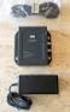 DATA SHEET CISCO AIRONET POWER INJECTOR Cisco Aironet Power Injector products increase the deployment flexibility of Cisco Aironet wireless access points and bridges by providing an alternative powering
Overview: Cisco Wireless Network Management Suite 1.0
 Overview: Cisco Wireless Network Management Suite 1.0 Introduction Cisco Wireless Network Management Suite 1.0 (CWNMS 1.0) is a client/server based network management application suite for Broadband Fixed
Quick Start Guide. RV 120W Wireless-N VPN Firewall. Cisco Small Business
 Quick Start Guide Cisco Small Business RV 120W Wireless-N VPN Firewall Package Contents Wireless-N VPN Firewall Ethernet Cable Power Adapter Quick Start Guide Documentation and Software on CD-ROM Welcome
Connect the Host to attach to Fast Ethernet switch port Fa0/2. Configure the host as shown in the topology diagram above.
 Lab 1.2.2 Capturing and Analyzing Network Traffic Host Name IP Address Fa0/0 Subnet Mask IP Address S0/0/0 Subnet Mask Default Gateway RouterA 172.17.0.1 255.255.0.0 192.168.1.1 (DCE) 255.255.255.0 N/A
Cisco Smart Business Communications System Setup
 Cisco Smart Business Communications System Setup Version 1.2 Partners Start Here 2 1 The Smart Choice for Small Business Small- and medium-sized businesses are looking for reasonably priced products and
Installation Guide for Cisco Unified Call Services, Universal Edition and Unified Call Studio
 Installation Guide for Cisco Unified Call Services, Universal Edition and Unified Call Studio Release 6.0(1) November 2008 Corporate Headquarters Cisco System s, Inc. 170 West Tasman D riv e San Jose,
Prestige 324. Prestige 324. Intelligent Broadband Sharing Gateway. Version 3.60 January 2003 Quick Start Guide
 Prestige 324 Intelligent Broadband Sharing Gateway Version 3.60 January 2003 Quick Start Guide 1 Introducing the Prestige The Prestige is a broadband sharing gateway with a built-in four-port 10/100 Mbps
Customizing Your Cisco Unified IP Phone on the Web
 Phone Guide Customizing Your Cisco Unified IP Phone on the Web Corporate Headquarters Cisco Systems, Inc. 170 West Tasman Drive San Jose, CA 95134-1706 USA http://www.cisco.com Tel: 408 526-4000 800 553-NETS
System Message Logging
 System Message Logging This module describes how to configure system message logging on your wireless device in the following sections: Understanding System Message Logging, page 1 Configuring System Message
Release Notes for Cisco SSL VPN Client, Release 1.0.2
 Release Notes for Cisco SSL VPN Client, Release 1.0.2 CCO Date: July 26, 2005 Part Number: OL-7819-02 Introduction These release notes are for the Cisco SSL VPN Client (SVC), Release 1.0.2, running on
User Guide for Cisco Unified MeetingPlace Web Conferencing
 User Guide for Cisco Unified MeetingPlace Web Conferencing Release 5.4 Revised August, 2007 Americas Headquarters Cisco Systems, Inc. 170 West Tasman Drive San Jose, CA 95134-1706 USA http://www.cisco.com
CISCO AIRONET POWER INJECTOR
 DATA SHEET CISCO AIRONET POWER INJECTOR Cisco Aironet Power Injector products increase the deployment flexibility of Cisco Aironet wireless access points and bridges by providing an alternative powering
CISCO IOS SOFTWARE FEATURE PACKS FOR THE CISCO 1700 SERIES MODULAR ACCESS ROUTERS AND CISCO 1800 SERIES (MODULAR) INTEGRATED SERVICES ROUTERS
 CISCO IOS SOFTWARE FEATURE PACKS FOR THE CISCO 1700 SERIES MODULAR ACCESS ROUTERS AND CISCO 1800 SERIES (MODULAR) INTEGRATED SERVICES ROUTERS This product bulletin provides details on the Cisco IOS s for
QUICK START GUIDE. Cisco S170 Web Security Appliance. Web Security Appliance
 1 0 0 0 1 1 QUICK START GUIDE Web Security Appliance Web Security Appliance Cisco S170 303417 Cisco S170 Web Security Appliance 1 Welcome 2 Before You Begin 3 Document Network Settings 4 Plan the Installation
Getting Started. Cisco Desktop Product Suite 4.5 (ICD)
 Getting Started Cisco Desktop Product Suite 4.5 (ICD) Corporate Headquarters Cisco Systems, Inc. 170 West Tasman Drive San Jose, CA 95134-1706 USA http://www.cisco.com Tel: 408 526-4000 800 553-NETS (6387)
Voice-Over IP Monitoring Best Practices Deployment Guide for CAD 6.0/6.1
 Voice-Over IP Monitoring Best Practices Deployment Guide for CAD 6.0/6.1 Corporate Headquarters Cisco Systems, Inc. 170 West Tasman Drive San Jose, CA 95134-1706 USA http://www.cisco.com Tel: 408 526-4000
Configuring the Switch with the CLI Setup Program
 APPENDIXC Configuring the Switch with the CLI Setup Program This appendix provides a command-line interface (CLI) setup procedure for a standalone switch. To set up the switch by using Express Setup, see
Quick Start Guide. Cisco Small Business. 200E Series Advanced Smart Switches
 Quick Start Guide Cisco Small Business 200E Series Advanced Smart Switches Welcome Thank you for choosing the Cisco 200E series Advanced Smart Switch, a Cisco Small Business network communications device.
Quick Start Guide. Cisco Small Business. 300 Series Managed Switches
 Quick Start Guide Cisco Small Business 300 Series Managed Switches Welcome Thank you for choosing the Cisco 300 Series Managed Switch, a Cisco Small Business network communications device. This device
Cisco GLBP Load Balancing Options
 Data Sheet Cisco GLBP Load Balancing Options Last updated: December 2005 INTRODUCTION The purpose of this document is to discuss the options that Cisco Gateway Load Balancing Protocol (GLBP) one of Cisco
Objectives. Background. Required Resources. CCNA Security
 Chapter 8 Lab B, Configuring a Remote Access VPN Server and Client Topology IP Addressing Table Device Interface IP Address Subnet Mask Default Gateway Switch Port R1 FA0/1 192.168.1.1 255.255.255.0 N/A
Connecting the DG-102S VoIP Gateway to your network
 Contents of Package: DG-102S VoIP Station Gateway Power adapter CD-ROM, including User s Manual Quick Install Guide Requirements: RS-232 Console Cable Two RJ-45 CAT-5 Straight-Through Cables For more information
QUICK START GUIDE. Cisco C170 Email Security Appliance
 1 0 0 1 QUICK START GUIDE Email Security Appliance Cisco C170 303357 Cisco C170 Email Security Appliance 1 Welcome 2 Before You Begin 3 Document Network Settings 4 Plan the Installation 5 Install the Appliance
Lab 8.3.3b Configuring a Remote Router Using SSH
 Lab 8.3.3b Configuring a Remote Router Using SSH Objectives Use SDM to configure a router to accept SSH connections. Configure SSH client software on a PC. Establish a connection to a Cisco ISR using SSH
Lab 1.2.3 Review of Basic Router Configuration with RIP. Objective. Background / Preparation. General Configuration Tips
 Lab 1.2.3 Review of Basic Router Configuration with RIP Objective Cable and configure workstations and routers Setup IP addressing scheme using Class B networks Configure Routing Information Protocol (RIP)
Unified Threat Management
 Unified Threat Management QUICK START GUIDE CR35iNG Appliance Document Version: PL QSG 35iNG/96000-10.04.5.0.007/250121014 DEFAULTS Default IP addresses Ethernet Port IP Address Zone A 172.16.16.16/255.255.255.0
User Guide Cisco Unified MeetingPlace Express Release 2.0
 User Guide Cisco Unified MeetingPlace Express Release 2.0 6/5/07 Americas Headquarters Cisco Systems, Inc. 170 West Tasman Drive San Jose, CA 95134-1706 USA http://www.cisco.com Tel: 408 526-4000 800 553-NETS
Release Notes for Cisco IronPort Email Security Plug-in 7.2
 Release Notes for Cisco IronPort Email Security Plug-in 7.2 Revised: October 12, 2011 Contents These release notes contain information critical to installing and running the Cisco IronPort Email Security
CISCO MEETINGPLACE FOR OUTLOOK 5.3
 DATA SHEET CISCO MEETINGPLACE FOR OUTLOOK 5.3 Rich-media Conferencing for Microsoft Outlook PRODUCT OVERVIEW Cisco MeetingPlace part of the Cisco IP Communications system is a complete rich-media conferencing
Quick Start Guide. WAP371 Wireless AC/N Dual Radio Access Point with Single Point Setup Quick Start Guide. Cisco Small Business
 Quick Start Guide Cisco Small Business WAP371 Wireless AC/N Dual Radio Access Point with Single Point Setup Quick Start Guide Versión en Español para México en el CD Version en français sur CD Versione
Prestige 324 Quick Start Guide. Prestige 324. Intelligent Broadband Sharing Gateway. Version V3.61(JF.0) May 2004 Quick Start Guide
 Prestige 324 Intelligent Broadband Sharing Gateway Version V3.61(JF.0) May 2004 Quick Start Guide 1 1 Introducing the Prestige The Prestige is a broadband sharing gateway with a built-in four-port 10/100
Cisco PIX 501 Firewall
 Quick Start Guide Cisco PIX 501 Firewall 1 Check Items Included 2 Installing the PIX 501 3 Configuring the PIX 501 4 Optional Maintenance and Upgrade Procedures About the Cisco PIX 501 Firewall The PIX
Cisco Unified Wireless IP Phone 7925G Accessory Guide
 Cisco Unified Wireless IP Phone 7925G Accessory Guide This guide describes the accessories that you can order for your Cisco Unified Wireless IP Phone 7925G. Contents This document contains these sections:
Implementation Note for NetFlow Collectors
 This document describes the implementation details for NetFlow collectors for the ASA 5580 adaptive security appliance, and includes the following sections: Event-Driven Data Export Bidirectional Flows
Cisco IP Phone 7914 Expansion Module
 Quick Start Guide Cisco IP Phone 7914 Expansion Module 1 Introduction to the Cisco IP Phone 7914 Expansion Module 2 Installing the 7914 Expansion Module 3 Features 4 How to Use the 7914 Expansion Module
Cisco Unified Communications Express Historical Reporting Client Configuration Guide
 Cisco Unified Communications Express Historical Reporting Client Configuration Guide October 2007 Americas Headquarters Cisco Systems, Inc. 170 West Tasman Drive San Jose, CA 95134-1706 USA http://www.cisco.com