
McAfee Endpoint Encryption for PC 6.2
|
|
|
- Catherine Harrington
- 10 years ago
- Views:
Transcription
1 EETech User Guide McAfee Endpoint Encryption for PC 6.2 For use with epolicy Orchestrator 4.5, 4.6 Software

2 COPYRIGHT Copyright 2012 McAfee, Inc. Do not copy without permission. TRADEMARK ATTRIBUTIONS McAfee, the McAfee logo, McAfee Active Protection, McAfee AppPrism, McAfee Artemis, McAfee CleanBoot, McAfee DeepSAFE, epolicy Orchestrator, McAfee epo, McAfee EMM, McAfee Enterprise Mobility Management, Foundscore, Foundstone, McAfee NetPrism, McAfee Policy Enforcer, Policy Lab, McAfee QuickClean, Safe Eyes, McAfee SECURE, SecureOS, McAfee Shredder, SiteAdvisor, SmartFilter, McAfee Stinger, McAfee Total Protection, TrustedSource, VirusScan, WaveSecure, WormTraq are trademarks or registered trademarks of McAfee, Inc. or its subsidiaries in the United States and other countries. Other names and brands may be claimed as the property of others. LICENSE INFORMATION License Agreement NOTICE TO ALL USERS: CAREFULLY READ THE APPROPRIATE LEGAL AGREEMENT CORRESPONDING TO THE LICENSE YOU PURCHASED, WHICH SETS FORTH THE GENERAL TERMS AND CONDITIONS FOR THE USE OF THE LICENSED SOFTWARE. IF YOU DO NOT KNOW WHICH TYPE OF LICENSE YOU HAVE ACQUIRED, PLEASE CONSULT THE SALES AND OTHER RELATED LICENSE GRANT OR PURCHASE ORDER DOCUMENTS THAT ACCOMPANY YOUR SOFTWARE PACKAGING OR THAT YOU HAVE RECEIVED SEPARATELY AS PART OF THE PURCHASE (AS A BOOKLET, A FILE ON THE PRODUCT CD, OR A FILE AVAILABLE ON THE WEBSITE FROM WHICH YOU DOWNLOADED THE SOFTWARE PACKAGE). IF YOU DO NOT AGREE TO ALL OF THE TERMS SET FORTH IN THE AGREEMENT, DO NOT INSTALL THE SOFTWARE. IF APPLICABLE, YOU MAY RETURN THE PRODUCT TO MCAFEE OR THE PLACE OF PURCHASE FOR A FULL REFUND. 2 McAfee Endpoint Encryption for PC 6.2 EETech User Guide

3 Contents 1 Introduction 5 Audience Using this guide Understanding the daily authorization code EETech (WinPE V1 and V3) 7 Create EETech WinPE V1 Recovery CD/DVD using BartPE Create EETech WinPE V3 32-bit Recovery CD/DVD Create EEOpalTech WinPE V3 32-bit Recovery CD/DVD Create EETech WinPE V3 64-bit Recovery CD/DVD Authorize with daily authorization code Authenticate with token Export the recovery information file from McAfee epo Authenticate with recovery file Remove encryption and boot sector with token authentication Remove encryption and boot sector with file authentication View the workspace Encrypt or decrypt sectors Restore the Master Boot Record (MBR) EETech (Standalone) 33 Create EETech (Standalone) bootable disk Create EEOpalTech (Standalone) bootable disk Boot from EETech and EEOpalTech (Standalone) boot disks Authorize with daily authorization code Authenticate with token Export the recovery information file from McAfee epo Authenticate with recovery file Perform emergency boot Remove encryption and boot sector with token authentication Remove encryption and boot sector with file authentication View the workspace Encrypt or decrypt sectors Restore the Master Boot Record (MBR) Glossary 45 Index 47 McAfee Endpoint Encryption for PC 6.2 EETech User Guide 3

4 Contents 4 McAfee Endpoint Encryption for PC 6.2 EETech User Guide

5 1 1 Introduction McAfee Endpoint Encryption for PC (EEPC) delivers powerful encryption that protects data from unauthorized access, loss, and exposure. With data breaches on the rise, it is important to protect information assets and comply with privacy regulations. EETech (WinPE Version 1 and 3), EEOpalTech (WinPE Version 3), EETech (Standalone), and EEOpalTech (Standalone) are McAfee s disaster recovery systems used in conjunction with EEPC. EETech now displays the Disk Crypt List and Edit Disk Crypt State information in decimal instead of hexadecimal. EETech (Standalone) and EEOpalTech (Standalone) are disaster recovery tools that allow the administrator to perform normal recovery functions. EETech (WinPE V1 and V3) and EEOpalTech (WinPE V3) perform the same functions under a Windows-like environment and include greater features such as booting from BartPE and easier access to USB drives. For EEPC, the Opal systems are supported only in the Advanced Host Controller Interface (AHCI) mode. Contents Audience Using this guide Understanding the daily authorization code Audience This guide is mainly intended for qualified system administrators and security managers. Knowledge of basic networking and routing concepts, and a general understanding of the aims of centrally managed security is required. Using this guide This guide helps corporate security administrators to understand the disaster recovery tools, EETech (Standalone) and EETech (WinPE). This document includes procedures to recover data from systems that are unrecoverable using self-recovery and administrator recovery. McAfee Endpoint Encryption for PC 6.2 EETech User Guide 5

6 1 Introduction Understanding the daily authorization code Understanding the daily authorization code Some recovery operations in EETech require administrative access. The user can get this access by typing a four-digit code into the authorization screen. This code changes everyday and can only be retrieved by contacting McAfee support (mysupport.mcafee.com). All EETech operations require authentication. However, only the administrative operations require authorization with the 4-digit daily authorization code. The following operations do not require the daily authorization code: Using the workspace utility to view sectors on the disk Using the disk information utility to identify encrypted regions on the disk Setting the encryption algorithm used by EETech Setting the boot disk on which EETech performs its operations Viewing and retrieving data from the disk (EETech BartPE only or EETech WinPE V1 only) The following operations do require the daily authorization code: Removing endpoint encryption that includes decrypting the disk and restoring the MBR Repairing disk information Using the crypt sectors and force crypt sectors utilities to manually encrypt or decrypt specific sectors Editing the disk crypt state Restoring the MBR Performing an emergency boot (EETech Standalone only) 6 McAfee Endpoint Encryption for PC 6.2 EETech User Guide

7 2 EETech 2 (WinPE V1 and V3) EETech (WinPE V1 and V3) is a disaster recovery tool that allows the administrator to perform recovery functions. EETech (WinPE V1 and V3) performs these functions under a Windows-like environment and includes greater features such as booting from BartPE and easier access to USB drives. It is entirely the responsibility of the qualified system administrators and security managers to take appropriate precautions while using EETech (WinPE V1 and V3) recovery tool. The user needs to handle the EETech Recovery tool with maximum care, otherwise, it may cause the system to become corrupt and that might result in the loss of data. Make sure that you do not restart the client system with WinPE V3 bootable CD/DVD when decryption is in progress. For more information, refer to this KnowledgeBase article kc.mcafee.com/corporate/index?page=content&id=kb Contents Create EETech WinPE V1 Recovery CD/DVD using BartPE Create EETech WinPE V3 32-bit Recovery CD/DVD Create EEOpalTech WinPE V3 32-bit Recovery CD/DVD Create EETech WinPE V3 64-bit Recovery CD/DVD Authorize with daily authorization code Authenticate with token Export the recovery information file from McAfee epo Authenticate with recovery file Remove encryption and boot sector with token authentication Remove encryption and boot sector with file authentication View the workspace Encrypt or decrypt sectors Restore the Master Boot Record (MBR) Create EETech WinPE V1 Recovery CD/DVD using BartPE Bart's PE Builder helps you build a "BartPE" (Bart Preinstalled Environment) bootable Windows CD/ DVD from the original Windows XP Operating System. Before you create the BartPE CD/DVD, you need to have the Windows XP \i386 folder. The i386 folder holds the files used to install, repair, modify, update, and rebuild Windows. This can be found on the root directory of a Windows XP Professional installation CD. EETech (WinPE) is accessed through the BartPE plug-in boot CD/DVD. When the user boots the unrecoverable system with the BartPE Windows CD/DVD, the first page that appears is the Endpoint Encryption interface. This is followed by a dialog box that prompts the user to start network services. You can start the network services if you have added the drivers for your Ethernet card to the CD/DVD build, otherwise click No. McAfee Endpoint Encryption for PC 6.2 EETech User Guide 7

8 2 EETech (WinPE V1 and V3) Create EETech WinPE V1 Recovery CD/DVD using BartPE Task 1 Download the latest BartPe install file. Refer to website for the required information and download links. 2 Install BartPe to the default install locations of your local system. 3 Open Microsoft Windows Explorer and navigate to the \pebuilderxxxxx\plugin folder. xxxxx denotes the version number of BartPE. 4 Extract EETech.zip to the desired location. Copy Win32 folder from EETech\WinPE folder to the \pebuilderxxxxx\plugin folder. 5 Create a subfolder called EEPC inside the \pebuilderxxxxx folder. 6 Copy the i386 folder to the root drive C:\ 7 Launch BartPe. The BartPE CD/DVD Builder page appears. 8 Type or browse to the path for the Windows installation files (i386 folder) in the C:\ drive. 9 Type or browse to the path to include other files and folders from this directory in the Custom field. 10 Type a folder name, for instance, EEPC in the Output field to store the files that PE Builder copies. Make sure that the location you type is relative to your \pebuilder directory. If you need to specify an absolute path, you must change the EEPC path absolute in the Builder Options dialog. 11 Use the Media output pane to specify whether you want to create a CD/DVD or an ISO image. You can click the Plugins button to add, edit, enable/disable, configure or remove plugins from the list. 12 Click Build to write the ISO image to a CD/DVD. When you select the Burn to CD/DVD option, it directly writes the ISO image to the inserted CD/ DVD. You can also create the ISO image and burn it to a CD/DVD later. 13 Boot the system from the EETech WinPE V1 Recovery CD/DVD. The Endpoint Encryption interface appears. 14 Click Go Programs McAfee EETech. The McAfee EETech page appears. 8 McAfee Endpoint Encryption for PC 6.2 EETech User Guide

9 EETech (WinPE V1 and V3) Create EETech WinPE V3 32-bit Recovery CD/DVD 2 Create EETech WinPE V3 32-bit Recovery CD/DVD Use this task to create a bootable WinPE recovery CD/DVD from the Windows 7 Operating System. To do this, you need to configure a WinPE 3.0 to include the plug-in for EEPC, which supports the x86 (32-bit) architecture. Before you begin The following information is intended for System Administrators when modifying the registry details: Registry modifications are irreversible and if done incorrectly can cause system failure. We recommend that you back up your registry and understand the restore process, before you proceed with the registry modification. For more information, see support.microsoft.com/kb/ Make sure that you do not run a.reg file, which is not considered to be a genuine registry import file. Make sure not to combine the 32-bit and 64-bit architectures. Task 1 Download Windows Automated Installation Kit (AIK) for Windows 7 from the Microsoft website. 2 Install AIK on Windows 7 (32-bit) Operating System either by burning it to a CD/DVD or extracting it using WinRAR. The WinPE 3.0 is setup. 3 Click Windows All programs Microsoft Windows AIK Deployment Tools and run Deployment Tools as Administrator to open the Deployment Tools command prompt. 4 Run the copype.cmd command. Syntax: copype.cmd <architecture> <destination> Where <architecture> can be x86, amd64, or ia64 <destination> is a path to the local directory Open this path C:\Program Files\Windows AIK\Tools\PETools and enter this command copype.cmd x86 C:\winpe_x86 This command creates the required directory structure and copies all the necessary files for that architecture. 5 Open the command prompt and mount the Windows PE image (Winpe.wim) base to the Mount directory to access the WinPE 3.0 image. Open this path C:\Program Files\Windows AIK\Tools\x86\Servicing and enter this command Dism.exe /Mount-Wim /WimFile:C:\winpe_x86\winpe.wim /index:1 / MountDir:C:\winpe_x86\mount 6 Edit the WinPE 3.0 environment as follows: a b c Open regedit and load the system hive under [HKEY_LOCAL_MACHINE]. Click HKEY_LOCAL_MACHINE, File, and Load Hive. The Load Hive pop-up appears. From the mounted WinPE image, navigate to this system file C:\winpe_x86\mount\ Windows \System32\Config\SYSTEM. McAfee Endpoint Encryption for PC 6.2 EETech User Guide 9

10 2 EETech (WinPE V1 and V3) Create EETech WinPE V3 32-bit Recovery CD/DVD d e f Name the WinPE hive; for instance pe3. Access this Registry entry [HKEY_LOCAL_MACHINE\pe3\ControlSet001\Control\Class \{4D36E967-E325-11CE-BFC BE10318}]. Edit the multi-string upper filters with values: MfeEpePC PartMgr g h Right click HKEY_LOCAL_MACHINE\pe3\ControlSet001\services and create the MfeEpePC and MfeEEAlg keys. Modify the values of the created keys as follows: [HKEY_LOCAL_MACHINE\pe3\ControlSet001\services\MfeEpePC] "Type"=dword: "Start"=dword: "ErrorControl"=dword: [HKEY_LOCAL_MACHINE\pe3\ControlSet001\services\MfeEEAlg] "Type"=dword: "Start"=dword: "ErrorControl"=dword: "Group"=string:Primary Disk i j k Click pe3, then click File Unload hive to unload the WinPE mounted hive. Close the Registry Directory. Add the EEPC files to appropriate locations in the mounted WinPE image as mentioned in the following tables. Before you copy the files, you need to create folders as follows: Table 2-1 Folders to be created Location C:\Winpe_x86\mount\Program Files\ C:\Winpe_x86\mount\Program Files\Endpoint Encryption for PC v6\ C:\Winpe_x86\mount\Program Files\Endpoint Encryption for PC v6\ Folder to be created Endpoint Encryption for PC v6 EpeReaders EpeTokens 10 McAfee Endpoint Encryption for PC 6.2 EETech User Guide

11 EETech (WinPE V1 and V3) Create EETech WinPE V3 32-bit Recovery CD/DVD 2 Table 2-1 Folders to be created (continued) Location C:\Winpe_x86\mount\Program Files\Endpoint Encryption for PC v6\ C:\Winpe_x86\mount\Program Files\Endpoint Encryption for PC v6\ Folder to be created Locale Theme Copy the following EEPC files into the image from the Win32 folder found in the build. Table 2-2 Files to be copied Location C:\Winpe_X86\mount\Windows \System32\Drivers\ Files to be copied MfeEpePC.sys MfeEEAlg.sys C:\Winpe_x86\mount\Program Files \Endpoint Encryption for PC v6\ C:\Winpe_x86\mount\Program Files \Endpoint Encryption for PC v6\epereaders C:\Winpe_x86\mount\Program Files \Endpoint Encryption for PC v6\epetokens C:\Winpe_x86\mount\Program Files \Endpoint Encryption for PC v6\locale EETech.exe EpeReaderPcsc.dll EpeTokenPassword.dll EpeTokenSmartcard.dll Locale.xml McAfee Endpoint Encryption for PC 6.2 EETech User Guide 11

12 2 EETech (WinPE V1 and V3) Create EETech WinPE V3 32-bit Recovery CD/DVD Table 2-2 Files to be copied (continued) Location C:\Winpe_x86\mount\Program Files \Endpoint Encryption for PC v6\locale \English-US Files to be copied Please use the Language of your choice. e.g. English-US Core-0409.xml Tech-0409.xml C:\Winpe_x86\mount\Program Files \Endpoint Encryption for PC v6\theme Background.png BootManager.xml CJK_Tahoma12.pbf CJK_Tahoma8.pbf CJK_Tahoma8B.pbf EpeTechAuthorize.xml EpeTechCryptSectors.xml EpeTechDiskInfo.xml EpeTechEditCryptList.xml EpeTechEditRegion.xml EpeTechFilePicker.xml EpeTechMainWnd.xml EpeTechRemoveEpe.xml EpeTechSectorPicker.xml EpeTechSelectAlg.xml EpeTechSetBootDisk.xml EpeTechWorkspace.xml EpeTechRestoreMBR.xml ErrorMessageBox.xml Language.xml LatinASCII_Tahoma12B.pbf LatinASCII_Tahoma18B.pbf LatinASCII_Tahoma8.pbf LatinASCII_Tahoma8B.pbf Logon.xml LogonBanner.png MessageBox.xml Modules.xml NewPassword.xml OsLogon.xml OsNewPassword.xml PasswordToken.xml Progress.xml QAEnrolWizard.xml QaEnrolWizardBanner.png 12 McAfee Endpoint Encryption for PC 6.2 EETech User Guide

13 EETech (WinPE V1 and V3) Create EETech WinPE V3 32-bit Recovery CD/DVD 2 Table 2-2 Files to be copied (continued) Location Files to be copied RecoverLocal.xml RecoverLocalBanner.png RecoverRemote.xml RecoverRemoteBanner.png RecoveryType.xml RecoveryTypeBanner.png SelectUser.xml SelectUserBanner.png Tech-0409.xml Theme.xml TimeoutDialog.xml TokenInit.xml TokenSelect.xml 7 Commit the changes in this path C:\Program Files\Windows AIK\Tools\x86\Servicing by performing these steps: a To commit changes to WIM, enter this command Dism.exe /Unmount-Wim /MountDir:C: \winpe_x86\mount\ /Commit b c To copy the new WIM image to boot ISO, enter this command copy C:\winpe_x86\winpe.wim C:\winpe_x86\ISO\sources\boot.wim /Y To create a bootable iso image, enter this command oscdimg -n -bc: \winpe_x86\etfsboot.com C:\winpe_x86\ISO C:\winpe_x86\winpe_x86.iso The iso for WinPE3 32-bit for EETech can be found at C:\winpe_x86\winpe_x86.iso 8 Burn this iso to a CD/DVD and boot the system from the CD/DVD. Make sure that you do not boot the system from WinPE V3 CD/DVD when the decryption is in progress. 9 In the command prompt, enter these commands: cd\ cd Program Files\Endpoint Encryption for PC v6 EETech.exe The EETech screen appears. McAfee Endpoint Encryption for PC 6.2 EETech User Guide 13

14 2 EETech (WinPE V1 and V3) Create EEOpalTech WinPE V3 32-bit Recovery CD/DVD Create EEOpalTech WinPE V3 32-bit Recovery CD/DVD Use this task to create a bootable EEOpalTech WinPE V3 32-bit recovery CD/DVD from the Windows 7 Operating System. To do this, you need to configure WinPE 3.0 to include the Opal plug-in for EEPC, which supports only the x86 (32-bit) architecture. Before you begin The following information is intended for System Administrators when modifying the registry details: Registry modifications are irreversible and if done incorrectly can cause system failure. We recommend that you back up your registry and understand the restore process, before you proceed with the registry modification. For more information, see support.microsoft.com/kb/ Make sure that you do not run a.reg file, which is not considered to be a genuine registry import file. Task 1 Download Windows Automated Installation Kit (AIK) for Windows 7 from the Microsoft website. 2 Install AIK on Windows 7 (32-bit) Operating System either by burning it to a CD/DVD or extracting it using WinRAR. The WinPE 3.0 is setup. 3 Click Windows All programs Microsoft Windows AIK Deployment Tools and run Deployment Tools as Administrator to open the Deployment Tools command prompt. 4 Run the copype.cmd command. Syntax: copype.cmd <architecture> <destination> Where <architecture> can be x86, amd64, or ia64 and <destination> is a path to the local directory. Open this path C:\Program Files\Windows AIK\Tools\PETools and enter this command copype.cmd x86 C:\winpe_x86 This command creates the required directory structure and copies all the necessary files for that architecture. 5 Open the command prompt and mount the Windows PE image (Winpe.wim) base to the Mount directory to access the WinPE 3.0 image. Open this path C:\Program Files\Windows AIK\Tools\x86\Servicing and enter this command Dism.exe /Mount-Wim /WimFile:C:\winpe_x86\winpe.wim /index:1 / MountDir:C:\winpe_x86\mount 6 Edit the WinPE 3.0 environment as follows: a b c d Open regedit and load the system hive under [HKEY_LOCAL_MACHINE]. Click HKEY_LOCAL_MACHINE, File, and Load Hive. The Load Hive pop-up appears. From the mounted WinPE image, navigate to this system file C:\winpe_x86\mount\ Windows \System32\Config\SYSTEM. Name the WinPE hive; for instance pe3. 14 McAfee Endpoint Encryption for PC 6.2 EETech User Guide

15 EETech (WinPE V1 and V3) Create EEOpalTech WinPE V3 32-bit Recovery CD/DVD 2 e f Access this Registry entry [HKEY_LOCAL_MACHINE\pe3\ControlSet001\Control\Class \{4D36E967-E325-11CE-BFC BE10318}]. Edit the multi-string upper filters with values: MfeEpeOpal MfeEpePC PartMgr g h Right click HKEY_LOCAL_MACHINE\pe3\ControlSet001\services and create the MfeEpeOpal, MfeEpePC and MfeEEAlg keys. Modify the values of the created keys as follows: [HKEY_LOCAL_MACHINE\pe3\ControlSet001\services\MfeEpeOpal] "Type"=dword: "Start"=dword: "ErrorControl"=dword: [HKEY_LOCAL_MACHINE\pe3\ControlSet001\services\MfeEpePC] "Type"=dword: "Start"=dword: "ErrorControl"=dword: [HKEY_LOCAL_MACHINE\pe3\ControlSet001\services\MfeEEAlg] "Type"=dword: "Start"=dword: "ErrorControl"=dword: "Group"=string:Primary Disk i j k Click pe3, then click File Unload hive to unload the WinPE mounted hive. Close the Registry Directory. Add the EEPC files to appropriate locations in the mounted WinPE image as mentioned in the following tables. Before you copy the files, you need to create folders as follows: Table 2-3 Folders to be created Location C:\Winpe_x86\mount\Program Files\ C:\Winpe_x86\mount\Program Files\Endpoint Encryption for PC v6\ C:\Winpe_x86\mount\Program Files\Endpoint Encryption for PC v6\ Folder to be created Endpoint Encryption for PC v6 EpeReaders EpeTokens McAfee Endpoint Encryption for PC 6.2 EETech User Guide 15

16 2 EETech (WinPE V1 and V3) Create EEOpalTech WinPE V3 32-bit Recovery CD/DVD Table 2-3 Folders to be created (continued) Location C:\Winpe_x86\mount\Program Files\Endpoint Encryption for PC v6\ C:\Winpe_x86\mount\Program Files\Endpoint Encryption for PC v6\ Folder to be created Locale Theme Copy the following EEPC files into the image from the Opal folder found in the build. Table 2-4 Files to be copied Location C:\Winpe_X86\mount\Windows \System32\Drivers\ C:\Winpe_x86\mount\Program Files \Endpoint Encryption for PC v6\ C:\Winpe_x86\mount\Program Files \Endpoint Encryption for PC v6\epereaders C:\Winpe_x86\mount\Program Files \Endpoint Encryption for PC v6\epetokens C:\Winpe_x86\mount\Program Files \Endpoint Encryption for PC v6\locale Files to be copied MfeEpeOpal.sys MfeEpePC.sys MfeEEAlg.sys EEOpalTech.exe EpeOpalATASec4SATA.dll EpeReaderPcsc.dll EpeTokenPassword.dll EpeTokenSmartcard.dll Locale.xml 16 McAfee Endpoint Encryption for PC 6.2 EETech User Guide
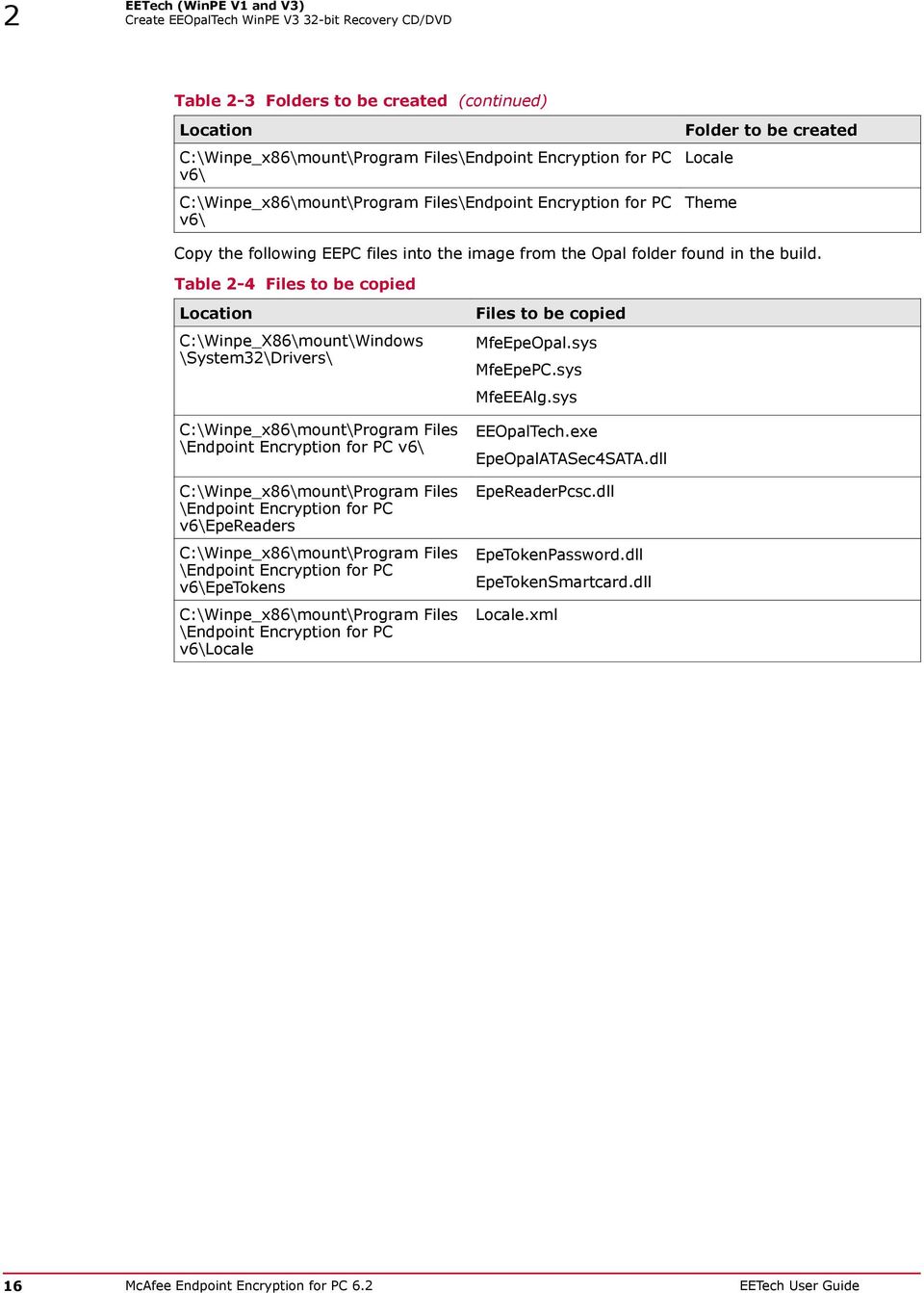
17 EETech (WinPE V1 and V3) Create EEOpalTech WinPE V3 32-bit Recovery CD/DVD 2 Table 2-4 Files to be copied (continued) Location C:\Winpe_x86\mount\Program Files \Endpoint Encryption for PC v6\locale\english-us C:\Winpe_x86\mount\Program Files \Endpoint Encryption for PC v6\theme Files to be copied Please use the Language of your choice, for example, English-US Core-0409.xml Tech-0409.xml Background.png BootManager.xml CJK_Tahoma12.pbf CJK_Tahoma8.pbf CJK_Tahoma8B.pbf EpeTechAuthorize.xml EpeTechCryptSectors.xml EpeTechDiskInfo.xml EpeTechEditCryptList.xml EpeTechEditRegion.xml EpeTechFilePicker.xml EpeTechMainWnd.xml EpeTechRemoveEpe.xml EpeTechSectorPicker.xml EpeTechSelectAlg.xml EpeTechSetBootDisk.xml EpeTechWorkspace.xml EpeTechRestoreMBR.xml ErrorMessageBox.xml Language.xml LatinASCII_Tahoma12B.pbf LatinASCII_Tahoma18B.pbf LatinASCII_Tahoma8.pbf LatinASCII_Tahoma8B.pbf Logon.xml LogonBanner.png MessageBox.xml Modules.xml NewPassword.xml OsLogon.xml OsNewPassword.xml PasswordToken.xml Progress.xml QAEnrolWizard.xml McAfee Endpoint Encryption for PC 6.2 EETech User Guide 17

18 2 EETech (WinPE V1 and V3) Create EEOpalTech WinPE V3 32-bit Recovery CD/DVD Table 2-4 Files to be copied (continued) Location Files to be copied QaEnrolWizardBanner.png RecoverLocal.xml RecoverLocalBanner.png RecoverRemote.xml RecoverRemoteBanner.png RecoveryType.xml RecoveryTypeBanner.png SelectUser.xml SelectUserBanner.png Tech-0409.xml Theme.xml TimeoutDialog.xml TokenInit.xml TokenSelect.xml 7 Commit the changes in this path C:\Program Files\Windows AIK\Tools\x86\Servicing by performing these steps: a To commit changes to WIM, enter this command Dism.exe /Unmount-Wim /MountDir:C: \winpe_x86\mount\ /Commit b c To copy the new WIM image to boot ISO, enter this command copy C:\winpe_x86\winpe.wim C:\winpe_x86\ISO\sources\boot.wim /Y To create a bootable iso image, enter this command oscdimg -n -bc: \winpe_x86\etfsboot.com C:\winpe_x86\ISO C:\winpe_x86\winpe_x86.iso The iso for WinPE3 32-bit for EEOpalTech can be found at C:\winpe_x86\winpe_x86.iso 8 Burn this iso to a CD/DVD and boot the system from the CD/DVD. 9 In the command prompt, enter these commands: cd\ cd Program Files\Endpoint Encryption for PC v6 EEOpalTech.exe The McAfee EETech (Opal) screen appears. 18 McAfee Endpoint Encryption for PC 6.2 EETech User Guide

19 EETech (WinPE V1 and V3) Create EETech WinPE V3 64-bit Recovery CD/DVD 2 Create EETech WinPE V3 64-bit Recovery CD/DVD Use this task to create a bootable WinPE recovery CD/DVD from the Windows 7 (64-bit) Operating System. To do this, you need to configure a WinPE 3.0 to include the plug-in for EEPC, which supports the amd64 (64-bit) architecture. Before you begin The following are the pre-requisites that you must know before you create the WinPE 64-bit CD/DVD: Registry modifications are irreversible and if done incorrectly can cause system failure. We recommend that you back up your registry and understand the restore process, before you proceed with the registry modification. For more information, see support.microsoft.com/kb/ Make sure that you do not run a.reg file, which is not considered to be a genuine registry import file. Make sure that you do not combine the 32-bit and 64-bit architectures. Make sure that you rename the EETech64.exe file (found in the Win64 folder within the build) to EETech.exe. WinPE 64-bit is limited to file and password authentication; token support is not applicable. Task 1 Download Windows Automated Installation Kit (AIK) for Windows 7 from the Microsoft website. 2 Install AIK on Windows 7 (64-bit) Operating System either by burning it to a CD/DVD or extracting it using WinRAR. The WinPE 3.0 is setup. 3 Click Windows All programs Microsoft Windows AIK Deployment Tools and run Deployment Tools as Administrator to open the Deployment Tools command prompt. 4 Run the copype.cmd command. Syntax: copype.cmd <architecture> <destination> Where <architecture> can be x86, amd64, or ia64 <destination> is a path to the local directory Open this path C:\Program Files\Windows AIK\Tools\PETools and enter this command copype.cmd amd64 C:\winpe_amd64 This command creates the required directory structure and copies all the necessary files for the specified architecture. 5 Open the command prompt and mount the Windows PE image (Winpe.wim) base to the Mount directory to access the WinPE 3.0 image. Open this path C:\Program Files\Windows AIK\Tools\amd64\Servicing and enter this command Dism.exe /Mount-Wim /WimFile:C:\winpe_amd64\winpe.wim /index:1 / MountDir:C:\winpe_amd64\mount McAfee Endpoint Encryption for PC 6.2 EETech User Guide 19

20 2 EETech (WinPE V1 and V3) Create EETech WinPE V3 64-bit Recovery CD/DVD 6 Edit the WinPE 3.0 environment as follows: a b c d e f Open regedit and load the system hive under [HKEY_LOCAL_MACHINE]. Click HKEY_LOCAL_MACHINE, File, and Load Hive. The Load Hive pop-up appears. From the mounted WinPE image, navigate to this system file C:\winpe_amd64\mount\ Windows \System32\Config\SYSTEM. Name the WinPE hive; for instance pe3. Access this Registry entry [HKEY_LOCAL_MACHINE\pe3\ControlSet001\Control\Class \{4D36E967-E325-11CE-BFC BE10318}]. Edit the multi-string upper filters with values: MfeEpePC PartMgr g h Right click HKEY_LOCAL_MACHINE\pe3\ControlSet001\services and create the MfeEpePC and MfeEEAlg keys. Modify the values of the created keys as follows: The keys are still 32-bit dword even though you are using a 64-bit system. [HKEY_LOCAL_MACHINE\pe3\ControlSet001\services\MfeEpePC] "Type"=dword: "Start"=dword: "ErrorControl"=dword: [HKEY_LOCAL_MACHINE\pe3\ControlSet001\services\MfeEEAlg] "Type"=dword: "Start"=dword: "ErrorControl"=dword: "Group"=string:Primary Disk i j k Click pe3, then click File Unload hive to unload the WinPE mounted hive. Close the Registry Directory. Add the EEPC files to the required locations in the mounted WinPE image as mentioned in the following tables. Before you copy the files, you need to create folders as follows: Table 2-5 Folders to be created Location C:\Winpe_amd64\mount\Program Files\ C:\Winpe_amd64\mount\Program Files\Endpoint Encryption for PC v6\ Folder to be created Endpoint Encryption for PC v6 EpeReaders 20 McAfee Endpoint Encryption for PC 6.2 EETech User Guide
![Name the WinPE hive; for instance pe3. Access this Registry entry [HKEY_LOCAL_MACHINE\pe3\ControlSet001\Control\Class \{4D36E967-E325-11CE-BFC1-08002BE10318}].](/docs-images/44/14642531/images/page_20.jpg "Edit the multi-string upper filters with values: MfeEpePC PartMgr g h Right click HKEY_LOCAL_MACHINE\pe3\ControlSet001\services and create the MfeEpePC and MfeEEAlg keys.")
21 EETech (WinPE V1 and V3) Create EETech WinPE V3 64-bit Recovery CD/DVD 2 Table 2-5 Folders to be created (continued) Location C:\Winpe_amd64\mount\Program Files\Endpoint Encryption for PC v6\ C:\Winpe_amd64\mount\Program Files\Endpoint Encryption for PC v6\ C:\Winpe_amd64\mount\Program Files\Endpoint Encryption for PC v6\ Folder to be created EpeTokens Locale Theme Copy the following EEPC files into the image from the Win64 folder found in the build. Table 2-6 Files to be copied Location C:\Winpe_amd64\mount\Windows \System32\Drivers\ C:\Winpe_amd64\mount\Program Files\Endpoint Encryption for PC v6\ C:\Winpe_amd64\mount\Program Files \Endpoint Encryption for PC v6\epetokens C:\Winpe_amd64\mount\Program Files \Endpoint Encryption for PC v6\locale Files to be copied MfeEpePC.sys MfeEEAlg.sys EETech.exe EpeTokenPassword.dll Locale.xml McAfee Endpoint Encryption for PC 6.2 EETech User Guide 21
22 2 EETech (WinPE V1 and V3) Create EETech WinPE V3 64-bit Recovery CD/DVD Table 2-6 Files to be copied (continued) Location C:\Winpe_amd64\mount\Program Files\Endpoint Encryption for PC v6\locale\english-us C:\Winpe_amd64\mount\Program Files\Endpoint Encryption for PC v6\theme Files to be copied Please use the Language of your choice. e.g. English-US Core-0409.xml Tech-0409.xml Background.png BootManager.xml CJK_Tahoma12.pbf CJK_Tahoma8.pbf CJK_Tahoma8B.pbf EpeTechAuthorize.xml EpeTechCryptSectors.xml EpeTechDiskInfo.xml EpeTechEditCryptList.xml EpeTechEditRegion.xml EpeTechFilePicker.xml EpeTechMainWnd.xml EpeTechRemoveEpe.xml EpeTechSectorPicker.xml EpeTechSelectAlg.xml EpeTechSetBootDisk.xml EpeTechWorkspace.xml EpeTechRestoreMBR.xml ErrorMessageBox.xml Language.xml LatinASCII_Tahoma12B.pbf LatinASCII_Tahoma18B.pbf LatinASCII_Tahoma8.pbf LatinASCII_Tahoma8B.pbf Logon.xml LogonBanner.png MessageBox.xml Modules.xml NewPassword.xml OsLogon.xml SelectUser.xml OsNewPassword.xml PasswordToken.xml Progress.xml QAEnrolWizard.xml 22 McAfee Endpoint Encryption for PC 6.2 EETech User Guide
23 EETech (WinPE V1 and V3) Authorize with daily authorization code 2 Table 2-6 Files to be copied (continued) Location Files to be copied QaEnrolWizardBanner.png RecoverLocal.xml RecoverLocalBanner.png RecoverRemote.xml RecoverRemoteBanner.png RecoveryType.xml RecoveryTypeBanner.png SelectUserBanner.png Tech-0409.xml Theme.xml TimeoutDialog.xml TokenInit.xml TokenSelect.xml 7 Commit the changes in this path C:\Program Files\Windows AIK\Tools\amd64\Servicing by performing these steps: a To commit changes to WIM, enter this command Dism.exe /Unmount-Wim /MountDir:C: \winpe_amd64\mount\ /Commit b To copy the new WIM image to boot ISO, enter this command copy C: \winpe_amd64\winpe.wim C:\winpe_amd64\ISO\sources\boot.wim /Y c To create a bootable iso image, enter this command oscdimg -n -bc: \winpe_amd64\etfsboot.com C:\winpe_amd64\ISO C:\winpe_amd64\winpe_amd64.iso The iso for WinPE3 64-bit for EETech can be found at C:\winpe_amd64\winpe_amd64.iso 8 Burn this iso to a CD/DVD and boot the client system from the CD/DVD. Make sure that you do not boot the system from WinPE V3 CD/DVD when the decryption is in progress. 9 In the command prompt, enter these commands: cd\ cd Program Files\Endpoint Encryption for PC v6 EETech.exe The EETech screen appears. Authorize with daily authorization code Use this task to gain administrative access to EETech with the daily authorization code. This code is only required for certain tasks in EETech, so retrieve the code when the recovery procedure in this document states that it is required. Before you begin Ensure that the system's main power supply is plugged in for this task. Do not attempt to perform this task on battery only. McAfee Endpoint Encryption for PC 6.2 EETech User Guide 23
24 2 EETech (WinPE V1 and V3) Authenticate with token Before proceeding with this task, you must have the following: The EETech WinPE V1/V3 Recovery CD/DVD boot disk. The daily Authorization/Access code. Users with a valid support contract with McAfee can obtain the daily authorization code from McAfee Support. Task 1 Boot the system with the EETech WinPE V1/V3 Recovery CD/DVD. This loads the Endpoint Encryption interface. 2 You can open the EETech screen in two different ways: a b For BartPE, Click Go Programs McAfee EETech. The EETech screen appears. For WinPE V3, in the command prompt, enter these commands: cd\ cd Program Files\Endpoint Encryption for PC v6 EETech.exe or EEOpalTech.exe The EETech screen appears. 3 Click Authorize under Authorization. The Authorize dialog box appears. 4 Type the daily Authorization/Access Code and click OK. On typing the correct authorization code for the day, the Authorization status changes to Authorized. Authenticate with token Use this task to authenticate with a token to enable recovery tasks. Before you begin Before proceeding with this task, make sure that you have the EETech WinPE V1/V3 Recovery CD/DVD boot disc. Task 1 Make sure that the system s main power supply is plugged in for this task. Do not attempt to perform this task on battery only. 2 Boot the system with the EETech WinPE V1/V3 Recovery CD/DVD. This loads the Endpoint Encryption interface. 3 You can open the EETech screen in two different ways: a b For BartPE, Click Go Programs McAfee EETech. The EETech screen appears. For WinPE V3, in the command prompt, enter these commands: cd\ cd Program Files\Endpoint Encryption for PC v6 EETech.exe or EEOpalTech.exe The EETech screen appears. 24 McAfee Endpoint Encryption for PC 6.2 EETech User Guide
25 EETech (WinPE V1 and V3) Export the recovery information file from McAfee epo 2 4 Click Token under Authentication. The Endpoint Encryption Logon page appears and prompts for the Endpoint Encryption credentials for the system. 5 Type the Username and Password for the client system and click Logon. On providing the correct credential, the Authentication status changes to Authenticated with Token. Export the recovery information file from McAfee epo Use this task to export the recovery information file (.xml) for the desired system from McAfee epo. Every system that is encrypted using the EEPC software has a recovery information file in McAfee epo. Any user trying to enable the recovery procedures on the client systems should get the file from the McAfee epo administrator for EEPC. Before you begin You must have appropriate permissions to perform this task. Task 1 Insert your choice of removable media, such as floppy disk or USB drive, to the system where McAfee epo server is present. 2 Click Menu Systems System Tree in the McAfee epo server. The Systems page appears. Select the desired group under System Tree pane on the left. 3 Select the desired System, then click Actions Endpoint Encryption Export Recovery Information. The Export Recovery Information confirmation page appears. 4 Click Yes to export the recovery information file. The Export Recovery Information page appears with the Export information (.xml) file. 5 Right-click the.xml file and save it to the inserted removable media, such as floppy disk or USB drive. The Recovery Information File has a general format of client system name.xml. Authenticate with recovery file Use this task to authenticate the recovery procedures using the Recovery Information File (.xml). The administrator needs to export the Recovery Information File for the desired system from the McAfee epo server. Before you begin Before proceeding with this task, you must have the following: The EETech WinPE V1/V3 Recovery CD/DVD boot disk. The floppy drive or USB containing the Recovery Information File (.xml). The daily Authorization/Access code. Users with a valid support contract with McAfee can obtain the daily Authorization code from McAfee Support. McAfee Endpoint Encryption for PC 6.2 EETech User Guide 25
26 2 EETech (WinPE V1 and V3) Remove encryption and boot sector with token authentication Task 1 Make sure that the system s main power supply is plugged in for this task. Do not attempt to perform this task on battery only. 2 Boot the system with the EETech WinPE V1/V3 Recovery CD/DVD. This loads the Endpoint Encryption interface. 3 You can open the EETech screen in two different ways: a b For BartPE, Click Go Programs McAfee EETech. The EETech screen appears. For WinPE V3, in the command prompt, enter these commands: cd\ cd Program Files\Endpoint Encryption for PC v6 EETech.exe or EEOpalTech.exe The EETech screen appears. 4 Click File under Authentication, then browse and select the Recovery Information File (.xml) from the floppy disk or USB drive, then click OK. On selecting the right file, the Authentication status changes to Authenticated with File. Remove encryption and boot sector with token authentication Use this task in the following situations when: Windows becomes corrupt. You cannot access the data of an encrypted system. Encryption or decryption fails. Before you begin Before proceeding with this task, you must have the following: The EETech WinPE V1/V3 Recovery CD/DVD boot disk. The daily Authorization/Access code. Users with a valid support contract with McAfee can obtain the daily Authorization code from McAfee Support. Task 1 Make sure that the system s main power supply is plugged in for this task. Do not attempt to perform this task on battery only. 2 Boot the system with the EETech WinPE V1/V3 Recovery CD/DVD. This loads the Endpoint Encryption interface. 26 McAfee Endpoint Encryption for PC 6.2 EETech User Guide
27 EETech (WinPE V1 and V3) Remove encryption and boot sector with file authentication 2 3 You can open the EETech screen in two different ways: a b For BartPE, Click Go Programs McAfee EETech. The EETech screen appears. For WinPE V3, in the command prompt, enter these commands: cd\ cd Program Files\Endpoint Encryption for PC v6 EETech.exe or EEOpalTech.exe The EETech screen appears. 4 Authorize with daily Authorization code and confirm the authorization status. 5 Authenticate with Token and confirm the authentication status. 6 Click Remove EE under Actions. The Remove EE page appears. If you enter valid authentication and authorization in EETech, clicking the Remove EE button would not work because the Windows 7 PE environments bring the disk online. To resolve this issue for fully decrypting the disk and restoring the MBR functions, you must bring the disk offline prior to attempting to remove EE. To bring the disk offline, you must use DiskPart, which is available in Windows 7 PE. Launch the Windows command prompt, and enter these commands. diskpart select disk 0 offline disk 7 Click Remove to begin the removal. This removes encryption and boot sector from the client system, however, this does not remove Endpoint Encryption client files. It might take a few hours depending on the system performance and the storage capacity of the drive or partition. Removing Endpoint Encryption through EETech does not uninstall the EEAgent or EEPC components from the operating system. When you restart the system, the OS will load and these components will synchronize with the McAfee epolicy Orchestrator server and apply the current policy. If you wish to prevent Endpoint Encryption from activating and encrypting, disconnect the system from the network or change its policy in the McAfee epolicy Orchestrator before restarting the system. When configuring the Endpoint Encryption policy, uncheck the Enable Policy option in the General tab. Make sure that you do this only for the selected system and not for all systems in the System Tree. For instructions on configuring policies, refer to McAfee Endpoint Encryption for PC Product Guide. Remove encryption and boot sector with file authentication If Endpoint Encryption does not work and the previous Encryption and Boot Sector Removal with token authentication cannot be used, then follow this task. This procedure should only be attempted under the guidance of McAfee Support. For this method, the recovery information file (.xml) should be exported from McAfee epo. Before you begin McAfee Endpoint Encryption for PC 6.2 EETech User Guide 27
28 2 EETech (WinPE V1 and V3) View the workspace Before proceeding with this task, you must have the following: The EETech WinPE V1/V3 Recovery CD/DVD boot disk. The floppy drive or USB containing the Recovery Information File (.xml). The daily Authorization/Access code. Users with a valid support contract with McAfee can obtain the daily Authorization code from McAfee Support. Task 1 Insert the removable media that has the Recovery Information File (.xml) exported from the McAfee epo server. 2 Boot the system with the EETech WinPE V1/V3 Recovery CD/DVD. This loads the Endpoint Encryption interface. 3 You can open the EETech screen in two different ways: a b For BartPE, Click Go Programs McAfee EETech. The EETech screen appears. For WinPE V3, in the command prompt, enter these commands: cd\ cd Program Files\Endpoint Encryption for PC v6 EETech.exe or EEOpalTech.exe The EETech screen appears. 4 Authorize with daily Authorization code and confirm the authorization status. 5 Authenticate with Recovery Information File (.xml) and confirm the authentication status. 6 Click Remove EE under Actions. The Remove EE page appears. 7 Click Remove to begin the removal. This removes encryption and boot sector from the client system, however, this does not remove Endpoint Encryption client files. It might take a few hours depending on the system performance and the storage capacity of the drive or partition. Remove the client system from McAfee epo server after removing Endpoint Encryption from the client system. View the workspace The workspace contains the bytes loaded from the sectors on the disk or from a file. This option opens the Workspace window which allows the users to read sector ranges from the disk and to view the contents. By default, there is nothing loaded into the workspace. The workspace is not a view of the disk, rather it is only a view of what the user loads into it. The user can choose to load the contents of sectors or the contents of a file. Once the user loads any of these, it is displayed in the workspace. It is entirely the responsibility of the qualified system administrators and security managers to take appropriate precautions before performing this task. The user needs to take maximum care while performing this task, otherwise, it may cause the system to become corrupt and that might result in the loss of data. Contact McAfee support for assistance on how to use the EETech Workspace. Before you begin 28 McAfee Endpoint Encryption for PC 6.2 EETech User Guide
29 EETech (WinPE V1 and V3) Encrypt or decrypt sectors 2 Before proceeding with this task, you must have the following: The EETech WinPE V1/V3 Recovery CD/DVD boot disk. The daily Authorization/Access code. Users with a valid support contract with McAfee can obtain the daily Authorization code from McAfee Support. Recovery Information File (.xml) or Authentication Token Task 1 Boot the system with the EETech WinPE V1/V3 Recovery CD/DVD. This loads the Endpoint Encryption interface. 2 You can open the EETech screen in two different ways: a b For BartPE, Click Go Programs McAfee EETech. The EETech screen appears. For WinPE V3, in the command prompt, enter these commands: cd\ cd Program Files\Endpoint Encryption for PC v6 EETech.exe or EEOpalTech.exe The EETech screen appears. 3 Authorize with daily Authorization code and confirm the authorization status. 4 Authenticate with Token or Recovery Information File (.xml) and confirm the authentication status. 5 Click Workspace under Actions. The Workspace page appears with following options: Load From File -It just loads the bytes from the file and displays them. Save To File - This option saves the current values of the bytes to the file. Load From Disk - This loads the bytes from the sectors on the disk. Save To Disk - This option saves the current values of the bytes to the disk. Zero Workspace - This option fills the workspace with zeros. Encrypt Workspace - This option encrypts the entire contents of the workspace. Decrypt Workspace - This option decrypts the entire contents of the workspace. Set workspace Alg - Use this option to select and set the desired workspace algorithm. 6 Click First Sector to view the first sector of the workspace. 7 Click Previous Sector to view the previous sector of the current sector of the workspace. 8 Click Next Sector to view the next sector of the current sector of the workspace. 9 Click Last Sector to view the last sector of the workspace. Encrypt or decrypt sectors This option allows you to safely manipulate which sectors are encrypted on the disk. This option follows the crypt list to validate the ranges you submit, so that it does not encrypt sectors which are McAfee Endpoint Encryption for PC 6.2 EETech User Guide 29
30 2 EETech (WinPE V1 and V3) Encrypt or decrypt sectors currently encrypted, and does not decrypt sectors which are currently not encrypted. This option supports power fail protection. Crypt Sector option cannot be used if Endpoint Encryption has become corrupt on the disk, or the crypt state has been corrupted, however, the Force Crypt Sectors option can be used in such cases. While changing the encryption state with this option, it effects with appropriate modifications to the disk Crypt List. For example, while you encrypt a new range, it creates a new Region definition. While you decrypt within an existing Region, the existing region is split into two, if you completely decrypt a region, it removes the Region from the crypt list. It is entirely the responsibility of the qualified system administrators and security managers to take appropriate precautions before performing this task. The user needs to take maximum care while performing this task, otherwise, it may cause the system to become corrupt and that might result in the loss of data. Before you begin Before proceeding with this task, you must have the following: The EETech WinPE V1/V3 Recovery CD/DVD boot disk. The daily Authorization/Access code. Users with a valid support contract with McAfee can obtain the daily Authorization code from McAfee Support. Recovery Information File (.xml) or Authentication Token Task 1 Boot the system with the EETech WinPE V1/V3 Recovery CD/DVD. This loads the Endpoint Encryption interface. 2 You can open the EETech screen in two different ways: a For BartPE, Click Go Programs McAfee EETech. The EETech screen appears. b For WinPE V3, in the command prompt, enter these commands: cd\ cd Program Files\Endpoint Encryption for PC v6 EETech.exe or EEOpalTech.exe The EETech screen appears. 3 Authorize with daily Authorization code and confirm the authorization status. 4 Authenticate with Token or Recovery Information File (.xml) and confirm the authentication status. 5 Click Set Boot Disk and select the relevant boot disk from the Set Boot Disk page. 6 Click Set Algorithm and select the desired algorithm from the Select Algorithm page. 7 Click Crypt Sectors and select the disk from the Select Disk list, then type the Start Sector and the Number of Sectors. 8 Click Encrypt/Decrypt to encrypt/decrypt a range of sectors. 30 McAfee Endpoint Encryption for PC 6.2 EETech User Guide
31 EETech (WinPE V1 and V3) Restore the Master Boot Record (MBR) 2 Restore the Master Boot Record (MBR) The MBR is the first sector of the boot disk. It is that part of the hard drive which tells the operating system what to boot and from where to boot. The MBR loads the boot sector which in turn will load the operating system. The MBR of a EEPC installed system is stored in McAfee epo during the EEPC deployment and can therefore be exported as part of the Recovery Information file (.xml). If you have performed a manual (forced) decrypt, then you must follow this procedure to restore the original MBR. Before you begin Before proceeding with this task, you must have the following: The EETech WinPE V1/V3 Recovery CD/DVD boot disk. The floppy drive or USB containing the recovery information file (.xml) and this must be plugged in before booting from The BartPE Boot CD/DVD boot CD/DVD. Task 1 Boot the system with the EETech WinPE V1/V3 Recovery CD/DVD. This loads the Endpoint Encryption interface. 2 You can open the EETech screen in two different ways: a b For BartPE, Click Go Programs McAfee EETech. The EETech screen appears. For WinPE V3, in the command prompt, enter these commands: cd\ cd Program Files\Endpoint Encryption for PC v6 EETech.exe or EEOpalTech.exe The EETech screen appears. 3 Authorize with daily Authorization code and confirm the authorization status. 4 Authenticate with Token or Recovery Information File (.xml) and confirm the authentication status. 5 Click Restore MBR under Disk Operations. The confirmation page appears. 6 Click Yes to confirm that you want to overwrite the Master Boot Record. While you authenticate through file or token and use this option, it replaces the code portion of the MBR with the one that was present prior to installing Endpoint Encryption. Restoring MBR should be performed on a system where the boot disk is not encrypted, else an error message Missing Operating System is displayed. McAfee Endpoint Encryption for PC 6.2 EETech User Guide 31
32 2 EETech (WinPE V1 and V3) Restore the Master Boot Record (MBR) 32 McAfee Endpoint Encryption for PC 6.2 EETech User Guide
33 3 EETech 3 (Standalone) This chapter explains some of the common tasks that can be undertaken using McAfee s disaster recovery tool, the standalone version of the EETech. Make sure that you exercise caution for all EETech procedures. Contents Create EETech (Standalone) bootable disk Create EEOpalTech (Standalone) bootable disk Boot from EETech and EEOpalTech (Standalone) boot disks Authorize with daily authorization code Authenticate with token Export the recovery information file from McAfee epo Authenticate with recovery file Perform emergency boot Remove encryption and boot sector with token authentication Remove encryption and boot sector with file authentication View the workspace Encrypt or decrypt sectors Restore the Master Boot Record (MBR) Create EETech (Standalone) bootable disk McAfee EETech (Standalone) is a disaster recovery tool that allows the administrator to perform normal recovery functions. It enhances the user experience with a simplified process of creating the EETech boot disk. You can create the boot disk by running a simple command from the command prompt. Before you begin Before proceeding with this task, you must have the following: A: drive in your computer and a floppy disk A Compact Disk (CD) drive in your computer and a CD A Universal Serial Bus (USB) drive in your computer and a USB For a bootable floppy: 1 Extract EETech.zip and place the Standalone folder in the desired location. 2 Insert the floppy disk and format it. 3 Point to the Standalone folder from the command prompt. 4 Run the command Bootdisk.exe EETech.RTB a: from the command prompt. The bootable floppy is created. McAfee Endpoint Encryption for PC 6.2 EETech User Guide 33
34 3 EETech (Standalone) Create EEOpalTech (Standalone) bootable disk For a bootable CD: 1 Extract EETech.zip and place the Standalone folder in the desired location. 2 Insert the CD. 3 Point to the Standalone folder from the command prompt. 4 Run the command Bootdisk.exe EETech.RTB <filename>.dsk from the command prompt. 5 Copy <filename>.dsk into the bootable CD (with bootable option selected) and burn it. The bootable CD is created. Make sure that you select the Bootable option. For a bootable USB: 1 Extract EETech.zip and copy the Standalone folder in the desired location. 2 Insert the USB and format it using command line. Make sure that you note the drive letter of the USB drive. For instance, consider the USB drive as 'g'. The right click format (FAT 32) and quick format (FAT32) does not work on all USB or hardware combinations. 3 Point to the Standalone folder from the command prompt. 4 Run the command Bootdisk.exe EETech.RTB <drive letter>: from the command prompt. The bootable USB is created. When using bootable USB, you have to explicitly perform the Set Boot Disk operation. On some BIOS, EETech does not function properly when booted from the USB drive. This happens because of the way in which certain BIOS recognize and handle the bootable USB drive during and after the boot process. In this situation, we recommend that you use alternative methods (for example, floppy or CD) for booting EETech. Create EEOpalTech (Standalone) bootable disk McAfee EEOpalTech (Standalone) is a disaster recovery tool that allows the administrator to perform normal recovery functions. It enhances the user experience with a simplified process of creating the EEOpalTech boot disk. You can create the boot disk just by running a simple command from the command prompt. Before you begin Before proceeding with this task, you must have the following: A: drive in your computer and a floppy disk A Compact Disk (CD) drive in your computer and a CD A Universal Serial Bus (USB) drive in your computer and a USB The Opal specification states than an Opal drive will automatically lock when the drive is powered down, and PBA will be displayed only after the drive is powered down. However, when EEPC is active within Windows, if you restart the system, the drive is locked and hence the PBA appears. Within 34 McAfee Endpoint Encryption for PC 6.2 EETech User Guide
35 EETech (Standalone) Boot from EETech and EEOpalTech (Standalone) boot disks 3 EETech, after you have authenticated the drive, the drive is unlocked and PBA will not be displayed until the drive is powered down. Even if you quit EETech, the system restarts since the drive has been unlocked by your authentication, and hence PBA will not be displayed. For a bootable floppy: 1 Extract EETech.zip and place the Standalone folder in the desired location. 2 Insert the floppy disk and format it. 3 Point to the Standalone folder from the command prompt. 4 Run the command Bootdisk.exe EEOpalTech.RTB a: from the command prompt. The bootable floppy is created. For a bootable CD: 1 Extract EETech.zip and place the Standalone folder in the desired location. 2 Insert the CD. 3 Point to the Standalone folder from the command prompt. 4 Run the command Bootdisk.exe EEOpalTech.RTB <filename>.dsk from the command prompt. 5 Copy <filename>.dsk into the bootable CD (with bootable option selected) and burn it. The bootable CD is created. For a bootable USB: 1 Extract EETech.zip and copy the Standalone folder in the desired location. 2 Insert the USB and format it using command line. Make sure that you note the drive letter of the USB drive. For instance, consider the USB drive as 'g'. The right click format (FAT 32) and quick format (FAT32) does not work on all USB or hardware combinations. 3 Point to the Standalone folder from the command prompt. 4 Run the command Bootdisk.exe EEOpalTech.RTB <drive letter>: from the command prompt. The bootable USB is created. Boot from EETech and EEOpalTech (Standalone) boot disks EETech and EEOpalTech are accessed through EETech and EEOpalTech Standalone bootable CD, USB, and floppy respectively. When the user boots the unrecoverable system with EETech and EEOpalTech McAfee Endpoint Encryption for PC 6.2 EETech User Guide 35
36 3 EETech (Standalone) Authorize with daily authorization code Standalone boot disks, the first page that appears is McAfee EETech interface and McAfee EEOpalTech interface respectively. Task 1 Boot the unrecoverable system with the EETech (Standalone) boot floppy/cd/usb. The McAfee EETech interface appears. 2 Boot the unrecoverable system with the EEOpalTech (Standalone) boot floppy/cd/usb. The McAfee EEOpalTech interface appears. The McAfee EEOpalTech interface is a minimized version of McAfee EETech interface and does not support viewing the workspace, encrypting or decrypting sectors, and restoring the MBR functionalities. Also, the Opal drive gets locked, if you authenticate using the wrong xml file successively three times. Authorize with daily authorization code Use this task to gain administrative access to EETech with the daily authorization code. This code is only required for certain tasks in EETech, so retrieve the code when the recovery procedure in this document states that it is required. Before you begin Before proceeding with this task, you must have the following: The EETech (Standalone) boot disk. The daily Authorization/Access code. Users with a valid support contract with McAfee can obtain the daily Authorization code from McAfee Support. Task 1 Make sure that the system s main power supply is plugged in for this task. Do not attempt to perform this task on battery only. 2 Restart the unrecoverable system using the EETech (Standalone) boot disk. This loads the McAfee EETech interface. 3 Click Authorize under Authorization. The Authorize dialogue appears. 4 Type the daily Authorization/Access Code and click OK. On typing the correct authorization code for the day, the Authorization status changes to Authorized, and the Authorize button is disabled. Authenticate with token Use this task to authenticate the recovery tasks using the Endpoint Encryption credentials for the system. Before you begin Before proceeding with this task,you must have the following: 36 McAfee Endpoint Encryption for PC 6.2 EETech User Guide
37 EETech (Standalone) Export the recovery information file from McAfee epo 3 The EETech (Standalone) boot disk. Task 1 Make sure that the system s main power supply is plugged in for this task. Do not attempt to perform this task on battery only. 2 Restart the unrecoverable system using the EETech (Standalone) boot disk. This loads the McAfee EETech interface. 3 Click Token under Authentication. The Endpoint Encryption Logon page appears and prompts for the Endpoint Encryption credentials for the system. 4 Type the Username and Password for the client system and click Logon. On typing the correct credential, the Authentication status changes to Authenticated with Token. Export the recovery information file from McAfee epo Use this task to export the recovery information file (.xml) for the desired system from McAfee epo. Every system that is encrypted using the EEPC software has a recovery information file in McAfee epo. Any user trying to enable the recovery procedures on the client systems should get the file from the McAfee epo administrator for EEPC. Before you begin You must have appropriate permissions to perform this task. Task 1 Insert your choice of removable media, such as floppy disk or USB drive, to the system where McAfee epo server is present. 2 Click Menu Systems System Tree in the McAfee epo server. The Systems page appears. Select the desired group under System Tree pane on the left. 3 Select the desired System, then click Actions Endpoint Encryption Export Recovery Information. The Export Recovery Information confirmation page appears. 4 Click Yes to export the recovery information file. The Export Recovery Information page appears with the Export information (.xml) file. 5 Right-click the.xml file and save it to the inserted removable media, such as floppy disk or USB drive. The Recovery Information File has a general format of client system name.xml. Authenticate with recovery file Use this task to authenticate the recovery tasks using the Recovery Information File (.xml). The administrator needs to export the Recovery Information File for the desired system from the McAfee epo server. Before you begin Before proceeding with this task,you must have the following: McAfee Endpoint Encryption for PC 6.2 EETech User Guide 37
38 3 EETech (Standalone) Perform emergency boot The EETech (Standalone) boot disk. The floppy drive or USB containing the Recovery Information File (.xml). Task 1 Make sure that the system s main power supply is plugged in for this task. Do not attempt to perform this task on battery only. 2 Restart the unrecoverable system using the EETech (Standalone) boot disk. This loads the McAfee EETech interface. 3 Click File under Authentication, then browse and select the Recovery Information File (.xml) from the floppy disk or USB drive, then click OK. On selecting the right file, the Authentication status changes to Authenticated with File. After the authorization and authentication, the McAfee EETech interface appears as shown in this figure. Perform emergency boot You can perform the emergency boot when an EEPC installed system fails to boot or when the Endpoint Encryption logon page is corrupt. Before you begin Before proceeding with this task, you must have the following: The EETech (Standalone) boot disk. The floppy drive or USB containing the Recovery Information File (.xml). The daily Authorization/Access code. Users with a valid support contract with McAfee can obtain the daily Authorization code from McAfee Support. Task 1 Restart the unrecoverable system using the EETech (Standalone) boot disk. This loads the McAfee EETech interface. 2 Authorize with daily Authorization code and confirm the authorization status. 3 Click Enable USB under Actions. The McAfee EETech dialogue appears with the USB enabled message. 4 Click OK to close the dialogue. 5 Click File under Authentication, then browse and select the Recovery Information File (.xml) from the floppy disk or USB drive, then click OK. On selecting the right file, the Authentication status changes to Authenticated. Or Authenticate with Token and confirm the authentication status changes to Authenticated. 38 McAfee Endpoint Encryption for PC 6.2 EETech User Guide
39 EETech (Standalone) Remove encryption and boot sector with token authentication 3 6 Click Emergency Boot under Actions. The EETech will now emergency boot into the operating system message appears. 7 Click OK to confirm the emergency boot. This may modify the MBR. When the system boots into Windows, if there is a network connection to the McAfee epo server, then the system synchronizes with McAfee epo and fully repairs itself. You can confirm this by right-clicking McAfee Agent Tray, then clicking Quick Settings Endpoint Encryption status. If the McAfee Agent is unable to establish connection with the McAfee epo Server, continue to use the EETech Emergency Boot option to boot the system until a connection to the server is made. Remove encryption and boot sector with token authentication Use this task to remove encryption and boot sector with token authentication. Before you begin Before proceeding with this task, you must have the following: The EETech (Standalone) boot disk. The daily Authorization/Access code. Users with a valid support contract with McAfee can obtain the daily Authorization code from McAfee Support. Use this task in the following situations when: Windows becomes corrupt. You cannot access the data of an encrypted system. Encryption or decryption fails. Task 1 Make sure that the system s main power supply is plugged in for this task. Do not attempt to perform this task on battery only. 2 Restart the unrecoverable system using the EETech (Standalone) boot disk. This loads the McAfee EETech interface. 3 Authorize with daily Authorization code and confirm the authorization status. 4 Authenticate with Token and confirm the authentication status changes to Authenticated. McAfee Endpoint Encryption for PC 6.2 EETech User Guide 39
40 3 EETech (Standalone) Remove encryption and boot sector with file authentication 5 Click Remove EE under Actions. The Remove EE page appears. 6 Click Remove to begin the removal. This removes encryption and boot sector from the client system, however, this does not remove Endpoint Encryption client files. It might take a few hours depending on the system performance and the storage capacity of the drive or partition. Removing Endpoint Encryption through EETech does not uninstall the EEAgent or EEPC components from the operating system. When you restart the system, the OS will load and these components will synchronize with the McAfee epolicy Orchestrator server and apply the current policy. If you wish to prevent Endpoint Encryptionfrom activating and encrypting, disconnect the system from the network or change its policy in the McAfee epolicy Orchestrator before restarting the system. When configuring the Endpoint Encryption policy and uncheck the Enable Policy option in the General tab. Ensure that you do this only for the selected system and not for all systems in the System Tree. For instructions on configuring policies, refer to McAfee Endpoint Encryption for PC Product Guide. Remove encryption and boot sector with file authentication If Endpoint Encryption does not work and the previous Encryption and Boot Sector Removal with token authentication cannot be used, then follow this task. Before you begin Before proceeding with this task, you must have the following: The EETech (Standalone) boot disk. The floppy drive or USB containing the Recovery Information File (.xml) The daily Authorization/Access code. Users with a valid support contract with McAfee can obtain the daily Authorization code from McAfee Support. This procedure should only be attempted under the guidance of McAfee Support. For this method, the system's recovery information file should be exported from the McAfee epo server. Task 1 Restart the unrecoverable system using the EETech (Standalone) boot disk. This loads the McAfee EETech interface. 2 Authorize with daily Authorization code and confirm the authorization status. 3 Authenticate with Recovery Information File (.xml) and confirm the authentication status. 4 Click Remove EE under Actions. The Remove EE page appears. 5 Click Remove to begin the removal. This removes encryption and boot sector from the client system, however, this does not remove Endpoint Encryption client files. It might take a few hours depending on the system performance and the storage capacity of the drive or partition. 40 McAfee Endpoint Encryption for PC 6.2 EETech User Guide
41 EETech (Standalone) View the workspace 3 View the workspace The workspace contains the bytes loaded from the sectors on the disk or from a file. This option opens the Workspace window which allows the users to read sector ranges from the disk and to view the contents. By default, there is nothing loaded into the workspace. The workspace is not a view of the disk, rather it is only a view of what the user loads into it. The user can choose to load the contents of sectors or the contents of a file. Once the user loads any of these, it is displayed in the workspace. It is entirely the responsibility of the qualified system administrators and security managers to take appropriate precautions before performing this task. The user needs to take maximum care while performing this task, otherwise, it may cause the system to become corrupt and that might result in the loss of data. Contact McAfee support for assistance on how to use the EETech workspace. Before proceeding with this task, you must have the following: The EETech (Standalone) boot disk. The daily Authorization/Access code. Users with a valid support contract with McAfee can obtain the daily Authorization code from McAfee Support. Recovery Information File (.xml) or Authentication Token Task 1 Boot the system with the EETech (Standalone) boot disk. This loads the McAfee EETech interface. 2 Authorize with daily Authorization code and confirm the authorization status. 3 Authenticate with Token or Recovery Information File (.xml) and confirm the authentication status. 4 Click Workspace under Actions. The Workspace page appears with following options: Load From File - It loads a previously saved workspace that was not encrypted and replaces the encrypted workspace. It just loads the bytes and displays them. Save To File - This option saves the current values of the bytes to the file. Load From Disk - This loads the bytes from the sectors on the disk. Save To Disk - This option saves the current values of the bytes to the disk. Zero Workspace - This option fills the workspace with zeros. Encrypt Workspace - This option encrypts the entire contents of the workspace. Decrypt Workspace - This option decrypts the entire contents of the workspace. Set workspace Alg - Use this option to select and set the desired workspace algorithm 5 Click First Sector to view the first sector from the disk. 6 Click Previous Sector to view the previous sector of the current sector from the disk. 7 Click Next Sector to view the next sector of the current sector from the disk. 8 Click Last Sector to view the last sector from the disk. McAfee Endpoint Encryption for PC 6.2 EETech User Guide 41
42 3 EETech (Standalone) Encrypt or decrypt sectors Encrypt or decrypt sectors This option allows you to safely manipulate which sectors are encrypted on the disk. This option follows the crypt list to validate the ranges you submit, so it does not encrypt sectors which are currently encrypted, and will not decrypt sectors which are currently not encrypted. This option supports power fail protection. Crypt Sector option cannot be used if Endpoint Encryption has become corrupt on the disk, or the crypt state has been corrupted, however, the Force Crypt Sectors option can be used in such cases. While changing the encryption state with this option, it effects with appropriate modifications to the disk Crypt List. For example, while you encrypt a new range, it creates a new Region definition. While you decrypt within an existing Region, the existing region is split into two, if you completely decrypt a region, it removes the Region from the crypt list. It is entirely the responsibility of the qualified system administrators and security managers to take appropriate precautions before performing this task. The user needs to take maximum care while performing this task, otherwise, it may cause the system to become corrupt and that might result in the loss of data. Before you begin Before proceeding with this task, you must have the following: The EETech (Standalone) boot disk. The daily Authorization/Access code. Users with a valid support contract with McAfee can obtain the daily Authorization code from McAfee Support. Recovery Information File (.xml) or Authentication Token Task 1 Boot the system with the EETech (Standalone) boot disk. This loads the McAfee EETech interface. 2 Authorize with daily Authorization code and confirm the authorization status. 3 Authenticate with Token or Recovery Information File (.xml) and confirm the authentication status. 4 Select the disk from the Select Disk list, then type the Start Sector and the Number of Sectors. 5 Click Set Boot Disk and select the relevant boot disk from the Set Boot Disk page. 6 Click Set Algorithm and select the desired algorithm from the Select Algorithm page. 7 Click Crypt Sectors and select the disk from the Select Disk list, then type the Start Sector and the Number of Sectors. 8 Click Encrypt/Decrypt to encrypt/decrypt a range of sectors. Restore the Master Boot Record (MBR) The MBR is the first sector of the boot disk. It is that part of the hard drive which tells the operating system what to boot and from where to boot. The MBR loads the boot sector which in turn will load the operating system. The MBR of a EEPC installed system is stored in McAfee epo during the EEPC deployment and can therefore be exported as part of the Recovery Information file (.xml). 42 McAfee Endpoint Encryption for PC 6.2 EETech User Guide

43 EETech (Standalone) Restore the Master Boot Record (MBR) 3 Before you begin Before proceeding with this task, you must have the following: The EETech (Standalone) boot disk. The floppy drive or USB containing the recovery information file (.xml) and this must be plugged in before booting from the EETech (Standalone) boot disk. Task 1 Boot the system with the EETech (Standalone) boot disk. This loads the McAfee EETech interface. 2 Authorize with daily Authorization code and confirm the authorization status. 3 Authenticate with Token or Recovery Information File (.xml) and confirm the authentication status. 4 Click Restore MBR under Disk Operations. The confirmation page appears. 5 Click Yes to confirm that you want to overwrite the Master Boot Record. While you authenticate through file or token and use this option, it replaces the code portion of the MBR with the one that was present prior to installing Endpoint Encryption. Restoring MBR should be performed on a system where the boot disk is not encrypted, else an error message Missing Operating System is displayed. McAfee Endpoint Encryption for PC 6.2 EETech User Guide 43
44 3 EETech (Standalone) Restore the Master Boot Record (MBR) 44 McAfee Endpoint Encryption for PC 6.2 EETech User Guide
45 4 Glossary There are a number of options that are common to both EETech (WinPE V1 and V3) and EETech (Standalone). These options have the similar functionalities in both recovery methods. Options or topics common to EETech (WinPE V1 and V3) and EETech (Standalone) are listed in the table below. Topic Disk Information Repair Disk Information Description Disk Power Fail Status - Endpoint Encryption for PC tracks the progress of encryption on the drive to ensure that if power is lost during encryption, the process is recoverable. Status - Determines whether the drive is currently in powerfail state. A status of Inactive indicates that the current encryption process has finished. Disk Crypt List Crypt List Region Count - The number of defined crypted areas of this logical disk. This usually corresponds to the number of partitions on the drive. Region - Each region is defined as follows: Start Sector - The physical start sector of the region End Sector - The last physical sector included in the region Sector Count - The number of sectors included in this region Disk Partitions - A section per Logical partition on this physical drive as follows: Partition Count - The unique partition number. Partition Type - The file system detected on this partition. Partition Bootable - Whether the partition is bootable or not. Partition Recognized - Whether the partition is recognized as viable. Partition Drive Letter - The detected drive letter of this partition. Partition Start Sector - The physical start sector of the partition. Partition End Sector - The physical end sector of the partition. Partition Sector Count - The number of sectors in the partition. Partition Bus Type - Bus type used in particular partition. The Repair Disk Information option fixes problems with any disk that is set as the boot disk. For this to work the crypt list portion must still be valid and the power fail state must be inactive. The disk information is stored in a chain of sectors. If the chain of sectors breaks, then it not possible for Endpoint Encryption to figure out what parts of the disk are encrypted and hence the user gets errors. The Repair Disk Information option attempts to repair the broken chain sectors. This option is not supported with the current McAfee EETech version. McAfee Endpoint Encryption for PC 6.2 EETech User Guide 45
46 4 Glossary Topic Force Crypt Sectors Description Before using this option call McAfee Technical support for assistance. Unlike the Crypt Sectors Encrypt/Decrypt option, the Force Crypt Sectors option does not consider the disk crypt state. It simply performs the operation blindly according to user input. Force Crypt does not support power fail, nor does it apply any logic or parameter validation on the input. You should use the Force Crypt Sectors option only when everything else fails. For example, when the on-disk structures are completely corrupted. This option will cause irretrievable data loss if used incorrectly. If you are forced to use this option, you should make a recording of each operation you apply to support in data recovery. Ensure that there is no possibility of losing power while using this option as this option does not support power fail protection. Edit Disk Crypt State The disk crypt state contains information about which range of sectors are encrypted. This option allows you to change the ranges. Call McAfee Technical support for assistance before using this option, because using this option inappropriately will cause irretrievable data loss. Ensure that there is no possibility of losing power while using this option as this option does not support power fail protection. Set Algorithm Set Boot Disk This is an option present under Disk Operations on the McAfee EETech page for setting the correct algorithm on a system. This option displays a list of disks from which the user can select a disk to use as the boot disk. 46 McAfee Endpoint Encryption for PC 6.2 EETech User Guide
47 Index A Authenticate from file 28, 29, 31, 41, 42 Authenticate from token 26, 28, 29, 41, 42 Authentication 24, 36 Authentication Code 38 Authorization 23, 36 Authorization Code 23, 36 B BartPE CD/DVD 26 BartPE CD\DVD 7 BartPe install file 7 C Create EEOpalTech Boot Disk 34 Create EETech Boot Disk 33 Crypt Sectors 29, 42 D Decrypt 29, 41, 42 Decrypt workspace 28 E EE credential 39 EETech 5, 7, 38 Emergency Boot 38 Encrypt 29, 41, 42 Encrypt workspace 28 Endpoint Encryption for PC 5 F file authentication 40 File Authentication 27 I ISO image 7 M Media Output 7 R Recovery 7, 33, 34 Recovery Information file 31, 40, 42 Recovery Information File 27, 38 Remove EE 26, 27, 39, 40 Restore MBR 31, 42 S Standalone boot CD, USB, and floppy 35 T token authentication 39 Token Authentication 24, 36 W WinPE 7 Workspace 28, 41 McAfee Endpoint Encryption for PC 6.2 EETech User Guide 47
48 00
McAfee Endpoint Encryption for PC 7.0
 EETech User Guide McAfee Endpoint Encryption for PC 7.0 For use with epolicy Orchestrator 4.6 Software COPYRIGHT Copyright 2012 McAfee, Inc. Do not copy without permission. TRADEMARK ATTRIBUTIONS McAfee,
McAfee EETech for Mac 6.2 User Guide
 McAfee EETech for Mac 6.2 User Guide COPYRIGHT Copyright 2012 McAfee, Inc. Do not copy without permission. TRADEMARK ATTRIBUTIONS McAfee, the McAfee logo, McAfee Active Protection, McAfee AppPrism, McAfee
McAfee Endpoint Encryption for PC 7.0
 Migration Guide McAfee Endpoint Encryption for PC 7.0 For use with epolicy Orchestrator 4.6 Software COPYRIGHT Copyright 2012 McAfee, Inc. Do not copy without permission. TRADEMARK ATTRIBUTIONS McAfee,
Upgrade Guide. McAfee Vulnerability Manager Microsoft Windows Server 2008 R2
 Upgrade Guide McAfee Vulnerability Manager Microsoft Windows Server 2008 R2 COPYRIGHT Copyright 2012 McAfee, Inc. Do not copy without permission. TRADEMARKS McAfee, the McAfee logo, McAfee Active Protection,
Setup Guide. Email Archiving for Microsoft Exchange Server 2010
 Setup Guide Email Archiving for Microsoft Exchange Server 2010 COPYRIGHT Copyright 2012 McAfee, Inc. Do not copy without permission. TRADEMARK ATTRIBUTIONS McAfee, the McAfee logo, McAfee Active Protection,
Setup Guide. Email Archiving for Microsoft Exchange Server 2007
 Setup Guide Email Archiving for Microsoft Exchange Server 2007 COPYRIGHT Copyright 2012 McAfee, Inc. Do not copy without permission. TRADEMARK ATTRIBUTIONS McAfee, the McAfee logo, McAfee Active Protection,
McAfee SaaS Email Archiving
 User Guide McAfee SaaS Email Archiving COPYRIGHT Copyright 2013 McAfee, Inc. Do not copy without permission. TRADEMARK ATTRIBUTIONS McAfee, the McAfee logo, McAfee Active Protection, McAfee AppPrism, McAfee
How To Encrypt Files And Folders With A Password Protected By A Password Encrypted By A Safesafe (Mafee) 4.2.2 (Eeff) 4
 Product Guide McAfee Endpoint Encryption for Files and Folders 4.2 For use with epolicy Orchestrator 4.6 Software COPYRIGHT Copyright 2013 McAfee, Inc. Do not copy without permission. TRADEMARK ATTRIBUTIONS
McAfee Asset Manager Console
 Installation Guide McAfee Asset Manager Console Version 6.5 COPYRIGHT Copyright 2012 McAfee, Inc. Do not copy without permission. TRADEMARK ATTRIBUTIONS McAfee, the McAfee logo, McAfee Active Protection,
Product Guide Revision A. McAfee Web Reporter 5.2.1
 Product Guide Revision A McAfee Web Reporter 5.2.1 COPYRIGHT Copyright 2012 McAfee, Inc. Do not copy without permission. TRADEMARK ATTRIBUTIONS McAfee, the McAfee logo, McAfee Active Protection, McAfee
McAfee Endpoint Encryption 7.0
 Product Guide McAfee Endpoint Encryption 7.0 For use with epolicy Orchestrator 4.6 Software COPYRIGHT Copyright 2012 McAfee, Inc. Do not copy without permission. TRADEMARK ATTRIBUTIONS McAfee, the McAfee
How To Encrypt A Computer With A Password Protected Encryption Software On A Microsoft Gbk (Windows) On A Pc Or Macintosh (Windows Xp) On An Uniden (Windows 7) On Pc Or Ipa (Windows 8) On
 Sophos Disk Encryption Tools guide Product version: 5.61 Document date: June 2012 Contents 1 About this guide...3 2 Download the encryption tools...4 3 Displaying the system status with SGNState...5 4
Setup Guide Revision B. McAfee SaaS Email Archiving for Microsoft Exchange Server 2010
 Setup Guide Revision B McAfee SaaS Email Archiving for Microsoft Exchange Server 2010 COPYRIGHT Copyright 2015 McAfee, Inc., 2821 Mission College Boulevard, Santa Clara, CA 95054, 1.888.847.8766, www.intelsecurity.com
McAfee SiteAdvisor Enterprise 3.5 Patch 2
 Installation Guide McAfee SiteAdvisor Enterprise 3.5 Patch 2 For use with epolicy Orchestrator 4.5, 4.6 Software COPYRIGHT Copyright 2013 McAfee, Inc. Do not copy without permission. TRADEMARK ATTRIBUTIONS
Data Center Connector for vsphere 3.0.0
 Product Guide Data Center Connector for vsphere 3.0.0 For use with epolicy Orchestrator 4.6.0, 5.0.0 Software COPYRIGHT Copyright 2013 McAfee, Inc. Do not copy without permission. TRADEMARK ATTRIBUTIONS
Full Disk Encryption Emergency Recovery Reference
 www.novell.com/documentation Full Disk Encryption Emergency Recovery Reference ZENworks 11 Support Pack 2 November 5, 2012 Legal Notices Novell, Inc., makes no representations or warranties with respect
Installation Guide. McAfee VirusScan Enterprise for Linux 1.9.0 Software
 Installation Guide McAfee VirusScan Enterprise for Linux 1.9.0 Software COPYRIGHT Copyright 2013 McAfee, Inc. Do not copy without permission. TRADEMARK ATTRIBUTIONS McAfee, the McAfee logo, McAfee Active
McAfee Directory Services Connector extension
 Getting Started Guide Revision A McAfee Directory Services Connector extension For use with epolicy Orchestrator 4.6.1 through 5.0 COPYRIGHT Copyright 2013 McAfee, Inc. Do not copy without permission.
SafeGuard Enterprise Web Helpdesk. Product version: 6 Document date: February 2012
 SafeGuard Enterprise Web Helpdesk Product version: 6 Document date: February 2012 Contents 1 SafeGuard web-based Challenge/Response...3 2 Installation...5 3 Authentication...8 4 Select the Web Helpdesk
McAfee Content Security Reporter 2.0.0
 Product Guide Revision A McAfee Content Security Reporter 2.0.0 For use with epolicy Orchestrator 4.6.5 Software COPYRIGHT Copyright 2013 McAfee, Inc. Do not copy without permission. TRADEMARK ATTRIBUTIONS
Data Center Connector 3.0.0 for OpenStack
 Product Guide Data Center Connector 3.0.0 for OpenStack For use with epolicy Orchestrator 5.1.0 Software COPYRIGHT Copyright 2014 McAfee, Inc. Do not copy without permission. TRADEMARK ATTRIBUTIONS McAfee,
Setup Guide Revision A. WDS Connector
 Setup Guide Revision A WDS Connector COPYRIGHT Copyright 2013 McAfee, Inc. Do not copy without permission. TRADEMARK ATTRIBUTIONS McAfee, the McAfee logo, McAfee Active Protection, McAfee CleanBoot, McAfee
McAfee Drive Encryption 7.1.0
 Product Guide McAfee Drive Encryption 7.1.0 For use with epolicy Orchestrator 4.6.7 and 5.1.0 Software COPYRIGHT Copyright 2013 McAfee, Inc. Do not copy without permission. TRADEMARK ATTRIBUTIONS McAfee,
SafeGuard Enterprise Web Helpdesk. Product version: 6.1
 SafeGuard Enterprise Web Helpdesk Product version: 6.1 Document date: February 2014 Contents 1 SafeGuard web-based Challenge/Response...3 2 Scope of Web Helpdesk...4 3 Installation...5 4 Allow Web Helpdesk
v4: How to create a BartPE Rescue CD for Macrium Reflect
 So, you ve created your Linux based recovery CD, you push it in and boot up and it doesn t find your hard drives, network or both what s next? If the Linux Based Recovery CD option doesn t work for you
SafeGuard Enterprise Tools guide
 SafeGuard Enterprise Tools guide Product version: 5.60 Document date: April 2011 Contents 1 About this guide...3 2 Displaying the system status with SGNState...3 3 Reverting an unsuccessful installation
McAfee Cloud Single Sign On
 Setup Guide Revision B McAfee Cloud Single Sign On COPYRIGHT Copyright 2013 McAfee, Inc. Do not copy without permission. TRADEMARK ATTRIBUTIONS McAfee, the McAfee logo, McAfee Active Protection, McAfee
SafeGuard Enterprise Web Helpdesk
 SafeGuard Enterprise Web Helpdesk Product version: 5.60 Document date: April 2011 Contents 1 SafeGuard web-based Challenge/Response...3 2 Installation...5 3 Authentication...8 4 Select the Web Help Desk
Recovering Encrypted Disks Using Windows Preinstallation Environment. Technical Note
 Recovering Encrypted Disks Using Windows Preinstallation Environment Technical Note Preface Documentation version Documentation version: 11.0, Release Date: Legal Notice Copyright Symantec Corporation.
Creating a custom WinPE Boot.wim
 Contents Creating a custom winpe boot.wim- SCCM Creating a bootable USB Drive Creating a winpe boot.wim with parameter errors Creating a custom WinPE Boot.wim When using System Center Configuration Manager
Installation Guide. McAfee epolicy Orchestrator 5.0.0 Software
 Installation Guide McAfee epolicy Orchestrator 5.0.0 Software COPYRIGHT Copyright 2013 McAfee, Inc. Do not copy without permission. TRADEMARK ATTRIBUTIONS McAfee, the McAfee logo, McAfee Active Protection,
McAfee Public Cloud Server Security Suite
 Installation Guide McAfee Public Cloud Server Security Suite For use with McAfee epolicy Orchestrator COPYRIGHT Copyright 2015 McAfee, Inc., 2821 Mission College Boulevard, Santa Clara, CA 95054, 1.888.847.8766,
Product Guide. McAfee Endpoint Security 10
 Product Guide McAfee Endpoint Security 10 COPYRIGHT Copyright 2014 McAfee, Inc. Do not copy without permission. TRADEMARK ATTRIBUTIONS McAfee, the McAfee logo, McAfee Active Protection, McAfee DeepSAFE,
safeboot and windows rescue cds How to access a SafeBoot protected machine using a Windows Rescue CD
 safeboot and windows rescue cds SafeBoot and Windows Rescue CDs Introduction This document discusses the common problem of repairing the OS of a SafeBoot protected machine, or extracting data from it,
Integration Guide. McAfee Asset Manager. for use with epolicy Orchestrator 4.6
 Integration Guide Manager for use with epolicy Orchestrator 4.6 COPYRIGHT Copyright 2012 McAfee, Inc. Do not copy without permission. TRADEMARK ATTRIBUTIONS McAfee, the McAfee logo, McAfee Active Protection,
University of Rochester Sophos SafeGuard Encryption for Windows Support Guide
 Sophos SafeGuard Encryption for Windows Support Guide University Information Technology Security & Policy September 15, 2015 Version Date Modification 1.0 September 15, 2015 Initial guide 1.1 1.2 1.3 1.4
SafeGuard Enterprise Tools guide. Product version: 6.1
 SafeGuard Enterprise Tools guide Product version: 6.1 Document date: February 2014 Contents 1 About this guide...3 2 Displaying the system status with SGNState...4 3 Reverting an unsuccessful installation
McAfee Content Security Reporter 1.0.0 Software
 Product Guide Revision A McAfee Content Security Reporter 1.0.0 Software For use with epolicy Orchestrator 4.6.2 Software COPYRIGHT Copyright 2012 McAfee, Inc. Do not copy without permission. TRADEMARK
McAfee Endpoint Security 10.0.0 Software
 Installation Guide McAfee Endpoint Security 10.0.0 Software For use with epolicy Orchestrator 5.1.1 5.2.0 software and the McAfee SecurityCenter COPYRIGHT Copyright 2014 McAfee, Inc. Do not copy without
McAfee Client Proxy 1.0.0 Software
 Product Guide McAfee Client Proxy 1.0.0 Software For use with epolicy Orchestrator 4.6 Software COPYRIGHT Copyright 2012 McAfee, Inc. Do not copy without permission. TRADEMARK ATTRIBUTIONS McAfee, the
The client transfer between epo servers guide. McAfee Drive Encryption 7.1.3
 The client transfer between epo servers guide McAfee Drive Encryption 7.1.3 COPYRIGHT Copyright 2015 McAfee, Inc., 2821 Mission College Boulevard, Santa Clara, CA 95054, 1.888.847.8766, www.intelsecurity.com
Technical Note Creating a Windows PE Recovery CD
 Technical Note Creating a Windows PE Recovery CD CenterTools Software GmbH 2010 Copyright Information in this document, including URL and other Internet Web site references, is subject to change without
ZENworks 11 Support Pack 4 Full Disk Encryption Agent Reference. May 2016
 ZENworks 11 Support Pack 4 Full Disk Encryption Agent Reference May 2016 Legal Notice For information about legal notices, trademarks, disclaimers, warranties, export and other use restrictions, U.S. Government
Administering Windows-based HP Thin Clients with System Center 2012 R2 Configuration Manager SP1
 Technical white paper Administering Windows-based HP Thin Clients with System Center 2012 R2 Configuration Manager SP1 Table of contents Executive summary... 3 Configuration Manager features... 3 Asset
Portions of this product were created using LEADTOOLS 1991-2009 LEAD Technologies, Inc. ALL RIGHTS RESERVED.
 Installation Guide Lenel OnGuard 2009 Installation Guide, product version 6.3. This guide is item number DOC-110, revision 1.038, May 2009 Copyright 1992-2009 Lenel Systems International, Inc. Information
McAfee VirusScan Enterprise for Linux 1.7.0 Software
 Configuration Guide McAfee VirusScan Enterprise for Linux 1.7.0 Software For use with epolicy Orchestrator 4.5.0 and 4.6.0 COPYRIGHT Copyright 2011 McAfee, Inc. All Rights Reserved. No part of this publication
McAfee MOVE AntiVirus Multi-Platform 3.5.0
 Product Guide McAfee MOVE AntiVirus Multi-Platform 3.5.0 For use with epolicy Orchestrator 4.6.7, 4.6.8, 5.1.0 Software COPYRIGHT Copyright 2014 McAfee, Inc. Do not copy without permission. TRADEMARK ATTRIBUTIONS
RTX64 2014 Runtime with Service Pack 2 WES7 DEPLOYMENT GUIDE
 RTX64 2014 Runtime with Service Pack 2 WES7 DEPLOYMENT GUIDE Copyright 1996-2015 by IntervalZero, Inc. All rights reserved. No part of this document may be reproduced or transmitted in any form or by any
Sophos Disk Encryption License migration guide. Product version: 5.61 Document date: June 2012
 Sophos Disk Encryption License migration guide Product version: 5.61 Document date: June 2012 Contents 1 About this guide...3 2 Add encryption to an existing Sophos security solution...5 3 SDE/SGE 4.x
Installation Guide. McAfee SaaS Endpoint Protection 6.0
 Installation Guide McAfee SaaS Endpoint Protection 6.0 COPYRIGHT Copyright 2012 McAfee, Inc. Do not copy without permission. TRADEMARK ATTRIBUTIONS McAfee, the McAfee logo, McAfee Active Protection, McAfee
Tenrox. Single Sign-On (SSO) Setup Guide. January, 2012. 2012 Tenrox. All rights reserved.
 Tenrox Single Sign-On (SSO) Setup Guide January, 2012 2012 Tenrox. All rights reserved. About this Guide This guide provides a high-level technical overview of the Tenrox Single Sign-On (SSO) architecture,
UltraBac Documentation. UBDR Gold. Administrator Guide UBDR Gold v8.0
 UltraBac Documentation UBDR Gold Bare Metal Disaster Recovery Administrator Guide UBDR Gold v8.0 UBDR Administrator Guide UBDR Gold v8.0 The software described in this guide is furnished under a license
McAfee Endpoint Encryption 7.0 Patch 1 Software
 Best Practices Guide McAfee Endpoint Encryption 7.0 Patch 1 Software For use with epolicy Orchestrator 4.6 Software COPYRIGHT Copyright 2013 McAfee, Inc. Do not copy without permission. TRADEMARK ATTRIBUTIONS
Intel NUC. Installing Microsoft Windows* 7 from USB Flash Drives onto USB 3.0 Computers
 Intel NUC Installing Microsoft Windows* 7 from USB Flash Drives onto USB 3.0 Computers July 2015 1 Introduction 1.1 Document Scope The following document details the installation of a non-xhci operating
Implementing McAfee Device Control Security
 Implementing McAfee Device Control Security COPYRIGHT Copyright 2009 McAfee, Inc. All Rights Reserved. No part of this publication may be reproduced, transmitted, transcribed, stored in a retrieval system,
Product Guide. McAfee epolicy Orchestrator 5.0.0 Software
 Product Guide McAfee epolicy Orchestrator 5.0.0 Software COPYRIGHT Copyright 2013 McAfee, Inc. Do not copy without permission. TRADEMARK ATTRIBUTIONS McAfee, the McAfee logo, McAfee Active Protection,
McAfee Enterprise Mobility Management 11.0 Software
 Product Guide McAfee Enterprise Mobility Management 11.0 Software For use with epolicy Orchestrator 4.6.5-5.0 Software COPYRIGHT Copyright 2013 McAfee, Inc. Do not copy without permission. TRADEMARK ATTRIBUTIONS
Product Guide. McAfee SaaS Endpoint Protection (October, 2012 release)
 Product Guide McAfee SaaS Endpoint Protection (October, 2012 release) COPYRIGHT Copyright 2012 McAfee, Inc. Do not copy without permission. TRADEMARK ATTRIBUTIONS McAfee, the McAfee logo, McAfee Active
McAfee Database Activity Monitoring 5.0.0
 Product Guide McAfee Database Activity Monitoring 5.0.0 For use with epolicy Orchestrator 4.6.3-5.0.1 Software COPYRIGHT Copyright 2013 McAfee, Inc. Do not copy without permission. TRADEMARK ATTRIBUTIONS
User Guide. FIPS Mode. For use with epolicy Orchestrator 4.6.x Software
 User Guide FIPS Mode For use with epolicy Orchestrator 4.6.x Software COPYRIGHT Copyright 2013 McAfee, Inc. Do not copy without permission. TRADEMARK ATTRIBUTIONS McAfee, the McAfee logo, McAfee Active
Installation Guide. . All right reserved. For more information about Specops Deploy and other Specops products, visit www.specopssoft.
 . All right reserved. For more information about Specops Deploy and other Specops products, visit www.specopssoft.com Copyright and Trademarks Specops Deploy is a trademark owned by Specops Software. All
epolicy Orchestrator Log Files
 Reference Guide epolicy Orchestrator Log Files For use with epolicy Orchestrator 4.6.0 Software COPYRIGHT Copyright 2011 McAfee, Inc. All Rights Reserved. No part of this publication may be reproduced,
Digipass Plug-In for IAS. IAS Plug-In IAS. Microsoft's Internet Authentication Service. Installation Guide
 Digipass Plug-In for IAS IAS Plug-In IAS Microsoft's Internet Authentication Service Installation Guide Disclaimer of Warranties and Limitations of Liabilities Disclaimer of Warranties and Limitations
McAfee Cloud Identity Manager
 NetSuite Cloud Connector Guide McAfee Cloud Identity Manager version 2.0 or later COPYRIGHT Copyright 2013 McAfee, Inc. All Rights Reserved. No part of this publication may be reproduced, transmitted,
Installation Guide. McAfee SaaS Endpoint Protection
 Installation Guide McAfee SaaS Endpoint Protection COPYRIGHT Copyright 2012 McAfee, Inc. Do not copy without permission. TRADEMARK ATTRIBUTIONS McAfee, the McAfee logo, McAfee Active Protection, McAfee
Product Guide. McAfee Endpoint Protection for Mac 2.1.0
 Product Guide McAfee Endpoint Protection for Mac 2.1.0 COPYRIGHT Copyright 2013 McAfee, Inc. Do not copy without permission. TRADEMARK ATTRIBUTIONS McAfee, the McAfee logo, McAfee Active Protection, McAfee
SonicWALL CDP 5.0 Microsoft Exchange InfoStore Backup and Restore
 SonicWALL CDP 5.0 Microsoft Exchange InfoStore Backup and Restore Document Scope This solutions document describes how to configure and use the Microsoft Exchange InfoStore Backup and Restore feature in
McAfee Optimized Virtual Environments - Antivirus for VDI. Installation Guide
 McAfee Optimized Virtual Environments - Antivirus for VDI Installation Guide COPYRIGHT Copyright 2010-2011 McAfee, Inc. All Rights Reserved. No part of this publication may be reproduced, transmitted,
DriveLock Quick Start Guide
 Be secure in less than 4 hours CenterTools Software GmbH 2012 Copyright Information in this document, including URL and other Internet Web site references, is subject to change without notice. Unless otherwise
Full Disk Encryption Agent Reference
 www.novell.com/documentation Full Disk Encryption Agent Reference ZENworks 11 Support Pack 3 May 2014 Legal Notices Novell, Inc., makes no representations or warranties with respect to the contents or
SafeGuard Enterprise upgrade guide. Product version: 6.1
 SafeGuard Enterprise upgrade guide Product version: 6.1 Document date: February 2014 Contents 1 About this guide...3 2 Check the system requirements...4 3 Download installers...5 4 About upgrading...6
Paragon Boot Media Builder
 1 Paragon Boot Media Builder General guide on installing WAIK/ADK and using Boot Media Builder 2 Contents Introduction... 3 Key Features... 3 Building a WinPE Environment... 3 Download and Install the
SafeGuard Enterprise upgrade guide. Product version: 7
 SafeGuard Enterprise upgrade guide Product version: 7 Document date: December 2014 Contents 1 About this guide...3 2 Check the system requirements...4 3 Download installers...5 4 About upgrading...6 4.1
Quick Start Guide. Version R91. English
 Using StorageCraft Recovery Environment Quick Start Guide Version R91 English May 20, 2015 Agreement The purchase and use of all Software and Services is subject to the Agreement as defined in Kaseya s
User Guide. CTERA Agent. August 2011 Version 3.0
 User Guide CTERA Agent August 2011 Version 3.0 Copyright 2009-2011 CTERA Networks Ltd. All rights reserved. No part of this document may be reproduced in any form or by any means without written permission
Table of Contents. CHAPTER 1 About This Guide... 9. CHAPTER 2 Introduction... 11. CHAPTER 3 Database Backup and Restoration... 15
 Table of Contents CHAPTER 1 About This Guide......................... 9 The Installation Guides....................................... 10 CHAPTER 2 Introduction............................ 11 Required
Portions of this product were created using LEADTOOLS 1991-2010 LEAD Technologies, Inc. ALL RIGHTS RESERVED.
 Installation Guide Lenel OnGuard 2010 Installation Guide, product version 6.4. This guide is item number DOC-110, revision 1.045, May 2010 Copyright 1995-2010 Lenel Systems International, Inc. Information
How to Integrate SmartDeploy with Windows Deployment Services
 How to Integrate SmartDeploy with Windows Deployment Services SmartDeploy Revised: October 2014 Integrating custom Windows Imaging Format (WIM) images into Windows Deployment Services (WDS) lets you take
Virtualization Guide. McAfee Vulnerability Manager Virtualization
 Virtualization Guide McAfee Vulnerability Manager Virtualization COPYRIGHT Copyright 2012 McAfee, Inc. Do not copy without permission. TRADEMARKS McAfee, the McAfee logo, McAfee Active Protection, McAfee
EHCI Removal from 6 th Generation Intel Core Processor Family Platform Controller Hub (PCH)
 EHCI Removal from 6 th Generation Intel Core Processor Family Platform Controller Hub (PCH) Technical White Paper September 2015 Revision 1.0 333136-001 You may not use or facilitate the use of this document
Updates Click to check for a newer version of the CD Press next and confirm the disc burner selection before pressing finish.
 Backup. If your computer refuses to boot or load Windows or if you are trying to restore an image to a partition the Reflect cannot lock (See here), and then you will have to start your PC using a rescue
McAfee Solidcore Change Reconciliation and Ticket-based Enforcement
 Change Reconciliation and Ticket-based Enforcement COPYRIGHT Copyright 2011 McAfee, Inc. All Rights Reserved. No part of this publication may be reproduced, transmitted, transcribed, stored in a retrieval
Bare Metal Recovery Quick Start Guide
 Bare Metal Recovery Quick Start Guide Revisions Document Control Version 5.4.3 Status Changes Date Final Created. August 2014 Copyright 2003-2014 Intronis, Inc. All rights reserved. 1 Table of Contents
McAfee Optimized Virtual Environments for Servers. Installation Guide
 McAfee Optimized Virtual Environments for Servers Installation Guide COPYRIGHT Copyright 2010 McAfee, Inc. All Rights Reserved. No part of this publication may be reproduced, transmitted, transcribed,
CTERA Agent for Windows
 User Guide CTERA Agent for Windows May 2012 Version 3.1 Copyright 2009-2012 CTERA Networks Ltd. All rights reserved. No part of this document may be reproduced in any form or by any means without written
McAfee Client Proxy 2.0
 Product Guide Revision B McAfee Client Proxy 2.0 For use with McAfee epolicy Orchestrator COPYRIGHT Copyright 2015 McAfee, Inc., 2821 Mission College Boulevard, Santa Clara, CA 95054, 1.888.847.8766, www.intelsecurity.com
Sophos SafeGuard Native Device Encryption for Mac Administrator help. Product version: 7
 Sophos SafeGuard Native Device Encryption for Mac Administrator help Product version: 7 Document date: December 2014 Contents 1 About SafeGuard Native Device Encryption for Mac...3 1.1 About this document...3
Bosch ReadykeyPRO Unlimited Installation Guide, product version 6.5. This guide is item number DOC-110-2-029, revision 2.029, May 2012.
 Bosch ReadykeyPRO Unlimited Installation Guide, product version 6.5. This guide is item number DOC-110-2-029, revision 2.029, May 2012. Copyright 1995-2012 Lenel Systems International, Inc. Information
McAfee Drive Encryption 7.1.0 Software
 Best Practices Guide McAfee Drive Encryption 7.1.0 Software For use with epolicy Orchestrator 4.6.7 and 5.1.0 Software COPYRIGHT Copyright 2013 McAfee, Inc. Do not copy without permission. TRADEMARK ATTRIBUTIONS
ALTIRIS Deployment Solution 6.8 Preboot Automation Environment
 ALTIRIS Deployment Solution 6.8 Preboot Automation Environment The information contained in the Altiris knowledgebase is subject to the Terms of Use as outlined at http://www.altiris.com/legal/termsofuse.asp.
SecureDoc for Mac v6.1. User Manual
 SecureDoc for Mac v6.1 User Manual Copyright 1997-2012 by WinMagic Inc. All rights reserved. Printed in Canada Many products, software and technologies are subject to export control for both Canada and
Paragon Recovery Media Builder
 PARAGON Software GmbH Heinrich-von-Stephan-Str. 5c 79100 Freiburg, Germany Tel. +49 (0) 761 59018201 Fax +49 (0) 761 59018130 Internet www.paragon-software.com E-mail [email protected] Paragon
Installation Guide Revision B. McAfee epolicy Orchestrator 5.1.0 Software
 Installation Guide Revision B McAfee epolicy Orchestrator 5.1.0 Software COPYRIGHT Copyright 2014 McAfee, Inc. Do not copy without permission. TRADEMARK ATTRIBUTIONS McAfee, the McAfee logo, McAfee Active
Check Point FDE integration with Digipass Key devices
 INTEGRATION GUIDE Check Point FDE integration with Digipass Key devices 1 VASCO Data Security Disclaimer Disclaimer of Warranties and Limitation of Liabilities All information contained in this document
Microsoft Diagnostics and Recovery Toolset 7 Evaluation Guide
 Microsoft Diagnostics and Recovery Toolset 7 Evaluation Guide White Paper Descriptor This document provides administrators with information and steps-by-step technique for deploying Microsoft Diagnostics
Administrator Guide. HP Backup and Recovery Manager
 Administrator Guide HP Backup and Recovery Manager Copyright 2007 Hewlett-Packard Development Company, L.P. The information contained herein is subject to change without notice. Microsoft and Windows are
NETWRIX WINDOWS SERVER CHANGE REPORTER
 NETWRIX WINDOWS SERVER CHANGE REPORTER INSTALLATION AND CONFIGURATION GUIDE Product Version: 4.0 March 2013. Legal Notice The information in this publication is furnished for information use only, and
Desktop Release Notes. Desktop Release Notes 5.2.1
 Desktop Release Notes Desktop Release Notes 5.2.1 COPYRIGHT Copyright 2011 McAfee, Inc. All Rights Reserved. No part of this publication may be reproduced, transmitted, transcribed, stored in a retrieval