
[ Training Manual ] Pastel Partner Version 12 Bridging Manual for Dealers: Version
|
|
|
- Justin Bell
- 10 years ago
- Views:
Transcription
1 [ Training Manual ] Pastel Partner Version 12 Bridging Manual for Dealers: Version

2 V e r s i o n 1 1 T r a i n i n g M a n u a l Notices This product is copyrighted to: Softline Pastel, Softline Technology Park, 102 Western Services Road, Gallo Manor Ext 6, Johannesburg, 2191 Disclaimer: While Pastel takes care to ensure the accuracy and quality of these materials, we cannot guarantee their accuracy, and all materials are provided without warranty whatsoever, including, but not limited to warranties of merchantability or fitness for a particular purpose. The name used in the data files for this course is that of fictitious companies. Any resemblance to current or future companies is purely coincidental. This courseware may contain links to sites on the Internet that are owned and operated by third parties (the External Sites ). Softline Pastel is not responsible for the availability of, or the content located on or through any External Site. Please contact Softline Pastel if you have any concerns regarding such links or External Sites. Copyrights: This product is owned by Softline Pastel and is protected by copyright laws and international treaty provisions. All rights reserved. This publication, or any part thereof, may not be reproduced or transmitted in any form or by any means, electronic or mechanical, including photocopying, recording, storage in an information retrieval system. All of the copyright, trademarks, trade names, patents and other intellectual property rights subsisting in or used in connection with the product including all documentation relating thereto are and remain the property of Softline. This book conveys no rights to the software or other products about which it was written; all use or licensing of such software is held by Softline Pastel and users of this book are required to adhere to licence agreement conditions as specified on the software. Information in this manual is subject to change without notice and does not constitute a commitment on the part of the supplier. Softline Pastel reserves the right to revise this publication and the product, and to make changes to the content thereof, from time to time, without obligation of Softline Pastel to notify any person or organisation of such revision or changes. Is this Material a genuine Pastel Product? All original manuals printed by Pastel and its affiliates will carry a green organic shape on the bottom right of every alternative page. Should organic shape not be in colour please report this to the Pastel Training Department: [email protected]. Acknowledgements Softline Pastel wishes to acknowledge the following people in the production of this manual. Content Developer: Craig Frankel Content Editor: Craig Frankel Layout and Design: Craig Frankel Graphics: Gerhard van der Berg Proof Reader: Gerhard van der Berg Project Manager: Sandra Claassen Help us improve our Courseware Your comments are important to us. Please contact us at Softline Pastel, Softline Technology Park, 102 Western Services Road, Gallo Manor Ext 6, Johannesburg 2191, Attention: Training Development or via [email protected]. Table of Contents Preface Introduction... iii Workshop Flow... iii Methodology... iii Working with this Manual... iv Contacting Pastel... v Online Assessments... v Training Feedback... vii Pastel Version 12 Bridging A. Introduction... 2 B. Tax Manager... 3 C. Customer Processing D. Point of Sale E. Pastel Debtors Manager F. Automatic Updates G. Conversion Assistant ii

3 V e r s i o n 1 2 T r a i n i n g M a n u a l Introduction Welcome to the Pastel Version 12 bridging workshop. This material is designed to equip you with the knowledge and skills to utilise the new features. Workshop Flow Introduction. Tax Manager. Customer Processing Point of Sale. Pastel Debtors Manager. Automatic Updates. Conversion Assistant Methodology During this workshop, we will use the Demo Company to show you how to use the new features in Pastel Version 12. iii

4 V e r s i o n 1 1 T r a i n i n g M a n u a l Working with this manual You may come across some of the following icons to make your learning experience more interesting and visual: Important Note Item where caution and attention is required or additional insight and information is provided. Activity Your opportunity to practice a concept. Case Study Scenario based activity for you to complete. Summary Overview of the most important items covered in a section or lesson. Formative Assessment Review questions at the end of a lesson to check your understanding and ability to implement concepts. End of Activity Path Notes Additional Information Indicates the end of an activity or a case study. Indicates the path to open the screen or application. An area to write additional notes. Additional information or an additional explanation to a specific screen. iv

5 V e r s i o n 1 2 T r a i n i n g M a n u a l Contacting Pastel Training Pastel offers limited technical software assistance to students. To get help from Pastel you need to take a print screen image of the error code you are receiving. Paste this into an and send it to: [email protected] with your name, student number, name of the institution where you are studying and your contact number. Your lecturer/facilitator is to be your first source of assistance for all course related queries, i.e. the processing of transactions and accounting related items. Pastel certified trainers have extensive product knowledge and are thus equipped to give you back up and assistance whilst you are studying Pastel. Online Assessments Research has shown that in today s economy it is more important than ever for individuals to obtain solid technical skills and certified proof of their knowledge to secure the best job opportunities. Certification is becoming a requirement for many and the demand for certified professionals has dramatically increased. Pastel certification assures proof of your expertise. Once you have completed a Pastel training course, we would therefore encourage you to take the Pastel competency assessment. Assessments are offered only in English and in an online environment. How to register for your ONLINE assessment? 1. Visit the or website. 2. Select the Login to Pastel Zones tab. 3. Select the Training Zone option. 4. If you have already created an online profile, log in with your user name and password. 5. If you do not have an online profile, click on the here link or the Create Personal Profile link to create your online profile. 6. Using the Serial Number that you received with your course material, select the Register Serial Number option. Enter the Serial Number and select the Register button. 7. Select the Write My Assessment option. 8. On the next screen, select your registered assessment. 9. Select the Start Assessment button. 10. Select the assessment link that displays in the new screen. 11. Read the assessment instructions and select the Let s begin button. The Online Assessment is not an open book assessment. v

6 V e r s i o n 1 1 T r a i n i n g M a n u a l Pastel will issue a Certificate of Competency to delegates who successfully achieve a minimum mark of 75% for the assessment associated with this course. Training centres may not use the name Pastel or it s branding on their certificates. Training Feedback Once you have completed this course you will find a Training Evaluation Check List at the end of the manual. You may complete this hard copy version and hand it in to your trainer. Alternatively, should you wish to send your feedback directly to Pastel, please go to the following link and complete the Training Evaluation Form on-line: Your input and feedback is very important to Pastel, it helps us to constantly improve. It also assists us in enhancing the training experience you receive through our Authorised Training Centre providers. We sincerely hope that you enjoy this training experience. vi

![[ Pastel Version 12 Bridging ] [ Learning Outcomes ] During this workshop, you will be introduced to the new features that have been implemented into Pastel Version 12.](/docs-images/28/12953323/images/7-0.jpg "You will also gain the required knowledge to be able to configure and utilise the new features.")
7 [ Pastel Version 12 Bridging ] [ Learning Outcomes ] During this workshop, you will be introduced to the new features that have been implemented into Pastel Version 12. You will also gain the required knowledge to be able to configure and utilise the new features. [ Learning Objectives ] On completion of this section, you will be familiar with the following concepts: A. Introduction B. Tax Manager C. Customer Processing D. Point of Sale E. Pastel Debtors Manager F. Automatic Updates G. Conversion Assistant

8 V e r s i o n 1 1 T r a i n i n g M a n u a l A. Introduction 1. In this workshop, you will be introduced to the new features that have been implemented into Pastel Version With the release of Pastel Version 12, the desktop icons were changed. The new look desktop icons are as follows: Pastel Partner Version 12 Pastel Xpress Version 12 Pastel Point of Sale Version 12 Debtors Manager 2

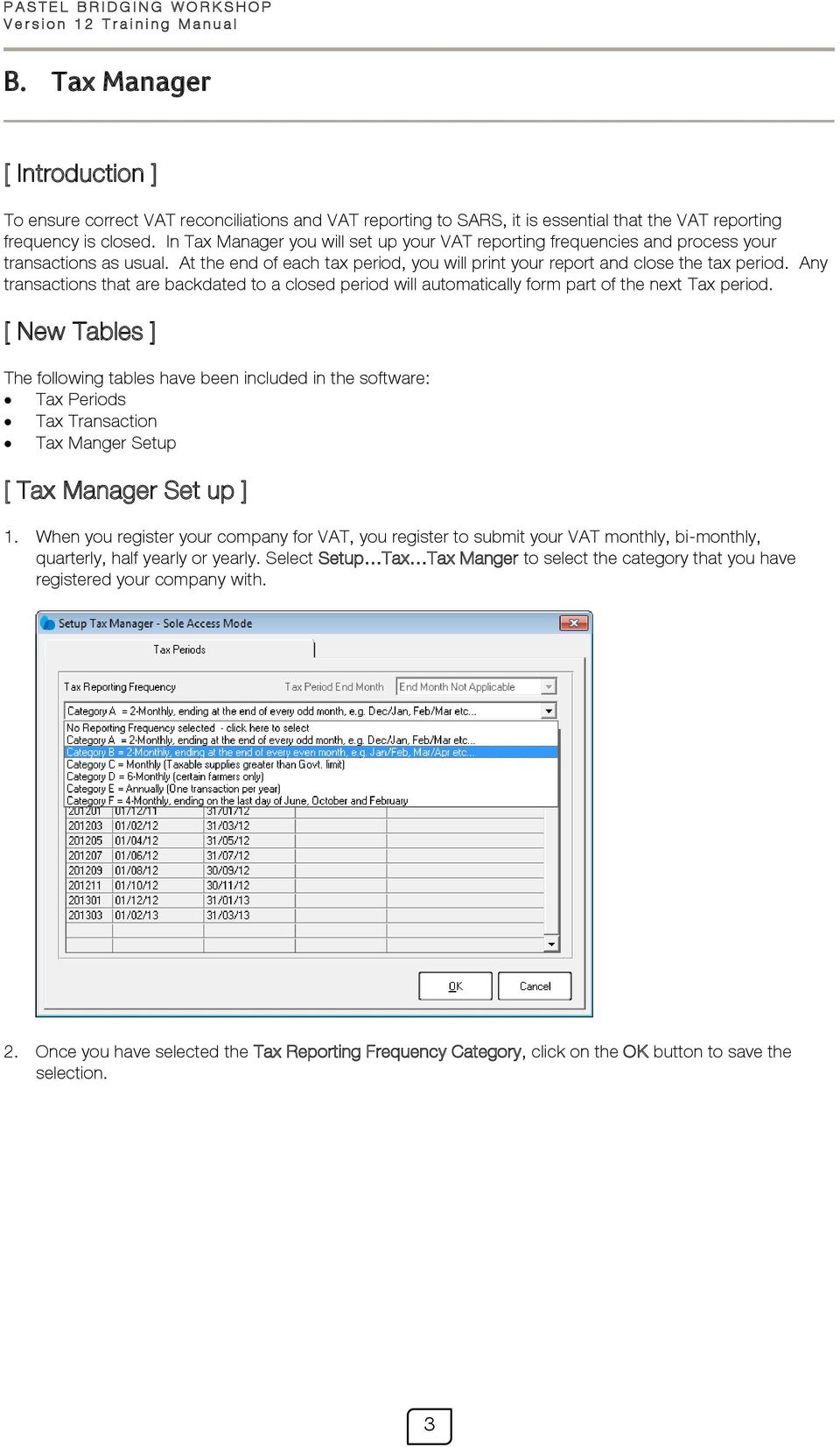
9 V e r s i o n 1 2 T r a i n i n g M a n u a l B. Tax Manager [ Introduction ] To ensure correct VAT reconciliations and VAT reporting to SARS, it is essential that the VAT reporting frequency is closed. In Tax Manager you will set up your VAT reporting frequencies and process your transactions as usual. At the end of each tax period, you will print your report and close the tax period. Any transactions that are backdated to a closed period will automatically form part of the next Tax period. [ New Tables ] The following tables have been included in the software: Tax Periods Tax Transaction Tax Manger Setup [ Tax Manager Set up ] 1. When you register your company for VAT, you register to submit your VAT monthly, bi-monthly, quarterly, half yearly or yearly. Select Setup Tax Tax Manger to select the category that you have registered your company with. 2. Once you have selected the Tax Reporting Frequency Category, click on the OK button to save the selection. 3
![V e r s i o n 1 1 T r a i n i n g M a n u a l [ Tax Manager Assistant ] 1.](/docs-images/28/12953323/images/10-0.png "In the Tax Manager Assistant, you can view the Tax Type Report or Tax Box Report for the current period or for previous periods as well as close the current Tax period. 2.")
10 V e r s i o n 1 1 T r a i n i n g M a n u a l [ Tax Manager Assistant ] 1. In the Tax Manager Assistant, you can view the Tax Type Report or Tax Box Report for the current period or for previous periods as well as close the current Tax period. 2. From the main menu, select Change Tax Manager Assistant. The following screen will display: Option View Reports View current Tax Period View closed Tax Period(s) Close the current Tax Period Description You can select to view the Tax Type Report or the Tax Box Report by selecting the specific report from the drop down box. This option will display the current Tax Period for the report selected to view. This option will display the closed Tax Period for the report selected to view. You select this option to close the current Tax Period. 3. To view the report, click on the Next button and the following screen will display: Option Print To Tax Period Tax Type Start Tax Type End Show Details Print Description Description Select the output for the print. Select the period to print. Select the first Tax Type to print from. Select the last Tax Type to print to. Select this tick box to show details on the print out. Select this tick box to print descriptions on the print out. 4


11 V e r s i o n 1 2 T r a i n i n g M a n u a l New Page per Account/Item/Type Offset Credits against Sales/Purchases Select this tick box, to print each account, item or type on a separate page. Select this tick box, to offset the credits against the sales or purchases. 4. The following report will display: 5. Close the report. 6. To view the closed Tax Periods, select the View Tax Period(s) option and click on the Next button. 5

12 V e r s i o n 1 1 T r a i n i n g M a n u a l 7. Select the required parameters for the report and click on the OK button. 8. The following report will display: 6

13 V e r s i o n 1 2 T r a i n i n g M a n u a l 9. To close a Tax Period, tick the Close the current Tax Period tick box and click on the Next button. 10. On the next screen, enter a comment to close the Tax Period. This comment is to identify the closed Tax Period. Once you have entered the comment, click on the Process button. 11. You will receive a message indicating the Tax Period has been closed successfully. 12. Click on the Finish button to close the screen. 7

![V e r s i o n 1 1 T r a i n i n g M a n u a l [ VAT 201 ] 1. To print your VAT 201 select Tax Box Report from the View Reports drop down menu., in the Tax Manager Assistant screen, 2.](/docs-images/28/12953323/images/14-0.png "Confirm you have selected the option View Closed Tax Period(s) and click on the Next button. 3.")
14 V e r s i o n 1 1 T r a i n i n g M a n u a l [ VAT 201 ] 1. To print your VAT 201 select Tax Box Report from the View Reports drop down menu., in the Tax Manager Assistant screen, 2. Confirm you have selected the option View Closed Tax Period(s) and click on the Next button. 3. On the next screen, select the period to report on and select the path in the Tax Form Name field where the taxsa.eng form is saved. 4. Click on the OK button to generate the report. 8

15 V e r s i o n 1 2 T r a i n i n g M a n u a l 5. The following report will display: 6. Once you have ed or printed the report, you can close the report and close the Tax Manager Assistant. 9

16 V e r s i o n 1 1 T r a i n i n g M a n u a l [ Reopen Tax Period / Clear Tax Manager Settings ] Before reopening a Tax period or clearing the Tax Manager Settings, it is important to back up your company. 1. You can reopen a previous Tax Period or you can clear all Tax Periods and Tax Manager Settings if you have incorrectly set up the Tax Manager. 2. From the main menu, select Change Reopen Tax Period / Clear Tax Manager Settings. The following screen will display: 3. Select the Reopen Previous Tax Period option and click on the Next button. 4. You will receive a screen to confirm your action. Click on the Process button to continue. 10


17 V e r s i o n 1 2 T r a i n i n g M a n u a l 5. An Operation Complete screen will display. This will indicate that the period is now open. Click on the Finish button to close the screen. 6. If you selected the incorrect Category for your Frequency Report when setting up Tax Manager, you can clear the setting and select the correct Category for your Frequency Report. 7. Select the Clear all Tax Periods and Tax Manager Settings option and click on the Next button. 8. On the next screen, you will be informed of the action you have selected. Click on the Process button to continue to clear all the tax periods and Tax Manager Settings. 11


18 V e r s i o n 1 1 T r a i n i n g M a n u a l 9. Once the operation is complete, you will receive the following screen: 10. Click on the Finish button to complete the operation. 11. From the main menu, select Setup Tax Tax Manager and the following screen will display. You can now set up your Tax Manager again. Each time the tax period is cleared, the action will be recorded in the System Audit Trail report. 12


19 V e r s i o n 1 2 T r a i n i n g M a n u a l C. Customer Processing When using the same reference number per customer on All Updatable Customer Documents, a warning will display indicating that the reference number has been duplicated. D. Point of Sale A new facility, Pack Size, has been added to Point of Sale. Pack Size is a facility that allows you to purchase a product that is pre-packed and you can break the pack up into smaller units or pack the items together to make a single larger unit. An example of this would be you purchase a case of cold drinks. You break the case up into 6 packs and single units. Alternatively you can purchase single units and put these single units together to create a pack of 4 or a pack of 6. [ Pack Size Set up ] 1. To set up Pack Size in Point of Sale, open Point of Sale and select Setup Pack Size from the main menu. 2. The following screen displays: 13

20 V e r s i o n 1 1 T r a i n i n g M a n u a l Field / Option Inventory Code Description List Pack Sizes Edit pack Sizes New Pack Size Description Select the Inventory Item that needs to be repacked. The description of the inventory item will automatically be populated. Displays a list of pack sizes already created. Select this option to edit a specific pack size. Select this option to create a new pack size. Assume you have purchased an item in packs of To create a new Pack Size from a pack of 6 items to a single item, you will divide the item by Click on the New Pack Size button. Field Pack Size Code Pack Size Description Pack Size Barcode Pack Size Store Copy Prices Qty/Ratio of Pack Size Pack Size Action Selling Prices Create Description Enter an Item Code for the new Pack Size been created. Enter a description for the new Pack Size been created. Enter the barcode for the new Pack Size. Select a store for the new Pack Size when using the multi-stores module. Click on this button to copy the prices to other stores when using the multi-stores module. Select the quantity or ration that the original back will be divided by or multiplied by. Select to Divide or to Multiply the new Pack Size by the Base Unit of the original inventory item. Enter the Exclusive or Inclusive selling price for the new Pack Size for each available price list. Click on the Create button to create the new Pack Size. 5. In the Inventory Code field, click on the inventory item browse button and browse for the item that you need to repack. 6. In the Pack Size Code field, enter a new code for the new item. 7. Enter a description in the Pack Size Description field. 8. If you are using barcodes, enter a barcode for the new item. 9. If you use multi-stores, select the store where the new item will be stocked. 14


21 V e r s i o n 1 2 T r a i n i n g M a n u a l 10. In the Qty/Ratio of Pack Size field, enter the new quantity of the pack size. If you are breaking a 6 pack up into units, enter 6 and select Divide in the pack Size Action field. If you have a case of 24 and will be breaking the case into six packs, enter 4 in the pack Size field as 24 / 4 = Enter the new prices for each price list and click on the Create button to create the new item. 12. To create a new Pack Size, from a pack of 6 items to a case of 24 items, you will multiply the item by Click on the New Pack Size button. 14. Select the Inventory Code of the item that needs to be multiplied. 15. In the Pack Size Code field, enter a new item code for the new item. 16. Complete the rest of the fields and click on the Create button. 15
![V e r s i o n 1 1 T r a i n i n g M a n u a l [ Pack Size Editing ] 1. To edit a Pack Size, select the Pack Size to be edited and click on the Edit Pack Size button. 2.](/docs-images/28/12953323/images/22-0.png "Edit the applicable field and click on the Update button to save the changes. 3. Once the Pack Size has been edited, click on the Update button to save the changes. 16")
22 V e r s i o n 1 1 T r a i n i n g M a n u a l [ Pack Size Editing ] 1. To edit a Pack Size, select the Pack Size to be edited and click on the Edit Pack Size button. 2. Edit the applicable field and click on the Update button to save the changes. 3. Once the Pack Size has been edited, click on the Update button to save the changes. 16
![V e r s i o n 1 2 T r a i n i n g M a n u a l [ Pack Size Processing ] 1. When processing a customer document, you select an item from the Code column.](/docs-images/28/12953323/images/23-0.png "Click on the drop down arrow in the Code column as normal. The Inventory Item Search function opens. Select the Pack Size option from the list of options at the top of the screen. 2.")
23 V e r s i o n 1 2 T r a i n i n g M a n u a l [ Pack Size Processing ] 1. When processing a customer document, you select an item from the Code column. Click on the drop down arrow in the Code column as normal. The Inventory Item Search function opens. Select the Pack Size option from the list of options at the top of the screen. 2. All Pack Size items that have been created will be listed. Select the item to process. 3. You will notice that when you search your inventory, the items that have been repacked and processed will no longer be whole items. 17
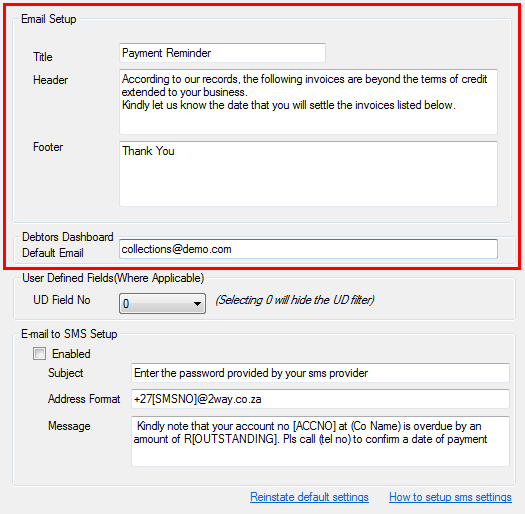
24 V e r s i o n 1 1 T r a i n i n g M a n u a l E. Pastel Debtors Manager Pastel Cash Manager has been renamed to Pastel Debtors Manager. New features added to Debtors Manager include: Debtors Dashboard Sales Analysis Report SMS Payment Reminder Summarised Contact Report [ Debtors Dashboard ] 1. The dashboard gives management instant visibility of debtor s status and collection activity. To view the Debtors Dashboard, select Debtor Manager from the main menu and click on the Dashboard option. The following screen will display: Payment Reminder Setup 1. To set up the reminder, click on Setup Setup from the main menu. 2. On the screen that displays, complete the fields with the relevant information to be displayed on the e- mail reminder and click on the Apply button. 18
![V e r s i o n 1 2 T r a i n i n g M a n u a l [ Sales Analysis Report ] 1. The sales analysis report displays a 12 month rolling sales analysis, displaying sales per customer, per month. 2. To view the report, click on Sales Analysis from the main menu.](/docs-images/28/12953323/images/25-0.png "3. The following report will display: [ SMS Payment Reminder ] 1. Instead of sending payment reminder via email to the overdue customer, you can now send an SMS payment reminder to overdue customers.")
25 V e r s i o n 1 2 T r a i n i n g M a n u a l [ Sales Analysis Report ] 1. The sales analysis report displays a 12 month rolling sales analysis, displaying sales per customer, per month. 2. To view the report, click on Sales Analysis from the main menu. 3. The following report will display: [ SMS Payment Reminder ] 1. Instead of sending payment reminder via to the overdue customer, you can now send an SMS payment reminder to overdue customers. SMS Payment Reminder Setup 1. To set up the SMS reminder, click on Setup from the main menu. 2. Click on the Setup option from the menu that opens. 3. Ensure that you tick the Enabled check box to enable the SMS Setup. 4. Complete the fields as required and click on the Apply button. 19
26 V e r s i o n 1 1 T r a i n i n g M a n u a l 5. To close the setup screen, click on the OK button. SMS Payment Processing 1. To send an SMS reminder, select Debtor Management from the main menu and click on the SMS Payment Reminders option. 2. Select the debtor to SMS and click on the Send sms s button. [ Summarised Contact Report ] 1. The summarised contact report displays an overall view of the age analysis, the latest contact notes saved, as well as PTP s saved. 2. To run the report, select Debtors Management from the main menu and click on the Summarised Contact Report option. The following report will display: 20

27 V e r s i o n 1 2 T r a i n i n g M a n u a l F. Automatic Updates An automatic update feature has been included which will automatically update your Pastel Accounting product. The automatic update can be set to check for updates when opening Pastel Accounting, on a daily basis or on a weekly basis. A setting has been included to always ask before downloading the updates and while downloading the update a progress bar displays. Before the update is downloaded, a history of changes made will be displayed. 1. To configure the settings, click on Start All Programs Softline Pastel Pastel Partner Version 12 Update Settings. 2. The following screen will display: 3. Removing the tick next to Use the registration server will allow you to specify a different location to download the updates to. 4. When you open Pastel Accounting, Pastel will automatically search for any new updates. 5. If new updates are available, the Update Assistant screen will display a list of updates. Click on the Download button to start downloading the updates. 6. There is a progress bar to indicate the progress of the download. 21
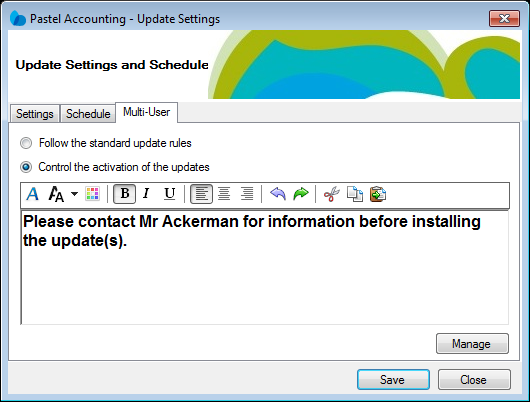
28 V e r s i o n 1 1 T r a i n i n g M a n u a l 7. Before the updates can be installed, you are required to close your Pastel Accounting software. 8. Once you have closed your Pastel Accounting software, click on the Run Update button to install the new updates. [ Setup Controlled Update ] 1. If you have registered Pastel for a multi-user environment, you will need to open the update settings on the registered server by selecting Start All Programs Softline Pastel Pastel Partner Version 12 Update Settings. 2. On the screen that displays, click on the Multi-User tab. 3. The following screen displays: 4. Selecting the option to follow the standard update rules will automatically run the update on the computer. Selecting the option to control the activation of the updates will allow an administrator to control when the updates are installed. 5. The administrator will enter a message on in the open field. This message can be customised by each administrator. Once the message is entered, click on the Save button and close the update assistant. 22

29 V e r s i o n 1 2 T r a i n i n g M a n u a l 6. Open Pastel Accounting on the workstations. 7. The first workstation to have a connection to the update instruction on the Pastel update service (internet) will download the available updates. The other workstation will continue working as normal. 8. All the workstations will get the update information (History of Changes) and the message on opening Pastel Accounting after the download is successful. 9. On the workstation, click on the Close button to close the message. 10. Open the Update Settings on the server or workstation. 11. On the screen that opens, click on the Manage button on the Multi-User Tab. 23
30 V e r s i o n 1 1 T r a i n i n g M a n u a l 12. On the screen that opens, all the updates that were successfully downloaded will be displayed. 13. Select the update with the highest build to activate. All other updates listed with lower builds will automatically be activated with the highest build activation. 14. Right click on the update and click on the Activate option that displays. 15. The blue tick next to the update indicates the build is a prerequisite for the higher build update and this update cannot be deactivated. 16. The orange tick indicates that the build update is active but is not installed. 17. Only build updates that are not installed and are not prerequisites can be deactivated. 18. Once the build updates have been activated, click on the Save button and then click on the Close button to close the update settings screen. 19. Once the build updates have been activated, these build updates will be available for installation on the workstations when Pastel Accounting is opened. 24

31 V e r s i o n 1 2 T r a i n i n g M a n u a l 20. Once Pastel Accounting is opened, the user will receive the history of changes screen without the notification message. 21. Click on the Update button to install the updates. 22. On the workstation, the updates will now execute. 23. Once the updates have completed, click on the Close button to close the Update Assistant screen. 24. To view a history of the workstations that have installed the updates, return to the Update Settings screen and click on the Manage button on the Multi-User Tab. 25

32 V e r s i o n 1 1 T r a i n i n g M a n u a l 25. The following screen will display: 26. Click on the Close button to close the Update Settings screen. 26

33 V e r s i o n 1 2 T r a i n i n g M a n u a l G. Conversion Assistant The conversion assistant can now convert multiple companies in one session. 1. On the Data Location screen, select the company to be converted. 2. Click on the Add Company to the List of Companies to be Converted button. 3. The company will be added to the list of companies to be converted. You can select multiple companies to be converted in a single session. 27
Microsoft Dynamics GP. Electronic Signatures
 Microsoft Dynamics GP Electronic Signatures Copyright Copyright 2006 Microsoft Corporation. All rights reserved. Complying with all applicable copyright laws is the responsibility of the user. Without
[ Learning Outcomes ] [ Learning Objectives ]
![[ Learning Outcomes ] [ Learning Objectives ]](/thumbs/27/9494072.jpg "[ Learning Outcomes ] [ Learning Objectives ]") S A G E P A S T E L P A R T N E R V 1 2 P o i n t o f S a l e [ Point of Sale ] [ Learning Outcomes ] In this module, you are going to explore the Sage Pastel V12 Point of Sale add-on module. You will
S A G E P A S T E L P A R T N E R V 1 2 P o i n t o f S a l e [ Point of Sale ] [ Learning Outcomes ] In this module, you are going to explore the Sage Pastel V12 Point of Sale add-on module. You will
Partner. Sage Pastel. Accounting. Installation Guide
 Sage Pastel Accounting Partner Installation Guide Sage Pastel: +27 11 304 3000 Sage Pastel Intl: +27 11 304 3400 www.pastel.co.za www.sagepastel.com [email protected] [email protected] Sage Pastel Accounting
Dell Statistica 13.0. Statistica Enterprise Installation Instructions
 Dell Statistica 13.0 2015 Dell Inc. ALL RIGHTS RESERVED. This guide contains proprietary information protected by copyright. The software described in this guide is furnished under a software license or
Microsoft Dynamics GP. Electronic Signatures
 Microsoft Dynamics GP Electronic Signatures Copyright Copyright 2007 Microsoft Corporation. All rights reserved. Complying with all applicable copyright laws is the responsibility of the user. Without
Software Licence Agreement
 Software Licence Agreement Your right to use the software (in object code only) and its associated printed and electronic documentation ( Product ) is subject to the terms and conditions set out in this
CS SoftDent Practice Management Software Installation Guide for Client/Server Configurations
 DE1005-15 CS SoftDent Practice Management Software Installation Guide for Client/Server Configurations Notice Carestream Health, Inc., 2012. No part of this publication may be reproduced, stored in a retrieval
NetIQ Operations Center 5: The Best IT Management Tool in the World Lab
 NetIQ Operations Center 5: The Best IT Management Tool in the World Lab NIQ08 Novell Training Services ATT LIVE 2012 LAS VEGAS www.novell.com Legal Notices Novell, Inc., makes no representations or warranties
Dell Statistica Document Management System (SDMS) Installation Instructions
 Dell Statistica Document Management System (SDMS) Installation Instructions 2015 Dell Inc. ALL RIGHTS RESERVED. This guide contains proprietary information protected by copyright. The software described
Microsoft Dynamics GP. Cashbook Bank Management
 Microsoft Dynamics GP Cashbook Bank Management Copyright Copyright 2007 Microsoft Corporation. All rights reserved. Complying with all applicable copyright laws is the responsibility of the user. Without
Patriot Systems Limited www.patriotsystems.com
 COPYRIGHT 1997 - The Patriot Systems Ltd. Patriot Alarm Monitoring Automation Package is licensed for use on one computer, by the original person, or company, or organization whose name is registered with
Clearview Customer Web Access
 Clearview Customer Web Access This document outlines the Clearview Process flows for Logging in to Customer Web Access Service Listing o Service Order Desktop o Service Tasks o Viewing Service Schedules
LANDESK Service Desk. Desktop Manager
 LANDESK Service Desk Desktop Manager LANDESK SERVICE DESK DESKTOP MANAGER GUIDE This document contains information, which is the confidential information and/or proprietary property of LANDESK Software,
CaseWare Time. CaseWare Cloud Integration Guide. For Time 2015 and CaseWare Cloud
 CaseWare Time CaseWare Cloud Integration Guide For Time 2015 and CaseWare Cloud Copyright and Trademark Notice Copyright. 2015 CaseWare International Inc. ( CWI ). All Rights Reserved. Use, duplication,
Business Portal for Microsoft Dynamics GP. Key Performance Indicators Release 10.0
 Business Portal for Microsoft Dynamics GP Key Performance Indicators Release 10.0 Copyright Copyright 2007 Microsoft Corporation. All rights reserved. Complying with all applicable copyright laws is the
CRM to Exchange Synchronization
 CRM to Exchange Synchronization Installation, Configuration and End-User Instructions VERSION 1.0 DATE PREPARED: 9/1/2012 DEVELOPMENT: BRITE GLOBAL, INC. 2012 Brite Global, Incorporated. All rights reserved.
OptionsLink Utility Guide Version 5.1
 OptionsLink Utility Guide Version 5.1 OptionsLink Utility Guide Trademarks The software described in this manual is furnished under the license agreement included in the software package. The software
Microsoft Dynamics GP. Field Service - Preventive Maintenance
 Microsoft Dynamics GP Field Service - Preventive Maintenance Copyright Copyright 2010 Microsoft Corporation. All rights reserved. Complying with all applicable copyright laws is the responsibility of the
Microsoft Dynamics GP. Audit Trails
 Microsoft Dynamics GP Audit Trails Copyright Copyright 2007 Microsoft Corporation. All rights reserved. Complying with all applicable copyright laws is the responsibility of the user. Without limiting
StarWind iscsi SAN Software: Installing StarWind on Windows Server 2008 R2 Server Core
 StarWind iscsi SAN Software: Installing StarWind on Windows Server 2008 R2 Server Core www.starwindsoftware.com Copyright 2008-2011. All rights reserved. COPYRIGHT Copyright 2008-2011. All rights reserved.
FORD MOTOR COMPANY OF AUSTRALIA LTD
 Microcat MARKET Ford Australia User Guide Product developed and supported by: Catalogue information provided by: FORD MOTOR COMPANY OF AUSTRALIA LTD Contents Getting started... 2 Microcat MARKET overview...
Pipeliner CRM Phaenomena Guide Sales Pipeline Management. 2015 Pipelinersales Inc. www.pipelinersales.com
 Sales Pipeline Management 2015 Pipelinersales Inc. www.pipelinersales.com Sales Pipeline Management Learn how to manage sales opportunities with Pipeliner Sales CRM Application. CONTENT 1. Configuring
Microsoft Dynamics GP. Engineering Data Management Integration Administrator s Guide
 Microsoft Dynamics GP Engineering Data Management Integration Administrator s Guide Copyright Copyright 2007 Microsoft Corporation. All rights reserved. Complying with all applicable copyright laws is
formerly Help Desk Authority 9.1.3 HDAccess Administrator Guide
 formerly Help Desk Authority 9.1.3 HDAccess Administrator Guide 2 Contacting Quest Software Email: Mail: Web site: [email protected] Quest Software, Inc. World Headquarters 5 Polaris Way Aliso Viejo, CA 92656
FOR WINDOWS FILE SERVERS
 Quest ChangeAuditor FOR WINDOWS FILE SERVERS 5.1 User Guide Copyright Quest Software, Inc. 2010. All rights reserved. This guide contains proprietary information protected by copyright. The software described
Microsoft Dynamics GP. Pay Steps for Human Resources Release 9.0
 Microsoft Dynamics GP Pay Steps for Human Resources Release 9.0 Copyright Copyright 2006 Microsoft Corporation. All rights reserved. Complying with all applicable copyright laws is the responsibility of
BusinessMan CRM. Contents. Walkthrough. Computech IT Services Ltd 2011. Tuesday, June 1 st 2014 Technical Document -1015 Version 6.
 Contents. Table of Figures... 2 Businessman Enterprise Overview... 3 System Settings... 3 Human Resources... 4 User Management... 5 Customers... 7 Prospects... 9 Document Management 9 Sales Dashboard...
Pipeliner CRM Phaenomena Guide Getting Started with Pipeliner. 2015 Pipelinersales Inc. www.pipelinersales.com
 Getting Started with Pipeliner 05 Pipelinersales Inc. www.pipelinersales.com Getting Started with Pipeliner Learn How to Get Started with Pipeliner Sales CRM Application. CONTENT. Setting up Pipeliner
v7.1 Quick Start Guide
 v7.1 Quick Start Guide Copyright 2011 Sage Technologies Limited, publisher of this work. All rights reserved. No part of this documentation may be copied, photocopied, reproduced, translated, microfilmed,
Server Installation Guide ZENworks Patch Management 6.4 SP2
 Server Installation Guide ZENworks Patch Management 6.4 SP2 02_016N 6.4SP2 Server Installation Guide - 2 - Notices Version Information ZENworks Patch Management Server Installation Guide - ZENworks Patch
CS SoftDent Practice Management Software Installation Guide for Client/Server Configurations
 DE1005-18 CS SoftDent Practice Management Software Installation Guide for Client/Server Configurations Notice Carestream Health, Inc., 2013. No part of this publication may be reproduced, stored in a retrieval
Virtual Office Remote Installation Guide
 Virtual Office Remote Installation Guide Table of Contents VIRTUAL OFFICE REMOTE INSTALLATION GUIDE... 3 UNIVERSAL PRINTER CONFIGURATION INSTRUCTIONS... 12 CHANGING DEFAULT PRINTERS ON LOCAL SYSTEM...
DIGIPASS CertiID. Getting Started 3.1.0
 DIGIPASS CertiID Getting Started 3.1.0 Disclaimer Disclaimer of Warranties and Limitations of Liabilities The Product is provided on an 'as is' basis, without any other warranties, or conditions, express
Audit Management Reference
 www.novell.com/documentation Audit Management Reference ZENworks 11 Support Pack 3 February 2014 Legal Notices Novell, Inc., makes no representations or warranties with respect to the contents or use of
Universal Management Service 2015
 Universal Management Service 2015 UMS 2015 Help All rights reserved. No parts of this work may be reproduced in any form or by any means - graphic, electronic, or mechanical, including photocopying, recording,
Sophos Mobile Control Startup guide. Product version: 3
 Sophos Mobile Control Startup guide Product version: 3 Document date: January 2013 Contents 1 About this guide...3 2 What are the key steps?...5 3 Log in as a super administrator...6 4 Activate Sophos
Wellnomics Risk Management Software 2.7.1
 User's Guide Wellnomics Risk Management Software 2.7.1 2015 Wellnomics Ltd Ref: 1088/01/032015 Note: Many of the materials referred to in this document are copyright of Wellnomics Limited. Contents of
Supply Chain Finance WinFinance
 Supply Chain Finance WinFinance Customer User Guide Westpac Banking Corporation 2009 This document is copyright protected. Apart from any fair dealing for the purpose of private study, research criticism
Deploying the Workspace Application for Microsoft SharePoint Online
 Microsoft Dynamics GP Deploying the Workspace Application for Microsoft SharePoint Online Microsoft Dynamics GP Workspace is a method to enable Microsoft Excel-based dashboards for SharePoint Online. This
Microsoft Dynamics GP. Electronic Signatures
 Microsoft Dynamics GP Electronic Signatures Copyright Copyright 2011 Microsoft. All rights reserved. Limitation of liability This document is provided as-is. Information and views expressed in this document,
Uni Sales Analysis CRM Extension for Sage Accpac ERP 5.5
 SAGE ACCPAC OPTIONS Sage Accpac Options Uni Sales Analysis CRM Extension for Sage Accpac ERP 5.5 User Guide 2008 Sage Software, Inc. All rights reserved. Sage Software, Sage Software logos, and all Sage
Business Portal for Microsoft Dynamics GP. Project Time and Expense Administrator s Guide Release 10.0
 Business Portal for Microsoft Dynamics GP Project Time and Expense Administrator s Guide Release 10.0 Copyright Copyright 2007 Microsoft Corporation. All rights reserved. Complying with all applicable
Microsoft Dynamics GP. Manufacturing Planning Functions
 Microsoft Dynamics GP Manufacturing Planning Functions Copyright Copyright 2007 Microsoft Corporation. All rights reserved. Complying with all applicable copyright laws is the responsibility of the user.
Microsoft Dynamics GP. Cashbook Bank Management
 Microsoft Dynamics GP Cashbook Bank Management Copyright Copyright 2010 Microsoft. All rights reserved. Limitation of liability This document is provided as-is. Information and views expressed in this
ONE POS User Manual. A brief hand guide for ONE ERP POS SYSTEM MYIT SOLUTION. Latest update on: 03/09/12
 ONE POS User Manual A brief hand guide for ONE ERP POS SYSTEM MYIT SOLUTION Latest update on: 03/09/12 TABLE OF CONTENTS CHAPTER 1 - SETTINGS Database Setup... 3 Printer Configuration... 5 Cash Drawer
Scribe Online Integration Services (IS) Tutorial
 Scribe Online Integration Services (IS) Tutorial 7/6/2015 Important Notice No part of this publication may be reproduced, stored in a retrieval system, or transmitted in any form or by any means, photocopying,
Avaya Network Configuration Manager User Guide
 Avaya Network Configuration Manager User Guide May 2004 Avaya Network Configuration Manager User Guide Copyright Avaya Inc. 2004 ALL RIGHTS RESERVED The products, specifications, and other technical information
Sophos Mobile Control Startup guide. Product version: 3.5
 Sophos Mobile Control Startup guide Product version: 3.5 Document date: July 2013 Contents 1 About this guide...3 2 What are the key steps?...5 3 Log in as a super administrator...6 4 Activate Sophos Mobile
STUDENT MANUAL. Outlook 2013: Calendar Management. Towson University. Office of Technology Services. OTS Training
 STUDENT MANUAL Outlook 2013: Calendar Management Towson University Office of Technology Services OTS Training Outlook 2013: Calendar Management Outlook 2013: Calendar Management Part Number: 222788 Course
Microsoft Dynamics GP. Project Accounting Cost Management Guide
 Microsoft Dynamics GP Project Accounting Cost Management Guide Copyright Copyright 2008 Microsoft Corporation. All rights reserved. Complying with all applicable copyright laws is the responsibility of
Accounts Production Installation Guide
 Accounts Production Installation Guide Copyright statement Sage (UK) Limited and Sage Hibernia Limited, 2014. All rights reserved. If this documentation includes advice or information relating to any matter
Menumate Stock Control 10 Steps to Total Stock Control
 Menumate Stock Control 10 Steps to Total Stock Control Introduction Stock Control is an important part of any hospitality business. Industry statistics indicate a hospitality business with no stock control
Microsoft Dynamics GP 2010
 Microsoft Dynamics GP 2010 Workflow Administrator s Guide March 30, 2010 Copyright Copyright 2010 Microsoft. All rights reserved. Limitation of liability This document is provided as-is. Information and
Sage One Accounting Benefits and Frequently Asked Questions
 Sage One Accounting Benefits and Frequently Asked Questions Sage One Accounting Benefits No installations Simply log in and start working. You waste no time on installations. No upgrades You will automatically
Multicurrency Bank Reconciliation 9.0
 Multicurrency Bank Reconciliation 9.0 An application for Microsoft Dynamics ΤΜ GP 9.0 Furthering your success through innovative business solutions Copyright Manual copyright 2006 Encore Business Solutions,
The Raiser s Edge Mobile Event Management Application Guide
 The Raiser s Edge Mobile Event Management Application Guide 072613 2013 Blackbaud, Inc. This publication, or any part thereof, may not be reproduced or transmitted in any form or by any means, electronic,
User Manual for Web. Help Desk Authority 9.0
 User Manual for Web Help Desk Authority 9.0 2011ScriptLogic Corporation ALL RIGHTS RESERVED. ScriptLogic, the ScriptLogic logo and Point,Click,Done! are trademarks and registered trademarks of ScriptLogic
Opera 3 Installation & Upgrade Guide
 Opera 3 Installation & Upgrade Guide Opera 3 Copyright Pegasus Software Limited, 2014 Manual published by: Pegasus Software Limited Orion House Orion Way Kettering Northamptonshire NN15 6PE www.pegasus.co.uk
Business Portal for Microsoft Dynamics GP. Requisition Management User s Guide Release 10.0
 Business Portal for Microsoft Dynamics GP Requisition Management User s Guide Release 10.0 Copyright Copyright 2007 Microsoft Corporation. All rights reserved. Complying with all applicable copyright laws
Microsoft Outlook 2013 Workshop
 Microsoft Outlook 2013 Workshop Course objectives: Manage correspondence and contacts efficiently Use the calendar effectively for appointments, meetings and events Customise Outlook settings View and
ACT! by Sage. Premium for Workgroups 2007 (9.0) Administrator s Guide to the ACT! Reader Utility
 ACT! by Sage Premium for Workgroups 2007 (9.0) Administrator s Guide to the ACT! Reader Utility ACT! by Sage Premium for Workgroups 2007 (9.0) Administrator s Guide to the ACT! Reader Utility Copyright
RedBlack CyBake Online Customer Service Desk
 RedBlack CyBake Online Customer Service Desk Publication Date: June 2014 Copyright Copyright 2014 RedBlack Software Ltd. All rights reserved. Complying with all applicable copyright laws is the responsibility
Microsoft Dynamics GP. Project Accounting Accounting Control Guide
 Microsoft Dynamics GP Project Accounting Accounting Control Guide Copyright Copyright 2007 Microsoft Corporation. All rights reserved. Complying with all applicable copyright laws is the responsibility
// Mamut Business Software. Complete CRM, Sales Management and Web Solutions
 // Mamut Business Software Complete CRM, Sales Management and Web Solutions Produced and distributed by: Mamut Software Ltd. a Visma company. 90 Long Acre Covent Garden London WC2E 9RZ Tel: 020 7153 0900
Microsoft Dynamics GP. Bill of Materials
 Microsoft Dynamics GP Bill of Materials Copyright Copyright 2007 Microsoft Corporation. All rights reserved. Complying with all applicable copyright laws is the responsibility of the user. Without limiting
PCLaw 11.0. Administration Guide
 PCLaw 11.0 Administration Guide About this guide This guide provides a list of tasks for installing PCLaw Practice Management Software. If you need additional information, refer to the PCLaw Support Center.
Remote Console Installation & Setup Guide. November 2009
 Remote Console Installation & Setup Guide November 2009 Legal Information All rights reserved. No part of this document shall be reproduced or transmitted by any means or otherwise, without written permission
PCLaw Administration Guide. Version 13.0
 PCLaw Administration Guide Version 13.0. Copyright and Trademark LexisNexis, Lexis, and the Knowledge Burst logo are registered trademarks of Reed Elsevier Properties Inc., used under license. PCLaw is
Microsoft Dynamics GP. Check Printing
 Microsoft Dynamics GP Check Printing Copyright Copyright 2008 Microsoft Corporation. All rights reserved. Complying with all applicable copyright laws is the responsibility of the user. Without limiting
Release 392. Exact Globe Inventory
 Release 392 Exact Globe Inventory release 392 Exact Globe Inventory EXACT GLOBE INVENTORY The information provided in this manual is intended for internal use by or within the organization of the customer
General. Sage Evolution ERP Version 7
 Version 7 B Sage Evolution ERP Version 7 Sage Evolution Version 7 is here. It s time to get serious about greater flexibility, efficiency and control within your business. Our continuous investment in
DIGIPASS Authentication for Windows Logon Getting Started Guide 1.1
 DIGIPASS Authentication for Windows Logon Getting Started Guide 1.1 Disclaimer of Warranties and Limitations of Liabilities The Product is provided on an 'as is' basis, without any other warranties, or
Microsoft Dynamics GP. Project Accounting Billing Guide
 Microsoft Dynamics GP Project Accounting Billing Guide Copyright Copyright 2007 Microsoft Corporation. All rights reserved. Complying with all applicable copyright laws is the responsibility of the user.
Microinvest Warehouse Pro Light Restaurant is designed to work in tandem with Microinvest Warehouse Pro which provides all back office functions.
 Important to know! Microinvest Warehouse Pro Light Restaurant is designed to work in tandem with Microinvest Warehouse Pro which provides all back office functions. When you start up the restaurant module
Creating a New Search
 Getting Started The information search feature in AVImark allows the user to create and save queries to find specific information in the program. The Information Search in version 2010.4 and later now
Administration and Business Collaboration. User Manual
 Administration and Business Collaboration User Manual Copyright 2007 by Eurekify Ltd., 8 Hasadna Street Raanana 43651, ISRAEL. All Rights Reserved. This document maybe used in its complete form only and
RP Pocket PC Scanner Reference Manual For PPT8800
 RP Pocket PC Scanner Reference Manual For PPT8800 Table of Contents Overview...2 Installation...2 Setting up your Pocket PC...3 Terminal Services Client...6 Scanning Barcodes...8 Loading Scanner Sessions
Interact for Microsoft Office
 Interact for Microsoft Office Installation and Setup Guide Perceptive Content Version: 7.0.x Written by: Product Knowledge, R&D Date: October 2014 2014 Perceptive Software. All rights reserved Perceptive
Microsoft Dynamics GP Release. Workflow Administrator s Guide
 Microsoft Dynamics GP Release Workflow Administrator s Guide December 10, 2012 Copyright Copyright 2012 Microsoft. All rights reserved. Limitation of liability This document is provided as-is. Information
Allmakes DMS Dealer Management System
 Allmakes DMS Dealer Management System Workshop job cards Vehicle sales Stock control Service histories Purchase orders Postcode look up SMS Text Messaging Service reminders EPOS & barcoding Sage line 50
Microsoft Dynamics GP. Field Service Preventive Maintenance
 Microsoft Dynamics GP Field Service Preventive Maintenance Copyright Copyright 2011 Microsoft. All rights reserved. Limitation of liability This document is provided as-is. Information and views expressed
How to Define Authorizations
 SAP Business One How-To Guide PUBLIC How to Define Authorizations Applicable Release: SAP Business One 8.8 All Countries English September 2009 Table of Contents Introduction... 3 Authorizations Window...
HDAccess Administrators User Manual. Help Desk Authority 9.0
 HDAccess Administrators User Manual Help Desk Authority 9.0 2011ScriptLogic Corporation ALL RIGHTS RESERVED. ScriptLogic, the ScriptLogic logo and Point,Click,Done! are trademarks and registered trademarks
FrontDesk Installation And Configuration
 Chapter 2 FrontDesk Installation And Configuration FrontDesk v4.1.25 FrontDesk Software Install Online Software Activation Installing State Related Databases Setting up a Workstation Internet Transfer
Pipeliner CRM Phaenomena Guide Opportunity Management. 2015 Pipelinersales Inc. www.pipelinersales.com
 Opportunity Management 205 Pipelinersales Inc. www.pipelinersales.com Opportunity Management Learn how to manage sales opportunities with Pipeliner Sales CRM Application. CONTENT. Creating and sharing
Copyright. Disclaimer. Introduction 1. System Requirements... 3. Installing the software 4
 Digital Signatures User Guide Revision 1.2 build 1, Document Revision 1.12 Published 31. Octover 2011 ii Contents Copyright Disclaimer iii iii Introduction 1 System Requirements... 3 Installing the software
Getting Started with Asset Manager - Exploring the Database Structure
 Getting Started with Asset Manager - Exploring the Database Structure CSE Asset Manager and Service Manager have an enormous number of powerful features, and these short introductory guides cannot cover
Integrated Accounting System for Mac OS X
 Integrated Accounting System for Mac OS X Program version: 6.3 110401 2011 HansaWorld Ireland Limited, Dublin, Ireland Preface Standard Accounts is a powerful accounting system for Mac OS X. Text in square
Monetra Payment Software
 Monetra Payment Software Fast Start: Installation and Configuration Guide Revision: 3.0 Publication date October, 2013 Copyright 2013 Main Street Softworks, Inc. Fast Start: Installation and Configuration
Quest ChangeAuditor 5.1 FOR ACTIVE DIRECTORY. User Guide
 Quest ChangeAuditor FOR ACTIVE DIRECTORY 5.1 User Guide Copyright Quest Software, Inc. 2010. All rights reserved. This guide contains proprietary information protected by copyright. The software described
Microsoft Dynamics GP. Purchase Order Enhancements
 Microsoft Dynamics GP Purchase Order Enhancements Copyright Copyright 2007 Microsoft Corporation. All rights reserved. Complying with all applicable copyright laws is the responsibility of the user. Without
Learn About Analysis, Interactive Reports, and Dashboards
 Learn About Analysis, Interactive Reports, and Dashboards This document supports Pentaho Business Analytics Suite 5.0 GA and Pentaho Data Integration 5.0 GA, documentation revision February 3, 2014, copyright
PostalSaver Guide for Australia
 PostalSaver Guide for Australia 022608 2008 Blackbaud, Inc. This publication, or any part thereof, may not be reproduced or transmitted in any form or by any means, electronic, or mechanical, including
AvePoint Tags 1.1 for Microsoft Dynamics CRM. Installation and Configuration Guide
 AvePoint Tags 1.1 for Microsoft Dynamics CRM Installation and Configuration Guide Revision G Issued August 2014 Table of Contents About AvePoint Tags for Microsoft Dynamics CRM... 3 Required Permissions...
Novell ZENworks Asset Management 7.5
 Novell ZENworks Asset Management 7.5 w w w. n o v e l l. c o m October 2006 USING THE WEB CONSOLE Table Of Contents Getting Started with ZENworks Asset Management Web Console... 1 How to Get Started...
MadCap Software. Upgrading Guide. Pulse
 MadCap Software Upgrading Guide Pulse Copyright 2014 MadCap Software. All rights reserved. Information in this document is subject to change without notice. The software described in this document is furnished
Blue Moon Industries. Warehouse Management Integration. for Microsoft Dynamics GP Manhattan Associates' ILS.Net Release 10.0
 Blue Moon Industries Warehouse Management Integration for Microsoft Dynamics GP Manhattan Associates' ILS.Net Release 10.0 Copyright Manual copyright 2008 Blue Moon Industries. All rights reserved. Your
Writers: Joanne Hodgins, Omri Bahat, Morgan Oslake, and Matt Hollingsworth
 SQL Server Technical Article Writers: Joanne Hodgins, Omri Bahat, Morgan Oslake, and Matt Hollingsworth Technical Reviewer: Dan Jones Published: August 2009 Applies to: SQL Server 2008 R2, August CTP Summary:
092413 2013 Blackbaud, Inc. This publication, or any part thereof, may not be reproduced or transmitted in any form or by any means, electronic, or
 7.93 Update Guide 092413 2013 Blackbaud, Inc. This publication, or any part thereof, may not be reproduced or transmitted in any form or by any means, electronic, or mechanical, including photocopying,
Optional Fields (Document and Document Lines)... 32 Setting Up Sales Taxes (VAT)... 33 Setting up Tax Definitions (Government Bodies)...
 1 P a g e Contents INSTALLING PALLADIUM ACCOUNTING SOFTWARE... 10 Installing palladium on a Single Computer... 10 Installing Palladium on a workstation... 11 Server Setup... 11 Client Setup... 11 Installing