
Rapid Learning Guide. Featuring:
|
|
|
- Millicent McDowell
- 10 years ago
- Views:
Transcription
1 Rapid Learning Guide Featuring:

2 igrafx 2007 Rapid Learning Guide The contents of this igrafx Rapid Learning Guide and the associated igrafx software are the property of Corel Corporation and its respective licensors, and are protected by copyright. Any reproduction in whole or in part is strictly prohibited. For more complete copyright information about igrafx FlowCharter, igrafx Process, igrax Process for Six Sigma, and igrafx Process for Enterprise Modeler, please refer to the About igrafx section in the Help menu of the software Corel Corporation. All rights reserved. igrafx, igrafx FlowCharter, igrafx Process, igrafx Process for Six Sigma, igrafx Process for Enterprise Modeler, igrafx IDEF0, and igrafx Process Central are all trademarks or registered trademarks of Corel Corporation and/or its subsidiaries in Canada, the U.S. and/ or other countries. Microsoft and Windows are trademarks or registered trademarks of Microsoft Corporation in the U.S. and/or other countries. Adobe, Acrobat, and Reader are registered trademarks of Adobe systems Incorporated in the United States and/or other countries. Java and JavaScript are trademarks of Sun Microsystems, Inc. Other product, font, and company names and logos may be trademarks or registered trademarks of their respective companies. Microsoft SQL Server 2005 Copyright 2005, Microsoft Corporation. All rights reserved. AIAG Tables 2, 3, and 4 from Chao, L.P., and Ishii, K., (2004), Challenges and Methods in the Quantification of Design Errors and Solution Elements, Proceedings of the ASME International Mechanical Engineering Congress and Exposition, November 2004, Anaheim, CA. IMECE , 2004 ASME, used with permission by ASME.

3 Table of Contents Getting Started with the igrafx Rapid Learning Guide Before You Begin How to Open and Create Files Creating a Map, Diagram, or Flowchart Placing and Connecting Shapes Selecting Shapes and Lines Adding Text Numbering and Renumbering Shapes Modifying Case Text Adding Notes, Links, and Indicators Aligning Objects Adding Properties to Shapes Managing Process Diagrams Creating a Lean Value Stream Map Entering Data on Value Stream Map Shapes Creating a BPMN Diagram Creating an OrgChart Creating a Cause and Effect Diagram Specifying Page Setup Printing a Diagram Publishing and ing a Document Publishing Limitations Web Publishing Reference Saving a Document Sharing Information with Process Central Modeling and Simulation Describing Activity Behavior Describing the Simulation Environment Through Scenarios Understanding the Modeling and Simulation Environment Executing a Simulation and Analyzing Results Viewing Simulation Results igrafx 2007 Rapid Learning Guide 1

4 Six Sigma Functionality in igrafx Process Analyzer Fit Data RapiDOE in igrafx Control Process Flow with RapiDOE Modify Process Parameters with RapiDOE Design and Run an Experiment with RapiDOE Log Transactions Export Report Publish to FMEA Tips, Shortcuts, and Context Menus Tips Keyboard Shortcuts Function Keys Shortcuts for Working with Files Shortcuts for Editing Diagram Objects Shortcuts for Arranging Shapes Context Menus Section 508 Accessibility Compliance Getting Started Appendix About igrafx Toolbars and Menus About igrafx Diagram Types Simulation Modeling Concepts Process Efficiency Factors igrafx 2007 Rapid Learning Guide

5 Getting Started with the igrafx Rapid Learning Guide This documentation is for igrafx FlowCharter, igrafx Process, igrafx Process Central client, igrafx Process for Six Sigma, and igrafx Process for Enterprise Modeler, a component of igrafx Enterprise Central. igrafx Process Central Server Administrator, igrafx IDEF0, igrafx Enterprise Central, and igrafx API help are documented in separate help systems. For information on product features, benefits, and uses, visit the products page on the igrafx web site. If you are new to igrafx, you may want to start with the tutorials accessible from the Help menu and the Welcome dialog box. The igrafx Tutorials are part of the igrafx Help system. The igrafx Help system contains cautions, tips, and key concepts. Features that are only available in Process and/or Process for Six Sigma are indicated by a. Click the Help menu to choose learning resources, including the igrafx Help system, igrafx tutorials, igrafx sample files, and the igrafx web site. Visit the Resource Center and Support pages of the igrafx web site at igrafx 2007 Rapid Learning Guide 3

6 for additional product resources, including quick tours, white papers, recorded seminars, and consulting and training services. In the igrafx Help system, use the Options button on the help system toolbar for additional navigation within the help system, such as turning search highlights on and off. The sections on Modeling for Simulation and Running a Process Simulation are specifically for users of Process and Process for Six Sigma. You must have a trial or full version of these products installed to be able to use the features described. As you use igrafx, view the Status bar at the bottom of the application window for brief messages. Passing the cursor over items in the window displays a ToolTip (a short description about the item). igrafx products contain standard Microsoft Windows functionality, such as OLE object linking and the clipboard for cut, copy, and paste operations. You can also undo actions in the diagram. For more information, search for these terms in the igrafx Help system, accessible from the igrafx Help menu and most dialog boxes. igrafx requires an active license for all products. Please contact igrafx to purchase an upgrade if you want to use functionality not included in your licensed product. For information on installing igrafx and activating licenses, see the igrafx 2007 Installation Guide accessible from the install wizard, the root of the installation CD, and from Download Documentation on the igrafx Help menu. System requirements are published in the release notes and under each product s FAQ on the products page on 4

7 Before You Begin As you work with igrafx, it is beneficial to understand the concept of documents and diagrams. Note that Process and Process for Six Sigma provide the ability to simulate a process (not FlowCharter). Documents are files. A document is a container of diagrams. A new document includes one diagram by default, and may contain any number of diagrams. You cannot simulate across files unless processes are shared in Process Central. Diagrams are an igrafx component. You can collect and link multiple diagrams in one document to keep related information in one place. igrafx diagrams have no size limit. Multiple diagrams or processes in a single file may create a hierarchical structure.see About igrafx Diagram Types on page 84. Linked diagrams have a hierarchical structure. The lower-level diagram is a subprocess to one or more higher-level processes. During simulation, transactions move from one linked diagram to another. Hierarchy of Processes Add a subprocess to a diagram as described in Managing Process Diagrams on page 22, then view diagram hierarchy as described below. igrafx 2007 Rapid Learning Guide 5

8 To view a diagram hierarchy: 1 On the View menu, choose Explorer Bar to display the Explorer bar if it is not visible, and click the Components tab at the bottom of the bar. 2 Choose Diagram Hierarchy in the drop-down list at the top of the bar. Other views show all the components, diagrams sorted by departments each contains, and diagrams containing links. 6 Before You Begin

9 How to Open and Create Files Try using each of these ways to open or create new documents: Entry point Procedure Creates or opens this kind of file New command On the File menu, point to New, then choose a diagram type or template. See About igrafx Diagram Types on page 84. Any diagram type or document from a template Welcome dialog box Start igrafx. New document, new from template, existing file, recent file Open command On the File menu, choose Open. An existing file, such as a *.igx file When you save your work after creating a new document or diagram, igrafx saves the component as part of a *.igx file to which you can add more diagrams. For more information on the differences between documents and diagrams, see Before You Begin on page 5. igrafx 2007 Rapid Learning Guide 7

10 Add a new diagram to a document 1 On the View menu, choose Explorer Bar to display the Explorer bar if it is not visible, and click the Components tab (shown below). Make sure you are viewing all components. 2 Right-click a diagram folder (such as Processes shown above), point to New, and choose a diagram type. igrafx creates a new diagram folder for each type of diagram component of a document. 3 In the New Component dialog box, type a new process name. These new processes are not linked to the hierarchy. To link processes together and enable them to be subprocesses, see Managing Process Diagrams on page 22. Open an existing diagram within a document In the igrafx Explorer bar, double-click the diagram you want to open. Convert an open diagram to another diagram type On the Tools menu, point to Change Diagram Type and choose a new diagram type. To print or copy the Explorer tree view, right-click inside the Explorer bar and choose Print Tree to send the output to the printer, or choose Copy Tree to copy the contents to the clipboard. 8 How to Open and Create Files

11 Creating a Map, Diagram, or Flowchart A map, diagram, or flowchart is a graphical representation of a process. After you create a Process or Business Process Modeling Notation (BPMN) diagram, you can add behaviors to make it into a model on which you can run simulation scenarios. See Modeling and Simulation on page 39. A process diagram uses activities, directed connector lines, and departments to represent a process. Lines entering activities are inputs to the activities, and lines exiting activities are outputs from the activities. By default, a generator start point is indicated in the Start activity. A simple process In the following topics, each basic step provides a procedure for creating a diagram from a Process, BPMN, Lean Value Stream Map, Layout, or Basic diagram type in igrafx. To get started, see How to Open and Create Files on page 7. 1 Placing and Connecting Shapes on page 9 2 Selecting Shapes and Lines on page 13 3 Adding Text on page 15 4 Numbering and Renumbering Shapes on page 17 5 Modifying Case Text on page 18 6 Adding Notes, Links, and Indicators on page 19 7 Aligning Objects on page 20 8 Adding Properties to Shapes on page 21 Placing and Connecting Shapes See Placement Shortcuts for more placement options, such as how to automatically connect placed shapes. See Creating a Process Map in the igrafx tutorials for more information about placing shapes. igrafx 2007 Rapid Learning Guide 9

12 If a tool or a window is hidden, use the View menu to find it and show it in the application window. Click a shape in the Toolbox toolbar (on the left side of the application window), then click and drag in the diagram to place it with automatic connector lines. You may also click and drag a shape from the Gallery (on the right side of the application window) to the diagram space. 10 Creating a Map, Diagram, or Flowchart

13 Use the Gallery to change colors, format text and lines, add shadows and 3D attributes, and change fonts and line ends on selected diagram elements. Move the cursor over a shape in the Toolbox toolbar or the Gallery to see its name. Right-click the shape palette in the Gallery and choose Show Both for another view. Although you may designate any shape to have any behavior, BPMN and Value Stream Map diagrams use shapes with specific behaviors that may have some limitations.see Manage Shapes in the Shape Library. Copy the formatting of selected text, shapes, or lines to other objects in one step using the Format Painter tool on the Standard toolbar. igrafx 2007 Rapid Learning Guide 11

14 Placement Shortcuts Task Place multiple instances of one shape Automatically connect shapes while placing Automatically connect different shapes as you place them in the diagram space Place a shape that spans departments Exclude a department from a task Procedure 1 On the Toolbox toolbar, double-click the shape you want to place, and then click in the diagram space to place the shape. 2 Continue clicking to place additional shapes. 3 Click Finish to stop. 1 Place a shape in the diagram space. 2 Click outside the shape in the diagram space. The cursor changes to indicate you are in placement mode. 3 Click and drag (hold down the left mouse button) from inside the shape you just placed to place another instance of the same shape. 1 Place a shape in the diagram space. 2 While the shape is selected, click another shape in the Toolbox toolbar or Gallery. 3 Click and drag from inside the shape you just placed to place the new shape. You can also place and connect graphics in a flowchart, but unlike shapes, graphics serve as communication aids and are not intelligent. See Graphics and Callout Lines in the igrafx Help system. Click the shape, then hold the Ctrl key while you click and drag the shape by its handle across one or more departments. 1 Double-click the activity shape that spans multiple departments. 2 In the Properties dialog box, click the Task page, then click the Step tab. 3 Click the Exclude Depts button. 4 In the Exclude Departments dialog box, select a department name and click the Yes button to move it to the Excluded list. 12 Creating a Map, Diagram, or Flowchart

15 To draw unconnected lines, on the Tools menu, choose Options and click the Connector Lines tab, then select the Allow Unconnected Lines check box. Further Reading in the igrafx Help system: Intelligent Shapes Container Shapes Connector Lines and Line Routing Attach Graphics to Lines Edit Connector Lines Selecting Shapes and Lines Try selecting an item by clicking it using the difference in appearance. tool on the Toolbox toolbar and notice the Selected shape Unselected shape Try changing the default size of a shape by using its sizing handles or by adding elements, such as text. To move a placed shape in one step, hold the Alt key while you click and drag the shape. igrafx 2007 Rapid Learning Guide 13

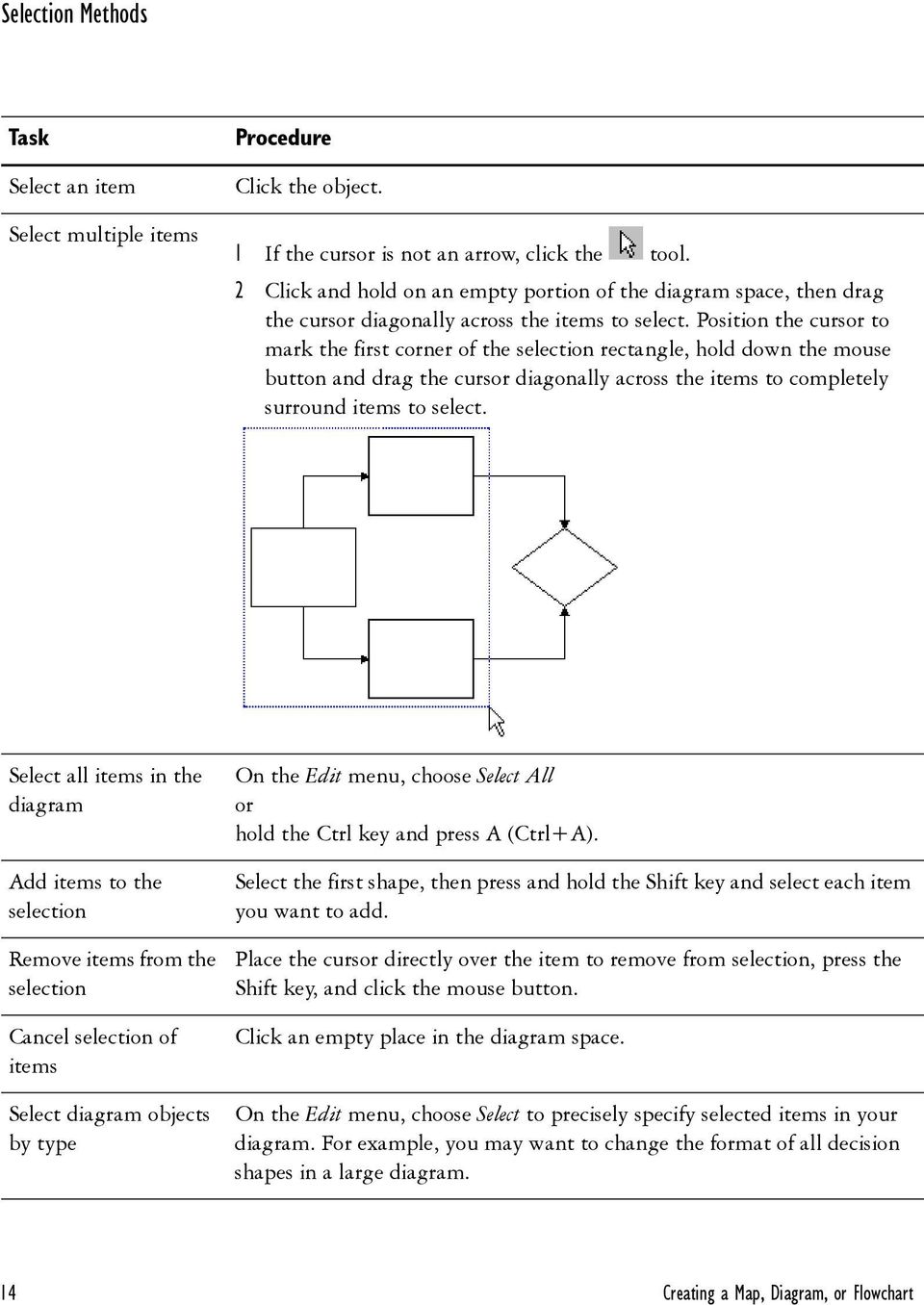
16 Selection Methods Task Select an item Select multiple items Procedure Click the object. 1 If the cursor is not an arrow, click the tool. 2 Click and hold on an empty portion of the diagram space, then drag the cursor diagonally across the items to select. Position the cursor to mark the first corner of the selection rectangle, hold down the mouse button and drag the cursor diagonally across the items to completely surround items to select. Select all items in the diagram Add items to the selection Remove items from the selection Cancel selection of items Select diagram objects by type On the Edit menu, choose Select All or hold the Ctrl key and press A (Ctrl+A). Select the first shape, then press and hold the Shift key and select each item you want to add. Place the cursor directly over the item to remove from selection, press the Shift key, and click the mouse button. Click an empty place in the diagram space. On the Edit menu, choose Select to precisely specify selected items in your diagram. For example, you may want to change the format of all decision shapes in a large diagram. 14 Creating a Map, Diagram, or Flowchart
17 Adding Text Text provides labels and information about your diagram. Shape numbers show the process sequence in a flowchart, but do not necessarily indicate the flow of transactions when simulated. Text in Shapes Task Add text Resize text in a shape Set text margins inside a shape Procedure Click the shape and type the text. If the shape doesn t grow to accommodate text, press F8 to fit to text. The Fit to Text command is also on the Arrange menu. Select the shape and, on the Format menu, choose Font to specify font settings in the Format Text dialog box. Select the shape and, on the Format menu, choose Text Layout to specify margin percentages in the Format Text Layout dialog box. Text Areas A text area creates a container that wraps text as you type. The text area you create outside a shape maintains the same position regardless of other shapes around it. Task Create a text area Procedure 1 Click the tool on the Toolbox toolbar. 2 Click and drag the Text tool I-beam on the diagram from the top-left to lower-right corner of the desired area, then type the text. Just click the tool and start typing if you want a single line of text. Change default text alignment Select the text and, on the Format menu, choose Text Alignment. igrafx 2007 Rapid Learning Guide 15

18 Task Attach a text area to a shape Procedure You can use this procedure to anchor text or graphics from other applications using the Copy and Paste commands. If the shape or line is moved, the attached object moves with it. 1 Create a text area. 2 Click and hold the left mouse button on the red box inside the selected text area. 3 Drag the anchor line to the anchoring shape. 4 Release the mouse button. On the View menu, choose Hidden Lines command to hide or display the anchor. Detach a text area Display a gray dashed border around a text area Change the text area border, color, line style, or width Change the text area fill pattern Right-click the text block and choose Detach Text from Shape or Detach Text from Line. On the View menu, choose Hidden Lines. Click the text area and, on the Format menu, choose Line and Border. Click the text area and, on the Format menu, choose Fill. 16 Creating a Map, Diagram, or Flowchart

19 Numbering and Renumbering Shapes Shape numbers do not necessarily indicate the flow of a process during simulation. You may choose to use shape numbers to identify a shape. Diagrams in a hierarchy have a parent shape that links to a subprocess. By default, the shape numbers in a subdiagram (or subprocess) all start with the diagram s parent shape number. This parent shape is in another diagram within the same document, and it links to the diagram. If a diagram has multiple parent shapes, you can choose which shape to use as the parent for numbering purposes. Select a shape or shapes. If you are renumbering all shapes, ensure that all shapes are unselected. Click on the Toolbox toolbar or, on the Format menu, point to Numbering. Choose a task below and follow the procedure. Task Show or hide numbers on all shapes Show or hide numbers on selected shapes Renumber all shapes or selected shapes automatically Renumber shapes manually Procedure Choose Show All Shape Numbers or Hide All Shape Numbers. Choose Show Shape Number or Hide Shape Number. Shape numbers must be displayed to use this procedure. 1 Choose Auto Renumber. 2 Use the Automatic Renumber dialog box to renumber all shapes. Shape numbers must be displayed to use this procedure. 1 Choose Manual Renumber. 2 In the Renumber dialog box, type the next number you want displayed. 3 Click the shape in the diagram you want to renumber. Set the default number format for new shapes 1 Choose Default Number Format. 2 In the Shape Fields dialog box, click Format. 3 Use the Numbering Format dialog box to select a new example number or enter your own numbering scheme. igrafx 2007 Rapid Learning Guide 17

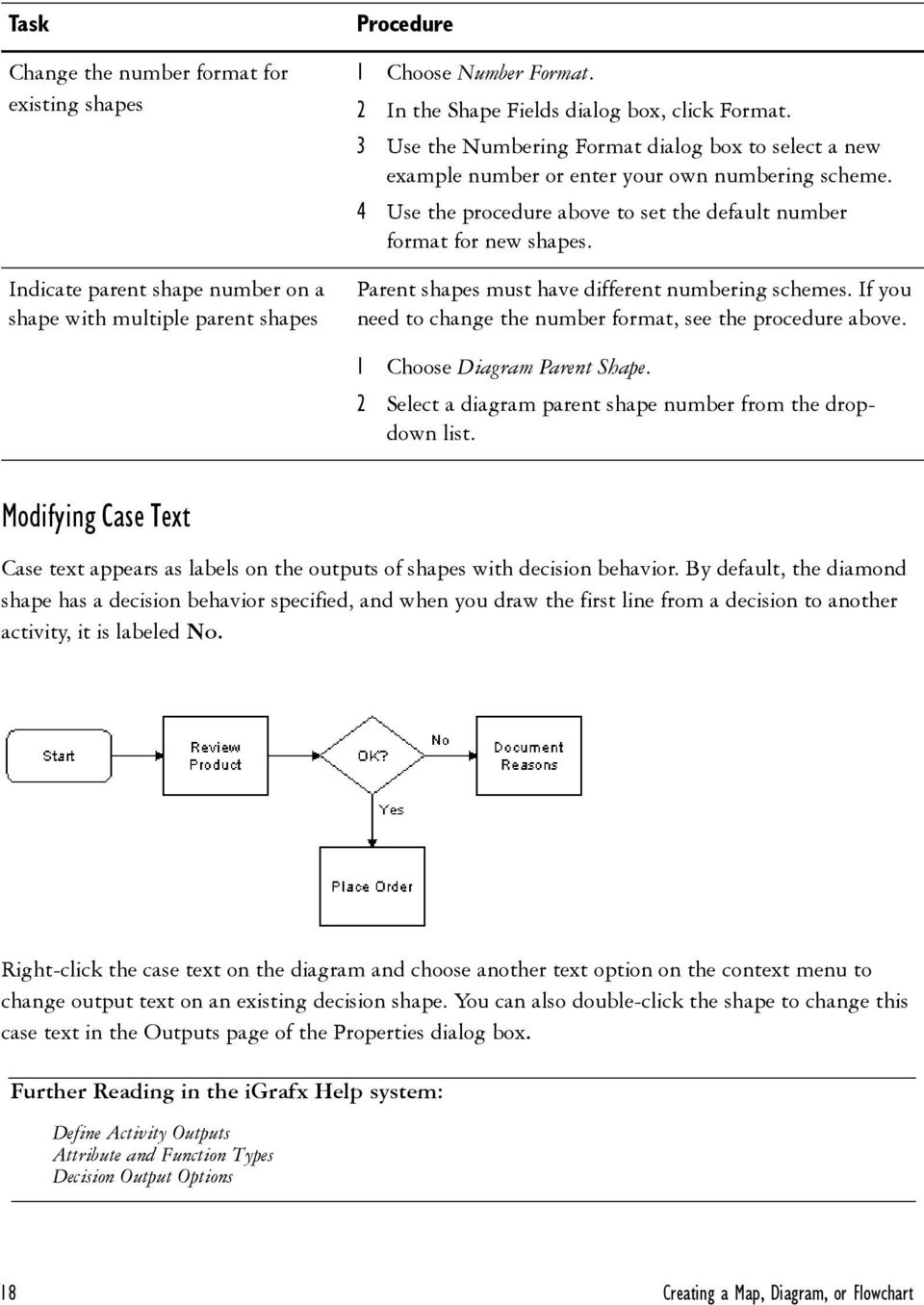
20 Task Change the number format for existing shapes Indicate parent shape number on a shape with multiple parent shapes Procedure 1 Choose Number Format. 2 In the Shape Fields dialog box, click Format. 3 Use the Numbering Format dialog box to select a new example number or enter your own numbering scheme. 4 Use the procedure above to set the default number format for new shapes. Parent shapes must have different numbering schemes. If you need to change the number format, see the procedure above. 1 Choose Diagram Parent Shape. 2 Select a diagram parent shape number from the dropdown list. Modifying Case Text Case text appears as labels on the outputs of shapes with decision behavior. By default, the diamond shape has a decision behavior specified, and when you draw the first line from a decision to another activity, it is labeled No. Right-click the case text on the diagram and choose another text option on the context menu to change output text on an existing decision shape. You can also double-click the shape to change this case text in the Outputs page of the Properties dialog box. Further Reading in the igrafx Help system: Define Activity Outputs Attribute and Function Types Decision Output Options 18 Creating a Map, Diagram, or Flowchart
21 Adding Notes, Links, and Indicators Indicators appear on a shape by default when it has notes, links, or properties assigned to it. You set the display of all indicators for a diagram at a time. Linking can establish a process hierarchy, such as when you create a subprocess that links two diagrams in the Process dialog box Task page. or it can simply attach an object or file to a shape. Choose the Links view in the igrafx Explorer bar to see all document links. Take a look at all the indicators and their settings, then try adding a note and changing its appearance in the diagram using the procedures below. Task Attach a note Add a link to igrafx objects and files Procedure Select the shape, press the F6 key, then type the text. This procedure links shapes to other diagrams, files, Web pages, or files in repositories. 1 Select the shape. 2 On the Insert menu, choose Link. Add an OLE link 1 Select the shape. 3 In the Add Link dialog box, choose the kind of link you want to create and specify settings. 2 On the Insert menu, choose OLE Object. 3 In the Insert Object dialog box, select Create from File, set the path to the object, and select the Link box. 4 Select Display as Icon unless you want to display the contents of the linked object. Modify indicator options On the Format menu, choose Diagram and click the Indicators tab to hide or change the appearance of indicators such as Note and Link icons. igrafx 2007 Rapid Learning Guide 19
22 Aligning Objects You can use this procedure to align shapes, text, or other diagram objects. Turn off Snap to Grid on the Arrange menu before you try to align objects. The Snap to Grid command toggles on and off. 1 Select the diagram objects. (See Selecting Shapes and Lines on page 13.) 2 On the Arrange menu, point to an alignment command and choose parameters within that command. For example, you could point to Align and choose Middle to line up objects horizontally by their middle points. The last object selected has a different highlight to show that it is the object to which other objects are aligned. Further Reading in the igrafx Help system: Arrange Objects Together Grid Spacing, Rulers, and Guidelines Format, Align, and Orient Text 20 Creating a Map, Diagram, or Flowchart
23 Adding Properties to Shapes Properties turn a diagram into a model. Double-click a shape to view or modify its properties in the Properties dialog box. Properties can be set at the shape level, as described above, or at the diagram level. If you right-click on a Lean value stream map and choose Value Stream Map Properties on the context menu to display the Properties dialog box, you can see that you are setting diagram-level properties because the diagram name not the activity name is included in the title bar of the dialog box. Further Reading in the igrafx Help system: Properties dialog box topics igrafx 2007 Rapid Learning Guide 21
24 Managing Process Diagrams Try these procedures on a sample file in your language directory at C:\Program Files\iGrafx\Pro\12.0\Sample or on some of your own creations. Task Procedure Create a subprocess 1 Double-click the parent shape. 2 In the Properties dialog box, select the Process page. 3 From the Activity Type drop-down list, choose Subprocess. 4 Click the New Process button and name a new component or choose one from the drop-down list. 5 Click OK. Display a subprocess Press the Shift key, and double-click a subprocess shape. or Right-click the shape and choose the process name on the context menu. Rename a process 1 In the Explorer bar, right-click the process to be renamed, and choose Rename on the context menu. 2 Type a new name, and press the Enter key. Copy a process within a document Copy a process between documents Delete a process 1 In the Explorer bar, right-click the process to be copied and click Copy. The process is copied to the clipboard. 2 In the Explorer bar, right-click where you want to add the component and choose Paste. The copied process appears in the Process list with a new name, such as Process2. 1 In the Explorer bar, right-click the process to be copied and click Copy. The process is copied to the clipboard. 2 On the File menu, point to Open and choose another igrafx document. 3 In the opened document, right-click the component area in the Explorer bar, and choose Paste on the context menu. The copied process appears in the Process list. If the copied process has the same name as an existing process in the file, igrafx renames the new process. In the Explorer bar, right-click the process you want to delete, and click Delete. 22 Managing Process Diagrams
25 Creating a Lean Value Stream Map Use the Lean Value Stream Map or Lean Extended Value Stream Map diagram type to create a value stream map. The Value Stream Map Properties dialog box sets time-related properties on the Setup tab. You can choose to display graphical analysis objects, such as a Timeline and Work Balancing Graph on the Timeline and Graph tabs. Task Add shapes and flows Set value stream map properties Import or export value stream map data Procedure See Placing and Connecting Shapes on page 9. With automatic routing, the line defaults to a push arrow with inventory attached. 1 On the Lean menu, choose Value Stream Map Properties. 2 On the Setup tab, specify Available Work Time and Takt Time. When you change a factor of Takt time, other elements recalculate automatically. Also, you can display a Takt Goal, which provides an attainable production target. 3 Use the Graph tab and the Timeline tab to specify display of lines, graphs, and named data in the map. You can also modify the labels and units used in these map elements. On the Lean menu, choose an import or export command. Further Reading in the igrafx Help system: Value Stream Map Procedures and Reference igrafx 2007 Rapid Learning Guide 23
26 Entering Data on Value Stream Map Shapes A custom data block displays values in the Lean Value Stream Map (VSM) diagram below each process step. Custom data affects the entire document, but you can assign values at a step in the VSM diagram and show or hide them. For more information, see the Custom Data topic in the igrafx Help system. Some Lean data is calculated, indicated by gray background read-only fields in the Properties dialog box. Accumulated values display in gray text. By default, calculated values do not appear in the diagram, but you can override some defaults. See Lean Data Display and Accumulation in the igrafx Help system. Lean data block as it appears below the process step in the Lean map The Lean Data page of the Properties dialog box The Operators value displays directly on the process step with an icon. Task Enter shape data using predefined data fields Procedure 1 Double-click an activity shape and click the Lean Data page in the Properties dialog box. 2 Click a data element and enter the value and unit. You cannot enter values in Calculated and Accumulated fields unless you override them. 24 Creating a Lean Value Stream Map
27 Task Create or modify custom Lean data Procedure 1 On the Tools menu, choose Setup Custom Data. 2 In the Custom Data dialog box, click the New button to add a new data element, or select a data element to modify. 3 Expand the Lean Types drop-down list and select the type of data to use for this data element. For example, if you want to capture the percentage of defects at each process step, choose Defect %. The data type is automatically set to percent. 4 Customize the display of data fields or use defaults. Creating a BPMN Diagram igrafx BPMN diagrams: represent pools with floating departments support compliance with the BPMN standard with correct-by-construction warnings and errors can simulate Floating departments represent pools in the BPMN template. Diagram compliance with the BPMN standard is supported with correct by construction warnings and errors. igrafx can simulate BPMN diagrams. View a sample BPMN diagram called BPMN.igx at C:\Program Files\iGrafx\Pro\12.0\Sample in your language folder. Task Convert a Process diagram to a BPMN diagram Procedure On the Tools menu, point to Change Diagram Type and choose BPMN Diagram. You cannot undo this command after you click Yes. Add shapes and flows See Placing and Connecting Shapes on page 9. Event shapes change to start, intermediate, or end, depending on where they are placed in the flow, to maintain compliance with BPMN rules. Some events, called intermediate or border events, are attached to activity boundaries when you model output exceptions. igrafx 2007 Rapid Learning Guide 25
28 Task Connecting shapes with connector lines Procedure Use the: Sequence flow line to define the flow of transactions through the model. Message flow lines to send information, not transactions, between pools. This line style appears automatically when you draw a line between pools. Association lines for annotation and compensation flow, which is not part of the sequence flow. This line style appears automatically when you attach a graphic object to a shape. The default sequence flow line indicates the default path when conditions exist on the flow out of an activity or gateway. Run the BPMN checker 1 On the Model menu, choose Check. 2 In the Check dialog box, select the scope of errors to be checked. All error messages appear in the Output Window at the bottom of the igrafx window. 3 Double-click an error message to highlight the source of the error in the diagram. 26 Creating a BPMN Diagram
29 Example: Create an Exception Flow Using BPMN Events 1 Open a new BPMN diagram and place the Take customer call and Automatic log renege shapes shown in the graphic below. 2 Double-click the Take customer call activity. 3 On the Properties dialog box - Outputs page, Exception tab, choose Timer and set properties. 4 Place the Log issue resolution shape and End event shape. In this call center process, calls wait for a specific time before the caller hangs up, or reneges. The flow from Take customer call to Automatic log renege is an exception flow. Further Reading in the igrafx Help system: BPMN Diagrams Procedures and Reference igrafx 2007 Rapid Learning Guide 27
30 Creating an OrgChart Open a new OrgChart diagram and use the OrgChart Builder (on the OrgChart menu) to add an assistant, a manager, subordinates, or coworkers and to move roles in the diagram. Use the ToolTips to help you learn the controls on the OrgChart Builder. If ToolTips are turned off, on the View menu, choose Toolbars and select the Show ToolTips check box. Double-click a shape and specify changes, such as custom data fields and the display of fields and fonts, in the OrgChart Data Editor. If the Builder and Data Editor are hidden, you can choose them from the OrgChart menu. Further Reading in the igrafx Help system: Organization Chart Procedures 28 Creating an OrgChart
31 Creating a Cause and Effect Diagram Use igrafx tools to create Cause and Effect diagrams for documenting the source of errors in a process. Choose a default, Transactional, or Manufacturing Cause and Effect diagram template that populates the diagram with a basic fishbone configuration of causes and effects. You can add a Pareto chart from the Cause and Effect menu. The Pareto chart responds dynamically to changes made in the Cause and Effect diagram or Explorer bar tree. Pareto chart In the Explorer bar - Cause and Effect tab, double-click cause text to edit it, or right-click to add or delete a cause. You can also print or export a Cause and Effect diagram when you right-click in the Explorer bar. Specifying Page Setup On the File menu, choose Page Setup and look through the options. igrafx supports headers and footers with custom fonts, images, and custom data. Watermarks display in addition to most standard page setup options. You can apply the same settings to all components, or apply custom settings to individual components of your document. Right-click a diagram name to copy or paste page setup from one diagram to another. For more information about page setup, see Page Layout in the igrafx Help system. igrafx 2007 Rapid Learning Guide 29
32 Printing a Diagram Task Turn on page breaks Preview printing Print a diagram or selected components Cancel printing Troubleshoot print problems Procedure On the View menu, choose Page Breaks. igrafx recommends previewing diagrams with page breaks displayed. On the File menu, choose Print Preview to view your diagram, size it correctly, and print it all at the same time. 1 Display the diagram you want to print. 2 On the File menu, choose Print. or Click the Print tool on the Standard toolbar. 3 In the Print dialog box, keep the default setting to print the entire document, or select These Components under Print What and click the Choose button to select document components in the Choose Print Components dialog box. Press the Esc key. or In the Print dialog box, click the Cancel button. Print from another application. The problem may not be isolated to igrafx. Reboot the printer and the computer. Verify that your printer driver is current and correct for your printer. Visit your vendor s website to download the most recent printer driver. 30 Printing a Diagram
33 Publishing and ing a Document Publishing documents is ideal for information exchange with individuals who do not have an igrafx application installed. igrafx works with any MAPI system, including Microsoft Outlook, Microsoft Mail, Microsoft Exchange, and Lotus cc:mail, so you can send documents as attachments with messages. You can output an igrafx document as a web page (HTML, Java applet, or SVG), a Word document (*.doc), a presentation (*.ppt), or a web project (Java applet). Publish as Web Page is a one-shot, non-progressive task. Use the Publish Web Project feature for documents you update and publish frequently. In all of the publishing dialog boxes, if you check or clear a parent diagram, all of its children are checked or cleared. You can override this by holding the Shift key when clicking an item. Task an igrafx file Publish a file as a web page Publish as a Word document Publish as a PowerPoint presentation Procedure On the File menu, choose Send to automatically open your , address it, and send it with the open document attached. On the File menu, point to Publish As and choose Web Page. If you are publishing as HTML, you can save multiple-page diagrams to a single HTML page by selecting the Save Multiple- Page Diagrams to a Single HTML Page check box. If you want to publish a single, overall composite view of a multiple page diagram, make sure your diagram fits on one page or, on the File menu, choose Page Setup and change the scaling to fit to 1 page by 1 page on the Page tab. On the File menu, point to Publish As and choose Word Document. On the File menu, point to Publish As and choose PowerPoint Presentation. The titles for your slides correspond directly to the contents of the center header in your Page Setup settings. To change this header, on the File menu, choose Page Setup and click the Header tab. The Center Section tab contains the slide heading. igrafx 2007 Rapid Learning Guide 31
34 Task Publish as a web project Update a web project (republish) Publish as a PDF file Procedure On the Tools menu, choose Publish Web Project. After you have created your initial set of published files, you can make changes and then republish them. igrafx remembers where you have stored both the source and published files. 1 On the Tools menu, choose Publish Web Project. 2 Specify which documents to publish. Leave document check boxes selected if you have made enhancements or corrections to existing files. 3 Click Republish. On the File menu, point to Publish As and choose PDF Document. In the PDF file, you can navigate links published from your igrafx document. Publishing Limitations Some limitations apply when publishing igrafx files in different formats. Publish As Web Page (Java)/Publish Web Project Java 1.3 or later is recommended for use with the web page publishing feature. Hairline / 1pt dashed and dotted lines render as solid lines unless running Java 1.3 or later. Applet Print functionality is only available when running Java 1.3 or later, or with the Microsoft Virtual machine version 1.1. Bitmap images containing more than 256 colors are dithered on publish. Fill patterns change appearance when you zoom in (pattern scale is fixed). 32 Publishing and ing a Document
35 Publish Web Project Linked igrafx files are always published. Clearing a linked file from the project tree in the source file does not remove it from the project if it is still being referenced by another file selected for publishing as part of the web project. Linked documents outside of the source folder are published purely as links and are not managed or copied to the publishing folder. After a project has been created, you can change the contents of the folders, but the source folder and publishing folder cannot be changed. Only one project can exist per source folder. Modifications should not be made to files in the publishing folder. igrafx recommends that you copy files to a development folder if you plan to edit any of the output before deployment. Scalable Vector Graphic (SVG) SVG supports only one link per shape, and all SVG output utilizes the same HTML multi-link mechanism as HTML output. SVG does not support ToolTips. igrafx 2007 Rapid Learning Guide 33
36 Web Publishing Reference For procedures, see Publishing and ing a Document on page 31. Publish as Web Page Web Page Output Format HTML Description The basic HTML files can be viewed in any web browser that supports images, client-side image maps, and tables. If the entire diagram does not display in the browser, on the File menu, choose Page Setup, set page scaling to fit to 1 page, and then republish. Java Applet SVG A Java applet zooms and pans, displays shape notes as rich formatted ToolTips, finds text within a diagram, and prints full page. Scalable Vector Graphics is a XML-based publishing format. Publish as Web Project An igrafx web project is based on a collection of igrafx files stored in a specified source folder. igrafx publishes the selected files to a publishing folder specified during project creation. A web project has several benefits over one-shot web page publishing, such as: 34 Publishing and ing a Document
37 Web Project Feature Intelligent republishing Preserved linking Benefits Files are published only if: They have changed since the last time published. A linked file has been removed since the last time published. igrafx previously generated a warning during publishing. Files in the project have been changed or deleted outside of igrafx. File links are restored if components change in a linked document. Tree view navigation Synchronized navigation of links. Links appear in tree. Managed files Warnings are generated for problem diagrams or components. Publishing folder directory structure mirrors source folder. Protection against accidentally using reserved filenames. Web Project Limitations Diagram output only supports Java applet format. Java 1.3 or later is recommended. For other Java applet limitations, see Publishing Limitations on page 32. igrafx 2007 Rapid Learning Guide 35
38 Saving a Document igrafx supports versions of its software two releases back. For example, you can save a document you create in igrafx 2007 as an igrafx 2006 or igrafx 2005 version document. If you save your document to an older version, functionality added in later versions of the product are lost. Use the Save As command on the File menu to save an *.igx file as an older version. Automatic Recovery protects your work from an unexpected system or program failure by automatically saving files every 10 minutes. To change the default autosave setting: 1 On the Tools menu, choose Options and click the General tab. 2 Select the Save Auto Recover info every check box and change the value in the Minutes text box. 36 Saving a Document
39 Sharing Information with Process Central You can install igrafx Process Central as an option with a FlowCharter, Process, or Process for Six Sigma license. Process Central stores documents in a central location for enhanced team-based, collaborative process improvement efforts. You must open a repository before you can access its contents. Contact your system administrator to gain access privileges to repositories in your organization. Unloading and loading a repository is a shortcut for detaching from a repository when you do not need it and reattaching when you do. Unloading repositories can shorten start-up time, improve server performance, and reduce the number of server connections. Task Open a repository Close a repository Procedure On the ProcessCentral menu, choose Open Repository and use the wizard to log in to a SQL-based or Oracle-based server. In the igrafx Explorer bar (Process Central tab), right-click a repository and choose Close Repository. Closing a repository detaches it and removes its icon from the repository window igrafx Explorer bar. Unload a repository In the igrafx Explorer bar (Process Central tab), right-click a repository icon and choose Unload Repository. Unloading a repository disconnects it, but keeps the icon in the repository window of the igrafx Explorer bar for easy reloading so you can skip server login when you want to reconnect to it. To reconnect an unloaded repository, use the Load Repository command. Load a repository In the igrafx Explorer bar, right-click an unloaded repository icon, and click Load Repository. Loading a repository reconnects an unloaded repository. View the repository window Click the Process Central tab on the igrafx Explorer bar or, on the ProcessCentral menu, choose Show Window. igrafx 2007 Rapid Learning Guide 37
40 Task Perform tasks on a repository item Refresh the repository window Change display of hierarchy and approved items Procedure Do one of the following in the repository window: Right-click the item and choose a command on the context menu. Click an item and choose a command on the ProcessCentral menu. Click an item and choose a command from the Process Central toolbar. (For more information, see Process Central and Process Central Queries Toolbars.) On the ProcessCentral menu, choose Refresh Window. Use the Refresh Window command for the latest view of the repository. Other users changes may not appear until you use this command. On the ProcessCentral menu, choose Options. The Process Central Options dialog box contains options for viewing links and marking approved items in the tree hierarchy. 38 Sharing Information with Process Central
41 Modeling and Simulation You can model a process for simulation in igrafx FlowCharter, Process or Process for Six Sigma, but igrafx Process or Process for Six Sigma is required for running a simulation. A process diagram becomes a process model when it describes how each activity processes transactions and identifies data types such as the resources needed to process the transactions. The Properties dialog box provides the controls to set these behaviors. Models may consist of a single diagram or chart within a document, or a collection of diagrams, each designed to fulfill a different modeling need. When you run a simulation on your model, each activity behaves according to its assigned properties. The results of a simulation are recorded in a simulation report that helps you determine the impact of each activity (as well as several other factors) on the overall cycle time and cost of the process. Simulation Analysis If you are unfamiliar with modeling and simulation concepts, see Simulation Modeling Concepts on page 85. The methodology for analyzing a process with simulation includes these basic steps: 1 Identify goals, objectives, and scope of the project. 2 Gather data on the existing process through interviews and measurements. 3 Build a model of the current process that approximates process performance when simulated. 4 Perform simulation what-if analysis by making changes to the model and running simulations. 5 Present your results and recommendations for potential changes to the current process. In the above methodology, building a model involves these basic activities: 1 Create the process diagram using departments, shapes, and connector lines. (See Placing and Connecting Shapes on page 9.) 2 Describe the behavior of each activity. (See Describing Activity Behavior on page 40.) 3 Describe the simulation environment the process lives in through the Scenario. (See Describing the Simulation Environment Through Scenarios on page 49.) 4 Execute a simulation and analyze the results in the Report. (See Executing a Simulation and Analyzing Results on page 54 and Viewing Simulation Results on page 55.) igrafx 2007 Rapid Learning Guide 39
42 Describing Activity Behavior Most shapes represent activities and contain behavioral information. As a general rule, during simulation a transaction enters the activity and visits each page of the Modeling category in the Properties dialog box starting with Inputs and proceeding through the Last Simulation page. The Process Guide (the Process page in the Guide category) provides quick entry of the most frequently modeled data. Modeling category pages most commonly used are Inputs, Resources, Task, and Outputs. The Process Guide 1 Double-click a shape in a Process diagram and click Process in the Properties dialog box to see simple shortcuts for setting the type of activity. (The BPMN diagram offers a similar BPMN shortcut.) 2 Click the Details button on the Process or BPMN page to jump to properties pages for advanced behavior definition. 40 Modeling and Simulation
43 Inputs Page: Describe how transactions are collected The default is no collection. The most common forms of collection used in modeling are: Collection Type Batch Join Gate Group Behavior Collect multiple transactions in a basket and carry them through the process. The On Completion tab of the Task page contains a command to Unbatch the transactions and empty the basket. Merge multiple transactions together into a single transaction. Some data is merged, including attributes. Hold transactions at the gate until a condition is met and the gate is opened. Transactions can enter an activity individually, and they are tagged with a group name. igrafx 2007 Rapid Learning Guide 41
44 Introduce Transactions defines a point in the process where transactions are introduced. None specifies that no transactions are generated here. Using a Start Point names the start point where generators introduce transactions into the activity. Generate Here tells the simulator to generate a transaction when a condition occurs, such as when an event happens or a period of time elapses. Resources page: Identify resources required to do work By default, igrafx automatically creates and allocates a built-in resource named Worker to any newly created department as soon as you add activities that acquire a resource. The default resource type for a department is the first type allocated to it (first allocation listed on the Organizations tab). You can 42 Modeling and Simulation
45 create other non-worker resource types such as Labor or Equipment in the Scenario. (See Describing the Simulation Environment Through Scenarios on page 49.) The most important resource options are shown by default: Worker or other named resource (Default worker is the default resource type). How the resource is acquired. Usually the resource works for the activity. Number of resources required to work on each transaction processed. Click the button for more dialog box options, and click the Add button to specify that more than one type of resource is required for an activity. The Delete button removes a specified resource from an activity. Task page: Define the type of task the activity performs igrafx 2007 Rapid Learning Guide 43
46 Click the Step tab to set behaviors such as type of task, duration, and special handling used by most activities. Task Type Work Process Delay Behavior Uses a resource to work on a transaction for the duration of the Task. Reported as Work. Linked to a subprocess. During simulation, the transaction moves from this activity to a start activity on another diagram (subprocess). The transaction returns to this activity when it completes the subprocess. (For steps to create and view a subprocess, see Managing Process Diagrams on page 22.) Blocks the transaction for the duration of the Task. Delay tasks do not usually use a resource. If the activity is Work or Delay, the task has duration. Default duration is zero (0). Duration Type Constant Distributed Behavior The same (constant) duration value for all transactions. The duration value is a range with a minimum and maximum value. The duration may be uniformly or normally distributed between the two numbers: Uniform specifies every number between the two numbers has an equal probability of being used. Normal specifies a bell curve distribution, which is centered between the two numbers. Expression Equations can describe the duration of the activity. See Expressions in the igrafx Help system. 44 Modeling and Simulation
47 Value Class identifies the activity as value added, no value added, or business value added. Value Class VA BVA NVA Definition Value Added The resource is contributing to the creation or delivery of a product or service. The customer is willing to pay for this work. Business Value Added The resource is useful to the business but does not contribute directly to the product or service. This work does not add value for the customer. No Value Added This work adds no value. Lean methodology refers to this as muda. On the View menu, choose Value Class to set and view activities by value class color. Task Capacity, Schedule, and Overtime Behavior define limits to the number of transactions processed and the processing time frame. These settings also describe activity behavior with regard to the defined schedule. Transaction Limit Limited Capacity Limited Schedule Overtime Behavior Behavior Limits the number of transactions that can be processed at one time. Specifies whether the time frame of the activity is limited to a schedule. Resource schedules still apply for any resources required for the activity. Specifies how the activity behaves if resources go out of schedule. igrafx 2007 Rapid Learning Guide 45
48 Use the On Completion tab to specify how transactions are handled when an activity completes. Transaction Handling None Duplicate Duplicate by Member Discard Unbatch Message Fault Cancel Compensate Behavior No output behavior is defined. Copies a transaction into multiple (Count) identical transactions. Duplicates the transaction into a count equal to the number of members of an attribute type. Terminates the transaction. The transaction is not counted as complete in the simulation report. Undoes the Batch collection of transactions and removes each transaction from the collection. The transaction generates a message that triggers an event. The event causes the process to continue if the event was waiting for the message, or changes the flow for exception handling. The transaction throws an error if the event is part of a normal sequence flow. The transaction cancels the business transaction that uses this activity. The transaction sets and performs compensation output tasks. 46 Modeling and Simulation
49 Outputs page: Describe how transactions leave the activity A transaction follows a directed connector line or lines out of an activity to the inputs of the next activity. The Normal tab, used on most activities, defines how transactions follow lines. The Exceptions tab specifies any special outputs. These common choices on the Normal tab specify which paths a transaction follows to an activity: Output Type All Decision Behavior Sends the transaction down all paths that leave the activity. If more than one path exists, an implicit duplication occurs (igrafx creates identical transactions and sends them down each path). Sends transactions down one of the paths specified, based on percentages or expressions. igrafx 2007 Rapid Learning Guide 47
50 Output Type Named Outputs Available Behavior Sets automatically provided labels for output paths and defines a condition under which a path is taken. Causes the shape to look ahead to the receiving shapes in each path and holds transactions until input constraints on one of the receiving shapes are satisfied. Transactions take only one of the paths. These common choices on the Exceptions tab define conditions where the activity terminates early and the path to take: Exception Type None Timer Behavior No special exception occurs. This is the default. Sets a time limit on performing the activity. Transactions follow the exception path if the limit is reached. The Timer may be disabled at various points in the execution of the activity. Attributes page: Access to Transaction (local) and Scenario (global) location attributes For information on building expressions, see Expressions in the igrafx Help system. Last Simulation page: View summary results for the activity from the last simulation See Properties dialog box - Last Simulation page in the igrafx Help system. General page: View general data and Object ID information See Properties dialog box - General page in the igrafx Help system. Links page: Set up non-enterprise object links See Properties dialog box - Links page in the igrafx Help system. Custom Data page: Collect statistics on shapes See Properties dialog box - Custom Data page in the igrafx Help system. 48 Modeling and Simulation
51 Enterprise page: Define Risks and Measurements You can specify risk and measurement properties for any shape in an igrafx diagram. If you want to refer to enterprise objects and templates, you must synchronize your Process Central repository with an enterprise model in an Enterprise Central repository. See Enterprise Objects Procedures and Reference in the online help system. Further Reading in the igrafx Help system: Input Collections Activity Resource Requirements Define Tasks Define Activity Outputs Attributes Describing the Simulation Environment Through Scenarios A scenario describes the simulation environment for a process. A simulation uses a single scenario with one or more process diagrams. You can have several scenarios in one file for running what-if simulations or variations of a process. To view scenarios, click the View Scenario button on the Modeling toolbar. or On the File menu, choose Components and double-click the scenario or right-click and choose View. Try double-clicking a data block to view and edit its settings. The most important sections in the Scenario are Run Setup, Generators, Resources, and the Schedules subsection under Calendars. igrafx 2007 Rapid Learning Guide 49
52 Run Setup Section: Set simulation timing and how the results of simulation are placed in a report Double-click the Run Setup section in the Scenario to display the run Setup dialog box. The most important options are the Simulation Time tab and Initialization/Reports tab. On the Simulation Time tab: Control Simulation Start Simulation End Behavior Specifies when the simulation starts (default Weekday rather than a specific date). Specifies when simulation stops (default Transactions Complete). Most often you ll want to set a specific duration for simulation (Custom). To set a custom end for simulation: 1 Choose Custom from the drop-down list. 2 Choose a duration time unit (for example, Hours). 3 Enter a duration (simulation end) value. On the Initialization/Reports tab, specify how the simulation results are saved to the report (default Create so results are replaced each time a simulation runs). 50 Modeling and Simulation
53 Generators Section: Set up introduction of transactions into the process Double-click the Generators section in the Scenario to display the Generators dialog box. During simulation, generators introduce transactions into the process. The most important option is Generator Type, which determines other data to specify. Common types are: Generator Type Completion Demand Interarrival Behavior Introduces one or more transactions into the process when the previous transaction or transactions have completed processing. If you specify a maximum, places one transaction or a group of transactions at a time in the process until transactions reach the maximum count (default Max Transactions: 1). Introduces a transaction whenever the named resource (for example, Worker) is available or not acquired in the department that has the Start activity for this generator. Specifies the duration of time between transactions arriving in the process. You may start with a simple Constant or Distributed interarrival time. Constant: The same (constant) time between transactions entering the process. Distributed: The time between transactions entering the process is a range between two values. Expression: The expression can use math functions such as ExponDist() for exponential arrivals. Timetable Introduces transactions at specified intervals over a span of time. The table may be repeated. Click the Modify Timetable button to modify the timetable generator. On the bar chart, the X-axis shows the time intervals and the overall time span, and the Y-axis shows the number of transactions introduced during each interval. Values of interest are: Total Span: The total span of time covered by the timetable pattern given. For example, 1d (1 day) indicates that every day the given pattern should repeat. Time Resolution: The smallest interval of time unit of time in the bar chart. igrafx 2007 Rapid Learning Guide 51
54 Resources: Create, modify, and manage resources used by the process 1 Double-click the Resources section in the Scenario to display the Define Resources dialog box. 2 Choose a task below and follow the procedure. Task Procedure Add a resource type 1 On the Resource Types tab, click the Add button and choose Resource Type. 2 Enter the name of the new resource type. (Do not use special characters or spaces. The _ character is allowed.) 3 Choose Labor or Equipment for the Classification. Other has limited use and is not recommended. Modify a resource 1 On the Resource Types tab, select the resource. 2 Click the Properties tab. If the resource use is Pool, specify the Count (number of that resource available to the process). On this tab, set the Schedule (when resources are available and inactive), and Cost (the hourly rate and/or hourly overtime rate for the resource), Overtime and Availability for the resource. Schedules: Specify spans of active or inactive time igrafx provides several built-in schedules. See Calendars in the igrafx Help system. Further Reading in the igrafx Help system: Scenarios and the Scenario Window 52 Modeling and Simulation
55 Understanding the Modeling and Simulation Environment When you run a simulation, igrafx inputs the information you define through the Process and Scenario windows, executes a simulation, and displays the results in the Report window. igrafx Window Process Scenario Report Purpose Define, view, and edit process diagrams View scenarios and modify scenario data View and edit statistical results. Description The default view is graphical. On the View menu, choose Tabular change to tabular view. A scenario displays data describing the simulation environment. The Scenario window displays a section for each category of data in a scenario. A Report window opens automatically after each successful simulation run. Use the igrafx Explorer bar to reopen and display a Report window. Further Reading in the igrafx Help system: Simulation Results Report Elements igrafx 2007 Rapid Learning Guide 53
56 Executing a Simulation and Analyzing Results This functionality is available in Process and Process for Six Sigma. Process simulation requires a simulation scenario that describes the environment in which the simulation runs. See Describing the Simulation Environment Through Scenarios on page 49. After defining the scenario data, you are ready to run the simulation. Try running a simulation on the sample file Order.igx located at C:\Program Files\iGrafx\Pro\12.0\Sample in your language folder. Run mode runs the simulation for a specified amount of time or until all transactions are processed. Trace mode graphically shows the flow of transactions through a process diagram with changing activity colors. Task Run a simulation in Run mode Run a simulation in Trace mode Procedure On the Model toolbar, click the tool or On the Model menu, point to Run and choose Start. On the Model toolbar, click the tool, and then click the tool on the Trace toolbar or On the Model menu, point to Run and choose Trace, then click the tool on the Trace toolbar. On the Control menu, choose commands to change trace colors and set or remove pause points. To leave Trace mode, on the Model toolbar, click the or On the Model menu, point to Run and choose Trace. tool 54 Executing a Simulation and Analyzing Results
57 Viewing Simulation Results You view statistical results of the latest simulation run in the Report window. For information about the Report window, see Understanding the Modeling and Simulation Environment on page 53. The Report Window The default view of report elements is tables. Try changing a report element from a table to a graph: 1 Double-click the report element. 2 In the Edit Report Element dialog box, click the Format tab. 3 Choose Graph from the Display As drop-down list. 4 Click the Graph Style button, then choose a graph style. Four of the Report tabs (Time, Cost, Resource, and Queue) contain sets of commonly used statistics captured during simulation. You can copy and paste an existing report element or create a new report element from the Report menu to appear on the blank Custom tab. Try adding a report element (table or graph) to the Custom tab by copying and pasting an existing report element, or creating a new report element using the Report menu. The Default button appears near the Report tabs when you change any of the default report elements. Click the Default button to reset report elements on the page to default settings. igrafx 2007 Rapid Learning Guide 55
58 The categories of statistics in the Report window are: Report Tab Time Cost Resources Queue Custom Contents and Description Statistics that measure time during the simulation. Shows overall transaction times, and times categorized by department, process, and activity. Statistics about costs related to transactions, activities and resources. Statistics related to resource utilization, resource time categorizations, and activity and resource costs. Statistics collected when transactions waited for processing at activities due to resource, inputs collection, or other constraints. May contain newly defined statistics, or statistics copied and pasted from any of the other pages The statistics on each report page are further organized according to these categories: Statistics Type Transaction Resource Activity Monitor Custom Data Accumulated for each transaction that completes processing Accumulated for each resource used in the process Accumulated for each activity in the process Accumulated for each monitor defined in the process Collected for each user-defined statistic igrafx categorizes basic statistics depending on whether they apply to transactions, resources, or activities. See Process Simulation Statistics in the igrafx Help system. 56 Executing a Simulation and Analyzing Results
59 Report Results igrafx gathers basic statistics about process times, costs, resources, and waiting lines or queues. You can create your own custom statistics. The basic statistics are categorized depending on whether they apply to transactions, resources, or activities (see the table below). For more information, see Process Simulation Statistics in the igrafx Help system. Transaction Resource Activity Completion Count Number of Workers (Count) Cycle Time (Avg, Tot) Cycle Time (Avg, Tot) Utilization (Util. %) Work Time (Avg, Tot) Work Time (Avg, Tot) Busy Time (Avg., Tot.) Wait Time (Avg, Tot) Wait Time (Avg, Tot) Idle Time (Avg., Tot.) Costs (VA, NVA, BVA) Resource Wait Time (Avg, Tot) Out Of Service Time (OOS) # Trans.Wait (Tavg, Tot, Max) Blocked Time (Avg, Tot) Inactive Time (Avg, Tot) # Trans. at Activity (Tavg, Max) Inactive Time (Avg, Tot) Overtime (OT) # Transactions Service Time (Avg, Tot) Costs (Tot, Stdev, OT, Busy) Costs (VA, NVA, Labor, Equip) Place the cursor over a statistic heading in the report to view ToolTips that explain statistics in more detail. ToolTips do not explain summarizations like Min, Max, Average, and Total. igrafx 2007 Rapid Learning Guide 57
60 Common Default Report Statistics The following tables describe the most common default report statistics. Basic Transaction and Activity Time Statistics Work Time Resource Wait Time Blocked Time Inactive Time Time accumulated doing work (Task page duration) Time accumulated waiting to obtain a resource (Resources page) Time accumulated waiting in collection (Inputs page) and in delay (Task page) Time accumulated waiting for a resource that is inactive or out of schedule Composite Transaction and Activity Time Statistics Cycle Time Service Time Wait Time Service Wait Time Blocked Time + Resource Wait Time + Inactive Time + Work Time Blocked Time + Resource Wait Time + Work Time Blocked Time + Resource Wait Time + Inactive Time Blocked Time + Resource Wait Time 58 Executing a Simulation and Analyzing Results
61 Basic Resource Time Statistics Busy Time Idle Time Out of Service Inactive Time Paid time the resource is acquired, such as Active and Working (Task page Duration) Paid time the resource is active and in schedule, but not busy Paid or unpaid time the resource is scheduled to be active and also unavailable Remaining time when the resource is not schedule to be available or Out of Service Further Reading in the igrafx Help system: ReportSimulation Results Process Simulation Statistics Reference igrafx 2007 Rapid Learning Guide 59
62 Six Sigma Functionality in igrafx Cause and effect diagramming, Pareto chart, FMEA export, and prioritization matrix tools are built into igrafx so you can easily capture and analyze data for managing error reduction in processes. In addition, igrafx Process for Six Sigma provides these tools to optimize your process: Process Analyzer performs calculations for paths through a process for, an entire process, or for all processes in a document such as would appear in a document with at least one subprocess. Fit Data finds a supported random distribution that generates data similar to the measured data you already have stored in your JMP or MINITAB statistical application. RapiDOE (Design of Experiments) shortens the time it takes to conduct experiments within your model to a fraction of what it would take in an operational environment. igrafx supports FMEA with export of cause and effect diagram data with error rollup capability to a FMEA spreadsheet built into the application as a component of your igrafx document. As a document component, the FMEA is dynamically linked to the diagram so that changes you make in one place appear in the other. You can also export process diagram data to a prioritization matrix component of your document in igrafx. Process Analyzer This functionality is only available in Process for Six Sigma. Calculations for paths or processes depend upon data supplied about activities in the process such as task yield or number of defects a task generates. The sequence for doing a process analysis is something like this: 1 Set up the analysis. This includes create a new analysis, editing or deleting analyses, and importing and exporting analyses. 2 Run the analysis. 3 Use the Process Analyzer window to view the results. 60 Six Sigma Functionality in igrafx
63 Task Procedure Define a new analysis 1 On the Six Sigma menu, choose Analyses. 2 In the Analysis Manager dialog box, click the New button. 3 In the Analysis dialog box, type a name for your analysis, enter a brief description, select a calculation, and select a variable. 4 Select a check box for one or more of the following analysis levels. Choose: Each path to calculate analysis at the path level. Entire process to calculate analysis at the process level. Entire document to calculate analysis at the document level while considering process and subprocesses. 5 Specify how to handle undefined variables in a path and click OK. Edit an existing analysis Delete an existing analysis 1 On the Six Sigma menu, choose Analyses. 2 In the Analysis Manager dialog box, select an analysis name and click the Edit button. 1 On the Six Sigma menu, choose Analyses. 2 In the Analysis Manager dialog box, select an analysis name and click the Delete button. The analysis is removed from the Analyses list. Import an analysis 1 On the Six Sigma menu, choose Analyses. 2 In the Analysis Manager dialog box, click the Import button. 3 Use the Import Analyses dialog box to locate an analysis (*.xml) file and click OK. The import analysis appears in the Analyses list of the Analysis Manager dialog box. Export an analysis 1 On the Six Sigma menu, choose Analyses. 2 In the Analysis Manager dialog box, click the Export button. 3 Use the Export Analysis dialog box to locate the destination for the analysis file. 4 Type the export file name and click OK. igrafx 2007 Rapid Learning Guide 61
64 Task View the Process Analyzer Procedure 1 On the Six Sigma menu, choose View Process Analyzer. 2 Double-click a Path or Department to display associated activities in the right pane of the window. Selecting a Path, Department, or Activity also highlights the corresponding portion of the process map. Add analysis data in the Process Analyzer In the Process Analyzer, click the appropriate cell in the right pane of the window and enter data. The left and right panes of the window display the analyses that you set up earlier. Fit Data This functionality is only available in Process for Six Sigma. igrafx uses supported, external statistics applications such as JMP or MINITAB to do data fitting. You can easily determine the expression you need to put into your process model using the Fit Data feature. Store measured data in your statistical application, then use Fit Data to find a supported random distribution that generates data similar to the data you already have. You can make inferences from graphs about which distribution fits best, and study the goodness-of-fit measure from the statistics application that is displayed in the Fit data dialog box. 1 On the Six Sigma menu, choose Fit Data. 2 In the Choose Data dialog box, select a worksheet in the Open Worksheets list. 3 In the Available Columns list, select a column of data and click OK. Do not choose a column containing non-numeric data or having fewer than five data points. Columns containing negative data cannot be used in the Weibull and Exponential distributions. 4 In the Distributions dialog box, select the Plot check boxes for the distributions you want to show on the graph. The data is plotted in the lower window of the dialog box. 5 Click the distribution in the upper table that best fits your data. The expression appears under the Copy button. 6 Click the Copy button and paste the expression into the desired expression for an activity, such as the Duration field on the Task page in the Properties dialog box. 62 Six Sigma Functionality in igrafx
65 RapiDOE in igrafx Experiments with RapiDOE take a fraction of the time as the same experience in an operational environment. You can conduct full factorial testing versus the common fractional factorial in an operational environment since experiments in the simulator are free. Be sure to place control points in your process to modify the metrics for experiment purposes. Your model must be prepared for automated simulation before you conduct experiments with RapiDOE. You can adjust the control points and measure the results of the process configuration in RapiDOE. RapiDOE provides an automated method of changing process parameters or flow. Consider a fivefactor, two-level test with four replications (128 experiments) conducted in a few seconds or minutes with RapiDOE, depending on your model. Without RapiDOE, you do not need to create control points on your process, and you directly modify the factor whose impact you wish to study. However, you would increase the time it takes to conduct an experiment and potentially introduce numerous data entry errors Within your process, the process flow and the process parameters can adjust behavior. Changes to the process flow affect the paths that a transaction takes. For example, in a manufacturing process, you may want to measure the effect on number of defects vs. cycle time of a process that de-burrs every unit after a weld vs. a process that does not de-burr after a weld. Changes to the process parameters change how a process operates. For example, you may want to measure the effect on order cycle time under different resource counts and order volumes. In this case, you would modify the resource count as well as the interarrival time for the transaction generator. In both of these cases, you implement the control points and change them to represent different values or behaviors. In igrafx Process for Six Sigma, control points are implemented through the use of decision shapes and scenario attributes. igrafx 2007 Rapid Learning Guide 63
66 Control Process Flow with RapiDOE This functionality is only available in Process for Six Sigma. Controlling the flow through RapiDOE requires a five step setup: 1 Define the alternative paths within your process map. 2 Insert a decision shape between the alternative paths. 3 Define a custom type to enumerate the alternative paths. 4 Create a scenario attribute to control transaction flow. 5 Add the scenario attribute to the decision shape specifying which path should be taken during the experiment Step 1: Define Alternative Paths Map paths and enter the modeling data for each task. Paths are parallel or, in some cases, one path may be a subset of another path with some of the activities bypassed. Although most processes define only two alternative paths, you can define any number of paths. Step 2: Insert a Decision Shape Insert a decision shape at the point where the alternative paths diverge. The outputs from the decision shape lead to each of the alternative paths. 64 Six Sigma Functionality in igrafx
67 Step 3: Define a Custom Type For procedures to define and delete an attribute type, see Attributes in the igrafx Help system. A type is used within an attribute to define its range of values. For nearly all cases using RapiDOE, types are Sets of Members, but sometimes may be a Number type. A custom type for the scenario attribute that controls the process flow identifies alternative paths by name on the process map and through the RapiDOE dialog box. For example, you create a type called Path with these values as members: North, South, East and West. Four alternative paths from the decision shape label connectors as North, South, East and West. In RapiDOE, when you select the associated scenario attribute as a factor, you can define the possible experiment values as either North, South, East and West. Step 4: Create a Scenario Attribute RapiDOE uses only scenario attributes, which appear as S.name where name is assigned by the user. They are available to all activities in all departments and all processes. For procedures to create, modify, and delete an attribute, see Attributes in the igrafx Help system. Be sure to set the Location to Scenario. Step 5: Add the Scenario Attribute to the Decision Shape Steps 1 and 2 set up the process map from a visual perspective, and steps 3 and 4 set up the process model from a metric perspective. Step 5 brings the map and model together. 1 Double-click the decision shape, click the Outputs page. 2 On the Normal tab, select the Case Text field you created earlier. 3 Click the Expression option and click the button. 4 In the Expression Builder, click the button. 5 Select an attribute, click the Scenario Location option, and click OK. After completing these steps, you can select the attribute in the RapiDOE dialog and specify the settings for a DOE. RapiDOE offers full factorial testing versus the common fractional factorial in an operational environment. igrafx 2007 Rapid Learning Guide 65
68 Modify Process Parameters with RapiDOE This functionality is only available in Process for Six Sigma. In RapiDOE you can modify the values of certain process parameters. Some require additional setup to your model while others modify standard model metrics. Use RapiDOE to define the number of resources available in a particular resource, the rate at which transactions enter your process, and attributes used to modify a model. Process Parameter Resource allocations Generator interarrival time Activity-level metrics Description RapiDOE automatically reads your model s resource allocations and enables them as experimentation factors through the RapiDOE dialog box. No additional setup is required. RapiDOE automatically reads your model s generators and enables them as experimentation factors through the RapiDOE dialog box. No additional setup is required. Scenario attributes and custom types require setup. You can see activity-level locations where attributes are used in the Properties dialog box: Inputs page Collect Transactions at Input by Expression and by Count Resource page Acquisition count Attribute page Define attributes Task page (Step tab) Duration and Cost Outputs page Flow decision criteria 66 Six Sigma Functionality in igrafx
69 Design and Run an Experiment with RapiDOE This functionality is only available in Process for Six Sigma. 1 On the Six Sigma menu, choose RapiDOE. 2 In Available Factors section of the RapiDOE page, expand a factor category and select the check box next to at least two factors. When you select a factor, columns appear that let you change the high and low values during the experiment. You can also change the report header for the factor. 3 Skip to step 7 if you are conducting a 2-level test. 4 Click the Options button.click the General Factorial option, and click OK. 5 In the RapiDOE dialog box, enter the number of levels for the desired factors in the #Levels column and a value for each level. If an attribute has a type such as YesNo, you cannot enter more levels than the type has members. 6 In the Responses section, select a check box next to the response category to display the list of responses for that category. 7 Select the check box next to at least one response name to select the response. Use the response column to customize the report header for the response. 8 Enter the number of replications for the experiment and click OK. The factors and responses are exported to JMP (or MINITAB) to design the experiment set, then igrafx Process for Six Sigma automatically imports the experiments. 9 In the Run Experiment dialog box, click the Start button. As the simulations run, calculated response values appear in the appropriate columns. 10 In the JMP Data Table Name dialog box, enter a worksheet name and click OK. The data is exported to a JMP worksheet where you can conduct detailed statistical analysis on the simulation results. igrafx 2007 Rapid Learning Guide 67
70 Log Transactions This functionality is available in Process and Process for Six Sigma. Log Transactions gathers statistics on individual transactions that pass through the process. Time-dependent statistics, like cycle times and queue lengths, can help you analyze how individual transactions vary from the averages that the Report shows. 1 On the Model menu, point to Run and choose Log Transactions. 2 Use the Log Transactions wizard to produce a table of transaction data. Export Report This functionality is only available in Process for Six Sigma. The Export Report feature exports selected report elements from a simulation run to an external tab-delimited text file, Excel worksheet, or MINITAB worksheet. See MINITAB and JMP Data Reference in the igrafx Help system. On the Six Sigma menu, choose Export Report. Publish to FMEA FMEA diagrams evaluate the potential for failures. Used mostly in manufacturing, they help identify failure modes in machines or processes. See Creating a Cause and Effect Diagram on page 29. To export a FMEA diagram: 1 On the Cause and Effect menu, choose Export FMEA Diagram. 2 Enter the name of the new FMEA diagram component or choose an existing FMEA to add diagram data, then click OK. You can modify cell data and formatting in the FMEA. However, any changes made in the diagram must be exported to FMEA again to be reported. 68 Six Sigma Functionality in igrafx
71 Tips, Shortcuts, and Context Menus This reference section provides tips on working with igrafx tools, documents, and shapes. It includes a function key map, shortcuts for working with files, editing objects, and arranging shapes, and a context menu reference. Many of the shortcuts for igrafx commands are documented in the igrafx menu. Shortcuts are available on all igrafx 2007 products unless otherwise noted. You can access all igrafx menu items using only the keyboard. Not all keyboard access sequences are documented. Please see the igrafx menu for additional commands not documented. igrafx is compliant with U.S. Section 508 for accessibility. See special keyboard access for U.S. Section 508 compliance in this section. In this document, keyboard shortcuts can be key combinations such as Alt+F,A. In this case, you would hold the Alt key down continuously while you type F and then type A. Tips Add custom buttons to toolbars with the Customize dialog box on the Tools menu. Add styling to diagram objects with various commands on the Format menu. Dialog boxes change dynamically, depending on the kind of object selected. Use the Format Diagram dialog box to make diagram-wide changes to several diagram objects. igrafx 2007 Rapid Learning Guide 69
72 Keyboard Shortcuts Try using these shortcuts to perform functions you use repeatedly in igrafx. Navigating Task Enter menu navigation mode using only the keyboard Move forward from one toolbar to another in menu navigation mode Move backward from one toolbar to another in menu navigation mode Go to the next diagram window Go to the previous diagram window Shortcut Press the Alt key Ctrl+Tab Ctrl+Shift, Tab Tab, Page Down, N Shift+Tab, Page Up, P Opening, Closing, and Saving Documents Task Open a document Close the active document Close all documents Save the active document Save the active document under a new name Shortcut Ctrl+O Ctrl+W Alt+F,L Ctrl+S Alt+F,A Attaching Connector Lines Hold the Ctrl key when you are placing a line near an attachment point with Snap to Grid turned on to override automatic connection at an attachment point. 70 Tips, Shortcuts, and Context Menus
73 Editing Tabular View In Tabular View, Ctrl+Enter creates a new row for an activity. Editing Cause and Effect Diagrams In the Cause and Effect tab of the Explorer bar, Ctrl+Enter adds a sibling to the selected cause. Editing Shapes and Text Task Edit text in a shape, department name area, or anywhere in a diagram Set the font size, color, and orientation for diagram text Show a shape number on a selected shape Edit shape properties Shortcut Click to select and start typing Ctrl+D Ctrl+3 Alt+Enter Selecting Diagram Objects Task Select items in sequential order Remove an item from multiple selected items Select multiple non sequential items Remove an item from multiple non sequential selected items Shortcut Click to select the first item, then Shift+click on the last item. Shift+click Click to select the first item, then Ctrl+click to select each subsequent item. Ctrl+click igrafx 2007 Rapid Learning Guide 71
74 Modifying Shape Size Task Make a shape straddle departments Proportionally grow or shrink a shape or graphic Shortcut Hold the Ctrl key while you click and drag the edge of the shape to stretch it. Hold the Shift key while you drag the shape or graphic by its handle. Function Keys Function Key F1 F2 F3 F4 F5 F6 F7 F8 F9 F10 Operation Opens the igrafx Help system Places text in edit mode. On a selected graphic, F2 runs the Add Text command. On a shape with multiple text areas, F2 selects a secondary text area. Sets view at 100% zoom Best Fit setting on Zoom Control Refresh Adds a note to a selected shape Checks spelling Resizes the shape to fit the text Opens the Manage Media dialog box to change the Shape Palette Enables keyboard menu shortcuts 72 Tips, Shortcuts, and Context Menus
75 Shortcuts for Working with Files The following shortcuts are for commands available on the File menu and some of the toolbar menus. See the File menu for a complete list of commands and shortcuts. The shortcut letter is underscored in the menu. Creating New Diagrams When you create a new diagram using a keyboard shortcut, the key sequence always begins with Alt+F,N. The last letter is mapped to the diagram. For example, Alt+F,N,P opens a new Process diagram. Ctrl+N is an alternative shortcut for opening a Basic diagram. Publishing Documents When you publish documents using a keyboard shortcut, the key sequence always begins with Alt+F,I. The last letter is mapped to the output format. For example, Alt+F,I,W publishes the current document as a web page. Inserting Components Into the Document When you insert components into a document using a keyboard shortcut, the key sequence always begins with Alt+F,E. The last letter is mapped to the type of diagram component. For example, Alt+F,E,P inserts a Process diagram component into the document. Shortcuts for Editing Diagram Objects When you edit diagram objects using a keyboard shortcut, the key sequence always begins with Ctrl. The last letter is mapped to the edit command performed. For example, Ctrl+Z reverses the last action or change and is the same as the Undo on the Edit menu. See the Edit menu for a complete list of editing commands and shortcuts. The shortcut letter is underscored in the menu. igrafx 2007 Rapid Learning Guide 73
76 Shortcuts for Arranging Shapes When you arrange shapes in a diagram using a keyboard shortcut, the key sequence always begins with Ctrl+Shift. The last letter or number is mapped to the Arrange command. For example, Ctrl+Shift+3 aligns shapes vertically on their left edge. This is the same as pointing to Align on the Arrange menu and choosing Left. The anchor is the last shape selected. If you have used a lasso (click and drag on the diagram) to select multiple shapes and you want a different anchor, use Shift+click once to clear the selection, then use Shift+click again to designate the last clicked shape as the anchor shape for aligning selected shapes. See the Arrange menu for a complete list of commands and shortcuts. The shortcut letter is underscored in the menu. Context Menus Context menus appear when you right-click on an object. Report Context Menu Appears when you right-click on a report element. 74 Tips, Shortcuts, and Context Menus
77 Shape Context Menu Appears when you right-click on a shape. This Context Menu Item... Replace Shape Edit Text Format Font Fields Text Layout Connect Points Properties Update Fields Performs This Function... Opens the Replace Shape dialog box for selection of a new shape Places the cursor within the shape text, ready for editing Opens the Format Shape dialog box for editing shape fill, line and border, and shadow/3d properties Opens the Format Text dialog box for editing the shape text font Opens the Shape Fields dialog box for adding, removing, or modifying shape field properties Opens the Format Text Layout dialog box for specifying shape margins, formatting the selected text, and designating secondary text areas Opens the Edit Symbol dialog box for modifying connect points Opens the Properties dialog box for modifying shape properties Re-evaluates and refreshes shape field data inside and outside of the shape Line Context Menu Appears when you right-click on a connector line. This Context Menu Item... Add Vertex Route Line Format Performs This Function... Places an X on the connector line you can position where you want to add a vertex at which you can bend the line Uses existing vertices and connector points to create efficient connector line routes between shapes Opens the Format Line dialog box for modifying line properties igrafx 2007 Rapid Learning Guide 75
78 Graphic Context Menu Appears when you right-click on a graphic. This Context Menu Item... Add Text Format Font Reshape Attach Convert to Shape Properties Update Fields Performs This Function... Places the cursor in or near the graphic, ready for placing text Opens the Format Graphic dialog box for editing fill, line and border, and shape/3d properties Opens the Format Text dialog box for editing the graphic text font Opens the Reshape toolbar and adds handles for disproportionately growing and shrinking the graphic or completely changing its form. Attaches two objects together Changes a graphic to a shape and adds it to the Shape Library Opens the Properties dialog box Re-evaluates and refreshes text fields related to a graphic Phase Context Menu Appears when you right-click a phase name area. This Context Menu Item... Select Zoom Format Diagram Performs This Function... Opens the Select dialog box for selecting and adding one or more items Opens the Zoom dialog box for changing the zoom view Opens the Format Diagram dialog box for modifying diagram properties 76 Tips, Shortcuts, and Context Menus
79 Explorer Bar - Components Tab Context Menu Appears when you right-click in the Explorer bar. The context menu is different when you display the Links view of the document. The context menu in the Links view changes the display of document components. It also contains the option to print or copy the tree view. This Context Menu Item... View New Properties Delete Rename Print Tree Copy Tree Performs This Function... Displays the selected component in the diagram area Adds a new diagram component Displays diagram-level properties Deletes the selected component Renames the selected component Prints the entire tree view of the Explorer window Copies the entire tree view of the Explorer window Explorer Bar - Process Central Tab Context Menu Appears when you right-click in the Process Central repository window. Unload Repository speeds up igrafx application start time without disconnecting Process Central from the repository. Explorer Bar - Cause and Effect Tab Context Menu Appears when you right-click the cause and effect tree. igrafx 2007 Rapid Learning Guide 77
80 Linked Object Context Menu Appears when you right-click a linked object created using the OLE Object command on the Insert menu. This Context Menu Item... Format Collapse Attach Linked Document Object Performs This Function... Opens the Format Graphic dialog box for modifying the fill, line and border, and shadow/3d Displays the linked object as a compact icon Attaches another object to the linked object Opens the linked document for viewing or opens the Convert dialog box for converting to another object type Section 508 Accessibility Compliance When you navigate through igrafx or any Windows application, the tool with focus is highlighted. The Open tool has focus. Expand popup tools, such as the Zoom Tool, using arrow keys. 78 Tips, Shortcuts, and Context Menus
81 Keyboard Navigation This keyboard shortcut... Alt Arrow keys Enter Alt+Tab Alt+Shift+Tab Esc Ctrl+Alt+F6 Ctrl+Tab Performs this operation... Enter navigation mode In navigation mode, move through menus or toolbar buttons In navigation mode, select the highlighted item Advance forward from one toolbar to another Reverse navigate from one toolbar to another Close a popup tool such as the Zoom tool or a context tool such as the Connector Line tool on the Toolbox toolbar Advance from one of the docked windows like the Gallery or the Explorer bar In a docked window, navigates through tabs within that window (Fill, Font, and Line in the Gallery) igrafx 2007 Rapid Learning Guide 79
82 Diagramming Tasks Press the Alt key to enter the navigation mode and navigate using Ctrl+Tab and arrow keys. Task Select objects Procedure 1 In the Toolbox toolbar, navigate to the tool and press Enter. 2 Use the arrow keys to navigate from object to object in the diagram. Whichever object you select last is highlighted. 3 Press the spacebar to select or deselect objects while in this mode. 4 Press the Enter key or Esc key to cancel any selection mode. Place shapes 1 In the Toolbox toolbar, navigate to the shape you want to place and press the Enter key. A blue outline of the shape appears in the center of the diagram. 2 Use the arrow keys to position it. 3 Press Enter to place the shape. 80 Tips, Shortcuts, and Context Menus
83 Task Procedure Connect shapes with lines 1 In the Toolbox toolbar, navigate to the tool, select a connector line, and press the Enter key. An object in the diagram is highlighted. 2 Use the arrow keys to move to the shape where you want to start the line, then press Enter to select it. 3 Press the arrow keys to view possible exit directions and press Enter to select the direction you want. 4 Use the arrow keys to move to the destination shape, then press Enter to select it. 5 Press the arrow keys to view possible entry directions into the destination shape, and press Enter to select the direction. A line is drawn between the source and destination shapes. Graphics cannot be connected to or from objects with a connector line, but they can be attached to connection lines. See Attaching Graphics to Lines in the igrafx Help system. Draw graphics (such as a square or circle) 1 In the Draw toolbar, expand the Draw Tool menu and choose the appropriate drawing tool. The cursor appears in the center of the drawing area. 2 Using the arrow keys, position the cursor where you want to draw. For a square, rounded square, rectangle, rounded rectangle, circle, or ellipse, press the spacebar and hold it, then move the cursor with the arrow keys. Release the spacebar when you are finished. Press the Esc key to cancel. For a polygon, curved polygon, polyline, or curved polyline, choose each point by pressing the space bar. Press Enter to finish the drawing. igrafx 2007 Rapid Learning Guide 81
84 Getting Started Appendix This section contains conceptual discussions and reference information. About igrafx Toolbars and Menus Toolbars contain icons that provide quick access to a set of related tools, such as tools for formatting elements of the diagram on the Formatting toolbar. Tool palettes offer a selection of colors or styles, such as the arrowhead styles on the Arrowheads tool palette. In many instances, commands on menus have corresponding tools on toolbars. Optional menus appear depending on which diagram type you are using or igrafx application you are running. Many menu items are available when you right-click the object on which you want to use a command. Toolbars Use these procedures with any toolbar. Task View hidden toolbars Create or customize toolbars Display toolbar button names Procedure On the View menu, choose Toolbars and select the toolbar check box to display it. 1 On the View menu, choose Toolbars and click New. 2 Type a name for the new toolbar, and click OK. 3 Drag the tools you want from the Customize dialog box to your new toolbar. 1 On the View menu, choose Toolbars and select the Show ToolTips check box. 2 Move the cursor over a toolbar button. 82 Getting Started Appendix
85 Toolbox Toolbar The Toolbox toolbar provides shortcuts to the tools you use most. Tool Description Selects, moves, and resizes drawn elements. Also draws lines between shapes. Opens the Departments toolbar with choices to add and edit departments. Places shapes in a diagram and selects shape attributes and properties. Click the arrow under the shapes to add or edit shapes in the Shape Library. Connects shapes with connector lines. Click the arrow under the Connector Line tool to open the Connector Line Toolbar. Enters and changes text. Not required for adding text to a selected shape. Shows, hides, formats, and renumbers shape numbers. Opens the Zoom Toolbar. Shows or hides the igrafx Explorer Bar. Menus You can access all menu commands using the keyboard (see Keyboard Shortcuts on page 70). igrafx 2007 Rapid Learning Guide 83
86 About igrafx Diagram Types igrafx has predefined diagram types that are optimized for creating unique diagrams, charts, and maps. Each diagram opens its related shape palette. All diagram types can be customized and saved as a new template. See Default Templates in the igrafx Help system. You can simulate Process and BPMN diagrams only. Simulation features are not available in FlowCharter. Diagram Type Process Diagram BPMN Diagram OrgChart Diagram Cause and Effect diagram Lean Value Stream Map Extended Value Stream Map Basic Diagram Layout Diagram Pick Chart SIPOC Diagram What You Can Do With It Map, model, and simulate a process using activity data and swimlanes to show who is responsible for each task, and directed connector lines to show the flow of the process. Process diagrams are recommended for flowcharting. Map, model, and simulate a process with correct-by-construction and real-time error checking features in compliance with the BPMN standard. Create organization charts. Analyze the source of errors in a process using the cause and effect diagram, Pareto chart, and information exported from the diagram to an FMEA (Failure Modes and Effects Analysis) template. Draw a Lean value stream map (VSM) of your current process with custom Lean data assigned to Lean activities. Display a variety of graphs for analysis, such as the Takt time and Distance Line. Draw a Lean extended VSM with data rollup from child processes into parent shapes. Perform simple diagramming and drawing. Draw a Lean layout of your current operation s physical floor layout. You may also use the layout diagram to draw a spaghetti chart. Identify optimal choices and solutions using a four-quadrant pick chart pre-populated with labels. Look at and map processes between the roles of suppliers, inputs, process, outputs, and customers in your process. 84 Getting Started Appendix
87 Simulation Modeling Concepts Time and resources are the most commonly modeled characteristics of a process. Process models use activities to represent steps in a process, and transactions to represent the flow of data or materials through the process. Directed connector lines between activities represent the flow of transactions and show the sequencing of the activities during simulation. Activities process transactions. In process modeling, you describe how activities process transactions by assigning properties to each activity. For more information, see Describing Activity Behavior on page 40. As transactions flow through a process, activities may transform them. For example, in an automobile assembly process, input transactions to the Assemble Engine activity are the parts needed to assemble the engine. The output of the activity is the assembled engine. The assembled engine may then serve as an input transaction to an activity that assembles the auto. Exception Flow When an activity completes normally, the transaction moves to the next activity or activities along one or more of the normal output paths, depending on decisions the activity makes or parallel work opportunities that may exist. Sometimes an activity may need to stop before finishing. For example, an activity may have a deadline that it doesn t meet, so it is terminated and the transaction is escalated to a manager s attention. In this case, the activity is immediately stopped, the normal output path or paths are not igrafx 2007 Rapid Learning Guide 85
88 taken, and one exceptional path is taken instead. An output exception models this type of transaction flow. Exception flow model Process Efficiency Factors Activities may take time to process a transaction. Time costs money. You can measure and define the length of time (duration) that each activity takes to process a transaction, and assign costs to activities and the resources used at the activities in an igrafx process model. Resources Activities may need resources to process transactions. A resource is a person, machine, or other asset used to process a transaction. When multiple transactions are processed, activities can contend for resources. In your model, you can define what a resource represents and which resources are used by which activities in the model. For each type of resource in your model, you can define the quantity of the resource available, the resource behavior, and resource schedule. Resources are managed and defined as individual resources, pools, or unlimited resources organized under resource types. Time In a simulation, duration is usually measured as the time required for a transaction to move through a process. These measurements, referred to as cycle time, typically include the time required for each activity to process a transaction, and the time a transaction spends waiting in a queue to enter an activity or waiting for a necessary resource to become available. igrafx can simulate a process to determine a range of cycle times. To improve cycle time, you can make changes to your model and simulate again to determine the impact of your changes. 86 Getting Started Appendix
89 Cost You can measure process or transaction cost in an igrafx process model by assigning costs to activities and resources. Activity cost is usually a fixed cost while resource cost can be fixed, per hour, per use, or a combination of the three. During a simulation, costs are accumulated and reported by transaction, by activity or group of activities (department/process/overall), and by resource. Time and cost are closely related, and you may decide to trade one for the other. For example, you could add resources to reduce processing time, but this may have the effect of increasing processing cost. On the other hand, you could reduce resources to lower costs, but this may increase processing time. With igrafx, you can easily model these tradeoffs and determine their impacts. igrafx 2007 Rapid Learning Guide 87
90 88 Getting Started Appendix
91 Index A activities about 85 Align command 20 Analysis Manager dialog box 60 anchor objects to a shape 16 anchored object detaching 16 approved items 38 Arrange menu Align 20 Fit to Text 15 attach objects to a shape 16 text to a shape 16 attached object detatching 16 add 8 copy and paste 22 components viewing 49 Control menu Set Attribute 54 Trace colors 54 convert Process to BPMN 25 copy a process 22 copy and paste a component 22 copy command 73 copy formatting 11 copying Explorer bar 8 cost about 87 custom data in Lean diagram 25 cut command 73 B border patterns text area 15 BPMN add shapes and flows 25 connector lines 26 converting to from Process 25 BPMN checker 26 C Change Diagram Type command 8 closing a diagram 36 color in shapes 17 component D department headers add text 15 departments excluding from tasks 12 diagram add to a document 8 cause and effect Pareto chart 29 diagram type Basic 84 BPMN 84 Cause and Effect 84 convert 8 Layout 84 Lean Value Stream Map 84 OrgChart 84 Getting Started with igrafx
92 Pick Chart 84 Process 84 SIPOC diagram 84 diagramming basic steps 9 diagrams as igrafx components 5 closing 36 converting 8 ing 31 placing shapes in 11 saving about 36 document existing diagram in 8 open 8 publishing 31 documents as files 5 E Edit menu Copy 73 Cut 73 Find 73 Paste 73 Redo 73 Replace 73 Select 13 Select All 73 Undo 73 a file 31 diagram 31 exception flow 85 creating 27 example 27 Explorer bar 5, 7 printing and copying 8 view 10 Explorer bar Cause and Effect tab 29 export report 68 exporting VSM data 23 F File menu Components 49 New diagram 7 Page Setup 31, 34 Print Preview 30 Publish As PDF Document 31 Publish As PowerPoint Presentation 31 Publish As Web Page 31 Publish As Word Document 31 Send 31 files creating 7 opening 7 fill patterns text area 15 find command 73 Fit Data 62 distributions 62 graphs 62 flow transaction 85 font changing 15 Format menu diagram 19 Fill 17 Font 15 Numbering 17 Text Alignment 15 Text Layout 15 Format Painter 11 formatting Getting Started with igrafx 2007
93 G Gallery 9 view 10 H help quick 4 Help menu 3 Hidden Lines command 15 hide anchor line 16 hierarchy creating 5 viewing 5 HTML publish as 31 lines drawing unconnected 13 placing unconnected 12 selecting 13 link to non-igrafx files 19 link icon 19 links adding 19 Log Transactions 68 M Model menu Check 25 Run Log Transactions 68 Start 54 move a shape 13 I icons in Help system 3 importing VSM data 23 indicators adding 19 changing appearance 19 hiding 19 Insert menu OLE Object 19 Installation Guide access 3 L Lean data field adding 25 Lean menu Value Stream Map Properties 23 N New diagram File menu 7 note adding 19 note icon 19 notes adding 19 numbers on shapes 17 O objects aligning 20 OLE Object 19 Getting Started with igrafx
94 P page breaks 30 show 30 Page Setup 34 paste command 73 pause points 54 PDF 31 PDF document publish as 31 PDF downloads 3 PowerPoint presentation publish as 31 print preview 30 printing a diagram 30 canceling 30 Explorer bar 8 preview 30 selected components 30 troubleshooting 30 Process modeling environment 53 simulation environment 53 window 53 process copy within a document 22 copying between documents 22 deleting 22 hierarchy 5 renaming 22 Process Analyzer 60 Process Central refreshing the repository window 38 repositories closing 37 loading 37 unloading 37 repository window 37 tab in igrafx Explorer bar 37 Unload Repository command 77 process diagrams managing 22 Process Guide 40 ProcessCentral menu Refresh Window 37 Show Window 37 product benefits 3 features 3 uses 3 properties adding 21 diagram-level 21 viewing 21 Properties dialog box Process Guide 40 publish as 31 R RapiDOE add a scenario attribute to the decision shape 65 controlling process flow 64 designing and running an experiment 67 Modifying process parameters 66 redo command 73 replace command 73 Report window 53 Report window 55 repository window 37 refreshing view 38 view approved items 38 view link hierarchy 38 resources about Getting Started with igrafx 2007
95 S saving a diagram 36 Scenario window 53 select additional items 14 all items 14 an item 14 multiple items 14 objects by type 14 select all command 73 Select command 13 selecting shapes or lines 13 selection cancel 14 remove items from 14 shape attach text 16 fill with color 17 shape data customizing in Lean diagram 25 shape numbers 17 changing 17 default format 17 renumbering 17 showing 17 showing or hiding 17 shape text margins 15 resize 15 shapes add text 15 automatically connecting 12 entering data in Lean diagrams 24 moving 13 numbering 17 placing 12 placing in diagrams 11 placing multiple 12 selecting 13 spanning departments 12 show anchor line 16 Explorer bar 10 Gallery 10 Status bar 10 Toolbars 10 simulation start 54 Six Sigma menu Analyses 60 Export Report 68 Fit Data 62 View Process Analyzer 60 Snap to Grid 20 Status bar view 10 status bar 4 subprocess creating 22 displaying 22 T tasks excluding departments from 12 text adding 15 adding to a diagram 15 aligning 15 changing alignment 15 fitting 15 in department headers 15 in shapes 15 layout 15 resize in shape 15 set margins in shape 15 text area border 16 borders and fill patterns 15 color 16 Getting Started with igrafx
96 creating 15 detaching 16 display border 16 fill pattern 16 line style 16 time about 86 Toolbar 9 Toolbars Toolbox 83 view 10 toolbars 82 creating 82 customizing 82 unhiding 82 viewing 82 Toolbox toolbar 9 defined 83 placing multiple instances of one shape with 11 Tools menu Change Diagram Type 8 Options 9, 36 Publish Web Project 31 ToolTips 4 trace colors 54 transactions about 85 exception flow 85 transactions log 68 troubleshooting printing 30 V Value Class command 40 value stream map entering shape data 24 setting properties 23 value stream map data importing and exporting 23 View menu Explorer Bar 5, 7 Gallery 9 Hidden Lines 15 Page Breaks 30 Toolbar 9 Toolbars 82 Value Class 40 W web page publish as 31 web project publish as 31 windows Process 53 Report 53 Scenario 53 Windows functionality 3 Word document publish as 31 U undo command 73 Unload Repository 77 user guides 3 94 Getting Started with igrafx 2007
Tutorials. Featuring:
 Tutorials Featuring: igrafx 2009 Tutorials The contents of this set of tutorials and the associated igrafx software are the property of Corel Corporation and its respective licensors, and are protected
Decision Support AITS University Administration. Web Intelligence Rich Client 4.1 User Guide
 Decision Support AITS University Administration Web Intelligence Rich Client 4.1 User Guide 2 P age Web Intelligence 4.1 User Guide Web Intelligence 4.1 User Guide Contents Getting Started in Web Intelligence
Microsoft Word 2010. Quick Reference Guide. Union Institute & University
 Microsoft Word 2010 Quick Reference Guide Union Institute & University Contents Using Word Help (F1)... 4 Window Contents:... 4 File tab... 4 Quick Access Toolbar... 5 Backstage View... 5 The Ribbon...
Handout: Word 2010 Tips and Shortcuts
 Word 2010: Tips and Shortcuts Table of Contents EXPORT A CUSTOMIZED QUICK ACCESS TOOLBAR... 2 IMPORT A CUSTOMIZED QUICK ACCESS TOOLBAR... 2 USE THE FORMAT PAINTER... 3 REPEAT THE LAST ACTION... 3 SHOW
WHAT S NEW IN WORD 2010 & HOW TO CUSTOMIZE IT
 WHAT S NEW IN WORD 2010 & HOW TO CUSTOMIZE IT The Ribbon... 2 Default Tabs... 2 Contextual Tabs... 2 Minimizing and Restoring the Ribbon... 3 Customizing the Ribbon... 3 A New Graphic Interface... 5 Live
Introduction to Microsoft Word 2008
 1. Launch Microsoft Word icon in Applications > Microsoft Office 2008 (or on the Dock). 2. When the Project Gallery opens, view some of the available Word templates by clicking to expand the Groups, and
Custom Reporting System User Guide
 Citibank Custom Reporting System User Guide April 2012 Version 8.1.1 Transaction Services Citibank Custom Reporting System User Guide Table of Contents Table of Contents User Guide Overview...2 Subscribe
Creating Interactive PDF Forms
 Creating Interactive PDF Forms Using Adobe Acrobat X Pro Information Technology Services Outreach and Distance Learning Technologies Copyright 2012 KSU Department of Information Technology Services This
Welcome to CorelDRAW, a comprehensive vector-based drawing and graphic-design program for the graphics professional.
 Workspace tour Welcome to CorelDRAW, a comprehensive vector-based drawing and graphic-design program for the graphics professional. In this tutorial, you will become familiar with the terminology and workspace
Hypercosm. Studio. www.hypercosm.com
 Hypercosm Studio www.hypercosm.com Hypercosm Studio Guide 3 Revision: November 2005 Copyright 2005 Hypercosm LLC All rights reserved. Hypercosm, OMAR, Hypercosm 3D Player, and Hypercosm Studio are trademarks
Excel 2003 Tutorial I
 This tutorial was adapted from a tutorial by see its complete version at http://www.fgcu.edu/support/office2000/excel/index.html Excel 2003 Tutorial I Spreadsheet Basics Screen Layout Title bar Menu bar
Microsoft Migrating to Word 2010 from Word 2003
 In This Guide Microsoft Word 2010 looks very different, so we created this guide to help you minimize the learning curve. Read on to learn key parts of the new interface, discover free Word 2010 training,
New Features in Microsoft Office 2007
 New Features in Microsoft Office 2007 TABLE OF CONTENTS The Microsoft Office Button... 2 The Quick Access Toolbar... 2 Adding buttons to the Quick Access Toolbar... 2 Removing buttons from the Quick Access
Microsoft Access 2010 handout
 Microsoft Access 2010 handout Access 2010 is a relational database program you can use to create and manage large quantities of data. You can use Access to manage anything from a home inventory to a giant
Migrating to Excel 2010 from Excel 2003 - Excel - Microsoft Office 1 of 1
 Migrating to Excel 2010 - Excel - Microsoft Office 1 of 1 In This Guide Microsoft Excel 2010 looks very different, so we created this guide to help you minimize the learning curve. Read on to learn key
Advanced Presentation Features and Animation
 There are three features that you should remember as you work within PowerPoint 2007: the Microsoft Office Button, the Quick Access Toolbar, and the Ribbon. The function of these features will be more
DCA. Document Control & Archiving USER S GUIDE
 DCA Document Control & Archiving USER S GUIDE Decision Management International, Inc. 1111 Third Street West Suite 250 Bradenton, FL 34205 Phone 800-530-0803 FAX 941-744-0314 www.dmius.com Copyright 2002,
Microsoft Office System Tip Sheet
 Experience the 2007 Microsoft Office System The 2007 Microsoft Office system includes programs, servers, services, and solutions designed to work together to help you succeed. New features in the 2007
Backup Assistant. User Guide. NEC NEC Unified Solutions, Inc. March 2008 NDA-30282, Revision 6
 Backup Assistant User Guide NEC NEC Unified Solutions, Inc. March 2008 NDA-30282, Revision 6 Liability Disclaimer NEC Unified Solutions, Inc. reserves the right to change the specifications, functions,
History Explorer. View and Export Logged Print Job Information WHITE PAPER
 History Explorer View and Export Logged Print Job Information WHITE PAPER Contents Overview 3 Logging Information to the System Database 4 Logging Print Job Information from BarTender Designer 4 Logging
Creating Custom Crystal Reports Tutorial
 Creating Custom Crystal Reports Tutorial 020812 2012 Blackbaud, Inc. This publication, or any part thereof, may not be reproduced or transmitted in any form or by any means, electronic, or mechanical,
Legal Notes. Regarding Trademarks. Model supported by the KX printer driver. 2010 KYOCERA MITA Corporation
 Legal Notes Unauthorized reproduction of all or part of this guide is prohibited. The information in this guide is subject to change for improvement without notice. We cannot be held liable for any problems
Quality Companion 3 by Minitab
 Quality Companion 3 by Minitab Contents Part 1. Introduction to Quality Companion 3 Part 2. What's New Part 3. Known Problems and Workarounds Important: The Quality Companion Dashboard is no longer available.
Intellect Platform - The Workflow Engine Basic HelpDesk Troubleticket System - A102
 Intellect Platform - The Workflow Engine Basic HelpDesk Troubleticket System - A102 Interneer, Inc. Updated on 2/22/2012 Created by Erika Keresztyen Fahey 2 Workflow - A102 - Basic HelpDesk Ticketing System
Google Docs Basics Website: http://etc.usf.edu/te/
 Website: http://etc.usf.edu/te/ Google Docs is a free web-based office suite that allows you to store documents online so you can access them from any computer with an internet connection. With Google
BusinessObjects Enterprise InfoView User's Guide
 BusinessObjects Enterprise InfoView User's Guide BusinessObjects Enterprise XI 3.1 Copyright 2009 SAP BusinessObjects. All rights reserved. SAP BusinessObjects and its logos, BusinessObjects, Crystal Reports,
13 Managing Devices. Your computer is an assembly of many components from different manufacturers. LESSON OBJECTIVES
 LESSON 13 Managing Devices OBJECTIVES After completing this lesson, you will be able to: 1. Open System Properties. 2. Use Device Manager. 3. Understand hardware profiles. 4. Set performance options. Estimated
for Sage 100 ERP Business Insights Overview Document
 for Sage 100 ERP Business Insights Document 2012 Sage Software, Inc. All rights reserved. Sage Software, Sage Software logos, and the Sage Software product and service names mentioned herein are registered
Microsoft Publisher 2010 What s New!
 Microsoft Publisher 2010 What s New! INTRODUCTION Microsoft Publisher 2010 is a desktop publishing program used to create professional looking publications and communication materials for print. A new
NDSU Technology Learning & Media Center
 1 NDSU Technology Learning & Media Center QBB 150C 231-5130 www.ndsu.edu/its/tlmc Creating a Large Format Poster (Plot) Using PowerPoint 2013 Posters should be designed and created in a manner that best
Results CRM 2012 User Manual
 Results CRM 2012 User Manual A Guide to Using Results CRM Standard, Results CRM Plus, & Results CRM Business Suite Table of Contents Installation Instructions... 1 Single User & Evaluation Installation
Microsoft Outlook 2010 Part 1: Introduction to Outlook
 CALIFORNIA STATE UNIVERSITY, LOS ANGELES INFORMATION TECHNOLOGY SERVICES Microsoft Outlook 2010 Part 1: Introduction to Outlook Spring 2012, Version 1.0 Table of Contents Introduction...3 Starting the
InfoView User s Guide. BusinessObjects Enterprise XI Release 2
 BusinessObjects Enterprise XI Release 2 InfoView User s Guide BusinessObjects Enterprise XI Release 2 Patents Trademarks Copyright Third-party contributors Business Objects owns the following U.S. patents,
FastTrack Schedule 10. Tutorials Manual. Copyright 2010, AEC Software, Inc. All rights reserved.
 FastTrack Schedule 10 Tutorials Manual FastTrack Schedule Documentation Version 10.0.0 by Carol S. Williamson AEC Software, Inc. With FastTrack Schedule 10, the new version of the award-winning project
Appointment Scheduler
 EZClaim Appointment Scheduler User Guide Last Update: 11/19/2008 Copyright 2008 EZClaim This page intentionally left blank Contents Contents... iii Getting Started... 5 System Requirements... 5 Installing
Business Insight Report Authoring Getting Started Guide
 Business Insight Report Authoring Getting Started Guide Version: 6.6 Written by: Product Documentation, R&D Date: February 2011 ImageNow and CaptureNow are registered trademarks of Perceptive Software,
Microsoft Word 2010 Tutorial
 1 Microsoft Word 2010 Tutorial Microsoft Word 2010 is a word-processing program, designed to help you create professional-quality documents. With the finest documentformatting tools, Word helps you organize
Microsoft Outlook 2010. Reference Guide for Lotus Notes Users
 Microsoft Outlook 2010 Reference Guide for Lotus Notes Users ContentsWelcome to Office Outlook 2010... 2 Mail... 3 Viewing Messages... 4 Working with Messages... 7 Responding to Messages... 11 Organizing
Microsoft Outlook 2013 Part 1: Introduction to Outlook
 CALIFORNIA STATE UNIVERSITY, LOS ANGELES INFORMATION TECHNOLOGY SERVICES Microsoft Outlook 2013 Part 1: Introduction to Outlook Fall 2014, Version 1.0 Table of Contents Introduction...3 Starting Outlook...3
Process Automation Administrator Guide
 Process Automation Administrator Guide 2014 igrafx, LLC. All rights reserved. igrafx FlowCharter 2015, igrafx Process 2015, igrafx Process 2015 for Six Sigma, igrafx Process 2015 for Enterprise Modeling,
Microsoft Word 2013 Tutorial
 Microsoft Word 2013 Tutorial GETTING STARTED Microsoft Word is one of the most popular word processing programs supported by both Mac and PC platforms. Microsoft Word can be used to create documents, brochures,
Sharing Files and Whiteboards
 Your user role in a meeting determines your level of file sharing. The type of files you can share include documents, presentations, and videos. About Sharing Files, page 1 Changing Views in a File or
Microsoft Word 2007 Module 1
 Microsoft Word 2007 Module 1 http://pds.hccfl.edu/pds Microsoft Word 2007: Module 1 July, 2007 2007 Hillsborough Community College - Professional Development and Web Services Hillsborough Community College
Module One: Getting Started... 6. Opening Outlook... 6. Setting Up Outlook for the First Time... 7. Understanding the Interface...
 2 CONTENTS Module One: Getting Started... 6 Opening Outlook... 6 Setting Up Outlook for the First Time... 7 Understanding the Interface...12 Using Backstage View...14 Viewing Your Inbox...15 Closing Outlook...17
Ohio University Computer Services Center August, 2002 Crystal Reports Introduction Quick Reference Guide
 Open Crystal Reports From the Windows Start menu choose Programs and then Crystal Reports. Creating a Blank Report Ohio University Computer Services Center August, 2002 Crystal Reports Introduction Quick
Word 2007: Basics Learning Guide
 Word 2007: Basics Learning Guide Exploring Word At first glance, the new Word 2007 interface may seem a bit unsettling, with fat bands called Ribbons replacing cascading text menus and task bars. This
MODULE 2: SMARTLIST, REPORTS AND INQUIRIES
 MODULE 2: SMARTLIST, REPORTS AND INQUIRIES Module Overview SmartLists are used to access accounting data. Information, such as customer and vendor records can be accessed from key tables. The SmartList
User Guide. DYMO Label TM v.8
 User Guide DYMO Label TM v.8 Copyright 2009 Sanford, L.P. All rights reserved. Revised 6/12/09. No part of this document or the software may be reproduced or transmitted in any form or by any means or
ORACLE BUSINESS INTELLIGENCE WORKSHOP
 ORACLE BUSINESS INTELLIGENCE WORKSHOP Integration of Oracle BI Publisher with Oracle Business Intelligence Enterprise Edition Purpose This tutorial mainly covers how Oracle BI Publisher is integrated with
Getting Started with Vision 6
 Getting Started with Vision 6 Version 6.9 Notice Copyright 1981-2009 Netop Business Solutions A/S. All Rights Reserved. Portions used under license from third parties. Please send any comments to: Netop
Title bar Help Ribbon Display (appear only when needed)
 Microsoft Office 2013 Quick Reference Card Office 2013 is very much like Office 2010 in its basic functionality. It uses a tabbed Ribbon across the top and employs dialog boxes and a Quick Access Toolbar.
NDA-30141 ISSUE 1 STOCK # 200893. CallCenterWorX-Enterprise IMX MAT Quick Reference Guide MAY, 2000. NEC America, Inc.
 NDA-30141 ISSUE 1 STOCK # 200893 CallCenterWorX-Enterprise IMX MAT Quick Reference Guide MAY, 2000 NEC America, Inc. LIABILITY DISCLAIMER NEC America, Inc. reserves the right to change the specifications,
Chapter 14: Links. Types of Links. 1 Chapter 14: Links
 1 Unlike a word processor, the pages that you create for a website do not really have any order. You can create as many pages as you like, in any order that you like. The way your website is arranged and
LETTERS, LABELS & EMAIL
 22 LETTERS, LABELS & EMAIL Now that we have explored the Contacts and Contact Lists sections of the program, you have seen how to enter your contacts and group contacts on lists. You are ready to generate
Ingeniux 8 CMS Web Management System ICIT Technology Training and Advancement ([email protected])
 Ingeniux 8 CMS Web Management System ICIT Technology Training and Advancement ([email protected]) Updated on 10/17/2014 Table of Contents About... 4 Who Can Use It... 4 Log into Ingeniux... 4 Using Ingeniux
PowerPoint 2007: Basics Learning Guide
 PowerPoint 2007: Basics Learning Guide What s a PowerPoint Slide? PowerPoint presentations are composed of slides, just like conventional presentations. Like a 35mm film-based slide, each PowerPoint slide
PowerLogic ION Enterprise 6.0
 70002-0298-00 06/2009 PowerLogic ION Enterprise 6.0 Power management software User guide Notices This section describes the symbols used in this guide. Danger This alerts you to things that may cause
Writer Guide. Chapter 15 Using Forms in Writer
 Writer Guide Chapter 15 Using Forms in Writer Copyright This document is Copyright 2005 2008 by its contributors as listed in the section titled Authors. You may distribute it and/or modify it under the
Getting Started with Quality Companion
 Getting Started with Quality Companion 2012 by Minitab Inc. All rights reserved. Minitab, the Minitab logo, Quality Companion by Minitab and Quality Trainer by Minitab are registered trademarks of Minitab,
6. If you want to enter specific formats, click the Format Tab to auto format the information that is entered into the field.
 Adobe Acrobat Professional X Part 3 - Creating Fillable Forms Preparing the Form Create the form in Word, including underlines, images and any other text you would like showing on the form. Convert the
Microsoft Office PowerPoint 2003. Creating a new presentation from a design template. Creating a new presentation from a design template
 Microsoft Office PowerPoint 2003 Tutorial 2 Applying and Modifying Text and Graphic Objects 1 Creating a new presentation from a design template Click File on the menu bar, and then click New Click the
Guide To Creating Academic Posters Using Microsoft PowerPoint 2010
 Guide To Creating Academic Posters Using Microsoft PowerPoint 2010 INFORMATION SERVICES Version 3.0 July 2011 Table of Contents Section 1 - Introduction... 1 Section 2 - Initial Preparation... 2 2.1 Overall
Microsoft Outlook 2010 Part 1: Introduction to Outlook
 CALIFORNIA STATE UNIVERSITY, LOS ANGELES INFORMATION TECHNOLOGY SERVICES Microsoft Outlook 2010 Part 1: Introduction to Outlook Spring 2015, Version 1.4 Table of Contents Introduction...3 Starting Outlook...3
Synthetic Monitoring Scripting Framework. User Guide
 Synthetic Monitoring Scripting Framework User Guide Please direct questions about {Compuware Product} or comments on this document to: APM Customer Support FrontLine Support Login Page: http://go.compuware.com
Microsoft Word 2010 Prepared by Computing Services at the Eastman School of Music July 2010
 Microsoft Word 2010 Prepared by Computing Services at the Eastman School of Music July 2010 Contents Microsoft Office Interface... 4 File Ribbon Tab... 5 Microsoft Office Quick Access Toolbar... 6 Appearance
Foxit Reader Quick Guide
 I Contents Foxit Reader Contents... II Chapter 1 Get Started... 1 Foxit Reader Overview... 1 System Requirements... 1 Install Foxit Reader... 2 Uninstall Foxit Reader... 2 Update Foxit Reader... 2 Workspace...
Software User's Guide
 Software User's Guide Brother QL-series The contents of this guide and the specifications of this product are subject to change without notice. Brother reserves the right to make changes without notice
Personal Call Manager User Guide. BCM Business Communications Manager
 Personal Call Manager User Guide BCM Business Communications Manager Document Status: Standard Document Version: 04.01 Document Number: NN40010-104 Date: August 2008 Copyright Nortel Networks 2005 2008
Horizon Debt Collect. User s and Administrator s Guide
 Horizon Debt Collect User s and Administrator s Guide Microsoft, Windows, Windows NT, Windows 2000, Windows XP, and SQL Server are registered trademarks of Microsoft Corporation. Sybase is a registered
Microsoft Migrating to PowerPoint 2010 from PowerPoint 2003
 In This Guide Microsoft PowerPoint 2010 looks very different, so we created this guide to help you minimize the learning curve. Read on to learn key parts of the new interface, discover free PowerPoint
FaxFinder Fax Servers
 FaxFinder Fax Servers Models: FF130 FF230 FF430 FF830 Client User Guide FaxFinder Client User Guide Fax Client Software for FaxFinder Series PN S000460B, Version B Copyright This publication may not be
Sitecore InDesign Connector 1.1
 Sitecore Adaptive Print Studio Sitecore InDesign Connector 1.1 - User Manual, October 2, 2012 Sitecore InDesign Connector 1.1 User Manual Creating InDesign Documents with Sitecore CMS User Manual Page
How To Create A Document On A Pc Or Macbook
 ApplicationXtender 6.5 Document Manager User Guide (version 1.0) CCS Computing and Communications Service June 2013 Table of Contents OVERVIEW... 3 Logging in to AppXtender Document Manager... 4 Changing
Dell SonicWALL SRA 7.5 Secure Virtual Meeting and Secure Virtual Assist
 Dell SonicWALL SRA 7.5 Secure Virtual Meeting and Secure Virtual Assist Document Scope This document describes how to configure and use the Dell SonicWALL SRA Secure Virtual Meeting feature and the Dell
Database Servers Tutorial
 Copyright 1995-2010 Esri All rights reserved. Table of Contents A quick tour of the database servers tutorial........................ 3 Exercise 1: Add a database server to the Catalog tree and create
Microsoft Office System Tip Sheet
 The 2007 Microsoft Office System The 2007 Microsoft Office system is a complete set of desktop and server software that can help streamline the way you and your people do business. This latest release
Hamline University Administrative Computing Page 1
 User Guide Banner Handout: BUSINESS OBJECTS ENTERPRISE (InfoView) Document: boxi31sp3-infoview.docx Created: 5/11/2011 1:24 PM by Chris Berry; Last Modified: 8/31/2011 1:53 PM Purpose:... 2 Introduction:...
Handout: How to Use Excel 2010
 How to Use Excel 2010 Table of Contents THE EXCEL ENVIRONMENT... 4 MOVE OR SCROLL THROUGH A WORKSHEET... 5 USE THE SCROLL BARS TO MOVE THROUGH A WORKSHEET... 5 USE THE ARROW KEYS TO MOVE THROUGH A WORKSHEET...
Appendix A How to create a data-sharing lab
 Appendix A How to create a data-sharing lab Creating a lab involves completing five major steps: creating lists, then graphs, then the page for lab instructions, then adding forms to the lab instructions,
ADOBE ACROBAT 7.0 CREATING FORMS
 ADOBE ACROBAT 7.0 CREATING FORMS ADOBE ACROBAT 7.0: CREATING FORMS ADOBE ACROBAT 7.0: CREATING FORMS...2 Getting Started...2 Creating the Adobe Form...3 To insert a Text Field...3 To insert a Check Box/Radio
Microsoft PowerPoint 2010 Templates and Slide Masters (Level 3)
 IT Services Microsoft PowerPoint 2010 Templates and Slide Masters (Level 3) Contents Introduction... 1 Installed Templates and Themes... 2 University of Reading Templates... 3 Further Templates and Presentations...
Open Workbench. User Guide. v2.0.00
 Open Workbench User Guide v2.0.00 This documentation, which includes embedded help systems and electronically distributed materials, (hereinafter referred to as the Documentation ) is for your informational
Microsoft Migrating to Access 2010 from Access 2003
 In This Guide Microsoft Access 2010 looks very different, so we created this guide to help you minimize the learning curve. Read on to learn key parts of the new interface, discover free Access 2010 training,
Colligo Email Manager 6.0. Offline Mode - User Guide
 6.0 Offline Mode - User Guide Contents Colligo Email Manager 1 Key Features 1 Benefits 1 Installing and Activating Colligo Email Manager 2 Checking for Updates 3 Updating Your License Key 3 Managing SharePoint
Using FileMaker Pro with Microsoft Office
 Hands-on Guide Using FileMaker Pro with Microsoft Office Making FileMaker Pro Your Office Companion page 1 Table of Contents Introduction... 3 Before You Get Started... 4 Sharing Data between FileMaker
MICROSOFT OFFICE ACCESS 2007 - NEW FEATURES
 MICROSOFT OFFICE 2007 MICROSOFT OFFICE ACCESS 2007 - NEW FEATURES Exploring Access Creating and Working with Tables Finding and Filtering Data Working with Queries and Recordsets Working with Forms Working
Software User's Guide
 BROTHER QL-500/550/650TD/1050/1050N Software User's Guide QL-500 QL-650TD QL-550 QL-1050/1050N 1 Contents Contents....................................................................................2................................................................................4
Enhanced Formatting and Document Management. Word 2010. Unit 3 Module 3. Diocese of St. Petersburg Office of Training Training@dosp.
 Enhanced Formatting and Document Management Word 2010 Unit 3 Module 3 Diocese of St. Petersburg Office of Training [email protected] This Page Left Intentionally Blank Diocese of St. Petersburg 9/5/2014
1-Step Appraisals Jewelry Appraisal Software
 User Guide for 1-Step Appraisals Jewelry Appraisal Software Version 5.02 Page Table of Contents Installing 1-Step Appraisals... Page 3 Getting Started... Page 4 Upgrading from a Previous Version... Page
Basic Web Development @ Fullerton College
 Basic Web Development @ Fullerton College Introduction FC Net Accounts Obtaining Web Space Accessing your web space using MS FrontPage Accessing your web space using Macromedia Dreamweaver Accessing your
Serif PagePlusX4. Group Listing
 File Menu New Startup Wizard New Publication New Book Open File Open Browse Files Browse Revert Close File Save Save As Save As Package Export As Picture Properties Page Setup Layout Guides Print Print
Basic Excel Handbook
 2 5 2 7 1 1 0 4 3 9 8 1 Basic Excel Handbook Version 3.6 May 6, 2008 Contents Contents... 1 Part I: Background Information...3 About This Handbook... 4 Excel Terminology... 5 Excel Terminology (cont.)...
Access 2007 Creating Forms Table of Contents
 Access 2007 Creating Forms Table of Contents CREATING FORMS IN ACCESS 2007... 3 UNDERSTAND LAYOUT VIEW AND DESIGN VIEW... 3 LAYOUT VIEW... 3 DESIGN VIEW... 3 UNDERSTAND CONTROLS... 4 BOUND CONTROL... 4
SonicWALL SSL VPN 3.5: Virtual Assist
 SonicWALL SSL VPN 3.5: Virtual Assist Document Scope This document describes how to use the SonicWALL Virtual Assist add-on for SonicWALL SSL VPN security appliances. This document contains the following
TimeValue Software Due Date Tracking and Task Management Software
 User s Guide TM TimeValue Software Due Date Tracking and Task Management Software File In Time Software User s Guide Copyright TimeValue Software, Inc. (a California Corporation) 1992-2010. All rights
Time Matters and Billing Matters 11.1. User Guide
 Time Matters and Billing Matters 11.1 User Guide About this guide This guide provides steps to achieve basic, commonly performed tasks. For additional details, including interface elements and advanced
F9 Integration Manager
 F9 Integration Manager User Guide for use with QuickBooks This guide outlines the integration steps and processes supported for the purposes of financial reporting with F9 Professional and F9 Integration
Software Application Tutorial
 Software Application Tutorial Copyright 2005, Software Application Training Unit, West Chester University. No Portion of this document may be reproduced without the written permission of the authors. For
Tips and Tricks SAGE ACCPAC INTELLIGENCE
 Tips and Tricks SAGE ACCPAC INTELLIGENCE 1 Table of Contents Auto e-mailing reports... 4 Automatically Running Macros... 7 Creating new Macros from Excel... 8 Compact Metadata Functionality... 9 Copying,
NDSU Technology Learning & Media Center. Introduction to Google Sites
 NDSU Technology Learning & Media Center QBB 150C 231-5130 www.ndsu.edu/its/tlmc Introduction to Google Sites Get Help at the TLMC 1. Get help with class projects on a walk-in basis; student learning assistants