
A1 Customer Relationship Management (CRM) & Sales Force Management Guide
|
|
|
- Posy Baldwin
- 10 years ago
- Views:
Transcription
1 A1 Customer Relationship Management (CRM) & Sales Force Management Guide What is CRM? A business that sells a product or service has a need for Customer Relationship Management or CRM. This App was the sister app to A1 CRM & PM, and users requested a more powerful business to business sales force app. The original CRM app was redesigned to be a powerhouse sales app with the following? This app is designed for a business to business sales force. The screens now allow unlimited numbers of inputs using portal records. The client screen now has a primary contact for a company and a portal for an unlimited number of related business contacts for the company. Contacts may be imported into the app or exported to a number of file formats for use in other apps. The new design has a Google web object to provide maps based on the company address for all companies, and access to Google Calendar for entering appointments. The leads screen has a system that builds a master list of requirements for new proposals, proposal requirements verification, and requirements action items. In the process of doing business there are many documents that are created and received from clients. The Document track screen documents theses files and tracks their usage. Contacts interact by , phone, mail, and meetings, and the meetings tracks the interaction where decisions are made and action items are assigned. The meeting screen tracks all of this activity. The marketing screen is used to manage sales force activity where the steps to a business proposal are developed. The sales force contact with clients is recorded with a portal where unlimited activity may be tracked.

2 The business track screen is the place where any dispute, change of scope, and after contract issues are tracked. The history of issues will assist your firm to resolve disputes and to document the way the solution/s were made. The proposal screen is the collection point for the proposal development where a bid or no bid decision can be made based on the return on investment. The individual cost groups can be individually cost loaded to determine the client price. Can your company generate reports for any or all of the items above? The companion computer app included with the ipad app has tables, and reports to get summary data from selected screens. Do you have a method to assign action items, and track them to completion? This app includes a action item memo that can be ed and tracked for completion. A1 CRM & Sales Force is designed to track, process, and manage customer relationship management. All the items are included in this program. In addition to the items listed above, the program operates on a Macintosh or Windows computer. In addition this program also works on the ipad, provides the mobility to allow the sales force to manage sales from any location. The CRM program is a part of a series of programs being developed for serious business applications. This app will build on the A1 CRM base, and include a Sales Force Management system. This program will offer all of the general CRM features; Customer management Web Objects for Google Maps & Google Calendar Leads management Sales Force team management Marketing management Business document tracking Business support & dispute tracking Meeting and Action assignments Proposal development and tracking A1 CRM & Sales Force Getting Started:

3 A1 CRM (Customer Relationship Management & Sales Force Management) What is the best CRM product available in the market? It is the one that fits all of your needs at a reasonable price. A1 CRM & Sales Force covers 99% of the needs of most users. Where it exceeds the others is its ability to be portable. The ipad application is an important new capability for a sales force that allows them to use this app anywhere. As you read this help file it will become clear that A1 CRM & SF has an easy to use interface, and the content of the screens make it easy to manage data. It is best to use the user guide and the app together while you are learning these apps. Program Overview: Customer Relationship Management (CRM) & Sales Force Management may be the key to generating new, and maintaining existing business. The business that tracks customer relationships will win more business than those who do not. What is involved with customer tracking? The customer relationship is dependent upon the service needs of the customer. The sales force using this app documents every client contact, and adds insight for the marketing team as to the client needs requirements. In some cases the relationship may have disputes and issues that if ignored will destroy the relationship. The immediate response to issues and maintenance of contract terms will help to improve the customer relationship. There are conditions in the relationship that when tracked reveal customers who are taking unfair advantage of your firm. This normally occurs when payments are delayed or stopped without cause. Both parties should adhere to contract terms to bind the relationship. The clarity of proposed business requirements for the client can make or break a relationship. Time spent in the proposal development and contract terms will pay back over the term of the contract. When the CRM & SF process tracks all of the details of the business transaction, the possibility of disputes and disagreements will be minimal. A1 CRM & SF Top Down Description: The development of A1 CRM & SF was bound by the following set of requirements; Provide a cost effective product that has all necessary tools to perform the CRM & SF process. Provide the connectivity and ability to sync data to portable devices, and to the user computer system.

4 Give the CRM & SF user an interface that is easy to use, and allows for the simple export of data to excel for graphing and data management. Allow user to use wireless access to and from the computer and portable devices. Provide screens that allow for interpreting cost of proposed business, and summary data that can be used to define accurate costs. Since tracking is essential to the success of the product, the program will maximize the user s ability to add edit and display data for tracking the customer relationship process. Provide screens for scheduling meetings, assigning action items and tracking the completion of assignments. The program Main Screen: As described in the prior help information, this program has two methods of delivery. The access to companion computer app and ipad app. The two apps are able to sync data from the ipad sync button. The sync capability allows a backup of data where hardware failure will not eliminate the data in the app. The Companion Computer Main Screen:


5 Although the two apps use the same basic screen map and order of input, the two apps have some differences in the use of tables and reports. The computer version has additional screens that are not compatible on the ipad. The ipad Main Screen:

6 NOTE: the sync to computer button on the ipad main screen. The help icon on the app screens is a direct link to the support site where you can find support information. The Customer Input Screen: This screen is found on the computer and ipad. The customer screen is the starting point for the data input for the app. IMPORTANT: the customer screen is the first input screen and sets up a sequence of screen links where data entered here is used but sub screens that follow this screen. As you add a new customer to the (Parent Record) the child records that follow will use the customer data to populate fields.


7 Be aware that some screens require a new record to be added and others are created at the same time the customer record is added. The screen description will address this as they are described. A good rule to follow is if you create a customer record, and then click on any icon in the icon area if the screen opens with customer data at the top this is a child record. If a portal is present in a screen that portal will create portal child records. On the customer screen at the top left, these fields are passed to child screens. They are added here and then they reflect that data to child records. The customer fields are clearly marked for the data to be added. Add this data for all of the customer fields. Be Aware: if you change customer data in any child screen it will also change the parent record data.


8 The address data added to the customer record is used to find the location on the Company Location screen. The location screen uses Google Maps to display the company location. When you have the company address added click on the company location to see the map data. The record date field is added as you create the new record. The two photo fields on the right side of the screen are used to show the primary contact photo, and the business photo that may be taken from Google maps street view. Important: The photo fields should be used with a lower resolution image to conserve file size. Large photo files will slow the screen opening. The Contact Group Portal: Portals are scrolling data entry areas. They can contain an unlimited number of records. Important: you added the primary contact in the parent record, but you will repeat that entry in the contact group portal. This portal has additional data for each client contact you add. The group portal is used to add any contact that your firm may interact with. This could be admin people, and anyone that will be a part of the contract process. Sales Force team members should include and decision maker in this portal. Also add any marketing, and accounting contacts that are responsible for payment decisions on the contract.


9 Each group contact has a comment area to add additional information about the contact. By adding detail information to each contact, you help your firm understand key individuals in the proposal and contract preparation. The large comment field at the bottom of the screen is a general comment about the company that describes the type of company they are and how they fit into the business forecast for your firm. This data may be copied and pasted from their company web site. Include the company URL s of interest in this area. The company Location Screen: Google Maps has several features available in this screen. The help link in the upper right of the screen describes the features. The Leads Screen: found on the ipad and computer.

10 The Sales Force may receive a lead or may by using cold calls or other forms of canvassing to find leads. The documentation of leads by the Sales Force is very important. Without a system for tracking leads, sales may be lost due to lack of follow-ups. A lead may be for a current customer or for a new customer. A new customer record will be entered before a lead is added. The customer data will come from the customer parent record. Important a new lead for a current or new record for a current customer will require a new record in the lead screen for that customer. Enter a current record for and old lead and click the new record icon in the program menu. This will open a new blank record. With the new blank record on the screen shown, click or tap on the yellow company name field. A drop down list will appear with the current company names in a list. Pick the current customer, or pick the new customer you added for a new customer. When you select the company name the fields from the customer record will fill in the customer fields. In the computer app the list icon will show all customer records that are in the app. The list table allows you to move between lead records. The ipad leads screen uses a select portal to move to lead records.


11 The select portal is just below the Proposal Review field. The gray square icon in each row is used to move between records. In this example above there are two leads for the John Smith Co. The customer lead is a invitation to new work. The customer may provide a formal Request For Proposal RFP, or they may provide a set of requirements and ask you to define the way to provide the end product. Be aware that screens for the "Document Track, Business Track, and Proposal" will be assigned a record when the "marketing" client company is assigned. This will populate these records with the client information. When you access the records after assigning the client these records will show the client data. The leads screen uses the drop down list in the leads screen to populate the client data for a new leads record. This screen needs a new record assigned for each new client lead. The leads screen is a systematic approach to document requirements no matter where the requirements originate.

12 The Requirements Field: In this field you will list the requirements provided by the client. You would add comments to the requirements for use in developing the proposal. The information in this field may be copied and pasted into a word processor for additional editing. The systematic approach is used to define, interpret, and review requirements. You want to use the requirements verified field to resolve any incomplete information that the customer omitted. As requirements are added the individual requirements need to be verified that they are accurate, complete, and possible to obtain the required outcome. Some companies provide requirements that if not verified will result in scope changes and possible cost disputes over who missed the needed scope required to complete the contract requirements. Since the Sales Force is leading the contact effort they are responsible for the initial lead requirements. The detail work will require additional team members to do the verification and cost estimates. Requirement actions field is for the pass down of the requirements to other team members, and the documentation of who will provide the necessary verification and cost estimate. The proposal review is the process where all requirements are converted to proposal text and the proposal team generates the contract scope and contract terms for the proposal. This field can be copied and pasted into a word processor for editing. The final text can be pasted back into the lead screen as boiler plate for future proposals. The remaining fields on the leads screen. These fields are used to track the lead itself. These fields may be used in a Find to group records by date or any other combination of field data.


13 The Leads Listing Screen: Computer only: This screen is a listing of lead records. This list may be used in a find to locate or group records for review or printing. The gray button in each row is used to access the record for that row. The Marketing Screen: found on the ipad and computer apps. The Marketing screen icon. The marketing screen is the collection point for the customer sales and proposal development documentation. This screen is the customer proposal library where all proposals for a client originate. The customer data fields will populate a new record if there is not a current record available. The drop down list is used in the company field to select a company name for a new record. Be aware that screens for the "Document Track, Business Track, and Proposal" will be assigned a record when the marketing client company is assigned. This will populate these records with the client information. When you access the records after assigning the client these records will show the client data. The leads screen uses the drop down list in the leads screen to populate the client data for a new leads record. The Record select portal at the upper right of the marketing screen is used to locate a current customer in the marketing screens. The select portal green icon in the row will take you to the required screen for the listed clients.


14 The Proposal Track tab: The track tab is a multi use tab where current proposals are shown for this client. The customer proposal for the current record may be blank when you enter the screen. If you need to add a new proposal to the client record do the following: In the proposal track tab there are 2 portals, the top is the portal for this client record. The smaller portal is the list of current proposal issued in all records. Locate the last proposal number that was used. In the screen above it was P The next number is the one you will use to add the new proposal for this client marketing record. P will be added to the Job / Prop. Number field.


15 The addition of the new proposal number will be reflected in the current history portal. Add the date data to complete the proposal track assignment. The addition of this assignment will create a new proposal screen record for this new proposal. To see the proposal assignment in the record you just added click on the gray square in the row for the new proposal. The screen will change to the new proposal record. If you want to view any other current proposal from the marketing screen, use the proposal history row icon to go to that record. Getting back to the marketing screen. The sales force has additional data to add to the client interaction. The Sales Force Tab: This portal is the sales team history and interaction record/s.

16 NOTE: this is not used to track meetings and traffic. This record is an internal tracking portal where sales force team member s document the assignments and internal tasks for the development of the leads, and the marketing tasks that need to be done to document the marketing effort. This may involve one or more sales force team members. This example would be used in the tracking; the customer wants brochures to learn about your firm. This would assign may be a secretary to mail the media to the client. The assignment to track documents that are to be finished and mailed by your firm would be another assignment. If you click on the gray square in the lower left of the screen tab, the listing screen will be shown List screens are on the COMPUTER ONLY. IMPORTANT: use the tabbed area and buttons on the portals to navigate to the proposal screen/s to have the record/s you want to open. This is the sales force portal assignment records. If you place the cursor in a row and then use the layout select drop down to return to the marketing screen, the record for that row would be found on the sales force tab. The Marketing List Screen:


17 This screen is also a computer only screen that is used to do Finds and grouping of marketing data records. Note the summary of the proposal value on the bottom of this screen. Again the gray square button in the row will open the record for that row. On the ipad the screen select portal: The ipad cannot display formatted lists like the computer, so a select portal is used to access records in the app. Next page: The last field on the marketing screen is the marketing comments. This field is for the marketing team to add notes for the client marketing aspect of this record. The Business Track Screen: Found on the ipad and Computer:


18 It s human nature to have communication problems. The pace of work and deadlines often cause misunderstandings. CRM is an approach that tries to minimize the damage from miscommunications and disputes. There may be a tendency for people to cover up disputes or issues that affect the business relationship. The big problem is that overlooking problems only make the problem get larger. There is a long list of possible events that can occur that will damage a customer relationship. The best way to stop the problem is to face it head on and solve it. The business track screen is a history screen for issues that may be critical in managing business relationship. The entire company should be aware of the possibility of damage to the business to business relationship, and they need to bring any incident to the attention of management. The screen above uses a portal with action items as a format. The portal record contains one action per record.

19 The business BTaction is a marketing tracking function. The sales force is directly in contact with the client and therefore they act as the primary contact with the client. Marketing can tack direct action to work on an incident or they can refer it to another department for their action. For example marketing would be told that a client is past due on paying accounts. Marketing can work with accounting to define what action is required to resolve the late payments. Contracts are often the place where incidents arise. The client may try to expand the scope of work and want your company to work for free. This is very common in the business world. Marketing and the project manager would need to combine an effort to resolve the incident action. The new BTaction is started by adding a new record to this screen. You would then use the drop down list for the company name to assign the client to this record. The client fields will be populated with the client data when the company is selected. At any time you can use the record select portal to change to a different record by clicking on the green button in the row for that client. The first row od fields in the portal for BTactions is to identify the date, type of action, description, proposal number, and due date to resolve the action. The action requirement field is used to describe the problem, and to enter the action to be taken. The next step would be to take the corrective action and then document the steps taken. The project manager who keeps the history of this kind of incident will learn to avoid repeating the same problem in the future. The next best this about this history of incidents is that any repeat problems with a client will provide you with the actions taken in the past to solve the next incident. The action memo form: Found on the ipad and computer. The action memo form is used to send a notice to the person for the assignment to resolve the incident. It serves as a reminder and a tracking memo with a due date to solve the incident action.


20 The icon above will take you to the action memo form. The action form can be sent as a PDF file via to the assigned person. To make a PDF file on the computer go to the preview mode and click on the save as PDF icon. Then the save file to the action person. To leave the preview mode click the exit preview button to return to the app.


21 The action form uses drop down lists and type in entry to fill out the form. On the ipad you can use the screen snap shot feature to capture a filled out form. Then use the option to send the image of the action memo form in an to the action person. The Document Track Screen: found on the ipad and computer; In the process of business development and developing proposals there are many documents that are generated. Managing these documents is critical to your firm. The accidental

22 misplacement of a document or the use of a superseded document can be embarrassing and damaging to a customer relationship. I recall one instance where a proposal draft was mailed to a client with cost numbers on the margin. The senior engineer had a project manager on the carpet for this mistake. The Document Track Screen: Found on the ipad and computer. This screen acts as a library index of documents. The documents are related to a specific company so that they can be tracked more accurately. Assuming that your firm has development copies of documents, these documents would be marked as Dev at the end of the document description. The final version of the deliverable document would be marked with a (F) to indicate the final version.

23 There may be a process in your firm where development documents are destroyed after the final is completed. If this is true put Destroyed in the file location field. The delivery date would be blank for any document that is not sent to the client. The selection portal: The ipad does not allow the use of tables, so a record select portal is included on the ipad version app. This portal is used to move between client document track records. The List Table: The computer app has a listing table icon on the screen to access the list table. The table allows the use of Finds and grouping of records by selected field Finds. The gray square icon will take you to the record for that row. The Meeting Screen: Found on the ipad and computer: The meeting screen is used to document contact where you have a voice or communication with the client (staff). The contact with the client and their staff is an important part of the business development and contract management process.

24 You firm should have all employees who have contact with the client use this screen to comment on the contact. This screen is used to schedule meetings for upcoming contact events. The screen is also used to document actions and meeting points that were covered. The examples above were both face to face meetings, but this record could have been for a phone call, an office contact where a document was dropped off, or a call from a client or staff member. The Send Action Memo: The send action memo form. This was covered on a prior screen and has all of the same features described on that page. This List icon:

25 Found on the computer only. The Meeting Table; computer: This table will show each contact record on the meeting tab. Use the gray icon in the row to access the record. The ipad has a record select portal to access client records for meetings by clicking on the green square icon in the row. This icon will take you to that record. The example records use a numbering format to show the relationship of the field notes in the record portal. The field notes may be copied from or pasted to the fields from other word processing programs. The records are also synced from the ipad to the computer app. It would be necessary to consolidate the notes if more than one ipad is keeping notes at the meeting. One person should be used to keep notes at meetings to avoid the need to consolidate the notes. The Proposal Screen: found on the ipad and computer:

26 The sales force team would combine efforts with the production team to do the cost proposal. I would suggest that you look at the A1 Project Planning app help to see the use of this app to continue the development of the proposal budget. If this app is used to generate a cost budget for the proposal and a price proposal the input from the team members would be used to come up with the cost budget. Marketing and management would determine the overhead factors to use for the price proposal. The ipad view of the proposal screen: The proposal screen is generated when a proposal is assigned in the marketing screen. The client data entered in the marketing screen would be reflected in this screen. The Computer view of the Proposal screen:

27 In the computer version the record select portal is not present. The list icon for the Proposal Table: Found on the computer only. The proposal table and report:

28 There is a summary of the records in selection at the bottom of this printable screen. The example record in the proposal screen: The proposal is divided into Labor, materials, equipment, services, and other. The green proposed fields are the sum of the production and sales team s costs for that element of the proposal. The light orange field is the Overhead factor as a percentage that is used to markup the costs. The bright orange fields are the fully loaded price numbers for the final proposal. Each cost estimate portal has an unlimited number of record entries for generating the cost elements. The portal icons in each cost element on the computer version will allow you to access the table for each cost element where a summary (line total) is shown for that proposal

29 on the screen. This table can be used to review the cost elements for this or any other proposals in the table. The Proposal List Screen: Is a This screen is used as a report for the summary of proposal in development and contracted. You can use the Find to group records according to your needs. A date range Find would group the proposal by any time period you define. Example: >=1/1/2010<=6/30/2010 would group all records for the first 6 months of the year. There are several ways to group the records for review and printing. This concludes the help PDF file. Any additional help required may be obtained from the support site by clicking on the help icon on any screen. License Information: This is a very low cost application that would not make it worth bringing a law suit. If by using this app you are binding yourself and your company to no recourse against the developer for any loss generated by the use of this app. You will hold the developer free of any and all responsibility for damage or loss for any kind for the use of this application. The use is 100%
30 your risk for the user and any resulting problems related to its use. If you cannot accept these terms DO NOT USE THIS APPLICATION PROGRAM.
CONTRACT MANAGEMENT SYSTEM USER S GUIDE VERSION 2.7 (REVISED JULY 2012)
 CONTRACT MANAGEMENT SYSTEM USER S GUIDE VERSION 2.7 (REVISED JULY 2012) VERSION 2.6 (REVISED APRIL 2012)... I INTRODUCTION... 5 Helpful Hints... 5 Pop-Up Blockers... 5 Users... 6 CPUC Staff Administrator...
EC SUITE TRAFFIC MANAGER
 p. 800.467.0253 f. 480.449.8801 [email protected] EC Suite, LLC. 2353 W. University Dr. Tempe, AZ 85281-7223 EC SUITE TRAFFIC MANAGER Quick Start Guide 2010 EC Suite, LLC v.2 2007, EC Suite LLC
Export / Import using itunes File Sharing
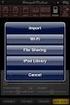 Export to itunes File Sharing Access Edit Mode Tap the pencil button on the bottom toolbar to access Edit Mode. Select a Button or a Folder Select to the button(s) you want to export/ import. A checkmark
Blackboard Collaborate Introduction & Handbook
 CSU Stanislaus Office of Information Technology Blackboard Collaborate Introduction & Handbook What is Collaborate? Blackboard Collaborate is the university s online meeting and conferencing service. Users
At the top of the page there are links and sub-links which allow you to perform tasks or view information in different display options.
 APPOINTMENTS TAB P r a c t i c e M a t e M a n u a l 38 OVERVIEW The Appointments Tab is used to set up appointments, reschedule or edit existing appointment information, check patients in and out, and
Introduction... 2. Download and Install Mobile Application... 2. About Logging In... 4. Springboard... 4. Navigation... 6. List Pages...
 Contents Introduction... 2 Download and Install Mobile Application... 2 About Logging In... 4 Springboard... 4 Navigation... 6 List Pages... 6 Example: Edit Contact... 7 View Pages... 12 Example: Companies...
How Do I Remove My Office 365 Account From An iphone, ipad or ipod Touch?... 1
 How Do I Remove My Office 365 Account From An iphone, ipad or ipod Touch?... 1 How Do I Set Up My Office 365 Account On An iphone, ipad or ipod Touch?... 3 How Do I Remove My Office 365 Account From A
GETTING STARTED GUIDE
 [email protected] Support: +84-4-3127-1357 SIMICLOUD GETTING STARTED GUIDE - Version 1.0-1 Table of Content 1. INTRODUCTION... 3 2. HOW TO NAVIGATE... 4 3. HOW TO CREAT A MOBILE SHOPPING APP... 8 3.1.
Connecting Software Connect Bridge - Mobile CRM Android User Manual
 Connect Bridge - Mobile CRM Android User Manual Summary This document describes the Android app Mobile CRM, its functionality and features available. The document is intended for end users as user manual
Content. Basic Navigation Dashboard Leads Contacts Deals Documents Tasks Emails Voice Reports Mobile M A O B C J D E
 Base Guide Content The purpose of this deck is to give you a better understanding of the basic features of Base CRM. M A O B C J D E F Basic Navigation Dashboard Leads Contacts Deals Documents Tasks Emails
igo e-app igo ACCESS AND SYSTEM REQUIREMENTS Stonebridge Life Insurance company Frequently Asked Questions
 igo ACCESS AND SYSTEM REQUIREMENTS HOW DO I ACCESS THE STONEBRIDGE igo E-APP LINK? Log on to the Agent Portal. Click E-APP > Launch E-APP. Click on Click here to continue and the igo screen will be displayed
FILING REPRESENTATIVES TRAINING ONLINE COURSE SCHEDULING USER GUIDE
 FILING REPRESENTATIVES TRAINING ONLINE COURSE SCHEDULING USER GUIDE October 18, 2013 Online Course Scheduling User Guide Page 1 of 28 TABLE OF CONTENT 1 ABOUT THIS DOCUMENT... 3 2 REGISTRATION... 4 2.1
Getting Started: Creating the Backdrop
 Adding ipad Animations to Green Screen Videos: Step 1 Getting Started: Creating the Backdrop 1. To start a new project: b. Select the + symbol on the top right of the screen. 2. To add a static background
City Barbeque Salesforce Training Guide
 City Barbeque Salesforce Training Guide Updated: 4/1/2015 City BBQ IT [email protected] What is Salesforce? - Salesforce is an industry leading, web-based CRM (Customer Relationship Management) platform.
Zoho CRM and Google Apps Synchronization
 Zoho CRM and Google Apps Synchronization Table of Contents End User Integration Points 1. Contacts 2. Calendar 3. Email 4. Tasks 5. Docs 3 6 8 11 12 Domain-Wide Points of Integration 1. Authentication
CITY OF BURLINGTON PUBLIC SCHOOLS MICROSOFT EXCHANGE 2010 OUTLOOK WEB APP USERS GUIDE
 CITY OF BURLINGTON PUBLIC SCHOOLS MICROSOFT EXCHANGE 2010 OUTLOOK WEB APP USERS GUIDE INTRODUCTION You can access your email account from any workstation at your school using Outlook Web Access (OWA),
Outlook Web App McKinney ISD 5/27/2011
 Outlook Web App McKinney ISD 5/27/2011 Outlook Web App Tutorial Outlook Web Access allows you to gain access to your messages, calendars, contacts, tasks and public folders from any computer with internet
RESCO MOBILE CRM USER GUIDE. Access your CRM data on any mobile platform ipad, iphone, Android, Windows Phone or Win XP/Vista/7/8
 RESCO MOBILE CRM USER GUIDE Access your CRM data on any mobile platform ipad, iphone, Android, Windows Phone or Win XP/Vista/7/8 Contents Synchronization... 1 1.1. How to synchronize your device... 1 1.2.
This training module reviews the CRM home page called the Dashboard including: - Dashboard My Activities tab. - Dashboard Pipeline tab
 This training module reviews the CRM home page called the Dashboard including: - Dashboard My Activities tab - Dashboard Pipeline tab - My Meetings Dashlet - My Calls Dashlet - My Calendar Dashlet - My
Microsoft Office 365, BYOD and ipads
 Microsoft Office 365, BYOD and ipads This document is to give an overview of how students can utilise the different ways of accessing their email, files and assignments if using the Office365 product with
Intellect Platform - The Workflow Engine Basic HelpDesk Troubleticket System - A102
 Intellect Platform - The Workflow Engine Basic HelpDesk Troubleticket System - A102 Interneer, Inc. Updated on 2/22/2012 Created by Erika Keresztyen Fahey 2 Workflow - A102 - Basic HelpDesk Ticketing System
Applicant Tracking System Job Aids. Prepared by:
 Applicant Tracking System Job Aids Prepared by: Contents System Navigation and My Setup Information for Users... 1 Creating Requisitions... 4 Duplicating Requisitions... 6 Requesting an Approval... 7 Viewing
Google Docs A Tutorial
 Google Docs A Tutorial What is it? Google Docs is a free online program that allows users to create documents, spreadsheets and presentations online and share them with others for collaboration. This allows
Technology in the Classroom Kidblog kidblog.org
 Technology in the Classroom Kidblog kidblog.org Kidblog provides a secure classroom blogging community, where teachers have complete control over individual student blogs. Students do not need an email
BusinessMan CRM. Contents. Walkthrough. Computech IT Services Ltd 2011. Tuesday, June 1 st 2014 Technical Document -1015 Version 6.
 Contents. Table of Figures... 2 Businessman Enterprise Overview... 3 System Settings... 3 Human Resources... 4 User Management... 5 Customers... 7 Prospects... 9 Document Management 9 Sales Dashboard...
Foxit MobilePDF for ios Quick Guide
 for ios 1 Contents Chapter 1 Description... 3 Chapter 2 Main Menu... 5 Chapter 3 File Management... 7 Chapter 4 Viewing PDF Files... 8 Chapter 5 Annotation... 13 Chapter 6 Signatures... 18 Chapter 7 Text
ADOBE ACROBAT CONNECT PRO MOBILE VISUAL QUICK START GUIDE
 ADOBE ACROBAT CONNECT PRO MOBILE VISUAL QUICK START GUIDE GETTING STARTED WITH ADOBE ACROBAT CONNECT PRO MOBILE FOR IPHONE AND IPOD TOUCH Overview Attend Acrobat Connect Pro meetings using your iphone
Google Sites: Site Creation and Home Page Design
 Google Sites: Site Creation and Home Page Design This is the second tutorial in the Google Sites series. You should already have your site set up. You should know its URL and your Google Sites Login and
Munis Payroll Entry Instructions
 Munis Payroll Entry Instructions All pay processors will be entering time for administrators, teachers, extended employment, extra duty pay, LTE s, etc. via the Time and Attendance screens in Munis. Anything
Base CRM Guide. Getting started and understanding of the basic features of Base CRM.
 Base CRM Guide Getting started and understanding of the basic features of Base CRM. Table of Contents BASIC NAVIGATION 03 Logging in 04 Desktop Navigation 05 Settings DASHBOARD 06 Your Dashboard LEADS
Introduction 2. Creating an Invoice 3. How quickly will I receive payments once I have submitted an invoice? 6. Previous Payments 6
 Introduction 2 Invoicing using MultiTrans. 2 Accessing the Invoices Module 2 Creating an Invoice 3 How quickly will I receive payments once I have submitted an invoice? 6 Previous Payments 6 Deduction
Connecting Software. CB Mobile CRM Windows Phone 8. User Manual
 CB Mobile CRM Windows Phone 8 User Manual Summary This document describes the Windows Phone 8 Mobile CRM app functionality and available features. The document is intended for end users as user manual
ACS ChemWorx User Guide http://www.acschemworx.org
 ACS ChemWorx User Guide http://www.acschemworx.org Contents OVERVIEW... 5 ACS CHEMWORX DESKTOP APP... 5 HOW TO INSTALL THE DESKTOP... 5 ACS CHEMWORX WEB APP... 5 ACS CHEMWORX MOBILE APP... 5 SETTING UP
Downloading and using the Old National Mobile App for iphone and Android
 Downloading and using the Old National Mobile App for iphone and Android The Old National Mobile App makes it simple for users of iphone and Android TM smartphones to quickly access their accounts. From
Technical Support System
 Technical Support System USER S GUIDE 1 Table of Contents 1.0 GENERAL INFORMATION..3 1.1 System Overview...........4 1.1.1 Objectives...........4 1.1.2 Process Flow..............4 1.1.3 Users...........4
B&SC Office 365 Email
 B&SC Office 365 Email Microsoft Office 365 In its continuous efforts to provide the highest quality student experience, Bryant & Stratton College is giving students access to a new tool for accessing email.
Access and Login. Single Sign On Reference. Signoff
 Access and Login To access single sign on, here are the steps: Step 1: type in the URL: postone.onelogin.com Step 2: Enter your Post student email in the username field Step 3: Enter your Post student
 Completing Online Course Evaluations CoursEval is a web based evaluation tool that will allow students to view and complete course evaluations online and all in one place. This software is a great way
Qualtrics Survey Tool
 Qualtrics Survey Tool This page left blank intentionally. Table of Contents Overview... 5 Uses for Qualtrics Surveys:... 5 Accessing Qualtrics... 5 My Surveys Tab... 5 Survey Controls... 5 Creating New
Index. Page 1. Index 1 2 2 3 4-5 6 6 7 7-8 8-9 9 10 10 11 12 12 13 14 14 15 16 16 16 17-18 18 19 20 20 21 21 21 21
 Index Index School Jotter Manual Logging in Getting the site looking how you want Managing your site, the menu and its pages Editing a page Managing Drafts Managing Media and Files User Accounts and Setting
iview (v2.0) Administrator Guide Version 1.0
 iview (v2.0) Administrator Guide Version 1.0 Updated 5/2/2008 Overview This administrator guide describes the processes and procedures for setting up, configuring, running and administering the iview Operator
emarketing Manual- Creating a New Email
 emarketing Manual- Creating a New Email Create a new email: You can create a new email by clicking the button labeled Create New Email located at the top of the main page. Once you click this button, a
Booth Gmail Configuration
 Student email is accessed via a Booth branded Gmail service. Student mailboxes will be accessed via Gmail. Configure Gmail Settings Before you connect Gmail to send and receive Booth Gmail on your mobile
Software Application Tutorial
 Software Application Tutorial Copyright 2005, Software Application Training Unit, West Chester University. No Portion of this document may be reproduced without the written permission of the authors. For
Startup Guide. Version 2.3.9
 Startup Guide Version 2.3.9 Installation and initial setup Your welcome email included a link to download the ORBTR plugin. Save the software to your hard drive and log into the admin panel of your WordPress
Google Drive lets you store and share all your stuff, including documents, videos, images and other files that are important to
 What are Docs & Drive? Docs Use Google Docs, Sheets and Slides for document editing anywhere, anytime. Google Docs is an online word processor that lets you create and format text documents and collaborate
How to Use Swiftpage for SageCRM
 How to Use Swiftpage for SageCRM 1 Table of Contents Basics of the Swiftpage for SageCRM Integration 3 How to Install Swiftpage for SageCRM and Set Up Your Account...4 Accessing Swiftpage s Online Editor
Module One: Getting Started... 6. Opening Outlook... 6. Setting Up Outlook for the First Time... 7. Understanding the Interface...
 2 CONTENTS Module One: Getting Started... 6 Opening Outlook... 6 Setting Up Outlook for the First Time... 7 Understanding the Interface...12 Using Backstage View...14 Viewing Your Inbox...15 Closing Outlook...17
SpringCM Integration Guide. for Salesforce
 SpringCM Integration Guide for Salesforce September 2014 Introduction You are minutes away from fully integrating SpringCM into your Salesforce account. The SpringCM Open Cloud Connector will allow you
Increasing Productivity and Collaboration with Google Docs. Charina Ong Educational Technologist [email protected]
 Increasing Productivity and Collaboration with Google Docs [email protected] Table of Contents About the Workshop... i Workshop Objectives... i Session Prerequisites... i Google Apps... 1 Creating
Creating and Managing Online Surveys LEVEL 2
 Creating and Managing Online Surveys LEVEL 2 Accessing your online survey account 1. If you are logged into UNF s network, go to https://survey. You will automatically be logged in. 2. If you are not logged
Welcome to MaxMobile. Introduction. System Requirements
 MaxMobile 10.5 for Windows Mobile Smartphone Welcome to MaxMobile Introduction MaxMobile 10.5 for Windows Mobile Smartphone provides you with a way to take your customer information on the road. You can
Mobile Data Collection with Avenza PDF Maps
 Mobile Data Collection with Avenza PDF Maps Installing the App The Avenza PDF Maps app v2.0.1 should already be installed on your device. If not, you can search Avenza in the App store to install it. Please
In order to take advantage of the free GVSU business plan, you must download oovoo from GVSU s oovoo website:
 How to oovoo Download oovoo In order to take advantage of the free GVSU business plan, you must download oovoo from GVSU s oovoo website: www.gvsu.edu/oovoo If you already have an oovoo account, you will
Save and Restore Backups using itunes File
 Save and Restore Backups using itunes File Make and Export a Backup Access the Options On ipad, tap right-most button in the toolbar to access the Options. On iphone/ipod touch, tap the Views button (double
Desktop and Plugins from Vonage Business
 Desktop and Plugins from Vonage Business Installation and User Guide The Vonage Business Desktop reinvents the way you interact with your phone service, giving you extra control and convenience to manage
Table of Contents. zipform 6 User Guide
 Table of Contents Welcome 4 Creating and Using Transactions.. 4 How to Create a Transaction...... 4 Creating a Transaction Using a Template....... 5 Adding and Removing Forms from a Transaction.......
What is OneDrive for Business at University of Greenwich? Accessing OneDrive from Office 365
 This guide explains how to access and use the OneDrive for Business cloud based storage system and Microsoft Office Online suite of products via a web browser. What is OneDrive for Business at University
School Mail System. - Access through Office 365 Exchange Online. User Guide FOR. Education Bureau (EDB)
 School Mail System - Access through Office 365 Exchange Online User Guide FOR Education Bureau (EDB) Version: 1.0 May 2015 The Government of the Hong Kong Special Administrative Region The contents of
Lotus Notes Traveler User and Troubleshooting Guide for ios Devices. Manage the Settings for your Mail, Calendar, and Contacts Apps
 Traveler User Tips 1. All email is accessed through the Mail app, while calendar entries are accessed through the Calendar app, and contacts can be located in the Contacts app on an ios device. 2. Your
Online Services User Guide
 Online Services User Guide Welcome to online banking! Whether you re online or using a mobile device, access your accounts whenever and wherever it s convenient for you. Log In: BankMidwest.com Online
JD Edwards EnterpriseOne CRM Foundation
 JD Edwards EnterpriseOne CRM Foundation Common Customer Relationship Challenges CHALLENGES CAPABILITIES VALUE Unable to provide 24x7 customer service Lack of customer information impedes exceptional customer
Basics Guide. Applies to: Microsoft Dynamics CRM Online Microsoft Dynamics CRM 2015 (on-premises)
 Basics Guide Applies to: Microsoft Dynamics CRM Online Microsoft Dynamics CRM 2015 (on-premises) This document is provided "as-is". Information and views expressed in this document, including URL and other
Results CRM 2012 User Manual
 Results CRM 2012 User Manual A Guide to Using Results CRM Standard, Results CRM Plus, & Results CRM Business Suite Table of Contents Installation Instructions... 1 Single User & Evaluation Installation
CRM Basics. Applies to: CRM Online 2015 Update 1
 CRM Basics Applies to: CRM Online 2015 Update 1 Wondering if this ebook applies to you? If your screen looks like this, you re in the right place. The ebook contains the essentials you need to know to
IMTS Exhibitor Passport Getting Started Guide
 IMTS Exhibitor Passport Getting Started Guide Thank you for your purchase of the IMTS Exhibitor Passport! To help you make the most of your experience, this guide will give you an overview of each section
Last Updated on 11/06/2008. www.jobprotech.com
 Last Updated on 11/06/2008 www.jobprotech.com Copyright JobPro Technology, 2008 How to Use this Guide This manual is designed as a reference for JobPro customers. It is not intended to be a replacement
Quick Start User Guide
 Quick Start User Guide Table of Contents Getting to Know CRM... 3 Importing Your Contact Information from Outlook and Excel... 6 Using Your Calendar... 11 Managing Tasks, Events and Marketing Programs...
Guidelines for Using the Web Help Desk
 BURBANK SCHOOL DISTRICT 111 Guidelines for Using the Web Help Desk Technology Department 1/7/2013 The purpose of this document is to provide guidance on how to navigate the Burbank School District 111
RESCO MOBILE CRM QUICK GUIDE. for MS Dynamics CRM. ios (ipad & iphone) Android phones & tablets
 RESCO MOBILE CRM for MS Dynamics CRM QUICK GUIDE ios (ipad & iphone) Android phones & tablets Windows Phone 7 & 8, Windows XP/Vista/7/8.1 and RT/Surface, Windows Mobile Synchronize Synchronize your mobile
Table of Contents. Part I Welcome. Part II Introduction. Part III Getting Started. Part IV The User Interface. Part V Quick Start Tutorials
 Contents I Table of Contents Part I Welcome 5 Part II Introduction 5 1 Overview... 5 2 Product... Levels 5 3 Technical... Support 6 4 Copyright... 7 Part III Getting Started 7 1 Installation... 7 2 Register...
Recruitment Tracking Module User Guide
 Recruitment Tracking Module User Guide Copyright 1998-2004, E-Z Data, Inc. All Rights Reserved No part of this documentation may be copied, reproduced, or translated in any form without the prior written
A Day in the Life of a UHG Field Agent bconnected Lead Management System
 Review New Leads Daily Dashboard New Leads Review my Scheduled Callbacks Dashboard - Activities Print Your New Leads and Activities From the Agent Dashboard Sort new leads by Activity Type or by Assigned
E-Learning Online Course. Teacher s Manual. Created by Focus School Software. for. Monte Vista Christian School
 E-Learning Online Course Teacher s Manual Created by Focus School Software for Monte Vista Christian School Focus/SIS e-learning Online Course Manual for Teachers 1 Contents Disclaimer... 1 Portal... 2
Online Budget Submission Quick Start Guide www.stats.indiana.edu/govtgateway
 Online Budget Submission Quick Start Guide www.stats.indiana.edu/govtgateway The Indiana Gateway for Government Units provides a central portal for local governments to submit forms to the Department of
Adding Outlook to a Blackberry, Downloading, Installing and Configuring Blackberry Desktop Manager
 Adding Outlook to a Blackberry, Downloading, Installing and Configuring Blackberry Desktop Manager The following instructions work for the District provided Blackberrys from Sprint, but I think it should
PlanGrid. User Guide. www.plangrid.com [email protected]
 PlanGrid User Guide www.plangrid.com [email protected] Table of Contents Create a New Project Connecting Cloud Storage Partial Downloading ios Web Viewer and Web Markups Viewing Markups on your device
Aras Corporation. 2005 Aras Corporation. All rights reserved. Notice of Rights. Notice of Liability
 Aras Corporation 2005 Aras Corporation. All rights reserved Notice of Rights All rights reserved. Aras Corporation (Aras) owns this document. No part of this document may be reproduced or transmitted in
How To Manage Inventory On Q Global On A Pcode (Q)
 Pearson Clinical Assessment Q-global User Guide Managing Inventory PEARSON 2 MANAGING INVENTORY Managing Inventory Overview When inventory is purchased, you will need to set up the allocations for the
User Guide Quote Request for Quotation (RFQ)
 OVERVIEW This User Guide describes how Suppliers participates in Request for Quotation (RFQ) events. HOW TO USE THIS USER GUIDE If familiar with the isupplier Portal Functionalities and the Oxy processes,
Dartmouth College Technical Support Document for Kronos PC version
 Dartmouth College Technical Support Document for Kronos PC version Contents How to Save the Kronos URL as a Favorite or Bookmark... 2 Internet Explorer... 2 Firefox... 4 Possible Problems When Logging
Learning Management System User Guide - Administrators
 Learning Management System User Guide - Administrators Contents Introduction LMS homepage Main courses page Inside an individual topic / category page Certificate How to register Start a course Tests on
FileMaker Pro and Microsoft Office Integration
 FileMaker Pro and Microsoft Office Integration page Table of Contents Executive Summary...3 Introduction...3 Top Reasons to Read This Guide...3 Before You Get Started...4 Downloading the FileMaker Trial
Creating a Newsletter with Microsoft Word
 Creating a Newsletter with Microsoft Word Frank Schneemann In this assignment we are going to use Microsoft Word to create a newsletter that can be used in your classroom instruction. If you already know
User Manual for Web. Help Desk Authority 9.0
 User Manual for Web Help Desk Authority 9.0 2011ScriptLogic Corporation ALL RIGHTS RESERVED. ScriptLogic, the ScriptLogic logo and Point,Click,Done! are trademarks and registered trademarks of ScriptLogic
Coming Soon! echalk Enhancements & New Features
 Coming Soon! echalk Enhancements & New Features Look for these new enhancements and features that are coming soon: Google Docs Integration Submit Google Docs via the Homework Drop Box Subscribe to a Class/Group
Central Management Software CV3-M1024
 Table of Contents Chapter 1. User Interface Overview...5 Chapter 2. Installation...6 2.1 Beginning Installation...6 2.2 Starting the CMS software...10 2.3 Starting it from the Start menu...10 2.4 Starting
Faculty Web Editing. Wharton County Junior College Employee Training Manual
 2013 Wharton County Junior College Employee Training Manual Faculty Web Editing 13 Faculty Web sites are maintained through Omni Updates Campus Content Management Systems as of January 2013. Please address
Nationwide Marketing Storefront Guide
 Nationwide Marketing Storefront Guide Table of Contents I. Introduction... 2 Marketing Storefront Overview... 2 Benefits of Marketing Storefront... 2 Features of Marketing Storefront... 2 Accessing Marketing
ipad Basics Tips from the October 16, 2014 ipad Basics Class Tip No. 1 Apple ID Where is it found? Settings>iCloud>Apple ID
 ipad Basics Tips from the October 16, 2014 ipad Basics Class Tip No. 1 Apple ID Where is it found? Settings>iCloud>Apple ID 1 2 At the ipad home screen tap on the Settings tab. Now tap on the icloud file
Oracle Beehive. Using Windows Mobile Device Release 2 (2.0.1.7)
 Oracle Beehive Using Windows Mobile Device Release 2 (2.0.1.7) E28326-01 July 2012 Document updated July, 2012 This document describes how to access Oracle Beehive from your Windows Mobile device using
Creating Acrobat Forms Acrobat 9 Professional
 Creating Acrobat Forms Acrobat 9 Professional Acrobat forms typically have an origin from another program, like Word, Illustrator, Publisher etc. Doesn t matter. You design the form in another application
PDF MAPS FOR SMARTPHONES AND TABLETS
 INTRODUCTION Incident mapping often utilizes PDF documents of maps to be created for printing, archiving, and now for the ability to use these products in the field. With the release of Adobe Acrobat 9
PAYROLL ONLINE HOW TO INSTRUCTIONS. CREATED BY: Leslie Feaman Date: 9/1/11
 PAYROLL ONLINE HOW TO INSTRUCTIONS CREATED BY: Leslie Feaman Date: 9/1/11 H o w t o I n s t r u c t i o n s 1 Table of Contents How to Login to Payroll Online... 2-4 How to Add a New Employee... 5-9 How
Google Sites. How to create a site using Google Sites
 Contents How to create a site using Google Sites... 2 Creating a Google Site... 2 Choose a Template... 2 Name Your Site... 3 Choose A Theme... 3 Add Site Categories and Descriptions... 3 Launch Your Google
Instructions for Configuring Your Browser Settings and Online Security FAQ s. ios8 Settings for iphone and ipad app
 Instructions for Configuring Your Browser Settings and Online Security FAQ s ios8 Settings for iphone and ipad app General Settings The following browser settings and plug-ins are required to properly
Electronic Signature and Routing Process
 Howard University Electronic Signature and Routing Process Submitting a Proposal Package Electronically 2012 R e s e a r c h A d m i n i s t r a t i v e S e r v i c e s CONTENTS DocuSign Overview... 2