
IBM WebSphere Adapter for Quick Start Tutorials
|
|
|
- Ernest Harrington
- 10 years ago
- Views:
Transcription
1 IBM WebSphere Adapter for Quick Start Tutorials

2 Note: Before using this information and the product it supports, read the information in "Notices" on page 182. This edition applies to version 7, modification 0 of IBM WebSphere Adapter for and to all subsequent releases and modifications until otherwise indicated in new editions. Copyright International Business Machines Corporation US Government Users Restricted Rights Use, duplication or disclosure restricted by GSA ADP Schedule Contract with IBM Corp.

3 Table of contents Chapter 1. Introduction... 7 Learning Objectives... 7 Audience... 8 Software prerequisites... 8 Chapter 2. Preparing to run the tutorial... 9 Configuration prerequisites... 9 Extracting the sample files Chapter 3. Tutorial 1: inbound with DTF without BG 16 Scenario Configuring the adapter for inbound processing Creating the project Setting connection properties for the external service wizard Generating business object definitions and related artifacts Deploying the module to the test environment Testing the assembled adapter application Clearing the sample content Chapter 4. Tutorial 2: inbound pass-through with BG37 Scenario Configuring the adapter for inbound processing Creating the project Setting connection properties for the external service wizard Generating business object definitions and related artifacts Deploying the module to the test environment Testing the assembled adapter application Clearing the sample content Chapter 5. Tutorial 3: outbound with DTF without BG49 Scenario Configuring the adapter for outbound processing Creating the project Setting connection properties for the external service wizard... 55

4 Generating business object definitions and related artifacts Deploying the module to the test environment Testing the assembled adapter application Clearing the sample content Chapter 6. Tutorial 4: outbound pass-through with BG66 Scenario Configuring the adapter for outbound processing Creating the project Setting connection properties for the external service wizard Generating business object definitions and related artifacts Deploying the module to the test environment Testing the assembled adapter application Clearing the sample content Chapter 7. Tutorial 5: Simple outbound Scenario Configuring the adapter for outbound processing Creating the project Setting connection properties for the external service wizard Generating business object definitions and related artifacts Deploying the module to the test environment Testing the assembled adapter application Clearing the sample content Chapter 8. Tutorial 6: inbound pass-through with SSL support using Lotus Domino Scenario Configuring the adapter for inbound processing Creating the project Setting connection properties for the external service wizard Generating business object definitions and related artifacts Deploying the module to the test environment Testing the assembled adapter application Clearing the sample content Chapter 9. Tutorial 7: Outbound user-defined type with DTF102 Scenario

5 Configuring the adapter for outbound processing Creating the project Setting connection properties for the external service wizard Generating business object definitions and related artifacts Deploying the module to the test environment Testing the assembled adapter application Clearing the sample content Chapter 10. Tutorial 8: inbound user-defined type with DTF121 Scenario Configuring the adapter for inbound processing Creating the project Setting connection properties for the external service wizard Generating business object definitions and related artifacts Deploying the module to the test environment Testing the assembled adapter application Clearing the sample content Chapter 11. Tutorial 9: inbound with search criteria enabled139 Scenario Configuring the adapter for inbound processing Creating the project Setting connection properties for the external service wizard Generating business object definitions and related artifacts Deploying the module to the test environment Testing the assembled adapter application Clearing the sample content Chapter 12. Troubleshooting Chapter 13. Appendix Mail Server Configuration Download the Domino Server version Installing Domino Server Configuring the Mail Server Installing Domino Administrator and Designer Creating users using Domino Administrator Configuring adapter and Domino 7.0 mail server for SSL

6 Making third party CA as trusted root in Domino Upload the SSL certificate into the Domino Server Configuring the WebSphere Process Server for SSL Using the project Interchange samples shipped along with the adapter installation Creating Events Notices

7 Chapter 1. Introduction Resource Adapter ( RA) enables connectivity for integration across ing Systems (EIS which communicates via s). Resource Adapter supports integration through sending and receiving mails to/from different mail servers using protocols like SMTP, IMAP and POP3. During inbound operational mode, the Resource Adapter can read mails from the mailbox convert the mail into a WebSphere Business Integration Business Object and send the business object across to the Application server. During outbound operational mode, the Resource Adapter will receive an appropriate business object from the application server, convert the same to an and sends the to the mail server. In this release, the adapter can now be deployed on WebSphere Process Server, WebSphere Enterprise Server Bus and also can be run in non managed mode. The introduction of Data Exchange SPI (DESPI) (for more details see IBM WebSphere Adapter Foundation Classes FS Section 6.8) enables adapter interoperability with other Business Integration environments like WebSphere Message Broker, WebSphere DataStage TX, WebSphere Information Integrator, Tivoli Data Interchange and WebSphere Partner Gateway. Note: Adapter is not released with WebSphere Application Server and hence will not support on WebSphere Application Server platform. The databinding and the JavaBean used are only with respective WebSphere Process Server environment. To gain practical knowledge in setting up and deploying the adapter, complete one or more of the tutorials. Everything you need to complete each tutorial is contained in the tutorial. If you have performed the prerequisite tasks, you can complete each tutorial in within an hour. Learning Objectives After completing a tutorial, you should be able to perform the following tasks: 1. Create an adapter project in WebSphere Integration Developer. 2. Discover services and associated business objects from the enterprise information system (EIS) and make them part of the adapter project. 3. Create a deployable module that you install on WebSphere Process Server or WebSphere Enterprise Service Bus. 4. Test the module and validate the results.

8 Audience These tutorials are for integration developers who design, assemble, test, and deploy business integration solutions. Software prerequisites To use these tutorials, you must have the following applications installed: 1. WebSphere Integration Developer version WebSphere Process Server version Lotus Domino Mail Server(6.5 or above version) 4. Mail Client (any for example, Outlook Express any appropriate version)

9 Chapter 2. Preparing to run the tutorial Configuration prerequisites Before doing any tutorial testing, complete the following tasks: For running Inbound operations of the adapter, create three directories and name them accordingly as staging directory, archive folder, and FailedEvents folder. For the tutorials a folder called InProgress has been created under the C:\Documents and Settings\Administrator\My Documents\InProgress and this will be used as the staging directory. The other two directories archive and failedevents folders are optional and are not used for our tutorials and is thereby left undefined Configuring the mail server: The mail server to be used by the user for running the tutorials and the sample needs to be configured prior to running the sample. The mail server would be the Enterprise Integration System which the Resource Adapter polls. In Appendix A of the document, very detailed instructions have been provided for the installation and configuration of the IBM Domino mail server version 6.5. Clear steps have been provided for administering the server instance, including the creation of necessary user accounts. The users internal to IBM can use the Domino server instructions as-is. The external users can opt for any freeware or licensed mail servers, but will need to configure the users as specified in Appendix A. For the tutorials, it has been assumed that the mail server is installed on a remote system with IP address as and thereby all references to the mail server will be as , with ports for each protocol as SMTP 25, IMAP 143 and POP3 as 110. Note: The default ports are SMTP-25, IMAP-143, and POP If the mail server is installed locally then the host name would be localhost. The user can install or configure the mail server on any system, in which case, the Host property, which determines the IP address of the mail server and the ports, must be changed appropriately in the Resource Adapter Activation Specification properties. Alternatively you would need to set these on the Activation Specification custom properties from the WebSphere Process Server Administrative Console. If the Port number on which the mail server is listening differs from the default port number for the protocol, the corresponding port number value must be set on the Activation Specification custom properties from the WebSphere Process Server Administrative Console. Note: Detailed instructions over doing the same is given in Appendix in Using the Project Interchange Samples shipped along with the adapter installation -> Changing the Connection details
10 1) Configuring the mail Server for SSL: WebSphere Adapter for now supports SSL for IMAP, POP3, and SMTP. For making use of SSL Support, the mail server and WebSphere Process Server in which the Resource Adapter is deployed needs to be configured for SSL. Detailed steps are given in the Appendix in Configuring adapter and Domino 7.0 mail server for SSL where there is a description about configuring Lotus Domino server for SSL and also about configuring WebSphere Process Server for the same. For the scenarios it has been assumed that the IP address for the mail server with SSL configuration is Note: For SSL enablement IMAP and POP3 uses different port numbers. For POP3 SSL and IMAP SSL the port numbers are 995 and 993 respectively. 2) Configure the mail Client: The mail client is essential for creating the events on inbound. Also it is helpful in verifying that the right events have been placed for polling. The user can configure any mail client (popular one being Microsoft Outlook Express, and Lotus Notes mail clients) to access the mail account with the mail server that you configured in the previous step. During the configuration, make sure the client is configured with mail server, right protocol and port number, which were mentioned in the previous step. Extracting the sample files Replicas of the artifacts that you create when using the external service wizard are provided as sample files for your reference. Use these files to verify that the files you create with the external service wizard are correct. Go to the <WID_installation>\ResourceAdapters\JDE_ \samples\referencefiles folder and unzip Scenario1.zip, Scenario2.zip, Scenario3.zip, Scenario4.zip, Scenario5.zip, Scenario6.zip, Scenario7.zip or Scenario8.zip into a directory of your choice (you may want to create a new directory). Tutorial Artifacts Generated Comments FunctionSelectorConfiguration.bcfg Configured Function Tutorial 1 Inbound With without Business Graph InboundDTFWithoutBG.export InboundDTFWithoutBG.wsdl Wbiaddress.xsd Selector SCDL File for Inbound Service description User Defined datatypes

11 Wbiphone.xsd genericdb/datahandlerconfiguration.bcfg xmldh/datahandlerconfiguration.bcfg CommonSchemas .xsd Header.xsd MailAttachment.xsd UnstructuredContent.xsd shipped with the Samples Configured Data Binding Configured Data Handler Common Datatypes is the wrapper HeaderList for Headers Tutorial 2 Inbound Pass-through With Business Graph FunctionSelectorConfiguration.bcfg InboundPTWithBG.export InboundPTWithBG.wsdl CommonSchemas .xsd BG.xsd Header.xsd MailAttachment.xsd UnstructuredContent.xsd Configured Function Selector Service description SCDL File for Inbound Common Datatypes is the wrapper HeaderList for Headers BG is the Wrapper BG file genericdb/datahandlerconfiguration.bcfg Configured Data Binding Tutorial 3 Outbound genericdb/datahandlerconfiguration.bcfg xmldh/datahandlerconfiguration.bcfg Configured Data Binding Configured Datahandler

12 DTF Without Business Graph FunctionSelectorConfiguration.bcfg Wbiaddress.xsd Wbiphone.xsd Configured Function Selector User defined data types MailSendFault.xsd MissingDataFault.xsd PrimaryKeyPairType.xsd WBIFault.xsd Fault Schemas for Outbound CommonSchemas .xsd BG.xsd Header.xsd MailAttachment.xsd UnstructuredContent.xsd Common Datatypes is the wrapper HeaderList for Headers OutboundDTFWithoutBG.import OutboundDTFWithoutBG.wsdl SCDL File for Outbound Service description Tutorial 4 Outbound Pass-through with Business Graph genericdb/datahandlerconfiguration.bcfg simpledb/datahandlerconfiguration.bcfg OutboundPTWithBG.import OutboundPTWithBG.wsdl MailSendFault.xsd MissingDataFault.xsd Configured Data Binding Configured Datahandler SCDL File for Outbound Service Description Fault Schemas for Outbound

13 PrimaryKeyPairType.xsd WBIFault.xsd CommonSchemas .xsd BG.xsd Common Datatypes is the wrapper HeaderList for Headers Header.xsd MailAttachment.xsd UnstructuredContent.xsd Tutorial 5 Oubound Simple simpledb/datahandlerconfiguration.bcfg Common Schemas SimpleAlert .xsd OutboundPTWithBG.import OutboundPTWithBG.wsdl MailSendFault.xsd MissingDataFault.xsd PrimaryKeyPairType.xsd Configured DataBinding Simple Schema SCDL File for Outbound Service Description Fault Schemas for Outbound Tutorial 6 Inbound Pass-Through For SSL genericdb/datahandlerconfiguration.bcfg FunctionSelectorConfiguration.bcfg InboundForSSL.wsdl InboundForSSL.export Configured DataBinding Configured Function Selector Service Description SCDL File for Inbound

14 CommonSchemas .xsd Header.xsd Common Datatypes is the wrapper HeaderList for Headers MailAttachment.xsd UnstructuredContent.xsd Tutorial 7 Outbound User-defined type with Data Transformation fixedstructuredb/datahandlerconfiguration.bcfg xmldh/datahandlerconfiguration.bcfg OutboundFixedStructureDTF.import OutboundFixedStructureDTF.wsdl MailSendFault.xsd MissingDataFault.xsd PrimaryKeyPairType.xsd WBIFault.xsd Configured DataBinding Configured DataHandler SCDL File for Inbound Service Description Fault Schemas for Outbound Header.xsd Tutorial 8 Inbound User-defined type with Data Transformation fixedstructuredb/datahandlerconfiguration.bcfg xmldh/datahandlerconfiguration.bcfg InboundFixedStructureDTF.export InboundFixedStructureDTF.wsdl Header.xsd Configured DataBinding Configured DataHandler SCDL File for Outbound Service Description Schema for mail Header

15 Custom .xsd Wbiaddress.xsd Configured Custom DataType User Defined Data Types Wbiphone.xsd Note: Detailed instructions over using the samples shipped are given is in Appendix section.

16 Chapter 3. Tutorial 1: inbound with DTF without BG This tutorial demonstrates how to use WebSphere Adapter for without using business graphs in data transformation mode for polling s. In data transformation mode, the adapter transforms structured contents ( body or attachments) to specific business objects using data handlers (For example, XML Data handler). Note: With version Adapter, business graphs are not mandatory. Scenario Consider an organization where the important medium of communication is . All the customer complaints are received through and the business process wants to pick up the mails and store it in a database from it can be either accessed through a customer service portal or queried by a customer relationship officer for further processing of the complaint.

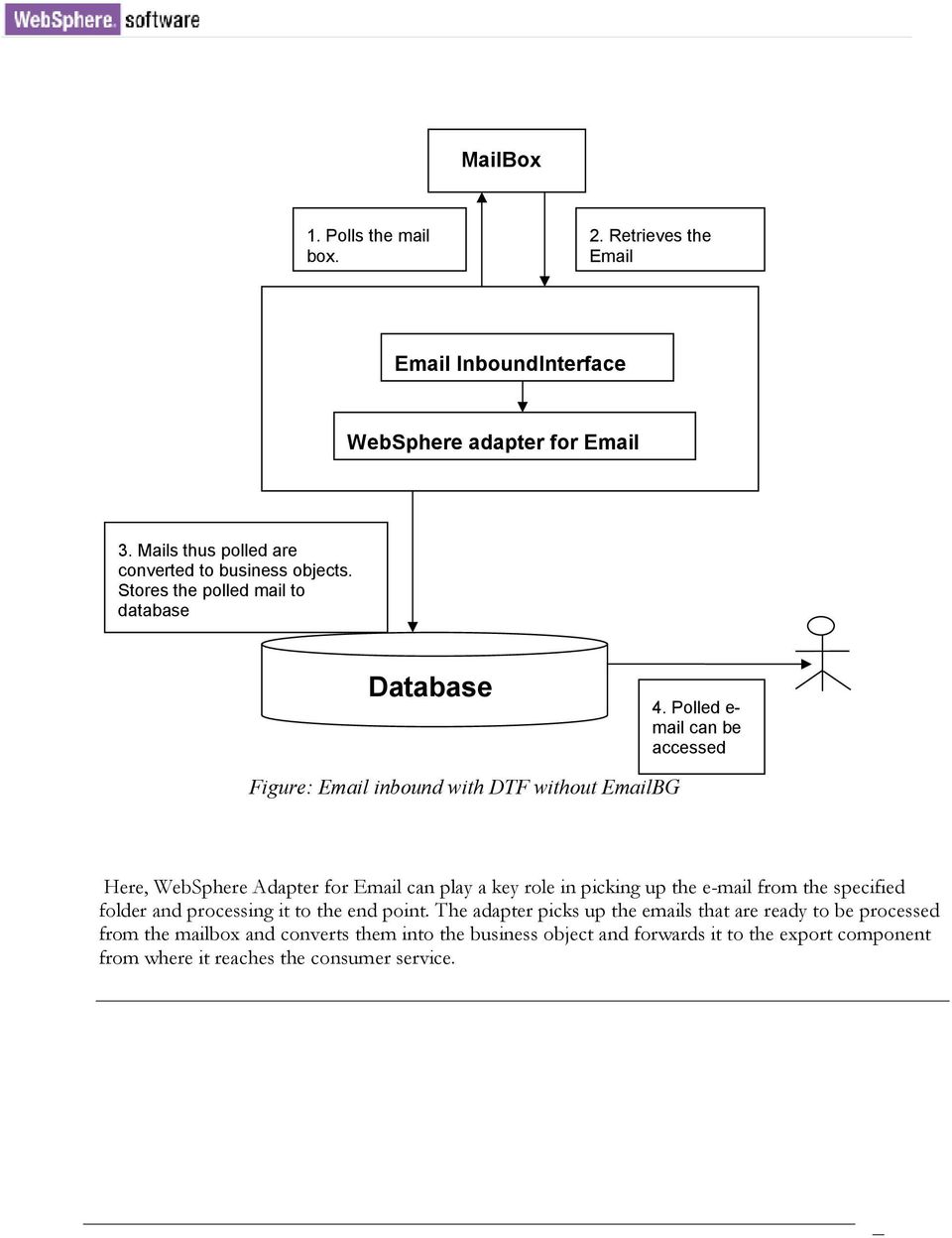
17 MailBox 1. Polls the mail box. 2. Retrieves the InboundInterface WebSphere adapter for 3. Mails thus polled are converted to business objects. Stores the polled mail to database Database 4. Polled e- mail can be accessed Figure: inbound with DTF without BG Here, WebSphere Adapter for can play a key role in picking up the from the specified folder and processing it to the end point. The adapter picks up the s that are ready to be processed from the mailbox and converts them into the business object and forwards it to the export component from where it reaches the consumer service.
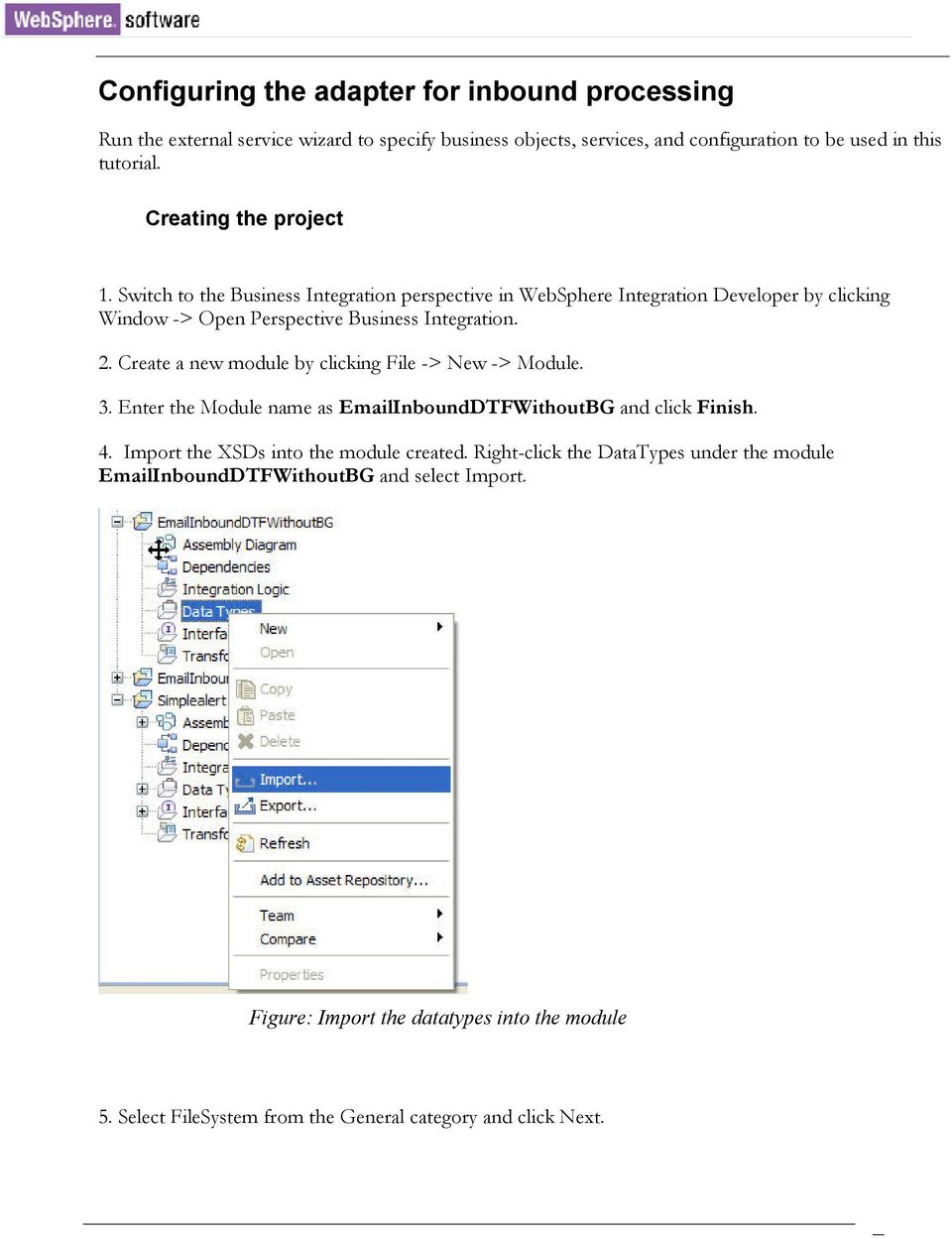
18 Configuring the adapter for inbound processing Run the external service wizard to specify business objects, services, and configuration to be used in this tutorial. Creating the project 1. Switch to the Business Integration perspective in WebSphere Integration Developer by clicking Window -> Open Perspective Business Integration. 2. Create a new module by clicking File -> New -> Module. 3. Enter the Module name as InboundDTFWithoutBG and click Finish. 4. Import the XSDs into the module created. Right-click the DataTypes under the module InboundDTFWithoutBG and select Import. Figure: Import the datatypes into the module 5. Select FileSystem from the General category and click Next.
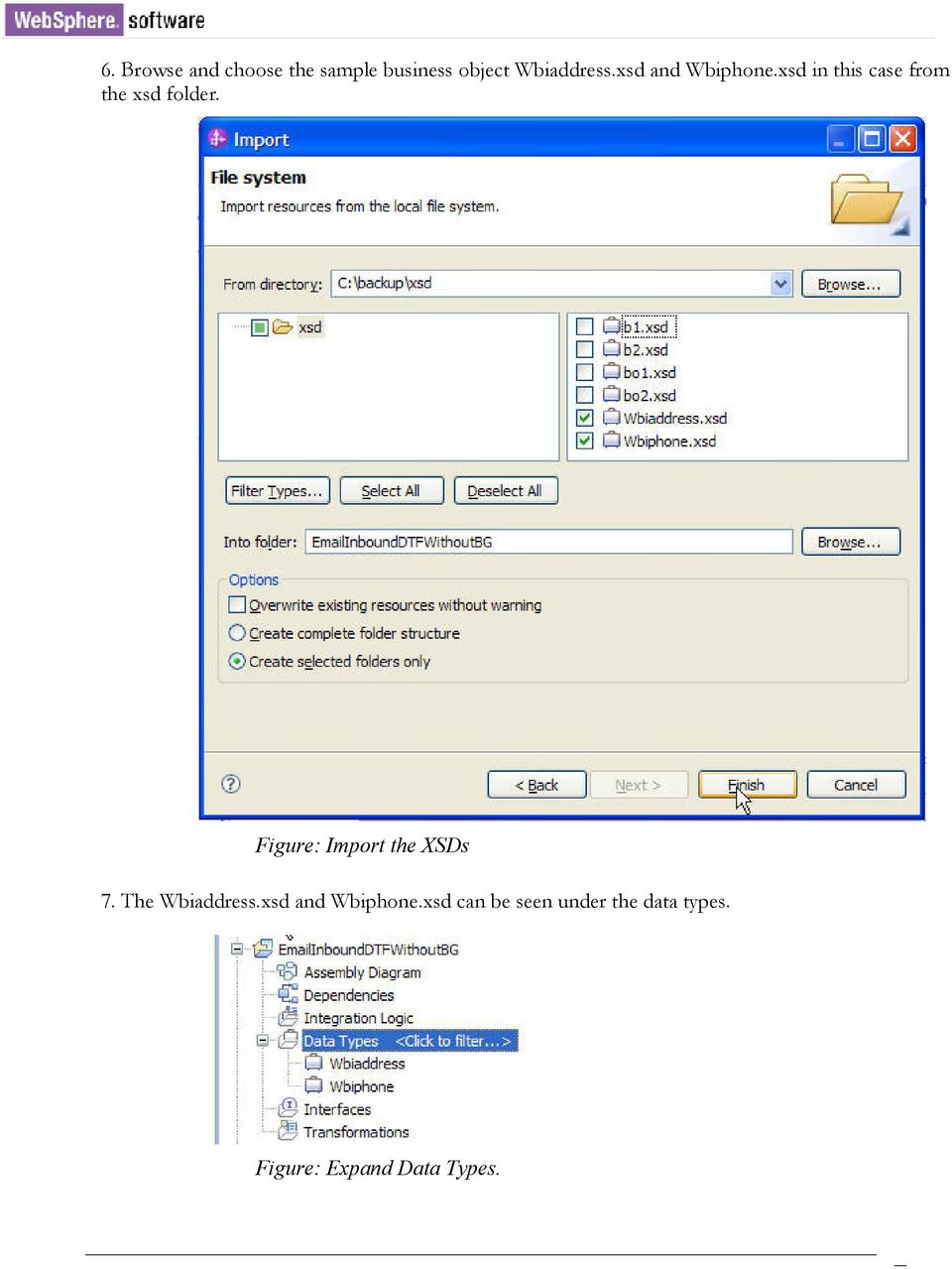
19 6. Browse and choose the sample business object Wbiaddress.xsd and Wbiphone.xsd in this case from the xsd folder. Figure: Import the XSDs 7. The Wbiaddress.xsd and Wbiphone.xsd can be seen under the data types. Figure: Expand Data Types.
20 8. Start the external service wizard by clicking File-> New -> External Service 9. Expand Adapters and click the plus sign to expand and select . Select Advanced: Create an service using the complete wizard and click Next. Figure: Select the service type

21 10. In the Select an Adapter window, you can either create a new project or select an existing project. To create a new project, perform the following steps: a) Select IBM WebSphere Adapter for (IBM: ) as shown in the following figure. b) Click Next. Figure: Select IBM WebSphere Adapter for c) In the Adapter Import window, either accept the default name for the project (CWYEM_ ) or provide another name in the Connector project field. 11. Select the server from the Target runtime list (for example, WebSphere Process Server v ), and click Next.
22 To select an existing project, perform the following steps: a) Expand IBM WebSphere Adapter for (IBM: ). b) Select a project. For example, if you have an existing project named CWYEM_ , you can expand IBM WebSphere Adapter for (IBM: ) CWYEM_ , then select the connection information. c) Click Next. 12. Select the processing direction as Inbound and click Next. Setting connection properties for the external service wizard 1. To connect to server the following information is necessary: hostname, username, password, port, protocol, location of the staging directory, and optionally location of the Archive folder and Failed Events Folder. Provide this information in the wizard. Figure: Enter the connection information
23 2. In Service properties, select Using security properties from the activation specification and provide the necessary credentials. 3. Select the Specify a data format for each operation from the Data format options list. Figure: Specify the service properties 4. Click Next. Generating business object definitions and related artifacts Follow these steps to generate the business object definitions. 1. In the Operation window, click Add. 2. Select the data type as Generic business object and click Next.
24 Figure: Select the operation 3. Click Select to create a new Data format type. Figure: Create a new data format type 4. Select WrapperDataBinding and click Next.
25 Figure: Select an existing data format transformation 5. Click Add and then click on browse to select the Business object type. 6. Browse and select the business object type as Wbiaddress.
26 7. Click OK. Figure: Select the business object type
27 8. In the Add/Edit properties, select the Mime type as text/xml. Figure: Select the mime type
28 9. In the Data handler Configuration, select Use existing data format transformation from the list to configure the XML datahandler. Figure: Select the XML data handler 10. Select XML and Click Next. 11. Click Next again and then click Finish. 12. Repeat steps five to nine to select Wbiphone.
29 13. Click Next. Figure: Specify the data binding properties 14. Click Browse to select the module for which the external service has been run and click Finish.
30 Figure: Select the module 15. Click Next, and then click Finish. This completes setting up of the external service. 16. Verify the results.
31 Figure: Expand the created module 17. Open the Assembly diagram for the module. Click Java Component from the palette, drag and drop the same into the assembly diagram.
32 Figure: Open the assembly diagram for the module 18. Rename the Java Component as EndPoint and wire the export to the Java Component. Figure: Rename the Java component 19. Right-click the Java Component (Endpoint) created earlier and click Generate Implementation. 20. Choose Default package. A java class file implementation is generated for the same.
33 Figure: Review the Java class file implementation Deploying the module to the test environment The result of running the external service wizard is an SCA module that contains an Enterprise Integration System (EIS) import or export. Install this SCA module in WebSphere Integration Developer integration test client. 1. Add the module you created earlier to the server using the server panel in the WebSphere Integration Developer. Right-click the server, and then select Add and Remove Projects.
34 Figure: Add the module 2. Add the SCA module to the server. 3. Click Finish. Testing the assembled adapter application Test the assembled adapter application using the WebSphere Integration Developer integration test client. 1. Select any service you want, and click Test > Test Attach.
35 2. Click Continue to run the service. 3. Go to <WID_installation>\ResourceAdapters\ _ _IF01\Samples location. Unzip EventCreator.tar or EventCreator.zip file. The utilities are extracted under folder EventCreator. 4. Create events using the createevents_sample_nonpassthroughwithfilecontent.bat file. available under the EventCreator folder that was extracted. The example contents of the file are as shown below: java -cp.\;.\mail.jar;.\activation.jar EventCreatorNew " " 25 2 "tester@ibm" ejca@ibm ejca@ibm ejca@ibm "test subject" "<WID_installation>\ResourceAdapters\ _ \Samples\ EventCreator\WbiAddress.xml" "<WID_installation>\ResourceAdapters\ _ \Samples\ EventCreator\WbiPhone.xml" "false" Note: Use the Files WbiAddress.xml and WbiPhone.xml in EventCreator folder to test the scenario. This will create two events from the user tester@ibm on the mail server with as the IP address, WbiAddress.xml as the content and WbiPhone.xml file as the mail attachment. The other attributes of the mail specified by the user will be incorporated on each mail event that is created. More information on creating the events and the EventCreator is provided in the appendix section Creating Events. The mail is processed by the Resource Adapter and the business object is received via the Endpoint java component as shown in the following figure. Observe that Mail Content and Mail Attachment are MyAddress.xml and MyPhone.xml data types.
36 Figure: Review the values for mail content and the mail attachment Clearing the sample content Return the data to its original state by removing the module created earlier from the WebSphere Process Server. 1. Right-click the server and select Add and Remove Projects. 2. Choose the module. 3. Click on Remove, and then click Finish. Nothing is required to clean up after this tutorial.
37 Chapter 4. Tutorial 2: inbound passthrough with BG This tutorial describes how to use WebSphere Adapter for with Business graphs to poll for s. This scenario does not handle any data transformation. The content of each is fetched into UnstructuredContent business object without performing data transformation. The content is filled into either AsText or AsBinary business objects accordingly. Scenario This scenario plays a role in a situation where the organization may not be able to predict the content of that they might need to process. For example, there may be a customer who may have the privilege of sending in any format. The customer can lodge a complaint with just the description of the problem and not mention his customer number or his identity. It would be the responsibility of the organization and the customer to He may not be compelled or asked to send an in a particular structure. In order to process such s, the adapter for can be configured in such a way that it can process any kind of , let the content be text or binary.
38 MailBox 1. Polls the mail box. 2. Retrieves the InboundInterface WebSphere adapter for 3. adapter does a pass through transformation of content of . Stores the polled mail to database Database 4. Polled e- mail can be accessed Figure: inbound pass-through with BG The adapter does a pass through transformation of the content of the , that is it does not perform any data transformation of the content. The content is directly converted to a business object and forwarded to the export component from where it is directed to the end point. Configuring the adapter for inbound processing Run the external service wizard to specify business objects, services, and configuration to be used in this tutorial.
39 Creating the project 1. Switch to the Business Integration perspective in WebSphere Integration Developer by clicking Window -> Open Perspective Business Integration. 2. Create a new module by clicking: File -> New -> Module. 3. Enter the module name as InboundPTWithBG and click Finish. 4. Start the external service wizard by clicking: File-> New -> External Service. 5. Select Adapters and click Next. 6. In the Select an Adapter window, select you can either create a new project or select an existing project. 7. To create a new project, perform the following steps: a) In the Select and Adapter window, select IBM WebSphere Adapter for (IBM: ). b) Click Next. c) In the Adapter Import window, either accept the default name for the project (CWYEM_ ) or provide another name in the Connector project field. Select the server from the Target runtime list (for example, WebSphere Process Server v ), then click Next. 8. To select an existing project, perform the following steps: a) Expand IBM WebSphere Adapter for (IBM: ). b) Select a project. For example, if you have an existing project named CWYEM_ , you can expand IBM WebSphere Adapter for (IBM: ) CWYEM_ , then select the connection information. c) Click Next. 9. Select the processing direction as Inbound and click Next. Setting connection properties for the external service wizard 1. To connect to server the following information is necessary: hostname, username, password, port and protocol, location of the staging directory and optionally location of the Archive folder and Failed Events Folder. Provide this information in the wizard.
40 Figure: Enter the connection information 2. In Service Properties, select Using security properties from the activation specification and provide the necessary credentials. 3. Select the Specify a data format for each operation from the Data format options list.
41 Figure: Specify the service properties 4. Click Next. Generating business object definitions and related artifacts Follow these steps to generate the business object definitions. 1. In the Operations window, click Add. 2. Select the data type as Generic business object with business graph and Click Next.
42 Figure: Select the data type 3. Click Select to create a new Data format type. Figure: Create a new data format type
43 4. Select WrapperDataBinding and click Next. Figure: Select an existing data format transformation 5. Click Next.
44 Figure: Select the module 6. Click Finish twice. 7. Click Next, and click Finish.
45 Figure: Expand the created module 8. Open the Assembly diagram for the module. Click Java Component from the palette. Drag and drop the same into the assembly diagram. 9. Name the Java Component as EndPoint and wire the export to the Java Component. Figure: Rename the Java component
46 10. Right-click the Java Component (EndPoint) created earlier and click Generate Implementation. Choose Default package. A java class file implementation is generated for the same. Figure: Review the Java class file implementation Deploying the module to the test environment The result of running the external service wizard is an SCA module that contains an EIS import or export. Install this SCA module in WebSphere Integration Developer integration test client. 1. Add the module you created earlier to the server using the server panel in WebSphere Integration Developer. Right-click the server, and select Add and Remove Projects. 2. Add the SCA module to the server. 3. Click Finish. Testing the assembled adapter application 1. Test the assembled adapter application using the WebSphere Integration Developer integration test client. 2. Select the service you want, and click Test --> Test Attach.
47 3. Click Continue to run the service. 4. Go to the <WID_installation>\ResourceAdapters\ _ \Samples location. Unzip EventCreator.tar or EventCreator.zip. The utilities are extracted under folder EventCreator. 5. Create Events using the createevents_sample_passthrough.bat file. The sample contents of the file are as shown here: java -cp.\;.\mail.jar;.\activation.jar EventCreator " " 25 2 "tester@ibm" jca@ibm pop3@ibm pop3@ibm "test subject" "Sample Content" "<WID_installation>\ResourceAdapters\ _ \Samples\ EventCreator\WbiAddress.xml" "true" Note: Use the files WbiAddress.xml and WbiPhone.xml which are there under EventCreator folder test the scenario. This will create two events from the user tester@ibm on the mail server with as IP address with the content as Sample Content and with the mail attachment as MyAddress.xml. The other attributes of the mail specified by the user will be incorporated on each mail event that is created. More information on creating the events and the EventCreator is provided in the appendix section, Creating Events.
48 The mail is processed by the Resource adapter and the business object is received via the EndPoint java component as shown in the following figure. Figure: Review the values for mail content and the mail attachment Clearing the sample content Return the data to its original state by removing the module created earlier from the WebSphere Process Server. 1. Right-click the server, and then select Add and Remove Projects. 2. Choose the module. 3. Click Remove and then click Finish. Nothing is required to clean up after this tutorial.
49 Chapter 5. Tutorial 3: outbound with DTF without BG This tutorial demonstrates how to use WebSphere Adapter for without using Business graphs in data transformation mode for sending s. In data transformation mode, the adapter transforms configured business objects into structured contents ( body or attachments) using data handlers (For example, XML Data handler). Note: With version Adapter, Business Graphs are not mandatory. Scenario The following tutorial explains the configuration of adapter to send s with a particular format to the recipients. Consider an educational institution where the management wants to send out a monthly report to all the parents over . The report would be in a standard format. In this situation, the adapter can be used to send the to all the parents.
50 Report Generation system Report is sent to the adapter in the form of business objects OutboundInterfaceImport WebSphere Adapter for Mail Server Adapter builds out of the business objects and sends the to the mail server for distribution. Figure: outbound with DTF without BG The report reaches the adapter in the form of a business object, out of which the adapter builds an e- mail message. This is then forwarded to the mail server for distribution. Configuring the adapter for outbound processing Run the external service wizard to specify business objects, services, and configuration to be used in this tutorial. Creating the project 1. Switch to the Business Integration perspective in WebSphere Integration Developer by clicking Window -> Open Perspective Business Integration. 2. Create a new module by clicking: File -> New -> Module.
51 3. Enter the Module name as OutboundDTFWithoutBG and click Finish. 4. Import the XSDs into the module created. Right click the DataTypes under the module OutboundDTFWithoutBG and select Import. Figure: Import DataTypes 5. Select FileSystem from the General category and click Next.
52 Figure: Select File System 6. Browse and choose the sample business object Wbiaddress.xsd and Wbiphone.xsd in this case from the xsd folder.
53 Figure: Import the data types 7. The Wbiaddress.xsd and Wbiphone.xsd can be seen under the data types. Figure: Expand Data Types
54 8. Start the external service wizard by clicking File-> New -> External Service 9. Expand Adapters, and click the plus sign(+) to expand . Select Advanced: Create an service using the complete wizard and click Next. Figure: Select the Service Type 10. Start the external service wizard by clicking: File-> New -> External Service. Expand Adapters and select , and click Next. 11. In the Select an Adapter window, you can either create a new project or select an existing project. To create a new project, perform the following steps:
55 a) In the Select an Adapter window, select IBM WebSphere Adapter for (IBM: ). b) Click Next. c) In the Adapter Import window, either accept the default name for the project (CWYEM_ ) or provide another name in the Connector project field. Select the server from the Target runtime list (for example, WebSphere Process Server v ), and then click Next. 12. To select an existing project, perform the following steps: a) Expand IBM WebSphere Adapter for (IBM: ). b) Select a project. For example, if you have an existing project named CWYEM_ , you can expand IBM WebSphere Adapter for (IBM: ) CWYEM_ , then select the connection information. c) Click Next. 13. Select the processing direction as Outbound and click Next. Setting connection properties for the external service wizard 1. To connect to server the following information is necessary hostname, username, password, port and protocol. Provide this information in the wizard. Figure: Enter the connection information
56 2. In Service Properties, select Using security properties from the activation specification and provide the necessary credentials. 3. Select the Specify a data format for each operation from the Data format options list. Figure: Specify the service properties 4. Click Next. Generating business object definitions and related artifacts Follow these steps to generate the business object definitions. 1. In the Operations window, click Add. 2. Select the data type as Generic business object and click Next.
57 Figure: Select the data type 3. Click Select, to create the Data format type. Figure: Create a new data format type
58 4. In the Data Binding Configuration window, select WrapperDataBinding and click Next. Figure: Select an existing data format transformation 5. In the Data Transformation Properties window, Click Add. 6. Browse and select the Business object type as Wbiaddress and click OK.
59 Figure: Select the business object type 7. Enter the Mime type as text/xml. 8. In the Data Handler Configuration, click Select to configure the XML datahandler.
60 Figure: Select the mime type 9. In the New Data Handler Configuration window, select XML and click Next. 10. Click Next. 11. Select Encoding as UTF-8 and click Next. 12. Click Finish. 13. In the Data Binding Properties window, click Add to add the Business Object Type. 14. Browse and select the Business object type as Wbiphone. 15. Choose the Mime type as text/xml. 16. Browse and select the xml datahandler created in the previous step. 17. Click Finish. 18. In the Data Binding Properties window, click Finish.
61 Figure: Specify the data binding properties 19. Click Finish. 20. Click Next and then click Finish to complete the external service wizard and verify the result.
62 Figure: Expand the created module Deploying the module to the test environment The result of running the external service wizard is an SCA module that contains an EIS import or export. Install this SCA module in WebSphere Integration Developer integration test client. 1. Add the module you created earlier to the server using the server panel in WebSphere Integration Developer. Right-click the server and select Add and Remove Projects. 2. Add the SCA module to the server.
63 3. Click Finish. Testing the assembled adapter application Test the assembled adapter application using the WebSphere Integration Developer integration test client. 1. Select the service you want, and click Test > Test Module. 2. Populate the values for the To, From, Subject, and the mail content as Wbiaddress type and mail attachment as Wbiphone type. Populate the values as required 3. Click Continue to execute the service. Figure: Review the values for mail content
64 Figure: Review the values for mail attachment 4. Check the output of the service, and check the data in the EIS to ensure it matches expected values. Figure: Check the output of the service
65 5. The sample output from the test module is as shown here. Figure: Review the sample output Clearing the sample content Return the data to its original state. Remove the module created earlier from the WebSphere Process Server. 1. Right-click the server, and then select Add and Remove Projects. 2. Choose the module. 3. Click on Remove and then click Finish. Nothing is required to clean up after this tutorial.
66 Chapter 6. Tutorial 4: outbound pass-through with BG This tutorial demonstrates how to use WebSphere Adapter for with business graphs to send s. This scenario does not handle any data transformation. The content of UnstructuredContent business object is transformed into corresponding contents and attachments without performing the data transformation. Scenario The following tutorial explains the configuration of adapter to send s to any number of recipients with the mail content in any structure such as text or binary (such as rich text, PDF, or images). Consider an organization that provides tourism packages. For such an organization, it becomes a necessity to broadcast s to its members with the new packages that they are providing. In this scenario, most of the times the person receiving the would be very much interested in having a glance at the pictures of the places. Sending an with binary content (say images, PDF etc) becomes inevitable in such situations. It is in this scenario that the current configuration of adapter plays a role. The mail content can be composed with binary content or text format and sent for a broadcast for a large group of members.
67 Customer service portal Content is sent to the adapter in the form of business objects OutboundInterfaceImport WebSphere Adapter for Mail Server Adapter builds out of the business objects and sends the to the mail server for distribution. Figure: outbound pass-through with BG When a request is received by the adapter, the adapter takes the information stored in the business object and creates an . This is then forwarded to the mail server for distribution. The adapter does not perform any transformation on the content of the since it is selected to go with a pass through kind of outbound processing. Configuring the adapter for outbound processing Run the external service wizard to specify business objects, services, and configuration to be used in this tutorial. Creating the project 1. Switch to the Business Integration perspective in WebSphere Integration Developer by clicking Window -> Open Perspective Business Integration. 2. Create a new module by clicking File -> New -> Module.
68 3. Enter the module name as OutboundPTWithBG and click Finish. 4. Start the external service wizard by clicking: File-> New -> External Service. 5. Expand Adapters and select then click Next. 6. In the Select an Adapter window, you can either create a new project or select an existing project. To create a new project, perform the following steps: a) In the Select an Adapter window, select IBM WebSphere Adapter for (IBM: ). b) Click Next. c) In the Adapter Import window, either accept the default name for the project (CWYEM_ ) or provide another name in the Connector project field. d) Select the server from the Target runtime list (for example, WebSphere Process Server v ), then click Next To select an existing project, perform the following steps: a) Expand IBM WebSphere Adapter for (IBM: ). b) Select a project. For example, if you have an existing project named CWYEM_ , you can expand IBM WebSphere Adapter for (IBM: ) CWYEM_ , then select the connection information. c) Click Next. 7. Select the processing direction as Outbound and click Next. Setting connection properties for the external service wizard 1. To connect to server the following information is necessary: hostname, username, password, port and protocol. Provide this information in the wizard.
69 Figure: Enter the connection information 2. In Service Properties, select Using security properties from the (activation specification) and provide the necessary credentials. 3. Select the Specify a data format for each operation from the list.
70 Figure: Specify the service properties 4. Click Next. Generating business object definitions and related artifacts Follow these steps to generate the business object definitions. 1. In the Operations window, click Add. 2. Select the data type as Generic business object with business graph and click Next.
71 Figure: Select the data type 3. Click Select to create the Data format type. Figure: Create a new data format type
72 4. In the Data Binding Configuration window, select WrapperDataBinding and click Next. Figure: Select an existing data format transformation
73 5. Click the Next. Figure: Specify the data binding properties 6. Click Finish twice. 7. Click Next and then click Finish. 8. Click Finish and verify the results. Observe the BG Wrapper in the Data Types > Common Schemas
74 Figure: Review the details for BG wrapper Deploying the module to the test environment The result of running the external service wizard is an SCA module that contains an EIS import or export. Install this SCA module in WebSphere Integration Developer integration test client. 1. Add the module you created earlier to the server using the server panel in WebSphere Integration Developer. Right-click the server and then select Add and Remove Projects. 2. Add the SCA module to the server. 3. Click Finish.
75 Testing the assembled adapter application Test the assembled adapter application using the WebSphere Integration Developer integration test client. 1. Select the service you want, and click Test > Test Module. 2. Populate the values for the To, From, Subject and the mail content as unstructured type and mail attachment as unstructured type. 3. Populate the values as required. 4. Click Continue and run the service. Figure: Review the values for mail content
76 Figure: Review the values for mail attachment 5. Check the output of the service, and check the data in the EIS to ensure it matches expected values.
77 Figure: Review the sample output 6. The sample output from the attached test.xml file reads as shown in the preceding figure. Clearing the sample content Return the data to its original state. Remove the module created earlier from the WebSphere Process Server. 1. Right-click the server, and select Add and Remove Projects. 2. Choose the module. 3. Click on Remove, and then click Finish. Nothing is required to clean up after this tutorial.
78 Chapter 7. Tutorial 5: Simple outbound This tutorial demonstrates how to use the WebSphere Adapter for for sending simple Hello World s. Scenario The following tutorial explains the configuration of adapter to send plain text s to the recipients. Consider the business scenario where this particular behavior of adapter plays a role. A Business process where a Customer relationship officer receives a new complaint from a customer through a customer services portal and wants to alert all the people who are supposed to take active participation in resolving the complaint lodged. Here, the adapter can be used to send an broadcasting the customer's complaint to a large group of addresses. Outbound processing begins with the adapter receiving a request in the form of a business object from a service. The adapter is triggered by an OutboundInterfaceImport as depicted in the following figure.
79 1. Receives a complaint Customer Services Portal Officer 2. Content which is a simple text is sent to the adapter in the form of business objects OutboundInterfaceImport WebSphere Adapter for 3. Adapter builds out of the business objects and sends the to the mail server for distribution. Mail Server Figure: Simple outbound When a request is received by the adapter, the adapter takes the information stored in the business object and creates an . This is then forwarded to the mail server for distribution.
80 Configuring the adapter for outbound processing Run the external service wizard to specify business objects, services, and configuration to be used in this tutorial. Creating the project 1. Switch to the Business Integration perspective in WebSphere Integration Developer by clicking Window -> Open Perspective Business Integration. 2. Create a new module by clicking File -> New -> Module. 3. Enter the Module name as OutboundSimple and click Finish. 4. Start the external service wizard by clicking File-> New -> External Service. 5. Expand Adapters and click the plus sign to expand . Select Advanced: Create an server using the complete wizard and click Next.
81 Figure: Select the service type 6. In Select an Adapter window, you can either create a new project or select an existing project. 7. To create a new project, perform the following steps: a) In the Select an Adapter window select IBM WebSphere Adapter for (IBM: ). b) Click Next. c) In the Adapter Import window, either accept the default name for the project (CWYEM_ ) or provide another name in the Connector project field. d) Select the server from the Target runtime list (for example, WebSphere Process Server v ), then click Next. 8. To select an existing project, perform the following steps:
82 a) Expand IBM WebSphere Adapter for (IBM: ). b) Select a project. For example, if you have an existing project named CWYEM_ , you can expand IBM WebSphere Adapter for (IBM: ) CWYEM_ , then select the connection information. c) Click Next. 9. Select the processing direction as Outbound and click Next. Setting connection properties for the external service wizard 1. To connect to server the following information is necessary hostname, username, password, port and protocol. Provide this information in the wizard. Figure: Enter the connection information 2. In Service Properties, select Using security properties from the (activation specification) and provide the necessary credentials. 3. Select the Specify a data format for each operation from the Data format options list.
83 Figure: Specify the service properties 4. In Service Properties, select Using security properties from the activation specification and provide the necessary credentials. 5. Select the Data binding as Specify a databinding for each operation. 6. Click Next. Generating business object definitions and related artifacts Follow these steps to generate the business object definitions. 1. In the Operations window, click Add. 2. Select the data type as Simple Select the Enable response on delivery check box and click Next.
84 Figure: Select the enable response on delivery check box 4. Click Finish and then click Next. Figure: Add the operation
85 5. Click Finish and verify the results. Figure: Verify the results Deploying the module to the test environment The result of running the external service wizard is an SCA module that contains an EIS import or export. Install this SCA module in WebSphere Integration Developer integration test client. 1. Add the module you created earlier to the server using the server panel in WebSphere Integration Developer. Right-click the server, and then select Add and Remove Projects. 2. Add the SCA module to the server. 3. Click Finish.
86 Testing the assembled adapter application Test the assembled adapter application using the WebSphere Integration Developer integration test client. 1. Select the service, and click Test > Test Module. 2. Populate the values for the To, From, Subject and the mail content as required. 3. Click Continue and run the service. Figure: Enter the values to test the module
87 4. The response business object is returned. Figure: Check the output of the service 5. The fault business object is shown in the following figure. Set the Encoding to an invalid value say 'abcd', and then click Continue. This results in a fault business object. Figure: Response Business Object
88 Figure: Fault Business Object 6. The missing data fault is shown here. Do not specify any value in the From field. Figure: Enter the values to test the module
89 Figure: Fault Business Object Clearing the sample content Return the data to its original state. Remove the module created earlier from WebSphere Process Server. 1. Right-click the server and then select Add and Remove Projects. 2. Select the module. 3. Click Remove and then click Finish Nothing is required to clean up after this tutorial.
90 Chapter 8. Tutorial 6: inbound passthrough with SSL support using Lotus Domino This tutorial demonstrates how to use WebSphere Adapter for to poll for s over SSL. Scenario s passing through the mail server are vulnerable to third party interference when SSL is not configured for use with the adapter. Using SSL prohibits data from being modified either intentionally or unintentionally during transport and protects data from being intercepted. It is effective because it uses several cryptographic processes public key cryptography for authentication with the mail server and secret key cryptography and digital signatures for privacy and data integrity. SSL allows the adapter to authenticate the identity of the mail server and, when necessary, for the mail server to authenticate the identity of the mail client. In a credit card system, information related to the credit card holder is confidential. It is very much necessary for organizations that provides the credit cards to safe guard and protect the sensitive information of its customers. Consider a situation where such an organization needs to update the address and contact details of the customer in the database. The customer would have sent a mail and in this scenario the adapter for can be configured to pick up mails from the mailbox over SSL, so that it is ensured that no data is modified during the process.
91 MailBox 1. Polls the mail box. 2. Retrieves the InboundInterface WebSphere adapter for 3. Mails thus polled are converted to business objects. The BOs are transmitted using SSL protocol over the network. Stores the polled mail to database Database 4. Polled e- mail can be accessed Figure: inbound pass-through with SSL support using Lotus Domino Here, WebSphere Adapter for can play a key role in picking up the from the specified The adapter picks up the s that are ready to be processed from the mailbox and converts them into the business object and forwards it to the export component from where the address is updated in the database.
92 Configuring the adapter for inbound processing Run the external service wizard to specify business objects, services, and configuration to be used in this tutorial. Creating the project Set up the Mail Server and WebSphere Process Server for SSL. (See Appendix for more details under sections Configuring adapter and Domino 7.0 mail server for SSL and Configuring the WebSphere Process Server for adapter to support SSL ) 1. Switch to the Business Integration perspective in WebSphere Integration Developer by clicking Window -> Open Perspective Business Integration. 2. Create a new module by changing: File -> New -> Module. 3. Enter the Module name as InboundPTWithSSL and click Finish. 4. Start the external service wizard by clicking: File-> New -> External Service. 5. Expand adapters and select and click Next. 6. In Select an Adapter window, you can either create a new project or select an existing project. To create a new project, perform the following steps: a) In the Select an Adapter window, select IBM WebSphere Adapter for (IBM: ). b) Click Next. c) In the Adapter Import window, either accept the default name for the project (CWYEM_ ) or provide another name in the Connector project field. d) Select the server from the Target runtime list (for example, WebSphere Process Server v ), then click Next. To select an existing project, perform the following steps: a) Expand IBM WebSphere Adapter for (IBM: ). b) Select a project. For example, if you have an existing project named CWYEM_ , you can expand IBM WebSphere Adapter for (IBM: ) CWYEM_ , then select the connection. c) Click Next. 7. Select the processing direction as Inbound and click Next.
93 Setting connection properties for the external service wizard 1. To connect to server the following information is necessary: hostname, username, password, port, protocol and location of the staging directory and optionally location of the Archive folder and Failed Events Folder. Provide this information in the wizard. Figure1: Enter the connection information
94 2. Check Select the Enable transport security (SSL) check box under Additional properties. Figure: Select the Enable transport security (SSL) check box 3. In Service Properties, select Using security properties from the activation specification and provide the necessary credentials. 4. Select the Specify a data format for each operation from the Data format options list.
95 Figure: Specify the service properties 5. Click Next. Generating business object definitions and related artifacts Follow these steps to generate the business object definitions. 1. In the Operations window and click Add. 2. Select the data type as Generic business object. Click Next.
96 Figure: Select the data type 3. Click Select to create a new Data format type. Figure: Create a new data format type 4. Select the Data Binding type as WrapperDataBinding and click Next.
97 Figure2: Select an existing data format transformation 5. Click Next. In the Data Bindings Properties window and click Finish. 6. Click Finish twice and then click Next. 7. Click Finish and verify the results.
98 Figure: Verify the results 8. Open the Assembly diagram for the module. Click the Java Component from the palette. Drag and drop the same into the assembly diagram. 9. Name the Java Component as EndPoint and wire the export to the Java Component. Figure: Rename the Java component 10. Right-click the Java Component(EndPoint) and click Generate Implementation. 11. Select Default package. A java class file implementation is generated for the same.
99 Figure: Review the Java class file implementation Deploying the module to the test environment The result of running the external service wizard is an SCA module that contains an EIS import or export. Install this SCA module in WebSphere Integration Developer integration test client. 1. Add the module you created earlier to the server using the server panel in WebSphere Integration Developer. Right-click the server and then select Add and Remove Projects. 2. Add the SCA module to the server. 3. Click Finish.
100 Testing the assembled adapter application Test the assembled adapter application using the WebSphere Integration Developer integration test client. 1. Select the service you want, and click Test > Test Attach. 2. Click Continue to run the service. 3. Go to the <WID_installation>\ResourceAdapters\ _ \Samples location. Unzip the EventCreator.tar or EventCreator.zip file. The utilities are extracted under folder EventCreator. 4. Create Events using the createevents_sample_passthrough.bat file. The contents of the file are shown here: java -cp.\;.\mail.jar;.\activation.jar EventCreator " " 25 1 "tester@ibm" ejca@ibm pop3@ibm pop3@ibm "test subject" "Sample Content" "<WID_installation>\ResourceAdapters\ _ \Samples\ EventCreator\WbiAddress.xml" "true" Note: Use the files WbiAddress.xml and WbiPhone.xml within EventCreator folder to test the scenario. This will create one event from the user tester@ibm on the mail server with as IP address, with the content as Sample Content and with the mail attachment as that of the xml file MyAddress.xml. The other attributes of the mail specified by the user will be incorporated on each mail event that is created. More information on creating the events and the EventCreator is provided in the appendix section, Creating Events. The mail is processed by the Resource adapter and the business object is received via the EndPoint java component as shown in the figure below. Observe the Mail Content as well as the Mail Attachment as Unstructured types. 0
101 Figure: Review the values for mail content and the mail attachment Clearing the sample content Return the data to its original state. Remove the module created earlier from the WebSphere Process Server. 1. Right-click the server and select Add and remove projects. 2. Select the module. 3. Click Remove and then click Finish. Nothing is required to clean up after this tutorial. 1
102 Chapter 9. Tutorial 7: Outbound user-defined type with DTF This tutorial demonstrates a new feature in version of WebSphere Adapter for , which allow user to build user-defined wrappers. This tutorial demonstrates how to build user-defined wrappers and use it in the outbound. This feature can be used when you know the exact structure of you want to send for all requests. Scenario The following tutorial explains the configuration of the adapter to send fixed structure s. By selecting the user-defined data type in the external service wizard, you can define your own fixed structure wrapper business object. By doing this, you can use ordinary mapping tools to consume and work with your business objects without having to determine the business object type at runtime. This scenario plays a role in a situation where the finance department of any organization has to send its annual reports to the concerned and authorized people with consolidated report as mail content and all the monthly reports as attachments. All the monthly reports are to be sent in a particular order (in the order of months for example, report of month January should be followed by February and not by April or May) which gives clarity to the person viewing the reports. The configuration of adapter with user defined type helps in sending such s to the recipients where the order of attachments matters. 2
103 Finance department Report is sent to the adapter in the form of business objects in fixed structure OutboundInterfaceImport WebSphere Adapter for Mail Server Adapter builds out of the business objects and sends the to the mail server for distribution. Figure: Outbound user-defined type with DTF When a request is received by the adapter, the adapter takes the information stored in the business object and creates an . This is then forwarded to the mail server for distribution. Configuring the adapter for outbound processing Run the external service wizard to specify business objects, services, and configuration to be used in this tutorial. Creating the project 1. Switch to the Business Integration perspective in WebSphere Integration Developer by clicking Window -> Open Perspective Business Integration. 2. Create a new module by clicking File -> New -> Module. 3
104 3. Enter the Module name as OutboundFixedStructureDTF and click Finish. 4. Import the Customer xsd into the module created. Right-click the DataTypes under the module OutboundFixedStructureDTF and select Import. Figure: Import the datatypes into the module 5. Select FileSystem from the General category and click Next. 4
105 Figure: Select the option file system 6. Browse and select the sample business object Wbiaddress.xsd and Wbiphone.xsd in this case from the xsd folder. 5
106 Figure: Import the XSDs 7. The Wbiaddress.xsd and Wbiphone.xsd can be seen under the data types. 6
107 8. Start the external service wizard by selecting: File-> New -> External Service 9. Expand Adapters, select and then click Next. 10. In the Select an Adapter window, you can either create a new project or select an existing project. 11. To create a new project, perform the following steps: a) In the Select an Adapter window, select IBM WebSphere Adapter for (IBM: ). b) Click Next. c) In the Adapter Import window, either accept the default name for the project (CWYEM_ ) or provide another name in the Connector project field. d) Select the server from the Target runtime list (for example, WebSphere Process Server v ), then click Next. 12. To select an existing project, perform the following steps: a) Expand IBM WebSphere Adapter for (IBM: ). b) Select a project. For example, if you have an existing project named CWYEM_ , you can expand IBM WebSphere Adapter for (IBM: ) CWYEM_ , then select the connection information. c) Click Next. 13. Select the processing direction as Outbound and click Next. Setting connection properties for the external service wizard 1. To connect to server the following information is necessary: hostname, username, password, port and protocol. Provide this information in the wizard. 7
108 Figure: Enter the connection information 2. In Service Properties, select Using security properties from the (activation specification) and provide the necessary credentials. 3. Select the Specify a data format for each operation from the Data format options list. 8
109 Figure: Specify the service properties 4. Click Next. Generating business object definitions and related artifacts Follow these steps to generate the business object definitions. 1. In the Operations window, click Add. 2. Select the data type as User defined business object and Click Next. 9
110 Figure: Select the data type 3. In the Add Operation window, click New to specify the Input Type. 4. Specify the folder name (Optional) and click Next. Figure: Specify the Input Type 0
111 5. Specify the Business object name as AddressWrapper. Figure: Specify the business object properties 6. Click Add. 7. Select Wbiaddress and click Finish. 1
112 Figure: Select the business object type 8. Repeat the steps six and seven to add Wbiphone. Figure: Specify the business object properties 2
113 9. Click Finish. 10. Select the Data binding as FixedStructureDataBinding. Figure: Select an existing data format transformation 11. Click Next. 3
114 Figure: Modify the data binding properties 12. Edit each of the elements in the table. 13. Select the MimeType as text/xml. 4
115 Figure: Configure the data handler 14. In the DataHandlerConfiguration, click Select, to select the Data handler configuration 15. Select XML and click Next. 16. Repeat Steps 12 to 14 for Wbiphone. 17. Click Next. 5
116 Figure: Specify the data binding properties 18. Click Next. 19. Click Finish twice. 20. Click Next, and then click Finish. 6
117 Figure: Complete the new data transformation configuration 21. Check the output of module and verify results 7
118 Figure: Check the output of the module Deploying the module to the test environment The result of running the external service wizard is an SCA module that contains an EIS import or export. Install this SCA module in WebSphere Integration Developer integration test client. 1. Add the module you created earlier to the server using the server panel in WebSphere Integration Developer. Right-click the server and then select Add and Remove Projects. 2. Add the SCA module to the server. 3. Click Finish. 8
119 Testing the assembled adapter application Test the assembled adapter application using the WebSphere Integration Developer integration test client. 1. Select the service you want, and click Test > Test Module. 2. Populate the values for the To, From, Subject and the user-defined mail content and mail attachment. 3. Click Continue to run the service. Figure: Enter the values to test the module 4. Check the output of the service, and check the data in the EIS to ensure it matches expected values. 9
120 Figure: Check the output of the service 5. Check the sample output values as shown here. Figure: Review the sample output Clearing the sample content Return the data to its original state. Remove the module created earlier from the WebSphere Process Server. 1. Right-click the server, and then select Add and Remove Projects. 2. Select the module. 3. Click Remove and then click Finish. Nothing is required to clean up after this tutorial. 0
121 Chapter 10. Tutorial 8: inbound user-defined type with DTF This tutorial demonstrates a new feature in version of WebSphere Adapter for , which allows the user to build user-defined wrappers. This tutorials demonstrates how to build user-defined wrappers and use it in inbound. This feature can be used when you know that all s you receive are of the same structure. Scenario The following tutorial explains the configuration of the adapter to pick up fixed structure s. By selecting the user-defined data type in the external service wizard, you can define your own fixed structure wrapper business object. By doing this, you can use ordinary mapping tools to consume and work with your business objects without having to determine the business object type at runtime. During inbound processing with user-defined type, the adapter will only process events symmetric to the User defined business objects that you define in the FixedStructureDataBinding data binding. If the adapter receives an event that is not symmetric to the specified custom data type, it will not process the event. Instead, the adapter will throw an exception with the appropriate error message. This scenario plays a role where an organization, say a banking system uses as primary mode of communication with its customers. All the complaints lodged by the customers are over . In this scenario, it would become very difficult for the banking system to process the complaints unless and until a particular structure is followed. The organization might now come up with a standard format to be followed by the customer to login a complaint. The structure can be something like the first attachment being the customer details, Customer ID, Name, Contact Number, Account Type and the second attachment being the Complaint. Any mail that does not confirm to this structure would not be considered and further processed. 1
122 MailBox 1. Polls the mail box which confirm to the structure mentioned in EMD. 2. Retrieves the e- mail InboundInterface WebSphere adapter for 3. Mails thus polled are converted to business objects. Stores the polled mail to database Database 4. Polled e- mail can be accessed Figure: inbound user-defined type with DTF All the complaints would be sent to from where the adapter would pick up mails for processing using this particular configuration. Fixed structure inbound configuration will read all the mails convert them to business objects and handle the info to any available external SCA component that can handle customer's compliant. 2
123 Configuring the adapter for inbound processing Run the external service wizard to specify business objects, services, and configuration to be used in this tutorial. Creating the project 1. Switch to the Business Integration perspective in WebSphere Integration Developer by clicking Window -> Open Perspective Business Integration. 2. Create a new module by clicking: File -> New -> Module. 3. Enter the module name as InboundFixedStructureDTF and click Finish. 4. Import the Customer xsd into the module created. Right-click the DataTypes under the module InboundFixedStructureDTF and select Import. Figure: Import the datatypes into the module 5. Select FileSystem from the General category and click Next. 3
124 Figure: Select the option file system 6. Browse and choose the sample business object Wbiaddress.xsd and Wbiphone.xsd in this case from the xsd folder. 4
125 Figure: Import the XSDs 7. The Wbiaddress.xsd and Wbiphone.xsd can be seen under the data types. Figure: Expand Data Types 5
126 8. Start the external service wizard by clicking: File-> New -> External Service 9. Expand Adapters and select , and then click Next. 10. In the Select an Adapter window, you can either create a new project or select an existing project. 11. To create a new project, perform the following steps: a) In the Select an Adapter window, select IBM WebSphere Adapter for (IBM: ). b) Click Next. c) In the Adapter Import window, either accept the default name for the project (CWYEM_ ) or provide another name in the Connector project field. d) Select the server from the Target runtime list (for example, WebSphere Process Server v ), and then click Next. 12. To select an existing project, perform the following steps: a) Expand IBM WebSphere Adapter for (IBM: ). b) Select a project. For example, if you have an existing project named CWYEM_ , you can expand IBM WebSphere Adapter for (IBM: ) CWYEM_ , then select the connection information. c) Click Next. 13. Choose the processing direction as Inbound and click Next. Setting connection properties for the external service wizard 1. To connect to server the following information is necessary: hostname, username, password, port, protocol, location of the staging directory and optionally location of the Archive folder and Failed Events Folder. Provide this information in the wizard. 6
127 Figure3: Enter the connection information 2. Clear the Specify a Java Authentication and Authorization Services (JAAS) alias security credential. 3. Select the Specify a data format for each operation from the Data format options list. 7
128 Figure: Specify the service properties 4. Click Next. Generating business object definitions and related artifacts Follow these steps to generate the business object definitions. 1. In the Operations window, click Add. 2. Select the data type as User defined business object and click Next. 8
129 Figure: Select the data type 3. In the Add Operation window, click New, to create a new Input type. Figure: Create a new data format type 4. Click Next. 5. Type the Business object name as Custom . 9
130 6. In Specify the Properties window, click Add to add an type. Figure: Add an type 7. In the Add/Edit properties window, browse and select the malcontent as Wbiaddress and Wbiphone as attachment. 8. Click Finish twice. 0
131 9. Select the DataBinding as FixedStructureDataBinding and click Next. Figure: Select an existing data format transformation 1
132 10. Select the MimeType as text/xml. Figure: Configure the data handler 11. In the Data handler configuration, click Select to select the DataHandlerConfiguration. 12. Select XML and click Next. 2
133 Figure: Select the XML data handler 13. Click Next and then click Finish. 14. Repeat Steps 10 to 13 to add Wbiphone. 15. Click Next. 3
134 Figure: Specify the data binding properties 16. Click Finish. Figure: Complete the new data transformation configuration 4
135 17. Click Next, and then click Finish to complete the service and verify the results. Figure: Verify the results 18. Open the Assembly diagram for the module. Click the Java Component from the palette. Drag and drop the same into the assembly diagram. 19. Name the Java Component as EndPoint and wire the export to the Java Component. Figure: Rename the Java component 5
136 20. Right-click the Java Component (EndPoint) created earlier and click Generate Implementation. 21. Select Default package. A java class file implementation is generated for the same. Figure: Review the Java class file implementation Deploying the module to the test environment The result of running the external service wizard is an SCA module that contains an EIS import or export. Install this SCA module in WebSphere Integration Developer integration test client. 1. Add the module you created earlier to the server using the server panel in WebSphere Integration Developer. Right-click the server and select Add and Remove Projects 2. Add the SCA module to the server. 3. Click Finish. 6
137 Testing the assembled adapter application Test the assembled adapter application using the WebSphere Integration Developer integration test client. 1. Select the service you want, and click Test > Test Attach. 2. Click Continue to run the service. 3. Go to the <WID_installation>\ResourceAdapters\ _ \Samples location. Unzip the EventCreator.tar or EventCreator.zip file. The utilities are extracted under folder EventCreator. 4. Create Events using the createevents_sample_passthrough.bat file. 5. Modify the contents of the file as suits your scenario. The Example content could be as shown here: java -cp.\;.\mail.jar;.\activation.jar EventCreatorNew "tester@ibm" jca@ibm epop3@ibm ejca@ibm "test subject" " <WID_installation>\ResourceAdapters\ _ \Samples\ EventCreator\WbiAddress.xml" " <WID_installation>\ResourceAdapters\ _ \Samples\ EventCreator\WbiPhone.xml" "false" Note: Use the files WbiAddress.xml and WbiPhone.xml which are there under EventCreator folder that was extracted to test the scenario. This will create one event from the user tester@ibm on the mail server at as IP address, with the content as MyAddress.xml and with the mail attachment as MyPhone.xml. The other attributes of the mail specified by the user will be incorporated on each mail event that is created. The mail is processed by the Resource adapter and the business object is received through the EndPoint java component is shown in the figure below. Observe the Mail Content as well as Mail Attachment appearing as the configured user-defined types. 7
138 Figure: Review the values for mail content and the mail attachment Clearing the sample content Return the data to its original state. Remove the module created earlier from the WebSphere Process Server. 1. Right-click the server and select Add and Remove Projects. 2. Select the module. 3. Click on Remove and then click Finish. Nothing is required to clean up after this tutorial. 8
139 Chapter 11. Tutorial 9: inbound with search criteria enabled Scenario Consider an organization where is the primary mode of communication. The current scenario plays a role where there arises a need to process s that satisfy particular criteria. Consider a credit card system which resolves complaints lodged by the customers through . It would be very comfortable for the complaint processing system if there is a way to pick up s that have a particular text in the subject or if it is from a particular user (say to address is [email protected]). The adapter filters and processes only those s that satisfy the search criteria mentioned. Only the s with a specific value in the subject field will be processed. For example, if there is an application that updates the addresses in the database, adapter can be configured to pick up only those s that have the search criteria with subject as Address Update and process only those to the end point. 9
140 MailBox 1. Polls the mail box which confirm to the structure mentioned in EMD and those which satisfy the search criteria 2. Retrieves the e- mail InboundInterface WebSphere adapter for 3. Mails thus polled are converted to business objects. Stores the polled mail to database Database 4. Polled e- mail can be accessed Figure: inbound with search criteria enabled Configuring the adapter for inbound processing Run the external service wizard to specify business objects, services, and configuration to be used in this tutorial. 0
141 Creating the project 1. Switch to the Business Integration perspective in WebSphere Integration Developer by clicking Window -> Open Perspective Business Integration. 2. Create a new module by clicking: File -> New -> Module. 3. Enter the Module name as InboundWithSearchCriteria and click Finish. 4. Import the Customer xsd into the module created. Right-click DataTypes under the module InboundWithSearchCriteria module and select Import. Figure: Import the Customer xsd into the module 5. Select FileSystem from the General category and click Next. 1
142 Figure: Import the sample business objects 6. Browse and choose the sample business object Wbiaddress.xsd and Wbiphone.xsd in this case from the xsd folder. 2
143 Figure: Select the sample business objects 7. The Wbiaddress.xsd and Wbiphone.xsd can be seen under the data types. Figure: Review the business objects 3
144 8. Start the external service wizard by clicking: File-> New -> External Service 9. Expand Adapters and select and then click Next. 10. In the Select an Adapter window, you can either create a new project or select an existing project. 11. To create a new project, perform the following steps: a) In the Select an Adapter window, select IBM WebSphere Adapter for (IBM: ). b) Click Next. c) In the Adapter Import window, either accept the default name for the project (CWYEM_ ) or provide another name in the Connector project field. d) Select the server from the Target runtime list (for example, WebSphere Process Server v ), then click Next. 12. To select an existing project, perform the following steps: a) Expand IBM WebSphere Adapter for (IBM: ). b) Select a project. For example, if you have an existing project named CWYEM_ , you can expand IBM WebSphere Adapter for (IBM: ) CWYEM_ , then select the connection information. c) Click Next. 13. Select the processing direction as Inbound and click Next. Setting connection properties for the external service wizard 1. To connect to server the following information is necessary: hostname, username, password, port, protocol, location of the staging directory and optionally location of the Archive folder and Failed Events Folder. Provide this information in the wizard. 4
145 Figure: Enter the connection information 2. In the Additional properties section of the Advanced tab, specify the value for Match all search criteria as Figure: Enter the search criteria 5
146 Figure: Specify the service properties 3. Click Next. Generating business object definitions and related artifacts Follow these steps to generate the business object definitions. 1. In the Operations window, click Add. 2. Select the data type as User defined business object and click Next. 6
147 Figure: Select the data type 3. In the Add Operation window, click New to create a new Input type. Figure: Create a new data format type 4. Click Next. 5. Type the Business object name as Custom . 7
148 6. In properties, click Add to add an type. Figure: Add an type 7. In the Add/Edit properties window, browse and select the malcontent as Wbiaddress and Wbiphone as attachment. 8. Click Finish twice. 9. Select the DataBinding as FixedStructureDataBinding and click Next. 8
149 Figure: Select an existing data format transformation 10. Select the MimeType as text/xml. 9
150 Figure: Configure a data handler 11. In the Data handler configuration, click Select to select the DataHandlerConfiguration. 12. Select XML and click Next. 0
151 Figure: Select the XML data handler 13. Click Next, and then click Finish. 14. Repeat Steps 9 to 12 to add Wbiphone. 15. Click Next. 1
152 Figure: Specify the data binding properties 16. Click Finish. Figure: Complete the new data transformation configuration 2
153 17. Click Next, and then click Finish to complete the service and verifying the results. Figure: Verify the results 18. Open the Assembly diagram for the module. Click the Java Component from the palette. Drag and drop the same into the assembly diagram. 19. Name the Java Component as EndPoint and wire the export to the Java Component. Figure: Rename the Java component 20. Right-click the Java Component (EndPoint) created earlier and click Generate Implementation. 21. Select Default package. A java class file implementation is generated for the same. 3
154 Figure: Review the Java class file implementation Deploying the module to the test environment The result of running the external service wizard is an SCA module that contains an EIS import or export. Install this SCA module in WebSphere Integration Developer integration test client. 1. Add the module you created earlier to the server using the server panel in WebSphere Integration Developer. Right-click the server and select Add and Remove Projects. 2. Add the SCA module to the server 3. Click Finish. 4
155 Testing the assembled adapter application Test the assembled adapter application using the WebSphere Integration Developer integration test client. 1. Select the service you want, and click Test > Test Attach. 2. Click Continue to run the service. 3. Go to the <WID_installation>\ResourceAdapters\ _ \Samples location. Unzip the EventCreator.tar or EventCreator.zip file. The utilities are extracted under folder EventCreator. 4. Create Events using the createevents_sample_passthrough.bat file. 5. Modify the contents of the file as suits your scenario. The Example content could be as shown here: java -cp.\;.\mail.jar;.\activation.jar EventCreatorNew "tester@ibm" jca@ibm epop3@ibm ejca@ibm "test subject" " <WID_installation>\ResourceAdapters\ _ \Samples\ EventCreator\WbiAddress.xml" " <WID_installation>\ResourceAdapters\ _ \Samples\ EventCreator\WbiPhone.xml" "false" 6. Modify the contents of the file as suits your scenario. The Example content could be as shown here: java -cp.\;.\mail.jar;.\activation.jar EventCreatorNew " " 25 1 "from@ibm" jca@ibm epop3@ibm ejca@ibm "test subject" " <WID_installation>\ResourceAdapters\ _ \Samples\ EventCreator\WbiAddress.xml" "<WID_installation>\ResourceAdapters\ _ \Samples\ EventCreator\WbiPhone.xml" "false". Note: Use the files WbiAddress.xml and WbiPhone.xml which are there under EventCreator folder that was extracted to test the scenario. This will create one event from the user tester@ibm and one event from the user from@ibm on the mail server at as IP address, with the content as MyAddress.xml and with the mail attachment as MyPhone.xml. The other attributes of the mail specified by the user will be incorporated on each mail event that is created. The event whose sender value is from@ibm and to value is ejca@ibm is picked up for processing. The mail is processed by the Resource Adapter and the business object is received through the EndPoint java component as shown in the following figure. Observe that the Mail Content as well as Mail Attachment appearing as the configured user-defined types. 5
156 Clearing the sample content Return the data to its original state. Remove the module created earlier from the WebSphere Process Server. 1. Right-click the server and select Add and Remove Projects 2. Select the module. 3. Click Remove and then click Finish. Nothing is required to clean up after this tutorial 6
157 Chapter 12. Troubleshooting 1) Symptom: Enabling of Tracing Resolution: Open the server administrative console. Click Troubleshooting -> Logging and tracing - > server1 -> change log Detail Levels. Under the components -> groups include *=info: com.ibm.j2ca.*=finest 2) Symptom: Tracking successful deployment of a module. Resolution: When you deploy the application you will find this as part of the trace messages: The SCA Module <module name> started successfully. If this is not deployed properly then you may not find this message. Figure: Trace messages 3) Symptom: Publish errors. If you get publish errors wherein you find exception in the System.err log of the server logs as: IBM WebSphere Adapter for not found something as below: 7
158 Figure: Publish errors appearing as an exception Resolution: Add the adapter under the Dependencies for the Business Integration Module Figure: Add the adapter 8
159 Figure: Exception messages 4) Symptoms: Exceptions which would be thrown if endpoint configuration is missed during inbound testing and details like that as shown here. Figure: Exception messages due to missing inbound configuration 9
160 Resolution: When the EndPoint is not configured as detailed under the Adding the Endpoint testing the assembled adapter configuration, you will find the above exception. Follow the instructions in the above section for details over configuring the same. 5) Symptom: Firewall or some security software is enabled. Resolution: Select the Select when security software is running check box if you have firewall or some security software enabled. This is always checked by default. Figure: Select when security software is running check box 0
161 Chapter 13. Appendix Mail Server Configuration The Mail server forms a significant part of the EIS Setup. The below document explains the installation or setup of one of the mail servers, which is recommend to the users. However, the users can configure and use any mail server that support the specific protocols IMAP/POP3 on inbound and SMTP on outbound and configure them according to the instructions offered by the provider. Download the Domino Server version The Domino server version can be downloaded from the Xtreme Leverage portal at this location Download and extract the installer. Follow the steps provided here for its installation. Installing Domino Server 1. Click the DominoServer.exe to start the installation of the server. 1
162 Figure: Start the server installation 2. Accept the license and click Next. Figure: Accept the license 2
163 3. Select the installation location and click Next. Figure: Select the installation location 4. Make sure that you select Domino Enterprise Server, and continue to click Next until the installation starts. Figure: Select the Domino Enterprise Server option 3
164 5. Click Finish to complete the installation. Figure: Complete the installation Configuring the Mail Server The steps to configure the mail server for the first time are given here. 1. Open the command prompt and From the Domino server directory (Example: C:\Lotus\Domino), and run the nserver command to start the server for the first time. 2. Select the Start Domino Server as a regular application option, and then select the Don t ask me again check box. Click OK. Figure: Select the start Domino server as a regular application option 4
165 3. No options need to be changed. Click Next. Figure: Accept the default settings 4. Select the Setup the first server or a stand-alone server option, to set up a stand-alone server is being setup. Figure: Select the setup the first server or a stand-alone server option 5
166 5. Provide a server name and click Next. By default, the machine name is taken as the server name. Figure: Type the name of the server 6. Note down server name and the typical username. Provide a certifier password (and note it down for your future reference). Click Next. Figure: Enter a certifier password 6
167 7. Specify the Domino domain name and click Next. Figure: Specify the Domino domain name 8. Enter administrator name and password and. Select the option to save local copy of the ID file. Figure: Specify an Administrator name and password 7
168 9. Select the Internet Mail Clients and Directory Services check box. Note: This is an important step in the configuration. Figure: Select Internet mail clients and directory services 10. Select Next on each window till you see the window shown in the following figure. Click Setup to set up the configuration. 8
169 Figure: Set up the configuration 10. Repeat the preceding step two to start the server again. Check whether POP3, IMAP, and SMTP daemons have started and are active. Installing Domino Administrator and Designer The Domino administrator tool is used to create user accounts, to change server configuration and so on. To nstall the Domino administrator, follow the steps given here 1. Click DominoDesignerAdmin.exe to start installation of the server. 9
170 Figure: Start the server installation 1. Accept the terms and conditions and click Next. Figure: Accept the terms and conditions 0
171 2. Provide the user name and organization and click Next. 3. Browse to the correct installation path and click Next. Figure: Select the correct installation path 4. Ensure that the Domino Designer and Administrator features are selected. 1
172 Figure: Select the Domino Designer and Domino Administrator features 5. Clear Make Notes my default program check box and click Install. Figure: Deselect the make Notes my default program check box 2
173 6. Click Finish to complete the installation. Figure: Complete the installation Creating users using Domino Administrator 1. Open the Domino administrator tool, by clicking Start -> Programs -> Lotus Application -> Lotus Domino Administrator. 2. Provide the username and password for administrator. Make sure that you are using the administrator id that you created and saved on local as shown in the following example. C:\Lotus\Domino\data\admin.id 3. Click File-> Open Server, and provide the mail server name you have installed. Wait till it connects to that server. Here, make sure that the server is up and running. Note: If File->Open Server option is not active then change the tabbed window to IBMIN Domain. 3
174 Figure: Select a server 4. Once you have successfully connected you will get the following window. Observe that the mail sever name is displayed. Using this Lotus Administrator tool, you can monitor and manage the mail server. 4
175 Figure: The IBMIN Domain Domino Administrator window Creating users 1. To create users, select People option from the left panel that will display all the registered users. Presently, there is only one user that is, administrator. There is a need to create at least two users for this project. 2. On right hand side of the window, click Register to register new user. 5
176 Figure: Register a new user To create two users, jca and pop3, use the following procedure. 1. Specify user first name and last name. 2. In the Short name field, specify jca (This is the id of the user). Here, the space between the letters also matters. 3. In Mail System field, select IMAP for jca and POP for pop3. Comment: Check if it should be POP3 4. Provide the password. 6
177 Figure: Enter the basic details of the user 5. Click Advanced on the left hand side. 6. Click to open the Address tab to fill up address for the user ( jca). 7
178 Figure: Enter the user s address details 7. Internet address is the address, which will be used by others to send mail. Any mail sent to this address will be directed to the user s mailbox. 8 Click the check mark on the right hand side of the window. The user is queued in the Registration Queue. 9. Select the user, and then click Register to register the user. Configuring adapter and Domino 7.0 mail server for SSL The steps given here explain how to configure Domino 7.0 for SSL. Step 1 : Creating a server key ring file a. From the Notes client, open the Server Certificate Admin application on the server for which you want to enable SSL. 8
179 Figure: Open the Server Certificate Admin application b. Click the Create Key Ring option. Figure: Select the Create Key Ring option 9
180 c. Complete these fields: Field Action Key Ring File Name Enter the key ring file name. The default is KEYFILE.KYR. It is helpful to retain the extensio as.kyr to keep consistent key ring file names. Note: The server's key ring file name is displayed in any Internet Site documents that you have configured, or, if the Internet Site documents are not being used, on the Ports - Internet Ports tab of the server document. If If you have specified a name other than the default, you need to edit the name where it is displayed in the Internet Site documen the Server document. Key Ring Password Enter the password for the key ring. Key Size Specify the key size Domino uses while creating the public and private key pairs. The larger the stronger the encryption. Common name Enter the server's TCP/IP fully-qualified domain name -- for example, Set up the server certificate so that the common name matches the host name since because some browsers check for this match before allowing a connection. Organization Enter the name of the organization -- for example, a company name, such as Acme. Organizational Unit (Optional) Enter the name of certifier division or department. City or Locality (Optional) Enter the organization city or locality. State or Province Enter the full name of the state or province in which the certifier organization resides. 0
181 Country Enter the two-character abbreviation of country in which organization resides d. Click the Create Key Ring option. e. Notes create Key Ring file (.kyr) and.sth files. Step 2 : Requesting an SSL server certificate in Domino From a third-party CA a. Make sure you have already completed step one. b. From the Notes client, open the Server Certificate Admin application on server for which you want to set up SSL. c. Click the Create Certificate Request option. Figure: Select the Create Certificate Request option d. Complete these fields: 1
182 Field Enter Key Ring File Name The name of the server key ring file including the path to the file Log Certificate Request Select one: Yes (default) to log information in the Server Certificate Admin application No, not to log information Method Select one: Paste into form on CA's site (recommended) e. Click the Create Certificate Request option. f. Enter the password for the server key ring file. This will create unsigned certificate. Copy the whole content from the last window and store it in some file using Notepad. Now, the steps for creating of unsigned certificate from Domino are completed. This unsigned certificate is called Certificate Signing Request (CSR) 2
183 Figure: Creating the certificate the request Step 3 Getting SSL certificate from a third party CA The following steps explain how to get signed SSL certificate from an unsigned CSR. a. Open a web browser and go to 3
184 Figure: Fill in the form with appropriate details b. Browse and select the free SSL trial. 4
185 Continue Figure: Select the Free SSL Trial option c. Fill out the form as required and click Continue. Figure: Review the form details 5
186 d. Click Continue. Figure: Enter the contact details e. Fill out the information and click Continue. 6
187 Figure: Enter the certificate signing request details f. Use the following values: 1) Select the Server Platform. 2) Paste certificate signing request (CSR), obtained from your domino server: 7
188 3) Open the file in which you have stored CSR in Notepad and copy the contents into this form space. 4) Click Continue. 5) Challenge Phrase: <your password> 6) Re-enter Challenge Phrase: <your password> 7) Reminder Question: application 8) Click Continue. 8
189 Figure: Accept the subscriber agreement g. Click Accept. 9
190 Figure: Review the information entered in the form Making third party CA as trusted root in Domino 1. Open the following address in your browser: This site provides CA trusted root certificate. 0
191 Figure: Open the VeriSign page that provides the CA trusted root certificate 2. Copy the certificate into the clipboard and follow the steps here to upload the CA certificate as trusted root into the domino. 3. Copy the intermediate certificate to the clipboard. 4. Open the Server Certificate Admin database and click the View & Edit Key Rings option. 1
192 Figure: Select the View & Edit Key Rings option 5. Click Select Key Ring to Display and enter the server's key ring file. Figure: Enter the server's key ring file 2
193 6. Click the Create Key Rings & Certificates option in the Server Certificate Admin database. 7. Click the Install Trusted Root Certificate into Key Ring option. Figure: Select the Install Trusted Root Certificate into Key Ring option The steps describe here how to install the trusted root certificate into the key ring. 1. Enter the server's key ring file name in the Key Ring Information section. 2. In the Certificate Label field type the following text: VeriSign International Server CA - Class Return to the Domino Server Certificate Admin document. Paste this text from VeriSign into the Certificate from Clipboard area. 4. Click Merge Trusted Root Certificate into Key Ring. This adds the certificate to your key ring 5. Copy Key Ring file and its associated.sth file to the domino directory. 6. You can find.kyr (Key Ring) and.sth file from the notes or data and copy them to domino or data folder. 7. Restart the domino server. 3
194 Upload the SSL certificate into the Domino Server a) Check your for Verisign certificate that you applied for in the previous section. b) If the certificate is in the body of the , copy and paste it into a text file (such as OriginalCert.txt) using the VI editor or Notepad. Do not use Microsoft Word or other word processing programs that may add extra characters. Confirm that there are no extra lines or spaces in the file. This is your actual SSL certificate and from now onwards you can use this file. Figure: Check the certificate 4
195 3) Start uploading the certificate to the Domino server. The following steps describe the process for uploading the SSL certificate to the Domino Server. 1. In Notes, from the Administration panel, click System Databases and select Open Domino Server Certificate Administration (CERTSRV.NSF) on the local machine. 2. Click the Install Certificate into Key Ring option. Figure: Select the install certificate into key ring option 3. Enter the file name for the key ring that will store this certificate. You created this key ring file when you created the server certificate request. 4. If you copied the contents of the certificate to the clipboard, select Clipboard in the Certificate Source field. Paste the clipboard contents into the next field. 5. Click Merge Certificate into Key Ring. 6. Enter the password for the server key ring file and click OK to approve the merger. This will add the SSL certificate as the KeyStore into the Domino server. This completes the configuration of Domino server. 7. This will add the SSL certificate as the KeyStore into Domino server. This completes the configuration of Domino Server. 5
196 8. Copy the Key Ring file and its associated.sth file to the domino directory. 9. You can find.kyr (Key Ring) and.sth file from the notes or the data folder. Copy these files to the domino or data folder. 10. Restart the domino server. Configuring the WebSphere Process Server for SSL 1. Start the WebSphere Process Server by selecting the created server and click Start. Figure: Start the WebSphere Process Server 2. After the server is started, right-click the server, and select Run Administrative Console to open the administrative console. Figure: Run the administrative console 6
197 3. After the Administrative Console window comes up, expand Security and click SSL Certificate and key management. Figure: Select the SSL Certificate and key management option 4. Under Related Items, click Key stores and certificates. Figure: Select the Key stores and certificates option 7
198 5. Click NodeDefaultTrustStore. Figure: Select the NodeDefaultTrustStore option 6. In the Additional Properties, click Signer certificates. Figure: Select the Signer certificates option 8
199 7. Click Add to add the certificate. Enter the path of the text file where you have saved the SSL Certificate that was obtained while setting up the mail server for SSL. Figure: Add the certificate Figure: Check that the SSL certificate is displayed 9
200 8. Click Save to save the changes to the master. Figure: Save the changes to the master file 0
201 Using the project Interchange samples shipped along with the adapter installation 1) Extracting the Samples: The samples have been shipped as Project Interchange Files (Zip archives) as discussed in Section 2.3 under <wid_installlocation>/resourceadapters/ _ /Samples/referencefiles. Open the WebSphere Integration Developer and import the files using the Project Interchange as shown here. Figure: Import the samples 1
202 Figure: Select the samples to import 2) Changing the Connection details(inbound Case) a) Changing the connection details in the ActivationSpec properties of the assembly diagram of the Business Integration module. 1. Open the Assembly diagram. Select the Generated Interface for example, InboundDTFWithoutBG. 2
203 Figure: Select the Generated Interface 3. Click Properties -> End-point configuration -> Activation Spec properties. 4. Provide the connection details for host name, port, username, password, and other required details to suit your environment. Figure: Enter the connection details 3
204 b) Changing the connection details in the J2C Activation Spec properties in the WebSphere Process Server Administrative console after the Application has been deployed into the server. 1. Start the administrative console. 2. Click Applications -> Enterprise Applications -> <your installed Application, for example, InboundDTFWithoutBG >. Figure: Enter the name of the enterprise application 3. In Modules, click Manage Modules. 4. Select the Rar. 5. In the Additional Properties, click Resource Adapter. In the Additional Properties, click J2C Activation Specifications. 6. Choose the Activation specification related to the deployed module. 7. Select Additional Properties -> J2C activation specification custom properties. Specify and change the values to suit your environment 4
205 Figure: Change the settings as per your environment 3. Changing the Connection details (Outbound Case) a) Changing the connection details in the ManagedConnectionFactory properties of the assembly diagram of the Business Integration module. 1. Open the Assembly diagram. Select the Generated Interface for example, OutboundDTFWithoutBG. 5
206 Figure: Select the generated interface 2. Click Properties -> End-point configuration -> Managed Connection Factory properties. 3. Provide the connection details for host name, port, username, password, and other required details to suit your environment. Figure: Enter the connection details b) Changing the connection details in the J2C Connection Factory properties in the WebSphere Process Server Administrative console after the Application has been deployed into the server. 1) Start the administrative console 6
207 2) Click Applications -> Enterprise Applications -> <your installed Application for example, OutboundDTFWithoutBG > Figure: Enter the name of the enterprise application 3) In Modules, click Manage Modules 4) Select the Rar (IBM WebSphere Adapter For ) 5) In the Additional properties, click Resource Adapter. 6) In the Additional properties, click J2C connection factories. 6) Select the connection properties specification related to the deployed module that is. OutboundDTFWithoutBG. OutboundDTFWithoutBG_CF. 7) Click Additional Properties -> Custom properties. You can specify and change the values suiting to your environment. 7
208 Figure: Change the settings as per your environment 4) Deploying the Samples into WebSphere Process Server a) Deploying the EAR directly into the WebSphere Process Server using Add & Remove projects. 1. Right-click the server and click on Add and Remove projects. 2. Select the EAR module generated and deploy into the WebSphere Process Server. 8
209 Figure: Select the EAR module b) Exporting the EAR module and installing the same into the WebSphere Process Server using the Server Administrative console. 1. In the Business Integration workspace, right-click and select Export. 2. Select the EAR file. 9
210 Figure: Select the EAR file option 3. Select the EAR Module say for example, InboundDTFWithoutBGApp and export the EAR file to a temporary location in your file system. 0
211 Figure: Select the EAR module 4. Open the server administrative console upon server startup. 5. In the administrative console click, Applications -> Enterprise Applications and click Install. 6. Select the EAR file saved in the temporary location, and then select the default values and complete the installation. The deployed application shows up among the installed applications and a green arrow is shown and verifies that it is deployed successfully. 1
212 Figure: Select the default values and complete the installation Creating Events The events that will be created for the pass-through scenario testing will be different from the ones created for non-pass through scenario tests. The mail format would be the same, but the content or attachments would be different. EventCreator This is a program that will be shipped to provide the users with a capability to create events on the mail server. The program would work both for pass-through mode and the non-pass-through mode. The batch file createevents.bat provides a command-line interface to the EventCreator. The user can edit the batch file and provide several parameters on the command-line. Based on the user-specified parameters, the events will be created. The command-line parameters that can be specified by the user are as shown here. 2
213 <host> <port> <number of events to be created> <from> <to> <cc> <bcc> <subject> <content> <path for event filename> <boolean for passthru/nonpassthru> Where, Host - the IP address of the mail server Port - port number Number of events to be created Total number of events required to be created for testing From - the mail id for the mail account from which mail is to be written To - the mail id for the mail account to which mail is to be written CC - the mail id for the mail account on cc of the mail BCC - the mail id for the mail account on bcc of the mail Subject subject for the event mail Content Sample pass-through text content for the mail Path for event file name The path on the local folder where the event file attachment (for example, MyAddress.xm) has been placed. Boolean for pass-through or non-pass-through true or false values indicating requirement of passthrough scenario. True = pass-through. Procedure to create events with these artifacts Unzip the EventCreator.zip to a <samples_temp> directory. Edit the createevents.bat file to specify the appropriate parameters. Save and close the file. An example is shown here. Pass-through mode java EventCreator localhost [email protected] [email protected] [email protected] [email protected] Test TestPassthruContent C:\ RA\Samples\MyPicture.jpg true This will create 10 events from the user [email protected] on the localhost mail server with the content from the C:\ RA\Samples\MyPicture.jpg attached to 3
214 the mail. The other attributes of the mail specified by the user will be incorporated on each mail event that is created. Refer to the createevents_sample_passthrough batch file (or shellscript) contents for illustration. Non-pass-through mode java EventCreator localhost Test TestXMLContent C:\ RA\Samples\MyAddress.xml false This will create 10 events from the user on the localhost mail server with the content from the C:\ RA\Samples\MyAddress.xml attached to the mail. The other attributes of the mail specified by the user will be incorporated on each mail event that is created. Refer to the createevents_sample_nonpassthrough batch file (or shellscript) contents for illustration. Non-pass-through mode with content other than text/plain java EventCreatorNew localhost Test C:\ RA\Samples\FixedEventCreator\MyAddress.xml C:\ RA\Samples\MyPhone.xml true This will create 10 events from the user on the localhost mail server with the content from the C:\ RA\Samples\MyPicture.jpg attached to the mail and with the mail content as that of the xml file MyAddress.xml. The other attributes of the mail specified by the user will be incorporated on each mail event that is created. Refer to the createevents_sample_nonpassthroughwithfilecontent batch file (or shellscript) contents for illustration. 1. Double-click to run the createevents.bat file (or invoke through the command window). Instead, you can use the createevents_sample_passthrough, createevents_sample_nonpassthrough or createevents_sample_nonpassthroughwithfilecontent script files. 4
215 Use the mail client to verify that the events are created successfully, before the resource adapters is started. 5
216 Notices This information was developed for products and services offered in the U.S.A. IBM may not offer the products, services, or features discussed in this document in other countries. Consult your local IBM representative for information on the products and services currently available in your area. Any reference to an IBM product, program, or service is not intended to state or imply that only that IBM product, program, or service may be used. Any functionally equivalent product, program, or service that does not infringe any IBM intellectual property right may be used instead. However, it is the user's responsibility to evaluate and verify the operation of any non-ibm product, program, or service. IBM may have patents or pending patent applications covering subject matter described in this document. The furnishing of this document does not grant you any license to these patents. You can send license inquiries, in writing, to: IBM Director of Licensing IBM Corporation North Castle Drive Armonk, NY U.S.A. For license inquiries regarding double-byte (DBCS) information, contact the IBM Intellectual Property Department in your country or send inquiries, in writing, to: IBM World Trade Asia Corporation Licensing 2-31 Roppongi 3-chome, Minato-ku Tokyo , Japan The following paragraph does not apply to the United Kingdom or any other country where such provisions are inconsistent with local law: INTERNATIONAL BUSINESS MACHINES CORPORATION PROVIDES THIS PUBLICATION "AS IS" WITHOUT WARRANTY OF ANY KIND, EITHER EXPRESS OR IMPLIED, INCLUDING, BUT NOT LIMITED TO, THE IMPLIED WARRANTIES OF NON- 6
217 INFRINGEMENT, MERCHANTABILITY OR FITNESS FOR A PARTICULAR PURPOSE. Some states do not allow disclaimer of express or implied warranties in certain transactions, therefore, this statement may not apply to you. This information could include technical inaccuracies or typographical errors. Changes are periodically made to the information herein; these changes will be incorporated in new editions of the publication. IBM may make improvements and/or changes in the product(s) and/or the program(s) described in this publication at any time without notice. Any references in this information to non-ibm Web sites are provided for convenience only and do not in any manner serve as an endorsement of those Web sites. The materials at those Web sites are not part of the materials for this IBM product and use of those Web sites is at your own risk. IBM may use or distribute any of the information you supply in any way it believes appropriate without incurring any obligation to you. Licensees of this program who wish to have information about it for the purpose of enabling: (i) the exchange of information between independently created programs and other programs (including this one) and (ii) the mutual use of the information which has been exchanged, should contact: IBM Corporation Department 2Z4A/SOM1 294 Route 100 Somers, NY U.S.A. Information concerning non-ibm products was obtained from the suppliers of those products, their published announcements or other publicly available sources. IBM has not tested those products and cannot confirm the accuracy of performance, compatibility or any other claims related to non-ibm products. Questions on the capabilities of non-ibm products should be addressed to the suppliers of those products. This information contains examples of data and reports used in daily business operations. To illustrate them as completely as possible, the examples include the names of individuals, companies, brands, and products. All of these names are fictitious and any similarity to the names and addresses used by an actual business enterprise is entirely coincidental. COPYRIGHT LICENSE: This information contains sample application programs in source language, which illustrate programming techniques on various operating platforms. You may copy, modify, and distribute these 7
218 sample programs in any form without payment to IBM, for the purposes of developing, using, marketing or distributing application programs conforming to the application programming interface for the operating platform for which the sample programs are written. These examples have not been thoroughly tested under all conditions. IBM, therefore, cannot guarantee or imply reliability, serviceability, or function of these programs. If you are viewing this information softcopy, the photographs and color illustrations may not appear. Programming interface information Programming interface information, if provided, is intended to help you create application software using this program. General-use programming interfaces allow you to write application software that obtain the services of this program's tools. However, this information may also contain diagnosis, modification, and tuning information. Diagnosis, modification and tuning information is provided to help you debug your application software. Warning: Do not use this diagnosis, modification, and tuning information as a programming interface because it is subject to change. Trademarks IBM, the IBM logo, and ibm.com are trademarks or registered trademarks of International Business Machines Corporation in the United States, other countries, or both. These and other IBM trademarked terms are marked on their first occurrence in this information with the appropriate symbol ( or ), indicating US registered or common law trademarks owned by IBM at the time this information was published. Such trademarks may also be registered or common law trademarks in other countries. A complete and current list of IBM trademarks is available on the Web at Linux is a registered trademark of Linus Torvalds in the United States, other countries, or both. Microsoft and Windows are trademarks of Microsoft Corporation in the United States, other countries, or both. Java and all Java based trademarks and logos are trademarks of Sun Microsystems, Inc. in the United States, other countries, or both.* 8
219 UNIX is a registered trademark of The Open Group in the United States and other countries. Other company, product, or service names may be trademarks or service marks of others. This product includes software developed by the Eclipse Project ( 9
IBM WebSphere Adapter for PeopleSoft Enterprise 6.2.0. Quick Start Tutorials
 IBM WebSphere Adapter for PeopleSoft Enterprise 6.2.0 Quick Start Tutorials Note: Before using this information and the product it supports, read the information in "Notices" on page 94. This edition applies
IBM WebSphere Adapter for FTP OutBound operation for SFTP protocol using public key authentication.
 IBM WebSphere Adapter for FTP OutBound operation for SFTP protocol using public key authentication. Page 1 of 25 Introduction This technote describes the FTP outbound operation for SFTP protocol using
IBM. Implementing SMTP and POP3 Scenarios with WebSphere Business Integration Connect. Author: Ronan Dalton
 IBM Implementing SMTP and POP3 Scenarios with WebSphere Business Integration Connect Author: Ronan Dalton Table of Contents Section 1. Introduction... 2 Section 2. Download, Install and Configure ArGoSoft
Archive Attender Version 3.5
 Archive Attender Version 3.5 Getting Started Guide Sherpa Software (800) 255-5155 www.sherpasoftware.com Page 1 Under the copyright laws, neither the documentation nor the software can be copied, photocopied,
E-mail Listeners. E-mail Formats. Free Form. Formatted
 E-mail Listeners 6 E-mail Formats You use the E-mail Listeners application to receive and process Service Requests and other types of tickets through e-mail in the form of e-mail messages. Using E- mail
Business Process Management IBM Business Process Manager V7.5
 Business Process Management IBM Business Process Manager V7.5 Federated task management for BPEL processes and human tasks This presentation introduces the federated task management feature for BPEL processes
8.7. NET SatisFAXtion Email Gateway Installation Guide. For NET SatisFAXtion 8.7. Contents
 NET SatisFAXtion Email Gateway Installation Guide For NET SatisFAXtion 8.7 Contents Install Microsoft Virtual SMTP Server 2 XP and 2003 2 2008 and 2008 R2 2 Windows 7 2 Upgrade Path 2 Configure Microsoft
Installing The SysAidTM Server Locally
 Installing The SysAidTM Server Locally Document Updated: 17 October 2010 Introduction SysAid is available in two editions: a fully on-demand ASP solution and an installed, in-house solution for your server.
Setting Up Resources in VMware Identity Manager
 Setting Up Resources in VMware Identity Manager VMware Identity Manager 2.4 This document supports the version of each product listed and supports all subsequent versions until the document is replaced
etoken Enterprise For: SSL SSL with etoken
 etoken Enterprise For: SSL SSL with etoken System Requirements Windows 2000 Internet Explorer 5.0 and above Netscape 4.6 and above etoken R2 or Pro key Install etoken RTE Certificates from: (click on the
How To Enable A Websphere To Communicate With Ssl On An Ipad From Aaya One X Portal 1.1.3 On A Pc Or Macbook Or Ipad (For Acedo) On A Network With A Password Protected (
 Avaya one X Portal 1.1.3 Lightweight Directory Access Protocol (LDAP) over Secure Socket Layer (SSL) Configuration This document provides configuration steps for Avaya one X Portal s 1.1.3 communication
IBM WebSphere Application Server Communications Enabled Applications Setup guide
 Copyright IBM Corporation 2009, 2011 All rights reserved IBM WebSphere Application Server Communications Enabled Applications Setup guide What this exercise is about... 1 Lab requirements... 2 What you
Installing Policy Patrol on a separate machine
 Policy Patrol 3.0 technical documentation July 23, 2004 Installing Policy Patrol on a separate machine If you have Microsoft Exchange Server 2000 or 2003 it is recommended to install Policy Patrol on the
Application. 1.1 About This Tutorial. 1.1.1 Tutorial Requirements. 1.1.2 Provided Files
 About This Tutorial 1Creating an End-to-End HL7 Over MLLP Application 1.1 About This Tutorial 1.1.1 Tutorial Requirements 1.1.2 Provided Files This tutorial takes you through the steps of creating an end-to-end
Envelope (SMTP) Journaling for Microsoft Exchange 2007 and 2010
 Barracuda Message Archiver Organizations using Microsoft Exchange 2007 or 2010 can take advantage of its envelope journaling feature to send all messages along with all recipient information directly to
DataCove. Installation Instructions for Search Plug-in for Microsoft Outlook 2007 & 2010 (All Users)
 Installation Instructions for Search Plug-in for Microsoft Outlook 2007 & 2010 (All Users) System Requirements: Windows XP, Vista or 7 Outlook 2007 or 2010 32 bit Editions 1GB of RAM Microsoft.NET Framework
IBM Operational Decision Manager Version 8 Release 5. Getting Started with Business Rules
 IBM Operational Decision Manager Version 8 Release 5 Getting Started with Business Rules Note Before using this information and the product it supports, read the information in Notices on page 43. This
Enabling Kerberos SSO in IBM Cognos Express on Windows Server 2008
 Enabling Kerberos SSO in IBM Cognos Express on Windows Server 2008 Nature of Document: Guideline Product(s): IBM Cognos Express Area of Interest: Infrastructure 2 Copyright and Trademarks Licensed Materials
IBM WebSphere Application Server Version 7.0
 IBM WebSphere Application Server Version 7.0 Centralized Installation Manager for IBM WebSphere Application Server Network Deployment Version 7.0 Note: Before using this information, be sure to read the
F-Secure Messaging Security Gateway. Deployment Guide
 F-Secure Messaging Security Gateway Deployment Guide TOC F-Secure Messaging Security Gateway Contents Chapter 1: Deploying F-Secure Messaging Security Gateway...3 1.1 The typical product deployment model...4
MailStore Server 7 Documentation
 MailStore Server 7 Documentation 2012 MailStore Software GmbH 11. May 2012 Products that are referred to in this document may be either trademarks and/or registered trademarks of the respective owners.
IBM Aspera Add-in for Microsoft Outlook 1.3.2
 IBM Aspera Add-in for Microsoft Outlook 1.3.2 Windows: 7, 8 Revision: 1.3.2.100253 Generated: 02/12/2015 10:58 Contents 2 Contents Introduction... 3 System Requirements... 5 Setting Up... 6 Account Credentials...6
Install and configure e-mail server
 IBM WEBSPHERE ADAPTER 6.0.2 LAB EXERCISE Copyright IBM Corporation 2007 All rights reserved Install and configure e-mail server What this exercise is about... 1 What you should be able to do... 1 Introduction...
Setup Guide for Exchange Server
 Setup Guide for Exchange Server Table of Contents Overview... 1 A. Exchange Server 2007/2010 Inbound Mail... 2 B. Exchange Server 2007/2010 Outbound Mail (optional)... 8 C. Exchange Server 2003/2000 Inbound
IBM WebSphere Message Broker - Integrating Tivoli Federated Identity Manager
 IBM WebSphere Message Broker - Integrating Tivoli Federated Identity Manager Version 1.1 Property of IBM Page 1 of 18 Version 1.1, March 2008 This version applies to Version 6.0.0.3 of IBM WebSphere Message
Envelope (SMTP) Journaling for Microsoft Exchange 2007 and 2010
 Barracuda Message Archiver Organizations using Microsoft Exchange 2007 or 2010 can take advantage of its envelope journaling feature to send all messages along with all recipient information directly to
Managing Identities and Admin Access
 CHAPTER 4 This chapter describes how Cisco Identity Services Engine (ISE) manages its network identities and access to its resources using role-based access control policies, permissions, and settings.
How To Use Gfi Mailarchiver On A Pc Or Macbook With Gfi Email From A Windows 7.5 (Windows 7) On A Microsoft Mail Server On A Gfi Server On An Ipod Or Gfi.Org (
 GFI MailArchiver for Exchange 4 Manual By GFI Software http://www.gfi.com Email: [email protected] Information in this document is subject to change without notice. Companies, names, and data used in examples
Dell SupportAssist Version 2.0 for Dell OpenManage Essentials Quick Start Guide
 Dell SupportAssist Version 2.0 for Dell OpenManage Essentials Quick Start Guide Notes, Cautions, and Warnings NOTE: A NOTE indicates important information that helps you make better use of your computer.
Installing and Configuring DB2 10, WebSphere Application Server v8 & Maximo Asset Management
 IBM Tivoli Software Maximo Asset Management Installing and Configuring DB2 10, WebSphere Application Server v8 & Maximo Asset Management Document version 1.0 Rick McGovern Staff Software Engineer IBM Maximo
Enhanced Connector Applications SupportPac VP01 for IBM WebSphere Business Events 3.0.0
 Enhanced Connector Applications SupportPac VP01 for IBM WebSphere Business Events 3.0.0 Third edition (May 2012). Copyright International Business Machines Corporation 2012. US Government Users Restricted
MailStore Server 5.0 Documentation
 MailStore Server 5.0 Documentation 2010 deepinvent Software GmbH 24. May 2011 Products that are referred to in this document may be either trademarks and/or registered trademarks of the respective owners.
ManageEngine Exchange Reporter Plus :: Help Documentation WELCOME TO EXCHANGE REPORTER PLUS... 4 GETTING STARTED... 7 DASHBOARD VIEW...
 TABLE OF CONTENTS WELCOME TO EXCHANGE REPORTER PLUS... 4 CONTACT ZOHO CORP.... 5 GETTING STARTED... 7 SYSTEM REQUIREMENTS... 8 INSTALLATION OF EXCHANGE REPORTER PLUS... 9 HOW EXCHANGE REPORTER PLUS WORKS...
WebSphere Business Monitor V7.0: Clustering Single cluster deployment environment pattern
 Copyright IBM Corporation 2010 All rights reserved WebSphere Business Monitor V7.0: Clustering Single cluster deployment environment pattern What this exercise is about... 2 Exercise requirements... 2
Request Manager Installation and Configuration Guide
 Request Manager Installation and Configuration Guide vcloud Request Manager 1.0.0 This document supports the version of each product listed and supports all subsequent versions until the document is replaced
Integrating WebSphere Portal V8.0 with Business Process Manager V8.0
 2012 Integrating WebSphere Portal V8.0 with Business Process Manager V8.0 WebSphere Portal & BPM Services [Page 2 of 51] CONTENTS CONTENTS... 2 1. DOCUMENT INFORMATION... 4 1.1 1.2 2. INTRODUCTION... 5
WEBROOT EMAIL ARCHIVING SERVICE. Getting Started Guide North America. The best security in an unsecured world. TM
 WEBROOT EMAIL ARCHIVING SERVICE Getting Started Guide North America Webroot Software, Inc. World Headquarters 2560 55th Street Boulder CO 80301 USA www.webroot.com 800.870.8102 Table of Contents Create
Erado Archiving & Setup Instruction Microsoft Exchange 2007 Push Journaling
 Erado Archiving & Setup Instruction Microsoft Exchange 2007 Push Journaling This document covers the following Microsoft Exchange Server Editions Microsoft Exchange Enterprise Edition 2007 Microsoft Exchange
Introduction to Mobile Access Gateway Installation
 Introduction to Mobile Access Gateway Installation This document describes the installation process for the Mobile Access Gateway (MAG), which is an enterprise integration component that provides a secure
WebSphere MQ Oracle Enterprise Gateway Integration Guide
 An Oracle White Paper June 2011 WebSphere MQ Oracle Enterprise Gateway Integration Guide 1 / 30 Disclaimer The following is intended to outline our general product direction. It is intended for information
Getting Started Guide
 GFI MailArchiver for Exchange Getting Started Guide By GFI Software Ltd. http://www.gfi.com Email: [email protected] Information in this document is subject to change without notice. Companies, names, and
IBM WebSphere Application Server Communications Enabled Applications
 IBM WebSphere Application Server Communications Enabled Applications Configuring a CEA environment 2011 IBM Corporation This presentation describes how to configure a WebSphere Application Server environment
Migrating Exchange Server to Office 365
 Migrating Exchange Server to Office 365 By: Brien M. Posey CONTENTS Domain Verification... 3 IMAP Migration... 4 Cut Over and Staged Migration Prep Work... 5 Cut Over Migrations... 6 Staged Migration...
Kaseya Server Instal ation User Guide June 6, 2008
 Kaseya Server Installation User Guide June 6, 2008 About Kaseya Kaseya is a global provider of IT automation software for IT Solution Providers and Public and Private Sector IT organizations. Kaseya's
RoomWizard Synchronization Software Manual Installation Instructions
 2 RoomWizard Synchronization Software Manual Installation Instructions Table of Contents Exchange Server Configuration... 4 RoomWizard Synchronization Software Installation and Configuration... 5 System
MailEnable Connector for Microsoft Outlook
 MailEnable Connector for Microsoft Outlook Version 2.23 This guide describes the installation and functionality of the MailEnable Connector for Microsoft Outlook. Features The MailEnable Connector for
Installing and Configuring vcenter Multi-Hypervisor Manager
 Installing and Configuring vcenter Multi-Hypervisor Manager vcenter Server 5.1 vcenter Multi-Hypervisor Manager 1.1 This document supports the version of each product listed and supports all subsequent
Windows Live Mail Setup Guide
 Versions Addressed: Windows Live Mail 2011 Document Updated: 11/24/2010 Copyright 2010 Purpose: This document will assist the end user in configuring Windows Live Mail to access a POP3 email account hosted
8.6. NET SatisFAXtion Email Gateway Installation Guide. For NET SatisFAXtion 8.6. Contents
 NET SatisFAXtion Email Gateway Installation Guide For NET SatisFAXtion 8.6 Contents 1.0 - Install Microsoft Virtual SMTP Server 2 XP and 2003 2 2008 and 2008 R2 2 Windows 7 2 Upgrade Path 2 Configure Microsoft
How To Use Outlook With Lotuslive Inotes On Windows Xp And Outlook On A Pc Or Macintosh Out Of Box On A Windows Xp Or Windows Xp On A Microsoft Powerbook On A Macintosh Or Powerbook (For Windows Xp)
 Using Microsoft Outlook with LotusLive inotes If you want to use Microsoft Outlook as a desktop mail program with LotusLive inotes, there are two options: Option 1: Set up Microsoft Outlook to communicate
How to Migrate to MailEnable using the Migration Console
 How to Migrate to MailEnable using the Migration Console Contents 1. OVERVIEW... 2 2. MAILENABLE MIGRATION CONSOLE... 2 3. SELECT THE MIGRATION APPROACH... 2 Server Migration... 2 Domain Migration... 3
Introduction to the EIS Guide
 Introduction to the EIS Guide The AirWatch Enterprise Integration Service (EIS) provides organizations the ability to securely integrate with back-end enterprise systems from either the AirWatch SaaS environment
Getting Started Guide. Review system requirements and follow the easy steps in this guide to successfully deploy and test GFI FaxMaker.
 Getting Started Guide Review system requirements and follow the easy steps in this guide to successfully deploy and test GFI FaxMaker. The information and content in this document is provided for informational
Sametime Gateway Version 9. Deploying DMZ Secure Proxy Server
 Sametime Gateway Version 9 Deploying DMZ Secure Proxy Server November 2013 Edition Notice Note: Before using this information and the product it supports, read the information in "Notices." This edition
Unifying Information Security. Implementing TLS on the CLEARSWIFT SECURE Email Gateway
 Unifying Information Security Implementing TLS on the CLEARSWIFT SECURE Email Gateway Contents 1 Introduction... 3 2 Understanding TLS... 4 3 Clearswift s Application of TLS... 5 3.1 Opportunistic TLS...
Defining your local domains
 To fully configure the Virtual SMTP server you must first define your local domains and specify the IP address where messages will be delivered. Then you need to test for successful mail deliverability
IBM Security QRadar Vulnerability Manager Version 7.2.1. User Guide
 IBM Security QRadar Vulnerability Manager Version 7.2.1 User Guide Note Before using this information and the product that it supports, read the information in Notices on page 61. Copyright IBM Corporation
Configuring Outlook to send mail via your Exchange mailbox using an alternative email address
 Configuring Outlook to send mail via your Exchange mailbox using an alternative email address This document is based on Exchange mailboxes and using Outlook 2007. The principles outlined are equally valid
NovaBACKUP xsp Version 15.0 Upgrade Guide
 NovaBACKUP xsp Version 15.0 Upgrade Guide NovaStor / November 2013 2013 NovaStor, all rights reserved. All trademarks are the property of their respective owners. Features and specifications are subject
GFI Product Guide. GFI MailArchiver Archive Assistant
 GFI Product Guide GFI MailArchiver Archive Assistant The information and content in this document is provided for informational purposes only and is provided "as is" with no warranty of any kind, either
USING MS OUTLOOK. Microsoft Outlook
 USING MS OUTLOOK In this tutorial you will learn how to use Microsoft Outlook with your EmailHosting.com account. You will learn how to setup an IMAP account, and also how to move your emails and contacts
IBM Campaign Version-independent Integration with IBM Engage Version 1 Release 3 April 8, 2016. Integration Guide IBM
 IBM Campaign Version-independent Integration with IBM Engage Version 1 Release 3 April 8, 2016 Integration Guide IBM Note Before using this information and the product it supports, read the information
GFI Product Manual. Getting Started Guide
 GFI Product Manual Getting Started Guide The information and content in this document is provided for informational purposes only and is provided "as is" with no warranty of any kind, either express or
WebSphere Business Monitor V7.0 Configuring a remote CEI server
 Copyright IBM Corporation 2010 All rights reserved WebSphere Business Monitor V7.0 What this exercise is about... 2 Lab requirements... 2 What you should be able to do... 2 Introduction... 3 Part 1: Install
Email DLP Quick Start
 1 Email DLP Quick Start TRITON - Email Security is automatically configured to work with TRITON - Data Security. The Email Security module registers with the Data Security Management Server when you install
Adaptive Log Exporter Users Guide
 IBM Security QRadar Version 7.1.0 (MR1) Note: Before using this information and the product that it supports, read the information in Notices and Trademarks on page page 119. Copyright IBM Corp. 2012,
WebSphere Business Monitor
 WebSphere Business Monitor Administration This presentation will show you the functions in the administrative console for WebSphere Business Monitor. WBPM_Monitor_Administration.ppt Page 1 of 21 Goals
http://docs.trendmicro.com
 Trend Micro Incorporated reserves the right to make changes to this document and to the products described herein without notice. Before installing and using the product, please review the readme files,
OnCommand Performance Manager 1.1
 OnCommand Performance Manager 1.1 Installation and Setup Guide For Red Hat Enterprise Linux NetApp, Inc. 495 East Java Drive Sunnyvale, CA 94089 U.S. Telephone: +1 (408) 822-6000 Fax: +1 (408) 822-4501
Novell Identity Manager
 AUTHORIZED DOCUMENTATION Manual Task Service Driver Implementation Guide Novell Identity Manager 4.0.1 April 15, 2011 www.novell.com Legal Notices Novell, Inc. makes no representations or warranties with
Outlook Connector Installation & Configuration groupwaresolution.net Hosted MS Exchange Alternative On Linux
 Outlook Connector Installation & Configuration groupwaresolution.net Hosted MS Exchange Alternative On Linux Page 1 of 5 DOWNLOAD Please download the connector installer msi file and save it to your computer.
Archiving with MS Exchange Server
 Archiving with MS Exchange Server Copyright 2011 by REDDOXX GmbH REDDOXX GmbH Neue Weilheimer Str. 14 73230 Kirchheim Fon: +49 (0)7021 92846-0 Fax: +49 (0)7021 92846-99 email: [email protected] Internet:
BUSINESS CLASS POP3 E-MAIL END USER GUIDE TIME WARNER CABLE BUSINESS SERVICES VERSION 1.0, RELEASE 1.2
 BUSINESS CLASS POP3 E-MAIL END USER GUIDE TIME WARNER CABLE BUSINESS SERVICES VERSION 1.0, RELEASE 1.2 Table of Contents MANAGING E-MAIL ACCOUNTS... 3 GENERIC CONFIGURATION INSTRUCTIONS... 3 POP mail...
IBM Information Server
 IBM Information Server Version 8 Release 1 IBM Information Server Administration Guide SC18-9929-01 IBM Information Server Version 8 Release 1 IBM Information Server Administration Guide SC18-9929-01
Configuration Task 3: (Optional) As part of configuration, you can deploy rules. For more information, see "Deploy Inbox Rules" below.
 Configure the E-mail Router After the E-mail Router has been installed, you can configure several aspects of it. Some of these configuration tasks are mandatory. Others are optional in that you use them
Configuring Secure Socket Layer (SSL) for use with BPM 7.5.x
 Configuring Secure Socket Layer (SSL) for use with BPM 7.5.x Configuring Secure Socket Layer (SSL) communication for a standalone environment... 2 Import the Process Server WAS root SSL certificate into
USER GUIDE. Snow Inventory Data Receiver Version 2.1 Release date 2013-04-26. Installation Configuration Document date 2014-12-02
 USER GUIDE Product Snow Inventory Data Receiver Version 2.1 Release date 2013-04-26 Content Prerequisites Installation Configuration Document date 2014-12-02 CONTENT ABOUT THIS DOCUMENT... 3 PREREQUISITES...
CA Spectrum and CA Service Desk
 CA Spectrum and CA Service Desk Integration Guide CA Spectrum 9.4 / CA Service Desk r12 and later This Documentation, which includes embedded help systems and electronically distributed materials, (hereinafter
Installing Policy Patrol with Lotus Domino
 Policy Patrol 9 technical documentation May 21, 2013 If you have Lotus Domino R5/6/7/8/9 Mail Server, you must install Policy Patrol on a separate Windows 2003/2008/2012 machine and forward your mails
Sonian Getting Started Guide October 2008
 Sonian Getting Started Guide October 2008 Sonian, Inc. For Authorized Use Only 1 Create your new archiving account 3 Configure your firewall for IMAP collections 4 (Skip this step if you will be using
Contents About the Contract Management Post Installation Administrator's Guide... 5 Viewing and Modifying Contract Management Settings...
 Post Installation Guide for Primavera Contract Management 14.1 July 2014 Contents About the Contract Management Post Installation Administrator's Guide... 5 Viewing and Modifying Contract Management Settings...
Deploying Personal Virtual Desktops by Using RemoteApp and Desktop Connection Step-by-Step Guide
 c623242f-20f0-40fe-b5c1-8412a094fdc7 Deploying Personal Virtual Desktops by Using RemoteApp and Desktop Connection Step-by-Step Guide Microsoft Corporation Published: June 2009 Updated: April 2010 Abstract
IBM Security Identity Manager Version 6.0. Security Guide SC14-7699-02
 IBM Security Identity Manager Version 6.0 Security Guide SC14-7699-02 IBM Security Identity Manager Version 6.0 Security Guide SC14-7699-02 Note Before using this information and the product it supports,
Using Avaya Aura Messaging
 Using Avaya Aura Messaging Release 6.3.2 Issue 1 December 2014 Contents Chapter 1: Getting Started... 4 Messaging overview... 4 Prerequisites... 4 Accessing your mailbox from any phone... 4 Accessing the
Installing GFI MailSecurity
 Installing GFI MailSecurity Introduction This chapter explains how to install and configure GFI MailSecurity. You can install GFI MailSecurity directly on your mail server or you can choose to install
BlackBerry Enterprise Service 10. Version: 10.2. Configuration Guide
 BlackBerry Enterprise Service 10 Version: 10.2 Configuration Guide Published: 2015-02-27 SWD-20150227164548686 Contents 1 Introduction...7 About this guide...8 What is BlackBerry Enterprise Service 10?...9
ArcMail Technology Defender Mail Server Configuration Guide for Microsoft Exchange Server 2003 / 2000
 ArcMail Technology Defender Mail Server Configuration Guide for Microsoft Exchange Server 2003 / 2000 Version 3.2 ArcMail Technology 401 Edwards Street, Suite 1601 Shreveport, LA 71101 Support: (888) 790-9252
1. Open Thunderbird. If the Import Wizard window opens, select Don t import anything and click Next and go to step 3.
 Thunderbird The changes that need to be made in the email programs will be the following: Incoming mail server: newmail.one-eleven.net Outgoing mail server (SMTP): newmail.one-eleven.net You will also
Integrating with BarTender Integration Builder
 Integrating with BarTender Integration Builder WHITE PAPER Contents Overview 3 Understanding BarTender's Native Integration Platform 4 Integration Builder 4 Administration Console 5 BarTender Integration
Sending an Email Message from a Process
 Adobe Enterprise Technical Enablement Sending an Email Message from a Process In this topic, you will learn how the Email service can be used to send email messages from a process. Objectives After completing
Using MailStore to Archive MDaemon Email
 Using MailStore to Archive MDaemon Email This guide details how to archive all inbound and outbound email using MailStore, as well as archiving any emails currently found in the users accounts in MDaemon.
How to Logon with Domain Credentials to a Server in a Workgroup
 How to Logon with Domain Credentials to a Server in a Workgroup Johan Loos [email protected] Version 1.0 Authentication Overview Basically when you logon to a Windows Server you can logon locally using
POP3 Connector for Exchange - Configuration
 Eclarsys PopGrabber POP3 Connector for Exchange - Configuration PopGrabber is an excellent replacement for the POP3 connector included in Windows SBS 2000 and 2003. It also works, of course, with Exchange
Instructions: Configuring Outlook 2003 with Exchange 2010 on the FIUMail
 Instructions: Configuring Outlook 2003 with Exchange 2010 on the FIUMail Environment Some users have been using Outlook 2003 with their IMAP or POP account, and already have a profile set up. For those
Note: With v3.2, the DocuSign Fetch application was renamed DocuSign Retrieve.
 Quick Start Guide DocuSign Retrieve 3.2.2 Published April 2015 Overview DocuSign Retrieve is a windows-based tool that "retrieves" envelopes, documents, and data from DocuSign for use in external systems.
Deploying Remote Desktop IP Virtualization Step-by-Step Guide
 Deploying Remote Desktop IP Virtualization Step-by-Step Guide Microsoft Corporation Updated: April 2010 Published: July 2009 Abstract Remote Desktop IP Virtualization provides administrators the ability
Neoteris IVE Integration Guide
 Neoteris IVE Integration Guide NESD-00090-00 CAY051402 The Secure Email Client upgrade option enables Neoteris IVE users to use standardsbased email clients to access corporate email from remote locations.
NETWRIX EVENT LOG MANAGER
 NETWRIX EVENT LOG MANAGER ADMINISTRATOR S GUIDE Product Version: 4.0 July/2012. Legal Notice The information in this publication is furnished for information use only, and does not constitute a commitment