
Mac OS X Server Introduction to Command-Line Administration Version 10.6 Snow Leopard
|
|
|
- Myra Chapman
- 10 years ago
- Views:
Transcription
1 Mac OS X Server Introduction to Command-Line Administration Version 10.6 Snow Leopard

2 KKApple Inc Apple Inc. All rights reserved. Under the copyright laws, this manual may not be copied, in whole or in part, without the written consent of Apple. The Apple logo is a trademark of Apple Inc., registered in the U.S. and other countries. Use of the keyboard Apple logo (Option-Shift-K) for commercial purposes without the prior written consent of Apple may constitute trademark infringement and unfair competition in violation of federal and state laws. Every effort has been made to ensure that the information in this manual is accurate. Apple is not responsible for printing or clerical errors. Apple 1 Infinite Loop Cupertino, CA Apple, the Apple logo, AppleScript, FireWire, Keychain, Leopard, Mac, Mac OS, Quartz, Safari, Xcode, Xgrid, and Xserve are trademarks of Apple Inc., registered in the U.S. and other countries. Apple Remote Desktop, Finder, and Snow Leopard are trademarks of Apple Inc. AIX is a trademark of IBM Corp., registered in the U.S. and other countries, and is being used under license. The Bluetooth word mark and logos are registered trademarks owned by Bluetooth SIG, Inc. and any use of such marks by Apple is under license. This product includes software developed by the University of California, Berkeley, FreeBSD, Inc., The NetBSD Foundation, Inc., and their respective contributors. Java and all Java-based trademarks and logos are trademarks or registered trademarks of Sun Microsystems, Inc. in the U.S. and other countries. PowerPC and the PowerPC logo are trademarks of International Business Machines Corporation, used under license therefrom. UNIX is a registered trademark of The Open Group. Other company and product names mentioned herein are trademarks of their respective companies. Mention of third-party products is for informational purposes only and constitutes neither an endorsement nor a recommendation. Apple assumes no responsibility with regard to the performance or use of these products /

3 Contents 5 Preface: About This Guide 5 What s in This Guide 6 Using Onscreen Help 7 Documentation Map 7 Viewing PDF Guides Onscreen 8 Printing PDF Guides 8 Getting Documentation Updates 9 Getting Additional Information 10 Chapter 1: Introduction to the Command-Line Environment 11 The Command-Line Environment 11 UNIX 11 The Shell 11 Accessing the Shell 11 Local Access 13 Remote Access 13 Closing the Shell 13 Executing Commands and Running Tools 14 Terminating Commands 15 Specifying Files and Folders 16 Commands Requiring Root or Administrator Privileges 16 Getting Help for Command-Line Tools 16 Using Help Built Into Command-Line Tools 17 Using Man Pages 18 Using Info Pages 19 Chapter 2: Using the Command-Line Shell Interactively 19 Standard Pipes 20 Redirecting Input and Output 20 Correcting Typing Errors 21 Using Environment Variables 22 Repeating Commands 22 Including Paths Using Drag and Drop 3

4 4 Contents 23 Chapter 3: Scripting the Command Line 23 What is a Shell Script? 24 Monitoring and Restarting Critical Services with launchd 25 Scheduling a Shell Script to Run at Specific Times 26 Scheduling tasks with launchd 27 Chapter 4: Connecting to Remote Computers 27 SSH 27 How SSH Works 28 Generating Key Pairs for Key-Based SSH Connections 30 Updating SSH Key Fingerprints 31 An SSH Man-in-the-Middle Attack 32 Controlling Access to SSH Service 32 Connecting to a Remote Computer Using SSH 33 Apple Remote Desktop 33 X11 34 Chapter 5: Common Command-Line Tasks 34 Editing Configuration Files 34 Text Editors 36 Saving Text Files for UNIX Execution 36 Editing Property Lists 39 Moving and Copying Files 40 Compressing and Uncompressing File Archives 40 Viewing File Contents 41 Searching for Text in a File 41 Backing Up and Restoring 42 Chapter 6: Accessing Apple Hardware from the Command Line 42 Restarting a Computer 42 Automatic Restart 43 Changing a Remote Computer s Startup Disk 43 Shutting Down a Computer 43 Shutting Down While Leaving the Computer On and Powered 44 Manipulating Open Firmware NVRAM Variables 44 Remotely Controlling the Xserve Front Panel 45 Appendix: Command-Line Tools Specific to Mac OS X 45 Section 1 Man Pages 50 Section 4 Man Pages 50 Section 5 Man Pages 51 Section 7 Man Pages 51 Section 8 Man Pages 56 Index

5 About This Guide Preface This guide provides a starting point for administering Mac OS X Server using command-line tools. Introduction to Command-Line Administration supplements the information in the other advanced administration guides. It provides information useful to building workflows and remote administration practices beyond the use of Server Admin and Workgroup Manager. The information in this guide isn t specific to any particular technology, but is relevant to many server technologies. What s in This Guide This guide includes the following sections: Â Â Chapter 1, Introduction to the Command-Line Environment, provides an overview of the command-line environment in Mac OS X Server for administrators who are new to the command line or who are coming from the command line on other platforms. Chapter 2, Using the Command-Line Shell Interactively, explains how shells work and provides information about the shells in Mac OS X Server. Chapter 3, Scripting the Command Line, explains what shell scripts are and why you would use them in Mac OS X Server. Chapter 4, Connecting to Remote Computers, provides information about various ways to access remote computers. Chapter 5, Common Command-Line Tasks, provides examples of frequently used command-line tasks. P7-8Chapter 6, Accessing Apple Hardware from the Command Line, provides information about accessing hardware-specific Mac attributes from the command line. Appendix, Command-Line Tools Specific to Mac OS X, provides a list of the command-line tools that are unique to Mac OS X and Mac OS X Server. Note: Because Apple periodically releases new versions and updates to its software, images shown in this book may be different from what you see on your screen. 5

6 Using Onscreen Help You can get task instructions onscreen in Help Viewer while you re managing Snow Leopard Server. You can view help on a server, or on an administrator computer. (An administrator computer is a Mac OS X computer with Snow Leopard Server administrator software installed on it.) To get the most recent onscreen help for Mac OS X Snow Leopard Server: mm Open Server Admin or Workgroup Manager and then: Use the Help menu to search for a task you want to perform. Choose Help > Server Admin Help or Help > Workgroup Manager Help to browse and search the help topics. The onscreen help contains instructions taken from Advanced Server Administration and the other administration guides. To see the most recent server help topics: mm Make sure the server or administrator computer is connected to the Internet while you re getting help. Help Viewer automatically retrieves and caches the most recent server help topics from the Internet. When not connected to the Internet, Help Viewer displays cached help topics. 6 Preface About This Guide
7 Documentation Map Snow Leopard has a suite of guides that cover management of individual services. Each service may be dependent on other services for maximum utility. The documentation map below shows some related documentation that you may need in order to fully configure your desired service to your specifications. You can get these guides in PDF format from the Mac OS X Server Resources website: Introduction to Command-Line Administration Explains how to use UNIX shell commands to configure and manage servers and services. Information Technologies Dictionary Provides onscreen definitions of server terminology. Server Administration Guides Each guide covers using Server Admin and command-line tools to configure advanced settings for a particular service. Viewing PDF Guides Onscreen While reading the PDF version of a guide onscreen: Show bookmarks to see the guide s outline, and click a bookmark to jump to the corresponding section. Search for a word or phrase to see a list of places where it appears in the document. Click a listed place to see the page where it occurs. Click a cross-reference to jump to the referenced section. Click a web link to visit the website in your browser. Preface About This Guide 7

8 Printing PDF Guides If you want to print a guide, you can take these steps to save paper and ink: Save ink or toner by not printing the cover page. Save color ink on a color printer by looking in the panes of the Print dialog for an option to print in grays or black and white. Reduce the bulk of the printed document and save paper by printing more than one page per sheet of paper. In the Print dialog, change Scale to 115% (155% for Getting Started). Then choose Layout from the untitled pop-up menu. If your printer supports two-sided (duplex) printing, select one of the Two-Sided options. Otherwise, choose 2 from the Pages per Sheet pop-up menu, and optionally choose Single Hairline from the Border menu. (If you re using Mac OS X v10.4 or earlier, the Scale setting is in the Page Setup dialog and the Layout settings are in the Print dialog.) You may want to enlarge the printed pages even if you don t print double sided, because the PDF page size is smaller than standard printer paper. In the Print dialog or Page Setup dialog, try changing Scale to 115% (155% for Getting Started, which has CD-size pages). Getting Documentation Updates Periodically, Apple posts revised help pages and new editions of guides. Some revised help pages update the latest editions of the guides. To view new onscreen help topics for a server application, make sure your server or administrator computer is connected to the Internet and click Latest help topics or Staying current in the main help page for the application. To download the latest guides in PDF format, go to the Mac OS X Server Resources website at: An RSS feed listing the latest updates to Mac OS X Server documentation and onscreen help is available. To view the feed use an RSS reader application, such as Safari or Mail: feed://helposx.apple.com/rss/snowleopard/serverdocupdates.xml 8 Preface About This Guide
9 Getting Additional Information For more information, consult these resources: Read Me documents get important updates and special information. Look for them on the server discs. Mac OS X Server website ( enter the gateway to extensive product and technology information. Mac OS X Server Support website ( access hundreds of articles from Apple s support organization. Apple Discussions website (discussions.apple.com/) share questions, knowledge, and advice with other administrators. Apple Mailing Lists website ( subscribe to mailing lists so you can communicate with other administrators using . Apple Training and Certification website ( hone your server administration skills with instructor-led or self-paced training, and differentiate yourself with certification. Preface About This Guide 9

10 Introduction to the Command-Line Environment 1 Use this chapter to determine when to use command-line tools and to understand the fundamentals of how to use them. A command-line interface (CLI) is an alternative to graphical applications for interacting with and controlling your computer. Mac OS X Server provides graphical applications primarily, Server Admin and Workgroup Manager to address common administration tasks. There are situations, though, where using a command-line interface might be appropriate. These situations include: Configuring advanced options that aren t supported by the graphical applications. Configuring remotely from a computer that doesn t have the Server Admin tools installed for example, a computer with Windows, Linux, or another UNIX-based operating system. Performing tasks that are repetitive or that need to be run at predefined times. Editing text files, usually in order to change advanced configuration settings and preferences. The primary way to access the CLI in Mac OS X is with the Terminal application. Other ways to access the CLI are discussed in Accessing the Shell on page 11, and in Chapter 4, Connecting to Remote Computers. Each window in Terminal contains an execution context, called a shell, which is separate from all other execution contexts. The shell is an interactive programming language interpreter, with a specialized syntax for executing commands and writing structured programs (shell scripts). Different shells have slightly different capabilities and programming syntax. Although you can use any shell, the examples in this book use bash, the startup shell for Mac OS X and the default user shell. 10
11 The Command-Line Environment This section gives some background information about UNIX and shells. Both are important for understanding the command-line environment in Mac OSX Server. UNIX Mac OS X and Mac OS X Server are built on the foundation of the UNIX operating system. UNIX-based operating systems include BSD, GNU/Linux, AIX, and Solaris. The shared heritage of these operating systems means that many programs are compatible across this larger family with minimal changes. The unique underpinnings of each brand of UNIX are what distinguish them from each other. To support programs and utilities that work across multiple flavors of UNIX, there are some standard specifications set by various regulatory bodies. One such specification is The Open Group s Single UNIX Specification. Mac OS X versions 10.5 and later conform to version 3 of this specification, which implies conformance to the SUSv3 and POSIX specifications for the C API, shell utilities, and threads. Code that complies with the UNIX-03 specification works not only on Mac OS X Server, but on any other compliant system. For more information about the The Single UNIX Specification, Version 3, see The Shell In UNIX-based operating systems, the shell is the fundamental user interface. The shell is an environment that presents a simple textual prompt to the user and accepts keyboard input from the user. In Mac OS X, the shell is easily accessed through Terminal, but there are other options as well. The shell can be invoked interactively, or by a text file with commands to the shell given in a standard format. There are several shells available in Mac OS X, each with its own strengths and capabilities. Shells included in Mac OS X include bash, csh, ksh, sh, tcsh, and zsh. For information about these shells, see their man pages. Accessing the Shell To enter shell commands or run server command-line tools, you need access to the UNIX shell prompt on the local server or on a remote server. Local Access There are multiple ways to access the shell on your local computer. Under normal circumstances you can use Terminal, but for advanced troubleshooting or configuration, you may want to use a different way to access the command line. Chapter 1 Introduction to the Command-Line Environment 11

12 Logging In from Terminal To open Terminal, click the Terminal icon in the dock or double-click the application icon in the Finder (in /Applications/Utilities/). Each window in Terminal represents another instance of a shell process. Terminal presents a prompt when it s ready to accept a command. The prompt you see depends on your Terminal and shell preferences, but it often includes the name of the host you re logged in to, your current working folder, your user name, and a prompt symbol. For example, if you re using the default bash shell, the prompt appears as: server1:~ mariah$ This indicates that you re logged in to a computer named server1 as the user named mariah, and your current folder is Mariah s home folder (~). Logging In from the Console You can log in to a command-line version of Mac OS X without running the window manager. This mode is more advanced than single-user mode because the entire system is running. To log in without the window manager: 1 In the Accounts pane of System Preferences, select Login Options. 2 Make sure the settings for Display login window as: is set to Name and password. 3 Log out any logged in users. 4 In the login window, type >console and press Return. Don t enter a password. You ll be prompted to log in with the user name and password of a user on the system. Logging in to the console at this level can help you troubleshoot issues that are graphics-related or that are triggered by users logging in to the system through the GUI. Single-User Mode To debug a computer problem, you can restart the computer and hold down Command-S as the computer boots. The computer boots up verbosely from the command line to a certain point, and won t continue booting without your intervention. The window server won t be running, and many services won t be started. Onscreen instructions guide you through mounting and verifying the attached volumes. This is a useful way to boot if you want to troubleshoot hardware-related issues or determine what s happening in software before higher-level processes and applications are running. At this point, very few processes are running. 12 Chapter 1 Introduction to the Command-Line Environment
13 The following processes and services aren t running if you boot into single-user mode: Directory Services Kerberos syslogd mdnsresponder securityd (and many related security processes) Spotlight Any other server services (such as Mail Server, Web Server, or Wiki Server) you may have configured X11 X11 is a window manager traditionally used in UNIX-based operating systems. Although Mac OS X Server is a UNIX operating system, it doesn t use X Windows as its window manager. X11 is available to provide compatibility with other UNIX-based operating systems. All normal Mac OS X Server tasks are performed with tools that don t rely on X11. To connect to the X11 server remotely, see Configuring and Running X11 Applications on Mac OS X on the Apple Developer Connection website. Serial Console Xserve hardware includes a 9-pin serial port. To access the Xserve, you can connect a terminal or use terminal emulation software on a computer connected by a serial-to-usb cable. No other Apple hardware includes a serial port. Remote Access Various ways of accessing the command-line interface on remote computers are using are discussed in Chapter 4, Connecting to Remote Computers. Closing the Shell To quit a shell session, enter the command exit. This ensures that any commands the shell is actively running are closed. If anything s still in progress, the shell warns you. Executing Commands and Running Tools To execute a command in the shell, enter the complete pathname of the tool s executable file, followed by arguments, and then press Return. If a command is located in one of the shell s known folders, you can omit path information and enter just the command name. The list of known folders is stored in the shell s PATH environment variable and includes the folders containing most command-line tools. Chapter 1 Introduction to the Command-Line Environment 13

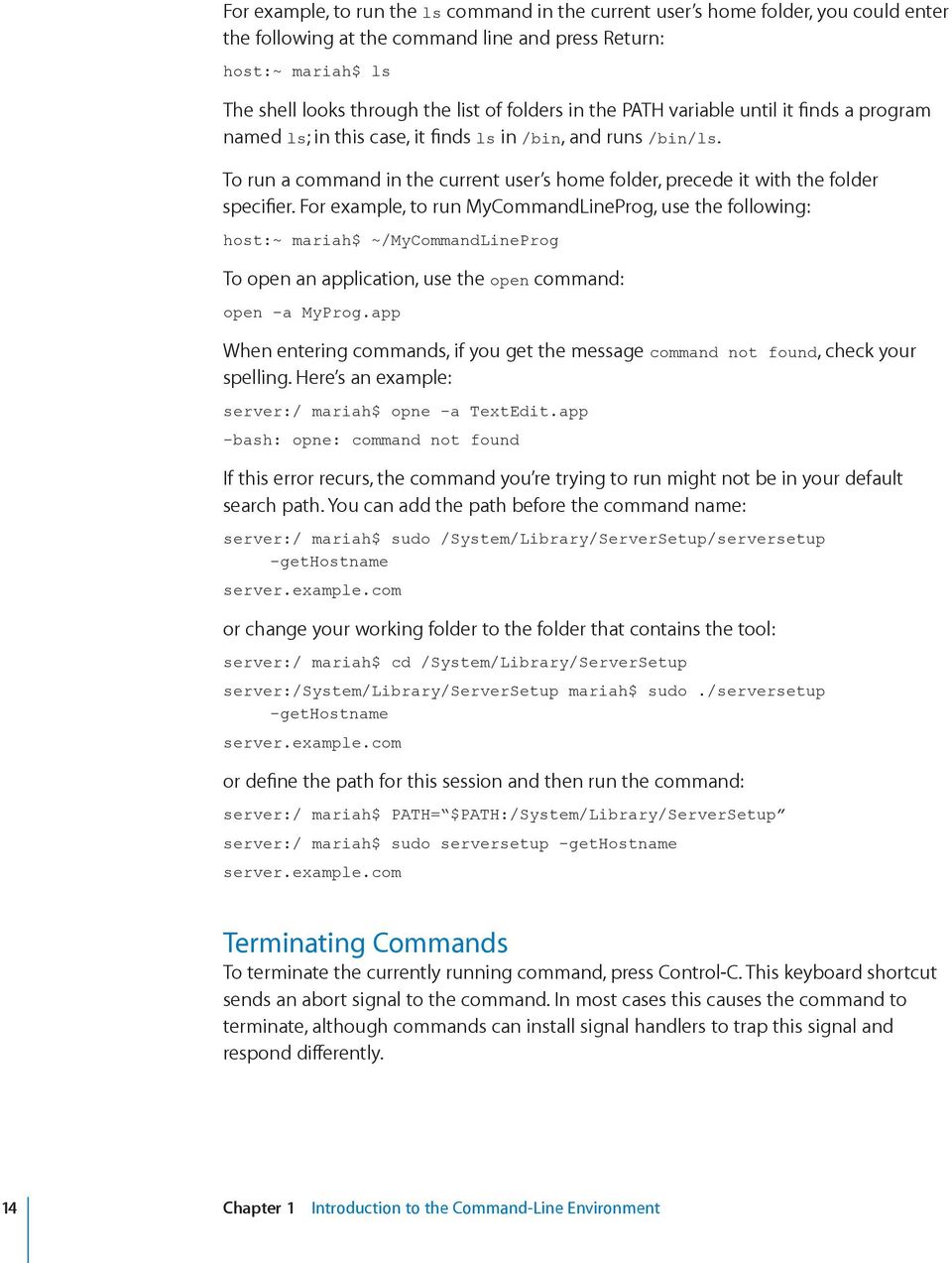
14 For example, to run the ls command in the current user s home folder, you could enter the following at the command line and press Return: host:~ mariah$ ls The shell looks through the list of folders in the PATH variable until it finds a program named ls; in this case, it finds ls in /bin, and runs /bin/ls. To run a command in the current user s home folder, precede it with the folder specifier. For example, to run MyCommandLineProg, use the following: host:~ mariah$ ~/MyCommandLineProg To open an application, use the open command: open -a MyProg.app When entering commands, if you get the message command not found, check your spelling. Here s an example: server:/ mariah$ opne -a TextEdit.app -bash: opne: command not found If this error recurs, the command you re trying to run might not be in your default search path. You can add the path before the command name: server:/ mariah$ sudo /System/Library/ServerSetup/serversetup -gethostname server.example.com or change your working folder to the folder that contains the tool: server:/ mariah$ cd /System/Library/ServerSetup server:/system/library/serversetup mariah$ sudo./serversetup -gethostname server.example.com or define the path for this session and then run the command: server:/ mariah$ PATH= $PATH:/System/Library/ServerSetup server:/ mariah$ sudo serversetup -gethostname server.example.com Terminating Commands To terminate the currently running command, press Control-C. This keyboard shortcut sends an abort signal to the command. In most cases this causes the command to terminate, although commands can install signal handlers to trap this signal and respond differently. 14 Chapter 1 Introduction to the Command-Line Environment
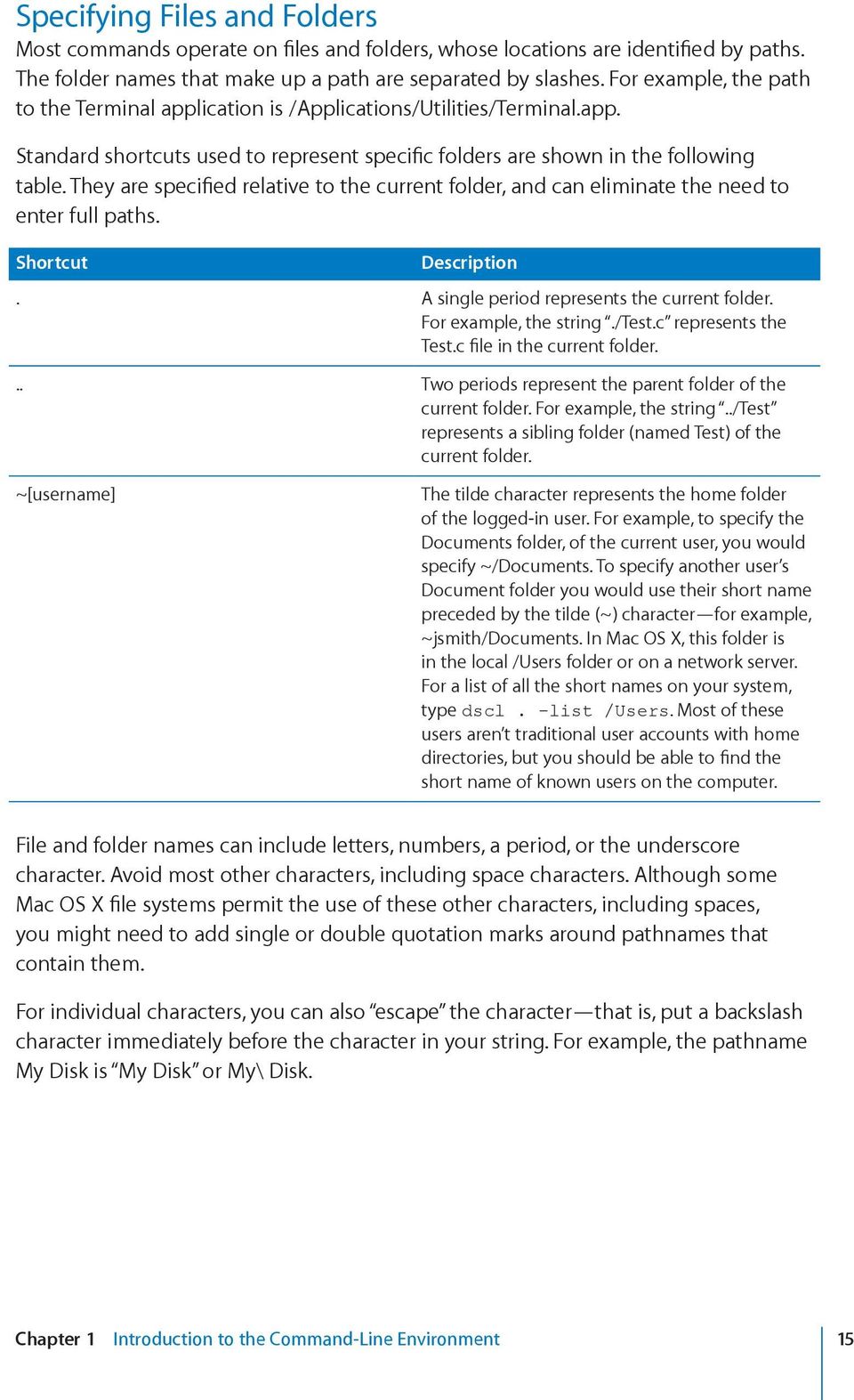
15 Specifying Files and Folders Most commands operate on files and folders, whose locations are identified by paths. The folder names that make up a path are separated by slashes. For example, the path to the Terminal application is /Applications/Utilities/Terminal.app. Standard shortcuts used to represent specific folders are shown in the following table. They are specified relative to the current folder, and can eliminate the need to enter full paths. Shortcut Description. A single period represents the current folder. For example, the string./test.c represents the Test.c file in the current folder... Two periods represent the parent folder of the current folder. For example, the string../test represents a sibling folder (named Test) of the current folder. ~[username] The tilde character represents the home folder of the logged-in user. For example, to specify the Documents folder, of the current user, you would specify ~/Documents. To specify another user s Document folder you would use their short name preceded by the tilde (~) character for example, ~jsmith/documents. In Mac OS X, this folder is in the local /Users folder or on a network server. For a list of all the short names on your system, type dscl. -list /Users. Most of these users aren t traditional user accounts with home directories, but you should be able to find the short name of known users on the computer. File and folder names can include letters, numbers, a period, or the underscore character. Avoid most other characters, including space characters. Although some Mac OS X file systems permit the use of these other characters, including spaces, you might need to add single or double quotation marks around pathnames that contain them. For individual characters, you can also escape the character that is, put a backslash character immediately before the character in your string. For example, the pathname My Disk is My Disk or My\ Disk. Chapter 1 Introduction to the Command-Line Environment 15
16 Commands Requiring Root or Administrator Privileges Many commands used to manage a server must be executed by an administrator user or the root user. For example, entering: server:~ mariah$ shutdown gives you the following error: shutdown: NOT super-user This is because the shutdown command can be run only by the root user or by an administrative user with special privileges. To run commands in this "super user mode, use the sudo command. sudo stands for super user do. The following command does work, (so don t run it unless you really want to restart your computer): server:~ mariah$ sudo shutdown You ll be prompted for the password of the currently logged in user. Only users that you have designated as admin users are able to execute commands with sudo. If you re logged in as a user who isn t an admin user, you can change substitute users by typing su adminusername, where adminusername is the name of a user in the Admin group. After you enter that user s password, a new shell is launched from the existing shell, as that user. If a command requires it, you can use su to log in as the root user. Under normal circumstances you don t need to use the root user account. If you do su to the root user, be especially careful, as you have sufficient privileges to make changes that can cause your server to stop working. For more information about the sudo and su commands, see their man pages. Getting Help for Command-Line Tools Command-line tools provide multiple mechanism for getting help while using them. This section describes three ways that you can get help from the command-line. Using Help Built Into Command-Line Tools Most command-line tools include a parameter to invoke onscreen help directly. Command-line tools do not always follow the same conventions so if one parameter doesn t work try another. To access command help: Enter the command followed by the -help,-h,--help, or help parameter: $ hdiutil help $ dig -h $ diff --help 16 Chapter 1 Introduction to the Command-Line Environment

17 To view a list of options and parameters you can use with the command: Enter the command without options or parameters: $ sudo serveradmin Some commands don t have onscreen help. Using Man Pages Most command-line documentation comes in man pages. Man pages provide reference information for shell commands, tools, and high-level concepts. To access a man page entry: $ man command Replace command with the name of the command you want to find information about. The man page contains detailed information about the command, its options and parameters, and proper use. For help using the man command itself, enter: $ man man You can press the Space bar to go to the next page, the B key to go back a page, or the Return key to scroll forward one line at a time. Press the Q key to exit the man page. You can search within the contents of a man page by pressing the / key followed by the word you re looking for. If multiple instances are found, the P and N keys let you access the previous and next instances of the term. If you don t know the name of the particular man page, you can search the topics by entering: $ man -k topic Replace topic with a word that would be contained in the description of the man page you might be looking for. For example: $ man -k "directory service" Returns references to the dscacheutil, dscl, and whois man pages. You can also find links to related man pages at the bottom of a given man page in the SEE ALSO section. If you have the Xcode tools installed, you can view man pages from within Xcode by selecting Open man page from the Help menu. There are also several third-party graphical Mac OS X applications available for viewing man pages. You can find one by choosing Mac OS X Software from the Apple menu and then searching for man page. Chapter 1 Introduction to the Command-Line Environment 17

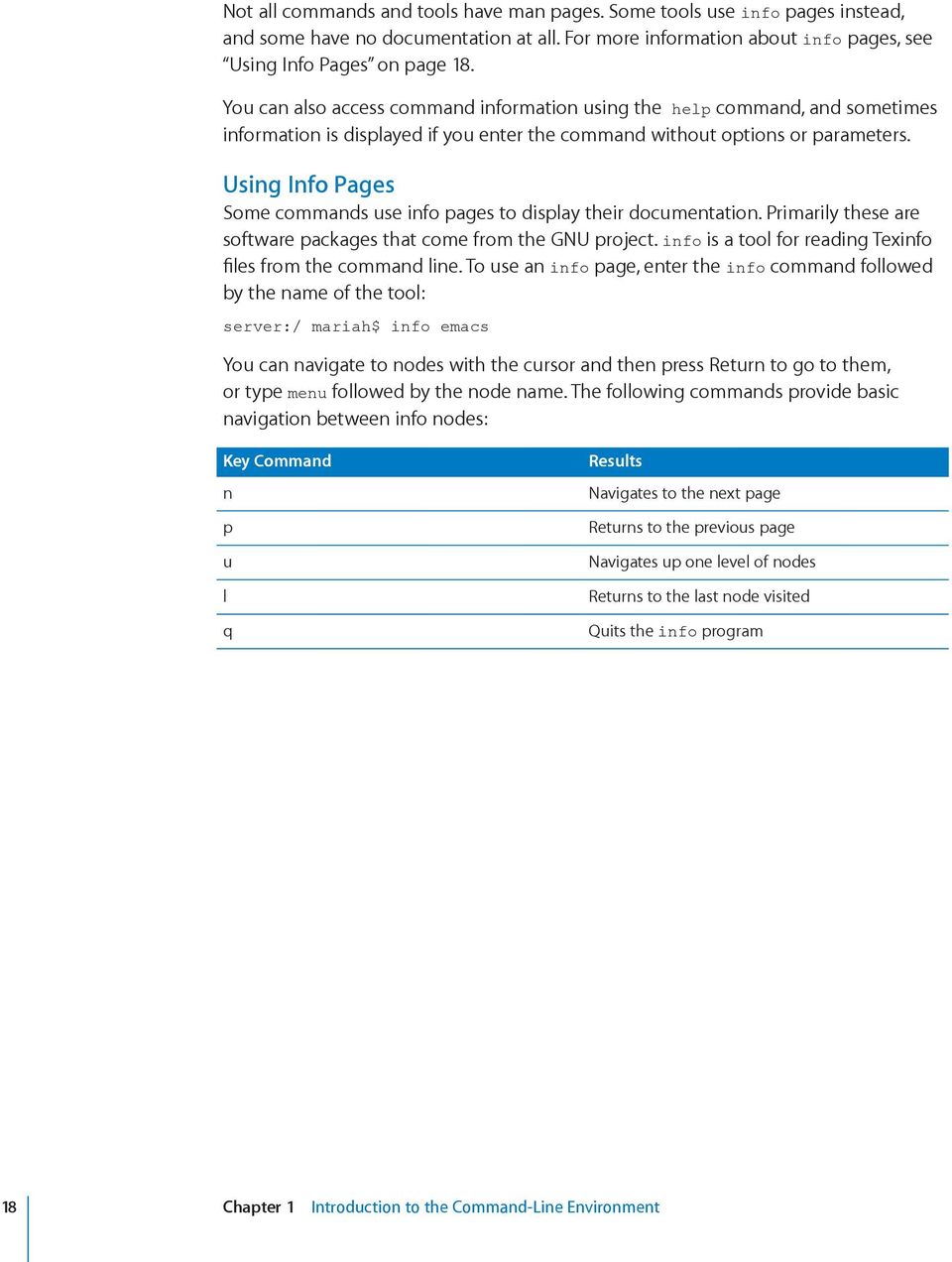
18 Not all commands and tools have man pages. Some tools use info pages instead, and some have no documentation at all. For more information about info pages, see Using Info Pages on page 18. You can also access command information using the help command, and sometimes information is displayed if you enter the command without options or parameters. Using Info Pages Some commands use info pages to display their documentation. Primarily these are software packages that come from the GNU project. info is a tool for reading Texinfo files from the command line. To use an info page, enter the info command followed by the name of the tool: server:/ mariah$ info emacs You can navigate to nodes with the cursor and then press Return to go to them, or type menu followed by the node name. The following commands provide basic navigation between info nodes: Key Command n p u l q Results Navigates to the next page Returns to the previous page Navigates up one level of nodes Returns to the last node visited Quits the info program 18 Chapter 1 Introduction to the Command-Line Environment
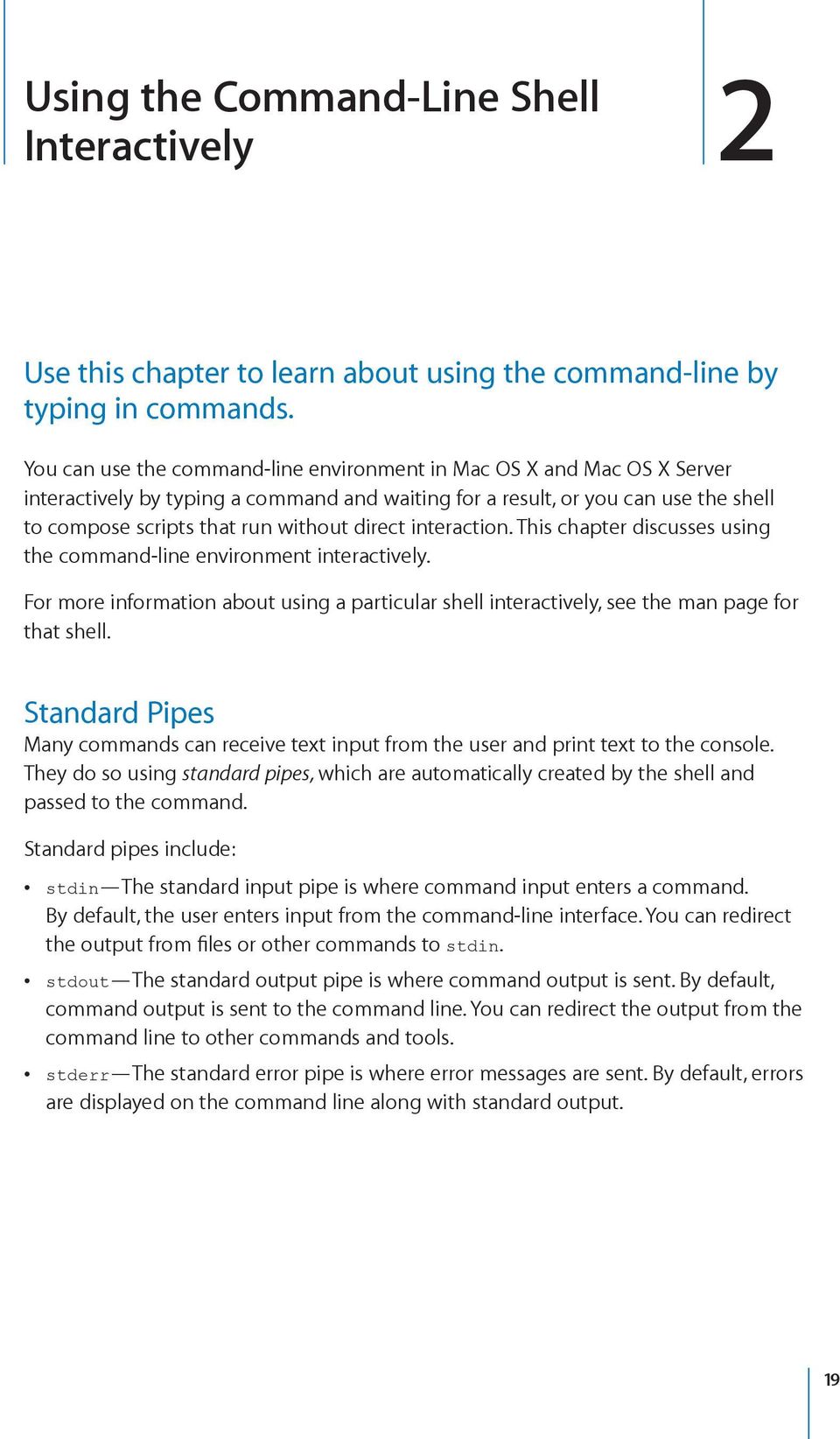
19 Using the Command-Line Shell Interactively 2 Use this chapter to learn about using the command-line by typing in commands. You can use the command-line environment in Mac OS X and Mac OS X Server interactively by typing a command and waiting for a result, or you can use the shell to compose scripts that run without direct interaction. This chapter discusses using the command-line environment interactively. For more information about using a particular shell interactively, see the man page for that shell. Standard Pipes Many commands can receive text input from the user and print text to the console. They do so using standard pipes, which are automatically created by the shell and passed to the command. Standard pipes include: stdin The standard input pipe is where command input enters a command. By default, the user enters input from the command-line interface. You can redirect the output from files or other commands to stdin. stdout The standard output pipe is where command output is sent. By default, command output is sent to the command line. You can redirect the output from the command line to other commands and tools. stderr The standard error pipe is where error messages are sent. By default, errors are displayed on the command line along with standard output. 19
20 Redirecting Input and Output From the command line, you can redirect input and output from a command to a file, or to another command. Redirect output from the command if you want to capture the results of running the command and store it in a file for later use. Similarly, redirect input from a file to the command if you want to provide the command with preset input data, instead of needing to enter that data. Use the following characters to redirect input and output: Redirect Description > Use a right angle bracket to redirect command output to a file. < Use a left angle bracket to use the contents of a file as input to the command. >> Use two right angle brackets to append output from a command to a file. In addition to using file redirection, you can also redirect the output of one command to the input of another using the vertical bar character, or pipe. You can combine commands in this manner to implement more sophisticated versions of the same commands. For example, the command man bash grep commands passes the formatted contents of the bash man page to the grep tool, which searches those contents for lines containing the word commands. The result is a list of lines with the specified text, instead of the entire man page. For more information about redirection, see the bash man page. Correcting Typing Errors You can use the Left and Right Arrow keys to correct typing errors before you press Return to execute a command. To correct a typing error: 1 Press the Left or Right Arrow key to skip backward or forward over parts of the command you don t want to change. 2 Press Delete to remove characters. 3 Type regular characters to insert them. 4 Press Return to execute the command. To ignore what you entered and start again, press Control-U. 20 Chapter 2 Using the Command-Line Shell Interactively

21 Using Environment Variables The shell uses environment variables to store information, such as the name of the current user, the name of the host computer, and the default paths to any commands. Environment variables are inherited by all commands executed in the shell s context, and some commands depend on environment variables. You can create environment variables and use them to control the behavior of a command without modifying the command itself. For example, you can use an environment variable to have a command print debug information to the console. To set the value of an environment variable, use the appropriate shell command to associate a variable name with a value. For example, to set the variable PATH to the value /bin:/sbin:/user/bin:/user/sbin:/system/library/, you would enter the following command in a Terminal window: $ PATH=/bin:/sbin:/user/bin:/user/sbin:/system/Library/ export PATH This modifies the environment variable PATH with the value assigned. To view all environment variables, enter: $ env When you launch an application from a shell, the application inherits much of the shell s environment, including exported environment variables. This form of inheritance can be a useful way to configure the application dynamically. For example, your application can check for the presence (or value) of an environment variable and change its behavior accordingly. Different shells support different semantics for exporting environment variables. For information, see the man page for your preferred shell. Although child processes of a shell inherit the environment of that shell, shells are separate execution contexts that don t share environment information with each other. Variables you set in one Terminal window aren t set in other Terminal windows. After you close a Terminal window, variables you set in that window are gone. If you want the value of a variable to persist across sessions and in all Terminal windows, you must set it in a shell startup script. For information about modifying your bash shell startup script (~bashrc) to keep variables and other settings across multiple sessions, see the Invocation section of the bash man page. Another way to set environment variables in Mac OS X is with a property list file in your home folder. When you log in, the computer looks for a ~/.MacOSX/environment. plist file. If the file is present, the computer registers the environment variables in the property list file. Chapter 2 Using the Command-Line Shell Interactively 21
22 Repeating Commands To repeat a command, press the Up Arrow key until you see the command, then make any modifications and press Return. Including Paths Using Drag and Drop To include a fully qualified filename or folder path in a command, you can drag the file or folder from a Finder window to the Terminal window. 22 Chapter 2 Using the Command-Line Shell Interactively
23 Scripting the Command Line 3 Instead of entering commands and waiting for their responses, you can compose scripts that are run without direct interaction. This chapter discusses some basics of shell scripting on Mac OS X, including automation and scheduling, as well as a brief overview of what a shell script is. It does not provide information on writing shell scripts in general. For information about how to write shell scripts, see the Shell Scripting Primer on the Apple Developer Connection website. What is a Shell Script? A shell script is a text file that contains one or more UNIX commands. You run a shell script to perform commands you might otherwise run interactively at the command line. Shell scripts are useful because you can combine many common tasks into one script, saving you time and possible errors when running similar tasks over and over. They can also be easily automated using tools such as launchd or Apple Remote Desktop. A shell script begins with a character combination that identifies it as a shell script, the characters # and! (together called a shebang ) followed by a reference to the specific shell that the script should be run with. For example, here s the first line of a shell script that would be run with sh: #!/bin/sh You should document your shell scripts with comments. To make a comment, start the line with the number sign (#). Every line of a comment needs to begin with the number sign: #This program returns the #contents of my Home folder You can put blank lines in a shell script to help visually distinguish different sections of the script. 23
24 You need to use the chmod tool to indicate to the operating system that the text file is executable (that is, its contents can be run as a program). To make a shell script executable: chmod 755 YourScriptName.sh After making the shell script executable, you can run it by entering its pathname. For example: ~/Documents/Dev/YourScriptName.sh or cd ~/Documents/Dev/./YourScriptName.sh For more information about using chmod, see its man page. For more information about running your shell scripts, see Executing Commands and Running Tools on page 13. Monitoring and Restarting Critical Services with launchd Mac OS X includes a system for monitoring and running critical service, which you may want to use to run various shell scripts. This system is uses a daemon named launchd. During system startup, launchd is the first process the kernel runs to set up the computer. In Mac OS X Server, your daemon should be started by launchd. Other mechanisms for starting daemons and services are subject to removal at Apple s discretion. You can get an idea of the various processes run by launchd by looking at the following configuration files: Folder /System/Library/LaunchDaemons/ /System/Library/LaunchAgents/ /Library/LaunchDaemons/ /Library/LaunchAgents/ ~/Library/LaunchAgents/ Usage Apple-supplied system daemons Apple-supplied agents that apply to all users on a per-user basis Third-party system daemons Third-party agents that apply to all users on a per-user basis Third-party agents that apply to the logged-in user only You do not interact with launchd directly instead you use launchctl to load or unload launchd daemons and agents. 24 Chapter 3 Scripting the Command Line
25 Note: In earlier versions of Mac OS X and Mac OS X Server, system administrators used the watchdog daemon to monitor critical services or modified the rc scripts. These are no longer supported and should be replaced with calls using launchd. In earlier versions of Mac OS X and Mac OS X Server, system administrators used the watchdog daemon to monitor critical services or modified the rc scripts. These are no longer supported and should be replaced with calls using launchd. For more information about launchd, see the launchd and launchctl man pages. Also see Technical Note TN2083: Daemons and Agents on the Apple Developer Connection. Scheduling a Shell Script to Run at Specific Times To schedule a shell script to run at predefined times, use either launchd or the cron tool. cron is a daemon that executes scheduled commands defined in crontab files. Using cron to schedule a task The cron tool searches the /var/cron/tabs/ folder for crontab files named after accounts in /etc/passwd, and loads the files into memory. The cron tool also searches for crontab files in the /etc/crontab/ folder, which are in a different format. cron then cycles every minute, examining stored crontab files and checking each command to see if it should be run in the current minute. When commands execute, output is mailed to the owner of the crontab file or to the user named in the optional MAILTO environment variable in the crontab file. If you modify a crontab file, you must restart cron. You use crontab to install, deinstall, or list the tables used to drive the cron daemon. Users can have their own crontab file. To configure your crontab file, use the crontab -e command. This displays an empty crontab file. Here s an example of a configured crontab file: SHELL=/bin/sh PATH=/bin:/sbin:/usr/bin:/usr/sbin HOME=/var/log #min hour mday month wday command * * 1-5 diskutil repairpermissions /Volumes/MacHD * * 0 diskutil repairvolume /Volumes/MacHD Chapter 3 Scripting the Command Line 25
26 The first crontab entry repairs disk permissions for the MacHD volume at 18:30 every day, Monday through Friday: * * 1-5 diskutil repairpermissions /Volumes/MacHD The second crontab entry schedules a repair volume operation to run at 23:50 every Sunday: * * 0 diskutil repairvolume /Volumes/MacHD Scheduling tasks with launchd You can use launchd instead of cron to schedule tasks. With launchd, if a task is skipped because the computer is shut off or asleep, the task is added to the queue when the computer comes back online. To use launchd to schedule timer-based jobs, use the StartCalendarInterval or StartInterval key. For more information about launchd, see the launchd man page. 26 Chapter 3 Scripting the Command Line
27 Connecting to Remote Computers 4 Learn about using the command-line on computers remotely. If you need to run command-line tools on remote computers, there are tools to help you. This chapter discusses some of the most commonly used tools and provides some tips for getting started. It also describes three methods for connecting to the command-line environment of a remote computer: SSH Apple Remote Desktop X11 SSH SSH (Secure Shell) lets you send secure, encrypted commands to a computer remotely, as if you were sitting at the computer. You use the ssh tool in Terminal to open a command-line connection to a remote computer, and while the connection is open, you enter commands to be performed on the remote computer. You can also use any other application that supports SSH to connect to a computer running Mac OS X or Mac OS X Server. How SSH Works SSH works by setting up encrypted tunnels using public and private keys. Here s a description of an SSH session: The local and remote computers exchange public keys. If the local computer has never encountered a given public key, SSH and your web browser prompt you to accept the unknown key. The two computers use the public keys to negotiate a session key used to encrypt subsequent session data. 27
28 The remote computer attempts to authenticate the local computer using RSA or DSA certificates. If this isn t possible, the local computer is prompted for a local username and password. After successful authentication, the session begins. A remote shell, a secure file transfer, a remote command, or other action can take place through the encrypted tunnel. The following are SSH tools: sshd A daemon that acts as a server to all other commands ssh The primary user tool, which includes a remote shell, remote command, and port-forwarding sessions scp Secure copy, a tool for automated file transfers sftp Secure FTP, a replacement for FTP Generating Key Pairs for Key-Based SSH Connections By default, SSH supports the use of password, key, and Kerberos authentication. The standard method of SSH authentication is to supply a user name and password as login credentials. Identity key-based authentication lets you log in to the server without supplying a password. Key-based authentication is more secure than password authentication, because it requires that you have the private key file and know the password that lets you access that key file. A key must be generated for each user account that needs to use ssh. How SSH key-based authentication works: 1 A private and a public key are generated, each associated with a user name to establish that user s authenticity. 2 When you attempt to log in as that user, the user name is sent to the remote computer. 3 The remote computer looks in the user s.ssh/ folder for the user s public key. This folder is created when using SSH the first time. 4 A challenge is sent to the user based on his or her public key. 5 The user verifies his or her identity by using the private portion of the key pair to decode the challenge. 6 After the key is decoded, the user is logged in without a password. This is especially useful when automating remote scripts. Note: If the server uses FileVault to encrypt the home folder of the user you want to use SSH to connect as, you must be logged in on the server to use SSH. Alternatively, you can store the keys for the user in a location that isn t protected by FileVault, but this isn t secure. 28 Chapter 4 Connecting to Remote Computers
29 To generate the identity key pair: 1 Enter the following command on the local computer: $ ssh-keygen -t dsa 2 When prompted, enter a filename in the user s home folder to save the keys in; then enter a password and password verification. For no password, don t enter anything when prompted. Just press Return. For example: Generating public/private dsa key pair. Enter file in which to save the key (/Users/mariah/.ssh/id_dsa): frog Enter passphrase (empty for no passphrase): Enter same passphrase again: Your identification has been saved in frog. Your public key has been saved in frog.pub. The key fingerprint is: 4a:5c:6e:9f:3e:35:8b:e5:c9:5a:ac:00:e6:b8:d7:96 [email protected] This creates two files. Your identification or private key is saved in one file (frog in our example) and your public key is saved in the other (frog.pub in our example). The key fingerprint, which is derived cryptographically from the public key value, also appears. This secures the public key, making it computationally infeasible for duplication. 3 Copy the resulting public file, which contains the local computer s public key, to the.ssh/authorized_keys file in the user s home folder on the remote computer (~/.ssh/ authorized_keys). The next time you log in to the remote computer from the local computer, you won t need to enter a password. If you need to establish two-way communication between servers, repeat this process on the second computer. This process must be repeated for each user who needs to be able to open a keybased SSH session. This includes the root user, whose home folder on Mac OS X Server is at /var/root/. Note: If you re using an Open Directory user account and have logged in using the account, you don t need to supply a password for SSH login. On computers with Mac OS X Server, SSH uses Kerberos for single sign-on authentication with any user account that has an Open Directory password. (Kerberos must be running on the Open Directory server.) For more information, see Open Directory Administration. Chapter 4 Connecting to Remote Computers 29
30 A Key-Based SSH Scripting Example A cluster of servers is an ideal environment for using key-based SSH. The following Perl script is a trivial scripting example, and it shouldn t be implemented. It demonstrates connecting over an SSH tunnel to each server defined in the variable serverlist, running softwareupdate, installing available updates, and restarting each server if necessary. The script assumes that key-based SSH has been properly set up for the root user on all servers to be updated. #!/usr/bin/perl # \@ is the escape sequence for symbol. = ('root\@exampleserver1.example.com', 'root\@exampleserver2.example.com'); foreach $server (@serverlist) { open SBUFF, ssh $server -x -o batchmode=yes softwareupdate -i -a ; while(<sbuff>) { my $flag = 0; chop($_); #check for restart text in $_ my $match = Please restart immediately ; $count =~ /$match/g]}; if($count > 0) { $flag = 1; } } close SBUFF; if($flag == 1) { \Qssh $server -x -o batchmode=yes shutdown -r now\q } } Updating SSH Key Fingerprints The first time you connect to a remote computer using SSH, the local computer prompts for permission to add the remote computer s fingerprint (or encrypted public key) to a list of known remote computers. You might see a message like this: The authenticity of host server1.example.com can't be established. RSA key fingerprint is a8:0d:27:63:74:f1:ad:bd:6a:e4:0d:a3:47:a8:f7. Are you sure you want to continue connecting (yes/no)? The first time you connect, you have no way of knowing whether this is the correct host key. Most people respond yes. The host key is then inserted into the ~/.ssh/ known_hosts file so it can be verified in later sessions. 30 Chapter 4 Connecting to Remote Computers
31 Be sure this is the correct key before accepting it. If possible, provide users with the encryption key through FTP, mail, or a download from the web, so they can be sure of the identity of the server. If you later see a warning message about a man-in-the-middle attack (see below) when you try to connect, it might be because the key on the remote computer no longer matches the key stored on the local computer. This can happen if you: Change your SSH configuration on the local or remote computer Perform a clean installation of the server software on the computer you re attempting to log in to using SSH Start up from a Mac OS X Server disc on the computer you re attempting to log in to using SSH Attempt to use SSH to access a computer that has the same IP address as a computer that you used SSH with on another network To connect again, delete the entries corresponding to the remote computer (which are stored by name and IP address) in the file ~/.ssh/known_hosts. An SSH Man-in-the-Middle Attack Sometimes an attacker can access your network and compromise routing information, so that packets intended for a remote computer are routed to the attacker, who then impersonates the remote computer to the local computer and the local computer to the remote computer. Here s a typical scenario: A user connects to the remote computer using SSH. By using spoofing techniques, the attacker poses as the remote computer and receives information from the local computer. The attacker then relays the information to the remote computer, receives a response, and then relays the remote computer s response to the local computer. Throughout the process, the attacker is privy to all information that goes back and forth, and can modify it. If you see the following message when connecting to the remote computer using SSH, it may indicate a WARNING: REMOTE HOST IDENTIFICATION Protect against this type of attack by verifying that the host key sent back is the correct host key for the computer you re trying to reach. Be watchful for the warning message, and alert your users to its meaning. Chapter 4 Connecting to Remote Computers 31
32 Important: Removing a host key from the known_hosts file bypasses a security mechanism that would help you avoid imposters and man-in-the-middle attacks. Before you delete a host key from the known_hosts file, be sure you understand why the key on the remote computer has changed. Controlling Access to SSH Service You can use Server Admin to control which users can open a command-line connection using the ssh tool in Terminal. Users with administrator privileges can always open a connection using SSH. For information about controlling access to the SSH service, see Open Directory Administration. Connecting to a Remote Computer Using SSH Use the ssh tool to create a secure shell connection to a remote computer. To access a remote computer using ssh: 1 Open Terminal. 2 Log in to the remote computer by entering: $ ssh -l username server Replace username with the name of an administrator user on the remote computer. Replace server with the name or IP address of the remote computer. For example: $ ssh -l mariah If this is the first time you re connecting to the remote computer, you re prompted to continue connecting after the remote computer s RSA fingerprint appears. Enter yes. 3 When prompted, enter the user s password for the remote computer. The command prompt changes to show that you re connected to the remote computer. In the previous example, the prompt might look like this: :~ mariah$ 4 To send a command to the remote computer, enter the command. 5 To close the remote connection, enter logout. You can authenticate and send a command using a single line, by appending the command to the basic ssh tool. For example, to delete a file you could enter: $ ssh -l mariah server1.example.com rm /Users/mariah/Documents/report or $ ssh -l [email protected] rm /Users/mariah/Documents/report You re prompted for the user s password. 32 Chapter 4 Connecting to Remote Computers
33 Apple Remote Desktop Apple Remote Desktop is a software package that s available separately from Mac OS X Server. Apple Remote Desktop provides a command for sending a shell script or command to client computers, which lets you easily distribute and automate shell scripts. For more information, see the UNIX Shell Commands section of the Apple Remote Desktop Administrator Guide. X11 X11 is the traditional windowing system of UNIX systems. If you re working in an environment where you need to support X11-based applications, you can use them with Mac OS X Server, but you first need to install the X11 package. The X11 server and an application to access X windows from the Finder are available as an optional installation in the Optional Installs folder of your installation disc (X11 is in the Applications package). Once the package is installed, you can access an X-based terminal by launching the X11 application in /Applications/Utilities/. The X11 implementation in Mac OS X Server is based on the X.org foundation release, and is X11R7 compatible. X11 uses a different security model than the default model in Mac OS X Server. For more information, see the X11 Preferences Security pane and this article on the Apple Developer Connection website: Configuring and Running X11 Applications on Mac OS X Chapter 4 Connecting to Remote Computers 33
34 Common Command-Line Tasks 5 This chapter discusses some of the most frequently used command-line task. If you re new to the command-line environment, it helps to understand some common scenarios in which people frequently use the shell. This section explores some of those areas and provides some guidance on getting started using the shell in these situations. Editing Configuration Files A common use of the command line is to manually edit configuration files to enable functionality that isn t exposed in Server Admin or Workgroup Manager. In server documentation, for example, you may be instructed to modify Property Lists (plists) or other regular text files to incorporate additional functionality or enforce enhanced security settings. If you re unfamiliar with using the command line to edit text files, there are a few things to understand: How to choose an appropriate text editor How to edit property list (plist) files How to save text files so they can be used by the UNIX subsystem of Mac OS X These topics are discussed below. Text Editors To edit a plain text file, use a text editor. Text editors are among the oldest programs available on any operating system, and come in a wide variety from completely automatic text editors, where you essentially write a recipe for what actions should be taken on text and then let the computer do the work, to much more interactive text editors that can edit (and save) text in a wide variety of formats. 34
35 For general-purpose work, it s easiest to deal with one of the text editors included with Mac OS X. If you want to use a graphical text editor, use TextEdit (in /Applications/); otherwise, use one of the many command-line editors provided. The three most full-featured command-line text editors included with Mac OS X are: nano Nano is a simple command-line based editor. It s a replacement for the Pico editor, so instructions for using the Pico editor can be used with nano. If you invoke the pico editor, you actually run nano. Nano is a good introduction to using a command-line based editor as it includes easy-to-follow on-screen help. vim Vim is a vi-compatible text editor. It has many powerful enhancements for moving around, searching, and editing documents. Basic editing is simple to learn and there is much additional functionality to explore. Most functionality is accessed by typing combinations of keystrokes that trigger certain behavior. Vim, or the editor it s modeled after, vi, is found in most UNIX-based operating systems. If you ll be doing lots of editing from the command line, it s a good editor to learn to use, but if you only use a command-line based editor occasionally, you can get by without learning it. Emacs Like vim, Emacs is an extremely full-featured editor found on most UNIXbased systems. In addition to its editing power, Emacs is extremely customizable, with additional functionality available in modules that let the Emacs interface do much more than just text editing. It s relatively easy to do basic editing with, and has an incredible depth of functionality for the dedicated user to explore. Like vim, Emacs uses keystroke combinations to access its many different functional behaviors. These require memorization to be most useful, so Emacs is most useful for people who use the command line very often. If you re new to using the command line and don t anticipate using it much for editing, nano is probably your best choice. If you expect to spend a lot of time using the command-line environment, it s probably worth learning either vim or Emacs. They have very different design philosophies, so spend some time with each of them to determine which works best for you. For more information about using nano, vim, or Emacs, see their man pages. You invoke a command-line editor by typing the name of the editor, followed by a space and then the name of the file you want to open. If you want to create a new file, type a name for the file. Designate where the file is located, as described in Specifying Files and Folders on page 15. Here s an example of using nano to open a new file named myfile.conf in your Documents folder: $ nano ~/Documents/myFile.conf Chapter 5 Common Command-Line Tasks 35
36 mm mm Saving Text Files for UNIX Execution When you edit text files for execution by UNIX utilities, you need to save the files properly so that they can be used (or executed) by their calling program. It s especially important to use plain text and ensure that the privileges are correct. Using plain text Many graphical text editors, including TextEdit, save text files in a more complex format than most UNIX programs expect. If you re using TextEdit to edit text-based configuration files, save them as Plain Text, not the default Rich Text Format. To change the default format of text documents in TextEdit you have two options: To save all documents as plain text, select Plain text under Format in the New Document pane of TextEdit preferences. To change the format of an individual document, choose Make Plain Text from the Format menu. Although Rich Text Format may appear to be simple text in an editor, it s actually a full specification that describes formatting, colors, fonts, and other information that isn t contained in the plain text files that most UNIX programs expect. To see what s actually contained in a Rich Text Format document, save one in TextEdit, and then open the same file in a command-line text editor. Editing Property Lists Many preference and configuration files in Mac OS X use property lists (plists) to specify the attributes, or properties, of an application or process. An example is the Finder s preferences plist in the Library/Preferences/ folder of a user s home folder. The file is named com.apple.finder.plist. The default naming convention for a plist includes the distributor s reverse DNS name prepended to the application or process name, followed by a.plist extension. Property lists are binary files that you can edit using the following tools: Property List Editor is a graphical application that s a part of the Xcode developer tools. You can get the Xcode tools from developer.apple.com. Property List Editor is most useful if you already understand property lists and their conventions. PlistBuddyPlistBuddy is a command-line tool for directly reading and modifying values inside a property list without the need to convert the property list to an intermediary format. defaults is a command-line tool that you can use to edit property lists. The defaults command is a powerful tool, with functionality beyond simple editing of property lists. When you know the specific key and value in a property list that you need to change, it s very efficient. 36 Chapter 5 Common Command-Line Tasks
37 plutil is a command-line tool that you can use to change a property list into a format you can edit with a text editor, and then change back to its binary format. Using PlistBuddy to edit property lists The PlistBuddy command is designed to easily read and modify values in a property list. If you know the values to set or read, you can quickly make changes with PlistBuddy. PlistBuddy works on specific property list files. This example shows how to use the PlistBuddy command interactively to change the orientation of the Dock for a local user: 1 Determine the names of the appropriate property list, key, and values. In this case, the name for the Dock s property list is com.apple.dock.plist. If you were editing the Dock property list for the user alecjones, the path would be: /Users/alecjones/Library/Preferences/com.apple.Dock.plist 2 Enter in the following command to enter the PlistBuddy interactive mode: PlistBuddy /Users/alecjones/Library/Preferences/com.apple.Dock.plist If the path to PlistBuddy isn t in your default paths, you need to add it or explicitly call it as follows: /usr/libexec/plistbuddy ~/Library/Preferences/com.apple.Dock.plist See Executing Commands and Running Tools on page 13. If the file you re trying to edit doesn t exist, PlistBuddy creates the file in the designated location. 3 In interactive mode, you can choose from many commands. To set or change the orientation of the Dock to the left side of the screen, enter: Set :orientation left 4 Save and exit: Save Exit PlistBuddy can also be run non-interactively. To make the same change without invoking interactive mode: /usr/libexec/plistbuddy -c "Set :orientation left" ~/Library/Preferences/ com.apple.dock.plist Both examples above assume the orientation key already exists. This isn t necessarily true for a new user in Mac OS X version Don t assume that a value exists. First, confirm it with the Print command. Otherwise, you need to use the Add command, which also requires designating a type. Chapter 5 Common Command-Line Tasks 37
38 There are many other options for PlistBuddy that are invoked in a similar manner. For information about PlistBuddy, see its man page. Using the defaults command to edit property lists The defaults tools works directly with the Mac OS X preferences subsystem and is used by many applications in Mac OS X to manage preferences and other settings. It can be built into shell scripts and allows you to access preferences in the multiple domains that exist on a given computer. 1 Determine the names of the appropriate property list, key, and values. For example, the name for the Dock s property list is com.apple.dock.plist. (When invoking the defaults command, omit the.plist extension.) 2 Using the values you have determined or been given, enter their values following the defaults command: defaults write com.apple.dock orientation left 3 In most cases, you need to restart the application or process. A simple way to do this is to use Activity Monitor to select the appropriate process, and then click Quit Process. For this example, you would choose the process named Dock. For information about defaults, see its man page. Using plutil and a text editor to edit property lists In Mac OS X v10.6, plist files are stored in a binary format. If you want to edit them with a text editor, you must first convert them to plain text. To convert a plist file to plain text, use the plutil command: plutil -convert xml1 com.apple.dock.plist This results in an XML text file that you can edit. When you re done, convert the file back to binary format: plutil -convert binary1 com.apple.dock.plist Before making any changes to plist files using plutil, make a backup copy of the files. Do this in the Finder, or use the cp command: cp com.apple.finder.plist com.apple.dock.plist.bak For information about Property Lists, see the plist man page. For the basics of using command-line tools, see Chapter 1, Introduction to the Command-Line Environment. 38 Chapter 5 Common Command-Line Tasks
39 Moving and Copying Files You can move and copy files locally or remotely using the mv, cp, and scp commands. Moving a file or folder locally To move files or folders from one location to another on the same computer, use the mv command. The mv command moves the file or folder from its old location and puts it in the new location. For example, to move a file from your Downloads folder to a Work folder in your Documents folder: mv ~/Downloads/MyFile.txt ~/Documents/Work/MyFile.txt You can also change the name of the file as it s moved: mv ~/Downloads/MyFile.txt ~/Documents/Work/NewFileName.txt For more information about the mv command, see its man page. Copying a file or folder locally To make a copy of a file, use the cp command. For example, to copy a folder named Expenses in your Documents folder to another volume named Data : cp ~/Documents/Expenses /Volumes/Data/Expenses You can also change the name of the folder as it s being moved: cp ~/Documents/Expenses /Volumes/Data/Current_Expenses For more information about the cp command, see its man page. Copying a file or folder remotely To copy a file or folder to or from a remote computer, use the scp command. scp uses the same underlying protocols as ssh. For more information about SSH, see Controlling Access to SSH Service on page 22. For example, to copy a compressed file from your home folder to the ladmin user s home folder on a remote server: scp -E ~/ImportantPapers.tgz [email protected]:/users/ladmin/ Desktop/ImportantPapers.tgz You re prompted for the ladmin user s password. The -E flag preserves extended attributes, resource forks, and ACL information. For more information about the scp command, see its man page. Chapter 5 Common Command-Line Tasks 39
40 Compressing and Uncompressing File Archives Mac OS X and Mac OS X Server use the GNU tar utility to compress and uncompress files and folders. When sending folders and multiple files between computers, it's helpful to compress them into a single archive. This saves space, allows you to transfer just one item instead of many, and makes it easier to resume in case the task is suspended for some reason. The tar utility has many options, but for a basic compression of a folder named LotsOfFiles, you could simply enter: tar -czf LotsOfFiles.tgz LotsOfFiles If it s a large folder, you may want to monitor the process by adding the v flag: tar -czvf LotsOfFiles.tgz LotsOfFiles To open an archive, use the x flag. The v flag is useful to watch what s going on: tar -xzvf LotsOfFiles.tgz The z flag indicates that the archive is being compressed, as well as being combined into one file. Usually you ll use this option, but you aren t required to. The traditional file extension for a compressed archive is.tgz, although you might also see files ending in.tar.gz. If the archive isn t compressed, it usually just ends in.tar. Files created with tar can be opened in the Finder by double-clicking them. Also, if you use the File > Compress menu command in the Finder to compress a folder or file, the tar file can be opened using tar from the command line. For more information about the tar command, see its man page. Viewing File Contents If you want to look at the contents of a text-based configuration file, you can use cat or less. Generally, you ll use less because it has more options (like searching). To use less, type the command name followed by the name of the file you want to view. The first page of text fills the window. To view the next page, press the Space bar. less also lets you search in a file. Type / followed by the phrase you re searching for. If the phrase has spaces in it, precede each space with \ : /I\ read\ the\ other\ day The following table lists some other useful keys for navigating the output from less. 40 Chapter 5 Common Command-Line Tasks
41 Key Command J or Down Arrow K or Up Arrow N P Q Action Scroll down a line Scroll up a line Find the next occurrence of a search term Find the previous occurrence of a search term Quit less For more information about the less command, see its man page. Searching for Text in a File To locate a string within a file, use the grep tool. The grep tool searches the named input files for lines containing a match to the given pattern. By default, grep prints the matching lines. To search for a unique string in a file: $ grep search_string filename Replace search_string with the the string to search for, and replace filename with the name of the file whose contents you want to search. Backing Up and Restoring Time Machine is extremely useful for user backups, but server administrators might have different backup requirements. Mac OS X Server provides several command-line tools for backing up and restoring data: rsync Use this command to keep a backup copy of your data in sync with the original. rsync copies only the files that have changed. ditto Use this command to perform full backups. asr Use this command to back up and restore an entire volume. For more information about these commands, see their man pages. Note: You can use these commands with the launchctl command to automate data backup. Chapter 5 Common Command-Line Tasks 41
42 Accessing Apple Hardware from the Command Line 6 Learn how to access hardware-level controls like restarting, shutting down, powering up, and selecting boot options from the command line. This chapter introduces commands for shutting down or restarting a local or remote computer. Computers need to be shut down or restarted, whether locally or remotely, when installing tools or making computer repairs. Restarting a Computer To restart a computer at a specific time, use the reboot or shutdown -r command. For more information, see their man pages. To restart the local computer: $ shutdown -r now To restart a remote computer immediately: $ ssh -l root computer shutdown -r now To restart a remote computer at a specific time: $ ssh -l root computer shutdown -r hhmm Parameter computer hhmm Description The IP address or DNS name of the computer The hour and minute when the computer restarts Automatic Restart You can also use the systemsetup tool to set the computer to start up after a power failure or system freeze, by specifying a number of seconds: systemsetup -setwaitforstartupafterpowerfailure seconds 42
43 Parameter seconds Description The number of seconds before the computer starts after a power failure. This value must be a multiple of 30. Changing a Remote Computer s Startup Disk You can change a remote computer s startup disk using SSH. To determine available startup volumes: Log in to the remote computer using SSH, and enter: systemsetup -liststartupdisks To change the startup disk: Log in to the remote computer using SSH, and enter: CodeLinesystemsetup -setstartupdisks /Volumes/SnowLeopardServerHD/System/ Library/CoreServices For information about using SSH to log in to a remote computer, see SSH on page 27. Shutting Down a Computer To shut down a computer at a specific time, use the shutdown tool. For more information, see the shutdown man page. To shut down a remote computer immediately: $ ssh -l root computer shutdown -h now To shut down the local computer in 30 minutes: $ shutdown -h +30 Parameter computer Description The IP address or DNS name of the computer Shutting Down While Leaving the Computer On and Powered To support UPS restart after power failure, the shutdown tool provides the -u option. This option halts system shutdown before the shutdown tool instructs the power manager to turn off the power supply. The -u option keeps the system halted and waits for 5 minutes before removing power so an external UPS can forcibly remove power. Using the -u option simulates a dirty shutdown, which allows a later automatic power-on. The operating system uses the -u option with supported UPS devices in emergency shutdowns. Chapter 6 Accessing Apple Hardware from the Command Line 43
44 Manipulating Open Firmware NVRAM Variables To manipulate Open Firmware NVRAM variables, use the nvram tool. If you change a value with nvram, the value is saved only if the computer cleanly restarts or shuts down. To view NVRAM variables: $ nvram -p For more information, see the nvram man page. Remotely Controlling the Xserve Front Panel You can use the ipmitool command to remotely control the front panel of an Xserve. To display the list of supported virtual front panel commands: $ ipmitool chassis bootdev bootdev <device> [clear-cmos=yes no] none : Do not change boot device order pxe : Force PXE boot (LOM: Force boot NetBoot server) disk : Force boot from default Hard-drive safe : Force boot from default Hard-drive, request Safe Mode (LOM: Not used) diag : Force boot from Diagnostic Partition (LOM: Force boot diagnostic mode from NetBoot server) cdrom : Force boot from CD/DVD bios : Force boot into BIOS Setup (LOM: Not used) Lights-out Management additional options nvram : Force reset of NVRAM tdm : Force boot into Target Disk Mode other : Skip current startup disk selection, and boot from other Mac OS X Server v10.6 supports the following commands: none, pxe, disk, diag, cdrom, nvram, tdm, and other. For example, enter the following command and then restart the Xserve system to start the system in Target Disk Mode: $ ipmitool chassis bootdev tdm After the system starts, the ipmitool command reverts to the default setting (none). Restarting the Xserve system without running the ipmitool command doesn t change the boot device order. For more information about ipmitool, see its man page. 44 Chapter 6 Accessing Apple Hardware from the Command Line
45 Command-Line Tools Specific to Mac OS X Appendix The following command line tools are unique to Mac OS X or substantially different from implementations on other UNIX platforms. See their man pages for more details. An online version of the man pages in Mac OS X and Mac OS X server is available at: Section 1 Man Pages Man pages in section 1 refer to general command-line tools and utilities. See the intro(1) man page for more information about this section. afconvert(1) afinfo(1) afplay(1) afscexpand(1) amlint(1) applesingle(1) ar(1) arch(1) authopen(1) automator(1) auval(1) auvaltool(1) binhex(1) BuildStrings(1) compilehelp(1) Audio file converter Audio file information Audio file player Decompress files compressed with HFS+ compression Check Automator actions for problems Encode and decode files Create and maintain library archives Print architecture type or run selected architecture of a universal binary Open file with authorization Runs Automator workflow AudioUnit validation AudioUnit validation Encode and decode files Generate header (.h) or resource (.r) file from text files Command-line utility to merge contextual help rtf snippets into one resource 45
46 configurelocalkdc(1) CPlusTestRig(1) CpMac(1) createhomedir(1) defaults(1) desdp(1) ditto(1) dns-sd(1) drutil(1) dscacheutil(1) dsimport(1) dsmemberutil(1) dsymutil(1) dwarfdump(1) dyldinfo(1) emacs-undumped(1) FixupResourceForks(1) fs_usage(1) fwkdp(1) fwkpfv(1) gatherheaderdoc(1) genstrings(1) GetFileInfo(1) hdiutil(1) hdxml2manxml(1) headerdoc(1) headerdoc2html(1) hiutil(1) hwprefs(1) Generate a LocalKDC Runs CPlusTest unit test bundles Copy files preserving metadata and forks Create and populate home directories on the local computer Access the Mac OS X user defaults system Scripting definition generator Copy directory hierarchies, create and extract archives Multicast DNS (mdns) & DNS Service Discovery (DNS-SD) Test Tool Interact with CD/DVD burners Gather information, statistics and initiate queries to the Directory Service cache Tool for importing records into an Open Directory source Various operations for the membership APIs, including state dump, check memberships, UUIDs, etc Manipulate archived DWARF debug symbol files Dump DWARF debug information Displays information used by dyld in an executable Basic emacs with no ELisp libraries loaded Join AppleDouble files into two-fork HFS resource files Report system calls and page faults related to filesystem activity in real-time FireWire KDP Tool FireWire kprintf viewer Header documentation processor Generate string table from source code Get attributes of files and directories Manipulate disk images (attach, verify, burn, etc) HeaderDoc XML to MPGL translator Header documentation processor Header documentation processor Utility for creating and examining Help Viewer indices Inspect and control low-level system and processor parameters 46 Appendix Command-Line Tools Specific to Mac OS X
47 javaconfig(1) javatool(1) languagesetup(1) latency(1) launchctl(1) ld(1) locale(1) localedef(1) lookupd(1) mdns(1) macbinary(1) mdcheckschema(1) mdfind(1) mdimport(1) mdls(1) mdutil(1) mediastreamsegmenter(1) memberd(1) MergePef(1) migratelocalkdc(1) mnthome(1) mpgl(1) MvMac(1) netstat(1) Get Java configuration information Tool used in building older Java software projects Set the primary language Monitors scheduling and interrupt latency Interfaces with launchd Linker Display locale settings Define locale environment Gather information, statistics and initiate queries to the Directory Service cache Multicast DNS (mdns) & DNS Service Discovery (DNS-SD) Test Tool Encode and decode files Simple mdimporter schema validation tool Finds files matching a given query Import file hierarchies into the metadata datastore Lists the metadata attributes for the specified file Manage the metadata stores used by Spotlight Create segments from MPEG-2 Transport streams for HTTP Live Streaming Various operations for the membership APIs, including state dump, check memberships, UUIDs, etc. Merge multiple PEF containers into one file Migrates a LocalKDC Mount an AFP (AppleShare) home directory with the correct privileges MPGL to mdoc (man page) translator Move files while preserving metadata and forks Show network status notificationconf(1) notifyutil(1) ocspd(1) open(1) Notification command line utility OCSP and CRL Daemon Open files and directories Appendix Command-Line Tools Specific to Mac OS X 47
48 opendiff(1) osacompile(1) osadecompile(1) osalang(1) osascript(1) packagemaker(1) passwd(1) pl(1) plutil(1) pmset(1) podcast(1) PPCExplain(1) projectinfo(1) pubsub(1) qlmanage(1) rebase(1) reggie_se(1) ResMerger(1) RezWack(1) RunTargetUnitTests(1) RunUnitTests(1) sandbox-exec(1) sandbox-simplify(1) sar(1) sc_usage(1) sdef(1) sdp(1) security(1) Use FileMerge to graphically compare or merge file or directories Compile AppleScripts and other OSA language scripts Display compiled AppleScripts or other OSA language scripts Information about installed OSA languages Execute AppleScripts and other OSA language scripts Installation-package creation tool Modify a user s password ASCII property list utility Extract translatable strings from source Property list utility Manipulate power management settings Podcast Producer command line tool Verbose description of PowerPC mnemonics Identify build tool for software development project Utility for managing RSS/Atom subscriptions via the PubSub framework Quick Look Server debug and management tool Changes base address of dylibs and bundles Read and modify hardware registers Merges resource forks or files into one resource file Combines resource and data forks of a file into a flattened file Run unit tests for the current target Run unit tests for the current target Execute within a sandbox Simplify a sandbox profile created by a trace directive System activity reporter Show system call usage statistics Scripting definition extractor Scripting definition (sdef) processor Command line interface to keychains and Security framework 48 Appendix Command-Line Tools Specific to Mac OS X
49 securityd(1) SetFile(1) sips(1) SplitForks(1) stackshot(1) sw_vers(1) symstacks.rb(1) syslog(1) tconf(1) textutil(1) tiff2icns(1) tiffutil(1) UnRezWack(1) unwinddump(1) update_dyld_shared_ cache(1) uuidgen(1) vm_stat(1) wai(1) xcodebuild(1) xcodeindex(1) xgrid(1) xm(1) yacc(1) Security context daemon for Authorization and cryptographic operations Set attributes of files and directories Scriptable image processing system Divide a two-fork HFS file into AppleDouble format resource and data files Capture user and kernel space stack traces, using a kernel stack trace facility Print Mac OS X operating system version information Capture user and kernel space stack traces, using a kernel stack trace facility Apple System Log utility TargetConfig command line tool Text utility Converts TIFF to icns format Manipulates tiff files Split a RezWack file into separate data and resource files Displays compact unwind information in an executable Updates dyld s shared cache Generates new UUID strings Show Mach virtual memory statistics Wait for process termination Build Xcode projects Indexes Xcode projects Submit and monitor xgrid jobs Script to get information about the installed version of GNOME- XML Parser generator Appendix Command-Line Tools Specific to Mac OS X 49
50 Section 4 Man Pages Man pages in section 4 refer to descriptions of special files and devices. dummynet(4) ipfirewall(4) random(4) urandom(4) Traffic shaper, bandwidth manager and delay emulator IP packet filter and traffic accounting Better random number generator; routines for changing generators Better random number generator; routines for changing generators Section 5 Man Pages Man pages in section 5 give information about file formats and conventions. See the intro(5) man page for more information about this section. asl.conf(5) auto_master(5) autofs.conf(5) bom(5) bootparams(5) bootptab(5) compat(5) fstab(5) group(5) launchd.conf(5) launchd.plist(5) manpages(5) plist(5) ranlib(5) resolver(5) sdef(5) stab(5) types(5) Configuration file for syslogd(8) and aslmanager(8) Automounter master map automount(8) and automountd(8) configuration file Bill of materials Boot parameter database Internet Bootstrap Protocol server database Manipulate compatibility settings Static information about the filesystems Format of the group permissions file launchd(8) configuration file System wide and per-user daemon/agent configuration files An introduction to manual pages System wide and per-user daemon/agent configuration files property list format Archive (library) table-of-contents format Resolver configuration file format Scripting definition file Symbol table types Mime type description file for cups system data types 50 Appendix Command-Line Tools Specific to Mac OS X
51 Section 7 Man Pages Man pages in section 7 are miscellaneous pages that don t belong in any other section. See the intro(7) man page for more information about this section. sandbox(7) Overview of the sandbox facility Section 8 Man Pages Man pages in section 8 document commands that system administrators would invoke as well as daemons. See the intro(8) man page for more information about this section. agvtool(8) aosnotifyd(8) appleprofilepolicyd(8) aslmanager(8) asr(8) atrun(8) autodiskmount(8) autofsd(8) automount(8) automountd(8) bless(8) blued(8) bootpd(8) c(8) chkpasswd(8) configd(8) Apple-generic versioning tool for Xcode projects Apple Online Services notification daemon AppleProfileFamily access control daemon Configuration file for syslogd(8) and aslmanager(8) Apple System Log data store file manager Apple Software Restore; copy volumes (e.g. from disk images) Run jobs queued for later execution Disk support tool Daemon to update autofs mounts on network changes automount(8) and automountd(8) configuration file mount autofs on the appropriate mount points automount(8) and automountd(8) configuration file automatic mount / unmount daemon for autofs Set volume boot-ability and startup disk options The Mac OS X bluetooth daemon DHCP/BOOTP/NetBoot server Standard C language compiler standard C language compiler Verifies user password against various systems System Configuration Daemon Appendix Command-Line Tools Specific to Mac OS X 51
52 coreaudiod(8) dirhelper(8) diskarbitrationd(8) diskmanagementd(8) disktool(8) diskutil(8) distnoted(8) dnsextd(8) dsconfigad(8) dserr(8) dumpemacs(8) dynamic_pager(8) fibreconfig(8) firmwaresyncd(8) fsck_hfs(8) hdik(8) hfs.util(8) hostinfo(8) ifcstart(8) installer(8) InternetSharing(8) ioalloccount(8) ioclasscount(8) ioreg(8) ioupsd(8) ipconfig(8) ipfw(8) kadmin_util(8) Core Audio daemon Helper for special directory creation Disk arbitration daemon DiskManagement.framework server Disk support tool Modify, verify and repair local disks Distributed notification server BIND Extension Daemon Retrieves/changes configuration for Directory Services Active Directory Plugin Prints a description for an error code Utility to dump pre-loaded emacs with compiled ELisp auto-loads External storage manager for dynamic pager Tool for configuring settings for Fibre Channel controllers and targets Synchronize files used by the system firmware HFS file system consistency check Lightweight in-kernel disk image mounting tool HFS/HFS+ file system utility Host information Rebuilds international data caches System software and package installer tool Simple NAT/router configuration daemon Summarize IOKit memory usage Displays the instance counts of OSObject-based C++ classes in the kernel Show I/O Kit registry Daemon to track UPS state View and control IP configuration state IP firewall and traffic shaper control program Kerberos -- Open Directory Single Sign On 52 Appendix Command-Line Tools Specific to Mac OS X
53 kdcsetup(8) kerberosautoconfig(8) kext_logging(8) kextcache(8) kextd(8) kextfind(8) kextlibs(8) kextload(8) kextstat(8) kextunload(8) kextutil(8) krbservicesetup(8) kuncd(8) launchd(8) launchproxy(8) locate.bigram(8) locate.code(8) lsbom(8) mdnsresponder(8) mdnsresponderhelper(8) mkbom(8) mkextunpack(8) mount_afp(8) mount_cddafs(8) mount_ftp(8) mount_hfs(8) mount_ntfs(8) mount_url(8) Kerberos -- Open Directory Single Sign On Kerberos -- Open Directory Single Sign On Verbose/logging flags for kernel extensions (kexts) in the kernel and command-line utilities Create kext cache files Kernel extension server Find kernel extensions (kexts) based on a variety of criteria and print information Find OSBundleLibraries needed by a kext Load kernel extensions (kexts) into the kernel Display status of loaded kernel extensions (kexts) Terminate driver I/O Kit driver instances and unload kernel extensions (kexts) Load, diagnose problems with, and generate symbols for kernel extensions (kexts) Kerberos -- Open Directory Single Sign On The Kernel User Notification Center daemon System wide and per-user daemon/agent manager Inetd job emulation helper Sorted list compressor Sorted list compressor List contents of a bom file Multicast and Unicast DNS daemon MDNS privilege separation helper Create a bill-of-materials file Extract or list the contents of a multikext (mkext) archive Mount an afp (AppleShare) filesystem Mount an Audio CD Mount a FTP filesystem Mount an HFS/HFS+ file system Mount an NTFS file system Mount a remote file system given a URL Appendix Command-Line Tools Specific to Mac OS X 53
54 mount_webdav(8) msdos.util(8) natd(8) nbdst(8) networksetup(8) newfs_hfs(8) newfs_hfs(8) notifyd(8) ntfs.util(8) ntpd-wrapper(8) path_helper(8) pboard(8) pbs(8) pcastagentd(8) pictd(8) PlistBuddy(8) pmap_dump(8) pmap_set(8) pwpolicy(8) rc(8) sa1(8) sa2(8) sadc(8) sandboxd(8) scselect(8) scsid(8) scutil(8) Mount a WebDAV filesystem DOS/Windows (FAT) file system utility Network Address Translation daemon NetBoot deferred shadow tool Configuration tool for network settings in System Preferences Construct a new HFS Plus file system Construct a new HFS Plus file system Notification server NTFS file system utility Wrapper for ntpdate/ntpd called by launchd Helper for constructing PATH environment variable Pasteboard server General helper tool Captures video, screen, and audio content for Podcast Producer General helper tool Read and write values to plists Print a list of all registered RPC programs Set the list of registered RPC programs Gets and sets password policies Command script for boot Generate a system activity daily data file Generate a system activity daily data file System activity data collector Sandbox daemon Select system configuration location SCSI subsystem daemon Manage system configuration parameters security_ authtrampoline(8) 54 Appendix Command-Line Tools Specific to Mac OS X
55 service(8) service_helper(8) setregion(8) softwareupdate(8) spindump(8) spindump_ symbolicator(8) sso_util(8) StartupItemContext(8) syslogd(8) system_profiler(8) systemsetup(8) SystemStarter(8) taskgated(8) tokenadmin(8) ufs.util(8) upsshutdown(8) UserEventAgent(8) vpnd(8) vsdbutil(8) warmd(8) warmd_agent(8) xgridctl(8) Deprecated Helper program for enabling and disabling services Set the disc region code for a DVD drive Software Update checks for new and updated versions of your software Report generation for unresponsive applications helper process for spindump(8) Helper process for spindump(8) Tool for setting up, interrogating and removing Kerberos configurations within the Apple Single Sign On environment Execute a program in StartupItem context Configuration file for syslogd(8) and aslmanager(8) syslogd(8) configuration file Apple System Log server Reports system hardware and software configuration Configuration tool for certain machine settings in System Preferences Deprecated Task_for_pid access control daemon Command-line interface to smartcards and other token-based keychains UFS file system utility UPS emergency low power shutdown script High-level system event handler Mac OS X VPN service daemon Manipulates the volume status DB Pre-heating daemon Pre-heating agent Xgrid Daemon Control Interface Appendix Command-Line Tools Specific to Mac OS X 55
56 Index Index A access administrator 16 shell 11, 12, 13 SSH service 32 user 32 accounts, authentication 29 administrator, permissions 16 Apple Remote Desktop (ARD) 33 asr tool 41 authentication Kerberos 28 SSH 28, 30 user 30 B backups 41 boot process. See startup C cat tool 40 command-line tools backups 41 compressing files 40 configuration file editing 34, 35, 36 copying files 39 executing 10, 13, 15, 16, 19, 20, 21, 25, 26 expanding files 40 hardware control 42, 43, 44 introduction 10 list of 45 moving files 39 overview 5 property list editing 36, 37, 38 redirecting input and output 20 repeating 22 restoring data 41 searching for text 41 sending to remote computers 27 terminating 14 viewing 17 viewing file contents 40 See also shell computers. See local computers, remote computers configuration files 34, 35, 36 Console 12 cp tool 39 critical services, monitoring 24 cron tool 25 crontab file 25 D defaults tool 36 disks, startup 43 ditto tool 41 documentation 7, 8, 17 E Emacs text editor 35 encryption 27, 30, 31 environment variables 21 error messages 19 F file systems, backing up 41 files command-line tools 39, 40, 41 configuration 34, 35, 36 dragging and dropping 22 known_hosts file 31, 32 specifying 15 FileVault 28 fingerprint, RSA 30 folders dragging and dropping 22 specifying 15 G grep tool 41 H help, using 6 I info pages 18 56
57 info tool 18 input/output commands 19, 20 ipmitool tool 44 K Kerberos 28 key-based authentication 28, 30 known_hosts file 31, 32 L launchctl tool 24, 41 launchd daemon 24, 26 launchd vs. watchdog tools 25 less tool 40 local computer file management 39 restarting 42 login Open Directory 29 SSH 28, 30 M Mac OS X Server, launchd vs. watchdog tools 25 man pages 17, 45 man tool 17 man-in-the-middle attacks 31 mv tool 39 N nano text editor 35 nvram tool 44 O Open Directory login 29 Open Firmware interface 44 output, redirecting 20 P passwords 28, 29 permissions 16 pipes, standard 19 plain text file format 36 PlistBuddy tool 36, 37 plutil tool 36, 38 private key 27, 28, 30 privileges, administrator 16 Property List Editor 36 property list (plist) files 36, 37, 38 public key cryptography 27, 28, 30 R reboot tool 42 redirecting input and output 20 remote computers connecting to 27, 32, 44 file management 39 restarting 42 sending commands to 27 shell access 13 startup disk changes 43 repeating commands 22 restart, controlling 24, 42 Rich Text Format (RTF) 36 root permissions 16 RSA key fingerprint 30 rsync tool 41 S scp tool 28, 39 searching text strings 41 Secure Shell. See SSH security passwords 28, 29 permissions 16 SSH 27, 28, 30, 31, 32 See also access, authentication serial console 13 sftp tool 28 shell accessing 11, 12, 13 interactive 19 See also command-line tools shell scripts 23, 24, 25, 26 shutdown tool 42, 43 shutdown, controlling 43 single-user mode 12 Snow Leopard. See Mac OS X Server ssh tool 27, 32 SSH access control 32 connecting to remote computer 32 introduction 27 key-based authentication 28, 30 man-in-the-middle attack 31 startup disk changes 43 workings of 27 sshd daemon 28 ssh-keygen tool 29 standard pipes 19 startup disk settings 43 stderr pipe 19 stdin pipe 19 stdout pipe 19 sudo tool 16 systemsetup tool 42 T tar tool 40 Terminal 10, 11, 12 text editors 35, 36 typing errors, correcting 20 Index 57
58 U uninterruptible power supply. See UPS UNIX 11, 36 UPS (uninterruptible power supply) 43 users access control 32 authentication 30 single-user mode 12 V vim text editor 35 volumes, backing up 41 W watchdog daemon 25 X X11 window manager 13, 33 Xserve Index
Mac OS X Server Command-Line Administration For Version 10.5 Leopard
 Mac OS X Server Command-Line Administration For Version 10.5 Leopard apple Apple Inc. 2007 Apple Inc. All rights reserved. The owner or authorized user of a valid copy of Mac OS X Server software may reproduce
Apple Server Diagnostics User Guide. For Version 3X10⁶
 Apple Server Diagnostics User Guide For Version 3X10⁶ KKApple Inc. 2009 Apple Inc. All rights reserved. Under the copyright laws, this manual may not be copied, in whole or in part, without the written
Mac OS X Server User Management Version 10.6 Snow Leopard
 Mac OS X Server User Management Version 10.6 Snow Leopard KKApple Inc. 2009 Apple Inc. All rights reserved. The owner or authorized user of a valid copy of Mac OS X Server software may reproduce this publication
Mac OS X Server Migration Guide
 Mac OS X Server Migration Guide Includes detailed instructions for upgrading to Mac OS X Server from AppleShare IP, Macintosh Manager, and Mac OS X Server 1.2 K Apple Computer, Inc. 2001 Apple Computer,
Xserve Apple Xserve Diagnostics User Guide. For Version 3X10⁴
 Xserve Apple Xserve Diagnostics User Guide For Version 3X10⁴ KKApple Inc. 2009 Apple Inc. All rights reserved. Under the copyright laws, this manual may not be copied, in whole or in part, without the
Mac OS X Server ichat Server Administration Version 10.6 Snow Leopard
 Mac OS X Server ichat Server Administration Version 10.6 Snow Leopard KKApple Inc. 2009 Apple Inc. All rights reserved. The owner or authorized user of a valid copy of Mac OS X Server software might reproduce
QuickStart Guide for Managing Computers. Version 9.2
 QuickStart Guide for Managing Computers Version 9.2 JAMF Software, LLC 2013 JAMF Software, LLC. All rights reserved. JAMF Software has made all efforts to ensure that this guide is accurate. JAMF Software
Getting Started With. Mac OS X Server. Includes installation and setup information for Mac OS X Server version 10.2
 Getting Started With Mac OS X Server Includes installation and setup information for Mac OS X Server version 10.2 K Apple Computer, Inc. 2002 Apple Computer, Inc. All rights reserved. Under the copyright
Cisco Networking Academy Program Curriculum Scope & Sequence. Fundamentals of UNIX version 2.0 (July, 2002)
 Cisco Networking Academy Program Curriculum Scope & Sequence Fundamentals of UNIX version 2.0 (July, 2002) Course Description: Fundamentals of UNIX teaches you how to use the UNIX operating system and
Apple Remote Desktop Administrator s Guide. Version 2.0
 Apple Remote Desktop Administrator s Guide Version 2.0 apple Apple Computer, Inc. 2004 Apple Computer, Inc. All rights reserved. The owner or authorized user of a valid copy of Apple Remote Desktop software
Using RAID Admin and Disk Utility
 Using RAID Admin and Disk Utility Xserve RAID Includes instructions for creating RAID arrays and monitoring Xserve RAID systems K Apple Computer, Inc. 2003 Apple Computer, Inc. All rights reserved. Under
Cloud Server powered by Mac OS X. Getting Started Guide. Cloud Server. powered by Mac OS X. AKJZNAzsqknsxxkjnsjx Getting Started Guide Page 1
 Getting Started Guide Cloud Server powered by Mac OS X Getting Started Guide Page 1 Getting Started Guide: Cloud Server powered by Mac OS X Version 1.0 (02.16.10) Copyright 2010 GoDaddy.com Software, Inc.
Apple Remote Desktop Focus on Task Server
 Apple Remote Desktop Focus on Task Server K Apple Computer, Inc. 2006 Apple Computer, Inc. All rights reserved. Under the copyright laws, this manual may not be copied, in whole or in part, without the
Setting Up Mac OS X Server for Xserve. Includes software installation and setup information for Mac OS X Server and Xserve
 Setting Up Mac OS X Server for Xserve Includes software installation and setup information for Mac OS X Server and Xserve K Apple Computer, Inc. 2002 Apple Computer, Inc. All rights reserved. Under the
IBM WebSphere Application Server Version 7.0
 IBM WebSphere Application Server Version 7.0 Centralized Installation Manager for IBM WebSphere Application Server Network Deployment Version 7.0 Note: Before using this information, be sure to read the
Mac OS X Server Getting Started For Version 10.5 Leopard
 Mac OS X Server Getting Started For Version 10.5 Leopard K Apple Inc. 2007 Apple Inc. All rights reserved. The owner or authorized user of a valid copy of Mac OS X Server software may reproduce this publication
Online Backup Client User Manual
 For Mac OS X Software version 4.1.7 Version 2.2 Disclaimer This document is compiled with the greatest possible care. However, errors might have been introduced caused by human mistakes or by other means.
Mac OS X Server Network Services Administration Version 10.6 Snow Leopard
 Mac OS X Server Network Services Administration Version 10.6 Snow Leopard KKApple Inc. 2009 Apple Inc. All rights reserved. The owner or authorized user of a valid copy of Mac OS X Server software may
2 Advanced Session... Properties 3 Session profile... wizard. 5 Application... preferences. 3 ASCII / Binary... Transfer
 Contents I Table of Contents Foreword 0 Part I SecEx Overview 3 1 What is SecEx...? 3 2 Quick start... 4 Part II Configuring SecEx 5 1 Session Profiles... 5 2 Advanced Session... Properties 6 3 Session
User's Manual. Intego VirusBarrier Server 2 / VirusBarrier Mail Gateway 2 User's Manual Page 1
 User's Manual Intego VirusBarrier Server 2 / VirusBarrier Mail Gateway 2 User's Manual Page 1 VirusBarrier Server 2 and VirusBarrier Mail Gateway 2 for Macintosh 2008 Intego. All Rights Reserved Intego
Online Backup Client User Manual Mac OS
 Online Backup Client User Manual Mac OS 1. Product Information Product: Online Backup Client for Mac OS X Version: 4.1.7 1.1 System Requirements Operating System Mac OS X Leopard (10.5.0 and higher) (PPC
Online Backup Client User Manual Mac OS
 Online Backup Client User Manual Mac OS 1. Product Information Product: Online Backup Client for Mac OS X Version: 4.1.7 1.1 System Requirements Operating System Mac OS X Leopard (10.5.0 and higher) (PPC
Smart Card Setup Guide
 Smart Card Setup Guide K Apple Computer, Inc. 2006 Apple Computer, Inc. All rights reserved. Under the copyright laws, this manual may not be copied, in whole or in part, without the written consent of
TS-800. Configuring SSH Client Software in UNIX and Windows Environments for Use with the SFTP Access Method in SAS 9.2, SAS 9.3, and SAS 9.
 TS-800 Configuring SSH Client Software in UNIX and Windows Environments for Use with the SFTP Access Method in SAS 9.2, SAS 9.3, and SAS 9.4 dsas Table of Contents Overview... 1 Configuring OpenSSH Software
InfoPrint 4247 Serial Matrix Printers. Remote Printer Management Utility For InfoPrint Serial Matrix Printers
 InfoPrint 4247 Serial Matrix Printers Remote Printer Management Utility For InfoPrint Serial Matrix Printers Note: Before using this information and the product it supports, read the information in Notices
Command Line Interface User Guide for Intel Server Management Software
 Command Line Interface User Guide for Intel Server Management Software Legal Information Information in this document is provided in connection with Intel products. No license, express or implied, by estoppel
MATLAB on EC2 Instructions Guide
 MATLAB on EC2 Instructions Guide Contents Welcome to MATLAB on EC2...3 What You Need to Do...3 Requirements...3 1. MathWorks Account...4 1.1. Create a MathWorks Account...4 1.2. Associate License...4 2.
Mac OS X Server Network Services Administration For Version 10.5 Leopard
 Mac OS X Server Network Services Administration For Version 10.5 Leopard apple Apple Inc. 2007 Apple Inc. All rights reserved. The owner or authorized user of a valid copy of Mac OS X Server software may
Sophos Anti-Virus for Mac OS X Help
 Sophos Anti-Virus for Mac OS X Help For networked and standalone Macs running Mac OS X Product version: 9 Document date: June 2013 Sophos TOC 3 Contents About Sophos Anti-Virus...5 About the Scans window...5
Review Quiz 1. What is the stateful firewall that is built into Mac OS X and Mac OS X Server?
 ----------------------------- Chapter 1 PLANNING SYSTEM 1. What is the formal definition of utilization? 2. Name the common units in which heat load is measured. 3. What is the easiest way to determine
VERITAS Backup Exec TM 10.0 for Windows Servers
 VERITAS Backup Exec TM 10.0 for Windows Servers Quick Installation Guide N134418 July 2004 Disclaimer The information contained in this publication is subject to change without notice. VERITAS Software
1 Getting Started. Before you can connect to a network
 1 Getting Started This chapter contains the information you need to install either the Apple Remote Access Client or Apple Remote Access Personal Server version of Apple Remote Access 3.0. Use Apple Remote
CASHNet Secure File Transfer Instructions
 CASHNet Secure File Transfer Instructions Copyright 2009, 2010 Higher One Payments, Inc. CASHNet, CASHNet Business Office, CASHNet Commerce Center, CASHNet SMARTPAY and all related logos and designs are
Introduction to Mac OS X
 Introduction to Mac OS X The Mac OS X operating system both a graphical user interface and a command line interface. We will see how to use both to our advantage. Using DOCK The dock on Mac OS X is the
Sophos Anti-Virus for Mac OS X: Home Edition Help
 Sophos Anti-Virus for Mac OS X: Home Edition Help For standalone Macs running Mac OS X Product version: 9C Document date: June 2013 Sophos TOC 3 Contents About Sophos Anti-Virus...5 About the Scans window...5
Hosting Users Guide 2011
 Hosting Users Guide 2011 eofficemgr technology support for small business Celebrating a decade of providing innovative cloud computing services to small business. Table of Contents Overview... 3 Configure
Integrating Mac OS X 10.6 with Active Directory. 1 April 2010
 Integrating Mac OS X 10.6 with Active Directory 1 April 2010 Introduction Apple Macintosh Computers running Mac OS X 10.6 can be integrated with the Boston University Active Directory to allow use of Active
Attix5 Pro Server Edition
 Attix5 Pro Server Edition V7.0.3 User Manual for Linux and Unix operating systems Your guide to protecting data with Attix5 Pro Server Edition. Copyright notice and proprietary information All rights reserved.
Secure Shell. The Protocol
 Usually referred to as ssh The name is used for both the program and the protocol ssh is an extremely versatile network program data encryption and compression terminal access to remote host file transfer
This chapter describes how to set up and manage VPN service in Mac OS X Server.
 6 Working with VPN Service 6 This chapter describes how to set up and manage VPN service in Mac OS X Server. By configuring a Virtual Private Network (VPN) on your server you can give users a more secure
Installing Management Applications on VNX for File
 EMC VNX Series Release 8.1 Installing Management Applications on VNX for File P/N 300-015-111 Rev 01 EMC Corporation Corporate Headquarters: Hopkinton, MA 01748-9103 1-508-435-1000 www.emc.com Copyright
Newton Backup Utility User s Guide. for the Windows Operating System
 Newton Backup Utility User s Guide for the Windows Operating System K Apple Computer, Inc. 1995 Apple Computer, Inc. All rights reserved. Under the copyright laws, this manual may not be copied, in whole
WINDOWS 7 & HOMEGROUP
 WINDOWS 7 & HOMEGROUP SHARING WITH WINDOWS XP, WINDOWS VISTA & OTHER OPERATING SYSTEMS Abstract The purpose of this white paper is to explain how your computers that are running previous versions of Windows
How To Package In Composer 2.5.2.2 (Amd64)
 Composer User Guide Version 9.1 JAMF Software, LLC 2013 JAMF Software, LLC. All rights reserved. JAMF Software has made all efforts to ensure that this guide is accurate. JAMF Software 301 4th Ave S Suite
FileMaker Server 8. Administrator s Guide
 FileMaker Server 8 Administrator s Guide 1994-2005 FileMaker, Inc. All Rights Reserved. FileMaker, Inc. 5201 Patrick Henry Drive Santa Clara, California 95054 FileMaker is a trademark of FileMaker, Inc.,
DeployStudio Server Quick Install
 DeployStudio Server Quick Install v1.7.0 The DeployStudio Team [email protected] Requirements OS X 10.7.5 to 10.11.1 DeployStudioServer_v1.7.x.pkg and later NetBoot based deployment 100 Mb/s switched
Local Caching Servers (LCS): User Manual
 Local Caching Servers (LCS): User Manual Table of Contents Local Caching Servers... 1 Supported Browsers... 1 Getting Help... 1 System Requirements... 2 Macintosh... 2 Windows... 2 Linux... 2 Downloading
Shellshock Security Patch for X86
 Shellshock Security Patch for X86 Guide for Using the FFPS Update Manager October 2014 Version 1.0. Page 1 Page 2 This page is intentionally blank Table of Contents 1.0 OVERVIEW - SHELLSHOCK/BASH SHELL
Attix5 Pro Server Edition
 Attix5 Pro Server Edition V7.0.2 User Manual for Mac OS X Your guide to protecting data with Attix5 Pro Server Edition. Copyright notice and proprietary information All rights reserved. Attix5, 2013 Trademarks
StrikeRisk v6.0 IEC/EN 62305-2 Risk Management Software Getting Started
 StrikeRisk v6.0 IEC/EN 62305-2 Risk Management Software Getting Started Contents StrikeRisk v6.0 Introduction 1/1 1 Installing StrikeRisk System requirements Installing StrikeRisk Installation troubleshooting
Xsan 2 Administrator Guide. for Xsan 2.3
 Xsan 2 Administrator Guide for Xsan 2.3 KKApple Inc. 2011 Apple Inc. All rights reserved. Under the copyright laws, this manual may not be copied, in whole or in part, without the written consent of Apple.
Scheduling in SAS 9.3
 Scheduling in SAS 9.3 SAS Documentation The correct bibliographic citation for this manual is as follows: SAS Institute Inc 2011. Scheduling in SAS 9.3. Cary, NC: SAS Institute Inc. Scheduling in SAS 9.3
VERITAS NetBackup 6.0
 VERITAS NetBackup 6.0 Backup, Archive, and Restore Getting Started Guide for UNIX, Windows, and Linux N15278C September 2005 Disclaimer The information contained in this publication is subject to change
Xerox 700 Digital Color Press with Integrated Fiery Color Server. Printing from Mac OS
 Xerox 700 Digital Color Press with Integrated Fiery Color Server Printing from Mac OS 2008 Electronics for Imaging, Inc. The information in this publication is covered under Legal Notices for this product.
FileMaker Server 7. Administrator s Guide. For Windows and Mac OS
 FileMaker Server 7 Administrator s Guide For Windows and Mac OS 1994-2004, FileMaker, Inc. All Rights Reserved. FileMaker, Inc. 5201 Patrick Henry Drive Santa Clara, California 95054 FileMaker is a trademark
Legal Notes. Regarding Trademarks. 2012 KYOCERA Document Solutions Inc.
 Legal Notes Unauthorized reproduction of all or part of this guide is prohibited. The information in this guide is subject to change without notice. We cannot be held liable for any problems arising from
You're reading an excerpt. Click here to read official APPLE REMOTE DESKTOP 1.2 user guide http://yourpdfguides.com/dref/1168427
 You can read the recommendations in the user guide, the technical guide or the installation guide for APPLE REMOTE DESKTOP 1.2. You'll find the answers to all your questions on the APPLE REMOTE DESKTOP
Sophos Anti-Virus for Mac OS X Help
 Sophos Anti-Virus for Mac OS X Help For networked and standalone Macs running Mac OS X version 10.4 or later Product version: 8 Document date: April 2012 Contents 1 About Sophos Anti-Virus...3 2 Scanning
Virtual CD v10. Network Management Server Manual. H+H Software GmbH
 Virtual CD v10 Network Management Server Manual H+H Software GmbH Table of Contents Table of Contents Introduction 1 Legal Notices... 2 What Virtual CD NMS can do for you... 3 New Features in Virtual
WinSCP PuTTY as an alternative to F-Secure July 11, 2006
 WinSCP PuTTY as an alternative to F-Secure July 11, 2006 Brief Summary of this Document F-Secure SSH Client 5.4 Build 34 is currently the Berkeley Lab s standard SSH client. It consists of three integrated
Hadoop Basics with InfoSphere BigInsights
 An IBM Proof of Technology Hadoop Basics with InfoSphere BigInsights Unit 4: Hadoop Administration An IBM Proof of Technology Catalog Number Copyright IBM Corporation, 2013 US Government Users Restricted
Compuprint 4247 Serial Matrix Printers
 Compuprint 4247 Serial Matrix Printers Remote Printer Management Utility for Serial Matrix Printers MAN10300-00.00 First edition (October 2011) This edition applies to the Compuprint 4247 printers and
Xerox 700 Digital Color Press with Integrated Fiery Color Server. Utilities
 Xerox 700 Digital Color Press with Integrated Fiery Color Server Utilities 2008 Electronics for Imaging, Inc. The information in this publication is covered under Legal Notices for this product. 45072726
Sophos SafeGuard Native Device Encryption for Mac Administrator help. Product version: 7
 Sophos SafeGuard Native Device Encryption for Mac Administrator help Product version: 7 Document date: December 2014 Contents 1 About SafeGuard Native Device Encryption for Mac...3 1.1 About this document...3
Attix5 Pro. Your guide to protecting data with Attix5 Pro Desktop & Laptop Edition. V6.0 User Manual for Mac OS X
 Attix5 Pro Your guide to protecting data with Attix5 Pro Desktop & Laptop Edition V6.0 User Manual for Mac OS X Copyright Notice and Proprietary Information All rights reserved. Attix5, 2011 Trademarks
Extreme Control Center, NAC, and Purview Virtual Appliance Installation Guide
 Extreme Control Center, NAC, and Purview Virtual Appliance Installation Guide 9034968 Published April 2016 Copyright 2016 All rights reserved. Legal Notice Extreme Networks, Inc. reserves the right to
SC-T35/SC-T45/SC-T46/SC-T47 ViewSonic Device Manager User Guide
 SC-T35/SC-T45/SC-T46/SC-T47 ViewSonic Device Manager User Guide Copyright and Trademark Statements 2014 ViewSonic Computer Corp. All rights reserved. This document contains proprietary information that
QuickStart Guide for Client Management. Version 8.7
 QuickStart Guide for Client Management Version 8.7 JAMF Software, LLC 2013 JAMF Software, LLC. All rights reserved. JAMF Software has made all efforts to ensure that this guide is accurate. JAMF Software
TIBCO Hawk SNMP Adapter Installation
 TIBCO Hawk SNMP Adapter Installation Software Release 4.9.0 November 2012 Two-Second Advantage Important Information SOME TIBCO SOFTWARE EMBEDS OR BUNDLES OTHER TIBCO SOFTWARE. USE OF SUCH EMBEDDED OR
Endpoint Security Client for Mac
 Endpoint Security Client for Mac E80.60 User Guide 23 December 2014 Classification: [Protected] 2014 Check Point Software Technologies Ltd. All rights reserved. This product and related documentation are
Copyright 2012 Trend Micro Incorporated. All rights reserved.
 Trend Micro Incorporated reserves the right to make changes to this document and to the products described herein without notice. Before installing and using the software, please review the readme files,
PN 00651. Connect:Enterprise Secure FTP Client Release Notes Version 1.2.00
 PN 00651 Connect:Enterprise Secure FTP Client Release Notes Version 1.2.00 Connect:Enterprise Secure FTP Client Release Notes Version 1.2.00 First Edition This documentation was prepared to assist licensed
2X ApplicationServer & LoadBalancer Manual
 2X ApplicationServer & LoadBalancer Manual 2X ApplicationServer & LoadBalancer Contents 1 URL: www.2x.com E-mail: [email protected] Information in this document is subject to change without notice. Companies,
Enterprise Apple Xserve Wiki and Blog using Active Directory. Table Of Contents. Prerequisites 1. Introduction 1
 Table Of Contents Prerequisites 1 Introduction 1 Making the Xserve an Open Directory Master 2 Binding the Xserve to Active Directory 3 Creating a Certificate 3 Setting up Apache Web Server 4 Applying the
Sophos Anti-Virus for Mac OS X Help. For networked and single computers running Mac OS X version 10.4 or later
 Sophos Anti-Virus for Mac OS X Help For networked and single computers running Mac OS X version 10.4 or later Product version: 7 Document date: October 2009 Contents 1 About Sophos Anti-Virus...3 2 On-access
Mac OS X Server Wiki Tools Deployment Guide Version 10.6 Snow Leopard
 Mac OS X Server Wiki Tools Deployment Guide Version 10.6 Snow Leopard KKApple Inc. 2009 Apple Inc. All rights reserved. The owner or authorized user of a valid copy of Mac OS X Server software may reproduce
NetBackup Backup, Archive, and Restore Getting Started Guide
 NetBackup Backup, Archive, and Restore Getting Started Guide UNIX, Windows, and Linux Release 6.5 Veritas NetBackup Backup, Archive, and Restore Getting Started Guide Copyright 2007 Symantec Corporation.
DigiDelivery Client Quick Start
 DigiDelivery Client Quick Start Installing the DigiDelivery Client To download and install the DigiDelivery client software: 1 Launch your Web browser and navigate to www.digidesign.com/digidelivery/clients.
Xserve RAID Using RAID Admin 1.2 and Disk Utility Includes instructions for creating RAID arrays and monitoring Xserve RAID systems
 Xserve RAID Using RAID Admin 1.2 and Disk Utility Includes instructions for creating RAID arrays and monitoring Xserve RAID systems K Apple Computer, Inc. 2006 Apple Computer, Inc. All rights reserved.
DECS DER APPLE WIRELESS HELPER DOCUMENT
 DECS DER APPLE WIRELESS HELPER DOCUMENT A GUIDE TO THE DEPLOYMENT OF APPLE MAC NOTEBOOK COMPUTERS IN DECS WIRELESS NETWORKS apple Chris Downing, Senior Systems Engineer apple Viano Jaksa, Area Manager
CTERA Agent for Mac OS-X
 User Guide CTERA Agent for Mac OS-X September 2013 Version 4.0 Copyright 2009-2013 CTERA Networks Ltd. All rights reserved. No part of this document may be reproduced in any form or by any means without
Application Servers - BEA WebLogic. Installing the Application Server
 Proven Practice Application Servers - BEA WebLogic. Installing the Application Server Product(s): IBM Cognos 8.4, BEA WebLogic Server Area of Interest: Infrastructure DOC ID: AS01 Version 8.4.0.0 Application
Apple Remote Desktop Administrator Guide. Version 3.3
 Apple Remote Desktop Administrator Guide Version 3.3 KKApple Inc. 2009 Apple Inc. All rights reserved. The owner or authorized user of a valid copy of Apple Remote Desktop software may reproduce this publication
Monitor Print Popup for Mac. Product Manual. www.monitorbm.com
 Monitor Print Popup for Mac Product Manual www.monitorbm.com Monitor Print Popup for Mac Product Manual Copyright 2013 Monitor Business Machines Ltd The software contains proprietary information of Monitor
Guest PC. for Mac OS X. User Guide. Version 1.6. Copyright 1996-2005 Lismore Software Systems, Ltd. All rights reserved.
 Guest PC for Mac OS X Version 1.6 User Guide Copyright 1996-2005 Lismore Software Systems, Ltd. All rights reserved. Table of Contents About Guest PC... 1 About your Virtual Computer... 1 Creating a Virtual
Document Management User Guide
 IBM TRIRIGA Version 10.3.2 Document Management User Guide Copyright IBM Corp. 2011 i Note Before using this information and the product it supports, read the information in Notices on page 37. This edition
Portions of this product were created using LEADTOOLS 1991-2009 LEAD Technologies, Inc. ALL RIGHTS RESERVED.
 Installation Guide Lenel OnGuard 2009 Installation Guide, product version 6.3. This guide is item number DOC-110, revision 1.038, May 2009 Copyright 1992-2009 Lenel Systems International, Inc. Information
Using Symantec NetBackup with Symantec Security Information Manager 4.5
 Using Symantec NetBackup with Symantec Security Information Manager 4.5 Using Symantec NetBackup with Symantec Security Information Manager Legal Notice Copyright 2007 Symantec Corporation. All rights
FileMaker Server 14. FileMaker Server Help
 FileMaker Server 14 FileMaker Server Help 2007 2015 FileMaker, Inc. All Rights Reserved. FileMaker, Inc. 5201 Patrick Henry Drive Santa Clara, California 95054 FileMaker and FileMaker Go are trademarks
FileMaker Server 15. Getting Started Guide
 FileMaker Server 15 Getting Started Guide 2007 2016 FileMaker, Inc. All Rights Reserved. FileMaker, Inc. 5201 Patrick Henry Drive Santa Clara, California 95054 FileMaker and FileMaker Go are trademarks
Wolfr am Lightweight Grid M TM anager USER GUIDE
 Wolfram Lightweight Grid TM Manager USER GUIDE For use with Wolfram Mathematica 7.0 and later. For the latest updates and corrections to this manual: visit reference.wolfram.com For information on additional
OnCommand Performance Manager 1.1
 OnCommand Performance Manager 1.1 Installation and Setup Guide For Red Hat Enterprise Linux NetApp, Inc. 495 East Java Drive Sunnyvale, CA 94089 U.S. Telephone: +1 (408) 822-6000 Fax: +1 (408) 822-4501
Handle Tool. User Manual
 User Manual Corporation for National Research Initiatives Version 2 November 2015 Table of Contents 1. Start the Handle Tool... 3 2. Default Window... 3 3. Console... 5 4. Authentication... 6 5. Lookup...
fåíéêåéí=péêîéê=^çãáåáëíê~íçêûë=dìáçé
 fåíéêåéí=péêîéê=^çãáåáëíê~íçêûë=dìáçé Internet Server FileXpress Internet Server Administrator s Guide Version 7.2.1 Version 7.2.2 Created on 29 May, 2014 2014 Attachmate Corporation and its licensors.
Scan to FTP Guide. Version 0 ENG
 Scan to FTP Guide To find basic information about network and advanced network features of your Brother machine: See the uu Network User's Guide. To find basic information about network scanning features
Security Correlation Server Quick Installation Guide
 orrelogtm Security Correlation Server Quick Installation Guide This guide provides brief information on how to install the CorreLog Server system on a Microsoft Windows platform. This information can also
NETWORK PRINT MONITOR User Guide
 NETWORK PRINT MONITOR User Guide Legal Notes Unauthorized reproduction of all or part of this guide is prohibited. The information in this guide is subject to change without notice. We cannot be held liable
Symantec Backup Exec TM 11d for Windows Servers. Quick Installation Guide
 Symantec Backup Exec TM 11d for Windows Servers Quick Installation Guide September 2006 Symantec Legal Notice Copyright 2006 Symantec Corporation. All rights reserved. Symantec, Backup Exec, and the Symantec