
Release Notes for Cisco AnyConnect Secure Mobility Client, Release
|
|
|
- Magnus Edwards
- 9 years ago
- Views:
Transcription
1 Release Notes for Cisco AnyConnect Secure Mobility Client, Release Last Updated: August 15, 2012 This document includes the following sections: Introduction, page 2 Downloading the Latest Version of AnyConnect, page 2 Important Security Considerations, page 3 Important AnyConnect 3.1 and ASA 9.0 Interoperability Considerations, page 5 Installation Overview, page 6 New Features in Release 3.1, page 7 System Requirements, page 24 Licensing, page 29 AnyConnect Support Policy, page 29 Guidelines and Limitations, page 29 Caveats Concerning AnyConnect , page 40 Related Documentation, page 50 Americas Headquarters: Cisco Systems, Inc., 170 West Tasman Drive, San Jose, CA USA

2 Introduction Introduction These release notes are for Cisco AnyConnect Secure Mobility Client, Release Respecting user values for both seamlessness and simplicity in and management while delivering significant enhancements to endpoint security and policy enforcement, AnyConnect supports all capabilities under a single, integrated user interface. Downloading the Latest Version of AnyConnect To download the latest version of AnyConnect, you must be a registered user of Cisco.com. Table 1 OS Windows Mac OS X Linux AnyConnect Package Filenames for ASA Deployment AnyConnect Web-Deploy Package Name Loaded onto ASA anyconnect-win-<version>-k9.pkg anyconnect-macosx-i386-<version>-k9.pkg anyconnect-linux-<version>-k9.pkg Table 2 OS Windows Mac OS X Linux AnyConnect Package Filenames for Pre-deployment AnyConnect Pre-Deploy Package Name anyconnect-win-<version>-pre-deploy-k9.iso anyconnect-macosx-i386-<version>-k9.dmg anyconnect-predeploy_linux-<version>-k9.tar.gz Other files, which help you add additional features to AnyConnect, can also be downloaded. To obtain the AnyConnect software, follow these steps: Step 1 Step 2 Step 3 Follow this link to the Cisco AnyConnect Secure Mobility Client Introduction page: Login to Cisco.com. Click Download Software. Step 4 Expand the Latest Releases folder and click Step 5 Step 6 Step 7 Download AnyConnect Packages using one of these methods: To download a single package, find the package you want to download and click Download. To download multiple packages, click Add to cart in the package row and then click Download Cart at the top of the Download Software page. Read and accept the Cisco license agreement when prompted. Select a local directory in which to save the downloads and click Save. 2

3 Important Security Considerations Step 8 See, Configuring the ASA to Download AnyConnect in Chapter 2, Deploying the AnyConnect Secure Mobility Client in the Cisco AnyConnect Secure Mobility Client Administrator Guide, Release 3.1 to install the packages onto an ASA or to deploy AnyConnect using your enterprise software management system. Important Security Considerations Enable Strict Certificate Trust in the AnyConnect Local Policy We strongly recommend you enable Strict Certificate Trust for the AnyConnect client for the following reasons: With the increase in targeted exploits, enabling Strict Certificate Trust in the local policy helps prevent man in the middle attacks when users are connecting from untrusted networks such as those in coffee shops and airports. Even if you use fully verifiable and trusted certificates, the AnyConnect client, by default, allows end users to accept unverifiable certificates. If your end users were subjected to a man-in-the-middle attack, they may be prompted to accept a malicious certificate. To remove this decision from your end users, enable Strict Certificate Trust. To configure Strict Certificate Trust see Chapter 9, NGE, FIPS and Additional Security, of the Cisco AnyConnect Secure Mobility Client Administrator Guide, Release 3.1. Changes to Server Certificate Verification The following behavioral changes are being made to server certificate verification: SSL connections being performed via FQDN no longer make a secondary server certificate verification with the FQDN's resolved IP address for name verification if the initial verification using the FQDN fails. IPSec connections require server certificates to contain Key Usage attributes of Digital Signature and Key Encipherment, as well as an Enhanced Key Usage attribute of Server Authentication or IKE Intermediate. Note that IPSec server certificates not containing a Key Usage are considered invalid for all Key Usages, and similarly an IPSec server certificate not containing an Enhanced Key Usage is considered invalid for all Enhanced Key Usages. IPSec connections perform name verification on server certificates. The following rules are applied for the purposes of IPSec name verification: If a Subject Alternative Name extension is present with relevant attributes, name verification is performed solely against the Subject Alternative Name. Relevant attributes include DNS Name attributes for all certificates, and additionally include IP address attributes if the connection is being performed to an IP address. If a Subject Alternative Name extension is not present, or is present but contains no relevant attributes, name verification is performed against any Common Name attributes found in the Subject of the certificate. 3

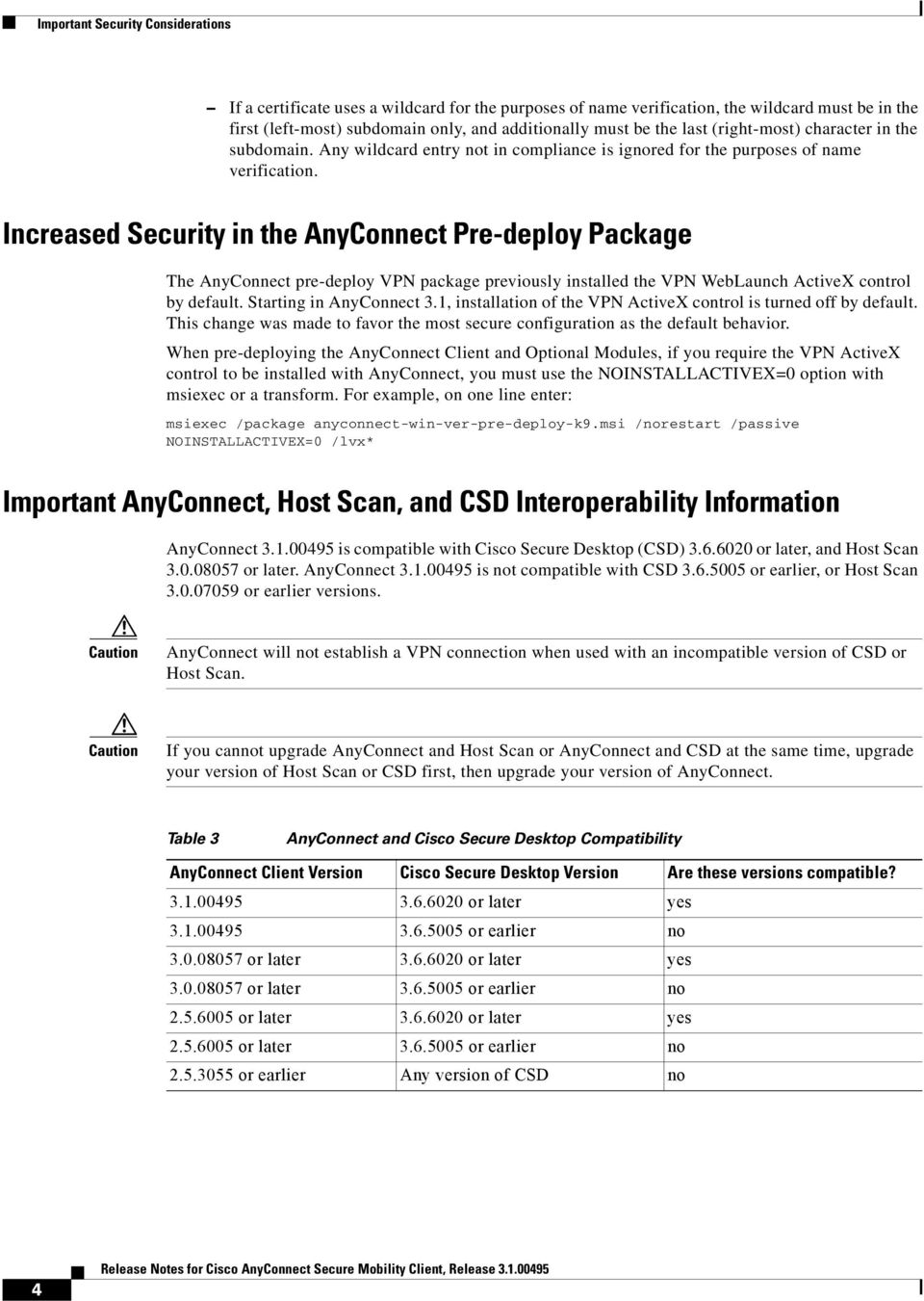
4 Important Security Considerations If a certificate uses a wildcard for the purposes of name verification, the wildcard must be in the first (left-most) subdomain only, and additionally must be the last (right-most) character in the subdomain. Any wildcard entry not in compliance is ignored for the purposes of name verification. Increased Security in the AnyConnect Pre-deploy Package The AnyConnect pre-deploy VPN package previously installed the VPN WebLaunch ActiveX control by default. Starting in AnyConnect 3.1, installation of the VPN ActiveX control is turned off by default. This change was made to favor the most secure configuration as the default behavior. When pre-deploying the AnyConnect Client and Optional Modules, if you require the VPN ActiveX control to be installed with AnyConnect, you must use the NOINSTALLACTIVEX=0 option with msiexec or a transform. For example, on one line enter: msiexec /package anyconnect-win-ver-pre-deploy-k9.msi /norestart /passive NOINSTALLACTIVEX=0 /lvx* Important AnyConnect, Host Scan, and CSD Interoperability Information AnyConnect is compatible with Cisco Secure Desktop (CSD) or later, and Host Scan or later. AnyConnect is not compatible with CSD or earlier, or Host Scan or earlier versions. Caution AnyConnect will not establish a VPN connection when used with an incompatible version of CSD or Host Scan. Caution If you cannot upgrade AnyConnect and Host Scan or AnyConnect and CSD at the same time, upgrade your version of Host Scan or CSD first, then upgrade your version of AnyConnect. Table 3 AnyConnect and Cisco Secure Desktop Compatibility AnyConnect Client Version Cisco Secure Desktop Version Are these versions compatible? or later yes or earlier no or later or later yes or later or earlier no or later or later yes or later or earlier no or earlier Any version of CSD no 4
5 Important AnyConnect 3.1 and ASA 9.0 Interoperability Considerations Table 4 AnyConnect and Host Scan Compatibility AnyConnect Client Version Host Scan Version Are these versions compatible? or later yes or earlier no or later or later yes or earlier or later yes or later or later yes or later or earlier no and earlier Any version of Host Scan no CSD and AnyConnect Restrictions with Windows If AnyConnect is running with CSD, then on Windows 7 and Vista clients, for non-admin users, DAP policies for registry checks and files can fail. Important AnyConnect 3.1 and ASA 9.0 Interoperability Considerations The following AnyConnect features require ASA 9.0 or later, or ASDM 7.0 or later, to be installed on your ASA for them to be effective: IPv6 Support for AnyConnect VPN Features Next Generation Encryption as it applies to VPN Deferred Upgrades ASA 9.0 and its management release ASDM 7.0 are under development and are currently scheduled to be released in the fourth quarter of To be notified automatically when the software is released, create a software notification alert on Cisco.com. Creating a Software Notification on Cisco.com Step 1 Step 2 Step 3 Step 4 Step 5 Step 6 Step 7 Step 8 Step 9 Log in to Cisco.com. In the Cisco menu bar, click My Cisco. In the Support Notifications row, click the box to expand the item. Click Set Your Support Notifications. Click Add Notification. Give your notification a name and choose how and when you want to be notified of a change. Click Continue. Select Product-centric. Click Continue. 5

6 Installation Overview Step 10 Step 11 Step 12 Step 13 In the Topic page of the wizard, select Security > Virtual Private Networks (VPN) > VPN Appliances > Cisco ASA 5500 Series Adaptive Security Appliances. In the Sub-Topics page, check Software Updates. In the Finish page, choose an ASA model, Software type, and specify Any for the Software Version. Click Finish. Installation Overview AnyConnect integrates the following modules into the AnyConnect client package: Network Access Manager Host Scan Telemetry Web Security DART If you are using the ASA to deploy AnyConnect, the ASA can deploy all the optional modules. If pre-deploying using your SMS, you can deploy all modules, but you must pay special attention to the module installation sequence and other details. AnyConnect shares its Host Scan component with Cisco Secure Desktop (CSD). The stand-alone Host Scan package for AnyConnect provides the same features as the Host Scan package that is part of CSD. The AnyConnect client can co-exist with Cisco Secure Desktop Vault, but it cannot be run or deployed from inside the Vault. Every release of AnyConnect includes a localization MST file that administrators can upload to the ASA whenever they upload AnyConnect packages with new software. If you are using our localization MST files, make sure to update them with the latest release from CCO whenever you upload a new AnyConnect package. For more information about deploying the AnyConnect modules, see the Cisco AnyConnect Secure Mobility Client Administrator Guide, Release 3.1. Upgrading 3.0 AnyConnect Clients and Optional Modules When you upgrade from AnyConnect Secure Mobility Client Release 3.0 to AnyConnect Secure Mobility Client Release 3.1, AnyConnect 3.1 performs the following operations: Upgrades all previous versions of the core client and retains all VPN configurations. Upgrades any Host Scan files used by AnyConnect. Upgrading 2.5 and older AnyConnect Clients and Optional Modules When you upgrade from any 2.5.x version of AnyConnect, the AnyConnect Secure Mobility Client Release 3.1 performs the following: Upgrades all previous versions of the core client and retains all VPN configurations. 6

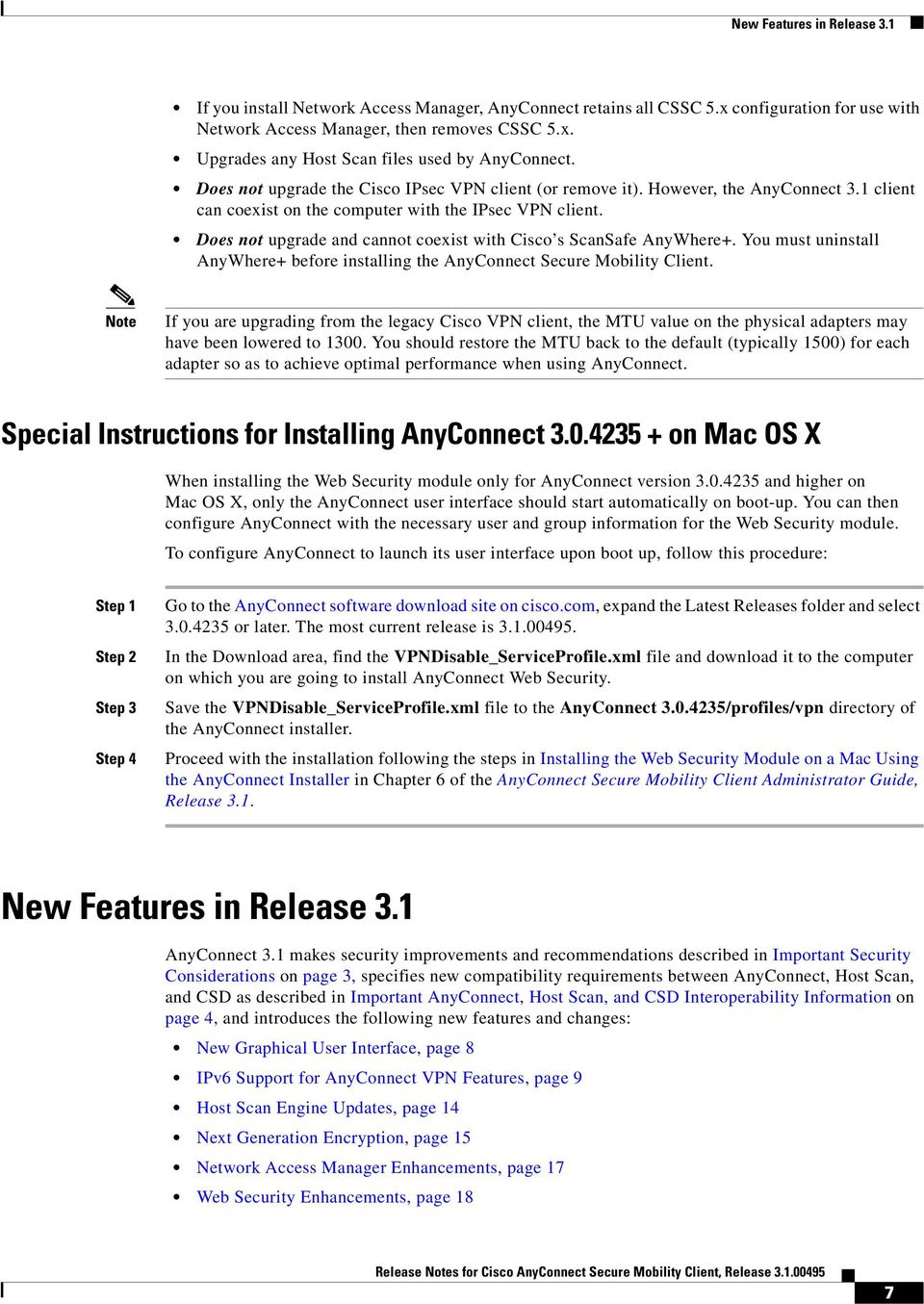
7 New Features in Release 3.1 If you install Network Access Manager, AnyConnect retains all CSSC 5.x configuration for use with Network Access Manager, then removes CSSC 5.x. Upgrades any Host Scan files used by AnyConnect. Does not upgrade the Cisco IPsec VPN client (or remove it). However, the AnyConnect 3.1 client can coexist on the computer with the IPsec VPN client. Does not upgrade and cannot coexist with Cisco s ScanSafe AnyWhere+. You must uninstall AnyWhere+ before installing the AnyConnect Secure Mobility Client. Note If you are upgrading from the legacy Cisco VPN client, the MTU value on the physical adapters may have been lowered to You should restore the MTU back to the default (typically 1500) for each adapter so as to achieve optimal performance when using AnyConnect. Special Instructions for Installing AnyConnect on Mac OS X When installing the Web Security module only for AnyConnect version and higher on Mac OS X, only the AnyConnect user interface should start automatically on boot-up. You can then configure AnyConnect with the necessary user and group information for the Web Security module. To configure AnyConnect to launch its user interface upon boot up, follow this procedure: Step 1 Step 2 Step 3 Step 4 Go to the AnyConnect software download site on cisco.com, expand the Latest Releases folder and select or later. The most current release is In the Download area, find the VPNDisable_ServiceProfile.xml file and download it to the computer on which you are going to install AnyConnect Web Security. Save the VPNDisable_ServiceProfile.xml file to the AnyConnect /profiles/vpn directory of the AnyConnect installer. Proceed with the installation following the steps in Installing the Web Security Module on a Mac Using the AnyConnect Installer in Chapter 6 of the AnyConnect Secure Mobility Client Administrator Guide, Release 3.1. New Features in Release 3.1 AnyConnect 3.1 makes security improvements and recommendations described in Important Security Considerations on page 3, specifies new compatibility requirements between AnyConnect, Host Scan, and CSD as described in Important AnyConnect, Host Scan, and CSD Interoperability Information on page 4, and introduces the following new features and changes: New Graphical User Interface, page 8 IPv6 Support for AnyConnect VPN Features, page 9 Host Scan Engine Updates, page 14 Next Generation Encryption, page 15 Network Access Manager Enhancements, page 17 Web Security Enhancements, page 18 7

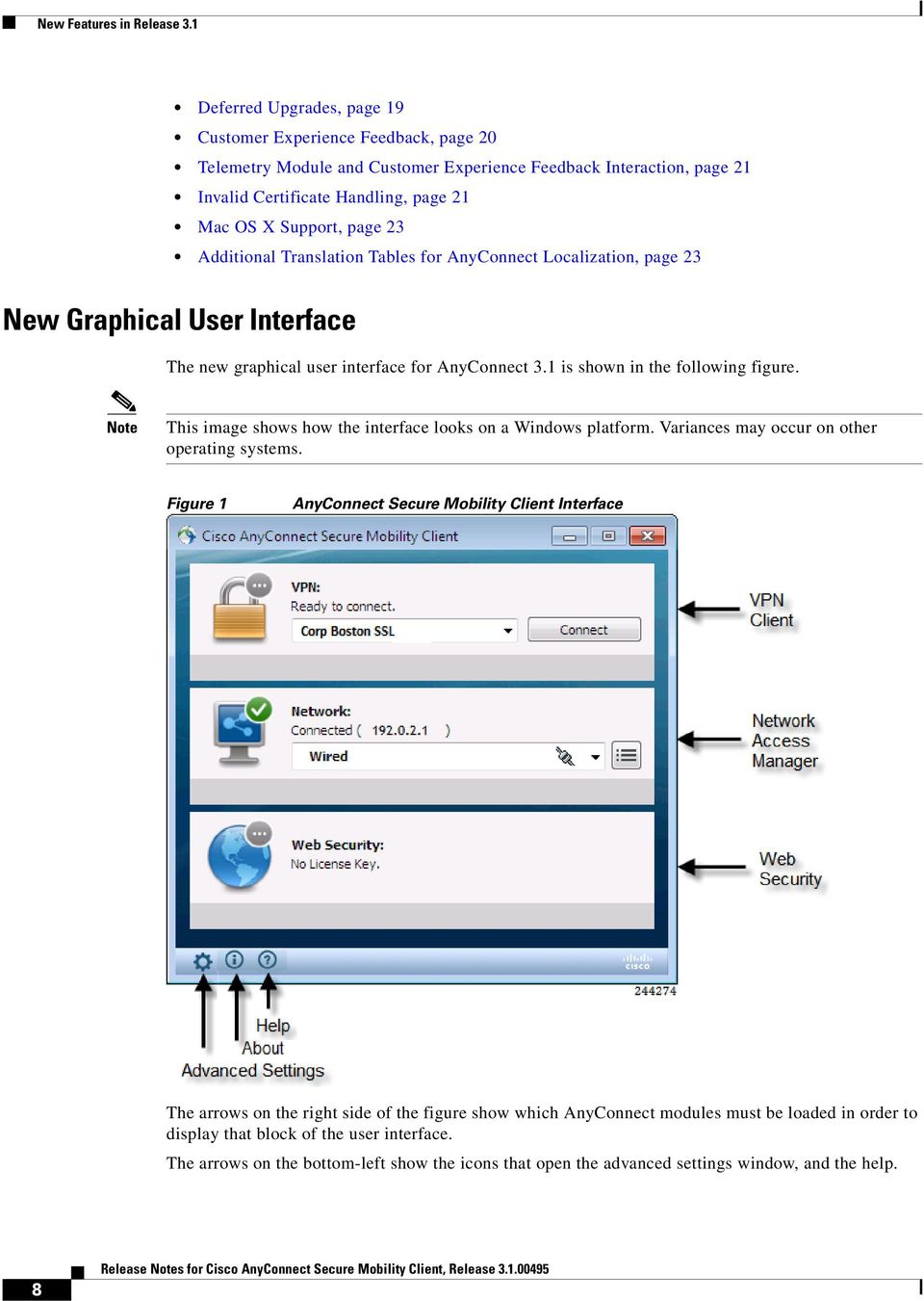
8 New Features in Release 3.1 Deferred Upgrades, page 19 Customer Experience Feedback, page 20 Telemetry Module and Customer Experience Feedback Interaction, page 21 Invalid Certificate Handling, page 21 Mac OS X Support, page 23 Additional Translation Tables for AnyConnect Localization, page 23 New Graphical User Interface The new graphical user interface for AnyConnect 3.1 is shown in the following figure. Note This image shows how the interface looks on a Windows platform. Variances may occur on other operating systems. Figure 1 AnyConnect Secure Mobility Client Interface The arrows on the right side of the figure show which AnyConnect modules must be loaded in order to display that block of the user interface. The arrows on the bottom-left show the icons that open the advanced settings window, and the help. 8
9 New Features in Release 3.1 The help icon only displays if you create and upload a help file on the ASA for the AnyConnect client to download. Instructions for creating and uploading a help file are explained in the next section. Creating and Uploading a Help File To provide AnyConnect users with help, create an HTML file with instructions about your site, and load it on the ASA. When users connect with AnyConnect, AnyConnect downloads the help file, and displays the help icon on the AnyConnect user interface. When the user clicks the help icon, the browser opens the help file. Step 1 Create an HTML file named help_anyconnect.html. Step 2 Log on to the ASDM, connect to your ASA, and select Configuration > Remote Access VPN > Network (Client) Access > AnyConnect Customization/Localization > Binary. Step 3 Step 4 Step 5 Step 6 Import the help_anyconnect.html file. On a PC, bring up AnyConnect and connect to your ASA. The help file is downloaded to the client PC. You should see that the help icon was added to the UI automatically. Click the help icon, and the help file opens in the browser. If the help icon does not appear, check the help directory to see if the AnyConnect downloader was able to retrieve the help file. The help_ part of the filename is removed by the downloader, so you should see AnyConnect.html in one of the following directories, depending on the operating system: Windows 7 and Vista C:\ProgramData\Cisco\Cisco AnyConnect Secure Mobility Client\Help Windows XP C:\Documents and Settings\All Users\Application Data\Cisco\Cisco AnyConnect Secure Mobility Client\Help Mac OS /opt/cisco/anyconnect/help IPv6 Support for AnyConnect VPN Features This release of AnyConnect adds support for IPv6 VPN connections to its outside interface using SSL and IKEv2/IPsec protocols and adds support for IPv6 VPN traffic on its inside interface using the SSL protocol. See Supported Network Configurations. Note These features require ASA 9.0 or later, ASDM 7.0 or later, or both, to be installed on your ASA for them to be effective. ASA 9.0 is under development and is currently scheduled to be released in the fourth quarter of To be notified automatically when the software is released, create a software notification on Cisco.com. Public Tunneling The ASA accepts connections from IPv4, IPv6, or both IPv4 and IPv6 addresses on its outside interface. 9

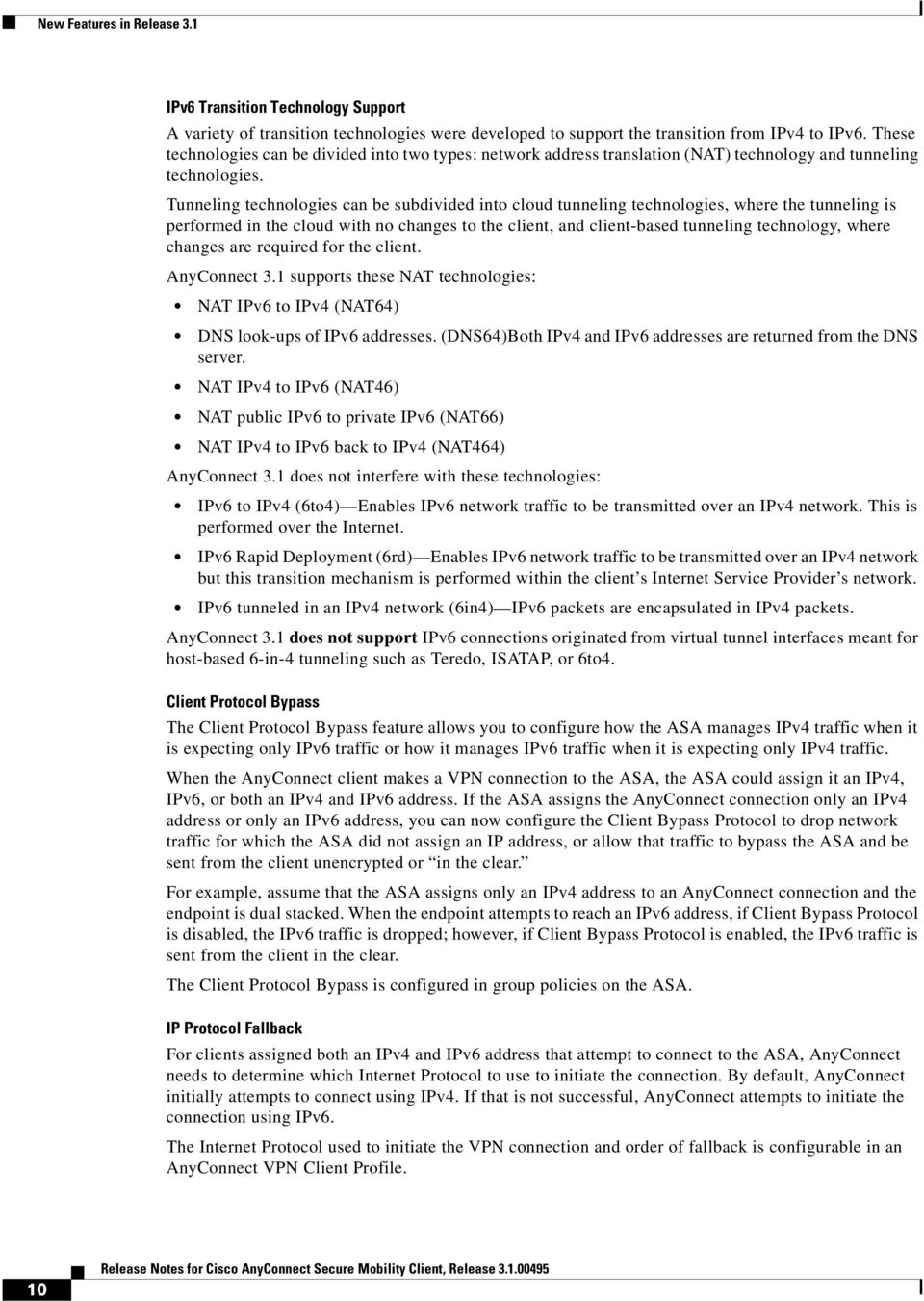
10 New Features in Release 3.1 IPv6 Transition Technology Support A variety of transition technologies were developed to support the transition from IPv4 to IPv6. These technologies can be divided into two types: network address translation (NAT) technology and tunneling technologies. Tunneling technologies can be subdivided into cloud tunneling technologies, where the tunneling is performed in the cloud with no changes to the client, and client-based tunneling technology, where changes are required for the client. AnyConnect 3.1 supports these NAT technologies: NAT IPv6 to IPv4 (NAT64) DNS look-ups of IPv6 addresses. (DNS64)Both IPv4 and IPv6 addresses are returned from the DNS server. NAT IPv4 to IPv6 (NAT46) NAT public IPv6 to private IPv6 (NAT66) NAT IPv4 to IPv6 back to IPv4 (NAT464) AnyConnect 3.1 does not interfere with these technologies: IPv6 to IPv4 (6to4) Enables IPv6 network traffic to be transmitted over an IPv4 network. This is performed over the Internet. IPv6 Rapid Deployment (6rd) Enables IPv6 network traffic to be transmitted over an IPv4 network but this transition mechanism is performed within the client s Internet Service Provider s network. IPv6 tunneled in an IPv4 network (6in4) IPv6 packets are encapsulated in IPv4 packets. AnyConnect 3.1 does not support IPv6 connections originated from virtual tunnel interfaces meant for host-based 6-in-4 tunneling such as Teredo, ISATAP, or 6to4. Client Protocol Bypass The Client Protocol Bypass feature allows you to configure how the ASA manages IPv4 traffic when it is expecting only IPv6 traffic or how it manages IPv6 traffic when it is expecting only IPv4 traffic. When the AnyConnect client makes a VPN connection to the ASA, the ASA could assign it an IPv4, IPv6, or both an IPv4 and IPv6 address. If the ASA assigns the AnyConnect connection only an IPv4 address or only an IPv6 address, you can now configure the Client Bypass Protocol to drop network traffic for which the ASA did not assign an IP address, or allow that traffic to bypass the ASA and be sent from the client unencrypted or in the clear. For example, assume that the ASA assigns only an IPv4 address to an AnyConnect connection and the endpoint is dual stacked. When the endpoint attempts to reach an IPv6 address, if Client Bypass Protocol is disabled, the IPv6 traffic is dropped; however, if Client Bypass Protocol is enabled, the IPv6 traffic is sent from the client in the clear. The Client Protocol Bypass is configured in group policies on the ASA. IP Protocol Fallback For clients assigned both an IPv4 and IPv6 address that attempt to connect to the ASA, AnyConnect needs to determine which Internet Protocol to use to initiate the connection. By default, AnyConnect initially attempts to connect using IPv4. If that is not successful, AnyConnect attempts to initiate the connection using IPv6. The Internet Protocol used to initiate the VPN connection and order of fallback is configurable in an AnyConnect VPN Client Profile. 10
11 New Features in Release 3.1 IPv6 Address Assignment You can configure the ASA to assign an IPv4 address, an IPv6 address, or both an IPv4 and an IPv6 address to an AnyConnect client by creating internal pools of addresses on the ASA or by assigning a dedicated address to a local user on the ASA. The endpoint must have the dual-stack protocol implemented in its operating system to be assigned both types of addresses. Configuring DNS Servers with IPv6 Address You can define a DNS server in a Network (Client) Access internal group policy on the ASA. You can specify up to four DNS server addresses including up to two IPv4 addresses and up to two IPv6 addresses. Split Tunneling for IPv6 Network Traffic Split tunneling enables you to route some network traffic through the VPN tunnel (encrypted) and to route other network traffic outside the VPN tunnel (unencrypted or in the clear ). You can now perform split tunneling on IPv6 network traffic by defining an IPv6 policy which specifies a unified access control list. Unified Access Control Lists for IPv4 and IPv6 ACLs on the ASA now support IPv4 and IPv6 addresses. You can even specify a mix of IPv4 and IPv6 addresses for the source and destination. The IPv4 and IPv6-specific filters located at Configuration > Remote Access VPN > Network (Client) Access > Group Policies > General > More Options have been replaced a single Filter field. Maximum Transmission Unit (MTU) Dynamic Discovery When AnyConnect is configured to use SSL as its VPN tunneling protocol, the ASA and the AnyConnect client determine the optimal tunnel MTU value which is the maximum tunnel MTU that ensures zero packet loss between the client and ASA. The minimum tunnel MTU size required for tunneling IPv6 packets is 1280 bytes. If the network adapter used by the client to establish the VPN tunnel has the MTU size set to a value lower than the sum of 1280 bytes plus the VPN tunnel encapsulation overhead, for example 1300 bytes, AnyConnect sets the tunnel MTU to 1280 to allow IPv6 traffic to be tunneled. Reducing the MTU size may cause additional packet fragmentation which could have a performance impact. This implementation is an improvement from AnyConnect 3.0, which would have prevented the tunnel establishment all together. This approach allows tunneling of IPv6 traffic regardless of the network adapter MTU. If your endpoint has a legacy IPsec VPN client installed, the MTU size of the physical network adapter may have been set lower than the optimal MTU value required by the AnyConnect client to tunnel IPv6 traffic. One way to avoid the performance impact due to a suboptimal tunnel MTU is to set the network interface MTU to the default value (typically 1500). Trusted Network Detection and Always-On Trusted Network Detection with or without Always-On configured is supported for IPv6 and IPv4 clients connecting to the ASA over IPv4 and IPv6 networks. VPN Load Balancing Clients with IPv6 addresses can make AnyConnect connections through the ASA cluster s public-facing IPv6 address or through a GSS server. Likewise, clients with IPv6 addresses can make AnyConnect VPN connections through the ASA cluster s public-facing IPv4 address or through a GSS server. Either type of connection can be load-balanced within the ASA cluster. 11

12 New Features in Release 3.1 For clients with IPv6 addresses to successfully connect to the ASA s public-facing IPv4 address, a device that can perform network address translation from IPv6 to IPv4 needs to be in the network. VPN Session Roaming AnyConnect 3.1 supports roaming between IPv4 and IPv6 networks. The AnyConnect client uses the fully qualified domain name of the ASA to maintain the connection to that secure gateway as AnyConnect moves between the two types of networks. Host Scan Prelogin Checks for IPv6 Addresses In AnyConnect 3.1, you can include IPv6 address criteria in a prelogin check performed by Host Scan. If Host Scan is enabled on the ASA, the ASA downloads Host Scan to the endpoint when users attempt an AnyConnect VPN connection. Host Scan then performs a prelogin assessment of various aspects of the endpoint such as operating system, registry keys, digital certificates and IP addresses. Based on the prelogin check, the ASA defines a prelogin policy. IPv6 Attributes in Dynamic Access Policies When using ASA 9.0 or later with ASDM 6.8 or later, you can now specify these attributes as part of a dynamic access policy (DAP): IPv6 addresses as a Cisco AAA attribute IPv6 TCP and UDP ports as part of a Device endpoint attribute Network ACL Filters (client) Session Management Session management output displays the IPv6 addresses in Public/Assigned address fields for AnyConnect connections, Site to Site VPN connections, and Clientless SSL VPN connections. New filter keywords have been added to support filtering the output to show only IPv6 (outside or inside) connections. There have been no changes to IPv6 User Filters. Existing AnyConnect Functionality that Does Not Support IPv6 These AnyConnect features are not supported on IPv6. Optimal Gateway Selection Optimal Gateway Selection (OGS) minimizes latency for Internet traffic without user intervention. WINS (Windows Internet Name Service) You cannot specify WINS servers with IPv6 addresses as we do DNS servers. Captive Portal Detection and Remediation Bypassing public or private proxies IPv6 System Requirements The AnyConnect 3.1 IPv6 feature requires the 32-bit and 64-bit versions of these operating systems: Windows Vista Windows 7 Mac OS X 10.6 or greater The AnyConnect 3.1 IPv6 features are not supported on: 12
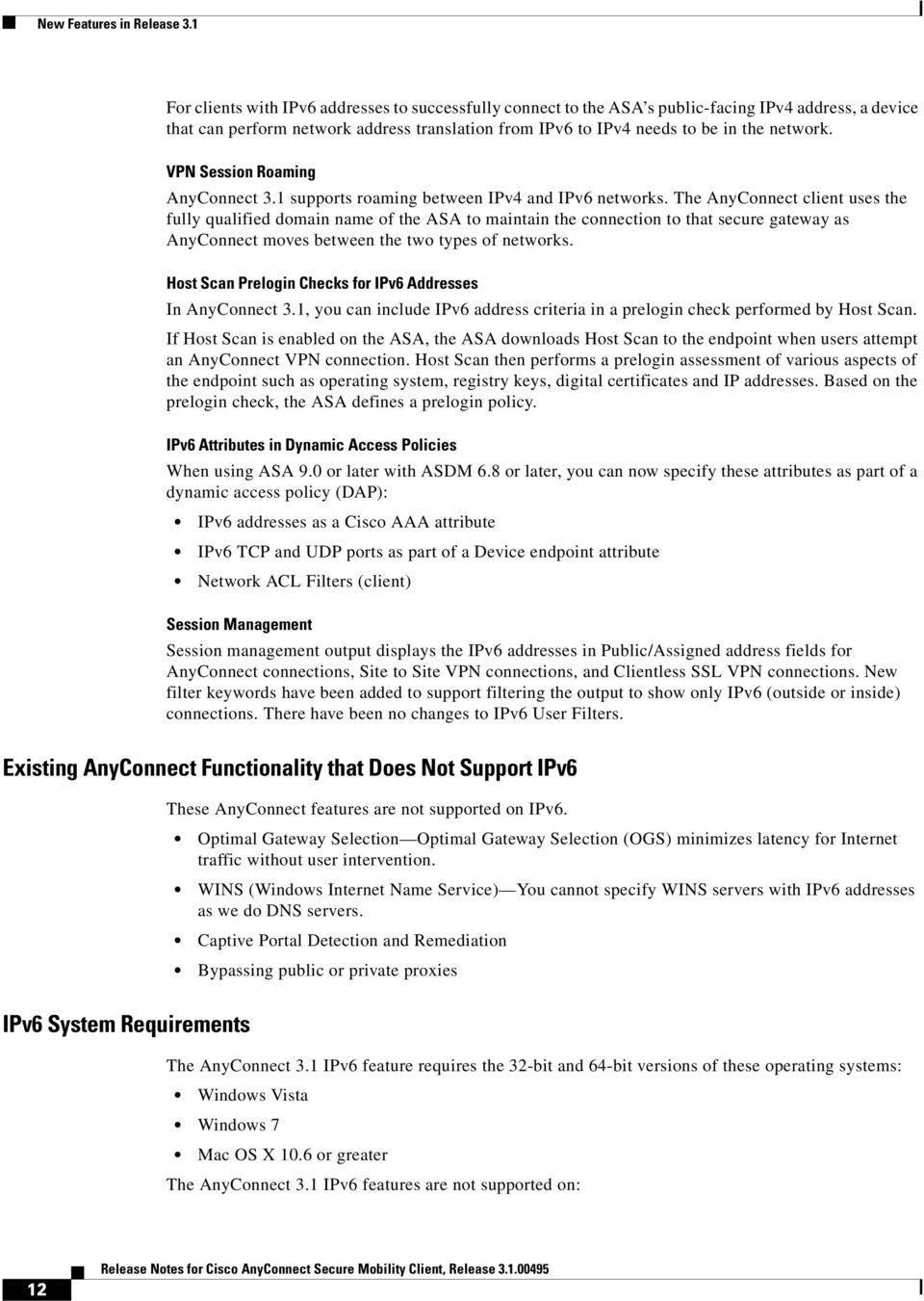
13 New Features in Release 3.1 Windows XP Linux Mobile Devices Supported Network Configurations Table 5 Secure Gateway IP Address Configuration and Client IP Address Configuration Support Public Address (DMZ or outside ) Interface Secure Gateway Configuration Private Address (MZ or Inside ) Interface* IPv4 & IPv6 Dual Stack Client Configuration IPv4 (Dual stack or Single stack) IPv6 (Dual stack or single stack) IPv4 IPv4 Exists prior to AC 3.1 Exists prior to AC 3.1 New in AC 3.1 Need a NAT device on edge of network. IPv4 IPv6 (SSL protocol only) New in AC 3.1 New in AC 3.1 New in AC 3.1 Need a NAT device on edge of network. IPv4 Dual Stack (SSL protocol only) Exists prior to AC 3.1 Exists prior to AC 3.1 New in AC 3.1 Need a NAT device on edge of network. IPv6 IPv4 New in AC 3.1 New in AC 3.1 Need a NAT device on edge of network. New in AC 3.1 IPv6 IPv6 Dual Stack (Both IPv4 and IPv6) Dual Stack (Both IPv4 and IPv6) Dual Stack (Both IPv4 and IPv6) IPv6 (SSL protocol only) Dual Stack (SSL protocol only) New in AC 3.1 New in AC 3.1 Need a NAT device on edge of network. New in AC 3.1 New in AC 3.1 Need a NAT device on edge of network. New in AC 3.1 New in AC 3.1 IPv4 ONLY Exists prior to AC 3.1 Exists prior to AC 3.1 New in AC 3.1 IPv6 (SSL protocol only) Dual Stack (SSL protocol only) New in AC 3.1 New in AC 3.1 New in AC 3.1 Exists prior to AC 3.1 Exists prior to AC 3.1 New in AC
14 New Features in Release 3.1 Host Scan Engine Updates IPv6 Address Support in Prelogin Policies Now, prelogin policies can include IPv6 address checks. Administrators can configure prelogin checks for a range of addresses or a single network address with a network mask. Figure 2 IPv6 Address Check (Default Range and Mask Attributes Displayed) Updated Host Scan Engine An updated Host Scan engine, hostscan_ k9.pkg, has been incorporated in AnyConnect Host Scan Finds Windows Upgrade Data Host Scan changed the way it gathers information about Microsoft software updates on a Windows client system. Host Scan previously tracked limited-distribution hotfixes (LDR or QFE). For AnyConnect 3.1, Host Scan tracks service releases (GDR). Although a service release contains hotfixes, those hotfixes are not listed separately. This change allows you to create DAP rules with endpoint attributes for Microsoft service releases. Note You will no longer be able to create DAP rules with endpoint attributes for Microsoft hot fixes. If you create an endpoint attribute for a hotfix, that attribute is not found. 14

15 New Features in Release 3.1 Next Generation Encryption Because the collective set of algorithms defined as National Security Agency (NSA) Suite B are becoming a standard, the AnyConnect IPsec VPN (IKEv2 only), PKI, 802.1X, and EAP now support them. AnyConnect 3.1 uses Cisco SSL 0.9.8r.1.3 FIPS certified implementation of the Suite B ciphers. The next generation encryption (NGE) includes a larger superset of this set adding crypto algorithms for IPsec V3 VPN, Diffie-Hellman Groups 14 and 24 for IKEv2, and RSA certificates with 4096 bit keys for DTLS and IKEv2. AnyConnect components negotiate and use NGE based on how the headend is configured for it. The Statistics panel (within the Transport Information portion) shows the name of the cipher being used. Note When used with AnyConnect VPN, these features require ASA 9.0 or later, ASDM 7.0 or later, or both, to be installed on your ASA for them to be effective. ASA 9.0 is under development and is currently scheduled to be released in the fourth quarter of To be notified automatically when the software is released, create a software notification on Cisco.com. Information About NGE Information About NGE, page 15 Requirements, page 16 Guidelines and Limitations, page 16 NGE includes the following functionality: AES-GCM/GMAC support (128-, 192-, and 256-bit keys) for symmetric encryption and integrity (Network Access Manager) 802.1AE (MACsec) for wired traffic encryption in software (Windows 7) (VPN) IKEv2 payload encryption and authentication (AES-GCM only) (VPN) ESP packet encryption and authentication SHA-2 (SHA with 256/384/bits) support for hashing (Network Access Manager) Ability to use certificates with SHA-2 in TLS-based EAP methods (VPN) IKEv2 payload authentication (Windows Vista or later and Mac OS X 10.6 or later) (VPN) ESP packet authentication (Windows Vista or later and Mac OS X 10.6 or later) ECDH support for key exchange (Network Access Manager) Ability to use ECDHE in TLS-based EAP methods (Windows 7 and Windows XP) (VPN) Groups 19, 20, and 21 IKEv2 key exchange and IKEv2 PFS ECDSA support (256-, 384-, 521-bit elliptic curves) for digital signature, asymmetric encryption, and authentication (Network Access Manager) Ability to use certificates with ECDSA in TLS-based EAP methods (Only Windows 7 and Vista is supported for client certificates. Only Windows 7 is supported for smart cards.) (VPN) IKEv2 user authentication and server certificate verification 15

16 New Features in Release 3.1 Requirements Guidelines and Limitations New crypto algorithms for IPsecV3 VPN. AnyConnect 3.1 supports the algorithms required by IPsecV3 except for NULL encryption. IPsecV3 also specifies that Extended Sequence Numbers (ESN) must be supported, but AnyConnect 3.1 does not support ESN. Other cipher suite dependencies between algorithms promotes support for the following in AnyConnect 3.1: Diffie-Hellman Groups 14 and 24 for IKEv2. RSA certificates with 4096 bit keys for DTLS and IKEv2. Combined-mode encryption algorithms, where both encryption and integrity are performed in one operation, are supported only on SMP ASA gateways with hardware crypto acceleration (such as 5585 and 5515-X). NGE requires an AnyConnect premium license for IKEv2 remote access connections using NSA Suite B algorithms. Suite B algorithm usage for other connections or purposes (such as PKI) has no limitations. License checks are performed for remote access connections. If you receive a message that you are attempting to use an NSA Suite B crypto algorithm without an AnyConnect premium license, you have the option to either install the premium license or reconfigure the crypto settings to an appropriate level. This section includes the guidelines and limitations for this feature. Suite B is available only for IKEv2/IPsec. No EAP methods support SHA-2 except in TLS-based EAP when validating certificates signed using SHA-2. TLS v1.2 handshaking is not supported in AnyConnect 3.1. TLS v1.2 certificate authentication is not supported in AnyConnect 3.1. ECDSA certificates are supported on Windows Vista or later and Mac OS X 10.6 or later. ECDSA smart cards are supported only on Windows 7. ECDSA certificates must have a Digest strength equal or greater than the Curve strength. For example, an EC-384 key must use SHA2-384 or greater. Suite B profiles may require certain policy properties in the certificates; however, these requirements are enforced on the headend and not by AnyConnect. When the ASA is configured with a different server certificate for SSL and IPsec, use trusted certificates. A Posture assessment, Weblaunch, or Downloader failure can occur if using Suite B (ECDSA) untrusted certificates having different IPsec and SSL certificates. Because ASA does not support ECDSA certificates for SSL VPN, you should not use such certificates for SSL VPN. Because AES-GCM and AES-GMAC are computationally intensive algorithms, you may experience a lower overall data rate when using these algorithms. Some new Intel processors contain special instructions specifically introduced to improve the performance of AES-GCM. AnyConnect 3.1 automatically detects whether the processor on which it is running supports these new instructions. If so, AnyConnect uses the new instructions to significantly improve VPN data rates as compared to those processors that do not have the special instructions. See for a list of processors that support the 16

17 New Features in Release 3.1 new instructions. For more information see r-computing-the-gcm-mode/. Network Access Manager Enhancements The following features have been added or enhanced in the AnyConnect 3.1 Network Access Manager: IPv6 Network Access Manager detects IPv6 Network Attachment and indicates autoconfigured IPv6 addresses to the user. AnyConnect functions on systems where the public interface uses static IPv6 address with SLAAC, ICMPv6, DHCPv6. Suite B and FIPS Mobile Broadband (3G) (Beta) Make Before Break AnyConnect Network Access Manager has implemented certain aspects of the collective set of algorithms defined as National Security Agency (NSA) Suite B. Suite B Cryptography provides greater protection from brute force attacks and stronger authentication. ACS and ISE do not support Suite B, but FreeRADIUS 2.x + OpenSSL 1.x does. Microsoft NPS 2008 supports Suite-B in part (the NPS's certificate still has to be RSA) X/EAP supports transitional Suite B profile only (as defined in RFC5430); no support for TLS 1.2. MACsec is FIPS-compliant on Windows 7. Elliptic Curve Diffie-Hellman (ECDH) key exchange for Windows 7 and XP. ECDSA client certificate is supported on Windows 7 and Vista only. ECDSA CA certificates in OS store are supported on Windows 7 and Vista only. ECDSA CA certificates in the network profile (PEM encoded) supported on Windows XP/7/Vista. Server's ECDSA certificate chain verification is supported on Windows XP/7/Vista. ECDSA Smart Cards are not supported yet. This release of AnyConnect adds support for Windows 7 Mobile Broadband Adapters, using Microsoft Mobile API. This feature requires also requires a WAN adapter that supports the Microsoft Mobile Broadband APIs. See supported adapters. This support is disabled by default. To enable the feature, check the Manage Mobile Broadband (3G) Media checkbox in the Client Policy page of a Network Access Manager client profile. When you move to a higher priority connection, wired networks are the highest priority, followed by Wi-Fi, and then mobile broadband. AnyConnect makes the new connection before breaking the old one. 17

18 New Features in Release 3.1 Corporate Network Updates Start Before Logon (SBL) In the Network Access Manager profile, an administrator can designate a Wi-Fi network as a corporate network. AnyConnect connects to a corporate network (if it is in range) before other SSIDs, even if the corporate SSIDs are hidden. AnyConnect probes for hidden SSIDs, for Windows 7 only. AnyConnect periodically scans for new networks. SBL now includes the Network Access Manager tile and allows connections using user configured home network profiles. Network profiles allowed in SBL mode include all media types employing non-802-1x authentication modes. Wireless Radio On AnyConnect detects when the wireless adapter's radio is turned off, and now shows the status change. TTLS-PAP Access Point Status Token based credentials are now supported, which means users can create a EAP-TTLS/PAP network profile using the UI. More granular policies for inner methods can be configured for tunneling EAP methods. The Access Point name and IP address has been added to the WiFi section of the AnyConnect Statistics tab. Incorrect PSK Detection AnyConnect Network Access Manager detects incorrect Pre-shared Key mismatches in WPA/WPA2 4-way handshake and indicates the mismatch to the user. EAP Chaining (Beta) Use combination of machine and user identification (chained) to authorize wireless network connections. Requires ISE 1.1 MnR. Web Security Enhancements The following changes have been made to the Cisco Cloud Web Security (Web Security) module in AnyConnect: 18
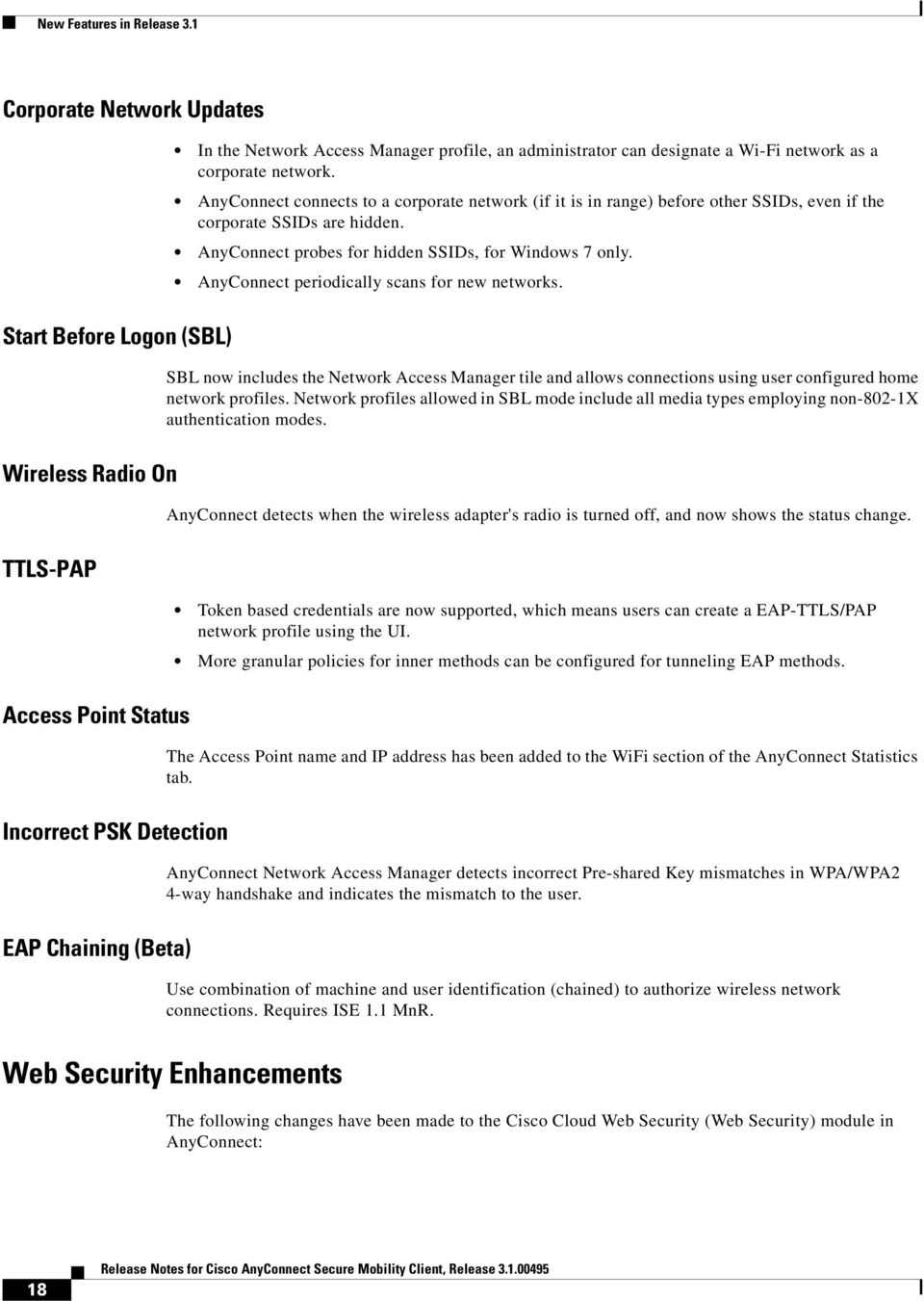
19 New Features in Release 3.1 Beacon Server support is dropped with this release. From AnyConnect on, Web Security uses a Secure Trusted Network Detection feature to switch off the service when devices are connected to the corporate network. The Secure Trusted Network Detection feature detects when an endpoint is on the corporate LAN, either physically or through a VPN connection. The network traffic bypasses scanning proxies only when the Web security client detects that it is on the trusted network. First, you must enable Trusted Network Detection with the https server configured. Then the Web Security client can access and validate the https server certificate. When these steps are taken and Trusted Network Detection is enabled, any network traffic originating from the corporate LAN bypasses Cisco Cloud Web Security scanning proxies. The security of that traffic gets managed by other methods and devices sitting on the corporate LAN rather than using Cisco Cloud Web Security. AnyConnect adds the ability to apply profile configuration changes dynamically for configuration elements that do not require a service restart. When this occurs, New Configuration detected and applied appears in the Message History of the client. Configuration changes that still require a service restart, such as the IPC port change or the KDF port change are indicated as such in the profile editor and, when applied, will display New Configuration detected, requires restart. In AnyConnect 3.0, when a connection fails to be established, it is reattempted bypassing the proxy servers. This behavior is now referred to as Fail Open and is the default behavior for AnyConnect 3.1. A new configuration element in the Web Security profile directs these failed connections to be terminated: this behavior is referred to as Fail Close. When you configure the policy for Fail Close, the connection is not reattempted, and the user receives a Connection Failure message from the browser. In addition, when the policy is configured to Fail Close, the administrator is given the option to configure a captive portal policy in the same way, specifying Fail Open or Fail Close. The default list of Cisco Cloud Web Security proxies has been updated to include Canada, Brazil, South Africa, and Switzerland. Deferred Upgrades This feature allows the user to defer an AnyConnect 3.1 client upgrade until later, if configured and enabled on the secure gateway. Deferred Update is configured and enabled by adding custom attributes to the ASA, and then referencing those attributes in the group policies. Note Deferred updates do not apply to Host Scan file upgrades. When deferred update is enabled and a client update is available, AnyConnect opens a dialog asking the user if they would like to update or to defer the update. This AnyConnect feature is available on Windows, Linux and Mac OS X supported releases. Note This feature require ASA 9.0 or later, ASDM 7.0 or later, or both, to be installed on your ASA for it to be effective. ASA 9.0 is under development and is currently scheduled to be released in the fourth quarter of To be notified automatically when the software is released, create a software notification on Cisco.com. The following attributes configure Deferred Update: 19
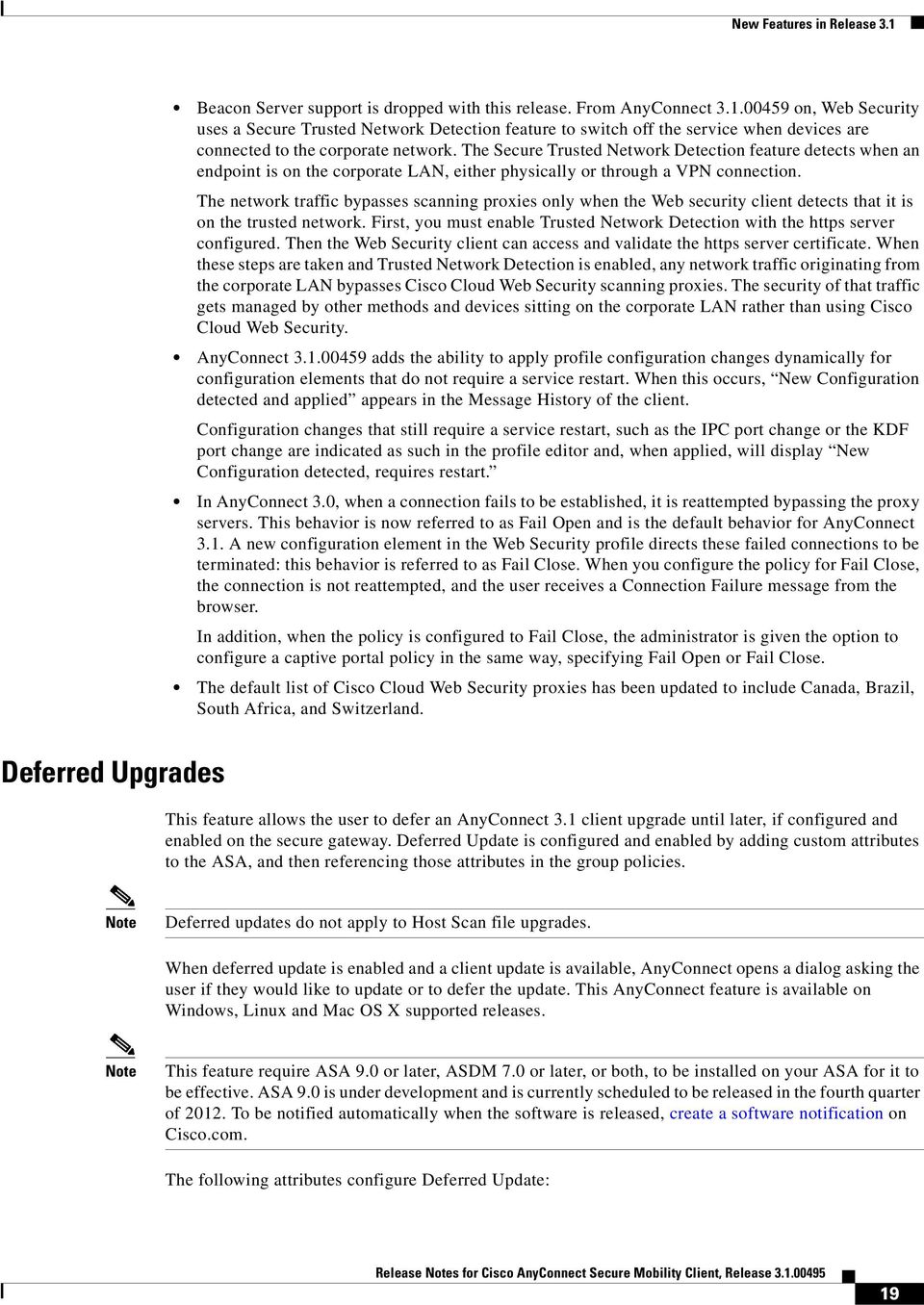
20 New Features in Release 3.1 DeferredUpdateAllowed: Adding this customer attribute and setting it to true enables deferred update. If set to false, the attributes below are ignored. DeferredUpdateMinimumVersion: The minimum version of AnyConnect that must be installed for updates to be deferrable. DeferredUpdateDismissTimeout: Number of seconds that the deferred update prompt is displayed before being dismissed automatically. DeferredUpdateDismissResponse: Action to take when DeferredUpdateDismissTimeout occurs, defer or update. See the User Control over Upgrade section in the Cisco AnyConnect Secure Mobility Client Administrator Guide, Release 3.1 manual for the procedure to add and set these custom attributes. Customer Experience Feedback Note Customer feedback is enabled by default. If you do not want to participate, you must disable this feature. Disabling During Installation Cisco has created a customer experience feedback module which provides us with a look at what features and modules customers use and have enabled. The collection of this client information gives us insight into the user experience so that Cisco can continue to improve the quality, reliability, performance, and user experience of AnyConnect. All data is collected anonymously and does not contain personally identifiable data. The data is also securely sent. You can refer to the End User License Agreement or the Privacy Policy from the About Menu for further information. From the Cisco Online Privacy Statement Highlights page you can access the AnyConnect Secure Mobility Client Supplement which details the collection and use of information. Administrators can disable this service by clearing the check box at any time after installation. End users must abide by the setting established by the administrators. You must browse to Configuration > Remote Access VPN > Network (Client) Access > AnyConnect Client Profile, open the client profile you created, and change the Customer Experience Feedback component to disable. You can also remove the customer experience feedback component altogether during installation, although this is not the Cisco preferred method. For web-deploy See the Configuring the ASA to Download AnyConnect section on page 2 14 of the Cisco AnyConnect Secure Mobility Client Administration Guide, Release 3.1. For Windows pre-deploy See the Using an SMS to Predeploy AnyConnect Modules section on page 2 24 of the Cisco AnyConnect Secure Mobility Client Administration Guide, Release 3.1. For Linux or Mac pre-deploy See the Predeploying to Linux and Mac OS X Computers section on page 2 29 of the Cisco AnyConnect Secure Mobility Client Administration Guide, Release
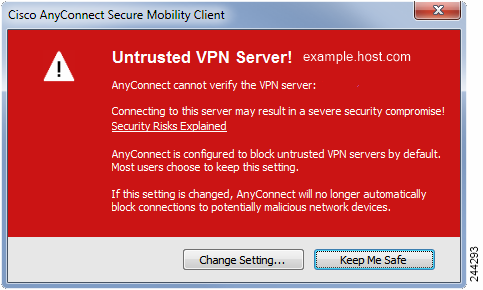
21 New Features in Release 3.1 Telemetry Module and Customer Experience Feedback Interaction With the introduction of the Customer Experience Feedback Module, the telemetry module sends its reports in a different way, although telemetry experienced no architectural changes. When the feedback module and the telemetry module are both enabled, the feedback module sends telemetry reports along with its customer feedback data to our customer feedback server. If the feedback module is not enabled, the telemetry module sends its reports to the Cisco IronPort Web Security Appliance (WSA) as it normally does. Invalid Certificate Handling In response to the increase of targeted attacks against mobile users on untrusted networks, we have improved the security protections in the client to help prevent serious security breaches. The default client behavior has been changed to provide an extra layer of defense against Man-in-the-middle attacks. Updated User Interaction When the user tries to connect to a secure gateway, and there is a certificate error (due to expired, invalid date, wrong key usage, or CN mismatch), the user sees a red-colored dialog with Change Settings and Keep Me Safe buttons. Note The dialogs for Linux may look different from the ones shown in this document. Figure 3 Certificate Blocked Error Dialog Clicking Keep Me Safe cancels the connection. Clicking Change Settings opens AnyConnect s Advanced > VPN >Preferences dialog, where the user can enable connections to untrusted servers. The current connection attempt is canceled. 21

22 New Features in Release 3.1 Figure 4 AnyConnect Advanced > VPN > Preferences If the user un-checks Block connections to untrusted servers, then the next time the user attempts to connect to this secure gateway, the user will not see the Certificate Blocked Error Dialog dialog; they only see the following dialog: Figure 5 AnyConnect Untrusted Certificate Security Warning If the user checks Always trust this VPN server and import the certificate, then future connections to this secure gateway will not prompt the user to continue. 22
23 New Features in Release 3.1 Note If the user checks Block connections to untrusted servers in AnyConnect Advanced > VPN > Preferences, or if the user s configuration meets one of the conditions in the list of the modes described under the guidelines and limitations section, then AnyConnect rejects invalid server certificates. Improved Security Behavior Guidelines and Limitations When the client accepts an invalid server certificate, that certificate is saved in the client's certificate store. Previously, only the thumbprint of the certificate was saved. Note that invalid certificates are saved only when the user has elected to always trust and import invalid server certificates. There is no administrative override to make the end user less secure automatically. To completely remove the preceding security decisions from your end users, enable Strict Certificate Trust in the user s local policy file. When Strict Certificate Trust is enabled, the user sees an error message, and the connection fails; there is no user prompt. For information about enabling Strict Certificate Trust in the local policy file, see the AnyConnect Local Policy Parameters and Values section on page 9 13 in the Cisco AnyConnect Secure Mobility Client Administrator Guide, Release 3.1. Invalid server certificates are rejected when: Always On is enabled in the VPN client profile and is not turned off by an applied group policy or DAP. The client has a Local Policy with Strict Certificate Trust enabled. AnyConnect is configured to start before logon. A client certificate from the machine certificate store is used for authentication. Mac OS X Support AnyConnect now supports Mac OS X v10.8 (x86 32-bit and x64 64-bit). Additional Translation Tables for AnyConnect Localization The following language translation tables are now available on Japanese French Canadian German Chinese Korean Spanish (Latin American) Czech Polish 23
24 System Requirements See Importing Available Translation Tables for the procedure to make these translations available for AnyConnect localization. System Requirements This section identifies the management and endpoint requirements for this release. For endpoint OS support and license requirements for each feature, see AnyConnect Secure Mobility Client Features, Licenses, and OSs. AnyConnect 3.1 installations can coexist with other VPN clients, including IPsec clients, on all supported endpoints; however, we do not support running AnyConnect while other VPN clients are running. The following sections identify the minimum management and endpoint requirements: Adaptive Security Appliance Requirements IOS Support by AnyConnect 3.1.x Microsoft Windows Linux Mac OS X Adaptive Security Appliance Requirements You must upgrade to ASA 9.0 if you want to use the following features: IPv6 support Cisco Next Generation Encryption Suite-B security AnyConnect client deferred upgrades You must use ASA 8.4(1) or later if you want to do the following: Use IKEv2. Use the ASDM to edit non-vpn client profiles (such as Network Access Manager, Web Security, or Telemetry). Use the services supported by a Cisco IronPort Web Security Appliance license. These services let you enforce acceptable use policies and protect endpoints from websites found to be unsafe, by granting or denying all HTTP and HTTPS requests. Deploy firewall rules. If you deploy always-on VPN, you might want to enable split tunneling and configure firewall rules to restrict to local printing and tethered mobile devices. Configure dynamic access policies or group policies to exempt qualified VPN users from an always-on VPN deployment. Configure dynamic access policies to display a message on the AnyConnect GUI when an AnyConnect session is in quarantine. 24
25 System Requirements Memory Requirements Caution The minimum flash memory required for all ASA 5500 models using AnyConnect 3.1 is 512MB. This will allow hosting of multiple endpoint operating systems, and logging and debugging to be enabled on the ASA. Check for the available space before proceeding with the AnyConnect install or upgrade. You can use one of the following methods to do so: CLI Enter the show memory command. asa3# show memory Free memory: bytes (57%) Used memory: bytes (43%) Total memory: bytes (100%) ASDM Choose Tools > File Management. The File Management window displays flash space. If your ASA has only the default internal flash memory size or the default DRAM size (for cache memory), you could have problems storing and loading multiple AnyConnect client packages on the ASA. Even if you have enough space on the flash to hold the package files, the ASA could run out of cache memory when it unzips and loads the client images. For internal memory requirements for each ASA model, see Memory Requirements for the Cisco ASA Adaptive Security Appliances Software Version 8.3 and Later. For additional information about the ASA memory requirements and upgrading ASA memory, see the latest release notes for the Cisco ASA 5500 series. IOS Support by AnyConnect 3.1.x Cisco supports AnyConnect VPN access to IOS Release 15.1(2)T functioning as the secure gateway; however, IOS Release 15.1(2)T does not currently support the following AnyConnect features: Post Log-in Always-on VPN Connect Failure Policy Client Firewall providing Local Printer and Tethered Device access Optimal Gateway Selection Quarantine AnyConnect Profile Editor For additional limitations of IOS support for AnyConnect VPN, please see Features Not Supported on the Cisco IOS SSL VPN. Refer to for additional IOS feature support information. 25
26 System Requirements Microsoft Windows Table 6 Microsoft Windows OS Support for the modules and new features in AnyConnect 3.1. Windows Vista x86 (32-bit) and x64 (64-bit) AnyConnect 3.1 Module Feature Windows XP SP3 x86 (32-bit) and x64 (64-bit) Windows 7 x86 (32-bit) and x64 (64-bit) Customer Yes Yes Feedback VPN Core Yes Yes IPv6 No Yes Suite-B No Yes (IPsec Only) Network Access Manager Core Yes x86 (32-bit) only Yes IPv6 No Yes Suite-B No Yes Posture & Core Yes Yes Hostscan IPv6 No Yes Keystroke Yes x86 (32-bit) only Yes x86 (32-bit) only Logger Telemetry Yes Yes Web Security Yes x86 (32-bit) only Yes DART Yes Yes Windows Support Notes Upgrading from Windows XP to Windows Vista or Windows 7 requires a clean install since the Cisco AnyConnect Virtual Adapter is not preserved during the upgrade. Manually uninstall AnyConnect, upgrade Windows, then reinstall AnyConnect manually or via WebLaunch. Windows 2003 Server (32 bit) is supported for Network Access Manager only. Windows 2008 is not supported; however, we do not prevent the installation of AnyConnect 3.1 on this OS. To start AnyConnect with WebLaunch, you must use the 32-bit version of Firefox 3.0+ and enable ActiveX or install Sun JRE Note Internet Explorer 6.0 is no longer supported. AnyConnect VPN is compatible with 3G data cards which interface with Windows 7 via a WWAN adapter. Windows Requirements Pentium class processor or greater. 26
27 System Requirements 100 MB hard disk space. Microsoft Installer, version 3.1. Linux Table 7 Linux OS Support for the modules and new features in AnyConnect 3.1 AnyConnect Module 3.1 Feature Linux Red Hat 6 (32-bit) Customer No Feedback VPN Core Yes Yes IPv6 No No Suite-B No No (IP sec only) Network Core No No Access IPv6 No No Manager Suite-B No No Posture & Core Yes Yes Hostscan IPv6 No No Keystroke Yes Yes Logger Telemetry No No Web Security No No DART Yes Yes Linux Ubuntu 9.x, 10.x, and 11.x (32-bit) No Linux Support Notes We do not support and have not validated Linux 64-bit version of the supported OSs or other Linux distributions. We will consider requests to validate these or other Linux distributions for which you experience issues and may provide fixes at our discretion. The AnyConnect 3.1 GUI is not supported on Linux. Linux Requirements x86 instruction set. 32-bit processor. 32 MB RAM. 20 MB hard disk space. Superuser privileges are required for installation. libstdc++ users must have libstdc++.so.6(glibcxx_3.4) or higher, but below version 4. Java 5 (1.5) or later. Iced Tea is the default Java package on Fedora 8. The only version that works for web installation is Sun Java. You must install Sun Java and configure your browser to use that instead of the default package. 27
28 System Requirements zlib. gtk gdk libpango 1.0. iptables 1.2.7a or later. tun module supplied with kernel or 2.6. Mac OS X Table 8 Mac OS X Support the modules and new features in AnyConnect 3.1 AnyConnect Module 3.1 Feature Customer Yes Feedback VPN Core Yes IPv6 Yes Network Access Manager Posture & Hostscan Web Security DART Suite-B (IPsec only) Core IPv6 Suite-B Core IPv6 Keystroke Logger Mac OS X 10.6, 10.7, & 10.8 x86 (32-bit) or x64 (64-bit) Yes No No No Yes Yes Yes x86 (32-bit) only Yes Yes Max OS X Support Notes Mac OS X 10.5 is no longer supported. AnyConnect 3.1 will not install on this platform. Mac OS X Requirements AnyConnect requires 50MB of hard disk space. Mac OS X 10.8 introduces a new feature called Gatekeeper that restricts which applications are allowed to run on the system. You can choose to permit applications downloaded from: Mac App Store Mac App Store and identified developers Anywhere 28
29 Licensing The default setting is Mac App Store and identified developers (signed applications). AnyConnect release 3.1 is a signed application, but it is not signed using an Apple certificate. This means that you must either select the Anywhere setting or use Control-click to bypass the selected setting to install and run AnyConnect from a pre-deploy installation. Users who web deploy or who already have AnyConnect installed are not impacted. For further information see: Note Web launch or OS upgrades (for example 10.7 to 10.8) install as expected. Only the pre-deploy installation requires additional configuration as a result of Gatekeeper. Licensing For brief descriptions and example product numbers (SKUs) of the AnyConnect user license options, see Cisco Secure Remote Access: VPN Licensing Overview. For our open source licensing acknowledgements, see Open Source Used In AnyConnect Secure Mobility Client 3.0. For the latest end user license agreement, see Cisco End User License Agreement, AnyConnect Secure Mobility Client, Release 3.0. AnyConnect Support Policy We support all non-beta AnyConnect software versions available on the Cisco AnyConnect VPN Software Download site; however, we provide fixes and enhancements only in maintenance or feature releases based on the most recently released version. Guidelines and Limitations The following guidelines and limitations for this and previous releases are in effect: Implicit DHCP filter applied when Tunnel All Networks Configured, page 30 AnyConnect VPN over Tethered Devices, page 30 AnyConnect Virtual Testing Environment, page 31 UTF-8 Character Support for AnyConnect Passwords, page 31 Version Client Conflicts with Version on the ASA, page 31 Apple MobileMe Conflicts with AnyConnect, page 31 Interoperability between Network Access Manager and other Connection Managers, page 32 Network Interface Card Drivers Incompatible with Network Access Manager, page 32 Network Access Manager Installation and Upgrade Hangs on Windows XP SP2 Systems Running the Cisco NAC Agent, page 32 Avoiding SHA 2 Certificate Validation Failure (CSCtn59317), page 32 Configuring Antivirus Applications for Host Scan, page 34 Windows Mobile Not Supported, page 34 29
30 Guidelines and Limitations iphone Not Supported, page 34 Microsoft Internet Explorer Proxy Not Supported by IKEv2, page 34 MTU Adjustment on Group Policy May Be Required for IKEv2, page 34 MTU Automatically Adjusted When Using DTLS, page 35 Network Access Manager and Group Policy, page 35 Full Authentication Required if Roaming between Access Points, page 35 Auto Connect on Start Now Disabled By Default, page 35 User Guideline for Web Security Behavior with IPv6 Web Traffic, page 37 Preventing Other Devices in a LAN from Displaying Hostnames, page 37 Revocation Message, page 38 Messages in the Localization File Can Span More than One Line, page 38 AnyConnect for Mac OS X Performance when Behind Certain Routers, page 38 Preventing Windows Users from Circumventing Always-on, page 39 Avoid Wireless-Hosted-Network, page 39 AnyConnect Requires That the ASA Be Configured to Accept TLSv1 Traffic, page 39 CRL Checking Enabled, page 39 Trend Micro Conflicts with Install, page 39 What Host Scan Reports, page 39 Implicit DHCP filter applied when Tunnel All Networks Configured To allow local DHCP traffic to flow in the clear when Tunnel All Networks is configured, AnyConnect adds a specific route to the local DHCP server when the VPN client connects. To prevent data leakage on this route, AnyConnect also applies an implicit filter on the LAN adaptor of the host machine, blocking all traffic for that route except DHCP traffic. AnyConnect VPN over Tethered Devices Cisco has qualified the AnyConnect VPN client over a bluetooth or USB tethered Apple iphone only. Network connectivity provided by other tethered devices should be verified with the AnyConnect VPN client before deployment. AnyConnect Smart Card Support AnyConnect supports Smartcard provided credentials in the following environments: Microsoft CAPI 1.0 and CAPI 2.0 on Windows XP, 7 & Vista Keychain via Tokend on Mac OS X, 10.4 and higher Note AnyConnect does not support Smart cards on Linux or PKCS #11 devices. 30
31 Guidelines and Limitations AnyConnect Virtual Testing Environment Cisco performs a portion of AnyConnect client testing using these virtual machine environments: VMWare ESXi Hypervisor (vsphere) and later VMWare Fusion 2.x, 3.x, and 4.x We do not support running AnyConnect in virtual environments; however, we expect AnyConnect to function properly in the VMWare environments we test in. If you encounter any issues with AnyConnect in your virtual environment, report them. We will make our best effort to resolve them. UTF-8 Character Support for AnyConnect Passwords AnyConnect 3.0 or later used with ASA 8.4(1) or later supports UTF-8 characters in passwords sent using RADIUS/MSCHAP and LDAP protocols. Version Client Conflicts with Version on the ASA When the client is running AnyConnect and has AutoUpdate disabled, the ASA must have the same version of AnyConnect installed, or the client fails to connect to the VPN. To avoid this problem, either keep the version AnyConnect package on the ASA, or upgrade the client to the new version before loading that version on the ASA. Apple MobileMe Conflicts with AnyConnect If users of MobileMe have configured Back to my Mac, they will encounter connection problems with AnyConnect. Both AnyConnect and MobileME use the virtual adapter named utun0. MobileMe starts before AnyConnect when the computer boots, so it always gets the utun0 interface first, which causes Cisco AnyConnect to fail. Neither application can be configured to use a different interface, such as utun1. Mac users must turn off Back to my Mac before connecting to the AnyConnect VPN. Once the VPN has connected, they can re-enable Back to my Mac. New Certificate Required AnyConnect is signed with the new certificate VeriSign Class 3 Public Primary Certification Authority - G5. Upon installation, Windows XP, Windows Vista, Mac OS X, and Linux users might see a downloader error message, such as the following: An internal certificate chaining error has occurred. This event can occur if one or all of the following are true: Root certificates were intentionally pruned. Update Root Certificates is disabled. The internet is not reachable when an upgrade occurs (for example, you have your ASA in a private network without Internet access). 31
32 Guidelines and Limitations AnyConnect installations and upgrades might require endpoint users to install the root CA before upgrading or installing AnyConnect. To do so, enable Update Root Certificates and verify that the Internet is reachable before the AnyConnect installation. By default, Update Root Certificates is enabled. Users can also update the root CA manually, as instructed on the Verisign website. For more information, see: Interoperability between Network Access Manager and other Connection Managers When the Network Access Manager operates, it takes exclusive control over the network adapters and blocks attempts by other software connection managers (including the Windows native connection manager) to establish connections. Therefore, if you want AnyConnect users to use other connection managers on their endpoint computers (such as ipassconnect Mobility Manager), they must disable Network Access Manager either through the Disable Client option in the Network Access Manager GUI, or by stopping the Network Access Manager service. Network Interface Card Drivers Incompatible with Network Access Manager The Intel wireless network interface card driver, version , is incompatible with Network Access Manager. If this driver is installed on the same endpoint as the Network Access Manager, it can cause inconsistent network connectivity and an abrupt shutdown of the Windows operating system. Network Access Manager Installation and Upgrade Hangs on Windows XP SP2 Systems Running the Cisco NAC Agent Cisco AnyConnect 3.0 Network Access Manager installation never completes on certain Windows XP SP2 systems due to a deadlock in Microsoft NDIS framework. To work around this issue, install Windows XP Service pack 3 on the endpoint or exit the NAC agent at the point of the Network Access Manager installation. Avoiding SHA 2 Certificate Validation Failure (CSCtn59317) The AnyConnect client relies on the Windows Cryptographic Service Provider (CSP) of the certificate for hashing and signing of data required during the IKEv2 authentication phase of the IPsec/IKEv2 VPN connection. If the CSP does not support SHA 2 algorithms, and the ASA is configured for the pseudo-random function (PRF) SHA256, SHA384, or SHA512, and the connection profile (tunnel-group) is configured for certificate or certificate and AAA authentication, certificate authentication fails. The user receives the message Certificate Validation Failure. This failure occurs for Windows only, for certificates that belong to CSPs that do not support SHA 2-type algorithms. Other supported OSs do not experience this problem. To avoid this problem you can configure the PRF in the IKEv2 policy on the ASA to md5 or sha (SHA 1). 32
33 Guidelines and Limitations Alternatively, you can modify the certificate CSP value for native CSPs that work: For Windows XP Microsoft Enhanced RSA and AES Cryptographic Provider (Prototype) For Windows 7 and Vista Microsoft Enhanced RSA and AES Cryptographic Provider Caution Do not apply this workaround to SmartCards certificates. You cannot change the CSP names. Instead, contact the SmartCard provider for an updated CSP that supports SHA 2 algorithms. Caution Performing the following workaround actions could corrupt the user certificate if you perform them incorrectly. Use extra caution when specifying changes to the certificate. You can use the Microsoft Certutil.exe utility to modify the certificate CSP values. Certutil is a command-line utility for managing a Windows CA, and is available in the Microsoft Windows Server 2003 Administration Tools Pack. You can download the Tools Pack at this URL: e3&displaylang=en Follow this procedure to run Certutil.exe and change the Certificate CSP values: Step 1 Step 2 Open a command window on the endpoint computer. View the certificates in the user store along with their current CSP value using the following command: certutil -store -user My The following example shows the certificate contents displayed by this command: ================ Certificate 0 ================ Serial Number: 3b3be b Issuer: CN=cert-issuer, OU=Boston Sales, O=Example Company, L=San Jose, S=CA, C=US, [email protected] NotBefore: 2/16/ :18 AM NotAfter: 5/20/2024 8:34 AM Subject: CN=Carol Smith, OU=Sales Department, O=Example Company, L=San Jose, S=C A, C=US, [email protected] Non-root Certificate Template: Cert Hash(sha1): b e6 77 5f aa 8e ad e6 20 a b4 ee 7f Key Container = {F62E9BE8-B32F CCC86455FB} Unique container name: 46ab1403b52c6305cb226edd f_c50140b9-ffef-4600-ada 6-d09eb97a30f1 Provider = Microsoft Enhanced RSA and AES Cryptographic Provider Signature test passed Step 3 Step 4 Identify the <CN> attribute in the certificate. In the example, the CN is Carol Smith. You need this information for the next step. Modify the certificate CSP using the following command. The example below uses the subject <CN> value to select the certificate to modify. You can also use other attributes. On Windows Vista and Windows 7, use this command: certutil -csp "Microsoft Enhanced RSA and AES Cryptographic Provider" -f -repairstore -user My <CN> carol smith On Windows XP, use this command: 33
34 Guidelines and Limitations certutil -csp "Microsoft Enhanced RSA and AES Cryptographic Provider (Prototype)" -f -repairstore -user My <CN> carol smith Step 5 Repeat step 2 and verify the new CSP value appears for the certificate. Configuring Antivirus Applications for Host Scan Antivirus applications can misinterpret the behavior of some of the applications included in the posture module and the Host Scan package as malicious. Before installing the posture module or Host Scan package, configure your antivirus software to white-list or make security exceptions for these Host Scan applications: cscan.exe ciscod.exe cstub.exe Windows Mobile Not Supported AnyConnect 3.0+ does not support Microsoft Windows Mobile or Windows Phone. However, you can continue to use the ASA to deploy the AnyConnect 2.5 or earlier client for Windows Mobile even after loading the AnyConnect 3.1 package files to the ASA for web deployment. See the AnyConnect Secure Mobility Client Administrator Guides from AnyConnect 2.5, and earlier, for information about configuring the ASA to deploy AnyConnect for Windows Mobile devices. iphone Not Supported This release of AnyConnect does not support Apple ios. However, you can use the same ASAs to support Apple ios devices running AnyConnect 2.4 VPN connections. For ASA setup instructions, see the Release Notes for Cisco AnyConnect Secure Mobility Client 2.4, Apple ios 4.2. Microsoft Internet Explorer Proxy Not Supported by IKEv2 IKEv2 does not support the Microsoft Internet Explorer proxy. If you need support for that feature, use SSL. MTU Adjustment on Group Policy May Be Required for IKEv2 AnyConnect sometimes receives and drops packet fragments with some routers, resulting in a failure of some web traffic to pass. To avoid this, lower the value of the MTU. We recommend The following example shows how to do this using CLI: hostname# config t hostname(config)# group-policy DfltGrpPolicy attributes hostname(config-group-policy)# webvpn hostname(config-group-webvpn)# anyconnect mtu
35 Guidelines and Limitations To set the MTU using ASDM, go to Configuration > Network (Client) Access > Group Policies > Add or Edit > Advanced > SSL VPN Client. MTU Automatically Adjusted When Using DTLS If Dead Peer Detection (DPD) is enabled for DTLS, the client automatically determines the path MTU. If you previously reduced the MTU using the ASA, you should restore the setting to the default (1406). During tunnel establishment, the client auto-tunes the MTU using special DPD packets. If you still have a problem, use the MTU configuration on the ASA to restrict the MTU as before. Network Access Manager and Group Policy Windows Active Directory Wireless Group Policies manage the wireless settings and any wireless networks that are deployed to PCs in a specific Active Directory Domain. When installing the Network Access Manager, administrators must be aware that certain wireless GPOs can affect the behavior of the Network Access Manager. Administrators should test the GPO policy settings with the Network Access Manager before doing full GPO deployment. The following GPO conditions may prevent the Network Access Manager from operating as expected (CSCtk57290): When using XP and the GPO settings enforce WZC When using the Windows 7 or Vista Only use Group Policy profiles for allowed networks option When deploying XP wireless GPO policy on Windows 7 or Vista Full Authentication Required if Roaming between Access Points A mobile endpoint running Windows 7 or Vista must do a full EAP authentication instead of leveraging the quicker PMKID reassociation when the client roams between access points on the same network. Consequently, in some cases, AnyConnect prompts the user to enter credentials for every full authentication if the active profile requires it. Auto Connect on Start Now Disabled By Default In AnyConnect 3.0, the Auto Connect on Start feature connects at logon for Windows. This feature is disabled by default, which is a change from AnyConnect 2.5.2xxx and earlier releases. The Auto Connect on Start feature is defined in two places: it is hard-coded in AnyConnect and it can be turned on or turned off in a VPN client profile by using the Auto Connect on Start check box in profile editor. In AnyConnect 3.0, both the hard-coded configuration of Auto Connect on Start and the configuration of Auto Connect on Start in a VPN client profile are changed so that they are disabled by default. Starting the user interface does not trigger Auto Connect on Start. AnyConnect has evolved from having the ability to establish a VPN connection automatically upon the startup of AnyConnect to having that VPN connection be always-on by the Post Log-in Always-on feature. Disabling the Auto Connect on Start element reflects that evolution. If your enterprise s deployment uses the Auto Connect on Start feature, consider using the Trusted Network Detection feature instead. 35
36 Guidelines and Limitations Trusted Network Detection (TND) gives you the ability to have AnyConnect automatically disconnect a VPN connection when the user is inside the corporate network (the trusted network) and start the VPN connection when the user is outside the corporate network (the untrusted network). This feature encourages greater security awareness by initiating a VPN connection when the user is outside the trusted network. If you are a customer running AnyConnect 2.5.xxx or earlier and you are upgrading to AnyConnect 3.0, this change to the Auto Connect on Start feature may affect you. The Auto Connect on Start feature is enabled or disabled based on an order of precedence: The hard-coded value of Auto Connect on Start is used by AnyConnect when you do not distribute a VPN client profile. If you distribute a VPN client profile, the value of Auto Connect on Start in the VPN client profile takes precedence over the hard-coded value. If you allow users to have control over Auto Connect on Start, their choice to enable it or disable it takes precedence over the value you specified in the VPN client profile. Table 9 explains how the hard-coded element and VPN client profile element interact. Table 9 Auto Connect On Start Configuration Change After Upgrade from AnyConnect 2.5.2xxx or earlier to 3.0 AnyConnect 2.5.2xxx and earlier Auto Connect on Start hard-coded value AnyConnect 2.5.2xxx and earlier Auto Connect on Start VPN client profile value AnyConnect 3.0 Auto Connect on Start hard-coded value AnyConnect 3.0 Auto Connect on Start VPN client profile value Is Auto Connect on Start enabled or disabled by AnyConnect 3.0 user? Is Auto Connect on Start enabled or disabled in AnyConnect 3.0 deployment? Enabled Not specified Disabled Not specified Not specified Disabled - After upgrade to AnyConnect 3.0 Enabled Enabled Disabled Not specified Not specified Enabled - Assuming the AnyConnect 2.5 VPN client profile continues as the AnyConnect 3.0 profile. 36
37 Guidelines and Limitations AnyConnect 2.5.2xxx and earlier Auto Connect on Start hard-coded value AnyConnect 2.5.2xxx and earlier Auto Connect on Start VPN client profile value AnyConnect 3.0 Auto Connect on Start hard-coded value AnyConnect 3.0 Auto Connect on Start VPN client profile value Is Auto Connect on Start enabled or disabled by AnyConnect 3.0 user? Is Auto Connect on Start enabled or disabled in AnyConnect 3.0 deployment? Enabled Enabled Disabled Disabled Not specified Disabled - Assuming you are distributing an updated AnyConnect 3.0 VPN client profile. Enabled Enabled Disabled Disabled Enabled Enabled - The user s preference takes precedence over all other profiles. For information on configuring Trusted Network Detection, see Trusted Network Detection in Configuring VPN Access in the Cisco AnyConnect Secure Mobility Client Administrator Guide, Release 3.1. User Guideline for Web Security Behavior with IPv6 Web Traffic Unless an exception for an IPv6 address, domain name, address range, or wildcard is specified, IPv6 web traffic is sent to the scanning proxy where it performs a DNS lookup to see if there is an IPv4 address for the URL the user is trying to reach. If the scanning proxy finds an IPv4 address, it uses that for the connection. If it does not find an IPv4 address, the connection is dropped. If you want all IPv6 traffic to bypass the scanning proxies, you can add this static exception for all IPv6 traffic: /0. Doing this makes all IPv6 traffic bypass all scanning proxies. This means that IPv6 traffic is not protected by Web Security. Preventing Other Devices in a LAN from Displaying Hostnames After one uses AnyConnect to establish a VPN session with Windows 7 on a remote LAN, the network browsers on the other devices in the user s LAN display the names of hosts on the protected remote network. However, the other devices cannot access these hosts. To ensure the AnyConnect host prevents the hostname leak between subnets, including the name of the AnyConnect endpoint host, configure that endpoint to never become the master or backup browser. Step 1 Enter regedit in the Search Programs and Files text box. 37
38 Guidelines and Limitations Step 2 Step 3 Step 4 Step 5 Step 6 Navigate to HKEY_LOCAL_MACHINE\System\CurrentControlSet\Services\Browser\Parameters\ Double-click MaintainServerList. The Edit String window opens. Enter No. Click OK. Close the Registry Editor window. Revocation Message An AnyConnect certificate revocation warning popup window opens after authentication if AnyConnect attempts to verify a server certificate that specifies the distribution point of an LDAP certificate revocation list (CRL) if the distribution point is only internally accessible. If you want to avoid the display of this popup window, do one of the following: Obtain a certificate without any private CRL requirements. Disable server certificate revocation checking in Internet Explorer. Caution Disabling server certificate revocation checking in Internet Explorer can have severe security ramifications for other uses of the OS. Messages in the Localization File Can Span More than One Line If you try to search for messages in the localization file, they can span more than one line, as shown in the example below: msgid "" "The service provider in your current location is restricting access to the " "Secure Gateway. " AnyConnect for Mac OS X Performance when Behind Certain Routers When the AnyConnect client for Mac OS X attempts to create an SSL connection to a gateway running IOS, or when the AnyConnect client attempts to create an IPsec connection to an ASA from behind certain types of routers (such as the Cisco Virtual Office (CVO) router), some web traffic may pass through the connection while other traffic drops. AnyConnect may calculate the MTU incorrectly. To work around this problem, manually set the MTU for the AnyConnect adaptor to a lower value using the following command from the Mac OS X command line: sudo ifconfig cscotun0 mtu 1200 (For Mac OS X v10.5 or earlier) sudo ifconfig utun0 mtu 1200 (For Mac OS X v10.6 and later) 38
39 Guidelines and Limitations Preventing Windows Users from Circumventing Always-on On Windows computers, users with limited or standard privileges may sometimes have write access to their program data folders. This could allow them to delete the AnyConnect profile file and thereby circumvent the always-on feature. To prevent this, configure the computer to restrict access to the following folders (or at least the Cisco sub-folder): For Windows XP users: C:\Document and Settings\All Users For Windows Vista and Windows 7 users: C:\ProgramData Avoid Wireless-Hosted-Network Using the Windows 7 Wireless Hosted Network feature can make AnyConnect unstable. When using AnyConnect, we do not recommend enabling this feature or running front-end applications that enable it (such as Connectify or Virtual Router). AnyConnect Requires That the ASA Be Configured to Accept TLSv1 Traffic AnyConnect requires the ASA to accept TLSv1 traffic, but not SSLv3 traffic. The SSLv3 key derivation algorithm uses MD5 and SHA-1 in a way that can weaken the key derivation. TLSv1, the successor to SSLv3, resolves this and other security issues present in SSLv3. Thus, the AnyConnect client cannot establish a connection with the following ASA settings for ssl server-version : ssl server-version sslv3 ssl server-version sslv3-only CRL Checking Enabled On release , certificate revocation list (CRL) checking for authentication on Windows is enabled and cannot be set to disabled. However, in release , it is disabled and cannot be enabled. These settings are independent of the Internet Explorer setting. Trend Micro Conflicts with Install If you have Trend Micro on your device, the Network Access Manager will not install because of a driver conflict. You can uninstall the Trend Micro or uncheck trend micro common firewall driver to bypass the issue. What Host Scan Reports None of the supported antivirus, antispyware, and firewall products report the last scan time information. Host scan reports the following: For antivirus and antispyware Product description 39
40 Caveats Concerning AnyConnect Product version File system protection status (active scan) Data file time (lastupdate and timestamp) For firewall Product description Product version Is firewall enabled Using the Manual Install Option on Mac OS X if the Java Installer Fails If users use WebLaunch to start AnyConnect on a Mac and the Java installer fails, a dialog box presents a Manual Install link. Users should follow this procedure when this happens: Step 1 Step 2 Step 3 Step 4 Click Manual Install. A dialog box presents the option to save a.dmg file that contains an OS X installer. Mount the disk image (.dmg) file by opening it and browsing to the mounted volume using Finder. Open a Terminal window and use the CD command to navigate to the directory containing the file saved. Open the.dmg file and run the installer. Following the installation, choose Applications > Cisco > Cisco AnyConnect Secure Mobility Client to initiate an AnyConnect session, or use Launchpad. Caveats Concerning AnyConnect Caveats describe unexpected behavior or defects in Cisco software releases. The Release Notes for the AnyConnect Secure Mobility Client, Release 3.1 is a living document that we update as we continue to produce maintenance releases and major releases of AnyConnect. As the development of AnyConnect continues, should we find caveats that impact AnyConnect 3.1, or resolve caveats that improve AnyConnect 3.1, we will update these tables and republish this document. 40
41 Caveats Concerning AnyConnect Caveats Resolved in AnyConnect Table 10 Severity 1, 2, and 3 Caveats Resolved in AnyConnect Component Identifier Headline api CSCtg67075 Terminate Reason Displayed as Balloon with Non-cert Authentication api CSCtk83887 Removing Smart Cards at banner does not result in tunnel tear down api CSCts35238 VPN: GUI hangs after certificate enrollment api CSCtu30777 VPN: Unable to connect over satellite uplink with high latency >700ms api CSCtu72336 "Connection is in Progress" - User is Unable to Initiate Connection api CSCty02610 VPN API displays HostScan log messages instead of messages tagged UI api CSCty80134 Anyconnect COM API broken on Windows XP platform certificate CSCtf56830 AC cert popup appears even when not requested by ASA certificate CSCts76302 AC: RHEL 5 base install fails to validate some web server certs certificate CSCtx96525 Certificate File Store support of Alt DNS records certificate CSCtz26985 IPsec does not perform certificate Name Checks certificate CSCtz29379 CSDL: certificate verification using IP when connection uses FQDN certificate CSCtz29470 WebLaunch of IPsec does not perform certificate Name Checks certificate CSCtz83719 SCEP enrollment fails if CA doesn't send complete cert chain certificate CSCua73809 valid server certificates are flagged as untrusted in LB environments certificate CSCua86644 IKEv2 does not prompt again for invalid server certificate acceptance certificate CSCub11994 valid certification error after successful connection core CSCta83106 Routing logic for reconnects needs to ignore invalid routes core CSCtw51902 Anyconnect auto-proxy - fails if proxy as FQDN in PAC file core CSCty26567 Open SSL error msg and AC is unable to contact the ASA core CSCty90659 AC BackupSever(specified by IP) NOT used w/o DNS response core CSCtz81595 AnyConnect on Mac and later don't work with Cisco IOS Routers dart CSCtu73943 anyconnect.txt and other files not being saved to summary.txt in DART dart CSCtz78396 Dart Fails on Linux OpenSuse dart CSCua31730 DART on Linux showing folders as zero bytes inside the Archive manager 41
42 Caveats Concerning AnyConnect Table 10 Severity 1, 2, and 3 Caveats Resolved in AnyConnect Component Identifier Headline doc CSCtt22164 HostScan not copying libcsd.dll and libhostscan.dll to proper directory doc CSCtu99233 DOC: AnyConnect doc needs to mention Smart Card support per OS doc CSCty14734 DOC: Multiple spelling mistakes in AnyConnect Admin Guide 3.0 doc CSCty52096 IPSec + SSL: must use same untrusted cert doc CSCtz04556 Doc that Internet Explorer 6 is not supported anymore for Anyconnect. doc CSCtz05169 Connecting for the first time on Linux with Firefox doc CSCtz29197 AnyConnect PROMPTS user to allow accepting untrusted certs by default doc CSCtz60692 Doc: AC Config Guide /opt/cisco/vpn should be /opt/cisco/anyconnect doc CSCtz91317 AnyConnect Installation Fails with a combination of Windows Preferences doc CSCua53570 doc : Last scan time not supported for all AV, AS and FW. download_install CSCtr28687 IKEv2-IPSec: Downloader (SSL) isn't using configured public Proxy Server download_install CSCts46682 AnyConnect Linux init script issues download_install CSCtz41704 VPNLB: IKEv2 connections fails on profile update if SSL cert untrusted download_install CSCua11967 CSDL: Dnldr on Linux auto accepts invalid server certs if policies allow download_install CSCua60812 Add no display support for Anyconnect Downloader download_install CSCua76272 Anyconnect VPN Component Uninstall Forces Reboot w XP gui CSCtu21896 GUI Connection Information reports IPv4 mode when connected with IPv6 gui CSCtu23942 Password complexity requirement message from ASA is truncated CSCtk62756 CSCtk75911 CSCtn71218 Some adapters don't update the scanlist without explicit scan request Driver does not restore connection state when unbound NAM: Shows limited connectivity with an adater using a Ralink chipset CSCto33655 Crash 32bit in acnamagent.exe: c in acnamauth.dll -- (maccopy) CSCtr97908 Machine authentication with 2008 AD cert template fails 42
43 Caveats Concerning AnyConnect Table 10 Severity 1, 2, and 3 Caveats Resolved in AnyConnect Component Identifier Headline CSCts53001 CSCtt17221 CSCtw47024 CSCtw87576 CSCtx03814 CSCty10978 CSCty42891 CSCty48346 CSCty55069 CSCty62737 Anyconnect fails EAP-TLS authentication when client certificate is 8k Any-connect drops conversation on machine auth peap-mschap failure NAM: Cert authentication does not work with Entrust Security Store NAM reduces MTU size for wireless adapters NAM: NAM should not cache machine passwords AnyConnect can not get the user credentials from windows login (SSO) NAM scanlist doesnt appear with wired(dot1x) in a use case NAM delayed to reconnect to wireless network after PC standby with HVN Cannot disable wifi when wifi auth fails or timesout NAM may pick the wrong CA cert if 2 CA certs have the same public key CSCty94235 AC drops eap chaining conversation: user - mschap, machine - eap-tls CSCtz03204 CSCtz13556 CSCtz17464 CSCtz38714 CSCtz59344 CSCtz73281 CSCtz83979 AC doesn't perform TLS session resume in PEAP NAM does not create packet captures AC doesn't perform pac-less EAP-FAST-MSCHAP session resume NAM: Unable to connect with DELL Lattitude ST with builtin wifi card Anyconnect NAM: Logon module registers for PRESHUTDOWN notification NAM: GUI should remember last username that was used during token auth NAM: WZC cannot connect to EAP-TLS networks when NAM is installed posture-asa CSCtj59449 MAC needs to support cert verification posture-asa CSCtw16106 Improve performance with HS enabled posture-asa CSCty54487 CSD: Add Products screen is blank when configuring AdvEndPt from MAC OS posture-asa CSCty81366 Re-instate signing for Mac 43
44 Caveats Concerning AnyConnect Table 10 Severity 1, 2, and 3 Caveats Resolved in AnyConnect Component Identifier Headline posture-asa CSCtz35744 Opswat upgrade to version 3_5_1058_2 posture-asa CSCtz56733 XSS vulnerability within Cisco Host Scan package posture-asa CSCua60981 csdm checkin for CSCty54487 posture-asa CSCua61564 crash : vpn crash on quitting AnyConnect (appverifier) posture-asa CSCua97239 MSE 4.x Data File time is not available posture-asa CSCub02626 Hostscan Engine support chart incorrectly list 'Eset Software' posture-asa CSCub09138 Support for MC OSX 10.8 profile-editor CSCtx62540 PE: should not allow bogus characters in TND DNS Servers profile-editor CSCty01313 NAM: PE does not save config if foreign characters are used in the name scansafe CSCtz41960 Hard-coded IV in Encrypt() scansafe CSCtz67672 AnyConnect can't render images scansafe CSCtz70514 websec svc can crash after enable https filter & went to https site scansafe CSCua13166 Missing check to find existing ScanSafe headers - Anyconnect scansafe CSCua52925 not able to browse to any website after websec service stop scansafe CSCub21325 upgrade from to cause the windows xp screen flickering telemetry CSCtz46052 Third-party Microsoft Detours library updated vpn CSCsm69213 Anyconnect does not perform auto route correction on Mac/Linux vpn CSCtf56937 Always-On: After Admin disconnect, GUI says "Configuring IPv6 system..." vpn CSCth85648 VPN: Auth challenge window - Mac and Win ignoring CR/LF vpn CSCti93817 Trusted Network not detected when adapter has IPv6 DNS addresses vpn CSCtl51029 IPv6 traffic tunneling success is inconsistent vpn CSCtn11401 AnyConnect failures with connection, yet it is passing data vpn CSCtr00334 Always-On: If ASA DNS name can't be resolved, can't select another entry vpn CSCtr80410 Password may be available in clear text in RAM vpn CSCts12090 Anyconnect fails when mutiple IP addr are assigned to single NIC/adapter vpn CSCtt15348 Unable to disconnect the client - KPMG vpn CSCtt31972 VPN: AC unable enroll to local CA unless tunnel-group-list is enabled vpn CSCtw66908 Long delay in boot if prev conn was not disconnected before shutdown 44
45 Caveats Concerning AnyConnect Table 10 Severity 1, 2, and 3 Caveats Resolved in AnyConnect Component Identifier Headline vpn CSCtx20857 AnyConnect 3.0.x Client Profile filename check is case sensitive vpn CSCtx28970 AC crashes with IE offline vpn CSCtx35616 launching tunnel connection everytime dhcp renews same IP vpn CSCtx95383 AnyConnect does not handle "88" authentication/login failure code vpn CSCty01670 vpnagentd process crashes with specific packet vpn CSCty43072 IPsec: Posture Assesment Failed -IKEv2 & SSL using different trustpoints vpn CSCty89947 AnyConnect MacOSX connection move Reconnecting state and never come up vpn CSCty90942 Standalone Anyconnect fails to connect on IOS 15.x & 12.4T vpn CSCtz12949 Mac: Cannot establish VPN tunnel via 4G card vpn CSCtz28852 IKEv2 connections doing DNS resolution for proxies when not required vpn CSCtz59756 AlwaysOn Fail Close does not allow user to login behind Hilton vpn CSCtz75559 Failed to establish VPN tunnel via Sierra 3G card (XP) vpn CSCtz94143 Anyconnect conflicts with Pow causing OS X to lock up after VPN connect vpn CSCtz94497 VPN Tunnel disrupted for too long when DTLS tunnel can't be established vpn CSCua02849 Use primary ASA in LB cluster for IPSec Always On profile check vpn CSCua05009 VPN tunnel terminated after loss of public interface vpn CSCua16483 VPN connection fails with Novatel 4G card (Win7) vpn CSCua35433 Anyconnect:IP addr in profile causes Always-On/Connection to fail vpn CSCub45932 "No DNS connectivity" incorrectly reported, tunnel reconnect delayed win-vpn-client CSCua28747 Legacy VPN client subject to local priv-escalation DLL load attack 45
46 Caveats Concerning AnyConnect Open Caveats in AnyConnect Release Table 11 Severity 1, 2, and 3 Open Caveats in AnyConnect Release Component Identifier Headline api CSCtg31720 JPN: Status message appeared at bottom is corrupted when disconnected api CSCtg31729 JPN: JPN message garbled when uninstallation runs w/o disconnection api CSCth28802 Move Logic for Enabling 'Disconnect' Button from GUI to API api CSCtz08641 Pass IP address from AC to hostscan api CSCtz91842 vpnapi stats: IPv6 Addresses Displayed in UPPER Case in VPN Module api CSCtz92140 Anyconnect 3.x may display incorrect gateway in established to field certificate CSCts13436 Connection failed due to code signing CRL being unreachable certificate CSCty94486 IKEV2 certificate failure debugs are not verbose enough certificate CSCtz78738 NSS Cert Store: NSS_InitReadWrite fails on Ubuntu 12 certificate CSCtz89042 AnyConnect 'Certificate Validation Failure' on Mac/Linux and Firefox 12+ certificate CSCub02567 Update CRL cache ourselves instead of relying on the OS cli CSCtk58176 CLI does not establish VPN connection with Web Security, NAM or UI open core CSCsx25806 XP IPV6: AnyConnect can't ping assigned IPV6 address. core CSCtn84747 proxy auth problems when proxy offers multiple auth schemes core CSCts96212 AnyConnect Stuck at Reconnecting core CSCtv00449 PAC proxy settings not honored by Agent in WebLaunch case core CSCty30281 Anyconnect may consume more than one session slot per connection core CSCtz72727 Anyconnect fails to parse PAC correctly with bluecoat proxy core CSCtz86849 AC not detect Captive Portal doc CSCtr61978 DOC: GSS-DNS TTL should be greater than VPN connect time w/ client proxy doc CSCtx35606 IPv6: auto-detect proxy can cause long reconnects doc CSCtx70754 AnyConnect 3.0 fails to connect from CSD vault doc CSCtz02599 DOC:HostScan: 3rd party client-server products are not supported doc CSCtz33200 Hostscan is not supported on GPO 46
47 Caveats Concerning AnyConnect Table 11 Severity 1, 2, and 3 Open Caveats in AnyConnect Release Component Identifier Headline doc CSCua89081 DOC: Anyconnect requires specific Extended Key Usage in client certs doc CSCub18769 DOC: Add HostScan/CSD version Matix to release-notes download_install CSCtg04881 VPN Downloader always aborts first SSL handshake download_install CSCtk99993 weblaunch deploy UAC displays unknown publisher on Windows 7 download_install CSCts51839 AnyConnect 3.0 Pre-Deployment fails on Linux machines download_install CSCts64361 Launch AnyConnect UI automatically for WebSecurity only installs on OS X gui CSCtf20678 Quitting from tray while connection in progress does not stop connection gui CSCtg18621 Automatic connections are not always indicated in the GUI gui CSCtl75601 Incorrect ICON shown when certificate warning displayed,gui not notified gui CSCub24816 AnyConnect GUI truncates authentication challenge grid values gui CSCub27157 Anyconnect NAM: Unable to pass arguments to Java script gui CSCub27170 Ability for admins to specify scripts while preventing users running it hostscan CSCsx78621 Hostscan log does not get overwritten with Secure Vault hostscan CSCsz67469 Hostscan with Secure Vault fails to detect Service Pack on 64-bit Vista CSCtl54461 CSCto05313 CSCto95207 CSCtz17716 CSCtz21260 CSCtz39455 CSCtz62974 CSCua36146 NAM: lan OneXEnforced policy interferes with IP acquisition EAP-FAST:user authorization PAC issue NAM: password protected certificates do not work PAC-less EAP-FAST: sometimes AC provides invalid cipher suites NAM: RDP fails on second connection attempt NAM does not prompt the user consistently to choose certificates Lost all my user networks in NAM after switching networks. NAM client interoperability issue with Smart Card authentication CSCua68473 NAM does not work peroperly with Athena on a Win
48 Caveats Concerning AnyConnect Table 11 Severity 1, 2, and 3 Open Caveats in AnyConnect Release Component Identifier Headline CSCub48707 NAM: Windows slow to logon after multiple logon logoff sequences posture-asa CSCtc12807 "Disable Cancel Button" should not appear in the management plugin posture-asa CSCte04839 Feedback is not provided on errors in manual launch posture-asa CSCte15402 Session cache created 0~30 secs after logon is not cleaned Mac 10.6.x. posture-asa CSCtf40994 CSD 3.5 Cache Cleaner termination, long delay in closing browser posture-asa CSCtf70014 CSD: Hostscan reports incorrect time since last AV update posture-asa CSCtg68119 CSD: Cache Cleaner fails to clear the FF browser history posture-asa CSCti24021 Posture localization PO file needs updated translation posture-asa CSCtk05829 Hostscan does not work when using Google Chrome on a MAC posture-asa CSCts00066 Hostscan:Posture assessment and connection fails w/ikev2 to Load Bal ASA posture-asa CSCtx45701 HostScan is consumming large amounts of CPU time posture-asa CSCty53098 Hostcan fails to detect FW/AV/AS when using AC 2.5 on MAC OS posture-asa CSCty89020 ciscod appears to be consuming too much of the resources. posture-asa CSCtz70911 Pre-login assessment w/ SBL and IKEv2 fails for certain registry checks posture-asa CSCtz86773 Hostscan gets stuck when behind Captive Portal posture-asa CSCua31894 Microsoft Forefront Endpoint Protection 2010 Not Detected By Hostscan posture-asa CSCub03057 McAfee AS is not picked up as a distinct product posture-asa CSCub32322 cstub should validate server certificates for a ssl connection profile-editor CSCtz77888 NAM PE Text cut-off on certain systems scansafe CSCub37547 AnyConnect Web Security Does Not Failover telemetry CSCty29986 Errors post AC installs, service crashes vpn CSCtb92820 Internet Explorer IPv6 address as proxy set incorrectly vpn CSCtc17266 Private-side proxy on OS X doesn't support per-protocol proxy vpn CSCte86255 TND: Incorrect network type when IPv6 adapters with no gateways present vpn CSCtf52125 Implement connecting via proxies with Always-On enabled vpn CSCtf60851 Network access not being displayed during reconnects vpn CSCtf63783 VPN connection failed because "CSD isn't installed..." 48
49 Caveats Concerning AnyConnect Table 11 Severity 1, 2, and 3 Open Caveats in AnyConnect Release Component Identifier Headline vpn CSCtg18553 Message indicating captive portal presence when no network connection vpn CSCtg45505 VPN connection fails from network with unusual captive portal vpn CSCtg45671 Implement bidirectional and outbound FW rules for XP vpn CSCtg58360 Always-On profile is deleted if connecting as a user that has no profile vpn CSCtg97089 IPsecOverSSL: can't establish VPN connection via data card adapter vpn CSCth13596 AC30 SCEP - combine similar message dialogs into one vpn CSCth70842 No code signing support for Linux 64-bit vpn CSCth87793 The IPsec VPN connection was terminated due to an authentication failure vpn CSCti35748 AC SCEP enrollment fails over IPv6-in-IPv4 connection-client disconnect vpn CSCti78913 AC displays the Pre-Login error twice vpn CSCtj68067 Sample CLI does not support IPsec connections vpn CSCtk34456 Always-On & SBL: The VPN agent service is not responding - can't log in vpn CSCtk62606 AC SSL - SCEP enroll not using new profile settings on first download vpn CSCtk65662 On my home wifi network VPN incorrectly displays "On a Trusted Network" vpn CSCtl06902 Unexpected credentials dialog popup with AnyConnect vpn CSCtl23730 Incorrect error message when typing in incorrect SDI credentials vpn CSCtn00418 Make the client resilient to network stability issues vpn CSCtn74489 Can't WebLaunch/Install on Ubuntu if using Proxy Server & Ignored Hosts vpn CSCto31503 OGS calculations are not occuring vpn CSCtq29607 Host Scan failures with TND enabled right after an upgrade vpn CSCtr00535 Anyconnect fails to disconnect quickly when CAC card removed vpn CSCtr15376 GSS-DNS: WebLaunch/WebInstall fails when using the ASA's GSS FQDN vpn CSCtr38205 XP: After Cancel from Auth window, a delay occurs for ~13 seconds vpn CSCts29059 AC agent sometimes terminates after failed conn where no IP address avai 49
50 Related Documentation Table 11 Severity 1, 2, and 3 Open Caveats in AnyConnect Release Component Identifier Headline vpn CSCts44842 Use non-windows untrusted cert banner logic for SBL and machine certs vpn CSCtu18520 Always-On with Fail Close able to contact the ASA but still locked down vpn CSCtw37962 IKEv2 - take care of smart card removal and tunnel disconnect vpn CSCtx08124 GUI simply closes w/no error when using a proxy server w/digest Auth vpn CSCtx21803 Message to user is not clear when Client Cert is expired or revoked vpn CSCty36741 AnyConnect on RHEL 5.x and 6.x cannot browse after connecting vpn CSCty61386 AC cannot modify ip forwarding table when VPN is over 2nd interface vpn CSCty77231 Anyconnect ikev2 should ignore http-url cert payload vpn CSCtz05075 Multiple DAP User Message popups with vpn CSCtz64897 AC error while trying to connect to VPN in SBL mode vpn CSCtz65289 VPN does not show connected status in SBL mode vpn CSCtz86314 Mac: DNS queries not sent via the tunnel with split-dns vpn CSCua36934 Using Firefox 12.0 and 13.0 throws fatal error on Linux vpn CSCua45622 Aggregate protocol should handle auth-reply msgs without certificate vpn CSCua81737 SBL + SSL with CAC Authentication vpn CSCua81750 Gray out connect button when there is no network connectivity vpn CSCub23470 IKEv2 negotiation fails when there are duplicate IKE_AUTH exchanges vpn CSCub48431 duplicate messages seen on GUI on DTLS tunnel web CSCty54514 VPN Status Message from "Connection Failed" to Captive portal message web CSCua79260 Anyconnect web-launch fails on Linux OS Related Documentation For more information, see the following documents: Cisco AnyConnect Secure Mobility Client Administrator Guide, Release 3.1 Open Source Software Used In AnyConnect Secure Mobility Client, Release 3.1 Release notes for Cisco ASA 5500 Release notes for Cisco Adaptive Security Device Manager 50
51 Related Documentation Supported VPN Platforms, Cisco ASA 5500 Series Release notes for Cisco Secure Desktop AnyConnect and Host Scan Antivirus, Antispyware, and Firewall Support Charts Navigating the Cisco ASA 5500 Series Documentation Cisco AnyConnect Secure Mobility Solution Guide IronPort AsyncOS for Web User Guide IronPort AsyncOS 7.0 for Web Release Notes Cisco and the Cisco logo are trademarks or registered trademarks of Cisco and/or its affiliates in the U.S. and other countries. To view a list of Cisco trademarks, go to this URL: Third-party trademarks mentioned are the property of their respective owners. The use of the word partner does not imply a partnership relationship between Cisco and any other company. (1110R) Any Internet Protocol (IP) addresses and phone numbers used in this document are not intended to be actual addresses and phone numbers. Any examples, command display output, network topology diagrams, and other figures included in the document are shown for illustrative purposes only. Any use of actual IP addresses or phone numbers in illustrative content is unintentional and coincidental Cisco Systems, Inc. All rights reserved. 51
52 Related Documentation 52
Release Notes for Cisco AnyConnect Secure Mobility Client, Release 3.1
 Release Notes for Cisco AnyConnect Secure Mobility Client, Release 3.1 Last Updated: October 26, 2012 This document includes the following sections: Introduction, page 2 Downloading the Latest Version
Release Notes for Cisco AnyConnect Secure Mobility Client, Release 3.1
 Release Notes for Cisco AnyConnect Secure Mobility Client, Release 3.1 Last Updated: November 1, 2013 This document includes the following sections: Introduction, page 3 Downloading the Latest Version
Cisco AnyConnect Secure Mobility Client VPN User Messages, Release 3.1
 Cisco AnyConnect Secure Mobility Client VPN User Messages, Release 3.1 October 15, 2012 The following user messages appear on the AnyConnect client GUI. A description follows each message, along with recommended
Cisco AnyConnect Secure Mobility Solution Guide
 Cisco AnyConnect Secure Mobility Solution Guide This document contains the following information: Cisco AnyConnect Secure Mobility Overview, page 1 Understanding How AnyConnect Secure Mobility Works, page
Release Notes for Cisco AnyConnect Secure Mobility Client, Release 3.0
 Release Notes for Cisco AnyConnect Secure Mobility Client, Release 3.0 Last Updated: September 23, 2011 This document includes the following sections: Introduction, page 2 Downloading the Latest Version
User Manual. Onsight Management Suite Version 5.1. Another Innovation by Librestream
 User Manual Onsight Management Suite Version 5.1 Another Innovation by Librestream Doc #: 400075-06 May 2012 Information in this document is subject to change without notice. Reproduction in any manner
Configuring SSL VPN on the Cisco ISA500 Security Appliance
 Application Note Configuring SSL VPN on the Cisco ISA500 Security Appliance This application note describes how to configure SSL VPN on the Cisco ISA500 security appliance. This document includes these
Configure Posture. Note. Cisco AnyConnect Secure Mobility Client Administrator Guide, Release 4.1 1
 The AnyConnect Secure Mobility Client offers an ASA Posture Module and an ISE Posture Module. Both provide the Cisco AnyConnect Secure Mobility Client with the ability to assess an endpoint's compliance
ASA 8.x: VPN Access with the AnyConnect VPN Client Using Self Signed Certificate Configuration Example
 ASA 8.x: VPN Access with the AnyConnect VPN Client Using Self Signed Certificate Configuration Example Document ID: 99756 Contents Introduction Prerequisites Requirements Components Used Conventions Background
Securing Networks with Cisco Routers and Switches (642-637)
 Securing Networks with Cisco Routers and Switches (642-637) Exam Description: The 642-637 Securing Networks with Cisco Routers and Switches exam is the exam associated with the CCSP, CCNP Security, and
SSL... 2 2.1. 3 2.2. 2.2.1. 2.2.2. SSL VPN
 1. Introduction... 2 2. Remote Access via SSL... 2 2.1. Configuration of the Astaro Security Gateway... 3 2.2. Configuration of the Remote Client...10 2.2.1. Astaro User Portal: Getting Software and Certificates...10
Viewing VPN Status, page 335. Configuring a Site-to-Site VPN, page 340. Configuring IPsec Remote Access, page 355
 VPN This chapter describes how to configure Virtual Private Networks (VPNs) that allow other sites and remote workers to access your network resources. It includes the following sections: About VPNs, page
Evaluating the Cisco ASA Adaptive Security Appliance VPN Subsystem Architecture
 Deploying Cisco ASA VPN Solutions Volume 1 Course Introduction Learner Skills and Knowledge Course Goal and Course Flow Additional Cisco Glossary of Terms Your Training Curriculum Evaluation of the Cisco
Managing Software and Configurations
 55 CHAPTER This chapter describes how to manage the ASASM software and configurations and includes the following sections: Saving the Running Configuration to a TFTP Server, page 55-1 Managing Files, page
Astaro Security Gateway V8. Remote Access via SSL Configuring ASG and Client
 Astaro Security Gateway V8 Remote Access via SSL Configuring ASG and Client 1. Introduction This guide contains complementary information on the Administration Guide and the Online Help. If you are not
The SSL device also supports the 64-bit Internet Explorer with new ActiveX loaders for Assessment, Abolishment, and the Access Client.
 WatchGuard SSL v3.2 Release Notes Supported Devices SSL 100 and 560 WatchGuard SSL OS Build 355419 Revision Date January 28, 2013 Introduction WatchGuard is pleased to announce the release of WatchGuard
Citrix Access Gateway Plug-in for Windows User Guide
 Citrix Access Gateway Plug-in for Windows User Guide Access Gateway 9.2, Enterprise Edition Copyright and Trademark Notice Use of the product documented in this guide is subject to your prior acceptance
This chapter describes how to set up and manage VPN service in Mac OS X Server.
 6 Working with VPN Service 6 This chapter describes how to set up and manage VPN service in Mac OS X Server. By configuring a Virtual Private Network (VPN) on your server you can give users a more secure
Scenario: Remote-Access VPN Configuration
 CHAPTER 7 Scenario: Remote-Access VPN Configuration A remote-access Virtual Private Network (VPN) enables you to provide secure access to off-site users. ASDM enables you to configure the adaptive security
Scenario: IPsec Remote-Access VPN Configuration
 CHAPTER 3 Scenario: IPsec Remote-Access VPN Configuration This chapter describes how to use the security appliance to accept remote-access IPsec VPN connections. A remote-access VPN enables you to create
Release Notes. NCP Secure Entry Mac Client. Major Release 2.01 Build 47 May 2011. 1. New Features and Enhancements. Tip of the Day
 NCP Secure Entry Mac Client Major Release 2.01 Build 47 May 2011 1. New Features and Enhancements Tip of the Day A Tip of the Day field for configuration tips and application examples is incorporated in
Introduction to Mobile Access Gateway Installation
 Introduction to Mobile Access Gateway Installation This document describes the installation process for the Mobile Access Gateway (MAG), which is an enterprise integration component that provides a secure
This topic discusses Cisco Easy VPN, its two components, and its modes of operation. Cisco VPN Client > 3.x
 Configuring Remote-Access VPNs via ASDM Created by Bob Eckhoff This white paper discusses the Cisco Easy Virtual Private Network (VPN) components, modes of operation, and how it works. This document also
To participate in the hands-on labs in this class, you need to bring a laptop computer with the following:
 Course: Deploying Cisco ASA VPN Solutions Duration: 5 Day Hands-On Lab & Lecture Course Price: $ 3,495.00 Learning Credits: 35 Description: The Deploying Cisco ASA VPN Solutions (VPN) v2.0 course is a
Sophos UTM. Remote Access via PPTP. Configuring UTM and Client
 Sophos UTM Remote Access via PPTP Configuring UTM and Client Product version: 9.000 Document date: Friday, January 11, 2013 The specifications and information in this document are subject to change without
Clientless SSL VPN Users
 Manage Passwords, page 1 Username and Password Requirements, page 3 Communicate Security Tips, page 3 Configure Remote Systems to Use Clientless SSL VPN Features, page 3 Manage Passwords Optionally, you
AnyConnect VPN Client FAQ
 AnyConnect VPN Client FAQ Document ID: 107391 Questions Introduction What level of rights is required for the AnyConnect client? Is a reboot required after AnyConnect is installed/upgraded? Is it possible
Application Note: Onsight Device VPN Configuration V1.1
 Application Note: Onsight Device VPN Configuration V1.1 Table of Contents OVERVIEW 2 1 SUPPORTED VPN TYPES 2 1.1 OD VPN CLIENT 2 1.2 SUPPORTED PROTOCOLS AND CONFIGURATION 2 2 OD VPN CONFIGURATION 2 2.1
Understanding the Cisco VPN Client
 Understanding the Cisco VPN Client The Cisco VPN Client for Windows (referred to in this user guide as VPN Client) is a software program that runs on a Microsoft Windows -based PC. The VPN Client on a
Implementing Core Cisco ASA Security (SASAC)
 1800 ULEARN (853 276) www.ddls.com.au Implementing Core Cisco ASA Security (SASAC) Length 5 days Price $6215.00 (inc GST) Overview Cisco ASA Core covers the Cisco ASA 9.0 / 9.1 core firewall and VPN features.
Cisco Certified Security Professional (CCSP)
 529 Hahn Ave. Suite 101 Glendale CA 91203-1052 Tel 818.550.0770 Fax 818.550.8293 www.brandcollege.edu Cisco Certified Security Professional (CCSP) Program Summary This instructor- led program with a combination
VPN_2: Deploying Cisco ASA VPN Solutions
 VPN_2: Deploying Cisco ASA VPN Solutions Description Deploying Cisco ASA VPN Solutions (VPN) 2.0 is the latest update to the Cisco Certified VPN Training that aims at providing network security engineers
Cox Managed CPE Services. RADIUS Authentication for AnyConnect VPN Version 1.3 [Draft]
![Cox Managed CPE Services. RADIUS Authentication for AnyConnect VPN Version 1.3 [Draft]](/thumbs/39/18543129.jpg "Cox Managed CPE Services. RADIUS Authentication for AnyConnect VPN Version 1.3 [Draft]") Cox Managed CPE Services RADIUS Authentication for AnyConnect VPN Version 1.3 [Draft] September, 2015 2015 by Cox Communications. All rights reserved. No part of this document may be reproduced or transmitted
Cox Managed CPE Services RADIUS Authentication for AnyConnect VPN Version 1.3 [Draft] September, 2015 2015 by Cox Communications. All rights reserved. No part of this document may be reproduced or transmitted
AnyConnect VPN Client FAQ
 AnyConnect VPN Client FAQ Document ID: 107391 Contents Introduction Installation Software Upgrade Licensing Supported Devices Supported Software Log Messages Datagram Transport Layer Security (DTLS) Supported
Cisco AnyConnect Secure Mobility Client Administrator Guide
 Cisco AnyConnect Secure Mobility Client Administrator Guide Release 3.0 Last Updated: September 14, 2011 Americas Headquarters Cisco Systems, Inc. 170 West Tasman Drive San Jose, CA 95134-1706 USA http://www.cisco.com
Configuring Security Features of Session Recording
 Configuring Security Features of Session Recording Summary This article provides information about the security features of Citrix Session Recording and outlines the process of configuring Session Recording
Astaro Security Gateway V8. Remote Access via L2TP over IPSec Configuring ASG and Client
 Astaro Security Gateway V8 Remote Access via L2TP over IPSec Configuring ASG and Client 1. Introduction This guide contains complementary information on the Administration Guide and the Online Help. If
Symbian User Guide for Cisco AnyConnect Secure Mobility Client, Release 2.4
 Symbian User Guide for Cisco AnyConnect Secure Mobility Client, Release 2.4 Updated: May 31, 2011 Contents This document describes the Cisco AnyConnect Secure Mobility Client 2.4 for devices running Symbian.
Use Shrew Soft VPN Client to connect with IPSec VPN Server on RV130 and RV130W
 Article ID: 5037 Use Shrew Soft VPN Client to connect with IPSec VPN Server on RV130 and RV130W Objective IPSec VPN (Virtual Private Network) enables you to securely obtain remote resources by establishing
Advanced Administration
 BlackBerry Enterprise Service 10 BlackBerry Device Service Version: 10.2 Advanced Administration Guide Published: 2014-09-10 SWD-20140909133530796 Contents 1 Introduction...11 About this guide...12 What
Global VPN Client Getting Started Guide
 Global VPN Client Getting Started Guide 1 Notes, Cautions, and Warnings NOTE: A NOTE indicates important information that helps you make better use of your system. CAUTION: A CAUTION indicates potential
Sophos UTM. Remote Access via SSL. Configuring UTM and Client
 Sophos UTM Remote Access via SSL Configuring UTM and Client Product version: 9.000 Document date: Friday, January 11, 2013 The specifications and information in this document are subject to change without
Cisco ASA 5500-X Series ASA 5512-X, ASA 5515-X, ASA 5525-X, ASA 5545-X, and ASA 5555-X
 QUICK START GUIDE Cisco ASA 5500-X Series ASA 5512-X, ASA 5515-X, ASA 5525-X, ASA 5545-X, and ASA 5555-X 1 Package Contents 1 Powering On the ASA 2 Connecting Interface Cables and Verifying Connectivity
Release Notes. NCP Secure Entry Mac Client. 1. New Features and Enhancements. 2. Improvements / Problems Resolved. 3. Known Issues
 NCP Secure Entry Mac Client Service Release 2.05 Build 14711 December 2013 Prerequisites Apple OS X Operating System: The following Apple OS X operating system versions are supported with this release:
Administrator's Guide
 Administrator's Guide Contents Administrator's Guide... 7 Using Web Config Network Configuration Software... 8 About Web Config... 8 Accessing Web Config... 8 Restricting Features Available for Users...
WatchGuard SSL v3.2 Update 1 Release Notes. Introduction. Windows 8 and 64-bit Internet Explorer Support. Supported Devices SSL 100 and 560
 WatchGuard SSL v3.2 Update 1 Release Notes Supported Devices SSL 100 and 560 WatchGuard SSL OS Build 445469 Revision Date 3 April 2014 Introduction WatchGuard is pleased to announce the release of WatchGuard
BlackBerry Enterprise Service 10. Secure Work Space for ios and Android Version: 10.1.1. Security Note
 BlackBerry Enterprise Service 10 Secure Work Space for ios and Android Version: 10.1.1 Security Note Published: 2013-06-21 SWD-20130621110651069 Contents 1 About this guide...4 2 What is BlackBerry Enterprise
Endpoint Security VPN for Mac
 Security VPN for Mac E75 Release Notes 8 April 2012 Classification: [Protected] 2012 Check Point Software Technologies Ltd. All rights reserved. This product and related documentation are protected by
How To Industrial Networking
 How To Industrial Networking Prepared by: Matt Crites Product: Date: April 2014 Any RAM or SN 6xxx series router Legacy firmware 3.14/4.14 or lower Subject: This document provides a step by step procedure
For Sales Kathy Hall 402-963-4466 [email protected]
 IT4E Schedule 13939 Gold Circle Omaha NE 68144 402-431-5432 Course Number Course Name Course Description For Sales Chris Reynolds 402-963-4465 [email protected] www.it4e.com v2.0 SKY Deploying Cisco ASA
Citrix Access on SonicWALL SSL VPN
 Citrix Access on SonicWALL SSL VPN Document Scope This document describes how to configure and use Citrix bookmarks to access Citrix through SonicWALL SSL VPN 5.0. It also includes information about configuring
Installing and Configuring vcenter Support Assistant
 Installing and Configuring vcenter Support Assistant vcenter Support Assistant 5.5 This document supports the version of each product listed and supports all subsequent versions until the document is replaced
Deploying F5 with Microsoft Active Directory Federation Services
 F5 Deployment Guide Deploying F5 with Microsoft Active Directory Federation Services This F5 deployment guide provides detailed information on how to deploy Microsoft Active Directory Federation Services
Implementing Cisco IOS Network Security
 Implementing Cisco IOS Network Security IINS v3.0; 5 Days, Instructor-led Course Description Implementing Cisco Network Security (IINS) v3.0 is a 5-day instructor-led course focusing on security principles
Tutorial: Assigning Prelogin Criteria to Policies
 CHAPTER 4 This tutorial provides an overview of the CSD configuration sequence. The configuration chapters that follow provide detailed instructions on the attributes. The sections are as follows: Overview
vcloud Director User's Guide
 vcloud Director 5.5 This document supports the version of each product listed and supports all subsequent versions until the document is replaced by a new edition. To check for more recent editions of
CCNA Security 1.1 Instructional Resource
 CCNA Security 1.1 Instructional Resource Chapter 8 Implementing Virtual Private Networks 2012 Cisco and/or its affiliates. All rights reserved. 1 Describe the purpose and types of VPNs and define where
Certificate Management. PAN-OS Administrator s Guide. Version 7.0
 Certificate Management PAN-OS Administrator s Guide Version 7.0 Contact Information Corporate Headquarters: Palo Alto Networks 4401 Great America Parkway Santa Clara, CA 95054 www.paloaltonetworks.com/company/contact-us
GlobalSCAPE DMZ Gateway, v1. User Guide
 GlobalSCAPE DMZ Gateway, v1 User Guide GlobalSCAPE, Inc. (GSB) Address: 4500 Lockhill-Selma Road, Suite 150 San Antonio, TX (USA) 78249 Sales: (210) 308-8267 Sales (Toll Free): (800) 290-5054 Technical
Deploying Cisco ASA VPN Solutions
 Course Code: CVPN Vendor: Cisco Course Overview Duration: 5 RRP: 2,220 Deploying Cisco ASA VPN Solutions Overview This course is an update to the Cisco ASA VPN Solutions (VPN) 1.0 intended to introduce
CREATING AN IKE IPSEC TUNNEL BETWEEN AN INTERNET SECURITY ROUTER AND A WINDOWS 2000/XP PC
 CREATING AN IKE IPSEC TUNNEL BETWEEN AN INTERNET SECURITY ROUTER AND A WINDOWS 2000/XP PC 1 Introduction Release date: 11/12/2003 This application note details the steps for creating an IKE IPSec VPN tunnel
Configuration Guide. BES12 Cloud
 Configuration Guide BES12 Cloud Published: 2016-04-08 SWD-20160408113328879 Contents About this guide... 6 Getting started... 7 Configuring BES12 for the first time...7 Administrator permissions you need
Release Notes for Cisco AnyConnect Secure Mobility Client, Release 2.5
 Release Notes for Cisco AnyConnect Secure Mobility Client, Release 2.5 Updated: August 10, 2012 This document includes the following sections: Introduction Downloading the Latest Version Important AnyConnect,
What s New in Fireware XTM v11.5.1
 What s New in Fireware XTM v11.5.1 New Features in Fireware XTM v11.5.1 Major Changes IPv6 Network Configuration and Routing FIPS 140-2 Dynamic Routing Enhancements Clientless SSO Log and Report Manager
IINS Implementing Cisco Network Security 3.0 (IINS)
 IINS Implementing Cisco Network Security 3.0 (IINS) COURSE OVERVIEW: Implementing Cisco Network Security (IINS) v3.0 is a 5-day instructor-led course focusing on security principles and technologies, using
Installing, Uninstalling, and Upgrading Service Monitor
 CHAPTER 2 Installing, Uninstalling, and Upgrading Service Monitor This section contains the following topics: Preparing to Install Service Monitor, page 2-1 Installing Cisco Unified Service Monitor, page
Cisco ASA 5500 Series Adaptive Security Appliance 8.2 Software Release
 Cisco ASA 5500 Series Adaptive Security Appliance 8.2 Software Release PB526545 Cisco ASA Software Release 8.2 offers a wealth of features that help organizations protect their networks against new threats
If you have questions or find errors in the guide, please, contact us under the following e-mail address:
 1. Introduction... 2 2. Remote Access via PPTP... 2 2.1. Configuration of the Astaro Security Gateway... 3 2.2. Configuration of the Remote Client...10 2.2.1. Astaro User Portal: Getting Configuration
FileCloud Security FAQ
 is currently used by many large organizations including banks, health care organizations, educational institutions and government agencies. Thousands of organizations rely on File- Cloud for their file
2X ApplicationServer & LoadBalancer Manual
 2X ApplicationServer & LoadBalancer Manual 2X ApplicationServer & LoadBalancer Contents 1 URL: www.2x.com E-mail: [email protected] Information in this document is subject to change without notice. Companies,
Step-by-Step Configuration
 Step-by-Step Configuration Kerio Technologies Kerio Technologies. All Rights Reserved. Printing Date: August 15, 2007 This guide provides detailed description on configuration of the local network which
Configuration Guide BES12. Version 12.2
 Configuration Guide BES12 Version 12.2 Published: 2015-07-07 SWD-20150630131852557 Contents About this guide... 8 Getting started... 9 Administrator permissions you need to configure BES12... 9 Obtaining
How To Improve Alancom Vpn On A Pc Or Mac Or Ipad (For A Laptop) With A Network Card (For Ipad) With An Ipad Or Ipa (For An Ipa) With The Ipa 2.
 Information regarding LANCOM Advanced VPN Client 2.31 Copyright (c) 2002-2013 LANCOM Systems GmbH, Wuerselen (Germany) LANCOM Systems GmbH does not take any guarantee and liability for software not developed,
Fireware XTM v11.6.8 is a maintenance release for XTM 21, XTM 22, and XTM 23 wired and wireless devices.
 Fireware XTM v11.6.8 Release Notes Supported Devices Fireware XTM OS Build WatchGuard System Manager Build XTM 21, 22, and 23 XTM 21-W, 22-W, and 23-W 451352 N/A WatchGuard recommends you use WSM v11.9.x
Installing and Configuring vcloud Connector
 Installing and Configuring vcloud Connector vcloud Connector 2.7.0 This document supports the version of each product listed and supports all subsequent versions until the document is replaced by a new
Configuration Guide. BlackBerry Enterprise Service 12. Version 12.0
 Configuration Guide BlackBerry Enterprise Service 12 Version 12.0 Published: 2014-12-19 SWD-20141219132902639 Contents Introduction... 7 About this guide...7 What is BES12?...7 Key features of BES12...
Sharp Remote Device Manager (SRDM) Server Software Setup Guide
 Sharp Remote Device Manager (SRDM) Server Software Setup Guide This Guide explains how to install the software which is required in order to use Sharp Remote Device Manager (SRDM). SRDM is a web-based
2X SecureRemoteDesktop. Version 1.1
 2X SecureRemoteDesktop Version 1.1 Website: www.2x.com Email: [email protected] Information in this document is subject to change without notice. Companies, names, and data used in examples herein are fictitious
ProxyCap Help. Table of contents. Configuring ProxyCap. 2015 Proxy Labs
 ProxyCap Help 2015 Proxy Labs Table of contents Configuring ProxyCap The Ruleset panel Loading and saving rulesets Delegating ruleset management The Proxies panel The proxy list view Adding, removing and
WHITE PAPER COMBATANT COMMAND (COCOM) NEXT-GENERATION SECURITY ARCHITECTURE USING NSA SUITE B
 COMBATANT COMMAND () NEXT-GENERATION SECURITY ARCHITECTURE USING NSA SUITE B TABLE OF CONTENTS COMBATANT COMMAND () NEXT-GENERATION SECURITY ARCHITECTURE USING NSA SUITE B NSA COMMERCIAL SOLUTION FOR CLASSIFIED
Chapter 9 Monitoring System Performance
 Chapter 9 Monitoring System Performance This chapter describes the full set of system monitoring features of your ProSafe Dual WAN Gigabit Firewall with SSL & IPsec VPN. You can be alerted to important
Dell SonicWALL SRA 7.5 Citrix Access
 Dell SonicWALL SRA 7.5 Citrix Access Document Scope This document describes how to configure and use Citrix bookmarks to access Citrix through Dell SonicWALL SRA 7.5. It also includes information about
Global VPN Client Getting Started Guide
 Global VPN Client Getting Started Guide PROTECTION AT THE SPEED OF BUSINESS Introduction The SonicWALL Global VPN Client creates a Virtual Private Network (VPN) connection between your computer and the
Remote Access Clients for Windows
 Remote Access Clients for Windows E80.60 Release Notes 3 December 2014 Classification: [Protected] 2014 Check Point Software Technologies Ltd. All rights reserved. This product and related documentation
Implementing and Managing Security for Network Communications
 3 Implementing and Managing Security for Network Communications............................................... Terms you ll need to understand: Internet Protocol Security (IPSec) Authentication Authentication
NETASQ MIGRATING FROM V8 TO V9
 UTM Firewall version 9 NETASQ MIGRATING FROM V8 TO V9 Document version: 1.1 Reference: naentno_migration-v8-to-v9 INTRODUCTION 3 Upgrading on a production site... 3 Compatibility... 3 Requirements... 4
How To Set Up A Vpn Tunnel Between Winxp And Zwall On A Pc 2 And Winxp On A Windows Xp 2 On A Microsoft Gbk2 (Windows) On A Macbook 2 (Windows 2) On An Ip
 WINXP VPN to ZyWALL Tunneling 1. Setup WINXP VPN 2. Setup ZyWALL VPN This page guides us to setup a VPN connection between the WINXP VPN software and ZyWALL router. There will be several devices we need
Monitoring Remote Access VPN Services
 CHAPTER 5 A remote access service (RAS) VPN secures connections for remote users, such as mobile users or telecommuters. RAS VPN monitoring provides all of the most important indicators of cluster, concentrator,
WhatsUp Gold v16.3 Installation and Configuration Guide
 WhatsUp Gold v16.3 Installation and Configuration Guide Contents Installing and Configuring WhatsUp Gold using WhatsUp Setup Installation Overview... 1 Overview... 1 Security considerations... 2 Standard
AT&T Global Network Client User s Guide
 Version 9.0.2 AT&T Global Network Client User s Guide 2012 AT&T Intellectual Property. All rights reserved. AT&T, the AT&T logo and all other AT&T marks contained herein are trademarks of AT&T Intellectual
Configure ISE Version 1.4 Posture with Microsoft WSUS
 Configure ISE Version 1.4 Posture with Microsoft WSUS Document ID: 119214 Contributed by Michal Garcarz, Cisco TAC Engineer. Aug 03, 2015 Contents Introduction Prerequisites Requirements Components Used
Configuring IPsec VPN with a FortiGate and a Cisco ASA
 Configuring IPsec VPN with a FortiGate and a Cisco ASA The following recipe describes how to configure a site-to-site IPsec VPN tunnel. In this example, one site is behind a FortiGate and another site
Policy and Profile Reference Guide
 BlackBerry Enterprise Service 10 BlackBerry Device Service Version: 10.2 Policy and Profile Reference Guide Published: 2014-06-16 SWD-20140616165002982 Contents 1 About this guide... 10 2 New IT policy
Configuration Guide BES12. Version 12.1
 Configuration Guide BES12 Version 12.1 Published: 2015-04-22 SWD-20150422113638568 Contents Introduction... 7 About this guide...7 What is BES12?...7 Key features of BES12... 8 Product documentation...
Chapter 8 Router and Network Management
 Chapter 8 Router and Network Management This chapter describes how to use the network management features of your ProSafe Dual WAN Gigabit Firewall with SSL & IPsec VPN. These features can be found by
Implementing PCoIP Proxy as a Security Server/Access Point Alternative
 Implementing PCoIP Proxy as a Security Server/Access Point Alternative Overview VMware s Horizon Security Server and Access Point provides secure access to sessions over an unsecured WAN and/or Internet
F-Secure Messaging Security Gateway. Deployment Guide
 F-Secure Messaging Security Gateway Deployment Guide TOC F-Secure Messaging Security Gateway Contents Chapter 1: Deploying F-Secure Messaging Security Gateway...3 1.1 The typical product deployment model...4
Chapter 4 Firewall Protection and Content Filtering
 Chapter 4 Firewall Protection and Content Filtering This chapter describes how to use the content filtering features of the ProSafe Dual WAN Gigabit Firewall with SSL & IPsec VPN to protect your network.
SSL VPN Service. Once you have installed the AnyConnect Secure Mobility Client, this document is available by clicking on the Help icon on the client.
 Contents Introduction... 2 Prepare Work PC for Remote Desktop... 4 Add VPN url as a Trusted Site in Internet Explorer... 5 VPN Client Installation... 5 Starting the VPN Application... 6 Connect to Work
Cisco ASA Authentication QUICKStart Guide
 Cisco ASA Authentication QUICKStart Guide Powerful Authentication Management for Service Providers and Enterprises Authentication Service Delivery Made EASY Copyright 2012 SafeNet, Inc. All rights reserved.