
Digital Photo Frame DPF-XR100/VR100. Digital Photo Frame Handbook. Before operation. Basic operations. Advanced operations. Using with a computer
|
|
|
- Melina Boyd
- 10 years ago
- Views:
Transcription
1 (1) Digital Photo Frame DPF-XR100/VR100 Before operation Basic operations Advanced operations Using with a computer Error messages Troubleshooting Additional information Digital Photo Frame Handbook 2010 Sony Corporation
2 Table of Contents Before operation Enjoying your photo frame in various ways...4 Features...5 Identifying the parts...8 x Digital photo frame... 8 x Remote control... 9 Basic operations Preparing the remote control...10 Setting the stand...12 Turning the photo frame on...13 Setting the current time...14 Inserting a memory card...15 Changing the display...16 Slideshow display...17 Clock and Calendar display...19 Single view mode (single image display)...20 Index image display...22 Playing a video file...22 Advanced operations Enjoying a slideshow...24 Changing the settings of the slideshow Playing a slideshow with background music...27 Importing a music file...27 Selecting a music file to play...27 Playing background music with a slideshow...27 Refresh mode...28 Maintenance mode...29 Activating maintenance mode...29 Initializing the system...29 Importing images from a memory card to internal memory...30 Specifying the playback device...32 Exporting an image from the internal memory to a memory card...33 Deleting an image...34 Registering a mark...35 Sorting images...37 Adjusting image size and orientation...38 Enlarging/reducing an image...38 Rotating an image...38 Changing the settings of the auto power on/off function...39 Using the alarm function...41 Changing the settings...42 Setting procedure...42 Items to set...44 Connecting to a high-definition TV (DPF-XR100 only)...47 Connecting to a high-definition TV...47 Operating an external device connected to the photo frame GB
3 Using with a computer Connecting to a computer...51 System requirements...51 Connecting to a computer to exchange images...51 Disconnecting your computer...52 Error messages If an error message appears...53 Troubleshooting If trouble occurs...55 Additional information About memory cards...60 Memory Stick...60 SD memory card...61 xd-picture Card...61 CompactFlash card (DPF-XR100 only)...61 Notes on using a memory card...61 Index...63 On the illustrations and screen shots used in this manual The illustrations and screen shots used in this manual are of the DPF-XR100 unless noted otherwise. The illustrations and screen shots used in this manual may not be identical to those actually used or displayed. 3 GB
4 Before operation Enjoying your photo frame in various ways The Sony DPF-XR100/VR100 is a digital photo frame for easily displaying images taken with a digital camera or other device, without using a computer. 4 GB

5 Features x Support for various memory cards* Supports various memory cards and other devices, such as a Memory Stick, CompactFlash card, SD memory card, xd- Picture Card, and USB memory. Just insert a memory card removed from a digital camera, and you will be able to view the images immediatel (pages 15, 60). x Various slideshow styles The displayed image can be switched automatically as though you are turning the pages of an album yourself. You can select from various slideshow styles, including the ones displaying a clock or calendar. You can also change playback settings such as the playback order (page 24). Before operation x Importing images to internal memory You can import and save the images in the internal memory (page 30). x Various display functions You can enjoy various viewing modes, such as the slideshow display, Clock and calendar display, Single view mode, and Index image display (page 16). * When using a minisd/minisdhc 1, microsd/microsdhc 2 or Memory Stick Micro media 3, be sure to insert it in an appropriate adaptor. Continued 5 GB

6 x Exporting images You can export images in the internal memory to your memory card (page 33). x Alarm function You are notified at the specified time on the specified day of the week with an audio alarm and alarm display (page 41). x Automatic rotation of images The photo frame automatically rotates images to their proper orientation. Images are also automatically rotated when the photo frame is set in either the portrait or landscape position (page 12). * When using a minisd/minisdhc 1, microsd/microsdhc 2 or Memory Stick Micro media 3, be sure to insert it in an appropriate adaptor. x Playback of video files/playback of background music (BGM) with photos You can enjoy viewing a video file shot with your digital camera as well as photos and also add background music to the images (pages 22, 27). x Sorting function You can sort images by event, folder, image orientation, mark and videos/photos (page 37). x Connecting to a high-definition TV to display images on a large screen with music (DPF-XR100 only) Using the photo frame s HDMI OUT connector, you can enjoy the images stored on a memory card, external device, or in the internal memory on a large screen, with accompanying music (page 47). 6 GB

7 x Hanging on a wall You can hang the photo frame on the wall (supplied Operating Instructions, Stand To display the photo frame on the wall ). Before operation 7 GB

8 Identifying the parts x Digital photo frame Front LCD screen Remote sensor Sony logo (page 13) Rear VIEW MODE button (page 16) 1 (on/standby) button Standby indicator Access lamp Memory card slot (page 15) MENU button Direction (B/b/v/V) buttons, ENTER ( ) button BACK button 8 GB
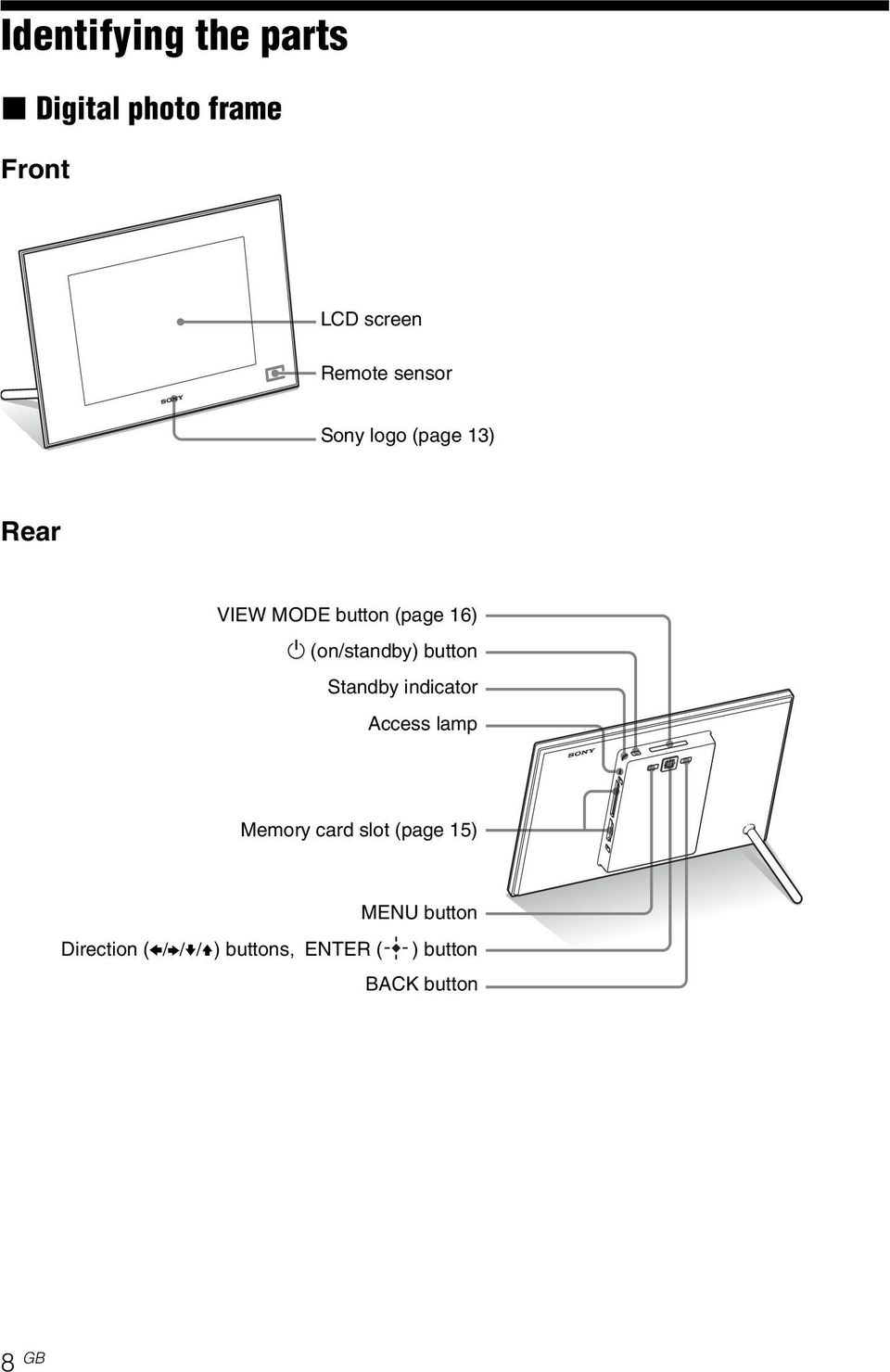
9 USB Mini-B connector (page 51) USB A connector (page 49) HDMI OUT connector (page 47) (DPF-XR100 only) Reset switch (page 58) x Remote control DC IN 9V jack Stand Holes for hanging unit on the wall Before operation SLIDE-SHOW ( ) button CLOCK ( ) button MENU button VIEW MODE buttons 1 (on/standby) button SINGLE button INDEX ( ) button Zoom in ( ) button Direction (B/b/v/V) buttons MARKING ( BACK button ) button ENTER ( Zoom out ( IMPORT ( ) button ) button ) button SORT button DELETE ( ) button SELECT DEVICE button ROTATE ( ) button About descriptions in this manual The operations described in this manual are based on remote control operation. When an operation is performed differently, for example, with the remote control and the buttons on the photo frame, it will be explained in a tip. 9 GB

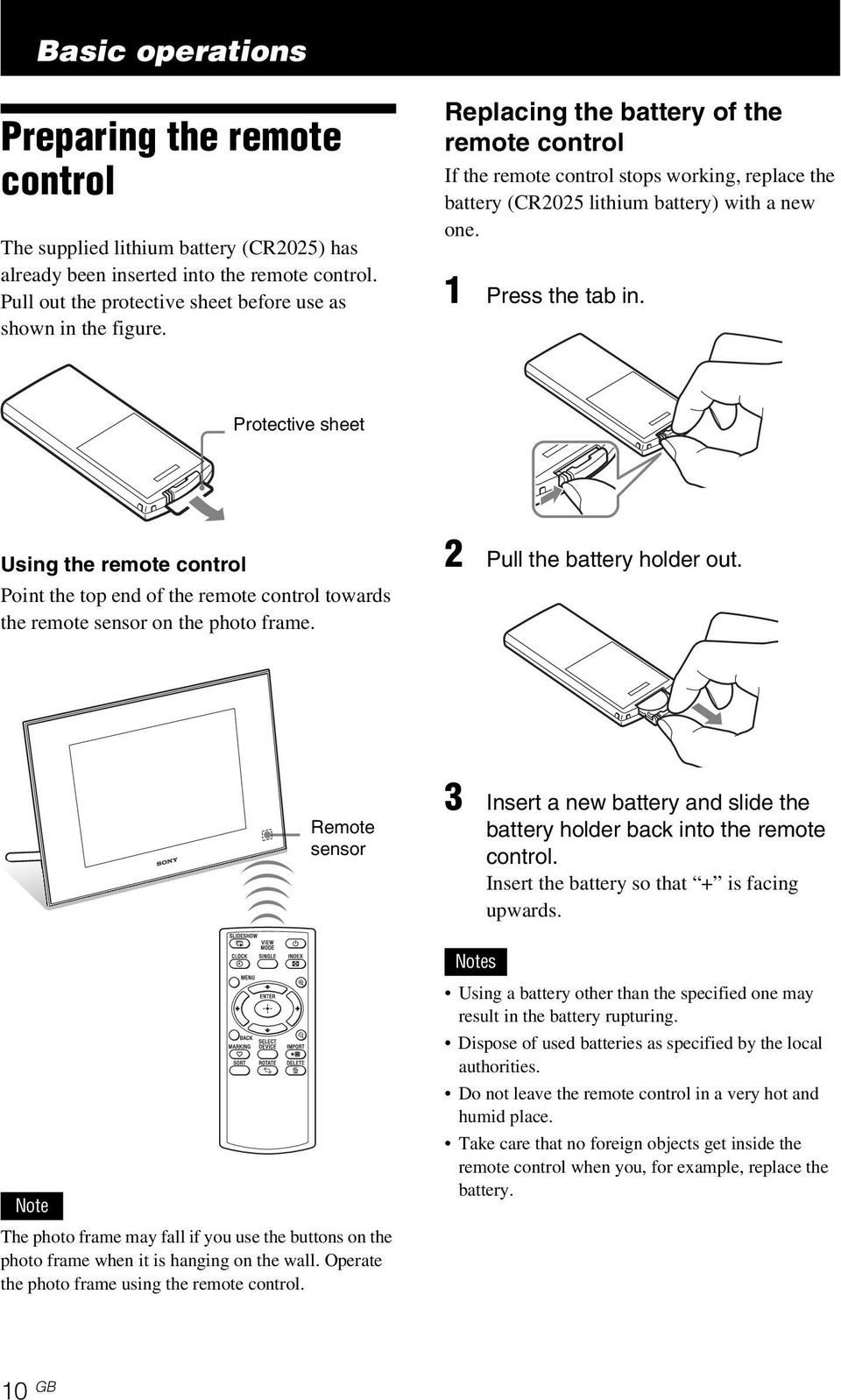
10 Basic operations Preparing the remote control The supplied lithium battery (CR2025) has already been inserted into the remote control. Pull out the protective sheet before use as shown in the figure. Replacing the battery of the remote control If the remote control stops working, replace the battery (CR2025 lithium battery) with a new one. 1 Press the tab in. Protective sheet Using the remote control Point the top end of the remote control towards the remote sensor on the photo frame. 2 Pull the battery holder out. Remote sensor 3 Insert a new battery and slide the battery holder back into the remote control. Insert the battery so that + is facing upwards. Notes Note The photo frame may fall if you use the buttons on the photo frame when it is hanging on the wall. Operate the photo frame using the remote control. Using a battery other than the specified one may result in the battery rupturing. Dispose of used batteries as specified by the local authorities. Do not leave the remote control in a very hot and humid place. Take care that no foreign objects get inside the remote control when you, for example, replace the battery. 10 GB
11 Incorrect use of the battery may cause leaking and corrosion. Do not recharge the battery. When the remote control will not be used for a long period of time, remove the battery from the remote control to prevent leaking and corrosion. Incorrectly inserting, shorting, dismantling, or heating the battery, or throwing it into a fire may cause the battery to rupture or leak. Basic operations 11 GB

12 Setting the stand 1 Hold the photo frame tightly and insert the stand straight into the screw hole on the rear panel. When the photo frame is placed vertically so that the operation buttons are located on the left, the display is also automatically rotated to the portrait orientation. The directions indicated on the direction button on the rear panel depend on the orientation of the photo frame. 2 Screw the stand into the screw hole firmly until the stand stops turning. Setting to portrait or landscape orientation You can set the photo frame to portrait or landscape orientation by rotating it without moving the stand. Notes Check whether the stand is stable. If the stand is not set properly, the photo frame may fall over. The Sony logo does not light up when the photo frame is placed vertically or turned off. You can also rotate the image manually (page 38). The photo frame does not detect and rotate the orientation of images when [Auto display orientation] of [General Settings] on the (Settings) tab is set to [OFF]. A video file is not rotated automatically even if you change the orientation of the photo frame. Tip It is easier to turn the stand if you wind or wrap a rubber band tightly around the stand when you remove the stand from the photo frame. 12 GB

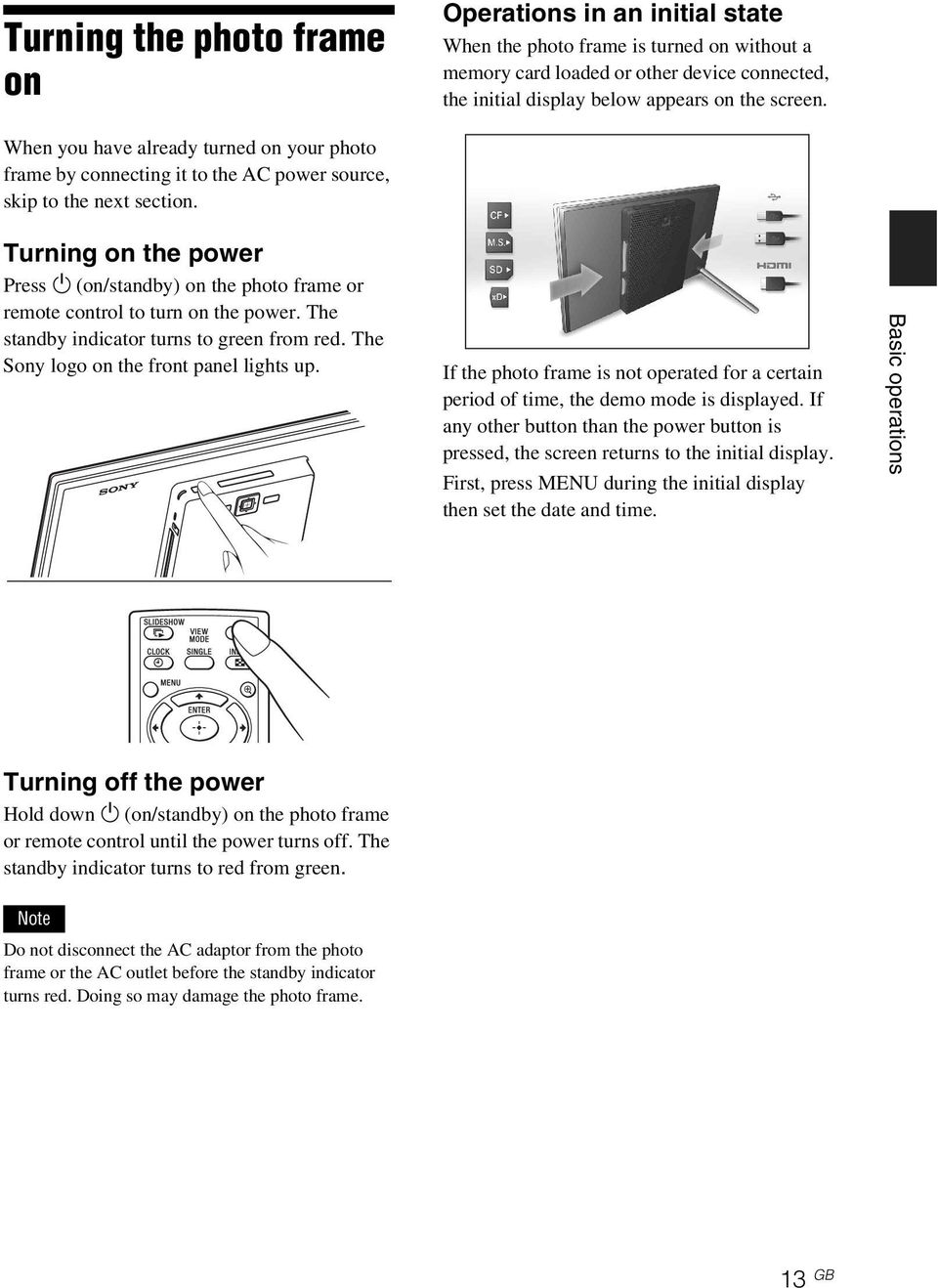
13 Turning the photo frame on Operations in an initial state When the photo frame is turned on without a memory card loaded or other device connected, the initial display below appears on the screen. When you have already turned on your photo frame by connecting it to the AC power source, skip to the next section. Turning on the power Press 1 (on/standby) on the photo frame or remote control to turn on the power. The standby indicator turns to green from red. The Sony logo on the front panel lights up. If the photo frame is not operated for a certain period of time, the demo mode is displayed. If any other button than the power button is pressed, the screen returns to the initial display. First, press MENU during the initial display then set the date and time. Basic operations Turning off the power Hold down 1 (on/standby) on the photo frame or remote control until the power turns off. The standby indicator turns to red from green. Note Do not disconnect the AC adaptor from the photo frame or the AC outlet before the standby indicator turns red. Doing so may damage the photo frame. 13 GB
14 Setting the current time 1 Press MENU. 2 Press B/b to select the (Settings) tab. 3 Press v/v to select [Date/time Settings] and press. 4 Set the World clock. 1Press v/v to select [World Clock Settings] and press. 2Press v/v to select [Local Time] and press. 3Press v/v to select the region where you are living and press. 4Press v/v to select [Local DST] and press. 5Press v/v to select [ON] or [OFF] and press. 6Press BACK. You can set up to three world clocks other than the clock for your region. Proceed steps 2 to 5 to set [Clock 1 Time], [Clock 2 Time], [Clock 3 Time], and their respective day light saving times. 5 Set the date. 1Press v/v to select [Date] and press. 2Press B/b to select month, day and year, press v/v to select a value, then press. 6 Set the time. 1Press v/v to select [Time] and press. 2Press B/b to select hour, minute, and second, press v/v to select a value, then press. 7 Select the format of the date. 1Press v/v to select [Date Display Order], and press. 2Press v/v to select a format and press. Y-M-D M-D-Y D-M-Y 8 Set the day to start the week for the calendar. You can set the day of the week that appears on the very left when the calendar is displayed. 1Press v/v to select [First day of the week] and press. 2Press v/v to select [Sunday] or [Monday] and press. 9 Select the time display. 1Press v/v to select [12hr/24hr display] and press. 2Press v/v to select [12 hours] or [24 hours] and press. 10 Press MENU. The menu screen is closed. 14 GB
![4Press v/v to select [Local DST] and press. 5Press v/v to select [ON] or [OFF] and press. 6Press BACK. You can set up to three world clocks other than the clock for your region.](/docs-images/43/12631170/images/page_14.jpg "Proceed steps 2 to 5 to set [Clock 1 Time], [Clock 2 Time], [Clock 3 Time], and their respective day light saving times. 5 Set the date. 1Press v/v to select [Date] and press.")
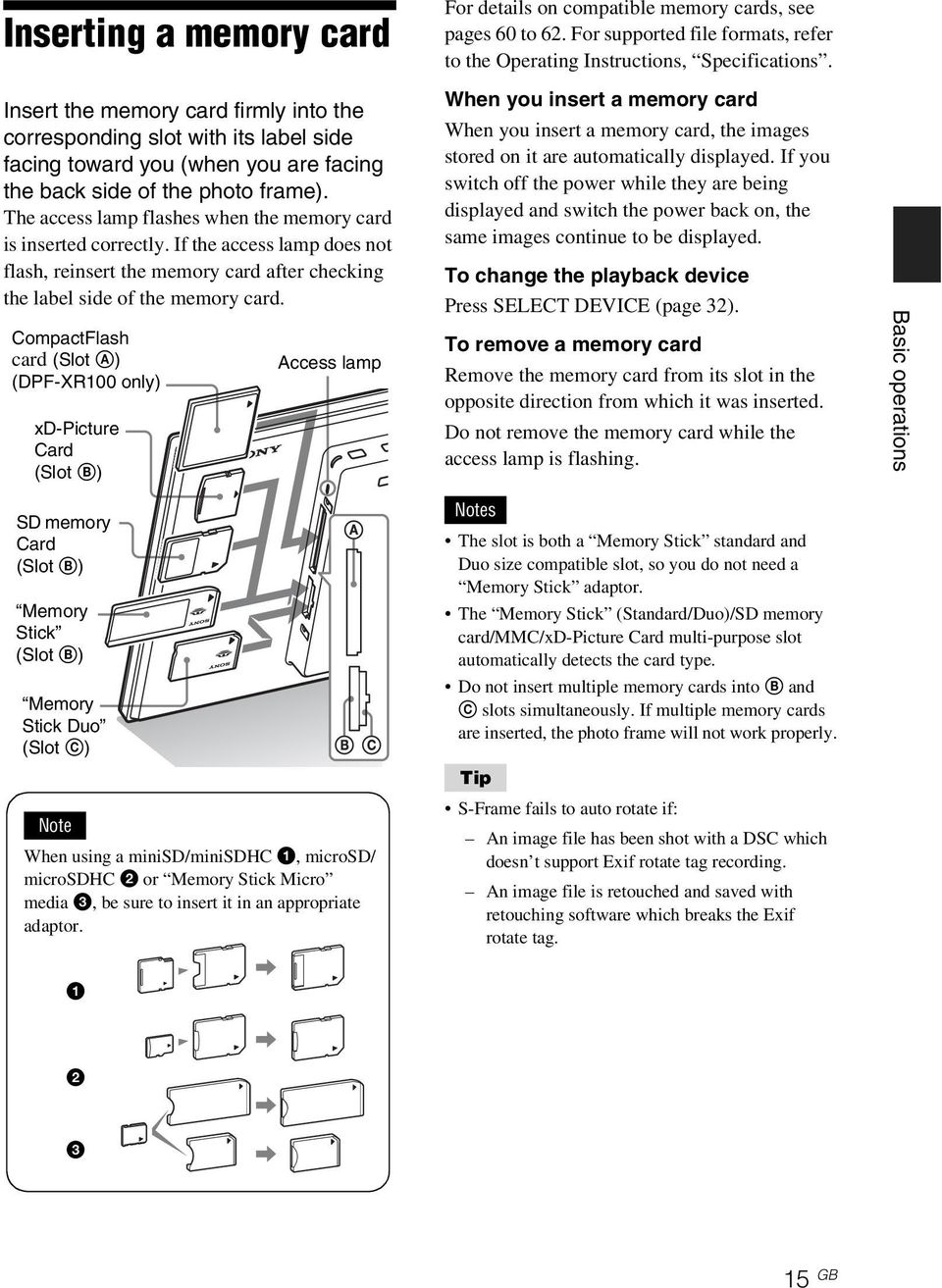
15 Inserting a memory card For details on compatible memory cards, see pages 60 to 62. For supported file formats, refer to the Operating Instructions, Specifications. Insert the memory card firmly into the corresponding slot with its label side facing toward you (when you are facing the back side of the photo frame). The access lamp flashes when the memory card is inserted correctly. If the access lamp does not flash, reinsert the memory card after checking the label side of the memory card. CompactFlash card (Slot A) (DPF-XR100 only) xd-picture Card (Slot B) Access lamp When you insert a memory card When you insert a memory card, the images stored on it are automatically displayed. If you switch off the power while they are being displayed and switch the power back on, the same images continue to be displayed. To change the playback device Press SELECT DEVICE (page 32). To remove a memory card Remove the memory card from its slot in the opposite direction from which it was inserted. Do not remove the memory card while the access lamp is flashing. Basic operations SD memory Card (Slot B) Memory Stick (Slot B) Memory Stick Duo (Slot C) Note When using a minisd/minisdhc 1, microsd/ microsdhc 2 or Memory Stick Micro media 3, be sure to insert it in an appropriate adaptor. Notes The slot is both a Memory Stick standard and Duo size compatible slot, so you do not need a Memory Stick adaptor. The Memory Stick (Standard/Duo)/SD memory card/mmc/xd-picture Card multi-purpose slot automatically detects the card type. Do not insert multiple memory cards into B and C slots simultaneously. If multiple memory cards are inserted, the photo frame will not work properly. Tip S-Frame fails to auto rotate if: An image file has been shot with a DSC which doesn t support Exif rotate tag recording. An image file is retouched and saved with retouching software which breaks the Exif rotate tag GB
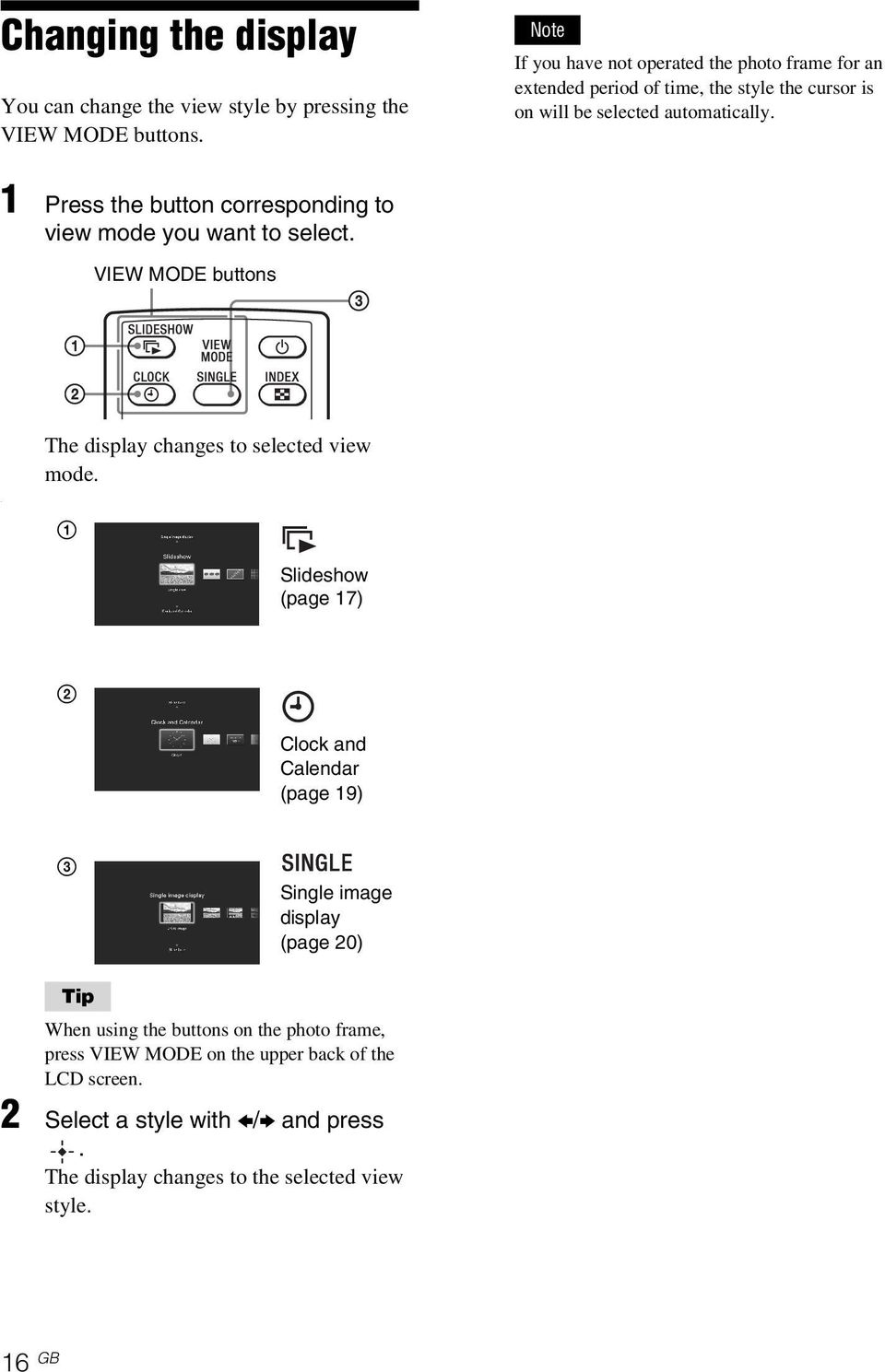
16 . Changing the display You can change the view style by pressing the VIEW MODE buttons. Note If you have not operated the photo frame for an extended period of time, the style the cursor is on will be selected automatically. 1 Press the button corresponding to view mode you want to select. VIEW MODE buttons The display changes to selected view mode. 1 Slideshow (page 17) 2 Clock and Calendar (page 19) 3 Single image display (page 20) Tip When using the buttons on the photo frame, press VIEW MODE on the upper back of the LCD screen. 2 Select a style with B/b and press. The display changes to the selected view style. 16 GB
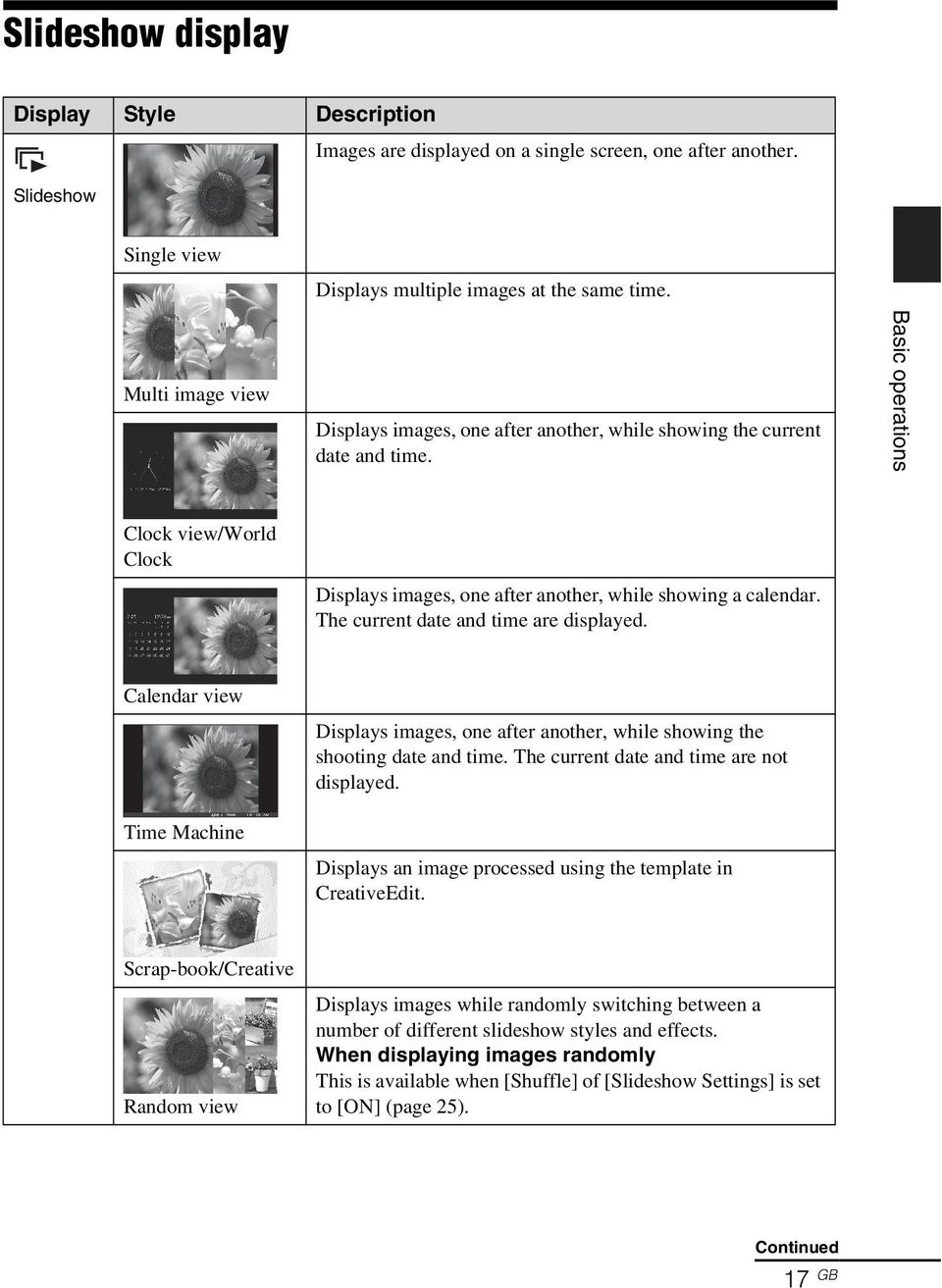
17 Slideshow display Display Style Description Slideshow Images are displayed on a single screen, one after another. Single view Displays multiple images at the same time. Multi image view Displays images, one after another, while showing the current date and time. Basic operations Clock view/world Clock Displays images, one after another, while showing a calendar. The current date and time are displayed. Calendar view Time Machine Displays images, one after another, while showing the shooting date and time. The current date and time are not displayed. Displays an image processed using the template in CreativeEdit. Scrap-book/Creative Random view Displays images while randomly switching between a number of different slideshow styles and effects. When displaying images randomly This is available when [Shuffle] of [Slideshow Settings] is set to [ON] (page 25). Continued 17 GB
18 Tips If no memory card is inserted, or no images are saved in internal memory, demonstration mode starts automatically. Demonstration mode ends if a memory card with images saved is inserted or a button other than 1 (on/standby) is pressed. For details on the playback order in a slideshow display, see page 45. You can set the interval, listing order, color effect, or display mode when you select the slideshow display. See Changing the settings of the slideshow (page 24). When you press while a slideshow is running, the currently displayed image is shown in single view mode. If you turn the photo frame off during slideshow and back on, the slideshow restarts from the last image viewed. A file of audio information data that contains no photo or video data cannot be displayed. 18 GB
19 Clock and Calendar display Clock1 Clock2 Clock3 Clock4 Clock5 Clock6 Clock7 Clock8 Clock9 Basic operations Calendar1 Calendar2 World Clock 1 World Clock 2 World Clock 3 Lunar Calendar (when you select [Simplified Chinese] in [Language Setting]) Arabic Calendar (when you select [Arabic] in [Language Setting]) Farsi Calendar (when you select [Persian] in [Language Setting]) Note You can select only the Settings or Slideshow tab when the Clock and Calendar display is shown. 19 GB
![Setting]) Arabic Calendar (when you select [Arabic] in [Language Setting]) Farsi Calendar (when you select [Persian] in](/docs-images/43/12631170/images/page_19.jpg "[Language Setting]) Note You can select only the Settings or Slideshow tab when the Clock and Calendar display is shown.")
20 Single view mode (single image display) Display Style Description Displays an entire image in the screen. You can switch the images to be displayed by pressing B/b. Entire image Fit to screen Entire image (with Exif) Fit to screen (with Exif) Displays an image over the whole screen. (Depending on the aspect ratio of the recorded image, the border of the image may only be partially displayed.) You can switch the images to be displayed by pressing B/b. Displays image information, such as the image number, file name, and shooting date while displaying the entire image. You can switch the images to be displayed by pressing B/b. See About the information displayed on the screen (page 21) for details on the image information. Displays image information, such as the image number, file name, and shooting date in fit to screen mode. (Depending on the aspect ratio of the recorded image, the border of the image may only be partially displayed.) You can switch the images to be displayed by pressing B/b. See About the information displayed on the screen (page 21) for details on the image information. Tips If no memory card is inserted or no images are saved in internal memory, demonstration mode starts automatically. Demonstration mode ends if a memory card with images saved is inserted or a button other than 1 (on/standby) is pressed. Panorama playback starts when you press while the panorama image is displayed in single view mode. You can change the image display mode by pressing VIEW MODE to select SINGLE then B/b to select either Entire image or Fit to screen mode. Not all images are able to use Fit to screen mode. You can use the VIEW MODE button on the photo frame. A file of audio information data that contains no photo or video data cannot be displayed. 20 GB

21 About the information displayed on the screen 3Image number (folder-file number) This is displayed if the image is DCF compliant. If the image does not comply with DCF, 10 characters from the beginning of the file are displayed. The following information is displayed. 1Setting information Icons Meaning Protect indication Associated file indication (Displayed when there is an associated file such as a video file or a miniature image file.) Displays when you have registered a mark. Video icon 4Image details x When the photo is displayed File format (JPEG(4:4:4), JPEG(4:2:2), JPEG(4:2:0), BMP, TIFF, RAW) Number of pixels (width height) Manufacturer name of image input device Model name of image input device Shutter speed (e.g.: 1/8) Aperture value (e.g.: F2.8) Exposure value (e.g.: +0.0EV) Rotation information x When the video file is played File format (AVI, MOV, MP4, MPEG-2 PS, MPEG-2 TS) Video file size Playback duration Number of pixels (width height) Vedeo codec/bit rate Audio codec/bit rate Basic operations Audio memo icon Panoramic image icon 2Shooting date/time Note This is not displayed for video files. 21 GB
22 Index image display 1 Press (INDEX) while the photo frame is in single image or slideshow display mode. A list of thumbnails is displayed. 2 Press B/b/v/V to move the cursor to an image you want to display and press. The selected image is displayed in single view mode. To change the size of thumbnails Press (zoom in) or (zoom out) while the list of index is displayed. The size of thumbnails is enlarged or reduced and the number of thumbnails is also changed. Note During TV output, the number of images displayed on the TV in the index image display varies depending on your TV s screen size. Tips A thumbnail is a small-sized image for index use that is recorded in a file of the pictures taken by a digital camera. If you press B/b/v/V to select an image and press in the index image display, the selected image is displayed in single view mode. A file of audio information data that contains no photo or video data cannot be displayed. Playing a video file The operations described in this section are based on those with the buttons on the supplied remote control. 1 Select a video file. 1Press SINGLE. 2Press B/b to select the desired style and press. 3Press B/b to advance/reverse the files to select a video file you want to play. Using the Index display 1Press (INDEX). 2Press B/b/v/V to select a video file you want to play. 2 Press. The selected video file starts playback. To adjust the volume The volume adjustment screen appears on the right of the screen if you press v/v. To increase the volume, press V. To decrease the volume, press v. Tip You can adjust the volume on the initial display or single image display. To pause playback Press during playback of the video file. To resume playback, press again. Fast forward/backward playback Press B/b during playback of the video file. The file is played forward or backward at high speed while you hold down the b or B button. When you release the button, normal playback starts from that point. 22 GB
23 Depending on the video file, fast forward/ backward playback may not be available with the photo frame. To stop playback Press BACK while a video file is being played. Notes You cannot play the following type of video file: Video files with copyright protection Video files that exceed the maximum number of pixels either in width or height If the photo frame is connected to a TV with an HDMI cable, audio, operating sound and alarm will be output from the TV, not from the photo frame. Adjust the volume on the TV. Fast forward/backward playback and playback pause are not available during Slideshow display. Video images divided into different files upon shooting cannot be played continuously one after another. Play each file separately. Basic operations 23 GB
24 Advanced operations Enjoying a slideshow 1 Press (SLIDE-SHOW). Tip When using the buttons on the photo frame, press VIEW MODE on the upper back of the LCD screen and press v/v to select Slideshow. Changing the settings of the slideshow 1 Press MENU. 2 Press B/b to select the [Slideshow Settings] tab. 2 Press B/b to select the desired style and press. 3 Press v/v to select the item you want to change and press. See the tables on the next page for details on the setting items. Notes See Slideshow display (page 17) for details on the slideshow styles. Note the following when you select a slideshow using the image stored on a memory card. Due to the characteristics of memory card devices, images may be subject to data error when read too often. Do not run a slideshow for a long time with a small number of images. This may cause data error. We recommend you back up images on a memory card often. When the photo frame is, for instance, displaying a slideshow, changes to the settings of some items are unavailable. These items are shown in gray and cannot be selected. The slideshow starts from the first image if you turn off the photo frame, or if you reset the photo frame. When the screen is too bright, it may make you feel nauseous. Be careful not to make the brightness settings too bright when you use the photo frame. 24 GB
25 Item Setting Description Slideshow Settings Photo Interval Video Interval *: Factory default settings Set a value from 3 sec., 7 sec.*, 20 sec., 1 min., 5 min., 30 min., 1 hour, 3 hours, 12 hours, 24 hours for the interval between images. Set the interval based on playback time from the beginning of the file. Set a value from among First 15 sec., First 30 sec., First 1 min., First 3 min. and First 5 min.* each from the beginning of the file, or playback from the beginning to the end of the file. Note An image may not switch at the intervals you set on the menu, depending on the style of the slideshow, color effect, or image size. Sound Settings See Playing a slideshow with background music Select BGM (page 27). Import BGM Delete BGM Shuffle ON Displays images randomly. OFF* Displays images according to the [Listing Order] setting of [General Settings]. Color effect Select the desired color effect for photos from among the following: Display Mode Note When a video file is played, you cannot select any item other than Color. Color* Displays an image in color. Sepia Displays an image in a sepia color. Monochrome Displays an image in monochrome. Correct Img. Makes the following image corrections at the same time. Exposure Correction: Corrects brightness by using the face-detection function. Focus Correction: Corrects an out-of-focus image. Select the desired display size for photos from among the following: Advanced operations Notes The original image data will not change. When a video file is played, you cannot select any item other than Entire image. Entire image* Displays an entire image enlarged to proper size. (An image may be displayed with margins on the top, bottom, left and right.) Fit to screen Enlarges an image to fill the whole screen without changing the aspect ratio. Note An image may not be displayed with the display size you set on the menu, depending on the style of the slideshow. Continued 25 GB
26 Item Setting Description Slideshow Settings Optimize Speaker Output ON* OFF Digital signal processing optimizes audio output. Audio output is not optimized. *: Factory default settings 26 GB
27 Playing a slideshow with background music Importing a music file 1 Insert a memory card that contains a music file into the photo frame. 2 Press MENU then B/b to select the [Slideshow Settings] tab. 3 Press v/v to select [Import BGM] and press. 4 Press v/v to select the memory card inserted in step 1. 5 Select a music file you want to import from the music file list with v/ V and press. A check mark ( ) is displayed next to the selected file. 6 Repeat step 5 when you want to select two or more files. Tip To clear the selection, select the file to be cleared then press. The check mark ( ) next to the selected file disappears. 7 Press MENU after you finish selecting the music file(s). 8 Press when the confirmation screen is displayed. The selected music file is imported to internal memory of the photo frame. Tips To delete a music file imported to internal memory, select [Delete BGM] on the [Slideshow Settings] screen in step 2 then press. Press v/v to select the music file you want to delete from the music file list and press. The file will be deleted from the music file list. Playback of the imported music file is enabled as BGM on a slideshow. Only music files imported to internal memory can be played as BGM. Up to 40 music files can be imported to internal memory of the photo frame. Selecting a music file to play 1 Press MENU then B/b to select the [Slideshow Settings] tab. 2 Press v/v to select [Select BGM] and press. 3 Select a music file you want to play from the imported music file list with v/v and press. A check mark ( ) is displayed next to the selected file. 4 Repeat step 3 if you want to select two or more music files. 5 Press MENU. Playing background music with a slideshow Proceed as follows when you play the music file imported to internal memory as BGM with a slideshow using photos or video files. 1 Press MENU then B/b to select the [Slideshow Settings] tab. 2 Press v/v to select [Sound Settings] and press. 3 Press v/v to select [Sound for Photos] or [Sound for Videos] then press. 4 Make the BGM setting. Sound for Photos [BGM ON]: Background music is played while a slideshow of photos is run. Advanced operations Continued 27 GB
28 [BGM OFF]: Background music is not played while a slideshow of photos is run. Sound for Videos [BGM]: Background music is played while a slideshow of a video file is run. [Video sound]: Audio recorded in a video file is played while a slideshow of a video file is run. [OFF]: No audio is played while a slideshow of a video file is run. Note Playback of a music file with copyright protection is not available. To adjust the volume The volume adjustment screen appears on the right of the screen if you press v/v. To increase the volume, press V. To decrease the volume, press v. Refresh mode Due to one of the characteristics of the device, images stored for a long time or read many times may be subject to data error. The photo frame refreshes the internal memory automatically to prevent these errors, depending on the status of the internal memory. The confirmation screen for refreshing the internal memory is displayed automatically when the refresh is needed. The refresh starts automatically when you select [Yes] or when no operation is attempted for 30 seconds. If you select [No], the confirmation screen for refreshing is displayed again when the refresh is needed. Tip You can adjust the volume on the initial display or single image display. Do not turn off the photo frame while the internal memory is being refreshed. It may cause a malfunction. It may take approximately 5 minutes to refresh the internal memory. Notes We recommend that you perform a backup of your data periodically to avoid losing it. Avoid running a slideshow continuously with fewer than 10 images with the interval set to 3 sec. Doing so could corrupt image data in internal memory. 28 GB
29 Maintenance mode You can update the firmware of your photo frame or initialize its system in this mode. firmware, access and view Initialize system: The operation screen is displayed. Go to Initializing the system below. Tip Perform firmware update or system initialization of the photo frame in the following cases: Firmware update: Firmware update allows you to obtain optimum performance and use the photo frame with upgraded functions. System initialization: When your photo frame does not start properly, initialize the system of the photo frame. If the symptom persists, consult with your Sony dealer. Activating maintenance mode 1 Confirm that the photo frame is turned off. 2 Press while holding down VIEW MODE on the photo frame to turn it on. Hold down VIEW MODE until the following screen appears. Initializing the system 1 Press B/b to select [Yes] in the System initialization screen and press. The system of the photo frame is initialized. Tip When system initialization has been executed, menu settings and mark information will be deleted, although the image and music data stored in internal memory of the photo frame will not be deleted. 2 When a completion message appears, press 1 (on/standby) on the photo frame to turn it off. Advanced operations Maintenance mode is activated. 3 Press v/v to select [Update firmware ] or [Initialize system] and press. Update firmware: For detailed information on how to obtain an update file or how to update the Continued 29 GB
30 3 Press the reset switch on the rear panel of the photo frame using a small, thin object, etc. 4 Press 1 (on/standby) on the photo frame to turn it on. The system of the photo frame starts. Tip It may take 1minute for the system to start for the first time after initialization. Importing images from a memory card to internal memory You can use the photo frame as a digital album by saving important images in the internal memory. Tips When saving images to the internal memory, you can use [Image import size] in the menu to preset whether to resize images to the optimum size or to save them without compressing (page 45). When [Image import size] is set to [Resize], up to approximately 4,000 images can be saved in the internal memory. When set to [Original], the number of images that can be saved may vary, depending on the original image file size. 1 Press (IMPORT) when an image stored on the memory card is displayed on the screen. Tip When using the buttons on the photo frame, press MENU, select the (Editing) tab with B/b, select [Import] with v/v, and press. Single view mode (Single image display) 30 GB
31 Slideshow display 3 Press B/b/v/V to select the image to be imported from the image list and press. A check mark ( ) is added to the selected image. If you want to import multiple images at a time, repeat this step. 2 Press v/v to select [Import this image], [Import multiple images] or [Import all images] and press. If you select [Import this image], the image currently displayed is imported to the internal memory. Go to step 5. (This item cannot be selected on the slideshow display.) If you select [Import multiple images], you can select the image you want to import from the image list. Go to step 3. If you select [Import all images], an image list with check marks in the check boxes for all the images is displayed. Go to step 4. If you want to clear the selection, select the image and press. A check mark ( ) disappears. About image sorting in the image list When sort is activated: Lists all images that meet the sorting criteria. When sort is not activated: Lists all images in the device that contains the image currently displayed. See Sorting images (page 37). 4 Press MENU. The folder selection screen is displayed. 5 Press v/v to select a destination folder and press. The confirmation screen for impoting the image to the internal memory is displayed. Advanced operations Continued 31 GB
32 Tip A new folder is created automatically when you select [New folder]. 6 Press v/v to select [Yes] and press. The image is saved in the specified folder in the internal memory. 7 Press when the confirmation screen is displayed. Notes Import to the internal memory is not available for images in the internal memory. Avoid doing the following while images are being imported to the internal memory. Doing so may damage photo frame, memory card, or the data: Turning off the power Removing an memory card Inserting another card Importing video files to internal memory is not available with the buttons on the photo frame. To import a video file, connect a computer to the photo frame and copy a video file on the computer to internal memory of the photo frame. For details, see Connecting to a computer (page 51). Tip You can change the thumbnail size in the image list using [ / ]. Due to one of the characteristics of the internal memory device, images stored for long time or read many times may be subject to data error. We recommend that you perform a backup of your data periodically to avoid losing it. Specifying the playback device You can specify whether to display images on a memory card or in internal memory. 1 Press SELECT DEVICE. Tips When operating from the photo frame, press MENU then B/b to select the (Select device) tab. If the memory card you want to select is not inserted, insert it now. Note During Clock and Calendar display, you cannot select the (Select device) tab. 2 Press v/v to select the device you want to display and press. The images of the selected device are displayed. Tip The sorting function is cancelled automatically when you change the playback device during sorting. 32 GB
33 Exporting an image from the internal memory to a memory card You can export the images in the internal memory to a memory card. 1 Press MENU when an image stored in the internal memory is displayed on the screen. 2 Press B/b to select the (Editing) tab. 3 Press v/v to select [Export] and press. Single view mode (Single image display) 5 Press B/b/v/V to select the image to be exported from the image list, and press. A check mark ( ) is added to the selected image. If you want to export multiple images at a time, repeat this step. If you want to clear the selection, select the image and press. A check mark ( ) disappears. About image sorting in the image list When sort is activated: Lists all images that meet the sorting criteria. When sort is not activated: Lists all images in the internal memory. See Sorting images (page 37). 6 Press MENU. The screen for selecting the memory card to which the image is exported is displayed. 7 Press v/v to select a memory card to which the image is exported, and press. Advanced operations 4 Press v/v to select [Export this image], [Export multiple images] or [Export all images] and press. If you select [Export this image], the image currently displayed is exported to the device. Go to step 7. (This item cannot be selected on the slideshow display.) If you select [Export multiple images], you can select the image you want to export from the image list. Go to step 5. If you select [Export all images], an image list with check marks in the check boxes for all the images is displayed. Go to step 6. Continued 33 GB
34 8 Press v/v to select a destination folder and press. The confirmation screen for exporting the image is displayed. Tip A new folder is created automatically when you select [New folder]. 9 Press v/v to select [Yes] and press. The image is exported. 10 Press when the confirmation screen is displayed. The image is copied to the specified memory card. Note Avoid doing the following while an image is being exported. Doing so may damage the photo frame, memory card, or data: Turning off the power Removing an memory card Inserting another memory card Tips You can also use the MENU button on the photo frame for exporting. You can change the thumbnail size in the image list using [ / ]. Any device that is not recognized by the photo frame is shown in gray and you cannot select it. Export from the internal memory is also available for video files. Deleting an image 1 Press (DELETE) when an image is displayed on the screen. Tip If using the buttons on the photo frame, press MENU, select the (Editing) tab with B/b, select [Delete] with v/v, and press. 2 Press v/v to select [Delete this image], [Delete multiple images] or [Delete all images] and press. If you select [Delete this image], the image currently displayed is deleted. Go to step 5. (This item cannot be selected on the slideshow display.) If you select [Delete multiple images], you can select the image you want to delete from the image list. Go to step 3. If you select [Delete all images], an image list with check marks in the check boxes for all the images is displayed. Go to step 4. 3 Press B/b/v/V to select the image to be deleted from the image list, and press. A check mark ( ) is added to the selected image. If you want to delete multiple images at a time, repeat this step. If you want to clear the selection, select the image and press. A check mark ( ) on the image disappears. About image sorting in the image list When sort is activated: Lists all images that meet the sorting criteria. When sort is not activated: Lists all images in the device that contains the image currently displayed. See Sorting images (page 37). 34 GB
35 4 Press MENU. The delete confirmation screen is displayed. 5 Press v/v to select [Yes] and press. The image is deleted. 6 Press when the confirmation screen is displayed. Registering a mark You can produce a slideshow only with images which have been selected beforehand and have been marked. You can easily check the images with marks using the index image display or single view mode. Notes Avoid doing the following while an image is being deleted. Doing so may damage the photo frame, memory card, or data: Turning off the power Removing an memory card Inserting another memory card When the message [Cannot delete a protected file.] appears on the screen, the image file was set to Read Only on a computer. In this case, connect the photo frame to a computer, and delete this file using the computer. The total capacity of the internal memory is not equal to the remaining capacity even immediately after initialization. Once deletion has started, the deleted image cannot be recovered even if you stop deletion. Delete images only after confirming you actually want to delete them. 1 Press (MARKING) when an image is displayed on the screen. Tip When using the buttons on the photo frame, press MENU, select the (Editing) tab with B/b, select [Marking] with v/v, and press. 2 Press v/v to select the desired mark and press. Advanced operations Tip You can change the thumbnail size in the image list using [ / ]. To format the internal memory 1 Press MENU. 2 Press B/b to select the (Settings) tab. 3 Press v/v to select [Initialize] and press. 4 Press v/v to select [Format internal memory] and press. The confirmation screen for initializing the internal memory is displayed. 5 Press v/v to select [Yes] and press. 3 Press v/v to select [Mark this image], [Mark/Unmark multiple images] or [Mark all images] and press. If you select [Mark this image], the image currently displayed will be marked. Go to step 6. (This item cannot be selected on the slideshow display.) If you select [Mark/Unmark multiple images], you can select the image to which you want to attach a mark from the image list. Go to step 4. If you select [Mark all images], an image list with check marks in the check boxes for all the images is displayed. Go to step 5. Continued 35 GB
36 4 Press B/b/v/V to select the image to be marked from the image list, and press. A check mark ( ) is added to the selected image. If you want to mark multiple images at a time, repeat this step. If you want to clear the selection, select the image and press. A check mark ( ) disappears from the image. About image sorting in the image list When sorting is activated: Lists all images that meet the sorting criteria. When sorting is not activated: Lists all images in the device that contains the image currently displayed. See Sorting images (page 37). 5 Press MENU. The confirmation screen appears. 6 Press v/v to select [Yes] and press. The mark is attached to the selected image. Note A mark is saved only when it is registered with an image in the internal memory. A mark registered with an image on a memory card is removed when the power is turned off, or if you change the device being displayed. Tips You can select a mark from among three types. You can change the thumbnail size using [ / ] in the image list. To delete the registration of a mark Select [Unmark this image] or [Unmark all images] and press in step 3. You can also cancel the selection when you remove the check mark from the check box. [Unmark this image]: Removes a mark from the image currently displayed. (This item cannot be selected on the slideshow display.) [Unmark all images]: When sort is activated: Unmarks all images that meet the sorting criteria. When sort is not activated: Unmarks all images in the device that contains the image currently displayed. 36 GB
37 Sorting images You can sort images stored in the internal memory or on a memory card by event, folder, image orientation, marks, etc. 1 Press SORT when an image is displayed on the screen. Tip When using the buttons on the photo frame, press MENU, select the (Editing) tab with B/b, select [Sort] with v/v, and press. 2 Select a sort style using v/v and press. To cancel the sort Press MENU while the sorted images are displayed, select [Exit sort (show all photos)] and press. To change the sort style Press BACK while the sorted images are displayed then select [Reselect]. Notes Do not turn the photo frame off or remove the memory card during sorting. Doing so may damage the photo frame or the memory card or corrupt the data. Sort is automatically canceled in the following cases: When the playback device is changed When images on a memory card are sorted and the memory card is removed. Video files are not selected when you sort images using [Sort by event] as the shooting dates can not be obtained for video files. They will be sorted by [No shooting date]. Advanced operations [Sort by event]: Filters by type of event. [Sort by folder]: Filters by folder. [Sort by vertical/horizontal]: Filters by image orientation. [Sort by mark]: Filters by mark registered. [Sort by videos/photos] Filters according to files that contain videos or photos. 3 Press v/v to select the item and press. 4 Repeat step 3 then press MENU when sorting is finished. 37 GB
38 Adjusting image size and orientation Enlarging/reducing an image You can enlarge or reduce an image in single view mode. To enlarge an image, press (zoom in) on the remote control. To reduce an enlarged image, press (zoom out). Each press of the button enlarges the image further. You can enlarge an image to a maximum of 5 times the original scale. You can move an enlarged image up, down, left, and right. To save an enlarged or reduced image 1Press MENU while the enlarged or reduced image is displayed. 2Press v/v to select the saving method. If you select [Save as new image], a copy of the image is saved. Go to step 3. If you select [Overwrite], the new image overwrites the old image. Go to step 5. 3Press v/v to select the device on which the image is saved and press. 4Press v/v to select a destination folder and press. 5Press v/v to select [Yes] and press. The image is saved. 6When the confirmation screen appears, press. Tip If you move the enlarged image with B/b/v/V and press MENU in step 1, the image is trimmed into the displayed image size and saved. Notes You cannot overwrite files except for a JPEG file (extension:.jpg or.jpeg). Enlarging an image may reduce the quality depending on the image size. It is not possible to enlarge an image using the buttons on the photo frame. A video file cannot be enlarged or reduced. Rotating an image You can rotate an image during single view mode. Operate from the menu of the photo frame 1 Press MENU in single view mode. 2 Press B/b to select the (Editing) tab. 3 Press v/v to select [Rotate] and press. 4 Press v/v to select the direction to rotate and press. : Rotates an image 90 degrees clockwise. : Rotates an image 90 degrees counterclockwise. Note An enlarged image cannot be rotated. Tips You can also rotate an image with (ROTATE) on the remote control. The image rotates 90 degrees counterclockwise every time you press the button. For an internal memory image, image rotation data will be retained even after the power is turned off. 38 GB
39 You can rotate the image of the index image display. You cannot rotate a video file. Changing the settings of the auto power on/off function You can use the timer function to turn the photo frame on or off automatically when the photo frame is turned on. 1 Press MENU. 2 Press B/b to select the (Settings) tab. 3 Press v/v to select [Auto Power ON/ OFF] and press. Advanced operations 4 Press v/v to select [Setup method] and press. Press v/v to select [Simple], [Advanced] or [Auto off], and press. [Simple]: Sets the auto power on/off function finely in one minute increments. [Advanced]: Sets the auto power on/off function in one-hour increments for each day of the week. [Auto off]: Sets the auto power off when a certain time has elapsed after the photo frame is turned on during which any operation is performed. You can select elapsed time of two or four hours. Continued 39 GB
40 5 Press v to select [Time Setting], and press. [Simple] [Advanced] 1Select an item for which you want to set the time. Press v/v to select [Power-ON timer] or [Power-OFF timer] and press. Press v/v to select [Enable] and press. 2Set the time at which you want to activate the Power-ON timer or Power- OFF timer. Press v/v to select [Auto ON time] or [Auto OFF time] and press. Press B/b to select the hour or minute, press v/v to set the hour or minute, and press. 3Set the day of the week on which you want to activate the timer. Press v/v to select [Auto ON day] or [Auto OFF day] and press. Press v/v to select the day of the week on which you want to activate the timer and press. The selected day of the week is checked. Press v/v to move the cursor to [OK] and press. 1Press B/b/v/V to select the time you want to use the auto power on/off function. You can select the time in one-hour increments for each day of the week (from Monday to Sunday). When you select the time and press, the selected time zone changes to blue. During the time indicated in blue the power of the photo frame will be on. When you select the blue time zone and press, the selected time zone changes to gray. During the time indicated in gray the power of the photo frame will be off. Tip The power is turned off automatically at the time you set for [Power-OFF timer] when you are using the photo frame. The power is turned on automatically at the time you set for [Power-ON timer] during standby mode. 2Press B/b/v/V to select [OK] and press. [Auto off] 40 GB
41 Press v/v to select [2 hour] or [4 hour] and press. 6 Press MENU. Using the alarm function You can use the photo frame as an alarm clock. An alarm will sound and an alarm screen will be displayed to notify you when the specified alarm time on the specified day of the week arrives. 1 Set the alarm timer. 1Press v/v to select [ON/OFF] and press. 2Press v/v to select [ON] and press. 2 Set the alarm time. 1Press v/v to select [Time] and press. 2Press v/v to select the time and press. 3 Set the day of the week. 1Press v/v to select [Day] and press. 2Press v/v to select the day of the week and press [OK]. Advanced operations Tip Every day of the week is marked with a check mark at the factory. Remove the check marks for any days of the week for which you do not wish the alarm set. 4 Set the alarm sound. 1Press v/v to select [Alarm sound] and press. A list of the music files imported to internal memory for a slideshow (page 27) is displayed. 2Press v/v to select a desired music file from the list and press. 5 Set the alarm volume. 1Press v/v to select [Alarm volume] and press. 2Press v/v to select the volume (1 to 7) and press. Continued 41 GB
42 To turn off the alarm Press any button on the photo frame other than 1 (on/standby) button. Tips To change the clock setting, see Setting the current time (page 14). Power-OFF timer does not function while the alarm is sounding. Note An alarm sound is output from a TV when the photo frame is connected to the TV with an HDMI cable. Changing the settings You can change the following settings. Picture mode Alarm Settings Auto Power ON/OFF Date/time Settings General Settings (Listing Order, Sony logo ON/OFF, etc.) Language Setting Initialize Setting procedure 1 Press MENU. 2 Press B/b to select the (Settings) tab. 3 Press v/v to select the item you want to change and press. The setting screen of the selected item is displayed. For example, when [General Settings] is selected. 42 GB
43 4 Press v/v to select the item you want to change and press. This enables you to set each of the items (page 44). Note When the photo frame is, for instance, displaying a slideshow, some settings of some items cannot be changed. They are displayed in gray and cannot be selected. 5 Press v/v to select a setting value and press. Each time you press v/v, the setting value changes. In the case of a numerical value, press V to increase the value and press v to decrease it. If you press, the setting is confirmed. 6 Press MENU. The menu closes. To reset to factory default settings 1 Press MENU then select the (Settings) tab by pressing B/b. 2 Press v/v to select [Initialize] and press. 3 Press v/v to select [Initialize settings] and press. All adjusted values, except for the clock settings, are reset to the default settings. Advanced operations Tip You can also use the MENU button on the photo frame. Continued 43 GB
44 Items to set Item Setting Description *: Factory default settings Picture mode Portrait Displays an image with optimum contrast and natural color. Standard* Displays an image impressively and with enhanced color. Vivid Displays an image more vividly using high chroma saturation and sharpness. Alarm Settings Sets the alarm function (page 41). Auto Power ON/OFF Date/time Settings Sets the timer function which turns the power of the photo frame on or off automatically. You can use this function with the following settings (page 39). Simple You can set the auto power on/off time in one-minute increments (page 39). Advanced* Auto off OFF Power-ON timer Power-OFF timer You can set the timer (time/day of the week) for when the power is to be turned on automatically. You can set the timer (time/day of the week) for when the power is to be turned off automatically. You can set the auto power on/off time in one-hour increments for each day of the week. OK If you press this button after setting the auto power on/ off time or day of the week, the setting is confirmed and the previous screen is restored. Cancel If you press this button after setting the auto power on/ off time or day of the week, the operation is canceled and the previous screen is restored. Reset all If you press this button after setting the auto power on/ off time or day of the week, all the setting times are deleted. You can specify two or four* hours after power on at which the photo frame is to shut itself off if any button on the photo frame is pressed. The Auto Power ON/OFF function is not activated. Sets the Date, Time, First day of the week, etc. (page 14). 44 GB
45 Item Setting Description General Settings Listing Order *: Factory default settings Sets the display order of images. This setting affects the order in [Slideshow Settings]. Shoot. Date Displays images in order of shooting date. System Information Language Setting Auto display orientation LCD backlight Beep Image import size Control for HDMI (DPF-XR100 only) Sony logo ON/ OFF Version Internal memory Number Order* Note Shoot. Date is not displayed for video files. Displays images in order of file number. ON*/OFF: You can rotate the display orientation for images automatically according to the orientation of the photo frame. Sets the brightness of the backlight of the LCD screen to a level from 1 to 10*. ON*/OFF: Sets the beep sound on/off. Resize* Original Resizes the images and save image files to the internal memory when importing them from a memory card. You can save more images. However, when the images are displayed on a large monitor via a computer, etc., they will have lower resolution than the originals. Saves images to the internal memory without compressing them. There is no deterioration, but you can save fewer images. ON*/OFF: Sets whether to enable or disable the HDMI control function. When set to ON, the TV connected via the HDMI connector on the photo frame automatically switches to video input mode, displaying the images stored in the photo frame. The photo frame can be operated with the remote control of the TV. ON*/OFF: You can set whether the photo frame s Sony logo lights or not. Displays the version of the firmware of the photo frame. Memory capacity Remaining capacity Indicates the maximum amount of space available in internal memory in the initial state. Indicates the amount of free space currently available in internal memory. Sets the display language on the LCD screen. Japanese, English*, French, Spanish, German, Italian, Russian, Korean, Simplified Chinese, Traditional Chinese, Dutch, Portuguese, Arabic, Persian, Hungarian, Polish, Czech, Thai, Greek, Turkish, Malay, Swedish, Norwegian, Danish, Finnish Advanced operations Note Default language setting may vary in some regions. Continued 45 GB
46 Item Setting Description Initialize Format internal memory Initialize settings You can format the internal memory. *: Factory default settings Notes All the images added to the internal memory will be deleted. Do not format the internal memory by using other devices such as a computer. Returns all settings to their factory defaults except for the current date and time setting of [Date/time Settings]. 46 GB
47 Connecting to a highdefinition TV (DPF- XR100 only) 3 Connect the HDMI OUT connector (A type connector) of the photo frame and the HDMI IN connector of the TV. Connecting to a highdefinition TV The photo frame is capable of HDMI output. If you connect the photo frame to a TV with an HDMI input, you can display images in higher definition on the TV. About PhotoTV HD The photo frame supports PhotoTV HD. PhotoTV HD is a function for expressing subtle textures and color tones in high definition, giving the appearance of real photos. You can combine Sony devices that support PhotoTV HD together to enjoy photos at beautiful full HD quality. Note Depending on the original images, high-definition display may not be possible. 1 Connect the AC power adaptor to the photo frame and connect the AC power adaptor to an AC outlet (supplied Operating instructions, Turning the photo frame on ). 2 Prepare a commercially available HDMI cable. High-definition TV To HDMI IN connector 4 Turn on the photo frame (page 13). 5 Change the input of the TV. If the connected TV is compatible with control for HDMI and is in standby mode, the TV turns on automatically when you turn on the photo frame. Also, the input of the TV is changed automatically, and images and audio are output. Advanced operations Notes Use an HDMI cable that is less than 3 meters long. Use an HDMI cable with the HDMI logo. Connection to a TV input except for an HDMI input using a conversion/adaptor cable or connector is not guaranteed. Continued 47 GB
48 Notes Operation is not guaranteed with all TVs. If you connect a TV, the LCD screen of the photo frame turns off. If the photo frame is connected to a TV with an HDMI cable, audio, operating sound and alarm will be output from the TV, not from the photo frame. Adjust the volume on the TV. If [Control for HDMI] is set to off in the TV settings, the input is not changed automatically. The setting method differs depending on the TV. Refer to the operating instructions supplied with the TV. If you are using a TV that does not support control for HDMI or the input is not switched automatically, change the TV s input manually. The method used for changing the input differs depending on the TV. Refer to the operating instructions supplied with the TV. Do not connect or disconnect the HDMI cable while images are added to the internal memory or they are being exported or deleted. In such a case, these operations are cancelled. Using the remote control of a TV to operate the photo frame If your TV supports the control for HDMI function, you can use the remote control of your TV to operate the photo frame. Notes We cannot guarantee operation with all types of TVs. When the remote control of your Sony TV is equipped with a link menu button, you can use the remote control to operate the photo frame. To operate the photo frame, the %5$4, [Enter], [Return] buttons support the control for HDMI. If the control for HDMI setting of your TV is off, TV s remote control operation for the photo frame is not available. Settings differ depending on the TV you use. For details, refer to the operating instructions supplied with your TV. If [Control for HDMI] is set to [OFF] on the photo frame, TV s remote control operation is not available. Basic operations of the photo frame with a TV s remote control The cursor is moved by pressing %5$4 when the cursor is displayed on the screen, for example, when a list or menu is displayed. When no cursor is displayed, for example, in single view, press $. The operation panel of the photo frame is displayed on the TV screen. Press %5$4 on the TV s remote control to select the desired button then press [Enter]. To hide the operation panel, select on the upper right corner of the operation panel, or press the BACK button on the photo frame or on the remote control. 48 GB
49 Note With the TV s remote control, you cannot perform the following operations: Zooming in/zooming out Crop and save Import/Export/Sort/Marking/Delete Select BGM/Import BGM/Delete BGM On control for HDMI When the [Control for HDMI] is set to [ON], you can use the following operations: You can turn off the photo frame together with the TV. You can switch TV s input mode to the photo frame automatically by connecting the photo frame to a TV before the photo frame is turned on or after it is turned on. If the TV is in standby mode, the TV is also turned on. You can operate the photo frame using the TV s remote control. If you change the display language on the TV while the TV and the photo frame are connected, the display language on the photo frame is automatically changed, as well. Note To enable the above functions, your TV must support the relevant function. What is BRAVIA Sync The BRAVIA Sync is a name of a feature of Sony products that uses the HDMI control signals and enables you to control linked operations of a BRAVIA Sync -ready product from a BRAVIA control unit. By connecting the photo frame and a BRAVIA Sync -compatible TV with an HDMI cable, you can use a BRAVIA control unit to perform linked operations. Operating an external device connected to the photo frame You can connect a mass-storage-compatible digital camera, USB memory device, photo storage device, or other external device to the photo frame and display an image directly from the external device. Notes We cannot guarantee connection with all types of external devices. The playback device will be switched to the external device if you connect the external device to the USB A connector during playback of the image in the internal memory. 1 Connect the AC power adaptor to the photo frame and connect the AC power adaptor to an AC outlet. (supplied Operating instructions, Turning the photo frame on ). 2 Set the digital camera or external device to mass storage connection mode. The setting and operation method required before connecting differ depending on the digital camera or external device. Refer to the operating instructions supplied with the digital camera or external device. (If you are using a Cyber-shot, set USB Connect to [Normal] or [Mass Storage].) 3 Turn on the photo frame (page 13). 4 Connect the digital camera or external device to the USB A connector on the photo frame. Use the USB cable supplied with the digital camera or external device to connect to the photo frame. Advanced operations Continued 49 GB
50 External memory or other external device 5 Select the playback device (page 32). An image in the device is displayed on the screen. For details on the slideshow, see page 22. For details on adding images to the internal memory, see page 30. Notes When using a commercially available USB cable, use an A-Type USB cable that is less than 3 meters long. Do not disconnect the USB cable or turn the photo frame and external device off while the access lamp on the external device is flashing. Doing so may damage the data stored in the external device. Sony assumes no responsibility for any damage or loss of data. A USB hub or USB device with a built-in USB hub may not work properly. The photo frame cannot use data that has been encrypted or compressed using, for instance, fingerprint authentication or a password. Use a USB cable with the USB logo. 50 GB
51 Using with a computer Connecting to a computer Connecting to a computer to exchange images Connecting to a computer allows you to view images in the internal memory of the photo frame with a computer and copy them to a computer and to copy images from a computer to the photo frame. System requirements To connect a computer to the photo frame, your computer must satisfy the following recommended system requirements. x Windows Recommended OS: Microsoft Windows 7 / Windows Vista SP2 / Windows XP SP3 Port: USB port x Macintosh Recommended OS: Mac OS X (v10.4 or later) Port: USB port Notes If multiple USB devices are connected to a computer or if a hub is used, a problem may occur. You cannot operate the photo frame from another USB device being used simultaneously. Do not disconnect/connect the USB cable during data communication. Operation with all computers that satisfy the recommended system requirements is not guaranteed. The photo frame has been demonstrated as operable when connected to a computer or Sony digital photo printer. When other devices are connected to the photo frame, these devices may not recognize the internal memory of the photo frame. Do not format the internal memory of the photo frame on a computer. To format the internal memory, disconnect the USB cable from the photo frame, display the menu of the photo frame, and select [Format internal memory] (page 35). Note This section shows an example for a connection for Microsoft Windows Vista. Depending on the OS you use, the screen display and procedures may vary. 1 Connect the AC power adaptor to the photo frame and connect the AC power adaptor to an AC outlet. (supplied Operating Instructions, Turning the photo frame on ). 2 Connect the computer and photo frame with a commercially available USB cable. Computer To USB Mini-B connector To USB connector Note Use a Mini-B-Type USB cable that is less than 3 meters long. 3 Turn the photo frame on (page 13). Using with a computer Continued 51 GB
52 4 When the [AutoPlay] window appears on the computer display, click [Open folder to view files]. If the [AutoPlay] window does not appear, click [Computer (My Computer)] in the Start menu, then open the removable disc. 5 Move the cursor in this window and right-click, then click [New] - [Folder]. Name this new folder. In this manual, the folder name sony is used as an example. Image files made or edited on a computer may not be displayed. Image files set to Read Only on a computer cannot be deleted on the photo frame. Cancel Read Only before saving image files from a computer on the photo frame. Disconnecting your computer Disconnect the USB cable or turn the photo frame off after disconnecting it from your computer. 1 Double-click (disconnection) on the Task Tray. 2 Click (USB Mass Storage Device) t [Stop]. 3 Click [OK] after checking the drive you want to remove. 6 Double click to open this sony folder. 7 Open the folder that contains the image file you want to copy, and copy the image file to the sony folder by using drag-and-drop. Notes When saving images from a computer in the internal memory, make a folder in the internal memory on a computer and save the images in this folder. If you do not make a folder, you can only save up to 512 images. In addition, the number of images may be reduced depending on the file name length or character type. If you edit or save an image file on a computer, the shooting date of the file may be changed or erased. In this case, images may not be displayed in order of the shooting date on the index image display. When images from the computer are saved in the internal memory of the photo frame, the image files are saved without being compressed. As a result, a fewer number of images may be saved in the internal memory of the photo frame. 52 GB
53 Error messages If an error message appears If an error occurs, one of the following error messages may be displayed on the LCD screen of the photo frame. Follow the corresponding solution below to solve the problem. Error message No Memory Stick. / No CompactFlash card. / No SD Memory Card. / No xd-picture Card. / No External Device. An incompatible Memory Stick is inserted. / An incompatible CompactFlash card is inserted. / An incompatible SD Memory Card is inserted. / An incompatible xd- Picture Card is inserted. / An incompatible External Device is inserted. No images on file. Cannot delete a protected file. Memory card is protected. Remove protection then try again. The Memory Stick is full. / The CompactFlash card is full. / The SD Memory Card is full. / The xd- Picture Card is full. / The External Device is full. Meaning/Solutions A memory card is not inserted in a slot. Or, an external device is not connected to the USB A connector. Insert a memory card in the corresponding slot. Or, connect an external device. (pages 15, 49) An unsupported memory card is inserted. Or, an unsupported external device is connected to the USB A connector. Use a memory card or external device that is supported by the photo frame. There is no image file that can be displayed on the screen of the photo frame on the memory card or the external device. Use a memory card or external device containing image files that can be displayed with the photo frame. To delete a protected file, cancel the protection on your digital camera or computer. The memory card is write-protected. Slide the writeprotect switch to the enabled position (page 60). No more data can be saved because the memory card, the internal memory, or the external device is full. Delete images, or use a memory card or external device with free space available. Error messages Continued 53 GB
54 Error message Error reading the Memory Stick. / Error reading the CompactFlash card. / Error reading the SD Memory Card. / Error reading the xd-picture Card. / Error reading the internal memory./ Error reading the External Device. Write error on the Memory Stick. / Write error on the CompactFlash card. / Write error on the SD Memory Card. / Write error on the xd-picture Card. / Write error on the internal memory./ Write error on the External Device. The Memory Stick is read only. The Memory Stick is protected. Meaning/Solutions An error has occurred. If this error message is displayed frequently, check the status of the memory card or external device with a device other than the photo frame. For an external device: The external device may be write-protected. Cancel the write-protection setting for the device you are using. The internal memory of a digital camera may be writeprotected. For an internal memory: Initialize the internal memory. Note When you initialize the internal memory, please note that all the image files imported to the internal memory are deleted. A Memory Stick-ROM is inserted. To save the images, use the Memory Stick recommended. A protected Memory Stick is inserted. To edit and save the images, use an external device to remove protection. Memory card format not supported. For a memory card, use your digital camera or other device to format the memory card. For the internal memory, initialize it with the photo frame. Cannot open the image. No more USB hubs can be connected. Incompatible USB device. Check device s USB settings. Note When you initialize the media, all the files on the media will be deleted. The photo frame cannot display or open an image file whose format is not supported. Connect the device directly to the photo frame, or use a device without a built-in USB hub. A mass-storage-incompatible device is connected or the USB setting on an external device is not set for mass storage. Connect to a mass-storage-compatible device or check the USB setting and change it to mass storage on the external device. 54 GB
55 Troubleshooting If trouble occurs Before submitting the photo frame for repair, try using the following guidance to solve the problem. If the problem persists, consult with your Sony dealer or Sony service facilities. Power supply Symptom Check item Cause/Solutions The power is not turned on. Displaying images Is the AC power plug inserted correctly? c Insert the power plug properly. If the power is turned on but images are not displayed or the settings of the operation screen cannot be configured, confirm the following check items. Symptom Check item Cause/Solutions No images are displayed on the screen. Images are not played back in the order of shooting date. Is a memory card inserted or an external device connected properly? Does the memory card contain images saved with a digital camera or other device? Are images stored on the external device? Is the file format compatible with DCF? Were these images saved from a computer? Were these images edited on a computer? c Insert a memory card or connect an external device properly (pages 15, 49). c Insert a memory card containing images or connect an external device containing images. c Check the file formats that can be displayed (supplied Operating instructions, Specifications ). c A file that is not compatible with DCF may not be displayed with the photo frame, even if it can be displayed with a computer. c The information on the shooting date may be changed or lost when you edit or save an image file on a computer. Troubleshooting Continued 55 GB
56 Symptom Check item Cause/Solutions Some images are not displayed. Are the images displayed in the index view? Does the mark displayed below appear in the index view? Were the images created with an application on a computer? Does the mark displayed below appear in the index view? Are there more than 9,999 images in the internal memory, memory card or external device? Did you rename the file with a computer or other device? Is there a folder with more than 8 levels in its hierarchy on the memory card or in the external device? c If an image is displayed in the index view but cannot be displayed as single image, the image file may be damaged even though its thumbnail preview data is fine. c A file that is not compatible with DCF may not be displayed with the photo frame, even if it can be displayed with a computer. c If the mark shown on the left is displayed, the image file may not be supported by the photo frame because, for example, it is a JPEG file that was created with your computer. Or, the image file may be supported, but may not contain thumbnail data. Select the mark and press to change the screen to the single image display. If the mark on the left is displayed again, the image cannot be displayed because the image file is not supported by the photo frame. c If the mark shown on the left is displayed, the image file is supported by the photo frame, but the thumbnail data or image itself cannot be opened. Select the mark and press. If the mark shown on the left is displayed again, the image cannot be displayed. c The photo frame can play, save, delete, etc. up to 9,999 image files. c If you named or renamed the file on a computer and the file name includes characters other than alphanumeric characters, the image may not be displayed on the photo frame. c The photo frame cannot display images saved in a folder that is more than eight levels deep. 56 GB
57 Symptom Check item Cause/Solutions The file name is not displayed properly. Did you rename the file with a computer or other device? c If you named or renamed the file on your computer and the file name includes characters other than alphanumeric characters, the file name may not be displayed properly on the photo frame. Also, for a file created on a computer or other device, a maximum of ten characters from the beginning of the file name can be displayed. Saving and deleting images Symptom Check item Cause/Solutions Cannot save an image. Cannot delete an image. Is the memory card writeprotected? Is the write-protect switch of the memory card in the [LOCK] position? Is the memory card full? c Cancel write-protection and try saving again. c Slide the write-protect switch to the enabled position. c Delete unwanted images (page 34). or replace the memory card with one with sufficient free space. Is the internal memory full? c Delete unwanted images (page 34). Did you save images from a computer to the internal memory without making a folder in the internal memory? Is the memory card writeprotected? Is the write-protect switch of the memory card in the [LOCK] position? Are you using a Memory Stick-ROM? Is this image protected? c If you do not make a folder, you can only save up to 512 images. In addition, the number of images to be saved may be reduced depending on the file name length or character type. When you save images in the internal memory from a computer, be sure to make a folder in the internal memory and save the images in this folder. c Use the device you are using to cancel write-protection and try deleting again. c Slide the write-protect switch to the enabled position. c It is not possible to delete an image from a Memory Stick-ROM or to formar it. c Check the image information displayed in single view mode (page 21). An image with a mark is set to Read Only. You cannot delete it from the photo frame. Troubleshooting Continued 57 GB
58 Symptom Check item Cause/Solutions An image was deleted accidentally. Connecting a digital camera or other external device Photo frame Symptom Check item Cause/Solutions The camera is connected but nothing is displayed. Nothing happens even if the USB cable is disconnected and then re-connected. Images are not displayed on the TV screen or LCD screen. Is the cable connected properly? Is the photo frame turned on? Is the input of the TV set to external input? c An image cannot be recovered once it is deleted. c Connect the cable properly. Symptom Check item Cause/Solutions Nothing happens even if you operate the photo frame. The photo frame does not start. c Turn both the photo frame and the camera. c An over current error may have occurred with the photo frame. Turn off the power of the photo frame and turn it on again. c The USB device may not be compatible with the photo frame. c Even if the input of the TV is not set to the photo frame, images may sometimes not be displayed on the TV screen or LCD screen if an HDMI cable is connected. c Change the input of the TV to the photo frame, or disconnect the HDMI cable from the photo frame and switch the display to the LCD screen. c Push the reset switch on the back of the photo frame using a long, thin object such as a pin, etc. (page 9). c Use maintenance mode to initialize the system of the photo frame (page 29). 58 GB
59 Remote control Symptom Check item Cause/Solutions Nothing happens even if you operate the remote control. Is the battery inserted in the remote control properly? Is there a protective sheet inserted? c Replace the battery (page 10). c Insert a battery (page 10). c Insert a battery in the proper orientation (page 10). c Point the top end of the remote control towards the remote sensor on the photo frame (page 10). c Remove any obstruction between the remote control and the remote sensor. c Remove the protective sheet (page 10). Troubleshooting 59 GB
60 Additional information About memory cards Memory Stick Types of Memory Stick that can be used with the photo frame With the photo frame, you can use the following types of Memory Stick *1 : Type of Memory Stick Memory Stick *2 (Not compatible with MagicGate ) Memory Stick *2 (Compatible with MagicGate ) Displaying OK Deleting/ Saving OK OK *5 OK *5 MagicGate Memory Stick *2 OK *5 OK *5 Memory Stick PRO *2 OK *5 OK *5 Memory Stick PRO-HG *2 OK *5*6 OK *5*6 Memory Stick Micro *3 ( M2 *4 ) OK *5 OK *5 *1 The photo frame supports FAT32. The photo frame has been demonstrated as operable with a Memory Stick with a capacity of 32 GB or less manufactured by Sony Corporation. However, we do not guarantee the operations of all the Memory Stick media. *2 The photo frame is equipped with a slot compatible with both standard-size and Duo-size media. Without a Memory Stick Duo adaptor, you can use both a standard-size Memory Stick and the compact-size Memory Stick Duo. *3 When using a Memory Stick Micro with the photo frame, always insert it into an M2 adaptor. *4 M2 is an abbreviation for Memory Stick Micro. In this section, M2 is used to describe a Memory Stick Micro. *5 Data reading/recording that requires MagicGate copyright protection cannot be performed. MagicGate is the general name of a copyright protection technology developed by Sony using authentication and encryption. *6 The photo frame does not support 8 bit parallel data transfer. Notes on use For the latest information on the Memory Stick types that the photo frame supports, see the Memory Stick compatibility information on the Sony web site (supplied Operating instructions, back cover). Do not insert more than one Memory Stick at the same time, or this may cause trouble with the photo frame. If you use a Memory Stick Micro with the photo frame, the Memory Stick Micro needs to be inserted into an M2 adaptor. If you insert a Memory Stick Micro into the photo frame without an M2 adaptor, you may be unable to remove the Memory Stick Micro. If you insert a Memory Stick Micro into an M2 adaptor, and insert the M2 adaptor into a Memory Stick Duo adaptor, the photo frame may not operate properly. When you initialize a Memory Stick, use the initialization function of your digital camera. If you initialize it with your computer, images may not be displayed properly. When you perform initialization, all the protected images are erased. To avoid erasing important data by accident, make sure to check the contents of the Memory Stick before initialization. You cannot record or delete data if you slide the write-protect switch to LOCK. Do not attach any other material than the supplied label on the labelling position. When you attach the supplied label, be sure to attach it to the labelling position. Be careful that the label does not stick out. 60 GB
61 SD memory card The SD memory card slot of the photo frame allows you to use the following: SD memory card *1 minisd card, microsd card (An adaptor is necessary.) *2 SDHC memory card *3 minisdhc card, microsdhc card (An adaptor is necessary.) *2 SDXC memory card *4 MMC standard memory card *5 We do not guarantee proper operations for all types of SD memory cards and MMC standard memory cards. *1 The photo frame has been demonstrated as operable with an SD memory card with a capacity of 2 GB or less. *2 Some commercially available card adaptors have projected terminals on the center of the back. This type of adaptor may not work properly with the photo frame. *3 The photo frame has been demonstrated as operable with an SDHC memory card with a capacity of 32 GB or less. *4 The photo frame has been demonstrated as operable with an SDXC memory card with a capacity of 64 GB or less. *5 The photo frame has been demonstrated as operable with an MMC standard memory card with a capacity of 2 GB or less. Notes on use Data reading/recording that requires copyright protection cannot be performed. xd-picture Card You can use an xd-picture Card *6 with the photo frame. However, we do not guarantee proper operations for all types of xd-picture Card. *6 The photo frame has been demonstrated as operable with an xd-picture Card with a capacity of 2 GB or less. CompactFlash card (DPF- XR100 only) The CompactFlash card slot of the photo frame allows you to use the following: CompactFlash Memory Card (Type I/ Type II) and CF+Card (Type I/Type II)- compatible CompactFlash Card *7 You can also use the Smart Media card by using a commercially available CompactFlash card adaptor *8. However, we do not guarantee proper operations for all types of CompactFlash cards. *7 Use a CompactFlash card with a power specification of 3.3V or 3.3V/5V. You cannot use a type for 3V or 5V only. Do not insert other types of CompactFlash card into the photo frame s insertion slot. The photo frame may be damaged. The photo frame has been demonstrated as operable with a CompactFlash with a capacity of 32 GB or less. *8 When using a commercially available CompactFlash card adaptor, refer to the operating instructions of the adaptor for how to install and use the card and adaptor. Depending on a CompactFlash card adaptor, a write-protected card may not work properly. Notes on using a memory card When using a card, make sure to check the correct insertion direction of the card and the correct insertion slot. Incorrect insertion may cause damage to the photo frame. When inserting the memory card, do not try to force it, as this could damage the memory card and/or photo frame. Do not remove a memory card or turn off the photo frame while the photo frame is reading or writing data, or the access indicator is flashing. Otherwise, data could be erased or corrupted. We recommend that you back up important data. Data processed with a computer may not be displayed with the photo frame. Continued 61 GB Additional information
62 When you carry or store a card, put it in the case supplied with it. Do not touch the terminal of a card with your hand or a metal object. Do not strike, bend or drop a card. Do not disassemble or modify a card. Do not expose a card to water. Do not use or store a card under the following conditions: Locations beyond the required operational conditions including locations such as the hot interior of a car parked in the sun and/ or in summer, the outdoors exposed to direct sunlight, or a place near a heater Humid locations or locations with corrosive substances present Locations subject to static electricity or electrical noise Notice on license The photo frame contains software that Sony uses under a licensing agreement with the owner of its copyright. We are obligated to announce the contents of the agreement to customers under requirement by the owner of copyright for the software. The contents of the license are given on the supplied CD-ROM. Please read NOTICE.html in the License folder on the CD-ROM. Notice on GNU GPL/LGPL applied software This product contains software that is subject to the following GNU General Public License (hereinafter referred to as GPL ) or GNU Lesser General Public License (hereinafter referred to as LGPL ). These establish that customers have the right to acquire, modify, and redistribute the source code of said software in accordance with the terms of the GPL or LGPL supplied. The source code for the above-listed software is available on the Web. To download, please access the following URL then select the model name DPF- XR100/VR100. URL: Please note that Sony cannot answer or respond to any inquiries regarding the content of the source code. 62 GB
63 Additional information Index A Access lamp 8, 15 Alarm 41, 44 Associated file 21 Auto Power ON/OFF 39, 44 Advanced 40 Auto off 40 Simple 40 C Changing the settings 42 Clock and calendar display 19 Color effect 25 Connecting Computer 51 External device 49 TV 47 Control for HDMI 45 D Date/time settings 14, 44 Deleting an image 34 Display Mode 25 E Enlarging and reducing an image size 38 Error messages 53 Exporting an image 33 F Factory default settings 43, 44 Features 5 Format internal memory 35, 46 G General Settings 45 H HDMI OUT 47 High definition TV 47 I Image import size 45 Image quality 44 Importing to the internal memory 30 Index image display 22 Information display 21 Initial display 13 Initialize 43, 46 Initialize settings 46 Inserting a memory card 15 L Language setting 45 Listing Order 45 M Marking 35 Mass storage compatible devices 49 Memory card slot 15 Memory cards 15, 60 Memory Stick 15, 60 CompactFlash card 15, 61 Notes on use 60, 61 SD memory card 15, 61 xd-picture Card 15, 61 P Placing to portrait or landscape orientation 12 Playback device 32 Playing a video file 22 Power on/off 13 R Refresh mode 28 Remote control 10 Removing a memory card 15 Replacing the battery of the remote control 10 Reset 58 Resetting to factory default settings 43 Rotating an image 38 S Setting the stand 12 Single view mode 20 Slideshow display 17 Slideshow Settings 25 Color effect 25 Display Mode 25 Photo Interval 25 Shuffle 25 Video Interval 25 Sorting images 37 System Information 45 System requirements Macintosh 51 Windows 51 T Troubleshooting 55 U USB cable 49 USB Mini-B connector 9, 51 W Write-protect switch 60 Additional information 63 GB
64 Sony Corporation
Digital Photo Frame DPF-A72N/E72N/D72N
 4-155-760-11 (1) Digital Photo Frame DPF-A72N/E72N/D72N Before operation Basic operations Advanced operations Using a computer Error messages Troubleshooting Additional information Operating Instructions
Digital Photo Frame DPF-D82/D92
 4-129-231-11 (1) P/N7525000004A Digital Photo Frame DPF-D82/D92 Before operation Basic operations Advanced operations Using an external device (with Bluetooth) Using an external device (with a computer)
M707Z M808Z M1010Z Digital Photo Frame Owner s Manual
 M707Z M808Z M1010Z Digital Photo Frame Owner s Manual Thank you for purchasing a Micca product. Should you need any assistance, please contact our technical support before returning the product to the
1 ImageBrowser Software Guide
 1 ImageBrowser Software Guide Table of Contents (1/2) Chapter 1 Try It! ImageBrowser Starting ImageBrowser -------------------------------------------------- 4 Importing Images to Your Computer ---------------------------------
Infrared Digital Scouting Camera. User s Manual Pocket Camera
 Infrared Digital Scouting Camera User s Manual Pocket Camera Content 1 Instruction... 1 1.1 General Description... 1 1.2 Camera Body Interfaces... 1 1.3 Shooting Information Display... 2 1.4 Supported
Digital Photo Frame DPF-D75/D85/D95/E75
 4-174-745-12 (1) Digital Photo Frame DPF-D75/D85/D95/E75 For your safety Let s get the photo frame ready Let s view an image Try using various functions Troubleshooting Additional information Operating
Motion Activated Camera User Manual
 Brinno MAC200 User Manual Last Modified on 12/23/2015 7:51 pm EST Motion Activated Camera User Manual www.brinno.com Register@online http://www.brinno.com/support/register.html contact us: [email protected]
USER S MANUAL Kodiak Series Wireless Trail Camera
 USER S MANUAL Kodiak Series Wireless Trail Camera Contents 1. Introduction... 0 1.1 Functionality Introduction... Error! Bookmark not defined. 1.2 Applications... 0 1.3 Power Supply... 1 1.4 Attention...
1 ImageBrowser Software User Guide
 1 ImageBrowser Software User Guide Table of Contents (1/2) Chapter 1 Try It! ImageBrowser Chapter 2 What is ImageBrowser? Chapter 3 Starting ImageBrowser... 4 Downloading Images to Your Computer... 9 Printing
OPTEKA DIGITAL PICTURE FRAME
 User Guide Table of Contents Introduction... 3 Main Features... 3 Getting Started... 4 Package Contents... 4 Installing your unit... 5 Connecting to a PC... 5 Operation... 5 Controls... 6 Using your Remote
Dear Users: Install and remove memory card. Product Characteristics
 Dear Users: Thank you for buying this High-resolution car DVR. This product is characterized by advanced technology, unique appearance, strong function and can realize the dual-camera synchronous real-time
2. Precautions. 1. Introduction. Index
 User Manual 1. Introduction 2. Precautions Thank you for purchasing the Veho K-Series HD camcorder. Its small size, integrated design and easy to use functions mean that you can record and photograph anytime,
Digital Photo Frame User s Manual
 Digital Photo Frame User s Manual MPN: UM00843EU001 Questions? Need Some Help? This manual should help you understand your new product. If you still have questions, call our help line found on the insert
Nikon 4200 CoolPix Camera Staff Digital Photo Camera Parts:
 Nikon 4200 CoolPix Camera Staff Digital Photo Camera Parts: Page 1 Page 2 Battery: Nikon 4200 Coolpix camera contains one rechargeable battery. To charge the battery, remove from battery chamber and insert
(2012 10 24) manual_tocomsat duo LITE.indd 20-1 2012-10-24 7:44:57
 (2012 10 24) manual_tocomsat duo LITE.indd 20-1 2012-10-24 7:44:57 TABLE OF CONTENTS Table of Contents Table of Contents Safety Warning General Information Package Contents & Features Front Panel Rear
DVR 940HD Digital Video Camera
 DVR 940HD Digital Video Camera User Manual 2010 Sakar International, Inc. All rights reserved. Windows and the Windows logo are registered trademarks of Microsoft Corporation. All other trademarks are
Digital Photo Frame User s Manual
 OM6075US001-CMYK Digital Photo Frame User s Manual Questions? Need Some Help? This manual should help you understand your new product. If you still have questions, call our help line found on the insert
Movie Cube N150H. User s Manual
 Movie Cube N150H User s Manual (v1.0) TABLE OF CONTENTS 1. Main Features... 4 1.1 Front panel... 4 1.2 Back panel... 4 2. Remote Control... 5 3. Welcome Page... 6 4. Installation Guide... 6 5. Program...
Canon Vixia HFS10 High Definition Camcorder Quick Start Guide
 School of Communications Design Media Lab Canon Vixia HFS10 High Definition Camcorder Quick Start Guide The Canon HFS10 is a Hard Drive/Flash Memory camera. This means the footage can be recorded to a
TABLE OF CONTENTS QUICK START... 1 DIAGRAM OF THE DIGITAL PHOTO FRAME... 2 KEYPAD BUTTON FUNCTIONS... 3 REMOTE CONTROL FUNCTIONS..
 TABLE OF CONTENTS QUICK START........ 1 DIAGRAM OF THE DIGITAL PHOTO FRAME... 2 KEYPAD BUTTON FUNCTIONS..... 3 REMOTE CONTROL FUNCTIONS..4 DIGITAL PHOTO FRAME NAVIGATION........5 OSD MENU FUNCTIONS..6
SD Memory Card Recorder Instructions. ver 110516.01
 SD Memory Card Recorder Instructions ver 110516.01 Contents 1. SD CARD RECORDER MAIN UNIT 3 2. REMOTE CONTROL FOR SD CARD RECORDER 4 3. TURNING ON THE RECORDER: 5 4. HOW TO RECORD: 6 5. HOW TO TAKE A PICTURE:
Quick Connection and Setup Guide
 3-300-262-13(1) Read this first Quick Connection and Setup Guide Quick start guide to main features GB HDD Network Audio System NAS-SC55PKE 2008 Sony Corporation Printed in Malaysia Table of Contents Checking
Podium View TM 2.0 Visual Presenter Image Software User Manual - English (WINDOWS)
 Podium View TM 2.0 Visual Presenter Image Software User Manual - English (WINDOWS) Table of Contents 1. Introduction... 2 2. System Requirements... 2 3. Installing Podium View... 3 4. Connection to the
User Guide 7" Digital Picture Frame NS- DPF0712G
 User Guide 7" Digital Picture Frame NS- DPF0712G 7" Digital Picture Frame Contents Introduction....................................... 2 Safety information.................................. 3 Features...........................................
User Manual I1010Q16DCZ
 User Manual I1010Q16DCZ Explanation, Note and Warning *Explanation: important information, which can help you better use your tablet PC. *Note: indicates that not observing the content may result in hardware
CDVS-7000 Series Remote Software Users Guide
 CDVS-7000 Series Remote Software Users Guide Crest Electronics, Inc. Version 12.1005 Remote Surveillance Program The remote surveillance program enables users of the Crest 7000 series DVRs to connect remotely
ActiView. Visual Presenter Image Software User Manual - English
 ActiView Visual Presenter Image Software User Manual - English Date: 05/02/2013 Table of Contents 1. Introduction... 3 2. System Requirements... 3 3. Install ActiView - Windows OS... 4 4. Install ActiView
MVS - Mini Video Speaker
 MVS - Mini Video Speaker Mini Clock Radio Night Vision Hidden Camera User Manual Spy Tec www.spytecinc.com GETTING STARTED Components Features Powering Up the Device Micro SD Memory Card for Data Storage
Controls. LCD Display. Tuning Up Time Set and Station Scan
 PR-D8 GB Revision 3 1 1 2 4 5 7 9 10 12 14 16 18 20 22 24 25 26 27 29 31 33 35 36 37 38 Controls Stereo Built-in Microphone (Left Channel) LCD Display Stereo Built-in Microphone (Right channel) Power/Auto
PC Free Operation Guide
 PC Free Operation Guide Contents 2 PC Free Summary What You Can Do Using PC Free................................ 4 PC Free Examples....................................................... 4 Specifications
ACS CLIENT SOFTWARE USER MANUAL
 ACS CLIENT SOFTWARE USER MANUAL 1 ACS USER GUIDE 1.1 System Requirement Recommended System Requirement OS CPU VGA RAM HDD WindowXP, Vista Pentium 4, 2Ghz 1024*768, 64MB 24bit color graphic card 1GB 20MB
User Manual 9.7 Tablet Android 4.0
 User Manual 9.7 Tablet Android 4.0 1 Welcome...3 Important Notices...3 Keys and Functions...4 I. Getting Started...5 1.1 Turn on/off...5 1.1.1 Turn on...5 1.1.2 Turn off...5 1.2 Lock/unlock the screen
EasyMP Monitor Operation Guide Ver.4.40
 EasyMP Monitor Operation Guide Ver.4.40 2 Notations Used in This Guide The following table shows the symbols used in this manual, along with descriptions of what they mean. Caution q s Indicates procedures
Magic Wand Portable Scanner
 Magic Wand Portable Scanner PDS-ST470-VP User Manual Table of Contents 1. Key Features... 3 2. Functional Parts... 3 3. Explanation of the Status Icons... 5 4. Using the Scanner... 5 4.1. Charging up the
Leaf River Outdoor Products Vibrashine, Inc. P.O. Box 557 Taylorsville, MS 39168 (601) 785-9854 FAX (601) 785-9874 www.vibrashine.
 MULTI-CARD PICTURE VIEWER Model PV-2.5 Leaf River Outdoor Products Vibrashine, Inc. P.O. Box 557 Taylorsville, MS 39168 (601) 785-9854 FAX (601) 785-9874 www.vibrashine.com 2 THANKS and WELCOME What does
DVR 508 Digital Video Camcorder User s Manual
 DVR 508 Digital Video Camcorder User s Manual 2010 Sakar International, Inc. All rights reserved. Windows and the Windows logo are registered trademarks of Microsoft Corporation. All other trademarks are
Verizon Cloud Desktop Application Help Guide Version 4.1 72
 Verizon Cloud Desktop Application Help Guide Version 4.1 72 CONTENTS I. Getting started... 4 A. Verizon Cloud... 4 B. Main navigation... 5 C. System requirements... 5 D. Installing the application... 6
Digital Photo Frame Instruction Manual
 Digital Photo Frame Instruction Manual Model 3FMPF210BK8-R Table of Contents SAFETY INFORMATION... 4 PACKAGE CONTENTS... 4 SPECIFICATIONS SUMMARY... 5 DPF INTRODUCTION... 6 QUICK START... 8 OPERATION
Infrared Scouting Camera. Ltl 5210(5MP) & Ltl 5210A(12MP) USER S MANUAL
 Infrared Scouting Camera Ltl 5210(5MP) & Ltl 5210A(12MP) USER S MANUAL 2 Contents I. Quick Introduction Front Bottom Part and Switch Battery Cover Function Switch Preview Testing Mode Automatic Infrared
7 High-Resolution Digital Photo Frame
 TM 16-1003 User s Guide 7 High-Resolution Digital Photo Frame One demo photo included, as illustrated Please read this user s guide before using your new photo frame. Package contents Photo Frame AC Adapter
VN-722PC VN-721PC DIGITAL VOICE RECORDER USER MANUAL. Getting started. Recording. Playback. Menu. Use with a PC. Other information
 DIGITAL VOICE RECORDER VN-722PC VN-721PC Getting started Recording Playback Menu Use with a PC Other information 1 2 3 4 5 6 USER MANUAL Register your product on www.olympus-consumer.com/ register and
HD-TV100 MP Digital TV and media player
 HD-TV100 MP Digital TV and media player User s manual 1. Functions overview: FULL HD TV HD Digital TV with MPEG-4(H.264)&MPEG-2, HD&SD standard DVB-T. HDMI HD format output 1080I, also compatible with
Your Phone This section introduces you to the hardware of the device.
 Your Phone This section introduces you to the hardware of the device. No. Items Functions 1 Earphone jack 2 Strap hole 3 LED / Speaker Use a headset for hands-free conversation or listening to music. It
Lenovo Miix 2 8. User Guide. Read the safety notices and important tips in the included manuals before using your computer.
 Lenovo Miix 2 8 User Guide Read the safety notices and important tips in the included manuals before using your computer. Notes Before using the product, be sure to read Lenovo Safety and General Information
MANUAL PC1000R [email protected]
 MANUAL PC1000R [email protected] Features The APart PC1000R is a professional multisource CD/USB/SD card music player, equipped with balanced and unbalanced analog outputs, coaxial and optical digital
HANTZ + PARTNER The Upgrade Company! www.hantz.com
 Quick Start Guide X3000 HD Network Media Player X3000 HD NETWORK MEDIA PLAYER POWER HANTZ + PARTNER The Upgrade Company! www.hantz.com A Get to know your HELIOS X3000 Thank you for purchasing the HELIOS
ViviCam X018 Digital Camera
 ViviCam X018 Digital Camera User Manual 2010 Sakar International, Inc. All rights reserved. Windows and the Windows logo are registered trademarks of Microsoft Corporation. All other trademarks are the
10 Magni Tablet User Guide
 10 Magni Tablet User Guide MODEL NUMBER: Wireless Mobile Internet Tablet Powered by SYTAB10ST Top View Front View Bottom View Side View SYTAB10ST Getting to Know Your New Tablet: MINI Micro SD Micro SD
TUTA B12. User Manual GSM REMOTE CAMERA. Manual version 3.0
 TUTA B12 GSM REMOTE CAMERA User Manual Manual version 3.0 TUTA Series GSM Remote Camera Thank you for purchasing the TUTA camera. This camera is a remotely controlled image-capturing device consisting
KODAK EASYSHARE W820/W1020 Wireless Digital Frames
 KODAK EASYSHARE W820/W1020 Wireless Digital Frames Extended user guide www.kodak.com For help with your digital frame, www.kodak.com/go/digitalframesupport Eastman Kodak Company Rochester, New York 14650
Quick Start Turning on the Tablet PC for the First Time
 User s Manual DL46 Getting Started Congratulations on your purchase of a Tablet PC. The Tablet PC is a fully functional PC with built-in LAN, and wireless connectivity. With your Tablet PC you will be
LCD MONITOR TOUCH PANEL DRIVER 2 OPERATION MANUAL. for Mac. Version 1.0 PN-L703A/PN-70TA3/PN-L703B/PN-70TB3/PN-L603A/PN-60TA3/PN-L603B/PN-60TB3
 LCD MONITOR TOUCH PANEL DRIVER 2 OPERATION MANUAL for Mac Version 1.0 Applicable models PN-L703A/PN-70TA3/PN-L703B/PN-70TB3/PN-L603A/PN-60TA3/PN-L603B/PN-60TB3 Contents Introduction...3 System Requirements...3
Contents. New features. Getting started. Entertainment. Transferring data. Managing your phone. Tools
 User Guide Contents New features 1 Read before use 1 Unlocking with fingerprint 3 Safe 3 All focus mode 4 Taking photos from the timeline album screen 5 Scanning a QR code 6 Protecting your privacy Getting
Introduction. Thank you for your purchasing this car safety series On-board. HD Digital Video Recorder. This product is specially developed and
 Introduction Thank you for your purchasing this car safety series On-board HD Digital Video Recorder. This product is specially developed and aimed at evidence collection difficulty of today's car accidents.
Table of Contents. System Requirement of MP3 Player:... 4. Connection and Downloading... 7. Downloading DRM10 Files... 8.
 Table of Contents Instructions... 1 Precautions... 2 System requirements... 4 System Requirement of MP3 Player:... 4 Introduction... 5 Features... 5 Charging the Battery... 6 Connection and Downloading...
WARNING. Getting to know your camera
 Thank you for purchasing this Kogan HD sports action camera. You should read these instructions thorough before use. The camera has no internal memory, so prior to taking photographs or footage, you should
DVB-T2 DIGITAL TV BOX
 DVB-T2 DIGITAL TV BOX QUALITY OF DIGITAL TELEVISION MT4159 User Manual EN 2 Index Index...2 Introduction...3 Front panel...3 Rear panel...3 Remote control...4 Hardware configuration...5 Connecting tuner
Mirror Mount Video Monitor/Recorder with Front and Rear View Night Cameras PLCMDVR5
 Mirror Mount Video Monitor/Recorder with Front and Rear View Night Cameras PLCMDVR5 www.pyleaudio.com Instruction Manual Installation and Connection: 1. Please disconnect your car battery. 2. In the contents
INSTRUCTION MANUAL All-In-One GSM Home Alarm System SB-SP7200-GSM
 INSTRUCTION MANUAL All-In-One GSM Home Alarm System SB-SP7200-GSM Revised: August 28, 2014 PRODUCT REFERENCE MOUNTING ACCESSORIES PIR / MOTION DETECTION UNIT MAIN UNIT POWER ADAPTER MOUNTING ACCESSORIES
Watch Your Garden Grow
 Watch Your Garden Grow The Brinno GardenWatchCam is a low cost, light weight, weather resistant, battery operated time-lapse camera that captures the entire lifecycle of any garden season by taking photos
Seagate Manager. User Guide. For Use With Your FreeAgent TM Drive. Seagate Manager User Guide for Use With Your FreeAgent Drive 1
 Seagate Manager User Guide For Use With Your FreeAgent TM Drive Seagate Manager User Guide for Use With Your FreeAgent Drive 1 Seagate Manager User Guide for Use With Your FreeAgent Drive Revision 1 2008
DSB-100 Portable Premium Bluetooth Speaker Owner s Manual
 . DSB-100 Portable Premium Bluetooth Speaker Owner s Manual You can print more than one page of a PDF onto a single sheet of paper. 1 Index Preparation Unpacking 3 Overview 4 Sound Quality 4 Design 4 Operation
SMS (Server Management Software) Digital Video Recorder. User s Manual
 SMS (Server Management Software) Digital Video Recorder User s Manual Contents 1 - Introduction 2 1.1 About this manual 2 1.2 Configuration 2 1.3 SMS Functions 2 1.4 Product Information 2 1.5 System Requirements
Appendix A. CMS(Client Management Software)
 Appendix A. CMS(Client Management Software) A-1. Install CMS for Windows PC CMS is a program for communication between DVR and PC to control signal and video. Insert the enclosed CD, and go to CD-ROM Drive
EasyMP Monitor Operation Guide Ver.4.53
 EasyMP Monitor Operation Guide Ver.4.53 2 Notations Used in This Guide The following table shows the symbols used in this manual, along with descriptions of what they mean. q s Indicates additional information
H203D 中文 GB Version 1
 H203D 中 GB文 Version 1 Contents Installing batteries... 4 Using the AC adapter (not supplied)... 5 Setting the clock... 6-7 Updating your radio - DAB... 8 Selecting a station - DAB... 9 Secondary services
Features Reference. About Unified Communication System. Before Using This Machine. Starting a Meeting. What You Can Do During the Meeting
 Features Reference About Unified Communication System Before Using This Machine Starting a Meeting What You Can Do During the Meeting Leaving a Meeting Managing Address Book Changing Network Configuration
User's Guide (PC Software)
 User's Guide (PC Software) Starting and Closing Connection and Memory Card Management Security Settings Contents and Folder Operations Troubleshooting Appendix When in Trouble Malfunction? Follow the following
Controls (front) 1. Loudspeaker 2. Light button 3. Band button 4. Auto tune button 5. Alarm button 6. LCD display
 GB Contents Controls... 2-4 Mains operation... 5 Operating your radio... 6 Selecting a station DAB... 7 Display modes DAB... 8 Finding new stations - DAB... 9 Secondary services DAB... 9 Manual tuning
DMA-1100P. User s Guide. Digital Media Adapter. www.zyxel.com. Version 1.00 11/2007 Edition 1
 DMA-1100P Digital Media Adapter User s Guide Version 1.00 11/2007 Edition 1 www.zyxel.com About This User's Guide About This User's Guide Intended Audience This manual is intended for people who want
BLU Vivo 4.3 User Manual
 BLU Vivo 4.3 User Manual 1 Table of Contents Phone Safety Information... 3 Appearance and Key Functions... 4 Installation and Charging... 5 Phone Operation... 7 Communication... 10 Camera... 11 Gallery...
OPERATION MANUAL. MV-410RGB Layout Editor. Version 2.1- higher
 OPERATION MANUAL MV-410RGB Layout Editor Version 2.1- higher Table of Contents 1. Setup... 1 1-1. Overview... 1 1-2. System Requirements... 1 1-3. Operation Flow... 1 1-4. Installing MV-410RGB Layout
CMS Client Software. Instruction
 CMS Client Software Instruction Version:1.0 CONTENTS 1 Introduction & operation of CMS Client software... 3 1.1 DVR Network Remote Client... 3 1.1.1 Login... 3 1.1.2 Introduction of main interface... 3
Manual Client Management Software HDR50-CMS
 Manual Client Management Software HDR50-CMS HDR50-CMS (Client Management Software) A-1. Install HDR50-CMS for Windows PC HDR50-CMS is a program for communication between DVR and PC to control signal and
Sprint WeGo User Guide
 Sprint WeGo User Guide [UG template version 14a] [Sprint_OEM_S155_ug_en_140305_d1] i Table of Contents Get Started... 4 Your Phone at a Glance... 4 Set Up Your Phone... 5 Activate Your Phone... 8 Sprint
If you are working with the H4D-60 or multi-shot cameras we recommend 8GB of RAM on a 64 bit Windows and 1GB of video RAM.
 Phocus 2.7.6 Windows read-me December 5 2013 Installation To install Phocus, run the installation bundle called Phocus 2.7.6 Setup.exe. This bundle contains Phocus, Hasselblad Device Drivers, Microsoft.NET
Media Gateway Hardware
 Media Gateway Hardware Getting to Know Your Media Gateway E-1 Media Gateway Front Panel E-1 Media Gateway Back Panel E-2 Media Player Front Panel E-2 Media Player Back Panel E-3 MP 2050 Front E-3 MP 2050
ImagineWorldClient Client Management Software. User s Manual. (Revision-2)
 ImagineWorldClient Client Management Software User s Manual (Revision-2) (888) 379-2666 US Toll Free (905) 336-9665 Phone (905) 336-9662 Fax www.videotransmitters.com 1 Contents 1. CMS SOFTWARE FEATURES...4
EasyMP Monitor Operation Guide Ver.4.50
 EasyMP Monitor Operation Guide Ver.4.50 Notations Used in This Guide The following table shows the symbols used in this manual, along with descriptions of what they mean. Attention s Indicates procedures
EMR-9 Quick Start Guide (00175)D 1
 NAC Eye Mark Recorder EMR-9 Quick Start Guide May 2009 NAC Image Technology Inc. (00175)D 1 Contents 1. System Configurations 1.1 Standard configuration 1.2 Head unit variations 1.3 Optional items 2. Basic
ViviCam 7028 Digital Camera
 ViviCam 7028 Digital Camera User Manual 2010 Sakar International, Inc. All rights reserved. Windows and the Windows logo are registered trademarks of Microsoft Corporation. All other trademarks are the
15 Digital Photo Frame Instructional Manual
 15 Digital Photo Frame Instructional Manual aluratek.com mnl M10054 ADMPF315F Copyright 2011 Aluratek, Inc. All Rights Reserved. Table of Contents Frame Close-up... Remote Control Close-up... Package Contents...
Fit Clip Plus Portable Media Player
 Fit Clip Plus Portable Media Player User Guide BL 8GB Thank you for purchasing a Fit Clip Plus Portable Media Player! To get the most out of your Fit Clip Plus, please read this entire user guide carefully.
User Manual V1.0. Remote Software
 User Manual V1.0 Notice: The information in this manual was current when published. The manufacturer reserves the right to revise and improve its products. All specifications are therefore subject to change
Professional Surveillance System User s Manual
 Professional Surveillance System User s Manual \ 1 Content Welcome...4 1 Feature...5 2 Installation...6 2.1 Environment...6 2.2 Installation...6 2.3 Un-installation...8 3 Main Window...9 3.1 Interface...9
HYUNDAI Fingercam. User Manual
 HYUNDAI Fingercam User Manual 7 1. Structure Detail I Characters of Product 8 It has small contour design, which does UV spray finishing for the whole body. Itisvery fashionable and wearable and matches
THE NEW GENERATION IN TECHNOLOGY. NI-3103A Alarm Clock w/fm Radio ipod & iphone Docking. Operating Instructions
 THE NEW GENERATION IN TECHNOLOGY NI-3103A Alarm Clock w/fm Radio ipod & iphone Docking Operating Instructions Table of Contents Important Safeguards... 3 Parts... 6 Controls... 6 To Set Up... 7 ipod/iphone
How To Use A Pkn10 (Powerline) With A Microsd Card (Powerkit) On A Powerline (Powergen) Or Powerline 2 (Powerbee) (Powerbmi) (Pk10) (Operating
 GB PKN10 serial node with colour LCD display User s manual Bač 49a, 6253 Knežak, SLOVENIA tel: ++ 386 5 753 2006 fax: ++ 386 5 753 2007 email: [email protected] http://www.secelectro.com SEC Electronics
BOSS Electronics 7 PC TABLET User Guide
 1 Table of Contents Table of Contents...1 1. Introducing Your Boss Touch Screen Tablet ComputerError! Bookmark not defined. 2. Getting Started...4 2.1 Battery Charging...5 2.2 Screen Calibration 2.2 How
ebook Reader Instructional Manual AEBK07FS
 ebook Reader Instructional Manual AEBK07FS mnl M10191 Copyright 2010 Aluratek, Inc. All Rights Reserved. aluratek.com Package Content 1. AEBK07FS Ebook Reader 2. USB cable 3. Power adapter 4. Carrying
Important. Please read this User s Manual carefully to familiarize yourself with safe and effective usage procedures.
 Important Please read this User s Manual carefully to familiarize yourself with safe and effective usage procedures. About ScreenManager Pro for LCD (DDC/CI)... 3 1. Setting Up... 4 1-1. System Requirements...4
DVB-T VERTO. User Manual HD TERRESTRIAL DIGITAL TV STB & PLAYER MT4162
 DVB-T VERTO HD TERRESTRIAL DIGITAL TV STB & PLAYER MT4162 User Manual EN 2 Index Index...2 Overview...2 Remote Control...3 Battery installation in remote control...4 Using remote control...4 Connections...4
8 Digital Photo Frame Instructional Manual
 8 Digital Photo Frame Instructional Manual aluratek.com mnl M10126 ADMPF108F Copyright 2012 Aluratek, Inc. All Rights Reserved. Table of Contents Frame Close-up... Remote Control Close-up... Package Contents...
2006 Sony Corporation Printed in Malaysia 2-678-175-13 (1) Quick Start Guide NW-E002F / E003F / E005F / E002 / E003 / E005
 2006 Sony Corporation Printed in Malaysia 2-678-175-13 (1) Quick Start Guide NW-E002F / E003F / E005F / E002 / E003 / E005 Table of Contents Owner s Record The model and serial numbers are located on the
User Manual. PIXPRO Remote Viewer. KODAK PIXPRO Digital Cameras SMART LENS Cameras. Models: S-1/AZ651/AZ525/AZ526/AZ527 SL5/SL10/SL25. Ver. 3.
 User Manual PIXPRO Remote Viewer For: KODAK PIXPRO Digital Cameras SMART LENS Cameras Models: S-1/AZ651/AZ525/AZ526/AZ527 SL5/SL10/SL25 Ver. 3.0 Before You Start Declaration of Conformity Responsible Party:
En Wireless Mobile Utility (Android) User s Manual. D610, D600, D7100, D5300, D5200, D3300, Df 0 2 26
 1 En Wireless Mobile Utility (Android) User s Manual Install the Wireless Mobile Utility on your smart device (smartphone or tablet) to download pictures from a camera or take pictures remotely. The Wireless
EasyMP Network Projection Operation Guide
 EasyMP Network Projection Operation Guide Contents 2 Before Use Functions of EasyMP Network Projection... 5 Sharing the Projector... 5 Various Screen Transfer Functions... 5 Installing the Software...
Manager Express Release 3.0 Software User Manual Jan 2012
 Manager Express Release 3.0 Software User Manual Jan 2012 0 Contents 1. Overview... 1 1.1. What s new... 1 1.2. Conventions... 1 1.3. Content management Overview... 2 2. Installation... 2 2.1. Minimum
Technaxx GPS Car Camera Full HD TX 21. 1. Features. Descriptions of symbols during video & photo recording see end of user manual
 Technaxx GPS Car Camera Full HD TX 21 User Manual The Declaration of Conformity for this device is under: www.technaxx.de/ (in bottom bar Konformitätserklärung ) Before using the device the first time,